NAC 552 - Audio Preamplifier NAIM - Free user manual and instructions
Find the device manual for free NAC 552 NAIM in PDF.


| Product type | Audio preamplifier |
| Brand | NAIM |
| Model | NAC 552 |
| Power supply | External power supply NAC 552PS, 100-115-230 V, 50/60 Hz |
| Dimensions (H x W x D) | 87 × 432 × 314 mm |
| Input sensitivity | 75 mV, 47 kΩ |
| Overload margin | 40 dB (all inputs, all audio frequencies) |
| Main output level | 0.775 V, <50 Ω |
| Recording output level | 75 mV, 600 Ω |
| Auxiliary outputs | For Stageline or Prefix phono stage, or Headline headphone amplifier |
| Inputs | 9 stereo: 7 DIN and 2 phono pairs |
| Recording outputs | Yes, with independent source selection |
| Input mapping | Programmable: each source button can be assigned to any input socket |
| Automatic input switching | Yes, programmable for CD, Tuner and AV |
| Unity gain function (AV integration) | Yes, on inputs 4 and 5 |
| Volume and balance control | Remote control with progressive adjustments (step, slow, fast) |
| Mute and mono functions | Independent for source and recording |
| Display | Front button indicators; can be turned off via remote control |
| Remote control | Flash (supplied) and Narcom 3 (compatible) |
| Recording lock | Yes, by pressing the source mono button four times |
| Transport screws | 4 screws under the chassis to remove before use |
| Warning | Do not open without disconnecting the mains; the unit must be connected to earth |
| Maintenance | Clean connectors by disconnecting/reconnecting; avoid chemical products |
Frequently Asked Questions - NAC 552 NAIM
User questions about NAC 552 NAIM
0 question about this device. Answer the ones you know or ask your own.
Ask a new question about this device
Download the instructions for your Audio Preamplifier in PDF format for free! Find your manual NAC 552 - NAIM and take your electronic device back in hand. On this page are published all the documents necessary for the use of your device. NAC 552 by NAIM.
USER MANUAL NAC 552 NAIM
Naim Audio products are always conceived with performance as the top priority and careful installation will help ensure that their full potential is achieved. This manual begins with statutory safety warnings and general installation tips for all Naim Audio products. Product specific information begins in Section 6.
1 Equipment Installation
Normally your Naim equipment will have been installed by the dealer who sold it to you even if you live outside their immediate vicinity. Your dealer is responsible for making sure that the system sounds exactly as it should and information given here is not intended to reduce this responsibility in any way.
2 Cables and Connections
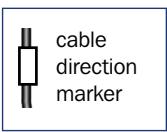
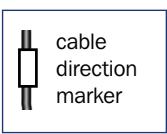
Please do not modify the standard interconnect cables supplied with your Naim equipment. This is important for safety as well as performance. One end of each cable is marked with a band to establish its correct orientation. The band always marks the end that connects to the signal source.
Loudspeaker leads are also very important. Naim loudspeaker cable is correct for your system and your dealer will make up leads to suit your equipment installation. The leads should each be at least 3.5 metres long and of equal length. The recommended maximum is 20 metres. Loudspeaker leads are, like interconnect leads, directional, and should be connected so that the printed arrow points towards the speakers. Using alternative loudspeaker cable will degrade performance, and may even damage your amplifier. An exception to these loudspeaker cable constraints is the NAP 6-50 multi-room power amplifier. The NAP 6-50 is designed to be tolerant of both a wide variety of cable types, and cable runs well in excess of 20m. The loudspeaker connectors supplied with all Naim amplifiers and loudspeakers have been specifically designed to make a robust mechanical connection. It is essential that these are used in order to comply with current European safety regulations.
All the plugs and sockets supplied with your Naim equipment have been chosen because they make the best possible connection for their purpose. A poor contact will degrade the signal substantially and plugs and sockets should look clean and free from corrosion. The easiest way to clean them is to switch off the equipment, pull the plugs out of their sockets, and push them back in again. Special contact cleaners and contact enhancers should not be used as they tend to deposit a film which is very difficult to remove and may degrade the sound.
CONTENTS
Page Section
1 1 Equipment Installation
1 2 Cables and connections
1 3 Getting Started
3.1 switching on and off
3.2 running in
2 3.3 mains supply
3.4 siting the equipment
3.5 if you have a problem
2 4Warnings
3 5 Connection
5.1 mains lead
5.2 non-rewireable mains plugs
5.3 fuse carrier
5.4 plug fuses
4 6 NAC 552
6 7 NAC 552 Connections
8 8 NAC 252
10 9 NAC 252 Connections
12 10 NAC 282
14 11NAC 282 Connections
16 12 NAC 202
18 13 NAC 202 Connections
20 14 NAC 112
22 15 NAC 112 Connections
23 16 Flash Handset
25 17 Narcom 3 Handset
28 Standards Declaration
3 Getting Started
3.1 switching on and off
Source components and power supplies for cd players, tuners, preamplifiers and crossovers should be switched on before switching on the power amplifier(s). Always switch the amplifier(s) off and wait about a minute for the power supply capacitors to discharge before connecting or disconnecting any leads. Always use the power switch on the product rather than a mains outlet switch.
3.2 running in
Your Naim equipment will take a considerable time to run in before it performs at its best. The duration varies, but under some conditions you will find that the sound continues to improve for as much as five weeks. Better and more consistent performance will be achieved if the system is left switched on for long periods. It is worth remembering however that all electronic equipment can be damaged by lightning. Please read the warnings section.
3.3 mains supply
Where fused plugs are used 13 amp fuses should be fitted. Fuses of a lower rating will fail after a period of use.
A hi-fi system usually shares a mains circuit with other household equipment some of which can cause distortion of the mains waveform. In some Naim equipment such distortion can lead to a mechanical hum from the transformers. The hum is not transmitted through the speakers and has no effect on the performance of the system but is purely local to the transformer itself. A separate fused mains circuit (like that reserved for electric cookers) may reduce transformer hum. Such a circuit (ideally with a 30 or 45 Amp rating) will also have a lower impedance, supply cleaner power, and consequently improve system performance.
Do not wire voltage dependent resistors or noise suppressors into mains plugs. They degrade the mains supply and the sound.
IMPORTANT
In order to comply with current European safety regulations it is essential that the Naim loudspeaker connectors supplied with amplifiers and loudspeakers are used.
Do not under any circumstances allow anyone to modify your Naim equipment without first checking with the factory, your dealer, or your distributor. Unauthorized modifications will invalidate your guarantee.
For your own safety do not under any circumstances open Naim equipment without first disconnecting the mains.
The following label is attached to all mains powered equipment:
WARNING
THIS APPARATUS
MUST BE EARTHED
3.4 siting the equipment
Power supplies and amplifiers should be located a reasonable distance away from other equipment. This separation will stop transformer radiation causing hum audible from the loudspeakers. The maximum separation distance for connected equipment is that allowed by the standard interconnect lead.
Some Naim equipment is extremely heavy. Ensure that your equipment rack or table can easily support the weight and is stable.
3.5 if you have a problem
Legal consumer protection varies from country to country. In most territories a dealer must be prepared to take back any Naim equipment he has sold you if he cannot make it work to your satisfaction in your own home. A problem may be due to a fault in any part of the system or its installation so it is essential to make full use of your local dealer's diagnostic skills on site. Please contact your local distributor, or Naim at the address in the back of this manual, if any difficulties cannot be resolved. Some Naim equipment is made in special versions for different territories and this makes it impracticable to arrange international guarantees. Please establish the guarantee arrangements with your own dealer at the time of sale. We are always available to offer help and advice.
It is essential that repairs and updates are only carried out by an authorised Naim dealer, or at the factory by Naim itself. Many components are made, tested or matched specially for Naim and appropriate replacements are often unobtainable from non-specialist sources.
4Warnings
Naim equipment is designed to offer the finest sound quality that can be achieved avoiding compromise wherever possible. This can lead to circumstances that may be unfamiliar. The material that follows contains advice specifically related to Naim equipment as well as more general warnings about the use of domestic audio products. Please read it carefully.
The transformers in Naim power amplifiers and power supplies may sometimes make a mechanical noise caused by distortion of the mains waveform. Naim transformers are large in size and have heavy gauge secondary windings making them relatively sensitive to such distortion. A separate mains circuit for your hi-fi system may reduce the effect while also giving an overall improvement in sound quality. It may be necessary however to take account of mechanical transformer noise when siting your equipment.
In some circumstances, depending on where you live and the earthing arrangements in your home, you may experience radio frequency interference. Controls on broadcasting in some territories allow very high levels of radio frequency radiation and both the choice and exact siting of equipment may be critical. If there is a known problem in your locality it is advisable to arrange for a home demonstration before purchase to find out if Naim equipment is likely to be affected. Susceptibility to radio frequency interference is related to the wide internal bandwidth necessary for high sound quality. Systems incorporating moving coil phono preamplifiers and active crossovers are more likely to suffer. A radio frequency filter kit is available for some Naim equipment but sound quality will be progressively compromised as more elements of the kit are fitted. In situations of extreme radio interference Naim equipment may be unsuitable.
Your Naim hi-fi system can be damaged by lightning. Power amplifiers are particularly at risk and should be turned off when there is risk of lightning strike. For complete protection all mains plugs and any aerial cables should be disconnected when not in use.
Equipment must not be exposed to dripping or splashing and no objects filled with liquid, such as vases, should be placed on the equipment.
Use of non-standard speaker cables or interconnects may invalidate your guarantee.
5 Connection
5.1 mains lead
As the colours of the wires in the mains lead of this apparatus may not correspond with the coloured markings identifying the terminals in your plug proceed as follows:
The wire which is coloured GREEN-AND-YELLOW must be connected to the terminal in the plug which is marked by the letter E or by the safety earth symbol or coloured green or green-and-yellow.
The wire which is coloured BLUE must be connected to the terminal in the plug which is marked with the letter N or coloured black.
The wire which is coloured BROWN must be connected to the terminal in the plug which is marked with the letter L or coloured red.
5.2 non-rewireable mains plugs
If a non-rewireable plug is cut from a mains lead (for whatever purpose) the plug MUST be disposed of in a way to render it totally useless. Considerable shock hazard exists if the cut-off plug is inserted into a mains outlet.
5.3 fuse carrier
Should the plug fuse carrier be damaged or lost, the correct replacement must be obtained from your dealer, or from Naim Audio direct. Do not use the plug until the fuse carrier is replaced.
5.4 plug fuses
Replace only with ASTA or BS 1362 approved fuses.
NOTE
This equipment has been tested and found to comply with the relevant EMC and Safety Standards, and, where applicable, also complies with the limits for a class B digital device, pursuant to Part 15 of the FCC Rules.
These limits are designed to provide reasonable protection against harmful interference in a residential installation. This equipment generates, uses and can radiate radio frequency and, if not installed and used in accordance with the instructions, may cause harmful interference to radio communications. However, there is no guarantee that interference will not occur in a particular installation. If this equipment does cause harmful interference to radio or television reception, which can be determined by turning off and on, the user is encouraged to try to correct the interference by one or more of the following measures:
- Reorient or relocate the receiving antenna.
- Increase the separation between the equipment and the receiver.
- Connect the equipment into an outlet on a circuit different from that to which the receiver is connected.
- Consult your Naim dealer or an experienced radio/TV technician for help.
6 Installation and Operation
The NAC 552 preamplifier does not incorporate an internal power supply and can be used only in conjunction with the NAC 552PS power supply. Diagram 7.3 illustrates connection of the NAC 552 to its power supply.
The four transit screws on the underside of the NAC 552 case should be removed before use and must be replaced if the unit is to be re-packed and shipped. These transit screws must not be used in any other Naim product. Do not invert the NAC 552 once the transit screws are removed.
6.1 source inputs and record outputs
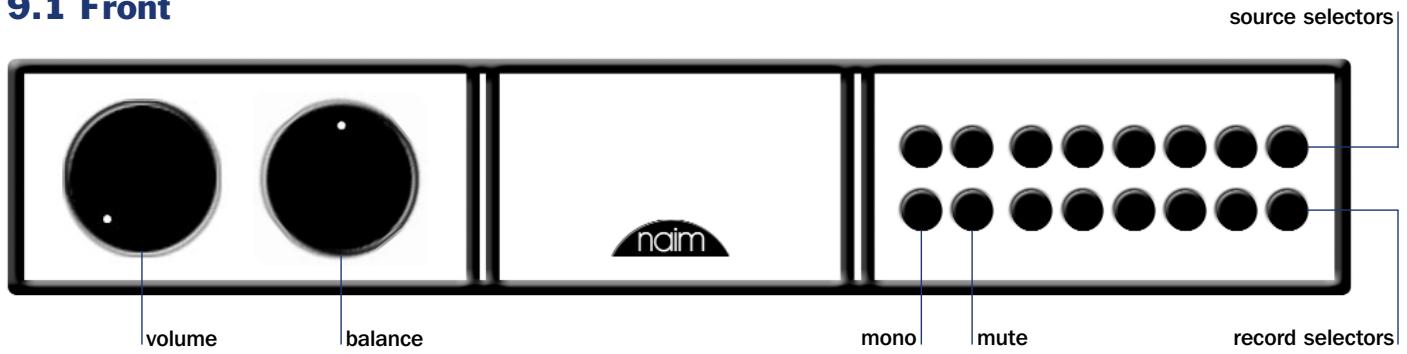
The input selector buttons arranged along the uppermost bank select the source signal to be routed to the power amplifier and the loudspeakers. Below them, in the lower bank, are a corresponding array of buttons which select the signal to be routed to the preamplifier's record outputs.
These separate source and record sections enable one source (a CD player, for example) to be listened to whilst the output from another (say, the tuner) is simultaneously selected for recording. Note: It is possible to lock the record controls and prevent accidental de-selection during recording. Record-lock is switched on or off by depressing the source mono button four times within six seconds.
Illuminating indicators are fitted to the NAC 552 rear panel above each input socket. These indicators illuminate to provide information on input selection and on input mapping setup and programming.
6.2 input mapping
Any NAC 552 source input socket can be selected by any button. For example, while the NAC 552 default setup is for the CD input button to select input socket No. 2, custom programming of "input mapping" could enable any input socket to be selected by pressing the CD button. Mapping of each record button follows the corresponding source button.
Input mapping setup is accessed through the NAC 552 program mode. To switch into program mode press and
6.3 socket types and mapping defaults
| Input Socket Number | Socket Features |
| 1 | DIN input |
| 2 | DIN input |
| 3 | DIN input |
| 4 | DIN input/output, unity gain capable |
| 5 | DIN input/output, unity gain capable |
| 6 | DIN input/output |
| 7 | DIN input, power output for Stageline |
| 8 | Phono pair |
| 9 | Phono pair |
hold prog from the remote handset (in preamplifier mode). Program mode is indicated by a flashing indicator on the volume control and the record select indicators extinguishing. If no function is operated within five minutes of entering program mode the NAC 552 will return to normal mode automatically.
Any of the six source buttons on the front panel can be mapped to any of the nine stereo inputs (seven DIN sockets and two phono socket pairs) on the rear panel. In program mode, as a source input is selected, a rear panel indicator will illuminate to designate the socket to which it is mapped.
To change the input socket mapped to a source button, select the source button and use the front panel record mute and mono buttons to scroll along the input sockets. If the input socket selected is already mapped to a source button the indicator above the socket will flash repeatedly. It is possible to map one input socket to more than one source button but NOT to map multiple input sockets to one source button. The remote handset record mute and mono functions can also be used to set up input mapping.
6.4 automatic input switching
The NAC 552 incorporates an optional automatic input switching feature which can select the appropriate input as soon as any handset function for a particular Naim source component is operated. For example, if the tuner input is selected on the NAC 552 and the CD play key is operated on the handset, the NAC 552 will automatically switch to
| the CD input. Automatic input switching can be programmed to operate independently on any combination of the CD, AV and Tuner input buttons (and sockets to which they are mapped). | |
| Source Button | |
| Mapping Default | |
| Not Mapped | |
| CD | |
| TUNER | |
| TAPE | |
| AV | |
| AUX 1 | To enable automatic input |
| AUX 2 | switching, first switch the |
| Not mapped | NAC 552 into program mode |
| Not mapped |
as previously described. The front panel source mono button will illuminate if automatic switching is already enabled. If it is not enabled it can be switched on by pressing the source mono button twice.
With auto switching enabled, pressing the source mono button will reveal the inputs selected for auto switching by their button indicators illuminating for a short time. Repeated operation of the source mono button will sequentially select through each possible combination of CD, Tuner, AV inputs, and auto switching disabled (CD, Tuner and AV button indicators off). When the desired inputs selected for auto switching are indicated, stop pressing the source mono button.
The remote handset mono (Flash) or mon (Narcom 3) key can also be used to set up automatic source switching. Automatic input switching only becomes operational on exiting from program mode by pressing and holding the handset prog key.
Note: In a few cases some further equipment configuration may be required for auto switching to operate correctly on the AV input. Please contact your retailer or local distributor for advice.
The NAC 552 unity gain function enables an audio-visual processor to be integrated such that the processor's volume control takes over command of signals connected to selected NAC 552 inputs. Unity gain can be selected only on input sockets 4 and 5 (the corresponding input buttons will depend on the input mapping set up).
To select unity gain, first switch the NAC 552 into program mode as previously described. The front panel source mute button will illuminate if unity gain is selected on any input. If it is not enabled it can be switched on by pressing the source mute button twice.
With unity gain enabled, pressing the source mute button again will reveal the inputs selected by their button indicators illuminating for a short time. Repeated operation of the source mute button will sequentially select each combination of Input 4, Input 5 and unity gain disabled. When the desired inputs are indicated, stop pressing the source mute button. The selected inputs will then be enabled for unity gain. The remote handset mute key can also be used to set up unity gain.
Unity gain only becomes operational on exiting from program mode by pressing and holding the handset prog key.
Note: The unity gain feature must be used with care. It effectively by-passes the NAC 552 volume and balance controls leaving any signal connected to a unity gain input to be passed to the power amplifier and speakers at full volume. In order to reduce the potential for inadvertent mishap, any subsequent modifications to input mapping will automatically disable previously set up unity gain inputs. Additionally, if an input is selected which has unity gain enabled, the NAC 552 volume and balance handset functions will be disabled and their indicators will turn off. This will be flagged by the volume or balance indicators flashing if either handset function is operated.
6.6 volume and balance control
The remote handset volume and balance keys provide some alternative control characteristics. A quick press and release of a key will adjust by a preset "nudge". A quick press and release of a key followed by press and hold will cause continual slow adjustment. Simple press and hold will cause continual fast adjustment.
6.7 mute and mono
Mute and mono functions can be controlled independently for source and record signals via the buttons to the left of the two banks of source and record selection buttons. Mute silences the output signal, while mono sums the left and right channels.
6.8 display
The NAC 552 front panel button display can be switched off by pressing the remote handset (in preamplifier mode) disp function. Any subsequent handset or front panel operation will temporarily restore the display. A second operation of the disp function will permanently restore the display.
6.9 switch-on
After switch-on, via the NAC 552PS front panel power button, the NAC 552 will remain muted for 30 seconds while control systems and circuits stabilise. The source side will then un-mute automatically leaving the record side muted (and its circuits unpowered).
6.10 remote control
The Flash remote handset supplied with the NAC 552 duplicates all configuration options. See Section 16 for more information. The Narcom 3 handset will also control the NAC 552. See Section 17 for more information.
6.11 defaults
To restore all programmable settings to the factory defaults press and hold the remote handset disp key while the preamplifier is in program mode. The preamplifier will exit from program mode following this operation.
NAC 552 Connections
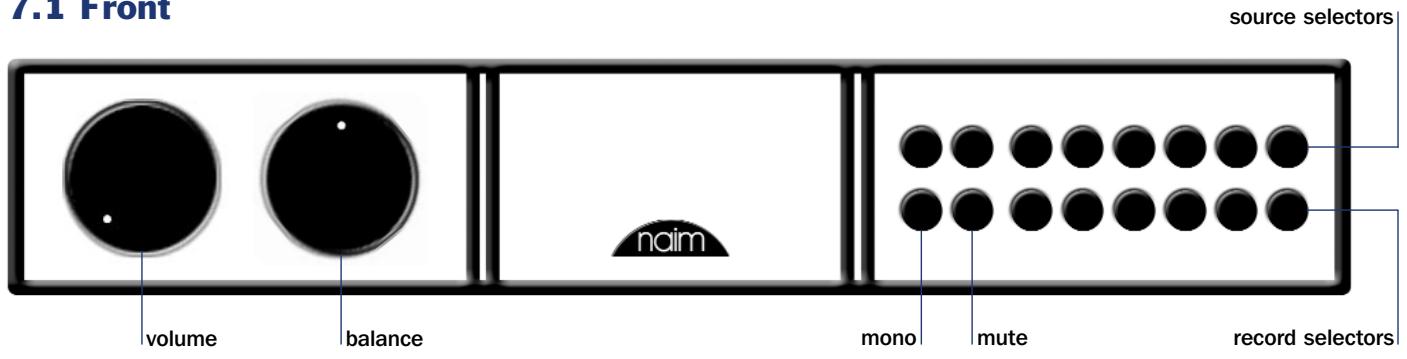
7.1 Front
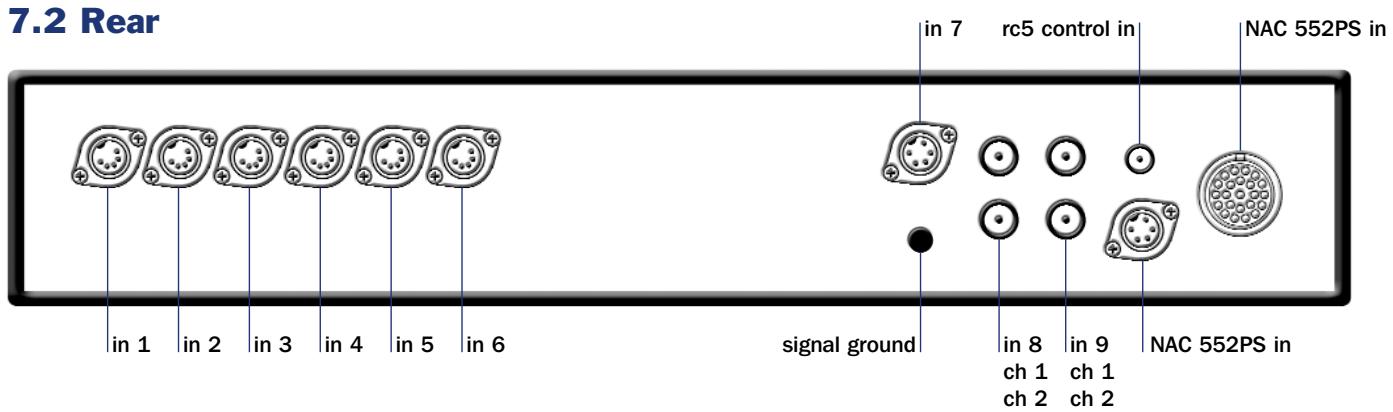
7.2 Rear
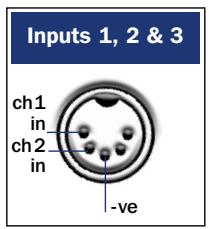
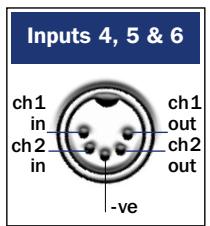
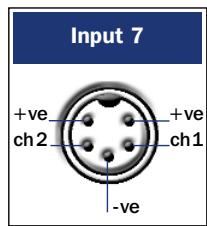
Specifications
NAC 552 and NAC 552PS
Input sensitivities:
Overload margins:
Main output level:
Tape output level:
Auxiliary power outputs:
75mV, 47kΩ
40dB (all inputs all audio frequencies)
0.775V, <50Ω
75mV, 600Ω
To suit Stageline or Prefix phono stage, or Headline headphone amplifier.
Case size (H x W x D):
Mains Supply:
(NAC 552PS)
87 × 432 × 314 ~mm
100V. 115V. 230V - 50/60Hz
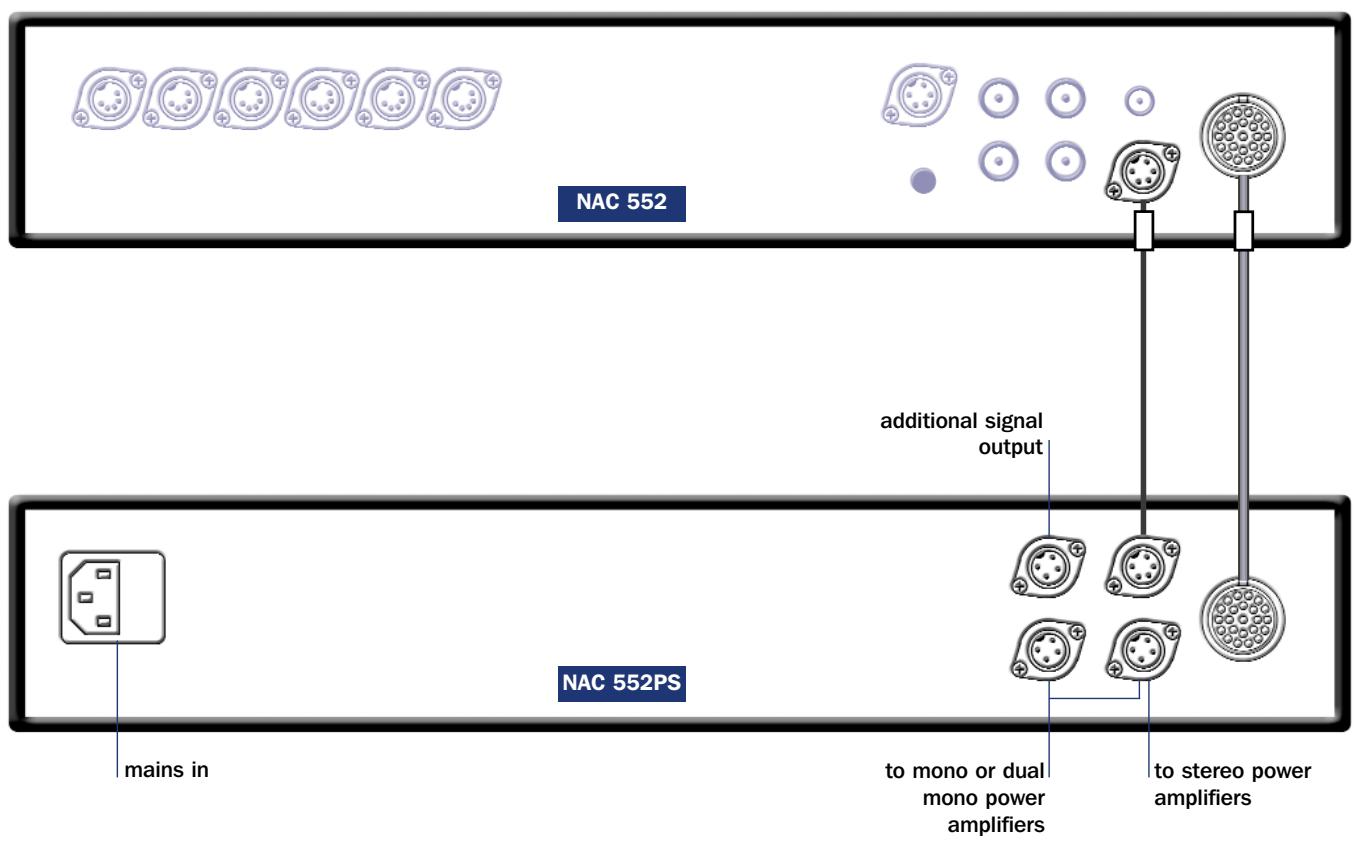
7.3 NAC 552 connection to NAC 552PS power supply
Note
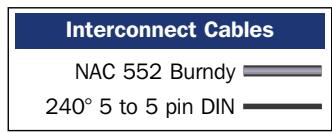
For best performance the Burndy and 5 pin DIN cables should be run as close together as possible.
8 Installation and Operation
The NAC 252 preamplifier does not incorporate an internal power supply and can be used only in conjunction with the Supercap power supply. Diagram 9.3 illustrates connection of the NAC 252 to Supercap.
8.1 source inputs and record outputs
The input selector buttons arranged along the uppermost bank select the source signal to be routed to the power amplifier and the loudspeakers. Below them, in the lower bank, are a corresponding array of buttons which select the signal to be routed to the preamplifier's record outputs.
These separate source and record sections enable one source (a CD player, for example) to be listened to whilst the output from another (say, the tuner) is simultaneously selected for recording. Note: It is possible to lock the record controls and prevent accidental de-selection during recording. Record-lock is switched on or off by depressing the source mono button four times within six seconds.
8.2 input socket mapping
The NAC 252 has six DIN input sockets and two alternative pairs of Phono sockets. The Phono sockets can be mapped individually to the CD and AUX 2 input buttons in place of the DIN sockets.
Input mapping setup is accessed through the NAC 252 program mode. To switch into program mode press and hold prog from the remote handset (in preamplifier mode). Program mode is indicated by a flashing indicator on the volume control and the record select indicators extinguishing. If no function is operated within five minutes of entering program mode the NAC 252 will return to normal mode automatically.
Once in program mode press and hold the remote handset 1 button to select or de-select the phono socket input for CD, and the remote handset 6 button to select or de-select the phono socket input for AUX 2. The corresponding front panel input buttons can similarly be used to select or deselect the phono socket inputs. The appropriate input button indicator will flash three times on selection of the phono option and once on selection of the DIN option.
To exit from program mode press and hold the prog key on the remote until the record select indicators are restored and the volume indicator stops flashing.
8.3 automatic input switching
The NAC 252 incorporates an optional automatic input switching feature which can select the appropriate input as soon as any handset function for a particular Naim source component is operated. For example, if the tuner input is selected on the NAC 252 and the CD play key is operated on the handset, the NAC 252 will automatically switch to the CD input. Automatic input switching can be programmed to operate independently on any combination of the CD, AV and Tuner input buttons.
To enable automatic input switching, first switch the NAC 252 into program mode as previously described. The front panel source mono button will illuminate if automatic switching is already enabled. If it is not enabled it can be switched on by pressing the source mono button twice.
With auto switching enabled, pressing the source mono button will reveal the inputs selected for auto switching by their button indicators illuminating for a short time. Repeated operation of the source mono button will sequentially select each combination of CD, Tuner, AV inputs, and auto switching disabled (CD, Tuner and AV button indicators off). When the desired inputs selected for auto switching are indicated, stop pressing the source mono button.
The remote handset mono (Flash) or mon (Narcom 3) key can also be used to set up automatic source switching. Automatic input switching only becomes operational on exiting from program mode by pressing and holding the handset prog key.
Note: In a few cases some further equipment configuration may be required for auto switching to operate correctly on the AV input. Please contact your retailer or local distributor for advice.
The NAC 252 unity gain function enables an audio-visual processor to be integrated such that the processor's volume control takes over command of signals connected to selected NAC 252 inputs. Unity gain can be selected only on the AV input.
To select unity gain, first switch the NAC 252 into program mode as previously described. The front panel source mute button will illuminate if unity gain is selected. If it is not enabled it can be switched on by pressing the source mute button twice. Deselect unity gain by again pressing the source mute button twice.
Unity gain options only become operational on exiting from program mode by pressing and holding the handset prog key.
Note: The unity gain feature must be used with care. It effectively by-passes the NAC 252 volume and balance controls leaving any signal connected to a unity gain input to be passed to the power amplifier and speakers at full volume. Additionally, if the AV input is selected while unity gain is enabled the volume and balance handset functions will be disabled and their indicators will turn off. This will be flagged by the volume or balance indicators flashing if either handset function is operated.
8.5 volume and balance control
The remote handset volume and balance keys provide some alternative control characteristics. A quick press and release of a key will adjust by a preset "nudge". A quick press and release of a key followed by press and hold will cause continual slow adjustment. Simple press and hold will cause continual fast adjustment.
8.6 mute and mono
Mute and mono functions can be controlled independently for source and record signals via the buttons to the left of the two banks of source and record selection buttons. Mute silences the output signal, while mono sums the left and right channels.
8.7 display
The NAC 252 front panel button display can be switched off by pressing the remote handset (in preamplifier mode) disp function. Any subsequent handset or front panel operation will temporarily restore the display. A second operation of the disp function will permanently restore the display.
8.8 switch-on
After switch-on, via the Supercap front panel power button, the NAC 252 will remain muted for 30 seconds while control systems and circuits stabilise. The source side will then un-mute automatically leaving the record side muted.
Note: A flashing mute indicator after switch-on indicates that the preamplifier power supply or link plugs are incorrectly connected.
8.9 remote control
The NARCOM 3 remote handset supplied with the NAC 252 duplicates all configuration options. See Section 17 for more information. The Flash handset will also control the NAC 252. See Section 16 for more information.
8.10 defaults
To restore all programmable settings to the factory defaults press and hold the remote handset disp key while the preamplifier is in program mode. The preamplifier will exit from program mode following this operation.
NAC 252 Connections
9.1 Front
9.2 Rear
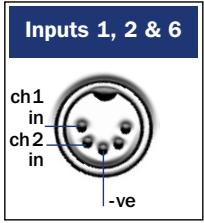
Inputs 1, 2 & 6
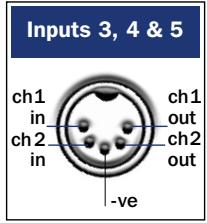
Inputs 3,4&5
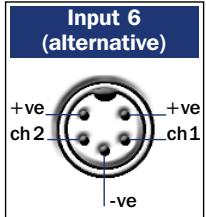
Note
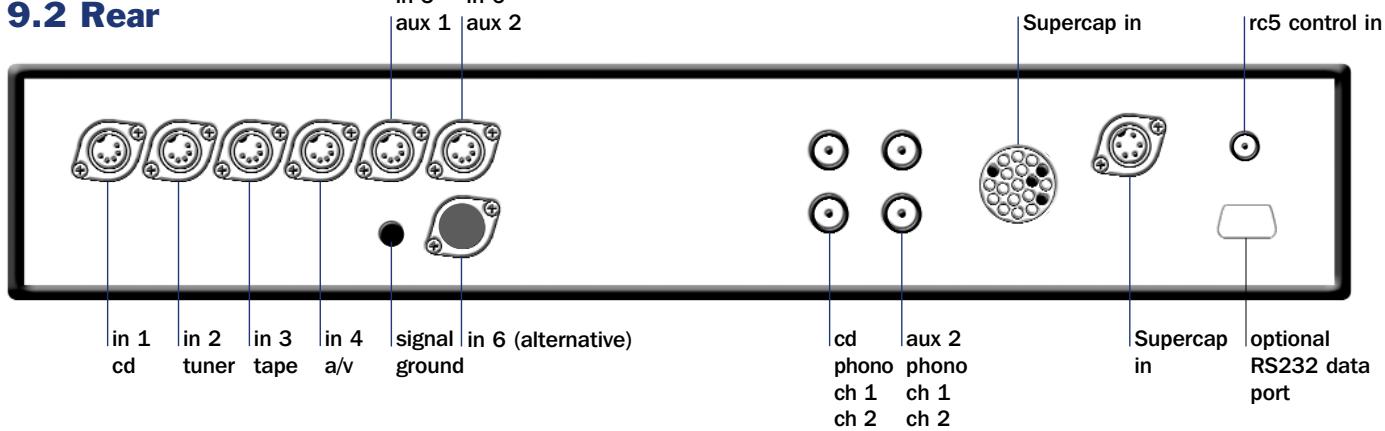
The NAC 252 AUX 2 input is provided with two sockets. The lower socket, fitted on delivery with a blanking cover, is intended for use with a Stageline or Prefix phono stage and incorporates an appropriate DC power supply. The two sockets must not be used simultaneously.
Specifications
NAC 252 and Supercap
Input sensitivities: 75mV, 47kΩ
Overload margins: 40dB (all inputs all audio frequencies)
Main output level: 0.775V, <50Ω
Tape output level: 75mV, 600Ω
Auxiliary power outputs:
To suit Stageline or Prefix phono stage, or Headline headphone amplifier.
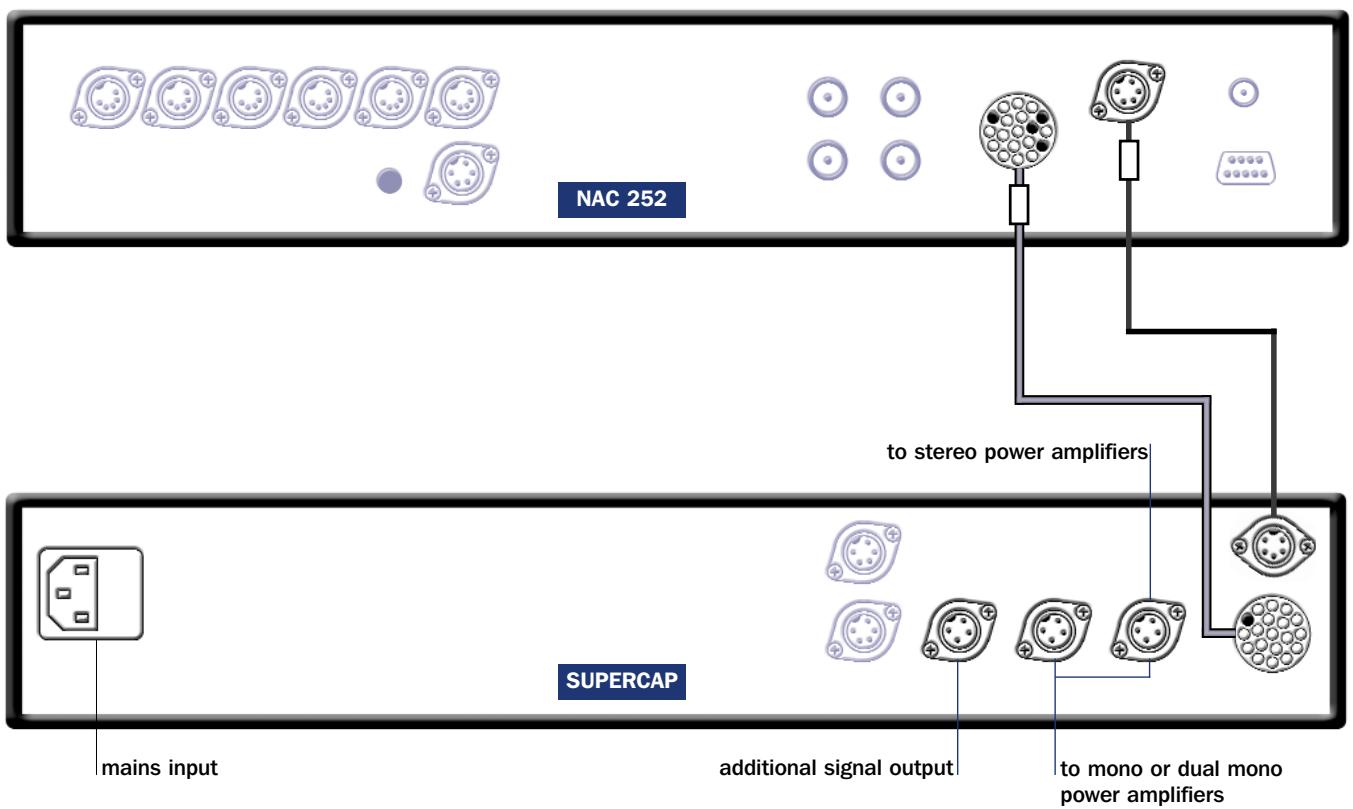
9.3 NAC 252 connection to Supercap power supply
Note
For best performance the Burndy and 5 pin DIN cables should be run as close together as possible.
10 Installation and Operation
The NAC 282 preamplifier does not incorporate an internal power supply but must be used in conjunction with either a Naim power amplifier incorporating a preamplifier power output, or with an appropriate Naim power supply. A separate NAPSC supply that provides power to the display and control circuits is also supplied. Diagram 11.3 and
11.4 illustrate a variety of NAC 282 power supply options.
10.1 source inputs and record outputs
The input selector buttons arranged along the uppermost bank select the source signal to be routed to the power amplifier and the loudspeakers. Below them, in the lower bank, are a corresponding array of buttons which select the signal to be routed to the preamplifier's record outputs.
These separate source and record sections enable one source (a CD player, for example) to be listened to whilst the output from another (say, the tuner) is simultaneously selected for recording. Note: It is possible to lock the record controls and prevent accidental de-selection during recording. Record-lock is switched on or off by depressing the source mono button four times within six seconds.
10.2 input socket mapping
The NAC 282 has six DIN input sockets and two alternative pairs of Phono sockets. The Phono sockets can be mapped individually to the CD and AUX 2 input buttons in place of the DIN sockets.
Input mapping setup is accessed through the NAC 282 program mode. To switch into program mode press and hold prog from the remote handset (in preamplifier mode). Program mode is indicated by a flashing indicator on the volume control and the record select indicators extinguishing. If no function is operated within five minutes of entering program mode the NAC 282 will return to normal mode automatically.
Once in programme mode press and hold the remote handset 1 button to select or de-select the phono socket input for CD, and the remote handset 6 button to select or de-select the phono socket input for AUX 2. The corresponding front panel input buttons can similarly be used to select or de-select the phono socket inputs. The appropriate input button indicator will flash three times on selection of the phono option and once on selection of the DIN option.
To exit from program mode press and hold the prog key on the remote until the record select indicators are restored and the volume indicator stops flashing.
10.3 automatic input switching
The NAC 282 incorporates an optional automatic input switching feature which can select the appropriate input as soon as any handset function for a particular Naim source component is operated. For example, if the tuner input is selected on the NAC 282 and the CD play key is operated on the handset, the NAC 282 will automatically switch to the CD input. Automatic input switching can be programmed to operate independently on any combination of the CD, AV and Tuner input buttons.
To enable automatic input switching, first switch the NAC 282 into program mode as previously described. The front panel source mono button will illuminate if automatic switching is already enabled. If it is not enabled it can be switched on by pressing the source mono button twice.
With auto switching enabled, pressing the source mono button will reveal the inputs selected for auto switching by their button indicators illuminating for a short time. Repeated operation of the source mono button will sequentially select each combination of CD, Tuner, AV inputs, and auto switching disabled (CD, Tuner and AV button indicators off). When the desired inputs selected for auto switching are indicated, stop pressing the source mono button.
The remote handset mono (Flash) or mon (Narcom 3) key can also be used to set up automatic source switching. Automatic input switching only becomes operational on exiting from program mode by pressing and holding the handset prog key.
Note: In a few cases some further equipment configuration may be required for auto switching to operate correctly on the AV input. Please contact your retailer or local distributor for advice.
The NAC 282 unity gain function enables an audio-visual processor to be integrated such that the processor's volume control takes over command of signals connected to selected NAC 282 inputs. Unity gain can be selected only on the AV input.
To select unity gain, first switch the NAC 282 into program mode as previously described. The front panel source mute button will illuminate if unity gain is selected. If it is not enabled it can be switched on by pressing the source mute button twice. Deselect unity gain by again pressing the source mute button.
Unity gain options only become operational on exiting from program mode by pressing and holding the handset prog key.
Note: The unity gain feature must be used with care. It effectively by-passes the NAC 282 volume and balance controls leaving any signal connected to a unity gain input to be passed to the power amplifier and speakers at full volume. Additionally, if the AV input is selected while unity gain is enabled the volume and balance handset functions will be disabled and their indicators will turn off. This will be flagged by the volume or balance indicators flashing if either handset function is operated.
10.5 volume and balance control
The remote handset volume and balance keys provide some alternative control characteristics. A quick press and release of a key will adjust by a preset "nudge". A quick press and release of a key followed by press and hold will cause continual slow adjustment. Simple press and hold will cause continual fast adjustment.
10.6 mute and mono
Mute and mono functions can be controlled independently for source and record signals via the buttons to the left of the two banks of source and record selection buttons. Mute silences the output signal, while mono sums the left and right channels.
10.7 display
The NAC 282 front panel button display can be switched off by pressing the remote handset (in preamplifier mode) disp function. Any subsequent handset or front panel operation will temporarily restore the display. A second operation of the disp function will permanently restore the display.
10.8 switch-on
After switch-on, via the NAPSC and power supply, or power amplifier, power button, the NAC 282 will remain muted for 30 seconds while control systems and circuits stabilise. The source side will then un-mute automatically leaving the record side muted (and its circuits unpowered).
Note: A flashing mute indicator after switch-on indicates that the preamplifier power supply or link plugs are incorrectly connected.
10.9 remote control
The NARCOM 3 remote handset supplied with the NAC 282 duplicates all configuration options. See Section 17 for more information. The Flash handset will also control the NAC 282. See Section 16 for more information.
10.10 defaults
To restore all programmable settings to the factory defaults press and hold the remote handset disp key while the preamplifier is in program mode. The preamplifier will exit from program mode following this operation.
NAC 282 Connections
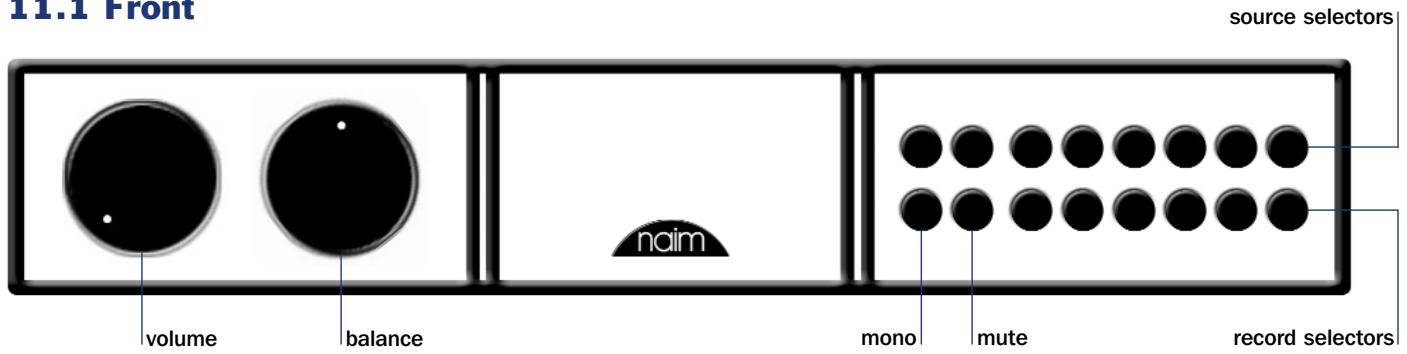
11.1 Front
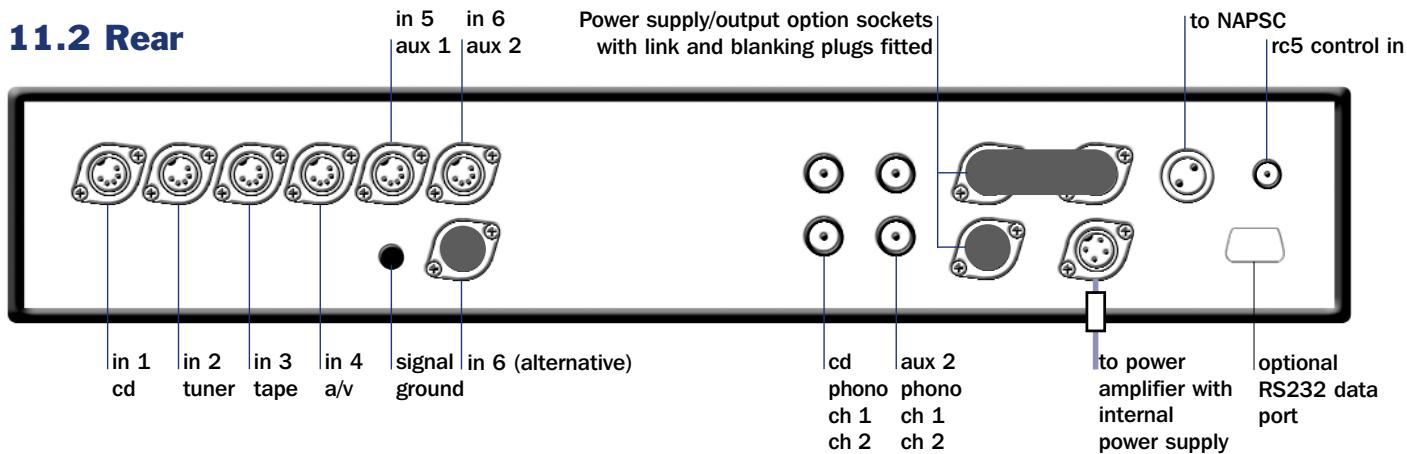
11.2 Rear
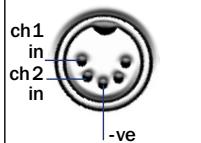
Inputs 1, 2 & 6
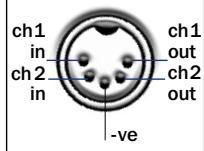
Inputs 3,4&5
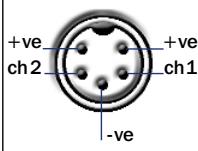
Input 6
Note
The NAC 282 AUX 2 input is provided with two sockets. The lower socket, fitted on delivery with a blanking cover, is intended for use with a Stageline or Prefix phono stage and incorporates an appropriate DC power supply. The two sockets must not be used simultaneously.
Specifications
NAC 282 and NAPSC
Input sensitivities:
75mV, 47kΩ
Overload margins:
40dB (all inputs all audio frequencies)
Main output level:
0.775V, <50Ω
Tape output level:
75mV, 600Ω
Auxiliary power outputs:
To suit Naim Stageline phono stage, or Headline headphone amplifier.
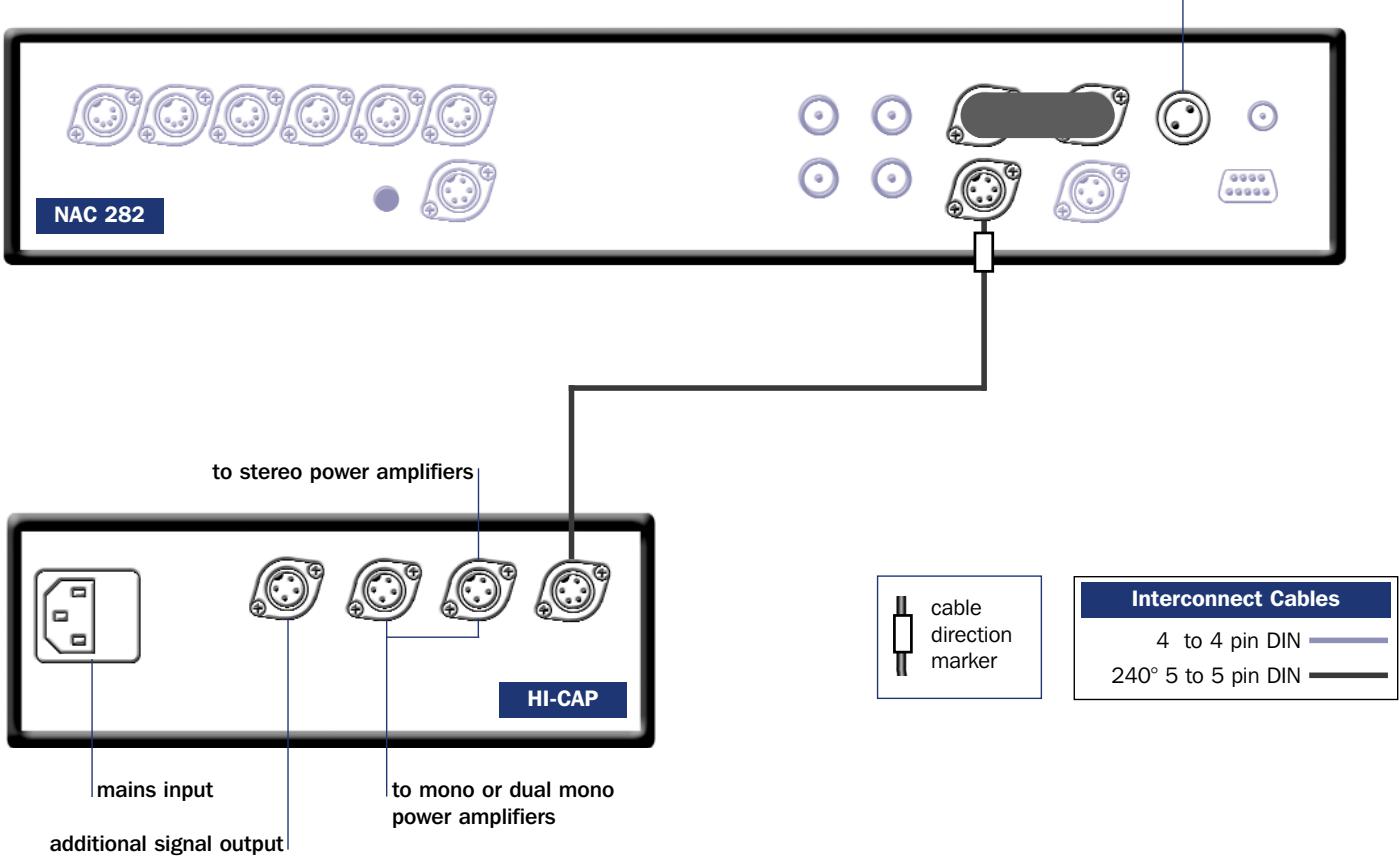
11.3 NAC 282 connection to Hi-Cap power supply
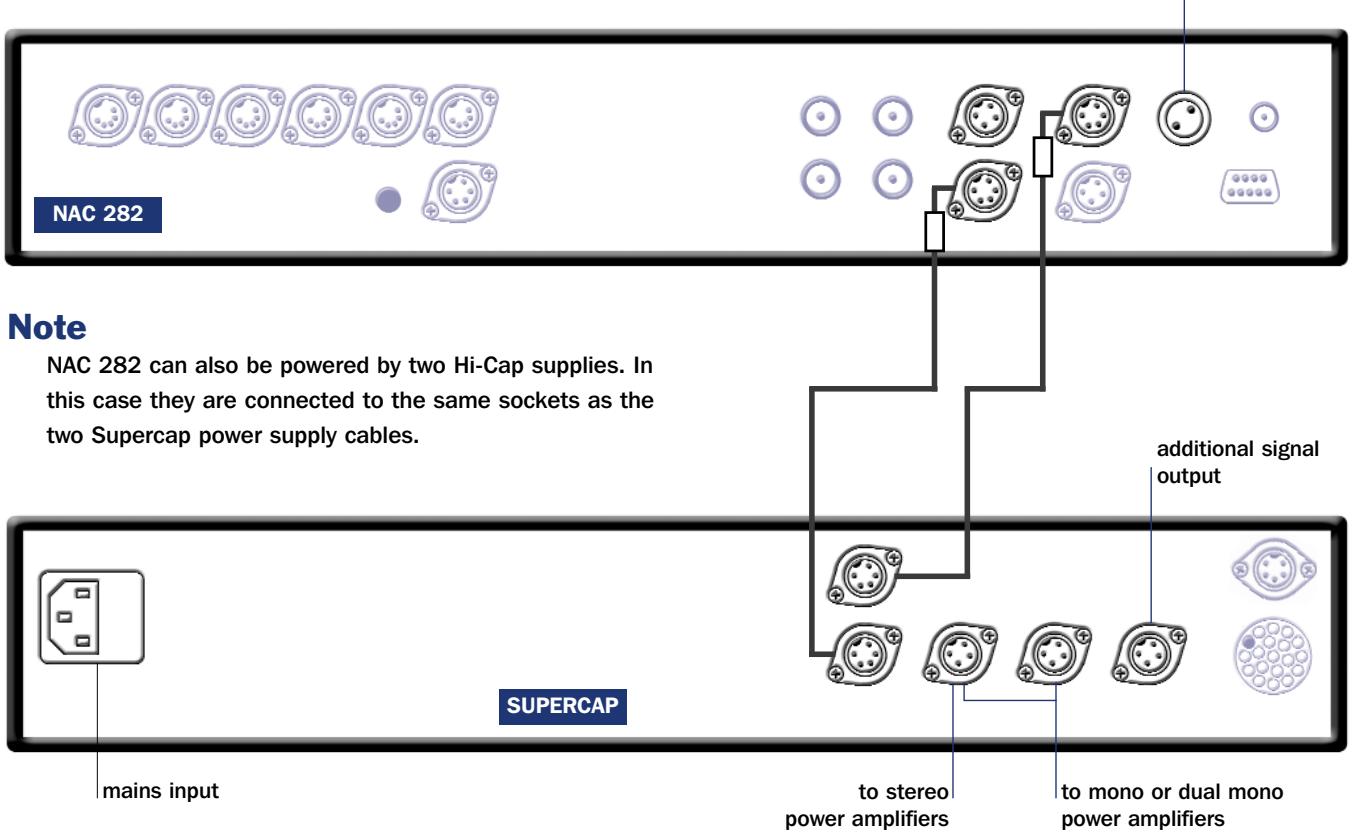
11.4 NAC 282 connection to Supercap power supply
12 Installation and Operation
The NAC 202 preamplifier does not incorporate an internal power supply but must be used in conjunction with either a Naim power amplifier incorporating a preamplifier power output, or with an appropriate Naim power supply. An optional separate NAPSC supply to provide power to the display and control circuits is also available. Diagram
13.3 illustrates the NAC 202 connected to a Hi-Cap power supply.
12.1 input socket mapping
The input selector buttons select the source input signal to be routed to the power amplifier and the loudspeakers.
The NAC 202 has six DIN input sockets and two alternative pairs of Phono sockets. The Phono sockets can be mapped individually to the CD and AUX 2 input buttons in place of the DIN sockets.
Input mapping setup is accessed through the NAC 202 program mode. To switch into program mode press and hold prog from the remote handset (in preamplifier mode). Program mode is indicated by a flashing indicator on the volume control. If no function is operated within five minutes of entering program mode the NAC 202 will return to normal mode automatically.
Once in program mode press and hold the remote handset 1 button to select or de-select the phono socket input for CD, and the remote handset 6 button to select or de-select the phono socket input for AUX 2. The corresponding front panel input buttons can similarly be used to select or deselect the phono socket inputs. The appropriate input button indicator will flash three times on selection of the phono option and once on selection of the DIN option.
To exit from program mode press and hold the prog key on the remote until the volume indicator stops flashing.
12.2 automatic input switching
The NAC 202 incorporates an optional automatic input switching feature which can select the appropriate input as soon as any handset function for a particular Naim source component is operated. For example, if the tuner input is selected on the NAC 202 and the CD play key is operated on the handset, the NAC 202 will automatically switch to the CD input. Automatic input switching can be programmed to operate independently on any combination of the CD, AV and Tuner input buttons.
To enable automatic input switching, first switch the NAC 202 into program mode as previously described. The front panel source mono button will illuminate if automatic switching is already enabled. If it is not enabled it can be switched on by pressing the source mono button twice.
With auto switching enabled, pressing the source mono button will reveal the inputs selected for auto switching by their button indicators illuminating for a short time. Repeated operation of the source mono button will sequentially select each combination of CD, Tuner, AV inputs, and auto switching disabled (CD, Tuner and AV button indicators off). When the desired inputs selected for auto switching are indicated, stop pressing the source mono button.
The remote handset mono (Flash) or mon (Narcom 3) key can also be used to set up automatic source switching. Automatic input switching only becomes operational on exiting from program mode by pressing and holding the handset prog key.
Note: In a few cases some further equipment configuration may be required for auto switching to operate correctly on the AV input. Please contact your retailer or local distributor for advice.
The NAC 202 unity gain function enables an audio-visual processor to be integrated such that the processor's volume control takes over command of signals connected to selected NAC 202 inputs. Unity gain can be selected only on the AV input.
To select unity gain, first switch the NAC 202 into program mode as previously described. The front panel source mute button will illuminate if unity gain is selected. If it is not enabled it can be switched on by pressing the source mute button twice. Deselect unity gain by again pressing the source mute button.
Unity gain options only become operational on exiting from program mode by pressing and holding the handset prog key.
Note: The unity gain feature must be used with care. It effectively by-passes the NAC 202 volume and balance controls leaving any signal connected to a unity gain input to be passed to the power amplifier and speakers at full volume. Additionally, if the AV input is selected while unity gain is enabled the volume and balance handset functions will be disabled and their indicators will turn off. This will be flagged by the volume or balance indicators flashing if either handset function is operated.
12.4 volume
The remote handset volume key provides some alternative control characteristics. A quick press and release of a key will adjust by a preset "nudge". A quick press and release of a key followed by press and hold will cause continual slow adjustment. Simple press and hold will cause continual fast adjustment.
12.5 channel balance
Channel balance adjustment is operated electronically within the preamplifier and is controlled by the remote handset bal keys only. Balance will automatically centre as it reaches the mid point. Centring is indicated by a flashing volume control indicator. To resume adjustment once the balance has centred, a handset bal key must be released and re-pressed.
The handset bal keys provides some alternative control characteristics. A quick press and release of a key will adjust by a preset "nudge". A quick press and release of a key followed by press and hold will cause continual slow adjustment. Simple press and hold will cause continual fast adjustment.
12.6 mute
The mute button silences and restores the output signal.
12.7 mon
The mon button operates the tape monitor circuit enabling the recorded output of a suitably equipped recording device to be heard.
12.8 record mute
In order to minimise power consumption and improve sound quality the NAC 202 record output circuits may be switched off.
To engage or disengage the record mute first operate the tape monitor function as described above then press the front panel mute button. The mute button indicator will be illuminated when record mute is engaged and extinguished when record mute is disengaged.
Record mute can be engaged and disengaged from the remote handset by operating the tape monitor function followed by the mute function.
12.9 display
The NAC 202 front panel button display can be switched off by pressing the remote handset (in preamplifier mode) disp function. Any subsequent handset or front panel operation will temporarily restore the display. A second operation of the disp function will permanently restore the display.
12.10 switch-on
After switch-on, via the power supply or power amplifier power button, the NAC 202 will remain muted for 30 seconds while control systems and circuits stabilise.
Note: A flashing mute indicator after switch-on indicates that the preamplifier power supply or link plugs are incorrectly connected.
12.11 remote control
The NARCOM 3 remote handset supplied with the NAC 202 duplicates all configuration options. See Section 17 for more information. The Flash handset will also control the NAC 202. See Section 16 for more information.
12.12 defaults
To restore all programmable settings to the factory defaults press and hold the remote handset disp key while the preamplifier is in program mode. The preamplifier will exit from program mode following this operation.
NAC 202 Connections
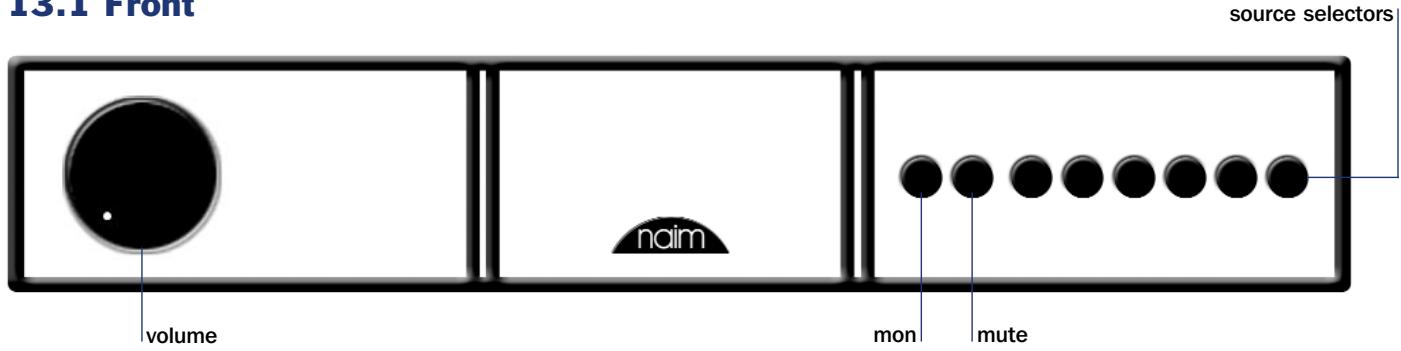
13.1 Front
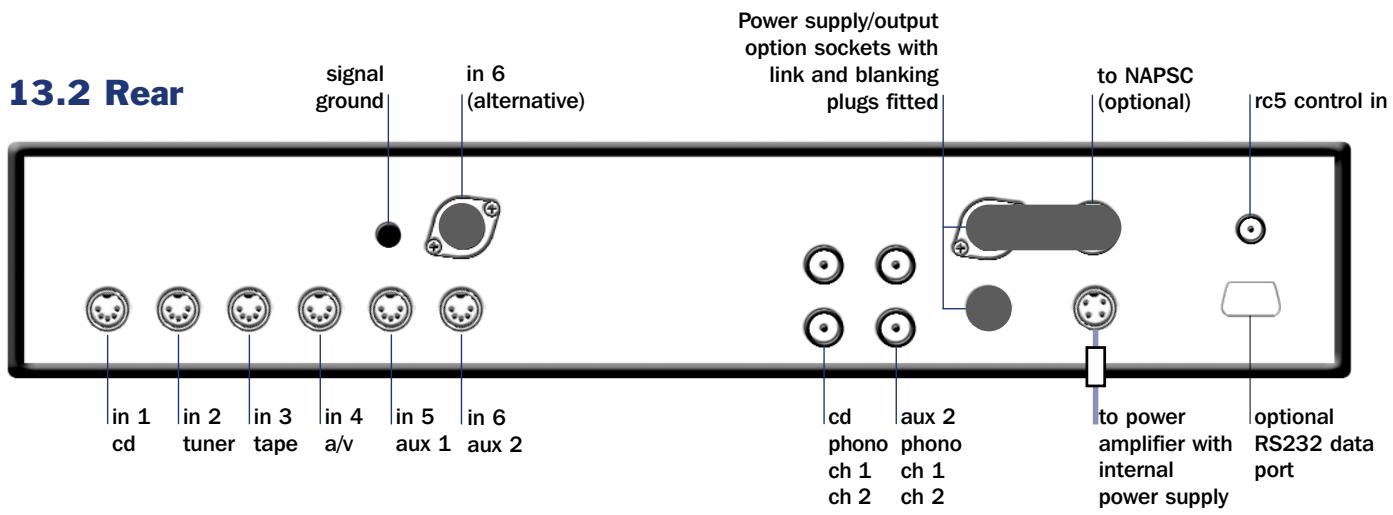
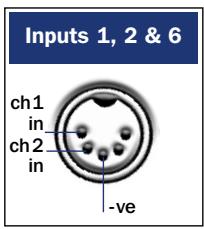
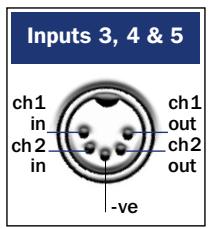
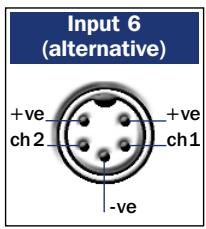
Note
The NAC 202 AUX 2 input is provided with two sockets. The upper socket, fitted on delivery with a blanking cover, is intended for use with a Stageline or Prefix phono stage or a Headline headphone amplifier and incorporates an appropriate DC power supply. The two sockets must not be used simultaneously.
Specifications
NAC 202
Input sensitivities:
75mV, 47kΩ
Overload margins:
40dB (all inputs all audio frequencies)
Main output level:
0.775V, <50Ω
Tape output level:
75mV, 600Ω
Auxiliary power outputs:
To suit Stageline or Prefix phono stage, or Headline headphone amplifier.
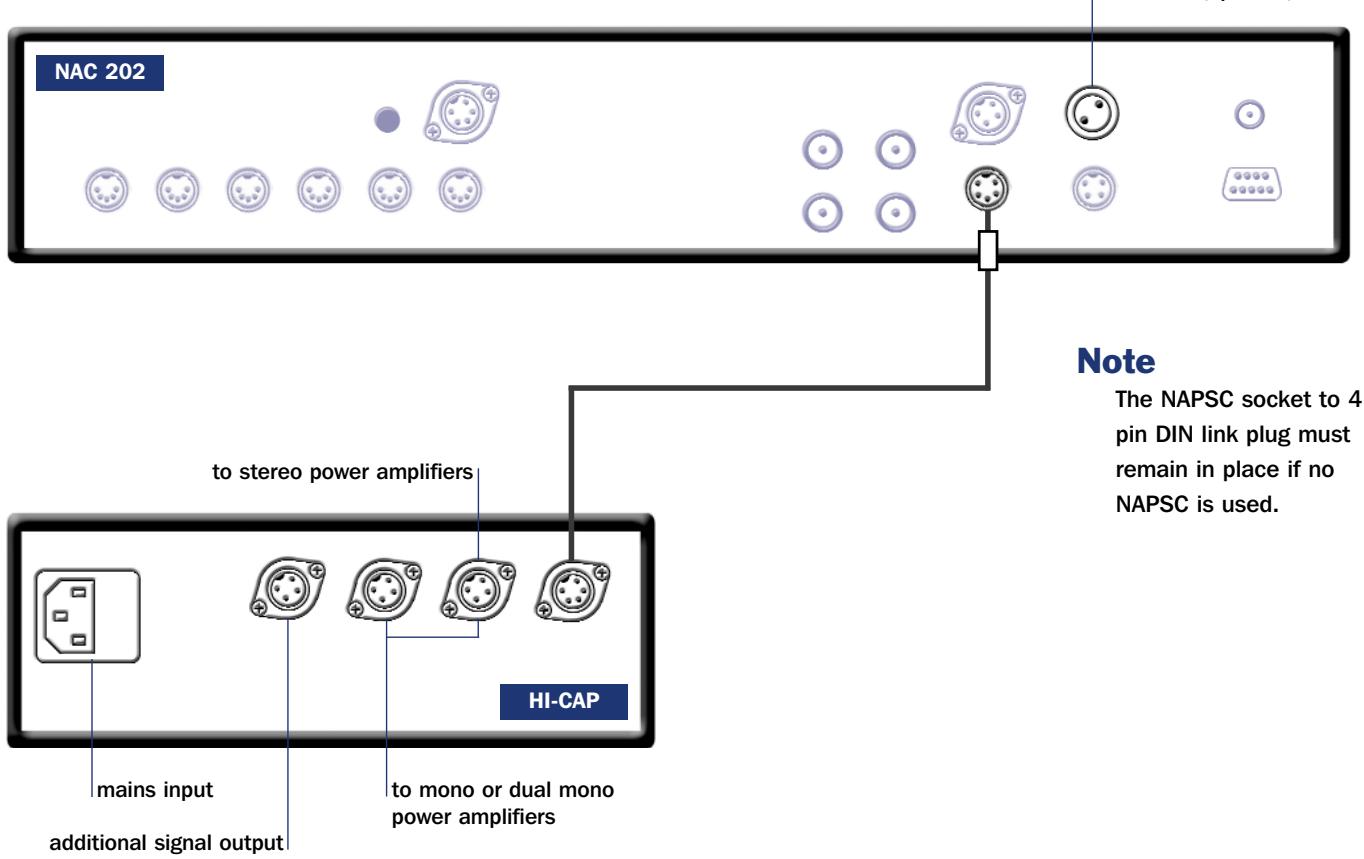
13.3 NAC 202 connection to Hi-Cap power supply
Note
NAC 202 may also be powered by Supercap or Flatcap 2 power supplies connected in a similar manner to the Hi-Cap.
14 Installation and Operation
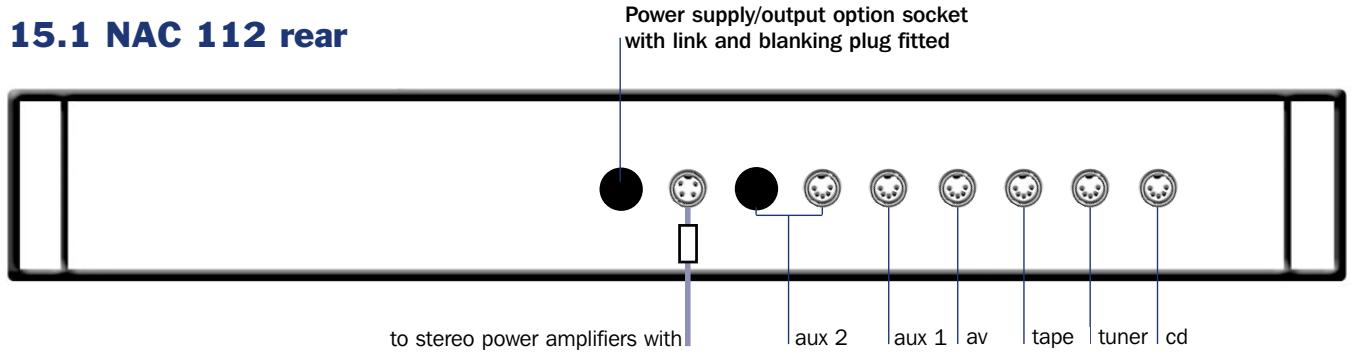
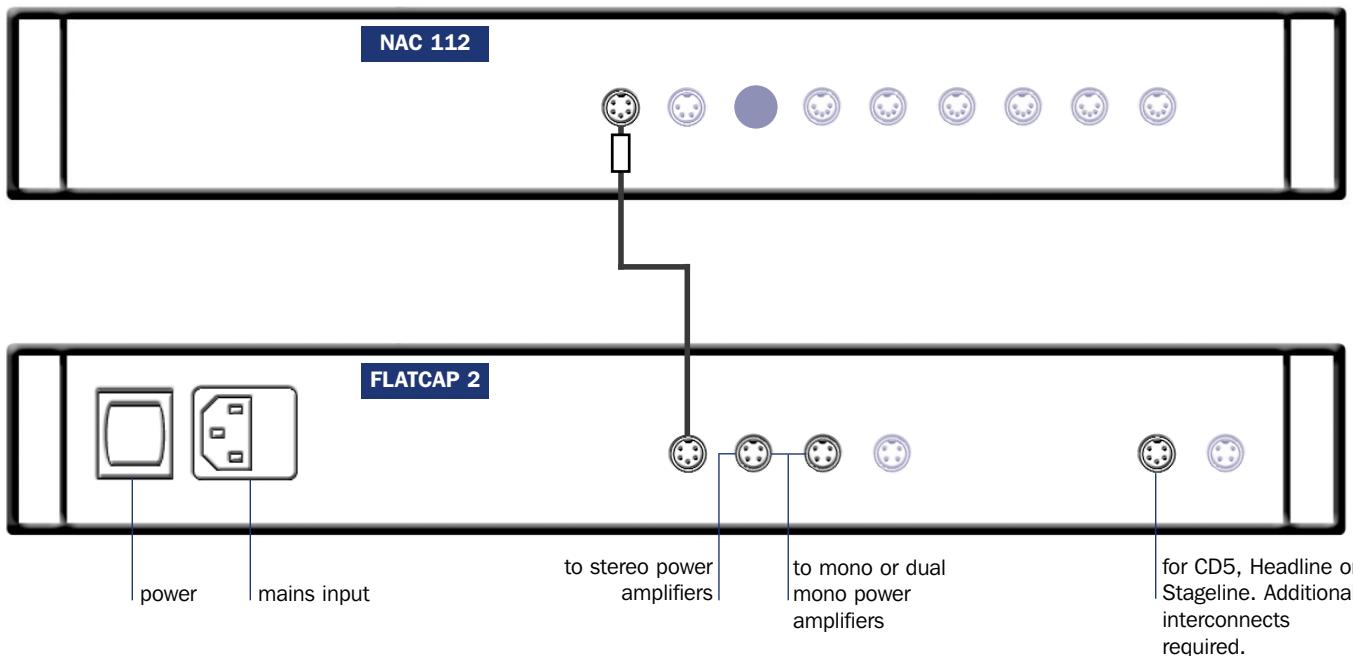
The NAC 112 preamplifier does not incorporate an internal power supply but must be used in conjunction with either a Naim power amplifier incorporating a preamplifier power output, or with an appropriate Naim power supply. Diagram 15.2 illustrates the NAC 112 connected to a Flatcap 2 power supply.
14.1 inputs
The input selector buttons select the source input signal to be routed to the power amplifier and the loudspeakers.
14.2 automatic input switching
The NAC 112 incorporates an optional automatic input switching feature which can select the appropriate input as soon as any handset function for a particular Naim source component is operated. For example, if the tuner input is selected on the NAC 112 and the CD play key is operated on the handset, the NAC 112 will automatically switch to the CD input.
To enable automatic input switching, first switch the NAC 112 into program mode by pressing and hold prog from the remote handset (in preamplifier mode). Program mode is indicated by a flashing indicator on the volume control. If no function is operated within five minutes of entering program mode the NAC 112 will return to normal mode automatically.
If automatic switching is already enabled the front panel mon button will illuminate. If it is not enabled it can be switched on by pressing the remote handset mon (Narcom 3) or mono (Flash) keys. Automatic input switching only becomes operational on exiting from program mode by pressing and holding the handset prog key.
14.3 input volume compensation
The NAC 112 incorporates an input volume compensation system that enables different source component output levels to be matched.
To program the volume compensation for each input first set the volume control to a comfortable listening level with the loudest source (probably CD). Switch the NAC 112 into program mode as previously described. Now select an input to be adjusted in comparison to the previously selected source and use the handset vol up and vol down keys to set the volume to an appropriate level. The preamplifier volume control will not rotate during this operation. Select a further input to adjust if required.
To exit program mode press and hold the handset prog key until the volume control indicator stops flashing.
The NAC 112 unity gain function enables an audio-visual processor to be integrated such that the processor's volume control takes over command of signals connected to selected NAC 112 inputs. Unity gain can be selected only on the AV input.
To select unity gain, first switch the NAC 112 into program mode as previously described. The front panel source mute button will illuminate if unity gain is selected. If it is not enabled it can be switched on by pressing the remote handset mute button. Deselect unity gain by again pressing the handset mute button.
Note: The unity gain feature must be used with care. It effectively by-passes the NAC 112 volume and balance controls leaving any signal connected to a unity gain input to be passed to the power amplifier and speakers at full volume. Additionally, if the handset preamplifier volume or balance functions are operated while the unity gain AV input is selected, subsequently selected inputs will be modified by the new volume or balance settings.
14.5 volume
The remote handset volume key provides some alternative control characteristics. A quick press and release of a key will adjust the volume by a small amount while a press and hold will cause first slow and then faster adjustment.
14.6 channel balance
Channel balance adjustment is operated electronically within the preamplifier and is controlled by the remote handset bal keys only. Balance will automatically centre as it reaches the mid point. Centring is indicated by a flashing volume control indicator. To resume adjustment once the balance has centred, a handset bal key must be released and re-pressed.
14.7 mute
The mute button silences and restores the output signal.
14.8 record monitor
The mon button operates the tape monitor circuit enabling the recorded output of a suitably equipped recording device to be heard.
14.9 switch-on
After switch-on, via the power supply or power amplifier power button, the NAC 112 will remain muted for 15 seconds while control systems and circuits stabilise.
14.10 remote control
The NARCOM 3 remote handset supplied with the NAC 112 duplicates all configuration options. See Section 17 for more information. The Flash handset will also control the NAC 112. See Section 16 for more information.
14.11 defaults
To restore all programmable settings to the factory defaults press and hold the remote handset disp key while the preamplifier is in program mode. The preamplifier will exit from program mode following this operation.
NAC 112 Connections
Note
The NAC 112 AUX 2 input is provided with two sockets. The left hand socket, fitted on delivery with a blanking cover, is intended for use with a Stageline or Prefix phono stage or a Headline headphone amplifier and incorporates an appropriate DC power supply. The two sockets must not be used simultaneously.
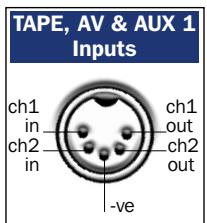
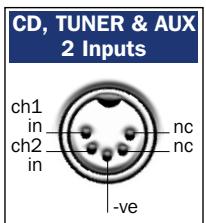
15.2 NAC 112 connected to FLATCAP 2 Power Supply
Note
The NAC 112 features various technologies to reduce microphonic effects, in particular a compliant mounting for the main circuit boards and the DIN sockets on the rear. Some movement of the board and sockets when connecting/disconnecting is normal.
Specifications
NAC 112
Input sensitivities:
Overload margins:
Main output level:
Tape output level:
Auxiliary power outputs:
75mV, 47kΩ
35dB (all inputs, all audio frequencies)
0.775V, <50Ω
75mV, 600Ω
To suit Stageline or Prefix phono stage, or Headline headphone amplifier.
69.4 x 432 x 301mm
100V. 115V. 230V - 50/60Hz

cable
direction
marker
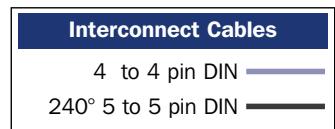
Interconnect Cables
4 to 4 pin DIN
240^5 to 5 pin DIN
Case size (H x W x D):
Mains Supply:
Flash Handset
16.1 Introduction
Flash is factory pre-programmed to operate any Naim preamplifier or cd player, the NAT 05 tuner and AV2 audio-visual processor. Additional Naim sources may be catered for in the future. Contact your dealer or local representative for information.
Flash is supplied without batteries fitted. To fit the batteries, remove the battery cover with the supplied hexagon driver and slide the batteries into the handset body taking care with their orientation. Replace the battery cover. Do not over-tighten the fixing screw. With batteries fitted the handset is ready for use. Flash is designed to switch off if unused after 10 seconds. It switches on immediately if it is moved or a key is pressed.
16.2 using Flash
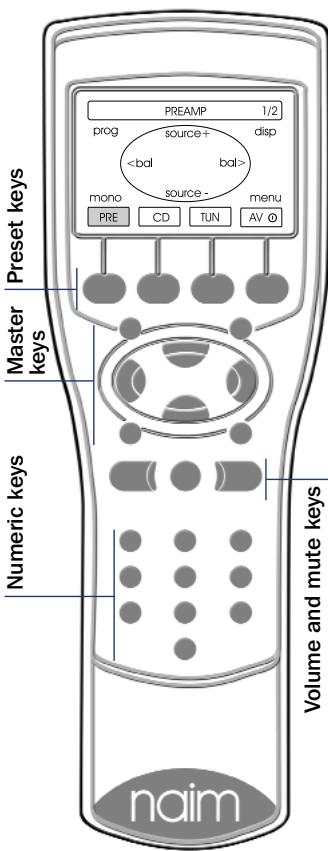
Flash can be set to control each equipment type through the four preset keys beneath the display. The selected equipment mode is indicated in the display above each preset key. When a preset key is pressed the display and the eight master keys and the numeric keys will reconfigure appropriately. The display for each equipment type shows a representation of the eight master keys and their functions.
The AV preset key will also wake an av processor from standby. Press and hold the AV preset key to return the processor to standby mode.
The volume up and down and mute keys are always available to control the appropriate (audio-visual or
preamplifier) volume and mute functions regardless of the selected source equipment mode.
The Preamplifier, CD, and AV equipment modes have multiple display "pages" (only one page is necessary for Tuners). The first display page of each provides control of the most commonly used functions, with subsequent pages generally providing access to those less often used. Selection of second and third pages within each mode is made by pressing the appropriate preset key. The currently
selected page is shown in the top right corner of the display. Details of the master key functions within each page is described in the following paragraphs:
PRE (preamplifier mode)
Page 1 of 2
| source + | Selects the next input source. |
| source - | Selects the previous input source. |
| <bal | Adjusts balance to the left. |
| bal> | Adjusts balance to the right. |
| prog | Enters programming mode on preamplifiers. |
| disp | Selects display options on appropriately equipped preamplifiers. |
| mono | Sums the left and right channels. |
| Note: On Naim preamplifiers with no mono facility, operates the tape monitor function. | |
| menu | Accesses a Flash setup page where source labels can be chosen, and display preferences can be set. Also provides access to RC5 setup. |
| numeric | Directly selects preamplifier input channels. |
Page 2 of 2
The master key functions on PRE Page Two are duplicates of Page One. However, selection of Page Two provides control of the record functions on appropriately equipped preamplifiers.
CD (cd mode)
Page 1 of 2
| play | Begins cd play |
| stop | Stops cd play |
| prev | Selects the previous track or index point |
| next | Selects the next track or index point |
| pause | Pauses cd play |
| disp | Cycles the cd player display through track, time and off options. |
| rev | Fast reverses cd |
| fwd | Fast forwards cd |
| numeric | Directly select CD tracks. |
Page 2 of 2
The master key functions play, stop, prev, next, rev and fwd on CD Page Two are duplicates of Page One. However, selection of Page Two provides programming and repeat functions.
prog Enters CD track programming mode.
rep Repeats the CD or programmed tracks.
numeric Selects CD tracks or index points for programming.
Flash Handset
TUN (tuner mode)
Page 1 of 1
| up | Depending on the operational mode selected, adjusts the tuning frequency upwards (frequency mode), searches for stations up the FM band (scan mode) or selects the next station preset (preset mode). |
| down | Controls the tuner in a similar manner to the up key. |
| prog | Selects preset program mode that enables specific FM stations to be assigned to preset memory. |
| disp | Switches the tuner display on or off. |
| mono | Combines the left and right channels and may improve reception on weak signals. |
| mode | Selects frequency, scan and preset modes. |
| numeric | Directly select station presets. |
AV (av processor mode)
Page 1 of 3
| input+ | Selects the next input. |
| input- | Selects the previous input. |
| mode- | Selects the previous decode mode. |
| mode+ | Selects the next decode mode. |
| osd | Selects On Screen Display operational mode. |
| disp | Switches the processor display on and off. |
| midn | Selects midnight operational mode. |
| menu | Used in On Screen Display mode. |
| numeric | Directly selects processor inputs. |
Page 2 of 3
The master key functions on AV Page Two are duplicates of Page One. However, selection of Page Two switches the function of the numeric keys to direct selection of processor decode modes.
Page 3 of 3
| up | Selects the next AV setup parameter or moves the OSD cursor upwards. |
| down | Selects the previous AV setup parameter or moves the OSD cursor downward. |
| left | Selects the previous AV parameter value or moves the OSD cursor to the left. |
| right | Selects the next AV parameter value or moves the OSD cursor to the right. |
| input | Switches the AV processor into input setup mode. |
| spkr | Switches the AV processor into speaker setup mode. |
| enter | Confirms option selection during OSD control. |
| clear | Clears option selection during OSD control. |
| numeric | No function. |
16.3 preamplifier programming
In PRE (preamplifier) mode the prog key function (display Page One) varies depending upon the specific preamplifier model in use. Firstly, the NAC 112 incorporates a programmable volume control system that enables different source component output levels to be matched. Secondly, preamplifiers incorporate optional automatic input switching which will switch the input as soon as any handset key appropriate to a particular source is operated. Thirdly, if an audio-visual processor is connected to the AV input, the volume control on the preamplifier can be disabled, allowing the processor to take over control of the output level from the preamplifier stage.
Use of these programmable functions is described fully in the manual section corresponding to each preamplifier.
16.4 cd track programming
In CD mode the prog key (display Page Two) enables specific CD tracks and their play order to be programmed. To program a play order select a track number from the numeric keypad followed by the prog key until the desired selection is complete. During selection, the track number indicated in the player display will be followed by either P or - or no display. P indicates that the track is already selected, - indicates that the track can be selected while no display indicates that there is no more program memory available.
The prog key can also be used to delete tracks from a play order. To delete a track, press and hold the prog key until the prog indicator in the CD display illuminates then delete the track or tracks using the numeric keypad followed each time by a further operation of the prog key. During deletion the track number indicated in the player display will be followed by either or - or no display. indicates that the track is already deleted, - indicates that the track can be deleted while no display indicates that there is no more program memory available.
The play order can be reviewed by pressing prog while the player is either stopped or playing. The player display will then scroll through the selected tracks. The prog indicator on the player display will illuminate when a play order has been programmed. To clear the program memory press and hold the stop key.
16.5 tuner preset programming
In TUN (tuner) mode the prog key enables specific FM station frequencies to be assigned to preset memory. To assign a station to a preset, first tune manually by keying the station frequency directly from the numeric keypad or by using the up or down keys (or scan). Press and hold the prog key on the handset. The tuner is now in preset programming mode. The tuner preset indicator will flash and the display will show --. Press the desired preset number from the numeric keypad. The display will show -- or P if the preset number is already in use. Exit from program mode and save the new or overwritten presets by pressing and holding the prog key. To exit tuner program mode without saving (or overwriting) presets, select 0 0 on the numeric keypad. To erase a preset number, select the preset and press and hold the disp key. To clear all presets press and hold the prog key followed by the disp key.
17.1 Introduction
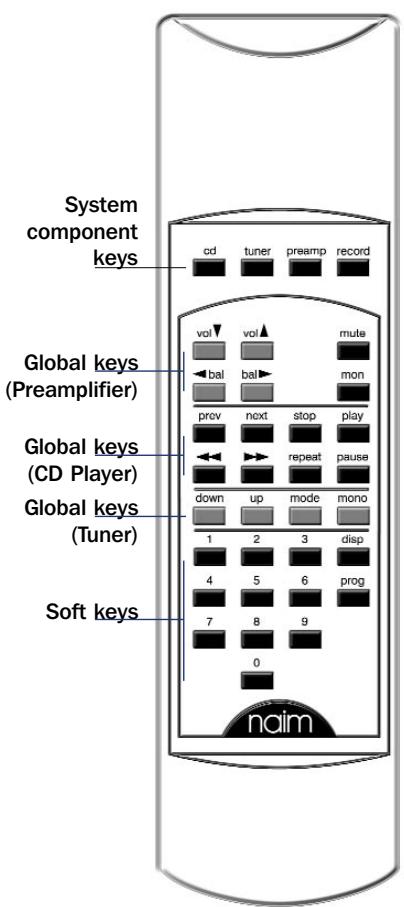
Narcom 3 is a multi-functional remote control handset designed to be used with Naim Audio CD players, integrated amplifiers, preamplifiers and preset tuners. The handset control configuration is based around three types of keys: System Component Keys, Global Keys and Soft Keys.
17.2 system component keys
These keys switch the operation of the Soft Keys into modes appropriate to each system component (CD, tuner, preamp, record).
cd: Switches the action of the Soft Keys to that appropriate for a CD player.
tuner: Switches the action of the Soft Keys to that appropriate for a preset tuner.
preamp: Switches the action of the Soft Keys to that appropriate for an integrated or preamplifier.
record: Switches the action of the Soft Keys to select record inputs on appropriately equipped preamps.
17.3 Global Keys
These keys operate specific component functions regardless of the System Component Key setting.
Preamplifier
vol ( \& ) Modifies the preamplifier output volume and the volume control position.
mute Reduces the preamplifier output volume to zero. A second press restores the volume.
bal ( \& ) Modifies the output channel balance. Some Naim amplifiers have control of balance available only from the remote handset. On these products the balance will automatically
Narcom 3 Handset
centre as it reaches the mid point. Balance centring is indicated by a flashing volume control indicator. To resume adjustment once the balance has centred, bal key must be released and re-pressed.
mon Enables the output of appropriately equipped tape machines to be heard while recording. The source to be recorded is chosen by the input selection buttons in the normal way. A second operation of the mon key restores normal operation.
Alternatively operates the mono function on appropriately equipped preamplifiers.
Compact Disc
prev Selects the previous track or index point.
next Selects the next track or index point.
stop Stops cd play.
play Begins cd play.
<<\&>> Fast reverses and fast forwards the cd.
repeat repeats the cd or programmed tracks.
pause Pauses the cd.
Tuner
mode Switches the tuner sequentially through manual, scan and preset modes. Modes are indicated by the scan and preset indicators on the tuner display.
up & down These keys both have three possible functions depending upon the selection of the mode key. In manual mode the up and down keys adjust the tuning frequency in 0.1MHz steps. In scan mode the up and down keys will make the tuner search for stations. In preset mode the up and down keys will tune to the next numbered preset.
mono Toggles between mono and stereo operation. The tuner display will indicate stereo when both stereo operation is selected and a stereo signal is received. The mono button on the tuner will illuminate when mono is selected.
17.4 soft keys
These keys operate functions depending on the System Component Key setting.
numeric keypad: In preamp mode the numeric keys will switch between the preamplifier inputs. In cd mode the numeric keys will select tracks. In tuner mode the numeric
keys will select tuner presets or tuner frequency. In record mode the numeric keys will switch between record inputs on appropriately equipped preamplifiers.
prog: In preamp mode the prog key function varies depending upon the specific preamplifier model in use. Firstly, the NAC 112 incorporates a programmable volume control system that enables different source component output levels to be matched. Secondly, preamplifiers incorporate optional automatic input switching which will switch the input as soon as any handset key appropriate to a particular source is operated. Thirdly, if an audio-visual processor is connected to the AV input, the volume control on the preamplifier can be disabled, allowing the processor to take over control of the output level from the preamplifier stage.
Use of these programmable functions is described fully in the manual section corresponding to each preamplifier.
In CD mode the prog key enables specific tracks and their play order to be programmed. To program a play order select a track number from the numeric keypad followed by the prog key until the desired selection is complete. During selection the track number indicated in the player display will be followed by either P or - or no display. P indicates that the track is already selected, - indicates that the track can be selected while no display indicates that there is no more memory available.
The prog key can also be used to delete tracks from a play order. To delete a track, press and hold the prog key until the prog indicator in the CD display illuminates then delete the track or tracks using the numeric keypad followed each time by a further operation of the prog key. During deletion the track number indicated in the player display will be followed by either or -- or no display. indicates that the track is already deleted, -- indicates that the track can be deleted while a space indicates that there is no more memory available.
The play order can be reviewed by pressing prog while the player is either stopped or playing. The player display will then scroll through the selected tracks. The prog indicator on the player display will illuminate when a play order has been programmed. To clear memory press and hold the stop key.
In tuner mode the prog key enables specific FM station frequencies to be assigned to preset memory. To assign a station to a preset first tune manually using the up or down keys (or scan) to the desired station. Press and hold the prog key on the handset. The tuner is now in preset
Narcom 3 Handset
programming mode and its display will show ---. Press the desired preset number from the numeric keypad. Exit the program mode by pressing and holding the prog key. A space indicates that there is no more memory available.
disp: In preamp mode the disp key will extinguish and restore the button illumination (not NAC 112).
In cd mode the disp key will scroll through these options: tracks ("time" indicator off), time ("time" indicator on) and display off.
In tune mode the disp key will scroll sequentially through tuned frequency ("freq" indicator on), preset number ("freq" indicator off) and display off.
Declaration of conformity to appropriate standards
Manufacturer
Naim Audio Limited, Southampton Road, Salisbury, England, SP1 2LN
Products
NAC 552, NAC 552PS, NAC 252, NAC 282, NAC 202, HI-CAP, NAC 112, SUPERCAP, HI-CAP, FLATCAP 2, NAPSC
Safety
HD 195-S6 EN 60 065
EMC
Emissions Tested to:
Immunity Tested to:
In accordance with:
EN 55013 - Sound and television broadcast receivers and associated equipment
EN55020 - Electromagnetic immunity of broadcast receivers and associated equipment
CISPR 16-1 - Radio disturbance and immunity measuring apparatus
CISPR 16-2 Methods of measurement of disturbances and immunity
IEC 801-2 8KV (air gap) 4KV (contact) (performance criterion B)
IEC 801-3 3V/m 20dB (performance criterion A)
IEC 801-4 1KV (AC lines) 0.5KV (signal lines) (performance criterion B)