
ZONEPLAYER 120 - Wireless audio player SONOS - Free user manual and instructions
Find the device manual for free ZONEPLAYER 120 SONOS in PDF.


| Product type | Amplified wireless audio player |
| Brand | SONOS |
| Model | ZONEPLAYER 120 |
| Power supply | 100-240 V AC, selector 115V/230V |
| Network connectors | 2 Ethernet ports (Cat.5), green and yellow LEDs |
| Audio connectors | RCA analog audio input, RCA subwoofer output, left and right speaker terminals |
| Built-in amplifier | Yes, for passive speakers |
| Main functions | Multiroom playback, Internet radio, integrated music services, local source input, alarms |
| Volume control | + and - buttons on the device |
| Mute button | Solid green (muted) / flashing (imminent activation/deactivation) |
| Status LED | Solid white (normal), flashing white (starting/connecting) |
| Local source input audio encoding | Compressed (recommended) or uncompressed |
| Local source input level | Adjustable (default based on source name) |
| Network compatibility | Home network with broadband Internet connection |
| Compatible operating systems | Windows XP and later, macOS X |
| Care and cleaning | Dry soft cloth only; avoid cleaners and solvents |
| Safety | Do not open (risk of electric shock); do not expose to water or moisture |
| Spare parts and repairability | Repair exclusively by an authorized Sonos service center |
Frequently Asked Questions - ZONEPLAYER 120 SONOS
User questions about ZONEPLAYER 120 SONOS
0 question about this device. Answer the ones you know or ask your own.
Ask a new question about this device
Download the instructions for your Wireless audio player in PDF format for free! Find your manual ZONEPLAYER 120 - SONOS and take your electronic device back in hand. On this page are published all the documents necessary for the use of your device. ZONEPLAYER 120 by SONOS.
USER MANUAL ZONEPLAYER 120 SONOS
Sonos® ZonePlayer™ 120 Guide. For use with the Sonos Multi-Room Music System.
THIS DOCUMENT CONTAINS INFORMATION THAT IS SUBJECT TO CHANGE WITHOUT NOTICE. No part of this publication may be reproduced or transmitted in any form or by any means, electronic or mechanical, including but not limited to photocopying, recording, information retrieval systems, or computer network without the written permission of Sonos, Inc.
Sonos® is a registered trademark of Sonos, Inc. in the United States, Canada, and Australia, and a trademark of Sonos, Inc. in other countries. SonosNet™, ZonePlayer™, ZoneBridge™, and all Sonos logos are trademarks of Sonos, Inc. in the United States and/or other countries.
Macintosh® and Mac OS® are trademarks of Apple, Inc., registered in the U.S. and other countries. Windows Vista™ and Windows® XP are either registered trademarks or trademarks of Microsoft Corporation in the United States and/or other countries.
This product includes technology owned by Microsoft Corporation and under a license from Microsoft Licensing, GP. Use or distribution of such technology outside of this product is prohibited without a license from Microsoft Corporation and/or Microsoft Licensing, GP as applicable.
MPEG Layer-3 audio decoding technology licensed from Fraunhofer IIS and Thomson.
Sonos uses MSNTP software, which was developed by N.M. Maclaren at the University of Cambridge.
Copyright, N.M. Maclaren, 1996, 1997, 2000; © Copyright, University of Cambridge, 1996, 1997, 2000.
All other products and services mentioned may be trademarks or service marks of their respective owners.
© 2004-2009 by Sonos, Inc. All rights reserved.

For the latest product documentation, including the Sonos Multi-Room Music System User Guide, go to www.sonos.com/support and click Documentation.
ZonePlayer 120 Product Guide
Version: 090601
All the music you want.
All over your house.
Regulation Information
Europe
Sonos declares that this product complies with the requirements and other relevant provisions of the R&TTE Directive (1999/5/EC). A copy of the full Declaration of Conformance may be obtained at www.sonos.com/support/policies.
C E ① Attention In France, operation is limited to indoor use within the band 2.454-2.4835 GHz.
This equipment has been tested and found to comply with the limits for a Class B digital device, pursuant to part 15 of the FCC Rules. These limits are designed to provide reasonable protection against harmful interference in a residential installation. This equipment generates, uses and can radiate radio frequency energy and, if not installed and used in accordance with the instructions, may cause harmful interference to radio communications. However, there is no guarantee that interference will not occur in a particular installation. If this equipment does cause harmful interference to radio or television reception, which can be determined by turning the equipment off and on, the user is encouraged to try to correct the interference by one or more of the following measures:
- Reorient or relocate the receiving antenna.
- Increase the separation between the equipment and receiver.
- Connect the equipment into an outlet on a circuit different from that to which the receiver is connected.
- Consult the dealer or an experienced audio technician for help. Modifications not expressly approved by the manufacturer may void the user's authority to operate the equipment under FCC rules.
Canada
This Class B digital apparatus complies with Canadian ICES-003 and RSS-210. Operation is subject to the following two conditions: (1) this device may not cause interference, and (2) this device must accept any interference, including interference that may cause undesired operation of the device.
Industry Canada
The installer of this radio equipment must ensure that the antenna is located or pointed such that it does not emit RF field in excess of Health Canada limits for the general population; consult Safety Code 6, obtainable from Health Canada's Web site www.hc-sc.gc.ca/.
RF Exposure Requirements
To comply with FCC and EU exposure essential requirements, a minimum separation distance of 20cm (8 inches) is required between the equipment and the body of the user or nearby persons.
Recycling Information
This symbol on the product or on its packaging indicates that this product shall not be treated as household waste. Instead please deliver it to the applicable collection point for the recycling of electrical and electronic equipment. By recycling this product correctly, you will help conserve natural resources and prevent potential negative environmental consequences. For more detailed information about recycling of this product, please contact your local city office, your household waste disposal service or the shop where you purchased the product.
License Agreement and Limited Warranty
Sonos, Inc.
READ THE TERMS OF THIS LICENSE AGREEMENT AND LIMITED WARRANTY ("AGREEMENT") GOVERNING THE USE OF THE SOFTWARE AND RELATED FIRMWARE AND DOCUMENTATION (COLLECTIVELY, THE "SOFTWARE") PROVIDED TO YOU BY SONOS ("SONOS") CAREFULLY BEFORE USING THE APPLICABLE SONOS PRODUCT (SUCH HARDWARE, TOGETHER WITH THE SOFTWARE, REFERRED TO AS THE "PRODUCT").
BY OPENING THIS PACKAGE, INSTALLING AND USING THE PRODUCT, YOU ARE (1) REPRESENTING THAT YOU ARE OVER THE AGE OF 18, (2) REPRESENTING THAT YOU HAVE THE RIGHT AND AUTHORITY TO LEGALLY BIND YOURSELF OR YOUR COMPANY, AS APPLICABLE, AND (3) CONSENTING TO BE LEGALLY BOUND BY ALL OF THE TERMS OF THIS AGREEMENT. IF YOU DO NOT AGREE TO ALL THESE TERMS OR CANNOT MAKE SUCH REPRESENTATIONS, DO NOT USE THE PRODUCT. IF YOU ELECT NOT TO ACCEPT THE TERMS OF THIS AGREEMENT, YOU MAY RETURN THE NEW, UNUSED PRODUCT WITHIN THIRTY (30) DAYS OF PURCHASE TO THE RETAIL LOCATION WHERE YOU PURCHASED IT, WITH ALL ORIGINAL PACKAGING FOR A FULL REFUND.
1. GRANT OF LICENSE
(a) Subject to the terms and conditions of this Agreement, Sonos grants to You a worldwide, non-exclusive, non-transferable, personal license (without the right to sub-license) to (i) use the Software as embedded in the Product for the purpose of operating the Product, and (ii) use the desktop application portion(s) of the Software on any personal computer owned or controlled by You during the Term. Except as provided above, You may not transfer the Software to any other computing device or otherwise remove the Software from the Product. Notwithstanding any license granted herein by Sonos, You acknowledge and agree that it is Your sole responsibility to comply with U.S. and international copyright laws with respect to Your use of the Software.
(b) You agree not to copy, modify, reverse engineer, decompile or disassemble the Product to the extent that such restriction is not prohibited by law. Except for the limited license granted herein, Sonos and its suppliers hereby retain all right, title and interest in and to all worldwide intellectual property rights embodied in the Software. All other rights are reserved by Sonos. You acknowledge and agree that the technology embedded in and used to create the Product
constitute the valuable trade secrets and know-how of Sonos, and to the extent you discover any such trade secrets, You will not disclose them to any third party.
(c) Sonos shall have no obligation to provide any updates or upgrades to the Product, but in the event that it does, such updates, upgrades and any documentation shall be deemed the "Product", and shall be subject to the terms and conditions of this Agreement.
2. TERM OF AGREEMENT
(a) You may terminate this Agreement at any time by notifying Sonos, discontinuing use of the Product and purging the Software from Your computing device.
(b) This Agreement will automatically terminate if You violate any of its terms.
(c) Sections 1(b), 3, 4, 6(c), 7 and 9 shall survive termination or expiration for any reason.
3.COMPLIANCE WITH COPYRIGHT LAWS
Sonos complies with U.S. and international copyright laws and in consideration of the licenses granted herein, You agree to do the same. You acknowledge that unauthorized copying or distribution of music or other content accessed using the Product ("Content") is prohibited by such copyright laws, and You agree that You will not, directly or indirectly, copy or distribute any Content without the express written authorization of the copyright holder. You agree to indemnify and hold harmless Sonos and its licensors from and against any and all claims, suits, losses, damages, liabilities, costs and expenses incurred by Sonos or its licensors arising out of or related to Your failure to comply with the terms of this Section 3.
4. SONOS PRIVACY POLICY
Use of Sonos Products is subject to the Sonos Privacy Policy, which can be found at http://www.sonos.com/legal/privacy_policy.htm and by reference is made a part of this Agreement. The Sonos Privacy Policy outlines the type of information that may be collected from you by Sonos and how such information may be used by Sonos. It is important that you read and understand the terms of the Privacy Policy.
5. THIRD PARTY CONTENT AND TECHNOLOGIES SUPPORT
From time to time, Sonos may provide access to third party content providers via the Product. In addition, Sonos may support certain third party technologies, such as specific file formats or codecs. Sonos reserves the right to discontinue access to and/or support for such third party content or technologies at any time, and for any reason. Sonos makes no representations or
warranties whatsoever regarding the selection of, or continuing support for, any such third party content or technologies.
6. WARRANTY AND DISCLAIMER
(a) Limited Warranty. Sonos warrants to You that for a period of one (1) year after the date of original purchase of the Product, the Product will be free from defects in materials and workmanship. SONOS DOES NOT WARRANTY THAT THE PRODUCT WILL OPERATE WITHOUT INTERRUPTION OR WILL BE ERROR-FREE, OR THAT ALL ERRORS MAY BE CORRECTED. EXCEPT AS SET FORTH IN SECTION 6(C), SONOS'SOLE LIABILITY, AND YOUR SOLE REMEDY, FOR BREACH OF THE FOREGOING WARRANTY WILL BE, AT SONOS'SOLE DISCRETION, REPAIR OR REPLACEMENT OF THE PRODUCT, OR, IF NEITHER OF THE FOREGOING ARE REASONABLY AVAILABLE, A REFUND OF THE AMOUNT YOU PAID, LESS AMOUNTS ATTRIBUTABLE TO YOUR PRIOR USE.
(b) Limitations. The foregoing warranty does not extend to problems in the Product that result from: (i) Your failure to implement all bug fixes or error corrections to the Product which are made available by Sonos; (ii) any use of the Product in a manner for which it was not designed or as not authorized under this Agreement; or (iii) any use of the Product with other products, hardware or products not supplied by, and inconsistent with the documentation provided by, Sonos.
(c) Disclaimer. EXCEPT AS EXPRESSLY SET FORTH ABOVE, SONOS MAKES NO WARRANTYES, WHETHER EXPRESS, IMPLIED, STATUTORY OR OTHERWISE, WITH RESPECT TO THE PRODUCT. SONOS AND ITS SUPPLIERS HEREBY SPECIFICALLY DISCLAIM ALL OTHER EXPRESS, STATUTORY AND IMPLIED WARRANTYES AND CONDITIONS, INCLUDING THE IMPLIED WARRANTYES OF MERCHANTABILITY, FITNESS FOR A PARTICULAR PURPOSE, NON-INFRINGEMENT AND THE IMPLIED CONDITION OF SATISFACTORY QUALITY. EXCEPT AS EXPRESSLY STATED IN SECTION 6(A), THE PRODUCT IS SUPPLIED ON AN "AS IS" BASIS WITHOUT WARRANTY. YOU ASSUME ALL RESPONSIBILITIES FOR SELECTION OF THE PRODUCT TO ACHIEVE YOUR INTENDED RESULTS, AND FOR THE INSTALLATION AND USE OF THE PRODUCT. Some jurisdictions do not allow a limitation on implied warranties, and so the foregoing disclaimer may not apply to You. In any event, any implied warranties that may exist under the laws of Your jurisdiction are limited to the one (1) year period set forth in the limited warranty given under subsection (a) above.
7. LIMITATION OF LIABILITY
(a) TO THE MAXIMUM EXTENT ALLOWED UNDER LAW, IN NO EVENT WILL SONOS OR ITS SUPPLIERS BE LIABLE FOR ANY DAMAGES, INCLUDING BUT NOT LIMITED TO, INCIDENTAL, SPECIAL, CONSEQUENTIAL, EXEMPLARY, OR INDIRECT DAMAGES, AND INCLUDING BUT NOT LIMITED TO, COST OF COVER, LOSS OF DATA, LOSS OF PROFITS, BUSINESS INTERRUPTION, LOSS OF BUSINESS INFORMATION, OR OTHER PECUNIARY LOSS ARISING FROM THE USE OF (OR INABILITY TO USE) THE PRODUCT, NO MATTER HOW CAUSED AND ON ANY THEORY OF LIABILITY. BECAUSE SOME STATES/ JURISDICTIONS DO NOT ALLOW THE EXCLUSION OR LIMITATION OF LIABILITY FOR CONSEQUENTIAL OR INCIDENTAL DAMAGES, SOME OF THE ABOVE LIMITATIONS MAY NOT APPLY TO YOU, BUT THEY SHALL APPLY TO THE MAXIMUM EXTENT PERMITTED BY LAW.
(b) IN NO EVENT SHALL SONOS' TOTAL LIABILITY TO YOU FOR ALL DAMAGES IN ANY ONE OR MORE CAUSES OF ACTION EXCEED THE AMOUNT PAID BY YOU FOR THE PRODUCT.
(c) The limitations in Section 7 will apply even if Sonos, its suppliers or dealers have been advised of the possibility of such damage or of any type of use intended by You. These limitations shall apply notwithstanding the failure of essential purpose of any limited remedy. You acknowledge that these limitations reflect a reasonable allocation of risk.
8. INFRINGEMENT INDEMNITY
(a) Indemnity. Sonos shall defend or settle any claim, demand, suit, proceeding or action ("Claim") against You to the extent that such Claim is based on an allegation that any portion of the Product, as furnished to You under this Agreement and used as authorized in this Agreement, infringes any third party's U.S. copyright or misappropriates such third party's trade secrets, provided that You: (i) give prompt written notice of the Claim to Sonos; (ii) give Sonos the exclusive authority to control and direct the defense or settlement of such Claim; and (iii) give Sonos, at Sonos' expense (except for the value of Your time), all necessary information and assistance with respect to the Claim. Sonos shall pay all settlement amounts, damages and costs finally awarded to the extent attributable to such Claim. You may participate in the defense of Claim at Your expense. Sonos will not be liable for any costs or expenses incurred without its prior written authorization.
(b) Limit on Indemnity. The foregoing notwithstanding, Sonos shall have no liability for a Claim to the extent based on: (i) the use by You of any Product more than thirty (30) days after Sonos notifies You in writing that continued use of the Product may give rise to such Action; (ii) the combination of the Product, or any part thereof, with other hardware or products not
provided by Sonos, which Claim would have been avoided if the Products had not been so combined; or (iii) use of the Products other than as authorized under this Agreement.
(c) Entire Liability. THE FOREGOING PROVISIONS OF THIS SECTION 8 STATE THE ENTIRE LIABILITY AND OBLIGATIONS OF SONOS, AND YOUR EXCLUSIVE REMEDY, WITH RESPECT TO ANY ACTUAL OR ALGEGD INFRINGEMENT OF OR MISAPPROPRIATION OF ANY INTELLECTUAL PROPERTY RIGHT BY THE PRODUCT.
9. MISCELLANEOUS
You acknowledge that the Product is subject to the export control law and regulations of the United States, and any amendments thereto. You warrant that You will comply in all respects with United States exports laws and regulations. This Agreement shall be governed by the laws of the State of California, without reference to its conflict of law principles. You consent to the jurisdiction of the federal and state courts sitting in the State of California. This Agreement constitutes the entire agreement between You and Sonos with respect to the subject matter hereof, and supersedes all prior oral or written understandings, communications or agreements not specifically incorporated herein. If any provision of this Agreement is found to be invalid or unenforceable pursuant to judicial decree or decision, the remainder of this Agreement shall remain valid and enforceable according to its terms. You may not assign this Agreement, or any of its rights or obligations hereunder, whether by operation of law or otherwise, without the prior written consent of Sonos. Any attempted assignment by You without prior written consent shall be void.
For inquiries or questions regarding this Agreement, please send an e-mail to support@sonos.com or call (800) 680-2345.
Sonos ZonePlayer 120
Where to Begin
New to Sonos?
It takes just a few steps to get your Sonos Multi-Room Music System up and running (the steps below are fully explained in the Quick Setup Instructions packaged with your ZonePlayer) —
1 Connect a ZonePlayer or a ZoneBridge (purchased separately) to your broadband router using an Ethernet cable (supplied).
Place other ZonePlayer(s) in the room(s) of your choice.
Install the software and follow the prompts to add the ZonePlayer(s) and set up access to your music files.
4 Add the Controller to your music system.
See page 4 to make sure your home network is ready for Sonos, and then pick up the Quick Setup Instructions (poster) to follow the installation instructions. Once you've set up your music system, you can add additional Sonos components any time.
Adding to an existing Sonos system?
The Sonos Multi-Room Music System can be easily expanded room by room. If you are adding this ZonePlayer to an existing Sonos system, you can turn directly to page 5.
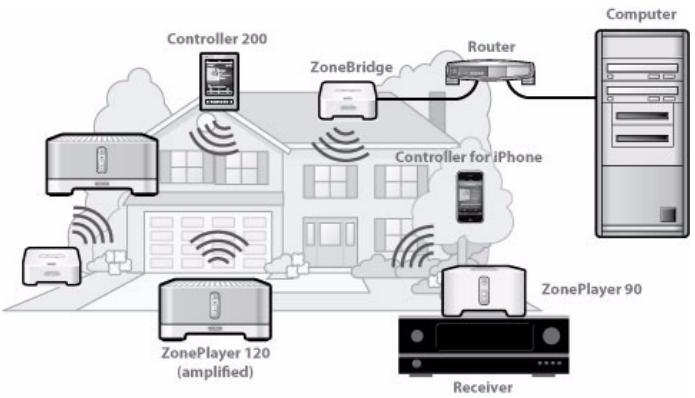
The ZonePlayer 120…
- Includes a high-performance, built-in amplifier that can power large or small speakers, allowing you to enjoy superior audio quality in every room.
- Includes a multi-port Ethernet switch to enable direct connections to routers, computers, or other ZonePlayers.
- Includes analog audio inputs with digital encoding so that music from an external audio source (such as a CD player or portable MP3 player), can be connected to one ZonePlayer and played by all the other ZonePlayers in your system.
Your Computer Network
To play the digital music files stored on your computer, your computer network must meet the following requirements:
Network requirements

Note: Your network must have a high-speed Internet connection, as the Sonos Multi-Room Music System is designed to provide you with online software updates. Your Sonos system must be registered to receive these updates, so be sure to register during the setup process. We do not share your e-mail address with other companies.
- DSL/cable modem, or LAN-based, high-speed Internet connection.
- If you currently have a cable or DSL modem connected directly to your computer, you should install a router between your modem and your computer to enhance your computer's security, and to share the Internet connection with your Sonos Multi-Room Music System and other devices. If you do not have a router, you should purchase and install one before proceeding.
Compatible operating systems
- Windows® XP and higher
Macintosh® OS X

Important: Please visit our Web site at http://faq.sonos.com/specs for the latest system requirements, including supported operating system versions.
Adding to an Existing Sonos System
Once you've got a Sonos Multi-Room Music System set up, you can easily add more Sonos components any time (up to 32 zones).
If your house has structured (built-in) wiring, you can make a wired connection to the additional ZonePlayers or ZoneBridges. If you don't, our built-in wireless technology is ideal for you.
Add a Zone

Note: If you are replacing the ZonePlayer or ZoneBridge that is currently attached to your router, first add the new Sonos component to your music system (steps below.) You can then unplug the wired Sonos component from your router, replace it with the new one, and move the original ZonePlayer or ZoneBridge to a new location.
-
Choose one of the following options:
-
If you are adding an amplified ZonePlayer 120, attach desired speakers. (Power rating should be at least 75W for 8 Ohm speakers and at least 150W for 4 Ohm speakers.)
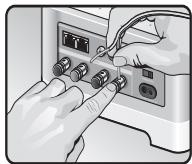
If you are using speaker wire, use your finger to firmly push the spring-loaded speaker posts inward to reveal the connection hole.
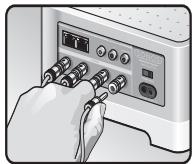
If your speakers have banana connectors, you can insert the plugs directly into the banana jacks on the back of the ZonePlayer (available in North America only.)
- If you are adding a ZonePlayer 90, connect it to an external amplified device.
- If you are adding a ZoneBridge, attach the power adapter.
If you need help with step 1, refer to the Quick Setup Instructions (poster) packaged with your ZonePlayer, or start the Desktop Controller software and select Sonos System Help from the Help menu.
- If you are making a wireless connection, skip this step and continue on to step 3. If you are making a wired connection, connect a standard Ethernet cable from your router or another ZonePlayer (or a live network wall plate if you have built-in wiring) to one of the Ethernet switch connections on the back of the new Sonos component.
- Attach the power cord and plug in the new Sonos component. (Make sure the Voltage switch on the back of the ZonePlayer 120 is set to the proper position for your country before applying power.)
-
Choose one of the following options:
-
Using a Sonos Controller, select Settings Add a Zone from the Music Menu and follow the on-screen prompts to add this component to your Sonos Multi-Room Music System.
- Using the Desktop Controller software, select Zones Add a Zone and follow the prompts to add this component to your Sonos Multi-Room Music System.
Playing Music
Touch Music Menu on the Sonos Controller to display the Music Menu.
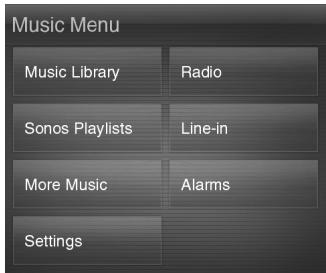
To read more about the features and functions of your new Sonos system, please download the complete user guide from our Web site at:
www.sonos.com/support/documentation or start your Desktop Controller software and select Sonos System Help from the Help menu.
Radio
Sonos includes a radio guide that provides immediate access to thousands of free Internet radio stations and broadcast programs. You can easily find radio from all over the world—music, news, and variety programming, including archived shows and podcasts.
To select an Internet radio station, simply touch Radio.
Music services
A music service is an online music store or online service that sells audio on a person, per audiobook, or subscription basis. Sonos is compatible with several music services - you can visit our Website at www.sonos.com/howitworks/music/partners for the latest list. (Some music services may not be available in your country. Please check the individual music service's Web site for more information.)
If you are currently subscribed to a music service that's compatible with Sonos, simply add your music service user id and password information to Sonos and you'll have instant access to the music service from your Sonos system.
- To add a music service, touch More Music...
- Select the Sonos-compatible music service you would like to add.
- Select I already have an account. Type your music service user name and password, and then touch Done. Your user name and password will be verified with the music service.
Once your credentials have been verified, this music service will display on the Music Menu so any time you want to listen to this music service, simply touch Music Menu, select the music service, and touch a selection.
Free music service trials are available in some countries. (Please check the individual music service's Web site for more information.) If there is a music service trial visible on your More Music... menu, simply touch it to select. Touch I'm new to [music service], and then follow the prompts to activate the music trial. After the trial period is up, you will need to subscribe to the music service to keep the music playing.
Music folders
The Sonos Multi-Room Music System can play music from any computer or network-attached storage (NAS) device on your home network where you have shared music folders. During the Sonos setup process, you are guided through the process of accessing these shared music folders. Over time, you may wish to add or remove folders from this list.
- To add new music folders to Sonos, touch Settings Music Library Management Music Library Setup Add Share.
- To remove music folders, touch Settings Music Library Management Music Library Setup. Touch the share you wish to remove and then select Remove Share.
The Sonos Multi-Room Music System indexes your music folders so you can view your music collection by categories (such as artists, albums, composers, genres, or tracks.) If you add new music to a folder that is already indexed, simply update your music index to add this music to your Sonos music library.
- To update your music index, touch Settings Music Library Management Update Music Index Now. If you'd like your music index to update automatically each day, select Schedule Music Index Updates and then select a music index update time.
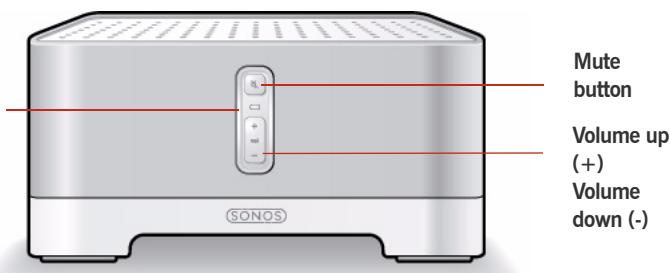
ZonePlayer 120 Front
ZonePlayer status indicator
On/off
- Using the Sonos Controller, select Pause All from the Zone menu.
- Using the Desktop Controller software, select Pause All from the Play menu.
Your Sonos Multi-Room Music System is designed to be always on; the system uses minimal electricity whenever it is not playing music. To stop streaming music in all zones, you can use the Pause All feature.
ZonePlayer status indicator
- Flashes white when powering up or connecting to your Sonos Multi-Room Music System.
- Solid white when powered up and connected to your Sonos Multi-Room Music System (normal operation).
- Flashes amber when a fault condition is detected.
Indicates the current status of the ZonePlayer. When the ZonePlayer is in normal operation, you can turn the white status indicator light on and off. For detailed instructions, open the Desktop Controller software and select Sonos System Help from the Help menu. For a complete list of status indications, please go to http://faq.sonos.com/led.
Mute button
- Lights solid green when sound is muted.
- Flashes green rapidly when household mute or unmute is about to take place.
- Flashes green slowly when ZonePlayer is connecting to your music system.
To mute/unmute this ZonePlayer: Press the Mute button to mute or unmute this ZonePlayer.
To mute/unmute all ZonePlayers: Press and hold the Mute button for 3 seconds to mute all ZonePlayers in your household. Press and hold for 3 seconds to unmute all ZonePlayers.
Volume up (+)
Volume down (-)
Press these buttons to adjust the volume up and down.
Rear Panel Connectors
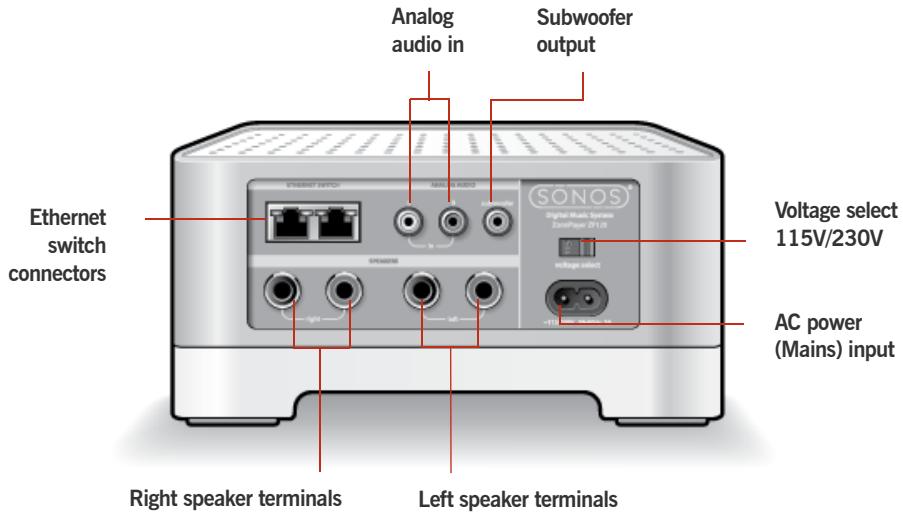
Important Note: Power rating should be at least 75W for 8 Ohm speakers and at least 150W for 4 Ohm speakers
Ethernet switch connectors (2)
Use Category 5 Ethernet cable to connect to a router, computer, or additional network device such as a network-attached storage (NAS) device.
LED indicators:
- Green (link connection)
- Flashing Yellow (network activity)
Right speaker terminals
Use high-quality speaker wire to connect the right speaker to the ZonePlayer.
Left speaker terminals
Use high-quality speaker wire to connect the left speaker to the ZonePlayer.
Voltage select
115V/230V
Select the appropriate voltage setting for your country.
AC power (mains) input
Use the supplied power cord to connect to power outlet.
Analog audio in
You may use a standard RCA audio cable to connect the ZonePlayer's analog audio inputs to the audio outputs from a separate audio component, such as a CD player or a portable music player.
Subwoofer output
Note: If you disconnect your subwoofer, make sure to also disconnect the subwoofer's cable from the ZonePlayer output.
You may connect a powered subwoofer to this output using a standard RCA cable. The system will detect when a cable is connected to the subwoofer output and adjust the crossover frequency automatically.
Using Line-In
You can easily stream an external source such as a CD player or portable music player through your Sonos Multi-Room Music System using the audio-in connections on your ZonePlayer. The device will be automatically detected as soon as you plug it in.
- Use a standard RCA cable to plug an external source like a CD player into the analog Audio In connections on the back of your ZonePlayer 120.
- If you are connecting a portable music player to the ZonePlayer 120, you will need a 1/8 inch mini-stereo to RCA audio cable instead. Plug the mini-stereo end into the portable device and the RCA end into the Audio In connection on the ZonePlayer.
Using a Sonos Controller:
- To play music from this line-in source, select Line-In from the Music menu, select the source, and select Play Now.
- To change the name of this device, select Settings ZonePlayer Settings. Select the ZonePlayer this source is connected to, and then touch Line-In Source Name. Select a new name from the list, or type a unique name.
- To change the line-in level, select Settings ZonePlayer Settings. Select the ZonePlayer this source is connected to, and then touch Line-In Source Level.
Select a new level.
Using the Desktop Controller software:
- To play music from this line-in source, select the Line-In tab from the Music Library, select the source, and click Play Now.
- To change the settings for this device, select the Line-In tab from the Music Library, select the source, and click Setup. Select the Line-In tab to make changes.
A default (typical) line-in level is automatically assigned when you select a source name, but if the volume sounds too low, you can select a higher line level for this device. (You may experience sound distortion at higher volume levels if you set the level too high.)
Line-in encoding settings
When you have line-in music sources attached to a ZonePlayer, line-in encoding determines how the Sonos Multi-Room Music System will encode the data coming in from these sources. For multi-room audio, we recommend using the Compressed setting. For the highest quality sound, you can select Uncompressed encoding, but this selection requires more network bandwidth than compressed audio. For TV or DVD audio, we recommend using the Uncompressed setting.
To change the line-in encoding setting, select one of the following options:
- Using the Sonos Controller, select Settings Advanced Settings Line-In Encoding.
- Using the Desktop Controller for Windows, select File Preferences and then click the Advanced tab.
- Using the Desktop Controller for Macintosh, select Sonos→Preferences and then click the Advanced tab.
For additional information on connecting audio devices, you can go to our Web site at http://faq.sonos.com/cables.
Basic Troubleshooting

Warning: Under no circumstances should the product be repaired by anyone other than an authorized Sonos repair center, as this will invalidate the warranty. Please contact Sonos Customer Support for more information. Do not open the system as there is a risk of electric shock.
If a problem occurs, you can try the troubleshooting suggestions listed below. If one of these doesn't remedy the problem, or you are not sure how to proceed, please contact the Sonos Customer Support team and we'll be happy to help.
- Web site
- Visit our Web site at www.sonos.com/support. There you can visit our Forums, browse our Frequently Asked Questions (FAQ) pages, or request assistance.
- Email: support@sonos.com
- Text-Chat and Phone: www.sonos.com/support/contact
US/Canada: +1.800.680.2345 toll-free
United Kingdom: 0808 2346596
If your country is not listed here, please visit the Text-Chat and Phone link to find the correct telephone number for your country.
ZonePlayer not detected during setup
A network or a firewall issue may be preventing the ZonePlayer from connecting to your Sonos system. If this is a wireless ZonePlayer, try moving the ZonePlayers closer together, or wire the ZonePlayer temporarily to see if the problem is related to wireless interference.
If you encounter this message when installing the first Sonos component (wired to your router), you can try the steps below to resolve this issue. If you are still experiencing problems, please contact the Sonos Customer Service Center.
1. Check the firewall
Firewall software installed on the computer may be blocking the ports that Sonos uses to operate. First, disable all your firewalls and try to connect again. If this resolves the problem, you should configure your firewall to work with the Sonos Desktop Controller. Please go to our Web site at http://faq.sonos.com/firewall for additional information. If this does not resolve the problem, you can try step 2 below.
2. Check the router
You can bypass your router's switch to determine whether there are any router configuration issues by connecting Sonos as depicted in the following illustration (note that the ZonePlayer and the computer still have Internet access in this configuration):
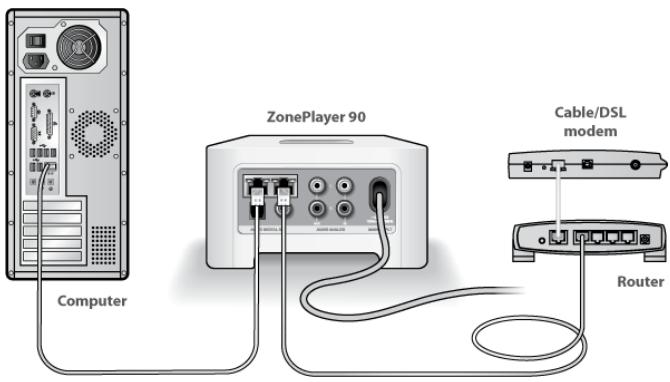
- Be sure that your cable/DSL modem is connected to the router's WAN (Internet) port.
- Temporarily remove any other components that are wired to your network.
- Connect an Ethernet cable from the computer directly to the back of the ZonePlayer, and then connect another Ethernet cable from the ZonePlayer directly to one of the LAN ports on your router.
-
When you make a change to your network configuration, you may need to power cycle the ZonePlayer by unplugging the power cord, and then plugging it back in.
-
If you are not using a router, you can visit our Web site at http://faq.sonos.com/norouter for more information.
3. Check the wiring
Check the link/activity lights on both the router and the ZonePlayer. The link lights should be lit solid and the activity lights should be blinking.
- If the link lights are not lit, try connecting to a different port.
- If the link lights still do not light, try connecting a different Ethernet cable.
When adding the handheld Sonos Controller, it fails to detect the ZonePlayer(s)
Wireless interference or a network problem may be preventing the Controller from joining your Sonos Multi-Room Music System.
-
Verify that this is not a DHCP or network problem.
-
Disconnect the Ethernet cable from the back of the ZonePlayer so that it is not connected to your network.
- Unplug the ZonePlayer's power cord and then plug it back in.
- When the status indicator light on the front of the ZonePlayer stops blinking white, try adding your Controller again.
If it works, your router's DHCP server may have run out of available IP addresses to assign to the Controller. In most cases you can log into your router by typing http://192.168.1.1 into your browser's address line (the IP address of your router may be different). Check the DHCP settings and increase the number of IP addresses available in the DHCP scope.
If your Controller still does not recognize the ZonePlayer after completing this step, you can try step 2 below.
- Turn off any 2.4GHz cordless phones.
Some 2.4GHz cordless telephones can cause wireless interference. If turning off your 2.4GHz cordless phone resolves the problem, you should consider switching to a 5.8Ghz or 900Mhz phone (or change the wireless channel your Sonos system is operating on - see page 16 for help with this step.)
3. Put 108 Mbps wireless routers into 54 Mbps mode.
Sonos cannot function properly when a router is operating in turbo mode. In order to double the speed from 54 Mbps to 108 Mbps, the router goes into a wide bandwidth mode which utilizes most of the 2.4 GHz spectrum that the FCC has set aside for 802.11b/g devices. This means that interference (RF noise) will occur with any other 2.4 GHz device that is not operating on the same channel as the 108 Mbps device (usually channel 6). While it is possible to put all of your wireless devices on channel 6, it is unwise. The devices will have to compete for available bandwidth, and your entire wireless network will become sluggish.
4. Change the wireless channel your Sonos system is operating on.
You can follow the steps below to change the wireless channel.
The Controller is acting sluggish, or all zones aren't visible
You are probably experiencing wireless interference. Change the wireless channel your Sonos system is operating on by following the steps below. If this does not resolve the problem, please contact the Sonos Customer Support team and we'll be glad to help.
- Using a Sonos Controller, touch Music Menu Settings Advanced Settings. Touch Wireless Channel and choose another wireless channel from the list.
- Using the Desktop Controller software for Windows, select Preferences from the File menu. Click the Advanced tab, and select another wireless channel.
- Using the Desktop Controller software for Macintosh, select Preferences from the Sonos menu. Click the Advanced tab, and select another wireless channel.
It may take several seconds for the switch to take effect. If you have music playing, a short music dropout may occur during the wireless channel change.
Important Safety Information
- Read these instructions.
- Keep these instructions.
- Heed all warnings.
- Follow all instructions.
- Do not use this apparatus near water.
- Clean only with dry soft cloth.
- Do not block any ventilation openings. Install in accordance with the manufacturer's instructions.
- Do not install near any heat sources such as radiators, heat registers, stoves, or other apparatus that produce heat.
- Protect the power cable from being walked on or pinched, particularly at plugs, convenience receptacles, and the point where they exit from the apparatus.
- Only use attachments/accessories specified by the manufacturer.
- Unplug this apparatus during lightning storms or when unused for long periods of time.
- Refer all servicing to qualified service personnel. Servicing is required when the apparatus has been damaged in any way, such as power-supply cable or plug is damaged, liquid has been spilled or objects have fallen into the apparatus, the apparatus has been exposed to rain or moisture, does not operate normally, or has been dropped.
- The Mains plug should be readily available to disconnect the equipment.

-
Warning: To reduce the risk of fire or electric shock, do not expose this apparatus to rain or moisture.
-
Do not expose apparatus to dripping or splashing and do not place objects filled with liquids, such as vases, on the apparatus.

Note: Household cleaners or solvents can damage the finish on your ZonePlayers or Controllers. Clean only with a dry soft cloth.
Deutsch
- Regulation Information
- Europe
- Canada
- Industry Canada
- RF Exposure Requirements
- Recycling Information
- License Agreement and Limited Warranty
- GRANT OF LICENSE
- TERM OF AGREEMENT
- 3.COMPLIANCE WITH COPYRIGHT LAWS
- SONOS PRIVACY POLICY
- THIRD PARTY CONTENT AND TECHNOLOGIES SUPPORT
- WARRANTY AND DISCLAIMER
- LIMITATION OF LIABILITY
- INFRINGEMENT INDEMNITY
- MISCELLANEOUS
- Sonos ZonePlayer 120
- Where to Begin
- New to Sonos?
- Adding to an existing Sonos system?
- The ZonePlayer 120…
- Your Computer Network
- Network requirements
- Compatible operating systems
- Adding to an Existing Sonos System
- Add a Zone
- Playing Music
- Radio
- Music services
- Music folders
- ZonePlayer 120 Front
- On/off
- ZonePlayer status indicator
- Mute button
- Rear Panel Connectors
- Ethernet switch connectors (2)
- LED indicators:
- Right speaker terminals
- Left speaker terminals
- Voltage select
- 115V/230V
- AC power (mains) input
- Analog audio in
- Subwoofer output
- Using Line-In
- Using a Sonos Controller:
- Using the Desktop Controller software:
- Line-in encoding settings
- Basic Troubleshooting
- - Web site
- ZonePlayer not detected during setup
- Check the firewall
- Check the router
- Check the wiring
- When adding the handheld Sonos Controller, it fails to detect the ZonePlayer(s)
- Put 108 Mbps wireless routers into 54 Mbps mode.
- Change the wireless channel your Sonos system is operating on.
- The Controller is acting sluggish, or all zones aren't visible
- Important Safety Information
- Deutsch
Brand : SONOS
Model : ZONEPLAYER 120
Category : Wireless audio player