
SENSOR 530S - Digital Camera AGFAPHOTO - Free user manual and instructions
Find the device manual for free SENSOR 530S AGFAPHOTO in PDF.


User questions about SENSOR 530S AGFAPHOTO
0 question about this device. Answer the ones you know or ask your own.
Ask a new question about this device
Download the instructions for your Digital Camera in PDF format for free! Find your manual SENSOR 530S - AGFAPHOTO and take your electronic device back in hand. On this page are published all the documents necessary for the use of your device. SENSOR 530S by AGFAPHOTO.
USER MANUAL SENSOR 530S AGFAPHOTO
Thank you for purchasing this AgfaPhoto digital camera. Please read these operating instructions carefully in order to use the digital camera correctly. Keep the instructions in a safe place after reading so that you can refer to them later.
Precautions
- Do not aim the camera directly into the sun or other intense light sources which could damage your eyesight.
- Do not try to open the casing of the camera or attempt to modify this camera in any way High-voltage internal components create the risk of electric shock when exposed. Maintenance and repairs should be carried out only by authorized service providers.
- Do not fire the flash too close to the eyes of animals or young children. Eye damage may result. Please remain at least one meter away from infants when using the flash.
- Keep the camera away from water and other liquids. Do not use the camera with wet hands. Never use the camera in the rain or snow. Internal moisture is dangerous and may lead to electric shock.
- Keep the camera and its accessories out of the reach of children and animals to prevent accidents or damage to the camera.
- If you notice smoke or a strange odor coming from the camera, turn the power off immediately. Take the camera to the nearest authorized service center for repair. Never attempt to repair the camera yourself.
- Use only the recommended power accessories. Use of power sources not expressly recommended for this equipment may lead to overheating, distortion of the equipment, fire, electrical shock or other hazards.
Disclaimer
We assume no responsibility over and above the provisions of the Product Liability Law for damages suffered by the user or third parties as a result of the inappropriate handling of the product or its accessories, or by their operational failure and by their use. We reserve the right to make changes to this product and its accessories without prior notice.
Warning!
Never open the camera or remove any parts of it. This will void all warranty claims.
Using your batteries
For best performance and prolonged battery life, we recommend the use of rechargeable NiMH batteries.
Extending battery life
Excessive use of the following functions use up a great deal of battery power and should therefore only be used occasionally:
- Flash
- Editing images on the camera display
The battery life can be affected by soiling. Please clean the contacts with a clean, dry cloth before putting the batteries in the camera. Battery performance drops at temperatures below 0^ C. If you use the camera at low temperatures you should have replacement batteries to hand and ensure they do not get too cold.
Please note: you should not dispose of cold and seemingly flat batteries because these batteries may work again at room temperature.
1.0 Table of Contents
Precautions 1
Disclaimer 1
Warning! 1
Using your batteries 1
Extending battery life 1
1.0 Table of Contents 2
2.0 General Introduction 3
2.1 Package contents.. 3
2.2 External View 3
2.3 Display Information 5
3.0 Getting Started 7
3.1 Turning Power On & Off 7
3.2 Inserting / Removing the Batteries..... 7
3.3 Inserting / Removing a Memory Card .. 8
3.4 Attaching the Wrist Strap 8
4.0 Buttons & Functions 9
4.1 Power 9
4.2 Shutter 9
4.3 Tele/Wide 9
4.4 Playback 10
4.5 Mode 10
4.6 Basic Operations 10
4.6.1 EV 10
4.6.2 ISO 11
4.6.3 WB 11
4.7 Menu 12
4.7.1 Up / Play & Pause / Macro 12
4.7.2 Right / Flash 12
4.7.3 Down / Voice Memo 12
4.7.4 Left/ Self-timer 12
5.0 Still Image Mode 14
5.1 Capturing Images 14
5.2 Menu Mode 14
5.2.1 Size (Default: 5M) 14
5.2.2 Quality (Default: Fine) 14
5.2.3 Sharpness (Default: Normal) 15
5.2.4 Saturation (Default: Normal) 15
5.2.5 Effect (Default: Normal) 15
5.2.6 Metering (Default: Multi) 15
5.2.7 Scene Mode (Default: Auto Mode).... 15
5.2.8 Shooting (Continuous)
(Default: Single) 15
6.0 Movie Clip Mode 16
6.1 Movie Recording 16
6.2 Movie Size 16
7.0 Voice Recording Mode 17
8.0Playback Mode 18
8.1 Playing a Still Image 18
8.2 Playing Movie Clips 18
8.3 Thumbnail Display (Small Images) 19
8.4 Exploring an Image 19
8.5 Slide 19
8.6 Protect 20
8.7 Delete 21
8.8 Copy To Card 21
8.9 DPOF 22
9.0 SETUP Mode 23
9.1 Auto Off 23
9.2 Language 24
9.3 Format 24
9.4 Date Input 24
9.5 Imprint 25
9.6 Beep 25
9.7 Light Frequency 25
9.8 Q.View 25
9.9 Sys. Reset 26
9.10 USB 26
9.10.1 PC Cam: 26
9.10.2 Disk Drive: 26
9.10.3 Printer: 26
10.0 Specifications 27
System Requirements 28
11.0 Customer care 29
11.1 Customer care 29
11.2 Disposal of Waste Equipment by Users in Private Households in the
European Union 30
11.3 Compliance and Advisory 30
2.0 General Introduction
2.1 Package contents
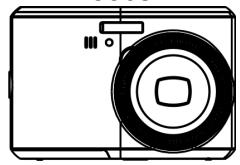
AgfaPhoto Sensor 530s

Camera Driver & Software CD
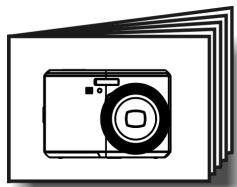
Quick Guide
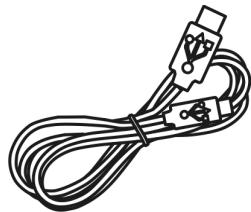
USB Cable
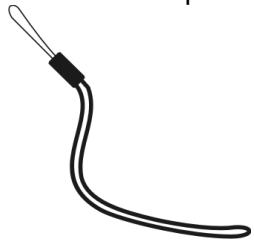
Wrist Strap

Camera Pouch

2xAA Batteries
2.2 External View
Top
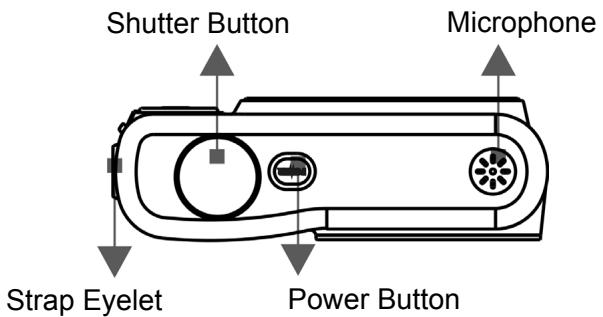
Side
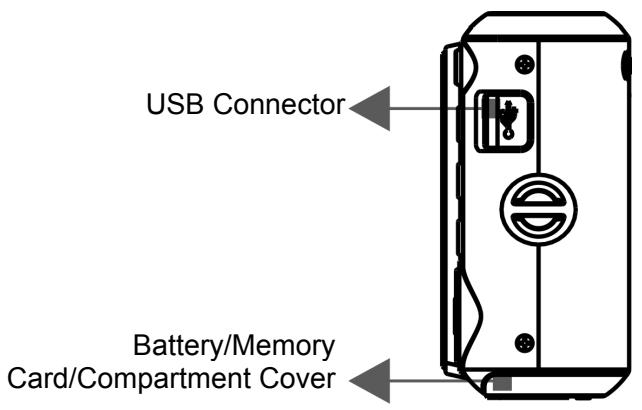
Front
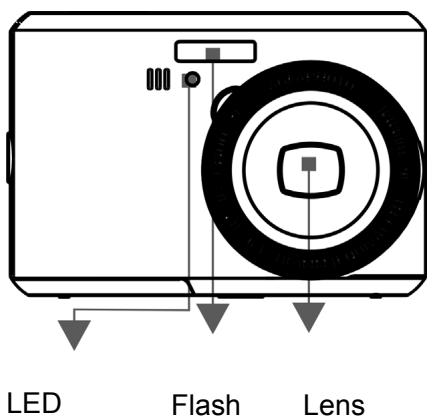
Back
Wide/Tele Button
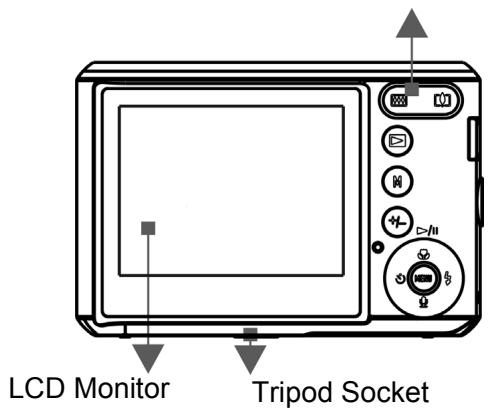
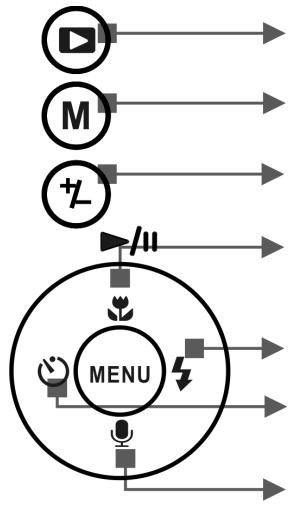
Playback Button
Mode Button
Delete/Exposure Button
Play/Pause/Up Button
Flash/Right Button
Self-Timer/Left Button
Voice Memo/Down Button
Menu Button
2.3 Display Information
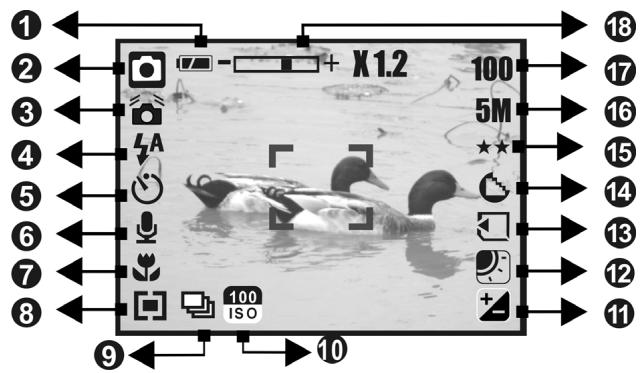
1 Battery Status
(Batteries Full
( ) Batteries Half Full
() Batteries Empty
( ) Landscape ( ) Backlight
Operation Mode
() Image Shooting Mode
( )Playback Mode
()MovieClipMode
( ) Voice Recording Mode
() Auto Mode
( ) Sport Mode
Night Mode
( ) Portrait Mode
3 ( ) WARNING Hold Camera Sta
4 Flash Mode
(A) Auto Flash (C) Red-Eye
( ) Fill-in Flash ( ) Slow Sync
( ③ ) Flash Off

Self-timer

10 Seconds

) 2 Seconds


Voice Memo

Focus Range

Macro

Metering

Multi

Spot

Shooting

Continuous
Single

ISO Value
100 1
200
150
400
(ISO)400


) Exposure ± 2

W. Balance

Auto

Daylight

Cloudy

) Tungsten

Fluorescent


Memory Card Inserted

carpness

Soft

Normal

Vivid

ality

S. Fine

) Fine

Normal

(Via interpolation)
(5M)
(3M)
(VGA)

0) Available Shots

om Status Indicator

3.0X Optical Zoom
8.0X Digital Zoom
3.0 Getting Started
3.1 Turning Power On & Off
- Press the Power Button to turn the camera on.
- Press the Power Button again to turn the camera off.
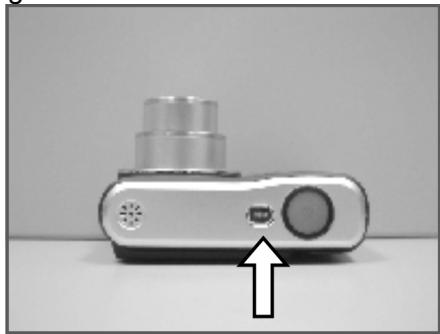
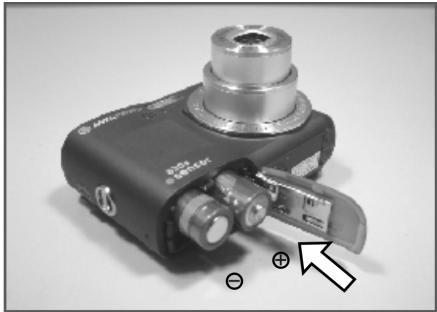
3.2 Inserting / Removing the Batteries
- Power off the camera.
- Slide open the battery compartment cover.
- Remove the batteries or, respecting the polarity indications, insert them.
- Close the battery cover.
Battery status indicator.
(1): Batteries full.
(1): Batteries half full.
(10): Batteries empty. Replace with new batteries.
- The batteries will discharge if kept inside the camera for a long time without use. Remove the batteries when the camera is not in use.
- The batteries may not work normally under 0^ or over 40^ .
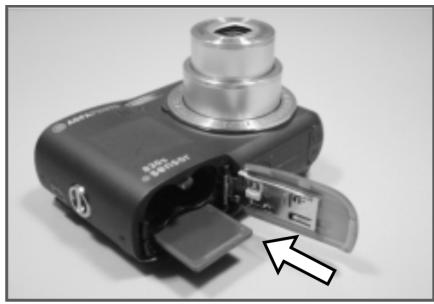
3.3 Inserting / Removing a Memory Card
- Power off the camera.
- Open the battery compartment cover.
- Insert the memory card into the card slot and press it gently until you hear a click.
- To remove, gently press on the edge of the card and pull it out.
- Close the battery cover.
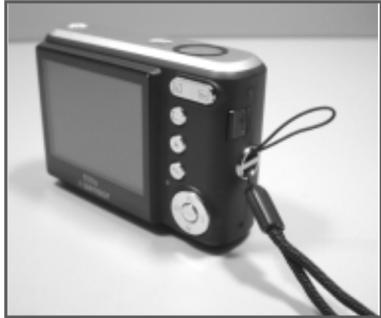
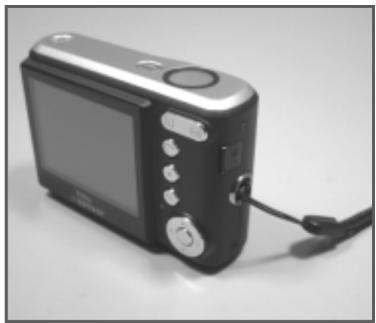
3.4 Attaching the Wrist Strap
4.0 Buttons & Functions
4.1 Power
- Press the Power Button to turn the camera on.
- Press the Power Button again to turn the camera off.
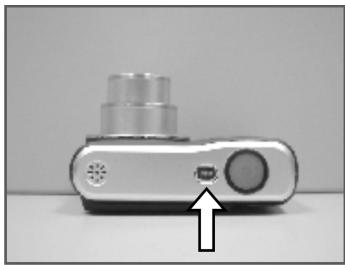
Power
- If the camera is left idle for a certain period of time, the camera will power off automatically.
4.2 Shutter
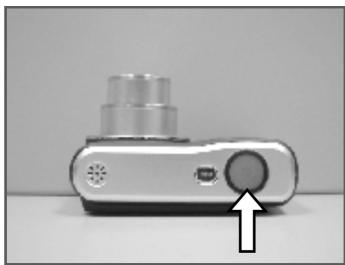
Shutter
- Press the Shutter Button half way to focus and then press it fully down to capture an image.
4.3 Tele / Wide
- Press the Tele Button. The Zoom Bar Indicator will appear in the top of the LCD display showing the current zoom status.
- Press the Wide Button. The Zoom Bar Indicator will return to the Wide view.
The camera allows maximum 3.0x optical zoom and 8.0x digital zoom.
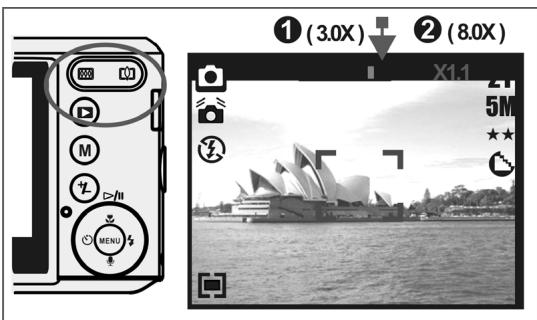
Note: As shown in the Technical Specifications on the last page:
Play mode: 1.0X 8.0X (depending on image size)
You can record images and voices in the Operation mode. Use the Playback Mode to play, delete or edit images on the LCD display.
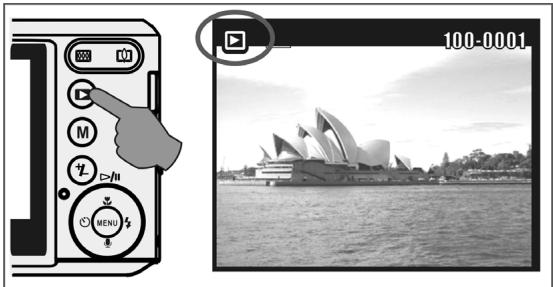
4.4Playback
- Select the Playback Mode by pressing the Playback Button (▶).
- Playback Mode displays still images, movie clips and voice recordings.
- Select an image by pressing the Left or Right Button.
4.5 Mode
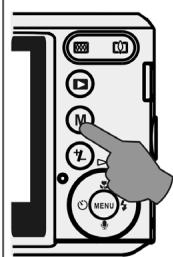
Still Image
Movie Clip
Voice Recording
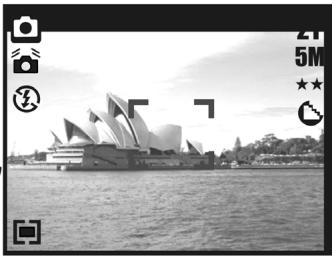
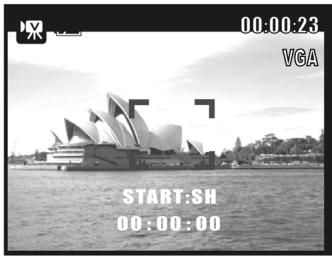
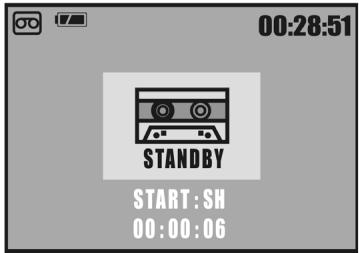
4.6 Basic Operations
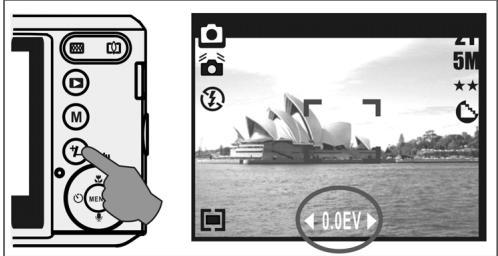
- To adjust white balance, ISO & EV press the Delete / Exposure Button ( ( + - ) ) several times to toggle between EV, ISO and white balance.
4.6.1 EV
- To adjust the EV value from -2.0EV to +2.0EV press the Left / Right Button.
- When you have selected the preferred value, press the Menu Button to confirm the setting.
- The higher the EV value, the brighter the image will be.
4.6.2 ISO
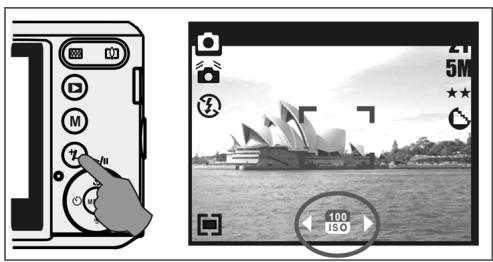
- Press the Delete / Exposure Button several times to toggle between EV, ISO and white balance.
- To adjust the ISO value, press the Left / Right Button to set the ISO value and press the Menu Button to confirm.
4.6.3 WB
- Press the Delete / Exposure Button several times to toggle between EV, ISO and white balance.
- To adjust the WB value, press the Left / Right Button to set the white balance and select the Menu Button to confirm.
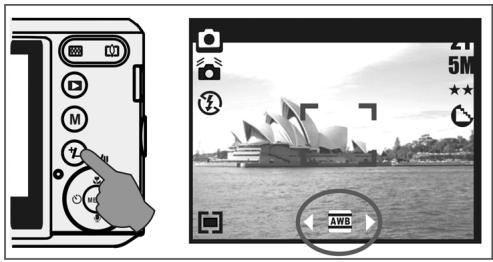
| AWB | Auto | Adjusts the white balance automatically |
| Daylight | For bright light conditions | |
| Cloudy | For cloudy conditions | |
| Tungsten | For tungsten light | |
| Fluorescent | For fluorescent light |
4.7 Menu
- Press the Menu Button to open the menu.
- When the menu appears on the LCD display, the Menu Button is used to move through the highlighted items in the submenu or to confirm data.
4.7.1 Up / Play & Pause / Macro
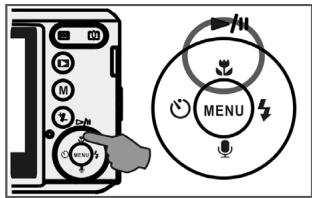
- Press the Up Button ( / ) to move up the submenu.
- When the menu is not displayed on the LCD display, the Up Button ( ) operates as the Macro function.
- The Up Button also operates as the Play & Pause function to play movie clips inPlayback Mode.
4.7.2 Right / Flash
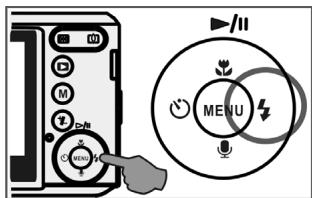
- Press the Right Button ( ) to highlight items in the right tab.
The Right Button ( ) also operates as the Flash function.
4.7.3 Down / Voice Memo
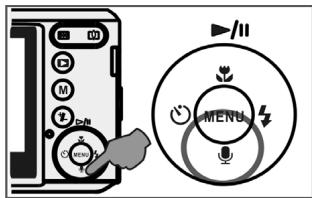
Press the Voice Button ( ) to highlight items in the down tab.
There are two ways you can add your voice to a stored still image.
- Shooting Mode
- Playback Mode
4.7.4 Left / Self-timer
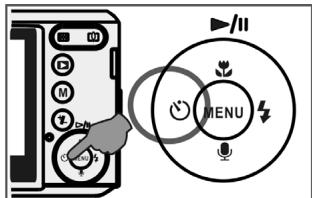
- Press the Left Button to highlight items in the left tab.
10 sec. Self-timer ( ): The image will be taken 10 after the shutter is released.
2 sec. Self-timer ( ): The image will be taken 2 seconds after the shutter is released.
Note:
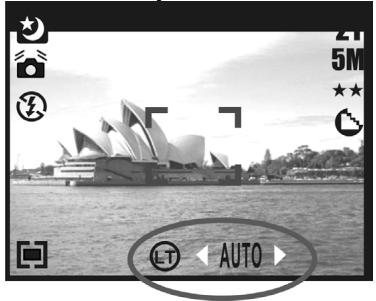
Night Scene Under Shooting Mode
While in Shooting Mode, press Menu Button then go to Scene Mode and select "Night".
Press the Left Button to exit the menu. Press the Down Button, and then press the Left /
Right Button to adjust the Long Exposure Value which ranges through
Auto,1/8,1/4,1/2,1,2,3,4.
Press the Menu Button to confirm the value you select.
5.0 Still Image Mode
5.1 Capturing Images
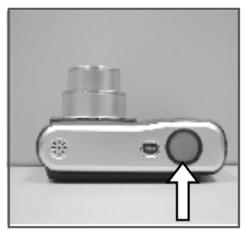
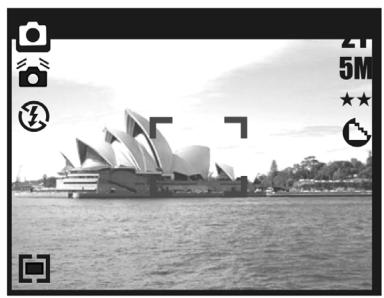
Taking a Picture
- Press the Power Button to power on the camera.
- Press the Shutter Button half way to focus.
- Press the Shutter Button fully to capture the image.
Using the Zoom
Press T or W on the Zoom Button (W T)

It is recommended that you take photos with the camera mounted on a tripod or
other device if the Shaking Hand ( 等等 ) icon appears.
5.2 Menu Mode
5.2.1 Size (Default: 5M)
This feature allows you to select image resolution.
(12M) 4032 × 3024 (3M) 2048 × 1536
(5M) 2560 × 1920 (VGA) 640 × 480
5.2.2 Quality (Default: Fine)
This feature allows you to select image quality.



5.2.3 Sharpness (Default: Normal)
| VIVID | G | This effect emphasizes the edges. The captured image looks sharper but may result in more image noise. |
| NORMAL | B | This effect emphasizes the edges, making the captured image suitable for printing. |
| SOFT | D | This effect makes the edges of the captured image look smoother, making it suitable for image editing on PC. |
5.2.4 Saturation (Default: Normal)
High
Normal
Low
5.2.5 Effect (Default: Normal)
| NORMAL | No special effect is added to the picture. |
| NEGATIVE | Gives the image a negative photo effect. |
| SEPIA | Gives the image a yellowish brown tone. |
| B & W | Turns the image black and white. |
5.2.6 Metering (Default: Multi)
The Metering Setting allows you to obtain superior exposure conditions and to capture a brighter picture.

Multi Metering:
Exposure will be evaluated according to the average of the available light sources in the image area. This is suitable for general use.

Spot Metering:
If the subject is against the light source or has little contrast, you can use this function to have the subject made brighter.
5.2.7 Scene Mode (Default: Auto Mode)
Select the scene modes from the following options:

) Auto Mode

) Sport Mode

) Night Mode

) Portrait Mode

) Landscape

) Backlight
5.2.8 Shooting (Continuous) (Default: Single)
-
Single: Single Image capture.
-
3 pictures in sequence ( ): Press the Shutter Button to start the continuous shooting function. Three still images are taken automatically.
Note: The Continuous Shooting function will not be cancelled until " Single" is selected.
6.0 Movie Clip Mode
6.1 Movie Recording
Recording
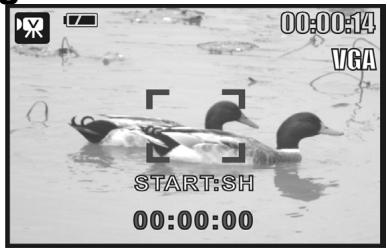
- Press the Power Button to power on the camera.
- Press the Mode Button to change to Movie Clip Mode.
- Press the Shutter Button to start movie recording.
- Press the Shutter Button again to stop recording.
6.2 Movie Size
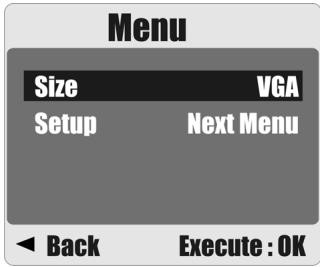
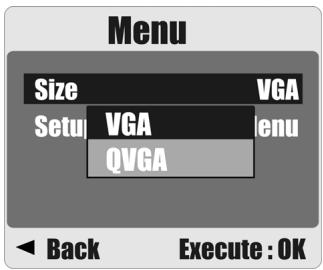
The video size options provided are as follows:
- VGA:640x480
- QVGA:320x240
7.0 Voice Recording Mode
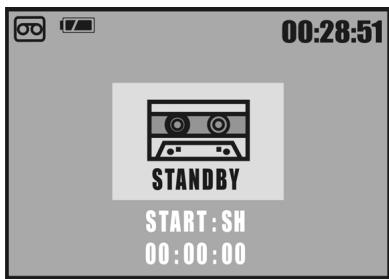
- Press the Mode Button and select Voice Recording Mode (OO).
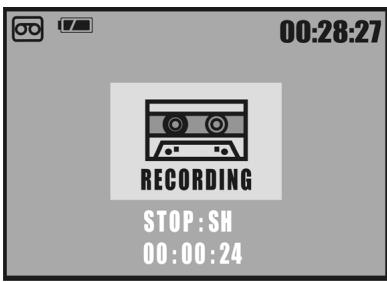
- Press the Shutter Button to start recording and press the Shutter Button again to stop the recording.
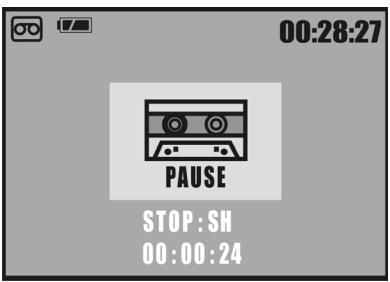
- Press the Play / Pause Button (▶/II) during recording to pause recording and press the Play / Pause Button again to continue recording.
8.0Playback Mode
8.1 Playing a Still Image
- Press the Playback Button to view images taken.
- Press the Right or Left Button to go to the next or last image.
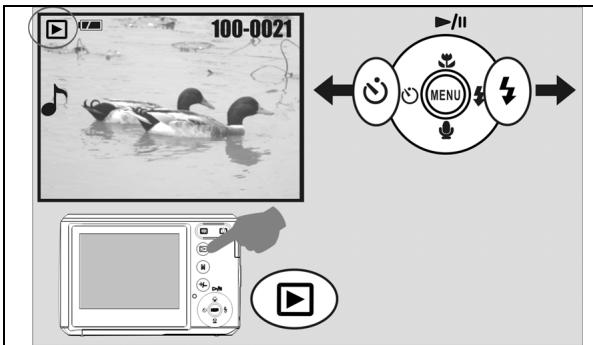
Operation Steps
- Playback Button

Note: The icon ( ● ) appears when viewing a still image with a voice memo.
8.2 Playing Movie Clips
- Press the Playback Button to play the Movie Clips.
- Press the Up Button to start or pause the Movie Clip.
- You can choose a 2X, 4X and 8X fast forward speed by pressing the Menu Button when playing the Movie Clips.
- When playing back the Movie Clips, press the Left / Self-Timer Button to play backwards and press the Menu Button to choose the 2X, 4X and 8X backward speed.
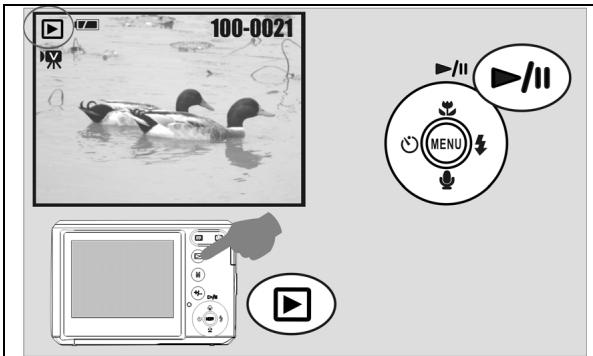
Operation Steps
- Playback Button

Note: The icon ( ) in the top left of the LCD display represents a Movie Clip, not a still image.
8.3 Thumbnail Display (Small Images)
- The,Thumbsail Display is a convenient tool for finding an image.
- Press the WIDE Button to view the Thumbnail Display.
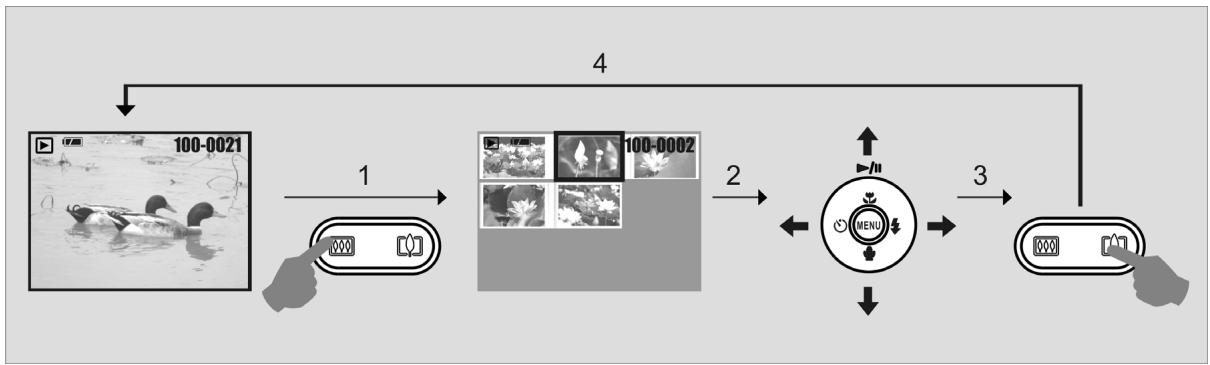
8.4 Exploring an Image
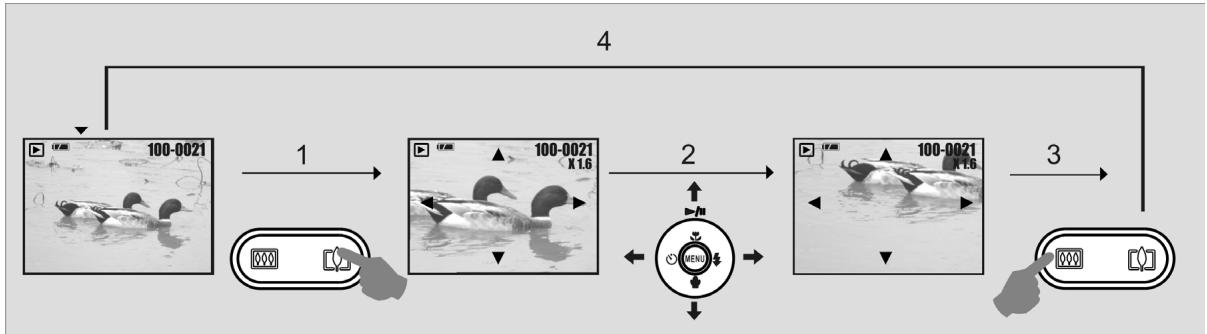
- Press the TELE Button to see an enlargement of the image.
- Use the TELE/WIDE Button to zoom in or out.
- Use the UP/DOWN/LEFT/RIGHT Button to move the enlarged section you would like to view.
- Press the WIDE Button to return to the original Playback Mode.
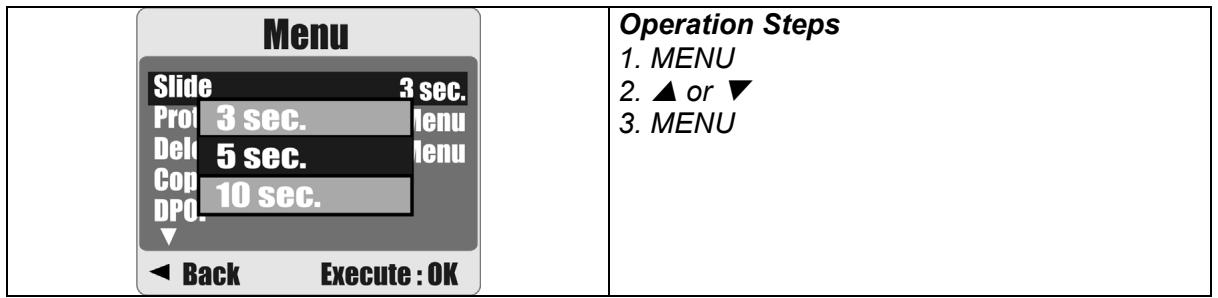
8.5 Slide
- This option allows you to view your photos in a slide show.
- There are 3 interval options available:
1.3 sec.
2.5 sec.
3. 10 sec.
8.6 Protect
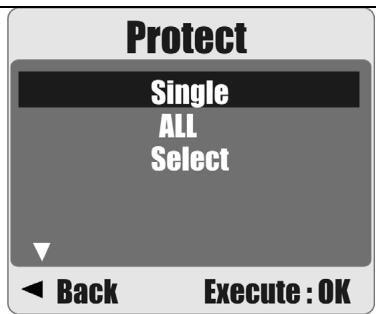
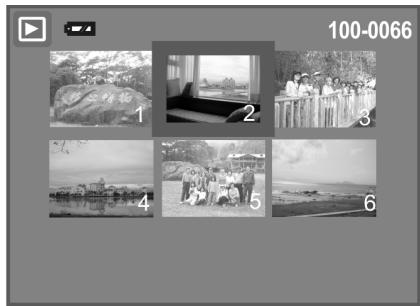
Protecting Selected Image(s)
- Press the Menu Button. Select "PROTECT" and confirm with the Menu Button.
- Choose "SELECT" and press the Menu Button.
- Select your image(s) to protect and press the Menu Button.
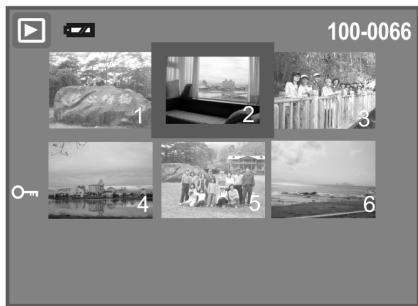
( ) will appear on the LCD display when a file is protected.
- To unprotect a file, press the Menu Button.
Operation Steps
- MENU
- ▲ or ▼
- ▲ or ▼
- MENU
Protecting All Images
- Press the Menu Button. Select "PROTECT" and confirm with the Menu Button.
- Choose "ALL" and press the Menu Button.
- Select "EXECUTE" and press the Menu Button to confirm. (O-m) will appear on the LCD display when the files are protected.
8.7 Delete
Deleting Single Image
1a. Select the image you want to delete and press the Delete / Exposure Button (+/-). Choose "Execute" and press the Menu Button to confirm or the Left Button to cancel the request.
1b. Press the Menu Button. Select "Delete" and press the Menu Button. Select "Single" and press the Menu Button to proceed.
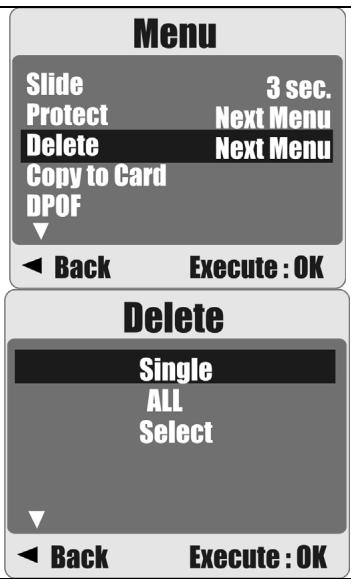
Operation Steps
- MENU
- ▲ or ▼
- or MENU
Deleting All Image(s)
- Press the Menu Button and select "Delete" using the Menu Button.
- Select "ALL" and press the Menu Button to proceed.
Deleting Selected Image
- Press the Menu Button and select "Delete" using the Menu Button.
- Choose "Select" and press the Menu Button.
- Select the image you want to delete and press the Menu Button.
8.8 Copy To Card
This function allows you to copy the images stored in the internal flash memory onto a memory card.
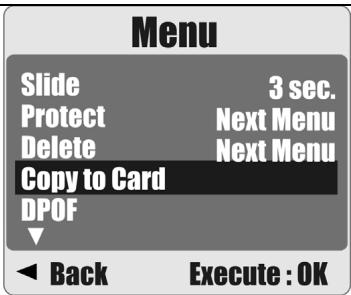
Operation Steps
- MENU
- ▲ or ▼
- or MENU
8.9 DPOF
This function can only be used when a memory card is inserted.
- This option allows you to store the number of copies to print (MAX.30 pcs) on your memory card.
[SINGLE] - specifies the number of copies for a selected image.
[ALL] - specifies the number of copies for all pictures apart from movie clips and voice recording files.
Note: The "PRINT" function will not appear on the LCD display if a memory card is not inserted.
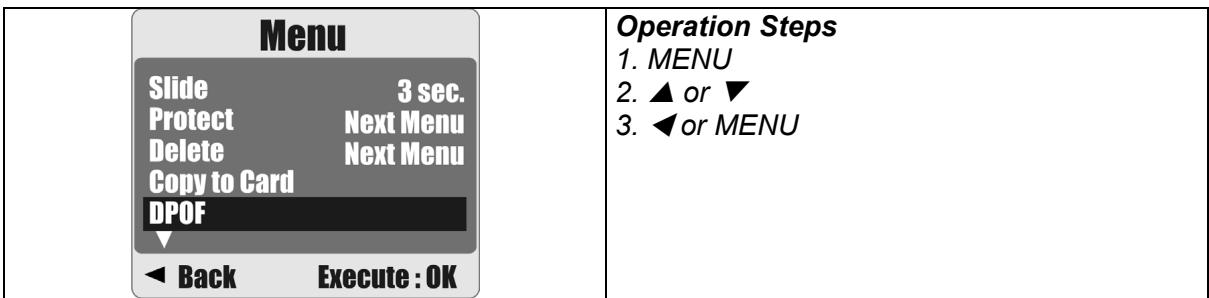

9.0 SETUP Mode
You can enter the SETUP Mode by pressing the Menu Button and selecting SETUP.
| Setup | Setup | Operation Steps 1. MENU 2. ▲ or ▼ 3. ▲ 4. ▲ or ▼ 5. MENU | Item: 1. Auto Off 2. Language 3. Format 4. Date Input 5. Imprint 6. Beep 7. Light Freq. 8. Q. View 9. Sys. Reset 10. USB | ||
| Auto Off | 3.Min. | ||||
| Language | English | Beep | On | ||
| Format | Net Menu | Light Freq. | 50Hz | ||
| Date Input | Net Menu | Q.View | On | ||
| Imprint | Off | Sys. Reset | Net Menu | ||
| Back | Execute: OK | USB | Disk Drive | ||
| Back | Execute: OK | ||||
9.1 Auto Off
This function allows you to set the power saving time.
- Press the Menu Button and select "SETUP".
- Select "AUTO OFF".
- Select the time you prefer and press the Menu Button to confirm the setting. Select "OFF" to disable the power-saving function.
| Setup | ||
| Auto Off 3 Min. | ||
| Langua 1 Min. | nglish | |
| Format 3 Min. | Menu | |
| Date In 5 Min. | Menu | |
| Imprint Off | off | |
| Back Execute:OK | ||
| Operation Steps 1. MENU 2. ▲ or ▼ 3. MENU 4. ▲ or ▼ 5. MENU 6. ▲ or ▼ 7. MENU | ||
Note:
If "OFF" is set, the camera will not turn off automatically.
The batteries will discharge if the camera is powered on for a long time.
9.2 Language
There are 12 languages available to select:
| Setup | Operation Steps 1. MENU 2. ▲ or ▼ 3. MENU 4. ▲ or ▼ 5. MENU | |
| Auto Off | 3.Min. | |
| Language | English | |
| Format | Net Menu | |
| Date Input | Net Menu | |
| Imprint | off | |
| Back | Execute:OK | |
- English
- French
- German
- Italian
- Spanish
-
Portuguese
-
Traditional Chinese
- Simplified Chinese
- Japanese
- Thai
- Turkish
- Russian
| Language English Francais Deutsch Italiano Espanol Back Execute:OK | Operation Steps 1. ▲ or ▼ 2. MENU |
9.3 Format
This function allows you to format the memory card or the built-in flash memory.
| Setup | Operation Steps 1. MENU 2. ▲ or ▼ 3. MENU 4. ▲ or ▼ 5. MENU | |
| Auto Off 3.Min. Langua Cancel english Format Execute Menu Date Input not Menu Imprint off Back Execute:OK | ||
9.4 Date Input
This function allows you to set up the type of date & time.
| Setup Auto Off 3.Min. Language Off English Format Off tMenu Date In Execute tMenu Imprint off Back Execute OK | Operation Steps 1. MENU 2. ▲ or ▼ 3. MENU 4. ▲ or ▼ 5. MENU |
- YYYYY/MM/DD
- DD/MM/YYYY
- MM/DD/YYYY
9.5 Imprint
This function allows you to print the date or date & time on a captured image.
| Setup | Operation Steps 1. MENU 2. ▲ or ▼ 3. MENU 4. ▲ or ▼ 5. MENU | ||
| Auto Off 3 Min. Langua Off glish Format Date Only Menu Date In Date & Time Menu Imprint off Back Execute:OK | |||
9.6 Beep
This function allows you to switch the button sound on or off.
| Setup | Operation Steps 1. MENU 2. ▲ or ▼ 3. MENU 4. ▲ or ▼ 5. MENU | |
| Beep | On | |
| Light Fr | 50Hz | |
| Q.View | On | |
| Sys. Re | Off | |
| USB | Disk Drive | |
| Back | Execute:OK | |
9.7 Light Frequency
The Light Frequency setting is for Anti-flicker.
50Hz: UK, Germany, Italy, Spain, France, Netherlands, China, Japan, Portugal.
60Hz: U.S.A., Taiwan, Korea, Japan.
| Setup | Operation Steps 1. MENU 2. ▲ or ▼ 3. MENU 4. ▲ or ▼ 5. MENU | ||
| Beep | On | ||
| Light Freq. | 50Hz | ||
| Q.View | On | ||
| Sys. Re | 50Hz | Menu | |
| USB | Drive | ||
| Back | Execute: OK | ||
Note: A horizontal flicker will occur under artificial lighting conditions if the wrong frequency is selected.
9.8 Q.View
If you select Q. View "On", you can view the captured image on the LCD display.
Q. View is possible only with still images.
| Setup | Operation Steps 1. MENU 2. ▲ or ▼ 3. MENU 4. ▲ or ▼ 5. MENU | ||
| Beep | On | ||
| Light Freq | On | 50Hz | |
| Q.View | Off | On | |
| Sys. Reset | Hot Menu | ||
| USB | Disk Drive | ||
| Back | Execute:OK | ||
9.9 Sys. Reset
This function is to restore all default values apart from the Date, Time and Language.
| Setup | Operation Steps 1. MENU 2. ▲ or ▼ 3. MENU 4. ▲ or ▼ 5. MENU | ||
| Beep | On | ||
| Light Freq. | 50Hz | ||
| Q.View | Cancel | On | |
| Sys. Re | Execute | Menu | |
| USB | Drive | ||
| Back | Execute: OK | ||
9.10 USB
You can select the operating mode when connecting the camera to an external device using a USB cable.
| Setup | Operation Steps 1. MENU 2. ▲ or ▼ 3. MENU 4. ▲ or ▼ 5. MENU | ||
| Beep | On | ||
| Light Fl | PC Cam | 50Hz | |
| Q.View | Disk Drive | On | |
| Sys. Re | Menu | ||
| USB | Printer | Drive | |
| Back | Execute:OK | ||
9.10.1 PC Cam:
a. Install the PC Cam Driver on your computer.
b. Select the USB setting as PC Cam.
c. Connect the USB cable to your computer.
d. You can start the PC Cam function after you have set up MSN messenger or AMCAP.
9.10.2 Disk Drive:
When Disk Drive is selected, the PC will automatically detect the camera as a Disk Drive. The LCD display will power off. A new removable disk will appear to download images to your computer.
9.10.3 Printer:
Connect the camera to a printer and select the Printer via PictBridge function. Select the detailed printer options.
10.0 Specifications
| Image Sensor | Type | 1/2.5" 5M CMOS Sensor | |
| Effective Pixels | 5.0 Mega Pixels (2,592 × 1,944) | ||
| Lens | Lens Type | Optical 3X Zoom (35mm Film Equivalent: 36~108 mm) | |
| F No. | F2.8~F4.8 | ||
| Digital Zoom | Still Image mode: 1.0X ~ 8.0X Play mode: 1.0X ~ 8.0X (depends on image size) | ||
| LCD Display | 2.4" Color LTPS LCD | ||
| Focusing | Type | Auto Focus | |
| Range | Normal: 110cm ~ infinity Macro: 5cm~200cm (Wide only) | ||
| Shutter | Type | Mechanical and Electrical Shutter | |
| Speed | Normal: 1/4000 sec. - 4 sec., Night Scene: 4 sec. - 1/8 sec. | ||
| Exposure | Control | Programmed AE, Metering: Multi, Spot | |
| ISO Equivalent | 100, 200, 400 | ||
| Flash | Modes | Auto, Red Eye, SlowSync, Fill-in Flash, Flash Off | |
| Effect | Normal, Sepia, Negative, B&W | ||
| White Balance | Auto, Daylight, Cloudy, Fluorescent, Tungsten | ||
| Voice Recording | Voice Recording (depends on capacity) Voice Memo in Still Image (max. 10 sec.) | ||
| Date Imprinting | Date, Date & Time, Off (user selectable) | ||
| Shooting | Still Image | Mode | Single Image, Continuous Shooting |
| Image Size | [12M]: 4032 X 3024 pixels (by interpolation) [3M]: 2048 X 1536 pixels [5M]: 2560 X 1920 pixels [VGA]: 640 X 480 pixels | ||
| Image Quality | Super Fine, Fine, Normal | ||
| Self-Timer | 10 sec., 2 sec. | ||
| Scene Mode | Auto, Sport, Night, Potrait, Landscape, Backlight | ||
| Movie Clip | Movie Size | QVGA (320x240), VGA (640x480) | |
| Frame Rate | .20fps | ||
| Zoom | Optical Zoom: up to 3.0X | ||
| Storage | Media | Internal memory: 16M External memory: supporting SD card (up to 2G) | |
| File Format | Still Image | JPEG (DCF), EXIF 2.2, DPOF 1.1, PictBridge 1.0 | |
| Movie Clip | MJPEG, 320x240 (QVGA), 640x480(VGA), with audio on PC | ||
| Audio | Audio for Voice Recording and Memo: WAV | ||
| PictBridge (Direct Printing) | Yes | ||
| Image Play | Type | Single Image, Thumbsails, Slide Show, Movie Clip | |
| Interface | Digital output connector: USB 1.1 Full Speed Other interface: MIC-in, Buzzer Out (No Speaker) | ||
| Power Source | 2 x AA alkaline, Ni-MH Battery | ||
| Dimensions (WxHxD) | 91.7 x 30 x 61.5 mm | ||
| Weight | Approx. 120g (without battery and card) | ||
| Software | Camera Driver | Windows 2000/ME/XP, Vista32/64 |
| Application | Arcsoft Medialmpression | |
| System Requirements | ||
| For Windows | PC with processor higher than MMX Pentium 233MHz (XP: Pentium II 300MHz) Windows 2000 Professional (SP4)/Windows ME/Windows XP (SP2)/Window Vista Minimum 64MB RAM (XP: 128MB) 140MB of available hard-disk space USB port (1.1 or 2.0 standard interface) CD-ROM drive 800×600 pixels, 16-bit color display compatible monitor (24-bit color display recommended) | |
| For Macintosh | Power Mac G3 or later Mac OS 10.0-10.4 Minimum 64MB RAM 110MB of available hard-disk space USB port CD-ROM Drive 800x600 pixels, 16-bit color display compatible monitor QuickTime6.0 or Later for MPEG4 SP Movie Clip | |
11.0 Customer care
11.1 Customer care
More information on the complete AgfaPhoto digital camera product range can be found under www.plawa.com / www.plawausa.com
Service & Repair (USA/ Canada):
1-8664752605
www.plawausa.com
Support Service (USA/ Canada)
Support-apdc@plawausa.com
Service & Repair Hotline (EU):
00800 752 921 00 (from a landline only)
Service & Support Hotline (Germany):
0900 1000 042 (1.49 Euro/ min. from a German landline only)
Online Service / International contact (Not for USA/ Canada):
support-apdc@plawa.com
Manufactured by
AgfaPhoto is used under license of Agfa-Gevaert NV & Co. KG. Agfa-Gevaert NV & Co. KG. does not manufacture this product or provide any product warranty or support.
For service, support and warranty information, contact the distributor or manufacturer.
Contact: AgfaPhoto Holding GmbH, www.agfaphoto.com
11.2 Disposal of Waste Equipment by Users in Private Households in the European Union

This symbol on the product or on its packaging indicates that this product must not be disposed of with your other household waste. Instead, it is your responsibility to dispose of your waste equipment by handing it over to a designated collection point for the recycling of waste electrical and electronic equipment. The separate collection and recycling of your waste equipment at the time of disposal will help to conserve natural resources and ensure that it is recycled in a manner that protects human health and the environment. For more information about where you can drop off your waste equipment for recycling, please contact your local city office, your household waste disposal service or the shop where you purchased the product.
11.3 Compliance and Advisory
This device complies with Part 15 of the FCC Rules. Operation is subject to the following two conditions: 1.) this device may not cause harmful interference, and 2.) this device must accept any interference received, including interference that may cause unsatisfactory operation. This equipment has been tested and found to comply with the limits for a Class B peripheral, pursuant to Part 15 of the FCC Rules. These limits are designed to provide reasonable protection against harmful interference in a residential installation. This equipment generates, uses, and can radiate radio frequency energy and, if not installed and used in accordance with the instructions, may cause harmful interference to radio communication. However, there is no guarantee that interference will not occur in a particular installation. If this equipment does cause harmful interference to radio or television reception, which can be determined by turning the equipment off and on, the user is encouraged to try to correct the interference by one or more of the following measures.
Reorient or relocate the receiving antenna.
- Increase the separation between the equipment and receiver.
- Connect the equipment to an outlet on a circuit different from that to which the receiver is connected.
- Consult the dealer or an experienced radio/TV technician for help.
Any changes or modifications not expressly approved by the party responsible for compliance could void the user's authority to operate the equipment. When shielded interface cables have been provided with the product or when specified additional components or accessories have elsewhere been designated to be used with the installation of the product, they must be used in order to ensure compliance with FCC regulations.