
SENSOR 500-X - Digital Camera AGFAPHOTO - Free user manual and instructions
Find the device manual for free SENSOR 500-X AGFAPHOTO in PDF.


| Product Type | Compact digital camera |
| Brand | AGFAPHOTO |
| Model | SENSOR 500-X |
| Dimensions (L × H × D) | 95.5 × 54.5 × 26.5 mm |
| Weight (without battery) | Approx. 85 g |
| Power supply | 2 AAA alkaline or NiMH rechargeable batteries |
| Screen | 2.0-inch TFT LCD |
| Sensor | 3MP CMOS (1/2.5 inch) |
| Maximum photo resolution | 2592 × 1944 pixels |
| Maximum video resolution | 640 × 480 pixels |
| File formats | JPEG (photo), AVI (video), WAV (audio) |
| Internal memory | 32 MB |
| External memory | SD card (up to 2 GB) |
| Flash | Auto, forced, off |
| White balance | Auto, daylight, tungsten, fluorescent, cloudy |
| Exposure compensation | -2 EV to +2 EV in 1/3 steps |
| Shutter | Electronic: 1/2000 to 1/14 s |
| Focus | Fixed, from 150 cm to infinity |
| Self-timer | 10 s, 20 s |
| Burst mode | Yes (3 consecutive images) |
| Image effects | Color, sepia, monochrome |
| Connectivity | USB 2.0, AV output |
| TV system | NTSC / PAL |
| Available languages | Multilingual (including French, English, German, etc.) |
| Box contents | Camera, USB/AV cable, 2 AAA batteries, case, wrist strap, CD-ROM, quick guide |
| Maintenance | Clean contacts with a dry cloth; avoid moisture and dust |
| Safety | Do not open the casing; do not expose to water; do not point the flash at eyes |
| Repairability | Do not attempt to repair yourself; contact an authorized service |
Frequently Asked Questions - SENSOR 500-X AGFAPHOTO
User questions about SENSOR 500-X AGFAPHOTO
0 question about this device. Answer the ones you know or ask your own.
Ask a new question about this device
Download the instructions for your Digital Camera in PDF format for free! Find your manual SENSOR 500-X - AGFAPHOTO and take your electronic device back in hand. On this page are published all the documents necessary for the use of your device. SENSOR 500-X by AGFAPHOTO.
USER MANUAL SENSOR 500-X AGFAPHOTO
sensor 500-X, sensor 505-X, sensor 510-X
User manual
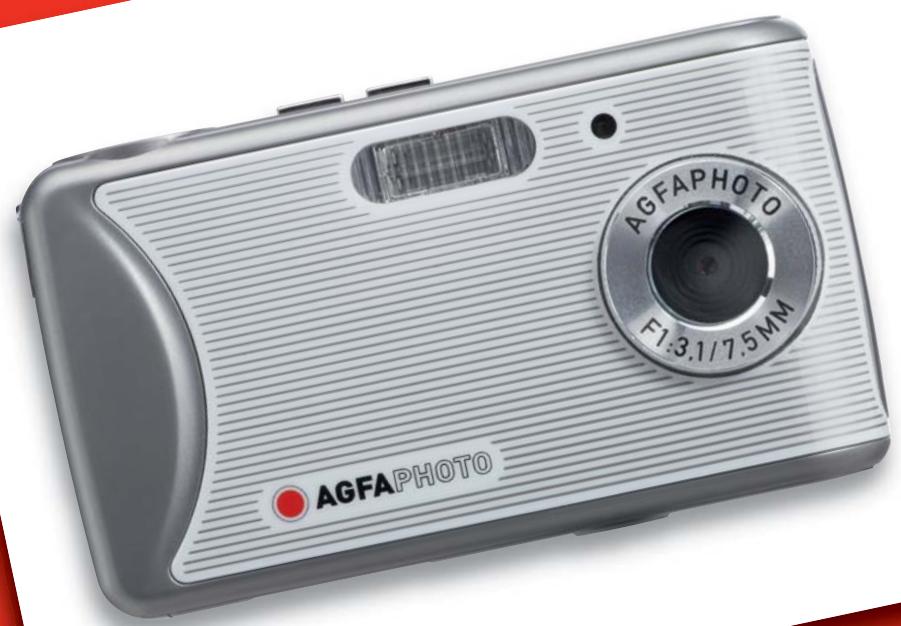
Thank you for purchasing this AgfaPhoto digital camera. Please read these operating instructions carefully in order to use the digital camera correctly. Keep the instructions in a safe place after reading so that you can refer to them later.
Notice: this User's Manual has been written for the following camera models: AgfaPhoto sensor 500-X, AgfaPhoto sensor 505-X and AgfaPhoto sensor 510-X.
Precautions
Before using the camera, please ensure that you read and understand the safety precautions described below. Always ensure that the camera is operated correctly.
- Do not point the camera directly into the sun or other intense light sources which could damage your eyesight.
- Do not try to open the case of the camera or attempt to modify this camera in any way. High-voltage internal components create the risk of electric shock when exposed. Maintenance and repairs should be carried out only by authorized service providers.
- Do not fire the flash too close to the eyes of animals or people, especially young children. Eye damage may result. In particular, keep at least one meter away from infants when using the flash.
- Keep the camera away from water and other liquids. Do not use the camera with wet hands. Never use the camera in the rain or snow. Moisture creates the danger of electric shock.
- Keep the camera and its accessories out of the reach of children and animals to prevent accidents or damage to the camera.
- If you notice smoke or a strange odor coming from the camera, turn the power off immediately. Take the camera to the nearest authorized service center for repair. Never attempt to repair the camera on your own.
- Use only the recommended power accessories. Use of power sources not expressly recommended for this equipment may lead to overheating, distortion of the equipment, fire, electrical shock or other hazards.
Disclaimer
We assume no responsibility over and above the provisions of the Product Liability Law for damages suffered by the user or third parties as a result of inappropriate handling of the product or its accessories, or by their operational failure and by their use. We reserve the right to make changes to this product and its accessories without prior notice.
Warning! Never open the camera or remove any parts of it. This will void all guarantee claims.
Using your batteries
For best performance and prolonged battery life, we recommend the use of AAA-sized rechargeable NiMH batteries.
Extending battery life
The following functions use up a great deal of battery power and should therefore only be used occasionally:
- Excessive use of flash
- Editing images on the camera display
The battery life can be affected by soiling. Please clean the contacts with a clean, dry cloth before putting the batteries in the camera. Battery performance drops at temperatures below 5^ C (41°F). If you use the camera at low temperatures you should have replacement batteries to hand and ensure they do not get too cold. Please note: you should not dispose of cold and seemingly flat batteries because these batteries may work again at room temperature.
Contents
PRECAUTIONS
DISCLAIMER II
USING YOUR BATTERIES II
EXTENDING BATTERY LIFE II
CONTENTS III
GETTING STARTED 1
USING THIS MANUAL 1
PACKAGE CONTENTS 2
PARTS OF THE CAMERA 3
ATTACHING THE STRAP 5
INSERTING THE BATTERIES 5
LOW BATTERY INDICATOR 6
INSERTING A MEMORY CARD 6
ABOUTCAMERA MEMORY 7
TURING POWER ON & OFF 7
SETTING DISPLAY LANGUAGE 8
SETTING DATE & TIME 9
USING THE LCD MONITOR 9
CAPTURE MODE 10
VIDEO MODE 11
PLAYBACK MODE 12
BASIC OPERATION 13
TURING POWER ON & OFF 13
CHANGING THE MODE 13
SWITCHING BETWEEN REC AND PLAYBACK
MODE 13
SELECTING THE REC MODE 14
USING THE MENU IN REC MODE 15
CAPTURE MENU LIST 16
VIDEO MENU LIST 16
SETUP MENU 17
BASIC RECORDING 19
RECORDING STILL IMAGES 19
SELECTING THE RESOLUTION AND QUALITY
20
USING THE ZOOM FUNCTION 21
USING THE FLASH 22
USING THE SELFTIMER 23
USING THE BURST-SNAPSHOT 24
RECORDING MOVIE CLIPS 25
SETTING THE MOVIE SIZE 25
RECORDING AUDIO 26
VIEWING THUMBNAILS 32
PLAYING A SLIDE SHOW 32
DELETEING FILES 33
DELETEING A SINGLE FILE 33
DELETEING ALL FILES 34
FORMATTING THE SD CARD OR INTERNAL
34
PROTECTING FILES 35
CHOOSING A STARTUP IMAGE 36
SETTING THE LOGO 36
EDITING IMAGES 37
ROTATING STILL IMAGES 37
PRINTING 38
MAKING CONNECTIONS 39
CONNECTING THE CAMERA TO A TV 39
CONNECTING THE CAMERA TO A PC 40
USING A CARD READER (NOT INCLUDED) 40
CONNECTING THE CAMERA TO A PC WITH
THE USB CABLE 40
SYSTEM REQUIREMENTS 41
APPENDIX 42
ABOUT THE FOLDER & FILE NAMES 42
FOLDER STRUCTURE 42
NAMING FILES 42
TROUBLESHOOTING 43
SPECIFICATIONS 44
CUSTOMER CARE 46
DISPOSAL OF WASTE EQUIPMENT BY USERS
IN PRIVATE HOUSEHOLDS IN THE EUROPEAN
UNION 47
FCC COMPLIANCE AND ADVISORY 47
Getting Started
Using This Manual
Getting Started
This section contains information you should know prior to using this camera.
Basic Operation
This section explains all recording features of the camera.
Basic Recording
This section explains how to record still images, movies and audio files.
Other Recording Functions
This section explains common operations when recording images.
Playback
This section explains playback, delete and edit functions of still images, movies and audio files.
Making Connections
This section explains how to connect the camera to a computer or TV.
Appendix
This section provides troubleshooting and the camera specifications.
The meanings of the symbols used in this user's manual are explained below:
| Caution | This indicates warnings that should be read before using these functions. |
| Tips | This indicates useful information for the use of this camera. |
| This indicates the reference page. |
Package Contents
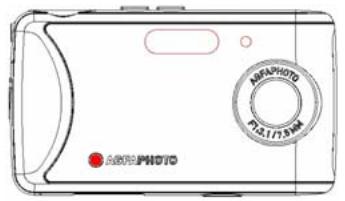
AgfaPhoto sensor
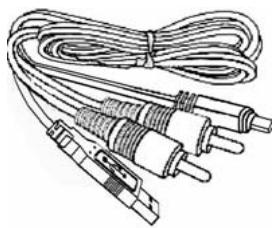
USB / AV cable
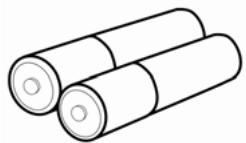
2 x AAA batteries
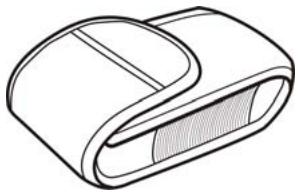
Pouch
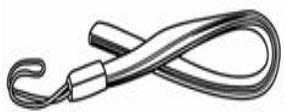
Strap
Software Installation CD-ROM
Quick guide
Parts of the Camera
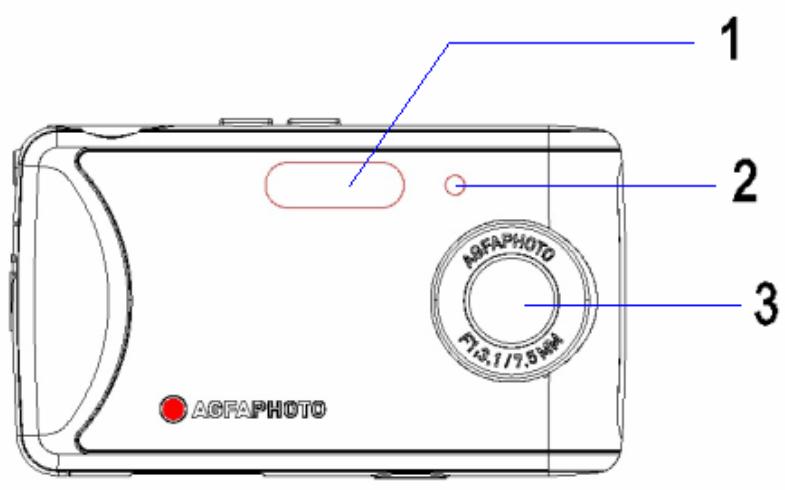
- Flash
- Selftimer lamp
- Lens
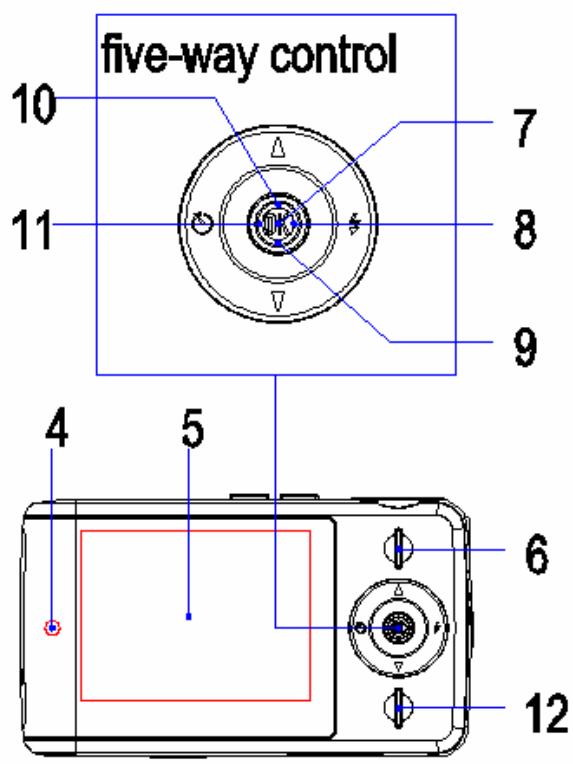
- Operation lamp
- LCD display
- Playback button
Five-way control button
- OK/Enter button
vertically)
- Right
- Down
10.Up
11.Left - MENU button
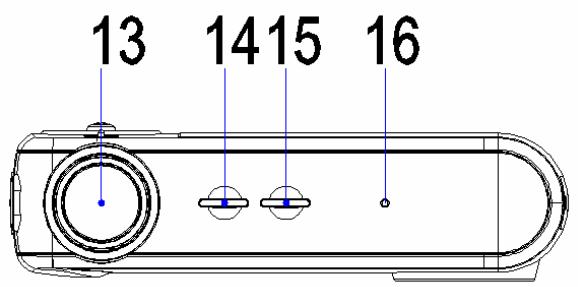
13.Shutter button
14. Mode button
15. Power button
16. Microphone
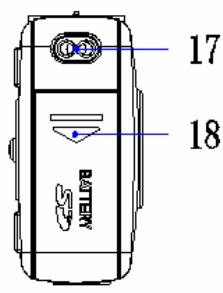
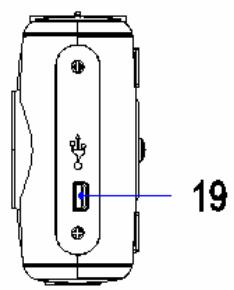
- Strap mount
- Battery cover
- USB jack
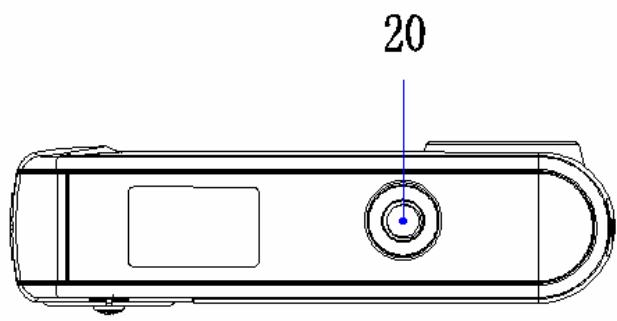
- Tripod socket
Attaching the Strap
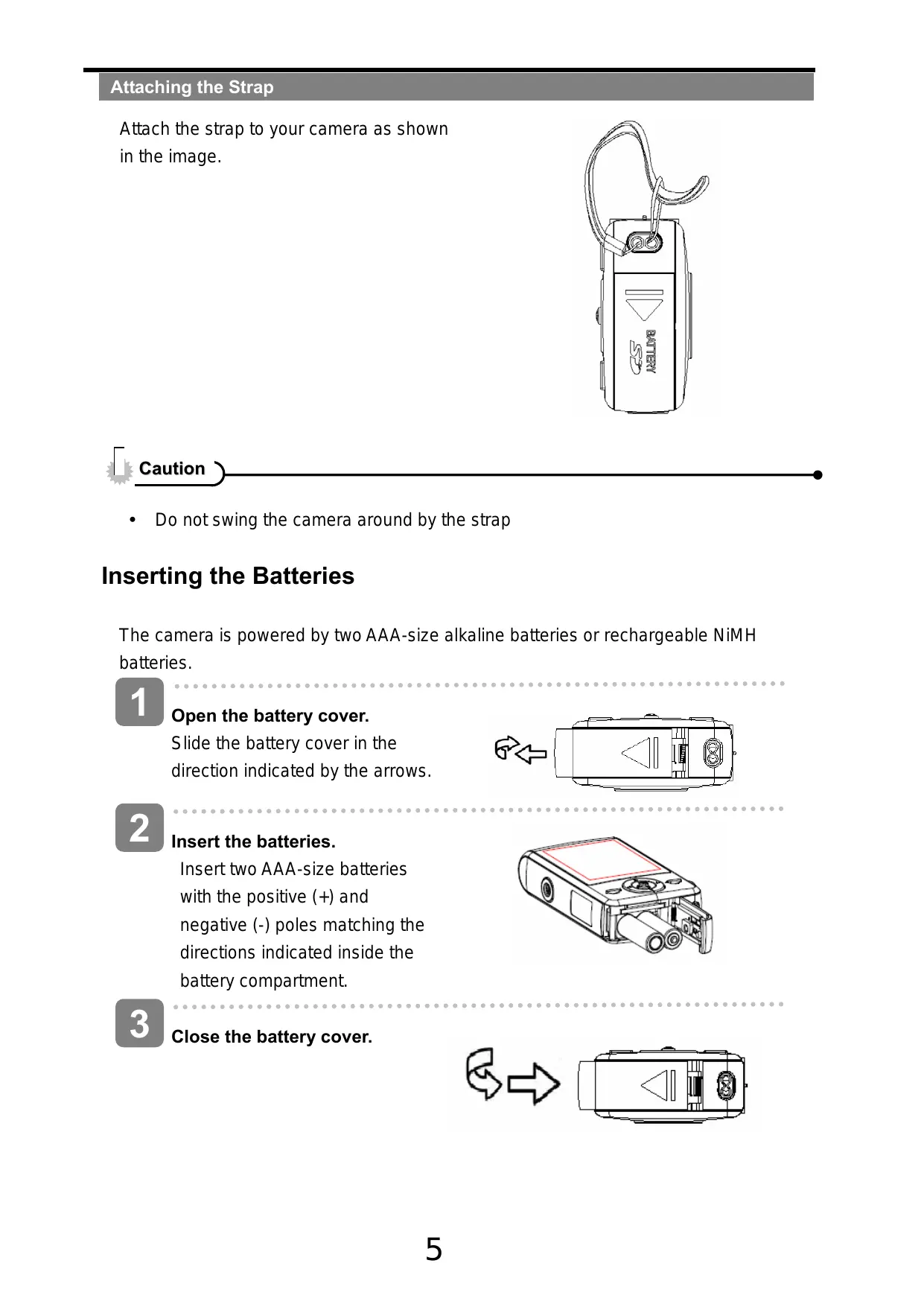
Attach the strap to your camera as shown in the image.
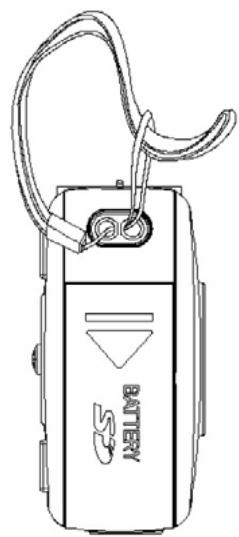
Caution
- Do not swing the camera around by the strap
Inserting the Batteries
The camera is powered by two AAA-size alkaline batteries or rechargeable NiMH batteries.
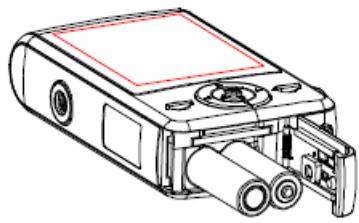
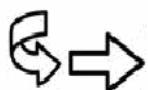
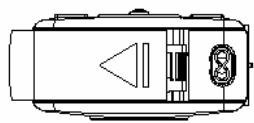
1 Open the battery cover. Slide the battery cover in the direction indicated by the arrows.
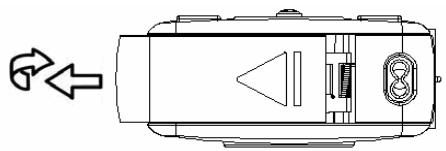
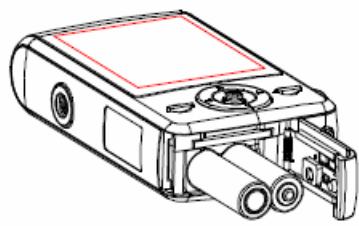
2 Insert the batteries. Insert two AAA-size batteries with the positive (+) and negative (-) poles matching the directions indicated inside the battery compartment.
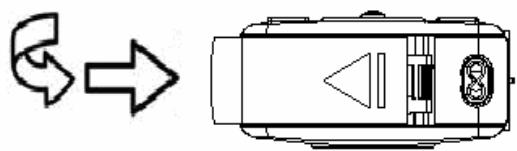
3 Close the battery cover.
Low Battery Indicator
A low battery indicator appears on the LCD screen when the batteries are nearly exhausted. Batteries should be replaced promptly when the low battery indicator appears.

Caution
- There is a risk of explosion if the battery is replaced by an incorrect type. Dispose of used batteries according to instructions.
- Be sure to turn off the camera power before inserting or removing batteries.
- Use only Alkaline or NiMH batteries to power this camera. Use of any other type of battery is not recommended.
- Replace all batteries at the same time. Never mix old and new batteries.
- Remove batteries if you will not be using the camera for a long time.
- The camera body may feel warm after extended use. This is normal.
Inserting a Memory Card
You can use an SD card card with this digital camera. The memory card slot is adjacent to the battery compartment.
1 Open the battery cover.
Slide the battery cover in the direction indicated by the arrows.
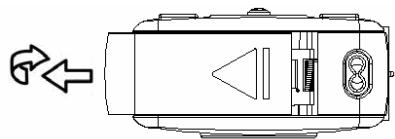
2 Insert the card.
Insert the card with the label facing up and the arrow pointing inwards.
Tips
- To remove the card, gently press on the edge of the card to release it. Pull the card out and close the battery cover.
3 Close the battery cover.

Caution
- If you insert or remove the card while the camera is powered on, it may damage the card or data.
- Do not touch the connection terminals on the back of the card.
About Camera Memory
This camera is equipped with an internal memory. If a memory card is not inserted in the camera, all images and movie clips recorded by the camera will be stored in the internal memory. If a memory card is inserted, images and movie clips will be stored on the memory card.
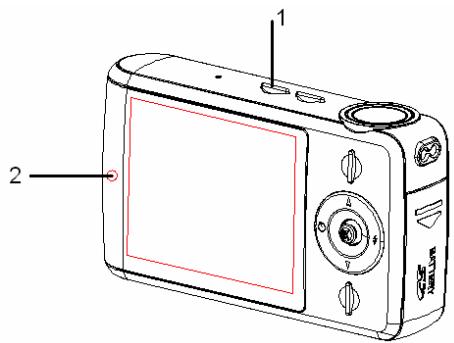
Turning Power On & Off
1
Press the Power button (1) to turn on the camera in the Capture mode. The power turns on and the LED (2) lights red.
2
Press the Power button (1) again to turn the power off. The power turns off and the LED turns off.
)
Tips
- You can turn on the camera without the startup and operating sound by setting the function [Play Logo] and [Buzzer].
- Switch between Capture mode and Playback mode (S page 13).
Power Saving Function
To save battery power, the LCD monitor automatically turns off 30 seconds after the last control accessed (factory-preset setting). Press any button other than the power button to turn on the LCD monitor. After the power saving function has been active for the set time, the power will turn off completely. Press the power button to power the camera back on. You can change the power-off timeout by setting the function [auto power off time] in the Setup menu.
The power saving feature will not activate in the following situations:
- When recording movie clips or audio files
- When playing movie clips or audio files
- When playing the slideshow
- When connecting the camera to a computer or printer with the USB cable
Setting the Display Language / Date & Time
When using the camera for the first time after purchasing it, be sure to choose a language and set the date & time before using the camera.
Setting Display Language
1 Turn the power on, and set the camera to the Setup Menu ( page 17).
2 Select [Language]. Press or to select [Language] then press to launch the submenu.
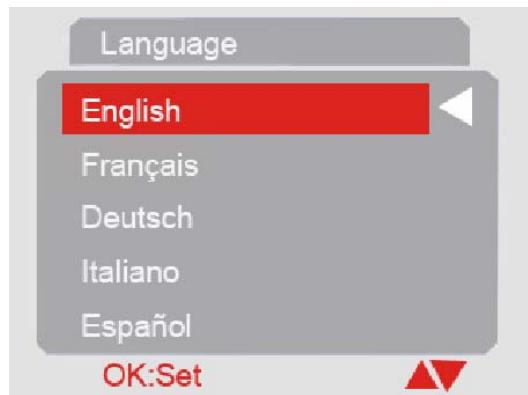
3 Select a language.
Press l or on the five-way control button to select a language and press OK/Enter button to apply the setting.
4 Press the MENU button to close the menu.

Turn the power on, and set the camera to the Setup Menu (page 17).

Select [Date/Time].
Press l or l on the five-way control button to select [Date/Time] and then press l on the five-way control button to launch the submenu.
Date/Time
2007
/03/15
06:16
OK. Set

Set date and time.
Press or on the five-way control button to change the highlighted value. Press on the five-way control button to move the cursor between settings.

Tips
- Holding down or changes the values continuously. For date stamp setting (page 29).

Apply the setting.
After adjusting the settings, press OK/Enter to apply the setting. Finally press the MENU button to close the setup menu.
Using the LCD Monitor
The LCD monitor is used to compose images while recording, adjust settings and play back images. The following indicators may appear on the LCD monitor while recording or playing back images.
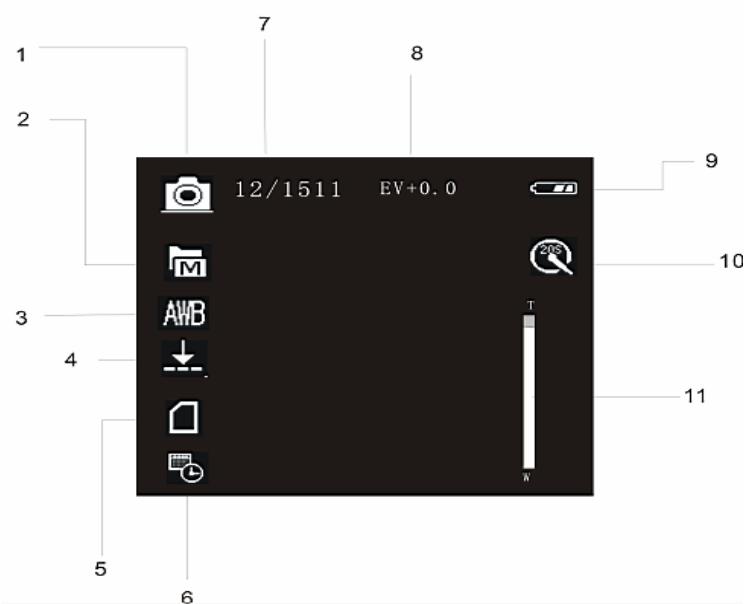
1 Capture mode
2 Resolution indicator

2592 x 1944

2048 x 1536

1600 × 1200

1280 × 960

640 × 480
3 White balance indicator:
4 Quality indicator:

Cloudy

Super

Daylight

Fine

Fluorescent

Normal

Tungsten

Auto
5 Memory card inserted
6 Date stamp
7 Images taken/image capacity
8 EV value
9 Battery level indicator:
-2.0EV- -2.0EV
10 Selftimer indicator:
11 Digital zoom bar
Video Mode
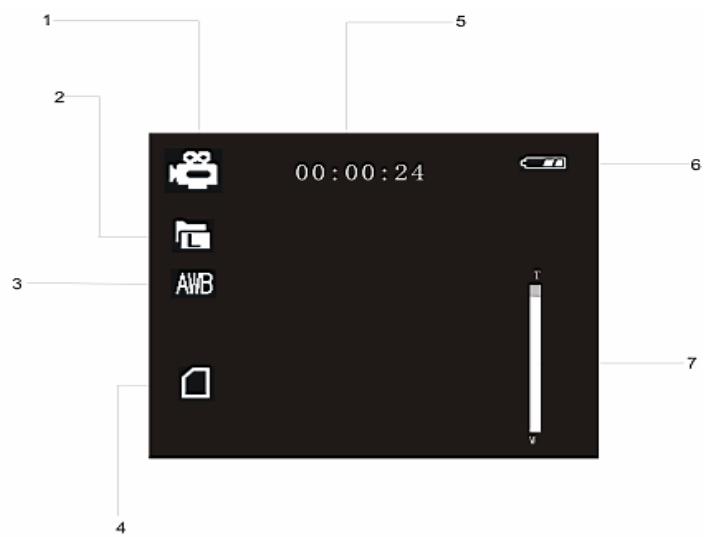
1 Video mode
2 Resolution indicator:

640× 480

320 × 240
3 White balance indicator:
4 Memory card inserted

Cloudy

Daylight

Fluorescent

Tungsten

Auto
5 Recording time
6 Battery level indicator:

Empty

Half

Full
7 Digital zoom bar

1
Playback mode:
2
Protect indicator

Audio file

Video file

Still image
3
Number of current file/total number
of recorded files
4
Battery level indicator:
Empty
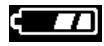
Half
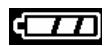
Full
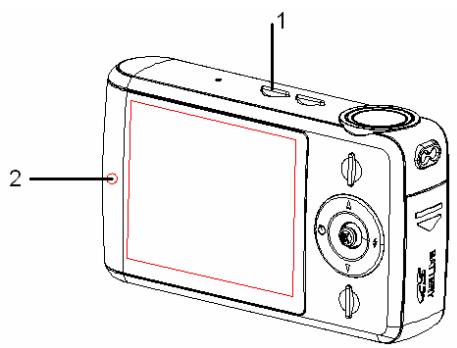
Turning Power On & Off
1
Press the Power button (1) to turn on the camera in the Capture mode. The power turns on and the LED (2) lights red.
2
Press the Power button (1) again to turn the power off. The power turns off and the LED turns off.

Tips
- You can turn on the camera without the startup and operating sound by setting the function [Play Logo] and [Buzzer].
- Switch between Capture mode and Playback mode (S page 13).
Changing the Mode
You can record images and voices in the REC mode and use the Playback mode to replay, delete or edit images on the LCD monitor.
Switching between REC and Playback Mode
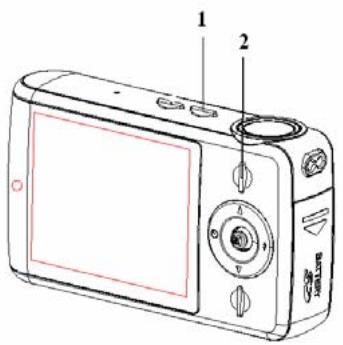
In REC mode, press the Playback button (2) to switch to the Playback mode.
In Playback mode, press the Playback button (2) to switch to the REC mode.
1 Press the Power button to enter the Capture mode.
If the camera is in Playback mode, press the Playback button to change to REC mode.
2 Press the Mode button (1) to change the REC mode.
Each time the Mode button is pressed the REC mode icon changes. It includes three modes in REC mode: Capture mode, Video mode and Audio mode.
| Display | Title | Description |
| Capture mode | For taking still photos. | |
| Video mode | For recording movie clips. | |
| Audio mode | For recording audio files. |

Caution
- The Mode button will not work when the camera is in Playback mode.
Using the Menu in REC Mode
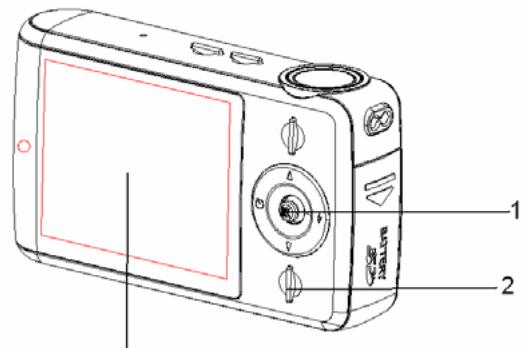
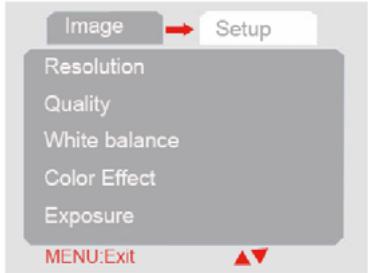
When a menu is displayed, the five-way control button is used to make the desired settings. The Audio mode does not have a menu so the MENU button will not work in Audio mode.
1
Capture menu.
Turn the power on, and set the camera to the Capture mode (page 13).
2
Open the Capture menu.
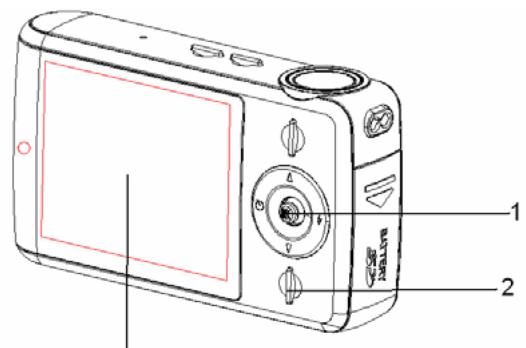
Press the MENU button (2) to display the menu.
3
Select an item.
Press or on the five-way control button (1) to select an item.
4
Change the setting.
Press on the five-way control button (1) to launch the submenu. Press or on the five-way control button (1) to change the setting.
5
Press OK/Enter on the five-way control button (1) to save the settings and finally press the MENU button (2) to close the menu
Capture Menu List
| Menu item | Available settings |
| Resolution | UL/ XL/ L/ M/ S |
| Quality | |
| White balance | / / / / / AWB |
| Color effect | Color / Sepia / Monochrome |
| Exposure | -2.0EV- - - - - - - - - - - - - - - - - - - - - - - - - - - - - - - - - - - - - - - - - - - - - - - - - - - - - - - - - - - - - - - - - - - - - - - - - - - - - - - - - - - - - - - - - - - - - - - - - - - - - |
| Date stamp | Enable / Disable |
| Selftimer | Disable / 10 sec. / 20 sec. / 20 sec. |
| Burst-Snapshot | Single/ Burst |
Video Menu List
Set the camera in Video mode then press the MENU button to display the menu.
| Menu item | Available settings |
| Resolution | 640 x 480/ 320 x 240 |
| Frame rate | 30 fps / 15 fps |
| White balance | / , , , , , , , , , , , , , , , , , , , , , , , , , , , , , , , , , , , , , , , , , , , , , , , , , , ; , , , , , , , , , , , , , , , , , , , , , , , , , , , , , , , , , , , , , , , , , , , , , , , , , . |
| Audio | Enable / Disable |
1 Turn the power on and set the camera to the REC orPlayback mode ( page 13).
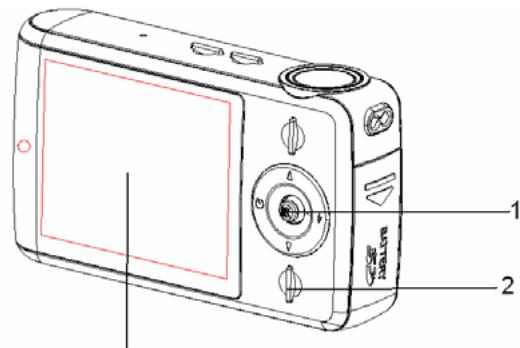
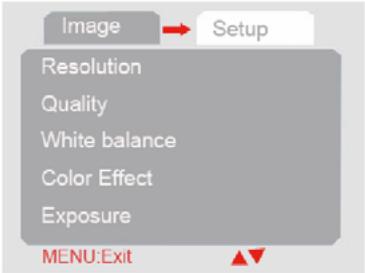
2 Press the MENU button (2) to open the REC or Playback menu. The menu displayed depends on whether you are in the REC mode or the Playback mode.
3 Open the Setup menu.
Press on the five-way control button (1) to select [Setup] to display the Setup menu.
4 Select an item.
Press l or l on the five-way control button (1) to select a menu item then press l on the five-way control button (1) to launch the submenu.
5 Change the setting.
Press or on the five-way control button (1) to select an option and press OK/Enter (1) to apply the setting.
6 Press the MENU button (2) to close the menu.
| Menu item | Function |
| Language | Select a language for the Display menu and other information from the following languages: [English]: English, [Italiano]: Italian, [Français]: French, [Nederlands]: Dutch, [Čestina]: Czech, [Русский]: Russian, [Türk]: Turkish, [Deutsch]: German, [Espanol]: Spanish, [Português]: Portuguese, [Magyar]: Hungarian, [Polski]: Polish, [Еλληνικά]: Greek, [体中文]: S. Chinese, [日本語] Japanese |
| Auto power off | To save power, the camera is turned off automatically after a period of time. There are three options: [Disable] / [60Sec] / [120Sec]. |
| TV output | You can review images on a television with the supplied AV cable. TV Out should be set to either NTSC or PAL depending on your region. [NTSC]: America, Japan and others; [PAL]: Europe, Oceania and others. |
| Play logo | Use this function to turn the startup image on or off. [Enable] / [Disable] |
| Light frequency | Light Frequency should be set to either 60Hz or 50Hz depending on your region. [50HZ] / [60HZ]. |
| Date / Time | To record the shooting date and time. |
| Buzzer | Sets the operation sound on and off. [Enable] / [Disable] |
| Format | To erase all data stored on the memory card if you are using a memory card, or all data stored in the internal memory if there is no card inserted. All data will be deleted including protected files. Be sure to download important files to your computer before formatting. [Yes] / [No]. |
| Default settings | To reset the entire menu and button operation settings to initial default. The Date & Time settings do not change after reset all. |
| USB mode | You can use this camera as a PC camera or removable disk. [PC Camera]: Use as a PC camera; [Mass storage]: Use as a removable disk. |
Basic Recording
Recording Still Images
1
Turn the power on, and set the camera to the Capture mode.

page 13).
2
Compose the subject on the monitor.
Point the center area of the LCD
screen at the subject that you want to
take a photo of.
3
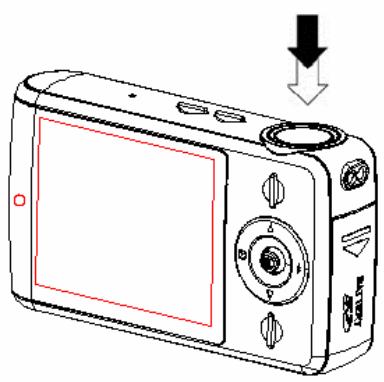
Take the picture.
Press the shutter button fully down to take the picture.
Ca
- Make sure that your fingers or the wrist strap do not cover the lens.
- Do not take the memory card or battery out when the camera is saving the image, otherwise the image will not be saved completely
Selecting the Resolution and Quality
You can select a lower image resolution and quality to decrease the image size in order to capture more images. Choose a suitable setting according to the desired image quality and purpose.
| Image size AgfaPhoto sensor 505-X | Picture size | ||
| 2592 x 1944 | Printing larger than A4 size | Larger | |
| 2048 x 1536 | Printing to postcard or attaching to E-mail | Smaller | |
| 1600 x 1200 | |||
| 1280 x 960 | |||
| 640 x 480 | |||
| Image size AgfaPhoto sensor 510-X | Picture size | ||
| 3264 x 2448 | Printing larger than A4 size | Larger | |
| 2592 x 1944 | Printing to postcard or attaching to E-mail | Smaller | |
| 2048 x 1536 | |||
| 1600 x 1200 | |||
| 640 x 480 | |||
| Image size AgfaPhoto sensor 500-X | Picture size | ||
| 2592 x 1944 | Printing larger than A4 size | Larger | |
| 2048 x 1536 | Printing to postcard or attaching to E-mail | Smaller | |
| 1600 x 1200 | |||
| 1280 x 960 | |||
| 640 x 480 | |||
The resolution and quality will affect the required storage space of the images.
| Compression | Purpose | ||
| Super | To shoot higher quality images. | Higher Quality Lower Quality | |
| Fine | To shoot normal quality images. | ||
| Normal | To shoot images. | ||
Using the Zoom Function
Your camera has a digital zoom function that allows you to zoom in or zoom out on subjects. The digital zoom enlarges or shrinks the image using a software process.
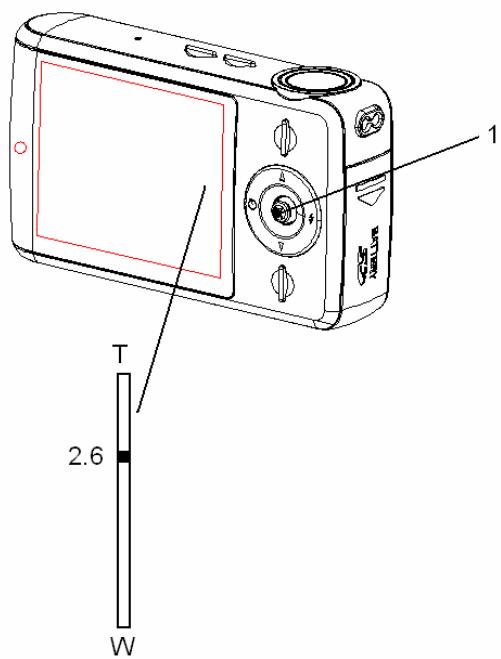
1 Make the zoom setting, and point the camera at the subject.
2 Press or on the five-way control button (1) to compose the image.
[W]: zoom out for a wide-angle shot.
[T]: zoom in for a telephoto shot.
- When the zoom button is pressed, the zoom bar appears on the LCD monitor.
3 Press the shutter button to take a picture.

Tips
- The digital zoom works by enlarging the center portion of an image through a software interpolation process.
- The digital zoom is used to achieve magnification levels up to approx. 4 times.
- The higher the digital zoom, the lower the image quality.
Using the Flash
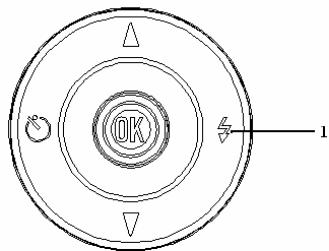
The flash is not only for taking pictures when there is insufficient light, but also for when the subject is in shade or with backlight conditions. Pressing the flash button cycles your camera through the various flash modes. The flash will not activate during continuous shooting or movie recording.
1
Turn the power on and set the camera to the Capture mode ( page 13).
2
Press on the five-way control button (1) to change the flash mode.
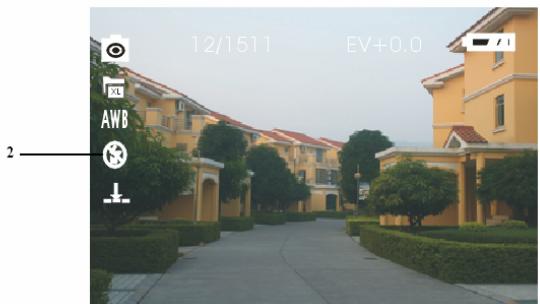
Each time the flash button is pressed, the flash icon (2) changes.

Auto flash:
Flash fires automatically when shooting conditions require extra lighting.

Full Flash:
Flash fires every time you take a photo, regardless of lighting conditions.

Flash OFF:
The flash never fires even in dark conditions.
3
Press shutter button to take a picture.

Caution
- The flash charging time may increase when the battery is low.
- The screen is blank when the flash is charging. The next image can be shot only when charging is completed.
- Shooting with a flash in a bright environment may cause incorrect exposure.
Using the Selftimer
Use the selftimer to set a delay from the time the shutter button is pressed to the time the image is shot. Use Burst to record continuous still image shooting.
1 Turn the power on, and set the camera to the Capture mode ( page 13).
2 Open the REC menu ( page 15).
3 Change the setting.
Press Mode button to launch the submenu. Press or to select [Septimer], then press OK/Enter to confirm the setting.
Disable: Do not use Selftimer.

10 sec.:
The shutter release will delay for 10 seconds.

20 sec.:
The shutter release will delay for 20 seconds.
4 Press the MENU button to close the menu list. Press the shutter button to
take a picture.

Tips
- When using the selftimer function, be sure to use a tripod or place the digital camera on a level, stable surface.
- When using the selftimer function the selftimer lamp will blink and turn off after the picture is taken.
Use this function to take 3 pictures continuously.
1 Turn the power on, and set the camera to the Capture mode (page 13).
2 Open the Capture menu ( page 15).
3 Change the setting
Press the Mode button to launch the submenu. Press l or l on the five-way control button to select [Burst-Snapshot]. then press OK/Enter to confirm the setting.
Single: Press the shutter button once to take one picture.
Burst: Press the shutter button once to take three pictures continuously.
4 Press the MENU button to close the menu list.
Press the shutter button to take a picture series. When using the Burst-Snapshot function the flash will not work.
Recording Movie Clips
1 Turn the power on, and set the camera to the Video mode (page 13).
2 Compose the subject on the monitor.
- Point the center area of the LCD screen at the subject that you want to take.
3 Start recording.
- Press the shutter button to start recording.
- The LCD monitor displays the recorded time.
- The white balance is set and locked to the settings of the first frame.
4 Finish recording.
- Press the shutter button again to stop recording.
- The camera will stop recording automatically when the memory capacity is full.

Caution
- When the digital zoom function is used in Movie mode the zoom bar will not display.
Setting the Movie Size
Movie size and frame rate
| Resolution | Frame rate | ||
| 640 x 480 | 30 fps / 15 fps | Higher quality ↓ Lower quality | |
| 320 x 240 | 30 fps / 15fps | ||
Recording Audio
1
Turn the power on, and set the camera to the Audio mode (page 13).
2
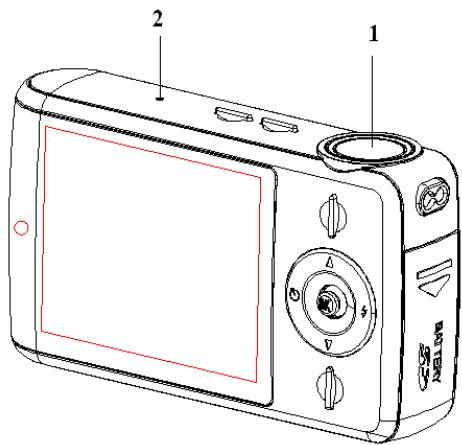
Press the shutter button (1) to start recording.
The voices are recorded via the microphone (2) of the camera. Be careful to avoid touching the microphone while recording.
3
Press the shutter button again to end recording.
The camera will stop recording automatically when the memory capacity is full.
Caution
- Please note that this camera has no built-in speaker. Sound is only available when connecting with TV or PC to playback..
Playing Back Audio
1
Turn the power on, and set the camera to the Playback mode (page 13).
2
Press or on the five-way control button to select the audio file (WAV).
3
Start playback.
- Press the shutter button to start playing the audio file. Press it again to stop the audio file. Press OK/Enter to pause. When the audio playback is paused, press OK/Enter to resume.
Caution
- Please note that this camera has no built-in speaker. Sound is only available when connecting with TV or PC to playback.
Other Recording Functions
Setting the White Balance
Adjust the white balance to suit different light sources such as sunlight, incandescent (tungsten) lighting or fluorescent lighting.
| Option | Description |
| AWB | Automatically corrects white balance. Ideal for general photography. |
| Adjusts for bright sunlight conditions or natural light conditions. | |
| Adjusts for normal indoor lighting conditions. Corrects the orange hue of household light bulbs. Ideal for indoor photos under tungsten or halogen lighting without a flash. | |
| Adjusts for fluorescent lighting. Corrects the green hue of fluorescent lighting. Ideal for indoor photos under fluorescent lighting. | |
| Adjusts for cloudy days or twilight conditions. |

Tips
- A practical method of obtaining the proper white balance is by comparing the different white tones resulting from photographing a white sheet of paper with the different manual White Balance settings. From the most realistic white tone obtained you can determine the best White Balance setting under the current lighting conditions.
Setting the Color Effect
Set the color effect to add a color tone to the picture.
| Option | Description |
| Color | Reflects the true color of the object. |
| Sepia | Adds a sepia color tone to the picture |
| Monochrome | The pictures only have two colors: white and black. |
Setting the Exposure
Set the exposure value manually to compensate for unusual lighting conditions such as indirect indoor lighting, dark backgrounds, and strong backlighting.
1
Turn the power on, and set the camera to the Capture mode ( page 13).
2
Open the Capture menu. Press the MENU button (2) to display the menu.
3
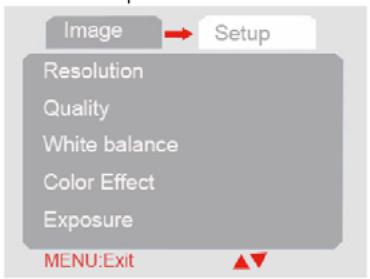
Select Exposure.
Press or on the five-way control button (1) to select [Exposure].
4
Change the setting.
Press on the five-way control button (1) to launch the submenu. Press or on the five-way control button (1) to change the setting.
5
Apply the setting.
Press OK/Enter on the five-way control button (1) to apply the setting. Press the MENU button to close the menu.
Setting Date Stamp
The date stamp function can be used to add a date to your pictures as you take them.
| Option | Description |
| Enable | Add the recording date & time to printed images. |
| Disable | Do not add the recording date & time to printed images. |
Playing Back Images
1 Turn the power on, and set the camera to the Playback mode ( page 13).
The latest recorded image appears on the LCD display. If there are no images stored, a message [No file] appears.
2 Pressing l or l on the five-way control button displays the previous or next image.
: displays the previous image.
: displays the next image.
Playing Back Movie Clips
1 Turn the power on and set the camera to the Playback mode ( page 13).
Press or on the five-way control button to select a movie clip that you want to play back.
3 Start playing back.
Press the shutter button to start playing the movie clip. Press the shutter button again to stop the movie clip, or press OK/Enter to pause it. When the movie is paused, press the five-way control button again to resume.

Caution
- Please note that this camera has no built-in speaker. Sound is only available when connecting with TV or PC to playback.
Using the Menu in Playback Mode
When a menu is displayed, the five-way control button is used to make the desired settings.
Using the Menu in Playback Mode
1
Turn the power on and set the camera to the Playback mode (page 13).
2
Open the Playback menu.
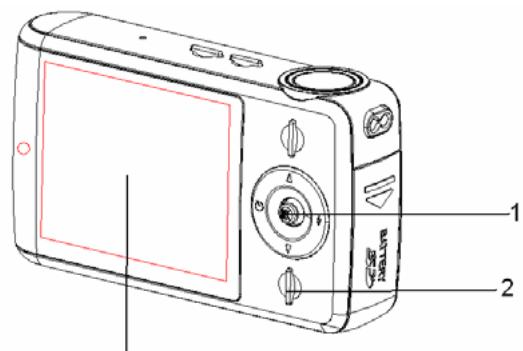
Press the Menu button (2) to display the menu.
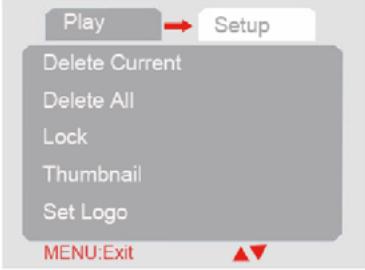
3
Select an item.
Press or on the five-way control button (1) to select an item.
4
Change the setting.
Press on the five-way control button (1) to launch the submenu. Press or on the five-way control button (1) to change the setting.
5
Press OK/Enter (1) to save the settings and finally press the Menu button (2) to close the menu.
Ca
If the item in the menu list is gray it means this item doesn't work in this file format.

Turn the power on and set the camera to the Playback mode (page 13).

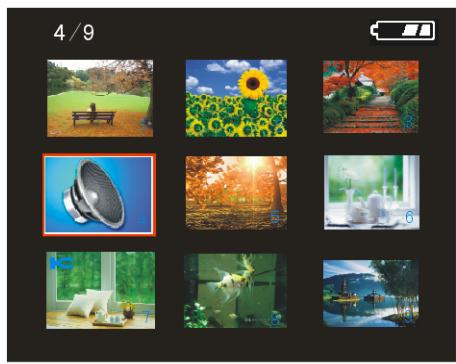
Press on the five-way control button: a thumbnail screen is displayed. You can also view the thumbnail screen in the following way:
Set the camera to the Playback mode, then press the MENU button to display the menu. Press on the five-way control button and select [Thumbnail]. Finally press on the five-way control button to view the thumbnail screen.

Use l / l / l on the five-way control button to select the desired image, and press OK/Enter to show the selected image in full screen.

Tips
- You can delete images in thumbnail view see (S page 33)
Playing a Slide Show

Turn the power on, and set the camera to the Playback mode (page 13).

Enter the slide show.
Press the MENU button. Press l / l on the five-way control button to select [Slide show] then press l on the five-way control button to start the slide show.

End the slide show.
During the slideshow, press OK/Enter to pause and press it again to resume. Press the shutter button to end the slide show.
Deleting Files
Deleting a Single File
1 Turn the power on, and set the camera to the Playback mode ( page 13).
2 Select the file you want to delete.
When the file is shown in full screen, press l or l on the five-way control button to select the file you want to delete.
3 Open the menu.
Press the MENU button, then press or on the five-way control button to select [Delete current].
4 Delete the file.
Press on the five-way control button to delete the file.
Tips
To quickly delete the current image:
1: Set the file shown in thumbnail mode.
2: Press l & / / / on the five-way control button to select the file you want to delete.
3: Press the MENU button to display the dialog "Confirm delete? Yes/ No".
4: Press l on the five-way control button to select “Yes” then press OK/Enter to delete it.
1 Turn the power on, set the camera to Playback mode.
2 Open the menu
Press the MENU button. Then press or on the five-way control button to select [Delete all].
3 Delete the files
Press on the five-way control button to delete the files.
Tips
- All the files can be deleted except the protected files.
Formatting the SD Card or Internal Memory
1 Turn the power on and set the camera to any mode except Audio mode.
2 Open the menu.
Press the MENU button, then press on the five-way control button to select [Setup]. Now press or on the five-way control button to select [Format].
3 Formatting the SD card or internal memory.
Press on the five-way control button to launch the submenu.
Press l or l on the five-way control button to select [Yes] and then press OK/Enter to format.
Tips
- Use this function to erase all data stored on the memory card if you are using a card, or all data stored in the internal memory if there is no card inserted.
- Be sure to backup all important files before formatting.
1 Turn the power on and set the camera to the Playback mode
page 13).
2 Select a file to be protected. If you want to protect a single file select it before operating the following steps. Press
or on the five-way control button to select a recorded file
3 Open the menu.
Press the MENU button, then use the five-way control button to select [Lock]. Press on the five-way control button to launch the submenu:
- [Lock current]: Protects a single file
- [Lock all]: Protects all files
- [Unlock current]: Unprotects the selected protected file
- [Unlock all]: Unprotects all the protected files
4 Select an item.
Press or on the five-way control button to select an item.
5 Apply the setting.
Press OK/Enter to apply the setting.
6 Close the menu.
Press the MENU button to close the menu.

Tips
- An icon will be displayed on protected files.
- Protected files cannot be deleted; however if the SD card / MMC card or internal memory are formatted, the protected files will also be erased.

Tips
- An icon will be displayed on protected files.
- Protected files cannot be deleted; however if the SD card or internal memory are formatted, the protected files will also be erased.
Choosing a Startup Image
Setting the Logo
1
Turn the power on, and set the camera to the Playback mode.
2
Select a still image as startup image.
Press or on the five-way control button to select a still image.
3
Open the menu.
Press the MENU button, then use the five-way control button to select [Set Logo] then press l on the five-way control button to launch the submenu: [Yes]; [No].
4
Apply the setting.
Press or on the five-way control button to select [Yes] then press OK/Enter to apply the setting.
5
Close the menu.
Press the MENU button to close the menu.

Caution
- The startup image will not be deleted even if the original image is deleted or the memory is formatted.
Editing Images
Rotating Still Images
1 Turn the power on, and set the camera to the Play mode ( page 13).
2 Press or on the five-way control button to select the image you want to rotate.
3 Open the menu.
Press the MENU button, then use the five-way control button to select [Rotate] and finally press on the five-way control button to launch the submenu:
[90°]: Rotates the image 90 degrees clockwise
[180°]: Rotates the image 180 degrees clockwise
[270°]: Rotates the image 270 degrees clockwise
4 Select an item.
Press or on the five-way control button to select the degrees.
5 Apply the setting.
Press OK/Enter to apply the setting.
6 Close the menu.
Press the MENU button to close the menu.
Caution
- If the picture size is 5 megapixel or more the rotating function will not work.
Printing
The Digital Print setting allows you to directly print from a camera to a printer by connecting them via a USB cable. Photos can be printed quickly and easily from your digital camera without using a computer
1 Turn the power on, set the camera to the Playback mode and press or on the five-way control button to select a still image (page 13).
2 Open the menu. Press the MENU button, then use the five-way control button to select [Print] and then press on the five-way control button to launch the submenu.
3 Select an item. Press or on the five-way control button to select [Yes].
4 Confirm the setting. Press OK/Enter to apply the setting, then a message "Please connect to printer" appears. Connect the camera to a compatible printer with the supplied USB cable.
Power on the printer and press OK/Enter: the image is printed. For more information please refer to your printer's instructions.
Connecting the Camera to a TV
You can display recorded images on a television with the supplied AV cable.
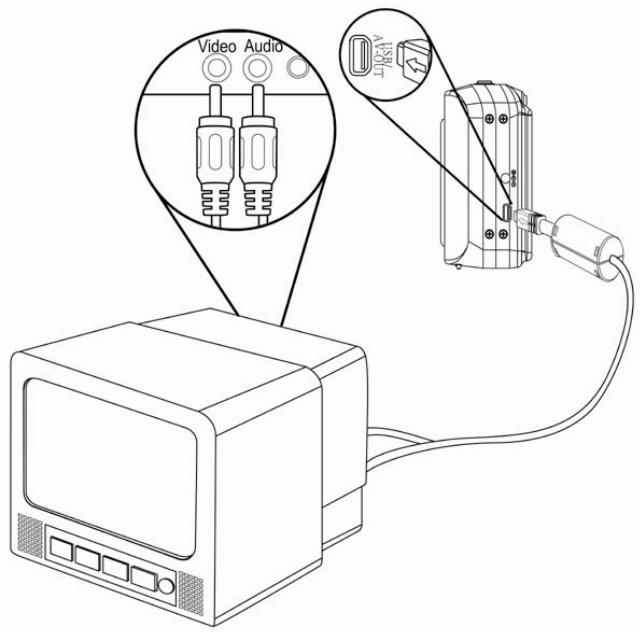
1
Set the TV-out to match the TV system that you are using.
2
Turn off the camera and the TV.
3
Use the supplied AV cable to connect the camera to the TV set.
Then turn on the camera and the TV.
4
Set the TV input signal to Video In.
Refer to the documentation included with your TV for more information.
5
Display on TV.
- Everything that would normally appear on the camera's LCD screen, such as photos and video clip playback, slide shows and image or video capture, will appear on the TV. The camera's LCD screen turns off.
Connecting the Camera to a PC
There are two ways to download files from the camera's internal memory or memory card to a computer:
- By inserting the memory card into a card reader
- By connecting the camera to a computer using the supplied USB cable.
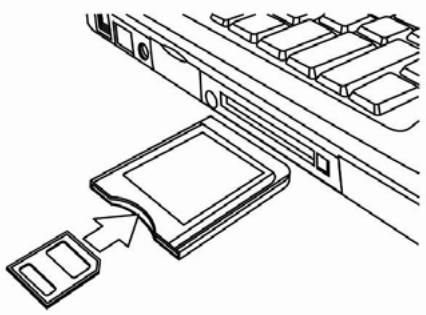
Using a Card Reader (not included)
1
Eject the memory card from the camera and insert it into a card reader that is connected to a computer.
2
Open [My Computer] or [Windows Explorer] and double-click the removable disk icon that represents the memory card.
3
Copy images from the card into a directory of your choice on the computer's hard disk.
Connecting the Camera to a PC with the USB Cable
1
To download photos from the camera
Connect the supplied USB cable to the computer's USB port and turn on the camera. A message "Mass Storage" or "PC Camera" appears on the screen when connection to the computer has been successfully completed. Press the playback button to switch the camera mode between mass storage and PC camera. To download photos please select "Mass Storage" mode.
2
Open [My Computer] or [Windows Explorer]. A "Removable Disk" appears in the drive list.
Double-click the "Removable Disk" icon to view its contents. Files stored on the camera are located in the folder named "DCIM".
3
Copy the photos or files to your computer.
System Requirements
Windows:
PC with processor better than MMX Pentium 233 MHz
- Windows XP/ 2000/ Vista32
- Minimum 32 MB RAM
USB port
- CD-ROM drive
- 800 × 600 pixels, 16-bit color display compatible monitor
*Specifications are subject to change without prior notice.
Appendix
About the Folder & File Names
Your digital camera automatically creates a directory of folders in the internal memory or on the memory card that it uses to organize still images, movie clips and other information.
Folder Structure
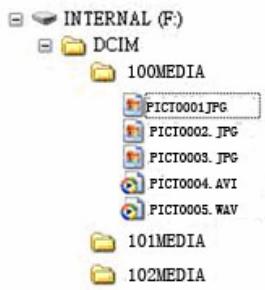
The folder name begins with a 3-digit number from 100 to 999 and is followed by "DCIM". A new folder can only be made manually. If new files are made, the new files named in sequence will be made automatically.
Naming Files
File names begin with "PICT" and are followed by a 4-digit number that increases in sequence. File numbering starts from 0001 when a new folder is created.

Caution
- Do not change the folder and file names on the memory card using your computer: it may be unable to play back the data on the digital camera.
Troubleshooting
| Problem | Cause | Solution |
| Power does not turn camera on. | Batteries are inserted in the wrong direction. | Reload batteries in the correct direction. |
| Batteries are dead. | Replace or recharge batteries. | |
| The battery compartment door is open. | Make sure the battery compartment door is securely closed. | |
| The camera does not take pictures. | The flash is charging. | Wait for the flash to charge. |
| Memory is full. | Insert a new memory card. | |
| Memory card is not formatted correctly. | The card may be defective: use a new card. | |
| Image is not recorded when the shutter button is pressed. | The flash is charging. | Wait for the flash to charge. |
| Memory is full. | Insert a new memory card. | |
| The flash does not fire. | Flash is set to OFF. | Set the flash to any mode except off. |
| The image is blurred or out of focus. | The camera was moving when the image was captured. | Hold the camera steady when shooting a picture. |
| The image is not displayed on the LCD monitor. | A memory card with non-PICT images (recorded with another camera) is loaded. | This camera cannot display non-PICT images. |
| Recorded images are not saved in memory. | The camera was turned off/powered down before saving images to the memory. | If the battery low indicator appears on the LCD monitor, replace the battery immediately. |
Specifications
| AgfaPhoto sensor 505-X | AgfaPhoto sensor 510-X | AgfaPhoto sensor 500-X | |
| Sensor | 5 MegaPixel CMOS, Size: 1/2.5 inch | 5 MegaPixel CMOS, Size: 1/2.5 inch | 3 MegaPixel CMOS, Size: 1/2.5 inch |
| Display | 2.4" TFT color LCD | 2.4" TFT color LCD | 2.0" TFT color LCD |
| Focus range | 150cm ~ infinity | 150cm ~ infinity | 150cm ~ infinity |
| Aperture | F3.1, Fixed focus | F3.1, Fixed focus | F3.1, Fixed focus |
| Shutter | Electronic shutter: 1/2,000 ~ 1/14 sec. | Electronic shutter: 1/2,000 ~ 1/14 sec. | Electronic shutter: 1/2,000 ~ 1/14 sec. |
| File format | Still Image: JPEG (EXIF 2.2 compatible) Video: AVI Audio: WAV | Still Image: JPEG (EXIF 2.2 compatible) Video: AVI Audio: WAV | Still Image: JPEG (EXIF 2.2 compatible) Video: AVI Audio: WAV |
| Resolution | Still Image: 2592 x 1944; 2048 x 1536; 1600 x 1200; 1280 x 960; 640 x 480 Video: 640 x 480, 320 x 240 | Still Image: 8 MP interpolation 3264 x 2448; 2592 x 1944; 2048 x 1536; 1600 x 1200; 640 x 480 Video: 640 x 480, 320 x 240 | Still Image: 5 MP interpolation 2592 x 1944; 2048 x 1536; 1600 x 1200; 1280 x 960; 640 x 480 Video: 640 x 480, 320 x 240 |
| Sensitivity | Auto | Auto | Auto |
| White balance | Auto, Daylight, Tungsten, Fluorescent, Cloudy | Auto, Daylight, Tungsten, Fluorescent, Cloudy | Auto, Daylight, Tungsten, Fluorescent, Cloudy |
| Exposure control | -2EV to +2EV in 1/3 | -2EV to +2EV in 1/3 | -2EV to +2EV in 1/3 |
| steps | steps | steps | |
| Burst | Included | Included | Included |
| Flash | Auto, Always on, Always off | Auto, Always on, Always off | Auto, Always on, Always off |
| Photo effect | Color, Sepia, Monochrome | Color, Sepia, Monochrome | Color, Sepia, Monochrome |
| Selftimer | Disable / 10 / 20 sec. | Disable / 10 / 20 sec. | Disable / 10 / 20 sec. |
| Storage | 32 MB internal memory External memory: SD (2 GB) | 32 MB internal memory External memory: SD (2 GB) | 32 MB internal memory External memory: SD (2 GB) |
| TV system | NTSC / PAL | NTSC / PAL | NTSC / PAL |
| Power supply | AAA rechargeable battery x 2 (optional); AAA alkaline battery x 2 | AAA rechargeable battery x 2 (optional); AAA alkaline battery x 2 | AAA rechargeable battery x 2 (optional); AAA alkaline battery x 2 |
| Environmental temperature | Operating: 0°C to 40°C Storage: -20 to 60°C | Operating: 0°C to 40°C Storage: -20 to 60°C | Operating: 0°C to 40°C Storage: -20 to 60°C |
| Microphone | Built-in | Built-in | Built-in |
| Speaker | Not included | Not included | Not included |
| Dimension camera body (W x H x D): | 95.5 x 54.5 x 26.5 mm | 95.5 x 54.5 x 26.5 mm | 95.5 x 54.5 x 26.5 mm |
| Weight (w/o battery) | Approx. 85 (g) | Approx. 85 (g) | Approx. 85 (g) |
*These specifications are subject to change without prior notice.
Customer care
More information on the complete AgfaPhoto digital camera product range can be found under www.plawa.com / www.plawausa.com
Service & Repair (USA / Canada):
1-866 475 2605
www.plawausa.com - live chat available
Support Service (USA / Canada):
support-apdc@plawausa.com
Online Service USA / Canada:
support-apdc@plawausa.com
Service & Repair Hotline (Europe):
00800 752 921 00 (from a landline only)
Service & Support Hotline (Germany):
0900 1000 042 (1.49 Euro/ min. from a German landline only)
Online Service / International contact (Not USA / Canada):
support-apdc@plawa.com
Designed and manufactured by
AgfaPhoto is used under license of Agfa-Gevaert NV & Co. KG. Agfa-Gevaert NV & Co. KG. does not manufacture this product or provide any product warranty or support. For service, support and warranty information, contact the distributor or manufacturer.
Contact: AgfaPhoto Holding GmbH, www.agfaphoto.com
Disposal of Waste Equipment by Users in Private Households in the European Union

This symbol on the product or on its packaging indicates that this product must not be disposed of with your other household waste. Instead, it is your responsibility to dispose of your waste equipment by handing it over to a designated collection point for the recycling of waste electrical and electronic equipment. The separate collection and recycling of your waste equipment at the time of disposal will help to conserve natural resources and ensure that it is recycled in a manner that protects human health and the environment. For more information about where you can drop off your waste equipment for recycling, please contact your local city office, your household waste disposal service or the shop where you purchased the product.
FCC Compliance and Advisory
This device complies with Part 15 of the FCC Rules. Operation is subject to the following two conditions: 1.) this device may not cause harmful interference, and 2.) this device must accept any interference received, including interference that may cause unsatisfactory operation. This equipment has been tested and found to comply with the limits for a Class B peripheral, pursuant to Part 15 of the FCC Rules. These limits are designed to provide reasonable protection against harmful interference in a residential installation. This equipment generates, uses, and can radiate radio frequency energy and, if not installed and used in accordance with the instructions, may cause harmful interference to radio communication. However, there is no guarantee that interference will not occur in a particular installation. If this equipment does cause harmful interference to radio or television reception, which can be determined by turning the equipment off and on, the user is encouraged to try to correct the interference by one or more of the following measures.
- Reorient or relocate the receiving antenna.
- Increase the separation between the equipment and receiver.
- Connect the equipment to an outlet on a circuit different from that to which the receiver is connected.
- Consult the dealer or an experienced radio/TV technician for help.
Any changes or modifications not expressly approved by the party responsible for compliance could void the user's authority to operate the equipment. When shielded interface cables have been provided with the product or when specified additional components or accessories have elsewhere been designated to be used with the installation of the product, they must be used in order to ensure compliance with FCC regulations.


- sensor 500-X, sensor 505-X, sensor 510-X
- Precautions
- Disclaimer
- Using your batteries
- Extending battery life
- Contents
- CONTENTS III
- GETTING STARTED 1
- BASIC OPERATION 13
- BASIC RECORDING 19
- MAKING CONNECTIONS 39
- SYSTEM REQUIREMENTS 41
- APPENDIX 42
- Getting Started
- Using This Manual
- Basic Operation
- Basic Recording
- Other Recording Functions
- Playback
- Making Connections
- Appendix
- Package Contents
- Parts of the Camera
- Five-way control button
- Attaching the Strap
- Caution
- Inserting the Batteries
- Low Battery Indicator
- Inserting a Memory Card
- Open the battery cover.
- Insert the card.
- Tips
- Close the battery cover.
- About Camera Memory
- Turning Power On & Off
- 1
- 2
- )
- Power Saving Function
- Setting the Display Language / Date & Time
- Setting Display Language
- Using the LCD Monitor
- Digital zoom bar
- Video Mode
- Changing the Mode
- Switching between REC and Playback Mode
- Press the Power button to enter the Capture mode.
- Press the Mode button (1) to change the REC mode.
- Using the Menu in REC Mode
- Capture menu.
- Open the Capture menu.
- Select an item.
- Change the setting.
- Video Menu List
- Recording Still Images
- 3
- Ca
- Selecting the Resolution and Quality
- Using the Zoom Function
- Using the Flash
- Auto flash:
- Full Flash:
- Flash OFF:
- Using the Selftimer
- Recording Movie Clips
- Setting the Movie Size
- Recording Audio
- Playing Back Audio
- Setting the White Balance
- Setting the Color Effect
- Setting the Exposure
- 4
- 5
- Setting Date Stamp
- Playing Back Images
- Playing Back Movie Clips
- Using the Menu in Playback Mode
- Playing a Slide Show
- Deleting Files
- Deleting a Single File
- Formatting the SD Card or Internal Memory
- Turn the power on and set the camera to the Playback mode
- Select a file to be protected. If you want to protect a single file select it before operating the following steps. Press
- Open the menu.
- Select an item.
- Apply the setting.
- Close the menu.
- Choosing a Startup Image
- Setting the Logo
- Editing Images
- Rotating Still Images
- Printing
- Connecting the Camera to a TV
- Connecting the Camera to a PC
- Using a Card Reader (not included)
- Connecting the Camera to a PC with the USB Cable
- To download photos from the camera
- System Requirements
- Windows:
- About the Folder & File Names
- Folder Structure
- Naming Files
- Specifications
- Customer care
- Disposal of Waste Equipment by Users in Private Households in the European Union
- FCC Compliance and Advisory
Brand : AGFAPHOTO
Model : SENSOR 500-X
Category : Digital Camera