
OPTIMA 8328M - Camera AGFAPHOTO - Free user manual and instructions
Find the device manual for free OPTIMA 8328M AGFAPHOTO in PDF.


| Product Type | Digital Camera |
| Brand | AGFAPHOTO |
| Model | OPTIMA 8328M |
| Sensor | CCD 8 megapixels (1/2.5 inch) |
| Lens | Focal length 6.2-18.6 mm, optical zoom 3x, digital zoom 4x |
| Screen | LCD 2.7 inches |
| Focus | Normal: 80 cm to infinity; Macro: 15 cm (W) / 40 cm (T) |
| Aperture | F/2.8 (W) - F/5.1 (T) |
| Shutter | 8 to 1/2000 sec |
| File formats | Image: JPEG; Video: AVI; Audio: WAV |
| Image resolution | 8M (3264x2448), 3:2, 16:9, 6M, 4M, 2M, VGA |
| Video resolution | 720x400, 640x480, 320x240 |
| Scene modes | Program, Video, Audio, Q Mode, Portrait, Landscape, Sunset, Backlight, Smile, Children, Night, Fireworks, Snow, Sports, Party, Candle, Night Portrait, Soft Skin, Flowing Water, Food, Building, Text, Auction |
| ISO sensitivity | Auto, 50, 100, 200, 400, 800, 1600, 3200 |
| White balance | Auto, Daylight, Cloudy, Tungsten, Fluorescent H/L, Custom |
| Light metering | Center-weighted, Multi-zone, Spot |
| Drive modes | Self-timer 2s/10s, Double, Burst |
| Flash | Auto, Red-eye reduction, Always on, Slow sync, Off |
| Storage | Internal memory 16 MB, SD card (not included) |
| Power | Rechargeable lithium-ion battery 820 mAh (included) |
| Dimensions (W x H x D) | 91.3 x 56.55 x 23 mm |
| Weight (without battery) | Approximately 120 g |
| Included accessories | USB cable, AV cable, case, wrist strap, battery, charger, adapter, CD-ROM, quick guide |
| Maintenance and cleaning | Clean with a soft, dry cloth. Avoid solvents and moisture. |
| Safety | Do not point at the sun. Do not open the casing. Keep out of reach of children. Use recommended accessories. |
| Spare parts and repairability | Battery, charger, cables. Repair only by authorized center. |
| General information | Manufacturer: plawa-feinwerktechnik GmbH & Co. KG (under license from AgfaPhoto). Warranty void if opened. |
Frequently Asked Questions - OPTIMA 8328M AGFAPHOTO
User questions about OPTIMA 8328M AGFAPHOTO
0 question about this device. Answer the ones you know or ask your own.
Ask a new question about this device
Download the instructions for your Camera in PDF format for free! Find your manual OPTIMA 8328M - AGFAPHOTO and take your electronic device back in hand. On this page are published all the documents necessary for the use of your device. OPTIMA 8328M by AGFAPHOTO.
USER MANUAL OPTIMA 8328M AGFAPHOTO
Thank you for purchasing this AgfaPhoto digital camera. Please read these operating instructions carefully in order to use the digital camera correctly. Keep the instructions in a safe place after reading so that you can refer to them later.
Precautions
- Do not aim the camera directly into the sun or other intense light sources which could damage your eyesight.
- Do not try to open the case of the camera or attempt to modify this camera in any way. High-voltage internal components create the risk of electric shock when exposed. Maintenance and repairs should be carried out only by authorized service providers.
- Do not press the flash too close to the eyes of animals or young children. Eye damage may result. Please remain at least one meter away from infants when using flash.
- Keep the camera away from water and other liquids. Do not use the camera with wet hands. Never use the camera in the rain or snow. Moisture creates internal danger and may cause electric shock.
- Keep the camera and its accessories out of the reach of children and animals to prevent accidents or damage to the camera.
- If you notice smoke or a strange odor coming from the camera, turn the power off immediately. Take the camera to the nearest authorized service center for repair. Never attempt to repair the camera on your own.
- Use only the recommended power accessories. Use of power sources not expressly recommended for this equipment may lead to overheating, distortion of the equipment, fire, electrical shock or other hazards.
Disclaimer
We assume no responsibility over and above the provisions of the Product Liability Law for damages suffered by the user or third parties as a result of inappropriate handling of the product or its accessories, or by their operational failure and by their use. We reserve the right to make changes to this product and its accessories without prior notice.
Warning!
Never disconnect to open the camera or remove any parts of it. This will invalidate all guarantee claims.
Contents
PRECAUTIONS
DISCLAIMER
GETTING STARTED 1
USING THIS MENU 1
SCOPE OF DELIVERY 2
PARTS OF THE CAMERA 3
INSERTING THE BATTERIES 5
LOW BATTERY INDICATOR 5
CHARGING THE BATTERY PACK 6
INSERTING THE MEMORY CARD 7
ABOUT CAMERA MEMORY 8
DCF PROTOCOL 8
SETTING THE DISPLAY LANGUAGE,
DATE & TIME 8
SETTING THE DISPLAY LANGUAGE 8
SETTING THE DATE & TIME 9
USING THE LCD MONITOR 10
REC MODE 10
PLAYBACK MODE 11
CHANGING THE LCD STATUS 12
BASIC OPERATION 13
TURNING THE POWER ON AND OFF 13
POWER SAVING FUNCTION 13
CHANGING THE MODE 14
SWITCHING BETWEEN REC MODE & PLAYBACK MODE 14
PLAYBACK MODE 14
SELECTING THE REC MODE 14
SELECTING THE ASM MODE 16
USING THE MENUS 17
REC MENU 17
SETUP MENU 18
BASIC RECORDING 22
RECORDING STILL IMAGES 22
USING THE Q MODE 23
SETTING IMAGE SIZE AND QUALITY 24
USING THE ZOOM FUNCTION 25
USING THE FLASH 26
USING THE MACRO 27
USING THE SELF-TIMER & BURST 28
USING THE APERTURE PRIORITY 29
USING THE SHUTTER PRIORITY 29
USING THE MANUAL EXPOSURE 30
USING THE SMILE CAPTURE 30
RECORDING MOVIE CLIPS 31
SETTING THE MOVIE SIZE 32
YOUTUBE MODE 32
SETTING THE SHARPNESS 37
SETTING THE PHOTO EFFECT 37
SETTING DATE STAMP 38
SETTING STABILIZER 38
SETTING FACE TRACKING 38
SETTING PHOTO FRAME 38
SETTING AF LAMP 39
PLAYBACK 39
PLAYING BACK IMAGES 39
PLAYING BACK MOVIE CLIPS 40
MAGNIFYING & TRIMMING IMAGES 40
VIEWING IN THUMBNAIL 41
PLAYING A SLIDE SHOW 41
DELETING FILES 42
DELETING A SINGLE FILE 42
DELETING MULTIPLE FILES 43
DELETING ALL FILES 44
PROTECTING A SINGLE FILE 44
PROTECTING ALL FILES 45
PROTECTING MULTIPLE FILES 45
EDITING IMAGES 46
ROTATING STILL IMAGES 46
CHANGING THE IMAGE SIZE 46
CHANGING THE IMAGE WITH EFFECTS 47
CHOOSING THE IMAGE WITH PHOTO
FRAME 47
COPYING THE FILES 48
SETTING THE DPOF 49
CHOOSING A START-UP IMAGE 50
MAKING CONNECTIONS 51
CONNECTING THE CAMERA TO A TV 51
CONNECTING THE CAMERA TO A PC 52
USING THE CARD READER 52
CONNECTING THE CAMERA TO A
COMPUTER WITH THE USB CABLE 52
APPENDIX 53
ABOUT THE FOLDER & FILE NAME 53
FOLDER STRUCTURE 53
FILE NAMING 54
TROUBLESHOOTING 55
SPECIFICATIONS 56
FUNCTION AVAILABLE LIST 58
CUSTOMER CARE 64
COPYRIGHT 65
TRADEMARK RECOGNITION 65
DISPOSAL OF WASTE EQUIPMENT BY
USERS IN PRIVATE HOUSEHOLDS IN THE
EUROPEAN UNION 65
FCC COMPLIANCE AND ADVISORY 65
DECLARATION OF CONFORMITY 66
Getting Started
Using This Menu
Getting Started
This section contains information you should know before using this camera.
Basic Operation
This section explains all recording features of this camera.
Basic Recording
This section explains how to record still images, movies, and audio files.
Other Recording Functions
This section explains common operations about recording images.
Playback
This section explains playback, delete, and edit functions of still images, movies and audio files.
Making Connections
This section tells you how to connect this camera to a computer or TV.
Appendix
This section describes the troubleshooting and the camera specification.
The meanings of the symbols used in this user's manual are explained below:
| Caution | This indicates cautions that should be read before using these functions. |
| Tips | This indicates the useful information when using this camera. |
| This indicates the reference page. |
Scope of Delivery
AgfaPhoto OPTIMA 8328m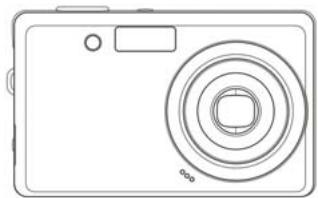
USB Cable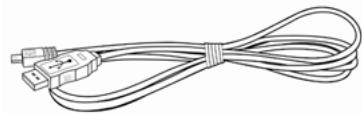
AV Cable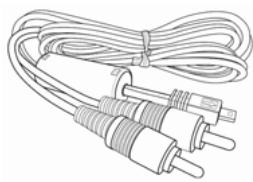
Soft Case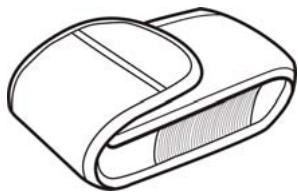
Hand Strap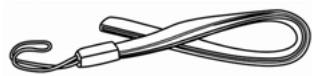
Rechargeable Lithium-ion Battery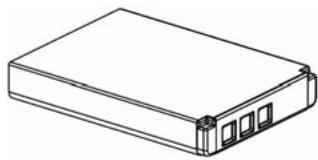
Software Installation CD-ROM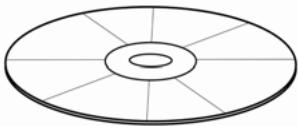
Quick Start Guide
Battery Charger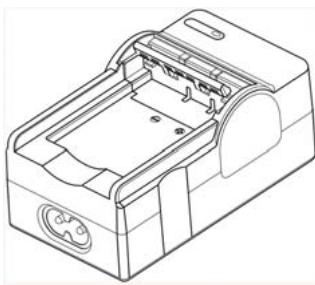
Adaptor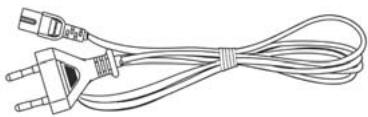
Caution
- Note that the shape of the charger plug depends on the area where you purchased the camera.
- Do not swing the camera around by the strap.
Parts of the Camera
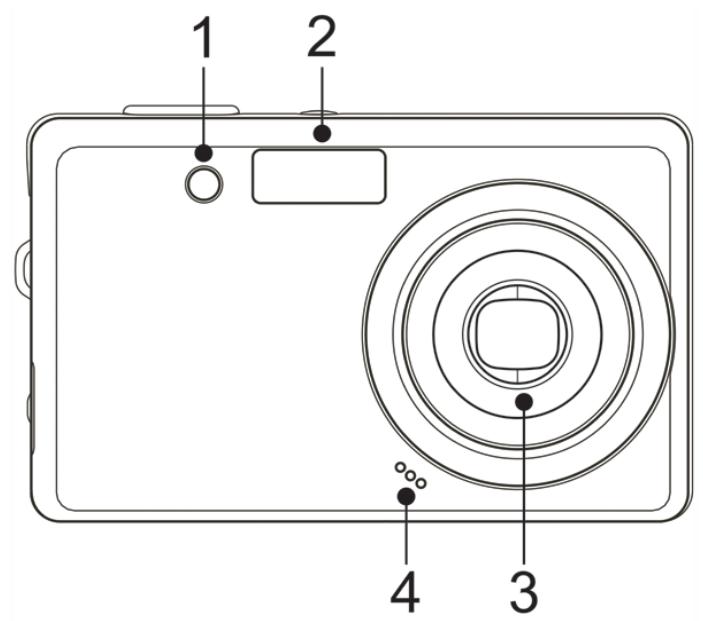
- AF Lamp / Self-timer Lamp
- Flash (page 26)
- Lens
- Microphone
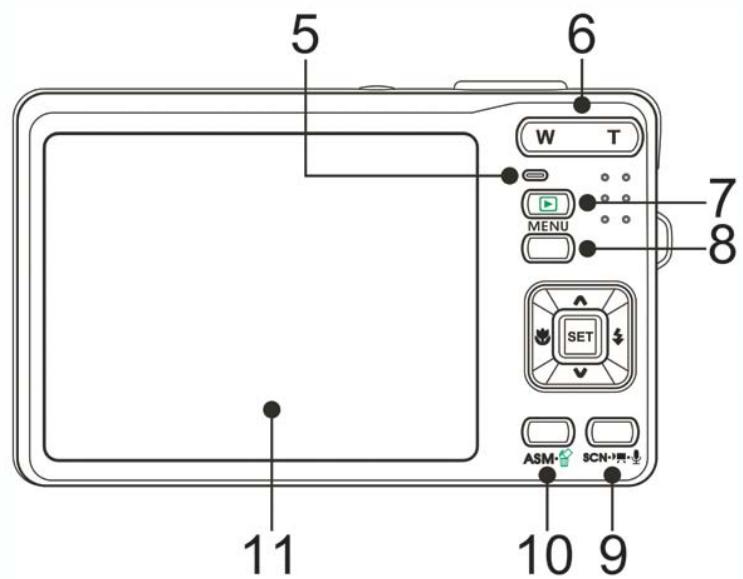
Four-way Control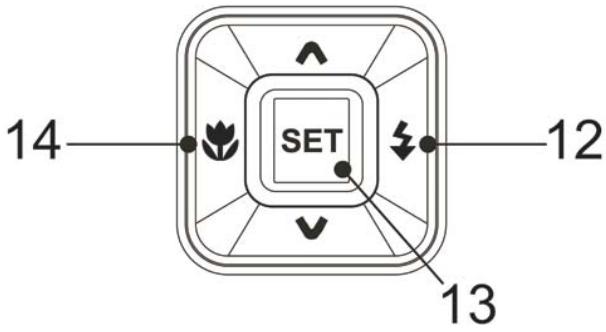
- Operation Lamp
- Zoom Button (page 25)
- Thumbnail (page 41)
- Playback Zoom
(page 40)
- Playback Button
page 14)
- Menu Button (page 17)
- Mode Button (page 14)
- ASM Button (page 16)
- Delete Button (page 42)
- LCD Monitor (page 10)
- Flash Button (page 26)
- SET/DISP Button
page 12) 14. Macro Button (see page 27)
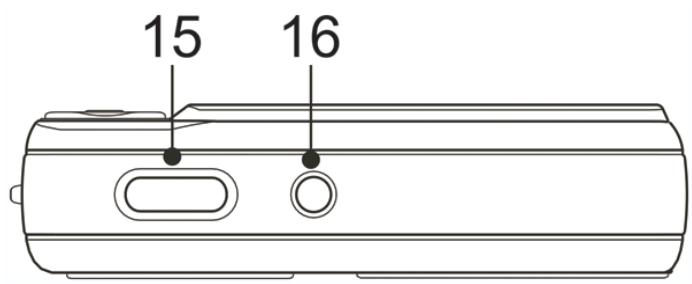
15. Shutter Button
page 22, 31)
- Power Button (see page 13)
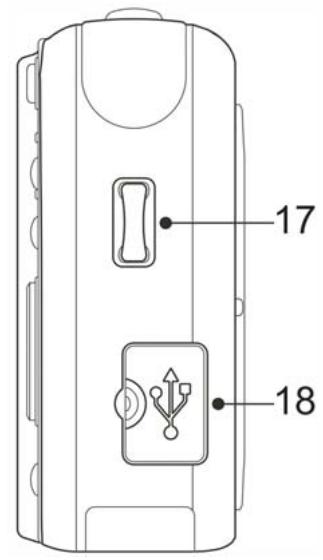
- Strap Ring
- USB/AV Terminal
page 20, 52)
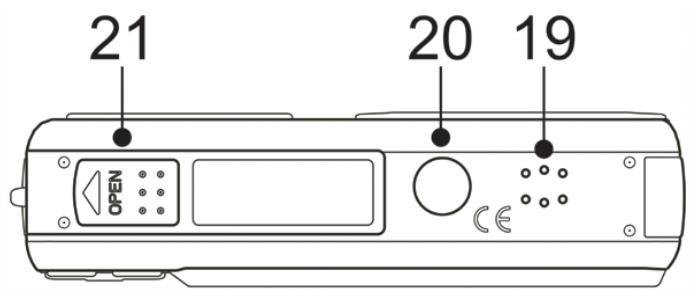
- Speaker
- Tripod Socket
- Battery Cover (see page 5)
Inserting the Batteries
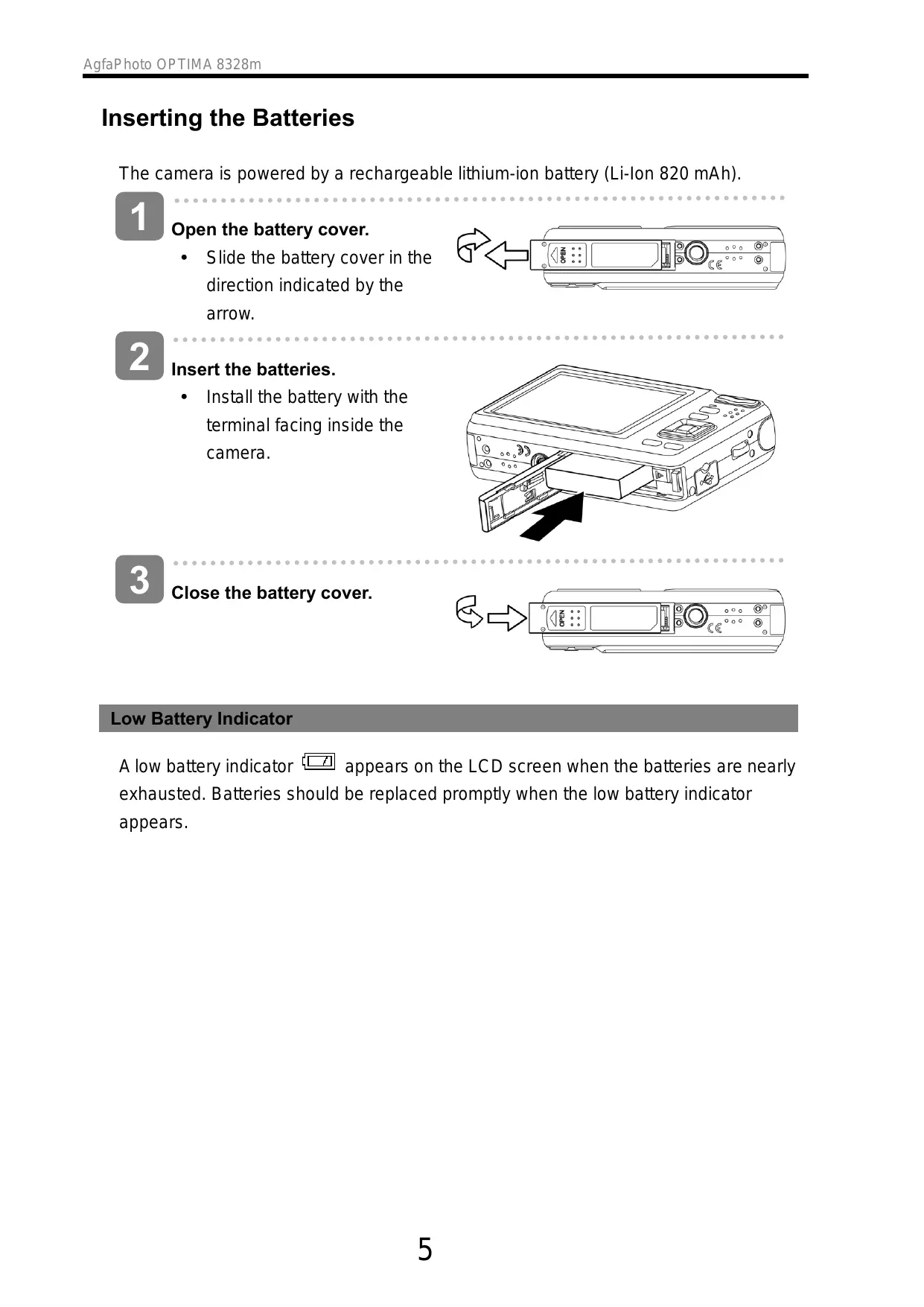
The camera is powered by a rechargeable lithium-ion battery (Li-Ion 820 mAh).
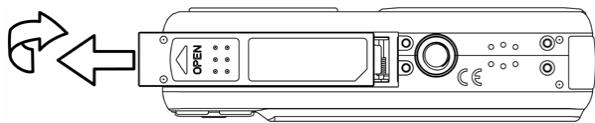
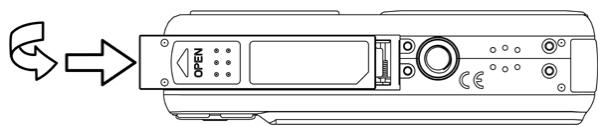
1. Open the battery cover.
- Slide the battery cover in the direction indicated by the arrow.
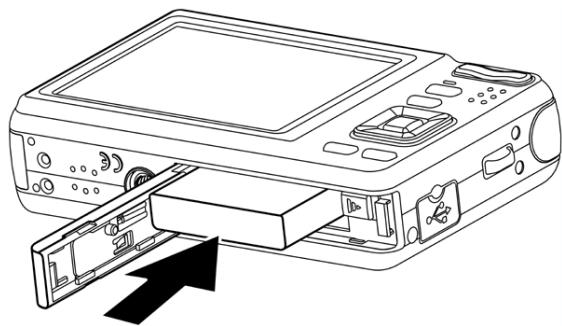
2 Insert the batteries.
Install the battery with the terminal facing inside the camera.
3 Close the battery cover.
Low Battery Indicator
A low battery indicator appears on the LCD screen when the batteries are nearly exhausted. Batteries should be replaced promptly when the low battery indicator appears.
Charging the Battery Pack
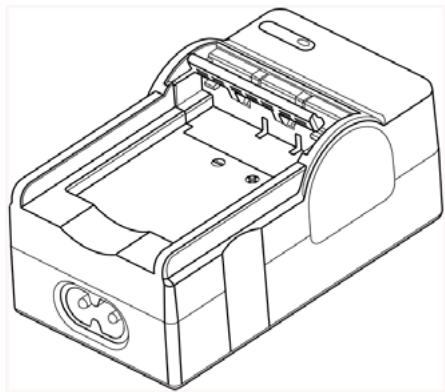
The battery is not charged when you purchase the camera. You need to charge the battery before using the camera.

Place the battery pack in the charger with the label facing up.

Connect the AC adaptor to the charger, and then plug it into a power outlet.
- The charger lamp lights red and battery charging begins. When charging is completed, the lamp becomes green.

Caution
- Risk of explosion if battery is replaced by an incorrect type. Dispose of used batteries according to the instructions.
- Be sure to turn off the camera power before inserting or removing batteries.
- Remove batteries if you will not be using them for a long time.
- The camera body may feel warm after extended use. This is normal.
- Use only the special rechargeable lithium-ion battery to power this camera.
- Charging time varies with current battery capacity and charging conditions.
Inserting the Memory Card
You can use SD cards with this digital camera. The memory card slot is located beneath the battery cover, adjacent to the battery compartment.
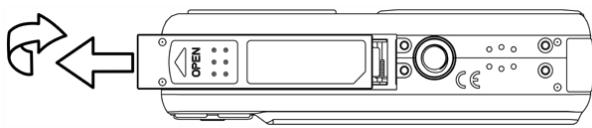
1 Open the battery cover.
- Slide the battery cover in the direction indicated by the arrow.
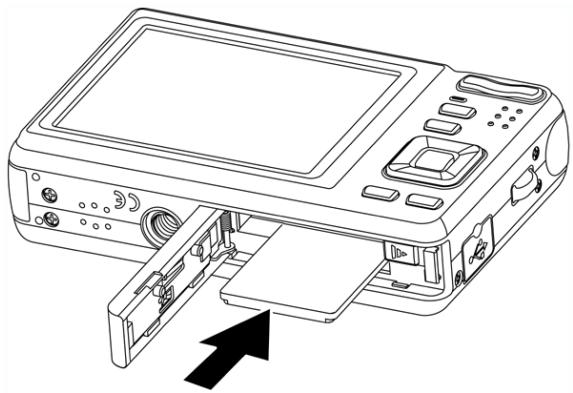
2 Insert the card.
- Insert the card with the label facing up and the arrow pointing in.
? Tips
- To remove the card, gently press on the edge of the card and release it. Pull the card out and close the battery cover.
3 Close the battery cover.
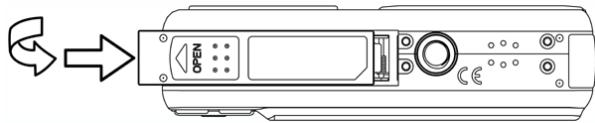
Caution
- It may cause damage to the card if removed while the camera is on.
- Do not touch the connection terminals on the back side of the card.
About Camera Memory
This camera is equipped with internal memory. If the memory card is not inserted in the camera, all images and movie clips recorded by the camera will be stored in the internal memory. If the memory card is inserted, images and movie clips are stored on the memory card.
DCF Protocol
The DCF protocol defines the format for image file data as well as the directory structure for the memory card. Images that are taken by a DCF camera can be viewed on DCF-compatible cameras from other manufacturers.
Setting the Display Language/ Date & Time
When using the camera for the first time after purchasing, be sure to choose a language and set the date & time before using the camera.
Setting the Display Language
1 Turn the power on, and set the camera to the Setup Menu (page 18). 2 Select [Language]. Press or to select [LANGUAGE] then press or the SET button to launch the submenu. 3 Select a language. Press or to select a language and press or the SET button to apply the setting. 4 Press the MENU button to close the menu.
Setting the Date & Time
1
Turn the power on, and set the camera to the Setup Menu (page 18).
2
Select [Date & Time].
- Press or to select [Date & Time] then press or the SET button to launch the submenu.

DATE & TIME
2008/01/31 12:00
YY/MM/DD

Select
SET OK
3
Set date and time.
- Press ▲ or ▼ to change the value of the cursor located. Press ◀ or ▶ to move the cursor between settings.
Tips
- Holding down ▲ or ▼ changes the values continuously.
- For date stamp setting (page 38).
4
Apply the setting.
- After adjusting the settings, press the SET or the MENU button to apply the setting.
Ca
ution
- If the batteries are removed for longer than 48 hours, the Date & Time will need to be re-set.
Using the LCD Monitor
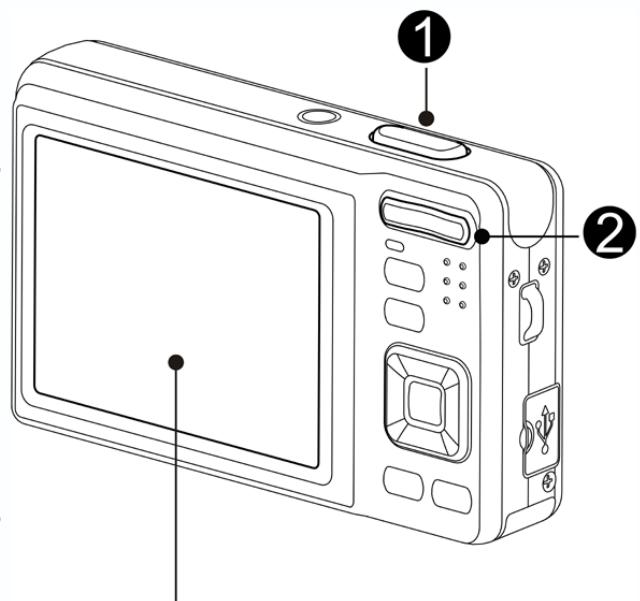
The LCD monitor is used to compose images while recording, adjust settings, and replay images. The following indicators may appear on the LCD monitor while recording or playing back images.
REC mode
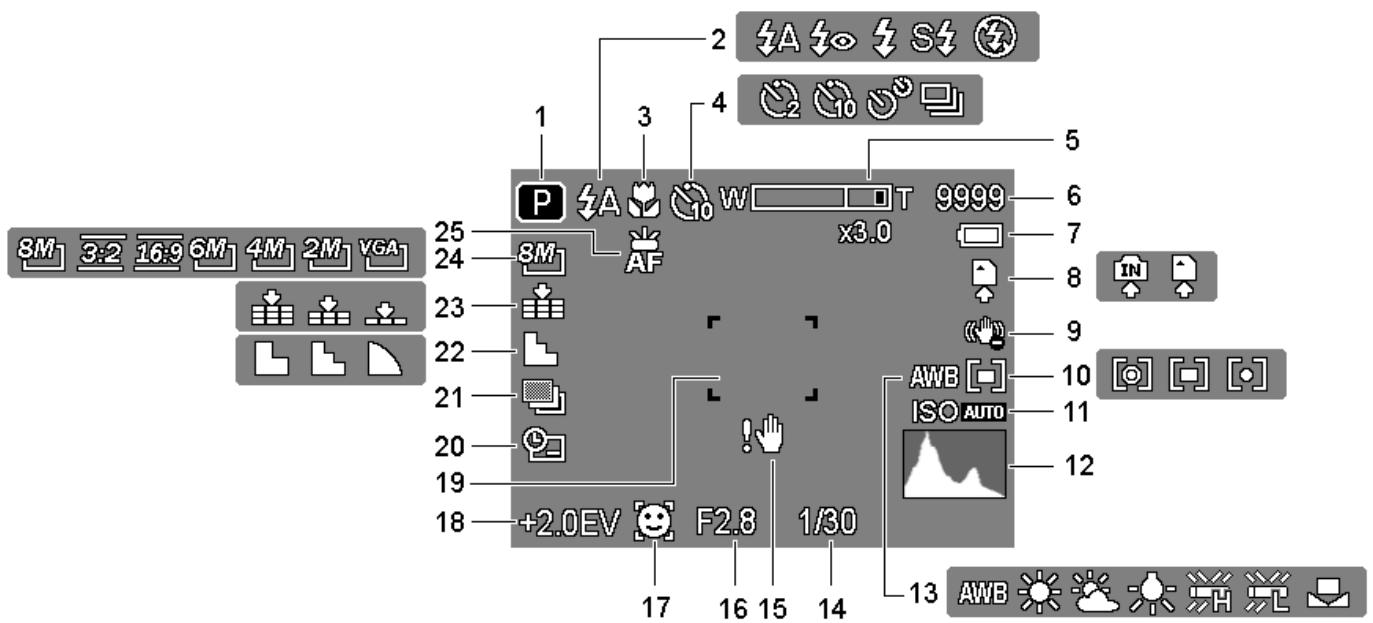
1 Recording mode (page 14) 2 Flash (page 26) 3 Macro (page 27) 4 Self-timer / Burst (page 28) 5 Zoom indicator (page 25) 6 Shots remaining 7 Battery (page 5) 8 Storage media 9 Stabilizer 10 Metering (page 35) 11 ISO (page 36) 12 Histogram 13 White balance (page 35)
14 Shutter speed (page 22) 15 Shake warning (page 22) 16 Aperture value (page 22) 17 Face tracking (page 38) 18 Exposure (page 36) 19 Focus area (page 22) 20 Date stamp (page 38) 21 AEB (page 36) 22 Sharpness (page 37) 23 Quality (page 24) 24 Resolution (page 24) 25 AF Lamp (page 39)
Playback mode
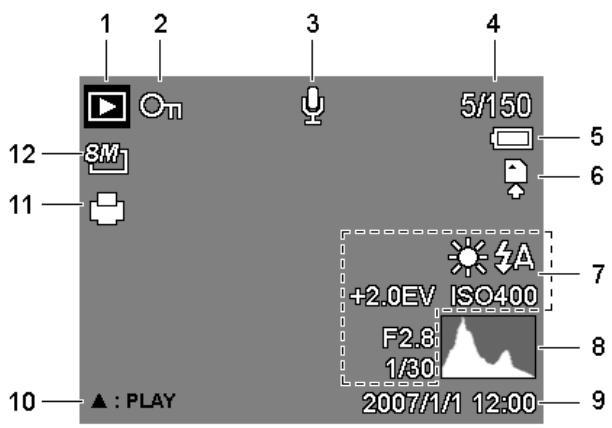
1 Playback mode (page 14) 2 Protect (page 44) 3 Voice memo (page 34) 4 File number / Total 5 Battery (page 5) 6 Storage media
7 Recording info (page 12) 8 Histogram 9 Captured date & time 10 Voice memo control (page 34) 11 DPOF (page 49) 12 Resolution (page 24)

Caution
- Some information may not display correctly if you display images captured by other camera models.
Changing the LCD Status
Pressing the SET/DISP button changes the LCD status as shown below:
REC mode (A)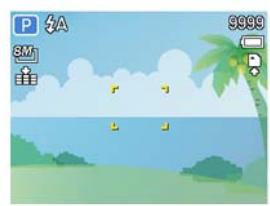
(B)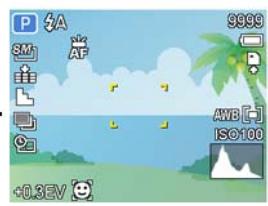
(C)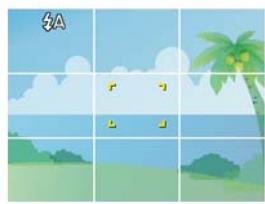
(C) Guide line (D) OSD off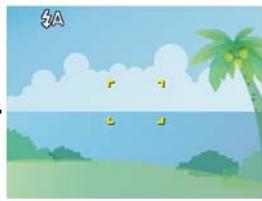
(D)
(A) OSD on (B) Full OSD
Tips
- Use the "Guide line" to compose images easily before shooting images.
Playback mode (A)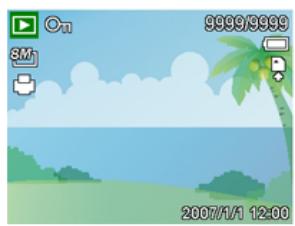
(B)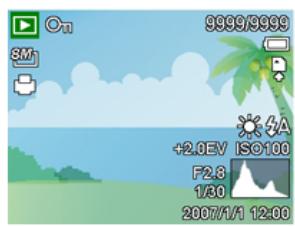
(B) Full OSD (D) OSD off
(D)
(A) OSD on
Caution
- You cannot change the LCD status in the following situations:
Manual exposure, recording movie clips or audio files, playing movie clips or audio files, playing the slideshow, viewing in thumbnail, trimming a still image.
Basic Operation
Turning the Power On and Off
1 Press the POWER button (O) to turn on the camera in the REC mode.
- The power turns on, the lens extends and the LED lights in green.
Press the Playback button (2) to turn on the camera in the Playback mode.
- The power turns on, and an image displays on the LCD monitor (3).
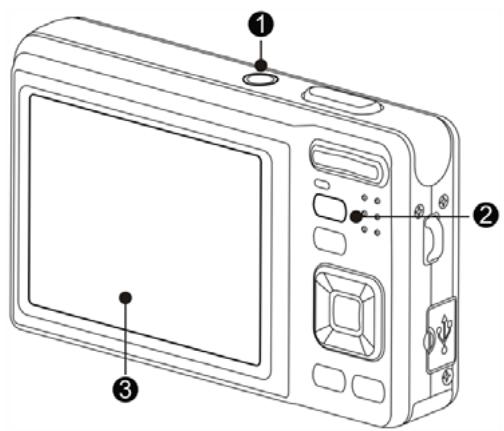
2 Press the POWER button (O) again to turn the power off.
- The power turns off, the lens retracts and the LED turns off.
Tips
- You can turn on the camera without the start-up and operating sound by pressing and holding the POWER (①) or the Playback (②) button over 1.5 seconds.
- Switch between REC mode and Playback mode (S page 14).
Power Saving Function
For saving the battery power, the LCD monitor automatically turns off 1 minute after the last control accessed (factory-preset setting). Press any button other than the power button to turn on the LCD monitor. You can change the power save setting in Setup menu (S page 19).
After the power saving function has been active for 1 minute, the power will turn off completely. Press the POWER (①) or the Playback (②) button to restore the power.
The power save feature will not activate in the following situation:
- Recording movie clips or audio files
- Playing movie clips or audio files
- Playing the slideshow
- Connecting the camera to a computer or printer with the USB cable
Changing the Mode
You can record images and voices in the REC mode. Use the Playback mode to replay, delete, or edit images on the LCD monitor.
Switching between REC mode & Playback mode
In REC mode: press the Playback button (0) to switch to the PLAY mode.
In PLAY mode: press the Playback (1) or the MODE (2) button to switch to the REC mode.
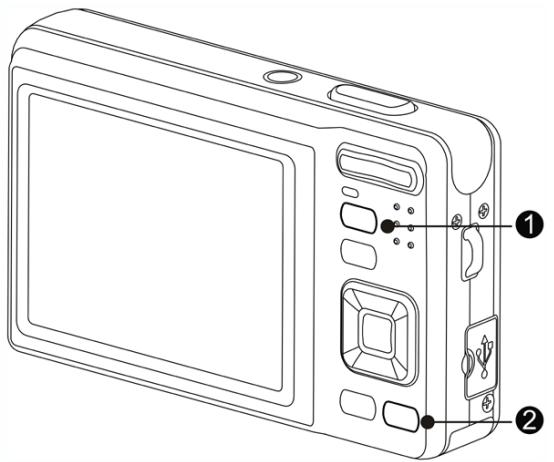
Selecting the REC mode
1
Set the camera to the REC mode (page 14).
2
Launch the mode palette.
- Press the MODE button (2) to show the scene mode palette.
3
Select a mode.
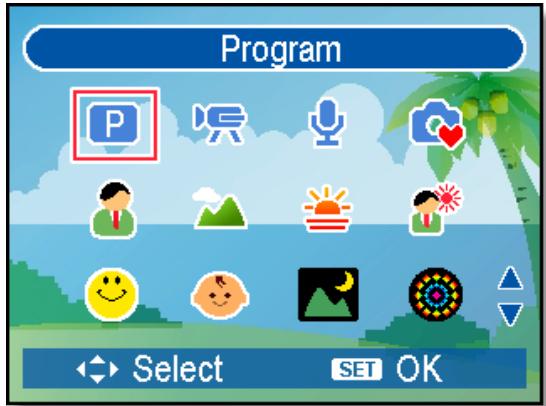
- Use the four-way control to select a desired mode and press the SET button to confirm the setting.
| Display | Title | Description |
| P | Program | The camera makes settings suitable for the shooting conditions. |
| R | Movie | For recording movie clips. |
| Q | Voice REC | For recording audio. |
| Q | Q Mode | Allows beginners to take pictures easily. |
| Portrait | Blurring the background to focus on the subject. | |
| Landscape | Used for the wide scenic views. | |
| Sunset | Enhance the red hue for recording sunset images. | |
| Backlight | Shooting the image of backlight object by changing metering. | |
| Smile Capture | Capture the most brilliant smile of characters. | |
| Kids | Take a still image to capture moving kids. | |
| Night Scene | Shooting the subject while keeping the background night scenery. | |
| Fireworks | Slow shutter speed to take fireworks exploding. | |
| Snow | Used for the beach or snow scenes. | |
| Sports | Used to take still pictures in high speed motions. | |
| Party | Used for the wedding or indoor parties. | |
| Candlelight | To capture the warmth effects of candle light. | |
| Night Portrait | Use to take portrait pictures when the background is darker. | |
| Soft Skin | Enhance the tone of skin so that the facial skin appears smooth. | |
| Soft Flowing Water | Can take pictures with effects as smooth as silk. | |
| Food | Higher saturation makes food more appetizing. | |
| Building | Enhance the edges of the subject. | |
| Text | Enhance the black & white contrast. | |
| Auction | Records small-size images that are perfect for auction notices. |
Selecting the ASM mode
1
Set the camera to the REC mode (page 14).
It cannot be switched to ASM mode while in Movie or Voice REC mode.
2
Launch the ASM mode.
- Press the ASM button (0) to toggle between Aperture Priority, Shutter Priority, Manual Exposure mode.
- For detail operation (page 26).
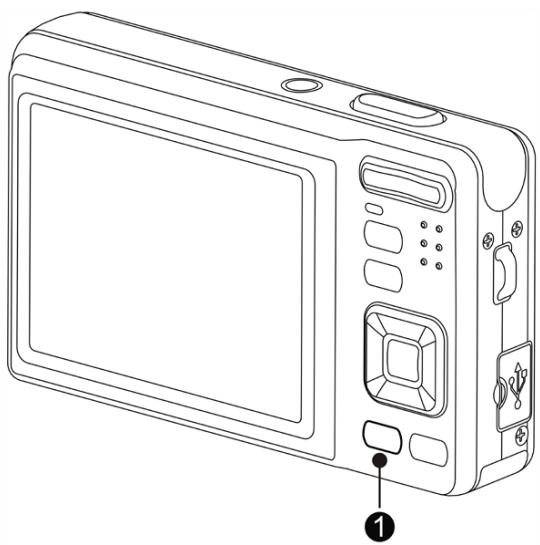
3
Exit the ASM mode.
- Use the ASM jog wheel or the display mode button to select the scene first and then a recording mode. (page 14).
Using the Menu
When a menu is displayed, the four-way control and the SET button are used to make the desired settings.
REC menu
Turn the power on, and set the camera to the REC mode (page 14).
Open the REC menu.
- Press the MENU button (0) to display the menu.
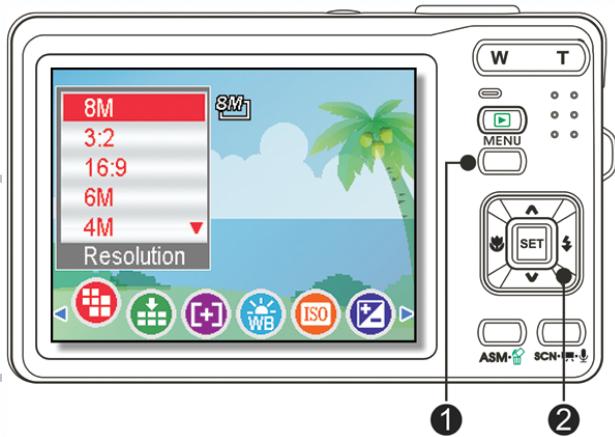
Select an item.
- Press ◀ or ▶ (2) to select a menu item.
Change the setting.
- Press ▲ or ▼ (2) to change the setting.
Press the MENU (0) or the SET (2) button to save the settings and close the menu.
REC menu list (Still Image)
| Menu Item | Available Settings | Page |
| Resolution | 8M1 / 3:2 / 16:9 / 6M1 / 4M1 / 2M1 / VGA1 | 24 |
| Quality | / / / | 24 |
| Metering | [0] / [1] / [2] | 35 |
| White Balance | Auto / / / / / / / / / / | 35 |
| ISO | Auto / ISO50 / ISO100 / ISO200 / ISO400 / ISO800 / ISO1600 / ISO3200 | 36 |
| Exposure | -2.0EV ... +2.0EV | 36 |
| Drive Mode | Off / 2 / 10 / 0 | 28 |
| AEB | Off / | 36 |
| Highlight | Off / / / / | 36 |
| Sharpness | / / / | 37 |
| Effect | Off / B&W / Sepia / Negative / Red / Green / Blue | 37 |
| Date Stamp | Off / Date / Date & Time | 38 |
| Digital Zoom | Off / On | 25 |
| Stabilizer | Off / On | 38 |
| Face Tracking | Off / On | 38 |
| Photo Frame | Off / Frame 1 ~ 10 | 38 |
| AF Lamp | Auto / Off | 39 |
REC menu list (Movie)
| Menu Item | Available Settings | Page |
| Movie Size | 16:9 / 640 / 320 / | 32 |
| Metering | [◎] / [■] / [●] | 35 |
| White Balance | Auto / 晕 / 暖 / 洪 / 淋 / 深 / | 35 |
Setup menu
1 Turn the power on, and set the camera to the REC or Playback mode
page 14).
2 Press the MENU button (0) to open the REC or Playback menu.
- The menu displayed depends on whether you are in the REC mode or the PLAYBACK mode.
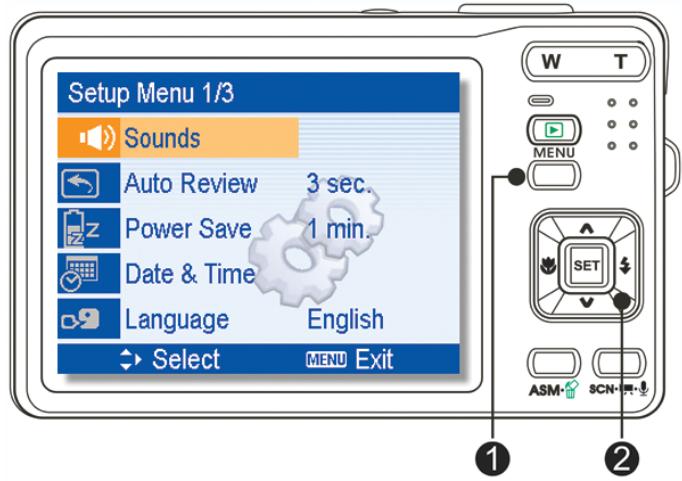
3 Open the Setup menu.
- Press four-way control (2) to select SETUP ( ) and then press the SET (2) button to display the Setup menu.
4 Select an item.
- Press ▲ or ▼ (2) to select a menu item and then press ▶ or the SET (2) button to launch the submenu.
5 Select an item. Press ▲ or
Press ▲ or ▼ (2) to select a menu item and then press ▶ or the SET (●) button to launch the submenu.
Change the setting.
- Press ▲ or ▼ (2) to select an option and press ◀ or the SET (2) button to apply the setting.
6 Press the MENU (O) button to close the menu.
Setup menu list
| Menu Item | Functions |
| Sounds | [Shutter]: Sets the shutter sound on and off. [Start-up]: Sets the type of the start-up sound. [Beep]: Sets the operation sound on and off. [Volume]: Adjusts the volume of the shutter sound, start-up sound, beep and playback sound. |
| Auto Review | [Off]: The captured image will not automatically display after shooting. [1 sec.]: The captured image will display for 1 second after shooting. [3 sec.]: The captured image will display for 3 seconds after shooting. [5 sec.]: The captured image will display for 5 seconds after shooting. |
| Power Save | [1 min.] / [3 min.] / [5 min.]: For power consumption, the camera is turned off automatically for a period of time. • The power save feature will not activate in some situations ( page 13). |
| Date & Time | Sets the date & time (page 9). |
| Language | Select a language for display menus and other information from the following 21 languages: (page 8) |
| [English]: English [Deutsch]: German [Italiano]: Italian [Nederlands]: Dutch [Magyar]: Hungarian [Türkçê]: Turkish [Svenska]: Swedish [Rumänisch]:Romanian [Ευκενγία] Arabic [„иц”]:Thai [„한국어“]: Korean | |
| [简化中文]: S. Chinese | |
| File No. | Use this function if the camera experiences a “Folder cannot be created” error or if you want to restart numbering, for example, after erasing all files. |
| [Series]: Store the latest used file number no matter deleting files or inserting a new memory card. [Reset]: Reset file numbering each time the memory card is changed. | |
| • Resetting the file number is useful for avoiding file name duplication when images are downloaded to a computer („page 53\)). | |
| TV Out | You can review images on a television with a supplied AV cable („page 51\). TV Out should be set to either NTSC or PAL depending on your region. [NTSC]: America, Japan and others [PAL]: Europe, Oceania and others |
| USB | [Computer] / [Printer]: Sets the USB mode to connect the camera with a printer or computer („page 52\). |
| Start-up Image | Sets a recorded image as the start-up image („page 50\). |
| Format | To erase all data stored in the memory card if you are using a card, or all data stored in the internal memory if there is no card inserted. • A “BUSY...PLEASE WAIT” message displays and the memory card is starting format. • A “COMPLETED” message displays when finish formatting. • All data will be deleted including protected files. Be sure to |
| download important files to your computer before formatting. | |
| Reset All | Reset the entire menu and button operation settings to initial default.The following settings do not change after Reset All:Date & Time settingLanguage settingTV out setting |
Basic Recording
Recording Still Images
1 Turn the power on, and set the camera to the REC mode (page 14). 2 Compose the subject on the monitor.
- Aim the focus area (1) at the subject you want to capture.
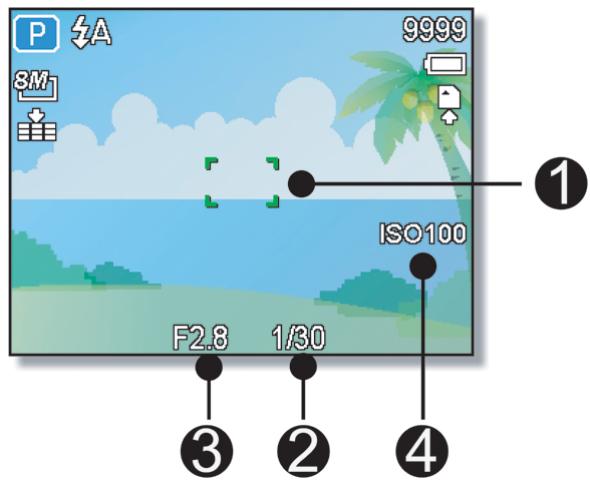
3 Half-press the shutter button to focus the image.
- The focus area (1) turns green when in focus, then shutter speed (2), aperture value (3), and ISO value (4) are displayed.
- If the shutter speed is slow or there is a possibility that the image may be blurred, the shake warning icon may appear on the LCD monitor. To avoid this, use a tripod to stabilize the camera when recording images.
4 Take a picture.
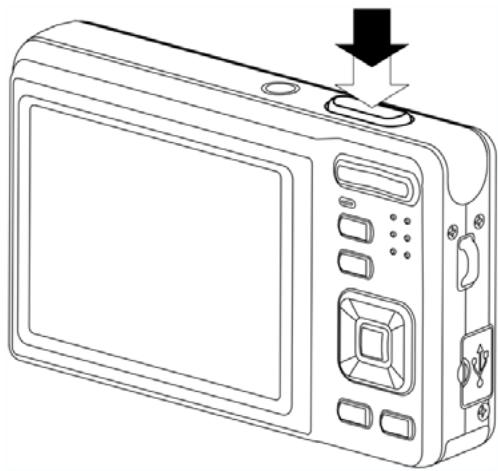
- Press the shutter button fully to take a picture.

Caution
- Make sure that your fingers or the hand strap do not block the lens.
Using the Q mode
The Q mode provides a simplified camera interface. Larger icons and fewer controls make it easier to take pictures anytime, especially for beginners and elderly users.
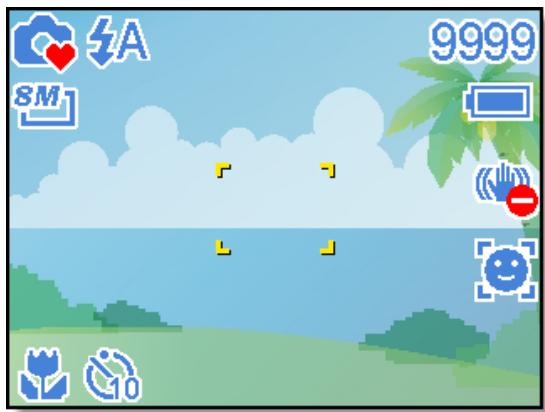
You can use only the basic settings in the Q mode:
| Button | Flash: Auto / Red eye / Force on / Slow sync / Force off |
| Macro: Off / On | |
| SET/DISP: OSD on / Guide line / OSD off | |
| Menu | Resolution: 8M / 3:2 / 16:9 / 6M / 4M / 2M / VGA |
| Drive Mode: Off / 2 sec. / 10 sec. / Double / Burst | |
| Stabilizer: Off / On | |
| Face Tracking: Off / On | |
| Photo Frame: 10 frames can be selected | |
| Beep: Off / On | |
| Auto Review: Off / 1 sec. / 3 sec. / 5 sec. |
The rest of the settings will not be controlled as below:
| Fixed setting (*) | • Quality: S.Fine • Metering: Multi • White balance: Auto • ISO: Auto • Exposure: Auto • AEB: Off | • Highlight: Off • Sharpness: Normal • Effect: Off • Date Stamp: Date & Time • Digital Zoom: Off • AF lamp: Auto |
| Utility setting (**) | • Shutter sound • Start-up sound • Power save • Date & Time • Language | • File No. • TV out • USB • Start-up image |
(*)Fixed setting: Settings are fixed in Q mode.
(**) Utility setting: Use the same setting as last mode used.
Setting Image Size and Quality
You can select lower image resolution and quality to decrease the image size to capture more images. Choose a suitable setting according to the desired image quality and purpose. For details, see page 17.
Resolution Values
| Image Size | Print Sizes | ||
| 8M | 3264 x 2448 | Printing larger than A4-size. | Larger |
| 3:2 | 3264 x 2176 | ||
| 16:9 | 3264 x 1840 | ||
| 6M | 2816 x 2112 | ||
| 4M | 2272 x 1704 | ||
| 2M | 1600 x 1200 | ||
| VGA | 640 x 480 | Printing to postcards or attaching to e-mail. | Smaller |
Quality Values
| Compression | Purpose | ||
| ↓ | Super Fine | Shoot higher quality images. | Higher Quality ↓ Lower Quality |
| ← | Fine | Shoot normal quality images. | |
| → | Normal | Shoot for more images. | |
Using the Zoom Function
Your camera has a combination of optical and digital zoom functions that allows you to zoom in on far away subjects or zoom out for a wide angle shot.
The optical zoom is achieved by mechanically adjusting the lens of the camera. The digital zoom enlarges or shrinks the image using a software process.
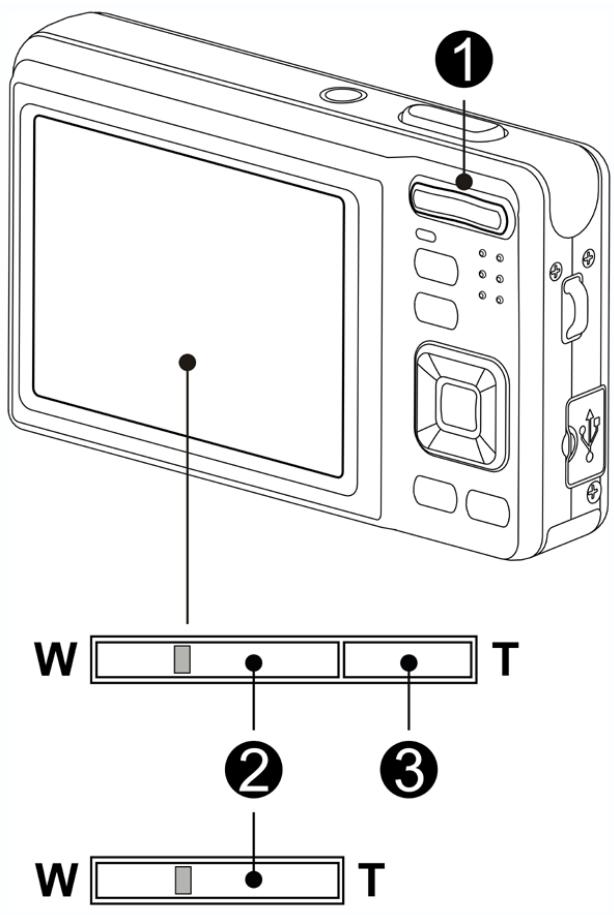
1 Select the zoom setting, and point the camera at the subject. 2 Press the zoom button (0) to compose the image.
[W]: zoom out for a wide-angle shot.
[T]: zoom in for a telephoto shot.
- When the zoom button is pressed, the zoom bar appears on the LCD monitor.
- When the optical zoom (2) factor is at maximum, zooming stops temporarily. Press the [T] again, the camera switches to the digital zoom (3) automatically and zooming continues.
- The digital zoom (3) will not activate in movie recording.
3 Press shutter button to take a picture.
Tips
- Digital zoom works by enlarging the center portion of an image through a software interpolation process.
- The digital zoom is used to achieve magnification levels up to approx. 4 times.
Using the Flash
The flash is not only for taking pictures when there is insufficient light, but also when the subject is in shade or in backlight conditions. Press the flash button to cycle your camera through the various flash modes. The flash will not activate when continuous shooting or movie recording.
1
Turn the power on, and set the camera to the REC mode (page 14).
2
Press the flash button (O) to change the flash mode.
Each time the flash button is pressed, the flash icon (2) changes.

Auto flash:
Flash fires automatically when shooting conditions require extra lighting.

Red-eye reduction:
Flash strobes to let the subject's eyes adjust to the flash, then fires again to take the actual image. Your camera will detect the subject brightness and use the flash only when required.

Force on:
Flash fires every time you take a photo, regardless of lighting conditions.

Slow sync:
Flash fires with a slow shutter speed.

Force off:
The flash never fires even in dark situations.
3
Press the shutter button to take a picture.
- The flash charging time may increase when the battery is low.
- The available flash settings are limited depending on the REC mode you selected (page 58).
Using the Macro
Your camera is equipped with a macro function that allows you to focus on very close subjects. In macro mode you can focus on subjects 15 cm from the lens when in the maximum wide angle setting and 40 cm in the maximum telephoto setting.

Turn the power on, and set the camera to the REC mode.
See page 14.

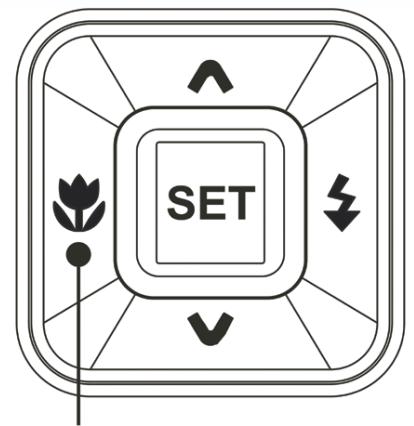
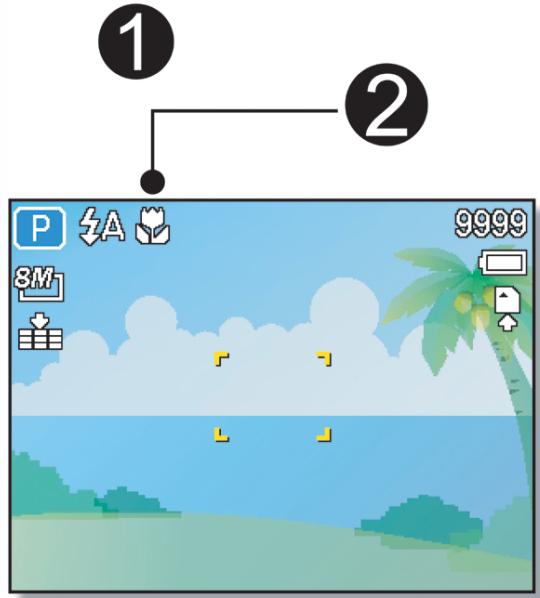
Press the macro button (0) to enter the macro mode.
- The macro icon (②) displays in the LCD monitor.
- To leave the macro mode, press the macro button (1) again.

Press the shutter button to take a picture.

Tips
- Distances refer to the distance between the camera lens surface and the subject.
Using the Self-timer & Burst
Use the self-timer to set a delay from the time the shutter button is pressed to the time the image is shot. Use the burst to record continuous still images shooting.
1. Turn the power on, and set the camera to the REC mode.
See page 14.
2. Open the REC menu (see page 17).
- Use ◀ or ▶ to select [Drive mode] from the REC menu.
3. Change the setting.
- Press the up or down arrow button to select a drive mode, then press the SET button.
Off:
Record a single image.

2 sec.:
The shutter release will be delayed for 2 seconds.

10 sec.:
The shutter release will be delayed for 10 seconds.

Double:
Record two images in a shot after pressing the shutter release button, with a 10-second and then a 12-second delay.

Burst:
Keep pressing the shutter button fully to take continuous shooting. Release the shutter button to stop shooting.
Press the shutter button to take a picture.

Tips
- When using the self-timer function, be sure to use a tripod or place the digital camera on a level, stable surface.
Using the Aperture Priority
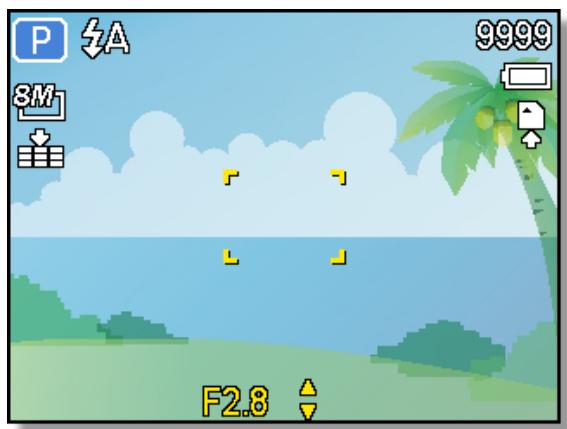
In this mode, you can set an aperture value to match the brightness. A higher aperture value brings the background out of focus. Selecting a lower aperture value allows you to soften the background.

Turn the power on, and set the camera to the Aperture Priority ( page 16).

Adjust the aperture value by pressing the triangle or nabla button.

Press the shutter button to take a picture.

Tips
- The larger the aperture value, the smaller the lens opening, allowing less light to enter the camera.
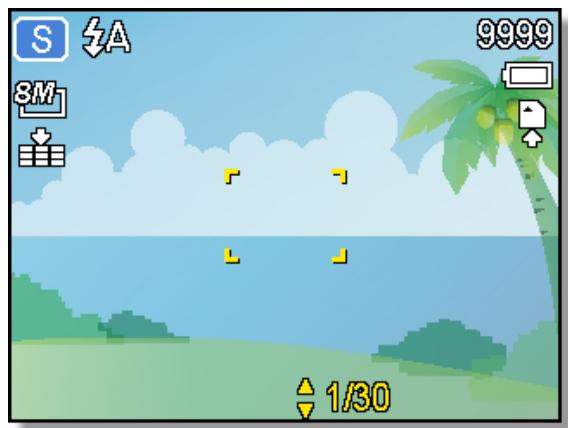
Using the Shutter Priority
In this mode, you can set a shutter speed to match the brightness. Faster shutter speeds allow you to take a sharp picture of a moving subject, while slower speeds create a trail effect and allow you to shoot without a flash in dark areas.

Turn the power on, and set the camera to the Shutter Priority ( page 16).

Adjust the shutter speed by pressing the triangle or nabla button.

Press the shutter button to take a picture.
Using the Manual Exposure
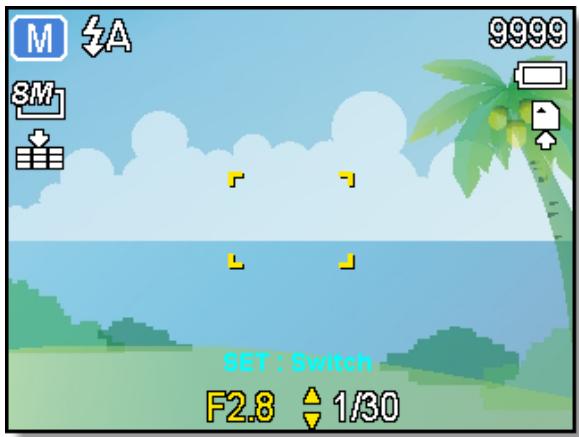
You can manually set the shutter speed and aperture to achieve a particular effect.
1
Turn the power on, and set the camera to the Manual Exposure ( page 16).
Use the SET button to switch between aperture value and shutter speed control. Press △ or ▽ to adjust the setting.
Press shutter button to take a picture.
- Press the shutter button halfway, the difference between the standard exposure and the selected exposure appears in red.
Using the Smile Capture
Turn the power on, and set the camera to the Smile Capture (page 14).
- In this mode, face tracking will be enabled automatically.
Select the person to photograph.
- A white bracket will show the closest face detected to the center.
- Press the shutter button. When the focus is ready it will turn green. Release the shutter button.
- When faces are detected, it takes six continuous shots.
To stop shooting, press the shutter button again.
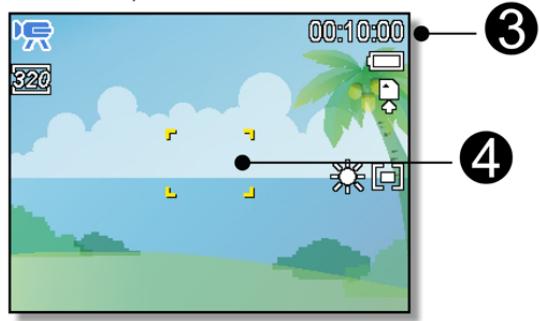
Recording Movie Clips
1
Turn the power on, and set the camera to the Movie mode (page 14).
2
Compose the subject on the monitor.
- Aim the focus area (4) to the subject that you want to take.
- The LCD monitor displays the available recording time (3).
3
Start recording.
- Press the shutter button (0) to start recording.
- Use the zoom button (2) to adjust the image size.
- The White Balance is set and locked to the settings of the first frame.
Caution
Sound cannot be recorded while pressing the zoom button. - The digital zoom cannot be used in Movie mode.
4
Finish recording.
- Press the shutter again to end recording.
- The camera will stop recording automatically when the memory capacity has been reached.
Setting the Movie Size
Movie Size and Image Quality
| Icon | Resolution | Image Quality |
| 16:9 | 720 x 400 | - |
| 640 | 640 x 480 | High Quality |
| 320 | 320 x 240 | Normal |
| 640 x 480 | For YouTube® |
YouTube® Mode
The YouTube® Mode allows you to record movies with predefined video settings for easy upload to the YouTube® website.
YouTube® supports two file upload standards:
- Single File Uploader. The maximum movie file size is up to 100 MB. YouTube® Uploader. The maximum movie file size is up to 1 GB.
Most uploaded movie length ranges within 5 minutes, although you can upload a maximum movie length of 10 minutes.
2 Therefore when you record using the YouTube® mode, the following standards are followed:
- Recorded movies are set to YouTube® standard resolution of 640 × 480.
- Recording automatically stops when the file reaches 100 MB.

Tips
- If internal memory/memory card is full or the file exceeds 2G in size, the video recording will automatically stop.
- To record a YouTube® movie, select from the Movie Size function.
Recording Audio Clips
1 Turn the power on, and set the camera to the Voice REC mode (page 14). Press the shutter button to start recording.
- The voices are recorded from the microphone of the camera. Be careful to avoid touching the microphone while recording.
3 Press the shutter button again to end recording.
- The camera will stop recording automatically when the memory capacity has been reached.
Playing Back Audio Clips
1 Turn the power on, and set the camera to the Playback mode (page 14). 2 Press or to select the audio clip that you want to playback. 3 Start playing back.
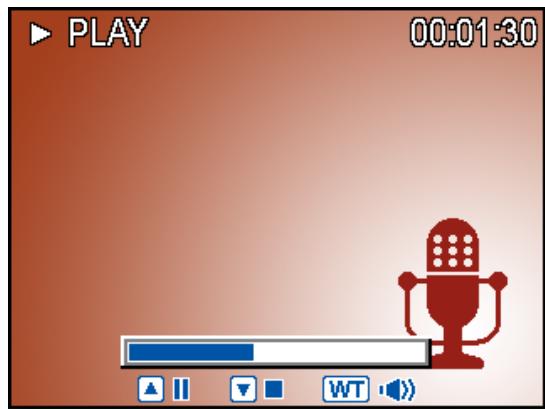
- Press to start playing the audio clip.
- Press to stop the audio clip, or press to pause it. When audio clip paused, press again to resume.
Recording a Voice Memo
You can add a voice memo to still images.
1 Turn the power on, and set the camera to the Playback mode (page 14). 2 Press or to select a still image that you want to add a voice memo.
- If the image already has the voice memo recorded, the appears on the LCD monitor. The new recording will replace the previous one.
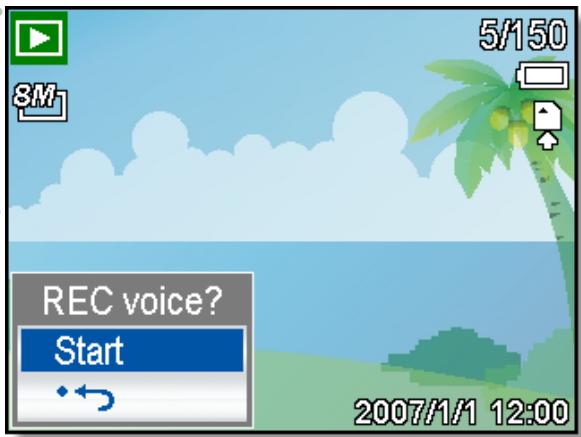
3 Open the Playback menu. - Press the MENU button, using four-way control to select Voice Memo (E) and press the SET button. 4 Press the SET button to start recording for 30 seconds. - Press the SET button again to end recording.
Caution
- The voice memo cannot be added to a movie clip or a protected image.
- You cannot delete only the voice memo. When you delete the image, the attached voice memo is also deleted.
Playing Back a Voice Memo
1 Turn the power on, and set the camera to the PLAY mode (page 14). Press or to select the image that has the voice memo recorded. 3 Start playing back.
- Press to start playing the voice memo.
- Press to stop the voice memo, or press to pause it. When voice memo paused, press again to resume.
Other Recording Functions
Setting the Metering
There are 3 different light metering options available on your camera.
| Option | Description |
| [◎] | Light is measured from the entire shooting screen, but gives more importance to the values near the center. |
| [■] | Selects an exposure based on readings from multiple points in the subject area. |
| [◆] | Selects an exposure based on a single reading taken from the center of your picture. |
Setting the White Balance
Adjust the white balance to match different light sources such as sunlight, incandescent (tungsten) lighting or, fluorescent lighting.
| Option | Description |
| AUTO | Automatically corrects white balance. Ideal for general photography. |
| Adjusts for bright sun conditions, or natural light conditions. | |
| Adjusts for cloudy days or twilight conditions. | |
| Adjusts for normal indoor lighting conditions. Corrects the orange hue of household light bulbs. Ideal for indoor photos under tungsten or halogen lighting without a flash. | |
| Adjusts for fluorescent lighting. Corrects the green hue of fluorescent lighting. Ideal for indoor photos under fluorescent lighting without a flash. | |
| For more accurate adjustment or when the light source cannot be specified. |
Tips
- Point the camera at a white piece of paper or similar object under the lighting conditions for which you want to set the white balance, and then press the Shutter button.
Setting the ISO
With the initial settings, the ISO sensitivity is automatically set according to the brightness of the subject.
| Option | Description |
| Auto | Sets the ISO sensitivity automatically. |
| ISO 50 | Sets the sensitivity to ISO 50 equivalent. |
| ISO 100 | Sets the sensitivity to ISO 100 equivalent. |
| ISO 200 | Sets the sensitivity to ISO 200 equivalent. |
| ISO 400 | Sets the sensitivity to ISO 400 equivalent. |
| ISO 800 | Sets the sensitivity to ISO 800 equivalent. |
| ISO 1600 | Sets the sensitivity to ISO 1600 equivalent. |
| ISO 3200 | Sets the sensitivity to ISO 3200 equivalent. |

Tips
- Higher ISO speeds increase image noise. To take clean images, use as low an ISO speed as possible.
Setting the Exposure
Set the exposure value manually to compensate for unusual lighting conditions such as indirect indoor lighting, dark backgrounds, and strong backlighting.
Setting the AEB
Sets the auto exposure bracketing (AEB) to shoot 3 continuous images, each with a different exposure setting: correctly exposed, underexposed, and overexposed.
Setting the Highlight
Make the subject stand out from its surroundings. The subject will be in focus in three different ranges: / /

Tips
- The Photo Frame and Face Tracking cannot be used while using the Highlight.
Setting the Sharpness
You can select whether you want the image to have sharp or soft outlines.
| Option | Description |
| L | The edges of the image are emphasized. The edges will become sharp, but noise may occur in the recording image. |
| E | The edges of the image are sharp. This is suitable for printing. |
| A | The edges of the image are softened. This is suitable for editing images on PC. |
Setting the Photo Effect
You can add special effects to your images in Record mode or in Playback mode.
| Option | Description |
| Off | No effect is added to the image. |
| Red eye removal. (Playback only) | |
| B&W | Convert image to black & white. |
| Sepia | Recorded image will be stored in a sepia tone. |
| Negative | Opposite what they were in the original image. |
| Mosaic | Add mosaic tiles to the images. (Playback only) |
| Red | The image becomes reddish. |
| Green | The image becomes greenish. |
| Blue | The image becomes bluish. |
Setting Date Stamp
The Date Stamp function can be used to add a date to your pictures as you take them.
| Option | Description |
| Off | Does not add the recorded date & time to printed images. |
| Date | Only adds the recorded date to printed images. |
| Date & Time | Adds the recorded date & time to printed images. |
Setting Stabilizer
With more sensitivity and faster shutter speed to brighten up the pictures, effectively prevent blur caused by hand shake or target movement, one can take good pictures with little effort.
Setting Face Tracking
After initializing the face tracking function, the lens will lock on the main character in the picture and follow their movements. It also uses auto digital zoom technology to retract and extend the zoom lens, allowing you to become the focus of the lens.

Tips
- Pressing the shutter halfway and showing a green AF area means focus is complete.
- Face tracking is powered by ArcSoft.
- Under some environmental influences, the face tracking function may be limited.
- The Highlight and Photo Frame cannot be used while using Face Tracking.
- When capturing an image with several faces, the face tracking function will take more time tracking faces for the first time.
Setting Photo Frame
You can add 10 kinds of frames to still images, making them more interesting.

Tips
- This feature is only available with still images (except 3:2 and 16:9).
- The Highlight and Face Tracking cannot be used while using the Photo Frame.
Setting AF Lamp
The AF Lamp function allows you to record images in low light conditions.
| Option | Description |
| Off | Disable the AF lamp while recording images. |
| Auto | The AF lamp turns on automatically by half pressing the shutter button under low light conditions. |
Playback
Playing Back Images
1
Turn the power on, and set the camera to the Playback mode (page 14).
- The latest recorded image appears on the LCD monitor.
- If there are no images stored, a message [No image] appears.
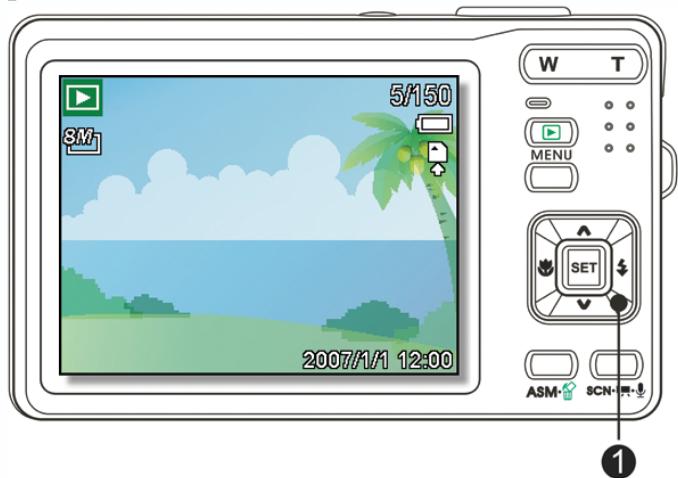
2
Press the four-way control or ▶ (0).
: displays the previous image. : displays the next image.
?
Tips
- Holding down or scrolls images in a high speed.
Playing Back Movie Clips
1
Turn the power on and set the camera to the Playback mode.
page 14).
2
Press or to select a movie clip that you want to playback.
3
Start playing back.
- Press to start playing the movie clip.
- Press to stop the movie clip, or press to pause it. When the movie paused, press again to resume.

Tips
- During movie playing back, press to fast forward or press to rewind it.
- Press the shutter to capture the still image from the movie clip while it had paused.
Magnifying & Trimming Still Images
1
Turn the power on, and set the camera to the Playback mode (page 14).
2
Select an image.
- Press or (3) to select the image that you want to magnify or trim.
- Only still images can be magnified and trimmed.
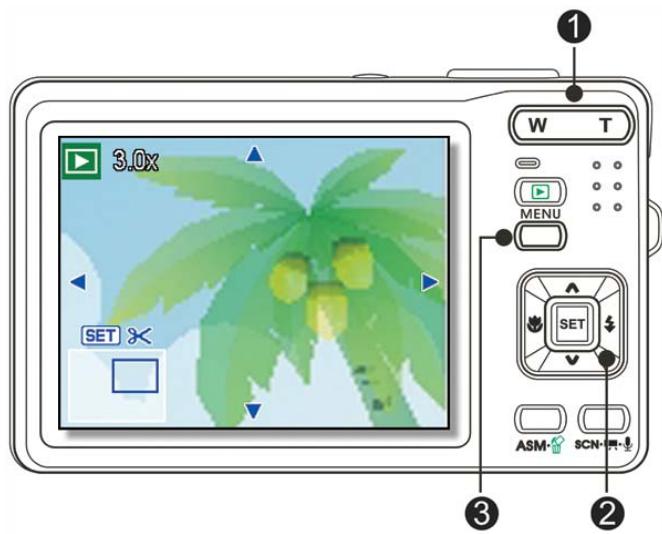
3
Magnify the image.
- Press [T] (0) to magnify the image and the central portion of the image is displayed. You can use the arrow button (3) to view different parts of the magnified image.
- Press the MENU button (2) to return to the normal size.
4
Trim the image.
- Press the SET button (3) to set the image trimming.
5 Save the image.
- Press the SET button (3) again to trim the selected image and save it as a new one.
Viewing in Thumbnail
1 Turn the power on, and set the camera to the Playback mode (page 14). Press the zoom button [W], a thumbnail screen is displayed. 3 Use the four-way control to select the desired image, and press [T] or the SET button to show the selected image in full screen.

Tips
- You can protect or delete multiple images in thumbnail, see page 43, 45.
Playing a Slide Show
1 Turn the power on, and set the camera to the Playback mode (page 14). 2 Enter the slide show.
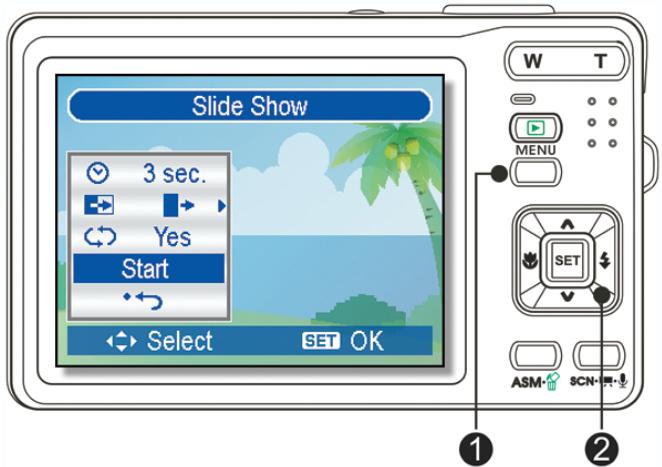
- Press the MENU button (1), use the four-way control (2) to select Slide Show (▶) and press the SET button (3).
3 Change the slide show settings.
- Use the four-way control (2) to set the slideshow interval (⊙), effect (1) and repeat (⊙).
- You can set the interval between 1~10 seconds.
4 Playing the slide show.
- Press the SET button (2) to start the slideshow.
- During the slideshow, press the SET button (2) to pause the slideshow and press the SET button again to resume.
Deleting Files
Deleting a Single File
1 Turn the power on, and set the camera to the Playback mode (page 14). 2 Open the menu.
- Press the MENU button (1), then use the four-way control (2) to select Delete (3) and press the SET button (2).
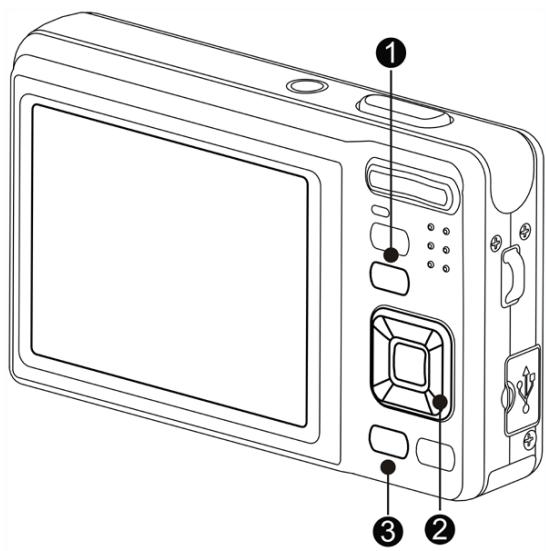
Press the up or down button (2) to select [SINGLE], and then press the SET button (2). Press the left or right button (2) to select the image you want to delete. Press the SET button (2) to delete the image.
- Repeat steps 4 to 5 to delete images.
Tips
- To quickly delete the current display image
- Select the image you want to delete.
- Press the Delete button (3) to show a confirmation.
- Press the SET button (2) to delete the current display image.
- Protected images cannot be deleted with this function.
Deleting Multiple Files
1
Turn the power on, and set the camera to the thumbnail screen (page 41).
2
Open the menu.
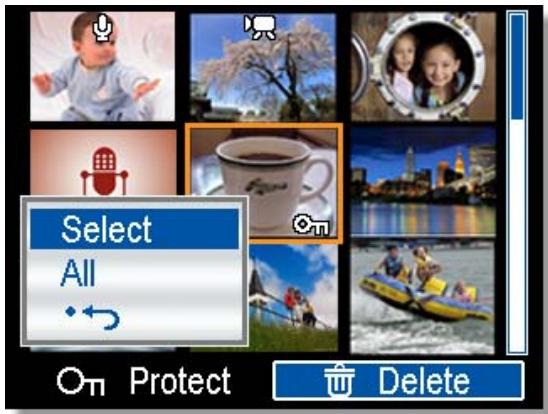
- Press the MENU button, then press ◀ or ▶ to select Delete (W) and press the SET button.
3
Press ▲ or ▼ to select [Select], and then press the SET button.
The frame of the selected image turns green.
4
Select multiple images.
- Use the four-way control to select the image.
- Pressing the SET button toggles the selection on and off. Repeat this step until all images that you want to delete are displayed with an icon.
5
Delete images.
- Press the MENU button, then select [Yes] and press the SET button. All selected images will be deleted.
- To cancel delete, press the MENU button in this step.
Deleting All Files
1
Turn the power on, and set the camera to the Playback mode (page 14).
2
Open the menu.
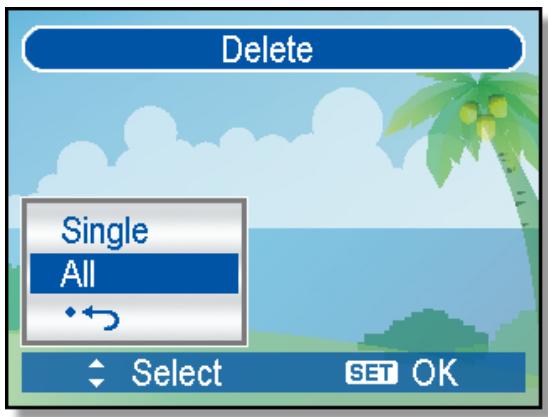
- Press the MENU button, then use the four-way control to select Delete (W) and press the SET button.
- You can open the menu in full screen or in thumbnail.
3
Press or to select [All], and then press the SET button.
4
Press the SET button to delete all unprotected images.
Protecting a Single File
1
Turn the power on, and set the camera to the Playback mode (page 14).
2
Open the menu.
- Press the MENU button, then use the four-way control to select Protect (Oπ) and press the SET button.
3
Press ▲ or ▼ to select [SINGLE], and then press the SET button.
4
Press ◀ or ▶ to select the image you want to protect.
5
Press the SET button to protect the image.
- When the file is locked, the On displays on the LCD monitor.
- Repeat step 4~5 to protect images.
- To unlock the file, press the SET button again in step 5. The On will disappear and the file is unlocked.
Protecting All Files
1
Turn the power on, and set the camera to the Playback mode (page 14).
2
Open the menu.
- Press the MENU button, then use the four-way control to select Protect (Oπ) and press the SET button.
- You can open the menu in full screen or in thumbnail.
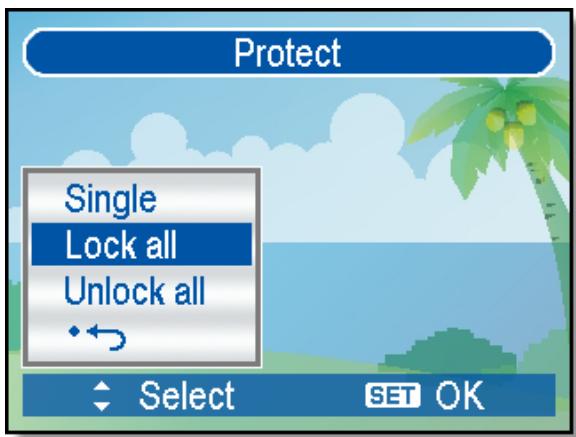
3
Press or to select Lock all, and then press the SET button.
- To unlock all files, select Unlock all in this step, then press the SET button.
4
Press the SET button to protect all images.
Protecting Multiple Files
1
Turn the power on, and set the camera to the thumbnail screen (page 41).
2
Open the menu.
- Press the MENU button, then press ◀ or ▶ to select Protect (Oπ) and press the SET button.
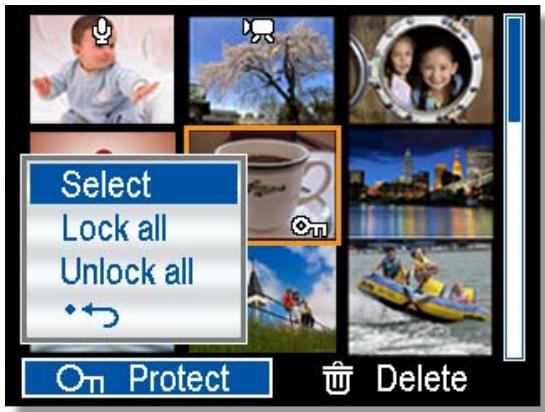
3
Press ▲ or ▼ to select [Select], and then press the SET button.
- The frame of the selected image turns green.
4
Select multiple images.
- Use the four-way control to select the image.
- Press the SET button toggles the On on and off. Repeat this step until all images that you want to protect are displayed with an icon On.
5 Protect images.
- Press the MENU button, then select [Yes] and press the SET button. All selected images will be protected.
- To cancel protect, press the MENU button in this step.
Editing Images
Rotating Still Images
1 Turn the power on, and set the camera to the Playback mode ( page 14). 2 Press ◀ or ▶ to select the image you want to rotate. 3 Open the menu.
- Press the MENU button, then use the four-way control to select Rotate (B) and press the SET button. 4 Press the SET button to rotate the image. Each press rotates the image 90 degrees in clockwise. Press ▲ or ▼ to select OK, and then press the SET button to finish rotating.
Changing the Image Size
1. Turn the power on, and set the camera to the Playback mode (page 14). Press ◀ or ▶ to select the image you want to resize. 3. Open the menu.
- Press the MENU button, then use the four-way control to select Resize ( ) and press the SET button.
4. Press ▲ or ▼ to select an option, and then press the SET button.
- The resized image will be saved as a new file.
Caution
- Only a large size image can be sized to a smaller one.
Changing the Image with Effects
You may use Red Eye Removal to remove red eyes caused by flash from original photo. Or use color filters to save as a new image.
1. Turn the power on, and set the camera to the Playback mode (page 14).
Press ◀ or ▶ to select the image you want to add the effect.
3. Open the menu.
- Press the MENU button, then use the four-way control to select Photo Edit ( ) and press the SET button.
4. Press ▲ or ▼ to select an option, and then press the SET button.
- The edited image will be saved as a new file.
Choosing the Image with Photo Frame
1 Turn the power on, and set the camera to the Playback mode (page 14).
Press or to select the image you want to add the photo frame.
3 Open the menu.
- Press the MENU button, then use the four-way control to select Photo Frames ( ) and press the SET button.
4 Press or to select the image you want, then press the SET button to apply the choice.
- The edited image will be saved as a new file.
Copying the Files
You may copy the data from the camera's internal memory to the memory card for convenience.

Be sure you have inserted a memory card into your digital camera. Set the camera to the Playback mode. (page 14).

Open the menu.
- Press the MENU button, then use the four-way control to select
Copy to card ( ) and press the SET button.
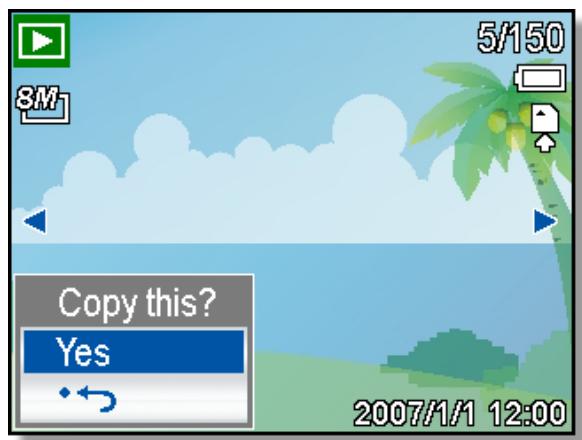

Press or to select [Single], then press the SET button.
- To copy all images to a memory card, select [All].

Press or to select the image you want to copy to a card.

Select [Yes] and then press the SET button to start copy.
- Repeat step 4~5 to copy other images.
- Press the MENU button to complete the setting.
Setting the DPOF
The Digital Print Order Format (DPOF) setting allows you to select images on the memory card for printing and specify the number of print copies in advance using the camera. This is extremely convenient for sending the images to a photo developing service or for printing on a direct print function compatible printer.
1
Turn the power on, and set the camera to the Playback mode (page 14).
2
Open the menu.
- Press the MENU button, then use the four-way control to select DPOF (D) and press the SET button.
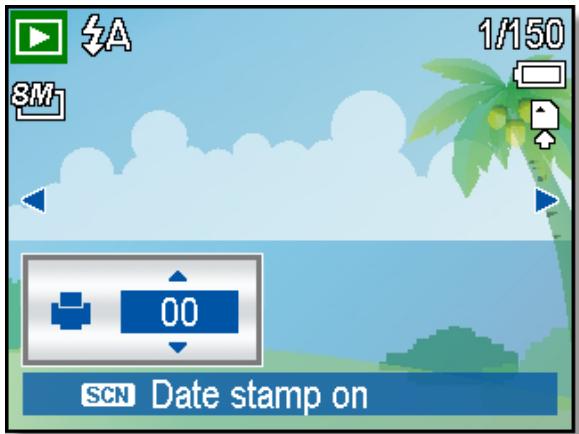
3
Press or to select [Single], then press the SET button.
- To set the DPOF setting for all images, select [All] in this step.
- To reset all DPOF settings to initial default, select [Reset] in this step.
4
Press or to select the image you want to print out.
5
Set the number of copies.
- Press ▲ or ▼ to specify the number of copies. The number of copies can be set from 0 to 30.
- To cancel this image DPOF setting, set the number of copies to 0.
6
Print the date stamp out.
- Press SCN button to set the date stamp of current image. Press SCN button again to turn off date stamp.
- Repeat step 4~6 to other images for printing.
7
After you finished all image settings, press the SET or MENU button to apply it.
Choosing a Start-up Image
1 Turn the power on, and set the camera to the Playback mode (page 14). 2 Open the menu.
- Press the MENU button, then use the four-way control to select Start-up Image (❤) and press the SET button. Press ◀ or ▶ to select the image you want, then press the SET button to apply the choice.
- A message "Completed" appears. 4 Set the camera to the Setup Menu (page 18). 5 Press △ or ▽ to select Start-up Image (♥) then press ▷ or the SET button. 6 Press △ or ▽ to select a desired option and press the SET button to apply the setting.
[Off]: Disable the start-up image.
[System]: Use camera default image.
[My image]: Use the image that you just specified in step 3.
7 Press the MENU button to close the menu.
Caution
- The start-up image will not be deleted even if the original image is deleted or memory formatted.
Making Connections
Connecting the Camera to a TV
You can display recorded images on a television with a supplied AV cable.
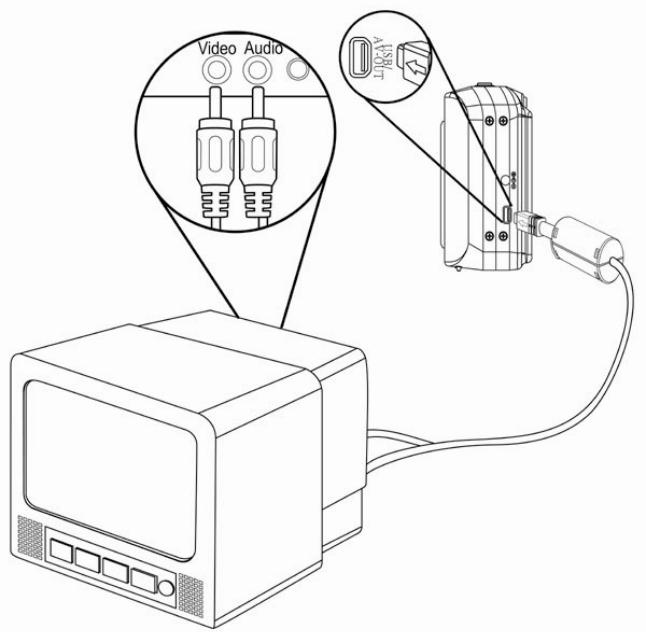
1 Set the TV out to match the TV system that you are using (page 20). Turn off the camera and the TV. Use the supplied AV cable to connect the camera to the TV set. 4 Set the TV input signal to Video In.
Refer to the documentation included with your TV for more information.
5 Display on TV.
- Everything that would normally appear on the camera's LCD screen, such as photo and video clip playback, slide shows, and image or video capture, appears on the TV.
Connecting the Camera to a PC
There are two ways to download files from the camera's internal memory or memory card to a computer:
- Inserting the memory card into a card reader
- Connecting the camera to a computer using the supplied USB cable
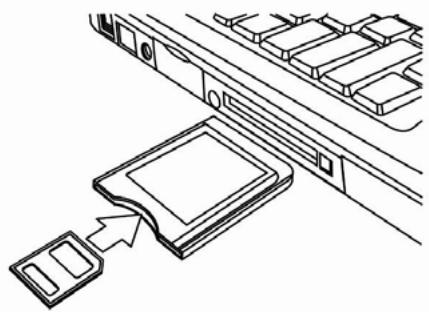
Using the Card Reader
1. Eject the memory card from the camera and insert it in a card reader that is connected to a computer. 2. Open [My Computer] or [Windows Explorer] and double-click the removable drive icon that represents the memory card. 3. Copy images from the card into a directory of your choice on the computer's hard disk.
Connecting the Camera to a Computer with the USB Cable
1. Install the USB software driver included with the bundled CD-ROM. 2. Connect the supplied USB cable to the computer's USB port and turn on the camera.
- The LCD screen turns off when the connection to the computer has been successfully completed.
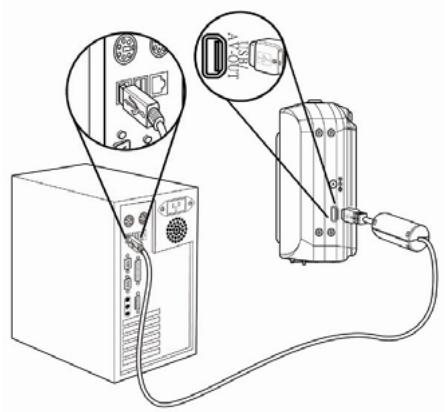
3. Open [My Computer] or [Windows Explorer]. A “Removable Disk” appears in the drive list. 4. Double-click the "Removable Disk" icon to view its contents.
- Files stored on camera are located in the folder name "DCIM".
Appendix
About the Folder & File Name
Your digital camera automatically creates a directory of folders in the internal memory or memory card that it uses to organize still images, movie clips and other information.
Folder Structure
Your camera creates three directory names:
- DICAM. All captured images, videos and audio files are stored in this folder except for files recorded using the Auction or YouTube® mode.
- _AUCT. Captured images using the Auction mode are saved in this folder.
- _UTUBE. Captured videos using the YouTube® mode are saved in this folder.
Folder name begins with a 3-digit number from 100 to 999 and followed by “DICAM” or “_AUCT” or “UTUBE”, each folder holds up to 9999 files. If new files are made, a new folder named in sequence will be created automatically.
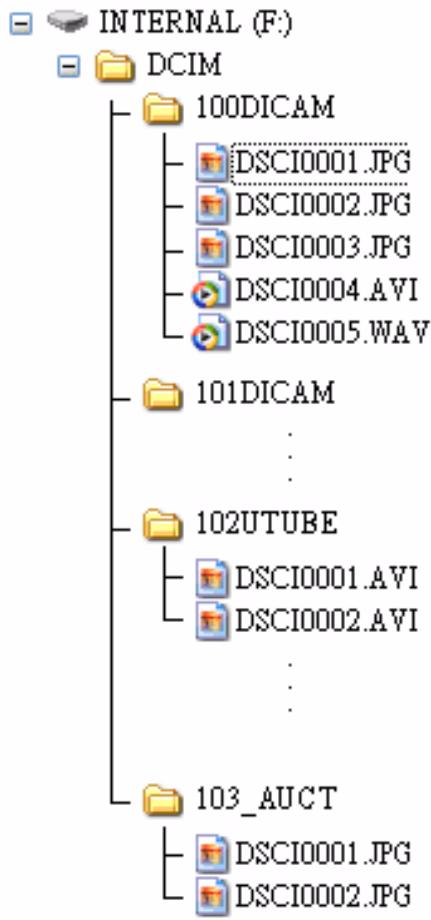
File Naming
File name begins with "DSCI" and is followed by a 4-digit number that increases in sequence. File numbering starts from 0001 when a new folder is created.
If the highest folder number is 999 and highest file number exceeds 9999, the camera will display the warning message "Folder cannot be created". When it appears, try one of the following ways:
- Reset the file number and plug in a new memory card.
- The folder number and file number are initialized and renumbered from 100 and 0001 respectively.
Caution
- Do not change the folder and file names in the memory card using your computer. It may be unable to playback the data using the digital camera.
Troubleshooting
| Problem | Cause | Solution |
| Power does not turn on. | Battery is inserted in the wrong direction. | Reload battery in the correct direction. |
| Batteries are dead. | Replace or recharge batteries. | |
| The battery compartment door is open. | Make sure the battery compartment door is securely closed. | |
| The camera does not take pictures. | The flash is charging. | Wait for the flash to charge. |
| Memory is full. | Insert a new memory card. | |
| Memory card is not formatted correctly. | The card may be defective, use a new card. | |
| Image is not recorded when the shutter button is pressed. | The Flash is charging. | Wait for the flash to charge. |
| Memory is full. | Insert a new memory card. | |
| The flash does not fire. | Flash is set to OFF. | Set the flash to any mode except off. |
| Image is blurry or out of focus. | The camera was moving when the image was captured. | Hold the camera steady when shooting pictures. |
| The subject was beyond the range within which the camera can focus. | Turn the Macro mode on it the subject is within 15 cm or 40 cm. Do not use Macro mode when shooting distant subjects. | |
| Image is not displayed on the LCD monitor. | A memory card with non-DCIF images (recorded with other camera) is loaded. | This camera cannot display non-DCIF images. |
| Recorded images are not saved in memory. | The camera was turned off / powered down before the image was stored in memory. | If the battery low indicator appears on the LCD monitor, replace the battery immediately. |
| Cannot transfer images to a computer after connecting the USB cable. | USB driver is not installed. | Install the USB driver before you connect the camera to a computer / turn the camera on. |
| Card error | The memory card format may not be correct. | Re-format the memory card to the FAT format using a card reader in Windows. |
Specifications
| Sensor | 8.0 megapixels CCD, Size : 1/2.5 inch |
| Lens | Focal length : f = 6.2 (W) ~ 18.6 (T) mm, 3x optical zoom, 4x digital zoom |
| Display | 2.7" LCD |
| Focus Range | Normal: 80 cm ~ Infinity ( from the tip of barrier ) Macro: (W) 15 cm ~ 80 cm / (T) 40 cm~ 80 cm ( from the tip of barrier ) |
| Aperture | F/ 2.8 (W), 5.1 (T) |
| Shutter | 8 ~ 1/2000 sec. |
| File Format | Still Image: EXIF 2.2 compatible format ( JPEG compression ), DCF compatible. Support DPOF, ( PictBridge available ) Video: AVI Audio: WAV |
| Resolution | Still Image: 3264 x 2448 (8M) / 3264 x 2176 (3:2) / 3264 x 1840 (16:9) / 2816 x 2112 (6M) / 2272 x 1704 (4M) / 1600 x 1200 (2M) / 640 x 480 (VGA) Video: 720x400 / 640x480 / 320x240 / 640 x 480 |
| Scene Mode | Program / Movie / Voice REC / Q. Mode / Portrait / Landscape / Sunset / Backlight / Smile Capture / Kids / Night Scene / Fireworks / Snow /Sports / Party / Candlelight / Night Portrait / Soft Skin / Soft Flowing Water / Food / Building / Text / Auction |
| Sensitivity | Auto / ISO 50 / ISO 100 / ISO 200 / ISO 400 / ISO 800 / ISO 1600 / ISO 3200 |
| White Balance | Auto / Daylight / Cloudy / Tungsten / Fluorescent (H) / Fluorescent (L) / Custom |
| Exposure Control | -2EV to +2EV in 1/3 step |
| Metering | Center-weighted / Multi / Spot |
| Drive Mode | 2 sec. / 10 sec. / Double / Burst |
| Flash | Auto / Red eye reduction / Always on / Slow sync / Always off |
| Photo Edit | Red eye removal / Black & White / Sepia / Negative / Mosaic / Red / Green / Blue |
| Storage | 16 MB internal memory / SD Card |
| TV System | NTSC / PAL |
| Power Supply | Rechargeable Lithium-ion Battery (Li-Ion 820 mAh) |
| Ambient Temperature | Operating: 0° C to 40° C Storage: -20 to 60° C |
| Microphone | Built-in |
| Speaker | Built-in |
| Dimensions | Camera Body (W x H x T): 91.3 x 56.55 x 23 mm |
| Weight | Camera Body w/o battery: Approx. 120 (g) |
*These specifications are subject to change without notice.
Function Available List
| Function\Mode | Still Capture | ||||||||||||||||||||||||||||||||||||||||||||||||||||||||||||||||||||||||||||||||||||||||||||||||||||||||||||||||||||||||||||||||||||||||||||||||||||||||||||||||||||||||||||||||||||||||||||||||||||||||||||||||||||||||||||||||||||||||||||||||||||||||||||||||||||||||||||||||||||||||||||||||||||||||||||||||||||||||||||||||||||||||||||||||||||||||||||||||||||||||||||||||||||||||||||||||||||||||||||||||||||||||||||||||||||||||||||||||||||||||||||||||||||||||||||||||||||||||||||||||||||||||||||||||||||||||||||||||||||||||||||||||||||||||||||||||||||||||||||||||||||||||||||||||||||||||||||||||||||||||||||||||||||||||||||||||||||||||||||||||||||||||||||||||||||||||||||||||||||||||||||||||||||||||||||||||||||||||||||||||||||||||||||||||||||||||||||||||||||||||||||||||||||||||||||||||||||||||||||||||||||||||||||||||||||||||||||||||||||||||||||||||||||||||||||||||||||||||||||||||||||||||||||||||||||||||||||||||||||||||||||||||||||||||||||||||||||||||||||||||||||||||||||||||||||||||||||||||||||||
| P | A | S | M | C | Scene Mode | 0 | 0 | 0 | 0 | 0 | 0 | 0 | 0 | 0 | 0 | 0 | 0 | 0 | 0 | 0 | 0 | 0 | 0 | 0 | 0 | 0 | 0 | 0 | 0 | 0 | 0 | 0 | 0 | 0 | 0 | 0 | 0 | 0 | 0 | 0 | 0 | 0 | 0 | 0 | 0 | 0 | 0 | 0 | 0 | 0 | 0 | 0 | 0 | 0 | 0 | 1 | 15 | 16 | 17 | 18 | 19 | 20 | 21 | 22 | 23 | 24 | 25 | 26 | 27 | 28 | 29 | 30 | 31 | 32 | 33 | 34 | 35 | 36 | 37 | 38 | 39 | 40 | 41 | 42 | 43 | 44 | 45 | 46 | 47 | 48 | 49 | 50 | 51 | 52 | 53 | 54 | 55 | 56 | 57 | 58 | 59 | 60 | 61 | 62 | 63 | 64 | 65 | 66 | 67 | 68 | 69 | 70 | 71 | 72 | 73 | 74 | 75 | 76 | 77 | 78 | 79 | 80 | 81 | 82 | 83 | 84 | 85 | 86 | 87 | 88 | 89 | 90 | 91 | 92 | 93 | 94 | 95 | 96 | 97 | 98 | 99 | 100 | 101 | 102 | 103 | 104 | 105 | 106 | 107 | 108 | 109 | 110 | 111 | 112 | 113 | 114 | 115 | 116 | 117 | 118 | 119 | 120 | 121 | 122 | 123 | 124 | 125 | 126 | 127 | 128 | 129 | 130 | 131 | 132 | 133 | 134 | 135 | 136 | 137 | 138 | 139 | 140 | 141 | 142 | 143 | 144 | 145 | 146 | 147 | 148 | 149 | 150 | 151 | 152 | 153 | 154 | 155 | 156 | 157 | 158 | 159 | 160 | 161 | 162 | 163 | 164 | 165 | 166 | 167 | 168 | 169 | 170 | 171 | 172 | 173 | 174 | 175 | 176 | 177 | 178 | 179 | 180 | 181 | 182 | 183 | 184 | 185 | 186 | 187 | 188 | 189 | 190 | 191 | 192 | 193 | 194 | 195 | 196 | 197 | 198 | 199 | 200 | 201 | 202 | 203 | 204 | 205 | 206 | 207 | 208 | 209 | 210 | 211 | 212 | 213 | 214 | 215 | 216 | 217 | 218 | 219 | 220 | 221 | 222 | 223 | 224 | 225 | 226 | 227 | 228 | 229 | 230 | 231 | 232 | 233 | 234 | 235 | 236 | 237 | 238 | 239 | 240 | 241 | 242 | 243 | 244 | 245 | 246 | 247 | 248 | 249 | 250 | 251 | 252 | 253 | 254 | 255 | 256 | 257 | 258 | 259 | 260 | 261 | 262 | 263 | 264 | 265 | 266 | 267 | 268 | 269 | 270 | 271 | 272 | 273 | 274 | 275 | 276 | 277 | 278 | 279 | 280 | 281 | 282 | 283 | 284 | 285 | 286 | 287 | 288 | 289 | 290 | 291 | 292 | 293 | 294 | 295 | 296 | 297 | 298 | 299 | 300 | 301 | 302 | 303 | 304 | 305 | 306 | 307 | 308 | 309 | 310 | 311 | 312 | 313 | 314 | 315 | 316 | 317 | 318 | 319 | 320 | 321 | 322 | 323 | 324 | 325 | 326 | 327 | 328 | 329 | 330 | 331 | 332 | 333 | 334 | 335 | 336 | 337 | 338 | 339 | 340 | 341 | 342 | 343 | 344 | 345 | 346 | 347 | 348 | 349 | 350 | 351 | 352 | 353 | 354 | 355 | 356 | 357 | 358 | 359 | 360 | 361 | 362 | 363 | 364 | 365 | 366 | 367 | 368 | 369 | 370 | 371 | 372 | 373 | 374 | 375 | 376 | 377 | 378 | 379 | 380 | 381 | 382 | 383 | 384 | 385 | 386 | 387 | 388 | 389 | 390 | 391 | 392 | 393 | 394 | 395 | 396 | 397 | 398 | 399 | 400 | 401 | 402 | 403 | 404 | 405 | 406 | 407 | 408 | 409 | 410 | 411 | 412 | 413 | 414 | 415 | 416 | 417 | 418 | 419 | 420 | 421 | 422 | 423 | 424 | 425 | 426 | 427 | 428 | 429 | 430 | 431 | 432 | 433 | 434 | 435 | 436 | 437 | 438 | 439 | 440 | 441 | 442 | 443 | 444 | 445 | 446 | 447 | 448 | 449 | 450 | 451 | 452 | 453 | 454 | 455 | 456 | 457 | 458 | 459 | 460 | 461 | 462 | 463 | 464 | 465 | 466 | 467 | 468 | 469 | 470 | 471 | 472 | 473 | 474 | 475 | 476 | 477 | 478 | 479 | 480 | 481 | 482 | 483 | 484 | 485 | 486 | 487 | 488 | 489 | 490 | 491 | 492 | 493 | 494 | 495 | 496 | 497 | 498 | 499 | 500 | 501 | 502 | 503 | 504 | 505 | 506 | 507 | 508 | 509 | 510 | 511 | 512 | 513 | 514 | 515 | 516 | 517 | 518 | 519 | 520 | 521 | 522 | 523 | 524 | 525 | 526 | 527 | 528 | 529 | 530 | 531 | 532 | 533 | 534 | 535 | 536 | 537 | 538 | 539 | 540 | 541 | 542 | 543 | 544 | 545 | 546 | 547 | 548 | 549 | 550 | 551 | 552 | 553 | 554 | 555 | 556 | 557 | 558 | 559 | 560 | 561 | 562 | 563 | 564 | 565 | 566 | 567 | 568 | 569 | 570 | 571 | 572 | 573 | 574 | 575 | 576 | 577 | 578 | 579 | 580 | 581 | 582 | 583 | 584 | 585 | 586 | 587 | 588 | 589 | 590 | 591 | 592 | 593 | 594 | 595 | 596 | 597 | 598 | 599 | 600 | 601 | 602 | 603 | 604 | 605 | 606 | 607 | 608 | 609 | 610 | 611 | 612 | 613 | 614 | 615 | 616 | 617 | 618 | 619 | 620 | 621 | 622 | 623 | 624 | 625 | 626 | 627 | 628 | 629 | 630 | 631 | 632 | 633 | 634 | 635 | 636 | 637 | 638 | 639 | 640 | 641 | 642 | 643 | 644 | 645 | 646 | 647 | 648 | 649 | 650 | 651 | 652 | 653 | 654 | 655 | 656 | 657 | 658 | 659 | 660 | 661 | 662 | 663 | 664 | 665 | 666 | 667 | 668 | 669 | 670 | 671 | 672 | 673 | 674 | 675 | 676 | 677 | 678 | 679 | 680 | 681 | 682 | 683 | 684 | 685 | 686 | 687 | 688 | 689 | 690 | 691 | 692 | 693 | 694 | 695 | 696 | 697 | 698 | 699 | 700 | 701 | 702 | 703 | 704 | 705 | 706 | 707 | 708 | 709 | 710 | 711 | 712 | 713 | 714 | 715 | 716 | 717 | 718 | 719 | 720 | 721 | 722 | 723 | 724 | 725 | 726 | 727 | 728 | 729 | 730 | 731 | 732 | 733 | 734 | 735 | 736 | 737 | 738 | 739 | 740 | 741 | 742 | 743 | 744 | 745 | 746 | 747 | 748 | 749 | 750 | 751 | 752 | 753 | 754 | 755 | 756 | 757 | 758 | 759 | 760 | 761 | 762 | 763 | 764 | 765 | 766 | 767 | 768 | 769 | 770 | 771 | 772 | 773 | 774 | 775 | 776 | 777 | 778 | 779 | 780 | 781 | 782 | 783 | 784 | 785 | 786 | 787 | 788 | 789 | 790 | 791 | 792 | 793 | 794 | 795 | 796 | 797 | 798 | 799 | 800 | 801 | 802 | 803 | 804 | 805 | 806 | 807 | 808 | 809 | 810 | 811 | 812 | 813 | 814 | 815 | 816 | 817 | 818 | 819 | 820 | 821 | 822 | 823 | 824 | 825 | 826 | 827 | 828 | 829 | 830 | 831 | 832 | 833 | 834 | 835 | 836 | 837 | 838 | 839 | 840 | 841 | 842 | 843 | 844 | 845 | 846 | 847 | 848 | 849 | 850 | 851 | 852 | 853 | 854 | 855 | 856 | 857 | 858 | 859 | 860 | 861 | 862 | 863 | 864 | 865 | 866 | 867 | 868 | 869 | 870 | 871 | 872 | 873 | 874 | 875 | 876 | 877 | 878 | 879 | 880 | 881 | 882 | 883 | 884 | 885 | 886 | 887 | 888 | 889 | 890 | 891 | 892 | 893 | 894 | 895 | 896 | 897 | 898 | 899 | 900 | 901 | 902 | 903 | 904 | 905 | 906 | 907 | 908 | 909 | 910 | 911 | 912 | 913 | 914 | 915 | 916 | 917 | 918 | 919 | 920 | 921 | 922 | 923 | 924 | 925 | 926 | 927 | 928 | 929 | 930 | 931 | 932 | 933 | 934 | 935 | 936 | 937 | 938 | 939 | 940 | 941 | 942 | 943 | 944 | 945 | 946 | 947 | 948 | 949 | 950 | 951 | 952 | 953 | 954 | 955 | 956 | 957 | 958 | 959 | 960 | 961 | 962 | 963 | 964 | 965 | 966 | 967 | 968 | 969 | 970 | 971 | 972 | 973 | 974 | 975 | 976 | 977 | 978 | 979 | 980 | 981 | 982 | 983 | 984 | 985 | 986 | 987 | 988 | 989 | 990 | 991 | 992 | 993 | 994 | 995 | 996 | 997 | 998 | 999 | 1000 |
| Function\Mode | Still Capture | ||||||||||||||||||||||||||||||||||||||||||||||||||||||||||||||||||||||||||||||||||||||||||||||||||||||||||||||||||||||||||||||||||||||||||||||||||||||||||||||||||||||||||||||||||||||||||||||||||||||||||||||||||||||||||||||||||||||||||||||||||||||||||||||||||||||||||||||||||||||||||||||||||||||||||||||||||||||||||||||||||||||||||||||||||||||||||||||||||||||||||||||||||||||||||||||||||||||||||||||||||||||||||||||||||||||||||||||||||||||||||||||||||||||||||||||||||||||||||||||||||||||||||||||||||||||||||||||||||||||||||||||||||||||||||||||||||||||||||||||||||||||||||||||||||||||||||||||||||||||||||||||||||||||||||||||||||||||||||||||||||||||||||||||||||||||||||||||||||||||||||||||||||||||||||||||||||
| P | A | S | M | C | Scene Mode | ! | ! | ! | ! | ! | ! | ! | ! | ! | ! | ! | ! | ! | ! | ! | ! | ! | ! | ! | ! | ! | ! | ! | ! | ! | ! | ! | ! | ! | ! | ! | ! | ! | ! | ! | ! | ! | ! | ! | ! | ! | ! | ! | ! | ! | ! | ! | ! | ! | ! | : | ! | ! | ! | ! | ! | ! | ! | ! | ! | ! | ! | ! | ! | ! | ! | ! | ! | ! | ! | ! | ! | ! | ! | ! | ! | ! | ! | ! | ! | ! | ! | ! | ! | ! | ! | ! | ! | ! | ! | ! | ! | ! | ! | ! | ! | ! | ! | ! | ! | ; | ! | ! | ! | ! | ! | ! | ! | ! | ! | ! | ! | ! | ! | ! | ! | ! | ! | ! | ! | ! | ! | ! | ! | ! | ! | ! | ! | ! | ! | ! | ! | ! | ! | ! | ! | ! | ! | ! | ! | ! | ! | ! | ! | ! | ! | ! | ! | ! | ! | )! | ! | ! | ! | ! | ! | ! | ! | ! | ! | ! | ! | ! | ! | ! | ! | ! | ! | ! | ! | ! | ! | ! | ! | ! | ! | ! | ! | ! | ! | ! | ! | ! | ! | ! | ! | ! | ! | ! | ! | ! | ! | ! | ! | ! | ! | ! | ! | ! | ! | ) | ! | ! | ! | ! | ! | ! | ! | ! | ! | ! | ! | ! | ! | ! | ! | ! | ! | ! | ! | ! | ! | ! | ! | ! | ! | ! | ! | ! | ! | ! | ! | ! | ! | ! | ! | ! | ! | ! | ! | ! | ! | ! | ! | ! | ! | ! | ! | ! | ! | ? | × | × | × | × | × | × | × | × | × | × | × | × | × | × | × | × | × | × | × | × | × | × | × | × | × | × | × | × | × | × | × | × | × | × | × | × | × | × | × | × | × | × | × | × | × | × | × | × | × | × | times | × | × | × | × | × | × | × | × | × | × | × | × | × | × | × | × | × | × | × | × | × | × | × | × | × | × | × | × | × | × | × | × | × | × | × | × | × | × | × | × | × | × | × | × | × | × | × | × | × | x | × | × | × | × | × | × | × | × | × | × | × | × | × | × | × | × | × | × | × | × | × | × | × | × | × | × | × | × | × | × | × | × | × | × | × | × | × | × | × | × | × | × | × | × | × | × | × | × | × | # | × | × | × | × | × | × | × | × | × | × | × | × | × | × | × | × | × | × | × | × | × | × | × | × | × | × | × | × | × | × | × | × | × | × | × | × | × | × | × | × | × | × | × | × | × | × | × | × | × | * | × | × | × | × | × | × | × | × | × | × | × | × | × | × | × | × | × | × | × | × | × | × | × | × | × | × | × | × | × | × | × | × | × | × | × | × | × | × | × | × | × | × | × | × | × | × | × | × | × | √ | ||||||||||||||||||||||||||||||||||||||||||||||||||||||||||||||||||||||||||||||||||||||||||||||||||||||||||||||||||||||||||||||||||||||||||||||||||||||||||||||||||||||||||||||||||||||||||||||||||||||||
| Function\Mode | Still Capture | |||||||||||||||||||||||||||||||||||||||||||||||||||||||||||||||||||||||||||||||||||||||||||||||||||||||||||||||||||||||||||||||||||||||||||||||||||||||||||||||||||||||||||||||||||||||||||||||||||||||||||||||||||||||||||||||||||||||||||||||||||||||||||||||||||||||||||||||||||||||||||||||||||||||||||||||||||||||||||||||||||||||||||||||||||||||||||||||||||||||||||||||||||||||||||||||||||||||||||||||||||||||||||||||||||||||||||||||||||||||||||||||||||||||||||||||||||||||||||||||||||||||||||||||||||||||||||||||||||||||||||||||||||||||||||||||||||||||||||||||||||||||||||||||||||||||||||||||||||||||||||||||||||||||||||||||||||||||||||||||||||||||||||||||||||||||||||||||||||||||||||||||||||||||||||||||||||||||||||||||||||||||||||||||||||||||||||||||||||||||||||||||||||||||||||||||||||||||||||||||||
| P | A | S | M | O | Scene Mode | |||||||||||||||||||||||||||||||||||||||||||||||||||||||||||||||||||||||||||||||||||||||||||||||||||||||||||||||||||||||||||||||||||||||||||||||||||||||||||||||||||||||||||||||||||||||||||||||||||||||||||||||||||||||||||||||||||||||||||||||||||||||||||||||||||||||||||||||||||||||||||||||||||||||||||||||||||||||||||||||||||||||||||||||||||||||||||||||||||||||||||||||||||||||||||||||||||||||||||||||||||||||||||||||||||||||||||||||||||||||||||||||||||||||||||||||||||||||||||||||||||||||||||||||||||||||||||||||||||||||||||||||||||||||||||||||||||||||||||||||||||||||||||||||||||||||||||||||||||||||||||||||||||||||||||||||||||||||||||||||||||||||||||||||||||||||||||||||||||||||||||||||||||||||||||||||||||||||||||||||||||||||||||||||||||||||||||||||||||||||||||||||||||||||||||||||||||||||||||||
| Menu | 0 | × | 0 | × | 0 | 0 | 0 | 0 | 0 | 0 | 0 | 0 | 0 | 0 | 0 | 0 | 0 | 0 | 0 | 0 | 0 | 0 | 0 | 0 | 0 | 0 | 0 | 0 | 0 | 0 | 0 | 0 | 0 | 0 | 0 | 0 | 0 | 0 | 0 | 0 | 0 | 0 | 0 | 0 | 0 | 0 | 0 | 0 | 0 | 0 | 0 | 0 | 0 | 0 | 1 | 0 | 0 | 0 | 0 | 0 | 0 | 0 | 0 | 0 | 0 | 0 | 0 | 0 | 0 | 0 | 0 | 0 | 0 | 0 | 0 | 0 | 0 | 0 | 0 | 0 | 0 | 0 | 0 | 0 | 0 | 0 | 0 | 0 | 0 | 0 | 0 | 0 | 0 | 0 | 0 | 0 | 0 | 0 | 0 | 0 | 0 | 0 | 0 | 0 | 2 | 0 | 0 | 0 | 0 | 0 | 0 | 0 | 0 | 0 | 0 | 0 | 0 | 0 | 0 | 0 | 0 | 0 | 0 | 0 | 0 | 0 | 0 | 0 | 0 | 0 | 0 | 0 | 0 | 0 | 0 | 0 | 0 | 0 | 0 | 0 | 0 | 0 | 0 | 0 | 0 | 0 | 0 | 0 | 0 | 0 | 0 | 0 | 0 | 0 | 3 | 0 | 0 | 0 | 0 | 0 | 0 | 0 | 0 | 0 | 0 | 0 | 0 | 0 | 0 | 0 | 0 | 0 | 0 | 0 | 0 | 0 | 0 | 0 | 0 | 0 | 0 | 0 | 0 | 0 | 0 | 0 | 0 | 0 | 0 | 0 | 0 | 0 | 0 | 0 | 0 | 0 | 0 | 0 | 0 | 0 | 0 | 0 | 0 | 0 | 4 | 0 | 0 | 0 | 0 | 0 | 0 | 0 | 0 | 0 | 0 | 0 | 0 | 0 | 0 | 0 | 0 | 0 | 0 | 0 | 0 | 0 | 0 | 0 | 0 | 0 | 0 | 0 | 0 | 0 | 0 | 0 | 0 | 0 | 0 | 0 | 0 | 0 | 0 | 0 | 0 | 0 | 0 | 0 | 0 | 0 | 0 | 0 | 0 | 0 | 5 | 0 | 0 | 0 | 0 | 0 | 0 | 0 | 0 | 0 | 0 | 0 | 0 | 0 | 0 | 0 | 0 | 0 | 0 | 0 | 0 | 0 | 0 | 0 | 0 | 0 | 0 | 0 | 0 | 0 | 0 | 0 | 0 | 0 | 0 | 0 | 0 | 0 | 0 | 0 | 0 | 0 | 0 | 0 | 0 | 0 | 0 | 0 | 0 | 0 | 6 | 0 | 0 | 0 | 0 | 0 | 0 | 0 | 0 | 0 | 0 | 0 | 0 | 0 | 0 | 0 | 0 | 0 | 0 | 0 | 0 | 0 | 0 | 0 | 0 | 0 | 0 | 0 | 0 | 0 | 0 | 0 | 0 | 0 | 0 | 0 | 0 | 0 | 0 | 0 | 0 | 0 | 0 | 0 | 0 | 0 | 0 | 0 | 0 | 0 | 8 | 0 | 0 | 0 | 0 | 0 | 0 | 0 | 0 | 0 | 0 | 0 | 0 | 0 | 0 | 0 | 0 | 0 | 0 | 0 | 0 | 0 | 0 | 0 | 0 | 0 | 0 | 0 | 0 | 0 | 0 | 0 | 0 | 0 | 0 | 0 | 0 | 0 | 0 | 0 | 0 | 0 | 0 | 0 | 0 | 0 | 0 | 0 | 0 | 0 | 7 | 0 | 0 | 0 | 0 | 0 | 0 | 0 | 0 | 0 | 0 | 0 | 0 | 0 | 0 | 0 | 0 | 0 | 0 | 0 | 0 | 0 | 0 | 0 | 0 | 0 | 0 | 0 | 0 | 0 | 0 | 0 | 0 | 0 | 0 | 0 | 0 | 0 | 0 | 0 | 0 | 0 | 0 | 0 | 0 | 0 | 0 | 0 | 0 | 0 | -1 | 0 | 0 | 0 | 0 | 0 | 0 | 0 | 0 | 0 | 0 | 0 | 0 | 0 | 0 | 0 | 0 | 0 | 0 | 0 | 0 | 0 | 0 | 0 | 0 | 0 | 0 | 0 | 0 | 0 | 0 | 0 | 0 | 0 | 0 | 0 | 0 | 0 | 0 | 0 | 0 | 0 | 0 | 0 | 0 | 0 | 0 | 0 | 0 | 0 | ||||||||||||||||||||||||||||||||||||||||||||||||||||||||||||||||||||||||||||||||||||||||||||||||||||||||||||||||||||||||||||||||||||||||||||||||||||||||||||||||||||||||||||||||||||||||||||||||||||||||||||||||||||||||||||||||||||||||||||||||||||||||||||||||||||||||||||||||||||||||||||||||||||||||||
| Function\Mode | Still Capture | ||||||||||||||||||||||||||||||||||||||||||||||||||||||||||||||||||||||||||||||||||||||||||||||||||||||||||||||||||||||||||||||||||||||||||||||||||||||||||||||||||||||||||||||||||||||||||||||||||||||||||||||||||||||||||||||||||||||||||||||||||||||||||||||||||||||||||||||||||||||||||||||||||||||||||||||||||||||||||||||||||||||||||||||||||||||||||||||||||||||||||||||||||||||||||||||||||||||||||||||||||||||||||||||||||||||||||||||||||||||||||||||||||||||||||||||||||||||||||||||||||||||||||||||||||||||||||||||||||||||||||||||||||||||||||||||||||||||||||||||||||||||||||||||||||||||||||||||||||||||||||||||||||||||||||||||||||||||||||||||||||||||||||||||||||||||||||||||||||||||||||||||||||||||||||||||||||||||||||||||||||||||||||||||||||||||||||||||||||||||||||||||||||||||||||||||||||||||||||||||||||||||||||||||||||||||||||||||||||||||||||||||||||||||||||||||||||||||||||||||||||||||||||||||||||||||||||||||||||||||||||||||||||||||||||||||||||||||||||||||||||||||||||||||||||||||||||||||||||||||
| P | A | S | M | C | Scene Mode | ||||||||||||||||||||||||||||||||||||||||||||||||||||||||||||||||||||||||||||||||||||||||||||||||||||||||||||||||||||||||||||||||||||||||||||||||||||||||||||||||||||||||||||||||||||||||||||||||||||||||||||||||||||||||||||||||||||||||||||||||||||||||||||||||||||||||||||||||||||||||||||||||||||||||||||||||||||||||||||||||||||||||||||||||||||||||||||||||||||||||||||||||||||||||||||||||||||||||||||||||||||||||||||||||||||||||||||||||||||||||||||||||||||||||||||||||||||||||||||||||||||||||||||||||||||||||||||||||||||||||||||||||||||||||||||||||||||||||||||||||||||||||||||||||||||||||||||||||||||||||||||||||||||||||||||||||||||||||||||||||||||||||||||||||||||||||||||||||||||||||||||||||||||||||||||||||||||||||||||||||||||||||||||||||||||||||||||||||||||||||||||||||||||||||||||||||||||||||||||||||||||||||||||||||||||||||||||||||||||||||||||||||||||||||||||||||||||||||||||||||||||||||||||||||||||||||||||||||||||||||||||||||||||||||||||||||||||||||||||||||||||||||||||||||||||||||||||||||||
| Menu | -1 | 0.3~+2.0 | O | O | O | O | X | X | X | X | X | X | X | X | X | X | X | X | X | X | X | X | X | X | X | X | X | X | X | X | X | X | X | X | X | X | X | X | X | X | X | X | X | X | X | X | X | X | X | X | X | X | X | X | X | X | -1 | 0.3~+2.0 | O | O | O | O | X | X | X | X | X | X | X | X | X | X | X | X | X | X | X | X | X | X | X | X | X | X | X | X | X | X | X | X | X | X | X | X | X | X | X | X | X | X | X | -1 | 0.3~+2.0 | O | O | O | O | O | X | X | X | X | X | X | X | X | X | X | X | X | X | X | X | X | X | X | X | X | X | X | X | X | X | X | X | X | X | X | X | X | X | X | X | X | X | X | X | X | X | X | X | X | X | -1 | 0.3~+ 2.0 | O | O | O | O | O | O | O | O | O | O | O | O | O | O | O | O | O | O | O | O | O | O | O | O | O | O | O | O | O | O | O | O | O | O | O | O | O | O | O | O | O | O | O | O | O | O | O | O | O | O | X | X | X | X | X | X | X | X | X | X | X | X | X | X | X | X | X | X | X | X | X | X | X | X | X | X | X | X | X | X | X | X | X | X | X | X | X | X | X | X | X | X | X | X | O | O | O | O | O | O | O | O | O | O | O | O | O | O | O | O | O | O | O | O | O | O | O | O | O | O | O | O | O | O | O | O | O | O | O | O | O | O | O | O | O | O | O | O | O | O | O | O | O | I | X | X | X | X | X | X | X | X | X | X | X | X | X | X | X | X | X | X | X | X | X | X | X | X | X | X | X | X | X | X | X | X | X | X | X | X | X | X | X | X | X | X | X | X | X | X | X | X | X | O | O | O | O | O | I | X | X | X | X | X | X | X | X | X | X | X | X | X | X | X | X | X | X | X | X | X | X | X | X | X | X | X | X | X | X | X | X | X | X | X | X | X | X | X | X | X | X | X | O | O | O | O | O | O | I | X | X | X | X | X | X | X | X | X | X | X | X | X | X | X | X | X | X | X | X | X | X | X | X | X | X | X | X | X | X | X | X | X | X | X | X | X | X | X | X | X | X | O | O | O | O | O | O | O | I | X | X | X | X | X | X | X | X | X | X | X | X | X | X | X | X | X | X | X | X | X | X | X | X | X | X | X | X | X | X | X | X | X | X | X | X | X | X | X | X | X | O | O | O | O | O | O | O | O | I | X | X | X | X | X | X | X | X | X | X | X | X | X | X | X | X | X | X | X | X | X | X | X | X | X | X | X | X | X | X | X | X | X | X | X | X | X | X | X | X | O | O | O | O | O | O | O | O | O | I | X | X | X | X | X | X | X | X | X | X | X | X | X | X | X | X | X | X | X | X | X | X | X | X | X | X | X | X | X | X | X | X | X | X | X | X | X | X | X | O | O | O | O | O | O | O | O | O | O | I | X | X | X | X | X | X | X | X | X | X | X | X | X | X | X | X | X | X | X | X | X | X | X | X | X | X | X | X | X | X | X | X | X | X | X | X | X | X | O | O | O | O | O | O | O | O | O | O | O | I | X | X | X | X | X | X | X | X | X | X | X | X | X | X | X | X | X | X | X | X | X | X | X | X | X | X | X | X | X | X | X | X | X | X | X | X | X | O | O | O | O | O | O | O | O | O | O | O | O | I | X | X | X | X | X | X | X | X | X | X | X | X | X | X | X | X | X | X | X | X | X | X | X | X | X | X | X | X | X | X | X | X | X | X | X | X | I | X | X | X | X | X | X | X | X | X | X | X | X | X | X | X | X | X | X | X | X | X | X | X | X | X | X | X | X | X | X | X | X | X | X | X | X | X | X | X | X | X | X | X | X | X | X | X | X | I | X | X | X | X | X | X | X | X | X | X | X | X | I | X | X | X | X | X | X | X | X | X | X | X | X | X | X | X | X | X | X | X | X | X | X | X | X | X | X | X | X | X | X | X | X | X | X | X | X | I | X | X | X | X | X | X | X | X | X | X | X | I | X | X | X | X | X | X | X | X | X | X | X | X | X | X | X | X | X | X | X | X | X | X | X | X | X | X | X | X | X | X | X | X | X | X | X | X | X | I | X | X | X | X | X | X | X | X | X | X | X | I | I | I | I | I | I | I | I | I | I | I | I | I | I | I | I | I | I | I | I | I | I | I | I | I | I | I | I | I | I | I | I | I | I | I | I | I | I | I | I | I | I | I | I | I | I | I | I | I | I | II Sharness Normal Soft | |||||||||||||||||||||||||||||||||||||||||||||||
| Function\Mode | Still Capture | |||||||||||||||||||||||||||||||||||||||||||||||||||||||||||||||||||||||||||||||||||||||||||||||||||||||||||||||||||||||||||||||||||||||||||||||||||||||||||||||||||||||||||||||||||||||||||||||||||||||||||||||||||||||||||||||||||||||||||||||||||||||||||||||||||||||||||||||||||||||||||||||||||||||||||||||||||||||||||||||||||||||||||||||||||||||||||||||||||||||||||||||||||||||||||||||||||||||||||||||||||||||||||||||||||||||||||||||||||||||||||||||||||||||||||||||||||||||||||||||||||||||||||||||||||||||||||||||||||||||||||||||||||||||||||||||||||||||||||||||||||||||||||||||||||||||||||||||||||||||||||||||||||||||||||||||||||||||||||||||||||||||||||||||||||||||||||||||||||||||||||||||||||||||||||||||||||||||||||||||||||||||||||||||||||||||||||||||||||||||||||||||||||||||||||||||||||||||||||||||||||||||||||||||||||||||||||||||||||||||||||||||||||||||||||||||||||||||||||||||||||||||||||||||||||||||||||||||||||||||||||||||||||||||||||||||||||||||||||
| P | A | S | M | C | Scene Mode | |||||||||||||||||||||||||||||||||||||||||||||||||||||||||||||||||||||||||||||||||||||||||||||||||||||||||||||||||||||||||||||||||||||||||||||||||||||||||||||||||||||||||||||||||||||||||||||||||||||||||||||||||||||||||||||||||||||||||||||||||||||||||||||||||||||||||||||||||||||||||||||||||||||||||||||||||||||||||||||||||||||||||||||||||||||||||||||||||||||||||||||||||||||||||||||||||||||||||||||||||||||||||||||||||||||||||||||||||||||||||||||||||||||||||||||||||||||||||||||||||||||||||||||||||||||||||||||||||||||||||||||||||||||||||||||||||||||||||||||||||||||||||||||||||||||||||||||||||||||||||||||||||||||||||||||||||||||||||||||||||||||||||||||||||||||||||||||||||||||||||||||||||||||||||||||||||||||||||||||||||||||||||||||||||||||||||||||||||||||||||||||||||||||||||||||||||||||||||||||||||||||||||||||||||||||||||||||||||||||||||||||||||||||||||||||||||||||||||||||||||||||||||||||||||||||||||||||||||||||||||||||||||||||||||||||||||||||||
| Menu | Y | O | C | D | E | F | G | H | I | J | K | L | M | N | O | P | Q | R | S | T | U | V | W | X | Y | Z | A | B | C | D | E | F | G | H | I | J | K | L | M | N | O | P | Q | R | S | T | U | V | W | X | Y | Z | A | B | C | D | E | F | G | H | I | J | K | L | M | N | O | P | Q | R | S | T | U | V | W | X | Y | ZZ | A | B | C | D | E | F | G | H | I | J | K | L | M | N | O | P | Q | R | S | T | U | V | W | X | Y | ZZ | A | B | C | D | E | F | G | H | I | J | K | L | M | N | O | P | Q | R | S | T | U | V | W | Y | ZZ | A | B | C | D | E | F | G | H | I | J | K | L | M | N | O | P | Q | R | S | T | U | V | W | Y | ZZ | A | B | C | D | E | F | G | H | I | J | K | L | M | N | O | P | Q | R | S | T | U | V | WW | X | Y | ZZ | A | B | C | D | E | F | G | H | I | J | K | L | M | N | O | P | Q | R | S | T | U | V | W | Y | ZZ | A | B | C | D | E | F | G | H | I | J | K | L | M | N | O | P | Q | R | S | T | U | W | Y | ZZ | A | B | C | D | E | F | G | H | I | J | K | L | M | N | O | P | Q | R | S | T | U | W | Y | ZZ | A | B | C | D | E | F | G | H | I | J | K | L | M | N | O | P | Q | R | S | T | U | W | W | Y | ZZ | A | B | C | D | E | F | G | H | I | J | K | L | M | N | O | P | Q | R | S | T | U | W | Y | ZZ | A | B | C | D | E | F | G | H | I | J | K | L | M | N | O | P | Q | R | S | T | U | W | X | Y | ZZ | A | B | C | D | E | F | G | H | I | J | K | L | M | N | O | P | Q | R | S | T | U | W | Y | ZZ | A | B | C | D | E | F | G | H | I | J | K | L | M | N | O | P | Q | R | S | T | U | W | Y | Z | A | B | C | D | E | F | G | H | I | J | K | L | M | N | O | P | Q | R | S | T | U | W | Y | ZZ | A | B | C | D | E | F | G | H | I | J | K | L | M | N | O | P | Q | R | S | T | U | W | Y | ZZ | A | C | D | E | F | G | H | I | J | K | L | M | N | O | P | Q | R | S | T | U | W | Y | ZZ | A | B | C | D | E | F | G | H | I | J | K | L | M | N | O | P | Q | R | S | T | U | W | Y | ZZ | A | B | C | DE | F | G | H | I | J | K | L | M | N | O | P | Q | R | S | T | U | W | Y | ZZ | A | B | C | DE | F | G | H | I | J | K | L | M | N | O | P | Q | R | S | T | U | W | Y | ZZ | A | B | C | DE | F | G | H | 1 | J | K | L | M | N | O | P | Q | R | S | T | U | W | Y | ZZ | A | B | C | DE | F | G | H | I | J | K | L | M | N | O | P | Q | R | S | T | U | W | Y | ZZ | A | B | C | DE | F | G | H | I | J | K | L | N | M | N | O | P | Q | R | S | T | U | W | Y | ZZ | A | B | C | DE | F | G | H | I | J | K | L | M | N | O | P | Q | R | S | T | U | W | Y | ZZ | A | B | C | DE | F | G | H | I | J | K | L | M | N | O | F | G | H | I | J | K | L | M | N | O | P | Q | R | S | T | U | W | Y | ZZ | A | B | C | DE | F | G | H | I | J | K | L | M | N | O | P | Q | R | S | T | U | W | Y | ZZ | A | B | C | DE | F | G | H | T | U | W | Y | ZZ | A | B | C | DE | F | G | H | I | J | K | L | M | N | O | P | Q | R | S | T | U | W | Y | ZZ | A | B | C | DE | F | G | H | T | U | W | Y | ZZ | A | B | C | DE | F | G | H | T | U | W | Y | ZZ | A | B | C | DE | F | G | H | T | U | W | Y | ZZ | A | B | C | DE | F | G | H | T | U | W | Y | ZZ | A | B | C | DE | F | G | H | T | W | Y | ZZ | A | B | C | DE | F | G | H | T | U | W | Y | ZZ | A | B | C | DE | F | G | H | T | U | W | Y | ZZ | A | B | C | DE | F | G | H | T | U | W | Y | ZZ | A | B | C | DE | F | G | H | T | U | W | X | Y | ZZ | A | B | C | DE | F | G | H | T | U | W | Y | ZZ | A | B | C | DE | F | G | H | T | U | W | Y | ZZ | A | B | C | DE | F | G | H | T | U | W | Y | ZZ | A | B | C | DE | F | G | H | T | U | W | Y | ZX | A X X X X X X X X X X X X X X X X X X X X X X X X X X X X X X X X X X X X X X X X X X X X X X X X X X Y X X X X X X X X X X X X X X X X X X X X X X X X X X X X X X X X X X X X X X X X X X X X X X X X X x x x x x x x x x x x x x x x x x x x x x x x x x x x x x x x x x x x x x x x x x x x x x x x x x x X X X X X X X X X X X X X X X X X X X X X X X X X X X X X X X X X X X X X X X X X X X X X X X X X × × × × × × × × × × × × × × × × × × × × × × × × × × × × × × × × × × × × × × × × × × × × × × × × × × X X X X X X X X X X X X X X X X X X X X X X X X X X X X X X X X X X X X X X X X X X X X X X X X X L L L L L L L L L L L L L L L L L L L L L L L L L L L L L L L L L L L L L L L L L L L L L L L L L L X X X X X X X X X X X X X X X X X X X X X X X X X X X X X X X X X X X X X X X X X X X X X X X X X XX XX XX XX XX XX XX XX XX XX XX XX XX XX XX XX XX XX XX XX XX XX XX XX XX XX XX XX XX XX XX XX XX XX XX XX XX XX XX XX XX XX XX XX XX XX XX XX XX XX XXX XXX XXX XXX XXX XXX XXX XXX XXX XXX XXX XXX XXX XXX XXX XXX XXX XXX XXX XXX XXX XXX XXX XXX XXX XXX XXX XXX XXX XXX XXX XXX XXX XXX XXX XXX XXX XXX XXX XXX XXX XXX XXX XXX XXX XXX XXX XXX XXX XXX XX XX XX XX XX XX XX XX XX XX XX XX XX XX XX XX XX XX XX XX XX XX XX XX XX XX XX XX XX XX XX XX XX XX XX XX XX XX XX XX XX XX XX XX XX XX XX XX XX xx xx xx xx xx xx xx xx xx xx xx xx xx xx xx xx xx xx xx xx xx xx xx xx xx xx xx xx xx xx xx xx xx xx xx xx xx xx xx xx xx xx xx xx xx xx xx xx xx xx XX XX XX XX XX XX XX XX XX XX XX XX XX XX XX XX XX XX XX XX XX XX XX XX XX XX XX XX XX XX XX XX XX XX XX XX XX XX XX XX XX XX XX XX XX XX XX XX XX X X X X X X X X X X X X X X X X X X X X X X X X X X X X X X X X X X X X X X X X X X X X X X X X X xx xx xx xx xx xx xx xx xx xx xx xx xx xx xx xx xx xx xx xx xx xx xx xx xx xx xx xx xx xx xx xx xx xx xx xx xx xx xx xx xx xx xx xx xx xx xx xx xx xxx xxx xxx xxx xxx xxx xxx xxx xxx xxx xxx xxx xxx xxx xxx xxx xxx xxx xxx xxx xxx xxx xxx xxx xxx xxx xxx xxx xxx xxx xxx xxx xxx xxx xxx xxx xxx xxx xxx xxx xxx xxx xxx xxx xxx xxx xxx xxx xxx xxx XXX XXX XXX XXX XXX XXX XXX XXX XXX XXX XXX XXX XXX XXX XXX XXX XXX XXX XXX XXX XXX XXX XXX XXX XXX XXX XXX XXX XXX XXX XXX XXX XXX XXX XXX XXX XXX XXX XXX XXX XXX XXX XXX XXX XXX XXX XXX XXX XXX xxx xxx xxx xxx xxx xxx xxx xxx xxx xxx xxx xxx xxx xxx xxx xxx xxx xxx xxx xxx xxx xxx xxx xxx xxx xxx xxx xxx xxx xxx xxx xxx xxx xxx xxx xxx xxx xxx xxx xxx xxx xxx xxx xxx xxx xxx xxx xxx xxx xxxx xxx xxx xxx xxx xxx xxx xxx xxx xxx xxx xxx xxx xxx xxx xxx xxx xxx xxx xxx xxx xxx xxx xxx xxx xxx xxx xxx xxx xxx xxx xxx xxx xxx xxx xxx xxx xxx xxx xxx xxx xxx xxx xxx xxx xxx xxx xxx xxx xxx xx xx xx xx xx xx xx xx xx xx xx xx xx xx xx xx xx xx xx xx xx xx xx xx xx xx xx xx xx xx xx xx xx xx xx xx xx xx xx xx xx xx xx xx xx xx xx xx xx x x x x x x x x x x x x x x x x x x x x x x x x x x x x x x x x x x x x x x x x x x x x x x x x x xx xx xx xx xx xx xx xx xx xx xx xx xx xx xx xx xx xx xx xx xx xx xx xx xx xx xx xx xx xx xx xx xx xx xx xx xx xx xx xx xx xx xx xx xx xx xx xx xx xxxx xxxx xxxx xxxx xxxx xxxx xxxx xxxx xxxx xxxx xxxx xxxx xxxx xxxx xxxx xxxx xxxx xxxx xxxx xxxx xxxx xxxx xxxx xxxx xxxx xxxx xxxx xxxx xxxx xxxx xxxx xxxx xxxx xxxx xxxx xxxx xxxx xxxx xxxx xxxx xxxx xxxx xxxx xxxx xxxx xxxx xxxx xxxx xxxx xxxx XXXX xxxx xxxx xxxx xxxx xxxx xxxx xxxx xxxx xxxx xxxx xxxx xxxx xxxx xxxx xxxx xxxx xxxx xxxx xxxx xxxx xxxx xxxx xxxx xxxx xxxx xxxx xxxx xxxx xxxx xxxx xxxx xxxx xxxx xxxx xxxx xxxx xxxx xxxx xxxx xxxx xxxx xxxx xxxx xxxx xxxx xxxx xxxx xxxx xxxx xxx xxx xxx xxx xxx xxx xxx xxx xxx xxx xxx xxx xxx xxx xxx xxx xxx xxx xxx xxx xxx xxx xxx xxx xxx xxx xxx xxx xxx xxx xxx xxx xxx xxx xxx xxx xxx xxx xxx xxx xxx xxx xxx xxx xxx xxx xxx xxx xxxx xxxx xxxx xxxx xxxx xxxx xxxx xxxx xxxx xxxx xxxx xxxx xxxx xxxx xxxx xxxx xxxx xxxx xxxx xxxx xxxx xxxx xxxx xxxx xxxx xxxx xxxx xxxx xxxx xxxx xxxx xxxx xxxx xxxx xxxx xxxx xxxx xxxx xxxx xxxx xxxx xxxx xxxx xxxx xxxx xxxx xxxx xxxx xxxx xx xx xx xx xx xx xx xx xx xx xx xx xx xx xx xx xx xx xx xx xx xx xx xx xx xx xx xx xx xx xx xx xx xx xx xx xx xx xx xx xx xx xx xx xx xx xx xx xx X X X X X X X X X X X X X X X X X X X X X X X X X X X X X X X X X X X X X X X X X X X X X X X X X X X X X X X X X X X X X X X X X X X X X X X X X X X X X X X X X X X X X X X X X X X X X X X X X X X X X Y Y Y Y Y Y Y Y Y Y Y Y Y Y Y Y Y Y Y Y Y Y Y Y Y Y Y Y Y Y Y Y Y Y Y Y Y Y Y Y Y Y Y Y Y Y Y Y Y Y Y Y Y Y Y Y Y Y Y Y Y Y Y Y Y Y Y Y Y Y Y Y Y Y Y Y Y Y Y Y Y Y Y Y Y Y Y Y Y Y Y Y Y Y Y Y Y Y Y YY Y Y Y Y Y Y Y Y Y Y Y Y Y Y Y Y Y Y Y Y Y Y Y Y Y Y Y Y Y Y Y Y Y Y Y Y Y Y Y Y Y Y Y Y Y Y Y Y Y Y Y Y Y Y Y Y Y Y Y Y Y Y Y Y Y Y Y Y Y Y Y Y Y Y Y Y Y Y Y Y Y Y Y Y Y Y Y Y Y Y Y Y Y Y Y Y Y Y Y.Y Y Y Y Y Y Y Y Y Y Y Y Y Y Y Y Y Y Y Y Y Y Y Y Y Y Y Y Y Y Y Y Y Y Y Y Y Y Y Y Y Y Y Y Y Y Y Y Y Y Y Y Y Y Y Y Y Y Y Y Y Y Y Y Y Y Y Y Y Y Y Y Y Y Y Y Y Y Y Y Y Y Y Y Y Y Y Y Y Y Y Y Y Y Y Y Y Y Y Y YY Y Y Y Y Y Y Y Y Y Y Y Y Y Y Y Y Y Y Y Y Y Y Y Y Y Y Y Y Y Y Y Y Y Y Y Y Y Y Y Y Y Y Y Y Y Y Y Y Y Y Y Y Y Y Y Y Y Y Y Y Y Y Y Y Y Y Y Y Y Y Y Y Y Y Y Y Y Y Y Y Y Y Y Y Y Y Y Y Y Y Y Y Y Y Y Y Y Y YYYYYYYYYYYYYYYYYYYYYYYYYYYYYYYYYYYYYYYYYYYYYYYYYYYYYYYYYYYYYYYYYYYYYYYYYYYYYYYYYYYYYYYYYYYYYYYYYYYYYYYYYYYYYYYYYYYYYYYYYYYYYYYYYYYYYYYYYYYYYYYYYYYYYYYYYYYYYYYYYYYYYYYYYYYYYYYYYYYYYYYYYYYYYYYYYYYYYYYYYyyYYYYYYYYYYYYYYYYYYYYYYYYYYYYYYYYYYYYYYYYYYYYYYYYYYYYYYYYYYYYYYYYYYYYYYYYYYYYYYYYYYYYYYYYYYYYYYYYYYYYYYYYYYYYYYYYYYYYYYYYYYYYYYYYYYYYYYYYYYYYYYYYYYYYYYYYYYYYYYYYYYYYYYYYYYYYYYYYYYYYYYYYYYYYYYYYYYYYYY YYYYYYYYYYYYYYYYYYYYYYYYYYYYYYYYYYYYYYYYYYYYYYYYYYYYYYYYYYYYYYYYYYYYYYYYYYYYYYYYYYYYYYYYYYYYYYYYYYYYYYYYYYYYYYYYYYYYYYYYYYYYYYYYYYYYYYYYYYYYYYYYYYYYYYYYYYYYYYYYYYYYYYYYYYYYYYYYYYYYYYYYYYYYYYYYYYYYYYYY | |||||||||||||||||||||||||||||||||||||||||||||||||||||||||||||||||||||||||||||||||||||||||||||||||||
More information on the complete AgfaPhoto digital camera product range can be found under www.plawa.com / www.plawausa.com
Service & Repair (USA/ Canada):
+1-866 475 2605
www.plawausa.com
Support Service (USA/ Canada)
support-apdc@plawausa.com
Service & Repair Hotline (EU):
00800 752 921 00 (from a landline only)
Service & Support Hotline (Germany):
0900 1000 042 (1.49 Euro/ min. from a German landline only)
Online Service / International contact (Not for USA/ Canada):
support-apdc@plawa.com
Manufactured by
AgfaPhoto is used under license of Agfa-Gevaert NV & Co. KG. Agfa-Gevaert NV & Co. KG. does not manufacture this product or provide any product warranty or support. For service, support and warranty information, contact the distributor or manufacturer. Contact: AgfaPhoto Holding GmbH, www.agfaphoto.com
Copyright
This manual contains proprietary information protected by copyright. All rights are reserved. No part of this manual may be reproduced by any mechanical, electronic or other means, in any form, without prior written permission of the manufacturer. © Copyright 2008.
Trademark Recognition
Windows 98, 2000, ME, XP are registered trademarks of Microsoft Corporation in the United States and/or other countries. Windows is an abbreviated term referring to the Microsoft Windows Operation System. All other companies or product names are trademarks or registered trademarks of their respective companies. YouTube is a brand of Google, Inc. and YouTube, LLC, Mountain View, California, US.
Disposal of Waste Equipment by Users in Private
Households in the European Union

This symbol on the product or on its packaging indicates that this product must not be disposed of with your other household waste. Instead, it is your responsibility to dispose
of your waste equipment by handing it over to a designated collection point for the recycling of waste electrical and electronic equipment. The separate collection and recycling of your waste equipment at the time of disposal will help to conserve natural resources and ensure that it is recycled in a manner that protects human health and the environment. For more information about where you can drop off your waste equipment for recycling, please contact your local city office, your household waste disposal service or the shop where you purchased the product.
FCC Compliance and Advisory
This device complies with Part 15 of the FCC Rules. Operation is subject to the following two conditions: 1.) this device may not cause harmful interference, and 2.) this device must accept any interference received, including interference that may cause unsatisfactory operation. This equipment has been tested and found to comply with the limits for a Class B peripheral, pursuant to Part 15 of the FCC Rules. These limits are designed to provide reasonable protection against harmful interference in a residential installation. This equipment generates, uses, and can radiate radio frequency energy and, if not installed and
used in accordance with the instructions, may cause harmful interference to radio communication. However, there is no guarantee that interference will not occur in a particular installation. If this equipment does cause harmful interference to radio or television reception, which can be determined by turning the equipment off and on, the user is encouraged to try to correct the interference by one or more of the following measures.
- Reorient or relocate the receiving antenna.
- Increase the separation between the equipment and receiver.
- Connect the equipment to an outlet on a circuit different from that to which the receiver is connected.
- Consult the dealer or an experienced radio/TV technician for help.
Any changes or modifications not expressly approved by the party responsible for compliance could void the user's authority to operate the equipment. When shielded interface cables have been provided with the product or when specified additional components or accessories have elsewhere been designated to be used with the installation of the product, they must be used in order to ensure compliance with FCC regulations.
Declaration of Conformity
We herewith confirm the following designated product: AgfaPhoto digital camera OPTIMA 8323m has been tested and found to comply with the requirements set up in the council directive on the approximation of the law of members' states relating to the EMC Directive 2004/108/EC. For the evaluation regarding to the electromagnet compatibility, the following standards were applied:
EN 55022: 2006
EN 55024: 1998 + A1: 2001 + A2: 2003
IEC 61000-4-2: 1995+A1: 1998+A2: 2000
IEC 61000-4-3: 2002+A1: 2002
IEC 61000-4-4:2004
IEC 61000-4-6: 1996+A1:2000
IEC 61000-4-8: 1993+A1: 2000
The device is marked with CE Logo.


- PRECAUTIONS
- DISCLAIMER
- WARNING
- CONTENTS
- DELETING FILES
- EDITING IMAGES
- COPYING THE FILES
- SETTING THE DPOF
- CHOOSING A START-UP IMAGE
- MAKING CONNECTIONS
- CONNECTING THE CAMERA TO A TV
- CONNECTING THE CAMERA TO A PC
- APPENDIX
- ABOUT THE FOLDER & FILE NAME
- TROUBLESHOOTING
- SPECIFICATIONS
- FUNCTION AVAILABLE LIST
- CUSTOMER CARE
- COPYRIGHT
- TRADEMARK RECOGNITION
- DISPOSAL OF WASTE EQUIPMENT BY
- USERS IN PRIVATE HOUSEHOLDS IN THE
- EUROPEAN UNION
- FCC COMPLIANCE AND ADVISORY
- DECLARATION OF CONFORMITY
- GETTING STARTED
- USING THIS MENU
- BASIC OPERATION
- BASIC RECORDING
- OTHER RECORDING FUNCTIONS
- PLAYBACK
- SCOPE OF DELIVERY
- CAUTION
- PARTS OF THE CAMERA
- INSERTING THE BATTERIES
- OPEN THE BATTERY COVER
- INSERT THE BATTERIES
- CLOSE THE BATTERY COVER
- LOW BATTERY INDICATOR
- CHARGING THE BATTERY PACK
- INSERTING THE MEMORY CARD
- INSERT THE CARD
- TIPS
- ABOUT CAMERA MEMORY
- DCF PROTOCOL
- SETTING THE DISPLAY LANGUAGE/ DATE & TIME
- SETTING THE DISPLAY LANGUAGE
- SETTING THE DATE & TIME
- CA
- UTION
- USING THE LCD MONITOR
- REC MODE
- PLAYBACK MODE
- CHANGING THE LCD STATUS
- TURNING THE POWER ON AND OFF
- PRESS THE POWER BUTTON (O) TO TURN ON THE CAMERA IN THE REC MODE
- PRESS THE PLAYBACK BUTTON (2) TO TURN ON THE CAMERA IN THE PLAYBACK MODE
- PRESS THE POWER BUTTON (O) AGAIN TO TURN THE POWER OFF
- POWER SAVING FUNCTION
- CHANGING THE MODE
- SWITCHING BETWEEN REC MODE & PLAYBACK MODE
- SELECTING THE REC MODE
- SELECTING THE ASM MODE
- SET THE CAMERA TO THE REC MODE (PAGE 14)
- LAUNCH THE ASM MODE
- EXIT THE ASM MODE
- USING THE MENU
- REC MENU
- SETUP MENU
- SELECT AN ITEM
- SELECT AN ITEM. PRESS ▲ OR
- CHANGE THE SETTING
- PRESS THE MENU (O) BUTTON TO CLOSE THE MENU
- SETUP MENU LIST
- RECORDING STILL IMAGES
- USING THE Q MODE
- SETTING IMAGE SIZE AND QUALITY
- USING THE ZOOM FUNCTION
- USING THE FLASH
- AUTO FLASH
- RED-EYE REDUCTION
- FORCE ON
- SLOW SYNC
- FORCE OFF
- USING THE MACRO
- USING THE SELF-TIMER & BURST
- PRESS THE SHUTTER BUTTON TO TAKE A PICTURE
- USING THE APERTURE PRIORITY
- USING THE SHUTTER PRIORITY
- USING THE MANUAL EXPOSURE
- USING THE SMILE CAPTURE
- RECORDING MOVIE CLIPS
- SETTING THE MOVIE SIZE
- YOUTUBE® MODE
- YOUTUBE® SUPPORTS TWO FILE UPLOAD STANDARDS
- THEREFORE WHEN YOU RECORD USING THE YOUTUBE® MODE, THE FOLLOWING STANDARDS ARE FOLLOWED
- RECORDING AUDIO CLIPS
- PLAYING BACK AUDIO CLIPS
- RECORDING A VOICE MEMO
- PLAYING BACK A VOICE MEMO
- SETTING THE METERING
- SETTING THE WHITE BALANCE
- SETTING THE ISO
- SETTING THE EXPOSURE
- SETTING THE AEB
- SETTING THE HIGHLIGHT
- SETTING THE SHARPNESS
- SETTING THE PHOTO EFFECT
- SETTING DATE STAMP
- SETTING STABILIZER
- SETTING FACE TRACKING
- SETTING PHOTO FRAME
- SETTING AF LAMP
- PLAYING BACK IMAGES
- PLAYING BACK MOVIE CLIPS
- MAGNIFYING & TRIMMING STILL IMAGES
- SAVE THE IMAGE
- VIEWING IN THUMBNAIL
- PLAYING A SLIDE SHOW
- PLAYING THE SLIDE SHOW
- DELETING A SINGLE FILE
- DELETING MULTIPLE FILES
- OPEN THE MENU
- SELECT MULTIPLE IMAGES
- DELETE IMAGES
- DELETING ALL FILES
- PROTECTING A SINGLE FILE
- PROTECTING ALL FILES
- PROTECTING MULTIPLE FILES
- PROTECT IMAGES
- ROTATING STILL IMAGES
- CHANGING THE IMAGE SIZE
- PRESS ▲ OR ▼ TO SELECT AN OPTION, AND THEN PRESS THE SET BUTTON
- CHANGING THE IMAGE WITH EFFECTS
- TURN THE POWER ON, AND SET THE CAMERA TO THE PLAYBACK MODE (PAGE 14)
- PRESS ◀ OR ▶ TO SELECT THE IMAGE YOU WANT TO ADD THE EFFECT
- CHOOSING THE IMAGE WITH PHOTO FRAME
- PRESS OR TO SELECT THE IMAGE YOU WANT TO ADD THE PHOTO FRAME
- PRESS OR TO SELECT THE IMAGE YOU WANT, THEN PRESS THE SET BUTTON TO APPLY THE CHOICE
- SET THE NUMBER OF COPIES
- PRINT THE DATE STAMP OUT
- AFTER YOU FINISHED ALL IMAGE SETTINGS, PRESS THE SET OR MENU BUTTON TO APPLY IT
- USING THE CARD READER
- CONNECTING THE CAMERA TO A COMPUTER WITH THE USB CABLE
- FOLDER STRUCTURE
- FILE NAMING
- DISPOSAL OF WASTE EQUIPMENT BY USERS IN PRIVATE
- HOUSEHOLDS IN THE EUROPEAN UNION
Brand : AGFAPHOTO
Model : OPTIMA 8328M
Category : Camera