
LIVE 7 LE - Music Production Software ABLETON - Free user manual and instructions
Find the device manual for free LIVE 7 LE ABLETON in PDF.


| Product Type | Music production software (DAW) |
| Version | Live 7 LE (limited edition) |
| Supported platforms | Windows and macOS |
| Maximum number of audio tracks per project | 64 |
| Maximum number of MIDI tracks per project | Unlimited |
| Maximum number of scenes per project | 8 |
| Maximum number of Ableton instruments per project | 8 |
| Maximum number of Ableton audio effects per project | 12 |
| Maximum number of Ableton MIDI effects per project | Unlimited |
| Maximum number of stereo audio inputs | 2 |
| Maximum number of stereo audio outputs | 2 |
| Included instruments | Simpler (sampler synthesis), Impulse (drum machine), Drum Racks |
| Included audio effects | 23 effects (Compressor, EQ8, Reverb, Delay, Chorus, Flanger, Phaser, Auto Filter, Gate, Saturator, etc.) |
| Included MIDI effects | 7 effects (Arpeggiator, Chord, Scale, Random, Velocity, Note Length, Chord) |
| Plugin support | VST and Audio Units (macOS) – 2 instrument instances and 2 effect instances per project |
| Audio warping capabilities | Yes, with 4 time-stretching algorithms (Beats, Tones, Texture, Re-Pitch) |
| MIDI recording and editing | Yes, with note editor, velocity, quantization |
| Automation | Yes, multiple automation lanes in Arrangement view |
| Supported audio formats | WAV, AIFF, MP3, Ogg Vorbis, FLAC |
| Mixing features | Crossfader, sends (2), returns, pan, volume |
| Copy protection | Serial number and online/offline unlock (up to 2 computers) |
Frequently Asked Questions - LIVE 7 LE ABLETON
User questions about LIVE 7 LE ABLETON
0 question about this device. Answer the ones you know or ask your own.
Ask a new question about this device
Download the instructions for your Music Production Software in PDF format for free! Find your manual LIVE 7 LE - ABLETON and take your electronic device back in hand. On this page are published all the documents necessary for the use of your device. LIVE 7 LE by ABLETON.
USER MANUAL LIVE 7 LE ABLETON
Content provided by:
SONiVOX - www.sonivoxrocks.com
Big Fish Audio - www.bigfishaudio.com
Chocolate Audio - www.chocolateaudio.com
Puremagnetik - www.puremagnetik.com
Physical Modeling technology provided by:
Applied Acoustics Systems - www.applied-acoustics.com

Copyright 2008 Ableton AG. All rights reserved.
This manual, as well as the software described in it, is furnished under license and may be used or copied only in accordance with the terms of such license. The content of this manual is furnished for informational use only, is subject to change without notice, and should not be construed as a commitment by Ableton. Every effort has been made to ensure that the information in this manual is accurate. Ableton assumes no responsibility or liability for any errors or inaccuracies that may appear in this book.
Except as permitted by such license, no part of this publication may be reproduced, edited, stored in a retrieval system or transmitted, in any form or by any means, electronic, mechanical, recording or otherwise, without the prior written permission of Ableton.
Ableton, Live and Live Pack are trademarks of Ableton AG. Apple, the Apple Logo, Mac, the Universal Logo, Mac OS, the Audio Units Logo, the QuickTime Logo and QuickTime are trademarks of Apple, Inc. Windows, Windows XP and Windows Vista are registered trademarks of Microsoft Corporation in the United States and other countries. Intel is a registered trademark of Intel Corporation or its subsidiaries in the United States and other countries. SONiVOX is the brand name trademark of Sonic Network, Inc. VST and ASIO are trademarks and software of Steinberg Media Technologies GmbH. ReWire, ReCycle, REX and REX2 are trademarks of Propellerhead Software AB. AAS is a trademark of Applied Acoustics Systems DVM Inc. Mackie Control is a trademark of LOUD Technologies, Inc. OggVorbis and FLAC are trademarks of Xiph Org. All other product and company names are trademarks or registered trademarks of their respective holders.
Chapter 1
Welcome to Live
1.1 The Ableton Team Says: Thank You
Live is the result of musicians wanting a better way to create, produce and perform music using a computer. A great deal of effort has been put into making Live easy and fun to use, yet at the same time capable of helping you create music with unlimited depth and sophistication. This effort continues even as you read these lines... in fact, a new, improved Live version might already be available for download! Please check on our website now 1 , or choose the Check for Updates command from the Help menu.
We hope you enjoy using Live and that it enhances your creative process. Should you have suggestions about how we can improve Live, please let us know 2 .
Your Ableton Team.
1.2 What's New in Live 7?
1.2.1 Multiple Time Signatures
- Work with multiple time signatures in both Arrangement and Session view
1.2.2 Multiple Automation Editor Lanes
- View and edit multiple automation envelopes for a track simultaneously in the Arrangement View
1.2.3 Better Tempo Control
- Map song tempo to multiple controllers for coarse and fine adjustments
1.2.4 Ableton Effects and Instruments
- Drum Racks expand the Rack family with integrated return chains, choke groups, and other functions optimized for building drum kits
- Compressor replaces the former Compressor I and II devices with three compression models, feedback, sidechaining and more.
- Spectrum performs realtime frequency analysis of incoming audio signals.
1.2.5 Device Improvements
- Sidechaining is available in the new Compressor effect, as well as the Gate and Auto Filter
- EQ Eight is updated with a larger display, a new notch filter, larger parameter ranges, and an optional 64-bit hi-quality mode.
- Hi-Quality modes have also been added to the Dynamic Tube and Saturator effects.
Chapter 2
First Steps
Note: This manual has been adapted for Live LE. Specifically, this means that features which are not available in Live LE have not been included. To learn more about the differences between Live LE and the full version of Live, please see the feature comparison chart or download the full Ableton Reference Manual from the Ableton website 1. The full-version reference manual also contains information about all of Ableton's add-on instruments.
When you install Live and run it for the first time, you will be presented with a dialog asking for your Live serial number. Please see the chapter on unlocking Live should you have questions or concerns during the authorization process.
If you do not (yet) own Live, you can still try out all of Live's features, but you will not be able to save or export your work.
2.1 Learn About Live
Live comes with a set of interactive lessons to take you step by step through the key features of the program. The lessons are organized in a table of contents, which can be opened
directly in the program via the Help menu. We highly recommend following the lessons. Many users have told us that the lessons helped them become familiar with the program very quickly.
We also recommend that you read the Live Concepts chapter, which encapsulates everything that Live is and can do, and is therefore a worthwhile read for both beginners and experienced users. The remaining chapters of this manual serve as in-depth reference for the material introduced in Live Concepts.
2.1.1 Using the Info View and Index
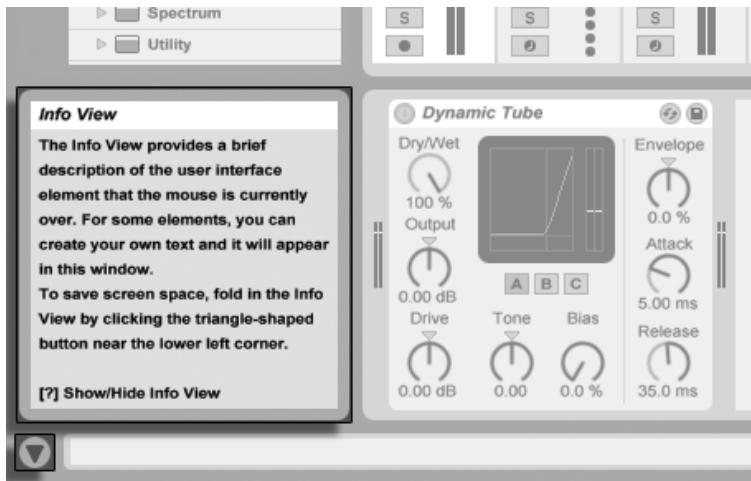
Live's Info View tells you the name and function of whatever you place the mouse over. For certain items, you can create your own text and it will appear in this window.
If you require more information on a specific user interface element or topic, please consult this reference manual. The index, found at the end of the manual, contains the names of all user interface elements and will lead you to the relevant section.
The Info View and its Show/Hide Button.
2.2 Setting up Preferences
Live's Preferences window is where you can find various settings that determine how Live looks, behaves and interfaces with the outside world. This window is accessed from the Preferences command, which in Windows is available in the Options menu and in OS X is available in the Live menu. Preferences can also be accessed with the Ctrl (PC) / Mac (Mac) shortcut.
Live's Preferences are distributed over several tabs:
- In the Look/Feel tab, you can make various settings, including the language used for text display and the color scheme, or "skin," for the Live user interface.
- The Audio Preferences are used to set up Live's audio connections with the outside world via an audio interface. Please take the time to follow the program's built-in "Setting up Audio I/O" lesson, which will walk you through all the steps required to set up and optimize the settings for any given system. To access the lesson, use the Lessons Table of Contents command from the Help menu.
- The MIDI/Sync Preferences are used to help Live recognize MIDI devices for two separate and distinct purposes:
- Playing MIDI notes. To learn how to route an external device into Live for MIDI input, please see the Routing and I/O chapter.
- Controlling parts of the interface remotely. This subject is covered in detail in the MIDI and Key Remote Control chapter.
- The File/Folder Preferences pertain to Live's file management and the location of plug-in devices.
- The Record/Warp/Launch Preferences allow customizing the default state for new Live Sets and their components, as well as selecting options for new recordings.
- The CPU Preferences include options for managing the processing load, including multicore/multiprocessor support.
- The Authorizations/Trial Preferences are used to manage licensing and installation of the Live platform, and add-on components like the Operator instrument.
2.3 The Main Live Screen
Most of your work in Live happens in the main Live screen. This screen consists of a number of views, and each view manages a specific aspect of your Live Set, which is the type of document that you create and work on in Live. Since screen space is usually limited, the Live views can't all be displayed at the same time.
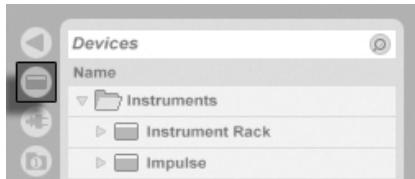
Each one of the selector buttons at the screen borders calls up a specific view; clicking this one, for instance, opens Live's Device Browser:
To hide one of Live's views and free up screen space, click on the triangle-shaped button next to it. To restore the view, click the button again.

You can run Live in Full Screen Mode by selecting the Full Screen command from the View menu. To leave Full Screen Mode, click the button that appears in the lower right corner of the screen. Full Screen Mode can also be toggled by pressing F11. (Note: On Mac OS X, this key is assigned by default to Exposé, and will not toggle Full Screen Mode unless Exposé has been deactivated or assigned to a different key in OS X's System Preferences.)
If one of the browser views is open, you can adjust the main window's horizontal split by dragging.
The Device Browser Selector.
A View Show/Hide Button.
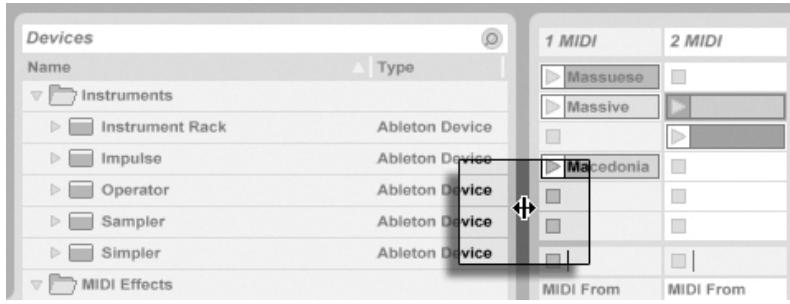
Adjusting the Main Window Split.
Chapter 3
Unlocking Live
Live is protected against illegal use by a copy protection scheme. This scheme has been designed to meet the highest security standards while avoiding hassles for our customers. If you find this procedure to be an inconvenience, please understand that the copy protection secures your investment: It allows Ableton to provide you with support and to continue developing Live.
3.1 Step 1: Entering Your Serial Number
The first time you run Live, you will be prompted to enter your serial number.
As an owner of Live LE, you have received a serial number from Ableton, either via e-mail (if you ordered directly from Ableton), or on a card as part of the Live LE package.
The serial number is composed of numbers 0..9 and letters A..F. If you accidentally type the wrong string into a field, the field will turn red. When you have successfully entered the serial number, you can choose to either unlock online or from a file. Both options are explained below.
Please note that products such as Operator and Sampler are sold separately from Live but are unlocked using the same procedure described here. You can always enter any new serial numbers and unlock additional products in the Authorizations/Trial tab in the Preferences window. Live's Preferences are available via the Options menu (or the Live menu in Mac OS X).
The serial number identifies your ownership of Live. Because your serial number is a valuable good, you should keep it in a safe place and out of reach of unauthorized hands. Please be aware that sharing your serial number will render it unusable. The only way for Ableton technical support to help you get back your serial number if you lose it is via your registration data. Therefore, please register your product 1 , as otherwise you might lose your property!
3.2 Step 2: Unlocking Live
The second step of authorizing Live is called "unlocking." Unlocking means associating your serial number with a specific computer. Please be aware that the standard Live license grants you the right to use Live on only one computer at a time. You can, however, unlock Live with your serial number more than once under the legal and technical conditions described later.
3.2.1 The Unlock Key
For unlocking, you require an unlock key that can only be created by the Ableton server. Unlocking therefore requires access to the Internet. The computer from which you connect to the Internet does not have to be the same computer for which you wish to unlock Live, but it does make things easier.
3.2.2 The Challenge Code
The Ableton server creates the unlock key from your serial number and a so-called challenge code. The challenge code is a "fingerprint" that Live takes of your computer's components.
For details, please see the corresponding section.
3.2.3 Unlocking Online
If the computer you want to unlock Live for is connected to the Internet, the only thing you need to do is press the Unlock Online button. Live will then create a connection to the Ableton server, send your serial number and challenge code, and receive the unlock key from the server. No information other than this is exchanged between your computer and the Ableton server.
3.2.4 Unlocking Offline
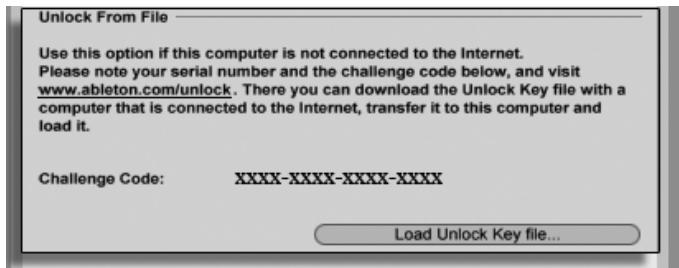
Unlocking Live Offline.
If the computer you want to unlock Live for is not connected to the Internet, you can use any other computer to access the Ableton server's web interface 2 . This is a website with fields for entering your serial number and the challenge code, which you can copy from Live's Unlock dialog.
If you have entered your serial number and challenge code correctly, another website will appear to provide you with the unlock key. Follow the weblink to download the unlock key as a file. Transfer the file to the target computer via some form of storage media, such as a USB drive or CD-ROM. Then, press the Unlock dialog's Load Unlock Key button to load the unlock key file.
3.3 Copy Protection FAQs
3.3.1 Can I Use Live or Other Ableton Products Without a Serial Number?
If you do not (yet) own Live or its add-on products, you can still try them out, but saving and exporting will be disabled.
If trying Live or another product raises your interest in purchasing it, please visit the Ableton webshop 3 . This site contains information about Ableton's distributor and dealer network. It also offers you the opportunity to buy Ableton products online.
3.3.2 What if I Change My Computer's Components?
If the challenge code of your computer changes for some reason, Live will indeed ask you to unlock the software another time. The challenge code does not change, however, when computer peripherals are replaced (audio or MIDI hardware, printers, modems). The challenge code may change if the motherboard, processor or network card is replaced. On some computers, reformatting a hard drive also changes the challenge code.
3.3.3 Can I Unlock Live More than Once?
The standard Live license allows you to use Live on only one computer at a time. However, if you have registered your product 4 , the Ableton server will provide you with two unlock keys in good faith that you will use Live on only one machine at a time. Just proceed as described in the corresponding section.
You can therefore run Live on both a studio desktop computer and a tour laptop, but not at the same time.
Should the Ableton server reject your demand for another unlock key, please contact Ableton's technical support.
They can be reached by:
E-mail: [email address]; Telephone: +49 (0)30 - 288 763 151 (available Monday to Friday 11 to 15 hrs CET); Fax: +49 (0)30 - 288 763 11.
To speed up the process, please:
- Register your copy of Live;
- Include a brief explanation of the circumstances.
To use Live on more than one computer at a time, you require a secondary license or a site license. Ableton offers these licenses at special rates. Please contact the sales team for details.
3.3.4 Can I Play my Set from a Computer That Is Not Unlocked?
Even if Live is not unlocked, you can still load and perform a Live Set with no time limitation. You cannot, however, save or export your work. When you go on tour, consider taking along your Live program CD and a CD with the last state of your Live Set(s). In case of an emergency, you can install and run Live on any computer available and play your backup Live Set(s).
3.3.5 What Do I Do About Problems or Questions Regarding Copy Protection?
Please contact technical support. They are happy to help!
Chapter 4
Live Concepts
This chapter introduces the essential concepts of Live. We advise you to read this chapter early in your Live career, as a solid understanding of the program's basic principles will help you fully exploit Live's potential for your music-making.
4.1 Live Sets
The type of document that you create and work on in Live is called a Live Set. Live Sets reside in a Live Project – a folder that collects related materials – and can be opened either through the File menu's Open command or via the built-in File Browsers.

A Live Set in the File Browser.
Selecting the Library bookmark in Live's File Browser will take you to the Live Library of creative tools. There are a number of Demo Sets here, and double-clicking a Live Set's name in the Browser will open that Live Set.
4.2 Arrangement and Session
The basic musical building blocks of Live are called clips. A clip is a piece of musical material: a melody, a drum pattern, a bassline or a complete song. Live allows you to record and alter clips, and to create larger musical structures from them: songs, scores, remixes, DJ sets or stage shows.
A Live Set consists of two environments that can hold clips: The Arrangement is a layout of clips along a musical timeline; the Session is a real-time-oriented "launching base" for clips. Every Session clip has its own play button that allows launching the clip at any time and in any order. Each clip's behavior upon launch can be precisely specified through a number of settings.


Clips in the Session View (Left) and in the Arrangement View (Right).
The Arrangement is accessed via the Arrangement View and the Session via the Session View; you can toggle between the two views using the computer's Tab key or their respective selectors. Because the two views have distinct applications, they each hold individual collections of clips. However, it is important to understand that flipping the views simply changes the appearance of the Live Set and does not switch modes, alter what you hear or change what is stored.
The Arrangement and Session View Selectors.
The Arrangement View and the Session View interact in useful (though potentially confusing) ways. One can, for instance, improvise with Session clips and record a log of the improvisation into the Arrangement for further refinement. This works because Arrangement and Session are connected via tracks.
4.3 Tracks
Tracks host clips and also manage the flow of signals, as well as the creation of new clips through recording, sound synthesis, effects processing and mixing.
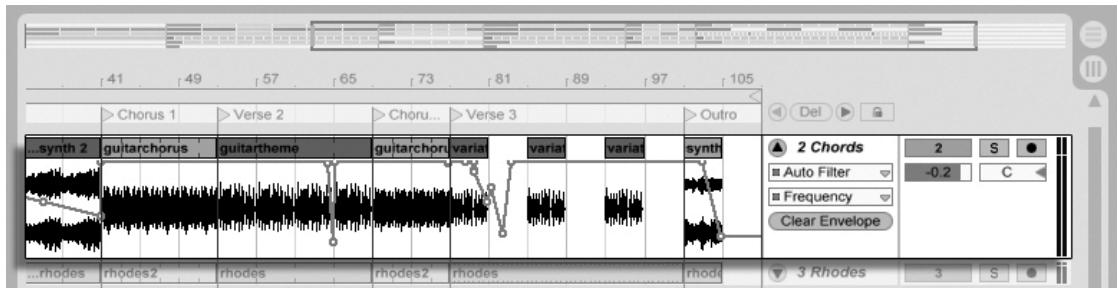
The Session and Arrangement share the same set of tracks. In the Session View, the tracks are laid out vertically from left to right, while in the Arrangement View they are horizontal from top to bottom. A simple rule governs the cohabitation of clips in a track:
A track can only play one clip at a time.
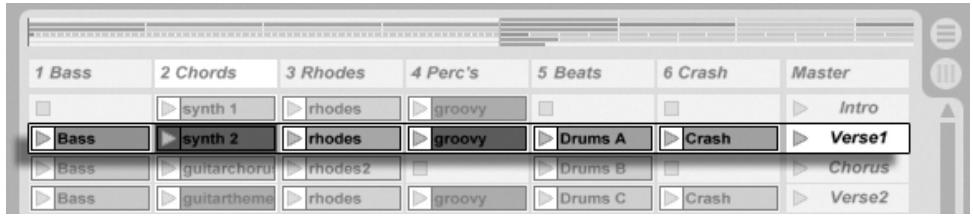
Therefore, one usually puts clips that should play alternatively in the same Session View column, and spreads out clips that should play together across tracks in rows, or what we call scenes.
A Track in the Arrangement View.
A Scene in the Session View.
The exclusivity of clips in a track also implies that, at any one time, a track will either play a Session clip or an Arrangement clip, but never both. So, who wins? When a Session clip is launched, the respective track stops whatever it is doing to play that clip. In particular, if the track was playing an Arrangement clip, it will stop it in favor of the Session clip – even as the other tracks continue to play what is in the Arrangement. The track will not resume Arrangement playback until explicitly told to do so.

This is what the Back to Arrangement button, found in the Control Bar at the top of the Live screen, is for. This button lights up to indicate that one or more tracks are currently not playing the Arrangement, but are playing a clip from the Session instead.
We can click this button to make all tracks go back to the Arrangement. Or, if we like what we hear, we can capture the current state into the Arrangement by activating the Record button. Disengaging Record Mode or stopping Live using the Stop button leaves us with an altered Arrangement.
4.4 Audio and MIDI
Clips represent recorded signals. Live deals with two types of signals: audio and MIDI. In the digital world, an audio signal is a series of numbers that approximates a continuous signal as generated by a microphone or delivered to a loudspeaker. A MIDI signal is a sequence of commands, such as "now play a C4 at mezzo piano." MIDI is a symbolic representation of musical material, one that is closer to a written score than to an audio recording. MIDI signals are generated by input devices such as MIDI or USB keyboards 1 .
It takes an instrument to convert MIDI signals into audio signals that can actually be heard. Some instruments, such as Live's Simpler, are for chromatic playing of one sound via the keyboard. Other instruments, such as Live's Impulse, have a different percussion sound assigned to each keyboard key.
The Back to Arrangement Button.
Audio signals are recorded and played back using audio tracks, and MIDI signals are recorded and played back using MIDI tracks. The two track types have their own corresponding clip types. Audio clips cannot live on MIDI tracks and vice versa.
Information about inserting, reordering and deleting audio and MIDI tracks is found here.
4.5 Audio Clips and Samples
An audio clip contains a reference to a sample (also known as a "sound file" or "audio file") or a compressed sample (such as an MP3 file). The clip tells Live where on the computer's drives to find the sample, what part of the sample to play and how to play it.
When a sample is dragged in from one of Live's built-in File Browsers, Live automatically creates a clip to play that sample. Prior to dragging in a sample, one can audition or preview it directly in the Browser; the switch in the Browser with the headphone icon activates previewing.

Live offers many options for playing samples in exciting new ways, allowing you to create an abundance of new sounds without actually changing the original sample – all the changes are computed in real time, while the sample is played. The respective settings are made in the Clip View, which appears on screen when a clip is double-clicked.
Samples are dragged in from Live's File Browsers.

Many powerful manipulations arise from Live's warping capabilities. Warping means changing the speed of sample playback independently from the pitch so as to match the song tempo. The tempo can be adjusted on the fly in the Control Bar's Tempo field.

The most elementary use of this technique, and one that usually requires no manual setup, is synchronizing sample loops to the chosen tempo. Live's Auto-Warp algorithm actually makes it easy to line up any sample with the song tempo, such as a recording of a drunken jazz band's performance. It is also possible to radically change the sonic signature of a sound using extreme warp settings.
4.6 MIDI Clips and MIDI Files
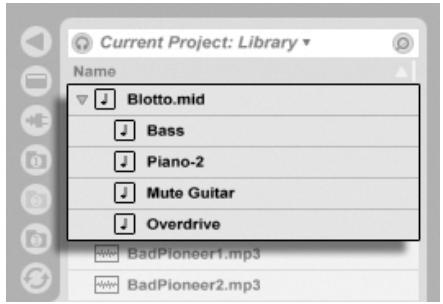
A MIDI clip contains musical material in the form of MIDI notes and controller envelopes. When MIDI is imported from a MIDI file, the data gets incorporated into the Live Set, and the original file is not referenced thereafter. In the Live File Browsers, a MIDI file appears as a folder that can be opened to reveal its individual component tracks, which can be selectively dragged into the Live Set.
An Audio Clip's Properties as Displayed in the Clip View.
The Control Bar's Tempo Field.
As you'd expect, a MIDI clip's contents can be accessed and edited via the Clip View, for instance to change a melody or "paint" a drum pattern.
MIDI Files Are Dragged in from Live's File Browsers.
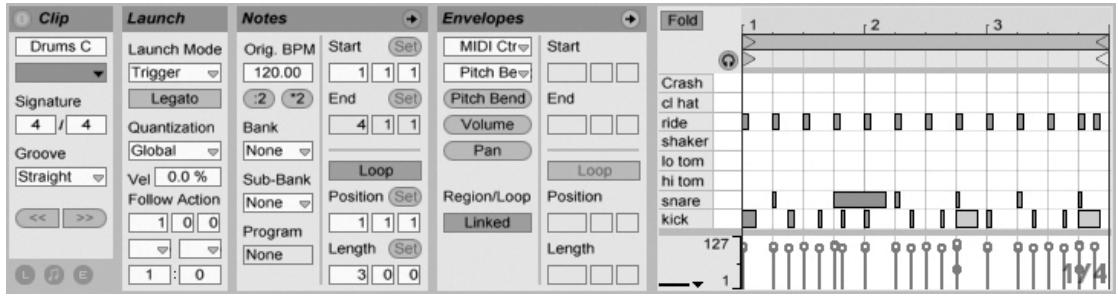
A MIDI Clip's Properties as Displayed in the Clip View.
4.7 Devices and the Mixer
A track can have not only clips but also a chain of devices for processing signals. Double-clicking a track's title bar brings up the Track View, which shows the track's device chain.
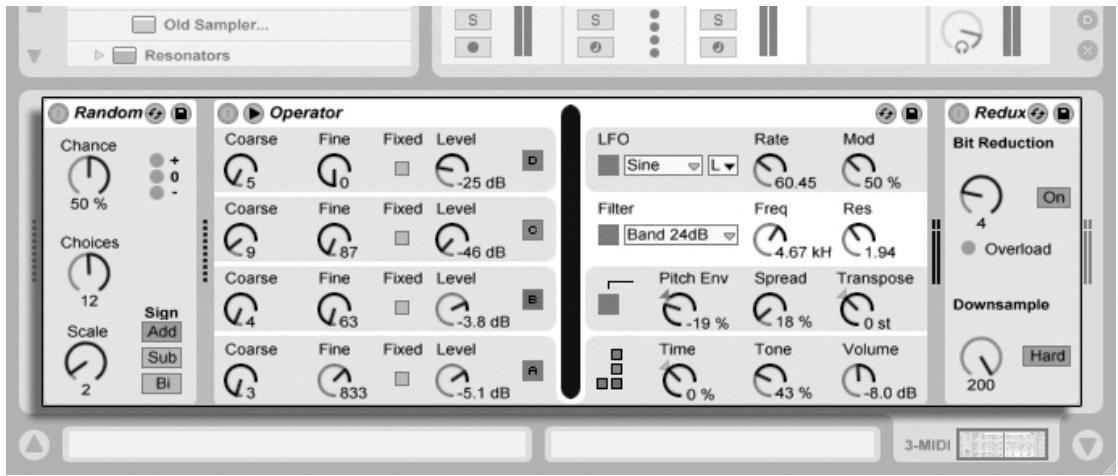
Live's built-in audio effects, MIDI effects and instruments are available from the Device Browser and can be added to tracks by dragging them from there into the Track View, or into a Session or Arrangement track.

You can also use plug-in devices in Live. VST and Audio Units (Mac OS X only) Plug-ins are available from the Plug-In Device Browser.
The Track View Displaying a MIDI Track's Device Chain.
Live's Built-in Devices Are Available from the Device Browser.
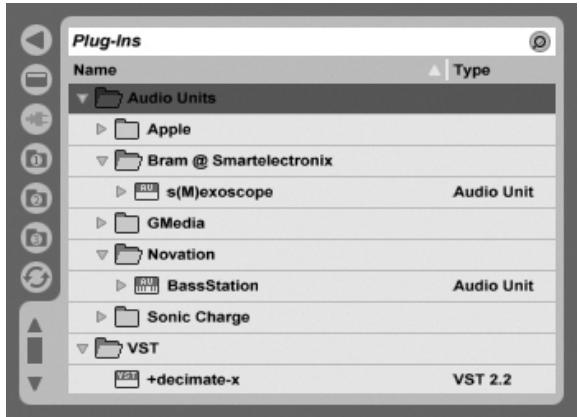
Plug-In Devices Are Available from the Plug-In Device Browser.
Consider an audio clip playing in an audio track. The audio signal from the clip reaches the leftmost device in the chain. This device processes (changes) the signal and feeds the result into the next device, and so on. The number of devices per track is theoretically unlimited, (although there is a limit of eight instruments and twelve audio effects within a single set when using Live LE). In practice, the computer's processor speed also imposes a limit on the number of devices you can use at the same time, a topic that deserves separate discussion. Note that the signal connections between audio devices are always stereo, but the software's inputs and outputs can be configured to be mono in the Audio Preferences.
When the signal has passed through the device chain, it ends up in Live's mixer. As the Session and Arrangement share the same set of tracks, they also share the mixer. The mixer can be shown in both views for convenience. To optimize the screen layout, the individual mixer sections can be shown or hidden using the View menu's entries.
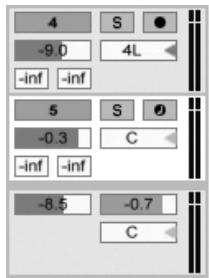
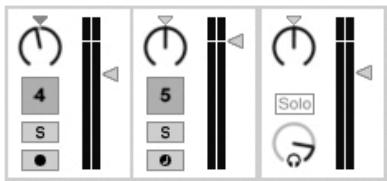
The Live Mixer in the Arrangement View (Left) and Session View (Right).
The mixer has controls for volume, pan position and sends, which adjust the contribution each track makes to the input of any return tracks. Return tracks only host effects, and not clips. Via their sends, all tracks can feed a part of their signal into a return track and share its effects.
The mixer also includes a crossfader, which can create smooth transitions between clips playing on different tracks. Live's crossfader works like a typical DJ mixer crossfader, except that it allows crossfading not only two but any number of tracks – including the returns.

Devices that receive and deliver audio signals are called audio effects. Audio effects are the only type of device that fit in an audio track or a return track. However, two more types of devices are available for use in MIDI tracks: MIDI effects and instruments.
Consider a MIDI track playing a clip. The MIDI signal from the clip is fed into the track's device chain. There, it is first processed by any number of MIDI effects. A MIDI effect receives and delivers MIDI signals. One example is the Scale effect, which maps the incoming notes onto a user-defined musical scale. The last MIDI effect in the chain is followed by an instrument. Instruments, for instance Live's Simpler and Impulse, receive MIDI and deliver audio. Following the instrument, the signal can be additionally processed by audio effects – as in an audio track.

If a MIDI track has no instrument (and no audio effects), then the track's output is a plain MIDI signal, which has to be sent somewhere else to be converted into audio. In this case,
Live's Crossfader.
A MIDI Effect, an Instrument and an Audio Effect in a MIDI Track.
the track's mix and Send controls disappear from the mixer.

The Mixer for a MIDI Track without an Instrument.
4.8 Presets and Racks
Every Live device can store and retrieve particular sets of parameter values as presets. As presets are stored independently from Live Sets, new presets become part of a library that any project can draw from.
Live's Instrument, Drum and Effect Racks allow saving combinations of devices and their settings as a single preset. This feature allows for the creation of powerful multi-device creations and effectively adds all the capabilities of Live's MIDI and audio effects to the built-in instruments.
4.9 Routing
As we have seen, all tracks deliver signals, either audio or MIDI. Where do these signals go? This is set up in the mixer's In/Out section, which offers, for every track, choosers to select a signal source and destination. The In/Out section, accessible through the View menu's In/Out option, is Live's "patchbay." Its routing options enable valuable creative and technical methods such as resampling, submixing, layering of synths, complex effects setups and more.
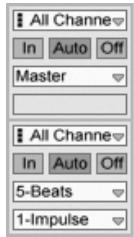

Signals from the tracks can be sent to the outside world via the computer's audio and MIDI interfaces or to other tracks or devices within Live.
Likewise, a track can be set up to receive an input signal to be played through the track's devices. Again, tracks can receive their input from the outside or from another track or device in Live. The Monitor controls regulate the conditions under which the input signal is heard through the track.
4.10 Recording New Clips
Audio tracks and MIDI tracks can record their input signal and thereby create new clips. Recording is enabled on a track by pressing its Arm button (Hold down the Ctrl (PC) / Mac) modifier to arm several tracks at once). If the Exclusive Arm option is enabled in the Record Preferences, inserting an instrument into a new or empty MIDI track will automatically arm the track. When the Control Bar's Record button is on, every armed track records its input signal into the Arrangement. Every take yields a new clip per track.
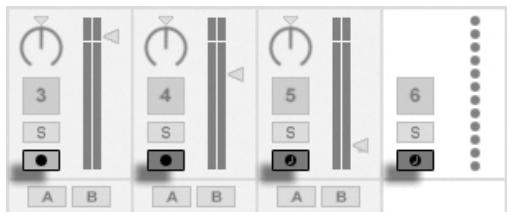
It is also possible to record into Session View slots on the fly. This technique is very useful for the jamming musician, as Session recording does not require stopping the music. When a track is armed, its Session slots exhibit Clip Record buttons, and clicking one of
Track Routing Is Set up Using the In/Out Section in the Arrangement (Left) or Session View (Right).
Track Arm Buttons, as They Appear in the Session View.
these commences recording. Clicking the Clip Record button again defines the end of the recording and launches the new clip. As these actions are subject to real-time launch quantization, the resulting clips can be automatically cut to the beat.

Session recording in conjunction with the Overdub option and Record Quantization is the method of choice for creating drum patterns, which are built up by successively adding notes to the pattern while it plays in a loop. It only takes a MIDI keyboard (or the computer keyboard) and a MIDI track with Live's Impulse percussion instrument to do this.
4.11 Automation Envelopes
Often, when working with Live's mixer and effects, you will want the controls' movements to become part of the Arrangement. The movement of a control across the Arrangement timeline is called automation; a control whose value changes in the course of this timeline is automated. Automation is represented in the Arrangement View by breakpoint envelopes, which can be edited and drawn.
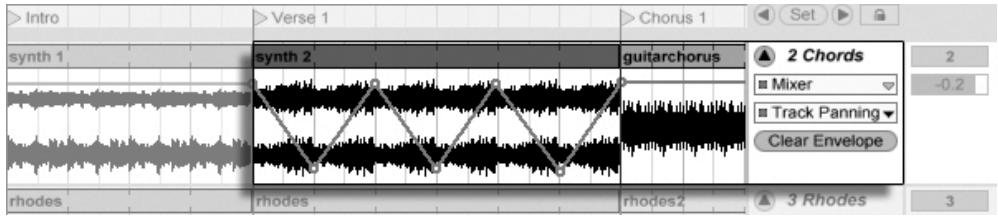
Practically all mixer and effect controls in Live can be automated, even the song tempo. Creating automation is straightforward: All changes of a control that occur while the Control Bar's Record switch is on become automation.
Changing an automated control's value while not in Record Mode is similar to launching a Session clip while the Arrangement is playing: It deactivates the control's automation (in favor of the new control setting). The control will stop tracking its automation and rest with the new value until the Back to Arrangement button is pressed, which will resume Arrangement playback.
The Control Bar's Quantization Chooser.
The Automated Pan Control and its Envelope.
4.12 Clip Envelopes
Envelopes are found not only in tracks but also in clips. Clip envelopes are used to modulate device and mixer controls. Audio clips have, in addition, clip envelopes to influence the clip's pitch, volume and more; these can be used to change the melody and rhythm of recorded audio. MIDI clips have additional clip envelopes to represent MIDI controller data. Clip envelopes can be unlinked from the clip to give them independent loop settings, so that larger movements (like fade-outs) or smaller gestures (like an arpeggio) can be superimposed onto the clip's material.
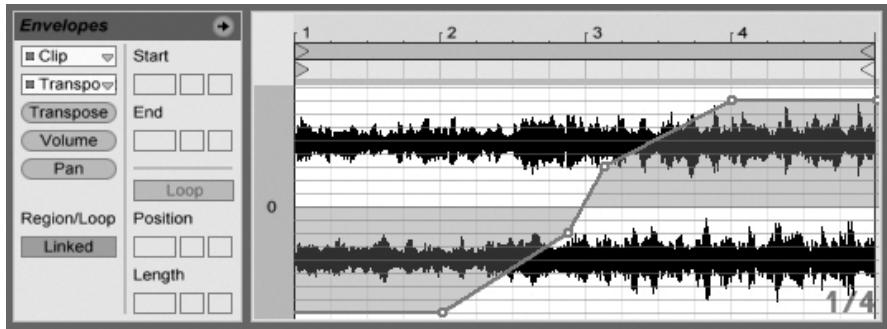
An Envelope for Clip Transposition.
4.13 MIDI and Key Remote
To liberate the musician from the mouse, most of Live's controls can be "remote-controlled" via an external MIDI controller. Remote mappings are established in MIDI Map Mode, which is engaged by pressing the MIDI switch in the Control Bar.
In this mode, you can click on any mixer or effect control, and then assign it to a controller simply by sending the desired MIDI message (for example, by turning a knob on your MIDI control box). Your assignments take effect immediately after you leave MIDI Map Mode. Session clips can be mapped to a MIDI key or even a keyboard range for chromatic playing.
MIDI keys and controllers that have been mapped to Live's controls are not available for recording via MIDI tracks. These messages are filtered out before the incoming MIDI is passed on to the MIDI tracks.

Session clips, switches, buttons, and radio buttons can also be mapped to computer keyboard keys. This is done in Key Map Mode, which works just like MIDI Map Mode.
In addition to this general-purpose mapping technique, Live offers dedicated support for Mackie Control-compatible mixer surfaces, allowing for mouse-free operation of the program.
4.14 Saving and Exporting
Saving a Live Set saves everything it contains, including all clips, their positions and settings, and settings for devices and controls. However, an audio clip can lose the reference to its corresponding sample if it is moved or deleted from disk. The links between samples and their clips can be preserved with a special command, Collect and Save, which makes a copy of each sample and stores it in a project folder along with the Live Set.
A separate Save button in the Clip View saves a set of default clip settings along with the sample, so that each time the sample is dragged into the program, it will automatically appear with these settings. This is especially useful if you have made warp settings for a clip and want to use it in multiple Live Sets.
Exporting audio from Live can be done from both the Session and Arrangement Views. Live will export the audio coming through on the Master output as an audio file of your specifications via Export Audio.
Live can also export individual MIDI clips as MIDI files.
Exporting and saving material for later use in Live can be done very conveniently with the Live Clip format. Session View clips can be dragged back out of a Live Set to the File Browsers, and thereby exported to disk as Live Clips.
The Key/MIDI Map Controls.

Live Clips are a very powerful way of storing ideas, as they save not only the clip's Clip View settings, but also the corresponding track's instruments and effects chain. Live Clips in the Browser can be previewed and added to any open Live Set just like sample files. In the Live Set, they restore the original clip's creative options.
Using Live Clips, you can build your own personalized library of:
- MIDI sequences with matching instruments and effects, e.g., a MIDI drum pattern with the associated Impulse and effects settings;
- Different regions or loops referencing the same source file;
- Variations of a sample loop created by applying Warp Markers, clip envelopes, and effects;
- Ideas that may not fit your current project but could be useful in the future.
A Live Clip in the File Browser.
4.15 The Library
The Live Library acts as a repository of sounds that are available to all projects. In Live's File Browsers, the Library is accessible through a bookmark. Bookmarks can be selected by clicking the Browser's title bar to open the Bookmark menu:

Choosing the Library Bookmark.
The first time you run Live, it will automatically install its Library to your standard user folder. You can, of course, move it to a new location. After installation the Library will already contain a few sound ideas, courtesy of Ableton. We encourage you to experiment with this material to get a sense of what the program can do, but we do not recommend removing or changing the contents of the factory Library.
Ableton provides additional Library content in the form of Live Packs which are available from installation CDs, DVDs or the Ableton website. Owners of a boxed version of Live can enjoy the Essential Instrument Collection, a multi-gigabyte library of meticulously sampled and selected instruments.
Chapter 5
Managing Files and Sets
Various types of files are used in making music with Live, from those containing MIDI and audio, to more program-specific files such as Live Clips and Live Sets. This chapter will explain everything you need to know about working with each of these file types in Live. However, we should first take a look at Live's File Browsers, through which most files arrive in the program.
5.1 Working with the File Browsers
Live offers three File Browsers which can be accessed via their selector buttons.
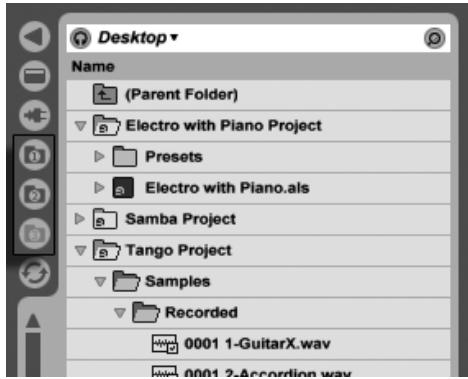
The File Browser Selector Buttons.
Each Browser can point to a different disk location, which Live will remember across sessions. The Browser display is divided into columns corresponding to "Name", "Date," etc., which you can show and hide using the (PC) / Ctrl (Mac) context menu options.
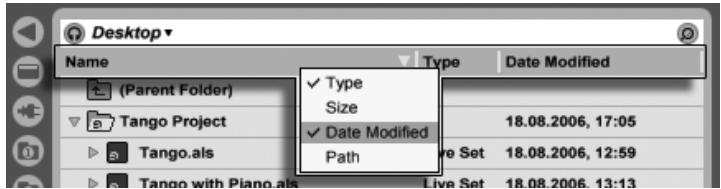
Columns can be reordered by drag and drop. To resize the columns, drag their divider lines horizontally.

Showing/Hiding Browser Columns.
Resizing Browser Columns.
5.1.1 Browsing the Folder Hierarchy
Each of the three File Browsers has its own root directory, shown at the top of the Browser, the contents of which are available for browsing below.

"Library" Is This Browser's Root.
The Browser root can easily be changed: The topmost Browser item, called "Parent Folder," will move the Browser root up one step up in the disk hierarchy when double-clicked.

The File Browser's "Parent Folder" Item.
You can also set the Browser root to any folder in the Browser via the (PC) / Ctrl (Mac) context menu, by double-clicking the folder, or by selecting it and pressing Return.

A Folder in the Browser.
Moving through the files in Live's Browser can be done with either the mouse or the computer keyboard:
- Scroll up and down in the Browser with and , the mousewheel, or by clicking and dragging while holding the Ctrl Alt (PC) / Alt (Mac) modifier.
- Close and open folders with ← and → .
- Jump to the parent folder of any closed folder using ← . (Hint: If executed on a top-level folder, this is an alternative to selecting the "Parent Folder" item, and will move the Browser root up one level.)
To clean up the Browser, use (PC) / Ctrl (Mac) to access the context menu, and
then select the Close All Folders option to show only top-level folders. Double-clicking a File Browser's selector button will do the same.
5.1.2 Browser Bookmarks
Using bookmarks, you can quickly save and recall frequently used folder locations in the Browser. Clicking in the Browser's title bar will open the bookmark menu.

The Bookmark Menu.
The bookmark menu lists a number of preset bookmarks such as Desktop and Library. Selecting the latter will bring you to the Live Library. To bookmark the current Browser root, choose the Bookmark menu's topmost item, the Bookmark Current Folder command. Note that if the current Browser root is already bookmarked, the topmost option in the Bookmark menu will remove the bookmark. All File Browsers share the same set of bookmarks; a bookmark stored in one Browser can be accessed from another.
5.1.3 Searching for Files
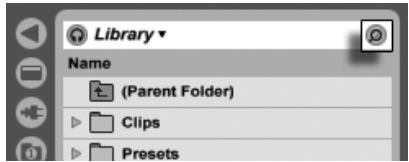
Live's File Browsers are equipped with a search function for finding files. Clicking the Search button in the upper right corner of the Browser or using the Ctrl F (PC) / Mac shortcut will open the Browser's Search Mode.
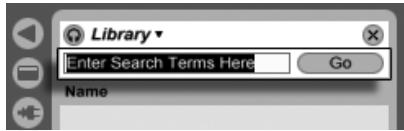
After entering your search terms, begin the search by clicking the Go button or pressing Return on your computer keyboard.
Live will search the entire Browser root for your search terms. The results will include files that match all search terms, as opposed to any. For example, if you search for "acoustic bass," the search will yield all acoustic bass sounds – not all acoustic sounds and all bass sounds.
By default, the search function matches the entered criteria not only to any part of a file's name and suffix (e.g., ".wav") but also to any part of its file path. This means that a search for "bass," for example, will yield not only files with names containing the word "bass" but also those located in folders with names containing the word "bass." Compressed sample metadata tags are also included in the search, making it possible to search for songs from a specific album or artist, for example. Searching file paths and metadata can be deactivated with the Search In Path and Search In Metadata settings, available in the Preferences' File/Folder tab. The names of MIDI tracks within multitrack MIDI files are also included in searches.
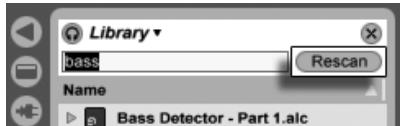
Live maintains an index of the hard disk so that it can deliver search results instantly. The index is kept up to date as you create, install, delete, rename and move files within Live - it has no way of knowing, however, what you are doing outside of Live. If you have subsequently moved files using programs other than Live, the initial results of a search might be incomplete. The Go button's label will change to "Rescan." If you can't find a file in the search results, or need to be sure that the results are comprehensive, click the Rescan button (or Return once more), and Live will rebuild its index for the current Browser root.
Activating Browser Search Mode.
The Search Field and Go Button.
Automatic rescanning for new searches can be activated and deactivated in the File/Folder Preferences.
While a search/rescan is going on, the adjacent search button is labeled "Stop." Rescanning happens in the background, and you can keep making music while Live does its work, but you can also abort the search with this button if the disk traffic is bothering you.
You can go back to the Browser's folder view at any time by closing the search field.

If you select a file from the search results and then close the search field, Live makes sure that file remains selected in the folder view, opening folders as required:

If a search is in progress, closing the field immediately stops the search, although navigating to other Browsers does not. In fact, while you're waiting for a search to finish in one Browser, you can initiate separate searches in the others. A Browser that is in an active search will
The Rescan Button.
Closing the Search Field...
... Locates the File Last Selected Among the Search Results.
indicate this via a small rotating ring on the Browser button.
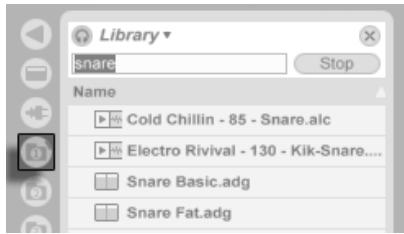
The Rotating Ring Means That a Search is in Progress.
For mouse-free searching, we suggest the following sequence of shortcuts:
1) Ctrl F (PC)/ F (Mac) to open the search field; 2) Type your search terms; 3) Return to "Go"; 4) to jump to the search results; 5) Up and Down arrows to scroll the search results; 6) Ctrl F (PC) / Mac to close the search field and go back to the folder view.
5.1.4 Previewing Files
Live allows you to preview files in the File Browser before they are imported into the program. Previewing is activated using the Browser's Preview switch.

The Preview Switch.
Hint: You can preview files even when the Preview switch is not activated by pressing Return.
Click on the files (or use the down and up arrow keys) to select and listen to them. If the transport is running, Live tries to preview files in sync with the current Live Set, so that you can better judge which samples will work for you. If the transport is stopped, files will preview at their original tempo.
The previewing volume can be adjusted using the mixer's Preview Volume knob.

If your audio hardware offers multiple audio outs, you can privately audition, or cue, files via headphones connected to a separate pair of outs – while the music continues to play. To learn how to set up Live for cueing, please refer to the relevant section of the Mixing chapter.
The Preview Volume Knob.
5.1.5 Adding Clips from the Browser
There are several ways to add clips to a Live Set:
- Files can be dragged and dropped from the File Browsers into tracks in the Session or Arrangement View. Dragging and dropping material from the Browser into the space to the right of Session View tracks or below Arrangement View tracks will create a new track and place the new clip(s) there.

- In the Session View, double-clicking or pressing Return on a file in the Browser will automatically create a new track to the right of the other tracks and load it with the clip.
- Files can be dropped directly into Live from the Explorer (Windows)/Finder (Mac).
Dropping a Clip to Create a New Track.
5.1.6 File Maintenance in the Browser
You can use Live's File Browsers for all of the file maintenance activities that you are familiar with on your operating system.
- Move files and folders by dragging and dropping, or by copying/cutting and pasting. Copying, cutting and pasting can be done with either Edit menu commands or keyboard shortcuts. A file can be moved from one File Browser to another by dragging it over the target Browser's button.
- Rename files and folders using the Edit menu's Rename command or the Ctrl R (PC) / Cmd R (Mac) shortcut. Cancel renaming with the Esc key.
- Create folders by opening the context menu with right-click (PC) / Ctrl-click (Mac), and then selecting the Create Folder command.
- Delete files and folders using the Edit menu's Delete command or your computer's Backspace or Delete key. Deleting items within Live moves them to the system trash; if necessary, you can recover items from the system trash via your computer's operating system.
5.1.7 Hot-Swap Mode
In addition to the drag-and-drop method of loading files from the Browser, Live offers a Hot-Swap Mode to save you mouse travel. Hot-Swap Mode establishes a temporary link between the Browser and, for example, a virtual instrument. While in Hot-Swap Mode, you can step through samples or presets to audition them "in place," that is, within the instrument. Hot-swapping for presets is covered in the Live Device Presets section. Let's go through an example of hot-swapping samples:
Live's built-in Impulse instrument features eight sample-player slots that can be filled by dropping samples into them. Alternatively, we can click the Hot-Swap button that appears as we move the mouse over a slot.

Clicking the Hot-Swap button engages Hot-Swap Mode: Live's Hot-Swap Browser opens, and the Hot-Swap icon appears next to one of the files shown.

While in Hot-Swap Mode, pressing the Return key loads that file into the Impulse slot (presumably while Impulse is playing incoming MIDI notes); pressing Down Arrow, then Return loads the next sample, and so on. Instead of using the keys, we can also double-click on a sample to load it. The link between the Browser and the instrument will be broken if a different view
The Hot-Swap Button in an Impulse Slot.
The Hot-Swap Browser.
is selected, or if the Hot-Swap button is pressed again. Hot-swapping can also be cancelled with a press of the Esc key.
When Hot-Swap Mode is re-entered, the Hot-Swap Browser will try to reconstruct what you saw when you loaded the current file into the Impulse slot. If, for instance, the current file was found by searching for "gretsch kick," the Hot-Swap Browser will come up with that search string in the search field. In our example, we were hot-swapping for an empty Impulse slot, so Live came up with something appropriate: a search for "Drum Kick" in Library/Samples/Waveforms.
5.2 Sample Files
A sample is a file that contains audio data. Live can play both uncompressed file formats (WAV, AIF and Sound Designer II for Mac) and compressed file formats (MP3, AAC, Ogg Vorbis, Ogg FLAC and FLAC).
A note on using Variable Bit Rate (VBR) files: Please install QuickTime for decoding purposes if you do not already have it on your system. It can be downloaded from the Apple website 1 .
As Live plays the samples directly from disk, you can work with a large number of (large) samples without running into RAM memory limitations. Please note, however, that you may run into disk throughput problems if your disk is nearly full, and/or (on Windows systems) highly fragmented. Hard drive rotation speed can also affect disk performance. Refer to the section on managing the disk load for more information.
Live can combine uncompressed mono or stereo samples of any length, sample rate, or bit depth without prior conversion. To play a compressed sample, Live decodes the sample and writes the result to a temporary, uncompressed sample file. This usually happens quickly enough that you will be able to play the sample right away, without waiting for the decoding process to finish.
Note: When adding a long sample to a project, Live might tell you that it cannot play the sample before it has been analyzed. Please see the section on analysis for an explanation.
5.2.1 The Decoding Cache
To save computational resources, Live keeps the decoded sample files of compressed samples in the decoding cache. Maintenance of the cache is normally not required, as Live automatically deletes older files to make room for those that are new. You can, however, impose limits on the cache size using the File/Folder Preferences' Decoding Cache section. The cache will not grow larger than the Maximum Cache Size setting, and it will always leave the Minimum Free Space on the hard disk. Pressing the nearby Cleanup button will delete all files not being used by the current Live Set.
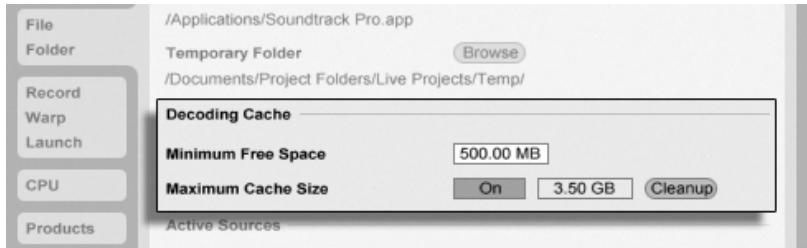
Preferences for the Decoding Cache.
5.2.2 Analysis Files (.asd)
An analysis file is a little file that Live creates when a sample file is brought into the program for the first time. The analysis file contains data gathered by Live to help optimize the stretching quality, speed up the waveform display, and automatically detect the tempo of long samples.
When adding a long sample to a project, Live might tell you that it cannot play the sample before it has been analyzed. This will not happen if the sample has already been analyzed (i.e., Live finds an analysis file for this sample), or if the Record/Warp/Launch Preferences' Auto-Warp Long Samples preference has been deactivated. To prevent waiting for analysis of longer samples, you can pre-analyze them via the Browser, as we will see in a moment.
An analysis file can also store default clip settings for the sample:
Clicking the Clip View's Save button will store the current clip's settings with the sample's analysis file. The next time the sample is dragged into Live, it will appear with all its clip settings intact. This is particularly useful for retaining Warp Marker settings with the sample.
Storing default clip settings with the analysis file is different from saving the clip as a Live Clip.
While analysis files are a handy way to store default information about a particular sample's settings, keep in mind that you can use different settings for each clip within a Live Set – even if those clips refer to the same sample on disk. But if you drag a new version of the sample into a Live Set, Live will use the settings stored in the analysis file for the newly created clip.
The analysis file's name is the same as that of the associated sample, with an added ".asd" extension. Live puts this analysis file in the same folder as the sample.
Samples that have an .asd file are displayed like this in the Browser. Samples without an .asd file look like this.
The analysis files themselves do not appear in Live's Browsers.
Note that you can suppress the creation of .asd files by turning off the Create Analysis Files option in the File/Folder Preferences. All data (except for the default clip settings) can be recreated by Live if the .asd file is missing, however this will take some time for longer samples.
5.2.3 File Pre-Analysis
To avoid waiting for longer samples to be analyzed the first time they are imported into Live, you may want to pre-analyze them.
To pre-analyze all the files contained in any folder in the Browser, use the (PC) / Ctrl (Mac) context menu's Analyze Audio command. This process can also be cancelled via the context menu.
5.2.4 Exporting Audio
The File menu's Export Audio command allows you to export Live's audio output as new samples. The resulting files can be used to burn an audio CD for listening purposes or a
data CD, which could serve as a backup of your work or be used with other digital audio applications.
Which Signal Will Be Rendered?

The Rendered Track Chooser.
The Export dialog's Rendered Track chooser offers several options for which audio signal to render:
- Master – the post-fader signal at Live's Master output. If you are monitoring the Master output, you can be sure that the rendered file will contain exactly what you hear.
- All tracks – the post-fader signal at the output of each individual track, including return tracks and MIDI tracks with instruments. Live will create a separate sample for each track. All samples will have the same length, making it easy to align them in other multitrack programs.
- Individual tracks – the post-fader signal at the output of the selected track.
When Export Audio is invoked while the Arrangement View is up, Live will render the selected time range.
If you would like to render the current Arrangement loop, choose the Select Loop command from the Edit menu prior to choosing Export Audio. If you choose Export Audio while the Session View is up, Live will ask you to specify the length of the sample to be rendered. The Export Audio dialog will come up with a bars-beats-sixteenths field where you can type in the desired length. Live will capture audio starting at the current play start position for whichever duration you have specified.
Remember – a rendered audio file contains only what you heard prior to rendering. So, for example, if you're playing back some combination of Session View clips and Arrangement material, then that is what will be captured in your rendered file – regardless of which view is active when you render.
Audio Rendering Options
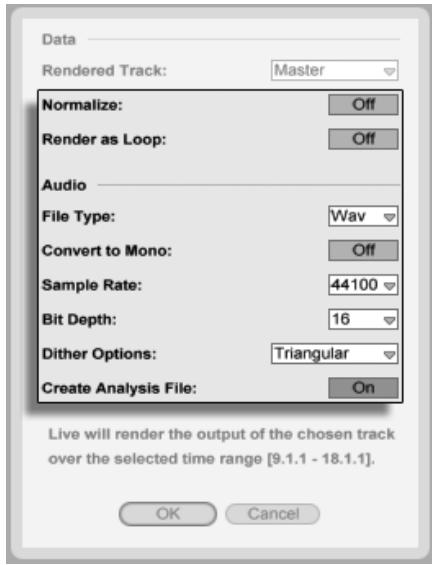
Audio Rendering Options.
The Export dialog offers several audio rendering options:
- Normalize - If this is activated, the sample resulting from the render process will be normalized (i.e., the file will be amplified so that the highest peak attains the maximum available headroom).
- Render as Loop - If this is activated, Live will create a sample that can be used as a loop. For example, suppose your Live Set uses a delay effect. If Render as Loop is on, Live will go through the rendering process twice: The first pass will not actually write samples to disk, but add the specified delay effect. As the second pass starts writing audio to disk, it will include the delay "tail" resulting from the first pass.
- File Type, Bit Depth, Sample Rate – These options specify the type of sample to be created.
- Convert to Mono – If this is activated, Live will create a mono file instead of a stereo file.
- Dither Options – If you are rendering at a bit depth lower than 32-bit, choose one of the dither modes. Dithering adds a small amount of noise to rendered audio, but minimizes artifacts when reducing the bit depth. By default, Triangular is selected, which is the "safest" mode to use if there is any possibility of doing additional processing on your file. Rectangular mode introduces an even smaller amount of dither noise, but at the expense of additional quantization error. Note that dithering is a procedure that should only be applied once to any given audio file. If you plan to do further processing on your rendered file, it's best to render to 32-bit to avoid the need for dithering at this stage.
- Create Analysis File - If this is activated, Live will create an .asd file that contains analysis information about the rendered sample. If you intend to use the new sample in Live, check this option.
5.3 MIDI Files
A MIDI file contains commands that prompt MIDI compatible synthesizers or instruments, such as Live's Simpler, to create specific musical output. MIDI files are exported by hardware and software MIDI sequencers. Importing MIDI files into Live works differently than with samples: MIDI file data is incorporated into the Live Set, and the resulting MIDI clips lose all reference to the original file. MIDI files appear as folders in the File Browser; opening the folders gives you access to the file's individual tracks (also called "voices" or "instruments").
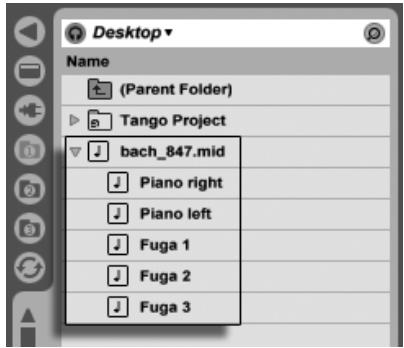
A MIDI File and its Tracks in the Browser.
Note that while you can rename or delete entire MIDI files via the Browser, this is not possible with the individual MIDI tracks contained within them. This is also the case with the individual components of Live Sets.
5.3.1 Exporting MIDI Files
Live MIDI clips can be exported as Standard MIDI files. To export a MIDI clip, use the File menu's Export Selected MIDI Clip command. This command will open a file save dialog, allowing you to choose the location for your new MIDI file.
Exporting a MIDI file is different from saving the clip as a Live Clip.
5.4 Live Clips
Individual clips can be exported to disk in the Live Clip format for easy retrieval and reuse in any project. Because they only contain references to samples on disk (rather than the audio data itself), Live Clips are very small, which makes it easy to develop and maintain your own collection.
To save a clip from the open Live Set to disk, simply drag it to the File Browser and drop it into any folder. You can then type in a new name for the clip or confirm the one suggested by Live with Return.
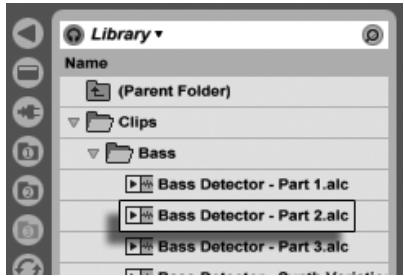
A Live Clip in the Browser.
Live Clips are a great way of storing your ideas for later use or development, as they save not only the original clip, including all its clip and envelope settings, but also the original track's devices. In order to recreate a Live Clip's device chain, either import it into a track containing no clips or devices, or drag it into the space in the Session or Arrangement View containing no tracks. Note that Live Clips that are imported into tracks already containing devices or clips will appear with their clip settings but not their devices. You could, for instance, drop a baseline Live Clip on an existing track that drives a bass instrument, rather than creating a new track.
Clips belonging to any Live Sets already on disk are also Live Clips. Please see the section on merging Sets for more on this topic.
Note that storing default clip settings with a sample's analysis file is different from saving a Live Clip. The default clip in the .asd file annotates the sample with sensible default values (warp, gain and pitch settings) so that it will play in a defined way when it is added to a Set. Live Clips, on the other hand, are stored on disk as separate musical ideas. For example, you could create a number of variations from the same audio clip by using different warp, pitch, envelope and effect settings, and store them all as separate Live Clips. In the Browser, you could then independently sort and preview these clips, even though they are all referring to the same source sample.
5.5 Live Sets
The type of document that you create and work on in Live is called a Live Set. Think of this as a single "song." Sets must be saved inside projects, so that Live can keep track of
and manage all of the various components of the Live Set: Live Clips, device presets, any samples used, etc.
5.5.1 Creating, Opening and Saving Sets
Use the File menu's New Live Set command to create new Live Sets, and the Open or Open Recent command to open existing ones. In the File Browser, you can double-click or press Return on a Live Set to open it.
The File menu's Save command saves the current Live Set exactly as it is, including all clips and settings.
You can also use the Save As command to save the current Live Set under a different name and/or in a different directory location, or the Save a Copy command to create a copy of the current Live Set with a new name and/or new directory location.
5.5.2 Merging Sets
Live makes it easy to merge Sets, which can come in handy when combining work from different versions or pieces. To add all tracks (except the return tracks) from one Live Set into another, drag the Set from the File Browser into the current Set, and drop it onto any track title bar or into the drop area next to or below the tracks. The tracks from the dropped Set will be completely reconstructed, including their clips in the Session and Arrangement View, their devices, and their automation.
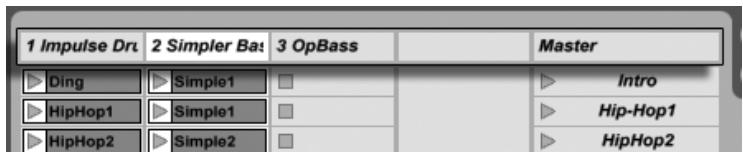
Session View Drop Area for Importing Live Sets.
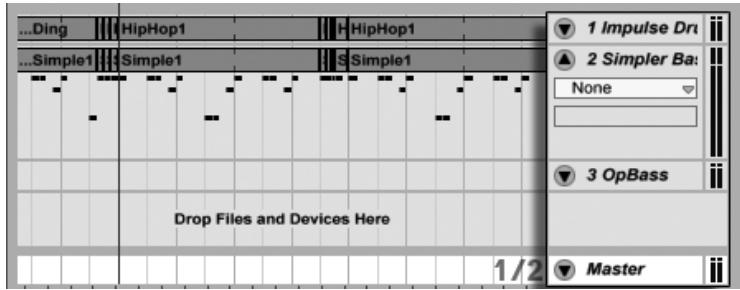
Arrangement View Drop Area for Importing Live Sets.
If you prefer to import individual tracks from a Set, you can unfold the Live Set in the File Browser just as if it were a folder.

Unfolding a Set to Reveal its Tracks.
You can now drag the individual tracks and drop them as described at the beginning of this section.
Of the three tracks contained in the "Tango" Set shown in the following figure, two contain Session View clips. These can be accessed by unfolding the tracks:
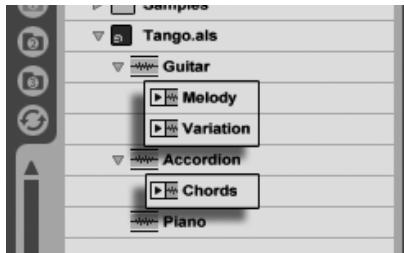
Revealing the Session View Clips Contained in a Set.
You can browse, preview and import Session View clips from the Set as if they had been stored as individual Live Clips. This, basically, means that any Live Set can serve as a pool of sounds for any other, suggesting creative reuse and crossover.
5.5.3 Exporting Session Clips as New Sets
You can export a selection of Session View clips as a new Live Set by dragging them to the File Browser. To export a Set, first click and drag, or use the or Ctrl (PC) / Mac) modifiers, to select more than one Session View clip. Then, simply drag the clips to a folder in the File Browser, where you can either confirm Live's suggested name or type in one of your own.
5.5.4 Template Sets
Use the File/Folder Preferences' Template Save button to save the current Live Set as a template. Live will use these settings as the initialized, default state for new Live Sets. You can use this to pre-configure:
- Your multichannel input/output setup.
- Preset devices, like EQs and Compressors, in every track
- Computer key mappings.
- MIDI mappings.
The template Live Set, "Template.als," is located in Live's Preferences folder and can be copied or deleted from there. The easiest way to locate this folder is to search your disk for "Template.als."
5.5.5 Viewing and Changing a Live Set's Sample References
To view a list of the samples referenced by the current Live Set, choose the Manage Files command from the File menu, click the Manage Set button, and then click the View Samples button. Live will display one line for each sample used by the Live Set, regardless of how
many clips or instruments within the Live Set are using that sample. Here is what you can do:
- Replace a sample – Dragging a sample from the File Browser and dropping it on a line in the list makes the Live Set reference the new sample instead of the old one. For samples used in audio clips, Live retains the clip properties; the Warp Markers are kept if the new sample has the same or a greater length as the old sample and discarded otherwise. Please note that replacing a sample will change all clips in your set that reference this sample.
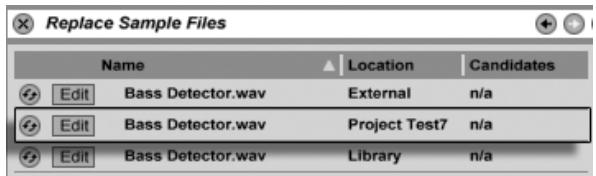
- Hot-swap samples – Using the Hot-Swap button at the left-hand side of each line, you can quickly browse through alternatives for the sample that is currently being referenced. This is like dragging samples here, only quicker.

- Edit a referenced sample – using an external application (which can be chosen in the Preferences' File/Folder tab). Clicking the Edit button will open the referenced sample in the external application. The sample will remain offline as long as the Edit switch is engaged. For samples used in audio clips, the current set of Warp Markers is retained only if the sample length remains the same as before.

- View a sample's location – The Location column states if a sample is missing, or if it resides in the Live Library, a Project or somewhere else ("external").
Every Line in the Sample Reference List is a Drop Target for Samples.
The Sample Reference List's Hot-Swap Button.
The Sample Reference List's Edit Switch.

The Sample Reference List's Location Column.
5.6 Live Projects
A Live Project is a folder containing Live-related files that belong together. Consider, for example, work on a piece of music: You start out with an empty Live Set; you record audio and thereby create new sample files; you drag in samples from collections; you save different versions of the Live Set along the way so that you can go back and compare. Perhaps you also save Live Clips or device presets that "belong" to this particular musical piece. The project folder for this Live Project will maintain all the files related to this piece of music – and Live's File Manager will provide the tools you need to manage them.
5.6.1 Projects and Live Sets
You can manually create a Project by clicking (PC) / Ctrl (Mac) in the Browser and selecting Create Project from the context menu. Usually, Live takes care of this automatically. When you save a Live Set under a new name or in a new folder location, Live will create a new project folder and store the Live Set there – unless you are saving the Live Set into an existing Live Project. Let's look at an example to illustrate this process:
We have recorded some audio into a new Live Set. We now save the Live Set under the name "Tango" on the Desktop. Here is the result as displayed by the Live Browser:
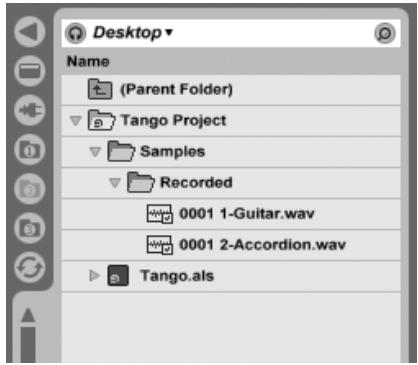
The project folder ("Tango Project") contains the Live Set ("Tango.als") and a Samples folder, which in turn contains a Recorded folder with two samples in it. Note that the current Project is also indicated in the title bar of Live's application window.
Next, we record another track into our Project. We save the modified version of the Live Set under a new name so that we do not lose the previous version. Accepting the Save As command's default suggestion, we store the new version of the song in the Tango Project folder.
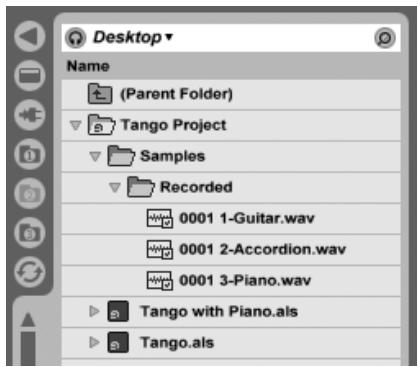
The Tango Project now contains two Live Sets, and its Samples/Recorded folder contains the samples used by both of them.
And now for something completely different: We choose the File menu's New command and record a samba tune. As this has nothing to do with our tango dabblings, we decide
A Live Set and its Recordings in a Live Project Folder.
A Second Version of the Live Set Has Been Added to the Project.
to save it outside the Tango Project folder, say on the Desktop. Live creates a new project folder named Samba Project next to Tango Project.
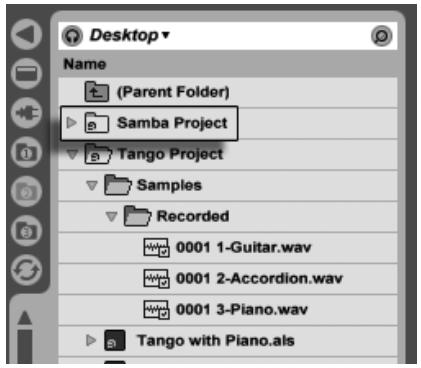
So far we have seen how to create Live Projects and save versions of Live Sets into them. How do we open a Project? Simply by opening any of its contained Live Sets. Double-clicking "Tango with Piano.als" opens that Set and the associated Project – as displayed in Live's title bar.
Let's suppose that, in the course of our work on "Tango with Piano.als," we get sidetracked: The piece evolves towards something entirely different, and we feel that it should live in a Project of its own. So, we "Save As..." under a new name and in some location outside the current Project, say the Desktop:
A New Project Was Added Next to Tango Project.
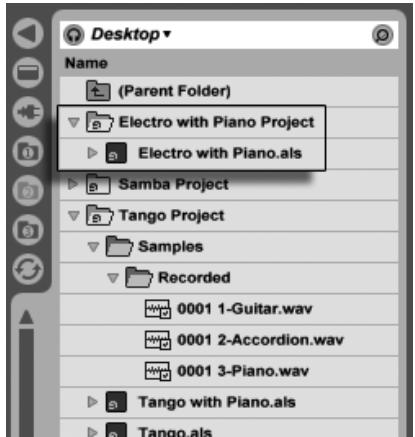
Note that the new project folder has no Samples folder (yet). "Electro with Piano.als" is still referencing the piano sample from the original Tango Project. There is nothing wrong with this except for when the Tango Project is moved away or deleted; then "Tango with Piano.als" will be missing samples. You can prevent this by collecting samples. Even after the fact, Live's tools for searching missing samples can help solve this problem.
There is actually no need to keep a Project's Live Set exactly one level below the Project itself. Within a project folder, you can create any number of subfolders and move files around to organize them as desired, although you may need to use the File Manager to "teach" the Project about the changes you've made.
In general, Live will do what it can to prevent situations such as orphaned (Project-less) Live Sets (and Live Clips and presets), which have the potential of confusing both the user and Live's file management tools. It cannot, however, control situations in which Sets or files are moved out of order and become disorganized via the Explorer (Windows)/Finder (Mac).
A note for users of older Live versions: Live 7 does not allow overwriting Live Sets that were created by older versions to prevent compatibility problems. Instead, you will be requested to "Save As..." Doing this will ensure that the newly saved Live Sets reside in project folders.
A New Project Was Added by Saving a Live Set Outside its Original Project.
5.6.2 Projects and Presets
By default, new instrument and effect presets are stored in the Live Library, making them available to any project. At times however, it may make more sense to save a preset with the current Project. You might, for example, want to keep a number of alternative master EQ settings for a given piece. These EQ presets are specific to the piece and of little use to other Projects. For this reason, every device in the Device Browser has a Current Project subfolder. You can drag a preset to this folder after saving it, or simply drag the title bar of the device and drop it there directly.

Project-Specific Presets Appear Under "Current Project" in the Device Browser.
5.6.3 Managing Files in a Project
Live's File Manager offers several convenient tools for managing Projects. Once you've opened a Live Set that is part of the Project you wish to manage, choose the Manage Files command from the File menu, and then click the Manage Project button. The File Manager will present you with an overview of the Project's contents and tools for:
- locating samples that the Project is missing; collecting external samples into the Project;
- listing unused samples in the Project;
- packing a Project in Live Pack format;
- exporting the Project's contents to the Library.
5.7 The Live Library
The Live Library acts as a repository of commonly used files, such as samples, clips and Live Device Presets, that are available to all Live Projects. In Live's File Browsers, the Library is accessible through a bookmark:

Clips can be conveniently saved in Live Clip format for later reuse by dragging them from the open Live Set into the desired folder in the Library. Device presets are saved in the Library by default (but you can also save them with a Project).
Ableton delivers Library content that can serve as a starting point for creative exploration. Content is shipped in the form of Factory Live Packs. Factory Live Packs are available from installation CDs, DVDs or the Ableton website 2 . To install a Factory Live Pack in the Library, double-click the Live Pack file (.alp), drag it into the Live main window, or locate it via the File menu's Install Live Pack command.
A list of the currently installed Factory Live Packs is available from the Preferences' Live Packstab. Here you can select individual Live Packs from the list and click the Uninstall button to remove them.
Choosing the Library Bookmark.
By default, the Live 7 Library contains the following subFolders:
- Ableton Project Info - contains files that Live uses to identify the Library as a Project, which allows it to be manageable using the File Manager. It also contains logs that keep track of what Live Packs have been installed.
- Clips – contains the Live Clips that are installed as part of the Live 7 Basics pack.
- Defaults - presets placed into the default device folders will load in place of Live's generic device settings. Additionally, the Defaults folder contains special folders corresponding to user actions such as sample dropping. Presets placed in these folders define what Live will do when you perform the action.
- Lessons – all of Live's built-in lessons, as well as any additional images and Live Sets that the lessons refer to. You should not change anything in this sub folder.
- Presets – contains all of the factory presets for Live's devices.
- Samples – contains all of the samples that are used by Live's presets.
- Sets – all of the demo songs and the samples that are used by them.
After you've been using Live for a while, you'll probably find that there are additional folders in your Library. This is normal. Installing Live Packs, recording your own samples, or performing other common procedures will change the folder structure over time.
5.7.1 Changing the Library Location, Upgrading an Old Library
The Library can reside in the hard drive location of your choice. In the Preferences' File/Folder tab, you will find the Library Location chooser, which contains a list of Library locations that you've used in the past:
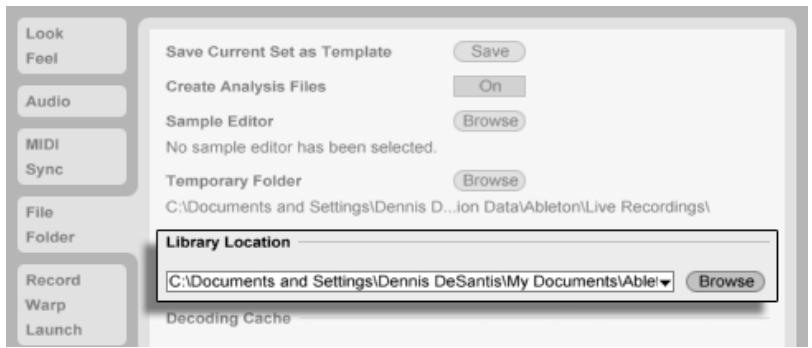
The Library Location Chooser.
If any of these previous Library locations are now unavailable (perhaps because of an unattached external drive, a moved or renamed folder, or an angry roommate) these will appear greyed-out in the list. If you know that these unavailable locations are gone for good, you can remove them by using the Clear Unavailable Locations option at the bottom of the chooser:

Unavailable Library Locations can be Cleared from the List.
You can also use the Browse button next to this chooser to create a new Library by pointing to an empty folder or creating a new one. Once you've selected a Library path, one of several possibilities will occur, depending on the new location:
- If the target location is an empty folder on a different hard drive, you will be given the option to copy your current Library to this new location. Live will then offer to open a Explorer (Windows)/Finder (Mac) window so that you can delete the Library from the old location.
- If the target location is an empty folder on the same hard drive, you will be given the option to move your current Library to this new location.
- If the target location is not empty but does not contain a Library, Live will create a subfolder called "Library" at this location, and then offer to copy/move the old Library
contents.
In all three of these cases, you may also choose to create a new Library, without copying or moving any content from the previous location. Live will then offer to install any default packages to the new location.
- If the target location is a Library that was made with an older version of Live, you will be warned about possible compatibility issues. It is generally not a good idea to try to share a single Library between two different versions of Live.
Note: Live will not allow you to create a Library inside an existing Project.
5.7.2 Importing Projects into the Library
You can merge the contents of a Live Project into the Library to make them available to any Project. To do this, (PC) / Ctrl (Mac) on a Project folder in the File Browser and select the Manage Project command.
5.8 Locating Missing Samples
If you load a Live Set, Live Clip, or preset that references samples which are missing from their referenced locations, Live's Status Bar (located at the bottom of the main screen) will display a warning message. Clips and instrument sample slots that reference missing samples will appear marked "Offline," and Live will play silence instead of the missing samples.
Live's File Manager offers tools for repairing these missing links. Click on the Status Bar message to access these. (This is actually a shortcut for choosing the Manage Files command from the File menu, clicking the Manage Set button, and then clicking the Locate button found in the Missing Files section.) The File Manager will present you with a list of the missing files and associated controls.

The File Manager's List of Missing Samples.
5.8.1 Manual Repair
To manually fix a broken sample reference, locate the missing sample in the File Browser, drag it over to the File Manager and drop it on the respective line in the list of missing files. Note that Live will not care if the sample you offer is really the sample that was missing.
5.8.2 Automatic Repair
Live offers a convenient automatic search function for repairing sample references. To send Live on a search, click the Automatic Search section's Go button. To reveal detailed options for guiding the automatic search function, click the neighboring triangular-shaped button.

Automatic Repair Options in the File Manager.
- Search Folder - includes a user-defined folder, as well as any subfolders, in the search. To select the folder, click the associated Set Folder button.
- Search Project - includes this Set's project folder in the search.
- Search Library - includes the Live Library in the search.
For each missing sample, the automatic search function may find any number of candidates. Let's consider the following cases:
- No candidate found - you can choose another folder and try again, or locate the sample manually.
- One candidate found - Live accepts the candidate and considers the problem solved.
- Several candidates found – Live requires your assistance: Click the Hot-Swap button (i.e., the leftmost item in every line of the list of missing samples) to have the File Browser present the candidates in Hot-Swap Mode. You can now double-click the candidates in the File Browser to load them, as the music plays if you like.
5.9 Collecting External Samples
To prevent a Live Set from containing broken sample references, Live provides the option of collecting (i.e., copying) them into the Set's project folder. This is accomplished via the File Manager:
- Choose the Manage Files command from the File menu
- Click the Manage Set button
- Unfold the triangular-shaped fold button in the External Samples section.

Separated by location (the Library, installed by factory Live Packs, other Projects and elsewhere - sample collections from external drives, for example), the File Manager provides:
- A sample count and the associated disk space used;
- A Show button that will list the samples in the File Browser;
- A Yes/No toggle for engaging or disengaging collection.
Note: Make sure to confirm your choices by clicking the File Manager's Collect and Save button!
The File menu's Collect All and Save command is a shortcut that collects and saves all external samples referenced by the current Set, including those from the Library. Note that this can cause a lot of copying, especially if your Live Set uses large multisample collections!
The File Manager's Collect and Save Button.
5.10 Aggregated Locating and Collecting
Instead of having to deal with problems while you are in a creative mode, you might prefer putting aside some dedicated housekeeping time to solve all the problems in one go. Using Live's File Manager, you can find missing samples and collect external samples not only for the current Live Set but also for:
- The Library - choose the Manage Files command from the File menu; then click the Manage Library button.
- The current Live Project - choose the Manage Files command from the File menu; then click the Manage Project button.
- Any Live Project - (PC) / (Ctrl) (Mac) on a Project in the Live Browser, and choose the Manage Project option.
- All Projects found in a specific folder (and its subFolders) - (PC) / Ctrl (Mac) on a folder in the File Browser, and choose the Manage Projects command.
- Any selection of Live Sets, Live Clips, Live Presets - (PC) / Ctrl (Mac) on the respective items in the File Browser, and choose the Manage Files command.
Remember to click the Collect and Save button at the bottom of the File Manager when you are finished. Otherwise your changes will be discarded.
5.11 Finding Unused Samples
Live's File Manager can find the unused samples in a Project for you. You can then review them and decide to delete them individually or collectively. When searching for "unused" samples, Live will inspect each sample in a project folder, checking if it is referenced by any of the Live Sets, Live Clips or device presets in the Project. If not, the sample is regarded as unused - even if other Projects or programs still use it.
To find the unused samples for the currently open Project, choose the Manage Files command from the File menu, click the Manage Project button, and then click on the triangular-shaped fold button next to "Unused Samples" to access a summary and the Show button. Clicking the Show button makes the File Browser list the unused samples; there, you can preview the samples and delete them if you like.
Note you can also find the unused samples from the Library: choose the Manage Files command from the File menu, then click the Manage Library button, and then see the Unused Samples section.
Last but not least, you can find the unused samples for all Projects found in a specific folder (and its sub-folders): (PC) / Ctrl (Mac) on a folder in the File Browser and choose the Manage Projects command, then see the Unused Samples section. Live inspects each Project individually and labels a sample unused even if another Projects in the same folder does use that sample. To prevent losses, you may want to first collect the samples into their respective Projects and then purge the Projects of unused samples.
5.12 Packing Projects into Live Packs
Live's File Manager provides the option of packing a Live Project in Live Pack format for convenient archiving and transfer. To do this, choose the Manage Files command from the File menu, click the Manage Project button, and then click on the triangular-shaped fold button next to "Packing." Click the Create Live Pack button to bring up a file-select dialog where you can specify the name and location of a new Live Pack file. Creating a new Live Pack from a Project does not affect the Project. If you want the Project deleted, you can delete it using the File Browser.
Live employs lossless compression techniques to minimize the file size of Live Packs. Depending on the audio materials in a Project, this saves up to 50 percent in file size.
To unpack a Live Pack (i.e., to restore the original Live Project), double-click the Live Pack file (.alp), drag it into the Live main window, or locate it via the File menu's Install Live Pack command. Live will then request that you choose a location for the new Project. Note: Factory Live Packs (those provided by Ableton) will automatically be installed in the Live Library.
5.13 File Management FAQs
5.13.1 How Do I Create a Project?
A Project is automatically created whenever you save a Live Set, except when you save it into the Library or a preexisting Project. You can also manually create a Project by clicking (PC) / Ctrl (Mac) in the Browser and selecting Create Project from the context menu.
5.13.2 How Can I Save Presets Into My Current Project?
As long as you're working in a Project (meaning that you've saved your current Live Set), every device in the Device Browser will show a Current Project sub folder. You can copy presets from other Browser locations to the current project by Ctrl (PC) / Alt (Mac)-dragging them. You can also save presets directly to the current project by dragging from
the device's title bar and dropping into the Current Project. You can then use the File Management tools, collect any referenced samples, etc.
5.13.3 Can I Work On Multiple Versions of a Set?
If you'd like to work on different versions of the same Live Set, save them into the same Project. This will usually be the Project that was created when you saved the first version of the Live Set. If a Project contains multiple Live Sets it will only collect one copy of any samples used by the various versions, which can save disk space and help with organization.
5.13.4 Where Should I Save My Live Sets?
You can save Live Sets anywhere you want, but saving to the Library or pre-existing Project folders can cause problems, and should be reserved for special cases. You should only save Live Sets in the Library if you intend to use them as templates for other Live Sets. Likewise, you should only save a Live Set to an existing Project if it is somehow related to the Project – for example, an alternate version of a song that's already in the Project.
5.13.5 Where Should I Save My Live Clips?
If you'd like to have your Live Clips available in all of your Projects, create a Library subfolder and save your clips there. You can also save clips anywhere else on your computer.
5.13.6 Can I Use My Own Folder Structure Within a Project Folder?
You can organize your files any way you want within a Project, but you'll need to use the File Manager to relink the files that you've moved around:
1) In Live's Browser or via your operating system, reorganize the files and folders within your Project folder.
2) Navigate to the Project folder in the Browser and choose Manage Project via the (PC) / Ctrl (Mac) context menu. 3) If you've changed the original location of any samples used in the Project, the Missing Samples section of the File Manager will indicate this. Click the Locate button to search for the samples. 4) Since you know that your samples are all in the Project folder, unfold Automatic Search. Then enable the Search Project and Fully Rescan Folders options. Finally, click Go to initiate the search. 5) When searching is complete, click Collect and Save at the bottom of the File Manager to update the Project.
5.13.7 How Do I Export A Project to the Library and Maintain My Own Folder Structure?
If you export a Project to the Library, Live will look in the Library to see if the folder names there match those in your Project, and will create any missing folders as necessary. For example, if your Project folder contains samples in "Samples/My Samples," Live will look in the Library for a "Samples" folder (which it will find, because it's part of the standard Library) and then for a "My Samples" subfolder (which it will not find, but will then create).
Chapter 6
Arrangement View
The Arrangement View displays the Arrangement, which contains music laid out along a song timeline, like a multitrack tape.

The Arrangement View is a powerful editing tool that easily lets you combine and arrange MIDI, loops, sound effects and complete pieces of music.
A Piece of Music in the Arrangement View.
6.1 Navigation
Live offers several fast methods for zooming and scrolling the Arrangement display:
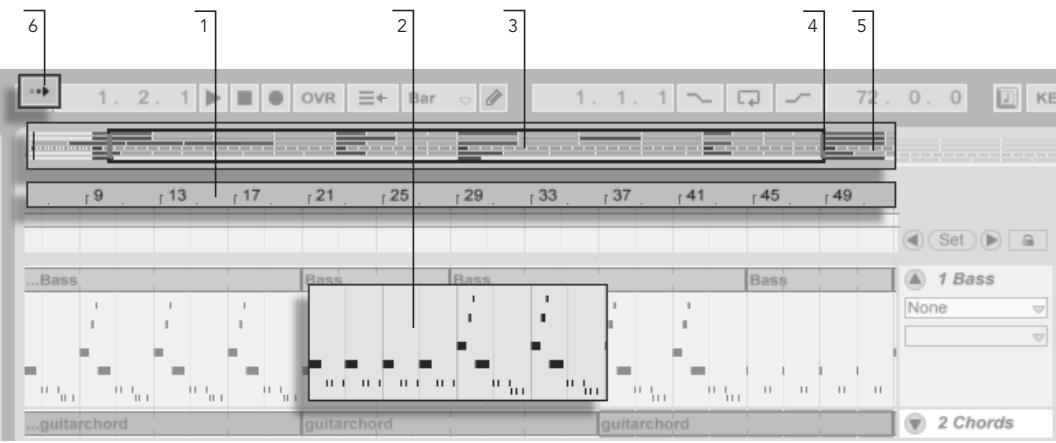
- To smoothly change the zoom level, click and drag vertically in the beat-time ruler at the top of the Arrangement View (you can also drag horizontally to scroll the display).
- To zoom in and out around the current selection, use the computer keyboard's + and - keys. To "pan" the display, click and drag while holding the Ctrl Alt (PC) / Alt (Mac) modifier.
- The Arrangement Overview is like a "bird's-eye view" of your music. It always shows the complete piece, from start to end. The black rectangular outline represents the part of the Arrangement that is currently displayed in the Arrangement display below. To scroll the display, click within the outline and drag left or right; to zoom out and in, drag up and down.
- To change the displayed part of the Arrangement, drag the outline's left and right edges.
- To see a specific part of the Arrangement in more detail, click on it in the Overview and drag downwards to zoom in around that part. Note that you can also drag
Navigating the Arrangement View.
horizontally to scroll the display. Using this method, you can zoom and scroll to focus around any part of the Arrangement with just one mouse motion.
- To have the Arrangement display follow the song position and scroll automatically, turn on the Follow switch, or use the Follow command from the Options menu.
6.2 Transport
There are a number of ways to control Live's transport with the computer keyboard and mouse:
- You can start Arrangement playback by clicking the Control Bar's Play button, and stop playback by clicking the Stop button. Arrangement playback can also be toggled on and off by pressing the keyboard's space bar.

- You can set the Arrangement playback position by clicking anywhere along the Arrangement to place the flashing insert marker. Double-clicking the Stop button will return the Arrangement play position to 1.1.1.

To continue playback from the position where it last stopped, rather than from the insert marker, hold down the Shift modifier while pressing the space bar.
- Clicking in the scrub area above the tracks will make playback jump to that point. The size of these jumps is quantized according to the Control Bar's Quantization menu setting. While the mouse is held down over the scrub area, a portion of
The Play and Stop Buttons in the Control Bar.
Arrangement Playback Begins from the Insert Marker.
The arrangement will repeatedly play the size of the chosen quantization setting. With small quantization settings, or a setting of "None," this allows you to scrub through the music.

- The song position can be adjusted numerically using the Control Bar's Arrangement Position fields.

The Arrangement Position fields show the song position in bars-beats-sixteenths. To change the values:
- Click and drag up or down in any of these fields.
- Click and type a number, then hit Return.
- Click and decrement or increment the value with the down and up arrow keys.
- Arrangement playback can be started at a particular point in one of your clips using the scrub area in the Clip View.
- Several Arrangement playback positions can be set using launchable locators.
Note that any computer keyboard key or MIDI message can be mapped to the transport controls, as described in the respective chapter.
Scrubbing Arrangement Playback.
Setting the Play Position in the Arrangement Position Fields.
6.3 Launching the Arrangement with Locators
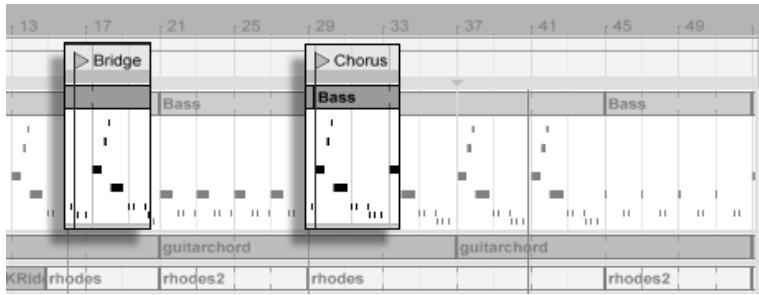
Locators can be set at any point in the Arrangement. This can be done in real time during playback or recording with the Set Locator button, and will be quantized according to the global quantization value set in the Control Bar. Clicking the Set Locator button when the Arrangement is not playing will create a locator at the insert marker or selection start. You can also create a locator using the context menu in the scrub area above the tracks or via the Insert menu. Note that the position of a new locator is quantized according to the Control Bar's Quantization menu setting.

You can recall (jump to) locators by clicking on them, or with the Previous and Next Locator buttons on either side of the Set button. Locators can also be recalled using MIDI/key mapping. Note that locator recall is subject to quantization. Double-clicking a locator will select it and start Arrangement playback from that point.
After jumping to the first or last locator in the Arrangement, the Previous and Next Locator buttons will jump to the Arrangement start or end, respectively.
Locators can be moved by clicking and dragging, or with the arrow keys on your computer keyboard.
Using Locators to Launch Play in the Arrangement.
The Locator Controls.
To name a locator, select it by clicking its triangular marker, and choose the Rename Edit menu command (or use the Ctrl R (PC) / Mac shortcut). You can also enter your own info text for a locator via the Edit Info Text command in the Edit menu or in the locator's PC/ (Mac context menu. Locators can be removed with your computer's or Delete key, the Insert menu, or the Delete Locator button.
Note that the locator (PC) / Ctrl (Mac) context menu offers a quick way of looping playback between two locators with its Loop To Next Locator command.
The locator (PC) / Ctrl (Mac) context menu's Set Song Start Time Here command can be used to overrule the default "play starts at selection" rule: when this command is checked, play starts at the locator.
6.4 Time Signature Changes

Live's time signature can be changed at any point in the Arrangement by using time signature markers. These can be added at the locator position via the Insert menu, or anywhere in the scrub area using the (PC) / Ctrl (Mac) context menu. Time signature markers appear just below the beat time ruler, but this marker area is hidden if a set contains no meter changes, freeing up additional space at the top of the scrub area.
In many ways, time signature markers look and function like locators; they can be moved with the mouse or with your computer keyboard's arrow keys, and their value can be changed using the Edit menu's Edit Value command (or with the Ctrl R (PC) / R (Mac) shortcut). They can be also be deleted using the ← or Delete key, or via delete commands in the Edit and Insert menus.
The time signature marker (PC) / Ctrl (Mac) context menu offers a number of features, including a Delete All Time Signature Changes command and options to loop or
Time Signature Changes.
select the area up to the next time signature marker.
Any time signature with a one- or two-digit numerator and a denominator of 1, 2, 4, 8 or 16 can be used as a time signature marker value. The numbers must be separated by a delimiter such as a slash, comma, period, or any number of spaces. These marker values can also be set by adjusting the time signature fields in the Control Bar, either by typing in values or dragging the numerator and denominator sliders. This will change the time signature marker value at the current play location, and works either with the transport stopped or during playback. When the Arrangement contains time signature changes, the time signature editor displays an automation LED in the upper left corner.
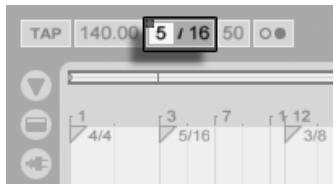
Time signature markers are not quantized; they may be placed anywhere in the timeline, and their positioning is only constrained by the editing grid. This means that it is possible to place meter changes in "impossible" places - such as before the end of the previous measure. This creates a fragmentary bar, which is represented in the scrub area by a crosshatched region. Live is happy to leave these incomplete measures as they are, but if you'd like your Set to conform to the rules of music theory, you can use the two (PC) / Ctrl Mac context menu options to "correct" incomplete bars.

- Delete Fragmentary Bar Time deletes the duration of the fragmentary bar from the Arrangement, thereby moving any audio or MIDI on either side of the deleted area closer together in the timeline. The next time signature marker will now fall on a "legal" barline.
- Complete Fragmentary Bar inserts time at the beginning of the fragmentary bar, so that it becomes complete. The next time signature marker will now fall on a "legal" barline.
The Time Signature Editor Can Change Time Signature Marker Values, and Shows an Automation LED.
A Fragmentary Bar and its Resolution Options.
Please note that these resolution options affect all tracks - deleting and inserting time changes the length of the entire Arrangement.
If you import a MIDI file into the Arrangement, you'll be given an option to import any time signature information that was saved with the file. If you choose to do this, Live will automatically create time signature markers in the correct places. This makes it very easy to work with complex music created in other sequencer or notation software.
6.5 The Arrangement Loop

For Live to repeatedly play a section of the Arrangement, activate the Arrangement loop by clicking on the Control Bar's Loop switch.

You can set loop length numerically using the Control Bar fields: The left-hand set of fields determines the loop start position, while the right-hand set determines loop length.
The Edit menu's Loop Selection command accomplishes all of the above at once: It turns the Arrangement loop on and sets the Arrangement loop brace to whatever timespan is selected in the Arrangement.
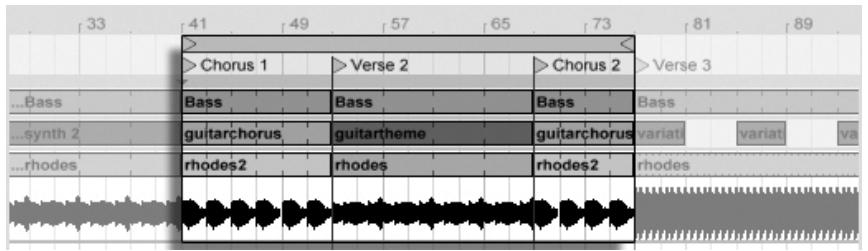
The loop brace can be selected with the mouse and manipulated with commands from the computer keyboard:
The Control Bar's Loop Switch.
The Loop Start Fields (Left) and the Loop Length Fields (Right).
The Arrangement's Loop Brace.
- and → nudge the loop brace to the left/right by the current grid setting.
- and shift the loop brace left/right in steps the size of its length.
- The Ctrl (PC) / Mac) modifier used with the arrow left and right keys shortens or lengthens the loop by the current grid setting.
- The Ctrl (PC) / Mac modifier with the arrow up and down keys doubles or halves the loop length.
You can also drag the Arrangement's loop brace: Dragging the left and right ends sets the loop start and end points; dragging between the ends moves the loop without changing its length.
The loop's (PC) / Ctrl (Mac) context menu's Set Song Start Time Here command can be used to overrule the default "play starts at selection" rule: when this command is checked, play starts at the loop start.
6.6 Moving and Resizing Clips
A piece of audio or MIDI is represented in the Arrangement View by a clip sitting at some song position in one of Live's tracks.

Dragging a clip moves it to another song position or track.

Dragging a clip's left or right edge changes the clip's length.
Moving a Clip.
Changing a Clip's Length.
6.7 Selecting Clips and Time
With the exception of moving and resizing clips, Arrangement editing in Live is selection-based: You select something using the mouse, then execute a menu command (e.g., Cut, Copy, Paste, Duplicate) on the selection. This editing method lends itself to an efficient division of labor between the two hands: One hand operates the mouse or trackpad, while the other hand issues the keyboard shortcuts for the menu commands. The menu eventually is only used as a reference for looking up the keyboard shortcuts.
Here is how selection works:
- Clicking a clip selects the clip;
- Clicking into the Arrangement background selects a point in time, represented by a flashing insert mark;
- Clicking and dragging selects a timespan.
- To access the time within a clip for editing, "unfold" its track by clicking the bullet button next to the track name.
Notice that you can adjust the height of the unfolded track by dragging the split line below the Unfold Track button. Clicking and dragging in the waveform display below the clip's horizontal strip allows you to select time within the clip. Note that you can actually unfold all of your tracks at once by holding down the Alt (PC) / Alt (Mac) modifier when clicking the bullet button.
- Clicking on the loop brace is a shortcut for executing the Edit menu's Select Loop command, which selects all material included within the loop.
- Holding the Delta key while clicking extends an existing selection in the same track or across tracks.
Adjusting an Unfolded Track's Height.

Clicking the Loop Brace to Select the Loop for Editing.
6.8 Using the Editing Grid
To ease editing, the cursor will snap to grid lines that represent the meter subdivisions of the song tempo. The grid can be set to be either zoom-adaptive or fixed.
You can set the width of both zoom-adaptive and fixed grid lines using the (PC) / Ctrl (Mac) context menu available in either the Arrangement View track area or the Clip View display.
The following shortcuts to Options menu commands allow quickly working with the grid:
- Use Ctrl 1 (PC) / Cmd 1 (Mac) to narrow the grid, doubling the density of the grid lines (e.g., from eighth notes to sixteenth notes).
- Use Ctrl 2 (PC) / Cmd 2 (Mac) to widen the grid, halving the density of the grid lines (e.g., from eighth notes to quarter notes).
- Use Ctrl 3 (PC) / Cmd 3 (Mac) to toggle triplets mode; this would, for instance, change the grid from eighth notes to eighth note triplets.
- Use Ctrl 4 (PC) / Cmd 4 (Mac) to turn grid snapping on or off. When the grid is off, the cursor does not snap to meter subdivisions.
- Use Ctrl 5 (PC) / Cmd 5 (Mac) to toggle fixed and adaptive grid modes.
The current spacing between adjacent grid lines is displayed in the lower right corner of the Arrangement View or Clip View.
6.9 Using the ...Time Commands
Whereas the standard commands like Cut, Copy and Paste only affect the current selection, their "... Time" counterparts act upon all tracks by inserting and deleting time. Any time signature markers within the selected region will also be affected.
- Cut Time cuts a selection of time from the Arrangement, thereby moving any audio or MIDI on either side of the cut area closer together in the timeline. This command reduces the length of your Arrangement by whatever amount of time you have cut. Note that the Cut Time command affects all tracks, not only the selected ones.
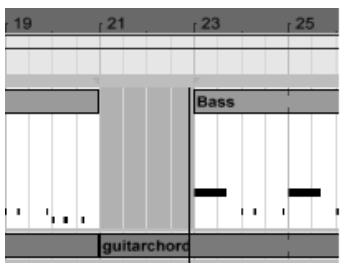
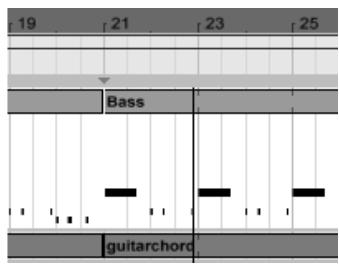
- Paste Time places copied time into the Arrangement, thereby increasing its overall duration by the length of time you have copied.
- Duplicate Time places a copy of the selected timespan into the Arrangement, thereby increasing its overall duration by the length of the selection.
- Delete Time deletes a selection of time from the Arrangement, thereby moving any audio or MIDI on either side of the deleted area closer together in the timeline. This command reduces the length of your Arrangement by the amount of time you have deleted. Note that the Delete Time command affects all tracks, not only the selected ones.
- Insert Silence inserts as much empty time as is currently selected into the Arrangement, before the selection.
A Gap Between Clips Has Been Deleted by First Selecting It, Then Executing the Delete Time Command.
6.10 Splitting Clips
The Split command can divide a clip or isolate part of it.
To split a clip in two halves, do the following:
- Unfold the track;
- In the waveform or MIDI display, click at the position where you want the clip to be split;
- Execute the Split command.
To isolate a part of a clip, do the following:
- Unfold the track;
- In the waveform or MIDI display, drag a selection over the part of the clip you want to isolate;
- Execute the Split command to divide the original clip into three pieces.

The Result of Splitting a Clip.
6.11 Consolidating Clips
The Consolidate command replaces the material in the Arrangement View selection with one new clip per track. This is very useful for creating structure.


Consolidating Several Clips Into a New Clip.
Suppose you have, by editing or improvising, come up with a layout of clips that sound good in Arrangement Loop mode. Selecting that part of the Arrangement, for instance by using the Edit menu's Select Loop command, and then executing the Consolidate command creates a new clip that can be treated as a loop. You can now, for instance, drag the clip edges to create more repetitions. You might also want to drag the new loop via the Session View selector into a Session View slot for real-time arrangement purposes.
When operating on audio clips, Consolidate actually creates a new sample for every track in the selection. The new samples are essentially recordings of the time-warping engine's audio output, prior to processing in the track's effects chain and mixer. Hence, the new sample incorporates the effects of in-clip attenuation, time-warping and pitch shifting, and of the respective clip envelopes; however, it does not incorporate the effects. To create a new sample from the post-effects signal, please use the Export Audio command.
The new samples can be found in the current Set's Project folder, under Samples/Processed/Consolidate. Until the Set is saved, they remain at the location specified by the Temporary Folder.
Chapter 7
Session View
In Live's Arrangement View, as in all traditional sequencing programs, everything happens along a fixed song timeline. For a number of applications, this is a limiting paradigm:
- When playing live, or when DJing, the order of pieces, the length of each piece and the order of parts within each piece is generally not known in advance.
- In the theatre, sound has to react to what happens on stage.
- When working along with a piece of music or a film score, it can be more efficient and inspirational to start with an improvisation, which is later refined into the final product.
This is exactly what Live's unique Session View is for.
7.1 Session View Clips
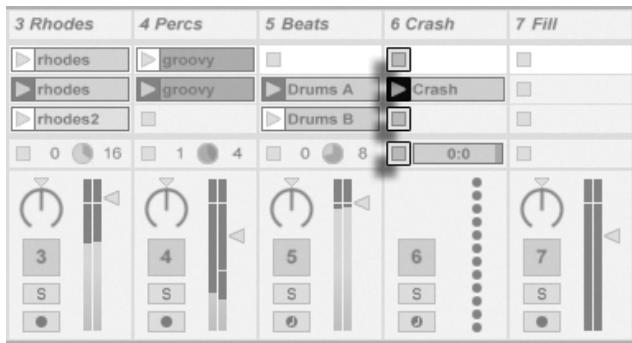
- Each clip in the Session View has a triangular button at the left edge. Click the button with the mouse to "launch" clip playback at any time, or pre-select a clip by clicking on its name, and launch it using the computer's Return key. You can then move on to the neighboring clips using the arrow keys. Please refer the manual section on clip launch settings for details on how to customize this behavior.
- Click on a square Clip Stop button to stop a running clip, either in one of the track's slots, or in the Track Status field below the Session grid.
Clips can be controlled remotely with the computer keyboard or a MIDI controller. They can even be mapped to MIDI note ranges so that they play chromatically.
Clips can be played at any time and in any order. The layout of clips does not predetermine their temporal succession; the Session grid offers random access to the clips it contains.
Notice that, even if you stop playback for a Session View clip, the Play button in the Control Bar will remain highlighted, and the Arrangement Position fields will continue running. These fields keep a continuous flow of musical time going, so that you can always know your position in song time during a live performance or while recording into the Arrangement, regardless of what your individual Session clips are doing.
You can always return the Arrangement Position fields to 1.1.1 and stop playback for the entire Live Set by pressing the Control Bar's Stop button twice.
The Controls for a Session View Clip.

7.2 Tracks and Scenes
Each vertical column, or track, can play only one clip at a time. It therefore makes sense to put a set of clips that are supposed to be played alternatively in the same columns: parts of a song, variations of a drum loop, etc.

For convenient access to more clips at once, you can resize Session View tracks by clicking and dragging at the edges of their title bars. Tracks can be narrowed this way so that only Clip Launch buttons and essential track controls are visible.

The horizontal rows are called scenes. The Scene Launch buttons are located in the rightmost column, which represents the Master track. To launch every clip in a row simultaneously, click on the associated Scene Launch button. This can be very useful in organizing the live performance of a song with multiple parts.
The Arrangement Position Fields and the Stop Button.
Resized Session View Tracks.
A Scene in the Session View.
The scene below a launched scene will automatically be selected as the next to be launched unless the Select Next Scene on Launch option in the Launch Preferences is set to "Off." This allows you to trigger scenes from top to bottom without having to select them first. Computer keys or a MIDI controller can be used to launch scenes and scroll between them.
Scenes can be renamed using the Rename command in the Edit menu or the (PC) / Ctrl (Mac) context menu. One can quickly rename several scenes by executing the Rename command and using the computer's Tab key to move from one scene to the next. You can also enter your own info text for a scene via the Edit Info Text command in the Edit menu or in the scene's (PC) / Ctrl (Mac) context menu.
Scene names can be both descriptive and functional; if Live detects a viable tempo and/or time signature as part of a scene name, the project will automatically adjust to these parameters when the scene is launched. To assign a tempo to a scene, select the scene and rename it with a viable tempo (e.g., "96 BPM"). Any tempo can be used, as long as it is within the range allowed by Live's Tempo control (20-999 BPM). To assign a time signature to a scene, rename the scene with a meter in the form of "x/y" (e.g., "4/4"). Any time signature can be used, provided it has a numerator between 1 and 99 and a denominator with a beat value of 1, 2, 4, 8 or 16.
Tempo and time signature changes can coexist within a single scene name, and can appear in any position as long as they are separated from each other by at least one character. For example, “2/4+108 BPM”, “72 BPM;7/8” and “60 BPM Chorus 3/4” are all scene names that will cause simultaneous meter and tempo changes.
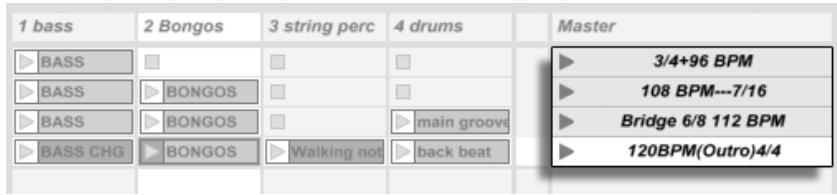
These Scenes Will Change the Tempo and Time Signature.
7.3 The Track Status Fields
You can tell a track's status by looking at the Track Status field just above the active track's mixer controls:

A Track Playing a Looping Session Clip...
The pie-chart icon represents a looping Session clip. The number to the right of the circle is the loop length in beats, and the number at the left represents how many times the loop has been played since its launch.

... A One-shot Session Clip...
The progress-bar icon represents a one-shot (non-looping) Session clip. The value displays the remaining play time in minutes:seconds.

... Monitoring the Input...
A microphone icon appears in an audio track that is set to monitor its input. A keyboard icon appears in a MIDI track under these same circumstances.

... Playing the Arrangement.
If the track is playing clips from the Arrangement, a miniature display representing the Arrangement clips being played appears.
7.4 Setting Up the Session View Grid
Clips arrive in the Session View by being imported from the File Browsers or through recording.
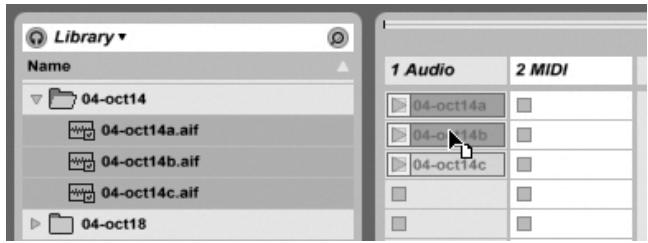
If you are dragging multiple clips into the Session View, Live defaults to arrange them vertically, in one track. Hold down Ctrl (PC) / Mac prior to dropping them so as to lay the clips out in one scene.
Clips can be moved around the Session grid by drag-and-drop. To move several clips at once, select them by using the - or Ctrl (PC) / Mac)-modifier before dragging. You can also click into an empty slot and "rubber-band" select from there. Scenes can be reordered by drag-and-drop as well.
7.4.1 Select on Launch
By default, clicking a Session View clip's Launch button also selects the clip, since you will typically want the Clip View to show the newly launched clip. However, some power-users don't want the current focus (e.g., a return track's devices) to disappear just because a clip has been launched, especially when starting a clip in order to try it with the return track device settings. Turn off the Select on Launch option from the Launch Preferences if you prefer the view to remain as is when you launch clips or scenes.
Dropping Multiple Clips Into the Session View.
7.4.2 Removing Clip Stop Buttons
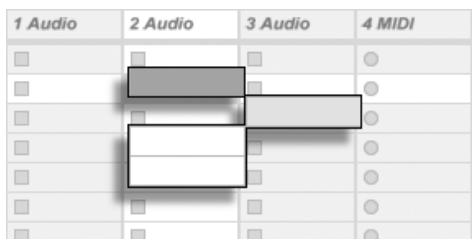
You can add and remove Clip Stop buttons from the grid using the Edit menu's Add/Remove Stop Button command. This is useful for pre-configuring the scene launch behavior: If, for instance, you don't want scene 3 to affect track 4, remove the scene 3/track 4 Stop button.
Slots Without Clip Stop Buttons.
7.4.3 Editing Scenes
In addition to the standard Edit menu commands such as cut, copy, paste and duplicate, there are two useful commands in the Insert menu that apply specifically to scenes:
- Insert Scene inserts an empty scene below the current selection.
- Capture and Insert Scene inserts a new scene below the current selection, places copies of the clips that are currently running in the new scene and launches the new scene immediately with no audible interruption. This command is very helpful when developing materials in the Session View. You can capture an interesting moment as a new scene and move on, changing clip properties and trying clip combinations.
Please note that the number of scenes is limited to eight in Live LE.
7.5 Recording Sessions into the Arrangement
Your Session View playing can be recorded into the Arrangement, allowing for an improvisational approach to composing songs and scores.

When the Record button is on, Live logs all of your actions into the Arrangement:
- the clips launched;
- changes of those clips' properties;
- changes of the mixer and the devices' controls, also known as automation;
- Tempos and time signature changes, if they are included in the names of launched scenes.
To finish recording, press the Record button again, or stop playback.
To view the results of your recording, bring up the Arrangement View. As you can see, Live has copied the clips you launched during recording into the Arrangement, in the appropriate tracks and the correct song positions. Notice that your recording has not created new audio data, only clips.
The Session clips and the Arrangement clips in one track are mutually exclusive: Only one can play at a time. When a Session clip is launched, Live stops playing back the Arrangement in favor of the Session clip. Clicking a Clip Stop button causes the Arrangement playback to stop, which produces silence.

Arrangement playback does not resume until you explicitly tell Live to resume by clicking the Back to Arrangement button, which lights up to remind you that what you hear differs from the Arrangement.
The Control Bar's Record Button.
The Arrangement Selector.
The Back to Arrangement Button.
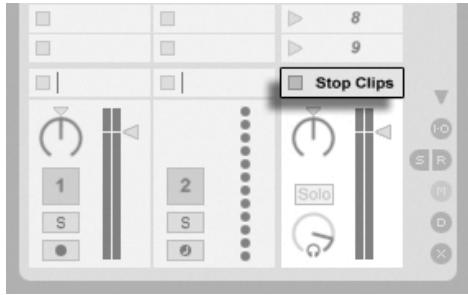
The Stop All Clips Button.
To disable all Arrangement clips simultaneously, click on the Stop All Clips button in the Master Track Status field. The clips in the Arrangement and in the Session View exist independently from one another, which makes it easy to improvise into the Arrangement over and over again until it's right.
Furthermore, you can move clips not only within the Session grid, but also from the Session View to the Arrangement and vice versa by using Copy and Paste, or by dragging clips over the or selectors.
When pasting material from the Arrangement into the Session View, Live attempts to preserve the temporal structure of the clips by laying them out in a matching top-to-bottom order. Moving through the scenes from the top down, you can reconstruct the original arrangement. This is useful for taking a composed piece of music back to the improvisational stage.
Chapter 8
Clip View
The Clip View is where clip properties can be set and adjusted.
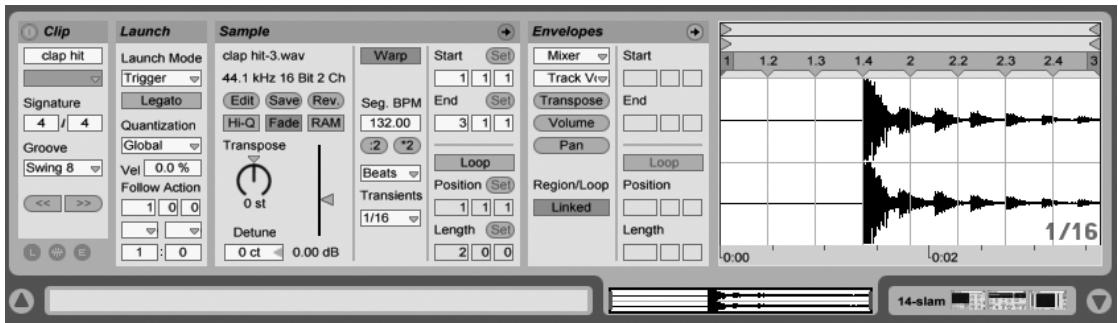
The Clip View.
The Clip View is opened by clicking on the Clip Overview or double-clicking a clip in the Session or Arrangement View.

In the Session View, clicking on a Track Status Field opens the Clip View for editing the clip that is currently running in the track.
The properties of more than one clip can be edited collectively in the Clip View as a multi-selection. To create a multi-selection, click and drag to highlight the clips, or select one clip and use the Ctrl (PC) / Mac or modifiers to add to your selection. The properties available in the Clip View for a multi-selection depend on the contents of the clips; generally only properties which the clips have in common are shown.

Controls such as sliders and knobs behave slightly differently when they are part of a multi-selection. If the clips in a multi-selection have differing values for any particular knob or slider parameter (clip transposition, for example), the range of these values will be displayed and can be adjusted with the control. Dragging the knob or slider to its absolute maximum or minimum value will make the clips' settings thereafter identical, adjustable as a single value.
MIDI clips and audio clips in Live have different sets of properties and, consequently, do not share the same set of Clip View controls. The two types of clips do have the following
Clicking the Clip Overview Opens the Clip View.
Clicking a Session View Track Status Field Opens the Clip View.
Creating a Clip Multi-Selection.
in common:
- The Clip box contains basic clip settings.
- The Envelopes box and the Envelope Editor manage the clip's envelopes, which are used to modulate the effects, mixer, and clip or MIDI controls. Clip envelopes and their associated Clip View components are covered in detail in a separate manual chapter.
- The Launch box controls clip launch behavior and, as such, only appears for Session View clips. Setting Session View clip launch properties is covered in detail in a separate manual chapter.
Audio clips have these additional Clip View controls:
- The Sample Display toggles with the Envelope Editor on the right-hand side of the Clip View, and controls Live's sample-warping capabilities and clip playback settings.
- The Sample box contains settings pertaining to how the clip plays its sample and displays it in the Sample Display.

The Clip View for an Audio Clip.
MIDI clips have these additional Clip View controls:
- The MIDI Editor toggles with the Envelope Editor on the right-hand side of the Clip View, and allows editing and creating MIDI notes and velocities.
- The Notes box contains settings pertaining to how Live plays a MIDI clip and what it displays in the MIDI Editor.

To make best use of the screen real estate, you can show or hide the Launch, Envelopes, and Sample or MIDI boxes using the Clip View Box selector in the Clips box. You can also toggle between the Sample Display/MIDI Editor and the Envelope Editor by clicking in the title bars of the Sample/Notes box and the Envelopes box, respectively.
The Clip View for a MIDI Clip.
The Clip View Box Selector Shows and Hides Various Clip View Components.
8.1 The Clip Box

The Clip Box.
8.1.1 Clip Activator Switch
Using this switch, you can deactivate a clip so that it does not play when launched in the Session View or during Arrangement playback. Clips can also be activated/deactivated directly from the Session or Arrangement View with their (PC) / Ctrl (Mac) context menus.
8.1.2 Clip Name and Color
The Clip Name field allows naming the clip. By default, a clip's name matches the name of the file it references but, in general, the clip name is independent from the file name.
You can also rename a clip by selecting it in the Session grid or Arrangement View and using the Rename command in the Edit menu or the clip's (PC) / Ctrl (Mac) context menu. This method also allows you to create your own info text for the clip via the Edit Info Text command.
Renaming an audio clip does not rename the referenced sample file. To rename a file, select it in Live's File Browsers, and then choose the Edit menu's Rename command.
The Clip Color chooser allows choosing a clip color.
8.1.3 Clip Signature
Using the Clip Signature fields, you can specify the time signature of a MIDI or audio clip. This setting is relevant only for display; it does not affect playback. Please note that Clip Signature is completely separate from the project's time signature, and can be set independently for each clip. This makes it easy to create complex polymeric textures by simultaneously triggering clips with different meters and/or loop lengths.
8.1.4 Groove
The Clip Groove chooser selects the type of groove used for the clip. "Swing 8," for example, applies an 8th-note groove.

The Global Groove control defines the amount of the groove for every clip in the Live Set.
So, how does it work? Imagine a simple one-bar MIDI clip that has a time signature of 4/4. Our MIDI clip is made up of 8th notes – eight of them – that play either on or between each of the four beats. With a Clip Groove setting of Swing 8, the timing of our one-bar clip becomes a bit like a rubber-band that is pinned down at each beat but flexible in between. The 8th notes that fall between beats can shift slightly forward. With a Global Groove setting of 50, for example, the notes will wait until 2/3 of the way through the beat to play, where an 8th-note triplet would normally fall.
16th- and 32nd-note swing works similarly, but on a smaller scale: Every other note shifts forward, toward the nearest 16th- or 32nd-note triplet position.
Returning to our rubber-band analogy, we can see that Swing 8 can actually affect more than just 8th notes. Actually, any notes that do not lie directly on a beat will be affected when the rubber-band is stretched – including 16th and 32nd notes. By the same token, Swing 16 (where our rubber-band is anchored to positions just an 8th note apart) can affect 32nd notes.
The Control Bar's Global Groove Control.
Groove can be applied to both MIDI clips and audio clips. Applying groove to audio clips does require that the Warp switch be activated and a Warp Mode other than Re-Pitch selected. If an audio clip is in Beats Mode, the Transients setting must be greater than or equal to the Clip Groove chooser's swing setting (e.g., with a Transients setting of 1/16, Swing 8 and Swing 16 can be used, but not Swing 32).
Because of this feature's dependency on note timing, we recommend that you quantize MIDI clips prior to applying groove – provided you want predictable results. For audio clips, any swing contained within the original sample can be removed by appropriately setting Warp Markers prior to applying the "artificial" swing of the Groove setting.
8.1.5 Clip Offset and Nudging
To jump within a playing clip in increments the size of the global quantization period, you can use the Nudge buttons in the Clip box.
Using the Nudge
Buttons to Jump
Through a Clip.
These buttons can also be mapped to keys or MIDI controllers. In MIDI Map Mode, a scrub control will appear between the Nudge buttons and can be assigned to a rotary encoder wheel for continuous scrubbing.

The Scrub Control in MIDI Map Mode.
With quantization set to values less than one bar, it is easy to offset clip playback from Live's master clock by launching clips, using the Nudge buttons or scrubbing within the clip.
8.2 The Sample Box
8.2.1 Warp Controls

When the Warp switch is off, Live plays the sample at its original, "normal" tempo, irrespective of the current Live Set tempo. This is useful for samples that have no inherent rhythmic structure: percussion hits, atmospheres, sound effects, spoken word and the like. Turn the Warp switch on to play rhythmically structured samples (such as sample loops, music recordings, complete music pieces, etc.) in sync with the current song tempo.
The Sample Box Warp Controls.
The Control Bar's Tempo Field.
To verify this, note that a warped sample's speed follows the tempo as you change the Control Bar's Tempo control.
Live offers a number of controls to adjust the time-warping engine for optimal stretching quality. For accurate warping, Live needs to know the sample's metrical structure. For properly prepared loops, tempo and duration are calculated automatically; most of the time this is accurate enough that the sample is immediately ready for use in Live. For other samples, you may have to provide some hints. We will examine these topics thoroughly in the Tempo Control and Warping chapter.
8.2.2 Sample Loop/Region and Display
Zooming and Scrolling

The Clip Zoom/Scroll Area.
Zooming and scrolling in the Sample Display work much like they do in the Arrangement View. Using the zoom/scroll area in the top half of the waveform, you can click and drag vertically to smoothly change the zoom level, and horizontally to scroll the display.
The Clip Overview provides additional zoom/scrolling functionality. It always shows the complete clip, from start to end. The black rectangular outline represents the part of the clip that is currently displayed. You can click within the outline and drag horizontally or vertically to scroll or zoom.
To have the Sample Display follow the play position and scroll automatically, turn on the Follow switch, or use the Follow command from the Options menu.

Playing and Scrubbing Clips
The section of the sample that plays when a clip is launched is set with the clip's region and loop controls. An unlooped clip will play from its start marker to its end marker or until it is stopped.

These markers can be clicked and dragged to new positions in the Sample Display, or they can be moved with the left and right arrow keys. To move the entire clip region (i.e., both the start
The Clip Overview.
The Follow Switch.
The Clip Start and End Markers.
and end markers), select the start marker, hold down Shift, and use the arrow keys.
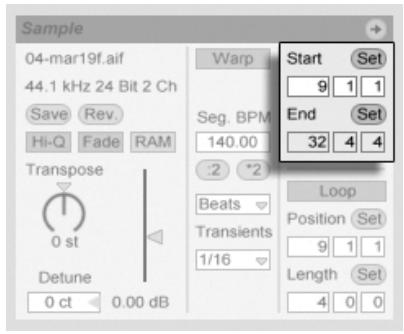
You can also adjust the clip start and end numerically using the respective value fields to the left of the Sample Display. For warped clips, these fields display values as bars-beats-sixteenths; for unwarped clips, the display is in minutes-seconds-milliseconds. Notice that you can use the Set buttons here to place the markers during playback. Setting markers this way is quantized according to global quantization.
Clicking in the scrub area in the lower half of the waveform or above the beat-time ruler will make clip playback jump to that point.
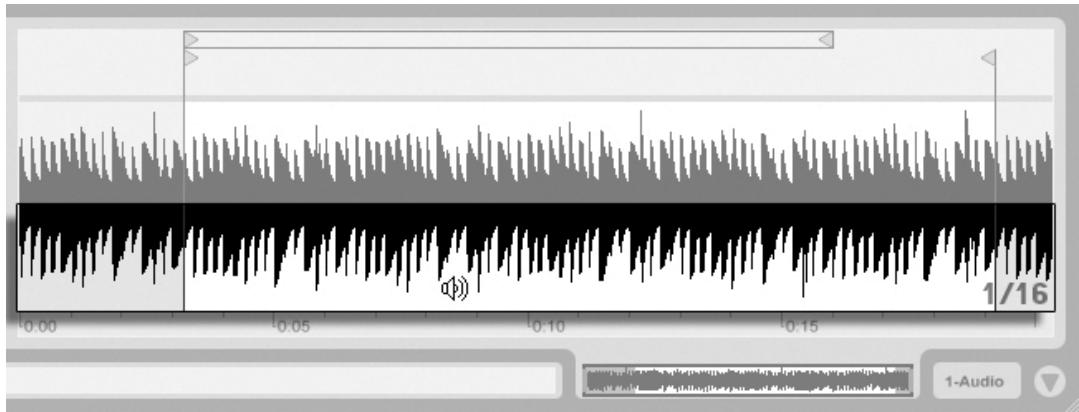
The size of this jump is quantized by the global quantization setting, which can be quickly changed using the Ctrl 6 (PC) / Mac, 7, 8, 9 and 0 shortcuts. While
Using Clip Start and End Controls to Change Clip Length.
The Clip Scrub Area.
When the mouse is held down over the scrub area, a portion of the clip the size of the chosen quantization setting will be repeatedly played. With small quantization settings, or a setting of "None," this allows you to scrub through the music.
Looping Clips
To have the clip play as a (potentially infinite) loop, turn on the Loop switch. Note that the Warp switch must be activated before the Loop switch is accessible, as unwarped clips cannot be looped.
You can click and drag to change the position and length of the loop brace in the Sample Display, or you can type exact values into the Loop Length and Position fields to the left of the display.
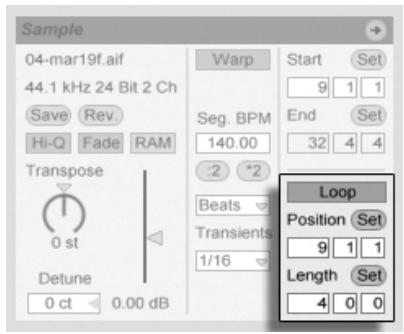
The loop brace can be selected with the mouse and its position changed with commands from the computer keyboard:
- Left and Right arrow keys nudge the loop brace to the left/right by the current grid setting.
- Down and Up arrow keys shift the loop brace left/right in steps the size of its length.
- Ctrl + Left/Right arrow (PC) / Command + Left/Right arrow (Mac) shortens or lengthens the loop brace by the current grid setting.
- Ctrl + Up/Down arrow (PC) / Command + Up/Down arrow (Mac) doubles or halves the loop length.
The Clip Loop Controls.
Regardless of the position of the loop brace, clip play upon launch will begin at the position marked by the start marker, which means you can set up the clip to run into a loop.

The Loop Length and Position fields are equipped with Set buttons, which can be used to create loops spontaneously during playback:
- Playing the clip and then clicking the Set Loop Position button moves the beginning of loop to the current playback position (rounded to the global quantization setting) and engages the loop. Then, clicking the Set Loop Length button moves the end of the loop to the current playback position. This lets you capture the music in a loop on the fly.
- While the loop is still off, you can click the Set Loop Length button to set the loop to end at the current playback position without changing its preset length. This simultaneously activates looping.
The Set buttons, the Loop switch, the loop brace and the start/end markers can all be mapped to MIDI controls. You could, for example, use a rotary encoder to move the loop through a sample in increments the size of the chosen quantization interval.
Setting the Clip to Run Into a Loop.
8.2.3 Clip Pitch and Gain

The Transpose control shifts the clip pitch in semitones.
The Detune field fine-tunes the clip in cents (100 cents = one semitone).
The Clip Gain slider, calibrated in dB, changes the clip gain.
8.2.4 Destructive Sample Editing
The Edit button opens the sample in an external sample editing application, which you can specify in the File/Folder Preferences. To process a sample in an external program, you have to stop Live's playback. When you return to Live, the edited version of the sample will be played back. The current set of Warp Markers is retained only if the sample length remains the same as it did prior to editing. Remember that changes made to one sample may affect other clips that play the same sample.
The Clip Pitch and Gain Controls.
The Launch Sample Editor Button.
8.2.5 Saving Default Clip Settings with the Sample

The Save Default Clip button saves the current clip's settings with the sample. Once saved, Live will restore the current clip settings whenever you drop the sample into a Live Set. This is especially useful with regards to the Warp Markers, which have to be set correctly for Live to play long files in sync. Note that you can use the Save button without affecting any existing clips; Save just saves default settings for future clips using this sample.
The clip data becomes part of the analysis file that accompanies the sample.
Note that storing default clip settings with the sample is different from saving the clip as a Live Clip, which also saves devices and device settings.
8.2.6 High Quality Interpolation

If the High Quality switch is on, Live uses an advanced sample-rate conversion algorithm that provides better sound quality at the expense of a higher CPU load. Samples processed with the Hi-Q algorithm generate less distortion, particularly at high frequencies, when transposing a sample and/or matching an imported sample's sampling rate to the system's sampling rate. With this mode enabled, samples can be transposed roughly 19 semitones in either direction before aliasing is likely to be audible.
Note: In Live 7, the Hi-Q mode now uses an algorithm that produces even smaller audible artifacts than in previous versions. We think it sounds great. But any Sets that used Hi-Q mode and were made in previous versions of Live may now sound different when loaded in
The Save Default Clip Button.
The High Quality Switch.
Live 7. For this reason, we have provided a Legacy Hi-Q Mode option, which is enabled by default in the Options menu whenever you load an old Set that has Hi-Q enabled for any clips. Simply disable this option if you wish to use the new mode.
8.2.7 Clip Start and End Fades

The Clip Fade switch, when enabled, applies a short fade to the clip start and end to avoid clicks at the clip edges. The length of the fade is signal-dependent and ranges from 0-4 milliseconds.
The Clip Fade Switch.
8.2.8 Clip RAM Mode
If the RAM Mode switch is on, Live is loading the audio referenced by the clip into the computer's memory rather than reading it from disk in real time. RAM Mode can help with these problems:
- Your computer's hard disk is too slow to deliver audio for as many tracks as desired in real time. For more information on disk-related problems, please refer to the respective section.
- You are experiencing audio dropouts when playing clips in Legato Mode.
Use RAM Mode with care, as RAM is usually a scarce resource. Your computer is using the hard disk for swapping out RAM contents that have not been used in a while. The more clips you are running in RAM Mode, the higher the likelihood for them to be swapped
The RAM Mode Switch.
out. Live can handle disk overloads more gracefully than swapped-out audio arriving late: Disk overloads result in unwanted mutes, whereas RAM overload results in both mutes and rhythmical "hiccups."
8.2.9 Reversing Samples

The Reverse Button.
This function creates a new sample by reversing the sample referenced by the current clip. It then reapplies the old clip's settings (according to some rules that we will explain in a moment), and replaces the original sample with the reversal in the Clip View. The new sample can be found, after saving the Live Set, in the Set's Project folder, under Samples/Processed/Reverse. Until the Set is saved, new samples remain at the location specified by the Temporary Folder.
There are a few rules for the reversing process. First, any Warp Markers will remain fixed to their positions in the sample. This means that a Warp Marker on the downbeat of the second bar of a clip will end up on the downbeat of the second-to-last bar after reversal. Clip loop/region settings are similarly flipped. Second, clip envelopes remain fixed to their position in time. Therefore, a mixer volume envelope that lowers the volume of the first half of a clip will continue to do exactly that after reversal.
The reversal process is quite fast (about as fast as copying), but for very long samples it might take a little time. When this is the case, the Status Bar in the lower portion of the Live screen will give you a progress display, and further actions in the program will be temporarily locked (though running clips will continue to play). You can play the reversed clip and perform other actions in the program as soon as Live begins to draw the new waveform into the Sample Display. Once a sample is reversed, a link to the reversed sample will be maintained until you quit the program, and reversing the same clip again (or a copy) will be instantaneous.
It is not recommended that you reverse clips in a live performance situation, as a slight glitch can sometimes occur while Live reapplies the warp and loop settings.
8.2.10 Cropping Samples
The Sample Display's (PC) / Ctrl (Mac) context menu includes the Crop Sample command. This function creates, similarly to the Reverse function, a new sample by copying the sample currently in use - but only the excerpt that is actually used plus a 50 millisecond safety margin on both ends. The new sample can be found, after saving the Live Set, in the Set's Project folder, under Samples/Processed/Crop. Until the Set is saved, the new sample remains at the location specified by the Temporary Folder.
8.2.11 Replacing and Editing the Sample
To replace the sample referenced by the clip with a different one, drop the new sample directly from the File Browser into the Clip View. Clip settings like pitch and volume will be retained. The Warp Markers will be retained only if the new sample has the exact same length as the old sample.
The Sample Display's (PC) / Ctrl (Mac) context menu includes the Manage Sample File command. This opens the File Manager for the current Set with the sample referenced by the clip selected. From there, you can replace and destructively edit the sample, in such a way that all clips and instruments referencing the sample will be affected. You can also use the Show in Browser command in the (PC) / Ctrl (Mac) context menu to reveal the file in the Browser.
8.3 The Notes Box
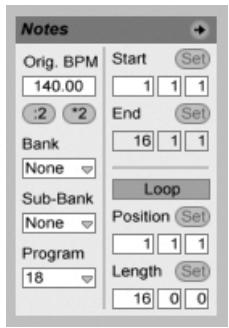
The Notes Box.
8.3.1 Tempo Controls
The Orig. BPM field displays Live's interpretation of the tempo at which the clip's MIDI was recorded. When dragging up or down in the Original BPM field, or clicking the :2 and *2 buttons, you will see that the notes in the MIDI Editor are correspondingly stretched or compressed. This is useful for aligning notes that you have recorded without a tempo reference, like Live's metronome.
8.3.2 Bank and Program Change
Live can send MIDI bank/program change messages to external devices and plug-ins that support MIDI program change messages. According to the settings in these controls, launching a clip also sends its bank/program change message. If you are using Live to send MIDI to your synth, this means that each MIDI clip in your Live Set can play a different sound on your synth. Live offers messages for 128 banks with 128 sub-banks, each of which has 128 programs. Please see the documentation that came with your synthesizer to determine how many of these messages it can use. If you do not want your clip to send program or bank change messages, simply set the bank/program choosers to "None."
Please note that Live LE cannot send MIDI information to external synthesizers.
8.3.3 MIDI Loop/Region
These controls manage how the contents of a MIDI clip are played and shown in the MIDI Editor. They work the same way as those for audio clips.
In the MIDI Editor, the zoomScroll area is located above the beat-time ruler, the scrub area just below.
8.4 Clip Defaults and Update Rate
You can change the rate at which Live applies your Clip View settings to a running clip. Clip View changes will be quantized by the rate selected from the Clip Update Rate chooser in the Record/Warp/Launch Preferences. Certain clip settings, such as Launch Mode and Warp Mode, can be set up as defaults for all new clips. This is also done in the Record/Warp/Launch Preferences.
Chapter 9
Tempo Control and Warping
Unlike music stored on tape or in a traditional digital audio workstation, the music in Live remains "elastic" at all times. Live is capable of time-warping samples while streaming them from disk so as to synchronize them to the current Live Set's tempo. This happens without affecting the pitch, which can be changed independently. Mixing and matching audio from different origins is therefore extremely easy.
9.1 Tempo
9.1.1 Setting the Tempo

The Control Bar's Tempo field allows you to change the playback tempo of your Live Set at any time, in real time. You can even automate the tempo to create smooth or sudden tempo changes along the song timeline. For maximum tempo control during performance, you can MIDI map separate controllers to the Tempo field on both sides of the decimal
The Control Bar's Tempo Field.
point. Setting one knob to control coarse tempo in BPM and another to control fine tempo in hundredths of a BPM allows for enough precision to adjust to live performers or other unsynchronized sources.
9.1.2 Tapping the Tempo

You can use Live's Tap Tempo function to set the tempo at any time. As you click the Control Bar's Tap Tempo button once every beat, the tempo of the Live Set will follow your tapping.

It is better to assign the Tap button to a computer key than using the mouse. Click on the Control Bar's KEY switch to enter Key Map Mode; then select the Tap button; press the key you would like to use for tapping; click the KEY switch again to leave Key Map Mode. The assignment will take effect immediately. The Tap button can also be assigned to a MIDI note or controller, like a foot switch, in a similar fashion. Although Live responds to your tapping immediately, it does apply some degree of inertia to prevent sluggish behavior in the software. The more taps Live receives in a row, the more precisely it will be able to conclude the desired tempo.
You can also use tapping to count in: If you are working in a 4:4 signature, it takes four taps to start song playback at the tapped tempo.
9.2 Time-Warping Samples
Live's ability to play any sample in sync with a chosen tempo is a unique and important feature. In addition, you can "warp" the rhythmic flow of a piece, changing its "feel," or even move notes to other meter positions.
A clip's warping properties are set in the Sample box, which is a sub-section of the Clip View.
The Tap Button.
The Key Map Mode Switch.

The Sample Box's Warping Controls.
The most significant control here is the Warp switch, which toggles a clip's warping on or off. The Warp section of Live's Preferences will determine the default warp settings for new clips, but they can always be overridden here on a per-clip basis.
When the Warp switch is off, Live plays the sample at its original, "normal" tempo, irrespective of the current Live Set's tempo. This is useful for samples that have no inherent rhythmic structure: percussion hits, atmospheres, sound effects, spoken word and the like. Turn the Warp switch on to play rhythmically structured samples (such as sample loops, music recordings, complete music pieces, etc.) in sync with the current song tempo.
To direct Live's assumptions about new samples, use the Record/Warp/Launch tab of Live's Preferences. If the Auto-Warp Long Samples preference is on, Live assumes that long samples contain music that should be played in sync with the Live Set's tempo. If you would rather have Live default to playing long samples as they are, disengage this preference.
9.2.1 Tempo Master/Slave
All warped clips in the Arrangement View have one further option: They can be defined as tempo masters by toggling their Master/Slave switches. Any number of clips can be set as tempo masters, but only one clip at a time can actually be the tempo master. This distinction is always granted to the bottom-most, currently playing clip in the Arrangement View.
The clip that is the current tempo master will play as if warping was off, but with one important difference – the rest of the Live Set will be warped so that it plays in sync with the current tempo master.
This is achieved by adding tempo automation to the Master track for the duration of the tempo master clip. You will notice that the Tempo field in Live's Control Bar becomes disabled in this state; this is because all tempo control is handed over to the tempo master clip.
When toggling a clip's Master/Slave switch, or when deleting a clip that was set as tempo master, the Master track tempo automation is removed again, restoring the proper tempo to the region. If you wish instead to keep the generated tempo automation to continue working with it, then (PC) / Ctrl (Mac) on the Control Bar's Tempo field, and choose the Unslave Tempo Automation command. All clips will then be set to Slave, but the tempo automation will remain in place.
9.2.2 Warp Markers
Think of a sample as a rubber-band that you want to pin to a (musical time) ruler. In Live, the pins are called Warp Markers. A Warp Marker forces the software to arrive at a specific point in the sample at a specific musical time. You can use any number of Warp Markers to create an arbitrary mapping of the piece's inherent rhythm to a musical meter.
Warp Markers are set in the Clip View's Sample Display by double-clicking any of its numeric grid markers. They can then be dragged or moved with the arrow keys to different positions in the clip. Warp Markers can also be deleted by double-clicking them, or by pressing the computer keyboard's left arrow or Delete key after selecting them.
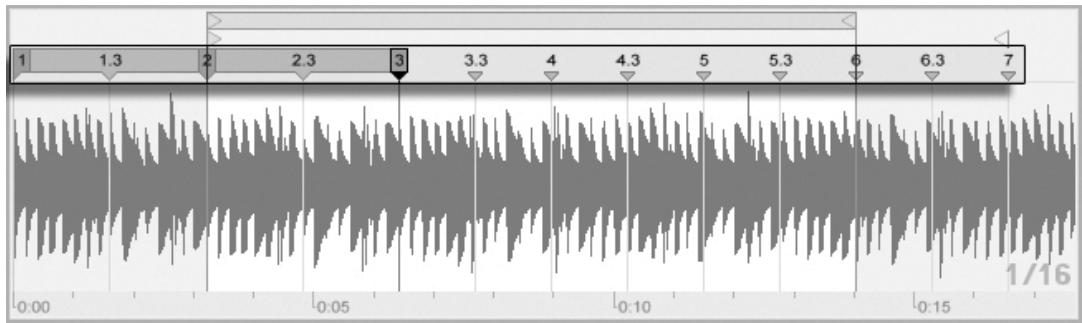
When working with your sample, you can have Live scroll the Sample Display to follow playback. Use the Control Bar's Follow switch to activate this feature. It also might be
Double-Clicking a Grid Marker Creates a Warp Marker.
helpful to vertically resize the Sample Display by dragging on the split line between the Clip View and the Session View track area.

The Follow Switch in the Control Bar.
Saving Warp Markers
Your Warp Markers will automatically be saved with the Live Set, but you may also want to save them with the sample file itself, so that they are reconstructed anytime you drag the file into Live. To do this, click the Clip View's Save button.
Note that if a sample has a saved set of Warp Markers, Auto-Warp will have no effect. When this is the case, you can use any of the (PC) / Ctrl (Mac) context menu commands described in this section to initiate auto-warping.
9.2.3 Using Warp Markers
In the following sections, we will look at a couple of applications for time-warping samples. Warping is, of course, an optional property of clips.
Syncing Straight Loops
When you import a sample that represents a well-cut musical loop of 1, 2, 4, or 8 bars in length, Live usually makes the correct assumptions to play the loop in sync with the chosen tempo. It places two Warp Markers, one at the sample's beginning and one at the end.
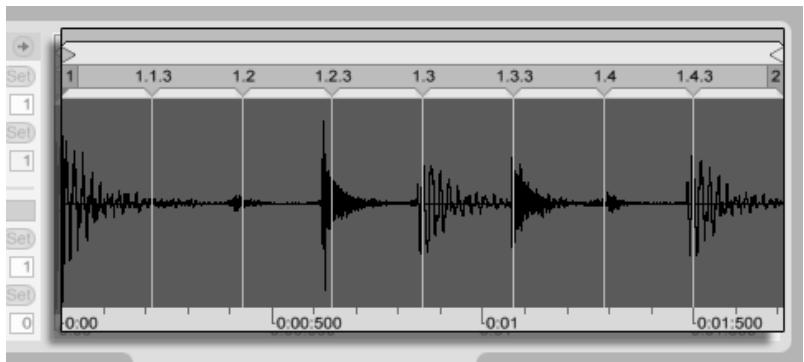
A One-Bar Loop as It Appears in the Clip View, by Default.
The Orig. BPM field displays Live's guess of the loop's tempo; if you happen to know the tempo of the loop, you can type it in here. Sometimes Live's guess of the original tempo is wrong by half or double. If so, correct this by clicking on the buttons labeled *2 and :2, respectively. The sample plays at double speed when you press :2 because you are changing Live's interpretation of the sample's tempo, which serves as a point of reference for determining the required time-stretch factor.
Syncing Uncut Loops
When importing a loop that has not been edited into a well-cut loop, Live will play it out of sync. Suppose there is a portion of silence at the sample beginning, prior to the first beat. You can easily correct this by moving the Warp Marker labeled with a "1" to the first beat's onset. Likewise, you can eliminate silence after the actual loop end by moving the Warp Marker at the sample's right edge.

Setting the Warp Markers for a Poorly Cut Loop.
Syncing Odd-Length Loops
If you import a sample that contains a seven-bar loop, Live initially assumes the loop is eight bars long (or four, depending on its length) and plays it out of sync. For correct playback, the last marker needs to show an eight, not a nine. To achieve this do the following:
- Double-click on the last Warp Marker to delete it.
- Double-click on the eight to create a new Warp Marker.
- Drag the new Warp Marker to the sample end.
If Live's initial guess had been a four-bar loop, the eight would not have been accessible. In that case, you could initially drag the Warp Marker at the end toward the left until the eight became visible.
Theoretically this should have done the job for our seven-bar loop. Practically, though, it is very likely that moving the markers led to a change of the loop start and end points. This is because the loop is tied to the meter grid and therefore moves with the Warp Markers, which define the meter grid. Live makes sure the loop fits in the sample, and therefore has to change its length if required by a Warp Marker change.
Manipulating Grooves
You can now create any number of Warp Markers by double-clicking on one of the numeric grid markers. Drag in a "straight" looped sample, set a few Warp Markers, and move them around to see what happens. Warp Markers really serve two purposes:
- to provide a "correct" interpretation of the flow of musical time in the sample;
- to mess up the flow of time in the sample.
If a single event in a percussion loop comes late, just pin it to the Warp Marker, which shows the beat position at which you actually want to hear that event. You may want to pin the adjacent beat positions as well, to avoid affecting neighboring regions in the sample.

"Removing" a sample's natural groove by applying Warp Markers is an interesting creative method, particularly in conjunction with Live's ability to impose an artificial groove onto clips in real-time.
Using Warp Markers to Manipulate the Groove.
Syncing Longer Pieces
Live's Auto-Warp algorithm makes longer samples and entire songs readily available for integration into your project. You can use the Browser to import long samples or MP3, AAC, Ogg Vorbis, Ogg FLAC and FLAC files.
When you drag a file into Live that is too long to justify the assumption that it is a loop or a one-shot, Live will auto-warp the clip by default (though this can be changed in the
Record/Warp/Launch Preferences).
Note that, for the auto-warp mechanism to work, files which are being imported into the program for the first time will need to undergo a first-time analysis process and will not be immediately available for playing or editing. As explained in the section in this manual on analysis files, analysis can be batch-processed with the (PC) / Ctrl (Mac) context menu's Analyze Audio command. Once analysis is finished, you can view the results of Auto-Warp's assumptions about the file.

As long as Auto-Warp made the correct set of informed guesses, the clip will be ready to play in perfect sync with the Live Set's tempo. However, if Auto-Warp does not quite do what you want, you can control its results. The remainder of this section will focus on various ways of guiding Live's auto-warping. Remember that the metronome in the Control Bar will probably come in handy as you warp longer pieces.

It might happen that Auto-Warp guesses the tempo correctly but gets the downbeat wrong. To remedy this, you can do the following:
- Zoom in and drag the 1.1.1 marker to the desired position;
- Use the start marker's (PC) / Ctrl (Mac) context menu to select the Set 1.1.1 Here command.
Auto-Warp's Results in the Clip View.
The Metronome Switch.

Using the Context Menu to Direct Auto-Warp.
Directing Auto-Warp is also relatively simple when you have imported a perfectly cut loop. You can tell Auto-Warp to work accordingly using the Warp As ....-Bar Loop command. Live will propose a loop length that makes the most sense given the current Live Set's tempo. Decreasing the Live Set's tempo can, for instance, lead Live to assume the loop is 8 bars at 90 BPM instead of 16 bars at 180 BPM.
Sometimes more accurate control of Auto-Warp is necessary. The best way to go about warping a clip that requires more detailed attention is in sections, working gradually from left to right. You can set a Warp Marker by double-clicking one of the numeric grid markers to the right of each correctly warped section, "pinning" it into place. The shortcuts for working with the clip loop brace and start/end markers can speed up this process considerably.
You might also find it helpful to select multiple Warp Markers for moving by selecting them with the Ctrl (PC) / Mac) modifiers held down.
The four Warp From Here commands provide various ways of resetting Warp Markers to the right of the selected grid marker or Warp Marker, leaving Warp Markers to the left untouched. These commands are also available from the start marker.
- Warp From Here runs the Auto-Warp algorithm on the material to the right of the selected marker.
- Warp From Here (Start At ...) directs Auto-Warp to use the current Live Set's tempo as a starting point for tempo tracking. The strategy here is as follows:
- Deactivate the Warp switch for the clip so that it plays unwarped;
- Use the Control Bar's Tap Tempo button to tap along, thereby setting the Live Set's tempo to match that of the clip;
- Turn warping on again and use the Warp From Here (Start At ...) command to tell Auto-Warp to use your tapped tempo as a reference.
- Warp From Here (Straight) tells Auto-Warp that this is a clip with no tempo variations (common in electronically produced works). Auto-Warp will then set a single Warp Marker derived from its guess of the file's original tempo.
- Warp ... BPM From Here will also set a single Warp Marker, but in this case, Auto-Warp is forced to interpret the clip as exactly matching the Live Set's tempo. This is useful in cases when you happen to know the exact BPM value of an electronically-produced work and can type it into the Control Bar before warping.
Multi-Clip Warping
When clips of equal length are multi-selected, adding or changing Warp Markers for one clip will apply identical Warp Markers to all. This is convenient in any situation where several tracks have the same rhythm, and you wish to alter the timing of each recording in the same way. A common scenario would be when multi-tracking a band's performance, where the musicians all play in time with each other, yet the timing itself is in some way flawed.
Copying Warp Markers
You can also selectively copy and paste Warp Markers from one clip to another. Copied Warp Markers don't even need to be pasted into the same bar as the original.
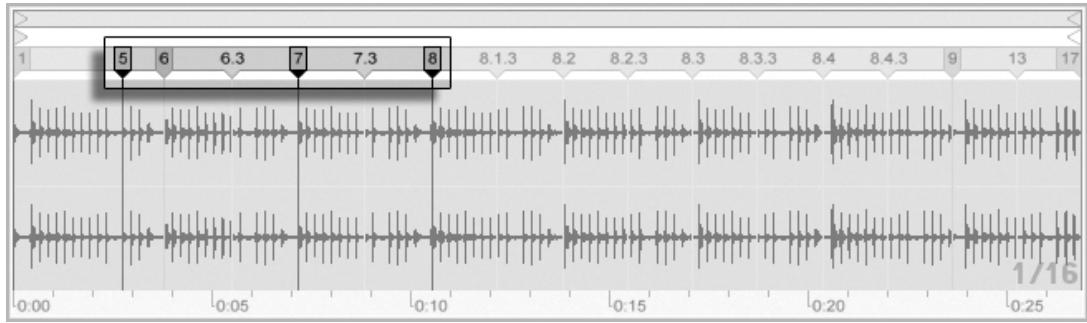
Here are the steps:
- Select the Warp Markers that you wish to copy by clicking on them with the mouse. After the first Warp Marker has been selected, hold Shift while clicking another to select the range of Warp Markers in between, or Ctrl (PC) / Mac)-click to add individual Warp Markers to your selection.
- Once your selection is complete, choose the Copy command from the Edit menu.
- Click on the title bar of the destination clip to select it.
- In the destination clip's Clip View, click once on any Warp Marker to select it as the starting point for placement of the new Warp Markers.
- Choose the Paste command from the Edit menu. The Warp Markers will be pasted into the destination clip.
9.3 Adjusting for Good Stretching Quality
Live offers a number of time-stretching modes to accommodate all sorts of audio material. Each clip's time-stretching mode and associated parameters are set in the Clip View's Sample Box.
The warp modes are different varieties of granular resynthesis techniques. Granular resynthesis achieves time compression and expansion by repeating and skipping over parts of
the sample (the "grains"). The warp modes differ in the selection of grains, as well as in the details of overlapping and crossfading between grains.
Let's investigate which warp modes work best for different types of signals and how to adjust the warping controls for "clean" stretching. It's also fun to "misuse" these controls to achieve interesting artifacts instead of accurate stretching.
9.3.1 Beats Mode
Beats Mode works best for material where rhythm is dominant (e.g., drum loops as well as most pieces of electronic dance music). The granulation process is optimized to preserve transients (attacks, note onsets) in the audio material.
Use the Transients control to guide Live's assumptions about where to find transients in the waveform. If there is no rhythmic activity at odd 16th notes, choose 8th, etc. For some interesting rhythmic artifacts, choose large transient values in conjunction with pitch transposition.
9.3.2 Tones Mode
Tones Mode serves well for stretching material with a more or less clear pitch structure, such as vocals, monophonic instruments and basslines.
Grain Size provides rough control over the average grain size used. The actual grain size is determined in a signal-dependent manner. For signals with a clear sense of pitch contour, a small grain size works best. Larger grain sizes help avoid artifacts that can occur when the pitch contour is unclear, but the tradeoff can be audible repetitions.
9.3.3 Texture Mode
Texture Mode works well for sound textures with an ambiguous pitch contour (e.g., polyphonic orchestral music, noise, atmospheric pads, etc.). It also offers rich potential for manipulating all kinds of sounds in a creative way.
The Grain Size control determines the grain size used, but unlike in Tones Mode, this is a setting that Live will use unaltered, without considering the signal's characteristics.
Fluctuation introduces randomness into the process. Larger values give more randomness.
9.3.4 Re-Pitch Mode
In Re-Pitch Mode, Live doesn't really time-stretch or compress the music; instead, it adjusts the playback rate to create the desired amount of stretching. In other words, to speed up playback by a factor of 2, it's transposed up an octave. This is like the "DJ stretching method" of using variable-speed turntables to sync two records, or what happens to samples in samplers when they're transposed.
The Transpose and Detune controls have no effect in Re-Pitch Mode.
Chapter 10
Editing MIDI Notes and Velocities
A MIDI clip in Live contains notes and controller data for playing a virtual instrument in a MIDI track's device chain. The MIDI clip provides the device with a musical score to play, specifying note pitch, length, position and dynamics (referred to as velocity in the MIDI lexicon). MIDI is composed and edited in Live's MIDI Editor.
10.1 Creating an Empty MIDI Clip
MIDI clips are created
- by means of recording;
- or by double-clicking an empty Session slot in a MIDI track;
- or by selecting an empty Session slot in a MIDI track and choosing the Insert menu's Insert MIDI Clip command;
- or, in the Arrangement View, by selecting a timespan in a MIDI track and choosing the Insert menu's Insert MIDI Clip command.
10.2 The MIDI Editor
To bring up the MIDI Editor, double-click a MIDI clip to open the Clip View. You can use the Clip View Box selector to make sure the Notes box is showing, then click in the title bar of the Notes box to bring up the MIDI Editor on the right-hand side of the screen.
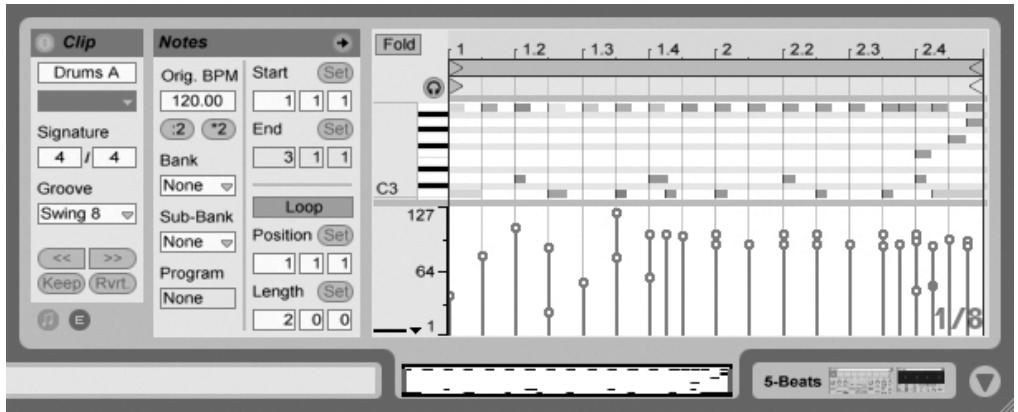
The MIDI Editor.
The MIDI Editor is comprised of two editing windows: the upper Note Editor and the lower Velocity Editor. You can resize the Velocity Editor by dragging on the split line that runs between it and the Note Editor. You can also show and hide the Velocity Editor using the triangular button on the left-hand side of the split line.

The Control Bar's Draw Mode Switch.
Switch to Draw Mode by activating the Control Bar's Draw Mode switch. You can now draw MIDI notes into the Note Editor with the mouse. Deactivating Draw Mode allows notes to be selected and moved around by clicking and dragging, either vertically to change their transposition, or horizontally to change their position in time.
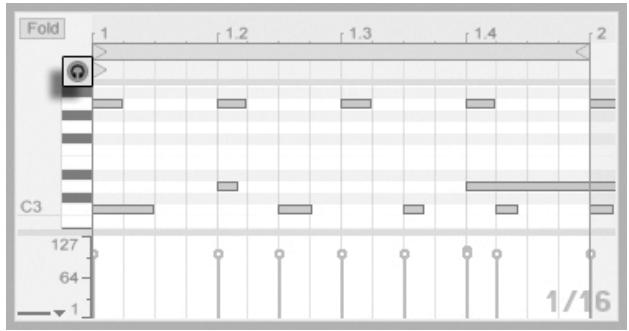
Previewing MIDI Notes.
Provided your MIDI track's device chain contains an instrument, activating the Preview switch in the MIDI Editor allows you to hear notes as you select and move them.
Note velocity is adjusted in the Velocity Editor, by clicking and dragging on the associated markers. You can also use Draw Mode in the Velocity Editor: It will draw identical velocities for all notes within a grid "tile."
After drawing a few notes and moving them around, you will probably want to know how to get around in the Note Editor. So, before we get into detailed editing information, we will first explain MIDI Editor navigation.
10.3 MIDI Editor Navigation and Transport

Note Scale Position Is Shown Vertically and Beat-Time Horizontally.
The MIDI Editor has both vertical and horizontal navigation. Along the horizontal axis lies
a time ruler, which shows note position along a musical timeline. The vertical axis contains both the note ruler, displaying octaves C0-C10, and a representation of a piano keyboard (the piano roll). Note that if the Preview switch at the top of the piano roll is activated, you can listen to the results of your piano roll playing.
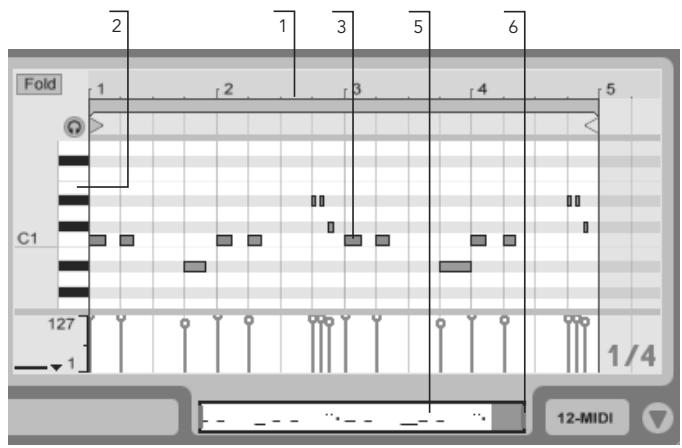
- Click and drag vertically in the note ruler to change which octaves are shown, or drag horizontally to change the vertical zoom size of MIDI notes and the keyboard.
- Click and drag vertically in the note ruler to change which octaves are shown, or drag horizontally to change the vertical zoom size of MIDI notes and the keyboard.
- Click and drag over one or more notes to define a selection. Then, double-click on the note ruler to automatically zoom in on your selection. If no notes are selected, double-clicking the note ruler will zoom in on the area from the lowest to the highest note in the clip.
- To zoom in and out around the current selection, use the computer keyboard's + and - keys.
- The Clip Overview just beneath the MIDI Editor can also be used for navigation. It always shows the complete contents of the selected MIDI clip. The black rectangular outline represents the part of the clip that is currently displayed in the Editor above. To scroll, click within the outline and drag left or right; to zoom
Change the length of what is shown in the Editor by dragging the left or right edges of the outline in the Clip Overview.
To quickly change what is shown in the Editor, click on a section that you want to examine in the Clip Overview, then drag downwards to zoom in, or scroll by dragging left and right.
- Change the length of what is shown in the Editor by dragging the left or right edges of the outline in the Clip Overview.
- To quickly change what is shown in the Editor, click on a section that you want to examine in the Clip Overview, then drag downwards to zoom in, or scroll by dragging left and right.
- The Page Up and Page Down keys on your computer keyboard scroll the Note Editor vertically. The Ctrl (PC) / Mac modifier will change this to horizontal scrolling.

The area displayed in the Note Editor can be set to scroll with playback using the Follow switch from the Control Bar.

You can click in the scrub area just below the beat-time ruler to start playback from that point, rounded by the global quantization setting. Learning about the loop/region controls and associated shortcuts can also be helpful in getting around in the MIDI Editor and playing selections quickly and easily.
As you work with MIDI, you may find yourself needing extra screen space. You can click and drag vertically on the window split between the Session or Arrangement View and the Clip View to enlarge the MIDI Editor.
The Control Bar's Follow Switch.
The MIDI Clip Scrub Area.

Enlarge the MIDI Editor by Dragging the Window Split Between Session and Clip Views.
10.4 Editing MIDI
10.4.1 Non-Destructive Editing
You can always return your MIDI clip to its previous state by using the Edit menu's Undo command. Furthermore, if the MIDI clip being edited originated in a MIDI file on your hard drive, none of your editing will alter the original MIDI file, as Live incorporates its contents into your Live Set when importing.
10.4.2 Folding and Looping
An important feature of the MIDI Editor is the Fold button, located in the upper left corner. Activating this button will immediately hide all rows, or key tracks, that do not contain MIDI notes. This is very useful when working with percussion kits, for example, which are oftentimes mapped out along a keyboard in sections corresponding to percussion type (e.g., snares grouped together two octaves down from hi-hat cymbals, etc.). When working with a MIDI file created by such a mapping, sometimes only one or two of each type of percussion sound is used, and it becomes unnecessary to view the entire keyboard range.
The Fold Button Extracts Key Tracks Containing Notes.
When editing MIDI, you might find that you want to change which part of the clip you are listening to, or loop the clip in order to listen to it repeatedly. You can use the loop/region markers for this.

Use the Loop/Region Markers to Select a Specific Region of the Clip to Play.
10.4.3 Grid Snapping
Most functions in the MIDI Editor are subject to grid snapping. You can hold down the Alt (PC) / Mac (Mac) modifier while performing an action to bypass grid snapping.
Note movements will also snap to an "offset," which is based on the original placement of the note relative to the grid. This is useful for preserving a groove or loose playing style that you do not necessarily want to "set straight."
10.4.4 Arranging and Quantizing Notes
As we have seen, notes in the MIDI Editor can be moved both horizontally (changing their position in time) and vertically (changing their transposition). They can be moved either by clicking and dragging, or with the arrow keys on your computer keyboard; in either case, they are subject to grid and offset snapping. If you are playing the clip while you move notes, you can listen to them play in their new assignments as you drag them, without waiting until you have released the mouse button.
Multiple notes can be selected and moved in unison: "Rubber-band" select more than one note with one mouse motion by clicking in empty space, then dragging diagonally upward
or downward to enclose the notes in the dotted line that appears.
You can use the modifier to click and add individual notes or additional "rubberband" selections to your current selection. You can also remove a single note from your selection by holding down and clicking on it. Holding and clicking on the piano roll selects all notes in a single key track.
There are two options for quantizing MIDI notes in Live. As previously mentioned, you can move notes so that they snap to the visible grid lines. Alternatively, you can select a note or notes and choose the Quantize command from the Edit menu, or use the Ctrl U (PC) / Mac hotkey. This brings up a dialog box with several quantization options.

Quantizing MIDI Notes.
Using the options presented here, you can select a meter value for quantization and set either the note start or end (or both) to be quantized. Quantizing the note end will stretch the note so that it ends at the chosen meter subdivision. You can also quantize notes without giving them that "quantized" feel using the Amount control, which will move notes only by a percentage of the set quantization value.
10.4.5 Creating and Editing Notes
Selecting a note (or notes) makes it subject to commands from the Edit menu, such as Copy and Paste. You can use the Ctrl (PC) / Alt Mac modifier to click and drag a copy of a note to a new location.
The Edit menu's Select Loop command selects all notes that begin within the loop brace. The Select Loop command can also be executed without the menu by simply clicking the loop brace. This command can speed up editing when coupled with the loop brace's shortcuts. Let's say you have arranged a nice 1-bar loop in the Note editor, and you want to duplicate it a couple of times. You can click the loop brace to select the notes that begin within the loop, execute the Edit menu's Copy command, shift the loop to the right by one loop length with the up arrow key, and execute the Edit menu's Paste command.
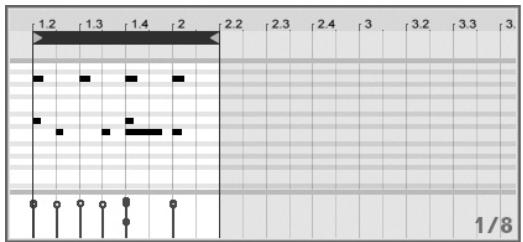
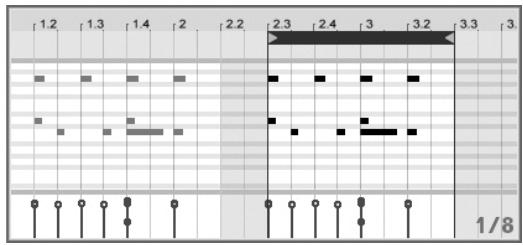
Copying (Left) and Pasting (Right) a Loop.
As we have already seen, creating new MIDI notes is as simple as activating Draw Mode and drawing them into the Note Editor. MIDI notes can also be added and deleted by double-clicking when Draw Mode is inactive.
Vertical movements in Draw Mode correspond to velocity changes. This means that, with one horizontal motion and one vertical motion, you can draw multiple notes and their velocities without releasing the mouse button. If you change velocity with this vertical movement, Live will remember the change and use your new velocity on any notes that you draw afterward.
You may sometimes, by dragging or by drawing, place a new note on top of one that already exists. If the new note overlaps with the beginning of the original note, the original note will vanish. The original note is invisible, but still exists, and will reappear intact if the new note is moved away again. If the new note overlaps with the "tail" of the original, the original note's length will change so that it lasts just until the new note's beginning. This, too, is not an irreversible action, and the old note length will be restored if the new clip is again moved.
10.4.6 Changing Note Length
Clicking and dragging on a note's left or right edges changes its length. Note length can only be changed when Draw Mode is inactive, and will be quantized unless the Alt (PC) / Mac) modifier is held down while dragging.

Tip: To set a group of notes to the same length, select them all, grab the end of the longest one, drag them all down to zero length and then extend them.
Changing Note Length.
MIDI Note Stretch

When multiple notes are selected in the Note Editor, the Stretch Notes command becomes available from the context menu, if you invoke it with (PC) / Ctrl (Mac). Note Stretch markers will then appear in the Note Editor, allowing notes to be scaled proportionally in time. The markers are a pair of downward-pointing indicators that snap to the beginning of the first and last notes in the selection.
By clicking and dragging one of the markers horizontally, the selected notes will move and stretch so that they continue to occupy the same proportion of time that they did when they were initially selected. The Note Stretch markers will always snap to the Note Editor's grid
Three Variations Created with the Stretch Notes Command.
lines unless the grid is not shown, or the Alt (PC) / Mac) modifier is held while dragging.
If one marker is dragged beyond the boundary of the other, then the order of the stretched notes will be "reflected" in relation to their initial sequence; this is sometimes referred to as "retrograde" behavior.
Any changes occurring to the notes included in the Note Stretch before the mouse button is released will cancel the stretch operation. This can occur, for example, if the MIDI clip is simultaneously being overdubbed with new notes.
10.4.7 Editing Velocities
To change velocity for a MIDI note, click and drag on the associated marker in the Velocity Editor. (To help you locate the velocity marker belonging to a MIDI note that may be stacked vertically with others, Live highlights the velocity marker for whichever note your mouse is hovering over.) Velocity changes will be shown numerically in a small display in the time ruler.

As in the Note Editor, you can select multiple velocity markers to change by clicking with the modifier held down.
Tip: To set a group of notes so that they all have the same velocity, select their markers in the Velocity Editor, drag them up to maximum velocity and then decrease velocity to the desired value.
As we saw earlier, Draw Mode allows drawing identical velocities for all notes within a grid tile. Velocity drawing can be limited to only those notes that are currently selected if the
Changing Note Velocity.
modifier is held. To draw markers individually (as you would want to with a crescendo, for instance) deactivate grid snapping with the Ctrl 4 (PC) / Mac shortcut, or simply hold down the Alt (PC) / Mac modifier.


Drawing Identical Velocities (Left) and a Crescendo (Right).
Tip: To draw a velocity ramp with notes that are all in the same key track, press and click on the piano roll to select all notes within the desired key track, make sure Draw Mode is activated and draw the ramp into the Velocity Editor while holding the modifier, so that you affect only the selected notes.
Tip #2: To draw a linear velocity ramp across a selection of notes, first select the notes that should be affected (using the 4 modifier to select non-adjacent notes if necessary). Make sure Draw Mode is not activated and draw the line into the Velocity Editor while holding the Ctrl modifier.
Notes in the Note Editor display their velocity in their coloring - light notes play softly, and vice versa. To change the velocity of notes without the Velocity Editor open, click any selected note and drag vertically while pressing the Alt (PC) / Mac modifier.
Note-Off Velocity
By default, the Velocity Editor allows you to adjust note-on velocities. But you can toggle the editor to show note-off velocities via options in the editor's (PC) / Ctrl (Mac) context menu.
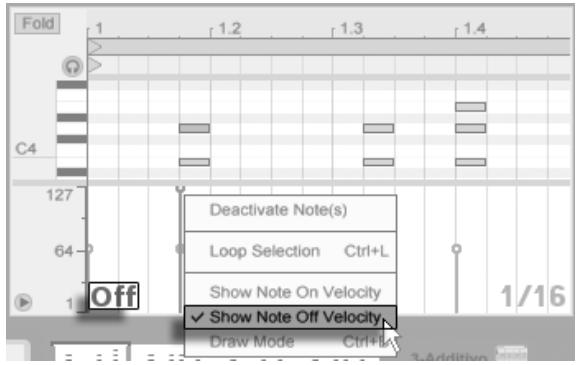
The Velocity Editor Showing Note-Off Velocities.
Please note that note-off (or "release") velocity is a somewhat esoteric parameter, and is only supported by certain devices. Ableton's Sampler instrument, for example, provides note-off velocity as a controller for a variety of parameters.
10.4.8 Deactivating Notes
To deactivate, or mute, a note (or notes) in the MIDI Editor, select it and (PC) / Ctrl (Mac) to access the context menu. The Deactivate Note(s) command will mute the note, making it appear gray in the display. To reactivate notes, use the context menu's Activate Note(s) command.
Chapter 11
Launching Clips
The Live Session View is set apart by the fact that it gives you, the musician, a spontaneous environment that encourages performance and improvisation. An important part of how you take advantage of the Session View lies within how you configure your various Session View clips. This chapter explains the group of settings used to define how each Session View clip behaves when triggered, or "launched."
11.1 The Launch Box
Remember that clips in the Session View are launched by their Clip Launch buttons or remote control. Clip launch settings are made in the Launch box. The Launch box only applies to Session View clips, as Arrangement View clips are not launched but played according to their positions in the Arrangement.
To view the Launch box, open the Clip View of a Session View clip by double-clicking the clip, then activating the leftmost Clip View Box selector panel.

Use the Clip View Box Selector to Bring up the Launch Box.
Note that you can edit the launch settings of more than one clip at the same time by first selecting the clips and then opening the Clip View.
11.2 Launch Modes

The Clip Launch Mode Chooser.
The Launch Mode chooser offers a number of options for how clips behave with respect to mouse clicks, computer keyboard actions, or MIDI notes:
- Trigger: down starts the clip; up is ignored.
- Gate: down starts the clip; up stops the clip.
- Toggle: down starts the clip; up is ignored. The clip will stop on the next down.
- Repeat: As long as the mouse switch/key is held, the clip is triggered repeatedly at the clip quantization rate.
11.3 Clip-Level Quantization

The Clip Quantization chooser lets you adjust an onset timing correction for clip triggering. To disable clip quantization, choose "None."
To use the Control Bar's Global Quantization setting, choose "Global." Global quantization can be quickly changed using the Ctrl 6 (PC) / Mac (Mac), 7, 8, 9, and 0 shortcuts.
Note that any setting other than "None" will quantize the clip's launch when it is triggered by Follow Actions.
11.4 Velocity
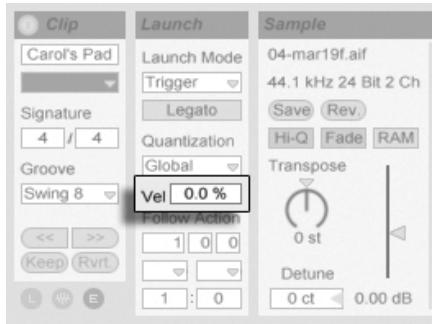
The Clip Quantization Chooser.
The Velocity Amount Field.
The Velocity Amount control allows you to adjust the effect of MIDI note velocity on the clip's volume: If set to zero, there is no influence; at 100 percent, the softest notes play the clip silently. For more on playing clips via MIDI, see the respective section.
11.5 Legato Mode

Suppose you have gathered, in one track, a number of looping clips, and you now want to toggle among them without losing the sync. For this you could use a large quantization setting (one bar or greater), however, this might limit your musical expression.
Another option, which works even with quantization turned off, is to engage Legato Mode for the respective clips. When a clip in Legato Mode is launched, it takes over the play position from whatever clip was played in that track before. Hence, you can toggle clips at any moment and rate without ever losing the sync.
Legato Mode is very useful for creating breaks, as you can momentarily play alternative loops and jump back to what was playing in the track before.
Unless all the clips involved play the same sample (differing by clip settings only), you might hear dropouts when launching clips in Legato Mode. This happens because you are unexpectedly jumping to a point in the sample that Live has had no chance to pre-load from disk in advance. You can remedy this situation by engaging Clip RAM Mode for the clips in question.
11.6 Follow Actions
Follow Actions allow creating chains of clips that can trigger each other in an orderly or random way (or both). A clip's Follow Action defines what happens to other clips in the
The Legato Mode Switch.
same group after the clip plays. A group is defined by clips arranged in successive slots of the same track. Tracks can have an unlimited number of groups, separated by empty slots.

- The Follow Action Time control defines when the Follow Action takes place in bars-beats-sixteenths from the point in the clip where play starts. The default for this setting is one bar.
- The Follow Action choosers allow selecting two different Follow Actions, A and B.
- The Chance A and Chance B controls set the likelihood of each of the two Follow Actions occurring. If a clip has Chance A set to 1 and Chance B set to 0, Follow Action A will occur every time the clip is launched. As we can see from this example, a Chance setting of 0 means that an action will never happen. Changing Chance B to 10 in this scenario makes Follow Action A occur much less often – approximately once out of every ten clip launches.
There are eight Follow Actions available:
"Stop" simply stops the clip after it has played for the chosen Follow Action Time. Note that this overrides clip loop/region settings. "Play Clip Again" restarts the clip. "Play Previous Clip" triggers the previous clip (the one above the current one). "Play Next Clip" triggers the next clip down in the group. If a clip with this setting is last
The Follow Action Controls.
in a group, this Follow Action triggers the first clip.
"Play First Clip" launches the first (top) clip in a group. "Play Last Clip" launches the last (bottom) clip in a group.
"Play Any Clip" plays any clip in the group.
"Play Other Clip" is similar to "Play Any Clip," but as long as the current clip is not alone in the group, no clip will play consecutively.
There is also the possibility to have no Follow Action by selecting "No Action," or leaving the chooser blank.
Note that a Follow Action happens exactly after the duration that is specified by the Follow Action Time controls unless clip quantization is set to a value other than "None" or "Global." Follow Actions circumvent global quantization but not clip quantization.
So why do you need these things? Music is repetition and change. Music based on loops or short melodic fragments has a tendency to sound static. Follow Actions allow you to create structures that will repeat but can also be surprising. Remember that you can always record the results of your experiments, so this can provide a good source for new material.
In the following sections we will look at some practical examples and ideas for Follow Actions.
11.6.1 Looping Parts of a Clip
Let's say that you want to play a longer clip, but then you want only the last eight bars to loop. You can set this up using Follow Actions:
- Drag the clip into the Arrangement View and make sure that the Clip View's Loop switch is not activated. Use the Edit menu's Split command to split the clip between the non-looping and looping parts.
- Click and drag the resulting two clips into the Session View by letting the mouse cursor hover over the Session View selector. Drop the two clips into a track. They now form a Follow Action group.

- Set up Follow Actions for the first clip. You will want to make Follow Action Time equal to the clip's length. Set the Follow Action A chooser to "Play Next Clip," with a Chance setting of 1, leaving Follow Action B alone. Now this clip is set up to advance to the looping clip after it plays.
- Activate the Loop switch for the second clip.
The first clip will now proceed to the second after it has played in its entirety; the second clip will simply play in a loop until it is stopped.
11.6.2 Creating Cycles
One of the most obvious possibilities that Follow Actions open up is using a group of samples to form a musical cycle. If we organize several clips as a group and use the "Play Next Clip" Follow Action with each clip, they will play one after the other ad infinitum, or until we tell them to stop.
Cycles can be peppered with occasional rearrangements through the addition of other Follow Actions, such as "Play Any Clip," with smaller relative Chance settings.
11.6.3 Temporarily Looping Clips
There are some interesting applications of Follow Actions when it comes to creating temporary musical loops.
Creating a Group With the Two Clips.
The default setting for Follow Action is actually a 1:0 chance that "Nothing" happens after the Follow Action Time, which means that there is effectively no Follow Action. But now, imagine a group consisting of one single clip. Follow Action A is set to "Play Clip Again," with a Chance of 8. Follow Action B is set to "None," with a Chance of 1. The clip uses a long sample, and Follow Time is set to one bar. Clicking on the clip will play the first bar, after which it will be very likely that it will play the first bar again. However, after a few repetitions, it will eventually come to Action B - "Nothing" - and continue playing the rest of the sample.
Or, a clip can be played from its start to a specific point, when its Follow Action tells it to "Play Next Clip." The same file can be used in the next clip in the group, but this one can be set to loop. This second clip can have any manner of Follow Action settings, so that it might then play forever, for a specified time or until random chance leads to the next clip in the group.
11.6.4 Adding Variations in Sync
Paired with clip envelopes and warping, Follow Actions can be used to create all sorts of interesting variations within a group of similar clips. You could, for example, use Follow Actions to randomly trigger clips with different MIDI controller clip envelopes, so that fine variations in pitch bend or modulation of an instrument or synth could occur as the clips in a group interacted. Audio clips could morph between different effect or clip transposition settings.
Using Follow Actions and Legato Mode together provides a powerful way of gradually changing a melody or beat. Imagine that you have several identical clips of a melody that form a group, and they are set up to play in Legato Mode. Whenever their Follow Actions tell them to move on to another clip in the group, the melody will not change, as Legato Mode will sync the new play position with the old one in beat-time. The settings and clip envelopes of each clip (or even the actual notes contained in a MIDI clip) can then be slowly adjusted, so that the melody goes through a gradual metamorphosis.
11.6.5 Mixing up Melodies and Beats
You can let Follow Actions perform unpredictable remixes and solos for you: Use a clip containing a beat or melody, and copy it so that there are several instances of it forming a group. Alternatively, you can use several different beats or melodies that you want to mix together. The start and end for each clip can be set differently, as can clip envelopes and other clip settings. As long as Follow Action Time in each clip is equal to the length of the clip that you want to play, you can set up two Follow Actions with different Chance values in each clip, launch a clip, and surprise yourself.
11.6.6 Creating Nonrepetitive Structures
Follow Actions are great when it comes to sound installations, as they allow you to create structures that play for weeks or months and never exactly repeat. You can set the Follow Action Time controls in a series of clips to odd intervals, and the clips will interact with each other so that they never quite play in the same order or musical position. Remember that each clip can have two different Follow Actions with corresponding Chance settings... have fun!
Chapter 12
Routing and I/O
In the context of Live, "routing" is the setup of the tracks' signal sources and destinations (i.e., their inputs and outputs). Most routing happens in the mixer's track In/Out section, which offers, for every track, choosers to select a signal source and destination. The mixer's In/Out section is Live's "patchbay."
The In/Out section can be independently shown or hidden from the Session and Arrangement Views. Toggle its visibility using the I/O Mixer Section selector, or via the View menu's In/Out option.

The Mixer's In/Out Section and Mixer Section Selectors.
For every track (except the Master), the In/Out section has the same layout:
- The upper chooser pair ("Audio/MIDI From") selects the track's input. Audio tracks have an audio input, and MIDI tracks have a MIDI input. Return tracks receive their input from the respective sends.
- The Monitor radio button selects the monitor mode: the conditions under which the track's input is heard through the track.
- The lower chooser pair ("Audio/MIDI To") selects the track's output. All tracks have audio outputs, except for MIDI tracks without instruments. Remember that instruments convert MIDI to audio.
Within a chooser pair, the upper chooser selects the signal category ("Ext.", for instance, for external connections via an audio or MIDI interface), and is called the Input/Output Type chooser. If this signal type offers sub-selections or channels, they are available from the lower chooser, or the Input/Output Channel chooser. In our "Ext." example, these would be the individual audio/MIDI inputs and outputs.
12.1 Monitoring
"Monitoring," in the context of Live, means passing a track's input signal on to the track's output. Suppose you have set up an audio track to receive its input signal from a guitar. Monitoring then means that the signal from your live guitar playing actually reaches the
track's output, via the track's device chain. If the track's output is set to "Master," you can hear the guitar signal, processed by whatever effects are used (and delayed by whatever latency the audio hardware interface incurs), over your speakers.
The In/Out section offers, for every audio track and MIDI track, a Monitor radio button with the following three options:
- The default Auto-monitoring setting does the right thing for most straightforward recording applications: Monitoring is on when the track is armed (record-enabled), but monitoring is inhibited as long as the track is playing clips.
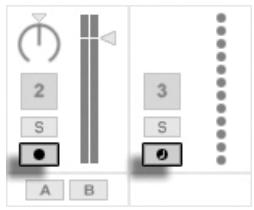
Audio and MIDI Track Arm Buttons.
- To permanently monitor the track's input, regardless of whether the track is armed or clips are playing, choose In. This setting effectively turns the track into what is called an "Aux" on some systems: the track is not used for recording but for bringing in a signal from elsewhere. With this setting, output from the clips is suppressed. An "In" monitoring setting can be easily recognized even when the In/Out section is hidden by the orange color of the track's Activator switch.
- Monitoring can be turned off altogether by choosing the Off option. This is useful when recording acoustic instruments which are monitored "through the air," when using an external mixing console for monitoring or when using an audio hardware interface with a "direct monitoring" option that bypasses the computer so as to avoid latency. Generally, it is preferable to work with an audio interface that allows for negligible latencies (a few milliseconds). If you are recording into Live with monitoring set to "Off," you may want to make the Audio Preferences' Overall Latency adjustment, which is described in the built-in program tutorial on setting up the Audio Preferences.
12.2 External Audio In/Out
An audio interface's inputs are selected by choosing "Ext. In" from the Input Type chooser of an audio track. The Input Channel chooser then offers the individual input channels. Entries in this chooser each have meters next to their names to help you identify signal presence and overload (when the meter flashes red). Setting up the audio interface's outputs works the same way via the output chooser pair.
The list of available inputs and outputs depends on the Audio Preferences, which can be reached via the Input and Output Channel choosers' "Configure..." option. Note that the Audio Preferences also provide access to the Channel Configuration dialogs, which determine which inputs and outputs are used, and whether they are available to Live as mono or stereo pairs. Essentially, the Channel Configuration dialog tells Live what it needs to know about how the computer is connected to the other audio components in your studio.
Please note that there is a limit of four inputs and outputs available in Live LE.
12.2.1 Mono/Stereo Conversions
When a mono signal is chosen as an audio track's input, the track will record mono samples; otherwise it will record stereo samples. Signals in the track's device chain are always stereo, even when the track's input is mono or when the track plays mono samples.
Mono is turned into stereo simply by using the identical signal for left and right channels. When a track is routed into a mono output, the left and right signals are added together and attenuated by 6 dB to avoid clipping.
12.3 External MIDI In/Out
MIDI from the outside world is routed into Live just like audio. From the Input Type chooser of a MIDI track, you can either select a specific MIDI input port or "All Ins," which is the merged input of all external MIDI ports. The Input Channel chooser offers the individual input channels of the selected MIDI port and the merged signal of all channels, "All." As is
the case with audio inputs, the Input Channel chooser also has meters next to every entry to represent activity on the respective input channel.
12.3.1 The MIDI Ports List in the Preferences

You can configure which MIDI ports are made available to Live using the MIDI Ports section of the MIDI/Sync Preferences. All available input and output ports are listed here. For Live's tracks to receive/send MIDI from/to a specific MIDI port, the corresponding switch in the Track column must be set to On. You can use any number of MIDI ports for track input and output; the mixer's In/Out choosers allow them to be addressed individually.
12.3.2 Playing MIDI With the Computer Keyboard
The computer keyboard can be used as a pseudo-port for generating MIDI notes from computer keyboard strokes. Using this pseudo-port, you can generate MIDI even without a "real" MIDI input port. To turn the computer MIDI keyboard on, use the Control Bar's Computer MIDI Keyboard button, or the Ctrl K (PC) / Mac shortcut to the Options menu entry.

The center row of letter keys on the keyboard will play notes corresponding to the white keys on a piano, beginning on the left with the note C5. The black keys on a piano correspond to the upper row of computer keys. The four leftmost letters on the lower row of the keyboard are used to transpose the note range and to set velocity. The results of changing these values are displayed in the Status Bar at the bottom of the Live screen.
As it happens, when the computer keyboard is set to send notes between C3 and C4, the keys are mapped to MIDI notes such that the center row of the keyboard (ASDF...) addresses
the Impulse percussion sampler's sample slots. This means that you can play and record drum patterns right off the computer keyboard.
Note that when the computer MIDI keyboard is activated, it will "steal" keys that may have otherwise been assigned to remote-control elements of the Live interface. To prevent this, you can turn the computer MIDI keyboard off when it is not needed.
12.3.3 MIDI In/Out Indicators
Live's Control Bar contains two pairs of indicator LEDs that tell you about incoming and outgoing MIDI. These indicators tell you not only about the presence of signals, but also about their use. In both pairs, the upper indicator flashes when a MIDI message is received, and the lower indicator flashes when a MIDI message is sent.

The Control Bar's MIDI Indicators.
The two indicator pairs represent, from left to right:
- MIDI messages that are used for remote-controlling Live's user-interface elements;
- MIDI messages coming from and going to Live's MIDI tracks.
MIDI messages that are mapped to remote-control Live's user-interface elements are "eaten up" by the remote control assignment and will not be passed on to the MIDI tracks. This is a common cause of confusion that can be easily resolved by looking at the indicators.
12.4 Resampling
Live's Master output can be routed into an individual audio track and recorded, or resampled. Resampling can be a fun and useful tool, as it lets you create samples from what is currently happening in a Live Set that can then be immediately integrated. It can be used to record tracks that include processor-intensive devices, so as to delete the devices, or for quickly previewing before rendering to disk.
The "Resampling" option in any audio track's Input Type chooser will route the Master output to that track. You can then decide on what exactly you will be resampling and mute, solo or otherwise adjust the tracks that are feeding the Master output. You will probably want to use the Master Volume meter to make sure that your level is as high as possible without clipping (indicated by red in the meter). Then you can arm the track and record into any of its empty clip slots. Note that the recording track's own output will be suppressed while resampling is taking place, and will not be included in the recording.
Samples created by resampling will be stored in with the current Set's Project folder, under Samples/Recorded. Until the Set is saved, they remain at the location specified by the Temporary Folder.
12.5 Internal Routings
Live's mixer allows for inter-track routings. These routings, albeit potentially confusing, enable many valuable creative and technical options. Via the mixer, inter-track routing can work two ways:
- Track A is set up to send its output signal to Track B. This is possible because every track that can receive an output signal of the appropriate type from Track A shows up in its Output Type chooser.
- Track B is set up to receive its input signal from Track A. This works because every track that delivers a signal of the appropriate type appears in Track B's Input Type chooser.
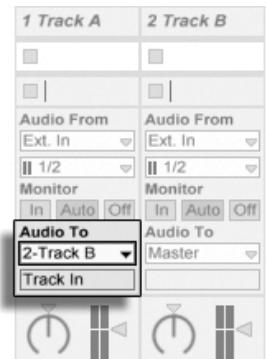

Two Ways to Route Track A into Track B.
Both approaches result in Track A's output being fed into Track B. Approach 1 leaves Track B's in/out settings alone, and we can, at any time, add more tracks that feed their output into Track B. This is the method of choice for "many-to-one" routings such as submixes or several MIDI tracks playing the same instrument. In this scenario, soloing Track B will still allow you to hear the output of the tracks that are feeding it. Also, you can still solo Track A and hear its output signal. In this case, all other tracks are muted, including those that might also feed into Track B. Technically, what you hear is the output of Track B, with everything except Track A's signal removed.
Approach 2, on the other hand, leaves Track A unaffected except for Track B tapping its output. We can easily add more tracks like Track B that all tap Track A's output. Instrument layering is a good example of such a "one-to-many" routing setup.
12.5.1 Internal Routing Points
Signals travel from Live's tracks into their respective device chains and then into the track mixer, where they might become panned or have their levels altered by the tracks' faders.
Whenever a track's Audio From input chooser is set to another track (as described in the previous section's Approach 2), the signal received can be tapped from one of three different points chosen from the Input Channel chooser: Pre FX, Post FX or Post Mixer.

Tap Points for Track Routing.
- Pre FX taps the signal that is coming directly from a track, before it has been passed on to the track's device chains (FX) or mixer. Therefore, changes that are made to the tapped track's devices or mixer have no effect on the tapped signal. Soloing a track that taps another track Pre FX will allow you to hear the tapped track.
- Post FX taps the signal at the output of a track's device chains (FX), but before it has been passed back to the track mixer. Changes to the tapped track's devices will therefore alter the tapped signal, but changes to its mixer settings will not. Soloing a track that taps another track Post FX will allow you to hear the tapped track.
- Post Mixer taps the final output of a track, after it has passed through its device chains and mixer. Soloing a track that taps another track Post Mixer will not allow you to hear the tapped track.
Routing Points in Racks

Tap Points for Every Chain in a Track.
If a track has one or more Instrument or Effect Racks in its device chain, internal routing points (Pre FX, Post FX and Post Mixer) will also be available for every chain within the Rack. If a track contains one or more Drum Racks, internal routing points will be available for any of the Rack's return chains. Each Rack will also be listed in the Input Channel chooser:
- (Rack Name) | (Chain Name) | Pre FX – The signal will be tapped from the point that it enters the Rack, before it reaches the chain's devices.
- (Rack Name) | (Chain Name) | Post FX – The signal will be tapped from the end of the chain, but before it passes to the chain's mixer.
- (Rack Name) | (Chain Name) | Post Mixer – The signal will be tapped from the output of the chain's mixer, just before the point where all of the chains in the Rack are summed together to create the Rack's output.
Soloing a track that taps a Chain at any of these points will still allow you to hear the output at that point.
12.5.2 Making Use of Internal Routing
This section presents several internal routing examples in more detail.
Post-Effects Recording
Let's say that you are feeding a guitar into Live, building up a song track by track, overlaying take onto take. It is certainly powerful to have a separate effects chain per track for applying different effects to different takes – after the fact. You might, however, want to run the guitar signal through effects (a noise gate or an amp model, for instance) before the recording stage, and record the post-effects signal.

This is easily accomplished by devoting a special audio track for processing and monitoring the incoming guitar signal. We call this track "Guitar" and drag the desired effects into its device chain. We do not record directly into the Guitar track; instead we create a couple more tracks to use for recording. Those tracks are all set up to receive their input Post FX from the Guitar track. Note that we could also tap the Guitar track Post Mixer if we wished to record any level or panning from it.
As for monitoring, we set the Guitar track's Monitor radio button to In, because we always want to listen to our guitar through this track, no matter what else is going on in Live. The other tracks' Monitor radio buttons are set to Off.
An Example Setup for Post-Effects Recording.
Recording MIDI as Audio
When working with MIDI and complex software instruments, it is sometimes more useful to record the resulting audio than the incoming MIDI. A single MIDI note can prompt, for example, Native Instruments' Absynth to produce something that sounds more like a piece of music than a single tone. This output lends itself more to representation as an audio waveform than a single note in a MIDI clip, particularly when comparing the editing options.

A setup similar to the one described above accomplishes the task. We have one MIDI track hosting the virtual instrument, and we use additional audio tracks to record the audio result of playing the instrument.
Recording the Output of a Complex Instrument in Audio Tracks.
Creating Submixes

Submixing the Individual Drums of a Drum Kit.
Suppose we have the individual drums of a drum kit coming in on separate tracks for multitrack recording. In the mix, we can easily change the volumes of the individual drums, but adjusting the volume of the entire drum kit against the rest of the music is less convenient. Therefore, we add a new audio track to submix the individual drums. The drum tracks are all set to output to the submix track, which outputs to the Master. The submix track gives us a handy volume control for the entire drum kit.
Several MIDI Tracks Playing the Same Instrument
Consider a MIDI track containing a virtual instrument – a Simpler playing a pad sound, for example. We have already recorded MIDI clips into this track when we realize that we would like to add an independent, parallel take for the same instrument. So we add another MIDI track. We could now drag another Simpler into the new track, but we would really like to reuse the Simpler from the pad track, so that changing the pad's sound affects the notes from both tracks.

Feeding an Additional MIDI Track Into an Existing MIDI Track to Reuse its Instrument.
This is accomplished by setting the new MIDI track's Output Type chooser to "Pad." Note that the Output Channel chooser now offers a selection of destinations: We can either feed the new track's output into the input of the pad track, or we can directly address the Simpler. The "Track In" option in the Output Channel represents the pad track's input signal (the signal to be recorded), which is not what we want. We instead select "Simpler Ch. 1" to send the new track's MIDI directly to the Simpler, bypassing the recording and monitoring stage. With this setup, we can choose to record new takes on either track and they will all play the same pad sound.
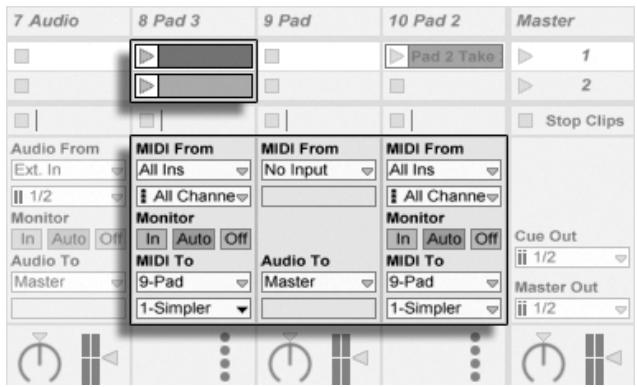
The Instrument Has Been Isolated in a Dedicated Track.
We might be bothered by the fact that muting the pad track (by turning off its Activator
switch) also mutes the other MIDI track. To be precise, the other track keeps playing, but its MIDI is played by an instrument that is out of the mix. This can be easily remedied by cutting the clips from the pad track and pasting them into a third track that can be independently muted (and that can hold its own MIDI effects). The original pad track now acts as a mere instrument container. As we are not recording new clips into this track, we can set its Input Type chooser to "No Input," which makes its Arm button disappear and helps to avoid confusion when the mixer's In/Out section is hidden.
Tapping Individual Outs From an Instrument
Some software instruments, like Live's Impulse percussion sampler, offer multiple audio outputs for the signals they produce. By default, Impulse mixes the output of its eight sample slots internally and delivers the mix at the instrument's audio out. Any audio effects following Impulse in the same track process the composite signal. Sometimes it is desirable to take an individual drum sound out of the mix for individual effects processing and mixing. This is possible because Impulse offers its sample slots as audio sources to other tracks.

We simply create an audio track and select from its Input Type chooser the track with the Impulse. The Input Channel chooser now offers, in addition to Pre FX, Post FX and Post Mixer, Impulse's eight individual outputs, labeled according to the sample used in each slot.
Using Impulse's Individual Outs to Separately Process Sample Slots.
Notice that routing an individual output from Impulse into another track automatically takes this signal out of Impulse's own internal mix. This convenience is not standard behavior of most plug-in instruments, however. Soloing a track that taps one of Impulse's sample slots will still allow you to hear the output of that slot.
Using Multi-Timbral Plug-In Instruments
Many plug-in instruments support multi-timbral operation. A multi-timbral instrument is like several instruments in one, with each component "part" (or whatever term the manufacturer uses) receiving MIDI on a separate MIDI channel. Usually, the multi-timbral instrument offers individual outputs so that the parts can be separately routed into the mixer. Or, the instrument might offer a submixer of its own.

Tracks Feeding MIDI to and Tapping Audio From the Parts of a Multi-Timbral Instrument.
Sending MIDI from the mixer to a multi-timbral instrument is a variation of a case described above. One MIDI track hosts the multi-timbral instrument, and additional MIDI tracks are used to feed its individual parts. Each additional MIDI track has its Output Type chooser pointed to the track that contains the instrument, and its Output Channel chooser referencing the target MIDI channel. Additional audio tracks can then be used to tap the instrument's individual outputs, as described earlier.
Feeding Sidechain Inputs
Some effects have so-called "sidechain inputs." A vocoder, for instance, imposes spectral characteristics taken from one signal (say, spoken word) onto another signal, for instance a string pad. The vocoder is inserted as an audio effect into the string track. It has a sidechain input for the speech signal, which has to be delivered from another track. So, we create an additional audio track named "Speech" and set its Output Type chooser to the "Strings" track. From the Output Channel chooser, we select the vocoder's sidechain input.
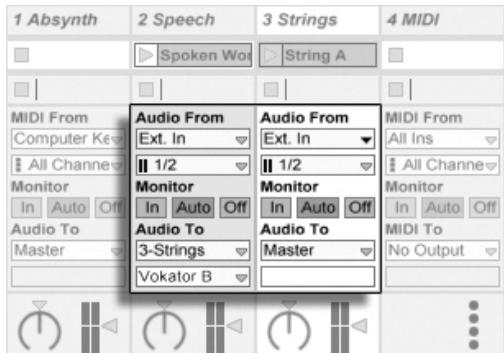
Some vocoder plug-ins include a built-in synthesizer to generate the "carrier" signal. In this case, the only difference from the above procedure is that the vocoder instrument is dragged into a MIDI track. Feeding the side-chain audio input works as described above.
Please note that Ableton's Auto Filter, Compressor and Gate devices have their own sidechain controls with integrated routing choosers that match those found in tracks. Thus when using these devices, it is not necessary to follow the above procedure - you can simply select the sidechain source from within the device itself.
Layering Instruments
Suppose that we have a MIDI track containing an instrument playing a string sound, which we would like to augment by adding a brass sound playing the same notes. This can be easily done by adding a MIDI track that contains an instrument playing the brass sound and setting its Input Type chooser to tap the string track's Post FX signal.
Routing a Speech Signal Into a Vocoder's Sidechain Input.

Using an Auxiliary MIDI Track to Layer Instruments.
Perhaps you wonder why this works, given that the string track's output is audio and not MIDI. When routing MIDI in from another track, we are tapping the MIDI at the latest possible stage, which is after any MIDI Effects, and just before the instrument.
Chapter 13
Mixing
13.1 The Live Mixer
Live includes a mixer section that is accessible from two views:
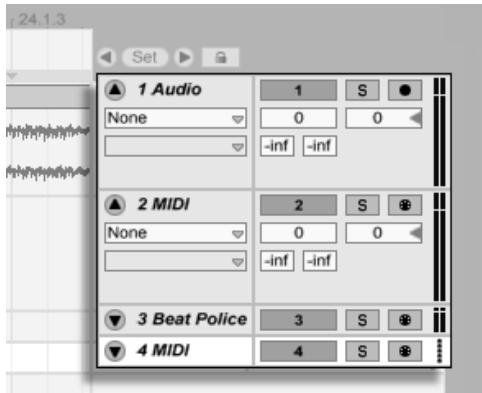
In the Arrangement View, the mixer appears as a horizontal strip to the right of the track area. To display all mixer controls for a track, unfold the track using the bullet button next to
The Arrangement View Mixer.
its name, and adjust its height accordingly.

The Session View Mixer.
The Session View is a standard vertical mixer layout. You'll likely find the Session View mixer more intuitive than the Arrangement mixer, which comes in handy when you work with automation. Note that the Tab key toggles between the Arrangement and Session Views.
The View menu options listed below show or hide mixer components. You can use different mixer view setups in the Session View and in the Arrangement View:
In/Out - Sends - Returns - Mixer - Track Delays Crossfader
The Mixer Section selectors on the right-hand side of the screen duplicate the View Menu commands, making it possible to quickly show or hide different mixer components.

Let's look at the mixer controls:

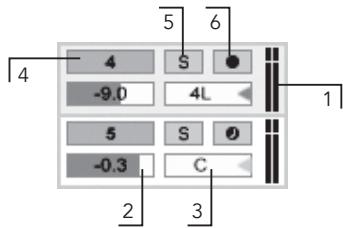
- The Meter shows the track's RMS (average) and peak output level. While monitoring, however, it shows the input level.
- The Volume control adjusts the track's output level.
- The Pan control positions the track's output in the stereo field. To reset the Pan control to center, click on its associated triangle.
- To mute the track's output, turn off the Track Activator switch.
- The Solo switch solos the track by muting all other tracks, but can also be used for cueing. Tracks can only be soloed one at a time unless the Exclusive Solo option in the Record/Warp/Launch Preferences is deactivated. Alternatively, you can hold down the Ctrl (PC) / Mac modifier to solo more than one track.
- If the Arm Recording button is on, the track is record-enabled. Tracks can only be armed one at a time unless the Exclusive Arm option in the Record/Warp/Launch Preferences is deactivated. Alternatively, you can hold down the Ctrl (PC) / Mac (Mac) modifier to arm more than one track. With the Exclusive Arm
The Mixer Section Selectors.
The Mixer Controls.
option enabled, inserting an instrument into a new or empty MIDI track will automatically arm the track.
13.1.1 Session Mixer Features
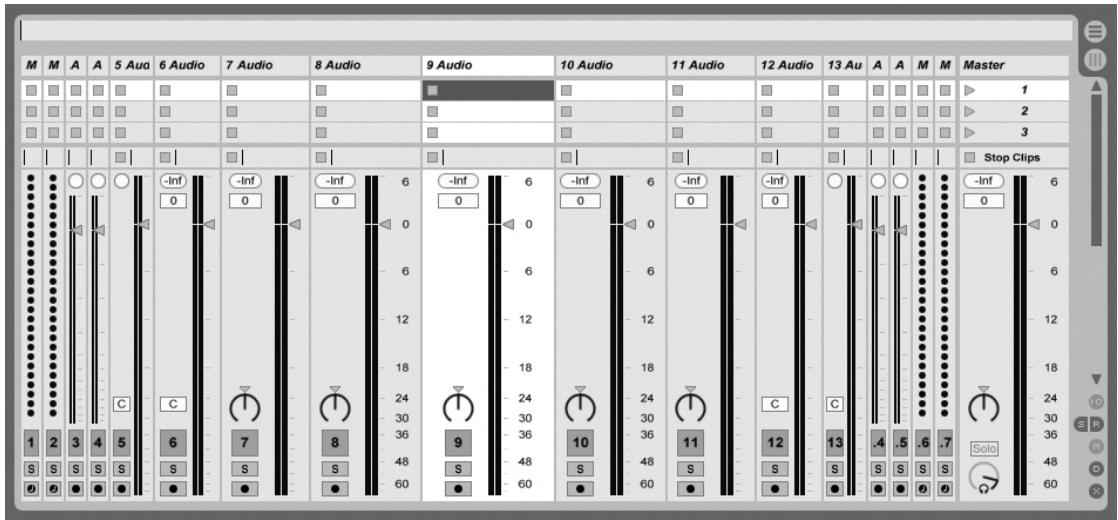
The Mixer section of the Session Mixer has several additional features that are not visible by default. The mixer is resizable, and dragging upwards on the top of the mixer will extend the height of the track meters, adding tick marks, a numeric volume field, and resettable peak level indicators. Increasing a track's width in this state will add a decibel scale alongside the meter's tick marks.
These enhancements are tailored for use in traditional mixing settings, but are available anytime the Mixer section is displayed.
Because of the enormous headroom of Live's 32-bit floating point audio engine, Live's meters can be driven far "into the red" without causing the signals to clip. The only time that signals over 0 dB will be problematic is when routing to or from physical inputs and outputs, like those of your sound card, or when saving audio to a file.
The Session Mixer's Possibilities.
Nevertheless, Live provides this optional visual feedback for signals that travel beyond 0 dB in any track.
13.2 Audio and MIDI Tracks
Audio and MIDI tracks in Live are for hosting and playing clips, as explained earlier.
You can add up to 64 audio and unlimited MIDI tracks to your Live Set's mixer using the appropriate Insert menu commands.
Tracks can also be created by double-clicking or pressing Return on files in the Browser to load them, or by dragging objects from the Browser into the space to the right of Session View tracks or below Arrangement View tracks. Devices or files loaded into Live in this manner will create tracks of the appropriate type (e.g., a MIDI track will be created if a MIDI file or effect is dragged in).
A track is represented by its track title bar. You can click on a track title bar to select the track and then execute an Edit menu command, such as Rename, on the track. One can quickly rename a series of tracks by executing this command and then using the Tab key to move from title bar to title bar. You can also enter your own info text for a track via the Edit Info Text command in the Edit menu or in the track's (PC) / Ctrl (Mac) context menu.

You can drag tracks by their title bars to rearrange them, or click and drag on their edges to change their width (in the Session View) or height (in the Arrangement View).
Tracks are deleted using the Edit menu's Delete command.
Tracks are Represented by Track Title Bars.
13.3 Return Tracks and the Master Track
In addition to tracks that play clips, a Live Set has a Master track and up to two return tracks; these cannot play clips, but allow for more flexible signal processing and routing.
The return tracks and the Master track occupy the right-hand side of the Session mixer view and the bottom end of the Arrangement View.
Note that you can hide and show the return tracks using the Returns command in the View menu.
Like the "normal" clip tracks, the returns and the Master can host effects devices. However, whereas a clip track's effect processes only the audio within that track, return tracks can process audio sent to them from numerous tracks.
For example, suppose you want to create rhythmic echoes with a delay effect. If you drag the effect into a clip track, only clips playing in this track will be echoed. Placing this effect in a return track lets it receive audio from any number of tracks and add echoes to them.

A clip track's Send control regulates how much of the clip track's output feeds the associated return track's input. What's more, even the return track's own output can be routed to its input, allowing you to create feedback. Because runaway feedback can boost the level dramatically and unexpectedly, the Send controls in Return tracks are disabled by default. To enable them, (PC) / Ctrl (Mac) on a Return track's Send knob and select Enable Send or Enable All Sends.
Every return track has a Pre/Post toggle that determines if the signal a clip track sends to it is tapped before or after the mixer stage (i.e., the pan, volume and track-active controls). The "Pre" setting allows you to create an auxiliary mix that is processed in the return track, independently of the main mix. As the return track can be routed to a separate output, this
The Send Controls and Pre/Post Toggle.
can be used to set up a separate monitor mix for an individual musician in a band.
The Master track is the default destination for the signals from all other tracks. Drag effects here to process the mixed signal before it goes to the master output. Effects in the Master track usually provide mastering-related functions, such as compression and/or EQ.
You can create multiple return tracks using the Insert menu's Insert Return Track command, but by definition, there is only one Master track.
13.4 Using Live's Crossfader
Live includes a crossfader that can create smooth transitions between clips playing on different tracks. Live's crossfader works like a typical DJ-mixer crossfader, except that it allows crossfading not only two, but any number of tracks – including the returns.
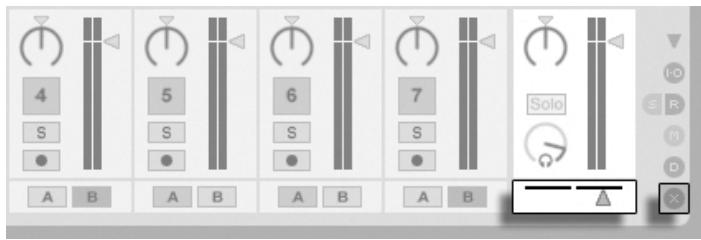
The Crossfader and Selector.
The crossfader is accessed via the Session View's mixer selectors. It features seven different crossfade curves so that you can choose the one that fits your style the best. To change the curve, (PC) / Ctrl (Mac) on the crossfader, then select an entry from the context menu.

Choose from Seven Crossfader Curves.
The chart below details the power level and response of each crossfader curve.
A+B Power Level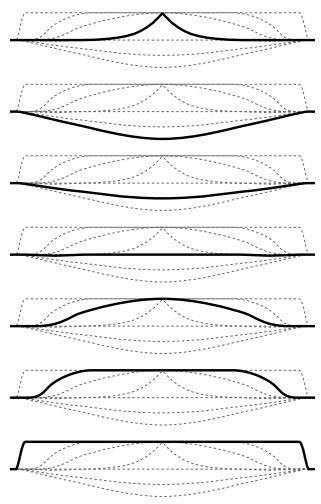
Crossfader Response
Crossfader Curve Properties.
The crossfader can be mapped to any continuous MIDI controller (absolute or incremental). In addition to the crossfader's central slider, its absolute left and right positions are separately available for MIDI or keyboard mapping. There are two special scenarios for remote control with respect to the crossfader:
- A key mapped to any one of the three assignable crossfader positions (left, center or right) will toggle the crossfader's absolute left and right positions.
right) will toggle the crossfader's absolute left and right positions.
- Mapping to two of the three fields allows for a "snapping back" behavior when one of the assigned keys is held down and the other is pressed and released.

Each track has two Crossfade Assign buttons, A and B. The track can have three states with respect to the crossfader:
- If neither Assign button is on, the crossfader does not affect the track at all.
- If A is on, the track will be played unattenuated as long as the crossfader is in the left half of its value range. As the crossfader moves toward the right across the center position, the track fades out. At the crossfader's rightmost position, the track is muted.
- Likewise, if B is on, the track's volume will be affected only as the crossfader moves left across its center position.
It is important to understand that the Crossfade Assign buttons do not affect the signal routing: the crossfader merely influences the signal volume at each track's gain stage. The track can be routed to an individual output bus regardless of its crossfade assignment. In studio parlance, you can think of the crossfader as an on-the-fly VCA group.
As with almost everything in Live, your crossfading maneuvers can be recorded into the Arrangement for later in-depth editing. To edit each track's crossfade assignment, choose "Mixer" from the Envelope Device chooser and "X-Fade Assign" from the Control chooser. The crossfader's automation curve is accessible when "Mixer" is chosen from the Master track's Device chooser and "Crossfade" is selected from its Control chooser.
Crossfade Assign Buttons.
13.5 Soloing and Cueing
By default, soloing a track simply mutes all other tracks (except in some cases where tracks are feeding other tracks). The signal from the soloed tracks is heard through their respective outputs, with the pan setting of each track preserved. Soloing a clip track leaves any return tracks audible, provided that the Solo in Place option is enabled in the Solo button's context menu (PC) / Ctrl (Mac)). Solo in Place can also be set as the default behavior by selecting the entry in the Options menu.
Soloing a return track mutes the main output of all other tracks, but still allows you to hear any signals that arrive at the return via track sends.
Live allows you to replace the standard soloing operation with a cueing operation that lets you preview tracks as though you were cueing a record on a DJ mixer. This allows choosing clips and adjusting effects without the audience hearing, before bringing tracks into the mix.
In order to set Live up for cueing, you must be using an audio interface with at least four dedicated outputs (or two dedicated stereo outputs). The respective settings are accessible in the Session View mixer. Make sure you have the Mixer and In/Out options checked in the View menu.
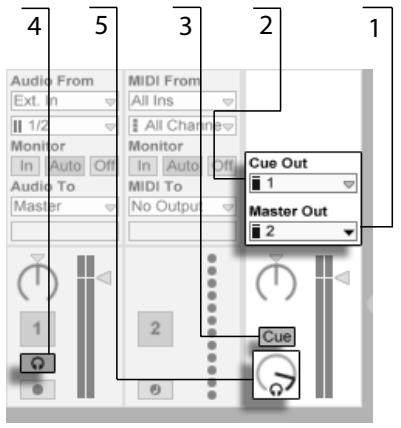
- The Master Out chooser selects the output on your interface to be used as the main output.
The Cueing-Related Session Mixer Controls.
- The Cue Out chooser selects the output on your hardware interface to be used for cueing. This has to be set to an output other than that selected for the Master. If the desired outputs don't show up in these choosers, please check the Audio Preferences.
- Activate cueing by setting the Solo/Cue Mode switch to "Cue."
- The tracks' Solo switches are now replaced by Cue switches with headphone icons. When a track's Cue switch is pressed, that track's output signal will be heard through the output selected in the Cue Out chooser. Note that the Track Activator switch on the same track still controls whether or not the track is heard at the Master output.
- The Cue Volume control adjusts the volume of the cueing output.
Note that when cueing is set up and activated, the output of audio files that you are previewing in the Browser is also heard through the Cue Out.
13.6 Track Delays
A Track Delay control is available for every track in Live. The control allows delaying or pre-delaying the output of tracks in milliseconds in order to compensate for human, acoustic, hardware and other real-world delays.
This section of the interface can be shown or hidden using its respective Mixer Section selector.

We do not recommend changing track delays on stage, as it could result in undesirable clicks or pops in the audio signal. Micro-offsets in Session View clips can be achieved using the nudge buttons in the Clip View, however track delays can be used in the Arrangement View for such offsets.
The Track Delay Control and Selector.
Note that delay compensation for plug-ins and Live devices is a separate feature, and is automatic by default. Unusually high Track Delay settings or reported latencies from plugins may cause noticeable sluggishness in the software. If you are having latency-related difficulties while recording and playing back instruments, you may want to try turning off device delay compensation, however this is not normally recommended. You may also find that adjusting the individual track delays is useful in these cases. Note that the Track Delay controls are unavailable when device delay compensation is deactivated.
Chapter 14
Recording New Clips
This chapter is about recording new clips from audio and MIDI input signals. Note that this is a different kind of recording than the capturing of Session clips into the Arrangement.
For successful audio recording, please make sure the audio preferences are set up properly. For more on this, please see the built-in program lesson on setting up Audio Preferences. Also, keep in mind that devices such as microphones, guitars and turntables do not operate at line level, meaning that they will need to have their levels boosted before they can be recorded. For these devices, you must therefore use either an audio interface with a preamp, or an external preamp.
14.1 Choosing an Input
A track will record whatever input source is shown in its In/Out section, which appears when the View menu's In/Out option is checked. (In the Arrangement View, unfold and resize the track in order to completely see the In/Out section.)


Audio tracks default to recording a stereo signal from the external input pair "1/2." MIDI tracks default to recording all MIDI that is coming in through the active external input devices. The computer keyboard is, by default, activated as a pseudo-MIDI input device, allowing you to record MIDI even if no MIDI controller hardware is currently available.
For every track, you can choose an input source other than the default: any mono or stereo external input, a specific MIDI channel from a specific MIDI-in device or a signal coming from another track. The Routing chapter describes these options in detail.
The Track In/Out Section in the Arrangement (Left) and Session View (Right).
14.2 Arming (Record-Enabling) Tracks


To select a track for recording, click on its Arm button. It doesn't matter if you click a track's Arm button in the Session View or in the Arrangement View, since the two share the same set of tracks.
By default, armed tracks are monitored, meaning that their input is passed through their device chain and to the output, so that you can listen to what is being recorded. This behavior is called "auto-monitoring" and you can change it to fit your needs.
Track Arm Buttons in the Arrangement (Left) and Session (Right) Mixers.
Clicking one track's Arm button unarms all other tracks unless the Ctrl (PC) / Mac modifier is held. Arming a track selects the track so you can readily access its devices in the Track View.
14.3 Recording
Recording can be done in both the Session and the Arrangement Views. If you want to record onto more than one track simultaneously and/or prefer viewing the recording linearly and in-progress, the Arrangement View may be the better choice. If you want to break your recording seamlessly into multiple clips or record while you are also launching clips in Live, use the Session View.
14.3.1 Recording Into the Arrangement

- Recording commences when the Control Bar's Record button is activated and the Play button is pressed.
Recording Into the Arrangement.
- Recording creates new clips in all tracks that have their Arm button on.
- When the Overdub switch is on, the new clips contain a mix of the signal already in the track and the new input signal. The Overdub option only applies to MIDI tracks.
- To prevent recording prior to a punch-in point, activate the Punch-In switch. This is useful for protecting the parts of a track that you do not want to record over and allows you to set up a pre-roll or "warm-up" time. The punch-in point is identical to the Arrangement Loop's start position.
- Likewise, to prevent recording after the punch-out point, activate the Punch-Out switch. The punch-out point is identical to the Arrangement Loop's end position.
- When you are recording into the Arrangement Loop, Live retains the audio recorded during each pass.
You can later "unroll" a loop recording, either by repeatedly using the Edit menu's Undo command or graphically in the Clip View: After loop recording, double-click on the new clip. In the Clip View's Sample Display, you can see a long sample containing all audio recorded during the loop-recording process. The Clip View's loop brace defines the audio taken in the last pass; moving the markers left lets you audition the audio from previous passes.
14.3.2 Recording Into Session Slots
You can record new clips, on the fly, into any Session slots.
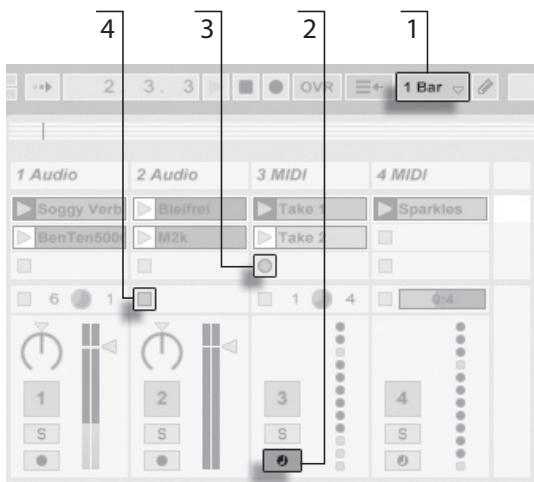
- Set the Global Quantization chooser to any value other than "None" to obtain correctly cut clips.
- Activate the Arm button for the tracks onto which you want to record. Clip Record buttons will appear in the empty slots of the armed tracks.
- Click on any of the Clip Record buttons to commence recording. A new clip will appear in the slot with a red Clip Launch button that shows it is currently recording. To go from recording immediately into loop playback, press the clip's Launch button.
- Alternatively, you can click a Clip Stop button or the Stop button in the Control Bar to stop recording, leaving the new clip silent.
Note that, by default, launching a Session View scene will not activate recording in empty record-enabled slots belonging to that scene. However, you can use the Start Recording on Scene Launch option from the Record/Warp/Launch Preferences to tell Live that you do want empty scene slots to record under these circumstances.
Recording a New Clip Into the Session View.
14.3.3 Overdub Recording MIDI Patterns
Live makes pattern-oriented recording of drums and the like quite easy. Using Live's Impulse instrument and the following technique, you can successively build up drum patterns while listening to the result. Or, using an instrument such as Simpler, which allows for chromatic playing, you can build up melodies or harmonies, note by note.
- Set the Global Quantization chooser to one bar.
- To automatically quantify the notes you are about to record, choose an appropriate value for Record Quantization.
- Double-click any of the Session View slots in the desired MIDI track (the one containing the Impulse or other instrument). A new, empty clip will appear in the slot. The new clip will default to a loop length of one bar, but you can change that by double-clicking the clip and changing its loop properties.
- Arm the track.
- Launch the clip.
- The notes you play are added into the looping clip, and you can observe your recording in the Clip View.
- By default, the Control Bar's Overdub switch is activated, so that you can build your pattern layer by layer. However, if you would like to pause recording for a moment to rehearse, you can deactivate the Overdub switch. The contents of the clip will continue to play, but you can play along without being recorded. When you are ready to record again, simply turn on the Overdub switch.
- Stop recording by pressing a Clip Stop button or the Stop button in the Control Bar.
Note that holding Alt (PC) / Alt Mac while double-clicking the empty slot to create a new clip will implicitly arm the track and launch the clip.
At any time while overdub recording is going on, you can use the Undo command to remove the last take, or even draw, move or delete notes in the Clip View's Note Editor.
Note that you can also add notes to existing Session clips while the Overdub switch is on.
14.4 Recording in Sync
Live keeps the audio and MIDI you have recorded in sync, even when you later decide on a different song tempo. In fact, Live allows you to change the tempo at any time before, after and even during recording. You could, for instance, cheat a bit by turning down the tempo to record a technically difficult part, and pull it up again afterwards.
It is important to record in sync to make sure everything will later play in sync.

The easiest way to record in sync is to play along with or to use the built-in metronome, which is activated via its Control Bar switch and will begin ticking when the Play button is pressed or a clip is launched.
To adjust the metronome volume, use the mixer's Preview Volume knob.
Notice that Live's metrical interpretation of the audio being played can be edited, at any time, using the Warp Markers. Warp Markers can be used to fix timing errors and to change the groove or feel of your recordings. Using Warp Markers, you can fix things in your recordings that would otherwise require complicated editing or could not be done at all. Likewise, the metrical interpretation of recorded MIDI can be changed after recording, using the MIDI clip's Original BPM controls.
The Metronome Switch.
The Preview Volume Knob.
14.5 Recording Quantized MIDI Notes
If you will be recording MIDI, you have the option of automatically quantizing MIDI notes while recording. The Record Quantization chooser in the Edit menu allows selecting the meter subdivisions with which your recorded notes will align. When recording into Session slots or into the Arrangement, record quantization is an independent step in Live's Undo history. This means that if, for example, you recorded with Record Quantization set to "Eighth Note Triplet Quantization" and then changed your mind, using the Edit menu's Undo command would undo only the quantization and leave your recording otherwise intact.
For Session and Arrangement recording, the Record Quantization setting cannot be changed mid-recording.
When overdub recording with the Clip View Loop activated, changes to the Record Quantization take effect immediately, and they cannot be separately undone with the Edit menu command.
Recorded MIDI notes can also be quantized post-recording with the Edit menu's Quantize command, as described in the chapter on editing MIDI.
14.6 Recording with Count-in
A count-in for recording can be set in Live's Record/Warp/Launch Preferences. When the Count-In preference is set to any value other than "None," Live will not begin recording until the count-in is complete. The Arrangement Position fields in the Control Bar display the count-in in orange as bars-beats-sixteenths.

The count-in runs from negative bars-beats-sixteenths (beginning at -2.1.1., for example, with a Count-In setting of 2 bars) up to 1.1.1., at which point recording commences.
The Count-In is Displayed in the Control Bar.
14.7 Setting up File Types
The following Preferences from the Record/Warp/Launch tab are relevant to the sample files that are created by recording:
- The sample file type you would like Live to create can be chosen from the File Type chooser in the Record/Warp/Launch Preferences.
- The bit depth of the sample file you will create by recording can be chosen from the Bit Depth chooser in the Record/Warp/Launch Preferences.
You can save time by setting up reasonable defaults for the clips you are recording in the Record/Warp/Launch Preferences tab. In particular, it is smart to indicate the rough category of sound to be recorded by choosing the appropriate default Warp Mode. If you decide later on a different song tempo, the program will automatically maintain good sound quality, usually without further adjustment.
14.8 Where are the Recorded Samples?
Recorded samples are stored with the current Set's Project folder, under Samples/Recorded. Until the Set is saved, it remains at the location specified by the Temporary Folder preference which is found in the Preferences' File/Folder tab. To make sure Live will not run out of disk space while recording into a new Set, please make sure the Temporary Folder is on a drive/partition with sufficient free space.
14.9 Using Remote Control for Recording
Using Key Map Mode and MIDI Map Mode, you can operate Live's recording functions without using the mouse.
You can map the Control Bar's Record and transport controls as well as the track Arm buttons. For recording into the Session slots, you can map the individual slots as well as the relative navigation controls to initiate recording remotely; for instance:

One key is used to jump to the next scene...
The Scene Up/Down Buttons.
A Track Launch Button.
... and another key to start and end recording in the respective track.
Chapter 15
Working with Instruments and Effects
Every track in Live can host a number of devices. These devices can be of three different sorts:
- MIDI effects act upon MIDI signals and can only be placed in MIDI tracks.
- Audio effects act upon audio signals and can be placed in audio tracks. They can also be placed in MIDI tracks as long as they are "downstream" from an instrument.
- Instruments are devices that reside in MIDI tracks, receive MIDI and output audio.
The Track View is where you insert, view and adjust the devices for the selected track. To select a track and open the Track View to access its devices, double-click the track's name. The Track View appears in the bottom area of the Live screen.
Please note that the number of instruments and effects that can be used in a single Set is limited in Live LE.

Devices in the Track View.
To save space in the Track View, a device can be collapsed by double-clicking on its title bar or by choosing Fold from its (PC) / Ctrl (Mac) context menu.

Devices Can Be Folded.
To learn about a particular device and how to operate it, consult the Live Audio Effect Reference, Live MIDI Effect Reference or the Live Instrument Reference.
To learn about creating and using custom groupings of instruments and effects, check out the Instrument, Drum and Effect Racks chapter.
Get "hands-on" with devices by assigning their parameters to MIDI or key remote control.
15.1 Using the Live Devices
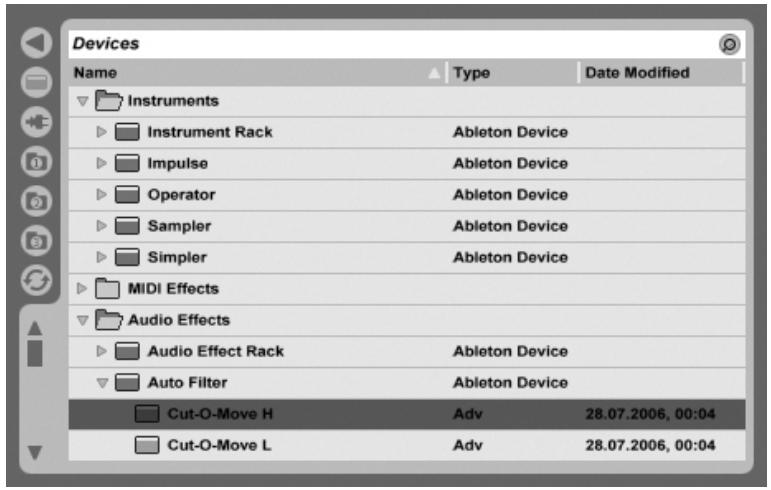
The Live Device Browser.
Click on the Device Browser selector to access the palette of Live's built-in devices. You will notice that MIDI effects, audio effects and instruments each have their own folders in the Browser.
The easiest way to place a device in a track is to double-click on it in the Browser, which creates a new track to hold the device. Alternatively, select a destination track by clicking within it, then select a device or preset in the Browser and press Return to add it to the selected track.
You can also drag devices into tracks or drop areas in the Session and Arrangement Views, or into the Track View. Dragging a sample to the Track View of a MIDI track creates a Simpler instrument with this sample loaded.
Note: If you are using an external input signal to feed your Live track using the default settings, the track's Arm button in the mixer must be activated in order to hear the input through the devices in your track's device chain. On MIDI tracks, this is normally activated automatically when inserting an instrument.

MIDI and Audio Track Arm Buttons
This is how you would play live instruments through effects on a track, for example, or use a MIDI keyboard's input to play a track's instrument. Note that you can easily move from this setup into recording new clips for further use in Live. If you have alternative monitoring preferences, please see the Monitoring section to learn how to make these settings.
To add another device to the track, simply drag it there or double-click its name to append it to the device chain. Signals in a device chain always travel from left to right.
You can drop audio effects in at any point in an audio track's device chain, keeping in mind that the order of effects determines the resulting sound. The same is true for a MIDI track's device chain.
If you drop an instrument into a MIDI track's device chain, be aware that signals following (to the right of) the instrument are audio signals, available only to audio effects. Signals preceding (to the left of) the instrument are MIDI signals, available only to MIDI effects. This means that it's possible for a MIDI track's device chain to hold all three types of devices: first MIDI effects, then an instrument, and finally audio effects.

A MIDI Track's Device Chain Can Contain All Three Device Types.
To remove a device from the chain, click on its title bar and press your computer's Backspace or Delete key, or select Delete from the Edit menu. To change the order of devices, drag a device by its title bar and drop it next to any of the other devices in the Track View. Devices can be moved to other tracks entirely by dragging them from the Track View into the Session or Arrangement Views. Generally, devices can be placed, reordered and deleted without interrupting the audio stream.

Devices are turned on and off using their Activator switches. Turning a device off is like temporarily deleting it: The signal remains unprocessed, and the device does not consume CPU cycles. Live devices generally do not load down the CPU unless they are active. For more information, please refer to the CPU load section.
Devices in Live's tracks have input and output level meters. These meters are helpful in finding problematic devices in the device chain: Low or absent signals will be revealed by the level meters, and relevant device settings can then be adjusted, or the device can be turned off or removed.
Device Activator Switches.

Note that no clipping can occur between devices because there is practically unlimited headroom. Clipping can occur when an overly strong signal is sent to a physical output or written to a sample file.
Further information about track types in Live can be found in the Routing and I/O chapter, including information on using return tracks to distribute the effect of a single device amongst several tracks. After reading about using devices in Live, it might also be interesting to look into clip envelopes, which can modulate individual device parameters on a per-clip basis.
15.1.1 Live Device Presets
Every Live device can store and retrieve their parameter settings as presets. Presets for Live instruments and effects are managed through the Device Browser. Each device appears there as a folder that can be opened to reveal its presets.
The Level Meters Between Devices in a Chain.

You can browse and load presets quickly with the computer keyboard:
- Scroll up and down using the Up and Down arrow keys.
- Close and open device folders using the Left and Right arrow keys.
- Press Return to load a device or preset.

Clicking a device's Hot-Swap Presets button will temporarily link the Browser to a device, calling up its presets in the Device Browser. With the device and Browser linked in this manner, you can quickly browse, load and audition different presets. You can even replace the current device with a new one by simply selecting another device's preset. To load a device's default factory settings, select the parent folder of its presets (i.e., the one with the device's name) from the Device Browser.
The link between the Device Browser and the device will be broken if a different view is selected, or if the Hot-Swap button is pressed again. Preset hot-swapping can also be cancelled with a press of the Esc key.
Note that although importing via the Browser is the recommended method, presets can also be dropped directly into Live from the Explorer (Windows)/Finder (Mac).
Presets in the Device Browser.
The Hot-Swap Presets Button.
Saving Presets
You can create and save any number of your own presets in the Device Browser.

Click the Save Preset button to save a device's current settings (including any custom info text) as a new preset. You will be redirected to the Browser, where you can press Return to use Live's suggested name, or you can type one of your own. You can also save presets to specific folders in the Browser (such as your Current Project folder) by dragging from the title bar of the device and dropping into the Browser location of your choice.
For detailed information on what can be done with the Browser, please see the Managing Files and Sets chapter. For more on how to store project-specific presets, see the appropriate section.
Default Presets
Presets saved to the Defaults folders in Live's Library will load in place of Live's generic device settings. There are also Defaults folders that allow you to customize how Live responds to various user actions such as sample dropping and slicing. (Please note that slicing is not available in Live LE.)

The Save Preset Button.
The Default Presets folders in Live's Library.
To save the current settings of a device as a default preset, open the (PC) / Ctrl (Mac) context menu on the device's header and select "Save as Default Preset." This works for all of Live's instruments, MIDI effects and audio effects (including the various types of Racks). If you have already saved a default preset for a particular device, Live will ask you before overwriting it.
To specify how Live behaves when dragging a sample to a Drum Rack or the Track View of a MIDI track:
- Create an empty Simpler
- Adjust the parameters as you like
- Drag the edited device to the "On Drum Rack" or "On Track View" folder, which can be found at Library/Defaults/Dropping Samples
15.2 Using Plug-Ins
The collection of devices that you can use in Live can be extended with plug-ins. Live supports Steinberg Media's VST Plug-ins format, and Apple Computer's Audio Units (AU) Plug-ins format (Mac OS X only). You can use up to two VST/AU instruments and two VST/AU effects per Set.
Working with VST and Audio Units Plug-ins is very much like working with Live devices. VST and AU instruments can only be placed in Live MIDI tracks and, like Live instruments, they will receive MIDI and output audio signals. Plug-in audio effects can only be placed in audio tracks or following instruments. Please see the previous section, Using the Live Devices, for details.

The Plug-In Device Browser.
Audio Units and VST Plug-ins are browsed and imported using the Plug-In Device Browser, which is accessed via its selector. Plug-in instruments can be differentiated from plug-in effects in the Browser, as they appear with a keyboard icon.
The Browser's search functionality is only available for Audio Units Plug-ins, as is loading presets directly from Track View devices via the Hot-Swap button. In some instances, factory presets for Audio Units will only appear in the Browser once the device has been placed in a track and its Hot-Swap button activated.
Note: The first time you start Live, no plug-ins will appear in the Plug-In Device Browser, as you must first "activate" your plug-in sources. Activating your plug-in sources tells Live which plug-ins you want to use and where they are located on your computer. Information on activating (and deactivating) plug-in sources can be found later in this chapter, in the sections on the VST Plug-in folder and Audio Units Plug-ins.
Note for "Intel Mac" users: Intel Macs cannot natively run VST or AU plug-ins that have been written for the PowerPC platform. Only plug-ins of type (Universal) or (Intel) can be used in Live.
If you install/de-install a plug-in while the program is running, Live will not detect your changes or implement them in the Plug-In Device Browser until the next time you start the program. Use the Rescan button in the File/Folder Preferences to rescan your plug-ins while Live is running, so that newly installed devices become immediately available in the Plug-In Device Browser.
You can also rescan if you believe that your plug-in database has somehow become corrupted. Holding down the Alt (PC) / Alt (Mac) modifier while pressing Rescan will delete your plug-in database altogether and run a clean scan of your plug-ins.
15.2.1 Plug-Ins in the Track View
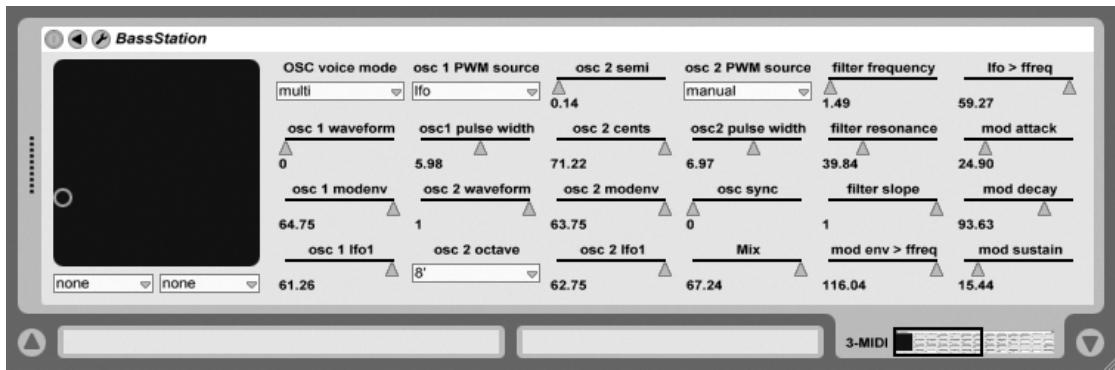
A VST Plug-In in the Track View.
Once a plug-in is dragged from the Browser into a track, it will show up in the Track View. The original plug-in panel graphics will be replaced with a Live panel, which will usually represent all of the plug-in parameters accurately and completely, unless they are simply too numerous or are not modifiable in real time. When this is the case, the plug-in's original editor panel can be opened in a separate window.

You can view or hide the VST Plug-in's parameters by toggling the ● button in the plug-in's title bar.
The X-Y control field can be used to control two plug-in parameters at once and is therefore especially well-suited for live control. To assign any two plug-in parameters to the Live panel X-Y field, use the drop-down menus directly beneath it.
The Plug-In Unfold Button.
Once a plug-in is placed in a track, you can use it just like a Live device:
- You can edit all of its parameters and drag it to different locations in the device chain or to other tracks, according to the rules of audio effects and instruments.
- You can map MIDI controller messages to its parameters.
- You can modulate its continuous parameters with clip envelopes.
- You can use the multiple I/O features of some plug-ins by assigning them as sources or targets in the routing setup of tracks. See the Routing and I/O chapter for details.
- You can create custom info text for the plug-in.
Showing Plug-In Panels in Separate Windows

The Plug-In Edit button opens a floating window that shows the original VST or Audio Units Plug-in panel. Changing parameters on the floating window has the same effect as changing them in the Live panel, and vice versa.
There are a few important Plug-In Preference settings for working with plug-in edit windows:
- If activated, the Auto-Open Plug-In Windows Preference assures that plug-in edit windows open automatically when plug-ins are loaded into tracks from the Browser.
- If the Multiple Plug-In Windows option in the Plug-In Preferences is activated, you can open any number of plug-in windows at once. Even with this option off, you can hold down the Ctrl (PC) / Mac (Mac) modifier when opening a new plug-in window to keep the previous window(s) from closing.
- Using the Auto-Hide Plug-In Windows preference, you can choose to have Live display only those plug-in windows belonging to the track that is currently selected.
The Plug-In Edit Button.
You can use the View menu's Show/Hide Plug-In Windows command or the Ctrl Alt P (PC) / Alt Mac) shortcut to hide and show your open plug-in windows. Notice that the name of the track to which the plug-in belongs is displayed in the title bar of the plug-in editor window.
Macintosh only: The floating editor windows of some VST Plug-ins do not receive computer key strokes. This is generally an implementation error in the plug-in itself. If it is necessary to type into a plug-in window, for instance for entering a serial number or unlock code, hold down Δ while clicking the Plug-In Edit button. The editor window will then appear as a "normal" application window, rather than as a floating window, and receive your typing. Note that this functionality is intended only as a workaround for the limitations of such plugins. We recommend closing the window after you have finished typing, then reopening it normally before working with the plug-in parameters.
15.2.2 Plug-In Performance Options
The CPU Preferences contain a Plug-In Buffer Size setting for balancing plug-in latency and performance. Here you can set the number of samples processed at any one time by the plug-in. Higher settings may result in a noticeable performance increase but will also result in higher latencies.
With the "As Audio Buffer" setting selected, the plug-in will calculate the exact number of samples per millisecond as the computer's sound card. This setting usually means that very few dropouts or performance problems will occur, especially with DSP cards.
The size of the computer's sound card buffer (i.e., the number of samples it calculates per millisecond) can be set using the Buffer Size setting in the Audio Preferences.
15.3 VST Plug-Ins
15.3.1 The VST Plug-In Folder
When you start Live for the first time, you will need to activate your VST Plug-in sources before working with VST Plug-ins. Depending on your computer platform, you may also
have to tell Live about the location of the VST Plug-in folder containing the devices you want to use. In order to set up your VST sources, press the Activate button in the Plug-In Device Browser, or open the File/Folder Preferences by pressing Ctrl (PC) / Mac). There you will find the Active Sources section.

For Windows, proceed as follows:
- Use the VST Plug-In Custom Folder entry to tell Live about the location of your VST Plug-ins: Click the Browse button to open a folder-search dialog for locating and selecting the appropriate folder.
- Once you have selected a VST Custom Folder and Live has scanned it, the path will be displayed. Note that, on Windows, Live may have found a path in the registry without the need for browsing.
- Make sure that the Use VST Plug-In Custom Folder option is set to "On," so that your selected folder is an active source for VST Plug-ins in Live. Note that you can choose not to use your VST Plug-ins in Live by turning off the Use VST Plug-In Custom Folder option.
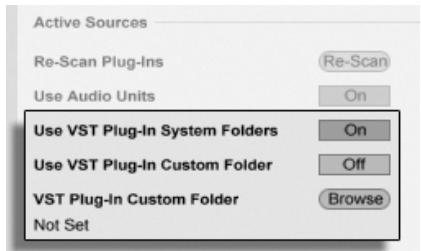
Set up your VST Plug-ins under Mac OS X by doing the following:
- Your VST Plug-ins will normally be installed in the following folder in your home
Setting up VST Plug-In Sources for Windows.
Setting up VST Plug-In Sources for Mac OS X.
and local directories: /Library/Audio/Plug-Ins/VST. You can turn Live's use of these plug-ins on or off with the Use VST Plug-ins in System Folders option.
- You may have an alternative folder in which you store your VST Plug-ins (perhaps those that you use only with Live). You can use VST Plug-ins in this folder in addition to, or instead of, those in the System folders. To tell Live about the location of this folder, click the Browse button next to the VST Plug-In Custom Folder entry to open a folder-search dialog for locating and selecting the appropriate folder.
- Note that you can turn off your VST Plug-ins in this folder using the Use VST Plug-In Custom folder option.
Once you have configured your Plug-In Preferences, the Plug-In Device Browser will display all plug-ins it finds in the selected VST Plug-in folder(s) as well as any subFolders.
It is also possible to use VST Plug-ins stored in different folders on your computer. To do this, create a Mac OS or Windows alias of the folder where additional VST Plug-ins are stored, and then place the alias in the VST Plug-In Custom folder (or in the VST Plug-In System folder on Mac OS X) selected in Live's File/Folder Preferences. The alias can point to a different partition or hard drive on your computer. Live will scan the set VST Plug-in folder as well as any alias folders contained therein.
Some VST Plug-ins contain errors or are incompatible with Live. During the scanning process, these may cause the program to crash. When you re-launching Live, a dialog will appear to inform you about which plug-in caused the problem. Depending on what Live detects about the plug-in, you may be given the choice between performing another scan or making the problematic plug-in unavailable. If you choose to rescan and they crash the program a second time, Live will automatically make them unavailable, meaning that they will not appear in the Plug-In Device Browser and will not be rescanned again until they are reinstalled.
15.3.2 VST Programs and Banks
Every VST Plug-in instance "owns" a bank of programs. A program is meant to contain one complete set of values for the plug-in's controls.
To select a program from the plug-in's bank, use the chooser below the title bar. The number of programs per bank is fixed. You are always working "in" the currently selected program, that is, all changes to the plug-in's controls become part of the selected program.
Note that VST programs are different from Live device presets: Whereas the presets for a Live device are shared among all instances and Live Sets, the VST programs "belong" to this specific instance of the VST Plug-in.
To rename the current program, select the VST program chooser and execute the Edit menu's Rename Plug-In Preset command. Then type in a new program name and confirm by pressing Return.
VST programs and banks can be imported from files. Clicking the VST Program Load button brings up a standard file-open dialog for locating the desired file.
Windows only: Please select from the File Type menu whether you want to locate VST Device Program files or VST Device Bank files.
To save the currently selected program as a file, click the VST Program/Bank Save button to bring up a standard file-saving dialog; select "VST Device Program" from the Format menu (Macintosh)/from the File Type menu (Windows); select a folder and name. For saving the entire bank as a file, proceed likewise but choose "VST Device Bank" as a file type/format.
The VST Plug-In Program Chooser.
Renaming a VST Plug-In Program.
The VST Program/Bank Load Button (Left) and Save Button (Right).
15.4 Audio Units Plug-Ins
Audio Units Plug-ins are only available in Mac OS X. In most respects, they operate just like VST Plug-ins.

An Audio Units Plug-In.
The first time you open Live, Audio Units Plug-ins will not appear in the Plug-In Device Browser. In order to activate your Audio Units as a plug-in source, please press the Activate button in the Plug-In Device Browser, or go to the File/Folder Preferences by pressing Ctrl (PC) / Mac). There you will find the Active Sources section. Turning on the Use Audio Units option activates Audio Units Plug-ins so that they appear in Live's Plug-In Device Browser.
Note that you can always turn this option off later if you decide not to use Audio Units.

Activating Audio Units Plug-Ins.
Audio Units Plug-ins sometimes have a feature that allows choosing between different modes for the device. You might be able to choose, for example, between different levels of quality in the rendering of a reverb. Choosers for these device modes can only be accessed through the original plug-in panel, which is opened using the Plug-In Edit button.
Opening an Audio Units Plug-In Window.
Audio Units have presets that function just like those for the Live effects. However, some AU presets cannot be dragged to different locations in the Browser, as they are read-only.
Audio Units presets have an .aupreset extension and are stored in the following directory according to their manufacturer's name:
[Home]/Library/Audio/Presents/[Manufacturer Name]/[Plug-in Name]
15.5 Device Delay Compensation
Live automatically compensates for delays caused by Live and plug-in instruments and effects, including those on the return tracks. These delays can arise from the time taken by devices to process an input signal and output a result. The compensation algorithm keeps all of Live's tracks in sync, regardless of what their devices are doing, while minimizing delay between the player's actions and the audible result.
Device delay compensation is on by default and does not normally have to be adjusted in any way. However, Live Sets that were created with Live 4 or earlier will open without device delay compensation. To manually turn latency compensation on (or off), use the Delay Compensation option in the Options menu.
Unusually high individual track delays or reported latencies from plug-ins may cause noticeable sluggishness in the software. If you are having latency-related difficulties while recording and playing back instruments, you may want to try turning off device delay compensation, however this is not normally recommended. You may also find that adjusting the individual track delays is useful in these cases.
Note that device delay compensation can, depending on the number of tracks and devices in use, increase the CPU load.
Chapter 16
Instrument, Drum and Effect Racks
A Rack is a flexible tool for working with effects, plug-ins and instruments in a track's device chain. Racks can be used to build complex signal processors, dynamic performance instruments, stacked synthesizers and more. Yet they also streamline your device chain by bringing together your most essential controls. While Racks excel at handling multiple devices, they can extend the abilities of even a single device by defining new control relationships between its parameters.
Racks greatly expand upon the concept of device groups introduced in Live 5. The device groups of any Live Sets imported from Live 5 are automatically converted to Racks by Live LE. Note that these Live Sets, once saved, can no longer be opened in older versions of Live.
Please note that Racks cannot be edited in Live LE. You can use Racks that have been created in the full version of Live but you will only be able to access some of their controls. To learn more about how Racks work internally, please download the full Ableton Reference Manual from the Ableton website 1 .
16.1 An Overview of Racks
16.1.1 Signal Flow and Parallel Device Chains

Inside An Audio Effect Rack (As It Appears in the Full Version of Live).
In any of Live's tracks, devices are connected serially in a device chain, passing their signals from one device to the next, left to right. By default, the Track View displays only a single chain, but there is actually no limit to the number of chains contained within a track.
Racks allow (among other things) additional device chains to be added to any track. When a track has multiple chains, they operate in parallel: In Instrument and Effect Racks, each chain receives the same input signal at the same time, but then processes its signal serially through its own devices. The output of each of the parallel chains is mixed together, producing the Rack's output.
Drum Racks also allow multiple parallel chains to be used simultaneously, but their chains process input somewhat differently: Rather than receiving the same input signals, each Drum Rack chain receives input from only a single assigned MIDI note.
The entire contents of any Rack can be thought of as a single device. This means that adding a new Rack at any point in a device chain is no different than adding any other device, and Racks can contain any number of other Racks. If more devices are placed after a Rack in a track's device chain, the Rack's output is passed on to them, as usual.
16.1.2 Macro Controls
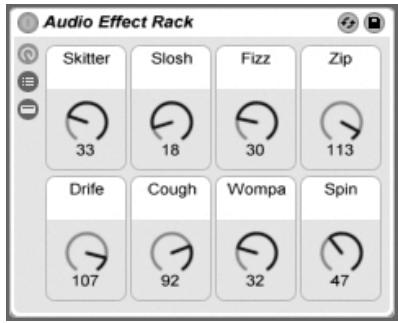
The Macro Controls.
One unique property of Racks are their Macro Controls.
The Macro Controls are a bank of eight knobs, each capable of addressing any number of parameters from any devices in a Rack. How you use them is naturally up to you – whether it be for convenience, by making an important device parameter more accessible; for defining exotic, multi-parameter morphs of rhythm and timbre; or for constructing a mega-synth, and hiding it away behind a single customized interface.
For the greatest degree of expression, try MIDI-mapping the Macro Controls to an external control surface.
16.2 Drum Racks
We've already talked a bit about Drum Racks, and most of their features are the same as those found in Instrument and Effect Racks. But Drum Racks have a slightly different layout, some unique controls and special behavior that is optimized for creating drum kits.
16.2.1 Pad View

The Pad View is unique to Drum Racks and offers an easy way to map and manipulate samples and devices. Each pad represents one of the 128 available MIDI notes. The pad overview to the right shifts the set of visible pads up or down in octave increments, either by dragging the view selector to a new area or by using your computer keyboard's down and up arrow keys. Use the Alt (PC) / Alt (Mac) modifier to shift the view by single rows instead.
A Rack's inner structure can sometimes be quite complicated. Pad View can make it much easier to work by letting you focus on only the top level: the notes and sounds. It's important to remember that a pad represents a note, rather than a chain. More specifically, it represents all chains, no matter how deep in the Rack, that are able to receive that pad's note. What you can control with each pad is related to how many chains it represents:
- An empty pad shows only the note it will trigger. When you mouse over it, the status bar will display this note, as well as the suggested GM instrument.
- A pad that triggers only one chain shows the name of the chain. In this case, the pad serves as a handy front-end for many controls that are normally accessed deeper in the Rack, such as mute, solo, preview and Hot-Swap. You can also rename and delete the chain via the pad.
- A pad that triggers multiple chains shows "Multi" as its name, and its mute, solo and preview buttons will affect all of its chains. Hot-Swap and renaming are disabled for a Multi pad, but you can delete all of its chains at once.
Pad View (As It Appears in the Full Version of Live).
Pad View excels as a performance interface, particularly when triggered by a hardware control surface with pads. If your pad controller is one of Ableton's natively supported control surfaces, simply select it as a control surface in the MIDI/Sync tab of Live's Preferences. From then on, as long as you have a Drum Rack on a track that's receiving MIDI, your pad controller will trigger the pads that are visible on your screen. If you scroll the pad overview to show a different set of pads, your controller will update automatically.
16.3 Mixing With Racks
Any Instrument or Drum Rack that contains more than one chain can be viewed and mixed alongside the tracks in the Session View's mixer. A track that contains these Racks will have a ● button in its title bar, which will fold the Rack's mixer in or out. Likewise, any nested chains within the Rack will also have this button. This makes it easy to get an overview of your Rack's hierarchy – or hide it when you just want to work on your mix.
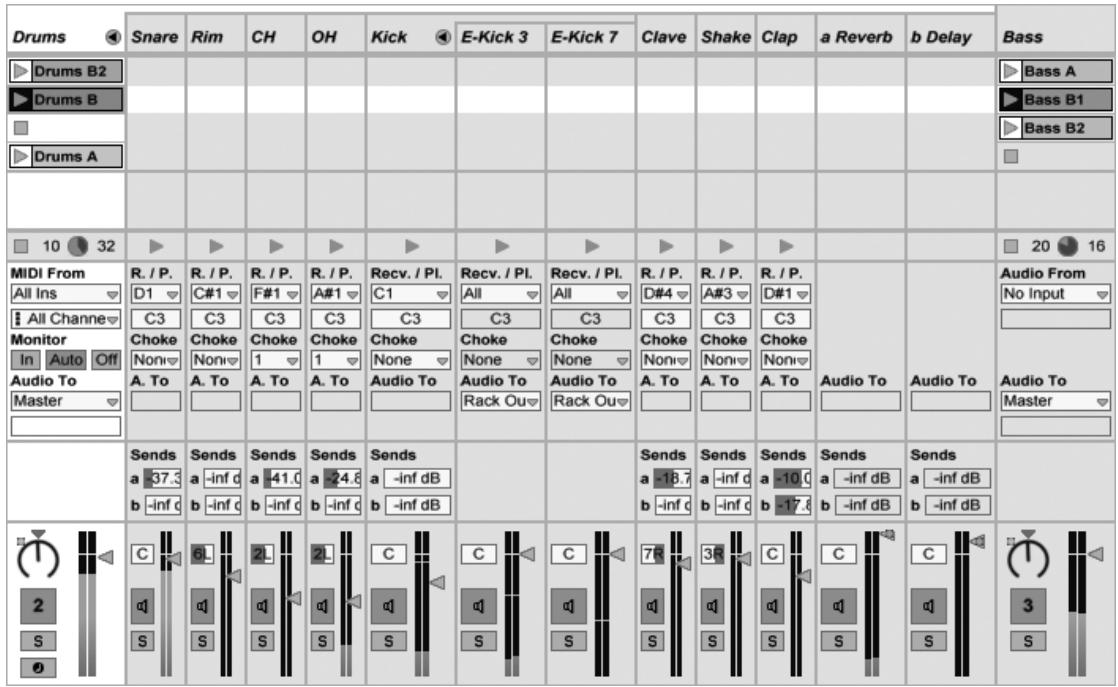
Mixing Rack Chains in the Session View.
Chains in the Session View mixer look similar to tracks, but they have no clip slots. Additionally, opening the Mixer's In/Out section allows for some additional editing possibilities:
- Input/Output Controls. The Receive chooser sets the incoming MIDI note to which the drum chain will respond. The list shows note names, MIDI note numbers and standard GM drum equivalents. The Play slider sets the outgoing MIDI note that will be sent to the devices in the chain. The Choke chooser allows you to set a chain to one of sixteen choke groups. Any chains that are in the same choke group will silence the others when triggered. This is useful for choking open hi-hats by triggering closed ones, for example. If "All" is selected in the Receive chooser, the Play and Choke choosers are disabled – in this case, the chain simply passes the note that it receives to its devices. The small Preview button above these choosers fires a note into the chain, making it easy to check your mappings away from a MIDI controller.
- In the full version of Live, Drum Racks can be built with up to six return chains. If your
Rack contains them, the Audio To chooser in the mixer for return chains allows you to route a return chain's output to either the main output of the Rack or directly to the return tracks of the Set. In Drum Racks that are nested within other Drum Racks, both drum chains and return chains can route "upwards" to the returns of any of the Drum Racks that contain them.
Please note that these controls provide only a fraction of the editing possibilities that are available when using Racks in the full version of Live.
Chapter 17
Automation and Editing Envelopes
Often, when working with Live's mixer and devices, you will want the controls' movements to become part of the music. The movement of a control across the song timeline is called automation; a control whose value changes in the course of this timeline is automated. Practically all mixer and device controls in Live can be automated, including the song tempo.
17.1 Recording Automation
Creating automation is straightforward: All changes of a control that occur while the Control Bar's Record switch is on become automation. Try recording automation for a control, for instance a mixer volume slider. After recording, play back what you have just recorded to see and hear the effect of the control movement. You will notice that a little LED has appeared in the slider thumb to indicate that the control is now automated. Try recording automation for track panning and the Track Activator switch as well; their automation LEDs appear in their upper left corners.

Volume, Pan and the Track Activator Switch Have Been Automated.
17.2 Deleting Automation
To delete automation data, (PC) / Ctrl (Mac) on an automated control to open its context menu and select Delete Automation. The automation LED disappears, and the control's value stays constant across the entire song. You can also delete automation by editing breakpoint envelopes.
17.3 Overriding Automation
In practice, you will often want to try out new control moves without overwriting existing automation data. Well, nothing is forever in the world of infinite Undo, but it's easy to disable a control's automation temporarily to avoid overwriting existing data: If you change an automated control's value while not in Record mode, the automation LED goes off to indicate the control's automation is inactive. Any automation is therefore overridden by the current manual setting.

When one or more of the automated controls in your Live Set are not active, the Control Bar's Back to Arrangement button lights up. This button serves two purposes:
- It reminds you that the current state of the controls differs from the state captured in the Arrangement.
The Back to Arrangement Button.
- You can click on it to reactivate all automation and thereby return to the automation state as it is written "on tape."
17.4 Drawing and Editing Automation
In the Arrangement View, automation curves can be viewed and edited as breakpoint envelopes.
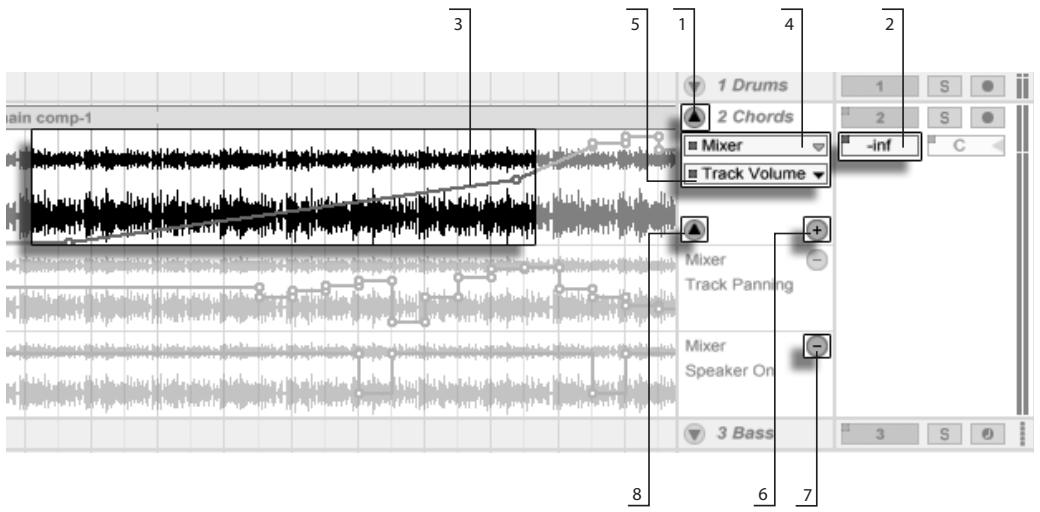
- To show a track's envelopes, "unfold" the track by clicking the bullet button next to the track name.
- Clicking on one of the track's mixer or device controls will display this control's envelope on the clip track.
- Envelopes appear "on top of" the audio waveform or MIDI display. An envelope's vertical axis represents the control value and the horizontal axis represents time. For switches and radio buttons, the value axis is discontinuous.
- The Automation Device chooser either selects the track mixer, one of the track's devices or "None" to hide the envelope. It also provides you with an overview of
Automation Envelopes in the Arrangement View.
which devices actually have automation by showing an LED next to their labels. You can make things clearer still by selecting "Show Automated Parameters Only" from the bottom of the chooser.
- The Automation Control chooser selects a control from the device chosen in the Automation Device chooser. The labels of automated controls have an LED.
Once an envelope has been selected on the track, several new buttons appear:
- The bullet button moves the envelope into its own automation lane below the clip. You can then select another automation parameter from the choosers to view it simultaneously. If the Automation Device chooser is set to "None", this button will be hidden.
- The bullet button hides its respective automation lane. Note that hiding a lane from view does not deactivate its envelope.
- If any automation lanes have been created for a given track, you can hide or show them all by clicking the additional bullet button that appears at the bottom of the track's title bar.
Clicking (PC) / Ctrl (Mac) on a track name or automation lane header opens a context menu with additional options for viewing envelopes. This context menu also contains commands to quickly clear all automation envelopes for the track or any of its devices.
17.4.1 Drawing Envelopes
With Draw Mode enabled, you can click and drag to "draw" an envelope curve.

To toggle Draw Mode, select the Draw Mode option from the Options menu, click on the Control Bar's Draw Mode switch, or press Ctrl B (PC) / B (Mac).
The Draw Mode Switch.

Drawing an Envelope.
Drawing creates steps as wide as the visible grid, which you can modify using a number of handy shortcuts. For freehand drawing, you can hide the grid using the Snap to Grid Options menu entry or the Ctrl 4 (PC) / 3 8 4 (Mac) shortcut. To temporarily enable freehand drawing while the grid is shown, hold down Alt (PC) / Alt (Mac) while drawing.
17.4.2 Editing Breakpoints
With Draw Mode off, the envelope display looks and works differently. The line segments and the breakpoints connecting them become draggable objects. Clicking and dragging in the envelope's background defines a selection. Here is what you can do:
- Double-click at a position on a line segment to create a new breakpoint there.
- Double-click on a breakpoint to delete it.
- Click and drag a breakpoint to move it to the desired location. If the breakpoint you are dragging is in the current selection, all other breakpoints in the selection will follow the movement.
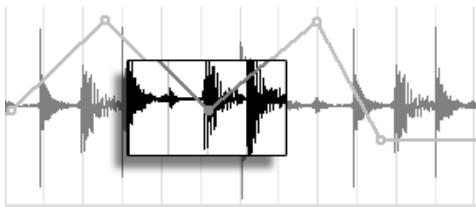
Your movement is constrained by the neighboring breakpoints unless you hold down
To Move all Breakpoints Within the Selection, Drag Any One of Them.
the modifier while dragging, which will eliminate breakpoints as you wipe over them. Holding down the Ctrl (PC) / Cmd (Mac) modifier while dragging switches to a finer resolution.
- Click and drag a line segment between two breakpoints to move it vertically, without affecting the breakpoint's horizontal position. If the line segment is in the current selection, the envelope is moved vertically across the selected timespan. Live inserts breakpoints at the selection's edges to make sure the move only affects the selected part of the envelope.

Dragging an Envelope Line Segment Moves the Segment Vertically.
17.4.3 Locking Envelopes
When moving clips, Live normally moves all automation with the clip. Sometimes, you might want to lock the envelopes to the song position rather than to the clips, and the Arrangement View's Lock Envelopes switch does just that.
You can also choose to lock envelopes from the Options menu.
The Lock Envelopes Switch.
17.4.4 Edit Menu Commands
When working with automation data, the Edit menu commands behave differently depending on whether or not your selection is within the clip track or its automation lanes.
To copy, cut, delete or duplicate automation from a track, independent of the associated clip, make sure the parameter you want to work with is in its own lane. Any edit commands applied to an envelope selection within a single lane will only apply to this envelope. The clip itself will be unaffected. You can also work with envelopes in multiple lanes simultaneously.
If you want your edits to apply to both the clip and all of its associated envelopes, apply edit commands to a selection in the clip track.
Note that Live allows you to copy and paste envelope movements not only from one point in time to another, but also from one parameter to another. Since the parameters may be completely unrelated, this can have unexpected (but possibly interesting) results.
17.4.5 Editing the Tempo Automation
The ability to dynamically stretch and compress audio to track any tempo or tempo variation is one of Live's specialties. In Live, the song tempo is just another automated control.
To edit the song tempo envelope, unfold the Master track, choose "Mixer" from the top envelope chooser and "Song Tempo" from the bottom one.
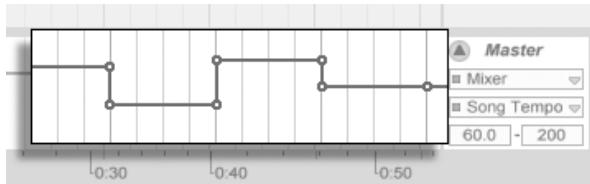
When adjusting the tempo envelope, you might want to scale the value axis display, which is the function of the two value boxes below the envelope choosers: The left box sets the minimum, and the right box sets the maximum tempo displayed, in BPM.
Note that these two controls also determine the value range of a MIDI controller assigned to the tempo.
The Tempo Envelope.
Chapter 18
Clip Envelopes
Every clip in Live can have its own clip envelopes. The aspects of a clip that are influenced by clip envelopes change depending upon clip type and setup; clip envelopes can do anything from representing MIDI controller data to modulating device parameters. In this chapter, we will first look at how all clip envelopes are drawn and edited, and then get into the details of their various applications.
18.1 The Clip Envelope Editor
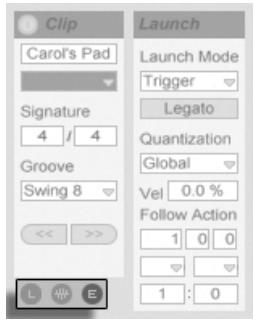
To work with clip envelopes, bring up the Clip View's Envelopes box by activating the rightmost Clip View Box selector panel. The Envelopes box contains two choosers for selecting an envelope to view and edit.

The top menu is the Device chooser, which selects a general category of controls with which to work. Device chooser entries are different for different kinds of clips:
- Audio clips have entries for "Clip" (the clip's sample controls), every effect in the track's device chain and the mixer.
- MIDI clips have entries for "MIDI Ctrl" (MIDI controller data) and every device in the track's device chain.
Use the Clip View Box Selector to Bring up the Envelopes Box.
The Clip View's Envelopes Box.
The bottom menu, the Control chooser, selects among the controls of the item chosen in the top menu. In both choosers, parameters with altered clip envelopes appear with LEDs next to their names. You can simplify the appearance of these choosers by selecting "Show Modulated Parameters Only" from either of them.
The "quick-chooser" buttons below the menus select commonly edited controls.
Clicking the menus or the quick-chooser buttons brings up the Envelope Editor showing the selected envelope, instead of the Sample Display or MIDI Editor. You can toggle the display by clicking on the title bars of the Sample/Notes and Envelopes boxes.
The techniques for drawing and editing clip envelopes are the same as those for automation envelopes in the Arrangement View.
If you create a nice section of envelope that you want to have repeat several times, try the following:
- Enclose the desired selection in the loop brace, and click the brace so that it is selected. This will execute the Edit menu's Select Loop command, which selects all material in the loop.
- Copy the envelope with Ctrl C (PC) / Mac.
- Shift the loop brace to the right by one loop length with the up arrow key.
- Paste the envelope with Ctrl V (PC) / Mac.
Note that you can use the arrow keys to quickly manipulate the loop brace and start/end markers in other useful ways to expedite clip envelope editing tasks.
To delete a clip envelope (i.e., to set it back to its default value), first go to Edit/Select All, then to Edit/Delete.
Let us now look at some uses of clip envelopes.
18.2 Audio Clip Envelopes
Clip envelopes extend Live's "elastic" approach to audio and, in conjunction with Live's audio effects, turn Live into a mighty sound-design tool. Using clip envelopes with audio
clips, you can create an abundance of interesting variations from the same clip in real time – anything from subtle corrections to entirely new and unrelated sounds.
18.2.1 Clip Envelopes are Non-Destructive
Using clip envelopes, you can create new sounds from a sample without actually affecting the sample on disk. Because Live calculates the envelope modulations in real time, you can have hundreds of clips in a Live Set that all sound different, but use the same sample.
You can, of course, export a newly created sound by rendering, or by resampling. In the Arrangement View, you can use the Consolidate command to create new samples.
18.2.2 Changing Pitch and Tuning per Note
Drop a sample loop from the Browser into Live and play it. Click on the Transpose quick-chooser button. You can now alter the pitch transposition of individual notes in the sample as you listen to it.
The fast way to do this is by enabling Draw Mode and drawing steps along the grid. Deactivate Draw Mode to edit breakpoints and line segments. This is useful for smoothing the coarse steps by horizontally displacing breakpoints.
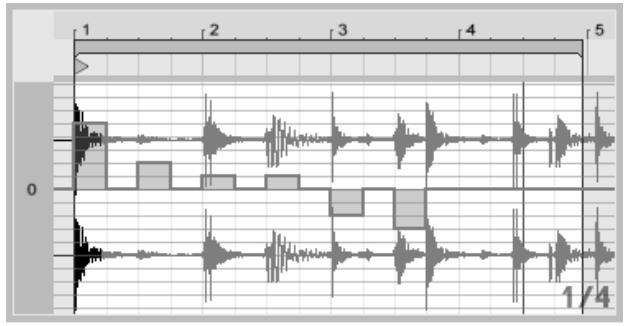

Note that the warp settings determine how accurately Live's time-warping engine tracks the envelope shape. To obtain a more immediate response, reduce the Grain Size value in Tones and Texture Mode or choose a smaller value for the Transients control in Beats Mode.
To correct the tuning of individual notes in the sample, hold down the Ctrl (PC) / Mac modifier while drawing or moving breakpoints to obtain a finer resolution.
To scroll the display, hold down the Ctrl Alt (PC) / Alt (Mac) modifier while dragging.
Pitch is modulated in an additive way. The output of the transposition envelope is simply added to the Transpose control's value. The result of the modulation is clipped to stay in the available range (-48..48 semitones in this case).
The Transposition Envelope with Steps (Top) and Ramps (Bottom).
18.2.3 Muting or Attenuating Notes in a Sample
Click on the Volume quick-chooser to access an audio clip's volume envelope. By drawing steps in Draw Mode or creating shapes with breakpoints, you can impose an arbitrary volume shape onto the sample.
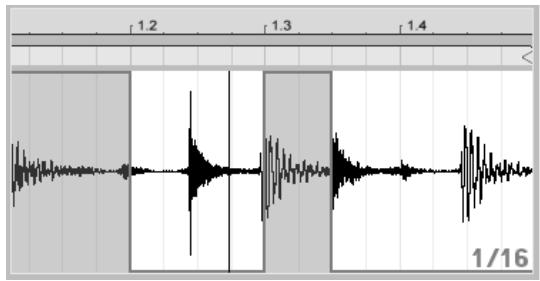
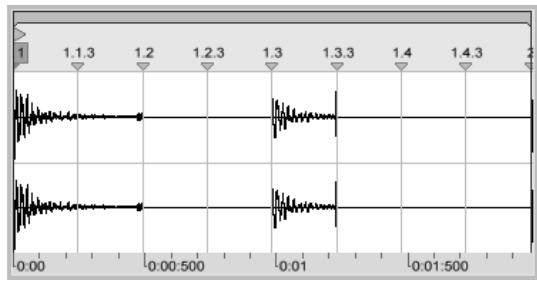
Imposing a Volume Envelope on a Sample.
The volume envelope's output is interpreted as a relative percentage of the clip volume slider's current value. The result of the clip envelope's modulation can therefore never exceed the absolute volume setting, but the clip envelope can drag the audible volume down to silence.
18.2.4 Scrambling Beats
One very creative use of clip envelopes is to modulate the sample offset. Sample offset modulation makes the most sense for rhythmical samples, and is only available for clips that are set up to run in the Beats Warp Mode.
Try sample offset modulation with a one-bar drum loop: Make sure Beats Mode is chosen; in the Envelopes box, choose "Clip" from the Device chooser and "Sample Offset" from the Control chooser. The Envelope Editor appears with a vertical grid overlay. In envelope Draw Mode, set steps to non-zero values to hear the loop scrambled. What is going on?
Imagine the audio is read out by a tape head, the position of which is modulated by the envelope. The higher a value the envelope delivers, the farther away the tape head is from its center position. Positive envelope values move the head towards the "future," negative values move it towards the "past." Fortunately, Live performs the modulation in beats rather
than centimeters: A vertical grid line is worth a sixteenth note of offset and the modulation can reach from plus eight sixteenths to minus eight sixteenths.
Sample offset modulation is the tool of choice for quickly creating interesting variations of beat loops. We discourage using this technique for "analytical" cut-and-splice tasks; they are much easier to perform using Live's Arrangement View, and the results can easily be consolidated into new clips.

Some sample offset envelope gestures have a characteristic effect: a downward "escalator" shape, for instance, effectively repeats the step at the envelope's beginning. Similarly, a smooth ramp with a downwards slope is slowing time and can create nice slurring effects when the slope is not quite exactly 45 degrees; try this with a 1/32 Transients setting.
18.2.5 Using Clips as Templates
As you are making creative use of clip envelopes, the clips containing them develop a life of their own, independent of the original sample. You might wonder at a point: What does this clip sound like with a different sample? This is easy to find out by selecting the clip so that it is displayed in the Clip View and dragging the desired sample from one of the File Browsers, or the Session or Arrangement View, onto the Clip View. All clip settings, including the envelopes, will remain unaltered; only the sample will be replaced.
Repeating Steps and Slowing Time with the Sample Offset Envelope.
18.3 Mixer and Device Clip Envelopes
Clip envelopes can be used to modulate mixer and device controls. Since mixer and device controls can also be controlled by the Arrangement's automation envelopes, this is a potential source of confusion. However, clip envelopes differ from automation envelopes in one important way: Whereas automation envelopes define the value of a control at any given point in time, clip envelopes can only influence this defined value. This difference allows the two types of envelopes to work together in harmony when controlling the same parameter.
Imagine that you have recorded volume automation for an audio clip so that it gradually fades out over four bars. What happens to your fade-out when you create a clip envelope that gradually increases the mixer volume over four bars? At first, your fade-out will become a crescendo, as the clip envelope gradually increases the volume within the range allowed by the automation envelope. But, once the decreasing automated value meets with the increasing clip envelope value, the fade-out will begin, as automation forces the absolute control value (and the operable range of the clip envelope) down.
18.3.1 Modulating Mixer Volumes and Sends
Notice that there are actually two volume modulations: Clip Volume and Mixer Volume. The latter is a modulation for the mixer's gain stage and therefore affects the post-effect signal. To prevent confusion, a small dot below the mixer's volume slider thumb indicates the actual, modulated volume setting.

As you raise and lower the Volume slider, you can observe the dot following your movement in a relative fashion.
Modulating the track's Send controls is just as easy. Again, the modulation is a relative
Modulating the Mixer Volume. The Little Dot Below the Volume Slider Thumb Represents the Modulated Volume Setting.
percentage: The clip envelope cannot open the send further than the Send knob, but it can reduce the actual send value to minus infinite dB.

Modulating a Send. The Send Knob's Position Ring Indicates the Modulated Value.
18.3.2 Modulating Pan
The Pan envelope affects the mixer pan stage in a relative way: The pan knob's position determines the intensity of the modulation. With the pan knob set to the center position, modulation by the clip envelope can reach from hard left to hard right; the modulation amount is automatically reduced as you move the pan knob towards the left or right. When the pan knob is turned all the way to the left, for instance, the pan clip envelope has no effect at all.
18.3.3 Modulating Device Controls
All devices in a clip's track are listed in the upper clip envelope Device chooser. Modulating the devices' controls works just as you would expect. When modulating device controls, it is important to keep the interaction of clip envelopes and device settings in mind: Unlike a device preset, the clip envelope cannot define the values for the devices' controls, it can only change them relative to their current setting.
18.4 MIDI Controller Clip Envelopes
Whether you are working with a new MIDI clip that was recorded directly into Live, or one from your files, Live allows you to edit and create MIDI controller data for the clip in the form of clip envelopes.
Choose "MIDI Ctrl" from a MIDI clip's Device chooser and use the Control chooser below it to select a specific MIDI controller. You can create new clip envelopes for any of the listed controllers by drawing steps or using breakpoints. You can also edit clip envelope representations of controller data that is imported as part of your MIDI files or is created
while recording new clips: Names of controllers that already have clip envelopes appear with an adjacent LED in the Control chooser.
Live supports most MIDI controller numbers up to 119, accessible via the scroll bar on the right side of the menu. Note that devices to which you send your MIDI controller messages may not follow the conventions of MIDI control channel assignments, so that "Pitch Bend" or "Pan," for example, will not always achieve the results that their names imply.

Many of the techniques described in the following section on unlinking a clip envelope from its associated clip can be adapted for use with MIDI controller clip envelopes.
A MIDI Controller Clip Envelope.
18.5 Unlinking Clip Envelopes From Clips
A clip envelope can have its own local loop/region settings. The ability to unlink the envelope from its clip creates an abundance of exciting creative options, some of which we will present in the rest of this chapter.
18.5.1 Programming a Fade-Out for a Live Set
Let us start with a straightforward example. Suppose you are setting up a Live Set and wish to program a fade-out over eight bars to occur when a specific clip is launched – but all you have is a one-bar loop.

- Choose the Clip Volume envelope, and unlink it from the sample. The clip envelope's loop braces now appear colored to indicate this envelope now has its own local loop/region settings. The loop/region controls in the Envelopes box "come to life."
- Make sure the clip envelope's Loop switch is off. Notice the Sample box's Loop switch is not affected. The sample will keep looping although the envelope is now playing as a "one-shot."
- Type "8" into the leftmost envelope loop-length value box.
- Zoom the envelope display out all the way by clicking on the Envelope's time ruler and dragging upwards.
- Insert a breakpoint at the region end and drag it to the bottom (zero percent).
Now, as you play the clip, you can hear the one-bar loop fading out over eight bars.
Please note: toggling Linked Mode changes the envelope data. Toggling back and forth effectively deletes the envelope data. To return to the previous state, please use the Edit menu's Undo command.
Using a Clip Envelope to Create a Fade-Out Over Several Repetitions of a Loop.
18.5.2 Creating Long Loops from Short Loops
Let us take this a step further. For a different part of your set, you would like to use the same one-bar loop – because it sounds great – but its repetition bores you. You would like to somehow turn it into a longer loop.
We depart from the clip we just set up to fade out over eight bars. Activate the clip volume envelope's Loop switch. Now, as you play the clip, you can hear the eight-bar fade-out repeating. You can draw or edit any envelope to superimpose onto the sample loop. This, of course, not only works for volume but for any other control as well; how about a filter sweep every four bars?
Note that you can create as much time as needed in the Envelope Editor, either by dragging the loop braces beyond the view limit, or by entering values into the numeric region/loop controls.
You can choose an arbitrary loop length for each envelope, including odd lengths like 3.2.1. It is not hard to imagine great complexity (and confusion!) arising from several odd-length envelopes in one clip.


To keep this complexity under control, it is important to have a common point of reference. The start marker identifies the point where sample or envelope playback depart from when the clip starts.
Note that the start/end markers and loop brace are subject to quantization by the zoom-adaptive grid, as is envelope drawing.
The Sample (Left) and Envelope (Right) Start Marker.
18.5.3 Imposing Rhythm Patterns onto Samples
So far, we have been talking about imposing long envelopes onto small loops. You can also think of interesting applications that work the other way around. Consider a sample of a song that is several minutes long. This sample could be played by a clip with a one-bar volume envelope loop. The volume envelope loop now works as a pattern that is repeatedly "punching" holes into the music so as to, perhaps, remove every third beat. You can certainly think of other parameters that such a pattern could modulate in interesting ways.
18.5.4 Clip Envelopes as LFOs
If you are into sound synthesis, you may want to think of a clip envelope with a local loop as an LFO. This LFO is running in sync with the project tempo, but it is also possible to set up a loop period odd enough to render the envelope unsynchronized. By hiding the grid, you can adjust the clip envelope loop start and end points completely independent of meter grid.
Chapter 19
Live Audio Effect Reference
Live comes with a selection of custom-designed, built-in audio effects. The "Working with Instruments and Effects" chapter explains the basics of using effects in Live.
19.1 Auto Filter

The Auto Filter effect provides classic analog filter emulation. It can be modulated by an envelope follower and/or an LFO to create moving filter effects. The envelope follower can
The Auto Filter Effect.
track either the filtered signal or an external sidechain source.
There are four different filter types: lowpass, highpass, bandpass and notch. For each type, the X-Y controller adjusts frequency (to adjust, click and drag on the X-axis) and Q (also called resonance; to adjust, click and drag on the Y-axis). You can also click on the Freq and Q numeric displays and type in exact values.
Low Q values create a broad filter curve, while higher values introduce a narrow, resonant peak to the sound. With bandpass filtering, Q sets the bandwidth of the passed signal.
The Quantize Beat control applies quantized modulation to the filter frequency. With Quantize Beat off, frequency modulation follows the control source. Turning this feature on updates the filter modulation rhythmically with "stepped" changes that track the master tempo. The numbered buttons represent 16th notes, so, for example, selecting "4" as a beat value produces a modulation change once per beat.
The Envelope section controls how the envelope modulation affects the filter frequency. The Amount control defines the extent to which the envelope affects the filter frequency, while the Attack control sets how the envelope responds to rising input signals. Low Attack values cause a fast response to input levels; high values integrate any changes gradually, creating a looser, slower response. Think of it as adding inertia to the response.
Lower Release values cause the envelope to respond more quickly to falling input signals. Higher values extend the envelope's decay.
Normally, the signal being filtered and the input source that triggers the envelope follower are the same signal. But by using sidechaining, it is possible to filter a signal based on the envelope of another signal. To access the Sidechain parameters, unfold the Auto Filter window by toggling the bullet button in its title bar.
Enabling this section with the Sidechain button allows you to select another track from the choosers below. This causes the selected track's signal to trigger the filter's envelope follower, instead of the signal that is actually being filtered.
The Gain knob adjusts the level of the external sidechain's input, while the Dry/Wet knob allows you to use a combination of sidechain and original signal as the envelope follower's trigger. With Dry/Wet at 100%, the envelope follower tracks the sidechain source exclusively. At 0%, the sidechain is effectively bypassed. Note that increasing the gain does not increase the volume of the source signal in the mix. The sidechain audio is only a trigger for the
envelope follower and is never actually heard.
The Auto Filter also contains a Low Frequency Oscillator to modulate filter frequency in a periodic fashion. The respective Amount control sets how much the LFO affects the filter. This can be used in conjunction with or instead of the envelope follower.
The Rate control specifies the LFO speed. It can be set in terms of hertz, or synced to the song tempo, allowing for controlled rhythmic filtering.
Available LFO waveform shapes are sine (creates smooth modulations with rounded peaks and valleys), square, triangle, sawtooth up, sawtooth down, and sample and hold (generates random positive and negative modulation values) in mono and stereo.
There are two LFOs, one for each stereo channel. The Phase and Offset controls define the relationship between these two LFOs.
Phase keeps both LFOs at the same frequency, but can set the two LFO waveforms "out of phase" with each other, creating stereo movement. Set to "180", the LFO outputs are 180 degrees apart, so that when one LFO reaches its peak, the other is at its minimum.
Spin detunes the two LFO speeds relative to each other. Each stereo channel is modulated at a different frequency, as determined by the Spin amount.
For sample and hold, the Phase and Spin controls are not relevant and do not affect the sound. Instead, the Auto Filter offers two kinds of sample and hold: The upper sample and hold type available in the chooser provides independent random modulation generators for the left and right channels (stereo), while the lower one modulates both channels with the same signal (mono).
19.2 Auto Pan
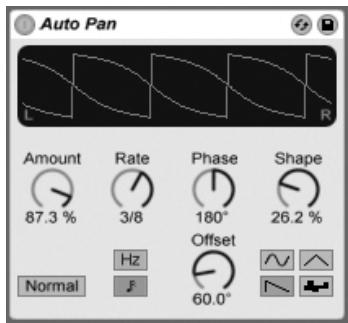
The Auto Pan Effect.
Auto Pan offers LFO-driven manipulation of amplitude and panning for creating automatic panning, tremolo and amplitude modulation, and beat-synchronized chopping effects.
Auto Pan's LFOs modulate the amplitude of the left and right stereo channels with sine, triangle, sawtooth down or random waveforms.
The Shape control pushes the waveform to its upper and lower limits, "hardening" its shape. The waveform can be set to "Normal" or "Invert" (use "Invert" to, for example, create the saw up waveform from the saw down waveform).
LFO speed is controlled with the Rate control, which can be set in terms of hertz. Rate can also be synced to the song tempo.
Though both LFOs run at the same frequency, the Phase control lends the sound stereo movement by offsetting their waveforms relative to each other. Set this to "180", and the LFOs will be perfectly out of phase (180 degrees apart), so that when one reaches its peak, the other is at its minimum. Phase is particularly effective for creating vibrato effects.
The Offset control shifts the start point of each LFO along its waveform.
The device's influence on incoming signals is set with the Amount control.
19.3 Beat Repeat
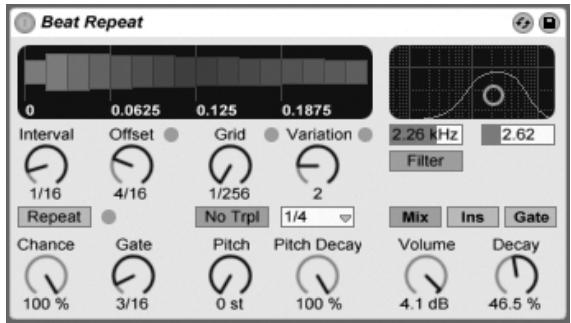
Beat Repeat allows for the creation of controlled or randomized repetitions of an incoming signal.
The Interval control defines how often Beat Repeat captures new material and begins repeating it. Interval is synced to and set in terms of the song tempo, with values ranging from "1/32" to "4 Bars." The Offset control shifts the point defined by Interval forward in time. If Interval is set to "1 Bar," for example, and Offset to "8/16", material will be captured for repetition once per bar on the third beat (i.e., halfway, or eight-sixteenths of the way, through the bar).
You can add randomness to the process using the Chance control, which defines the likelihood of repetitions actually taking place when Interval and Offset "ask" for them. If Chance is set to 100 percent, repetitions will always take place at the given Interval/Offset time; if set to zero, there will be no repetitions.
Gate defines the total length of all repetitions in sixteenth notes. If Gate is set to "4/16", the repetitions will occur over the period of one beat, starting at the position defined by Interval and Offset.
Activating the Repeat button bypasses all of the above controls, immediately capturing material and repeating it until deactivated.
The Grid control defines the grid size – the size of each repeated slice. If set to "1/16", a slice the size of one sixteenth note will be captured and repeated for the given Gate length (or until Repeat is deactivated). Large grid values create rhythmic loops, while small values
The Beat Repeat Effect.
create sonic artifacts. The No Triplets button sets grid division as binary.
Grid size can be changed randomly using the Variation control. If Variation is set to "0", grid size is fixed. But when Variation is set to higher values, the grid fluctuates considerably around the set Grid value. Variation has several different modes, available in the chooser below: Trigger creates variations of the grid when repetitions are triggered; 1/4, 1/8 and 1/16 trigger variations in regular intervals; and Auto forces Beat Repeat to apply a new random variation after each repetition – the most complex form of grid variation in Beat Repeat (especially if triplets are also allowed).
Beat Repeat's repetitions can be pitched down for special sonic effects. Pitch is adjusted through resampling in Beat Repeat, lengthening segments to pitch them down without again compressing them to adjust for the length change. This means that the rhythmical structure can become quite ambiguous with higher Pitch values. The Pitch Decay control tapers the pitch curve, making each repeated slice play lower than the previous one. Warning: This is the most obscure parameter of Beat Repeat.
Beat Repeat includes a combined lowpass and highpass filter for defining the passed frequency range of the device. You can turn the filter on and off, and set the center frequency and width of the passed frequency band, using the respective controls.
The original signal (which was received at Beat Repeat's input) is mixed with Beat Repeat's repetitions according to one of three mix modes: Mix allows the original signal to pass through the device and have repetitions added to it; Insert mutes the original signal when repetitions are playing but passes it otherwise; and Gate passes only the repetitions, never passing the original signal. Gate mode is especially useful when the effect is housed in a return track.
You can set the output level of the device using the Volume control, and apply Decay to create gradually fading repetitions.
19.4 Chorus
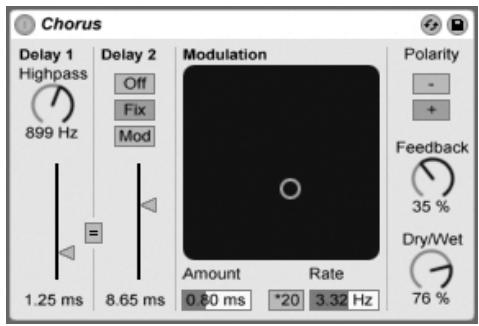
The Chorus Effect.
The Chorus effect uses two parallel time-modulated delays to create chorus (thickening) and flanging effects.
Each delay has its own delay time control, calibrated in milliseconds. Delay 1 has a highpass filter that can remove low frequencies from the delayed signal. Greater highpass values let only very high frequencies pass through to Delay 1.
Delay 2 can switch among three different modes. When off, only Delay 1 is audible. In Fix Mode, only Delay 1's delay time will be modulated. When Mod is activated, Delay 2 will receive the same modulation as Delay 1.
To set both delay lines to Delay 1's delay time, turn on the link button (=). This is especially useful if you want to change both delays with a single gesture.
The Modulation X-Y controller can impart "motion" to the sounds. To change the modulation rate for the delay times, click and drag along the horizontal axis. To change the amount of modulation, click and drag along the vertical axis.
You can also make changes by entering parameter values in the Amount and Rate fields below the X-Y controller. The Amount value is in milliseconds, while the modulation frequency rate is in Hertz.
Clicking the *20 switch multiplies the modulation frequency by 20 to achieve more extreme sounds.
The Feedback control determines how much of the output signal feeds back into the input,
while the Polarity switch sets (surprise!) the polarity. Polarity changes have the most effect with high amounts of feedback and short delay times.
The Dry/Wet control adjusts the balance between the processed and dry signals. Set it to 100 percent when using Chorus in a return track.
Enabling the Crisp option via the (PC) / Ctrl (Mac) context menu can improve the sound quality, particularly at higher frequencies. This is enabled by default, except when loading Sets that use Chorus and were made in earlier versions of Live.
19.5 Compressor
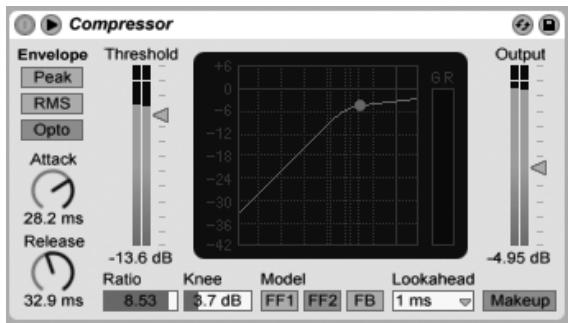
The Compressor Effect.
A compressor reduces gain for signals above a user-settable threshold. Compression reduces the levels of peaks, opening up more headroom and allowing the overall signal level to be turned up. This gives the signal a higher average level, resulting in a sound that is subjectively louder and "punchier" than an uncompressed signal.
The latest incarnation of the Compressor effect merges the functionality of the former Compressor I and Compressor II devices into a single unit, and adds additional functionality such as external sidechaining, adjustable knee, more EQ options, an improved peak mode, and a new feedback model, which is lovingly based on some classic hardware compressors. The new Compressor is fully backward-compatible with Compressor I and Compressor II presets.
A compressor's two most important parameters are the Threshold and the compression
Ratio:
The Threshold slider sets where compression begins. Signals above the threshold are attenuated by an amount specified by the Ratio parameter, which sets the ratio between the input and output signal. For example, with a compression ratio of 3, if a signal above the threshold increases by 3 dB, the compressor output will increase by only 1 dB. If a signal above the threshold increases by 6 dB, then the output will increase by only 2 dB. A ratio of 1 means no compression, regardless of the threshold.
The Knee control adjusts how gradually or abruptly compression occurs as the threshold is approached. With a setting of 0 dB, no compression is applied to signals below the threshold, and full compression is applied to any signal at or above the threshold. With very high ratios, this so-called "hard knee" behavior can sound harsh. With higher (or "soft") knee values, the compressor begins compressing gradually as the threshold is approached. For example, with a 10 dB knee and a -20 dB threshold, subtle compression will begin at -30 dB and increase so that signals at -10 dB will be fully compressed.
The easiest way to visualize Compressor's behavior is by observing how the graph changes when you adjust the threshold, ratio, and knee values. Input level is measured on the horizontal axis, while output level is represented vertically. Next to the graph is the Gain Reduction meter, which shows how much the gain is being reduced at any given moment. The more reduction, the more audible the effect; a gain reduction above 6 dB or so might produce the desired loudness, but significantly alters the sound and is easily capable of destroying its dynamic structure. This is something that cannot be undone in later production steps. Keep this in mind especially when using a compressor, limiter or sound loudness-maximizing tool in the master channel. Less is often more here.
Because compression reduces the volume of loud signals and opens up headroom, you can use the Output slider so that the peaks once again hit the maximum available headroom. The Output meter shows the output signal's level. Enabling the Makeup button below the Output slider automatically compensates the output level if the threshold and ratio settings change.
The Attack and Release controls are essential parameters for controlling the response time of Compressor by defining how fast it reacts to input-level changes.
Attack defines how long it takes to reach maximum compression once a signal exceeds the threshold, while Release sets how long it takes for the compressor to return to normal
operation after the signal falls below the threshold.
A slight amount of attack time (10–50 ms) allows peaks to come through unprocessed, which helps preserve dynamics by accentuating the initial portion of the signal. If these peaks cause overloads, you can try shortening the attack time, but extremely short times take the "life" out of the signal, and may lead to a slight "buzziness" caused by distortion. Short release times can cause "pumping" as the compressor tries to figure out whether to compress or not; while generally considered an undesirable effect, some engineers use it on full drum kits to give unusual "sucking" effects. Careful adjustment of attack and release times is essential when it comes to compression of rhythmical sources. If you are not used to working with compressors, play a drum loop and spend some time adjusting Attack, Release, Threshold and Gain. It can be very exciting!
A compressor can only react to an input signal once it occurs. Since it also needs to apply an attack/release envelope, the compression is always a bit too late. A digital compressor can solve this problem by simply delaying the input signal a little bit. Compressor offers three different Lookahead times: zero ms, one ms and ten ms. The results may sound pretty different depending on this setting.
Compressor can be used in three different EF (envelope follower) modes. With Peak selected, Compressor reacts to short peaks within a signal. RMS mode causes Compressor to be less sensitive to very short peaks and compress only when the incoming level has exceeded the threshold for a slightly longer time. Opto mode results in a non-linear release curve. Specifically, the release behavior is faster initially, and slows down as the gain reduction approaches zero. So which type should you use? There's no "right" answer, of course, but there are some common uses for each mode. Peak mode is more aggressive and precise, and so works well for limiting tasks where you need to ensure that there are absolutely no signals over the set threshold. RMS is closer to how people actually perceive loudness and is usually considered more "musical." Opto mode, because of its non-linear release time is often considered "smooth" and natural sounding. Opto compressors are commonly used on vocals, bass and electric guitar. But as always, when it comes to compression, trust your ears and not the meters!
In addition to the EF modes, Compressor offers three Model types that offer further options for how the device measures and responds to signal levels. FF1 and FF2 are both "feedforward" models, which analyze the loudness of the incoming signal. These are the models used in the former Compressor I and Compressor II devices, respectively. FB is a "feedback"
model, which analyzes the output of the device and then self-adjusts its compression behavior. Because feedback compressors analyze signals that have already been compressed, their Attack and Release parameters are a bit less precise, and act more like "suggestions" to the compressor. But feedback compression generally results in a much "smoother" sound, with less overall gain reduction but also less potential for distortion artifacts. The classic analog compressor models that are so highly sought after in hardware-based studios are generally all feedback models. Note that, for reasons of quantum physics, Lookahead and external sidechaining are disabled when using the FB model; Ableton's engineers are hard at work developing code that will allow our software to predict the future, but we don't anticipate having this available until at least the next major release.
19.5.1 Sidechain Parameters
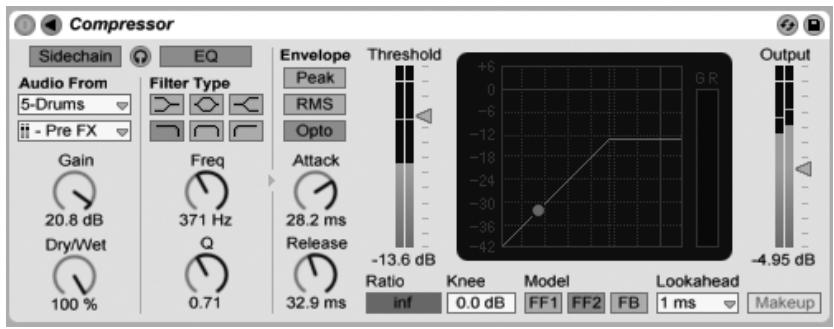
Normally, the signal being compressed and the input source that triggers the compressor are the same signal. But by using sidechaining, it is possible to compress a signal based on the level of another signal or a specific frequency component. To access the Sidechain parameters, unfold the Compressor window by toggling the button in its title bar.
The sidechain parameters are divided into two sections. On the left are the external controls. Enabling this section with the Sidechain button allows you to select any of Live's internal routing points from the choosers below. This causes the selected source to act as the compressor's trigger, instead of the signal that is actually being compressed.
The Gain knob adjusts the level of the external sidechain's input, while the Dry/Wet knob allows you to use a combination of sidechain and original signal as the compressor's trigger.
The Compressor Device With Sidechain Section.
With Dry/Wet at 100%, the compressor is triggered entirely by the sidechain source. At 0%, the sidechain is effectively bypassed. Note that increasing the gain does not increase the volume of the source signal in the mix. The sidechain audio is only a trigger for the compressor and is never actually heard.
Note that FB mode and automatic Makeup are not available when using external sidechain.
On the right of the external section are the controls for the sidechain EQ. Enabling this section causes the compressor to be triggered by a specific band of frequencies, instead of a complete signal. These can either be frequencies in the compressed signal or, by using the EQ in conjunction with an external sidechain, frequencies in another track's audio.
The headphones button between the external and EQ sections allows you to listen to only the sidechain input, bypassing the compressor's output. Since the sidechain audio isn't fed to the output, and is only a trigger for the compressor, this temporary listening option can make it much easier to set sidechain parameters and hear what's actually making the compressor work.
19.5.2 Compression Tips
This section presents some tips for using Compressor effectively, particularly with the sidechain options.
Mixing a Voiceover
Sidechaining is commonly used for so-called "ducking" effects. For example, imagine that you have one track containing a voiceover and another track containing background music. Since you want the voiceover to always be the loudest source in the mix, the background music must get out of the way every time the narrator is speaking. To do this automatically, insert a Compressor on the music track, but select the narration track's output as the external sidechain source.
Sidechaining in Dance Music
Sidechaining/ducking is a dance music producer's secret weapon because it can help to ensure that basslines (or even whole mixes) always make room for the kick drum. By inserting a compressor on the bass (or master) track and using the kick drum's track as the sidechain input, you can help to control problematic low frequencies that might interfere with the kick drum's attack.
Using the sidechain EQ in conjunction with this technique can create ducking effects even if you only have a mixed drum track to work with (as opposed to an isolated kick drum). In this case, insert the Compressor on the track you want to duck. Then choose the drum track as the external sidechain source. Then enable the sidechain EQ and select the lowpass filter. By carefully adjusting the Frequency and Q settings, you should be able to isolate the kick drum from the rest of the drum mix. Using the sidechain listen mode can help you tune the EQ until you find settings you're happy with.
Note that mastery of these techniques may result in a noticeable increase in drink tickets, remix offers and dates.
19.6 Dynamic Tube
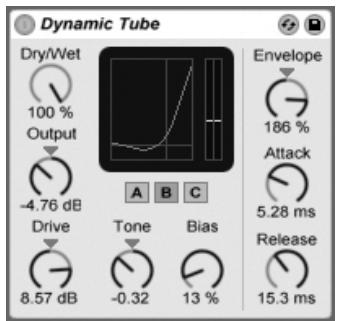
The Dynamic Tube effect infuses sounds with the peculiarities of tube saturation. An integrated envelope follower generates dynamic tonal variations related to the level of the input signal.
The Dynamic Tube Effect.
Three tube models, A, B and C, provide a range of distortion characteristics known from real amplifier tubes. Tube A does not produce distortions if Bias is set low, but will kick in whenever the input signal exceeds a certain threshold, creating bright harmonics. Tube C is a very poor tube amp that produces distortions all the time. The qualities of Tube B lie somewhere between these two extremes.
The Tone control sets the spectral distribution of the distortions, directing them into the higher registers, or through the midrange and deeper.
The Drive control determines how much signal reaches the tube; greater Drive yields a dirtier output. The intensity of the tube is controlled by the Bias dial, which pushes the signal into the celebrated realms of nonlinear distortion. With very high amounts of Bias, the signal will really start to break apart.
The Bias parameter can be positively or negatively modulated by an envelope follower, which is controlled with the Envelope knob. The more deeply the envelope is applied, the more the Bias point will be influenced by the level of the input signal. Negative Envelope values create expansion effects by reducing distortion on loud signals, while positive values will make loud sounds dirtier.
Attack and Release are envelope characteristics that define how quickly the envelope reacts to volume changes in the input signal. Together, they shape the dynamic nature of the distortions. Note that if Envelope is set to zero, they will have no effect.
Cut or boost the device's final signal level with the Output dial.
Aliasing can be reduced by enabling Hi-Quality mode, which can be accessed via the PC/ Ctrl (Mac) context menu. This improves the sound quality, particularly with high frequency signals, but there is a slight increase in CPU usage.
19.7 EQ Eight
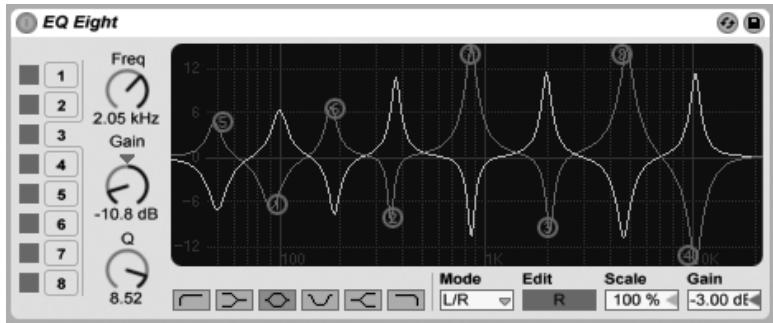
The EQ Eight Effect.
The EQ Eight effect is an equalizer featuring up to eight parametric filters per input channel, useful for changing a sound's timbre. It extends the functionality of the former EQ Four device, and is fully backward-compatible with EQ Four presets.
The input signal can be processed using one of three modes: Stereo, L/R and M/S. Stereo mode uses a single curve to filter both channels of a stereo input equally. L/R mode provides an independently adjustable filter curve for the left and right channels of a stereo input; M/S mode (Mid/Side) provides the same functionality for signals that have been recorded using M/S encoding.
When using the L/R and M/S modes, both curves are displayed simultaneously for reference, although only the active channel is editable. The Edit switch indicates the active channel, and is used to toggle between the two curves.
The filters can switch between six responses. From left to right in the display, these are:
- Low cut (cuts frequencies below the specified frequency);
- Low shelf (boosts or cuts frequencies lower than the specified frequency);
- Bell curve (boosts or cuts over a range of frequencies);
- Notch (sharply cuts frequencies within a narrow range);
- High shelf (boosts or cuts frequencies higher than the specified frequency);
- High cut (cuts frequencies above the specified frequency).
Each filter band can be turned on or off independently. Turn off bands that are not in use to save CPU power.
To edit the filter curve, click and drag on the filter dots in the display. Horizontal movement changes the filter frequency, while vertical movement adjusts the filter band's gain. To adjust the filter Q (also called resonance or bandwidth), hold down the Alt (PC) / Alt (Mac) modifier while dragging the mouse. Note that the gain cannot be adjusted for the low cut, notch and high cut filters. In these modes, vertical dragging adjusts the filter Q.
You can also use the numbered filter selector buttons to select a band for editing, and then edit parameter values with the Freq, Gain and Q dials (and/or type values into the number fields below each dial).
To achieve really drastic filtering effects, assign the same parameters to two or more filters.
As boosting will increase levels and cutting will decrease levels, use the global Gain field to optimize the output level for maximum level consistent with minimum distortion.
The Scale field will attenuate the gain of all filters that support gain (all except low cut, notch and high cut).
Enabling Hi-Quality mode via the (PC) / Ctrl (Mac) context menu can improve the sound quality, particularly with low frequency signals or when working at high sample rates. There is a slight increase in CPU usage in Hi-Quality mode.
19.8 EQ Three

If you have ever used a good DJ mixer you will know what this is: An EQ that allows you to adjust the level of low, mid and high frequencies independently.
Each band can be adjusted from -infinite dB to +6 dB using the gain controls. This means that you can completely remove, for example, the bass drum or bassline of a track, while leaving the other frequencies untouched.
You can also turn on or off each band using the On/Off buttons located under the gain controls. These buttons are especially handy if assigned to computer keys.
EQ Three gives you visual confirmation of the presence of a signal in each frequency band using three green LEDs. Even if a band is turned off, you can tell if there is something going on in it. The internal threshold for the LEDs is set to -24 dB.
The frequency range of each band is defined via two crossover controls: FreqLo and FreqHi. If FreqLo is set to 500 Hz and FreqHi to 2000 Hz, then the low band goes from 0 Hz to 500 Hz, the mid band from 500 Hz to 2000 Hz and the high band from 2000 Hz up to what ever your soundcard or sample rate supports.
A very important control is the 24 dB/48 dB switch. It defines how sharp the filters are cutting the signal at the crossover frequency. The higher setting results in more drastic filtering, but needs more CPU.
Note: The filters in this device are optimized to sound more like a good, powerful analog filter cascade than a clean digital filter. The 48 dB Mode especially does not provide a perfect linear transfer quality, resulting in a slight coloration of the input signal even if all controls are set to 0.00 dB. This is typical behavior for this kind of filter, and is part of EQ Three's unique sound. If you need a more linear behavior choose 24 dB Mode or use the EQ Eight.
19.9 Erosion

The Erosion Effect.
The Erosion effect degrades the input signal by modulating a short delay with filtered noise or a sine wave. This adds noisy artifacts or aliasing/downsampling-like distortions that sound very "digital."
To change the sine wave frequency or noise band center frequency, click and drag along the X-axis in the X-Y field. The Y-axis controls the modulation amount. If you hold down the Alt (PC) / Alt (Mac) modifier key while clicking in the X-Y field, the Y-axis controls the noise bandwidth.
The Frequency control determines the color, or quality, of the distortion. If the Mode control is set to Noise, this works in conjunction with the Width control, which defines the noise bandwidth. Lower values lead to more selective distortion frequencies, while higher values affect the entire input signal. Width has no effect in Sine Mode.
Noise and Sine use a single modulation generator. However, Wide Noise has independent noise generators for the left and right channels, which creates a subtle stereo enhancement.
19.10 Filter Delay

The Filter Delay Effect.
The Filter Delay provides three independent delay lines, each preceded by linked lowpass and highpass filters. This allows applying delay to only certain input signal frequencies, as determined by the filter settings. The feedback from each of the three delays is also routed back through the filters.
Each of the three delays can be switched on and off independently. The Filter Delay device assigns delay 1 to the input signal's left channel, delay 2 to the left and right channels and delay 3 to the right channel. The Pan controls at the right can override the delay channels' outputs; otherwise each delay outputs on the channel from which it derives its input.
Each delay channel's filter has an associated On switch, located to the left of each X-Y controller. The X-Y controllers adjust the lowpass and highpass filters simultaneously for each delay. To edit filter bandwidth, click and drag on the vertical axis; click and drag on the horizontal axis to set the filter band's frequency.
To refer delay time to the song tempo, activate the Sync switch, which allows using the Delay Time beat division chooser. The numbered switches represent time delay in 16th notes. For example, selecting "4" delays the signal by four 16th notes, which equals one beat (a quarter note) of delay. With Sync Mode active, changing the Delay Time field percentage value shortens and extends delay times by fractional amounts, thus producing the "swing" type of timing effect found in drum machines.
If the Sync switch is off, the delay time reverts to milliseconds. In this case, to edit the delay time, click and drag up or down in the Delay Time field, or click in the field and type in a
value.
The Feedback parameter sets how much of the output signal returns to the delay line input. Very high values can lead to runaway feedback and produce a loud oscillation – watch your ears and speakers if you decide to check out extreme feedback settings!
Each delay channel has its own volume control, which can be turned up to +12 dB to compensate for drastic filtering at the input.
The Dry control adjusts the unprocessed signal level. Set it to minimum if using Delay in a return track.
19.11 Flanger

Flanger uses two parallel time-modulated delays to create flanging effects.
Flanger's delays can be adjusted with the Delay Time control. The Feedback control sends part of the output signal back through the device input, while the Polarity switch ("+" or "-") sets the polarity. Delay Time and Feedback can be changed simultaneously using the effect's X-Y controller.
Periodic control of delay time is possible using the envelope section. You can increase or decrease the envelope amount (or invert its shape with negative values), and then use the Attack and Release controls to define envelope shape.
Flanger contains two LFOs to modulate delay time for the left and right stereo channels.
The Flanger Effect.
The LFOs have six possible waveform shapes: sine, square, triangle, sawtooth up, sawtooth down and random. The extent of LFO influence on the delays is set with the Amount control.
LFO speed is controlled with the Rate control, which can be set in terms of hertz. Rate can also be synced to the song tempo and set in meter subdivisions (e.g., sixteenth notes).
The Phase control lends the sound stereo movement by setting the LFOs to run at the same frequency, but offsetting their waveforms relative to each other. Set this to "180", and the LFOs will be perfectly out of phase (180 degrees apart), so that when one reaches its peak, the other is at its minimum.
Spin detunes the two LFO speeds relative to each other. Each delay is modulated at a different frequency, as determined by the Spin amount.
Adjusting the HiPass control will cut low frequencies from the delayed signal.
The Dry/Wet control adjusts the balance between the processed and dry signals. Set it to 100 percent if using Flanger in a return track.
19.12 Gate

The Gate Effect.
The Gate effect passes only signals whose level exceeds a user-specified threshold. A gate can eliminate low-level noise that occurs between sounds (e.g., hiss or hum), or shape a sound by turning up the threshold to where it cuts off reverb or delay tails or truncates an instrument's natural decay.
The Threshold slider sets the gate's sensitivity. If the gate is open and passing signal (i.e., the signal exceeds the gate threshold), the green LED lights.
The Attenuation slider, located beneath the Threshold fader, can attenuate signals below the threshold rather than just cutting them off. If set to -inf dB, a closed gate will mute the input signal. A setting of 0.00 dB means that even if the gate is closed, there is no effect on the signal. Settings in between these two extremes attenuate the input to a greater or lesser degree when the gate is closed.
With the Flip button enabled, the gate works in reverse; the signal will only pass if its level is below the threshold.
The Attack time determines how long it takes for the gate to switch from closed to open when a signal goes from below to above the threshold. Very short attack times can produce sharp clicking sounds, while long times soften the sound's attack.
When the signal goes from above to below the threshold, the Hold time kicks in. (Note to tech heads: the gate has hysteresis, so the release occurs about 3 dB lower than the threshold.) After the hold time expires, the gate closes over a period of time set by the Release parameter.
Normally, the signal being gated and the input source that triggers the gate are the same signal. But by using sidechaining, it is possible to gate a signal based on the level of another signal. To access the Sidechain parameters, unfold the Gate window by toggling the bullet button in its title bar.
Enabling this section with the Sidechain button allows you to select another track from the choosers below. This causes the selected track's signal to act as the gate's trigger, instead of the signal that is actually being gated.
The Gain knob adjusts the level of the external sidechain's input, while the Dry/Wet knob allows you to use a combination of sidechain and original signal as the gate's trigger. With Dry/Wet at 100%, the gate is triggered entirely by the sidechain source. At 0%, the sidechain is effectively bypassed. Note that increasing the gain does not increase the volume of the source signal in the mix. The sidechain audio is only a trigger for the gate and is never actually heard.
Sidechain gating can be used to superimpose rhythmic patterns from one source onto another. For example, a held pad sound can be triggered with the rhythm of a drum loop
by inserting a Gate on the pad's track and choosing the drum loop's track as the sidechain input.
19.13 Grain Delay
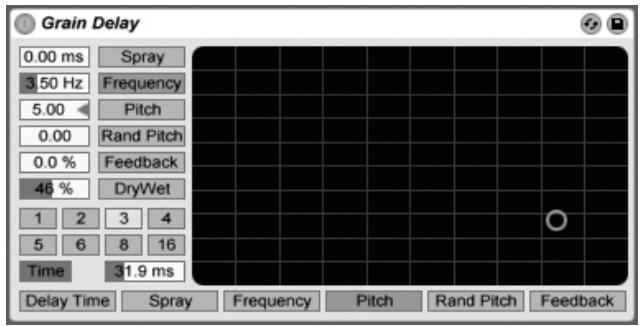
The Grain Delay Effect.
The Grain Delay effect slices the input signal into tiny particles (called "grains") that are then individually delayed and can also have different pitches compared to the original signal source. Randomizing pitch and delay time can create complex masses of sound and rhythm that seem to bear little relationship to the source. This can be very useful in creating new sounds and textures, as well as getting rid of unwelcome house guests, or terrifying small pets (just kidding!).
To refer delay time to the song tempo, activate the Sync switch, which allows using the Delay Time beat division chooser. The numbered switches represent time delay in 16th notes. For example, selecting "4" delays the signal by four 16th notes, which equals one beat (a quarter note) of delay. With Sync Mode active, changing the Delay Time field percentage value shortens and extends delay times by fractional amounts, thus producing the "swing" type of timing effect found in drum machines.
If the Sync switch is off, the delay time reverts to milliseconds. In this case, to edit the delay time, click and drag up or down in the Delay Time field, or click in the field and type in a value.
You can route each parameter to the X-Y controller's horizontal or vertical axis. To assign a parameter to the X-axis, choose it from the parameter row below the controller. To assign a
parameter to the Y-axis, use the parameter row on the left side.
The Feedback parameter sets how much of the output signal returns to the delay line input. Very high values can lead to runaway feedback and produce a loud oscillation – watch your ears and speakers if you decide to check out extreme feedback settings!
You can transpose the grain pitch with the Pitch parameter, which acts much like a crude pitch shifter.
The Spray control adds random delay time changes. Low values smear the signal across time, which adds "noisiness" to the sound. High Spray values completely break down the structure of the source signal, introducing varying degrees of rhythmic chaos. This is the recommended setting for anarchists.
The Random Pitch control adds random variations to each grain's pitch. Low values create a sort of mutant choring effect, while high values can make the original source pitch completely unintelligible. This parameter can interact with the main Pitch control, thus allowing degrees of stability and instability in a sound's pitch structure.
The size and duration of each grain is a function of the Frequency parameter. The sound of Pitch and Spray depends very much on this parameter.
Grain Delay now also has a dry/wet control; it can be routed to the vertical axis of the X-Y controller.
19.14 Phaser
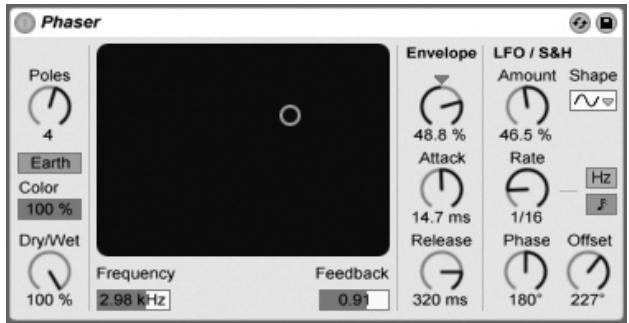
Phaser uses a series of all-pass filters to create a phase shift in the frequency spectrum of a sound.
The Poles control creates notches in the frequency spectrum. The Feedback control can then be used to invert the waveform and convert these notches into peaks (or poles). Filter cutoff frequency is changed with the Frequency control, which can be adjusted in tandem with Feedback using the effect's X-Y controller.
The device has two modes, Space and Earth, for changing the spacing of notches along the spectrum, and hence the "color" of the sound. This effect can be further adjusted with the Color control.
Periodic control of the filter frequency is possible using the envelope section. You can increase or decrease the envelope amount (or invert its shape with negative values), and then use the Attack and Release controls to define envelope shape.
Phaser contains two LFOs to modulate filter frequency for the left and right stereo channels. The LFOs have six possible waveform shapes: sine, square, triangle, sawtooth up, sawtooth down and random. The extent of LFO influence on the filter frequency is set with the Amount control.
LFO speed is controlled with the Rate control, which can be set in terms of hertz. Rate can also be synced to the song tempo and set in meter subdivisions (e.g., sixteenth notes).
The Phase control lends the sound stereo movement by setting the LFOs to run at the same frequency, but offsetting their waveforms relative to each other. Set this to "180", and the LFOs will be perfectly out of phase (180 degrees apart), so that when one reaches its peak, the other is at its minimum.
Spin detunes the two LFO speeds relative to each other. Each filter frequency is then modulated using a different LFO frequency, as determined by the Spin amount.
The Dry/Wet control adjusts the balance between the processed and dry signals. Set it to 100 percent if using Phaser in a return track.
19.15 Ping Pong Delay

The Ping Pong Delay Effect.
The Ping Pong Delay effect uses a single tapped delay line to create a delay that jumps from the left to the right output.
The delay is preceded by a lowpass and highpass filter that can be controlled with an X-Y controller. To define the filter bandwidth, click and drag on the vertical axis. To set the position of the frequency band, click and drag on the horizontal axis.
To refer delay time to the song tempo, activate the Sync switch, which allows using the Delay Time beat division chooser. The numbered switches represent time delay in 16th notes. For example, selecting "4" delays the signal by four 16th notes, which equals one beat (a quarter note) of delay. This delay time represents the time it takes for the input signal to appear at the left channel. The delay time between the input and the right channel is twice as long.
If the Sync switch is off, the delay time reverts to milliseconds. In this case, to edit the delay time, click and drag up or down in the Delay Time field, or click in the field and type in a value.
The Feedback parameter controls how much of the right channel output signal returns to the delay line input. The feedback loop also includes a filter that can color the feedback sound, thus producing different timbres with successive echoes.
The Freeze button, labeled "F", will cause the delay to endlessly cycle the audio which is in its buffer at the moment that the button is pressed, ignoring any new input until Freeze is disabled.
The Dry/Wet control adjusts the balance between the processed and dry signals. Set it to 100 percent if using Ping Pong Delay in a return track.
19.16 Redux
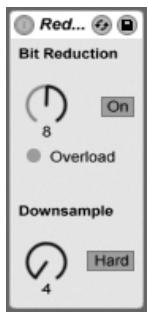
The Redux Effect.
Nostalgic for the famed low-resolution sound quality of the Ensoniq Mirage, Fairlight CMI or Commodore-64 computer? Redux returns us to the Dark Ages of digital by reducing a signal's sample rate and bit resolution.
The Downsample section has two parameters: "Downsample" and a downsample Mode switch.
If the downsample dial is set to "1", every input sample passes to the output and the signal does not change. If set to "2", only every second sample will be processed, so the result sounds a bit more "digital." The higher the number, the lower the resulting sample rate, and the more "deconstructed" the sound. Downsampling is like applying a mosaic effect to an image: There's a loss of information and sharp edges occur between the blocks.
The Downsample Mode switch defines if the downsampling either interpolates over a smaller range ("soft," down to 20.0 samples) or does not interpolate over a larger range ("hard," down to 200 samples).
Bit Reduction is similar, but while downsampling superimposes a grid in time, bit reduction does the same for amplitude.
If the Bit Reduction amplitude dial is set to 8, amplitude levels are quantized to 256 steps
(8 bit resolution). If set to 1, the result is pretty brutal: Each sample contains either a full positive or full negative signal, with nothing in between.
Bit Reduction defines an input signal of 0dB as 16 bit. Signals above 0dB are clipped, and the red overload LED will light up.
Turning off Bit Reduction results in modest CPU savings.
19.17 Resonators
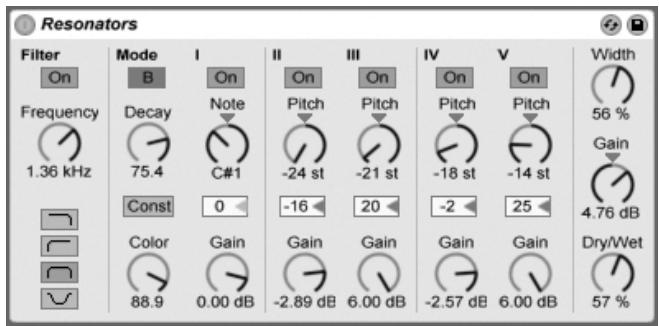
The Resonators Effect.
This device consists of five parallel resonators that superimpose a tonal character on the input source. It can produce sounds resembling anything from plucked strings to vocoder-like effects. The resonators are tuned in semitones, providing a musical way of adjusting them. The first resonator defines the root pitch and the four others are tuned relative to this pitch in musical intervals.
The input signal passes first through a filter, and then into the resonators. There are four input filter types to select from: lowpass, bandpass, highpass and notch. The input filter frequency can be adjusted with the Frequency parameter.
The first resonator is fed with both the left and right input channels, while the second and fourth resonators are dedicated to the left channel, and the third and fifth to the right channel.
The Note parameter defines the root pitch of all the resonators ranging from C1 to C5. It can also be detuned in cents using the Fine parameter. The Decay parameter lets you
Adjust the amount of time it takes for the resonators to become silent after receiving an input signal. The longer the decay time, the more tonal the result will be, similar to the behavior of an undamped piano string. As with a real string, the decay time depends on the pitch, so low notes will last longer than higher ones. The Const switch holds the decay time constant regardless of the actual pitch.
Resonators provide two different resonation modes. Mode A provides a more realistic sounding resonation, while Mode B offers an effect that is especially interesting when Resonator I's Note parameter is set to lower pitches.
The brightness of the resulting sound can be adjusted using the Color control.
All of the resonators have an On/Off switch and a Gain control. A resonator that is turned off does not need CPU. Turning off the first resonator does not affect the other ones.
Resonators II through V follow the Note parameter defined in Resonator I, but they can each be individually transposed +/- 24 semitones using the Pitch controls and detuned in cents using the Detune controls.
The output section features the obligatory Dry/Wet control and a Width parameter that affects only the wet signal and blends the left and right outputs of Resonators II-V into a mono signal if set to zero.
19.18 Reverb

19.18.1 Input Processing
The input signal passes first through high and low cut filters, whose X-Y controller allows changing the band's center frequency (X-axis) and bandwidth (Y-axis). Either filter may be switched off when not needed to save CPU power.
Predelay controls the delay time, in milliseconds, before the onset of the first early reflection. This delays the reverberation relative to the input signal. One's impression of the size of a real room depends partly on this delay. Typical values for "natural" sounds range from 1ms to 25ms.
19.18.2 Early Reflections
These are the earliest echoes that you hear after they bounce off a room's walls, before the onset of the diffused reverberation "tail." Their amplitude and distribution give an impression of the room's character.
The Shape control "sculpts" the prominence of the early reflections, as well as their overlap with the diffused sound. With small values, the reflections decay more gradually and the diffused sound occurs sooner, leading to a larger overlap between these components. With large values, the reflections decay more rapidly and the diffused onset occurs later. A higher value can sometimes improve the source's intelligibility, while a lower value may give a smoother decay.
Spin applies modulation to the early reflections. The X-Y control accesses the depth and frequency of these modulations. A larger depth tends to provide a less-colored (more spectrally neutral) late diffusion response. If the modulation frequency is too high, doppler frequency shifting of the source sound will occur, along with surreal panning effects. Spin may be turned off, using the associated switch, for modest CPU savings.
19.18.3 Global Settings
The Quality chooser controls the tradeoff between reverb quality and performance. "Eco" uses minimal CPU resources, while "High" delivers the richest reverberation.
The Size parameter controls the "room's" volume. At one extreme, a very large size will lend a shifting, diffused delay effect to the reverb. The other extreme – a very small value – will give it a highly colored, metallic feel.
The Stereo Image control determines the width of the output's stereo image. At the highest setting of 120 degrees, each ear receives a reverberant channel that is independent of the other (this is also a property of the diffusion in real rooms). The lowest setting mixes the output signal to mono.
19.18.4 Diffusion Network
The Diffusion network creates the reverberant tail that follows the early reflections. The decay time control adjusts the time required for this tail to drop to 1/1000th (-60 dB) of its initial amplitude.
High and low shelving filters provide frequency-dependent reverberation decay. The high-frequency decay models the absorption of sound energy due to air, walls and other materials in the room (people, carpeting and so forth). The low shelf provides a thinner decay. Each filter may be turned off to save CPU consumption.
The Freeze control freezes the diffuse response of the input sound. When on, the reverberation will sustain almost endlessly. Cut modifies Freeze by preventing the input signal from adding to the frozen reverberation; when off, the input signal will contribute to the diffused amplitude. Flat bypasses the high and low shelf filters when freeze is on. If Flat is off, the frozen reverberation will lose energy in the attenuated frequency bands, depending on the state of the high and low shelving filters.
The Echo Density and Scale parameters provide additional control over the diffusion's density and coarseness, and, when the room size is extremely small, have a large impact on the coloration contributed by the diffusion.
The Chorus section adds a little modulation and motion to the diffusion. Like the Spin section, you can control the modulation frequency and amplitude, or turn it off.
19.18.5 Output
At the reverb output, you can adjust the effect's overall Dry/Wet mix, and vary the amplitude of reflections and diffusion with the Reflect Level and Diffuse Level controls.
19.19 Saturator
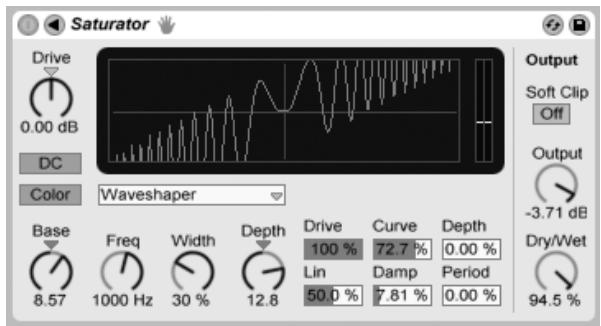
The Saturator Effect.
Saturator is a waveshaping effect that can add that missing dirt, punch or warmth to your sound. It can coat input signals with a soft saturation or drive them into many different flavors of distortion.
An X-Y grid helps to visualize Saturator's shaping curve. The shaper's input and output values are mapped to the X and Y axes, respectively. The curve defines the transfer function, which is the extent to which output values fluctuate in relation to input values. Because this is usually a nonlinear process, the incoming signal is reshaped to a greater or lesser degree depending upon its level at each moment in time.
Incoming signals are first clipped to the dB level set by the Drive control. The meter on the right side of the display shows how much Saturator is influencing the signal.
Signal shaping has six fixed modes: Analog Clip, Soft Sine, Medium Curve, Hard Curve, Sinoid Fold and Digital Clip. There is also the flexible Waveshaper mode, featuring six adjustable waveshaping parameters.
In the Analog Clip and Digital Clip modes, the signal is clipped completely and immediately.
Soft Sine, Medium Curve and Hard Curve modes soften signal clipping to varying degrees. Sinoid Fold mode can be good for special effects.
The most dramatic effects can be created by selecting the Waveshaper curve, which has its own dedicated set of controls. To access these six parameter fields, unfold the Saturator window by toggling the bullet button in its title bar.
The Waveshaper mode's six additional parameters are: Drive, Lin, Curve, Damp, Depth and Period.
- Drive determines how much the input signal will be influenced by the Waveshaper parameters. Setting Drive to zero will negate the effect entirely.
- Lin works together with the Curve and Depth parameters to alter the linear portion of the shaping curve.
- Curve adds mostly third-order harmonics to the input signal.
- Damp flattens any signal near the grid's origin. It behaves like an ultra-fast noise gate.
- Depth controls the amplitude of a sine wave that is superimposed onto the distortion curve. Period determines the density of ripples in the superimposed sine wave.
The DC button activates a DC filter at Saturator's input stage. This is mainly useful for removing DC offsets from audio material that contains them.
Activating the Color button enables two filters. The first of these, controlled with the Base control, dictates how much the effect will be reduced or increased for very low frequencies. The second filter, essentially an equalizer, is used for controlling higher frequencies. It is shaped with the Freq (cutoff frequency), Width and Depth controls.
The Output control attenuates the level at the device output. When the Soft Clip switch is activated, Saturator will also apply an instance of its "Analog Clip" curve to the output.
The Dry/Wet control adjusts the balance between the processed and dry signals. Set it to 100 percent when using Saturator in a return track.
Aliasing can be reduced by enabling Hi-Quality mode, which can be accessed via the (PC) / Ctrl (Mac) context menu. This improves the sound quality, particularly with high frequency signals, but there is a slight increase in CPU usage.
19.20 Simple Delay
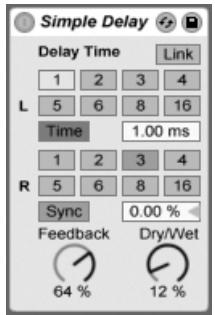
The Simple Delay Effect.
The Simple Delay provides two independent delay lines, one for each channel (left and right).
To refer delay time to the song tempo, activate the Sync switch, which allows using the Delay Time beat division chooser. The numbered switches represent time delay in 16th notes. For example, selecting "4" delays the signal by four 16th notes, which equals one beat (a quarter note) of delay.
If the Sync switch is off, the delay time reverts to milliseconds. In this case, to edit the delay time, click and drag up or down in the Delay Time field, or click in the field and type in a value.
The Feedback parameter defines how much of each channel's output signal feeds back into the delay lines' inputs. Internally, they are two independent feedback loops, so a signal on the left channel does not feed back into the right channel and vice versa.
The Dry/Wet control adjusts the balance between the processed and dry signals. Set it to 100 percent when using Simple Delay in a return track.
19.21 Spectrum
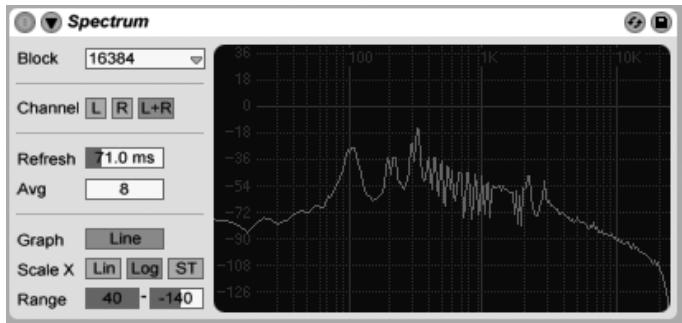
The Spectrum Device.
Spectrum performs realtime frequency analysis of incoming audio signals. The results are represented in a graph, with dB along the vertical axis and frequency/pitch along the horizontal. Note that Spectrum is not an audio effect, but rather a measurement tool - it does not alter the incoming signal in any way.
The Block chooser selects the number of samples that will be analyzed in each measurement. Higher values result in better accuracy, but at the expense of increased CPU load.
Channel determines which channel is analyzed - left, right or both.
The Refresh slider determines how often Spectrum should perform an analysis. As with the Block parameter, this allows for a tradeoff between accuracy and CPU load. A fast response time is more accurate, but also more CPU intensive.
The Avg slider allows you to specify how many blocks of samples will be averaged for each update of the display. With a setting of one, each block is shown. This results in much more activity in the display, which can be useful for finding the spectrum of short peaks. As you increase the Avg value, the display updates more smoothly, providing an average of the spectrum over time. This is more consistent with the way we actually hear.
The Graph button switches between displaying the spectrum as a single interpolated line and discrete frequency bins.
The Scale X buttons allow you to toggle the scaling of the frequency display between linear, logarithmic, and semitone. Note that logarithmic and semitone are actually the same
scaling, but switch the legend at the top of the display between Hertz and note names. Linear scaling is particularly useful for detailed analysis of high frequencies.
As you move your mouse over Spectrum's display, a box appears that shows the amplitude, frequency and note name at the pointer's position. You can zoom and scroll the amplitude by moving your mouse over the amplitude legend on the display's left side. Drag vertically to scroll and horizontally to zoom. You can also use the Range sliders to set the minimum and maximum amplitude values shown.
To get an even better view, you can toggle the location of the display between the device chain and Live's main window by clicking the bullet button in Spectrum's title bar.
19.22 Utility
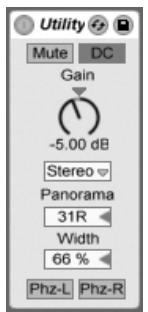
The Utility Effect.
Utility can perform some very useful tasks, especially in combination with other devices.
The Mute button simply silences the incoming signal when enabled. Note: The active/mute controls of a track are always placed at the very end of the signal chain. However, since you can place Utility anywhere in a signal chain, you can use its mute function to cut the input of a delay line or reverb without turning off the output of these devices.
The Gain control adjusts the level of the input signal +/- 35 dB.
The Channel Mode chooser allows selective processing of the left and right channels of a sample. If, for example, Left is selected, the right channel is ignored and the left channel
appears on both outputs. This is especially useful if you have a stereo file that contains different information on both channels and you want to use only one.
The Panorama chooser pans the signal anywhere in the stereo field.
The Width control acts as a continuous mono to stereo controller when set from 0 to 100 percent. However, beyond 100 percent the output starts to "fold in" on itself. At 200 percent the output contains only the difference between the left and right channels. If either Left or Right have been chosen in the Channel Mode chooser, the Width control has no function and is therefore disabled.
At the bottom of the device you will find two Phase controls, one for each channel. As their names imply, they invert the phase of each channel.
19.23 Vinyl Distortion
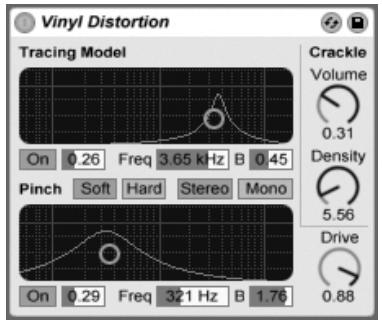
The Vinyl Distortion Effect.
The Vinyl Distortion effect emulates some of the typical distortions that occur on vinyl records during playback. These distortions are caused by the geometric relationships between the needle and the recorded groove. The effect also features a crackle generator for adding noisy artifacts.
The Tracing Model section adds even harmonic distortion to the input signal. Adjust the amount of distortion with the Drive knob, or click and drag vertically in the Tracing Model X-Y display. To adjust the distortion's frequency or "color," drag horizontally in the X-Y display or double-click on the Freq field and type in a value. Holding the Alt (PC) /
Alt (Mac) modifier while dragging vertically in the X-Y display changes the frequency band's Q (bandwidth).
The Pinch Effect section adds odd harmonics to the input signal. These distortions typically occur 180 degrees out of phase, creating a richer stereo image. The Pinch Effect has the same controls as the Tracing Model, but generates a rather different sound.
The Drive control increases or decreases the overall distortion amount created by both the Tracing Model and Pinch.
There are two distortion modes: Soft and Hard. The Soft Mode simulates the sound of a dub plate, while Hard Mode is more like that of a standard vinyl record.
The stereo/mono switch determines whether the Pinch distortion occurs in stereo or mono. Set it to stereo for realistic simulation of vinyl distortions.
The Crackle section adds noise to the signal, with noise density set by the Density control. The Volume control adjusts the amount of gain applied to the noise.
Chapter 20
Live MIDI Effect Reference
Live comes with a selection of custom-designed, built-in MIDI effects. The "Working with Instruments and Effects" chapter explains the basics of using effects in Live.
20.1 Arpeggiator

Live's Arpeggiator effect takes the individual MIDI notes from a held chord (or single note), and plays them as a rhythmical pattern. The sequence and speed of the pattern can be
The Arpeggiator Effect.
controlled by the device, which also provides a full complement of both classic and original arpeggiator features.
Arpeggiators are a classic element in Eighties synth music. The name originates with the musical concept of the "arpeggio," in which the notes comprising a chord are played as a series rather than in unison. "Arpeggio" is derived from the Italian word "arpeggiare," which refers to playing notes on a harp.
20.1.1 Style and Rate Sections
Arpeggiator's Style chooser determines the sequence of notes in the rhythmical pattern.
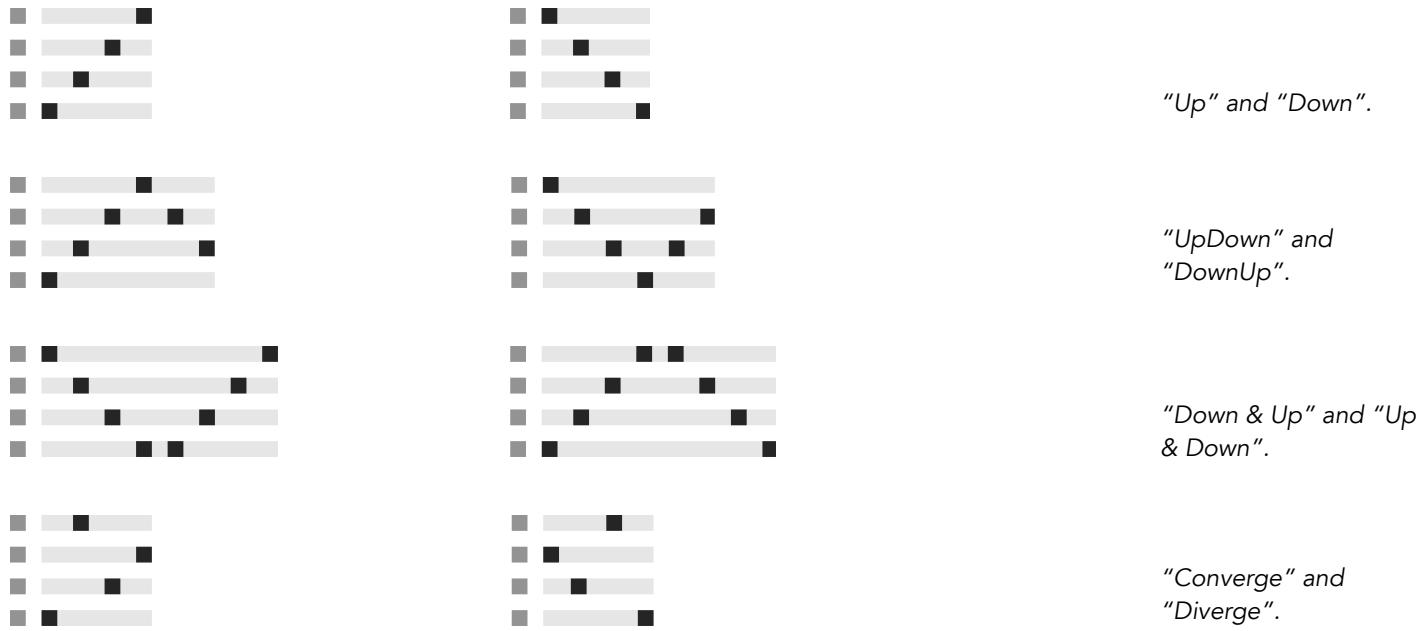

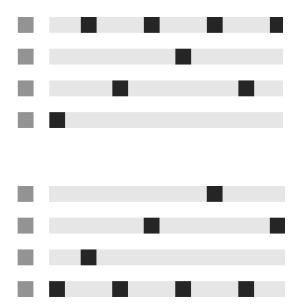
"Con & Diverge".
"Pinky Up" and "Pinky UpDown".
"Thumb Up" and "Thumb UpDown".
Play Order places notes in the pattern according to the order in which they are played. This is therefore only recognizable when more than one chord or note has been played.
In addition to the Arpeggiator styles above, there are a number of random styles. Random randomly selects incoming MIDI notes for playback. Random Other creates a random pattern from incoming MIDI notes, and then plays the randomly generated chord repeatedly. Random Once creates a random pattern from incoming MIDI notes and repeats the pattern until it has been transposed or retriggered, at which point a new pattern is created.
Arpeggiator will play the pattern of notes at the speed set by the Rate control, which can be calibrated in either milliseconds or beat-time using the neighboring Sync/Free button. With Sync chosen, Arpeggiator will be synced to the song tempo.
A Gate control to the right of Rate determines the length of notes played by Arpeggiator as a percentage of the current Rate setting. Any setting larger than 100% will therefore play notes that overlap (i.e., are legato).
The rhythmic pattern generated by Arpeggiator does not necessarily have to be straight; patterns can be given groove with the respective control just beneath the Mode chooser. Groove in Arpeggiator works just like it does for clips, so that the intensity of the groove is set in the Control Bar.
With the Hold parameter active, Arpeggiator will continue to play the pattern even after the keyboard keys have been released. The pattern will be repeated until any other key is
pressed. When Hold is active and any of the original keys also remain physically held, notes can be added to the pattern simply by playing them. Notes can also be removed from the pattern in this scenario by playing them a second time, allowing the gradual buildup and rearrangement of the pattern over time.
Tip: If you want the pattern to stop playing, momentarily deactivate Hold.
The Offset parameter shifts the sequence of notes in the pattern by the number of places selected with the control. This is best illustrated with an example: A setting of "1" makes the second note in the pattern play first, and the first note last. If you imagine the pattern as a circle of notes that is played in a clockwise direction from a set start point, the Offset parameter effectively rotates this circle counter-clockwise one note at a time, changing where in the pattern play begins.
With the Repeats parameter, the pattern can be set to repeat a specified number of times until it is retriggered. A setting of "inf" will repeat the pattern indefinitely. Hint: This feature provides an excellent way of emulating the strum of a guitar or playing a chord as an arpeggio once or twice. Another interesting effect can be achieved by combining this feature with the Retrigger parameter, which we will explain in a moment. This can be used to create rhythmically generated arpeggios separated by pauses.
The Retrigger parameter resets the pattern so that it starts again from the beginning. Retriggering can be deactivated (Off), set to occur when new notes are pressed (Note) or set to occur at a specified song position or beat-time (Beat). Beat retriggering can be specified in terms of notes or bars and is aligned with song position. An LED in the upper right corner of the section indicates when the pattern has been retracted.
20.1.2 Transposition and Velocity Sections
The pattern generated by Arpeggiator can be transposed; the device's transposition controls allow forcing this transposition into a specific major or minor key or (using the Transpose chooser's Shift option) doing it in semitones. The distance between transposition steps is set in scale intervals (for Major and Minor transposition) or semitones (for Shift transposition) with the Distance control. Using the Steps parameter, you can choose the number of times the sequence is transposed: A setting of 8 will transpose the sequence a total of eight times, playing it in higher notes each time.
The dynamics of Arpeggiator are controlled using the velocity section. With Velocity set to "On" and Target set to 0, for example, the sequence will gradually fade out, eventually reaching 0 velocity. The Decay control sets the amount of time Arpeggiator takes to reach the Target velocity. With Retrigger activated, retriggering of the sequence will also retrigger the velocity slope.
Tip: The velocity section's Retrigger option can be used in conjunction with Beat retriggering to add rhythm to the dynamic slope.
20.2 Chord
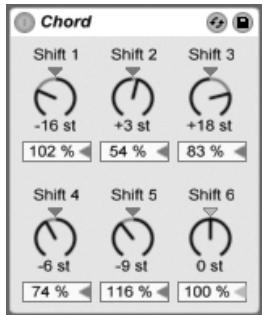
The Chord Effect.
This effect assembles a chord, as the name implies, from each incoming note and up to six others of user-defined pitch. The Shift 1-6 knobs allow selecting the pitch of the notes that contribute to the chord from a range of +/- 36 semitones relative to the original. Setting Shift 1 to +4 semitones and Shift 2 to +7 semitones, for example, yields a major chord in which the incoming note is the root.
The Velocity control beneath each Shift knob makes further harmonic sculpting possible, given that the instrument allows for changes in volume or timbre as function of velocity. It is a relative control, with a range of 1 to 200 percent (100 percent defined as playing at a velocity equal to that of the incoming MIDI note). Use the Velocity controls to do anything from adding slight overtones to washing out most of the other chord elements.
The order in which pitches are added to the chord is inconsequential: The effect of a +12 semitone shift added with the Shift 1 control, for example, is equal in effect to a +12
semitone shift added with the Shift 6 control.
Note that no two notes of the same pitch can contribute to the chord, and that selecting the same shift value twice (e.g., +8 semitones on both Shift 2 and Shift 3) will result in the latter control appearing disabled, indicating that it is a duplicate and therefore not in use. Actually, there is no such thing as two notes with the same pitch playing at the same time within the entire Live universe.
20.3 Note Length

The Note Length Effect.
Note Length alters the length of incoming MIDI notes. It can also be used to trigger notes from MIDI Note Off messages, instead of the usual Note On messages.
When the device is set to trigger from a Note On message, only the timing controls are available. The length of held notes can be adjusted in milliseconds or synced in relation to the song tempo. Gate defines the percentage of the Length value that notes should be held for. At 200 percent, the Gate parameter will double a note's length.
When the device is set to trigger from a Note Off event (the moment at which a played note is released), the timing of an incoming note will be delayed by its length (because it will be starting at the point at which it would have been stopping). Note Length's other settings will then determine the duration of the newly triggered note.
Three other parameters are available when the device is triggering from Note Off messages:
On/Off Balance – This determines the velocity of the output note. It is a balance between the incoming note's Note On and Note Off velocities. If your MIDI keyboard does not support MIDI Note Off velocity, you can just set this to zero.
Decay Time – This is the time needed for an incoming note's velocity to decay to zero. The decay begins immediately from the moment the device receives a MIDI Note On message. The value at the time of Note Off will become the velocity of the output MIDI note.
Key Scale – The pitch of incoming notes can be used to alter the length of the output notes. With positive values, notes below C3 will be made progressively longer, and notes above C3 will be made shorter. Negative values will invert this relationship.
20.4 Pitch

The Pitch Effect.
Pitch is a transposition tool that changes incoming note pitch by +/- 128 semitones.
The Range and Lowest controls act together to define a pitch range through which notes are allowed to pass. Notes outside of the defined pitch range will be blocked, and the effect's LED light will flash when this happens.
Notes outside of the pitch range are limited based on their untransposed pitch, prior to the transposition stage of the effect.
20.5 Random
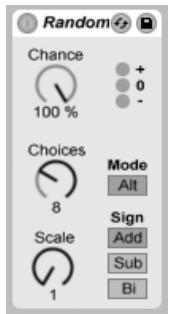
The Random Effect.
Random adds an element of the unknown to the otherwise commonplace pitch parameter. The Chance control defines the likelihood that an incoming note's pitch will be changed by a random value. You can think of it as being something like a dry/wet control for randomness.
The random value that determines the pitch change is created by two variables: The Choices control defines the number of different random notes possible, from a range of 1 to 24; the Scale control value is multiplied by the Choices control value, and the result dictates the pitches that random notes are allowed to have relative to that of the incoming note.
For example, if you play the note C3 with Chance set to 50 percent, Choices set to 1 and Scale set to 12, half of the resulting notes will play at C3 and half will play at C4. But with Chance set to 50 percent, Choices set to 12 and Scale set to 1, half of the resulting notes will play at C3 and half will play at one of any semitone that is between C#3 and C4.
These examples assume that the Sign buttons are set to "Add" and the Mode button is set to "Rnd." The Sign controls decide whether the random alteration adds to the original note's pitch, subtracts from it, or does a little of both. The LEDs below the Sign controls give you a visual idea of how output pitch compares with that of the original.
The Mode button determines whether the alteration will be random or, when set to "Alt," will cycle between the allowed output notes in a fixed order (sometimes known as "cycle round-robin"). The Chance control behaves a bit differently in Alt mode - at 100 percent, the next output note will always be the next note in the series. At 0 percent, the next output note will always be the incoming note.
For example, with Chance set to 100 percent, Choices set to 12 and Scale set to 1, playing C3 once will trigger C3, and each successive C3 will trigger the next semitone higher until the device reaches C4, at which point it will start over at C3. But with Chance set to 100 percent, Choices set to 2 and Scale set to 2, incoming C3s will alternate between C3 and D3. This setting is perfect for simulating upbow and downbow alternation with stringed instruments, or alternating right- and left-hand drum samples.
Hint: Try using the Scale effect after Random to constrain the output values to a specific harmonic range. Using Random's Alt mode with the Scale device allows you to create a simple step-sequence.
20.6 Scale
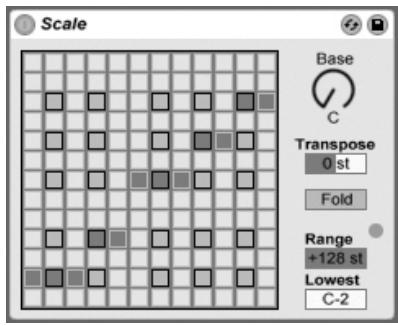
The Scale Effect.
Scale alters incoming note pitch based on a scale mapping. Each incoming note is given an outgoing equivalent on the X-Y scale map of the effect: All incoming Cs, for example, might be converted to outgoing Ds.
The X-Y scale map is 12 squares in length and width, corresponding to the 12 notes in a full octave. Darker squares represent the black keys on a keyboard. The base of the diagonal scale (the lower left square) shown on the map can be changed using the Base control. The X-axis of the map shows incoming note values, and the Y-axis their outgoing equivalents. Use mouse-clicks to move or delete the yellow squares, which define where an incoming note will be sent on the scale. (Deleting a note on the scale map means that it will no longer play.)
The Range and Lowest controls work together to define the note range within which scale mapping will take effect. Outside of the range defined by these controls, the Scale effect will be inapplicable, and the LED light will flash to indicate that some notes are not being processed by the effect, but are playing at their unaltered pitch.
20.7 Velocity
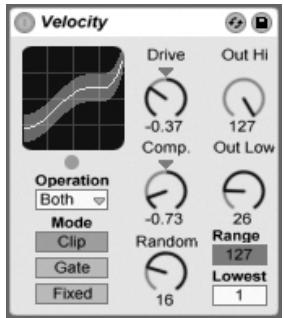
The Velocity Effect.
Velocity re-maps the 127 MIDI note velocity values. It can function on MIDI Note On or Note Off messages, or both, depending on the setting of the Operation chooser.
The Out Low and Out Hi knobs control the outgoing velocity (from 1 to 127), which is represented by the Y-axis of the X-Y display. Incoming velocities that are shown in the display are within the range chosen by the Range and Lowest controls, and are represented on the X-axis. The resulting curve shows how velocity is being altered by the effect.
If Lowest and Out Low are both set to zero, and Range and Out Hi are set to 127, the display will show a straight diagonal line that indicates the equivalent of an effect bypass: Softly played notes are being output quietly and vice versa. If instead, Out Hi is set to zero and Out Low to 127, the slope of the line will be reversed, and softly played notes will actually produce the loudest output.
What happens to incoming notes that are outside of the range set with the Range and Lowest controls? This depends on which Mode is selected. Clip Mode does just what it says: It clips incoming note velocities so that they stay within the range. Gate Mode removes incoming notes altogether if their velocities are outside of the range. You will see the little
LED below the X-Y display flash when a note is blocked by gating. In Fixed Mode, the Out Hi velocity defines all outgoing note velocities, regardless of incoming note velocity.
The Random function adds or subtracts a random value to the all velocities, and is represented by a gray area on the display curve.
The Drive and Compand controls can be combined to create more complex curves. Compand is a simultaneous expanding and compressing tool. When set to values greater than zero, it forces incoming notes to the outer boundaries of the curve, making them play either loudly or softly. Compand values of less than zero, on the other hand, force outgoing velocity toward the mid-range. Drive pushes all values in the curve to the outer extremes. Use these two controls together to sculpt or even redefine the dynamic structure of a piece.
Chapter 21
Live Instrument Reference
Live comes with a selection of custom-designed, built-in instruments. The "Working with Instruments and Effects" chapter explains the basics of using instruments in Live.
The boxed version of Live LE ships with the Essential Instrument Collection LE Edition, a multi-gigabyte library of meticulously sampled and selected instruments ready for use in Simpler. Learn how to access the EIC sounds at the end of this chapter.
21.1 Impulse
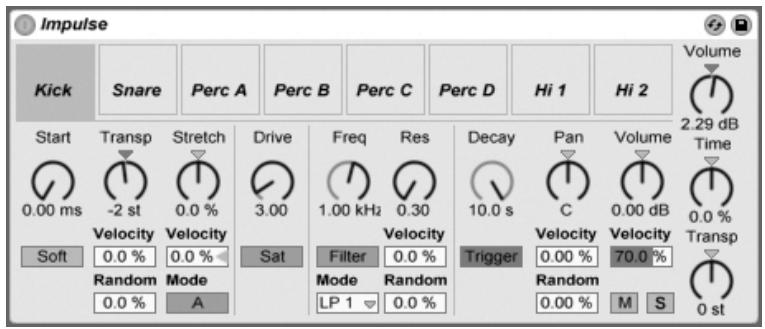
The Impulse Instrument.
Impulse is a drum sampler with complex modulation capabilities. The eight drum samples loaded into Impulse's sample slots can be time-stretched, filtered and processed by envelope, saturation, pan and volume components, nearly all of which are subject to random and velocity-based modulation.
21.1.1 Sample Slots
Drag and drop samples into any of Impulse's sample slots from the Browser or the Session and Arrangement Views. Alternatively, each sample slot features a Hot-Swap button for hot-swapping samples. Loaded samples can be deleted with your computer keyboard's left arrow or Delete key.
Imported samples are automatically mapped onto your MIDI keyboard, providing that it is plugged in and acknowledged by Live. C3 on the keyboard will trigger the leftmost sample, and the other samples will follow suit in the octave from C3 to C4. Impulse's eight slots will appear labeled in the MIDI Editor's key tracks when the Fold button is active, even if the given key track is void of MIDI notes. Mapping can be transposed from the default by applying a Pitch device, or it can be rearranged by applying a Scale device.
Each of the eight samples has a proprietary set of parameters, located in the area below the sample slots and visible when the sample is clicked. Adjustments to sample settings are only captured once you hit a new note – they do not affect currently playing notes. Note that
this behavior also defines how Impulse reacts to parameter changes from clip envelopes or automation, which are applied once a new note starts. If you want to achieve continuous changes as a note plays, you may want to use the Simpler.
Slot 8's parameters also include a Link button, located in the lower left corner, which links slot 8 with slot 7. Linking the two slots allows slot 7's activation to stop slot 8's playback, and vice versa. This was designed with a specific situation in mind (but can, of course, be used for other purposes): Replicating the way that closed hi-hats will silence open hi-hats.
Each slot can be played, soloed, muted or hot-swapped using controls that appear when the mouse hovers over it.
21.1.2 Start, Tune and Stretch
The Start control defines where Impulse begins playing a sample, and can be set up to 100 ms later than the actual sample beginning. The Transposition control adjusts the transposition of the sample by +/- 48 semitones, and can be modulated by incoming note velocity or a random value, as set in the appropriate fields.
The Stretch control has values from -100 to 100 percent. Negative values will shorten the sample, and positive values will stretch it. Two different stretching algorithms are available: Mode A is ideal for low sounds, such as toms or bass, while Mode B is better for high sounds, such as cymbals. The Stretch value can also be modulated by MIDI note velocity.
21.1.3 Filter
The Filter section offers a broad range of filter types, each of which can impart different sonic characteristics onto the sample by removing certain frequencies. The Frequency control defines where in the harmonic spectrum the filter is applied; the Resonance control boosts frequencies near that point. Filter Frequency can be modulated by either a random value or by MIDI note velocity.
21.1.4 Saturator and Envelope
The Saturator gives the sample a fatter, rounder, more analog sound, and can be switched on and off as desired. The Drive control boosts the signal and adds distortion. Coincidentally, this makes most signals much louder, and should usually be compensated for by lowering the sample's volume control. Extreme Drive settings on low-pitched sounds will produce the typical, overdriven analog synth drum sounds.
The envelope can be adjusted using the Decay control, which can be set to a maximum of 60 seconds. Impulse has two decay modes: Trigger Mode allows the sample to decay with the note; Gate Mode forces the envelope to wait for a note off message before beginning the decay. This mode is useful in situations where you need variable decay lengths, as is the case with hi-hat cymbal sounds.
21.1.5 Pan and Volume
Each sample has Volume and Pan controls that adjust amplitude and stereo positioning, respectively. Both controls can be modulated: Pan by velocity and a random value, and Volume by velocity only.
21.1.6 Global Controls
The parameters located to the right of the sample slots are global controls that apply to all samples within Impulse's domain. Volume adjusts the overall level of the instrument, and Pitch adjusts the transposition of all samples. The Time control governs the time-stretching and decay of all samples, allowing you to morph between short and stretched drum sounds.
21.1.7 Individual Outputs
When a new instance of Impulse is dragged into a track, its signal will be mixed with those of the other instruments and effects feeding the audio chain of the track. It can oftentimes make more sense to isolate the instrument or one of its individual drum samples, and send
this signal to a separate track. Please see the Routing chapter to learn how to accomplish this for Impulse's overall signal or for Impulse's individual sample slots.
21.2 Simpler

Simpler is an instrument that integrates the basic elements of a sampler with a set of classic synthesizer parameters. A Simpler voice plays a user-defined sample section, which is in turn processed by envelope, filter, LFO, volume and pitch components.
21.2.1 Sample View
The Sample View displays the sample waveform. Samples can be dragged into Simpler either directly from the Browser, or from the Session or Arrangement View in the form of clips. In the latter case, Simpler will utilize only the section of the sample demarcated by the clip's start/end or loop markers. Samples can be replaced by dragging in a new sample, or by activating the integrated Hot-Swap button.
Note: When playing instruments from Ableton's Essential Instrument Collection, Simpler runs in Multisample Mode. The Sample View has no function in this mode.
The Simpler Instrument.
21.2.2 Sample Controls
Simpler plays a specific region or loop of the sample, as determined by a group of sample controls.
The Start and Length controls work together to specify where Simpler begins and ends its sweep of the sample. As the name implies, Start defines where sample playback starts. The sample will play for the length defined by the Length parameter. Both parameters are defined as a percentage of the whole region, so setting start to 25 percent and length to 50 percent, for example, will start playback 1/4 of the way through the sample and stop playback at the 3/4 mark (using 50 percent of the sample).
Samples are played by Simpler as one-shots or as loops, depending on whether or not the Loop switch is active. When looping is active, the Loop control dictates the length of the loop, starting from the end of the playing sample. Simpler will play the first instance of a looped sample beginning with the Start point, then continue playing only the loop region.
When the sample's start or end points are moved, Simpler will try to preserve the loop length for as long as possible by automatically adjusting the Start, Loop and Length settings.
It is possible for glitches or pops to occur between a looped sample's start and end points due to the discontinuity in waveform amplitude (i.e., the sample's loudness). The Snap switch will help mitigate these by forcing Simpler's loop markers to snap to zero-crossing points in the sample (points where the amplitude is zero). Note: Snapping is based on the left channel of stereo samples. It is therefore still possible, even with Snap activated, to encounter glitches with stereo samples.
The transition from loop end to loop start can be smoothed with the Fade control, which crossfades the two points. This method is especially useful when working with long, textural samples. By default, Simpler uses constant-power fades. But by turning off "Use Constant Power Fade for Loops" in the (PC) / Ctrl (Mac) context menu, you can enable linear crossfades.
21.2.3 Zoom
Quite often, one starts with a longer region of a sample and ends up using only a small part of it. Simpler's Sample view can be zoomed and panned just as in other parts of Live – drag
vertically to zoom, and drag horizontally to pan different areas of the sample into view.
21.2.4 Envelope
Simpler contains three classic ADSR envelopes, as seen in most synthesizers, for shaping the dynamic response of the sample. Volume-, filter frequency-, and pitch modulation are all modifiable by toggling their respective buttons in the envelope section. Attack controls the time in milliseconds that it takes for the envelope to reach its peak value after a note is played. Decay controls the amount of time it takes for the envelope to drop down to the Sustain level, which is held until the note is released. Release time is the amount of time after the end of the note that it takes for the envelope to drop from the Sustain level back down to zero.
The influence of envelopes on pitch and filter cutoff can be decided using the envelope amount (Env) controls in each of these sections.
21.2.5 Filter
The Filter section offers classic 12 dB or 24 dB lowpass, bandpass and highpass filters, as well as a notch filter, each of which can impart different sonic characteristics onto the sample by removing certain frequencies from the waveform. The most important parameters are the typical synth controls Frequency and Resonance. Frequency determines where in the harmonic spectrum the filter is applied; Resonance boosts frequencies near that point.
The best way to understand the effects of these controls is simply to play with them!
The Frequency parameter can be modulated by an LFO, note velocity and an envelope - each of which have an amount control in the Filter section. The Key (tracking) control allows for shifting the filter's frequency according to note pitch.
21.2.6 LFO
The LFO (low-frequency oscillator) section offers sine, square, triangle, sawtooth down, sawtooth up and random waveforms. The LFO run freely at frequencies between 0.01 and
30 Hz, or sync to divisions of the Set's tempo. LFOs are applied individually to each voice, or played note, in Simpler.
The Key parameter scales each LFO's Rate in proportion to the pitch of incoming notes. A high Key setting assigns higher notes a higher LFO rate. If Key is set to zero, all voices' LFOs have the same rate and may just differ in their phase.
The LFO will modulate the filter, pitch, panorama and volume according to the setting of the LFO amount controls in each of these sections.
The time required for the LFO to reach full intensity is determined by the Attack control.
21.2.7 Glide and Spread
Simpler includes a glide function. When this function is activated, new notes will start from the pitch of the last note played and then slide gradually to their own pitch. Two glide modes are available: Glide, which works monophonically, and Portamento, which works polyphonically. Glide is also adjusted with the Glide Time control.
Simpler also offers a special Spread parameter that creates a rich stereo chorus by using two voices per note and panning one to the left and one to the right. The two voices are detuned, and the amount of detuning can be adjusted with the Spread control.
Tip: Whether or not spread is applied to a particular note depends upon the setting of the Spread parameter during the note-on event. To achieve special effects, you could, for instance, create a sequence where Spread is zero most of the time and turned on only for some notes. These notes will then play in stereo, while the others will play mono.
21.2.8 Pitch, Pan, Volume and Voices
Simpler plays back a sample at its original pitch if the incoming MIDI note is C3, however the Transpose control allows transposing this by +/- 48 semitones. Pitch can also be modulated by an LFO or pitch envelope using the amount controls in this section. The pitch envelope is especially helpful in creating percussive sounds. Simpler reacts to MIDI Pitch Bend messages with a sensitivity of +/- 5 semitones. You can also modulate the Transpose parameter with clip envelopes and external controllers.
The Voices parameter sets the maximum number of voices that Simpler can play simultaneously. If more voices are needed than have been allocated by the Voices chooser, "voice stealing" will take place, in which the oldest voice(s) will be dropped in favor of those that are new. For example, if your Voices parameter is set to 8, and ten voices are all vying to be played, the two oldest voices will be dropped. (Simpler does try to make voice stealing as subtle as possible.) A small LED near the Voices control flashes when a voice has been stolen.
Panorama is defined by the Pan control, but can be further swayed by randomness or modulated by the LFO.
Finally, the output volume of Simpler is controlled by the Volume control, which can also be dependent upon note velocity, as adjusted by the Velocity control. Tremolo effects can be achieved by allowing the LFO to modulate the Volume parameter.
21.2.9 Strategies for Saving CPU Power
Real-time synthesis needs lots of computing power. However, there are strategies for reducing CPU load. Save the CPU spent on Simpler by doing some of the following:
- Turn off the Filter if it is not needed.
- Use filter types that are less expensive when possible. A filter's cost correlates with the steepness of its slope – "LP24" is more expensive than "LP12."
- Turn off the LFO for a slightly positive influence on CPU.
- Stereo samples need significantly more CPU than mono samples, as they require twice the processing.
- Decrease the number of simultaneously allowed voices with the Voice control.
21.3 The Essential Instrument Collection
The boxed version of Live LE ships with the Essential Instrument Collection LE Edition, a multi-gigabyte library of meticulously sampled instruments created in cooperation with
SONiVOX, Chocolate Audio and Puremagnetik.
Note - The Essential Instrument Collection is not included with downloadable purchases. Download customers can choose, however, to purchase it later 1 .
21.3.1 EIC Installation
The Essential Instrument Collection LE Edition is installed separately from the main Live LE installation. The various instruments are grouped into separate Live Packs that can be installed as needed. To install Live Packs, drag them into the Live application window, either from your operating system or from Live's Browser.
After you have installed the EIC Live Packs, you will need to unlock them using your unlock code. To do this, open Live's Preferences with the keyboard shortcut Ctrl (PC) / Mac (Mac), and then select the Authorizations/Trial tab. Further details can be found in the Unlocking Live chapter.
21.3.2 Accessing The EIC Instruments
After installation, the EIC instruments are accessed through Live's Device Browser, in exactly the same way as Live's other built-in instruments. You will find them as categorized presets within the Instrument Rack folder. EIC instruments are therefore loaded just like any other device, by dragging a preset from the Browser into an empty MIDI track.
The EIC presets are available in Full and Lite versions, allowing you to choose the right balance of fidelity and polyphony for your needs. The Lite version reduces CPU, RAM and disk requirements by reducing the number of zones and sample layers used. Both the normal and Lite presets use 24-bit multisamples.
There is also an EIC LE Pack available which contains very efficient versions of the EIC instruments suitable for sketching out ideas. The LE instruments are all composed of 16-bit sample files.
All of the EIC presets are conveniently mapped to Macro Controls for greater expression.
21.3.3 The Included Instruments
The following multisampled instruments are included:
- Acoustic Keyboards - Grand Piano, Harpsichord, Celesta Electric Keyboards - E-Piano MK 1, B3 Jazz Organ, B3 Rock Organ
- Orchestral Strings - Solo Strings (legato): Double Bass, Cello, Viola, Violin; Ensemble Strings (legato, pizzicato)
- Orchestral Brass - Solo Brass (legato): French Horn, Bass Trombone, Tuba (Eb), Trumpet; Ensemble Brass (legato, staccato)
- Orchestral Woodwinds – Solo Woodwinds (legato, legato vibrato): English Horn, Bassoon, Clarinet, French Oboe, Concert Flute, Alto Sax; Ensemble Woodwinds (legato)
- Plucked Instruments - Harp (fingers), Jazz Upright Bass, P-Bass (fingers, picks), Six-String Nylon Guitar (tones, chords), Strat Clean (tones, chords)
- Mallets - Glockenspiel (hard mallets), Xylophone (hard mallets)
- Voice - Mixed Choir (ahh, ohh)
- Drum Machine - one drum machine, selected from the Drum Machines add-on product
- Acoustic Drum Kit - one stereo multisampled drum kit, selected from the Session Drums add-on product
Special Features of the Guitar and Bass Banks
In the EIC LE edition, the guitar instruments have additional banks for single-key chords with strumming. Lower octaves play down strums, while upper octaves play up strums.
Chapter 22
MIDI and Key Remote Control
To liberate the musician from the mouse, most of Live's controls can be remote-controlled with an external MIDI controller and the computer keyboard. This chapter describes the details of mapping to the following specific types of controls in Live's user interface:
- Session View slots - Note that MIDI and computer key assignments are bound to the slots, not to the clips they contain.
- Switches and buttons – among them the Track and Device Activator switches, the Control Bar's tap tempo, metronome and transport controls.
- Radio buttons – A radio button selects from among a number of options. One instance of a radio button is the crossfader assignment section in each track, which offers three options: The track is assigned to the crossfader's A position, the track is unaffected by the crossfader, or the track is affected by the crossfader's B position.
- Continuous controls - like the mixer's volume, pan and sends.
- The crossfader, the behavior of which is described in detail in the respective section of the Mixing chapter.
22.1 MIDI Remote Control
Live can be controlled remotely by external MIDI control surfaces, such as MIDI keyboards or controller boxes. Live also supports the Mackie Control, a topic that is covered in its own section, for completely mouse-free program operation.
Before we explain how remote control assignments are made and implemented, let's first make the distinction between MIDI remote control and a separate use of MIDI in Live: as the input for our MIDI tracks. Let's suppose that you are using a MIDI keyboard to play an instrument in one of Live's MIDI tracks. If you assign C-1 on your MIDI keyboard to a Session View Clip Launch button, that key will cease play C-1 of your MIDI track's instrument, as it now "belongs" solely to the Clip Launch button.
MIDI keys that become part of remote control assignments can no longer be used as input for MIDI tracks. This is a common cause of confusion that can be easily resolved by observing the Control Bar's MIDI indicators.
Before making any MIDI assignments, you will need to set up Live to recognize your control surfaces. This is done in the MIDI/Sync tab of Live's Preferences, which can be opened with the keyboard shortcut Ctrl (PC) / Mac.
22.1.1 Natively Supported Control Surfaces
Control Surfaces are defined in the table at the top of the MIDI/Sync tab. Up to six supported control surfaces can be used simultaneously in Live.

Open the first chooser in the Control Surface column to see whether your control surface is supported natively by Live; if it is listed here, you can select it by name, and then define its MIDI input and output ports using the two columns to the right. If your controller is not
Setting Up Control Surfaces.
listed here, don't fret – it can still be enabled manually in the next section, Manual Control Surface Support.
Depending on the controller, Live may need to perform a "preset dump" to complete the setup. If this is the case, the Dump button to the right of your control surface's choosers in the Live Preferences will become enabled. Before pressing it, verify that your control surface is ready to receive preset dumps. The method for enabling this varies for each manufacturer and product, so consult your hardware's documentation if you are unsure. Finally, press the Dump button; Live will then set up your hardware automatically.
Instant Mappings
In most cases, Live uses a standard method for mapping its functions and parameters to physical controls. This varies, of course, depending upon the configuration of knobs, sliders and buttons on the control surface. These feature-dependent configurations are known as instant mappings.
Within Live's built-in lessons, you will find a Control Surface Reference that lists all currently supported hardware, complete with the details of their instant mappings. The Lessons View can be accessed at any time by selecting the Lessons option from the View menu.
Note: You can always manually override any instant mappings with your own assignments. In this case, you will also want to enable the Remote switches for the MIDI ports that your control surface is using. This is done in the MIDI Ports section of the MIDI/Sync Preferences tab, and is described in the next section.
Instant mappings are advantageous because the control surface's controllers will automatically reassign themselves in order to control the currently selected device in Live.
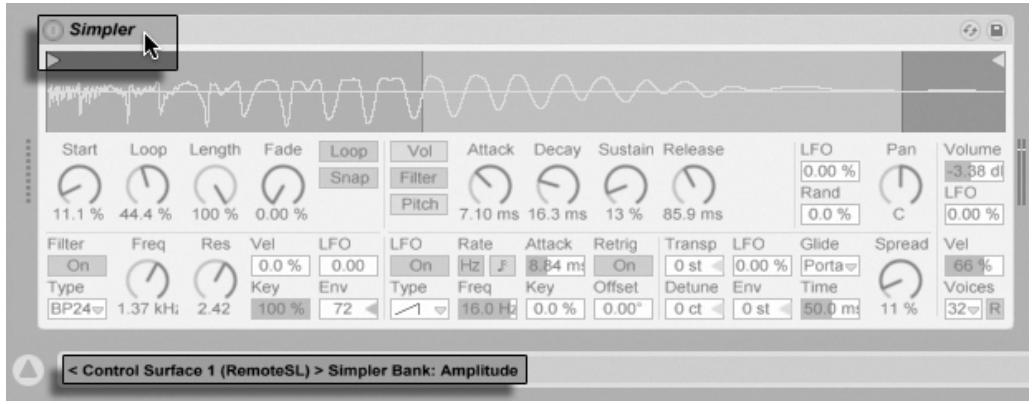
Control Surfaces Can Follow Device Selection.
In addition to following device selection, natively supported control surfaces can be "locked" to specific devices, guaranteeing hands-on access no matter where the current focus is in your Live Set. To enable or disable locking, (PC) / Ctrl (Mac) on a device's title bar, and then select your preferred controller from the "Lock to..." context menu. You'll recognize the same list of control surfaces that you defined in the MIDI/Sync Preferences.
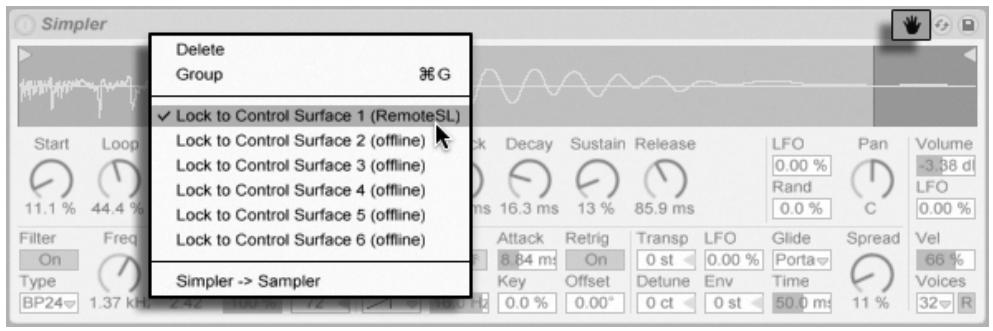
Getting Hands-On: Control Surfaces Can Be Locked to Devices.
A hand icon in the title bar of locked devices serves as a handy reminder of their status.
Note: Some control surfaces do not support locking to devices. This capability is indicated for individual controllers in the Control Surface Reference lesson. Select the Lessons option from the View menu to access Live's built-in lessons.
22.1.2 Manual Control Surface Setup
If your MIDI control surface is not listed in the MIDI/Sync Preferences' Control Surface chooser, it can still be enabled for manual mapping in the MIDI Ports section of this tab.
| MIDI Ports | Track | Sync | Remote | |
| Input: Oxygen8 (Port 1) | On | Off | Off | |
| Input: RemoteSL (Port 1) | On | Off | Off | |
| Input: RemoteSL (Port 2) | Off | Off | On | |
| Output: Oxygen8 (Port 1) | Off | Off | Off | |
| Output: RemoteSL (Port 1) | Off | Off | Off | |
| Output: RemoteSL (Port 2) | Off | Off | On | |
| Output: RemoteSL (Port 3) | Off | Off | Off | |
The MIDI Ports table lists all available MIDI input and output ports. To use an input port for remote control of Live, make sure the corresponding switch in its Remote column is set to "On." You can use any number of MIDI ports for remote mapping; Live will merge their incoming MIDI signals.
When working with a control surface that provides physical or visual feedback, you will also need to enable the Remote switch for its output port. Live needs to be able to communicate with such control surfaces when a value has changed so that they can update the positions of their motorized faders or the status of their LEDs to match.
To test your setup, try sending some MIDI data to Live from your control surface. The Control Bar's MIDI indicators will flash whenever Live recognizes an incoming MIDI message.
Once your controller is recognized by Live, you have completed the setup phase (but we recommend that you take the time to select a Takeover Mode before you leave the Preferences behind). Your next step will be creating MIDI mappings between your control surface and Live. Luckily, this is a simple task, and you only need to do it for one parameter at a time.
Defining Control Surfaces Manually.
22.1.3 Takeover Mode
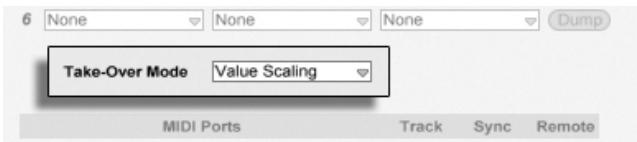
MIDI Controller Takeover Mode.
When MIDI controls that send absolute values (such as faders) are used in a bank-switching setup, where they address a different destination parameter with each controller bank, you will need to decide how Live should handle the sudden jumps in values that will occur when moving a control for the first time after switching the bank. Three takeover modes are available:
None – As soon as the physical control is moved, its new value is sent immediately to its destination parameter, usually resulting in abrupt value changes.
Pick-Up – Moving the physical control has no effect until it reaches the value of its destination parameter. As soon as they are equal, the destination value tracks the control's value 1:1. This option can provide smooth value changes, but it can be difficult to estimate exactly where the pick-up will take place.
Value Scaling – This option ensures smooth value transitions. It compares the physical control's value to the destination parameter's value and calculates a smooth convergence of the two as the control is moved. As soon as they are equal, the destination value tracks the control's value 1:1.
The Mapping Browser and Selector.
All manual MIDI, computer keyboard and Macro Control mappings are managed by the Mapping Browser. The Mapping Browser is hidden until one of the three mapping modes is enabled. It will then display all mappings for the current mode. For each mapping, it lists the control element, the path to the mapped parameter, the parameter's name, and the mapping's Min and Max value ranges. The assigned Min and Max ranges can be edited at any time, and can be quickly inverted with a (PC) / Ctrl (Mac) context menu command. Delete mappings using your computer's ← or Delete key.
Note that Instant Mappings are context based and are not displayed in the Mapping Browser. Their mapping structure can be displayed while working in Live by choosing the Lessons option from the View menu and then opening the Control Surface Reference lesson.
22.2.1 Assigning MIDI Remote Control

The MIDI Map Mode Switch.
Once your remote control setup has been defined in the MIDI/Sync Preferences, giving MIDI controllers and notes remote control assignments is simple:
- Enter MIDI Map Mode by pressing the MIDI switch in Live's upper right-hand corner. Notice that assignable elements of the interface become highlighted in blue, and that the Mapping Browser becomes available. If your Browser is closed, Ctrl Alt B (PC) / Alt Mac will open it for you.
- Click on the Live parameter that you'd like to control via MIDI.
- Send a MIDI message by pressing a keyboard key, turning a knob, etc., on your MIDI controller. You will see that this new MIDI mapping is now listed in the Mapping Browser.
- Exit MIDI Map Mode by pressing the MIDI switch once again. The Mapping Browser will disappear, but you can always review your mappings by entering MIDI Map Mode again.
22.2.2 Mapping to MIDI Notes
MIDI notes send simple Note On and Note Off messages to Live's interface elements. These messages can produce the following effects on controls in Live:
- Session View Slots - Note On and Note Off messages affect clips in the slot according to their Launch Mode settings.
- Switches – A Note On message toggles the switch's state.
- Radio Buttons - Note On messages toggle through the available options.
- Variable Parameters - When assigned to a single note, Note On messages toggle the parameter between its Min and Max values. When assigned to a range of notes, each
note is assigned a discrete value, equally spaced over the parameter's range of values.
Hint: Session View slots can be assigned to a MIDI note range for chromatic playing: First play the root key (this is the key that will play the clip at its default transposition), and then, while holding down the root key, hold one key below the root and one above it to define the limits of the range.
22.2.3 Mapping to Absolute MIDI Controllers
Absolute MIDI controllers send messages to Live in the form of absolute values ranging from 0 to 127. These values lead to different results depending on the type of Live control to which they are assigned. A value message of 127, for example, might turn the Volume control on a Live track all the way up or play a Session View clip. Specifically, MIDI controller messages from 0 to 127 can produce the following effects on controls in Live:
- Session View Slots – Controller values 64 and above are treated like Note On messages. Controller values 63 and below are treated like Note Off messages.
- Switches – For track activators and on/off buttons in devices, controller values that are within the mapping's Min and Max range turn the switch on. Controller values that are above or below this range turn it off. You can reverse this behavior by setting a Min value that is higher than its corresponding Max value. In this case, controller values that are outside of the range turn the switch on, while values inside the range turn it off. For all other switches (such as transport controls), controller values 64 and above turn the switch on, while controller values below 64 turn it off.
- Radio Buttons - The controller's 0...127 value range is mapped onto the range of available options.
- Continuous Controls - The controller's 0...127 value range is mapped onto the parameter's range of values.
Live also supports pitch bend messages and high-precision ("14-bit Absolute") controller messages with a 0...16383 value range. The above specifications apply to these as well, except that the value range's center is at 8191/8192.
22.2.4 Mapping to Relative MIDI Controllers
Some MIDI controllers can send "value increment" and "value decrement" messages instead of absolute values. These controls prevent parameter jumps when the state of a control in Live and the corresponding control on the hardware MIDI controller differ. For example, imagine that you have assigned the pan knob on your control surface to the pan parameter of a track in Live. If the hardware control is panned hard right, and the Live control is panned hard left, a slight movement in a hardware pan knob that sends absolute values would tell Live to pan right, causing an abrupt jump in the track's panning. A pan knob sending relative messages would prevent this, since its incremental message to Live would simply say, "Pan slightly to the left of your current position."
There are four types of relative controllers: Signed Bit, Signed Bit 2, Bin Offset and Twos Complement.
| Convention (Mode) | Increment | Decrement |
| Relative (Signed Bit) | 001–064 | 065–127 |
| Relative (Signed Bit 2) | 065–127 | 001–064 |
| Relative (Bin Offset) | 065–127 | 063–001 |
| Relative (2's Comp.) | 001–064 | 127–065 |
Each of these are also available in a "linear" mode; Some MIDI encoders use "acceleration" internally, generating larger changes in value when they are turned quickly. For control surfaces that are not natively supported, Live tries to detect the controller type and whether acceleration is being used or not.
You can improve the detection process by moving the relative controller slowly to the left when you make an assignment. Live will offer its suggestion in the Status Bar's "mode" chooser, but if you happen to know the relative controller type, you can manually select it.
Live will do the following with relative MIDI controller messages:
- Session View Slots - Value increment messages are treated like Note On messages. Value decrement messages are treated like Note Off messages.
- Switches – Increment messages turn the switch on. Decrement messages turn it off.
- Radio Buttons – Increment messages make the radio button jump forward to the next
available option. Decrement messages make it jump backward.
- Continuous Controls - Each type of relative MIDI controller uses a different interpretation of the 0...127 MIDI controller value range to identify value increments and decrements:
Please consult the documentation that came with your MIDI controller if you need further information on relative MIDI controllers.
Relative Session View Navigation
Notice that you can make not only absolute mappings to individual slots and scenes, but also relative mappings to move the highlighted scene and operate on the highlighted clips.
In both MIDI Map Mode and Key Map Mode, a strip of assignable controls appears below the Session grid:

- Assign these buttons to keys, notes or controllers to move the highlighted scene up and down.
- Assign this scene number value box to a MIDI controller – preferably an endless encoder – to scroll through the scenes. For details, see the previous section on Relative Map Modes.
- Assign this button to launch the highlighted scene. If the Record/Warp/Launch Preferences' Select Next Scene on Launch option is checked, you can move successively (and hopefully successfully!) through the scenes.
- Assign these buttons to launch the clip at the highlighted scene, in the respective track.
The Relative Session Mapping Strip.
Relative Session mapping is useful for navigating a large Live Set, as Live always keeps the highlighted scene at the Session View's center. (Note that the number of scenes is limited in Live LE.)
Mapping to Clip View Controls
The Clip View displays the settings for whichever clip happens to be currently selected, but it will also display the settings of multi-selected clips. To avoid unpleasant musical surprises, it is important to remember that creating remote control mappings for any control in the Clip View interface could potentially affect any clip in the Live Set. For this reason, we recommend mapping Clip View controls to relative MIDI controllers to prevent undesirable jumps in parameter values.
22.2.5 Computer Keyboard Remote Control
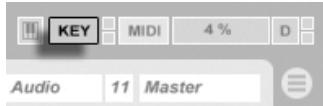
Creating control surface assignments for your computer keyboard is straightforward:
- Enter Key Map Mode by pressing the KEY switch in the upper right-hand corner of the Live screen. Notice that the assignable elements of the interface become highlighted in red when you enter Key Map Mode. The Mapping Browser will also become available. If the Browser is hidden, you will want to show it at this point using the appropriate View menu command.
- Click on the Live parameter that you wish to assign to a key. Remember that only the controls that are shown with a red overlay are available for mapping.
- Press the computer key to which you wish to assign the control. The details of your new mapping will be displayed in the Mapping Browser.
- Leave Key Map Mode by pressing Live's KEY switch once again. The Mapping Browser will disappear, but your mappings can be reviewed at any time simply by entering Key Map Mode again.
The Key Map Mode Switch.
Keyboard assignments can produce the following effects in Live:
- Clips in Session View slots will be affected by mapped keys according to their Launch Mode settings.
- Keys assigned to switches will toggle switch states.
- Keys assigned to radio buttons will toggle through the available options.
Please be sure not to confuse this remote control functionality with Live's ability to use the computer keyboard as a pseudo-MIDI keyboard that can generate MIDI notes from computer keystrokes for use with instruments.
22.3 Mackie Control
The comprehensive Mackie Control mixing surface puts all of Live's real-time creative power at your fingertips.
The Mackie Control allows for mouse-free program operation and navigation. Through the bi-directional connection between Live and the Mackie Control, any changes made in the program are reflected in the mixing surface, and vice versa. To establish this connection, open Live's MIDI/Sync Preferences. At the bottom of the window, you will find the Remote Control Surfaces options. Selecting "Mackie Control" from the Control Surface chooser, and then setting the necessary input and output, will establish the connection between Live and the control surface.
It is possible to expand the number of Mackie Control channel strips available using a hardware extension. This extension is separately set up in Live's Preferences (signified by "MackieControlXT" in the Control Surface chooser). If the Mackie Control extension is selected from the topmost chooser, it will control the Live tracks beginning at the left-hand side of the program, and should therefore be placed to the left of the Mackie Control mixing surface. If selected from the lower chooser, the Mackie Control extension should be placed to the right of the main Mackie Control.
The following sections will describe how to operate the Mackie Control with Live. You may find the Mixing chapter to be particularly useful in locating and understanding Live's track controls.
22.3.1 Channel Strips

The Eight Channel Strips and the Master Strip.
The Mackie Control's eight channel strips and master strip are automatically assigned to tracks in Live. Each of these strips has a set of track controls, including a motorized fader and a V-Pot, for controlling any number of track parameters. The Mackie Control's bank/channel controls allow reassigning the channel strips to access an unlimited number of Live tracks.
- Arm – By default, this arms the track for recording in exclusion of all other tracks. To arm the track nonexclusively (i.e., in addition to other tracks), hold down the Mackie Control's Control button while pressing this. Note that a Misc Preference setting in Live allows deactivating exclusive track arming. When this setting is deactivated, the behavior of this knob with respect to exclusive and nonexclusive arming is reversed.
- Signal LED - Shows an armed track's input signal level from MIDI or audio; shows an unarmed track's output signal level.
- Solo – Activates/deactivates soloing for the track in exclusion of all other tracks. To solo the track nonexclusively (i.e., in addition to other tracks), hold down the Mackie Control's Control button while pressing this. Note that a Misc Preference setting in Live allows deactivating exclusive track soloing. When this setting is deactivated, the behavior of this knob with respect to exclusive and nonexclusive soloing is reversed.
- Mute - Mutes/unmutes the track nonexclusively.
- Select – Selects the track, both in Live and on the Mackie Control, for various functions.
- V-Pot/Fader – The fader controls track volume by default but can be flipped to control track panning. Please see the next section for the details on V-Pots.
22.3.2 V-Pots and Assignment Switches

The V-Pots and Assignment Switches.
The Mackie Control's V-Pots have dual functionality in many cases, as they can be both rotated and pressed. When being used to adjust single parameters (those belonging to track devices, for example), pressing a V-Pot returns a control to its default value. Pressing a V-Pot when dealing with a control that has various options (filter type choosers, for example), selects the options in sequence. With controls having only two options (e.g., an on/off
switch) pressing a V-Pot toggles the options.
There are six assignment switches to the right of the channel strips on the Mackie Control. These select which parameters are displayed in the main display, and set these parameters to be available for control with the V-Pots. The two-character display above the assignment switches shows the currently selected assignment mode.
- I/O – Switches the V-Pot and main display to I/O mode. This allows Live's track inputs and outputs to be set with the V-Pots.
- Click once to select the track's Input Type chooser.
- Click twice to select the track's Input Channel chooser.
- Click three times to select the Output Type chooser.
- Click four times to select the Output Channel chooser.
- Send – Switches the V-Pot to control the levels of all available Send controls for the currently selected track. If more than eight sends are available, you can navigate through them using the previous and next buttons (see item 5, below).
- Pan – Assigns the V-Pot and main display to the track's Pan control.
- Devices – Pressed once, this will bring up all available devices for the currently selected track in the main display. Using the page buttons (see item 5, below), you can then scroll through the available devices and choose a particular device to edit by pressing the V-Pot. When you are done editing device settings, you can change the selected track or press the device assignment switch again to return to scrolling and selecting devices.
When device settings are being changed, the name and settings of the selected device are shown in the main display. You can use the V-Pot to change parameter values as described in the introduction to this section.
- Previous/Next – If, in any of the above assignment modes (especially with devices), more than one page of parameters is available, these buttons will scroll through the pages. LEDs above these switches illuminate when more pages are available before or after the current one.
22.3.3 Bank/Channel and Flip/Return

- Bank – If more than eight tracks are being used in Live, these buttons can be used to page through the additional tracks and set them to the Mackie Control's eight channel strips. The bank "+" and "-" buttons page the channel strips in increments of eight (or more, if a fader extension is installed) to the right or left, respectively. To go to the first/last page, hold down the Mackie Control's Shift
Bank, Channel, Flip and Return Buttons.
button while pressing these.
- Channel – You can use the channel "+" and "-" buttons to scroll through the additional tracks singly, setting them to the Mackie Control's eight channel strips. To go to the first/last track, hold down the Mackie Control's Shift button while pressing these.
- Flip - When flip mode is enabled (as shown by the illuminated LED above the button), the functionality of the V-Pots and faders is switched. This is the case in all available assignment modes.
- Return - By default, the channel strips display only those tracks in Live that contain clips. When return mode is enabled (as shown by the illuminated LED above the button), the channel strip will show and control the return tracks. All assignments and modes will function otherwise identically.
22.3.4 Transport
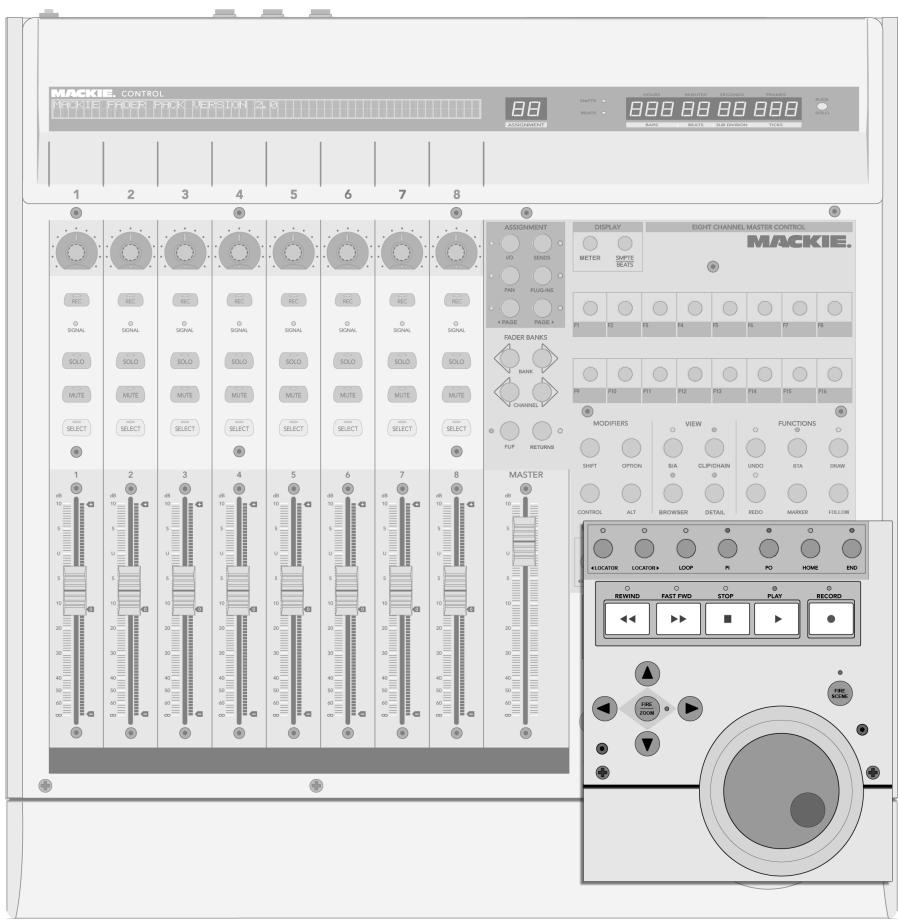
- Previous/Next Locator - Using these buttons, you can skip forward or backward through the Arrangement from locator to locator. Note that the Arrangement start and end are also marked with "invisible" locators to which you can navigate using these buttons. The LEDs above these buttons are illuminated when a previous/next locator is available in the respective direction.
The Transport Controls.
- Loop On/Off - Toggles the Arrangement Loop switch on/off.
- Punch-In/Punch-Out - Toggles Live's Punch-In/Punch-Out switches on/off.
- Home - Jumps to the Arrangement start, 1.1.1.
- End - Jumps to the Arrangement end.
- Rew/Forw – When pressed once, these buttons will move the play position one beat backward/forward. When held down, the buttons move forward/backward in increments of one bar during Arrangement playback, one beat if the Arrangement is stopped. Holding down the Mackie Control's Alt button when the Arrangement is playing will also move in one-beat increments forward/backward.
- Stop - Stops Arrangement playback.
- Play - Plays the Arrangement from the song start or insert marker.
- Record - Toggles the Record button on/off.
- Arrows -
- In the Session View, the arrows navigate through the Session View grid. Pressing the zoom button in the middle of the arrows will fire the currently selected clip, or stop another playing clip in the same track if the currently selected slot is empty. To stop playing the selected clip, hold down the Mackie Control's Options button while pressing zoom, and use the Alt button to add/remove the selected slot's Clip Stop button.
Note that the LEDs associated with the zoom buttons will display the play status of a clip: an illuminated LED signifies a playing clip; a blinking LED signifies a clip that has been triggered but is not yet playing; and an unilluminated LED signifies a stopped clip or empty slot.
- In the Arrangement View, with the zoom button enabled (i.e., its LED illuminated), you can use the arrow buttons for zooming and scrolling in the currently selected track. When zoom is not enabled, the arrow buttons can be used to select tracks.
- Scrub – This fires the currently selected scene in the Session View and has no effect in the Arrangement View. To stop all running clips, hold down the Mackie
Control's Options button while pressing this.
- Jog Wheel – In the Session View, the jog wheel scrolls through the scenes. In the Arrangement View, the jog wheel moves the play position. To change global quantization, hold down the Mackie Control's Control button while turning the jog wheel. You can also use the Mackie Control's Alt button in the Arrangement View to move the play position in smaller increments.
22.3.5 Software-Specific Controls

- Shift, Option, Control, Alt - Used to access additional Mackie Control options.
- SMPTE/Beats – Toggles between displaying beats/bars and SMPTE in the time display.
- Name/Value - Switches the meters in the main display on/off. Note that these
The Software-Specific Controls.
meters appear only when pan assignment mode is active.
- F-Keys – These keys can be mapped freely to controls in Live.
- ViewArr (On) - Toggles Arrangement View and Session View. When the Mackie Control's Shift key is held down, this sets the program focus to the Arrangement View or Session View, whichever is currently on screen.
- ToggleDetail (Rec/Rdy) - Toggles Clip View and Track View. When the Mackie Control's Shift key is held down, this sets the program focus to the Clip View or Track View, whichever is currently on screen.
- ViewBrowser (SnapShot) - Shows/hides the Browser. When the Mackie Control's Shift key is held down, this sets the program focus to the Browser.
- ViewDetail (Touch) – Shows/Hides the Clip/Track View. When the Mackie Control's Shift key is held down, this sets the program focus to the Clip View or Track View, whichever is currently on screen.
- Undo and Redo – Undoes/redoes the last change made to the Live Set. The LED will illuminate if there is an available action to undo/redo.
- BTA (Cancel) – Stops clips in the Session View from playing differently than how they were recorded into the Arrangement, and returns to playing the Arrangement. The LED will illuminate if there is an Arrangement state available to which to return.
- Locator (Marker) – Deletes a locator when a locator is currently selected and the song is stopped. Otherwise, it creates a new locator at the current play position.
- DrawMode (Enter) - Enables/disables Draw Mode, for drawing notes and envelopes.
- Follow (Mixer) - Toggles Follow Mode, which scrolls Live's display to follow playback.
Chapter 23
Computer Audio Resources and Strategies
Real-time audio processing is a demanding task for general-purpose computers, which are usually designed to run spreadsheets and surf the Internet. An application like Live requires a powerful CPU and a fast hard disk. This section will provide some insight on these issues, and should help you avoid and solve problems with running audio on a computer.
23.1 Managing the CPU Load
To output a continuous stream of sound through the audio hardware, Live has to perform a huge number of calculations every second. If the processor can't keep up with what needs to be calculated, the audio will have gaps or clicks. Factors that affect computational speed include processor clock rates (e.g., speed in MHz or GHz), architecture, memory cache performance (how efficiently a processor can grab data from memory) and system bus bandwidth – the computer's "pipeline" through which all data must pass. For this reason, many people involved with pro audio use computers that are optimized for musical applications.
Fortunately, Live supports multicore and multiprocessor systems, allowing the processing load from things like instruments, effects and I/O to be distributed among the available resources. Depending on the machine and the Live Set, the available processing power can be several times that of older systems.
If you are working on a multicore or multiprocessor system, you will want to enable support for it in the CPU tab of Live's Preferences.

The Control Bar's CPU meter displays how much of the computer's computational potential is currently being used. For example, if the displayed percentage is 10 percent, the computer is just coasting along. If the percentage is 100 percent, the processing is being maxed out – it's likely that you will hear gaps, clicks or other audio problems. Note that the CPU meter takes into account only the load from processing audio, not other tasks the computer performs (e.g., managing Live's user interface).
Audio calculations have the highest priority in Live. Therefore, even if the CPU shows a high percentage of processor usage, the audio stream should remain uninterrupted. However, non-critical functions (such as screen redraws) might slow down because these tasks are handled only when the audio processing "lightens up" a bit.
23.1.1 CPU Load from Multichannel Audio
One source of constant CPU drain is the process of moving data to and from the audio hardware. This drain can be minimized by disabling any inputs and outputs that are not required in a project. There are two buttons in the Audio Preferences to access the Input and Output Configuration dialogs, which allow activating or deactivating individual ins and outs.
Live does not automatically disable unused channels, because the audio hardware drivers usually produce an audible "hiccup" when there is a request for an audio configuration change.
The CPU Load Meter.
23.1.2 CPU Load from Tracks and Devices
Generally, every track and device being used in Live incurs some amount of CPU load. However, Live is "smart" and avoids wasting CPU cycles on tracks and devices that do not contribute anything useful.
For example, dragging devices into a Live Set that is not running does not significantly increase the CPU load. The load increases only as you start playing clips or feed audio into the effects. When there is no incoming audio, the effects are deactivated until they are needed again. (If the effect produces a "tail," like reverbs and delays, deactivation occurs only after all calculations are complete.)
While this scheme is very effective at reducing the average CPU load of a Live Set, it cannot reduce the peak load. To make sure your Live Set plays back continuously, even under the most intense conditions, play back a clip in every track simultaneously, with all devices enabled.
23.2 Managing the Disk Load
A hard drive's access speed (which is related to, but not the same thing as rotational speed) can limit Live's performance. Most audio-optimized computers use 7200 RPM or faster drives. Laptops, to save power, often use 5400 RPM or slower drives, which is why projects on laptops usually have lower track counts. The amount of disk traffic Live generates is roughly proportional to the number of audio channels being written or read simultaneously. A track playing a stereo sample causes more disk traffic than a track playing a mono sample.
The Disk Overload indicator flashes when the disk was unable to read or write audio quickly enough. When recording audio, this condition causes a gap in the recorded sample; when playing back, you will hear dropouts.
Do the following to avoid disk overload:
The Disk Overload Indicator.
- Reduce the amount of audio channels being written by choosing mono inputs instead of stereo inputs in the Audio Preferences' Channel Configuration dialog.
- Use RAM Mode for selected clips.
- Reduce the number of audio channels playing by using mono samples instead of stereo samples when possible. You can convert stereo samples to mono using any standard digital audio editing program, which can be called up from within Live.
Chapter 24
Live 7 Audio Fact Sheet
Much of Ableton's recent development effort has been focused on carefully and objectively testing Live's fundamental audio performance. As a result of this testing, we have implemented a number of low-level improvements to the audio engine. We have also written this fact sheet to help users understand exactly how their audio is (or is not) being modified when using certain features in Live that are often misunderstood, as well as tips for achieving the highest quality results.
As mentioned above, the focus of our research has been on objective (that is, quantifiable and measurable) behavior. We make no claims about what you can hear because we can't possibly predict the variables that make up your listening environment, audio hardware, hearing sensitivity, etc. Furthermore, this paper makes no claims about how Live compares to other audio software. Rather, it is a summary of measurable facts about what Live 7 actually does under various conditions.
24.1 Testing and Methodology
As of this writing, every version of Live is subjected to a suite of 473 automated tests that cover every aspect of Live's functionality. We add additional tests as we add features, and
we will never release an update unless it passes every test.
24.2 Neutral Operations
Procedures in Live that will cause absolutely no change in audio quality are referred to as neutral operations. You can be sure that using these functions will never cause any signal degradation. Applying neutral operations to audio that was recorded into Live ensures that the audio will be unchanged from the point of analog-to-digital conversion. Applying neutral operations to files imported into Live ensures that the imported audio will be identical to the files saved on disk. Applying neutral operations to files being exported from Live ensures that the quality of your output file will be at least as high as what you heard during playback.
The list of neutral operations found below is provided primarily as an abstract reference; while all of these operations are, in fact, neutral, it is important to remember that each of them may (and almost certainly will) occur within a context that also contains non-neutral operations. For example, running an audio signal through an effects device is a non-neutral operation. So any neutral operations that occur after it will, of course, still result in audio that is altered in some way. Even a gain change is, technically, non-neutral.
Neutral operations include:
24.2.1 Undithered Rendering
The Export Audio command renders Live's audio output to a file on disk. Rendering is a neutral operation under certain conditions:
- the sample rate of the rendered file is the same as that set for the audio hardware in Live's Preferences.
- no non-neutral operations have been applied.
Live's rendering performance is tested by loading three types of unprocessed audio files (white noise, fixed-frequency sine waves and sine sweeps) in 16-, 24- and 32-bit word lengths and rendering these to output files, also with varying bit resolutions. Phase cancellation testing of the original and output files shows the following:
- rendering to a file with the same bit depth as the original results in complete phase cancellation.
- rendering to a file with a higher bit depth than the original results in complete phase cancellation.
- rendering to a file with a lower bit depth than the original results in the smallest amount of distortion possible within a 32-bit system.
24.2.2 Matching sample rate/no transposition
Playback of an unstretched audio file in Live is a neutral operation, provided that the file's sample rate is the same as that set in Live's Preferences and that the file is played back without transposition. This is verified by cancellation tests of rendered output. Please note that "playback" in this context refers only to the audio within Live, prior to the point at which it reaches your audio hardware.
24.2.3 Unstretched Beats/Tones/Texture/Re-Pitch Warping
If the tempo of a Clip is the same as the tempo of the Set, that clip will play back unstretched. In this case, if the Warp mode of the Clip is set to Beats, Tones, Texture or Re-Pitch (but not Complex), playback will be neutral. Any Warping caused by changing the Set's tempo is non-permanent, and audio that plays back unwarped at a given tempo will always play back unwarped at that tempo, even if the tempo is changed and then changed back. For example, if you've recorded some tracks at 120 BPM, but then decide you'd like to slow the tempo down to record a particularly difficult solo passage, the original tracks will play back neutrally again after returning the tempo to 120 BPM. Only the recording made at the slower tempo will be stretched. Please note that the Global Groove functionality works by modifying the positions of Warp markers. This means that playback of audio clips with Global Groove applied will be non-neutral even at the original tempo.
The neutrality of unstretched clip playback is verified by performing cancellation tests on rendered output.
24.2.4 Summing at Single Mix Points
Live 7 uses double precision (64-bit) summing at all points where signals are mixed, including Clip and return track inputs, the Master track and Racks. Mixing in Live is thus a neutral operation for signals mixed at any single summing point. This is tested by loading pairs of 24-bit files (white noise and fixed-frequency sine waves and their phase-inverted complements), adding the pairs together eight times and rendering the output as 32-bit files. All tests result in perfect phase cancellation.
Please note that, while 64-bit summing is applied to each single mix point, Live's internal processing is still done at 32-bit. Thus, signals that are mixed across multiple summing points may still result in an extremely small amount of signal degradation. This combination of 64-bit summing within a 32-bit architecture strikes an ideal balance between audio quality and CPU/memory consumption.
24.2.5 Recording external signals (bit depth > / = A/D converter)
Recording audio signals into Live is a neutral operation, provided that the bit depth set in Live's Preferences window is the same or higher than that of the A/D converters used for the recording. In this context, "neutral" means "identical to the audio as it was delivered to Live by the A/D converters."
24.2.6 Recording internal sources at 32 bit
Audio that is recorded via internal routing will be identical to the source audio, provided that the recording was made at 32 bits. To ensure neutral recordings of plug-in instruments and any audio signals that are being processed by effects plug-ins, internal recording at 32 bits is recommended. Please note, however, that if the source audio is already at a lower bit depth, internal recording at that bit depth will also be neutral (assuming that no effects are used); internally recording an unprocessed 16 bit audio file at 32 bits will not increase the sound quality.
The neutrality of internal recording is verified using cancellation tests.
24.2.7 Freeze, Flatten
(Please note that freezing is not available in Live LE.)
When tracks are frozen, the audio files that are created are 32 bit, which ensures that they will not be lower quality than the audio heard prior to freezing. But there are some special cases involving Freeze that result in non-neutral behavior and should be noted:
- Frozen Arrangement View tracks can include audio material that extends beyond the end of the clip itself, such as reverb tails and delay repetitions. Frozen Session View tracks, however, are always exactly two loop cycles long, so any audio that extends beyond two loop cycles during un-frozen playback will be cut off after freezing.
- Time-based effects like reverbs and delays are processed in realtime for unfrozen clips, so stopping playback during a reverb or delay tail will allow the tail to continue. In contrast, frozen tails are rendered as audio, and so will stop abruptly during playback.
- Any parameter automations are rendered as part of the audio file for frozen Arrangement View clips. Frozen Session View clips, however, take a "snapshot" of all parameter values at the Arranger's 1.1.1 position and retain them for the duration of the frozen clip. This is analogous to the behavior with unfrozen clips; when playing normal clips in Session View, any Arrangement automations are "punched out" until the Back to Arrangement button is pressed.
- Frozen clips are always played back with Warp on and in Beats mode, which means they are subject to the same non-neutral behavior as any other Warped audio files.
- Any devices with random parameters (e.g., the Chance control in the Beat Repeat device) will no longer exhibit random behavior after freezing. This is because, as with time-based effects, the random values that were in place at the moment of freezing will be rendered as part of the new file, and will thus no longer be calculated in real-time.
Please note that the Flatten command replaces any original clips and devices with the audio files created by freezing. When using this command, it is important to keep in mind the special cases above – what you hear after freezing is exactly what you will get when flattening, so if the results are not to your liking, be sure to unfreeze and make any necessary changes to device parameters before invoking the Flatten command.
This procedure is tested by rendering the output of an audio track and comparing it to the
frozen audio from the same track via phase cancellation to ensure that the files are identical.
24.2.8 Bypassed Effects
Bypassed effects in Live are removed from the signal flow. This is true for both Live's built-in effects devices and third-party VST and AU plug-ins. Consequently, audio at the output of a bypassed effect is identical to the audio at the input. Please note, however, that effects devices with parameters that inherently require delay (e.g., the Look Ahead settings in Compressor) will still introduce this delay when bypassed, in order to maintain automatic delay compensation with the rest of the project. In most cases, the effects of this behavior will be completely inaudible.
The neutrality of bypassed effects is tested by loading one instance of each of Live's effects devices into an audio track, deactivating them, and then rendering the output of the track. The rendered file is then compared to the rendered output of the same track with no loaded devices. Phase cancellation testing of the two files confirms that they are identical.
24.2.9 Routing
The routing of signals within Live is a neutral operation. The signal at the routing destination will be identical to the signal at the routing source. It is important to note that Live's flexible routing architecture allows for a variety of scenarios, including routing from before or after any track's effects or mixer and tapping the output of individual sample slots within the Impulse instrument. In these cases, it is likely that the signal heard at the output point will be different from the signal heard prior to routing, because it has been tapped before reaching the end of its original signal chain.
24.2.10 Splitting Clips
Clips which are already neutral will remain neutral after splitting. Splitting only affects playback position within the sample, and has no effect on the sample data itself. Playback across a split boundary is seamless and sample-accurate.
The neutrality of clip splitting is tested under a variety of conditions:
- splitting unwarped clips with loop on and off;
- splitting warped but unstretched clips with loop on and off;
In all cases, output is rendered and compared with the output of an unsplit version of the same source. Phase cancellation testing of the two files confirms that they are identical.
24.3 Non-Neutral Operations
Procedures in Live that will cause a change in audio quality are referred to as non-neutral operations. Users can be guaranteed that using these operations will cause at least some change to the signal. Applying non-neutral operations to files imported into Live ensures that the imported audio will differ from the files saved on disk. Applying non-neutral operations to files being exported from Live ensures that what you hear during realtime playback will be different from what will end up in your new file.
Non-neutral operations include:
24.3.1 Playback in Complex Mode
(Please note that Complex Warp Mode is not available in Live LE.)
The algorithm used in Complex Warp Mode is an entirely different technology from the algorithms behind Beats, Tones and Texture modes. Although Complex Mode may sound better, particularly when used with mixed sound files that are comprised of many different kinds of audio material, it is never neutral – not even at the original tempo. Because of this, and because of the algorithm's increased CPU demands, we recommend using it only in cases where the other Warp modes don't produce sufficient results.
24.3.2 Sample rate conversion/transposition
Sample rate conversion (during both real-time playback and rendering) is a non-neutral operation. Playback of audio files at a sample rate that is different from the rate set in Live's Preferences window will cause signal degradation. Transposition is also a form of sample-rate conversion, and thus also results in non-neutral behavior.
To minimize potential negative results, it is recommended to do sample rate conversion as an offline process in another application. Once the samples have been converted to the sample rate that you plan to use in Live, the files can be imported without any loss of quality.
Rendering audio from Live with a sampling rate other than the one that was used while working on the project is also a non-neutral operation, and may result in a loss of sound quality. It is recommended to always render using the original sampling rate, and then convert the rendered file using a dedicated mastering application that is optimized for these kinds of CPU-intensive, offline tasks.
While we recommend that you use a high-quality offline tool for sample rate conversion, we recognize that one of Live's core features is its ability to pitch-shift and warp audio in real time. For this situation, it is necessary to make a trade-off between CPU performance and precision. We recommend the use of the Hi-Q button for any clips which undergo transposition in a given Set. The algorithm behind the Hi-Q switch has been rewritten for Live 7, and now results in considerably lower distortion than in previous versions.
24.3.3 Volume Automation
Automation of volume level results in a change in gain, which is necessarily a non-neutral operation. But certain implementations of automation envelopes can result in audible artifacts, particularly if the envelopes are not calculated at a fast enough rate. In Live 7, volume automation curves are updated for each audio sample, resulting in extremely low levels of distortion.
24.3.4 Dithering
Whenever rendering audio to a lower bit depth, it is a good idea to apply dithering in order to minimize artifacts. Dithering (a kind of very low-level noise) is inherently a non-neutral procedure, but it is a necessary evil when lowering the bit resolution.
Please note that Live's internal signal processing is all 32-bit, so applying even a single gain change makes the resulting audio 32-bit as well - even if the original audio is 16- or 24-bit. Dither should never be applied more than once to any given audio file, so unless you are mastering and finalizing in Live, it is best to always render at 32-bit and avoid dithering altogether.
24.3.5 Recording external signals (bit depth vs. A/D converter)
Recording audio signals into Live is a non-neutral operation if the bit depth set in Live's Preferences window is lower than that of the A/D converters used for the recording. This is not recommended.
24.3.6 Recording internal sources below 32 bit
Audio that is recorded via internal routing will lose quality if the recording is made at a bit depth below 32 bits. To ensure neutral recordings of plug-in instruments and any audio signals that are being processed by effects plug-ins, internal recording at 32 bits is recommended. Please note, however, that if the source audio is already at a lower bit depth, internal recording at that bit depth will also be neutral (assuming that no effects are used); internally recording an unprocessed 16 bit audio file at 32 bits will not increase the sound quality.
24.3.7 Consolidate
Consolidating clips in the Arrangement View creates new audio files, which are non-neutral in comparison to the original audio data. Specifically, the new files will be normalized, with their clip volumes adjusted to play back at the same volume as heard prior to consolidation.
Normalization is a gain change, which is a non-neutral operation. Also, the new files will be created at the sample rate and bit depth set in Live's Preferences window, which may differ from those in the original audio files.
24.3.8 Clip fades
With Clip Fade enabled, a short (up to 4 ms) fade is applied to the clip start and end to avoid clicks at the clip edges. This is a non-neutral operation.
24.3.9 Panning
Live uses constant power panning with sinusoidal gain curves. Output is 0 dB at the center position and signals panned fully left or right will be increased by +3 dB. In order to minimize this volume change, it may be helpful to narrow the overall stereo width before doing extreme panning. This can be done via the Width control in the Utility device.
24.3.10 Global Groove Changes
Under most conditions, playback of a warped clip that is at the same tempo as the Set is a neutral operation. However, if the Global Groove amount is adjusted and the clip has a Clip Groove setting other than Straight, playback will be non-neutral at any tempo.
24.4 Tips for Achieving Optimal Sound Quality in Live
For users looking to achieve optimal audio quality in Live, we have provided a list of recommended practices and program settings.
- Decide which sample rate to use for a project prior to beginning work, rather than changing the sample rate while working on the project.
- Record audio into Live using high-quality hardware components (audio interface, cables, etc.) and at the highest sample rate and bit depth your interface and computer will support.
- Avoid using samples that are at different sample rates within the same project. If you want to work with such files, we recommend that you first convert them to the sample rate set for your audio interface in an offline application that is optimized for this task.
- For all audio clips, disable both the Warp and Fade options in the Clip View.
- Do not adjust the Transpose and Detune controls for any clips.
- Always render at 32-bit and at the sample rate set for your audio interface. If you need audio files at a different sample rate and/or bit depth, we recommend that you convert your rendered files in an offline application that is optimized for these tasks, rather than in Live.
Please note that these practices, while ensuring optimal audio quality, disable some of Live's functionality – in particular, stretching and synchronization.
24.5 Summary and Conclusions
Ableton wrote this paper in order to help users understand exactly how audio is affected when performing various procedures in Live. Our focus has been on functions that have proven over the years to cause confusion or uncertainty, and the list of both neutral and non-neutral operations presented here is necessarily incomplete.
We encourage you to refer to this paper if you have any questions about the functions discussed, but we also encourage you to contact us 1 if you have additional questions that we haven't answered. Live is a product, but it is also an ongoing process, and one that benefits greatly from user input.
Chapter 25
Live 7 MIDI Fact Sheet
In conjunction with our work on the audio engine, Ableton has spent additional effort analyzing Live's MIDI timing and making improvements where necessary. We wrote this fact sheet to help users understand the problems involved in creating a reliable and accurate computer-based MIDI environment, and to explain Live's approach to solving these problems.
Note: the MIDI timing issues discussed in this paper are generally not applicable to users with high-quality audio and MIDI hardware. If you have already invested time and money into optimizing these factors in your studio, and are not experiencing problems with MIDI timing, you probably do not need this information.
25.1 Ideal MIDI Behavior
To understand how MIDI works within a digital audio workstation (DAW), it is helpful to introduce some common terms and concepts. A DAW must be able to accommodate three distinct MIDI-related scenarios:
1) Recording refers to sending MIDI note and controller information from a hard-
ware device (such as a MIDI keyboard) into a DAW for storage. An ideal recording environment would capture this incoming information with perfect timing accuracy in relation to the timeline of the song – as accurately as an audio recording.
2) Playback refers to two related scenarios when dealing with DAWs. The first involves sending MIDI note and controller information from the DAW to a hardware device such as a synthesizer. The second involves converting stored MIDI information into audio data within the computer, as played back by a plug-in device such as the Operator synthesizer. In both cases, an ideal playback environment would output a perfect reproduction of the stored information. 3) Playthrough involves sending MIDI note and controller information from a hardware device (such as a MIDI keyboard) into the DAW and then, in real-time, back out to a hardware synthesizer or to a plug-in device within the DAW. An ideal playthrough environment would "feel" as accurate and responsive as a physical instrument such as a piano.
The realities of computer-based MIDI are complex, and involve so many variables that the ideal systems described above are impossible to achieve. There are two fundamental issues:
The realities of computer-based MIDI are complex, and involve so many variables that the ideal systems described above are impossible to achieve. There are two fundamental issues:
1) Latency refers to inherent and consistent delay in a system. This is a particular problem in a DAW because digital audio cannot be transferred into or out of an audio interface in real time, and must instead be buffered. But even acoustic instruments exhibit a certain degree of latency; in a piano, for example, there is some amount of delay between the time a key is depressed and the time the hammer mechanism actually activates the string. From a performance perspective, small latency times are generally not a problem because players are usually able to adapt the timing of their playing to compensate for delays – as long as the delays remain consistent. 2) Jitter refers to inconsistent or random delay in a system. Within a DAW, this can be a particular problem because different functions within the system (e.g., MIDI, audio and the user interface) are processed separately. Information often
needs to be moved from one such process to another – when converting MIDI data into a plug-in's playback, for example. Jitter-free MIDI timing involves accurate conversion between different clocks within the system's components – the MIDI interface, audio interface, and the DAW itself. The accuracy of this conversion depends on a variety of factors, including the operating system and driver architecture used. Jitter, much more so than latency, creates the feeling that MIDI timing is "sloppy" or "loose."
25.3 Live's MIDI Solutions
Ableton's approach to MIDI timing is based on two key assumptions:
- In all cases, latency is preferable to jitter. Because latency is consistent and predictable, it can be dealt with much more easily by both computers and people.
- If you are using playthrough while recording, you will want to record what you hear - even if, because of latency, this occurs slightly later than what you play.
Live 7 addresses the problems inherent in recording, playback and playthrough so that MIDI timing will be responsive, accurate and consistently reliable. In order to record incoming events to the correct positions in the timeline of a Live Set, Live needs to know exactly when those events were received from the MIDI keyboard. But Live cannot receive them directly – they must first be processed by the MIDI interface's drivers and the operating system. To solve this problem, the interface drivers give each MIDI event a timestamp as they receive it, and those are passed to Live along with the event so that Live knows exactly when the events should be added to the clip.
During playthrough, a DAW must constantly deal with events that should be heard as soon as possible, but which inevitably occurred in the past due to inherent latency and system delays. So a choice must be made: should events be played at the moment they are received (which can result in jitter if that moment happens to occur when the system is busy) or should they be delayed (which adds latency)? Ableton's choice is to add latency, as we believe that it is easier for users to adjust to consistent latency than to random jitter.
When monitoring is enabled during recording, Live adds an additional delay to the timestamp of the event based on the buffer size of your audio hardware. This added latency
makes it possible to record events to the clip at the time you hear them – not the time you play them.
For playback of hardware devices, Live also generates timestamps that it attempts to communicate to the MIDI interface drivers for scheduling of outgoing MIDI events. Windows MME drivers cannot process timestamps, however, and for devices that use these drivers, Live schedules outgoing events internally.
Even during high system loads that cause audio dropouts, Live will continue to receive incoming MIDI events. In the event of audio dropouts, there may be timing errors and audio distortion during playthrough, but Live should still correctly record MIDI events into clips. Later, when the system has recovered from the dropouts, playback of these recorded events should be accurate.
25.4 Variables Outside of Live's Control
In general, timestamps are an extremely reliable mechanism for dealing with MIDI event timing. But timestamps are only applicable to data within the computer itself. MIDI data outside of the computer can make no use of this information, and so timing information coming from or going to external hardware is processed by the hardware as soon as it arrives, rather than according to a schedule. Additionally, MIDI cables are serial, meaning they can only send one piece of information at a time. In practice, this means that multiple notes played simultaneously cannot be transmitted simultaneously through MIDI cables, but instead must be sent one after the other. Depending on the density of the events, this can cause MIDI timing problems.
Another issue that can arise, particularly when working with hardware synthesizers from the early days of MIDI, is that the scan time of the device may occur at a relatively slow rate. Scan time refers to how often the synthesizer checks its own keyboard for input. If this rate is too slow, jitter may be introduced.
Of course, any such timing problems present at the hardware level may be multiplied as additional pieces of gear are added to the chain.
Even within the computer, the accuracy of timestamps can vary widely, depending on the quality of the MIDI hardware, errors in driver programming, etc. Live must assume that any
Timestamps attached to incoming MIDI events are accurate, and that outgoing events will be dealt with appropriately by any external hardware. But both situations are impossible for Live to verify.
25.5 Tests and Results
Our procedure for testing the timing of incoming MIDI events is represented in the following diagram:
MIDI Input Test Configuration.
The output of a MIDI Source (a keyboard or other DAW playing long sequences of random MIDI events) is fed to a zero-latency hardware MIDI Splitter. One portion of the splitter's output is recorded into a new MIDI clip in Live. The other portion is fed to a MIDI-to-Audio Converter. This device converts the electrical signal from the MIDI source into simple audio noise. Because the device does not interpret the MIDI data, it performs this conversion with zero-latency. The converter's output is then recorded into a new audio clip in Live. In an ideal system, each event in the MIDI clip would occur simultaneously with the corresponding event in the audio clip. Thus the difference in timing between the MIDI and audio events in the two clips can be measured to determine Live's accuracy.
In order to assess MIDI performance under a variety of conditions, we ran the tests with three different audio/MIDI combo interfaces at different price points, all from well-known manufacturers. We will refer to these interfaces as A, B and C. All tests were performed with a CPU load of approximately 50% on both OS X and Windows machines, at both 44.1 and 96 kHz and at three different audio buffer sizes, for a total of 36 discrete test configurations.
Windows:
- Interface A: The maximum jitter was +/- 4 ms, with the majority of the jitter occurring at +/- 1 ms.
- Interface B: For most of the tests, the maximum jitter was +/- 3 or 4 ms. At 96 kHz and 1024 sample buffer, there were a small number of events with +/- 5 ms of jitter. At 44.1 kHz and 512 sample buffer, occasional events with +/- 6 ms occurred. In all cases, the majority of the jitter occurred at +/- 1 ms.
- Interface C: For most of the tests, the maximum jitter was +/- 5 ms. At 96 kHz and 512 sample buffer, there were a small number of events with between +/- 6 and 8 ms of jitter. At 44.1 kHz and 1024 sample buffer, there were a small number of events with jitter as high as +/- 10 ms. In all cases, the majority of the jitter occurred at +/- 1 ms.
OS X:
- Interface A: At 44.1 kHz and 1152 sample buffer, jitter was fairly evenly distributed between +/- 4 and 11 ms. For all other tests, the maximum jitter was +/- 5 ms. In all tests, the majority of the jitter occurred at +/- 1 ms.
- Interface B: For most of the tests, the maximum jitter was +/- 4 or 5 ms. At 44.1 kHz and 1152 sample buffer, there was a fairly even distribution of jitter between +/- 2 and 11 ms. In all cases, the majority of the jitter occurred at +/- 1 ms.
- Interface C: In all tests, the maximum jitter was +/- 1 ms, with most events occurring with no jitter.
We also performed a similar procedure for testing the timing of outgoing MIDI events, as represented in the following diagram:
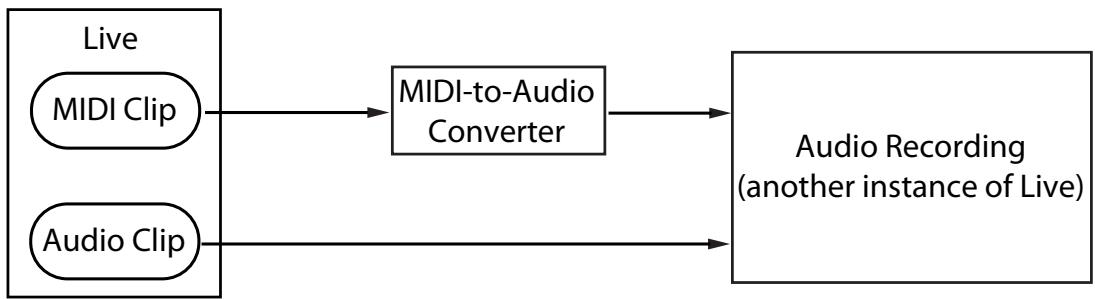
MIDI Output Test Configuration.
In all cases, the output tests showed comparable results to the input tests.
25.6 Tips for Achieving Optimal MIDI Performance
In order to help users achieve optimal MIDI performance with Live, we have provided a list of recommended practices and program settings.
- Use the lowest possible buffer sizes available on your audio hardware, thereby keeping latency to a minimum. Audio buffer controls are found in the Audio tab of Live's Preferences, and vary depending on the type of hardware you're using. For more information, see the Lesson "Setting Up Audio I/O."
- Use a high quality MIDI interface with the most current drivers in order to ensure that MIDI timestamps are generated and processed as accurately as possible.
- Do not enable track monitoring if you are recording MIDI while listening directly to a hardware device such as an external synthesizer (as opposed to listening to the device's audio through Live via the External Instrument device). Likewise, disable track monitoring when recording MIDI data that is generated by another MIDI device (such as a drum machine). When monitoring is enabled, Live adds latency to compensate for playthrough jitter. Therefore, it is important to only enable monitoring when actually playing through.
- The DirectMusic architecture on Windows allows outgoing MIDI events to be scheduled by the operating system rather than scheduled by Live alone, so performance may differ depending on whether or not you're using MME or DirectMusic mode. If
you experience timing issues, we recommend switching to the other mode. This is set in the MIDI Ports list in the MIDI/Sync Preferences.
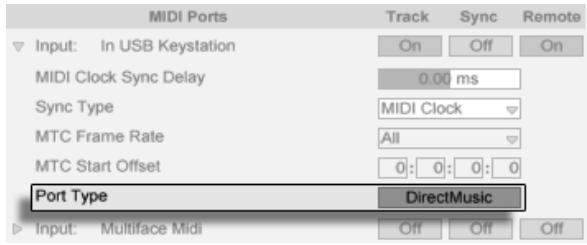
Selecting the MIDI Port Type (Windows).
25.7 Summary and Conclusions
Ableton wrote this paper in order to help users understand a variety of related topics:
- the inherent problems in computer-based MIDI systems;
- our approach to solving these problems in Live;
- additional variables that we cannot account for.
As mentioned before, the best way to solve MIDI timing issues in your studio is to use the highest-quality hardware components available. For users of such components, all software MIDI systems should perform with no noticeable issues. For users with less-than-optimal hardware, however, Live still offers an additional degree of accuracy by minimizing jitter, but at the expense of a small amount of additional latency.
We encourage you to refer to this paper if you have any questions about Live's approach to MIDI timing, but we also encourage you to contact us 1 if you have additional questions or concerns that we haven't addressed.
Chapter 26
Live Keyboard Shortcuts
26.1 Showing and Hiding Views
| Windows | Macintosh | |
| Toggle Full Screen Mode | F11 | Ctrl F11 |
| Toggle Session/Arrangement View | ||
| Toggle Track/Clip View | or F12 | Ctrl F12 or |
| Hide/Show Detail View | or F12 | Ctrl F12 or |
| Hide/Show Info View | ? | ? |
| Hide/Show Browser | Ctrl Alt B | Alt B |
| Hide/Show Overview | Ctrl Alt O | Alt O |
| Hide/Show In/Out | Ctrl Alt I | Alt I |
| Hide/Show Sends | Ctrl Alt S | Alt S |
| Hide/Show Mixer | Ctrl Alt M | Alt M |
| Hide/Show Crossfader | Ctrl Alt F | Alt F |
| Open the Preferences | Ctrl | |
| Close Window/Dialog | Esc | Esc |
26.2 Accessing Menus
Under Windows, you can access each menu by pressing Alt and the first letter of the menu (Alt F for "File," for instance). While a menu is open, you can use:
- to navigate the menu items;
- to open the neighboring menu;
- Return to choose a menu item.
26.3 Adjusting Values
| Windows | Macintosh | |
| Increment/Decrement | ↓ ↑ | ↓ ↑ |
| Large Increment/Decrement | ↓ Page ↑ Page | ↓ Page ↑ Page |
| Finer Resolution for Dragging | Ctrl | 3 8 |
| Return to Default | Delete | ← |
| Type in Value | 0..9 | 0..9 |
| Go to Next Field (Barbeat.16th) | . , | . , |
| Abort Value Entry | Esc | Esc |
| Confirm Value Entry | Return | Return |
26.4 Browsing
In addition to the shortcuts shown here, editing shortcuts can also be used in the Browser.
| Windows | Macintosh | |
| Scroll Up/Down | ↓ ↑ | ↓ ↑ |
| Open/CloseFolders | ← → | ← → |
| Set Selected Folder as Browser Root | Return | Return |
| Load Selected Item from Browser | Return or Double-Click | Return or Double-Click |
| Preview Selected File | Return | Return |
| Activate Browser Search Mode | Ctrl F | Shift F |
| Jump to Search Results | ↓ | ↓ |
26.5 Transport
| Windows | Macintosh | |
| Play from Start Marker/Stop | Space | Space |
| Continue Play from Stop Point | Space | Space |
| Play Arrangement View Selection | Ctrl Space | Alt Space |
| Record | F9 | F9 |
| Back to Arrangement | F10 | F10 |
| Activate/Deactivate Track 1..8 | F1 ... F8 | F1 ... F8 |
26.6 Editing
| Windows | Macintosh | |
| Cut | Ctrl X | C X |
| Copy | Ctrl C | C C |
| Paste | Ctrl V | C V |
| Duplicate | Ctrl D | D D |
| Delete | Delete | ← |
| Undo | Ctrl Z | Z |
| Redo | Ctrl Y | Z |
| Rename | Ctrl R | R |
| Select All | Ctrl A | A |
By holding down an additional modifier key, some of the above commands can also be applied to:
| Windows | Macintosh | |
| Clips and Slots Across all Tracks | ||
| Time Across all Tracks | ||
| The Selected Part of the Envelope | Alt | Alt |
can be used to move from one track or scene to another while renaming.
26.7 Loop Brace and Start/End Markers
The loop brace and start/end markers must first be selected before any of the following commands will apply to them.
| Windows | Macintosh | |
| Move Start Marker to Position | Click | Click |
| Nudge Loop Left/Right | ←→ | ←→ |
| Move Loop By Loop Length | ↓↑ | ↓↑ |
| Double/Halve Loop Length | Ctrl ↓↑ | Ctrl ↓↑ |
| Shorten/Lengthen Loop | Ctrl ←→ | Ctrl ←→ |
| Select Material in Loop | Click Loop Brace or Ctrl L | Click Loop Brace or Ctrl L |
26.8 Session View Commands
See also the editing commands.
| Windows | Macintosh | |
| Launch Selected Clip/Slot | Return | Return |
| Select Neighbouring Clip/Slot | Arrow Keys | Arrow Keys |
| Select all Clips/Slots | Ctrl A | A |
| Copy Clips | Ctrl Drag | Drag |
| Add/Remove Stop Button | Ctrl E | E |
| Insert MIDI clip | Ctrl M or Double-Click Slot | M or Double-Click Slot |
| Insert Scene | Ctrl I | I |
| Insert Captured Scene | Ctrl I | I |
| Drop Browser Clips as a Scene | Ctrl | I |
26.9 Arrangement View Commands
The shortcuts for zooming, snapping/drawing and loop/region settings also work in the Arrangement View. See also the editing commands.
| Windows | Macintosh | |
| Split Clip at Selection | Ctrl E | E |
| Consolidate Selection into Clip | Ctrl J | J |
| Loop Selection | Ctrl L | L |
| Insert Silence | Ctrl I | I |
| Pan Left/Right of Selection | Ctrl Alt | Alt |
| Unfold all Tracks | Alt Unfold button | Unfold button |
| Scroll Display to Follow Playback | Ctrl F | F |
26.10 Commands for Tracks
See also the editing commands.
| Windows | Macintosh | |
| Insert Audio Track | Ctrl T | T |
| Insert MIDI Track | Ctrl T | T |
| Insert Return Track | Ctrl Alt T | Alt T |
| Rename Selected Track | Ctrl R | R |
| While Renaming, Go to next Track | → | → |
| Arm/Solo Multiple Tracks | Ctrl Click | Click |
| Add Device from Browser | Double-Click | Double-Click |
26.11 Commands for Breakpoint Envelopes
The shortcuts for zooming, snapping/drawing and loop/region settings also work in the Envelope Editor and Arrangement View. See also the editing commands.
| Windows | Macintosh | |
| Finer Resolution for Dragging | Ctrl | 3 8 |
| Enable Dragging Over Breakpoints | 4 | 4 |
26.12 Key/MIDI Map Mode and the Computer MIDI Keyboard
| Windows | Macintosh | |
| Toggle MIDI Map Mode | Ctrl M | M |
| Toggle Key Map Mode | Ctrl K | K |
| Computer MIDI Keyboard | Ctrl K | K |
26.13 Zooming, Display and Selections
| Windows | Macintosh | |
| Zoom In | + | + |
| Zoom Out | - | - |
| Drag/Click to Append to a Selection | \ | \ |
| Click to Add Adjacent Clips to Multi-Selection | \ | \ |
| Click to Add Nonadjacent Clips to a Multi-Selection | Ctrl | F |
| Follow (Auto-Scroll) | Ctrl F | F |
| Pan Left/Right of Selection | Ctrl Alt | Alt |
26.14 Clip View Sample Display
The shortcuts for zooming and loop/region settings also work in the Sample Display.
| Windows | Macintosh | |
| Move Selected Warp Marker | ←→ | ←→ |
| Select Warp Marker | Ctrl←→ | Ctrl←→ |
| Scroll Display to Follow Playback | Ctrl F | FCtrl |
| Move Clip Region with Start Marker | ←←→ | ←←→ |
26.15 Clip View MIDI Editor
The shortcuts for zooming, snapping/drawing and loop/region settings also work in the MIDI Editor.
| Windows | Macintosh | |
| Quantize | Ctrl U | U |
| Scroll Editor Vertically | ↓Page ↑Page | ↓Page ↑Page |
| Scroll Editor Horizontally | Ctrl ↓Page ↑Page | ↓Page ↑Page |
| Copy Note | Ctrl Drag | Alt Drag |
| Change Velocity From Note Editor | Alt Drag | Drag |
| Add/Delete Note in Edit Mode | Double-Click | Double-Click |
| Scroll Display to Follow Playback | Ctrl F | F |
| Move Clip Region with Start Marker | ← → | ← → |
26.16 Grid Snapping and Drawing
| Windows | Macintosh | |
| Toggle Draw Mode | Ctrl B | C B |
| Narrow Grid | Ctrl 1 | C B 1 |
| Widen Grid | Ctrl 2 | C B 2 |
| Triplet Grid | Ctrl 3 | C B 3 |
| Snap to Grid | Ctrl 4 | C B 4 |
| Fixed/Zoom-Adaptive Grid | Ctrl 5 | C B 5 |
| Bypass Snapping While Dragging | Alt | C B |
26.17 Global Quantization
| Windows | Macintosh | |
| Sixteenth-Note Quantization | Ctrl 6 | 6 |
| Eighth-Note Quantization | Ctrl 7 | 7 |
| Quarter-Note Quantization | Ctrl 8 | 8 |
| 1-Bar Quantization | Ctrl 9 | 9 |
| Quantization Off | Ctrl 0 | 0 |
26.18 Working with Sets and the Program
| Windows | Macintosh | |
| New Live Set | Ctrl N | C B N |
| Open Live Set | Ctrl O | C B O |
| Close Live Set | Ctrl W | C B W |
| Save Live Set | Ctrl S | C B S |
| Save Live Set As... | Ctrl S | C B S |
| Quit Live | Ctrl Q | C B Q |
| Hide Live | C B H | |
| Export Audio/Video | Ctrl R | C B R |
| Export MIDI file | Ctrl E | C B E |
26.19 Working with Plug-Ins and Devices
| Windows | Macintosh | |
| Show/Hide Plug-In Windows | Ctrl Alt P | Alt P |
| Open Second/Multiple Windows with Plug-In Edit Button | Ctrl | |
| Open Mac Keystroke Plug-In Window with Plug-In Edit Button | ||
| Group/Ungroup Devices | Ctrl G | G |
| Activate/Deactivate All Devices in Group | Alt Device Activator | Alt Device Activator |
| Click to Append Devices to a Selected Device | ||
| Load Selected Device From Browser | Return or Double-Click | Return or Double-Click |
26.20 Using the Context Menu
A context menu is available in Live for quick access to many commonly used menu items. To access the context menu, (PC) / Ctrl (Mac) on the part of the interface where you would like to execute a particular command. It is worth noting that Live's context menu may sometimes contain applicable settings from the Preferences. You should change these options with care, as they will affect not only the currently selected item but the general settings of the program.
Some commands only appear in the context menu. Among these are: the Create Folder, Analyze Audio, Search In Folder, Close All Folders and Refresh commands from the Browser; the special grid marker commands for directing Auto-Warp; and detailed options for zoom-adaptive and fixed grid line width.
Chapter 27
Live 7 LE vs. Live 7 Comparison Chart
| Live 7 LE | Live 7 | |
| Maximum number of audio tracks per project | 64 | Unlimited |
| Maximum number of MIDI tracks per project | Unlimited | Unlimited |
| Maximum audio bit depth and resolution | 32-bit/192kHz | 32-bit/192kHz |
| Maximum number of audio inputs | 2 stereo | Unlimited |
| Maximum number of audio outputs | 2 stereo | Unlimited |
| Includes Simpler instrument for sample-based synthesis | Yes | Yes |
| Includes Impulse instrument for percussion sound design | Yes | Yes |
| Maximum number of Ableton instruments per project | 8 | Unlimited |
| Number of included Ableton audio effects | 23 | 23 |
| Maximum number of Ableton audio effects per project | 12 | Unlimited |
| Number of included Ableton MIDI effects | 7 | 7 |
| Maximum number of Ableton MIDI effects per project | Unlimited | Unlimited |
| External VST/AU instrument instances per project | 2 | Unlimited |
| External VST/AU effect instances per project | 2 | Unlimited |
| Effect sidechaining | Yes | Yes |
| Instrument-, Drum-, Effect Rack editing | No | Yes |
| Time signature changes | Yes | Yes |
| Session View | Yes | Yes |
| Maximum number of scenes per project | 8 | Unlimited |
| Number of included real-time time-stretching algo-rithms | 4 | 5 |
| Multiple automation lanes | Yes | Yes |
| Native audio slicing support | No | Yes |
| Maximum number of send and return tracks per project | 2 | 12 |
| Track Freeze | No | Yes |
| Clip envelopes and Follow Actions | Yes | Yes |
| External Instrument/Audio Effect devices | No | Yes |
| Automatic plug-in delay compensation | Yes | Yes |
| Tempo Nudge | No | Yes |
| MIDI remote control instant mapping | Yes | Yes |
| MIDI output to hardware synths | No | Yes |
| MIDI Clock/sync | No | Yes |
| ReWire | No | Yes |
| REX file support | No | Yes |
| Multicore/multiprocessor support | Yes | Yes |
| SmartPriming memory management | Yes | Yes |
| POW-R dithering | No | Yes |
| Video import and export | No | Yes |
| WAV, AIFF, MP3, Ogg Vorbis, FLAC file support | Yes | Yes |
Index
A
Ableton
e-mail addresses
sales 13
technical support 12
web addresses
registration 10
unlocking 11
webshop 12
Adaptive Grid options
Add/Remove Stop Button command
analysis files 42
storing clip settings in 107
analysis of files
batch processing 43
Analyze Audio command 43
Arm Recording button 169, 180
Arpeggiator effect 272
Arrangement . . . . see Arrangement View
Arrangement Overview 71
Arrangement Position fields 73
Arrangement View 70
and copying to Session 92
and Session View 15
grid snapping 80
insert marker 72
looping in the 77
navigation 71
recording new clips in the 181
scrub area 72
Arrangement View selector 15
asd files. See analysis files.
audio clips. See clips.
audio effects. See devices.
Audio Fact Sheet 322
neutral operations 323
non-neutral operations 328
testing and methodology 322
tips 331
audio files. See samples.
audio interface setup. See Audio
Preferences, see routing
Audio Preferences 6
audio tracks. See tracks
Audio Units Plug-ins, using .... see devices
authorization . . . . . . see copy protection
Authorizations/Trial Preferences 6, 9
Auto Filter effect 234
Auto Pan effect 237
Auto-Hide Plug-In Windows preference 200
Auto-Open Plug-In Windows preference 200
Auto-Warp 120
Auto-Warp Long Samples preference .. 115
Automatic Rescan on Each Search 36
automation 26, 214
and grid lines 218
drawing 217
editing 218
overriding/reactivating 215
recording 214
Automation Control chooser 217
Automation Device chooser 216
B
Back to Arrangement button 17, 91, 215
Beat Repeat effect 238
beat-time ruler
and Arrangement editing 71
and editing envelopes 231
and editing MIDI 129
in the MIDI Editor 130
Beats Mode 125
Bit Depth preference 187
bookmarks 34
breakpoint envelopes . see automation, see clip envelopes
Browser . . . . . . . see File Browser, see Live Device Browser, see Plug-In Device Browser
browsing files 31
C
Capture and Insert Scene command ....90
challenge code 10
Check for Updates command 1
Chord effect 276
Chorus effect 240
Clip Activator switch 97
Clip box 95
Clip Color chooser 97
Clip Envelope Control chooser 223
Clip Envelope Device chooser 222
clip envelopes 27,221
and changing note pitch 224
and changing note volume 226
as LFOs 233
changing clips for 227
creating long loops with 232
for MIDI controls 229
general editing of 222
imposing rhythm with 233
loop/region settings for 230
mixer control modulation with .....228
scrambling beats with 226
unlinking from clips 231
using for fade-outs 230
Clip Fade switch 108
Clip Gain slider 106
Clip Groove chooser 98
Clip Launch button 85
Clip Name field 97
Clip Nudge buttons 99
Clip Overview 94
for zooming/scrolling 102
Clip Quantization chooser 142
Clip Record button 25, 183
Clip Signature fields 98
Clip Stop button 85
adding/removing 90
Clip Update Rate preference 112
Clip View 93
and playing the Arrangement 73
and remote control mapping 305
scrub area 103
Clip View boxes selector . 96, 128, 140, 222
clips 15
adding fades to 108
arranging/editing 78
as templates 227
audio clips 18
clip multi-selections 94
deactivating/muting 97
editing MIDI notes/velocities 127
importing from files 38
in Arrangement View 78
in audio/MIDI tracks 17
in Session View 85
Live Clips 47
MIDI clips 19
renaming 97
reversing 109
saving settings for 107
setting properties of 93
Close All Folders command 33
color scheme . . . . . . see Skin preference
Complete Fragmentary Bar command ...76
compressed audio files . . . . . . see samples
Compressor effect 241
and sidechain 244
tips 245
Computer MIDI Keyboard button 153
Computer MIDI Keyboard option 153
Consolidate command 82
context menu 351
Control chooser ... see Automation Control chooser, see Clip Envelope Control chooser
control surfaces
and takeover mode 299
instant mappings for 296
locking to devices 297
manual setup 298
natively supported 295
copy protection 9
count-in for recording 186
Count-In preference 186
CPU 318
CPU Load meter 319
CPU Preferences 6
Create Analysis Files preference 43
Create Folder command 39
crossfader 23, 173
and remote control 174
automating the 175
Cue Out chooser 176
cue points. see locators
cuing 176
Cut Time command 81
D
Decoding Cache preferences 42
Delay Compensation option 206
Delete All Time Signature Changes command 75
Delete Automation command 215
Delete command
and devices 193
and envelopes 223
and tracks 171
in the Browser 39
Delete Fragmentary Bar Time command 76
Delete Locator button 74
Delete Locator command 74
Delete Time command 81
Delete Time Signature Change command 75
Demo Sets 14
Detune field 106
Device Activator switch 193
Device chooser .... see Automation Device chooser, see Clip Envelope Device chooser
devices 20
compensating for delays 206
presets 194
the Live audio effects 234
the Live instruments 283
the Live MIDI effects 272
using Audio Units Plug-ins 205
using Live devices 191
using plug-in devices 197
using VST Plug-ins 201
dither 45
Double/Halve Original BPM buttons ...111, 118
Draw Mode 217
and drawing MIDI 128
with clip envelopes 224
Draw Mode command 217
Drum Racks 209
Pad View 210
Duplicate Time command 81
Dynamic Tube effect 246
E
Edit menu commands
and automation 215, 220
and exporting 44
and MIDI notes 134
and return tracks 173
and scenes 87
and tracks 171
in the Browser 39
with Clip Stop buttons 90
with clips 97
with scenes 90
Edit switch 106
effects . see devices
EIC . . . see Essential Instrument Collection
Envelope Editor 95, 222
envelopes . . . . . . . see automation, see clip envelopes
Envelopes box 95, 222
EQ Eight effect 248
EQ Three effect 249
Erosion effect 251
Essential Instrument Collection 291
Exclusive Arm/Solo preference 169
Export Audio 43
Export MIDI Clip command 47
exporting audio . . . . . . see Export Audio
exporting video . . . . . . see Export Audio
F
FAQs . see Ableton
File Browser 31
opening Sets with the 14
file management . . . . . . see Manage Files command
File Manager 57
File Type preference 187
File/Folder Preferences 6
and VST Plug-ins 201
Filter Delay effect 252
Fixed Grid command 80
Fixed Grid options 80
FLAC files . see samples
Flanger effect 253
Fold button 132
FollowActions 143
Follow command 72, 102
Follow switch 72, 102, 116, 131
fragmentary bars 76
Full Screen Mode 7
G
Gate effect 254
Gate Mode 141
Global Quantization chooser 26
and Session recording 182
Grain Delay effect 256
Grain Flux field 126
Grain Size field 125
Grain Size knob 125
grid and Arrangement editing 80
and envelope drawing 218
and MIDI editing 133
and time signature markers 76
in editing clip envelopes 232
working with the 80
groove feature 98
H
hard disk . see CPU
Hard Disk Overload indicator 320
High Quality switch 107
hot-swapping 40
and device presets 195
and Impulse 284
and Simpler 287
1
I/O see routing
importing files 38
importing projects 61
Impulse instrument 284
and individual outputs 286
and MIDI 284
filter 285
global controls 286
Link button 285
pan and volume 286
sample slots and controls 284
saturator and envelope 286
Start, Tune and Stretch 285
Info View 5
insert
effect 191
instrument 191
plug-ins 197
track 171
Insert Audio Track command 171
insert marker 72
Insert MIDI Clip command 127
Insert MIDI Track command 171
Insert Return Track command 173
Insert Scene command 90
Insert Silence command 81
Insert Time Signature Change command 75
instruments . see devices
K
Key Map Mode switch 305
Key/MIDI In Indicator 154
Key/MIDI Out Indicator 154
keyboard shortcuts 341
L
Language preference 6
Launch box 95, 140
Launch Modes 141
Legato Mode 143
lessons 4
Library 29, 58; migrating from older versions 61
Library Location preference 59
Link/Unlink Envelope switch 231
Live Clips 47
Live Device Browser 7, 191
Live Packs 58
Live Projects 53 and device presets 57
and Live Sets 53
packing 67
Live Sets 14, 48
changing sample references 51
exporting and importing 49
saving a template 51
locators 74
LockEnvelopescommand 219
Lock Envelopes switch 219
Look/Feel Preferences 6
loopbrace in the Arrangement 77 with clips 104
Loop Selection command 77
Loop Start/Punch-In Position fields 77
Loop switch Clip View 104,231,232
Control Bar 77
withMIDI clips 132
Loop To Next Locator command 75
Loop/Punch Region Length fields 77
Loop/Region controls 102, 104
and clip envelopes 231
with MIDI clips 132
Loop/Warp Short Samples preference ..115
M
Mackie Control 306
Macro Controls 209
Manage Files command and changing sample references ....51
and collecting external samples .64, 65
and finding unused samples 66
and importing projects 61
and locating missing samples 61
and packing Live Projects 67
and project management 57
managing files . . . see File Manager
Mapping Browser 300
mapping to MIDI keys 27, 294
and recording 187
Master Out chooser 176
Master track 172
Maximum Cache Size preference 42
Metronome switch 185
MIDI exporting 47 quantizing 134, 186 sending bank/program changes 111
MIDI clips . see clips
MIDI controllers . . . . . see control surfaces
MIDI Editor 95, 127 and drawing MIDI 128
and drawing velocities 137
and grid lines 133, 136
and recording MIDI 184
creating and editing notes 134
editing velocities 137
loop/region settings for 132
MIDI note stretch 136
navigation 129
note-off velocity 138
rearranging notes in 133
MIDI effects . . . see devices
MIDI Fact Sheet 333
MIDI files 19
and time signature changes 77
MIDI interface setup
MIDI Map Mode switch 301
MIDI Ports list 153
MIDI Preferences 6
MIDI Track In Indicator 154
MIDI Track Out Indicator 154
MIDI tracks. See tracks.
Minimum Free Space preference 42
mixer 22, 167
Mixer Section selector 168
modulation. See clip envelopes.
monitor mix 172
monitoring 150
monitoring through Live. See Audio Preferences.
MP3 files. See samples.
Multicore/Multiprocessor Support 318
Multiple Plug-In Windows preference 200
muting 97
N
Narrow Grid command 80
New command 49
Next Locator button 74
normalizing rendered audio 45
Note Editor 128
Note Length effect 277
Notes box 95
Nudge buttons . . . see Clip Nudge buttons
0
offline clips 61
Ogg files . see samples
Open/Open Recent command 49
Original BPM field 111, 118
Overdub Switch 182, 184
Overdubbing 184
P
packs. see Live Packs
Pan control 169
Pan quick-chooser button see quick-chooser buttons
Parent Folder item 33
Paste Time command 81
pencil tool. see Draw Mode
Phaser effect 257
Ping Pong Delay effect 259
Pitch Bend quick-chooser button . . . . see quick-chooser buttons
Pitch effect 278
Play button 72
plug-ins, using. see devices
Plug-In Buffer Size preference 201
Plug-In Device Browser 198
Plug-In Device Browser selector 197
Plug-In Edit button 200
Plug-In Unfold button 199
pre-listening samples . . . . . see previewing
Pre/Post switches 172
Preferences 6
and recording clips 187
presets 194
Defaults 196
for specific Live Projects 57
Preview switch 37,129
PreviewVolume knob 185
reviewing in the Browser 37
in the MIDI Editor 129
Previous Locator button 74
processor. see CPU
projects/project management . . . . see Live Projects
Punch-In/Out switches 182
0
quantization command for selected MIDI notes . 134
for clip launching 142
for MIDI notes during recording 186
Quantize menu command 134
quick-chooser buttons 223
R
Racks 208
Macro Controls 209
mixing 211
routing tap points 158
RAM Mode switch 108
Random effect 279
Re-Pitch Mode 126
Record button 90
Record Quantization 186
Record/Warp/Launch Preferences 6
recording
and remote control 187
audio and MIDI 179
automation 214
overdubbing 181, 184
punch-in/punch-out 181
resampling the Master output 154
with count-in 186
recording an Arrangement 90
recording automation 214
Redux effect 260
registration . . . see Ableton
remote control .. see mapping to MIDI/keys
Remote Control Surfaces settings 306
Rename command
in the Browser 39
with clips 97
with locators 74
with plug-ins 204
Repeat Mode 141 resampling 154, see recording Rescan Plug-Ins preference 198 Resonators effect 261 return tracks 22, 172 Reverb effect 262 Diffusion Network 264 Early Reflections 263 Global Settings 263 Input Processing 263 Output 265 Reverse button 109 ReWire recording .see recording tutorials . . . . . . . . . . . . . . . . . . . . . . . . . . . . . . . . . . . . . . . . . . . . . . . . . .. see Ableton routing 24,149 and computer keys 153 and external audio in/out .152 and external MIDI in/out 152 and instruments 161 and layering 165 and post-effects recording 159 and recording MIDI as audio . . . . . 160 and sidechain inputs 165 between tracks 155 for creating submixes 161
S
sales see Ableton Sample box 95 sample collections . see Essential Instrument Collection Sample Display 95, 101 Sample Editor preference 52 samples 18
collecting 64 destructive editing 52, 106 finding unused 66 high-quality interpolation 107 offline/missing 61 played from RAM Mode 108 replacing 52 reversing 109 saving with clip settings 107 time-warping 114 working with 41
Saturator effect 265 Save a Copy command 49 Save As command 49 Save command 49 Save Default Clip button 42, 107 Scale effect 280 Scene Launch button 86 Scene Select field 304 Scene Up/Down buttons 187, 304 scenes 16,86
and MIDI/key mapping 304 editing 90 recording 183
scrubbing playback
in the Arrangement View 72 in the Clip View 103
Search button 34 Search In Folder command 35 Search In Metadata option 35 Search In Path option 35 searching in the File Browser 34
rescan 35
Select Loop command 79
and clip envelopes 223
and editing MIDI 134
and exporting 44
Select Next Scene on Launch option 86
Select Next Scene on Launch preference 304
Select on Launch preference 89
Send controls 22, 172
serial number 9
Session View 84
and Arrangement View 15
clip grid 89
copying to Arrangement 92
recording an Arrangement 90
recording audio in 182
Session View selector 15
Set 1.1.1 Here command 121
Set Locator button 74
Set Locator command 74
Set Song Start Time Here command ....75
sets . . . see Live Sets shortcuts . . . see keyboard shortcuts
Show/Hide Plug-In Windows command 201
shuffle . see groove feature
Simple Delay effect 267
Simpler instrument 287
and CPU resources 291
envelope 289
filter 289
Glide and Spread 290
LFO 289
Multisample Mode 287
Pan 291
sample controls 288
Sample View 287
Transpose 290
Voices 290
Volume 291
Zoom 288
site or secondary licenses 13
Skin preference 6
Snap to Grid command 80
Solo in Place 176
Solo switch 169
Solo/Cue Mode switch 177
sound files . see samples
Spectrum device 268
Split button 128
Split command 82
Start Recording on Scene Launch 183
start/end markers 102
Stop All Clips button 91
Stop button 72
swing . . . . . . . . . . . . . . . . . . . . . . . . . . . . . . . . . . . . . . . . . . . . . . .. see groove feature
synthesizer MIDI setup . . . . . see routing
T
Takeover Mode preference 299
Tap Tempo button 114
with warping 122
technical support 12
Template Save button 51
tempo
and scene names 87, 90
automating 220
MIDI mapping ranges 220
setting 113
tapping 114
Tempo field 100, 113
Temporary Folder preference 187
Texture Mode 125
time signature
and scene names 87, 90
time signature changes 75
Toggle Mode 141
Tones Mode 125
Track Activator switch 169
Track Delay control 177
Track Delays selector 177
track meter 169
Track Status field 88
Track title bar 171
Track View 189
tracks 16
activating 169
audio and MIDI in 17
automation in 216
compensating for device delays 177
devices in 189
in Arrangement View 78
in Session View 86
inserting 171
mixer controls in 167
muting 169
resizing 171
return tracks 172
returns 22
the Master track 172
unfolding 79,216
Transient Resolution chooser 125
transport 72
Transpose quick-chooser button . . . see quick-chooser buttons
Transposition knob 106
Trigger Mode 141
Triplet Grid command 80
tutorials . . . . . . . . . . . . . . . . . . . . . . . . . . . . . . . . . . . . . . . . . . . . . . . . . . . . . . . . . . . . . . . . . . . . . . . . . . . . . . .. see Ableton, see lessons
U
Undo command
and Arrangement editing 132
and automation editing 215
and recorded clips 182
and recording MIDI 186
Unfold Track button 79,216
unlock key 10
unlocking Live 10
more than once 12
offline 11
online 11
unlocking the program see copy protection
updates ..see Check for Updates command
Use Audio Units preference 205
Use Plug-In Custom Folder 201
Use VST Plug-In System Folders 201
Utility effect 269
V
Variable Bit Rate files . . . . . . see samples
Velocity Amount field 142
Velocity Editor 128
Velocity effect 281
View menu commands
Crossfader option 168
In/Out option 22,149,168
Mixer option 22, 168
Returns option 22, 168, 172
Sends option 22, 168
Track Delays option 168
view selector buttons 7
views, working with . . . . . . . . . . . . . . . . . . . . . . . . . . . . . . . . . . . . . . . . . . . . . . . . . . . . . . . .
menu commands, see view selector buttons
Vinyl Distortion effect 270 Volume control 169 Volume quick-chooser button . . . see quick-chooser buttons VST Plug-ins, using .see devices VST Plug-In Custom Folder button .... 201
W
Warp ... BPM From Here command .... 123 Warp As ....-Bar Loop command 122 Warp From Here (Start At ...) command 122 Warp From Here (Straight) command ...123 Warp From Here command 122 Warp Markers 116
copying 123 saving 117 saving settings 107
Warp Mode chooser 124 Warp Modes 124 Warp switch 100 warping 114
longer pieces 120 manipulating grooves 120 multiple clips 123 odd-length loops 119 straight loops 117 tempomaster/slave 115 uncut loops 118
webshop . see Ableton
Widen Grid command 80
- CHAPTER 1
- WELCOME TO LIVE
- 1.1 THE ABLETON TEAM SAYS: THANK YOU
- 1.2 WHAT'S NEW IN LIVE 7
- 1.2.1 MULTIPLE TIME SIGNATURES
- 1.2.2 MULTIPLE AUTOMATION EDITOR LANES
- 1.2.3 BETTER TEMPO CONTROL
- 1.2.4 ABLETON EFFECTS AND INSTRUMENTS
- 1.2.5 DEVICE IMPROVEMENTS
- CHAPTER 2
- FIRST STEPS
- 2.1 LEARN ABOUT LIVE
- 2.1.1 USING THE INFO VIEW AND INDEX
- 2.2 SETTING UP PREFERENCES
- 2.3 THE MAIN LIVE SCREEN
- CHAPTER 3
- UNLOCKING LIVE
- 3.1 STEP 1: ENTERING YOUR SERIAL NUMBER
- 3.2 STEP 2: UNLOCKING LIVE
- 3.2.1 THE UNLOCK KEY
- 3.2.2 THE CHALLENGE CODE
- 3.2.3 UNLOCKING ONLINE
- 3.2.4 UNLOCKING OFFLINE
- 3.3 COPY PROTECTION FAQS
- 3.3.1 CAN I USE LIVE OR OTHER ABLETON PRODUCTS WITHOUT A SERIAL NUMBER
- 3.3.2 WHAT IF I CHANGE MY COMPUTER'S COMPONENTS
- 3.3.3 CAN I UNLOCK LIVE MORE THAN ONCE
- 3.3.4 CAN I PLAY MY SET FROM A COMPUTER THAT IS NOT UNLOCKED
- 3.3.5 WHAT DO I DO ABOUT PROBLEMS OR QUESTIONS REGARDING COPY PROTECTION
- CHAPTER 4
- LIVE CONCEPTS
- 4.1 LIVE SETS
- 4.2 ARRANGEMENT AND SESSION
- 4.3 TRACKS
- 4.4 AUDIO AND MIDI
- 4.5 AUDIO CLIPS AND SAMPLES
- 4.6 MIDI CLIPS AND MIDI FILES
- 4.7 DEVICES AND THE MIXER
- 4.8 PRESETS AND RACKS
- 4.9 ROUTING
- 4.10 RECORDING NEW CLIPS
- 4.11 AUTOMATION ENVELOPES
- 4.12 CLIP ENVELOPES
- 4.13 MIDI AND KEY REMOTE
- 4.14 SAVING AND EXPORTING
- 4.15 THE LIBRARY
- CHAPTER 5
- MANAGING FILES AND SETS
- 5.1 WORKING WITH THE FILE BROWSERS
- 5.1.1 BROWSING THE FOLDER HIERARCHY
- 5.1.2 BROWSER BOOKMARKS
- 5.1.3 SEARCHING FOR FILES
- 5.1.4 PREVIEWING FILES
- 5.1.5 ADDING CLIPS FROM THE BROWSER
- 5.1.6 FILE MAINTENANCE IN THE BROWSER
- 5.1.7 HOT-SWAP MODE
- 5.2 SAMPLE FILES
- 5.2.1 THE DECODING CACHE
- 5.2.2 ANALYSIS FILES (.ASD)
- 5.2.3 FILE PRE-ANALYSIS
- 5.2.4 EXPORTING AUDIO
- WHICH SIGNAL WILL BE RENDERED
- AUDIO RENDERING OPTIONS
- 5.3 MIDI FILES
- 5.3.1 EXPORTING MIDI FILES
- 5.4 LIVE CLIPS
- 5.5 LIVE SETS
- 5.5.1 CREATING, OPENING AND SAVING SETS
- 5.5.2 MERGING SETS
- 5.5.3 EXPORTING SESSION CLIPS AS NEW SETS
- 5.5.4 TEMPLATE SETS
- 5.5.5 VIEWING AND CHANGING A LIVE SET'S SAMPLE REFERENCES
- 5.6 LIVE PROJECTS
- 5.6.1 PROJECTS AND LIVE SETS
- 5.6.2 PROJECTS AND PRESETS
- 5.6.3 MANAGING FILES IN A PROJECT
- 5.7 THE LIVE LIBRARY
- 5.7.1 CHANGING THE LIBRARY LOCATION, UPGRADING AN OLD LIBRARY
- 5.7.2 IMPORTING PROJECTS INTO THE LIBRARY
- 5.8 LOCATING MISSING SAMPLES
- 5.8.1 MANUAL REPAIR
- 5.8.2 AUTOMATIC REPAIR
- 5.9 COLLECTING EXTERNAL SAMPLES
- 5.10 AGGREGATED LOCATING AND COLLECTING
- 5.11 FINDING UNUSED SAMPLES
- 5.12 PACKING PROJECTS INTO LIVE PACKS
- 5.13 FILE MANAGEMENT FAQS
- 5.13.1 HOW DO I CREATE A PROJECT
- 5.13.2 HOW CAN I SAVE PRESETS INTO MY CURRENT PROJECT
- 5.13.3 CAN I WORK ON MULTIPLE VERSIONS OF A SET
- 5.13.4 WHERE SHOULD I SAVE MY LIVE SETS
- 5.13.5 WHERE SHOULD I SAVE MY LIVE CLIPS
- 5.13.6 CAN I USE MY OWN FOLDER STRUCTURE WITHIN A PROJECT FOLDER
- 5.13.7 HOW DO I EXPORT A PROJECT TO THE LIBRARY AND MAINTAIN MY OWN FOLDER STRUCTURE
- CHAPTER 6
- ARRANGEMENT VIEW
- 6.1 NAVIGATION
- 6.2 TRANSPORT
- 6.3 LAUNCHING THE ARRANGEMENT WITH LOCATORS
- 6.4 TIME SIGNATURE CHANGES
- 6.5 THE ARRANGEMENT LOOP
- 6.6 MOVING AND RESIZING CLIPS
- 6.7 SELECTING CLIPS AND TIME
- 6.8 USING THE EDITING GRID
- 6.9 USING THE ...TIME COMMANDS
- 6.10 SPLITTING CLIPS
- 6.11 CONSOLIDATING CLIPS
- CHAPTER 7
- SESSION VIEW
- 7.1 SESSION VIEW CLIPS
- 7.2 TRACKS AND SCENES
- 7.3 THE TRACK STATUS FIELDS
- 7.4 SETTING UP THE SESSION VIEW GRID
- 7.4.1 SELECT ON LAUNCH
- 7.4.2 REMOVING CLIP STOP BUTTONS
- 7.4.3 EDITING SCENES
- 7.5 RECORDING SESSIONS INTO THE ARRANGEMENT
- CHAPTER 8
- CLIP VIEW
- IN COMMON
- 8.1 THE CLIP BOX
- 8.1.1 CLIP ACTIVATOR SWITCH
- 8.1.2 CLIP NAME AND COLOR
- 8.1.3 CLIP SIGNATURE
- 8.1.4 GROOVE
- 8.1.5 CLIP OFFSET AND NUDGING
- 8.2 THE SAMPLE BOX
- 8.2.1 WARP CONTROLS
- 8.2.2 SAMPLE LOOP/REGION AND DISPLAY
- ZOOMING AND SCROLLING
- PLAYING AND SCRUBBING CLIPS
- LOOPING CLIPS
- 8.2.3 CLIP PITCH AND GAIN
- 8.2.4 DESTRUCTIVE SAMPLE EDITING
- 8.2.5 SAVING DEFAULT CLIP SETTINGS WITH THE SAMPLE
- 8.2.6 HIGH QUALITY INTERPOLATION
- 8.2.7 CLIP START AND END FADES
- 8.2.8 CLIP RAM MODE
- 8.2.9 REVERSING SAMPLES
- 8.2.10 CROPPING SAMPLES
- 8.2.11 REPLACING AND EDITING THE SAMPLE
- 8.3 THE NOTES BOX
- 8.3.1 TEMPO CONTROLS
- 8.3.2 BANK AND PROGRAM CHANGE
- 8.3.3 MIDI LOOP/REGION
- 8.4 CLIP DEFAULTS AND UPDATE RATE
- CHAPTER 9
- TEMPO CONTROL AND WARPING
- 9.1 TEMPO
- 9.1.1 SETTING THE TEMPO
- 9.1.2 TAPPING THE TEMPO
- 9.2 TIME-WARPING SAMPLES
- 9.2.1 TEMPO MASTER/SLAVE
- 9.2.2 WARP MARKERS
- SAVING WARP MARKERS
- 9.2.3 USING WARP MARKERS
- SYNCING STRAIGHT LOOPS
- SYNCING UNCUT LOOPS
- SYNCING ODD-LENGTH LOOPS
- MANIPULATING GROOVES
- SYNCING LONGER PIECES
- RECORD/WARP/LAUNCH PREFERENCES)
- MULTI-CLIP WARPING
- COPYING WARP MARKERS
- HERE ARE THE STEPS
- 9.3 ADJUSTING FOR GOOD STRETCHING QUALITY
- 9.3.1 BEATS MODE
- 9.3.2 TONES MODE
- 9.3.3 TEXTURE MODE
- 9.3.4 RE-PITCH MODE
- CHAPTER 10
- EDITING MIDI NOTES AND VELOCITIES
- 10.1 CREATING AN EMPTY MIDI CLIP
- 10.2 THE MIDI EDITOR
- 10.3 MIDI EDITOR NAVIGATION AND TRANSPORT
- 10.4 EDITING MIDI
- 10.4.1 NON-DESTRUCTIVE EDITING
- 10.4.2 FOLDING AND LOOPING
- 10.4.3 GRID SNAPPING
- 10.4.4 ARRANGING AND QUANTIZING NOTES
- 10.4.5 CREATING AND EDITING NOTES
- 10.4.6 CHANGING NOTE LENGTH
- MIDI NOTE STRETCH
- 10.4.7 EDITING VELOCITIES
- NOTE-OFF VELOCITY
- 10.4.8 DEACTIVATING NOTES
- CHAPTER 11
- LAUNCHING CLIPS
- 11.1 THE LAUNCH BOX
- 11.2 LAUNCH MODES
- 11.3 CLIP-LEVEL QUANTIZATION
- 11.4 VELOCITY
- 11.5 LEGATO MODE
- 11.6 FOLLOW ACTIONS
- 11.6.1 LOOPING PARTS OF A CLIP
- 11.6.2 CREATING CYCLES
- 11.6.3 TEMPORARILY LOOPING CLIPS
- 11.6.4 ADDING VARIATIONS IN SYNC
- 11.6.5 MIXING UP MELODIES AND BEATS
- 11.6.6 CREATING NONREPETITIVE STRUCTURES
- CHAPTER 12
- ROUTING AND I/O
- 12.1 MONITORING
- 12.2 EXTERNAL AUDIO IN/OUT
- 12.2.1 MONO/STEREO CONVERSIONS
- 12.3 EXTERNAL MIDI IN/OUT
- 12.3.1 THE MIDI PORTS LIST IN THE PREFERENCES
- 12.3.2 PLAYING MIDI WITH THE COMPUTER KEYBOARD
- 12.3.3 MIDI IN/OUT INDICATORS
- 12.4 RESAMPLING
- 12.5 INTERNAL ROUTINGS
- 12.5.1 INTERNAL ROUTING POINTS
- ROUTING POINTS IN RACKS
- 12.5.2 MAKING USE OF INTERNAL ROUTING
- POST-EFFECTS RECORDING
- RECORDING MIDI AS AUDIO
- CREATING SUBMIXES
- SEVERAL MIDI TRACKS PLAYING THE SAME INSTRUMENT
- TAPPING INDIVIDUAL OUTS FROM AN INSTRUMENT
- USING MULTI-TIMBRAL PLUG-IN INSTRUMENTS
- FEEDING SIDECHAIN INPUTS
- LAYERING INSTRUMENTS
- CHAPTER 13
- MIXING
- 13.1 THE LIVE MIXER
- 13.1.1 SESSION MIXER FEATURES
- 13.2 AUDIO AND MIDI TRACKS
- 13.3 RETURN TRACKS AND THE MASTER TRACK
- 13.4 USING LIVE'S CROSSFADER
- 13.5 SOLOING AND CUEING
- 13.6 TRACK DELAYS
- CHAPTER 14
- RECORDING NEW CLIPS
- 14.1 CHOOSING AN INPUT
- 14.2 ARMING (RECORD-ENABLING) TRACKS
- 14.3 RECORDING
- 14.3.1 RECORDING INTO THE ARRANGEMENT
- 14.3.2 RECORDING INTO SESSION SLOTS
- 14.3.3 OVERDUB RECORDING MIDI PATTERNS
- 14.4 RECORDING IN SYNC
- 14.5 RECORDING QUANTIZED MIDI NOTES
- 14.6 RECORDING WITH COUNT-IN
- 14.7 SETTING UP FILE TYPES
- 14.8 WHERE ARE THE RECORDED SAMPLES
- 14.9 USING REMOTE CONTROL FOR RECORDING
- CHAPTER 15
- WORKING WITH INSTRUMENTS AND EFFECTS
- 15.1 USING THE LIVE DEVICES
- 15.1.1 LIVE DEVICE PRESETS
- SAVING PRESETS
- DEFAULT PRESETS
- 15.2 USING PLUG-INS
- 15.2.1 PLUG-INS IN THE TRACK VIEW
- SHOWING PLUG-IN PANELS IN SEPARATE WINDOWS
- 15.2.2 PLUG-IN PERFORMANCE OPTIONS
- 15.3 VST PLUG-INS
- 15.3.1 THE VST PLUG-IN FOLDER
- 15.3.2 VST PROGRAMS AND BANKS
- 15.4 AUDIO UNITS PLUG-INS
- 15.5 DEVICE DELAY COMPENSATION
- CHAPTER 16
- INSTRUMENT, DRUM AND EFFECT RACKS
- 16.1 AN OVERVIEW OF RACKS
- 16.1.1 SIGNAL FLOW AND PARALLEL DEVICE CHAINS
- 16.1.2 MACRO CONTROLS
- 16.2 DRUM RACKS
- 16.2.1 PAD VIEW
- 16.3 MIXING WITH RACKS
- CHAPTER 17
- AUTOMATION AND EDITING ENVELOPES
- 17.1 RECORDING AUTOMATION
- 17.2 DELETING AUTOMATION
- 17.3 OVERRIDING AUTOMATION
- 17.4 DRAWING AND EDITING AUTOMATION
- 17.4.1 DRAWING ENVELOPES
- 17.4.2 EDITING BREAKPOINTS
- 17.4.3 LOCKING ENVELOPES
- 17.4.4 EDIT MENU COMMANDS
- 17.4.5 EDITING THE TEMPO AUTOMATION
- CHAPTER 18
- CLIP ENVELOPES
- 18.1 THE CLIP ENVELOPE EDITOR
- 18.2 AUDIO CLIP ENVELOPES
- 18.2.1 CLIP ENVELOPES ARE NON-DESTRUCTIVE
- 18.2.2 CHANGING PITCH AND TUNING PER NOTE
- 18.2.3 MUTING OR ATTENUATING NOTES IN A SAMPLE
- 18.2.4 SCRAMBLING BEATS
- 18.2.5 USING CLIPS AS TEMPLATES
- 18.3 MIXER AND DEVICE CLIP ENVELOPES
- 18.3.1 MODULATING MIXER VOLUMES AND SENDS
- 18.3.2 MODULATING PAN
- 18.3.3 MODULATING DEVICE CONTROLS
- 18.4 MIDI CONTROLLER CLIP ENVELOPES
- 18.5 UNLINKING CLIP ENVELOPES FROM CLIPS
- 18.5.1 PROGRAMMING A FADE-OUT FOR A LIVE SET
- 18.5.2 CREATING LONG LOOPS FROM SHORT LOOPS
- 18.5.3 IMPOSING RHYTHM PATTERNS ONTO SAMPLES
- 18.5.4 CLIP ENVELOPES AS LFOS
- CHAPTER 19
- LIVE AUDIO EFFECT REFERENCE
- 19.1 AUTO FILTER
- 19.2 AUTO PAN
- 19.3 BEAT REPEAT
- 19.4 CHORUS
- 19.5 COMPRESSOR
- RATIO
- 19.5.1 SIDECHAIN PARAMETERS
- 19.5.2 COMPRESSION TIPS
- MIXING A VOICEOVER
- SIDECHAINING IN DANCE MUSIC
- 19.6 DYNAMIC TUBE
- 19.7 EQ EIGHT
- 19.8 EQ THREE
- 19.9 EROSION
- 19.10 FILTER DELAY
- 19.11 FLANGER
- 19.12 GATE
- 19.13 GRAIN DELAY
- 19.14 PHASER
- 19.15 PING PONG DELAY
- 19.16 REDUX
- 19.17 RESONATORS
- 19.18 REVERB
- 19.18.1 INPUT PROCESSING
- 19.18.2 EARLY REFLECTIONS
- 19.18.3 GLOBAL SETTINGS
- 19.18.4 DIFFUSION NETWORK
- 19.18.5 OUTPUT
- 19.19 SATURATOR
- 19.20 SIMPLE DELAY
- 19.21 SPECTRUM
- 19.22 UTILITY
- 19.23 VINYL DISTORTION
- CHAPTER 20
- LIVE MIDI EFFECT REFERENCE
- 20.1 ARPEGGIATOR
- 20.1.1 STYLE AND RATE SECTIONS
- 20.1.2 TRANSPOSITION AND VELOCITY SECTIONS
- 20.2 CHORD
- 20.3 NOTE LENGTH
- 20.4 PITCH
- 20.5 RANDOM
- 20.6 SCALE
- 20.7 VELOCITY
- CHAPTER 21
- LIVE INSTRUMENT REFERENCE
- 21.1 IMPULSE
- 21.1.1 SAMPLE SLOTS
- 21.1.2 START, TUNE AND STRETCH
- 21.1.3 FILTER
- 21.1.4 SATURATOR AND ENVELOPE
- 21.1.5 PAN AND VOLUME
- 21.1.6 GLOBAL CONTROLS
- 21.1.7 INDIVIDUAL OUTPUTS
- 21.2 SIMPLER
- 21.2.1 SAMPLE VIEW
- 21.2.2 SAMPLE CONTROLS
- 21.2.3 ZOOM
- 21.2.4 ENVELOPE
- 21.2.5 FILTER
- 21.2.6 LFO
- 21.2.7 GLIDE AND SPREAD
- 21.2.8 PITCH, PAN, VOLUME AND VOICES
- 21.2.9 STRATEGIES FOR SAVING CPU POWER
- 21.3 THE ESSENTIAL INSTRUMENT COLLECTION
- 21.3.1 EIC INSTALLATION
- 21.3.2 ACCESSING THE EIC INSTRUMENTS
- 21.3.3 THE INCLUDED INSTRUMENTS
- SPECIAL FEATURES OF THE GUITAR AND BASS BANKS
- CHAPTER 22
- MIDI AND KEY REMOTE CONTROL
- 22.1 MIDI REMOTE CONTROL
- 22.1.1 NATIVELY SUPPORTED CONTROL SURFACES
- INSTANT MAPPINGS
- 22.1.2 MANUAL CONTROL SURFACE SETUP
- 22.1.3 TAKEOVER MODE
- 22.2.1 ASSIGNING MIDI REMOTE CONTROL
- 22.2.2 MAPPING TO MIDI NOTES
- 22.2.3 MAPPING TO ABSOLUTE MIDI CONTROLLERS
- 22.2.4 MAPPING TO RELATIVE MIDI CONTROLLERS
- RELATIVE SESSION VIEW NAVIGATION
- MAPPING TO CLIP VIEW CONTROLS
- 22.2.5 COMPUTER KEYBOARD REMOTE CONTROL
- 22.3 MACKIE CONTROL
- 22.3.1 CHANNEL STRIPS
- 22.3.2 V-POTS AND ASSIGNMENT SWITCHES
- 22.3.3 BANK/CHANNEL AND FLIP/RETURN
- 22.3.4 TRANSPORT
- 22.3.5 SOFTWARE-SPECIFIC CONTROLS
- CHAPTER 23
- COMPUTER AUDIO RESOURCES AND STRATEGIES
- 23.1 MANAGING THE CPU LOAD
- 23.1.1 CPU LOAD FROM MULTICHANNEL AUDIO
- 23.1.2 CPU LOAD FROM TRACKS AND DEVICES
- 23.2 MANAGING THE DISK LOAD
- CHAPTER 24
- LIVE 7 AUDIO FACT SHEET
- 24.1 TESTING AND METHODOLOGY
- 24.2 NEUTRAL OPERATIONS
- 24.2.1 UNDITHERED RENDERING
- 24.2.2 MATCHING SAMPLE RATE/NO TRANSPOSITION
- 24.2.3 UNSTRETCHED BEATS/TONES/TEXTURE/RE-PITCH WARPING
- 24.2.4 SUMMING AT SINGLE MIX POINTS
- 24.2.5 RECORDING EXTERNAL SIGNALS (BIT DEPTH > / = A/D CONVERTER)
- 24.2.6 RECORDING INTERNAL SOURCES AT 32 BIT
- 24.2.7 FREEZE, FLATTEN
- 24.2.8 BYPASSED EFFECTS
- 24.2.9 ROUTING
- 24.2.10 SPLITTING CLIPS
- 24.3 NON-NEUTRAL OPERATIONS
- 24.3.1 PLAYBACK IN COMPLEX MODE
- 24.3.2 SAMPLE RATE CONVERSION/TRANSPOSITION
- 24.3.3 VOLUME AUTOMATION
- 24.3.4 DITHERING
- 24.3.5 RECORDING EXTERNAL SIGNALS (BIT DEPTH VS. A/D CONVERTER)
- 24.3.6 RECORDING INTERNAL SOURCES BELOW 32 BIT
- 24.3.7 CONSOLIDATE
- 24.3.8 CLIP FADES
- 24.3.9 PANNING
- 24.3.10 GLOBAL GROOVE CHANGES
- 24.4 TIPS FOR ACHIEVING OPTIMAL SOUND QUALITY IN LIVE
- 24.5 SUMMARY AND CONCLUSIONS
- CHAPTER 25
- LIVE 7 MIDI FACT SHEET
- 25.1 IDEAL MIDI BEHAVIOR
- THE REALITIES OF COMPUTER-BASED MIDI ARE COMPLEX, AND INVOLVE SO MANY VARIABLES THAT THE IDEAL SYSTEMS DESCRIBED ABOVE ARE IMPOSSIBLE TO ACHIEVE. THERE ARE TWO FUNDAMENTAL ISSUES
- 25.3 LIVE'S MIDI SOLUTIONS
- 25.4 VARIABLES OUTSIDE OF LIVE'S CONTROL
- 25.5 TESTS AND RESULTS
- WINDOWS
- OS X
- 25.6 TIPS FOR ACHIEVING OPTIMAL MIDI PERFORMANCE
- 25.7 SUMMARY AND CONCLUSIONS
- CHAPTER 26
- LIVE KEYBOARD SHORTCUTS
- 26.1 SHOWING AND HIDING VIEWS
- 26.2 ACCESSING MENUS
- 26.3 ADJUSTING VALUES
- 26.4 BROWSING
- 26.5 TRANSPORT
- 26.6 EDITING
- 26.7 LOOP BRACE AND START/END MARKERS
- 26.8 SESSION VIEW COMMANDS
- 26.9 ARRANGEMENT VIEW COMMANDS
- 26.10 COMMANDS FOR TRACKS
- 26.11 COMMANDS FOR BREAKPOINT ENVELOPES
- 26.12 KEY/MIDI MAP MODE AND THE COMPUTER MIDI KEYBOARD
- 26.13 ZOOMING, DISPLAY AND SELECTIONS
- 26.14 CLIP VIEW SAMPLE DISPLAY
- 26.15 CLIP VIEW MIDI EDITOR
- 26.16 GRID SNAPPING AND DRAWING
- 26.17 GLOBAL QUANTIZATION
- 26.18 WORKING WITH SETS AND THE PROGRAM
- 26.19 WORKING WITH PLUG-INS AND DEVICES
- 26.20 USING THE CONTEXT MENU
- CHAPTER 27
- LIVE 7 LE VS. LIVE 7 COMPARISON CHART
- INDEX
- A
- B
- C
- D
- E
- F
- G
- H
- 1
- K
- L
- M
- N
- 0
- P
- R
- RECORDING
- RENAME COMMAND
- S
- T
- U
- V
- W
Brand : ABLETON
Model : LIVE 7 LE
Category : Music Production Software