
ECLIENT SC1 - Computer terminal EIZO - Free user manual and instructions
Find the device manual for free ECLIENT SC1 EIZO in PDF.


| Product type | Computer terminal |
| Brand | EIZO |
| Model | ECLIENT SC1 |
| Dimensions (W x D x H) | 200 x 200 x 50 mm |
| Weight | 1.2 kg |
| Power supply | AC adapter 12V / 3A |
| Power consumption | 30 W (max) |
| Processor | Intel Celeron quad-core |
| RAM | 4 GB DDR4 |
| Storage | 32 GB eMMC |
| Operating system | Windows 10 IoT Enterprise |
| Connectivity | 2 USB 2.0 ports, 2 USB 3.0 ports, 1 HDMI port, 1 VGA port, 1 Gigabit Ethernet port |
| Main functions | Thin client for virtual environments, supports RDP, Citrix, VMware protocols |
| Maintenance and cleaning | Clean with a soft dry cloth. Unplug before cleaning. Do not use abrasive products. |
| Safety | Class A compliant (CISPR 32, NMB-003). Use only the supplied adapter. |
| Spare parts and repairability | Contact EIZO after-sales service for repairs. No spare parts available for self-service. |
| General information | Professional computer terminal. Recycling according to SWICO guidelines in Switzerland. |
| Operating temperature | 0°C to 40°C |
| Relative humidity | 20% to 80% (non-condensing) |
Frequently Asked Questions - ECLIENT SC1 EIZO
User questions about ECLIENT SC1 EIZO
0 question about this device. Answer the ones you know or ask your own.
Ask a new question about this device
Download the instructions for your Computer terminal in PDF format for free! Find your manual ECLIENT SC1 - EIZO and take your electronic device back in hand. On this page are published all the documents necessary for the use of your device. ECLIENT SC1 by EIZO.
USER MANUAL ECLIENT SC1 EIZO
Stand Type Windows-based Terminal
Contact your system administrator for details such as settings of the unit.
SAFETY SYMBOLS
This manual uses the safety symbols below. They denote critical information. Please read them carefully.

WARNING
Failure to abide by the information in a WARNING may result in serious injury and can be life threatening.

CAUTION
Failure to abide by the information in a CAUTION may result in moderate injury and/or property or product damage.

Indicates a prohibited action.

Indicates to ground for safety.
Copyright© 2004 EIZO NANAO CORPORATION All rights reserved. No part of this manual may be reproduced, stored in a retrieval system, or transmitted, in any form or by any means, electronic, mechanical, or otherwise, without the prior written permission of EIZO NANAO CORPORATION.
EIZO NANAO CORPORATION is under no obligation to hold any submitted material or information confidential unless prior arrangements are made pursuant to EIZO NANAO CORPORATION's receipt of said information. Although every effort has been made to ensure that this manual provides up-to-date information, please note that EIZO monitor specifications are subject to change without notice.
Microsoft, Windows and the Windows logo are registered trademarks of Microsoft Corporation. Citrix, Independent Computing Architecture (ICA), and MetaFrame are registered trademarks or trademarks of Citrix Systems, Inc. in the U.S.A. and other countries. Sun Microsystems and Java are registered trademarks of Sun Microsystems, Inc. in the United States and other countries. EIZO and eClient are registered trademarks of EIZO NANAO CORPORATION.
Table of Contents
PRECAUTIONS 4
1. INTRODUCTION 8
1-1. General Description 8
1-2. Features 8
1-3. Package Contents.. 9
2. OPERATION 10
2-1. Controllers 10
2-2. How to control (SC1) 12
2-3. How to control (SX1) 18
3. SPECIFICATIONS 23
LIMITED WARRANTY

PRECAUTIONS
IMPORTANT!
- This product has been adjusted specifically for use in the region to which it was originally shipped. If operated outside the region to which it was originally shipped, the product may not perform as stated in the specifications.
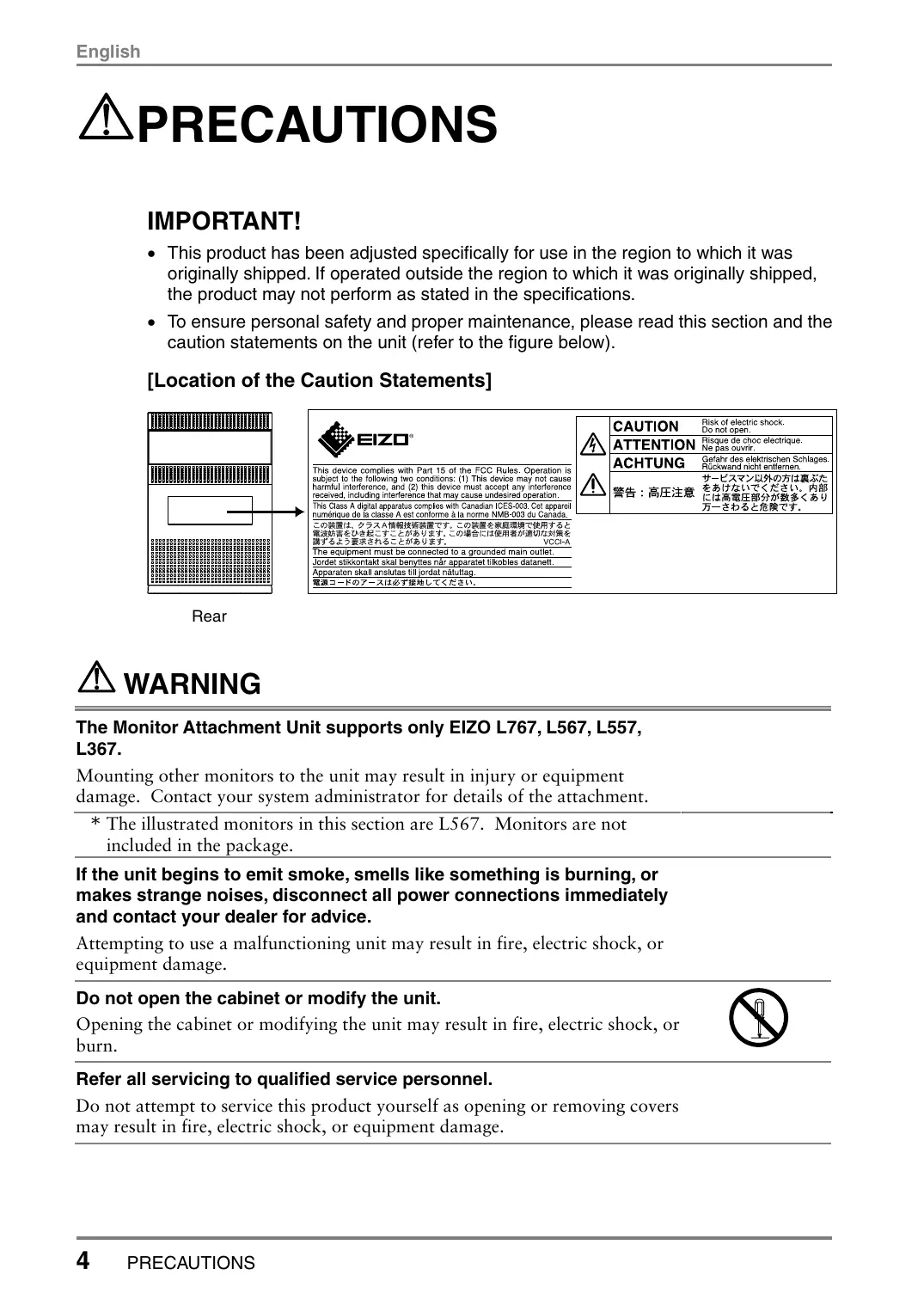
- To ensure personal safety and proper maintenance, please read this section and the caution statements on the unit (refer to the figure below).
[Location of the Caution Statements]
![EIZO ECLIENT SC1 - [Location of the Caution Statements] - 1](/content/2025/01/177221/images/dca0ea6342d16312a7eabdb6b2ec9faedc642adcc48ab7d80e125f7de971395c.jpg)
Rear
![EIZO ECLIENT SC1 - [Location of the Caution Statements] - 2](/content/2025/01/177221/images/305e3804b239f619f4962811038c3a5b67f04e933dbfec40a5eae6cc2a672c9b.jpg)
WARNING
The Monitor Attachment Unit supports only EIZO L767, L567, L557, L367.
Mounting other monitors to the unit may result in injury or equipment damage. Contact your system administrator for details of the attachment.
- The illustrated monitors in this section are L567. Monitors are not included in the package.
If the unit begins to emit smoke, smells like something is burning, or makes strange noises, disconnect all power connections immediately and contact your dealer for advice.
Attempting to use a malfunctioning unit may result in fire, electric shock, or equipment damage.
Do not open the cabinet or modify the unit.
Opening the cabinet or modifying the unit may result in fire, electric shock, or burn.
Refer all servicing to qualified service personnel.
Do not attempt to service this product yourself as opening or removing covers may result in fire, electric shock, or equipment damage.


WARNING
Keep small objects or liquids away from the unit.
Small objects accidentally falling through the ventilation slots into the cabinet or spillage into the cabinet may result in fire, electric shock, or equipment damage.
If an object or liquid falls/spills into the cabinet, unplug the unit immediately. Have the unit checked by a qualified service engineer before using it again.
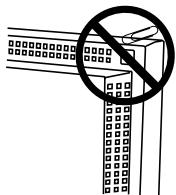

Place the unit at the strong and stable place.
A unit placed on an inadequate surface may fall and result in injury or equipment damage.
If the unit falls, disconnect the power immediately and ask your dealer for advice.
Do not continue using a damaged unit. Using a damaged unit may result in fire or electric shock.
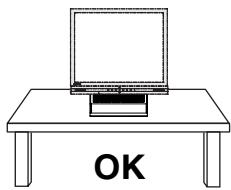
Set the unit in an appropriate location.
Not doing so may result in fire, electric shock, or equipment damage.
- Do not place outdoors.
- Do not place in the transportation system (ship, aircraft, trains, automobiles, etc.)
- Do not place in a dusty or humid environment.
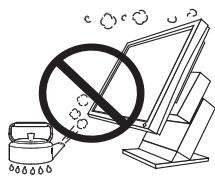
- Do not place in a location where the steam comes directly on the screen.
- Do not place near heat generating devices or a humidifier.
To avoid danger of suffocation, keep the plastic packing bags away from babies and children.
Use the enclosed power cord and connect to the standard power outlet of your country.
Be sure to remain within the rated voltage of the power cord.
Not doing so may result in fire or electric shock.
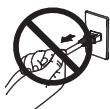
To disconnect the power cord, grasp the plug firmly and pull.
Tugging on the cord may damage and result in fire or electric shock.

The equipment must be connected to a grounded main outlet.
Not doing so may result in fire or electric shock.



WARNING
Maximum load capacity of AC outlet is 2 A.
Connecting unit with more than 2 A may result in fire, electric shock or other damage.
Use the correct voltage.
- The unit is designed for use with a specific voltage only. Connection to another voltage than specified in this User's Manual may cause fire, electric shock, or equipment damage.
- Do not overload your power circuit, as this may result in fire or electric shock.
Handle the power cord with care.
- Do not place the cord underneath the unit or other heavy objects.
- Do not pull on or tie the cord.
If the power cord becomes damaged, stop using it. Use of a damaged cord may result in fire or electric shock.
Never touch the plug and power cord if it begins to thunder.
Touching them may result in electric shock.



CAUTION
Handle with care when carrying the unit.
Disconnect the power cord and signal cables and remove the optional unit. Moving the unit with the cord or the option attached is dangerous. It may result in injury.
Do not block the ventilation slots on the cabinet.
- Do not place any objects on the ventilation slots.
- Do not install the unit in a closed space.
- Do not use the unit laid down or upside down.
Blocking the ventilation slots prevents proper airflow and may result in fire, electric shock, or equipment damage.
Do not touch the plug with wet hands.
Doing so may result in electric shock.


Use an easily accessible power outlet.
This will ensure that you can disconnect the power quickly in case of a problem.
Periodically clean the area around the plug.
Dust, water, or oil on the plug may result in fire.
Unplug the unit before cleaning it.
Cleaning the unit while it is plugged into a power outlet may result in electric shock.
If you plan to leave the unit unused for an extended period, disconnect the power cord from the wall socket after turning off the power switch for the safety and the power conservation.
1. INTRODUCTION
Thank you very much for purchasing the EIZO eClient SC1/SX1.
1-1. General Description
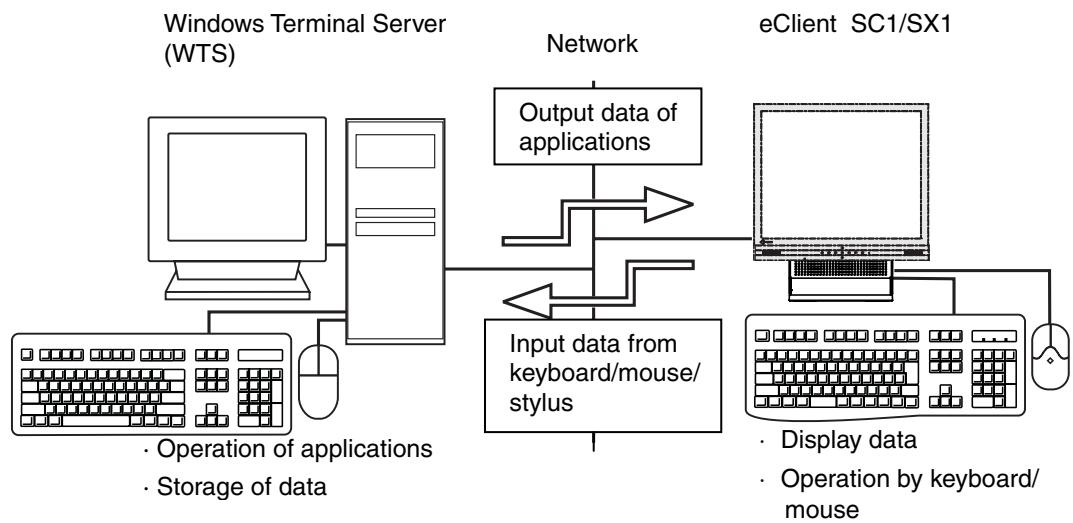
The SC1/SX1 is used as a thin client, which connects to the terminal service installed Windows Terminal Server (Hereafter defined WTS) as listed below and accesses applications or data provided from the WTS.
Server (WTS: Windows Terminal Server)
Microsoft Windows 2000 Server / Advanced Server / Datacenter Server Edition
Microsoft Windows 2003 Server Edition / Enterprise Server Edition / Datacenter Edition
1-2. Features
- Lower TCO (Total Cost of Ownership)
- Saves Space and Power Consumption
Less Heat, Less Noise - SC1: Windows CE OS-based, SX1: Windows XP embedded OS-based
- Serial Port for Modem/PDA (*Hayes AT compatible modem supported)
- 2 USB downstream ports (SC1: Standard Rev. 1.1, SX1: Standard Rev. 2.0)
- Local Web Browser added as a default connection
- PC card slot for modem card or LAN card (SX1: Card Bus supported)
- Wake on LAN supported
- SX1: Java VM - Sun Microsystems J a v a^TM 2 Runtime Environment supported
Network utility software, "Network Administrator Version 3.0" supported -
Two installation types; EIZO Monitor mounted / Stand alone
-
EIZO Monitor detachable stand type
- Secondary power switch (wired)
1-3. Package Contents
Please contact your local dealer for assistance if any of the listed items are missing or damaged. Please make sure that all the items listed are in the package.
SC1/SX1
- Mouse (FDM-LCS1)
Power Cord
- Switch Box (1.8 m)
- Signal Cable (FD-C29) (50 cm)
- User's Manual
- Monitor Attachment Unit: for mounting monitor*1
- Power Cord (50 cm): for mounting monitor*
- Clamp for cables: for mounting monitor*1
*1 The monitor attachment unit, the power cord, and the clamp for cables are used when attaching a monitor in SC1/SX1. Installation of a monitor should follow the system administrator.
NOTE
- A keyboard is not included. It must be purchased separately.
- Please use the enclosed mouse. EIZO NANAO CORPORATION will no be held responsible for accident or damage caused by the use of a mouse manufactured by other companies.
- We recommend that you retain the original packing materials in case of future need.
2. OPERATION
This chapter shows how to start and end SC1/SX1 operation.
2-1. Controllers
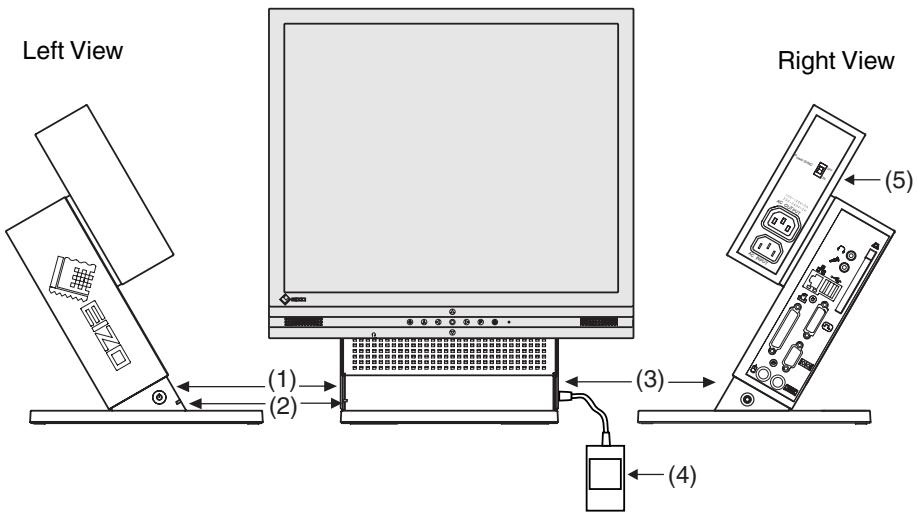
* EIZO L567 used as an example
(1) Power Button
(2) Power Indicator
| Power Indicator | State of the unit |
| Blue | • Operation mode • Screen saver is active *1 • No picture is displayed on the monitor *1,*2 |
| Off | Power is off (Wake on LAN standby) |
| *1 [Procedure to return to the operation mode] - Operate the mouse or keyboard. *2 The monitor is in the power save mode when the power save function of the monitor is set. | |
(3) Connector for Switch Box3
(4) Switch Box3
(5) Power Supply Control Switch (POWER SYNC)*4
3 The secondary power switch makes it easy to turn the SC1 / SX1 on and off when stowed away under the desk or out of reach. When the enclosed switch box is connected to the connector, it can be used as a power button. The power button on the SC1/SX1 can be used simultaneously even if the switch box is connected.
4 Please refer to pg. 11 for details on the power supply control switch (POWER SYNC).
NOTE
- When turning off/on the unit, leave the unit off for a few seconds before turning it on again.
- Do your part to conserve energy, turn off the unit when your finished using it. Complete energy use can only be stopped by disconnecting the unit from the power supply.
Power Supply Control Switch (POWER SYNC)
When the monitor's power cord is connected to the AC output power supply of SC1/SX1, the monitor's power supply can be linked with on/off of SC1/SX1. Choose ON from the power supply control switch (POWER SYNC).
When the power button of SC1/SX1 is turned on or off...
| Power Supply Control Switch (POWER SYNC) | Power supply for the monitor |
| ON | The monitor's power supply is linked, and it turns on or off simultaneously. |
| OFF (default) | Since the monitor's power supply is not linked, please turn the monitor's power supply on or off independently. |
2-2. How to control (SC1)
Logging on or off the WTS (SC1)
Logging on to the WTS
- Turn on the SC1.
- The "Terminal Connection Manager" dialog box will be displayed.
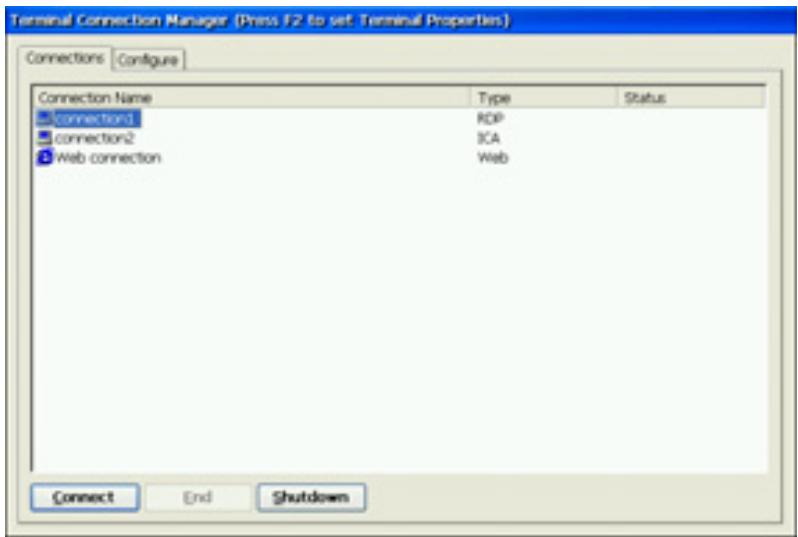
Please follow the instruction depending on the network environment of the SC1. (Contact your system administrator for the connection environment.)
(1) Connecting and logging on to the WTS through the local network: Go to step 3.
(2) Connecting and logging on to the WTS with the dial-up connection: Click the active button on the right bottom of the screen.
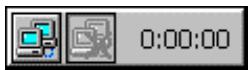
Click the button to connect through a dial-up. Check the clock is running, and go on to step 3.
(3) Connecting and logging on to the WTS through a dial-in: Go to step 3.
3. Click the [Connections] tab.
Select the desired [Connection Name] and click [Connect] (or simply double click the connection name).
4. The SC1 connects to the WTS and the "Log On to Windows" dialog box is displayed.
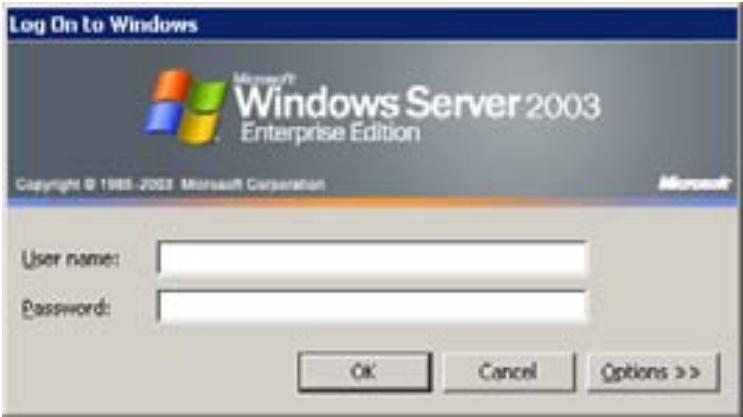
Enter your [User name] and [Password], and then click [OK] to log on to the WTS. After logging on, the SC1 allows you to use the Microsoft Windows applications running on the WTS.
NOTE
- If an automatic logon connection is selected, this menu will not appear automatically.
Logging off the WTS
If your SC1 starts its operation with a desktop:
1. Log off the WTS.
(1) Close all the applications.
(2) Select [Start] on the taskbar.
(3) Select [Shut Down...] and select [Logoff] of the [Shut Down Windows] dialog box.
(4) Click [OK] on the Logoff Window. The session ends and logs off from the WTS automatically. The "Terminal Connection Manager" dialog box will be displayed. If it's connected through a dial-up, click the active button on the right bottom of the screen.
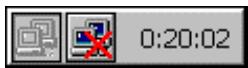
Click the button to disconnect the dial-up connection.
2. Shut down the SC1.
There are 3 ways to shut down the unit.
- Click [Shut down] at the "Terminal Connection Manager" dialog box (or press the power button). The "eClient Shut down" dialog box will be displayed. Select [Shut down].
- Press the power button. The "eClient Shut down" dialog box will be displayed. Press the power button again.
- Press the power button and leave the unit for 20 seconds. The unit will shut down automatically.
If your SC1 starts its operation with an application:
1. Log off the WTS.
Close the applications to log off from the WTS. The "Terminal Connection Manager" dialog box will be displayed.
If it's connected through a dial-up, click the active button on the right bottom of the screen.
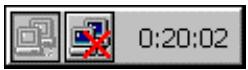
Click the button to disconnect the dial-up connection.
2. Follow the step 2 of "If your SC1 starts its operation with a desktop" to shut down the SC1.
NOTE
- It is possible to disconnect from the WTS without closing any applications in use (or without logging off). (The last view of the application is displayed when the next connection to the WTS is made.)
Opening/Closing the Local Web Browser
Opening the Local Web Browser
- Turn on the SC1.
- The "Terminal Connection Manager" dialog box will be displayed.
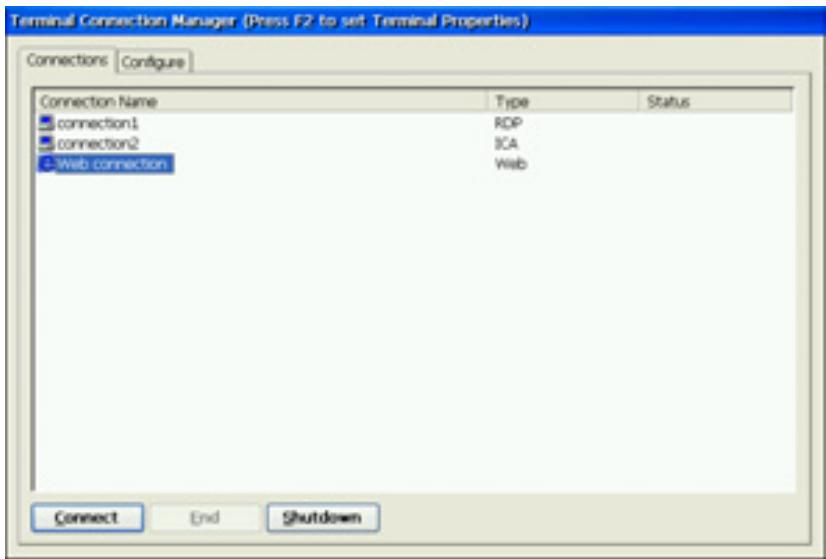
Please follow the instruction depending on the network environment of the SC1. (Contact your system administrator for the connection environment.)
(1) If the web server is on the same network (Intranet):
Go to step 3.
(2) If the web server is not on the same network, and dial-up connection is needed (Internet):
Click the active button on the right bottom of the screen.
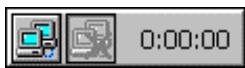
Click the button to connect through a dial-up. Check the clock is running, and go on to step 3.
- Click the [Connections] tab.
Select [Web connection] and click [Connect] (or simply double click [Web connection]).
- The local web browser opens.
It is possible to browse web pages on the internet.
Closing the Local Web Browser (SC1)
1. Close the local web browser.
Select [Close] on the [File] and close the local web browser.
The "Terminal Connection Manager" dialog box will be displayed.
If a dial-up connection is made, click the active button on the right bottom of the screen.
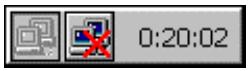
Click the button to disconnect the dial-up connection.
2. Shut down the SC1.
There are 3 ways to shut down the unit.
- Click [Shut down] at the "Terminal Connection Manager" dialog box (or press the power button). The "eClient Shut down" dialog box will be displayed. Select [Shut down].
- Press the power button. The "eClient Shut down" dialog box will be displayed. Press the power button again.
- Press the power button and leave the unit for 20 seconds. The unit will shut down automatically.
NOTE
- It is possible to disconnect from the local web server without closing the browser.
2-3. How to control (SX1)
Logging on or off the WTS (SX1)
Logging on to the WTS
- Turn on the SX1.
- The Desktop screen will be displayed.
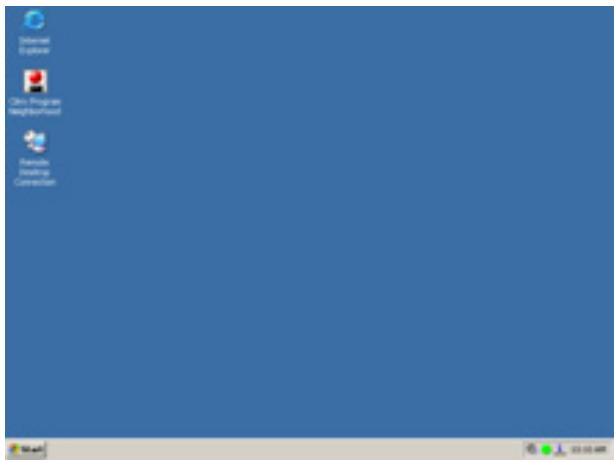
When using the RDP protocol, proceed to step 3, and when using the ICA protocol, proceed to step 4.
3. When using the RDP protocol
In case the connection icon exists on the desktop
(1) Double click the connection icon (The example below is "RDP1".).
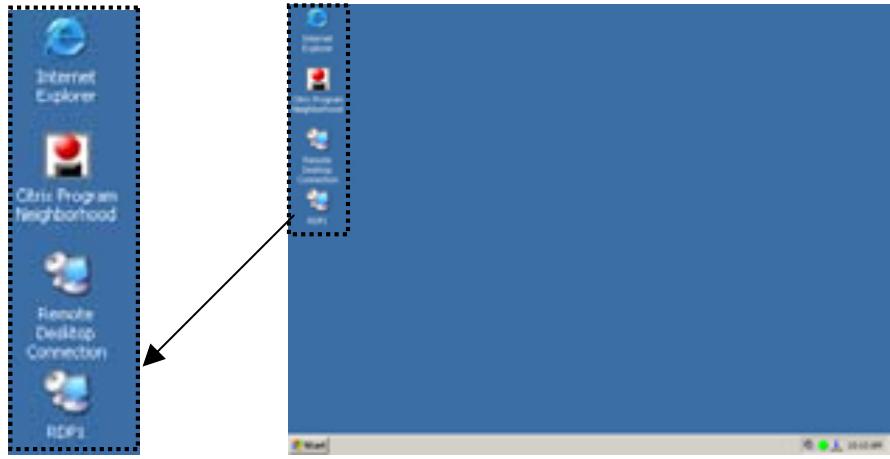
In case the connection name doesn't exist on the desktop
(1) Double click the [Remote Desktop Connection] icon to open the [Remote Desktop Connection] dialog box.
Click [Start]-[Remote Desktop Connection] to open the [Remote Desktop Connection] dialog box.
Click [Start]-[Program]-[Remote Desktop Connection] to open the [Remote Desktop Connection] dialog box.
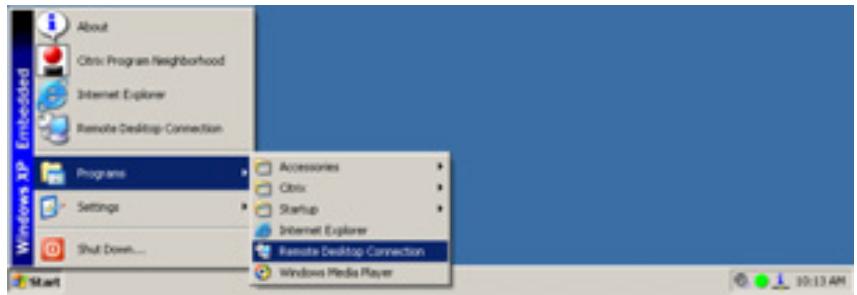
(2) The [Remote Desktop Connection] will be displayed. Enter the name of the computer and click [Connect].
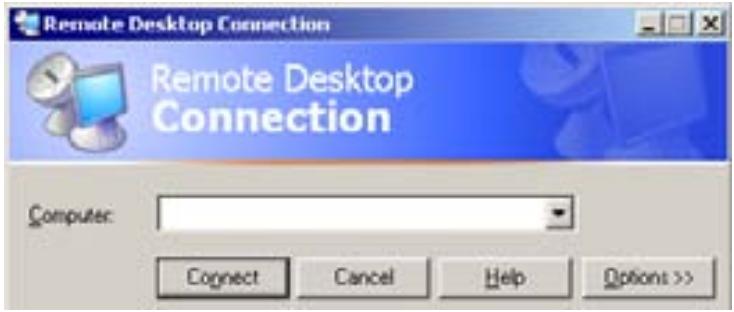
Proceed to step 5.
4. When using the ICA protocol
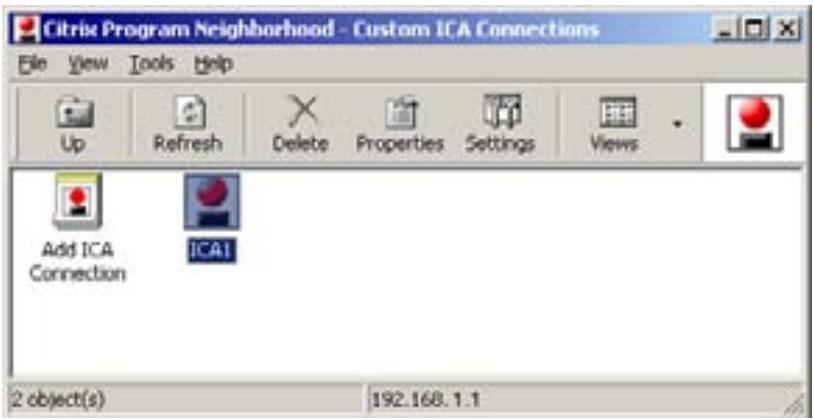
(1) Double click the [Citrix Program Neighborhood] icon to open the Citrix program.
- Click [Start]-[Citrix Program Neighborhood] to open the Citrix program.
- Click [Start]-[Program]-[Citrix]-[MetaFrame Access Clients]-[Program Neighborhood] to open the Citrix program.
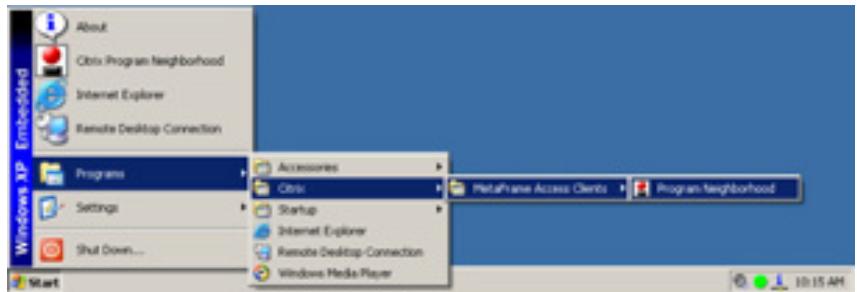
(2) The [Citrix Program Neighborhood] will be displayed. Double click the connection icon (The example below is "ICA1").
- When the SX1 connects to the WTS, the "Log On to Windows" dialog box is displayed.
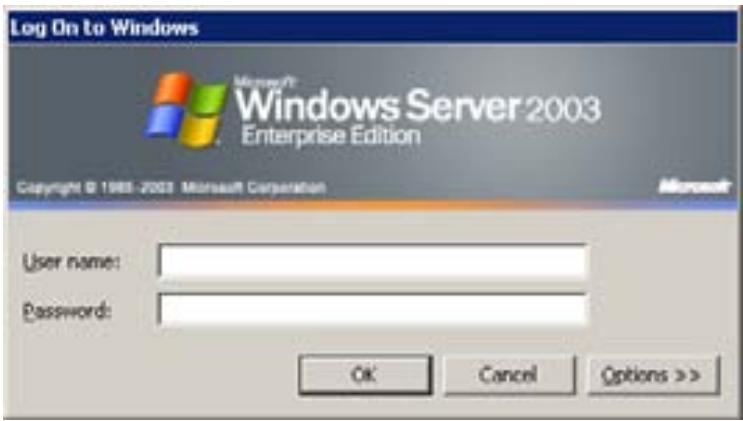
Enter your [User name] and [Password], and then click [OK] to log on to the WTS. After logging on, the SX1 allows you to use the Microsoft Windows applications running on the WTS.
NOTE
- If an automatic logon connection is selected, this menu will not appear automatically.
Logging off the WTS
If your SX1 starts its operation with a desktop:
1. Log off the WTS.
(1) Close all the applications.
(2) Select [Start] on the taskbar.
(3) Select [Shut Down...] and select [Logoff] of the [Shut Down Windows] dialog box.
(4) Click [OK] on the Logoff Window. The session ends and logs off from the WTS automatically.
2. Shut down the SX1.
Click [Start] and select [Shut Down...] and select the [Shut Down] of the [Shut Down Windows] dialog box.
NOTE
- Do not select [Stand by] to shut down the SX1. In case, [Stand by] is selected unintentionally to shut down, contact your system administrator.
If your SX1 starts its operation with an application:
1. Log off the WTS.
Close the applications to log off the WTS.
2. Follow the step 2 of "If your SX1 starts its operation with a desktop" to shut down the SX1.
NOTE
- It is possible to disconnect from the WTS without closing any applications in use (or without logging off). (The last view of the application is displayed when the next connection to the WTS is made.)
Opening/Closing the Local Web Browser (SX1)
Opening the Local Web Browser
- Turn on the SX1.
- The desktop screen will be displayed.
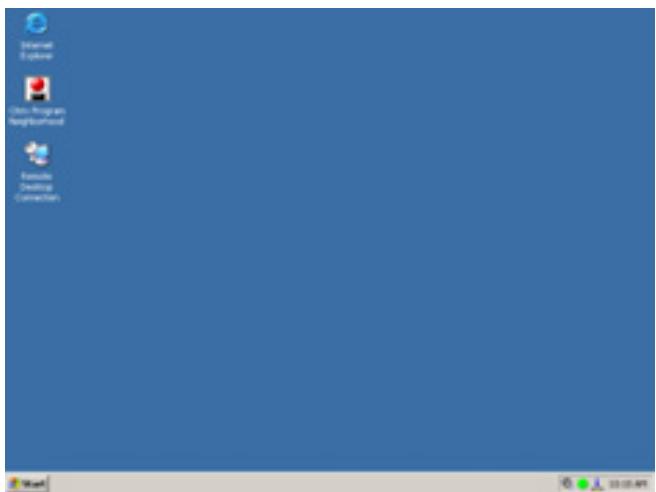
- Double click the [Internet Explorer] icon to open the browser. Click [Start]-[Internet Explorer] to open the browser. Click [Start]-[Program]-[Internet Explorer] to open the browser.
- The local web browser opens. It is possible to browse web pages on the internet.
Closing the Local Web Browser
- Close the local web browser.
Select [Close] on the [File], or click [x] on the right upper corner of the [Internet Explorer] to close the local web browser. - Follow the step 2 of "Logging off the WTS" to shut down the SX1.
NOTE
- It is possible to disconnect from the local web server without closing the browser.
3. SPECIFICATIONS
| CPU and Memory | CPU | VIA Eden, 800 MHz | |
| Memory | SC1 | SX1 | |
| RAM: 128 MB, ROM: 32 MB | RAM: 256 MB, ROM: 256 MB | ||
| Display Color | 256 / 65536 / 16 M colors | ||
| Supported Resolution | SC1 | SX1 | |
| 1280 × 1024 (60 Hz) | 1280 × 1024 (60 Hz) | ||
| 1024 × 768 (60 Hz) | 1024 × 768 (60 Hz) | ||
| 800 × 600 (60 Hz) | 800 × 600 (60 Hz) | ||
| 640 × 480 (60 Hz) | |||
| Complying Protocol | Microsoft Remote Desktop (RDP) Citrix Independent Computing Architecture (ICA) | ||
| Software | SC1 | SX1 | |
| Microsoft Windows CE .NET 4.2 Microsoft RDP Client Citrix ICA Client 7.0 or later | Microsoft Windows XP Embedded with SP1 Java VM - Sun Microsystems JavaTM 2 Runtime Environment Version Microsoft RDP Client Citrix ICA Client 8.0 or later | ||
| Complying Software for Windows Terminal Server | Microsoft Windows 2000 Server / Advanced Server / Datacenter Edition Microsoft Windows 2003 Server / Enterprise Server / Datacenter Edition Citrix MetaFrame 1.8 / 1.8 + FR1 MetaFrame XP / XP + FR1 / XP + FR2 / XP + FR3 | ||
| USB | SC1 | SX1 | |
| USB standard Rev. 1.1 complied | USB standard Rev. 2.0 complied | ||
| Mouse | PS/2 Optical Mouse | ||
| Power Supply | 100-120/200-240 VAC ± 10%, 50/60 Hz, 2.6 A/2.4 A (including Outlet Maximum load capacity 2 A) | ||
| Power Consumption (without AC outlet connection) | Min: 20 W (with keyboard, mouse, and LAN) Max: 35 W (with keyboard, mouse, USB, LAN, and PC card) Power off (with keyboard, mouse, and LAN): Less than 3 W | ||
| Interface Connector | LAN | 10BASE-T/100BASE-TX (RJ-45) Wake On LAN supported × 1 | |
| Keyboard, Mouse | PS/2 (Mini DIN 6 pin) × 2 | ||
| USB Port | Downstream × 2 | ||
| Parallel | IEEE1284 (D-Sub 25 pin) × 1 | ||
| Serial Port | RS-232C (D-Sub 9 pin) × 1 | ||
| PC Card Slot | PCMCIA Type II (68 pin) × 1 | ||
| Line Output | Stereo mini jack × 1 (SX1: Card Bus supported) | ||
| Monaural Microphone "1" | Mini jack × 1 | ||
| Video | DVI-I x 1 (Analog / Digital) | ||
| Dimensions | 200 mm (W) × 295 mm (H) × 236 mm (D) (7.8" (W) × 11.6" (H) × 9.3" (D)) | ||
| Weight | 3.4 kg (7.5 lbs.) (With the Monitor Attachment Unit: 3.9 kg (8.6 lbs.) | ||
| Environmental Specifications | Temperature Operating: 5 °C to 35 °C to (41 °F to 95 °F) Storage: -20 °C to 60 °C (-4 °F to 140 °F) Humidity 30 % to 80 % R.H. Non-condensing | ||
| Certifications and Standards | 100-120 VAC range | TÜV/NRTL, c-TÜV, FCC class A, CB | |
| 200-240 VAC range | CE, CB, TÜV Rheinland/GS | ||
1 Monaural microphone connector doesn't support SC1.
Dimensions
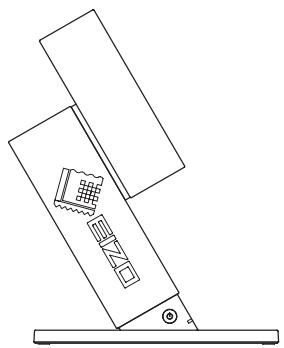
SIDE (Left)
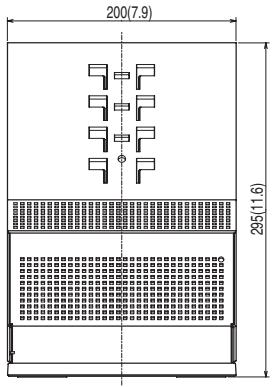
FRONT
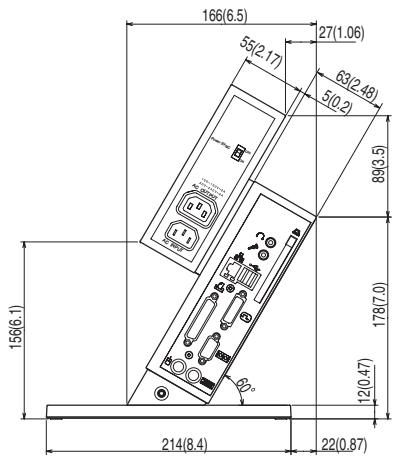
Unit: mm (inches)
SIDE (Right)
LIMITED WARRANTY
EIZO NANAO CORPORATION ("EIZO") and EIZO authorized distributors warrant, subject to and in accordance with the terms of this warranty, to the original purchaser who purchased the product from EIZO or EIZO authorized distributors that this product shall be free from defects in material and workmanship for a period of three (3) from the date of purchase. If the product includes a mouse, the mouse is also warranted to be free from defects in material and workmanship for a period of one (1) year from the date of purchase. If the product is accompanied by a third-party mouse and/or keyboard, the mouse and the keyboard are covered by applicable third party's warranty and not by this warranty. In the event of malfunction of the product during the warranty period attributable directly to defective material and/or workmanship, EIZO and EIZO authorized distributors will, at their sole discretion, either repair or replace the defective product. EIZO and EIZO authorized distributors shall bear no other liability or obligation under this warranty. EIZO and EIZO authorized distributors cease to bear any obligation under this warranty with regard to any parts of the product upon expiration of five (5) years after the production of such parts is discontinued. This warranty is valid only in the countries or territories where the EIZO authorized distributors are located. This Limited Warranty does not restrict legal rights as granted by implied warranty against the vendor.
Furthermore, EIZO and EIZO authorized distributors shall have no obligation under this warranty whatsoever in respect of any of such defects, or in any of such cases, as set forth below:
(a) Any defect of the product caused by freight damage, modification, alteration, abuse, misuse, accident, incorrect installation, disaster, faulty maintenance and/or improper repair by third party other than EIZO and EIZO authorized distributors.
(b) Any incompatibility of the product due to possible technical innovations and/or regulations.
(c) Any defect of the product caused by external equipment.
(d) Any defect of the product on which the original serial number has been altered or removed.
(e) Any normal deterioration of the product, particularly that of consumables, accessories, and/or attachments (e.g. buttons, rotating parts, cables, user's manual, etc...).
(f) Any deformation, discoloration, and/or warp of the exterior of the product.
To obtain service under this warranty, the original purchaser must deliver the product, freight prepaid, in its original package or other adequate package affording an equal degree of protection, assuming the risk of damage and/or loss in transit, to the local EIZO authorized distributor. The original purchaser must present proof of purchase establishing the date of purchase of the product when requesting warranty service.
Warranty period for any replaced and/or repaired product under this warranty shall expire at the end of the original warranty period.
EIZO OR EIZO AUTHORIZATION DISTRIBUTORS ARE NOT RESPONSIBLE FOR ANY DAMAGE TO, OR LOSS OF, DATA OR OTHER INFORMATION STORED IN ANY MEDIA OR ANY PART OF ANY PRODUCT RETURNED TO EIZO OR EIZO AUTHORIZATION DISTRIBUTORS FOR REPAIR.
EIZO AND EIZO AUTHIZED DISTRIBUTORS MAKE NO FURTHER WARRANTY, EXPRESSED OR IMPLIED WITH RESPECT TO THE PRODUCT AND ITS QUALITY, PERFORMANCE, MERCHANTABILITY OR FITNESS FOR ANY PARTICULAR USE. IN NO EVENT SHALL EIZO OR EIZO AUTHIZED DISTRIBUTORS BE LIABLE FOR ANY INCIDENTAL, INDIRECT, SPECIAL, CONSEQUENTIAL OR OTHER DAMAGE WHATSOEVER (INCLUDING, WITHOUT LIMITATION, DAMAGES FOR LOSS OF PROFIT, BUSINESS INTERRUPTION, LOSS OF BUSINESS INFORMATION, OR ANY OTHER PECUNIARY LOSS) ARISING OUT OF THE USE OR INABILITY TO USE THE PRODUCT OR IN ANY CONNECTION WITH THE PRODUCT, WHETHER BASED ON CONTRACT, TORT, NEGLIGENCE, STRICT LIABILITY OR OTHERWISE, EVEN IF EIZO OR EIZO AUTHIZED DISTRIBUTORS HAVE BEEN ADVISED OF THE POSSIBILITY OF SUCH DAMAGES. THIS EXCLUSION ALSO INCLUDES ANY LIABILITY WHICH MAY ARISE OUT OF THIRD PARTY CLAIMS AGAINST THE ORIGINAL PURCHASER. THE ESSENCE OF THE PROVISION IS TO LIMIT THE POTENTIAL LIABILITY OF EIZO AND EIZO AUTHIZED DISTRIBUTORS ASING OUT OF THIS LIMITED WARRANTY AND/OR SALES.
For U.S.A, Canada, etc. (rated 100-120 Vac) Only
This equipment has been tested and found to comply with the limits for a Class A digital device, pursuant to Part 15 of the FCC Rules. These limits are designed to provide reasonable protection against harmful interference when the equipment is operated in a commercial environment. This equipment generates, uses, and can radiate radio frequency energy and if not installed and used in accordance with the instruction manual, may cause harmful interference to radio communications. Operation of this equipment in a residential area is likely to cause harmful interference in which case the user will required to correct the interference at his own expense.
Changes or modifications not expressly approved by the party responsible for compliance could void the user's authority to operate the equipment.
Note
Use the attached specified cable below or EIZO signal cable with this unit so as to keep interference within the limits of a Class A digital device.
-
AC Cord
-
Shielded Signal Cable (enclosed)
Canadian Notice
This Class A digital apparatus complies with Canadian ICES-003.
For Europe, etc. (rated 200-240 Vac) Only
Warning
This is a Class A product. In a domestic environment this product may cause radio interference in which case the user may be required to take adequate measures.
Warning
Recycling Information for customers in Switzerland:
All recycling information is placed in the SWICO's website. http://www.swico.ch
Recycling Information for customers in USA:
All recycling information is placed in the EIZO Nanao Technologies, Inc's website.
http://www.eizo.com/contact/index.html
Atervinnings information for kunder i Sverige:
This document is printed on recycled chlorine free paper.
- SAFETY SYMBOLS
- WARNING
- CAUTION
- Table of Contents
- PRECAUTIONS 4
- INTRODUCTION 8
- OPERATION 10
- SPECIFICATIONS 23
- LIMITED WARRANTY
- PRECAUTIONS
- IMPORTANT!
- [Location of the Caution Statements]
- Keep small objects or liquids away from the unit.
- Place the unit at the strong and stable place.
- Set the unit in an appropriate location.
- Use the enclosed power cord and connect to the standard power outlet of your country.
- To disconnect the power cord, grasp the plug firmly and pull.
- The equipment must be connected to a grounded main outlet.
- Maximum load capacity of AC outlet is 2 A.
- Use the correct voltage.
- Handle the power cord with care.
- Never touch the plug and power cord if it begins to thunder.
- Handle with care when carrying the unit.
- Do not block the ventilation slots on the cabinet.
- Do not touch the plug with wet hands.
- Use an easily accessible power outlet.
- Periodically clean the area around the plug.
- Unplug the unit before cleaning it.
- INTRODUCTION
- 1-1. General Description
- 1-2. Features
- 1-3. Package Contents
- NOTE
- OPERATION
- 2-1. Controllers
- Power Supply Control Switch (POWER SYNC)
- 2-2. How to control (SC1)
- Click the [Connections] tab.
- The SC1 connects to the WTS and the "Log On to Windows" dialog box is displayed.
- Logging off the WTS
- Log off the WTS.
- Shut down the SC1.
- Follow the step 2 of "If your SC1 starts its operation with a desktop" to shut down the SC1.
- Opening/Closing the Local Web Browser
- Closing the Local Web Browser (SC1)
- Close the local web browser.
- 2-3. How to control (SX1)
- When using the RDP protocol
- In case the connection name doesn't exist on the desktop
- Proceed to step 5.
- When using the ICA protocol
- Shut down the SX1.
- Follow the step 2 of "If your SX1 starts its operation with a desktop" to shut down the SX1.
- Opening/Closing the Local Web Browser (SX1)
- Closing the Local Web Browser
- SPECIFICATIONS
- Dimensions
- For U.S.A, Canada, etc. (rated 100-120 Vac) Only
- Canadian Notice
- For Europe, etc. (rated 200-240 Vac) Only
- Recycling Information for customers in Switzerland:
- Recycling Information for customers in USA:
- Atervinnings information for kunder i Sverige:
Brand : EIZO
Model : ECLIENT SC1
Category : Computer terminal