XDVD8183N - Car stereo DUAL - Free user manual and instructions
Find the device manual for free XDVD8183N DUAL in PDF.


| Product Type | Multimedia car stereo with DVD receiver and 7" touch screen |
| Brand | DUAL |
| Model | XDVD8183N |
| Chassis dimensions | 178 x 178 x 51 mm |
| Approximate weight | 1.2 kg |
| Power supply | 11-16 VDC, negative ground |
| Output power | 17 W RMS x 4 channels (4 ohms, ≤1% THD+N) |
| Speaker impedance | 4-8 ohms |
| Line output voltage | 2 Volts |
| Screen | LCD TFT 7" (177.8 mm), resolution 480 x 234, contrast ratio 300:1 |
| FM radio receiver | 87.5-107.9 MHz, sensitivity 8.5 dBf |
| AM radio receiver | 530-1710 kHz, sensitivity 22 µV |
| Playback formats | CD, CD-R/RW, DVD±R/RW, MP3, WMA |
| Bluetooth | Built-in, pairing up to 4 phones |
| Main functions | AM/FM radio, DVD/CD/MP3/WMA player, hands-free Bluetooth, rear camera input, subwoofer output, touch screen, remote control |
| Security | Parking brake lock, anti-theft code, volume limit |
| DVD region code | Region 1 or all |
| Cleaning | Soft dry cloth; avoid solvents |
| Remote control batteries | CR2025 (included) |
| Warranty | 1 year (parts and labor) |
Frequently Asked Questions - XDVD8183N DUAL
User questions about XDVD8183N DUAL
0 question about this device. Answer the ones you know or ask your own.
Ask a new question about this device
Download the instructions for your Car stereo in PDF format for free! Find your manual XDVD8183N - DUAL and take your electronic device back in hand. On this page are published all the documents necessary for the use of your device. XDVD8183N by DUAL.
USER MANUAL XDVD8183N DUAL
INSTALLATION/OWNER'S MANUAL
DVD Multimedia Receiver with 7" Touch Screen Display





Safety Notes:
The DVD video display of the in-dash unit will not operate while the vehicle is moving. This is a safety feature to prevent driver distraction. In-dash DVD video functions will only operate when vehicle is in Park and the parking brake is engaged. It is illegal in most states for the driver to view video while the vehicle is in motion.
Copyright Notes
This product incorporates copyright protection technology that is protected by method claims of certain U.S. patents and other intellectual property rights owned by Macrovision Corporation and other rights owners. Use of this copyright protection technology must be authorized by Macrovision Corporation, and is intended for home and other limited viewing uses only unless otherwise authorized by Macrovision Corporation. Reverse engineering or disassembly is prohibited.
Manufactured under license from Dolby Laboratories. Dolby and the double-D symbol are trademarks of Dolby Laboratories.
Windows Media and the Windows logo are trademarks, or registered trademarks of Microsoft Corporation in the United States and or other countries.
The Bluetooth® word mark and logos are owned by the Bluetooth SIG, Inc. and any use of such marks by Dual is under license.
All other trademarks are property of their respective owners.
Table of Contents
Page
DVD Region Management. 2
Warning Statement 3
Safety Information/Precautions 4
Preparation/Mounting/Wiring 5-7
Remote Control Overview 8
Control Locations - Monitor Closed 9-10
Control Locations - Monitor Open 11-12
Control Locations - Remote 13-14
General Operation 15-20
General Setup Menu 21-22
Setting the Clock 23
Anti-theft Code 24
Screen Setup. 25-28
AM/FM Tuner Operation 29-32
Warning Statement 33
DVD Operation 34-42
DVD Setup 43-49
CD Operation 50-54
MP3/WMA Operation 55-58
Media Compatibility Information 59-60
Bluetooth Operation 61-64
Warranty 65
Troubleshooting 66-67
Specifications 68
DVD Region Management
Some DVD discs can be played only in certain playback modes according to the intentions of the software. As the XDVD8183N plays discs according to their intentions, some functions may not work as intended. Please be sure to read the instructions provided with each disc. This player has been designed to play back DVD software that has been encoded for specific region areas. It cannot play back DVD software encoded for other region areas than the region areas for which it has been designed.
The XDVD8183N will play discs labeled "Region 1" or "All".
DVD region codes:
1 - USA, Canada
2 - Japan, Europe, South Africa, Middle East
3 - Rep. of Korea, Taiwan, Hong Kong, Parts of Southeast Asia
4 - Australia, New Zealand, Mexico, South America
5 - Eastern Europe, Russia, India, Africa
6 - China


WARNING
Upon installation of this Monitor/DVD player ("unit") into a vehicle, the driver of the vehicle must not operate this unit by watching videos or playing video games while driving. Failure to follow this instruction could lead to driver distraction which could result in serious injury or death to the vehicle's occupants or persons outside the vehicle and/or property damage.
Several states prohibit the installation of monitors/DVD players if the screen is visible from the driver's seat. If you reside in a jurisdiction which has enacted such a law, this unit must not be installed so that the screen is visible from the driver's seat. When installing this unit in the front console/dashboard, the unit must be positioned so that it is facing the front passenger seat only. Failure to follow this instruction could lead to driver distraction which could result in serious injury or death to the vehicle's occupants or persons outside the vehicle and/or property damage.
This unit is designed so that it may be operated only when the vehicle is in "Park" and the parking brake is fully engaged. To this end, this unit includes a parking brake lock-out feature which prohibits the unit from operating if the vehicle is not in "Park" and/or the parking brake is not fully engaged. When installing this unit, the installer must connect the parking brake detect wire ("Yellow-Blue Lead") to the parking brake mechanism in order to make the parking brake lock-out feature operable. DO NOT simply ground the parking brake detect wire to a metal portion of the vehicle. Failure to properly install the parking brake lock-out feature could lead to driver distraction which could result in serious injury or death to the driver's occupants or persons outside the vehicle and/or property damage.
Once the parking brake lock-out feature is installed, the owner/user must not attempt to disrupt/neutralize the parking brake lock-out feature by (a) partially engaging the parking brake and/or (b) purchasing/using any device or unit designed to send necessary brake signals to the unit. Failure to follow these instructions could lead to driver distraction which could result in serious injury or death to the driver's occupants or persons outside the vehicle and/or property damage.
When operating this unit, keep the unit's volume level low enough so that the vehicle's occupants can hear traffic-related sounds such as police and emergency vehicles. Failure to follow this instruction could lead to driver distraction which could result in serious injury or death to the vehicle's occupants or persons outside the vehicle and/or property damage.
Safety Information
Please read all instructions carefully before attempting to install or operate.
Due to its technical nature, it is highly recommended that your DUAL XDVD8183N is installed by a professional installer or an authorized dealer. This product is only for use in vehicles with 12VDC negative ground only.
Safety Notes:
The DVD video display of the in-dash unit will not operate while the vehicle is moving. This is a safety feature to prevent driver distraction. In-dash DVD video functions will only operate when vehicle is in Park and the parking brake is engaged. It is illegal in most states for the driver to view video while the vehicle is in motion.
To prevent damage or injury:
- Make sure to ground the unit securely to the vehicle chassis ground.
- Do not remove the top or bottom covers of the unit.
- Do not install the unit in a spot exposed to direct sunlight or excessive heat or the possibility of water splashing.
- Do not subject the unit to excessive shock.
- When replacing a fuse, only use a new one with the prescribed rating. Using a fuse with the wrong rating may cause the unit to malfunction.
- To prevent short circuits when replacing a fuse, disconnect the wiring harness first.
- Use only the provided hardware and wire harness.
- You cannot view video while the vehicle is moving. Find a safe place to park and engage the parking brake.
- If you experience problems during installation, consult your nearest DUAL dealer.
10.If the unit malfunctions, reset the unit as described on page 12 first. If the problem still persists, consult your nearest DUAL dealer or call tech assistance @ 1-866-382-5476. - To clean the monitor, wipe only with a dry silicone cloth or soft cloth. Do not use a stiff cloth, or volatile solvents such as paint thinner and alcohol. They can scratch the surface of the panel and/or remove the printing.
- When the temperature of the unit falls (as in winter), the liquid crystal inside the screen will become darker than usual. Normal brightness will return after using the monitor for a while.
Additional Notes:
- When extending the ignition, battery or ground cables, make sure to use automotive-grade cables or other cables with an area of 0.75mm (AWG 18) or more to prevent voltage drops.
- Do not touch the liquid crystal fluid if the LCD is damaged or broken. The liquid crystal fluid may be hazardous to your health or fatal. If the liquid crystal fluid from the LCD contacts your body or clothing, wash it off with soap immediately.
This device complies with part 15 of the FCC rules and regulations.
Operation is subject to the following two conditions:
1) This device may not cause harmful interference, and
2) This device must accept any interference received, including interference that may cause undesired operation.
Preparation
Please read entire manual before installation.
Before You Start
- Disconnect negative battery terminal. Consult a qualified technician for instructions.
- Avoid installing the unit where it would be subject to high temperatures, such as from direct sunlight, or where it would be subject to dust, dirt or excessive vibration.
Getting Started
- Slide the unit out of the mounting sleeve.
Install mounting sleeve into opening, bending tabs to secure. - Connect wiring harness and antenna as shown on pages 6-7. Consult a qualified technician if you are unsure.
- Certain vehicles may require an installation kit and/or wiring harness adapter (sold separately).
- Test for correct operation and slide unit into mounting sleeve.
- Attach unit to mounting sleeve using supplied #1 Phillips screws.
- Snap trim ring into place.
- Mount the iplug™ adapter to any smooth clean surface using the supplied double-sided tape or Phillips head screws.

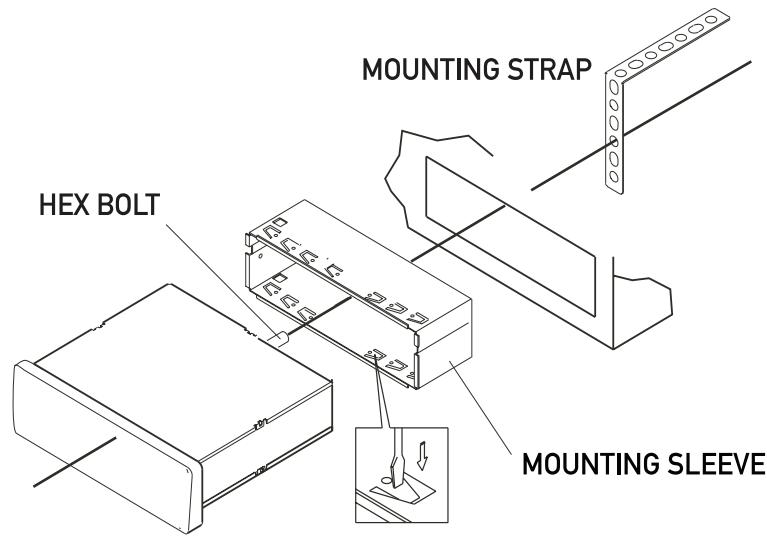
TYPICAL FRONT-LOAD DIN MOUNTING METHOD
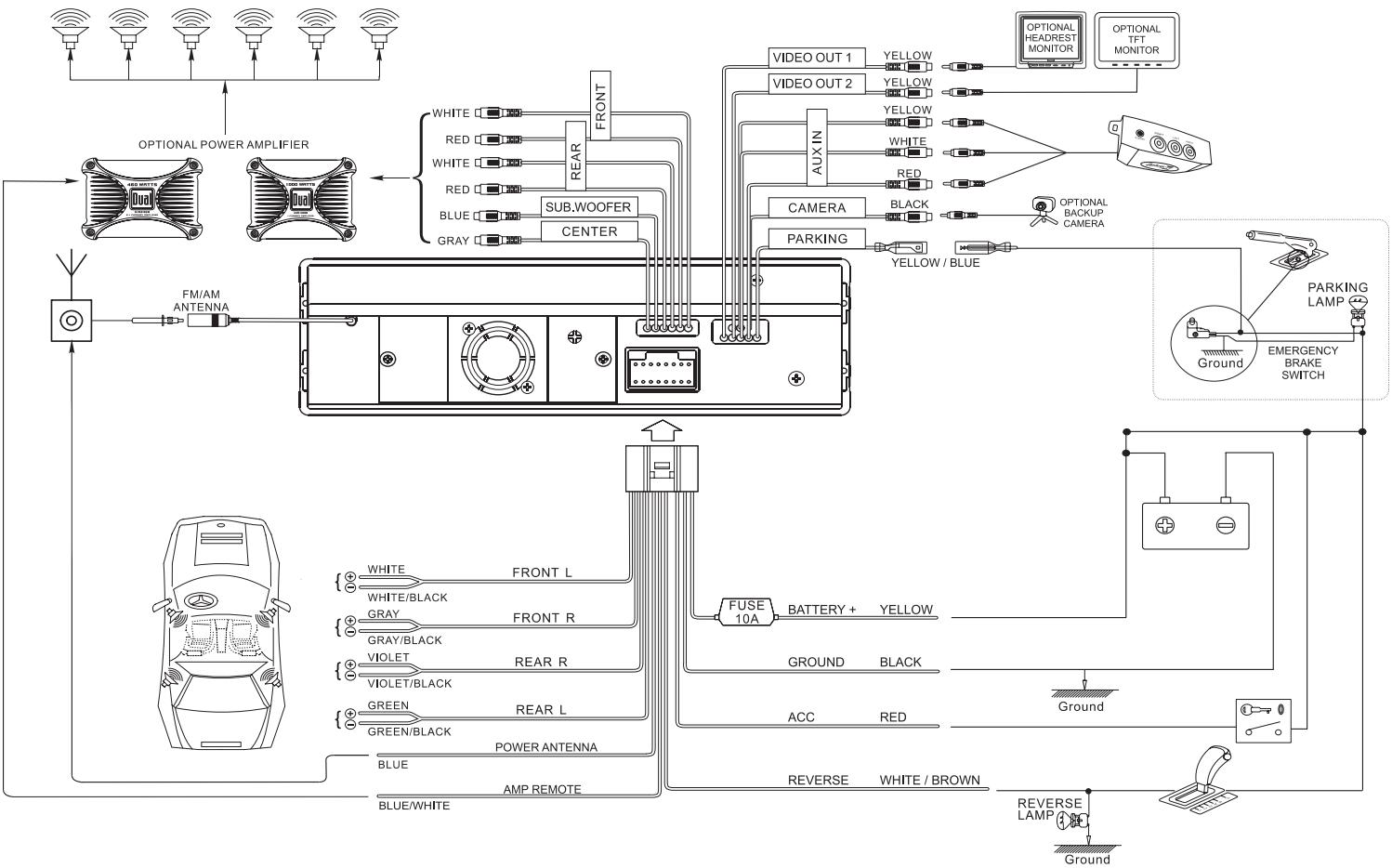
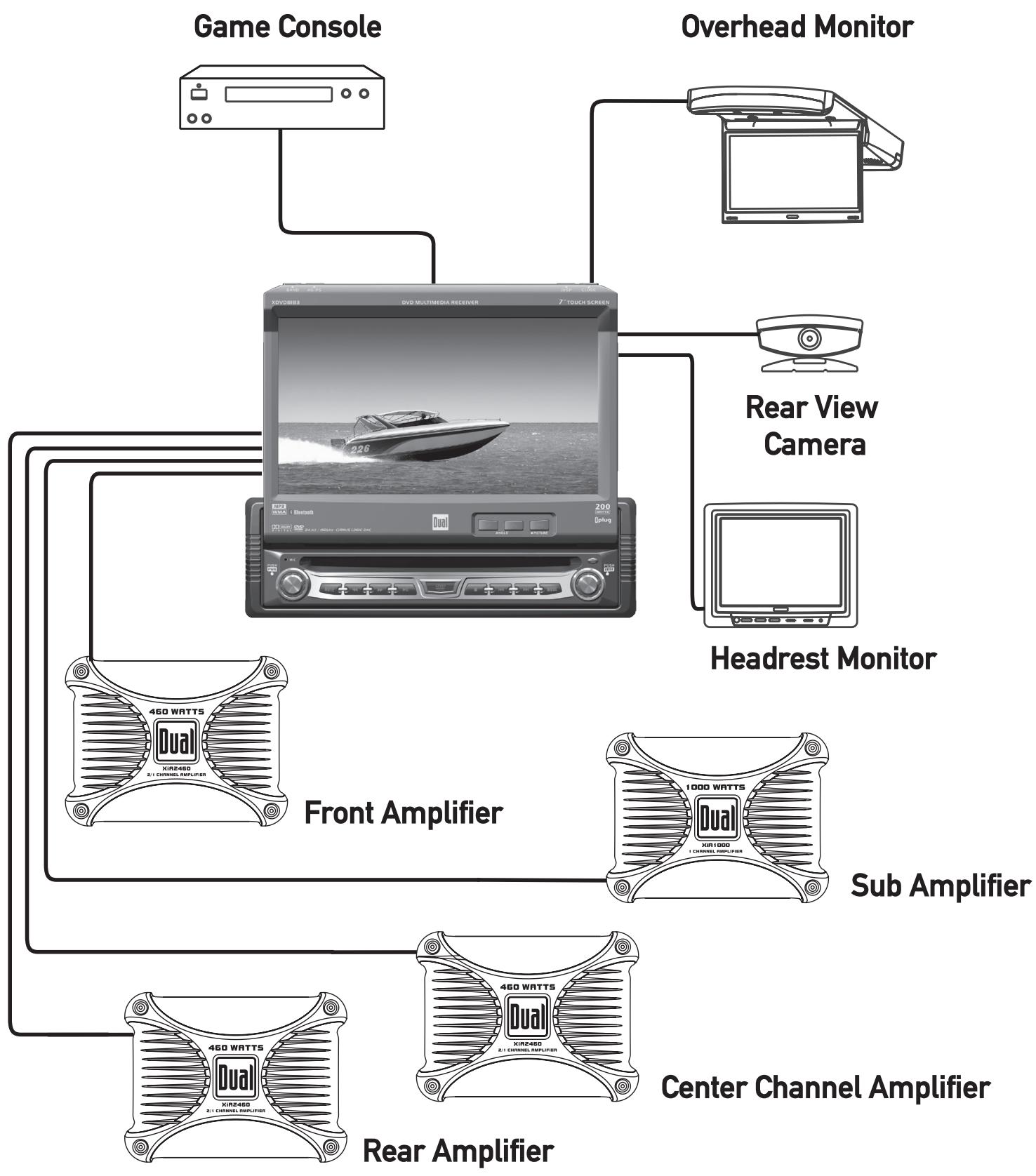
Expanded Wiring Diagram - Inputs/Outputs
Wiring Notes:
Subwoofer output
The SUBWOOFER audio output (Blue RCA) is active in all audio modes and must be connected to an external amplifier.
Center output
The CENTER audio output (Gray RCA) is only active in DVD 5.1 audio mode and must be connected to an external amplifier.
Rear view camera
A rear view camera (not included) can be used with the CAMERA input.
NEED HELP??
Call our Technical Service Hotline, 1-866-382-5476.
Safety Notes:
The DVD video display of the in-dash unit will not operate while the vehicle is moving. This is a safety feature to prevent driver distraction. In-dash DVD video functions will only operate when vehicle is in Park and the parking brake is engaged. It is illegal in most states for the driver to view video while the vehicle is in motion. Altering or defeating this safety feature is a violation of law and is prohibited.
Wiring Diagram - Optional A/V Connections
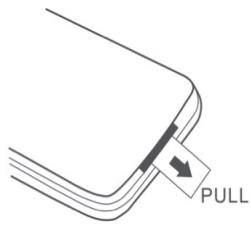
IR Remote Preparation
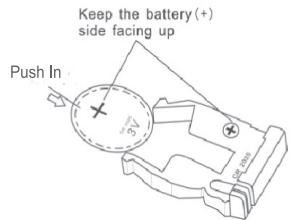
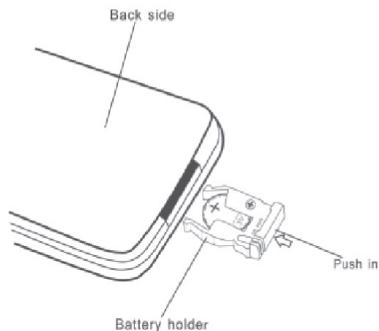
To first use the IR Remote control, you must first pull the battery insulation tape out
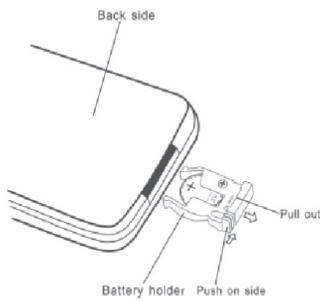
Insert or replacing the Battery:
Remove the battery holder
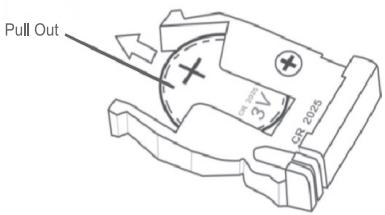
Remove the battery from the battery holder
Install the new battery Make sure to keep the (+) side up
Insert the battery holder
Notes:
- Remove the battery if the remote will not be used for a month or longer
- Remove and dispose of battery properly
CAUTION!!!
- Do not store battery with metallic objects or materials
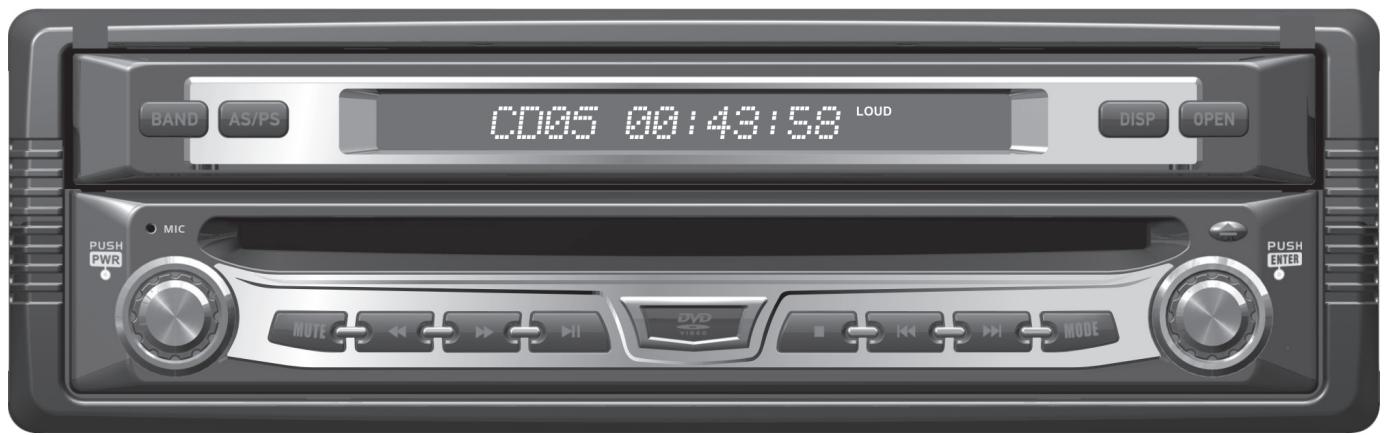
Control Locations - Monitor Closed
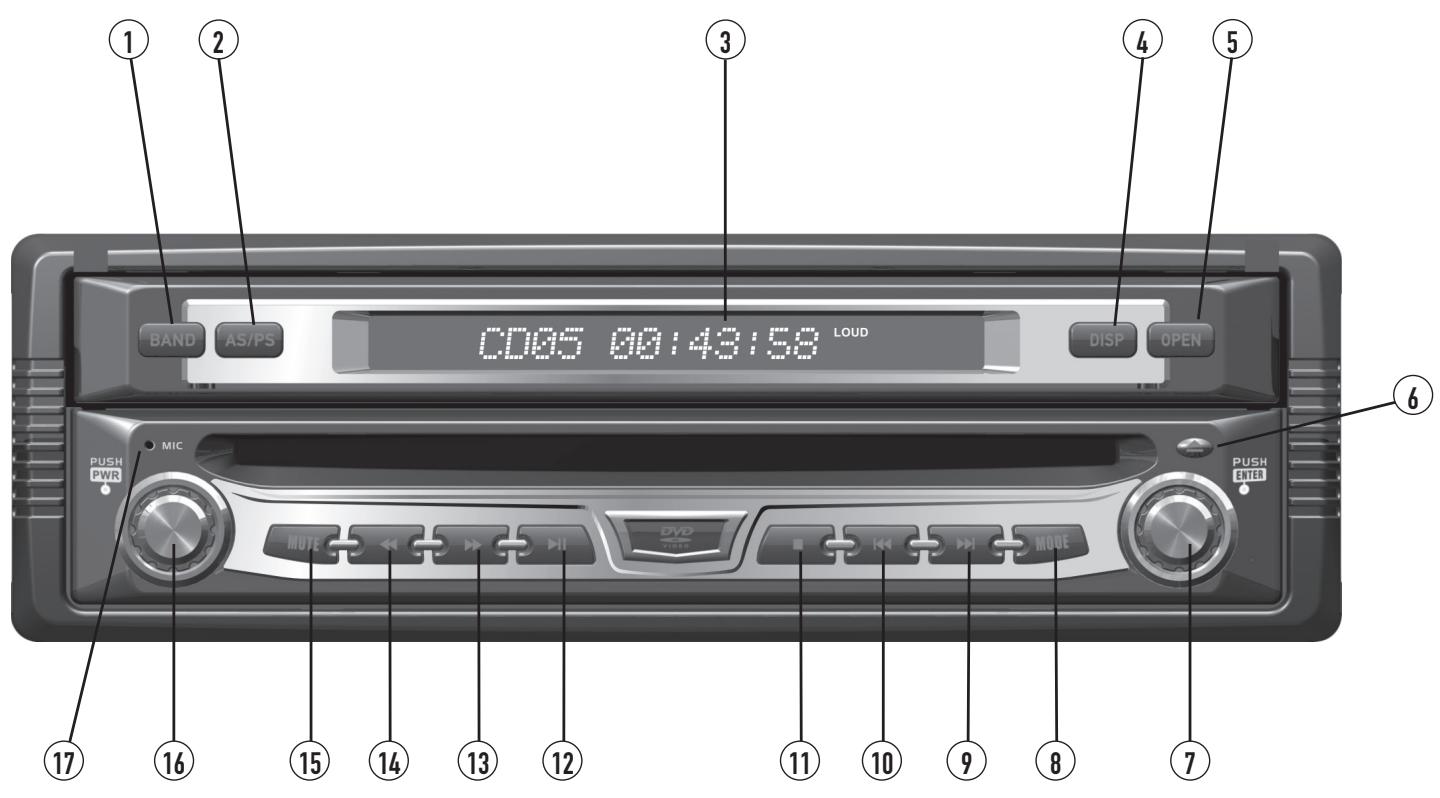
① Band
2 Auto Store/Preset Scan
③ Secondary LCD
4 Display
5 Open/Close Monitor
Eject
⑦ Rotary Encoder/Enter
Mode
Chapter/Track Up/Seek Up
Chapter/Track Down/Seek Down
⑪ Stop
⑫ Play/Pause
13 Fast Forward/Manual Tune Up
14 Fast Reverse/Manual Tune Down
(15) Mute
(16) Power/Volume
17 Microphone
Monitor Notes:
- This model incorporates a motorized moving monitor. Before final installation, make sure the monitor will not obstruct the dash, shifter or any other controls.
- Upon installation, do not attempt to move the monitor up/down by hand. Use the ANGLE / or OPEN buttons on the front panel only.
- The unit will stop if it encounters any obstacles during the open/close sequence. If this occurs, remove the obstacle and press OPEN again to resume the monitor open/close sequence.
Control Functions - Monitor Closed
| BAND | Press BAND to increment from FM1, FM2, FM3, AM ⇒ FM1. |
| AS/PS(Auto Store /Preset Scan) | Press AS/PS momentarily to start station PRESET SCAN function.Press AS/PS for 2 seconds to start AUTO STORE station preset function in current BAND. |
| SECONDARY LCD | Additional LCD for system information while monitor is closed. |
| DISP | Press the DISP button to display various information on the secondary LCD. |
| OPEN | Press OPEN to open or close the monitor. The unit will emit a confirmation beep when opening and closing. Be careful not to touch or obstruct the monitor movement during the open/close sequence, or permanent damage could occur. |
| EJECT | Press once to eject disc. |
| ROTARY | Rotate clockwise/counter-clockwise to select desired item and press once to ENTER. |
| MODE | Press once to incrementally select desired source. |
| TRACK/SEEK UP | Selects the next chapter/track/radio station. |
| TRACK/SEEK DOWN | Selects the previous chapter/track/radio station. |
| STOP | Stop playback of DVD/CD/MP3. |
| PLAY/PAUSE | Press once for PAUSE, press again for PLAY. |
| FAST FORWARD/TUNE UP | Fast forwards the chapter/track or selects the next radio frequency. |
| FAST REVERSE/TUNE DOWN | Fast reverses the chapter/track or selects the previous frequency. |
| MUTE | Press once to MUTE audio, MUTE will appear in the secondary LCD. Press again to return audio. |
| POWER ON/OFF | Press POWER momentarily to turn the unit on.Press and hold POWER for more than 2 seconds to turn the unit off.Note: EJECT will still function even if POWER is off. |
| VOLUME | Rotate clockwise/counter clockwise for desired VOLUME level. |
Control Locations - Monitor Open
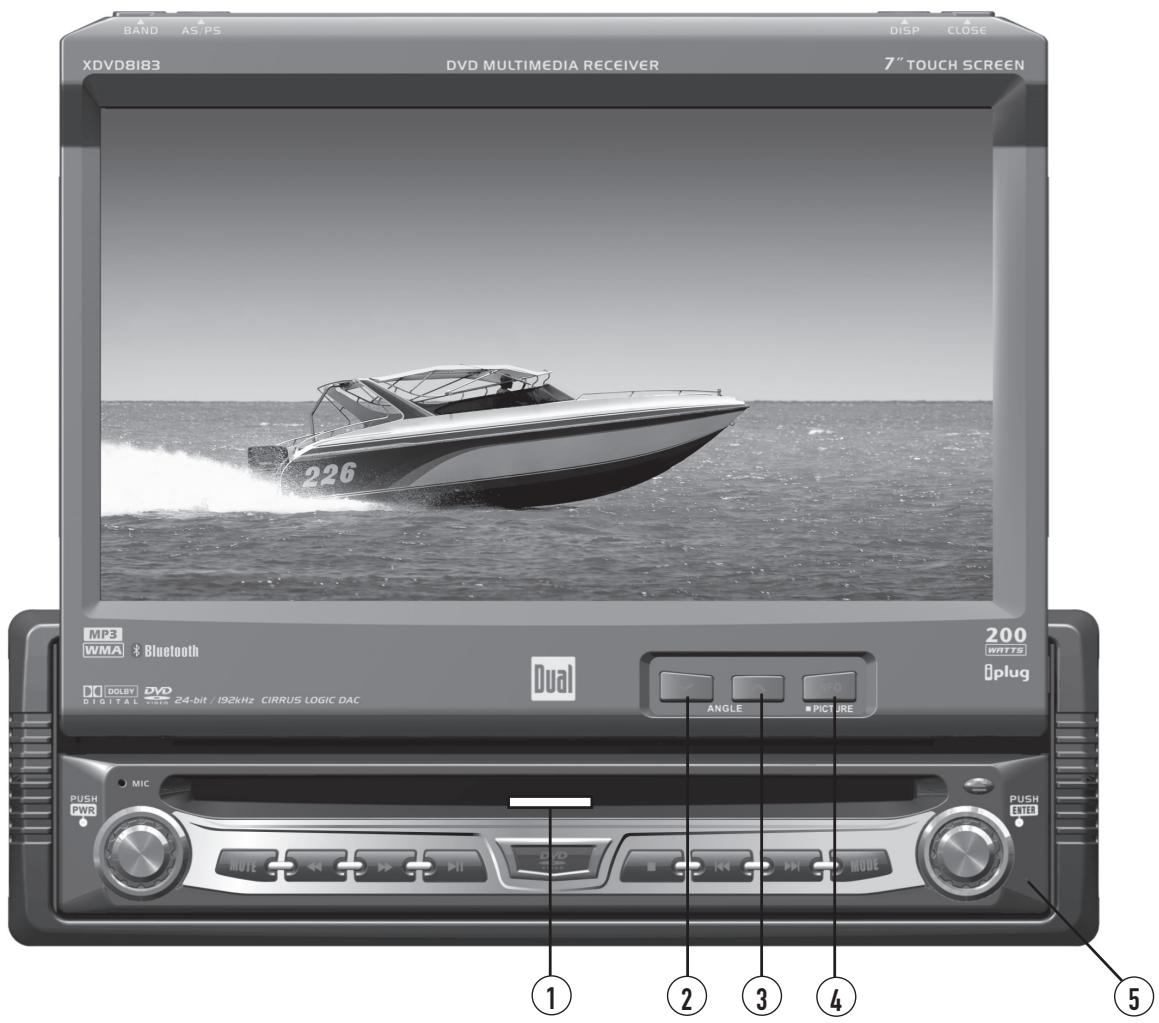
① Disc-in indicator - Red = Disc inserted, Blue = No disc.
② ANGLE▼ - Press to decrease the monitor view angle.
(3) ANGLE - Press to increase the monitor view angle.
4 INFO - Press to select DVD INFO and press and hold for BRIGHTNESS.
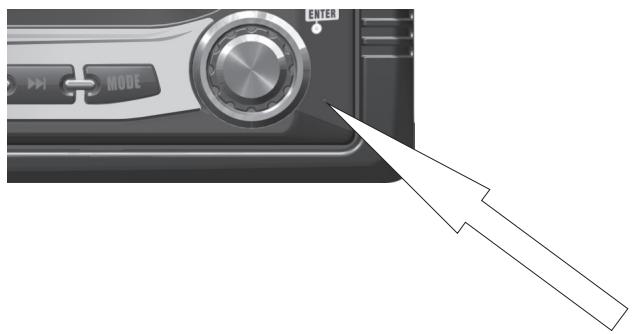
5 Press to RESET system.
Safety Notes:
The DVD video display of the in-dash unit will not operate while the vehicle is moving. This is a safety feature to prevent driver distraction. In-dash DVD video functions will only operate when vehicle is in Park and the parking brake is engaged. It is illegal in most states for the driver to view video while the vehicle is in motion.
Control Functions - Monitor Open
Disc-in indicator
Blue = No disc
Red = Disc inserted
Monitor Angle ▲▼
Press ANGLE to increase the monitor view angle.
Press ANGLE to decrease the monitor view angle.
Notes:
- Do not attempt to move the monitor up/down by hand - severe damage will occur. Use the front panel buttons or the remote control only.
- The color of the LCD monitor varies between viewing angles. Select the angle with the most optimum view for your location.
- The last position of the monitor will be saved in memory. The monitor will return to its last position automatically the next time it is opened.
INFO/PIC
Press INFO button for 1 second to display DVD disc information.
SYSTEM RESET
Press and hold INFO for 2 seconds to change TFT LCD BRIGHTNESS: Press ANGLE to increase, ANGLE to decrease or use VOLUME rotary to adjust the level up or down, (0 minimum/20 maximum), 10 is default.
If you experience abnormal operation or, your unit is inoperable, press the RESET button for 3 seconds, located on the front bottom-right corner of the unit. After a system reset, the unit restores all factory default settings.
Note: Use the tip of a pen to access the button.
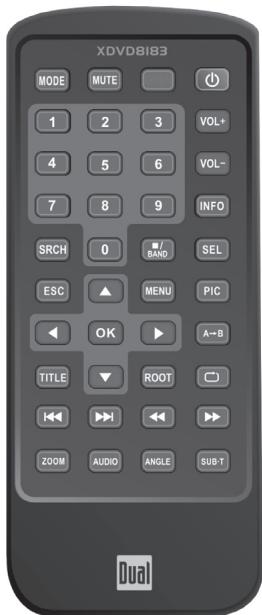
Control Locations - Remote
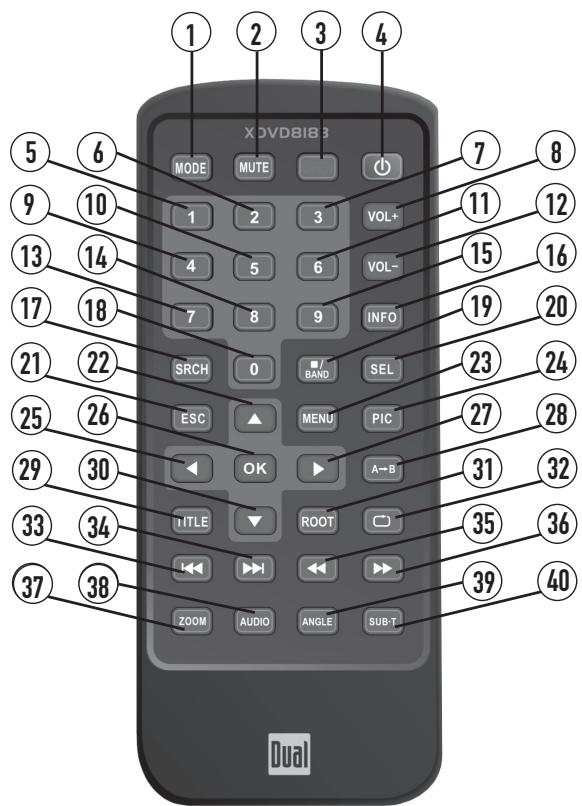

Mode

Mute

Open/Close

Power

Key #1

Key #2

Key #3

Volume Up

Key #4

Key #5

Key #6

Volume Down

Key #7

Key #8

Key #9
16 Info
(17) Search
18 Key #0
19 Band/Stop
20 Audio Select
②1 Escape
24-Way-Up
23 Menu
24 Picture
25 4-Way-Left
26 OK
24-Way-Right
28 Repeat A-B
29 Title Menu/CD Scan
30 4-Way-Down
31 Root
32 Repeat
33 Chapter/Track/Seek Down
34 Chapter/Track/Seek Down
35 Fast Reverse/Manual Tune Down
36 Fast Forward/Manual Tune Up
③ Zoom
38 Audio
39 Angle
40 Sub-Title
Control Functions - Remote
| Mode | Press once to incrementally select desired source. |
| Mute | Press once to MUTE audio, press again to return audio. |
| Open/Close | Press once to open monitor, press again to close the monitor. |
| Power | Press once to turn the unit on, press again to turn unit off. |
| Keys 0-9 | Direct access chapter/track/preset station for current BAND. |
| Volume Up | Increase VOLUME. |
| Volume Down | Decrease VOLUME. |
| Info | Displays DVD information. |
| Search | Search function in the DVD/CD disc mode. |
| Band / Stop | Press to increment BAND, or STOP while in DVD/MP3 mode. |
| Audio Select | Enter AUDIO Setup mode. |
| Escape | Exit current menu. |
| 4-Way -Up/Down/Left/Right | Navigating system and DVD menus. |
| Menu | Enter the MAIN system menu. |
| Picture | BRIGHTNESS parameter setting for TFT. |
| OK | Starts/pauses playback or confirm settings. |
| Repeat A-B | Repeat playback from time frame A to time frame B. |
| Title Menu | Enters the title menu on DVD. |
| Root | Enters the main menu of the DVD disc. |
| Repeat | Repeats playback of current DVD chapter. |
| Chapter/Track Down | Selects the previous chapter/track for playback. |
| Chapter/Track Up | Selects the next chapter/track for playback. |
| Fast Rewind | Fast rewrites the disc content. |
| Fast Forward | Fast forwards the disc content. |
| Zoom | Zooming in/out on an image from DVD disc. |
| Audio | Change the audio language for DVD disc playback. |
| Angle | Plays DVD disc in different angle for a scene. |
| Sub-Title | Language selection for subtitle. |
General Operation
| Power On/Off | Press POWER momentarily to turn the unit on. Press and hold POWER for more than 2 seconds to turn the unit off. Note: EJECT will still function even if POWER is off. |
| Monitor Open/Close | Press OPEN to open or close the monitor. The unit will emit a confirmation beep when opening and closing. Be careful not to touch the monitor during the open/close sequence. Notes: • The unit will stop automatically during open/close if an obstacle is detected. If this occurs, remove the obstacle and press OPEN again to resume the monitor open/close sequence. • Audio can be heard while the monitor is closed. |
| Monitor Angle Position | Press ANGLE ▲ to increase the monitor view angle. Press ANGLE▼ to decrease the monitor view angle. |
| Notes: • Do not attempt to move the monitor up/down by hand - severe damage will occur. Use the front panel buttons or the remote control only. • The color of the LCD monitor varies between viewing angles. Select the angle with the most optimum view for your location. • The last position of the monitor can be saved in memory. The monitor will return to its last position automatically the next time it is opened. Notes: • The vehicle must be in park and the parking brake applied to view video on the in-dash monitor. • As a safety feature, a blue “CAUTION” screen will show on the display when the vehicle's parking brake is not engaged. DVD and AUX IN audio can be heard while the vehicle is in motion. • The video display of the in-dash unit will not operate while the vehicle is moving. This is a safety feature to prevent driver distraction. In-dash video functions will only operate when vehicle is in Park and the parking brake is engaged. It is illegal in most states for the driver to view video while the vehicle is in motion. Refer to local laws in your area. | |
| See DVD operation on page 33 for more details on how to initialize the PARKING BRAKE. |
General Operation
| Mode | Press MODE to select between TUNER, DVD, AUX IN and CAMERA inputs. Modes of operation are indicated in the OSD (On Screen Display) and secondary LCD. | |
| Optional Mode Selection | With the monitor open, press the screen to display the OSD menu bar and press TUNER, DVD, AUX IN or CAMERA in the MAIN menu page to select the desired source. | |
| Volume | Adjust VOLUME using rotary encoder or the VOL ▲▼ buttons (00-40). | |
| Mute | Press MUTE to silence the audio; ▽ will appear in the OSD. Press MUTE again to cancel. | |
| Audio Adjustment from front panel | Press in VOLUME rotary knob on left front panel. Press in VOLUME again to advance to desired parameter to be changed. Turn VOLUME rotary Ⓞ or Ⓞ to adjust to desired level. Press in VOLUME to advance to next selection. Press and hold the VOLUME button on the front panel to exit. | |
| 2-Channel Audio Settings | ||
| Audio | ||
| EQ | JAZZ | |
| BASS | 00 | |
| Treble | 00 | |
| FADE | 00 R | |
| BAL | 00 L | |
| SW | 00 - | |
| LOUD | ON | |
| Audio Adjustment from Remote | Press the SEL button. Press the ▲▼ buttons on the remote to select an item to be adjusted. Press ▲ or ▲ to adjust the desired setting. Press the ESC button on the remote control to exit the audio control menu. | |
| Notes: The Bass and Treble levels are only adjustable when EQ is set to "User" mode. The Loud function compensates for deficiencies in sound ranges at low levels. When the Loud function is on, LOUD is displayed on the screen. | ||
General Operation
INFO/PIC
RGB BRIGHTNESS
CVBS Screen Controls
SHARPNESS CONTRAST COLOR BRIGHTNESS TINT
Note: Adjustments to SHARPNESS, CONTRAST, COLOR, BRIGHTNESS & TINT are only possible while in either AUX-IN or CAMERA CVBS mode.
Press INFO button for 1 second to display DVD disc information.
Press and hold INFO for 2 seconds to change TFT LCD BRIGHTNESS: Press ANGLE to increase, ANGLE to decrease, or use VOLUME rotary to adjust the level up or down. (0 minimum/20 maximum) 10 is default.
While in AUX-IN or CAMERA mode: Press and hold INFO for 2 seconds to access PICTURE MENU, press INFO briefly again to step to next selection:
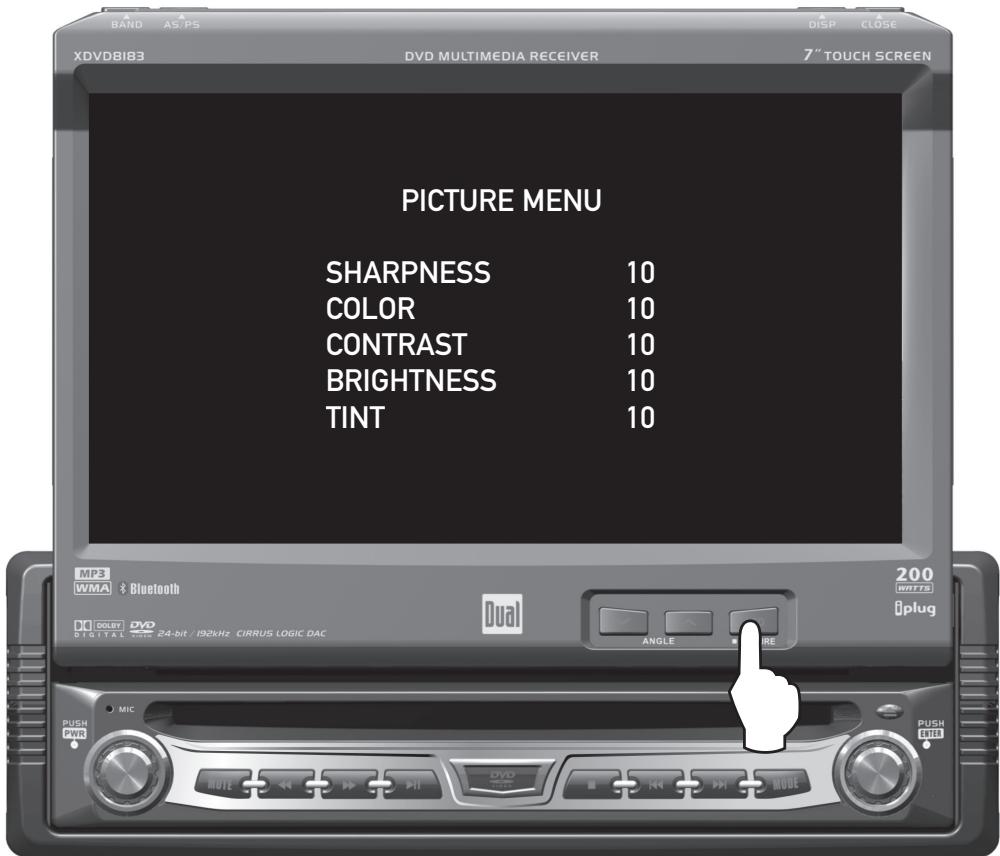
Press or to adjust the sharpness (0 minimum/+20 maximum).
Press or to adjust the contrast (0 minimum/+20 maximum).
Press or to adjust the color (0 minimum/+20 maximum).
Press or to adjust the brightness (0 minimum/+20 maximum).
Press or to adjust the tint (0 minimum/+20 maximum).
General Operation
| BAND | Press BAND to increment from FM1, FM2, FM3, AM ⇒ FM1. |
| AS/PS(Auto Store /Preset Scan) | Press AS/PS momentarily to start station PRESET SCAN function. The unit will now scan your program presets for 10 seconds for each preset in that band. Press AS/PS again to stop scanning. Press AS/PS for 2 seconds to start AUTO STORE station preset function in current BAND. |
| DISP | Press the DISP button to display various information on the secondary LCD screen when the monitor is closed. |
| OPEN | Press OPEN to open or close the monitor. The unit will emit a confirmation beep when opening and closing. Be careful not to not touch or obstruct the monitor movement during the open/close sequence, or permanent damage could occur. |
| EJECT | Press once for DISC ejection. |
| ROTARY | Press to access MAIN menu. rotate clockwise/counter-clockwise to select desired item and press once to ENTER. |
| MODE | Press once to incrementally select desired source. |
| TRACK/SEEK UP | Selects the next chapter/track/radio station. |
| TRACK/SEEK DOWN | Selects the previous chapter/track/radio station. |
| STOP | Stop playback of DVD/CD/MP3. |
| PLAY/PAUSE | Press once for PAUSE. press again for PLAY. |
| FAST FORWARD/TUNE UP | Fast forwards the chapter/track or selects the next radio frequency. |
| FAST REVERSE/TUNE DOWN | Fast reverses the chapter/track or selects the previous frequency. |
| MUTE | Press once to MUTE audio, press again to return audio, an icon indicator will flash on the TFT monitor. |
| POWER ON/OFF | Press POWER momentarily to turn the unit on. Press and hold POWER for more than 2 seconds to turn the unit off. Note: EJECT will still function even if POWER is off. |
| VOLUME | Rotate VOLUME rotary knob or for desired VOLUME level, press once to access the AUDIO SETUP MENU. |
| PROGRAMMABLE TURN-ONVOLUME | Turn VOLUME rotary to desired listening level, press and hold VOLUME rotary knob for 3 seconds to program currently selected volume level. |
General Operation
Secondary LCD Information
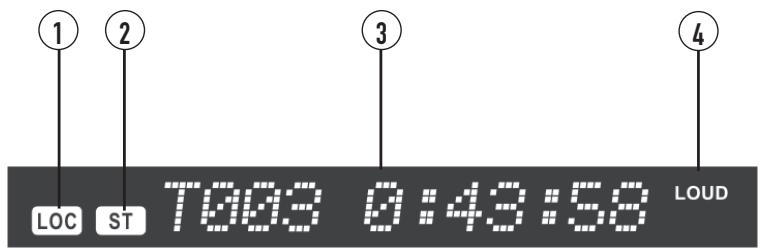
NOTE: Secondary LCD only functions when TFT monitor is closed.
LOCAL indicator, icon will be off when DISTANCE (DX) is selected
STEREO radio station indicator
Displays TRACK time, TUNING frequency, MP3 ID3 info. & CLOCK, etc
LOUDNESS selection indicator
General Operation
Main Menu Access
There are three methods to access the MAIN menu:
Press the ENTER button on the right ROTARY knob.
- Press the MENU button on the remote control.
- Touch the upper left corner of the touch screen.
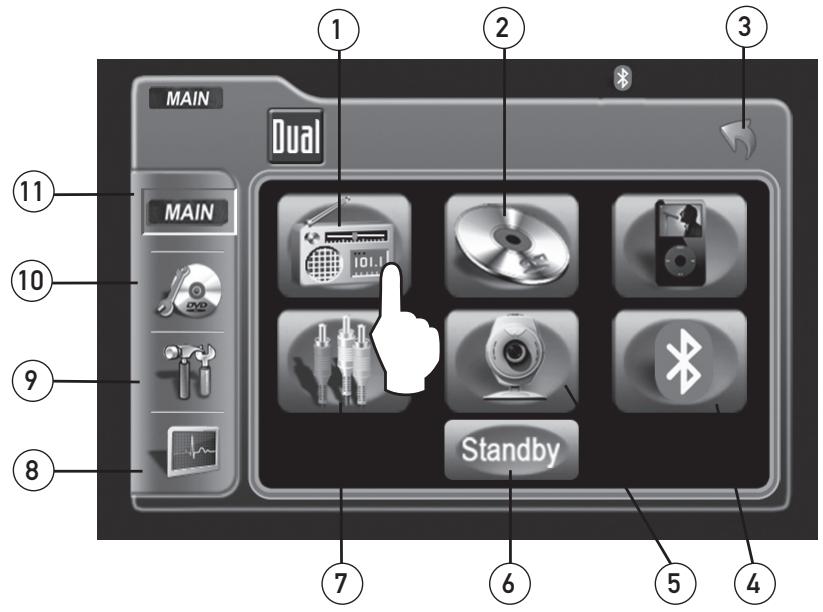
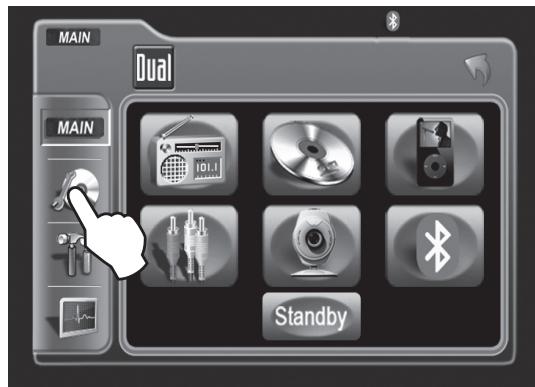
Touch Access Buttons
Rapid Dial Rotary Encoder
Touch to access AM/FM TUNER mode.
Touch to access CD/DVD mode, CD/DVD must be inserted.
Touch to RETURN to previous screen.
Touch to access BLUETOOTH mode, (BLUETOOTH must be activated first.) Refer to page 61 for more details.
Touch to access CAMERA mode, if optional camera isn't connected then "No Signal Detected" will be displayed.
Touch to STANDBY screen, touch screen again or any button to resume display. Note: VOLUME level can be controlled in STANDBY mode.
Touch to access AUXILIARY A/V INPUT mode .
Touch to access SCREEN SETUP menu.
Touch to access GENERAL SETUP menu.
Touch to access CD/DVD SETUP menu, CD/DVD must be inserted to function
Touch to access MAIN Source menu.
The rotary encoder can also control touch screen functions from the main menu.
- Select desired function rotating clockwise or counter-clockwise.
- Function will be outlined in yellow.
Press to confirm/ENTER.

GENERAL Setup - Menu
General Setup Menu
Note: Default anti-theft password is 0000
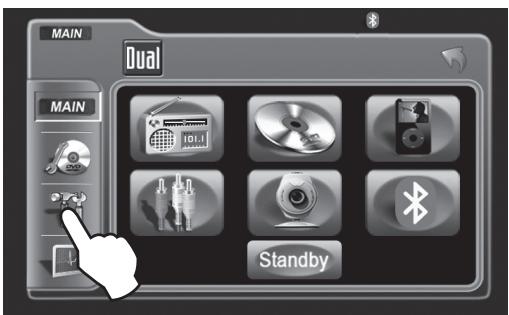
- Press the GENERAL button to access the GENERAL setup mode.
- Select desired parameter you wish to change.
- Page will return back to previous screen after 10 seconds of inactivity or by pressing the RETURN button.
GENERAL Setup Menu matrix
| Settings | Default | Options | Function |
| Radio | USA | USA | Set to appropriate setting for your country |
| S-Amer1 | |||
| S-Amer2 | |||
| Europe | |||
| Clock adjust | AM | 00:00 | See adjusting the clock on page 23 for more details |
| Clock Mode | 12Hr | 12Hr | PM 6:00 |
| 24Hr | 18:00 | ||
| Camera Image | Normal | Normal | Normal Image |
| Reverse | Mirror camera input image 180 degrees | ||
| Video Format | Auto | Auto | System will auto detect NTSC or PAL |
| NTSC | For NTSC compatibility | ||
| PAL | For PAL compatibility | ||
| TFT Auto Open | Off | On | TFT panel will automatically open when IGN is turned on |
| Off | TFT panel will not auto open when IGN is turned on | ||
| Manual | TFT will only open/close when OPEN button is pressed | ||
| Bluetooth | Off | Off | Turns off the Bluetooth functionality |
| On | Enables Bluetooth functionality | ||
| Anti-theft Code | 0000 | ----- | Must enter password to turn anti-theft on or off |
| Anti-theft active | Off | On | System will require a password if main battery power is removed for more than 40 seconds |
| Off | No password will be required if power is removed | ||
| Load Factory defaults | Yes | Are you sure? Yes/Cancel | Load all factory parameters to their original settings. Notes: This will not reset the anti-theft password. Default anti-theft password is 0000. |
Note: Not all GENERAL setup features are described in detail.
GENERAL Setup - Adjusting Radio Frequency
Adjusting Radio Frequency
Step 1
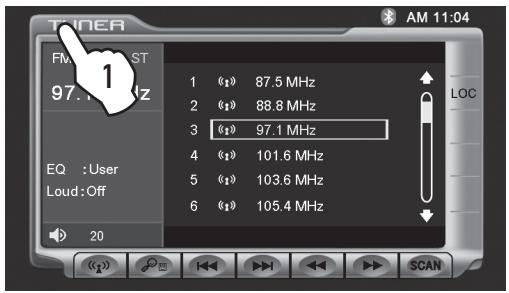
1) Touch top left corner of screen.
Step 2
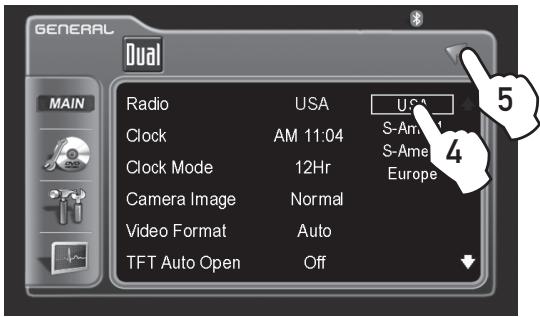
4) Touch the setting for your region.
Step 5
Touch RETURN to exit.
GENERAL Setup - Adjusting the Clock
12Hr Clock Mode
Step 1
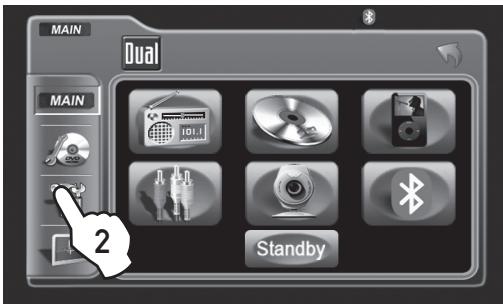
Step 2
Step 3
Steps 4-7
24Hr Clock Mode
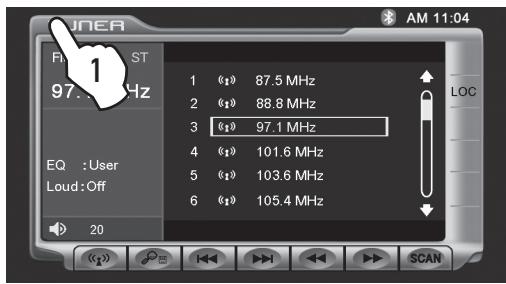
1) Touch top left corner of screen.
3) Touch 00:00 area in the CLOCK row.
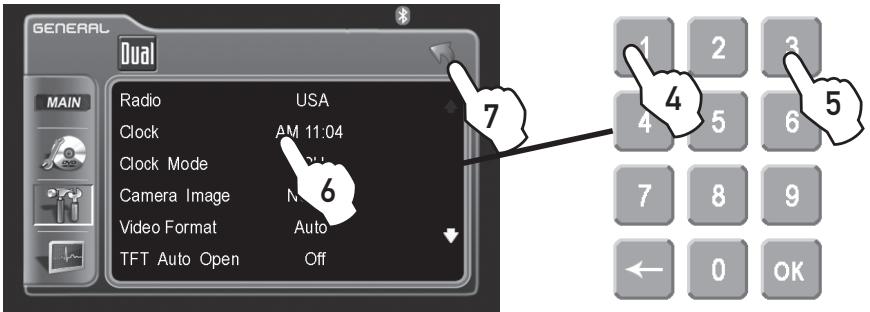
4) Keypad will appear, enter HOUR, touch OK.
5) Enter MINUTES, touch OK.
6) Touch AM or PM to set.
7) Touch RETURN to exit.
For 24Hr format, select 24Hr from CLOCK MODE, then follow steps 1-7.
GENERAL Setup - Setting the Anti-theft code
By default Anti-theft password is 0000 and is turned Off. To turn this feature on, follow the steps below. CAUTION!!
This will lock your unit from operating if battery POWER is disconnected for more than 40 seconds.
Step 1 & 2
Step 3 & 4
Step 5 & 6
Step 7 & 8
Note: it is recommended that you choose your own 4-digit password carefully, write it down somewhere and keep in a safe location. In the event you ever loose or forget your password, call our tech hot line for support on how to unlock your system.
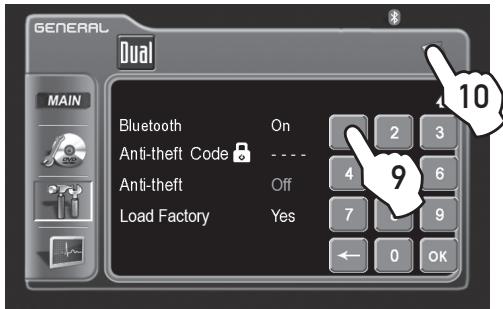
Step 9 & 10
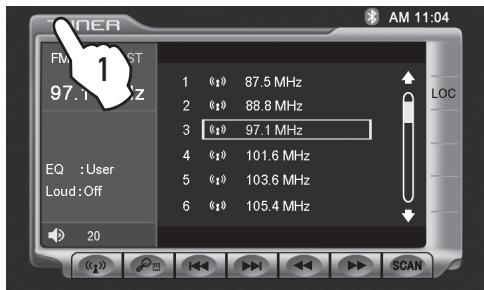
1) Touch top left corner of screen.
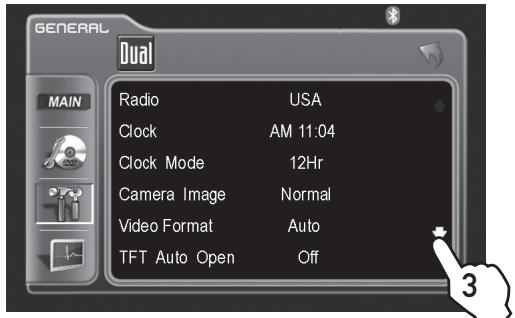
3) Touch down arrow icon.
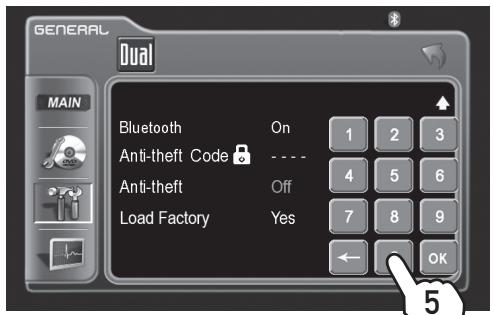
5) Enter 0000, then press OK.
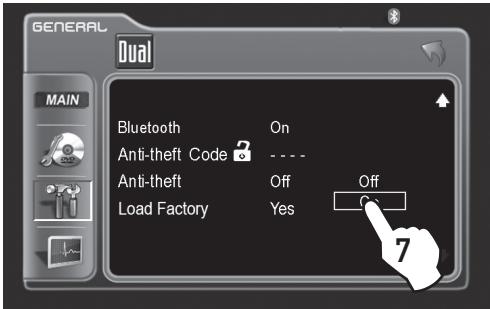
7) Touch On.
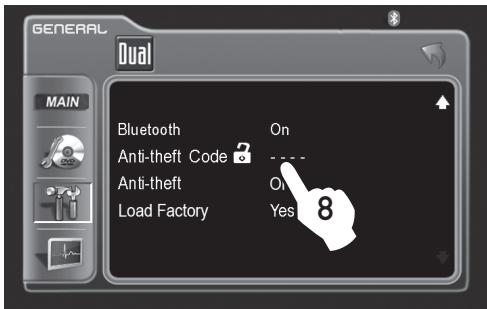
8) Touch ---- again.
9) Enter your new 4-digit password, then press OK.
10) Touch RETURN to exit.
SCREEN Setup - Menu
Screen Setup Menu
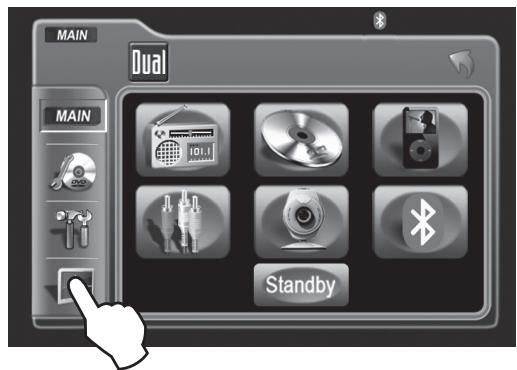
- Press the SCREEN icon to access the SCREEN setup mode.
- Select desired parameter you wish to change.
- Page will return back to previous screen after 15 seconds of inactivity or by pressing the RETURN button.
SCREEN Setup Menu matrix
| Settings | Default | Options | Function |
| Brightness | 10 | 0 - 20 | Press ↓ or ↑ on the remote or press the right rotary once and rotate clockwise/counter-clockwise to adjust the Brightness to the desired setting |
| Screen Tilt | 4 | 1 - 6 | Select 1 to 6 to adjust the default tilt angle of the screen |
| Screen Saver | On | Off | Select On to activate the screen saver, Off to deactivate |
| On | |||
| TS Calibrate | No | No | Touch Yes to enter the Touch Screen calibration mode |
| Yes | |||
| Version | Software version of unit |
System Standby
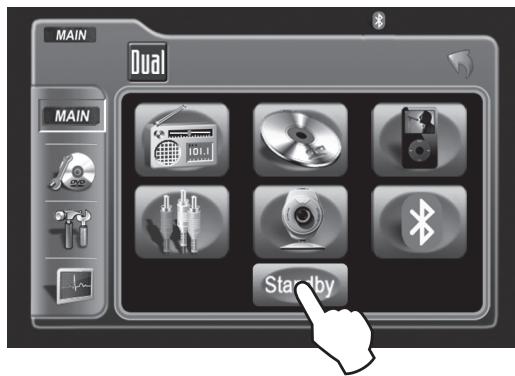
To conserve the LCD backlight lifespan or to eliminate glare while night driving, press STANDBY. The TFT screen will black out, however all other operations continue to operate. Press any button except VOLUME or touch the screen again to return to normal viewing.
SCREEN Setup - Setting TFT Brightness
This will set the default setting for the TFT display brightness.
This can also be set by pressing the INFO button on the front TFT panel.
Step 1
Step 2
Step 3
Step 4
Step 5
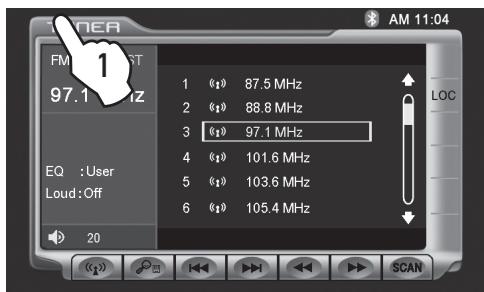
1) Touch top left corner of screen.

2) Touch SCREEN icon.
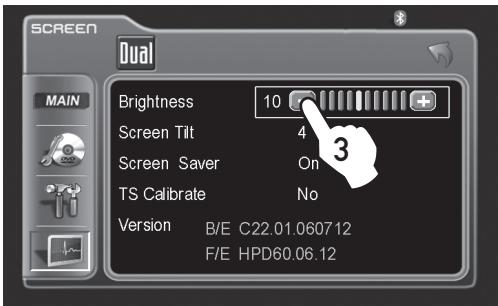
3) Touch [-] to reduce brightness.
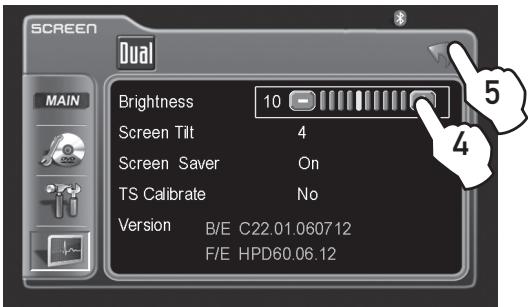
4) Touch [+] to increase brightness.
0 - 20 is possible
Default = 10
5) Touch RETURN to exit.
SCREEN Setup - Setting TFT Angle
Set for best viewing angle for your vehicle
Step 1
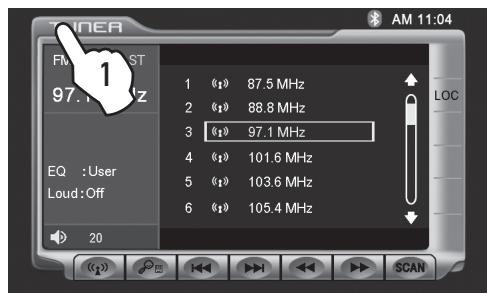
1) Touch top left corner of screen.
Step 2
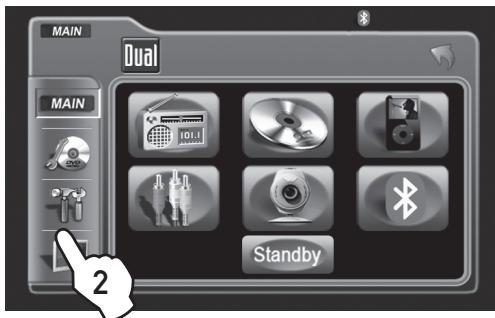
2) Touch SCREEN icon.
Step 3
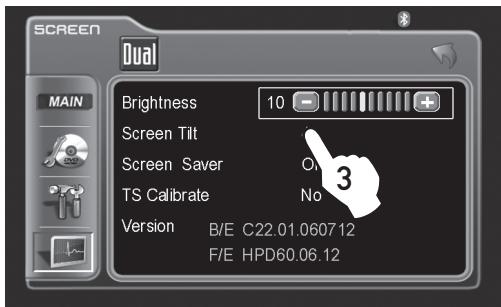
3) Touch a number displayed in SCREEN TILT row.
Step 4
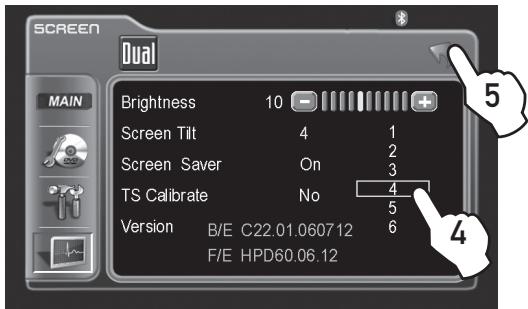
4) Touch desired angle for best viewing angle.
1 - 6 is possible
Default = 4
Step 5
5) Touch RETURN to exit.
SCREEN Setup - Touch Screen Calibration
Upon initial installation or occasionally, the touch screen may have to be calibrated. Follow these steps as described.
Step 1
Step 2
Step 3 & 4
Step 5 & 6
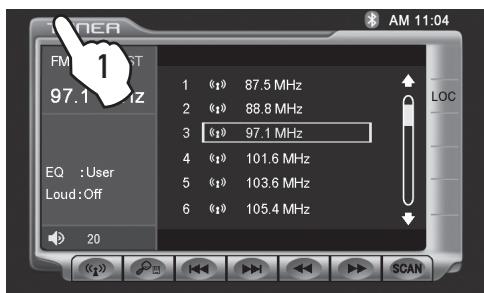
1) Touch top left corner of screen.
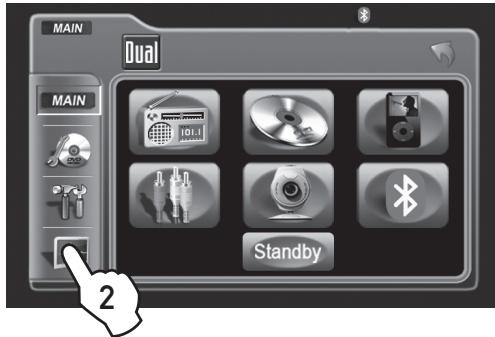
2) Touch SCREEN icon.
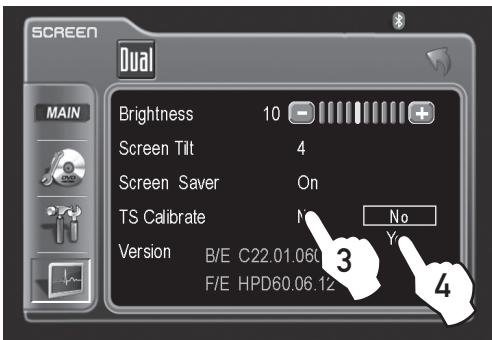
3) Touch No in TS Calibration row.
4) Then touch Yes.
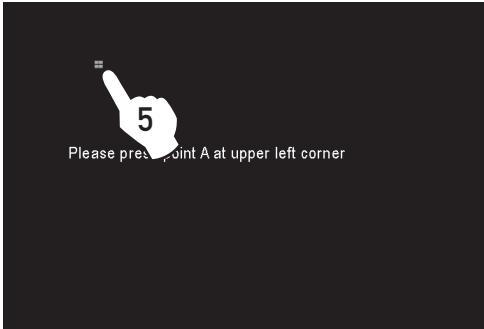
5) Touch and hold the pointers as indicated on the screen for 2 seconds each.
6) Screen will automatically return to MAIN MENU, touch EXIT to return.
Note: For proper calibration you must touch each pointer for 2 seconds. If pointers are not touched properly, the calibration sequence will start over until the calibration is done correctly.
AM/FM Tuner Operation - OSD Overview

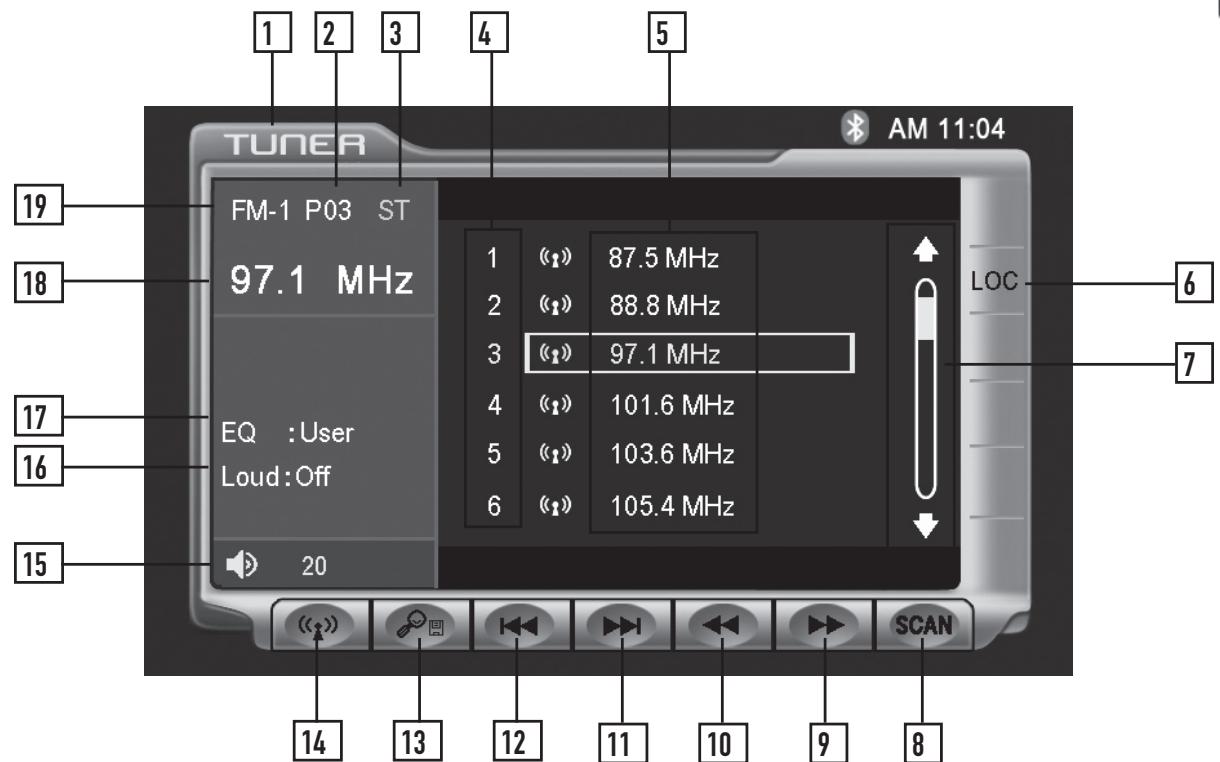
Tuner Mode
From the main menu, touch TUNER icon on the screen to select AM/FM Tuner mode.
1
Current Source Indicator Displays source currently playing.
2
Preset Number Indicator Shows what preset has been selected.
3
Stereo Indicator Shows that the frequency selected is received in stereo.
4
Preset Number List Display Shows the preset list by preset number.
5
Preset Station List Display Shows the preset station list by frequency. Touch frequency to select a preset. Touch and hold frequency to store presets.
6
Local / DX Tuning Mode Shows when local or distance tuning is on.
7
Preset Display Scroll Bar Allows scrolling of preset list.
8
Tuner Scan Touching this icon will scan through all available stations in the current band.
AM/ FM Tuner Operation - OSD Overview
9
Tune Frequency - Up
Touching this icon will tune the radio to a higher frequency by one frequency step. Touch and hold to continuously tune up.
10
Tune Frequency - Down
Touching this icon will tune the radio to a lower frequency by one frequency step. Touch and hold to continuously tune down.
11
Seek Next Station - Up
Touching this icon will tune to the next strong station at a higher frequency.
12
Seek Next Station - Down Touching this icon will tune to the next strong station at a lower frequency.
13
Preset Scan/Auto Station Tune Touching this icon will scan through all presets in the current band. (This function can also performed by pressing the AS/PS button.) Holding this button for more than 2 seconds will automatically program the 12 strongest stations available into the presets in the current band. (This function can also be performed by holding the AS/PS button.)
14
15
16
17
18
19
AM/FM Tuner Operation
| AM/FM Tuner Mode | From the main menu, touch TUNER icon to select AM/FM Tuner mode. |
| From the remote control or the front panel. Press MODE until TUNER is displayed on the screen. | |
| Band | Touch (1) on the screen repeatedly until the desired band is displayed, FM-1, FM-2, FM-3, or AM. Press the BAND button to switch between bands, FM-1, FM-2, FM-3, AM. From the remote control: Press the BAND button. |
| Manual Tuning | Touch ▶ on the screen to tune to the next higher frequency step. Touch ← on the screen to tune to the next lower frequency step. Touch and hold either ← or ▶ on the screen to continue tuning across multiple stations. From the remote control: Touch ← or ▶ to perform manual tuning. |
| Seek Tuning | Touch ▶ on screen to tune to the next higher strong station. Touch ← on screen to tune to the next lower strong station. Press ▶ on front panel to tune to the next higher strong station. Press ← on front panel to tune to the next lower strong station. From the remote control: Press ▶ or ▶ to tune to the next higher strong station. Press ← or ▶ to tune to the next lower strong station. |
| Storing Presets | There are 36 FM and 12 AM presets available in 4 bands. After finding a frequency that you would like to store in memory, touch and hold the screen on any of the frequencies in the preset station list until it turns yellow. |
| Auto Store Presets | Touch and hold the ⋅ icon to automatically program the 12 strongest stations available into the presets in the current band. Press and hold the AS/PS button for more than 2 seconds. |
| Preset Scan | Touching the ⋅ button will scan through all tunable presets in the current band and play them for 10 seconds each. Press the AS/PS button momentarily. |
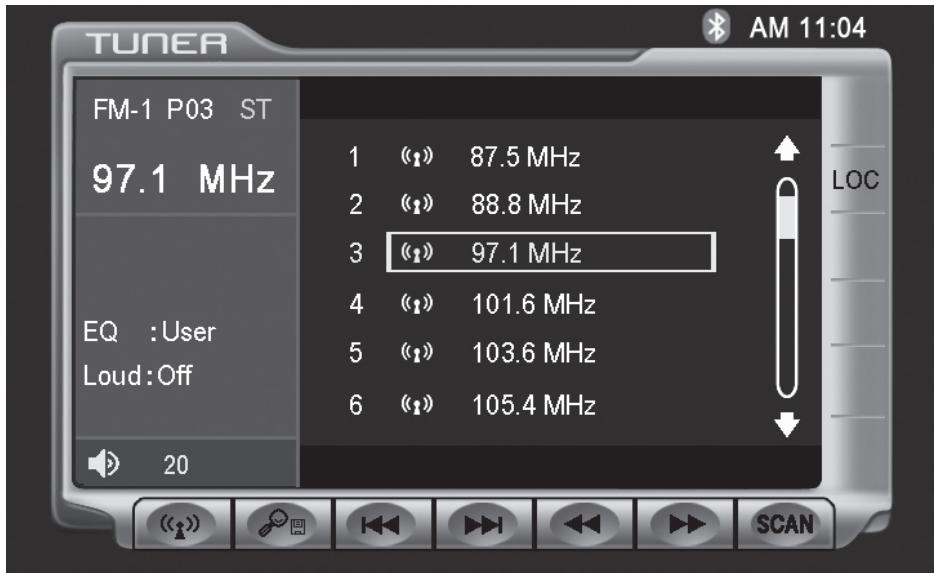
AM/ FM Tuner Operation
Direct Preset Tuning
To select a desired station from the preset station list, touch any of the displayed station frequencies from the list.
Use Rapid Dial by turning the right rotary clockwise or counter-clockwise, and pressing in to select the highlighted channel.
Use the up and down arrows on screen to scroll through the presets. Once highlighted, simply touch the screen at the appropriate preset.
From the remote control:
Press or to scroll through the presets. When the correct preset is highlighted press OK.
Use the numeric keypad to enter the desired preset number.
Scan Tuning
Touch SCAN on the screen and it will tune you to all stations available with good reception for 10 seconds at a time. Touch SCAN again to disable.
Local Tuning
Local tuning lets you tune in radio stations with sufficiently strong signals for good reception. In areas that reception is poor, you can switch from local to distance tuning by touching the LOC button on the screen.
WARNING
Upon installation of this Monitor/DVD player ("unit") into a vehicle, the driver of the vehicle must not operate this unit by watching videos or playing video games while driving. Failure to follow this instruction could lead to driver distraction which could result in serious injury or death to the vehicle's occupants or persons outside the vehicle and/or property damage.
Several states prohibit the installation of monitors/DVD players if the screen is visible from the driver's seat. If you reside in a jurisdiction which has enacted such a law, this unit must not be installed so that the screen is visible from the driver's seat. When installing this unit in the front console/dashboard, the unit must be positioned so that it is facing the front passenger seat only. Failure to follow this instruction could lead to driver distraction which could result in serious injury or death to the vehicle's occupants or persons outside the vehicle and/or property damage.
This unit is designed so that it may be operated only when the vehicle is in "Park" and the parking brake is fully engaged. To this end, this unit includes a parking brake lock-out feature which prohibits the unit from operating if the vehicle is not in "Park" and/or the parking brake is not fully engaged. When installing this unit, the installer must connect the parking brake detect wire ("Yellow-Blue Lead") to the parking brake mechanism in order to make the parking brake lock-out feature operable. DO NOT simply ground the parking brake detect wire to a metal portion of the vehicle. Failure to properly install the parking brake lock-out feature could lead to driver distraction which could result in serious injury or death to the driver's occupants or persons outside the vehicle and/or property damage.
Once the parking brake lock-out feature is installed, the owner/user must not attempt to disrupt/neutralize the parking brake lock-out feature by (a) partially engaging the parking brake and/or (b) purchasing/using any device or unit designed to send necessary brake signals to the unit. Failure to follow these instructions could lead to driver distraction which could result in serious injury or death to the driver's occupants or persons outside the vehicle and/or property damage.
When operating this unit, keep the unit's volume level low enough so that the vehicle's occupants can hear traffic-related sounds such as police and emergency vehicles. Failure to follow this instruction could lead to driver distraction which could result in serious injury or death to the vehicle's occupants or persons outside the vehicle and/or property damage.
DVD Operation - Parking Brake Initialization

CAUTION !!! IT'S UNLAWFUL TO OPERATE A VEHICLE WHILE VIDEO IS DISPLAY IN THE DRIVERS VIEWING AREA
Front TFT Video Initialization
Parking Brake Initialization Situation 1
Parking Brake Initialization Situation 2
SAFETY WARNING

- The video display of the in-dash unit will not operate while the vehicle is moving. This is a safety feature to prevent driver distraction. In-dash video functions will only operate when vehicle is in Park and the PARKING BRAKE is engaged. It is illegal in most states for the driver to view video while the vehicle is in motion. Refer to local laws in your area.
- Audio can be heard while the monitor is closed.
- The vehicle must be in park and the parking brake applied to view video on the in-dash monitor.
- As a safety feature, "ENGAGE PARKING BRAKE" blue screen will show on the display when the vehicle's parking brake is not engaged. Video display on the front monitor isn't allowed until the PARKING BRAKE is engaged. By connecting the yellow/blue PARKING BRAKE wire to brake switch circuit as described below, DVD and AV1 audio can be heard while the vehicle is in motion without engaging the parking brake.
Follow these two initialization procedures carefully to allow video playback on XDVD8183N front panel TFT:
There are two situations that start the PARKING BRAKE sequence.
First situation is while driving:
1) Stop vehicle, put in Park, make sure PARKING BRAKE is off/released
2) Depress PARKING BRAKE for 1 second
3) Release PARKING BRAKE for 1 second
4) Depress PARKING BRAKE permanently
Note:
Once above procedure 1-4 is completed, video will display in approximately 6 seconds.
Second situation is while already parked and the PARKING BRAKE is already applied:
1) Keep vehicle in Park, PARKING BRAKE should be on
2) Release PARKING BRAKE for 1 second
3) Depress PARKING BRAKE for 1 second
4) Release PARKING BRAKE for 1 second
5) Depress PARKING BRAKE permanently
Notes:
Once 2nd procedure 1-5 is completed, video will display in approximately. 6 seconds. The transition time must be less than 2 seconds between depress and release. This procedure will have to repeated if the IGN is turned off.
DVD Operation
DVD Region Management
Some DVD discs can be played only in certain playback modes according to the intentions of the software. As the XDVD8183N plays discs according to their intentions, some functions may not work as intended. Please be sure to read the instructions provided with each disc. This player has been designed to play back DVD software that has been encoded for specific region areas. It cannot play back DVD software encoded for other region areas than the region areas for which it has been designed.
The XDVD8183N will play discs labeled "Region 1" or "All".
DVD region codes:
1 - USA, Canada
2 - Japan, Europe, South Africa, Middle East
3 - Rep. of Korea, Taiwan, Hong Kong, Parts of Southeast Asia
4 - Australia, New Zealand, Mexico, South America
5 - Eastern Europe, Russia, India, Africa
6 - China


DVD Disc Symbols
Notes:
Some DVD discs can be played only in certain playback modes according to the intentions of the software. As the XDVD8183N plays discs according to their intentions, some functions may not work as intended. Please be sure to read the instructions provided with each disc.
| Symbol | 12cm Disc Properties | Max Play Time |
| DVD VIDEO | Single side single layer (DVD-5) | (MPEG 2 Method) |
| Single side double layer (DVD-9) | 133 minutes | |
| Double side single layer (DVD-10) | 242 minutes | |
| Double side double layer (DVD-18) | 266 minutes | |
| 484 minutes | ||
| COMPACT DISC DIGITAL VIDEO | Single side single layer (VCD) | (MPEG 1 Method) |
| 74 minutes | ||
| COMPACT DISC DIGITAL AUDIO TEXT | Single side single layer | 74 minutes |
| Symbol | Meaning |
| 8) | Number of voice languages recorded. The number inside the icon indicates the number languages on the disc (maximum of 8). |
| 32 | Number of subtitle languages available on the disc (maximum of 32). |
| 9 | Number of angles provided (maximum of 9). |
| 16:9 LB | Aspect ratios available. "LB" stands for Letter Box and "PS" stands for Pan/Scan. In the example on the left, the 16:9 video can be converted to Letter Box video. |
| ALL | Indicates the region code where the disc can be played. ·Region 1: USA, Canada, East Pacific Ocean Islands ·Region 2: Japan, Western Europe, Northern Europe, Egypt, South Africa, Middle East ·Region 3: Taiwan, Hong Kong, South Korea, Thailand, Indonesia, South-East Asia ·Region 4: Australia, New Zealand, Middle and South America, South Pacific Ocean Islands/Oceania ·Region 5: Russia, Mongolia, India, Middle Asia, Eastern Europe, North Korea, North Africa, North-West Asia |
DVD Operation - Inserting a Disc

Insert CD/DVD with label facing upwards
Inserting a Disc
With the label facing up, insert a standard size disc into the slot. The panel will close and the disc will automatically begin playback. Other sub-menus may have to be pressed to access the DVD movie/music content. Read the directions of your specific DVD disc for other features.
Note: If PARENTAL Lock is activated and the disc inserted is not authorized, a 4-digit code must be entered and/or the disc be authorized. See "RATING MENU" on page 49.
Note: Only one disc can be inserted at a time.
Ejecting the Disc
Press the EJECT button.
Resetting the Loading Mechanism
If the disc loads abnormally or an system error occurs, press and hold the eject button for 3 seconds to reset the loading mechanism. The disc will eject and normal operation should resume.
DVD Operation - Touch Screen Controls
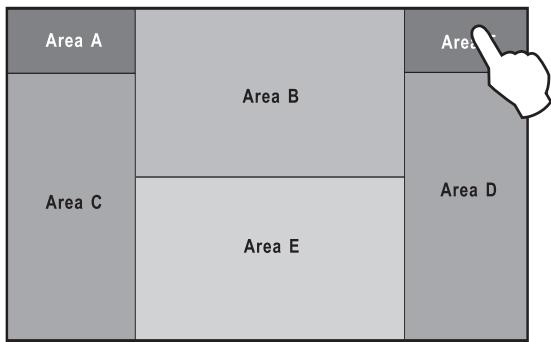
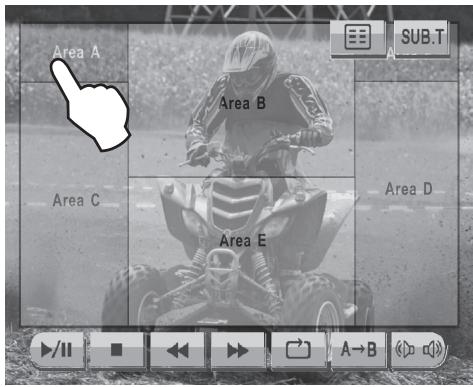
Hidden Touch Screen area while in TUNER mode
There are several hidden TOUCH SCREEN areas as outlined below:
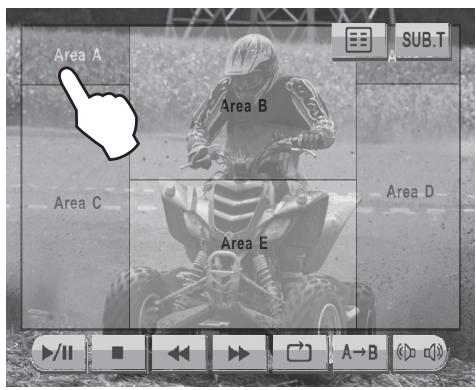
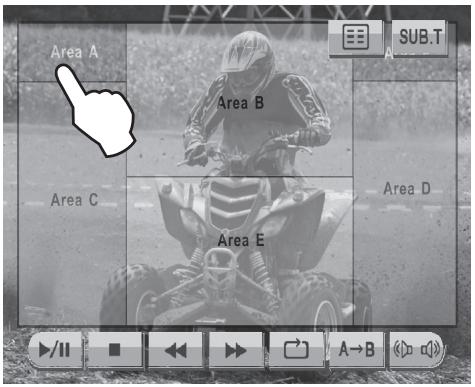
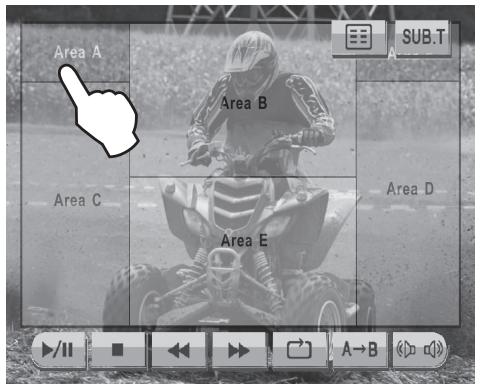
"A" area can be used in any mode to access MAIN menu.

Hidden Touch Screen areas while in DVD mode
"A-F" areas can be used in DVD mode to access:
A - Displays MAIN menu
B - Displays DVD disc information
C - Selects PREVIOUS chapter
D - Selects NEXT chapter
E - Displays the full DVD transport controls
F - Displays GOTO search menu
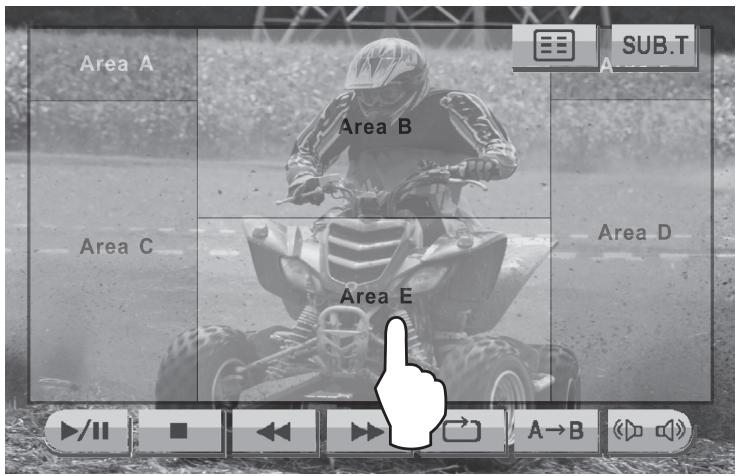
Using the hidden Touch Screen Controls
A - Displays MAIN menu
B - Displays DVD disc information
C - Selects PREVIOUS chapter
D - Select NEXT chapter
E - Displays the full DVD transport controls
F - GOTO search menu
Note:
A DVD disc must be inserted to access these functions and features.
DVD Operation - Touch Screen Controls
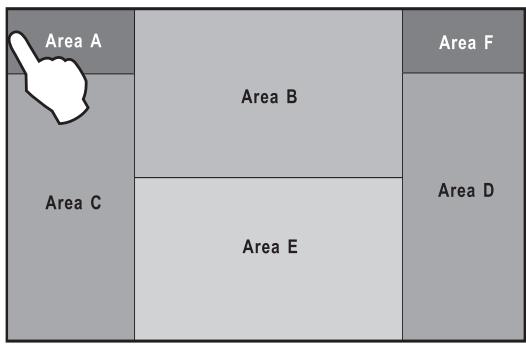
AREA A Access MAIN Menu
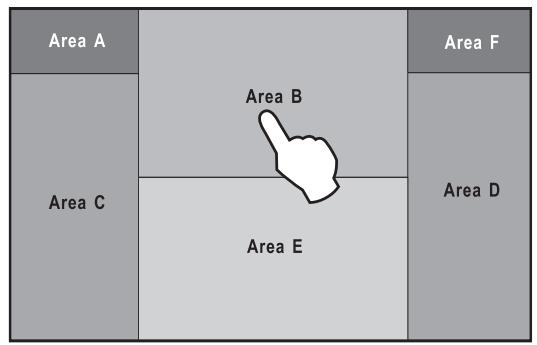
AREA B Displays Disc Information
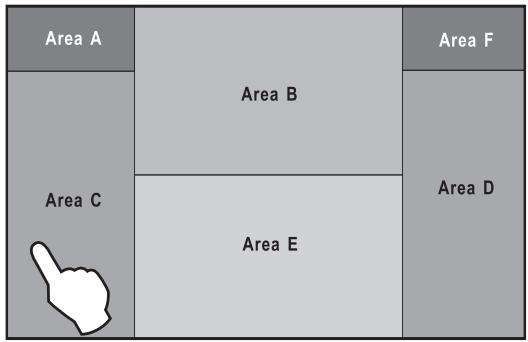
AREA C Selects PREVIOUS Track
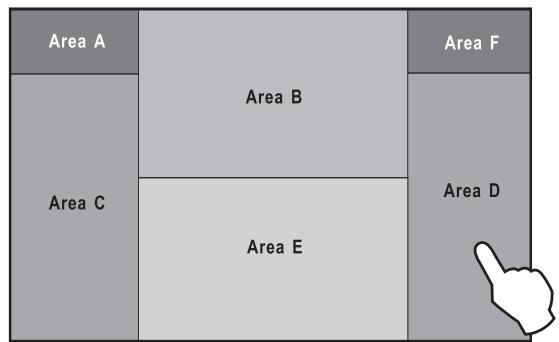
AREA D Selects NEXT Track
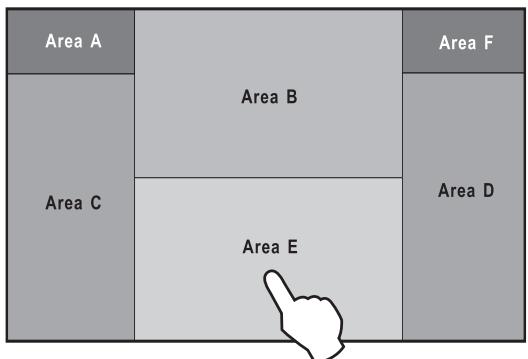
AREA E Displays DVD Transport Controls

AREA F DVD Search
DVD Operation - Touch Screen Controls
Using the hidden Touch Screen Controls
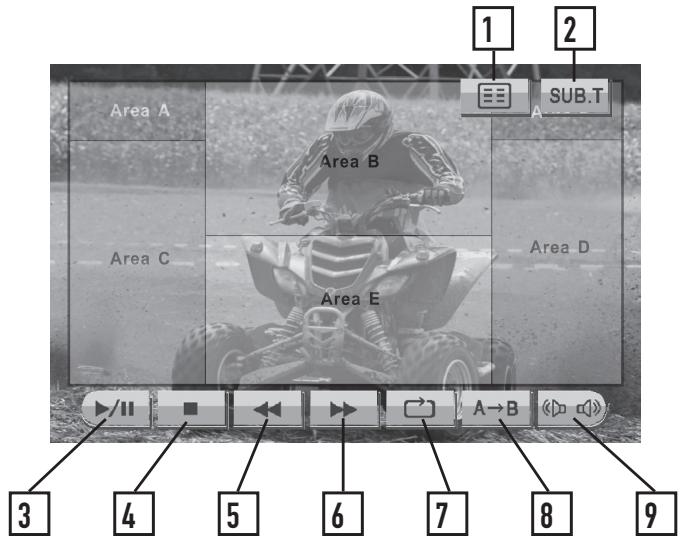
Touch AREA E
DVD Mode
1
2
3
4
5
6
7
8
9
From the main menu, touch the DISC icon on the screen to select DVD mode.
Title Menu
Jumps to the DVD Title menu.
Sub-Title Mode
Activates sub-titles and cycles between multiple sub-title languages.
Play/Pause
Touch the / icon to temporarily stop or resume playback.
Stop
Touch the icon to stop the chapter where it is.
Fast Reverse
Touch the icon to fast reverse at 2x speed.
Each touch changes speed from 2x to 4x to 8x to 20x then back to 1x play.
Fast Forward
Touch the icon to fast forward at 2x speed.
Each touch changes speed from 2x to 4x to 8x to 20x then back to 1x play.
Repeat
Touch the icon to repeat the current chapter or title. This icon will remain highlighted until touched a third time to disable.
Repeat A-B
Touch the A B icon once to select a start point. Touch it a second time to select and end point. The A B icon will illuminate and the DVD will then loop from the start point to the end point until touched a third time.
Audio Mode
Touch this icon to activate alternate audio modes on DVD's that have alternate audio streams.
Searching a DVD
DVD Operation - Searching a DVD
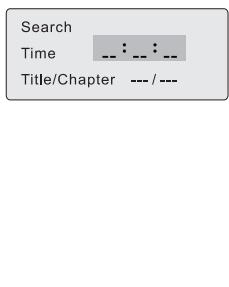
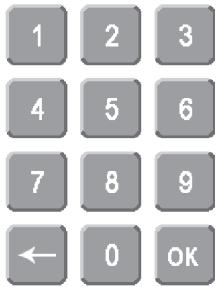
Searching by Time, Title or Chapter
Search by TIME example
Touch Area F to bring up the Search Window. The Search Window allows a search for a specific time, title or chapter.
To search for a specific time, touch the --:-- area and an on-screen keyboard will pop up. Use the keyboard to enter a time and touch OK. (For example, to skip to 1 hour, 12 minutes and 19 seconds into the DVD, touch: 1 1 2 1 9 OK.)
To search for a specific title and/or chapter, touch the --- / --- area and an on screen keyboard will pop up. Use the keyboard to enter a title and chapter and touch OK. This can be used to select a specific chapter in the current title, a new title or a specific chapter in a new title. (For example, to skip to a specific chapter within the current title, touch the --- on the right and use the keyboard to enter a chapter number, then touch OK.
To skip to a different title and start from the beginning, touch the --- on the left and the keyboard to enter a title number, then touch OK. To skip to a specific chapter in a new title: touch the left --- and use the keyboard to enter a title number, DO NOT touch OK, then touch the right --- and use the keyboard to enter a chapter number. Then touch OK.)
From the remote control:
Press SRCH to bring up the search window, then use the arrows to highlight either the time, title or chapter field and use the numeric keypad to enter the appropriate information and press OK.
Notes:
Some DVD discs can be played only in certain playback modes according to the intentions of the software. As the XDVD8183N plays discs according to their intentions, some functions may not work as intended. Please be sure to read the instructions provided with each disc.
DVD Operation
| Playback Control | Touch Area E to bring up the on-screen buttons. Touch▶to fast forward or←to fast reverse. Each subsequent press of the button will change the speed from normal to 2x to 4x to 8x to 20x and back to 1x. |
| From the front panel: Press▶to fast forward. Press←to fast reverse. | |
| From the remote control: Press▶to fast forward. Press←to fast reverse. | |
| Repeat Mode | Touch the Repeat button to repeat either a chapter or title. The first touch activates Repeat Chapter mode and a second touch activates Repeat Title mode. When either mode is active, the Repeat button will be illuminated, and touching it a third time will disable Repeat Mode. |
| From the remote control: Press▶to select Repeat Chapter, Repeat Title and Repeat Off modes. | |
| Note: The Repeat Mode can only be changed while the DVD is playing. | |
| Repeat A->B | Touch the A→B icon once to select a start point. Touch it a second time to select and end point. The A→B icon will illuminate and the DVD will then loop from the start point to the end point until touched a third time. |
| From the remote control: Press A→B to select a start point and stop point. Press a third time to deactivate. | |
| Play/Pause | Touching Play/Pause will temporarily stop playback of the DVD. Touching it again will resume playback. |
| Press the PLAY/PAUSE button to pause or resume the DVD. | |
| From the remote control: Press OK to temporarily stop and resume playback. | |
| Stop | Touch Stop to stop playback. Pressing Play at this point will resume playback. If Stop is touched a second time, then playback stops completely and will restart from the beginning of the disc. |
| From the remote control: Press▶to stop playback of the current chapter. |
DVD Operation
| Sub-Titles | Touch the SUB.T button to activate Sub-Title mode and select a sub-title language. Each touch will cycle the mode from off to language 1, language 2, etc., and back to off. |
| From the remote control:Press the SUB-T button to control Sub-Title mode. | |
| Notes:Not all DVDs have sub-titles and when they do, some will only have 1 language.Therefore this function may be disabled or limited.The Sub-Title Mode can only be changed while the DVD is playing. | |
| Audio Mode | Touch the Audio Mode icon to change the audio stream. Each touch will cycle the language. |
| From the remote control:Press the AUDIO button to control the Audio Mode. | |
| Notes:Not all DVDs have multiple languages, therefore this function may be disabled or limited.The Audio Mode can only be changed while the DVD is playing. | |
| DVD Disc Information | Touch Area B to bring up the DVD Disc Information, which includes:Current/Total Titles and Chapters, elapsed time for current title, EQ Mode and Loudness setting and current time.Press the PIC button to bring up the DVD Disc Information.From the remote control:Press the INFO button to bring up the DVD Disc Information. |
| Zoom Mode | From the remote control:Press the ZOOM button to activate Zoom Mode.Each subsequent press of the button will change the magnification from normal to 1 to 2 to 3 to 4 and back to normal.When Zoom Mode is active, the arrows on the remote will pan the screen up, down, right and left. |
| DVD Title Menu | Touch the Title Menu icon to return to the DVD's main menu.From the remote control:Press TITLE to return to the DVD's main menu.Press ROOT to move up one level on the DVD's menus. (For example, when viewing bonus materials, the ROOT button will return to the bonus menu instead of the main menu.) Pressing ROOT again will usually return to the current chapter.Note: On some DVD's the TITLE and ROOT buttons may be reversed. |
DVD Setup Menu - Language
LANGUAGE Setup Menu
Note:
A DVD disc must be inserted to access these functions and features.
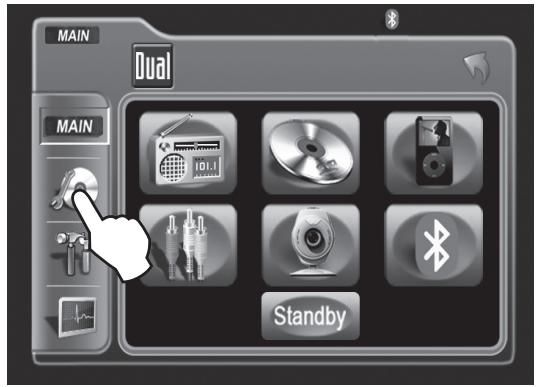
With the unit in DVD mode, press AREA A (top left screen) to display the MAIN menu. Press DVD Setup to access the DVD setup menu.
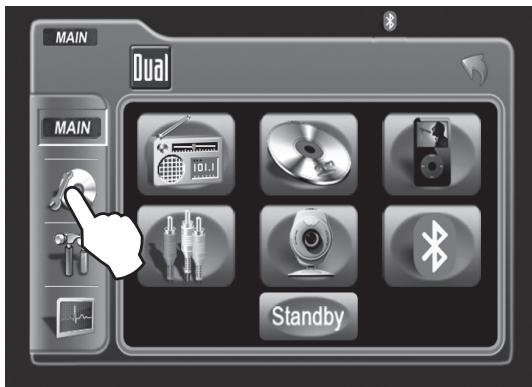
Disc Subtitle
Press the LANGUAGE icon to select LANGUAGE setup page.
Press to select desired disc subtitle language.
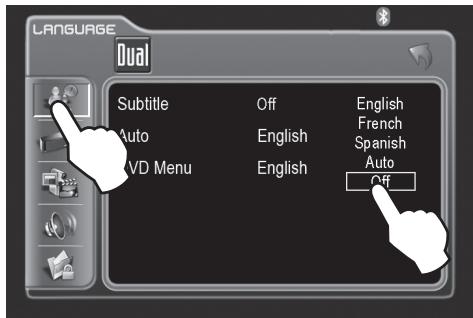
English
French
Spanish
Auto
Off = DEFAULT
Audio Language
Press to select desired disc audio language.
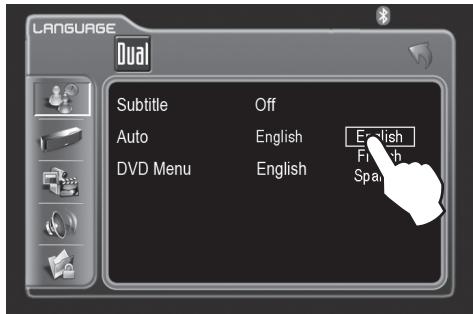
English = DEFAULT
French
Spanish
DVD Menu
Press to select desired disc menu language.
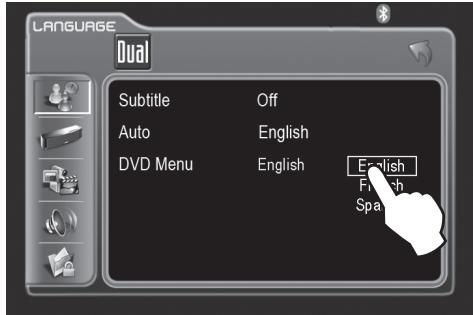
English = DEFAULT
French
Spanish
DVD Setup Menu - Audio
Audio Setup Menu
Note:
A DVD disc must be inserted to access these functions and features.
With the monitor open in DVD mode, press the AREA A (top left screen) to display the MAIN menu. Press DVD Setup to access the DVD setup menu.
Pink Noise
Press AUDIO icon to select from the following menus:
Press to activate pink noise generator for the desired channel. The pink noise generator is used to set the relative speaker levels for multi-channel playback.

Downmix (2-channel) Settings
$$ O f f = D E F A U L T $$
$$ \mathrm {L e f t} $$
$$ \text {R i g h t} $$
Dynamic Range Control
Select On to activate dynamic range control.
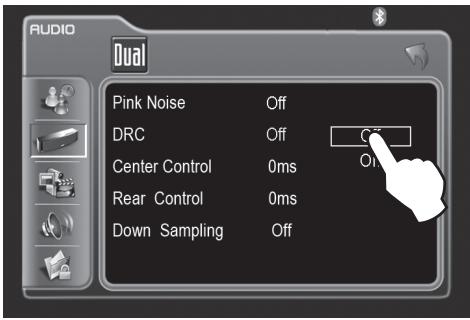
$$ O f f = D E F A U L T $$
$$ O n $$
DVD Setup Menu - Audio
Center Control
Press to select desired center channel time delay. The distance is defined in milliseconds.
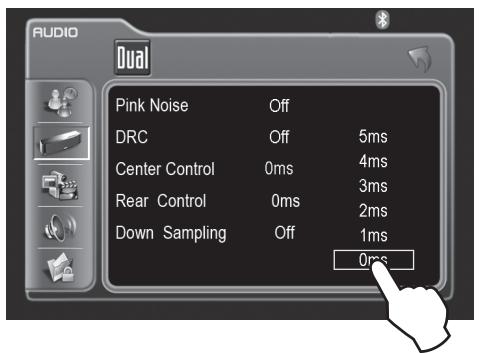
5ms
4ms
3ms
2ms
1ms
0ms = DEFAULT
Rear Control
Press to select desired rear channel time delay. The distance is defined in milliseconds.
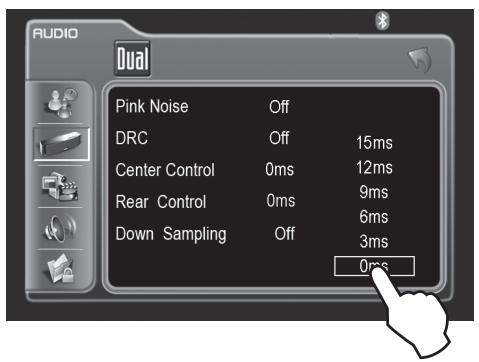
15ms
12ms
9ms
6ms
3ms
0ms = DEFAULT
Down Sampling
Select On to activate audio down sampling. The DVD audio output will be downsampled to 48kHz . The original sampling frequency is preserved when Off is selected.
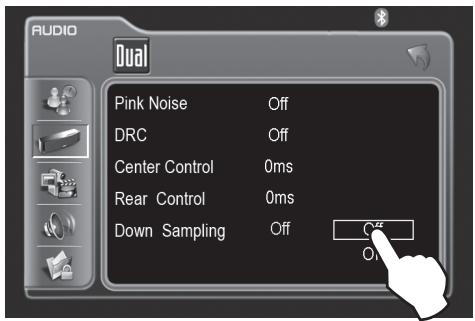
Off = DEFAULT
On
DVD Setup Menu - Video
Video Setup Menu
Note:
A DVD disc must be inserted to access these functions and features.
With the unit in DVD mode, press AREA A (top left screen) to display the MAIN menu. Press DVD Setup to access the DVD setup menu.

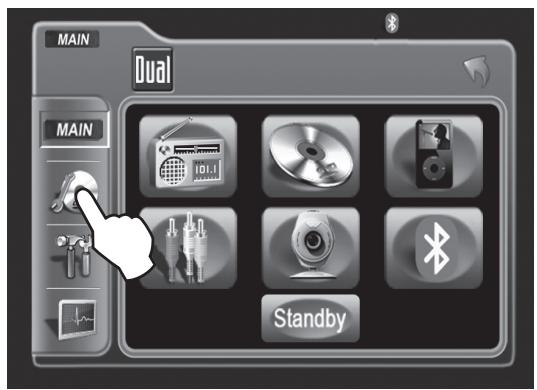
Press the VIDEO icon to select from the following menus:
TV Shape
Press to select desired TV shape.
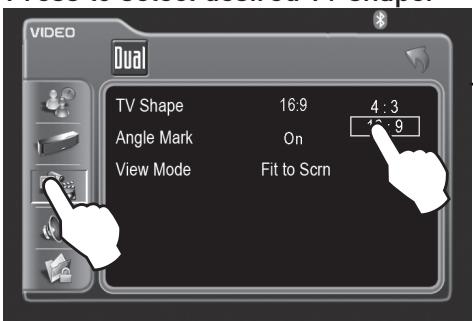
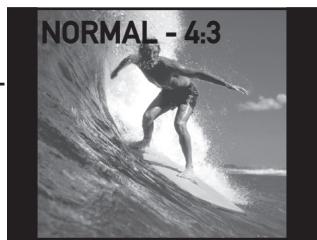
4:3
16:9 = DEFAULT
Angle Mark
Select On to activate angle mark.
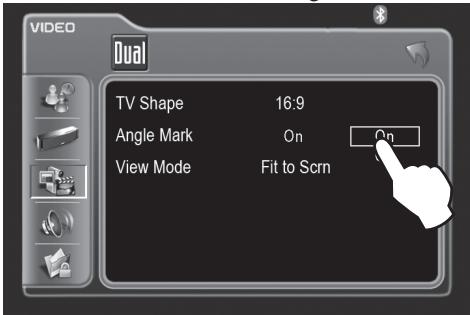
On = DEFAULT Off
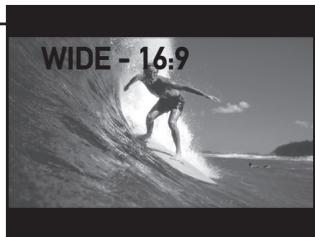
View Mode
Press to select desired view mode.

FILL
Original
H FIT
W FIT
FIT to Screen = DEFAULT
Pan Scan
DVD Setup Menu - Speaker
Speaker Setup Menu
Note: A DVD disc must be inserted to access these functions and features.
With the monitor open in DVD mode, press the AREA A (top left screen) to display the MAIN menu. Press DVD Setup to access the DVD setup menu.
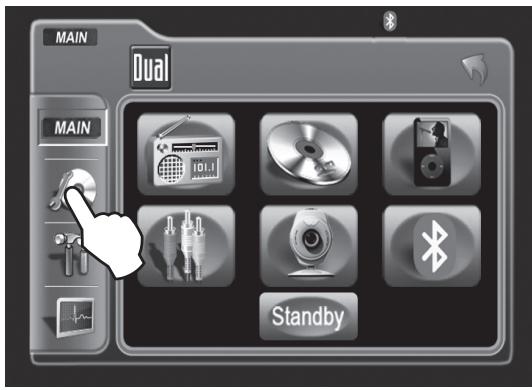
Speaker Mode
Press SPEAKER icon to select from the following menus:
Select desired speaker output mode.
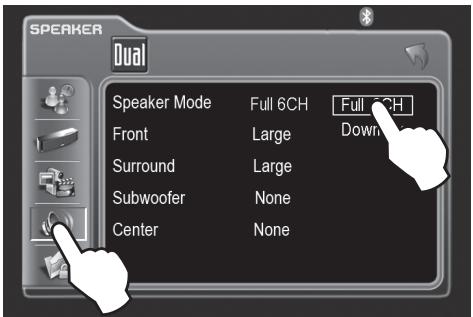
Full 6CH DownMix = DEFAULT
*Front Speaker Size
Select size of front speaker.
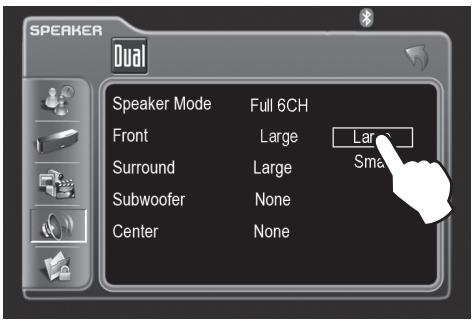
Large = DEFAULT Small
Note: *Full 6CH mode must be selected to adjust the front speaker size.
DVD Setup Menu - Speaker
*Surround Speaker Size
Note:
A DVD disc must be inserted to access these functions and features.
Select size of surround speaker.
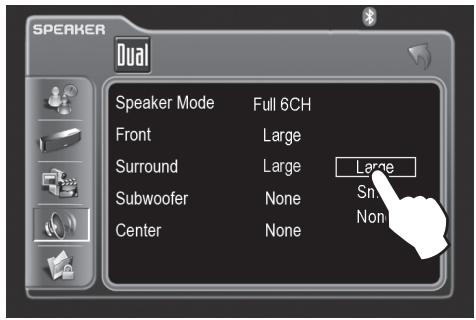
Large = DEFAULT
Small
None
*Subwoofer Speaker
Select Present if a subwoofer is included in your system.

Present
None = DEFAULT
*Center Speaker Size
Press to select size of center speaker.
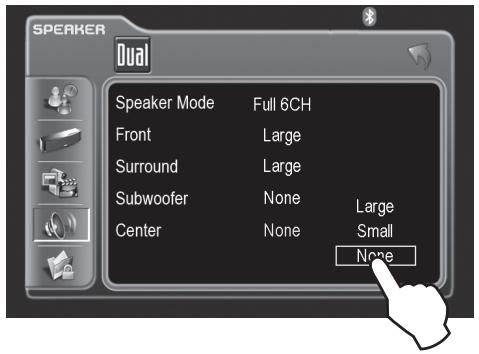
Large
Small
None = DEFAULT
Note: *Full 6CH mode must be selected to adjust the surround speaker size, subwoofer speaker and center speaker size.
DVD Setup Menu - Rating
Rating Setup Menu
Note:
A DVD disc must be inserted to access these functions and features.
With the monitor open in DVD mode, press the AREA A (top left screen) to display the MAIN menu. Press DVD Setup to access the DVD setup menu.
Enable Parental Lock Password
Press RATING icon to select from the following menus:
Press ---- to enter a password.

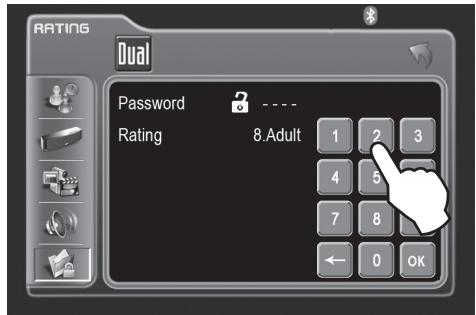
Setting Parental Lock Password
Rating Setting
- Enter a 4-digit code.
- Write the code down.
- Save in a safe place.
When unlock symbol is displayed, select desired rating.
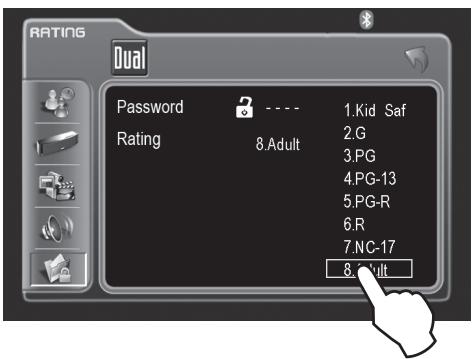
- Kid Safe
2.G - PG
- PG-13
- PG-R
6.R - NC-17
- Adult = DEFAULT
Parental Password Override
In the event you forget or loose your PARENTAL LOCK password, enter 9991.
CD Operation - OSD Overview
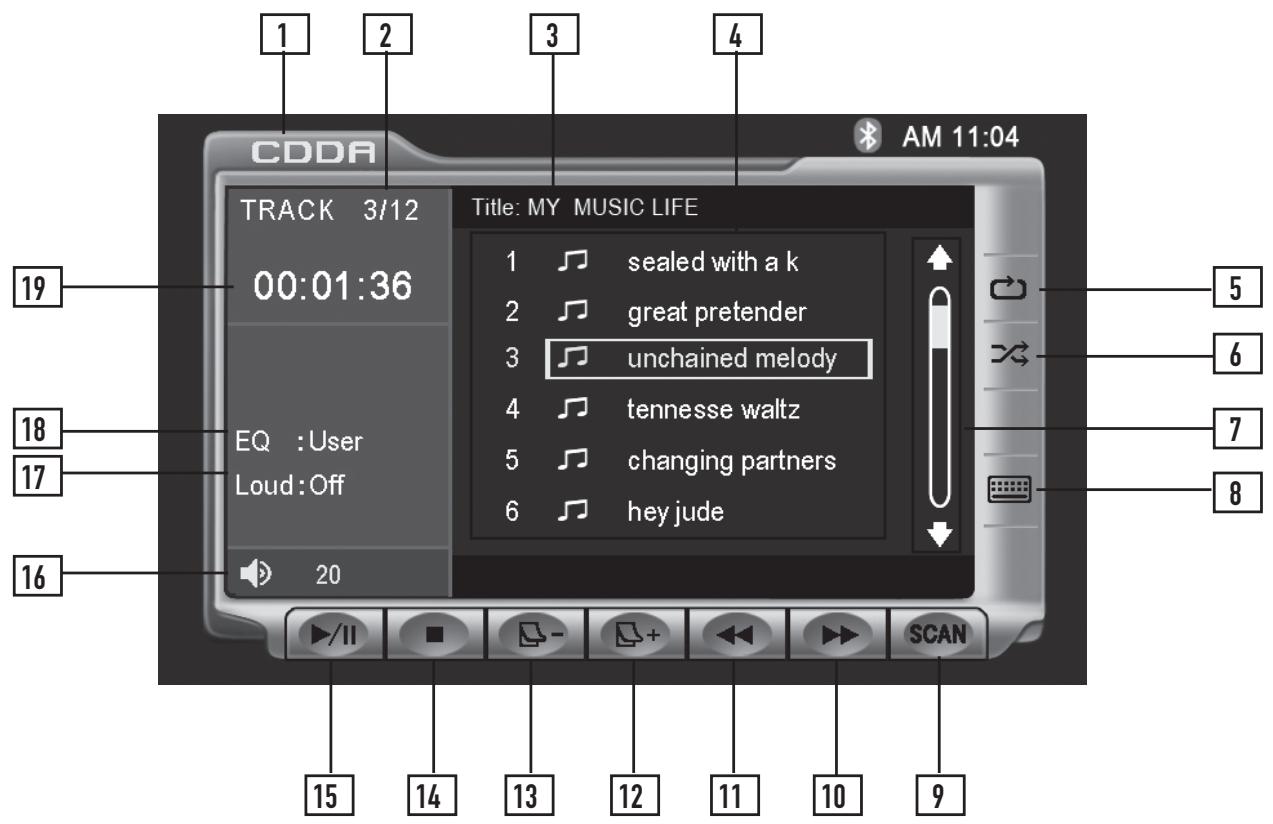
CD Mode


From the main menu, touch the DISC icon on the screen to select CD mode.
Current Source Indicator Displays Source Currently Playing.
Track Number Indicator Displays current track number and total number of tracks on the disc.
Disc Title Indicator Displays current disc title when available.
Track Title List Displays up to 6 tracks on the disc in order, with track title, when available.
Repeat Touch the icon to repeat current track. This icon will remain highlighted until touched to disable.
Shuffle Touch the icon to shuffle all tracks on the disc. This icon will remain highlighted until touched to disable.
CD Operation - OSD Overview
7
Scroll bar
Allows scrolling of track list.
8
Direct Select Keyboard
Touch the icon to display a numeric keyboard. Enter desired track number and touch OK to select it.
9
Track Scan
Touch the SCAN icon to listen to 10 seconds of each track in order. This icon will remain highlighted until touched to disable.
10
Fast Forward
Touch the icon to fast forward at 2x speed.
Each touch changes speed from 2x to 4x to 8x to 20x then to 1x play.
11
Fast Reverse
Touch the icon to fast reverse at 2x speed.
Each touch changes speed from 2x to 4x to 8x to 20x then to 1x play.
12
Page Up
Touch the + icon to see the next 6 tracks on the disc.
13
Page Down
Touch the -icon to see the previous 6 tracks on the disc.
14
Stop
Touch the icon to stop the song where it is.
15
Play/Pause
Touch the / icon to temporarily stop or resume playback.
16
Volume Indicator
Indicates current volume level, controlled by rotary encoder.
17
Loudness Indicator
Touch screen here to enter Audio Setup Menu.
18
EQ Indicator
Touch screen here to enter Audio Setup Menu.
19
Track Time Indicator
Shows how much time has elapsed in the current track.
CD Operation
Playing CD-DA discs
After inserting a CD disc, files will play in numerical order in the directory.
Selecting by Keypad
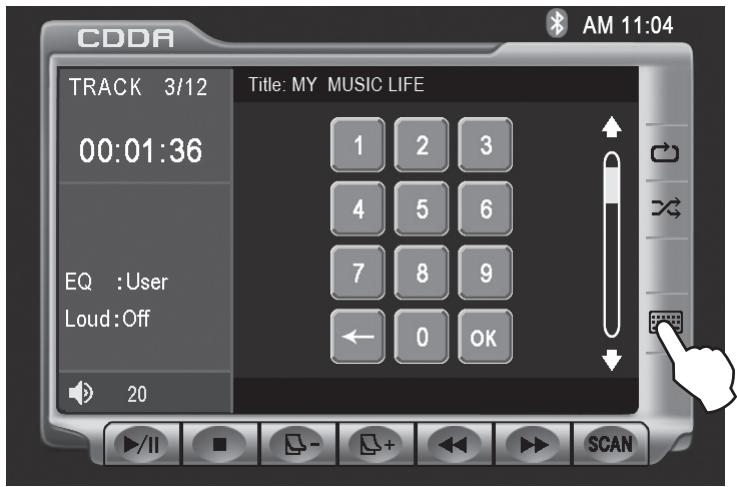
Touch to display keypad. Enter desired track number and press OK.
Selecting by Direct Track Access
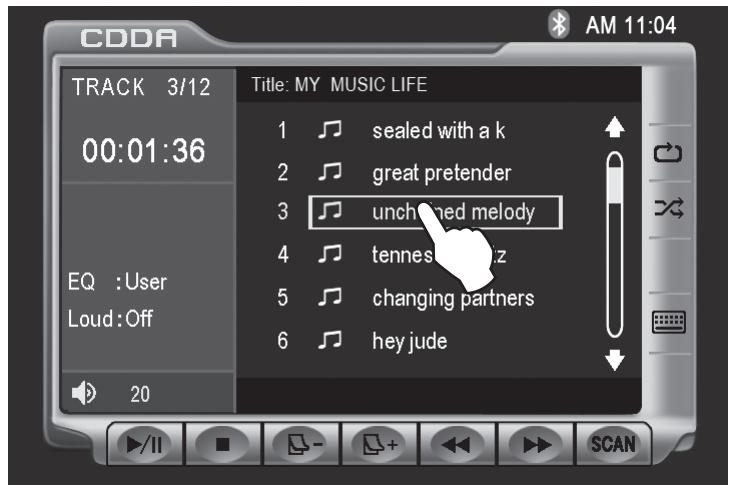
Touch desired track for DIRECT TRACK access.
Previous/Next Page
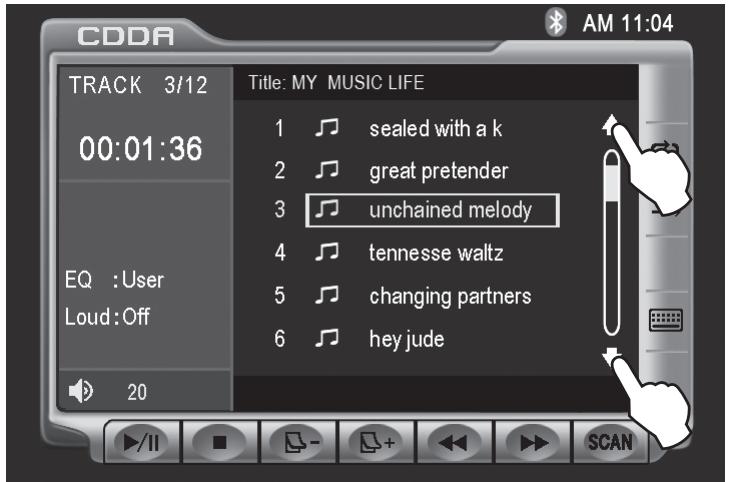
Touch to view UP/DOWN pages of available tracks.
CD Operation
| Page Up/Down | The Page Up and Page Down on-screen buttons can be used to see the rest of the tracks on the CD. Use the Direct Select method to play a desired track.From the remote control:Press▶to display the next page.Press▶to display the previous page. |
| Track Select | Press▶button to skip to the next track.Press▶button to skip to the previous track.From the remote control:Press▶to skip to the next track.Press▶to skip to the previous track.Note: Press▶once to return to the beginning of the current track. Press a second time to skip to the previous track. |
| Direct Select | To select a desired track from the track title list, touch any track on the list.Use the up and down arrows on screen to scroll through the tracks. Once highlighted, simply touch the screen at the appropriate track.Ussing the Rapid Dial rotary encoder:• Select desired track by rotating the right rotary encoder clockwise or counter-clockwise.• Press to confirm/ENTER.From the remote control:Press▲or▼to scroll through the tracks. When the correct track is highlighted press OK. |
| Direct Track Entry | Touch the icon to display a numeric keyboard. Enter desired track number and touch OK to select it.From the remote control:Use the numeric keypad to enter the desired track number.You can use the Fast Forward or Fast Reverse on-screen buttons to speed up the playback of a track. Each subsequent press of the button will change the speed from normal to 2x to 4x to 8x to 20x and back to 1x.Press▶to fast forward.Press▶to fast reverse.From the remote control:Press▶to fast forward.Press▶to fast reverse. |
CD Operation
| Shuffle Mode | Touch the Shuffle button to shuffle all of the tracks on the CD. The Shuffle button will be illuminated while Shuffle Mode is active. When the button is illuminated, touching it a second time will disable Shuffle Mode. |
| Notes: The shuffled order of the songs is fixed, therefore the Track Select operations will continue to operate properly within the shuffled order. Therefore using Next Track will move to the next shuffled track, while Previous Track will return to the start of the current track and then a second press will return to the previously played track. | |
| Repeat Mode | Touch the Repeat button to repeat a track. When Repeat Mode is active, the Repeat button will be illuminated, and touching it again will disable Repeat Mode. |
| From the remote control: Press Ⓞ to select Repeat. Press it a second time to disable Repeat. | |
| Note: Shuffle and Repeat modes can not be used simultaneously and engaging one mode will cancel the other mode (if active.) | |
| Scan Mode | Touch SCAN on the screen to listen to all tracks on the CD for 10 seconds at a time, starting from the first track on the CD. The Scan button will be illuminated while Scan Mode is active. When the button is illuminated, touching it a second time will disable Scan Mode. |
| From the remote control: Press TITLE to activate and disable Scan Mode. | |
| Play/Pause | Touching Play/Pause will temporarily stop playback of the current track. Touching it again will resume playback. |
| Press PLAY/PAUSE to pause or resume the song. | |
| From the remote control: Press OK to temporarily stop and resume playback. | |
| Stop | Touch Stop to stop playback of the current track. Pressing Play at this point will resume playback. If Stop is touched a second time, then playback stops completely and will restart from the beginning of the CD. |
| From the remote control: Press ■ to stop playback of the current song. |
MP3/WMA Operation - OSD Overview
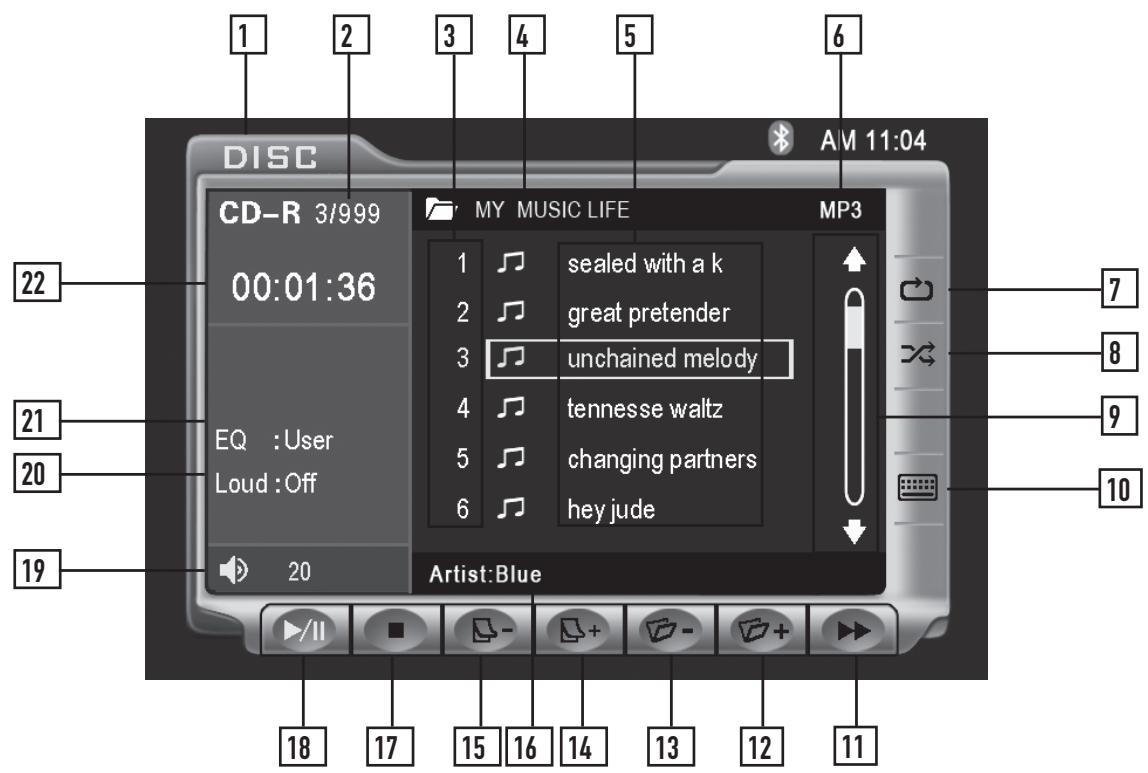
MP3/WMA Mode
From the main menu, touch the DISC icon on the screen to select MP3/WMA mode.
1
Current Source Indicator Displays source currently playing.
2
Song Number Indicator Displays current song number and total number of songs on the disc.
3
Master Song Number List Shows the number of the song relative to the entire disc.
4
Folder Displays the name of the currently selected folder.
5
Filename List Displays up to 6 songs in the current folder in order, with filename.
6
File Type Indicator Displays type of song file, either MP3 or WMA.
7
Repeat Touch icon to repeat current song or folder. This icon will remain highlighted until touched a third time to disable.
8
Shuffle Touch icon to shuffle all songs on the disc. This icon will remain highlighted until touched to disable.
MP3/WMA Operation - OSD Overview
9 Scroll bar Allows scrolling of song list.
10 Direct Select Keyboard Touch the icon to display a numeric keyboard. Enter desired song number and touch OK to select it.
11 Fast Forward Touch icon to fast forward at 2x speed. Each touch changes speed from 2x to 4x to 8x to 20x then to 1x play.
12 Next Folder Pressing this button will select the next available folder.
Previous Folder Pressing this button will select the previous available folder.
14 Page Up Touch the + icon to see the next 6 songs in the folder.
15 Page Down Touch the -icon to see the previous 6 songs in the folder.
16 Information Displays available information for the current song.
17 Stop Touch icon to stop the song where it is.
Play / Pause Touch /icon to temporarily stop or resume playback.
Volume Indicator Indicates current volume level, controlled by rotary encoder.
20 Loudness Indicator Touch screen here to enter the Audio Setup Menu.
EQ indicator Touch screen here to enter the Audio Setup Menu.
22 Elapsed Time Indicator Shows the elapsed time of the current song.
MP3/WMA Operation
| Page Up/Down | From the remote control: Press▶ to display the next page. Press▶ to display the previous page. |
| Note: Continued operation of the Page Up and Page Down buttons will display the next and previous folders, respectively once the songs in the current folder have all been displayed. | |
| Note that the Folder Select and Page Up/Down buttons will not select a song, but simply display more songs on the disc, and if another song is not selected within 5 seconds of the last press then the screen will return to the currently playing song/folder. | |
| Song Select | Press▶ button to skip to the next song. Press▶ button to skip to the previous song. |
| From the remote control: Press▶ to skip to the next song. Press▶ to skip to the previous song. | |
| Note: Press▶ once to return to the beginning of the current song. Press a second time to skip to the previous song. | |
| Direct Select | To select a desired song from the filename list, touch any of the displayed filenames from the list. |
| Use the up and down arrows on screen to scroll through the songs. Once highlighted, simply touch the screen at the appropriate name. | |
| Using the Rapid Dial rotary encoder: • Select desired track by rotating the right rotary encoder clockwise or counterclockwise. • Press to confirm/ENTER. | |
| From the remote control: Press▲ or▼ to scroll through the songs. When the correct song is highlighted press OK. | |
| Direct Song Entry | Touch the icon to display a numeric keyboard. Enter desired song number and touch OK to select it. |
| From the remote control: Use the numeric keypad to enter the desired song number. |
MP3/WMA Operation
| Song Control | You can use the Fast Forward on-screen button to speed up the playback of a song. Each subsequent press of the button will change the speed from normal to 2x to 4x to 8x to 20x and back to 1x. |
| Press▶on front panel to fast forward. Press←on front panel to fast reverse. | |
| From the remote control: Press▶to fast forward. Press←to fast reverse. | |
| Note: Song control only works for MP3 type files and there is no audio output while song control is active. | |
| Shuffle Mode | Touch the Shuffle button to shuffle all of the songs on the disc. The Shuffle button will be illuminated while Shuffle Mode is active. When the button is illuminated, touching it a second time will disable Shuffle Mode. Note: The shuffled order of the songs is fixed, therefore the Song Select operations will continue to operate properly within the shuffled order. Therefore using Next Song will move to the next shuffled song. while Previous Song will return to the start of the current song and then a second press will return to the previously played song. |
| Repeat Mode | Touch the Repeat button to repeat either a song or folder. The first touch activates Song Repeat mode and a second touch activates Folder Repeat mode. When either mode is active, the Repeat button will be illuminated, and touching it a third time will disable Repeat Mode. |
| From the remote control: Press▶to select Song Repeat, Folder Repeat and Repeat Off modes. | |
| Note: Shuffle and Repeat modes can not be used simultaneously and engaging one mode will cancel the other mode (if active.) | |
| Play/Pause | Touching Play/Pause will temporarily stop playback of the current song. Touching it again will resume playback. |
| From the remote control: Press OK to temporarily stop and resume playback. | |
| Stop | Touch Stop to stop playback of the current song. Pressing Play at this point will resume or restart playback from the beginning of the current song. If Stop is touched a second time, then playback stops completely and will restart from the beginning of the disc. |
| From the remote control: Press▶to stop playback of the current song. |
Media Compatibility
| Media Compatibility | The following types of discs/files are compatible: • CD-ROM (ISO), CD-R, CD-RW, DVD+R/RW, DVD-R/RW • CD-DA, DVD Video • MP3 data • WMA data |
| The following types of discs/files are not compatible: • WMA files that are protected by DRM (Digital Rights Management) • WMA lossless format • Discs recorded with Track At Once or packet writing • MP3 PRO format • MP3 playlists • WAV format • WMV format • JPG format • DivX format • AVI format • MPG format | |
| Some recordable DVDs and CDs may be incompatible with this unit, depending on media type and recording method. | |
| Playback Order | MP3/WMA playback sequence is based on recorded order of files and begins in the root folder of the disc. Any empty folders or folders that do not include MP3/WMA files are skipped. This unit may not play files in the order they were recorded in. Refer to your recording software's user's manual for more information. |
| Compatible Recording Formats | • ISO9660 level 1 • ISO9660 level 2 • Yellow Book MODE 1 • Yellow Book MODE 2 FORM 1 • Multi session • Maximum files - 1500 • Maximum folder levels - 8 • MPEG-1/2 Audio Layer-3 |
| ISO9660 standards: • Maximum nested folder depth is 8 (including the root folder). • Valid characters for folder/file names are letters A-Z (all caps), numbers 0-9, and “_” (underscore). Some characters may not be displayed correctly, depending on the character type. • This device can play back discs in Joliet and other standards that conform to ISO9660. MP3/WMA written in the formats other than the above may not play and/or their file names or folder names may not be displayed properly. |
Media Compatibility
Additional MP3/WMA Information
An internal buffer provides ESP (Electronic Skip Protection) to virtually eliminate skipping.
When playing a disc recorded with regular audio files (CD-DA or .WAV) and MP3/WMA files, the unit will play the MP3/WMA files only.
Only MP3 files with filename extension (.mp3) can be played. Only WMA files with filename extension (.wma) can be played.
Do not attempt to play discs which contain non-MP3/WMA files with the MP3/WMA extension.
Sampling Frequency Rates MP3
32kHz ~ 48kHz
WMA
32kHz ~ 48kHz
Transfer Bit rates MP3
40kbps ~ 320kbps constant Variable bit rates
WMA
40kbps 192kbps constant Variable bit rates
Recommended Settings
Note: Some files may not play or be displayed correctly, depending on sampling rates and bit rates.
For best results, use the following settings when burning an MP3 disc: 128kbps or higher constant bit rate 44.1kHz or higher sampling frequency
For best results, use the following settings when burning a WMA disc: 64kbps or higher constant bit rate 44kHz or higher sampling frequency
Bluetooth® - OSD Overview (Optional)

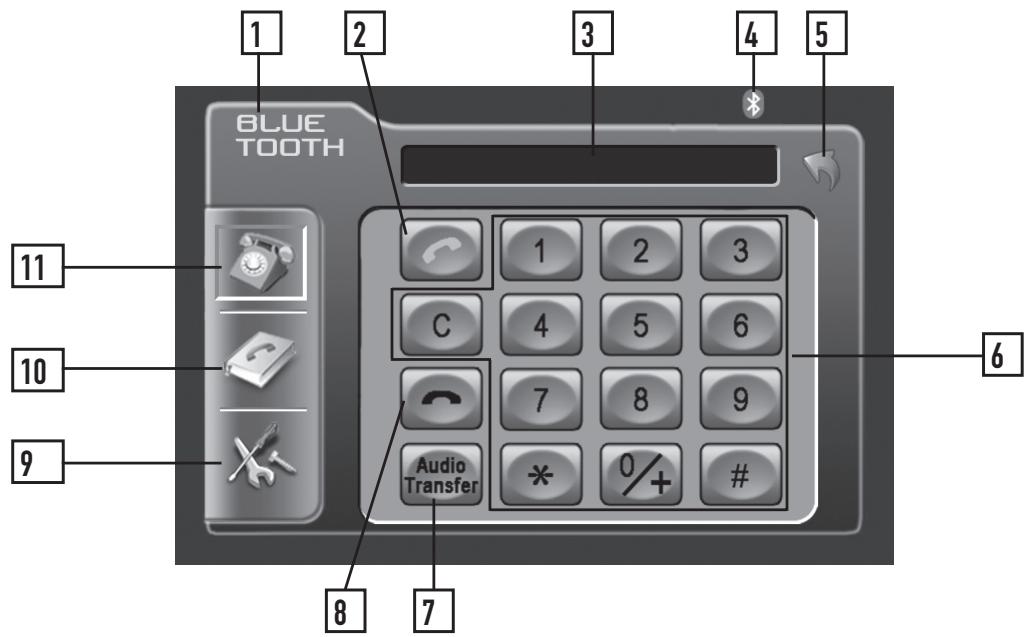
Before using the Bluetooth
Bluetooth Mode
1
2
3
4
5
6
Select the Bluetooth option in the General setup and select On to activate the Bluetooth feature. Refer to page 21 for more details.
From the main menu, touch the Bluetooth icon on the screen or, press the Bluetooth icon at the top of the screen. The Bluetooth function must be turned on for the Bluetooth icon to appear at the top of the screen.
Current Source Indicator
Displays source or current mode.
Talk button
Press to answer an incoming call or to place an outgoing call.
Display Indicator
Phone number display and call status indicator.
Bluetooth status indicator
When the Bluetooth function is Off, the indicator is black.
When the Bluetooth function is On and no phone is connected (paired) to the unit, the indicator will flash blue.
When the Bluetooth function is On and a phone is connected (paired) to the unit, the indicator is blue.
Return button
Touch to RETURN to previous screen.
Keypad interface
Press 0-9, *, # and + to enter desired phone number.
Press C to clear the last digit.

Bluetooth® - OSD Overview (Optional)

Audio Transfer Button
Press to transfer audio between the head unit and mobile phone.

End button
Press to end a call in progress or to reject an incoming call.

Setup Menu Icon
Press to access Bluetooth setup menu.

Phone book Icon
Press to access the phone book menu.

Keypad Interface Icon
Press to display the keypad interface.
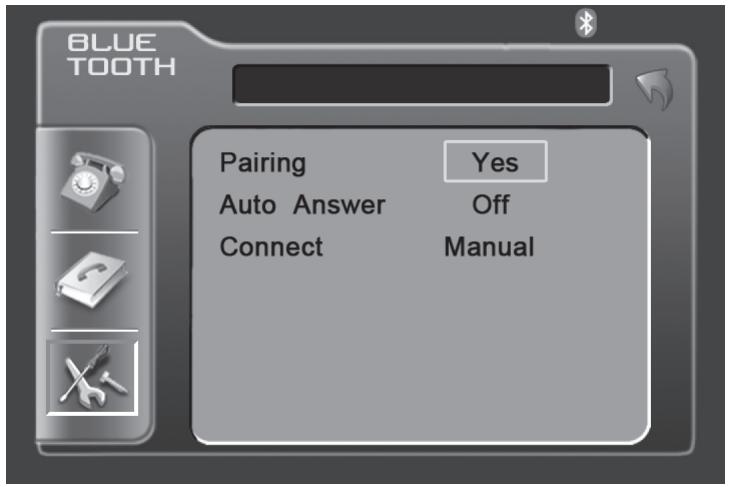
Bluetooth Setup Menu
Bluetooth Setup Menu matrix
| Settings | Default | Options | Function |
| Pairing | Yes | Yes (Pair) | Press Yes to begin the pairing function. Press Yes again to cancel the pairing process. See page 63 for more details. |
| Auto Answer | Off | Off | You must press the Talk button to answer an incoming call. |
| On | The head unit will automatically answer incoming calls. | ||
| Connect | Manual | Manual | You must connect the phone to the head unit manually each time. |
| Auto | The head unit will automatically connect to a previously paired phone. See page 63 for more details. |
Notes: Some Bluetooth approved devices may not communicate or work properly with this head unit, depending on the features or specifications of the device. During hands free operation, some noise may be heard when using a mobile device with this head unit, depending on the mobile device and or the communication environment.
Bluetooth® - Setup Menu (Optional)
Pairing
Before you can use a mobile device with this head unit, it must be authenticated. This is also referred to as "pairing" a device.
Step 1
Note: Please make sure that Bluetooth is activated on your mobile device before you begin the pairing process. Refer to the owner's manual of your mobile device for more details.
Access Bluetooth setup menu and press Yes to begin the pairing process. The head unit will display "Wait Pairing..." and will search for any nearby Bluetooth device. If you have more than one Bluetooth device, please make sure only the device you want to connect to is powered on. Refer to the owner's manual of your mobile device for more details on searching for Bluetooth devices.
Step 2
When prompted by your mobile device, enter 1234 for the PIN or pass code. The device name of the head unit will show up as "MM-BT G2". After the pairing process has completed, the Bluetooth icon will turn solid blue.
Notes
It is possible to search for previously paired Bluetooth devices from this head unit. It may be possible to search for this head unit from other Bluetooth enabled devices.
To search for this head unit from another device (when already connected), press Yes under the Pairing function. The currently connected device will be disconnected and pairing to the new device will be possible. It may also be possible to disconnect this head unit from another mobile device.
This unit can remember the last 4 paired mobile devices. It is only possible to connect to one Bluetooth mobile device at a time.
When pairing to more than 4 mobile devices, the head unit will delete the phone that was least used to allow for the new pairing (connection). The mobile device that is initially connected will always be remembered (default phone).
Auto Answer
The MUTE function can not be used during Bluetooth operation. If MUTE is active when a call is received, the audio will automatically be transferred to the mobile device.
Connect
The head unit will automatically answer incoming calls when the Auto Answer feature is set to On. If the Auto Answer feature is set to Off, the Talk button must be pressed to answer an incoming call.
The head unit will automatically connect to a previously connected mobile device when the Connect feature is set to Auto. If the Connect feature is set to Manual, the head unit will not automatically connect to any mobile device. Set the Connect feature to Manual when you do not want to connect to any Bluetooth mobile device.
Bluetooth® - Operation (Optional)
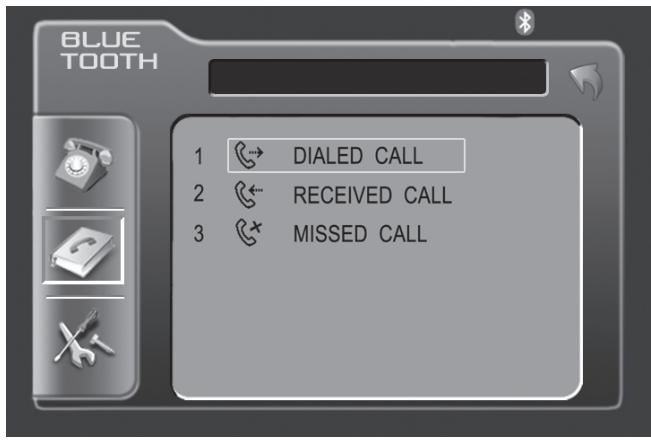
Phone Book Menu
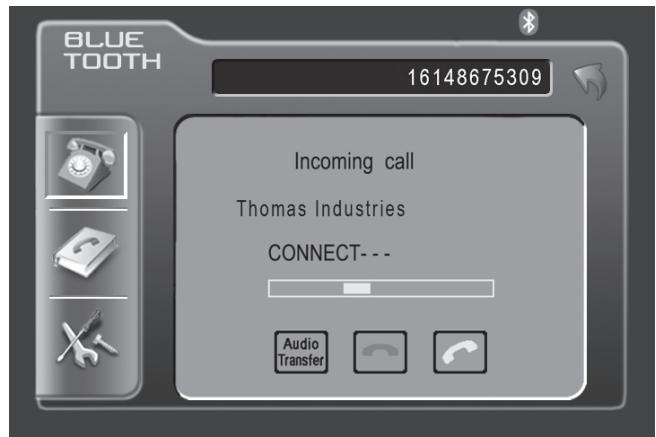
Incoming Call Screen
Dialed Calls
Press Dialed Call to retrieve the list of dialed calls from the mobile device.
"Searching", then "Loading dialed phone book" will be displayed during the retrieval process followed by "The phone book is done". Touch the desired name to call. Press the page up/down buttons to navigate through the pages.
Received Calls
Press Received Call to retrieve the list of received calls from the mobile device.
"Searching", then "Loading received phone book" will be displayed during the retrieval process followed by "The phone book is done". Touch the desired name to call. Press the page up/down buttons to navigate through the pages.
Missed Calls
Press Missed Call to retrieve the list of missed calls from the mobile device.
"Searching", then "Loading missed phone book" will be displayed during the retrieval process followed by "The phone book is done". Touch the desired name to call. Press the page up/down buttons to navigate through the pages.
Making a Phone Call
It is possible to make a phone call three different ways:
- Enter the desired phone number using the keypad interface, then press the Talk button.
- Enter the desired phone number using the numeric keypad on the main remote control, then press OK. (Bluetooth mode must be selected first.)
- Select a previous call from the phone book menu.
Answering a Phone Call
The head unit will answer calls automatically if the Auto Answer feature is set to On. Otherwise, the Talk button must be pressed to answer an incoming call. During an incoming call, the audio is muted for the current source and the incoming call screen will be displayed. Adjust the volume during the call using the rotary encoder volume control.
Ending a Phone Call
Press the End button on screen or the ESC button on the main remote control to end a call in progress or to reject an incoming call.
Limited One Year Warranty
This warranty gives you specific legal rights. You may also have other rights which vary from state to state.
Dual Electronics Corp. warrants this product to the original purchaser to be free from defects in material and workmanship for a period of one year from the date of the original purchase.
Dual Electronics Corp. agrees, at our option, during the warranty period, to repair any defect in material or workmanship or to furnish an equal new, renewed or comparable product (whichever is deemed necessary) in exchange without charges, subject to verification of the defect or malfunction and proof of the date of purchase. Subsequent replacement products are warranted for the balance of the original warranty period.
Who is covered? This warranty is extended to the original retail purchaser for products purchased from an authorized Dual dealer and used in the U.S.A.
What is covered? This warranty covers all defects in material and workmanship in this product. The following are not covered: software, installation/removal costs, damage resulting from accident, misuse, abuse, neglect, product modification, improper installation, incorrect line voltage, unauthorized repair or failure to follow instructions supplied with the product, or damage occurring during return shipment of the product. Specific license conditions and copyright notices for the software can be found via www.dualav.com.
What to do?
- Before you call for service, check the troubleshooting guide in your owner's manual. A slight adjustment of any custom controls may save you a service call.
- If you require service during the warranty period, you must carefully pack the product (preferably in the original package) and ship it by prepaid transportation with a copy of the original receipt from the retailer to an authorized service center.
- Please describe your problem in writing and include your name, a return UPS shipping address (P.O. Box not acceptable), and a daytime phone number with your shipment.
- For more information and for the location of the nearest authorized service center please contact us by one of the following methods:
Call us toll-free at 1-866-382-5476
E-mail us at cs@dualav.com
Exclusion of Certain Damages: This warranty is exclusive and in lieu of any and all other warranties, expressed or implied, including without limitation the implied warranties of merchantability and fitness for a particular purpose and any obligation, liability, right, claim or remedy in contract or tort, whether or not arising from the company's negligence, actual or imputed. No person or representative is authorized to assume for the company any other liability in connection with the sale of this product. In no event shall the company be liable for indirect, incidental or consequential damages.
Troubleshooting
| General | ||
| Problem | Cause | Action |
| Unit will not turn on (no power) | Yellow wire not connected or incorrect voltage Red wire not connected or incorrect voltage | Check connections for proper voltage (11~16VDC) |
| Black wire not connected | Check connection to ground | |
| Fuse blown | Replace fuse | |
| Unit has power (but no sound) | Speaker wires not connected | Check connections at speakers |
| One or more speaker wires touching each other or touching chassis ground | Insulate all bare speaker wires from each other and chassis ground | |
| Unit blows fuse | Yellow or red wire touching chassis ground | Check for pinched wire |
| Speaker wires touching chassis ground | Check for pinched wire | |
| Incorrect fuse rating | Use fuse with correct rating | |
| Unit has audio (but no video) | Parking brake safety circuit not connected Parking brake not applied | Check connections at parking brake Apply parking brake as described on page 33 |
| No video display (when in reverse) | Reverse circuit not connected Vehicle is not in reverse | Check connections at reverse lamp Select reverse gear |
| DVD does not start playback | Physical defect in media Wrong region | Check media for scratches Use discs labeled "Region 1" or "All" only. |
| IR remote does not work | Dead battery | Replace battery |
| Excessive skipping | Unit is not mounted correctly | Check mounting sleeve |
| Physical defect in media | Check media for scratches | |
| Bad Disc appears on display | Focus error or disc is in upside down | Press eject or RESET |
| Incorrect Region Code appears on display | Region code error | Use only DVDs labeled "Region 1" or "All" only. |
| Front panel will not open/close | Front panel obstructed | Remove the obstacle and press OPEN to resume the monitor open/close sequence. |
Troubleshooting
| Bluetooth | ||
| Problem | Cause | Action |
| Please connect first appears in the display | There is no mobile device connected to the head unit | Pair and or connect a mobile device to the head unit as described on page 69 |
| Mobile device will not connect to the head unit | Bluetooth function is not active on the head unit | Activate Bluetooth function as described on page 21 |
| Bluetooth function is not active on the mobile device | Refer to the owner's manual of your mobile device | |
| A mobile device is already connected to the head unit This head unit can only be connected to one device at a time | Disconnect current mobile device first, then connect desired mobile device | |
| ERROR! Connect Timeout appears in the display | The time limit for the pairing mobile device has been reached | Pair the mobile device within 120 seconds |
| Pairing Fail appears in the display | The attempted pairing process has failed | Retry the pairing process again |
| Mobile device will not connect to the head unit automatically | The Connect function is set to Manual. When the Connect function is set to Manual, the head unit will not connect to any mobile device automatically | Set Connect function to Auto as described on page 63 |
| Ring tone can not be heard through the speakers | Ring tone volume is turned down | Increase the volume of the ring tone using the rotary encoder during the ringing process |
| MUTE function is activated on the head unit | Press MUTE to cancel the mute function and resume audio | |
| Echo or noise is heard during a phone call | Possible road noise or interior interference | Close all open windows and turn off any fans or A/C |
| Microphone opening on the front panel is obstructed | Clear any obstacles in front of microphone opening | |
| Call is connected (but no audio can be heard through the speakers) | Audio is routed to the mobile device | Press Audio Transfer to allow audio from the phone to be heard through the speakers |
| Call is answered automatically | Auto Answer function is set to On | Set Auto Answer function to Off as described on page 63 |
| Caller ID does not appear during incoming call | The calling mobile device is not set to send the Caller ID or, the service is not available | Some devices may not communicate or work properly with this head unit |
Specifications
DVD Player
Frequency response: 10Hz-20kHz
Channel separation @ 1kHz: >65dB
D/A converter: 24 Bit
FM Tuner
Tuning range: 87.5MHz-107.9MHz
Usable sensitivity: 8.5dBf
50dB quieting sensitivity: 10dBf
Stereo separation @ 1kHz: 40dB
Frequency response: 30Hz-13kHz
AM Tuner
Tuning range: 530kHz-1710kHz
Usable sensitivity: 22uV
Frequency response: 30Hz-2.2kHz
Monitor
Panel size: 7'' (177.8 mm) diagonal measurement
View angle (up/down/left/right): 30/60/60/60
Resolution: 480 W x 234 H
Brightness (cd / m^2) 350
Contrast ratio: 300:1
Elements: 336,960
General
Operating voltage: 11-16 VDC, negative ground
Speaker output impedance: 4~8 ohms
Line output voltage: 2 Volts
Line output impedance: 200 ohms
Chassis dimensions: 7'' × 7'' × 2''
(178 x 178 x 51 mm)
Design and specifications subject to change without notice.

CEA-2006 Power Standard Specifications
(reference: 14.4VDC +/- 0.2V, 20Hz~20kHz)
Power Output: 17 Watts RMS x 4 channels at 4 ohms and ≤ 1% THD+N
Signal to Noise Ratio: 80dBA (reference: 1 watt into 4 ohms)
Notes
Notes
Dual Electronics Corp.
Toll Free: 1-866-382-5476
www.dualav.com
©2010 Dual Electronics Corp. All rights reserved.
NSA0110-V1.0
Printed in China