
XDMA7715 - Storage Controller DUAL - Free user manual and instructions
Find the device manual for free XDMA7715 DUAL in PDF.


| Product Type | AM/FM/CD/MP3/WMA Audio Receiver with Bluetooth Ready |
| Brand | DUAL |
| Model | XDMA7715 |
| Dimensions (W x H x D) | 178 x 178 x 51 mm (7 x 7 x 2 inches) |
| Power Supply | 11-16 VDC, negative ground |
| Output Power | 17 Watts RMS x 4 channels at 4 ohms (≤1% THD+N) |
| Speaker Impedance | 4-8 ohms |
| Line Output Voltage | 2 Volts |
| Fuse | 10 A, ATM type |
| FM Tuner | Range 87.5-107.9 MHz, sensitivity 8.5 dBf |
| AM Tuner | Range 530-1710 kHz, sensitivity 22 µV |
| CD Player | CD, CD-R, CD-RW, MP3/WMA |
| Bluetooth | Ready for BTM60 module (sold separately): HFP, A2DP, AVRCP profiles |
| Front Panel | Motorized flip-down, semi-detachable |
| Auxiliary Input | Yes (AUX) |
| Subwoofer Output | RCA, switchable |
| Equalizer | Presets POP, JAZZ, CLASSIC, BEAT, ROCK |
| Care and Cleaning | Use a soft, dry cloth. Avoid solvents. |
| Safety | Disconnect battery before installation. Use identical replacement fuse. |
| Warranty | 1 year, parts and labor |
Frequently Asked Questions - XDMA7715 DUAL
User questions about XDMA7715 DUAL
0 question about this device. Answer the ones you know or ask your own.
Ask a new question about this device
Download the instructions for your Storage Controller in PDF format for free! Find your manual XDMA7715 - DUAL and take your electronic device back in hand. On this page are published all the documents necessary for the use of your device. XDMA7715 by DUAL.
USER MANUAL XDMA7715 DUAL
INSTALLATION/OWNER'S MANUAL
AM/FM/CD/MP3/WMA/Bluetooth® Ready Receiver with 2-Step Motorized Detachable Face
MP3
COMPACT DISC DIGITAL AUDIO
Plays Windows Media

Bluetooth®
READY
plug

Preparation
Please read entire manual before installation.
Before You Start
- Disconnect negative battery terminal. Consult a qualified technician for instructions.
- Avoid installing the unit where it would be subject to high temperatures, such as from direct sunlight, or where it would be subject to dust, dirt or excessive vibration.
Getting Started
- Remove trim ring from unit.
- Remove 2 transit screws located on top of the unit.
- Insert the supplied keys into the slots as shown, and slide the unit out of the mounting sleeve.
- Install mounting sleeve into opening, bending tabs to secure.
- Connect wiring harness and antenna. Consult a qualified technician if you are unsure.
- Certain vehicles may require an installation kit and/or wiring harness adapter (sold separately).
- Test for correct operation and slide into mounting sleeve to secure.
- Snap trim ring into place.
- Mount the iplug™ adapter to any smooth clean surface using the supplied double-sided tape or #2 x 3/8" Phillips head screws.

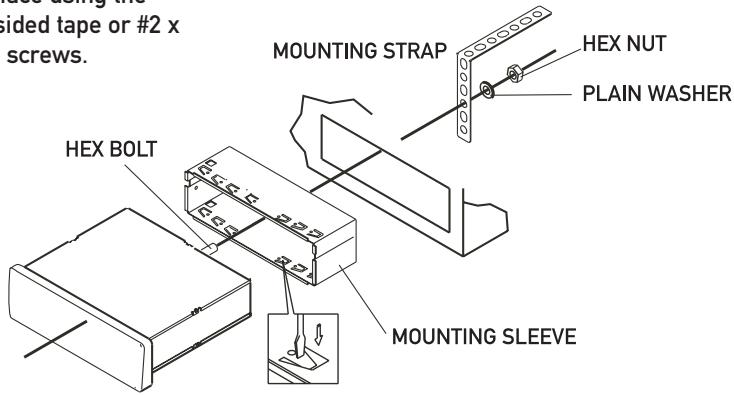
TYPICAL FRONT-LOAD DIN MOUNTING METHOD
Wiring Diagram
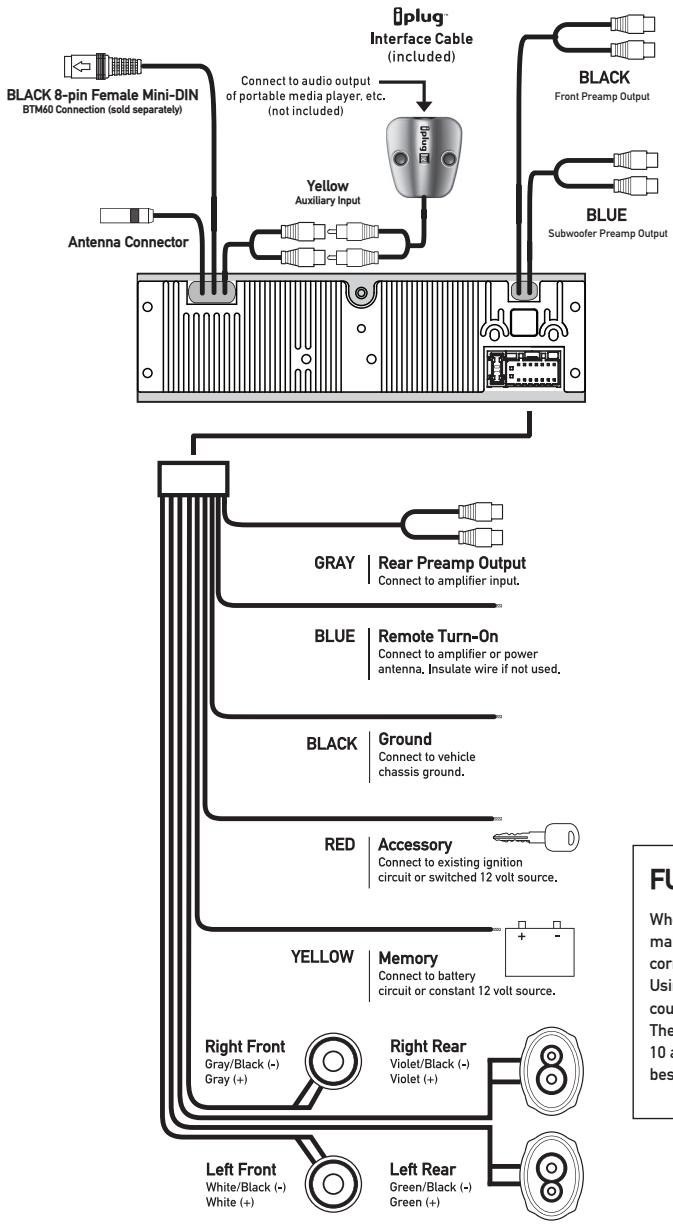
FUSE
When replacing the fuse, make sure new fuse is the correct type and amperage. Using an incorrect fuse could damage the radio. The XDMA7715 uses one 10 amp ATM fuse located beside the wiring connector.
Control Locations - Receiver
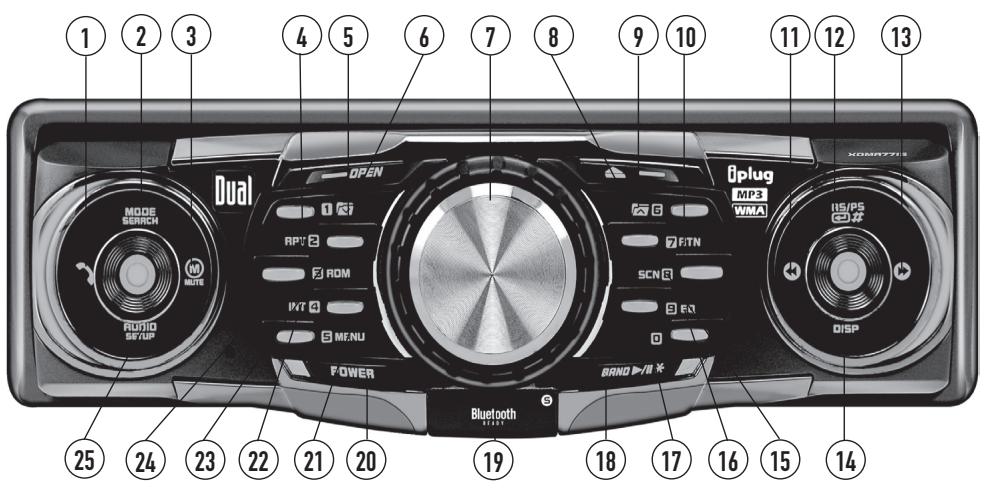
1 Talk/Redial
2 Mode/Search
3 Mute/End Call
4 Preset 2/Repeat
(5) Preset 1/Folder Down
6 Open
Volume
Eject
9 Preset 6/Folder Up
10 Return/Key 7
11 Tune/Track Down
12 AS/PS/Enter/Key #
13 Tune/Track Up
14 Display/Key 0
15 Tuner Scan/Key 8
16 EQ/Key 9
(17) Key 0
18 Band/Play/Pause/Key *
19 Infrared Sensor
20 Power
21 Preset 5/Menu
22 Preset 4/Intro
23 Preset 3/Random
24 Reset
25 Audio/Setup
Control Locations - Remote
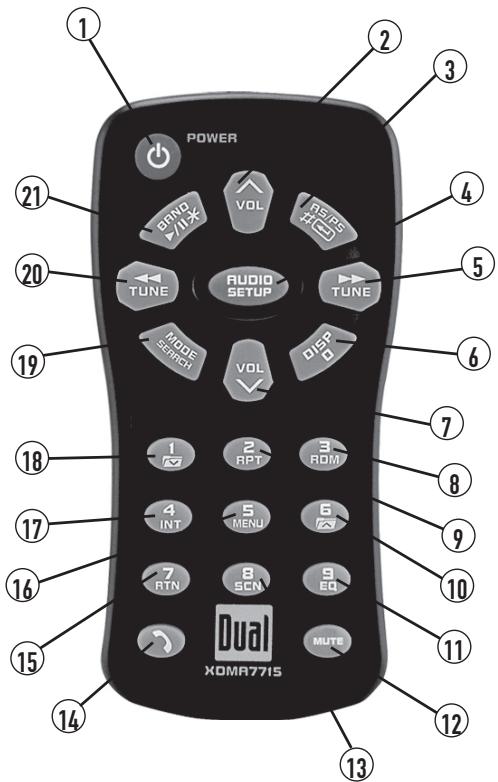
(1) Power
Volume Up
3 AS/PS/Enter/Key #
4 Audio/Setup
5 Tune/Track Up
6 Display/Key 0
Volume Down
8 Preset 3/Random
9 Preset 2/Repeat
10 Preset 6/Folder Up
11 EQ/Key 9
12 Mute/End Call
13 Scan/Key 8
14 Talk/Redial
15 Return/Key 7
16 Preset 5/Menu
17 Preset 4/Intro
18 Preset 1/Folder Down
19 Mode/Search
20 Tune/Track Down
21 Band/Play/Pause/Key*
General Operation
| Front Panel Note: | The front panel is semi-permanently attached during assembly. Please refer to the separate yellow instructions (before installation) to make the front panel removable. |
| Front Panel Removal | With the unit off, press EJECT to allow the front panel to slide down. Gently squeeze the release tab located on the bottom center underside and pull front panel down and away from unit to remove. To install, insert left side first, then push right side to secure. |
| Power On/Off | Press POWER or any other button (except EJECT or OPEN) to turn the unit on. Inserting a disc will turn the unit on automatically. Press POWER to turn the unit off. |
| Mode | Press MODE to select between AM/FM, CD player, auxiliary input and Bluetooth (optional). Modes of operation are indicated in the display. |
| NOTE: CD and Bluetooth modes will not appear unless a CD is inserted or BTM60 (Bluetooth module) is attached. | |
| Volume | Adjust volume using rotary encoder (00-46). |
| Programmable Turn-On Volume | Press and hold POWER for 3 seconds to program currently selected volume level. "P-VOL" and the current volume level will momentarily appear in the display. |
| Preset EQ Curves | Press EQ to select between POP, JAZZ, CLASSIC, BEAT, ROCK and OFF (default) equalization curves. Any adjustment to the Bass or Treble settings automatically cancels the current EQ curve (if one is selected). |
| Display | When in AM/FM, CD, or AUX mode: Press DISP to select between clock and radio frequency (tuner mode), clock and CD elapsed time/track (CD mode or clock and AUX (AUX mode). |
| Set the Clock | With the unit on, press and hold DISP until the clock begins to flash, then release. Press TUNE← to adjust the hours and TUNE→ to adjust the minutes. Press DISP momentarily to save the selected time. |
General Operation - Setup Menu
12/24-hour Clock
The clock will display 12-hour AM/PM time in USA frequency spacing mode (PM 10:00). In European frequency spacing mode, the clock will display 24-hour time (22:00).
Setup Menu
Press and hold SETUP for more than 3 seconds to access the setup menu. Press SETUP momentarily to select between the menu functions and rotate the rotary encoder left/right to adjust or activate the desired function.
| Menu Function | Options | Action |
| Loudness Curve | LOUD OFF | Disables the loudness function. |
| LOUD ON | Enables the loudness function. Activating this feature will enhance the bass and treble frequencies when listening to music at low volumes. | |
| Tuner Frequency Spacing | FREQ USA | Programs the unit to USA tuner spacing.(200kHz for FM and 10kHz for AM) |
| FREQ EUR | Programs the unit to European tuner spacing.(50kHz for FM and 9kHz for AM) | |
| Clock Display | CLK OFF | Programs the unit to not display the clock when the power is off. |
| CLK ON | Programs the unit to display the clock when the power is off. | |
| Auxiliary Mode | AUX ON | Enables access to auxiliary mode. |
| AUX OFF | Disables access to auxiliary mode. | |
| Beep Confirmation | BEEP OFF | Disables the confirmation beep. |
| BEEP ON | Enables the confirmation beep. | |
| Local/Distance Tuning | LOC OFF | Activates Distance tuning. |
| LOC ON | Activates Local tuning for strong station reception only. | |
| Subwoofer Mode | SB-W OFF | Disables the subwoofer RCA output. |
| SB-W ON | Activates the subwoofer RCA output. Subwoofer control will be available in the audio menu. | |
| Power on Message | MSG OFF | Disables power on message. |
| MSG ON | Enables power on message to be displayed. | |
| Demonstration Mode | DEMO ON | Enables the "BT READY" message. |
| DEMO OFF | Disables the demonstration mode. |
General Operation
| Audio | Press AUDIO momentarily to select between Volume (default), Bass, Treble, Balance, Fader and *Subwoofer.→VOLUME→BASS→TREBLE→BALANCE→FADER→*SUBWOOFER→ |
| Bass | Press AUDIO until BAS appears then rotate encoder left/right to adjust (-6 minimum / +6 maximum). |
| Treble | Press AUDIO until TRE appears then rotate encoder left/right to adjust (-6 minimum / +6 maximum). |
| Balance | Press AUDIO until BAL appears then rotate encoder left/right to adjust (BAL L 12-BAL 00-BAL R 12). BAL 00 represents equal balance |
| Fader | Press AUDIO until FAD appears then rotate encoder left/right to adjust (FAD F 12-FAD 00-FAD R 12). FAD 00 represents equal fader |
| *Subwoofer | Press AUDIO until SUB appears then rotate encoder left/right to adjust (0 minimum / +12 maximum). |
| Source Audio Memory | Individual Bass and Treble settings are retained in memory for AM, FM, CD, AUX and Bluetooth modes. This allows you to save the Bass and Treble settings separately for each mode. |
| Reset | Note: Any adjustment to the Bass or Treble settings automatically cancels the current EQ curve (if one is selected). |
| *Note | Press RESET upon initial installation or if abnormal operation occurs. The reset button is located behind the faceplate. Subwoofer option must be enabled before it will appear in the audio menu. Refer to page 7 for details. |
AM/FM Tuner Operation
| Seek Tuning | Press TUNE ← or TUNE → momentarily to seek the next strong station. |
| Manual Tuning | Press TUNE ← or TUNE → for more than 2 seconds, then release. "MANUAL" will momentarily appear in the display. Press TUNE ← or TUNE → momentarily to move radio frequency up or down one step at a time. Press and hold to advance quickly. If tuning is not adjusted for 5 seconds, the unit will return to seek tuning mode (default). "AUTO" will momentarily appear in the display. |
| Scan Tuning | Press SCN to preview strong stations on the current band, pausing for 5 seconds at each. Press SCN again to cancel. |
| Band | Press BAND to select between FM1, FM2, FM3, AM1 and AM2 bands. |
| Storing and Recalling Station Presets | Up to 18 FM stations and 12 AM stations can be stored. To store a station, select the desired band and station. Press and hold the desired preset button (1-6) for more than 2 seconds. When stored, the preset number will appear in the display. The station can be recalled anytime by pressing the corresponding preset button. |
| Note: Function keys 7, 8, 9 and 0 apply to Bluetooth and MP3/WMA operation only. | |
| Automatically Store Stations | Press AS/PS for more than 2 seconds to automatically store the six strongest stations in the current band. Automatic Local tuning is activated during the initial band scan. |
| Preset Scan | Press AS/PS for less than 2 seconds to scan presets 1-6 on the current band, pausing for 5 seconds at each. Press AS/PS again to cancel. |
CD Player Operation
| Insert CD | With the label facing up, insert a standard size CD into the CD slot. The CD will automatically begin playback. |
| Eject CD | Press EJECT to eject the CD. The unit will change to previous mode of operation (AM, FM or auxiliary input). If the disc is not removed within 10 seconds, the unit will reload the disc. The unit does not have to be turned on to eject CD. |
| Track Select | Press TRACK▶ to skip to the beginning of the next track. Press TRACK← to return to the beginning of the current track. Pressing TRACK← again skips to the beginning of the previous track. |
| Fast Forward and Reverse | Press and hold TRACK▶ or TRACK← to fast forward or reverse a track. |
| Pause | Press▶/■ to temporarily stop CD playback. Press▶/■ again to resume playback. |
| Scan | Press INT to play the first 10 seconds of each track. Press INT again to cancel. |
| Repeat | Press RPT to continuously repeat selected track. Press RPT again to cancel. |
| Random | Press RDM to play all tracks in random order. Press RDM again to cancel. Random mode is retained in memory when selecting between AM/FM tuner, CD player, auxiliary input and Bluetooth modes and when the unit is turned off/on. |
| CD-R/CD-RW Compatibility | Some CD-Rs and CD-RWs may be incompatible with this unit, depending on media type and recording method. In addition, the following CDs may be incompatible with this unit:CDs exposed to extreme temperatures or direct sunlight for extended periods of time, CDs recorded in which a recording session failed or a re-recording was attempted and, or encrypted or copy-protected CDs which do not conform to the audio CD-DA red book recording standard. |
CD Player Operation - MP3/WMA Files
| Playing an MP3/WMA Disc | When an MP3/WMA encoded disc is first inserted, “READING” will appear in the display. Depending on the number of files and folders, this may take several seconds. |
| Displaying Information | Press DISP to select between track number/ elapsed time (default), clock, track name, directory name, title, artist and album. |
| “NO ID3 TAG” will be displayed if the MP3 file contains no ID3 tag information. | |
| “UNKNOWN” will be displayed if the WMA file contains no WMA tag information. | |
| “ROOT” will be displayed if the directory name of a root folder is not labeled. | |
| Title Icon | This icon will illuminate when the song title is displayed. |
| Artist Icon | This icon will illuminate when the artist name is displayed. |
| Album Icon | This icon will illuminate when the album name is displayed. |
| Folder Icon | This icon will illuminate when the directory name is displayed. |
| Character Support | Maximum character display information • Track name – 32 character maximum • Directory name – 23 character maximum • *Song title – 30 character maximum • *Artist name – 30 character maximum • *Album name – 30 character maximum |
| *Song title, Artist Name, and Album name, will only be displayed if included with the MP3/WMA file. | |
| When referring to MP3/WMA playback, the following terms are synonymous: • File name and track name • Folder name and directory name |
CD Player Operation - MP3/WMA Files
Refer to the following button function table when selecting, searching or navigating MP3/WMA files and folders:
| MP3/WMA Button Function Table | |
| Button | Function |
| SRCH | Direct Select. Search and Navigate Modes |
| Enter/Confirm | |
| Preset #1 | A, B, C, 1 |
| Preset #2 | D, E, F, 2 |
| Preset #3 | G, H, I, 3 |
| Preset #4 | J, K, L, 4 |
| Preset #5 | M, N, O, 5 |
| Preset #6 | P, Q, R, 6 |
| Key #7 | S, T, U, 7 |
| Key #8 | V, W, X, 8 |
| Key #9 | Y, Z, /, 9 |
| Key #0 | - , -, +, 0 |
| AUDIO | Character Shift |
| Rotary Encoder (rotate) | Character Select (A, B, C ~ 8, 9, 0) |
| MUTE | Character Backspace |
Direct Select, Search and Navigate Modes
Direct File Select Step 1
Press SEARCH for more than 3 seconds, to select between the following modes:
- Direct File Select
- Alphanumeric File or Folder Search
- File or Folder Navigate
Press SEARCH for more than 3 seconds, then release. "MP3 T" or "WMA T" will flash in the display. Use the buttons in the above table (3 keystroke maximum input), or the rotary encoder to enter the desired file number.
Step 2
Press to confirm the selected file number or wait for the input cycle to time out (approximately 5 seconds). If the file is not available, "NO FILE" will be displayed momentarily and the current file will continue to play.
CD Player Operation - MP3/WMA Files
Alphanumeric File or Folder Search
Step 1
Press SEARCH for more than 3 seconds, then release.
Press SEARCH again, an " *" will flash in the display.
Use the buttons in the table on page 12 (32 character maximum input) or the rotary encoder to enter the desired alphanumeric search characters. Press AUDIO to advance one character to the right.
Step 2
Press to initiate the selected alphanumeric search.
Step 3
Turn the rotary encoder to preview the search results. If the search returns a folder, the icon will illuminate.
Step 4
Press to select the desired file or folder. If a folder is selected, "/" will be displayed. Turn the rotary encoder to the right to begin searching files in the folder.
Step 5
Press to select the desired file within the folder.
Note:
If the file is not available, "NO FILE" will be displayed momentarily and the current file will continue to play.
File/Folder Navigate Step 1
Press SEARCH for more than 3 seconds, then release.
Press SEARCH again two times to navigate files/folders on the disc. The current folder name will scroll one time followed by available files and folders.
Step 2
Turn the rotary encoder to preview files/folders in the current folder. If a folder is selected, the icon will illuminate.
Step 3
Press to select the desired file or folder. If a folder is selected, "/" will be displayed. Turn the rotary encoder to the right to begin searching files in the folder.
Step 4
Press to select the desired file within the folder.
*Folder Access (Up one level)
When navigating folders (and "/" is displayed), press AUDIO to access the previous level (up one level).
*Only available on MP3/WMA discs recorded with more than one folder.
CD Player Operation - MP3/WMA Files
| Navigating Note | After navigating by direct select, alphanumeric search or file/folder navigate modes, the track number and elapsed time will be displayed by default. Press DISP momentarily to select clock, track name, directory name, title, artist and album. |
| *Folder Access | Press ➔ to select the previous folder. Press ➔ to select the next folder. |
| *Folder access is only available on MP3/WMA discs recorded with more than one folder. | |
| File Repeat | Press RPT momentarily to continuously repeat selected file. Press RPT again to cancel. |
| File Repeat(Current Folder Only) | Press RPT for more than 2 seconds to consecutively repeat all files in the current folder only. The ➔ icon will appear in the display when in folder repeat mode. Press RPT again to cancel. |
| Disc Random | Press RDM momentarily to play all files on entire disc in random order. Press RDM again to cancel. |
| Folder Random | Press RDM for more than 2 seconds to play all files in current folder only in random order. The ➔ icon will appear in the display when in folder random mode. Press RDM again to cancel. |
| Disc Intro | Press INT momentarily to play the first 10 seconds of each file on the entire MP3/WMA disc. Press INT again to cancel. |
| Folder Intro | Press INT for more than 2 seconds to play the first 10 seconds of each file in the current folder only. The ➔ icon will appear in the display when in folder intro mode. Press INT again to cancel. |
| Note: File repeat (current folder only), folder random and folder intro is only available on MP3/WMA discs recorded with more than one folder. |
CD Player Operation - MP3/WMA Files
Media Compatibility
The following types of discs/files are compatible:
CD-ROM (ISO), CD-R, CD-RW
CD-DA
- MP3 data
WMA data
The following types of discs/files are not compatible:
- WMA files that are protected by DRM (Digital Rights Management).
WMA lossless format - Discs recorded with Track At Once or packet writing
- MP3 PRO format
- MP3 playlists
WAV format
Playback Order
MP3/WMA playback sequence is based on recorded order of files and begins in the root folder of the disc. Any empty folders or folders that do not include MP3/WMA files are skipped. This unit may not play files in the order they were recorded in. Refer to your recording software's user's manual for more information.
Compatible Recording Formats
ISO9660 level 1
ISO9660 level 2
Yellow Book MODE 1
- Yellow Book MODE 2 FORM 1
- Multi session
Maximum folders and files - 256
Maximum folder levels - 8
MPEG-1/2/2.5 Audio Layer-3
ISO9660 standards:
Maximum nested folder depth is 8 (including the root folder).
- Valid characters for folder/file names are letters A-Z (all caps), numbers 0-9, and “_” (underscore). Some characters may not be displayed correctly, depending on the character type.
- This device can play back discs in Joliet, Romeo, and other standards that conform to ISO9660. MP3/WMA written in the formats other than the above may not play and/or their file names or folder names may not be displayed properly.
CD Player Operation - MP3/WMA Files
| Additional MP3/WMA Information | An internal buffer provides ESP (Electronic Skip Protection) to virtually eliminate skipping. |
| When playing a disc recorded with regular audio files (CD-DA or .WAV) and MP3/WMA files, the unit will play the MP3/WMA files only. | |
| Only MP3 files with filename extension (.mp3) can be played. Only WMA files with filename extension (.wma) can be played. | |
| Do not attempt to play discs which contain non-MP3/WMA files with the MP3/WMA extension. | |
| Sampling Frequency Rates | |
| MP3 | 8kHz ~ 48kHz |
| WMA | 32kHz ~ 48kHz |
| Transfer Bit rates | |
| MP3 | 8kbps ~ 320kbps constant Variable bit rates |
| WMA | 32kbps ~ 192kbps constant Variable bit rates |
| MP3 Tag Display | Note: Some files may not play or be displayed correctly, depending on sampling rates and bit rates. |
| ID3 tags Version 1.x This model will not display ID3 Version 2.0 or greater tags. | |
| Recommended Settings | For best results, use the following settings when burning an MP3 disc: 128kbps or higher constant bit rate 44.1kHz or higher sampling frequency For best results, use the following settings when burning a WMA disc: 64kbps or higher constant bit rate 32kHz or higher sampling frequency |
Bluetooth® Operation (Optional)
Overview
Connecting a Bluetooth device requires first connecting the Dual BTM60 module (sold separately). When connected to a Dual Bluetooth Ready head unit, the BTM60 supports the HFP (hands-free profile), A2DP (advanced audio distribution profile) and AVRCP (audio video remote control profile).
Preparation
Before you can use a mobile device with this head unit, it must be connected and authenticated - commonly referred to as "pairing" a device. Please make sure that Bluetooth is activated on your mobile device before you begin the pairing process. Refer to the owner's manual of your mobile device for more details.
Bluetooth Pairing
1) To pair a Bluetooth enabled mobile phone to your head unit, press on the head unit or BTM60, or press MODE until "DUAL_BTM60" is displayed.
2) Press and hold on the head unit or the BTM60 for 5 seconds, until "PAIRING" is displayed, the Bluetooth icon will flash every second. The head unit will begin to broadcast a signal for 60 seconds.
3) Complete the pairing from the Bluetooth menu of your mobile device by searching for new devices. Please refer to your mobile device instructions for further information on Bluetooth pairing and connections. The Bluetooth icon will illuminate solid.
The BTM60 device name is "DUAL_BTM60." The password for the DUAL BTM60 is 1234.
Connection Notes
-If ACNT is set to OFF, you must press to connect after pairing.
- From Bluetooth standby mode, press MUTE to disconnect your mobile device from the BTM60.
- From Bluetooth standby mode, press to reconnect your mobile device to the BTM60.
- To connect a different mobile device, the currently connected mobile device must be disconnected. If this device has been paired previously, you may reconnect using the mobile device's Bluetooth menu, or repeat the above pairing instructions.
General Notes
- Due to the differences in Bluetooth technology, some mobile devices may be incompatible or function improperly when used with the BTM60.
- The BTM60 will store the last eight (8) devices that have been paired in its memory. If more than eight devices are paired, the head unit will remove the oldest device from its memory and that device will have to be paired again.
Bluetooth® Operation (Optional)
| Function | Description |
| Making a Phone Call | Press once. An " _ " will appear on the display. |
| Input the desired phone number using the 0-9, *, # buttons on the head unit front panel. Press to begin dialing. | |
| A phone call may also be placed from your mobile device using the keypad, phone book or speed dial. When a call is placed from a mobile device, "DIALING" will appear on the head unit display. | |
| Last Number Dialing | To enter last number dialing mode, press , then press a second time. The head unit will display "Last Number Dialing." |
| Press KEY 0 to cycle through the received, dialed or missed call categories. Rotate the rotary encoder to cycle through the last 5 calls in the selected category. | |
| Press to begin dialing the selected number. "DIALING" will appear on the head unit display. | |
| Receiving a Phone Call | If an incoming call is detected, the head unit will automatically switch to Bluetooth mode, muting any current audio. |
| The incoming phone number will scroll across the display, the phone icon will flash on the display, and a ring tone will be audible from the vehicle speakers. See Bluetooth Settings for speaker configurations. | |
| NOTE: The ring audio level will depend the mobile device and head unit ring volume and audio settings. If the ringer on the mobile device is off, you may not hear an incoming ring tone. | |
| Press on the head unit or BTM60 to receive a call. The phone icon will illuminate solid. | |
| Refusing a Call | To refuse an incoming phone call, press and hold MUTE for 3 seconds. |
| During a Phone Call | The head unit will display the elapsed time of the phone call. |
| The rotary encoder will adjust the volume of the call. | |
| Press MUTE to select between microphone on (MIC ON) and microphone off (MIC OFF). | |
| Audio Transfer | To transfer the phone call between the head unit and the mobile device, press and hold DISP for 3 seconds during a call. Tip: transfer audio to your mobile device before turning the head unit off. |
| Call Waiting | When a second call is incoming, press to activate call waiting. The current call will be placed on hold, and the second call will be active. Press again to return to the first call. |
| Call Hold | Press TALK to place the current call on hold. To resume the phone call, press TALK again. |
| Ending a Phone Call | Hold MUTE for 3 or more seconds to end a call. |
| If the phone call was received, the head unit will return to previous mode when call is ended. |
Bluetooth® Settings (Optional)
| Menu Function | Options | Action |
| Bluetooth Mode | BT ON | Enables the BTM60 Bluetooth Interface Module (sold separately). The Bluetooth icon will flash every 10 seconds. |
| BT OFF | Disables Bluetooth support. | |
| Auto Connect | ACNT ON | Allows the BTM60 to automatically (re)connect to the most recently connected mobile device. Note: Some mobile devices do not support this feature. |
| ACNT OFF | Disables the auto connect feature. You must press `every time to connect a mobile device. | |
| Auto Answer | AANS OFF | Disables the auto answer feature. Press `to receive an incoming call. |
| AANS ON | All incoming calls will be answered automatically - without notification. | |
| Bluetooth Audio | SPK 2-CH | Directs the Bluetooth audio to the front speakers. |
| SPK 4-CH | Directs the Bluetooth audio to all 4 speakers. |
Bluetooth Streaming Audio Operation (AV MODE)
The BTM60 supports A2DP wireless streaming audio from your Bluetooth mobile device directly to your head unit. You can also control your music from the front panel of the head unit using AVRCP.
To stream music to your head unit, your mobile device must support the following criteria:
A2DP profile to stream audio
- AVRCP profile to control your music. Check the owner's manual or manufacturer of your device for compatibility.
- Streaming audio must be enabled from your mobile device. This option will vary depending on the device. Example: "Set as wireless stereo."
- Disabling AV MODE must be done from your mobile device.
After enabling streaming audio from a compatible mobile device, the head unit will display "AV MODE." The following functions can be used to control music:
- The button will skip to the next available audio track.
- The button will skip to the previous audio track.
- The / button will toggle between play and pause during playback.
- The MUTE button will stop the audio playback.
NOTE: If you are experiencing problems with these functions, try playing music from the mobile device. On some mobile devices, it may be necessary to control the music from the device.
Limited One Year Warranty
This warranty gives you specific legal rights. You may also have other rights which vary from state to state.
Dual Electronics Corp. warrants this product to the original purchaser to be free from defects in material and workmanship for a period of one year from the date of the original purchase.
Dual Electronics Corp. agrees, at our option, during the warranty period, to repair any defect in material or workmanship or to furnish an equal new, renewed or comparable product (whichever is deemed necessary) in exchange without charges, subject to verification of the defect or malfunction and proof of the date of purchase. Subsequent replacement products are warranted for the balance of the original warranty period.
Who is covered? This warranty is extended to the original retail purchaser for products purchased from an authorized Dual dealer and used in the U.S.A.
What is covered? This warranty covers all defects in material and workmanship in this product. The following are not covered: software, installation/removal costs, damage resulting from accident, misuse, abuse, neglect, product modification, improper installation, incorrect line voltage, unauthorized repair or failure to follow instructions supplied with the product, or damage occurring during return shipment of the product. Specific license conditions and copyright notices for the software can be found via www.dualav.com.
What to do?
-
Before you call for service, check the troubleshooting guide in your owner's manual. A slight adjustment of any custom controls may save you a service call.
-
If you require service during the warranty period, you must carefully pack the product (preferably in the original package) and ship it by prepaid transportation with a copy of the original receipt from the retailer to an authorized service center.
-
Please describe your problem in writing and include your name, a return UPS shipping address (P.O. Box not acceptable), and a daytime phone number with your shipment.
-
For more information and for the location of the nearest authorized service center please contact us by one of the following methods:
Call us toll-free at 1-866-382-5476
E-mail us at cs@dualav.com
Exclusion of Certain Damages: This warranty is exclusive and in lieu of any and all other warranties, expressed or implied, including without limitation the implied warranties of merchantability and fitness for a particular purpose and any obligation, liability, right, claim or remedy in contract or tort, whether or not arising from the company's negligence, actual or imputed. No person or representative is authorized to assume for the company any other liability in connection with the sale of this product. In no event shall the company be liable for indirect, incidental or consequential damages.
Troubleshooting
| Problem | Cause | Action |
| Unit will not turn on (no power) | Yellow wire not connected or incorrect voltage Red wire not connected or incorrect voltage | Check connections for proper voltage (11~16VDC) |
| Black wire not connected | Check connection to ground | |
| Fuse blown | Replace fuse | |
| Unit has power (but no sound) | Speaker wires not connected | Check connections at speakers |
| One or more speaker wires touching each other or touching chassis ground | Insulate all bare speaker wires from each other and chassis ground | |
| Unit blows fuses | Yellow or red wire touching chassis ground | Check for pinched wire |
| Speaker wires touching chassis ground | Check for pinched wire | |
| Incorrect fuse rating | Use fuse with correct rating | |
| Excessive skipping | Unit is not mounted correctly or backstrap is not secure | Check mounting sleeve and backstrap support |
| Physical defect in media (CD, CD-R or CD-RW) | Check media for scratches | |
| ERROR-01 appears on display | Disc read error | Press eject or RESET |
| ERROR-02 appears on display | Focus error or disc is in upside down | Press eject or RESET |
| PROTECT appears on display | The WMA file is copy-protected by DRM (Digital Rights Management) | Write disc using WMA files that are not copy-protected |
| NO FILE appears on display | Selected file is not available in direct or alphanumeric search modes | Repeat search using valid parameters |
| INVALID appears on display | The file format is incompatible | Write disc using valid audio files with .mp3 or .wma file extensions |
| Unit will not accept a disc | CD mechanism position out of alignment | Press and hold EJECT for 3 seconds to reset CD mechanism position |
| CD transit screws still in place | Remove 2 transit screws located on top of the unit | |
| PAIRING Failed appears on the display | Pairing attempt has exceeded 60 seconds | Retry pairing sequence. Pairing must complete within 60 seconds. |
| Phone is not setup correctly to connect to a bluetooth hands free device. | Check the owner's manual for instructions on enabling Bluetooth. | |
| Bluetooth device is not compatible with the BTM60 | Contact technical support for more information. | |
| BTM60 reset | Reset the BTM60 to clear the memory of previously paired mobile devices and to clear recent dialed/missed/received phone calls from memory | From Bluetooth standby mode, press and hold MODE for BTM60 reset. |
Specifications
CD Player
Frequency response: 10Hz-20kHz
Channel separation @ 1kHz: >65dB
D/A converter: 1 Bit
FM Tuner
Tuning range: 87.5MHz-107.9MHz
Usable sensitivity: 8.5dBf
50dB quieting sensitivity: 10dBf
Stereo separation @ 1kHz: 40dB
Frequency response: 30Hz-13kHz
AM Tuner
Tuning range: 530kHz-1710kHz
Usable sensitivity: 22uV
Frequency response: 30Hz-2.2kHz
General
Operating voltage: 11-16 VDC, negative ground
Speaker output impedance: 4~8 ohms
Line output voltage: 2 Volts
Dimensions: 7'' × 7'' × 2'' (178 × 178 × 51 mm)
Design and specifications subject to change without notice.

CEA-2006 Power Standard Specifications
(reference: 14.4VDC +/- 0.2V, 20Hz~20kHz)
Power Output: 17 Watts RMS x 4 channels at 4 ohms and ≤ 1% THD+N
Signal to Noise Ratio: 80dBA (reference: 1 watt into 4 ohms)
FCC Compliance
This device complies with Part 15 of the FCC Rules. Operation is subject to the following two conditions:
(1) this device may not cause harmful interference, and
(2) this device must accept any interference received, including interference that may cause undesired operation.
Warning: Changes or modifications to this unit not expressly approved by the party responsible for compliance could void the user's authority to operate the equipment.
Note: This equipment has been tested and found to comply with the limits for a Class B digital device, pursuant to Part 15 of the FCC Rules. These limits are designed to provide reasonable protection against harmful interference in a residential installation. This equipment generates, uses and can radiate radio frequency energy and, if not installed and used in accordance with the instructions, may cause harmful interference to radio communications. However, there is no guarantee that interference will not occur in a particular installation. If this equipment does cause harmful interference to radio or television reception, which can be determined by turning the equipment off and on, the user is encouraged to try to correct the interference by one or more of the following measures:
Reorient or relocate the receiving antenna.
- Increase the separation between the equipment and receiver.
- Connect the equipment into an outlet on a circuit different from that to which the receiver is connected.
- Consult the dealer or an experienced radio/TV technician for help.
Dual Electronics Corp.
Toll Free: 1-866-382-5476
www.dualay.com
©2010 Dual Electronics Corp. All rights reserved.
Windows Media and the Windows logo are trademarks, or registered trademarks of Microsoft Corporation in the United States and or other countries.
The Bluetooth® word mark and logos are owned by the Bluetooth SIG, Inc. and any use of such marks by Namsung is under license.
Other trademarks and trade names are those of their respective owners.