
BTV30 - Bluetooth hands-free kit DUAL - Free user manual and instructions
Find the device manual for free BTV30 DUAL in PDF.


| Product Type | Bluetooth hands-free kit |
| Brand | DUAL |
| Model | BTV30 |
| Dimensions (approx.) | 12 × 5 × 2 cm |
| Weight (approx.) | 100 g |
| Power | Rechargeable battery via 12V car charger |
| Estimated battery life | Approximately 10 hours of talk time |
| Wireless technology | Bluetooth |
| Range | Up to 10 meters |
| Display | LCD with backlight |
| Microphone | Built-in |
| Main functions | Hands-free calls, voice dialing, phonebook, speed dial (hotline), last number redial, incoming/outgoing call management |
| Box contents | Main unit, sun visor clip, car charger, user manual |
| Warranty | 1 year |
| Maintenance | Clean with a soft, dry cloth |
| Safety | Contains strong magnets; do not expose to credit cards or magnetic devices |
Frequently Asked Questions - BTV30 DUAL
User questions about BTV30 DUAL
0 question about this device. Answer the ones you know or ask your own.
Ask a new question about this device
Download the instructions for your Bluetooth hands-free kit in PDF format for free! Find your manual BTV30 - DUAL and take your electronic device back in hand. On this page are published all the documents necessary for the use of your device. BTV30 by DUAL.
USER MANUAL BTV30 DUAL
INSTALLATION/OWNER'S MANUAL
Universal Bluetooth® Speakerphone

Bluetooth®

INTRODUCTION
Package Contents
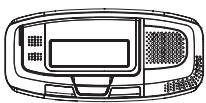
① Speakerphone Unit
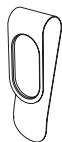
② Visor Clip
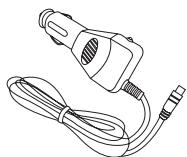
③ Car Charger

④ Manual
Proper Connections
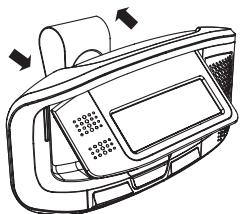

INTRODUCTION
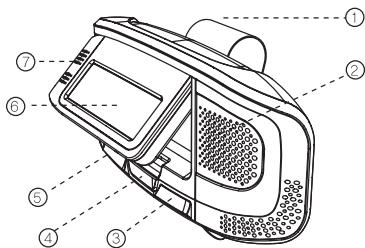
Control Locations
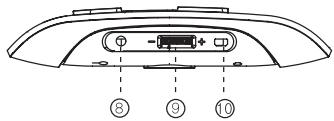
① Visor Clip
② Speaker
③ End Button
④ Hotline Button
⑤ Talk Button
⑥ LCD
⑦ Microphone
⑥ Earphone Jack
⑨ JOG Button
Charging Port
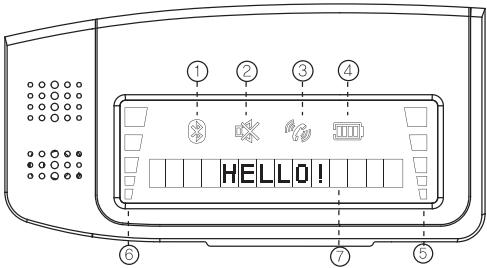
Display Components
① Bluetooth Connection
Mute
③ Call Activation
④ Battery Meter
Volume
⑥ Bluetooth Signal Strength
⑦ Status Display
OPERATION
Power On
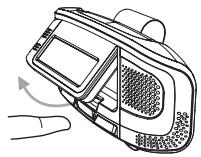
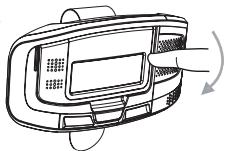
Gently lift the LCD flap to turn the unit on. The LCD will illuminate, and "HELLO" will appear momentarily in the display.
Note: After 60 seconds of no activity, the LCD illumination will turn off and the unit will enter power save mode. Press any button to exit power save mode.
Power Off
Gently close the LCD flap to turn the unit off.
Bluetooth Pairing
1) To pair a Bluetooth enabled mobile phone to the BTV30, press for three seconds. "PAIRING" will appear in the display.
2) The unit will broadcast a signal for 60 seconds. To manually exit pairing mode during this time, press momentarily.
3) Complete the pairing from the Bluetooth menu of the phone by searching for new devices. Please refer to the phone's instruction manual for further information on Bluetooth pairing and connections.
4) The phone will display the unit model name (BTV30) and prompt to begin pairing.
5) When prompted, enter the four-digit PIN number (0000).
Automatic Connection
When the unit is turned on, it will automatically reconnect to the phone to which it was last connected. If the phone does not connect automatically, press to reconnect. Some phones may not support this feature.
Disconnecting
Disconnect a phone from the BTV30 by using the Bluetooth menu of the phone. Please refer to the phone's instruction manual for further information.
OPERATION
Making a Call
Number Dialoging
Select a phone number in one of the following two ways:
- Press JOG to the right to scroll through the last five numbers.
- Press JOG to the left, and follow the prompts to search for a phone book entry. Refer to page 8 for a detailed explanation of the phone book search function.
Once the desired number is selected, press to connect the call.
Last Number Redialing
Press one time to redial the last outgoing number. If no phone number is available, a beep will be heard.
Voice Recognition
Press and hold for three seconds to activate voice dialing on the mobile phone. When the unit beeps, speak the desired name. Press briefly to cancel.
Note: This feature will only work with phones that support voice dialing.
Hotline Dialing
Use the menu to input a hotline number (see page 7 for instructions), which provides one-touch access to a commonly-called number. Press H (the hotline button) at any time to dial the programmed number.
Receiving a Call
The unit will ring and display the phone number of the incoming call. If the call is from a number stored in the phone book, the caller's name will be displayed on the LCD. Press to answer the call.
Rejecting a Call
When the unit rings, press to reject the incoming call.
Ending a Call
To end an active call, press
OPERATION
Transferring a Call
Press during a phone call to transfer audio between the BTV30 and a phone.
Tip: Transfer audio to the phone before turning the BTV30 off.
Call Waiting
The unit allows two options for answering an incoming call while on an active call:
- To place the current call on hold and answer an incoming call, press and hold JOG to the right for two seconds. The unit will beep, and the incoming call will become active. To return to the original call, press and hold JOG to the right for two seconds.
- To end the current call and answer an incoming call, hold JOG to the left for two seconds until the unit beeps. The incoming call will become active and the current call will be released.
Volume
To adjust the volume level, press JOG to the left to decrease volume or to the right to increase volume.
Note: the volume can only be adjusted during a call.
Mute
To mute the microphone during a call, press in on JOG once. To turn off the mute function, press in on JOG one more time.
Reset
To reset the unit to its factory settings, press and hold for approximately eight seconds. "RESET" will appear in the display.
Note: When the unit is reset, many user settings will be deleted, including paired device information, selected ring tone and incoming call list. No phone numbers will be deleted from the phone book when the unit is reset. Please refer to page 9 for instructions for resetting the phone book.
OPERATION
Menu Mode
The following settings may be adjusted using menu mode:
Ring Tone
- Phone Book
Hotline
Note: Menu mode may only be accessed when the unit is not connected to a phone.
To enter menu mode, press in and hold JOG for two seconds. "MENU MODE" will appear on the display.
Press JOG to the right or left to scroll forward or backward through the three menu options (RING TONE, PHONE BOOK and HOTLINE). When the desired option appears in the display, press in on JOG to access that sub-menu.
After making changes within a sub-menu, press in and hold JO6 for two seconds to confirm. To return to the main menu from a sub-menu without saving changes, press one time. Press again to exit menu mode.
Ring Tone
- While in menu mode, press JOG to the right or left until "RING TONE" appears in the display.
- Press in on JOG to enter the Ring Tone sub-menu.
- Press JOG to the right or left to scroll through the following options: RING TONE 1, RING TONE 2 or RING TONE 3. The unit will play a sample of each ring tone as its name is displayed.
- Select the desired ring tone option, and press in and hold JOG for two seconds to confirm.
- The name of the ring tone selected will appear in the display.
- Press to exit the menu.
OPERATION
Menu Mode (continued)
Phone Book
- To manually input a phone book entry, enter menu mode, then press JOG to the right or left until "PHONE BOOK" appears in the display.
- Press in on JOG to enter the Phone Book sub-menu.
- "INSERT NUM." will appear briefly on the display, then a flashing cursor will prompt the entry of a phone number. Press JOG to the right or left to select the desired number for the first digit. Press in on JOG to confirm the selection, and move the cursor to the next digit. Repeat until the entire number has been entered, then press in and hold JOG for two seconds. "SAVED NUMBER" will appear in the display.
Note: Press to backspace during number entry.
- After the phone number is saved, a flashing cursor will prompt the entry of a name. Press JOG to the right or left to select the desired first letter. Press in on JOG to confirm the selection and move the cursor to the next letter. Repeat until the entire name has been input, then press in and hold JOG for two seconds. "SAVED NAME" will appear in the display.
Note: Press to backspace during name entry. To enter a space, press JOG to the left, then press it in briefly.
- Press to exit the menu.
Hotline
- To program the Hotline speed dial button, enter menu mode, then press JOG to the right or left until "HOTLINE" appears in the display.
- Press in on JOG to enter the Hotline sub-menu.
OPERATION
Menu Mode (continued)
- "INSERT NUM." will appear briefly on the display, then a flashing cursor will prompt the entry of a phone number. Press JOG to the right or left to select the desired number for the first digit. Press in on JOG to confirm the selection and move the cursor to the next digit. Repeat until the entire number has been entered, then press in and hold JOG for two seconds. "SAVED NUMBER" will appear in the display.
Note: Press to backspace during number entry.
- Press to exit the menu.
Note: The hotline number can be edited without entering menu mode by pressing H (the hotline button) for three seconds. The hotline number will appear in the display with the cursor flashing on the last digit. Press to backspace, and press J06 to the right or left to edit any number as desired.
Using the Phone Book Calling a Phone Book Entry
- Press JOG to the left. "SELECT LETTER" will briefly appear in the display, followed by "A".
- Press JOG to the right or left to scroll through the alphabet and select the first letter of the desired name. When the desired letter appears in the display, press in on JOG. "SEARCHING" will appear in the display.
- If the phone book contains an entry beginning with the selected letter, the name and number will appear on the display. Press JOG to the right or left to scroll through all phone book entries beginning with that letter.
- When the desired name appears in the display, press to connect the call.
Editing a Phone Book Entry
Search for an entry as described in Calling a Phone Book Entry above. When the desired entry is displayed, press in on JOG. The cursor will flash on the last digit.
Note: Press to backspace, and press JOG to the right or left to edit any number as desired.
OPERATION
Using the Phone Book
Deleting a Phone Book Entry
Search for an entry as described in Calling a Phone Book Entry on page 8. When the desired entry is displayed, press for three seconds to delete.
Downloading Phone Book Contacts
Download individual contacts from any mobile phone that supports Object Push Profile. Contacts will be downloaded one at a time.
- Open the LCD flap while holding . "OBJECT PUSH" will appear in the display.
- Locate the desired number in the phone, and send it to the BTV30 using the method outlined in the phone's instruction manual.
- The display will show when the unit is "CONNECTED", "DOWNLOADING" and "COMPLETED". After the download, the unit will return to object push mode.
- Repeat steps 2 and 3 to add all desired phone book contacts.
- Close the LCD flap to turn the power off, then reopen and begin pairing.
Resetting the Phone Book
Note: The phone book may only be reset when the unit is not paired to a phone.
To reset the phone book, press and hold for approximately 15 seconds. "PHONEBOOK RESET" will appear in the display. The unit will begin resetting the phone book. "RESETTING" will appear in the display.
Once the phone books is reset, the unit will perform a memory test, during which time "TESTING" will appear in the display. After the test in complete, the unit will be ready for use and "HELLO" will appear in the display. The reset process takes about 2 1/2 minutes to complete.
Charging the Battery
Remove the unit from the visor to charge. Plug the car charger into the charging port on the unit, and connect the other end to the power supply.
LIMITED ONE-YEAR WARRANTY
This warranty gives you specific legal rights. You may also have other rights which vary from state to state.
Dual Electronics Corp. warrants this product to the original purchaser to be free from defects in material and workmanship for a period of one year from the date of the original purchase.
Dual Electronics Corp. agrees, at our option, during the warranty period, to repair any defect in material or workmanship or to furnish an equal new, renewed or comparable product (whichever is deemed necessary) in exchange without charges, subject to verification of the defect or malfunction and proof of the date of purchase. Subsequent replacement products are warranted for the balance of the original warranty period.
Who is covered? This warranty is extended to the original retail purchaser for products purchased and used in the U.S.A.
What is covered? This warranty covers all defects in material and workmanship in this product. The following are not covered: installation/removal costs, damage resulting from accident, misuse, abuse, neglect, product modification, improper installation, incorrect line voltage, unauthorized repair or failure to follow instructions supplied with the product, or damage occurring during return shipment of the product.
What to do?
- Before you call for service, check the troubleshooting guide in your owner's manual. A slight adjustment of any custom controls may save you a call.
- If you require service during the warranty period, you must carefully pack the product (preferably in the original package) and ship it by prepaid transportation with a copy of the original receipt from the retailer to an authorized service center.
- Please describe your problem in writing and include your name, a return UPS shipping address (P.O. Box not acceptable), and a daytime phone number with your shipment.
- For more information and for the location of the nearest authorized service center please contact us by one of the following methods:
Call us toll-free at 1-866-382-5476
E-mail us at cs@dualav.com
Exclusion of Certain Damages: This warranty is exclusive and in lieu of any and all other warranties, expressed or implied, including without limitation the implied warranties of merchantability and fitness for a particular purpose and any obligation, liability, right, claim or remedy in contract or tort, whether or not arising from the company's negligence, actual or imputed. No person or representative is authorized to assume for the company any other liability in connection with the sale of this product. In no event shall the company be liable for indirect, incidental or consequential damages.

Dual Electronics Corp.
Toll Free: 1-866-382-5476
www.dualav.com ©2007 Dual Electronics Corp. All rights reserved.
Magnet Warning
The BTV30 contains powerful magnets that may cause data loss when exposed to certain devices or credit cards.
This device complies with part 15 of the FCC Rules. Operation is subject to the following two conditions: (1) This device may not cause harmful interference, and (2) This device must accept any interferences received, including interference that may cause undesired operations.
The Bluetooth® word mark and logos are owned by the Bluetooth SIG, Inc. and any use of such marks by Movon is under license. Other trademarks and trade names are those of their respective owners.