
T10 - Mp3 player IRIVER - Free user manual and instructions
Find the device manual for free T10 IRIVER in PDF.


User questions about T10 IRIVER
0 question about this device. Answer the ones you know or ask your own.
Ask a new question about this device
Download the instructions for your Mp3 player in PDF format for free! Find your manual T10 - IRIVER and take your electronic device back in hand. On this page are published all the documents necessary for the use of your device. T10 by IRIVER.
USER MANUAL T10 IRIVER
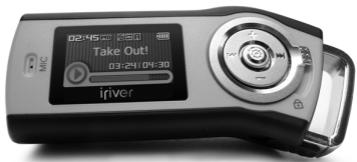
Thank you for your purchase.
Please read this manual carefully
before using your new player.
Firmware

MP3
DIGITAL AUDIO
T

AudibleReady
REC
VOICE
recorder
- Some features might not be available in every region.
Before using the product
Welcome 03
Homepage 03
Copyrights/Certification/Trademarks/Limited Liability 04
Chapter 1 | Getting started
Components 07
Location of Controls 08
Connection/Installation 10
Chapter 2 | Quick start
Basic Usage 15
Chapter 3 I Basic operation
MUSIC 19
BROWSER 26
IMAGE VIEWER 27
*FM RADIO 29
RECORDING 34
- Only for models including FM Radio function
Chapter 4 I Useful features
Menu Configuration 39
Menu Operation 40
Customizing the Function Settings 42
Listening to Audible ^TM files 57
Chapter 5 | Customer Support
Firmware Upgrade 61
Troubleshooting 62
Specification 63
Safety Information 64
FCC Certification 65
Welcome
Thank you for your iriver purchase
Thank you for your river purchase.
The T10 comes complete with a long list of advanced features. It is important that you read the manual to ensure that you get the most out of your new player.
http://www.iveramerica.com
Obtain information about your player, look for updates, and find answers to questions at our web site.
- iriver website address is www.iveramerica.com.
- The site provides product information and customer support.
- Use the firmware (system software) upgrade function of our products from the site to continuously improve the product performance.
Copyrights/Certification/Trademarks/Limited Liability
Copyrights
- iriver Limited has all the rights of the patent, trademark, literary property and intellectual property related to this manual. You may not reproduce any part of this manual unless authorized by iriver Limited. You can be punished by using any part of this manual illegally.
- The software, audio and video which have an intellectual property are protected by copyright and international laws. It is user's responsibilities when he/she reproduce or distribute the contents created by this product.
- The companies, institutions, products, people and events used in examples are not real data. We don't have any intention to be related with any companies, institutions, products, people and events through this manual and should not draw inferences. User's are responsible for observing the copyrights and intellectual properties.
1999-2006 iriver Limited, All rights reserved
Certification
CE, FCC, MIC
Trademarks
- Windows 2000, Windows XP and Windows Media Player are the registered trademarks of Microsoft Corp.
- SRS is a trademark of SRS Labs, Inc.
- WOW technology is incorporated under license from SRS Labs, Inc.
Limited Liability
- Neither the Manufacturer, importers nor dealers is responsible for any accidental damage including bodily injury or any damage resulting from misuse or unsuitable operation by you.
- The information on this manual is prepared with the current player specifications. The manufacturer, iriver Limited, is adding new features to the product and may persistently apply new technologies hereafter. All standards may be changed at any time without notice.
Getting started
river
www.iriveramerica.com
Chapter
1
Components 07
Locating the controls 08
Product 08
LCD Screen display 09
Connection/Installation 10
Connecting to the PC 10
Connecting the earphones 11
Replacing the battery 11
Easy Start CD Installation 12
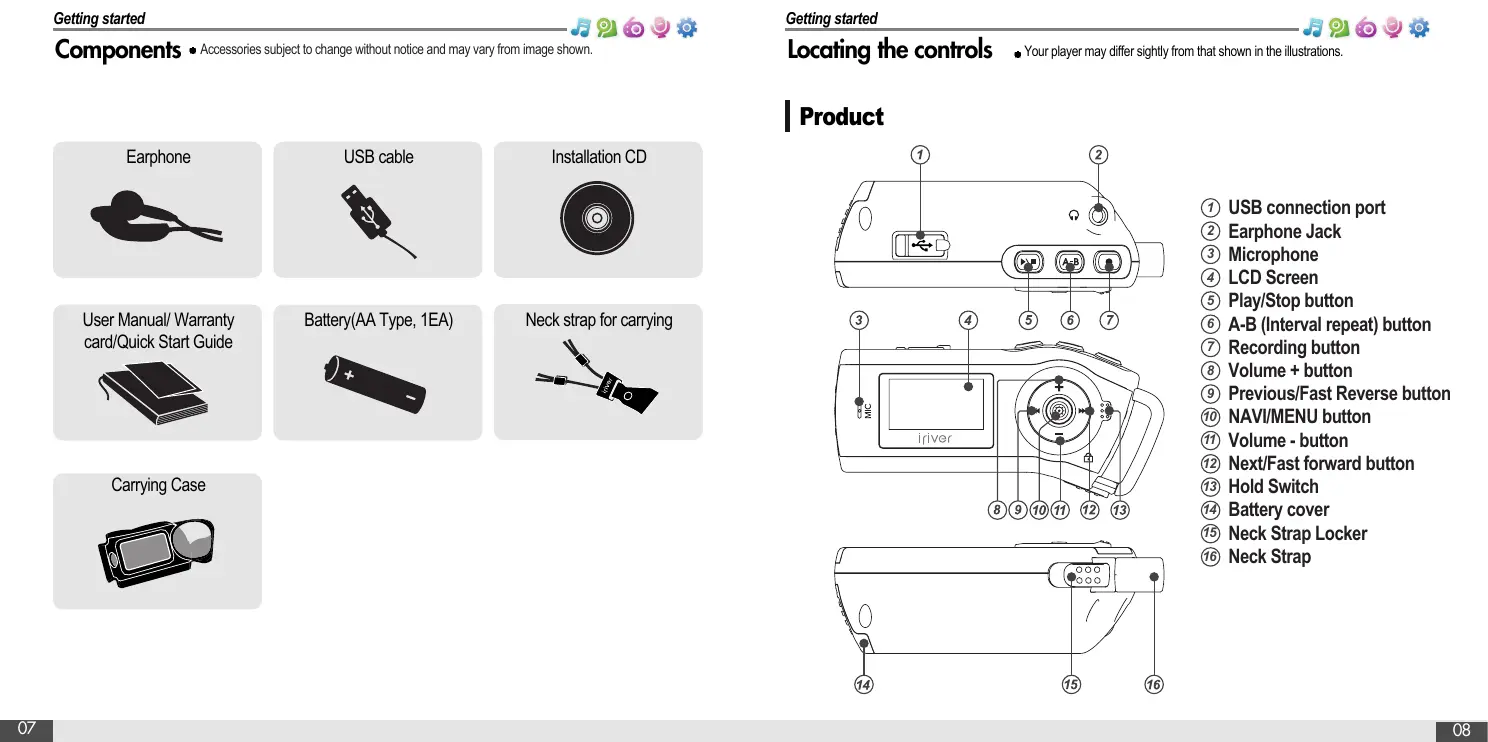
Components • Accessories subject to change without notice and may vary from image shown.

Earphone
USB cable

Installation CD
User Manual/Warranty card/Quick Start Guide

Battery(AA Type, 1EA)
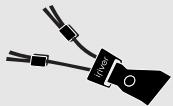
Neck strap for carrying
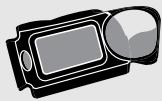
Carrying Case
Locating the controls Your player may differ sightly from that shown in the illustrations.
Product

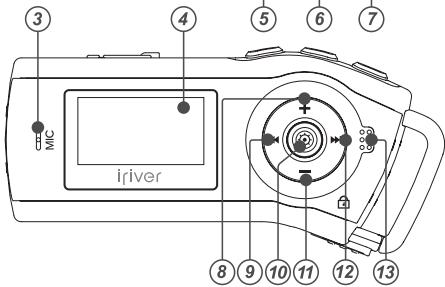
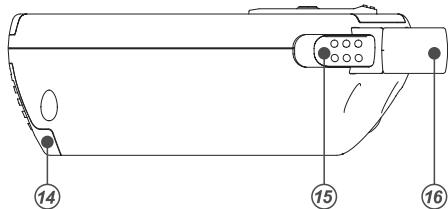
① USB connection port
② Earphone Jack
③ Microphone
④ LCD Screen
⑤ Play/Stop button
⑥ A-B (Interval repeat) button
⑦ Recording button
Volume + button
9 Previous/Fast Reverse button
10 NAVI/MENU button
Volume - button
12 Next/Fast forward button
Hold Switch
14 Battery cover
⑤ Neck Strap Locker
Neck Strap
Locating the controls
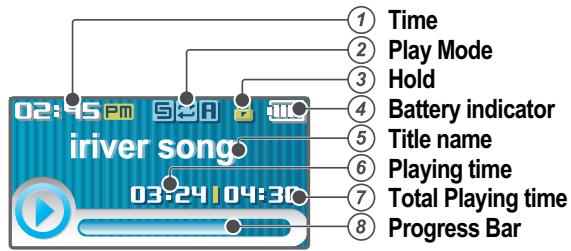
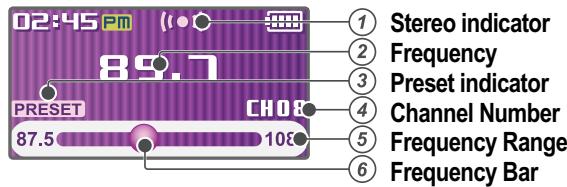
LCD Screen display
- MUSIC Mode
- *FM RADIO Mode * Only for models including FM Radio function
Connection/Installation
Connecting to the PC
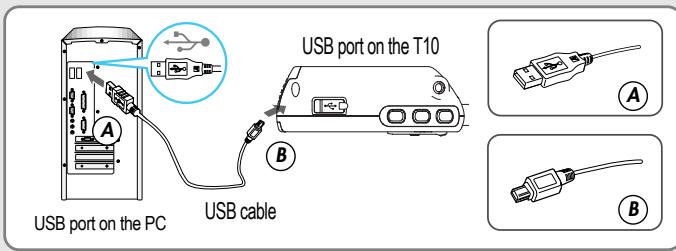
- Connect the USB cable(provided) to the USB port on the player and to your PC.
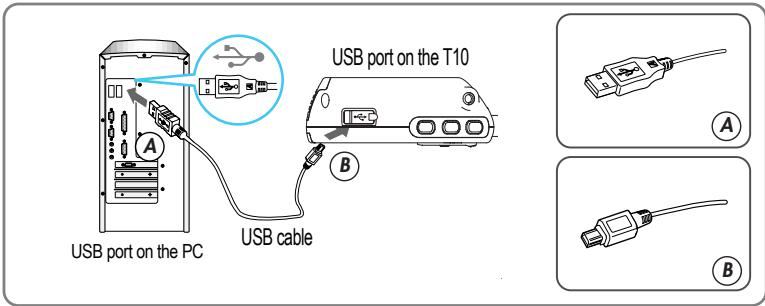
- Turn on the player, "USB Connect" icon will appear on the LCD screen of the player.

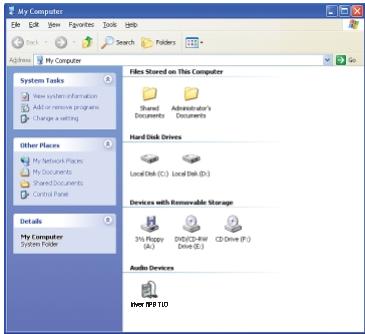
- Once installed, open Windows Explorer and an additional drive should be listed called "iriver MP3 T10".
Connection/Installation
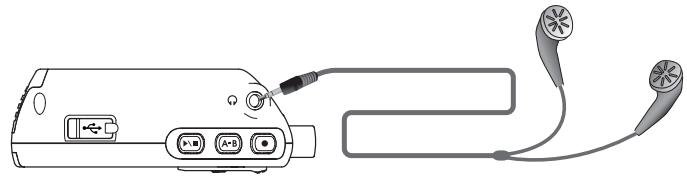
Connecting the earphones
- Connect the earphones jack to the microphone socket on the player.
Replacing the battery
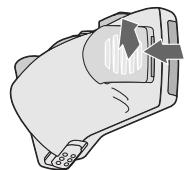
- Open the battery cover.
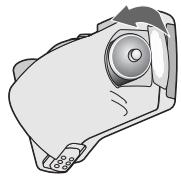
- Insert the battery. (AA 1.5V type x 1ea) Be sure to match the + and - ends of the battery with the diagram inside the battery compartment.
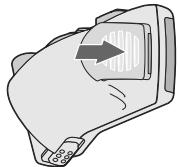
- Close the battery cover.
Note
To avoid corrosion, remove the battery if the player is not to be used for a long time.
Remove dead battery immediately to avoid damage from corrosion.
When corrosion occurs, wipe the battery compartment immediately with a dry cloth and insert a new battery.
Connection/Installation
Easy Start CD Installation
- Insert the Easy Start CD into the CD or DVD drive of a computer.
- Follow the on-screen instructions on the computer to complete the installation of Windows Media Player 11.
Quick start
iriver www.iriveramerica.com
Chapter
2
Basic Usage 15
Turning on/off the player 15
Playing a music file 15
Adjusting the volume 16
Selecting the function mode 16
Basic Usage
Turning on/off the player

1 Turning on the player
Press the / 口 button to turn on the player.
Previous function mode will be displayed.
Note
If the player does not power ON, please replace your battery.

2 Turning off the player
Press and hold the / button. Turns off the player.


Playing a music file

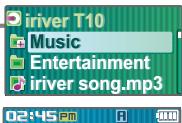
When powered on, press and hold button to display the function mode screen. Press , button to choose the desired function mode. Press button to enter.


Press , button to choose the desired music file. Press button to start playback.


Basic Usage
Adjusting the volume

1 Adjusting the volume
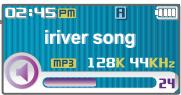
During the music file playback, press + , - button to adjust volume level.
- : Increase volume level.
Decrease volume level.
Selecting the function mode

When powered on, press and hold button to display the function mode screen.
Press , button to choose the desired function mode.


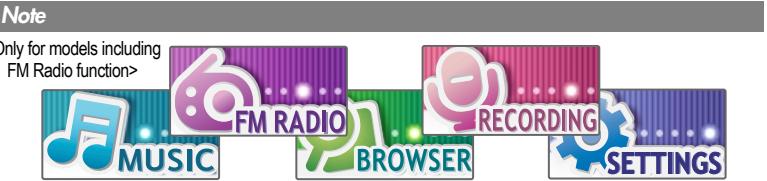

Press button to enter. Press button to cancel

Basic operation
river
www.iveramerica.com
Chapter
3
MUSIC 19
Playing a music file 19
Changing playback mode 21
A-B Repeat 22
Changing the sound EQ 22
Getting music on your player 23
Deleting a file or folder on the player 25
Creating a iQuickList file on the player 25
BROWSER 26
BROWSER 26
IMAGE VIEWER 27
IMAGE VIEWER 27
Adding image file to player 27
*FM RADIO 29
Listening to *FM radio 29
Searching for a frequency - Manual Scan 30
Searching for a frequency - Auto Scan 30
Saving for a frequency - Manually 31
Saving for a frequency - Automatically 32
Selecting preset memory 32
Deleting a channel 33
RECORDING 34
To record *FM station 34
Recording voice 35
Note for recording 36
To play a recorded file 36
- Only for models including FM Radio function
Playing a music file

1 Release HOLD switch, then press / 口 button to turn on the player.
Previous function mode will display.


Press and hold button to display the function mode screen.
Press , button to select [MUSIC] mode, then press button to enter.



3 Use the 山 山 + + - buttons to select a music file.
: to go the upper folder
: to go the sub folder
+ - : to select a file


To exit file list screen, press button.
driver T10
Music
Entertainment
iriver song.mp3
iriver T10
Music
Entertainment
iriver song.mp3
MUSIC

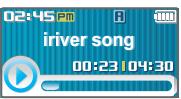
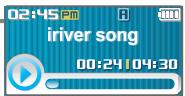
Press the button to start music playback.
Press to pause music playback. Press again to continue playing

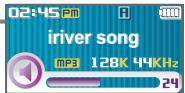
Adjusting the volume
During the music file playback, press + , - button to adjust volume level.
- : Increase volume level.
Decrease volume level.

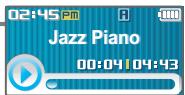
6 Skipping to previous/next file
During the music file playback, press , button to skip to the previous/next file
previous file next file

7 Fast searching
Press and hold the , button for fastforward or fast-reverse playback.
:fast-rewind :fast-forward
Release the button for normal playback.
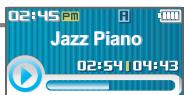
Changing playback mode

1 While playing a music file, press the button to display the playback mode select screen.
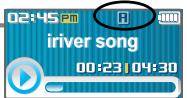

Press the 一 +, - button to select desired playback mode.
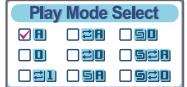

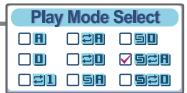
The playback mode is changed to the selected mode.
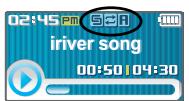
Note
The following the icons displayed to indicate playback mode
| Normal playback | H | Play all files in the player, then stop. |
| O | Play all files in the current folder playlist), then stop. | |
| Repeat playback | 21 | Play a single file repeatedly. |
| 28 | Play all files in the player repeatedly. | |
| 20 | Play all files in the current folder playlist) repeatedly. | |
| Shuffle playback | 50 | Randomly play all files in the player, then stop. |
| 50 | Randomly play all files in the current folder playlist), then stop. | |
| Shuffle playback repeatedly. | 53 | Randomly play all files in the player repeatedly. |
| 53 | Randomly play all files in the current folder playlist) repeatedly. |
MUSIC
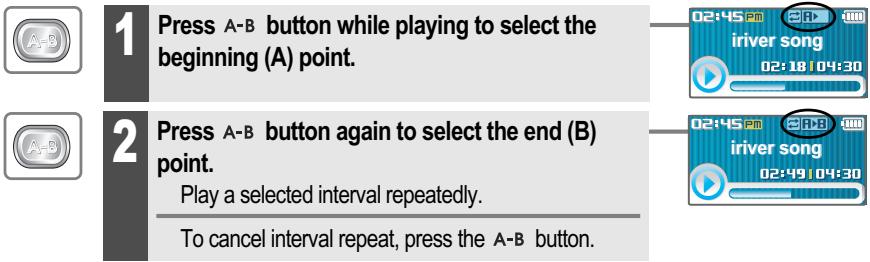
A-B Repeat
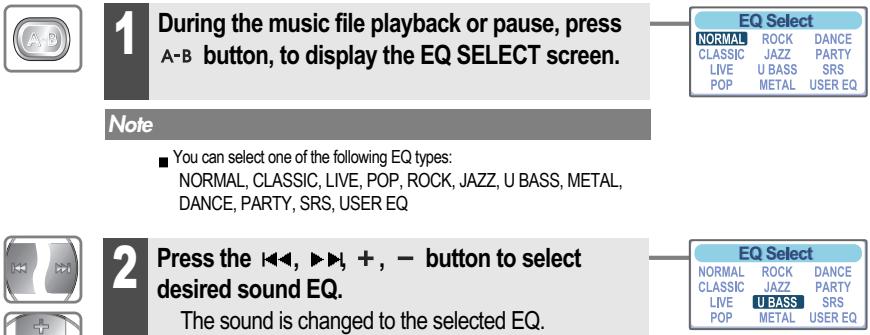
Changing the sound EQ
MUSIC
Getting music on your player
Get the latest Windows Media Player
In order to copy musicto your player, you must have Windows Media Player 11 installed.
The Easy Start CD should include the proper version of Windows Media Player.
Windows Media Player 11 can also be found online at : www.microsoft.com/windows-windowsmedia/download/
Once Windows Media Player has been updated, use the following steps to load music onto your player.
- Please note, purchased music can only be copied to this player using Windows XP and the latest version of Windows Media Player.
1. Connect T10 to your computer
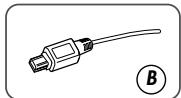
a. Connect the USB cable to the USB port on the player and to the PC.
b. Power on the T10.
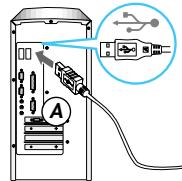
USB port on the PC
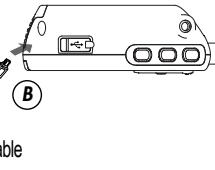
USB port on the T10

2. Open Windows Media Player 11.
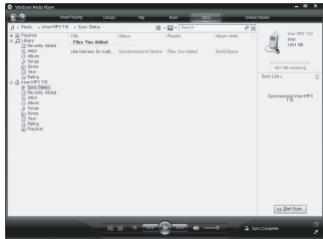
a. Click Start All Programs Accessories Entertainment Windows Media Player.
b. Click "Sync" from the menu button near the top of the screen.
Your music library will be displayed on the left, and the device information on the right.
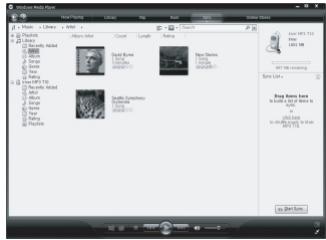
MUSIC
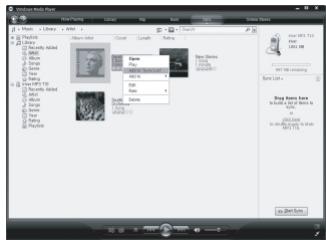
- Locate a song in the library and right-click on it. Select Add to "Sync List".
A "Sync List" will appear on the right side of Windows Media Player listing all the songs to be added to your player.
Repeat this step for all the songs you would like to add to your player.
- Click Start Sync to transfer the items on your Sync list to the player. A progress indicator will show each file transferring.
When complete, copied songs will appear in the "Files You Added" list.
Disconnect the player from your computer and enjoy your music!
Note
If you prefer having your music library automatically synchronized to T10 :
a. Click the arrow below Sync tab, and select iriver MP3 T10 - Set Up Sync.
b. Select "Sync this device automatically" option.
MUSIC
Deleting a file or folder on the player


1 While in stop mode, press the button to display music list screen. Select a file or folder to delete by using the , +, - button.
: to go the upper folder _1 : to go the sub folder + , - : to select a file
2 Press the A-B button to display Delete File or Folder screen.
Select "YES" by using the , button to delete, then press the button.
File or folder is deleted on the player.
You can only delete an empty folder.
Music
Dance party
Screen Music
Jazz Piano.mp3
-river T10
Music
Entertainment
iriver song.mp3
Delete File
Are you Sure?
NO
YES
Delete File
Are you Sure?
NO
YES
Creating a iQuickList file on the player


1 While in stop mode, press the button to display music list screen.
Select a file to add to iQuickList by using the 山山 ,,+,- button.
: to go the upper folder : to go the sub folder +, : to select a file
driver T10
Music
Entertainment
iriver song.mp3
driver T10
Music
Entertainment
driver song.mp3
BROWSER
You can create on-the-fly quicklist(iQuickList) on the device without a computer.

Press and hold the A-B button to add the track to iQuickList.

Select "YES" by using the , button to add, then press the button.
iQuicklist.pla will be saved on the root and select the file to play iQuickList.
Add Quick List
Are you Sure?
NO
YES
Note
-
You can remove a track from iQuickList by pressing A-B button. (It does not delete the file itself from the device)
-
Removing a track from iQuickList is not available during playback.
Only 0, 01, 00, 00 and 00 are available when playlist playback.
Add Quick List
Are you Sure?
□NC
YES
BROWSER

Press and hold the button to display the function mode screen.
Press the 一 , button to select [BROWSER] mode, then press the button to enter.

2 File list screen is displayed on the LCD screen.

river T10
Music
Entertainment
driver song.mp3
IMAGE VIEWER
IMAGE VIEWER


1
While BROWSER mode, select a image file by using the 山山 +,- button.
Press the 念 button to to view.
: to go the upper folder : to go the sub folder
+,一:to select a file
: to execute image viewer
M
Wow iriver.bmp
Frend.bmp
My Family.bmp

Note
Image file may not display if file is damaged.
Only 4/8/16/24 bit Mono/Color BMP file can be displayed.
■ RLE type BMP file is not supported
Adding image file to player
- Connect the player and PC using the cable supplied with the player and power it on. (Refer to page 10.)
- Open "Start - My Computer".
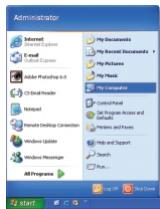

Shortcut to My Computer
IMAGE VIEWER
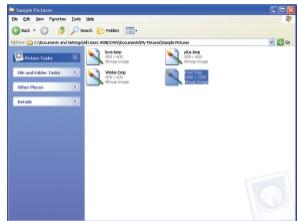
- Locate your image files(BMP), usually found in "My Documents" then "My Pictures", keep this folder open.
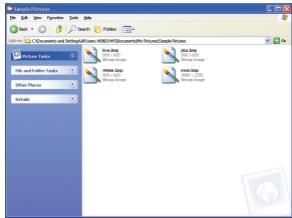
- Open a second My Computer window. Double click on the iriver MP3 T10 device.
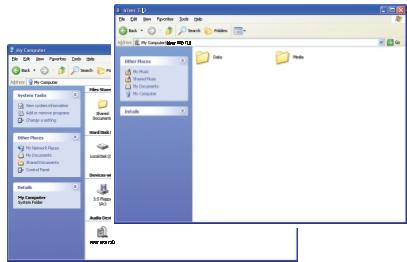
- To get images on the player, drag and drop the image files from your PC to a temporary folder in the iriver MP3 T10 portable device.
- A progress window will appear while files are copying.
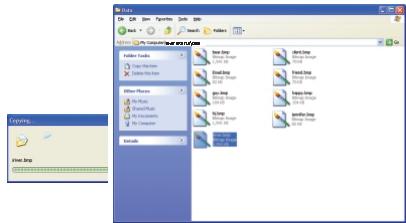
- Disconnect the USB cable once all copying has finished.
Listening to FM radio


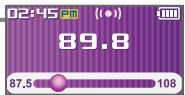
Press and hold button to display the function mode Screen. Press the , button to select [FM RADIO], then press the button to confirm.
The previous station is displayed.

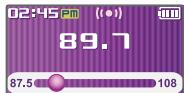

Press the 一 , button to select your desired station.
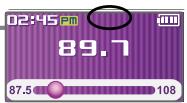

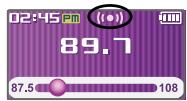
To change STEREO/MONO
Press the / button to change Stereo or Mono.
The station is changed to stereo or mono.
Note
In areas where the signal is weak, some channels may be unavailable, or reception may be poor.
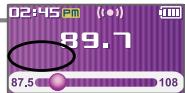
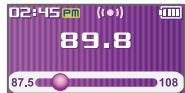
Searching for a FM radio frequency - Manual Scan


1 If PRESET is displayed, first press the button to exit PRESET mode.
Press the 一 , button to select your desired station.
Searching for a FM radio frequency - Auto Scan


1 If PRESET is displayed, first press the button to exit PRESET mode.
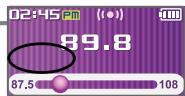
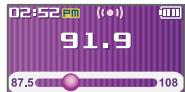
To automatically locate a station press and hold the , button.
The player will quickly scan through each frequency and stop at the next station that can tuned in.
Note
While in Preset mode, auto scan functions are not available.
Saving an FM Radio frequency - Manually


1 If PRESET is displayed, first press the button to exit PRESET mode.
Press the , button to select your desired station.
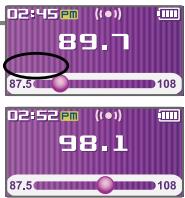


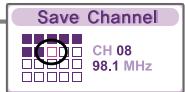
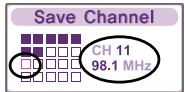
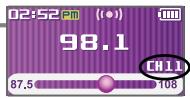
Press the A-B button to display Save Channel screen.
Press the 山山 ,+,- button to select your desired channel number.
:
ed
□:not used

3
Press the A-B button to save.
To exit the Save Channel screen, press the A-B button.
Note
Up to 20 stations can be saved.
Saving an FM Radio frequency - Automatically

1 If PRESET is displayed, first press the button to exit PRESET mode.

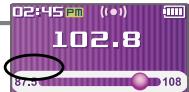
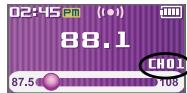
Press and hold the A-B button to automatically select select stations and save them in sequential order.
Selecting preset memory

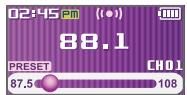
1 If PRESET is not displayed, first press the button to enter PRESET mode.

Press the 一 button to select your desired channel.
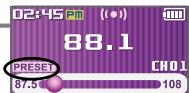
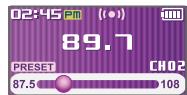
Note
- When the player does not have any preset stations, EMPTY will be displayed at Preset mode, then fade out.
Deleting a channel


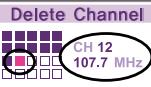
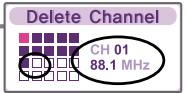
1 If PRESET is not displayed, first press the button to enter PRESET mode. Press the A-B button to display Delete Channel screen.
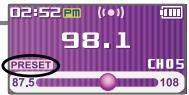
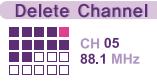


2 Select the channel to delete by using the , , +, - button.
You can delete only saved channel.
: Saved channel
Selected channel
□: not used channel


3 Press the A-B button to delete selected channel.
Press the / button to exit Delete Channel screen.
Note
- When the player does not have any preset stations, EMPTY will be displayed when pressing the button.
RECORDING
To record *FM station * Only for models including FM Radio function


Press and hold the button to display function mode screen. Select the [FM RADIO] by using the , button, then press button.
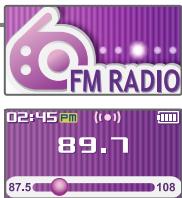

Press the button during FM reception. The station will be recorded.
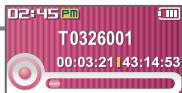

Press / button to pause the recording process. Press / button again to restart recording.

Press the button again to stop recording.
The recorded file is saved.
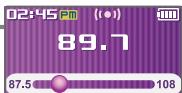
Note
The recorded file is saved as TMMDDXXX.MP3 in the RECORD folder. (T:Tuner, MM:Month, DD:day, XXX:sequential number)
Volume can not be controlled while recording.
You can adjust recording quality at the SETTINGS-RECORDING-FM SETTING.(Refer to page 48)
RECORDING
Recording voice



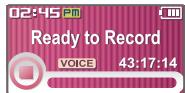
The recording standby screen is displayed.


Note
The recorded file is saved as VMMDDXXX.MP3 in the VOICE folder. (V:Voice, MM:Month, DD:day, XXX:sequential number)
Volume can not be controlled while recording.
You can adjust recording quality at the SETTINGS-RECORDING-VOICE SETTING.(Refer to page 48)
RECORDING
Note for recording
The recording will be stop if
- the amount of recorded data exceeds the capacity.
- the battery is low.
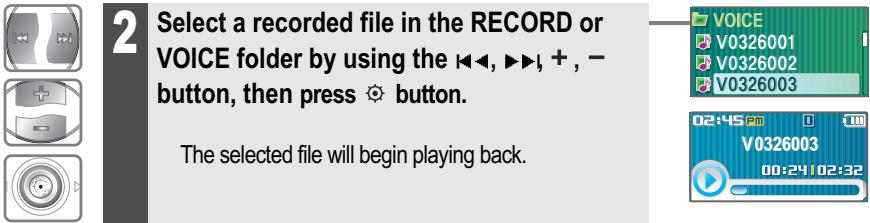
To play a recorded file

Useful features
river
www.iriveramerica.com
Chapter
4
Menu configuration 39
Menu operation 40
Enter Settings Menu 40
Enter Sub Menu 40
Set the menu functions 41
Exit sub menu 41
Customizing the function settings 42
Sound 42
Display 43
Recording 48
Timer 50
Advanced 53
Listening to Audible TM files 57
What is AudibleTM? 57
Transferring Audible _TM files 57
Sections 57
Bookmarks 58
Menu configuration Functions are subject to change with different firmware versions.
- Users can configure their own settings.

Settings
Sound
Display
念 Recording
- SRS Setting
- User EQ
Settings
Sound
Display
Recording
Backlight Timer
Screen Saver
Scroll Speed
Tag Info.
Language
Battery Select
Name
LCD Contrast
Settings
Sound
Display
Recording
*FM Setting
Voice Setting
Voice Detect
Settings
Timer
- Advanced
Power Off Timer
Sleep Timer
Date & Time
Alarm/FM Rec.
Set Alarm
^ 一 FM Rec. Reserve
Settings
Timer
Advanced
Resume
System Info.
Scan Speed
■Playback Speed
Study Mode
Load Default
Format
Audible
- Only for models including FM Radio function
Menu operation
Enter Settings Menu

Press and hold the button to display the Mode screen.


Press the , button to select [ SETTINGS] mode.

Press the button to display the Settings screen.
Settings
Sound

Press the + , - button to move the Settings menu.
Display
Recording
Enter Sub Menu

1 Press the button to enter the sub menu screen.
Settings
Sound
Display
Recording
Sound
SRS Setting
- User EQ
Menu operation
Set the menu functions

Press the + , - button to select sub menu.

Press the button to enter Sub Menu setting screen.

3 You can set, cancel or change sub menu by pressing the 山山山 +, -, button.


Exit sub menu

Press the button to exit sub menu.
Sound
SRS Setting
User EQ
Settings
Sound
Display
Recording
Customizing the function settings (Menu)
Sound
1. SRS Setting
Sets the 3D sound effect. SRS, FOCUS, TruBass, and Boost are available.
SRS: Adjust the SRS value.
FOCUS: Adjust the sound resolution value.
TRUBASS: Adjust the TruBass value.
BOOST: Adjust the sound boost value.
Use proper boost value depends on the earphones or headache characteristics.
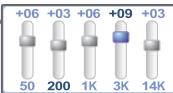
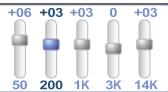
2. User EQ
You can adjust the sound to your preference.
There are 5 band frequency steps, set from < -15dB> < +15dB> by 1dB increments.
Sound
SRS Setting
- User EQ
SRS Setting
SRS
FOCUS
TRUBASS
BOOST
0
MII
06
08
MID
06
60
Sound
SRS Setting
User EQ
Customizing the function settings (Menu)
Display
1. Backlight
You can adjust the time that the Backlight stays on.
The Backlight can be set to: <5SEC> , <10SEC> , <30SEC> , <1MIN> , <5MIN> , <10MIN> or
Display
Backlight
Screen Saver
Scroll Speed
Back Light
5SEC
10SEC
30SEC
ALWAYS ON
2. Screen Saver
Automatically display screen saver after a selected time at playback mode.
The TIME can be set to :
The TYPE can be set to :
Display
Backlight
Screen Saver
- Scroll Speed
Screen Saver
TIME
TYPE
1
10 S
IRIV
Customizing the function settings (Menu)
Display
3. Scroll Speed
Select scroll type and speed of the current title playback information.
The scroll type can be set to :
The scroll speed can be set to :
Display
Backlight
Screen Saver
Scroll Speed
Scroll Speed
TYPE VERTICAL
SPEED
NORMAL
4. Tag Info.
You can select to display the information of music file by using lyrics or Tag.
You can set to
ON: Display lyrics or Tag information.
(Displayed as lyrics, Tag information or file name order)
CAPTION OFF : Display Tag information.
(Lyrics function does not activate)
OFF: Display file name of music file.
Display
- Tag Info.
Language
Battery Select
Tag Info.
ON
OFF
CAPTION OFF
Customizing the function settings (Menu)
Display
5. Language
Select the language to display the file name, lyrics and Tag information.
Support 40 languages.
Display
- Tag Info.
Language
Battery Select
Language
ENGLISH
ESTONIAN
FAEROSE
FINNISH
6. Battery Select
Select the current battery.
You can set
The player will manage the battery indicator icon to better match the usage level.
Display
- Tag Info.
Language
Battery Select
Battery Select
RECHARGEABLE ALKALINE
Customizing the function settings (Menu)
Display
7. Name
You can input your name or custom text.

1 Select the character by using 口 , button and press button to input the character.

2 To move the cursor in the name window, use + , - button.

3 To delete the character, press button. To scroll between English and your preferred language, use A-B button.

Press and hold button to save and exit.
Display
Name
LCD Contrast
Name
My
hjklmnpq
Name
My iriy
qrstuvwxy
Name
My ir
qrstuvwxy
Name
My irive
qrsutuvwxyz
Customizing the function settings (Menu)
Display
8. LCD Contrast
Adjust the LCD screen contrast.
The LCD contrast can be adjust from < -10> to < +10> .
Display
Name
LCD Contrast
LCD Contrast

Customizing the function settings (Menu)
Recording
- *FM Setting
You can set recording quality (
- Only for models including FM Radio function
Recording
FM Setting
Voice Setting
Voice Detect
FM Setting
□HIGH
MIDDLE
LOW
- Voice Setting
You can set recording quality (
Recording
FM Setting
Voice Setting
Voice Detect
Voice Setting
□HIGH
MIDDLE
LOW
Customizing the function settings (Menu)
Recording
3. Voice Detect
The voice recording mode will automatically pause during silence. This is useful for recording over a long period of time to save memory.
LEVEL : Set the relative level of sound needed to activate the recorder. (
TIME(SEC) : Set the number of seconds of silence to record before pausing. (
Recording
FM Setting
Voice Setting
Voice Detect
Voice Detect
LEV
OFF
TIME(SEC)
OFF
Customizing the function settings (Menu)
Timer
1. Power Off Timer
Automatically turns the power off at the stop mode.
Time range can be set from <1MIN> , <2MIN> , <3MIN> , <5MIN> , <10MIN> , <20MIN> , <30MIN> or <60MIN> .
Timer
Power Off Timer
Sleep Timer
- Dale & Time
Power Off Timer
1MIN
2MIN 20MIN
3MIN 30MIN
5MIN 60MIN
2. Sleep Timer
Automatically turns the power off after a fixed time.
Time range can be set from <OFF> , <5 MIN> , <10 MIN> , <20 MIN> , <30 MIN> , <60 MIN> , <120 MIN> or <180 MIN> . OFF: Sleep timer function does not activate.
Timer
Power Off Timer
Sleep Timer
Date & Time
Sleep Timer
OFF
5MIN
□10MI
20 MIN
□30MIN
□60MIN
□120Ml
180MIN
Customizing the function settings (Menu)
Timer
3. Date & Time
Set the current date and time.
Timer
Power Off Timer
Sleep Timer
Date & Time
Date & Time
2005/01/01
12:00 AM
4. Alarm/FM Rec.
OFF : The Alarm and FM Record functions are disabled and the player will not power on at either indicated time.
ALARM : At the time indicated in the "Set Alarm" setting the player will power on and begin music playback.
*FM RECORDING : At the time indicated in the "FM Rec. Reserve" setting the player will power on and begin recording from the selected radio station.
- Only for models including FM Radio function
Timer
Alarm/FM Rec.
Set Alarm
FM Rec. Reserve
Alarm/FM Rec.
OFF
□ALARM
FM RECORDING
Customizing the function settings (Menu)
Timer
5. Set Alarm
Set the alarm time.
Timer
Alarm/FM Rec.
Set Alarm
FM Rec. Reserve
Set Alarm
12:00 AM
DAILY
6. *FM Rec. Reserve
Set the time and station to be recorded.
Timer
Alarm/FM Rec.
Set Alarm
FM Rec. Reserve
FM Rec. Reserve
12:00 AM
DAILY
87.5 MHz
120MIN
- Only for models including FM Radio function
Customizing the function settings (Menu)
Advanced
1. Resume
ON:Playback will resume from the previous location in a song when the player is stopped or powered off.
OFF: Playback begins from the first track after the player is stopped or powered off.
Advanced
Resume
- System Info.
Scan Speed
Resume
ON
OFF
2. System Info.
You can check the firmware version information, free space memory and total number of tracks.
Advanced
- Resume
System Info.
Scan Speed
System Info
FIRMWARE
V 1.00
FREE SPACE
497M
TOTAL TRAC
0001
Customizing the function settings (Menu)
Advanced
3. Scan Speed
Adjust the speed of FF/RW(fast-forward/fast-rewind).
The Scan Speed can be set from <1X> , <2X> , <4X> or <6X> .
Advanced
Resume
System Info.
Scan Speed
Scan Speed
1X 2X
4X 6X
4. Playback Speed
Adjust the speed of playback.
The Playback Speed can be set from < -5 > to < +5 > .
Advanced
Playback Speed
Study Mode
- Load Default
Playback Speed

Customizing the function settings (Menu)
Advanced
5. Study Mode
While playing, press and hold , button will skip the set time ahead or current track.
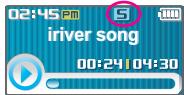
Time range can be set from <OFF> , <3 SEC> , <10 SEC> , <20 SEC> , <30 SEC> , <60 SEC> , <120 SEC> or <180 SEC> . When the Study Mode is set, ⑤ icon will be displayed. OFF: Study Mode function does not activate.
Advanced
- Playback Speed
Study Mode - Load Default
Study Mode
OFF 30 SEC 36SEC 60 SEC 10SEC 120SEC 20SEC 180 SEC
6. Load Default
Reset menus to the original factory settings.
- When the Load Default is done, the player will be rebooted automatically.
Advanced
- Playback Speed
Study Mode - Load Default
Load Default
Are You Sure?
NO YES
Customizing the function settings (Menu)
Advanced
7. Format
Memory is formatted and all saved files are deleted.
Before formatting can begin, you must backup all data stored on the player.
Care must be taken as formatted files can not be recovered.
- When the Format is done, the player will be rebooted automatically.
Advanced
Format
Audible
Format
Are You Sure?
NC
YES
8. Audible TM
Changes Audible Mode, and set Section Skip ON/OFF.
-Audible Mode can be either or
- When Section Skip is ON, pressing and holding , button while playing Audible™ file will skip to the previous or next section of the current track.
Please refer to "Using Audible™ files" section for more details.
Advanced
Format
Audible
Audible
MODE SECTION
SECTION SKIP OFF
Listening to Audible™ files
What is Audible™?
Audible™ is one of the leading suppliers of spoken audio entertainment and educational programming. Audible™ offers over 80,000 hours of audio programs. For more information, please visit Audible.com ® at http://www.audible.com
Transferring Audible™ files
To transfer Audible™ files to T10, you should use AudibleManager. Please visit Audible.com ® at http://www.audible.com, in the Device Center.
Sections
Each Audible™ file is broken into segments called sections.
Configure "Mode" as "Section" in the Settings Advanced Audible menu to browse for the sections while listening to Audible™ file.
If you configure "SECTION SKIP" as "ON" in the Settings Advanced menu, clicking and holding , will skip to the previous or next section of the current Audible™ file.
- Click and hold to display section list. Click +, - to browse for the section you want to listen to, and click to play the section.
- Click A-B to escape from the section list.
Listening to Audible™ files
Bookmarks
You can add bookmarks in each Audible™ file, so that you can always return to your favorite part.
Configure "Mode" as "Bookmark" in the Settings Advanced Audible menu to browse for the bookmarks while listening to AudibleTM file.
- While listening to Audible™ file, click to add a bookmark.
- Click and hold to display bookmark list. Click , to delete a bookmark, and click and hold , to delete all bookmarks.
- Click +, - to browse for the bookmark you want to listen to, and click Ⓞ to play from the bookmark.
- Click A-B to escape from the bookmark list.
You can add up to 10 bookmarks in each Audible™ file.
Customer Support
iriver www.iriveramerica.com
Chapter
5
Firmware Upgrade 61
Troubleshooting 62
Specification 63
Safety Information 64
FCC Certification 65
Firmware Upgrade
To update the firmware in T10, your computer need to be connected to the internet.
Firmware Upgrade
1 Please download the iriver Firmware Updater from www.iriveramerica.com/support/mtpupdate and unzip the file. Then you will see the shortcut to the updater on your computer. Double click the icon to start the iriver Firmware Updater.
Connect your device to the computer.
3 Follow the on-screen instructions to update the firmware on your T10.
4 When the update is complete, disconnect T10 from the computer. T10 may be rebooted several times after it is disconnected.
Note
Before upgrading the firmware, check the condition of the battery. The firmware upgrade may fail due to battery power shortage.
Do not turn the player off until the upgrade is completed.
Troubleshooting
Should any problem persist after you have checked these symptoms, consult your iriver dealer or contact support at www.iriveramerica.com.
| Trouble | Solution |
| No Power. | ■ Check whether the HOLD switch on the player is ON (Switch to OFF position) ■ Check the condition of the battery. Insert a fresh battery. |
| No sound or distortion during playback. | ■ Check whether VOLUME is set to "0". ■ Firmly connect the earphones. ■ Check whether the plug is dirty. Clean the plug with a dry and soft cloth. ■ Corrupted MP3 or WMA files may make a static noise and the sound may cut off. Listen to your files on the PC to see if they are corrupted. |
| Characters in LCD are corrupted. | ■ Check out SETTINGS—Display—Language and confirm whether the right language has been selected.(Refer to page 45) |
| Poor *FM Reception. | ■ Adjust the position of the player and earphones. ■ Turn off the power of other electric devices near the player. ■ The Earphone cord functions as the antenna, they must be plugged in for best reception. |
| Failed download of MP3 file | ■ Check the condition of the battery. ■ Check the connection between your computer and the player to ensure that the cable is secure. ■ Check whether the player's memory is full. |
| The title saved in T10 are not played. | ■ T10 supports up to 700 music files and 700 folders. |
- Only for models including FM Radio function
Specifications
| Memory Capacity | 1 GB* | 2 GB* | |
| Model No. | T10 1GB | T10 2GB | |
| Category | Item | Specifications | |
| Audio | Frequency range | 20 Hz ~ 20 KHz | |
| Headphone Output | (L)15 mW + (R)15 mW (16 Ohm) max. Volume | ||
| S/N ratio | 90 dB(MP3) | ||
| **FM Tuner | FM Frequency range | 87.5 MHz ~ 108 MHz | |
| S/N ratio | 60 dB | ||
| Antenna | Headphone/Earphone-Cord Antenna | ||
| File Playback | File Type | MPEG 1/2/2.5 Layer 3, WMA, OGG, ASF | |
| Bit Rate | 8 Kbps ~ 320 Kbps | ||
| Tag Info | ID3 VI, ID3 V2.2.0, ID3 V2.3.0, ID 3 V2.4.0 | ||
| Max. Playtime | Approx. 53 hours (128 Kbps, MP3, Vol 20, LCD off, EQ Normal, Alkaline "AA" 2400mAh) | ||
| Recording | Max. Recording time (@32Kbps) | 1 GB | 2 GB |
| Approx. 72 hours | Approx. 144 hours | ||
| Display | LCD | 65,000 color 1.01 inch CSTN | |
| Language | 40 languages | ||
| General | Dimension | 85.8 (W) x 40.8 (D) x 29.4 (H) mm | |
| Weight | 49 g (without battery) | ||
| Battery | AA Type Alkaline battery 1EA | ||
| Operational Temperature | -5 °C~ 40 °C | ||
- 1 MB = 1,000,000 Bytes / 1 GB = 1,000 MB = 1,000,000,000 Bytes
Not all memory available for storage. Memory is not expandable.
** Only for models including FM Radio function
Safety Information
For Safety
- Avoid dropping or impacting the player.
The player is designed to operate while walking or running, but dropping or excessively impacting the player may be cause damage. - Avoid contacting the player with water.
Damage to the internal parts of the player may occur if the player comes into contact with water. If your player gets wet, dry the outside with a soft cloth as soon as possible. - Do not leave the player in a location near heat sources, or in a place subject to direct sunlight, excessive dust or sand, moisture, rain, mechanical shock, unleveled surface, or in a car with its windows closed.
- Remove the battery if player is unused for long periods of time.
Battery left in the player for a long time can corrode and damage the device. - All data stored on this device may be erased by a excessive impact, a thunder or an electricity failure, etc. on the device.
The manufacturer does not warrant and will not be held responsible in any way for damages or loss of data, including loss of data stored on this device, resulting from a excessive impact, a thunder or an electricity failure, You will be responsible for safe-guarding all data stored on this device.
On headphones and earphones
Road Safety
Do not use headphones/earphones while driving, cycling, or operating any motorized vehicle. It may create a traffic hazard and is illegal in some areas. It can also be potentially dangerous to play your headset at high volume while walking, especially at pedestrian crossings. You should exercise extreme caution or discontinue use in potentially hazardous situations.
Preventing hearing damage
Avoid using headphones/earphones at high volume. Hearing experts advise against continuously loud and extended play. If you experience a ringing in your ears, reduce volume or discontinue use.
- Consideration for others
Keep the volume at a moderate level. This will allow you to hear outside sound and to be considerate of the people around you.
FCC Certification
THIS DEVICE COMPLIES WITH PART 15 OF THE FCC RULES. OPERATION IS SUBJECT TO THE FOLLOWING TWO CONDITIONS:
(1) THIS DEVICE MAY NOT CAUSE HARMFUL INTERFERENCE, AND
(2) THIS DEVICE MUST ACCEPT ANY INTERFERENCE, RECEIVED, INCLUDING INTERFERENCE THAT MAY CAUSE UNDESIRED OPERATION.
Note : This equipment has been tested and found to comply with the limits for a Class B digital device, pursuant to part 15 of the FCC Rules. These limits are designed to provide reasonable protection against harmful interference in a residential installation. This equipment generates, uses and can radiate radio frequency energy and, if not installed and used in accordance with the instructions, may cause harmful interference to radio communications. However, there is no guarantee that interference will not occur in a particular installation. If this equipment does cause harmful interference to radio or television reception, which can be determined by turning the equipment off and on, the user is encouraged to try to correct the interference by one or more of the following measures :
- Reorient or relocate the receiving antenna.
- Increase the separation between the equipment and receiver.
- Connect the equipment into an outlet on a circuit different from that to which the receiver is connected.
- Consult the dealer or an experienced radio/TV technician for help.
NOTE : THE MANUFACTURER IS NOT RESPONSIBLE FOR ANY RADIO OR TV INTERFERENCE CAUSED BY UNAUTHORIZED MODIFICATIONS TO THIS EQUIPMENT. SUCH MODIFICATIONS COULD VOID THE USER'S AUTHORITY TO OPERATE THE EQUIPMENT.