
P611 - Personal computer GENIUS - Free user manual and instructions
Find the device manual for free P611 GENIUS in PDF.


User questions about P611 GENIUS
0 question about this device. Answer the ones you know or ask your own.
Ask a new question about this device
Download the instructions for your Personal computer in PDF format for free! Find your manual P611 - GENIUS and take your electronic device back in hand. On this page are published all the documents necessary for the use of your device. P611 by GENIUS.
USER MANUAL P611 GENIUS
European Regulatory Information Declaration of Conformity
We, the undersigned,
Company: KYE SYSTEMS Corporation
Address: No. 492, Chung Hsin Rd., Sec. 5, San Chung, Taipei Hsien, Taiwan
Country: R.O.C.
Telephone number: 886-2-2995-6645
Fax number: 886-2-2995-5302
Internet: http://www.geniusnet.com.tw
certify and declare under our sole responsibility that the following equipment:
Product Description,
Intended use: Information technology equipment, personal computer
peripheral input device, for home and office use
EU/EFTA member
states intended for use: EU: Austria, Belgium, Denmark, Finland, France, German,
Greece, Ireland, Italy, Luxembourg, The Netherlands,
Portugal, Spain, Sweden, United Kingdom, EFTA:
Switzerland, Iceland, Liechtenstein, Norway
Manufacturer: KYE SYSTEMS Corporation
Brand: Genius
Model Designators: G-Shot P611
are tested to and conform with the following standards:
EN 55022
EN 55024
and therefore complies with the essential requirements and provisions of the Electromagnetic Compatibility Directive 89/336/EEC.
FCC STATEMENT
This device complies with Part 15 of the FCC Rules. Operation is subject to the following two conditions:
(1) This device may not cause harmful interference, and
(2) This device must accept any interference received, including interference that may cause undesired operation.
Note:
This equipment has been tested and found to comply with the limits for Class B digital devices, pursuant to Part 15 of the FCC rules. These limits are designed to provide reasonable protection against harmful interference in a residential installation. This equipment generates uses and can radiate radio frequency energy and, if not installed and used in accordance with the instructions, may cause harmful interference to radio communications. However, there is no guarantee that interference will not occur in a particular installation. If this equipment does cause harmful interference to radio or television reception, which can be determined by turning the equipment off and on, the user is encouraged to try to correct the interference by one or more of the following measures:
Reorient or relocate the receiving antenna.
Increase the separation between the equipment and receiver.
Connect the equipment into an outlet on a circuit different from that to which the receiver is connected.
Use of shielded cable is required to comply with Class B limits in Subpart B of Part 15 of the FCC rules.
Do not make any changes or modifications to the equipment unless otherwise specified in the manual. If such changes or modifications should be made, you could be required to stop operation of the equipment.
READ THIS FIRST
Notice:
- Product design and specifications are subject to change without notice. This includes primary product specifications, software, software drivers, and user's manual. This User Manual is a general reference guide for the product.
- The product and accessories that come with your camera may be different from those described in this manual. This is due to the fact that different retailers often specify slightly different product inclusions and accessories to suit their market requirements, customer demographics, and geographical preferences.
- The manufacturer assumes no liability for any errors or discrepancies in this user's manual.
- For driver updates and revisions to this manual, please refer to our website www.geniusnet.com.tw..
WARNING
- Do not expose the camera to moisture and make sure no water gets into the camera. Take particular care when using the camera under extreme weather conditions, such as rain or snow, or when operating the camera at the beach or near water. Avoid using this camera in places subject to extreme moisture. Do not use the camera if water has entered the camera. Turn the camera off and remove the batteries. Contact your dealer or authorized service facility. Do not continue to use the camera as this may cause a fire or an electrical shock.
- Do not use the camera if any foreign objects have entered the camera. Turn the camera off and remove the batteries. Contact your dealer or authorized service facility. Do not continue to use the camera as this may cause a fire or an electrical shock.
- Do not place the camera in an unstable location such as on a wobbly table or sloping surface where the camera may fall or tip over and cause injury. If the camera has
been dropped or damaged, turn the camera off and remove the batteries. Contact your dealer or authorized service facility. Do not continue to use the camera as this may cause a fire or an electrical shock.
- Do not insert or drop metallic or other foreign objects into the camera through access points such as the memory card slot. This may cause a fire or an electrical shock.
- Do not attempt to modify this camera. Do not remove the camera casing. This may cause a fire or an electrical shock. Internal inspection and repairs should only be carried out by an authorized service facility.
- Never operate this camera in any way while driving a vehicle. This may cause a traffic accident.
CAUTION
- Do not place this camera in a location affected by oil fumes or steam, such as near a cooking stove or humidifier. This may cause a fire or an electrical shock.
- Do not leave this camera in a location subject to extremely high temperatures, such as in a sealed vehicle or in direct sunlight. Exposure to high temperatures may adversely affect the camera case and internal components and may cause a fire.
- Do not cover or wrap the camera with a cloth or quilt. This may cause heat to build up and distort the camera case and cause a fire. Always use the camera and accessories in well-ventilated locations.
- Handle the camera carefully and do not expose the camera to shock or vibration. Handling the camera roughly may cause a malfunction.
- Do not use batteries other than those specified for use with your camera. Use of unsuitable batteries may result in the batteries splitting, or leaking and may cause a fire, injury, or soiling of the battery compartment.
-
When placing the batteries into the camera, check the polarity markings on the batteries (- and +) to ensure that the batteries are inserted correctly. Incorrect battery polarity will result in camera inoperability and may result in the batteries splitting or leaking and causing a fire, injury, or soiling of the battery compartment.
-
Remove the batteries if the camera will not be used for an extended period of time. The batteries may leak and cause a fire, injury or soiling of the battery compartment. If the batteries leak, clean and wipe the battery compartment carefully and install new batteries. You're your hands carefully if you touch the battery fluid.
CONTENTS
INTRODUCTION. 7-8
Overview
Package contents
GETTING TO KNOW YOUR
CAMERA 9-11
Names of Parts
LCD Monitor Icons
GETTING STARTED. 12-17
Installing the batteries
Inserting an SD Memory Card
(optional accessory)
Attaching the Hand Strap
Setting the Date and Time
Setting Image Resolution
and Quality
RECORD MODE. 17-20
Taking Images
Portrait Mode
Normal Mode
Digital Zoom
Self-Timer
Flash
PLAYBACK MODE. 20-29
Viewing Images
ZoomPlayback
Displaying Thumbnail Images
Slide Show Display
Deleting Images
Setting the DPOF
MOVIE MODE 29-31
Recording video clips
Viewing video clips
TRANSFERRING RECORDED
IMAGES AND VIDEOS TO YOUR
COMPUTER 31-34
Step 1: Installing the USB
driver
Step 2: Connecting the
camera to your computer
Step 3: Downloading
images and video clips
INSTALLING
PHOTOSUITE 35
INSTALLING
PHOTOVISTA 36-37
USING THE CAMERA AS
APC CAMERA 37-39
Step 1: Installing the PC Camera
Driver
Step 2: Connecting the Camera to
Your Computer
Step 3: Running Your Application
Software
MENU OPTIONS 39-46
Record Menu
Movie Menu
Playback Menu
Setup Menu
CAMERA
SPECIFICATIONS 46-47
INTRODUCTION
Overview
Your new digital camera delivers high quality, 2912 x 2184 resolution images using a 3.0 Mega pixel imager. Using the 1.5" TFT color image LCD monitor, you can compose images and then examine them in detail.
An auto-flash sensor automatically detects the shooting (lighting) conditions and determines whether the flash should be used. This feature helps ensure that your images turn out right.
16MB internal memory (14MB available for image storage) lets you capture and store images without the need for an additional memory card. However, you may wish to expand the memory capacity (up to 512MB capacity) by using an external memory card.
In addition to still images, you can record short videos using the movie function. Images you have taken can be downloaded to your computer using the USB cable (USB driver required for Win 98 and Mac OS 9.0) You can enhance and retouch your images on your computer by using the provided editing software, or image editing software you may already own. You may share your images with your friends via e-mail, in a report, or on a website.

NOTE
The illustrations in this manual are for the purpose of explanation and may differ from
the actual setting of your camera.
Package contents
Carefully unpack your camera and ensure that you have the following items:

Digital camera

USB cable

2 x AAA alkaline batteries

Quick guide

Software CD-ROM

User's manual

Camera strap

Camera pouch

NOTE
Accessories and components vary by retailer.
GETTING TO KNOW YOUR CAMERA
Front View
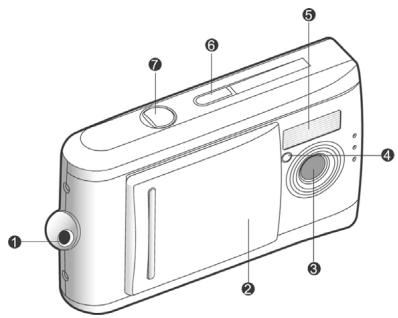
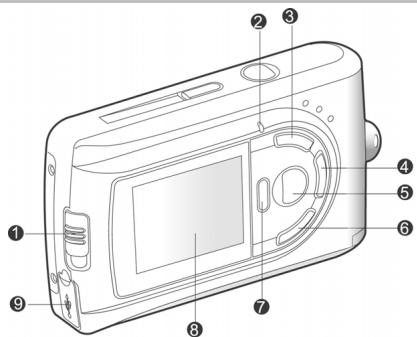
Rear View
- Strap eyelet
- Lens cover
- Lens
- Self-timer LED
- Flash
-
POWER Power button
7.Shutter button -
Focus switch

Macro mode

Normal mode
- Status LED
- Arrow button (up)

Thumbsail button
MENUMenu button

Arrow button (right)
MODE Mode button

SET Set button

Flash button
- Arrow button (down)

Zoom button

Arrow button (left)

Quick view button

Delete button
- LCD monitor
- USB connector
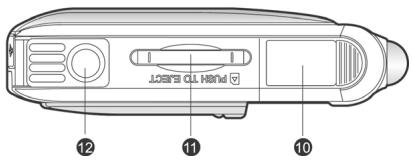
- Battery cover
- Memory card cover
- Tripod socket
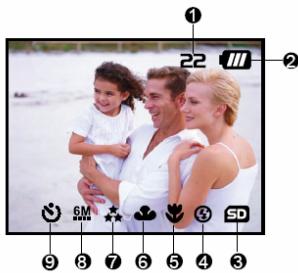
LCD Monitor Icons
Display icons - Still Image Record Mode:
- Possible number of shots (at the current size and quality settings)
- Battery level

Full battery power

Medium battery power

Virtually no battery power
- Memory card indicator
- Flash mode

Auto flash

Flash off
- Focus mode

Macro mode

Normal mode
- White balance

Auto

Daylight

Cloudy

Tungsten

Fluorescent
7. Image quality

Super fine

Fine

Normal
8. Image size
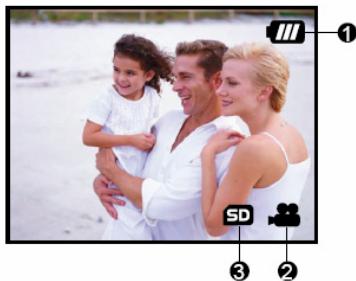
Display icons - Movie Mode:
- Battery level
- Movie mode
- Memory card indicator

2912 x 2184 pixels

2032 x 1520 pixels

1600 x 1200 pixels

1280 x 960 pixels

640 x 480 pixels
9. Self-timer mode
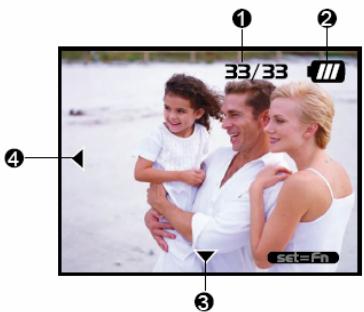
Display icons –Playback Mode:
- Frame number
- Battery level
- Forward arrow
- Reverse arrow
GETTING STARTED
You can use 2 AAA size batteries (Alkaline, Ni-MH) to power the camera.
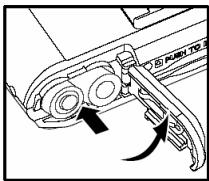
Installing Batteries
- Make sure the camera is off.
- Slide the battery/SD card cover in the direction of the [OPEN] arrow.
- Insert the batteries according to the correct polarity marks (+ or -).
- Close the battery/SD card cover firmly.

NOTE
- Avoid using batteries in extremely cold environments as low temperatures can shorten the battery life and reduce camera performance. This low temperature will also influence alkaline battery performance, therefore Ni-MH rechargeable battery is highly recommended.
If you are using the new rechargeable batteries or rechargeable batteries that have not been used for an extended period of time (batteries that pass the expiry date are exceptions) might affect the number of pictures that can be taken. Therefore, to maximize their performance and lifetime, we recommend that you fully charge the batteries and discharge them for at least one complete cycle before use.
If you will not be using the batteries for an extended period of time, remove them from the camera to prevent leakage or corrosion. - Never use batteries of different types (together) or mix old and new batteries.
Never use manganese batteries.
Inserting an SD memory card (optional accessory)
The camera comes with 16MB (14MB available for image storage) of internal memory, allowing you to store images and video clips in the camera. However, you can expand
the memory capacity by using an optional SD (Secure Digital) memory card so that you can store additional images and video clips.
- Make sure the camera is turned off.
-
Slide the battery/SD card cover in the direction of the [OPEN] arrow.
-
Insert the SD memory card.
The front side of the memory card (printed arrow) should face towards the rear side of the camera.
If the card cannot be inserted, check the orientation.
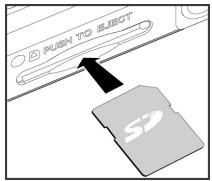
- Close the battery/SD card cover.

NOTE
■ Be sure to format the memory card with this camera before its initial usage. Refer to section in this manual titled " Formatting Media" for further details.
To remove a memory card:
Make sure the camera is turned off. Open the battery/memory card cover. Press lightly on the edge of the memory card and it will eject.

NOTE
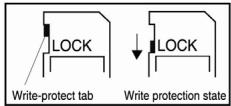
To prevent valuable data from being accidentally erased from an SD memory card you can slide the write-protected tab (on the side of the SD memory card) to "LOCK".
To save, edit, or erase data on an SD memory card, you must unlock the card.
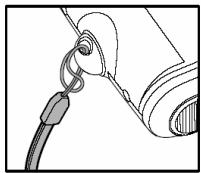
Attaching the Hand Strap
To prevent accidental slippage during use, always use the strap.
-
Attach the camera strap as follows:
-
Thread the small loop of the hand strap through the hand strap eyelet on the camera.
- Pull the large loop through the small loop until the strap is firmly secured
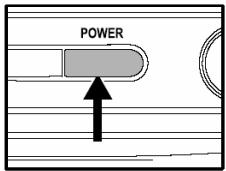
Turning the Power On/Off
The camera is switched between On/Off as follows:
-
You can use the POWER button to power on/off the camera.
-
Open the lens cover before you start taking pictures/recording video clips.
- When the power is turned on, the camera will start in the mode.

NOTE
If the camera goes unused for a certain period of time while the camera is powered on, the camera will switch to an idle mode, and eventually turn itself off to conserve power.
Setting the Date and Time
The Date/Time screen will be presented if/when:
Camera is turned on for the first time.
Camera is turned on after leaving the camera without batteries for an extended
period of time.
When the DATE/TIME screen appears, follow these steps to set the correct date and time.
- Select the setting item with the / buttons and press the button.
[Date]: Set the date.
[Time]: Set the time.
- [Mode]: Set the date and time format.
-
Press the / buttons to change the value and press the SET button to confirm.
-
[Date]/[Time]: Press the button to select the field item.
- Toggle the SET button to return to the main menu.
Setting Image Resolution and Quality
Resolution and quality settings determine the pixel size (dimension), image file size, and compression ratio for your image. These settings affect the number of images that can be stored in internal memory, or on an SD memory card. As you get to know the camera, it is recommended that you try each quality and resolution setting to get an appreciation for the effects that these settings will have on your images.
Higher resolution and higher quality images offer the best photographic results but produce large files sizes. Therefore, few images will take up a lot of memory space. High resolution and quality settings are recommended for printed output and situations requiring the finest detail. Lower resolution/quality images take up less memory space and may be quite suitable for sharing images via e-mail, in a report, or on a web page.
To change image resolution or image quality, perform the steps below:
- Toggle the MODE button to , and press the SET button.
- Press the MENU button.
- Select [Resolution]/[Quality] using the / buttons and press the button.
-
Use the / buttons to select the setting that you desire, and press the SET button.
-
Toggle the button to exit from the menu mode.
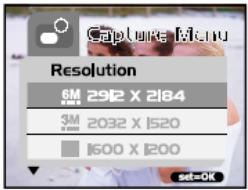
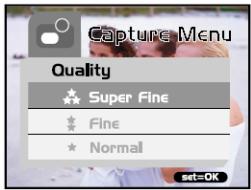
The table below shows the approximate number of shots that you can take at each setting based on 14MB internal memory or using an optional memory card from 8MB to 512MB SD.
| Resolution | Quality | 14MB Internal Memory | SD Memory Card | ||||||
| 8MB | 16MB | 32MB | 64MB | 128MB | 256MB | 512MB | |||
| 2912x2184 | Super fine | 16 | 7 | 16 | 33 | 69 | 140 | 279 | 564 |
| Fine | 20 | 9 | 20 | 42 | 87 | 176 | 351 | 709 | |
| Normal | 22 | 10 | 22 | 46 | 95 | 193 | 385 | 777 | |
| 2032x1520 | Super fine | 19 | 8 | 19 | 40 | 82 | 166 | 331 | 667 |
| Fine | 28 | 13 | 28 | 60 | 123 | 249 | 496 | 1000 | |
| Normal | 38 | 17 | 38 | 80 | 164 | 332 | 662 | 1334 | |
| 1600x1200 | Super fine | 30 | 13 | 30 | 64 | 132 | 267 | 532 | 1073 |
| Fine | 45 | 20 | 46 | 96 | 198 | 400 | 798 | 1609 | |
| Normal | 61 | 27 | 61 | 129 | 264 | 534 | 1065 | 2146 | |
| 1280x960 | Super fine | 47 | 21 | 48 | 100 | 206 | 417 | 832 | 1676 |
| Fine | 71 | 32 | 72 | 151 | 309 | 626 | 1248 | 2515 | |
| Normal | 95 | 43 | 96 | 201 | 413 | 835 | 1664 | 3353 | |
| 640x480 | Super fine | 191 | 87 | 192 | 403 | 826 | 1670 | 3328 | 6706 |
| Fine | 286 | 131 | 288 | 605 | 1239 | 2505 | 4992 | 10060 | |
| Normal | 382 | 174 | 385 | 807 | 1652 | 3340 | 6657 | 13413 | |
- The above data shows the standard testing results. The actual capacity varies according to the shooting conditions and settings.
RECORD MODE
Taking Images
Your camera is equipped with a 1.5" LCD monitor to compose images.
Before you start taking pictures, be sure that the lens cover is opened and the focus switch is set to the appropriate photography mode.
- Open the lens cover.
- Set the focus switch to
- Toggle the MODE button to , and press the SET button.
- Compose your shot on the display screen.
- Place the subject of your photo at the center and press the shutter button.
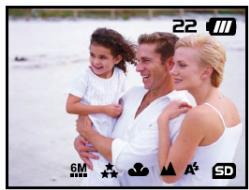

NOTE
The LCD display darkens in strong sunlight or bright light. This is not a malfunction.
For a close-up photography, set the focus switch to . The flash mode is automatically set to .
To review the last recorded image, press the button. Press the button again to return to the record mode.
Digital Zoom
Using digital zoom, images appear closer. Digital processing lets you zoom in the image without deterioration.
- Toggle the MODE button to , and press the SET button.
- Compose your picture while viewing the LCD monitor.
-
Press the button to activate the digital zoom.
-
Toggle the button to magnify up to 4x.

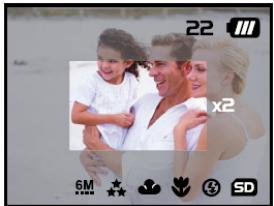
- Press the shutter button to capture a "zoomed" image.

NOTE
- Digital zoom is only available at the resolution of 640 × 480 , 1600 × 1200 , 1280 × 960 , 2032 × 1520 pixels.
Self-Timer
The self-timer duration is ten seconds. Activate the self-timer by pressing the shutter button. The self-timer LED blinks slowly for seven seconds and then blinks rapidly for
the last three seconds. This allows you to get into the scene when taking group images.
- Secure the camera to a tripod or place it on a stable surface.
- Toggle the MODE button to , and press the SET button.
- Press the MENU button.
- Select [Self Timer] using the buttons and press the button.
-
Use the / buttons to select [Yes], and press the SET button.
-
Toggle the button to exit from the menu mode.
-
Press the shutter button.
The self-timer function is activated.
- To cancel the self-timer at any time, press the shutter button to disrupt the sequence.

NOTE
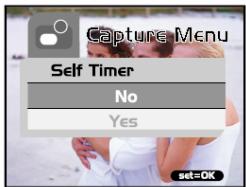
After an image is taken using self-timer, the self-timer mode is turned off.
If you wish to take another image using the self-timer, repeat these steps.
Flash
The flash is designed to function automatically when lighting conditions warrant the use of flash. When you are in Normal mode (the focus switch is set to ), you can take an image using a flash mode suitable to your circumstances.
- Toggle the MODE button to , and press the SET button.
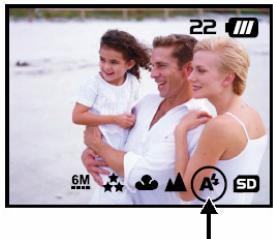
- Press the button repeatedly until the desired flash mode appears.
A:Auto flash.
The flash fires automatically according to the ambient lighting conditions. Select this mode for general flash photography.
3: Flash off.
The flash will not fire. Select this mode when taking images in a place where flash photography is prohibited, or when the distance to the subject is beyond the effective range of the flash.
- Compose the image and press the shutter button.

NOTE
If you will not be using the flash, turn it off. Turning the flash OFF will result in faster camera startup and faster operation because the capacitor will not be charged needlessly. Turning the flash OFF when not needed, will also improve battery life.
PLAYBACK MODE
In mode, you can view, magnify, delete images, play video clips, or run a slide show. Playback mode also provides a thumbnail image display, allowing you to quickly scan for the image you want.
Viewing Images
When you take a still image or movie, it is immediately stored in internal memory or on an SD memory card. Still images and movie in internal memory or on an SD memory card can be displayed on the LCD monitor.
To view still images, follow the steps below:
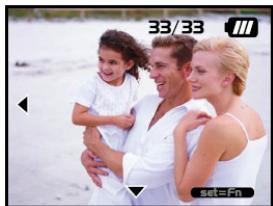
- Toggle the MODE button to C , and press
the SET button.
The last still image taken is displayed.
For movies, the first frame is displayed as a still image.
- Move to the still image you want to view using the / buttons.
If you press the button, you can view the next still image or movie.
If you press the button, you can view the previous still image or movie.

NOTE
Images are played back from the following recording media:
- When no memory card is loaded, it plays back from internal memory.
- When an SD memory card is loaded, it plays back from SD memory card.
If there are no images stored in memory, the "No image" message will appear on the LCD monitor.
ZoomPlayback
While reviewing your images, you may enlarge a selected portion of an image. This magnification allows you to view fine details.
- Toggle the MODE button to l , and press the SET button.
-
Select the image that you want to view using the buttons and press the SET button.
-
Activate the digital zoom feature using the button.
Enlarge the image by toggling the SET button.

To view the different portion of the enlarged image, press the / / buttons.

Displaying Thumbnail Images
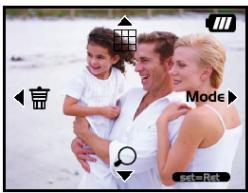
This function allows you to view nine thumbnail images on the LCD monitor simultaneously so that you can quickly scan for a particular image.
- Toggle the MODE button to , and press the SET button.
- Press the button.
Nine thumbnail images appear on the LCD monitor (Assuming there are nine or more images in memory).
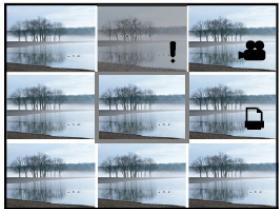
- To view a full-size image, selecting it using the / / buttons, and then press the SET button and the selected image will be displayed in the full LCD frame.
Slide Show Display
The slideshow function enables you to playback your images back automatically in sequential order as a slide show. This is a very useful and entertaining feature for reviewing recorded images and for presentations.
-
Toggle the MODE button to l , and press the SET button.
-
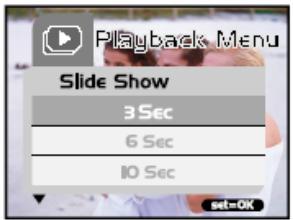
Press the MENU button and move to [Slide Show] using the / buttons.
-
Press the button.
-
Set the playback interval using the
/ buttons and press the SET button.
The slideshow starts, displaying your images on the LCD monitor, one by one, at the set interval.
To stop the slideshow display, press any button. Until stopped, the slideshow will repeat itself.

NOTE
■ You can adjust the slideshow display interval from [3 sec], [6 sec] or [10 sec].
If you wish to exit from the [Slide Show] menu, select [Exit] on the menu setting options.
Deleting Images
You can easily delete still images and video clips that have not come out right. The following are the 4 ways to delete photos:
One shot at a time
* Using the button.
*Using the [Delete] menu.
All frames at once
To delete one image or movie (Quick Delete - mode):
- Toggle the MODE button to , and press the SET button.
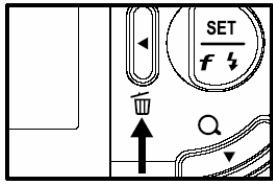
- To delete the last recorded image/movie, press the button.
- Press the SET button.
- When the delete message appears, select [Yes] using the buttons and then press the SET button.
If you wish to cancel the deletion, select [No].
It returns to the preview screen.
To delete one image/movie
(Quick Delete -mode):
- Toggle the MODE button to , and press the SET button.
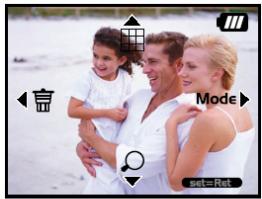
- Select the image/video clip you wish to delete using the buttons.
- Press the SET button.
- To delete this current image, press the button.
- When the delete message appears, select [Yes] using the buttons and then press the SET button.
If you wish to cancel the deletion, select [No].
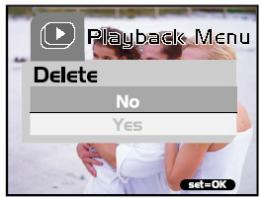
To delete one image/movie (Delete menu):
- Toggle the MODE button to l , and press the SET button.
- Select the image/video clip you wish to delete by using the buttons.
- Press the MENU button.
- Select [Delete] using the / buttons and press the button.
- Select [This Image] using the / buttons and press the SET button.
- To confirm the deletion on the selected image, select [Yes] using the / buttons and press the SET button.
The next image/video clip appears.
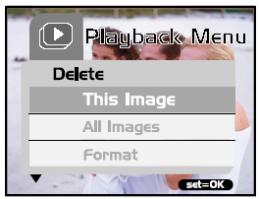
To delete all images or movies (at once):
- Toggle the MODE button to l , and press the SET button.
- Press the MENU button.
- Select [Delete] using the / buttons and press the button.
- Select [All Images] using the / buttons and press the SET button.
- To confirm the deletion all images, select [Yes] using the buttons and press the SET button.
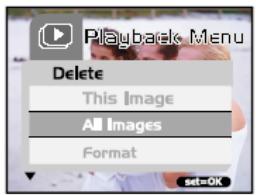
The message "No image" appears on the LCD monitor.

NOTE
- To delete images or videos stored in internal memory, do not insert a memory card into the camera. Otherwise, you will delete the images or video clips stored on the memory card.
Formatting Media
This utility formats the internal memory (or memory card) and erases all stored images and data.
- Toggle the MODE button to , and press the SET button.
- Press the MENU button.
- Select [Delete] using the / buttons and press the button.
- Select [Format] using the / buttons and press the SET button.
- To format the memory card/internal memory, select [Yes] and press the SET button.
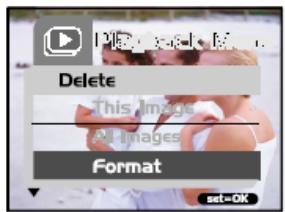
The message "No image" appears on the LCD monitor.

NOTE
- Formatting is an irreversible action and data cannot be recovered at a later time.
- To format the internal memory, do not insert a memory card into the camera. Otherwise, you will format the memory card.
Copying the Contents of Internal Memory to a Memory Card
This feature allows you to copy your images from the camera's internal memory to an SD memory card. Of course, you can only do this if you have an SD memory card installed and some images in internal memory.
To copy still images and movies from internal memory to SD memory card, follow the steps below:
- Be sure the camera power is off and insert the SD memory card.
- Turn the camera on.
- Toggle the MODE button to , and press the SET button.
- Press the MENU button.
- Select [Card Copy] using the buttons and press the button.
- To proceed with the copying process, select [Yes] using the / buttons and press the SET button.
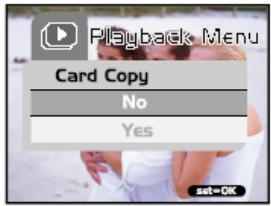
The display indicates copying is in progress; once finished, you return to the playback screen.

NOTE
It is not possible to copy from SD memory card to internal memory.
Changing the Camera Startup Logo
You can specify the start up logo for your camera. You can select the new logo among the taken still images.
To activate the new startup logo, follow the steps below:
-
Toggle the MODE button to , and press the SET button.
-
Display the still image you want to
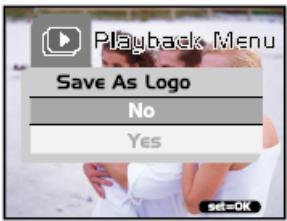
specify using the buttons.
- Press the MENU button.
- Select [Save As Logo] using the / buttons and press the button.
-
To set the new logo, select [Yes] using the / buttons and press the SET button.
-
Toggle the button to exit from the menu mode.
This new logo will be activated on the next time you turn on the camera.
Setting the DPOF
DPOF is a standard for recording printing information directly on the SD memory cards and other media. Files saved in the DPOF
format can be printed using compatible printers or through a laboratory printing device.
To set the DPOF setting on a still image:
- Toggle the MODE button to , and press the SET button.
- Press the MENU button.
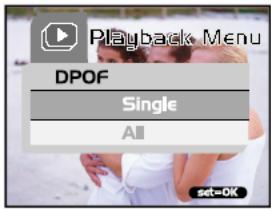
- Select [DPOF] using the / buttons and press the button.
- Select [Single] using the / buttons and press the SET button.
- Select the desired field item using the / buttons and press the SET button. [Quantity]: Allow you to select the image
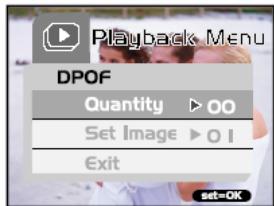
quantity (0~9). Use the buttons to select the desired image quantity.
[Set Image]: Allow you to select another desired still image you want to specify using the buttons.
[Exit]: Allow you to exit from the menu mode. Press the SET button to exit from menu mode.
To set the DPOF setting on all still images (at once):
- Toggle the MODE button to , and press the SET button.
- Press the MENU button.
- Select [DPOF] using the / buttons and press the button.
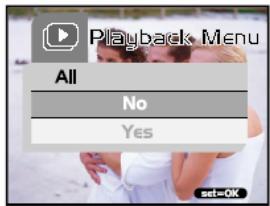
- Select [All] using the buttons and press the SET button.
- To confirm the setting, use the / buttons to select [Yes] and press the SET button. (Quantity=1)

NOTE
This function can be used only on still image files that are saved on memory cards.
MOVIE MODE
Recording Video Clips
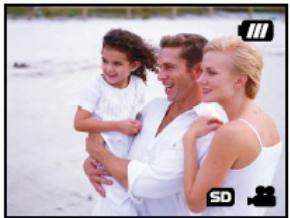
The movie mode allows you to record video clips at a resolution of 320 × 240 pixels.
- Open the lens cover.
- Toggle the MODE button to , and press the SET button.
- To start recording a video clip, press the shutter button.
Shooting continues until you press the shutter button again.
- Pressing the shutter button again stops recording.

NOTE
The self-timer cannot be adjusted used.
The flash mode is disabled.
Viewing Video Clips
To view the recorded video clips, follow the steps below.
- Toggle the MODE button to l , and press the SET button.
- Move to the movie you want to see using the buttons.
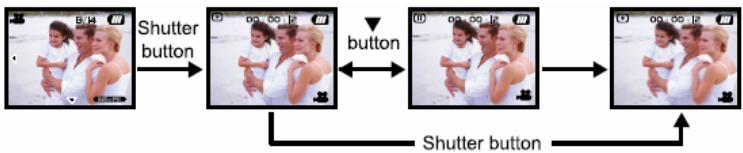
- Press the shutter button.
■Playbackbegins.
The elapsed playback indicator or the elapsed time is displayed on the LCD monitor.
Press the shutter button again to stop the playback. (To pause/ resume: press the button)

NOTE
The zoom function cannot be activated during movie playback.
To play the video clip back on your computer, you may use either Windows Media Player or Apple "QuickTime Player".
- QuickTime basic player is available free of charge, compatible with both Mac- and Windows computers and can be downloaded from the Apple web site at www.apple.com. For help using QuickTime Player usage, please refer to the QuickTime on-line help for more information.
TRANSFERRING RECORDED IMAGES TO YOUR COMPUTER
To transfer images/video clips from the camera to your computer, follow these steps:
Step 1: Installing the USB driver (Windows 98 and Mac OS 9.0 users only)
Step 2: Connecting the camera to your computer
Step 3: Downloading image and video files
System Requirements (Windows)
Pentium 200 MHz or higher
Windows 98/98SE/Me/2000/XP
64MB RAM
128MB hard disk space
CD-ROM drive
Available USB port
System Requirements (Macintosh)
PowerPC G3/G4
OS 9.0 or later
64MB RAM
128MB hard disk space
CD-ROM drive
Available USB port
Step 1: Installing the USB driver
Windows 98 computers
The USB driver on the CD-ROM is exclusively for Windows 98 computers. Installing the USB driver on computers running Windows 2000/ME/XP is not necessary.
- Insert the CD-ROM that came with the camera into your CD-ROM drive. The welcome screen appears.
- Click "USB DRIVER". Follow the
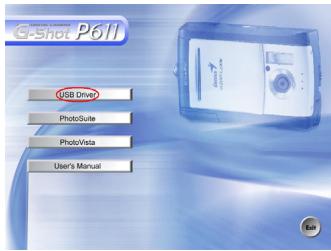
on-screen instructions to complete the installation. After the USB driver has been
installed, restart your computer.
Macintosh OS 9.0 computers
For Mac OS 9.0 or higher, the computer will automatically recognize the camera and load its own USB drivers.
Step 2: Connecting the camera to your computer
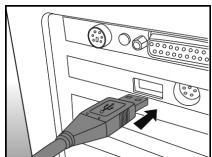
- Connect one end of the USB cable to an available USB port on your computer.
- Connect the other end of the USB cable to the USB connector on the camera.
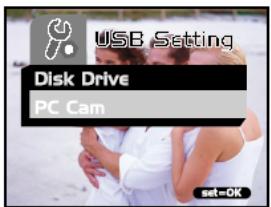
- Select [Disk Drive] using the / button and press the SET button.
- From the Windows desktop, double click on "My Computer".
- Look for a new "removable disk" icon. This "removable disk" is actually the memory (or memory card) in your camera. Typically, the camera will be assigned drive letter "e" or higher.
- Double click on the removable disk and locate the DCIM folder.
-
Double click on the DCIM folder to open it to find more folders.
-
Your recorded images and video clips will be inside these folders.
- Copy & Paste or Drag-N-Drop image and video files to a folder on your computer.
Mac users: Double-click the "untitled" disk drive icon on our desktop. iPhoto may
automatically launch. The volume label may vary depending upon whether you use internal camera memory, or a memory card.

NOTE
- When transferring images to the computer, there is no need to install any batteries into the camera. The camera will automatically power on when connected to the computer via USB cable.
Step 3: Downloading Images/Video clips
When the camera is turned on and connected to your computer, it is considered as a disk drive, just like a floppy disk or CD. You can download (transfer) images/video clips by copying them from the "removable disk" ("untitled" disk on a Macintosh) to your computer hard drive or to another kind of disk.
Windows-
Open the "removable disk" and subsequent folders by double clicking on them. Your images are inside these folder(s). Select the images that you want, and then choose "Copy" from the "Edit" menu. Open the destination location (folder) and choose "Paste" from the "Edit" menu. You may also drag and drop image files from the camera to a desired location.
Macintosh-
Open the "untitled" disk window and the hard disk or the destination location. Drag and drop from the camera disk to the desired destination.

NOTE
Memory card users may prefer to use a memory card reader (highly recommended).
INSTALLING PHOTOSUITE
PhotoSuite is a very user-friendly image-editing program. With PhotoSuite, you can easily retouch, compose and organize your images. It contains a variety of templates,
such as photo frames, birthday cards, calendars and more. Get your images ready and go explore this amazing program. To install PhotoSuite
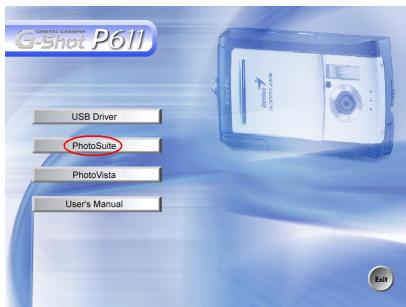
- Insert the CD-ROM packaged with the camera in to the CD-ROM drive. The welcome screen appears.
- Click "Install PhotoSuite". Follow the on-screen instructions to complete the installation.

NOTE
For information on how to use PhotoSuite to edit and retouch your recorded images, please refer to its online help.
For Windows 2000/XP users, make sure to install and use the PhotoSuite while logged in as a user with an Administrator account.
PhotoSuite is not supported on the Mac. iPhoto or iPhoto2 is recommended.
INSTALLING PHOTOVISTA
PhotoVista is an easy-to-use program that lets you create spectacular 360^ panoramic images in a snap. When you view these panoramicas, you get the experience of being totally immersed in a realistic environment. PhotoVista's powerful engine quickly and
automatically stitches images
together, and its intuitive interface will let even a novice get great results in minutes.
To install PhotoVista:
- Insert the CD-ROM packaged with the camera into the CD-ROM drive. The welcome screen appears.
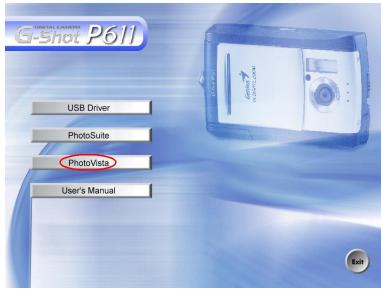
- Click "Install PhotoVista".
Follow the on-screen instructions to complete the installation.

NOTE
For information on how to use PhotoVista to create spectacular 360^ panoramic images, please refer to its online help.
For Windows 2000/XP users, make sure to install and use the PhotoVista while logged in as a user with an Administrator account.
PhotoVista is not supported on the Mac.
Windows XP users who have not installed XP Service Pack 1, be sure to link to http:java.sun. com/getjava/download.html first and download the Java Virtual Machine installation. For more information about Java, please refer to its on-line help at http://java.sun.com/getjava/help.html After this Java installation, you can install iSee Media PhotoVista.
PhotoVista System Requirements are:
- Windows 98, Windows NT 4 (Service Pack 3 or higher)
- Windows 2000, Windows Me, Windows XP Service Pack 1 or higher
USING THE CAMERA AS A PC CAMERA
Your camera can act as a PC camera, which allows you to videoconference with business associates, or have a real-time conversation with friends or family.
To use the camera as a PC camera, follow these steps:
Step 1: Installing the PC camera driver (same as USB driver)
Step 2: Connecting the camera to your computer
Step 3: Running your application software (i.e. Windows NetMeeting)

NOTE
Video conferencing (or video editing) software is not included with the camera.
This mode is not supported for Mac.
General System Requirements for Videoconferencing
To use the camera for videoconferencing, your computer system must include:
Microphone
Sound card
Speakers or headphones
Network or Internet connection
Step1: Installing the PC Camera Driver
The PC-camera driver included on the CD-ROM is exclusively for Windows. The PC camera function is not supported for Mac platforms.
- Insert the CD-ROM that came with the camera into your CD-ROM drive. The welcome screen appears.
- Click "USB DRIVER". Follow the on-screen instructions to complete the installation. After the driver installation is completed, restart your computer.

NOTE
The USB driver that bundled inside the CD-ROM is designed in a form 2 in 1 (USB & PC camera driver).
a) On Windows 98, the Windows OS will install both USB & PC camera drivers.
b) On Windows 2000/ME/XP, it will only install PC camera driver.
Step2: Connecting the Camera to Your Computer
- Connect one end of the USB cable to an available USB port on your computer.
- Connect the other end of the USB cable to the USB connector on the camera.
- Select [PC Cam] using the / button and press the SET button.
- Position the camera steadily on top of your computer monitor or use a tripod.
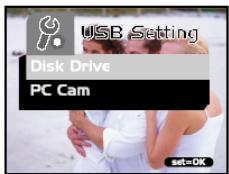

NOTE
- When using this camera as a PC camera, there is no need to install any batteries into the camera. The camera will automatically power on when connected to the computer via USB cable.
Step3: Running Your Application Software ( i.e. Windows NetMeeting)
To use Windows NetMeeting for videoconferencing:
- Go to Start Programs Accessories Communications NetMeeting to launch the NetMeeting program.
-
Click the Start Video button to view live video.
-
Click the Place Call button.
- Type the e-mail address or the network address of the computer that you are calling.
- Click Call. The person that you are calling must also have Windows NetMeeting running and be willing accept your call to start the videoconference.

NOTE
The video resolution for videoconferencing applications is generally 320 × 240 .
For more information about the operation of videoconference application software, refer to its respective help documentation.
MENU OPTIONS
The Basic of the Menu Operation
To display the menu:
- Toggle the MODE button to / / / /
- Press the SET button.
On the mode, the menu appears. Skip Step 3.
- Press the MENU button.
The menu appears.
To select an item:
- Press the / buttons to select the desired item.
- Press the button to enter the field menu.
To select a setting value:
- Press the / buttons to select the desired setting.
- Press the SET button to confirm the selection.
- Toggle the button to exit from the menu mode.
To implement a confirmation screen:
- Press the buttons to select [Yes].
- Press the SET button.
- Toggle the button to exit from the menu mode.
OSD Menus
To display the related menu options, press the MENU button.
Record Menu
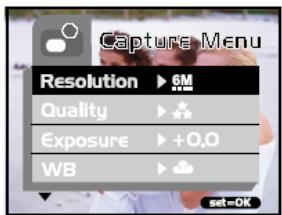
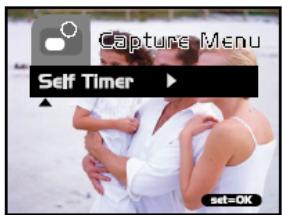
| Setting | Description | Option |
| Resolution | Sets the image resolution. Refer to section in this manual titled “Setting Image Resolution and Quality” for further details. | 6M 2912 x 2184 pixels 3M 2032 x 1520 pixels ■ 1600 x 1200 pixels ■ 1280 x 960 pixels ■ 640 x 480 pixels |
| Quality | Sets the image quality. Refer to section in this manual titled “Setting Image Resolution and Quality” for further details. | Super fine Fine Normal |
| Exposure | Your camera adjusts the exposure of each scene automatically. However, if the subject is very dark, or very bright, you may override the camera's automatic exposure determination to make the subject brighter or darker. This is called EV compensation. Examples of Exposure Compensation:■Positive (+) Compensation* Imaging printed text (black characters on white paper)* Portraiture with back lighting* Very bright scenes (such as snow) and highly reflective subjects* Shots made up predominantly of sky■Negative (-) Compensation* Spot lighted subjects, particularly against dark backgrounds* Imaging of printed text (white characters on black paper)* Scenes with low reflectivity, such as shots of green or dark foliage | -1.5EV~+1.5EV |
| WB (White Balance) | Your camera adjusts the white balance of each scene automatically. However, the images that your camera captures will appear different under different lighting conditions (sun, shade, fluorescent, tungsten lights). Unlike your eyes, which can easily adjust to different lighting conditions (lighting temperatures), a digital camera cannot always differentiate between lighting types. Under some lighting conditions the image may appear in strange shades. If that occurs you may change the white balance setting by specifying a lighting condition (temperature) most appropriate for your scene. | A Auto Daylight Cloudy Tungsten Fluorescent |
| Self Timer | This feature gives you an option whether to enable/disable the self-timer function. | Yes No |
Movie Menu
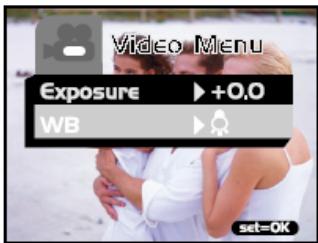
| Setting | Description | Option |
| Exposure | Refer to section in this manual titled “Exposure” in the Record Menu for further details. | -1.5EV~+1.5EV |
| WB (White Balance) | Refer to section in this manual titled “WB” in the Record Menu for further details. | A Auto Daylight Cloudy Tungsten Fluorescent |
Playback Menu
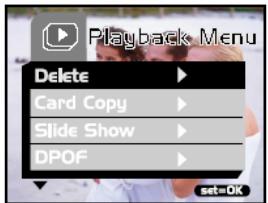

| Setting | Description | Option |
| Delete | Refer to section in this manual titled “Deleting Images/ Formatting Media” for further details. | This Image All Images Format Exit |
| Card Copy | Refer to section in this manual titled “Copying the Contents of Internal Memory to a Memory Card” for further details. | Yes No |
| Slide Show | Refer to section in this manual titled “Slideshow Display” for further details. | 3 Sec 6 Sec 10 Sec Exit |
| DPOF | Refer to section in this manual titled “Setting the DPOF” for further details. | Single All |
| Save As Logo | Refer to section in this manual titled “Changing the Camera Startup Logo” for further details. | Yes No |
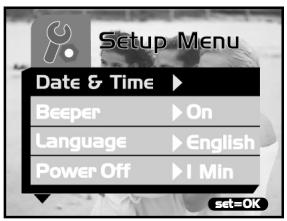
Setup Menu
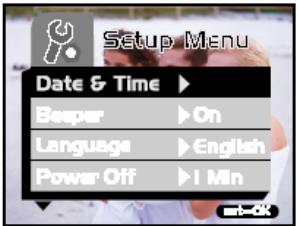
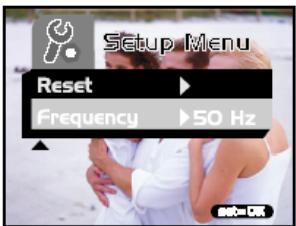
| Setting | Description | Option |
| Date & Time | Refer to section in this manual titled “Setting the Date and Time” for further details. | - |
| Beeper | The camera produces a sound (beep) each time you press a camera button, if this function is enabled. | On Off |
| Language | This option allows you to select the language for the menus and the text display on the LCD monitor. | - |
| Power Off (Auto Power Off) | If there is no camera activity (no buttons are pressed) for a defined period of time (3 minutes) while the camera is powered on, the camera will switch to an idle mode, and eventually turn itself off to conserve power. If the camera is idle, re-activate the camera by pressing any button or switch the mode dial. If the camera has powered off you must to turn the camera on again by pressing the POWER button. | 1 Min 3 Min 5 Min 10 Min Cancel |
| Reset | This feature gives you an option whether to restore all camera settings to their original status or not. | Yes No |
| Frequency | This camera supports different lighting frequencies: 50 Hz and 60 Hz. When photographing under fluorescent lighting, select the correct frequency setting depending in your local area's voltage. This function is only effective if you set the White Balance to ** (Fluorescent) setting. | 50 Hz 60 Hz |
CAMERA SPECIFICATIONS
| Item | Description |
| Sensor | Approx. 3.0 Mega pixels |
| Image resolution | 2912 x 2184 pixels (FW interpolation to 6.3 Mega pixels) 2032 x 1520 pixels 1600 x 1200 pixels 1280 x 960 pixels 640 x 480 pixels |
| LCD | 1.5" color TFT LCD |
| Self-timer | 10-second delay |
| Zoom | 4X digital zoom |
| Capture modes | Still Image, Video (movie) recording |
| Memory type | 16MBinternal memory (14MB available for image storage) Support SD memory card (up to 512MB capacity) |
| Lens | Focal length: f = 8.65mm F-number: 3.0 |
| Range of Focus | Normal: 1.6m to infinity Macro: 0.4m to 0.6m |
| Exposure and | Automatic exposure with manual EV |
| Compensation | compensation +/-1.5EV in 0.3EV steps |
| White balance | Automatic with presets for Cloudy, Daylight, Tungsten, Fluorescent |
| Files formats | JPEG, AVI (MPEG-1) for video clip |
| File standards | JPEG, EXIF 2.2, DPOF 1.0, DCF 1.0, MPEG-1 |
| Interface (Port) | USB connector |
| Power | 2 AAA Alkaline (1.5V) or Ni-MH (1.2V) batteries |
| Dimensions | 89.5 x 56 x 24 mm (W x H x D) (exclusive of protruding features) |
| Weight | Approx. 82g (without batteries and memory card) |
*Design and specifications are subject to change without notice.