
MP3-DJ VIVID - Portable audio player GENIUS - Free user manual and instructions
Find the device manual for free MP3-DJ VIVID GENIUS in PDF.


| Product type | Portable audio player |
| Brand | GENIUS |
| Model | MP3-DJ VIVID |
| Dimensions (H x W x D) | 59 x 32.2 x 13.6 mm |
| Net weight | Approximately 22.5 g |
| Power supply | 1 AAA alkaline battery (recommended Energizer e2) – Battery life 10–14 h |
| Interface | USB 2.0 full speed |
| Memory capacity | Internal flash memory 512 MB / 1 GB |
| Supported audio formats | MP3, WMA |
| Voice recording format | ADPCM (built-in microphone) |
| FM radio | 87.5 – 108 MHz, up to 30 presets |
| Display | Matrix OLED 132 x 32 pixels |
| Lyrics display | .lrc synchronization |
| Signal-to-noise ratio | 90 dB |
| Frequency response | 20 Hz – 20 kHz |
| Output power | 10 mW (L + R channel) |
| Total harmonic distortion | < 0.05% |
| Main functions | MP3/WMA playback, voice recording, FM radio (auto/manual search, preset), FM recording, A-B repeat, folder management (Navigator), equalizer (5 modes), playback modes (Normal, Repeat One, Repeat All, Shuffle+Repeat), key lock, programmable sleep timer, adjustable contrast, ID3 scrolling |
| Care and cleaning | Clean with a soft dry cloth. Avoid exposure to sunlight, moisture, dust, and heat. Do not use abrasive products. |
| Safety | Do not open or repair yourself. Keep away from liquids. Do not dispose of batteries in fire. Do not recharge alkaline batteries. Keep out of reach of children. |
| Spare parts and repairability | No user-replaceable parts. In case of problems, contact the dealer. |
Frequently Asked Questions - MP3-DJ VIVID GENIUS
User questions about MP3-DJ VIVID GENIUS
0 question about this device. Answer the ones you know or ask your own.
Ask a new question about this device
Download the instructions for your Portable audio player in PDF format for free! Find your manual MP3-DJ VIVID - GENIUS and take your electronic device back in hand. On this page are published all the documents necessary for the use of your device. MP3-DJ VIVID by GENIUS.
USER MANUAL MP3-DJ VIVID GENIUS
Care and Maintenance. 2
Introduction. 3
Knowing your MP3 player. 4
Software Installation. 6
Downloading music to your MP3 player............8
MP3 player function-key Instructions 10
Overall View of OLED display. 13
Menu Settings. 14
Listening to FM Radio. 19
Specifications 21
Care and Maintenance
- Do not set the volume level too high or distortion may occur. Avoid using the equipment continuously for a long period of time to minimize impairment to your hearing.
Extreme temperatures may have a temporary effect on the operation of your MP3 player. This is normal and does not indicate a fault.
Do not modify or disassemble the equipment. There are no user serviceable parts.
Vibration during walking or exercising will not affect the MP3 player. However, dropping the player or dropping a heavy object on the player may result in distorted sound.
Avoid contact with liquids. If the equipment becomes wet, remove the power immediately and contact your retailer.
Do not leave the equipment in direct sunlight or in a humid, dusty or hot area. - Keep metallic and magnetic items that may accidentally touch the terminals away from the equipment.
- When connecting the player to an external source, read the operating instructions of the equipment for the correct connection and safety precautions. Ensure the player is compatible with the product it is being connected to.
- When disposing of any packing materials or old equipment check with your local authorities for information on recycling.

Safety Notice :
- Do not open or repair this device.
- Keep this device away from liquids, such as water
- Never throw the batteries onto an open fire. The batteries may explode.
- Do not attempt to recharge alkaline batteries. There is danger of them exploding.
- Keep the batteries out of the reach of small children.
Introduction
Genius MP3 PLAYER
Thank you for purchasing the Genius MP3 player. You do not need to carry a cassette tape or CD anymore. With this MP3 Player, enjoying CD-quality music becomes a breeze. You can store dozens of MP3 files in the built-in flash memory. Also, you can listen to the radio or even record your favorite radio program, interview, conversation or lecture.
Package contents
Stereo Earphone
USB Cable
Software Installation CD
AAA Alkaline battery
Quick guide
Velvet
System Requirements
Pentium 200 MHz
40MB hard disk space
USB 1.1 Port or above
CD-ROM Drive 4x speed or above
Microsoft Windows 98 (2nd Edition) / Me / 2000 / XP
Mac 9.2.2 or above
Insert battery
Use an alkaline battery with your player
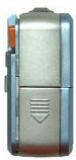

AAA Alkaline battery
Knowing your MP3 player
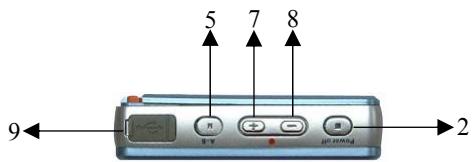
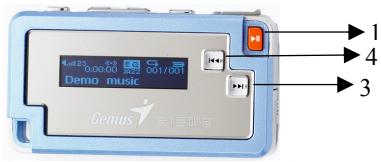
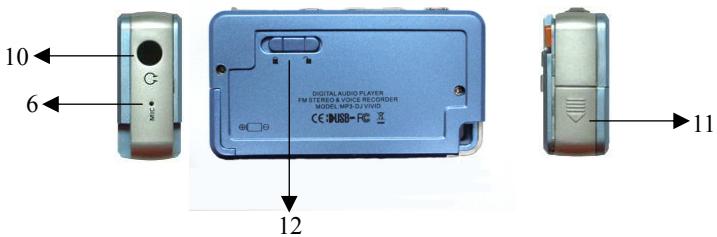
1. Power On / Play / Pause
Press the button to power on the player
Playback or pause the music or voice file
2. Stop / Power Off
Press and hold to power off the player
3/4. Forward / Backward
Press to skip to next track
Press and hold to fast forward within the current track
Press to skip to previous track
Press and hold to fast reverse within the current track
5. MENU
Press and hold to enter menu or sub-menus to configure different settings of the player
Press to confirm the selected menu option
Press and hold to exit menu and return to playback mode
Press to Repeat between Section A and B during music mode
6. MIC
Built-in microphone for voice recording
7/8. Volume up / Volume down
Press to increase the volume level
Press to decrease the volume level
Press these two keys at the same time to start voice/FM recording
9. USB Port
You can upload / download files via this port with the USB cable connected to your computer.
10. Earphone Jack
Plug the earphone into the jack and listen to your player.
11. Battery Door
12. HOLD(Key lock)
Software Installation
Attention
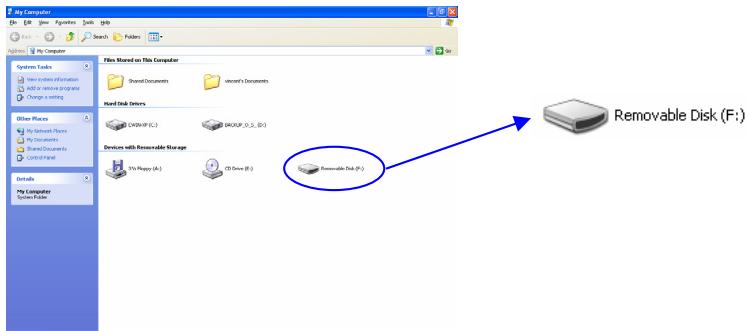
- If you are using Windows ME / XP / 2000 or Mac 9.2.2 or above, it is not necessary to install any driver. Simply connect the player to your PC, the player will be detected and the generic driver will be installed. The built-in flash memory will be shown under "My Computer" as a Removable Disk Drive. After it is finished, you can upload, download and manage the files in the player.
However, you still need to install the driver from software installation CD if you want to upgrade the firmware or completely format the flash memory of the player.
2.If you are using Windows 98 (2nd Edition), you are required to install the driver from the software installation CD. Otherwise you are not able to operate the player, because Windows 98 does not integrate with any generic driver to support USB mass storage device. Therefore, users are required to run the installation CD to provide driver for Windows 98 to complete with the installation for the player.
Windows98 (2nd Edition)
Step 1.
Insert the software installation CD into the CD-ROM drive. If the setup program does not run automatically, do steps 2 to 3. Otherwise, skip to step 4.
Step 2.
Click Start -> Run.
Step 3.
In the Run dialog, type D:\ShowMenu.exe (where D:\ is your CD-ROM drive) and click OK. The driver installation wizard will guide through the driver installation.
Step 4.
At the Genius Driver screen, click the "INSTALL" icon once.
Step 5.
The driver installation wizard starts. Follow the instructions given by the wizard to complete the installation, i.e. press "Next" and "Yes" to proceed to the next step while the installation is in-progress.
Step 6.
Restart your computer once for the new hardware installation to take effect.
Step 7.
After your computer has restarted, connect your player to the computer, new hardware will be found.

When you install the driver, please do not install by manual or will get missing the route. The CD will
guide you to complete the whole install process.
Windows Me / 2000 / XP
The installation CD is not required when installing your player under these operating systems. However, for those who are using Windows 2000 are recommended to update their OS with Service Pack 4.
Connecting to PC
(1) Position your computer so that you can access the USB ports more easily. Then power on your computer.
(2) Plug the flat USB connector of the USB extension cable to your computer.
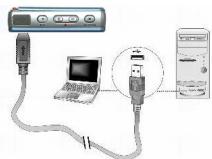
(3) Plug the mini connector of the USB extension cable to the player.
(4) The player will power on automatically.
(5) "Ready" appears on the OLED of the player, indicates the connection with the computer has established successfully.
When your MP3 PLAYER is connected to your computer, it starts working as a removable hard disk (external drive) on your computer. You can transfer, copy, paste, and delete the data (audio files, voice recording files, etc.) which are stored on your player into your computer very conveniently. It can also be used for storage of non-music files.
Attention :
The removable drive can be found under "My Computer" or "Windows Explorer". Also, open the "Device Manager" of your Windows and you will see the player is recognized as "KYE Genius USB Device", which becomes one of the disk drives in your computer observe the diagrams for illustration).
Download music to your MP3 player
The player can be used as a mobile data storage device. No special software is required to upload, download and manage the music and data files. All you need to use the copy, paste, delete and other commands of your operating system and it is very easy and efficient by just clicking on the mouse. To download music to the player, connect the player to the PC first.
Step 1.
Select the track you want to download to the player by clicking on the file icon
Step 2.
Right-click on the files, a menu appears. Click Copy
Step 3.
Under My Computer or Windows Explorer, double-click Removable Disk to open the drive.
The Removable Disk window appears
Step 4.
Right-click on the Removable Disk window and click Paste in the menu
Step 5.
Start copying the files. The OLED of the player displays
Attention: You can move the whole folder into the player. The MP3 player has a "Navigator" function that can let you to choose your favorite singer or album on the MP3 player.
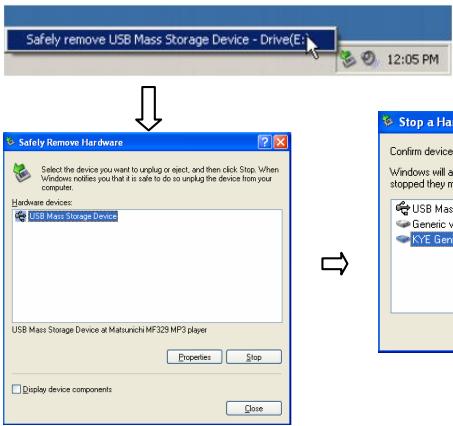
When USB connection between the player and your PC is currently busy transferring data. Please do not disconnect your player until you see "Ready" appears on the OLED again, or else it may cause severe damage to the player, and the data being transferred will be lost too. For users of Windows Me / 2000 / XP, please follow the instructions below disconnecting the player from your computer.
- Double-click on the "Safely Remove Hardware" icon (green arrow) on the taskbar of your Windows
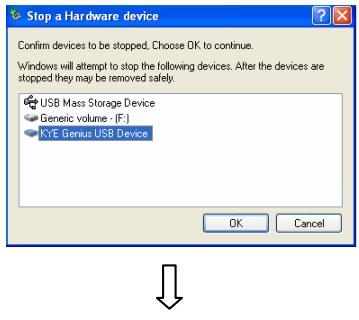
- Click Stop in the "Remove Hardware Device" dialog window.
- You will be asked about which device to stop. Click OK to continue.
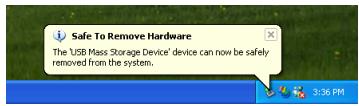
- The "Safely to Remove Hardware" window appears to confirm that it is safe to remove the player. Click OK to continue.
- Now you can disconnect the player from the computer.
MP3 player Function & keys Instructions
| Icon | Function |
| II | Play/Pause/Power on |
| Next track | |
| Previous track | |
| Power off/Stop | |
| + | Volume up |
| - | Volume down |
| M | Menu |
Play/Pause

Press shortly
- Power on the player
- Start / Resume playback, when the player is in status of pause or stop
- Pause playback, when the player is in status of play
Stops/Power off

Press shortly
- Stop playback, when the player is in status of play or pause
Press and hold
- Power off the player
Forward/Backward

Forward
Press shortly
- Skip to next track during playback of music or voice file
- Search forward for next track when the player is in status of stop
- Move forward to next available options within MENU or sub-menu
Press and hold
- Fast forward within the current track during playback of music or voice file
- Search forward within the current track when player is in status of stop
- Fast forward to next available options within MENU or sub-menu
Backward
Press shortly
- Skip to previous track during playback of music or voice file
- Search backward for previous track when the player is in status of stop
- Move backward to previous available options within MENU or sub-menu
Press and hold
- Fast reverse within the current track during playback of music or voice file
- Search backward within the current track when player is in status of stop
- Fast reverse to previous available options within MENU or sub-menu
MENU

Press shortly
- Confirm your selected setting / option under menu or sub-menu
- Save voice recording file (Only works when player is in status of recording mode)
- Loop Function - Playback any selected segment of current track
*Only works when player is in status of playback for MP3/WMA or voice recording file.
- Press M to set the start point (A- appears and flashes)
- Press M again to set the end point (A-B appears)
- Press M A-B again to cancel the loop function
Press and hold
- Enter menu or sub-menu
- Exit menu or sub-menu and return to music mode
Volume+/Volume-
Volume+
Press shortly
- Increase the volume by one level
Press and hold
- Increase the volume continuously to the loudest level (26)
Volume-
Press shortly
- Decrease the volume by one level
Press and hold
- Decrease the volume continuously to the mute level (00)
Press and hold these two keys at the same time
- Recording
*Works when player is in Music / Voice / FM Radio mode Voice recording in music / voice mode
This feature offers high quality, one-touch voice recording. You can use the player to record lectures, interviews or meetings.
Under music or voice mode, regardless if the player is in playback or stop mode (idle), press and hold +/- these two keys at the same time to start recording. During recording, a will be shown on the OLED.
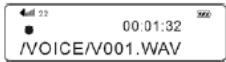
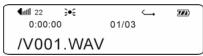
To stop recording, press M once. You will see "Saved" displayed on the OLED. The recorded files will be named and saved automatically to a Voice folder at root directory as V001.WAV, V002.WAV, V003.WAV, etc. into the player's memory, according to the sequence of voice recording taking place.
FM radio recording in FM radio mode
Press and hold M to enter main menu, keep pressing until FM option comes up on the OLED.
Press M to enter FM radio mode.
Select the radio station that you wish to record.
Press and hold (- + ) these two keys at the same time to start recording in FM radio mode.
During recording, a will be shown on the OLED.
To stop recording, press M once. You will see "Saved" displayed on the OLED. The recorded files will be named and saved automatically to a FM folder at root directory as F001.WAV, F002.WAV, F003.WAV, etc. into the player's memory, according to the sequence of voice recording taking place.
*Note: Radio recording quality depends on the reception quality.
Key Lock (Hold)

You may lock the buttons on the player to prevent inadvertent contact to the buttons during playback.
The MP3 player supports key lock function by the steps:
- While the player is in playback, stop or FM radio mode, push lock key once. " B" icon appears on the OLED, implies the key lock function has been activated.
- To deactivate key lock function, push back lock key. " 1 . " icon disappears from the OLED, implies the key lock function has been deactivated.
- Key Lock function will NOT work when the player is in power off status.
ID3 Tag Display
The MP3 player is able to display the name of the current track, artist, album, etc. during playback. It displays ID3 tag information in multi-language. However, you may have to configure manually regarding the language setting inside the MENU (please refer to Menu Settings, page16 for more details).

You need to define the language if the display was shows the disorder sign.
In case if the ID3 tag information is too much and exceeds the specifying display area of the OLED, the rest of the information will be displayed in dynamic scrolling, from right to left across the OLED.
Lyric Display Synchronization
It supports standard (file extension - .Irc), synchronized lyric display. You may download the lyric document (.Irc) from the internet, or create one yourself by using a lyric editor software, such as Windows Notepad. After you have downloaded or created the lyric document (.Irc), please rename the file in accord once with the name of the corresponding MP3 track.
Power Off
Press and hold for 3 second, the player will power off.
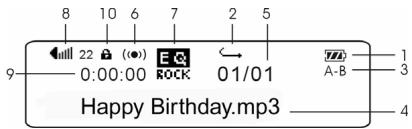
Overall View of OLED
Indications
- Battery Power Indicator
- Play Mode
- A-B Looping Function
- ID3 Tag
- Current / Total Track Number
- Mode Indicator (Music / Voice / FM radio)
- EQ Mode
- Volume
- Time Elapsed
10.Hold
Menu Settings
While your player is in playback or stop status (idle), you may press M at anytime to enter the MENU, it allows you to change different settings of the player according to your own preferences. Inside the MENU, you may press to move to the next or previous MENU setting. Press M again to enter sub-menu. You may press to move to the next or previous available options inside sub-menu(s).Press M to confirm with your selected options inside MENU or sub-menu(s).Press M and hold for 2 seconds to exit MENU and return to music/voice mode.
| Remark | |||
| Music | Go to Play Music | ||
| Voice | Go to Play Voice | ||
| FM | FM Radio | ||
| Setting | EQ | Normal | Normal effect |
| POP | Pop music effect | ||
| Classic | Classic music effect | ||
| Jazz | Jazz music effect | ||
| Rock | Rock music effect | ||
| Play Mode | Normal | No repeat | |
| Repeat one | Play current music repeatedly | ||
| Repeat all | Play all music repeatedly | ||
| Shuffle + Repeat | Random play music repeatedly | ||
| Language | English | Id3 Tag Language | |
| French | Id3 Tag Language | ||
| German | Id3 Tag Language | ||
| Italian | Id3 Tag Language | ||
| Spanish | Id3 Tag Language | ||
| Brazil Portuguese | Id3 Tag Language | ||
| Portuguese | Id3 Tag Language | ||
| Russian | Id3 Tag Language | ||
| Dutch | Id3 Tag Language | ||
| Simple Chinese | Id3 Tag Language | ||
| Traditions Chinese | Id3 Tag Language | ||
| Thai | Id3 Tag Language | ||
| Korea | Id3 Tag Language | ||
| Japanese | Id3 Tag Language | ||
| Swedish | Id3 Tag Language | ||
| Back Light | Disable | No backlight function | |
| 3 second | The backlight shuts off after 3 sec | ||
| 5 second | The backlight shuts off after 5 sec | ||
| 10 second | The backlight shuts off after 10 sec | ||
| Contrast | Adjust the LCD screen contrast value | ||
| Power Saving | Disable | No power saving function | |
| 1min | The player shuts off time (How long the player is idle) | ||
| 2min | The player shuts off time (How long the player is idle) | ||
| 5min | The player shuts off time (How long the player is idle) | ||
| 10min | The player shuts off time (How long the player is idle) | ||
| Scroll | Speed 0-16 | Adjust the Id3 Tag & Irc display speed | |
| Exit | Exit to Menu screen | ||
| Delete | Music | Choose one song to erase |
| Voice | Choose one voice memo to erase | |
| Exit | Exit to Menu screen | |
| About | Displays the Firmware version, Media capacity and Free space | |
| Navigator | Manager your music folder | |
| Exit | Go to Play Music | |
MENU-1 Music
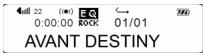
Choose Music from menu will return to music mode (playback of MP3 / WMA). As shown below:
MENU-2 Voice
Choose Voice from menu to enter voice recording mode. You may browse your voice files, playback voice
files, or start voice recording. Please note that the way to playback voice files is exactly the same as playback music files. As shown below:
MENU-3 FM
Choose FM from menu to enter FM radio mode. Please refer to "Listening to FM Radio" below for further details regarding its operations.
MENU-4 Settings
Choose Settings from menu to enter and configure different settings for the player. Press M again to enter sub-menu.
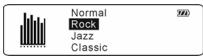
1. EQ
There are 5 audio output effects available:
Normal - Pop - Classic - Jazz - Rock
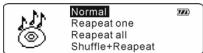
2. Play mode
There are 4 play modes available:
Normal - Repeat one - Repeat all - Shuffle + Repeat
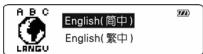
3. Language
English/Simple Chinese/Tradition Chinese/Portuguese/Netherlands/French/German
/Italian/Spanish/Russian/Brazil Portuguese/Deutsch/Thai/Korea/Japan
- You may have to change the language setting according to the language used in the ID3 tag and lyric display of the music track or menu language.
4. BackLight
This setting controls the duration time of back light. Available options are
Disable - 3 second - 5 second - 10 second

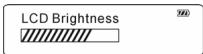
5.Contrast
This setting controls the brightness of OLED display. Press to adjust the level of brightness you want.
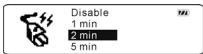
6.Power Saving
With this power saving control, you may set the standby time for the player to turn off automatically when it remains idle for a period of time. It aims to save battery power especially when the player is switched on but remains unattended by users. Available options are:
Disable - 1 min - 2 min - 5 min-10 min
7.Scroll
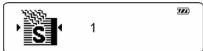
This setting controls the scrolling speed for ID3 tag and lyric display during playback.
Available options from 0 to 16
0 - slowest speed
16 - fastest speed
8.Exit
Press once to exit sub-menu and return to MENU-4 Settings.
MENU-5 Delete
Choose Delete from menu if you want to erase any music or voice files on your MP3 player. Press again to enter sub-menu.

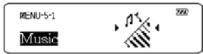
1.Music
Delete your music files (MP3 / WMA) here.
Press to browse and select the music file(s) that you wish to delete.
Press to start deleting the selected file.
Press M to exit.
2. Voice
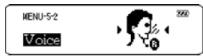
Delete your voice files (voice recording) here.
Press to browse and select the voice file(s) that you wish to delete.
Press to start deleting the selected file.
Press M to exit.
3.Exit
Press M once to exit sub-menu and return to MENU-5 Delete.
MENU-6 About
Choose About from menu to view the current status of your MP3 player. The following information serves as an example:
Ver : 1.xxx (Current Firmware Version of the MP3 player)
Flash : xxx MB (Total capacity of built-in memory available on the MP3 player)
MENUI-7 Navigator
The function can let your manage your play list in MP3 player. Once you drop your folder into the MP3 player, and choose Navigator, you can see all the folders in the root. Choose one of your favorite folder and playback. This function can make your data search more easy.
MENU-8 Exit
Choose Exit from menu to exit MENU and return to music mode (playback of MP3 / WMA).
Listening to FM Radio
To activate FM radio mode
Press and hold M to enter main menu, press until MENU-3 FM comes up on the OLED.
Press to enter FM radio mode. The range of FM radio frequency is 87.5 108MHz
There are 2 modes available for FM radio - Search and Preset. Press M to toggle to your desired mode.
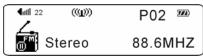
1. Search Mode
When search mode is activating, the symbol appears on the OLED at the same time.
2.Auto Search
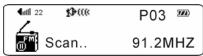
Auto-search will try to locate and identify available channels within the frequency range. Once the player captures a frequency, auto-search will pause automatically and save it to the preset channel from 1 to 30 one by one. (When you get into the FM option first time, the MP3 player will auto search automatically. But just at the 1^st time it will process auto search.)
Press to cancel the auto-searching while it is performing.
3. Manual Search
Press to search for available frequency manually. Each time when you press it will increase or decrease frequency at a step size of 0.1 MHz. Search direction can be either forward or reverse, depends on the button that you pressed.

You are advised to change your location from time to time in order to increase the reception quality under Auto or Manual search function.
4.Preset Frequency
Press to select a desired frequency.
Press once, at the same time, "Saved?" comes up on the OLED.
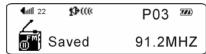
Press to assign a channel number (P01 - P30).
Press to confirm and preset the frequency, at the same time, "Saved" comes up on the OLED. As shown below:
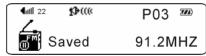
Up to 30 frequency preset channels are available.
Once a channel number is assigned to a preset frequency, you will not be able to delete it and release from memory. However, you can always use the same channel number repeatedly and replace it by another preset frequency. Simply repeat the above steps, and choose the channel number in which you want it to be replaced by another preset frequency.
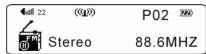
5.Preset Mode
When preset mode is activating, the symbol L appears on the OLED at the same time. See diagram below for illustration:
Press to select a preset channel.
6.To exit FM radio mode
Press and hold M to exit FM radio mode and return to MENU.
Specifications
Size (H x W x D)
59× 32.2× 13.6mm
Net Weight
About 22.5 gram
Memory Capacity
Internal Flash Memory 512MB/1GB
Power Supply
1 AAA Alkaline battery(Energizer e2 battery will be recommendation)
10~14 hours play time
Interface
USB2.0 Full Speed
FM Tuner
87.5 - 108 MHz FM stereo broadcasting
Up to 30 frequency preset channels available
Digital Music Format
MP3/WMA
Voice Recording
ADPCM type
Built-in MIC
FM tuner recording
Display
132 x 32 Dot-Matrix OLED
Signal to Noise Ratio
90dB
Frequency Response
20 Hz ~ 20 KHz
Output
10mW (L & R output)
Total Harmonic Distortion Output
< 0.05%
Lyrics Display
Support .Irc file for lyric display