USER MANUAL FIREPOD PRESONUS
24-BIT/96K RECORDING INTERFACE with Eight Microphone Preamplifiers
USER'S MANUAL
Version 1.0
PreBonus Limited Warranty
PreSonus Audio Electronics Inc. warrants this product to be free of defects in material and workmanship for a period of one year from the date of original retail purchase. This warranty is enforceable only by the original retail purchaser. To be protected by this warranty, the purchaser must complete and return the enclosed warranty card within 14 days of purchase. During the warranty period PreSonus shall, at its sole and absolute option, either repair or replace, free of charge, any product that proves to be defective on inspection by PreSonus or its authorized service representative. To obtain warranty service, the purchaser must first call or write PreSonus at the address and telephone number printed below to obtain a Return Authorization Number and instructions of where to return the unit for service. All inquiries must be accompanied by a description of the problem. All authorized returns must be sent to the PreSonus repair facility postage prepaid, insured and properly packaged. PreSonus reserves the right to update any unit returned for repair. PreSonus reserves the right to change or improve the design of the product at any time without prior notice. This warranty does not cover claims for damage due to abuse, neglect, alteration or attempted repair by unauthorized personnel, and is limited to failures arising during normal use that are due to defects in material or workmanship in the product. Any implied warranties, including implied warranties of merchantability and fitness for a particular purpose, are limited in duration to the length of this limited warranty. Some states do not allow limitations on how long an implied warranty lasts, so the above limitation may not apply to you. In no event will PreSonus be liable for incidental, consequential or other damages resulting from the breach of any express or implied warranty, including, among other things, damage to property, damage based on inconvenience or on loss of use of the product, and, to the extent permitted by law, damages for personal injury. Some states do not allow the exclusion of limitation of incidental or consequential damages, so the above limitation or exclusion may not apply to you. This warranty gives you specific legal rights, and you may also have other rights, which vary from state to state. This warranty only applies to products sold and used in the United States of America. For warranty information in all other countries please refer to your local distributor.
PreBonus Audio Electronics, Inc.
7257 Florida Blvd.
Baton Rouge, LA 70806
(225) 216-7887
(800) 750-0323
www.presonus.com
1 Overview
1.1 Introduction 4
2 Installation and Set up
2.1 Computer Requirements 4
2.2 Installation of FIREPOD Drivers 5
2.3 FIREPOD Control Panel (Windows XP only) 9
2.4 CUBASE LE - Quick Start Up 11
2.5 Testing your FIREPOD with Cubase LE 13
3 Controls & Connections
3.1 Front Panel Layout and Descriptions 15
3.2 Back Panel Layout and Descriptions 17
4 Application Notes
4.1 Microphones 18
4.2 Using the Preamp output and Line input as an Insert 18
4.3 Recording Rock Band Diagram 19
5 Technical
5.1Trouble Shooting 20
5.2 Specifications 22

1. INTRODUCTION
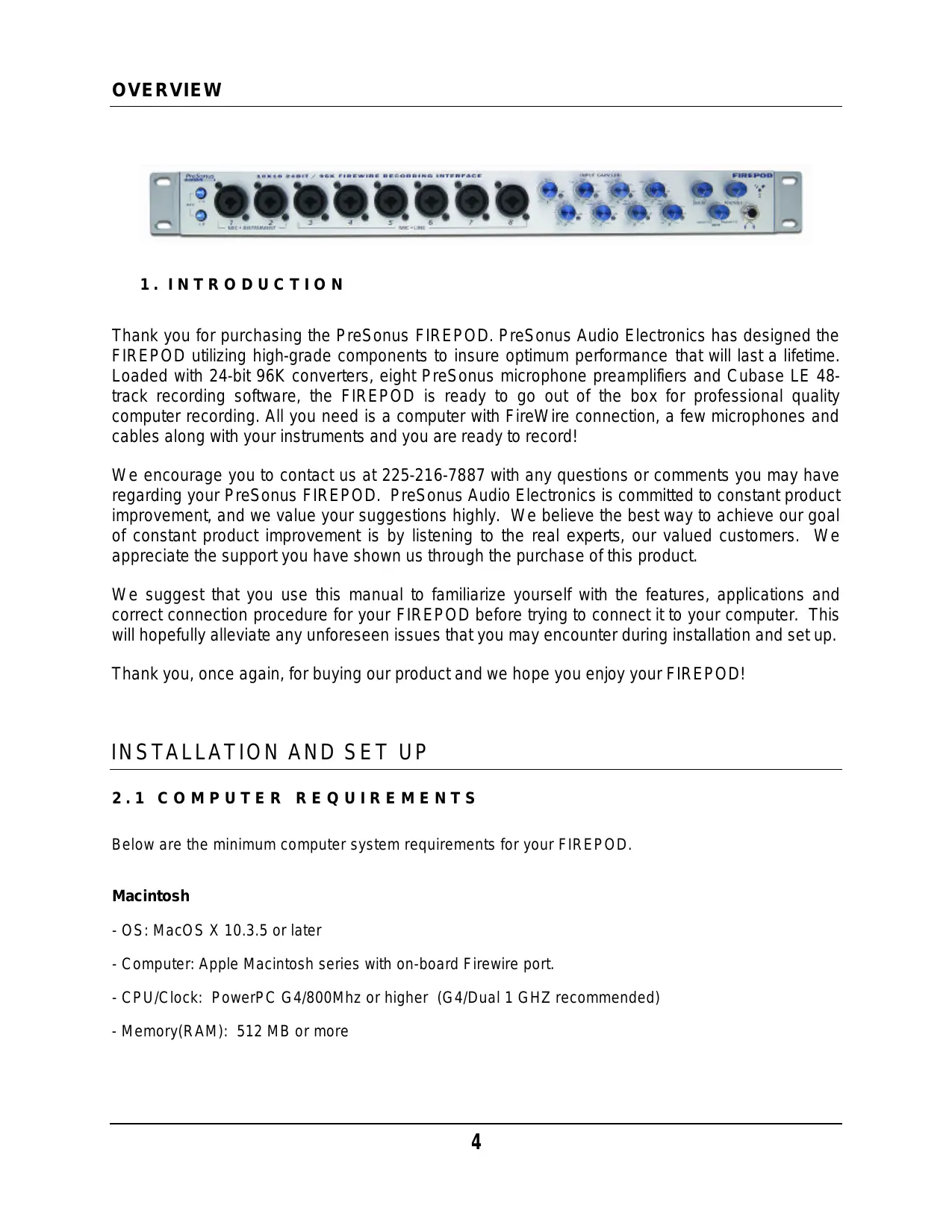
Thank you for purchasing the PreBonus FIREPOD. PreBonus Audio Electronics has designed the FIREPOD utilizing high-grade components to insure optimum performance that will last a lifetime. Loaded with 24-bit 96K converters, eight PreBonus microphone preamplifiers and Cubase LE 48-track recording software, the FIREPOD is ready to go out of the box for professional quality computer recording. All you need is a computer with FireWire connection, a few microphones and cables along with your instruments and you are ready to record!
We encourage you to contact us at 225-216-7887 with any questions or comments you may have regarding your PreBonus FIREPOD. PreBonus Audio Electronics is committed to constant product improvement, and we value your suggestions highly. We believe the best way to achieve our goal of constant product improvement is by listening to the real experts, our valued customers. We appreciate the support you have shown us through the purchase of this product.
We suggest that you use this manual to familiarize yourself with the features, applications and correct connection procedure for your FIREPOD before trying to connect it to your computer. This will hopefully alleviate any unforeseen issues that you may encounter during installation and set up.
Thank you, once again, for buying our product and we hope you enjoy your FIREPOD!
INSTALLATION AND SET UP
2.1 COMPUTER REQUIREMENTS
Below are the minimum computer system requirements for your FIREPOD.
Macintosh
- OS: MacOS X 10.3.5 or later
- Computer: Apple Macintosh series with on-board Firewire port.
- CPU/Clock: PowerPC G4/800Mhz or higher (G4/Dual 1 GHZ recommended)
- Memory(RAM): 512 MB or more
Windows
- OS: Microsoft Windows XP SP1
- Computer: Windows compatible computer with FireWire port.
- CPU/Clock: Pentium, Celeron with 900Mhz or higher (Dual 1.2 GHz recommended)
- Memory(RAM): 256 MB (512MB recommended)
Note that the speed of your processor, amount of RAM and size and speed of your hard drive will greatly affect the overall performance of your recording system. Also, a more powerful system (faster processor with more RAM) will allow for lower latency (signal delay) that you might experience while monitoring audio or MIDI signals.
2.2 INSTALLATION OF FIREPOD DRIVERS
YOU MUST INSTALL SOFTWARE DRIVERS BEFORE CONNECTING YOUR FIREPOD.
Windows XP – The following is a detailed procedure for installation of your FIREPOD Drivers
Installation Steps:
- Quit all currently running applications
- Insert CD-ROM Driver Installation included with your FIREPOD into your computer. (DO NOT CONNECT YOUR FIREPOD AT THIS TIME.)
- CD should auto run. (If not, navigate to CD and double click on FirePod Installer.exe)
There are three Parts to the installation of your FIREPOD. The installer will take you through each step. Please read each message carefully as the time at which you connect and power on your FIREPOD for the first time is critical to a successful installation.
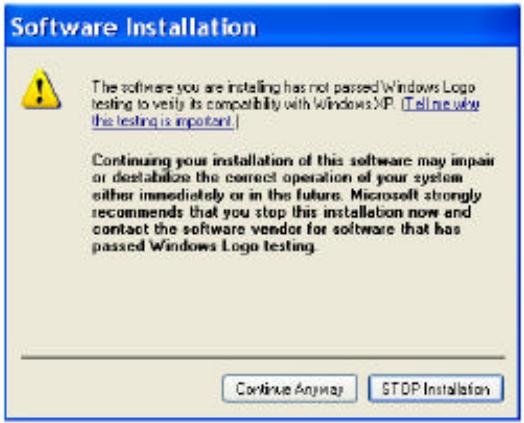
Note: If at any point during installation a "Software Installation" message appears from Windows regarding Windows Logo testing click "Continue Anyway" to continue installation.
WINDOWS XP INSTALLATION DETAILS
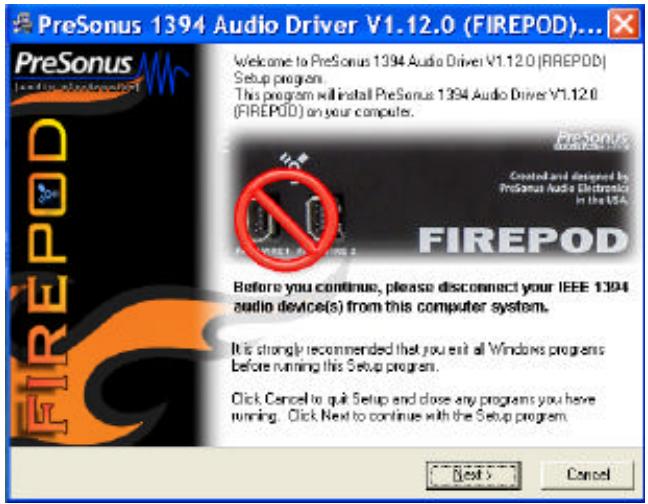
Make sure FIREPOD is NOT connected to your system and click Next.
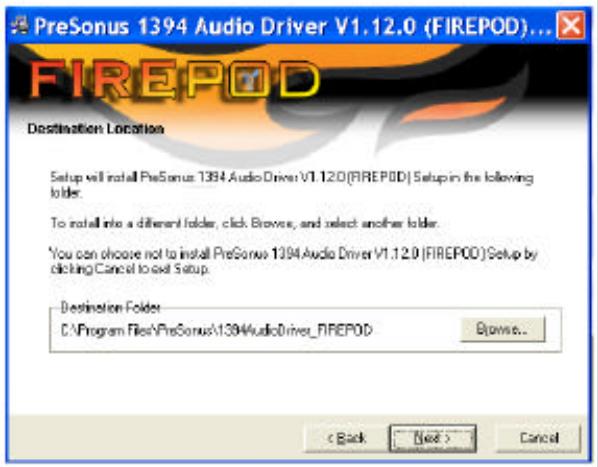
Click Next to set up driver in selected Destination folder.
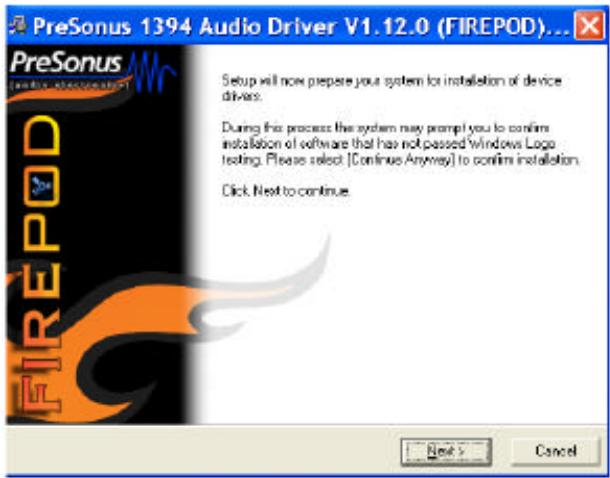
Click Next to prepare your system for installation of Drivers
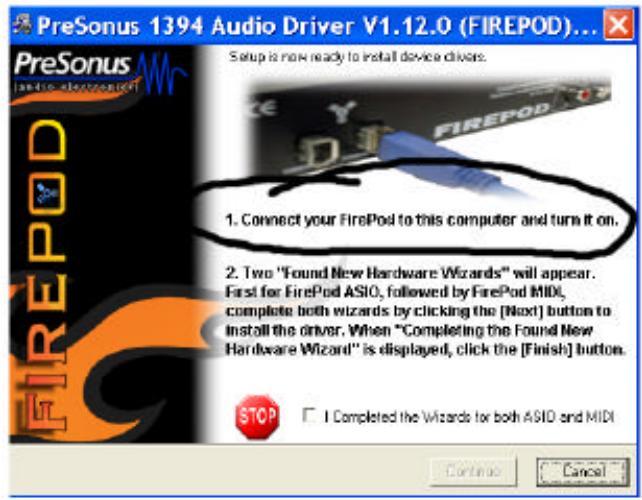
NOW CONNECT YOUR FIREPOD AND TURN IT ON.
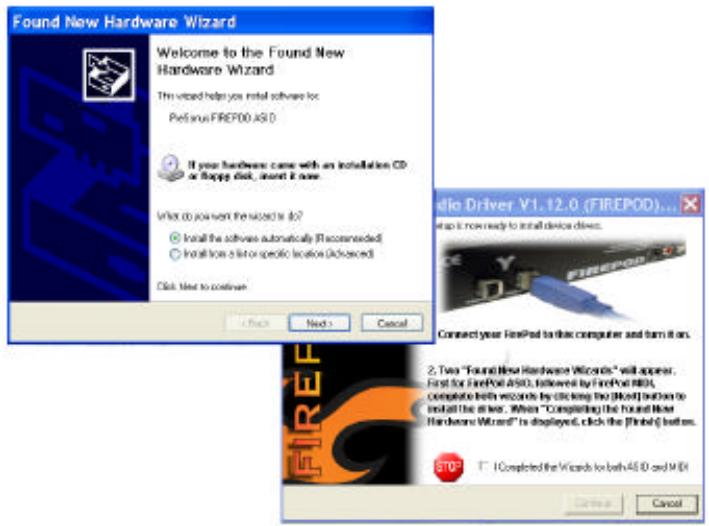
At this time the "Found New Hardware Wizard" will automatically appear.
Click Next to install FIREPOD ASIO Driver.
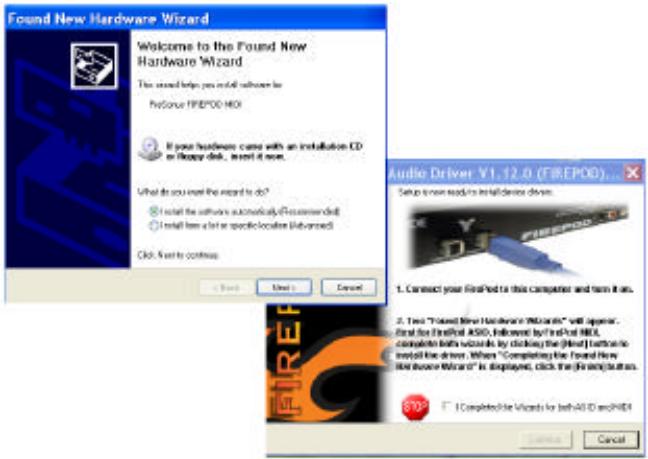
Click Next to Install FIREPOD MIDI Driver
Check Box and click Continue.
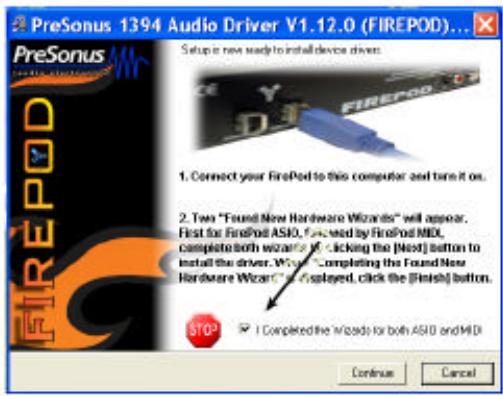
Wait a few seconds for the final "Found New Hardware Wizard" to appear.
Click Next to Install WDM Driver
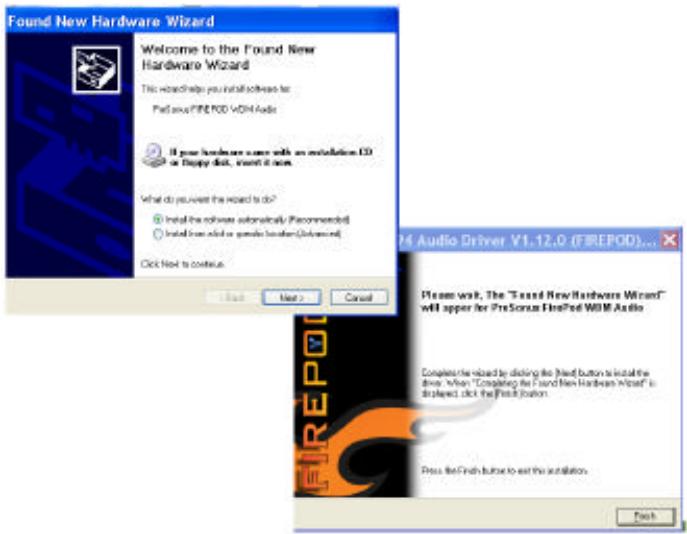
Click FINISH and you have successfully installed your FIREPOD DRIVERS.
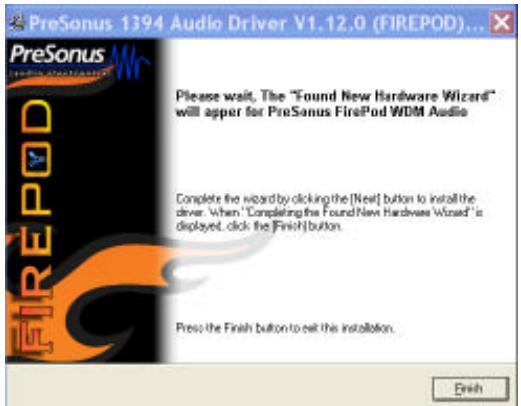
Note that you must install all three "Found New Hardware Wizard" Drivers for the FIREPOD to operate properly.
Macintosh OSX
The audio drivers for the FIREPOD are to be included in the CORE AUDIO of Macintosh OSX 10.3.5 and later. At the time of the printing of this sheet, the drivers had not yet been released by Apple Computers. Please visit www.apple.com to download an OSX update for your FIREPOD. (For questions call PreBonus at 225-216-7887).
After you have installed the OSX update, connect your FIREPOD to a FireWire port on your computer and turn on your FIREPOD. Your FIREPOD sync light should flash red and then stay blue to signify that your FIREPOD is properly sync'd to your computer.
2.3 FIREPOD CONTROL PANEL (WINDOWS XP ONLY)
Once you have successfully installed your Drivers the FIREPOD Control Panel will be available from your system tray (typically located at the bottom right hand corner of your screen near your clock).

Double click on the FIREPOD Control Panel ICON to open the FIREPOD Hardware Control Panel.
FIREPOD HARDWARECONTROL PANEL
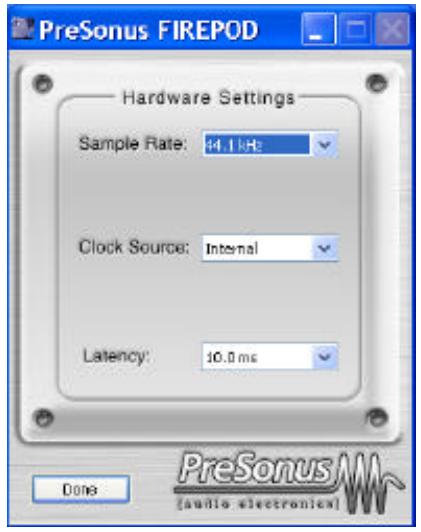
Sample Rate: Drop down menu to select sample rate of FIREPOD - 44.1, 48, 88.2, 96k. This must be set to the same sample rate in your recording software.
Clock Source: Drop down menu to select FIREPOD digital sync source.
INTERNAL
SPDIF - Must be selected to use the SPDIF input.
(Note that Control Panel settings will be saved upon power down.)
Latency - Sets the amount of delay time of your FIREPOD. (1.5ms - 24ms). Latency is the time it takes for the computer to process audio. Lower latency settings demands more CPU resources. In the case of inconsistent audio (i.e. drop outs, pops and clicks, digital distortion, etc) we recommend that you increase this setting.
FIREPOD CONTROL PANEL ADVANCED SETTINGS:
You can "Right Click" on the FIREPOD control panel icon to select between three different computer optimization settings. These settings optimize the buffers and audio streaming settings based on the speed of your processor. If you are experiencing audio drop outs, it is recommended that you select a lower CPU setting.
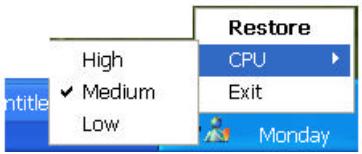
High: Computer Processor 2GHz and higher
Medium (default): Computer Processor 1GHz to 2GHz
Low: Computer Processor 800MHz to 1GHz
2.4 CUBASE LE - QUICK START UP
Once you have installed your FIREPOD drivers, if you plan on using CUBASE LE included with your FIREPOD, install the CUBASE LE installation CD and run the installer. Make sure to keep your CD envelope sleeve handy to reference the serial number during installation.
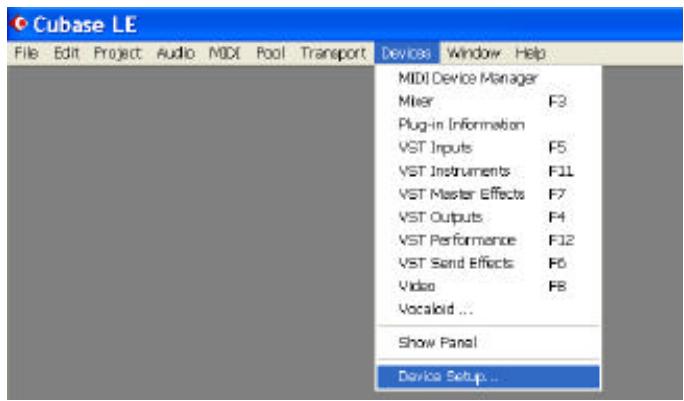
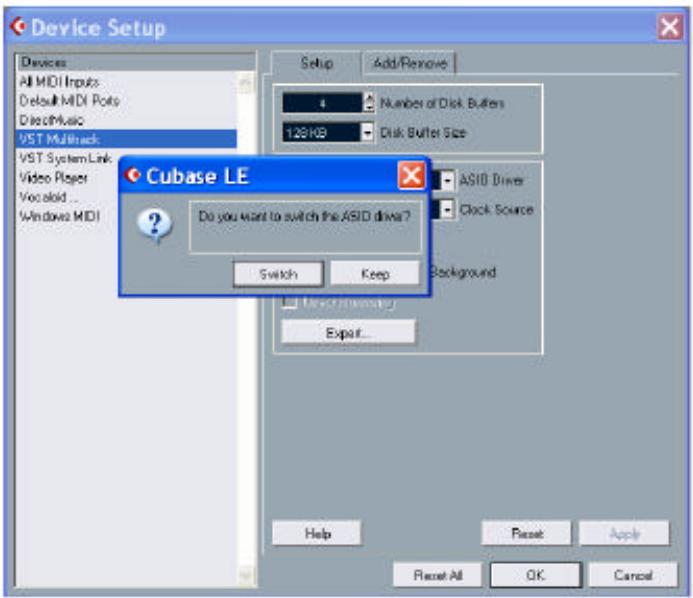
To select the FIREPOD in Cubase LE, go to Device -> Device Setup
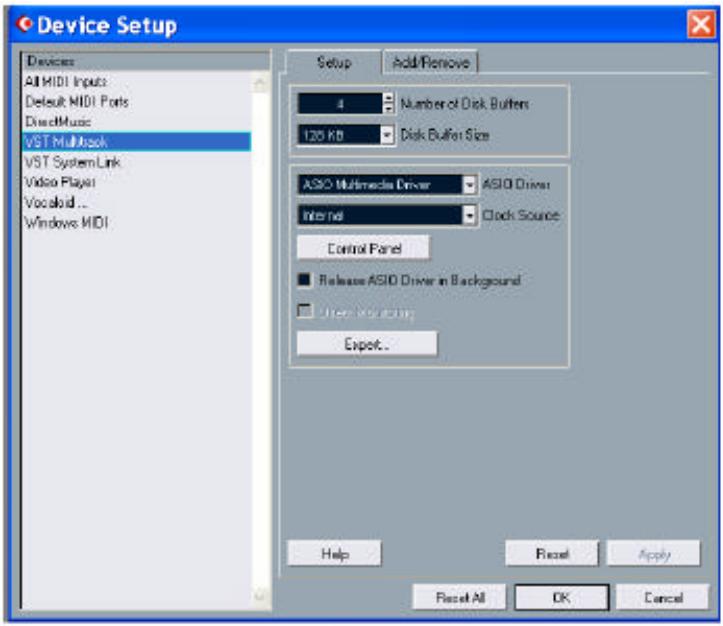
Select VST multi-track.
ASIO Driver (pull down menu) - select PreBonus ASIO Driver then OK.
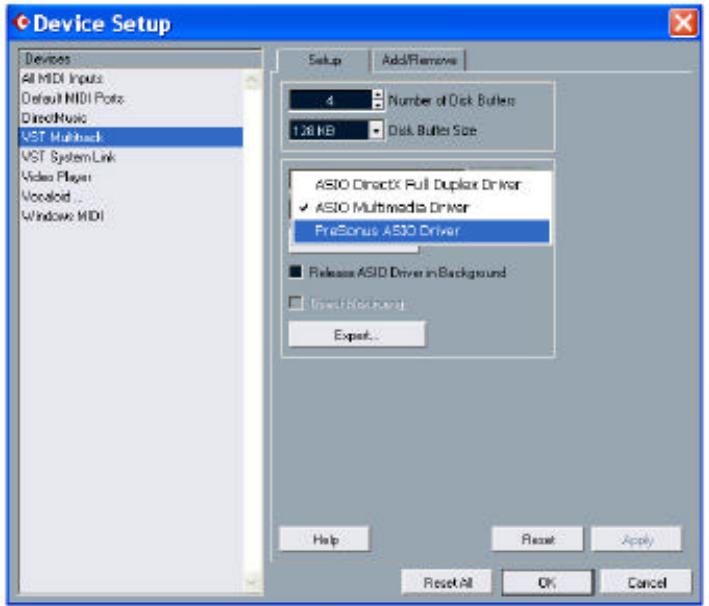
Click Switch to save PreBonus Driver Selection
2.5 TESTING YOUR FIREPOD WITH CUBASE LE
In order to test your FIREPOD, do the following:
Launch Cubase LE and make sure that you have selected the PreSonus FIREPOD ASIO driver as described above in Section 2.4.
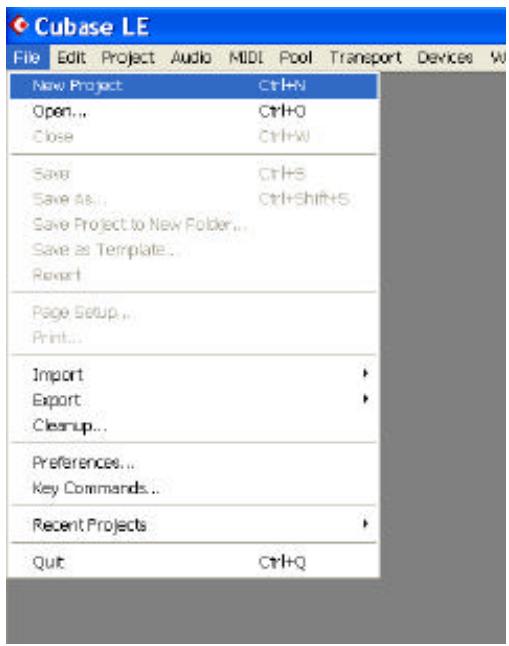
Create a new project:
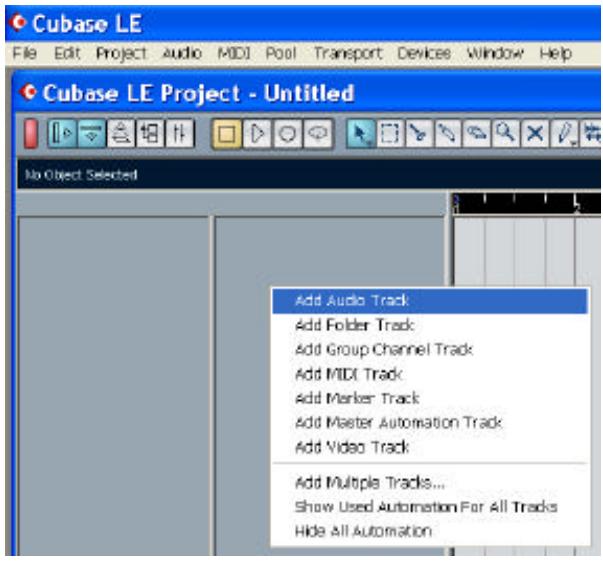
Create one new audio track within your new project by clicking on Project ->Add Track-> Audio (or you can right click (ctrl-click mac) in the track space within the project:
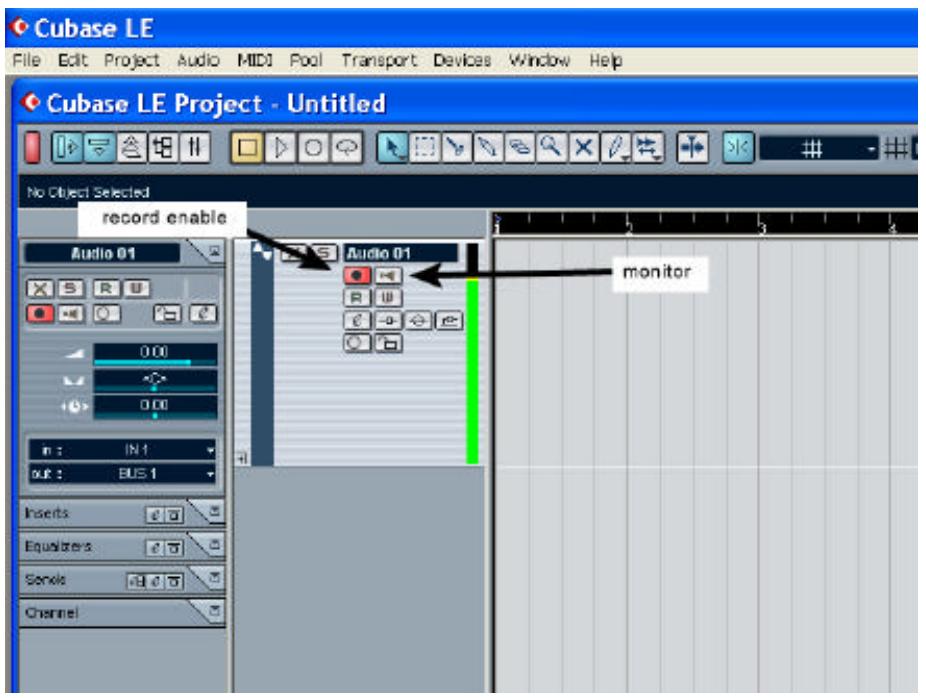
Record enable the track by pressing the Record Enable button.
Plug a microphone into channel one and turn on 48V phantom power if needed for the microphone. Turn up the channel 1 trim control on the front panel of the FIREPD while speaking into the microphone. You should see the input meter react to your speaking. Adjust trim so that input level at maximum without clipping.
Connect a set of headphones to the FIREPOD headphone output.
Click the monitor button in Cubase LE for Audio 01.
Adjust the MIX control counter clockwise to monitor input only for zero latency. Turn MIX control clockwise to monitor through the computer and Cubase LE.
Note that online help available for Cubase LE by pressing F1 or visiting www.steinberg.net
3.1 FRONT PANEL LAYOUT AND DESCRIPtIons

Microphone Pre-Amplifier. Your FIREPOD is equipped with eight custom designed PreBonus microphone preamplifiers for use with all types of microphones including Dynamics, Condensers, and Ribbons as well as instruments and line level signals. The award winning PreBonus preamplifier design is a Class A input buffer followed by a dual servo gain stage. This arrangement results in ultra low noise and wide gain control allowing the FIREPOD user to boost desirable signal without increasing unwanted background noise.
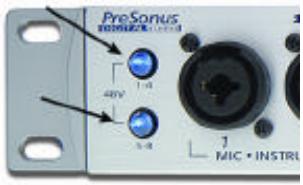
48 Volt Phantom Power. The FIREPOD has 48V Phantom power available in groups via push button switches on the front panel. The top button turns on phantom power for microphone Inputs 1 to 4. The bottom button turns on phantom power for microphone inputs 5 to 8.
XLR connector wiring for Phantom Power
Pin 1=GND Pin 2= +48V Pin3= +48V
+22dBu Headroom. The FIREPOD mic-pre has +22 dBu of headroom. This feature gives you wide dynamic range and excellent transient response characteristics.
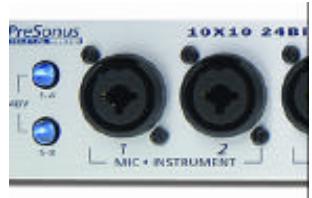
Neutrik Combo Connectors. Each channel of the FIREPOD has a Mic/Line connector using the Neutrik Combo connector. This revolutionary style connector lets you use either 14 ” phone or XLR connectors in the same female input. The first two channels of the FIREPOD are 14 ” instrument and microphone XLR inputs. The line level inputs for these two channels are on the back panel of the FirePod.
INSTRUMENT INPUTS (Channels 1 and 2): The 14 ” TS connector on channels 1 and 2 are for use with an instrument (guitar, bass, and etc.). When an instrument is plugged into the instrument input, the microphone preamplifier is bypassed and the FirePod becomes an active instrument preamplifier.
NOTE: Active instruments are those that have an internal preamp or a line level output. Active instruments should be plugged into a line input rather than into an instrument input. In other words, don't plug an active instrument into the combo jacks on channels 1 or 2.
Input Gain/Trim Control. This knob provides the following gain structure for each channel:
Microphone Input XLR: 45dB of variable gain (+14 dB to +55dB)
Instrument HiZ Input TS 1 / 4 (channels 1 and 2 only): 45 dB variable gain (+8dB to +50dB)
Line Input 14 TRS/TS Channels 3 thru 8: -10dB to +10dB trim adjustment
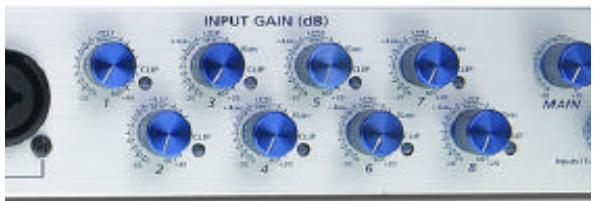
Clip Indicator. The clip indicator will light up if your input signal from the XLR (Mic) or 14 " (line) reaches +18dBu (0dBfs). At this level, your mic preamp/line trim signal may not exhibit signs of clipping such as distortion. However, this level would cause the A/D (analog to digital) converters to clip. Therefore it is highly recommended that you do not allow your converters to clip (the clip indicators to light up) as the sound quality would not be desirable.
MAIN, MIX, PHONES, SYNC/POWER
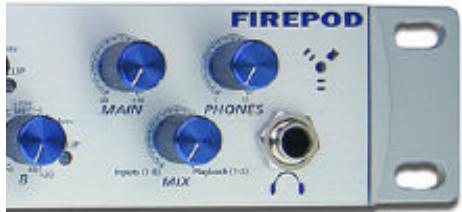
Main. This knob allows control over the output level for the MAIN CR OUTPUT 1 and 2 on the back of the FIREPOD. It has a range of -80db to +10dB.
Mix. The mix knob is like a balance control. It balances the headphone MAIN and CUE outputs between Inputs 1-8 and playback outputs 1 and 2. This feature is an analog hardware mixer, so it allows you to monitor the signal before it goes to your computer providing zero latency monitoring.
Phones. The Phones knob controls the amount of volume going to the headphone output on the front of the unit. Notice the volume indicator goes to 11 (loud). Use this setting with caution.
Headphone Symbol and 1 / 4 ” Jack. This is where you connect your headphones.
Red-Blue Power/Sync Light. This light is a clock (sync) indicator. It lets you know if your unit is receiving word clock correctly. Word clock is the manner by which digital devices sync frame rates. Proper word clock sync prevents digital devices from having pops, clicks, or distortion in the audio signal (due to mismatched digital audio transmission).
Blue - solid sync
Red - sync not present.
Flashing Red and Blue - external sync not present
1.2 BACK PANEL LAYOUT AND DESCRIPATIONS

Power Adaptor Input. This is where you plug the provide power supply into the FIREPOD. Please check the power supply to ensure that it is the correct voltage and plug type for your country.
Power Switch. Push the top part of the switch to turn the unit on. Push the bottom part of the switch to turn the unit off.
FireWire Ports. There are two firewire ports on the back of the FIREPOD. Both FireWire ports are standard 6 pin firewire jacks. If your computer has a 4 pin connector, then you will need to get a 4 to 6 pin connector to connect your FirePod to your computer. One of these ports (either one) should be used to connect the FIREPPOD to a FireWire port on your computer.
S/PDIF IN and OUT. The S/PDIF I/O allows the FIREPOD to receive and transmit audio from other digital audio devices. The S/PDIF standard allows for two channels of audio to be transmitted at up to rates of 24bit/96Khz. The S/PDIF input also allows the FIREPOD to receive and transmit word clock. Word clock is the synchronizing signal that indicates the sampling frequency or rate of sample words over a digital audio interface. Note: When using SPDIF In, you must select SPDIF in your FIREPOD Hardware Control Panel (located in your system tray – Windows XP only).
MIDI In and Out. MIDI stands for "Musical Instrument Digital Interface". However, the MIDI standard goes well beyond just instrumentation and sequencing. The MIDI inputs and outputs allow connection and/or communication with external MIDI equipment. One function of this port is MIDI programming. This port can also be used for MMC (MIDI Machine Control) and MTC (MIDI Time Control). Please consult the manual of the software manufacture to learn setup and usage of different MIDI applications.
CUE Mix Line Out. This outputs the results of the setting of the Mix knob on the front of the unit. The Mix knob is a balance control between the inputs and the first two outputs.
Main CR Output. These outputs are the same as line outputs 1 and 2. The level of this output is controlled by the Main volume knob on the front of the unit. The Mix knob on the front of the unit also affects the Main CR Output.
Line Inputs/Preamp Outputs. The FIREPOD features 14 TRS balanced Send and Return jacks on Channels 1 and 2. These jacks are labeled as Preamp Output (SEND) and Line Input (Return). These connectors will accept either balanced (TRS - Tip Ring Sleeve) 14 cables or unbalanced TS (Tip Sleeve) 14 cables. These connectors allow the use of external processors such as reverb, de-essers, limiters, EQ's, etc. Simply connect the Preamp Output jack, balanced or unbalanced to the input of the external processor. Then connect the FIREPOD's Line Input jack to the output of the external processor. The signal is now routed out of the FIREPOD, into the external processor, then back into the FIREPOD. The final, processed signal will be available to record now. The Line Input can also be used as a standard line level input for devices that do not require pre-amplification (such as a CD player, drum machine, sampler and etc.).
NOTE: The line inputs on channels 1 and 2 take precedence over the combo mic/Instrument inputs on the front of the unit. If a cable is plugged into channel one line input on the rear of the FIREPOD, then the mic/instrument input on channel one will be inactive until the cable is removed from line input 1.
4.1 MICROPHONES
The FIREPOD works great with all types of microphones including dynamic, ribbon and condenser microphones. Dynamic microphones and ribbon microphones are generally lower output devices and require no external power source. Condenser microphones are generally more sensitive than dynamic and ribbon microphones and typically require external 48V phantom power.
NOTE: If you are using a ribbon microphone, please check the manual on the unit before applying phantom power. Applying phantom power to some microphones could cause damage to the microphone.
The FIREPOD features 14 TRS balanced Send and Return jacks on Channels 1 and 2. These jacks are labeled as Preamp Output (SEND) and Line Input (Return). These connectors allow the use of external processors such as reverb, de-essers, limiters, EQ's, etc. Simply connect the Preamp Output jack, balanced or unbalanced to the input of the external processor. Then connect the FirePod's Line Input jack to the output of the external processor. The signal is now routed out of the FIREPOD, into the external processor, then back into the FIREPOD. The final, processed signal will be available to record now. The Line Input can also be used as a standard line level input for devices that do not require preamplification (such as a CD player, drum machine, sampler and etc.).
NOTE: The line inputs on channels 1 and 2 take precedence over the combo mic/Instrument inputs on the front of the unit. If a cable is plugged into channel one line input on the rear of the FIREPOD, then the mic/instrument input on channel one will be inactive until the cable is removed from line input 1.
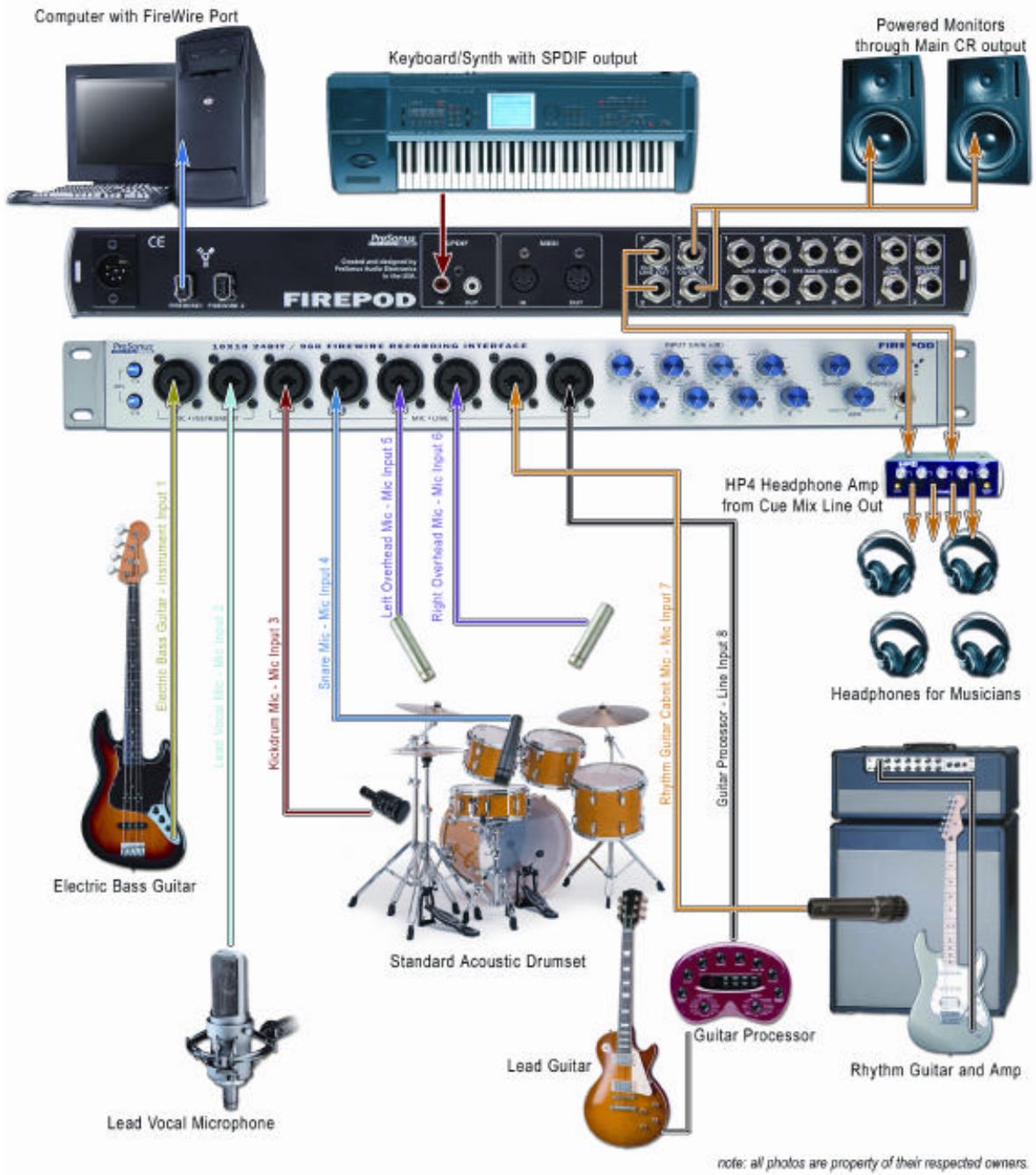
With the FIREPOD you can simultaneously record and play back up to 10 channels. Since it is loaded with eight preamplifiers, you can have eight microphones plugged into the FIREPOD along with SPDIF for digital input to record a full band. This makes recording extremely easy. All you need are a few microphones and some cables and you are ready to go.
5.1 TROUBLESHOOTING
Please note that many technical issues can arise when converting a standard computer into a DAW (Digital Audio Workstation). PreBonus will only provide support for issues that directly relate to the FIREPOD interface. It may be necessary to contact the manufacturer of the computer, operating system and/or software to obtain additional technical support. PreBonus does not provide support for issues in regards to operating systems, additional hardware or software. Please check our website, www.prebonus.com regularly for software information and updates, firmware updates, and technical support. Also, technical assistance may be received by calling PreBonus at 225-216-7887 between the hours of 10 am and 5 PM Central Time.
Pops and Clicks
The light on the front right panel of the FIREPOD is a clock (sync) indicator. It lets you know if your unit is receiving word clock correctly. Word clock is the manner by which digital devices sync frame rates. Proper word clock sync prevents digital devices from having pops, clicks, or distortion in the audio signal (due to mismatched digital audio transmission). If the symbol is solid blue, this indicates that your unit is in sync with the PC or a S/PDIF device that is plugged into the S/PDIF input on the back of the unit. If the light is solid red, this indicates that the FIREPOD does not have sync from the computer and that the unit might not be connected properly. If the unit is flashing red and blue, the unit is not receiving external sync. This would be caused by the clock source in the FIREPOD control panel being set to S/PDIF with no S/PDIF sync source coming in. Here are the three different light modes broken down once again:
Blue - solid sync
Red - sync not present.
Flashing Red and Blue - external sync not present
Pops and clicks can also occur with high CPU loads (running a large number of plug-ins) at low latency. Windows XP – try increasing your latency settings in the FIREPOD's hardware control panel.
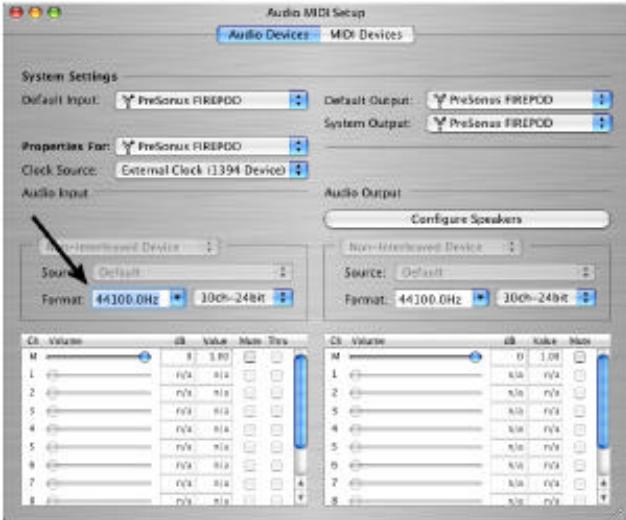
No Sync (Red) – Macintosh Users –Open Audio MIDI Setup and change the Format sample rate speed to anything different. This will re-establish synchronization and the Blue sync light will turn on. Once you have the blue sync light you can then reset the Format sample rate to your desired setting.
Audio Drop Outs – Can occur when the speed of your processor cannot buffer audio fast enough. Windows XP – Try lowering your FIREPOD's CPU to Low, by right clicking on the FIREPOD control panel icon in your system tray.
Preamplifier
Q: I have a microphone plugged into channel one (or two) but I am not getting any signal.
Possible Solutions
- Check your mic cable.
- Make sure the microphone does not require phantom power. If it does press the 48v button.
- Make sure nothing is plugged into the line input on the rear of the FIREPOD. The line inputs on channels 1 and 2 take precedence over the combo input on the front of the unit on channels 1 and 2. If a cable is plugged into the line input on channel, then the mic/instrument input on channel one will be inactive until the cable is removed from line input 1.
Power Issues
Q: I just bought a FIREPOD from (dealer name goes here) in (city and state go here) and I live in Morocco. When I plugged in my FIREPOD it caught on fire and smoke came out of the top. What do I do?
A: PreBonus has a distributor in almost every country. Therefore, PreBonus does not authorize or condone exportation of any of our products by US dealers. If you have done this and your product has been damaged (more than likely due to voltage irregularities) then you will need to return the unit to the dealer in the United States. The dealer can then return it to PreBonus for a non-warranty repair. After the unit is repaired, the dealer will be billed accordingly and the unit will be returned to the dealer.
Cubase LE
For help with Cubase LE press F1 while running Cubase LE or visit: www.steinberg.com.
5.2 FIREPOD SPECIFICATIONS
Preamp Bandwidth 10Hz to 50kHz
Preamp Input Impedance 1.3k Ohms
Instrument Input Impedance 1M Ohms
Preamp THD .<0.005%
Preamp EIN -125dB
Preamp Gain 54dB
Preamp Send Output Impedance 51 Ohms
Preamp Return Input Impedance 10K Ohms
Line Trim. + / - 20dB
Line Input Impedance 10k Ohms
TRS Output Impedance 51Ohms
TRS Main Outputs Impedance 51 Ohms
TRS Cue Outputs Impedance 51 Ohms
Headphone Output. 150mW/Ch 20Hz-20kHz
Phantom Power 48V +/- 2V
Power Supply. Ext line Transformer, Internal Switching
Analog to Digital Converters 24-bit / up to 96khz
ADC Dynamic Range 107db
DAC 24-bit / up to 96kHz
DAC Dynamic Range 110db
IEEE1394 Speed 400mbps
As a commitment to constant improvement, PreSonus Audio Electronics, Inc. reserves the right to change any specification stated herein at any time in the future without notification.