
SE6R2 - Motherboard ABIT - Free user manual and instructions
Find the device manual for free SE6R2 ABIT in PDF.


| Product type | Desktop motherboard |
| Brand | ABIT |
| Model | SE6R2 |
| Chipset | Intel 865PE |
| Processor socket | Socket 478 |
| Supported processors | Intel Pentium 4 / Celeron (Northwood, Willamette, Prescott) |
| Memory type | DDR SDRAM, dual channel |
| Maximum memory capacity | 4 GB (2 x 2 GB) DDR400/333/266 |
| Expansion slots | 1 x AGP 8x, 5 x PCI |
| Storage connectors | 2 x ATA-100 (IDE), 2 x SATA 1.5 Gbps |
| USB connectors | 4 x USB 2.0 (rear port), 2 internal headers |
| Audio | Realtek ALC650 AC'97, 5.1 channels |
| Network | Integrated 10/100 Mbps Ethernet controller |
| BIOS | Award BIOS, flashable |
| Form factor | ATX (305 mm x 244 mm) |
| Required PSU | ATX 24-pin + 4-pin 12V, 350W recommended |
| Weight | Approximately 0.8 kg |
| Maintenance and cleaning | Regular dusting with compressed air, avoid moisture |
| Safety | Handle with care to avoid electrostatic discharge |
| Included accessories | User manual, IDE/SATA cables, I/O shield, driver CD |
| Warranty | 1 year (indicative) |
Frequently Asked Questions - SE6R2 ABIT
User questions about SE6R2 ABIT
0 question about this device. Answer the ones you know or ask your own.
Ask a new question about this device
Download the instructions for your Motherboard in PDF format for free! Find your manual SE6R2 - ABIT and take your electronic device back in hand. On this page are published all the documents necessary for the use of your device. SE6R2 by ABIT.
USER MANUAL SE6R2 ABIT
Copyright and Warranty Notice
The information in this document is subject to change without notice and does not represent a commitment on part of the vendor, who assumes no liability or responsibility for any errors that may appear in this manual.
No warranty or representation, either expressed or implied, is made with respect to the quality, accuracy or fitness for any particular part of this document. In no event shall the manufacturer be liable for direct, indirect, special, incidental or consequential damages arising from any defect or error in this manual or product.
Product names appearing in this manual are for identification purpose only and trademarks and product names or brand names appearing in this document are the property of their respective owners.
This document contains materials protected under International Copyright Laws. All rights reserved. No part of this manual may be reproduced, transmitted or transcribed without the expressed written permission of the manufacturer and authors of this manual.
If you do not properly set the motherboard settings, causing the motherboard to malfunction or fail, we cannot guarantee any responsibility.
SE6 Motherboard User's Manual
Index
CHAPTER 1. INTRODUCTION OF SE6 FEATURES 1-1
1-1. FEATURES OF THIS MOTHERBOARD 1-1
1-2. SPECIFICATIONS 1-1
1-3. PACKAGE LIST 1-2
1-4. LAYOUT DIAGRAM 1-3
1-5. THE SYSTEM BLOCK DIAGRAM 1-4
CHAPTER 2. INSTALLING THE MOTHERBOARD. 2-1
2-1. INSTALLING THE MOTHERBOARD TO THE CHASSIS 2-1
2-2. INSTALLATION OF THE PENTIUM III CPU 2-2
2-3. INSTALLING SYSTEM MEMORY 2-2
2-4. CONNECTORS, HEADERS AND SWITCHES 2-3
CHAPTER 3. INTRODUCING THE BIOS. 3-1
3-1. CPU SETUP [SOFT MENU™ III] 3-2
3-2. STANDARD CMOS FEATURES SETUP MENU 3-5
3-3. ADVANCED BIOS FEATURES SETUP MENU 3-8
3-4. ADVANCED CHIPSET FEATURES SETUP MENU 3-11
3-5. INTEGRATED PERIPHERALS 3-14
3-6. POWER MANAGEMENT SETUP MENU 3-18
3-7. PNP/PCI CONFIGURATIONS 3-23
3-8. PC HEALTH STATUS 3-25
3-9. LOADFAIL-SAFEDEFAULTS 3-26
3-10. LOAD OPTIMIZED DEFAULTS 3-26
3-11. SET PASSWORD 3-27
3-12. SAVE & EXIT SETUP 3-28
3-13. EXIT WITHOUT SAVING 3-28
APPENDIX A. INF INSTALLATION UTILITY FOR WINDOWS® 98 SE
APPENDIX B. INSTALLING THE VGA DRIVER FOR WINDOWS® 98 SE
APPENDIX C. INSTALLING THE AUDIO DRIVER FOR WINDOWS® 98 SE
APPENDIX D. ATA INSTALLATION UTILITY FOR WINDOWS® 98 SE
APPENDIX E. INSTALLING THE VGA DRIVER FOR THE WINDOWS® NT 4.0 SERVER/WORKSTATION
APPENDIX F. INSTALLING THE AUDIO DRIVER FOR THE WINDOWS NT 4.0 SERVER/WORKSTATION
APPENDIX G. ATA INSTALLATION UTILITY FOR THE WINDOWS NT 4.0 SERVER/WORKSTATION
APPENDIX H. INF INSTALLATION UTILITY FOR THE WINDOWS® 2000
APPENDIX I. INSTALLING THE VGA DRIVER FOR THE WINDOWS® 2000
APPENDIX J. INSTALLING THE AUDIO DRIVER FOR THE WINDOWS® 2000
APPENDIX K. ATA INSTALLATION UTILITY FOR THE WINDOWS® 2000
APPENDIX L. BIOS FLASHING USER INSTRUCTIONS
APPENDIX M. HARDWARE MONITORING FUNCTION (INSTALLING THE WINBOND HARDWARE DOCTOR UTILITY)
APPENDIX N. INSTALLATION GUIDE FOR SUSPEND TO RAM
APPENDIX O. TROUBLESHOOTING (NEED ASSISTANCE?)
APPENDIX P. HOW TO GET TECHNICAL SUPPORT
Chapter 1. Introduction of SE6 Features
1-1. Features of This Motherboard
The SE6 Motherboard is designed for use with Intel's new generation of Pentium II & III Processors, which utilize the FC-PGA (Flip-Chip Pin Grid Array), 370-pin design. Up to 512MB of memory can be supported.
The SE6 uses the new Intel 815E chipset. Its 133MHz capable memory interface supports the wide range of PC 133 memory devices now on the market. Its 133MHz capable front-side bus delivers a clear upgrade path to the future generation of 133MHz processors. The SE6 offers Ultra ATA/100. This provides speedier HDD throughput that boosts overall system performance. Up to four IDE devices can be supported by your system. These devices can be Ultra ATA/33, Ultra ATA/66 or Ultra ATA/100 IDE devices.
A Digital Video Out Interface supporting digital display and TV Out are options. The SE6 also has an integrated AC'97 2.1 CODEC onboard. This CODEC is complete with a H/W Sound Blaster Pro® AC'97 digital audio controller that gives you the best sound quality and compatibility. The chipset includes integrated 2X 3D Graphics Acceleration. For those wanting even greater graphics performance, an AGP slot is included on the board. The AGP Slot will support a 4MB display cache AGP In-line Memory Module (AIMM). AIMM is a lower cost alternative to a video card.
With 2 USB ports as well as capability of expanding to 4 USB slots, the SE6 meets future USB demands. A Communication / Network Riser Slot (CNR Slot) is found on the SE6. The CNR Slot provides audio, modem and network connectivity. The specification's main objective is to reduce the cost of audio and modem functionality.
The SE6 has built-in hardware monitoring functions (refer to Appendix M for detailed information). This will monitor and protect your computer, ensuring a safe computing environment.
This motherboard provides high performance for servers while also meeting the requirements for desktop systems; both now and into the future.
1-2. Specifications
1.CPU
Supports Intel Pentium III 500 ~ 1GHz processors (Based on FC-PGA package)
Supports Intel® Celeron® 300A ~ 733MHz processors (Based on 66MHz PPGA & FC-PGA package)
Supports VIA Cyrix III 500, 533 and reserves support for processors of future specification (Based on 100MHz, 133MHz FC-PGA package)
Supports 66, 100, and 133MHz CPU external clock speeds.
- Reserves support for future Intel Pentium® III processors.
2. Chipset
Intel 815E chipset
Supports 66/100/133MHz (Front Side Bus)
Supports AGP 1X/2X/4X (Sideband) 1.5V/3.3V device
Supports Advanced Configuration and Power Management Interface (ACPI)
Supports UDMA 33/66/100 and future specification devices
3. Graphics
- Chipset integrated 2X 3D graphics acceleration
- Support 4MB display Cache AIMM ( AGP In-line Memory Module )
4. Memory
- Three 168-pin DIMM sockets support SDRAM module
Supports up to 512MB MAX. (32, 64, 128, 256MB SDRAM)
Support 100MHz, 133MHz SDRAM interface (No 66MHz support)
5. Audio
- AC'97 Digital Audio controller integrated
AC'97 Audio CODEC on board - Audio driver included
6. System BIOS
- SOFT MENU™ III eliminates the need for jumpers or DIP switches to set CPU parameters
- Award Plug and Play BIOS supports APM and ACPI
Write-ProTECT Anti-Virus function by AWARD BIOS
7. Multi I/O Functions
- 2 Channels of Bus Master IDE Ports supporting Ultra DMA 33/66/100 and future specification devices
PS/2 Keyboard and PS/2 Mouse Connectors - 1x Floppy Port (up to 2.88MB)
- 1x Parallel Port (EPP/ECP)
- 2x Serial Ports
- 2x USB Connectors
- 2x USB Headers (Optional connecting cable available)
- Audio connector (Line-in, Line-out, Mic-in, and Game Port)
8. Miscellaneous
- Support STR(Suspend to DRAM)
ATX form factor - 1 Universal AGP slot, 6 PCI slots and 1CNR slot
- Hardware Monitoring - Including Fan speed, Voltages, CPU and System temperature and one thermal header for other devices temperature monitoring
- Keyboard and Mouse Power On
Built-in Wake on LAN/Open Chassis header
Built-in IrDA TX/RX header -
Digital Video out interface adds support digital display or TV out (Option)
-
Supports Wake On LAN, Modem, but your ATX power supply 5V standby power must be able to provide at least a 720mA current capacity. Otherwise, the functions may not work normally.
* Specifications and information contained in this manual are subject to change without notice.
1-3. Package List
| Check the following list. If there is any items damaged or missing, please contact your local dealer. | |
| ☐ (1) SE6 Motherboard ☐ DB-20: Debug card (optional) | |
| ☐ (1) Ribbon cable for master and slave Ultra DMA33/66/100 IDE drives ☐ RM-04: AIMM card for AGP slot (optional) | |
| ☐ (1) Ribbon cable for floppy disk drives ☐ Hot Rod 100: Ultra DMA 100 IDE controller card (optional) | |
| ☐ (1) USB expansion cable | |
| ☐ (1) COM2 expansion cable | |
| ☐ (1) SE6 CD-Title | |
| ☐ (1) This User's Manual |
1-4. Layout Diagram
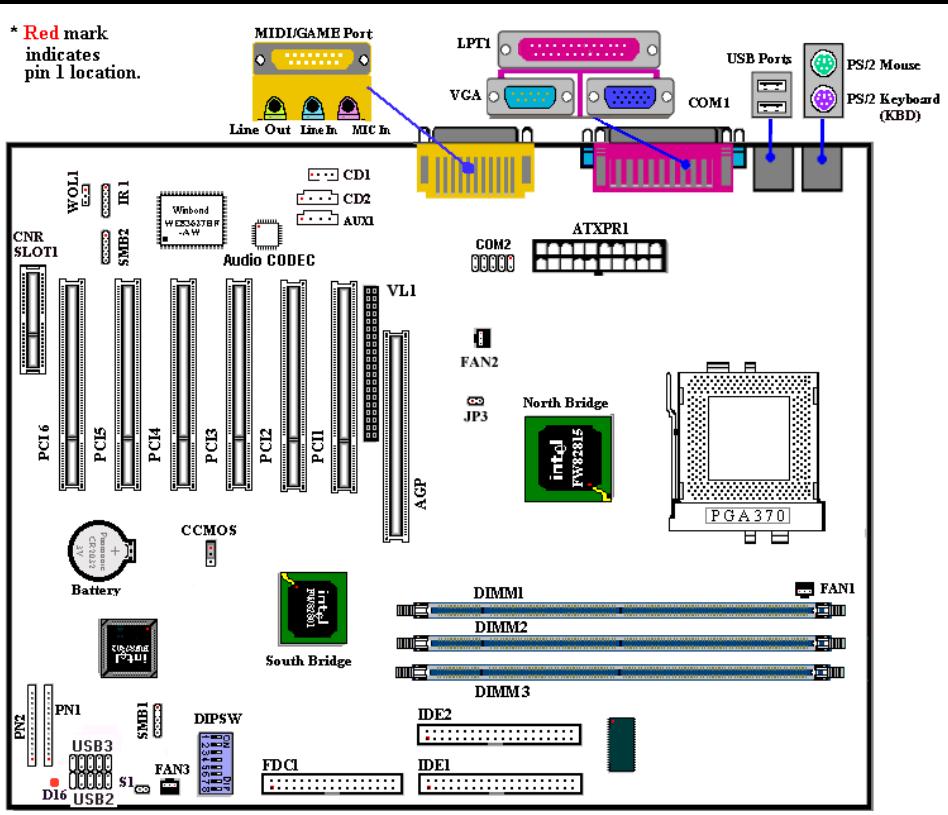
Figure 1-1. SE6 Motherboard component location
1-5. The System Block Diagram
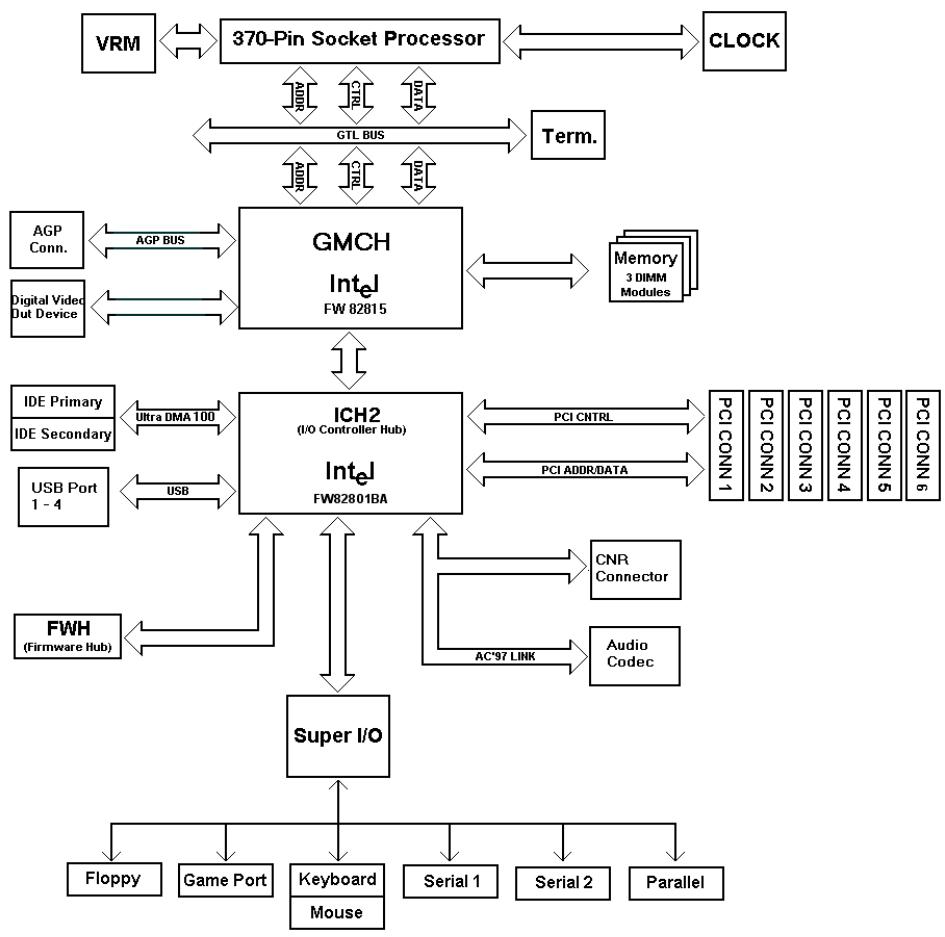
Figure 1-2. System diagram of the INTEL 815E Chipset
Chapter 2. Installing the Motherboard
This SE6 motherboard not only provides all standard equipment for classic personal computers, but also provides great flexibility for meeting future upgrade demands. This chapter will introduce step by step all of the standard equipment and will also present, as completely as possible, future upgrade capabilities. This motherboard is able to support Intel® Pentium® III and Celeron processors now on the market. (For details, see specifications in Chapter 1.)
This chapter is organized according the following features:
2-1 Installing the Motherboard to the Chassis
2-2 Installation of the Pentium III / Celeron CPU
2-3 Installing System Memory
2-4 Connectors, Headers and Switches
Before Proceeding with the Installation
Before you install or unplug any connectors or add-on cards, please remember to turn the ATX power supply switch off (fully turn the +5V standby power off), or disconnect the power cord. Otherwise, you may cause the motherboard components or add-on cards to malfunction or be damaged.
User Friendly Instructions
Our objective is to enable the novice computer users to perform the installation by themselves. We have attempted to write this document in a very clear, concise and descriptive manner to help overcome any obstacles you may face during installation. Please read our instructions carefully and follow them step-by-step.
2-1. Installing the Motherboard to the Chassis
Most computer chassis will have a base on which there will be many mounting holes that allows the motherboard to be securely attached and at the same time, prevents short circuits. There are two ways to
attach the motherboard to the base of chassis:
with studs
or with spacers
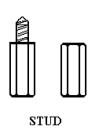
Figure 2-1 shows the shape of studs and spacers. There may be several types, but all look similar.
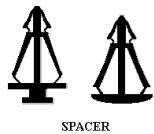
Figure 2-1. The outline of stub and spacer
In principle, the best way to attach the motherboard is with studs.
Only if you are unable to do this should you attach the board with spacers. Take a careful look at the motherboard and you will see many mounting holes on it. Line these holes up with the mounting holes on the base. If the holes line up and there are screw holes this means you can attach the motherboard with studs. If the holes line up and there are only slots, this means you can only attach the motherboard with
spacers. Take the tip of the spacers and insert them into the slots. After doing this to all the slots, you can slide the motherboard into position aligned with the slots. After the motherboard has been positioned, check to make sure everything is OK before putting the casing back on.
Figure 2-2 shows you the way to affix the motherboard using studs or spacers.
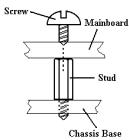
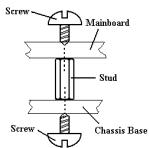

Figure 2-2. The way we fixed the motherboard
Note: If the motherboard has mounting holes, but they don't line up with the holes on the base and there are no slots to attach the spacers, do not despair, you can still attach the spacers to the mounting holes. Just cut the bottom portion of the spacers (the spacers may be a little hard to cut, so mind your fingers). In this way, you can still attach the motherboard to the base without worrying about short circuits. Sometimes you may need to use the plastic springs to isolate the screw from the motherboard PCB surface as the circuit wire may be too near the hole. Be careful. Do not let the screw contact the printed circuit wire or parts on the PCB that are near the fixing hole. Otherwise it may damage the board or cause board malfunctioning.
2-2. Installation of the Pentium III CPU
The installation method for the CPU is printed on the package of the retention mechanism that comes with the motherboard. You can refer to it while you install the CPU.
Note: Installing a heat sink and cooling fan is necessary for proper heat dissipation from your CPU. Failing to install these items may result in overheating and damage of your CPU. Please refer to your boxed processor installation or other documentation attached with your CPU for detailed installing instructions.
2-3. Installing System Memory
This motherboard provides three 168-pin DIMM sites for memory expansion available from minimum memory size of 32MB to maximum memory size of 512MB SDRAM.
In order to create a memory array, certain rules must be followed. The following set of rules allows for optimum configurations.
- The memory array is 64 or 72 bits wide. (Depending on with or without parity)
- Those modules can be populated in any order.
Supports single and double density DIMMS.
Table 2-1. Valid Memory Configurations
| Bank | Memory Module | Total Memory |
| Bank 0,1 (DIMM1) | 32,48,64,96,128,192,256,512MB | 32MB ~ 512MB |
| Bank 2,3 (DIMM2) | 32,48,64,96,128,192,256,512MB | 32MB ~ 512MB |
| Bank 4,5 (DIMM3) | 32,48,64,96,128,192,256,512MB | 32MB ~ 512MB |
| Total System Memory | 32MB ~ 512MB | |
Generally, installing SDRAM modules to your motherboard is an easy thing to do. You can refer to figure 2-3 to see what a 168-pin PC100 & PC133 SDRAM module looks like.
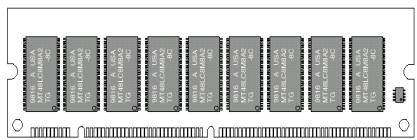
Figure 2-3 PC100/PC133 Module and Component Mark
DIMMs may be "snapped" directly into the socket. Note: Certain DIMM sockets have minor physical differences. If your module doesn't seem to fit, please do not force it into the socket as you may damaged your memory module or DIMM socket.
The following procedure will show you how to install a DIMM module into a DIMM socket.
Step 1. Before you install the memory module, please place the computer power switch in the "OFF" position and disconnect the AC power cord.
Step 2. Remove the computer's chassis cover.
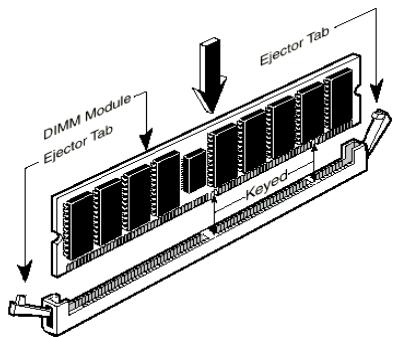
Figure 2-4. Memory module installation
Step 3. Before touching any electronic components, make sure you first touch an unpainted, grounded metal object to discharge any static electricity stored on your clothing or body.
Step 4. Locate your computer's 168-pin memory expansion DIMM socket.
Step 5. Insert the DIMM module into the expansion socket as shown in the illustration. Note how the module is keyed to the socket. You can refer to figure 2-4 for the details. This insures the DIMM module will be plugged into the socket in one way only. Firmly press the DIMM module into the DIMM socket, making certain the module is completely seated in the DIMM socket.
Step 6. Once the DIMM module has been installed, the installation is complete and the computer's cover can be replaced. Or you can continue to install other devices and add-on cards that are mentioned in the following section.
Note: When you install a DIMM module fully into the DIMM socket, the eject tab should be locked into the DIMM module very firmly and fit into its indentation on both sides.
It is difficult to differentiate between the PC100, PC133 SDRAM and VCM DRAM modules from the exterior. The only way to identify them is through the sticker on the RAM module.
2-4. Connectors, Headers and Switches
Inside the case of any computer several cables and plugs have to be connected. These cables and plugs are usually connected one-by-one to connectors located on the motherboard. You need to carefully pay attention to any connection orientation the cables may have and, if any, notice the position of the first pin of the connector. In the explanations that follow, we will describe the significance of the first pin.
We will show you all of the connectors, headers and switches here, and tell you how to connect them. Please pay attention and read the entire section for necessary information before attempting to finish all of the hardware installation inside the computer chassis.
Figure 2-5 shows you all of the connectors and headers that we'll discuss in the next section, you can use this diagram to visually locate each connector and header we describe.
All connectors, headers and switches mentioned here will depend upon your system configuration. Some features you may (or may not) have and need to connect or configure depending on the peripheral. If your system doesn't have such add-on cards or switches you can ignore some special feature connectors.
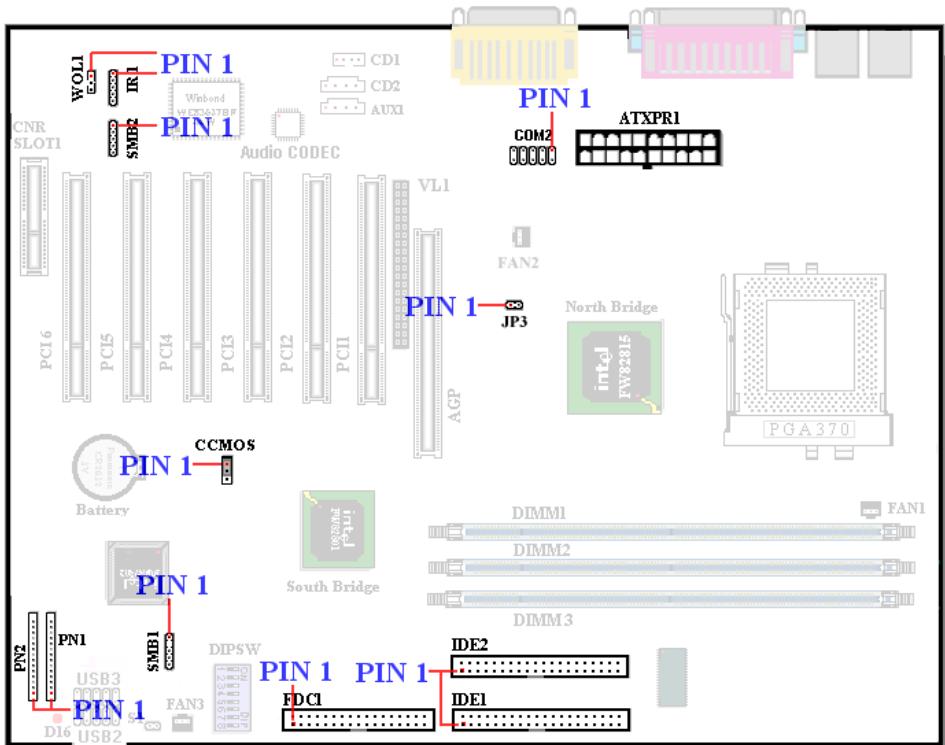
Figure 2-5. All Connectors and Headers for the SE6
First, Let's look at the headers that the SE6 uses, and what their functions are.
(1) ATXPR1:ATX Power Input Connector
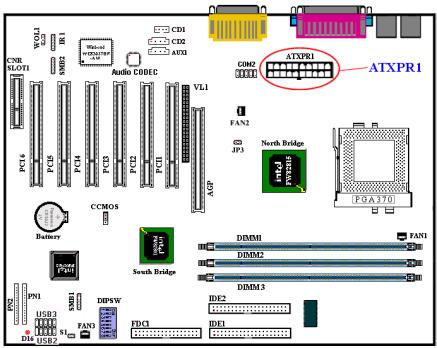
If the power supply connectors are not properly attached to the ATXPR1 power supply, the power supply or add-on cards may be damaged.
Attach the connector from the power supply to the ATXPR1 connector here. Remember you have to push the connector from the ATX power supply firmly into the ATXPR1 connector, ensuring that you have a good connection.
Note: Watch the pin position and the orientation
(2A)/(2B)/(2C): FAN1, FAN2 & FAN3 header
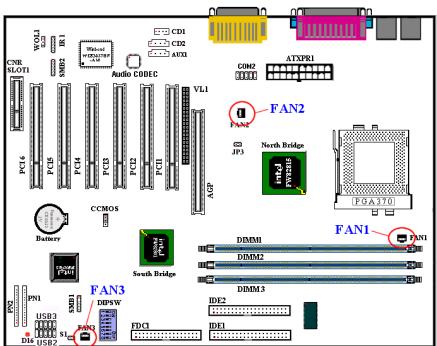
Attach the connector from the individual CPU fan to the header named FAN1. The connector from the chassis fan should be attached to the header FAN3 and the connector from the power fan to FAN2.
You must attach the CPU fan to the processor or your processor will work abnormally or may be
damaged by overheating. To keep the computer's internal temperature steady and not too high, connecting the chassis fan is imperative.
Note: Watch the pin position and the orientation
(3) IR1: IR Header (Infrared)
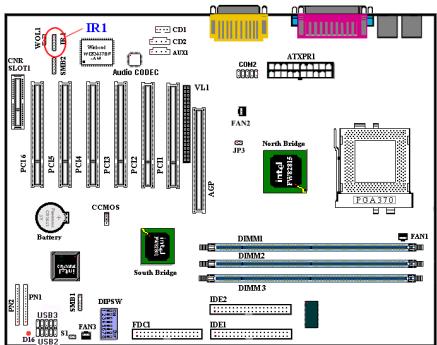
There is a specific orientation for pins 1 through 5, attach the connector from the IR KIT or IR device to the IR1 header (left row only). This motherboard supports standard IR transfer rates.
Note: Watch the pin position and the orientation
(4) WOL1: Wake on LAN Header
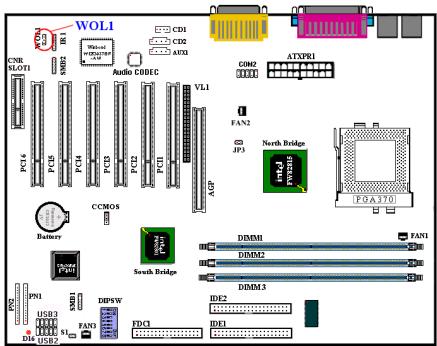
If you have a network adapter that supports this feature, then you can connect the specific cable from the network adapter to this header. This feature lets you wake up your computer via remote control through a local area network. You may need a specific utility to control the wake up event, such as the PCnet Magic Packet
utility or other similar utilities.
Note: Watch the pin position and the orientation
(5) CNR Slot: Communication Network Riser Slot
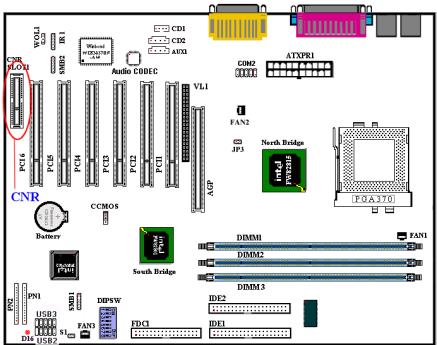
This slot is used for an optional CNR with the main objective of reducing the baseline implementation cost of features that are widely used in the "Connected PC", while also addressing specific functional limitations of today's audio, modem, and LAN subsystems.
(6) SMB1 & SMB2 Header: System Management Bus Connector
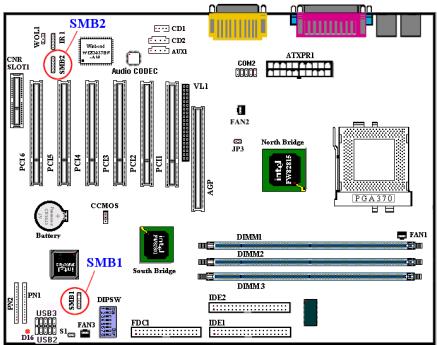
This header is reserved for system management bus (SM bus). The SM bus is a specific implementation of an I^2C bus. I^2C is a multimaster bus, which means that multiple chips can be connected to the same bus and each one can act as a master by initiating a data transfer. If more than one master simultaneously tries to
control the bus, an arbitration procedure decides which master gets priority.
Note: Watch the pin position and the orientation.
(7) JP3 Header (RT2 Thermistor):
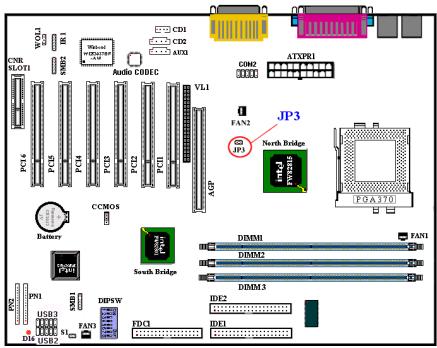
This header is a thermistor connector used for detecting the system environmental temperature. It may also be called a system temperature detector. You can attach one end of the two-threaded thermal cable (optional) to the JP3 header, then tape the other end of the thermal cable onto the CPU's heat sink. Generally speaking, the location you tape the thermistor should be as near the CPU chipset as possible and avoid having it near the CPU fan.
(8) USB2/3 Headers: Additional USB Plugs:
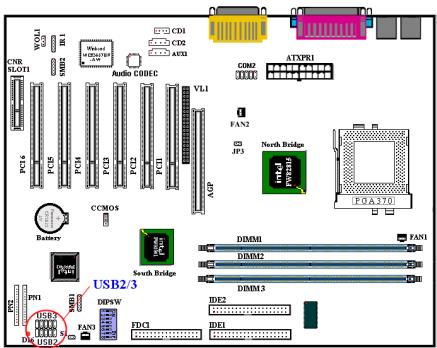
These headers are used for connecting the additional USB ports plug. You can have two additional USB plugs affixed to the back panel
by attaching an optional USB port expansion cable. There are three ways to use this additional USB port:
| USB3 | 12 | 14 | 16 | 18 | 20 |
| 2 | 4 | 6 | 8 | 10 | |
| USB2 | 1 | 3 | 5 | 7 | 9 |
| 11 | 13 | 15 | 17 | 19 |
- For using both two USB ports: Attach the optional USB port expansion cable to connect Pin 1~10 on USB2 and USB3 slot.
- For using one USB port on CNR card: Attach a jumper to short Pin 5 and 15, Pin 7 and 17. The additional USB ports plug can be attached via USB3 (Pin 2, 4, 6, 8, 10, and Pin 12, 14, 16, 18, 20), but there will be only one USB-port function available.
- For using one USB port on AGP card: Attach a jumper to short Pin 6 and 16, Pin 8 and 18. The additional USB ports plug can be attached via USB2 (Pin 1, 3, 5, 7, 9 and Pin 11, 13, 15, 17, 19), but there will be only one USB-port function available.
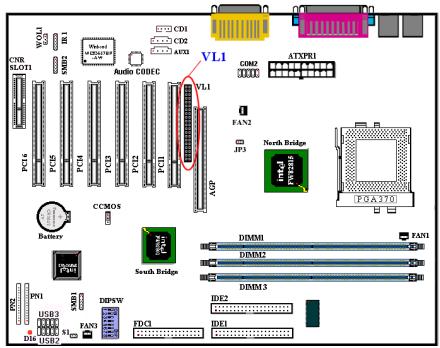
(9) VL1 Connector
This connector is used for inserting an optional add-on card to enable the on board VGA to be output to TV-Out or Flat Panel.
Its function will be unavailable if an external AGP display card is inserted.
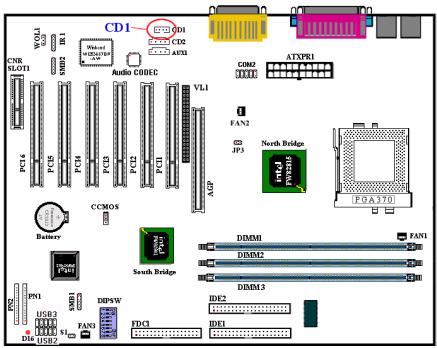
(10) CD1: Internal CD-ROM Drive Audio Cable Header
This header is for the internal CD-ROM drive audio cable connection. Please check your audio cable attached with the CD-ROM drive to see which type of connector you have and then plug it into this header.
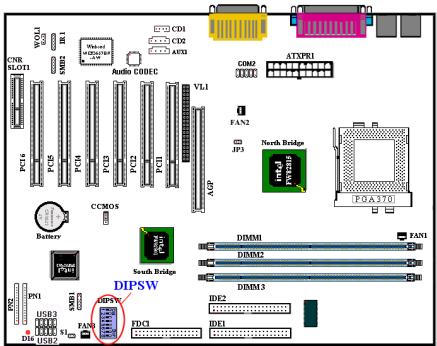
(11) DIPSW: Front Side Bus Speed Setting
DIP Switch
This switch allows you to manually setting the front side bus speed.
| DIPSW | 1 | 2 | 3 | 4 | 5 | 6 | 7 | 8 |
| On | ||||||||
| Off |
DIPSW Default Setting
(1) SW1-SW2 "ON", SW3-SW4 "OFF": Enables you to use the CPU default value (66/100/133MHz).
(2) SW1-SW2 "OFF", SW8 "ON": Enables
you to force CPU clock to be adjusted by SW3-SW4:
SW3-SW4“ON”:66MHz
Set "ON" to use CPU Frequency Strap in ICH register.
Set "OFF" to force CPU Frequency Strap to safe mode. Default setting is "ON".
(4) SW6:
Set "ON" for no reboot on 2^nd watchdog timeout.
Set "OFF" for reboot on 2^nd watchdog timeout. Default setting is "OFF".
(5) SW7:
To disable the on board AC'97 Codec (Reserved). Default setting is "OFF".
(6) SW8:
Set "ON" to None SoftMenu.
Set "OFF" to SoftMenu.
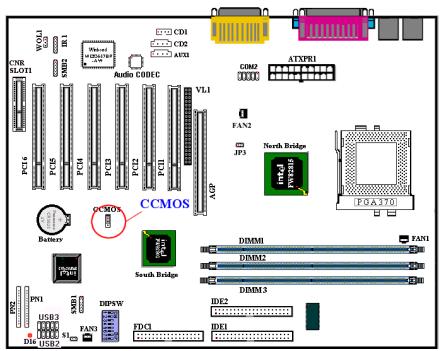
(12) CCMOS: CMOS Discharge Jumper
The jumper CCMOS discharges CMOS memory. When you install the motherboard, make sure this jumper is set for normal operation (pin 1 and 2 shorted). See figure 2-6.
Pin 1-2

321
Normal Operation (Default)
Pin 2-3

321
Discharge CMOS
Figure 2-6. CCMOS jumper setting
Note: Before you clear the CMOS, you have to first turn the power off (including the +5V standby power). Otherwise, your system may work abnormally or malfunction.
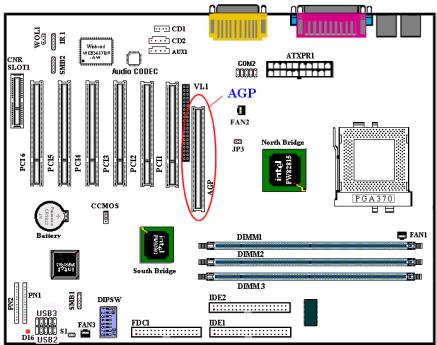
(13) AGP & AIMM (AGP Inline Memory Module) Slot
This function is used for installing an AGP Inline Memory Module (optional model RM-04). This is an optional feature to improve the on board VGA by enhancing the 3D performance.
Note: Watch the pin position and the orientation.
For enhancing the graphic performance, you can apply an optional VGA card on this slot. Note that the function of the built-in VGA graphic will be disabled if this slot is inserted with an add-on VGA card.
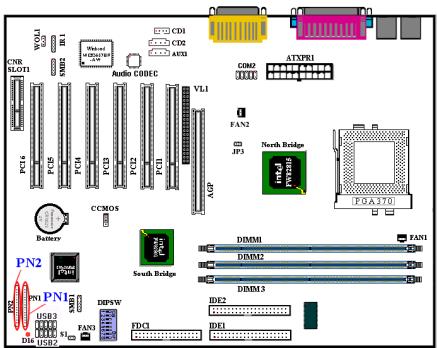
(14) PN1 and PN2 Headers
PN1 and PN2 are for switches and indicators of the chassis' front panel. There are several functions that come from these two headers. You have to watch the pin position and the orientation, or you may cause system malfunctions. Figure 2-7 shows you the functions of PN1 and PN2.
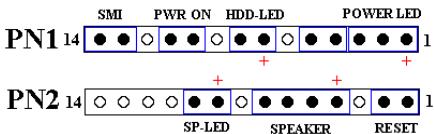
Figure 2-7. The definition of PN1 and PN2 pins
PN1 (Pin 1-2-3-4-5): Power LED Headers
There is a specific orientation for pins 1 through 3. Insert the three-threaded power LED cable to pins 1 3 Check to make sure the correct pins go to the correct connectors on the motherboard. If you install them in the wrong direction, the power LED light will not illuminate correctly.
Note: Watch the power LED pin position and orientation.
PN1 (Pin 7 - 8): HDD LED Header
Attach the cable from the case's front panel HDD LED to this header. If you install it in the wrong direction, the LED light will not illuminate correctly.
Note: Watch the HDD LED pin position and the orientation.
PN1 (Pin 10 - 11): Power on Switch Header
Attach the cable from the case's front panel power switch to this header.
PN1 (Pin 13-14): Hardware Suspend Switch (SMI Switch) Header
Attach the cable from the case's front panel suspend switch (if there is one) to this header. Use this switch to enable/disable the power management function through hardware.
PN2 (Pin 1-2): Hardware Reset Switch Header
Attach the cable from the case's front panel reset switch to this header. Press and hold the reset button for at least one second to reset the system.
PN2 (Pin 4-5-6-7): Speaker Header
Attach the cable from the system speaker to this header.
PN2 (Pin 9-10): Suspend LED Header
Insert the two-threaded suspend LED cable into pin 9 and pin 10. If you install it in the wrong direction, the LED light will not illuminate correctly.
Note: Watch the Suspend LED pin position and the orientation.
Table 2-2. PN1 and PN2 pin count name list
| PIN Name | Significance of signal |
| PN1 | |
| PIN 1 | VCC (+5VDC) |
| PIN 2 | No connection |
| PIN 3 | Power LED (-) |
| PIN 4 | Keyboard inhibit Signal |
| PIN 5 | Ground |
| PIN 6 | No connection |
| PIN 7 | VCC (+5VDC) |
| PIN 8 | HDD LED (-) |
| PIN 9 | No connection |
| PIN 10 | 5VSB |
| PIN 11 | Power On/Off |
| PIN 12 | No connection |
| PIN 13 | Ground |
| PIN 14 | Suspend signal |
| PN2 | |
| PIN 1 | Ground |
| PIN 2 | Reset input |
| PIN 3 | No connection |
| PIN 4 | VCC (+5VDC) |
| PIN 5 | Ground |
| PIN 6 | Ground |
| PIN 7 | Speaker Signal |
| PIN 8 | No connection |
| PIN 9 | VCC (+5VDC) |
| PIN 10 | Suspend LED (-) |
| PIN 11 | No connection |
| PIN 12 | No connection |
| PIN 13 | No connection |
| PIN 14 | No connection |
Now let's see the I/O connectors that the SE6 uses, and what their functions are.
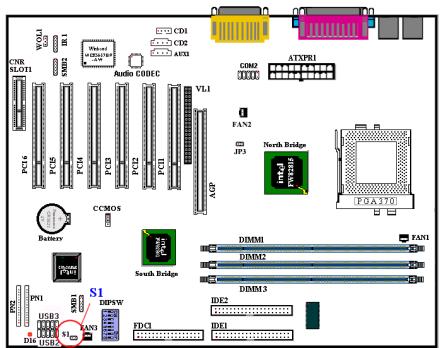
(15) S1: Chassis Intrusion Header
This header is for the connection of chassis intrusion detection.
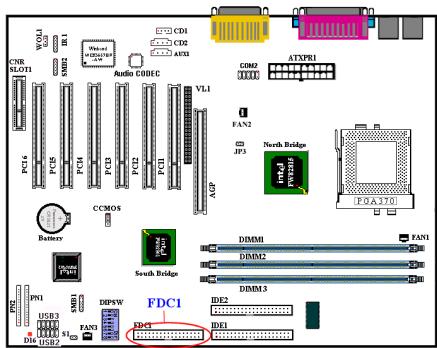
(16) FDC1 Connector
This 34-pin connector is called the "floppy disk drive connector". You can connect a 360K , 5.25^ , 1.2M , 5.25^ , 720K , 3.5^ , 1.44M , 3.5^ or 2.88M , 3.5^ floppy disk drive. You can even connect a 3 Mode floppy disk drive (a 31/2^ )
drive used in Japanese computer systems).
A floppy disk drive ribbon cable has 34 wires and two connectors to provide the connection of two floppy disk drives. After connecting the single end to the FDC1, connect the two connectors on the other end to the floppy disk drives. In general, people only install one floppy disk drive on their computer system. The connector attached to the longer length of ribbon should be attached to the motherboard connector.
Note: A red mark on a wire typically designates the location of pin 1. You need to align pin 1 of the wire to pin 1 of the FDC1 connector and then insert.
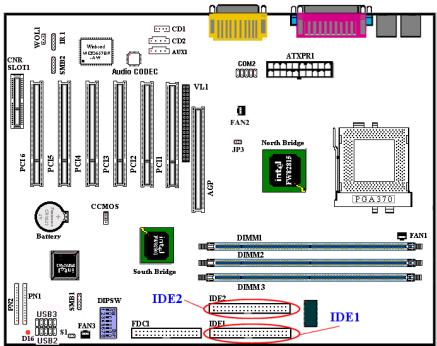
(17) IDE1 and IDE2 Connectors
An IDE hard disk drive ribbon cable has 40 wires and two connectors to provide a connection for two IDE hard disk drives. After connecting the single end to the IDE1 (or IDE2), connect the two connectors on the other end to the IDE hard disk drives (or CD-ROM drive, LS-120, etc.). Again the connector attached to the longer ribbon length should be attached to the motherboard.
Before you install a hard disk, there are some things you need to be aware of:
"Primary" refers to the first connector on the motherboard; that is, the IDE1 connector on the motherboard.
"Secondary" refers to the second connector on the motherboard; that is, the IDE2 connector on the motherboard.
Two hard disks can be connected to each connector: The first HDD is referred to as the "Master" and the second HDD is referred to as the "Slave".
For performance issues, we strongly suggest not to install CD-ROM drive on the same IDE channel as a hard disk, or the system performance on this channel may drop (for how much is depending on your CD-ROM drive performance).
Note: The Master or Slave status of the hard disk is set on the hard disk itself. Please refer to the hard disk drive user's manual.
Note: A red mark on a wire typically designates the location of pin 1. You need to align the wire pin 1 to the IDE connector pin 1, then insert the wire connector into the IDE connector.
How to install the Ultra ATA/66 Cable Assembly:
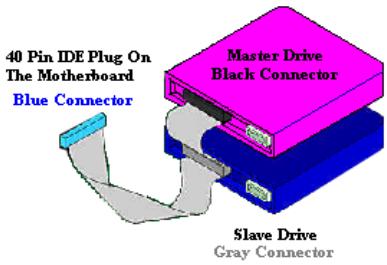
Figure 2-8. How to connect an ATA/66 cable to the Motherboard
The BLUE connector MUST be plugged into the motherboard or your system will not work.
Each connector on the Ultra ATA/66 cable assembly has a small polarization tab centrally located on the body of the plastic. This fits into the matching slot on the mating plugs on the motherboard and the drives, thus assuring positive mating (pin #1 to pin #1)
The red line on the cable should be aligned with pin #1. On the drives this will result in the red line facing the power connector. Attach the BLUE connector to the
appropriate 40-pin IDE plug on the motherboard.
- Attach the BLACK connector to the mating plug on the master hard drive. Attach the GREY connector to the mating plug on the slave drive (secondary hard drive, CD-ROM, or tape drive). Please refer figure 2-8.
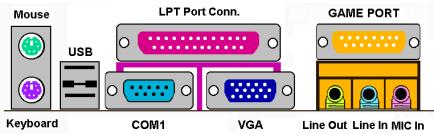
Figure 2-9. SE6 back panel connectors
Figure 2-9 shows the SE6 back panel connectors. These connectors are for connection to outside devices to the motherboard. We will describe which devices will attach to these connectors below.
(18) KM1 Lower: PS/2 Keyboard Connector
Attach a PS/2 keyboard connector to this 6-pin Din-connector. If you use an AT keyboard, you can go to a computer store to purchase an AT to ATX converter adapter. You can then connect your AT keyboard to this connector. We suggest you use a PS/2 keyboard for best compatibility.
(19) KM1 Upper: PS/2 Mouse Connector
Attach a PS/2 mouse to this 6-pin Din-connector.
(20) USB Port Connectors
This motherboard provides two USB ports. Attach the USB connector from the individual device to these connectors.
You can attach USB devices such as a scanner, digital speakers, monitor, mouse, keyboard, hub, digital camera, joystick etc. to one of each of the USB connectors. You must make sure your operating system supports this feature and you may need to install an additional driver for individual devices. Please refer to your device user's manual for detailed information.
(21) Serial Port COM1 Connector
This motherboard provides two COM ports.
You can connect an external modem, mouse or other devices that support this communication protocol to this connector.
You can decide which external device you want to connect to COM1. The COM port can only have one device connected at a time.
(22) Parallel Port Connector
This parallel port is also called an "LPT" port because it usually connects to the printer. You can connect other devices that support this communication protocol, like an EPP/ECP scanner, etc.
(23) Line Out, Line In and Mic In Connector
Line Out connector: You can connect an external stereo speaker signal input plug to this connector, or you can connect the plug from here to the stereo audio equipment AUX signal input socket. Remember, the motherboard does not have a built in amplifier to drive the speaker, so you must use a speaker that has a built in amplifier, or you may not hear any sound or only a small volume of sound from the speaker.
Line In Connector: You can connect the TV adapter audio output signal, or external audio sources, like a CD walkman, video camcorder, VHS recorder audio output signal plug to this connector. Your audio software can control the input level for the line-in signal.
Mic In Connector: You can connect the plug from the microphone to this connector. Do not connect other audio (or signal) sources to this connector.
(24) MIDI/GAME Port Connector
You can connect your joystick, game pad, or other simulation hardware device DIN 15-pin plugs to this connector. Please refer to the further connection notes of the device's user's manual for further detailed information.
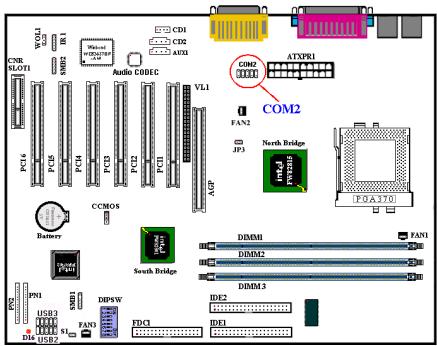
(25) COM2 Header
You can have one additional COM2 plugs affixed to the back panel by attaching an expansion cable that comes with the motherboard. Please align the red line of the cable to the pin 1 of COM2 header.
Chapter 3. Introducing the BIOS
The BIOS is a program located on a Flash Memory chip on the motherboard. This program will not be lost when you turn the computer off. This program is also referred to as the boot program. It is the only channel the hardware circuit has to communicate with the operating system. Its main function is to manage the setup of the motherboard and interface card parameters, including simple parameters such as time, date, hard disk drive, as well as more complex parameters such as hardware synchronization, device operating mode, CPU SOFT MENU™ III features and setup of CPU speed. The computer will operate normally, or will operate at its best, only if all of these parameters are correctly configured through the BIOS.

Don't change the parameters inside the BIOS unless you fully understand their meanings and consequences
The parameters inside the BIOS are used to setup the hardware synchronization or the device-operating mode. If the parameters are not correct, they will produce errors, the computer will crash, and sometimes you will not even be able to boot the computer after it has crashed. We recommend that you do not change the parameters inside the BIOS unless you are very familiar with them. If you are not able to boot your computer anymore, please refer to the section "Erase CMOS data" in Chapter 2.
When you start the computer, the BIOS program controls it. The BIOS first operates an auto-diagnostic test called POST (Power On Self Test) for all of the necessary hardware. It then configures the parameters of the hardware synchronization, and detects all of the hardware. Only when these tasks are completed does it give up control of the computer to the next level, which is the operating system (OS). Since the BIOS is the only channel for hardware and software to communicate, it is the key factor for system stability, and in ensuring that your system performs at its best. After the BIOS has achieved the auto-diagnostic and auto-detection operations, it will display the following message:
PRESS DEL TO ENTER SETUP
The message will be displayed for three to five seconds, if you press the key, you will access the BIOS Setup menu. At that moment, the BIOS will display the following screen:
CMOS Setup Utility - Copyright (C) 1984-2000 Award Software
SoftMenu III Setup
Standard CMOS Features
Advanced BIOS Features
Advanced Chipset Features
Integrated Peripherals
Power Management Setup
PnP/PCI Configurations
PC Health Status
Load Fail-Safe Defaults
Load Optimized Defaults
Set Password
Save & Exit Setup
Exit Without Saving
Change CPU's Clock & Voltage
Figure 3-1. CMOS Setup Utility
In the BIOS Setup main menu of Figure 3-1, you can see several options. We will explain these options step by step in the following pages of this chapter, but let us first see a short description of the function keys you may use here:
Press Esc to quit the BIOS Setup.
- Press (up, down, left, right) to choose, in the main menu, the option you want to confirm or to modify.
- Press F10 when you have completed the setup of BIOS parameters to save these parameters and to exit the BIOS Setup menu.
- Press Page Up/Page Down or +/- keys when you want to modify the BIOS parameters for the active option.
Computer Knowledge: CMOS Data
Maybe you have heard somebody saying that his or her CMOS DATA was lost. What is the CMOS? Is it important? The CMOS is the memory used to store the BIOS parameters that you have configured. This memory is passive. You can read its data, and you can also store data in it. But this memory has to be powered by a battery in order to avoid any loss of its data when the computer is turned off. Since you may have to change the CMOS battery when it is out of power, and if doing so you will lose all CMOS data, we recommend that you write down all the parameters of your hardware, or to put a label with these parameters on your hard disk.
3-1. CPU Setup [SOFT MENU™ III]
The CPU can be setup through a programmable switch (CPU_SOFT Menu™ III) that replaces the traditional manual hardware configuration. This feature allows the user to more easily complete the installation procedures. You can install the CPU without configuring any jumpers or switches. The CPU must be setup according to its specifications.
You can press < F1 > at any time for help.
![ABIT SE6R2 - 3-1. CPU Setup [SOFT MENU™ III] - 1](/content/2025/01/174580/images/d6241ea151a10dbeec34412879db69a3cdaa7428b69c05796741ea6f84c70d45.jpg)
Figure 3-2. CPU SOFT MENU III
CPU Name Is:
Intel Celeron MMX, Intel Pentium III MMX, VIA Cyrix III.
CPU Operating Speed:
This option sets the CPU speed. In this field, the CPU speed is indicated like this: CPU~speed = External clock x Multiplier factor, select the CPU speed according the type and the speed of your CPU. For Intel
Pentium® III and Celeron™ MMX processors, you can choose the following settings:
300 (66)
500 (66)
600 (66)
667(133)
800(133)333 (66)
500(100)
600(100)
700 (66)
850(100)366(66)
533 (66)
600 (133
700 (100)
866(133)400 (66)
533(133)
633 (66)
733 (133)
933 (133)
433 (66)
550(100)
650(100)
750 (100)
1G466(66)
566 (66)
667(66)
800(100)
User Define
User Define

Warning

The wrong settings of the multiplier and external clock in certain circumstances may cause CPU damage. Setting the working frequency higher than the PCI chipset or processor specs, may cause abnormal memory module functioning, system hangs, hard disk drive data lose, abnormal functioning of the VGA card, or abnormal functioning with other add-on cards. Using non-specification settings for your CPU is not the intention of this explanation. These should be used for engineering testing, not for normal applications.
If you use non-specification settings for normal operation, your system may not be stable, and may effect system reliability. Also, we do not guarantee the stability and compatibility for settings that are not within specification, and any damage of any elements on the motherboard or peripherals, is not our responsibility.
External Clock:
After choosing the "CPU Operating Speed" option as "Use Define", you can choose the figure of external clock from 50~250MHz.
Note: The CPU bus speed above 66MHz/100MHz/133MHz is supported but not guaranteed due to the PCI and chipset limitation.
FSB Rate (CPU:SDRAM:PCI):
You can choose the ratio among 2:3:1 3:3:1 4:3:1 4:4:1 (within the range of external clock from 5096MHz ), or 3:3:1 4:3:1 4:4:1 (within the range of external clock from 97140MHz ), or 4:3:1 4:4:1 (within the range of external clock from 140250MHz ).
Take the external clock of 66MHz for example:
If you choose the FSB ratio of 2:3:1, the figure of CPU:SDRAM:PCI will be all divided by 2, that is: CPU = 66 × 22 = 66 MHz , SDRAM = 66 × 32 = 100 MHz , PCI = 66 × 12 = 33 MHz .
And if you choose the FSB ratio of 4:3:1, the figure of CPU:SDRAM:PCI will be all divided by 4, that is: CPU = 66 × 44 = 66 MHz , SDRAM = 66 × 34 = 50 MHz , PCI = 66 × 14 = 17 MHz .
Note: An improper setting might cause the system unstable or even fail, please proceed with care.
Multiplier Factor:
You can choose from the following multiplier factors: 2.0 2.5 3.0 3.5 4.0 4.5 5.0 5.5 6.0 6.5 7.0 7.5 8.0 8.5 9.0 9.5 10.0 10.5 11.0 11.5 12.0 (The Coppermine CPU does not support the multiplier factors of 2.0 and 2.5)
Note: According to Celeron™ PPGA MMX processor types, some Celeron™ PPGA MMX processors will have the multiplier factor locked and the signal disabled. In this situation, there is no way to choose a higher multiplier factor.
System Memory Frequency:
You can select the operating frequency for the main system memory. There are three options available: 100MHz, 133MHz, and Auto. The default setting is 100MHz.
Speed Error Hold:
The default setting is "Disabled". If you change the setting to "Enabled" when the CPU speed setting is wrong, the system will hold.
Normally, we do not recommend that you use the "User Define" option to setup CPU speed and multiplier factors. This option is for setup of future CPUs whose specifications are still unknown. The specifications of all present CPUs are included in the default settings. Unless you are very familiar with all CPU parameters, it is very easy to make mistakes when you define the external clock and the multiplier factor by yourself.
Solution in case of booting problem due to invalid clock setup:
Normally, if the CPU clock setup is wrong, you will not be able to boot. In this case, turn the system off then on again. The CPU will automatically use its standard parameters to boot. You can then enter the BIOS Setup again and set up the CPU clock. If you can't enter the BIOS setup, you must try turning the system on a few times (3~4 times) or press "INSERT" when turning on, and the system will automatically use its standard parameters to boot. You can then enter BIOS SETUP again and set up the new parameters.
When you change your CPU:
This motherboard has been designed in such a way that you can turn the system on after having inserted a CPU in the socket without having to configure any jumpers or DIP switches. If you change your CPU, normally you just have to turn off the power supply, change the CPU and then set up the CPU parameters through SOFT MENU™ III. However, if the new CPU is slower than the old one (and is the same brand and type), we offer you two methods to successfully complete the CPU change operation.
Method 1: Setup up the CPU for the lowest speed for its brand. Turn the power supply off and change the CPU. Then turn the system on again, and set up the CPU parameters through SOFT MENU™ III.
Method 2: Since you have to open the computer case when you change the CPU, it could be a good idea to use the CCMOS jumper to erase the parameters of the original CPU and to enter BIOS Setup to set up CPU parameters again.
Attention: After setting up the parameters and leaving the BIOS SETUP, and having verified that the system can be booted, do not press the Reset button or turn off the power supply. Otherwise the BIOS will not read correctly, the parameters will fail and you must enter SOFT MENUTM III again to set up the parameters all over again.
CPU Power Supply:
This option allows you to switch between CPU default and user-defined voltages.
CPU Default: The system will detect the CPU type and select the proper voltage automatically. When it is enabled, the option "Core Voltage" will show the current voltage setting that is defined by the CPU and this will not be changeable. We recommend using this CPU default setting and not changing it unless the current CPU type and voltage setting can not be detected or is not correct.
User Define: This option lets the user select the voltage manually. You can change values of the "Core Voltage" option lists by using the Page Up and Page Down keys.
In-Order Queue Depth
Two options are available: 1 and 4. This item lets you set cache buffer for CPU data processing. If you are not well acquainted with this item setting, please leave it on the default setting (4).
3-2. Standard CMOS Features Setup Menu
This section contains the basic configuration parameters of the BIOS. These parameters include date, hour, VGA card, FDD and HDD settings.
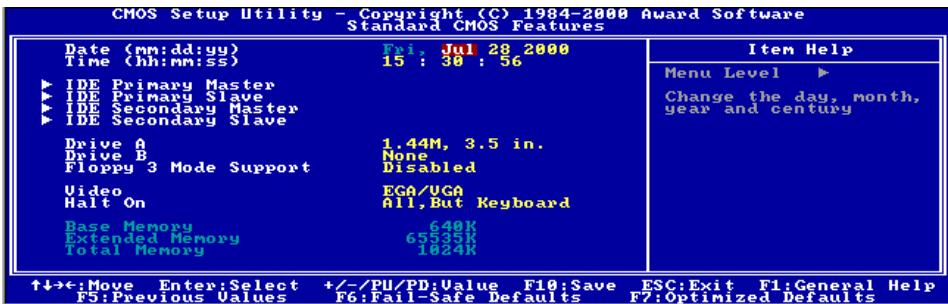
Figure 3-3. Standard CMOS Setup Screen Shot
Date (mm:dd:yy):
You can set the date in this item: month (mm), date (dd) and year (yy).
Time (hh:mm:ss):
You can set the time in this item: hour (hh), minute (mm) and second (ss).
IDE Primary Master / Slave and IDE Secondary Master / Slave:
These items have a sub-menu to let you choose further options. You can refer to figure 3-4 to check what options are available.
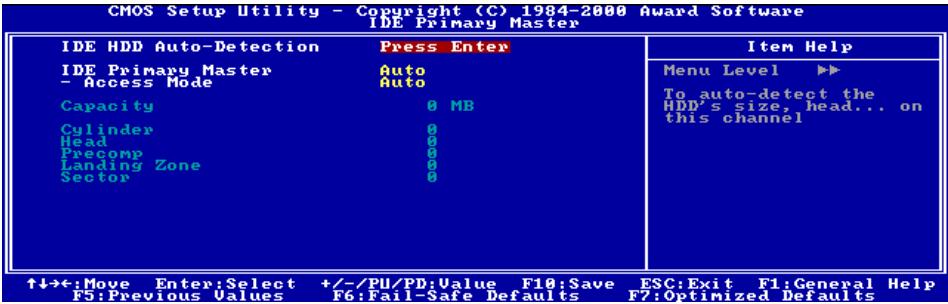
Figure 3-4. IDE Primary Master Setup Screen Shot
IDE HDD Auto-Detection:
Press the
Note 1: A new IDE HDD must be first formatted, otherwise it can not read/write. The basic step in using a HDD is to make a HDD low-level format, then run FDISK, and then FORMAT the drive. Most current HDDs have already been subjected to low-level format at the factory, so you can probably skip this operation. Remember though, the primary IDE HDD must have its partition set to active within the FDISK procedure.
Note 2: If you are using an old HDD that is already formatted, auto detection can not detect the correct parameters. You may need to do a low-level format or set the parameters manually, and then check if the HDD is working.
IDE Primary Master:
Three settings are available: Auto, Manual and None. If you choose Auto, the BIOS will automatically check what kind of hard disk you are using. If you want to set the HDD parameters yourself, make sure you fully understand the meaning of the parameters, and be sure to refer to the manual provided by the HDD manufacturer to get the settings right.
Access Mode:
Since old operating systems were only able to support HDDs with capacities no bigger than 528MB, any hard disk with more than 528MB was unusable. AWARD BIOS features a solution to this problem: you can, according to your operating system, choose four operating modes: NORMAL LBA LARGE Auto.
The HDD auto detection option in the sub-menu will automatically detect the parameters of your hard disk and the mode supported.
Auto: Lets the BIOS detect your HDD access mode and make the decisions.
Normal mode: Standard normal mode supports hard disks of up to 528MB or less. This mode directly uses positions indicated by Cylinders (CYLS), Heads, and Sectors to access data.
LBA (Logical Block Addressing) mode: The earlier LBA mode can support HDD capacities of up to 8.4GB, and this mode uses a different method to calculate the position of disk data to be accessed. It translates Cylinders (CYLS), Heads and Sectors into a logical address where data is located. The Cylinders, Heads, and Sectors displayed in this menu do not reflect the actual structure of the hard disk. They are just reference values used to calculate actual positions. Currently, all high capacity hard disks support this mode and that is why we recommend you use this mode. Currently, the BIOS can support the INT 13h extension function, enabling the LBA mode to support hard disk drive capacities exceeding 8.4GB.
Large Mode: When the number of cylinders (CYLs) of the hard disk exceeds 1024 and DOS is not able to support it, or if your operating system does not support LBA mode, you should select this mode.
Capacity: This item auto displays your HDD size. Note that this size is usually slightly greater than the size given by a disk checking program of a formatted disk.
Note: All the items below are available when you set the item "Primary IDE Master" to "Manual".
Cylinder: When disks are placed directly above one another along the shaft, the circular vertical "slice" consisting of all the tracks located in a particular position is called a cylinder. You can set the number of cylinders for a HDD. The minimum number you can enter is 0, the maximum number you can enter is 65536.
Head: This is the tiny electromagnetic coil and metal pole used to create and read back the magnetic patterns on the disk (also called the read/write head). You can configure the number of read/write heads. The minimum number you can enter is 0, the maximum number you can enter is 255.
Precomp: The minimum number you can enter is 0, the maximum number you can enter is 65536.
Warning: Setting a value of 65536 means no hard disk exists.
Landing Zone: This is a non-data area on the disk's inner cylinder where the heads can rest when the power is turned off. The minimum number you can enter is 0, the maximum number you can enter is 65536.
Sector: The minimum segment of track length that can be assigned to stored data. Sectors usually are grouped into blocks or logical blocks that function as the smallest units of data permit. You can configure this item to sectors per track. The minimum number you can enter is 0, the maximum number you can enter is 255.
Drive A & Drive B:
If you have installed the floppy disk drive here, then you can select the type of floppy drive it can support. Six options are available: None 360K, 5.25 in. 1.2M, 5.25 in. 720K, 3.5 in. 1.44M, 3.5 in. 2.88M, 3.5 in.
Floppy 3 Mode Support:
Four options are available: Disabled Driver A Driver B Both. The default setting is Disabled. 3 Mode floppy disk drives (FDD) are 312 drives used in Japanese computer systems. If you need to access data stored in this kind of floppy, you must select this mode, and of course you must have a 3 Mode floppy drive.
Video:
You can select the VGA modes for your video adapter, four options are available: EGA/VGA CGA 40 CGA 80 MONO. The default setting is EGA/VGA.
Halt On:
You can select which type of error will cause the system to halt. Five options are available: All Errors No Errors All, But Keyboard All, But Diskette All, But Disk/Key.
You can see your system memory list in the lower left box, it shows the Base Memory, Extended Memory and total Memory size configurations in your system. It is detected by the system during boot-up procedure.
3-3. Advanced BIOS Features Setup Menu
With each item, you can press
Attention: Advanced BIOS Features Setup Menu has already been set for maximum operation. If you do not really understand each of the options in this menu, we recommend you use the default values.
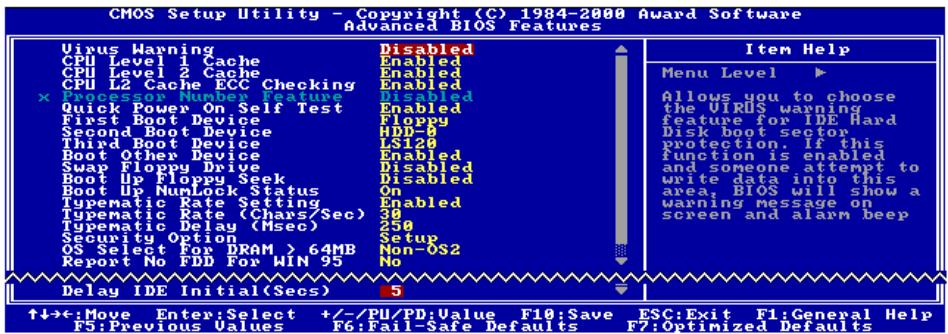
Figure 3-5. Advanced BIOS Features Setup Screen
Virus Warning:
This item can be set to Enabled or Disabled, the default setting being Disabled.
When this feature is enabled, if there is any attempt from a software or an application to access the boot sector or the partition table, the BIOS will warn you that a boot virus is attempting to access the hard disk.
CPU Level 1 Cache:
This item is used to enable or to disable the CPU level 1 cache. When the cache is set to Disabled it is much slower, so the default setting for this item is Enabled since it will speed up memory access. Some old and very poorly written programs will make the computer malfunction or crash if the system speed is too high. In this case, you should disable this feature. The default setting is Enabled.
CPU Level 2 Cache:
This item is used to enable or to disable the CPU level 2 cache. When the external cache is enabled, it will speed up memory access, and the system will work faster. The default setting is Enabled.
CPU L2 Cache ECC Checking:
This item is used to enable or to disable the CPU level 2 cache ECC checking function. The default setting is Enabled.
Processor Number Feature:
This feature can let the program read the serial number inside your processor. This feature only works
with Intel Pentium III processors. When you install a Pentium III processor into your motherboard, and when your system boots-up then this item will show up in BIOS.
Two items will be available: Enabled and Disabled. When you choose Enabled, the specific program can read your processor's serial number. When you choose Disabled it will not allow the program to read your processor's serial number. The default setting is Disabled.
Quick Power On Self Test:
After the computer has been powered on, the BIOS of the motherboard will run a series of tests in order to check the system and its peripherals. If the Quick Power on Self-Test feature is enabled, the BIOS will simplify the test procedures in order to speed up the boot process. The default setting is Enabled.
First Boot Device:
When the computer boots up, the BIOS attempts to load the operating system from the devices in the sequence selected in these items: floppy disk drive A, LS/ZIP devices, hard drive C, SCSI hard disk drive or CD-ROM. There are eleven options for the boot sequence that you can choose (The default setting is Floppy.).
Floppy LS120 HDD-0 SCSI CDROM HDD-1 HDD-2 HDD-3 ZIP100 LAN Disabled.
Second Boot Device:
Description is the same as the First Boot Device, the default setting is HDD-0.
Third Boot Device:
Description is same as the First Boot Device, the default setting is LS/ZIP
Boot Other Device:
Two options are available: Enabled or Disabled. The default setting is Enabled. This setting allows the BIOS to try three kinds of boot devices that are set from the above three items.
Swap Floppy Drive:
This item can be set as Enabled or Disabled. The default setting is Disabled. When this feature is enabled, you don't need to open the computer case to swap the position of floppy disk drive connectors. Drive A can be set as drive B and drive B can be set as drive A.
Boot Up Floppy Seek:
When the computer boots up, the BIOS detects if the system has an FDD or not. When this item is enabled, if the BIOS detects no floppy drive, it will display a floppy disk drive error message. If this item is disabled, the BIOS will skip this test. The default setting is Disabled.
Boot Up NumLock Status:
On: At boot up, the Numeric Keypad is in numeric mode. (Default Settings)
Off: At boot up, the Numeric Keypad is in cursor control mode.
Typematic Rate Setting:
This item allows you to adjust the keystroke repeat rate. When set to Enabled, you can set the two keyboard typematic controls that follow (Typematic Rate and Typematic Rate Delay). If this item is set to Disabled, the BIOS will use the default setting. The default setting is Enabled.
Typematic Rate (Chars/Sec):
When you press a key continuously, the keyboard will repeat the keystroke according to the rate you have set (Unit: characters/second). Eight options are available: 6 8 10 12 15 20 24 30 Back to 6. The default setting is 30.
Typematic Delay (Msec):
When you press a key continuously, if you exceed the delay you have set here, the keyboard will automatically repeat the keystroke according to a certain rate (Unit: milliseconds). Four options are available: 250 500 750 1000 Back to 250. The default setting is 250.
Security Option:
This option can be set to System or Setup. The default setting is Setup. After you have created a password through PASSWORD SETTING, this option will deny access to your system (System) or modification of computer setup (BIOS Setup) by unauthorized users.
SYSTEM: When you choose System, a password is required each time the computer boots up. If the correct password is not given, the system will not start.
SETUP: When you choose Setup, a password is required only when accessing the BIOS Setup. If you have not set a password in the PASSWORD SETTING option, this option is not available.
To disable security, select Set Supervisor Password at main menu and then you will be asked to enter the password. Do not type anything and just press the
Notice: Don't forget your password. If you forget the password, you will have to open the computer case and clear all information in the CMOS before you can start up the system. But by doing this, you will have to reset all previously set options.
OS Select For DRAM >64MB
When the system memory is bigger than 64MB, the communication method between the BIOS and the operating system will differ from one operating system to another. If you use OS/2, select OS2; if you are using another operating system, select Non-OS2. The default setting is Non-OS2.
Report No FDD For WIN 95:
When using Windows® 95 without a floppy drive, please set this item to Yes. Otherwise, set it to No. The default setting is No.
Delay IDE Initial (Secs):
This item is used to support some old models or special types of hard disks or CD-ROMs. They may need a longer amount of time to initialize and prepare for activation. Since the BIOS may not detect those kinds of devices during system booting. You can adjust the value to fit such devices. Larger values will give more delay time to the device. The minimum number you can enter is 0, the maximum number you can enter is 15. The default setting is 5. For best system performance, we strongly suggest you to set it to 0.
3-4. Advanced Chipset Features Setup Menu
The Chipset Features Setup Menu is used to modify the contents of the buffers in the chipset on the motherboard. Since the parameters of the buffers are closely related to hardware, if the setup is not correct or is false, the motherboard will become unstable or you will not be able to boot up. If you don't know the hardware very well, use default values (i.e. use the LOAD SETUP DEFAULTS option). The only time you might consider making any changes is if you discover that data is being lost while using your system.
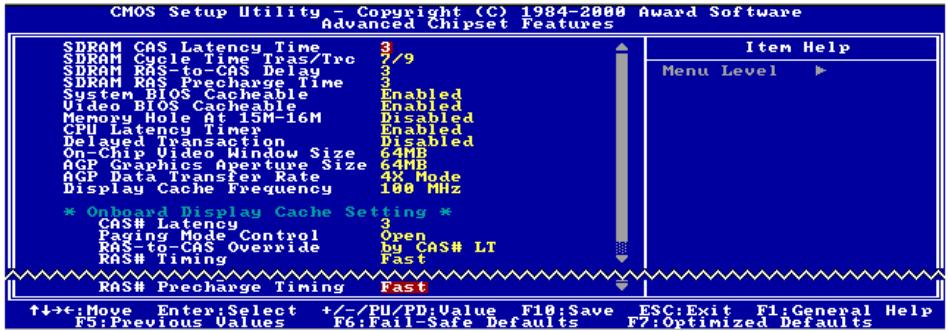
Figure 3-6. Chipset Features Setup Screen
You can use the arrow keys to move between the items. Use , and
Note: The parameters in this screen are for system designers, service personnel, and technically competent users only. Do not reset these values unless you understand the consequences of your changes.
The first chipset settings deal with CPU access to DRAM. The default timings have been carefully chosen and should only be altered if data is being lost. Such a scenario might well occur if your system has mixed speed DRAM chips installed. In such a case, greater delays may be required to preserve the integrity of the data held in the slower memory chips.
SDRAM CAS Latency Time:
Two options are available: 2 and 3. The default setting is 3. You can select SDRAM CAS (Column Address Strobe) latency time according to your SDRAM specification.
SDRAM Cycle Time Tras/Trc:
Two options are available: 5/7 and 7/9. The default setting is 7/9. This item controls the number of SDRAM clocks (SCLKs) used per access cycle.
SDRAM RAS-to-CAS Delay
Two options are available: 2 and 3. The default setting is 3. This item lets you insert a timing delay between the CAS and RAS strobe signals, used when DRAM is written to, read from, or refreshed. Fast (2) gives faster performance; and Slow(3) gives more stable performance. This item applies only when synchronous DRAM is installed in the system.
SDRAM RAS Precharge Time:
Two options are available: 2 and 3. The default setting is 3. This option lets you insert a timing delay between the CAS and RAS strobe signals, used when DRAM is written to, read from, or refreshed. Fast (2) gives faster performance; and Slow (3) gives more stable performance. This item applies only when synchronous DRAM is installed in the system.
System BIOS Cacheable:
You can select Enabled or Disabled. The default setting is Enabled. When you select Enabled allows caching of the system BIOS ROM at F0000h-FFFFH, resulting in better system performance. However, if any program writes to this memory area, a system error may result.
Video BIOS Cacheable:
You can select Enabled or Disabled. The default setting is Enabled. Enabled allows caching of the video BIOS, resulting in better system performance. However, if any program writes to this memory area, a system error may result.
Memory Hole At 15M-16M:
Two options are available: Enabled and Disabled. The default setting is Disabled. This option is used to reserve the memory block 15M-16M for ISA adapter ROM. Some special peripherals need to use a memory block located between 15M and 16M, and this memory block has a size of 1M. We recommend that you disable this option.
Delayed Transaction:
Two options are available: Enabled and Disabled. The default setting is Disabled. Set the option to enabled or disabled PCI 2.1 features including passive release and delayed transaction for the chipset. This function is used to meet the latency of PCI cycles to or from the ISA bus. This option must be enabled to provide PCI 2.1 compliance. If you have an ISA card compatibility problem, you can try to enable or disable this option for optimal results.
On-Chip Video Window Size:
Three options are available: 64MB 32MB Disabled. The default setting is 64MB . This option specifies the amount of system memory that can be used by the built-in AGP graphic data. Note that this item won't be shown when using add-on AGP card.
AGP Graphics Aperture Size:
Two options are available: 32M 64M . The default setting is 64M . This option specifies the amount of system memory that can be used by the AGP device. The aperture is a portion of the PCI memory address range dedicated for graphics memory address space. Host cycles that hit the aperture range are forwarded to the AGP without any translation. See www.agpforum.org for AGP information.
Display Cache Frequency
Two options are available: 100 MHz and 133 MHz. The default setting is 100 MHz. You can choose the running speed for local memory, but if your memory module does not support the speed you choose, it may cause a system boot failure or data loss problem.
Onboard Display Cache Setting:
When using the onboard VGA function, you had best use the default setting.
CAS# Latency:
Two options are available: 2 and 3. The default setting is 3. You can select the local memory clock periods.
Paging Mode Control:
Two options are available: Close and Open. The default setting is Open. You can select the paging mode control to open or close.
RAS-to-CAS Override:
Two options are available: by CAS# LT and Override (2). The default setting is by CAS# LT . This is the display cache clock period control.
RAS# Timing:
Two options are available: Slow and Fast. The default setting is Fast. This item controls RAS# active to Protegra, and refresh to RAS# active delay (in local memory area).
RAS# Precharge Timing:
Two options are available: Slow and Fast. The default setting is Fast. This item controls RAS# precharge (in local memory area).
3-5. Integrated Peripherals
In this menu, you can change the onboard I/O device, I/O port address and other hardware settings.
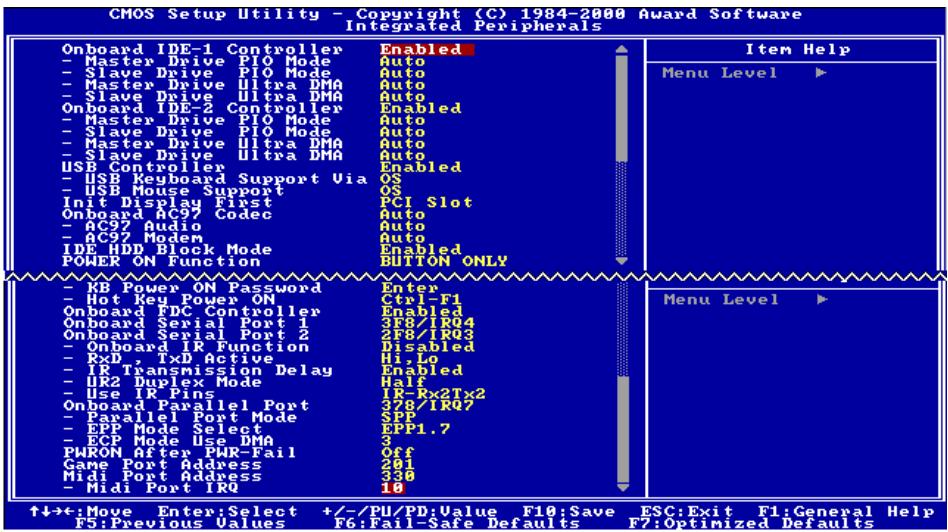
Figure 3-7. Integrated Peripherals Menu Screen
Onboard IDE-1 Controller:
The onboard IDE 1 controller can be set as Enabled or Disabled. The default setting is Enabled. The integrated peripheral controller contains an IDE interface with support for two IDE channels. If you choose Disabled, it will effect the settings of four items not available. For example, if you disabled the Onboard IDE-1 Controller, you will also disable the Master/Slave Drive PIO Mode and Master/Slave Drive Ultra DMA.
Master/Slave Drive PIO Mode:
Six options are available: Auto Mode 0 Mode 1 Mode 2 Mode 3 Mode 4. The five IDE PIO (Programmed Input/Output) items let you set a PIO mode (0-4) for each of the four IDE devices that the onboard IDE interface supports. Modes 0 through 4 provide successively increased performance. In Auto mode (default setting), the system automatically determines the best mode for each device.
Master/Slave Drive Ultra DMA:
Two options are available: Auto and Disabled. The default setting is Auto. Ultra DMA is a DMA data transfer protocol that utilizes ATA commands and the ATA bus to allow DMA commands to transfer data at a maximum burst rate of 100 MB/sec.
Ultra DMA/33 or Ultra DMA/66/100 implementation is possible only if your IDE hard drive supports it and the operating environment includes a DMA driver (Windows® 95 OSR2 / 98 / NT / 2000 or a third-party IDE bus master driver).
Auto: If your hard drive and your system software both support Ultra DMA, select Auto to enable BIOS support.
Disabled: If you encounter a problem in using Ultra DMA devices, you can try to disable this item.
Onboard IDE-2 Controller:
Description is same as the Onboard IDE-1 Controller.
USB Controller:
Two options are available: Enabled and Disabled. The default setting is Enabled. This motherboard provides two Universal Serial Bus (USB) ports, thus supporting USB devices. If you don't want to use USB devices, set it to Disabled, then the item USB Keyboard Support & USB Mouse Support will also be disabled.
USB Keyboard Support:
Two options are available: OS and BIOS. The default setting is OS . If you want to use USB keyboard in DOS environment, please set it to BIOS.
USB Mouse Support:
Two options are available: OS and BIOS. The default setting is OS. If you want to use USB mouse in DOS environment, please set it to BIOS.
Init Display First:
Two options are available: PCI Slot and Onboard/AGP. The default setting is PCI Slot. When you install additional PCI display cards, you can choose either a PCI display card or an onboard VGA chip or AGP display card to activate the display boot-up screen.
Onboard AC97 Codec:
Two options are available: Auto and Disabled. The default setting is Auto. Select "Disabled" if you want to use an optional add-on card, or both the functions of built-in and the add-on devices will be enabled.
AC97 Audio: Two options are available: Auto and Disabled. The default setting is Auto. If you set it to Auto, it will allow the BIOS to detect the audio device you use. If an audio device is detected, the onboard audio controller (815E chipset family) will be able to support it. If you want to use another audio adapter card to connect the audio connectors, please set this item to Disabled.
AC97 Modem: Two options are available: Auto and Disabled. The default setting is Auto. If you set it to Auto, it will allow the BIOS to detect the modem device you use. If a modem device is detected, the onboard modem controller (Intel® 815E chipset family) will be able to support it. If you want to use another modem adapter card to connect the modem signal connectors, please set this item to Disabled.
IDE HDD Block Mode:
Block mode is also called block transfer, multiple commands, or multiple sector read/write. If your IDE hard drive supports block mode (most new drives do), select Enabled for automatic detection of the optimal number of block read/writes per sector the drive can support. The default setting is Enabled.
Power On Function:
This item allows you to select which way you want your system to power on. Seven items are available: Password Hot Key Mouse Left Mouse Right Any Key Button Only Keyboard 98. Default setting is Button Only.
Note: The mouse wake up function can only be used with the PS/2 mouse, not with a mouse that uses the COM port and USB connection. Mouse Left (Mouse Right) means you need to double click the mouse left (right) button, for the computer to power on. You also need to note the compatibility issue with your PS/2 mouse. Some PS/2 mice cannot wake up the system because of compatibility problems. Also, if the specs of your keyboard are too old, it may fail to power on.
KB Power ON Password:
This option allows you to set a password required in order to Power ON your computer. You will be asked to enter your password and then to confirm it. Do not forget your password. Should you forget your password, you will have to open your computer case, clear the CMOS and reset all parameters again in order to be able to utilize this function.
Hot Key Power On:
There are twelve options available, <Ctrl>- F1 to <Ctrl>- F12 . You can select this item and using the <Ctrl> plus the one of each function key ( <F1> to <F12> ) to power on the computer. The default setting is <Ctrl>- F1 .
Onboard FDC Controller:
Two options are available: Enabled and Disabled. The default setting is Enabled. You can enable or disable the onboard FDD controller.
Onboard Serial Port 1:
This is used to specify the I/O address and IRQ of Serial Port 1. Six options are available: Disabled 3F8/IRQ4 2F8/IRQ3 3E8/IRQ4 2E8/IRQ3 AUTO. The default setting is 3F8/IRQ4.
Onboard Serial Port 2:
This is used to specify the I/O address and IRQ of Serial Port 1. Six options are available: Disabled 3F8/IRQ4 2F8/IRQ3 3E8/IRQ4 2E8/IRQ3 AUTO. The default setting is 2F8/IRQ3.
Onboard IR Function:
Three options are available: IrDA (HPSIR) mode ASK IR (Amplitude Shift Keyed IR) mode Disabled. The default setting is Disabled.
RxD, TxD Active:
Four options are available: Hi, Hi Hi, Lo Lo, Hi Lo, Lo. The default setting is Hi, Lo. Set IR transmission/reception polarity as High or Low.
IR Transmission Delay:
Two options are available: Enabled and Disabled. The default setting is Enabled. Set IR transmission delays 4 character-time (40 bit-time) when SIR is changed from RX mode to TX mode.
UR2 Duplex Mode:
Two options are available: Full and Half. The default setting is Half. This item lets you choose the operation mode for your IR KIT. Some IR device only can work at half duplex mode. Refer to your IR KIT user's guide to find out which setting is correct.
Use IR Pins:
Two options are available: RxD2, TxD2 and IR-Rx2Tx2. The default setting is IR - Rx2Tx2 . If you choose RxD2 , TxD2 , your motherboard must support a COM port IR KIT connection. Otherwise, you can only choose the IR - Rx2Tx2 to use the IR header on your motherboard to connect your IR KIT. Please use the default setting.
Onboard Parallel Port:
Sets the I/O address and IRQ of the onboard parallel port. Four options are available: Disable 378/IRQ7 278/IRQ5 3BC/IRQ7. Default setting is 378/IRQ7.
- Parallel Port Mode:
Four options are available: SPP EPP ECP ECP+EPP. The default setting is SPP mode.
EPP Mode Select:
Two options are available: EPP1.7 EPP1.9. The default setting is EPP 1.7. When the mode selected for the parallel port mode is EPP, the two EPP version options are available.
ECP Mode Use DMA:
Two options are available: 1 3 . The default setting is 3. When the mode selected for the parallel port mode is ECP, the DMA channel selected can be Channel 1 or Channel 3.
PWRON After PWR-Fail:
This setting lets you set the system action after a power failure. Three options are available: On Former-Sts Off. The default setting is Off.
Game Port Address:
Three options are available: Disabled 201 209. The default setting is 201. This item sets the address of the onboard game port connector.
Midi Port Address:
Four options are available: Disabled 330 300 290 . The default setting is 330. This item sets the address of the onboard midi port connector.
Midi Port IRQ:
Two options are available: 5 10 . The default setting is 10 . This item sets the IRQ of the onboard midi port connector. If you choose disable the Midi Port Address, then this field is not available.
Note: If you bought an audio adapter and wanted to replace the use of onboard audio solution, you have to disable three items in BIOS. Otherwise, your audio adapter may not work well. These three items are:
AC 97 Audio: set to Disabled
Game Port Address: set to Disabled
Midi Port Address: set to Disabled
3-6. Power Management Setup Menu
The difference between Green PCs and traditional computers is that Green PCs have a power management feature. With this feature, when the computer is powered on but inactive, the power consumption is reduced in order to save energy. When the computer operates normally, it is in Normal mode. In this mode, the Power Management Program will control the access to video, parallel ports, serial ports and drives, and the operating status of the keyboard, mouse and other device. These are referred to as Power Management Events. In cases where none of these events occur, the system enters the power saving mode. When one of the controlled events occurs, the system immediately returns to normal mode and operates at its maximum speed. Power saving modes can be divided into three modes according to their power consumption: Doze Mode, Standby Mode, and Suspend Mode. The four modes proceed in the following sequence:
Normal Mode Doze Mode Standby Mode Suspend Mode

The system consumption is reduced according the following sequence:
Normal > Doze > Standby > Suspend
- In the Main Menu, select "Power Management Setup" and press
. The following screen is displayed:
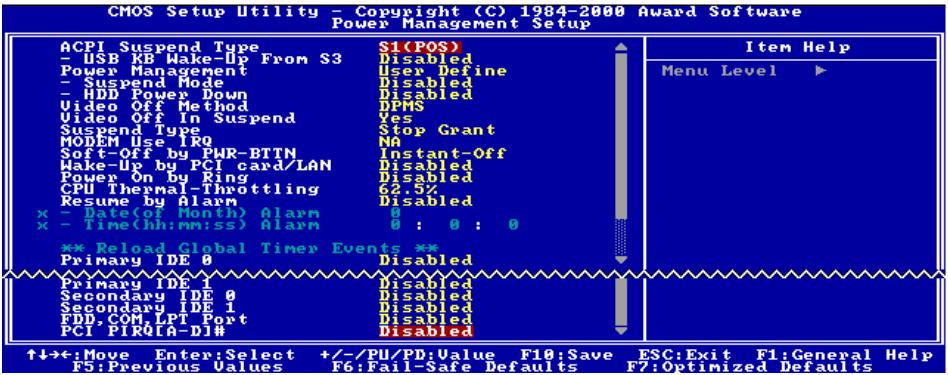
Figure 3-8. Power Management Setup Menu
- Use the arrow keys to go to the item you want to configure. To change the settings, use , and
key. - After you have configured the power management feature, press <Esc> to go back to the Main Menu.
If you want ACPI functions to work normally, you should notice two things. One is your operating system must support ACPI. Now the Windows® 98, Windows® 2000, and Windows® Millennium all supports these functions. The second thing is that all devices and add-on cards in your system must fully support ACPI, both hardware and software (drivers). If you want to know if your devices or add-on cards support ACPI or not, please contact the device or add-on card manufacturer for more information. If you want to know more about ACPI specifications, please go to the address below for more detailed information:
http://www.teleport.com/\~acpi/acpihtm1/home.htm
ACPI requires an ACPI-aware operating system. ACPI features include:
- Plug and Play (including bus and device enumeration) and APM functionality normally contained in the BIOS.
- Power management control of individual devices, add-in cards (some add-in cards may require an ACPI-aware driver), video displays, and hard disk drives.
- A Soft-off feature that enables the operating system to power off the computer.
Support for multiple wake-up events (see Table 3-1). - Support for a front panel power and sleep mode switch. Table 3-2 describes the system states based on how long the power switch is pressed, depending on how ACPI is configured with an ACPI-aware operating system.
System States and Power States:
Under ACPI, the operating system directs all system and device power state transitions. The operating system puts devices in and out of low-power states based on user preferences and knowledge of how devices are being used by applications. Devices that are not being used can be turned off. The operating system uses information from applications and user settings to put the system as a whole into a low-power state.
Table 3-1: Wake Up Device and Events
The table below describes which devices or specific events can wake the computer from specific states.
| These device/events can wake up the computer...... | ......from this state |
| Power switch | Sleeping mode or power off mode |
| RTC alarm | Sleeping mode or power off mode |
| LAN | Sleeping mode or power off mode |
| Modem | Sleeping mode or power off mode |
| IR command | Sleeping mode |
| USB | Sleeping mode |
| PS/2 keyboard | Sleeping mode or power off mode |
| PS/2 mouse | Sleeping mode or power off mode |
Table 3-2: Effect of Pressing the Power Switch
| If the system is in this state...... | ......and the power switch is pressed for | ......the system enters this state |
| Off | Less than four seconds | Power on |
| On | More than four seconds | Soft off/Suspend |
| On | Less than four seconds | Fail safe power off |
| Sleep | Less than four seconds | Wake up |
ACPI Suspend Type:
Two options are available: S1(POS) and S3(STR). The default setting is S1(POS) . Generally, ACPI has six states: System S0 state, S1, S2, S3, S4, S5. S1 and S3 states are described below:
The S1 (POS) State (POS means Power On Suspend):
While the system is in the S1 sleeping state, its behavior is as described below:
- The processor is not executing instructions. The processor's complex context is maintained.
- Dynamic RAM context is maintained.
- Power Resources are in a state compatible with the system S1 state. All Power Resources that supply a System Level reference of S0 are in the OFF state.
- Devices states are compatible with the current Power Resource states. Only devices which solely reference Power Resources which are in the ON state for a given device state can be in that device state. In all other cases, the device is in the D3 (off) state.
- Devices that are enabled to wake the system and that can do so from their current device state can initiate a hardware event which transitions the system state to S0. This transition causes the processor to continue execution where it left off.
To transition into the S1 state, the operating software does not have to flush the processor's cache.
The S3 (STR) State (STR means Suspend to RAM):
The S3 state is logically lower than the S2 state and is assumed to conserve more power. The behavior of this state is defined as follows:
- Processor is not executing instructions. The processor complex context is not maintained.
- Dynamic RAM context is maintained.
- Power Resources are in a state compatible with the system S3 state. All Power Resources that supply a System Level reference of S0, S1, or S2 are in the OFF state.
- Devices states are compatible with the current Power Resource states. Only devices which solely reference Power Resources which are in the ON state for a given device state can be in that device state. In all other cases, the device is in the D3 (off) state.
- Devices that are enabled to wake the system and that can do so from their current device state can initiate a hardware event which transitions the system state to S0. This transition causes the processor to begin execution at its boot location. The BIOS performs initialization of core functions as required to exit an S3 state and passes control to the firmware resume vector. Please see the ACPI Specification Rev. 1.0 book section 9.3.2 for more details on BIOS initialization.
From the software point of view, this state is functionally the same as the S2 state. The operational difference can be that some Power Resources that could be left ON in the S2 state might not be available to the S3 state. As such, additional devices can be required to be in logically lower D0, D1, D2, or D3 state for S3 than S2. Similarly, some device wake events can function in S2 but not S3.
Because the processor context can be lost while in the S3 state, the transition to the S3 state requires that the operating software flush all dirty cache to DRAM.
- The information above for system S0 & S3 were refer to ACPI Specification Rev. 1.0.
USB KB Wake-Up From S3:
Two options are available: Enabled and Disabled. Default setting is Disabled.
Power Management:
This item allows you to select the type (or degree) of power saving and is directly related to the following modes: (1) Suspend Mode and (2) HDD Power Down.
There are three options for power management, two of which have fixed mode settings:
User Define: "User Define" defines the delay for accessing the power modes.
Suspend Mode: Disabled 1 Min 2 Min 4 Min 8 Min 12 Min 20 Min 30 Min 40 Min 1 Hour. The default setting is Disabled.
HDD Power Down: Disabled 1 Min 2 Min 3 Min 4 Min 5 Min 6 Min 7 Min 8 Min 9 Hour 10 Min 11 Min 12 Min 13 Min 14 Min 15 Min. The default setting is Disabled.
Min Saving: When these two saving modes are enabled, the system is set up for minimum power savings.
Suspend Mode = 1 Hour
HDD Power Down = 15Min
Max Saving: When the two saving modes are enabled, the system is set up for maximum power savings.
Suspend Mode = 1 Min.
HDD Power Down = 1 Min.
Video Off Method:
Three video off methods are available: "Blank Screen", "V/H SYNC + Blank" and "DPMS". The default is "DPMS".
If this setting does not shut off the screen, select "Blank Screen". If your monitor and video card support DMPS standard, select "DPMS".
Blank Screen: This option only writes blanks to the video buffer.
V/H SYNC + Blank: This selection will cause the system to turn off the vertical and horizontal synchronization ports and write blanks to the video buffer.
DPMS: Initial display power management signaling.
Video Off In Suspend:
Two options are available: Yes or No. The default setting is Yes. This item determines the manner in which the monitor is blanked.
Suspend Type:
Two options are available: Stop Grant and PwrOn Suspend. The default setting is Stop Grant.
Modem Use IRQ:
You can specify the IRQ for modem use. Eight options are available: N/A 3 4 5 7 9 10 11. The default setting is N / A .
Soft-Off by PWR-BTTN:
Two options are available: Instant-Off and Delay 4 Sec.. The default setting is Instant-Off. Pressing the power button for more than four seconds forces the system to enter the Soft-Off state when the system has "hung".
Wake-Up by PCI card/LAN:
Two options are available: Enabled and Disabled. Default setting is Disabled. This item can let you wake
up your computer by PCI devices. For instance, if you had installed a PCI LAN card with Wake-Up on LAN capability, then you could wake-up your computer from another computer via a network by sending a wake-up frame signal. This feature also allows the PCI card built-in hardware function to support the wake up function without special cables connected to the motherboard.
Note: This feature needs a specific network interface which is optional. Also your ATX power supply +5V standby power must be at least 720mA compatible.
Power On by Ring:
Two options are available: Enabled and Disabled. Default setting is Disabled. If you connect an external modem to the onboard serial port, the system will be turned on when a telephone ring-up occurs.
CPU Thermal-Throttling
This option is used during Suspend To RAM (STR) mode. It controls the CPU speed as a percentage of regular power. The options include 87.5% , 75.0% , 62.5% , 50.0% , 37.5% , 25.0% , 12.5% . The default setting is set at 62.5% .
Resume by Alarm:
Two options are available: Enabled and Disabled. Default setting is Disabled. The RTC alarm can turn on the system. You can set Date (of month) and Time (hour, minute, and second) when you set this item to Enabled.
Reload Global Timer Events
When one of the specified events occurs, the count down made for entry in power saving mode goes back to zero. Since the computer will enter a power saving mode only after an inactivity delay specified (time specific for Doze, Standby and Suspend modes) and after it has no activity, during this time period, any event will cause the computer to re-count the time elapsed. Resume events are operations or signals that cause the computer to resume time counting.
IDE Primary Master / IDE Primary Slave:
Two options are available: Enabled and Disabled. The default setting is Disabled. If any primary IDE master/slave I/O activity occurs, it will cause the computer to re-count the time elapsed.
IDE Secondary Master / IDE Secondary Slave:
Two options are available: Enabled and Disabled. Default setting is Disabled. If any secondary IDE master/slave I/O activity occurs, it will cause the computer to re-count the time elapsed.
FDD, COM, LPT Port:
Two options are available: Enabled and Disabled. Default setting is Enabled. If any floppy disk, COM ports and Parallel port I/O activity occurs, it will cause the computer to re-count the time elapsed.
PCIPIRQ[A-D]#:
Two options are available: Enabled and Disabled. Default setting is Disabled. If any INTA~INTD signal activity occurs, it will cause the computer to re-count the time elapsed.
3-7. PnP/PCI Configurations
This section describes configuring the PCI bus system. PCI, or Personal Computer Interconnect, is a system which allows I/O devices to operate at speeds nearing the speed the CPU itself uses when communicating with its own special components. This section covers some very technical items and it is strongly recommended that only experienced users should make any changes to the default settings.
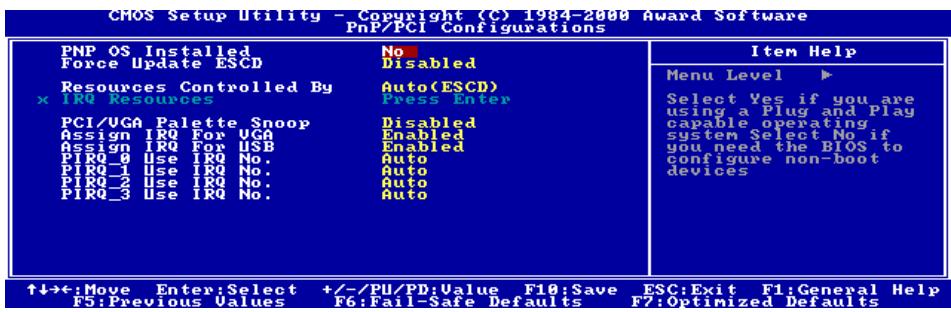
Figure 3-9. PnP/PCI Configurations Setup Screen Shot
PNP OS Installed:
Two options are available: No and Yes. Default setting is No. Device resource assigned by PnP OS or BIOS.
Force Update ESCD:
If you want to clear ESCD data next time you boot up, and ask the BIOS to reset the settings for the Plug & Play ISA Card and the PCI Card, select Enabled. But the next time you boot up, this option will automatically be set as Disabled.
Resources Controlled By:
Two options are available: Auto(ESCD) and Manual. Default setting is Auto(ESCD). When the setting is Auto(ESCD), the IRQ Resources and Memory Resources can not be changed. When resources are controlled manually, the IRQ Resources and Memory Resources can then be changed.
Legacy ISA devices compliant with the original PC AT bus specification, requiring a specific interrupt (such as IRQ4 for serial port 1).
PCI/ISA PnP devices compliant with the Plug and Play standard, whether designed for the PCI or ISA bus architecture.
The Award Plug and Play BIOS has the capability to automatically configure all of the boot and Plug and Play compatible devices. If you select Auto (ESCD), The IRQ Resources item will be disabled, as the BIOS automatically assigns them. But if you have trouble in assigning the interrupt resources automatically, you can select Manual to set which IRQ and DMA are assigned to PCI/ISA PnP or legacy ISA cards.
Figure 3-10 shows you the screen of IRQ resources. Each item has two options: PCI Device and Reserved. The default setting is PCI Device.
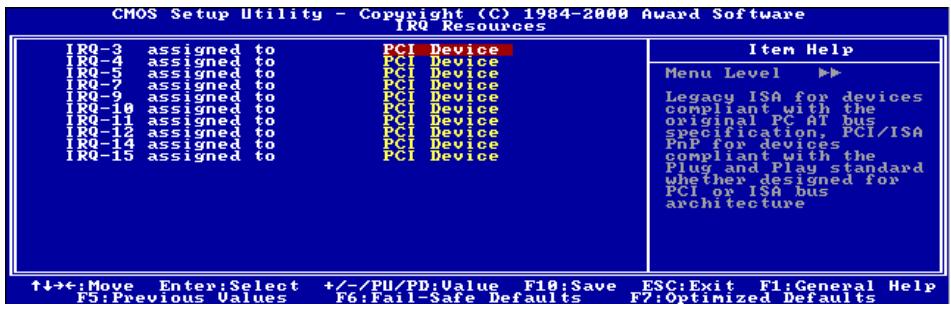
Figure 3-10. IRQ Resources Setup Screen Shot
PCI/VGA Palette Snoop:
This option allows the BIOS to preview VGA Status, and to modify the information delivered from the Feature Connector of the VGA card to the MPEG Card. This option can solve the display inversion to black after you have used the MPEG card.
Assign IRQ For VGA :
Two options are available: Disabled or Enabled. The default setting is Enabled. Name the interrupt request (IRQ) line assigned to the USB/VGA/ACPI (if any) on your system. Activity of the selected IRQ always awakens the system.
You can assign an IRQ for the PCI VGA or Disabled.
Assigned IRO For USB:
Two options are available: Disabled or Enabled. The default setting is Enabled. If you need another IRQ to be freed up, you can choose to disable this item, and you can get an IRQ. But in some situations in Windows® 95 it may cause the USB port to malfunction or have other problems!
PIRO0~PIRO3:
Eleven options are available: Auto, 3, 4, 5, 7, 9, 10, 11, 12, 14, 15. Default setting is Auto. This item allows the system to automatically specify the IRQ number for the device installed on PCI slots. Which means, the system can specify the fixed IRQ number for the device installed on the PCI slots (PCI slot 1 to PCI slot 6). This is a useful function when you want to fix the IRQ for a specific device.
For example, if you want to move your hard disk to another computer and don't want to re-install Windows NT, then you can specify the IRQ for the device installed on the new computer to fit the original computer settings.
Note: If you specify the IRQ in this item, then you cannot specify the same IRQ to the ISA bus, otherwise, it will cause a hardware conflict.
This feature is for the operating system that will record and fix the PCI configuration status, if you want to change it.
For the relations between the hardware layout of PIRQ (the signals from the ICH chipset), INT# (means PCI slot IRQ signals) and devices, please refer to the table below:
| Signals | PCI slot 1 PCI slot 5 | PCI slot 2 PCI slot 6 | PCI slot 3 | PCI slot 4 |
| INT Pin 1 Assignment | INT A | INT B | INT C | INT D |
| INT Pin 2 Assignment | INT B | INT C | INT D | INT A |
| INT Pin 3 Assignment | INT C | INT D | INT A | INT B |
| INT Pin 4 Assignment | INT D | INT A | INT B | INT C |
Each PCI slot has four INTs (INT A~INT D).
3-8. PC Health Status
You can set the warning temperature for your computer system, and you can check the fan speeds and power supply voltages of your computer system. The features are useful for monitoring all the important parameters within your computer system. We call it the PC Health Status.
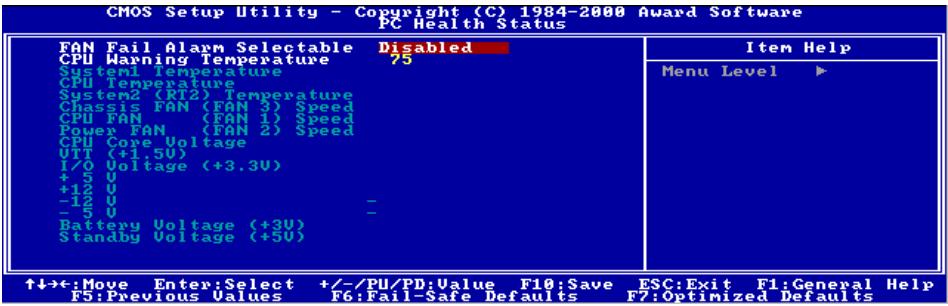
Figure 3-11. PC Health Status Screen Shot
FAN Fail Alarm Selectable:
This item lets you select which one of the fans will be monitored for malfunction. The options are: Disabled Chassis Fan CPU Fan Power Fan Auto. The default setting is Disabled.
CPU Warning Temperature:
This item lets you select the temperature at which you want the system to send out a warning message to the PC speakers of when the temperature goes beyond either limit. You can select the temperatures you want. The ranges are from 30^ / 86^ to 120^ / 248^ , default setting is 75^ / 167^ .
All Voltages, Fans Speed and Thermal Monitoring:
These items list the current states of the CPU and environment (using RT1 and RT2 to detect them.) temperatures as well as fan speeds (CPU fan and chassis fan). It can not be changed by the user.
The following items list the voltage states of the system power. It is also unchangeable.
Note: The hardware monitoring features for temperatures, fans and voltages will occupy the I/O address from 294H to 297H. If you have a network adapter, sound card or other add-on cards that might use those I/O addresses, please adjust your add-on card I/O address, to avoid the use of those addresses.
3-9. Load Fail-Safe Defaults
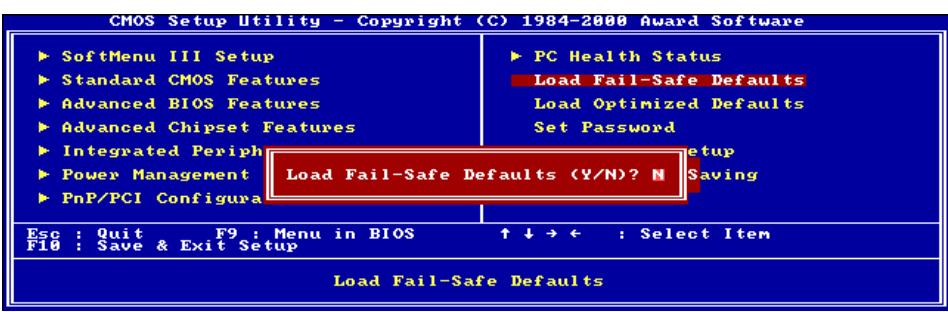
Figure 3-12. Load Fail-Safe Defaults Screen Shot
When you press
Load Fail-Safe Defaults (Y/N)? N
Pressing "Y" loads the BIOS default values for the most stable, minimal-performance system operations.
3-10. Load Optimized Defaults
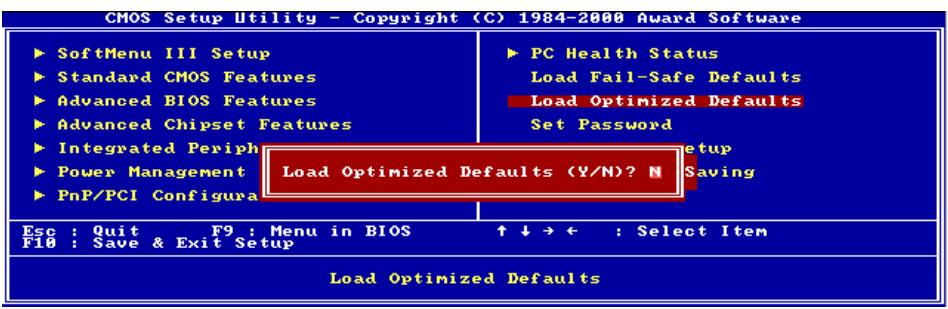
Figure 3-13. Load Optimized Defaults Screen Shot
When you press
Load Optimized Defaults (Y/N)? N
Pressing "Y" loads the default values that are factory settings for optimal performance system operations.
3-11. Set Password
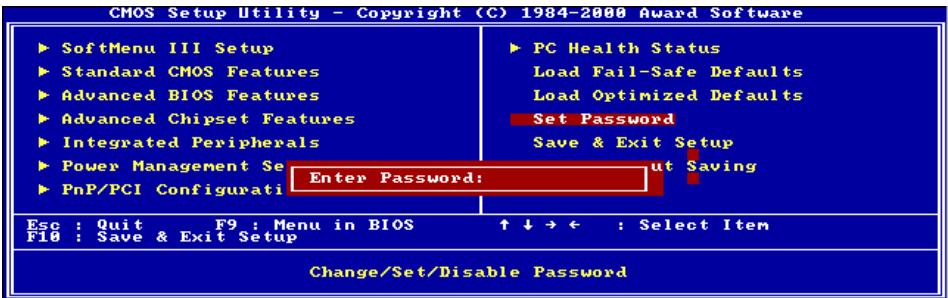
Figure 3-14. Set Password Screen Shot
Set Password: You can enter but do not have the right to change the options of the setup menus. When you select this function, the following message will appear at the center of the screen to assist you in creating a password.
ENTER PASSWORD:
Type the password, up to eight characters in length, and press
To disable a password, just press
TOKEN DISABLED.
When a password has been enabled, you will be prompted to enter it every time you try to enter Setup. This prevents an unauthorized person from changing any part of your system configuration.
Additionally, when a password is enabled, you can also require the BIOS to request a password every time your system is rebooted. This would prevent unauthorized use of your computer.
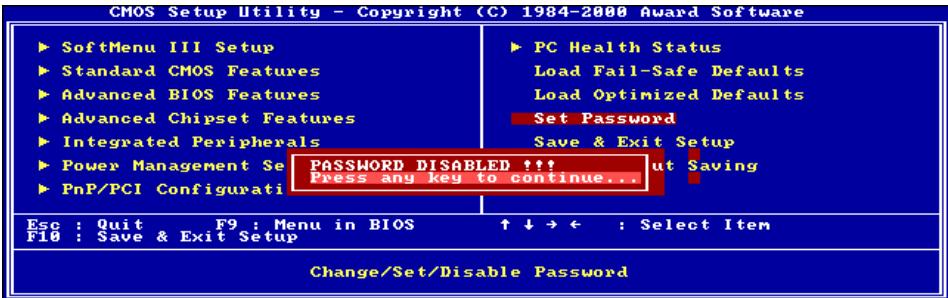
Figure 3-15. Password Disabled Screen Shot
You determine when the password is required within the BIOS Features Setup Menu and its Security option. If the Security option is set to "System", the password will be required both at boot and at entry to Setup. If set to "Setup", the prompting only occurs when trying to enter Setup.
3-12. Save & Exit Setup
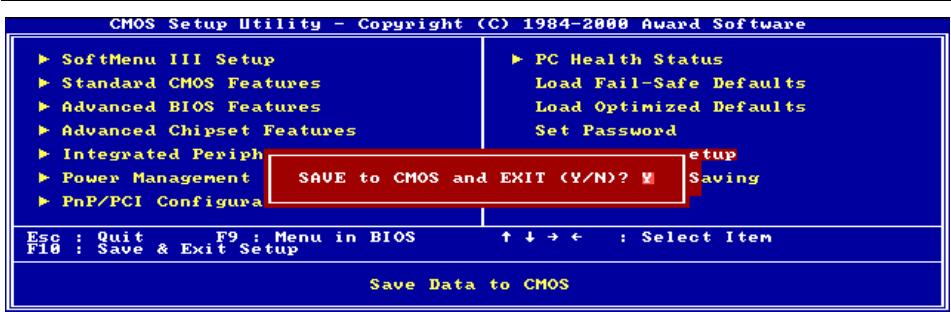
Figure 3-16. Save & Exit Setup Screen Shot
Pressing
Save to CMOS and EXIT (Y/N)? Y
Pressing "Y" stores the selections made in the menus in CMOS - a special section of memory that stays on after you turn your system off. The next time you boot your computer, the BIOS configures your system according to the Setup selections stored in CMOS. After saving the values the system is restarted again.
3-13. Exit Without Saving
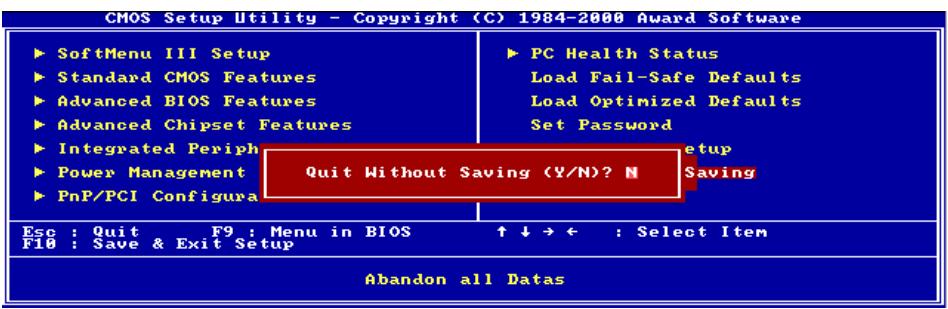
Figure 3-17. Exit Without Saving Screen Shot
Pressing
Quit without saving (Y/N)? Y
This allows you to exit Setup without storing in CMOS any change. The previous selections remain in effect. This exits the Setup utility and restarts your computer.
Appendix A. INF Installation Utility for Windows® 98 SE
After you've installed Windows® 98, you need to install the driver for your IDE & USB devices. We will tell you step by step in the following section how to do this.
Note: You have to install the INF Installation Utility before you install the VGA and audio driver. After installing Windows the quality of your display will be poor because it will be set to 640480 and 16 color. For the best screen capture quality, install the VGA driver and set the desktop to 800600 using True Color.
Note: Details of the Windows® 98 SE operating system will not be mentioned in this manual. If you have any problems with Windows® 98 SE installation, operations and settings, please refer to your Windows® 98 SE user's manual or other resources provided by Microsoft Corporation.
Insert the SE6 CD-Title into your CD-ROM drive, it should execute the program automatically. If not, you can go to the CD location and execute the execution file at the main directory of this CD-Title. After it has been executed you will see the screen below.
Move the cursor to "Drivers" and click on it to go on.
Move the cursor to "Intel INF Installation Utility" and click on it to go on.
Move the cursor to "Install" and click on it to go on.
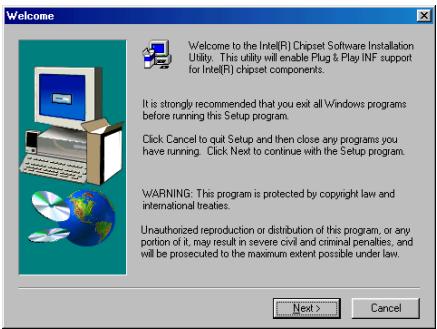
The Welcome screen appears. Click "Next" to go on.
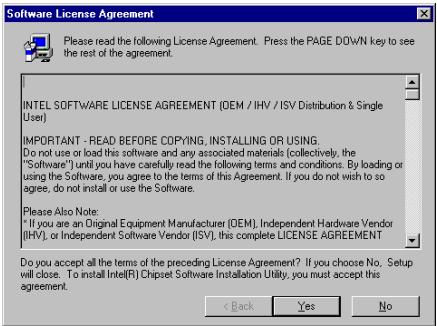
The License screen appears. Read it and click "Yes" to go on.
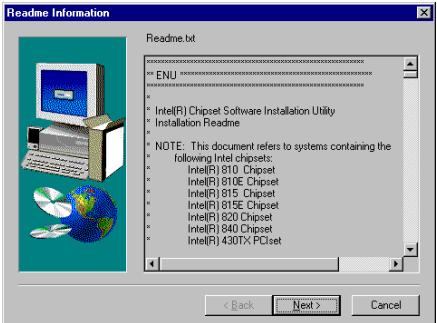
Read this "Readme Information" and click "Next> to go on.
The install shield is now loading.
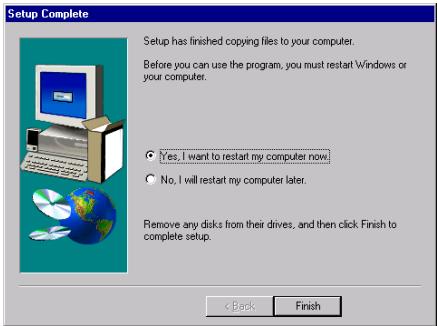
Choose "Yes, I want to restart my computer now", and click "Finish" to end the installation.
Appendix B. Installing the VGA Driver for Windows® 98 SE
Now we will show you how to install the VGA driver to your Windows® 98 SE operating system in this section.
Insert the SE6 CD-Title into your CD-ROM drive, it should execute the program automatically. If not, you can go to the CD location and execute the execution file at the main directory of this CD-Title. After it has been executed you will see the screen below.
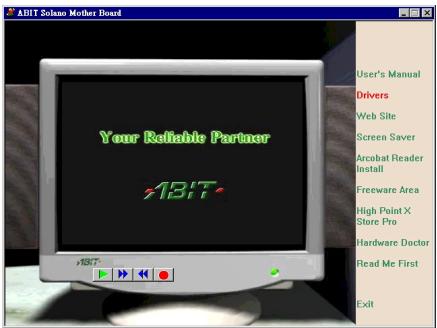
Move the cursor to "Drivers" and click on it to go on.
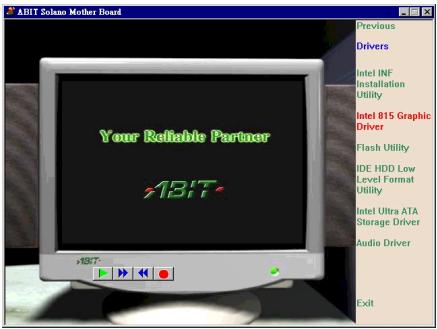
Move the cursor to "Intel 815 Graphic Driver" and click on it to go on.
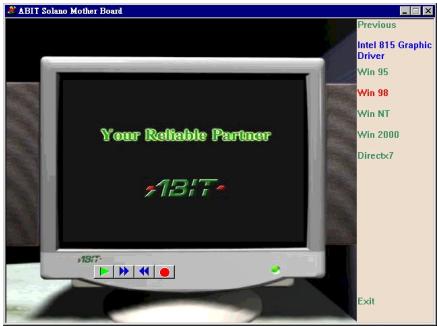
Move the cursor to "Win 98" and click on it to go on.
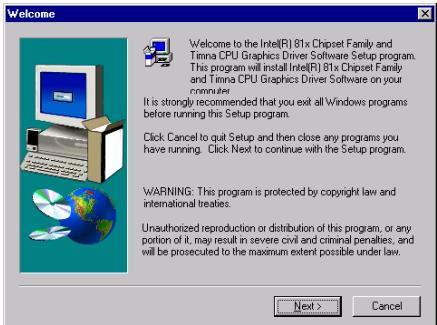
The Welcome screen appears. Read it and click "Next" to go on.
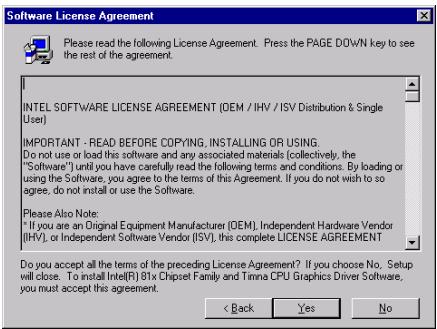
The License screen appears. Click "Yes" to go on.
The install shield is now loading.
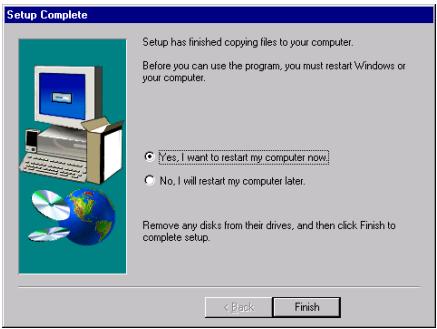
Choose "Yes, I want to restart my computer now", and click "Finish" to end the installation.
Appendix C. Installing the Audio Driver for Windows® 98 SE
We will show you how to install the audio driver for Windows® 98 SE operating system.
Insert the SE6 CD-Title into your CD-ROM drive, it should execute the program automatically. If not, you can go to the CD location and execute the execution file at the main directory of this CD-Title. After it has been executed you will see the screen below.
Move the cursor to "Drivers" and click on it to go on.
Move the cursor to "Audio Driver" and click on it to go on.
Move the cursor to "RealTek ALC100/200(for SE6)" and click on it to go on.
Move the cursor to "Win 98" and click on it to go on.
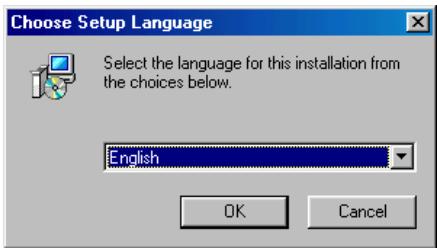
Choose the language for this installation.
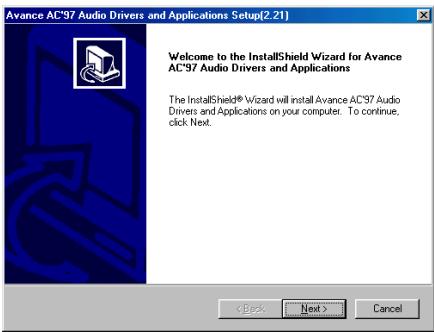
The Welcome screen appears. Click "Next" to go on.
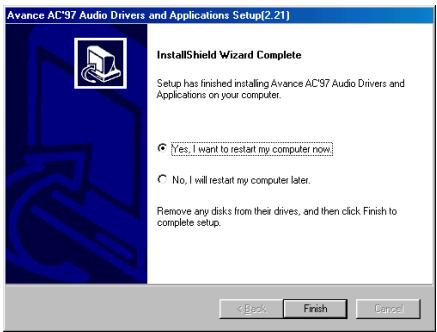
Choose "Yes, I want to restart my computer now", and click "Finish" to end the installation.
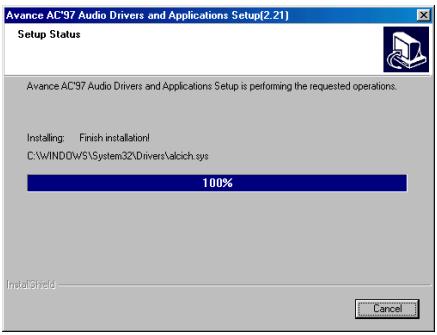
The install shield is now loading.
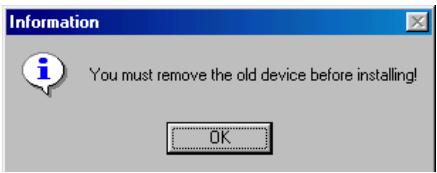
Click "OK" to go on.
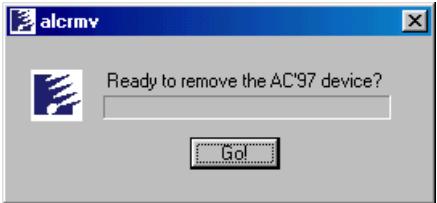
Click "Go!" to go on.
Appendix D. ATA Installation Utility for Windows® 98 SE
In this section we will detail the Ultra ATA installation procedure.
Insert the SE6 CD-Title into your CD-ROM drive, it should execute the program automatically. If not, you can go to the CD location and execute the execution file at the main directory of this CD-Title. After it has been executed you will see the screen below.
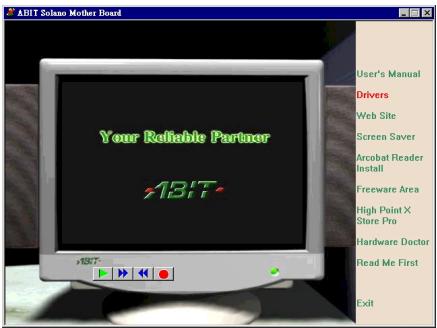
Move the cursor to "Drivers" and click on it to go on.
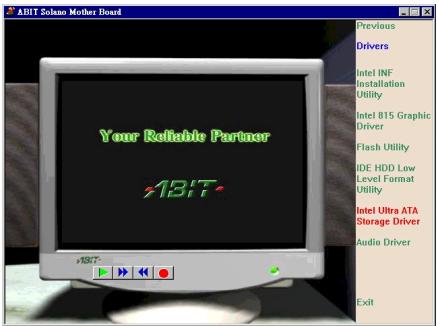
Move the cursor to "Intel Ultra ATA Storage Driver" and click on it to go on.
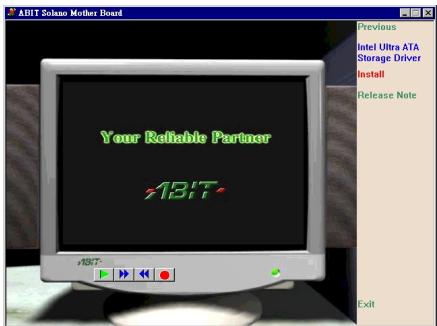
Move the cursor to "Install" and click on it to go on.
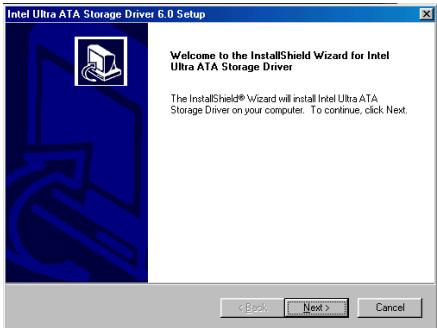
The Welcome screen appears. Click "Next" to go on.
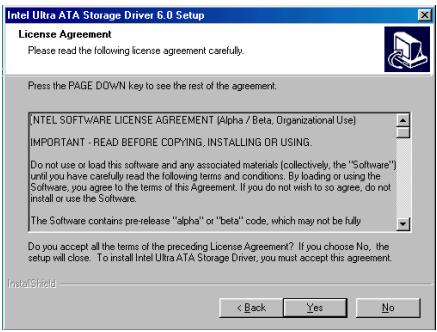
The License screen appears. Read it and click "Yes" to go on.
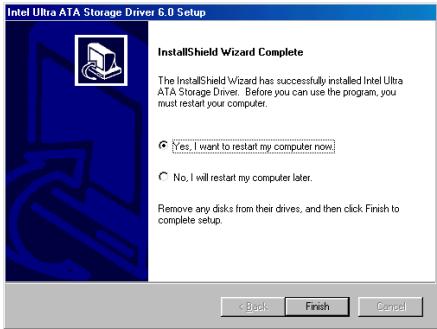
Choose "Yes, I want to restart my computer now", and click "Finish" to end the installation.
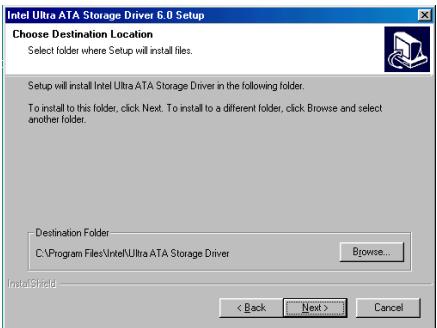
Now you can choose the folder for the destination location you want to install the driver. We suggest you use the default folder as the destination. When you have decided on the destination, click "Next".
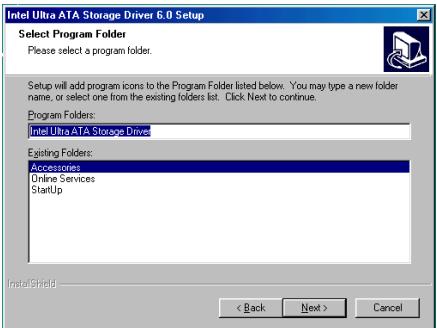
Now you can choose the program folder. The Setup will add program icons to those program folders listed. Click "Next" to go on.
Appendix E. Installing the VGA Driver for the Windows® NT 4.0 Server/Workstation
In this section we will show you how to install the VGA driver to your Windows NT 4.0 Server/Workstation operating system. All screen shots are from Windows NT 4.0 server version. Before you install the VGA driver, please install Windows NT 4.0 Service Pack 4 (or latest version) first. Then you can install the VGA driver.
Note: Details of the Windows NT 4.0 Server/Workstation operating system are not mentioned in this manual. If you have any problems with the settings, operating or installing Windows NT 4.0 Server/Workstation, please refer to your Windows NT 4.0 Server/Workstation user's manual or other databases provided by Microsoft Corporation.
Note: For Windows® NT 4.0 Server/Workstation operating system, you don't need to install the INF Installation Utility. But you have to install the Windows® NT 4.0 Service Pack 4 (or latest version) first.
Insert the SE6 CD-Title into your CD-ROM drive, it should execute the program automatically. If not, you can go to the CD location and execute the execution file at the main directory of this CD-Title. After it has been executed you will see the screen below.
Move the cursor to "Drivers" and click on it to go on.
Move the cursor to "Intel 815 Graphic Driver" and click on it to go on.
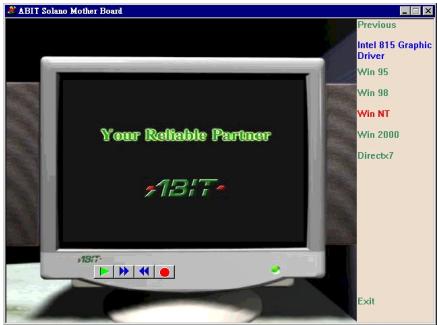
Move the cursor to "Win NT" and click on it to go on.
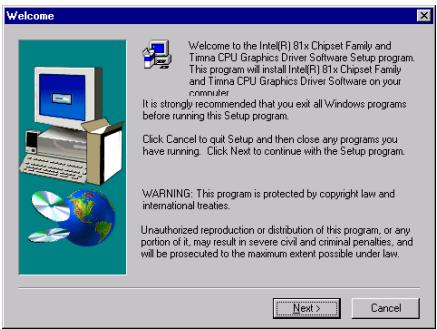
The Welcome screen appears. Click "Next" to go on.
Choose "Yes, I want to restart my computer now", and click "Finish" to end the installation.
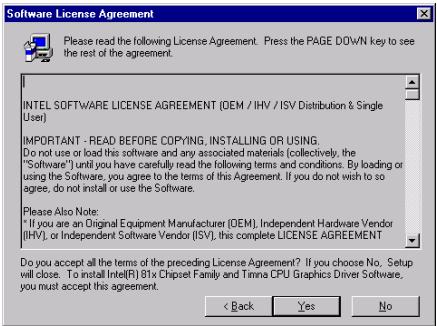
The License screen appears. Click "Yes" to go on.
The install shield is now loading.
Appendix F. Installing the Audio Driver for the Windows® NT 4.0 Server/Workstation
In this section we will show you how to install the audio driver to your Windows NT 4.0 Server/Workstation operating system. All screen shot are from Windows NT 4.0 server version. Before you install the audio driver, please install Windows NT 4.0 Service Pack 4 (or the latest version) first. Then you can install the audio driver.
Insert the SE6 CD-Title into your CD-ROM drive, it should execute the program automatically. If not, you can go to the CD location and execute the execution file at the main directory of this CD-Title. After it has been executed you will see the screen below.
Move the cursor to "Drivers" and click on it to go on.
Move the cursor to "Audio Driver" and click on it to go on.
Move the cursor to "RealTek ALC100/200(for SE6)" and click on it to go on.
Move the cursor to "Win NT" and click on it to go on.
Choose the language for this installation.
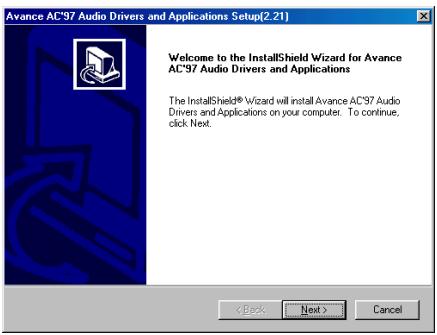
The Welcome screen appears. Click "Next" to go on.
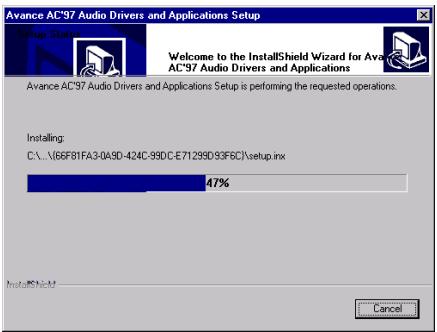
The install shield is now loading.
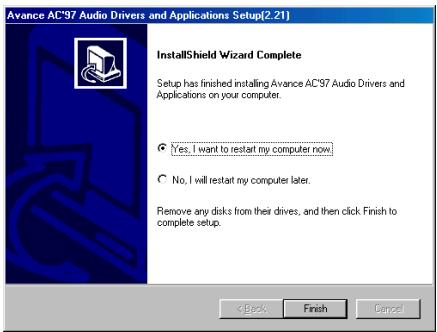
Choose "Yes, I want to restart my computer now", and click "Finish" to end the installation.
Appendix G. ATA Installation Utility for the Windows® NT 4.0 Server/Workstation
In this section we will show you how to install the ATA Utility to your Windows NT 4.0 Server/Workstation operating system. All screen shot are from Windows NT 4.0 server version.
Insert the SE6 CD-Title into your CD-ROM drive, it should execute the program automatically. If not, you can go to the CD location and execute the execution file at the main directory of this CD-Title. After it has been executed you will see the screen below.
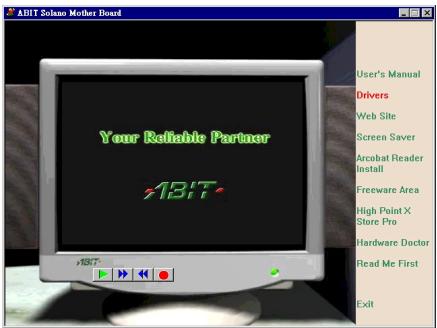
Move the cursor to "Drivers" and click on it to go on.
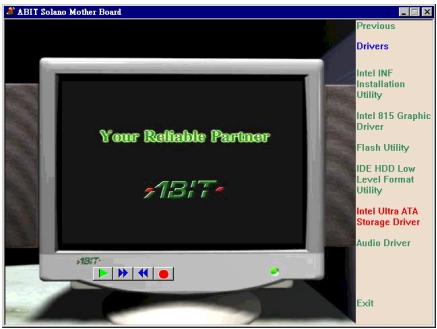
Move the cursor to "Intel Ultra ATA Storage Driver" and click on it to go on.
Move the cursor to "Install" and click on it to go on.
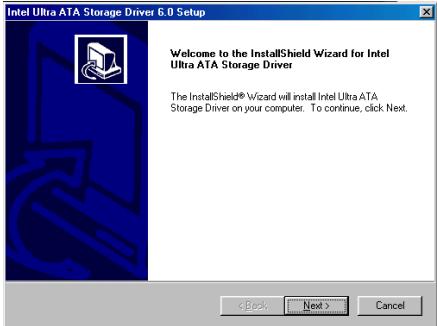
The Welcome screen appears. Click "Next" to go on.
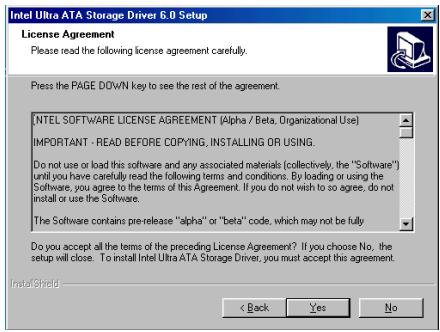
The License screen appears. Read it and click "Yes" to go on.
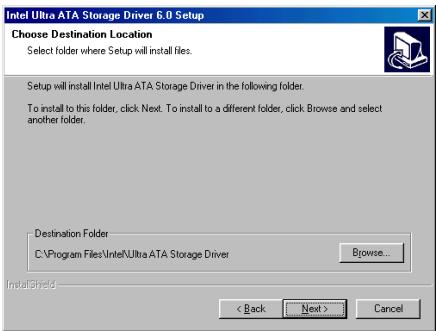
Now you can choose the folder for the destination location you want to install the driver. We suggest you use the default folder as the destination. When you have decided on the destination, click "Next" to go on.
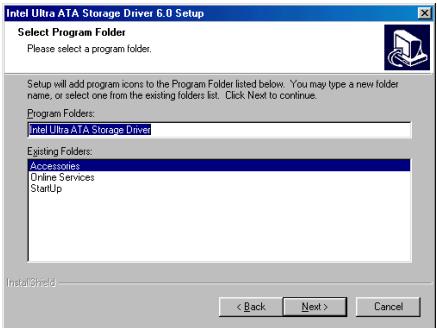
Now you can choose the program folder. Setup will add program icons to those program folders listed. Click "Next" to go on.
The install shield is now loading.
Choose "Yes, I want to restart my computer now", and click "Finish" to end the installation.
Appendix H. INF Installation Utility for the Windows® 2000
In this section we will show you how to install the ATA Utility to your Windows® 2000 operating system. All screen shot are from Windows® 2000 version.
Note: The details of the Windows® 2000 operating system are not mentioned in this manual. If you have any problems with the settings, operating or installing Windows® 2000, please refer to your Windows® 2000 user's manual or other resources provided by Microsoft® Corporation.
Insert the SE6 CD-Title into your CD-ROM drive, it should execute the program automatically. If not, you can go to the CD location and execute the execution file at the main directory of this CD-Title. After it has been executed you will see the screen below.
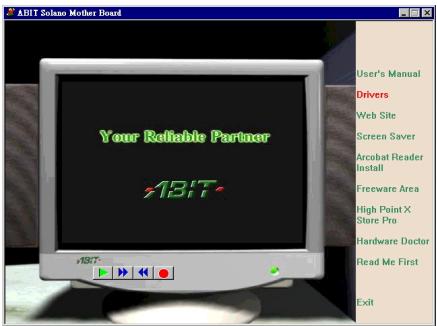
Move the cursor to "Drivers" and click on it to go on.
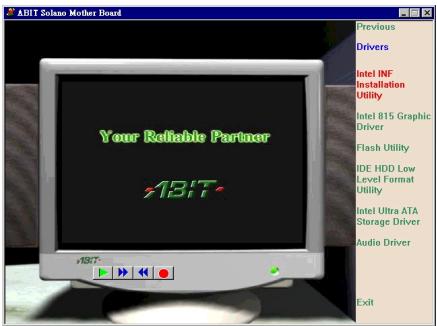
Move the cursor to "Intel INF Installation Utility" and click on it to go on.
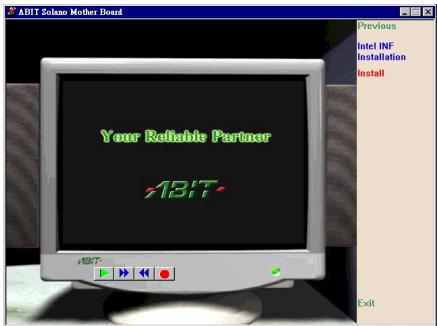
Move the cursor to "Install" and click on it to go on.
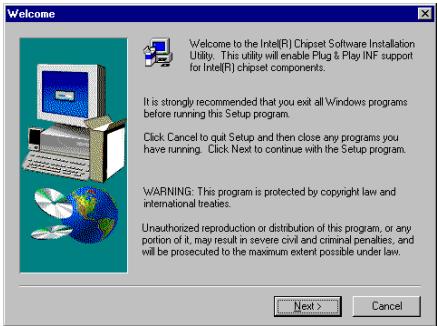
The welcome screen appears. Click "Next" to go on.
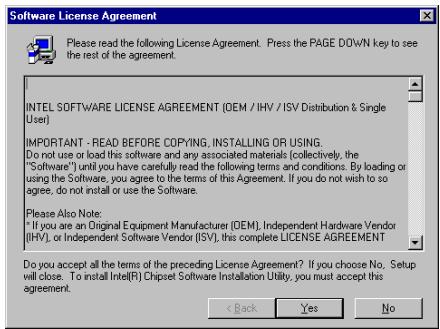
The license screen appears. Read it and click "Yes" to go on.
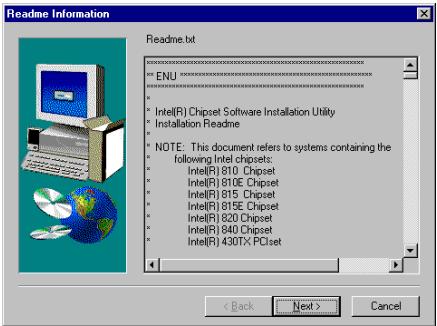
Read this "Readme Information" and click "Next" to go on.
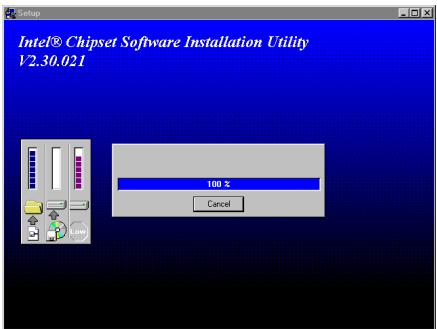
The install shield is now loading.
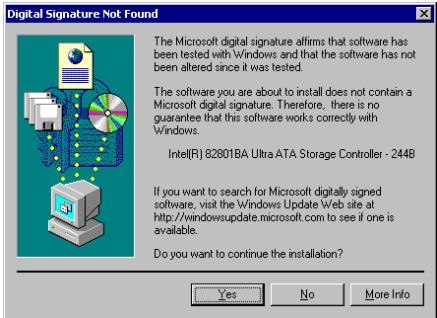
Click "Yes" to go on.
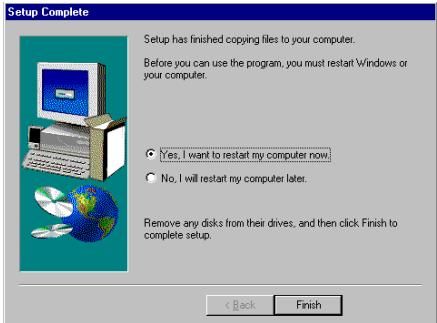
Choose "Yes, I want to restart my computer now", and click "Finish" to end the installation.
Appendix I. Installing the VGA Driver for the Windows® 2000
In this section we will show you how to install the VGA Driver to your Windows® 2000 operating system. All screen shot are from Windows® 2000 version.
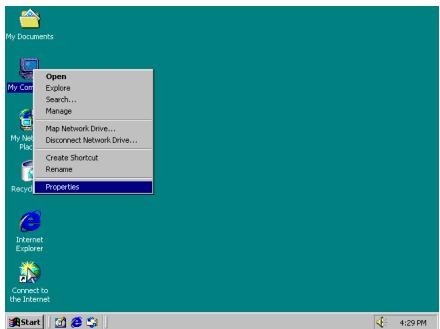
Enter "Properties".
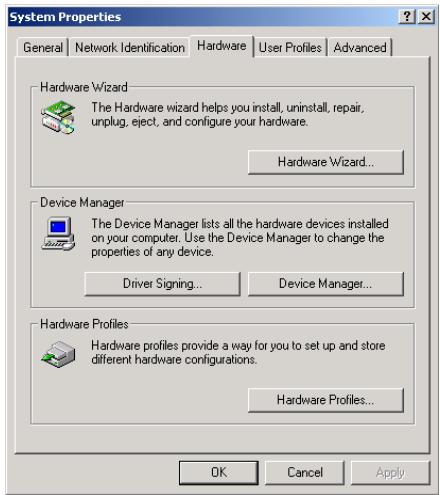
Select "Hardware" tab and then "Device Manager" under "System Properties".
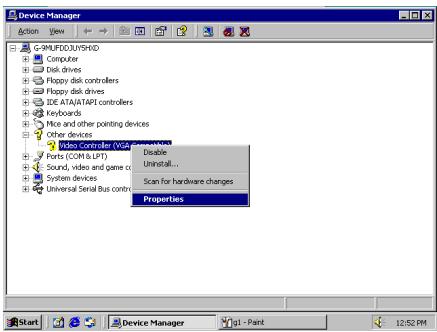
Check "Other Devices" "Video Controller", click the right button of your mouse and choose "Properties".
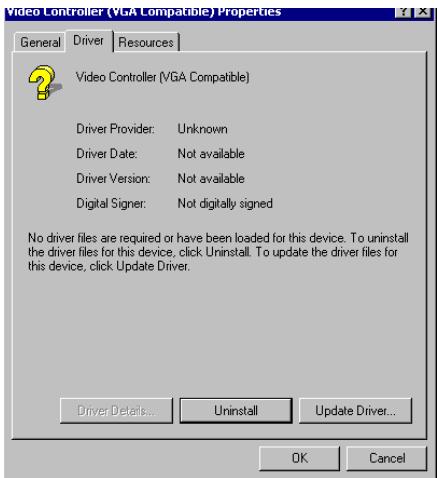
Choose "Driver" tab. The VGA devices are not recognized at this moment. Click "Update Driver..." to go on.
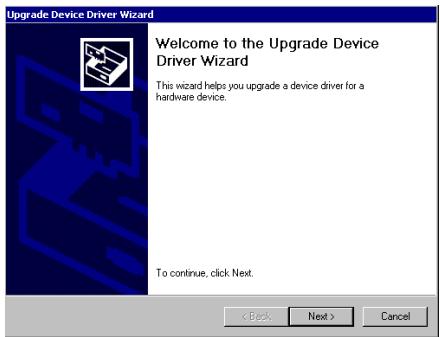
The Upgrade Device Driver Wizard screen appears. Click "Next" to go on.
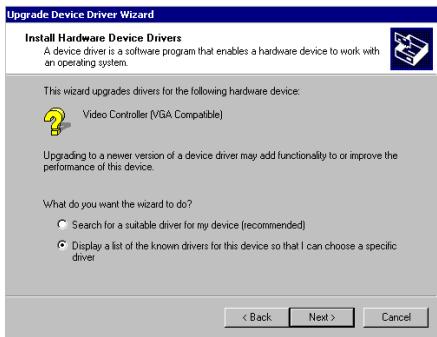
The Wizard will ask you if you would like the computer to select a suitable driver for you or if you would like to manually select one. Here we will show you how to manually select the driver.
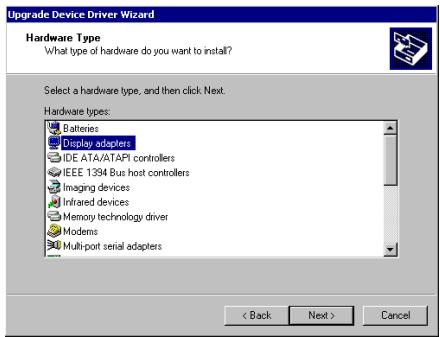
The Wizard will ask you what Hardware type you wish to install. Choose "Display adapters" and click "Next" to go on.
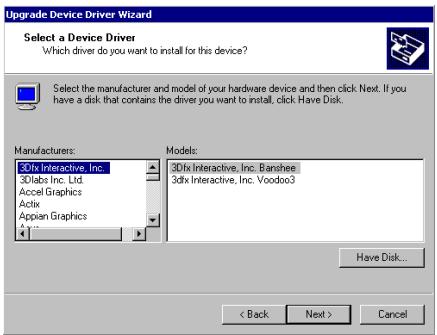
Select "Have Disk..."
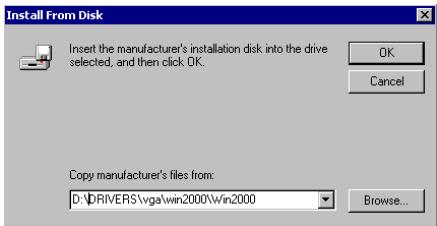
Insert the SE6 CD-Title and click "OK". The path for this VGA driver is located at D:\DRIVERS\vga\win2000\Win2000 (D:\ is the CD-ROM letter).
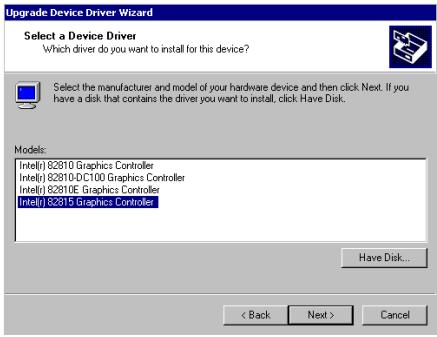
Choose the "Intel(r) 82815 Graphics Controller" and click "Next" to go on.
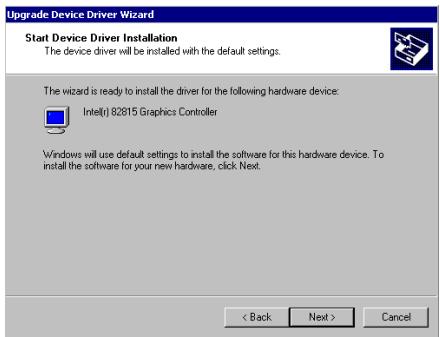
The Wizard is ready to install the driver. Click "Next" to go on.
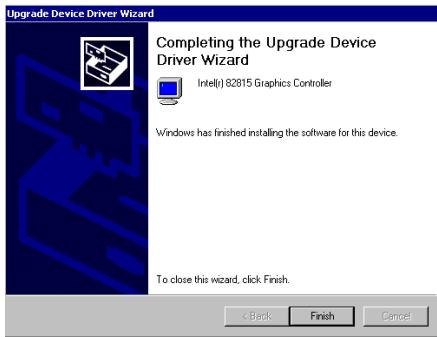
The Wizard is now finishing the driver installation. Click "Finish" to end the installation.

Appendix J. Installing the Audio Driver for the Windows® 2000
In this section we will show you how to install the Audio Driver to your Windows® 2000 operating system. All screen shot are from Windows® 2000 version.
Note: There is no need to install audio driver as the Audio Codec is already provided by Windows® 2000.
Insert the SE6 CD-Title into your CD-ROM drive, it should execute the program automatically. If not, you can go to the CD location and execute the execution file at the main directory of this CD-Title. After it has been executed you will see the screen below.
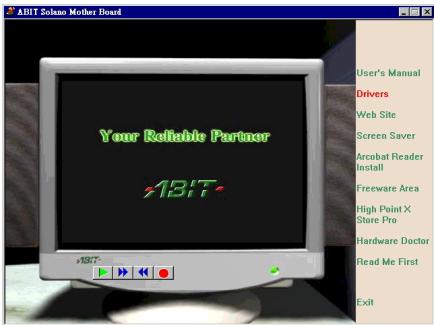
Move the cursor to "Drivers" and click on it to go on.
Move the cursor to "Audio Driver" and click on it to go on.
Move the cursor to "RealTek ALC100/200(for SE6)" and click on it to go on.
Move the cursor to "Win 2000" and click on it to go on.
Choose the language for this installation.
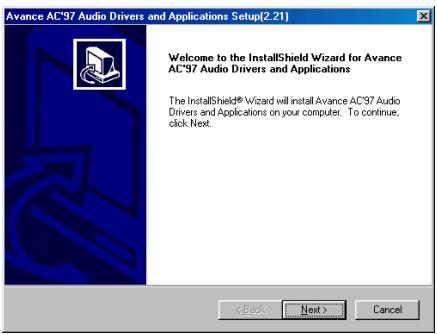
The Welcome screen appears. Click "Next" to go on.
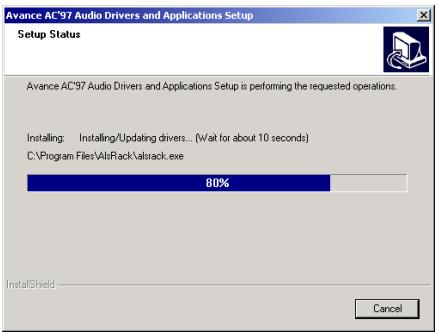
The install shield is now loading.
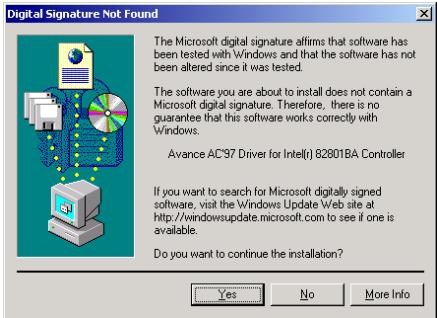
Click "Yes" to go on.
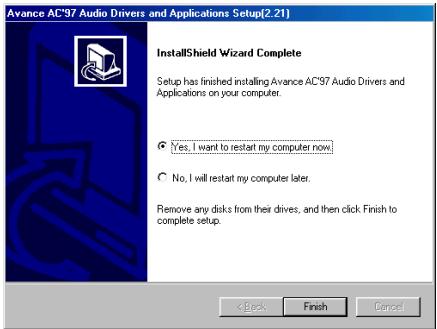
Choose "Yes, I want to restart my computer now", and click "Finish" to end the installation.
Appendix K. ATA Installation Utility for the Windows® 2000
In this section we will show you how to install the ATA Utility to your Windows® 2000 operating system. All screen shot are from Windows® 2000 version.
Insert the SE6 CD-Title into your CD-ROM drive, it should execute the program automatically. If not, you can go to the CD location and execute the execution file at the main directory of this CD-Title. After it has been executed you will see the screen below.
Move the cursor to "Drivers" and click on it to go on.
Move the cursor to "Intel Ultra ATA Storage Driver" and click on it to go on.
Move the cursor to "Install" and click on it to go on.
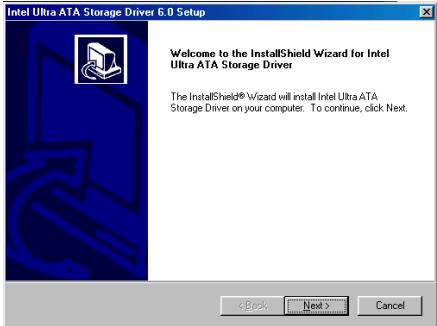
The Welcome screen appears. Click "Next" to go on.
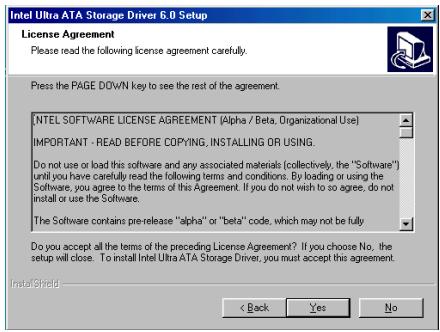
The License screen appears. Read it and click "Yes" to go on.
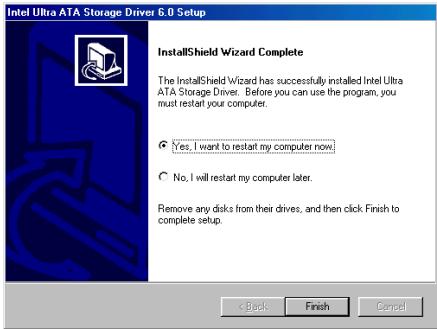
Choose "Yes, I want to restart my computer now", and click "Finish" to end the installation.
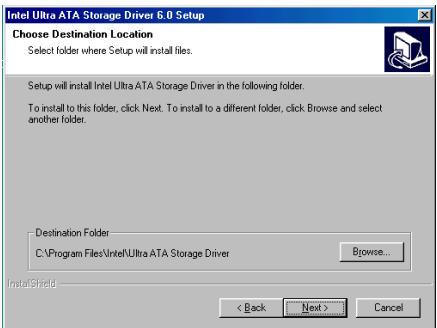
Now you can choose the folder for the destination location you want to install the driver. We suggest you use the default folder as the destination. When you have decided on the destination, click "Next" to go on.
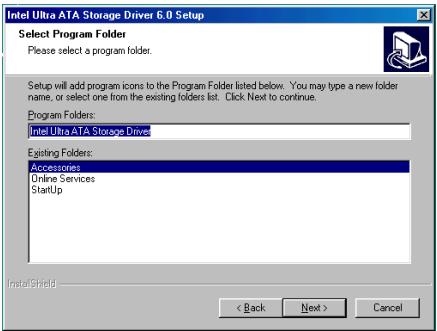
Now you can choose the program folder. Setup will add program icons to those program folders listed. Click "Next" to go on.
Appendix L. BIOS Flashing User Instructions
When your motherboard needs to be upgraded with new features or there are some compatibility problems in the BIOS that need to be fixed, you will need this BIOS flash utility. Award Software had made this utility to be easily flashed by you. However, please read all the information in this section before flashing.
Before you can flash the BIOS you need to go into the pure DOS environment by rebooting your system and going directly into DOS. Basically, there are two ways to flash your BIOS. One is to directly type the full line commands that are described in this section. The utility will then flash your BIOS. When you finish the flash operation, you will see the screen as in Figure L-2 Note L-1.
The other method is to just type awdflash (under Award flash BIOS utility directory) then press
When you have finished updating your BIOS, you will see the screen as in Figure L-2. You then need to press the F1 key to reset the system, or press the F10 key to exit the writer.
Figure L-3 shows you what commands you can use for the flashing program. You need to go into the pure DOS environment and type awdflash. Figure L-3 will then appear.
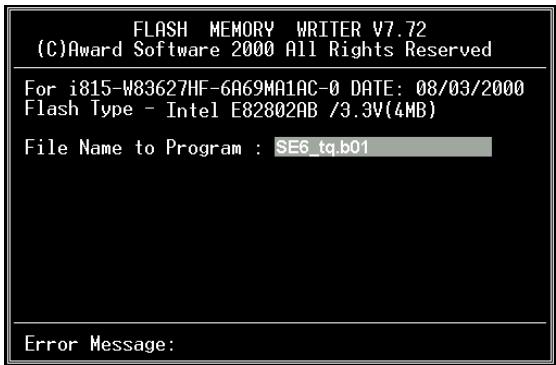
Figure L-1. Award Flash Memory Writer V7.72 Start Screen.
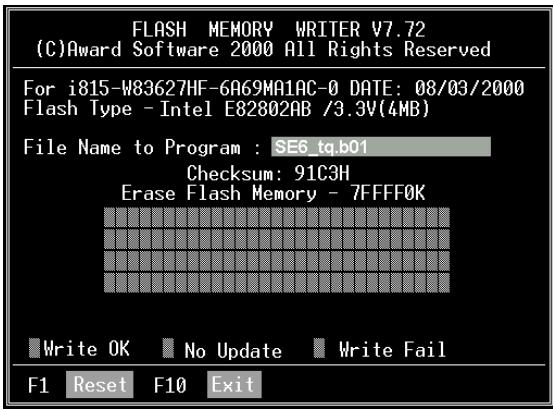
Figure L-2. Award Flash Memory Writer V7.72 Complete Screen.
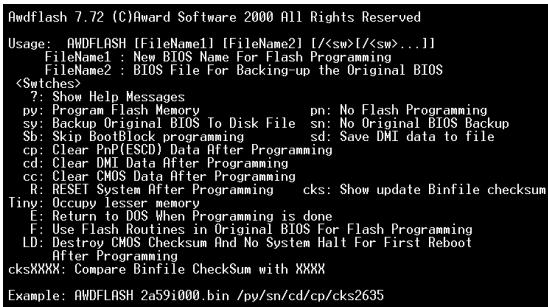
Figure L-3. Award Flash Memory Writer V7.72 Flash Commands Screen.
Note L-1: The BIOS file name in the figure shown is only an example. You should check which .bin file is to be used with your motherboard. Don't flash with the wrong .bin file otherwise you may cause system malfunctions. Even the same model BIOS, according to their release dates and which problems have been fixed, have different .bin names. Please read the BIOS file description before you download it.
For example, if you want to update the SE6 BIOS, please follow the procedures described below.
Step 1. Please visit our Website (www.abit.com.tw) and download the following files: ABITFAE.BAT, AWDFLASH.EXE and the SE6's newest BIOS file -- SE6_MJ.EXE for example. After you download these three files, please execute the "SE6_MJ.EXE." Then you will get a file "SE6_MJ BIN."
Step 2. Create a bootable floppy without any resident programs, and then copy the files ABITFAE.BAT, AWDFLASH and SE6_MJ.BIN to the floppy.
Step 3. Reboot your computer and enter the BIOS setup. Set your system to boot from "Floppy" (refer to section 3-3) and then insert the floppy you created into drive A.
Step 4. After you boot from floppy successfully, at the “A:>” prompt, execute the following command:
Step 5. After the flash update is completed, reboot your system, and then go into the BIOS setup to configure the CPU parameter and other peripheral settings (refer to chapter 3).
Note L-2: The Award flash utility can not be completed under a Windows® 95/98 or Windows NT environment, you must be in a pure DOS environment. You should check which BIOS file is to be used with your motherboard, don't flash with the wrong BIOS file. Otherwise, you may cause system malfunctions.
Note L-3: Please do not use the Award flash memory writer version earlier than Version 7.72 to flash your SE6 motherboard BIOS. Otherwise, it may cause flash fail or anticipate problems.
Appendix M. Hardware Monitoring Function (Installing the Winbond Hardware Doctor Utility)
Winbond Hardware Doctor is a self-diagnostic system for PCs and must be used with the Winbond chipset: W83627HF IC series products.
It protects PC hardware by monitoring several critical items including power supply voltages, CPU & system fan speeds and CPU and system temperatures. These items are important for the operation of the system. Errors may result in permanent damage to the PC. Once any item is out of its normal range, a warning message will pop up and remind the user to take the proper measures.
The following description will tell you how to install and use the Hardware Doctor. You should have the Winbond Hardware Doctor utility on a CD-ROM or floppy diskette. If you have a floppy diskette, just insert diskette 1 and execute the Setup.exe file to start installation. Setup is required only for Windows 95/98.
In Windows 95/98, place the CD-ROM into the computer. The main menu will appear. Click the Hardware Doctor Install button. The HWDoctor Setup screen will show up. Please refer the to figure below.
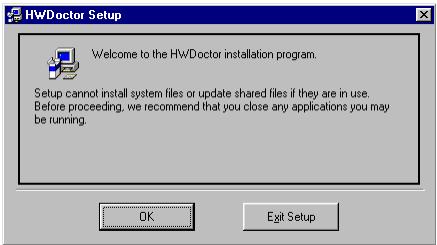
Click the "OK" button and the screen below will appear.
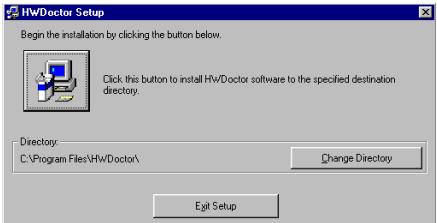
You can specify the program install path by clicking the "Change Directory" button. Or if you want to use the default path, click the icon to continue the install process.
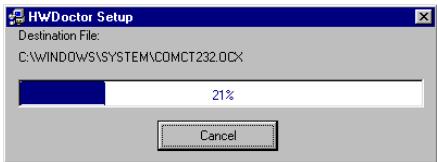
Now the screen will show you the percentage of installation progress.

When the process is finished, click the "OK" button.
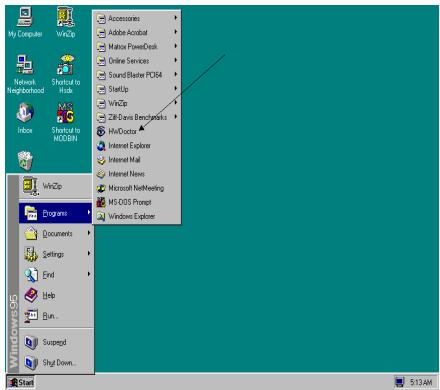
Go to the Windows toolbar and click the "Start" button. Then choose the "Program" "HWDoctor" (See the arrow mark).
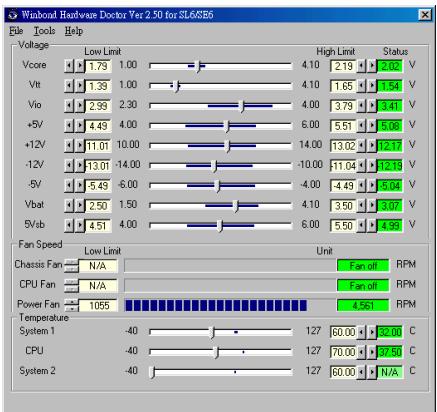
This screen will appear. You will see voltages, fan speeds and temperature readings as well. If any item readings are critical or over their limitations, the reading will turn red. Also, a pop-up window will appear to warn you the system has a problem!
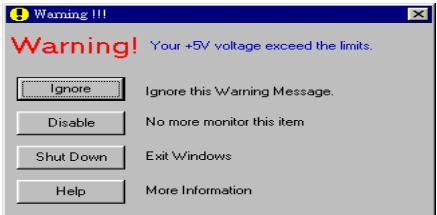
This is the warning message window:
Ignore: You can ignore the warning message of the item, but it will pop up again when an error of the same item reoccurs.
Disable: The chosen item will be no longer monitored thereafter, unless you activate it in the "Configuration" page.
Shutdown: Choosing this button will shutdown the computer.
Help: You can read more information and self-diagnose simple problems.
If the warning message pops up due to the wrong warning limit, you can adjust it in the "Configuration" option. For example, if you set the temperature high limit to 40^ , you will easily exceed the "proper" temperature.
Please pay attention to two things when you want to make any changes to the "Configuration" option. Firstly, you have to make sure your new setting is in the proper range. Secondly, after you finished the configuration, you have to save it. Otherwise, the program will start with the default value the next time.
If you encounter any problems or have any questions about the software settings and adjustments, please use the Winbond hardware doctor on-line help. It should give you enough information to answer your questions.
Appendix N. Installation Guide for Suspend to RAM
Suspend To RAM (STR) is a cost-effective, optimal implementation of the ACPI 1.0 specification. The ACPI specification defines the S3 sleep state, in which all system context is lost except system memory. CPU, cache, and chip set context are lost in this state. Hardware maintains memory context and restores some CPU and L2 configuration context.
The STR function enables a PC to achieve the S3 state during idle periods, then quick "wake up" and retrieve the last "state" of the system before it went to sleep. When idle, STR-enabled systems consume only a small fraction of the power used for full operation. Instead of shutting down the system to save power when not in use and then having to reboot later, users can let the STR function take over and not have to worry about using power to run all the electronics, fans and disks. When needed, a PC with STR function can restore all applications and features to an operational state within a few seconds.
The following description will tell you how to install the STR function and use it.
Note: To get Windows® 98 to enable the ACPI BIOS function, you have to type the parameter after the setup command, for example, setup /p j. This command will let Windows® 98 automatically install the necessary elements for the ACPI BIOS. If you have already installed Windows® 98 without using this command, you have to re-install Windows® 98 and use the /p j command. Otherwise, your Windows® 98 ACPI function may not work.
As above note mentioned, you have to use the parameter come with the setup command to install your Windows® 98. After you complete Windows® 98 installation and reboot your computer, you can see these items show up in the System Properties → Device Manager:
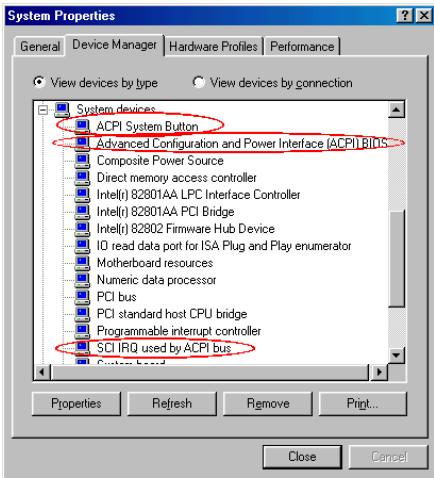
- ACPI System Button
Advance Configuration and Power Interface (ACPI) BIOS
SCI IRQ use by ACPI bus
System board extension for ACPI BIOS
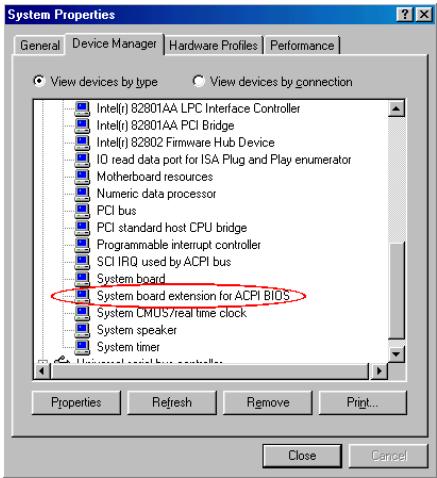
After these items show up, you can go to the next step for the STR function setting.
How to use the STR function:
There are two ways to put your system into STR mode:
Method 1: Select "Stand by" in the "Shut Down Windows" area.
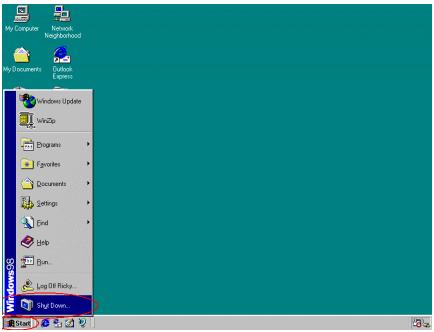
Click "Start" in the Windows Tools Bar, and then select "Shutdown...
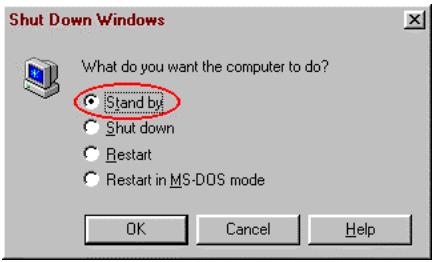
Select "Stand by", and then click "OK".
Method 2: Define the case "Power" button to initiate STR sleep Mode
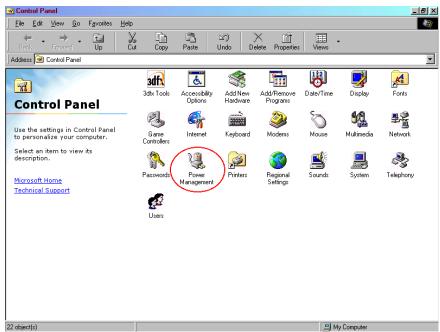
Open "Control Panel", and then enter "Power Management".
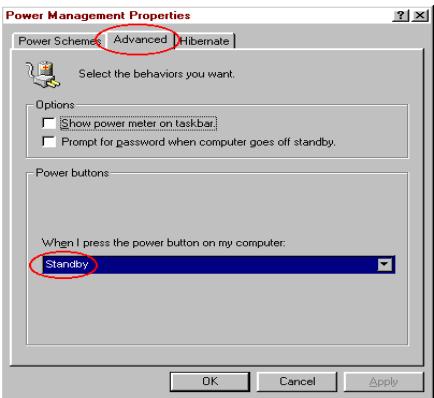
Select "Advanced", and then set the "Power Buttons" to "Standby".
Restart your computer to put these settings into effect. Now you will only need to press the "Power" button on the front panel of the chassis when you want to put your computer into STR sleep mode.
Appendix O. Troubleshooting (Need Assistance?)
If you have a problem during operation and in order to help our technical support personnel to quickly find out what the problem of your motherboard is and to give you the answers you need, before filling in the technical support form, eliminate any peripheral that is not related to the problem, and indicate on the form, the system's peripherals. Fax this form to your dealer or to the company where you bought the hardware or your nearest ABIT branch office in order to benefit from our technical support. (You can refer to the examples given below)
Example 1: With a system including: motherboard (with CPU, DRAM, COAST...) HDD, CD-ROM, FDD, MPEG CARD, SCSI CARD, SOUND CARD, etc. After the system is assembled, if you cannot boot up, check the key components of the system using the procedure described below. First remove all interface cards and try to reboot.
If you still cannot boot up:
If it still does not start, note the motherboard model, BIOS identification number, CPU on the technical support form (refer to main instructions), and describe the problem in the problem description space provided.
If you can boot up:
Reinsert the interface cards you have removed one by one and try to start the system each time you insert a card, until the system doesn't start anymore. Keep the interface card that causes the problem inserted on the motherboard, remove any other card or peripheral, and start again. If you still cannot start, note down the information related to both cards in the add-on Card space provided, and don't forget to indicate the motherboard model, version, BIOS identification number, CPU (refer to main instructions), and give a description of the problem.
Example 2: With a system including the motherboard (with CPU, DRAM, COAST...) HDD, CD-ROM, FDD, LAN CARD, MPEG CARD, SCSI CARD, SOUND CARD, after assembly and after having installed the Sound Card Driver, when you restart the system, when it runs the Sound Card Driver, it resets automatically. This problem may be due to the Sound Card Driver. During the Starting DOS... procedure, press SHIFT (BY-PASS) key, to skip CONFIG.SYS and AUTOEXEC.BAT; edit CONFIG.SYS with a text editor, and in function the line that loads the Sound Card Driver, add a remark REM, in order to disable the Sound Card Driver. See the example below.
CONFIG.SYS:
DEVICE=C:\DOS\HIMEM.SYS
DEVICE=C:\DOS\EMM386.EXE HIGHSCAN
DOS=HIGH, UMB
FILES=40
BUFFERS=36
REM DEVICEHIGH=C:\PLUGPLAY\DWCFGMG.SYS
LASTDRIVE = Z
Restart the system. If the system starts and does not reset, you can be sure that the problem is due to the Sound Card Driver. Note down the Sound Card model, motherboard model, BIOS identification number on the technical support file (refer to main instructions), and describe the problem in the space provided.
Main instructions...
To fill in this "Technical Support Form", refer to the step-by-step instructions given below:
1*.MODEL: Note the model number given in your user's manual.
Example: WX6e, BX6, BH6, etc...
2. Motherboard model number (REV): Note the motherboard model number labeled on the motherboard as "REV..**".
Example: REV: 1.01
- BIOS ID and Part Number: See next page example.
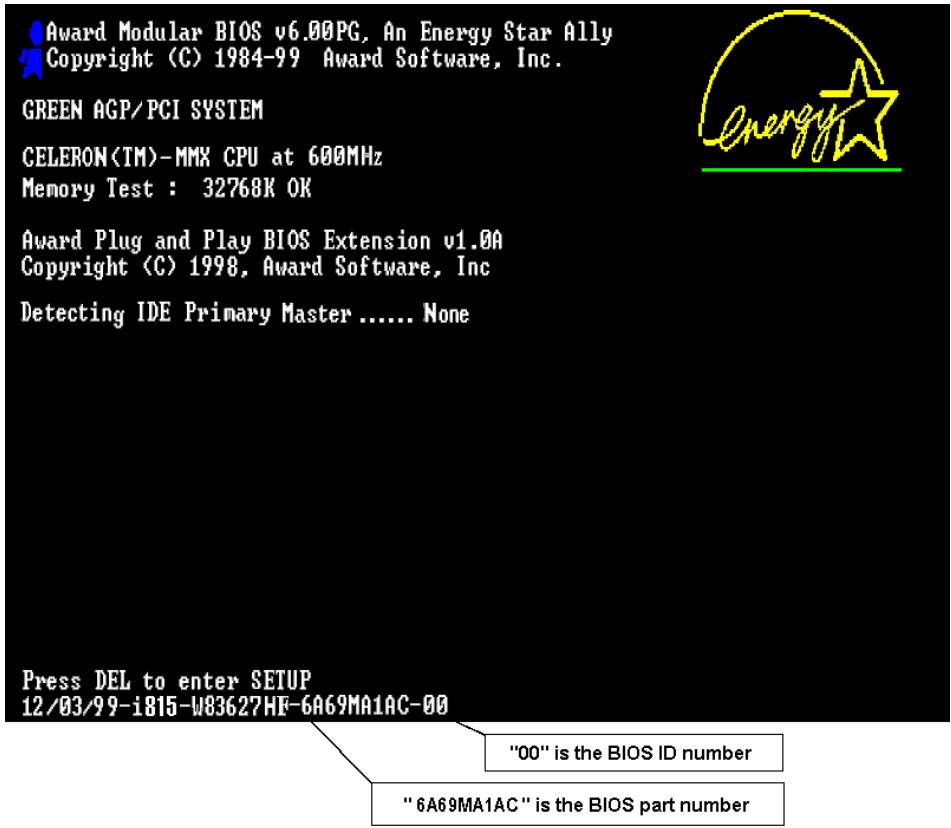
- DRIVER REV: Note the driver version number indicated on the DEVICE DRIVER disk (if have) as "Release .". For example:
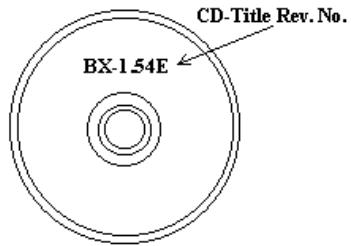
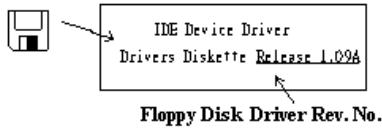
5*. OS/APPLICATION: Indicate the operating system and applications your are running on the system.
Example: MS-DOS® 6.22, Windows® 95, Windows® NT....
6*. CPU: Indicate the brand and the speed (MHz) of your CPU.
Example:(A) In the "Brand" space, write "Intel", in the "Specifications" space, write "Pentium® II MMX 300MHz".
- HDD: Indicate the brand and specifications of your HDD(s), specify if the HDD is using IDE1 or IDE2. If you know the disk capacity, indicate it and check ("✓") "□"; in case you give no indication, we will consider that your HDD is "IDE1" Master.
Example: In the "HDD" space, check the box, in the Brand space, write "Seagate", in the Specifications space, write "ST31621A (1.6GB)".
- CD-ROM Drive: Indicate the brand and specifications of your CD-ROM drive. Specify if it uses IDE1 or IDE2, and check ("✓") "☐"; in case you give no indication, we will consider that your CD-ROM is "IDE2" Master.
Example: In the "CD-ROM drive" space, check the box, in the Brand space, write "Mitsumi", in the Specifications space, write "FX-400D".
- System Memory (DRAM): Indicate the brand and specifications (SIMM / DIMM) of your system memory. For example:
In the Brand space, write "Panasonic", in the Specifications space, write "SIMM-FP DRAM 4MB-06".
Or, in the Brand, write "NPNX", in the Specifications space, write "SIMM-EDO DRAM 8MB-06".
Or, in the Brand space, write "SEC", in the Specifications space, write "DIMM-S DRAM 8MB-G12".
- ADD-ON CARD: Indicate which add-on cards you are absolutely sure are related to the problem.
If you cannot identify the problem's origin, indicate all the add-on cards inserted into your system.
Note: Items between the " * " are absolutely necessary.

Technical Support Form
Company Name:
Phone Number:
Contact Person:
Fax Number:
E-mail Address:
| Model | * | BIOS ID # | * |
| Motherboard Model No. | DRIVER REV | ||
| OS/Application | * | ||
| Hardware Name | Brand | Specifications | |
| CPU | * | ||
| HDD IDE1 IDE2 | |||
| CD-ROM-Drive IDE1 IDE2 | |||
| System Memory(DRAM) | |||
| ADD-ON CARD | |||
Problem Description:
Appendix P. How to Get Technical Support
(From our Website) http://www.abit.com.tw
(In North America) http://www.ubit-usa.com
(In Europe) http://www.ubit.nl
Thank you for choosing ABIT products. ABIT sells all our products through distributors, resellers and system integrators, we have no direct sales to end-users. Before sending email for tech support please check with your resellers or integrators if you need any services, they are the ones who sold you your system and they should know best as to what can be done, how they serve you is a good reference for future purchases.
We appreciate every customer and would like to provide the best service to you. Providing fast service to our customers is our top priority. However we receive many phone calls and a huge amount of email from all over the world. At the present time it is impossible for us to respond to every single inquiry. Therefore it is quite possible that if you send an email to us that you may not receive a response.
We have done many compatibility tests and reliability tests to make sure our products have the best quality and compatibility. In case you need service or technical support, please understand the constraint we have and always check with the reseller who sold the product to you first.
To expedite service, we recommend that you follow the procedures outlined below before contacting us. With your help, we can meet our commitment to provide the best service to the greatest number of ABIT customers:
- Check the Manual. It sounds simple but we have taken a lot of care in making a well written and thorough manual. It is full of information that doesn't only pertain to motherboards. The CD-ROM included with your board will have the manual as well as drivers. If you don't have either one go to our Program Download Area of the Website or FTP server at: http://www.abit.com.tw/download/index.htm
- Download latest BIOS, software or drivers. Please go to our Program Download area on our Website to check to see if you have the latest BIOS. They are developed over periods of time to fixes bugs or incompatibilities. Also please make sure you have the latest drivers from your peripheral cards makers!
- Check the ABIT Technical Terms Guide and FAQ on our Website. We are trying to expand and make the FAQs more helpful and information rich. Let us know if you have any suggestions. For hot topics check out our HOT FAQ!
- Internet Newsgroups. They are a great source of information and many people there can offer help. ABIT's Internet News group, alt.comp.periphs.mainboard.ubit, is an ideal forum for the public to exchange information and discuss experiences they have had with ABIT products. Many times you
will see that your question has already been asked before. This is a public Internet news group and it is reserved for free discussions, Here is a list of some of the more popular ones:
alt.comp.perips.mainboard.abit
alt.comp.perips.mainboard
comp.sys.ibm.pc.hardware.chips
alt.comp.hardware.overclocking
alt.comp.hardware.homebuilt
alt.comp.hardware.pc-homebuilt
- Ask your reseller. Your ABIT authorized distributor should be able to provide the fastest solution to your technical problem. We sell our products through distributors who sell to resellers and stores. Your reseller should be very familiar with your system configuration and should be able to solve your problem much more efficiently than we could. After all, your reseller regards you as an important customer who may purchase more products and who can urge your friends to buy from him or her as well. They integrated and sold the system to you. They should know best what your system configuration is and your problem. They should have reasonable return or refund policies. How they serve you is also a good reference for your next purchase.
- Contacting ABIT. If you feel that you need to contact ABIT directly you can send email to the ABIT technical support department. First, please contact the support team for the branch office closest to you. They will be more familiar with local conditions and problems and will have better insight as to which resellers offer what products and services. Due to the huge number of emails coming in every day and other reasons, such as the time required for problem reproduction, we will not be able to reply to every email. Please understand that we are selling through distribution channels and don't have the resources to serve every end-user. However, we will try to do our best to help every customer. Please also remember that for many of our technical support team English is a second language, you will have a better chance of getting a helpful answer if your question can be understood in the first place. Be sure to use very, simple, concise language that clearly states the problem, avoid rambling or flowery language and always list your system components. Here is the contact information for our branch offices:
In North America and South America please contact:
ABIT Computer (USA) Corporation
46808 Lakeview Blvd.
Fremont, California 94538 U.S.A.
sales@abit-usa.com
technical@abit-usa.com
Tel: 1-510-623-0500
Fax: 1-510-623-1092
In the UK and Ireland:
ABIT Computer Corporation Ltd.
Caxton Place, Caxton Way,
Stevenage, Herts SG1 2UG, UK
abituksales@compuserve.com
abituktech@compuserve.com
Tel: 44-1438-741 999
Fax: 44-1438-742 899
In Germany and Benelux (Belgium, Netherlands, Luxembourg) countries:
AMOR Computer B.V. (ABIT's European Office)
All other territories not covered above please contact:
Taiwan Head Office
When contacting our headquarters please note we are located in Taiwan and we are 8+ GMT time. In addition, we have holidays that may be different from those in your country.
ABIT Computer Corporation
3F-7, No. 79, Sec. 1, Hsin Tai Wu Rd.
Hsi Chi, Taipei Hsien
Taiwan, R.O.C.
sales@abit.com.tw
market@abit.com.tw
technical@abit.com.tw
Tel: 886-2-2698-1888
Fax: 886-2-2698-1811
- RMA Service. If your system has been working but it just stopped, but you have not installed any new software or hardware recently, it is likely that you have a defective component. Please contact the reseller from whom you bought the product. You should be able to get RMA service there.
- Reporting Compatibility Problems to ABIT. Because of tremendous number of email messages we receive every day, we are forced to give greater weight to certain types of messages than to others. For this reason, any compatibility problem that is reported to us, giving detailed system configuration information and error symptoms will receive the highest priority. For the other questions, we regret that we may not be able to reply directly. But your questions may be posted to the Internet news group in order that a larger number of users can have the benefit of the information. Please check the news group from time to time.
Thank you, ABIT Computer Corporation http://www.abit.com.tw

- Copyright and Warranty Notice
- SE6 Motherboard User's Manual
- Index
- CHAPTER 1. INTRODUCTION OF SE6 FEATURES 1-1
- CHAPTER 2. INSTALLING THE MOTHERBOARD. 2-1
- CHAPTER 3. INTRODUCING THE BIOS. 3-1
- APPENDIX A. INF INSTALLATION UTILITY FOR WINDOWS® 98 SE
- APPENDIX B. INSTALLING THE VGA DRIVER FOR WINDOWS® 98 SE
- APPENDIX C. INSTALLING THE AUDIO DRIVER FOR WINDOWS® 98 SE
- APPENDIX D. ATA INSTALLATION UTILITY FOR WINDOWS® 98 SE
- APPENDIX E. INSTALLING THE VGA DRIVER FOR THE WINDOWS® NT 4.0 SERVER/WORKSTATION
- Chapter 1. Introduction of SE6 Features
- 1-1. Features of This Motherboard
- 1-2. Specifications
- 1.CPU
- Chipset
- Graphics
- Memory
- Audio
- System BIOS
- Multi I/O Functions
- Miscellaneous
- 1-3. Package List
- 1-4. Layout Diagram
- 1-5. The System Block Diagram
- Chapter 2. Installing the Motherboard
- Before Proceeding with the Installation
- User Friendly Instructions
- 2-1. Installing the Motherboard to the Chassis
- 2-2. Installation of the Pentium III CPU
- 2-3. Installing System Memory
- 2-4. Connectors, Headers and Switches
- ATXPR1:ATX Power Input Connector
- (2A)/(2B)/(2C): FAN1, FAN2 & FAN3 header
- IR1: IR Header (Infrared)
- WOL1: Wake on LAN Header
- CNR Slot: Communication Network Riser Slot
- SMB1 & SMB2 Header: System Management Bus Connector
- JP3 Header (RT2 Thermistor):
- USB2/3 Headers: Additional USB Plugs:
- DIPSW Default Setting
- PN1 (Pin 1-2-3-4-5): Power LED Headers
- PN1 (Pin 7 - 8): HDD LED Header
- PN1 (Pin 10 - 11): Power on Switch Header
- PN1 (Pin 13-14): Hardware Suspend Switch (SMI Switch) Header
- PN2 (Pin 1-2): Hardware Reset Switch Header
- PN2 (Pin 4-5-6-7): Speaker Header
- PN2 (Pin 9-10): Suspend LED Header
- KM1 Lower: PS/2 Keyboard Connector
- KM1 Upper: PS/2 Mouse Connector
- USB Port Connectors
- Serial Port COM1 Connector
- Parallel Port Connector
- Line Out, Line In and Mic In Connector
- MIDI/GAME Port Connector
- Chapter 3. Introducing the BIOS
- Don't change the parameters inside the BIOS unless you fully understand their meanings and consequences
- PRESS DEL TO ENTER SETUP
- CMOS Setup Utility - Copyright (C) 1984-2000 Award Software
- SoftMenu III Setup
- PC Health Status
- Figure 3-1. CMOS Setup Utility
- Computer Knowledge: CMOS Data
- 3-1. CPU Setup [SOFT MENU™ III]
- CPU Name Is:
- CPU Operating Speed:
- External Clock:
- FSB Rate (CPU:SDRAM:PCI):
- Multiplier Factor:
- System Memory Frequency:
- Speed Error Hold:
- Solution in case of booting problem due to invalid clock setup:
- When you change your CPU:
- CPU Power Supply:
- In-Order Queue Depth
- 3-2. Standard CMOS Features Setup Menu
- Date (mm:dd:yy):
- Time (hh:mm:ss):
- IDE Primary Master / Slave and IDE Secondary Master / Slave:
- IDE HDD Auto-Detection:
- IDE Primary Master:
- Access Mode:
- Drive A & Drive B:
- Floppy 3 Mode Support:
- Video:
- Halt On:
- 3-3. Advanced BIOS Features Setup Menu
- Virus Warning:
- CPU Level 1 Cache:
- CPU Level 2 Cache:
- CPU L2 Cache ECC Checking:
- Processor Number Feature:
- Quick Power On Self Test:
- First Boot Device:
- Second Boot Device:
- Third Boot Device:
- Boot Other Device:
- Swap Floppy Drive:
- Boot Up Floppy Seek:
- Boot Up NumLock Status:
- Typematic Rate Setting:
- Typematic Rate (Chars/Sec):
- Typematic Delay (Msec):
- Security Option:
- OS Select For DRAM >64MB
- Report No FDD For WIN 95:
- Delay IDE Initial (Secs):
- 3-4. Advanced Chipset Features Setup Menu
- SDRAM CAS Latency Time:
- SDRAM Cycle Time Tras/Trc:
- SDRAM RAS-to-CAS Delay
- SDRAM RAS Precharge Time:
- System BIOS Cacheable:
- Video BIOS Cacheable:
- Memory Hole At 15M-16M:
- Delayed Transaction:
- On-Chip Video Window Size:
- AGP Graphics Aperture Size:
- Display Cache Frequency
- Onboard Display Cache Setting:
- CAS# Latency:
- Paging Mode Control:
- RAS-to-CAS Override:
- RAS# Timing:
- RAS# Precharge Timing:
- 3-5. Integrated Peripherals
- Onboard IDE-1 Controller:
- Master/Slave Drive PIO Mode:
- Master/Slave Drive Ultra DMA:
- Onboard IDE-2 Controller:
- USB Controller:
- USB Keyboard Support:
- USB Mouse Support:
- Init Display First:
- Onboard AC97 Codec:
- IDE HDD Block Mode:
- Power On Function:
- KB Power ON Password:
- Hot Key Power On:
- Onboard FDC Controller:
- Onboard Serial Port 1:
- Onboard Serial Port 2:
- Onboard IR Function:
- RxD, TxD Active:
- IR Transmission Delay:
- UR2 Duplex Mode:
- Use IR Pins:
- Onboard Parallel Port:
- - Parallel Port Mode:
- EPP Mode Select:
- ECP Mode Use DMA:
- PWRON After PWR-Fail:
- Game Port Address:
- Midi Port Address:
- Midi Port IRQ:
- 3-6. Power Management Setup Menu
- System States and Power States:
- Table 3-1: Wake Up Device and Events
- ACPI Suspend Type:
- The S1 (POS) State (POS means Power On Suspend):
- The S3 (STR) State (STR means Suspend to RAM):
- USB KB Wake-Up From S3:
- Power Management:
- Video Off Method:
- Video Off In Suspend:
- Suspend Type:
- Modem Use IRQ:
- Soft-Off by PWR-BTTN:
- Wake-Up by PCI card/LAN:
- Power On by Ring:
- CPU Thermal-Throttling
- Resume by Alarm:
- Reload Global Timer Events
- 3-7. PnP/PCI Configurations
- PNP OS Installed:
- Force Update ESCD:
- Resources Controlled By:
- PCI/VGA Palette Snoop:
- Assign IRQ For VGA :
- Assigned IRO For USB:
- PIRO0~PIRO3:
- 3-8. PC Health Status
- FAN Fail Alarm Selectable:
- CPU Warning Temperature:
- All Voltages, Fans Speed and Thermal Monitoring:
- 3-9. Load Fail-Safe Defaults
- 3-10. Load Optimized Defaults
- 3-11. Set Password
- ENTER PASSWORD:
- TOKEN DISABLED.
- 3-12. Save & Exit Setup
- 3-13. Exit Without Saving
- Appendix F. Installing the Audio Driver for the Windows® NT 4.0 Server/Workstation
- Appendix G. ATA Installation Utility for the Windows® NT 4.0 Server/Workstation
- Appendix H. INF Installation Utility for the Windows® 2000
- Appendix I. Installing the VGA Driver for the Windows® 2000
- Appendix J. Installing the Audio Driver for the Windows® 2000
- Appendix K. ATA Installation Utility for the Windows® 2000
- Appendix L. BIOS Flashing User Instructions
- Appendix M. Hardware Monitoring Function (Installing the Winbond Hardware Doctor Utility)
- Appendix N. Installation Guide for Suspend to RAM
- Appendix O. Troubleshooting (Need Assistance?)
- Main instructions...
- Technical Support Form
- Appendix P. How to Get Technical Support
- In North America and South America please contact:
- In the UK and Ireland:
- In Germany and Benelux (Belgium, Netherlands, Luxembourg) countries:
- All other territories not covered above please contact:
- Taiwan Head Office
- ABIT Computer Corporation
- Thank you, ABIT Computer Corporation http://www.abit.com.tw
Brand : ABIT
Model : SE6R2
Category : Motherboard