
MP-200FM - Media player TEAC - Free user manual and instructions
Find the device manual for free MP-200FM TEAC in PDF.


| Product Type | MP3 Player with FM Tuner |
| Dimensions | 71 x 32 x 15 mm |
| Weight | 24 g (without battery) |
| Power Supply | AAA 1.5V Battery |
| Display | OLED |
| Built-in Flash Memory | 256 MB / 512 MB / 1 GB |
| Supported Audio Formats | MP3, WMA, WAV (IMA ADPCM) |
| FM Tuner | 87.5 - 108 MHz |
| Recording | Built-in microphone, line input, FM |
| Screen Saver | Yes |
| Equalizer | Normal, Rock, Jazz, Classic, Pop |
| Shuffle Play | Yes |
| A-B Repeat | Yes |
| Quick Search Function | Yes |
| Connectivity | USB 2.0 |
| OS Compatibility | Windows 2000/XP/ME (driverless), Windows 98 (driver required) |
| Battery Life | Up to 10 hours (playback) |
| Included Accessories | USB cable, line-in cable, remote control, strap, case, installation CD, AAA battery |
| Maintenance and Cleaning | Clean with a dry cloth; do not use solvents. |
| Safety | Do not expose to moisture; remove the battery if not used for a long time. |
| Spare Parts and Repairability | Contact TEAC after-sales service. |
Frequently Asked Questions - MP-200FM TEAC
User questions about MP-200FM TEAC
0 question about this device. Answer the ones you know or ask your own.
Ask a new question about this device
Download the instructions for your Media player in PDF format for free! Find your manual MP-200FM - TEAC and take your electronic device back in hand. On this page are published all the documents necessary for the use of your device. MP-200FM by TEAC.
USER MANUAL MP-200FM TEAC
To ensure the smooth handling of your warranty please write the serial number of your device into the box. In the case of warranty you are expected to send it together with a copy of your invoice to your nearest TEAC sales representative.
Disposing of the Product
Your device should no be placed in municipal waste. Please check local regulations for disposal of electronic products.
- Changes in specifications and features may be made without notice or obligation.
Copyright © 2004-2006, TEAC Europe GmbH. All rights reserved. Edition: January 2006 - Company and product names provided herein are trademarks of their respective companies.
Contents
FEATURES 4
CONTENT OF PACKAGE 4
IMPORTANT INFORMATIONS 5
INTRODUCTION OF CONTROLS 6
Line Control 7
SYMBOLS ON SCREEN 8
INSTALLATION 8
Loading the battery 8
Driver Software 9
Connecting to a PC 9
Disconnecting 10
Manual Installation of Driver Software 11
BASIC OPERATION 13
13
Switching On and Off 13
Playback 13
Previous/Next 13
Volume 13
Fast Forward/Reverse (FF&RW) 13
Equalizer 14
Playback Mode 14
A-B Repeat Function 14
Voice Mode 14
Voice Recording 15
Deleting Files 15
UKW Tuner 16
LINE-IN Recording (Music Mode) 18
Edit ID3 Tags 19
Copying Files to MP-200 20
Setting Energy Management 20
ScreenSaver 20
Memory Information 20
UPGRADING THE FIRMWARE 21
FORMATTING THE MEMORY 23
DEINSTALLING DRIVER SOFTWARE 24
TROUBLESHOOTING 25
SPECIFICATION 26
WARRANTY CARD 27
The TEAC MP-200 is one of the most powerful MP3 player on the market.
FEATURES
- Playback of MP3/WMA files
- OLED display
- Screen saver
USB 2.0
FMtuner
FM digital recording
Line-In receptacle
High-Quality digital recording
No drivers for Win2000/XP/ME
256MB/512MB/1GB portable USB data storage
A-B Repeat playback. - Equalizer: 5 modes: Normal, Rock, Jazz, Classic, Pop
- ID3 tag support with file name lyrics display (edit in advance needed)
- Low power consumption
Line control support - Firmware upgradeable
- Menu based operation
CONTENT OF PACKAGE
- MP3 player MP-200
user's manual - line control
USB cable
-earphone
neck strap - carrying case
- installation CD
- AAA battery
- line in cable
IMPORTANT INFORMATIONS
- If the unit is not used for a longer period of time please remove the battery to avoid damages by corrosion.
-
Change the battery in the following cases:
-
The battery display shows empty.
- The keys will not operate normal.
-
The unit does not operate under normal conditions.
-
We do not assume any liability arising out of improper operation or incidental damages.
Important information:
Please read and retain all the operating instructions before operating the unit, we do not assume any liability arising out of improper operation or incidental damages.
INTRODUCTION OF CONTROLS
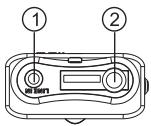
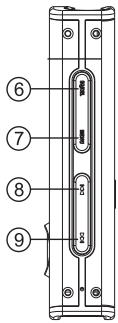
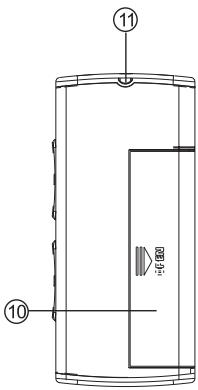
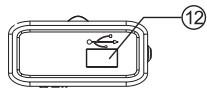
- LINE-IN input jack
- Earphone jack/Line control jack
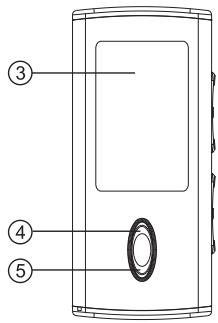
3 OLED display - Play/pause/stop
- Recording REC/A-B repeat
- EQ/DEL (Equalizer/Delete)
-
MENU
-
VOL/SEARCH- Volume - / Previous, RW
- VOL/SEARCH+ Volume+/ Next, FF
- Battery compartment
- Neck strap slot
- USB jack
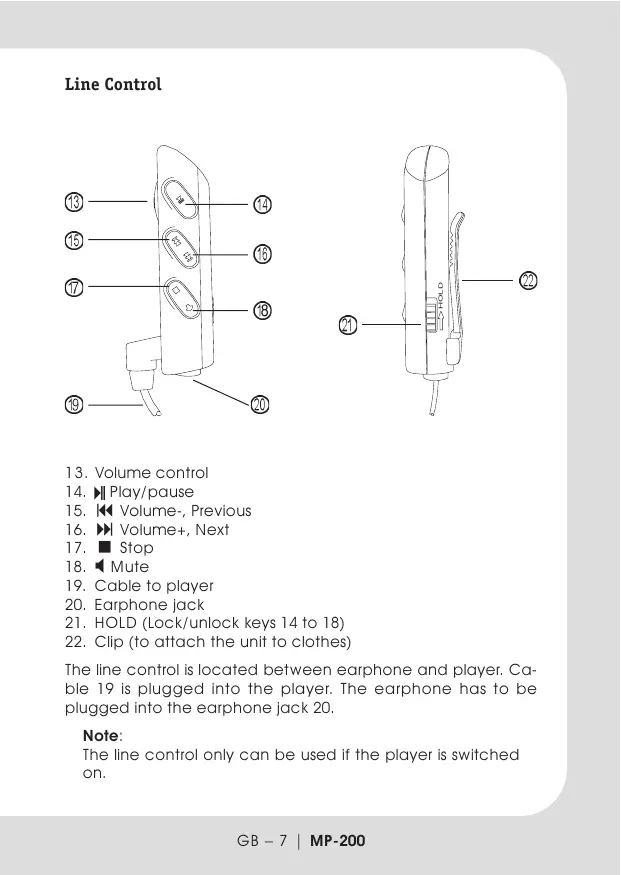
Line Control
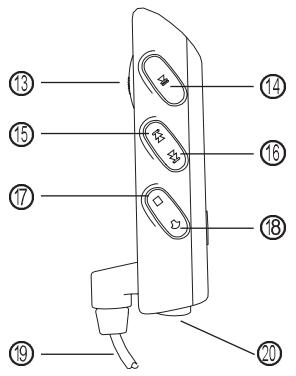
- Volume control
- Play/pause
- Volume-, Previous
- Volume+, Next
- Stop
- Mute
- Cable to player
- Earphone jack
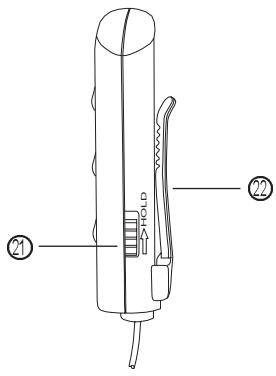
- HOLD (Lock/unlock keys 14 to 18)
- Clip (to attach the unit to clothes)
The line control is located between earphone and player. Cable 19 is plugged into the player. The earphone has to be plugged into the earphone jack 20.
Note:
The line control only can be used if the player is switched on.
SYMBOLS ON SCREEN
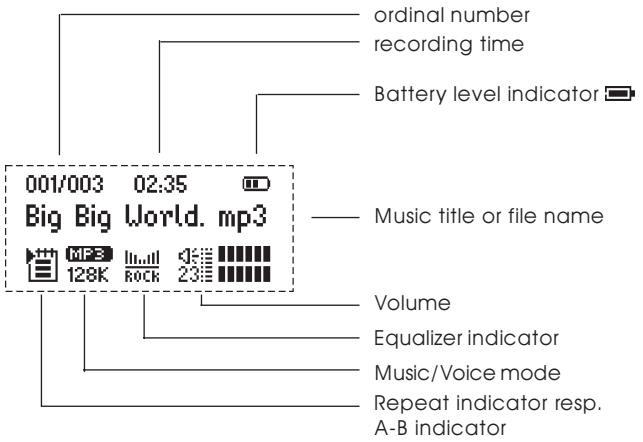
Repeat modes: ①, ②, and ③
Equalizer: , , , ,
USBmode
INSTALLATION
Loading the battery
An AAA 1.5V alkaline battery is used to power the unit. When the battery indicator shows empty please change the battery. Push the battery cover toward the direction of the arrow to open the battery case. Ensure the correct polarity, put the battery inside and close the battery compartment.
Driver Software
Windows98
Under Windows98 drivers have to be installed. Do not connect the unit to your computer before the installation of the driver is finished. Insert the provided CD into your CDROM drive or get the driver from our web site. Double click on SETUPEXE and follow the instructions on the screen. Connect the MP-200 and the PC with the provided USB cable after finishing the installation.
Windows 2000/XP/ME
There is no need for a driver installation under Windows 2000/ XP/ME. Under Windows 2000 service pack 3 has to be installed. When connecting the unit for the first time the New Hardware assistant is run. The MP-200 is recognized automatically and the respective drivers are activated.
Connecting to a PC
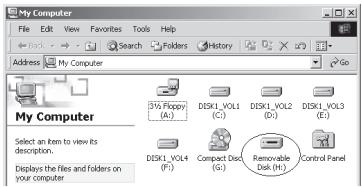
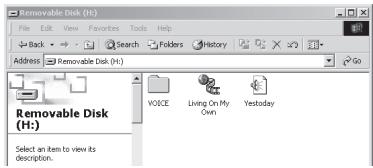
The MP3 player is connected to a PC with the provided USB cable. You will see a mass storage device with removable media symbol in My Computer after the unit has been recognized by the operating system. The player's display shows

Ready

Disconnecting
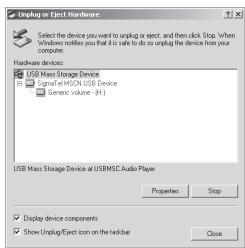
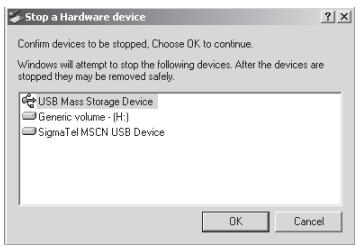
Prior to disconnect the unit has to be detached at the operating system. Otherwise data losses may occur. Proceed as follows:
- Double click on the symbol Remove Hardware or Eject in the right lower corner of the task bar. (XP: Remove Hardware Safely"). See also the respective pictures:
Unplug or Eject Hardware

5:39PM
- Click on Stop resp. OK in the pop up window.
- Click on OK.
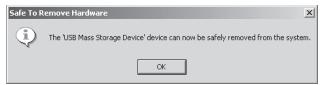
After carrying out the above steps the unit can be disconnected.
Note: The driver software may be not compatible to other MP3 products. If problems occur try to install the driver manually or call our hotline.
Manual Installation of Driver Software
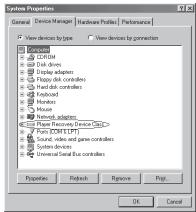
- Windows 2000/XP: Click with the right mouse button on My Computer>Properties>Device Manager. Double click on Player Recovery Device Class.
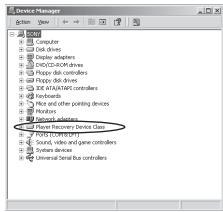
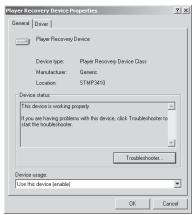
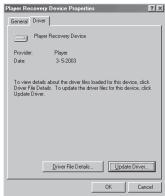
Now click on Driver>Update Driver.
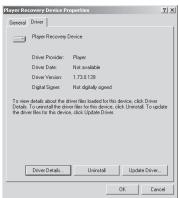
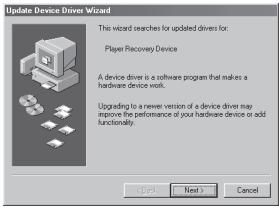
Click on Next in any of the following windows.
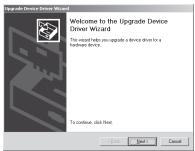
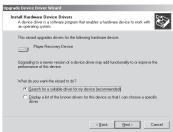
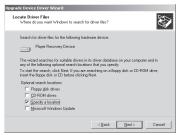
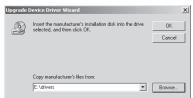
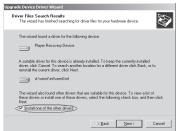
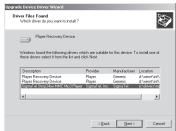
- Windows 98: After connecting the player to the PC use the right mouse button to click on My Computer>Properties>Device Manager. Please check if the entry of the player is shown with an exclamation mark or a question mark.
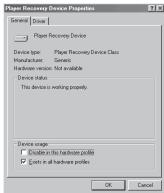
Double click on the symbol of the MP-200 (Player Recovery Device Class).
Now click on Driver>Upgrade Driver. Click on Next in any of the following windows and on Finish to finish driver installation.
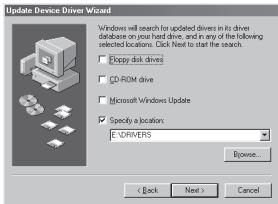
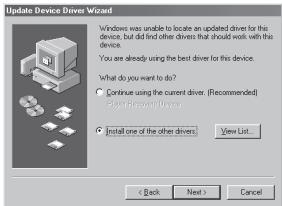
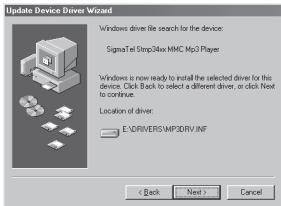
Now the driver is installed.
BASIC OPERATION
#
The unit is completely controlled by menus. The main menu and its sub menus are invoked with the key MENU. Main menu and its sub menus are left by invoking the option Exit. All menus are navigated with the keys and . To select an option MENU has to be pressed.
Switching On and Off
Use to switch on. The unit is set to music mode after switching on. To switch off is pressed for more than 4 seconds until the message Continue Holding To Power Off and an activity bar is shown and the unit is switched off.
Playback
Short pressing of starts and pauses playback. A little bit longer pressing stops playback.
Previous/Next
Short pressing of moves to previous files of to the next.
Volume
If is pressed somewhat longer volume increases while longer pressing reduces it.
Fast Forward/Reverse (FF&RW)
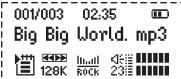
Select SETTING in the main menu and then FF&RW. If you click on FF&RW, the unit returns to the playback screen. On the place
of MP3 or WMA a blinking symbol is shown. The keys and are used to move fast forward and back. This mode is left with MENU.
Equalizer
Select SETTING in the main menu and then EQ. Navigate with and through Normal rock JAZ Classic and Pop
In music or in voice mode settings can be made immediately by pressing EQ/DEL.
Playback Mode
Select SETTING in the main menu and then PlaySequence. Navigate with and through Normal, Repeat One, Repeat All, Shuffle, and Shuffle All.
A-B Repeat Function
During playback you press REC/A-B to mark the beginning of the range to be repeated. An A is shown. The end of the range is marked by pressing REC/A-B again. Now the symbol AB is shown and the marked section is permanently repeated. To stop A-B repeating REC/A-B has to be pressed.
Voice Mode
Select VOICE in the main menu for the voice mode. Under voice mode the display shows WAV. In voice mode WAV files are used. There is no support for ID3 tags (displaying lyrics information). This functionality is available:
-Playback
- Pause/stop/power off
- Previous/next, FF/REW
- Volume adjustment
-EQ modes setting
-Playback modes setting
-A-B repeat
Voice Recording
Quick Start
In music or in voice mode press REC/A-B until is displayed. Voice recording starts immediately after releasing the key. Recording format is mono ADPCM 8 kHz. Pressing REC/A-B stops recording.
Menu Controlled
Select RECORD in the main menu while in music or voice mode. The sub menu includes the options Sour(ce), Mode, Enco(ding), Rate, Mo/ST (Mono/Stereo). Record and Cancel. and are used to navigate through the options and with the MENU button the selection is confirmed.
Source allows to select the audio source (MIC = microphone, Lineln for all other audio devices). Mode offers to select between Song and Album. Use Encoding to set the formats IM ADPCM (4 Bit), MS ADPCM (4 Bit) or PCM (16 Bit). Rate is used to set the sample rate to 8KHz/11KHz/16KHz/22KHz/32KHz. Mo/ST allows to toggle between Mono and Stereo. Pressing MENU with selecting Record starts recording while Cancel stops the whole process.
Select MIC and then select Record with MENU. The unit starts recording immediately. Pressing REC/A-B stops recording.
Recording can be stopped and resumed at any time by pressing (symbol).
If recording with the integrated microphone Vxxx.WAV files are stored in the directory VOICE.
Deleting Files
Deleting single/all Files
Press EQ/DEL and the message Delete? is displayed together with the respective file name and the options Yes and No. Navigate with and . Select Yes and the file is deleted. The delete mode is left.
If you press EQ/DEL twice the message Delete All? appears together with the options Yes and No. Select Yes and confirm with MENU to delete ALL Files.
With No in both cases the delete mode is left without deleting anything.
Menu Controlled
Select DELETE in the main menu. Select the symbols for music, voice, or EXIT with or . Confirm using the MENU button. If music or voice was selected a submenu allows to select the respective files to be deleted. Selecting EXIT is used to leave the menu.
UKW Tuner
FM receiving
Select FM TUNER by or button in the main menu and press MENU button to confirm.
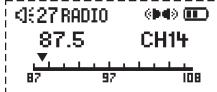
Auto-searching
Searching for the next station: press MENU button to enter searching mode, press and hold button to start searching from low frequencies to higher frequencies.
Auto-searching: press MENU button to enter searching mode,
press and EQ/DEL button at same time, the unit begin to search stations and store them automatically. At most the unit can store 30 stations.
Stop searching: under auto-searching status, shortly press REC/A-B button, the unit will stop searching automatically.
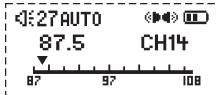
Note: Before searching or if no station was stored, the station will be defaulted at 87.5 MHz.
Manual searching
Press menu button to enter searching mode, each time you press or button the frequency will increase or decrease by 0.1 MHz.
Storing
Under searching status, press MENU key to shift to storing mode, press or button to select the channel number, then press REC/A-B button to confirm the storing and return to FM receiving.If you press MENU button, the unit will return to current channel and won't save the channel that has been found out.
Note: By those operations above, the files can only be stored temporarily. If you shut off the power directly, the file will be lost. So if you want to keep it, you must press and hold button, until the unit is powered off normally.
Delete FM stations
Under FM Radio mode, press EQ/DEL button, the current channel will be deleted, while the following channels would move all one channel down.
Previous/Next station
Under FM receiving status, press button to skip to the previous station, and press to skip to the next station.
Forced mono
When the FM stereophonic effect sounds not very good, press button to achieve forced mono function, which could lower the interference, press button again, it return to stereo effect.
Volume adjustment
Under FM playing, press and hold or button to increase or decrease the volume. The indicator on the LCD will change accordingly.
Quit FM Mode
Press and hold MENU button to quit FM mode.
Recording of FM Transmissions
If a transmission should be recorded from the internal FM radio the REC/A-B button has to be pressed. Source is set to FM. Set the respective values (see next section). After selecting Record recording of the actual transmission starts by pressing MENU.
If FM recording Fxxx.WAV files are stored.
LINE-IN Recording (Music Mode)
Connect LINE-IN with an external audio device (i.e. cassette recorder, CD player etc.). Select RECORD in the main menu. The sub menu includes the options Sour(ce), Mode, Enco(ding), Rate, Mo/ST (Mono/Stereo), Record and Cancel. and are used to navigate through the options and with the MENU button the selection is confirmed.
Source allows to select the audio source (MIC = microphone, LineIn for all other audio devices). Mode offers to select between Song and Album. Use Encoding to set the formats IM ADPCM (4 Bit), MS ADPCM (4 Bit) or PCM (16 Bit). Rate is used to set the sample rate to 8KHz/11KHz/16KHz/22KHz/32KHz. Mo/ST allows to toggle between Mono and Stereo. Pressing MENU with selecting Record starts recording while Cancel stops the whole process.
Select Lineln, start the external audio device and select Record on the MP-200 with MENU. The unit starts recording immediately. Pressing REC/A-B stops recording.
If line in recording Lxxx.WAV files are stored.
Note:
Check the recording volume for example with an earphone.
Edit ID3 Tags
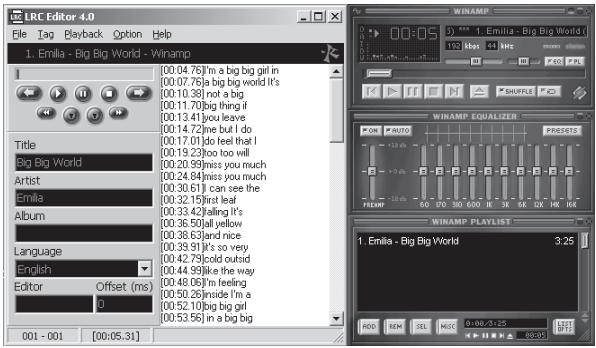
- Open Winamp, load the MP3 file you want to edit and then open the LRC editor. You can key in the informations to the LRC editor's text frame or click Document/open and move the edited text to the editor, as follows:
While the respective music title is reproduced, please click add tag. Note that the time tag will appear before the textual information.
- Fill in file name, singer and name of the album.
- Finally, click Save As in File in LRC to save the edited ID3 tag.
Note:
Name the ID3 tag with the name of the respective MP3 file and copy both files to the unit. Then the according informations will be displayed on the screen while playing a song.
Note:
- The length of an ID3 tag shall not exceed 16 single-character (i.e. English or number characters) or 8 double-character (i.e. Chinese characters).
-
Characters as follows are not allowed to be used in title and singer information: \ / : * ? " < > | [ ]
-
The ID3 tag information of each song cannot exceed 1000 bytes. Otherwise the exceeding characters are truncated.
Copying Files to MP-200
Seen from PCs side the MP-200 is a normal mass storage device. File transfer therefore is possible in the common way in Windows Explorer.
Important
Do not disconnect the unit while files are copied. Otherwise this may cause losses of data. You will find more details in section "Trouble Shooting".
The unit can only be disconnected if the screen shows
Ready Blinking messages like Read or Write indicate there is a file transfer in progress.
Setting Energy Management
Select SETTING in main menu and then AutoPowerOff. Navigate with and through the switch off options. Settable are time intervals of (inactivity), 1 min., 2 min., 5 min., and 10 min to switch off the unit. Confirm with MENU.
ScreenSaver
Select SETTING in main menu and then Screen Save. Then you can select (deactivate), 5 sec., 10 sec, 30 sec. and 60 sec. until the screen saver is activated. Navigate with and and confirm with MENU.
Memory Information
Select ABOUT in main menu. The screen shows the total (IntTotal) and the free (IntRemain) available memory capacity. Press any key to return to main menu.
UPGRADING THE FIRMWARE
Normally it is not necessary to upgrade the firmware. It should be carried out if the unit cannot be operated without problems.
- Connect the unit to the PC
- Press to switch the unit on. In My Computer a mass storage device is shown.
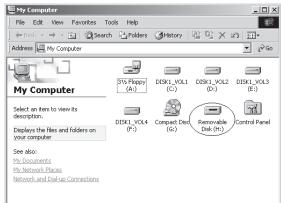
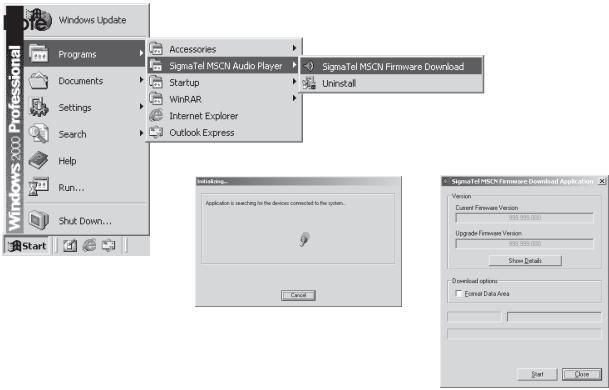
- Further proceeding: Start>Programs>SigmaTel MSCN Audio Player>SigmaTel MSCN Firmware Download. After closing the windows the upgrade window is opened.
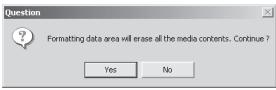
If the flash memory shall be formatted while upgrading firmware Format Data Area has to be selected. Click on Yes in the window.
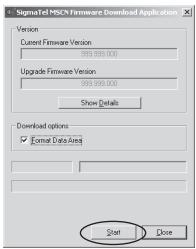
- Click on Start and start the upgrading software as shown in the following.
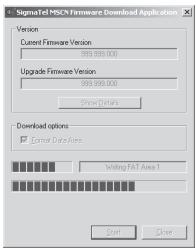
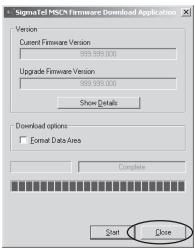
- After upgrading click on Close.
FORMATTING THE MEMORY
- Press after connecting the player to the PC.
- Click with the right mouse button on My Computer and select Formating.
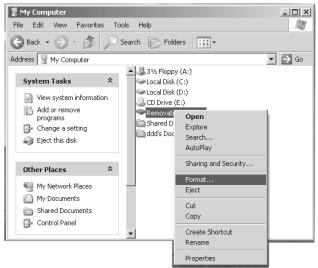
- The Formatting windows opens.
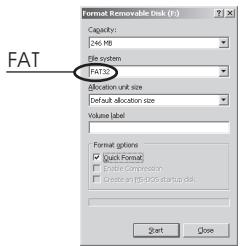
- Click on Start followed by OK. Formatting of the flash memory is started.
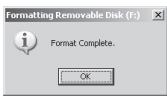
- After formatting click on OK.
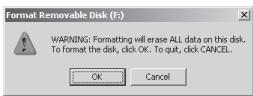
DEINSTALLING DRIVER SOFTWARE
- Disconnect the unit from the PC.
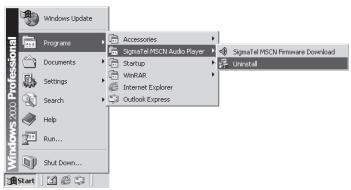
- Click on Start>Programs>SigmaTel MSCN Audio Player>Uninstall or use Control Panel>Explorer>Software. Now the following window appears.
- Click on Cancel if the driver should not be deinstalled.

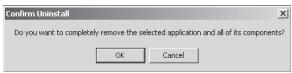
- Click on OK to start the deinstallation process. Follow the instructions on the screen.
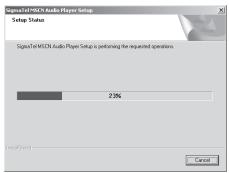
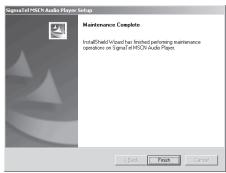
- Click on Finish to finish the deinstallation.
TROUBLE SHOOTING
Why can't some MP3 files be played?
MP3 Standard only includes: the songs in layer 3 of MPEG1, layer 3 of MPEG2 and layer 3 of MPEG2.5. Otherwise, songs won't be played in the player except they are transformed by the corresponding software.
Why doesn't the memory size displayed under the operation system match the figure on the tab?
The software in the MP3 player takes up a small portion of the memory, which coincides with the corresponding standards.
More about WAV format
This unit supports WAV files of IMA ADPCM format only. If you want to store WAV files of other format in this player, please set up a new folder and store the WAV files in it. Don't put the WAV files of other format into the root directory of the player or the folder VOICE. Otherwise the player may shut down when playing such WAV files.
What causes the MP3 player running slowly?
Using or deleting files frequently over a long time will generate fragments in the flash memory like fragmentation of a hard disk. Fragmentation slows down the operating speed of the player.
What if the driver program of the MP3 player has been damaged?
Normally this is caused by improper operation. For details, please refer to the Upgrade/Renew Software part.
What if the MP3 player works abnormally, i.e, shutting down?
When abnormal situation occurred due to improper operation, push the POWER ON switch to OFF and then toward ON. The restart of the unit will return it to normal operation.
SPECIFICATION
Flash memory: 256MB/512MB/1GB
Interface: USB2.0
Max recording time: 16Hr (32Kbits)
Up to 10 hours playing time
Dimensions: 71mm x 32mm x 15mm
Weight: 24g (without battery)
Power source: AAA battery
Memory medium: built-in flash memory
File formats supported: MP3 (Layer 3 of MPEG1, MPEG2, MPEG2.5), WMA
Microphone: built-in capacitor microphone
Input: LINE IN
Output: double-channel earphone, impedance above 8 ohm.
Range of FM frequencies: 87.5 - 108 MHz
Operating temperature: 0^ - 40^
Owner's name
Serial No.
MP-200

Address
Dealer's name
Dealer's address
Who May Enforce the Warranty
This warranty may be enforced only by the original retail purchaser.
What We Will Pay For
We will pay an抚or and insurance charge if disc
How You Can Get Warranty Service
1. If your unit needs service during the warranty period, please contact the local authorized distributor for this service. This will be unable to locate such a distributor, please contact your TEAC facility at the address indicated below.
2. After identifying the nearest authorized service station for this product the product or any parts be
with a copy of this warranty certificate and a copy of your sales receipt, showing the date of purchase. Please ensure to fill out the warranty certificate correctly (do not forget the serial number of the
product). TEAC reserves the right to refuse the guarantee service if the documents are missing or incomplete in the understanding of this terms.
If the necessary repairs are covered by the warranty, and if you have sent the product or parts of it to the nearest authorized service station, the return freight and insurance charges will be prepaid.
Please do not return your unit to the LEAC factory without our prior authorization (see also RMA form)!
Limitations of Liability and Exclusion of Implied Warranties
Unless considered unthermoeable or unawill under the applicable national law: 1. TEAC's liability for any defective product is limited to repair or replacement of the product, at TEAC's
stations. No one is authorized to assume any greater liability on TEACs behalf. TEAC shall not be liable for any damage to any other properties independent of their virtual or real nature especially therein property and equipment, or for any loss or damage to the property and equipment.
products. Furthermore TEAC is not liable for damages arising out of loss of use, loss of revenue or profits, or any other damages, whether incidental, consequential, or otherwise.
All implied warranties or conditions, including but not limited to warranties or conditions of merchantability and fitness for a particular purpose, hereby are excluded.
These warranty terms do not affect any statutory rights of consumers which were granted by the respective national laws.
Warranty Period
TEAC Europe GmbH, hereinafter called TEAC, warrants this product against any defect in material and workmanship for two (2) years from the date of purchase by the original retail purchaser. According to the following terms this TEAC product will be repaired without charge of labor and materials by the authorized TEAC service stations, by the authorized TEAC dealers and/or their authorized service stations. TEAC, the authorized TEAC service stations, the authorized TEAC dealers and/or their authorized service stations may decide whether the defective product will be repaired or replaced as a whole or partially. The TEAC dependancies, the authorized TEAC service stations, the authorized TEAC dealers and/or their authorized service stations will also honour this warranty in the other EC and EFTA member states based on the terms in this warranty conditions.
What is Covered and What is Not Covered.
Except as specified below, this warranty covers any defects in materials and workmanship of this product. The following are not covered by the warranty: 1. Damage to or deterioration of the external cabinet.
2. Any unit that has been altered or on which the serial number has been defaced, modified, or removed.
3. Damage, deterioration or malfunction resulting from:
(a) accident; misuse, abuse or negligence;
(b) failure to follow instructions suggested with the product;.
(c) any shipment of the product. Any damage arising of transportation is the liability of the freight company. Any damage arising of transportation and any implicit and explicit risks are the liability of the freight company. This is expressivit not a liability of TEAC;
(d) repair or attempted repair by anyone not authorized by TEAC to repair this product; (e) causes other than product defects, including lack of technical skill, competence or experience of the user. Especially damages which may arise of incidental use respectively by improper ventilation,
(f) damages caused by improper or incorrect installation of software,
(g) periodic check-ups,
(h) maintenance respectively repair of parts due to normal wear and tear,
(i) adoptions or adjustments to the product in order to conform to different national technical or industrial standards, including country other than the one for which the product was originally designed and manufactured.
- Disposing of the Product
- Contents
- FEATURES
- CONTENT OF PACKAGE
- IMPORTANT INFORMATIONS
- Important information:
- INTRODUCTION OF CONTROLS
- Line Control
- Note:
- SYMBOLS ON SCREEN
- INSTALLATION
- Loading the battery
- Driver Software
- Windows98
- Windows 2000/XP/ME
- Connecting to a PC
- Disconnecting
- Manual Installation of Driver Software
- BASIC OPERATION
- #
- Switching On and Off
- Playback
- Previous/Next
- Volume
- Fast Forward/Reverse (FF&RW)
- Equalizer
- Playback Mode
- A-B Repeat Function
- Voice Mode
- Voice Recording
- Quick Start
- Menu Controlled
- Deleting Files
- Deleting single/all Files
- UKW Tuner
- FM receiving
- Auto-searching
- Manual searching
- Storing
- Delete FM stations
- Previous/Next station
- Forced mono
- Volume adjustment
- Quit FM Mode
- Recording of FM Transmissions
- LINE-IN Recording (Music Mode)
- Edit ID3 Tags
- Copying Files to MP-200
- Important
- Setting Energy Management
- ScreenSaver
- Memory Information
- UPGRADING THE FIRMWARE
- FORMATTING THE MEMORY
- DEINSTALLING DRIVER SOFTWARE
- TROUBLE SHOOTING
- What if the MP3 player works abnormally, i.e, shutting down?
- SPECIFICATION
- Owner's name
- MP-200
- Address
- Dealer's name
- Dealer's address
- Who May Enforce the Warranty
- This warranty may be enforced only by the original retail purchaser.
- What We Will Pay For
- We will pay an抚or and insurance charge if disc
- How You Can Get Warranty Service
- If your unit needs service during the warranty period, please contact the local authorized distributor for this service. This will be unable to locate such a distributor, please contact your TEAC facility at the address indicated below.
- After identifying the nearest authorized service station for this product the product or any parts be
- with a copy of this warranty certificate and a copy of your sales receipt, showing the date of purchase. Please ensure to fill out the warranty certificate correctly (do not forget the serial number of the
- product). TEAC reserves the right to refuse the guarantee service if the documents are missing or incomplete in the understanding of this terms.
- If the necessary repairs are covered by the warranty, and if you have sent the product or parts of it to the nearest authorized service station, the return freight and insurance charges will be prepaid.
- Please do not return your unit to the LEAC factory without our prior authorization (see also RMA form)!
- Limitations of Liability and Exclusion of Implied Warranties
- Unless considered unthermoeable or unawill under the applicable national law: 1. TEAC's liability for any defective product is limited to repair or replacement of the product, at TEAC's
- stations. No one is authorized to assume any greater liability on TEACs behalf. TEAC shall not be liable for any damage to any other properties independent of their virtual or real nature especially therein property and equipment, or for any loss or damage to the property and equipment.
- products. Furthermore TEAC is not liable for damages arising out of loss of use, loss of revenue or profits, or any other damages, whether incidental, consequential, or otherwise.
- All implied warranties or conditions, including but not limited to warranties or conditions of merchantability and fitness for a particular purpose, hereby are excluded.
- These warranty terms do not affect any statutory rights of consumers which were granted by the respective national laws.
Brand : TEAC
Model : MP-200FM
Category : Media player