
IH5 - Hi-Fi System IHOME - Free user manual and instructions
Find the device manual for free IH5 IHOME in PDF.


| Product Type | Hi-Fi System with iPod Dock |
| Brand | IHOME |
| Model | IH5 |
| Power Supply | 220V AC Adapter (cable included) |
| Radio Bands | AM (Medium Wave) and FM |
| Main Functions | iPod playback, radio, alarm, sleep timer, line input (AUX), line output |
| Display | Digital clock with 12/24h display, brightness adjustment |
| Alarm | Wake to iPod, radio or buzzer, with snooze (9 min) and battery backup alarm |
| Sleep Timer | Sleep timer (15, 30, 60, 90, 120 min) with separate volume |
| Care and Cleaning | Soft, slightly damp cloth (mild soapy water), no solvents |
| Safety | Do not use near water, do not block ventilation openings, keep away from heat sources |
| Included Parts and Accessories | AC adapter, remote control, iPod inserts (Shuffle, Mini, Thin, Thick, nano, 5G), AM antenna, audio cable |
| iPod Compatibility | iPod Shuffle, Mini, 3G, 4G, Photo, nano (1-4GB), 5G (with video) |
| Backup Power | 2 AA batteries (not included) for clock and alarm backup |
| Remote Control | CR2032 battery included (already installed) |
Frequently Asked Questions - IH5 IHOME
User questions about IH5 IHOME
0 question about this device. Answer the ones you know or ask your own.
Ask a new question about this device
Download the instructions for your Hi-Fi System in PDF format for free! Find your manual IH5 - IHOME and take your electronic device back in hand. On this page are published all the documents necessary for the use of your device. IH5 by IHOME.
USER MANUAL IH5 IHOME
iPod Mini insert currently installed
(See iPod Inserts on page 1 of instruction book)
Table of Contents
Quick Start 1
Controls and Indicators / iH5Display 2
Using the iH5 3-4
Replacing iH5 Backup Batteries 5
Install/Replace Backup Battery
Using the Remote Control Unit 5
A Consumer Guide to Product Safety 6
Troubleshooting 7
A Consumer Guide to Product Safety
This equipment complies with limits for a digital device that provide reasonable protection against radio and TV interference in a residential area.
However, your equipment might cause TV or radio interference even when it is operating properly.
To eliminate interference you can try one or more of the following corrective measures:
Reorient or relocate the receiving antenna.
- Increase the distance between the equipment and the radio or TV.
Use sockets on different electrical circuits for the equipment and the radio or TV.
Consult your dealer or an experienced radio/television technician if the problem still exists.
Modifying or tampering with your system's internal components can cause a malfunction and might invalidate the system's warranty and void governmental regulatory authorization to operate the device in your country if required.
Questions? Warranty? Service? Visit www.ihomeintl.com
Maintenance
- Place the unit on a level surface away from sources of direct sunlight or excessive heat.
- Protect your furniture when placing your unit on a natural wood and lacquered finish. A cloth or other protective material should be placed between it and the furniture.
Clean your unit with a soft cloth moistened only with mild soap and water. Stronger cleaning agents, such as Benzine, thinner or similar materials can damage the surface of the unit.
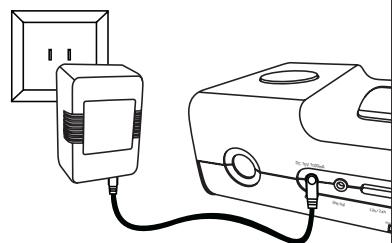
1:power
Attach AC adaptor cable to jack on back of the iH5 and plug the other end into a wall socket.
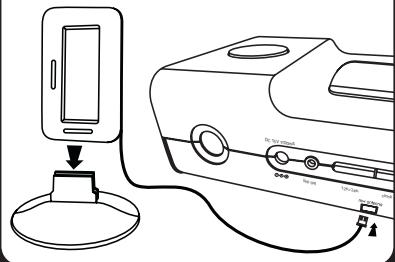
2:antenna
Snap MW antenna into provided stand, then plug antenna cable into socket on back of iH5. Move antenna 12" away.
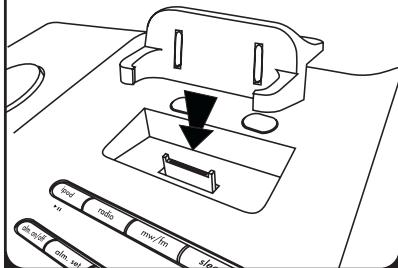
3:inserts
Select the dock insert from the chart below for your iPod® model and place insert in dock. Never dock an iPod without an insert in place.
| Shuffle Insert | Mini Insert | Thin iPods Insert | Thick iPods Insert | nano Insert | 5G iPod (with video) | |||
| use with iPod Shuffle NOTE: iH5 will not charge iPod Shuffle | use with iPod Mini | iPod 3Gen | 10-15 GB | iPod 3Gen | 30 GB | iPod nano | 1 GB | Replace rubber pad per instruction on the 5G rubber pad card |
| iPod 3Gen | 20 GB | iPod 3Gen | 40 GB | iPod nano | 2 GB | |||
| iPod 4Gen | 20 GB | iPod 4Gen | 40 GB | iPod nano | 4 GB | |||
| iPod Photo | 30 GB | iPod Photo | 40 GB | |||||
| iPod Photo | 60 GB | |||||||
4:time
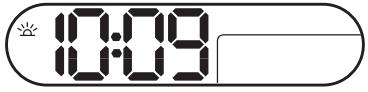
- Press & hold the Clock Adjust button on back until it flashes
- Turn the Set Wheel to adjust the time
- Press the Clock Adjust button again.
- Move the ST switch on back of unit to +1 or -1 (adds or subtracts an hour)
- Press 12/24 Hr button for 12 or 24 hour time display
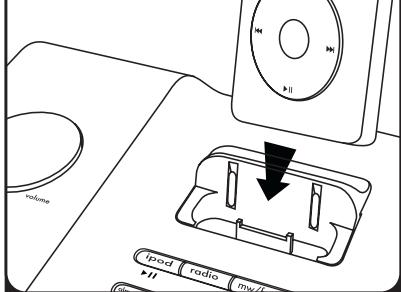
5:iPod
Insert iPod into dock (iPod® must not be in a "skin" or case). Press iPod Button on iH5. iPod will charge while docked.
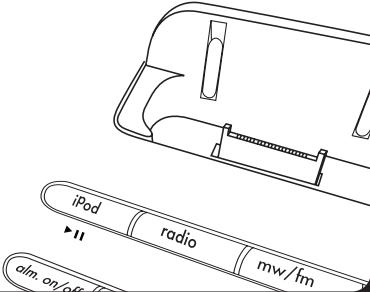
6:radio
Press the Radio button. Press MW/FM button to select your band. Turn the Set Wheel to tune in a station.
iH5 Display
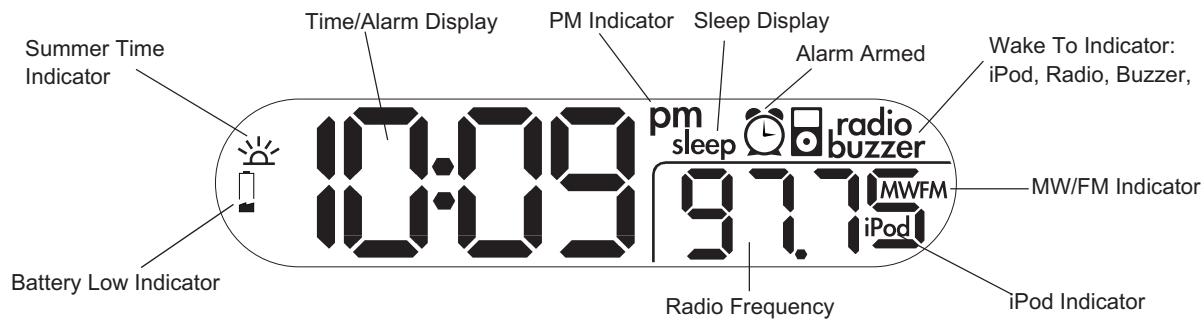
Press the 12/24 hr button on the back of your unit to change from a 12 hour (AM/PM) to a 24 hour display.
Connect iH5 to Power Source
a) Plug the AC adaptor cable into the AC Adaptor Jack and the other end into a standard 220v wall socket. The iH5 does not operate on batteries.
Setting the Clock Time
Display Options
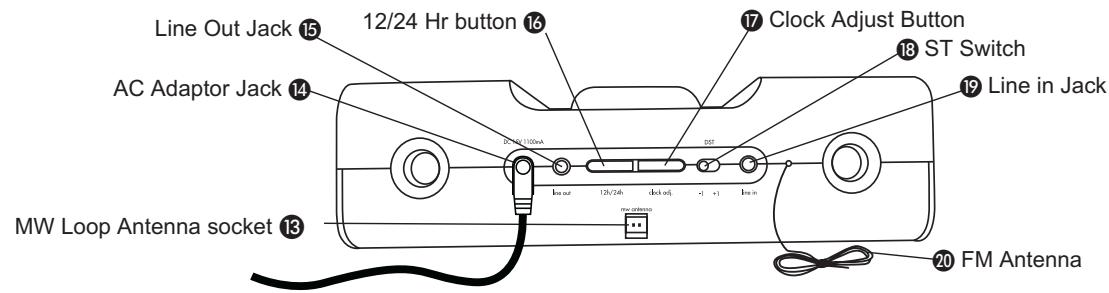
- You can choose to have the clock display the time in 12 hour (AM and PM) or in 24 hour mode. Before setting the time, select your time display mode using the 1612hr/24 hr button located on the back of the unit.
- To adjust the time for Summer Time, slide the 18 ST switch to +1 to advance the time 1 hour. Slide to -1 to turn the clock back 1 hour.
Setting the Clock
a) Press and hold the ⑦ Clock Adjust Button. The clock display will flash.
b) Turn the Set Wheel until the current time is displayed (in 12 hour mode, a PM indicator appears when time is set to PM; there is no AM indicator).
c) Press the Clock Adjust Button to accept the time. Two beeps will indicate clock setting is complete.
Using the Alarm
Setting the Alarm
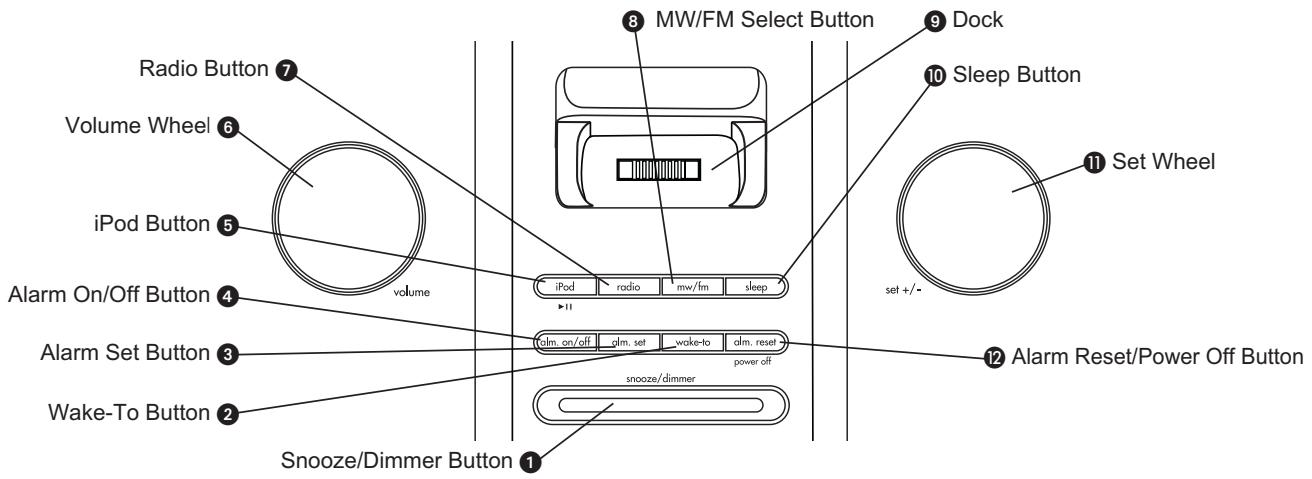
a) Press and hold the 3 Alarm Set Button until the alarm time flashes.
b) Turn the Set Wheel to set the alarm time ((in 12 hour mode, a PM indicator appears when time is set to PM; there is no AM indicator).
c) Press Alarm Set again. Alarm is now armed, indicated by the alarm clock icon and alarm source icon.
d) At any time, press the 2 Wake-To Button repeatedly to select an alarm source to wake to: iPod, radio or buzzer.
Arming and Disarming Alarm (Turn Alarm Function ON and OFF)
a) Press the 4 Alarm On/Off Button to arm or disarm alarm function. When armed, alarm icon appears in display.
Resetting the Alarm to Come on the Next Day
a) When the alarm is sounding, press the 2 Alarm Reset/Power Off Button to stop alarm and reset it to come on the following day.
Snoopze
a) Press the 1 Snooze/Dimmer Button after the alarm sounds. The alarm will be silenced and come on again 9 minutes later. Snooze can be pressed several times during the 1 hour alarm cycle.
Sure Alarm
The iH5 has a sure alarm feature so the buzzer alarm will still sound in the event of power failure, if backup batteries are installed.
iPod
Playing and charging your iPod
a) Place proper insert for your iPod (see insert table on page 1) in Dock, then gently dock iPod. When docked, iPod will charge until fully charged. The iPod will not overcharge.
b) Press the ⑤ iPod Button to play iPod, and again to pause.
c) Turn 6 Volume Wheel to adjust iH5 volume up or down
d) Press 12 Alarm Reset/Power Off Button to turn iH5 and iPod off.
Radio
Setting up Antennas
a) Snap MW loop antenna into provided stand, then plug antenna cable into 8 MW Loop Antenna socket on back of unit. Move antenna 12" away from unit for best reception.
b) Extend FM Antenna (on back of unit) fully for best reception. Do not strip, alter or attach to other antennas.
Tuning and Playing the Radio
a) Press the 7 Radio Button to select radio play mode.
b) Press the 8 MW/FM Select Button to select MW or FM radio band.
c) Turn the Set Wheel to tune radio to desired station.
d) Turn the 6 Volume Wheel to adjust iH5 volume up or down.
e) Press 12 Alarm Reset/Power Off Button to turn iH5 and iPod off.
Using the Line-in and Line-out Jacks
a) An audio patch cord comes with the iH5. Use it to play nondocking iPods or other audio devices through the iH5 Line-in Jack (one end in the device's line out or headphones jack, the other in the iH5 line in jack). Make sure there is no iPod docked in the iH5 when using the line-in jack. Press the iPod Button until AUX appears on the display.
b) Use the Line Out Jack to connect the iH5 to the line-in jack of other audio devices such as a tape recorder or amplifier. The Volume Wheel of the iH5 does not control line-out volume (adjust on attached device instead).
Using Sleep Mode
Sleep mode lets you sleep to your iPod or the radio, gradually lowering the volume until the unit shuts off at the selected time.
a) Press the 10 Sleep Button to select an amount of time before the iH5 will turn off: 120, 90, 60, 30 or 15 minutes.
b) Turn the Volume Wheel to set the sleep volume (this volume setting is separate from your standard volume setting).
Using Dimmer
a) Press the 1 Snooze/Dimmer Button during normal operation to adjust brightness of LCD display.
Install/Replace Backup Battery
The iH5 uses a backup battery system to provide continuous alarm operation and clock settings in the event of a power failure. If the Battery Low Icon located on the left of the display is flashing, it is time to replace the backup
batteries. Please make sure the AC adaptor is connected, otherwise all settings may be lost during battery replacement.
Open the battery compartment cover located on the bottom of the unit. Insert 2 "AA" batteries as indicated. We recommend the use of alkaline batteries for longer life.

Batteries information:
- Do not mix old and new batteries.
- Do not mix alkaline, standard (carbon -zinc) or rechargeable (nickel-cadmium) batteries.
Using The Remote Control Unit
The Remote Control controls basic functions on the iH5 and certain iPod® functions when the iPod® is docked in the iH5. For best results, aim the remote control towards the grill by the lower right-hand corner of the display.
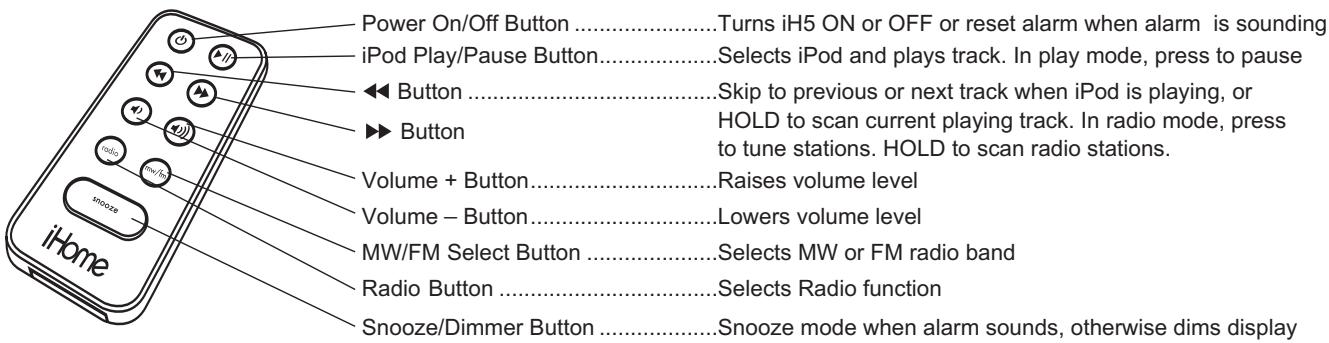
Install/Replace the Remote Control Battery
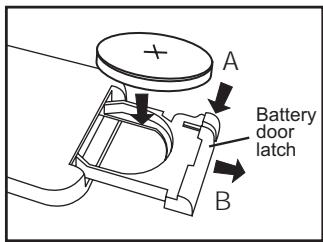
The remote control battery is already installed at the factory. When the remote control stops operating or its range seems reduced, replace the battery with a new one.
- The battery door is located on the back end of the unit.
- Squeeze notched tab A while pulling battery door latch B to release the battery door latch and take out the battery holder.
- Insert a "CR2032" 3-volt lithium battery. Make sure the polarity (the + and - side of the battery) is correct.
- Replace the battery holder back in the remote control.
NOTE: PLEASE DISCARD BATTERIES PROPERLY
IMPORTANT SAFETY INSTRUCTIONS
When used in the directed manner, this unit has been designed and manufactured to ensure your personal safety. However, improper use can result in potential electrical shock or fire hazards. Please read all safety and operating instructions carefully before installation and use, and keep these instructions handy for future reference. Take special note of all warnings listed in these instructions and on the unit.
- Water and Moisture – The unit should not be used near water. For example: near a bathtub, washbowl, kitchen sink, laundry tub, swimming pool or in a wet basement.
- Ventilation – The unit should be situated so that its location or position does not interfere with its proper ventilation. For example, it should not be situated on a bed, sofa, rug or similar surface that may block ventilation openings. Also, it should not be placed in a built-in installation, such as a bookcase or cabinet, which may impede the flow of air through the ventilation openings.
- Heat - The unit should be situated away from heat sources such as radiators, heat registers, stoves or other appliances (including amplifiers) that produce heat.
- Power Sources - The unit should be connected to a power supply only of the type described in the operating instructions or as marked on the appliance.
- Power-Cable Protection - Power supply cables should be routed so that they are not likely to be walked on or pinched by items placed upon or against them. It is always best to have a clear area from where the cable exits the unit to where it is plugged into an AC socket.
- Cleaning - The unit should be cleaned only as recommended. See the Maintenance section of this manual for cleaning instructions.
- Objects and Liquid Entry - Care should be taken so that objects do not fall and liquids are not spilled into any openings or vents located on the product.
- Attachments - Do not use attachments not recommended by the product manufacturer.
- Lightning and Power Surge Protection – Unplug the unit from the wall socket and disconnect the antenna or cable system during a lightning storm or when it is left unattended and unused for long periods of time. This will prevent damage to the product due to lightning and power-line surges.
- Overloading - Do not overload wall sockets, extension cords, or integral convenience receptacles as this can result in a risk of fire or electric shock.
- Damage Requiring Service – The unit should be serviced by qualified service personnel when:
A. the power supply cable or plug has been damaged.
B. objects have fallen into or liquid has been spilled into the enclosure.
C. the unit has been exposed to rain.
D. the unit has been dropped or the enclosure damaged.
E. the unit exhibits a marked change in performance or does not operate normally.
- Antenna - Do not connect an external antenna to the unit (other than that provided).
- Periods of Nonuse - If the unit is to be left unused for an extended period of time, such as a month or longer, the power cable should be unplugged from the unit to prevent damage or corrosion.
- Servicing – The user should not attempt to service the unit beyond those methods described in the user's operating instructions. Service methods not covered in the operating instructions should be referred to qualified service personnel.
Questions? Warranty? Service? Visit www.ihomeintl.com
Troubleshooting
| Symptom | Possible Problem | Solution |
| iH5 does not turn on | AC adaptor isn't plugged into a working wall socket or not plugged into the power supply jack on back of the unit | Plug the AC adaptor into a working wall socket and plug the connector into the supply jack on the unit |
| iH5 doesn’t respond | iH5 requires a reset | If unit is plugged in and doesn’t respond, try resetting the unit by following these steps: a) remove iPod from dock b) unplug unit from power source c) remove back up batteries d) wait 1 hour, then resume use |
| iPod does not dock properly | Using no or wrong iPod insert | Make sure the dock insert is the proper fit for your iPod (see chart on page 1) |
| iPod didn’t install properly | Remove your iPod from the dock and check for obstruction on the connectors in the dock and on your iPod. Then reseat it in the dock. | |
| Battery Low icon always flashing | Batteries are weak | Replace with new batteries |
| Batteries were not installed properly | Check to make sure the polarity (+ and - ends) matches the diagram in the battery compartment | |
| iPod does not respond to the unit/iPod is playing but no sound comes out | iPod is not installed properly | Remove your iPod from the dock and check for obstruction on the connectors in the dock and on your iPod. Then reseat it in the dock. |
| Your iPod software is too old | Upgrade software on your iPod. For details visit http://www.apple.com/ipo4/download | |
| iPod is locked up/plays but no sound comes out | Check the volume setting. Make sure your iPod is working properly before docking into the unit. Please refer to your iPod manual for details. See above for software upgrade information. You may need to reset your iPod. To do so: 1. Toggle the Hold switch to hold position, then off. 2. Press and hold the Menu and center Select buttons at the same time until Apple logo appears. You may need to repeat this step. | |
| Using 1stor 2ndgeneration iPod, iPod Shuffle or other devices. | iH5 cannot control those iPods or other devices. | |
| Remote Control didn’t work | Battery weak | Replace current battery with new battery |
| Remote Control is not pointed toward the iH5 remote sensor | Point the Remote Control toward the iH5 remote sensor (to right of clock display), move within 10 feet of the unit. | |
| iH5/iPod performance is erratic | The iH5 is reacting to external interference | Move unit away from potential sources of external interference such as computers, modems, wireless devices (routers) or fluorescent light |
| No sound from iH5 | Volume is set too low on iH5 | Make sure volume is turned up |
| iPod didn’t charge up | iPod is not installed properly | Remove your iPod from the dock and check for obstruction on the connectors in the dock and on your iPod. Then reseat it in the dock. |
| iPod is locked up/ frozen | Please make sure your iPod is working properly before docking into the unit. Please refer to your iPod manual for details. | |
| iPod battery has problem | ||
| No MW band radio sound but others OK | MW loop antenna is not connected to the unit | Plug the MW loop antenna connector to the jack on the back of the unit |
| MW band radio is very noisy | MW loop antenna isn’t located properly | Move the MW loop antenna away from the main unit/iPod and rotate it for best reception |
Troubleshooting
| Symptom | Possible Problem | Solution |
| Sound is distorted | Volume level is set too high | Decrease the volume |
| Sound source is distorted | If the iPod original sound source (MP3) is old or of poor quality, distortion and noise are easily noticed with high-power speakers. Try a different audio source such as a music CD. | |
| If you are using an external sound source like older generation of iPod or iPod Shuffle, try reducing the output volume on the device itself. Also try turning bass boost OFF. | ||
| Unit/adaptor gets warm after extended play at high volume | This is normal | Turn unit off for awhile or lower volume |
| Can't hear headphones/speakers attached to line out jack | Line out jack is not meant for headphones. Speakers need a power source | The signal from the line out jack needs amplification. Use powered speakers/monitors or other amplified audio device. |
For information regarding your product's warranty, how to obtain service, or further information regarding the operation or use of this product, please visit: www.ihomeintl.com
PROBLEMS?
5G iPod (iPod with video) or iPod nano
RESET YOUR iPOD (as per Apple website)
(will not affect music on your iPod)
- Move the Hold switch ON and OFF (slide it to Hold, then turn it off again)
- Press and hold the MENU + center SELECT button until the Apple logo appears (about 6-10 seconds). You may need to repeat this step.
NOTE: Please make sure that your iPod has the latest firmware. Check your iPod manual or the Apple website (www.apple.com) and follow instructions on how to upgrade firmware for your iPod.
Questions? Warranty? Service? Visit www.ihomeintl.com
- Table of Contents
- A Consumer Guide to Product Safety
- Maintenance
- 4:time
- Connect iH5 to Power Source
- Setting the Clock Time
- Display Options
- Setting the Clock
- Using the Alarm
- Setting the Alarm
- Arming and Disarming Alarm (Turn Alarm Function ON and OFF)
- Resetting the Alarm to Come on the Next Day
- Snoopze
- Sure Alarm
- iPod
- Playing and charging your iPod
- Radio
- Setting up Antennas
- Tuning and Playing the Radio
- Using the Line-in and Line-out Jacks
- Using Sleep Mode
- Using Dimmer
- Install/Replace Backup Battery
- Batteries information:
- Using The Remote Control Unit
- Install/Replace the Remote Control Battery
- IMPORTANT SAFETY INSTRUCTIONS
- Troubleshooting
- PROBLEMS?
- RESET YOUR iPOD (as per Apple website)
Brand : IHOME
Model : IH5
Category : Hi-Fi System