
D2 DAB - Media player COWON - Free user manual and instructions
Find the device manual for free D2 DAB COWON in PDF.


| Product type | Portable media player with DAB+ and FM radio |
| Brand | COWON |
| Model | D2 DAB |
| Dimensions | 78 x 55.4 x 16.6 mm (W x H x D) |
| Weight | 91 g (including battery) |
| Screen | 2.5 inch TFT-LCD color 1.6M, touchscreen QVGA (320x240) |
| Internal memory | 2 GB or 4 GB (depending on version) |
| External memory | SD/SDHC/MMC slot |
| Supported audio formats | MP3, WMA, OGG, FLAC, WAV |
| Supported video formats | AVI (MPEG4), WMV (WMV9) - requires conversion via JetAudio |
| Radio | DAB (Band III) and FM (76-108 MHz) |
| Recording | Built-in microphone, Line-in, FM/DAB (32-256 kbps) |
| Battery | Lithium polymer, audio playback up to 52h, video up to 10h |
| Charging | AC adapter ~3.5h, USB ~7h |
| Connectivity | USB 2.0 High Speed, TV output (optional cable) |
| Equalizer | JetEffect: BBE, Mach3Bass, 3D Surround, Stereo Enhance, MP Enhance |
| Additional functions | Bookmark, Dynamic Play List, text reader, lyrics display, alarm, timer |
| Care and cleaning | Wipe with a soft dry cloth. Avoid moisture and extreme temperatures. |
| Safety | Do not expose to moisture, do not disassemble, use only the provided adapter. |
Frequently Asked Questions - D2 DAB COWON
User questions about D2 DAB COWON
0 question about this device. Answer the ones you know or ask your own.
Ask a new question about this device
Download the instructions for your Media player in PDF format for free! Find your manual D2 DAB - COWON and take your electronic device back in hand. On this page are published all the documents necessary for the use of your device. D2 DAB by COWON.
USER MANUAL D2 DAB COWON
©OWON D2
Thanks for purchasing COWON.
We always strive for your complete satisfaction of our product.
This manual contains user guide, cautions and other useful information about your COWON player. Please read this manual thoroughly before using, to take full advantage of features in your COWON player.
Legal Notice
• COWON is a registered trademark of COWON SYSTEMS, INC.
- This product is intended for personal use only and may not be used for any commercial purpose without the written consent of COWN SYSTEMS, INC.
• Information in this document is copyrighted by COWON SYSTEMS, INC. and no part of this manual may be reproduced or distributed without the written permission of COWN SYSTEMS, INC.
- The software described in this document including COWON MediaCenter - JetAudio and jetAudio are copyrighted by COWON SYSTEMS, INC.
- COWON MediaCenter - JetAudio and jetAudio may only be used in accordance with the terms of license agreement and cannot be used for any other purposes.
- The media conversion feature in COWON MediaCenter - JetAudio and jetAudio may only be used for personal use only. Use of this feature for any other purposes may be considered a violation of the international copyright law.
- COWON SYSTEMS, INC. complies with the laws and regulations related to records, videos and games. Complying with all other laws and regulations regarding consumer use of such media is the responsibility of the users.
• Information in this manual including contents of product features and specifications is subject to change without notice as updates may be made.
- This product has been produced under the license of BBE Sound, Inc. (USP4638258, 5510752 and 5736897). BBE and the BBE symbol are the registered trademarks of BBE Sound, Inc.
On-line registration and support
- Users are strongly encouraged to complete customer registration at http://www.COWON.com. After filling out our customer registration form using the CD-Key and serial numbers, you can receive various benefits offered only to official members.
- 1:1 online support, news updates for new products or special events, and other services are available for our registered customers.
• Each CD-key is unique and will not be re-issued in case of loss.
• Further information regarding the product can be found on the web: http://www.COWON.com - Users will be able to find the latest information for other COWON products and download the latest updates for firmware and software.
- Frequently Asked Questions and Answers can be found on the website.
DIGITAL PRIDE
COWON D2 DAB
Precautions and Safety Tips 4
1) Before Using D2 DAB 5
- Package Contents
- Identifying the Parts
- Charging the D2 DAB
- Installing Windows 98 Driver
- Connecting to PC and Transferring Files
- Upgrading Firmware
2)Basic Operations II
- Button Control
- Basic Operation
- Music Mode
- Video Mode
- Picture and Text Mode
- DAB Mode
- FM Radio Mode
- Record Mode
- Settings Mode
3) Additional Information 21
- Specification
- Setting to Factory Default
- File Conversion Using COWON MediaCenter - JetAudio
Troubleshooting 24
- Do not use this product for any purpose other than described in this document
- Use caution opening the contents of the package to avoid injuries
- Refrain from using earphones if it might affect your awareness of your surroundings. For example, it can be dangerous to use earphones while driving a motorized vehicle, cycling, running, walking, or even during exercises.
- Avoid any exposure to extreme moisture. Damage from moisture constitutes user's negligence and will not be covered by manufacturer's warranty.
- Disassembling or modifying the device will void any warranty.
- Make sure the USB connection is made correctly to avoid any damage to the device or the PC. Avoid extreme bending or pressuring the connection.
- Avoid any excessive force or impact. If there is an unusual odor such as burning smell or excessive heating during use, stop using the device immediately and contact us through www.COWON.com
- Do not use the player with wet hands as it may cause damage and malfunctions.
- Do not listen to the player at excessively high volume for long period of time. Avoid using the device at excessively high volume (>85dB) for any extended period as it may cause damage to your auditory functions.
- Avoid using the player at a location where static electricity is frequent
- Before any repair service, you should back up all data from the player. COWON SYSTEMS, INC. shall not be liable for any loss of data or files during the repair.
- Only use the AC adapter and USB cable provided by COWON SYSTEMS, INC.
- During lightning or thunderstorms, disconnect the player from the PC or AC adapter to avoid a risk of power surge or fire hazard.
- Store the player away from direct sunlight, excessive heat, fire and extreme cold environments. Excessive temperature can damage the exterior, interior circuits or the display.
- When using the player as a portable storage device, important data should be backed up as frequently possible. COWON SYSTEMS, INC. shall not be responsible for any unexpected data loss.
- Price of the player may fluctuate depending on the market condition, COWON SYSTEMS, INC. shall not compensate for any loss caused by price fluctuation.
- Avoid viewing the display in very dark environment for extended period as it may cause excessive strains on your eyes. To prevent any vision damages that may be caused by such strains, please use the device in properly lit locations.
1.Package Contents
natural_image
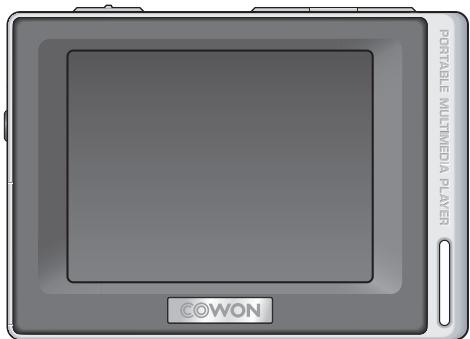
Front view of a portable multimeter player with 'PORTABLE MULTIMEDIA PLAYER' label and '©WON' button (no other text or symbols)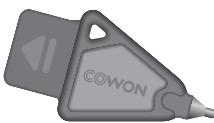
natural_image
Gray 3D icon of a cowon tool with a label (no text or symbols on the tool itself)Simple stylus pen
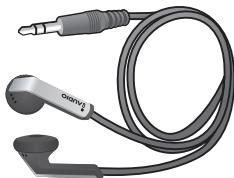
natural_image
Coiled audio jack with two speakers and a USB port (no text or symbols visible)Earphone
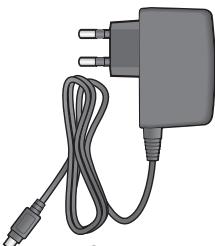
natural_image
Illustration of a gray electric plug with a cable and two terminal ports (no text or symbols)AC Adapter
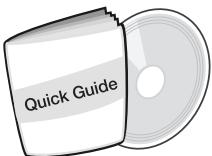
Installation CD(COWON MediaCenter - JetAudio, User Guide), Quick Guide
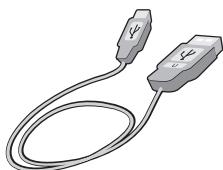
natural_image
Illustration of a USB cable with two connectors (no text or symbols)USB Cable
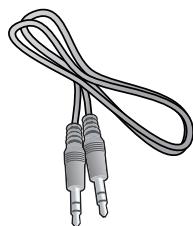
natural_image
Illustration of two USB cables with two leads, no text or symbols presentLine-in Cable (Optional)

natural_image
Coiled black cable with two metallic connectors (no text or symbols visible)TV out Cable (Optional)
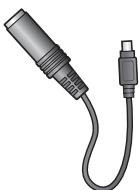
natural_image
Illustration of a black cable with a connector, no text or symbols presentLine-in Cable Converter (Optional)
natural_image
Gray-scale image of a gray SCD or memory card with white logo (no text or symbols visible)SD Card (Optional)
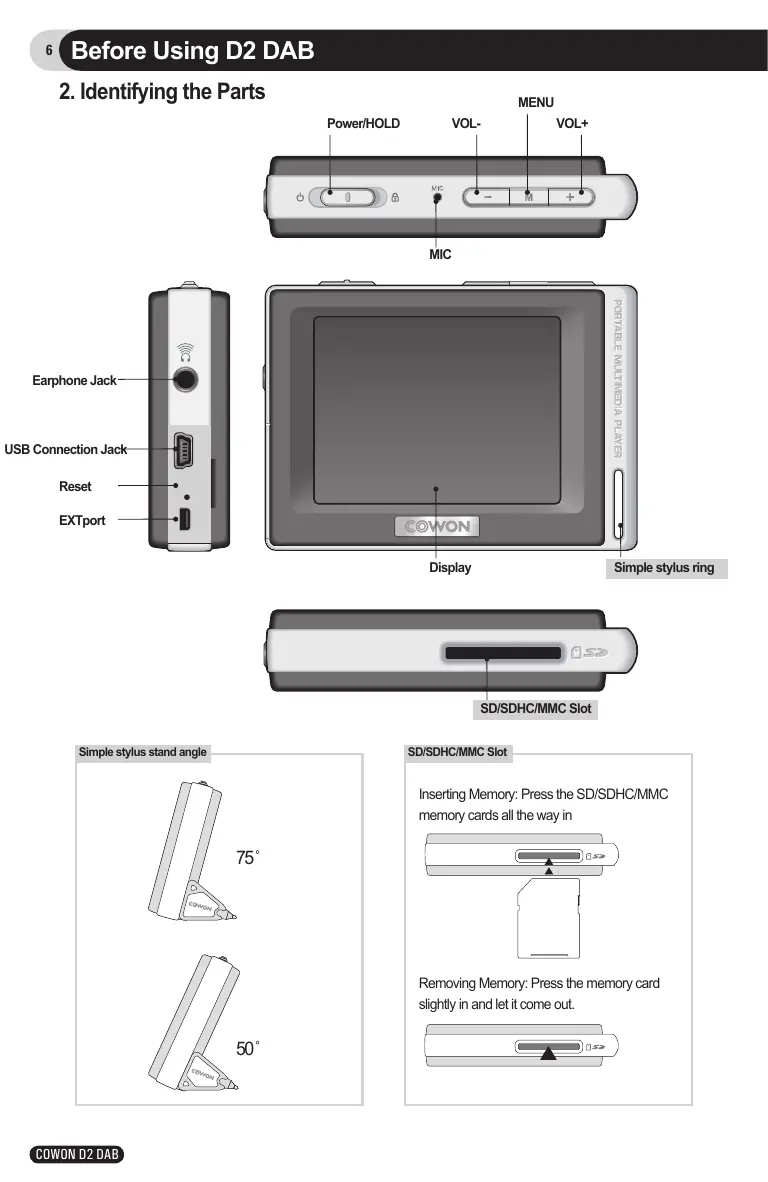
2. Identifying the Parts
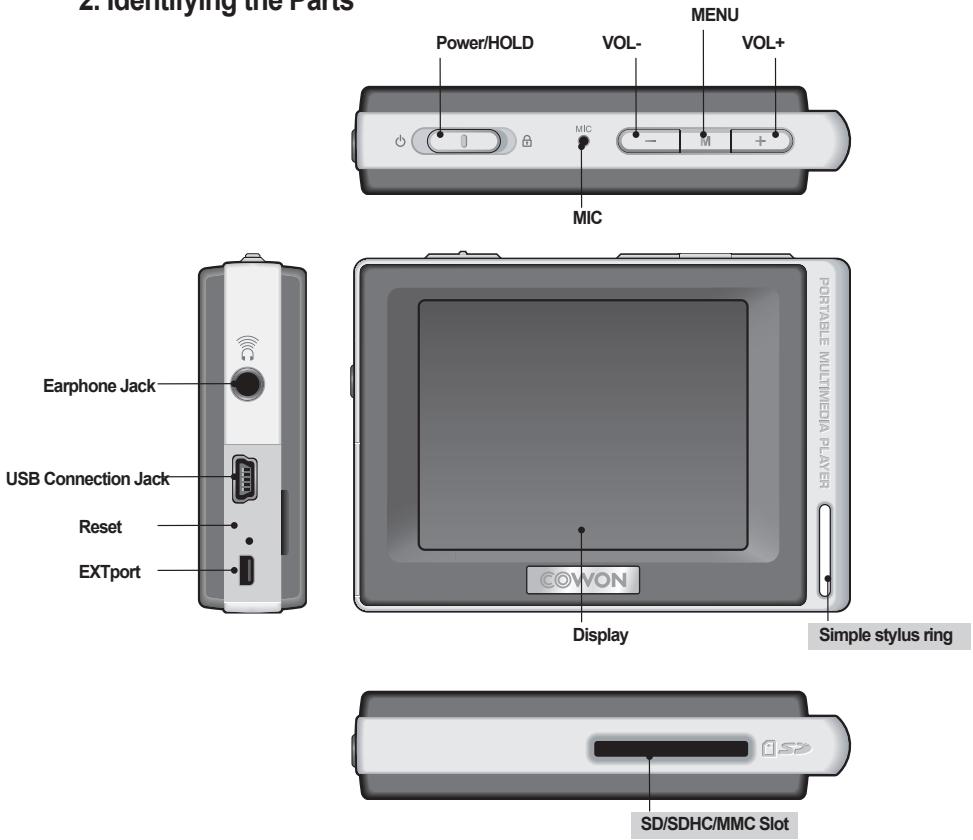
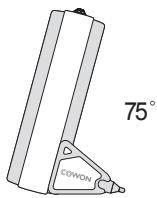
Simple stylus stand angle
natural_image
Diagram of a cowon angle measurement device with 75° label (no other text or symbols)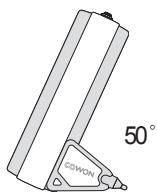
natural_image
Technical line drawing of a mechanical component with a 50° angle label (no other text or symbols)SD/SDHC/MMC Slot
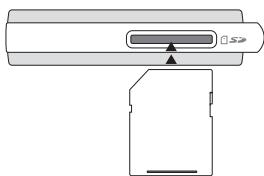
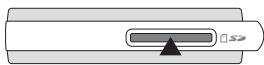
Inserting Memory: Press the SD/SDHC/MMC memory cards all the way in
natural_image
Diagram of a device with a rectangular component and a separate card-like structure (no text or symbols)Removing Memory: Press the memory card slightly in and let it come out.
natural_image
Simple line drawing of a cylindrical device with a central indicator and triangular pointer (no text or symbols)3. Charging the D2 DAB
To charge the internal battery of COWON D2, connect D2 to a PC through a USB or connect it to an AC power outlet using an adapter.
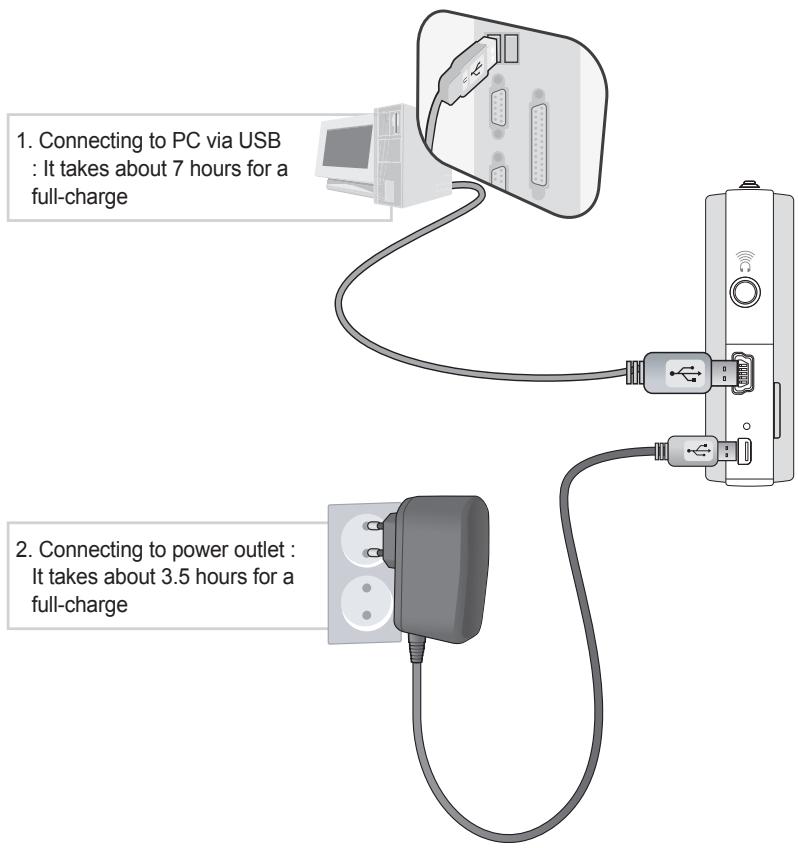
- Battery status can be checked on the LCD display
- Using both USB and power adapter simultaneously may damage D2
- If you are Using D2 DAB for the first time or after using it for an extended period time, allow it to charge for sufficient amount of period.
- It might be slow to power up depending on the battery's charge status.
- For your safety, please use only the JetAudio AC power adapter.
- JetAudio AC Power adapter can be used for either 100V or 240V.
- During the charge via an AC power adapter, D2 can be used by pressing M button
- USB charging does not work if the unit is connected to a USB Hub. It must be connected directly to a USB port on a computer.
4. Windows 98 Driver Setup
If you are using Windows 98 or 98 SE, you will need to install a separate driver when the player is connected to the computer. Under windows XP, Vista, D2 is automatically recognized.
■ Installing Windows 98 Driver
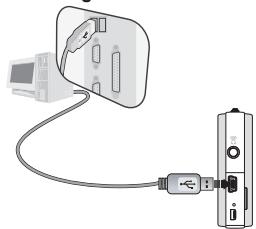
- Connect D2 with a computer via USB cable
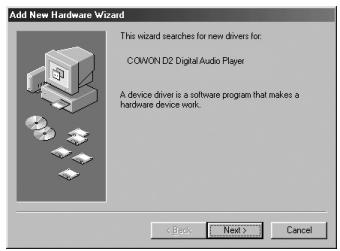
- "Add New Hardware Wizard" will appear as shown. Click "Next".
![Add New Hardware Wizard What do you want Windows to do? • Search for the best driver for your device. [Recommended] • Display a list of all the drivers in a specific location, so you can select the driver you want. < Back Next > Cancel](/content/2025/01/172733/images/adbcde03eb13eb3e0a777381bfe4dd13c46daec0285b70edf6a85c83faccbd72.jpg)
- Click "Search for the best driver for your device (Recommended)", and then click "Next"
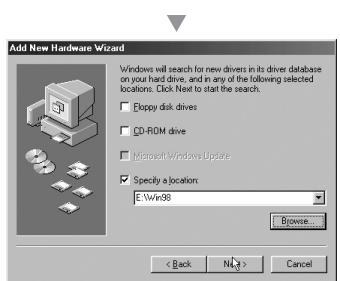
- Click "Specify a location" and click "Browse" button.
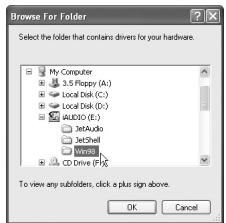
- Select "Win98" folder in the installation CD and then click "Next" button. Drivers are also available for download from www.COWON.com.
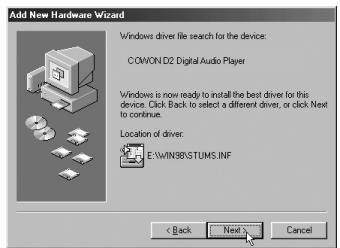
- Once the drivers are recognized, click "Next".
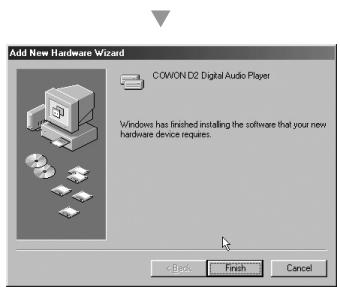
- Continue to click "Next"

- Click the "Finish" button to complete the driver installation. The newly added drive can be seen in Device Manager or Explorer.
5. Connecting to a computer and Saving Files
If you are using Windows 98 or 98 SE, you will need to install a separate driver when the player is connected to the computer. Under windows XP, Vista, D2 is automatically recognized.
natural_image
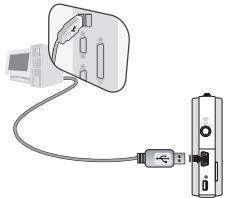
Diagram showing a cable being inserted into a device via a USB port (no text or symbols present)- Connect the player to a computer using a USB cable provided.
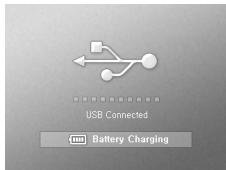
- Once it is connected correctly, the following will appear on the LCD screen.
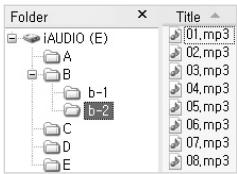
-
The newly added drive can be confirmed in Device Manager or Explorer.
-
Start Windows Explorer or COWON MediaCenter - JetAudio.
-
Copy multimedia files (music, picture, encoded video files) from your computer to either 'COWON' drive or "SD/SDHC/MMC Card"
-
Once the file transfer is completed, Click on 📋 icon listed on Windows tray using left button on your mouse
-
To disconnect D2 from the computer, click on the following message when it
-
When the "Safe to Remove Hardware" window appears, disconnect the USB from the computer and D2. Safely Remove Hardware

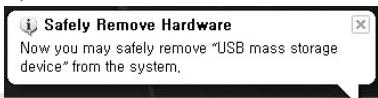
- The D2 can recognize up to 500 folders and about 5,000 files.
- If the COWON drive does not show up under Computer or Windows Explorer, Disconnect and re-connect the USB cable and repeat the previous procedure again [For windows 98]
- If remove the USB connection within the windows software while the USB cable is connected to a PC, the player is being charged through the USB.
- USB charging does not work if the unit is connected to a USB Hub. It must be connected directly to a USB port on a computer.
- If using Windows 98, 98 SE, the "Safe to Remove Hardware" window may not appear. If this happens, Exit COWON MediaCenter - JetAudio (or confirm that the file transfer status window has been closed), and then disconnect the USB cable from the PC.
- If a following message appears, please ignore the message.
An error occurred when removing USB mass storage device.

Cannot stop "Generic Volume" device now, Please try to stop the device again later.

6. Firmware
Firmware is a program embedded in the hardware. By upgrading the firmware, features of the product can be enhanced and bugs and glitches be fixed.
Performance and menus may change when the firmware is upgraded without notice.
Some beta versions of firmware may have bugs that will be fixed in the next version.
Current firmware version can be verified at Menu - Settings - Information.
When upgrading firmware, always backup data stored in the memory to prevent any unexpected data loss Actual firmware upgrade method may vary sometimes. For more information, visit our home page (www.COWON.com).
1. Button Control
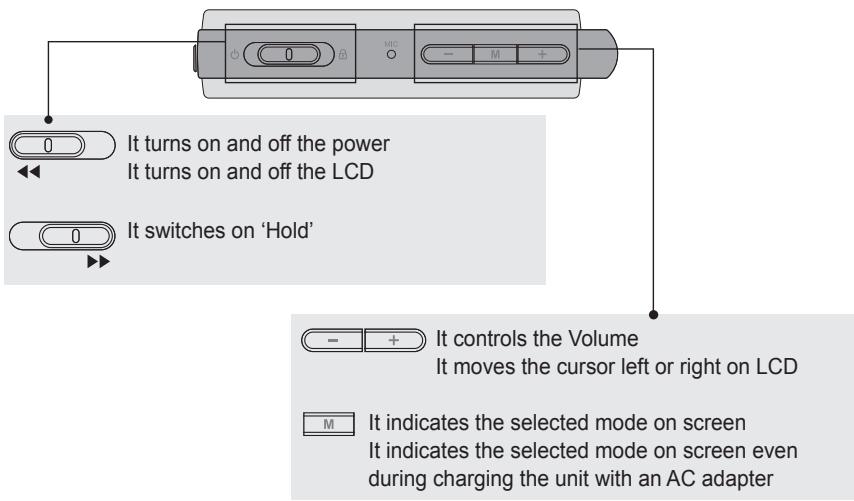
2. Basic Control

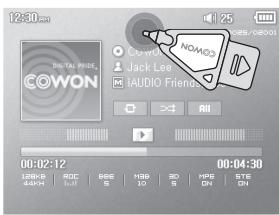
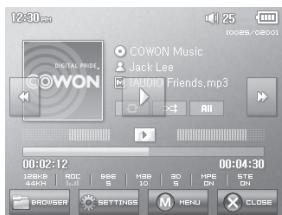
D2 has a touchscreen feature and you can control it directly by touching the screen.
To select a desired operation mode, touch it from the mode selection window.
Under each operation mode, touching the screen lightly will trigger a control screen to appear.
After a pre-set period time or if ✗ CLOSE is touched, the control screen disappears.
Pressing M button or touching M on screen returns it to the mode-selection screen.
3. Music Mode
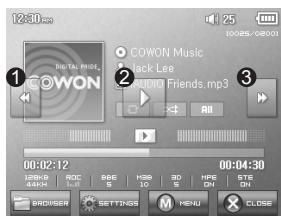
① Selects the previous music track or rewinds the current track.
② Plays a music file or pauses it.
If a file contains an ID3 tag with an image, it will display the image on the screen.
③ Selects the next music track or fast-forwards the current track.
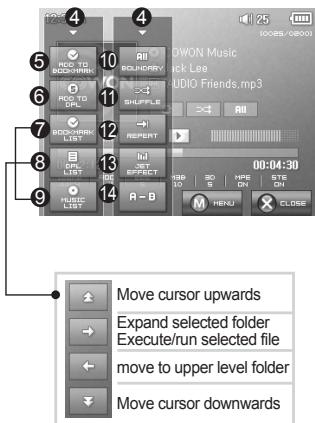
④ Close the settings screen
⑤ Inserts bookmarks during the playback.
Once a bookmark is inserted at a specific point during a playback of music, it is possible to start playback at that particular point.
Maximum of 256 files can be added to bookmark.
⑥ Adds the currently playing music file to a DPL (Dynamic Play List)
Maximum of 256 files can be added to DPL (Dynamic Play List)
⑦ Displays Bookmark list
Used to find and play back bookmarked music files
⑧ Displays Play List
Used to find and play music files in the DPL
⑨ Displays File Browser Mode
⑩ Sets the boundaries for playback
All : Plays all music files regardless of folder
1 : Plays the currently selected music track
Folder : Plays music files located within the current folder
⑪ Sets the random play mode
⑫ Sets the repeat play mode
⑬ Selects JetEffect settings
14 Sets the sectional repeat. It can play back in repeat mode a minimum 1 second-length section of a track.
4. Video Mode
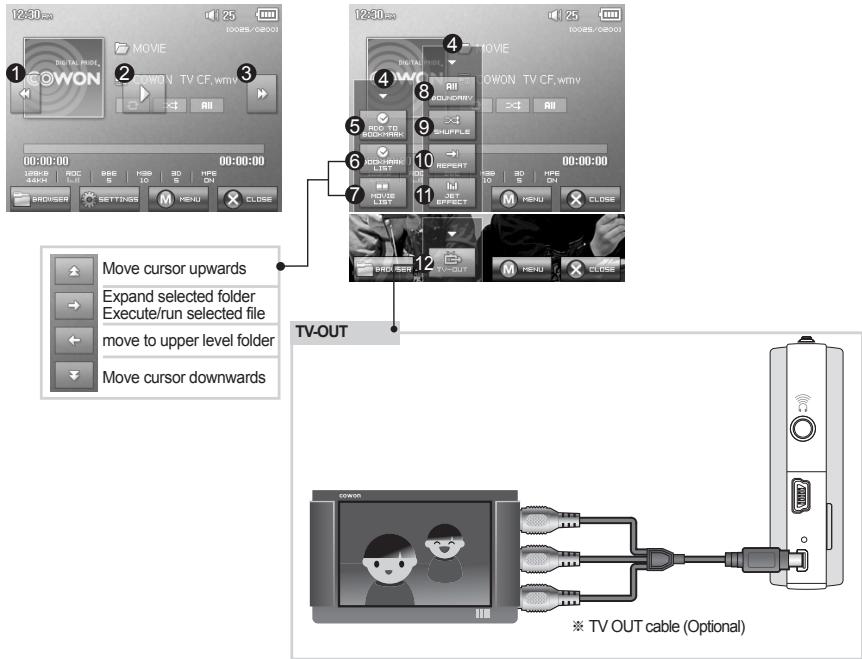
① Selects the previous video file or rewinds the current video file.
② Plays a video file or pauses it.
A video file may not play properly if it has not been converted using COWON Media-
③ Center - JetAudio software.
④ Selects the next video file or fast-forwards the current video file.
⑤ Closes the settings screen
Inserts bookmarks during the playback.
Once a bookmark is inserted at a specific point during a playback of music, it is possible to start playback at that particular point.
⑥ Maximum of 256 files can be added to bookmark.
Displays Bookmark list
⑦ Used to find and play back bookmarked video files
⑧ Displays File Browser Mode
Sets the boundaries for playback
All : Plays all music files regardless of folder
1 : Plays the currently selected music track
⑨ Folder : Plays music files located within the current folder
⑩ Sets the random play mode
⑪ Sets the repeat play mode
⑫ Selects JetEffect settings
Turns on the TV OUT (* This can be used only for playback purpose)
When TV OUT is selected, volume level is fixed and headphone cannot be used.
TV OUT can be cancelled by pressing - M +
5. Picture and Text Mode
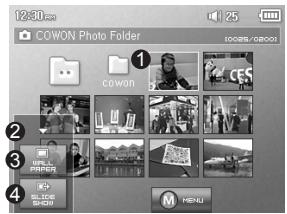
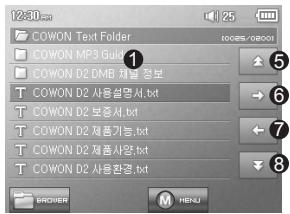
① Open images and text files by touching the screen
Images should be placed in PICTURE folder, text files in TEXT folder
Please refer to the list of supported file types for images and texts.
② Closes the settings screen
③ Applies the currently selected image as the background on screen
④ Displays the image files in the selected folder in slideshow
⑤ Moves the cursor up.
⑥ Opens the currently selected folder or file
⑦ Moves up in a folder level.
⑧ Moves the cursor down.
6. DAB Mode
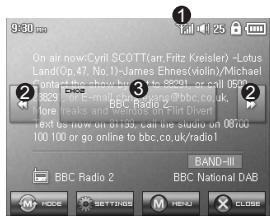
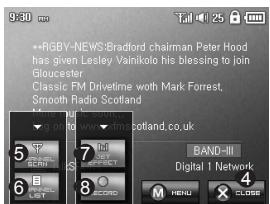
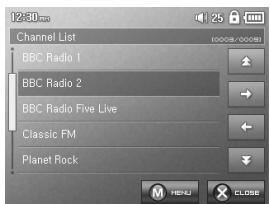
① Displays the DAB signal strength. If the signal is weak, reception may be poor.
② Changes the DAB channel.
③ Displays the DAB channel name.
④ Closes the Settings Screen.
⑤ Searches the DAB channels with strong signal strength.
⑥ Displays the previously searched DAB channel list.
⑦ Sets the JetEffect EQ Mode.
⑧ Records the DAB radio.
D2 does not have a dedicated antenna. Instead the headphone wire is used to enhance DAB signal strengths like an antenna.
Stretching out the headphone wire will improve signal reception quality.
During DAB recording, be sure to use the headphone to optimize sound quality. If you can not listen to DAB, please set the correct region (Band III) under “Select Region” in the DAB Menu to listen to DAB properly. (Settings → DAB → Region → Band III)
7. FM Radio Mode
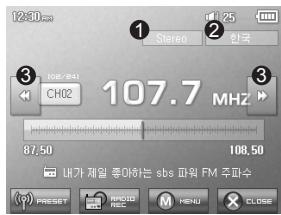
① Checks status of stereo or mono signals
② Displays the country for radio signals, which can be changed under Settings mode.
③ Press it briefly to change the tuning frequency at 0.1MHz intervals. Press it and hold it to searches and jumps to the next tuning frequency with good signals.
In preset mode, it changes to either previous preset channel or the next preset channel.
④ Closes the settings screen
⑤ Selects the Preset mode. In this mode, only the preset channels can be accessed.
⑥ Automatically searches the FM frequencies with good signals and enters them into the preset channels
⑦ Sets stereo or mono setting
⑧ Displays the preset search mode. You can add the currently tuned frequency to the preset channel or delete a preset channel.
⑨ Sets the quality of the recording radio signals. Higher bps provides better sound quality but requires larger file size.
10 Records the currently selected channel
- D2 does not have a dedicated antenna. Instead the headphone wire is used to enhance radio signal strengths like an antenna. Stretching out the headphone wire will improve signal reception quality. During Radio recording, be sure to use the headphone to optimize sound quality.
8. Record Mode
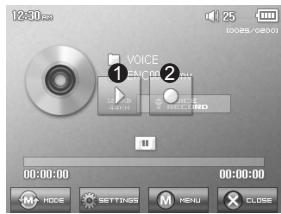
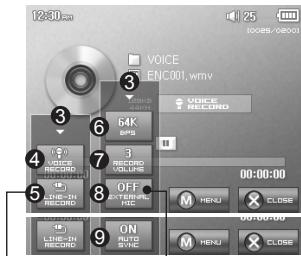
Line-In record
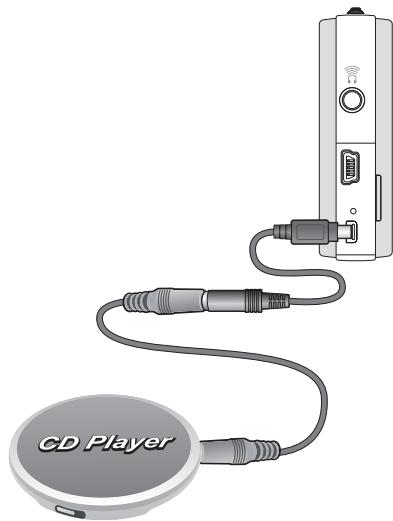
natural_image
Illustration of a CD Player connected to a device via cable (no text or symbols on components)※ Line-in Cable, Line-in Cable Converter (Optional)
Rec via external microphone
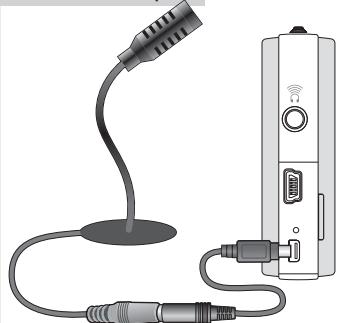
natural_image
Illustration of a desktop microphone connected to a device via cable (no text or symbols visible)※ Line-in Cable Converter (Optional)
① Plays back recorded files
② Starts recording
③ Closes the setting screen
4 Records voice
⑤ Records through a Line-In connection
⑥ Selects the sound quality of the recording. Higher bps provides better sound quality but requires larger file size.
⑦ Sets the volume level during recording.
⑧ Sets use of external microphone. Only stereo pin microphone should be used. (This setting can be selected on in Voice Record mode)
9 Sets the duration for silent intervals before it creates a new file for recording. It automatically detects the silent intervals in incoming sound and creates a new file when the silent interval exceeds the specified duration. (*This setting can be selected only in Line-In Record mode)
9. Settings Mode
1. JetEffect
1. Equalizer
- settings or manually set 5 Band Equalizers(EQ).
- Preset EQ settings include Normal, Rock, Jazz, Classic, Pop, and Vocal. Each preset EQ can be edited to match user's preference.
2. BBE
· BBE is the sound effect that provides clear music.
3. Mach3Bass
- Mach3Bass is the base booster that enhances super low-end bass.
4. 3D Surround
· 3D Surround provides three dimensional sound effects.
5. Stereo Enhance
- Stereo Enhance enhances stereo effect for fuller sound quality
6. MP Enhance
· MP Enhance: Sound effect that compensate for missing sound segments
7. Pan
- Pan adjusts the left and right volume balance.
8. Play Speed
- Controls the speed of music playback.
- Excessive JetEffect settings may strain sound and generate noise.
- For further information regarding JetEffect, refer to BBE MP at our website: www.COWON.com
2. Play Mode
1. Boundary
- This function sets the various ranges of files and folders.
· All: Plays all tracks in all folders
· Single: Plays only one track. - Folder: Plays files in the current folder
2. Repeat
· Within the range specified in the boundary, repeat playback can be set.
3. Shuffle
· Within the range specified in Boundary, random playback can be set.
- If enabled, files within the range are randomly played.
3. Display
1. Language
- Sets the language in COWON D2
2. Title
- Sets how the player displays file names on the screen.
- Choose ID3 tag to display tag information (artist, title) while playback.
3. Play time
- Sets how it displays time information of current file.
- Play time shows elapsed playback time and Remaining shows the remaining playback time.
4. Scrollspeed
- Sets the scrolling speed for text displayed on the screen.
- Larger the number, faster the scrolling speed.
5. Wallpaper
- Sets the wallpaper for Music mode.
- If None is selected, wallpaper is not displayed.
- If Defaults is selected, default wallpaper will be displayed.
- If Custom is selected, the image set as Wallpaper in Picture mode will appear as the wallpaper.
6. Lyrics
· COWON D2 can display lyrics of music files that contain lyric information.
- When enabled, lyrics of the music file being played is displayed on the screen.
- Music files without lyrics will not display lyrics even if this feature enabled.
- For more information regarding using lyrics, please refer the COWON's homepage (www.COWON.com) under FAQ-How to use LDB Manager.
7. LCD Auto off
- Sets how long the screen stays on before it turns off.
- If there is no operation for a specified period of time, the screen will automatically turn off.
8. Brightness
- Sets the screen brightness.
9. Set Font Color
- Sets the default font color for display
10. TV-Out Methods
- Sets the signal out to TV
11. 7.5 IRE
- Sets the brightness of the signals to TV
- The 7.5 IRE is a U.S. analog signal brightness standard and is used in US, Korea, and other countries. (Most countries use 0 IRE)
- Sets this if the TV is made for use in Korea or in U.S.
4. Timer
1. Time Setup
- Sets the current time.
- Sets the correct time setting for alarm and scheduled recording.
2. Wakeup mode
· Automatically turns on the player at the specified wakeup time.
- Music Alarm plays music and for FM Alarm settings, the last station to be listened to will run in Radio mode.
- For FM recording, it records the last radio frequency from the preset time during the specified time.
NOTE: FM Scheduled Recording uses more power than other features. Always make sure that the player is fully charged before using this feature.
3. Wakeup Time
- Sets the time to automatically turn the player on.
· Once sets the alarm for one time use, Daily sets the alarm for daily use.
· Duration is the period of time during which the alarm will stay on.
4. Sleep
· Automatically turns off the power after a specified time.
- After the preset time has passed, the player will automatically turn off even if a file is being played at the time.
5. Auto Off
- When the player is stopped and no action is taken after a specified time has elapsed, this feature will automatically turn off the player.
· This function does not operate during playback.
5. General
1. Skip length
- Sets the length of playback time skipped when the <◀▶ buttons are pressed shortly.
2. Scan speed
- Sets the speed of Fast Forward/Rewind when the 📄 ➕ buttons are pressed and held.
· The faster the speed, the quicker scanning is possible.
3. Resume
- Saves the location of the music file played at the last power off.
- If enabled, when the player is turned on, it automatically plays from the last position where it was turned off.
4. Fade in
- Gradually increases volume when resuming playback after stop or pause.
- Sets how long it takes to increase the volume.
5. Load Default
- Sets all the settings to default values except for the language
6. User defined button
-User can define a desired function for Pressing and holding M button
6. Recording
1. Lineln bps
- Sets the audio quality of the file being recorded through Line-In.
- The higher Kbps, the better the recording quality is, but file size also becomes larger.
2. Voice bps
- Sets the audio quality of the file recorded with the built-in microphone.
- Files recording through the microphone are set to Mono by default.
- The higher Kbps, the better the recording quality is, but file size also becomes larger.
3. FM bps
- Sets the quality of the file being recorded during FM Radio listening.
- Also sets the quality of scheduled FM recording file.
- The higher Kbps, the better the recording quality is, but file size also becomes larger.
4. Mic volume
- Adjusts the volume level of audio recorded through the built-in microphone.
5. Line volume
- Adjusts the volume level of audio recorded through the Line-In.
6. Auto Sync
- Recognizes input sound through the Line-In and generates a new file automatically.
- If there is no sound input during a specified time period, a new file is created when recording is resumed.
7. External MIC
- Sets whether an external microphone is being used.
- External microphone does not need separate power. Line-in Cable Converter (sold separately) can be used
7. FM Radio
1. Stereo
- Select from Stereo and Mono when listening to FM Radio.
- Radio broadcasts that only support Mono will not support the Stereo feature.
2. Auto scan
- Automatically scans for FM frequency channels and sets to preset channels.
3. Region
- Selects the country in which you are listening to FM radio.
8. Information
- Version : version of the firmware installed
· Total Space : Total capacity of the flash memory
· Free Space : Un-used amount of flash memory
1. Specification
| COWON D2 DAB – Specification | ||
| Supported File Types | Music | MP3 : MPEG 1/2/2.5 Layer 3, ~320kbps, ~48kHz, mono/stereoWMA : ~256kbps, ~48kHz, mono/stereoOGG : ~Q10, ~44.1kHz, mono/stereoFLAC : Compression Level 0 ~ 8, ~44.1kHz, mono/stereoWAV : ~48kHz, 16bit, mono/stereo |
| JetEffects(BBE, Mach3Bass, 3D Surround, Stereo Enhance, MP Enhance) | ||
| Video | AVI : MPEG4 ~ 2Mbps, 320x240, 30fps, MP3 audioWMV : WMV9 ~ 768kbps, 320x240, 30fps, WMA audio | |
| TV OUT (TV OUT cable sold separately) | ||
| Record | 32 ~ 256kbps recording and playback | |
| Voice, Line-In, External Mic | ||
| Picture | JPG | |
| No limit on file size | ||
| Text | TXT file Viewer | |
| Supports Max. 2MB | ||
| Max. numbers | 500 folders / 5,000 files | |
| Radio | FM RADIO : 76Mhz ~ 108Mhz, 87.5Mhz ~ 108Mhz | |
| 32~256kbps Recording | ||
| Display | 2.5 inches 1.6M color TFT-LCD – QVGA (320x240) | |
| Touchscreen | ||
| Internal Memory | 2GB, 4GB | |
| External Memory | 1 Memory Slot for SD/SDHC Card or MMC Card | |
| PC Interface | USB 2.0 High Speed | |
| File Transfer Speed | Max. 35Mbps (Upload Max. 40Mbps) | |
| Battery | Internal Lithium Polymer battery | |
| Battery Life | Movie : Max. 10 hours of continuous playAudio: Max. 52 hours of continuous play | |
| Charging Time | Power adapter: ~3.5 hrs, USB: ~7 hrs | |
| Buttons | 3 buttons (MENU, VOL-, VOL+), POWER & HOLD Switch | |
| SNR | 95dB (A-Weighted) | |
| Tunable Frequencies | 20Hz~20KHz | |
| Sound Output | 16 Ohm Earphone : 37mW + 37mW | |
| Dimensions | 78 X 55.4 X 16.6 mm (LxHxD) | |
| Weight | 91g (Including the battery) | |
- The battery life is as tested under COWON's standard testing settings and can vary for individual uses.
2. Setting to Factory Default Values
COWON D2 can be returned to its original factory settings. Resetting will erase all the currently set values for settings and will return them to the values pre-set at the factory.
- Turn on the power
- At the Mode Selection screen, follow the steps shown below.
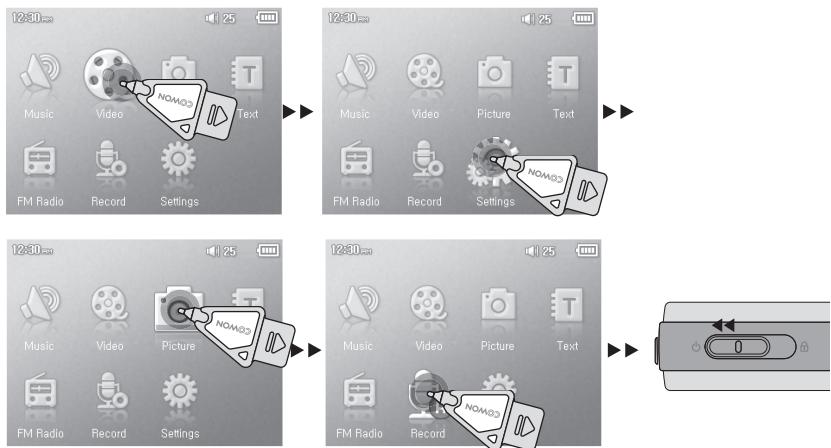
- Next time a power is turned on, the language selection screen will appear.
- If the product does not function properly, before setting it to its factory default values, please press "RESET" button at the bottom of D2. If problem persists, then set it to the factory default values.
3. Converting Video Files Using COWON MediaCenter - JetAudio
- Install and then run COWON MediaCenter - JetAudio.
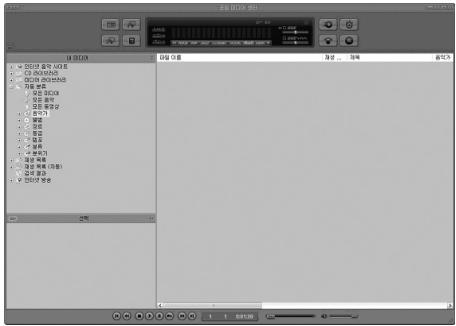
- Click "Convert Video" on the top to convert the video file.
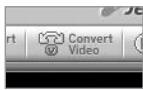
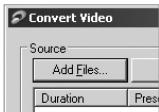
- From the Convert Video window, click "Add File" to select the files to convert.
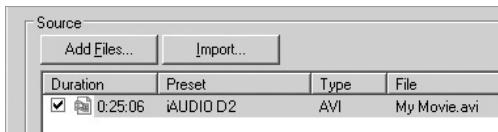
- Check the selected video files in the list.
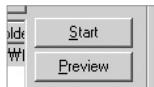
- After checking the target folder location to save the converted files and other settings, click on "Start" to start the video conversion process.
- Movie files that have not been converted by COWON MediaCenter - JetAudio will not play in COWON D2.
- Make sure that the movie files play properly on the PC.
- Not all video files can be converted. Files already damaged before conversion may not work on COWON D2 even if the conversion process is successful.
- Conversion time may vary depending on PC performance, source file size and codec types.
- "Preview" allows checking the converted video before starting conversion.
- To convert a file with subtitles or to change settings on subtitles, click on "Convert Options".
- SMI files for subtitles must have the same file name as its video file.
I am still confused even after reading the manual.
Our website www.COWON.com provides support for users of COWON products with FAQ (Frequently Asked Questions) and beginner's guide for our products. Users are strongly encouraged to check out our website for further information regarding product usages and software upgrades and patches. For individual inquiries, please contact us on-line as we will try to help you as best we can.
I cannot turn on the player.
Charge the battery fully in case the battery charge has been drained. If the battery is weak it may take a few seconds to power on. If the player does not respond at all, first disconnect all USB and power cables, and then press the RESET button located at the bottom of the player. RESET button simply powers off the player and does not affect the player in any other way.
Buttons do not respond.
Check if the power switch is set to HOLD
The player is on but there is no sound.
Check if the volume is set to 0
Check if the player has any music file stored in its disk. Damaged music files may not play or play improperly. Check the connection of the earphones to the D2. Loose or blocked connection can cause inadequate contact between earphone jack and the D2.
The battery life is shorter when I use external memory
D2 requires more power to read and play back/record files from an external memory card, So, battery life will be shorter when using external memory compared to using the internal memory.
Album image is not displayed in Music Mode
In order display album image, the image has to be stored in the ID3 tag of the music file. You can edit the ID3 tags using jetAudio.
Video won't play.
All video files must be converted using COWON MediaCenter - JetAudio. Any other video files are not supported by D2.
FM Radio does not work.
D2 does not have a separate antenna. Instead it uses earphone wire to receive FM Radio signals. Stretching the wires may enhance the reception quality. FM radio reception may be poor at locations where FM radio transmissions are shielded. If FM radio does not work where reception should be possible, please contact our service center (Note that reception quality of D2 may differ from other FM radio receivers.)
DMB does not work
DMB is not available in COWON D2 DAB model.
There is too much noise in my recordings.
COWON D2 uses ultra-small embedded microphone, so it may be more susceptible to noise during recordings.
Characters on the display are corrupted.
Reset the language using Settings-Display-Language menu and set display format to File name using Settings-Display-Title menu. If the problem continues, reset the player following the procedures outlined in the manual. Some special fonts may not display perfectly.
Computer cannot recognize the player when connected.
If D2 doesn't power on when connected PC, press RESET button next to the USB jack on the bottom of the player.
D2 may require additional driver installation for Windows 98 users.
Connection to an external USB Hub may not be stable due to its low power. D2 should be connected directly to a PC's USB port.
Player is not recognized by COWON MediaCenter - JetAudio and "No iAUDIO found" message appears.
Check to see if the player is recognized in Windows Explorer when it is properly connected to PC. D2 must be recognized in the Windows for it to work with COWON MediaCenter - JetAudio.
Additional driver installation is required for Windows 98 and 98 SE users.
Within COWON MediaCenter - JetAudio, set Settings-Device to match your model.
Memory capacity of the player is different or smaller than specified.
The memory capacity indicated by Windows Explorer may be different from that indicated by the memory manufacturer.
D2 uses some area in the drive for system operation. Therefore, the actual available capacity is somewhat reduced after excluding system area.
COWON D2 does not play properly when memory is full.
For D2 to function properly, it requires at least 5 MB of space for saving settings and other system files.
- ©OWON D2
- Thanks for purchasing COWON.
- Legal Notice
- On-line registration and support
- COWON D2 DAB
- Precautions and Safety Tips 4
- 1) Before Using D2 DAB 5
- 2)Basic Operations II
- 3) Additional Information 21
- Troubleshooting 24
- 1.Package Contents
- Identifying the Parts
- Charging the D2 DAB
- Windows 98 Driver Setup
- Connecting to a computer and Saving Files
- Firmware
- Button Control
- Basic Control
- Music Mode
- Video Mode
- Picture and Text Mode
- DAB Mode
- FM Radio Mode
- Record Mode
- Settings Mode
- JetEffect
- Equalizer
- BBE
- Mach3Bass
- 3D Surround
- Stereo Enhance
- MP Enhance
- Pan
- Play Speed
- Play Mode
- Boundary
- Repeat
- Shuffle
- Display
- Language
- Title
- Play time
- Scrollspeed
- Wallpaper
- Lyrics
- LCD Auto off
- Brightness
- Set Font Color
- TV-Out Methods
- 7.5 IRE
- Timer
- Time Setup
- Wakeup mode
- Wakeup Time
- Sleep
- Auto Off
- General
- Skip length
- Scan speed
- Resume
- Fade in
- Load Default
- User defined button
- Recording
- Lineln bps
- Voice bps
- FM bps
- Mic volume
- Line volume
- Auto Sync
- External MIC
- FM Radio
- Stereo
- Auto scan
- Region
- Information
- Specification
- Setting to Factory Default Values
- Converting Video Files Using COWON MediaCenter - JetAudio
- I am still confused even after reading the manual.
- I cannot turn on the player.
- Buttons do not respond.
- The player is on but there is no sound.
- The battery life is shorter when I use external memory
- Album image is not displayed in Music Mode
- Video won't play.
- FM Radio does not work.
- DMB does not work
- There is too much noise in my recordings.
- Characters on the display are corrupted.
- Computer cannot recognize the player when connected.
- Player is not recognized by COWON MediaCenter - JetAudio and "No iAUDIO found" message appears.
- Memory capacity of the player is different or smaller than specified.
- COWON D2 does not play properly when memory is full.
Brand : COWON
Model : D2 DAB
Category : Media player