
AK1 - Mp3 player COWON - Free user manual and instructions
Find the device manual for free AK1 COWON in PDF.


| Product Type | Portable MP3 Player |
| Brand | Cowon |
| Model | AK1 |
| Storage Capacity | 1 GB (Flash Memory) |
| Dimensions (WxHxD) | Approx. 70 x 30 x 15 mm |
| Weight | Approx. 30 g (without battery) |
| Audio Formats Supported | MP3, WMA, OGG, WAV |
| Power Source | 1x AAA Battery (Alkaline or NiMH) |
| Battery Life | Up to 20 hours (MP3 playback) |
| Display | Monochrome LCD, 128x64 pixels |
| Connectivity | USB 1.1 (Mini-USB) |
| Headphone Output | 3.5 mm stereo jack, 16mW per channel |
| Playback Modes | Normal, Repeat, Shuffle, Intro |
| Equalizer Presets | Normal, Rock, Classic, Pop, Jazz, User EQ |
| FM Radio | FM Tuner with presets (requires earphone antenna) |
| Voice Recording | Built-in microphone, MP3 format |
| Maintenance and Cleaning | Wipe with a dry, soft cloth. Do not use solvents. Keep away from moisture and extreme temperatures. |
| Safety Warnings | Do not disassemble. Avoid dropping. Do not expose to water. Use only recommended batteries. |
| Spare Parts and Repairability | Battery and earphone are user-replaceable. For other repairs, contact Cowon service center. |
| General Information | Supports Windows/Mac via USB mass storage. No driver needed. Manual available in PDF. |
Frequently Asked Questions - AK1 COWON
User questions about AK1 COWON
0 question about this device. Answer the ones you know or ask your own.
Ask a new question about this device
Download the instructions for your Mp3 player in PDF format for free! Find your manual AK1 - COWON and take your electronic device back in hand. On this page are published all the documents necessary for the use of your device. AK1 by COWON.
USER MANUAL AK1 COWON
- Auto Capsule and COWON are the trademarks of COWON SYSTEMS Inc.
- All content in this manual are protected under copyright laws.
- All the other product(s) and service(s) listed in this manual are registered trademark and service of the corresponding copyright owner(s).
- All rights to this program are reserved by COWON SYSTEMS Inc. and protected under copyright laws.
- This manual is based on the specifications of the product available at the point of publishing it. Note that the sample sentences, charts, pictures given as an example, detailed functions of a product, specifications of H/W and S/W recorded in this manual are subject to change without notice.
Precautions
This device is for recording the driving image of cars. Recording may fail depending on given situations. The videos recorded with this product can only be used as a reference to examining the driving image.
- This manual is based on the product available at the point of publishing it. It thus may contain errors or omissions in its technical editing.
- Always back up any important video files.
- COWON SYSTEMS, Inc, shall not be held accountable for any data loss, poor recording or recording errors.
+ CONTENTS
Before You Start 5
Product Overview
Safety Precautions
Package Components
Name of Part and Functions
Installation
Basic Functions 14
Start Recording
Driving Mode Recording
Parking Mode Recording
End Recording
Occurrence of Event
Motion Detection
LED Status Indicator
Button Operation
+ CONTENTS
Other Functions 18
PC Manager
Auto Shutdown Timer
Setting Auto Shutdown Voltage
Sensitivity of G Sensor
Motion Sensor
Additional Description 22
Product Specification
Before You Start
+ Product Overview
HD-quality video recording
+ MEGA pixels image sensor is used to record a video in HD / 30fps / 16:9 wide.
Intelligent image sensor algorithm optimized for car black box
+ Operation is optimised by swift and stable adjustment to different conditions (daytime, night-time, entering and leaving a tunnel, etc.)
Multiple recording options and easy search
+ There are multiple options for driving-mode and parking-mode recordings, and recorded videos can easily be searched by category of event or motion file.
Built-in G sensor
+ This detects the external impact via the 3-axis acceleration sensor for auto recording.
Built-in motion sensor
+ This detects motion during parking mode recording and starts recording automatically.
Built-in backup supercapacitor
+ The last recorded file is safely saved thanks to a built-in supercapacitor, even with unexpected power outage.
Before You Start
+ Product Overview
Video-out
+ A video-out feature is available for checking the video being recorded from an external device in real time.
Multiple indicators for smooth operation
+ Operational status of Auto Capsule is easy to monitor through voice messages, sound effects, and LED indicators.
PC Manager
+ With the PC Manager, you can manage and capture recorded videos and examine the intensity of an impact on the G sensor.
Automatic parking mode recording 1)
+ Automatically senses parking voltage and initiates parking mode recording.
Auto shutdown timer available during parking mode recording
+ According to pre-set time, this automatically turns off the recording to protect the vehicle battery.
Connection with external GPS
+ When connected with an external GPS receiver, vehicle location and speed information are recorded and can be checked later via the PC Manager.
1) Available only when uninterrupted power connected.
Before You Start
+ Safety Precautions
This section regards precautions to prevent users from compromising safety or experiencing property damage. Please read the followings carefully before use. (COWON SYSTEMS has nothing whatever to do with any accident caused by a user who failed to conform to warnings and precautions.)
- Changing the installation location of the product may result in a change in the camera angle. Adjust the camera angle after installing the product and test the recorded images. Proper normal recording cannot be guaranteed if the product is wrongly installed.
- This product is a device that uses a camera to record video as you drive, therefore, the quality of the recorded videos may deteriorate when taken at the point of entering/exiting a tunnel, when the shadow contrast and counter light to the subject are severe in broad daylight, or when there is no light.
- Avoid excessive car window tinting. It deteriorates the recording quality. The white balance of the video may vary depending on the degree of tinting.
- In the event a product is damaged or disconnected from power due to a critical and impactful accident, the product may not work and fail to record the accident.
- Do not disassemble or alter the product at your discretion. It may cause electric shock, product damage or loss of recorded data.
- Always keep the front window clean and free from dust before recording to guarantee the most optimal recording quality.
Before You Start
+ Safety Precautions
- Foreign matters (e.g. fingerprints) on the lens of the black box may adversely affect the recorded videos. Always keep the lens clean and free from dusts.
- Avoid inserting metals or flammables into the MicroSD card slot. It may cause a fire or electric shock.
- If liquid spills onto the product, disconnect the power immediately and contact the customer center.
- Refrain from operating the product while driving. It may cause a car accident.
- Do not use voltage other than the rated voltage specified by the product. It may cause an explosion, fire or mechanical failure.
- Do not use the product in a place where there is flammable or explosive gas. Otherwise, ignition or explosion may ensue.
- Keep the product away from the reach of babies, children, or pets.
- Avoid high temperatures such as inside the closed car under hot weather or a place with direct sunlight. It may adversely affect the exterior or internal parts of the product, causing a fire.
- Be cautious not to apply too much strength to the lens and the exterior of the black box, or a mechanical failure may ensue.
- Install the product in an area that doesn't disrupt a driver's visibility. Otherwise, it may cause an accident.
- If you use the product for a long time, it heats up inside. So be cautious not to get burned by touching it. Avoid touching the metal area when removing the MicroSD card after using the product for long hours.
- Do not cover the black box with a cloth or other type of cover. It may contain the heat inside the product, resulting in an exterior deformation or a fire.
Before You Start
+ Safety Precautions
- Do not spray water or wax directly onto the product when cleaning the inside of a car. It may cause mechanical failure or electric shock.
- Always use the genuine products and parts from COWON SYSTEMS Inc. COWON SYSTEMS Inc. shall not be held accountable whatsoever for failures or accidents caused by using the product and parts from other sources.
- In accordance with the Personal Information Protection Act and other relevant regulations, users are held liable for data stored using the product's video/audio recording features. You are advised to take due precaution in storing recorded data.
- Memory card is an expendable item which needs to be periodically examined and changed. Use a COWON-authorized memory card.
- If storage space on the memory card is insufficient, previously-recorded files can be deleted in a pre-set order. You can also transfer important recorded files to a separate storage device for safe-keeping.
- The backup supercapacitor is an expendable item, and its lifespan can be affected by the environment around it. Replace it with a new one when operation becomes unstable.
- If you don't intend to use the product for a long while, unplug the power cable of the product. Otherwise, it may cause electric discharge of a car battery or fire. A user shall be held accountable for the product damage or car breakdown.
- Do not use wet hands when plugging/unplugging the cigar jack cable. It may cause an electric shock.
- Do not remove the MicroSD card when the product is in use. It may cause mechanical malfunction.
- Plug the power cord completely with no looseness. Otherwise, it may cause a fire.
- Do not use the damaged cigar jack cable. It may cause a fire or an electric shock.
Before You Start
+ Package Components

Auto Capsule AK1

Product Holder Cigar Jack Cable Memory Card & Card Adapter
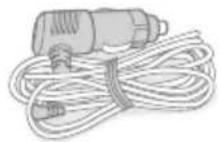

Manual & PC viewer CD, Quick Guide

Video-out Cable (Optional)

Uninterruptible Power Equipment (Optional)

External GPS
Receiver (Optional)
- Note that the included items may vary according to the product specifications and may look different from the images provided in the manual.
- If you connect the Video-out cable to an AV-in terminal of the navigation, you can view real-time video.
Before You Start
+ Name of Part and Functions

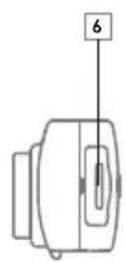
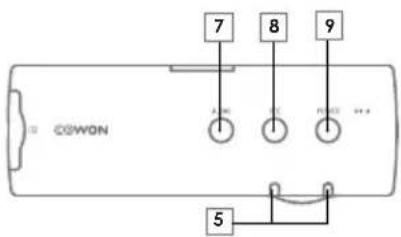
| No. | Names Functions No. | Names Functions | |||
| 1 | GPS | External GPS terminal | 6 | Memory card slot | Slot for inserting the memory card. |
| 2 | VIDEO OUT Video-out terminal | 7 AUDIO button | Press once - Audio recording On/OffPress and hold - Video out function On (3seconds) | ||
| 3 | Power terminal | Cigar jack cable / Uninterrupted power cable terminal | 8 REC button | Press once - Occurrence of event (manual recording)Press and hold - Format the memory card (7seconds) | |
| 4 | Camera lens | Records the front direction of a vehicle. | 9 POWER button Press and hold - Power On/Off (3seconds) | ||
| 5 | LED Status Indicator | Displays the operational status of the device. | |||
COWON AK1 — 11
Before You Start
+ Installation
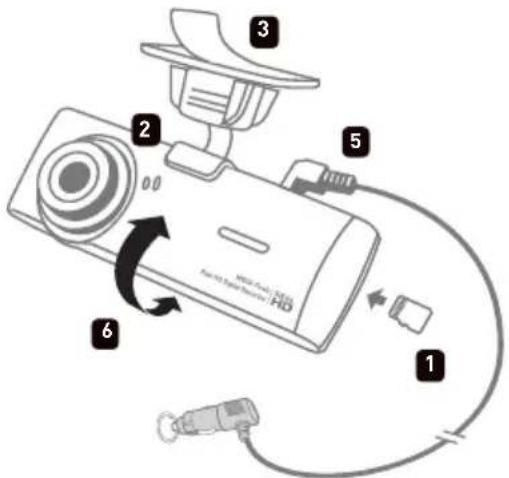
- Insert the memory card into the device.
- Place the AK1 in the device holder.
-
Remove the release paper on the tape.
-
Choose the location where you want to attach the device to the vehicle. Wipe any foreign matter or moisture completely from the location before installing the device.
- Connect cigar jack cable.
- Adjust the direction of the camera lens.
- Tighten the nut of bracket to fix the AK1.
* A space behind the rearview mirror is recommended for installation.
* Select a location carefully as repositioning the device after removing may weaken adhesiveness significantly. Double-check the chosen location before fixing the device.
* Adjust the camera lens so that about 10-20% of your vehicle's hood appears on the recording screen.
Before You Start
+ Installation
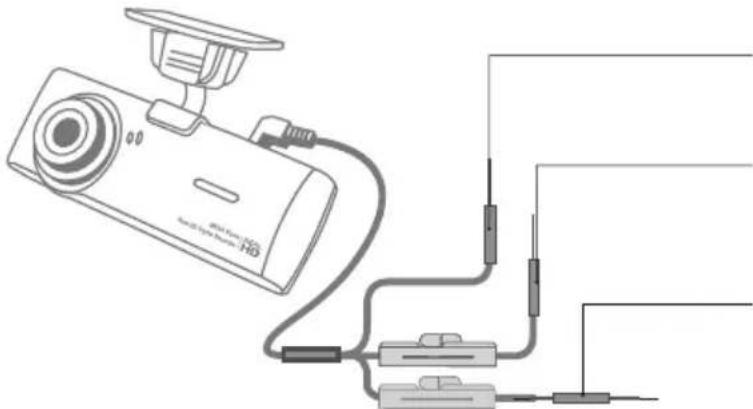
When connected with uninterrupted power, recording continues even when the vehicle is parked and the engine is turned off.
- Make sure that fully understand how to set up uninterrupted power before connecting the device.
- Each wire must be fixed to a specific dedicated location, otherwise inverse voltage can occur seriously damaging the device.
natural_image
Diagram of a surveillance camera connected to three cables and connectors (no text or symbols)Black wire (GND)
Fix it to a bolt attached to the metal of the vehicle's body.
Yellow wire (BATT+)
Connect it to the uninterrupted power fuse of the vehicle's fuse box (hazard flasher, dome light, taillight, etc.)
Red wire (ACC+)
Connect it to the ACC(cigarette lighter, etc.) fuse of the vehicle's fuse box.
- Connect it to the ACC(cigarette lighter, etc.) fuse of the vehicle's fuse box ※ Uninterrupted power cable may be purchased separately.
COWON AK1 — 13
Basic Functions
+ Start Recording
When power is turned on, the voice message announces the start-up of the Auto Capsule. The voice message also announces the start of driving mode recording; recording begins.
+ Driving Mode Recording
When power is connected, the voice message announces driving mode recording, and recording begins. Driving mode recording files are stored as normal files or event files.
+ Parking Mode Recording 1)
When the car engine is turned off and battery voltage drops to parking mode, the device's driving mode recording stops and switches into a standby mode. It automatically starts recording for a certain period of time only when external impact or motion is detected.
+ End Recording
When the car engine is turned off or the power cable is unplugged during the operation, the last recording file is stored using the backup supercapacitor and then the device is powered off. ^2)
1) Uninterrupted power connection is needed for parking mode recording.
2) The last recorded file may not be stored if backup supercapacitor is low.
Basic Functions
+ Occurrence of Event
When one of the events described below takes place, it records for a total of 30\~90 seconds and stores it as an event file.
- When an impact is detected during driving/parking mode recording.
- When the REC button is pressed once briefly during driving/parking mode recording.
※ If you press the button during event recording the voice guidance comes after the event recording ends.
+ Motion Detection
When a motion is detected during parking mode recording, it records a total of 30 seconds and stores it as a parking file.
Basic Functions
- LED Status Indicator
| Category Status | Front LED Rear LED (Blue) | Rear LED (Red) | ||
| Recording | Driving mode recording Blinking On Off | |||
| Standby during parking mode | Slow Blinking Blinking Off | |||
| Motion detecting during parking mode | Fast blinking Off On | |||
| Occurrence of event Fast blinking Off On | ||||
| System | Booting / No memory card | Blinking On Off | ||
| Firmware Upgrade Fast | blinking Fast blinking Off | |||
| Format Off On On | ||||
Basic Functions
+ Button Operation
AUDIO button
| Press once Press and hold (over 3 seconds) | |
| Turns audio recording On/Off Turns video-out On. |
REC button
| Press once Press and hold (over 7 seconds) | |
| Records manually and stores it as an event file. Format the memory card. | |
* It is recommended to periodically format the memory card for proper recording.
* Formatting memory card will delete all recorded files. Please backup(save) the necessary files to other devices.
POWER button
| Press and hold (Off : over 3 seconds, On : briefly) |
| Turns Auto Capsule On/Off. |
Other Functions
+ PC Manager
The PC Manager can be downloaded from the bundle CD.

- Video playback screen
- G sensor information.
- Playback buttons
- GPS location map
- Video list
- Open video files
- Setting buttons
Other Functions
+ PC Manager
 | Open recoded video files. |
 | Plays a selected file. |
 | Stop the video playback. |
 | Plays the previous/next file. |
 | Seek the video in 1-second. |
 | Adjust the brightness of the video during playback. |
 | Adjusts the volume. |
 | Users can set their preferences. |
 | Capture the current image. |
 | Shows informations of firmware and PC manager. |
 | Format the memory card. |
Other Functions
+ Auto Shutdown Timer
After parking mode recording commences, the device operates for a pre-set time, after which the power is turned off automatically.
+ Setting Auto Shutdown Voltage
When battery voltage falls below the pre-set voltage value after going into parking mode recording, power is turned off automatically to protect the battery.
- When standby operation time becomes shorter in parking mode recording, set the range of auto shutdown voltage lower.
- The lower the pre-set voltage value, the longer the standby time in parking mode recording, and the higher the pre-set voltage value, the shorter the standby time in parking mode recording.
- If voltage falls below the pre-set auto shutdown voltage value during operation while auto shutdown timer is set, power is turned off regardless of the auto shutdown timer.
* Parking mode recording, auto parking mode voltage, and auto shutdown voltage settings are accessible only during uninterrupted power connection.
* The lower the pre-set auto shutdown voltage value, the greater the risk of battery discharge; the higher the pre-set auto shutdown voltage value, the more effective it is for preventing battery discharge. Set the voltage value to suit your vehicle battery condition before use.
Other Functions
+ Sensitivity of G Sensor
Sensitivity of the G sensor which detects external impacts when driving or parked can be adjusted.
+ Motion Sensor
Sensitivity of motion detection made by the device while parked can be adjusted.
Additional Description
+ Product Specification
| Item Specification | |
| Dimension and weight 102 | mm(W) X 34mm(H) X 21mm(T) / 45g |
| Image sensor 1M pixels CMOS image sensor | |
| Recording resolution 720p | HD (1280X720), 30fps |
| Recording angle Diagonal angles of 110°/ Horizontal angles of 92.1°/ Vertical angles of 48.4° | |
| Recording type Normal / Manual / Event (Impact) / Parking (Motion) | |
| Audio recording Built-in microphone | |
| Video-out AV-Out output terminal supporting | |
| Video encoding H.264 | |
| Audio encoding PCM | |
| Channel 1 Ch | |
| Status indicator LED, Voice guide | |
| Button 3 buttons | |
| Storage memory 8GB / 16GB microSD Card (Max. 32GB memory card supporting) | |
| Power DC 12V ~ 24V | |
| Others | Speaker, microphone, microSD card slot, external GPS terminal |
DIGITAL PRIDE.
©OWON
- Precautions
- Before You Start 5
- Basic Functions 14
- Other Functions 18
- Additional Description 22
- + Product Overview
- HD-quality video recording
- Intelligent image sensor algorithm optimized for car black box
- Multiple recording options and easy search
- Built-in G sensor
- Built-in motion sensor
- Built-in backup supercapacitor
- Video-out
- Multiple indicators for smooth operation
- PC Manager
- Automatic parking mode recording 1)
- Auto shutdown timer available during parking mode recording
- Connection with external GPS
- + Safety Precautions
- + Package Components
- + Name of Part and Functions
- + Installation
- Black wire (GND)
- Yellow wire (BATT+)
- Red wire (ACC+)
- + Start Recording
- + Driving Mode Recording
- + Parking Mode Recording 1)
- + End Recording
- + Occurrence of Event
- + Motion Detection
- + Button Operation
- + PC Manager
- + Auto Shutdown Timer
- + Setting Auto Shutdown Voltage
- + Sensitivity of G Sensor
- + Motion Sensor
- + Product Specification
Brand : COWON
Model : AK1
Category : Mp3 player