
LC086_PACK_W - Network adapter SWEEX - Free user manual and instructions
Find the device manual for free LC086_PACK_W SWEEX in PDF.


| Product type | Powerline network adapter |
| Brand | SWEEX |
| Model | LC086_PACK_W |
| Maximum speed | 85 Mbps |
| Standard | HomePlug 1.0 |
| Interfaces | 1 Ethernet RJ45 port (10/100 Mbps) |
| Number of adapters in pack | 2 |
| Power supply | Mains via integrated power plug (100-240 V) |
| Dimensions (approx.) | 10 × 6 × 3 cm (per adapter) |
| Weight (approx.) | 150 g (per adapter) |
| Indicator LEDs | Power (green), Data (green), Ethernet (green) |
| Security | Password encryption (unique network name) |
| Management software | Power Adapter Utility (Windows XP/Vista) |
| Operating temperature | 0 °C to 40 °C |
| Operating humidity | 10 % to 90 % (non-condensing) |
| Maintenance and cleaning | Disconnect and wipe with a dry cloth. Do not use abrasive products. |
| Safety | Do not open, do not expose to extreme temperatures, humidity or dust. Avoid shocks. Do not plug into a surge-protected or UPS outlet. |
| Spare parts | Not available, device not user-repairable. |
| Warranty | 3 years (excluding software, batteries and cells) |
Frequently Asked Questions - LC086_PACK_W SWEEX
User questions about LC086_PACK_W SWEEX
0 question about this device. Answer the ones you know or ask your own.
Ask a new question about this device
Download the instructions for your Network adapter in PDF format for free! Find your manual LC086_PACK_W - SWEEX and take your electronic device back in hand. On this page are published all the documents necessary for the use of your device. LC086_PACK_W by SWEEX.
USER MANUAL LC086_PACK_W SWEEX
LC086PACK_W Sweex Powerline ethernet adapter 85 Mbps twinpack white
Introduction
- Do not expose the SweeX Powerline Ethernet Adapter 85 Mbps to extreme temperatures. Do not place the product in direct sun light or close to heating elements.
- Do not use the Sweex Powerline Ethernet Adapter 85 Mbps in extremely dusty or moist environments.
- Prevent hard shocks or impacts of the product, as this can cause damage to the internal electronics.
- Never try to open the product yourself, this voids the warranty.
Important!
Do not connect the Sweex Powerline Ethernet Adapter 85 Mbps to a UPS or a socket with surge protection and/or filter. This can negatively influence the quality of the signal.
Hardware Installation
Prior to installing the hardware, follow these precautionary instructions:
- Ensure that there is at least 1 free plug socket available for every adapter.
- Place the adapter in the plug socket.
- Place the second and possibly third (etc.) adapter in a different plug socket.
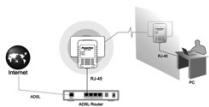
- Connect the adapter with the network and/or the computer by means of the network cables. There are 3 connection possibilities:
1: From /switch to PC (see image underneath)
2: From PC to PC
3: From router/switch to router/switch
- Check if the LEDs are lit as indicated in the topic "LED indications".
Software installation XP and Vista
No drivers are needed for the Sweex Powerline Ethernet Adapter. The utility that will be installed ensures extra functionality and security. If you do not need this you do not have to install the software. Without software you can immediately use the Sweex Powerline Ethernet Adapter.
Before you start the installation we recommend you to ensure that your operating system is up-to-date. This is easily checked by selecting the "Extra" menu in Internet Explorer and then the option "Windows Update".
Place the Swee x CD-ROM in the CD-ROM player. The auto run menu will start automatically.
In this menu choose "Software XP and Vista"
When this auto run menu does not appear you can start the software manually. To do this open "My Computer" and go to X:\software\ (X is the letter of the CD-ROM drive). Here is the file 'LC085software'. Execute this file. Windows will install the software automatically.
Software Power Adapter Utility
Configuring the SweeX Powerline Ethernet Adapter 85 Mbps is done with the 'PowerPacket Utility'. These can be found as follows:
Go to START "All Programs">Power Adapter">Power Adapter Utility"
or when the classic view is being used:
Go to START "Programs" "Power Adapter" "Power Adapter Utility"
The following screen appears:
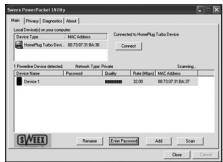
The program will immediately search for the Powerline devices, which are connected with the powerline adapter of your computer via the power grid. The found devices will appear in the window under "Device Name". Here you can see the password (Default setting empty), the quality of the connection, the effective data speed ("Rate (Mbps)" and the MAC address of the adapter.
When you want to use the security possibilities you have to enter the password of the adapter. This password ("PWR: xxxxxxxxxxxxxxx") is unique for every adapter and is located on the sticker underneath the adapter under the MAC address ("MAC: xxxx:xxxxxx"). We advise you to write these details on a piece of paper before you start the installation, this way you can easily find the details.
Select the device you want to configure and click "Enter Password". The following screen appears:
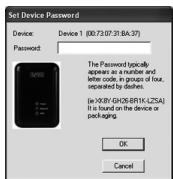
Enter the password that is on the adapter. Pay attention that the MAC address of the adapter is the same as the MAC address in the program, so that the right password is entered!
Security
It is not necessary to configure the security for the Sweex Powerline Ethernet Adapter 85 Mbps to work properly. If someone has access to your plug sockets, that person (when you did not setup security) could access internet via that plug socket. This is not practical and will hardly ever occur, because the Powerline is limited to your own house. Powerline does go over all groups within your house.
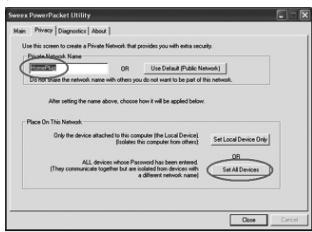
Applying the security is done in the second tab. Here you can give a unique network name (default is "HomePlug"). This network name is also the password to connect to the Powerline network. After entering a network name you have to click on "Set All Devices". This will only work when the "Password" of all adapters is entered. The network is now secured and can be connected to by all adapters that have the unique network name.
When the passwords of the adapters are not entered, only the locally connected adapter can be configured. This adapter will then be isolated from the network, because only this adapter has a unique network name.
Only adapters with the same network name can create a network together. The default network name is "HomePlug". When you do not need security you do not have to configure anything.
LED indications
The SweeX Powerline Ethernet Adapter 85 Mbps has 3 LEDs:
| LED Indicator | Status | Indication |
| Data | On | An other adapter is detected on the same network. |
| Off | No other adapter is detected in the same network. | |
| Blinking | There is activity on the Powerline network. | |
| Power | On | The adapter is turned on. |
| Ethernet | On | The network port is correctly connected and ready to send/receive data. |
| Off | The network port is not connected correctly. | |
| Blinking | The network port sends/receives data. |
Warranty
For all SweeX products a warranty period of 3 years applies. We do not give support or warranty on supplied software, rechargeable batteries and batteries. Transaction of warranty only takes place at the sales point where the product is bought.
All brand names and associated rights mentioned in this manual are and stay property of the rightful owner.