FLEXTIGHT 949 - Film Scanner HASSELBLAD - Free user manual and instructions
Find the device manual for free FLEXTIGHT 949 HASSELBLAD in PDF.


| Product Type | Film Scanner |
| Brand | Hasselblad |
| Model | Flextight 949 |
| Dimensions (L x H x D) | 385 x 645 x 220 mm (table closed), 440 mm (table open) |
| Weight | 17 kg |
| Power Supply | 100-240 V AC, 1.3 A, 50-60 Hz (adapter 24 V DC, 60 W) |
| Power Consumption | Max. 75 W in operation |
| Computer Interface | FireWire (IEEE 1394) |
| Maximum Resolution | 8000 dpi (35 mm portrait), up to 960 dpi (A4 portrait) |
| Original Types | Transparencies (35 mm to 4x5 inches), reflective (up to A4) |
| Lamps | Reflective (ref. 10700022), Transparencies (ref. 10700025) |
| Operating Temperature | 10 to 35 °C, recommended 10 to 25 °C |
| Operating Humidity | 20 to 80 % RH (non-condensing) |
| Exterior Maintenance | Clean with a damp cloth, no alcohol or solvents |
| Safety | Unplug before any intervention; do not touch during operation |
| Spare Parts | Replacement lamps available; calibration sheet provided |
| Repairability | User replaceable lamps; contact dealer for other repairs |
| Front Panel | Power switch, LED indicators (power, motor, scan) |
| Included Accessories | Original holders for transparencies and reflective, calibration sheet, FireWire cable |
Frequently Asked Questions - FLEXTIGHT 949 HASSELBLAD
User questions about FLEXTIGHT 949 HASSELBLAD
0 question about this device. Answer the ones you know or ask your own.
Ask a new question about this device
Download the instructions for your Film Scanner in PDF format for free! Find your manual FLEXTIGHT 949 - HASSELBLAD and take your electronic device back in hand. On this page are published all the documents necessary for the use of your device. FLEXTIGHT 949 by HASSELBLAD.
USER MANUAL FLEXTIGHT 949 HASSELBLAD
© 2004 Hasselblad A/S. All rights reserved.
Flextight 949 User's Guide, Part No 70030048, revision A.
The information in this manual is furnished for informational use only, is subject to change without notice, and should not be construed as a commitment by Hasselblad A/S. Hasselblad A/S assumes no responsibility or liability for any errors or inaccuracies that may appear in this manual.
Hasselblad A/S assumes no responsibility or liability for loss or damage incurred during or as a result of using Hasselblad software or products.
Hasselblad, Imacon, FlexColor and Flextight are trademarks of Hasselblad A/S. Adobe and Adobe Photoshop are trademarks of Adobe Systems, Inc. Macintosh, Mac OS, FireWire and ColorSync are registered trademarks of Apple Computer, Inc.
Printed in Denmark.
Table of Contents
Hardware Reference - Flextight 949 5
Warnings and Restrictions 6
System Requirements 7
Front Panel 9
Back Panel & Connectors 10
Cut-Away View 11
Setting up the Scanner 12
Environmental Requirements 12
Electrical Requirements 12
Installation Procedure, FireWire Interface 13
Operating Instructions 15
Resolutions 19
True Resolutions 19
Calibrating the Scanner 20
Focus Calibration 21
White Calibration for Reflectives 22
The Light Tubes 25
General 25
Replacing the Light Tubes 25
Cleaning the External Surface of the Scanner 28
Disposal 28
Technical Specifications 29
FCC Notice 30
CE-Declaration of conformity 31
Hardware Reference - Flextight 949
This manual provides important information about using your Flextight 949 scanner.
Topics include:
- Important warnings and restrictions
- System requirements
- Diagrams of the front panel, rear panel, and internal structure of the Flextight 949 scanner
- Installation instructions
Environmental requirements - Electrical requirements
- Operating instructions
- Special considerations for scanning 35mm originals
- Calibration instructions
- Maintenance advice
- Disposal instructions
Technical specifications - Declarations of FCC and CE regulation conformity
Warnings and Restrictions
- Read all of the included documentation before attempting to install and use the scanner.
- Do not touch the originals and/or the original holder while scanning.
- Do not start scanning or previewing until an original holder with an original has been mounted.
- The original holder is only to be mounted or removed when the drum is in the load position.
- When you turn on the scanner, the drum will roll to the load position, if it is not there already. Do not touch the scanner while the drum is rotating.
- Do not place your fingers or any other object into the scanner while it is connected to power.
- Before servicing or opening the scanner, the power supply must be disconnected from the mains (unplugged). It is not sufficient simply to press the on/off button.
- Install the scanner in a location where children can not get to it. It contains small openings and moving parts that can cause injury.
System Requirements
Below are the basic hardware requirements for the PC or Macintosh system to which the scanner is to be connected.
For information about the processor, operating system, RAM and harddisk requirements please refer to the "Software Reference" manual, that comes with the FlexColor software.
- Screen resolution of 800 × 600 pixels with true colors (24-bits).
- Mouse or other pointing device.
- FireWire interface.
Front Panel
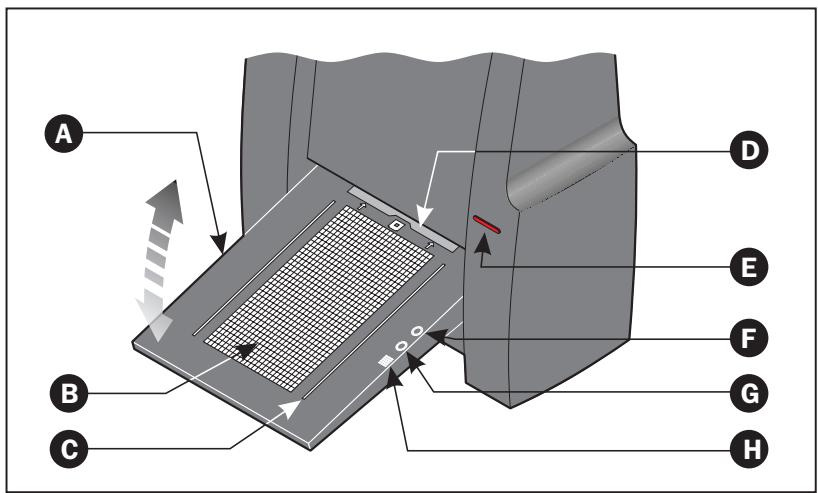
Figure 1: Front panel features of Flextight 949
A Feed Table: must be in lower position for normal scanning. When scanner is not in use you can turn it to upright position flushing with the scanner front to protect it from dust etc. Adjust to horizontal position when using the 35mm slide mount holder (see page 15).
B Light Table: for viewing originals. The grid helps you to align your transparent originals.
C Transparency Holder Guide: all transparency holders fit between two rails to keep them straight.
D Original Holder Clasp: all original holders slide into a slot here and are held in place by a magnetic clasp.
E Power Switch: press here to turn the unit on/off.
F Power Indicator (Green): Remains lit when ready to scan. Flashes when first installed to indicate that firmware must be loaded (it will be loaded automatically when you run FlexColor).
G Motor Drive Indicator (Yellow): lights when the scanner is repositioning the optics to scan in a new format or when drum is repositioning.
H Scan Indicator (Red): lights when scanning. Do not touch the scanner while this indicator is lit. If the light is flashing when not scanning, then an error has occurred - please contact your Flextight dealer for assistance.
Back Panel & Connectors
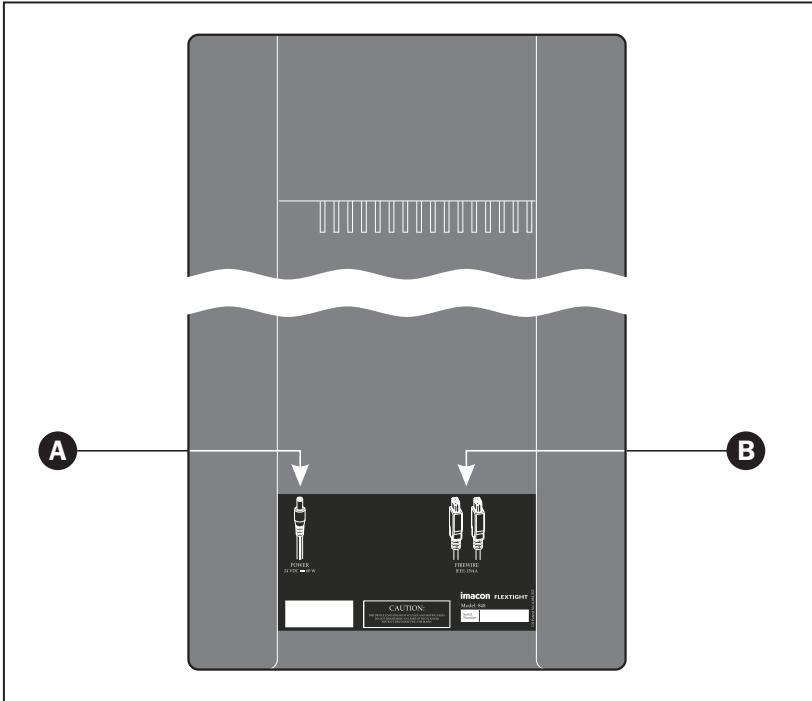
Figure 2: Back panel features of Flextight 949
A Power Cable Socket: plug the power cable into this socket.
B FireWire Interface Sockets: plug a FireWire cable (max. 6 m) here and connect it to your computer. You can use the second plug to connect another device (hard disk, printer etc.) to the FireWire chain.
Cut-Away View
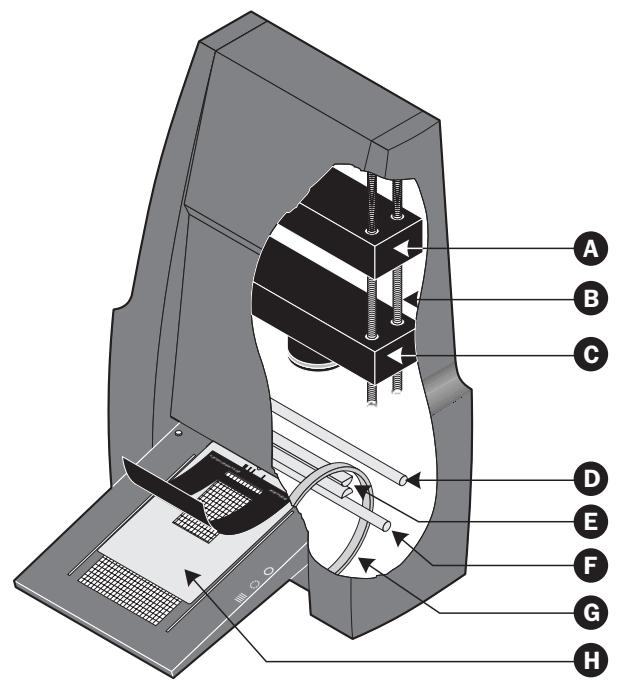
Figure 3: Cut-away view of Flextight 949
A CCD Housing: movable platform holding the CCD sensor.
B Positioning Lead Screws: for positioning of the CCD housing and optics housing for the appropriate resolution and original size.
C Optics Housing: movable platform holding the optics which focuses the image of the original on the CCD-sensor.
D Upper Light Source: illuminates reflective originals.
E Prism-module: focuses the light from various angles and thereby removes or heavily reduces dust and scratches in the scanned image.
F Lower Light Source: illuminates transparent originals.
G Drum: rotates the original into the scanner and steps it past the CCD line of focus.
H Original Holder: a transparency holder is shown mounted and with the top layer held open.
Setting up the Scanner
Environmental Requirements
Set up the scanner in a location that fulfils the following requirements:
- Keep the scanner away from sources of heat, such as direct sunlight or a radiator. Warm temperatures will degrade the quality of your scans - for best results, work in a cool environment.
- The scanner must be operated away from sources of strong electromagnetic interference. Although the scanner complies with all regulations governing electromagnetic immunity and we have taken every reasonable step to make the unit immune to electromagnetic interference, it is still a precision electronic device so strong radio waves can interfere with your scans.
- The surface on which the scanner is placed must be stable and free from vibrations. If the scanner is shaken or moved while scanning, your results may be affected.
- If the scanner has been in a colder environment (e.g. outside or in storage) just before you set it up in a warmer room, then wait about two hours before using it - otherwise, condensation may form, which will prevent the scanner from operating correctly.
- Avoid using the scanner in areas where there is a high level of dust.
Electrical Requirements
The Flextight 949 power supply requires a mains voltage of between 100 and 240V AC at a frequency of 50 to 60Hz . This is within the normal wall-socket power standards of most countries. Do not attempt to use Flextight 949 with any power source outside the specified range.
The scanner and all devices attached to the scanner (computer, monitor, FireWire devices, etc.) must be grounded (i.e. use a three-point electrical connection).
Note that the power supply may emit a low hissing sound when plugged in but not connected to the scanner. This is normal and will not damage the power supply or scanner.
Installation Procedure, FireWire Interface
- Place the scanner on a table near your computer with the front facing away from you. Make sure that the location you choose meets all environmental - and electrical requirements as described on page 11.
- When using a FireWire interface connection, it is not necessary to switch of your computer and other connected units. Connect a FireWire cable from one of the FireWire connectors on your scanner (see Back Panel & Connectors on page 10) to either the computer's FireWire connector or to a free FireWire connector on any other FireWire device already connected to your computer.
- Connect the round connector from your power supply to the round power supply socket on the back of the scanner.
- IMPORTANT: Make sure that the wall socket you are planning to use meets the electrical requirements outlined earlier. Plug the Flextight 949 power supply into a wall socket. Note that the power supply may emit a low buzzing sound when plugged in. This is normal and will not damage the power supply or scanner.
- Turn the scanner around so that the front is facing you.
- Your system is assembled. Turn on your computer and install the FlexColor image scanning software.
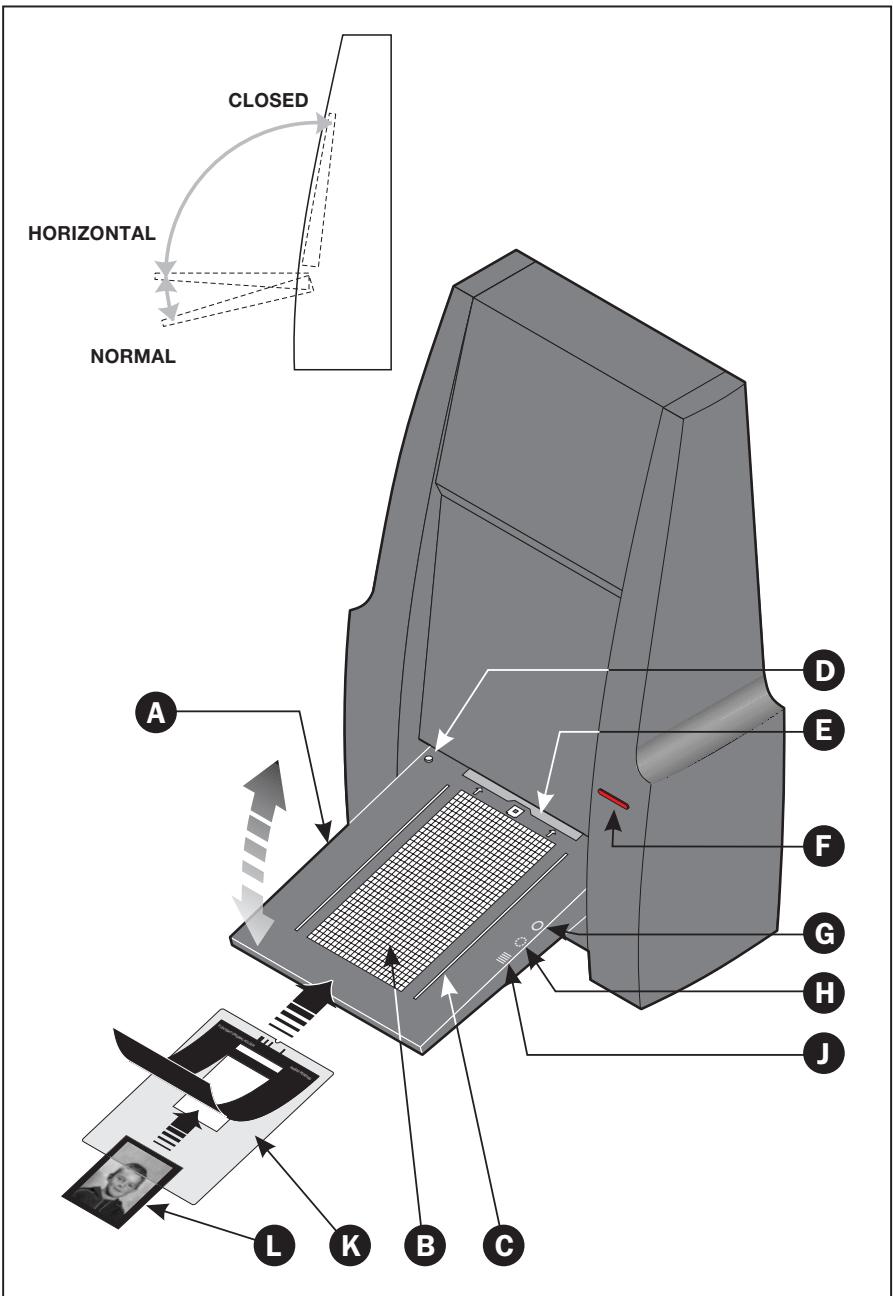
Figure 4: Operating the Flextight 949 scanner
Operating Instructions
(See Figure 4 opposite).
- It is assumed that the scanner and FlexColor software have been properly installed.
- If not already done, turn the feed table (A) to normal position.
- Press the red power button (F) on the front of the scanner to switch it on. The green light (G) starts flashing. This means that no firmware has been downloaded yet. It will be downloaded automatically later when you first run the FlexColor program.
- Turn on your computer and start the FlexColor program. The green light (G) will stop flashing indicating that firmware has been downloaded to the scanner.
-
Select the original holder (K) that matches your original:
-
For transparencies, choose one of the holders that has a square hole in it. The original must completely fill the hole with no edges showing. Also, no edges of the original must extend past the outer edges of the holder.
The feed table (A) must be in normal position.
- For reflectives, select the large A4/letter-size holder with the clear plastic layer.
The feed table (A) must be in normal position.
- For 35mm slide frames use the optional 35mm slide mount holder.
The feed table (A) must be adjusted to horizontal position. This is obtained by lifting the table slightly upwards while pushing it gently into the scanner.
Please note that when scanning 35mm slide frames in the 35mm slide mount holder it is recommended to use autofocus. See the FlexColor Software Reference for details.
continues...
Figure 4: Operating the Flextight 949 scanner
...continued
NOTE! Each original holder has it's own unique identification code (a combination of small rectangular holes at the holder's leading edge). These codes, combined with the scanner's ability to detect the feed table position, ensure that the scanner will not operate unless the feed table position matches the selected original holder.
- Place the original holder (K) with the slotted tab facing into the scanner. For transparencies, the flexible magnetic layer must face upwards. For reflectives, the clear plastic sheet must face upwards. Make sure that the original holder fits between the appropriate guides (C) or (D) on both sides of the light table.
- Slide the holder gently into the slot (E) at the top of the feed table. It will slip about 12 cm ( 14 inch) into it. Do not press too hard. It slips in very easily and is held in place by a magnetic clasp. To remove the holder, simply pull it gently backwards.
-
Lift the top layer of the original holder and place your original (L) as follows:
-
For transparencies, place your original with the emulsion side down. The original must completely fill the hole with no edges showing and with a minimum overlap of 2mm along each edge. Also, no edges of the original must extend past the outer edges of the holder. Use the grid on the light table (B) to help line up the image.
- For reflectives, make sure that no part of the original extends past the edge of the holder. Use the dotted lines printed on the holder to line up the image. Handle the clear plastic layer only by the edges to avoid fingerprints. Curl the plastic layer back and slip the front edge into Flextight's foil holder.
continues...
...continued
-
Lay the top layer of the holder down flat over the original.
-
For transparency holders, the top layer is magnetic, which will hold the original fast.
- For the reflective holder, note the four metal pegs (the top two are shown as A and C in Figure 5 below); make sure that the clear plastic sheet is pressed all the way down over all four pegs. Note also the two curved tabs at the top of the holder (B in the figure below); the clear sheet must slip under each of these tabs, as shown.
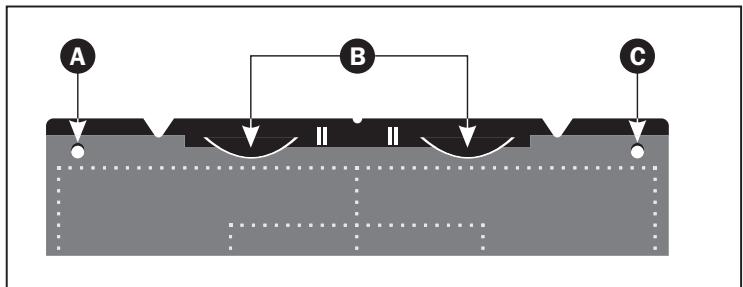
Figure 5: Reflective holder, top
- Go to your computer and follow the directions given in the FlexColor software manual to take a preview, make settings, and take the final scan.
Resolutions
True Resolutions
The table below shows the max. resolutions (in ppi) available with each of the original holders when scanning in True Resolutions mode.
Table 1: True Resolutions
| Original | Max. resolution (ppi) at full scanning width. |
| 35 mm Portrait | 8000 |
| 35 mm Landscape | 5000 |
| 45 x 60 mm Portrait | 4000 |
| 60 x 60 - 60 x 70 mm | 3200 |
| 4" x 5" Portrait | 2040 |
| A4 Portrait | 960 |
Calibrating the Scanner
The scanner requires two types of calibration:
- Focus calibration adjusts the positioning of the scanners optics for each zoom level. If your scans are coming out unfocused or at slightly the wrong size, then you may need to make a new focus calibration to adjust the zoom mechanism. The focus calibration is stored in the scanners flash PROM, so it is preserved when you move the scanner to a new computer. See "Focus Calibration" on page 21 for more information.
- White calibration is only required for reflective scans (it is done automatically for transparencies). During calibration, the scanner scans a white target to establish the white point along the full length of the scanners CCD. The results of the white calibration scan are saved on your computers hard disk, so you must make a new white calibration if you move the scanner to a new computer. See "White Calibration for Reflectives" on page 22 for more information.
Both of the calibration procedures are simple and are initiated from the FlexColor program.
Focus Calibration
The Flextight 949 scanner uses an adjustable zoom and focus mechanism to optimize its scanning resolution for each of the original formats it can handle. If you suspect your scans are not as sharp as they should be, then you may need to calibrate your scanner. Note that you must not calibrate the scanner every day. It is intended that the scanner is calibrated not more than once every three months. In most cases, this procedure will never be necessary.
Use procedure below to make Focus Calibration:
- Locate the "Focus sheet" that came with your scanner. It is a 8 × 9 cm (3'' × 3.5'') square of transparent film with a black image on it.
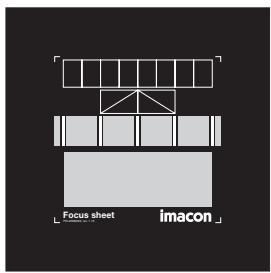
- Load the sheet into the 6 × 6 original holder with the lines pointing towards the scanner (vertically). Place the sheet as straight as possible. Use the scanners light table grid and the corners marked on the sheet to help align it.
- Select Focus Calibration from the Maintenance menu.
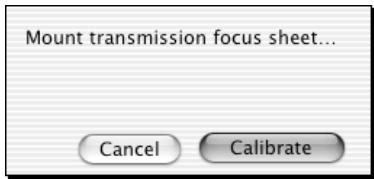
- Click on the Calibrate button, and the focus calibration starts.
- When the focus calibration is finalized, the focus calibration window closes again.
Your scanner is now calibrated for all resolutions and for both transparent and reflective originals.
White Calibration for Reflectives
The Flextight scanner uses a white reference to make sure that all elements in the scanner's CCD react consistently to light brightnesses. The scanner has been calibrated from the factory, and the calibration data is stored in the scanner's flash PROM.
As the scanner ages, the properties of the light tubes may change slightly. Therefore, you must redo the white calibration every six months or so and immediately after changing the light tubes.
Use procedure below to make White Calibration:
- Find the white calibration sheet that came with your scanner. It is a square white piece of paper (219 × 219 ~mm (8.6'' × 8.6'')) . If you have lost the white calibration sheet, then you can use a flat (non-textured), perfectly white piece of paper of the same dimensions.
- Your scanner came with several clear plastic layers for the reflective original holder. If you have used the reflective holder before, make sure that there are no finger prints or other marks on the plastic layer. Replace the layer with a new one if necessary.
- Align the top edge of the sheet with the dotted line near the top of the original holder (see Figure 6 opposite). Align each side of the target with the edges of the original holder.
- Select White Calibration from the Maintenance window. The External White Calibration window appears.
External white calibration
External white calibration is used to ensure high quality reflective scans. The calibration must be performed after installation, thereafter it should be repeated every 6 months, or more frequently in the case of extensive scanner usage.
The procedure is as follows.
1) The best result is obtained by using the Imacon supplied white calibration sheet, but good quality white paper can also be used. It should cover the entire width of the A4 original holder. the minimum length is 210~mm
2) Place the calibration sheet at the top of the A4 original holder, aligned to the upper dotted line. Make sure to use a new foil, without scratches and fingerprints.
3) Press Calibrate to start the calibration procedure.
Cancel
Calibrate
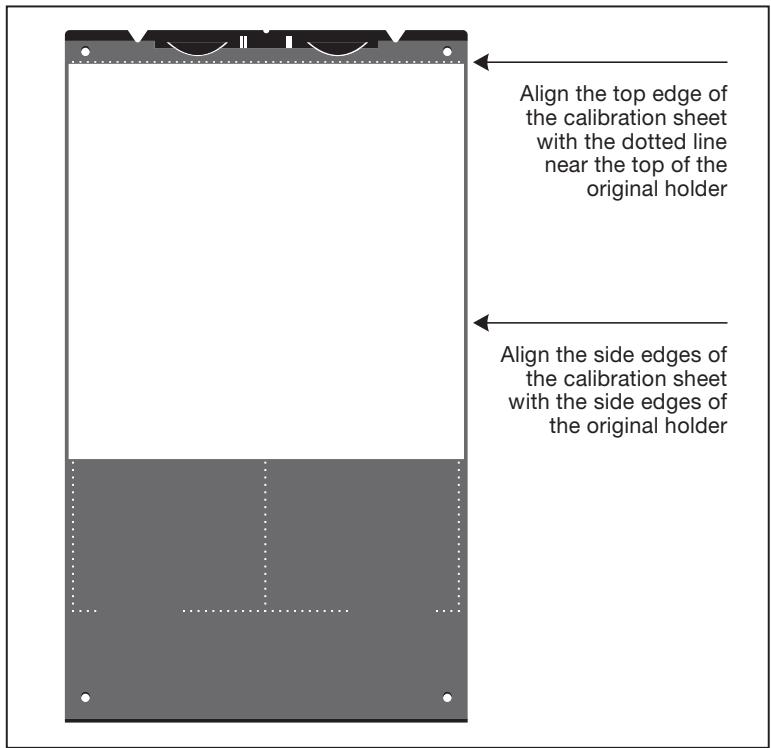
Figure 6: Positioning the white calibration sheet on the reflective holder
- Click on Calibrate. The scanner will take several scans of the white target. The process will take about eight minutes.
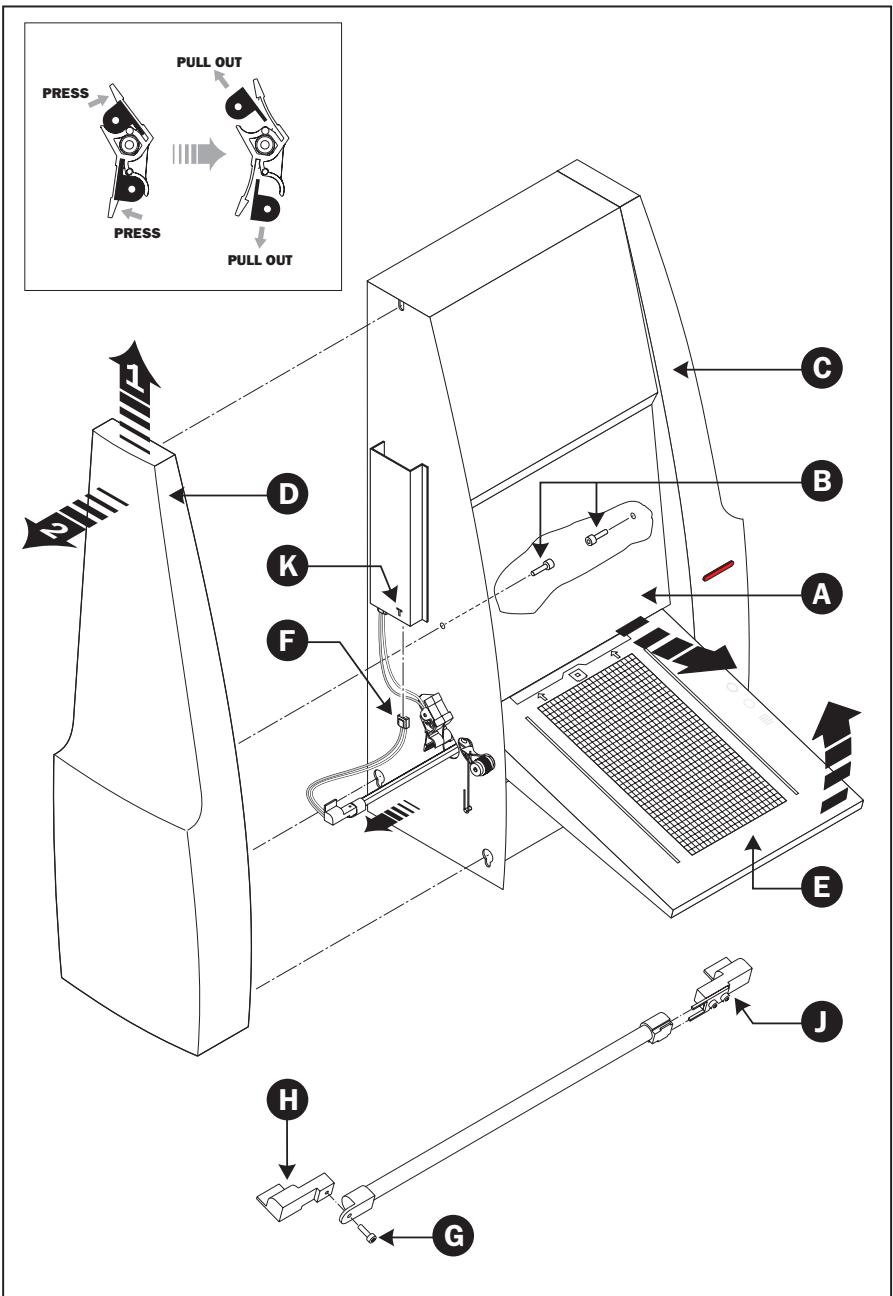
Figure 7: Replacing the Light Tubes
The Light Tubes
General
The Flextight 949 contains two light tubes: one for illuminating reflective originals from above, the other for shining light through transparencies from below.
NOTE! The two lamps are of different types and are not interchangeable.
Replacing the Light Tubes
If your scans are suddenly coming out black (or all white if you are scanning negatives), then one of your light tubes may be defective.
Make a preview using both types of scans (transparent and reflective) to find out which tube is affected.
- If transparencies are not working, then the bottom tube may be burned out.
- If reflectives are not working, then the top tube may be burned out.
Follow procedure below to replace a tube:
(See Figure 7 opposite).
- Get the appropriate replacement lamp (ask your Flextight dealer).
- Turn off and unplug the scanner from the primary power supply.
- IMPORTANT: Let the light tubes cool down for app. 10 minutes before proceeding.
- Remove the front panel (A) by pulling it outwards at the bottom and lift it off.
- Remove the two black allen screws (B) (one in each side) using a 3 mm allen key. Do not remove any other screws.
- Remove the two side panels (C) and (D) by lifting them slightly upwards and then outwards.
NOTE! It may require a firm push upwards to release the panels.
- Turn the feed table (E) to upright position.
- Locate the tube to be replaced and dismount the plug (F).
continues...
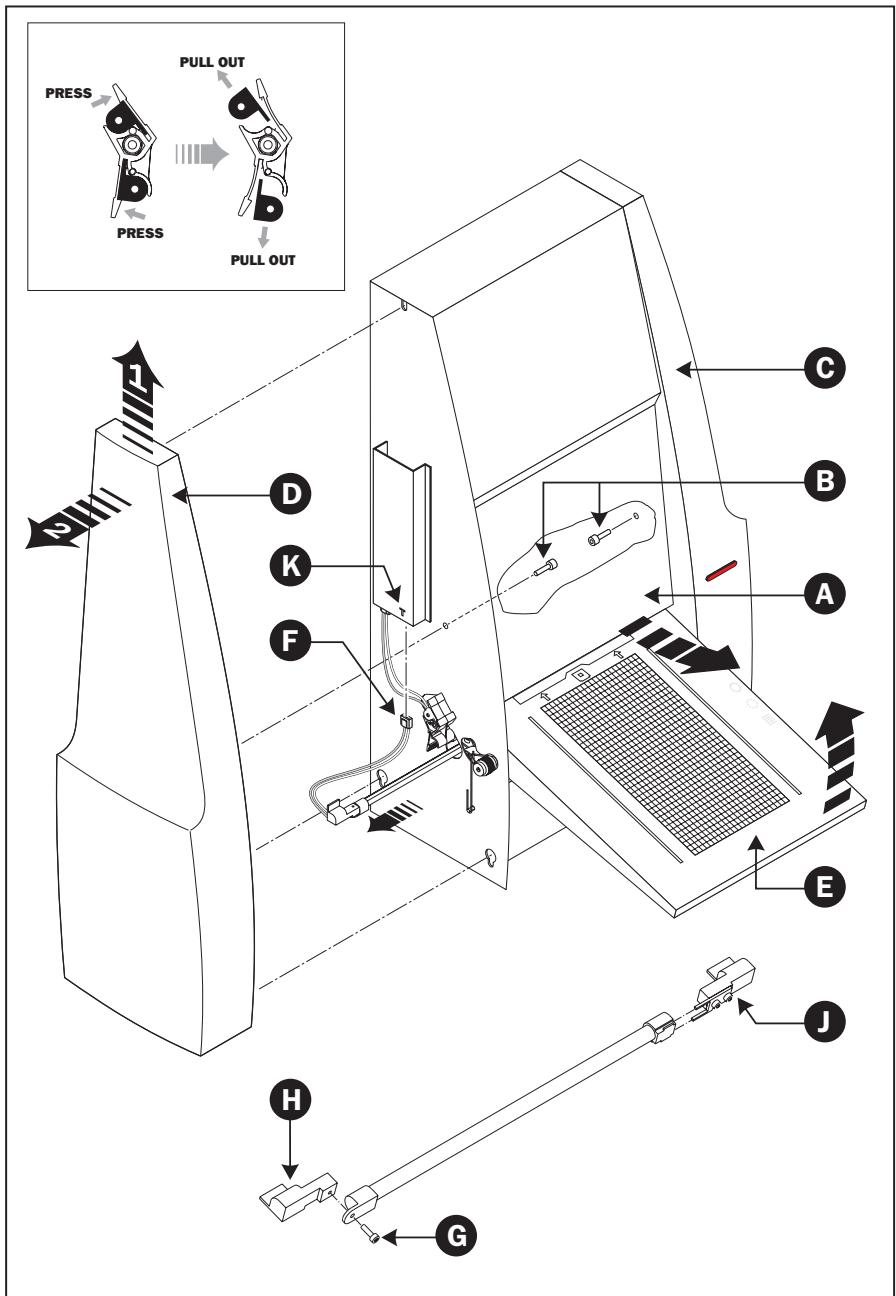
Figure 7: Replacing the Light Tubes
...continued
-
Remove the defective tube:
-
Press the flaps backwards to release the tube.
-
Pull the tube gently out of the holders and then sideways out of the scanner.
-
If you are replacing the transparencies tube, you need to disassemble the tube from the sockets as well:
-
Remove the screw (G) to release the left socket (H).
- Remove the right socket (J) by simply pulling it off (you may need to use a small screwdriver to loosen this socket).
-
Assemble the new tube with the sockets.
-
Insert the replacement tube and mount it into the holders making sure that it is properly held in place by the flaps.
- Connect the plug (F).
- IMPORTANT: The "T" on the lamp board cover (K) indicates the socket for the transparencies tube.
- Lower the feed table (E).
- Mount the side panels (C) and (D), the screws (B) and the front panel (A) following the reverse of the procedure used when removing them.
NOTE! When mounting the front panel (A) make sure to give it a firm push at the bottom to click it properly into position.
- Turn on the scanner and check function of the new tube.
Cleaning the External Surface of the Scanner
If the external surface of the scanner becomes dirty, then clean it with a damp cloth. Be careful not to get any moisture inside the scanner or on any of the connectors. Do not use alcohol or other solvents.
Disposal
If you need to dispose of the scanner, it must be delivered to an authorized waste plant for electronics equipment.
Technical Specifications
Power Connector:
24 VDC = = 60W

Power Consumption
Max. 75 W during operation
Power Requirements
100-240V AC, 1.3 A, 50-60 Hz
Interface to Computer
FireWire (IEEE 1394)
Front Panel
One multifunction switch (on/off switch)
Status indicator LED's
Drum Force
1 kg (2.2 lbs)
Operating Environment
Operating Temperature: 10 - 35^ (50 - 95^)
Recommended Working Temperature: 10 - 25^ (50 - 77°F)
Humidity: 20 - 80% RH (no condensation)
Storage Environment
Temperature: 0 - 50^ (32 - 122 °F)
Relative humidity: 20 - 80% RH (no condensation)
Originals
Transparencies: from 35mm to 4× 5 inches, < 1 mm thick
Reflectives: up to 220 × 310 ~mm (A4 oversize), < 1 ~mm thick
Standard 35mm dias in frames (optional)
Lamp type
Reflectives Lamp: Part No. 10700022
Transparencies Lamp: Part No. 10700025
Dimensions
Height: 645mm (25.4")
Width: 385 mm (15.2")
Depth: 220mm (8.7") (feed table closed)
440mm (17.3") (feed table open)
Weight
17kg (38 lbs)
FCC Notice
This equipment has been tested and found to comply with the limits for a Class A digital device, pursuant to Part 15 of the FCC Rules. These limits are designed to provide reasonable protection against harmful interference when the equipment is operated in a commercial environment. This equipment generates, uses, and can radiate radio frequency energy and, if not installed and used in accordance with the instruction manual, may cause harmful interference to radio communications. Operation of this equipment in a residential area is likely to cause harmful interference in which case the user will be required to correct the interference at his own expense.
CE - Declaration of conformity
HASSELB LAD
HASSELBLAD A/S
HEJREVEJ 30
DK-2400COPENHAGENNV
TELEPHONE +4570260800
TELEX+457026900BEG/ATNO18635444
www.hasselblad.com
Declaration of conformity
Application of Council Directives: 89/336/EEC amended by 92/31/EEC, 93/68/EEC. 91/157/EEC.
C73/23/EEC amended by 93/68/EEC.
Standards to which Conformity is declared: EN61000-6-1 2001, EN61000-6-3 2001 and EN60950:2000.
Manufacturer: Hasselblad A/S
Hejrevej 30
DK-2400CopenhagenNV/
Denmark
Type of Equipment: Desktop CCD scanner
Model name: Flextight 949
The undersigned, hereby declare that the equipment specified above conforms to the above Directives and Standards.
Place .. Copenhagen NV
Date September 12th, 2004
Full name . Christian Poulsen
Position CEO