
PICS 2 GO - Portable photo printer ION - Free user manual and instructions
Find the device manual for free PICS 2 GO ION in PDF.


| Product Type | Photo and Slide Scanner for iPhone |
| Brand | ION |
| Model | PICS 2 GO (iPICS2GO) |
| Dimensions (L × D × H) | 210 mm × 121 mm × 155 mm (8.25 in × 4.75 in × 6.1 in) |
| Weight | 0.45 kg (1 lb) |
| Power Source | 4 AA batteries (not included) |
| iOS Compatibility | iPhone 4 and iPhone 4S (iOS required for app) |
| Mobile App | iPICS2GO (free on the App Store) |
| Scannable Media Types | Slides, negatives, 3 × 5 in and 4 × 6 in photos |
| Main Functions | Scanning, saving to photo album, emailing, sharing on Facebook |
| Included Accessories | Slide/negative holder, photo holder, simplified user guide, safety and warranty booklet |
| Maintenance and Cleaning | Clean with a soft, dry cloth. Avoid moisture and abrasive products. |
| Safety | Do not expose to water or extreme temperatures. Use only recommended AA batteries. |
| Spare Parts and Repairability | Not directly available. Contact ION customer service. |
| General Information | Product registration recommended on ionaudio.com for technical support. |
Frequently Asked Questions - PICS 2 GO ION
User questions about PICS 2 GO ION
0 question about this device. Answer the ones you know or ask your own.
Ask a new question about this device
Download the instructions for your Portable photo printer in PDF format for free! Find your manual PICS 2 GO - ION and take your electronic device back in hand. On this page are published all the documents necessary for the use of your device. PICS 2 GO by ION.
USER MANUAL PICS 2 GO ION
Safety and Warranty Information Booklet
REGISTRATION
Please go to http://www.ionaudio.com to register your iPICS2GO. Registering your product ensures that we can keep you up-to-date with any new product developments and provide you with world-class technical support, should you run into any problems.
COMPATIBLE iOS DEVICES
iPICS2GO is compatible with the following iOS devices (not included):
iPhone 4^*
iPhone 4S*
USING iPICS2GO
Note: Before using iPICS2GO, download the iPICS2GO app from the App Store to your iPhone 4 or iPhone 4S.
To use the iPICS2GO app:
- Open the App Store on your iPhone (not included) and download the iPICS2GO app.
- Open the iPICS2GO app.
- Turn on iPICS2GO scanner. When the power light illuminates, place iPhone in the iPhone cradle with the screen facing up.
- Place your slide, negative, or photo into the appropriate holder.
- Insert the holder into the scanner. (Make sure the second, unused holder is removed from the scanner.)
- In the app, touch the button for your film type: Slides, Negatives, 3 × 5 , or 4 × 6 .
- Adjust the holder so your image appears in the "crop box" on the camera screen. (4 x 6 uses the whole screen.) The crop area will differ depending on the film type that is chosen.
See examples of the crop box areas below:

Negatives and slides

3 × 5

4x6
- You may need to adjust the camera's "white balance." To do this, touch the screen in darker or lighter areas of the image being scanned. Also, make sure your camera's flash is Off.
- Touch the camera icon to take the picture. If you are satisfied with the resulting scan, touch Use or touch Retake to try again.
- When your scanned image appears in the app, you can then touch: Save (save it to your iPhone Photo Album), Email (e-mail it to someone), or Facebook (upload it to Facebook). Please note that selecting Email or Facebook won't save it to your iPhone Photo Album. For more information, visit www.ionaudio.com/ipcs2go.
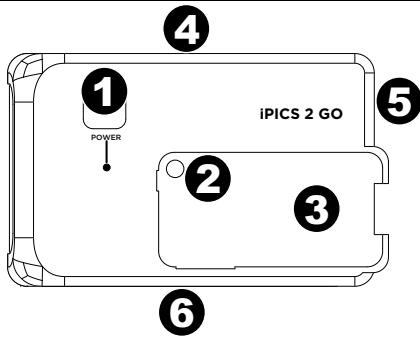
FEATURES
- Power - This button turns iPICS2GO on/off.
- iPhone Camera Aperture - Have the iPhone camera facing this hole to capture the image source.
- iPhone Cradle - Place the iPhone here when you are ready to scan.
- Battery Compartment - Insert 4 AA batteries here to power iPICS2GO.
- Slide/Negative Tray Insert the slide/negative tray here.
- Photo Holder Tray - Insert the included photo holder here.
SPECIFICATIONS
DIMENSIONS: (W × D × H): 8.25'' × 4.75'' × 6.1'' (210mm x 121mm x 155mm)
WEIGHT: 1 lb (.45 kg)
CONTENIDO DE LA CAJA
iPICS2GO
Brand : ION
Model : PICS 2 GO
Category : Portable photo printer