WMI 1 - Wireless MIDI Interface Hughes Kettner - Free user manual and instructions
Find the device manual for free WMI 1 Hughes Kettner in PDF.
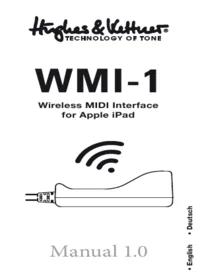


| Product Type | Wireless MIDI Interface for Apple iPad |
| Brand | Hughes & Kettner |
| Model | WMI 1 |
| Connectivity | Bidirectional wireless MIDI |
| Wireless Modes | Access Point (AP) and Client mode |
| MIDI Input 1 | 5-pin DIN |
| MIDI Output | 7-pin DIN (phantom powered) |
| MIDI Input 2 | 7-pin DIN (phantom powered, 5-pin compatible) |
| Phantom Power | Supplied via 7-pin MIDI connection from compatible amplifier |
| Amplifier Compatibility | All Hughes & Kettner amps with 7-pin MIDI input |
| iOS Compatibility | iPad with iOS 7 or later |
| App Compatibility | WMI Connect, GM36Remote, and any CoreMIDI-compatible app |
| Network Security | Password-protected Wi-Fi (default password: hknetwork) |
| WPS Support | Yes, for easy connection to home routers |
| Setup Button | Allows restart in AP mode, WPS activation, or factory reset |
| Status LEDs | Status, Data, AP, Client, WPS/TCP |
| MAC Address | Unique identifier, last six digits used in network name |
| Usage Scenarios | Rehearsal rooms, stages, home networks |
Frequently Asked Questions - WMI 1 Hughes Kettner
User questions about WMI 1 Hughes Kettner
0 question about this device. Answer the ones you know or ask your own.
Ask a new question about this device
Download the instructions for your Wireless MIDI Interface in PDF format for free! Find your manual WMI 1 - Hughes Kettner and take your electronic device back in hand. On this page are published all the documents necessary for the use of your device. WMI 1 by Hughes Kettner.
USER MANUAL WMI 1 Hughes Kettner
Hughes & Kettner® TECHNOLOGY OF TONE
WMI-1
Wireless MIDI Interface for Apple iPad

Manual 1.0
WMI-1
Wireless MIDI Interface for Apple iPad
The Hughes & Kettner WMI-1 is a bidirectional, wireless MIDI interface for iPad. This professional device can serve as an access point without connecting to a router, or as a client connected to a router in a network such as your home network. The guitar amp's MIDI Out provides phantom power to the WMI-1, so it does not need an outboard power supply or battery.
Note: Although we optimized the WMI-1 for use with the Hughes & Kettner GrandMeister 36 and the matching GM36Remote app for iPad, it also works with any Hughes & Kettner amp featuring a 7-pin MIDI input (phantom powered) and any app for iPad that supports CoreMIDI.

Quick Start
For the purpose of example, we'll connect the device to a Hughes & Kettner GrandMeister 36 and the FSM-432 MK III.
- Make sure the GrandMeister 36 is switched off.
- Connect the WMI-1's MIDI Out 1 port to the GrandMeister's MIDI In (7-pin) port.
- Connect the WMI-1's MIDI In 1 port to the GrandMeister's MIDI Out (5-pin) port.
- Connect the FSM-432 MK III MIDI board's MIDI Out port to the WMI-1's MIDI In 2 (7-pin) port. (This is optional and not required for the initial installation.)
- Switch on the amp.
- Make sure your iPad is connected to the Internet.

WMI Connect

GM36Remote
- Go to the Apple App Store. Install the WMI Connect and GM36Remote apps on an iPad with iOS 7 or later.

Visit http://hughes-and-kettner.com/wmi1 to learn more about the WMI-1 and get a detailed user manual for the app.
MIDI In 1

MIDI Out


MIDI In 2

MIDI In 1 (5-pin)
Connect MIDI In 1 to the amp's MIDI Out.
MIDI Out (7-pin)
Connect MIDI Out to the amp's MIDI In.
MIDI In 2 (7-pin phantom powered, 5-pin compatible)
Connect a Hughes & Kettner FSM-432 or TSM-432 MIDI board to MIDI In 2. You can also plug other MIDI boards or controllers into this input.
SET
This pushbutton does three things:
- It allows you to restart the WMI-1 in Open Access Point mode
- activate WPS
- or reset the WMI-1 to the factory defaults
Note: Sometimes the module may be in client mode when the client network is unavailable, say because you ran the WMI-1 in your home network and did not switch it to AP mode before you left home to use it on stage or in the rehearsal room. In this case, press and hold SET for three seconds. Release SET when the AP LED and CLIENT LED start flashing simultaneously. The WMI-1 will restart in Open Access Point mode. To connect the WMI-1, select it as a network in your iPad's Wi-Fi settings. A password is not required in Open Access Point mode. The next time you power up the WMI-1, the app will ask for the password again or you can activate/change the password manually.
Reset
Reset is a seldom-needed feature. To reset the WMI-1, press and hold SET for at least ten seconds while powering up the WMI-1 (or the amp connected to the WMI-1). The AP, CLIENT and WPS/TCP LEDs will light up. Release SET when the CLIENT LED extinguishes.
Setup
Password
A Wi-Fi network password is required when you connect the WMI-1 to your iPad. The factory password is "hknetwork". You can change the password in the WMI Connect app's settings.
MAC

The Media Access Control address is a unique identifier assigned to network interfaces. Every network device, including each WMI-1, has its own MAC address much like a serial number. The last six digits of the MAC address are added to the device name, and to the network name that appears in your iPad's Wi-Fi settings (WMI-1_Network_XXXXXX) to identify your WMI-1 interface when more than one WMI-1 is detected. Consult the detailed user manual for the app to learn how to change the device and network names.
Status LEDs
Status: the WMI-1 is connected when the LED stays on.
Data: indicates MIDI data transfer.
AP: indicates Access Point mode.
Client: indicates Client mode.
WPS/TCP: this means WPS (Wi-Fi-Protected Setup) is active when the LED flashes, and the WMI-1 is waiting to be connected to a router. If this LED stays on, this indicates that the WMI Connect app is connected to the WMI-1 via TCP (Transmission Control Protocol).
Modes
Stand Alone Access Point (AP Mode)
AP mode serves to connect the WMI-1 directly to the iPad without additional hardware; that is, a router. The WMI-1 creates its own network in this mode. It is designed for use in rehearsal rooms and on stages where Wi-Fi is unavailable. To use it, go to your iPad's Wi-Fi settings:

- Activate Wi-Fi and select WMI-1_Network_XXXXXX in your iPad's Wi-Fi settings.
- You will be prompted to enter a password (network key). Enter hknetwork.
- Then launch the WMI Connect app:
- If the settings look like this – the Wi-Fi symbols turn blue and the blue check mark appears in front of the device name – you are connected to the WMI-1.

- The WPS/TCP LED on the WMI-1 will stay on.
- Launch the GM36Remote app.
Home Network Client (Client Mode)
Client mode serves to connect the WMI-1 to your iPad and to your home or other wireless router at the same time. You'll need it when you want to browse the web or check emails via a home network while your iPad is connected to the WMI-1.
The easiest way to connect the WMI-1 to your router is to use the WPS function:
- Activate WPS on your router. In most cases, this is also a pushbutton. You can also activate WPS in your router's settings. Consult the router's manual to do this.

- Press and hold SET for at least seven seconds. Release SET when the AP LED and CLIENT LED start flashing alternately.
- Wait until the WMI-1's LEDs stop flashing. The WMI-1 is connected to your router when the CLIENT LED stays on.
- Open Wi-Fi in your iPad's settings and select your router as the Wi-Fi network.
- Open the WMI Connect app. Please give the app at least 60 seconds to wait for the WMI-1.
If the settings look like this - the Wi-Fi symbols turn blue and the blue check mark (√) appears in front of the device name - the app is connected to the WMI-1.

The STATUS and WPS/TCP LEDs on the WMI-1 will stay on.
- Launch the GM36Remote app.
Changing Modes Manually
If you change modes manually, a warning will appear to remind you to adjust your iPad's wireless settings:

- From client mode to AP mode: select your WMI-1 in the iPad's Wi-Fi settings.
- From AP mode to client mode: select the router (the network name) in your iPad's WI-Fi settings.
Inserting an Effects Unit into the MIDI Chain
If you wish to add an FX unit and also control it via MIDI, connect the FX unit's MIDI Thru (or Out if Thru is unavailable) to the WMI-1's MIDI In 1, and the FX unit's MIDI In to the amp's MIDI Out:
GrandMeister 36

FSM-432 MK III
WMI-1
Wireless MIDI Interface for Apple iPad
MIDI Out


MIDI In 2

MIDI In 1 (5-Pol)
International Inquiries:
Fax: +49 - 68 51 - 905 200
hkinternational@hughes-and-kettner.com
www.hughes-and-kettner.com

facebook.com/hughesandkettner
Copyrights 03/2015 by Music & Sales GmbH.
Subject to change without notice.


- HUGHES & KETTNER® TECHNOLOGY OF TONE
- WMI
- WIRELESS MIDI INTERFACE FOR APPLE IPAD
- QUICK START
- MIDI IN 1 (5-PIN)
- MIDI OUT (7-PIN)
- MIDI IN 2 (7-PIN PHANTOM POWERED, 5-PIN COMPATIBLE)
- SET
- RESET
- SETUP
- PASSWORD
- MAC
- STATUS LEDS
- MODES
- STAND ALONE ACCESS POINT (AP MODE)
- HOME NETWORK CLIENT (CLIENT MODE)
- CHANGING MODES MANUALLY
- INSERTING AN EFFECTS UNIT INTO THE MIDI CHAIN
- MIDI IN 1 (5-POL)
Brand : Hughes Kettner
Model : WMI 1
Category : Wireless MIDI Interface