
CDP4737-L - Computer monitor VIEWSONIC - Free user manual and instructions
Find the device manual for free CDP4737-L VIEWSONIC in PDF.


| Product Type | Computer monitor / widescreen LCD monitor |
| Brand | VIEWSONIC |
| Model | CDP4737-L |
| Screen size (diagonal) | 47 inches (approx. 119 cm) |
| Panel type | LCD with LED backlight |
| Native resolution | 1920 x 1080 pixels (Full HD) |
| Connections | VGA, HDMI, DVI, audio input, headphone output |
| Built-in speakers | Yes (2 x 10W) |
| Dimensions (with stand) | Approx. 1100 x 680 x 80 mm (W x H x D) |
| Weight (with stand) | Approx. 22 kg |
| Power consumption (typical) | 150 W |
| Power supply | AC 100-240 V, 50/60 Hz |
| VESA mounting | Yes, standard 400 x 400 mm |
| Main features | Image display, OSD menu, image settings, energy saving mode |
| Maintenance and cleaning | Use a soft, dry cloth, avoid chemical products |
| Safety | Adequate ventilation, do not expose to moisture, disconnect from power before cleaning |
| Spare parts and repairability | Contact Viewsonic customer service for parts; repair by a recommended professional |
| General information | Class B, compliant with Canadian NMB-003 standards; manual available for free download |
Frequently Asked Questions - CDP4737-L VIEWSONIC
User questions about CDP4737-L VIEWSONIC
0 question about this device. Answer the ones you know or ask your own.
Ask a new question about this device
Download the instructions for your Computer monitor in PDF format for free! Find your manual CDP4737-L - VIEWSONIC and take your electronic device back in hand. On this page are published all the documents necessary for the use of your device. CDP4737-L by VIEWSONIC.
USER MANUAL CDP4737-L VIEWSONIC
IMPORTANT: Please read this User Guide to obtain important information on installing and using your product in a safe manner, as well as registering your product for future service. Warranty information contained in this User Guide will describe your limited coverage from ViewSonic Corporation, which is also found on our web site at http://www.viewsonic.com in English, or in specific languages using the Regional selection box in the upper right corner of our website. "Antes de operar su equipo lea cu idadosamente las instrucciones en este manual"
Model No. VS14673/VS14674/VS14675
Compliance Information
For U.S.A.
This device complies with part 15 of FCC Rules. Operation is subject to the following two conditions: (1) this device may not cause harmful interference, and (2) this device must accept any interference received, including interference that may cause undesired operation.
This equipment has been tested and found to comply with the limits for a Class B digital device, pursuant to part 15 of the FCC Rules. These limits are designed to provide reasonable protection against harmful interference in a residential installation.
This equipment generates, uses, and can radiate radio frequency energy, and if not installed and used in accordance with the instructions, may cause harmful interference to radio communications. However, there is no guarantee that interference will not occur in a particular installation. If this equipment does cause harmful interference to radio or television reception, which can be determined by turning the equipment off and on, the user is encouraged to try to correct the interference by one or more of the following measures:
- Reorient or relocate the receiving antenna.
- Increase the separation between the equipment and receiver.
- Connect the equipment into an outlet on a circuit different from that to which the receiver is connected.
- Consult the dealer or an experienced radio/TV technician for help.
Warning: You are cautioned that changes or modifications not expressly approved by the party responsible for compliance could void your authority to operate the equipment.
For Canada
This Class B digital apparatus complies with Canadian ICES-003.
CE Conformity for European Countries
The device complies with the EMC Directive 2004/108/EC and Low Voltage Directive 2006/95/ EC.
Following information is only for EU-member states:
The mark shown to the right is in compliance with the Waste Electrical and Electronic Equipment Directive 2002/96/EC (WEEE).
The mark indicates the requirement NOT to dispose the equipment as unsorted municipal waste, but use the return and collection systems according to local law.
Important Safety Instructions
-
Read these instructions completely before using the equipment.
-
Keep these instructions in a safe place.
-
Heed all warnings.
-
Follow all instructions.
-
Do not use this equipment near water. Warning: To reduce the risk of fire or electric shock, do not expose this apparatus to rain or moisture.
-
Do not block any ventilation openings. Install the equipment in accordance with the manufacturer's instructions.
-
Do not install near any heat sources such as radiators, heat registers, stoves, or other devices (including amplifiers) that produce heat.
-
Do not attempt to circumvent the safety provisions of the polarized or grounding-type plug. A polarized plug has two blades with one wider than the other. A grounding type plug has two blades and a third grounding prong. The wide blade and the third prong are provided for your safety. If the plug does not fit into your outlet, consult an electrician for replacement of the outlet.
-
Protect the power cord from being tread upon or pinched, particularly at the plug, and the point where if emerges from the equipment. Be sure that the power outlet is located near the equipment so that it is easily accessible.
-
Only use attachments/accessories specified by the manufacturer.
-
Use only with the cart, stand, tripod, bracket, or table specified by the manufacturer, or sold with the equipment. When a cart is used, use caution when moving the cart/equipment combination to avoid injury from tipping over.
-
Unplug this equipment when it will be unused for long periods of time.
-
Refer all servicing to qualified service personnel. Service is required when the unit has been damaged in any way, such as: if the power-supply cord or plug is damaged, if liquid is spilled onto or objects fall into the unit, if the unit is exposed to rain or moisture, or if the unit does not operate normally or has been dropped.

Declaration of RoHS Compliance
This product has been designed and manufactured in compliance with Directive 2002/95/EC of the European Parliament and the Council on restriction of the use of certain hazardous substances in electrical and electronic equipment (RoHS Directive) and is deemed to comply with the maximum concentration values issued by the European Technical Adaptation Committee (TAC) as shown below:
| Substance | Proposed Maximum Concentration | Actual Concentration |
| Lead (Pb) | 0,1% | < 0,1% |
| Mercury (Hg) | 0,1% | < 0,1% |
| Cadmium (Cd) | 0,01% | < 0,01% |
| Hexavalent Chromium (Cr6+) | 0,1% | < 0,1% |
| Polybrominated biphenyls (PBB) | 0,1% | < 0,1% |
| Polybrominated diphenyl ethers (PBDE) | 0,1% | < 0,1% |
Certain components of products as stated above are exempted under the Annex of the RoHS Directives as noted below:
Examples of exempted components are:
- Mercury in compact fluorescent lamps not exceeding 5mg per lamp and in other lamps not specifically mentioned in the Annex of RoHS Directive.
- Lead in glass of cathode ray tubes, electronic components, fluorescent tubes, and electronic ceramic parts (e.g. piezoelectronic devices).
- Lead in high temperature type solders (i.e. lead-based alloys containing 85% by weight or more lead).
- Lead as an allotting element in steel containing up to 0.35% lead by weight, aluminium containing up to 0.4% lead by weight and as a cooper alloy containing up to 4% lead by weight.
Copyright Information
Copyright © ViewSonic® Corporation, 2012. All rights reserved.
ViewSonic®, the three birds logo, OnView®, ViewMatch™, and ViewMeter® are registered trademarks of ViewSonic® Corporation.
ENERGY STAR® is a registered trademark of the U.S. Environmental Protection Agency (EPA).
As an ENERGY STAR® partner, ViewSonic Corporation has determined that this product meets the ENERGY STAR® guidelines for energy efficiency.
Disclaimer: ViewSonic® Corporation shall not be liable for technical or editorial errors or omissions contained herein; nor for incidental or consequential damages resulting from furnishing this material, or the performance or use of this product.
In the interest of continuing product improvement, ViewSonic® Corporation reserves the right to change product specifications without notice. Information in this document may change without notice.
No part of this document may be copied, reproduced, or transmitted by any means, for any purpose without prior written permission from ViewSonic® Corporation.
Product Registration
To meet your future needs, and to receive any additional product information as it becomes available, please register your product on the Internet at: www.viewsonic.com.
For Your Records
Product Name:
CDP4237-L/CDP4737-L/CDP5537-L
Model Number:
ViewSonic LCD Commercial Display
Document Number:
VS14673/VS14674/VS14675
Serial Number:
CDP4237-L_4737-L_5537-L_UG_ENG Rev. 1A 02-03-12
Purchase Date:
Product disposal at end of product life
ViewSonic respects the environment and is committed to working and living green. Thank you for being part of Smarter, Greener Computing. Please visit ViewSonic website to learn more.
USA & Canada: http://www.viewsonic.com/company/green/recycle-program/
Europe: http://www.viewsoniceurope.com/uk/kbase/article.php?id=639
Taiwan: http://recycle.epa.gov.tw/recycle/index2.aspx
CONTENTS
4 LICENSES
5 ASSEMBLING AND PREPARING
5 Accessories
6 Optional Accessories
7 Parts and buttons
8 Using the Mounting Cable Tie
8 Connecting the Speakers
9 Connecting the stand
9 Using the Kensington security system
10 Portrait Layout
11 Mounting on a wall
12 REMOTE CONTROL
14 USING THE MONITOR
14 Connecting to a PC
15 - RGB connection
15 - DVI-D connection
16 - HDMI connection
16 - Display Port connection
17 Adjusting the screen
17 - Selecting an image mode
17 - Customizing image options
18 - Customizing PC display options
18 Adjusting the sound
18 - Selecting an sound mode
19 - Customizing sound options
19 Using additional options
19 - Adjusting aspect ratio
21 - Using the input list
22 ENTERTAINMENT
22 - Connecting to a wired network
23 - Network Status
24 - Connecting USB storage devices
25 - Browsing files
26 -Viewing movies
30 -Viewing photos
33 - Listening to music
36 - DivX® VOD Guide
37 - Using PIP/PBP
39 CUSTOMIZING SETTINGS
39 Accessing main menus
40 - PICTURE settings
43 - AUDIO settings
44 -TIME settings
45 -OPTION settings
50 - NETWORK settings
51 MAKING CONNECTIONS
52 Connecting to a HD receiver, DVD, Camcorder, Camera, Gaming Device or VCR player
52 - HDMI connection
52 - Component connection
53 - AV(CVBS) connection
53 Connecting to a USB
54 Connecting to the LAN
54 - LAN connection
55 Daisy Chain Monitors
56 TROUBLESHOOTING
59 SPECIFICATIONS
67 IR CODES
68 CONTROLLING THE MULTIPLE PRODUCT
68 Connecting the cable
68 RS-232C Configurations
68 Communication Parameter
LICENSES
Supported licenses may differ by model. For more information of the licenses, visit www.ViewSonic.com.
HOMI ™ HIGH DEFINITION MULTIMEDIA INTERFACE
HDMI, the HDMI logo and High-Definition Multimedia Interface are trademarks or registered trademarks of HDMI Licensing LLC.
DIVX
ABOUT DIVX VIDEO: DivX® is a digital video format created by DivX, LLC, a subsidiary of Rovi Corporation. This is an official DivX Certified® device that plays DivX video. Visit divx.com for more information and software tools to convert your files into DivX videos.
ABOUT DIVXVIDEO-ON-DEMAND:This DivX
Certified® device must be registered in order to play purchased DivX Video-on-Demand (VOD) movies. To obtain your registration code, locate the DivX VOD section in your device setup menu. Go to vod.divx.com for more information on how to complete your registration.
DivX Certified® to play DivX® video up to HD 1080p, including premium content.
DivX®, DivX Certified® and associated logos are trademarks of Rovi
Corporation or its subsidiaries and are used under license.
Covered by one or more of the following U.S. patents: 7,295,673; 7,460,668; 7,515,710; 7,519,274
DOLBY
DIGITAL PLUS
PULSE
Manufactured under license from Dolby Laboratories. "Dolby" and the double-D symbol are trademarks of Dolby Laboratories.
ASSEMBLING AND PREPARED
Accessories
Check your product box for the following items. If there are any missing accessories, contact the local dealer where you purchased your product. The illustrations in this manual may differ from the actual product and accessories.
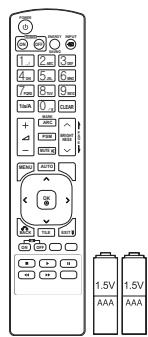
Remote control and Batteries
Power Cord

CD (Owner's Manual) / Card
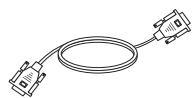
D-sub 15 pin signal cable
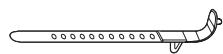
Mounting Cable Tie (Provided for CDP4237-L and CDP4737-L models only)

CAUTION
- Do not use any pirated items to ensure the safety and product life span.
- Any damages or injuries by using pirated items are not covered by the warranty.

NOTE
- The accessories supplied with your product may vary depending on the model.
- Product specifications or contents in this manual may be changed without prior notice due to upgrade of product functions.
Optional Accessories
Without prior notice, optional accessories are subject to change to improve the performance of the product, and new accessories may be added. The illustrations in this manual may differ from the actual product and accessories.
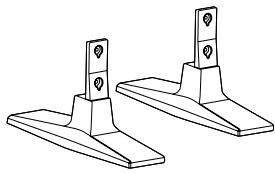
Stand
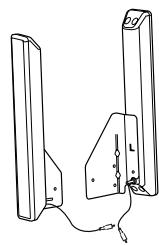
Speaker


Cable holder
/Cable Tie


Screws
: Diameter 4.0 mm x Pitch 0.7 mm x
Length 10mm(Included Spring Washer)
Stand kit (STND-019)


Screws
Diameter 4.0mm× Pitch 0.7 mm x
Length 8 mm(Included Spring Washer)
Speaker kit (SPK-012)

NOTE
- Cable holder/Cable tie may not be available in some areas or for some models.
- Optional accessories are not included for all models.
Parts and buttons
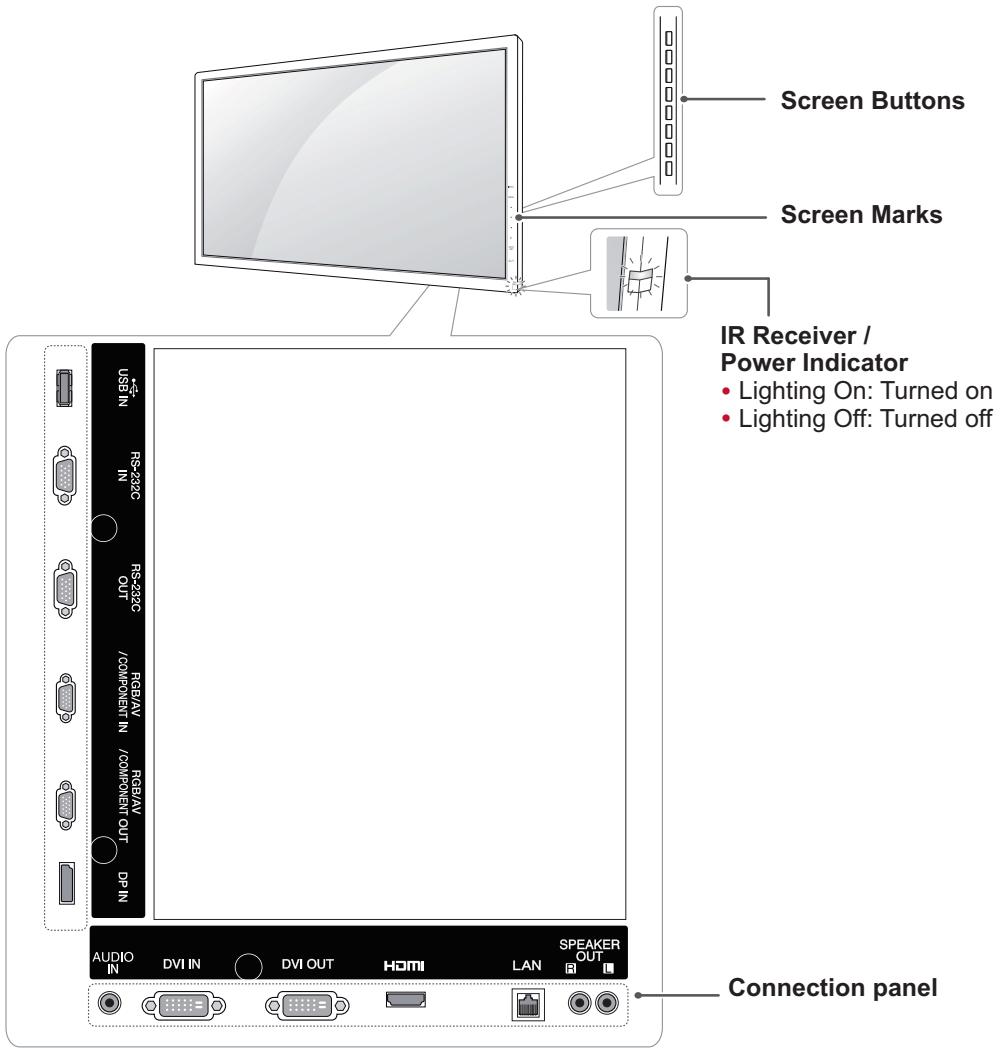
| Screen Marks | Description |
| INPUT | Changes the input source. |
| MENU | Accesses the main menus, or saves your input and exits the menus. |
| ▼▲ | Adjust the up and down. |
| ←▶ | Adjusts the volume level. |
| AUTO/SET | Displays the current signal and mode. Press this button to adjust the screen automatically (available only in RGB mode) |
| ⊗/I | Turns the power on or off. |
| IR Receiver | This is where the unit receives signals from the remote control. |
| Power Indicator | This Indicator lights up blue when the display operates normally(on mode). If the display In sleep mode (In Power Saving mode), this indicator color changes to amber. |

NOTE
- You can set the Power indicator to on or off by selecting OPTION in the main menu.
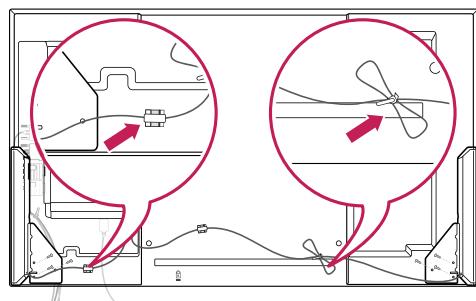
Using the Mounting Cable Tie
- Applicable only to CDP4237-L and CDP4737-L models.
First, connect the input signal cable to be used. Insert the cable tie into the bottom hole on the back as shown in the figure to organize cables.
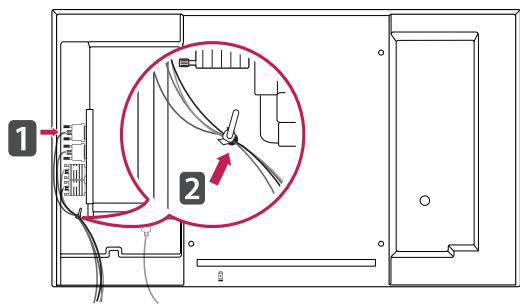

NOTE
- The Mounting cable tie is provided for CDP4237-L and CDP4737-L models only.
Connecting the Speakers
- Only on some models.
1 Connect an input signal cable to use before installing the speakers.
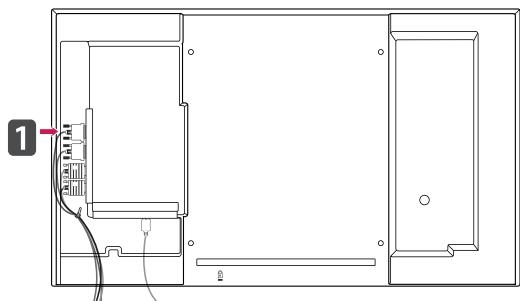
2 Mount the speaker by using a screw as shown in the following. Then connect the speaker cable.
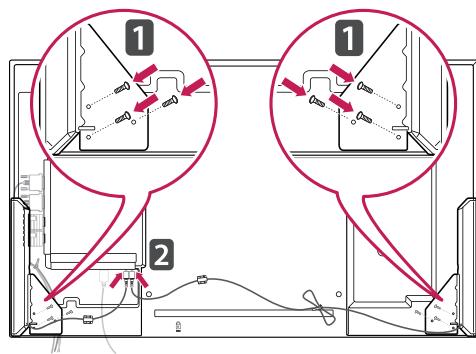
3 After installing your speakers, use holders and cable ties to organize the speaker cables.
Connecting the stand
-Only on some models.
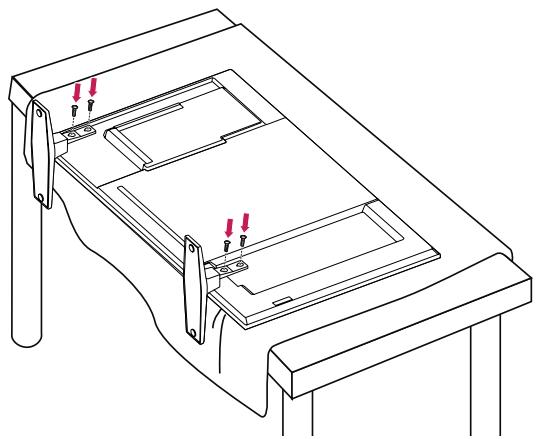
1 Place a soft cloth on the table and put the product with the screen facing downward. Connect the stand as shown in the following picture.

2 Use the screws to secure the stand on the rear side of the product as shown in the diagram.
Using the Kensington security system
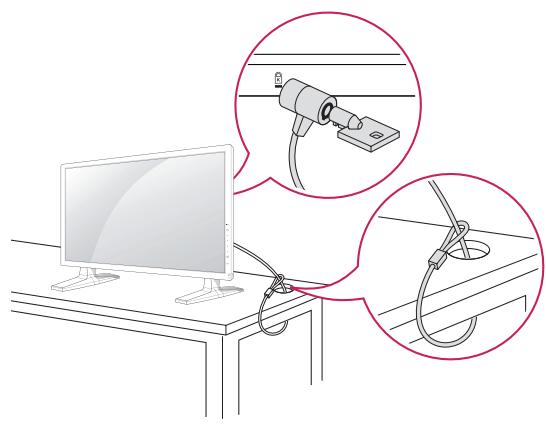
The Kensington security system connector is located at the back of the Monitor. For more information of installation and using, refer to the manual supplied with the Kensington security system or visit http://www.kensington.com.
Connect the Kensington security system cable between the Monitor and a table.

NOTE
- The Kensington security system is optional. You can obtain additional accessories from most electronics stores.
Portrait Layout
-Only on some models.
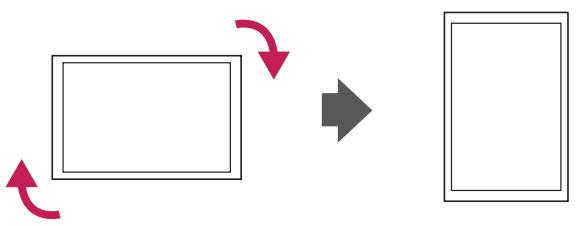
When installing in a Portrait Layout, rotate the monitor clockwise 90 degrees (when facing the screen).
Mounting on a wall
For proper ventilation, allow a clearance of 10 cm on each side and from the wall. Detailed installation instructions are available from your dealer, see the optional Tilt Wall Mounting Bracket Installation and Setup Guide.
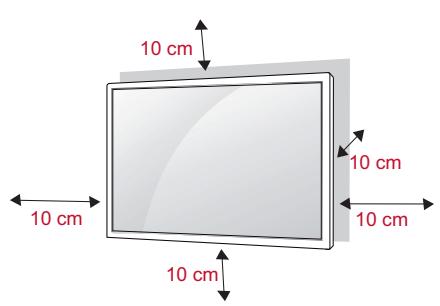
If you intend to mount the Monitor to a wall, attach Wall mounting interface (optional parts) to the back of the set.
When you install the Monitor using the wall mounting interface (optional parts), attach it carefully so it will not fall.
1 Please, Use the screw and wall mount interface in accordance with VESA Standards.
2 If you use screw longer than standard, the monitor might be damaged internally.
3 If you use improper screw, the product might be damaged and drop from mounted position. In this case, ViewSonic Electronics is not responsible for it.
4 VESA compatible.
5 Please use VESA standard as below.
-
785mm(31 inch) or greater
-
Fastening screw: Diameter 6.0 mm x Pitch 1.0 mm x Length 10 mm

CAUTION
- Disconnect the power before installing or moving the monitor. Otherwise electric shock may occur.
- If you install the Monitor on a ceiling or slanted wall, it may fall and result in severe injury. Use an authorized ViewSonic wall mount and contact the local dealer or qualified personnel.
- Do not over tighten the screws as this may cause damage to the Monitor and void your warranty.
- Use screws and wall mounts that meet the VESA standard. Any damages or injuries by misuse or using an improper accessory are not covered by the warranty.

NOTE
- Use screws that are listed on the VESA standard screw specifications.
- The wall mount kit includes an installation manual and necessary parts.
- The wall mount bracket is optional. You can obtain additional accessories from your local dealer.
- The length of screws may differ depending on the wall mount. Be sure to use the proper length.
- For more information, refer to the instructions supplied with the wall mount.
REMOTE CONTROL
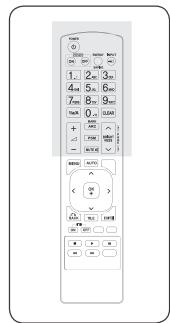
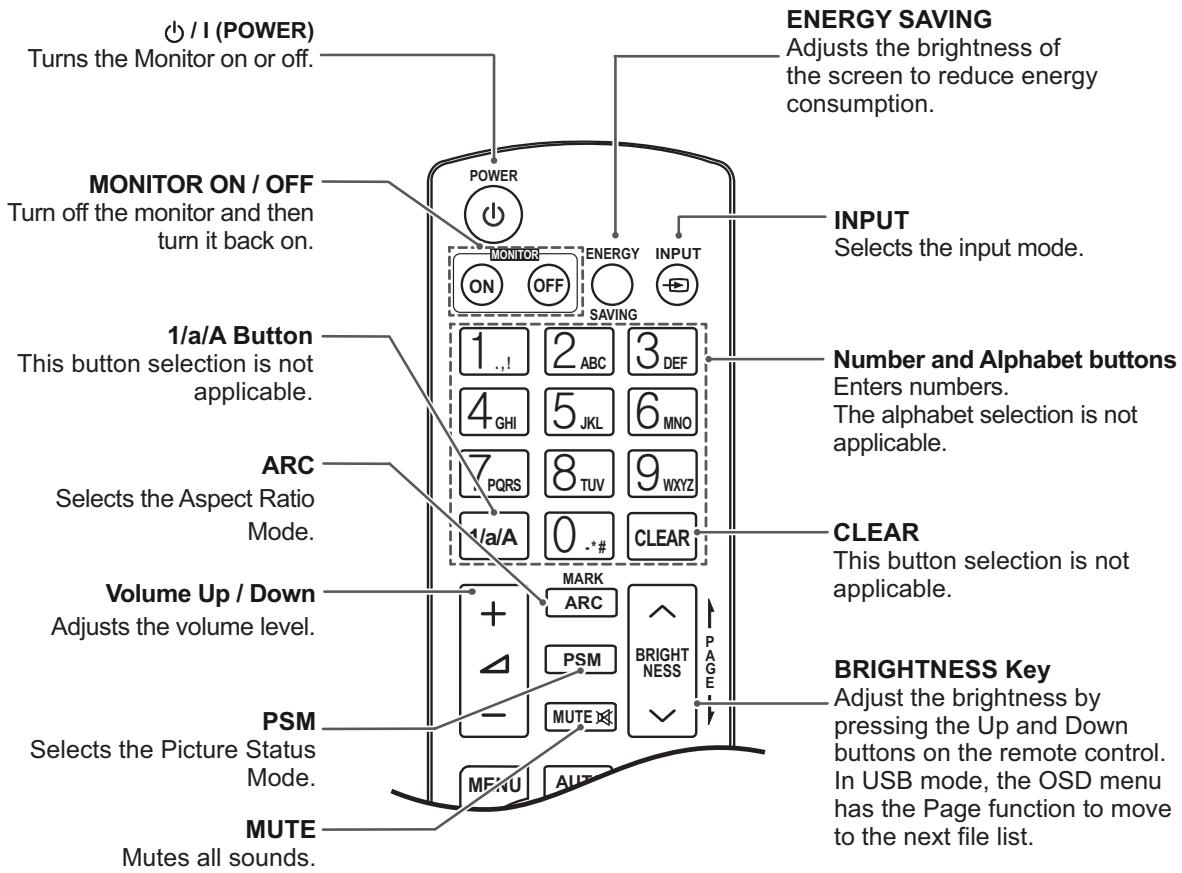
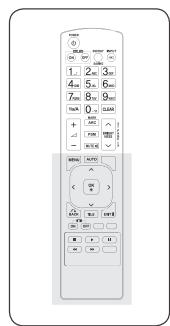
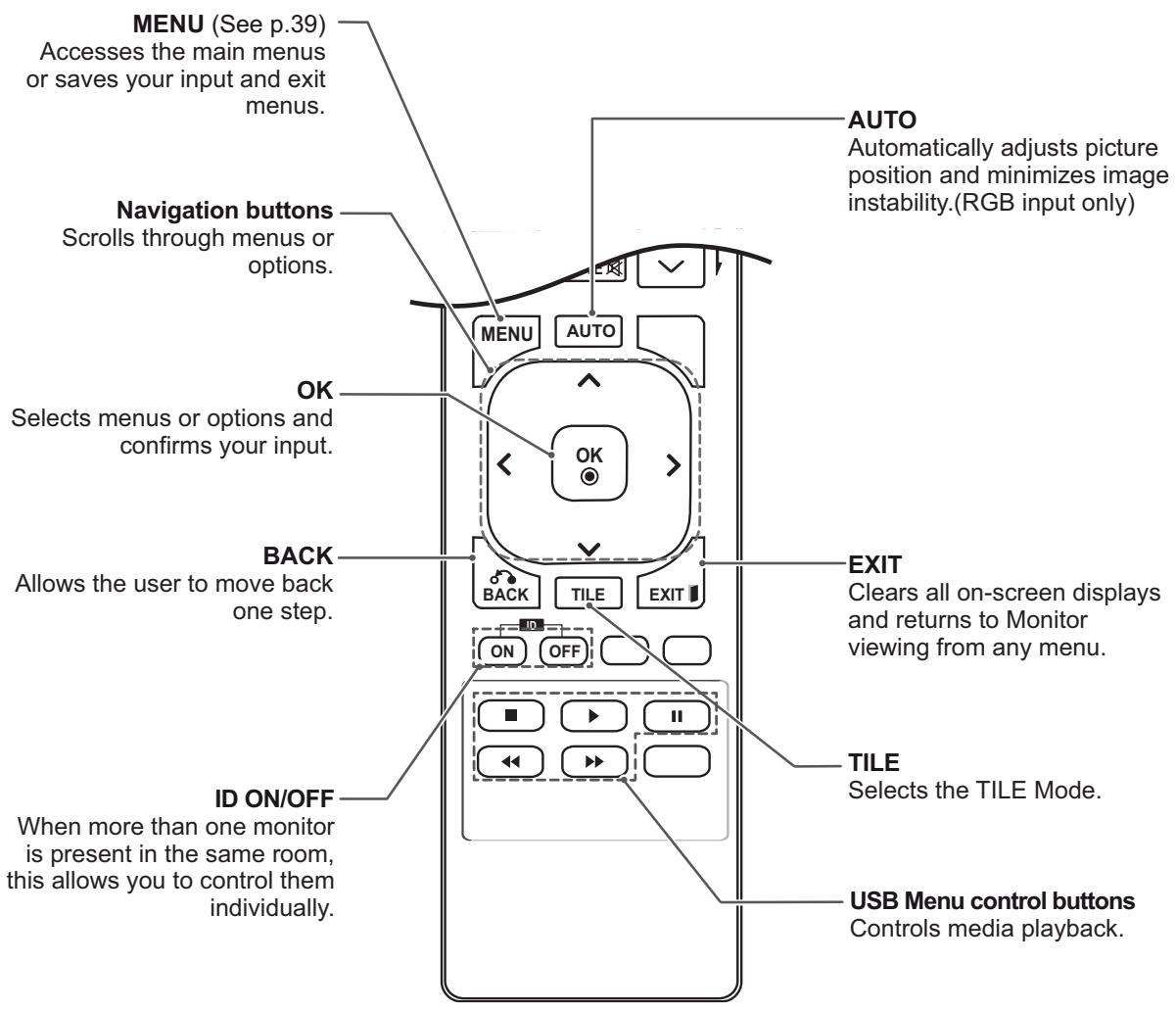
The descriptions in this manual are based on the buttons of the remote control. Please read this manual carefully and use the Monitor correctly.
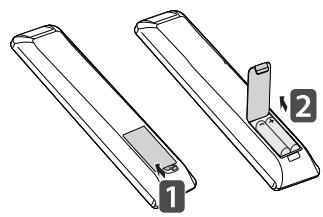
To replace batteries, open the battery cover, replace batteries (1.5 V AAA) matching and ends to the label inside the compartment, and close the battery cover.
To remove the batteries, perform the installation actions in reverse.

CAUTION
- Do not mix old and new batteries, as this may damage the remote control.
- Make sure to point the remote control at the remote control sensor on the Monitor.
USING THE MONITOR
Connecting to a PC
Your Monitor supports the Plug & Play* feature.
- Plug & Play: This is the function that allows a PC to use the monitor without installing a driver.

CAUTION
-
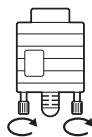
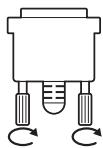
Connect the signal input cable and tighten it by turning the screws clockwise.
-
Do not press the
screen with your finger for a long time as this may result in temporary distortion on the screen.
- Avoid displaying a fixed image on the screen for a long period of time to prevent image burn. Use a screenshot if possible.

NOTE
- It is recommended to use the Monitor with the HDMI connection for the best image quality.
- Use a shielded signal interface cable, such as D-sub 15 pin signal cable and DVI cable, with a ferrite core to maintain standard compliance for the product.
- If you turn the Monitor on when the set becomes cold, the screen may flicker. This is normal.
- Some red, green, or blue spots may appear on the screen. This is normal.
RGB connection
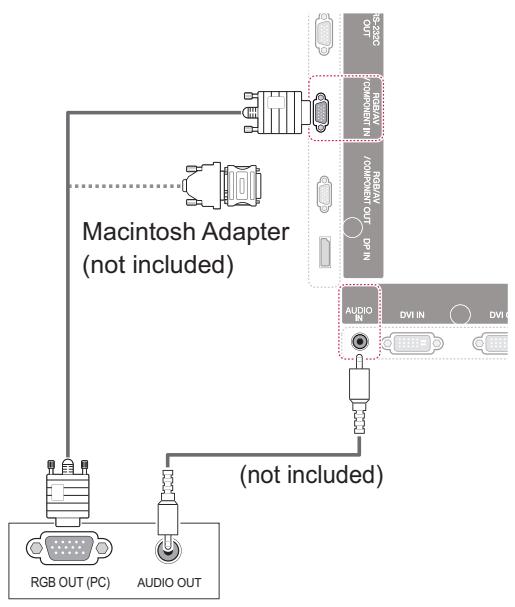
Transmits the analog video signal from your PC to the Monitor. Connect the PC and the Monitor set with the 15 pin signal cable as shown the following illustrations.
Select RGB input source on the monitor.
DVI-D connection
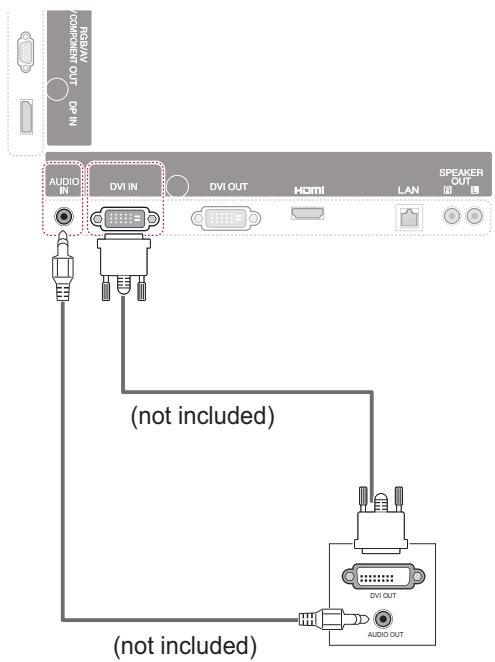
Transmits the digital video signal from your PC to the Monitor. Connect the PC and the Monitor set with the DVI cable as shown the following illustrations.
Select DVI-D input source on the monitor.

NOTE
-
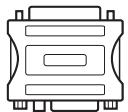
Use the standard Macintosh adapter since an incompatible adapter is available in the market. (Different signaling system)
-
Apple computers may require an adapter to connect to this monitor. Call or visit their web site for more information.
HDMI connection
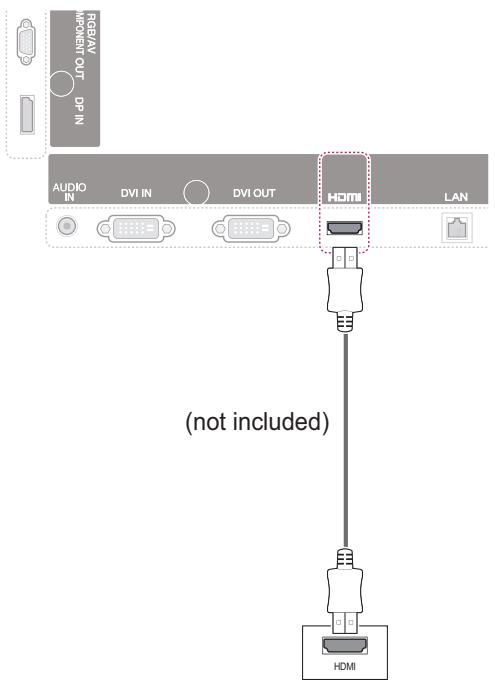
Transmits the digital video and audio signals from your PC to the Monitor. Connect the PC and the Monitor with the HDMI cable as shown in the following illustrations. Select HDMI input source.
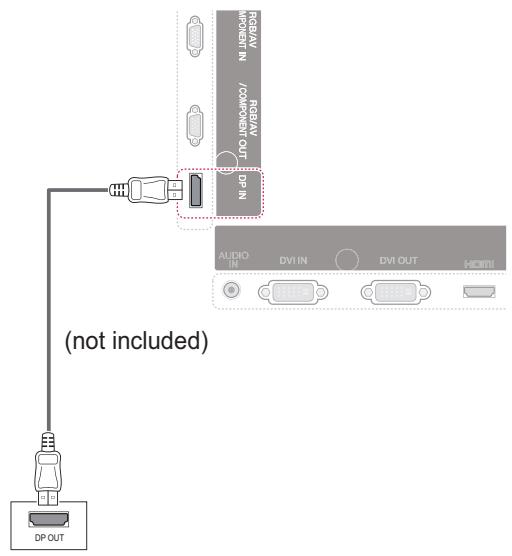
Display Port connection
Transmits the digital video and audio signals from your PC to the Monitor. Connect the PC and the Monitor with the Display Port cable as shown in the following illustrations.
Select Display Port input source.

NOTE
- Use a High Speed HDMI™ Cable.
- Please check the PC environment if you cannot hear the sound in HDMI mode. Some PCs require you to manually change the default audio output to HDMI.
- If you want to use HDMI PC mode, you must set PC/DTV to PC mode.
- When HDMI PC is used, a compatibility problem might occur.
Adjusting the screen
Selecting an image mode
Display images in its optimized settings by selecting one of the preset image modes.
1 Press MENU to access the main menus.
2 Press the Navigation buttons to scroll to PICTURE and press OK.
3 Press the Navigation buttons to scroll to Picture Mode and press OK.
4 Press the Navigation buttons to scroll to an image mode you want and press OK.
| Mode | Description |
| Vivid | Adjusts the video image for the retail environment by enhancing the contrast, brightness, color, and sharpness. |
| Standard | Adjusts the image for a normal environment. |
| Cinema | Optimizes the video image for a cinematic look to enjoy movies as if you are in a movie theater. |
| Sport | Optimizes the video image for high and dynamic actions by emphasizing primary colors such as white, grass, or sky blue. |
| Game | Optimizes the video image for a fast gaming screen such as PCs or games. |
5 When you are finished, press EXIT. When you return to the previous menu, press BACK.
Customizing image options
Customize basic and advanced options of each image mode for the best screen performance.
1 Press MENU to access the main menus.
2 Press the Navigation buttons to scroll to PICTURE and press OK.
3 Press the Navigation buttons to scroll to Picture Mode and press OK.
4 Press the Navigation buttons to scroll to an image mode you want and press OK.
5 Select and adjust the following options, and then press OK.
| Option | Description |
| Backlight | Adjusts the brightness of the screen by controlling the LCD backlight. If you decrease the brightness level, the screen becomes darker and the power consumption will be reduced without any video signal loss. |
| Contrast | Increases or decreases the gradient of the video signal. You may use Contrast when the bright parts of the picture are saturated. |
| Brightness | Adjusts the base level of the signal in the picture. You may use Brightness when the dark areas of the picture are saturated. |
| Sharpness | Adjusts the level of crispness in the edges between the light and dark areas of the picture. The lower the level, the softer the image. |
| Color | Adjusts intensity of all colors. |
| Tint | Adjusts the balance between red and green levels. |
| Color Temp. | Set to warm to enhance hotter Colors such as red, or set to cool to make picture bluish. |
| Advanced Control | Customizes the advanced options. Refer to the Advanced image options. (See p.42) |
| Picture Reset | Restores the options to the default setting. |
6 When you are finished, press EXIT. When you return to the previous menu, press BACK.
Customizing PC display options
Customize options of each image mode for the best image quality.
- This function works in the following mode: RGB[PC] mode.
1 Press MENU to access the main menus.
2 Press the Navigation buttons to scroll to PICTURE and press OK.
3 Press the Navigation buttons to scroll to Screen and press OK.
4 Select and adjust following options, and then press OK.
| Option | Description |
| Resolution | Selects a proper resolution. See“Customizing PC display options”. |
| Auto Config. | Adjusts the screen position, clock, and phase automatically. The displayed image may be unstable for a few seconds while the configuration is in progress. |
| Position/ Size/Phase | Adjusts the options when the picture is not clear, especially when characters are shaky. Run Auto Config. before adjusting these. |
| Reset | Restores the options to the default setting. |
5 When you are finished, press EXIT. When you return to the previous menu, press BACK.
Adjusting the sound Selecting an sound mode
This Monitor has 5 preset sound modes to compliment different types of video content.
1 Press MENU to access the main menus.
2 Press the Navigation buttons to scroll to AUDIO and press OK.
3 Press the Navigation buttons to scroll to Sound Mode and press OK.
4 Press the Navigation buttons to scroll to a sound mode you want and press OK.
| Mode | Description |
| Standard | Select when you want standard-quality sound. |
| Music | Select when you listen to music. |
| Cinema | Select when you watch movies. |
| Sport | Select when you watch sport events. |
| Game | Selects when you play games. |
5 When you are finished, press EXIT. When you return to the previous menu, press BACK.
Customizing sound options
You may customize options of each sound mode for the best sound quality.
1 Press MENU to access the main menus.
2 Press the Navigation buttons to scroll to AUDIO and press OK.
3 Press the Navigation buttons to scroll to Sound Mode and press OK.
4 Press the Navigation buttons to scroll to a sound mode you want and press OK.
5 Select and adjust following options, and then press OK.
| Option | Description |
| Infinite Sound | ViewSonic's Infinity Sound option provides 5.1 channel stereo quality sound from two speakers. |
| Treble | Controls the dominant sounds in the output. When you turn up the treble, it will increase the output of the higher frequency range. |
| Bass | Controls the softer sounds in the output. When you turn up the bass, it will increase the output of the lower frequency range. |
| Reset | Reset the sound mode to the default setting. |
6 When you are finished, press EXIT. When you return to the previous menu, press BACK.
Using additional options
Adjusting aspect ratio
Resize the image to view the image at its optimal size by pressing ARC while you are watching content.

CAUTION
- If a fixed image displays on the screen for a long period of time, it will be imprinted and become a permanent disfigurement on the screen. This is "image burn" or "burn-in" and not covered by the warranty.
- If the aspect ratio is set to 4:3 for a long period of time, image burn may occur on the letterboxed area of the screen.

NOTE
You can also change the image size by accessing the main menus.
| MODE ARC | AV | Component | RGB | Display Port | DVI-D | HDMI | ||
| PC | DTV | PC | PC | DTV | PC | |||
| 16:9 | 0 | 0 | 0 | 0 | 0 | 0 | 0 | 0 |
| Just Scan | x | 0 | x | 0 | x | x | 0 | x |
| 1:1 | x | x | 0 | x | 0 | 0 | x | 0 |
| 4:3 | 0 | 0 | 0 | 0 | 0 | 0 | 0 | 0 |
| Zoom | 0 | 0 | x | 0 | x | x | 0 | x |
| Cinema Zoom 1 | 0 | 0 | x | 0 | x | x | 0 | x |
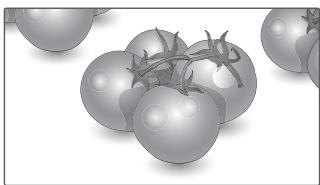
- 16:9 : This selection will allow you to adjust the picture horizontally, in linear proportion, to fill the entire screen(useful for viewing 4:3 formatted DVDs).
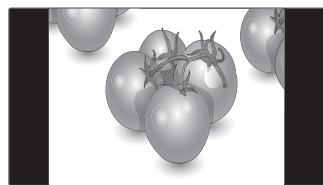
- 4:3 : This selection will allow you to view a picture with an original 4:3 aspect ratio, black bars will appear on both the left and right of the screen.
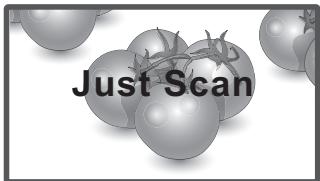
- Just Scan : This Selection will allow you view the picture of best quality without loss of original picture in high resolution image. Note: If there is noise in original Picture, You can see the noise at the edge.
- Zoom : This selection will allow you to view the picture without any alteration, while filling the entire screen. However, the top and bottom of the picture will be cropped.
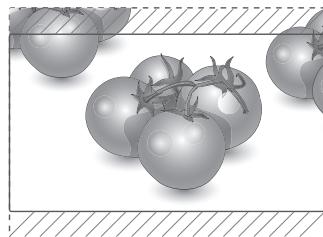
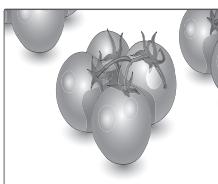
- 1:1 : The aspect ratio is not adjusted from the original. (Only Display Port PC, HDMI PC, DVI-D PC, RGB PC)
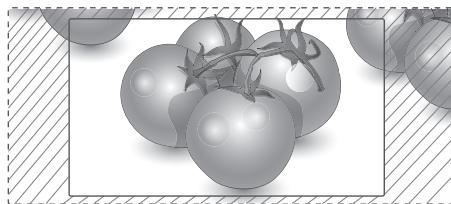
- Cinema Zoom 1 : Choose Cinema Zoom when you want to enlarge the picture in correct proportion. Note: When enlarging or reducing the picture, the image may become distorted.
Using the input list
Selecting an input source
1 Press INPUT to access the input source list.
- The connected device displays on each input source.
2 Press the Navigation buttons to scroll to one of the input sources and press OK.
| Input source | Description |
| AV(CVBS) | Watch video from a VCR or other external devices. |
| Component | Watch content from a DVD or other external devices, or through a digital set-top box |
| RGB | View a PC display on the screen |
| Display Port | Watch content from a PC, DVD of Digital set-top box other high definition devices |
| DVI-D | View a PC display on the screen |
| HDMI | Watch content from a PC, DVD of Digital set-top box other high definition devices |
ENTERTAINMENT
Connecting to a wired network
Depending on model)
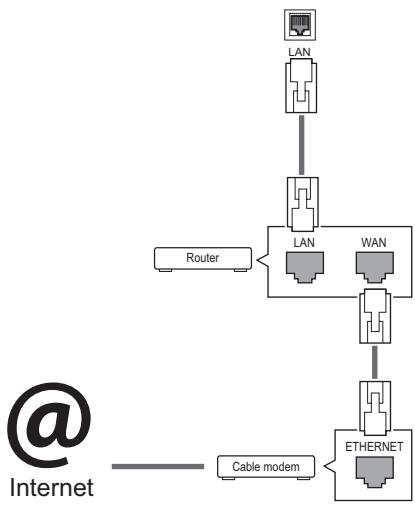
Connect the display to a local area network (LAN) via the LAN port as shown on the following illustration and set up the network settings.
This monitor only supports a wired network connection.
After making a physical connection, a small number of home networks may require the display network settings to be adjusted. For most home networks, the display will connect to automatically without any adjustments.
For detail information, contact your internet provider or router manual.

CAUTION
- Do not connect a modular phone cable to the LAN port.
- Since there are various connection methods, please follow the specifications of your telecommunication carrier or internet service provider.
To set up the network settings: (Even if your display has already connected automatically, running setup again will not harm anything),
1 Press MENU to access the main menus.
2 Press the Navigation buttons to scroll to NETWORK and press OK.
3 Press the Navigation buttons to select Network Setting and press OK.
4 If you already set Network Setting, select Resetting. The new connection settings resets the current network settings.
5 Select IP Auto Setting or IP Manual Setting.
- If selecting IP Manual Setting, press the Navigation and Number buttons. IP addresses will need to be input manually.
- IP Auto Setting: Select this if there is a DHCP server (Router) on the local area network (LAN) via wired connection, the display will automatically be allocated an IP address. If you're using a broadband router or broadband modem that has a DHCP (Dynamic Host Configuration Protocol) server function. The IP address will automatically be determined.
6 When you are finished, press EXIT.

CAUTION
Network setting menu will not be available until the display is connected to physical network.
- Since there are various connection methods, please follow the specifications of your telecommunication carrier or internet service provider.

NOTE
- If you want to access the Internet directly on your display, the internet connection should always be on.
- If you cannot access the Internet, check the network conditions from a PC on your network.
- When you use Network Setting, check the LAN cable or check if DHCP in the router is turned on.
- If you do not complete the network settings, the network may not work properly.
Tips for Network setting
- Use a standard LAN cable with this display. Cat5 or better with a RJ45 connector.
- Many network connection problems during setup can often be fixed by re-setting the router or modem. After connecting the display to the home network, quickly power off and/or disconnect the power cable of the home network router or cable modem. Then power on and/or connect the power cable again.
- Depending on the internet service provider (ISP), the number of devices that can receive internet service may be limited by the applicable terms of service. For details, contact your ISP.
- ViewSonic is not responsible for any malfunction of the display and/or the internet connection feature due to communication errors/malfunc-tions associated with your internet connection, or other connected equipment.
- ViewSonic is not responsible for problems within your internet connection.
- You may experience undesired results if the network connection speed does not meet the requirements of the content being accessed.
- Some internet connection operations may not be possible due to certain restrictions set by the Internet service provider (ISP) supplying your Internet connection.
- Any fees charged by an ISP including, without limitation, connection charges are your responsibility.
A 10 Base-T or 100 Base-TX LAN port is
required when using a wired connection to this display. If your internet service does not allow for such a connection, you will not be able to connect the display.
- A DSL modem is required to use DSL service and a cable modem is required to use cable modem service. Depending on the access method of and subscriber agreement with your ISP, you may not be able to use the internet connection feature contained in this display or you may be limited to the number of devices you can connect at the same time. (If your ISP limits sub-scriptation to one device, this display may not be allowed to connect when a PC is already connected.)
- The use of a "Router" may not be allowed or its usage may be limited depending on the policies and restrictions of your ISP. For details, contact your ISP directly.
Network Status
1 Press MENU to access the main menus.
2 Press the Navigation buttons to scroll to NETWORK and press OK.
3 Press the Navigation buttons to select Network Status.
4 Press OK to check the network status.
5 When you are finished, press EXIT.
| Option | Description |
| Setting | Return to the network setting menu. |
| Test | Test the current network status after setting the network. |
| Close | Return to the previous menu. |
Connecting USB storage devices
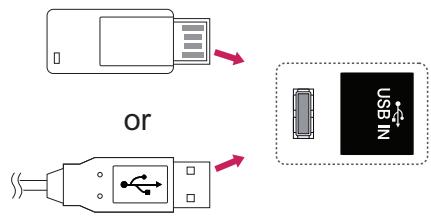
You can connect USB storage devices such as a USB flash memory, external hard drive to the display and use multimedia features.
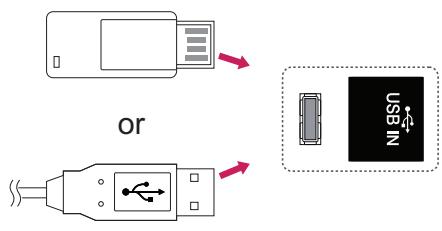
Connect a USB flash memory or USB memory card reader to the Display as shown on the following illustration. The My media screen appears.

CAUTION
- Do not turn the display off or remove a USB storage device while the EMF(my media) Menu is activated, as this could result in loss of files or damage to the USB storage device.
- Back up your files saved on a USB storage device frequently, as you may lose or damage the files and this may be not covered by the warranty.
Tips for using USB storage devices
- Only a USB storage device is recognizable.
- If the USB storage device is connected through a USB hub, the device is not recognizable.
- A USB storage device using an automatic recognition programme may not be recognized.
- A USB storage device which uses its own driver may not be recognized.
- The recognition speed of a USB storage device may depend on each device.
- Please do not turn off the display or unplug the USB device when the connected USB storage device is working. When such device is suddenly separated or unplugged, the stored files or the USB storage device may be damaged.
- Please do not connect the USB storage device which was artificially maneuvered on the PC. The device may cause the product to malfunction or fail to be played. Never forget to use only a USB storage device which has normal music files, image files or movie files.
- Please use only a USB storage device which was formatted as a FAT32 file system or NTFS file system provided with the Windows operating system. In case of a storage device formatted as a different utility program which is not supported by Windows, it may not be recognized.
- Please connect power to a USB storage device (over 0.5 A) which requires an external power supply. If not, the device may not be recognized.
- Please connect a USB storage device with the cable offered by the device maker.
- Some USB storage devices may not be supported or operated smoothly.
- File alignment method of USB storage device is similar to Window XP and filename can recognize up to 100 English characters.
-
Be sure to back up important files since data stored in a USB memory device may be damaged. We will not be responsible for any data loss.
-
If the USB HDD does not have an external power source, the USB device may not be detected. So be sure to connect the external power source.
- Please use a power adaptor for an external power source. We do not guarantee an USB cable for an external power source.
- If your USB memory device has multiple partitions, or if you use a USB multi-card reader, you can use up to 4 partitions or USB memory devices.
- If a USB memory device is connected to a USB multi-card reader, its volume data may not be detected.
- If the USB memory device does not work properly, disconnect and reconnect it.
- How fast a USB memory device is detected differs from device to device.
- If the USB is connected in Standby Mode, specific hard disk will automatically be loaded when the display is turned on.
- The recommended capacity is 1 TB or less for a USB external hard disk and 32 GB or less for USB memory.
- Any device with more than the recommended capacity may not work properly.
- If a USB external hard disk with a "Energy Saving" function does not work, turn the hard disk off and on again to make it work properly.
- USB storage devices below USB 2.0 are supported as well. But they may not work properly in the movie list.
Maximum of 999 folders or files can be recognized under one folder. - It is recommended to use a certified USB storage device and cable. Otherwise, a USB storage device may not be detected or a playback error may occur.
- Only a USB memory stick can be used to play back the files distributed. A USB hard disk or multi-card reader will not work.
- Only an FAT 32 file formatted storage device can play back the files distributed.
- A USB 3.0 storage device may not work.
Browsing files
Access the photo, music, or movie lists and browse files.
1 Connect a USB storage device.
2 Press MENU to access the main menus.
3 Press the Navigation buttons to scroll to My Media and press OK.
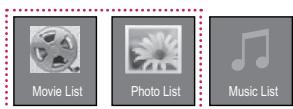
4 Press the Navigation buttons to choose from Movie List, Photo List or Music List and press OK.

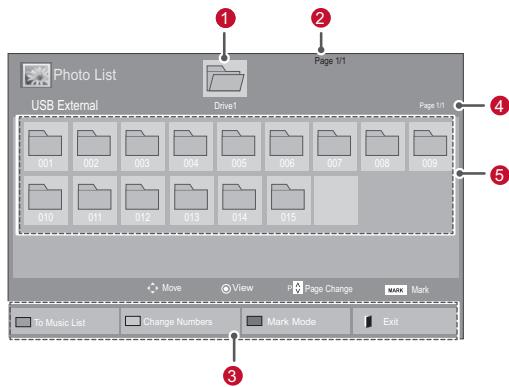
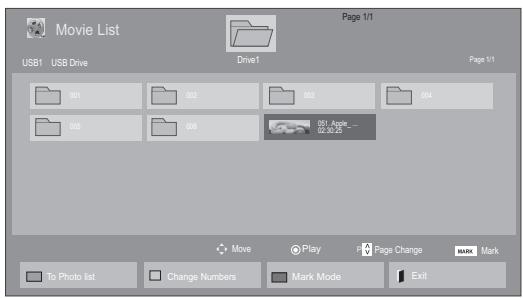
| No. | Description |
| ① | Moves to upper level folder |
| ② | Current page/Total pages |
| ③ | Corresponding buttons on the remote control |
| ④ | Current page/total pages of contents under the folder focused on ① |
| ⑤ | Contents under the folder focused on ① |
| Button | Description |
| Green button | Repeatedly, press the GREEN button to converted to Photo List->Music List, Music List->Movie List or Movie List->Photo List. |
| Yellow button | A method to view in 5 large thumbnail or simple list. |
| Blue button | Convert to Mark Mode. |
| Type | Supported file format |
| Movie | DAT,MPG,MPEG,VOB,AVI,DIVX,MP4,MKV,TS,T RP,TP,ASF,WMV,FLV)Movie/*.mpg/*.mpeg/*dat/*.ts/*.trp/*.tp/*.vob/*.mp4/*.mov/*.mkv/*.divx/*.avi/*.asf/*.wmv/*.flv/*.avi(motion-jpeg)/*.mp4(motion-jpeg)/*.mkv(motion-jpeg))supporting fileVideo format:DivX3.11,DivX4.12,DivX5.x,DivX6,Xvid1.00,Xvid1.01,Xvid1.02,Xvid1.03,Xvid1.10 beta-1/beta-2,Mpeg-1,Mpeg-2,Mpeg-4,H.264/AVC,VC1,JPEG,Sorenson H.263Audio format:Dolby Digital,AAC,Mpeg,MP3,LPCM,HE-AAC,ADPCM,WBAbit rate:within 32 kbps to 320 kbps(MP3)External Subtitle format:*.smi/*.srt/*.sub(MicroDVD,Subviewer1.0/2.0)/*.ass/*.ssa/*.txt(TMPPlayer)/*.psb(PowerDivX)Internal Subtitle format:only,XSUB(It is the subtitle format used in DivX6 files) |
| Photo | JPEGBaseline:64 x 64 to 15360 x 8640Progressive:64 x 64 to 1920 x 1440You can play JPEG files only.Non-supported files are displayed in the form of predefined icon. |
| Music | MP3Bit rate 32 to 320Sampling rate MPEG1 Layer3:32 kHz,44.1 kHz,48 kHzSampling rate MPEG2 Layer3:16 kHz,22.05 kHz,24 kHzSampling rate MPEG2.5 Layer3:8 kHz,11.025 kHz,12 kHz |
Viewing movies
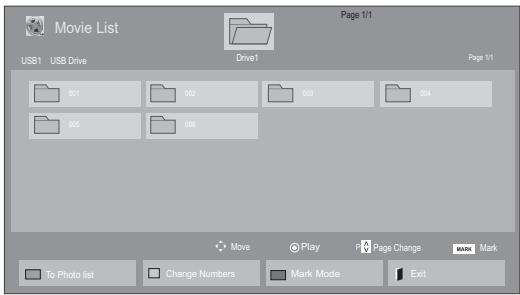
Play video files on display. Your display shows all of the video files saved in a USB storage device.
1 Press the Navigation buttons to scroll to My Media and press OK.
2 Press the Navigation buttons to scroll to Movie List and press OK.
3 Press the Navigation buttons to scroll to a folder you want and press OK.
4 Press the Navigation buttons to scroll to a file you want and press OK.
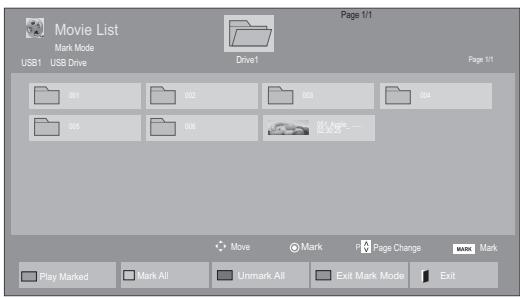
| Menu | Description |
| Play Marked | Play the selected movie file. Once a movie file finishes playing, the next selected one will be played automatically. |
| Mark All | Mark all movie files on the screen. |
| Unmark All | Deselect all marked movie files. |
| Exit Mark Mode | Exit the Mark Mode. |
5 Play a movie.

NOTE
- Non-supported files are displayed the preview image by icon only 5.
- Abnormal files are displayed in the form of bitmap F5.
6 Control playback by using the following buttons.
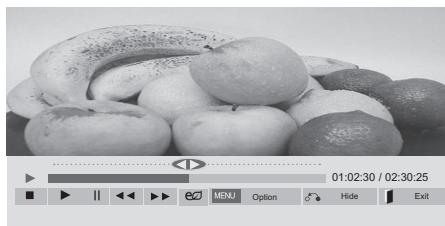
| Button | Description |
| ■ | Stops the playback |
| ▶ | Plays a video |
| || | Pauses or resumes the playback |
| ← | Scans backward in a file |
| → | Scans forward in a file |
| MENU | Show the Option menu. |
| ○ | Hide the menu on the full-sized screen. |
| | | Return to Movie List. |
| "<<" or">" | Skipping to specific points in a file dur-ing playback. The time of a specific point will appear on the status bar. In some files, this function may not work properly. |
| ENERGYSAVING | Press the ENERGY SAVING button repeatedly to increase the brightness of your screen. |
Tips for using playing video files
- Some user-created subtitles may not work properly.
- Some special characters are not supported in subtitles.
- HTML tags are not supported in subtitles.
- Subtitles in languages other than the supported languages are not available.
- The screen may suffer temporary interruptions (image stoppage, faster playback, etc.) when the audio language is changed.
- A damaged movie file may not be played correctly, or some player functions may not be usable.
- Movie files produced with some encoders may not be played correctly.
- If the video and audio structure of recorded file is not interleaved, either video or audio is outputted.
HD videos with a maximum of 1920x1080@25/30P or 1280x720@50/60P are supported, depending on the frame. - Videos with resolutions higher than 1920X1080@25/30P or 1280x720@50/60P may not work properly depending on the frame.
- Movie files other than the specified types and formats may not work properly.
- Max bitrate of playable movie file is 20 Mbps. (only, Motion JPEG : 10 Mbps)
- We do not guarantee smooth playback of profiles encoded level 4.1 or higher in H.264/AVC.
- DTS Audio codec is not supported.
- A movie file more than 30 GB in file size is not supported for playback.
- A DivX movie file and its subtitle file must be located in the same folder.
- A video file name and its subtitle file name must be identical for it to be displayed.
- Playing a video via a USB connection that doesn't support high speed may not work properly.
-
Files encoded with GMC(Global Motion Compensation) may not be played.
-
When you are watching the movie by Movie List function, you can adjust an image by Energy Saving key on the remote control. User setup for each image mode does not operate.
Video options
1 Press MENU to access the Pop-Up menus.
2 Press the Navigation buttons to scroll to Set Video Play., Set Video. or Set Audio. and press OK.

NOTE
- Option values changed in Movie List does not affect Photo List and Music List.
- Option value changed in Photo List and Music List are changed likewise in Photo List and Music List excluding Movie List.
- When replaying the video file after stopping, you can play from where it stopped previously.
When you select the Set Video Play,
1 Press the Navigation buttons to scroll to show the Picture Size, Audio Language, Subtitle Language or Repeat.
2 Press the Navigation buttons to scroll to make appropriate adjustments.
| Menu | Description |
| Picture Size | Selects your desired picture format during movie play. |
| Audio Language | Changes the Language Group of the audio during movie play. Files with a single audio track cannot be selected. |
| Subtitle Lan- guage | Turn on/off the subtitle. |
| Language | Activated for SMI subtitle and can select the language within the subtitle. |
| Code Page | Can select the font for subtitle. When set to default, same font as general menu will be used. |
| Sync | Adjusts the time synchronisation of the subtitle from -10 secs to +10 secs by steps of 0.5 secs during movie play. |
| Position | Changes the position of the subtitle either up or down during movie play. |
| Size | Selects your desired Subtitle size during movie play. |
| Repeat | Turn on/off repeat function of movie playback. When turned on, the file within the folder will be played back repeatedly. Even when the repeated playback is turned off, it can run the playback if the file name is similar to the previous file. |
| Code Page | Support Language |
| Latin1 | English, Spanish, French, German, Italian, Swedish, Finnish, Dutch, Portuguese, Danish, Romania, Norwegian, Albanian, Gaelic, Welsh, Irish, Catalan, Valencian |
| Latin2 | Bosnian, Polish, Croatian, Czech, Slovak, Slovenian, Serbian, Hungarian |
| Latin4 | Estonian, Latvian, Lithuanian |
| Cyrillic | Bulgarian, Macedonian, Russian, Ukrainian, Kazakh |
| Greek | Greek |
| Korean | Korean |

NOTE
- Only 10,000 of sync blocks can be supported within the subtitle file.
- When playing a video, you can adjust the Picture Size by pressing the RATIO button.
- Subtitles in your language are only supported when the OSD menu is also in this language.
- The code page options may be disabled depending on the language of the subtitle files.
- Select the appropriate code page for the subtitle files.
When you select the Set Video,,
1 Press the Navigation buttons to scroll to make appropriate adjustments.
When you select the Set Audio,,
1 Press the Navigation buttons to scroll to show the Sound Mode, Clear Voice II or Balance.
2 Press the Navigation buttons to scroll to make appropriate adjustments.
Viewing photos
View image files saved in a USB storage device. The displays on the screen may differ from the model.
1 Press the Navigation buttons to scroll to My Media and press OK.
2 Press the Navigation buttons to scroll to Photo List and press OK.
3 Press the Navigation buttons to scroll to a folder you want and press OK.
4 Press the Navigation buttons to scroll to a file you want and press OK.
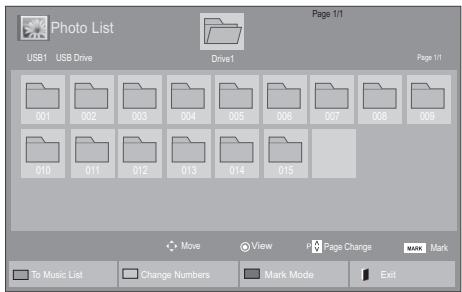
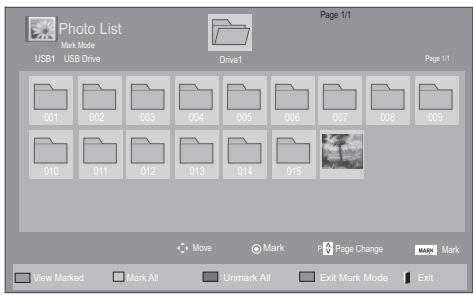
| Menu | Description |
| View Marked | Display the selected photo file. |
| Mark All | Mark all photo files on the screen. |
| Unmark All | Deselect all marked photo files. |
| Exit Mark Mode | Exit the Mark Mode. |
5 View photos.

NOTE
- Non-supported files are displayed the preview image by icon only.
- Abnormal files are displayed in the form of bitmap.
Using photo options
Use the following options while viewing photos.
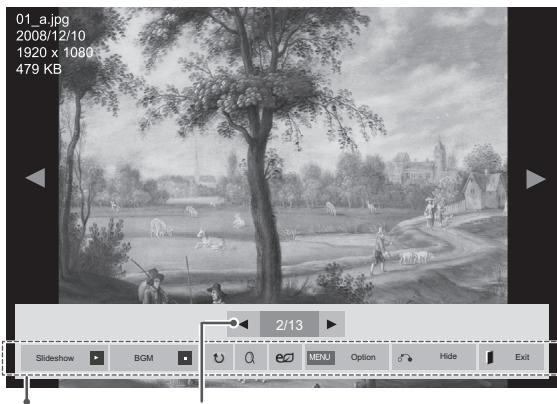
Options
Number of selected photos
| Option | Description |
| ■ Slideshow | Starts or stops a slideshow with selected photos. If there are no selected photos, all photos saved in the current folder display during a slideshow. Select Option to set the speed and view mode of the slideshow. |
| ■ BGM | Turns the background music on or off. To set the background music folder, select Option. You can adjust Option by MENU button on the remote control. |
| ■ Rotate | Rotates photos clockwise (90°, 180°, 270°, 360°). ■ NOTE · The supported photo size is limited. You cannot rotate a photo if the resolution of the rotated width is larger than the supported resolution size. |
| ■ Zoom | Enlarges the image to 200% or 400%. ■ NOTE · Zoom to 200% or 400% only work for image of 1372×772 pixel size or larger. · For image of 960×540 pixel size or larger, only zoom to 400% works properly. |
| ENERGY SAVING | Press the ENERGY SAVING button repeatedly to change the brightness of your screen. |
| Menu Option | • Slide Speed: Selects a slideshow speed (Fast, Medium, Slow). • TransitionEffect: Set the view mode of the slideshow. • BGM: Selects a music folder for the background music. ● NOTE • You cannot change the music folder while the background music is playing. • You can only select the MP3 folder saved on the device that currently displays the photo. |
| ○ Hide | Hides the option window. To display the options, press OK. |
| EXIT | Return to Photo List. |
Photo options
1 Press MENU to show the Option menus.
2 Press the Navigation buttons to scroll to Set Photo View., Set Video. or Set Audio. and press OK.

NOTE
- Option values changed in Movie List does not affect Photo List and Music List.
- Option value changed in Photo List and Music List are changed likewise in Photo List and Music List excluding Movie List.
When you select the Set Photo View,
1 Press the Navigation buttons to scroll to select Slide Speed, Transition Effect or BGM.
2 Press the Navigation buttons to scroll to make appropriate adjustments.
Transition Effect Option
| Option | Description |
| Sliding | Pushes the current slide out of view as it plays to the next slide. |
| Stairs | Pushes the current slide in a staircase shape as it plays to the next slide. |
| Door Open /Close | Pushes the current slide like opening or closing the door as it plays to the next slide. |
| Shutter | Pushes the current slide like drawing or pulling down the blind as it plays to the next slide |
| Fade In | Fades the slide out slowly before playing to the next slide. |
When you select the Set Video,
1 Press the Navigation buttons to scroll to make appropriate adjustments.
When you select the Set Audio,
1 Press the Navigation buttons to scroll to show the Sound Mode, Clear Voice II or Balance.
2 Press the Navigation buttons to scroll to make appropriate adjustments.
Listening to music
1 Press the Navigation buttons to scroll to My Media and press OK.
2 Press the Navigation buttons to scroll to Music List and press OK.
3 Press the Navigation buttons to scroll to a folder you want and press OK.
4 Press the Navigation buttons to scroll to a file you want and press OK.
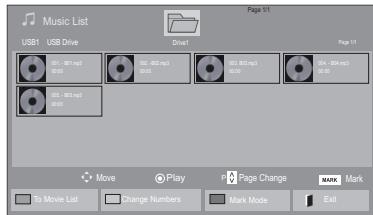
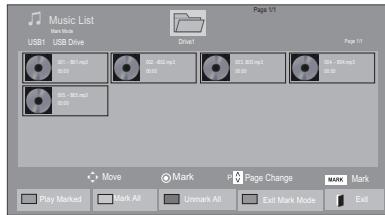
| Menu | Description |
| Play Marked | Display the selected music file. |
| Mark All | Mark all music files on the screen. |
| Unmark All | Deselect all marked music files. |
| Exit Mark Mode | Exit the Mark Mode. |
5 Play music.
6 Control playback by using the following buttons.
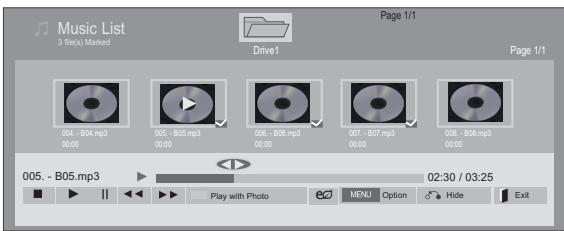
| Button | Description |
| ■ | Stops playback |
| ▶ | Plays a music file |
| || | Pauses or resumes playback |
| ► | Skips to the next file |
| ← | Skips to the previous file |
| or | When playing, When you press the (←) button, the previous music file will be played. When you press the (→) button, the next music file will be played. |
| Green button | Start playing the selected music files and then move to the Photo List. |
| ENERGY SAVING | Press the ENERGY SAVING button repeatedly to change the brightness of your screen. |
| Option | Show the Option menu. |
| Hide | Hides the option window. To display the options, press OK. |
| EXIT | When you press the EXIT button while the Music player is displayed, only the music will be stopped and the player will not return to normal viewing. When you press the EXIT button while the music is stopped or while the music player is hidden, the player will return to normal viewing. |
| "<> or "> " | When using the < or > button during playback a cursor indicating the position can be played. |
Tips for playing music files
- This unit doesn't support the ID3 Tag embedded MP3 files.

NOTE
- Non-supported files are displayed the preview image by icon only.
- Abnormal files are displayed in the form of bitmap.
- A damaged or corrupted music does not play but displays 00:00 in playtime.
- A music downloaded from a paid service with copyright protection does not start but displays inappropriate information in playtime.
- If you press OK, ☐ buttons, screen saver is stopped.
- The PLAY(), Pause(), 11 , 12 , 13 buttons on the remote control are also available in this mode.
- You can use the + button to select the next music and the + button to select the previous music.
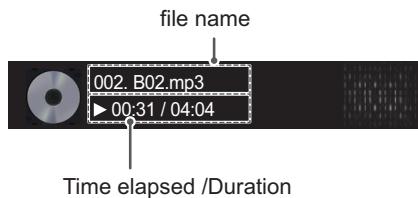
Music options
1 Press MENU to access the Pop-Up menus.
2 Press the Navigation buttons to scroll to Set Audio Play. or Set Audio. and press OK.

NOTE
- Option values changed in Movie List does not affect Photo List and Music List.
- Option value changed in Photo List and Music List are changed likewise in Photo List and Music List excluding Movie List.

NOTE
- If there is the AutoPlay folder in the USB device and its files are in supported formats, they can be played back automatically when the USB device is connected to the monitor.
When you select the Set Audio Play.,
1 Press the Navigation buttons to scroll to select the Repeat or Random.
2 Press the Navigation buttons to scroll to make appropriate adjustments.
When you select the Set Audio,
1 Press the Navigation buttons to scroll to select the Sound Mode, Clear Voice II or Balance.
2 Press the Navigation buttons to scroll to make appropriate adjustments.
DivX® VOD Guide
DivX® VOD Registration
In order to play purchased or rented DivX® VOD contents, you should register your device with 10 digit DivX registration code from your device at www.divx.com/vod.
1 Press MENU to access the main menus.
2 Press the Navigation buttons to scroll to MY MEDIA and press OK.
3 Press the Blue button.
4 Press the Navigation buttons to scroll to DivX Reg. Code and press OK.
5 View the registration code of your display.
6 When you are finished, press EXIT. When you return to the previous menu, press BACK.

NOTE
- While you are checking the registration code, some buttons may not work.
- If you use the DivX registration code of another device, you cannot play the rented or purchased DivX file. Make sure to use the DivX registration code assigned to your TV.
- The video or audio files that are not converted by the standard DivX codec may be corrupted or not be played.
- The DivX VOD code allows you to activate up to 6 devices under one account.
(i) You must register your device
to play DivX® protected videos.
Registration code : ********
Register at http://vod.divx.com
Close
DivX® VOD Deregistration
You should deregister your device with 8 digit DivX deregistration code from your device at www.divx.com/vod.
1 Press MENU to access the main menus.
2 Press the Navigation buttons to scroll to MY MEDIA and press OK.
3 Press the Blue button.
4 Press the Navigation buttons to scroll to Deactivation and press OK.
5 Press the Navigation buttons to select Yes to confirm.
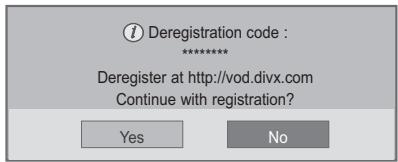
6 When you are finished, press EXIT. When you return to the previous menu, press BACK.

NOTE
- Once the deregistration is executed, you must register your device again to see DivX® VOD contents.
Using PIP/PBP
Videos or pictures stored on the USB device can be displayed on a single monitor by dividing them into the main and subscreens. (See p.49)
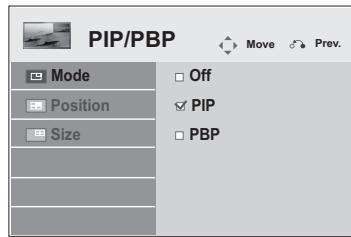
1 Press the MENU button to move to OPTION and press OK.
2 Press PIP/PBP to select PIP or PBP and then press OK.
3 Select Movie List or Photo List from My Media.
4 Select a file you want and then press OK.
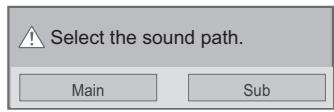
6 For sound select either Main or Sub. You must to select the output sound before running the PIP or PBP function.
5 Select the PIP or PBP icon from the play list.

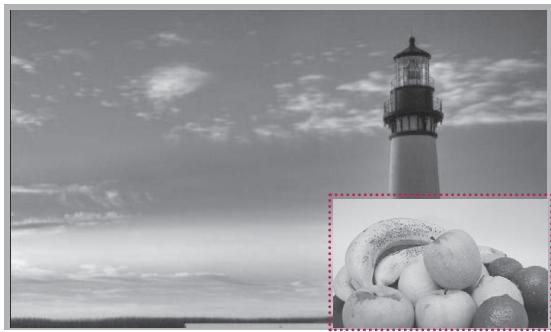
7 The sub screen is displayed on the main screen.
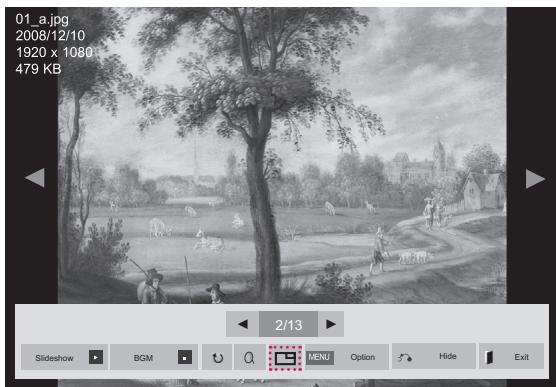
< PHOTO LIST >
CUSTOMIZING SETTINGS
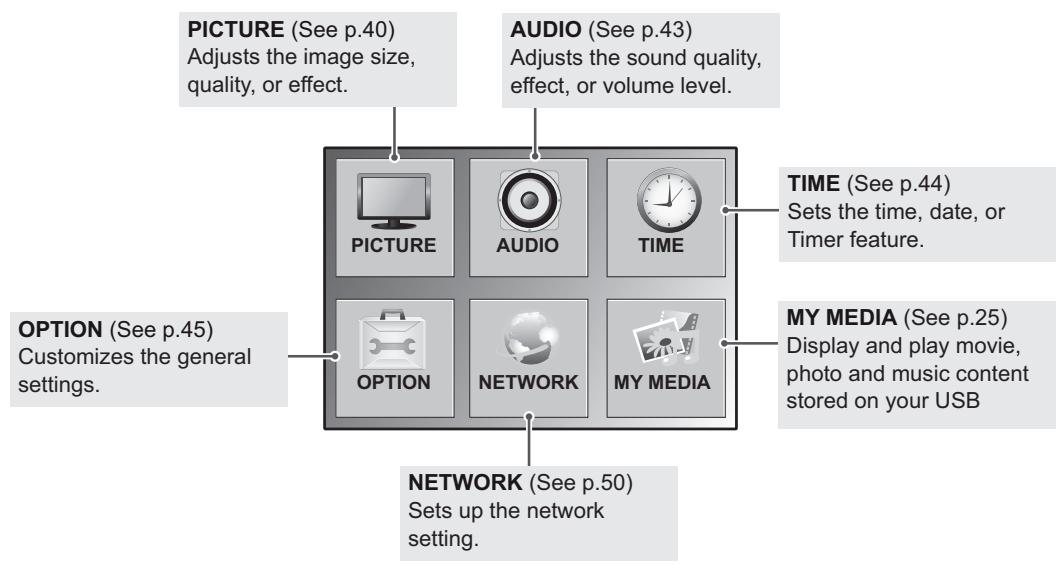
Accessing main menus
1 Press MENU to access the main menus.
2 Press the Navigation buttons to scroll to one of the following menus and press OK.
3 Press the Navigation buttons to scroll to the setting or option you want and press OK.
4 When you are finished, press EXIT. When you return to the previous menu, press BACK.
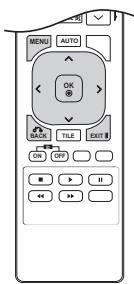
PICTURE settings
1 Press MENU to access the main menus.
2 Press the Navigation buttons to scroll to PICTURE and press OK.
3 Press the Navigation buttons to scroll to the setting or option you want and press OK.
- To return to the previous level, press BACK.
4 When you are finished, press EXIT.
When you return to the previous menu, press BACK.
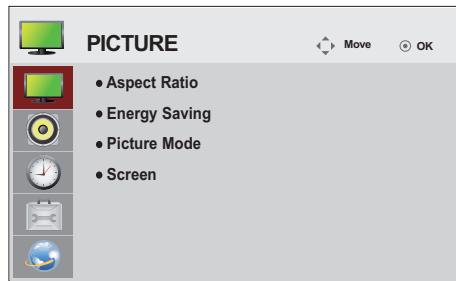
The available picture settings are described in the following:
| Setting | Description | |
| Aspect Ratio | Changes the image size to view images at its optimal size (See p.19). | |
| Energy Saving | Sets to automatically adjust the screen brightness corresponding to the surroundings. | |
| Level | ||
| Auto | Adjust automatically | |
| Off | Disables Energy Saving function | |
| Minimum/ Medium/ Maximum | Selects the brightness level of the backlight. | |
| Screen off | The screen turns off in 3 seconds. | |
| Picture Mode | Selects one of the preset image or customizes options in each mode for the best Monitor screen performance. You are also able to customize advanced options of each mode. The available preset picture modes vary depending on the Monitor . | |
| Mode | ||
| Vivid | Adjusts the video image for the retail environment by enhancing the contrast, brightness, Colour, and sharpness. | |
| Standard | Adjusts the image for the normal environment. | |
| Cinema | Optimizes the video image for a cinematic look to enjoy movies as if you are in a movie theater. | |
| Sport | Optimizes the video image for high and dynamic actions by emphasizing primary Colours such as white, grass, or sky blue. | |
| Game | Optimizes the video image for a fast gaming screen such as PCs or games. | |
| SCREEN (In RGB Mode Only) | Customizes the PC display options in RGB mode. | |
| Option | ||
| Resolution | Selects a proper resolution. See “Customizing PC display options”. | |
| Auto Config. | Adjusts the screen position, clock, and phase automatically. The displayed image may be unstable for a few seconds while the configuration is in progress. | |
| Position/Size/Phase | Adjusts the options when the picture is not clear, especially when characters are shaky. Run Auto Config. before adjusting these. | |
| Reset | Restores all options to the default setting. | |
Picture Mode options
| Setting | Description |
| Backlight | Adjusts the brightness of the screen by controlling the LCD backlight. If you decrease the brightness level, the screen becomes darker and the power consumption will be reduced without any video signal loss. |
| Contrast | Increases or decreases the gradient of the video signal. You may use Contrast when the bright part of the picture is saturated. |
| Brightness | Adjusts the base level of the signal in the picture. You may use Brightness when the dark part of the picture is saturated. |
| Sharpness | Adjusts the level of crispness in the edges between the light and dark areas of the picture. The lower the level, the softer the image. |
| Color | Adjusts intensity of all colors. |
| Tint | Adjusts the balance between red and green levels. |
| Color Temp. | Set to warm to enhance hotter Colors such as red, or set to cool to make picture bluish. |
| Advanced Control | Customizes the advanced options. Refer to the Advanced image options. (See p.42). |
| Picture Reset | Restores the options to the default setting. |
| Dynamic Contrast (Off/High/Medium/Low) | Adjusts the contrast to keep it at the best level according to the brightness of the screen. The picture is improved by making bright parts brighter and dark parts darker. (This function can be used only under AV(CVBS) and Component.) |
| Dynamic Color (Off/High/Low) | Adjusts screen Colors so that they look livelier, richer and clearer. This feature enhances hue, saturation and luminance so that red, blue, green and white look more vivid. (This function can be used only under AV(CVBS) and Component.) |
| Clear White (Off/High/Low) | Make the white area of screen brighter and more white. |
| Skin Color (-5 to 5) | It detects the skin area of video and adjusts it to express a natural skin color. |
| Noise Reduction (Off/High/Medium/Low) | Reduces screen noise without compromising video quality. (This function can be used only under AV(CVBS) and Component.) |
| Digital Noise Reduction (Off/High/Medium/Low) | This option reduces the noise produced while creating digital video signals. |
| Gamma (High/Medium/Low) | Set your own gamma value. On the monitor, high gamma values display whitish images and low gamma values display high contrast images. |
| Black Level (High/Low) | • Low: The picture of the screen gets darker. • High: The picture of the screen gets brighter. Set black level of the screen to proper level. (Function works in the following mode - AV(CVBS), Component, HDMI-DTV, Display Port-DTV) |
AUDIO settings
1 Press MENU to access the main menus.
2 Press the Navigation buttons to scroll to AUDIO and press OK.
3 Press the Navigation buttons to scroll to the setting or option you want and press OK.
- To return to the previous level, press BACK.
4 When you are finished, press EXIT.
When you return to the previous menu, press BACK.
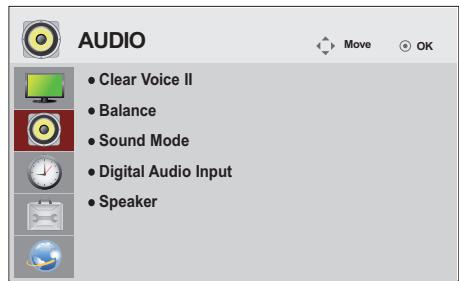
The available audio options are described in the following:
| Setting | Description | |
| Clear Voice II | By differentiating the human sound range from others, it helps users makes dialog easier to understand. | |
| Balance | Adjusts balance between the left and right speakers according to your room environment. | |
| Sound Mode | Mode | |
| Standard | Select when you want standard-quality sound. | |
| Music | Select when you listen to music. | |
| Cinema | Select when you watch movies. | |
| Sport | Select when you watch sport events. | |
| Game | Selects when you play games. | |
| Digital Audio Input | HDMI/Display Port: Outputs the sound of digital signal from HDMI and display ports through the monitor speaker. Audio In: Outputs the sound through the monitor speaker by connecting HDMI and display ports to the Audio In port. | |
| Speaker | ON: Enables sound to the monitor speaker. (* The monitor speaker is sold separately.) OFF: Enables sound to the monitor speaker. Use this option when using an external sound device. | |
Sound Mode options
| Setting | Description |
| Infinite Sound | ViewSonic's Infinity Sound option provides 5.1 channel stereo sound from two speakers. |
| Treble | Controls the dominant sounds in the output. When you turn up the treble, it will increase the output to the higher frequency range. |
| Bass | Controls the softer sounds in the output. When you turn up the bass, it will increase the output to the lower frequency range. |
| Reset | Reset the sound mode to the default setting. |
TIME settings
1 Press MENU to access the main menus.
2 Press the Navigation buttons to scroll to TIME and press OK.
3 Press the Navigation buttons to scroll to the setting or option you want and press OK.
- To return to the previous level, press BACK.
4 When you are finished, press EXIT.
When you return to the previous menu, press BACK.
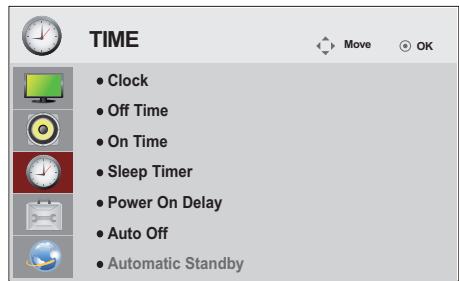
The available time settings are described in the following:
| Setting | Description |
| Clock | Sets the time feature. |
| Off/On Time | Sets the time to turn on or off the Monitor. |
| Sleep Timer | Sets the length of time until the Monitor to turns off. When you turn the Monitor off and turn it on again, the Sleep Timer will be set to off. |
| Power on delay | When connecting multiple monitors and turning the power on, the monitors are turned on individually to prevent overload. |
| Auto off | If Auto off is active and there is no input signal, the set switches to off mode automatically after 15 minutes. |
| Automatic Standby | If you do not use the monitor for more than 4 hours, it will be in off mode automatically. |

NOTE
- Off/On Time can be saved for up to seven schedules; the Monitor is turned on or off at the preset time in the schedule list. If multiple preset times are stored in the schedule list, this function works at the nearest time from the current time.
- The scheduled power-off function works properly only when the device time is set correctly.
- When the scheduled power-on and power-off times are the same, the power-off time has priority over the power-on time if the set is turned on, and vice versa if the set is turned off.
- "The ""Automatic Standby"" and ""Auto off"" functions may not be available in some countries."
OPTION settings
1 Press MENU to access the main menus.
2 Press the Navigation buttons to scroll to OPTION and press OK.
3 Press the Navigation buttons to scroll to the setting or option you want and press OK.
- To return to the previous level, press BACK.
4 When you are finished, press EXIT.
When you return to the previous menu, press BACK.
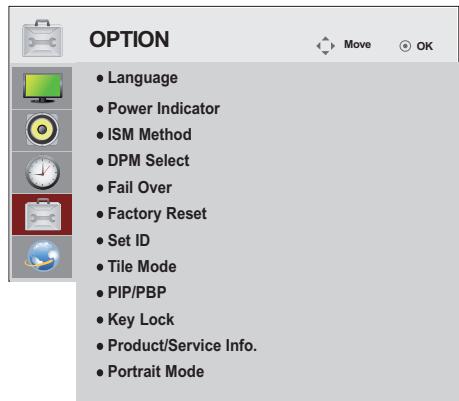
The available option settings are described in the following:
| Setting | Description | |
| Language | To choose the language in which the control names are displayed. | |
| Power Indicator | Use this function to set the power indicator on the front side of the product to On or Off. | |
| ISM Method | A frozen or still picture from a PC/Video game displayed on the screen for prolonged periods could result in a ghost image remaining even when you change the image. Avoid allowing a fixed image to remain on the screen for a long period of time. | |
| Setting | ||
| Normal | Leave on normal if you don't foresee image burn in being a problem. | |
| Orbiter | May help prevent ghost images. However, it is best not to allow any fixed image to remain on the screen. To avoid a permanent image on the screen, the screen will move every 2 minutes. | |
| Inversion | This function inverts the panel color of the screen. The panel color is automatically inverted every 30 minutes. | |
| White Wash | White wash fills the screen with solid white. This helps removes permanent images burned into the screen. A permanent image may be impossible to clear entirely with white wash. | |
| DPM Select | A user can choose to turn the power saving mode on / off. | |
| Fail Over | If there is no input signal, it automatically switches to another input with signal. | |
| Setting | ||
| Off | Stops auto switch of the input source. | |
| Auto | Switches to another input source with video signal if no video signal comes from the current input source. | |
| Manual | Selects the priority of input source for auto switch. When several input sources are found, the input source with a higher priority will be selected. | |
| Factory Reset | Select this option to return to the default factory settings. | |
| Set ID | You can assign a unique Set ID NO (name assignment) to each product when several products are connected for display. Specify the number (1 to 99) using the button and exit. Use the assigned Set ID to individually control each product using the Product Control Program. | |
| Tile Mode | Tile Mode | To use this function - Must be displayed with various other products. - Must be in a function that can be connected to RGB Cable by distributor and RS-232C. Tile mode and choose Tile alignment and set the ID of the current product to set location. * Only after pressing the SET button the adjustments made to the settings will be saved. - Tile mode : column x row ( c = 1, 2, 3, 4, 5 r = 1, 2, 3, 4, 5) - 5 x 5 available. - Configuration of an integration screen is also available as well as configuration of One by one Display. |
| Auto Config. | Adjusts the screen position automatically. The displayed image may be unstable for a few seconds while the configuration is in progress. | |
| PC Position | Moving the screen position horizontally and vertically. | |
| PC Size | Adjust the horizontal and vertical size of the screen taking into account the size of the bezel. | |
| Natural | The image is omitted by the distance between the screens to be naturally shown. | |
| Reset | Function to initialize and release Tile. All Tile setting are released when selecting Tile recall and the screen returns to Full screen. | |
| NOTE ·If Tile Mode is enabled, Energy Saving will be disabled to provide the same picture quality as other displays. | ||
| PIP/PBP | Videos or photos stored on the USB device can be displayed on a single monitor by dividing them into the main and subscreens. | |
| Option | ||
| Mode | Sets the type of secondary screen. *OFF: Enables the secondary screen. *PIP (Picture In Picture): Displays the secondary screen in the main screen. *PBP (Picture By Picture): Displays the secondary screen next to the main screen. | |
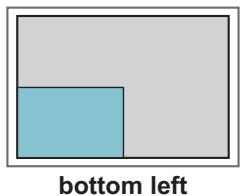
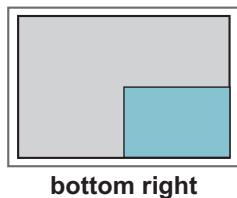
| Position | Adjusts the position of the subscreen (top left, bottom left, top right, bottom right) The default value is inthe bottom right. | |
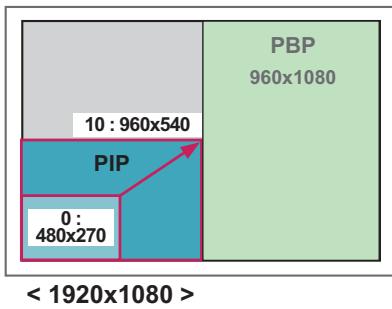
| Size | Adjusts the size of the subscreen (Size 0-10). The default size of the PIP (Size: 0) is 480x240; the maximum size (Size: 10) is 960x540. | |
| NOTE ·The Position and Size options are enabled only in PIP mode. | ||
| Key Lock | Key input does not work. This prevents invalid key input. | |
| Product/Service Info. | Displays the model name, software version, serial number, IP address, MAC address and home page. | |
| Portrait mode | Rotate OSD clockwise (270°, 90°) | |
| Option | ||
| 270° | Rotate OSD clockwise 270°. | |
| 90° | Rotate OSD clockwise 90°. | |
| 270° | ||
| 90° | ||
Tile Mode
This monitor can be tiled with additional monitors to create a large tiled display.
Off
When the Tile Mode option is disabled
2X1
When using 2 monitors
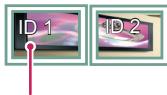
Tile ID
2X2
When using 4 monitors
3X3
When using 9 monitors


4X4
When using 16 monitors


5X5
When using 25 monitors


Tile Mode - Natural mode
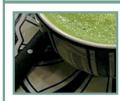
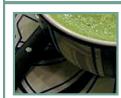
When active, the part of the image that would normally be displayed in the gap between the monitors is omitted.
Before



After



PIP/PBP
Displays videos or photos stored in the USB device on a single monitor by dividing it into the main and sub screens. (See p.37)
Mode
*PIP(Picture In Picture): Displays the Sub screen in the main screen.
*PBP(Picture By Picture): Displays the Sub screen next to the main screen.
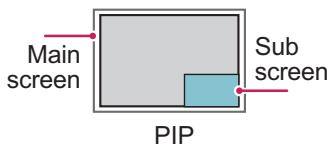
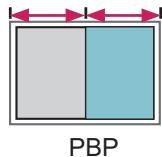
Position
Adjusts the position of the subscreen (top left, bottom left, top right, bottom right)
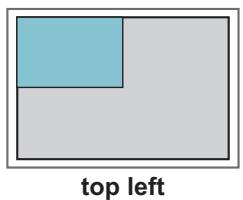
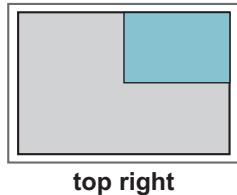
Size
Adjusts the size of the subscreen (Size 0-10).

NOTE
- The subscreen is only supported when using the USB device.
| Sub | ||
| USB | ||
| Main | Component | O |
| RGB | O | |
| HDMI/DVI-D/Display Port | O | |
| AV | X | |
- You can only change the size and position in PIP mode.
- With PBP selected, the Aspect Ratio option in the PICTURE menu is disabled (Fixed as 16:9).
- While running the PBP function, the Tile Mode function does not work.
- You must select the output sound before running the PIP or PBP functions. (Select either Main or Sub.)
- If you fail to select Main or Sub from the sound selection box, and if the OSD disappears after either a period of time or when the Exit or Back key is pressed, the PIP/PBP subscreen is not activated.
- You cannot change the sound while running the PIP or PBP functions. If you want to change the sound, please restart PIP/PBP.
- The picture quality of the subscreen is set according to the values selected in the main menu, not the USB device.
- Even when the power is turned off or on, if the USB device is connected, the PIP/PBP mode plays again from where it left off.
- If you play videos you selected in PIP/PBP mode, the videos will play back repeatedly in succession.
- The buttons below work in PIP mode.
| Button | Photo | Movie |
| "<=" | O | X |
| ">" | O | X |
| → | X | O |
| ■ | X | X |
| → | X | O |
| ← | X | O |
| || | X | O |
NETWORK settings
1 Press MENU to access the main menus.
2 Press the Navigation buttons to scroll to NETWORK and press OK.
3 Press the Navigation buttons to scroll to the setting or option you want and press OK.
- To return to the previous level, press BACK.
4 When you are finished, press EXIT.
When you return to the previous menu, press BACK.
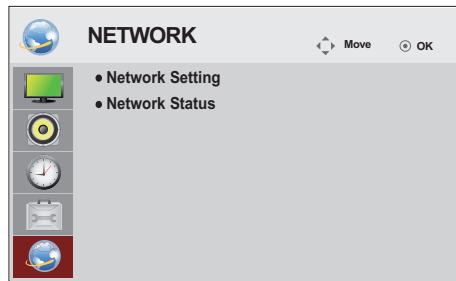
The available option settings are described in the following:
| Setting | Description |
| Network Setting | Configure the network settings. |
| Network Status | Display the network status. - Internet is connected: Externally connected - Home network is connected: Only internally connected - Not connected: When there is no network connection |
MAKING CONNECTIONS
Connect various external devices to the ports on the Monitor's back panel.
1 Find an external device you want to connect to your Monitor shown on the following illustration.
2 Check the connection type of the external device.
3 Go to the appropriate illustration and check the connection details.
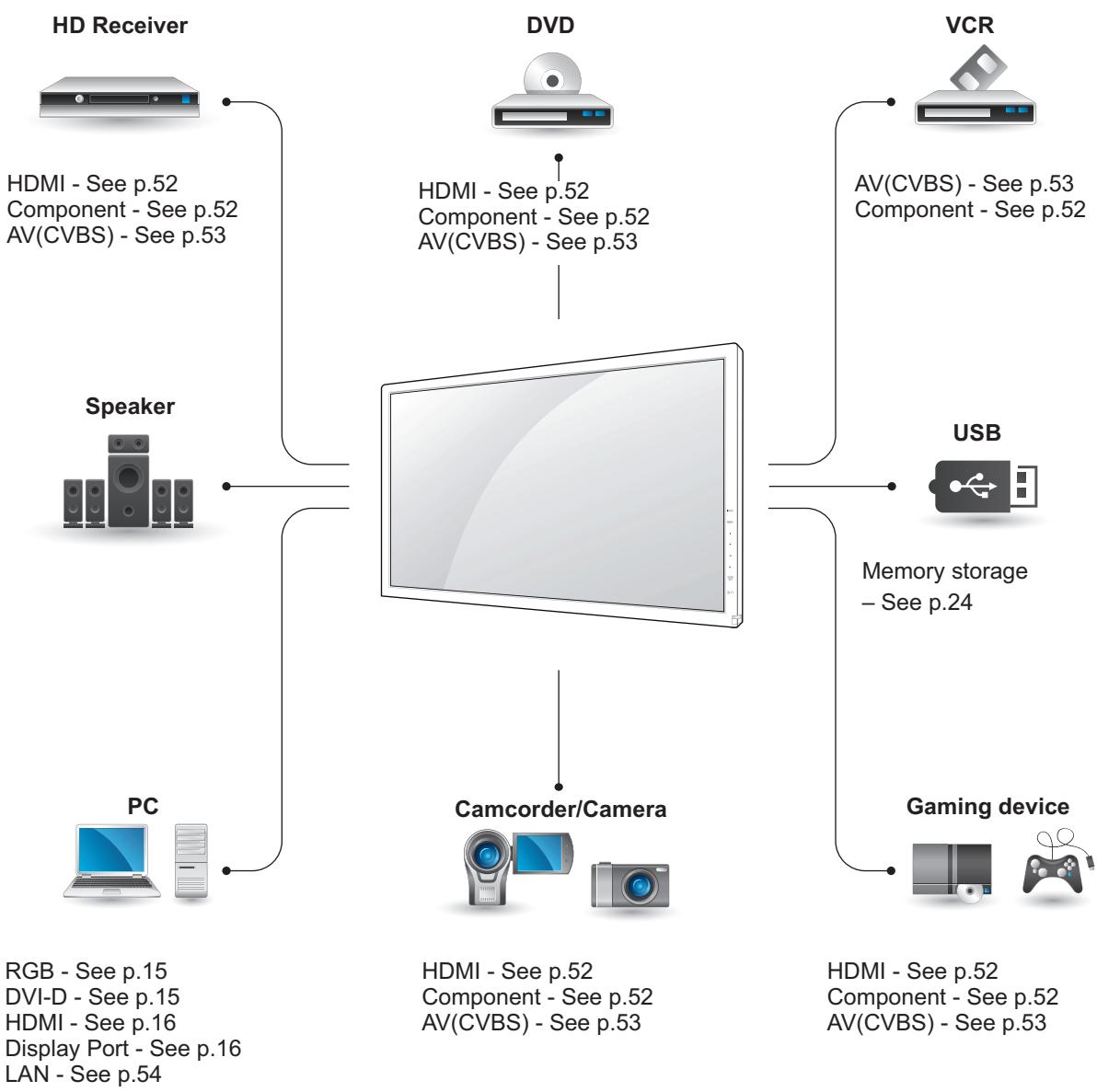

NOTE
- If you connect a gaming device to the Monitor, use the cable supplied with the gaming device.
Connecting to a HD receiver, DVD, Camcorder, Camera, Gaming Device or VCR player
Connect a HD receiver, DVD, or VCR player to the Monitor and select an appropriate input mode.
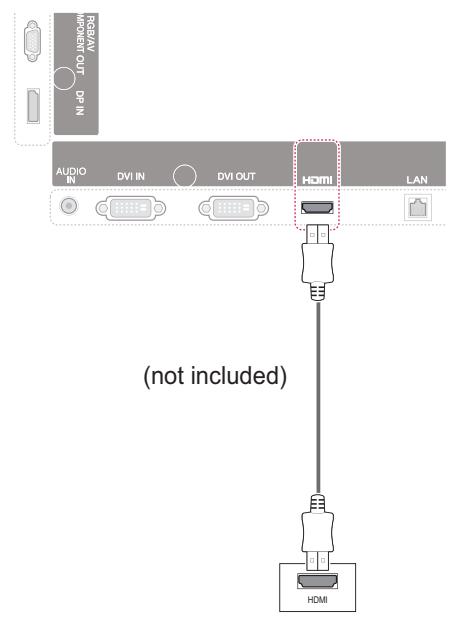
HDMI connection
Transmits the digital video and audio signals from an external device to the Monitor. Connect the external device and the Monitor with the HDMI cable as shown on the following illustration.
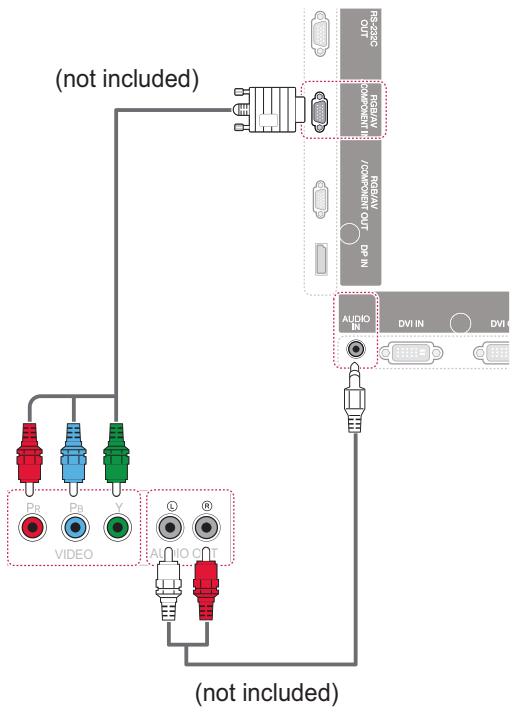
Component connection
Transmits the analog video and audio signals from an external device to the Monitor. Connect the external device and the Monitor with the 15 pin signal to RCA cable as shown on the following illustration. To display images by using progressive scan, make sure to use the component cable.

NOTE
- Use a High Speed HDMI™ Cable.
- High Speed HDMI™ Cables are tested to carry an HD signal up to 1080p and higher.
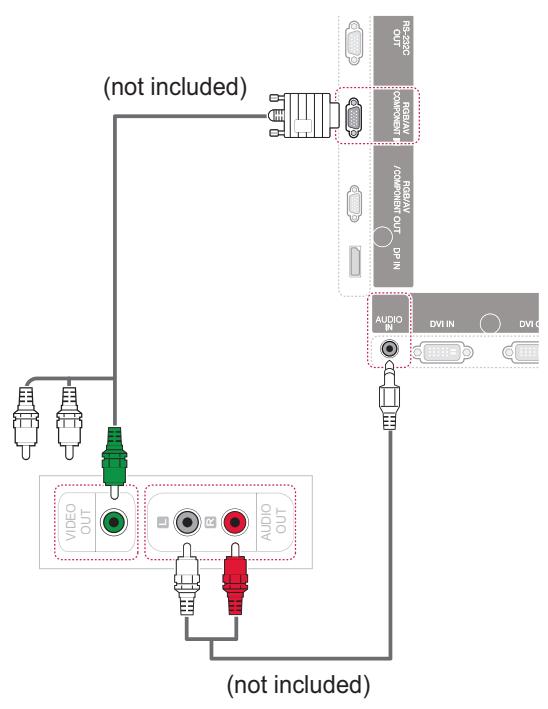
AV(CVBS) connection
Transmits the analog video and audio signals from an external device to the Monitor. Connect the external device and the Monitor with the 15 pin signal to RCA cable as shown on the following illustration.
Connecting to a USB
Connect a USB storage device such as s USB flash memory, external hard drive, MP3 player or a USB memory card reader to the Monitor and access the USB menu to use various multimedia files.
Connecting to the LAN
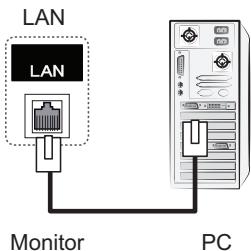
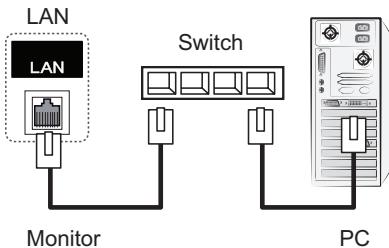
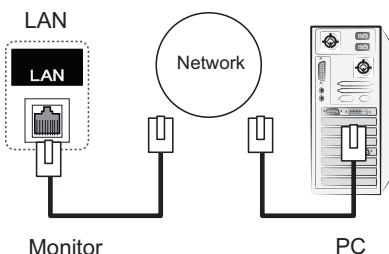
LAN connection
A Connect PC to Monitor directly.
B Using a router(Switch)
C Using the Internet.
NOTE
- Using LAN establishes communication between your PC and the monitor and enables to use the OSD menus on the PC as well as on the monitor.
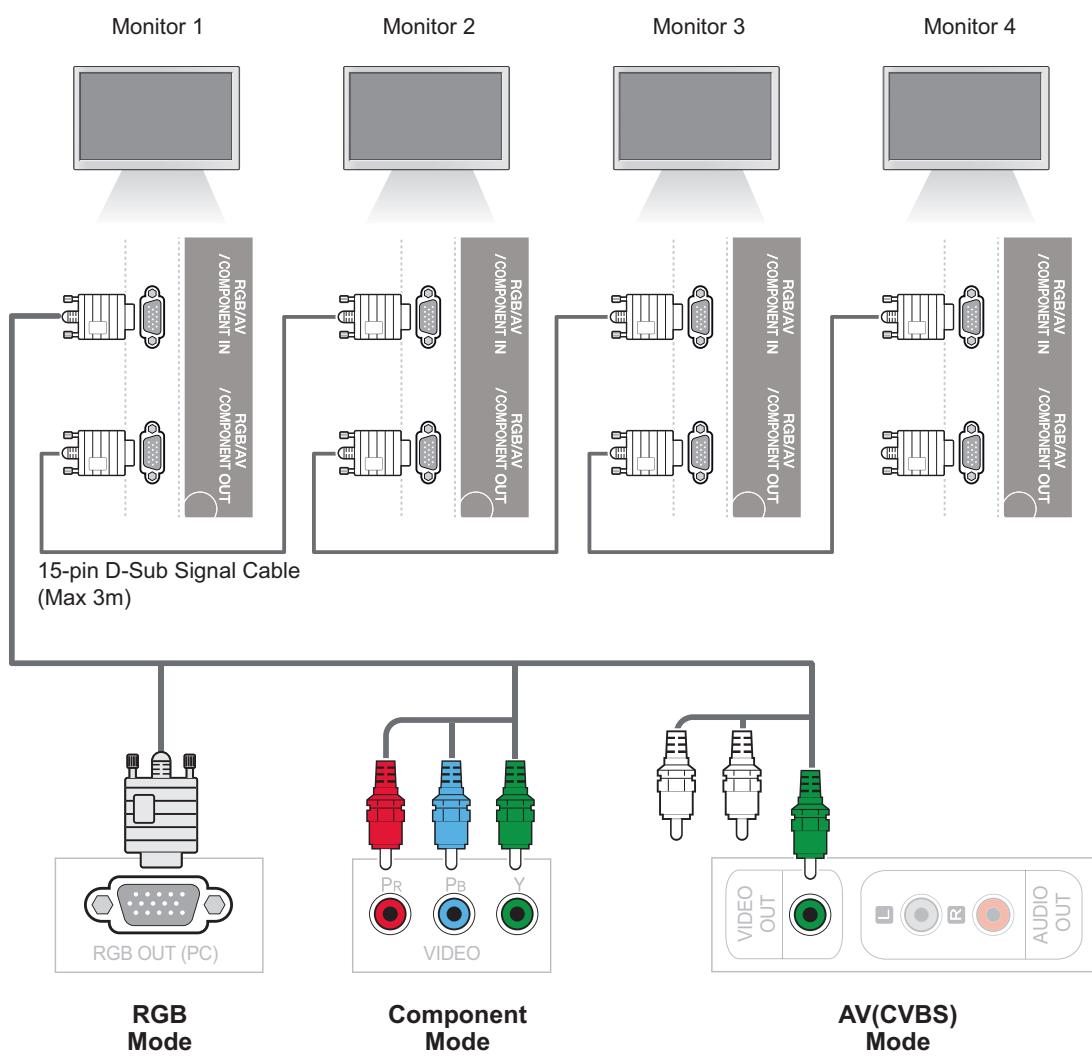
Daisy Chain Monitors
Use this function to share the RGB video signal with other monitors without having to use a separate signal splitter box.
To use different products connected to each other Connect one end of the signal input cable (15-pin D-Sub Signal Cable) to the RGB OUT connector of product 1 and connect the other end to the RGB IN connector of other products

NOTE
- The number of monitors that can be connected to one output may vary depending on signal status and cable loss. If the signal status is good, and there is no cable loss, it is possible to connect up to 9 monitors. If you want to connect more than this number of monitors, it is recommended to use a distributor.
- When multi-connecting in/out cascade format, no loss cables are recommended.
TROUBLESHOOTING
No image is displayed
| Problem | Resolution |
| Is the product power cord connected? | • See if the power cord is properly connected to the outlet. |
| Is the power indicator light on? | • See if the power switch is turned on. • May need service. |
| Power is on, power indicator is blue but the screen appears extremely dark. | • Adjust brightness and contrast again. • Backlight may need repair. |
| The power indicator amber? | • If the product is in power saving mode, move the mouse or press any key. • Turn both devices off and then back on. |
| Does the 'Out of range' message appear? | • The signal from the PC (video card) is out of the vertical or horizontal frequency range of the product. Adjust the frequency range by referring to the Specifications in this manual. * Maximum resolution RGB, HDMI, DVI-D, Display Port: 1920 x 1080 @ 60 Hz |
| Does the 'Check signal cable' message appear? | • The signal cable between PC and product is not connected. Check the signal cable. • Press the 'INPUT' menu in the remote Control to check the input signal. |
'Unknown Product' message appears when the product is connected.
| Problem | Resolution |
| Did you install the driver? | Install the product driver, which is provided with the product, or download it from the web site. (http://www.ViewSonic.com) See if the plug&play function is supported by referring to the video card user manual. |
'Key Lock On' message appears.
| Problem | Resolution |
| The 'Key Lock On' message appears when pressing the Menu button. | The Lock function prevents the OSD settings from being changed inadvertently. To release the lock, go to Menu and Option and disable the Key Lock option. |
The screen image looks abnormal.
| Problem | Resolution |
| Is the screen position wrong? | D-Sub analog signal - Press the "AUTO" button in the remote control to automatically select the optimal screen status that fits into the current mode. If adjustment is not satisfactory, use the Position OSD menu. See if the video card resolution and frequency are supported by the product. If the frequency is out of range, set to the recommended resolution in the Control Panel "Display" Setting menu. |
| Do thin lines appear on the background screen? | D-Sub analog signal - Press the "AUTO" button in the remote control to automatically select an optimal screen status that fits into the current mode. If adjustment is not satisfactory, use the Clock OSD menu. |
| Horizontal noise appears or the characters look blurred. | D-Sub analog signal - Press the "AUTO" button in the remote control to automatically select an optimal screen status that fits into the current mode. If adjustment is not satisfactory, use the Phase OSD menu. |
| The screen is displayed abnormally. | The proper input signal is not connected to the signal port. Connect the signal cable that matches with the source input signal. |
After-image appears on the product.
| Problem | Resolution |
| After-image appears when the product is turned off. | • If you use a fixed image for a long time, the pixels may be damaged quickly. Use the screen-saver function. |
The audio function does not work.
| Problem | Resolution |
| No sound? | See if the audio cable is connected properly. Adjust the volume. See if the sound is set properly. |
| Sound is too dull. | Adjust the Clear Voice II, Treble and Bass appropriately. |
| Sound is too low. | Adjust the volume. |
Screen color is abnormal.
| Problem | Resolution |
| Screen has poor color resolution (16 colors). | · Set the number of colors to more than 24 bits (true color) Select Control Panel - Display - Settings - Color Table menu in Windows. |
| Screen color is unstable or mono-colored. | · Check the connection status of the signal cable. Or, re-insert the PC video card. |
| Do black spots appear on the screen? | · Several pixels (red, green, white or black color) may appear on the screen, which can be attributable to the unique characteristics of the LCD panel. It is not a malfunction of the LCD. |
The operation does not work normally.
| Problem | Resolution |
| The power suddenly turned off. | • Is the sleep timer set? • Check the power control settings. Power interrupted |
SPECIFICATIONS
CDP4237-L
| LCD Panel | Screen Type | 1067.31 mm Wide (42 inch) TFT (Thin Film Transistor) LCD (Liquid Crystal Display) Panel. Visible diagonal size: 1067.31 mm |
| Pixel Pitch | 0.4845 mm (H) x 0.4845 mm (V) | |
| Video Signal | Max. Resolution | RGB: 1920 X 1080 @60 Hz HDMI,DVI-D, Display Port: 1920 X 1080 @60 Hz - It may not be supported depending on the OS or video card type. |
| Recommended Resolution | RGB: 1920 X 1080 @60 Hz HDMI,DVI-D, Display Port: 1920 X 1080 @60 Hz - It may not be supported depending on the OS or video card type. | |
| Horizontal Frequency | RGB: 30 kHz to 83 kHz HDMI,DVI-D, Display Port: 30 kHz to 83 kHz | |
| Vertical Frequency | RGB: 56 Hz to 75 Hz HDMI,DVI-D, Display Port: 56 Hz to 60 Hz | |
| Synchronization Type | Separate Sync, Composite Sync, Digital | |
| Input Connector | 15-pin D-Sub, HDMI, DVI-D, Display Port, RS-232C, LAN, USB, Audio | |
| Power | Rated Voltage | 100-240 V~ 50/60 Hz 1.6 A |
| Power Consumption | On Mode: 115 W Typ. Sleep Mode (RGB): ≤ 1 W Sleep Mode (HDMI, DVI-D, Display Port) : ≤ 1 W (Set Only) / ≤ 2 W (With External Device) Off Mode: ≤ 0.5 W | |
| Environmental conditions | Operating Temperature | 0 °C to 40 °C |
| Operating Humidity | 10 % to 80 % | |
| Storage Temperature | -20 °C to 60 °C | |
| Storage Humidity | 5 % to 95 % | |
Product specifications shown above may be changed without prior notice due to upgrade of product functions.
| Dimensions (Size x Height x Depth) / Weight | |
| 991.7 mm x 584.3 mm x 37.5 mm / 12.6 kg | |
| 991.7 mm x 659.2 mm x 298.3 mm / 14 kg | |
| 991.7 mm x 584.3 mm x 75.7 mm / 13.4 kg | |
| 991.7 mm x 659.2 mm x 298.3 mm / 14.8 kg | |
- Applicable only for models that support the speakers
| Audio | RMS Audio Output | 10 W + 10 W (R + L) |
| Input Sensitivity | 0.7 Vrms | |
| Speaker Impedance | 8 Ω |
Product specifications shown above may be changed without prior notice due to upgrade of product functions.
CDP4737-L
| LCD Panel | Screen Type | 1192.78 mm Wide (47 inch) TFT (Thin Film Transistor) LCD (Liquid Crystal Display) Panel. Visible diagonal size: 1192.78 mm |
| Pixel Pitch | 0.5414 mm (H) x 0.5414 mm (V) | |
| Video Signal | Max. Resolution | RGB: 1920 X 1080 @60 Hz HDMI,DVI-D, Display Port: 1920 X 1080 @60 Hz - It may not be supported depending on the OS or video card type. |
| Recommended Resolution | RGB: 1920 X 1080 @60 Hz HDMI,DVI-D, Display Port: 1920 X 1080 @60 Hz - It may not be supported depending on the OS or video card type. | |
| Horizontal Frequency | RGB: 30 kHz to 83 kHz HDMI,DVI-D, Display Port: 30 kHz to 83 kHz | |
| Vertical Frequency | RGB: 56 Hz to 75 Hz HDMI,DVI-D, Display Port: 56 Hz to 60 Hz | |
| Synchronization Type | Separate Sync, Composite Sync, Digital | |
| Input Connector | 15-pin D-Sub, HDMI, DVI-D, Display Port, RS-232C, LAN, USB, Audio | |
| Power | Rated Voltage | 100-240 V~ 50/60 Hz 1.8 A |
| Power Consumption | On Mode: 120 W Typ. Sleep Mode (RGB): ≤ 1 W Sleep Mode (HDMI, DVI-D, Display Port) : ≤ 1 W (Set Only) / ≤ 2 W (With External Device) Off Mode: ≤ 0.5 W | |
| Environmental conditions | Operating Temperature | 0 °C to 40 °C |
| Operating Humidity | 10 % to 80 % | |
| Storage Temperature | -20 °C to 60 °C | |
| Storage Humidity | 5 % to 95 % | |
Product specifications shown above may be changed without prior notice due to upgrade of product functions.
| Dimensions Width x Height x Depth) / Weight | |
| 1102.0 mm x 646.4 mm x 37.4 mm / 17.5 kg | |
| 1102.0 mm x 720.9 mm x 298.3 mm / 18.9 kg | |
| 1102.0 mm x 646.4 mm x 74.1 mm / 18.3 kg | |
| 1102.0 mm x 720.9 mm x 298.3 mm / 19.7 kg | |
- Applicable only for models that support the speakers
| Audio | RMS Audio Output | 10 W + 10 W (R + L) |
| Input Sensitivity | 0.7 Vrms | |
| Speaker Impedance | 8 Ω |
Product specifications shown above may be changed without prior notice due to upgrade of product functions.
CDP5537-L
| LCD Panel | Screen Type | 1387.80 mm Wide (55 inch) TFT (Thin Film Transistor) LCD (Liquid Crystal Display) Panel. Visible diagonal size: 1387.80 mm |
| Pixel Pitch | 0.630 mm(H) x 0.630 mm(V) | |
| Video Signal | Max. Resolution | RGB: 1920 X 1080 @60 Hz HDMI,DVI-D, Display Port: 1920 X 1080 @60 Hz - It may not be supported depending on the OS or video card type. |
| Recommended Resolution | RGB: 1920 X 1080 @60 Hz HDMI,DVI-D, Display Port: 1920 X 1080 @60 Hz - It may not be supported depending on the OS or video card type. | |
| Horizontal Frequency | RGB: 30 kHz to 83 kHz HDMI,DVI-D, Display Port: 30 kHz to 83 kHz | |
| Vertical Frequency | RGB: 56 Hz to 75 Hz HDMI,DVI-D, Display Port: 56 Hz to 60 Hz | |
| Synchronization Type | Separate Sync, Composite Sync, Digital | |
| Input Connector | 15-pin D-Sub, HDMI, DVI-D, Display Port, RS-232C, LAN, USB, Audio | |
| Power | Rated Voltage | 100-240 V~ 50/60 Hz 2.0 A |
| Power Consumption | On Mode: 140 W Typ. Sleep Mode (RGB): ≤ 1 W Sleep Mode (HDMI, DVI-D, Display Port) : ≤ 1 W (Set Only) / ≤ 2 W (With External Device) Off Mode: ≤ 0.5 W | |
| Environmental conditions | Operating Temperature | 0 °C to 40 °C |
| Operating Humidity | 10 % to 80 % | |
| Storage Temperature | -20 °C to 60 °C | |
| Storage Humidity | 5 % to 95 % | |
Product specifications shown above may be changed without prior notice due to upgrade of product functions.
| Dimensions (Size x Height x Depth) / Weight | |
| 1281.6 mm x 752.4 mm x 37.8 mm / 21.8 kg | |
| 1281.6 mm x 825.7 mm x 298.3 mm /23.2 kg | |
| 1281.6 mm x 752.4 mm x 79.1 mm / 22.5 kg | |
| 1281.6 mm x 825.7 mm x 298.3 mm / 23.9 kg | |
- Applicable only for models that support the speakers
| Audio | RMS Audio Output | 10 W + 10 W (R + L) |
| Input Sensitivity | 0.7 Vrms | |
| Speaker Impedance | 8 Ω |
Product specifications shown above may be changed without prior notice due to upgrade of product functions.
Dimensions
The illustrations in this manual may differ from the actual product and accessories. Please see the "Mounting on a wall" section for sizes of screws. ( See p.11 )
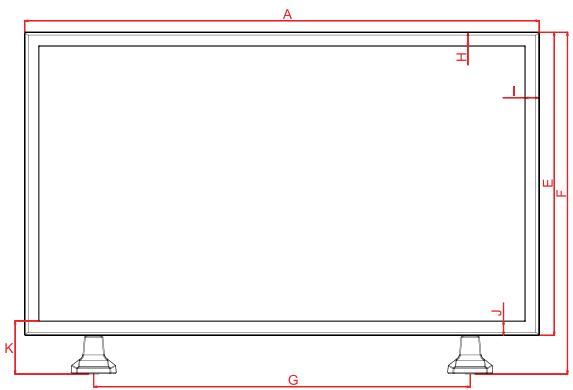
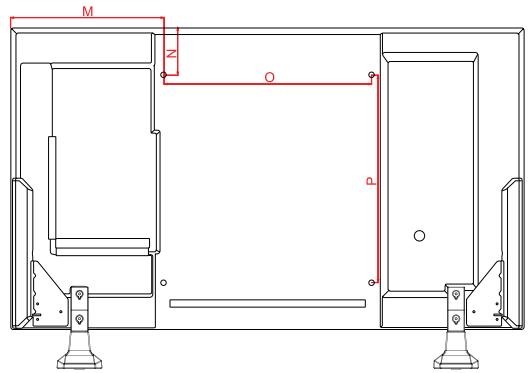
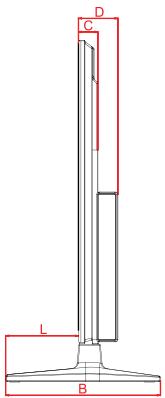
(Unit: mm)
| 42 inch | 47 inch | 55 inch | |
| A | 991.7 | 1102.0 | 1281.6 |
| B | 298.3 | 298.3 | 298.3 |
| C | 37.5 | 37.5 | 37.8 |
| D | 76.1 | 76.1 | 80.0 |
| E | 584.3 | 646.4 | 752.4 |
| F | 659.2 | 720.9 | 825.7 |
| G | 726.0 | 824.2 | 950.0 |
| H | 27.6 | 28.0 | 33.5 |
| I | 27.6 | 28.0 | 33.5 |
| J | 27.6 | 28.0 | 33.5 |
| K | 102.4 | 102.5 | 106.8 |
| L | 140.3 | 140.3 | 136.4 |
| M | 295.9 | 351.0 | 440.8 |
| N | 92.2 | 123.2 | 176.2 |
| O | 400.0 | 400.0 | 400.0 |
| P | 400.0 | 400.0 | 400.0 |
Product specifications shown above may be changed without prior notice due to upgrade of product functions.
RGB (PC) supported mode
| Resolution | Horizontal Frequency(kHz) | Vertical Frequency(Hz) |
| 640 x 350 | 31.469 | 70.8 |
| 720 x 400 | 31.468 | 70.8 |
| 640 x 480 | 31.469 | 59.94 |
| 640 x 480 | 37.5 | 75 |
| 800 x 600 | 37.879 | 60.317 |
| 800 x 600 | 46.875 | 75 |
| 832 x 624 | 49.725 | 74.55 |
| 1024 x 768 | 48.363 | 60 |
| 1024 x 768 | 60.123 | 75.029 |
| 1280 x 720 | 44.772 | 59.855 |
| 1366 x 768 | 47.7 | 60 |
| 1280 x 1024 | 63.981 | 60.02 |
| 1280 x 1024 | 79.98 | 75.02 |
| 1680 x 1050 | 65.290 | 59.954 |
| 1920 x 1080 | 67.5 | 60 |
HDMI,DVI-D,Display Port (PC) supported mode
| Resolution | Horizontal Frequency(kHz) | Vertical Frequency(Hz) |
| 640 x 480 | 31.469 | 59.94 |
| 800 x 600 | 37.879 | 60.317 |
| 1024 x 768 | 48.363 | 60 |
| 1280 x 720 | 44.772 | 59.855 |
| 1366 x 768 | 47.7 | 60 |
| 1280 x 1024 | 63.981 | 60.02 |
| 1680 x 1050 | 65.290 | 59.954 |
| 1920 x 1080 | 67.5 | 60 |
DTV Mode
| Resolution | Component | HDMI,Display Port (DTV) |
| 480i | o | x |
| 576i | o | x |
| 480p | o | o |
| 576p | o | o |
| 720p | o | o |
| 1080i | o | o |
| 1080p | o | o |
Power Indicator
| Mode | Product |
| On Mode | blue |
| Sleep Mode | Amber |
| Off Mode | - |

NOTE
- When the cable is connected to the HDMI or the display port, you can select the PC/DTV mode optionally. It is recommended you to set to the PC mode when connecting to PC; the DTV mode when connecting to DTV.

NOTE
Vertical frequency: To enable the user to watch the product display, screen image should be changed tens of times every second like a fluorescent lamp. The vertical frequency or refresh rate is the times of image display per second. The unit is Hz.
- Horizontal frequency: The horizontal interval is the time to display one vertical line. When 1 is divided by the horizontal interval, the number of horizontal lines displayed every second can be tabulated as the horizontal frequency. The unit is kHz.
IR CODES
| Code (Hexa) | Function | Note |
| 95 | ENERGY SAVING | R/C BUTTON |
| 08 | POWER (◇) ON/OFF | R/C BUTTON |
| 0B | INPUT | R/C BUTTON |
| C4 | MONITOR ON | R/C BUTTON (Discrete IR Code) |
| C5 | MONITOR OFF | R/C BUTTON (Discrete IR Code) |
| 43 | MENU | R/C BUTTON |
| 40 | Up (^) | R/C BUTTON |
| 41 | Down (∨) | R/C BUTTON |
| 07 | Left (<) | R/C BUTTON |
| 06 | Right (>) | R/C BUTTON |
| 44 | OK (◎) | R/C BUTTON |
| 28 | BACK (◇●) | R/C BUTTON |
| 5B | EXIT | R/C BUTTON |
| 4D | PSM | R/C BUTTON |
| 02 | Volume △(+) | R/C BUTTON |
| 03 | Volume △(-) | R/C BUTTON |
| 09 | MUTE | R/C BUTTON |
| E0 | BRIGHTNESS ^ (PAGE UP) | R/C BUTTON |
| E1 | BRIGHTNESS ^ (PAGE Down) | R/C BUTTON |
| 10 to 19 | Number Key 0 to 9 | R/C BUTTON |
| 72 | Red Key (ID ON) | R/C BUTTON |
| 71 | Green Key (ID OFF) | R/C BUTTON |
| 63 | Yellow Key | R/C BUTTON |
| 61 | Blue Key | R/C BUTTON |
| 7B | TILE | R/C BUTTON |
| 5A | AV(CVBS) | Discrete IR Code |
| BF | Component | Discrete IR Code |
| D5 | RGB | Discrete IR Code |
| CE | Display Port | Discrete IR Code |
| C6 | DVI-D | Discrete IR Code |
| E9 | HDMI | Discrete IR Code |
| 76 | ARC (4:3) | Discrete IR Code |
| 77 | ARC (16:9) | Discrete IR Code |
| AF | ARC (ZOOM,Cinema Zoom 1) | Discrete IR Code |
| 79 | ARC (MARK) | R/C BUTTON (Discrete IR Code) |
| 99 | Auto Config. | R/C BUTTON (Discrete IR Code) |
| B1 | ■ | R/C BUTTON |
| B0 | ▲ | R/C BUTTON |
| BA | II | R/C BUTTON |
| 8F | ← | R/C BUTTON |
| 8E | → | R/C BUTTON |
CONTROLLING THE MULTIPLE PRODUCT
- Use this method to connect several products to a single PC. You can control several products at a time by connecting them to a single PC.
- In the Option menu, Set ID must be between 1 and 99 without being duplicated.
Connecting the cable
Connect the RS-232C cable as shown in the picture.
- The RS-232C protocol is used for communication between the PC and product. You can turn the product on/off, select an input source or adjust the OSD menu from your PC.
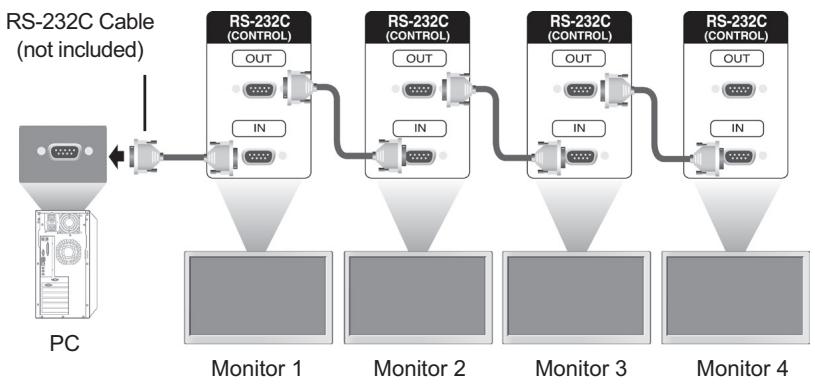
RS-232C Configurations
7-Wire Configurations (Standard RS-232C cable)
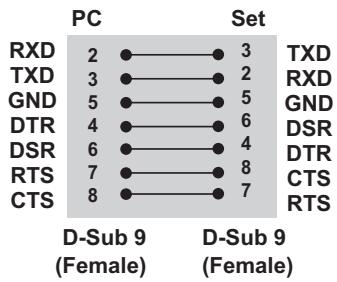
3-Wire Configurations (Not Standard)
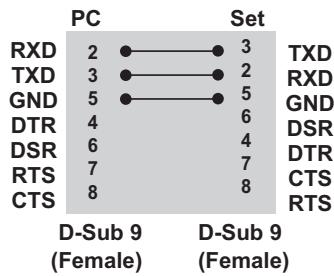
Communication Parameter
- Baud Rate : 9600 buad Rate (UART)
Data Length: 8 bit - Parity Bit : None
- Stop Bit : 1bit
- Flow Control : None
- Communication Code : ASCII code
- Use a crossed (reverse) cable
Customer Support
For technical support or product service, see the table below or contact your reseller.
NOTE: You will need the product serial number.
| Country/Region | Website | T = Telephone F = FAX | |
| Australia/New Zealand | www.viewsonic.com.au | AUS= 1800 880 818 NZ= 0800 008 822 | service@au.viewsonic.com |
| Canada | www.viewsonic.com | T (Toll-Free)= 1-866-463-4775 T (Toll)= 1-424-233-2533 F= 1-909-468-3757 | service.ca@viewsonic.com |
| Europe | www.viewsoniceurope.com | www.viewsoniceurope.com/uk/Support/Calldesk.htm | |
| Hong Kong | www.hk.viewsonic.com | T= 852 3102 2900 | service@hk.viewsonic.com |
| India | www.in.viewsonic.com | T= 1800 266 0101 | service@in.viewsonic.com |
| Ireland (Eire) | www.viewsoniceurope.com/uk/ | www.viewsoniceurope.com/uk/support/call-desk/ | service_ie@viewsoniceurope.com |
| Korea | www.kr.viewsonic.com | T= 080 333 2131 | service@kr.viewsonic.com |
| Latin America (Argentina) | www.viewsonic.com/la/ | T= 0800-4441185 | soporte@viewsonic.com |
| Latin America (Chile) | www.viewsonic.com/la/ | T= 1230-020-7975 | soporte@viewsonic.com |
| Latin America (Columbia) | www.viewsonic.com/la/ | T= 01800-9-157235 | soporte@viewsonic.com |
| Latin America (Mexico) | www.viewsonic.com/la/ | T= 001-8882328722 | soporte@viewsonic.com |
| Renta y Datos, 29 SUR 721, COL. LA PAZ, 72160 PUEBLA, PUE. Tel: 01.222.891.55.77 CON 10 LINEAS Electroser, Av Reforma No. 403Gx39 y 41, 97000 Mérida, Yucatán. Tel: 01.999.925.19.16 Other places please refer to http://www.viewsonic.com/la/soporte/index.htm#Mexico | |||
| Latin America (Peru) | www.viewsonic.com/la/ | T= 0800-54565 | soporte@viewsonic.com |
| Macau | www.hk.viewsonic.com | T= 853 2870 0303 | service@hk.viewsonic.com |
| Middle East | ap.viewsonic.com/me/ | Contact your reseller | service@ap.viewsonic.com |
| Puerto Rico & Virgin Islands | www.viewsonic.com | T= 1-800-688-6688 (English) T= 1-866-379-1304 (Spanish) F= 1-909-468-3757 | service.us@viewsonic.com soporte@viewsonic.com |
| Singapore/Malaysia/ Thailand | www.ap.viewsonic.com | T= 65 6461 6044 | service@sg.viewsonic.com |
| South Africa | ap.viewsonic.com/za/ | Contact your reseller | service@ap.viewsonic.com |
| United Kingdom | www.viewsoniceurope.com/uk/ | www.viewsoniceurope.com/uk/support/call-desk/ | service_gb@viewsoniceurope.com |
| United States | www.viewsonic.com | T (Toll-Free)= 1-800-688-6688 T (Toll)= 1-424-233-2530 F= 1-909-468-3757 | service.us@viewsonic.com |
Limited Warranty VIEWSONIC® LCD Commercial Display
What the warranty covers:
ViewSonic warrants its products to be free from defects in material and workmanship, under normal use, during the warranty period. If a product proves to be defective in material or workmanship during the warranty period, ViewSonic will, at its sole option, repair or replace the product with a like product. Replacement product or parts may include remanufactured or refurbished parts or components.
How long the warranty is effective:
ViewSonic LCD Commercial Displays are warranted for 3 years for all parts excluding the light source and 3 years for labor from the date of the first customer purchase.
Who the warranty protects:
This warranty is valid only for the first consumer purchaser.
What the warranty does not cover:
- Any product on which the serial number has been defaced, modified or removed.
- Damage, deterioration or malfunction resulting from:
a. Accident, misuse, neglect, fire, water, lightning, or other acts of nature, unauthorized product modification, or failure to follow instructions supplied with the product.
b. Any damage of the product due to shipment.
c. Removal or installation of the product.
d. Causes external to the product, such as electrical power fluctuations or failure.
e. Use of supplies or parts not meeting ViewSonic's specifications.
f. Normal wear and tear.
g. Any other cause which does not relate to a product defect.
- Any product exhibiting a condition commonly known as "image burn-in" which results when a static image is displayed on the product for an extended period of time.
- Removal, installation, one way transportation, insurance, and set-up service charges.
How to get service:
- For information about receiving service under warranty, contact ViewSonic Customer Support (Please refer to Customer Support page). You will need to provide your product's serial number.
- To obtain warranty service, you will be required to provide (a) the original dated sales slip, (b) your name, (c) your address, (d) a description of the problem, and (e) the serial number of the product.
- Take or ship the product freight prepaid in the original container to an authorized ViewSonic service center or ViewSonic.
- For additional information or the name of the nearest ViewSonic service center, contact ViewSonic.
Limitation of implied warranties:
There are no warranties, express or implied, which extend beyond the description contained herein including the implied warranty of merchantability and fitness for a particular purpose.
Exclusion of damages:
ViewSonic's liability is limited to the cost of repair or replacement of the product. ViewSonic shall not be liable for:
- Damage to other property caused by any defects in the product, damages based upon inconvenience, loss of use of the product, loss of time, loss of profits, loss of business opportunity, loss of goodwill, interference with business relationships, or other commercial loss, even if advised of the possibility of such damages.
- Any other damages, whether incidental, consequential or otherwise.
- Any claim against the customer by any other party.
- Repair or attempted repair by anyone not authorized by ViewSonic.
Effect of state law:
This warranty gives you specific legal rights, and you may also have other rights which vary from state to state. Some states do not allow limitations on implied warranties and/or do not allow the exclusion of incidental or consequential damages, so the above limitations and exclusions may not apply to you.
Sales outside the U.S.A. and Canada:
For warranty information and service on ViewSonic products sold outside of the U.S.A. and Canada, contact ViewSonic or your local ViewSonic dealer.
The warranty period for this product in mainland China (Hong Kong, Macao and Taiwan Excluded) is subject to the terms and conditions of the Maintenance Guarantee Card.
For users in Europe and Russia, full details of warranty provided can be found in www.viewsoniceurope.com under Support/Warranty Information.
Mexico Limited Warranty VIEWSONIC® LCD Commercial Display
What the warranty covers:
ViewSonic warrants its products to be free from defects in material and workmanship, under normal use, during the warranty period. If a product proves to be defective in material or workmanship during the warranty period, ViewSonic will, at its sole option, repair or replace the product with a like product. Replacement product or parts may include remanufactured or refurbished parts or components.
How long the warranty is effective:
ViewSonic LCD Commercial Displays are warranted for 3 years for all parts excluding the light source and 3 years for labor from the date of the first customer purchase.
Who the warranty protects:
This warranty is valid only for the first consumer purchaser.
What the warranty does not cover:
-
Any product on which the serial number has been defaced, modified or removed.
-
Damage, deterioration or malfunction resulting from:
a. Accident, misuse, neglect, fire, water, lightning, or other acts of nature, unauthorized product modification, or failure to follow instructions supplied with the product.
b. Any damage of the product due to shipment.
c. Removal or installation of the product.
d. Causes external to the product, such as electrical power fluctuations or failure.
e. Use of supplies or parts not meeting ViewSonic's specifications.
f. Normal wear and tear.
g. Any other cause which does not relate to a product defect.
-
Any product exhibiting a condition commonly known as "image burn-in" which results when a static image is displayed on the product for an extended period of time.
-
Removal, installation, one way transportation, insurance, and set-up service charges.
How to get service:
For information about receiving service under warranty, contact ViewSonic Customer Support (Please refer to the attached Customer Support page). You will need to provide your product's serial number, so please record the product information in the space provided below on your purchase for your future use. Please retain your receipt of proof of purchase to support your warranty claim.
For Your Records
Product Name:
Document Number:
Purchase Date:
Model Number:
Serial Number:
Extended Warranty Purchase? (Y/N)
If so, what date does warranty expire?
- To obtain warranty service, you will be required to provide (a) the original dated sales slip, (b) your name, (c) your address, (d) a description of the problem, and (e) the serial number of the product.
- Take or ship the product in the original container packaging to an authorized ViewSonic service center.
- Round trip transportation costs for in-warranty products will be paid by ViewSonic.
Limitation of implied warranties:
There are no warranties, express or implied, which extend beyond the description contained herein including the implied warranty of merchantability and fitness for a particular purpose.
Exclusion of damages:
ViewSonic's liability is limited to the cost of repair or replacement of the product. ViewSonic shall not be liable for:
- Damage to other property caused by any defects in the product, damages based upon inconvenience, loss of use of the product, loss of time, loss of profits, loss of business opportunity, loss of goodwill, interference with business relationships, or other commercial loss, even if advised of the possibility of such damages.
- Any other damages, whether incidental, consequential or otherwise.
- Any claim against the customer by any other party.
- Repair or attempted repair by anyone not authorized by ViewSonic.
4.3: ViewSonic Mexico Limited Warranty
CD_LW02 Rev. 1A 06-25-07
| Contact Information for Sales & Authorized Service (Centro Autorizzato de Servizio) within Mexico: | |
| Name, address, of manufacturer and importers: México, Av. de la Palma #8 Piso 2 Despacho 203, Corporativo Interpalmas, Col. San Fernando Huixquilucan, Estado de México Tel: (55) 3605-1099 http://www.viewsonic.com/la/soporte/index.htm | |
| NUMERO Gratis DE ASISTENCIA TÉCNICA PARATodo MÉXICO: 001.866.823.2004 | |
| Hermosillo: Distribuciones y Servicios Computaciones SA de CV. Calle Juarez 284 local 2 Col. Bugambildias C.P. 83140 Tel: 01-66-22-14-9005 E-Mail: disc2@hmo.megared.net.mx | Villahermosa: Compumantenimietnos Garantizados, S.A. de C.V. AV. GREGORIO MENDEZ #1504 COL, FLORIDA C.P. 86040 Tel: 01 (993) 3 52 00 47 / 3522074 / 3 52 20 09 E-Mail: compumantenimientos@prodigy.net.mx |
| Puebla, Pue. (Matrix): RENTA Y DATOS, S.A. DE C.V. Domicilio: 29 SUR 721 COL. LA PAZ 72160 PUEBLA, PUE. Tel: 01(52).222.891.55.77 CON 10 LINEAS E-Mail: datos@puebla.megared.net.mx | Veracruz, Ver.: CONEXION Y DESARROLLO, S.A DE C.V. Av. Americas # 419 ENTRE PINZON Y ALVARADO Fracc. Reforma C.P. 91919 Tel: 01-22-91-00-31-67 E-Mail: gacosta@qplus.com.mx |
| Chihuahua | Cuernavaca |
| Solutiones Globales en Computación C. Magisterio # 3321 Col. Magisterial Chihuahua, Chih. Tel: 4136954 E-Mail: Cefevo@soluglobales.com | Compusupport de Cuernavaca SA de CV Francisco Leyva # 178 Col. Miguel Hidalgo C.P. 62040, Cuernavaca Morelos Tel: 01 777 3180579 / 01 777 3124014 E-Mail: aquevedo@compusupportcva.com |
| Distrito Federal: QPLUS, S.A. de C.V. Av. Coyoacán 931 Col. Del Valle 03100, México, D.F. Tel: 01(52)55-50-00-27-35 E-Mail: gacosta@qplus.com.mx | Guadalajara, Jal.: SERVICRECE, S.A. de C.V. Av. Niños Héroes # 2281 Col. Arcos Sur, Sector Juárez 44170, Guadalajara, Jalisco Tel: 01(52)33-36-15-15-43 E-Mail: mmiranda@servicrece.com |
| Guerrero Acapulco | Monterrey: Global Product Services Mar Caribe # 1987, Esquina con Golfo Pérsico Fracc. Bernardo Reyes, CP 64280 Monterrey N.L. México Tel: 8129-5103 E-Mail: aydeem@gps1.com.mx |
| GS Computación (Grupo Sesicomp) Progreso #6-A, Colo Centro 39300 Acapulco, Guerrero Tel: 744-48-32627 | |
| MERIDA: ELECTROSER Av Reforma No. 403Gx39 y 41 Mérida, Yucatán, México CP97000 Tel: (52) 999-925-1916 E-Mail: rrrb@sureste.com | Oaxaca, Oax.: CENTRO DE DISTRIBUTION Y SERVICIO, S.A. de C.V. Murguía # 708 P.A., Col. Centro, 68000, Oaxaca Tel: 01(52)95-15-15-22-22 Fax: 01(52)95-15-13-67-00 E-Mail: gpotai2001@hotmail.com |
| Tijuana: STD Av Ferrocarril Sonora #3780 L-C Col 20 de Noviembre Tijuana, Mexico | FOR USA SUPPORT: ViewSonic Corporation 381 Brea Canyon Road, Walnut, CA. 91789 USA Tel: 800-688-6688 (English); 866-323-8056 (Spanish); Fax: 1-800-685-7276 E-Mail: http://www.viewsonic.com |

ViewSonic
- Compliance Information
- For U.S.A.
- For Canada
- CE Conformity for European Countries
- Following information is only for EU-member states:
- Important Safety Instructions
- Declaration of RoHS Compliance
- Copyright Information
- Product Registration
- For Your Records
- Product disposal at end of product life
- CONTENTS
- LICENSES
- ASSEMBLING AND PREPARING
- REMOTE CONTROL
- USING THE MONITOR
- ENTERTAINMENT
- CUSTOMIZING SETTINGS
- MAKING CONNECTIONS
- TROUBLESHOOTING
- SPECIFICATIONS
- IR CODES
- CONTROLLING THE MULTIPLE PRODUCT
- LICENSES
- ASSEMBLING AND PREPARED
- Accessories
- CAUTION
- NOTE
- Optional Accessories
- Screws
- Parts and buttons
- Using the Mounting Cable Tie
- Connecting the Speakers
- Connecting the stand
- Using the Kensington security system
- Portrait Layout
- Mounting on a wall
- REMOTE CONTROL
- USING THE MONITOR
- Connecting to a PC
- RGB connection
- DVI-D connection
- HDMI connection
- Display Port connection
- Adjusting the screen
- Selecting an image mode
- Customizing image options
- Customizing PC display options
- Adjusting the sound Selecting an sound mode
- Customizing sound options
- Using additional options
- Adjusting aspect ratio
- Using the input list
- Selecting an input source
- ENTERTAINMENT
- Connecting to a wired network
- Tips for Network setting
- Network Status
- Connecting USB storage devices
- Tips for using USB storage devices
- Browsing files
- Viewing movies
- Play a movie.
- Control playback by using the following buttons.
- Tips for using playing video files
- Video options
- Viewing photos
- Using photo options
- Photo options
- Listening to music
- Tips for playing music files
- Music options
- DivX® VOD Guide
- DivX® VOD Registration
- DivX® VOD Deregistration
- Using PIP/PBP
- CUSTOMIZING SETTINGS
- Accessing main menus
- PICTURE settings
- AUDIO settings
- TIME settings
- OPTION settings
- Tile Mode
- Off
- 2X1
- 2X2
- 3X3
- 4X4
- 5X5
- Tile Mode - Natural mode
- Before
- After
- PIP/PBP
- Mode
- Position
- Size
- NETWORK settings
- MAKING CONNECTIONS
- Connecting to a HD receiver, DVD, Camcorder, Camera, Gaming Device or VCR player
- Component connection
- AV(CVBS) connection
- Connecting to a USB
- Connecting to the LAN
- LAN connection
- Daisy Chain Monitors
- TROUBLESHOOTING
- SPECIFICATIONS
- CDP4237-L
- CDP4737-L
- CDP5537-L
- Dimensions
- RGB (PC) supported mode
- HDMI,DVI-D,Display Port (PC) supported mode
- DTV Mode
- Power Indicator
- IR CODES
- CONTROLLING THE MULTIPLE PRODUCT
- Connecting the cable
- RS-232C Configurations
- 7-Wire Configurations (Standard RS-232C cable)
- 3-Wire Configurations (Not Standard)
- Communication Parameter
- Customer Support
- Limited Warranty VIEWSONIC® LCD Commercial Display
- What the warranty covers:
- How long the warranty is effective:
- Who the warranty protects:
- What the warranty does not cover:
- How to get service:
- Limitation of implied warranties:
- Exclusion of damages:
- Effect of state law:
- Sales outside the U.S.A. and Canada:
- Mexico Limited Warranty VIEWSONIC® LCD Commercial Display
Brand : VIEWSONIC
Model : CDP4737-L
Category : Computer monitor