
CD5233 - Computer monitor VIEWSONIC - Free user manual and instructions
Find the device manual for free CD5233 VIEWSONIC in PDF.


| Product type | Computer monitor |
| Brand | VIEWSONIC |
| Model | CD5233 |
| Screen size | 23.8 inches |
| Resolution | 1920 x 1080 pixels |
| Aspect ratio | 16:9 |
| Panel technology | IPS |
| Brightness | 250 cd/m² |
| Contrast ratio | 1000:1 |
| Response time | 5 ms |
| Connectivity | HDMI, VGA |
| Power supply | 100-240 V AC, 50/60 Hz |
| Power consumption (typical) | 30 W |
| Weight (with stand) | 4.5 kg |
| Dimensions (W x H x D with stand) | 540 x 400 x 180 mm |
| Main features | High-quality display, preset modes, low consumption |
| Maintenance and cleaning | Use a soft, non-abrasive cloth. Avoid any chemical products. |
| Safety | Mandatory grounding to prevent electric shocks |
| Spare parts and repairability | Stand, power and signal cables available |
Frequently Asked Questions - CD5233 VIEWSONIC
User questions about CD5233 VIEWSONIC
0 question about this device. Answer the ones you know or ask your own.
Ask a new question about this device
Download the instructions for your Computer monitor in PDF format for free! Find your manual CD5233 - VIEWSONIC and take your electronic device back in hand. On this page are published all the documents necessary for the use of your device. CD5233 by VIEWSONIC.
USER MANUAL CD5233 VIEWSONIC
LCD Commercial Display
- User Guide
- Guide de l'utilisateur
- Guía del usuario
- Bedienungsanleitung
- Руководство пользователя
- 使用手册
IMPORTANT: Please read this User Guide to obtain important information on
installing and using your product in a safe manner, as well as registering your product
for future service. Warranty information contained in this User Guide will describe
your limited coverage from ViewSonic Corporation, which is also found on our web site
at http://www.viewsonic.com in English, or in specific languages using the Regional
selection box in the upper right corner of our website.
Declaration of RoHS Compliance
This product has been designed and manufactured in compliance with Directive 2002/95/EC of the European Parliament and the Council on restriction of the use of certain hazardous substances in electrical and electronic equipment (RoHS Directive) and is deemed to comply with the maximum concentration values issued by the European Technical Adaptation Committee (TAC) as shown below:
| Substance | Proposed Maximum Concentration | Actual Concentration |
| Lead (Pb) | 0.1% | < 0.1% |
| Mercury (Hg) | 0.1% | < 0.1% |
| Cadmium (Cd) | 0.01% | < 0.01% |
| Hexavalent Chromium ( Cr^6+ ) | 0.1% | < 0.1% |
| Polybrominated biphenyls (PBB) | 0.1% | < 0.1% |
| Polybrominated diphenyl ethers (PBDE) | 0.1% | < 0.1% |
Certain components of products as stated above are exempted under the Annex of the RoHS Directives as noted below:
Examples of exempted components are:
- Mercury in compact fluorescent lamps not exceeding 5 mg per lamp and in other lamps not specifically mentioned in the Annex of RoHS Directive.
- Lead in glass of cathode ray tubes, electronic components, fluorescent tubes, and electronic ceramic parts (e.g. piezoelectronic devices).
- Lead in high temperature type solders (i.e. lead-based alloys containing 85% by weight or more lead).
- Lead as an allotting element in steel containing up to 0.35% lead by weight, aluminium containing up to 0.4% lead by weight and as a cooper alloy containing up to 4% lead by weight.
Copyright Information
Copyright ^© ViewSonic Corporation, 2010. All rights reserved.
ViewSonic, the three birds logo, OnView, ViewMatch, and ViewMeter are registered trademarks of ViewSonic Corporation.
ENERGY STAR ^® is a registered trademark of the U.S. Environmental Protection Agency (EPA). As an ENERGY STAR ^® partner, ViewSonic Corporation has determined that this product meets the ENERGY STAR ^® guidelines for energy efficiency.
Disclaimer:ViewSonic Corporation shall not be liable for technical or editorial errors or omissions contained herein; nor for incidental or consequential damages resulting from furnishing this material, or the performance or use of this product.
In the interest of continuing product improvement, ViewSonic Corporation reserves the right to change product specifications without notice. Information in this document may change without notice.
No part of this document may be copied, reproduced, or transmitted by any means, for any purpose without prior written permission from ViewSonic Corporation.
Product Registration
To meet your future needs, and to receive any additional product information as it becomes available, please register your product on the Internet at: www.viewsonic.com.
For Your Records
Product Name:
CD5233
ViewSonic 52" LCD Commercial Display
Model Number:
VS13511
Document Number:
CD5233_UG_ENG Rev. 1A 05-20-10
Serial Number:
Purchase Date:
Product disposal at end of product life
ViewSonic is concerned about the preservation of our environment. Please dispose of this product properly at the end of its useful life. Your local waste disposal company may provide information about proper disposal.
The lamp in this product contains mercury. Please dispose of properly in accordance with environmental laws of your location.
CONTENTS
SAFETY INSTRUCTIONS....3
Package Contents......9
Parts Name and Functions....10
Control Panel....10
Terminal Panel....11
Remote Control 12
Operating Range for the Remote Control....13
Handling the remote control 13
Setup Procedure 14
How to Mount and Attach Feet to the LCD Monitor....16
Connectivity 19
Connectivity Diagram 19
Connecting to a Personal Computer ....20
Connecting to a Digital Interface Equipment....21
Connecting to a DVD Player....22
Connecting to a Stereo Amplifier 23
Connecting to a display mounted PC 23
Basic Operation 24
Power ON and OFF Modes 24
Power Indicator....25
Using Power Management 25
Display Signal of Video Source Setting to [VIDEO]......25
Picture Size....25
Smart Picture Mode....26
Audio Source Switching....26
Control Lock Mode 26
OSD Information 26
OSD (On-Screen-Display) Controls 27
PICTURE 28
SCREEN....30
AUDIO 32
PIP (PICTURE IN PICTURE)....33
CONFIGURATION 1....34
CONFIGURATION 2....36
ADVANCED OPTION 37
NOTE......40
Features 42
Troubleshooting....43
Specifications....45
SAFETY INSTRUCTIONS
WARNINGS AND PRECAUTIONS
KNOW THESE SAFETY SYMBOLS
| CAUTION | |
| RISK OF ELECTRIC SHOCKDO NOT OPEN | |
| CAUTION TO REDUCE THE RISK OF ELECTRIC SHOCK DO NOTREMOVE COVER (OR BACK) NO USER SERVICEABLE PARTSINSIDE REFER SERVICING TO QUALIFIED SERVICE PERSONNEL | |
CAUTION: TO REDUCE THE RISK OF ELECTRIC SHOCK, DO NOT REMOVE COVER (OR BACK). NO USER SERVICEABLE PARTS INSIDE. REFER SERVICING TO QUALIFIED SERVICE PERSONNEL.

This symbol indicates high voltage is present inside. It is dangerous to make any kind of contact with any inside part of this product.
This symbol alerts you that important literature concerning operation and maintenance has been included with this product.
Caution: FCC/CSA regulations state that any unauthorized changes or modifications to this equipment may void the user's authority to operate it.
Caution: To prevent electric shock, match the wide blade of plug to the wide slot, and fully insert the plug.
TO PREVENT DAMAGE WHICH MAY RESULT IN FIRE OR ELECTRIC SHOCK HAZARD, DO NOT EXPOSE THIS APPLIANCE TO RAIN OR MOISTURE.
The Socket-outlet shall be installed near the apparatus and shall be easily accessible.
Read and follow these instructions when connecting and using your computer monitor:
● Unplug the monitor if you are not going to use it for an extensive period of time.
- Unplug the monitor if you need to clean it with a slightly damp cloth. The screen many be wiped with a dry cloth when the power is off. However, never use alcohol, solvents or ammonia-based liquids.
- Consult a service technician if the monitor does not operate normally when you have followed the instructions in this manual.
● The casing cover should be opened only by qualified service personnel.
- Keep the monitor out of direct sunlight and away from stoves or any other heat source.
- Remove any object that could fall into the vents or prevent proper cooling of the monitor’s electronics.
- Do not block the ventilation holes on the cabinet.
- Keep the monitor dry. To avoid electric shock, do not expose it to rain or excessive moisture.
- If turning off the monitor by detaching power cable or DC power cord, wait for 6 seconds before attach the power cable or DC power cord for normal operation.
- To avoid the risk of shock or permanent damage to the set do not expose the monitor to rain or excessive moisture.
- When positioning the monitor, make sure the power plug and outlet are easily accessible.
- IMPORTANT: Always activate a screen saver program during your application. If a still image in high contrast remains on the screen for an extended period of time, it may leave an ‘after-image’ or ‘ghost image’ on the front of the screen. This is a well-known phenomenon that is caused by the shortcomings inherent in the LCD technology. In most cases the afterimage will disappear gradually over a period of time after the power has been switched off. Be aware that the after-image symptom cannot be repaired and is not covered under warranty.
REGULATORY INFORMATION
CE DECLARATION OF CONFORMITY
MMD declare under our responsibility that the product is in conformity with the following standards
• EN60950-1:2006+AI 1:2009 (Safety requirement of Information Technology Equipment)
• EN55022:2006+A1:2007 (Radio Disturbance requirement of Information Technology Equipment)
• EN55024:1998+A1:2001+A2:2003 (Immunity requirement of Information Technology Equipment)
• EN6100-3-2: 2006 (Limits for Harmonic Current Emission)
• EN6100-3-3:1995+A1:2001+A2:2005 (Limitation of Voltage Fluctuation and Flicker) following provisions of directives applicable
• 2006/95/EC (Low Voltage Directive)
• 2004/108/EC (EMC Directive)
• 93/68/EEC (Amendment of EMC and Low Voltage Directive) and is produced by a manufacturing organization on ISO9000 level.
FEDERAL COMMUNICATIONS COMMISSION (FCC) NOTICE (U.S. Only)

This equipment has been tested and found to comply with the limits for a Class B digital device, pursuant to Part 15 of the FCC Rules. These limits are designed to provide reasonable protection against harmful interference when the equipment is operated in a commercial environment. This equipment generates, uses and can radiate radio frequency energy and, if not installed and used in accordance with the instructions manual, may cause harmful interference to radio communications.
Operation of this equipment in a residential area is likely to cause harmful interference in which case the user will be required to correct the interference at his own expense.

Changes or modifications not expressly approved by the party responsible for compliance could void the user's authority to operate the equipment.
Use only RF shielded cable that was supplied with the monitor when connecting this monitor to a computer device.
To prevent damage which may result in fire or shock hazard, do not expose this appliance to rain or excessive moisture.
THIS CLASS B DIGITAL APPARATUS MEETS ALL REQUIREMENTS OF THE CANADIAN INTERFERENCE- CAUSING EQUIPMENT REGULATIONS.

This device complies with Part 15 of the FCC Rules. Operation is subject to the following two conditions: (1) this device must cause harmful interference, and (2) this device must accept any interference received, including interference that may undesired operation.
POLISH CENTER FOR TESTING AND CERTIFICATION NOTICE
The equipment should draw power from a socket with an attached protection circuit (a three-prong socket). All equipment that works
together (computer, monitor, printer, and so on) should have the same power supply source.
The phasing conductor of the room's electrical installation should have a reserve short-circuit protection device in the form of a fuse with
a nominal value no larger than 16 amperes (A).
To completely switch off the equipment, the power supply cable must be removed from the power supply socket, which should be located near the equipment and easily accessible.
A protection mark “B” confirms that the equipment is in compliance with the protection usage requirements of standards PN-93/T-42107 and PN-89/E-06251.
natural_image
Diagram of a battery pack with colored wires and connectors (no text or symbols)WARNING - THIS APPLIANCE MUST BE EARTHED. Important:
This apparatus is supplied with an approved moulded 13A plug. To change a fuse in this type of plug proceed as follows:
- Remove fuse cover and fuse.
- Fit new fuse which should be a BS 1362 5A,A.S.T.A. or BSI approved type.
- Refit the fuse cover.
If the fitted plug is not suitable for your socket outlets, it should be cut off and an appropriate 3-pin plug fitted in its place.
If the mains plug contains a fuse, this should have a value of 5A. If a plug without a fuse is used, the fuse at the distribution board should not be greater than 5A.
Note: The severed plug must be destroyed to avoid a possible shock hazard should it be inserted into a 13A socket elsewhere.
How to connect a plug
The wires in the mains lead are coloured in accordance with the following code: BLUE - "NEUTRAL" ("N") BROWN - "LIVE" ("L") GREEN & YELLOW - "EARTH" ("E")
- The GREEN AND YELLOW wire must be connected to the terminal in the plug which is marked with the letter "E" or by the Earth symbol or coloured GREEN or GREEN AND YELLOW.
- The BLUE wire must be connected to the terminal which is marked with the letter "N" or coloured BLACK.
- The BROWN wire must be connected to the terminal which marked with the letter "L" or coloured RED.
Before replacing the plug cover, make certain that the cord grip is clamped over the sheath of the lead - not simply over the three wires.
Your new TV/Monitor contains materials that can be recycled and reused. Specialized companies can recycle your product to increase the amount of reusable materials and to minimize the amount to be disposed of.
Please find out about the local regulations on how to dispose of your old monitor from your local Viewsonic dealer.
(For customers in Canada and U.S.A.)
This product may contain lead and/or mercury. Dispose of in accordance to local-state and federal regulations. For additional information on recycling contact www.eia.org (Consumer Education Initiative)
WASTE ELECTRICAL AND ELECTRONIE EQUIPMENT-WEEE
Attention users in European Union private households

This marking on the product or on its packaging illustrates that, under European Directive 2002/96/EG governing used electrical and electronic appliances, this product may not be disposed of with normal household waste. You are responsible for disposal of this equipment through a designated waste electrical
and electronic equipment collection. To determine the locations for dropping off such waste electrical and electronic, contact your local
government office, the waste disposal organization that serves your household or the store at which you purchased the product.
Attention users in United States:
Like all LCD products, this set contains a lamp with Mercury. Please dispose of according to all Local, State and Federal Laws. For the disposal or recycling information, contact: www.mygreenelectronics.com or www.eiae.org.

END OF LIFE DIRECTIVES-RECYCLING
Your new TV/Monitor contains several materials that can be recycled for new uses.
Like all LCD products, this set contains a lamp with Mercury, please dispose of according to all Local, State and Federal laws.
Package Contents
The LCD monitor pack* should include:
- LCD monitor
• Power cord (1.8 m)
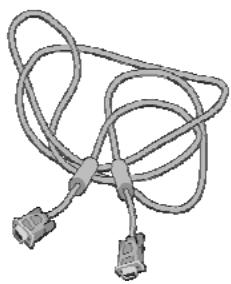
• VGA Signal Cable (1.8 m)
• CD User Manual & QSG
• Remote Control and AAA Batteries

natural_image
Line drawing of a flat-screen monitor with a small bracket at the base (no text or symbols)Main switch cover
* The supplied power cord varies depending on destination.
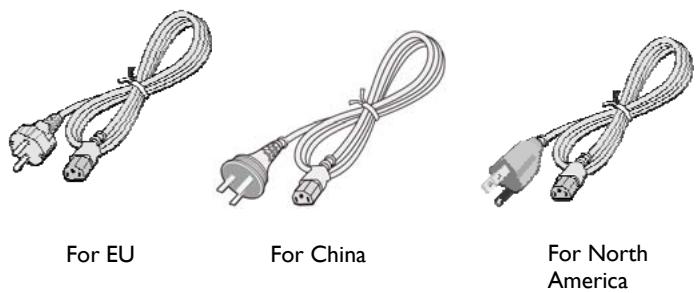
Power cord
* Please make sure that for all other regions, apply a power cord that conforms to the AC voltage of the power socket and has been approved by and complies with the safety regulations of the particular country.
* You might like to save the package box and packing material for shipping the monitor.
* The following components are prepared as options.
- External Speakers
- Table stand
- Main switch cover
- Screw for Main Switch cover x2
- Clamper x 2
- Screw for Clamper x 2
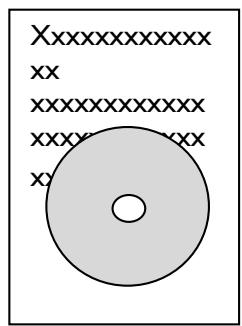
CD User Manual & QSG

Screw for Main switch cover (M3 x 5) x 2

Screw for Clamper (M4 × 8) × 2
Remote Control and AAA Batteries

Clamper x 2
natural_image
Coiled cable with two connectors (no text or symbols visible)Video Signal Cable (D-SUB to D-SUB Cable)
Parts Name and Functions
Control Panel
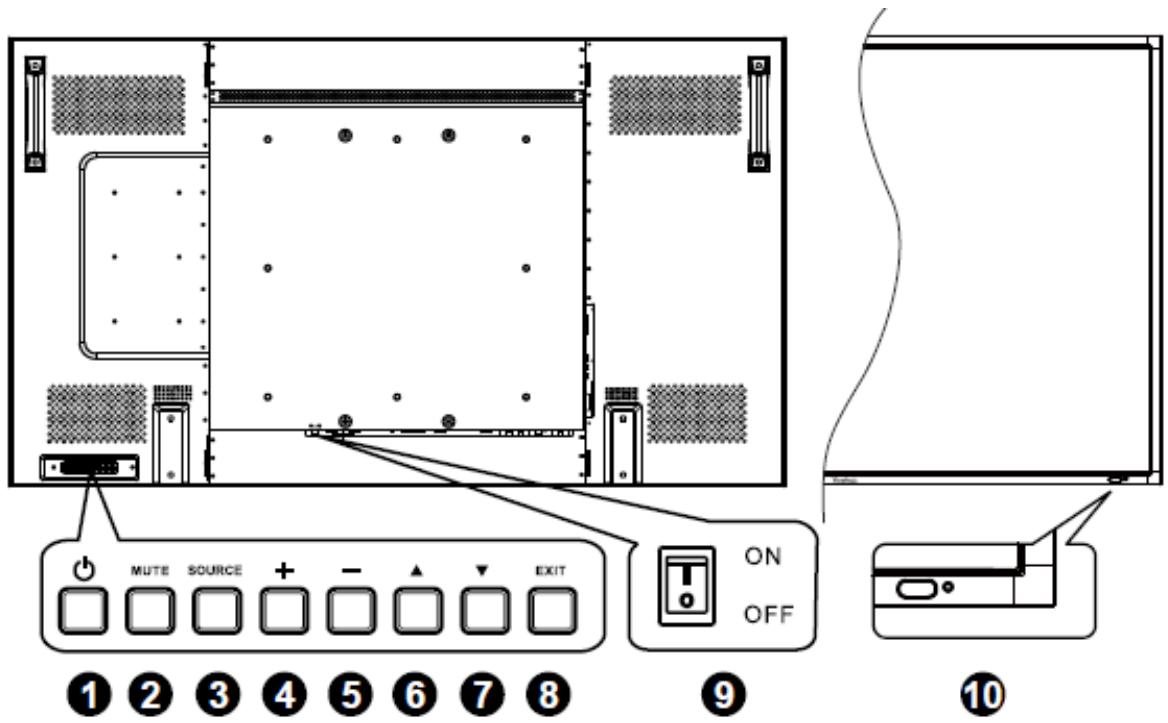
① POWER button (⏻) : To switch the power on/off.
② MUTE button : To switch the audio mute ON/OFF.
③ SOURCE button : To set the function while OSD menu is on or to activate input selection menu while OSD menu is off.
4 PLUS (+) button : To increase the adjustment while OSD menu is on, or to increase the audio output level while the OSD menu is off.
⑤ MINUS (-) button : To decrease the adjustment while OSD menu is on, or to decrease the audio output level while the OSD menu is off.
⑥ UP (▲) button : To move the highlight bar up to adjust the selected item while OSD menu is on, or to activate the OSD menu when the OSD menu is off.
7 DOWN (▼) button :To move the highlight bar down to adjust the selected item while OSD menu is on, or to activate the OSD menu when the OSD menu is off.
⑧ EXIT button : To return to previous menu while OSD menu is on or to activate the OSD menu when the OSD menu is off.
⑨ Main Power Switch : To turn the main power on/off.
10 Remote control sensor, Power indicator and ambient light sensor : To receive the IR signal from the remote control. The indicator would show green when the LCD monitor is active and would turn red when the LCD is POWER OFF. While in the case of the system is in power save mode, it would show both green and red. When SCHEDULE is enabled, it would blink green and glow red. If the indicator blinks red, it tells that a failure is detected. The image brightness will be auto adjusted when “LIGHT SENSOR” set to “ON” on OSD menu.
NOTE: Keyboard Control Lock Mode This function completely disables the access to all Keyboard Control functions. To enable the keyboard control lock, press both of “▲” and “▼” buttons and hold down continuously for more than 3 seconds. To recover back to the user mode, press both of “▲” and “▼” and hold continuously for three 3 seconds.
Terminal Panel
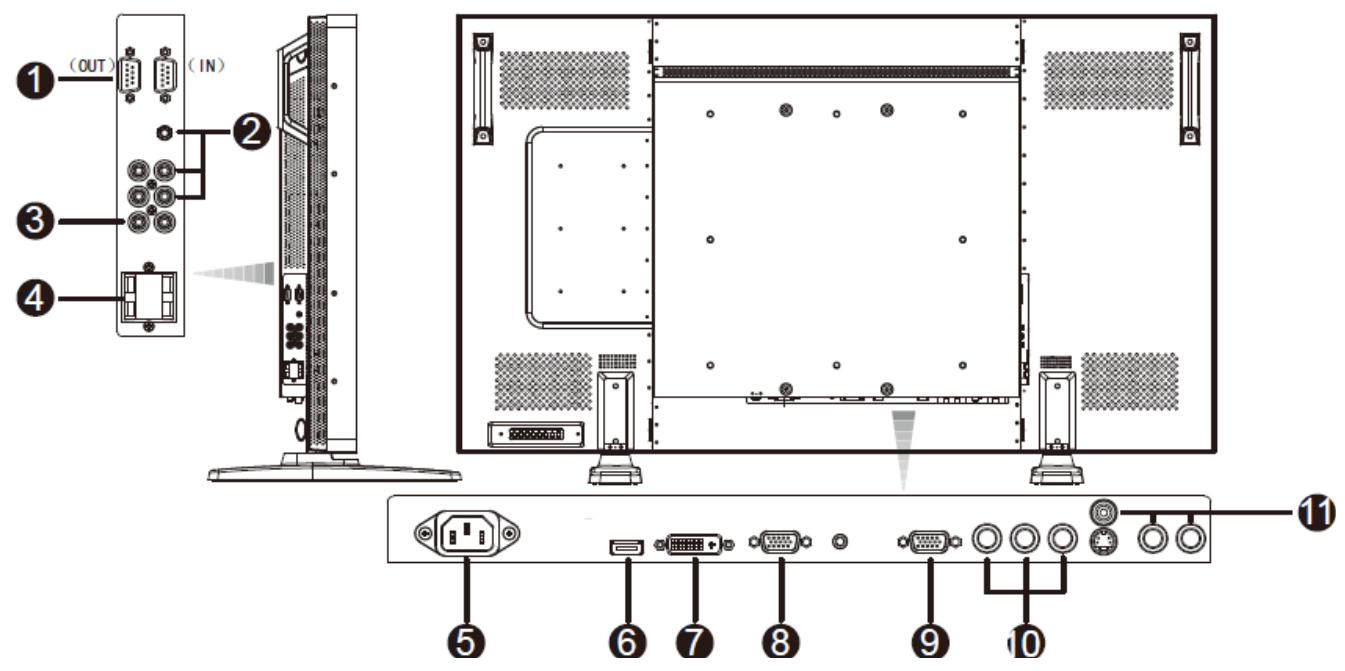
① EXTERNAL CONTROL (mini D-Sub 9 pin)
This is for serial connection when multiple monitors are connected. To achieve remote management through RS232 commands (refer to the RS232 remote control user manual), connect the RS-232C OUT connector from a computer or from a different monitor to the RS-232C IN connector from your monitor. The same RS-232C commands can be looped through by connecting the RS-232C OUT of this monitor to the next RS-232C IN.
② AUDIO IN 1, 2, 3
To input audio signal from external equipment such as a computer, VCR or DVD player.
③ AUDIO OUT
To output the audio signal from the AUDIO IN 1,2 and 3 jack or HDMI.
④ EXTERNAL SPEAKER TERMINAL
To output the audio signal to external speakers from AUDIO IN 1, 2, 3 jack or HDMI.
⑤ AC IN connector
To connect with the supplied power cord.
⑥ HDMI IN
To input digital video/audio signals from a digital equipment or computer.
⑦ DVI-D IN
To input digital video signals from a digital equipment or computer.
⑧ PC-A IN (mini D-Sub 15 pin)
To input analog RGB signals from a computer or other RGB equipment.
⑨ RGB OUT (mini D-Sub 15 pin)
To output the signal from PC-A IN.
⑩ COMPONENT IN [Y, Pb/Cb, Pr/Cr] (BNC)
To connect an equipment such as a DVD player, HDTV device, or Laser disc player.
11 VIDEO IN/OUT
VIDEO IN connector (BNC and RCA): To input a composite video signal. Note that BNC and RCA are not available at the same time.
VIDEO OUT connector (BNC): To output the composite video signal from VIDEO IN connector.
S-VIDEO IN connector (MINI DIN 4 pin): To input the S-video (Y/C separate signal).
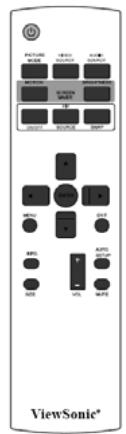
Remote Control
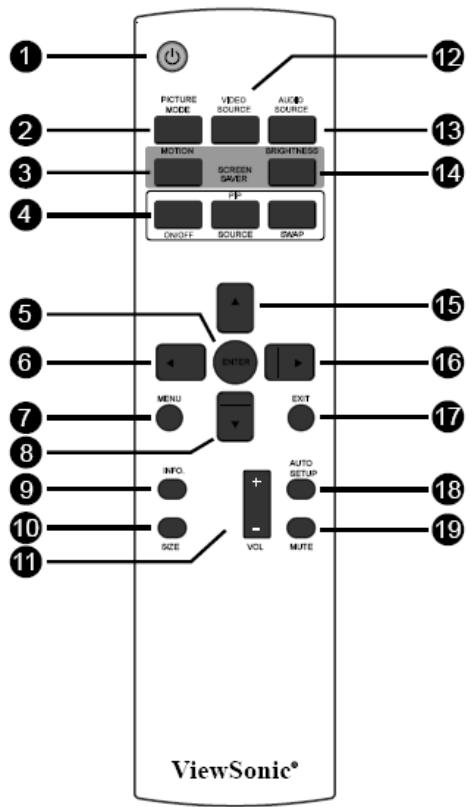
① POWER button
To turn the power on/off.
If LED Power Indicator on the monitor is not lightening, then the remote control will not work.
② PICTURE MODE button
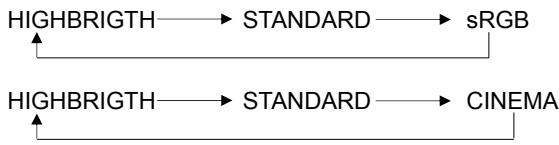
To select picture mode from [HIGHBRIGHT], [STANDARD], [sRGB], [CINEMA].
HIGHBRIGHT: for moving image such as Video
STANDARD: for images (Factory setting)
sRGB: for text based images
CINEMA: for movies.
③ MONTION button
To expanded image slightly and moves 4 directions (up, down, right, left) periodically
④ PIP (Picture In Picture) button
ON/OFF button: To turn PIP mode ON/OFF.
SOURCE button: To select the input signal for the sub-picture.
SWEP button: To exchange between the main picture and sub-picture.
Note:
The “PIP” and “POP” modes do not work if the screen size is “CUSTOM”, “DYNAMIC” or “REAL”.
⑤ ENTER button
To activate the setting with OSD menu.
⑥ LEFT button
To decrease the adjustment with OSD menu.
To move the sub-picture left when in "PIP" mode.
⑦ MENU button
To turn the OSD menu on/off.
⑧ DOWN button
To move the highlight bar down to adjust the selected item when OSD menu is on.
To move the sub-picture down when in "PIP" mode.
⑨ INFO. button
To turn on/off the setting information displayed on the right-up corner of the screen.
10 SIZE button
To select the picture size from [FULL], [NORMAL], [CUSTOM], [DYNAM IC] and [REAL].
⑪ VOLUME button
VOL+ button: To increase the audio output level.
VOL— button; To decrease the audio output level
⑫ VIDEO SOURCE button
To activate input selection menu, and push “▲” or “▼” to select input source from [HDMI], [DVI-D], [VGA], [COMPONENT], [S-VIDEO] and [VIDEO], and then push “ENTER” to switch to selected input source.
13 AUDIO SOURCE button
To activate audio selection menu, and push “▲” or “▼” to select audio source from [AUDIO1], [AUDIO2], [AUDIO3] and [HDMI], and then push “ENTER” to switch to selected audio source.
14 BRIGHTNESS button
To start the BRIGHTNESS OSD selection, and then push "▶" or "◀" button to adjust the value.
15 UP button
To move the highlight bar up to adjust the selected item when OSD menu is on.
To move the sub-picture up when in "PIP" mode.
16 RIGHT button
To increase the adjustment with OSD menu.
To move the sub-picture right when in "PIP" mode.
17 EXIT button
To turn to the previous OSD menu.
18 AUTO SETUP button
To execute the AUTO ADJUST function.
19 MUTE button
To turn the mute function on/off.
Operating Range for the Remote Control
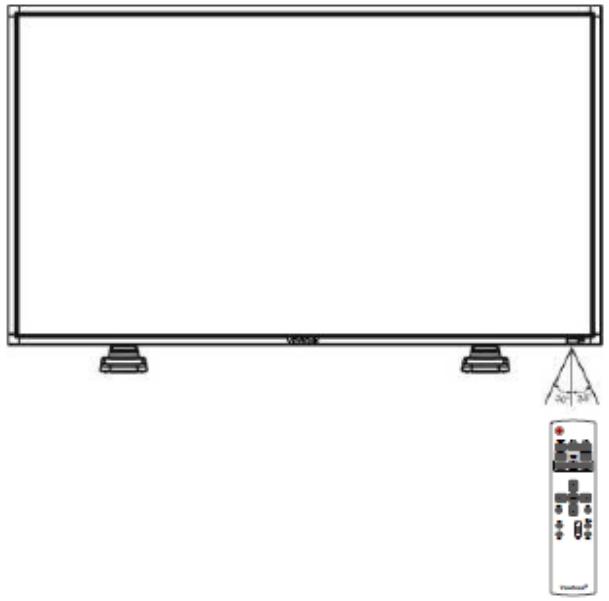
Point the top of the remote control towards the LCD monitor's remote sensor during button operation.
Use the remote control within a distance of about 7 m/23 ft from the front of the LCD monitor's remote control sensor and within a horizontal and vertical angle 30^ with a distance of about 3 m/10 ft.
natural_image
Front view of a flat-screen TV with control buttons and a remote control unit (no text or symbols visible)NOTE:
The remote control system may not function when direct sunlight or strong illumination strikes the remote control sensor of the LCD monitor, or when there is an obstacle in the radiation path.
Handling the remote control
* Do not subject to strong shock.
* Do not allow water or other liquid to splash the remote control. If the remote control gets wet, wipe it dry immediately.
* Avoid exposure to heat and steam.
* Other than to install the batteries, do not open the remote control.
Setup Procedure
1. Install the system on the right location
CAUTION:
THE LCD MONITOR MUST BE MOVED OR INSTALLED BY TWO OR MORE PERSONS.
Failure to follow this caution may result in injury and damage when the LCD monitor falls.
CAUTION:
DO NOT ATTEMPT TO INSTALL THE LCD MONITOR BY YOURSELF.
The LCD display must be installed by a qualified technician.
Contact your dealer for more information.
CAUTION:
DO NOT MOUNT OR OPERATE THE DISPLAY UPSIDE DOWN, FACE UP OR FACE DOWN. IT'S POSSIBILITY TO CLOCKWISE 90 DEGREES MOUNT. BUT DO NOT COUNTERCLOCKWISE 90 DEGREES MOUNT.
CAUTION:
DO NOT INSTALL THE LCD MONITOR WHERE IT WILL BE EXPOSED TO DIRECT SUNLIGHT.
Failure to follow this caution will result in display defects.
IMPORTANT:
Lay the protective sheet, which was wrapped around the LCD monitor when it was packaged, beneath the LCD monitor so as not to scratch the panel.
2. Install the remote control batteries
The remote control is powered by 1.5V AAA batteries. To install or replace batteries:
- Press and slide to open the cover.
- Align the batteries according to the (+) and (−) indications inside the case.
- Replace the cover.

CAUTION:
Incorrect use of batteries can result in leaks or bursting. Be careful especially about the following points.
- Place “AAA” batteries matching the + and - signs on each battery to the + and - signs of the battery compartment.
- Do not mix battery types.
- Do not combine new batteries with used ones. It causes shorter battery life or leakage of batteries.
- Remove dead batteries immediately to prevent battery liquid from leaking into the battery compartment. Don't touch exposed battery acid, it cause damage to your skin.
NOTE:
If you do not intend to use the Remote Control for a long period, remove the batteries.
3. Connect to external equipment
- To protect the connected equipment, turn off the main power before making connections.
- Please refer to section "Connectivity" P.18\~P.22 for operations.
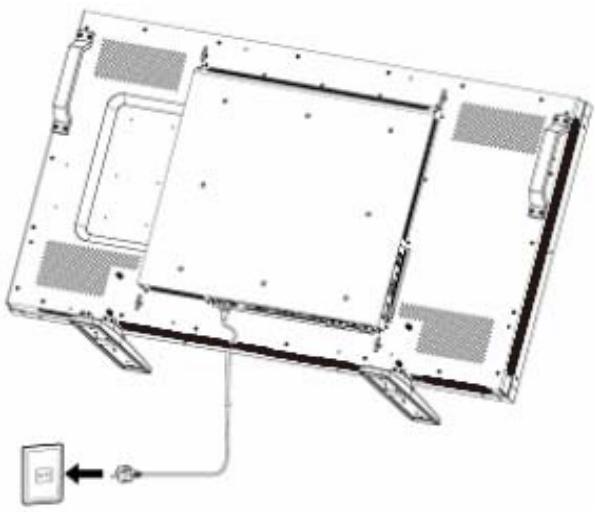
4. Connect power cord
- The power outlet socket should be installed as near to the equipment as possible, and should be easily accessible.
- Fully insert the prongs into the power outlet socket. A loose connection may cause malfunctioning of the device.
NOTE:
Please refer to "Safety Operation" section of this manual for proper selection of AC power cord.
natural_image
Technical line drawing of a rectangular electronic device with mounting brackets and a power outlet (no text or symbols)5. Turn on the power of the attached external equipment
When connected with a computer, turn on the power of the computer first.
6. Operate the attached external equipment
Display the signal from the external equipment by selecting the correct video and audio sources first.
7. Adjust the sound
Make adjustments to lower or to rise the volume as required.
8. Adjust the screen
Make adjustments to the display position or settings if required.
9. Adjust the image
Make adjustments to brightness or contrast if required.
10. Recommended Adjustment
To reduce the risk of “image persistence”, please adjust the following items based on the application being used. “POWER SAVE”, “PANEL SAVING”, “DATE AND TIME”.
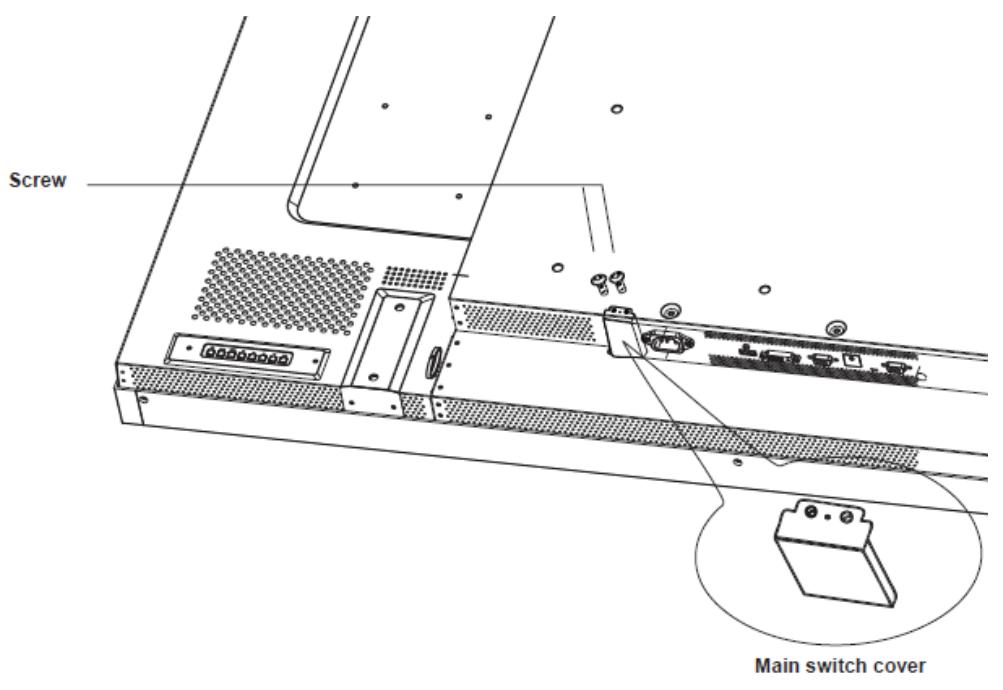
11. To prevent the main power switch from being changed
To prevent the possibility of main power switch being carelessly pushed, please attach the main switch cover (accessory) onto it.
NOTE:
With the main power switch cover in place, the main power switch can not be turned off. Remove main power switch cover in order to turn off the display.
How to Mount and Attach Feet to the LCD Monitor
You can install the LCD monitor in one of the following two ways:
Method 1: Attach and remove the optional stands
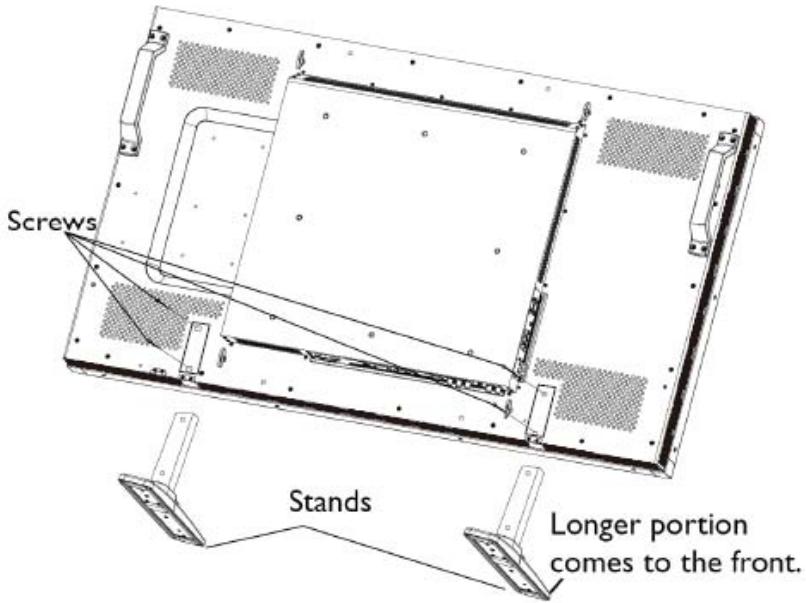
How to install stands
- Please turn the monitor off.
- After inserting stand in guide block, fasten the thumbscrews on both sides of the monitor.
NOTE:
Install the table stand with the longer end of the feet directing to the front.
In the upright position
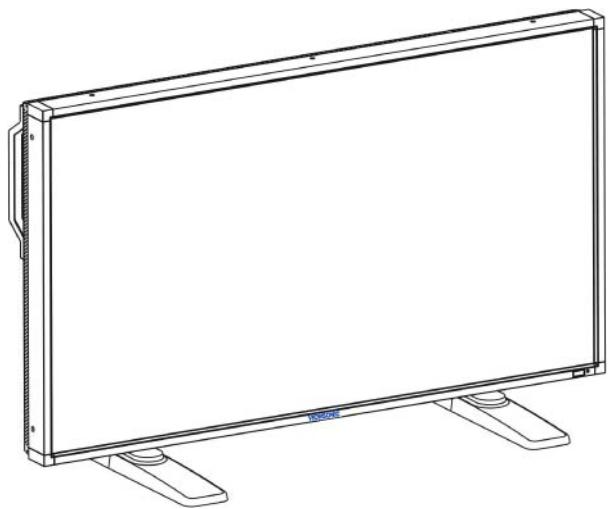
natural_image
Line drawing of a flat-screen monitor with mounting base (no text or symbols)How to remove the stands
- Spread the protective sheet on the flat surface.
- Make the monitor lying on the protective sheet.
- Remove screws using a screwdriver and place them in a safe place for reuse.
To avoid monitor from falling
Take measures to prevent the monitor from falling over in case of an earthquake or other disaster might occur to lessen the probability of injury and damage.
As shown in the figure below, secure the monitor to a solid wall or pillar using rope (commercially available) strong enough to bear the weight of the monitor( approx. 47.5 kg). Screw hooks (commercially available), of ring type rather than C-shaped screw hooks (with opening), are recommended.
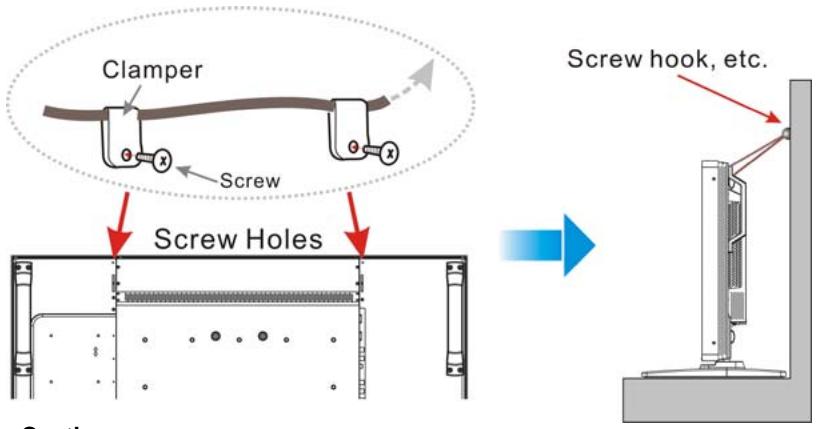
Screw here is not supplied.
Caution:
- Though the recommended prevention from falling is intended to lessen the probability of injury and damage, it doesn't assure its effectiveness against any kind of earthquake or disaster.
- Before moving the monitor, remove the rope that is securing the monitor.
Method II: Mount the monitor on the wall
Before mounting the monitor to the wall, make sure that the system has been power-off and you have obtain a standard wall-mounting kit (commercially available). Using mounting interface that comply with TÜV-GS and/or UL1678 standard in North America is recommended.
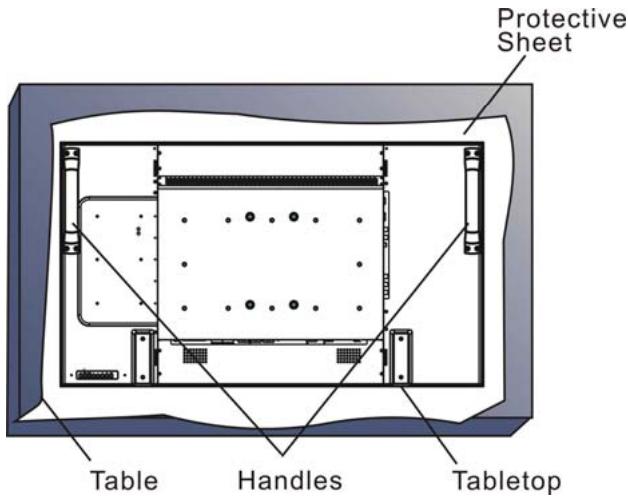
- Lay a protective sheet on a table, which was wrapped around the monitor when it was packaged, beneath the surface as not to scratch the screen face.
- This device cannot be installed without the correct and complete mounting accessories (not provided in the box). Make sure you have all related parts available for wall mounting.
- Follow the instructions that come with the base mounting kit. Failure to follow correct mounting procedures could result in damage to the equipment or injury to the user or installer. Product warranty does not cover damage caused by improper installation.
- For the wall-mounting kit, use M6 mounting screws for 400x 400 mm pattern (having a length 10 mm longer than the thickness of the mounting bracket) and tighten them securely. (Recommended torque: 470 - 635N•cm).
Caution:
For preventing the monitor from falling.
- Install the monitor with metal brackets for wall or ceiling installation (commercially available) on your own responsibility. For detailed procedures of installation, refer to the instructions of the metal brackets.
- To lessen the probability of injury and damage resulting from fall of the monitor in case of earthquake or other disaster, be sure to consult the bracket manufacturer for installation location.
- To lessen the risk of falling of the monitor, thread commercially available rope (having a load capacity at least 1960N (200kgf)) through the handles at the right and left of the monitor and secure the rope to the wall mount brackets or ceiling mount brackets.(Refer to the first paragraph of this page.)
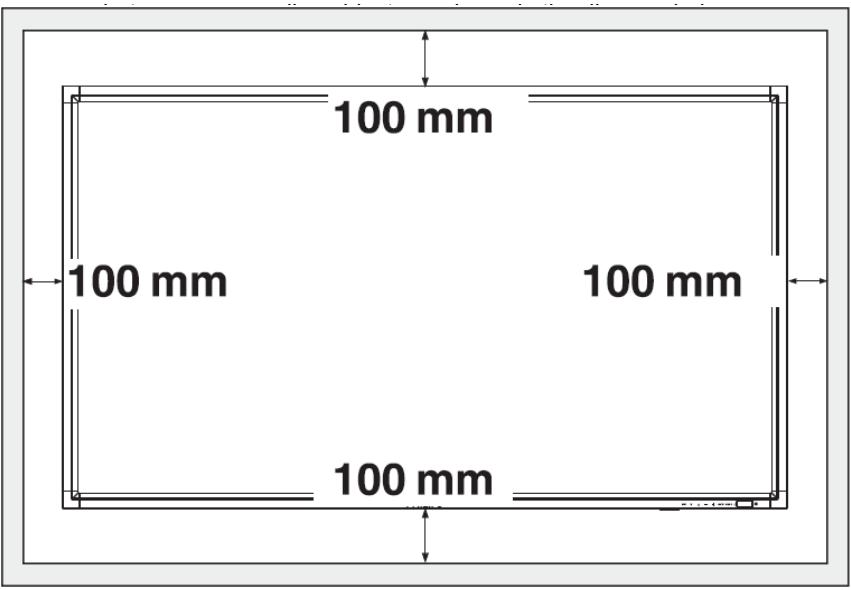
Ventilation Requirements for enclosure locating
To allow heat to disperse, leap
Connectivity
Before making connections:
* First turn off the power of all the attached equipments before make connections.
* Refer to the user manual included in each separate piece of equipment.
Connectivity Diagram
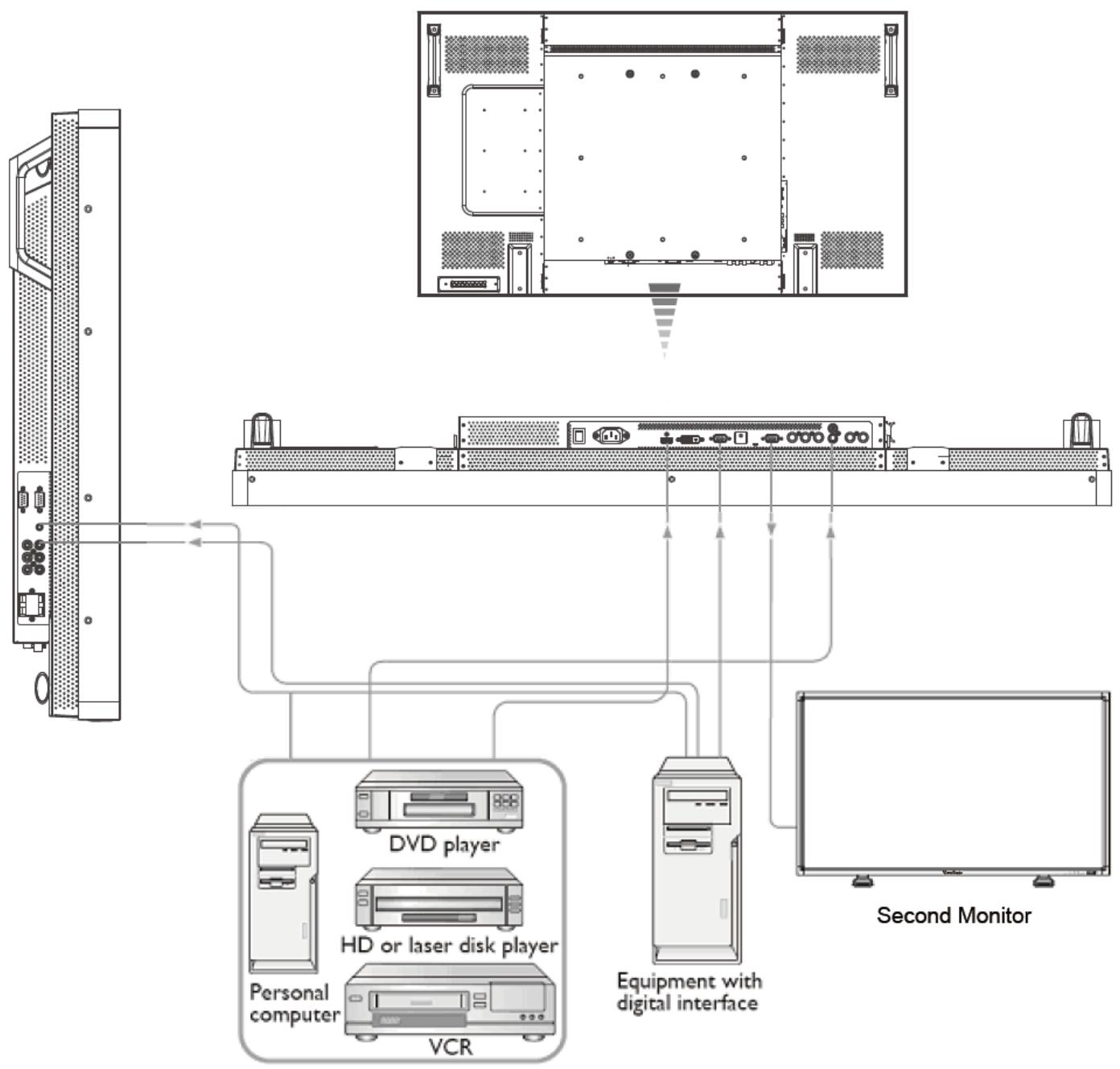
flowchart
graph TD
    A["Server"] --> B["Main Panel"]
    B --> C["Main Panel with Display"]
    C --> D["Second Monitor"]
    D --> E["Equipment with digital interface"]
    E --> F["DVD player"]
    E --> G["HD or laser disk player"]
    E --> H["Personal computer"]
    E --> I["VCR"]
Connecting to a Personal Computer
As you finish the connection between the computer and the LCD monitor, you could play the contents in the computer and display them on the LCD monitor.
Connecting the LCD Monitor to a Personal Computer
- To achieve this, apply the supplied VGA signal cable (mini D-sub 15 pin to mini D-sub 15 pin) to make connection between a PC and the LCD monitor (VGA IN connector).
- When connecting more than one LCD monitors to a PC, apply another VGA signal cable (mini D-sub 15 pin to mini D-sub 15 pin; it's commercially available) to make connection between the LCD monitor(VGA OUT connector) and the other (VGA IN connector).
- The AUDIO IN 1, 2, 3 or HDMI can be connected for audio input. After choosing one of the AUDIO IN connectors, you might need to select AUDIO 1, 2, 3 or HDMI using the AUDIO SOURCE button on the remote control.
- When connecting more than one LCD monitors to a PC, apply RCA cable to make connection between the LCD monitor(AUDIO OUT connector) and the other (AUDIO IN 1, 2, 3). HDMI source is not suitable for this case.
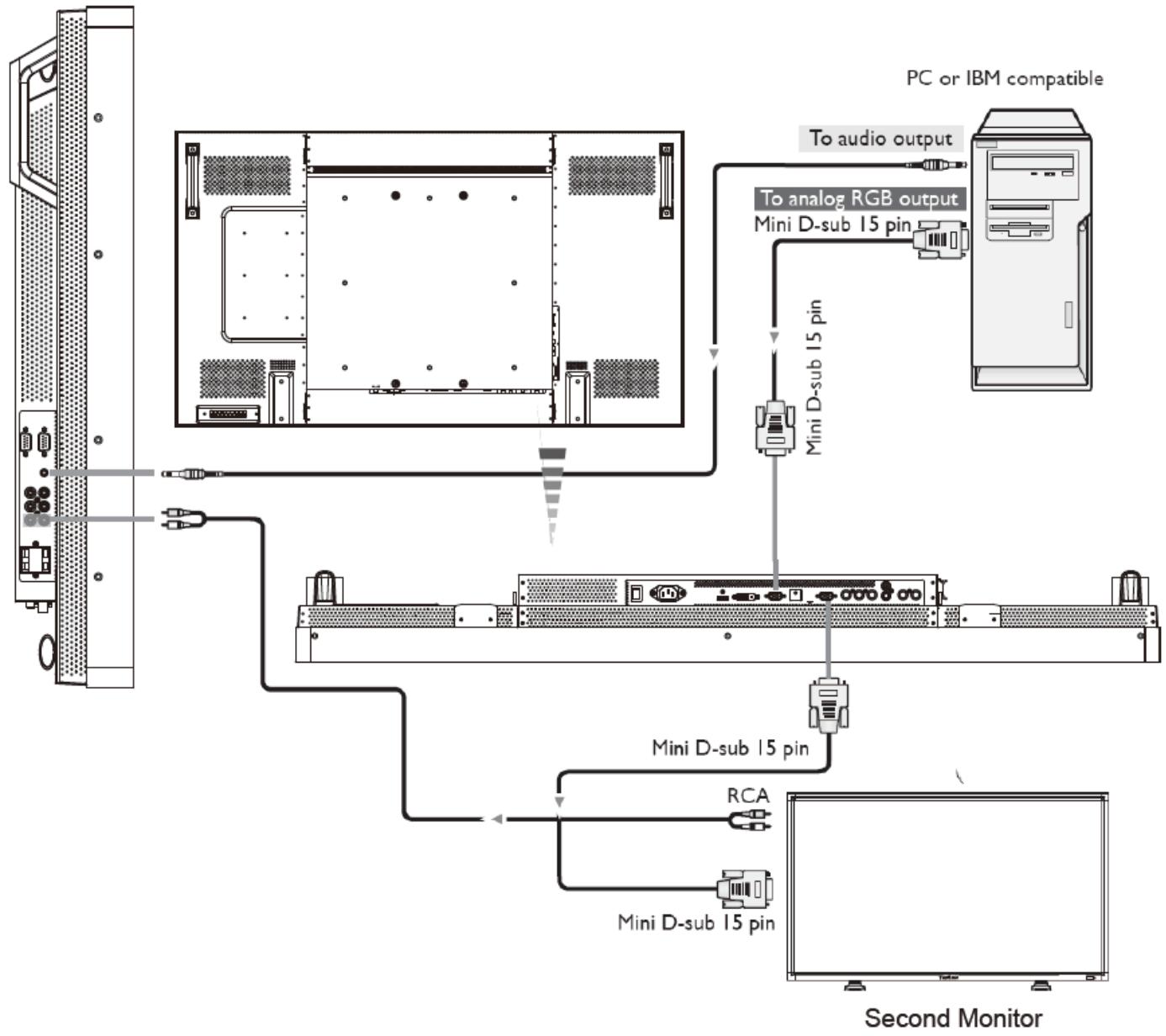
flowchart
graph TD
    A["Server"] -->|To audio output| B["PC or IBM compatible"]
    B --> C["Mini D-sub 15 pin"]
    C --> D["Mini D-sub 15 pin"]
    D --> E["Second Monitor"]
    E --> F["RCA"]
    E --> G["Mini D-sub 15 pin"]
    G --> H["Mini D-sub 15 pin"]
    H --> I["PC or IBM compatible"]
    style A fill:#f9f,stroke:#333
    style B fill:#ccf,stroke:#333
    style C fill:#cfc,stroke:#333
    style D fill:#fcc,stroke:#333
    style E fill:#cff,stroke:#333
    style F fill:#ffc,stroke:#333
    style G fill:#cfc,stroke:#333
    style H fill:#fcc,stroke:#333
    style I fill:#ffc,stroke:#333
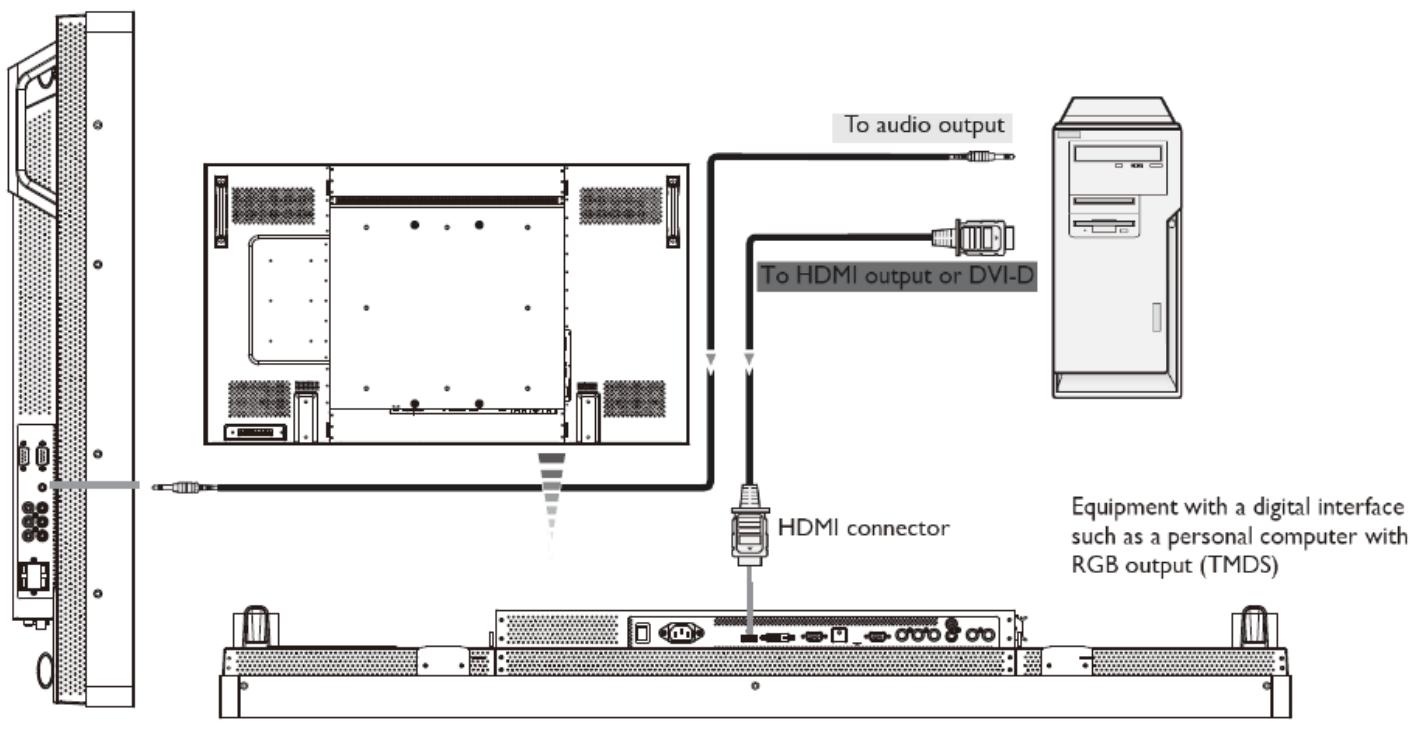
Connecting to a Digital Interface Equipment
Connections can be made between the LCD monitor and other digital equipment that is equipped with a digital interface compliant with the DVI (Digital Visual Interface) standard.
Connect the LCD Monitor to a Computer with a Digital Output
• The HDMI, DVI-D IN connector accepts a HDMI cable.
- HDMI and DVI-D can receive HDMI video signals from either a HDMI output of for instance a DVD player or from a DVI-D output of a PC.
• To ensure the display quality, use a cable with a quality prescribed by DVI standards.
- The AUDIO IN 1, 2, 3 or HDMI connector can be chosen to receive an audio source. Select AUDIO 1, 2, 3 or HDMI from the AUDIO SOURCE button on the remote control. HDMI(for audio) is only selectable only when HDMI or DVI-D (for video) is selected.
• Note that the signal of a HDMI / DVI-D connector cannot be output to the VGA OUT connector.
Connecting to a DVD Player
As you finish the connection between the DVD player and the LCD monitor, you could display the contents from the played DVD on the LCD monitor. You might like to refer to your DVD player's manual for further information.
Connect the LCD Monitor to a DVD Player
- To achieve this, apply a 3x components cable (Y, Pb, Pr) with BNC connectors at one end and RCA connectors at the other end between DVD player and display. In case you can only obtain RCA connectors on both ends you can use the in box available BNC-to-RCA converters.
DVD player(Y, Pb, Pr Out) and LCD monitor (COMPONENT). You might need BNC-to-RCA adapters(including in the accessories) to convert the BNC connectors to RCA connectors if you are using the separated signaling(Y, Pb, Pr) RCA cable.
• If your DVD player supports HDMI signaling, apply a HDMI to HDMI cable for the connection.
- The AUDIO IN 2, 3 (both of RCA connector type) can be used for audio input. Select [AUDIO 1] (for 3.5φ phone jack), [AUDIO 2], [AUDIO 3] Or [HDMI] from the AUDIO SOURCE button on the remote control. HDMI (for audio) is selectable only when HDMI or DVI-D (for video) is selected.
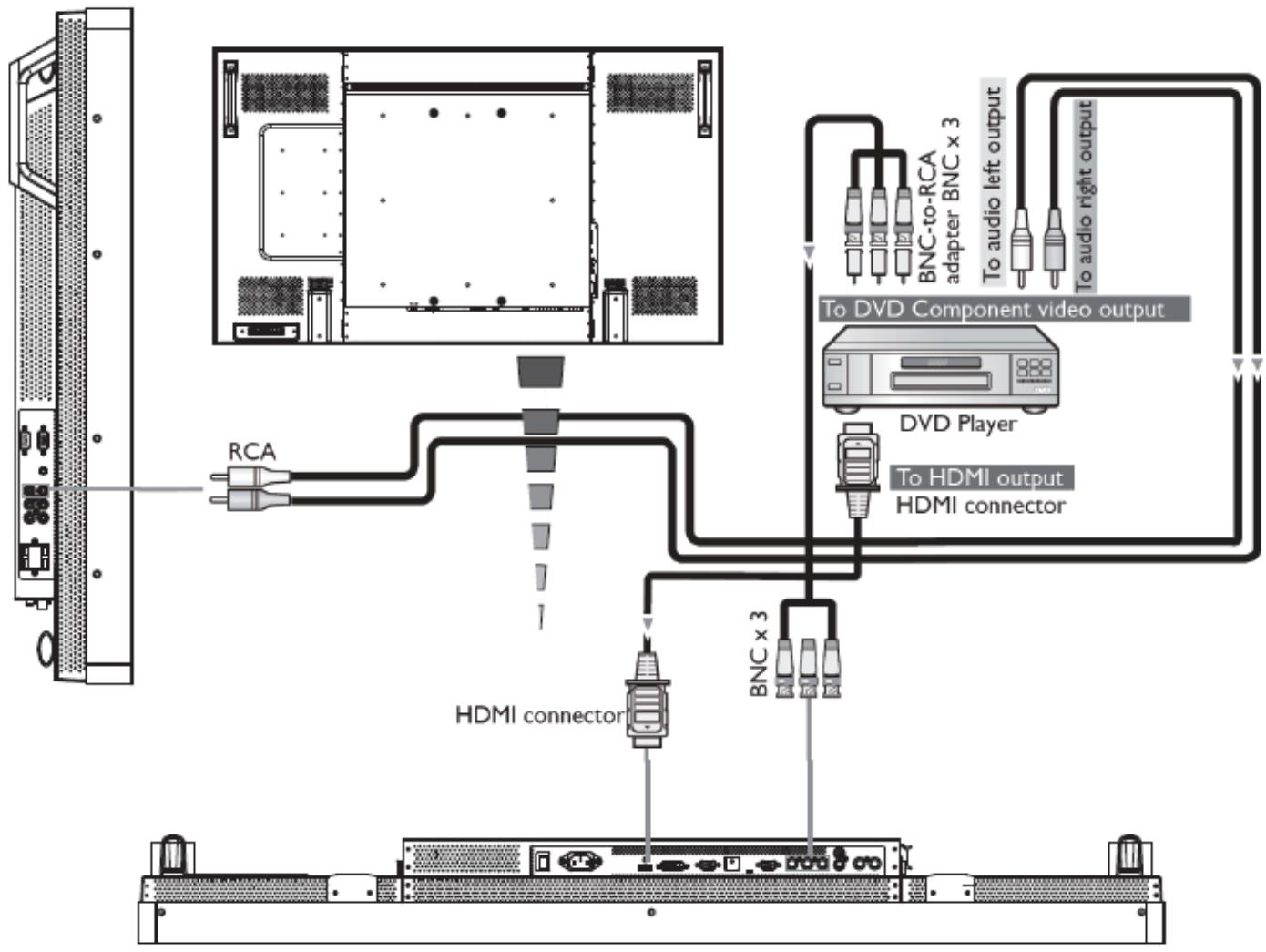
flowchart
graph TD
    A["Server"] --> B["Internal Display"]
    B --> C["RAMs"]
    C --> D["RAMs with BNC to-RCA adapter"]
    D --> E["Video Output"]
    E --> F["DVD Player"]
    F --> G["HDMI connector"]
    G --> H["Internal Display"]
    H --> I["RAMs with BNC to-RCA adapter"]
    I --> J["Video Output"]
    J --> K["To HDMI output"]
    K --> L["HDMI connector"]
    L --> M["Internal Display"]
    M --> N["RAMs with BNC to-RCA adapter"]
    N --> O["Video Output"]
    O --> P["To audio left output"]
    P --> Q["Video Output"]
    Q --> R["To audio right output"]
Connecting to a Stereo Amplifier
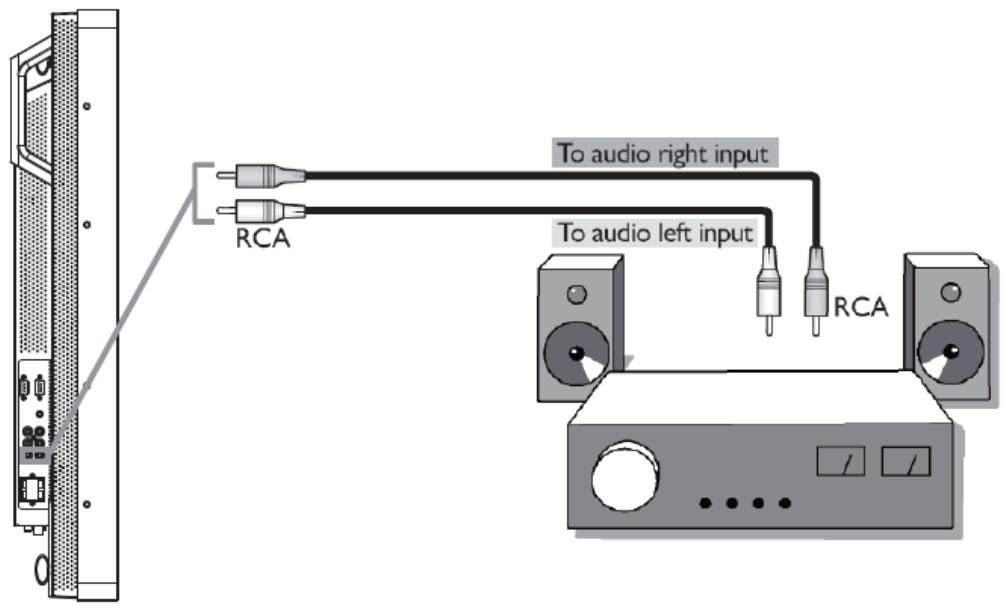
You can connect your stereo amplifier to your LCD monitor. Refer to your amplifier's manual for further information.
Connect the LCD Monitor to a Stereo Amplifier
• Turn on the LCD monitor and the amplifier only after all connections have been finished.
- Apply 2 RCA cables (audio left and right) to make connection between the amplifier (audio in) and the LCD monitor (audio out).
- Do not reverse the audio left and right jacks.
- For the preferred audio signal, select [AUIDO1], [AUDIO2], [AUDIO3] or [HDMI] from the AUDIO SOURCE button on the remote control. HDMI(for audio) is selectable only when HDMI or DVI-D (for video) is selected.
• The AUDIO OUT RCA connectors output sound from the selected AUDIO SOURCE.
Connecting to a display mounted PC
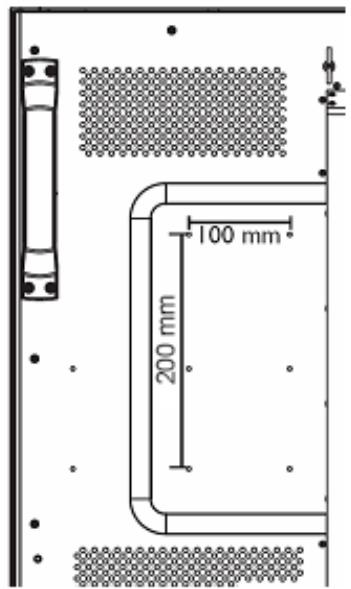
This monitor has an area in the backcover to mount a small form fact PC or set-top box.
You can connect your mounted PC to your LCD monitor. Use M4 mounting screws for 100x200 mm to fix your mount PC.
Basic Operation
Power ON and OFF Modes
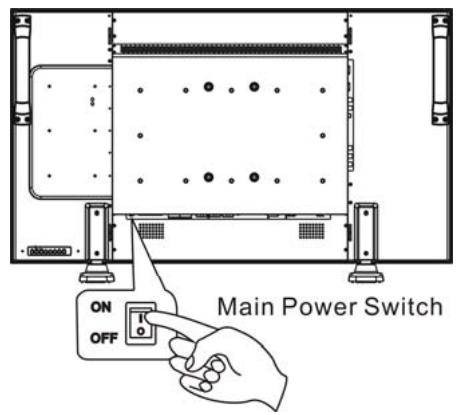
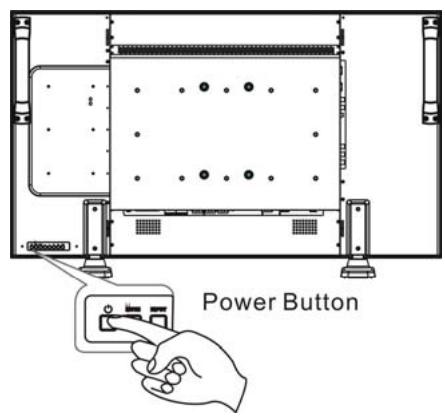
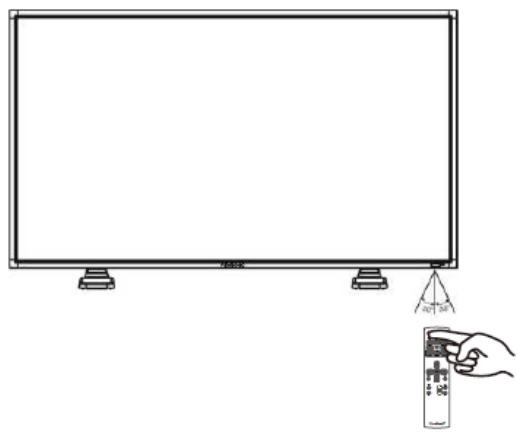
The LCD monitor power indicator will turn green while powered on and will turn red while powered off. The monitor can be powered on or off using the following three options:
natural_image
Line drawing of a blank TV with a hand holding a remote control panel (no text or symbols)1. Pressing the Main Power Switch.
NOTE:
When the Main Power Switch is used to power off the LCD monitor, the remote control, the power button and the indicator will not work. Make sure to turn the Main Power Switch on before using the other two options.
2. Pressing the power button.
NOTE:
Before pressing the power button, be sure to turn on the Main Power button on the LCD monitor.
3. Using the remote control.
NOTE:
Before operating the remote control, be sure to turn on the Main Power Switch on the LCD monitor.
Power Indicator
| Status | |
| Power ON | Green |
| Power Standby | Red |
| Power OFF | LED Off |
| Diagnosis(Detecting failure) | Red Blinking* See troubleshooting |
Using Power Management
Please turn off the LCD monitor when it will not be used for long time. This could potentially increase the life and decrease the power consumption of the LCD monitor.
Standby mode: Push the power button on the remote control or on the monitor to enter the standby mode.
Power Off: Push the Main Power Switch to enter the power off mode.
Display Signal of Video Source Setting to [VIDEO]
Use the input button on the front panel or the VIDEO SOURCE button on the remote control to set video source to [VIDEO].
Use the COLOR SYSTEM OSD menu to select [AUTO], [NTSC], [PAL], [SECAM], [PAL60], [4.43NTSC], according to your video format.
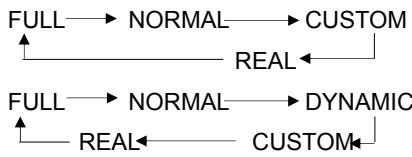
Picture Size
HDMI, DVI-D, VGA
COMPONENT, VIDEO
flowchart
graph TD
    A["FULL"] --> B["NORMAL"]
    B --> C["CUSTOM"]
    C --> D["REAL"]
    D --> E["FULL"]
    E --> F["NORMAL"]
    F --> G["DYNAMIC"]
    G --> H["CUSTOM"]
    H --> I["REAL"]
    I --> J["FULL"]
| Signal Type | NORMAL SIZE | Recommended Size |
| 4:3 | 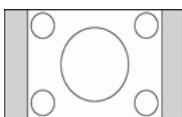 | NORMAL 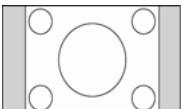 |
DYNAMIC 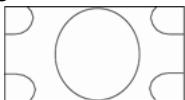 | ||
| Squeeze | 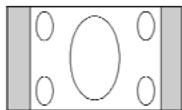 | FULL 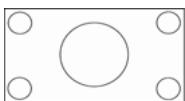 |
NORMAL: Display with the input signal aspect ratio from PC signal, or display in 4:3 aspect ratio at COMPONENT or VIDEO signal.
FULL: Display in the entire screen.
DYNAMIC: Expand 4:3 pictures to the entire screen with non-linearity. (Some round image might be cut by expansion.)
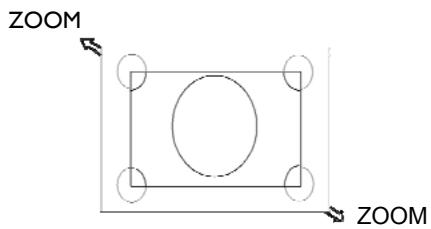
CUSTOM (ZOOM): Images can be expanded beyond the active display area. The image which is outside of the active display area would not be shown.
REAL: Image will be displayed for one by one pixel.
Smart Picture Mode
HDMI, VGA
COMPONENT, VIDEO
flowchart
graph LR
    A["HIGHBRIGTH"] --> B["STANDARD"] --> C["sRGB"]
    D["HIGHBRIGTH"] --> E["STANDARD"] --> F["CINEMA"]
Audio Source Switching
You can select the audio source using the AUDIO SOURCE button on the remote control.
HDMI

Control Lock Mode
This function disables the operation o buttons so that the adjustments you make are not active when they are pressed.
To disable the buttons, press and hold down the ▲ and ▼ buttons together for at least 3 seconds.
To enable the buttons, press and hold down the ▲ and ▼ buttons together for at least 3 seconds again.
OSD Information
HDMI, VGA
VGA
1024 x 768
48kHz 60Hz
AUDIO : 1
SIZE : FULL
← Video Source
← Input signal Information
Audio Source
← Picture Size
COMPONENT
COMPONENT
1080P
AUDIO : 2
SIZE : FULL
←Video Source
← Input signal Information
Audio Source
← Picture Size
S-VIDEO, VIDEO
S-VIDEO
NTSC
AUDIO :3
SIZE : NORMAL
← Video Source
← Color System of Input Signal
Audio Source Picture Size
PIP or POP
Main: VGA
Sub:S-VIDEO
VGA
1024 x 768
48kHz 60Hz
AUDIO : 1
S-VIDEO
NTSC
SIZE : FULL
← Main picture Information
← Sub picture Information
← Main picture Information
OSD (On-Screen-Display) Controls
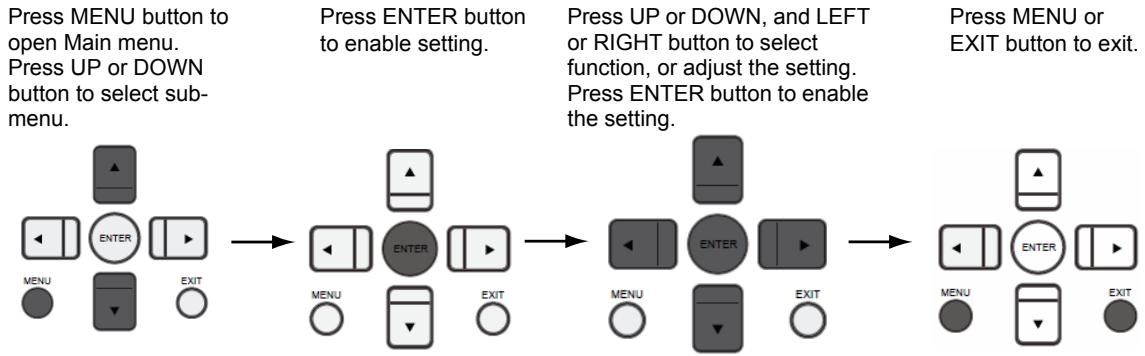
Remote Control
flowchart
graph LR
    A["Press MENU button to open Main menu. Press UP or DOWN button to select sub-menu."] --> B["Press ENTER button to enable setting."]
    B --> C["Press UP or DOWN, and LEFT or RIGHT button to select function, or adjust the setting. Press ENTER button to enable the setting."]
    C --> D["Press MENU or EXIT button to exit."]
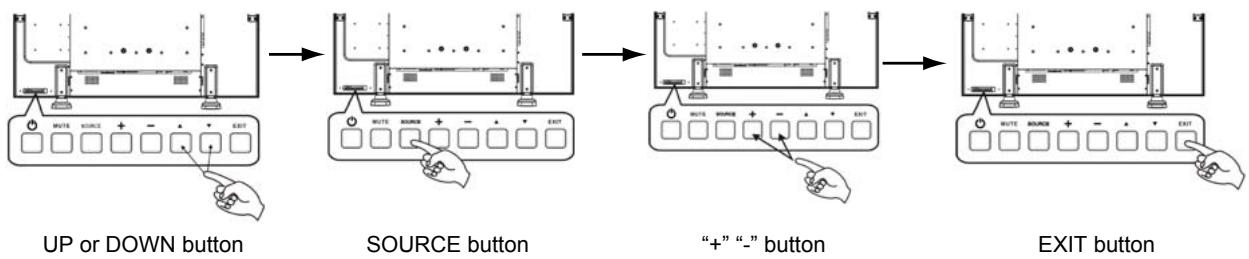
Control Panel
Press EXIT button to open Main menu. Press UP or DOWN button to select.
Press SOURCE button to enable the setting.
Press UP or DOWN, and LEFT or RIGHT button to select function, or adjust the setting. Press ENTER button to enable the setting.
Press EXIT button to exit.
flowchart
graph LR
    A["UP or DOWN button"] --> B["SOURCE button"]
    B --> C[""+" -" button"]
    C --> D["EXIT button"]
OSD screen
flowchart
graph LR
    A["PICTURE"] --> B["BRIGHTNESS 50"]
    A --> C["CONTRAST 50"]
    A --> D["SHARPNESS 50"]
    A --> E["BLACK LEVEL 50"]
    A --> F["NOISE REDUCTION OFF"]
    A --> G["TANT 11000K"]
    A --> H["COLOR 11000K"]
    A --> I["COLOR TEMPERATURE 11000K"]
    A --> J["COLOR CONTROL 11000K"]
    A --> K["LIGHT SENSOR OFF"]
    A --> L["DYNAMIC CONTRAST OFF"]
    A --> M["PICTURE RESET OFF"]

    N["PICTURE"] --> O["BRIGHTNESS 50"]
    N --> P["CONTRAST 50"]
    N --> Q["SHARPNESS 50"]
    N --> R["BLACK LEVEL 50"]
    N --> S["NOISE REDUCTION OFF"]
    N --> T["TANT 11000K"]
    N --> U["COLOR 11000K"]
    N --> V["COLOR TEMPERATURE 11000K"]
    N --> W["COLOR CONTROL 11000K"]
    N --> X["LIGHT SENSOR OFF"]
    N --> Y["DYNAMIC CONTRAST OFF"]
    N --> Z["PICTURE RESET OFF"]

    AA["PICTURE"] --> AB["BRIGHTNESS 60"]
    AA --> AC["CONTRAST 50"]
    AA --> AD["SHARPNESS 50"]
    AA --> AE["BLACK LEVEL 50"]
    AA --> AF["NOISE REDUCTION OFF"]
    AA --> AG["TANT 11000K"]
    AA --> AH["COLOR 11000K"]
    AA --> AI["COLOR TEMPERATURE 11000K"]
    AA --> AJ["COLOR CONTROL 11000K"]
    AA --> AK["LIGHT SENSOR OFF"]
    AA --> AL["DYNAMIC CONTRAST OFF"]
    AA --> AM["PICTURE RESET OFF"]

    AN["PICTURE"] --> AO["BRIGHTNESS 60"]
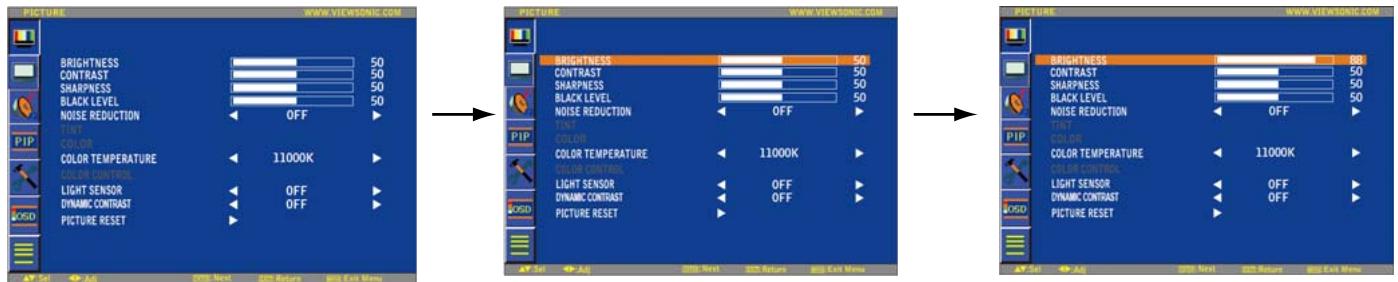
Main-Menu
PICTURE
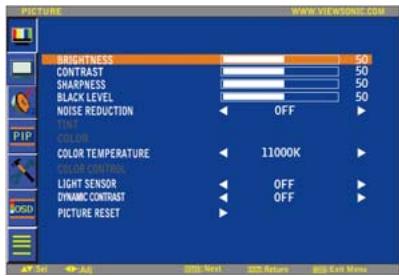
BRIGHTNESS
Adjusts the overall image and background screen brightness.
Press ▶ button to increase brightness.
Press ◀ button to decrease brightness.
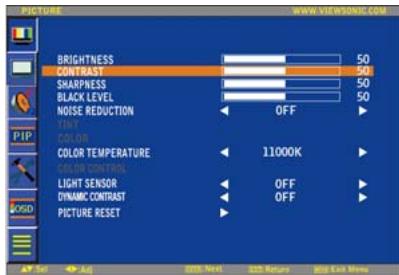
CONTRAST
Adjusts the image brightness for the input signal.
Press ▶ button to increase contrast.
Press ◀ button to decrease contrast.
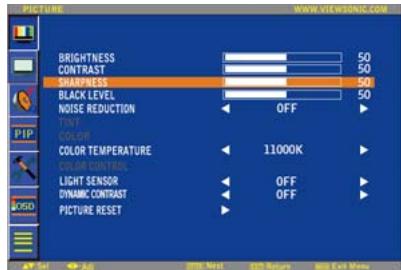
SHARPNESS
This function is digitally capable to keep crisp images at any timing.
It is adjustable to get a distinct image or a soft one as you prefer and set independently for each picture mode.
Press ▶ button to increase sharpness.
Press ◀ button to decrease sharpness.
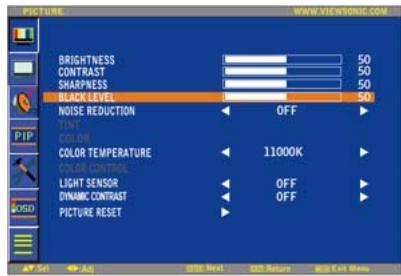
BLACK LEVEL
Adjusts the image brightness for the background.
Press ▶ button to increase black level.
Press ◀ button to decrease black level.
NOTE: sRGB picture mode is standard and cannot be changed.
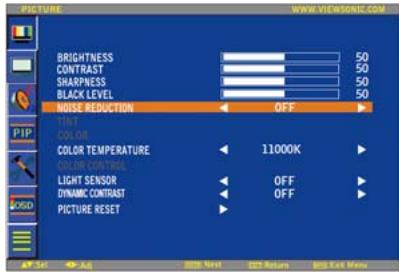
NOISE REDUCTION
Adjusts the noise reduction level.
Press ▶ button to increase reduction level.
Press ◀ button to decrease reduction level.
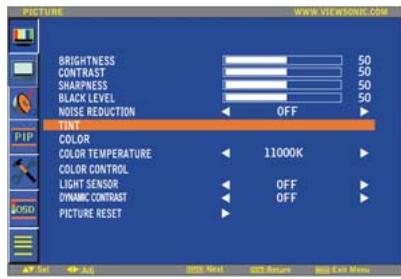
TINT*: INPUT HDMI, (HDMI INPUT MODE-HD), COMPONENT, S-VIDEO, VIDEO only
Adjusts the tint of the screen.
Press + button the flesh tone color becomes greenish.
Press - button the flesh tone color becomes purplish.
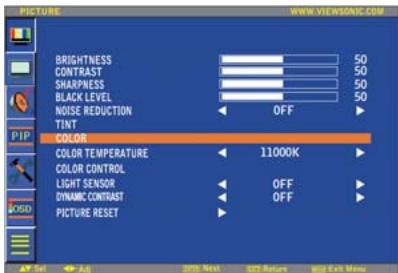
COLOR * : INPUT HDMI, DVI-D(INPUT MODE-HD), COMPONENT, S-VIDEO, VIDEO only
Adjusts the color of the screen.
Press + button to increase color depth.
Press - button to decrease color depth.
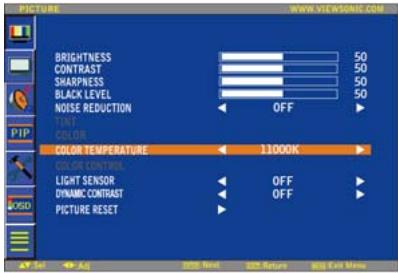
COLOR TEMPERATURE
Is used to adjust the color temperature.
The image becomes reddish as the color temperature decreases, and becomes bluish as the color temperature increases.
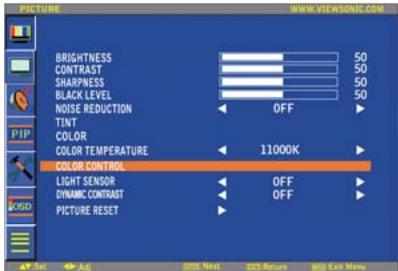
COLOR CONTROL
The color levels of red, green, and blue are adjusted by the color bars.
R: Red, G: Green, B: Blue
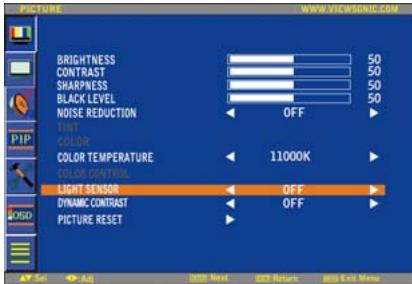
LIGHT SENSOR
Select "ON" to enable the ambient light sensor. The image brightness will be auto adjusted when ambient light changed.
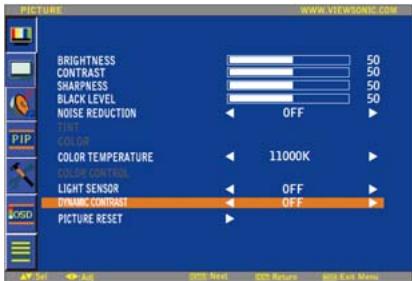
■ DYNAMIC CONTRAST
Select "ON" to enable the dynamic contrast mode. Can enhancement the image of high contrast ratio.
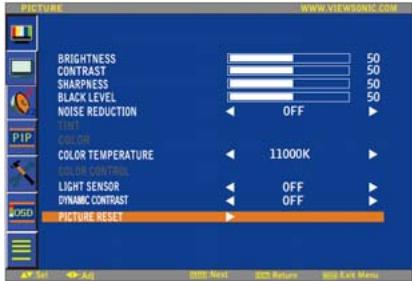
PICTURE RESET
Selecting Picture reset allows you to reset all OSD settings about PICTURE setting.
Select "Yes" and press "ENTER" button to restore to factory preset data.
Press "EXIT" button to cancel and then return to the previous menu.
Main-Menu
SCREEN
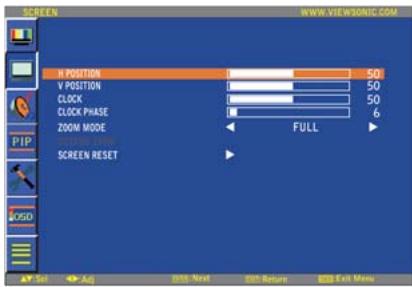
H POSITION
Controls Horizontal Image position within the display area of the LCD.
Press ▶ button to move screen to right.
Press ◀ button to move screen to left.
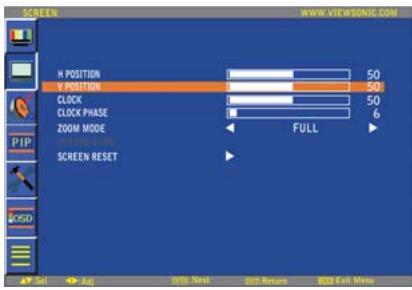
V POSITION
Controls Vertical Image position within the display area of the LCD.
Press ▶ button to move screen to UP.
Press ◀ button to move screen to DOWN.
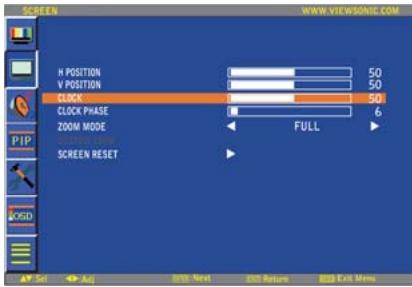
CLOCK \* : INPUT VGA only
Press ▶ button to expand the width of the image on the screen the right.
Press ◀ button to narrow the width of the image on the screen the left.
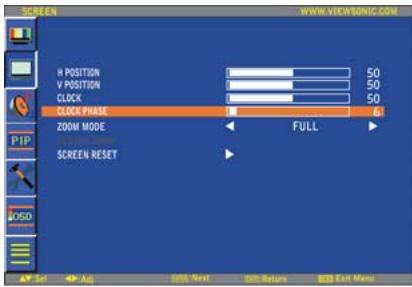
CLOCK PHASE \* : INPUT VGA only
Improves focus, clarity and image stability by increasing or decreasing this setting.
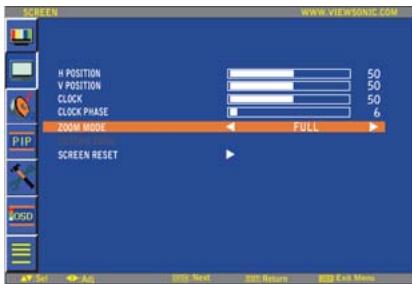
ZOOM MODE
You can select "FULL", "NORMAL" and "CUSTOM" and "REAL". (INPUT HDMI, DVI-D, VGA only)
You can also select "FULL", "NORMAL" "DYNAMIC" and "CUSTOM" and "REAL". (INPUT
COMPONENT, S-VIDEO, VIDEO only)
Selecting “DYNAMIC” will make the screen display panoramic with the expansion of the middle and
outside of the screen changed. (The upper and the bottom of the image will be cut by expansion.)
Dynamic image is the same as FULL size image when HDTV signal is input.
Selecting "REAL" image will be displayed 1 by 1 pixel.
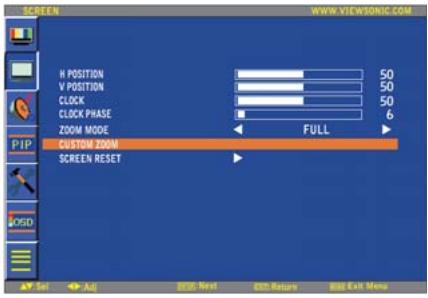
CUSTOM ZOOM
"CUSTOM ZOOM" will be selected when you select "CUSTOM" on the screen "ZOOM" mode.
ZOOM: expands the horizontal and the vertical size simultaneously.
HZOOM: expands the horizontal size only.
VZOOM: expands the vertical size only.
H POSITION: moves to the right with + button. moves to the left with - button.
V POSITION: moves up with + button. moves down with - button.
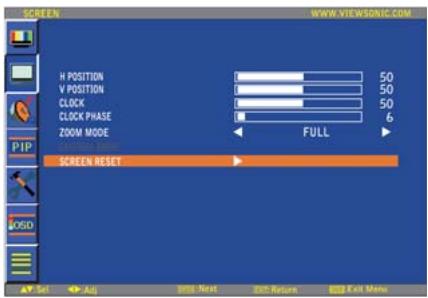
SCREEN RESET
Selecting Screen reset allows you to reset all OSD settings from PICTURE setting.
Select "Yes" and press "ENTER" button to restore the factory preset data.
Press "EXIT" button to cancel and then return to the previous menu.
Main-Menu
AUDIO
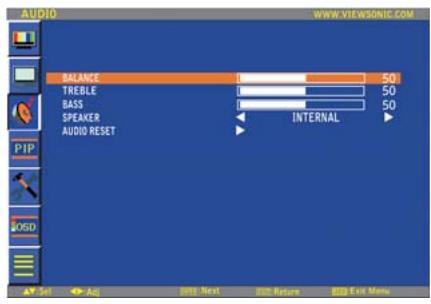
BALANCE
Adjusts the balance of L/R volume.
Press ▶ button to move the stereo sound image to right.
Sound of the left side will be small.
Press ◀ button to move the stereo sound image to left.
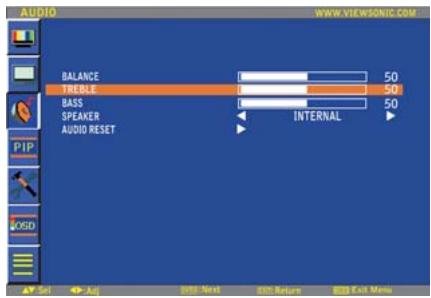
TREBLE
This feature helps you to accentuate or reduce the high frequency sound.
Press ▶ button to increase TREBLE sound.
Press ◀ button to decrease TREBLE sound.
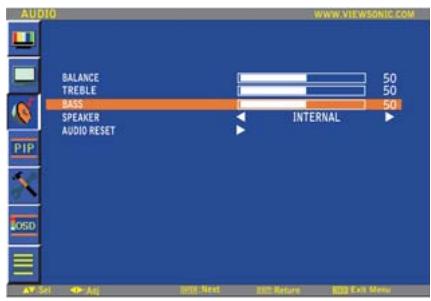
BASS
This feature helps you to accentuate or reduce the low frequency sound.
Press ▶ button to increase BASS sound.
Press ◀ button to decrease BASS sound.
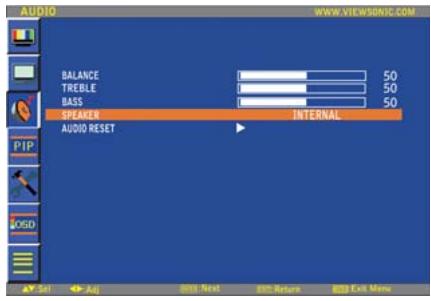
SPEAKER
This feature helps you to cut the internal or the external loudspeaker.
Press ▶ or ◀ button to exchanges the internal and the external loudspeaker.
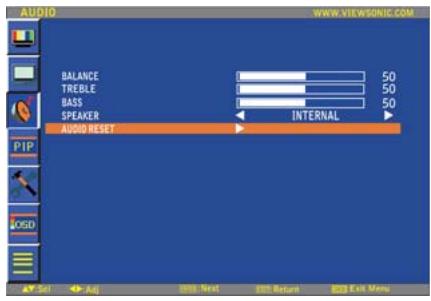
AUDIO RESET
Selecting Audio reset allows you to reset all OSD settings from AUDIO setting.
Select "YES" and press "ENTER" button to restore the factory preset.
Press "EXIT" button to cancel and then return to the previous menu.
Main-Menu
PIP (PICTURE IN PICTURE)
Note: The "PIP" and "POP" modes do not function when the screen size is "CUSTOM" or "REAL".
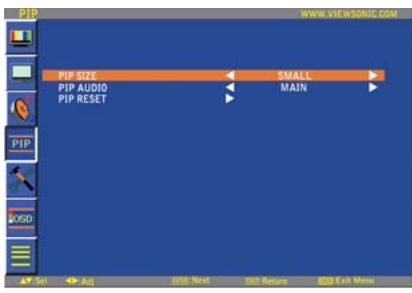
PIP SIZE
Selecting the size of picture inserted at the "Picture-in-Picture" (PIP) mode. "Large", "Middle" and "Small" are available.
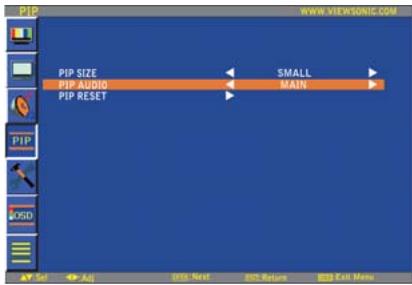
PIP AUDIO
Selecting the sound source in PIP mode.
When selecting “MAIN AUDIO”, you will get the sound for the main picture and when selecting “PIP AUDIO”, you will get the sound for the picture instead.
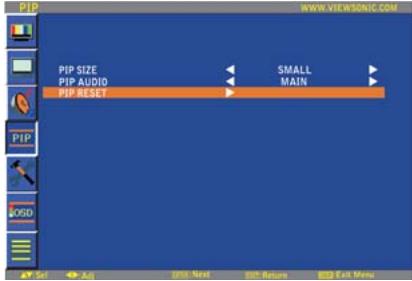
PIP RESET
Selecting PIP Reset allows you to reset all OSD settings from PIP setting. Select "Yes" and press "ENTER" button to restore the factory preset data. Press "EXIT" button to cancel and then return to the previous menu.
Main-Menu
CONFIGURATION 1
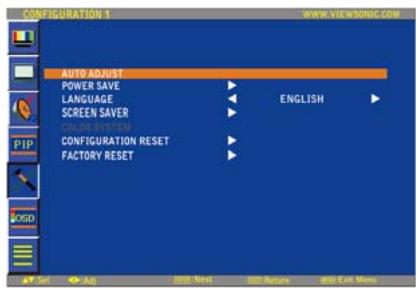
AUTO ADJUST \* : INPUT VGA only
Press "ENTER" button to automatically adjust screen size, horizontal position, vertical position, clock,
clock phase, white level and black level.
Press "EXIT" button to cancel execution AUTO ADJUST and then will return to the previous menu.
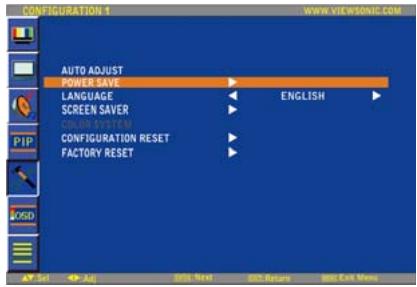
POWER SAVE
Selecting RGB "ON", the monitor will go to power management mode when HDMI, DVI-D,VGA, sync is lost.
Selecting VIDEO "ON", the monitor will go to power management mode after about 10 minutes delay from when COMPONENT and VIDEO input signal is lost.
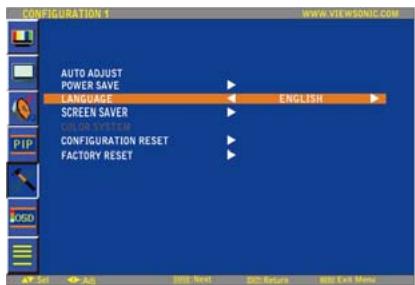
LANGUAGE
OSD control menus are available in eight languages.
(English, German, French, Italian, Spanish, Polish, Turkish, Russian, Simple Chinese)
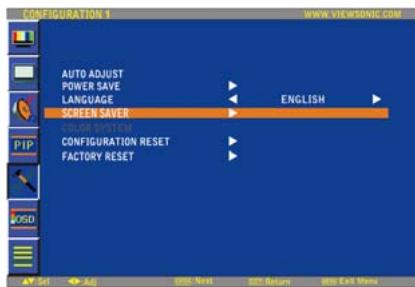
SCREEN SAVER
Select "SCREEN SAVER" functions to reduce the risk of the "image persistence".
COOLING FAN: The cooling fan will be auto-turned on and off according to temperature of monitor when selected "AUTO". The cooling fan will be turned on always when selected "ON". BRIGHTNESS: The brightness is decreased when selected "High, Middel and Low".
PIXEL MOTION: Image is slightly expanded and moves 4 directions (UP, DOWN, RIGHT, LEFT) periodically
(Need setting the time for movement).
Movement area is approximately +/- 5pixel from original position;
Please locate the important information such as text within 90% area of screen image.
See note (1) for this functions.
PIP will be disabled when "MOTION" is active.
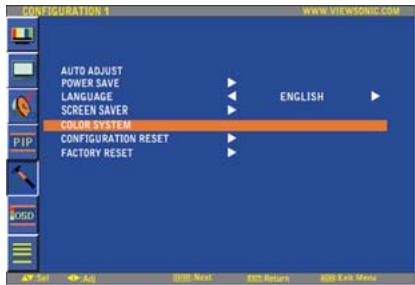
■ COLOR SYSTEM \* : INPUT S-VIDEO, AV only
Selecting the Color System depends on your input video format.
AUTO: NTSC, PAL, SECAM, PAL60 or 4.43 NTSC is automatically selected.
NTSC: Specific selection of NTSC.
PAL: Specific selection of PAL.
SECAM: Specific selection of SECAM.
PAL-60: Specific selection of PAL60.
4.43NTSC: Specific selection of 4.43 NTSC.
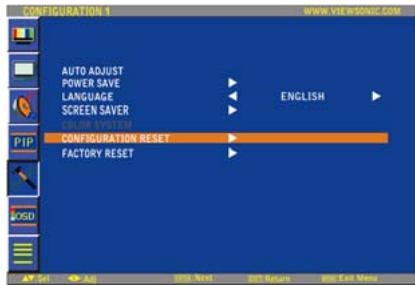
Selecting the CONFIGURATION RESET allows you to reset all configuration settings.
Select "Yes" and press "ENTER" button to restore the factory preset data.
Press "EXIT" button to cancel and return the previous menu.
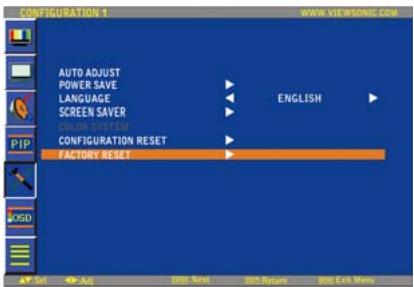
FACTORY RESET
Selecting "YES" allows you to reset PICTURE, SCREEN, AUDIO, CONFIGURATION1,2 and ADVANCED OPTION will be back to factory settings (except LANGUAGE, DATE AND TIME and SCHEDULE).
Select "YES" and press "ENTER" button to restore the factory preset data. Press "EXIT" button to cancel and return the previous menu.
Main-Menu
CONFIGURATION 2
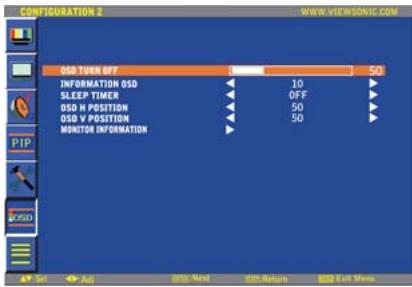
OSD TURN OFF
The OSD control menu will stay on as long as it is used. In the OSD Turn Off submenu, you can select how long the monitor waits after the last touch of a button to shut off the OSD control menu. The preset choices are 5 -120 seconds.
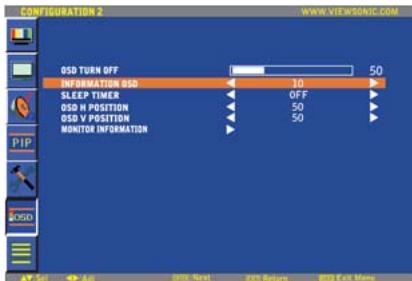
INFORMATION OSD
Selects the information OSD to be displayed or not.
The information OSD will be displayed when the input signal is changed or a source change or warning message like no-signal or out-of-range.
A time between 1 to 10 seconds is available.
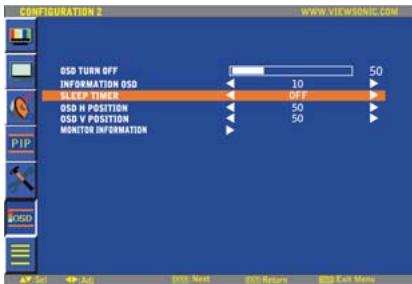
SLEEP TIMER
To select SLEEP TIMER mode ON/OFF.
In the SLEEP TIMER menu, you can preset the monitor to automatically power down.
A time between 1 to 24 hours is available.
When the SLEEP TIMER is set, the SCHEDULE settings will be disabled.
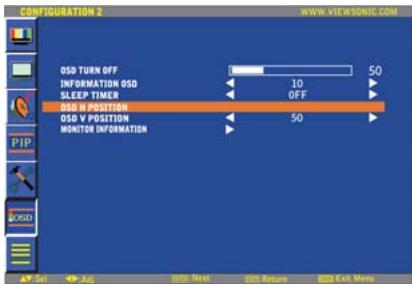
OSD H POSITION
Adjusts the horizontal position of the OSD menu.
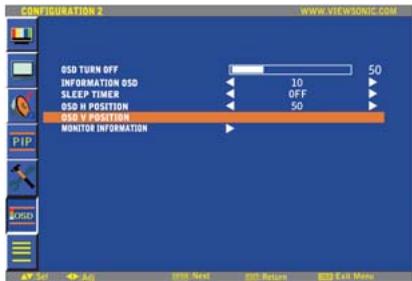
OSD V POSITION
Adjusts the vertical position of the OSD menu.
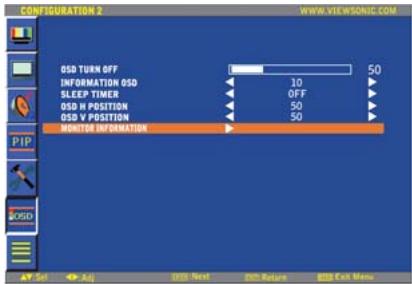
MONITOR INFORMATION
Indicates the model and serial number of your monitor.
Main-Menu
ADVANCED OPTION
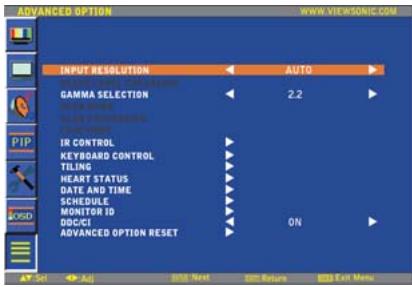
INPUT RESOLUTION \* : INPUT VGA only
This feature makes the display controlling the source in order to match display capabilities by choice or automatically. You can select one of the following timings:
(1)1024x768, 1280x768, 1360x768 and 1366x768.
(2) 640x480, 720x480 and 852x480
(3) 800x600, 1064x600 and 720x576
(4) 1400x1050 and 1864x1050
(5) 720x400 and 640x400
AUTO: Determines the resolution automatically.
The setting you select becomes effective when POWER is turned OFF and ON again.
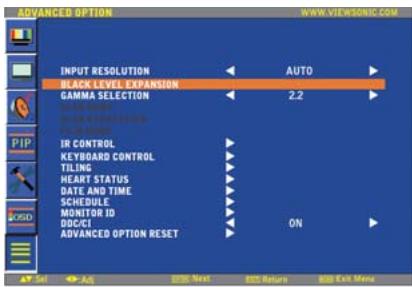
BLACK LEVEL EXPANSION \* : INPUT HDMI, DVI-D(MODE-HD), S-VIDEO, VIDEO only
Selects a level of black expansion from "OFF", "LOW", "MIDDLE" and "HIGH".
In case of go under the black cut-off level, please adjust the "Black level" in moderation on OSD menu.
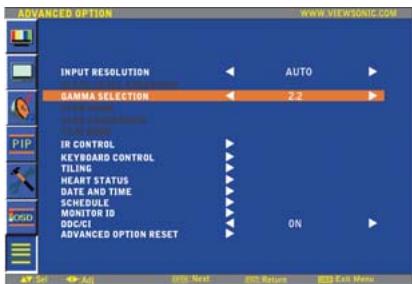
GAMMA SELECTION
Selects a display gamma. It refers to the brightness performance curve of signal input.
2.2
2.4
S gamma
Native
NOTE: sRGB picture mode is standard and cannot be changed.
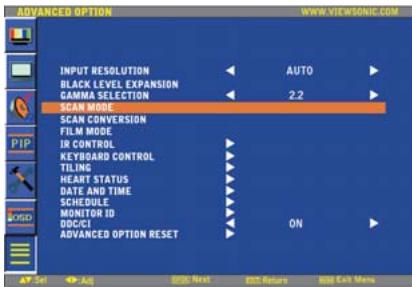
SCAN MODE \* : INPUT HDMI, DVI-D(MODE-HD), S-VIDEO, VIDEO only
Changes the display area of the image.
OVERSCAN: Set to display area about 95%
UNDERSCAN: Set to display area about 100%
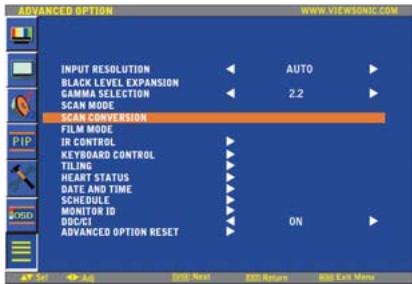
SCAN CONVERSION \* : INPUT HDMI, DVI-D(MODE-HD), S-VIDEO, VIDEO only
Selects IP (Interlace to Progressive) converter function.
PROGRESSIVE: Enable the IP function, to convert interlace signal to progressive. Normally use this setting.
INTERLACE*: Disable the IP function.
*NOTE: This mode is better suited for motion pictures, but it increases chance of image retention.
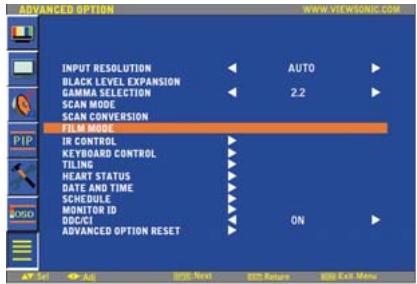
FILM MODE \* : INPUT HDMI, DVI-D(MODE-HD), S-VIDEO, VIDEO only
Selects Film mode function.
AUTO: Enable the Film mode function. This mode is better suited for movies, which is converted 24
Frames/sec source to DVD Video. We recommend to select "PROGRESSIVE" in "SCAN CONVERSION".
OFF: Disable the Film mode function. This mode is better suited for Broadcasting or VCR source.
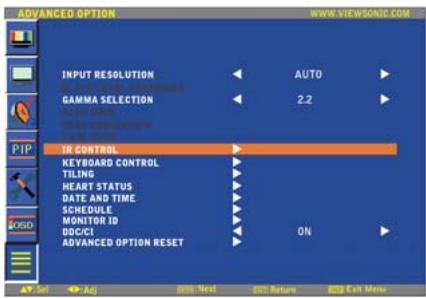
IR CONTROL
Selects the operation mode of the remote controller when multiple monitors are connected via RS232C.
The item in this menu will become effective by pressing "ENTER" button on the selected item.
NORMAL: The monitor will be controlled normally by remote controller.
PRIMARY: The first monitor of those multi-connected via RS232C is designated as PRIMARY.
SECONDARY: monitors other than the first one multi-connected via RS232C are designated as SECONDARY.
LOCK: Disable the monitor control by infrared remote controller.
Keep pressing "DISPLAY" button during 5 sec or more, this setting will return to "NORMAL".
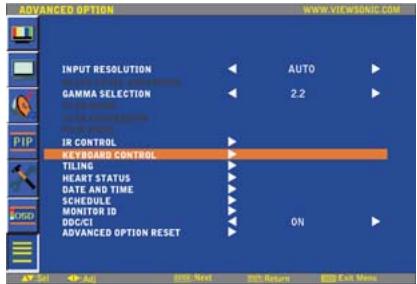
KEYBOARD CONTROL
Selects the operation mode of the keyboard control.
Select "LOCK" to disable the keyboard.
Select "UNLOCK" to enable the keyboard.
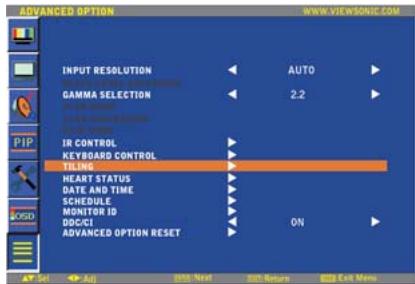
TILING
TILING demonstrates multiple screens. This feature provides a single large screen using up to 25 monitors.
It will be able to divide up to 5 each H and V.
This requires you to feed the PC output into each of the monitors through a distributor.
H MONITORS: Select number of horizontal monitors.
V MONITORS: Select number of vertical monitors.
POSITION: Select a position to expand the screen.
FRAME COMP: Works in tandem with TILING to compensate for the width of the tile bezels in order to accurately display the image.
ENABLE: Select "YES", the monitor will expand the selected position.
PIP and STILL will be disabled when "TILING" is activated.
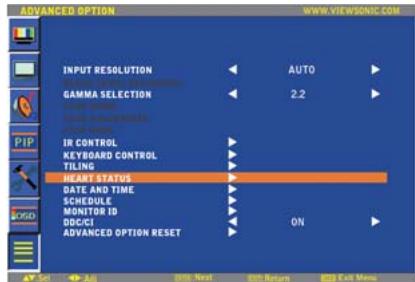
HEAT STATUS \*: Disclaimer: Heat sensor is indicative.
HEAT STATUS allows you to watch the thermal status at any time via the OSD menu and/or via RS232C commands. The indicated temperature has a accuracy of 3 degrees (plus and minus).
Press "ENTER" button to enter the submenu to monitor the heat status.
Press "EXIT" button to cancel and then return the previous menu.
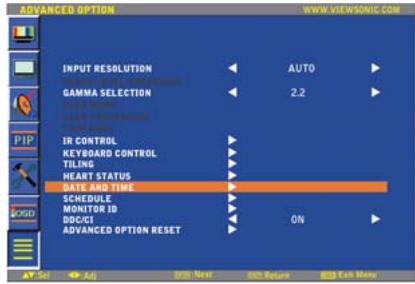
DATE AND TIME
Adjusts the current date and time for internal clock.
You should set this function when you use "SCHEDULE".
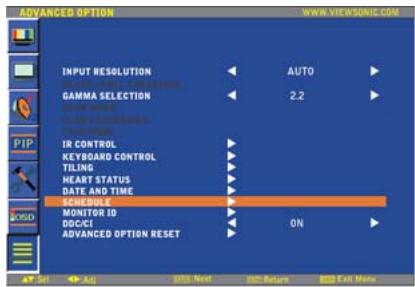
SCHEDULE
Programs the monitor's working schedule.
Schedules the power on and power off by using hour and a day of the week. Also sets the input port.
This OSD can't be removed except EXIT.
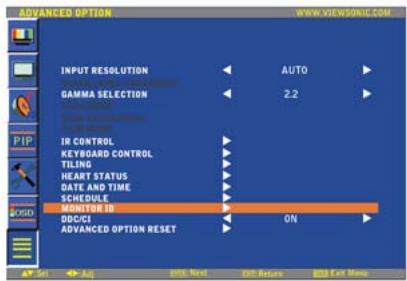
MONITOR ID
ID numbers for remote control are assigned to monitors that are multi-connected via RS232C. ID numbers 1 to 26 are selectable.
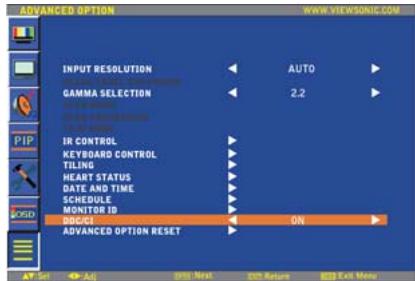
DDC/CI
Use to turn ON or OFF the DDC/CI communication function. Select ON for normal use.
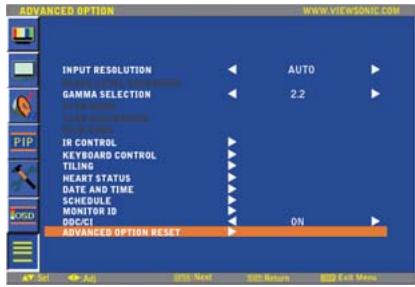
ADVANCED OPTION RESET
Selecting ADVANCED OPTION RESET allows you to reset all OSD settings from ADVANCED OPTION settings, except for GAMMA SELECTION, DATE AND TIME, SCHEDULE, HDMI INPUT MODE, DVI-D INPUT MODE, MONITOR ID, and DDC/CI.
Select "YES" and press "ENTER" button to restore the factory preset data.
Press "EXIT" button to cancel and then return the previous menu.
GAMMA SELECTION is reset when carrying out the PICTURE RESET in the PICTURE.
NOTE
NOTE 1: IMAGE PERSISTENCE
Please be aware that LCD Technology may experience a phenomena known as Image Persistence. Image Persistence occurs when residual or “ghost” image of a previous image remains visible on the screen. Unlike CRT monitors, LCD monitors’ image persistence is not permanent, but constant images being displayed for a long period of time should be avoided. To alleviate image persistence, turn off the monitor for as long as the previous image was displayed. For example, if an image was on the monitor for one hour and a residual image remains, the monitor should be turned off for one hour to erase the image. As with all personal display devices, ViewSnoic recommends displaying moving images and using a moving panel saving at regular intervals whenever the screen is idle or turning off the monitor when not in use.
Please set “POWER SAVE”, “SCREEN SAVER”, “DATE AND TIME” and “SCHEDULE” functions to further reduce the risk of Image persistence.
For long life use of Public Display
< Image Sticking of LCD Panel >
When LCD panel is operated continuously for long hours, a trace of electric charge remains near the electrode inside LCD, and residual or “ghost” image of previous image may be observed. (Image Persistence)
Image Persistence is not permanent, but when fixed image is displayed for long period, ionic impurities inside LCD are accumulated along the displayed image, and it is observed permanently. (Image Sticking)
< Recommendations >
For preventing the fast transition to Image Sticking, and for longer life usage of LCD, following are recommended.
- Static images should not be displayed for long period. Always use a short cycle to change to other images.
- In case a fixed image is displayed for a long period, it is advised to activate the MOTION feature that will periodically move the image in four directions
- When not in use, please turn off the monitor with your remote control, or use Power Management Function or use the Schedule Function of monitor.
- Reducing the environmental temperature will increase the life of your monitor.
When Protection board (glass, acryl) is installed over the LCD surface, enclosed into the box / wall, or stack the monitor, please utilize the temperature sensors inside monitor.
To reduce the environmental temperature, the monitor should be set Low Brightness or Cooling Fan "ON" by using Screen sever Function. - Please use "SCREEN SAVER Mode" of monitor.
NOTE 2: HOW TO SETUP SCHEDULE
Using the “SCHEDULE” function allows you to set up to seven different scheduled time intervals when the LCD Monitor will be activated.
You can select the time the monitor turns on and turns off, the day of week the monitor is activated, and which input source the monitor will use for each scheduled activation period. A check mark in the box next to the number of the schedule indicates that the selected schedule is in effect.
To select which schedule to set, use the up/down arrows to move the number (1 to 7) of the schedule.
Use the (▶) and (◀) buttons to move the cursor horizontally within the particular schedule. Use the (▲) and (▼) buttons to increase time and select input port. The “ENTER” button is used to make a selection.
If you create a schedule but do not want to use a power on time, select “--” in the “ON” time slot.
If you do not want to use a power off time select “--” in the OFF time slot.
If there is no input selected (“--” showing in the input spot) the input from the previous schedule will be used.
The selection of EVERY DAY within a schedule takes priority over other schedules that are set up to operate weekly. When schedules are overlapping, scheduled Power ON time has priority over scheduled Power OFF time.
If there are two schedules programmed for the same time, then the highest numbered schedule has priority. When the “SLEEP TIMER” is set, the “SCHEDULE” function is disabled.
NOTE 3: "PIP", "POP" and "SIDE BY SIDE"
The following table shows the combination of signal inputs under which the “PIP” and “POP” modes function. These modes do not function, however, when the screen size is “CUSTOM” or “REAL”.
Press the “PIP ON/OFF” buttons on the remote control to change between “PIP”, “POP” and “SIDE BY SIDE” mode as shown in the diagram below.

flowchart
graph LR
    A["PIP"] --> B["A"]
    B --> C["POP"]
    C --> D["A B"]
    D --> E["SIDE BY SIDE ASPECT"]
    E --> F["SIDE BY SIDE FULL"]
    F --> G["OFF"]
    G --> H["A"]
“PIP”, “POP” mode resolution (Reference)
PIP SIZE ◀ SMALL ▷ : 450 dots X 338 dots
◀ MIDDLE▶ : 675 dots X 450 dots
◀ LARGE ▷ : 900 dots X 675 dots
POP SIZE : 450 dots X 338 dots
< Remote control numbering function >
By connecting multiple monitors using RS232C cables, you can control any one monitor or all the monitors by one remote controller.
- Assign arbitrary ID number to each of multi-connected monitors using MONITOR ID. ID numbers 1 to 26 are selectable.
It is recommended to assign sequential ID numbers from 1 and up.
- The remote control mode of the first monitor is set to PRIMARY and those of the other monitors are set to SECONDARY.
- When you direct the remote controller at the remote control signal sensor of the PRIMARY monitor and press the DISPLAY button on the remote controller, the ID selection OSD appears at the upper left of the screen.
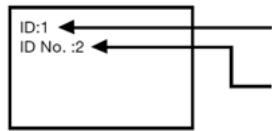
ID number of the currently viewed monitor
Select the ID number of the monitor you want to control using the ▶/◀ button on the remote controller.
The ID of the monitor you want to control is displayed at the upper left of its screen. By selecting ALL, you can control all the multi-connected monitors.
- Direct the remote controller at the remote control signal sensor of the PRIMARY monitor. OSD appears on the monitor having the ID number you selected.
NOTE:
When the ID selection OSD is being displayed on the PRIMARY monitor, press the DISPLAY button on the remote controller again to cancel the ID selection OSD and then control the monitor you selected.
HINT:
If you set the remote control mode wrongly and remote control operation becomes unavailable, press MENU button on the control panel of the monitor to display the OSD screen and change the remote control mode using ADVANCED OPTION. By pressing and holding down the DISPLAY button on the remote control for 5 seconds or longer, the remote control mode is initialized to NORMAL.
Features
Full HD LCD display 1920x1080p
This display has a resolution that is referred to as Full HD. The state-of-the-art LCD screen technology has the full high-definition widescreen resolution of 1080 progressive lines, each with 1920 pixels. This allows the best possible picture quality for HD input signals with up to 1080 lines. It produces brilliant flicker-free progressive scan pictures with optimum brightness and superb colors. This vibrant and sharp image will provide you with an enhanced viewing experience.
Slim bezel
A slim bezel design adds a stylish look to a public display to nicely blend in most environments. Furthermore this design is ideal for tiled matrix video walls.
Zoom function for tiled matrix
The internal zoom function enables easy implementation of a video wall matrix, without the need for expensive external equipment. Capable of a vidiwall of 25 displays by dividing up to 5 displays each horizontally and vertically.
High brightness
Allows daylight viewing even in large public environments with high ambient light conditions due to its 700 cd/m ^2 high brightness professional panel.
Network controllability: RS232C
Network controllability allows user to control and adjust monitors remotely through RS232C protocol.
Smart insert
Professional PC's are part of most public signage installations. Quite often they add additional depth to the public display and a lot of cable clutter. This public display contains a Smart insert in the backcover that will fit many professional small form factor PC's. In addition it offers provisions for efficient cable management.
SmartPower
The backlight intensity can be controlled and pre-set by the system to reduce the power consumption by up to 50%, which saves substantially on energy costs.
Advanced anti image sticking
Static images left on-screen for extended periods of time may leave a "ghost image" or image sticking effect on LCD displays. Although image sticking in LCD displays is not permanent, you want to prevent this to happen, especially in locations where content is shown 24/7.
Compliant with RoHS standards
Viewsonic designs and produces display products in compliance with strict Restriction of Hazardous Substances (RoHS) standards that restrict lead and other toxic substances that can harm the environment.
Automatic Long Cable Compensation:
Automatic long cable compensation prevents image quality degradation (color shift and dull signals) caused by long cable lengths.
Troubleshooting
No picture
• The signal cable should be completely connected to the graphics card/computer.
- Front Power Switch and computer power switch should be in the ON position.
- Check to make sure that a supported mode has been selected on the graphics card or system being used. (Please consult graphics card or system manual to change graphics mode.)
- Check the monitor and your graphics card with respect to compatibility and recommended settings.
- Check the signal cable connector for bent or pushed-in pins.
• If nothing is displayed on the screen when HDCP device is connected, reset the power of the device.
Power Button does not respond
- Unplug the power cord of the monitor from the AC outlet to turn off and reset the monitor.
Image persistence
- Please be aware that LCD Technology may experience a phenomenon known as Image Persistence. Image Persistence occurs when a residual or “ghost” image of a previous image remains visible on the screen. Unlike CRT monitors, LCD monitors’ image persistence is not permanent, but constant images being displayed for a long period of time should be avoided. To alleviate image persistence, turn off the monitor for as long as the previous image was displayed. For example, if an image was on the monitor for one hour and a residual image remains, the monitor should be turned off for one hour to erase the image.
NOTE:
As with all personal display devices, VIEWSONIC recommends displaying moving images and using a moving panel saving at regular intervals whenever the screen is idle or turning off the monitor when not in use.
Image is unstable, unfocused or swimming is apparent
• Signal cable should be completely attached to the computer.
- Use the OSD Image Adjust controls to focus and adjust display by increasing or decreasing the fine adjustment. When the display mode is changed, the OSD Image Adjust settings may need to be re-adjusted.
- Check the monitor and your graphics with respect to compatibility and recommended signal timings.
• If your text is garbled, change the video mode to non-interlace and use 60 Hz refresh rate.
Image of component signal is greenish
- Check to see if the COMPONENT input connector is selected.
LED on monitor is not lit (no green or red color can be seen)
• Power Switch should be in the ON position and power cord should be connected.
• Make certain the computer is not in a power-saving mode (touch the keyboard or mouse).
RED LED on monitor is blinking
• A certain failure might have occurred, please contact your nearest authorized VIEWSONIC service facility.
Display image is not sized properly
• Use the OSD Image Adjust controls to increase or decrease the coarse adjustment.
- Check to make sure that a supported mode has been selected on the graphics card or system being used. (Please consult graphics card or system manual to change graphics mode.)
Selected resolution is not displayed properly
- Use OSD Display Mode to enter Information menu and confirm that the appropriate resolution has been selected. If not, select corresponding option.
No Sound
- Check to see if speaker cable is properly connected.
- Check to see if mute is activated.
- Check to see if volume is set at minimum.
Remote Control does not work
- Check the Remote Control's batteries status.
- Check if batteries are inserted correctly.
- Check if the Remote Control is pointing at the monitor's remote sensor.
"SCHEDULE" / "SLEEP TIMER" function is not working properly
- The “SCHEDULE” function will be disabled when the “SLEEP TIMER” is set.
- If the “SLEEP TIMER” function is enabled and the power to the LCD monitor is turned off if the power supply is interrupted unexpectedly, then the “SLEEP TIMER” will be reset.
Stripe Noise
Either light vertical or horizontal stripes may appear, depending on the specific display pattern. This is no product fault or degradation.
"NO SIGNAL" is displayed on the screen
Image may not be displayed right after HDCP device is connected.
SPECIFICATIONS
Specifications
Product Specifications
Analog Input
Digital Input
| LCD Module | Diagonal: | 52" / 132.0 cm | |
| Pixel Pitch: | 0.60 mm | ||
| Resolution: | 1920 x 1080 dots | ||
| Color: | 1.07 billion colors (depending on video card used) | ||
| Brightness: | 700 cd/m2 (typ.) | ||
| Contrast Ratio: | 4000:1 (typ.) | ||
| Response time: | 8 ms (typ. G to G) | ||
| View Angle: | Up and Down 178°, Left and Right 178° (typ.) @CR>10 | ||
| Frequency | Horizontal: | 15.625 / 15.734, 31.5 - 91.1 kHz | |
| Vertical: | 50.0 / 58.0 - 85.0 Hz | ||
| Pixel Clock | 13.5 -165.0 MHz | 25.0 -165.0 MHz | |
| Viewable Size | 1152 x 648 mm / 45.35 x 25.5 inches | ||
| Input Signal | |||
| PC-Input: | Video: | Analog RGB Video: 0.7 Vp-p | TMDS |
| Input impedance 75 ohm | |||
| Sync: | Separate HV sync: TTL level (Pos./Neg.), Input Impedance 2.2K ohm | ||
| Input-terminal: | 15 Pin Mini D-sub | HDMI | |
| VIDEO Input: | Composite: 1.0 Vp-p | ||
| Input impedance 75ohm BNC and RCA-PINJACK-INPUT | |||
| Y/C Y: I Vp-p C: 0.286 Vp-p Input | |||
| Impedance 75 ohm S-TERMINAL-INPUT | |||
| Component: 1.0 / 0.7 Vp-p | |||
| Input Impedance 75 ohm BNC-INPUT | |||
| AUDIO Input: | RCA PIN-JACK L/R INPUT x 2, STEREO Mini Jack INPUT x 1 | ||
| RS-232C: | In: | 9 Pin Mini D-sub | |
| Output Signal | |||
| PC-Output: | Video: | Analog RGB Video: 0.7 Vp-p with 75 ohm terminated | |
| Sync: | Separate HV sync: TTL level (Pos./Neg.) | ||
| Output-terminal: | 15 Pin Mini D-sub | ||
| VIDEO Output: | BNC-OUTPUT x 1, Composite 1.0 Vp-p with 75 ohm terminated | ||
| AUDIO Output: | RCA PIN-JACK L/R OUTPUT x 1, 0.15 Vrms with 47k ohm terminated | ||
| Speaker Output: | Internal Speaker 5 W + 5 W (8 ohm) | ||
| External Speaker Jack 7 W + 7 W (8 ohm) | |||
| RS-232C: | Out: | 9 Pin Mini D-sub | |
| Resolutions Supported | 640 x 480 at 60 Hz | ||
| 800 x 600 at 60Hz | |||
| 1024 x 768 at 60Hz | |||
| 1280 x 720 at 60Hz | |||
| 1280 x 768 at 60Hz | |||
| 1360 x 768 at 60Hz | |||
| 1600 x 1200 at 60 Hz | |||
| 1900x1200 (reduced Blanking only) | |||
| 1920 x 1080 at 60Hz* | |||
| * Recommended Resolution | |||
| NTSC,PAL,SECAM,4.43NTSC,PAL60 DVD:480i,480p, 576i,720p,1080i,1080p | |||
| Power Supply | 4.0 - 2.0 A @100 - 240 V AC, 50 / 60 Hz | ||
| Power Consumption | Typically 235 W | ||
| Power Save: | Less than 1W (Power button off or main power switch off. | ||
| Operational Environment | Temperature: | Landscape: 5 - 40 °C / 41-104 °F, Portrait: 5 - 35 °C / 41 - 95 °F | |
| Humidity: | 20 - 80 % (Without condensation) | ||
| Storage Environment | Temperature: | -20 - 60 °C / -4 - 140 °F | |
| Humidity: | 10 - 90% (Without condensation)/90%-3.5%x(Temp-40°C) regarding over 40°C | ||
| Dimension | Net without stand: | 1209 mm (W) x 705.5 mm (H) x 123 mm (D) / 47.59" (W) x 27.77" (H) x 4.85" (D) | |
| Net with stand: | 1209 mm (W) x 751 mm (H) x 405.1 mm (D) / 47.59" (W) x 29.57" (H) x 15.95" (D) | ||
| Gross: | 1400 mm (W) x 945 mm (H) x 270 mm (D) / 55.12" (W) x 40.41" (H) x 10.63" (D) | ||
| Weight | Net without stand: | 81.3 lbs / 36.5 kg | |
| Net with stand: | 83.8 lbs / 38 kg | ||
| Gross: | 103.5 lbs / 44 kg | ||
| Wall mounting interface | 8 Holes (400 mm pitches) | ||
| Optional Multi-purpose Fix Mount | |||
| Complied Regulatory and Guidelines | UL60950-1/C-UL/EN60950-1/FCC-A/EN55022-A/EN55024/EN61000-3-2/EN61000-3-3 /CE/ICES003-B/NOM | ||
| Power Management | Support VESA DPMS convention | ||
| Plug & Play | VESA DDC2B, DDC/CI | ||
| Accessories | User's Manual, Power Cord, VGA Cable, Remote Controller, AAA Battery x 2, Clamper x 2 (To prevent from falling), Screw for Main switch cover x 2, Screw for CLAMPER x 2, Main switch cover. | ||
Note: Technical specifications are subject to change without notice.
Customer Support
For technical support or product service, see the table below or contact your reseller.
Note: You will need the product serial number.
| Country/Region | Web Site | T=TelephoneF=Fax | |
| Australia/New Zealand | www.viewsonic.com.au | AUS=1800 880 818NZ=0800 008 822 | service@au.viewsonic.com |
| Canada | www.viewsonic.com | T (Toll-Free)= 1-866-463-4775T (Toll)= 1-424-233-2533F= 1-909-468-3757 | service.ca@viewsonic.com |
| Europe | www.viewsoniceurope.com | www.viewsoniceurope.com/uk/Support/Calldesk.htm | |
| Hong Kong | www.hk.viewsonic.com | T= 852 3102 2900 | service@hk.viewsonic.com |
| India | www.in.viewsonic.com | T= 1800 11 9999 | service@in.viewsonic.com |
| Ireland (Eire) | www.viewsoniceurope.com/uk/ | www.viewsoniceurope.com/uk/support/call-desk/ | service_ie@viewsoniceurope.com |
| Korea | www.kr.viewsonic.com | T= 080 333 2131 | service@kr.viewsonic.com |
| Latin America (Argentina) | www.viewsonic.com/la/ | T= 0800-4441185 | soporte@viewsonic.com |
| Latin America (Chile) | www.viewsonic.com/la/ | T=1230-020-7975 | soporte@viewsonic.com |
| Latin America (Columbia) | www.viewsonic.com/la/ | T= 01800-9-157235 | soporte@viewsonic.com |
| Latin America (Mexico) | www.viewsonic.com/la/ | T= 001-8882328722 | soporte@viewsonic.com |
| Renta y Datos, 29 SUR 721, COL. LA PAZ, 72160 PUEBLA, PUE. Tel: 01.222.891.55.77 CON 10 LINEASElectroser, Av Reforma No. 403Gx39 y 41, 97000 Merida, Yucatan. Tel: 01.999.925.19.16Other places please refer to http://www.viewsonic.com/la/soporte/index.htm#Mexico | |||
| Latin America (Peru) | www.viewsonic.com/la/ | T= 0800-54565 | soporte@viewsonic.com |
| Macau | www.hk.viewsonic.com | T= 853 2870 0303 | service@hk.viewsonic.com |
| Middle East | ap.viewsonic.com/me/ | Contact your reseller | service@ap.viewsonic.com |
| Puerto Rico & Virgin Islands | www.viewsonic.com | T= 1-800-688-6688 (English)T= 1-866-379-1304 (Spanish)F= 1-909-468-3757 | service.us@viewsonic.comsoporte@viewsonic.com |
| Singapore/Malaysia/Thailand | www.viewsonic.com.sg | T= 65 6461 6044 | service@sg.viewsonic.com |
| South Africa | ap.viewsonic.com/za/ | Contact your reseller | service@ap.viewsonic.com |
| United Kingdom | www.viewsoniceurope.com/uk/ | www.viewsoniceurope.com/uk/support/call-desk/ | service_gb@viewsoniceurope.com |
| United States | www.viewsonic.com | T (Toll-Free)= 1-800-688-6688T (Toll)= 1-424-233-2530F= 1-909-468-3757 | service.us@viewsonic.com |
Limited Warranty
VIEWSONIC LCD Commercial Display
What the warranty covers:
ViewSonic warrants its products to be free from defects in material and workmanship, under normal use, during the warranty period. If a product proves to be defective in material or workmanship during the warranty period, ViewSonic will, at its sole option, repair or replace the product with a like product. Replacement product or parts may include remanufactured or refurbished parts or components.
How long the warranty is effective:
ViewSonic LCD Commercial Displays are warranted for 3 years for all parts excluding the light source and 3 years for labor from the date of the first customer purchase.
Who the warranty protects:
This warranty is valid only for the first consumer purchaser.
What the warranty does not cover:
-
Any product on which the serial number has been defaced, modified or removed.
-
Damage, deterioration or malfunction resulting from:
a. Accident, misuse, neglect, fire, water, lightning, or other acts of nature, unauthorized product modification, or failure to follow instructions supplied with the product.
b. Repair or attempted repair by anyone not authorized by ViewSonic.
c. Any damage of the product due to shipment.
d. Removal or installation of the product.
e. Causes external to the product, such as electric power fluctuations or failure.
f. Use of supplies or parts not meeting ViewSonic's specifications.
g. Normal wear and tear.
h. Any other cause which does not relate to a product defect.
-
Any product exhibiting a condition commonly known as “image burn-in” which results when a static image is displayed on the product for an extended period of time.
-
Removal, installation, and set-up service charges.
How to get service:
- For information about receiving service under warranty, contact ViewSonic Customer Support (please refer to Customer Support page). You will need to provide your product's serial number.
- To obtain warranted service, you will be required to provide (a) the original dated sales slip, (b) your name, (c) your address, (d) a description of the problem, and (e) the serial number of the product.
- Take or ship the product freight prepaid in the original container to an authorized ViewSonic service center or ViewSonic.
- For additional information or the name of the nearest ViewSonic service center, contact ViewSonic.
Limitation of implied warranties:
There are no warranties, express or implied, which extend beyond the description contained herein including the implied warranty of merchantability and fitness for a particular purpose.
Exclusion of damages:
ViewSonic's liability is limited to the cost of repair or replacement of the product. ViewSonic shall not be liable for:
- Damage to other property caused by any defects in the product, damages based upon inconvenience, loss of use of the product, loss of time, loss of profits, loss of business opportunity, loss of goodwill, interference with business relationships, or other commercial loss, even if advised of the possibility of such damages.
- Any other damages, whether incidental, consequential or otherwise.
- Any claim against the customer by any other party.
Effect of state law:
This warranty gives you specific legal rights, and you may also have other rights which vary from state to state. Some states do not allow limitations on implied warranties and/or do not allow the exclusion of incidental or consequential damages, so the above limitations and exclusions may not apply to you.
Sales outside the U.S.A. and Canada:
For warranty information and service on ViewSonic products sold outside of the U.S.A. and Canada, contact ViewSonic or your local ViewSonic dealer.
The warranty period for this product in mainland China (Hong Kong, Macao and Taiwan Excluded) is subject to the terms and conditions of the Maintenance Guarantee Card.
For users in Europe and Russia, full details of warranty provided can be found in www.viewsoniceurope.com under Support/Warranty Information.
4.3: ViewSonic LCD TV Warranty
LTV_LW01 Rev. 1C 06-25-07
Mexico Limited Warranty
VIEWSONIC LCD Commercial Display
What the warranty covers:
ViewSonic warrants its products to be free from defects in material and workmanship, under normal use, during the warranty period. If a product proves to be defective in material or workmanship during the warranty period, ViewSonic will, at its sole option, repair or replace the product with a like product. Replacement product or parts may include remanufactured or refurbished parts or components & accessories.
How long the warranty is effective:
ViewSonic LCD Commercial Displays are warranted for 3 years for all parts excluding the light source and 3 years for labor from the date of the first customer purchase.
Who the warranty protects:
This warranty is valid only for the first consumer purchaser.
What the warranty does not cover:
-
Any product on which the serial number has been defaced, modified or removed.
-
Damage, deterioration or malfunction resulting from:
a. Accident, misuse, neglect, fire, water, lightning, or other acts of nature, unauthorized product modification, unauthorized attempted repair, or failure to follow instructions supplied with the product.
b. Any damage of the product due to shipment.
c. Causes external to the product, such as electrical power fluctuations or failure.
d. Use of supplies or parts not meeting ViewSonic's specifications.
e. Normal wear and tear.
f. Any other cause which does not relate to a product defect.
-
Any product exhibiting a condition commonly known as “image burn-in” which results when a static image is displayed on the product for an extended period of time.
-
Removal, installation, insurance, and set-up service charges.
How to get service:
For information about receiving service under warranty, contact ViewSonic Customer Support (Please refer to the attached Customer Support page). You will need to provide your product's serial number, so please record the product information in the space provided below on your purchase for your future use. Please retain your receipt of proof of purchase to support your warranty claim.
For Your Records
Product Name: ____ Model Number: ____
Document Number: ____ Serial Number: ____
Purchase Date: ____ Extended Warranty Purchase? ____(Y/N)
If so, what date does warranty expire?
- To obtain warranty service, you will be required to provide (a) the original dated sales slip, (b) your name, (c) your address, (d) a description of the problem, and (e) the serial number of the product.
- Take or ship the product in the original container packaging to an authorized ViewSonic service center.
- Round trip transportation costs for in-warranty products will be paid by ViewSonic.
Limitation of implied warranties:
There are no warranties, express or implied, which extend beyond the description contained herein including the implied warranty of merchantability and fitness for a particular purpose.
Exclusion of damages:
ViewSonic's liability is limited to the cost of repair or replacement of the product. ViewSonic shall not be liable for:
- Damage to other property caused by any defects in the product, damages based upon inconvenience, loss of use of the product, loss of time, loss of profits, loss of business opportunity, loss of goodwill, interference with business relationships, or other commercial loss, even if advised of the possibility of such damages.
- Any other damages, whether incidental, consequential or otherwise.
- Any claim against the customer by any other party.
- Repair or attempted repair by anyone not authorized by ViewSonic.
| Contact Information for Sales & Authorized Service (Centro Autorizado de Servicio) within Mexico: | |
| Name, address, of manufacturer and importers:México, Av. de la Palma #8 Piso 2 Despacho 203, Corporativo Interpalmas,Col. San Fernando Huixquilucan, Estado de MéxicoTel: (55) 3605-1099http://www.viewsonic.com/la/soporte/index.htm | |
| NÚMERO GRATIS DE ASISTENCIA TÉCNICA PARA TODO MÉXICO: 001.866.823.2004 | |
| Hermosillo:Distribuciones y Servicios Computacionales SA de CV.Calle Juarez 284 local 2Col. Bugambilas C.P: 83140Tel: 01-66-22-14-9005E-Mail: disc2@hmo.megared.net.mx | Villahermosa:Compumantenimietnos Garantizados, S.A. de C.V.AV. GREGORIO MENDEZ #1504COL, FLORIDA C.P. 86040Tel: 01 (993) 3 52 00 47 / 3522074 / 3 52 20 09E-Mail: compumantenimientos@prodigy.net.mx |
| Puebla, Pue. (Matriz):RENTA Y DATOS, S.A. DE C.V. Domicilio:29 SUR 721 COL. LA PAZ72160 PUEBLA, PUE.Tel: 01(52).222.891.55.77 CON 10 LINEASE-Mail: datos@puebla.megared.net.mx | Veracruz, Ver.:CONEXION Y DESARROLLO, S.A DE C.V. Av.Americas # 419ENTRE PINZÓN Y ALVARADOFracc. Reforma C.P. 91919Tel: 01-22-91-00-31-67E-Mail: gacosta@qplus.com.mx |
| ChihuahuaSoluciones Globales en ComputaciónC. Magisterio # 3321 Col. MagisterialChihuahua, Chih.Tel: 4136954E-Mail: Cefeo@soluglobales.com | CuernavacaCompusupport de Cuernavaca SA de CVFrancisco Leyva # 178 Col. Miguel HidalgoC.P. 62040, Cuernavaca MorelosTel: 01 777 3180579 / 01 777 3124014E-Mail: aquevedo@compusupportcva.com |
| Distrito Federal:QPLUS, S.A. de C.V.Av. Coyoacán 931Col. Del Valle 03100, México, D.F.Tel: 01(52)55-50-00-27-35E-Mail : gacosta@qplus.com.mx | Guadalajara, Jal.:SERVICRECE, S.A. de C.V.Av. Niños Héroes # 2281Col. Arcos Sur, Sector Juárez44170, Guadalajara, JaliscoTel: 01(52)33-36-15-15-43E-Mail: mmiranda@servicrece.com |
| Guerrero AcapulcoGS Computación (Grupo Sesicomp)Progreso #6-A, Colo Centro39300 Acapulco, GuerreroTel: 744-48-32627 | Monterrey:Global Product ServicesMar Caribe # 1987, Esquina con Golfo PérsicoFracc. Bernardo Reyes, CP 64280Monterrey N.L. MéxicoTel: 8129-5103E-Mail: aydeem@gps1.com.mx |
| MERIDA:ELECTROSERAv Reforma No. 403Gx39 y 41Mérida, Yucatán, México CP97000Tel: (52) 999-925-1916E-Mail: rrrb@sureste.com | Oaxaca, Oax.:CENTRO DE DISTRIBUCION YSERVICIO, S.A. de C.V.Murguía # 708 P.A., Col. Centro, 68000, OaxacaTel: 01(52)95-15-15-22-22Fax: 01(52)95-15-13-67-00E-Mail. gpotai2001@hotmail.com |
| Tijuana:STDAv Ferrocarril Sonora #3780 L-CCol 20 de NoviembreTijuana, Mexico | FOR USA SUPPORT:ViewSonic Corporation381 Brea Canyon Road, Walnut, CA. 91789 USATel: 800-688-6688 (English); 866-323-8056 (Spanish);Fax: 1-800-685-7276E-Mail: http://www.viewsonic.com |
- LCD Commercial Display
- Declaration of RoHS Compliance
- Copyright Information
- Product Registration
- For Your Records
- Product disposal at end of product life
- CONTENTS
- SAFETY INSTRUCTIONS....3
- Package Contents......9
- Parts Name and Functions....10
- Setup Procedure 14
- How to Mount and Attach Feet to the LCD Monitor....16
- Connectivity 19
- Basic Operation 24
- OSD (On-Screen-Display) Controls 27
- Features 42
- Troubleshooting....43
- Specifications....45
- SAFETY INSTRUCTIONS
- TO PREVENT DAMAGE WHICH MAY RESULT IN FIRE OR ELECTRIC SHOCK HAZARD, DO NOT EXPOSE THIS APPLIANCE TO RAIN OR MOISTURE.
- REGULATORY INFORMATION
- CE DECLARATION OF CONFORMITY
- FEDERAL COMMUNICATIONS COMMISSION (FCC) NOTICE (U.S. Only)
- POLISH CENTER FOR TESTING AND CERTIFICATION NOTICE
- WARNING - THIS APPLIANCE MUST BE EARTHED. Important:
- How to connect a plug
- (For customers in Canada and U.S.A.)
- WASTE ELECTRICAL AND ELECTRONIE EQUIPMENT-WEEE
- Attention users in European Union private households
- Attention users in United States:
- END OF LIFE DIRECTIVES-RECYCLING
- Package Contents
- Power cord
- Parts Name and Functions
- Control Panel
- ① EXTERNAL CONTROL (mini D-Sub 9 pin)
- ② AUDIO IN 1, 2, 3
- ③ AUDIO OUT
- ④ EXTERNAL SPEAKER TERMINAL
- ⑤ AC IN connector
- ⑥ HDMI IN
- ⑦ DVI-D IN
- ⑧ PC-A IN (mini D-Sub 15 pin)
- ⑨ RGB OUT (mini D-Sub 15 pin)
- ⑩ COMPONENT IN [Y, Pb/Cb, Pr/Cr] (BNC)
- VIDEO IN/OUT
- Remote Control
- ① POWER button
- ② PICTURE MODE button
- ③ MONTION button
- ④ PIP (Picture In Picture) button
- ⑤ ENTER button
- ⑥ LEFT button
- ⑦ MENU button
- ⑧ DOWN button
- ⑨ INFO. button
- SIZE button
- ⑪ VOLUME button
- ⑫ VIDEO SOURCE button
- AUDIO SOURCE button
- BRIGHTNESS button
- UP button
- RIGHT button
- EXIT button
- AUTO SETUP button
- MUTE button
- Operating Range for the Remote Control
- NOTE:
- Handling the remote control
- Setup Procedure
- Install the system on the right location
- CAUTION:
- IMPORTANT:
- Install the remote control batteries
- Connect to external equipment
- Connect power cord
- Turn on the power of the attached external equipment
- Operate the attached external equipment
- Adjust the sound
- Adjust the screen
- Adjust the image
- Recommended Adjustment
- To prevent the main power switch from being changed
- How to Mount and Attach Feet to the LCD Monitor
- Method 1: Attach and remove the optional stands
- How to install stands
- How to remove the stands
- To avoid monitor from falling
- Method II: Mount the monitor on the wall
- Ventilation Requirements for enclosure locating
- Connectivity
- Before making connections:
- Connecting to a Personal Computer
- Connecting the LCD Monitor to a Personal Computer
- Connecting to a Digital Interface Equipment
- Connect the LCD Monitor to a Computer with a Digital Output
- Connecting to a DVD Player
- Connect the LCD Monitor to a DVD Player
- Connecting to a Stereo Amplifier
- Connect the LCD Monitor to a Stereo Amplifier
- Connecting to a display mounted PC
- Basic Operation
- Power ON and OFF Modes
- Pressing the Main Power Switch.
- Pressing the power button.
- Using the remote control.
- Power Indicator
- Using Power Management
- Display Signal of Video Source Setting to [VIDEO]
- Picture Size
- Smart Picture Mode
- Audio Source Switching
- Control Lock Mode
- OSD Information
- HDMI, VGA
- COMPONENT
- S-VIDEO, VIDEO
- PIP or POP
- OSD (On-Screen-Display) Controls
- Main-Menu
- PICTURE
- BRIGHTNESS
- CONTRAST
- SHARPNESS
- BLACK LEVEL
- NOISE REDUCTION
- COLOR TEMPERATURE
- COLOR CONTROL
- LIGHT SENSOR
- ■ DYNAMIC CONTRAST
- PICTURE RESET
- SCREEN
- H POSITION
- V POSITION
- CLOCK \* : INPUT VGA only
- CLOCK PHASE \* : INPUT VGA only
- ZOOM MODE
- CUSTOM ZOOM
- SCREEN RESET
- AUDIO
- BALANCE
- TREBLE
- BASS
- SPEAKER
- AUDIO RESET
- PIP (PICTURE IN PICTURE)
- PIP SIZE
- PIP AUDIO
- PIP RESET
- CONFIGURATION 1
- AUTO ADJUST \* : INPUT VGA only
- POWER SAVE
- LANGUAGE
- SCREEN SAVER
- ■ COLOR SYSTEM \* : INPUT S-VIDEO, AV only
- FACTORY RESET
- CONFIGURATION 2
- OSD TURN OFF
- INFORMATION OSD
- SLEEP TIMER
- OSD H POSITION
- OSD V POSITION
- MONITOR INFORMATION
- ADVANCED OPTION
- INPUT RESOLUTION \* : INPUT VGA only
- BLACK LEVEL EXPANSION \* : INPUT HDMI, DVI-D(MODE-HD), S-VIDEO, VIDEO only
- GAMMA SELECTION
- SCAN MODE \* : INPUT HDMI, DVI-D(MODE-HD), S-VIDEO, VIDEO only
- SCAN CONVERSION \* : INPUT HDMI, DVI-D(MODE-HD), S-VIDEO, VIDEO only
- FILM MODE \* : INPUT HDMI, DVI-D(MODE-HD), S-VIDEO, VIDEO only
- IR CONTROL
- KEYBOARD CONTROL
- TILING
- HEAT STATUS \*: Disclaimer: Heat sensor is indicative.
- DATE AND TIME
- SCHEDULE
- MONITOR ID
- DDC/CI
- ADVANCED OPTION RESET
- NOTE
- NOTE 1: IMAGE PERSISTENCE
- For long life use of Public Display
- < Image Sticking of LCD Panel >
- < Recommendations >
- NOTE 2: HOW TO SETUP SCHEDULE
- NOTE 3: "PIP", "POP" and "SIDE BY SIDE"
- < Remote control numbering function >
- HINT:
- Features
- Full HD LCD display 1920x1080p
- Slim bezel
- Zoom function for tiled matrix
- High brightness
- Network controllability: RS232C
- Smart insert
- SmartPower
- Advanced anti image sticking
- Compliant with RoHS standards
- Automatic Long Cable Compensation:
- Troubleshooting
- No picture
- Power Button does not respond
- Image persistence
- Image is unstable, unfocused or swimming is apparent
- Image of component signal is greenish
- LED on monitor is not lit (no green or red color can be seen)
- RED LED on monitor is blinking
- Display image is not sized properly
- Selected resolution is not displayed properly
- No Sound
- Remote Control does not work
- "SCHEDULE" / "SLEEP TIMER" function is not working properly
- Stripe Noise
- "NO SIGNAL" is displayed on the screen
- Customer Support
- Limited Warranty
- VIEWSONIC LCD Commercial Display
- What the warranty covers:
- How long the warranty is effective:
- Who the warranty protects:
- What the warranty does not cover:
- How to get service:
- Limitation of implied warranties:
- Exclusion of damages:
- Effect of state law:
- Sales outside the U.S.A. and Canada:
- Mexico Limited Warranty
Brand : VIEWSONIC
Model : CD5233
Category : Computer monitor