
Tomar - Webcam TRUST - Free user manual and instructions
Find the device manual for free Tomar TRUST in PDF.


Pick your language and provide your email: we'll send you a specifically translated version.
| Product Type | Webcam |
| Brand | Trust |
| Model | Tomar |
| Maximum Resolution | 640 x 480 pixels (VGA) |
| Sensor Type | CMOS |
| Focus Type | Manual focus |
| Built-in Microphone | Yes, integrated |
| Interface | USB 2.0 |
| Frame Rate | Up to 30 fps |
| Field of View | 60° (approx.) |
| Mounting Type | Universal clip and desk stand |
| Cable Length | 1.5 m |
| Dimensions | 85 x 65 x 70 mm (approx.) |
| Weight | 120 g |
| Power Supply | Powered via USB (5V, 500mA) |
| System Requirements | Windows XP/Vista/7/8, macOS 10.5 or later, USB port |
| Included Components | Webcam, user manual |
| Color | Black |
| Additional Features | Snapshot button, low-light correction |
| Maintenance | Check cable and connections regularly |
| Cleaning Instructions | Clean lens with a soft dry cloth; do not use solvents. |
| Safety Instructions | Do not expose to water or insert objects into openings. |
| Spare Parts and Repairability | No user-serviceable parts; contact TRUST support for repairs. |
| Manual Availability | Free PDF manual available at notice-facile.com |
Frequently Asked Questions - Tomar TRUST
How do I install the TRUST Tomar webcam?
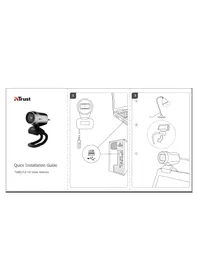
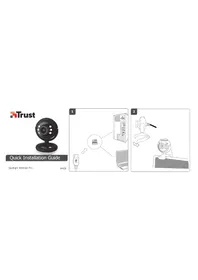
Connect the webcam to an available USB port on your computer. Wait for the driver to install automatically. If not, download the manual or use the support page for driver setup.
Why is my webcam not detected by my PC?
Check the USB connection and try another port. Ensure the webcam is enabled in your operating system's privacy settings. Restart your computer. If needed, reinstall the driver.
Does the Trust Tomar have a built-in microphone?
Yes, the webcam includes an integrated microphone, so you can record audio without an external microphone.
How do I clean the webcam lens?
Use a soft, dry cloth to gently wipe the lens. Avoid water, alcohol, or abrasive cleaners, as they may damage the lens coating.
Is the Tomar webcam compatible with Windows 10?
The webcam is designed for Windows XP, Vista, 7, 8, and may work with Windows 10 or 11 via generic UVC drivers. Check the manual for updated compatibility.
How can I adjust the focus?
Rotate the focus ring around the lens until the image appears sharp. The manual focus allows you to set the distance between 5 cm and infinity.
Can I mount the webcam on a laptop or flat monitor?
Yes, the webcam has a universal clip that fits laptop lids and flat monitors. It also comes with a stand for placement on a desk.
What software do I need to capture video or take pictures?
Any video conferencing or webcam application such as Skype, Zoom, or the built-in Camera app can use the webcam. No proprietary software is required.
How do I protect the webcam from damage?
Avoid dropping the device and do not pull the USB cable forcefully. When not in use, store it in a dry place and disconnect it gently.
Can I repair the webcam if it stops working?
The device has no user-serviceable parts. Do not open the casing. Contact TRUST support or consult the manual for warranty and service options.
User questions about Tomar TRUST
0 question about this device. Answer the ones you know or ask your own.
Ask a new question about this device
No questions yet. Be the first to ask one.
Download the instructions for your Webcam in PDF format for free! Find your manual Tomar - TRUST and take your electronic device back in hand. On this page are published all the documents necessary for the use of your device. Tomar by TRUST.
USER MANUAL Tomar TRUST



Manual assistant
Powered by Anthropic
Waiting for your message
Product information
Brand : TRUST
Model : Tomar
Category : Webcam