
RS200SD - Sports Watch POLAR - Free user manual and instructions
Find the device manual for free RS200SD POLAR in PDF.


User questions about RS200SD POLAR
0 question about this device. Answer the ones you know or ask your own.
Ask a new question about this device
Download the instructions for your Sports Watch in PDF format for free! Find your manual RS200SD - POLAR and take your electronic device back in hand. On this page are published all the documents necessary for the use of your device. RS200SD by POLAR.
USER MANUAL RS200SD POLAR
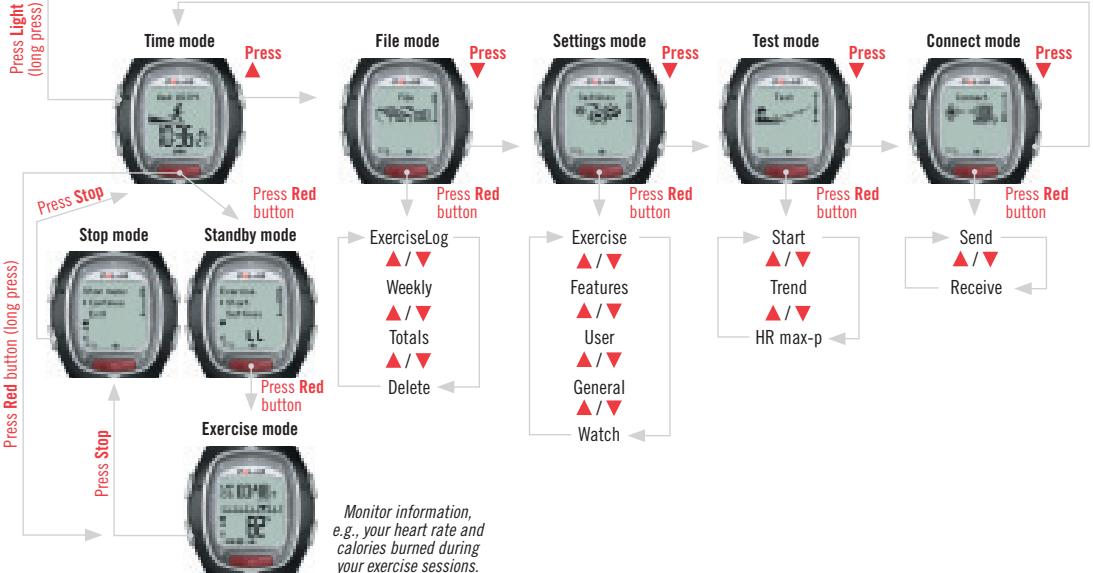
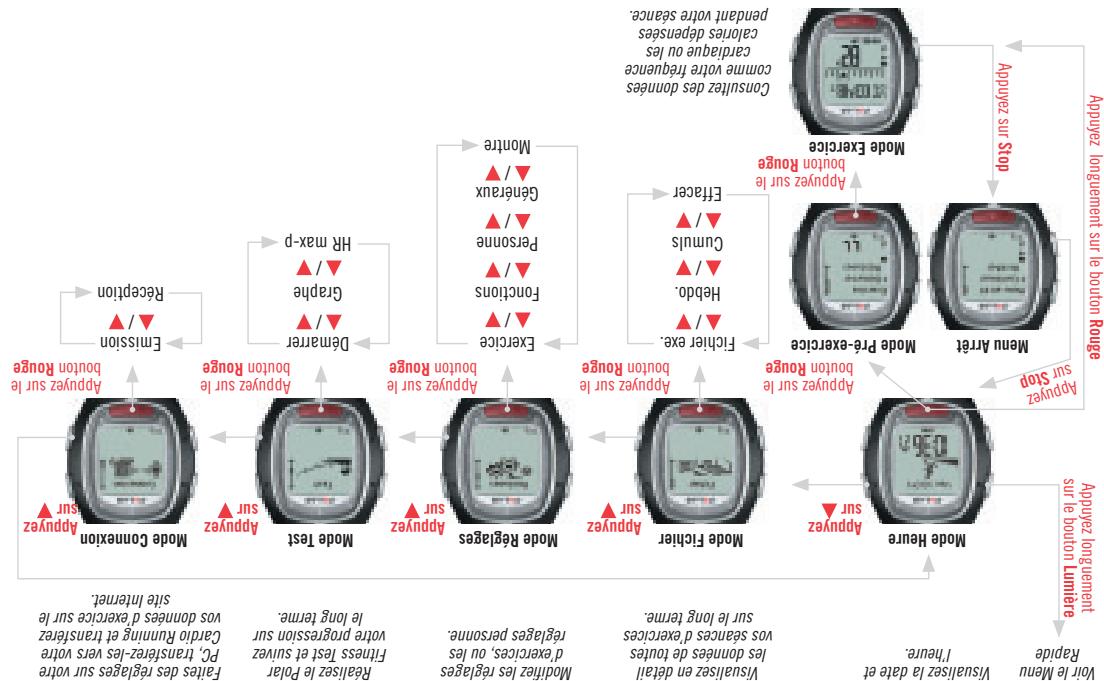
View the date and time of day.
View detailed long-term information on your exercises.
Change, e.g., exercise settings or personal information.
Perform the Polar Fitness Test and view your long-term progress.
Transfer the settings to your running computer from your PC and send your exercise data to the web service.
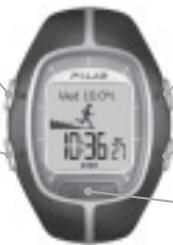
WRIST UNIT BUTTONS
Note: Pressing a button briefly has a different effect than pressing and holding the button for a longer period of time:
Normal press: press and release the button.
- Long press: press and hold the button (for at least one second).
Light
- Turn the backlight on.
- View Quick menu (long press).
= 0 Unlock the buttons (long press).
Stop
- Stop, pause or cancel the function.
- Exit the menu and return to the previous level of the menu.
- Return to the Time mode (long press) in all modes except in the Exercise mode.
#
- Move to the previous mode or menu level.
- Increase the selected value.
#
- Move to the next mode or menu level.
Decrease the selected value.
Red button
- Start, enter or accept the function.
- Enter the displayed mode or menu and move to a lower menu level.
- Enter the Standby mode.
- Enter the Exercise mode (long press).
- Record lap times in Exercise mode.
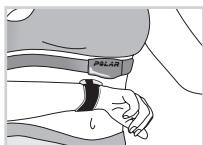
- Touch (hands free button)
To view information during exercise without pressing buttons, bring the wrist unit near the Polar logo on the transmitter.
For RS200sd users: The information relevant to using the product with Polar S1™ Foot Pod is in blue text.
- INTRODUCTION TO THE POLAR RS200 / RS200sd RUNNING COMPUTER 6
1.1 PRODUCT ELEMENTS 6
1.2 USING YOUR RUNNING COMPUTER FOR THE FIRST TIME 7
- EXERCISING 9
2.1 MEASURING YOUR HEART RATE 9
2.2 POSITIONING THE POLAR S1 FOOT POD 11
2.3 EXERCISE RECORDING 13
2.4 FUNCTIONS DURING EXERCISE 15
2.5 STOPPING THE EXERCISE 22
- FILE - VIEWING RECORDED INFORMATION 24
- SETTINGS 34
4.1 EXERCISE SETTINGS 35
4.2 FEATURE SETTINGS 43
4.3 USER SETTINGS 47
4.4 GENERAL SETTINGS 51
4.5 WATCH SETTINGS 53
4.5.1 Event 53
4.5.2 Alarm 54
4.5.3 Time Zones 56
4.5.4 Date 57
5. TARGET ZONE LIMITS 58
5.1 OWNZONE LIMITS 59
5.2 POLAR SPORT ZONES 61
5.3 MANUAL LIMITS 64
6. TEST-POLAR FITNESS TEST 65
7. CONNECT-DATACOMMUNICATION 70
7.1 EDIT SETTINGS WITH A COMPUTER 70
7.2 TRANSFER YOUR TRAINING DATA TO THE TRAINING DIARY ON THE WEB 71
8. CARE AND MAINTENANCE 72
9. PRECAUTIONS 75
- FREQUENTLY ASKED QUESTIONS 77
- TECHNICAL SPECIFICATIONS 79
- LIMITED POLAR INTERNATIONAL GUARANTEE 81
13.POLARDISCLAIMER 82
1. INTRODUCTION TO THE POLAR RS200 / RS200sd RUNNING COMPUTER
1.1 PRODUCT ELEMENTS
The Polar RS200 Running Computer package consists of the following parts:
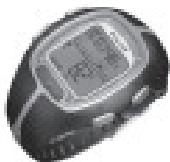
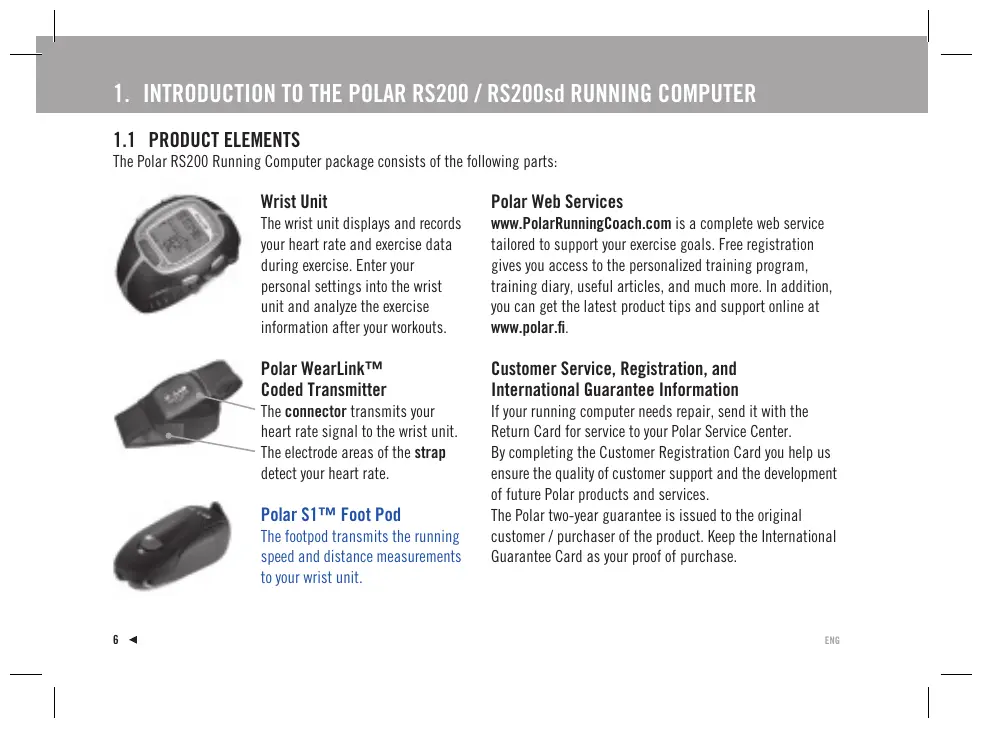
Wrist Unit
The wrist unit displays and records your heart rate and exercise data during exercise. Enter your personal settings into the wrist unit and analyze the exercise information after your workouts.
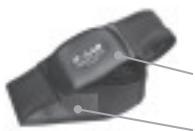
Polar WearLink™ Coded Transmitter
The connector transmits your heart rate signal to the wrist unit. The electrode areas of the strap detect your heart rate.
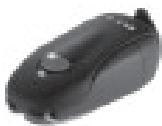
Polar S1TM Foot Pod
The footpod transmits the running speed and distance measurements to your wrist unit.
Polar Web Services
www.PolarRunningCoach.com is a complete web service tailored to support your exercise goals. Free registration gives you access to the personalized training program, training diary, useful articles, and much more. In addition, you can get the latest product tips and support online at www.polar.fi.
Customer Service, Registration, and International Guarantee Information
If your running computer needs repair, send it with the Return Card for service to your Polar Service Center. By completing the Customer Registration Card you help us ensure the quality of customer support and the development of future Polar products and services.
The Polar two-year guarantee is issued to the original customer / purchaser of the product. Keep the International Guarantee Card as your proof of purchase.
1.2 USING YOUR RUNNING COMPUTER FOR THE FIRST TIME
Enter your personal data in the Basic Settings mode (time, date, units, and personal settings). Entering accurate personal information ensures that you receive correct feedback based on your performance.
Activate the blank wrist unit by pressing any button.
The display fills with numbers and letters.
- Press the Red button. Welcome to Polar Running World! is displayed.
- Press the Red button and choose the language you wish to use with the / buttons (choose English, Deutsch, Espanol or Francais).
- Press the Red button. Start with basic settings is displayed.
- Continue by pressing the Red button and follow the steps below:
Note: The numbers scroll faster if you press and hold the / button as you adjust the value.
-
Time: Press / to set the flashing value and then the Red button to accept:
-
24h / 12h: select 12h or 24h format
- AM / PM (for 12h format): select AM or PM
Hours: adjust the hours - Minutes: adjust the minutes
Date: Press / to set the flashing value and then the Red button to accept:
Note: The date will be displayed according to the time format selected (24h: day - month - year / 12h: month - day - year).
Day / Month: adjust the day (in 24h format) or the month (in 12h format)
- Month / Day: adjust the month (in 24h format) or the day (in 12h format)
Year: adjust the year
Units: Press / to set the flashing value and then the Red button to accept:
- kg/cm/km or lb/ft/mi: select the units
Weight: Press / to set the flashing value and then the Red button to accept:
- kg / lb: adjust your weight
Note: Press Light (long press) to change the units.
Height: Press / to set the flashing value and then the Red button to accept:
- cm / ft, in: adjust your height
Note: Press Light (long press) to change the units.
Birthday: Press / to set the flashing value and then the Red button to accept:
Day / Month: adjust the day (in 24h format) or the month (in 12h format)
- Month / Day: adjust the month (in 24h format) or the day (in 12h format)
Year: adjust the year
Sex: Press / to set the flashing value and then the Red button to accept:
Male/Female:select gender
- Settings OK? No / Yes is displayed. To change your settings, select No. Press the Stop button until you return to the desired setting. To accept settings, choose Yes with the Red button. The display automatically goes to the Time mode.
Quick menu:
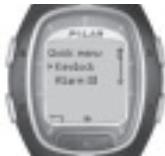
When you press and hold the Light button in the Time mode, you can view the Quick menu. The menu includes the following functions:
Keylock: You can lock the buttons. Keylock prevents accidental button presses. See page 20 for more information.
Alarm: You can turn the alarm on or off. See Watch settings on page 53 for instructions.
Time Zone: For changing time zones, see Watch settings on page 53 for more instructions.
Sleep: For activating the sleep function, see General Settings on page 51 for instructions.
Tip: You can personalize the display of your running computer by downloading logos. For more information, see Connect - Data Communication on page 70.
2. EXERCISING
2.1 MEASURING YOUR HEART RATE
To measure your heart rate, you need to wear the transmitter.
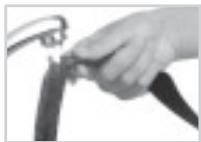
- Moisten the electrode areas of the strap under running water and make sure that they are well moistened.
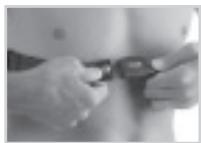
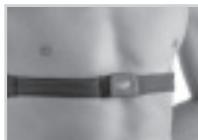
- Attach the connector to the strap. Position the letter L on the connector next to the word LEFT on the strap and snap the fastener. Adjust the strap length to fit snugly and comfortably. Secure the strap around your chest, just below your chest muscles, and snap the second fastener.
- Check that the wet electrode areas are firmly against your skin and that the Polar logo of the connector is in a central, upright position.
- Wear your running computer like you would wear a watch. In the Time mode, press the Red button. The running computer will automatically start searching for your heart rate. The heart rate and the framed heart symbol appear in a maximum of 15 seconds. If you have set the Help function on, the message HeartRate signal found is displayed. Your heart rate is measured but not recorded until you have started the exercise. To record your heart rate and other exercise data, see the chapter Exercise Recording on page 13.
Coded Heart Rate Transmission
Coded heart rate transmission reduces interference from other heart rate monitors that are close by. To make sure that the code search is successful and to ensure trouble-free heart rate monitoring, keep the wrist unit within 1 meter/3 feet of your transmitter. Check that you are not near other people with heart rate monitors or any source of electromagnetic disturbance (for further information on interference, see Precautions on page 75).
A frame around the heart rate symbol indicates a coded heart rate transmission.
A heart rate symbol without a frame indicates a non-coded heart rate transmission.
The heart rate measurement functions also in non-coded mode, especially if there aren't any sources of interference nearby.
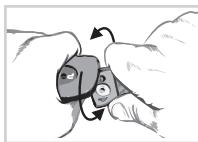
To detach the connector from the strap, apply pressure with your thumb and forefinger and turn your hand as indicated in the picture.
Note: If the wrist unit does not display your heart rate, or it displays Check WearLinkl, make sure that the transmitter electrodes are moist and that the strap is snug enough. Bring the wrist unit near the Polar logo on the transmitter to restart heart rate detection.
2.2 POSITIONING THE POLAR S1 FOOT POD
When using the footpod for the first time, you have to insert the battery into the footpod. The battery comes with the product set. In this case start from the chapter Assembling the S1 Foot Pod Battery on this page.
When changing the battery, check that there is sufficient power in the footpod battery. You can check this by pressing and holding the red button on the footpod. If a green light starts to flash, you can start attaching the footpod onto your shoe. If there is no light, the battery needs to be replaced.
Assembling the S1 Foot Pod Battery
The estimated average battery life span of the footpod is 20 hours of use. You can replace the battery yourself. If you do so, follow the instructions below carefully. If you prefer Polar to replace the battery, you can send or take the sensor to a Polar Service Center. There the sensor is tested after the battery is replaced.
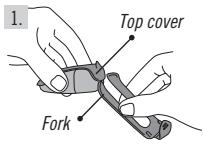
- Detach the footpod from the fork by unfastening the flap and lifting the foot pod from the fork.
- Remove the black top cover from the footpod by lifting it from the battery cover. You can use the front edge of the fork to remove the cover (see picture 1).
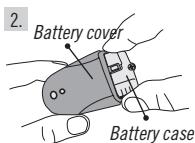
- Open the battery cover carefully. Pull out the battery case (see picture 2). Replace the old battery (AAA) with a new one.
- Insert the battery case back inside the footpod. Make sure that the battery case slides into the grooves of the sensor. Be careful not to touch the switch on the foot pod while sliding the battery case in or out.
- Check that the sealing ring is in the groove to secure water resistance. Close the battery cover and place the black top cover on top of the footpod. Make sure that it is secured.
- Test the footpod by checking that the green light starts to flash after you press and hold the red button on the footpod. Press and hold the red button again to turn the footpod off.
- Battery should be disposed of properly according to local regulations.
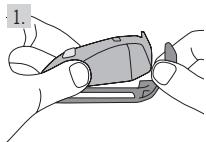
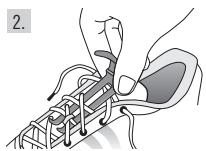
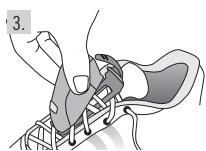

Attaching the S1 Foot Pod on Your Shoe
- Detach the fork from the footpod by unfastening the flap and lifting the footpod from the fork.
- Loosen your shoelaces and place the fork under the laces, above the tongue of the shoe. Tighten the laces.
- Attach the footpod to the fork by fitting the front part (closer to the red button) of the footpod to the fork and pressing from the rear. Fasten the flap. Make sure that the footpod does not move and that it is aligned with your foot.
- Turn the footpod on after your heart rate is displayed on your running computer. Press and hold the red button on the footpod until the green light starts to flash.
After exercising, turn the footpod off by pressing and holding the red button until the green light fades.
Note:
- If you have turned on the Help function on your running computer, Footpod signal found and a symbol are displayed when turning the footpod on.
- If the message Check Footpod! is displayed, the running computer cannot receive any information from the footpod. See chapter Frequently Asked Questions on page 77 for further instructions.
- When the green light on the footpod turns red, you need to replace the battery before your next run.
Tip: The more secure the footpod, the more accurate the speed and distance functions. Ensure the maximum number of laces are holding the fork in place.
Calibrating the Polar S1 Foot Pod
Calibrating the footpod improves the accuracy of speed / pace and distance measurements. It is recommended that you calibrate the footpod when you use it for the first time, if there are significant changes in your running style or if the position of the footpod on the shoe is dramatically changed (e.g., if you have changed your running shoes).
You can calibrate the S1 Foot Pod by running a preset distance at a steady pace. If you already know the calibration factor (e.g., when moving from a flat terrain to a hilly terrain), you can set the factor manually.
For more information on how to calibrate the footpod, see page 43.
2.3 EXERCISE RECORDING
By pressing Start in the Time mode, you can start your exercise.
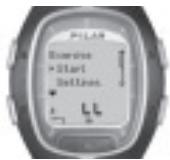
- Wear the transmitter as described in the chapter Measuring Your Heart Rate on page 9.
- Start from the Time mode. Press the Red button.
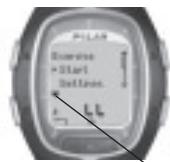
- The running computer is in the Standby mode. Start and Settings are displayed. The default exercise type flashes on the upper row. The wrist unit automatically starts searching for your heart rate but your exercise is not recorded.
- Select Start with the / buttons. Confirm your selection by pressing the Red button. The stopwatch starts running and the exercise recording symbol RED is displayed. The stopwatch and calculations are activated and recording of the exercise starts.
Tip: Alternatively, you can quickstart exercise recording in Time mode by pressing and holding the Red button.
Note:
- Before starting the exercise recording you can change the default exercise to another in the Settings mode. In the Settings mode select Exercise with the Red button and choose the desired exercise with the / buttons. Confirm with the Red button. Choose Select with the Red button. The running computer returns automatically to the Standby mode.
- If you are starting an exercise that requires the footpod but you have not switched the footpod on, (Exercise name) requires Footpod is displayed when starting the exercise. Switch on the footpod and activate the footpod setting on your running computer to continue the exercise. For further information, see Feature Settings on page 43. If you do not change the footpod settings and press the Red button on your running computer again, Exercise changed is displayed and the exercise will be automatically changed to Free exercise, which does not require the footpod.
- If OwnZone is selected, the OwnZone determination procedure begins. For further information, see Determining Your OwnZone Heart Rate Limits on page 59.
- The Battery Low message appears in the exercise mode when the battery of the running computer needs to be replaced. In that case, see instructions in the chapter Care and Maintenance on page 72.
Tip: Use the Standby mode when you want to measure your heart rate but do not want to record it, e.g., when waiting for an event or a competition to start.
- To return to the Time mode, press the Stop button twice.
2.4 FUNCTIONS DURING EXERCISE
During your workout you can:
LAF 05
Store laps and view lap times.

View your current heart rate (in beats per minute or as a percentage of your maximum heart rate).

View the total duration of the exercise so far.

View how many calories you have burned during the exercise.

Check your speed / pace.

Check the distance you have run so far.

View the time of day.


Check with the timer or the distance alarm how much time is left of a particular phase before the phase ends, and change to another phase.

112
Check your target heart rate zone and check whether you are within your target limits.

12.0
View your speed / pace limits.


View your heart rate intensity and lock the heart rate to a specific sport zone with ZoneLock. For more information on Polar sport zones, see page 61.
Note:
- Your exercise information is saved only if the stopwatch has been on for more than one minute or if at least one lap has been stored.
- What you can view on the display during your workout depends on the display settings. See the next page for more information.
Default views on the display:
Your running computer offers you a simultaneous view of three different lines of run information. During your exercise you can view the following 5 default views of the display when using the footpod (only 3 display views when you do not use the footpod). You can easily switch the display with the / buttons during your workout. The chance to view different displays will help you view the desired information during your training.
| Heart Rate view • Speed / Pace / Lap time (if footpod is off, lap time will be displayed) • Stopwatch • Heart rate | Speed / pace view (will not be displayed, if footpod is off) • Stopwatch • Distance • Speed / pace (depending on the selected speed view) | |
| Stopwatch view • Heart rate • Lap number and time • Stopwatch | Distance view (will not be displayed, if footpod is off) • Zone number and countdown timer or distance / Lap time (Lap time will be displayed if you have not set any timers or distances to guide you to change the zone) • Sport zones / Target heart rate zone / Target speed / pace zone | |
| Lap time view • Sport zones / Target heart rate zone / Target speed / pace zone • Heart rate • Lap time | ||
Note: The display variations depend on your settings. See next page for instructions on how to change the displays.
Changing the information shown on the display during your exercise:
You can personalize the displays with the display settings. It is up to you to decide which display combination you want to view.
- Press Stop to go to the Stop menu. During the time you adjust the display, your exercise recording is paused.
- Choose Settings with the / buttons. Confirm with the Red button.
- From the Settings menu select Display. You can always change the displays Heart Rate, Stopwatch and Lap time. When the footpod setting is on you can also change the Speed / Pace and Distance views. Select the view to be altered with the / buttons.
- When the Red button is pressed, the top row starts blinking. Browse the display information options with the / buttons and confirm your selection with the Red button:

Stopwatch

Lap time

Time of day

Calories

Heart rate

Countdown timer / distance

Speed / Pace

Distance

112 Target zone limits
- Secondly the middle row starts blinking. Repeat the same procedure as above.
- Press Stop twice to return to the Stop menu and continue your workout by selecting Continue.
Note:
To return the default display view, press and hold the Light button when the upper or middle row is blinking. Return Defaults? No / Yes is displayed. Select Yes with the / buttons and confirm with the Red button.
- In the Exercise mode you can select the display that you have most recently changed by pressing and holding the button.
- Displays can be changed also before the exercise in Standby mode. Select Settings in Standby mode and choose Display from the menu. Proceed as specified above.
Tip:
- Choose a display which corresponds to the feedback you require. For example, when training requires a set pace use a display with speed.
- Choose a display with Polar sport zones for an interval set. For a long run with a set distance, using a display with distance can be helpful.
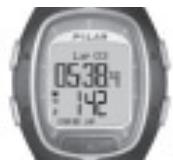
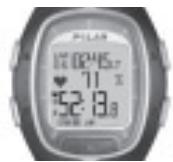
You can ZOOM in the features on the display to bring out information:
In exercise mode press the button (long press). You can see the middle row information zoomed in, and a definition of the feature is displayed on the upper row. If you press the button (long press) again, the display with three rows returns.
Note: You cannot zoom the target zone graphs.
Tip: During a road race or a running event, for example, it is useful to monitor your heart rate as a percentage of your maximum heart rate as well as time (lap time on the top row and split time on the lowest row). This will help you to stay in the correct heart rate zone and make it to the finishing line.
Storing lap and split time:
Press the Red button to store lap time.
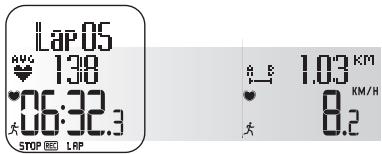
Lap number, average heart rate for the lap, and lap time are displayed.
After a few seconds the average speed / pace and distance for the lap are displayed if the footpod function is on.
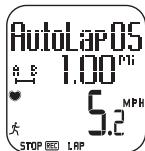
If you have switched on the AutoLap function, your running computer will record laps automatically.
The lap time indicates the elapsed time for one lap. The split time is the elapsed time from the beginning of the exercise until storing a lap time (for example from the beginning of the exercise until the 4^th lap was stored).
Note:
- When the running computer is able to store less than 42 laps, the running computer beeps and Memory Low appears on the display.
- If the memory of your running computer is full, the running computer beeps and Memory full is displayed. The exercise is recorded and lap times are shown but not accumulated and saved to the File.
- When the maximum exercise time is reached, the running computer beeps and Maximum exercise time is displayed for 10 seconds. The exercise timers are stopped and the exercise is not recorded anymore.
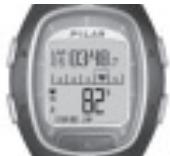
Locking the heart rate zone on a specific sport zone (ZoneLock): When exercising without preset target zones you can lock your heart rate on a specific sport zone. If for example you are running with a heart rate of 130 bpm which is 75% of your maximum heart rate and match to the sport zone 3, you can press and hold the Red button to lock your heart rate to this zone. SportZone 3 Locked 70% -79% is displayed and the graph will be displayed on the Lap Time view (if you have not changed the displays before). When you continue with your exercise and
happen to fall below or go beyond the sport zone, the running computer will alert you by beeping (if the TZ Alarm function is on). If your heart rate is lower than 50% or higher than 100% of your maximum heart rate, you cannot see the heart symbol on the chart.
You can unlock the sport zone by pressing and holding the Red button. SportZone 3 Unlocked appears on the display. For more information on how to apply Polar sport zones in your training, see page 61.
Tip: Locking your heart rate to a specific sport zone can be particularly helpful when on a recovery run. This will ensure full recovery before your next hard training session.
Paising exercise: Press the Stop button. Exercise recording, stopwatch, and other functions are paused. To continue, select Continue from the menu and press the Red button.
Tip: When you need to stop for a drink or you are at a set of traffic lights, you can pause the exercise recording.
Exercising in the dark (Night mode): If you activate the backlight by pressing the Light button during an exercise recording, the backlight will reactivate automatically during the same exercise every time you press any button or use the -Touch function. The backlight activates also when AutoLap is saved.
Viewing the Settings menu: Press and hold the Light button. In the Settings menu you can change the following features of your running computer:
Keylock
- TZ Alarm
- Change zone*
HR view
- Touch
- Speed view
- AutoLap
Note: For more information on the features, see the chapter Feature Settings on page 43.
For more information on TZ Alarm, see the chapter Target Zone Limits on page 58.
*Displayed only when exercising in a mode with preset target limits. You can change the zone manually to another by selecting this.
Tip: When you are in an environment where you do not want to bother other people with beeping sounds, turn off the target zone alarm.
Keylock: You can lock or unlock all buttons except the Light button during exercise. Keylock is useful when engaging in sports where you might accidentally press buttons. To lock the buttons, press and hold the Light button to go to the Quick menu. Select the Keylock from the menu with the / buttons and press the Red button to confirm. The - 0 symbol is displayed. To unlock the buttons press and hold the Light button. Hold to unlock buttons is displayed. Press and hold the Light button until the - 0 symbol disappears. Buttons unlocked is displayed.
Changing settings during exercise:
In the exercise recording mode press the Stop button. Select Settings with the / buttons and confirm with the Red button. During the time you adjust the settings your exercise recording is paused. The Settings menu includes the following:
- TZ Alarm: Switch the Target Zone Alarm sound on / off. TZ Alarm is for alarming when you do not stay within the preset target zone limits, i.e., when your heart rate, speed or pace is below the lower limit or above the higher limit.
- Change zone: When exercising with more than one target zone, you can change from one zone to another. This is not displayed when exercising without target zone limits.
- HR view: Choose whether you wish to see the heart rate in beats per minute (HR) or percentage of the maximum heart rate (HR%) .
-
Touch: View information during your exercise recording without pressing any buttons. Just bring the wrist unit near the Polar logo on the transmitter, and the selected information shows on the display. You can choose the Touch function between:
-
Show limits (View preset heart rate limits.)
Take lap (Record lap times.) - Change view (Change the display view to another.)
Light (Illuminate the display.) -
Off (Set the -Touch function off.)
-
Speed view: Select the way the speed is displayed. Your options depend on your unit selection:
-
km/h or mph (speed)
-
min/km or min/mi (pace)
-
AutoLap: Choose the automatic lap function on / off. If you choose it to be on, your running computer records laps automatically after the selected distance. To use the AutoLap function, make sure that the footpod is switched on and the footpod function is on in your running computer.
- Display: Choose from different ways to display information during exercise. You can select the desired information for the upper row and the middle row. For instructions see page 17.
Note: If you have set timers or distances to inform you to get to another target zone, you will hear a timer / distance beep when you need to change the zone. If you have turned the sound off, you will see Timer (timer number) or Distance (distance number) on the display. For more information on how to use timers or distances to guide your training, see Exercise Settings on page 35.
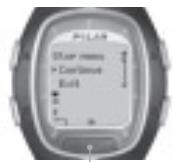
STOP MENU:
2.5 STOPPING THE EXERCISE
Press the Stop button to pause the workout recording. The Stop menu is displayed. The recording of your exercise is paused.
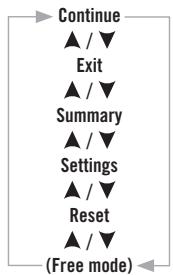
The Stop menu includes the following submenus. You can move in the menu by pressing / . Confirm with the Red button.
- Continue: Continue your workout.
- Exit: Stop your workout recording.
- Summary: You can check summary information during the exercise and continue your workout after that. See the next page for more information.
- Settings: Change the settings. See more on page 21.
- Reset: Reset your current exercise information and start your exercise from the beginning. The exercise information you just reset will not be recorded in the File. Reset Exercise? No / Yes is displayed. Confirm your selection with the Red button.
- Free mode: You can move on to the Free mode when exercising in another exercise mode than the Free mode. For more information on different preset exercises on your running computer, see page 35. (Note: When exercising in the Free mode, you cannot see this option in the Stop menu.)
To stop the recording press the Stop button again. Alternatively, you can choose Exit from the menu with the / buttons.
Summary: The following information is displayed when you select Summary. Scroll the information with the / buttons or stop the review by pressing the Stop button. Detailed exercise information is placed in the File after the exercise, see the next chapter for more information.
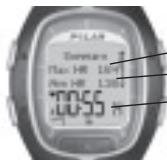
Summary
Max HR (maximum heart rate)
Avg HR (average heart rate)
Duration (total exercise time)
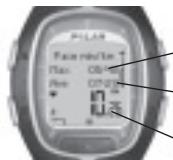
Pace / Speed
Max pace / Max speed
(maximum pace / speed)
Avg pace / Avg speed
(average pace / speed)
Distance (total amount of
kilometers / miles)
3. FILE - VIEWING RECORDED INFORMATION
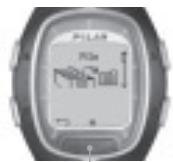
FILE:
ExerciseLog
After training, it is good to review the details of your workout. Your exercise information is saved in File. Note that the information is saved only if the stopwatch has been on for more than one minute or if at least one lap has been stored.
Tip: You can transfer your exercises from your running computer to the www.PolarRunningCoach.com web service for further analysis. For more information, see page 70.
- In the Time mode, press . File is displayed.
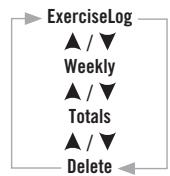
- Press the Red button. The submenu includes the following:
ExerciseLog
Weekly
- Totals
- Delete
- Select the desired option with the / buttons and enter with the Red button. Browse through the recorded information.
-
To stop viewing information, press the Stop button.
-
To return to the Time mode, press and hold the Stop button.
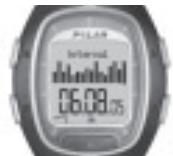
From ExerciseLog you can compare the relative duration of your exercises and recognize patterns and overall trends.
The summary file includes max 16 of your latest exercises displayed as bars. The height of the bar indicates the duration of the exercise. You can browse through them with the / buttons. Select one of the exercises with the Red button.
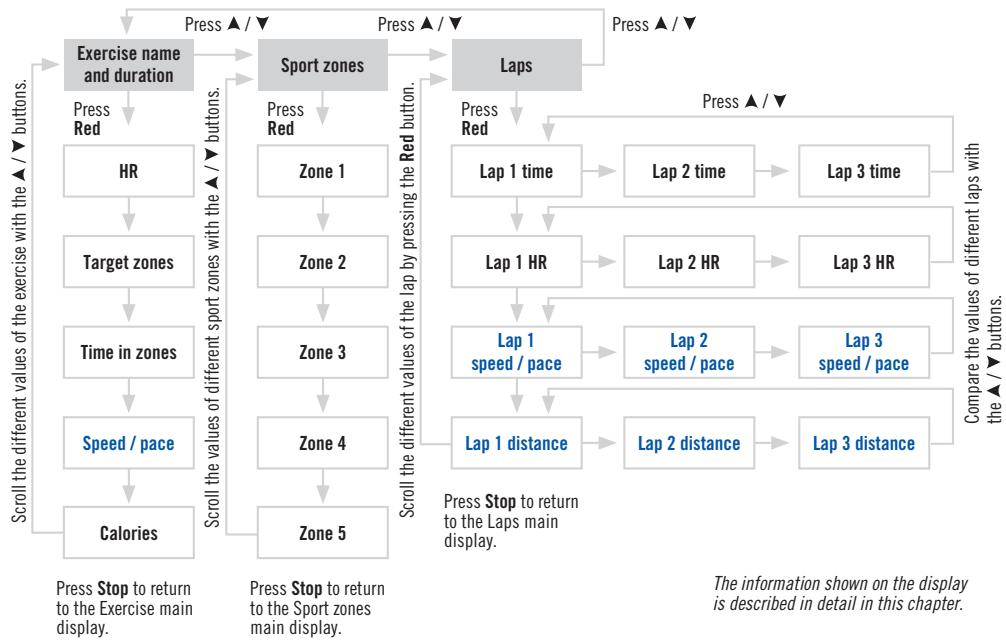
The process of viewing the recorded information for an exercise follows the pattern shown in the picture:
The recorded information shown on the display is described here in detail.
Press the Red button to enter the Exercise menu. View the recorded information with the / buttons. After reviewing the information press Stop to return to the Exercise menu.
Recorded exercise file information
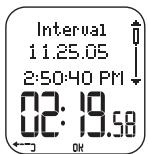
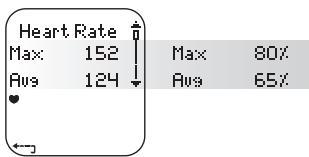
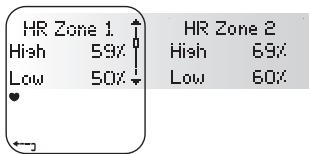
Display reads:
Name of the exercise
- Date
Starting time of the exercise
The total duration of the exercise
Average and maximum heart rate Alternation between:
values in beats per minute
percentage of maximum heart rate
Note: The alternating information switches automatically on the display.
Heart rate / pace / speed zones: High and low values* Alternation between:
- different zones and values
*Not displayed when the target zones are off.
| Recorded exercise file information | Display reads: | |
| TimelnZone1 Above 00:21 Below 08:53 20:07 36 | TimelnZone2 Above 00:00 Below 08:31 05:03 54 | · Time above, in, and below target zone* Alternation between: - different zones and values Note: The alternating information switches automatically on the display. *Not displayed when the target zones are off. |
| Speed km/h Max 10.4 Ava 9.3 21.15 | · Maximum and average speed or maximum and average pace, total distance Press the Light button (long press) to alternate the speed and pace values. | |
| Calories 843 kcal | · Burned calories | |
In the Exercise menu press the / buttons to enter the SportZones menu. Then press the Red button to enter the SportZones submenu. View the recorded information with the / buttons. After reviewing the information press Stop to return to the SportZones menu.
| Recorded exercise file information | Display reads: |
| SportZones ON | ·Sport zones On the display you can see the distribution of time between the five Polar sport zones. The bar height indicates the total time spent on the different sport zones. For more information on Polar sport zones, see page 61. |
| SportZone 2: 36:45 | ·The total time spent on each of the five sport zones |
| Press the Red button to enter the Laps submenu. View the recorded information of one lap with the Red button. After reviewing the information press Stop to return to the Laps menu. | |
| 1.2 Laps Ava 00:10:32 Best 10 ON | ·Number of laps ·Average lap time Alternation between: - number of the best (shortest) lap - lap time |
| Compare the information between different laps with the▲/▼buttons. | |
| Lap 2 Time 00:23:15.0 02:10.15 ON | Lap number Split time for the lap Lap time |
| Lap 2 Max HR 152 Ave HR 124 124 ON | Lap number The average and maximum heart rate for the lap Alternation between: - values in beats per minute - percentage of maximum heart rate - The end heart rate of the lap |
| Lap 2 Pace min/km Ave 10:48 KM ON | Lap number The average speed / pace of the lap The maximum speed / pace of the lap Press the Light button (long press) to alternate the speed and pace values. |
Recorded exercise file information
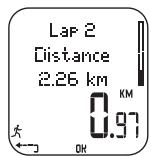
Display reads:
- Lap number
- Distance from the beginning of the exercise to the end of the lap
Lap distance
Note:
- The last lap will not be automatically selected as the best lap. If you wish to store the last lap before ending the exercise, use the Red button to store the lap instead of the Stop button (e.g., at the finishing line in a competition).
-
The lap information is displayed, when you have made at least one lap during your exercise. If you have made only one lap, there will be two laps saved in the memory, because the last lap is saved automatically when finishing the exercise with the Stop button.
-
To return to Time mode, press and hold Stop.
Weekly
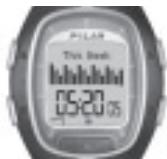
In Weekly summary you can view accumulated data of your exercises for previous weeks. Use this file as a weekly counter of your training results. Scroll the displayed weeks with the / buttons and view the total duration for the exercises on the lower row. To choose the week, press the Red button.
The first bar named This week displays the exercise summary for the current week. The previous bars (named after the Sunday of the week in question) display the summary for the past 15 weeks. Press the Red button and scroll with the / buttons to view the information.
Weekly exercise information
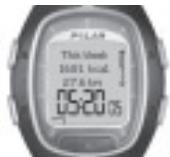
- Burned calories
- Kilometers or miles you have run altogether
Duration
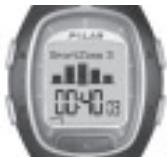
Press the Red button to enter:
Total duration for each of the five sport zones (scroll with the / buttons)
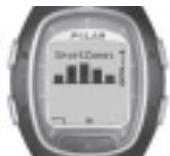
Weekly exercise time divided into Polar sport zones
Totals
The total values include cumulative values of information recorded during your training sessions. Use the Total values file as a seasonal (or monthly) counter of your training values. The values are updated automatically when exercise recording is stopped. This function keeps track of your cumulative values starting from the last reset. For further information on how to reset the values, see page 33.
Viewing Total Values
- In the File menu, select Totals with the / buttons.
-
Press the Red button.
-
Use the / buttons to scroll through the following information:
Total exercise information
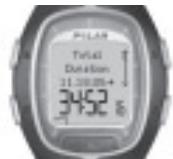
Total Duration
Total recorded exercise duration
The date cumulation started
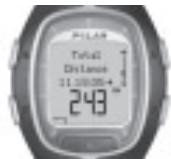
Total Distance
Total distance
The date cumulation started
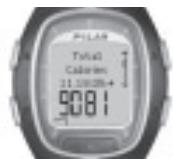
Total Calories
Total amount of calories burned
The date cumulation started
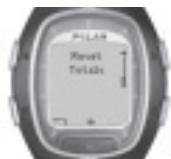
Reset Totals
- Reset the total values
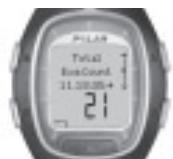
Total Exe.Count
Total count of exercises
The date cumulation started
Note: If there are no Total values accumulated yet, Empty is displayed.
Resetting total values
- In the File menu, select Totals with the / buttons. Press the Red button.
- Select Reset Totals with the / buttons and press the Red button.
- Choose the value you wish to reset from the menu and confirm with the Red button.
All
Duration
Calories
- Exe.Count
- Distance
- Reset ...? No / Yes is displayed. To reset the value, select Yes with the Red button. The deleted information cannot be retrieved.
- Alternatively you can reset all values by selecting All from the menu. Reset Totals? is displayed. By selecting Yes all the total values will be reset. By selecting No you will go back to the Reset menu.
Note: When the Total values memory becomes full, the accumulation starts from 0 again. See the maximum values for Totals on page 80.
Delete
In Delete you can delete your previous exercises one by one, all exercises at the same time or just total values.
- In the File menu, select Delete with the / buttons. Press the Red button to confirm.
- Scroll through the following information with the / buttons:
Exercise: Select a single exercise you wish to delete.
- All Exes: Delete all exercises from the memory with one button press.
- Totals: Delete the total values one by one or all totals at the same time.
-
Delete Exercise? No / Yes is displayed. Select Yes and confirm with the Red button.
-
To return to the Time mode, press and hold the Stop button.
4. SETTINGS
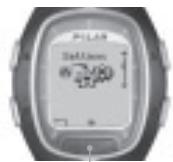
SETTINGS:
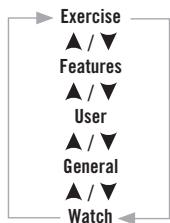
You can view or change the settings of your running computer in the Settings menu. Settings can also be configured and transferred to your running computer by using PC. For further information, see page 70.
To set values:
- Select or adjust using the / buttons.
- The numbers scroll faster if you press and hold the / buttons while adjusting values.
- Accept your selection and go deeper into the menu with the Red button.
- Cancel your selection or return to the previous mode or menu by pressing the Stop button.
Tip: Learn how your training can benefit from your running computer's features by consulting the running and training tips at www.PolarRunningCoach.com.
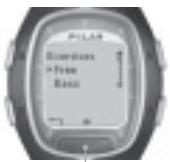
EXERCISE:
4.1 EXERCISE SETTINGS
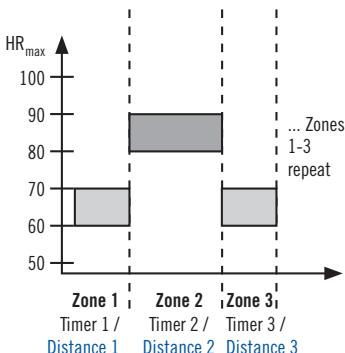
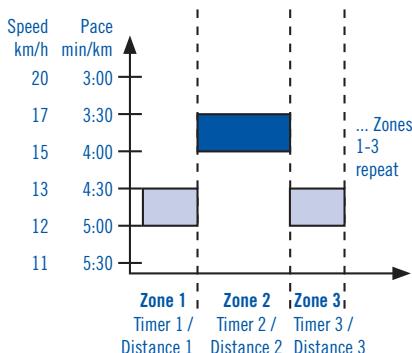
Exercising with target zones produces different health benefits. Zoned exercise means that an exercise has been divided into 1-3 zones according to your heart rate, speed or pace. The end of a zone is marked with a timer. Alternatively, the end of a zone can be marked with a distance.
An example of a heart rate-based zoned exercise:
An example of speed / pace-based zoned exercise:
Your running computer offers you three kinds of preset zoned exercises:
Basic Zone 1 Heart rate on sport zone 3 No Timer / Distance
Basic training with moderate intensity. Suggested duration, for example, 45 min.
Interval Zone 1 Heart rate on sport zone 2 Timer:5 min
Zone 2 Heart rate on sport zone 4 Timer:3 min
Basic interval training. Good for users who are not used to doing interval training.
Exercise starts with a 5-minute warm up followed by a 3-minute hard interval and a 5-minute light recovery period to be repeated, for example, 4 times. The exercise is finished with a 5-minute cool down.
OwnZone OwnZone 65-85% of maximum heart rate No Timer / Distance
Basic OwnZone-based (daily fitness) training with moderate intensity. Suggested duration, for example, 45 minutes. For more information on OwnZone, see page 59.
When you begin your workout, you can easily select a preset exercise from your running computer settings. For example, if you run the same track every Tuesday, just select the exercise every time you go running.
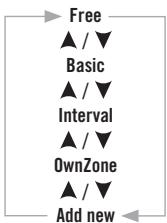
- In Settings press the Red button and select Exercise from the menu. Confirm with the Red button.
-
Select the desired exercise by choosing Select with the / buttons. Press the Red button.
-
Free (No preset settings for the exercise. You can do any exercise you choose.)
Basic - Interval
- OwnZone
-
Add new (You can add your own exercise.)
-
Once you have selected the desired exercise mode, you will have the following options for operating the exercise:
-
Select
View - Edit
- Rename
- Default
Select an Exercise
By choosing Select you can set the exercise as a default when starting a new exercise.
- In the Exercises menu select the exercise with the / buttons. Press the Red button to confirm.
- Choose Select from the menu with the / buttons and confirm with the Red button.
- Selected as default exercise is displayed. Press the Red button to confirm. When starting a new exercise this exercise will act as a default.
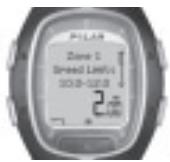
View an Exercise
By choosing View you can check the preset exercise settings.
- In the Exercises menu select the exercise with the / buttons. Press the Red button to confirm.
- Choose View from the menu with the / buttons and confirm with the Red button.
-
Scroll through the values with the / buttons:
-
name for the exercise
- target heart rate / speed / pace limits for each zone
timers
time / distance for the zone
Note: The values differ according to the exercise you have chosen and its settings.
Edit an exercise
If you wish to modify a preset exercise (Basic or Interval) to fit your needs, refer to the exercise adding process.
- In the Exercises menu select the exercise with the / buttons. You cannot edit the Free exercise. Press the Red button to confirm.
- Choose Edit from the menu with the / buttons and confirm with the Red button.
- Refer to the exercise adding process below.
Add a new exercise
You can also add your own exercise to your running computer settings. Firstly, you can set 0-3 zones for each exercise and define the heart rate limits or speed / pace limits for each zone. Secondly, you can set timers or distance values to guide you during the exercise.
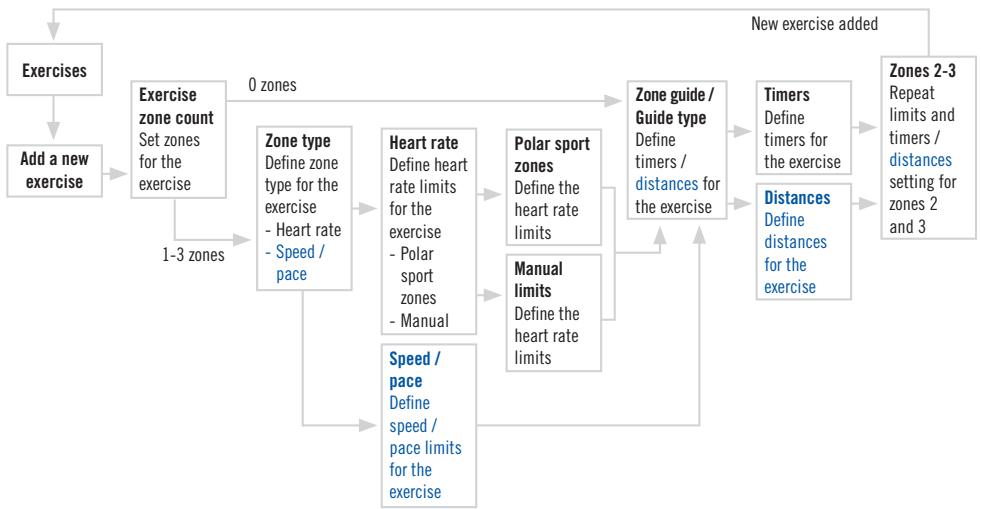
See the diagram below to view the whole adding process:
To add a new exercise with 1-3 zones:
- In the Exercises menu choose Add new with the / buttons and confirm with the Red button.
- Define how many zones the exercise will include.
Exercise Zone Count
- 0-3 (If you choose 0 zones, see further information on the next page.*)
- Define the zone type for the exercise (heart rate-based exercise or speed/pace-based exercise).
Zone Type
Heart Rate
- If you choose Heart Rate as the zone type, define whether you wish to use Polar sport zones or manual limits to guide your heart rate.
-
SportZones
-
Define Polar sport zones as heart rate zones for the exercise.
- HR Zone 1: Choose the sport zone (e.g. Z1: 50-59% etc.) and confirm with the Red button.
Continue from step 4.
-
Manual
-
Define the heart rate zone for the exercise manually.
- HR Zone 1: Set the high limit and low limit for the zone and confirm with the Red button.
Continue from step 4.
-
Speed / Pace (the option depends on the speed view selection)
-
If you choose speed or pace for the zone type, the zones will be defined as speed or pace values.
- SpeedZone 1 or Pace Zone 1: Set the high and low limits for the zone and confirm with the Red button.
Continue from step 4.
- Define whether you wish to hear a timer when you need to change from one zone to another or if you wish to change zone after a specified distance.
Zone Guide
-
Timers
-
Zone 1 timer: Set the timer for the zone (minutes and seconds).
Distances
-
Zone 1 distance: Set the distance for the zone (kilometers or miles, depending on your unit selection).
-
Off
-
Switch the timers and distances off. This means that you will not have guidance on when to change from one zone to another during your workout.
-
When you have defined the first zone, Zone 1 OK! is displayed. If you have defined more than 1 zone for the exercise, repeat steps 3 and 4 until all zones have been defined.
- When the exercise is ready, New exercise added is displayed. The running computer will return automatically to the Exercises menu.
The new exercise will be added to the Exercises menu where you can select it for your workout.
*To add a new exercise without zones:
You can also add an exercise without zones. This means that you will not have guidance on when to change from one zone to another during your workout. In this case you can change the zone during the exercise with ZoneLock. For more information on ZoneLock, see page 19. You can still use timers or distances to guide your training.
- In the Exercises menu choose Add new with the / buttons and confirm with the Red button.
-
Exercise Zone Count
-
Set the number of zones to 0.
-
Define whether you wish to hear a timer during the workout (e.g. as a reminder to drink) or set a distance (e.g. for following lap times without recording them).
Guide type
-
Timers
-
Define how many timers you wish to have for the exercise.
Exercise Timer Count: 1-3 -
Timer 1: Define minutes and seconds for the timer.
Distances
-
Define how many distances you wish to have for the exercise.
Exercise Distance Count: 1-3 -
Distance 1: Define the distance (kilometers or miles, depending on your unit selection).
-
Repeat step 3 until you have defined timers or distances for the exercise.
When the exercise is ready, New exercise added is displayed and your running computer will return automatically to the Exercises menu.
Note:
- Timer means that your running computer will alert you after a specified time period.
- Distance means that your running computer will alert you after a specified distance.
Tip:
- For more information on target zones and how to apply them in your workout, see Target Zone Limits on page 58.
-
For training programs based on your heart rate, check www.PolarRunningCoach.com for more information.
-
To return to the Time mode, press and hold the Stop button.
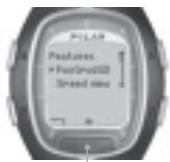
FEATURES:
4.2 FEATURE SETTINGS
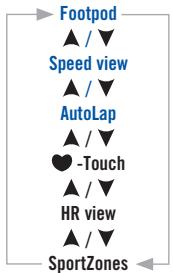
In Features you can set different functions on your running computer. The functions help you get the most out of your exercise.
You can modify the following features:
- Footpod Select the footpod on or off and calibrate the footpod.
- Speed view Select whether you want to view speed or pace values.
- AutoLap Select if you wish your running computer to record laps automatically.
- Touch Modify the -Touch function.
- HR view Select how your heart rate is displayed.
-
SportZones Select the lowest value for each of the five sport zones.
-
In the Time mode scroll with the / buttons until you reach Settings. Press the Red button.
- Select Features with the / buttons and confirm with the Red button.
- Select the desired feature, press the Red button and follow the steps below:
| The display reads: | Press▲or▼to set and the Red button to accept |
| Footpod • On / Off • Calibrate | ▲/▼ • select the function |
If you choose Calibrate:
Calibration
Run
- Manual

- select how to calibrate the footpod
Calibration by running:
- The display reads Calibration Distance 1.0km . Adjust the distance how far you wish to run to calibrate the footpod and press the Red button to confirm. To measure the running distance accurately you can, for example, run a 400m track on a sports field nearby you. It is important that you calibrate the footpod so that it matches the kind of terrain that you normally run on. This ensures the accuracy of the calibration. The longer the distance you run the more accurate the calibration result is.
- Press Start And Run ...km is displayed. Turn the speed sensor on by pressing and holding the red button on the footpod until the blinking green light activates.
- Press the Red button and start the run by making the first step with the sensor foot onto the starting line and run the preset distance at a steady pace.
- The display reads Press OK After ...km. Stop exactly on the stop line of the preset distance. Press the Red button.
- Stand Still! Receiving Data. is displayed. Stand still with your arms down and wait until your running computer has received the data.
- When the calibration succeeds, Footpod Calibration Complete! Factor and a calibration value are displayed. The new calibration factor is used.
- If the calibration fails, Footpod Calibration Failed! is displayed. If you cancel the calibration by pressing the Stop button, Footpod Calibration cancelled is displayed. When the calibration fails or you cancel the calibration the previous calibration factor is used.
Manual calibration:
When you know the calibration factor (i.e. you have calibrated the footpod previously) you can set the factor manually. The calibration factor is calculated as a ratio of the actual distance to the uncalibrated distance. For example, if you run 1200 meters and the wrist unit shows a distance of 1180 meters, the calibration factor should be adjusted to 1200 / 1180 = 1.017 .
- The display reads Calibration Factor 1.000 and the number is flashing. Adjust the value and confirm with the Red button.
- Calibration Complete! Factor and the preset value is displayed. Press the Red button to get to the previous display.
Note:
- If your running computer has problems in finding the footpod signal, Footpod not detected! is displayed. Check that the footpod is on and working and start the calibration process from the beginning. If further problems arise, see the chapter Frequently Asked Questions on page 77.
- The calibration is done in metric units. This is because the most universal calibration location is a 400m track, even in countries using the imperial units.
Continue with the other settings:
| The display reads: | Press ▲ or ▼ to set and the Red button to accept |
| Speed view ·km/h or mph ·min/km or min/mi | ▲/▼ ·select the speed or pace view (depending on your unit selection) |
| AutoLap ·On ·Off | ▲/▼ ·select the distance after which your running computer records a lap automatically (0.4-10.0 km / 0.2-6.2 mi) |
| ●-Touch ●Show limits ●Take Lap ●Change view ●Light ●Off | ▲/▼ ●select the function →(Feature) selected is displayed. |
| HR view ●HR ●HR% | ▲/▼ ●select the value |
| SportZones ●Zone low limits | ▲/▼ ●select the lowest value for each of the five sport zones →SportZones OK is displayed. |
Tip: Set AutoLap when running a race. A 1 km autolap is very helpful when running any events from 5 to 42 km because it will enhance and speed up your event review.
- To return to the Time mode, press and hold the Stop button.
USER:
4.3 USER SETTINGS
Entering correct personal information ensures that the functions in your running computer operate with the highest possible degree of accuracy. It is important that you give as realistic values as possible.
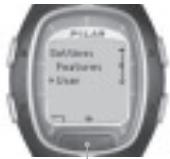
- In the Time mode, press the / buttons until Settings is displayed. Select with the Red button.
- Scroll with the / buttons until User is displayed and confirm with the Red button.
- Follow the steps below:
Note: The weight and height units depend on your unit selection. You can change the units in general settings. To reach the general settings press Stop and select General > Units.
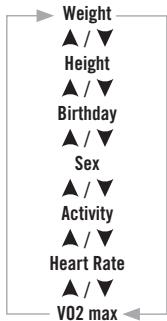
| The display reads: | Press ▲ or ▼ to set and the Red button to accept |
| 4. Weight • kg • lb | ▲/▼ • adjust your weight |
| 5. Height • cm • ft / in | ▲/▼ • adjust your height |
| 6. Birthday · Day / Month · Month / Day · Year | ▲ / ▼ · adjust the day (in 24h format) or the month (in 12h format) ▲ / ▼ · adjust the month (in 24h format) or the day (in 12h format) ▲ / ▼ · adjust the year |
| 7. Sex · Male / Female | ▲ / ▼ · select gender |
| 8. Activity · Top · High · Moderate · Low | ▲ / ▼ · select activity level Note: Check your activity level on page 50. |
| 9. Heart Rate · HR max · HR sit | ▲ / ▼ · adjust the HRmaxvalue, if you know your laboratory measured current maximum heart rate value. Your age-predicted maximum heart rate value (220-age) is displayed as a default setting when you set this value for the first time. · adjust your heart rate value in a sitting position. Note: For more information on HRmaxand HRSit, see the next page. |
| 10. V02 max | ▲/▼ ·adjust this, if you know your laboratory measured current VO2max value. Your predicted value or your last value is shown on the display as a default setting. Note: For more information on VO2max see the next page. |
- To return to the Time mode, press and hold the Stop button.
Maximum heart rate value (HR_)
HRmax is used to estimate energy expenditure. HRmax is the highest number of heartbeats per minute during maximum physical exertion. HRmax is also useful when determining exercise intensity. The most accurate method for determining your individual HRmax is to perform a maximal exercise stress test in a laboratory.
Heart rate value in a sitting position (HR_sit)
HRsit is used to estimate energy expenditure. To determine your HRsit easily, wear your transmitter, sit down, and do not engage in any physical activity. After two or three minutes, press the Red button in the Time mode to view your heart rate. This is your HRsit . To calculate your HRsit more precisely, repeat the procedure several times and calculate your average.
Maximal Oxygen Uptake Value (VO_2)
VO2 is used in the estimation of energy expenditure. VO2 is the maximum capacity for oxygen consumption by your body during maximum exertion. It is also known as maximum aerobic power or maximal oxygen intake. VO2 is a commonly used determinant of aerobic (cardiovascular) fitness. Aerobic fitness relates to how well your cardiovascular system works to transport and utilize oxygen in your body. The most accurate way of determining your individual VO2 is to perform a maximal exercise stress test in a laboratory. If you know your exact clinically tested current maximal oxygen uptake value, set the value by scrolling up or down. If you do not know this value, you can determine a comparable value, your OwnIndex, by taking the Fitness Test. For further instructions, see page 65.
Activity level
The activity level is an assessment of your level of physical activity. Select the alternative that best describes the overall amount and intensity of your physical activity in the past three months.
- Top You participate regularly in heavy physical exercise at least 5 times a week. E.g., you exercise to improve performance for competitive purposes.
- High You participate regularly, at least 3 times a week, in heavy physical exercise. E.g., you run 10 - 20km/ 6-12 miles per week or spend 2-3 hours per week in comparable physical activity.
- Moderate You participate regularly in recreational sports. E.g., you run 5-10 km / 3-6 miles per week or spend 1/2-2 hours per week in comparable physical activity or your work requires modest physical activity.
- Low You do not participate regularly in programmed recreational sport or heavy physical activity. E.g., you walk only for pleasure or occasionally exercise sufficiently to cause heavy breathing or perspiration.
GENERAL:
4.4 GENERAL SETTINGS
You can view and change the general settings of your running computer in the General Settings mode. The functions help you handle the information on your running computer.
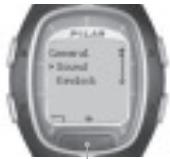
- In the Time mode, press the / buttons until Settings is displayed. Press the Red button.
- Select General from the menu and confirm with the Red button.
- Follow the steps below:
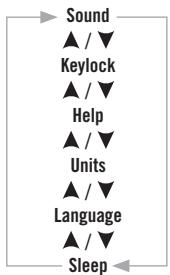
| The display reads: | Press ▲ or ▼ to set and the Red button to accept |
| 4. Sound • Volume Vol 2 / Vol 1 / Off | ▲/▼ • select the volume level (concerning button, activity and timer / distance sounds) |
| • TZ Alarm On / Off | ▲/▼ • select the target zone alarm on / off |
| Note: If you select TZ Alarm, your running computer's alarm sounds with every heartbeat when your heart rate is below or above your target heart rate zone. Even if you select volume off the TZ alarm and watch alarm will work. | |
| 5. Keylock • Manual / Automatic | ▲/▼ • select the value |
| Note: When choosing automatic keylock, the keylock activates when you have not pressed the buttons for 1 minute. | |
| The display reads: | Press ▲ or ▼ to set and the Red button to accept |
| 6. Help • On / Off | ▲/▼ • select the value |
| Note: When the Help function is on you will get help notes to guide you through the functions. For example, you will be notified that the sensor signals have been found. Help notes will assist you with the use of your running computer. | |
| 7. Units • kg/cm/km • lb/ft/mi | ▲/▼ • select the units |
| 8. Language • English • Deutsch • Español • Français | ▲/▼ • select the language |
| 9. Sleep • Activate sleep mode? No / Yes | ▲/▼ • select the value |
| Note: • You can activate the sleep mode in your running computer when not using the computer for a while. The sleep mode saves the battery life. You can activate the running computer again by pressing any button. Turn Display on? No / Yes is displayed. When choosing Yes with the Red button, the computer is activated and functions normally. To activate the sleep mode again, choose No with the Red button or press the Stop button. • The watch alarm is working also in the sleep mode. | |
- To return to the Time mode, press and hold the Stop button.
WATCH:
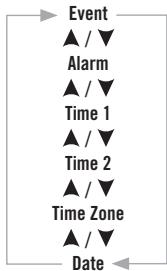
4.5 WATCH SETTINGS
When you are not exercising you can wear your running computer as a watch. To change the watch settings, follow the steps in this chapter.
4.5.1 EVENT
One key to keeping training motivation high is to have an event objective in mind. You can set an event to the memory of your running computer. With the event counter you can track the exact number of days until your next event. You can set the event counter on the display of your running computer by pressing and holding the button in the Time mode.
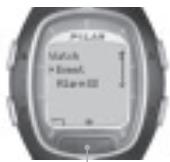
- In the Time mode, press the / buttons until Settings is displayed. Press the Red button.
- Select Watch with the / buttons and confirm with the Red button.
-
Choose Event with the / buttons and confirm with the Red button.
-
To view and change the event settings, follow the steps below:
| The display reads: | Press ▲ or ▼ to set and the Red button to accept |
| 5. Event • View | ▲/▼ • view the event |
| • Date - Day / Month or - Month / Day | ▲ / ▼ • adjust the date of the event (the order depends on your unit settings) |
| • Rename | ▲ / ▼ • rename the event by selecting letters with the▲ / ▼ buttons and confirming with the Red button |
| • Delete | ▲ / ▼ • delete the event |
- To return to the Time mode, press and hold the Stop button.
4.5.2 ALARM
You can set an alarm to sound at a particular time:
- In the Time mode, press the / buttons until Settings is displayed. Press the Red button.
- Select Watch with the / buttons and confirm with the Red button.
-
Select Alarm and confirm with the Red button.
-
To change the alarm settings, follow the steps below:
| The display reads: | Press ▲ or ▼ to set and the Red button to accept |
| 5. Alarm □ • Off • Once • Mon-Fri • Daily | ▲/▼ • select alarm mode |
| 6. AM / PM (for 12h format) | ▲/▼ • select AM or PM |
| 7. Hours | ▲/▼ • adjust the hours |
| 8. Minutes | ▲/▼ • adjust the minutes |
The Alarm functions in all modes except in the Exercise mode. When the alarm sounds, Alarm! Snooze? with a flashing backlight is displayed. The alarm will sound for a minute unless you press Stop and cancel the alarm. To delay the alarm an extra 10 minutes, press the / buttons or the Red button: Snooze is displayed and the snooze time starts counting. The alarm will sound again after 10 minutes. To cancel the snooze and Alarm, press Stop in the Snooze mode.
Alternatively, you can quick access Alarm settings in the Quick menu by pressing and holding the Light button in the Time mode.
Note:
- If the battery low symbol appears in the display, the alarm cannot be activated.
-
The alarm will still sound even if you have turned the sound off in the general settings.
-
To return to the Time mode, press and hold the Stop button.
4.5.3 TIME ZONES
To help you follow the different time zones you can set two time zones to your running computer.
- In the Time mode, press the / buttons until Settings is displayed. Press the Red button.
- Select Watch with the / buttons and confirm with the Red button.
- Select Time 1 and confirm with the Red button.
- To change the settings, follow the steps below:
| The display reads: | Press▲ or▼ to set and the Red button to accept |
| 5. Time 1 • 24 h / 12 h | ▲ /▼ • select how the time is displayed. |
| 6. Hours | ▲ /▼ • adjust the hours |
| 7. Minutes | ▲ /▼ • adjust the minutes |
When you have set Time 1 continue to Time 2:
| Time 2 | ▲ /▼ ·adjust the hours (how many hours behind or ahead you wish the Time 2 to be in comparison to Time 1) |
You can select the time zone in the watch settings.
- In the Time mode, press the / buttons until Settings is displayed. Press the Red button.
- Select Watch with the / buttons and confirm with the Red button.
- Select Time Zone from the menu with the / buttons and choose Time 1 or Time 2. Time 1 in use or Time 2 in use is displayed.
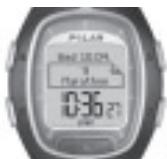
In the Time mode you can change the time zone by pressing and holding the button. The number 2 besides the time indicates that the Time 2 is in use.
- To return to the Time mode, press and hold the Stop button.
4.5.4 DATE
To set the date:
- In the Time mode, press the / buttons until Settings is displayed. Press the Red button.
- Select Watch from the menu with the / buttons and confirm with the Red button.
- Select Date from the Watch menu and confirm with the Red button.
- To change the settings, follow the steps below:
| The display reads: | Press ▲ or ▼ to set and the Red button to accept |
| Date • Month / Day • Day / Month • Year | ▲ / ▼ • adjust the day, month, and year (the order depends on the unit settings) |
- To return to the Time mode, press and hold the Stop button.
5. TARGET ZONE LIMITS
In exercise, different heart rate zones produce different fitness and health benefits. The heart rate zones that suit you depend on your goal and your basic physical condition. Your running computer offers you three ways to use the target heart rate zones: OwnZone, Polar sport zones, and manual limits. Alternatively you can choose limits based on your speed or pace (footpod required).
For further information on target zones and for a personalized training program, see www.PolarRunningCoach.com.
To set the heart rate limits for your exercise, follow the steps below:
- In the Time mode, press the / buttons until Settings is displayed. Press the Red button.
- Select Exercise and confirm with the Red button.
- Select the exercise you wish to modify and press the Red button. You cannot modify Free and OwnZone exercises.
- Press the / buttons until Edit is displayed. Confirm with the Red button.
- Continue with editing the exercise. For further instructions see the chapter Exercise Settings on page 35.
Target Zone Alarm: With the target zone alarm you can make sure that you exercise at the correct intensity. When the target zone alarm is activated, the symbol is displayed in the Exercise mode. The running computer sounds an alarm when you are above or below your limits. When you have selected heart rate based target zone limits and you are out of your target zone, the heart rate value starts flashing and the wrist unit alarms with each heart beat. When you have selected the speed or pace based target zone limits and you do not stay within the limits, your running computer starts beeping. You can activate and deactivate the alarm in the Settings > General > Sound > TZ Alarm menu or during the exercise by pressing and holding the Light button and choosing TZ Alarm with the / buttons. TargetZone Alarm On or TargetZone Alarm Off is displayed (if the Help function is on).
Note:
- When target zone limits are not activated, no target zone alarm in the exercise recording mode will sound, nor will target zone information be placed in the File.
-
The wrist unit sounds and backlight are turned off when the low battery symbol is displayed. However, the alarm will work once if it is set before the symbol appears.
-
To return to the Time mode, press and hold the Stop button.
5.1 OWNZONE LIMITS
Your running computer is able to determine your individual aerobic (cardiovascular) heart rate zone automatically. This is called OwnZone (OZ). OwnZone ensures that you exercise within safe limits.
The OwnZone feature determines your personal training zone primarily based on your heart rate variability. For most adults, OwnZone corresponds to 65 - 85% of maximum heart rate. The OwnZone varies daily, depending on your physical condition and mental state (for example, if you are not recovered from the previous training or feel stressed). OwnZone limits can be determined in 1-5 minutes during a warm-up period by walking, jogging, or doing some other sport. The main idea is that you start exercising slowly at a light intensity and then gradually increase the intensity by raising your heart rate.
OwnZone has been developed for healthy people. Some health conditions may cause heart rate variability based OwnZone determination to fail, for example high blood pressure, certain cardiac arrhythmias, and certain medications.
Determining Your OwnZone Heart Rate Limits
Before you start to determine your OwnZone, make sure that:
- You entered your user settings correctly.
- You select the OwnZone exercise. Every time you start the OwnZone exercise, the running computer will automatically determine your OwnZone.
You should redefine your OwnZone:
- When changing your exercise environment or the exercise mode.
- If you are returning to exercise after more than one week off.
-
If you feel unusual about the physical state of your body when starting to exercise. For example you are stressed, not recovered from the previous training or not feeling well.
After changing your settings. -
Start your exercise as described in the chapter Exercising on page 9.
- When you have pressed the Red button and your exercise starts, Finding OwnZone is displayed and the OwnZone determination 0Z begins. The OwnZone symbol appears in the display.
Alternatively, to skip OwnZone determination and use the previously determined OwnZone, press the Red button.
Determination of your OwnZone happens in five stages.
021 Walk at a slow pace for 1 min. Keep your heart rate below 100~bpm / 50% HR_ during this first stage. After each stage you will hear a beep (if the sound settings are on) and the display automatically illuminates (if you have switched the backlight on once before), indicating the end of the stage.
02 Walk at a normal pace for 1 min.
Slowly increase your heart rate by 10-20 bpm / 5% HRmax.
OZ Walk at a brisk pace for 1 min. Slowly increase
your heart rate by 10-20 bpm / 5% HR_
02 Jog at a slow pace for 1 min. Slowly increase
your heart rate by 10-20 bpm / 5% HR_
OZJog at a brisk pace or run for 1 min.
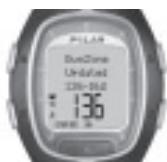
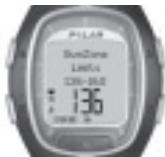
- At some point during the five stages, you will hear two beeps. Your OwnZone has now been determined. If the determination was successful, OwnZone Updated and the
limits are displayed. The limits are displayed as beats
per minute (bpm) or as a percentage of your maximum heart rate HR% , depending on your settings.
- If you cancel the OwnZone determination by pressing the Red button, or if the determination was not successful, your previously determined OwnZone limits
will be used. OwnZone Limits appears with the limits on the display. If you are determining your OwnZone for the first time and cancel the process, the limits based on your age will be used.
You can now continue with your exercise. Try to stay inside the given heart rate zone to maximize exercise benefits.
Note: The elapsed time used for OwnZone determination is included in your exercise, so your exercise is recorded from when you first start it.
For further information on OwnZone, see www.polar.fi and www.polarownzone.com.
5.2 POLAR SPORT ZONES
You can also choose Polar sport zones to guide your workout. Polar sport zones mean a new level of effectiveness in heart rate based training. The training is divided into five sport zones based on percentages of your maximum heart rate. Sport zones provide an easy way to select and monitor the intensity of your training and follow Polar's sport zones based training programs.
| Target Zone | Intensity % of HRmax | Example Durations | Physiological Benefit / Training Effect |
| 5 MAXIMUM | 90-100% | 0-2 minutes | >Tones the neuromuscular system >Increases maximum sprint race speed |
| 4 HARD | 80-90% | 2-10 minutes | >Increases anaerobic tolerance >Improves high speed endurance |
| 3 MODERATE | 70-80% | 10-40 minutes | >Enhances aerobic power >Improves blood circulation |
| 2 LIGHT | 60-70% | 40-80 minutes | >Increases metabolism >Increases aerobic endurance >Strengthens body so that it tolerates higher intensity training |
| 1 VERY LIGHT | 50-60% | 20-40 minutes | >Helps and speeds up recovery after heavier exercises |
Running in sport zone 1 is done at a very low intensity. The main training principle is that your performance level improves through recovery after training, not through the training itself. Sometimes the training may have been so strenuous that you have not yet recovered even the next day! In that case, you can accelerate your recovery process with very light intensity training.
Endurance training is done in sport zone 2. Running in this zone features an easy aerobic run. Endurance training is an essential part of every runner's training program. In fact, endurance training is the basis of any training plan. Long-duration training in this light zone is effective for energy expenditure. Progress in endurance training requires persistence.
Aerobic power is enhanced in sport zone 3. The training intensity is higher than in sport zones 1 and 2 but still mainly aerobic. Training in sport zone 3 can consist of intervals followed by recovery, for example. Running in this zone is especially effective for improving the efficiency of blood circulation in the heart and skeletal muscles.
If your goal is to compete at your top potential, you will have to go to sport zones 4 and 5. In these zones you run anaerobically, in intervals of up to 10 minutes. The shorter the interval, the higher the intensity. Sufficient recovery between intervals is very important. The training pattern in zones 4 and 5 is designed to bring the runner to peak performance.
The Polar sport zones can be personalized by using the measured HR_max . When running in a certain sport zone, the aim is to use the whole zone. The mid-zone is a good target, but it is not necessary to keep your heart rate at that exact level all the time.
The heart rate gradually adjusts to the training intensity. For instance, when moving from sport zone 1 to 3, the adjustment time of the circulatory system and heart rate can be 3-5 minutes.
The response of the heart rate to an exercise of a certain intensity varies according to training, recovery, environmental, and other factors. This is why it is important to pay attention to your own feelings of exhaustion and adjust the training program accordingly.
Your Running Computer Guides Your Training with Polar sport zones
Your running computer offers you an option to take advantage of the sport zones in a very easy way. You can choose sport zones as target heart rate zones. You can set timers or distancers to remind you when to change the zone to another one during an exercise or you can change the zone manually. For more instructions, see the chapter Exercise Settings on page 35.
Polar sport zones work best when you know your maximum heart rate and your aerobic and anaerobic thresholds. For determining your maximum heart rate you can use the age formula (as a default in your running computer), Predicted Maximum Heart Rate (HR_max - p) or have the value measured in a laboratory. Use sport zones when you have a sport performance goal (e.g., you train for a specific running event) or you want to target specific benefits in each of your workouts.
You can download personalized training programs for running based on Polar sport zones at www.PolarRunningCoach.com web service.
5.3 MANUAL LIMITS
Instead of determining your target heart rate zone by using OwnZone or Polar sport zones, you can define your target heart rate limits manually.
Your target heart rate zone is a range between the lower and upper heart rate limits expressed as percentages of your maximum heart rate (HR_max) or as beats per minute (bpm). HRmax is the highest number of heartbeats per minute during maximum physical exertion. As a default, the wrist unit calculates your HRmax using your age (Maximum heart rate = 220 - age ). A more accurate HRmax value can be obtained from the Predicted Maximum Heart Rate (HRmax - p) test (for more information, see the next page). For the most accurate measurement of your HR_max , visit your doctor or exercise physiologist for an exercise stress test.
The table below contains target heart rate zones in beats per minute (bpm) estimated by age in 5-year intervals. Write down your own HR_max and target heart rate zones and select the ones suitable for your training.
| Age | HRmax | 50-60% of HRmax | 60-70% of HRmax | 70-80% of HRmax | 80-90% of HRmax | 90-100% of HRmax |
| 20 | 200 | 100-120 | 120-140 | 140-160 | 160-180 | 180-200 |
| 25 | 195 | 98-117 | 117-137 | 137-156 | 156-176 | 176-195 |
| 30 | 190 | 95-114 | 114-133 | 133-152 | 152-171 | 171-190 |
| 35 | 185 | 93-111 | 111-130 | 130-148 | 148-167 | 167-185 |
| 40 | 180 | 90-108 | 108-126 | 126-144 | 144-162 | 162-180 |
| 45 | 175 | 88-105 | 105-123 | 123-140 | 140-158 | 158-175 |
| 50 | 170 | 85-102 | 102-119 | 119-136 | 136-153 | 153-170 |
| 55 | 165 | 83-99 | 99-116 | 116-132 | 132-149 | 149-165 |
| 60 | 160 | 80-96 | 96-112 | 112-128 | 128-144 | 144-160 |
| 65 | 155 | 78-93 | 93-109 | 109-124 | 124-140 | 140-155 |
6. TEST - POLAR FITNESS TEST
The Polar Fitness Test is an easy, safe, and quick way to estimate individual maximal aerobic power and to obtain the predicted maximum heart rate value. The Polar Fitness Test is targeted to healthy adults.
OwnIndex
OwnIndex is a value comparable to maximal oxygen uptake (VO2) , a commonly used descriptor of aerobic (cardiovascular) fitness. Aerobic fitness relates to how well your aerobic system works to transport and utilize oxygen in your body. The stronger and more efficient your heart, the better your aerobic fitness. VO2 is a good indicator of performance in endurance sports.
If you want to improve your aerobic fitness, it takes a minimum of 6 weeks on average to see a noticeable change in OwnIndex. Less fit individuals see progress even more rapidly, while for fitter individuals more time is needed. The better the aerobic fitness of an individual, the smaller the improvements in OwnIndex. Aerobic fitness is best improved by exercise types that employ large muscle groups. Such activities include running, cycling, swimming, rowing, skating, cross-country skiing, and walking. To monitor your fitness progress start by measuring your OwnIndex a couple of times during the first two weeks in order to get a baseline value. Thereafter, repeat the test approximately once a month. OwnIndex is based on the resting heart rate, heart rate variability at rest, age, gender, height, body weight, and self-assessed physical activity.
Predicted Maximum Heart Rate (HR_max - p)
The HRmax -p definition is carried out simultaneously with the Polar Fitness Test. The HRmax -p score predicts your individual maximum heart rate value more accurately than the age-based formula (220 - age). The age-based method provides a rough estimation and may not be very accurate, especially for people who have been fit for many years or for older people. The most accurate way of determining your individual maximum heart rate is to have it measured in a laboratory (in maximal treadmill or bicycle stress test) by a doctor or an exercise physiologist.
Your maximum heart rate changes to some extent in relation to your fitness. Regular endurance exercise tends to decrease the HRmax . There may also be some variation according to the sport you participate in. For example, running HRmax > cycling HRmax > swimming HRmax . HRmax - p gives the possibility of following maximum heart rate changes due to training, without an exhaustive maximal stress test. HRmax - p is based on resting heart rate, heart rate variability at rest, age, gender, height, body weight, and maximal oxygen uptake, and VO2max (measured or predicted). The most accurate HRmax is obtained by entering your clinically measured VO_2max into your running computer.
Fitness Test Settings
To be able to carry out the Polar Fitness Test you need to make the following settings in your running computer:
- Set your personal user information and long-term physical activity level in the user settings. See more information on page 47.
-
Set the HR_ - p on if you want to get a prediction of your maximum heart rate.
-
In the Time mode, press the / buttons until Test is displayed. Press the Red button.
- Scroll with the / buttons until HR max-p is displayed. Press the Red button.
- Select On with the / buttons and confirm with the Red button.
Carrying Out the Test
To get reliable test results, the following basic requirements apply:
- The test can take place anywhere - at home, at the office, at a health club - as long as the testing environment is peaceful. There should be no disturbing noises (e.g., television, radio, or telephone) and no other people talking to you.
- Keep the testing place, time of day, and environment the same every time the test is repeated.
- Avoid eating a heavy meal or smoking 2-3 hours prior to testing.
- Avoid heavy physical effort, alcoholic beverages, or pharmacological stimulants on the test day and the previous day.
- You should be relaxed and calm. Lie down and relax for 1-3 minutes before starting the test.
Start the Test
It takes 3-5 minutes to carry out the test.
- In the Time mode select Test with the / buttons. Press the Red button.
- Lie down and relax yourself for 1-3 minutes before the test.
- Press Start with the Red button. Your running computer starts searching for your heart rate. Fitness test starts in 5 sec and your heart rate are displayed. The test begins. Fitness Test Lay Down is displayed.
- Lie relaxed. Keep your hands alongside your body and avoid body movements. Don't communicate with other people.
- When the test is ready you will hear two beeps. Fitness test OwnIndex and the result are displayed. The value is saved to Trend menu. For more information, see the section Fitness Classes on page 69.
- Press the button to see the HRmax - result (if HRmax - is on). The text Predicted maximum Heart Rate and the value are displayed. Press the Red button to confirm.
- Update to V02 max? No / Yes is displayed. By selecting Yes the OwnIndex value is saved to user settings.
- Update to HR max? No / Yes is displayed. By selecting Yes the HR_max -p value is saved to user settings.
Note:
- After saving the OwnIndex and HR_max -p values in user settings they will be used as a basis for calculating calorie consumption.
- If you have not set your long-term physical activity level in User Settings, Set your personal activity level. is displayed. Press the / buttons to select Top, High, Moderate, or Low. For further information on activity levels, see page 50.
- If your running computer does not receive your heart rate at the beginning or during the test, the test fails. Fitness Test failed. Check sensor. is displayed. Check that the transmitter electrodes are wet and that the textile strap is snug enough.
Interrupt the Test
- You can stop the determination any time during the test by pressing the Stop button. Fitness test cancelled is displayed for a few seconds. The latest OwnIndex and HR_max - p are not replaced.
In the Trend menu you can see how your OwnIndex value has been developing. Trend menu includes 16 of your latest OwnIndex values.
In the HR max-p menu you can set the function on or off.
Deleting values in the Trend view
Select the value you wish to delete and press and hold the Light button. Delete value? No / Yes is displayed. Confirm your selection with the Red button.
Fitness classes
The Polar Fitness Test result, your OwnIndex, is the most meaningful when comparing your individual values and changes in them. OwnIndex can also be interpreted according to your gender and age. Locate your OwnIndex on the table to find out your current aerobic fitness classification, compared with those who are of the same age and gender.
| Age | 1 | 2 | 3 | 4 | 5 | 6 | 7 | |
| YEARS | VERY LOW | LOW | FAIR | MODERATE | GOOD | VERY GOOD | ELITE | |
| MEN | 20-24 | < 32 | 32-37 | 38-43 | 44-50 | 51-56 | 57-62 | >62 |
| 25-29 | < 31 | 31-35 | 36-42 | 43-48 | 49-53 | 54-59 | >59 | |
| 30-34 | < 29 | 29-34 | 35-40 | 41-45 | 46-51 | 52-56 | >56 | |
| 35-39 | < 28 | 28-32 | 33-38 | 39-43 | 44-48 | 49-54 | >54 | |
| 40-44 | < 26 | 26-31 | 32-35 | 36-41 | 42-46 | 47-51 | >51 | |
| 45-49 | < 25 | 25-29 | 30-34 | 35-39 | 40-43 | 44-48 | >48 | |
| 50-54 | < 24 | 24-27 | 28-32 | 33-36 | 37-41 | 42-46 | >46 | |
| 55-59 | < 22 | 22-26 | 27-30 | 31-34 | 35-39 | 40-43 | >43 | |
| 60-65 | < 21 | 21-24 | 25-28 | 29-32 | 33-36 | 37-40 | >40 | |
| WOMEN | 20-24 | < 27 | 27-31 | 32-36 | 37-41 | 42-46 | 47-51 | >51 |
| 25-29 | < 26 | 26-30 | 31-35 | 36-40 | 41-44 | 45-49 | >49 | |
| 30-34 | < 25 | 25-29 | 30-33 | 34-37 | 38-42 | 43-46 | >46 | |
| 35-39 | < 24 | 24-27 | 28-31 | 32-35 | 36-40 | 41-44 | >44 | |
| 40-44 | < 22 | 22-25 | 26-29 | 30-33 | 34-37 | 38-41 | >41 | |
| 45-49 | < 21 | 21-23 | 24-27 | 28-31 | 32-35 | 36-38 | >38 | |
| 50-54 | < 19 | 19-22 | 23-25 | 26-29 | 30-32 | 33-36 | >36 | |
| 55-59 | < 18 | 18-20 | 21-23 | 24-27 | 28-30 | 31-33 | >33 | |
| 60-65 | < 16 | 16-18 | 19-21 | 22-24 | 25-27 | 28-30 | >30 |
The classification is based on literature review of 62 studies where VO_2max was measured directly in healthy adult subjects in the USA, Canada and 7 European countries. Reference: Shvartz E, Reibold RC. Aerobic fitness norms for males and females aged 6 to 75 years: a review. Aviat Space Environ Med; 61:3-11, 1990.
Top athletes typically score OwnIndex values above 70 (men) and 60 (women). Values as high as 95 can be reached by Olympic level endurance athletes. OwnIndex is the highest in sports that involve large muscle groups such as cross-country skiing and cycling.
7. CONNECT-DATACOMMUNICATION
7.1 EDIT SETTINGS WITH A COMPUTER
Your running computer offers you the option of editing the settings of your wrist unit with a computer. You can also personalize the display of your running computer by downloading logos. For this you need the Polar UpLink Tool™. You can download the Polar UpLink Tool from www.polar.fi or from www.PolarRunningCoach.com. In order to be able to use the Polar UpLink Tool, you need a computer with a sound card and dynamic loudspeakers or headphones. See www.polar.fi or www.PolarRunningCoach.com for further instructions.
To transfer settings from your PC to your running computer:
- In the Time mode press the / buttons until Connect is displayed. Press the Red button.
- Hold your running computer within less than 10cm / 4 from the loudspeakers or headphones. Select Receive from the menu and confirm with the Red button.
- Start the data transfer from your PC.
- If the data transfer succeeded, UpLink Receive OK! is displayed. If the transfer fails, UpLink Receive Failed! is displayed.
7.2 TRANSFER YOUR TRAINING DATA TO THE TRAINING DIARY ON THE WEB
The Polar Running Coach is a complete web service tailored to support your training goals. Free registration gives you access to a personalized training program, diary, tests and calculators, useful articles, and much more. You can gain access and start the registration process for the web service at www.PolarRunningCoach.com.
Your running computer with the SonicLink data communication feature offers you the option of transferring exercise files to your personal training diary on the Polar Running Coach web service. For this you need the Polar WebLink™ software.
You can download the Polar WebLink to your PC at www.PolarRunningCoach.com.
In order to be able to transfer the recorded training information with Polar WebLink, you need a personal computer with a sound card and microphone.
To transfer files from your running computer to the web service:
- In the Time mode press the / buttons until Connect is displayed. Press the Red button.
- Hold your running computer within 0 - 5cm / 0 - 2 of the microphone. Select Send and confirm with the Red button. You can send separate exercises by selecting Exercise and choosing the exercise you wish to send. You can also send Follow-up information.
- If the data transfer succeeded, SonicLink Send OK! is displayed. If the transfer fails SonicLink Send Failed! is displayed.
See the help pages of the Polar WebLink software or www.PolarRunningCoach.com for further instructions.
8. CARE AND MAINTENANCE
Like any electronic device, your running computer should be treated with care. The suggestions below will help you fulfill the guarantee obligations and enjoy this product for many years to come.
Taking Care of Your Running Computer
- Store your wrist unit and transmitter in a cool and dry place. Do not store them in a damp environment, in nonbreathable material (such as a plastic bag or a sports bag), or with conductive material such as a wet towel. Sweat and moisture can keep the transmitter electrodes wet and the transmitter activated, shortening battery life.
- Keep your unit clean. Clean it with a mild soap and water solution. Dry it carefully with a soft towel. Never use alcohol or any abrasive material such as steel wool or cleaning chemicals.
- The operating temperatures are -10^ to +50^ / +14^ to +122^ .
- Do not expose the running computer to direct sunlight for extended periods, such as by leaving it in a car.
Service
During the two-year guarantee / warranty period we recommend that you service the product at an authorized Polar Service Center only. The warranty does not cover damage or consequential damage caused by service not authorized by Polar Electro.
Wrist Unit Battery
The estimated average battery life of the wrist unit is two years in normal use (1h/day, 7 days/week). Excessive use of the backlight drains the wrist unit's battery more rapidly. The low battery indicator is displayed when 10 - 15% of the wrist unit battery capacity is left and the battery should be replaced. Do not open the wrist unit yourself. To ensure water resistance properties and the use of qualified components, the wrist unit battery should be replaced by an authorized Polar Service Center only. At the same time, a full periodic check of the running computer will be done.
Note:
- The backlight and wrist unit sounds are automatically deactivated when is displayed. However, the alarm sound works once, if you have activated the Alarm before the symbol appears. The alarm symbol will also disappear from the display.
- In cold conditions the low battery indicator may appear, but the indicator disappears when you return to a normal temperature.
- Water resistance cannot be guaranteed after unauthorized service.
- After a battery change, re-enter the time and date settings in Basic Settings. For further information, see page 7.
Taking Care of Your Footpod
- Wipe dry the Polar S1 Foot Pod.
- Avoid hard hits to the S1 Foot Pod as these may cause damage.
S1 Foot Pod Battery
The battery of the footpod needs to be replaced if the green light on the footpod turns red or there is no light at all when you press and hold the red button on the footpod. Check the chapter Assembling the S1 Foot Pod Battery on page 11 for replacing the battery.
Taking Care of Your WearLink Transmitter
Detach the connector from the strap when not in use. If you use insect repellent on your skin, you must ensure that it does not come into contact with the transmitter.
WearLink Connector
- Clean the connector regularly after use with a mild soap and water solution.
- Never use alcohol or any abrasive material such as steel wool or cleaning chemicals on any part of the transmitter.
- Do not dry the connector in any other way than with a towel. Mishandling may damage it.
- Never put the connector in a washing machine or a drier!
WearLink Strap
- The strap can be washed in a washing machine at 40^/104^ . We recommend that you use a washing pouch.
We recommend that you wash the strap after each use in pool water with a high chlorine content. - Do not spin-dry the strap or put the strap in a drier!
- Do not iron the strap!
WearLink Transmitter Battery
The estimated average battery lifespan of the transmitter is 2 years (usage: 1h/day, 7 days/week). If your transmitter stops working, it might be due to the battery running out. To change the battery, you need a coin, sealing ring, and battery (CR 2025).
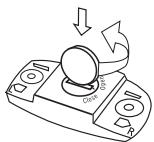
-
Open the battery cover of the connector by turning it counterclockwise with a coin from the CLOSE position to the OPEN position.
-
Remove the battery cover, lift the battery and replace it with a new battery.
- Remove the sealing ring of the battery cover and replace it with a new ring.
- Place the negative (-) side of the battery against the bottom and the positive (+) side against the cover.
- Put the cover on so that the arrow points to the OPEN position. Make sure that the cover's sealing ring is placed correctly in its groove.
-
Gently press the cover deep enough so that its exterior surface is on the same level as the connector's surface.
-
Turn the cover with the coin clockwise so that the arrow on the cover turns from OPEN to CLOSE. Make sure that the cover is closed properly!
Note:
- In order to ensure the maximum life span of the connector's battery cover, open it only when you need to change the battery. We recommend that you change the sealing ring of the battery cover every time you change the battery. You can get the sealing ring / battery kits from well-equipped Polar retailers and authorized Polar Services. In the USA and Canada: Additional sealing rings are available from an authorized Polar Service Center only.
- Keep the batteries away from children. If swallowed, contact a doctor immediately.
- Batteries should be disposed of properly according to local regulations.
9. PRECAUTIONS
Interference During Exercise
Electromagnetic Interference
Disturbances may occur near high voltage power lines, traffic lights, overhead lines of electric railways, electric bus lines or trams, televisions, car motors, bike computers, some motor driven exercise equipment, cellular phones, or when you walk through electric security gates.
Exercise Equipment
Several pieces of exercise equipment with electronic or electrical components such as LED displays, motors, and electrical brakes may cause interfering stray signals. To tackle these problems, try the following:
- Remove the transmitter from your chest and use the exercise equipment as you would normally.
- Move the wrist unit around until you find an area in which it displays no stray reading or does not flash the heart symbol. Interference is often worst right in front of the display panel of the equipment, while the left or right side of the display is relatively free of disturbance.
- Put the transmitter back on your chest and keep the wrist unit in this interference-free area as much as possible.
- If the running computer still does not work with the exercise equipment, this piece of equipment may be electrically too noisy for wireless heart rate measurement.
Crosstalk
When in the non-coded mode the wrist unit picks up transmitter signals within 1m / 3 ft. Simultaneous non-coded signals from more than one transmitter can cause an incorrect readout.
Using Your Polar Running Computer in a Water Environment
Your running computer can be worn when swimming. The running computer is not, however, a diving instrument. To maintain water resistance, do not press the buttons of the wrist unit under water. When measuring the heart rate in water you may experience interference for the following reasons:
- Pool water with a high chlorine content and seawater are very conductive. The electrodes of a transmitter may short-circuit, preventing ECG signals from being detected by the transmitter.
- Jumping into water or a strenuous muscle movement during competitive swimming may cause water resistance that shifts the transmitter to a location on the body where ECG signals cannot be picked up.
-
The ECG signal strength depends on the individual and varies depending on the individual's tissue composition. The occurrence of problems when measuring the heart rate is considerably higher in water.
-
The S1 Foot Pod can be used in any wet running environment, including rain, but it is not intended for underwater use.
Minimizing Possible Risks When Exercising
Exercise may include some risk. Before beginning a regular exercise program, it is recommended that you answer the following questions concerning your health status. If you answer yes to any of these questions, we recommend that you consult a doctor before starting any training program.
- Have you been physically inactive for the past 5 years?
- Do you have high blood pressure or high blood cholesterol?
- Do you have symptoms of any disease?
- Are you taking any blood pressure or heart medication?
- Do you have a history of breathing problems?
- Are you recovering from a serious illness or medical treatment?
- Do you use a pacemaker or another implanted electronic device?
- Do you smoke?
- Are you pregnant?
Note that in addition to exercise intensity, medications for heart, blood pressure, psychological conditions, asthma, breathing etc. as well as some energy drinks, alcohol, and nicotine may affect your heart rate.
It is important to be sensitive to your body's responses during exercise. If you feel unexpected pain or excessive fatigue when exercising, it is recommended that you stop the exercise or continue at a lighter intensity.
Notice to individuals with pacemakers, defibrillators, or other implanted electronic devices. Individuals who have a pacemaker use the running computer at their own risk. Before starting use, we always recommend a maximal exercise stress test under a doctor's supervision. The test is to ensure the safety and reliability of the simultaneous use of the pacemaker and the Polar Running Computer.
If you are allergic to any substance that comes into contact with your skin, or if you suspect an allergic reaction due to using the product, check the listed materials on page 80. To avoid any skin reaction to the transmitter, wear it over a shirt. However, moisten the shirt well under the electrodes to ensure flawless operation.
Your safety is important to us. The shape of the footpod is designed to minimize the possibility of it getting caught in something. In any case, be careful when running with the footpod in brushwood, for example.
10. FREQUENTLY ASKED QUESTIONS
What should I do if...
...I do not know where I am in the menu?
Press and hold the Stop button until the time of day is displayed.
...there are no reactions to any buttons?
Reset the wrist unit by pressing the four side buttons simultaneously for 2 seconds. Set the time and date in the Basic Setting after the reset. Other settings are saved. You can skip the rest of the settings by pressing and holding the Stop button.
...the heart rate reading becomes erratic or extremely high?
Strong electromagnetic signals can cause erratic readings. So move away from possible sources of disturbance such as high-voltage power lines, traffic lights, overhead lines of electric railways or trams, car motors, bike computers, some motor-driven exercise equipment (like fitness testers), or cellular phones.
If moving away does not help and the heart rate reading remains erratic, slow down your speed and check your pulse manually. If you feel it corresponds to the high reading on the display, you may be experiencing cardiac arrhythmia. Most cases of arrhythmia are not serious, but consult your doctor nevertheless.
...the heart symbol flashes irregularly?
- Check that your wrist unit is not further than 1m / 3 ft from the transmitter.
- Check that the transmitter has not become loose during exercise.
-
Make sure that the electrodes of the transmitter are moistened.
Make sure that there is no other heart rate transmitter within 1m / 3 ft. -
Cardiac arrhythmia may cause irregular readings. In this case, consult your physician.
...there is no heart rate reading (- -)?
- Check that the electrodes of the transmitter are moistened and that you are wearing it as instructed.
Make sure the transmitter is clean. - Check that you are not near high voltage power lines, televisions, cellular phones or other sources of electromagnetic interference. Also make sure that you are not near (1 m/3 ft) other heart rate monitor users, when starting you exercise recording.
- Cardiac arrhythmia may cause irregular readings or a cardiac event may have altered your ECG waveform. In these cases, consult your physician.
...another person with a running computer or a heart rate monitor is causing interference?
Move away from that person and continue your exercise normally. Alternatively,
- Take the transmitter off your chest for 30 seconds. Stay away from the person with the other device.
- Put the transmitter back on and bring the wrist unit up to your chest near the transmitter's Polar logo. The wrist unit will start looking for a heart rate signal again. Continue your exercise normally.
...the low battery symbol appears?
Usually the first sign of an expired battery is the low battery indicator on the display. For further information, see page 72.
Note: In cold conditions the low battery indicator may appear, but the indicator disappears when you return to a normal temperature.
...the display is blank?
The running computer is in the battery saving mode when it is dispatched from the factory. To activate it, press any button. The Basic Settings starts. For further information, see page 7. Alternatively the battery may be dead (see the next question for further instructions).
...the battery of the wrist unit must be replaced?
We recommend having all service done by an authorized Polar Service Center. This is especially necessary to ensure that the guarantee remains valid and is not affected by incorrect repair procedures performed by an unauthorized agent. The Polar Service Center will test your wrist unit for water resistance after battery replacement and make a full periodic check of the complete Running Computer Set.
...Check Footpod! message appears on the display?
- Check that you have turned on the footpod function from the wrist unit.
- Make sure that the footpod is turned on.
- If there is no light on the footpod the battery needs to be replaced. For instructions on changing the battery, see the chapter Assembling the S1 Foot Pod Battery on page 11.
- If you keep the wrist unit in front of you for longer than 15 seconds the speed and distance measurements stop. You need to reactivate the measurements by moving your hand.
- If you are running on a treadmill and have attached the wrist unit to a crossbar in front of you, try moving the wrist unit sideways.
...I have replaced the battery of the footpod, but the sensor still does not work?
Please contact your local Polar distributor. Check www.polar.fi for the contact information of the local Polar distributors.
...there are no or irregular running speed readings on the display?
- Keep at a distance from other runners with footpods.
- If you keep the wrist unit in front of you for longer than 15 seconds the speed and distance measurements stop. You need to reactivate the measurements by moving your hand.
11. TECHNICAL SPECIFICATIONS
The Polar running computer displays your performance indicators and helps you achieve your personal training goals. It indicates the level of physiological strain and intensity during your exercise. No other use is intended or implied.
The water resistance of Polar products is tested according to International Standard ISO 2281. Products are divided into three different categories according to their water resistance. Check the back of your Polar product for the water resistance category and compare it to the chart below. Please note that these definitions do not necessarily apply to products of other manufacturers.
| Marking on the case back | Wash splashes, sweat, raindrops etc. | Bathing and swimming | Skin diving with snorkel (no air tanks) | SCUBA diving (with air tanks) | Water resistant characteristics |
| Water resistant | X | Splashes, raindrops etc. | |||
| Water resistant 50m | X | X | Minimum for bathing and swimming | ||
| Water resistant 100m | X | X | X | For frequent use in water but no SCUBA diving |
WRIST UNIT
Battery life: Average 2 years normal use (1h/day, 7 days/week)
Battery type: CR 2032
Operating temperature: -10^ to +50^ / +14^ to +122^
Wrist strap material: Polyurethane
Back cover and wrist strap buckle material: Stainless steel complying with the EU Directive 94/27/EU and its amendment 1999/C 205/05 on the release of nickel from products intended to come into direct and prolonged contact with the skin.
Watch
Accuracy: better than ± 0.5 seconds/day at 25^ / 77^ temperature.
Heart Rate Monitor
Accuracy: ± 1% or 1bpm ,whichever larger, definition applies to steady-state conditions.
Heart rate measuring
range: 15-240
Totals
Maximum time stored to Total Duration: 9999 h
Maximum amount of calories stored to Total Calories: 999999 kcal
Maximum number of exercises stored to Total Exe.Count: 9999
Maximum number of km / mi stored to
Total Distance: 999999 km / 621370 mi
Maximum number of laps stored: 99
Maximum exercise time: 100 h
TRANSMITTER
Battery type: CR 2025
Battery sealing ring: 0-ring 20.0 × 1.0 Material FPM
Battery life: Average 2 years (1 h/day, 7 days/week)
Operating temperature: -10 °C to +50 °C / 14 °F to 122 °F
Connector material: Polyamide
Strap material: Polyurethane, polyamide, nylon, polyester and elastane
S1 FOOT POD
Operating temperature: -10 °C to +50 °C / 14 °F to 122 °F
Battery: one AAA sized battery
Battery life: average 20 hours of use
Weight: 62 g / 2,2 oz (without a battery)
Accuracy: ±3% or better once calibrated,
definition applies to steady-state conditions.
12. LIMITED POLAR INTERNATIONAL GUARANTEE
- This limited Polar international guarantee is issued by Polar Electro Inc. for the consumers who have purchased this product in the USA or Canada. This limited Polar international guarantee is issued by Polar Electro Oy for the consumers who have purchased this product in other countries.
- Polar Electro Oy / Polar Electro Inc. guarantees to the original consumer / purchaser of this device that the product will be free from defects in material or workmanship for two years from the date of purchase.
- Please keep the receipt or International Guarantee Card. This is your proof of purchase!
- The guarantee does not cover the battery, damage due to misuse, abuse, accidents or non-compliance with the precautions; improper maintenance, commercial use, cracked or broken cases and elastic strap.
- Guarantee does not cover any damage/s, losses, costs or expenses, direct, indirect or incidental, consequential or special, arising out of, or related to the product. During the guarantee period the product will be either repaired or replaced at an authorized Service Center free of charge.
- This guarantee does not affect the consumer's statutory rights under applicable national or state laws in force, or the consumer's rights against the dealer arising from their sales / purchase contract.
C €0537 This CE marking shows compliance of this product with Directive 93/42/EEC.
Polar Electro Oy is a ISO 9001:2000 certified company.
Copyright © 2005 Polar Electro Oy, FIN-90440 KEMPELE, Finland.
All rights reserved. No part of this manual may be used or reproduced in any form or by any means without prior written permission of Polar Electro Oy.
The names and logos marked with a ^TM symbol in this user manual or in the package of this product are trademarks of Polar Electro Oy. The names and logos marked with a symbol in this user manual or in the package of this product are registered trademarks of Polar Electro Oy.
13. POLAR DISCLAIMER
- The material in this manual is for informational purposes only. The products it describes are subject to change without prior notice, due to the manufacturer's continuous development program.
Polar Electro Inc. / Polar Electro Oy makes no representations or warranties with respect to this manual or with respect to the products described herein. - Polar Electro Inc. / Polar Electro Oy shall not be liable for any damages, losses, costs or expenses, direct, indirect or incidental, consequential or special, arising out of, or related to the use of this material of the products described herein.
This product is protected by one or several of the following patents:
W096/20640, US6104947, US6277080, W097/33512, GB2326240, HK1016857, US 6361502, US 6418394, US 6537227, US 5719825, US 5848027, EP 1055158, US6714812, FI88972, FR92.09150, GB2258587, HK306/1996, SG9592117-7, US5486818, FI96380, US5611346, EP665947, DE69414362, FI 110915. Other patents pending.
Manufactured by:
Polar Electroly
Professorintie 5
FIN-90440 KEMPELE
Tel +358 8 5202 100
Fax +358 8 5202 300
www.polar.fi
BOUTONS DU RÉCEPTEUR
7. MODE “CONNEXION” - COMMUNICATION DES DONNÉES 70
7.1 EDITER DES RÉGLAGES DEPUIS UN PC 70
7.2 TRANSFERER VOS DONNÉES D'EXERCICE VERS LE CALENDRIER D'ENTRAJINEMENT SUR INTERNET 71
8. ENTRETIEN ET RÉPARATIONS 72
9. PRECAUTIONS D'EMPLOI 75
- QUESTIONS FRequentes 77
- CARACTERISTIQUES TECHNIQUES 79
- GARANTIE INTERNATIONALE POLAR 81
- DECHARGE DE RESPONSABILITÉ 82