
KH 2262 - CD player radio EBENCH - Free user manual and instructions
Find the device manual for free KH 2262 EBENCH in PDF.


| Product type | Radio CD player with built-in cassette player |
| Brand | EBENCH |
| Model | KH 2262 |
| Mains power | 230 V / 50 Hz, 11 W |
| Battery power | 8 UM-1 D (LR20) batteries for operation, 3 UM-3 AA (LR6) batteries for radio memory |
| Power consumption | 11 W |
| Radio reception bands | FM (ultra-short waves) and MW/AM (medium waves) |
| FM antenna | Telescopic antenna |
| MW antenna | Internal ferrite antenna |
| CD player | Audio CD, CD-R/RW audio format |
| Cassette player | Standard audio cassette, recording from radio and CD |
| Headphone output | 3.5 mm jack socket, recommended impedance 32 ohms |
| Special features | Bass boost, CD track programming (up to 16), repeat (track/disc), automatic station search |
| Radio memory | 15 preset stations |
| Display | Digital display |
| Laser class | Class 1 |
| Exterior care | Soft damp cloth, no aggressive solvents |
| CD player cleaning | Use a special cleaning CD |
| Cassette mechanism cleaning | Use a cleaning cassette |
| Safety instructions | Do not open the casing, do not expose to moisture, disconnect before cleaning |
Frequently Asked Questions - KH 2262 EBENCH
User questions about KH 2262 EBENCH
0 question about this device. Answer the ones you know or ask your own.
Ask a new question about this device
Download the instructions for your CD player radio in PDF format for free! Find your manual KH 2262 - EBENCH and take your electronic device back in hand. On this page are published all the documents necessary for the use of your device. KH 2262 by EBENCH.
USER MANUAL KH 2262 EBENCH
Operating and safety instructions
Contents
Contents
- Intended use 4
- Technical data 4
Safety Information. 4
- Connection 5
3.1 Inserting the batteries 5
A few useful tips regarding batteries: 5
3.2 Connecting the power cable 5
3.3 Connecting the antenna 5
3.4 Connecting the headphones 5
- Operation 6
4.1 Switching the device on/off 6
4.2 Adjusting the volume 6
4.3 Bass-booster function 6
- Radio mode.. 6
5.1 Channel search.. 6
5.2 Mono/Stereo 6
5.3 Storing a channel 6
5.4 Recalling stored channels 7
- CD mode 7
6.1 Inserting / extracting a CD 7
6.2 Play / Pause 7
6.3 Track selection / fast forward 7
6.4 Stop 7
6.5 Programming a track list 8
6.6 Playing a track list. 8
6.7 Repeat function 8
- Tape mode 8
7.1 Inserting / extracting a tape 8
7.2 Using the tape unit 9
7.3 Recording from the radio 9
7.4 Recording from CD 9
- Cleaning and maintenance 9
8.1 External cleaning 10
8.2 Cleaning the cassette unit 10
8.3 Cleaning the CD unit. 10
- Trouble-shooting 10
- Disposal 11
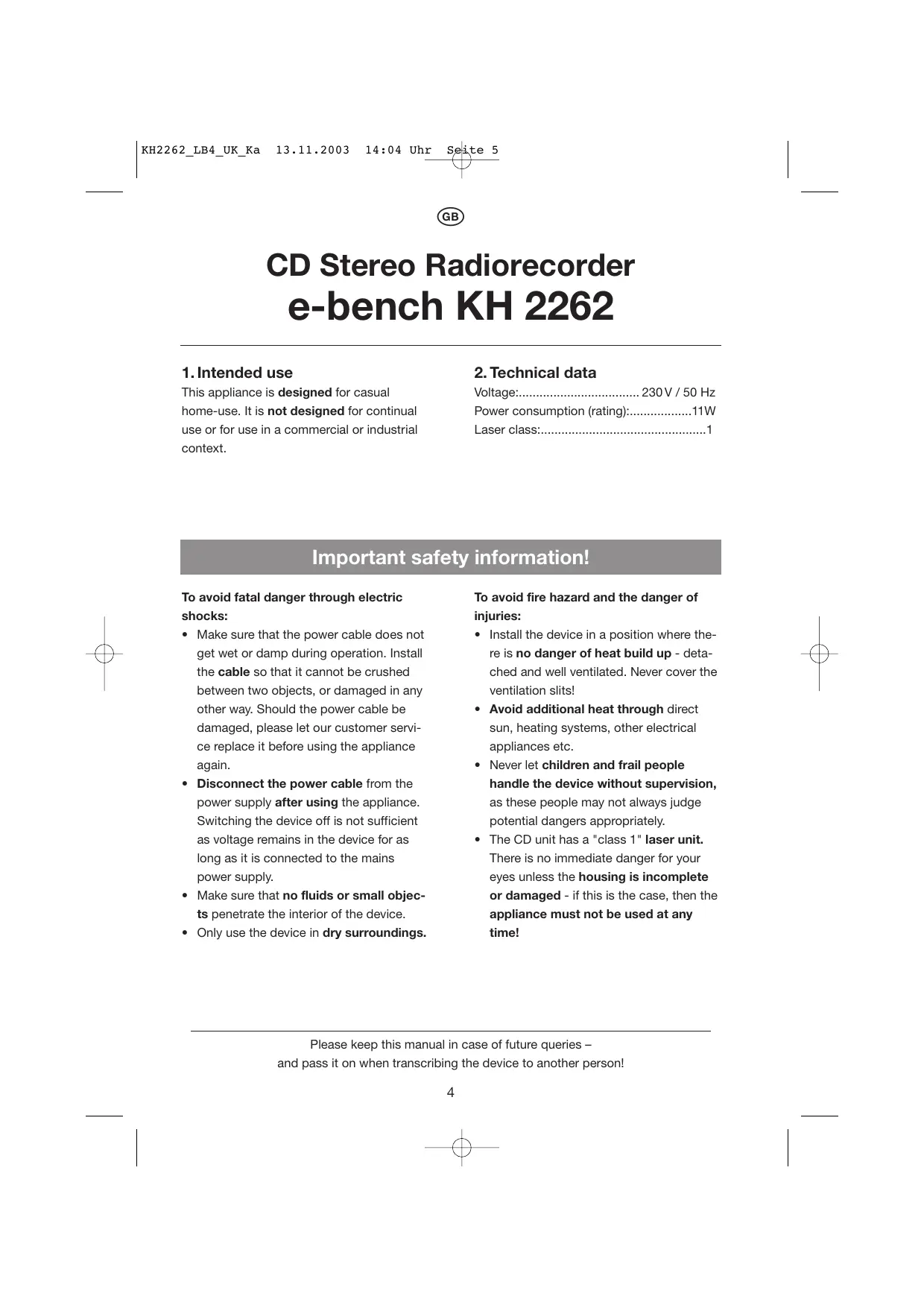
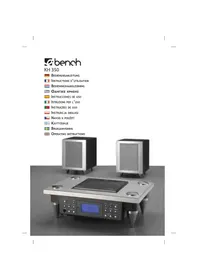
CD Stereo Radiorecorder e-bench KH 2262
1. Intended use
This appliance is designed for casual home-use. It is not designed for continual use or for use in a commercial or industrial context.
2. Technical data
Voltage: 230 V / 50 Hz
Power consumption (rating):11W
Laser class: 1
Important safety information!
To avoid fatal danger through electric shocks:
- Make sure that the power cable does not get wet or damp during operation. Install the cable so that it cannot be crushed between two objects, or damaged in any other way. Should the power cable be damaged, please let our customer service replace it before using the appliance again.
- Disconnect the power cable from the power supply after using the appliance. Switching the device off is not sufficient as voltage remains in the device for as long as it is connected to the mains power supply.
- Make sure that no fluids or small objects penetrate the interior of the device.
- Only use the device in dry surroundings.
To avoid fire hazard and the danger of injuries:
- Install the device in a position where there is no danger of heat build up - detached and well ventilated. Never cover the ventilation slits!
- Avoid additional heat through direct sun, heating systems, other electrical appliances etc.
- Never let children and frail people handle the device without supervision, as these people may not always judge potential dangers appropriately.
- The CD unit has a "class 1" laser unit. There is no immediate danger for your eyes unless the housing is incomplete or damaged - if this is the case, then the appliance must not be used at any time!
3. Connection
Before you start using the device, please check that the device is in good order and condition, and make sure that all packaging material has been removed.
3.1 Inserting batteries
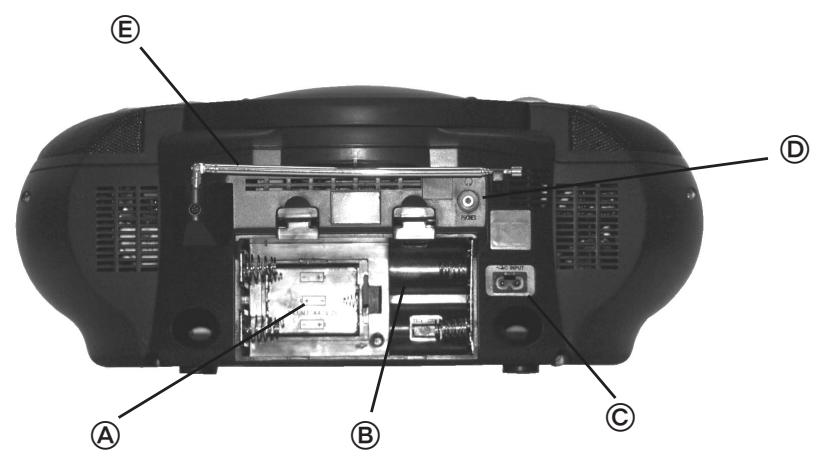
8 Open the battery compartment at the back of the device, as well as ...
A the cover of the battery compartment for the radio channels memory. The place the following in the battery compartment ...
3UM-3 AA batteries for the radio channel memory and
- 8 UM-1 D batteries for operation of the device.
- Please make sure that the batteries are inserted in the correct position, i.e. the "+" end of the battery is inserted to match the "+" symbol on the device (polarity).
- Then close the housing and the battery compartment
A few useful tips regarding batteries:
- Only use high quality batteries.
- Always insert new and matching batteries only, in order to avoid the batteries self-discharging.
- Renew the batteries as soon as the performance in battery mode fades, however, not later than one year after insertion. Batteries sometimes begin to corrode after this time.
- Batteries must not be disposed of in the normal rubbish bin. Always return used batteries to the retail outlet or other collection points for disposal.
3.2 Connecting the power cable
Insert the power cable in the power socket on the device, and then insert the mains power plug in the mains socket.
3.3 Connecting the antenna
The device is equipped with an internal antenna for medium wave (AM) reception.
(6) A telescopic antenna provides FM reception.
3.4 Connecting the headphones
Headphones should have an internal resistance (impedance) of 32 ohm and be equipped with a 3.5mm stereo jack.
Warning: Never connect the headphones to the device when you are already wearing them. You can severely damage your ears if the volume is set at a high level.
F Always ensure that the volume control is turned to quiet - then ...
insert the connection plug into the socket provided for the headphones.
The internal loudspeakers are disabled as soon as the headphone connection plug is placed in the socket.
When the headphone plug is removed the speakers will be reactivated - which can lead to an unexpected volume level if the volume was turned to high when using the headphones.
For this reason the volume level should be lowered before the headphone plug is removed from the socket.
4. Operation
This section applies when the device has been connected as described in chapter 3:
4.1 Switching the device on/off
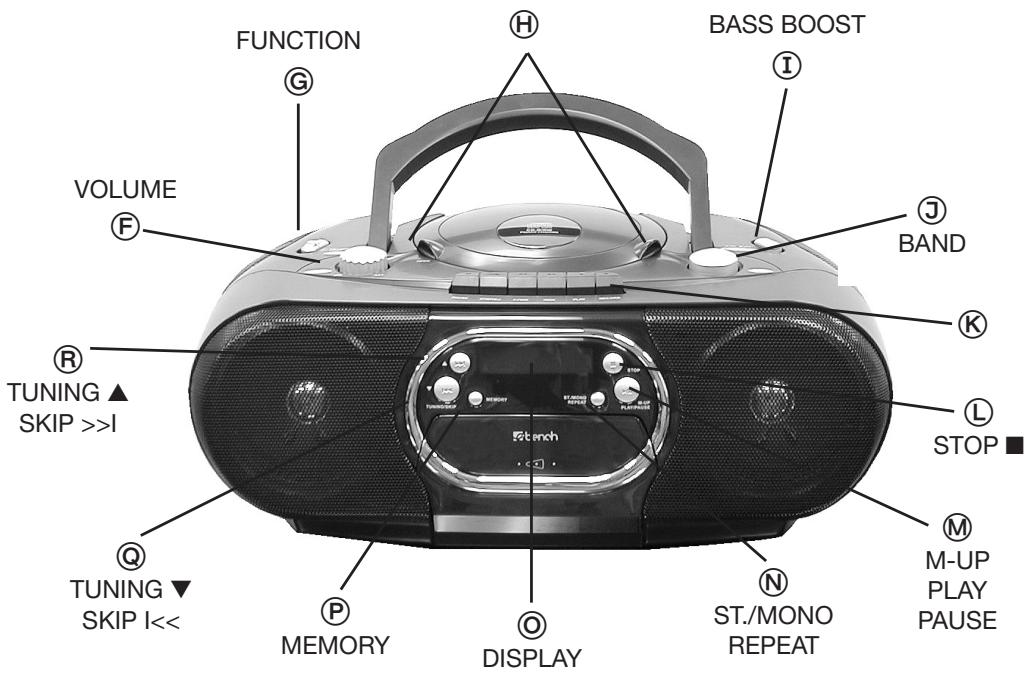
The device is equipped with a FUNCTION sliding switch for all three modes:
The device is switched on and is consuming electricity when the switch is switched to ...
"Radio" for radio mode
"CD" for CD mode.
The device is switched off when the switch is switched to position ...
- "TAPE/POWER OFF". This also the position for tape mode. In this position, the device consumes near to no electricity, as long as none of the tape operating keys are pressed.
4.2 Adjusting the volume
Turn the volume control clockwise (louder)- or anti clockwise (quieter).
4.3 Bass-booster function
① Press the (BASS BOOST) switch to activate or deactivate the Bass booster function.
5. Radio mode
Select "Radio" on the FUNCTION sliding switch.
5.1 Channel search
③ Chose a reception bandwidth. By pressing the button (BAND) you can switch between ...
"FM" for VHF reception or
- "MW(AM)" for medium wave reception.
To search the bandwidth press the button ...
TUNING, to search forwards or
TUNING, to search backwards over the entire reception range.
If you apply pressure to the buttons longer than a second the device will start an automatic channel search. As soon as a channel with sufficient reception quality has been found, the automatic search stops immediately.
Tip: When in VHF reception (FM) mode, you will achieve better reception quality by putting the antenna into at an angle. Then turn the antenna until the best reception is found.
For medium wave (AM) reception, the device uses the internal antenna. Turn the entire appliance until you achieve the best reception result.
5.2 Mono/Stereo
When a program is broadcast on the VHF range in stereo, "5T", is displayed on the device, while "Mono" appears for Mono broadcasts. Should the stereo reception crackle due to bad reception ...
press the ST/MONO button to switch between the two modes.
5.3 Storing channels
You can store a total of 15 channels. When you have found a channel you would like to store ...
press (MEMORY).The display shows the number of the first memory position, and the "TMemory" indicator flashes.
M You can now browse through the memory positions by pressing the M-UP button.
When the desired memory number appears on the display ...
hold the button depressed until the "METEOR" indicator stops flashing. The channel is now stored.
Already occupied memory positions can be renewed at will.
5.4 Stored Channels Call up
When in the normal reception mode you can browse through the 15 stored channels by ...
M pressing the M-UP button. The channels are activated one after the other.
Note: The channels remain stored in the device memory as long as the three small batteries for the radio memory still have enough power.
6. CD mode
When this function is selected, you can listen to normal Audio CDs, as well as CD-R/RW recorded in audio format.
G Select the "CD" (FUNCTION) switch.
6.1 Inserting / extracting a CD
Keep the CD drive closed unless you are inserting or removing a CD to prevent dust from penetrating the device.
To open the unit lift the CD drive cover.
- You can now insert the CD with the printed side facing upwards.
The CD is ready for playing when the display shows the number of tracks on the CD, and the total playing time.
The CD is not ready for playing as long as the word "DISC" is displayed. If this continues for some time, then the CD cannot be read correctly - check that the CD has been inserted the right way round and it is in good condition.
6.2 Play / Pause
If you press PLAY/PAUSE ...
- For a short time, the CD will start. The display shows the track number and track length of the track being played.
- Press again while a track is being played to pause playback immediately, press again to continue playing the track from the position was paused.
6.3 Track selection / fast forward
If you press > >
@ orSKIP<<...
- briefly, you jump one track up or down.
- hold the button pressed to scan through the track forwards or backwards (fast forward/backwards).
6.4 Stop
If you press STOP
- Once, the CD stops playing the current track.
- Twice, the programmed track lists is deleted as described in chapter 6.5.
6.5 Programming a track list
You can program a track list with up to 16 tracks. To do this the CD has to be stopped. When a CD is inserted:
Press (MEMORY)
The display now shows "PRO" indicating the first memory position of the track list - followed by the number of the track already allocated to this position.
Use >> or...
@ the < < button, you can now select the track to be played first.
Now press again to save the selected track in position 1 of the programmed track list.
Call the next program position
by pressing ...
⑧ > > ] or
@ SKIP < < ]
The display now shows the number of the next memory position.
Now select the track from the CD that you want to program in this track position
using the button ...
> > or
@ SKIP<<
Now press ...
(MEMORY) to save this track in the position previously selected.
You can check your program track list by pressing (MEMORY) to scan through all occupied track positions.
6.6 Playing a track list
If you have programmed a playlist, play as described in 6.5.
Press / PAUSE to start the program med playlist.
Note: The programming information all 16 track positions is deleted as soon as the CD tray is opened or the CD is stopped and ....
STOP is pressed!
6.7 Repeat function
If, during playback of a track or track list ... you press REPEAT...
- Once, the current track is repeated.
REPERT® flashes on the display. - Twice, the entire CD or track list is repeated. REPORT is displayed continuously during playback.
- Three times, the repeat function is deactivated. REPERT" is no longer displayed.
7. Tape mode
You can play all standard tapes, as well as record from the radio and from CDs.
Select "TAPE" on the FUNCTION switch.
7.1 Tape insert / remove
Keep the tape deck closed unless you are inserting or removing a tape to prevent dust from penetrating the device
Press the STOP/EJ button until you can hear the tape door unlocking and it opens automatically.
- Now insert the tape with the mechanism facing up:
- Now close the tape compartment door.
7.2 Using the tape unit
Warning: Always press the STOP/EJ button first and let the tape stop before you switch modes. This will prevent damage and the device wearing out prematurely.
K The button symbols mean the following for tape mode:
$$ < < \overline {{\text {F F W D}}} = \text {f a s t f o r w a r d} $$
$$ \gg \overline {{(\text {R E W})}} = \text {r e w i n d} $$
PLAY play a tape
II PAUSE stop/start pause
RECORD record
STOP/EJ = stop and eject tape
The tape stops automatically at the end of the tape. Remove the tape, turn it over, and replace to play or record on the other side!
7.3 Recording from the radio
Select "RADIO" on the FUNCTION switch.
When you find a radio station you want to record from:
- Press RECORD to start recording.
Press PAUSE to pause the recording.
Press STOP/EJ to stop recording.
Note: The recording volume is controlled automatically and is not determined by the volume control switch.
7.4 Recording from CD
Select the "CD" FUNCTION switch.
- Press RECORD and simultaneously ...
the PAUSE key. The device is now ready to record.
Press PAUSE (deactivate) again as soon as the CD is started.
Press PAUSE again to interrupt recording.
Press STOP/EJ to stop recording.
Note: The recording volume is controlled automatically and is not determined by the volume control switch.
8. Cleaning and maintenance
Never open the device housing. There are no operating elements inside. An opened device housing could cause potential life endangerment through electric shock.
Before cleaning the outside of the device,
- First remove the mains connector from the mains socket.
Select the "TAPE" (FUNCTION) to order to switch the device off. - If batteries are still in the device: Only remove the large batteries, not the small ones. Otherwise the stored radio channels will be lost.
- Close all openings, i.e. the battery compartment, tape and CD trays.
8.1 External cleaning
- Clean all outside surfaces with a moist but not wet cloth.
- Do not use any sort of aggressive cleaning fluids. These could damage the external plastic housing.
8.2 Cleaning the cassette unit
This could be necessary if you notice the tape sound becoming slightly muffled after several weeks use. If you are sure the tape is not the cause of this problem, ...
- Clean the tape heads and mechanism with special tape cleaning materials from specialist retailers - never use any sort of tools. This could damage the device.
8.3 Cleaning the CD unit
The CD player should not become dirty from normal use! Cleaning may be necessary if exceptionally dirty CDs are used, or the CD tray is not closed and dust enters the system.
Avoid dirt contamination by wiping dusty CDs with a soft, dry cloth, wiping from the inside to the outside of the CD.
If a CD cannot be played or sounds faulty although it is in good condition ...
- Clean the lense and mechanism with a cleaning CD from a specialist retailer - never use any other sort of tool. This could damage the device.
9. Trouble-shooting
If a thorough cleaning of the CD or tape unit does not resolve the problem, it may not be caused by dirt contamination, but could a problem with the device.
- In this case, please return the device to our customer service center.
If confusing symbols appear on the display, it is possible that the device's internal operating system has "crashed".
- Disconnect the power cable and ...
- Remove the eight large batteries from the battery compartment.
Wait a few minutes before restarting the device. If no improvement should result from this ...
- Repeat the two steps explained above and ...
- Now also remove the three small batteries from their compartment. This may cause some or all preset radio stations to be lost!
Wait a few minutes before restarting the device. If the situation has not been resolved by this measure, the device may be faulty.
- In this case, please return the device to our customer service center.
10. Disposal
Before you dispose of the device, remove batteries as described in chapter 3.1. Old batteries cannot be disposed of in the general house rubbish bin.
- Always return used batteries to the retail outlet or other collection points for disposal.
Other than the batteries, the device does not include any materials that are subject to a special disposal law (as of Sept. 2003)
- Please contact your local government office about any recent changes regarding disposal laws.
- Contents
- CD Stereo Radiorecorder e-bench KH 2262
- Intended use
- Technical data
- Important safety information!
- To avoid fatal danger through electric shocks:
- To avoid fire hazard and the danger of injuries:
- Connection
- Inserting batteries
- A few useful tips regarding batteries:
- Connecting the power cable
- Connecting the antenna
- Connecting the headphones
- Operation
- Switching the device on/off
- Adjusting the volume
- Bass-booster function
- Radio mode
- Channel search
- Mono/Stereo
- Storing channels
- Stored Channels Call up
- CD mode
- Inserting / extracting a CD
- Play / Pause
- Track selection / fast forward
- Stop
- Programming a track list
- Call the next program position
- Now select the track from the CD that you want to program in this track position
- Playing a track list
- Repeat function
- Tape mode
- Tape insert / remove
- Using the tape unit
- Recording from the radio
- Recording from CD
- Cleaning and maintenance
- External cleaning
- Cleaning the cassette unit
- Cleaning the CD unit
- Trouble-shooting
- Disposal
Brand : EBENCH
Model : KH 2262
Category : CD player radio