
DPX I865 CS - Mountain Bike SCOTT - Free user manual and instructions
Find the device manual for free DPX I865 CS SCOTT in PDF.


| Product type | Electric mountain bike |
| Brand | SCOTT |
| Model | DPX I865 CS |
| Weight | 24 kg |
| Wheel size | 29 inches |
| Frame material | Aluminium 6061 |
| Front suspension | Telescopic fork, 120 mm travel |
| Brakes | Hydraulic disc brakes |
| Transmission | 9 speeds |
| Battery | Lithium-ion 36V / 14Ah |
| Range | Up to 80 km |
| Motor | Mid-drive motor 250W |
| Display | LCD screen with speed and battery display |
| Maintenance | Regular cleaning with a soft cloth, check tire pressure monthly |
| Cleaning | Do not use a high-pressure cleaner |
| Safety | Helmet mandatory, front and rear lights |
| Spare parts | Available from authorized SCOTT dealers |
| Repairability | Repairability score: 7.5/10 |
| Warranty | 2 years |
Frequently Asked Questions - DPX I865 CS SCOTT
User questions about DPX I865 CS SCOTT
0 question about this device. Answer the ones you know or ask your own.
Ask a new question about this device
Download the instructions for your Mountain Bike in PDF format for free! Find your manual DPX I865 CS - SCOTT and take your electronic device back in hand. On this page are published all the documents necessary for the use of your device. DPX I865 CS by SCOTT.
USER MANUAL DPX I865 CS SCOTT
MANUEL D'INSTRUCTIONS
Supplied Accessories
Remote Control X1
Rechargeable Battery Pack X 1
AC adaptor X 1
Cigarette adaptor X 1
Carry bag X1
Earphone X1
AV cable X1
IMPORTANT
Since CD circuitry may cause interference to other radio tuners nearby, switch this unit off when not in use or move it away from the affected radio tuner.
NOTE:
This equipment generates uses and can radiate radio frequency energy and if not installed and used in accordance with the instruction, may cause harmful interference to radio communications. However, there is no guarantee that interference will not occur in a particular installation. If this equipment does cause harmful interference to radio or television, which can be determined by turning the equipment off and the user is encouraged to try to correct the interference by one or more of the following measures :
- Reorient or relocate the receiving antenna.
- Increase the separation between the equipment and receiver.
- Connect the equipment into an outlet on a circuit different from that to which the receiver is connected.
- Consult the dealer or an experienced radio / TV technician for help.
Caution When Using
Be careful of ambient temperature
- Using the DVD player in a place where the temperature is over 40 deg C or under 0 deg C will result in abnormal function.
- Never expose this unit to prolonged periods of high temperature or leave the unit situated where high temperatures can occur (such as the dash panels of vehicles on very hot days). This could cause malfunctions or damage to the product.
SAFETY
WARNING:
TO REDUCE THE RISK OF FIRE OR ELECTRIC SHOCK, DO NOT EXPOSE THIS APPLIANCE TO RAIN OR MOISTURE. DANGEROUS HIGH VOLTAGES ARE PRESENT INSIDE THE ENCLOSURE. DO NOT OPEN THE CABINET. REFER SERVICING TO QUALIFIED PERSONNEL ONLY.
- The AC/DC adaptor and DVD player shall not be exposed to dripping or splashing and that no objects filled with liquids, such as vases, shall be placed on apparatus or other equivalent.
-Minimum distances around the apparatus for sufficient ventilations. - The ventilation should not be impeded by covering the ventilation openings with items such as newspaper, tablecloths, curtains etc.
- No open flame sources such as lighted candles should be placed on the apparatus.
- Attention should be drawn to the environmental aspects of battery disposal.
- The use of apparatus in moderate climates.
LASER:
This Digital Video Disc Player employs a Laser System.
To ensure proper use of this product, please read this owner's manual carefully and retain for future reference. Should the unit require maintenance, contact the qualified service personnel.
Use of controls, adjustments or the performance of procedures other than those specified may result in hazardous radiation exposure.
To prevent direct exposure to laser beam, do not try to open the enclosure.
Visible and invisible laser radiation when open and interlocks defeated.
SAFETY
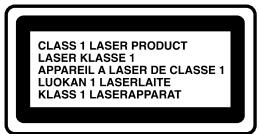
DO NOT STARE INTO BEAM

WARNING :
To reduce the risk of fire or electric shock, do not expose this appliance to rain or moisture.
CAUTION :
Use of controls or adjustments or performance of procedures other than those specified may result in hazardous radiation exposure.
CAUTION
RISK OF ELECTRIC SHOCK DO NOT OPEN
To reduce the risk of electric shock, do not remove cover (or back). No user serviceable parts inside. Refer servicing to qualified service personnel.

The lightning flash with arrowhead symbol, with in an equilateral triangle, is intended to alert user to the presence of uninsulated "dangerous voltage" within the products enclosure that may be of sufficient magnitude to constitute a risk of electric shock to persons.

The exclamation point within an equilateral triangle is intended to alert the user to the presence of important operating and maintenance (servicing) instruction in the literature accompanying the appliance.

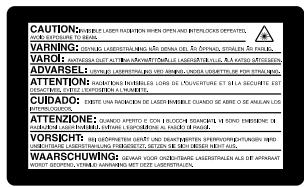
CAUTION
INVISIBLE LASER RADIATION WHEN OPEN AND INTERLOCK FAILED OR DEFEATED
AVOID DIRECT EXPOSURE TO LASER BEAM.

CAUTION :
PLEASE READ AND OBSERVE ALL WARNINGS AND INSTRUCTIONS GIVEN IN THIS OWNER'S MANUAL AND THOSE MARKED ON THE UNIT. KEEP THESE INSTRUCTIONS. RETAIN THIS BOOKLET FOR FUTURE REFERENCE.
This set has been designed and manufactured to assure personal safety. Improper use can result in electric shock or fire hazard. The safeguards incorporated in this unit will protect you if you observe the following procedures for installation, use and servicing. This unit does not contain any parts that can be repaired by the user.
DO NOT REMOVE THE CABINET COVER, OR YOU MAY BE EXPOSED TO DANGEROUS VOLTAGE. REFER SERVICING TO QUALIFIED SERVICE PERSONNEL ONLY.
After unpacking this product, read the owner manual carefully.
- Read these instructions.
- Keep these instructions.
Retain this booklet for future reference. - Heed all warnings.
- Follow all the operating and other instructions.
- Do not use this apparatus near water.
- Clean only with a damp cloth.
SAFETY
- Do not block any of the ventilation openings. Install in accordance with the manufacturer's instructions.
- Do not install near any heat sources such as radiators, heat registers, stoves, or other apparatus (including amplifiers) that produce heat.
- Protect the power cord from being walked on or pinched particularly at plugs, convenience receptacles and the point where they exit from the apparatus.
- Only use attachments/accessories specified by the manufacturer.
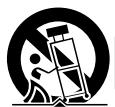
PORTABLE CART WARNING
S3125A
- Use only with a cart, stand, tripod, bracket or table specified by the manufacturer, or sold with the apparatus. When a cart is used, use caution when moving the cart/apparatus combination to avoid injury from tip-over.
- Unplug this apparatus during lightning storms or when unused for long periods of time.
- Refer all servicing to qualified service personnel. Servicing is required when the apparatus has been damaged in any way, such as when the power-supply cord or plug is damaged, liquid has been spilled or objects have fallen into the apparatus, the apparatus has been exposed to rain or moisture, does not operate normally, or has been dropped.
- Burden
Do not place a heavy object on, or step on the product. The object may fall, causing serious personal injury and serious damage to the product.
- Disc
Do not use a cracked, deformed, or repaired disc. These discs are easily broken and may cause serious personal injury and product malfunction.
- Damage Requiring Service
Unplug this product from the wall refer servicing to qualified service personnel under the following conditions:
a) When the power-supply cord or plug is damaged.
b) If liquid has been spilled, or objects have fallen into the product.
c) If the product has been exposed to rain or water.
d) If the product does not operate normally by following the operating instructions. Adjust only those controls that are covered by the operating instructions. Improper adjustment of other controls may result in damage and will often require extensive work by a qualified technician to restore the product to its normal operation.
e) If the product has been dropped or damaged in any way.
f) When the product exhibits a distinct change in performance - this indicates a need for service.
17. Servicing
Do not attempt to service this product yourself as opening or removing covers may expose you to dangerous voltage or other hazards. Refer all servicing to qualified service personnel.
- Replacement Parts
When replacement parts are required, be sure the service technician has used replacement parts specified by the manufacturer or have the same characteristics as the original part. Unauthorized substitutions may result in fire, electric shock, or other hazards.
- Safety Check
Upon completion of any service or repairs to this product, ask the service technician to perform safety checks to determine that the product is in proper operating condition.
SAFETY
- AC Power disconnect
The AC/DC adaptor is used as the disconnection device and it shall remain readily operable. To be completely disconnected the power input, the AC/DC adaptor of the apparatus shall be disconnected from the mains completely. Since the AC/DC adaptor is used as the disconnection device and the signal lamp of the unit would be used as an indication of Power On, if the signal lamp is turned Off, the apparatus is completely disconnected from the mains.
NOTE : See the marking on the bottom of cabinet
Batteries
1. Battery pack
- Use this unit to recharge the battery pack.
- Do not use the battery pack with equipment other than the specified player.
- Do not use the player outside if it is snowing or raining. (The battery pack is not waterproof.)
- Do not get dirt, sand, liquids, or other foreign matter on the terminals.
- Do not touch the plug terminals with metal objects.
- Do not disassemble, remodel, heat or throw into fire.
2. Disposing of the batteries
Check and follow your local regulations before disposal.
CAUTION:
The batteries used in this device may present a risk of fire or chemical burn if mistreated.
Do not heat the batteries pack above 60°C .
Remove the battery pack when you are not using the appliance. In addition, the battery pack has to be recharged every 3 months in order to ensure a longer battery life.
PLAYER ZONES
For the purpose of distribution of DVD Discs, the world has been separated into 6 zones. The zone your player is intended for is indicated on the "Zone Label". This should be the same as the label on discs available in your region. If you have any difficulties in playing a disc, make sure that the disc is for the same zone as your player.
INSTALLATION
Install your DVD player on a stable flat surface. The unit should be situated with enough space around it so that proper heat ventilation is assured. Allow 20cm clearance from the rear and the top of the unit, and 10cm from each side.
Caution: Do not install this equipment in confined space with poor ventilation.
This product incorporates copyright protection technology that is protected by U.S.patents and other intellectual property rights. Use of this copyright protection technology must be authorized by Macrovision, and is intended for home and other limited viewing uses only unless otherwise authorized by Macrovision, Reverse engineering or disassembly is prohibited.
Apparatus Claims of U.S. Patent Nos. 4,631,603; 4,819,098; 4,907,093; 5,315,448; and 6,516,132. Licensed for limited viewing uses only.
CONNECTIONS
1. Connecting to TV
Connect the Audio ( Black ) and Video ( Yellow ) cable to Audio/Video Out jacks on your DVD Player, and to the corresponding Audio/Video Input jacks on your TV.
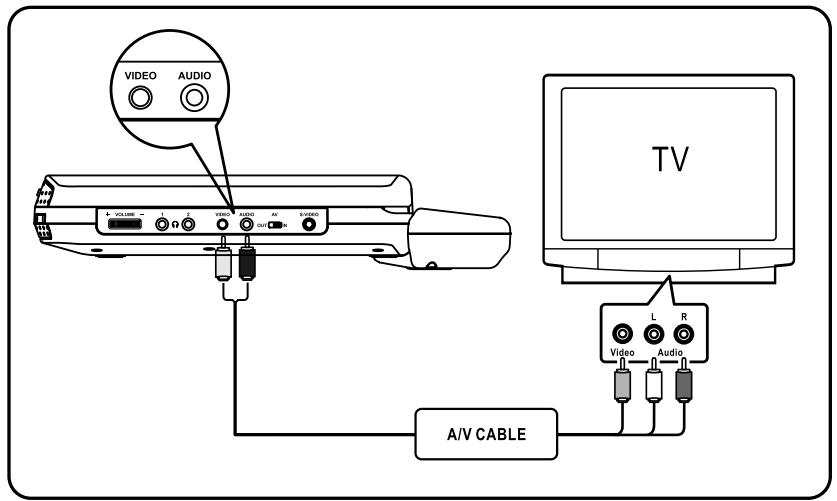
NOTE : AV switch must be switched to “OUT” position
Remarks : To prevent EMI interference with other electronic equipment, we recommend you use an A/V cable (included).
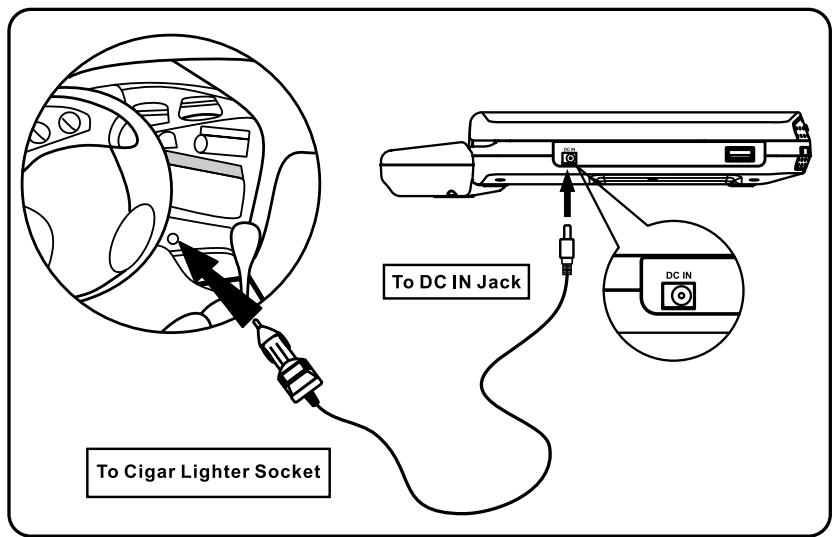
2. Connecting for in car use
Use the Car Power Adaptor (included) for power when using the DVD player in a car.
- Plug the adaptor into the car cigarette lighter.
- Plug the pin into the DC IN jack on the main unit.
CONNECTIONS
3. Connect to external analog Video / Audio source (using the appliance as a monitor)
Connect the Audio (Red/White) and Video (Yellow) cable to Audio/Video Out jacks on your external VCD/DVD Player as shown:
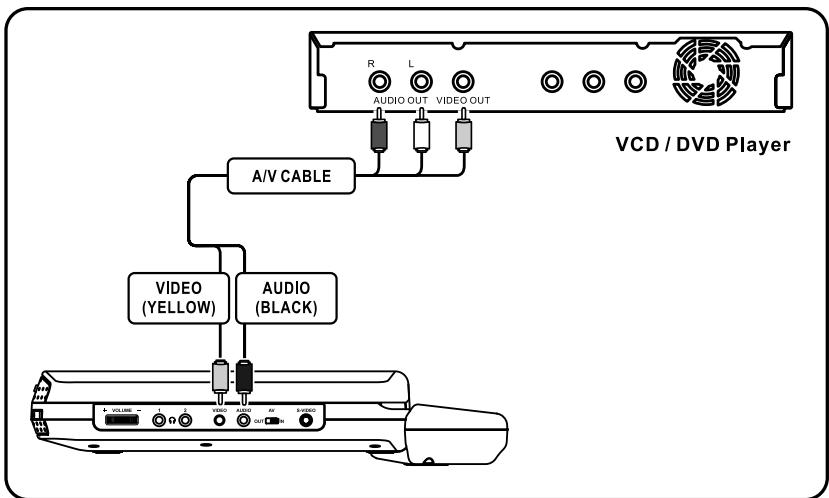
NOTE: AV switch must be switched to "IN" position.
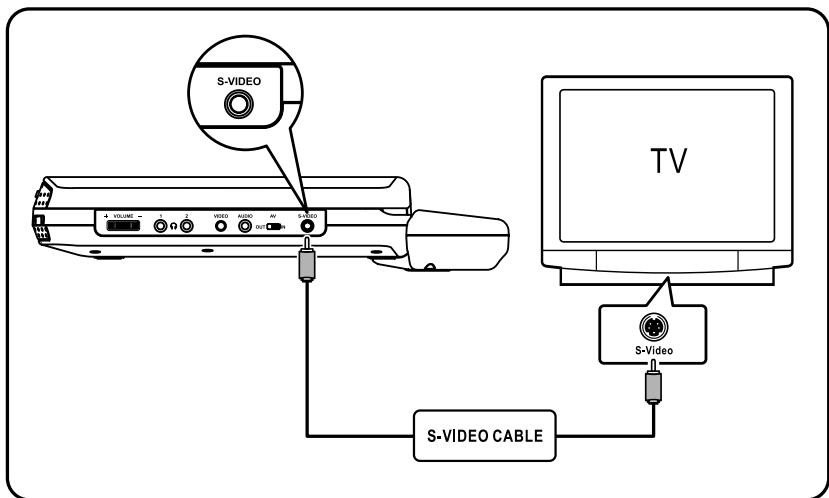
4. Connect to S-Video
Connect S-Video cable (not included) to S-Video jack on your DVD player, and to the corresponding S-Video jack on your TV.
MAIN UNIT
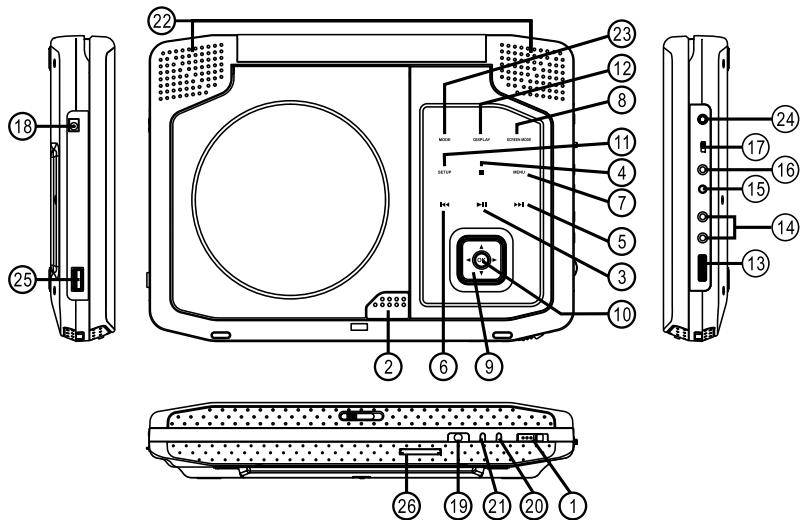
- ON/OFF - Turn the player on or off.
- PUSH OPEN - Open the disc door.
- II PLAY - Start disc playback or pause the playback.
- STOP - Stops disc playback.
- SKIP + - Skip to the next track, and next chapter ( only while playing )
- SKIP - - Skip to the beginning / previous track (only while playing)
- MENU - In DVD mode, press for Menu setup for DVD ( if available ). Switch PBC ON/OFF (For VCD/SVCD)
- SCREEN MODE - Press to select the screen display format between 16:9 and 4:3.
- NAVIGATION ( / / / ) - Select Menu items
- OK - Press to confirm the selected function.
- SETUP - Accesses the DVD player setup menu.
- DISPLAY - Press for detailed information on the disc playing.
- VOLUME - Adjust the volume to the desired level using the dial.
- HEADPHONE JACK - Listen to stereo sound with headphones (included)
- VIDEO Video out - Connects to the Video input to your TV. ( A/V Switch set at " OUT ") Video in - Connects to the Video from external video source. ( A/V Switch set at " IN ")
- AUDIO Audio Out - Connects to the Audio input to your TV/External amplifier system. ( A/V Switch set at " OUT ") Audio In - Connects to the Line OUT from external audio source. ( A/V Switch set at " IN ")
- A/V IN/OUT - Switch between analog Audio and Video IN / OUT function.
- DC IN - Connects to DC power source in
- IR - Infrared sensor for remote control.
- POWER LED - Led lights up when the player turns on.
- CHARGE LED - Led blinks in red when the battery is being charged; LED lights in red when the battery is charged full.
- SPEAKERS
- MODE - Select disc or media (USB or SD/MMC card).
- S-VIDEO - S-Video output to your TV.
- USB - USB socket.
- CARD - SD/MMC card slot.
REMOTE CONTROL
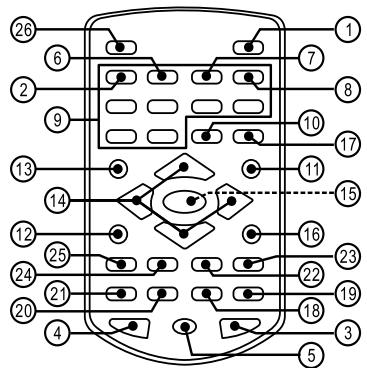
- SETUP - Enters the DVD player setup menu.
- TITLE - Displays DVD title menu (Only for DVD if available).
- SUBTITLE - Selects a subtitle language or turn the subtitle off (For DVD / SVCD if available).
- AUDIO - Selects sound track (For VCD). Press to select audio language for DVD / SVCD if available.
- ANGLE - Changes angle selection (For DVD if available).
- SLOW - Enters slow motion playback mode (For DVD / SVCD / VCD / MPEG-4 / DivX).
- ZOOM - Selects zoom ratio (For DVD / SVCD / VCD / MPEG-4 / DivX / JPEG).
- BOOKMARK - Enters the BOOKMARK mode (For DVD / SVCD / VCD).
- DIGIT (1,2,3,...0) - For direct digit entry.
- CLEAR - Clears unwanted digital no. on the screen.
- MENU/PBC - Displays DVD menu on the screen. (For DVD), Switch PBC on or off (For VCD / SVCD).
- PAUSE/FRAME - Pauses the disc playback.
- DISPLAY - Displays detail information when the disc is playing.
- NAVIGATION ( / / ) - Uses the arrow buttons to select menu on the screen.
- OK - Confirms the highlighted items, Starts the disc playback.
- STOP - Stops the disc playback.
- GOTO - Selects the desired title, chapter or search time.
18.PROG -Programs the track. - RANDOM - Random playback.
- A-B - Marks a segment to repeat A and B.
- REPEAT - Repeats track, chapter, title or disc once.
-
- Searches the track fast backward.
-
- Searches the track fast forward.
24.▶▶- Skips to the next chapter, track, title.
- Searches the track fast forward.
-
- Skips to the previous chapter, track, title.
- MODE - Select disc or media (USB or SD / MMC card)
Remarks:
The DIGIT buttons (0~9) will be used in following conditions:
- CD / MP3 / WMA / playback;
- Program / Goto;
- VCD / SVCD / PBC menu;
DVD menu;
DVD title menu; - Password setting.
BASIC SETUP
To turn the LCD monitor
You can turn the LCD monitor 180 degrees clockwise. In addition, you can also fold down the player to operate it with the LCD monitor side up.
- Put the player on a flat surface such as a desk.
- Fold up the LCD monitor vertically.
- Hold the LCD monitor on both sides and turn it slowly 180 degrees clockwise until it stops.
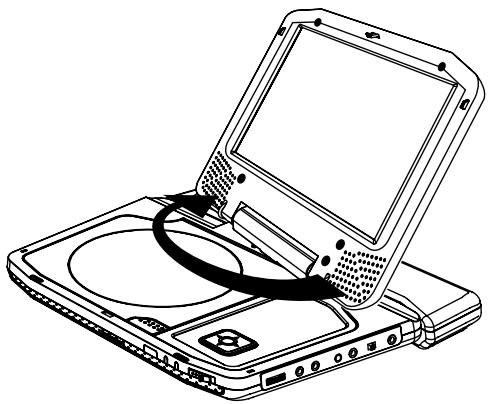
Notes
- The LCD monitor does not turn over 180 degrees or to the right. Do not force the LCD monitor to turn over 180 degrees or anti-clockwisely. Otherwise, it may damage the LCD monitor.
- Do not turn the LCD monitor without opening up vertically. Otherwise, it may scratch the disc cover.
To fold down the LCD monitor side up
- After having turned the LCD monitor, fold the monitor down.
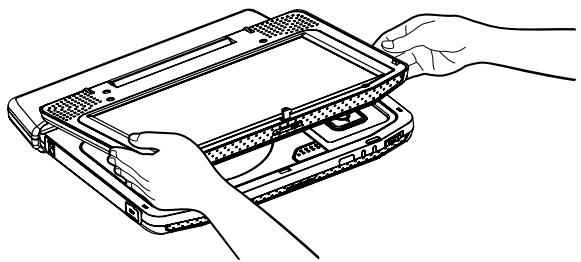
To put back the LCD monitor
- Fold up the LCD monitor vertically.
- Hold the LCD monitor on both sides and turn slowly 180 degrees anti-clockwisely until it stops.
Notes
- Do not store the LCD monitor with the screen side up. Otherwise, the LCD monitor will get dust on the screen or be damaged by an unexpected shock.
- Do not turn the LCD monitor without opening up vertically. Otherwise, it may scratch the disc cover.
BASIC SETUP
Using the Remote Control
- Point the remote control at the IR sensor located on the unit.
- When there is a strong ambient light source, the performance of the infrared IR sensor may be degraded, causing unreliable operation.
- The recommended effective distance for remote operation is about 16 feet (5 meters).
Take out the PVC sheet before operating the remote control.
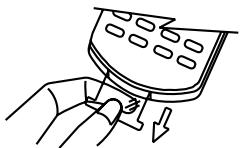
To Change Remote Control Battery
-
Open the battery door.
-
Insert one CR2025 (3V) size battery with correct polarity marked on the battery door.
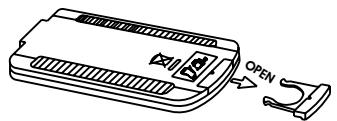
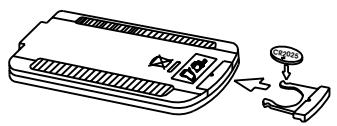
Battery Placement
When battery become weak, the operating distance of the remote control is greatly reduced and you will need to replace the battery.
NOTES:
- If the remote control is not to be used for a long time, remove the battery to avoid damage caused by battery leakage corrosion.
- WARNING : Do not dispose of batteries in fire, batteries may explode or leak.
Usage of Adapter
- The player is supplied with an AC/DC adapter.
- Connect the AC/DC adapter to the DC IN jack at the side of the DVD player.
- Plug the AC/DC adapter into a household power outlet.
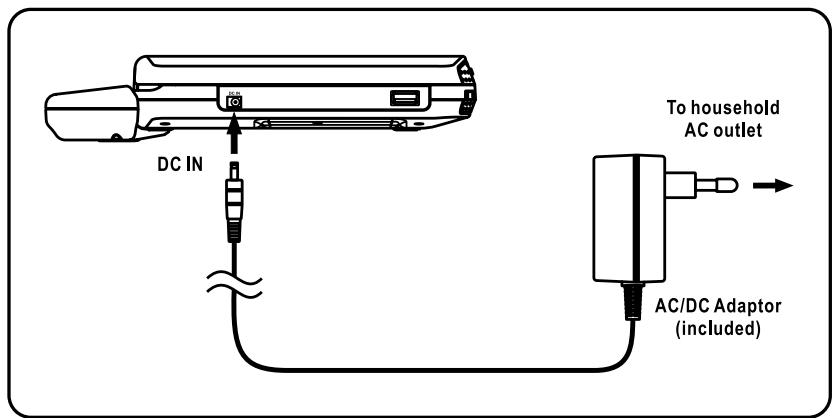
GB-11
BASIC SETUP
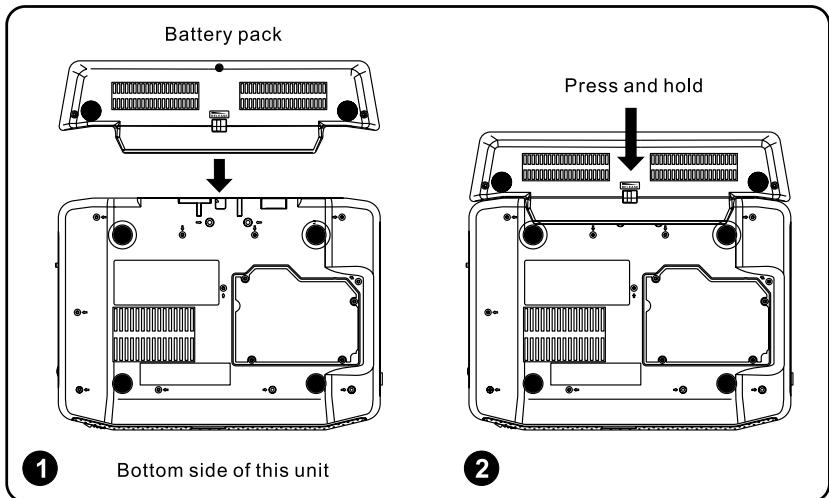
Install / Detach the Battery Pack
- Follow the illustrations to install the battery pack.
- Press the RELEASE button at the bottom of battery pack to uninstall the battery pack from the unit.
Using the Rechargeable Battery Pack
- Connect the AC/DC adapter to the unit and plug the AC adapter into a mains socket.
- Switch off the unit by sliding the ON/OFF button to OFF.
- The battery will start charging automatically, at this moment, the charging LED will blink in red.
- When the charge LED lights in red, charging is completed.
NOTES :
- Charge the battery pack before using it for the first time. Charge time is normally between 3~4 hours. Battery pack should be fully charged before use.
- Charge only with the supplied AC/DC adapter.
- Do not charge for more than 5 hours as it could reduce service life.
- When playing the unit in conjunction with the battery pack and battery low displays, this indicates that battery power is low and the battery should be recharged.
- When the battery pack is being charged, the CHARGE LED will blink in red, when charging is completed, the LED will light in red.
- When the unit is simultaneously connected to the battery pack and AC adapter, the unit will automatically select the AC adapter as its power source.
- Remove the battery pack to avoid leakage if the unit is not used.
- In case the charge LED does not light, please check that the battery connection is correct or not.
- The battery pack has to be recharged every 3 months when not in use in order to ensure a longer life.
- In case the charge LED blink quickly, first please check the battery connection correct or not, if the charge LED still blinks quickly, please don't charge, and contact the local dealer for help.
BASIC SETUP
Playback Preparation / Quick Operation Guide
- Connecting to power ( AC/DC adapter, external DC power source through Cigarette connector cable or with attached battery pack ).
- Lift the main cover up ( display screen ), and open the disc cover by pressing the OPEN knob.
- Load the disc and close the door lid.
- Switch on the unit by sliding the ON/OFF button to ON.
- Adjust the volume to your desired level.
SYSTEM SETUP
General Setup
Access the GENERAL SETUP by pressing the “SETUP” button on the unit or remote control.
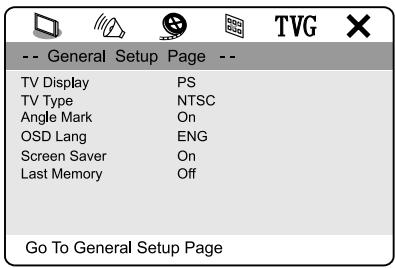
1. TV Display
NORMAL / PS - If you want the movie to fill the entire screen of your TV.
NORMAL / LB - If you want to see movies in their original aspect ratio.
The movie might appear with black bars at the top and bottom of the screen.
WIDE - You can select this setting if your DVD player is connected to a wide-screen (16:9) TV.
2. TV Type
Select the TV Video output format (PAL or NTSC) to match your TV.
3. Angle Mark
The function only works for DVD disc having scenes recorded at different angles.
ON/ OFF - With this switched on, you will be notified if alternative viewing angles are available.
4. OSD Language
The languages menu enables you to set preferred language options for the DVD player's menu.
5. Screen Saver
When activated, the screen saver automatically works if there has been no operation for a period of time.
6. Last Memory
Last memory allows playback at the point where the disc was stopped, if the disc is taken out from the unit and then inserted again.
SYSTEM SETUP
Audio Setup
Access AUDIO SETUP page by pressing the “SETUP” and “▶” buttons on the unit or remote control.
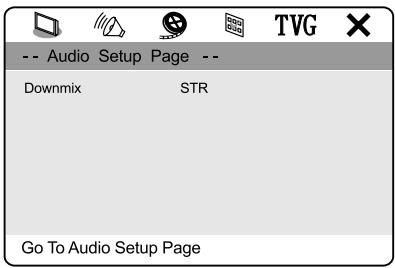
1. Downmix
Select LT/RT in downmix, then the player will output mixed audio in a way prescribed by Dolby. Select STEREO, then the player will output a stereo sound.
Video Setup
Access VIDEO SETUP page by pressing the “SETUP” and “▶” buttons on the unit or remote control.
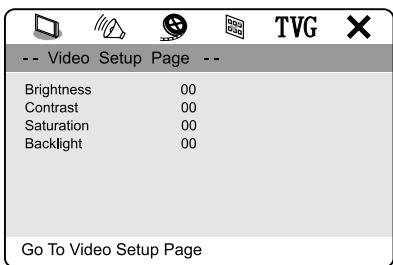
1. Brightness
Adjust the screen brightness.
2. Contrast
Adjust the contrast level of the screen display.
3. Saturation
Adjust the saturation of the screen display.
4. Backlight
Adjust the backlight of the screen display.
SYSTEM SETUP
Preference Setup
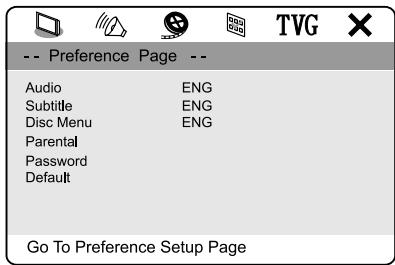
Access PREFERENCE SETUP page by pressing the “SETUP” and “▶” buttons on the unit or remote control.
NOTE:
Only in STOP mode you can access PREFERENCE SETUP page.
1. Audio
You can set your language preference for movies you play in your DVD player – the language in which you'll hear the dialogue when you're playing a movie.
2. Subtitle
You can set your language preference for the subtitles you see on the screen while playing a disc.
3. Disc Menu
You can set your language preference for disc menu.
4. Parental
You can set up ratings limits and lock your player in order to control the type of content people watch on your DVD player. Depending on the disc, you can replace or lock out violent scenes, or lock out playback of the disc altogether. Access parental control on the sub-menu by pressing direction buttons on the remote control, and then press the OK button, An interactive menu will appear.
5. Password
You can enter the password to change the parental control level. You can change the defaulted password "1369" to your desired password if the player is locked.
6. Default
Reset all the settings.
PLAYING BACK A DISC
How to start playback from the menu screen
- Press TITLE or MENU access the menu screen.
- Press ( / / ) or the number buttons to select the title.
- Press the OK or button.
The DVD video player will start playback from the title selected.
NOTE:
You also can input the assigned number of the title to select it directly.
How to pause playback (still playback)
Press once during playback.
Press PAUSE/FRAME repeatedly during playback, the picture will advance one frame each time, then press OK or II button to resume normal playback.
During the still playback, the sound is muted.
How to stop playback
Press STOP button once, playback stops and pressing OK or II can resume playback.
Press STOP button twice, playback stops completely.
Fast forward and backward
You can playback a disc at 2x, 4x, 8x, 16x or 32x the normal speed for fast forward or rewind.


Press the or button during playback. The playback speed becomes double the normal speed.
The playback speed changes, each time you press the or button.
To resume normal playback, press OK or II button.
NOTE:
The function is invalid on some DVD discs.
Playing in slow-motion
A disc can also be played back in slow-motion.
Press the SLOW button during playing.

The playback speed becomes 1/2, 1/4, 1/8, or 1/16 of the normal speed each time you press the SLOW button.
To resume normal playback, press OK or II button.
Warning:
-During fast forward/backward, and slow-motion playback, the sound is muted.
- The function is invalid on some DVD discs.
PLAYING BACK A KODAK PICTURE CD/JPEG
- Load your KODAK Picture CD or JPEG disc.
When a KODAK Picture CD is loaded, it will start playback automatically.
- Select a folder or a picture/song contained on the JPEG or other data disc, a menu will appear on the screen.
Press or to select a folder, and press OK or II to view folder contents (shown in right column).
- Select one play mode.
You can use the REPEAT button to select playback mode, repeat one or repeat all.
- Start playback
Press or to select a file. Press OK or II to enjoy the pictures or songs.
- Use STOP to view contents
When JPEG CD is played, STOP button is used to display JPEG folders and the corresponding files.
Creating your own Picture CDs
Using your computer to save pictures as JPEG format and burn them on a CD-R disc, then you can watch on your unit.
NOTE:
Press NAVIGATION ( / / / ) buttons to rotate the picture from the current position.
PLAYING BACK A MP3 CD
Multi-Media files such as MP3 can be played in the DVD player.
Operation
- Insert the MP3 disc into the disc compartment. The menu will show the files in the root directory. The MP3 files can then be played by pressing OK or II.
- The MP3 menu shows a blue and an orange cursor. The blue cursor indicates the currently playing MP3 song and the orange cursor indicates a title to be selected.
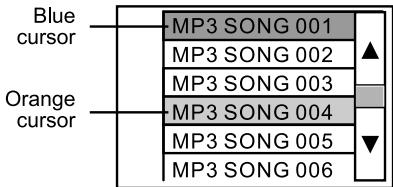
You can select the other songs by the NAVIGATION (▲ /▼ /▲/▶) buttons or directly input the song number by pressing the DIGIT buttons. The orange cursor will move to the selected song. Then press OK or II button to confirm.
NOTES :
- There are three digits displayed. If you want call up a title with only one or two digits, you can either start the entry with "0" or "00", or you can enter the number of the song and then wait a few seconds until the cursor skips to the selected title.
- Press REPEAT button to select: Repeat one, Repeat folder etc..
LOCATING A SPECIFIC TITLE, CHAPTER OR TRACK
DVD DISCS ARE NORMALLY DIVIDED INTO TITLES WHICH ARE SUB-DIVIDED INTO CHAPTERS. WHILE CD DISCS ARE DIVIDED INTO TRACKS.
Locating a title using the title menu
You can locate a specific title using the title menu function, if a DVD video disc contains a title menu.
- Press TITLE button
On the LCD or TV screen, the title menu will appear
- Press ( / / ) buttons to select the title you want.
You can also directly locate a specific title by pressing its assigned number with the DIGIT buttons.
- Press /OK or button
This will cause the DVD video player to start playback from chapter one of the title selected.
You also can use skip buttons to select a title or track:
Press or repeatedly till the desired one displays.
PLAYING REPEATEDLY
THIS DVD VIDEO PLAYER ALLOWS YOU TO PLAYBACK A SPECIFIC TITLE, CHAPTER, TRACK, OR SEGMENT REPEATEDLY. (TITLE REPEAT, CHAPTER/TRACK REPEAT, A-B REPEAT)
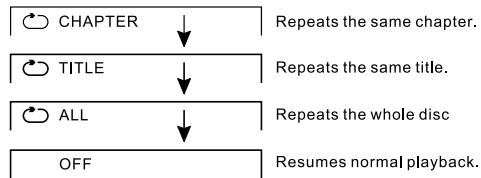
How to repeat a title, chapter or disc
During normal playback, press the REPEAT button.
The repeat mode changes, each time you press the REPEAT button
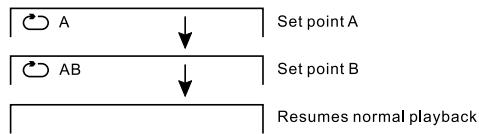
How to repeat a specific segment
- Press A-B button at the beginning of the segment in which you want to repeat playback (point A).
- Press A-B button again at the end of the segment (point B)
The DVD video player will automatically return to point A and start to repeat playback of the selected segment (A-B).
- Press A-B button to cancel the A-B repeat function
The DVD video player will resume to normal playback.
How to set titles, chapters, or tracks in a favorite order
- Press the PROG button.
PROGRAM MENU display on the screen.
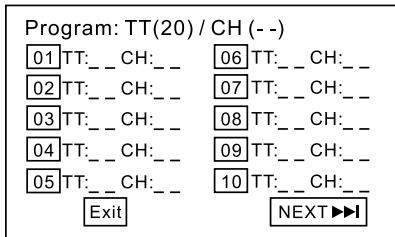
- Using DIGIT buttons, select the items you want in the order you want them programmed in. The number of the item selected will be input into the PROGRAM menu.
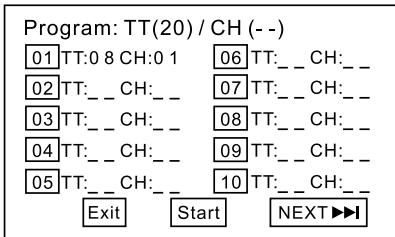
- If you make a mistake, you can highlight it by using the ( / / ) and press CLEAR button to clear the undesired program. OR re-enter the new title/chapter number.
- Highlight START and press OK or II to start program playback.
- To clear all the programs, move the cursor to STOP and then press OK to confirm it.
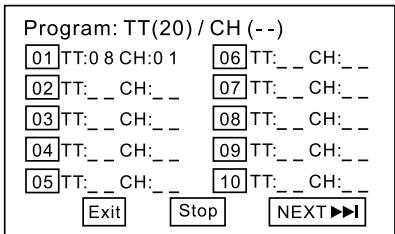
NOTE:
Picture CD and MP3 / WMA CD does not support the program function.
DVD BOOKMARK
The unit allows you to bookmark up to 12 sections of a DVD, SVCD and VCD disc for playback as follows:
- During playback, press the BOOKMARK button, the bookmark menu will appear on the screen.
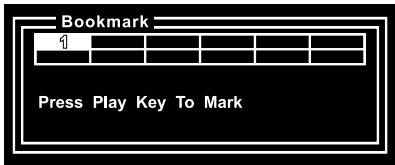
- Use the NAVIGATION and buttons to select a blank bookmark box, then when the desired scene appears, press the OK button to bookmark it.
- To remove the bookmark menu from the screen, press the BOOKMARK button again.
- To go to a bookmarked section, press the BOOKMARK button, the bookmark menu will appear on the screen.
- Use the NAVIGATION and buttons to select the desired bookmark and press the OK button, the DVD will then begin playback at that point.
TO DELETE A BOOKMARK, simply select the bookmark that you want to delete in theBookmark menu, then press the CLEAR button.
NOTE : If the disc is changed or the disc door is opened, all the bookmarks will be cleared.
USING THE GOTO FEATURE
For DVD Disc
TITLE/CHAPTER SEARCH
Use this feature to go directly to a specific title and / or chapter.
- Press the GOTO button once.
- Press the NAVIGATION and buttons to select TITLE or CHAPTER, then use the DIGIT buttons to select the desired title or chapter number. Playback will start immediately.
Title 01/03 chapter 05/22
TITLE/TIME SEARCH
Use this feature to go directly to a specific title and / or time.
- Press the GOTO button twice.
- Press the NAVIGATION and buttons to select TITLE or TIME, then use the DIGIT buttons to select the desired title number or time (Hour / Minutes / Seconds). Playback will start immediately.
Use this feature to go directly to a specific chapter and / or time.
- Press the GOTO button three times.
- Press the NAVIGATION and buttons to select CHAPTER or TIME, then use the DIGIT buttons to select the desired chapter number or time (Hour / Minutes / Second). Playback will start immediately.
Chapter 01/22 Time_:_:
USING THE GOTO FEATURE
NOTES:
a.) Enter a two-digit number to select a title or chapter, i.e. for the single-digit title or chapter, press "0" and then "1" or for the two-digit title or chapter, press "1", "0", etc.
b.) TITLE search feature is not available for the discs without this feature.
c.) If the input number is invalid, the error information "Input Invalid: will be displayed on the screen.
For CD Disc
Use this feature to go directly to a specific disc time.
DISC TIME SEARCH
- Press the GOTO button once.
- Use the DIGIT buttons to select the desired disc time (Minutes/Seconds).
Disc Go To __:
TRACK TIME SEARCH
Use this feature to go directly to a specific track time.
- Press the GOTO button twice.
- Use the DIGIT buttons to select the desired track time (Minutes/Seconds).
Track Go To __:
TRACK SEARCH
Use this feature to go directly to a specific track.
- Press the GOTO button three times.
- Use the DIGIT buttons to select the desired track number.
Select Track __:
NOTE : Enter a two digit number to select a track, i.e. for the single-digit track, press “0” and then “1” or for the two-digit track, press “1”, “0”, etc.
ZOOMING A PICTURE
Zooming a picture
This DVD video player allows you to zoom into a picture as well as the zoom point.
Press ZOOM during normal playback or slow-motion.
The player magnifies in the center of the picture in the following sequence: 2X, 3X, 4X, 1/2, 1/3, and 1/4.
If you press / / during zoom playback, the zoom point shifts.
To cancel the zoom function, press ZOOM again.
USB OR CARD PLAYBACK
- Insert USB or SD/MMC card
- Press "MODE" button then disc/media menu will display.
- Press NAVIGATION ( / / / ) buttons to select disc or media (USB or SD/MMC card)
- Press OK button to confirm your selection.
- The unit will read disc or USB or SD/MMC card according to your selection.
- The operation steps refer to playing disc.
NOTES :
-Card support types: SD, MMC.
-Card file formats support: MP3, WMA, JPEG, MP4.
-USB file formats support: MP3, WMA, JPEG, MP4.
-USB support for mass storage device only.
CARRYING BAG INSTALLATION
SAFETYWARNING!
On no account should this unit be used by the driver of a moving motor vehicle, or left unsecured in the vehicle whilst driving.
If this unit is being used by a passenger in your vehicle, be sure that it is secured or held safely, and does not obstruct any safety device (i.e. airbag, seat belt etc.) that is fitted.
- Insert the straps on carrying bag as shown.
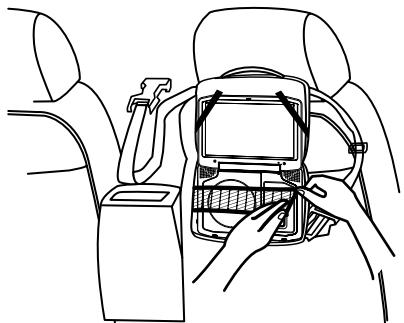
- Take straps and hook up the neck heardrest of the driver's seat as shown.
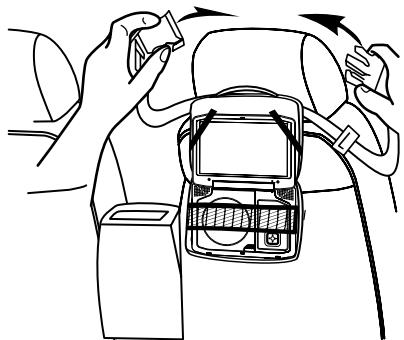
- Adjust the straps tightly so that the unit is secured.
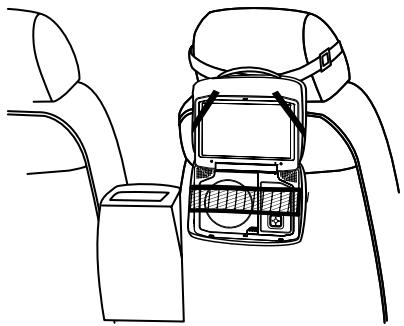
DISC NOTES
Disc formats supported by this player
DVD-VIDEO, DVD+R/RW, DVD-R/RW
- COMPACT DISC DIGITAL AUDIO
CD-R/RW
- MP3/WMA/JPEG
VCD 2.0/SVCD
- MPEG 4 / Xvid / DivX (DivX 3.0, DivX 4.0, DivX 5.0)
Discs which cannot be played with this player
DVD-ROM
DVD-RAM
CDV
Handling and Cleaning
- Dirt, dust, scratches and warping disc will cause misoperation.
- Do not place stickers or make scratches on discs.
- Do not warp discs.
- A disc should always be kept in its case when not in use to prevent from damaging.
-
Do not place discs in the following places :
-
Direct sunlight
- Dirty, dusty and damp areas
- Near car heaters
- On the seats or dashboard
Disc Cleaning
Use a dry soft cloth to wipe the surface. If the disc is quite dirty, use a soft cloth slightly moistened with isopropyl alcohol. Never use solvents such as benzene, thinner or conventional record cleaners as they may mark the surface of the disc.
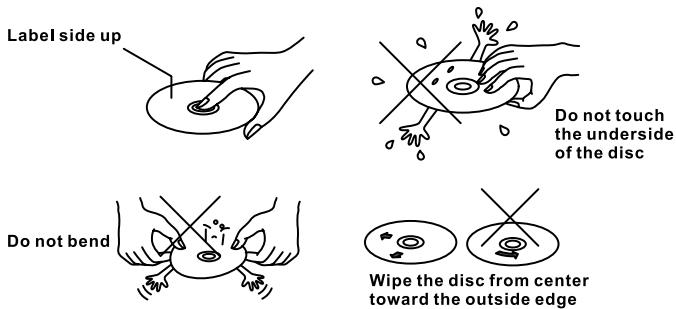
DISC NOTES
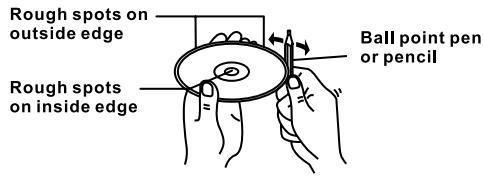
Preparing New Discs with Rough Spots
A new disc many have rough edges on its inside and outside edges. If a disc with rough edges is used, the proper setting will not be performed and the player will not play the disc. Therefore, remove the rough edges in advance by using a ball point pen or pencil as shown on the right. To remove the rough edges, press the side of the pen or pencil against the inside and outside edges of the disc.
TROUBLE SHOOTING GUIDE
If it appears that your DVD-Video player is faulty, first consult this checklist. It may be that something simple has been overlooked.
Under no circumstances should you try to repair yourself. Only qualified service personnel can remove the cover or service this player.
NO POWER
- Check if power plug is properly connected.
- Check if there is power at the AC outlet by plugging in another appliance.
NO PICTURE (When connected to TV)
- Check if the TV is connected and switched on.
- Select the correct AV input on the TV.
- Check the video connection.
- Check AV switch set at "OUT" position.
- Check channel selector set to AV on the TV (See your TV manual for instructions).
DISTORTED PICTURE
- Check the disc for fingerprints and clean with soft cloth, wiping from centre to edge.
- Sometimes little picture distortion may appear. This is not a malfunction.
COMpletely Distorted Picture (When connected to TV)
- The disc is not formatted to the TV-set used (PAL/NTSC).
NO COLOR IN PICTURE (When connected to TV)
- The unit is not formatted to the TV-set system (PAL/NTSC).
DISC CAN'T BE PLAYED
- Ensure the disc is label side up.
- Clean the disc.
- Check if the disc is defective by trying another disc.
TROUBLE SHOOTING GUIDE
NO SOUND
- Check audio connections.
- Make sure the sound setup of DVD disc is correct.
NO RETURN TO START-UP SCREEN WHEN DISC IS REMOVED
- Check to see if the program requires another disc to be loaded.
- Reset by unplugging the player from the power supply, then connect the power supply again.
THE PLAYER DOES NOT RESPOND TO THE REMOTE CONTROL
- Aim the remote control directly at the sensor on the front of the player.
- Avoid all obstacles which may interfere with the signal path.
- Inspect or replace the battery (Lithium battery "CR2025").
BUTTONS DO NOT WORK
- Unplug the player from power outlet and reconnect after a few seconds.
YOU HAVE FORGOTTEN THE PASSWORD
The defaulted password is "1369"
NO SOUND OR PICTURE ON THE UNIT'S LCD SCREEN WHEN PLAYING DVD
- Set the AV switch to the "OUT" position
CHARGE LED NO LIGHT
- Check the battery pack connection correct or not.
| TECHNICAL SPECIFICATIONS | |
| Power supply | AC adapter : AC 100 - 240V ~ 50/60Hz DC source : DC 12V/1500mA (Center positive) |
| Power Consumption | 24W |
| Operation Temperature (humidity) | 0 --- 40 deg C (Less than 95%, no condensation) |
| Screen Display | 8.5"/16:9 TFT panel |
| Discs Played | DVD-Video, DVD+R/RW, DVD-R/RW, MPEG 4, Xvid, DivX, CD-DA, CD-R/RW, MP3, JPEG, VCD 2.0 |
| Video Formats | PAL/NTSC |
| Frequency Response | 20Hz ~ 20kHz +/-3dB |
| Audio out | Analog audio out : 0.6V/10K ohm load |
| Video Out | Composite video 1.0Vp-p 75 ohm |
| Input | Analog audio / Composite video |
| Battery | Rechargeable Li-polymer battery : 7.4V / 3500mAh Rechargeable time : approx. 4 hrs Playback time : approx. 4 hrs |
| Dimension | Main unit : (236 X 170 X 41) mm Battery pack : (234.7 X 67.7 X 29.7) mm |
| Weight (Full package) | Approx. 2.3 Kg |
NOTE:
- Some external hard disks may not be supported.
- The quality and speed of JPEG photos depend on the resolution & the compression ratio of the photos. Some JPEG photos may not be played due to the discs quality and the formats.
- Some DVD+R/RW, DVD -R/RW, CD-R/RW discs may not be played due to the quality or burning conditions.

If at any time in the future you should need to dispose of this product please note that Waste electrical products should not be disposed of with household waste. Please recycle where facilities exist. Check with your Local Authority or retailer for recycling advice. (Waste Electrical and Electronic Equipment Directive)
- SUPPLIED ACCESSORIES
- IMPORTANT
- NOTE
- CAUTION WHEN USING
- SAFETY
- WARNING
- LASER
- DO NOT STARE INTO BEAM
- CAUTION
- RISK OF ELECTRIC SHOCK DO NOT OPEN
- NOTE : SEE THE MARKING ON THE BOTTOM OF CABINET
- BATTERIES
- BATTERY PACK
- DISPOSING OF THE BATTERIES
- PLAYER ZONES
- INSTALLATION
- CAUTION: DO NOT INSTALL THIS EQUIPMENT IN CONFINED SPACE WITH POOR VENTILATION
- CONNECTIONS
- CONNECTING TO TV
- NOTE : AV SWITCH MUST BE SWITCHED TO “OUT” POSITION
- CONNECTING FOR IN CAR USE
- CONNECT TO EXTERNAL ANALOG VIDEO / AUDIO SOURCE (USING THE APPLIANCE AS A MONITOR)
- CONNECT TO S-VIDEO
- MAIN UNIT
- REMOTE CONTROL
- REMARKS
- BASIC SETUP
- TO TURN THE LCD MONITOR
- NOTES
- TO FOLD DOWN THE LCD MONITOR SIDE UP
- TO PUT BACK THE LCD MONITOR
- USING THE REMOTE CONTROL
- TO CHANGE REMOTE CONTROL BATTERY
- BATTERY PLACEMENT
- USAGE OF ADAPTER
- INSTALL / DETACH THE BATTERY PACK
- USING THE RECHARGEABLE BATTERY PACK
- PLAYBACK PREPARATION / QUICK OPERATION GUIDE
- SYSTEM SETUP
- GENERAL SETUP
- TV DISPLAY
- TV TYPE
- ANGLE MARK
- OSD LANGUAGE
- SCREEN SAVER
- LAST MEMORY
- AUDIO SETUP
- DOWNMIX
- VIDEO SETUP
- BRIGHTNESS
- CONTRAST
- SATURATION
- BACKLIGHT
- PREFERENCE SETUP
- AUDIO
- SUBTITLE
- DISC MENU
- PARENTAL
- PASSWORD
- DEFAULT
- PLAYING BACK A DISC
- HOW TO START PLAYBACK FROM THE MENU SCREEN
- HOW TO PAUSE PLAYBACK (STILL PLAYBACK)
- HOW TO STOP PLAYBACK
- FAST FORWARD AND BACKWARD
- PLAYING IN SLOW-MOTION
- PLAYING BACK A KODAK PICTURE CD/JPEG
- CREATING YOUR OWN PICTURE CDS
- PLAYING BACK A MP3 CD
- OPERATION
- LOCATING A SPECIFIC TITLE, CHAPTER OR TRACK
- DVD DISCS ARE NORMALLY DIVIDED INTO TITLES WHICH ARE SUB-DIVIDED INTO CHAPTERS. WHILE CD DISCS ARE DIVIDED INTO TRACKS
- LOCATING A TITLE USING THE TITLE MENU
- PLAYING REPEATEDLY
- THIS DVD VIDEO PLAYER ALLOWS YOU TO PLAYBACK A SPECIFIC TITLE, CHAPTER, TRACK, OR SEGMENT REPEATEDLY. (TITLE REPEAT, CHAPTER/TRACK REPEAT, A-B REPEAT)
- HOW TO REPEAT A TITLE, CHAPTER OR DISC
- HOW TO REPEAT A SPECIFIC SEGMENT
- HOW TO SET TITLES, CHAPTERS, OR TRACKS IN A FAVORITE ORDER
- DVD BOOKMARK
- USING THE GOTO FEATURE
- FOR DVD DISC
- TITLE/CHAPTER SEARCH
- TITLE/TIME SEARCH
- FOR CD DISC
- DISC TIME SEARCH
- TRACK TIME SEARCH
- TRACK SEARCH
- ZOOMING A PICTURE
- USB OR CARD PLAYBACK
- CARRYING BAG INSTALLATION
- SAFETYWARNING
- DISC NOTES
- DISC FORMATS SUPPORTED BY THIS PLAYER
- DISCS WHICH CANNOT BE PLAYED WITH THIS PLAYER
- HANDLING AND CLEANING
- DISC CLEANING
- PREPARING NEW DISCS WITH ROUGH SPOTS
- TROUBLE SHOOTING GUIDE
- NO POWER
- NO PICTURE (WHEN CONNECTED TO TV)
- DISTORTED PICTURE
- COMPLETELY DISTORTED PICTURE (WHEN CONNECTED TO TV)
- NO COLOR IN PICTURE (WHEN CONNECTED TO TV)
- DISC CAN'T BE PLAYED
- NO SOUND
- NO RETURN TO START-UP SCREEN WHEN DISC IS REMOVED
- THE PLAYER DOES NOT RESPOND TO THE REMOTE CONTROL
- BUTTONS DO NOT WORK
- YOU HAVE FORGOTTEN THE PASSWORD
- NO SOUND OR PICTURE ON THE UNIT'S LCD SCREEN WHEN PLAYING DVD
- CHARGE LED NO LIGHT
Brand : SCOTT
Model : DPX I865 CS
Category : Mountain Bike