
ZYWALL USG 20 - Security Router ZYXEL - Free user manual and instructions
Find the device manual for free ZYWALL USG 20 ZYXEL in PDF.


| Product Type | Security Router / Firewall |
| Brand | ZYXEL |
| Model | ZYWALL USG 20 |
| Dimensions (L x D x H) | 220 mm x 160 mm x 44 mm |
| Weight | 1.2 kg |
| Power Supply | 12V DC, 1.5 A power adapter |
| Network Interfaces | 4 LAN ports 10/100/1000, 1 WAN port 10/100/1000 |
| Main Functions | Firewall, VPN (IPsec/SSL), content filtering, QoS, NAT, VLAN |
| Supported VPN Protocols | IPsec, SSL VPN, L2TP, PPTP |
| Wireless Mode | Not integrated (requires external access point) |
| Concurrent Connections Capacity | Approximately 10,000 sessions |
| Throughput | Up to 200 Mbps (firewall) |
| Security | Intrusion Detection (IDS), Prevention (IPS), anti-spam filtering, network antivirus |
| Management | HTTPS web interface, CLI, SNMP, Zyxel Cloud |
| Certifications | CE, FCC, IC (NMB-003) |
| Operating Temperature | 0°C to 40°C |
| Operating Humidity | 10% to 90% (non-condensing) |
| Maintenance | Clean with a soft, dry cloth. Unplug before cleaning. |
| General Information | Class B, indoor use. Manual available for PDF download. |
Frequently Asked Questions - ZYWALL USG 20 ZYXEL
User questions about ZYWALL USG 20 ZYXEL
0 question about this device. Answer the ones you know or ask your own.
Ask a new question about this device
Download the instructions for your Security Router in PDF format for free! Find your manual ZYWALL USG 20 - ZYXEL and take your electronic device back in hand. On this page are published all the documents necessary for the use of your device. ZYWALL USG 20 by ZYXEL.
USER MANUAL ZYWALL USG 20 ZYXEL
Unified Security Gateway
User's Guide

Default Login Details
LAN Port
P2, P3
IP Address
https://192.168.1.1
UserID
admin
Password
1234
Version 2.21
Edition 4, 4/2011
www.zyxel.com
ZyXEL
About This User's Guide
Intended Audience
This manual is intended for people who want to want to configure the ZyWALL using the Web Configurator.
How To Use This Guide
- Read Chapter 1 on page 29 chapter for an overview of features available on the ZyWALL.
- Read Chapter 3 on page 43 for web browser requirements and an introduction to the main components, icons and menus in the ZyWALL Web Configurator.
- Read Chapter 4 on page 59 if you're using the installation wizard for first time setup and you want more detailed information than what the real time online help provides.
- Read Chapter 5 on page 69 if you're using the quick setup wizards and you want more detailed information than what the real time online help provides.
- It is highly recommended you read Chapter 6 on page 87 for detailed information on essential terms used in the ZyWALL, what prerequisites are needed to configure a feature and how to use that feature.
- It is highly recommended you read Chapter 7 on page 107 for ZyWALL application examples.
- Subsequent chapters are arranged by menu item as defined in the Web Configurator. Read each chapter carefully for detailed information on that menu item.
- To find specific information in this guide, use the Contents Overview, the Table of Contents, the Index, or search the PDF file. E-mail techwriters@zyxel.com.tw if you cannot find the information you require.
Related Documentation
- Quick Start Guide
The Quick Start Guide is designed to show you how to make the ZyWALL hardware connections and access the Web Configurator wizards. (See the wizard real time help for information on configuring each screen.) It also contains a connection diagram and package contents list.
- CLI Reference Guide
The CLI Reference Guide explains how to use the Command-Line Interface (CLI) to configure the ZyWALL.
Note: It is recommended you use the Web Configurator to configure the ZyWALL.
Web Configurator Online Help
Click the help icon in any screen for help in configuring that screen and supplementary information.
ZyXEL Web Site
Please refer to www.zyxel.com for additional support documentation and product certifications.
User Guide Feedback
Help us help you. Send all User Guide-related comments, questions or suggestions for improvement to the following address, or use e-mail instead. Thank you!
The Technical Writing Team, ZyXEL Communications Corp., 6 Innovation Road II, Science-Based Industrial Park, Hsinchu, 300, Taiwan.
E-mail: techwriters@zyxel.com.tw
Need More Help?
More help is available at www.zyxel.com.
- Download Library
Search for the latest product updates and documentation from this link. Read the Tech Doc Overview to find out how to efficiently use the User Guide, Quick Start Guide and Command Line Interface Reference Guide in order to better understand how to use your product.
Knowledge Base
If you have a specific question about your product, the answer may be here. This is a collection of answers to previously asked questions about ZyXEL products.
- Forum
This contains discussions on ZyXEL products. Learn from others who use ZyXEL products and share your experiences as well.
Customer Support
Should problems arise that cannot be solved by the methods listed above, you should contact your vendor. If you cannot contact your vendor, then contact a ZyXEL office for the region in which you bought the device.
See http://www.zyxel.com/web/contact_us.php for contact information. Please have the following information ready when you contact an office.
- Product model and serial number.
- Warranty Information.
- Date that you received your device.
- Brief description of the problem and the steps you took to solve it.
Disclaimer
Graphics in this book may differ slightly from the product due to differences in operating systems, operating system versions, or if you installed updated firmware/software for your device. Every effort has been made to ensure that the information in this manual is accurate.
Document Conventions
Warnings and Notes
These are how warnings and notes are shown in this User's Guide.
Warnings tell you about things that could harm you or your device.
Note: Notes tell you other important information (for example, other things you may need to configure or helpful tips) or recommendations.
Syntax Conventions
- The ZyWALL may be referred to as the "ZyWALL", the "device", the "system" or the "product" in this User's Guide.
- Product labels, screen names, field labels and field choices are all in bold font.
- A key stroke is denoted by square brackets and uppercase text, for example, [ENTER] means the "enter" or "return" key on your keyboard.
- "Enter" means for you to type one or more characters and then press the [ENTER] key. "Select" or "choose" means for you to use one of the predefined choices.
- A right angle bracket ( > ) within a screen name denotes a mouse click. For example, Maintenance > Log > Log Setting means you first click Maintenance in the navigation panel, then the Log sub menu and finally the Log Setting tab to get to that screen.
- Units of measurement may denote the "metric" value or the "scientific" value. For example, "k" for kilo may denote "1000" or "1024", "M" for mega may denote "1000000" or "1048576" and so on.
- "e.g.," is a shorthand for "for instance", and "i.e.," means "that is" or "in other words".
Icons Used in Figures
Figures in this User's Guide may use the following generic icons. The ZyWALL icon is not an exact representation of your device.
| ZyWALL | Computer | Notebook computer |
| Server | Firewall | Telephone |
| Switch | Router |
SafetyWarnings
- Do NOT use this product near water, for example, in a wet basement or near a swimming pool.
- Do NOT expose your device to dampness, dust or corrosive liquids.
- Do NOT store things on the device.
- Do NOT install, use, or service this device during a thunderstorm. There is a remote risk of electric shock from lightning.
- Connect ONLY suitable accessories to the device.
- Do NOT open the device or unit. Opening or removing covers can expose you to dangerous high voltage points or other risks. ONLY qualified service personnel should service or disassemble this device. Please contact your vendor for further information.
- Make sure to connect the cables to the correct ports.
- Place connecting cables carefully so that no one will step on them or stumble over them.
- Always disconnect all cables from this device before servicing or disassembling.
- Use ONLY an appropriate power adaptor or cord for your device. Connect it to the right supply voltage (for example, 110V AC in North America or 230V AC in Europe).
- Do NOT remove the plug and connect it to a power outlet by itself; always attach the plug to the power adaptor first before connecting it to a power outlet.
- Do NOT allow anything to rest on the power adaptor or cord and do NOT place the product where anyone can walk on the power adaptor or cord.
- Do NOT use the device if the power adaptor or cord is damaged as it might cause electrocution.
- If the power adaptor or cord is damaged, remove it from the device and the power source.
- Do NOT attempt to repair the power adaptor or cord. Contact your local vendor to order a new one.
- Do not use the device outside, and make sure all the connections are indoors. There is a remote risk of electric shock from lightning.
- CAUTION: RISK OF EXPLOSION IF BATTERY (on the motherboard) IS REPLACED BY AN INCORRECT TYPE. DISPOSE OF USED BATTERIES ACCORDING TO THE INSTRUCTIONS. Dispose them at the applicable collection point for the recycling of electrical and electronic equipment. For detailed information about recycling of this product, please contact your local city office, your household waste disposal service or the store where you purchased the product.
- Do NOT obstruct the device ventilation slots, as insufficient airflow may harm your device.
- Antenna Warning! This device meets ETSI and FCC certification requirements when using the included antenna(s). Only use the included antenna(s).
- If you wall mount your device, make sure that no electrical lines, gas or water pipes will be damaged.
Your product is marked with this symbol, which is known as the WEEE mark. WEEE stands for Waste Electronics and Electrical Equipment. It means that used electrical and electronic products should not be mixed with general waste. Used electrical and electronic equipment should be treated separately.

Contents Overview
User's Guide 27
Introducing the ZyWALL 29
Features and Applications 37
Web Configurator 43
Installation Setup Wizard 59
Quick Setup 69
Configuration Basics 87
Tutorials 107
Technical Reference 163
165
Monitor 177
Registration 211
Interfaces 217
Trunks 289
Policy and Static Routes 297
Routing Protocols 313
Zones 327
DDNS 331
NAT 337
HTTP Redirect 347
ALG 351
IP/MAC Binding 359
Authentication Policy 365
Firewall 373
IPSecVPN 391
SSLVPN 427
SSL User Screens 437
SSL User Application Screens 447
ZyWALL SecuExtender 449
Bandwidth Management 453
ADP 467
Content Filtering 487
Content Filter Reports 513
Anti-Spam 521
User/Group 539
555
Services 561
Schedules 567
AAA Server 573
Authentication Method 583
Certificates 589
ISP Accounts 611
SSL Application 615
Endpoint Security 621
System 629
Log and Report 679
File Manager 693
Diagnostics 705
Packet Flow Explore 715
Reboot 723
Shutdown 725
Troubleshooting 727
Product Specifications 741
Table of Contents
About This User's Guide 3
Document Conventions 6
SafetyWarnings 8
Contents Overview 9
Table of Contents 11
Part I: User's Guide 27
Chapter 1 Introducing the ZyWALL 29
1.1 Overview and Key Default Settings 29
1.2 Wall-mounting 29
1.3 Front Panel 32
1.3.1 Front Panel LEDs 32
1.4 Management Overview 33
1.5 Starting and Stopping the ZyWALL 34
Chapter 2 Features and Applications 37
2.1 Features 37
2.2 Applications 39
2.2.1 VPN Connectivity 39
2.2.2 SSL VPN Network Access 39
2.2.3 User-Aware Access Control 41
Chapter 3 Web Configurator 43
3.1 Web Configurator Requirements 43
3.2 Web Configurator Access 43
3.3 Web Configurator Screens Overview 45
3.3.1 Title Bar 46
3.3.2 Navigation Panel 47
3.3.3 Main Window 52
3.3.4 Tables and Lists 54
Chapter 4
Installation Setup Wizard 59
4.1 Installation Setup Wizard Screens 59
4.1.1 Internet Access Setup - WAN Interface 59
4.1.2 Internet Access: Ethernet 60
4.1.3 Internet Access: PPPoE 61
4.1.4 Internet Access: PPTP 63
4.1.5 ISP Parameters 63
4.1.6 Internet Access - Finish 65
4.2 Device Registration 65
Chapter 5
Quick Setup 69
5.1 Quick Setup Overview 69
5.2 WAN Interface Quick Setup 70
5.2.1 Choose an Ethernet Interface 70
5.2.2 Select WAN Type 70
5.2.3 Configure WAN Settings 71
5.2.4 WAN and ISP Connection Settings 72
5.2.5 Quick Setup Interface Wizard: Summary 74
5.3 VPN Quick Setup 75
5.4 VPN Setup Wizard: Wizard Type 76
5.5 VPN Express Wizard - Scenario 77
5.5.1 VPN Express Wizard - Configuration 78
5.5.2 VPN Express Wizard - Summary 79
5.5.3 VPN Express Wizard - Finish 80
5.5.4 VPN Advanced Wizard - Scenario 81
5.5.5 VPN Advanced Wizard - Phase 1 Settings 82
5.5.6 VPN Advanced Wizard - Phase 2 83
5.5.7 VPN Advanced Wizard - Summary 85
5.5.8 VPN Advanced Wizard - Finish 86
Chapter 6
Configuration Basics 87
6.1 Object-based Configuration 87
6.2 Zones, Interfaces, and Physical Ports 88
6.2.1 Interface Types 89
6.2.2 Default Interface and Zone Configuration 90
6.3 Terminology in the ZyWALL 91
6.4 Packet Flow 91
6.4.1 Routing Table Checking Flow 92
6.4.2 NAT Table Checking Flow 94
6.5 Feature Configuration Overview 95
6.5.1 Feature 95
6.5.2 Licensing Registration 96
6.5.3 Interface 96
6.5.4 Trunks 96
6.5.5 Policy Routes 96
6.5.6 Static Routes 98
6.5.7 Zones 98
6.5.8 DDNS 98
6.5.9 NAT 98
6.5.10 HTTP Redirect 99
6.5.11 ALG 100
6.5.12Auth.Policy 100
6.5.13 Firewall 100
6.5.14 IPSec VPN 101
6.5.15 SSL VPN 101
6.5.16 Bandwidth Management 102
6.5.17 ADP 102
6.5.18 Content Filter 102
6.5.19 Anti-Spam 103
6.6 Objects 103
6.6.1 User/Group 104
6.7 System 105
6.7.1 DNS, WWW, SSH, TELNET, FTP, SNMP, Vantage CNM 105
6.7.2 Logs and Reports 105
6.7.3 File Manager 106
6.7.4 Diagnostics 106
6.7.5 Shutdown 106
Chapter 7
Tutorials 107
7.1 How to Configure Interfaces, Port Roles, and Zones 107
7.1.1 Configure a WAN Ethernet Interface 108
7.1.2 Configure Port Roles 109
7.1.3 Configure the DMZ Interface for a Local Network 109
7.1.4 Configure Zones 110
7.2 How to Configure a Cellular Interface 111
7.3 How to Configure Load Balancing 113
7.3.1 Set Up Available Bandwidth on Ethernet Interfaces 113
7.3.2 Configure the WAN Trunk 114
7.4 How to Set Up an IPSec VPN Tunnel 116
7.4.1 Set Up the VPN Gateway 117
7.4.2 Set Up the VPN Connection 118
7.4.3 Configure Security Policies for the VPN Tunnel 119
7.5 How to Configure User-aware Access Control 120
7.5.1 Set Up User Accounts 120
7.5.2 Set Up User Groups 121
7.5.3 Set Up User Authentication Using the RADIUS Server 122
7.6 How to Use a RADIUS Server to authenticate User Accounts based on Groups 124
7.7 How to Use Endpoint Security and Authentication Policies 126
7.7.1 Configure the Endpoint Security Objects 126
7.7.2 Configure the Authentication Policy 128
7.8 How to Configure Service Control 129
7.8.1 Allow HTTPS Administrator Access Only From the LAN 130
7.9 How to Allow Incoming H.323 Peer-to-peer Calls 132
7.9.1 Turn On the ALG 133
7.9.2 Set Up a NAT Policy For H.323 133
7.9.3 Set Up a Firewall Rule For H.323 135
7.10 How to Allow Public Access to a Web Server 136
7.10.1 Create the Address Objects 137
7.10.2 Configure NAT 137
7.10.3 Set Up a Firewall Rule 138
7.11 How to Use an IPPBX on the DMZ 139
7.11.1 Turn On the ALG 141
7.11.2 Create the Address Objects 141
7.11.3 Setup a NAT Policy for the IPPBX 142
7.11.4 Set Up a WAN to DMZ Firewall Rule for SIP 143
7.11.5 Set Up a DMZ to LAN Firewall Rule for SIP 144
7.12 How to Use Multiple Static Public WAN IP Addresses for LAN to WAN Traffic 145
7.12.1 Create the Public IP Address Range Object 145
7.12.2 Configure the Policy Route 146
7.13 How to Set Up a Wireless LAN 146
7.13.1 Set Up User Accounts 147
7.13.2 Create the WLAN Interface 147
7.13.3 Set Up the Wireless Clients to Use the WLAN Interface 150
Part II: Technical Reference 163
Chapter 8
165
8.1 Overview 165
8.1.1 What You Can Do in this Chapter 165
8.2 The Dashboard Screen 165
8.2.1 The CPU Usage Screen 171
8.2.2 The Memory Usage Screen 172
8.2.3 The Active Sessions Screen 173
8.2.4 The VPN Status Screen 174
8.2.5 The DHCP Table Screen 174
8.2.6 The Number of Login Users Screen 175
Chapter 9
Monitor 177
9.1 Overview 177
9.1.1 What You Can Do in this Chapter 177
The Port Statistics Screen 178
9.2.1 The Port Statistics Graph Screen 180
9.3 Interface Status Screen 181
9.4 The Traffic Statistics Screen 183
9.5 The Session Monitor Screen 186
9.6 The DDNS Status Screen 189
9.7 IP/MAC Binding Monitor 189
9.8 The Login Users Screen 190
9.9 WLAN Status Screen 191
9.10 The following table describes the labels in this menu.Cellular Status Screen 192
9.10.1 More Information 194
9.11 USB Storage Screen 195
9.12 The IPSec Monitor Screen 196
9.12.1 Regular Expressions in Searching IPSec SAs 198
9.13 The SSL Connection Monitor Screen 198
9.14 The Content Filter Statistics Screen 200
9.15 Content Filter Cache Screen 202
9.16 The Anti-Spam Statistics Screen 204
9.17 The Anti-Spam Status Screen 206
9.18 Log Screen 207
Chapter 10
Registration 211
10.1 Overview 211
10.1.1 What You Can Do in this Chapter 211
10.1.2 What you Need to Know 211
10.2 The Registration Screen 212
10.3 The Service Screen 214
Chapter 11
Interfaces 217
11.1 Interface Overview 217
11.1.1 What You Can Do in this Chapter 217
11.1.2 What You Need to Know 218
11.2 Port Role 220
11.3 Ethernet Summary Screen 222
11.3.1 Ethernet Edit 223
11.3.2 Object References 232
11.4 PPP Interfaces 233
11.4.1 PPP Interface Summary 234
11.4.2 PPP Interface Add or Edit 235
11.5 Cellular Configuration Screen (3G) 239
11.5.1 Cellular Add/Edit Screen 241
11.6 WLAN Interface General Screen 248
11.6.1 WLAN Add/Edit Screen 252
11.6.2 WLAN Add/Edit: WEP Security 258
11.6.3 WLAN Add/Edit: WPA-PSK/WPA2-PSK Security 259
11.6.4 WLAN Add/Edit: WPA/WPA2 Security 260
11.7 WLAN Interface MAC Filter 262
11.8 VLAN Interfaces 264
11.8.1 VLAN Summary Screen 266
11.8.2 VLAN Add/Edit 267
11.9 Bridge Interfaces 274
11.9.1 Bridge Summary 276
11.9.2 Bridge Add/Edit 277
11.9.3 Virtual Interfaces Add/Edit 282
11.10 Interface Technical Reference 284
Chapter 12
Trunks 289
12.1 Overview 289
12.1.1 What You Can Do in this Chapter 289
12.1.2 What You Need to Know 290
12.2 The Trunk Summary Screen 292
12.3 Configuring a Trunk 293
12.4 Trunk Technical Reference 295
Chapter 13
Policy and Static Routes 297
13.1 Policy and Static Routes Overview 297
13.1.1 What You Can Do in this Chapter 297
13.1.2 What You Need to Know 298
13.2 Policy Route Screen 300
13.2.1 Policy Route Edit Screen 303
13.3 IP Static Route Screen 307
13.3.1 Static Route Add/Edit Screen 308
13.4 Policy Routing Technical Reference 309
Chapter 14
Routing Protocols 313
14.1 Routing Protocols Overview 313
14.1.1 What You Can Do in this Chapter 313
14.1.2 What You Need to Know 313
14.2 The RIP Screen 314
14.3 The OSPF Screen 315
14.3.1 Configuring the OSPF Screen 319
14.3.2 OSPF Area Add/Edit Screen 322
14.3.3 Virtual Link Add/Edit Screen 323
14.4 Routing Protocol Technical Reference 324
Chapter 15
Zones 327
15.1 Zones Overview 327
15.1.1 What You Can Do in this Chapter 327
15.1.2 What You Need to Know 328
15.2 The Zone Screen 329
15.3 Zone Edit 330
Chapter 16
DDNS 331
16.1 DDNS Overview 331
16.1.1 What You Can Do in this Chapter 331
16.1.2 What You Need to Know 331
16.2 The DDNS Screen 332
16.2.1 The Dynamic DNS Add/Edit Screen 334
Chapter 17
NAT 337
17.1 NAT Overview 337
17.1.1 What You Can Do in this Chapter 337
17.1.2 What You Need to Know 338
17.2 The NAT Screen 338
17.2.1 The NAT Add/Edit Screen 340
17.3 NAT Technical Reference 343
Chapter 18
HTTP Redirect 347
18.1 Overview 347
18.1.1 What You Can Do in this Chapter 347
18.1.2 What You Need to Know 348
18.2 The HTTP Redirect Screen 349
18.2.1 The HTTP Redirect Edit Screen 350
Chapter 19
ALG 351
19.1 ALG Overview 351
19.1.1 What You Can Do in this Chapter 351
19.1.2 What You Need to Know 352
19.1.3 Before You Begin 355
19.2 The ALG Screen 355
19.3 ALG Technical Reference 357
Chapter 20
IP/MAC Binding 359
20.1 IP/MAC Binding Overview 359
20.1.1 What You Can Do in this Chapter 359
20.1.2 What You Need to Know 360
20.2 IP/MAC Binding Summary 360
20.2.1 IP/MAC Binding Edit 361
20.2.2 Static DHCP Edit 362
20.3 IP/MAC Binding Exempt List 363
Chapter 21
Authentication Policy 365
21.1 Overview 365
21.1.1 What You Can Do in this Chapter 365
21.1.2 What You Need to Know 366
21.2 Authentication Policy Screen 366
21.2.1 Creating/Editing an Authentication Policy 369
Chapter 22
Firewall 373
22.1 Overview 373
22.1.1 What You Can Do in this Chapter 373
22.1.2 What You Need to Know 374
22.1.3 Firewall Rule Example Applications 376
22.1.4 Firewall Rule Configuration Example 379
22.2 The Firewall Screen 381
22.2.1 Configuring the Firewall Screen 382
22.2.2 The Firewall Add/Edit Screen 385
22.3 The Session Limit Screen 386
22.3.1 The Session Limit Add/Edit Screen 388
Chapter 23
IPSecVPN 391
23.1 IPSec VPN Overview 391
23.1.1 What You Can Do in this Chapter 391
23.1.2 What You Need to Know 392
23.1.3 Before You Begin 394
23.2 The VPN Connection Screen 394
23.2.1 The VPN Connection Add/Edit (IKE) Screen 396
23.2.2 The VPN Connection Add/Edit Manual Key Screen 403
23.3 The VPN Gateway Screen 406
23.3.1 The VPN Gateway Add/Edit Screen 407
23.4 IPSec VPN Background Information 415
Chapter 24
SSL VPN 427
24.1 Overview 427
24.1.1 What You Can Do in this Chapter 427
24.1.2 What You Need to Know 427
24.2 The SSL Access Privilege Screen 429
24.2.1 The SSL Access Policy Add/Edit Screen 430
24.3 The SSL Global Setting Screen 433
24.3.1 How to Upload a Custom Logo 434
24.4 Establishing an SSL VPN Connection 435
Chapter 25
SSL User Screens 437
25.1 Overview 437
25.1.1 What You Need to Know 437
25.2 Remote User Login 438
25.3 The SSL VPN User Screens 443
25.4 Bookmarking the ZyWALL 444
25.5 Logging Out of the SSL VPN User Screens 444
Chapter 26
SSL User Application Screens 447
26.1 SSL User Application Screens Overview 447
26.2 The Application Screen 447
Chapter 27
ZyWALL SecuExtender 449
27.1 The ZyWALL SecuExtender Icon 449
27.2 Statistics 450
27.3 View Log 451
27.4 Suspend and Resume the Connection 451
27.5 Stop the Connection 452
27.6 Uninstalling the ZyWALL SecuExtender 452
Chapter 28
Bandwidth Management 453
28.1 Overview 453
28.1.1 What You Can Do in this Chapter 453
28.1.2 What You Need to Know 453
28.1.3 Bandwidth Management Examples 457
28.2 TheBandwidth Management Screen 461
28.2.1 The Bandwidth Management Add/Edit Screen 463
Chapter 29
ADP 467
29.1 Overview 467
29.1.1 ADP 467
29.1.2 What You Can Do in this Chapter 467
29.1.3 What You Need To Know 467
29.1.4 Before You Begin 468
29.2 The ADP General Screen 469
29.3 The Profile Summary Screen 470
29.3.1 Base Profiles 471
29.3.2 Configuring The ADP Profile Summary Screen 471
29.3.3 Creating New ADP Profiles 472
29.3.4 Traffic Anomaly Profiles 472
29.3.5 Protocol Anomaly Profiles 475
29.3.6 Protocol Anomaly Configuration 475
29.4 ADP Technical Reference 479
Chapter 30
Content Filtering 487
30.1 Overview 487
30.1.1 What You Can Do in this Chapter 487
30.1.2 What You Need to Know 487
30.1.3 Before You Begin 489
30.2 Content Filter General Screen 489
30.3 Content Filter Policy Add or Edit Screen 492
30.4 Content Filter Profile Screen 494
30.5 Content Filter Categories Screen 494
30.5.1 Content Filter Blocked and Warning Messages 508
30.6 Content Filter Customization Screen 508
30.7 Content Filter Technical Reference 511
Chapter 31
Content Filter Reports 513
31.1 Overview 513
31.2 Viewing Content Filter Reports 513
Chapter 32
Anti-Spam 521
32.1 Overview 521
32.1.1 What You Can Do in this Chapter 521
32.1.2 What You Need to Know 521
32.2 Before You Begin 523
32.3 The Anti-Spam General Screen 523
32.3.1 The Anti-Spam Policy Add or Edit Screen 525
32.4 The Anti-Spam Black List Screen 527
32.4.1 The Anti-Spam Black or White List Add/Edit Screen 529
32.4.2 Regular Expressions in Black or White List Entries 530
32.5 The Anti-Spam White List Screen 531
32.6 The DNSBL Screen 532
32.7 Anti-Spam Technical Reference 534
Chapter 33
User/Group 539
33.1 Overview 539
33.1.1 What You Can Do in this Chapter 539
33.1.2 What You Need To Know 539
33.2 User Summary Screen 542
33.2.1 User Add/Edit Screen 542
33.3 User Group Summary Screen 545
33.3.1 Group Add/Edit Screen 546
33.4 Setting Screen 547
33.4.1 Default User Authentication Timeout Settings Edit Screens 550
33.4.2 User Aware Login Example 552
33.5 User /Group Technical Reference 553
Chapter 34
555
34.1 Overview 555
34.1.1 What You Can Do in this Chapter 555
34.1.2 What You Need To Know 555
34.2 Address Summary Screen 555
34.2.1 Address Add/Edit Screen 557
34.3 Address Group Summary Screen 558
34.3.1 Address Group Add/Edit Screen 559
Chapter 35
Services 561
35.1 Overview 561
35.1.1 What You Can Do in this Chapter 561
35.1.2 What You Need to Know 561
35.2 The Service Summary Screen 562
35.2.1 The Service Add/Edit Screen 564
35.3 The Service Group Summary Screen 564
35.3.1 The Service Group Add/Edit Screen 566
Chapter 36
Schedules 567
36.1 Overview 567
36.1.1 What You Can Do in this Chapter 567
36.1.2 What You Need to Know 567
36.2 The Schedule Summary Screen 568
36.2.1 The One-Time Schedule Add/Edit Screen 569
36.2.2 The Recurring Schedule Add/Edit Screen 570
Chapter 37
AAA Server 573
37.1 Overview 573
37.1.1 Directory Service (AD/LDAP) 573
37.1.2 RADIUS Server 574
37.1.3 ASAS 574
37.1.4 What You Can Do in this Chapter 574
37.1.5 What You Need To Know 575
37.2 Active Directory or LDAP Server Summary 577
37.2.1 Adding an Active Directory or LDAP Server 577
37.3 RADIUS Server Summary 579
37.3.1 Adding a RADIUS Server 581
Chapter 38
Authentication Method 583
38.1 Overview 583
38.1.1 What You Can Do in this Chapter 583
38.1.2 Before You Begin 583
38.1.3 Example: Selecting a VPN Authentication Method 583
38.2 Authentication Method Objects 584
38.2.1 Creating an Authentication Method Object 585
Chapter 39
Certificates 589
39.1 Overview 589
39.1.1 What You Can Do in this Chapter 589
39.1.2 What You Need to Know 589
39.1.3 Verifying a Certificate 591
39.2 The My Certificates Screen 593
39.2.1 The My Certificates Add Screen 594
39.2.2 The My Certificates Edit Screen 599
39.2.3 The My Certificates Import Screen 602
39.3 The Trusted Certificates Screen 603
39.3.1 The Trusted Certificates Edit Screen 604
39.3.2 The Trusted Certificates Import Screen 608
39.4 Certificates Technical Reference 609
Chapter 40
ISP Accounts 611
40.1 Overview 611
40.1.1 What You Can Do in this Chapter 611
40.2 ISP Account Summary 611
40.2.1 ISP Account Edit 612
Chapter 41
SSL Application 615
41.1 Overview 615
41.1.1 What You Can Do in this Chapter 615
41.1.2 What You Need to Know 615
41.1.3 Example: Specifying a Web Site for Access 616
41.2 The SSL Application Screen 617
41.2.1 Creating/Editing a Web-based SSL Application Object 618
Chapter 42
Endpoint Security 621
42.1 Overview 621
42.1.1 What You Can Do in this Chapter 622
42.1.2 What You Need to Know 622
42.2 Endpoint Security Screen 623
42.3 Endpoint Security Add/Edit 624
Chapter 43
System 629
43.1 Overview 629
43.1.1 What You Can Do in this Chapter 629
43.2 Host Name 630
43.3 USB Storage 631
43.4 Date and Time 631
43.4.1 Pre-defined NTP Time Servers List 634
43.4.2 Time Server Synchronization 635
43.5 Console Port Speed 636
43.6 DNS Overview 636
43.6.1 DNS Server Address Assignment 637
43.6.2 Configuring the DNS Screen 637
43.6.3 Address Record 640
43.6.4 PTR Record 640
43.6.5 Adding an Address/PTR Record 640
43.6.6 Domain Zone Forwarder 641
43.6.7 Adding a Domain Zone Forwarder 641
43.6.8 MX Record 642
43.6.9 Adding a MX Record 643
43.6.10 Adding a DNS Service Control Rule 643
43.7 WWW Overview 644
43.7.1 Service Access Limitations 644
43.7.2 System Timeout 645
43.7.3 HTTPS 645
43.7.4 Configuring WWW Service Control 646
43.7.5 Service Control Rules 650
43.7.6 Customizing the WWW Login Page 650
43.7.7 HTTPS Example 654
43.8 SSH 661
43.8.1 How SSH Works 662
43.8.2 SSH Implementation on the ZyWALL 663
43.8.3 Requirements for Using SSH 663
43.8.4 Configuring SSH 663
43.8.5 Secure Telnet Using SSH Examples 665
43.9 Telnet 666
43.9.1 Configuring Telnet 667
43.10 FTP 668
43.10.1 Configuring FTP 668
43.11 SNMP 670
43.11.1 Supported MIBs 672
43.11.2 SNMP Traps 672
43.11.3 Configuring SNMP 672
43.12 Vantage CNM 674
43.12.1 Configuring Vantage CNM 675
43.13 Language Screen 677
Chapter 44
Log and Report 679
44.1 Overview 679
44.1.1 What You Can Do In this Chapter 679
44.2 Email Daily Report 679
44.3 Log Setting Screens 681
44.3.1 Log Setting Summary 682
44.3.2 Edit System Log Settings 683
44.3.3 Edit Remote Server Log Settings 688
44.3.4 Active Log Summary Screen 690
Chapter 45
File Manager 693
45.1 Overview 693
45.1.1 What You Can Do in this Chapter 693
45.1.2 What you Need to Know 693
45.2 The Configuration File Screen 696
45.3 The Firmware Package Screen 700
45.4 The Shell Script Screen 702
Chapter 46
Diagnostics 705
46.1 Overview 705
46.1.1 What You Can Do in this Chapter 705
46.2 The Diagnostic Screen 705
46.2.1 The Diagnostics Files Screen 706
46.3 The Packet Capture Screen 707
46.3.1 The Packet Capture Files Screen 710
46.3.2 Example of Viewing a Packet Capture File 711
46.4 Core Dump Screen 712
46.4.1 Core Dump Files Screen 713
46.5 The System Log Screen 714
Chapter 47
Packet Flow Explore 715
47.1 Overview 715
47.1.1 What You Can Do in this Chapter 715
47.2 The Routing Status Screen 715
47.3 The SNAT Status Screen 719
Chapter 48
Reboot 723
48.1 Overview 723
48.1.1 What You Need To Know 723
48.2 The Reboot Screen 723
Chapter 49
Shutdown 725
49.1 Overview 725
49.1.1 What You Need To Know 725
49.2 The Shutdown Screen 725
Chapter 50
Troubleshooting 727
50.1 Resetting the ZyWALL 738
50.2 Getting More Troubleshooting Help 739
Chapter 51
Product Specifications 741
51.1 Power Adaptor Specifications 745
Appendix A Log Descriptions 747
Appendix B Common Services 799
Appendix C Wireless LANs 803
Appendix D Importing Certificates 819
Appendix E Open Software Announcements 845
Appendix F Legal Information 935
Index 939
PART I
User's Guide
Introducing the ZyWALL
This chapter gives an overview of the ZyWALL. It explains the front panel ports, LEDs, introduces the management methods, and lists different ways to start or stop the ZyWALL.
1.1 Overview and Key Default Settings
The ZyWALL is a comprehensive security device. Its flexible configuration helps network administrators set up the network and enforce security policies efficiently. In addition, the ZyWALL provides excellent throughput, making it an ideal solution for reliable, secure service.
The ZyWALL's security features include VPN, firewall, content filtering,ADP (Anomaly Detection and Protection), and certificates. It also provides bandwidth management, Instant Messaging (IM) and Peer to Peer (P2P) control,NAT, port forwarding,policy routing,DHCP server and many other powerful features. Flexible configuration helps you set up the network and enforce security policies efficiently. See Chapter 2 on page 37 for a more detailed overview of the ZyWALL's features.
The ZyWALL provides excellent throughput with the reliability of dual WAN Gigabit Ethernet ports and load balancing. You can also use a 3G cellular USB (not included) for a third WAN connection.
The ZyWALL lets you set up multiple networks for your company. The DeMilitarized Zone (DMZ) increases LAN security by providing separate ports for connecting publicly accessible servers. The ZyWALL also provides two separate LAN networks. You can set ports to be part of the LAN1, WLAN, or DMZ. Alternatively, you can deploy the ZyWALL as a transparent firewall in an existing network with minimal configuration.
1.2 Wall-mounting
Do the following to attach your ZyWALL to a wall.
1 Screw the two screws provided with your ZyWALL into the wall 150~mm apart (see the figure in step 2). Use screws with 6mm 8mm ( 0.24'' 0.31'' ) wide heads. Do not screw the screws all the way in to the wall; leave a small gap between the head of the screw and the wall.
The gap must be big enough for the screw heads to slide into the screw slots and the connection cables to run down the back of the ZyWALL.
Note: Make sure the screws are securely fixed to the wall and strong enough to hold the weight of the ZyWALL with the connection cables.
2 Align the holes on the back of the ZyWALL with the screws on the wall. Hang the ZyWALL on the screws.
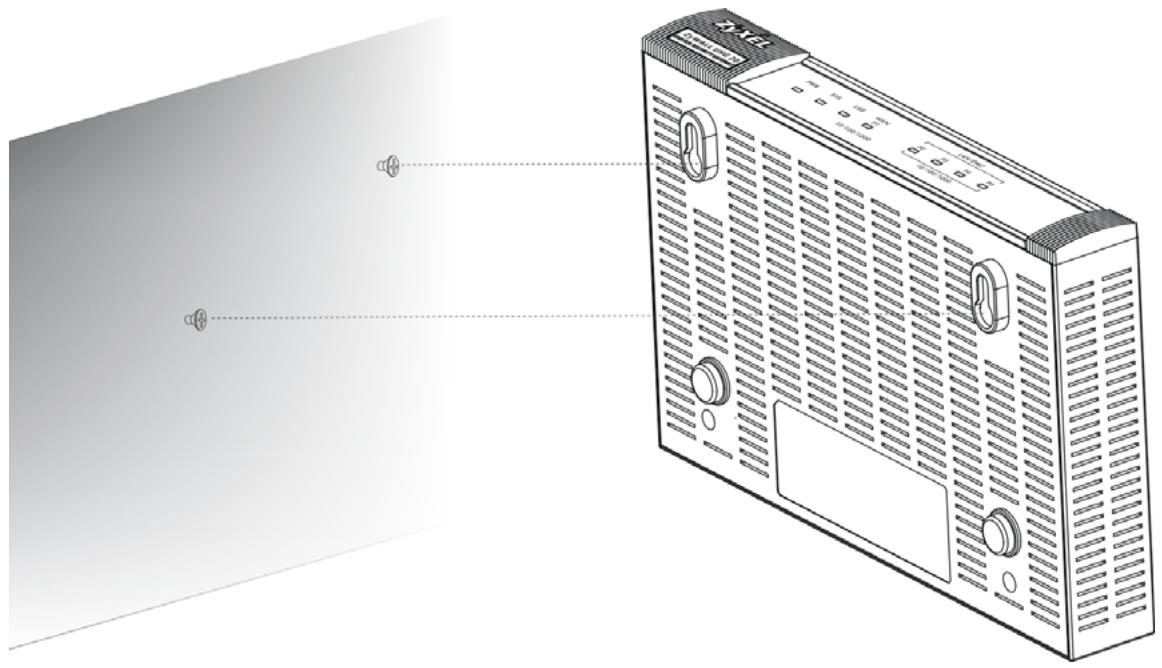
USG 20
USG 20W
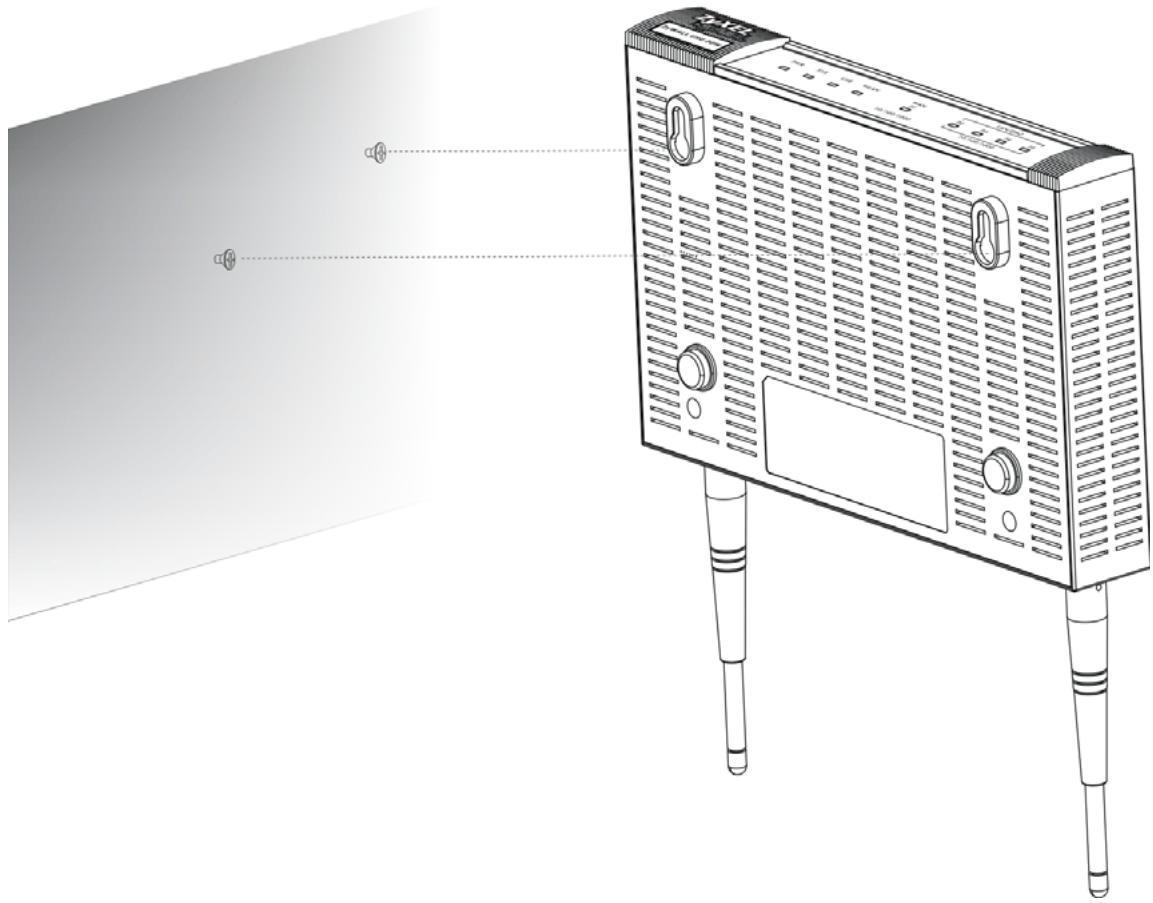
The ZyWALL should be wall-mounted horizontally. The ZyWALL's side panels with ventilation slots should not be facing up or down as this position is less safe.
1.3 Front Panel
This section introduces the ZyWALL's front panel.

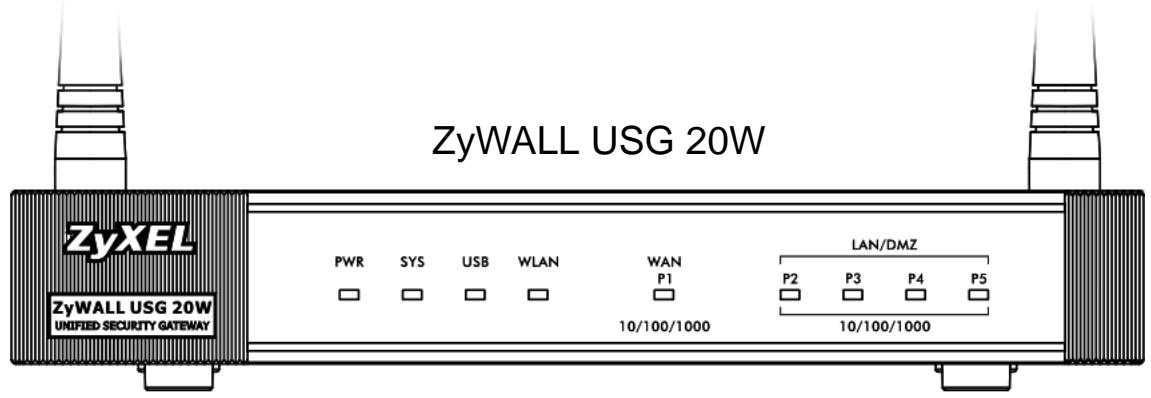
Figure 1 ZyWALL Front Panel
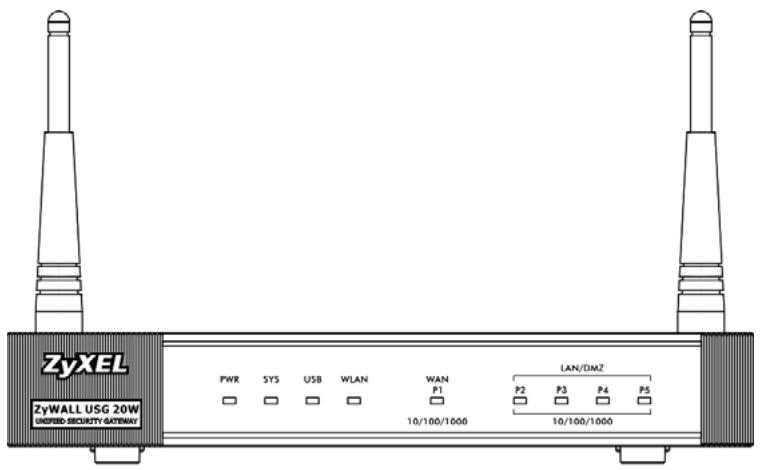
ZyWALL USG 20
1.3.1 Front Panel LEDs
The following table describes the LEDs.
Table 1 Front Panel LEDs
| LED | COLOR | STATUS | DESCRIPTION |
| PWR | Off | The ZyWALL is turned off. | |
| Green | On | The ZyWALL is turned on. | |
| Breathing | The ZyWALL is in power saving mode. | ||
| Red | On | There is a hardware component failure. Shut down the device, wait for a few minutes and then restart the device (see Section 1.5 on page 34). If the LED turns red again, then please contact your vendor. | |
| SYS | Green | Off | The ZyWALL is not ready or has failed. |
| On | The ZyWALL is ready and running. | ||
| Blinking | The ZyWALL is booting. | ||
| Red | On | The ZyWALL had an error or has failed. | |
| USB | Green | Off | No device is connected to the ZyWALL's USB port or the connected device is not supported by the ZyWALL. |
| On | A 3G USB card or a USB storage device is connected to the ZyWALL's USB port. | ||
| Orange | On | The ZyWALL is connected to a 3G network through the connected 3G USB card. | |
| WLAN (20W Only) | Green | Off | The wireless function is disabled on the ZyWALL. |
| On | The wireless function is enabled on the ZyWALL. | ||
| P1~P5 | Green | Off | There is no traffic on this port. |
| Blinking | The ZyWALL is sending or receiving packets on this port. | ||
| Orange | Off | There is no connection on this port. | |
| On | This port has a successful link. |
1.4 Management Overview
You can use the following ways to manage the ZyWALL.
Web Configurator
The Web Configurator allows easy ZyWALL setup and management using an Internet browser. This User's Guide provides information about the Web Configurator.
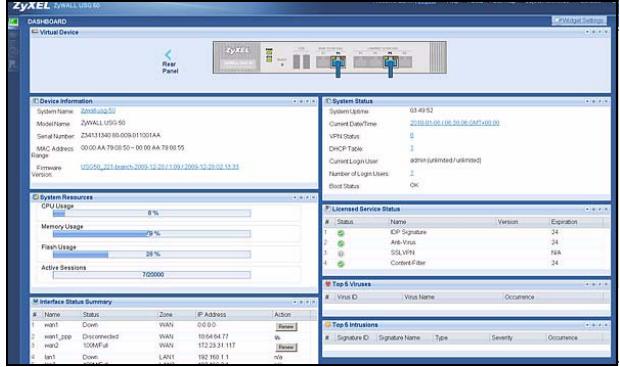
Figure 2 Managing the ZyWALL: Web Configurator
Command-Line Interface (CLI)
The CLI allows you to use text-based commands to configure the ZyWALL. You can access it using remote management (for example, SSH or Telnet) or via the
console port. See the Command Reference Guide for more information about the CLI.
Console Port
You can use the console port to manage the ZyWALL using CLI commands. See the Command Reference Guide for more information about the CLI.
The default settings for the console port are as follows.
Table 2 Console Port Default Settings
| SETTING | VALUE |
| Speed | 115200 bps |
| Data Bits | 8 |
| Parity | None |
| Stop Bit | 1 |
| Flow Control | Off |
1.5 Starting and Stopping the ZyWALL
Here are some of the ways to start and stop the ZyWALL.
Always use Maintenance > Shutdown > Shutdown or the shutdown command before you turn off the ZyWALL or remove the power. Not doing so can cause the firmware to become corrupt.
Table 3 Starting and Stopping the ZyWALL
| METHOD | DESCRIPTION |
| Turning on the power | A cold start occurs when you turn on the power to the ZyWALL. The ZyWALL powers up, checks the hardware, and starts the system processes. |
| Rebooting the ZyWALL | A warm start (without powering down and powering up again) occurs when you use the Reboot button in the Reboot screen or when you use the reboot command. The ZyWALL writes all cached data to the local storage, stops the system processes, and then does a warm start. |
| Using the RESET button | If you press the RESET button, the ZyWALL sets the configuration to its default values and then reboots. |
Table 3 Starting and Stopping the ZyWALL
| METHOD | DESCRIPTION |
| Clicking Maintenance > Shutdown > Shutdown or using the shutdown command | Clicking Maintenance > Shutdown > Shutdown or using the shutdown command writes all cached data to the local storage and stops the system processes. Wait for the device to shut down and then manually turn off or remove the power. It does not turn off the power. |
| Disconnecting the power | Power off occurs when you turn off the power to the ZyWALL. The ZyWALL simply turns off. It does not stop the system processes or write cached data to local storage. |
The ZyWALL does not stop or start the system processes when you apply configuration files or run shell scripts although you may temporarily lose access to network resources.
Features and Applications
This chapter introduces the main features and applications of the ZyWALL.
2.1 Features
The ZyWALL's security features include VPN, firewall content filtering, ADP (Anomaly Detection and Protection), and certificates. It also provides bandwidth management, NAT, port forwarding, policy routing, DHCP server and many other powerful features.
The rest of this section provides more information about the features of the ZyWALL.
High Availability
To ensure the ZyWALL provides reliable, secure Internet access, set up one or more of the following:
- Multiple WAN ports and configure load balancing between these ports.
- One or more 3G (cellular) connections.
Virtual Private Networks (VPN)
Use IPSec, SSL to provide secure communication between two sites over the Internet or any insecure network that uses TCP/IP for communication. The ZyWALL also offers hub-and-spoke IPSec VPN.
Flexible Security Zones
Many security settings are made by zone, not by interface, port, or network. As a result, it is much simpler to set up and to change security settings in the ZyWALL. You can create your own custom zones. You can add interfaces and VPN tunnels to zones.
Firewall
The ZyWALL's firewall is a stateful inspection firewall. The ZyWALL restricts access by screening data packets against defined access rules. It can also inspect sessions. For example, traffic from one zone is not allowed unless it is initiated by a computer in another zone first.
Anomaly Detection and Prevention (ADP)
ADP (Anomaly Detection and Prevention) can detect malicious or suspicious packets and respond instantaneously. It can detect:
- Anomalies based on violations of protocol standards (RFCs - Requests for Comments)
- Abnormal flows such as port scans.
The ZyWALL's ADP protects against network-based intrusions. See Section 29.3.4 on page 472 and Section 29.3.5 on page 475 for more on the kinds of attacks that the ZyWALL can protect against. You can also create your own custom ADP rules.
Bandwidth Management
Bandwidth management allows you to allocate network resources according to defined policies. This policy-based bandwidth allocation helps your network to better handle applications such as Internet access, e-mail, Voice-over-IP (VoIP), video conferencing and other business-critical applications.
Content Filter
Content filtering allows schools and businesses to create and enforce Internet access policies tailored to the needs of the organization.
You can also subscribe to category-based content filtering that allows your ZyWALL to check web sites against an external database of dynamically-updated ratings of millions of web sites. You then simply select categories to block or monitor, such as pornography or racial intolerance, from a pre-defined list.
Anti-Spam
The anti-spam feature can mark or discard spam. Use the white list to identify legitimate e-mail. Use the black list to identify spam e-mail. The ZyWALL can also check e-mail against a DNS black list (DNSBL) of IP addresses of servers that are suspected of being used by spammers.
2.2 Applications
These are some example applications for your ZyWALL. See also Chapter 7 on page 107 for configuration tutorial examples.
2.2.1 VPN Connectivity
Set up VPN tunnels with other companies, branch offices, telecommuters, and business travelers to provide secure access to your network. You can also set up additional connections to the Internet to provide better service.
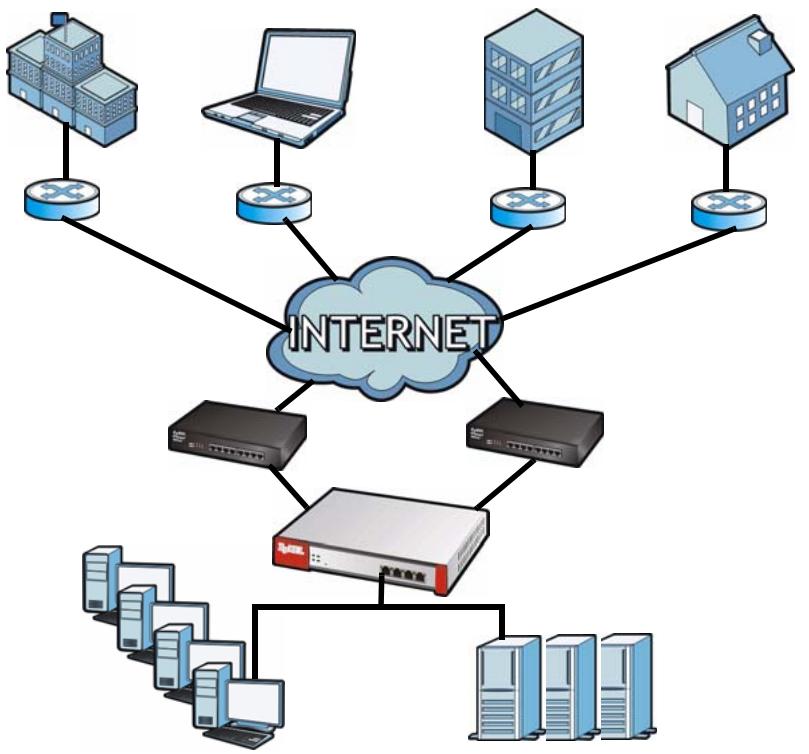
Figure 3 Applications: VPN Connectivity
2.2.2 SSL VPN Network Access
You can configure the ZyWALL to provide SSL VPN network access to remote users.
2.2.2.1 Full Tunnel Mode
In full tunnel mode, a virtual connection is created for remote users with private IP addresses in the same subnet as the local network. This allows them to access network resources in the same way as if they were part of the internal network.
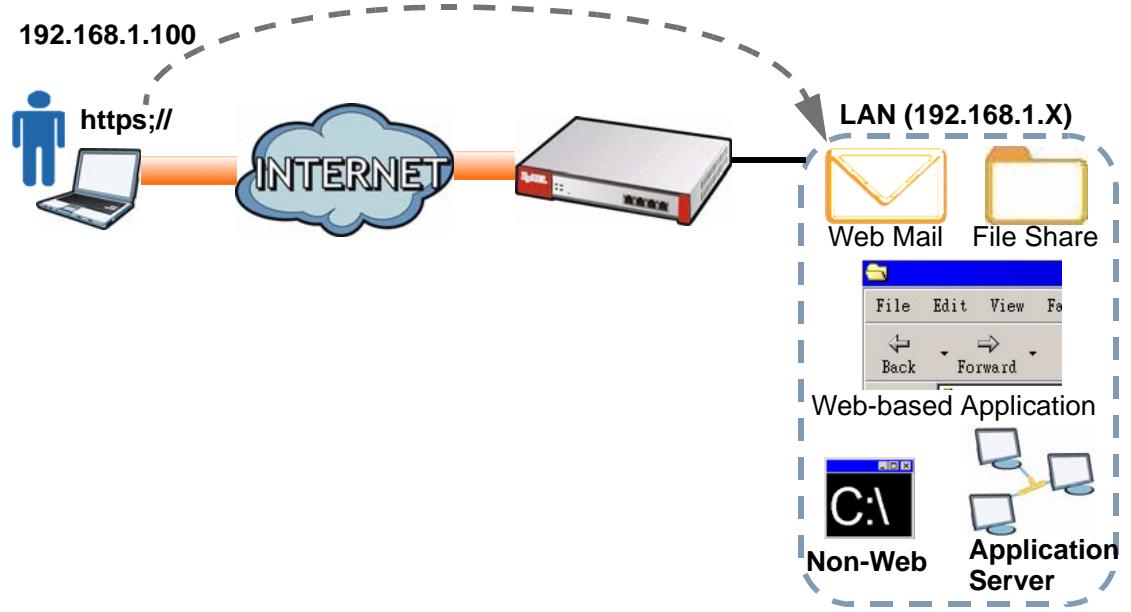
Figure 4 Network Access Mode: Full Tunnel Mode
2.2.3 User-Aware Access Control
Set up security policies that restrict access to sensitive information and shared resources based on the user who is trying to access it.
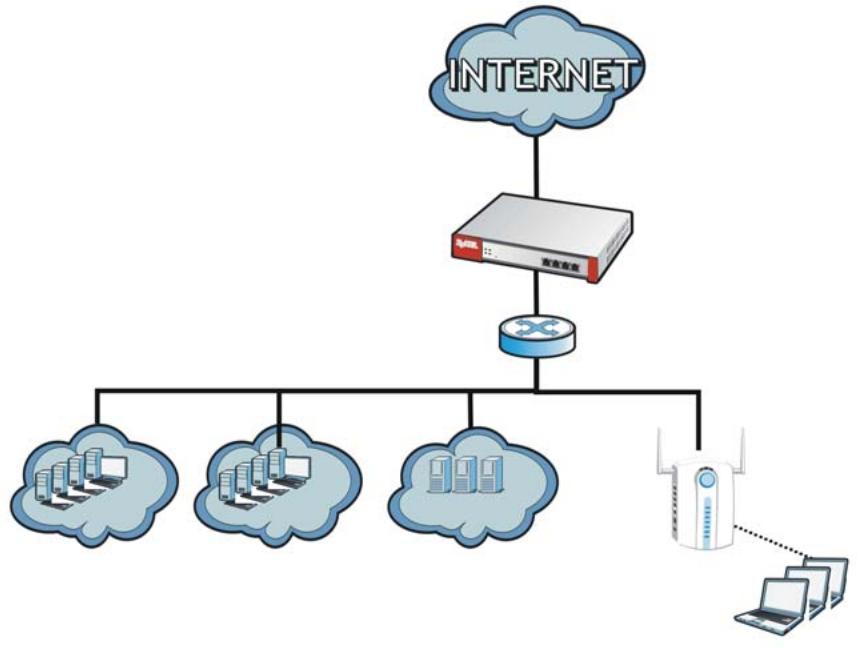
Figure 5 Applications: User-Aware Access Control
Web Configurator
The ZyWALL Web Configurator allows easy ZyWALL setup and management using an Internet browser.
3.1 Web Configurator Requirements
In order to use the Web Configurator, you must
- Use Internet Explorer 7 or later, or Firefox 1.5 or later
- Allow pop-up windows (blocked by default in Windows XP Service Pack 2)
- Enable JavaScripts (enabled by default)
- Enable Java permissions (enabled by default)
- Enable cookies
The recommended screen resolution is 1024 × 768 pixels.
3.2 Web Configurator Access
1 Make sure your ZyWALL hardware is properly connected. See the Quick Start Guide.
2 Open your web browser, and go to http://192.168.1.1. By default, the ZyWALL automatically routes this request to its HTTPS server, and it is recommended to keep this setting. The Login screen appears.
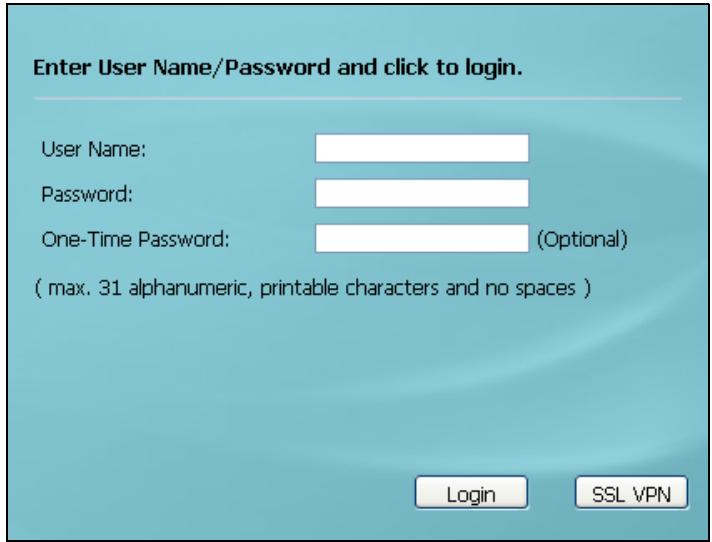
Figure 6 Login Screen
3 Type the user name (default: "admin") and password (default: "1234").
If your account is configured to use an ASAS authentication server, use the OTP (One-Time Password) token to generate a number. Enter it in the One-Time Password field. The number is only good for one login. You must use the token to generate a new number the next time you log in.
4 Click Login. If you logged in using the default user name and password, the Update Admin Info screen (Figure 7 on page 44) appears. Otherwise, the dashboard (Figure 8 on page 45) appears.
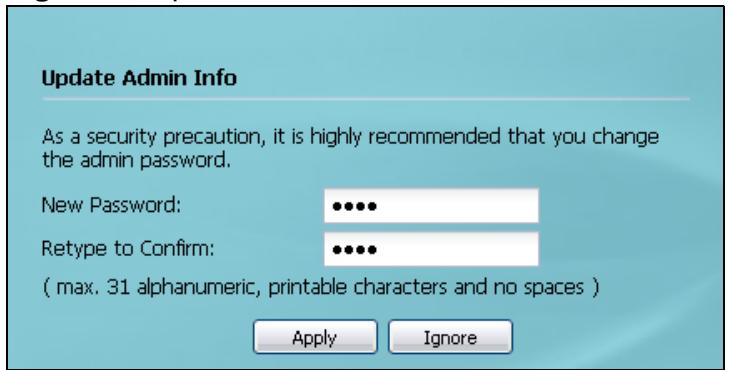
Figure 7 Update Admin Info Screen
5 The screen above appears every time you log in using the default user name and default password. If you change the password for the default user account, this screen does not appear anymore.
Follow the directions in this screen. If you change the default password, the Login screen (Figure 6 on page 44) appears after you click Apply. If you click Ignore, the Installation Setup Wizard opens if the ZyWALL is using its default configuration (see Chapter 4 on page 59); otherwise the dashboard appears as shown next.
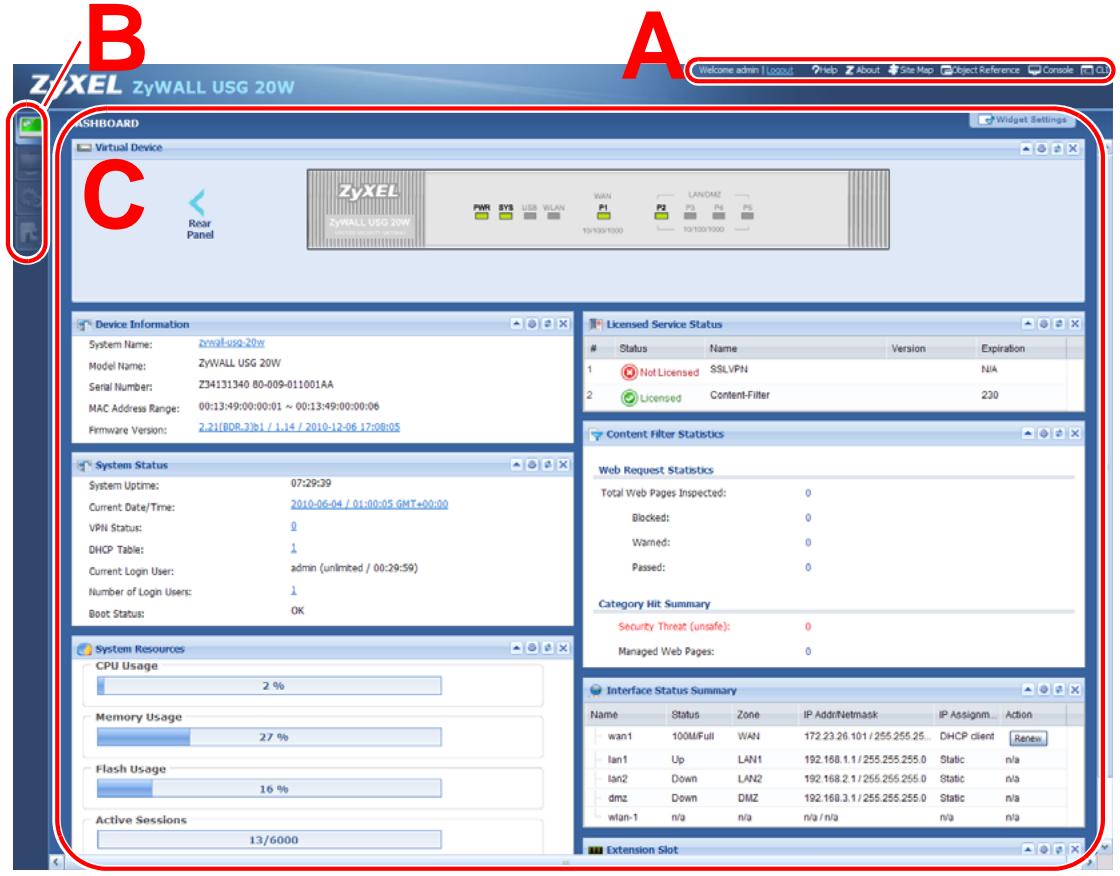
Figure 8 Dashboard
3.3 Web Configurator Screens Overview
The Web Configurator screen is divided into these parts (as illustrated in Figure 8 on page 45):
A - title bar
B - navigation panel
C - main window
3.3.1 Title Bar
The title bar provides some icons in the upper right corner.
Figure 9 Title Bar

The icons provide the following functions.
Table 4 Title Bar: Web Configurator Icons
| LABEL | DESCRIPTION |
| Logout | Click this to log out of the Web Configurator. |
| Help | Click this to open the help page for the current screen. |
| About | Click this to display basic information about the ZyWALL. |
| Site Map | Click this to see an overview of links to the Web Configurator screens. |
| Object Reference | Click this to open a screen where you can check which configuration items reference an object. |
| Console | Click this to open the console in which you can use the command line interface (CLI). See the CLI Reference Guide for details on the commands. |
| CLI | Click this to open a popup window that displays the CLI commands sent by the Web Configurator. |
3.3.1.1 About
Click this to display basic information about the ZyWALL.
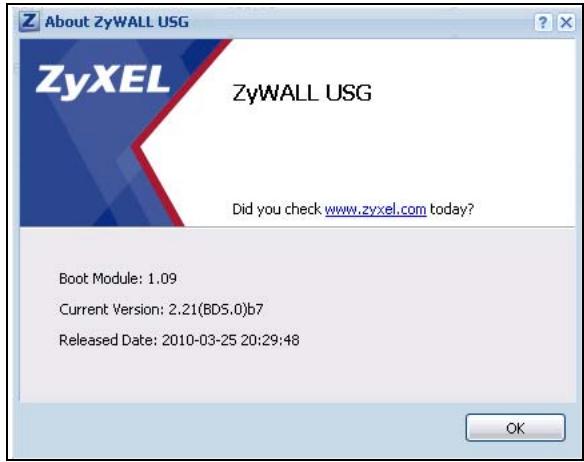
Figure 10 Title Bar
The following table describes labels that can appear in this screen.
Table 5 Title Bar: Web Configurator Icons
| LABEL | DESCRIPTION |
| Boot Module | This shows the version number of the software that handles the booting process of the ZyWALL. |
| Current Version | This shows the firmware version of the ZyWALL. |
| Released Date | This shows the date (yyyy-mm-dd) and time (hh:mm:ss) when the firmware is released. |
| OK | Click this to close the screen. |
3.3.2 Navigation Panel
Use the menu items on the navigation panel to open screens to configure ZyWALL features. Click the arrow in the middle of the right edge of the navigation panel to hide the navigation panel menus or drag it to resize them. The following sections introduce the ZyWALL's navigation panel menus and their screens.
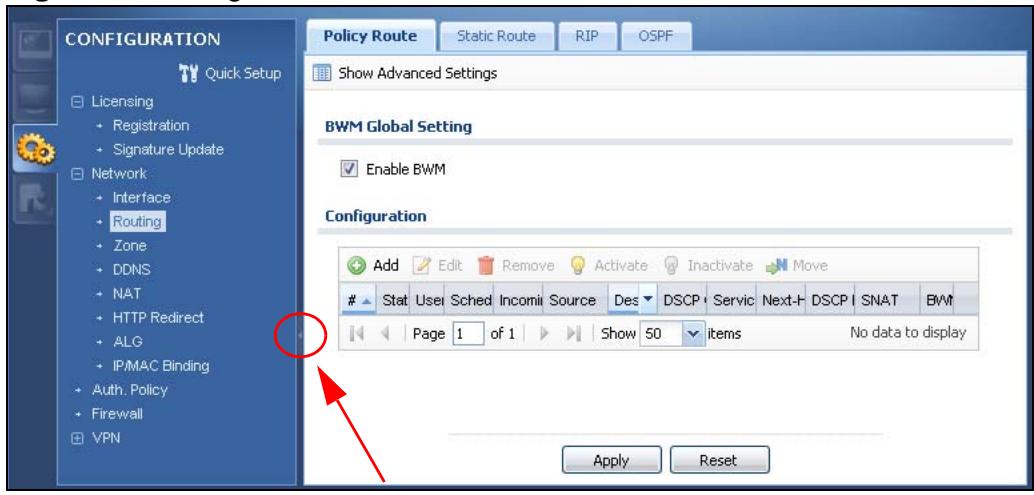
Figure 11 Navigation Panel
3.3.2.1 Dashboard
The dashboard displays general device information, system status, system resource usage, licensed service status, and interface status in widgets that you can re-arrange to suit your needs. See Chapter 8 on page 165 for details on the dashboard.
3.3.2.2 Monitor Menu
The monitor menu screens display status and statistics information.
Table 6 Monitor Menu Screens Summary
| FOLDER OR LINK | TAB | FUNCTION |
| System Status | ||
| Port Statistics | Displays packet statistics for each physical port. | |
| Interface Status | Displays general interface information and packet statistics. | |
| Traffic Statistics | Collect and display traffic statistics. | |
| Session Monitor | Displays the status of all current sessions. | |
| DDNS Status | Displays the status of the ZyWALL's DDNS domain names. | |
| IP/MAC Binding | Lists the devices that have received an IP address from ZyWALL interfaces using IP/MAC binding. | |
| Login Users | Lists the users currently logged into the ZyWALL. | |
| WLAN Status | (For USG 20W only) Displays the connection status of the ZyWALL's wireless clients. | |
| Cellular Status | Displays details about the ZyWALL's 3G connection status. | |
| VPN Monitor | ||
| IPSec | Displays and manages the active IPSec SAs. | |
| SSL | Lists users currently logged into the VPN SSL client portal. You can also log out individual users and delete related session information. | |
| Anti-X Statistics | ||
| Content Filter | Report | Collect and display content filter statistics |
| Cache | Manage the ZyWALL's URL cache. | |
| Anti-Spam | Report | Collect and display spam statistics. |
| Status | Displays how many mail sessions the ZyWALL is currently checking and DNSBL (Domain Name Service-based spam Black List) statistics. | |
| Log | Lists log entries. |
3.3.2.3 Configuration Menu
Use the configuration menu screens to configure the ZyWALL's features.
Table 7 Configuration Menu Screens Summary
| FOLDER OR LINK | TAB | FUNCTION |
| Quick Setup | Quickly configure WAN interfaces or VPN connections. | |
| Licensing | ||
| Registration | Registration | Register the device and activate trial services. |
| Service | View the licensed service status and upgrade licensed services. | |
| Interface | Port Role | Use this screen to set the ZyWALL's flexible ports as LAN1 or DMZ. |
| Ethernet | Manage Ethernet interfaces and virtual Ethernet interfaces. | |
| PPP | Create and manage PPPoE and PPTP interfaces. | |
| Cellular | Configure a cellular Internet connection for an installed 3G card. | |
| WLAN | (For USG 20W only) Configure settings for an installed wireless LAN card. | |
| VLAN | Create and manage VLAN interfaces and virtual VLAN interfaces. | |
| Bridge | Create and manage bridges and virtual bridge interfaces. | |
| Trunk | Create and manage trunks (groups of interfaces) for load balancing and link High Availability (HA). | |
| Routing | Policy Route | Create and manage routing policies. |
| Static Route | Create and manage IP static routing information. | |
| RIP | Configure device-level RIP settings. | |
| OSPF | Configure device-level OSPF settings, including areas and virtual links. | |
| Zone | Configure zones used to define various policies. | |
| DDNS | Profile | Define and manage the ZyWALL's DDNS domain names. |
| NAT | Set up and manage port forwarding rules. | |
| HTTP Redirect | Set up and manage HTTP redirection rules. | |
| ALG | Configure SIP, H.323, and FTP pass-through settings. | |
| IP/MAC Binding | Summary | Configure IP to MAC address bindings for devices connected to each supported interface. |
| Exempt List | Configure ranges of IP addresses to which the ZyWALL does not apply IP/MAC binding. | |
| Auth. Policy | Define rules to force user authentication. | |
| Firewall | Firewall | Create and manage level-3 traffic rules. |
| Session Limit | Limit the number of concurrent client NAT/firewall sessions. | |
| VPN | ||
| IPSec VPN | VPN Connection | Configure IPSec tunnels. |
| VPN Gateway | Configure IKE tunnels. | |
| SSL VPN | Access Privilege | Configure SSL VPN access rights for users and groups. |
| Global Setting | Configure the ZyWALL's SSL VPN settings that apply to all connections. | |
| BWM | ||
| Anti-X | ||
| ADP | General | Display and manage ADP bindings. |
| Profile | Create and manage ADP profiles. | |
| Content Filter | General | Create and manage content filter policies. |
| Filter Profile | Create and manage the detailed filtering rules for content filtering policies. | |
| Anti-Spam | General | Turn anti-spam on or off and manage anti-spam policies. |
| Black/White List | Set up a black list to identify spam and a white list to identify legitimate e-mail. | |
| DNSBL | Have the ZyWALL check e-mail against DNS Black Lists. | |
| Object | ||
| User/Group | User | Create and manage users. |
| Group | Create and manage groups of users. | |
| Setting | Manage default settings for all users, general settings for user sessions, and rules to force user authentication. | |
| Address | Address | Create and manage host, range, and network (subset) addresses. |
| Address Group | Create and manage groups of addresses. | |
| Service | Service | Create and manage TCP and UDP services. |
| Service Group | Create and manage groups of services. | |
| Schedule | Create one-time and recurring schedules. | |
| AAA Server | Active Directory-Default | Configure the default Active Directory settings. |
| Active Directory-Group | Create and manage groups of Active Directory servers. | |
| LDAP-Default | Configure the default LDAP settings. | |
| LDAP-Group | Create and manage groups of LDAP servers. | |
| RADIUS-Default | Configure the default RADIUS settings. | |
| RADIUS-Group | Create and manage groups of RADIUS servers. | |
| Auth. Method | Create and manage ways of authenticating users. | |
| Certificate | My Certificates | Create and manage the ZyWALL's certificates. |
| Trusted Certificates | Import and manage certificates from trusted sources. | |
| ISP Account | Create and manage ISP account information for PPPoE/PPTP interfaces. | |
| SSL Application | Create SSL web application objects. | |
| Endpoint Security | Create Endpoint Security (EPS) objects. | |
| System | ||
| Host Name | Configure the system and domain name for the ZyWALL. | |
| USB Storage | Configure the settings for the connected USB devices. | |
| Date/Time | Configure the current date, time, and time zone in the ZyWALL. | |
| Console Speed | Set the console speed. | |
| DNS | Configure the DNS server and address records for the ZyWALL. | |
| WWW | Service Control | Configure HTTP, HTTPS, and general authentication. |
| Login Page | Configure how the login and access user screens look. | |
| SSH | Configure SSH server and SSH service settings. | |
| TELNET | Configure telnet server settings for the ZyWALL. | |
| FTP | Configure FTP server settings. | |
| SNMP | Configure SNMP communities and services. | |
| Vantage CNM | Configure and allow your ZyWALL to be managed by the Vantage CNM server. | |
| Language | Select the Web Configurator language. | |
| Log & Report | ||
| Email Daily Report | Configure where and how to send daily reports and what reports to send. | |
| Log Setting | Configure the system log, e-mail logs, and remote syslog servers. |
3.3.2.4 Maintenance Menu
Use the maintenance menu screens to manage configuration and firmware files, run diagnostics, and reboot or shut down the ZyWALL.
Table 8 Maintenance Menu Screens Summary
| FOLDER OR LINK | TAB | FUNCTION |
| File Manager | Configuration File | Manage and upload configuration files for the ZyWALL. |
| Firmware Package | View the current firmware version and to upload firmware. | |
| Shell Script | Manage and run shell script files for the ZyWALL. | |
| Diagnostics | Diagnostic | Collect diagnostic information. |
| Packet Capture | Capture packets for analysis. | |
| Packet Flow Explore | Routing Status | View a clear picture on how the ZyWALL determines where to route a packet and check the related settings. |
| SNAT Status | View a clear picture on how the ZyWALL converts a packet's source IP address and check the related settings. | |
| Reboot | Restart the ZyWALL. | |
| Shutdown | Turn off the ZyWALL. |
3.3.3 Main Window
The main window shows the screen you select in the navigation panel. The main window screens are discussed in the rest of this document.
Right after you log in, the Dashboard screen is displayed. See Chapter 8 on page 165 for more information about the Dashboard screen.
3.3.3.1 Warning Messages
Warning messages, such as those resulting from misconfiguration, display in a popup window.
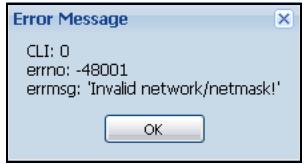
Figure 12 Warning Message
3.3.3.2 Site Map
Click Site MAP to see an overview of links to the Web Configurator screens. Click a screen's link to go to that screen.
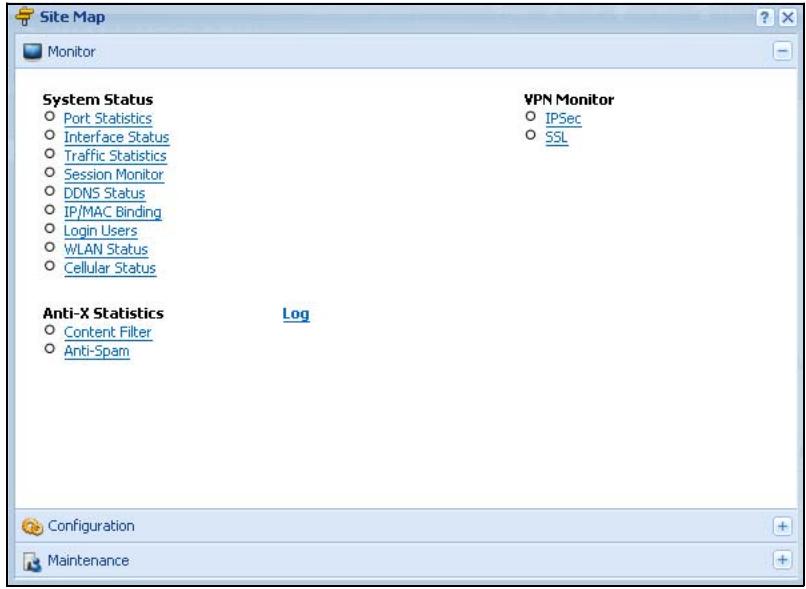
Figure 13 Site Map
3.3.3.3 Object Reference
Click Object Reference to open the Object Reference screen. Select the type of object and the individual object and click Refresh to show which configuration settings reference the object. The following example shows which configuration settings reference the Idap-users user object (in this case the first firewall rule).
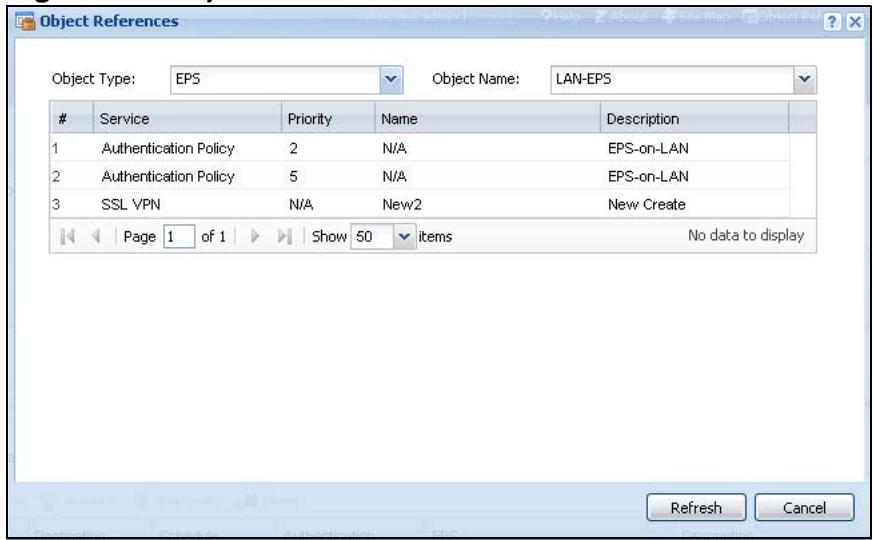
Figure 14 Object Reference
The fields vary with the type of object. The following table describes labels that can appear in this screen.
Table 9 Object References
| LABEL | DESCRIPTION |
| Object Name | This identifies the object for which the configuration settings that use it are displayed. Click the object's name to display the object's configuration screen in the main window. |
| # | This field is a sequential value, and it is not associated with any entry. |
| Service | This is the type of setting that references the selected object. Click a service's name to display the service's configuration screen in the main window. |
| Priority | If it is applicable, this field lists the referencing configuration item's position in its list, otherwise N/A displays. |
| Name | This field identifies the configuration item that references the object. |
| Description | If the referencing configuration item has a description configured, it displays here. |
| Refresh | Click this to update the information in this screen. |
| Cancel | Click Cancel to close the screen. |
3.3.3.4 CLI Messages
Click CLI to look at the CLI commands sent by the Web Configurator. These commands appear in a popup window, such as the following.
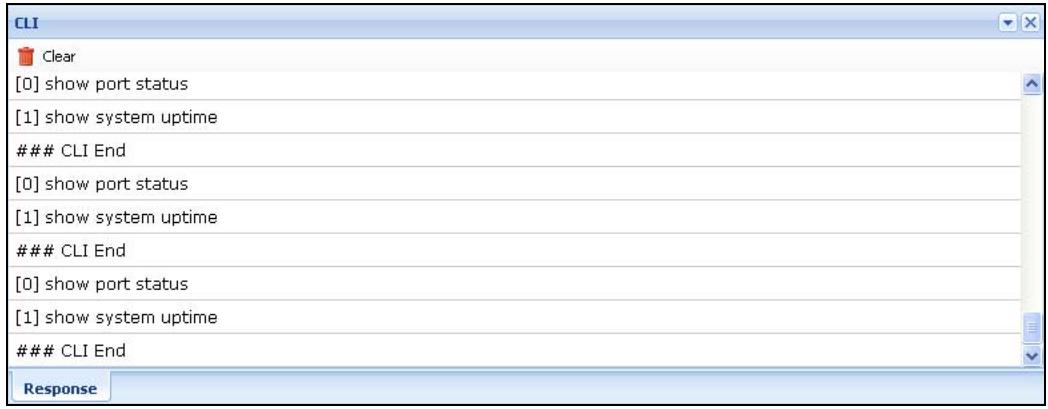
Figure 15 CLI Messages
Click Clear to remove the currently displayed information.
See the Command Reference Guide for information about the commands.
3.3.4 Tables and Lists
The Web Configurator tables and lists are quite flexible and provide several options for how to display their entries.
3.3.4.1 Manipulating Table Display
Here are some of the ways you can manipulate the Web Configurator tables.
1 Click a column heading to sort the table's entries according to that column's criteria.
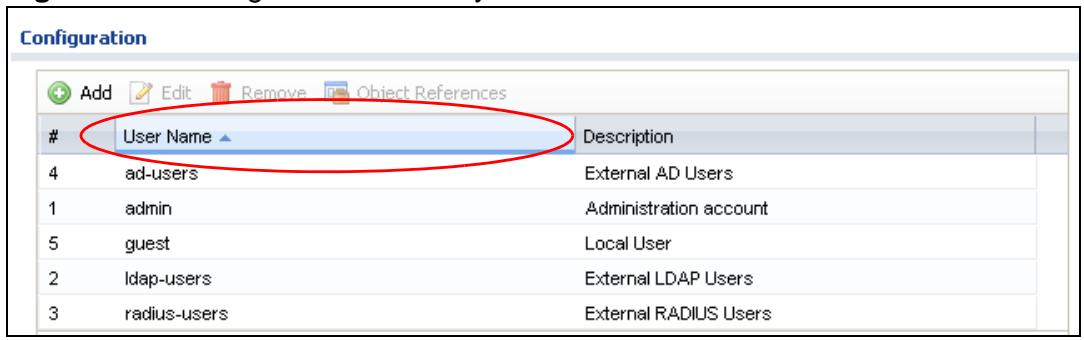
Figure 16 Sorting Table Entries by a Column's Criteria
2 Click the down arrow next to a column heading for more options about how to display the entries. The options available vary depending on the type of fields in the column. Here are some examples of what you can do:
- Sort in ascending alphabetical order
- Sort in descending (reverse) alphabetical order
- Select which columns to display
- Group entries by field
Show entries in groups - Filter by mathematical operators (<, >, or =) or searching for text
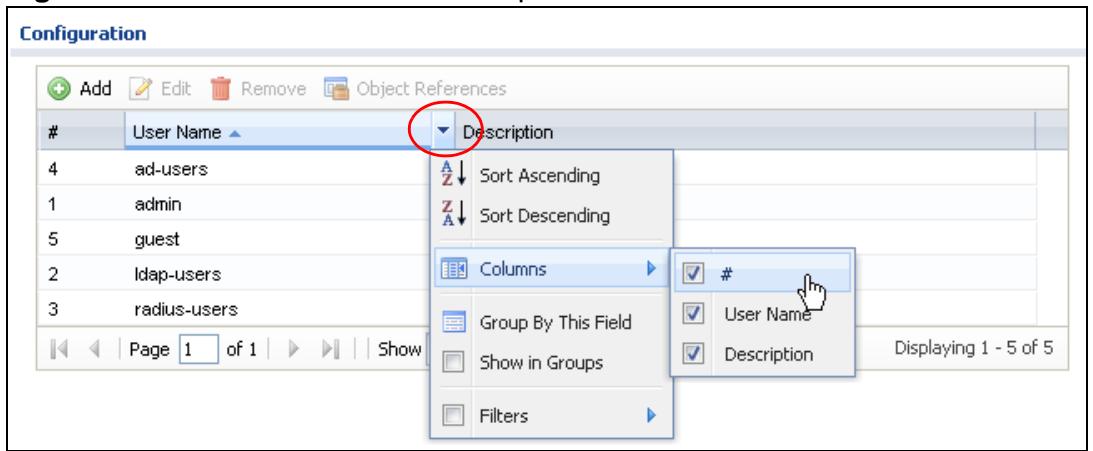
Figure 17 Common Table Column Options
3 Select a column heading cell's right border and drag to re-size the column.
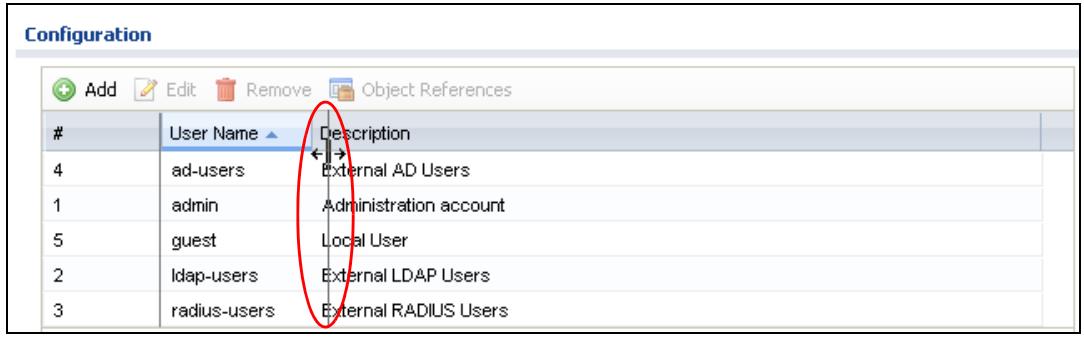
Figure 18 Resizing a Table Column
4 Select a column heading and drag and drop it to change the column order. A green check mark displays next to the column's title when you drag the column to a valid new location.
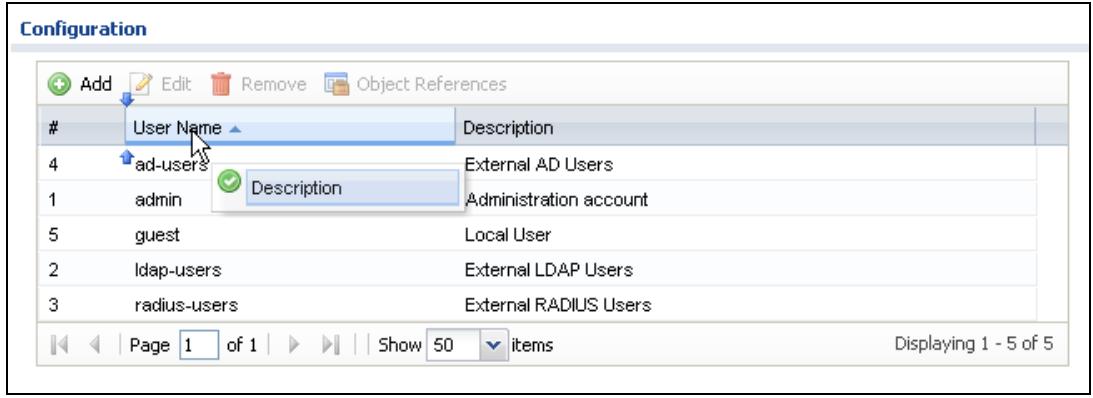
Figure 19 Changing the Column Order
5 Use the icons and fields at the bottom of the table to navigate to different pages of entries and control how many entries display at a time.

Figure 20 Navigating Pages of Table Entries
3.3.4.2 Working with Table Entries
The tables have icons for working with table entries. A sample is shown next. You can often use the [Shift] or [Ctrl] key to select multiple entries to remove, activate, or deactivate.
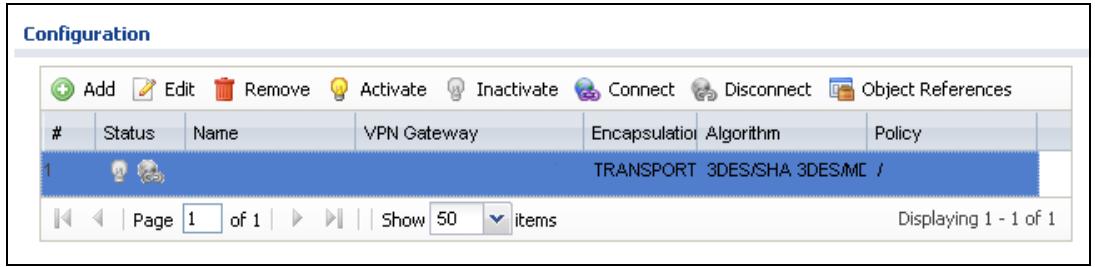
Figure 21 Common Table Icons
Here are descriptions for the most common table icons.
Table 10 Common Table Icons
| LABEL | DESCRIPTION |
| Add | Click this to create a new entry. For features where the entry's position in the numbered list is important (features where the ZyWALL applies the table's entries in order like the firewall for example), you can select an entry and click Add to create a new entry after the selected entry. |
| Edit | Double-click an entry or select it and click Edit to open a screen where you can modify the entry's settings. In some tables you can just click a table entry and edit it directly in the table. For those types of tables small red triangles display for table entries with changes that you have not yet applied. |
| Remove | To remove an entry, select it and click Remove. The ZyWALL confirms you want to remove it before doing so. |
| Activate | To turn on an entry, select it and click Activate. |
| Inactivate | To turn off an entry, select it and click Inactivate. |
| Connect | To connect an entry, select it and click Connect. |
| Disconnect | To disconnect an entry, select it and click Disconnect. |
| Object References | Select an entry and click Object References to open a screen that shows which settings use the entry. See Section 11.3.2 on page 232 for an example. |
| Move | To change an entry's position in a numbered list, select it and click Move to display a field to type a number for where you want to put that entry and press [ENTER] to move the entry to the number that you typed. For example, if you type 6, the entry you are moving becomes number 6 and the previous entry 6 (if there is one) gets pushed up (or down) one. |
3.3.4.3 Working with Lists
When a list of available entries displays next to a list of selected entries, you can often just double-click an entry to move it from one list to the other. In some lists
you can also use the [Shift] or [Ctrl] key to select multiple entries, and then use the arrow button to move them to the other list.
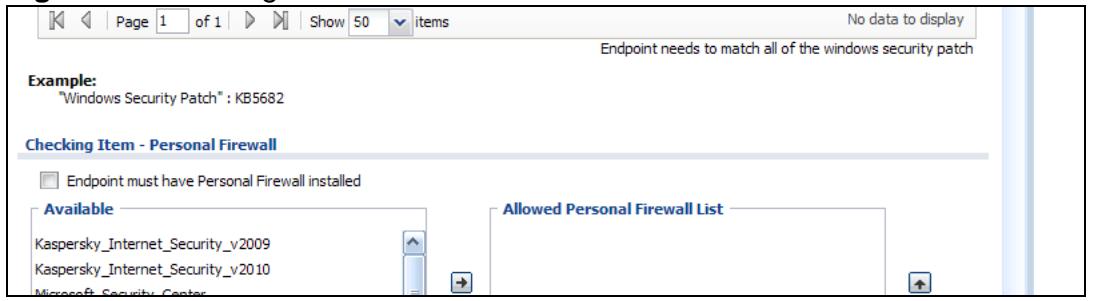
Figure 22 Working with Lists
Installation Setup Wizard
4.1 Installation Setup Wizard Screens
If you log into the Web Configurator when the ZyWALL is using its default configuration, the first Installation Setup Wizard screen displays. This wizard helps you configure Internet connection settings and activate subscription services. This chapter provides information on configuring the Web Configurator's installation setup wizard. See the feature-specific chapters in this User's Guide for background information.
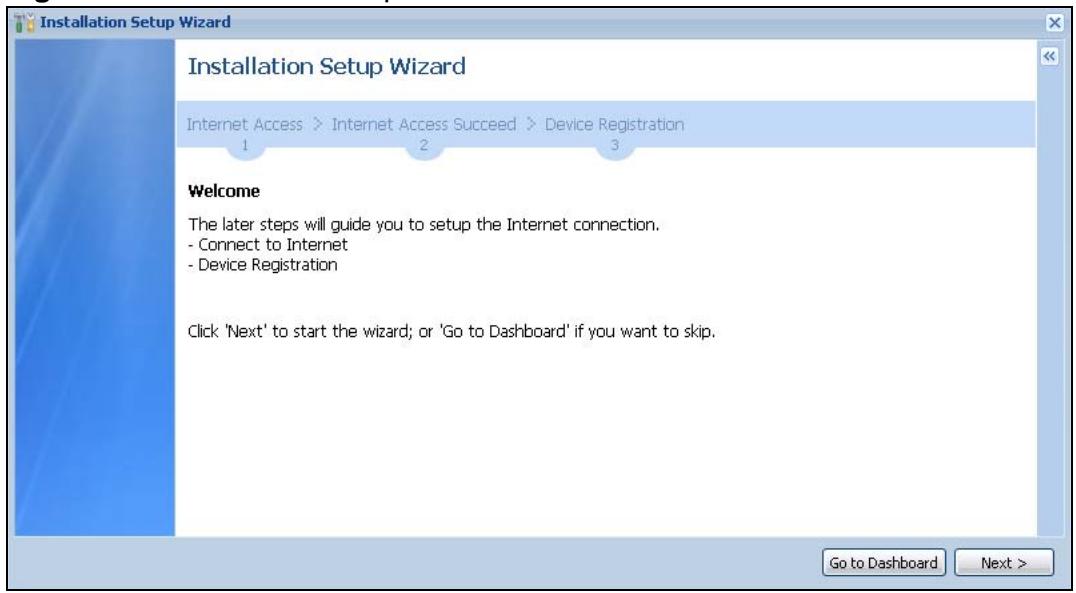
Figure 23 Installation Setup Wizard
- Click the double arrow in the upper right corner to display or hide the help.
- Click Go to Dashboard to skip the installation setup wizard or click Next to start configuring for Internet access.
4.1.1 Internet Access Setup - WAN Interface
Use this screen to configure the WAN interface's type of encapsulation and method of IP address assignment.
The screens vary depending on the encapsulation type. Refer to information provided by your ISP to know what to enter in each field. Leave a field blank if you don't have that information.
Note: Enter the Internet access information exactly as your ISP gave it to you.
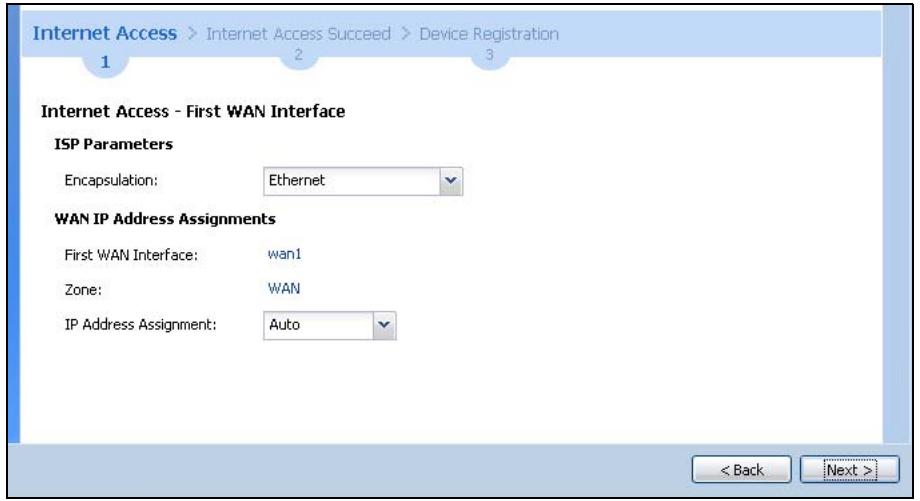
Figure 24 Internet Access: Step 1
- Encapsulation: Choose the Ethernet option when the WAN port is used as a regular Ethernet. Otherwise, choose PPPoE or PPTP for a dial-up connection according to the information from your ISP.
- WAN Interface: This is the interface you are configuring for Internet access.
- Zone: This is the security zone to which this interface and Internet connection belong.
- IP Address Assignment: Select Auto if your ISP did not assign you a fixed IP address. Select Static if the ISP assigned a fixed IP address.
4.1.2 Internet Access: Ethernet
This screen is read-only if you set the previous screen's IP Address Assignment field to Auto. Use this screen to configure your IP address settings.
Note: Enter the Internet access information exactly as given to you by your ISP.
Figure 25 Internet Access: Ethernet Encapsulation
- Encapsulation: This displays the type of Internet connection you are configuring.
- First WAN Interface: This is the number of the interface that will connect with your ISP.
-
Zone: This is the security zone to which this interface and Internet connection will belong.
-
IP Address: Enter your (static) public IP address. Auto displays if you selected Auto as the IP Address Assignment in the previous screen.
The following fields display if you selected static IP address assignment. - IP Subnet Mask: Enter the subnet mask for this WAN connection's IP address.
- Gateway IP Address: Enter the IP address of the router through which this WAN connection will send traffic (the default gateway).
- First / Second DNS Server: These fields display if you selected static IP address assignment. The Domain Name System (DNS) maps a domain name to an IP address and vice versa. Enter a DNS server's IP address(es). The DNS server is extremely important because without it, you must know the IP address of a computer before you can access it. The ZyWALL uses these (in the order you specify here) to resolve domain names for VPN, DDNS and the time server. Leave the field as 0.0.0.0 if you do not want to configure DNS servers.
4.1.3 Internet Access: PPPoE
Note: Enter the Internet access information exactly as given to you by your ISP.
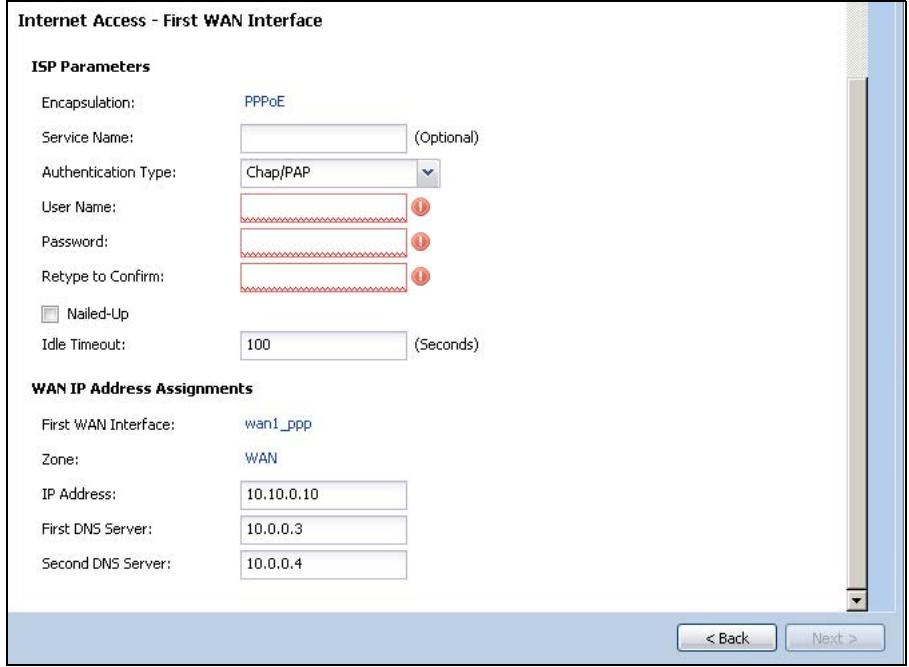
Figure 26 Internet Access: PPPoE Encapsulation
4.1.3.1 ISP Parameters
- Type the PPPoE Service Name from your service provider. PPPoE uses a service name to identify and reach the PPPoE server. You can use alphanumeric and -@@ characters, and it can be up to 64 characters long.
-
Authentication Type - Select an authentication protocol for outgoing connection requests. Options are:
-
CHAP/PAP - Your ZyWALL accepts either CHAP or PAP when requested by the remote node.
- CHAP - Your ZyWALL accepts CHAP only.
- PAP - Your ZyWALL accepts PAP only.
- MSCHAP - Your ZyWALL accepts MSCHAP only.
-
MSCHAP-V2 - Your ZyWALL accepts MSCHAP-V2 only.
-
Type the User Name given to you by your ISP. You can use alphanumeric and - @ ./ characters, and it can be up to 31 characters long.
- Type the Password associated with the user name. Use up to 64 ASCII characters except the [ ] and ?. This field can be blank.
- Select Nailed-Up if you do not want the connection to time out. Otherwise, type the Idle Timeout in seconds that elapses before the router automatically disconnects from the PPPoE server.
4.1.3.2 WAN IP Address Assignments
- WAN Interface: This is the name of the interface that will connect with your ISP.
- Zone: This is the security zone to which this interface and Internet connection will belong.
- IP Address: Enter your (static) public IP address. Auto displays if you selected Auto as the IP Address Assignment in the previous screen.
- First / Second DNS Server: These fields display if you selected static IP address assignment. The Domain Name System (DNS) maps a domain name to an IP address and vice versa. Enter a DNS server's IP address(es). The DNS server is extremely important because without it, you must know the IP address of a computer before you can access it. The ZyWALL uses these (in the order you specify here) to resolve domain names for VPN, DDNS and the time server. Leave the field as 0.0.0.0 if you do not want to configure DNS servers. If you do not configure a DNS server, you must know the IP address of a machine in order to access it.
4.1.4 Internet Access: PPTP
Note: Enter the Internet access information exactly as given to you by your ISP.
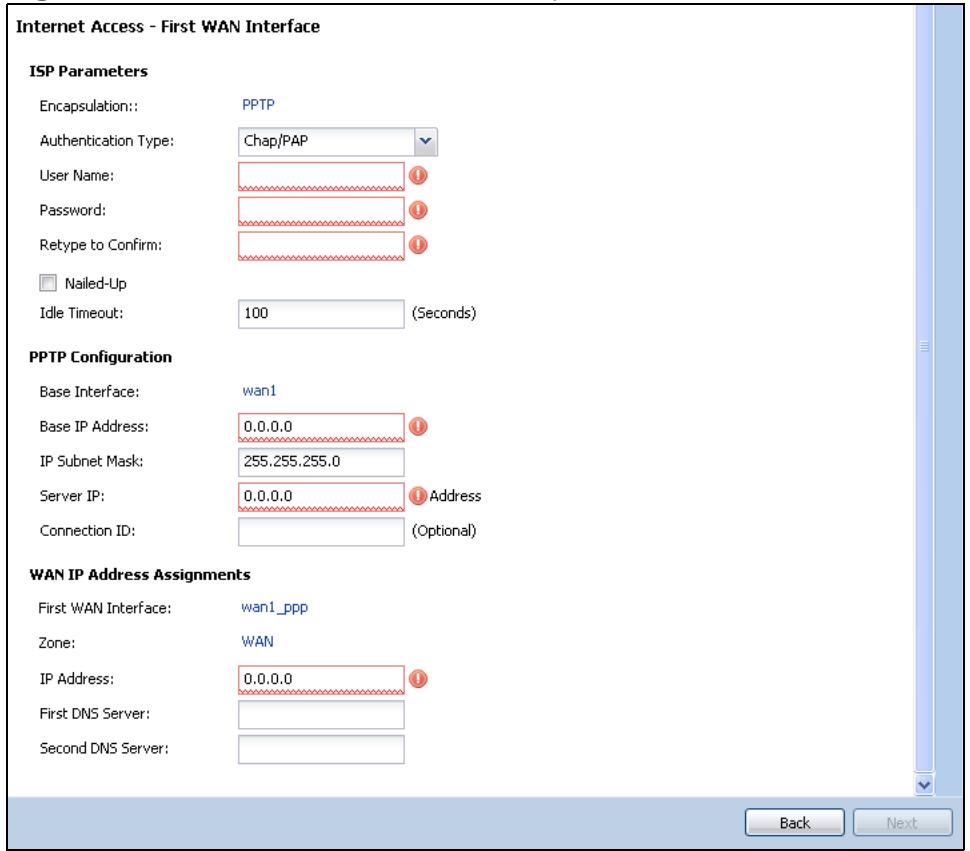
Figure 27 Internet Access: PPTP Encapsulation
4.1.5 ISP Parameters
-
Authentication Type - Select an authentication protocol for outgoing calls. Options are:
-
CHAP/PAP - Your ZyWALL accepts either CHAP or PAP when requested by the remote node.
- CHAP - Your ZyWALL accepts CHAP only.
- PAP - Your ZyWALL accepts PAP only.
- MSCHAP - Your ZyWALL accepts MSCHAP only.
-
MSCHAP-V2 - Your ZyWALL accepts MSCHAP-V2 only.
-
Type the User Name given to you by your ISP. You can use alphanumeric and - @ ./ characters, and it can be up to 31 characters long.
-
Type the Password associated with the user name. Use up to 64 ASCII characters except the [] and ?: This field can be blank. Re-type your password in the next field to confirm it.
-
Select Nailed-Up if you do not want the connection to time out. Otherwise, type the Idle Timeout in seconds that elapses before the router automatically disconnects from the PPTP server.
4.1.5.1 PPTP Configuration
- Base Interface: This identifies the Ethernet interface you configure to connect with a modem or router.
- Type a Base IP Address (static) assigned to you by your ISP.
- Type the IP Subnet Mask assigned to you by your ISP (if given).
- Server IP: Type the IP address of the PPTP server.
- Type a Connection ID or connection name. It must follow the "c:id" and "n:name" format. For example, C:12 or N:My ISP. This field is optional and depends on the requirements of your broadband modem or router. You can use alphanumeric and -_: characters, and it can be up to 31 characters long.
4.1.5.2 WAN IP Address Assignments
- First WAN Interface: This is the connection type on the interface you are configuring to connect with your ISP.
- Zone This is the security zone to which this interface and Internet connection will belong.
- IP Address: Enter your (static) public IP address. Auto displays if you selected Auto as the IP Address Assignment in the previous screen.
- First / Second DNS Server: These fields display if you selected static IP address assignment. The Domain Name System (DNS) maps a domain name to an IP address and vice versa. Enter a DNS server's IP address(es). The DNS server is extremely important because without it, you must know the IP address of a computer before you can access it. The ZyWALL uses these (in the order you specify here) to resolve domain names for VPN, DDNS and the time server. Leave the field as 0.0.0.0 if you do not want to configure DNS servers.
4.1.6 Internet Access - Finish
You have set up your ZyWALL to access the Internet. After configuring the WAN interface, a screen displays with your settings. If they are not correct, click Back.
Figure 28 Internet Access: Ethernet Encapsulation
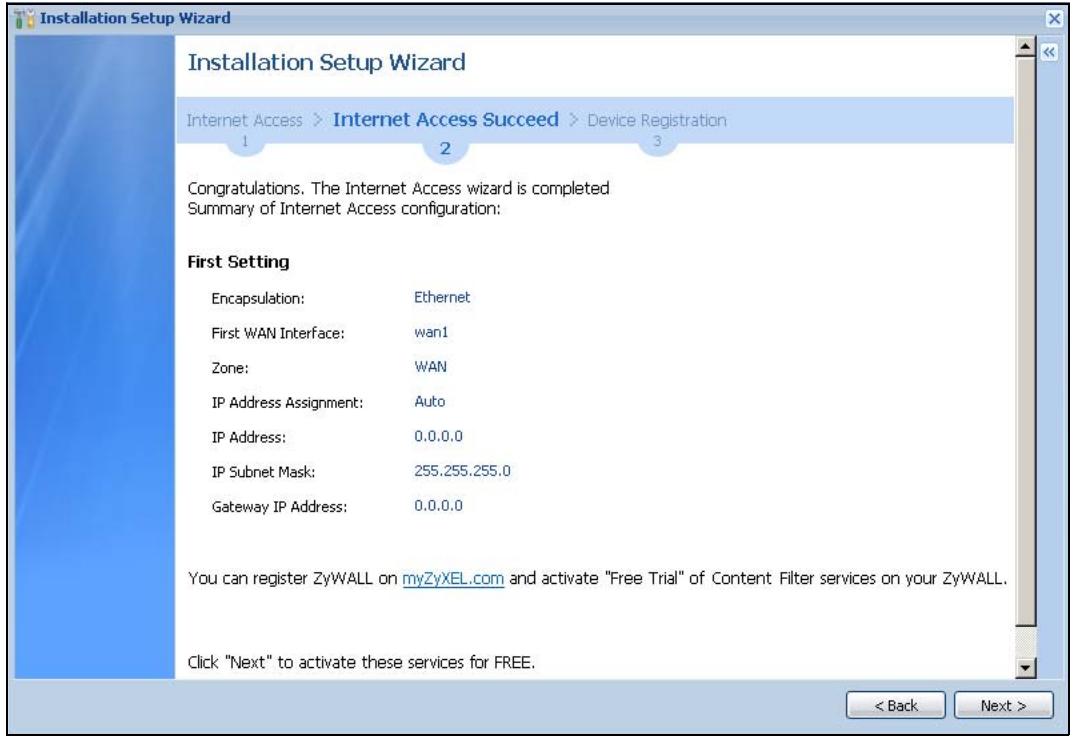
Note: If you have not already done so, you can register your ZyWALL with myZyXEL.com and activate trials of services like Content Filter.
Click Next and use the following screen to perform a basic registration (see Section 4.2 on page 65). If you want to do a more detailed registration or manage your account details, click myZyXEL.com.
Alternatively, close the window to exit the wizard.
4.2 Device Registration
Use this screen to register your ZyWALL with myZXEL.com and activate trial periods of subscription security features if you have not already done so. If the ZyWALL is already registered this screen displays your user name and which trial services are activated (if any). You can still activate any un-activated trial services.
Note: You must be connected to the Internet to register.
Use the Registration > Service screen to update your service subscription status.
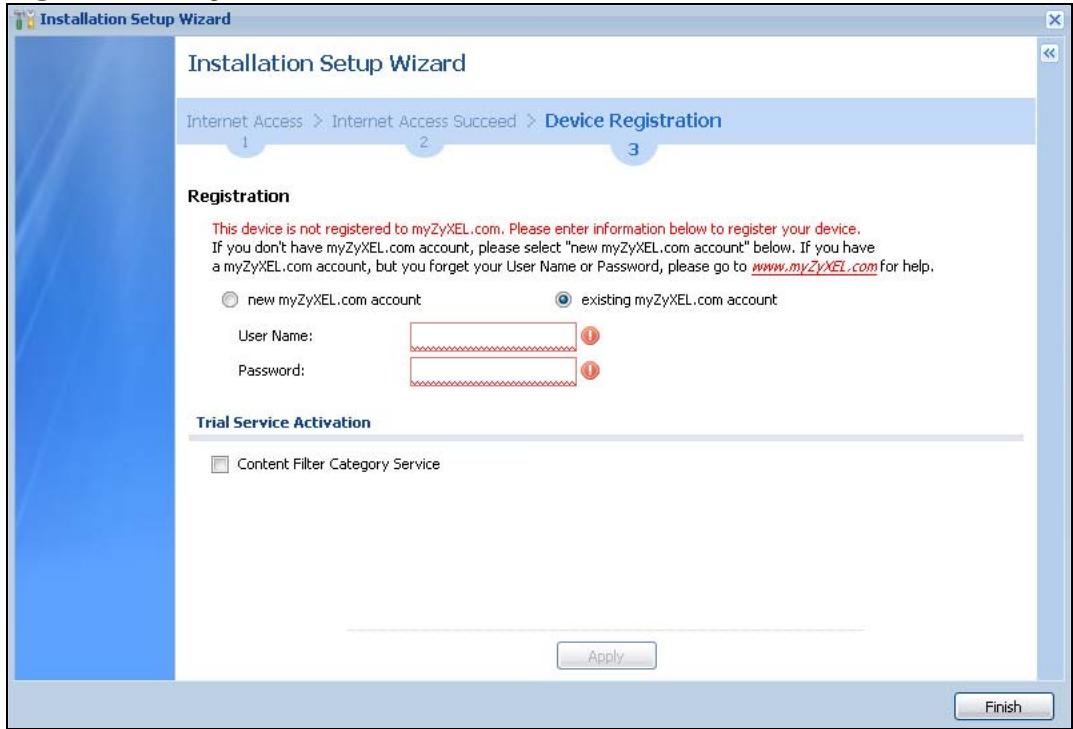
Figure 29 Registration
- Select new myZyXEL.com account if you haven't created an account at myZyXEL.com, select this option and configure the following fields to create an account and register your ZyWALL.
- Select existing myZyXEL.com account if you already have an account at myZyXEL.com and enter your user name and password in the fields below to register your ZyWALL.
- Enter a User Name for your myZyXEL.com account. Use from six to 20 alphanumeric characters (and the underscore). Spaces are not allowed. Click Check to verify that it is available.
- Password: Use six to 20 alphanumeric characters (and the underscore). Spaces are not allowed. Type it again in the Confirm Password field.
-
E-Mail Address: Enter your e-mail address. Use up to 80 alphanumeric characters (periods and the underscore are also allowed) without spaces.
Country Code: Select your country from the drop-down box list. -
Trial Service Activation: You can try a trial service subscription. The trial period starts the day you activate the trial. After the trial expires, you can buy an iCard and enter the license key in the Registration > Service screen to extend the service.
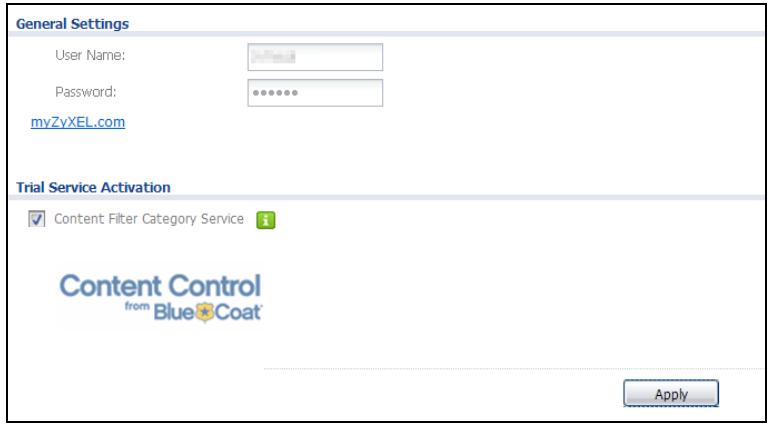
Figure 30 Registrar: Registered Device
5.1 Quick Setup Overview
The Web Configurator's quick setup wizards help you configure Internet and VPN connection settings. This chapter provides information on configuring the quick setup screens in the Web Configurator. See the feature-specific chapters in this User's Guide for background information.
In the Web Configurator, click Configuration > Quick Setup to open the first Quick Setup screen.
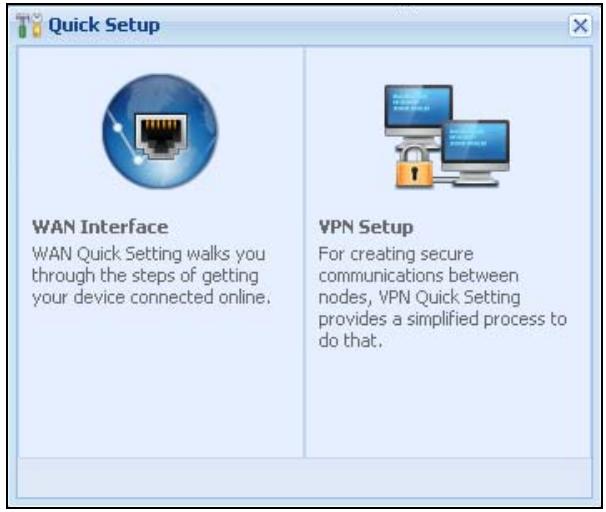
Figure 31 Quick Setup
WAN Interface
Click this link to open a wizard to set up a WAN (Internet) connection. This wizard creates matching ISP account settings in the ZyWALL if you use PPPoE or PPTP. See Section 5.2 on page 70.
- VPN SETUP
Use VPN SETUP to configure a VPN (Virtual Private Network) tunnel for a secure connection to another computer or network. See Section 5.4 on page 76.
5.2 WAN Interface Quick Setup
Click WAN Interface in the main Quick Setup screen to open the WAN Interface Quick Setup Wizard Welcome screen. Use these screens to configure an interface to connect to the internet. Click Next.
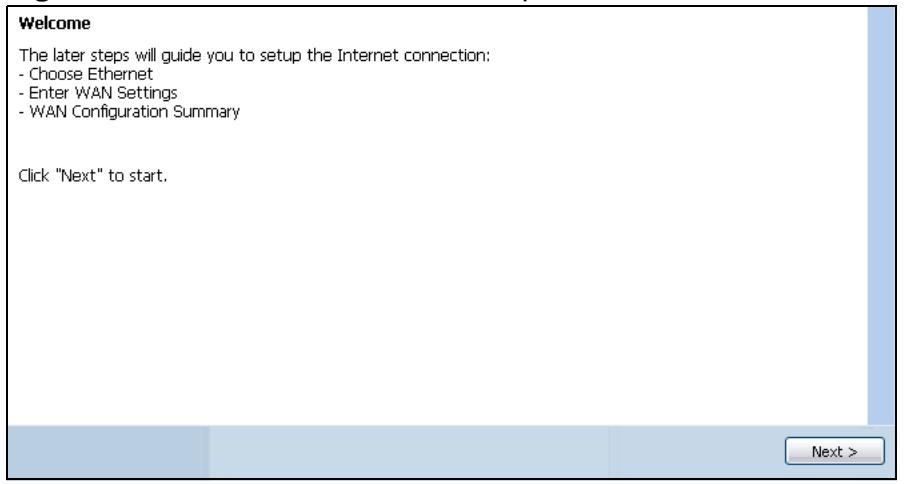
Figure 32 WAN Interface Quick Setup Wizard
5.2.1 Choose an Ethernet Interface
Select the Ethernet interface that you want to configure for a WAN connection and click Next.
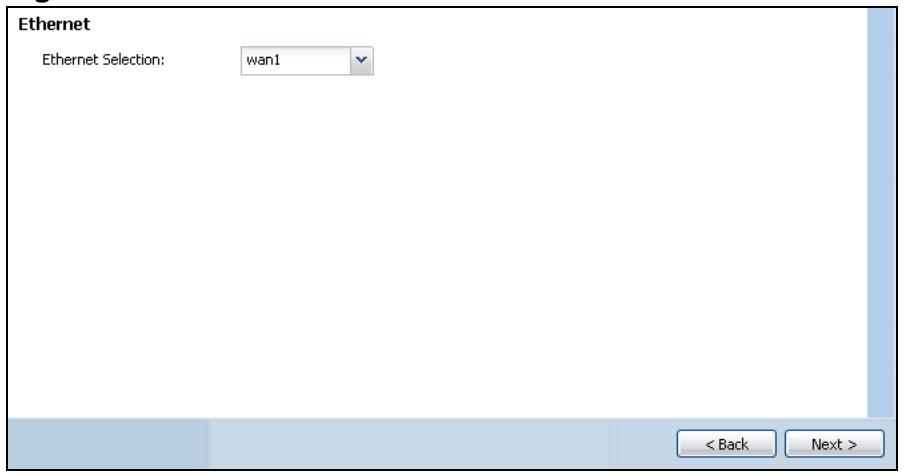
Figure 33 Choose an Ethernet Interface
5.2.2 Select WAN Type
WAN Type Selection: Select the type of encapsulation this connection is to use. Choose Ethernet when the WAN port is used as a regular Ethernet.
Otherwise, choose PPPoE or PPTP for a dial-up connection according to the information from your ISP.
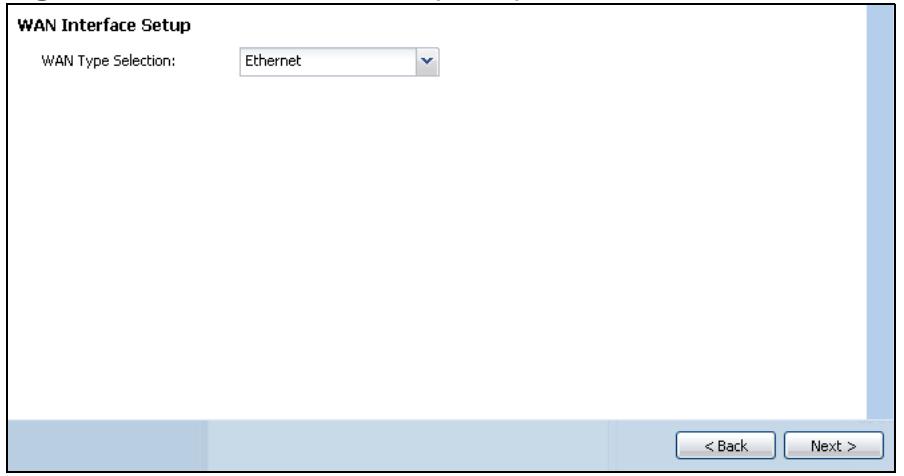
Figure 34 WAN Interface Setup: Step 2
The screens vary depending on what encapsulation type you use. Refer to information provided by your ISP to know what to enter in each field. Leave a field blank if you don't have that information.
Note: Enter the Internet access information exactly as your ISP gave it to you.
5.2.3 Configure WAN Settings
Use this screen to select whether the interface should use a fixed or dynamic IP address.
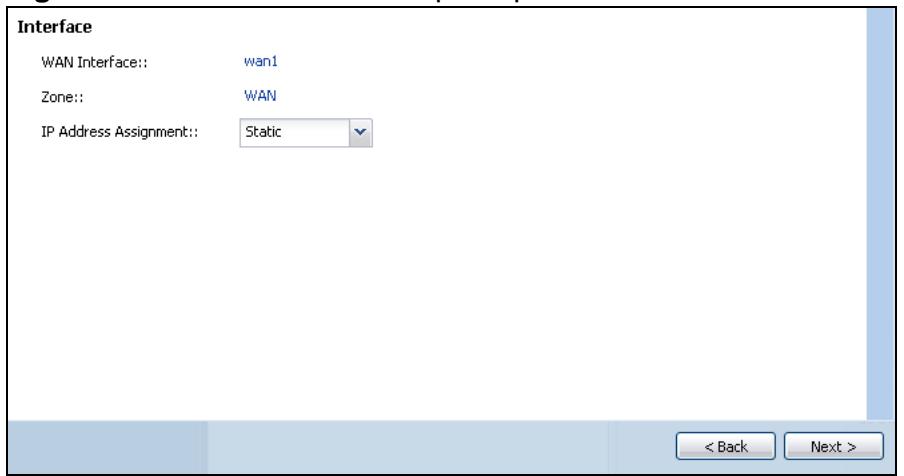
Figure 35 WAN Interface Setup: Step 2
- WAN Interface: This is the interface you are configuring for Internet access.
-
Zone: This is the security zone to which this interface and Internet connection belong.
-
IP Address Assignment: Select Auto If your ISP did not assign you a fixed IP address.
Select Static If the ISP assigned a fixed IP address.
5.2.4 WAN and ISP Connection Settings
Use this screen to configure the ISP and WAN interface settings. This screen is read-only if you set the IP Address Assignment to Static.
Note: Enter the Internet access information exactly as your ISP gave it to you.
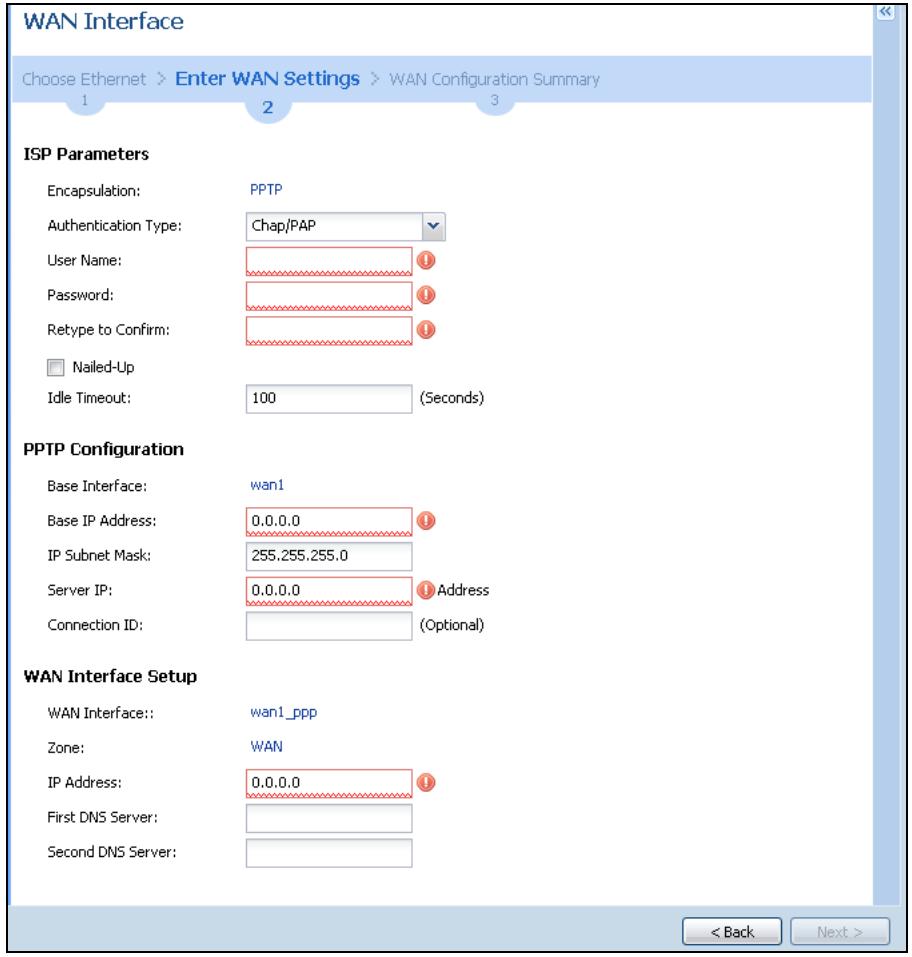
Figure 36 WAN and ISP Connection Settings: (PPTP Shown)
The following table describes the labels in this screen.
Table 11 WAN and ISP Connection Settings
| LABEL | DESCRIPTION |
| ISP Parameter | This section appears if the interface uses a PPPoE or PPTP Internet connection. |
| Encapsulation | This displays the type of Internet connection you are configuring. |
| Authentication Type | Use the drop-down list box to select an authentication protocol for outgoing calls. Options are:CHAP/PAP - Your ZyWALL accepts either CHAP or PAP when requested by this remote node.CHAP - Your ZyWALL accepts CHAP only.PAP - Your ZyWALL accepts PAP only.MSCHAP - Your ZyWALL accepts MSCHAP only.MSCHAP-V2 - Your ZyWALL accepts MSCHAP-V2 only. |
| User Name | Type the user name given to you by your ISP. You can use alphanumeric and -@@$ ./ characters, and it can be up to 31 characters long. |
| Password | Type the password associated with the user name above. Use up to 64 ASCII characters except the [] and ?: This field can be blank. |
| Retype to Confirm | Type your password again for confirmation. |
| Nailed-Up | Select Nailed-Up if you do not want the connection to time out. |
| Idle Timeout | Type the time in seconds that elapses before the router automatically disconnects from the PPPoE server. 0 means no timeout. |
| PPTP Configuration | This section only appears if the interface uses a PPPoE or PPTP Internet connection. |
| Base Interface | This displays the identity of the Ethernet interface you configure to connect with a modem or router. |
| Base IP Address | Type the (static) IP address assigned to you by your ISP. |
| IP Subnet Mask | Type the subnet mask assigned to you by your ISP (if given). |
| Server IP | Type the IP address of the PPTP server. |
| Connection ID | Enter the connection ID or connection name in this field. It must follow the "c:id" and "n:name" format. For example, C:12 or N:My ISP.This field is optional and depends on the requirements of your DSL modem.You can use alphanumeric and -: characters, and it can be up to 31 characters long. |
| WAN Interface Setup | |
| WAN Interface | This displays the identity of the interface you configure to connect with your ISP. |
| Zone | This field displays to which security zone this interface and Internet connection will belong. |
| IP Address | This field is read-only when the WAN interface uses a dynamic IP address. If your WAN interface uses a static IP address, enter it in this field. |
| First DNS Server Second DNS Server | These fields only display for an interface with a static IP address. Enter the DNS server IP address(es) in the field(s) to the right.Leave the field as 0.0.0.0 if you do not want to configure DNS servers. If you do not configure a DNS server, you must know the IP address of a machine in order to access it.DNS (Domain Name System) is for mapping a domain name to its corresponding IP address and vice versa. The DNS server is extremely important because without it, you must know the IP address of a computer before you can access it. The ZyWALL uses a system DNS server (in the order you specify here) to resolve domain names for VPN, DDNS and the time server. |
| Back | Click Back to return to the previous screen. |
| Next | Click Next to continue. |
5.2.5 Quick Setup Interface Wizard: Summary
This screen displays the WAN interface's settings.

Figure 37 Interface Wizard: Summary WAN (PPTP Shown)
The following table describes the labels in this screen.
Table 12 Interface Wizard: Summary WAN
| LABEL | DESCRIPTION |
| Encapsulation | This displays what encapsulation this interface uses to connect to the Internet. |
| Service Name | This field is read-only and only appears for a PPPoE interface. It displays the PPPoE service name specified in the ISP account. |
| Server IP | This field only appears for a PPTP interface. It displays the IP address of the PPTP server. |
Table 12 Interface Wizard: Summary WAN
| LABEL | DESCRIPTION |
| User Name | This is the user name given to you by your ISP. |
| Nailed-Up | If No displays the connection will not time out. Yes means the ZyWALL uses the idle timeout. |
| Idle Timeout | This is how many seconds the connection can be idle before the router automatically disconnects from the PPPoE server. 0 means no timeout. |
| Connection ID | If you specified a connection ID, it displays here. |
| WAN Interface | This identifies the interface you configure to connect with your ISP. |
| Zone | This field displays to which security zone this interface and Internet connection will belong. |
| IP Address Assignment | This field displays whether the WAN IP address is static or dynamic (Auto). |
| First DNS Server Second DNS Server | If the IP Address Assignment is Static, these fields display the DNS server IP address(es). |
| Close | Click Close to exit the wizard. |
5.3 VPN Quick Setup
Click VPN Setup in the main Quick Setup screen to open the VPN Setup Wizard Welcome screen. The VPN wizard creates corresponding VPN connection and VPN gateway settings and address objects that you can use later in configuring more VPN connections or other features. Click Next.
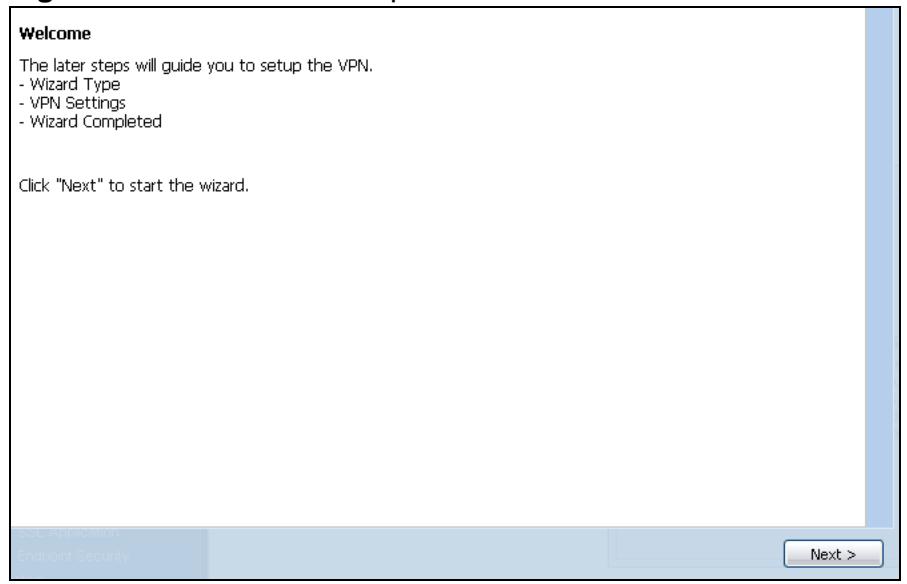
Figure 38 VPN Quick Setup Wizard
5.4 VPN Setup Wizard: Wizard Type
A VPN (Virtual Private Network) tunnel is a secure connection to another computer or network. Use this screen to select which type of VPN connection you want to configure.

Figure 39 VPN Setup Wizard: Wizard Type
Express: Use this wizard to create a VPN connection with another ZLD-based ZyWALL using a pre-shared key and default security settings.
Advanced: Use this wizard to configure detailed VPN security settings such as using certificates. The VPN connection can be to another ZLD-based ZyWALL or other IPSec device.
5.5 VPN Express Wizard - Scenario
Click the Express radio button as shown in Figure 39 on page 76 to display the following screen.
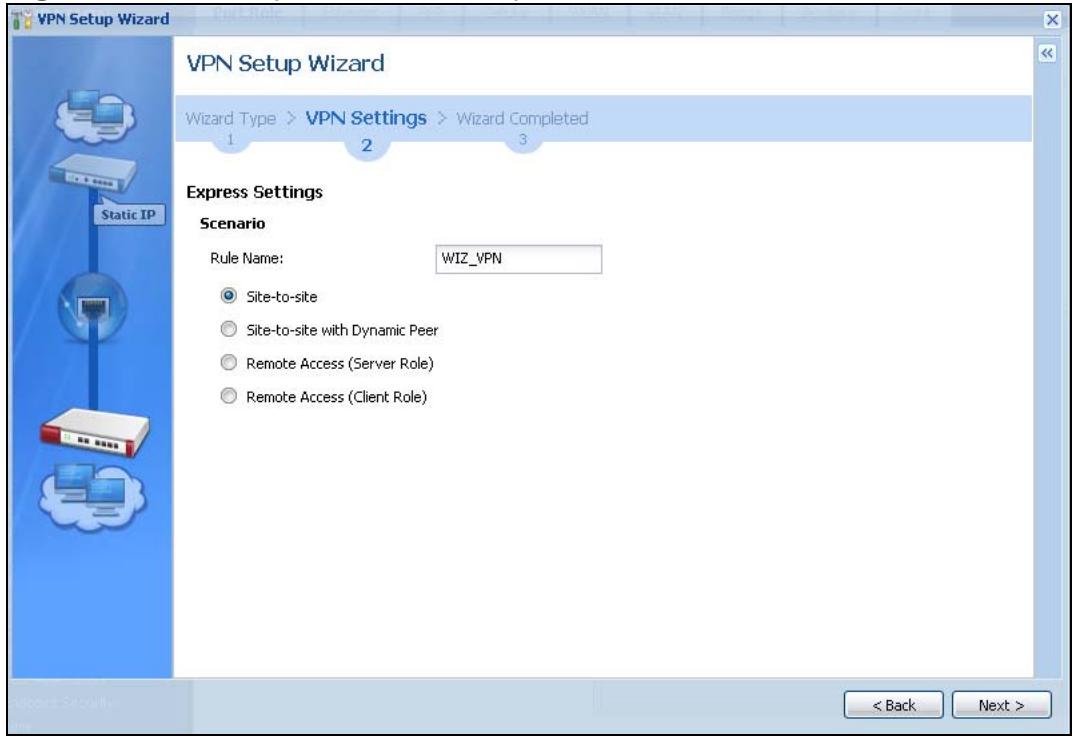
Figure 40 VPN Express Wizard: Step 2
Rule Name: Type the name used to identify this VPN connection (and VPN gateway). You may use 1-31 alphanumeric characters, underscores (_) , or dashes (-) , but the first character cannot be a number. This value is case-sensitive.
Select the scenario that best describes your intended VPN connection. The figure on the left of the screen changes to match the scenario you select.
- Site-to-site - Choose this if the remote IPSec device has a static IP address or a domain name. This ZyWALL can initiate the VPN tunnel.
- Site-to-site with Dynamic Peer - Choose this if the remote IPSec device has a dynamic IP address. Only the remote IPSec device can initiate the VPN tunnel.
- Remote Access (Server Role) - Choose this to allow incoming connections from IPSec VPN clients. The clients have dynamic IP addresses and are also known as dial-in users. Only the clients can initiate the VPN tunnel.
- Remote Access (Client Role) - Choose this to connect to an IPSec server. This ZyWALL is the client (dial-in user) and can initiate the VPN tunnel.
5.5.1 VPN Express Wizard - Configuration
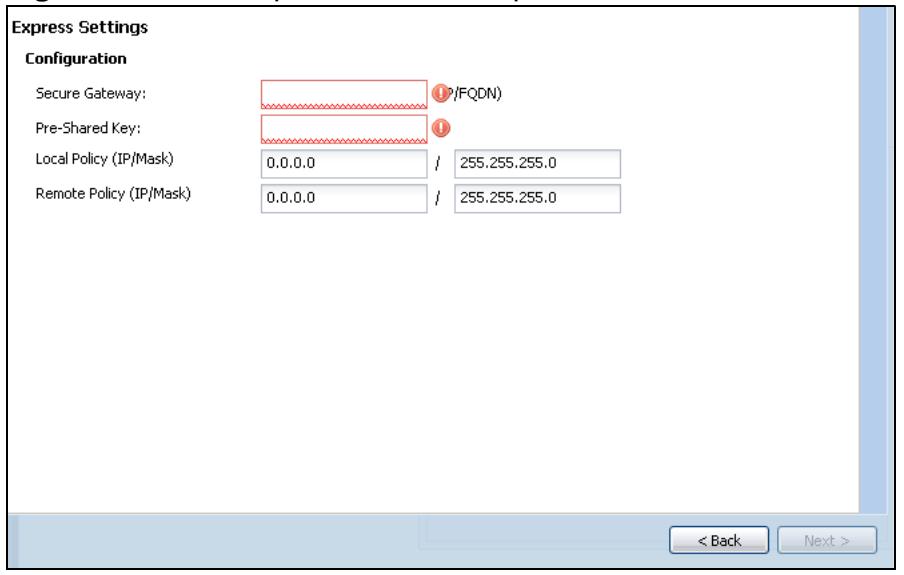
Figure 41 VPN Express Wizard: Step 3
- Secure Gateway: If Any displays in this field, it is not configurable for the chosen scenario. If this field is configurable, enter the WAN IP address or domain name of the remote IPSec device (secure gateway) to identify the remote IPSec router by its IP address or a domain name. Use 0.0.0.0 if the remote IPSec router has a dynamic WAN IP address.
- Pre-Shared Key: Type the password. Both ends of the VPN tunnel must use the same password. Use 8 to 31 case-sensitive ASCII characters or 8 to 31 pairs of hexadecimal ("0-9", "A-F") characters. Proceed a hexadecimal key with "0x". You will receive a PYLD_MALFORMED (payload malformed) packet if the same pre-shared key is not used on both ends.
- Local Policy (IP/Mask): Type the IP address of a computer on your network. You can also specify a subnet. This must match the remote IP address configured on the remote IPSec device.
- Remote Policy (IP/Mask): If Any displays in this field, it is not configurable for the chosen scenario. If this field is configurable, type the IP address of a computer behind the remote IPSec device. You can also specify a subnet. This must match the local IP address configured on the remote IPSec device.
5.5.2 VPN Express Wizard - Summary
This screen provides a read-only summary of the VPN tunnel's configuration and also commands that you can copy and paste into another ZLD-based ZyWALL's command line interface to configure it.
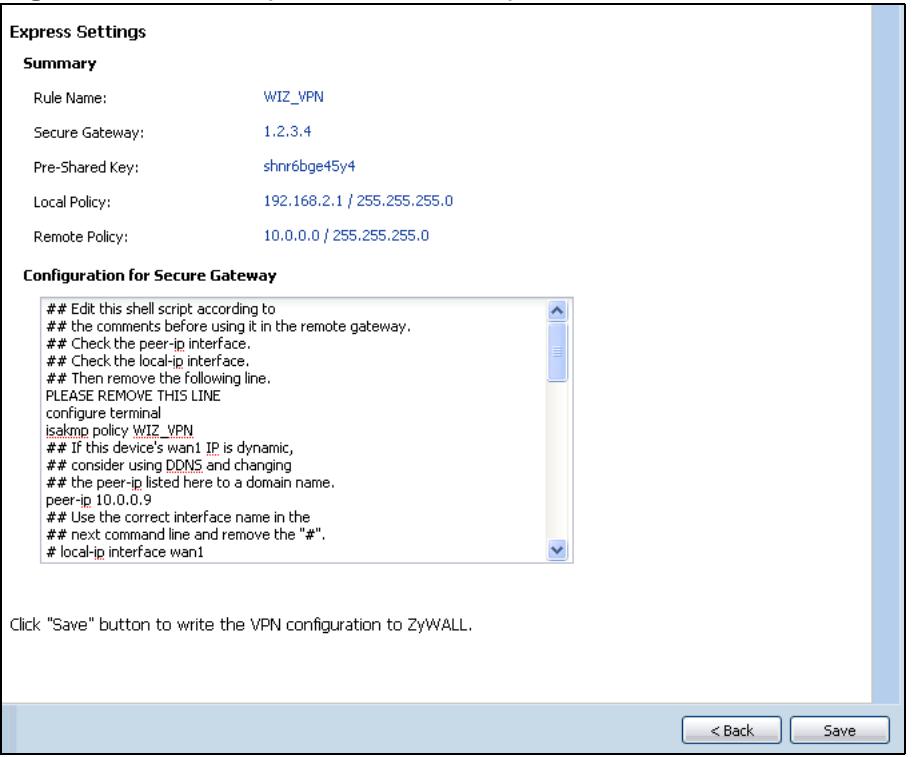
Figure 42 VPN Express Wizard: Step 4
- Rule Name: Identifies the VPN gateway policy.
- Secure Gateway: IP address or domain name of the remote IPSec device. If this field displays Any, only the remote IPSec device can initiate the VPN connection.
- Pre-Shared Key: VPN tunnel password. It identifies a communicating party during a phase 1 IKE negotiation.
- Local Policy: (Static) IP address and subnet mask of the computers on the network behind your ZyWALL that can use the tunnel.
- Remote Policy: (Static) IP address and subnet mask of the computers on the network behind the remote IPSec device that can use the tunnel. If this field displays Any, only the remote IPSec device can initiate the VPN connection.
- Copy and paste the Configuration for Secure Gateway commands into another ZLD-based ZyWALL's command line interface to configure it to serve as the other end of this VPN tunnel. You can also use a text editor to save these commands as a shell script file with a ".zysh" filename extension. Then you can use the file manager to run the script in order to configure the VPN connection. See the commands reference guide for details on the commands displayed in this list.
5.5.3 VPN Express Wizard - Finish
Now you can use the VPN tunnel.
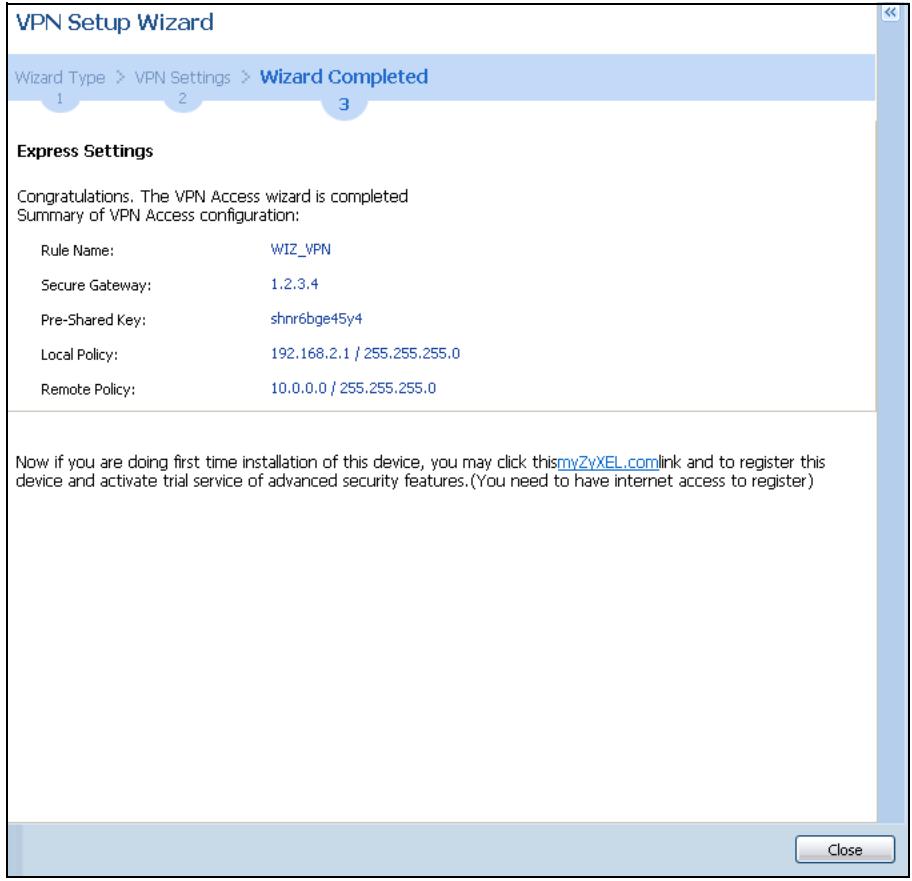
Figure 43 VPN Express Wizard: Step 6
Note: If you have not already done so, use the myZyXEL.com link and register your ZyWALL with myZyXEL.com and activate trials of services like Content Filter.
Click Close to exit the wizard.
5.5.4 VPN Advanced Wizard - Scenario
Click the Advanced radio button as shown in Figure 39 on page 76 to display the following screen.
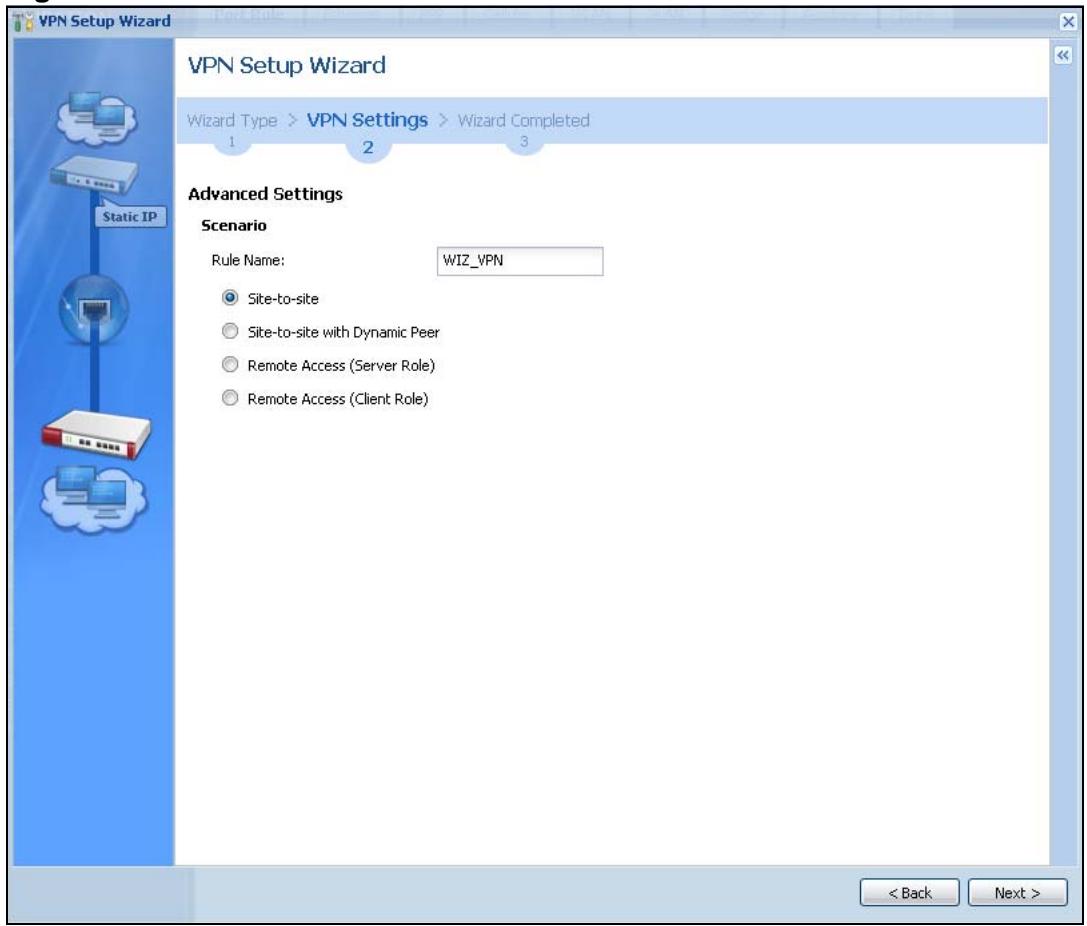
Figure 44 VPN Advanced Wizard: Scenario
Rule Name: Type the name used to identify this VPN connection (and VPN gateway). You may use 1-31 alphanumeric characters, underscores (_) , or dashes (-) , but the first character cannot be a number. This value is case-sensitive.
Select the scenario that best describes your intended VPN connection. The figure on the left of the screen changes to match the scenario you select.
- Site-to-site - Choose this if the remote IPSec device has a static IP address or a domain name. This ZyWALL can initiate the VPN tunnel.
- Site-to-site with Dynamic Peer - Choose this if the remote IPSec device has a dynamic IP address. Only the remote IPSec device can initiate the VPN tunnel.
-
Remote Access (Server Role) - Choose this to allow incoming connections from IPSec VPN clients. The clients have dynamic IP addresses and are also known as dial-in users. Only the clients can initiate the VPN tunnel.
-
Remote Access (Client Role) - Choose this to connect to an IPSec server. This ZyWALL is the client (dial-in user) and can initiate the VPN tunnel.
5.5.5 VPN Advanced Wizard - Phase 1 Settings
There are two phases to every IKE (Internet Key Exchange) negotiation – phase 1 (Authentication) and phase 2 (Key Exchange). A phase 1 exchange establishes an IKE SA (Security Association).
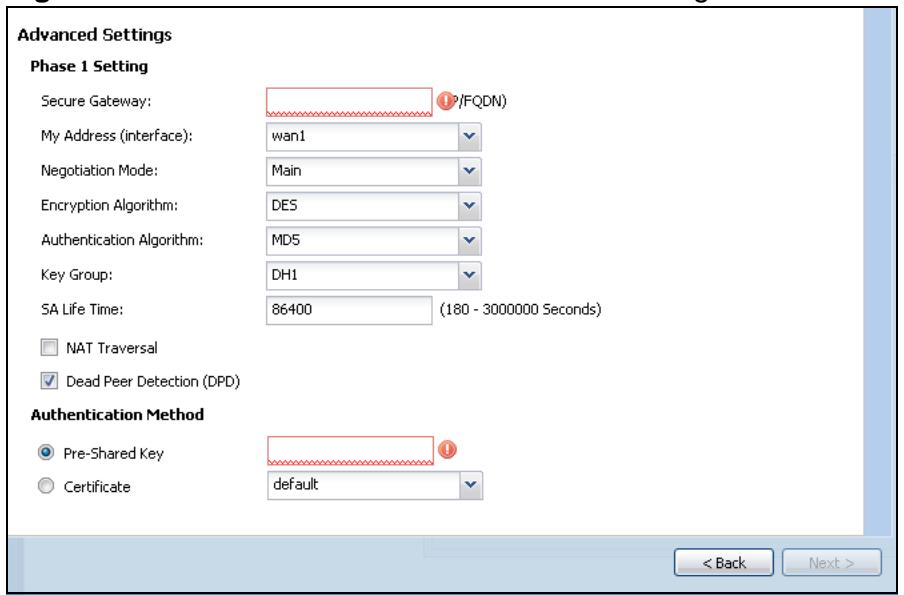
Figure 45 VPN Advanced Wizard: Phase 1 Settings
- Secure Gateway: If Any displays in this field, it is not configurable for the chosen scenario. If this field is configurable, enter the WAN IP address or domain name of the remote IPSec device (secure gateway) to identify the remote IPSec device by its IP address or a domain name. Use 0.0.0.0 if the remote IPSec device has a dynamic WAN IP address.
- My Address (interface): Select an interface from the drop-down list box to use on your ZyWALL.
- Negotiation Mode: Select Main for identity protection. Select Aggressive to allow more incoming connections from dynamic IP addresses to use separate passwords.
Note: Multiple SAs connecting through a secure gateway must have the same negotiation mode.
- Encryption Algorithm: 3DES and AES use encryption. The longer the key, the higher the security (this may affect throughput). Both sender and receiver must know the same secret key, which can be used to encrypt and decrypt the message or to generate and verify a message authentication code. The DES encryption algorithm uses a 56-bit key. Triple DES (3DES) is a variation on DES
that uses a 168-bit key. As a result, 3DES is more secure than DES. It also requires more processing power, resulting in increased latency and decreased throughput. AES128 uses a 128-bit key and is faster than 3DES. AES192 uses a 192-bit key and AES256 uses a 256-bit key.
- Authentication Algorithm: MD5 gives minimal security. SHA-1 gives higher security. MD5 (Message Digest 5) and SHA1 (Secure Hash Algorithm) are hash algorithms used to authenticate packet data. The SHA1 algorithm is generally considered stronger than MD5, but is slower.
- Key Group: DH5 is more secure than DH1 or DH2 (although it may affect throughput). DH1 (default) refers to Diffie-Hellman Group 1 a 768 bit random number. DH2 refers to Diffie-Hellman Group 2 a 1024 bit (1Kb) random number. DH5 refers to Diffie-Hellman Group 5 a 1536 bit random number.
- SA Life Time: Set how often the ZyWALL renegotiates the IKE SA. A short SA life time increases security, but renegotiation temporarily disconnects the VPN tunnel.
- NAT Traversal: Select this if the VPN tunnel must pass through NAT (there is a NAT router between the IPSec devices).
Note: The remote IPSec device must also have NAT traversal enabled. See VPN, NAT, and NAT Traversal on page 419 for more information.
- Dead Peer Detection (DPD) has the ZyWALL make sure the remote IPSec device is there before transmitting data through the IKE SA. If there has been no traffic for at least 15 seconds, the ZyWALL sends a message to the remote IPSec device. If it responds, the ZyWALL transmits the data. If it does not respond, the ZyWALL shuts down the IKE SA.
- Authentication Method: Select Pre-Shared Key to use a password or Certificate to use one of the ZyWALL's certificates.
5.5.6 VPN Advanced Wizard - Phase 2
Phase 2 in an IKE uses the SA that was established in phase 1 to negotiate SAs for IPSec.
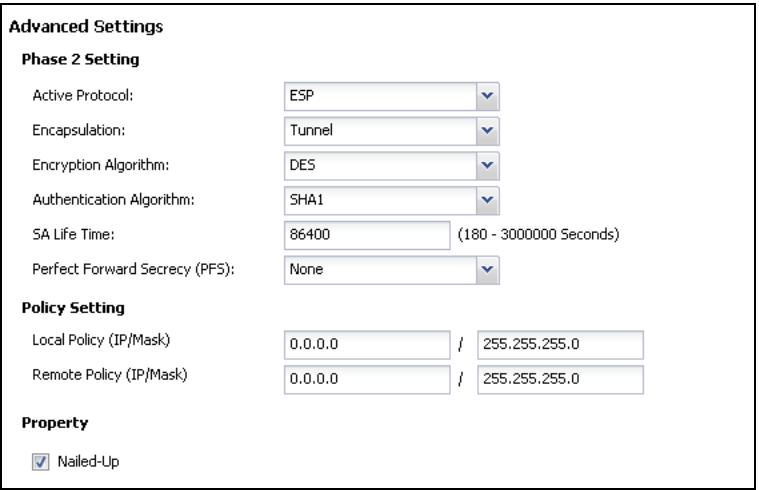
Figure 46 VPN Advanced Wizard: Step 4
Active Protocol: ESP is compatible with NAT, AH is not.
- Encapsulation: Tunnel is compatible with NAT, Transport is not.
- Encryption Algorithm: 3DES and AES use encryption. The longer the AES key, the higher the security (this may affect throughput). Null uses no encryption.
- Authentication Algorithm: MD5 gives minimal security. SHA-1 gives higher security. MD5 (Message Digest 5) and SHA1 (Secure Hash Algorithm) are hash algorithms used to authenticate packet data. The SHA1 algorithm is generally considered stronger than MD5, but is slower.
- SA Life Time: Set how often the ZyWALL renegotiates the IKE SA. A short SA life time increases security, but renegotiation temporarily disconnects the VPN tunnel.
- Perfect Forward Secrecy (PFS): Disabling PFS allows faster IPSec setup, but is less secure. Select DH1, DH2 or DH5 to enable PFS. DH5 is more secure than DH1 or DH2 (although it may affect throughput). DH1 refers to Diffie-Hellman Group 1 a 768 bit random number. DH2 refers to Diffie-Hellman Group 2 a 1024 bit (1Kb) random number. DH5 refers to Diffie-Hellman Group 5 a 1536 bit random number (more secure, yet slower).
- Local Policy (IP/Mask): Type the IP address of a computer on your network. You can also specify a subnet. This must match the remote IP address configured on the remote IPSec device.
- Remote Policy (IP/Mask): Type the IP address of a computer behind the remote IPSec device. You can also specify a subnet. This must match the local IP address configured on the remote IPSec device.
- Nailed-Up: This displays for the site-to-site and remote access client role scenarios. Select this to have the ZyWALL automatically renegotiate the IPSec SA when the SA life time expires.
5.5.7 VPN Advanced Wizard - Summary
This is a read-only summary of the VPN tunnel settings.
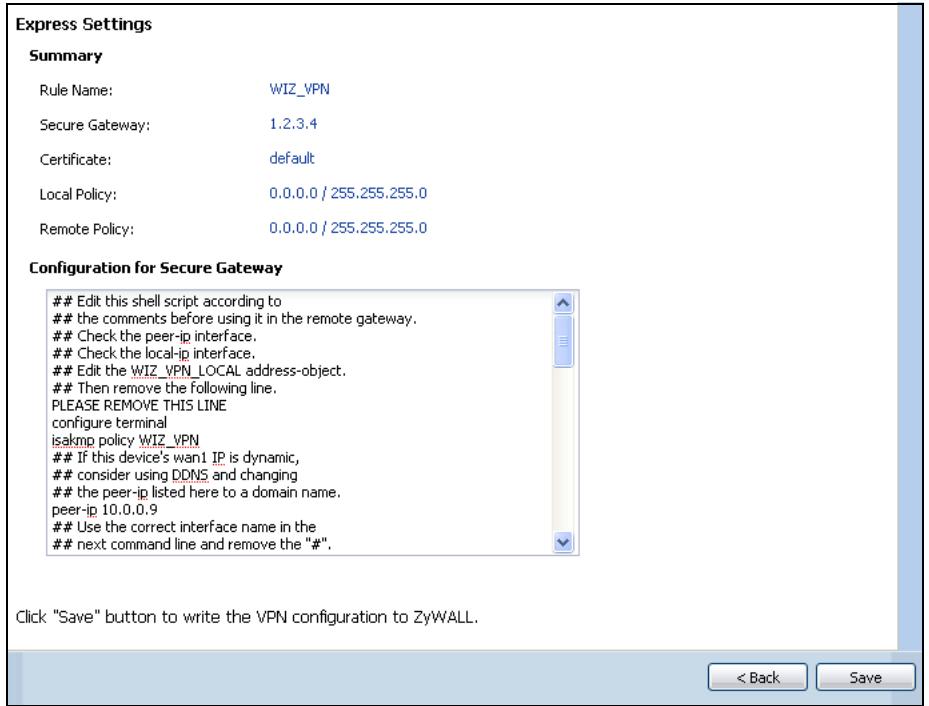
Figure 47 VPN Advanced Wizard: Step 5
- Rule Name: Identifies the VPN connection (and the VPN gateway).
- Secure Gateway: IP address or domain name of the remote IPSec device.
- Pre-Shared Key: VPN tunnel password.
- Certificate: The certificate the ZyWALL uses to identify itself when setting up the VPN tunnel.
- Local Policy: IP address and subnet mask of the computers on the network behind your ZyWALL that can use the tunnel.
- Remote Policy: IP address and subnet mask of the computers on the network behind the remote IPSec device that can use the tunnel.
- Copy and paste the Configuration for Remote Gateway commands into another ZLD-based ZyWALL's command line interface.
- Click Save to save the VPN rule.
5.5.8 VPN Advanced Wizard - Finish
Now you can use the VPN tunnel.
Figure 48 VPN Wizard: Step 6: Advanced
| Advanced Settings | |
| Congratulations. The VPN Access wizard is completedSummary of VPN Access configuration: | |
| Rule Name: | WIZ_VPN |
| Secure Gateway: | 1.2.3.4 |
| My Address (interface): | wan1 |
| Pre-Shared Key: | Ikj581mjw777 |
| Phase 1 | |
| Negotiation Mode: | main |
| Encryption Algorithm: | des |
| Authentication Algorithm: | md5 |
| Key Group: | DH1 |
| SA Life Time: | 86400 |
| NAT Traversal: | false |
| Dead Peer Detection (DPD): | true |
| Phase 2 | |
| Active Protocol: | esp |
| Encapsulation: | tunnel |
| Encryption Algorithm: | des |
| Authentication Algorithm: | sha |
| SA Life Time: | 86400 |
| Perfect Forward Secrecy: | None |
| Policy | |
| Local Policy: | 0.0.0.0 / 255.255.255.0 |
| Remote Policy: | 0.0.0.0 / 255.255.255.0 |
| Nailed-Up: | true |
| Now if you are doing first time installation of this device, you may click this myZyXEL.com link and to registerthis device and activate trial service of advanced security features.(You need to have internet access toregister) | |
Note: If you have not already done so, you can register your ZyWALL with myZyXEL.com and activate trials of services like Content Filter.
Click Close to exit the wizard.
Configuration Basics
This information is provided to help you configure the ZyWALL effectively. Some of it is helpful when you are just getting started. Some of it is provided for your reference when you configure various features in the ZyWALL.
- Section 6.1 on page 87 introduces the ZyWALL's object-based configuration.
- Section 6.2 on page 88 introduces zones, interfaces, and port groups.
- Section 6.3 on page 91 introduces some terminology and organization for the ZyWALL.
- Section 6.4 on page 91 covers the ZyWALL's packet flow.
- Section 6.5 on page 95 identifies the features you should configure before and after you configure the main screens for each feature. For example, if you want to configure a trunk for load-balancing, you should configure the member interfaces before you configure the trunk. After you configure the trunk, you should configure a policy route for it as well. (You might also have to configure criteria for the policy route.)
- Section 6.6 on page 103 identifies the objects that store information used by other features.
- Section 6.7 on page 105 introduces some of the tools available for system management.
6.1 Object-based Configuration
The ZyWALL stores information or settings as objects. You use these objects to configure many of the ZyWALL's features and settings. Once you configure an object, you can reuse it in configuring other features.
When you change an object's settings, the ZyWALL automatically updates all the settings or rules that use the object. For example, if you create a schedule object, you can have firewall, content filter, and other settings use it. If you modify the schedule, all the firewall, content filter, and other settings that use the schedule automatically apply the updated schedule.
You can create address objects based on an interface's IP address, subnet, or gateway. The ZyWALL automatically updates every rule or setting that uses these objects whenever the interface's IP address settings change. For example, if you
change an Ethernet interface's IP address, the ZyWALL automatically updates the rules or settings that use the interface-based, LAN subnet address object.
You can use the Configuration > Objects screens to create objects before you configure features that use them. If you are in a screen that uses objects, you can also usually select Create new Object to be able to configure a new object. For a list of common objects, see Section 6.6 on page 103.
Use the Object Reference screen (Section 3.3.3.3 on page 53) to see what objects are configured and which configuration settings reference specific objects.
6.2 Zones, Interfaces, and Physical Ports
Zones (groups of interfaces and VPN tunnels) simplify security settings. Here is an overview of zones, interfaces, and physical ports in the ZyWALL.
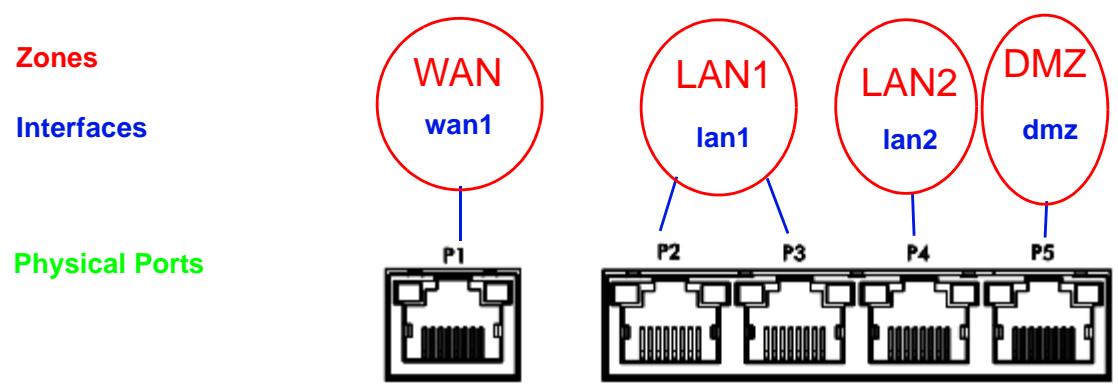
Figure 49
Table 13 Zones, Interfaces, and Physical Ethernet Ports
| Zones (WAN,LAN, DMZ) | A zone is a group of interfaces and VPN tunnels. Use zones to apply security settings such as firewall, remote management. |
| Interfaces (Ethernet, VLAN,...) | Interfaces are logical entities that (layer-3) packets pass through. Use interfaces in configuring VPN, zones, trunks, DDNS, policy routes, static routes, HTTP redirect, and NAT. Port roles combine physical ports into interfaces. |
| Physical Ethernet Ports (P1, P2, ...) | The physical port is where you connect a cable. In configuration, you use physical ports when configuring port groups. You use interfaces and zones in configuring other features. |
6.2.1 Interface Types
There are many types of interfaces in the ZyWALL. In addition to being used in various features, interfaces also describe the network that is directly connected to the ZyWALL.
- Ethernet interfaces are the foundation for defining other interfaces and network policies. You also configure RIP and OSPF in these interfaces.
- Port groups create a hardware connection between physical ports at the layer-2 (data link, MAC address) level. Port groups are created when you use the Interface > Port Roles screen to set multiple physical ports to be part of the same (lan1, lan2 or dmz) interface.
- PPP interfaces support Point-to-Point Protocols (PPPoE or PPTP). ISP accounts are required for PPPoE/PPTP interfaces.
- VLAN interfaces recognize tagged frames. The ZyWALL automatically adds or removes the tags as needed. Each VLAN can only be associated with one Ethernet interface.
- Bridge interfaces create a software connection between Ethernet or VLAN interfaces at the layer-2 (data link, MAC address) level. Then, you can configure the IP address and subnet mask of the bridge. It is also possible to configure zone-level security between the member interfaces in the bridge.
- Virtual interfaces increase the amount of routing information in the ZyWALL. There are three types: virtual Ethernet interfaces (also known as IP alias), virtual VLAN interfaces, and virtual bridge interfaces.
6.2.2 Default Interface and Zone Configuration
This section introduces the ZyWALL's default zone member physical interfaces and the default configuration of those interfaces. The following figure uses letters to denote public IP addresses or part of a private IP address.
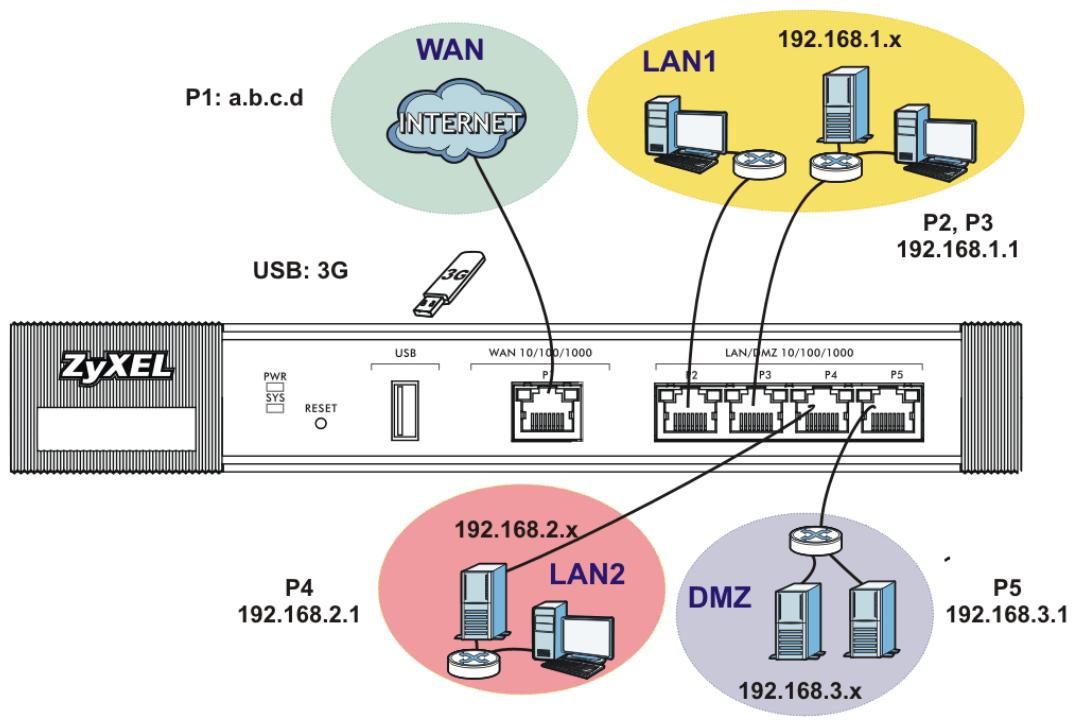
Figure 50 Default Network Topology
Table 14 ZyWALL USG 20 Default Port, Interface, and Zone Configuration
| PORT | INTERFACE | ZONE | IP ADDRESS AND DHCP SETTINGS | SUGGESTED USE WITH DEFAULT SETTINGS |
| P1 | wan1 | WAN | DHCP clients | Connections to the Internet |
| P2, P3 | lan1 | LAN1 | 192.168.1.1, DHCP server enabled | Protected LAN |
| P4 | lan2 | LAN2 | 192.168.2.1, DHCP server enabled | Protected LAN |
| P5 | dmz | DMZ | 192.168.3.1, DHCP server disabled | Public servers (such as web, e-mail and FTP) |
| CONSOLE | n/a | None | None | Local management |
- The WAN zone contains the wan1 interface (physical port P1). It uses a public IP address to connect to the Internet.
-
The LAN1 zone contains the Ian1 interface (a port group made up of physical ports P2 and P3 on the ZyWALL). The LAN1 zone is a protected zone. The Ian1 interface uses 192.168.1.1 and the connected devices use IP addresses in the 192.168.1.2 to 192.168.1.254 range.
-
The DMZ zone contains the dmz interface (physical port P6). The DMZ zone has servers that are available to the public. The dmz interface uses private IP address 192.168.3.1 and the connected devices use private IP addresses in the 192.168.3.2 to 192.168.3.254 range.
6.3 Terminology in the ZyWALL
This section highlights some terminology or organization for ZLD-based ZyWALLs.
Table 15 ZLD ZyWALL Terminology
| FEATURE / TERM | ZLD ZYWALL FEATURE / TERM |
| IP alias | Virtual interface |
| Gateway policy | VPN gateway |
| Network policy (IPSec SA) | VPN connection |
| Source NAT (SNAT) | Policy route |
| Trigger port, port triggering | Policy route |
| Address mapping | Policy route |
| Address mapping (VPN) | IPSec VPN |
| Interface bandwidth management (outbound) | Interface |
| General bandwidth management | Policy route |
6.4 Packet Flow
Here is the order in which the ZyWALL applies its features and checks.
Traffic in > Defragmentation > Destination NAT > Routing > Stateful Firewall > ADP > Application Classification > Content Filter > Anti-Spam > SNAT > Bandwidth Management > Fragmentation > Traffic Out.
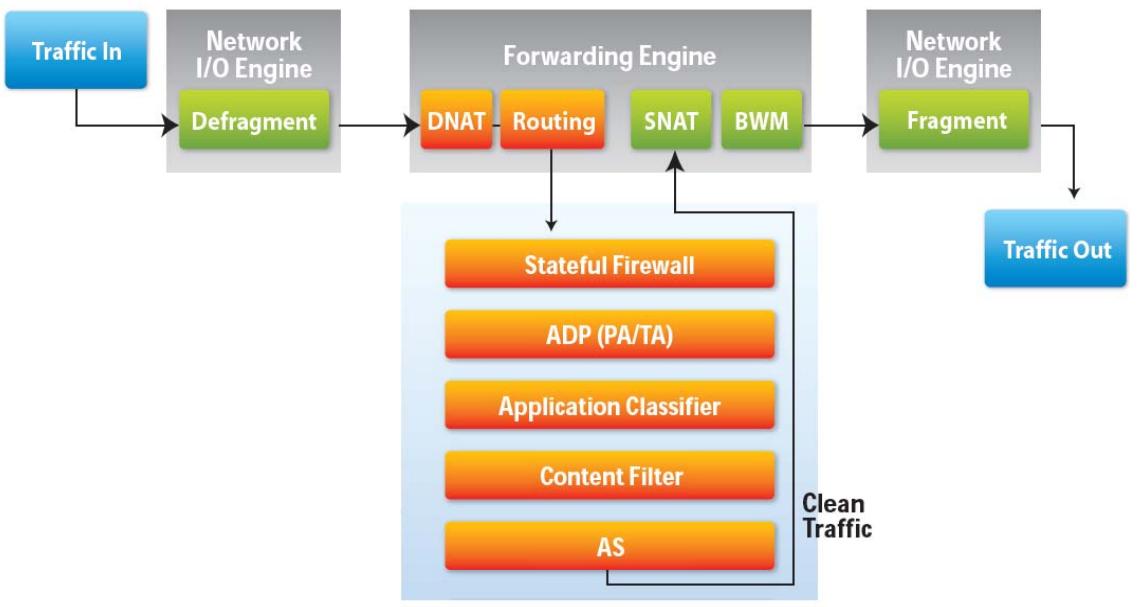
Figure 51 Packet Flow
The packet flow is as follows:
- Automatic SNAT and WAN trunk routing for traffic going from internal to external interfaces (you don't need to configure anything to all LAN to WAN traffic).
The ZyWALL automatically adds all of the external interfaces to the default WAN trunk. External interfaces include ppp and cellular interfaces as well as any Ethernet interfaces that are set as external interfaces.
Examples of internal interfaces are any Ethernet interfaces that you configure as internal interfaces.
- A policy route can be automatically disabled if the next-hop is dead.
- You do not need to set up policy routes for IPSec traffic.
- Policy routes can override direct routes.
- You do not need to set up policy routes for 1:1 NAT entries.
- You can create Many 1:1 NAT entries to translate a range of private network addresses to a range of public IP addresses
- Static and dynamic routes have their own category.
6.4.1 Routing Table Checking Flow
When the ZyWALL receives packets it defragments them and applies destination NAT. Then it examines the packets and determines how to route them. The checking flow is from top to bottom. As soon as the packets match an entry in one
of the sections, the ZyWALL stops checking the packets against the routing table and moves on to the other checks, for example the firewall check.
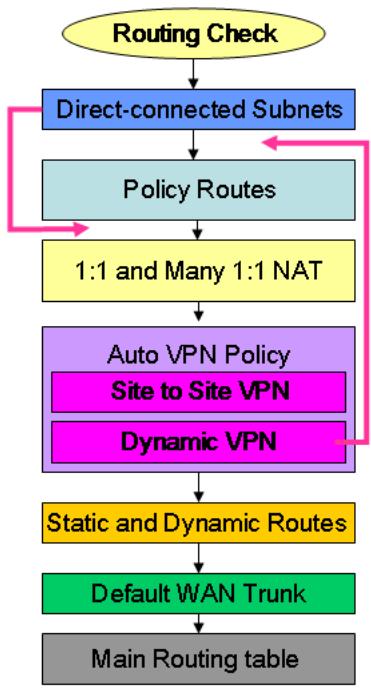
Figure 52 Routing Table Checking Flow
1 Direct-connected Subnets: The ZyWALL first checks to see if the packets are destined for an address in the same subnet as one of the ZyWALL's interfaces. You can override this and have the ZyWALL check the policy routes first by enabling the policy route feature's Use Policy Route to Override Direct Route option (see Section 13.1 on page 297).
2 Policy Routes: These are the user-configured policy routes. Configure policy routes to send packets through the appropriate interface or VPN tunnel. See Chapter 13 on page 297 for more on policy routes.
3 1 to 1 and Many 1 to 1 NAT: These are the 1 to 1 NAT and many 1 to 1 NAT rules. If a private network server will initiate sessions to the outside clients, create a 1 to 1 NAT entry to have the ZyWALL translate the source IP address of the server's outgoing traffic to the same public IP address that the outside clients use to access the server. A many 1 to 1 NAT entry works like multiple 1 to 1 NAT rules. It maps a range of private network servers that will initiate sessions to the outside clients to a range of public IP addresses. See Section 17.2.1 on page 340 for more.
4 Auto VPN Policy: The ZyWALL automatically creates these routing entries for the VPN rules. Disabling the IPSec VPN feature's Use Policy Route to control dynamic IPSec rules option moves the routes for dynamic IPSec rules up above the policy routes (see Section 23.2 on page 394).
5 Static and Dynamic Routes: This section contains the user-configured static routes and the dynamic routing information learned from other routers through RIP and OSPF. See Chapter 13 on page 297 for more information.
6 Default WAN Trunk: For any traffic coming in through an internal interface, if it does not match any of the other routing entries, the ZyWALL forwards it through the default WAN trunk. See Section 12.2 on page 292 for how to select which trunk the ZyWALL uses as the default.
7 Main Routing Table: The default WAN trunk is expected to be used for any traffic that did not match any earlier routing entries.
6.4.2 NAT Table Checking Flow
The checking flow is from top to bottom. As soon as the packets match an entry in one of the sections, the ZyWALL stops checking the packets against the NAT table and moves on to bandwidth management.
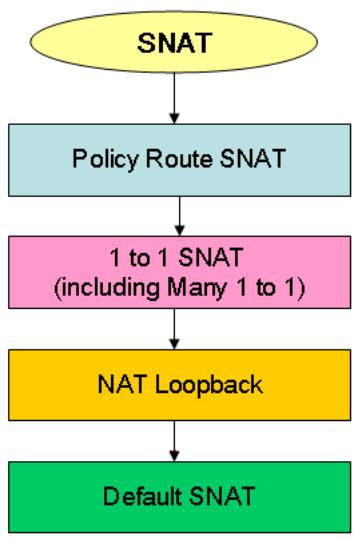
Figure 53 NAT Table Checking Flow
1 SNAT defined in the policy routes.
2 1 to 1 NAT (including Many 1 to 1) is also included in the NAT table.
3 NAT loopback is now included in the NAT table instead of requiring a separate policy route.
4 SNAT is also now performed by default and included in the NAT table.
6.5 Feature Configuration Overview
This section provides information about configuring the main features in the ZyWALL. The features are listed in the same sequence as the menu item(s) in the Web Configurator. Each feature description is organized as shown below.
6.5.1 Feature
This provides a brief description. See the appropriate chapter(s) in this User's Guide for more information about any feature.
| MENU ITEM(S) | This shows you the sequence of menu items and tabs you should click to find the main screen(s) for this feature. See the web help or the related User's Guide chapter for information about each screen. |
| PREREGUISITES | These are other features you should configure before you configure the main screen(s) for this feature. If you did not configure one of the prerequisites first, you can often select an option to create a new object. After you create the object you return to the main screen to finish configuring the feature. You may not have to configure everything in the list of prerequisites. For example, you do not have to create a schedule for a policy route unless time is one of the criterion. |
| WHERE USED | There are two uses for this. These are other features you should usually configure or check right after you configure the main screen(s) for this feature. For example, you should usually create a policy route for a VPN tunnel. You have to delete the references to this feature before you can delete any settings. For example, you have to delete (or modify) all the policy routes that refer to a VPN tunnel before you can delete the VPN tunnel. |
Example: This provides a simple example to show you how to configure this feature. The example is usually based on the network topology in Figure 50 on page 90.
Note: PREQUISITES or WHERE USED does not appear if there are no prerequisites or references in other features to this one. For example, no other features reference DDNS entries, so there is no WHERE USED entry.
6.5.2 Licensing Registration
Use these screens to register your ZyWALL and subscribe to services like more SSL VPN tunnels, and content filtering. You must have Internet access to myZyXEL.com.
| MENU ITEM(S) | Configuration > Licensing > Registration |
| PREREGUISITES | Internet access to myZyXEL.com |
6.5.3 Interface
See Section 6.2 on page 88 for background information.
Note: When you create an interface, there is no security applied on it until you assign it to a zone.
Most of the features that use interfaces support Ethernet, PPPoE/PPTP, cellular, VLAN, and bridge interfaces.
| MENU ITEM(S) | Configuration > Network > Interface (except Network > Interface > Trunk) |
| PREREGUISITES | Port groups (configured in the Interface > Port Grouping screen) |
| WHERE USED | Zones, trunks, IPSec VPN, DDNS, policy routes, static routes, HTTP redirect, NAT |
Example: The dmz interface is in the DMZ zone and uses a private IP address. To configure dmz's settings, click Network > Interface > Ethernet and then the dmz's Edit icon.
6.5.4 Trunks
Use trunks to set up load balancing using two or more interfaces.
| MENU ITEM(S) | Configuration > Network > Interface > Trunk |
| PREREGUISITES | Interfaces |
| WHERE USED | Policy routes |
Example: See Chapter 7 on page 107.
6.5.5 Policy Routes
Use policy routes to override the ZyWALL's default routing behavior in order to send packets through the appropriate interface or VPN tunnel. You can also use policy routes for bandwidth management (out of the ZyWALL), port triggering,
and general NAT on the source address. You have to set up the criteria, next-hops, and NAT settings first.
| MENU ITEM(S) | Configuration > Network > Routing > Policy Route |
| PREREQUISITES | Criteria: users, user groups, interfaces (incoming), IPSec VPN (incoming), addresses (source, destination), address groups (source, destination), schedules, services, service groups Next-hop: addresses (HOST gateway), IPSec VPN, SSL VPN, trunks, interfaces NAT: addresses (translated address), services and service groups (port triggering) |
Example: You have an FTP server connected to P6 (in the DMZ zone). You want to limit the amount of FTP traffic that goes out from the FTP server through your WAN connection.
1 Create an address object for the FTP server (Object > Address).
2 Click Configuration > Network > Routing > Policy Route to go to the policy route configuration screen. Add a policy route.
3 Name the policy route.
4 Select the interface that the traffic comes in through (P3 in this example).
5 Select the FTP server's address as the source address.
6 You don't need to specify the destination address or the schedule.
7 For the service, select FTP.
8 For the Next Hop fields, select Interface as the Type if you have a single WAN connection or Trunk if you have multiple WAN connections.
9 Select the interface that you are using for your WAN connection. If you have multiple WAN connections, select the trunk.
10 Specify the amount of bandwidth FTP traffic can use. You may also want to set a low priority for FTP traffic.
Note: The ZyWALL checks the policy routes in the order that they are listed. So make sure that your custom policy route comes before any other routes that would also match the FTP traffic.
6.5.6 Static Routes
Use static routes to tell the ZyWALL about networks not directly connected to the ZyWALL.
| MENU ITEM(S) | Configuration > Network > Routing > Static Route |
| PREREGUISITES | Interfaces |
6.5.7 Zones
See Section 6.2 on page 88 for background information. A zone is a group of interfaces and VPN tunnels. The ZyWALL uses zones, not interfaces, in many security settings, such as firewall rules and remote management.
Zones cannot overlap. Each interface and VPN tunnel can be assigned to at most one zone. Virtual interfaces are automatically assigned to the same zone as the interface on which they run. When you create a zone, the ZyWALL does not create any firewall rules, or configure remote management for the new zone.
| MENU ITEM(S) | Configuration > Network > Zone |
| PREREGUISITES | Interfaces, IPSec VPN, SSL VPN |
| WHERE USED | Firewall, remote management, ADP |
Example: For example, to create the DMZ-2 zone, click Network > Zone and then the Add icon.
6.5.8 DDNS
Dynamic DNS maps a domain name to a dynamic IP address. The ZyWALL helps maintain this mapping.
| MENU ITEM(S) | Configuration > Network > DDNS |
| PREREGUISITES | Interface |
6.5.9 NAT
Use Network Address Translation (NAT) to make computers on a private network behind the ZyWALL available outside the private network.
The ZyWALL only checks regular (through-ZyWALL) firewall rules for packets that are redirected by NAT, it does not check the to-ZyWALL firewall rules.
| MENU ITEM(S) | Configuration > Network > NAT |
PREREQUISITES Interfaces, addresses (HOST)
Example: Suppose you have an FTP server with a private IP address connected to a DMZ port. You could configure a NAT rule to forwards FTP sessions from the WAN to the DMZ.
1 Click Configuration > Network > NAT to configure the NAT entry. Add an entry.
2 Name the entry.
3 Select the WAN interface that the FTP traffic is to come in through.
4 Specify the public WAN IP address where the ZyWALL will receive the FTP packets.
5 In the Mapped IP field, list the IP address of the FTP server. The ZyWALL will forward the packets received for the original IP address.
6 In Mapping Type, select Port.
7 Enter 21 in both the Original and the Mapped Port fields.
6.5.10 HTTP Redirect
Configure this feature to have the ZyWALL transparently forward HTTP (web) traffic to a proxy server. This can speed up web browsing because the proxy server keeps copies of the web pages that have been accessed so they are readily available the next time one of your users needs to access that page.
The ZyWALL does not check to-ZyWALL firewall rules for packets that are redirected by HTTP redirect. It does check regular (through-ZyWALL) firewall rules.
| MENU ITEM(S) | Configuration > Network > HTTP Redirect |
| PREREGUISITES | Interfaces |
Example: Suppose you want HTTP requests from your LAN to go to a HTTP proxy server at IP address 192.168.3.80.
1 Click Configuration > Network > HTTP Redirect.
2 Add an entry.
3 Name the entry.
4 Select the interface from which you want to redirect incoming HTTP requests (lan1).
5 Specify the IP address of the HTTP proxy server.
6 Specify the port number to use for the HTTP traffic that you forward to the proxy server.
6.5.11 ALG
The ZyWALL's Application Layer Gateway (ALG) allows VoIP and FTP applications to go through NAT on the ZyWALL. You can also specify additional signaling port numbers.
| MENU ITEM(S) | Configuration > Network > ALG |
6.5.12 Auth. Policy
Use authentication policies to control who can access the network. You can authenticate users (require them to log in) and even perform Endpoint Security (EPS) checking to make sure users' computers comply with defined corporate policies before they can access the network.
| MENU ITEM(S) | Configuration >Auth. Policy |
| PREREGUISITES | Addresses, services, endpoint security objects, users, authentication methods |
6.5.13 Firewall
The firewall controls the travel of traffic between or within zones. You can also configure the firewall to control traffic for NAT (DNAT) and policy routes (SNAT). You can configure firewall rules based on schedules, specific users (or user groups), source or destination addresses (or address groups) and services (or service groups). Each of these objects must be configured in a different screen.
To-ZyWALL firewall rules control access to the ZyWALL. Configure to-ZyWALL firewall rules for remote management. By default, the firewall only allowsmanagement connections from the LAN or WAN zone.
| MENU ITEM(S) | Configuration > Firewall |
| PREREGUISITES | Zones, schedules, users, user groups, addresses (source, destination), address groups (source, destination), services, service groups |
Example: Suppose you have a SIP proxy server connected to the DMZ zone for VoIP calls. You could configure a firewall rule to allow VoIP sessions from the SIP proxy server on DMZ to the LAN so VoIP users on the LAN can receive calls.
1 Create a VoIP service object for UDP port 5060 traffic (Configuration > Object > Service).
2 Create an address object for the VoIP server (Configuration > Object > Address).
3 Click Configuration > Firewall to go to the firewall configuration.
4 Select from the DMZ zone to the LAN1 zone, and add a firewall rule using the items you have configured.
- You don't need to specify the schedule or the user.
- In the Source field, select the address object of the VoIP server.
- You don't need to specify the destination address.
- Leave the Access field set to Allow and the Log field set to No.
Note: The ZyWALL checks the firewall rules in order. Make sure each rule is in the correct place in the sequence.
6.5.14 IPSec VPN
Use IPSec VPN to provide secure communication between two sites over the Internet or any insecure network that uses TCP/IP for communication. The ZyWALL also offers hub-and-spoke VPN.
| MENU ITEM(S) | Configuration > VPN > IPSec VPN; you can also use the Quick Setup VPN Setup wizard. |
| PRERQUISITES | Interfaces, certificates (authentication), authentication methods (extended authentication), addresses (local network, remote network, NAT), to-ZyWALL firewall, firewall |
| WHERE USED | Policy routes, zones |
Example: See Chapter 7 on page 107.
6.5.15 SSL VPN
Use SSL VPN to give remote users secure network access.
| MENU ITEM(S) | Configuration > VPN > SSL VPN |
| PREREGUISITES | Interfaces, SSL application, users, user groups, addresses (network list, IP pool for assigning to clients, DNS and WINS server addresses), to-ZyWALL firewall, firewall |
| WHERE USED | Policy routes, zones |
Example: See Chapter 7 on page 107.
6.5.16 Bandwidth Management
Use bandwidth management (BWM) to configure a BWM rule for a specific IP address, destination port or IP range and specify allowed amounts of bandwidth and priorities.
| MENU ITEM(S) | Configuration > BWM |
| PREREGUISITES | Zones |
Examples: Suppose you want to give a user named Bob FTP access but with a limited download speed of 200 kbps from LAN (FTP client) to WAN (FTP server).
1 Create user account for Bob.
2 Click BWM > Add New Policy. Select the user account that you created for Bob.
3 Select from LAN zone to WAN zone (default).
4 Set BWM inbound value to 200kbps and keep the default values for all other fields.
6.5.17 ADP
Use ADP to detect and take action on traffic and protocol anomalies.
| MENU ITEM(S) | Configuration > Anti-X > ADP |
| PREREGUISITES | Zones |
6.5.18 Content Filter
Use content filtering to block or allow access to specific categories of web site content, individual web sites and web features (such as cookies). You can define which user accounts (or groups) can access what content and at what times. You must have a subscription in order to use the category-based content filtering. You can subscribe using the menu item or one of the wizards.
| MENU ITEM(S) | Configuration > Anti-X > Content Filter |
| PREREQUISITES | Registration, addresses (source), schedules, users, user groups |
Example: You can configure a policy that blocks Bill's access to arts and entertainment web pages during the workday. You must have already subscribed to the content filter service.
1 Create a user account for Bill if you have not done so already (Configuration > Object > User/Group).
2 Create a schedule for the work day (Configuration > Object > Schedule).
3 Click Configuration > Anti-X > Content Filter > Filter Profile. Click the Add icon to go to the screen where you can configure a category-based profile.
4 Name the profile and enable it.
5 Enable the external web filter service.
6 Decide what to do for matched web sites (Block in this example), unrated web sites and what to do when the category-based content filtering service is not available.
7 Select the Arts/Entertainment category (you need to click Advanced to display it) and click OK.
8 Click General to go to the content filter general configuration screen.
9 Enable the content filter.
10 Add a policy that uses the schedule, the filtering profile and the user that you created.
6.5.19 Anti-Spam
Use anti-spam to detect and take action on spam mail.
| MENU ITEM(S) | Configuration > Anti-X > Anti-Spam |
| PREREGUISITES | Zones |
6.6 Objects
Objects store information and are referenced by other features. If you update this information in response to changes, the ZyWALL automatically propagates the change through the features that use the object. Move your cursor over a configuration object that has a magnifying-glass icon (such as a user group, address, address group, service, service group, zone, or schedule) to display basic information about the object.
The following table introduces the objects. You can also use this table when you want to delete an object because you have to delete references to the object first.
Table 16 Objects Overview
| OBJECT | WHERE USED |
| user/group | See the User/Group section on page 104 for details on users and user groups. |
| address | VPN connections (local / remote network, NAT), policy routes (criteria, next-hop [HOST], NAT), authentication policies, firewall, content filter, NAT (HOST), user settings (force user authentication), address groups, remote management (System) |
| address group | Policy routes (criteria), firewall, content filter, user settings (force user authentication), address groups, remote management (System) |
| service, service group | Policy routes (criteria, port triggering), firewall, service groups, log (criteria) |
| schedule | Policy routes (criteria), authentication policies, firewall, content filter, user settings (force user authentication) |
| AAA server | Authentication methods |
| authentication methods | VPN gateways (extended authentication), WWW (client authentication) |
| certificates | VPN gateways, WWW, SSH, FTP |
| SSL Application | SSL VPN |
| Endpoint Security | Authentication policies, SSL VPN |
6.6.1 User/Group
Use these screens to configure the ZyWALL's administrator and user accounts. The ZyWALL provides the following user types.
Table 17 User Types
| TYPE | ABILITIES |
| admin | Change ZyWALL configuration (web, CLI) |
| limited-admin | Look at ZyWALL configuration (web) |
| user | Access network services, browse user-mode commands (CLI) |
| guest | Access network services |
| ext-user | The same as a user or a guest except the ZyWALL looks for the specific type in an external authentication server. If the type is not available, the ZyWALL applies default settings. |
| ext-group-user | External group user account. |
If you want to force users to log in to the ZyWALL before the ZyWALL routes traffic for them, you might have to configure prerequisites first.
| MENU ITEM(S) | Object >User/Group |
| PREREGUISITES | Addresses, address groups, schedules. The prerequisites are only used in policies to force user authentication |
WHERE USED Policy routes, firewall, content filter, user groups, VPN
6.7 System
This section introduces some of the management features in the ZyWALL. Use Host Name to configure the system and domain name for the ZyWALL. Use Date/Time to configure the current date, time, and time zone in the ZyWALL. Use Console Speed to set the console speed. Use Language to select a language for the Web Configurator screens.
6.7.1 DNS, WWW, SSH, TELNET, FTP, SNMP, Vantage CNM
Use these screens to set which services or protocols can be used to access the ZyWALL through which zone and from which addresses (address objects) the access can come.
| MENU ITEM(S) | Configuration > System > DNS, WWW, SSH, TELNET, FTP, SNMP, Vantage CNM, Language |
| PRERQUISITES | To-ZyWALL firewall, zones, addresses, address groups, certificates (WWW, SSH, FTP, Vantage CNM), authentication methods (WWW) |
Example: Suppose you want to allow an administrator to use HTTPS to manage the ZyWALL from the WAN.
1 Create an administrator account (Configuration > Object > User/Group).
2 Create an address object for the administrator's computer (Configuration > Object > Address).
3 Click Configuration > System > WWW to configure the HTTP management access. Enable HTTPS and add an administrator service control entry.
- Select the address object for the administrator's computer.
- Select the WAN zone.
- Set the action to Accept.
6.7.2 Logs and Reports
The ZyWALL provides a system log, offers two e-mail profiles to which to send log messages, and sends information to four syslog servers. It can also e-mail you statistical reports on a daily basis.
MENU ITEM(S) Configuration > Log & Report
6.7.3 File Manager
Use these screens to upload, download, delete, or run scripts of CLI commands. You can manage
- Configuration files. Use configuration files to back up and restore the complete configuration of the ZyWALL. You can store multiple configuration files in the ZyWALL and switch between them without restarting.
- Shell scripts. Use shell scripts to run a series of CLI commands. These are useful for large, repetitive configuration changes (for example, creating a lot of VPN tunnels) and for troubleshooting.
You can edit configuration files and shell scripts in any text editor.
MENU ITEM(S)
Maintenance > File Manager
6.7.4 Diagnostics
The ZyWALL can generate a file containing the ZyWALL's configuration and diagnostic information. It can also capture packets going through the ZyWALL's interfaces so you can analyze them to identify network problems.
MENUITEM(S)
Maintenance > Diagnostics
6.7.5 Shutdown
Use this to shutdown the device in preparation for disconnecting the power.
Always use Maintenance > Shutdown > Shutdown or the shutdown command before you turn off the ZyWALL or remove the power. Not doing so can cause the firmware to become corrupt.
MENU ITEM(S)
Maintenance > Shutdown
Tutorials
Here are examples of using the Web Configurator to set up features in the ZyWALL.
Note: The tutorials featured here require a basic understanding of connecting to and using the Web Configurator, see Chapter 3 on page 43 for details. For field descriptions of individual screens, see Technical Reference on page 163.
7.1 How to Configure Interfaces, Port Roles, and Zones
This tutorial shows how to configure Ethernet interfaces, port roles, and zones for the following example configuration (see Section 6.2.2 on page 90 for the default configuration).
- You want to be able to apply security settings specifically for all VPN tunnels so you create a new VPN zone.
-
The wan1 interface uses a static IP address of 1.2.3.4.
-
Convert P5 (lan2) into a dmz interface. This dmz interface is used for a protected local network. It uses IP address 192.168.4.1 and has a DHCP server. Add it to the LAN zone so all of the LAN zone's security policies apply to it.
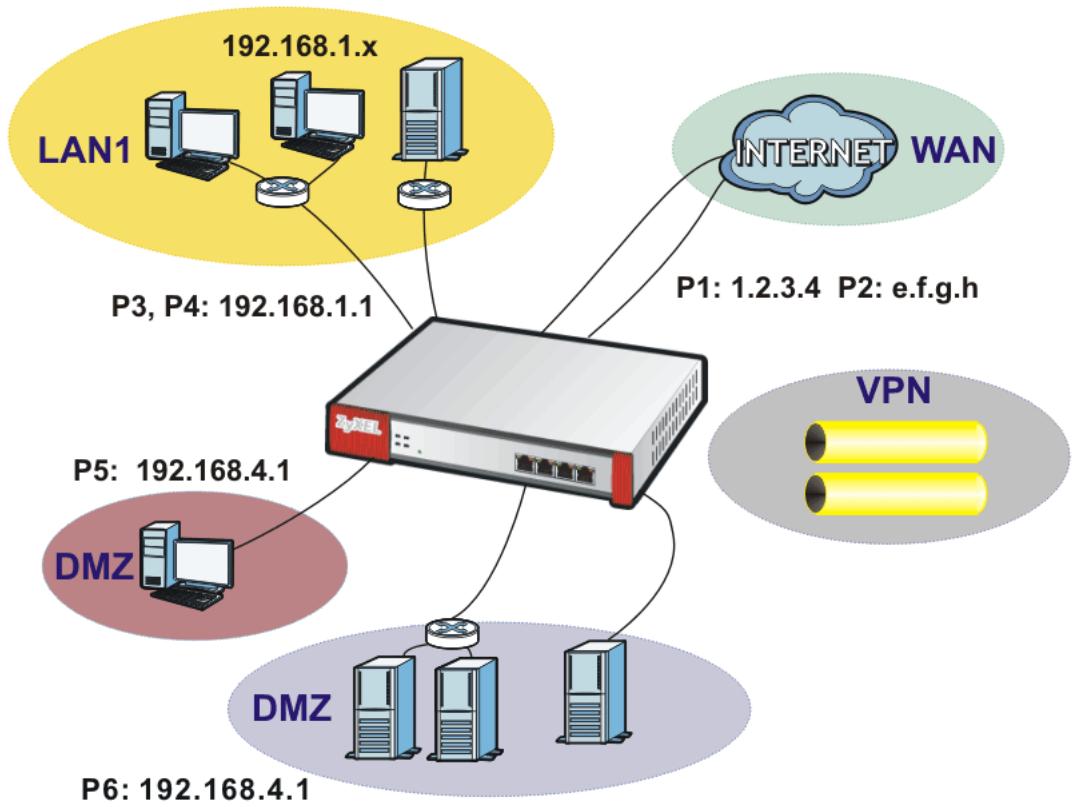
Figure 54 Ethernet Interface, Port Roles, and Zone Configuration Example
7.1.1 Configure a WAN Ethernet Interface
You need to assign the ZyWALL's wan1 interface a static IP address of 1.2.3.4.
Click Configuration > Network > Interface > Ethernet and double-click the wan1 interface's entry. Select Use Fixed IP Address and configure the IP address, subnet mask, and default gateway settings and click OK.
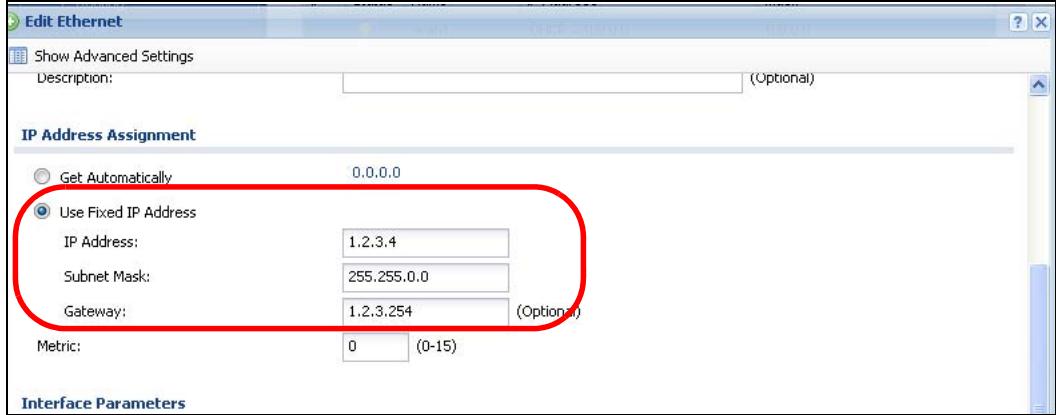
Figure 55 Configuration > Network > Interface > Ethernet > Edit wan1
7.1.2 Configure Port Roles
Here is how to convert port P5 from the lan2 interface and add it to the dmz interface.
1 Click Configuration > Network > Interface > Role.
2 Under P5 select the dmz (DMZ) radio button and click Apply.
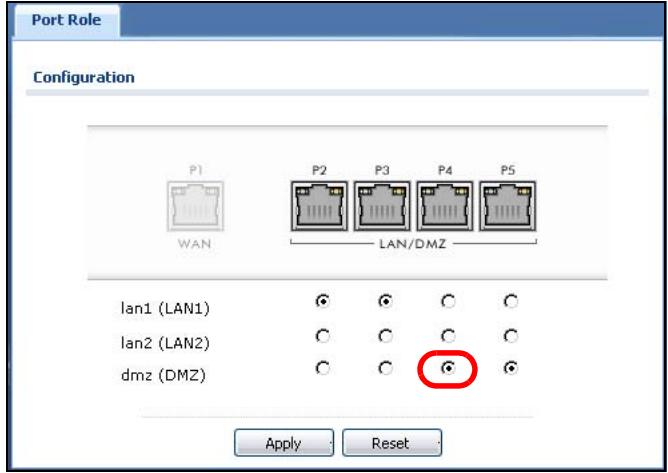
Figure 56 Configuration > Network > Interface > Port Roles Example
7.1.3 Configure the DMZ Interface for a Local Network
Here is how to set the dmz interface (created in the previous section) for a separate local network. It uses 192.168.4.1 as its IP address and has a DHCP server to distribute IP addresses to connected DHCP clients.
1 Click Configuration > Network > Interface > Ethernet and double-click the Ian2 interface's entry.
The Interface Type should be internal.
Set the IP Address to 192.168.4.1 and the Subnet Mask to 255.255.255.0.
Set DHCP to DHCP Server and click OK.
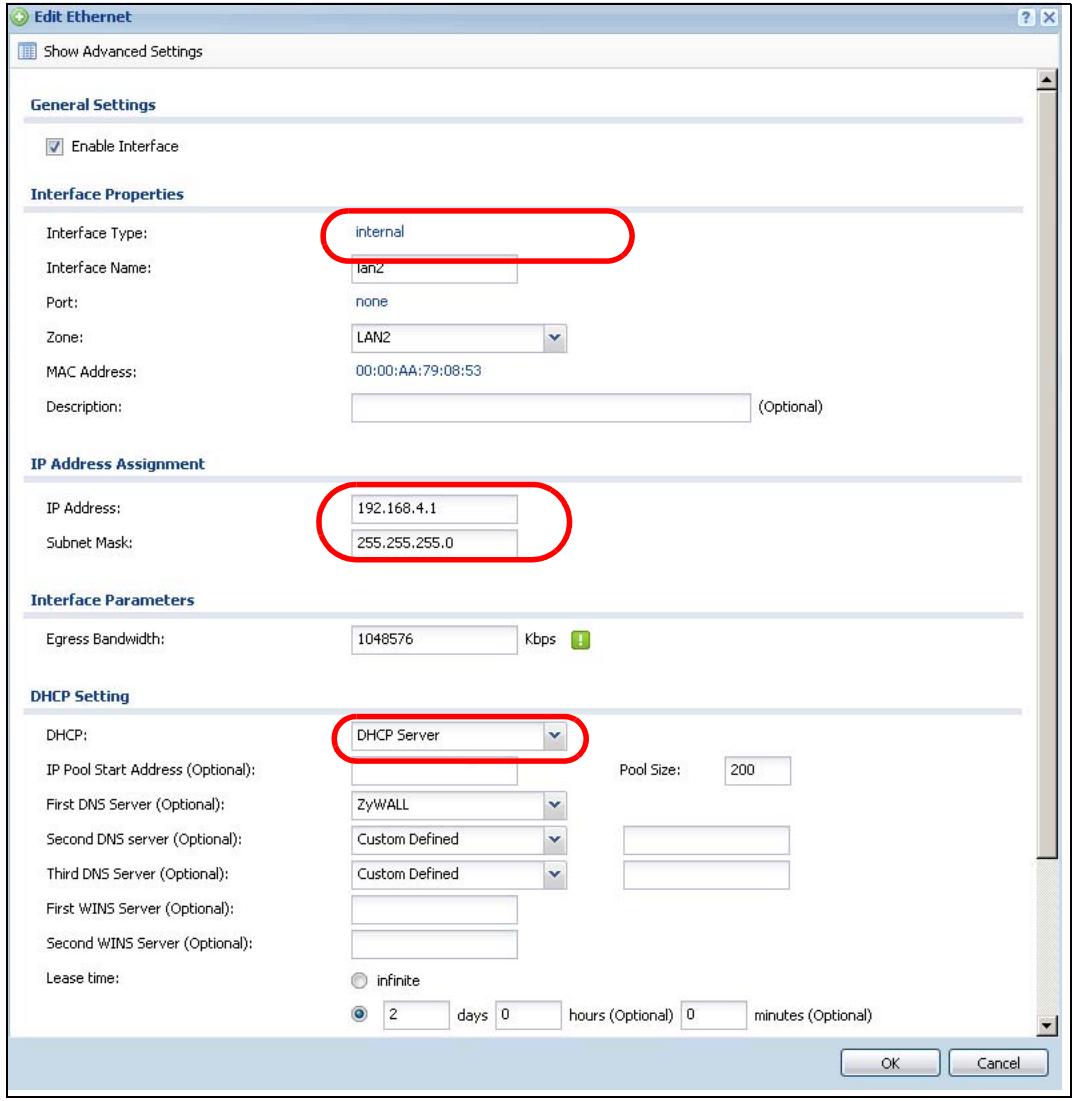
Figure 57 Configuration > Network > Interface > Ethernet > Edit lan2
7.1.4 Configure Zones
Do the following to create a VPN zone.
1 Click Configuration > Network > Zone and then the Add icon.
2 Enter VPN as the name, select WIZ_VPN_Connection and move it to the Member box and click OK.
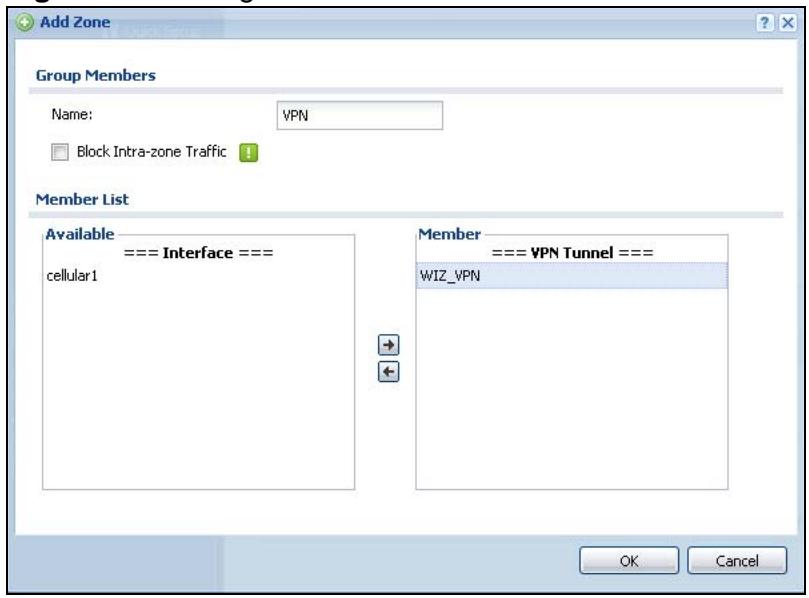
Figure 58 Configuration > Network > Zone > WAN Edit
7.2 How to Configure a Cellular Interface
Use 3G cards for cellular WAN (Internet) connections. Table 229 on page 741 lists the compatible 3G devices. In this example you connect the 3G USB card before you configure the cellular interfaces but is also possible to reverse the sequence.
1 Make sure the 3G device's SIM card is installed.
2 Connect the 3G device to one of the ZyWALL's USB ports.
3 Click Configuration > Network > Interface > Cellular. Select the 3G device's entry and click Edit.
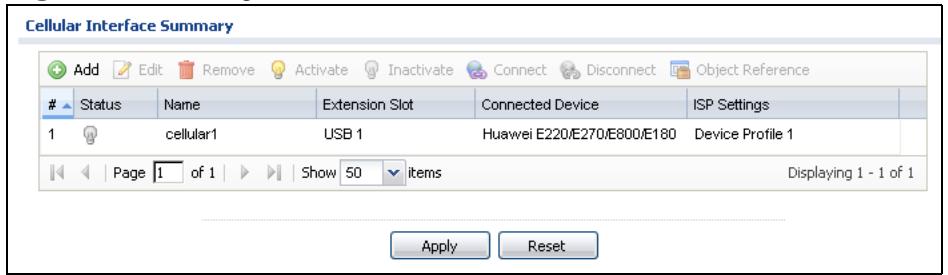
Figure 59 Configuration > Network > Interface > Cellular
4 Enable the interface and add it to a zone. It is highly recommended that you set the Zone to WAN to apply your WAN zone security settings to this 3G connection. Leaving Zone set to none has the ZyWALL not apply any security settings to the 3G connection. Enter the PIN Code provided by the cellular 3G service provider (0000 in this example).
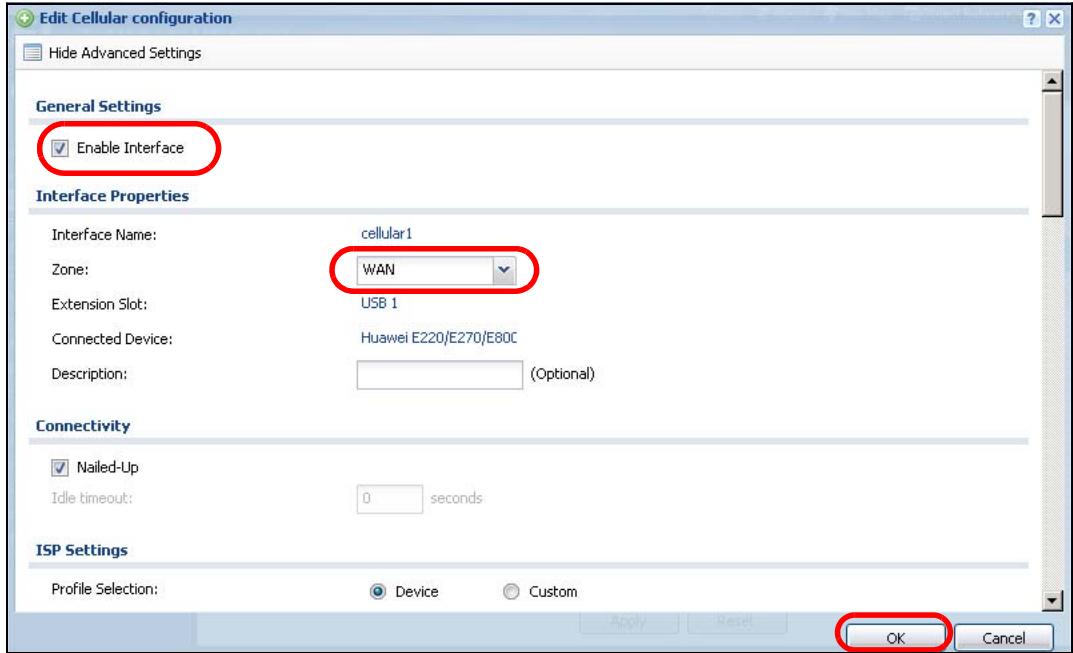
Figure 60 Configuration > Network > Interface > Cellular > Edit
Note: The Network Selection is set to Auto by default. This means that the 3G USB modem may connect to another 3G network when your service provider is not in range or when necessary. Select Home to have the 3G device connect only to your home network or local service provider. This prevents you from being charged using the rate of a different ISP.
5 Go to the Dashboard. The Interface Status Summary section should contain a "cellular" entry. When its connection status is Connected you can use the 3G connection to access the Internet.
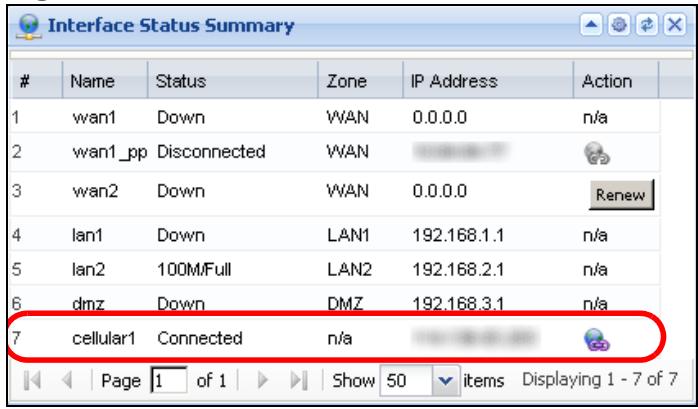
Figure 61 Status
6 The ZyWALL automatically adds the cellular interface to the system default WAN trunk. If the ZyWALL is using a user-configured trunk as its default trunk and you want this cellular interface to be part of it, use the Trunk screens to add it.
This way the ZyWALL can automatically balance the traffic load amongst the available WAN connections to enhance overall network throughput. Plus, if a WAN connection goes down, the ZyWALL still sends traffic through the remaining WAN connections. For a simple test, disconnect all of the ZyWALL's wired WAN connections. If you can still access the Internet, your cellular interface is properly configured and your cellular device is working.
To fine-tune the load balancing configuration, see Chapter 12 on page 289. See also Section 7.3 on page 113 for an example.
7.3 How to Configure Load Balancing
This example shows how to configure a trunk for two WAN connections (to the Internet). The available bandwidth for the connections is 1Mbps (wan1) and 512 Kbps (cellular1) respectively. As these connections have different bandwidth, use the Weighted Round Robin algorithm to send traffic to wan1 and cellular1 in a 2:1 ratio.

Figure 62 Trunk Example
You do not have to change many of the ZyWALL's settings from the defaults to set up this trunk. You only have to set up the outgoing bandwidth on each of the WAN interfaces and configure the WAN_TRUNK trunk's load balancing settings.
7.3.1 Set Up Available Bandwidth on Ethernet Interfaces
Here is how to set a limit on how much traffic the ZyWALL tries to send out through each WAN interface.
1 Click Configuration > Network > Interface > Ethernet and double-click the wan1 entry. Enter the available bandwidth (1000 kbps) in the Egress Bandwidth field. Click OK.
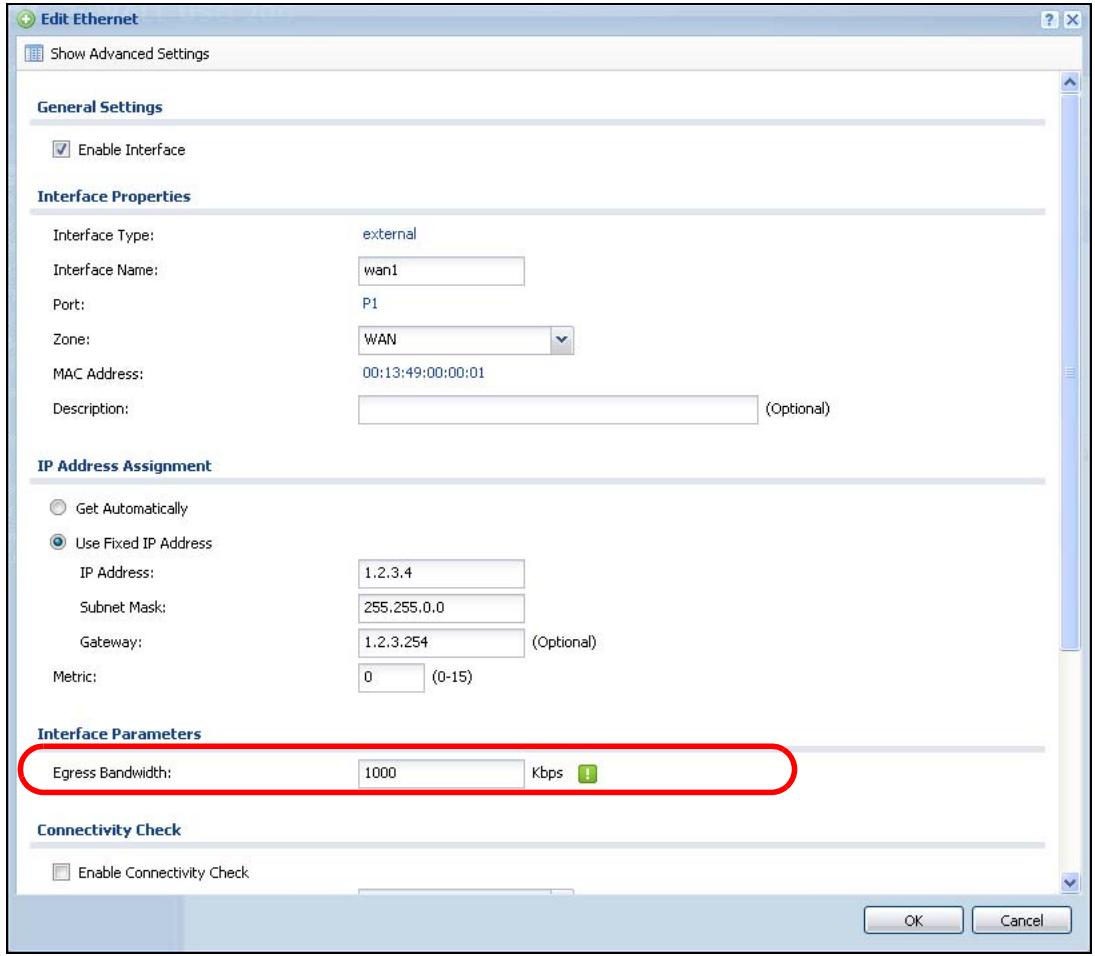
Figure 63 Configuration > Network > Interface > Ethernet > Edit (wan1)
2 Go to Configuration > Network > Interface > Cellular. Double-click the cellular1 entry and set the egress bandwidth for cellular1 to 512 Kbps.
7.3.2 Configure the WAN Trunk
1 Click Configuration > Network > Interface > Trunk. Click the Add icon.
2 Name the trunk and set the Load Balancing Algorithm field to Weighted Round Robin.
Add wan1 and enter 2 in the Weight column.
Add cellular1 and enter 1 in the Weight column.
Click OK.
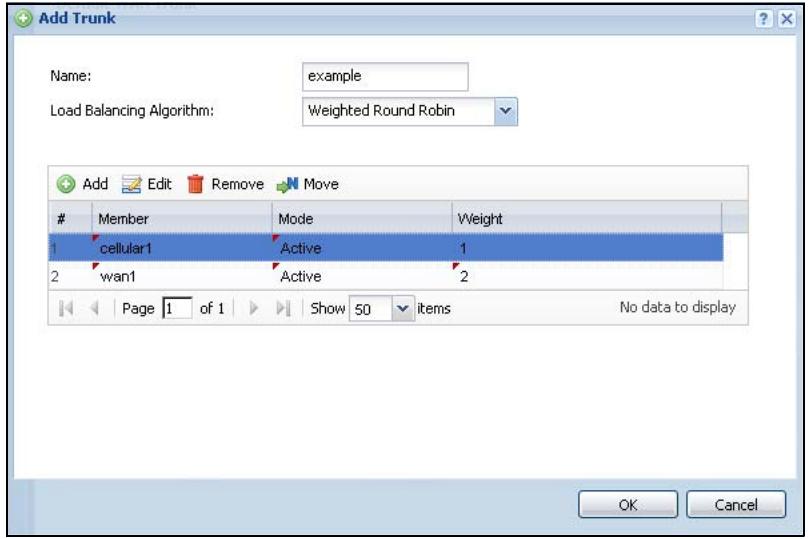
Figure 64 Configuration > Network > Interface > Trunk > Add
3 Select the trunk as the default trunk and click Apply.
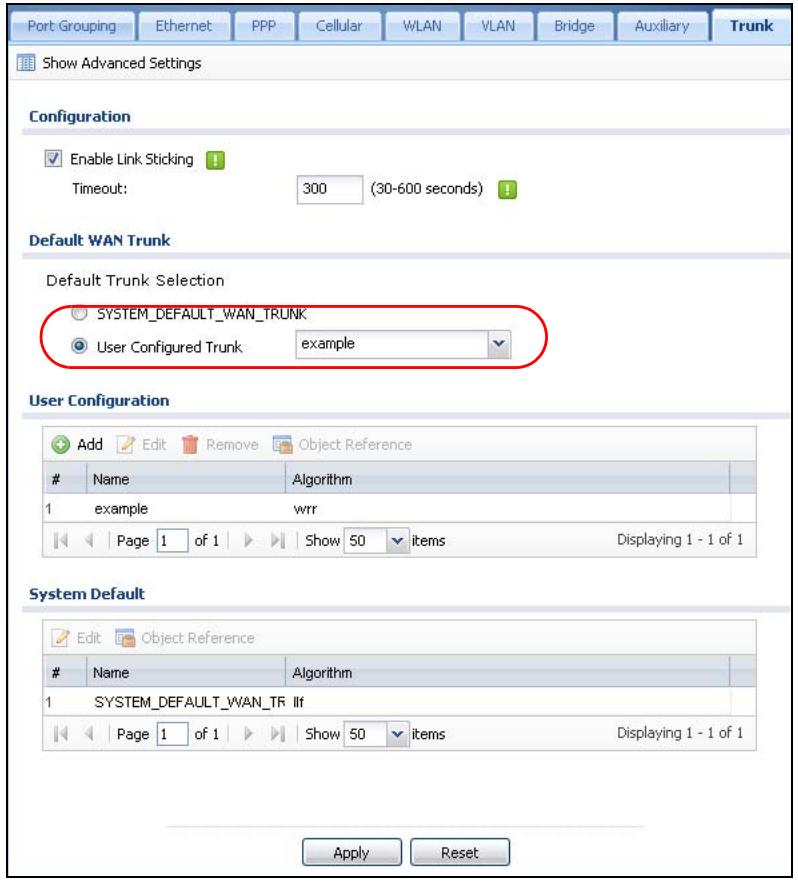
Figure 65 Configuration > Network > Interface > Trunk
7.4 How to Set Up an IPSec VPN Tunnel
This example shows how to use the IPSec VPN configuration screens to create the following VPN tunnel, see Section 5.4 on page 76 for details on the VPN quick setup wizard.
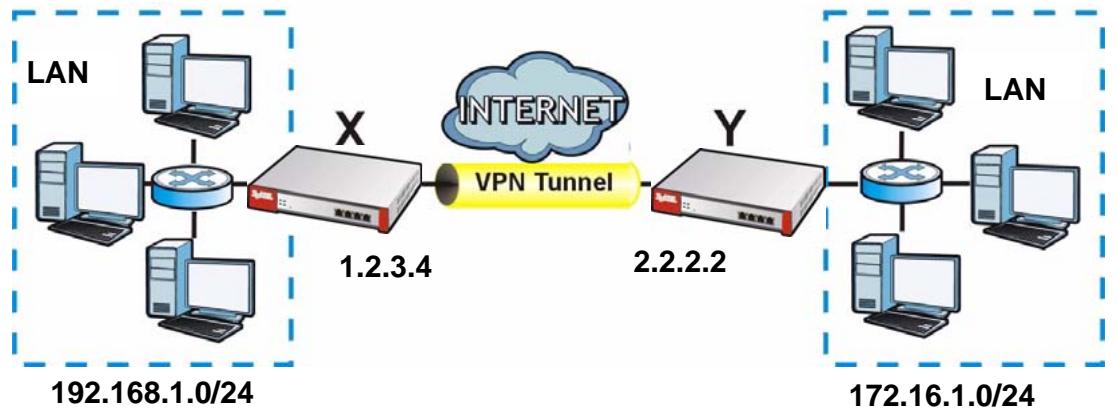
Figure 66 VPN Example
In this example, the ZyWALL is router X (1.2.3.4), and the remote IPSec router is router Y (2.2.2.2). Create the VPN tunnel between ZyWALL X's LAN subnet (192.168.1.0/24) and the LAN subnet behind peer IPSec router Y (172.16.1.0/24).
7.4.1 Set Up the VPN Gateway
The VPN gateway manages the IKE SA. You do not have to set up any other objects before you configure the VPN gateway because this VPN tunnel does not use any certificates or extended authentication.
1 Click Configuration > VPN > IPSec VPN > VPN Gateway, and then click the Add icon.
2 Enable the VPN gateway and name it ("VPN_GW_EXAMPLE"). For My Address, select Interface and wan1. For the Peer Gateway Address, select Static Address and enter 2.2.2.2 in the Primary field. For the Authentication, Select Pre-Shared Key and enter 12345678. Click OK.
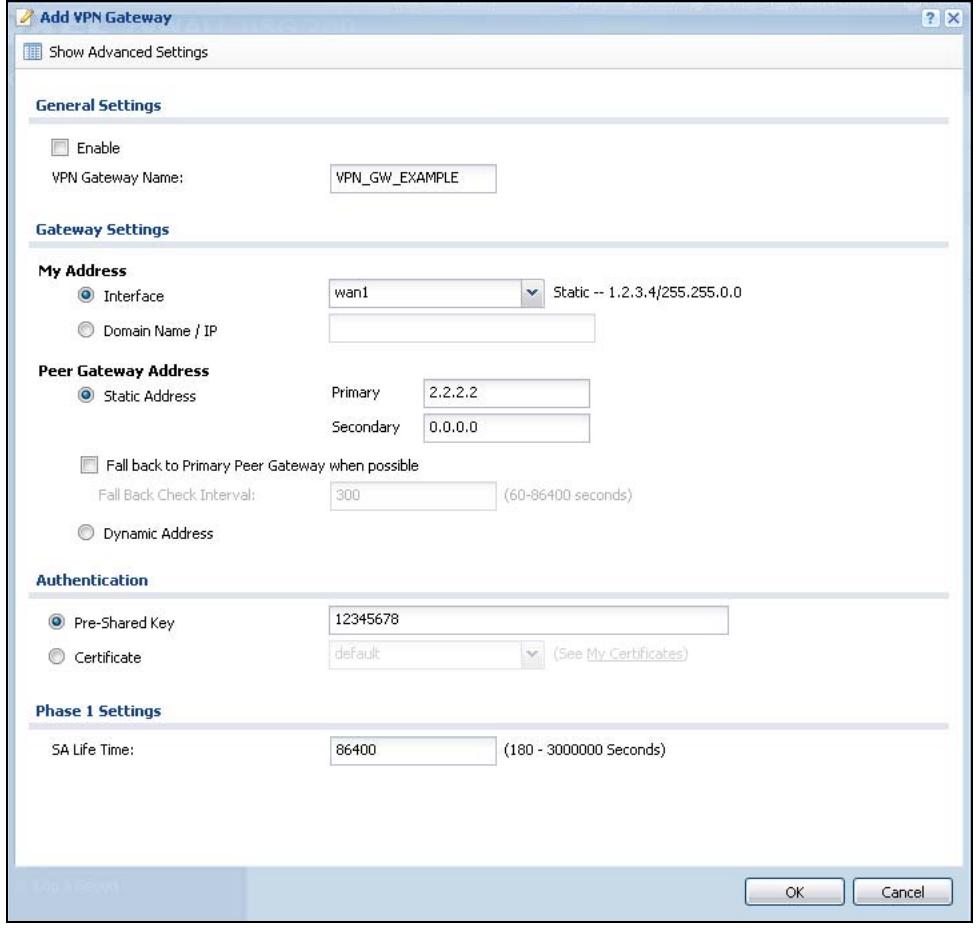
Figure 67 Configuration > VPN > IPSec VPN > VPN Gateway > Add
7.4.2 Set Up the VPN Connection
The VPN connection manages the IPSec SA. You have to set up the address objects for the local network and remote network before you can set up the VPN connection.
1 Click Configuration > Object > Address. Click the Add icon.
2 Give the new address object a name ("VPN_REMOTE_SUBNET"), change the Address Type to SUBNET. Set up the Network field to 172.16.1.0 and the Netmask to 255.255.255.0. Click OK.
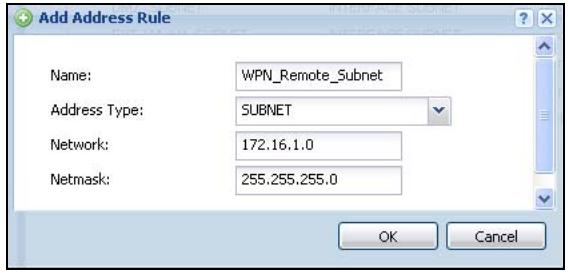
Figure 68 Configuration > Object > Address > Add
3 Click Configuration > VPN > IPSec VPN > VPN Connection. Click the Add icon.
4 Enable the VPN connection and name it ("VPN_CONN_EXAMPLE"). Under VPN Gateway select Site-to-site and the VPN gateway (VPN_GW_EXAMPLE). Under Policy, select LAN1_SUBNET for the local network and VPN_REMOTE_SUBNET for the remote. Click OK.
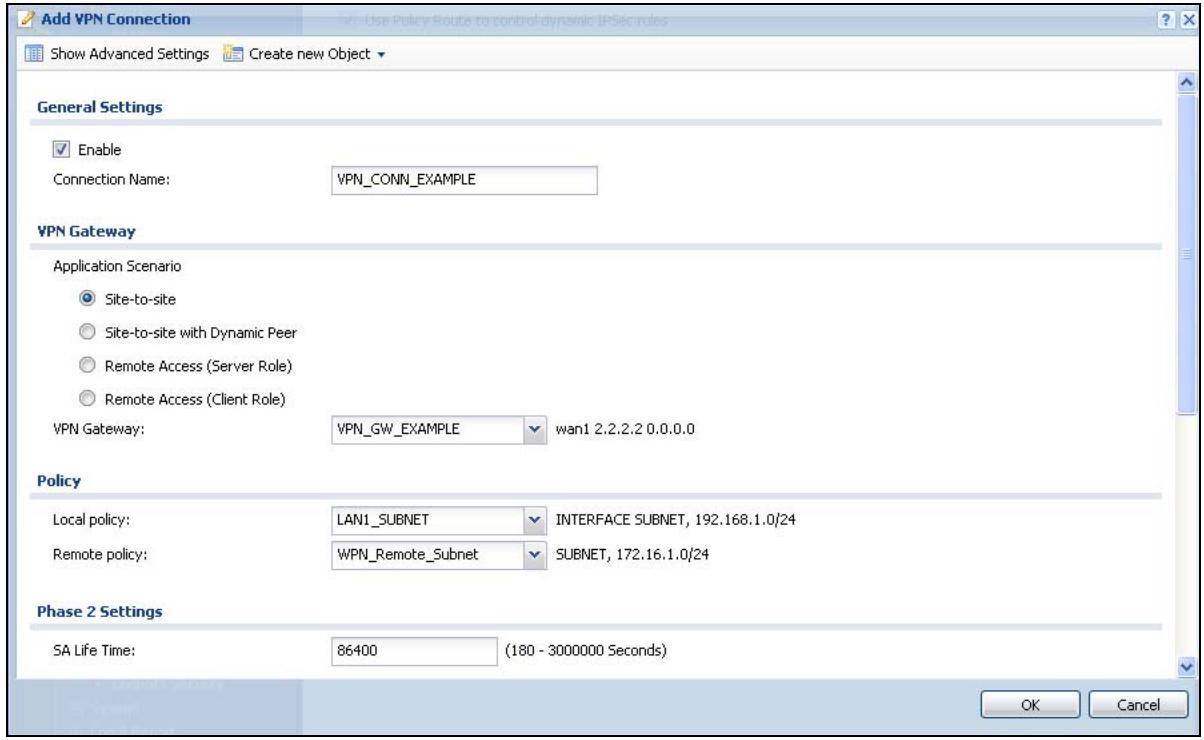
Figure 69 Configuration > VPN > IPSec VPN > VPN Connection > Add
5 Now set up the VPN settings on the peer IPSec router and try to establish the VPN tunnel. To trigger the VPN, either try to connect to a device on the peer IPSec router's LAN or click Configuration > VPN > IPSec VPN > VPN Connection and use the VPN connection screen's Connect icon.
7.4.3 Configure Security Policies for the VPN Tunnel
You configure security policies based on zones. The new VPN connection was assigned to the IPSec_VPN zone. By default, there are no security restrictions on the IPSec_VPN zone, so, next, you should set up security policies (firewall rules and so on) that apply to the IPSec_VPN zone. Make sure all firewalls between the ZyWALL and remote IPSec router allow UDP port 500 (IKE) and IP protocol 50 (AH) or 51 (ESP). If you enable NAT traversal, all firewalls between the ZyWALL and remote IPSec router should also allow UDP port 4500.
7.5 How to Configure User-aware Access Control
You can configure many policies and security settings for specific users or groups of users. This is illustrated in the following example, where you will set up the following policies. This is a simple example that does not include priorities for different types of traffic. See Bandwidth Management on page 445 for more on bandwidth management.
Table 18 User-aware Access Control Example
| GROUP (USER) | WEB SURFING | WEB BANDWIDTH | MSN | LAN1-TO-DMZ ACCESS |
| Finance (Leo) | Yes | 200K | No | Yes |
| Engineer (Steven) | Yes | 100K | No | No |
| Sales (Debbie) | Yes | 100K | Yes (M-F, 08:30~18:00) | Yes |
| Boss (Andy) | Yes | 100K | Yes | Yes |
| Guest (guest) | Yes | 50K | No | No |
| Others | No | --- | No | No |
The users are authenticated by an external RADIUS server at 192.168.1.200.
First, set up the user accounts and user groups in the ZyWALL. Then, set up user authentication using the RADIUS server. Finally, set up the policies in the table above.
The ZyWALL has its default settings.
7.5.1 Set Up User Accounts
Set up one user account for each user account in the RADIUS server. If it is possible to export user names from the RADIUS server to a text file, then you might create a script to create the user accounts instead. This example uses the Web Configurator.
1 Click Configuration > Object > User/Group > User. Click the Add icon.
2 Enter the same user name that is used in the RADIUS server, and set the User Type to ext-user because this user account is authenticated by an external server. Click OK.
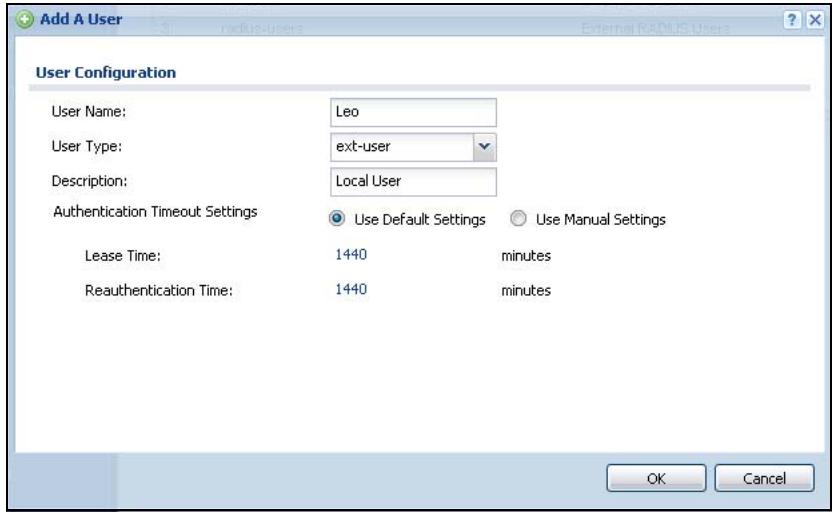
Figure 70 Configuration > Object > User/Group > User > Add
3 Repeat this process to set up the remaining user accounts.
7.5.2 Set Up User Groups
Set up the user groups and assign the users to the user groups.
1 Click Configuration > Object > User/Group > Group. Click the Add icon.
2 Enter the name of the group that is used in the example in Table 18 on page 120. In this example, it is "Finance". Then, select User/Leo and click the right arrow to move him to the Member list. This example only has one member in this group, so click OK. Of course you could add more members later.
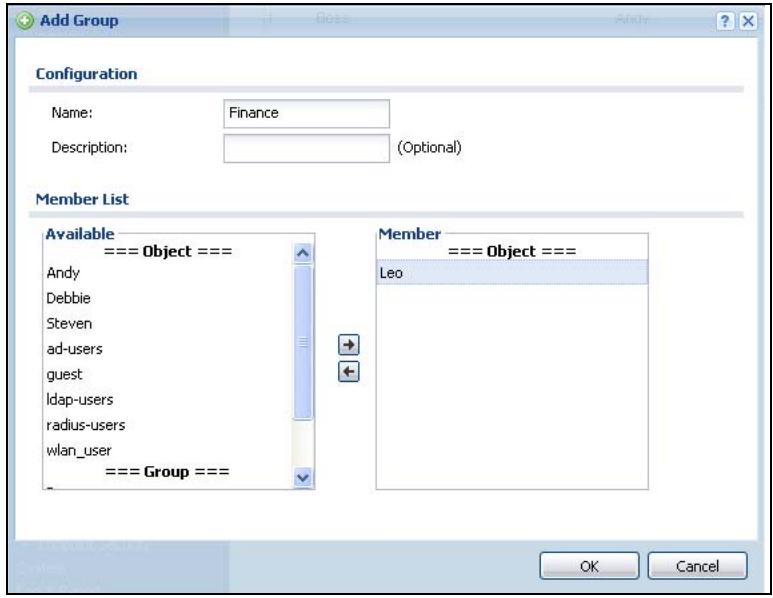
Figure 71 Configuration > Object > User/Group > Group > Add
3 Repeat this process to set up the remaining user groups.
7.5.3 Set Up User Authentication Using the RADIUS Server
This step sets up user authentication using the RADIUS server. First, configure the settings for the RADIUS server. Then, set up the authentication method, and configure the ZyWALL to use the authentication method. Finally, force users to log in to the ZyWALL before it routes traffic for them.
1 Click Configuration > Object > AAA Server > RADIUS. Double-click the radius entry. Configure the RADIUS server's address authentication port (1812 if you were not told otherwise), key, and click Apply.
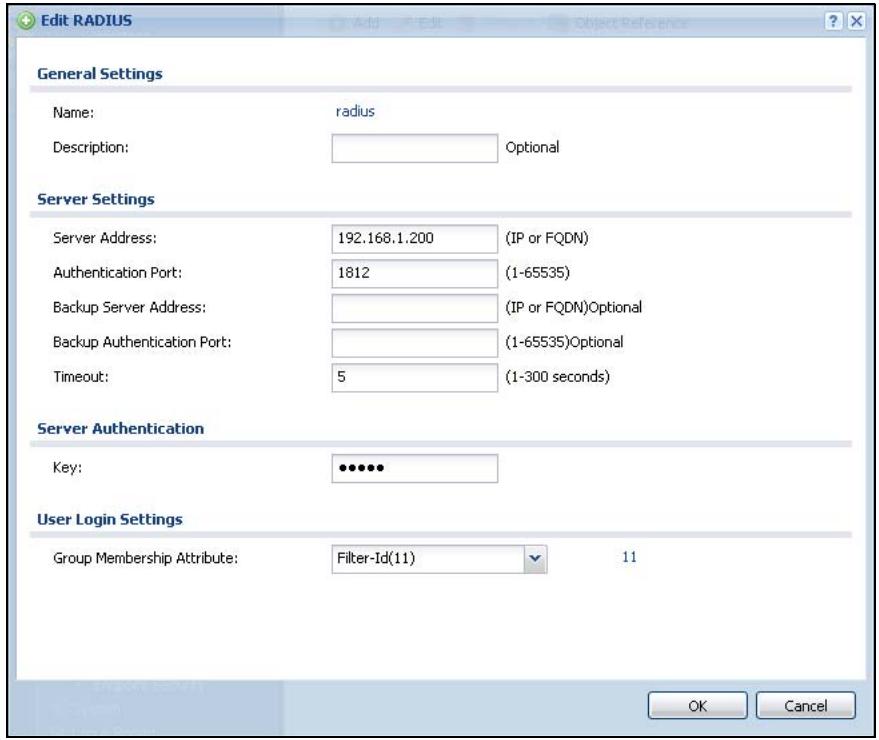
Figure 72 Configuration > Object > AAA Server > RADIUS > Add
2 Click Configuration > Object > Auth. method. Double-click the default entry. Click the Add icon. Select group radius because the ZyWALL should use the specified RADIUS server for authentication. Click OK.
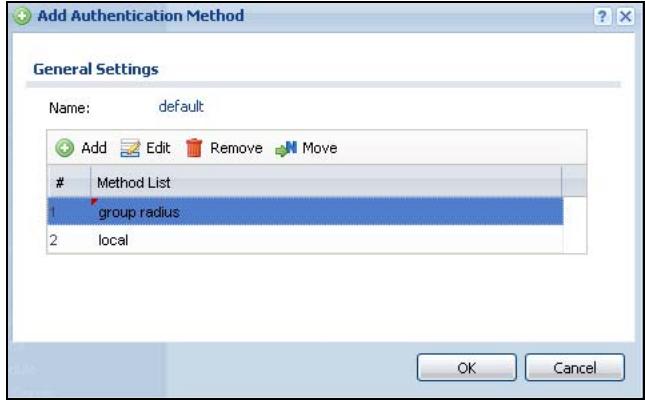
Figure 73 Configuration > Object > Auth. method > Add
3 Click Configuration > Auth. Policy. In the Authentication Policy Summary section, click the Add icon.
4 Set up a default policy that forces every user to log in to the ZyWALL before the ZyWALL routes traffic for them. Select Enable. Set the Authentication field to required, and make sure Force User Authentication is selected. Keep the rest of the default settings, and click OK.
Note: The users will have to log in using the Web Configurator login screen before they can use HTTP or MSN.
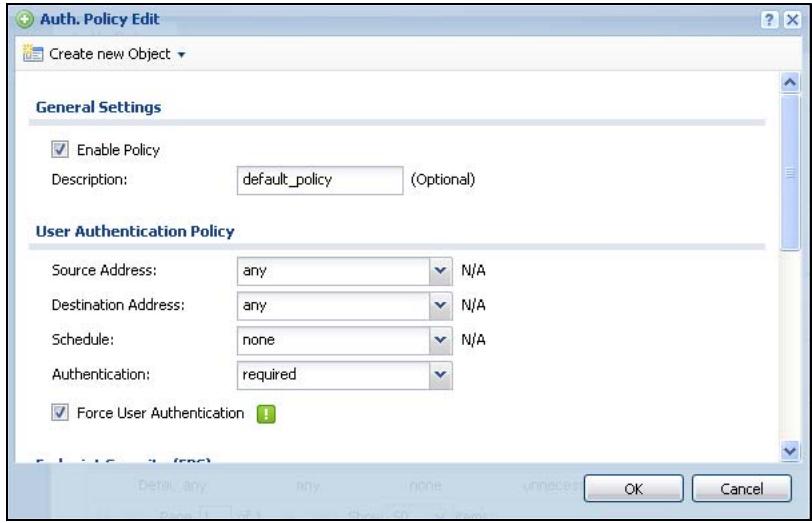
Figure 74 Configuration > Object > User/Group > Setting > Add (Force User Authentication Policy)
When the users try to browse the web (or use any HTTP/HTTPS application), the Login screen appears. They have to log in using the user name and password in the RADIUS server.
7.6 How to Use a RADIUS Server to authenticate User Accounts based on Groups
The previous example showed how to have a RADIUS server authenticate individual user accounts. If the RADIUS server has different user groups distinguished by the value of a specific attribute, you can configure the make a couple of slight changes in the configuration to have the RADIUS server authenticate groups of user accounts defined in the RADIUS server.
1 Click Configuration > Object > AAA Server > RADIUS. Double-click the radius entry. Besides configuring the RADIUS server's address, authentication port, and key; set the Group Membership Attribute field to the attribute that the ZyWALL is to check to determine to which group a user belongs. This example uses Class. This attribute's value is called a group identifier; it determines to which group a user belongs. In this example the values are Finance, Engineer, Sales, and Boss.
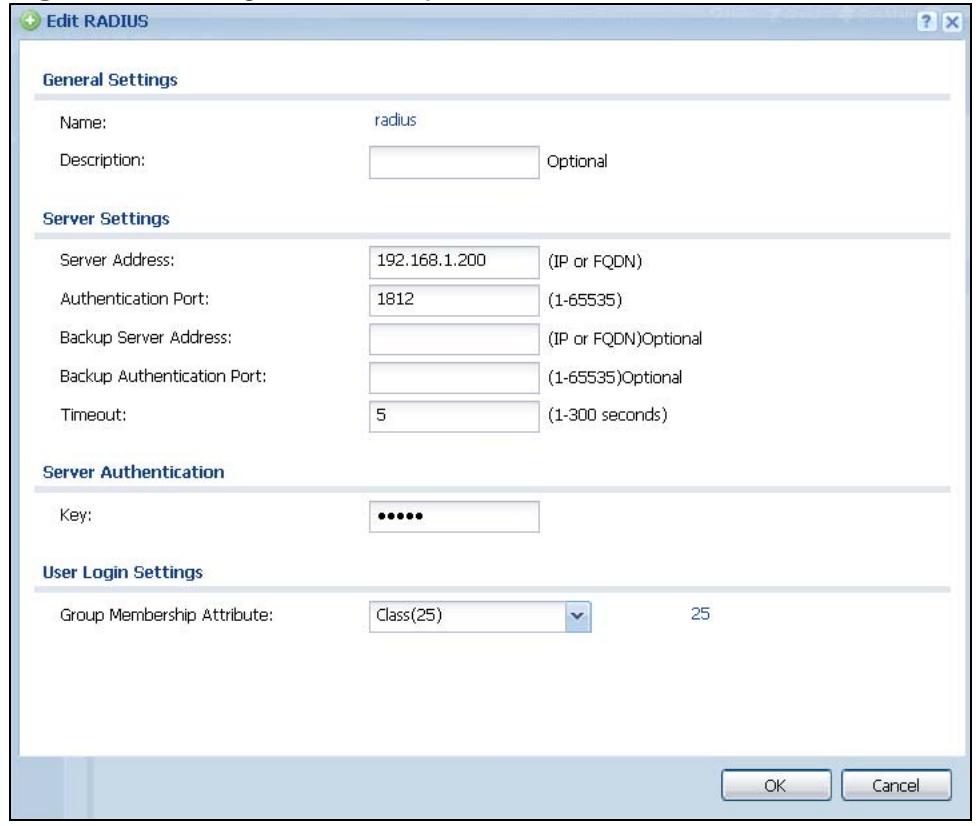
Figure 75 Configuration > Object > AAA Server > RADIUS > Add
2 Now you add ext-group-user user objects to identify groups based on the group identifier values. Set up one user account for each group of user accounts in the RADIUS server. Click Configuration > Object > User/Group > User. Click the Add icon.
Enter a user name and set the User Type to ext-group-user. In the Group Identifier field, enter Finance, Engineer, Sales, or Boss and set the Associated AAA Server Object to radius.
Figure 76 Configuration > Object > User/Group > User > Add
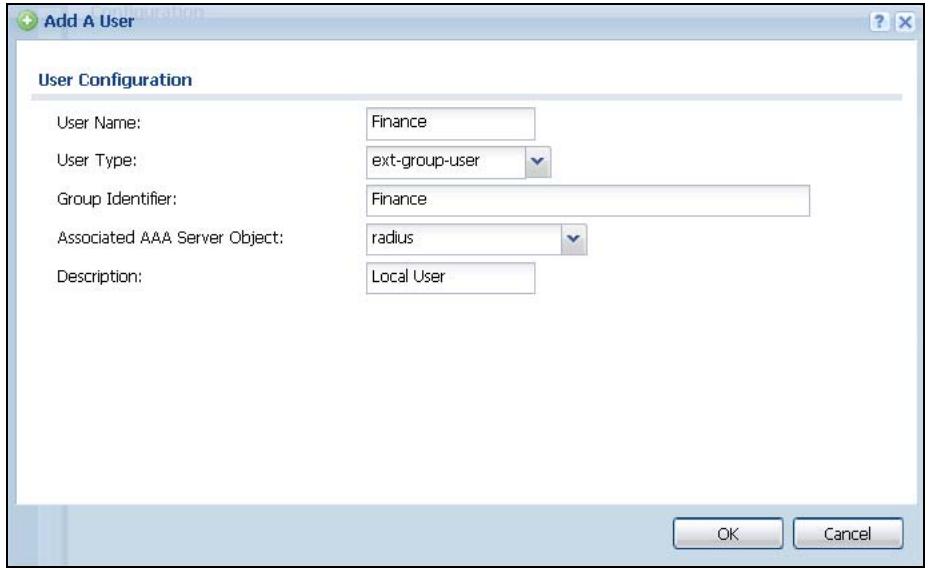
3 Repeat this process to set up the remaining groups of user accounts.
7.7 How to Use Endpoint Security and Authentication Policies
Here is how to use endpoint security to make sure that users' computers meet specific security requirements before they are allowed to access the network. This example requires users to have Kaspersky Internet security or anti-virus software on their computers before they can access the network.
7.7.1 Configure the Endpoint Security Objects
Click Configuration > Object > Endpoint Security > Add to open the Endpoint Security Edit screen.
- Select Endpoint must comply with all checking items.
-
Set the Endpoint Operating System to Windows and the Window Version to Windows 7.
-
Select Endpoint must have Personal Firewall installed and move the Kaspersky Internet Security entries to the allowed list (you can double-click an entry to move it).
- Select Endpoint must have Anti-Virus software installed and move the Kaspersky Internet Security and Kaspersky Anti-Virus anti-virus software entries to the allowed list.
The following figure shows the configuration screen example.
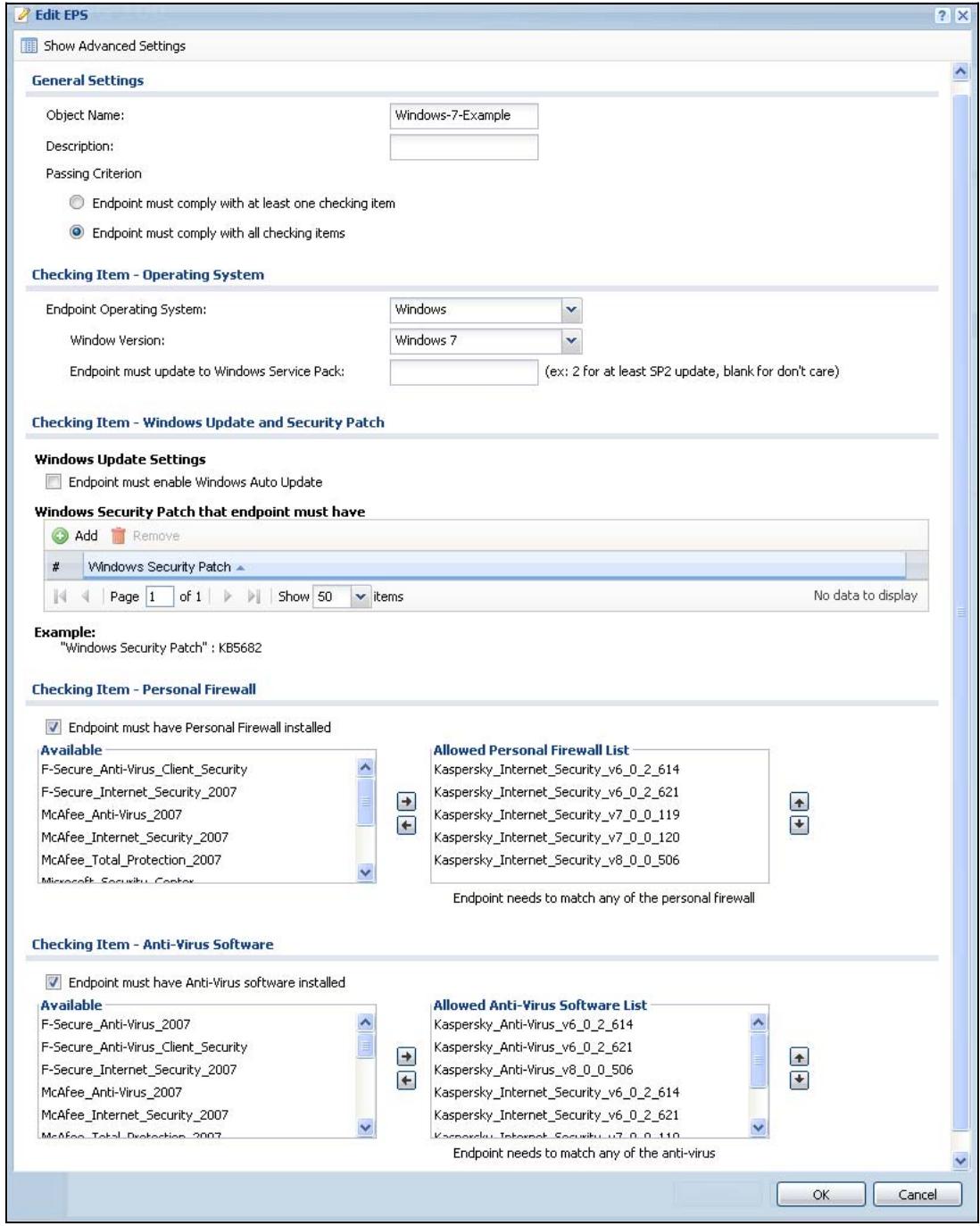
Figure 77 Configuration > Object > Endpoint Security > Add
Repeat as needed to create endpoint security objects for other Windows operating system versions.
7.7.2 Configure the Authentication Policy
Click Configuration > Auth. Policy > Add to open the Endpoint Security Edit screen. Use this screen to configure an authentication policy to use endpoint security objects.
- Enable the policy and name it.
- Set the Source Address to LAN1 and the Destination Address to any, the Schedule set to none, and Authentication set to required to apply this policy to all users.
- Select Force User Authentication to redirect the HTTP traffic of users who are not yet logged in to the ZyWALL's login screen.
- Enable EPS checking and move the EPS objects you created to the selected list.
- Click OK.
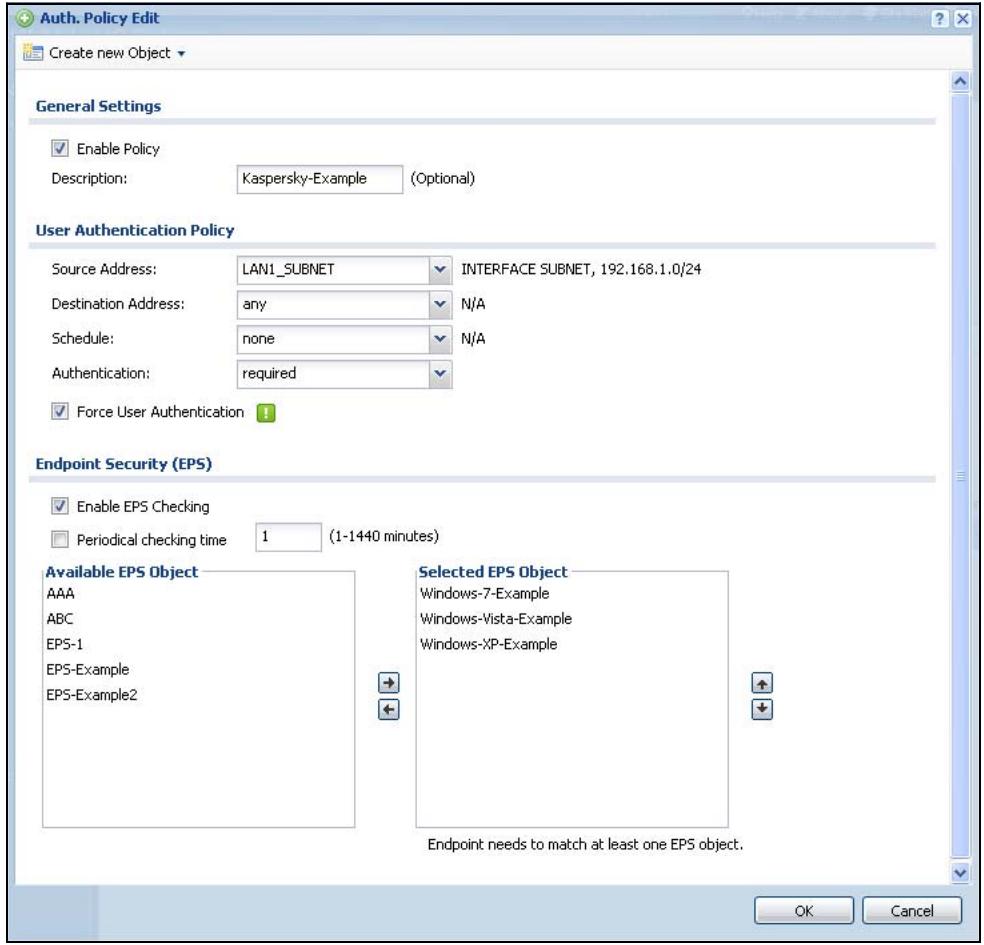
Figure 78 Configuration >Auth. Policy >Add
4 Turn on authentication policy and click Apply.
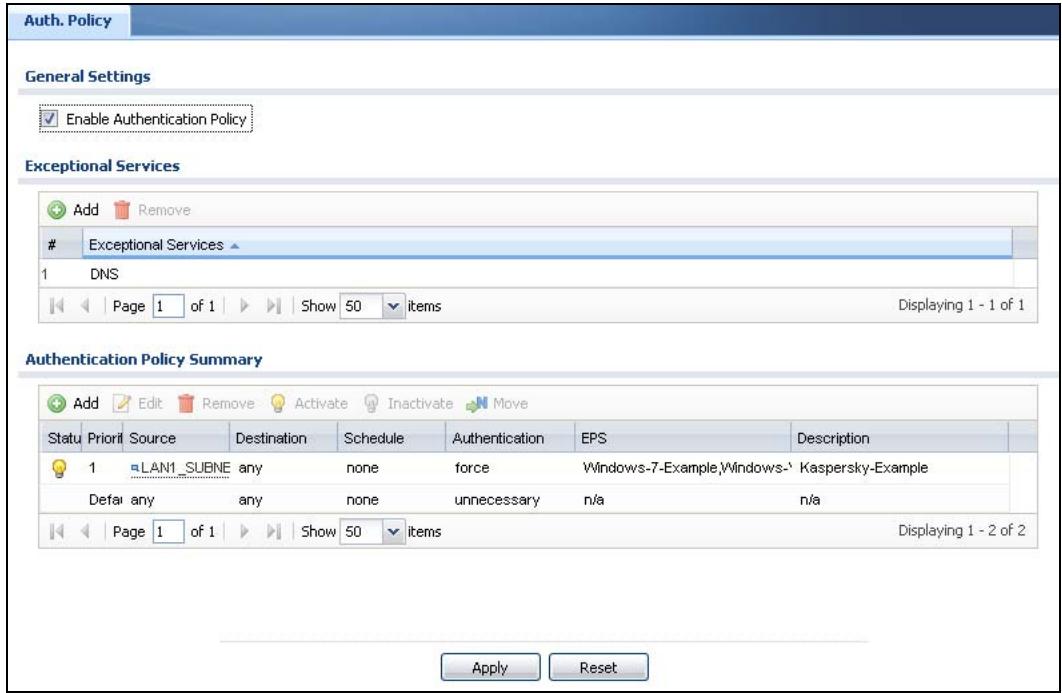
Figure 79 Configuration >Auth. Policy
The following figure shows an error message example when a user's computer does not meet an endpoint security object's requirements. Click Close to return to the login screen.
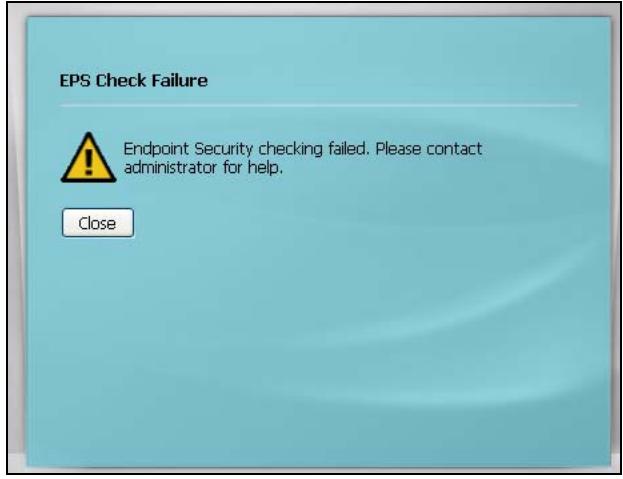
Figure 80 Example: Endpoint Security Error Message
7.8 How to Configure Service Control
Service control lets you configure rules that control HTTP and HTTPS management access (to the Web Configurator) and separate rules that control HTTP and HTTPS
user access (logging into SSL VPN for example). See Chapter 43 on page 629 for more on service control.
The To-ZyWALL firewall rules apply to any kind of HTTP or HTTPS connection to the ZyWALL. They do not distinguish between administrator management access and user access. If you configure service control to allow management or user HTTP or HTTPS access, make sure the firewall is not configured to block that access.
7.8.1 Allow HTTPS Administrator Access Only From the LAN
This example configures service control to block administrator HTTPS access from all zones except the LAN1.
1 Click Configuration > System > WWW.
2 In HTTPS Admin Service Control, click the Add icon.
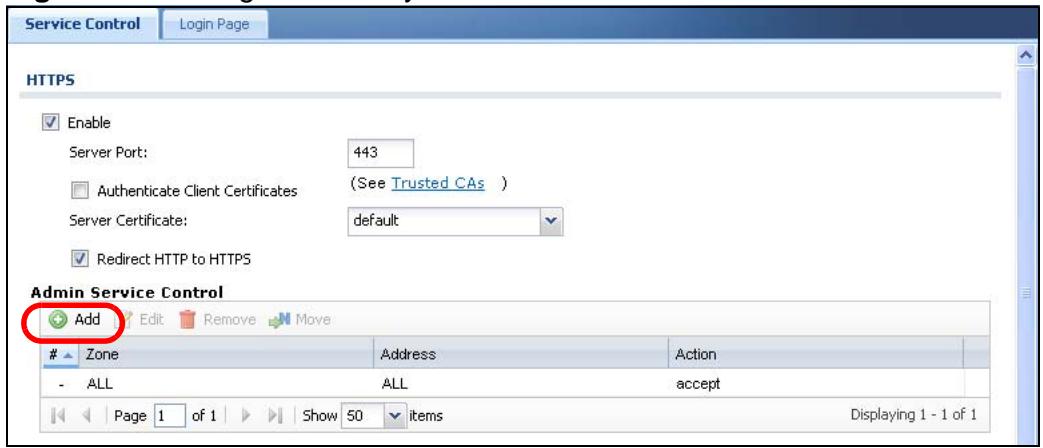
Figure 81 Configuration > System > WWW
3 In the Zone field select LAN1 and click OK.
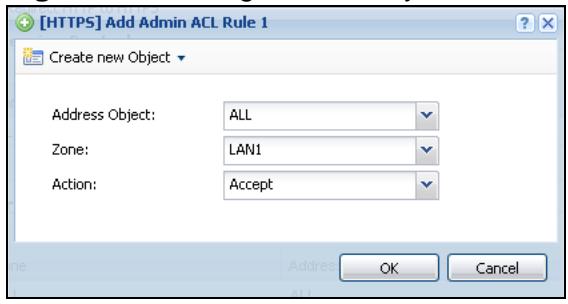
Figure 82 Configuration > System > WWW > Service Control Rule Edit
4 Select the new rule and click the Add icon.
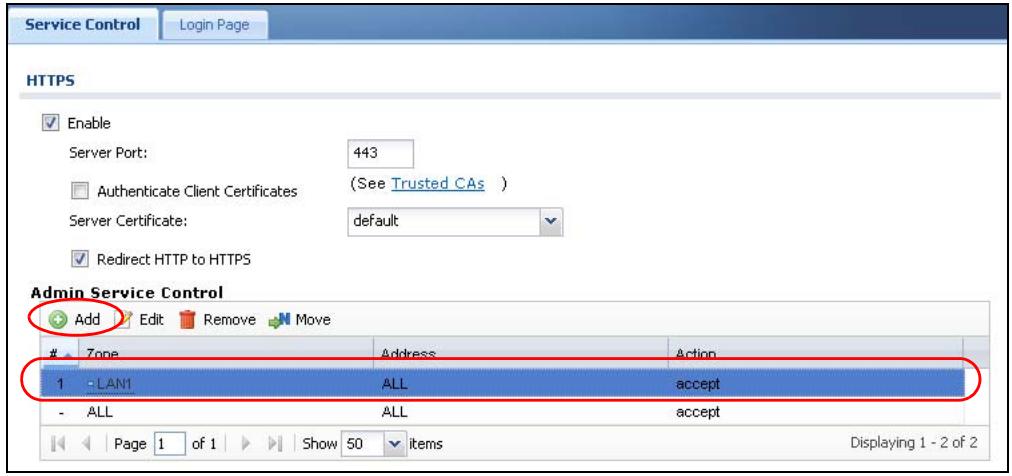
Figure 83 Configuration > System > WWW (First Example Admin Service Rule Configured)
5 In the Zone field select ALL and set the Action to Deny. Click OK.
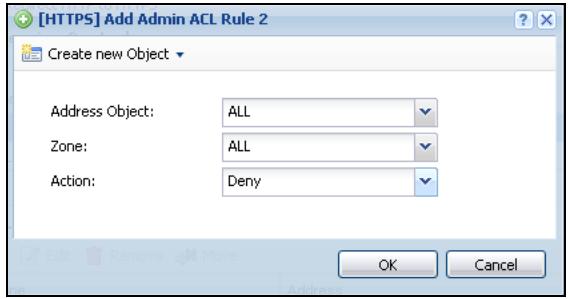
Figure 84 Configuration > System > WWW > Service Control Rule Edit
6 Click Apply.
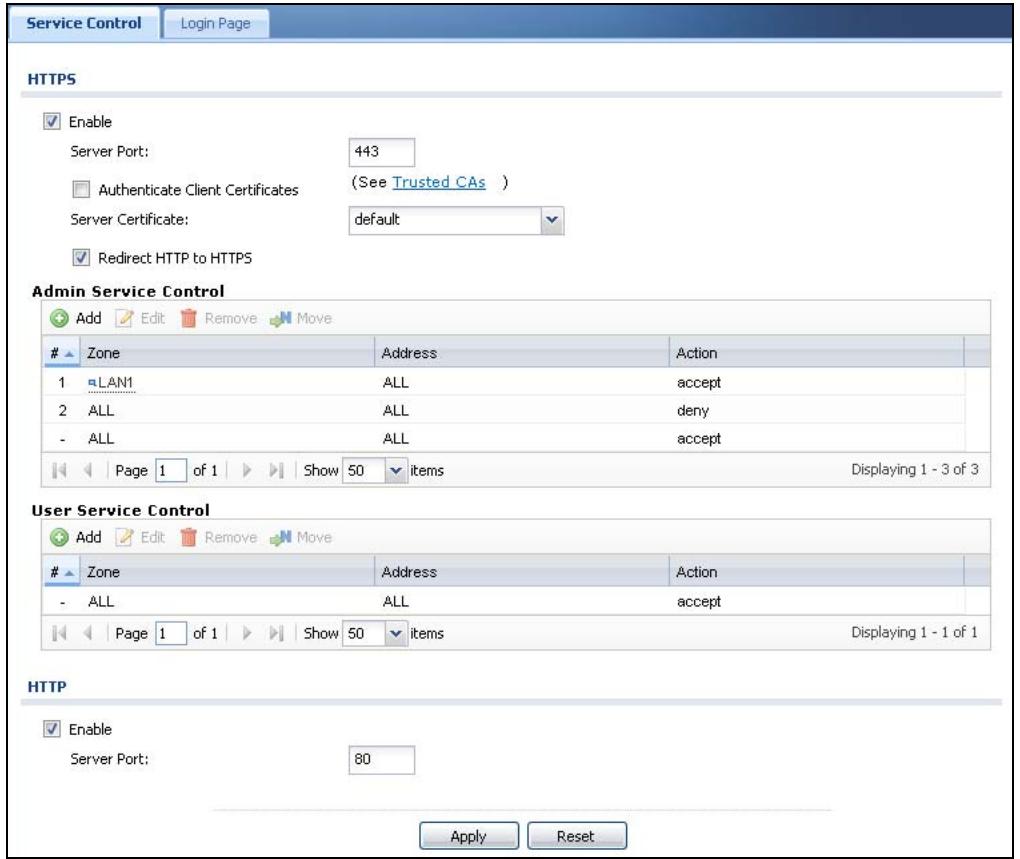
Figure 85 Configuration > System > WWW (Second Example Admin Service Rule Configured)
Now administrator access to the Web Configurator can only come from the LAN1 zone. Non-admin users can still use HTTPS to log into the ZyWALL from any of the ZyWALL's zones (to use SSL VPN for example).
7.9 How to Allow Incoming H.323 Peer-to-peer Calls
Suppose you have a H.323 device on the LAN1 for VoIP calls and you want it to be able to receive peer-to-peer calls from the WAN. Here is an example of how to configure NAT and the firewall to have the ZyWALL forward H.323 traffic destined
for wan1 IP address 10.0.0.8 to a H.323 device located on the LAN and using IP address 192.168.1.56.

Figure 86 WAN to LAN H.323 Peer-to-peer Calls Example
7.9.1 Turn On the ALG
Click Configuration > Network > ALG. Select Enable H.323 ALG and Enable H.323 transformations and click Apply.
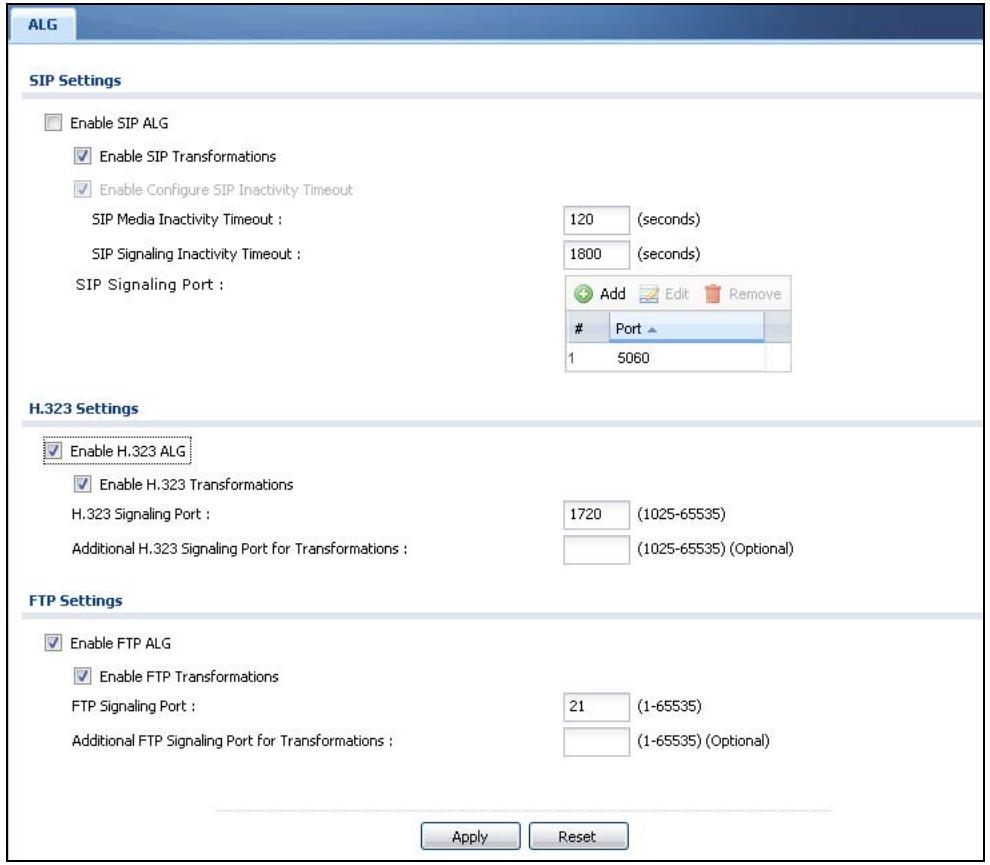
Figure 87 Configuration > Network > ALG
7.9.2 Set Up a NAT Policy For H.323
In this example, you need a NAT policy to forward H.323 (TCP port 1720) traffic received on the ZyWALL's 10.0.0.8 WAN IP address to LAN1 IP address 192.168.1.56.
1 Use Configuration > Object > Address > Add to create an address object for the public WAN IP address (called WAN_IP-for-H323 here). Then use it again to create an address object for the H.323 device's private LAN1 IP address (called LAN_H323 here).
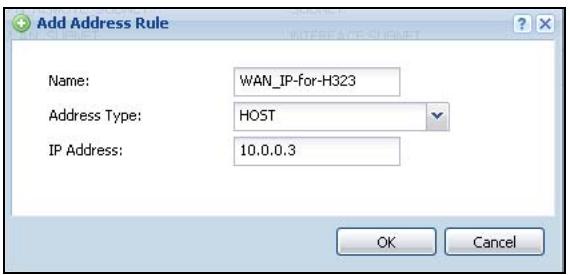
Figure 88 Create Address Objects
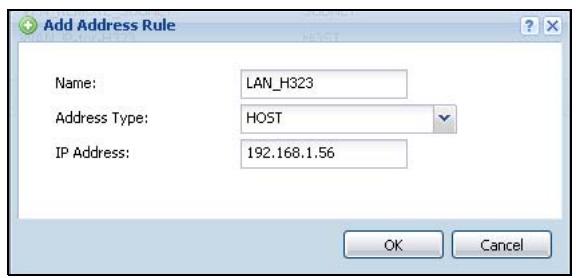
2 Click Configuration > Network > NAT > Add.
Configure a name for the rule (WAN-LAN_H323 here).
You want the LAN H.323 device to receive peer-to-peer calls from the WAN and also be able to initiate calls to the WAN so you set the Classification to NAT 1:1.
Set the Incoming Interface to wan1.
Set the Original IP to the WAN address object (WAN_IP-for-H323).
Set the Mapped IP to the H.323 device's LAN1 IP address object (LAN_H323).
Set the Port Mapping Type to Port, the Protocol Type to TCP and the original and mapped ports to 1720.
Click OK.
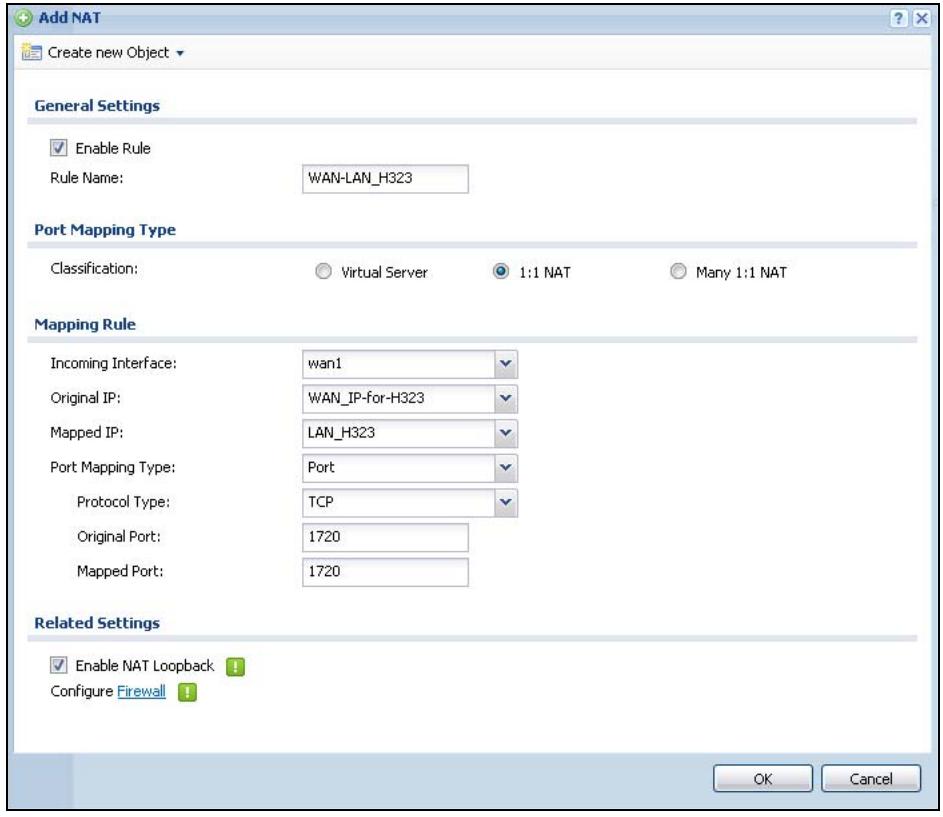
Figure 89 Configuration > Network > NAT > Add
7.9.3 Set Up a Firewall Rule For H.323
The default firewall rule for WAN-to-LAN traffic drops all traffic. Here is how to configure a firewall rule to allow H.323 (TCP port 1720) traffic received on the WAN_IP-for-H323 IP address to go to LAN1 IP address 192.168.1.56.
1 Click Configuration > Firewall > Add.
In the From field select WAN.
In the To field select LAN1.
Configure a name for the rule (WAN-to-LAN_H323 here).
Set the Destination to the H.323 device's LAN1 IP address object (LAN_H323). LAN_H323 is the destination because the ZyWALL applies NAT to traffic before applying the firewall rule.
Set the Service to H.323.
Click OK.
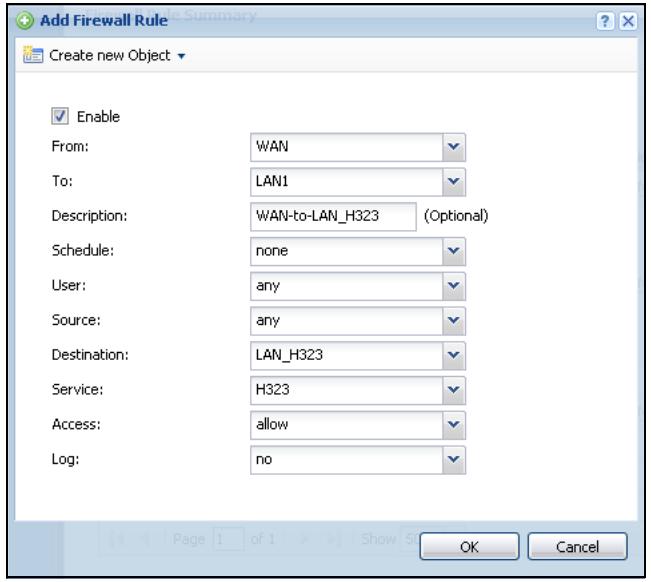
Figure 90 Configuration > Firewall > Add
7.10 How to Allow Public Access to a Web Server
This is an example of making an HTTP (web) server in the DMZ zone accessible from the Internet (the WAN zone). In this example you have public IP address 1.1.1.1 that you will use on the wan1 interface and map to the HTTP server's private IP address of 192.168.3.7.
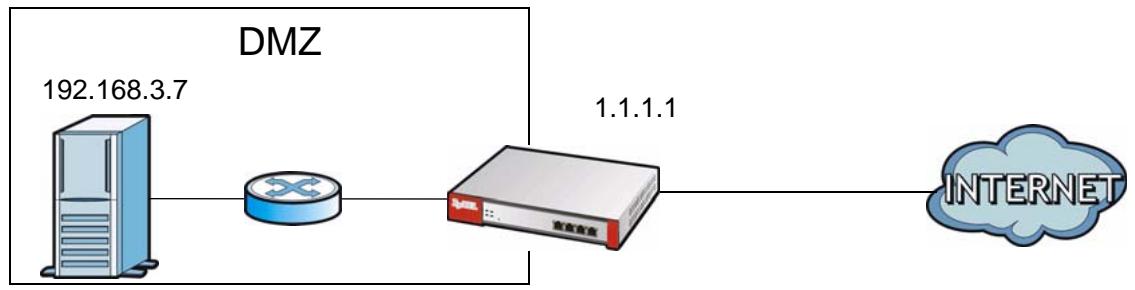
Figure 91 Public Server Example Network Topology
7.10.1 Create the Address Objects
Use Configuration > Object > Address > Add to create the address objects.
1 Create a host address object named DMZ=http://www.bmz.net for the HTTP server's private IP address of 192.168.3.7.
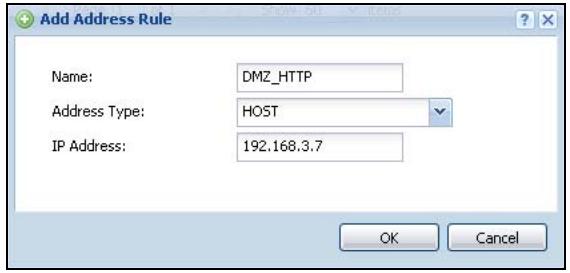
Figure 92 Creating the Address Object for the HTTP Server's Private IP Address
2 Create a host address object named PublicazonServer_IP for thepublic WAN IP address 1.1.1.1.
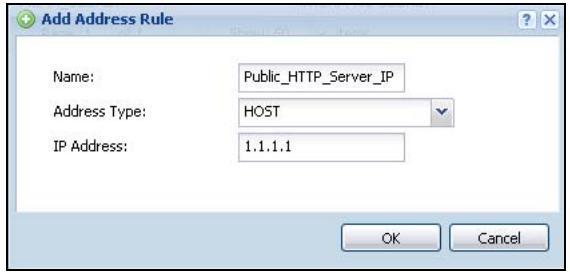
Figure 93 Creating the Address Object for thePublic IP Address
7.10.2 Configure NAT
You need a NAT rule to send HTTP traffic coming to IP address 1.1.1.1 on wan1 to the HTTP server's private IP address of 192.168.3.7. In the Configuration > Network > NAT screen, click the Add icon and create a new NAT entry as follows.
- Set the Incoming Interface to wan1.
- Set the Original IP to the Public_SSL_Protector_Protector object and the Mapped IP to the DMZ_SSL_Protector object.
-
HTTP traffic and the HTTP server in this example both use TCP port 80. So you set the Port Mapping Type to Port, the Protocol Type to TCP, and the original and mapped ports to 80.
-
Keep Enable NAT Loopback selected to allow users connected to other interfaces to access the HTTP server (see NAT Loopback on page 343 for details).
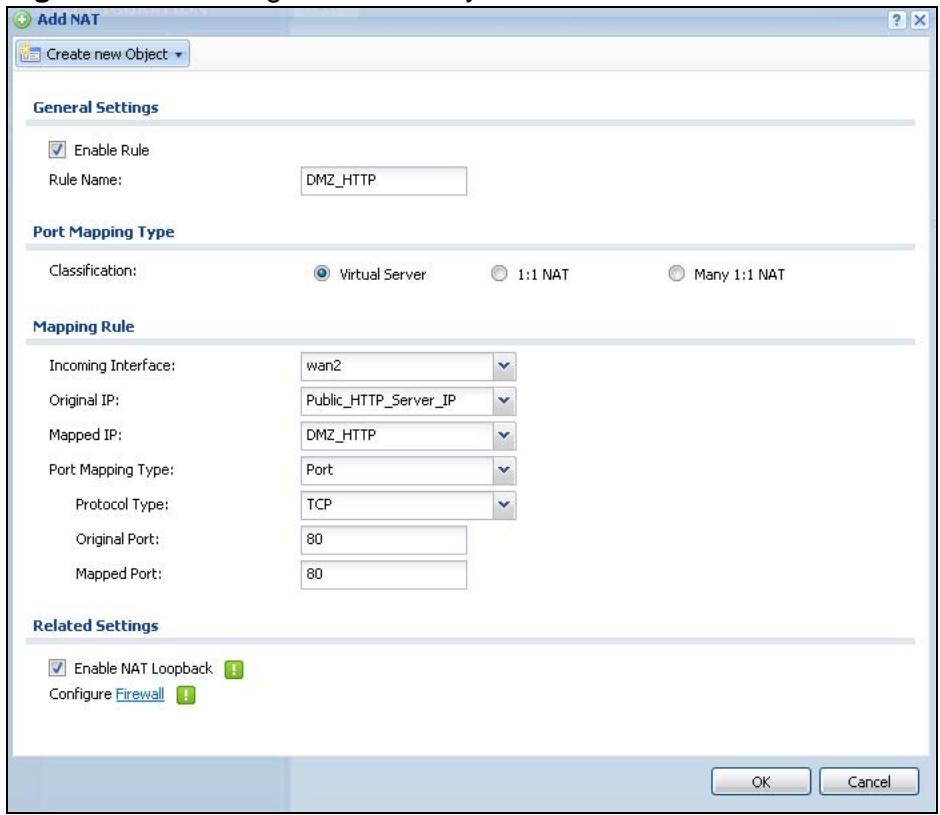
Figure 94 Creating the NAT Entry
7.10.3 Set Up a Firewall Rule
The firewall blocks traffic from the WAN zone to the DMZ zone by default so you need to create a firewall rule to allow the public to send HTTP traffic to IP address 1.1.1.1 in order to access the HTTP server. If a domain name is registered for IP address 1.1.1.1, users can just go to the domain name to access the web server.
1 Click Configuration > Firewall > Add. Set the From field as WAN and the To field as DMZ. Set the Destination to the HTTP server's DMZ IP address object (DMZ=http://www.zywall.com). DMZ=http://www.zywall.com is the destination because the ZyWALL applies NAT to traffic before applying the firewall rule. Set the Access field to allow and the Service to HTTP, and click OK.
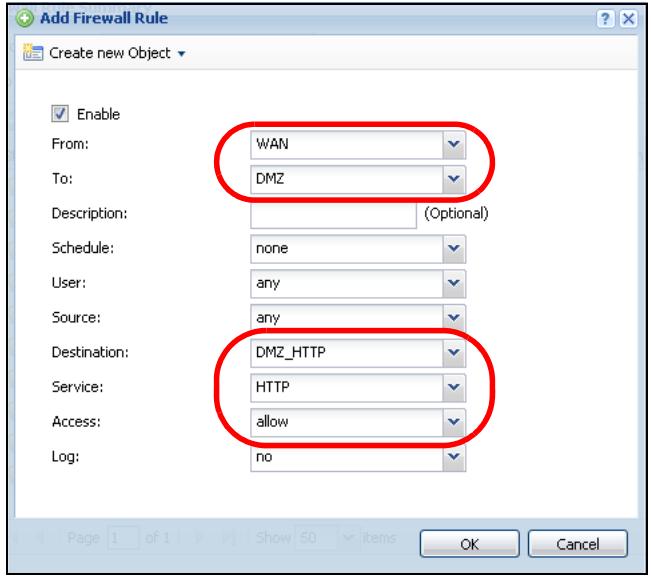
Figure 95 Configuration > Firewall > Add
7.11 How to Use an IPPBX on the DMZ
This is an example of making an IPPBX x6004 using SIP in the DMZ zone accessible from the Internet (the WAN zone). In this example you have public IP
address 1.1.1.2 that you will use on the wan1 interface and map to the IPPBX's private IP address of 192.168.3.7. The local SIP clients are on the LAN.
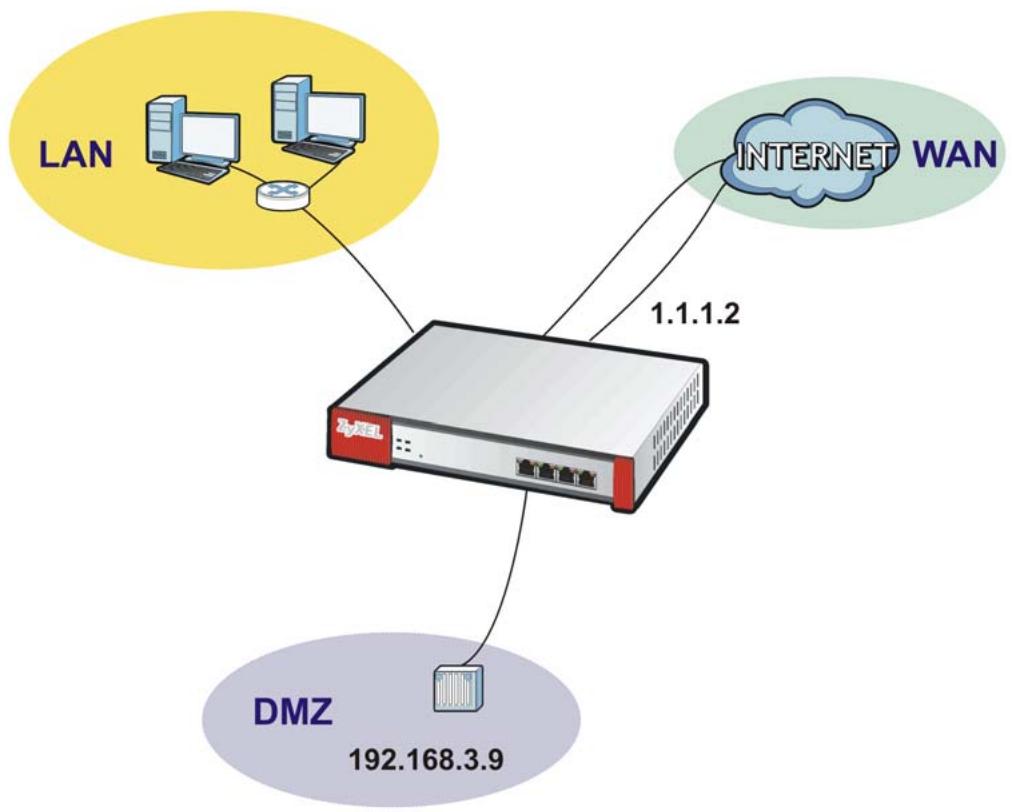
Figure 96 IPPBX Example Network Topology
7.11.1 Turn On the ALG
Click Configuration > Network > ALG. Select Enable SIP ALG and Enable SIP Transformations and click Apply.
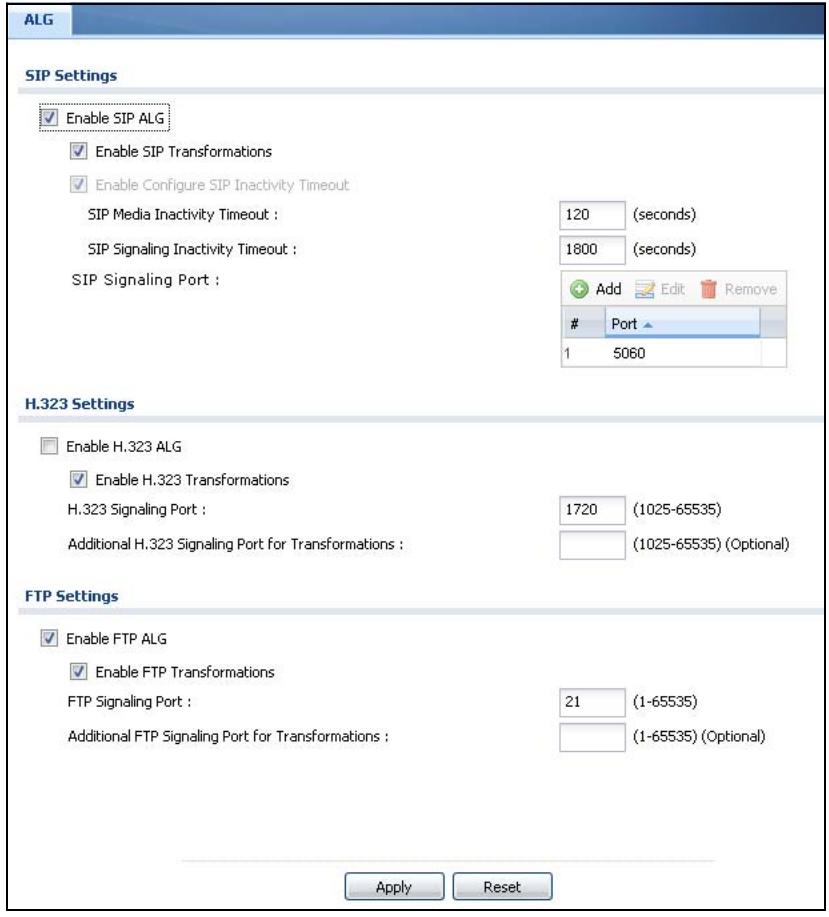
Figure 97 Configuration > Network > ALG
7.11.2 Create the Address Objects
Use Configuration > Object > Address > Add to create the address objects.
1 Create a host address object named IPPBX-DMZ for the IPPBX's private DMZ IP address of 192.168.3.9.
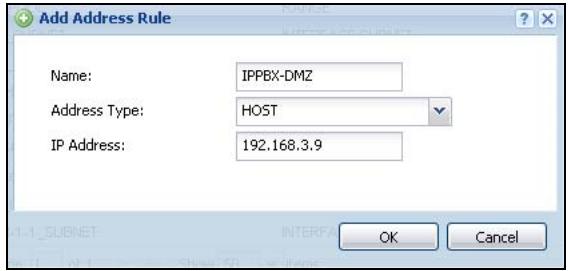
Figure 98 Creating the Address Object for the IPPBX's Private IP Address
2 Create a host address object named IPPBX-Public for thepublic WAN IP address 1.1.1.2.
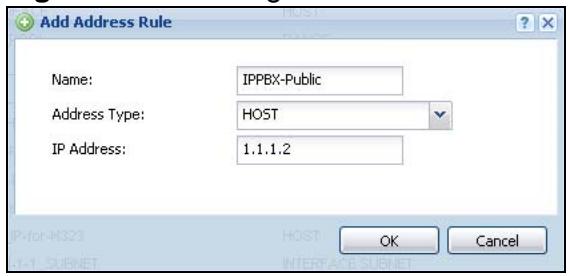
Figure 99 Creating the Public IP Address Object
7.11.3 Setup a NAT Policy for the IPPBX
Click Configuration > Network > NAT > Add.
- Configure a name for the rule (WAN-DMZ_IPPBX here).
- You want the IPPBX to receive calls from the WAN and also be able to send calls to the WAN so you set the Classification to NAT 1:1.
- Set the Incoming Interface to wan1.
- Set the Original IP to the WAN address object (IPPBX-Public). If a domain name is registered for IP address 1.1.1.2, users can use it to connect to for making SIP calls.
- Set the Mapped IP to the IPPBX's DMZ IP address object (IPPBX-DMZ).
- Set the Port Mapping Type to Port, the Protocol Type to UDP and the original and mapped ports to 5060.
-
Keep Enable NAT Loopback selected to allow the LAN users to use the IPPBX (see NAT Loopback on page 343 for details).
-
Click OK.
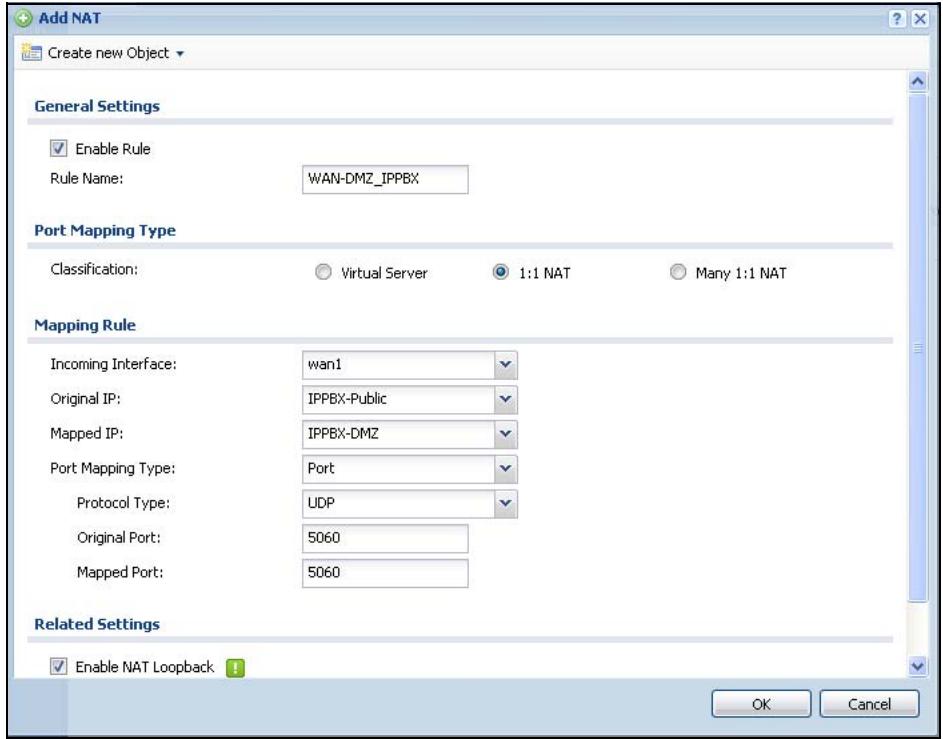
Figure 100 Configuration > Network > NAT > Add
7.11.4 Set Up a WAN to DMZ Firewall Rule for SIP
The firewall blocks traffic from the WAN zone to the DMZ zone by default so you need to create a firewall rule to allow the public to send SIP traffic to the IPPBX. If a domain name is registered for IP address 1.1.1.2, users can use it to connect to for making SIP calls.
1 Click Configuration > Firewall > Add. Set the From field as WAN and the To field as DMZ. Set the Destination to the IPPBX's DMZ IP address object (DMZ_SIP). IPPBX_DMZ is the destination because the ZyWALL applies NAT to traffic before applying the firewall rule. Set the Access field to allow and click OK.
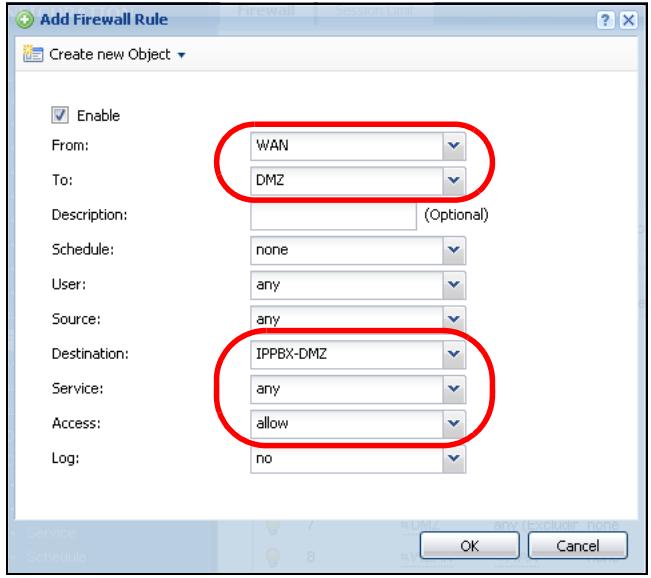
Figure 101 Configuration > Firewall > Add
7.11.5 Set Up a DMZ to LAN Firewall Rule for SIP
The firewall blocks traffic from the DMZ zone to the LAN zone by default so you need to create a firewall rule to allow the IPPBX to send SIP traffic to the SIP clients on the LAN.
1 Click Configuration > Firewall > Add. Set the From field as DMZ and the To field as LAN. Set the Destination to the IPPBX's DMZ IP address object (DMZ_SIP). Set the Source to IPPBX_DMZ. Leave the Access field to allow and click OK.
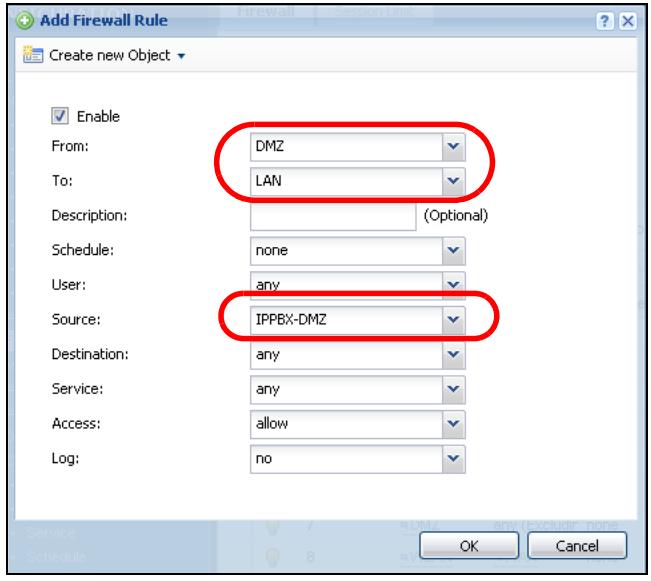
Figure 102 Configuration > Firewall > Add
7.12 How to Use Multiple Static Public WAN IP Addresses for LAN to WAN Traffic
If your ISP gave you a range of static public IP addresses, here is how to configure a policy route to have the ZyWALL use them for traffic it sends out from the LAN.
7.12.1 Create the Public IP Address Range Object
Click Configuration > Object > Address > Add to create the address object that represents the range of static public IP addresses. In this example you name it Public-IPs and it goes from 1.1.1.10 to 1.1.1.17.
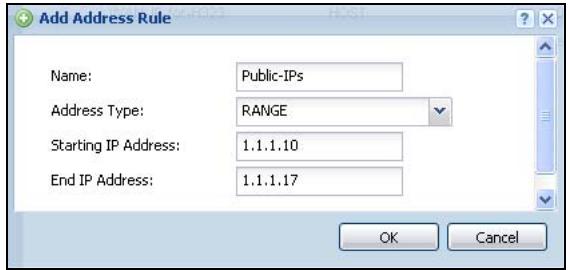
Figure 103 Creating the Public IP Address Range Object
7.12.2 Configure the Policy Route
Now you need to configure a policy route that has the ZyWALL use the range of public IP addresses as the source address for WAN to LAN traffic.
Click Configuration > Network > Routing > Add.
Although adding a description is optional, it is recommended. This example uses LAN-to-WAN-Range.
Specifying a Source Address is also optional although recommended. This example uses LAN_SUBNET1.
Set the Source Network Address Translation to Public-IPs and click OK.
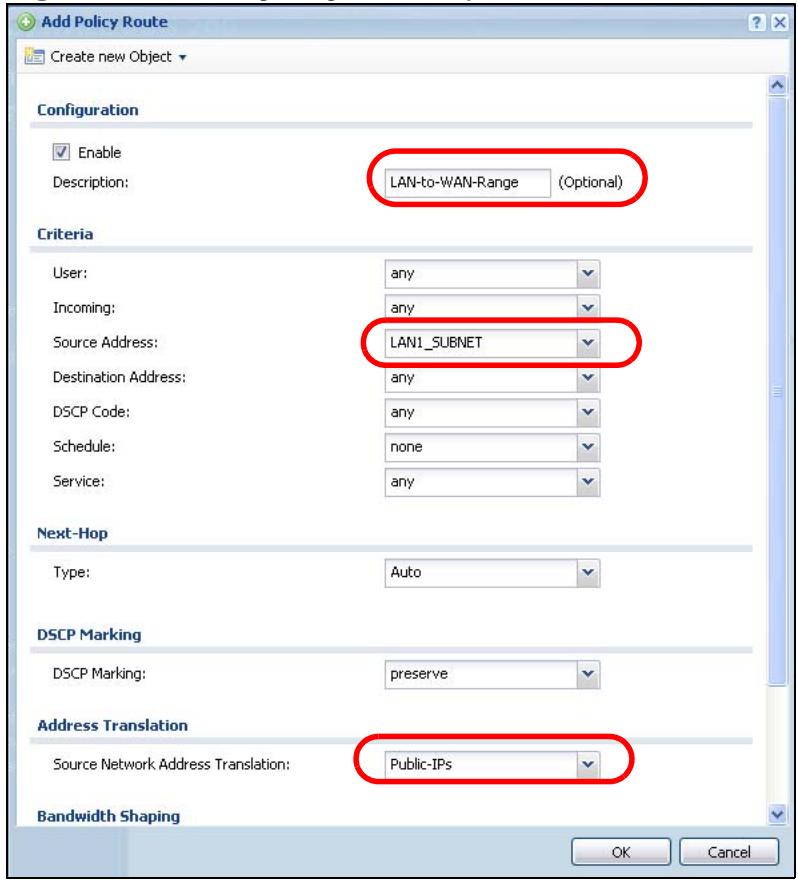
Figure 104 Configuring the Policy Route
7.13 How to Set Up a Wireless LAN
This tutorial applies only to USG 20W.
You can configure different interfaces to use on the wireless LAN card. This lets you have different wireless LAN networks using different SSIDs. You can configure
the WLAN interfaces before or after you install the wireless LAN card. This example shows how to create a WLAN interface that uses WPA or WPA2 security and the ZyWALL's local user database for authentication.
7.13.1 Set Up User Accounts
The ZyWALL supports TTLS using PAP so you can use the ZyWALL's local user database with WPA or WPA2 instead of needing an external RADIUS server. For each WLAN user, set up a user account containing the user name and password the WLAN user needs to enter to connect to the wireless LAN.
1 Click Configuration > Object > User/Group > User and the Add icon.
2 Set the User Name to wlan_user. Enter (and re-enter) the user's password. Click OK.
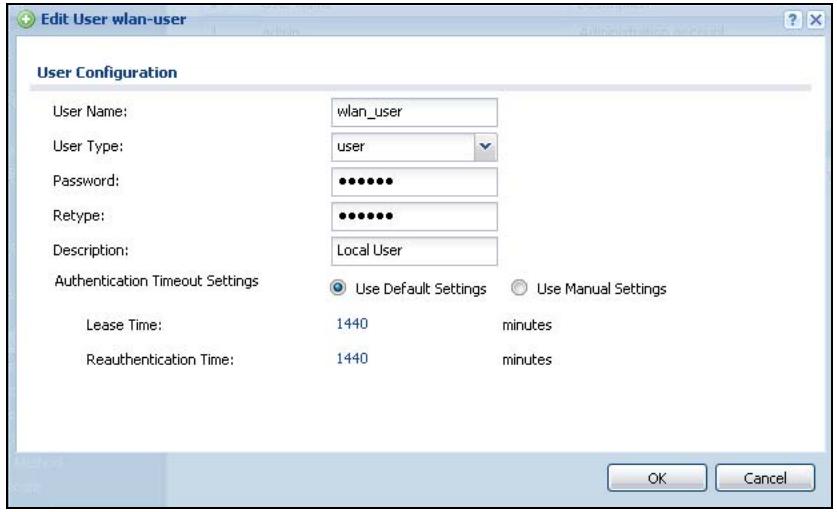
Figure 105 Configuration > Object > User/Group > User > Add
3 Use the Add icon in the Configuration > Object > User/Group > User screen to set up the remaining user accounts in similar fashion.
7.13.2 Create the WLAN Interface
1 Click Configuration > Network > Interface > WLAN > Add to open the WLAN Add screen.
2 Edit this screen as follows.
A (internal) name for the WLAN interface displays. You can modify it if you want to.
The ZyWALL's security settings are configured by zones. Select to which security zone you want the WLAN interface to belong (the WLAN zone in this example). This determines which security settings the ZyWALL applies to the WLAN interface.
Configure the SSID (ZYXEL_WPA in this example).
If all of your wireless clients support WPA2, select WPA2-Enterprise as the Security Type, otherwise select WPA/WPA-2-Enterprise. Set the Authentication Type to Auth Method. The ZyWALL can use its default authentication method (the local user database) and its default certificate to authenticate the users.
Configure the interface's IP address and set it to DHCP Server. Click OK.
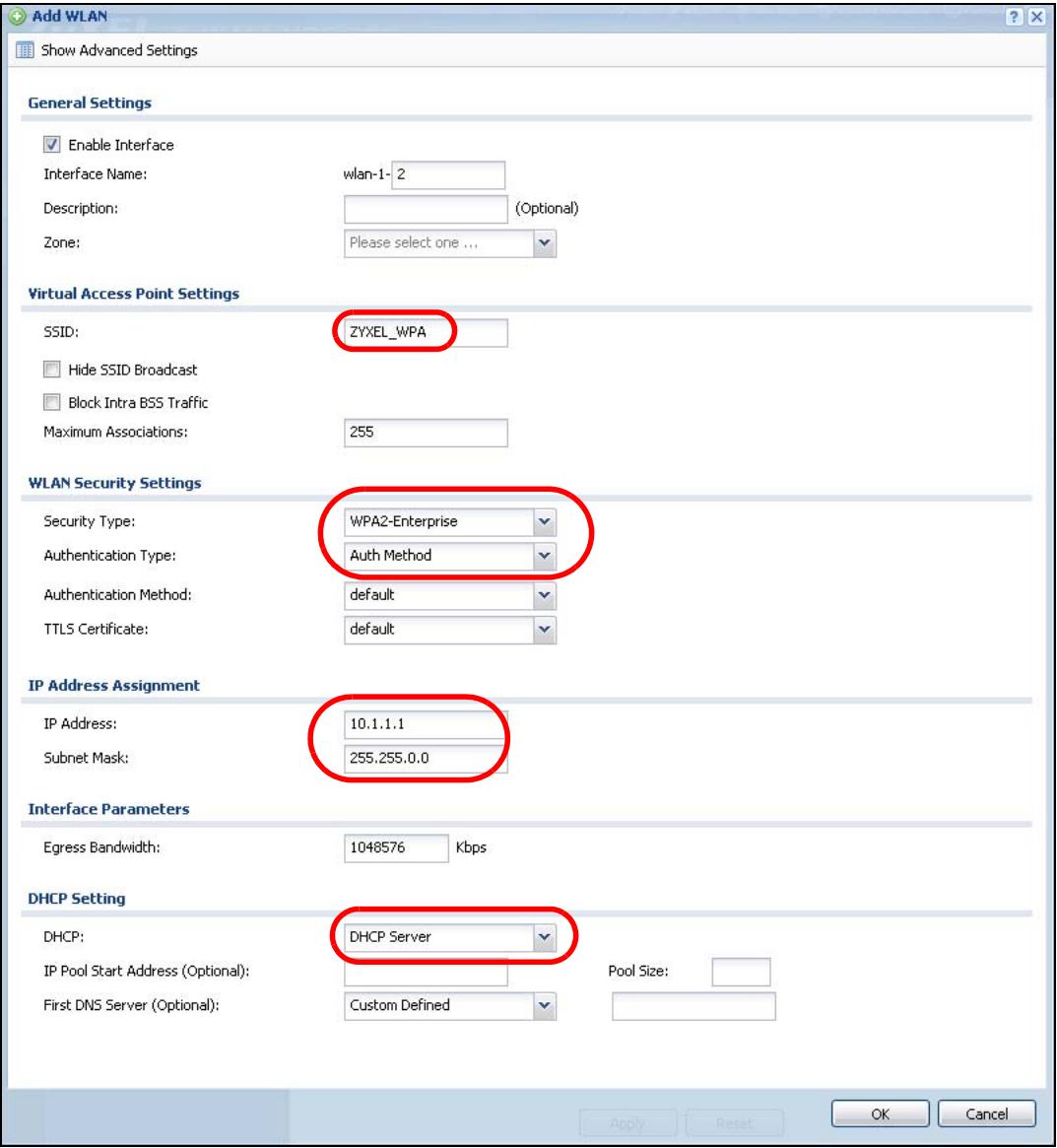
Figure 106 Configuration > Network > Interface > WLAN > Add
3 Turn on the wireless LAN and click Apply.
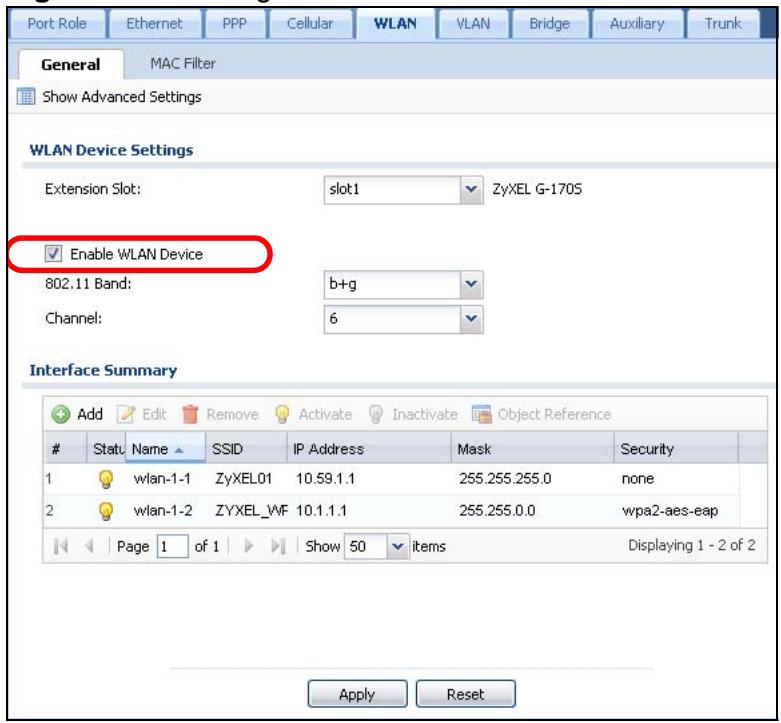
Figure 107 Configuration > Network > Interface > WLAN
7.13.3 Set Up the Wireless Clients to Use the WLAN Interface
The following sections show you how to have a wireless client (not included with the ZyWALL) use the wireless network.
7.13.3.1 Configure the ZyXEL Wireless Client Utility
This example covers how to configure ZyXEL's wireless client utility (not included with the ZyWALL) to use the WLAN interface. See Section 7.13.3.2 on page 154 instead for how to use Funk Odyssey's wireless client software if you want the wireless client to validate the ZyWALL's certificate (for added protection against connecting to a rogue AP).
1 Open the wireless client utility and click Profile.
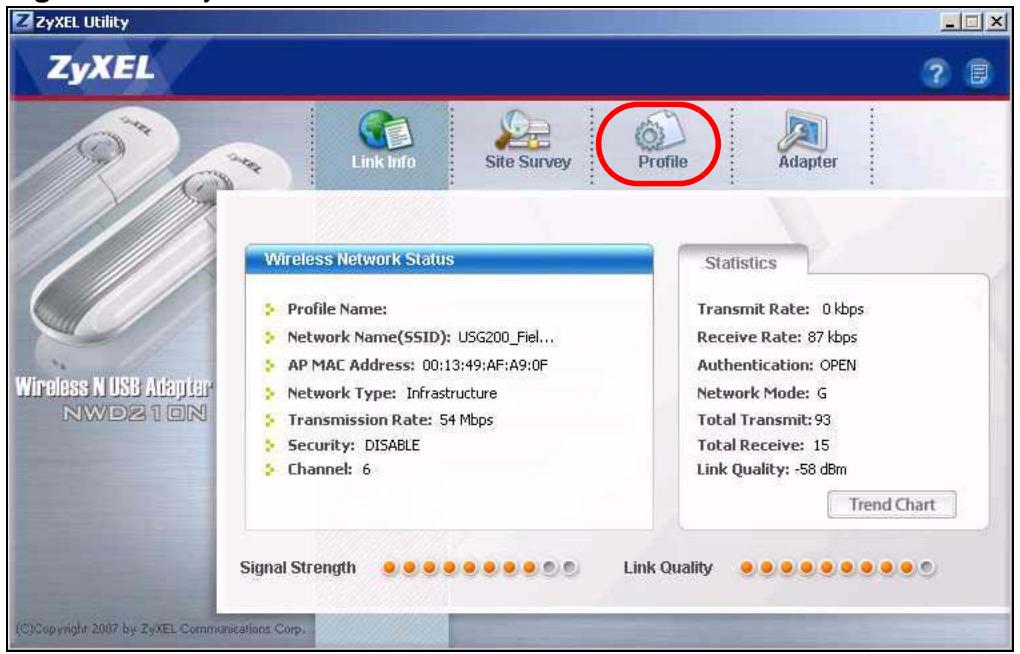
Figure 108 ZyXEL Wireless Client
2 Add a new profile. This example uses "ZYXEL_WPA" as the name. It is also the SSID (name) of the wireless network. Select Infrastructure and click Next.
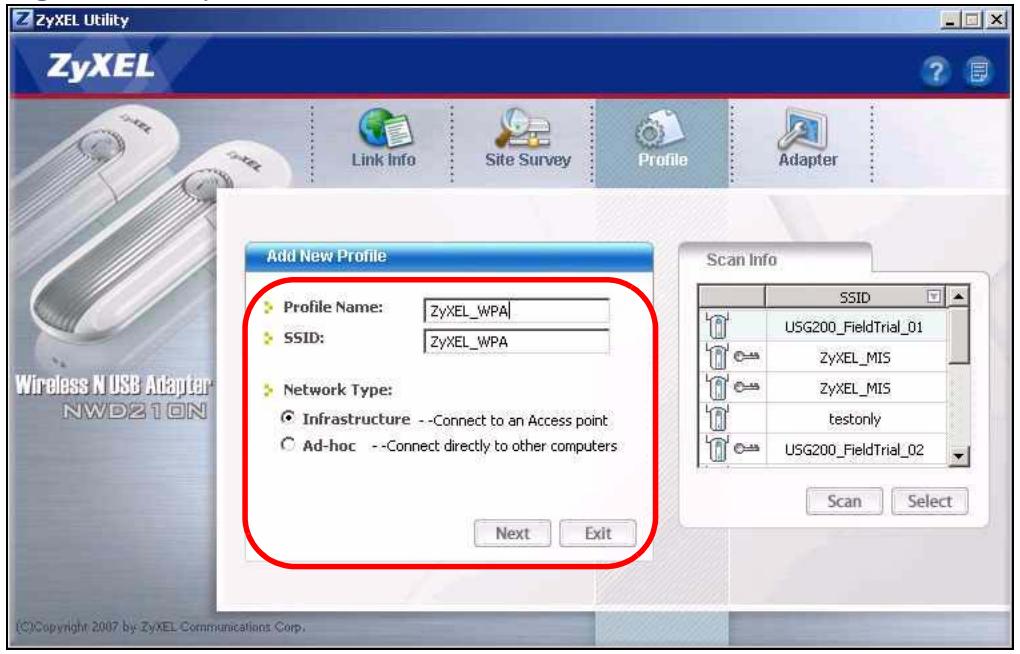
Figure 109 ZyXEL Wireless Client > Profile
3 Select WPA2 as the security type and click Next.
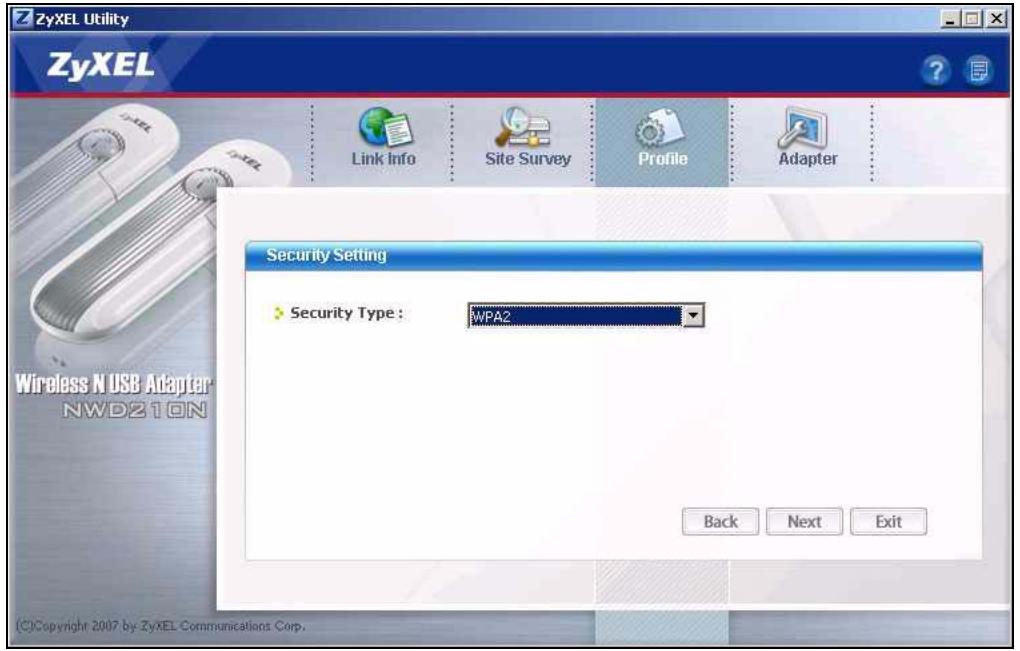
Figure 110 ZyXEL Wireless Client > Profile: Security Type
4 Set the encryption type to TKIP and the EAP type to TTLS. Configure wlan_user as the Login Name and enter the account's password (also wlan_user in this example. In TTLS Protocol, select PAP. Click Next.
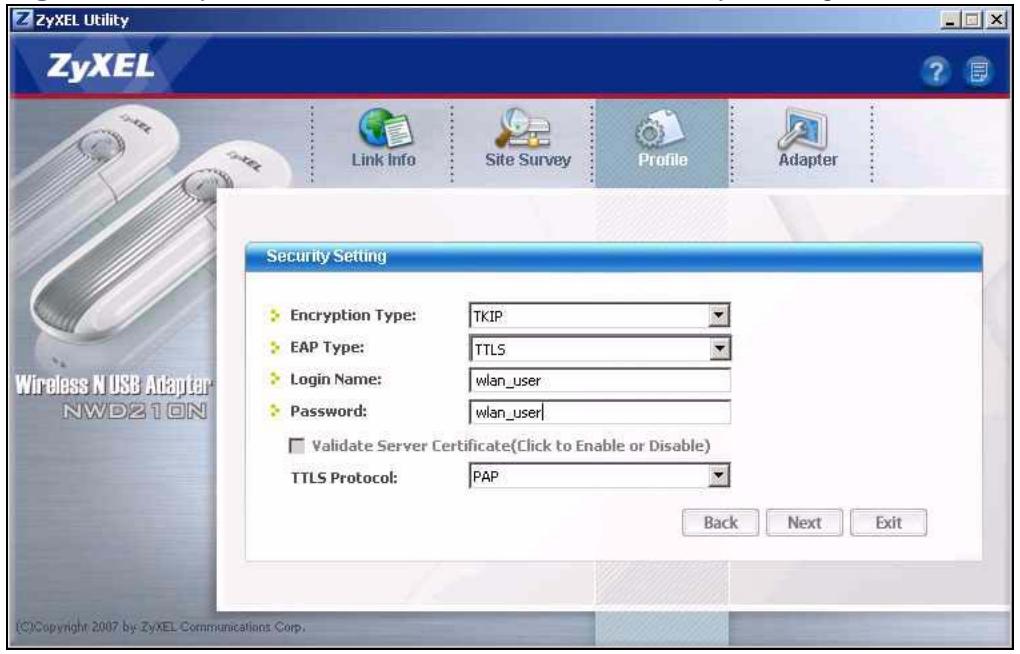
Figure 111 ZyXEL Wireless Client > Profile: Security Settings
5 Confirm your settings and click Save.
Figure 112 ZyXEL Wireless Client > Profile: Save
6 Click Activate Now.
Figure 113 ZyXEL Wireless Client > Profile: Activate
7 The ZYXEL_WPA profile displays in your list of profiles.
Figure 114 ZyXEL Wireless Client > Profile: Activate
Since the ZyXEL utility does not have the wireless client validate the ZyWALL's certificate, you can go to Section 7.13.3.4 on page 162.
7.13.3.2 Configure the Funk Odyssey Wireless Client
This example shows how to configure Funk's Odyssey Access Client Manager wireless client software (not included with the ZyWALL) to use the WLAN interface.
1 Open the Odyssey wireless client software and click Profiles > Add.
Figure 115 Odyssey Access Client Manager > Profiles
2 Name the profile (this example uses ZYXEL_WPA). In the User Info tab, configure wlan_user as the Login name. In the Password sub-tab, select Prompt for long name and password.
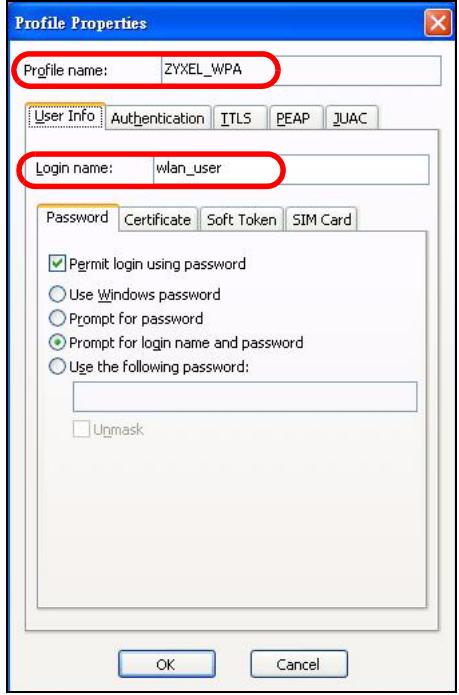
Figure 116 Odyssey Access Client Manager > Profiles > User Info
3 Click the Authentication tab and select Validate server certificate.
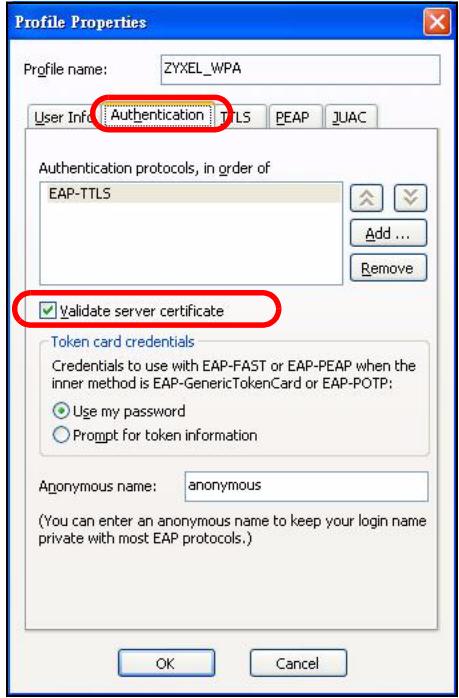
Figure 117 Odyssey Access Client Manager > Profiles > Authentication
4 Click the TTLS tab and select PAP. Then click OK.
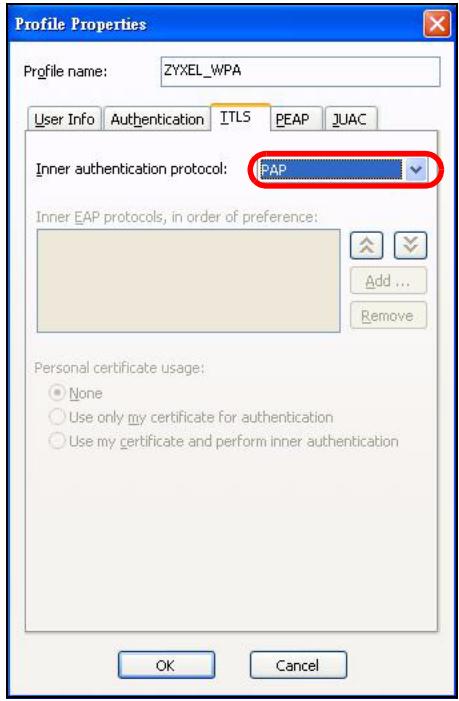
Figure 118 Odyssey Access Client Manager > Profiles > Authentication
5 Click Networks > Add.
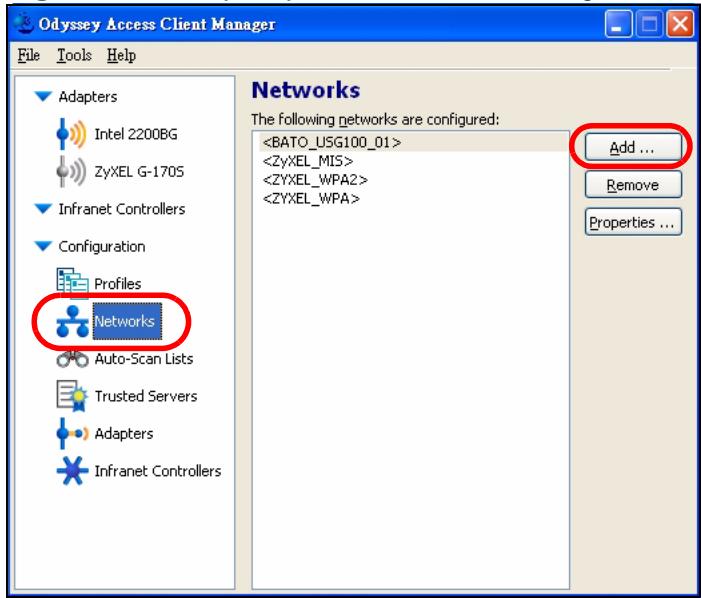
Figure 119 Odyssey Access Client Manager > Networks
6 Enter the name of the wireless network ("ZYXEL_WPA" in this example) or click Scan to look for it. Then select Authenticate using profile and select the profile you configured ("ZYXEL_WPA" in this example). Click OK.
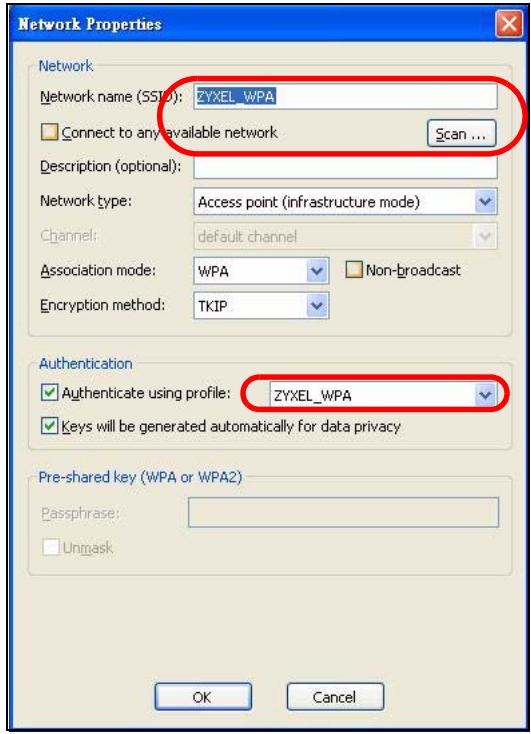
Figure 120 Odyssey Access Client Manager > Networks > Add
Use the next section to import the ZyWALL's certificate into the wireless client.
7.13.3.3 Wireless Clients Import the ZyWALL's Certificate
You must import the ZyWALL's certificate into the wireless clients if they are to validate the ZyWALL's certificate. Use the Configuration > Object > Certificate > Edit screen (see Section 39.2.2 on page 599) to export the certificate the ZyWALL is using for the WLAN interface. Then do the following to import the certificate into each wireless client computer.
1 In Internet Explorer, click Tools > Internet Options > Content and click the Certificates button.
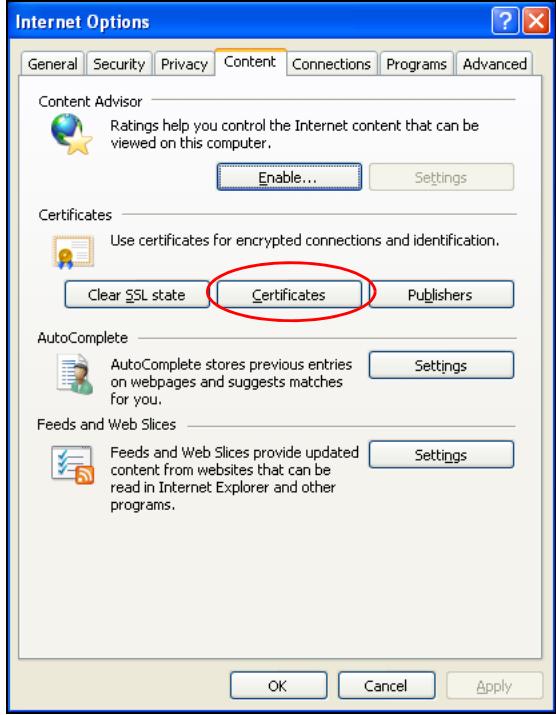
Figure 121 Internet Explorer: Tools >Internet Options >Content
2 Click Import.
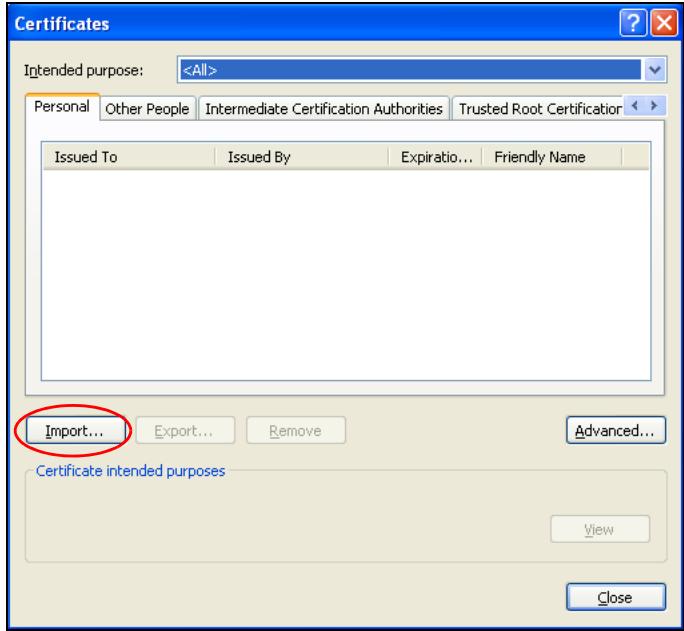
Figure 122 Internet Explorer: Tools > Internet Options > Content > Certificates
3 Use the wizard screens to import the certificate. You may need to change the Files of Type setting to All Files in order to see the certificate file.
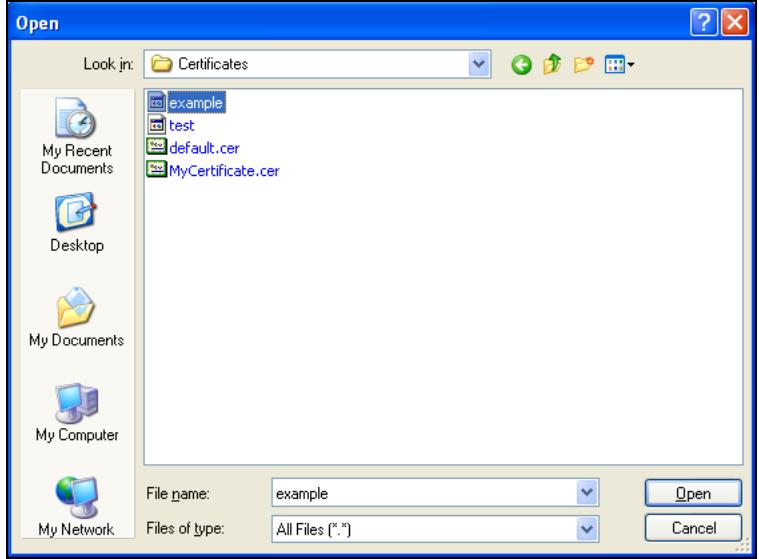
Figure 123 Internet Explorer Certificate Import Wizard File Open Screen
4 When you get to the Certificate Store screen, select the option to automatically select the certificate store based on the type of certificate.
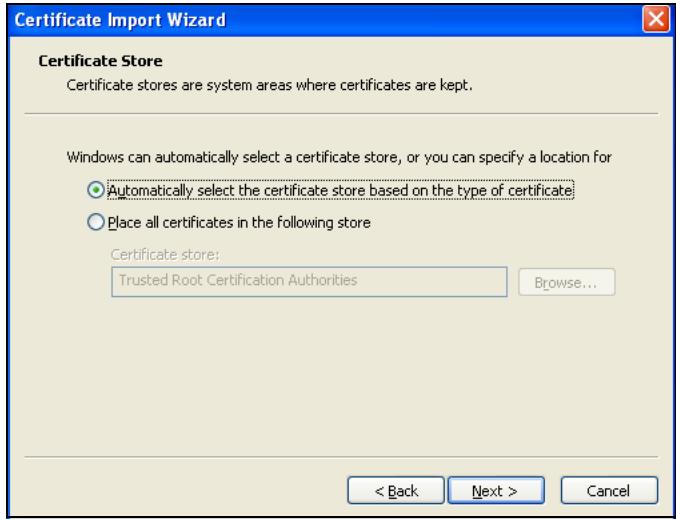
Figure 124 Internet Explorer Certificate Import Wizard Certificate Store Screen
5 If you get a security warning screen, click Yes to proceed.
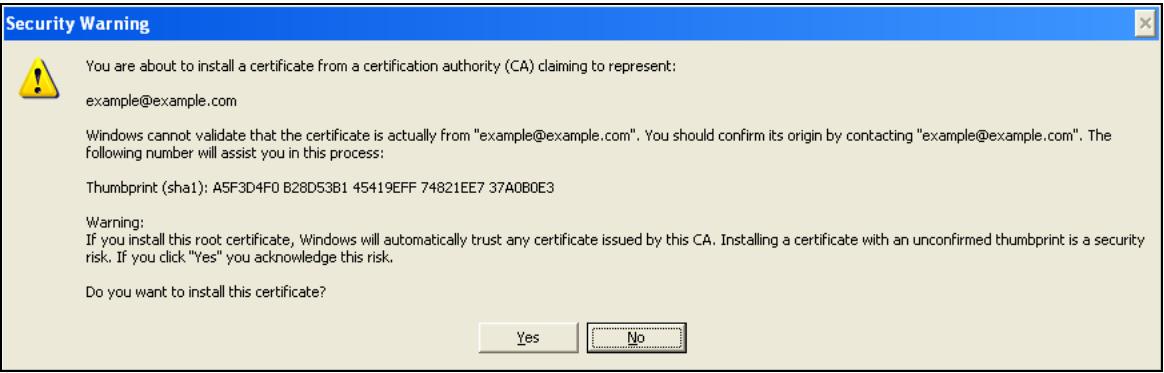
Figure 125 Internet Explorer Certificate Import Certificate Warning Screen
6 The Internet Explorer Certificates screen remains open after the import is done. You can see the newly imported certificate listed in the Trusted Root Certification Authorities tab. The values in the Issued To and Issued By fields should match those in the ZyWALL's My Certificates screen's Subject and Issuer fields (respectively).
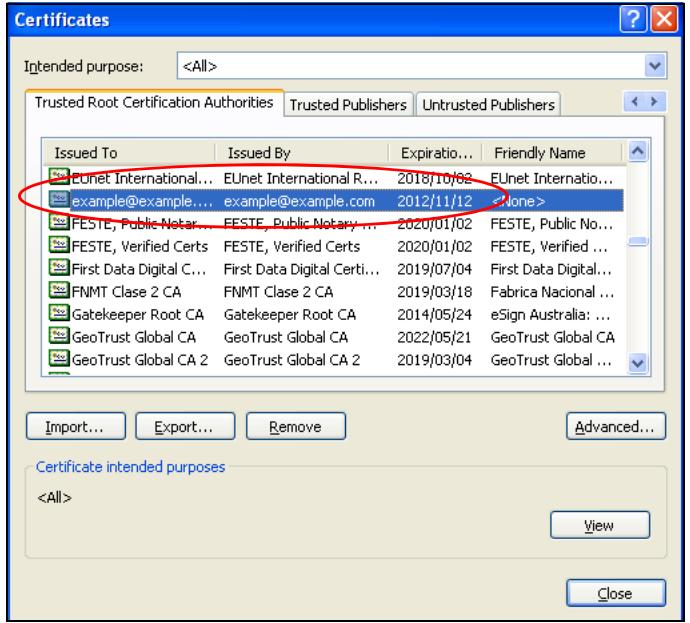
Figure 126 Internet Explorer: Trusted Root Certification Authorities
The My Certificates screen indicates what type of information is being displayed, such as Common Name (CN), Organizational Unit (OU), Organization (O) and Country (C).
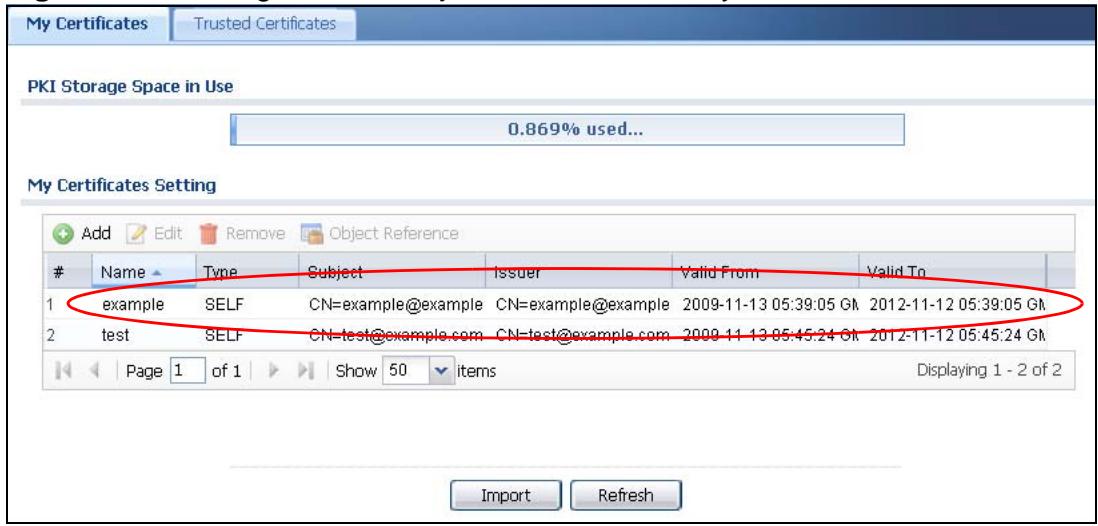
Figure 127 Configuration > Object > Certificate > My Certificates
Repeat the steps to import the certificate into each wireless client computer that is to validate the ZyWALL's certificate when using the WLAN interface.
7.13.3.4 Wireless Clients Use the WLAN Interface
A login screen displays when the wireless client attempts to connect to the wireless interface. Enter the username and password and click OK.
Funk Odyssey Access Wireless Client Login Example
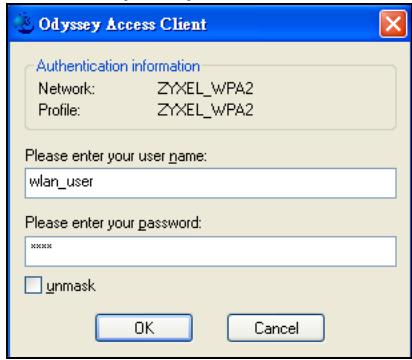
PART II
Technical Reference
Dashboard
8.1 Overview
Use the Dashboard screens to check status information about the ZyWALL.
8.1.1 What You Can Do in this Chapter
Use the Dashboard screens for the following.
- Use the main Dashboard screen (see Section 8.2 on page 165) to see the ZyWALL's general device information, system status, system resource usage, licensed service status, and interface status. You can also display other status screens for more information.
- Use the VPN status screen (see Section 8.2.1 on page 171) to look at the VPN tunnels that are currently established.
- Use the DHCP Table screen (see Section 8.2.5 on page 174) to look at the IP addresses currently assigned to DHCP clients and the IP addresses reserved for specific MAC addresses.
- Use the Current Users screen (see Section 8.2.6 on page 175) to look at a list of the users currently logged into the ZyWALL.
8.2 The Dashboard Screen
The Dashboard screen displays when you log into the ZyWALL or click Dashboard in the navigation panel. The dashboard displays general device information, system status, system resource usage, licensed service status, and
interface status in widgets that you can re-arrange to suit your needs. You can also collapse, refresh, and close individual widgets.
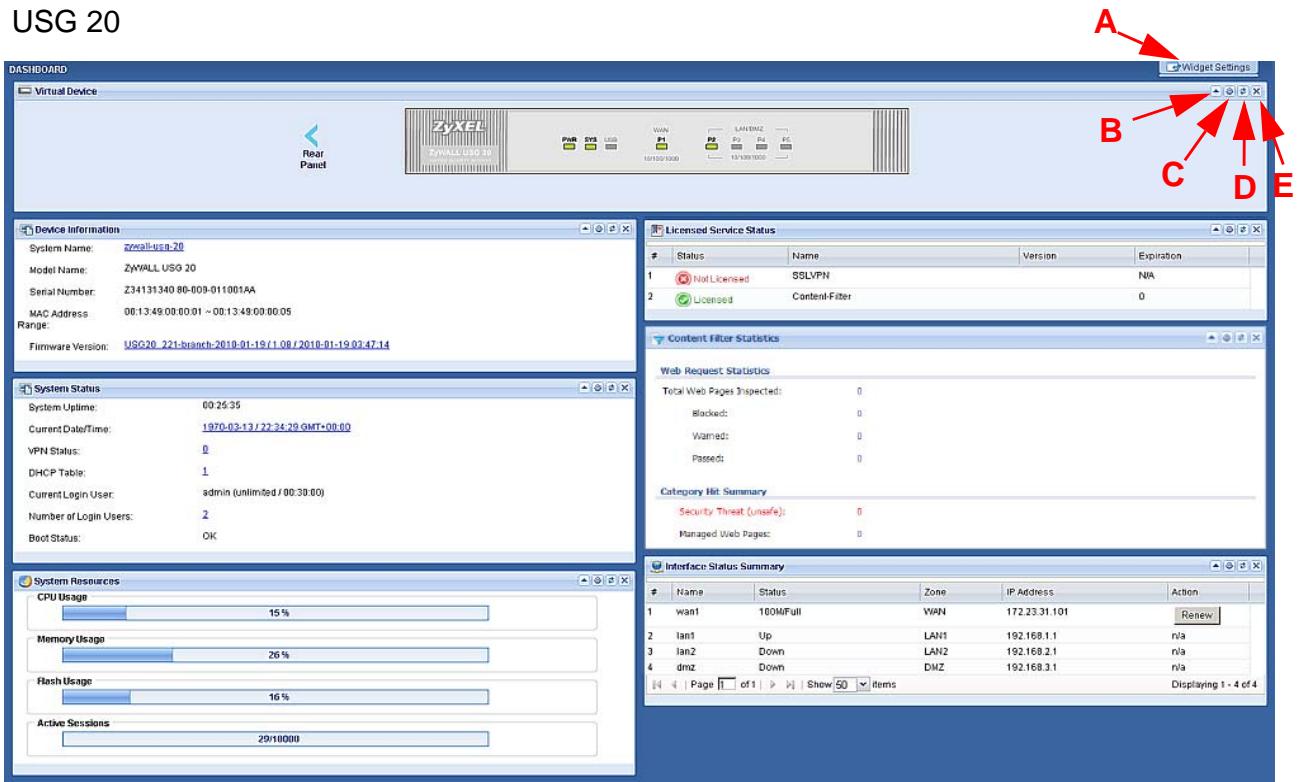
Figure 128 Dashboard
USG 20
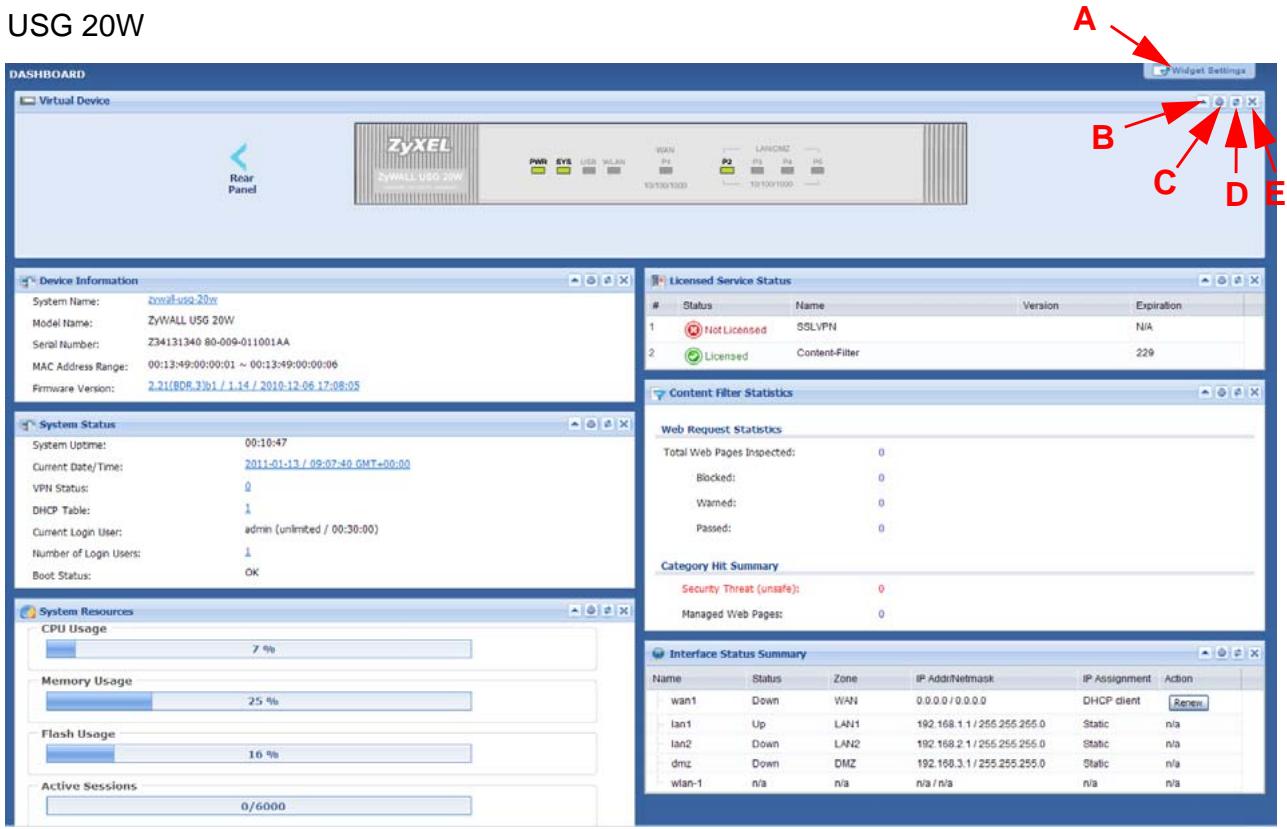
USG 20W
The following table describes the labels in this screen.
Table 19 Dashboard
| LABEL | DESCRIPTION |
| Widget Setting (A) | Use this link to re-open closed widgets. Widgets that are already open appear grayed out. |
| Up Arrow (B) | Click this to collapse a widget. |
| Refresh Time Setting (C) | Set the interval for refreshing the information displayed in the widget. |
| Refresh Now (D) | Click this to update the widget's information immediately. |
| Close this Module (E) | Click this to close the widget. Use Widget Setting to re-open it. |
| Virtual Device | |
| Rear Panel | Click this to view details about the ZyWALL's rear panel. Hover your cursor over a connected interface or slot to display status details. |
| Front Panel | Click this to view details about the status of the ZyWALL's front panel LEDs and connections. See Section 1.3.1 on page 32 for LED descriptions. An unconnected interface or slot appears grayed out. |
| The following front and rear panel labels display when you hover your cursor over a connected interface or slot. | |
| Name | This field displays the name of each interface. |
| Slot | This field displays the name of each extension slot. |
| Device | This field displays the name of the device connected to the extension slot (or none if no device is detected). |
| Status | This field displays the current status of each interface or device installed in a slot. The possible values depend on what type of interface it is.For Ethernet interfaces:Inactive - The Ethernet interface is disabled.Down - The Ethernet interface does not have any physical ports associated with it or the Ethernet interface is enabled but not connected Speed / Duplex - The Ethernet interface is enabled and connected.This field displays the port speed and duplex setting (Full or Half).(For USG 20W only) The status for an installed WLAN card is none.For cellular (3G) interfaces, see Section 11.5 on page 239 for the status that can appear. |
| Zone | This field displays the zone to which the interface is currently assigned. |
| IP Address/Mask | This field displays the current IP address and subnet mask assigned to the interface. If the interface is a member of an active virtual router, this field displays the IP address it is currently using. This is either the static IP address of the interface (if it is the master) or the management IP address (if it is a backup). |
| Device | This identifies a device installed in one of the ZyWALL's extension slots or USB ports. |
| Device Information | |
| System Name | This field displays the name used to identify the ZyWALL on any network. Click the icon to open the screen where you can change it. See Section 43.2 on page 630. |
| Model Name | This field displays the model name of this ZyWALL. |
| Serial Number | This field displays the serial number of this ZyWALL. |
| MAC Address Range | This field displays the MAC addresses used by the ZyWALL. Each physical port has one MAC address. The first MAC address is assigned to physical port 1, the second MAC address is assigned to physical port 2, and so on. |
| Firmware Version | This field displays the version number and date of the firmware the ZyWALL is currently running. Click the icon to open the screen where you can upload firmware. See Section 45.3 on page 700. |
| System Status | |
| System Uptime | This field displays how long the ZyWALL has been running since it last restarted or was turned on. |
| Current Date/Time | This field displays the current date and time in the ZyWALL. The format is yyyy-mm-dd hh:mm:ss. |
| VPN Status | Click this to look at the VPN tunnels that are currently established. See Section 8.2.1 on page 171. |
| DHCP Table | Click this to look at the IP addresses currently assigned to the ZyWALL's DHCP clients and the IP addresses reserved for specific MAC addresses. See Section 8.2.5 on page 174. |
| Current Login User | This field displays the user name used to log in to the current session, the amount of reauthentication time remaining, and the amount of lease time remaining. See Chapter 33 on page 539. |
| Number of Login Users | This field displays the number of users currently logged in to the ZyWALL. Click the icon to pop-open a list of the users who are currently logged in to the ZyWALL. See Section 8.2.6 on page 175. |
| Boot Status | This field displays details about the ZyWALL's startup state. OK - The ZyWALL started up successfully. Firmware update OK - A firmware update was successful. Problematic configuration after firmware update - The application of the configuration failed after a firmware upgrade. System default configuration - The ZyWALL successfully applied the system default configuration. This occurs when the ZyWALL starts for the first time or you intentionally reset the ZyWALL to the system default settings. Fallback to lastgood configuration - The ZyWALL was unable to apply the startup-config.conf configuration file and fell back to the lastgood.conf configuration file. Fallback to system default configuration - The ZyWALL was unable to apply the lastgood.conf configuration file and fell back to the system default configuration file (system-default.conf). Booting in progress - The ZyWALL is still applying the system configuration. |
| System Resources | |
| CPU Usage | This field displays what percentage of the ZyWALL's processing capability is currently being used. Hover your cursor over this field to display the Show CPU Usage icon that takes you to a chart of the ZyWALL's recent CPU usage. |
| Memory Usage | This field displays what percentage of the ZyWALL's RAM is currently being used. Hover your cursor over this field to display the Show Memory Usage icon that takes you to a chart of the ZyWALL's recent memory usage. |
| Flash Usage | This field displays what percentage of the ZyWALL's onboard flash memory is currently being used. |
| Active Sessions | This field displays how many traffic sessions are currently open on the ZyWALL. These are the sessions that are traversing the ZyWALL. Hover your cursor over this field to display icons. Click the Detail icon to go to the Session Monitor screen to see details about the active sessions. Click the Show Active Sessions icon to display a chart of ZyWALL's recent session usage. |
| Interface Status Summary | If an Ethernet interface does not have any physical ports associated with it, its entry is displayed in light gray text. Click the Detail icon to go to a (more detailed) summary screen of interface statistics. |
| # | This shows how many interfaces there are. |
| Name | This field displays the name of each interface. |
| Status | This field displays the current status of each interface. The possible values depend on what type of interface it is.For Ethernet interfaces:Inactive - The Ethernet interface is disabled.Down - The Ethernet interface does not have any physical ports associated with it or the Ethernet interface is enabled but not connected.Speed / Duplex - The Ethernet interface is enabled and connected.This field displays the port speed and duplex setting (Full or Half).(For USG 20W only) The status for an installed WLAN card is none.For cellular (3G) interfaces, see Section 9.11 on page 195 for the status that can appear. |
| Zone | This field displays the zone to which the interface is currently assigned. |
| IP Address | This field displays the current IP address assigned to the interface. If the IP address is 0.0.0.0, the interface is disabled or did not receive an IP address and subnet mask via DHCP.If this interface is a member of an active virtual router, this field displays the IP address it is currently using. This is either the static IP address of the interface (if it is the master) or the management IP address (if it is a backup). |
| Action | Use this field to get or to update the IP address for the interface.Click Renew to send a new DHCP request to a DHCP server.Click the Connect icon to have the ZyWALL try to connect a PPPoE/PPTP interface. If the interface cannot use one of these ways to get or to update its IP address, this field displays n/a.Click the Disconnect icon to stop a PPPoE/PPTP connection. |
| Extension Slot | This section of the screen displays the status of the extension card slot and the USB ports. |
| Slot | This field displays the name of each extension slot. |
| Device | This field displays the name of the device connected to the extension slot (or none if no device is detected). |
| Status | For cellular (3G) interfaces, see Section 9.11 on page 195 for the status that can appear. |
| Licensed Service Status | |
| # | This shows how many licensed services there are. |
| Status | This is the current status of the license. |
| Name | This identifies the licensed service. |
| Version | This is the version number of the content filtering signatures. |
| Expiration | If the service license is valid, this shows when it will expire. N/A displays if the service license does not have a limited period of validity. |
| Content Filter Statistics | This section displays the content filter statistics since the ZyWALL was last restarted. |
| Total Web Pages Inspected | This is the number of web pages the ZyWALL has checked to see whether they belong to the categories you selected in the content filter screen. |
| Blocked | This is the number of web pages that the ZyWALL blocked access. |
| Warned | This is the number of web pages for which the ZyWALL has displayed a warning message to the access requesters. |
| Passed | This is the number of web pages that the ZyWALL allowed access. |
| Security Threat (unsafe) | This is the number of requested web pages that belong to the unsafe categories you have selected in the content filter screen. |
| Managed Web Pages | This is the number of requested web pages that belong to the managed categories you have selected in the content filter screen. |
8.2.1 The CPU Usage Screen
Use this screen to look at a chart of the ZyWALL's recent CPU usage. To access this screen, click CPU Usage in the dashboard.
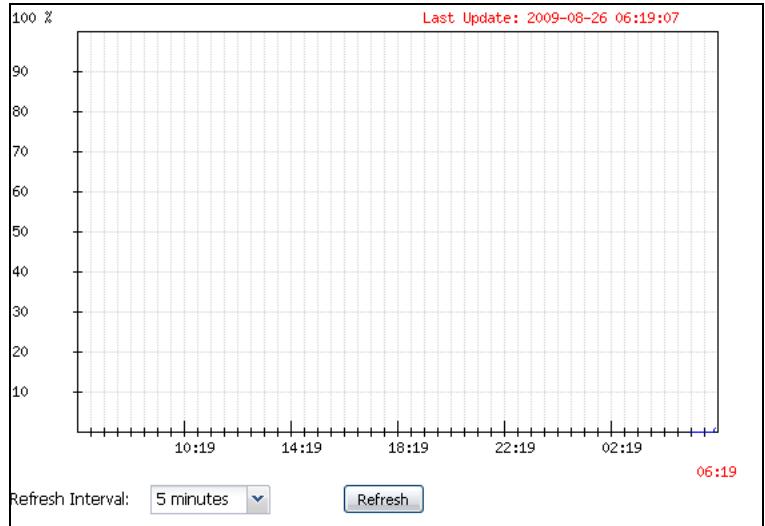
Figure 129 Dashboard > CPU Usage
The following table describes the labels in this screen.
Table 20 Dashboard > CPU Usage
| LABEL | DESCRIPTION |
| The y-axis represents the percentage of CPU usage. | |
| The x-axis shows the time period over which the CPU usage occurred | |
| Refresh Interval | Enter how often you want this window to be automatically updated. |
| Refresh | Click this to update the information in the window right away. |
8.2.2 The Memory Usage Screen
Use this screen to look at a chart of the ZyWALL's recent memory (RAM) usage. To access this screen, click Memory Usage in the dashboard.
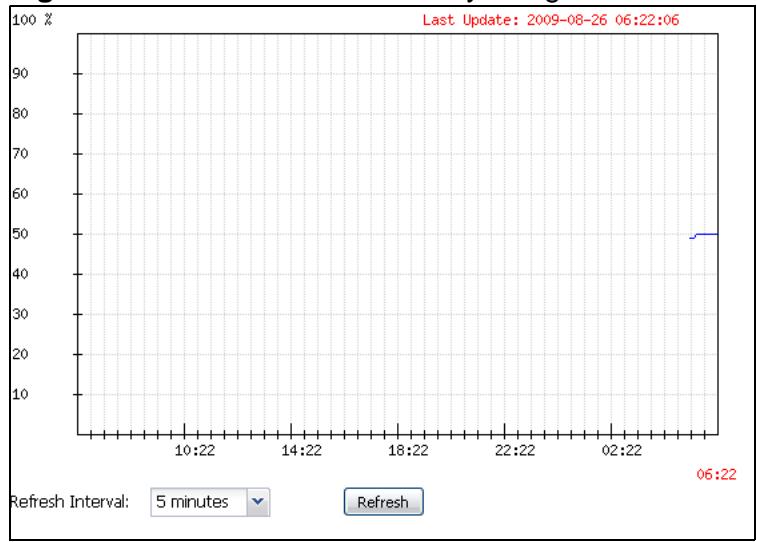
Figure 130 Dashboard >Memory Usage
The following table describes the labels in this screen.
Table 21 Dashboard >Memory Usage
| LABEL | DESCRIPTION |
| The y-axis represents the percentage of RAM usage. | |
| The x-axis shows the time period over which the RAM usage occurred | |
| Refresh Interval | Enter how often you want this window to be automatically updated. |
| Refresh | Click this to update the information in the window right away. |
8.2.3 The Active Sessions Screen
Use this screen to look at a chart of the ZyWALL's recent traffic session usage. To access this screen, click Session Usage in the dashboard.
Figure 131 Dashboard > Session Usage
The following table describes the labels in this screen.
Table 22 Dashboard > Session Usage
| LABEL | DESCRIPTION |
| Sessions | The y-axis represents the number of session. |
| The x-axis shows the time period over which the session usage occurred | |
| Refresh Interval | Enter how often you want this window to be automatically updated. |
| Refresh | Click this to update the information in the window right away. |
8.2.4 The VPN Status Screen
Use this screen to look at the VPN tunnels that are currently established. To access this screen, click VPN Status in the dashboard.
Figure 132 Dashboard > VPN Status
The following table describes the labels in this screen.
Table 23 Dashboard >VPN Status
| LABEL | DESCRIPTION |
| # | This field is a sequential value, and it is not associated with a specific SA. |
| Name | This field displays the name of the IPSec SA. |
| Encapsulation | This field displays how the IPSec SA is encapsulated. |
| Algorithm | This field displays the encryption and authentication algorithms used in the SA. |
| Refresh Interval | Select how often you want this window to be updated automatically. |
| Refresh | Click this to update the information in the window right away. |
8.2.5 The DHCP Table Screen
Use this screen to look at the IP addresses currently assigned to DHCP clients and the IP addresses reserved for specific MAC addresses. To access this screen, click the icon beside DHCP Table in the dashboard.

Figure 133 Dashboard > DHCP Table
The following table describes the labels in this screen.
Table 24 Dashboard > DHCP Table
| LABEL | DESCRIPTION |
| # | This field is a sequential value, and it is not associated with a specific entry. |
| Interface | This field identifies the interface that assigned an IP address to a DHCP client. |
| IP Address | This field displays the IP address currently assigned to a DHCP client or reserved for a specific MAC address. Click the column's heading cell to sort the table entries by IP address. Click the heading cell again to reverse the sort order. |
| Host Name | This field displays the name used to identify this device on the network (the computer name). The ZyWALL learns these from the DHCP client requests. "None" shows here for a static DHCP entry. |
| MAC Address | This field displays the MAC address to which the IP address is currently assigned or for which the IP address is reserved. Click the column's heading cell to sort the table entries by MAC address. Click the heading cell again to reverse the sort order. |
| Description | For a static DHCP entry, the host name or the description you configured shows here. This field is blank for dynamic DHCP entries. |
| Reserve | If this field is selected, this entry is a static DHCP entry. The IP address is reserved for the MAC address. |
| If this field is clear, this entry is a dynamic DHCP entry. The IP address is assigned to a DHCP client. | |
| To create a static DHCP entry using an existing dynamic DHCP entry, select this field, and then click Apply. | |
| To remove a static DHCP entry, clear this field, and then click Apply. |
8.2.6 The Number of Login Users Screen
Use this screen to look at a list of the users currently logged into the ZyWALL. To access this screen, click the dashboard's Number of Login Users icon.

Figure 134 Dashboard > Number of Login Users
The following table describes the labels in this screen.
Table 25 Dashboard > Number of Login Users
| LABEL | DESCRIPTION |
| # | This field is a sequential value and is not associated with any entry. |
| User ID | This field displays the user name of each user who is currently logged in to the ZyWALL. |
| Reauth Lease T. | This field displays the amount of reauthentication time remaining and the amount of lease time remaining for each user. See Chapter 33 on page 539. |
| Type | This field displays the way the user logged in to the ZyWALL. |
| IP address | This field displays the IP address of the computer used to log in to the ZyWALL. |
| ForceLogout | Click this icon to end a user's session. |
Monitor
9.1 Overview
Use the Monitor screens to check status and statistics information.
9.1.1 What You Can Do in this Chapter
Use the Monitor screens for the following.
- Use the System Status > Port Statistics screen (see Section 9.2 on page 178) to look at packet statistics for each physical port.
- Use the System Status > Port Statistics > Graph View screen (see Section 9.2 on page 178) to look at a line graph of packet statistics for each physical port.
- Use the System Status > Interface Status screen (Section 9.3 on page 181) to see all of the ZyWALL's interfaces and their packet statistics.
- Use the System Status > Traffic Statistics screen (see Section 9.4 on page 183) to start or stop data collection and view statistics.
- Use the System Status > Session Monitor screen (see Section 9.5 on page 186) to view sessions by user or service.
- Use the System Status > DDNS Status screen (see Section 9.6 on page 189) to view the status of the ZyWALL's DDNS domain names.
- Use the System Status > IP/MAC Binding screen (Section 9.7 on page 189) to view a list of devices that have received an IP address from ZyWALL interfaces with IP/MAC binding enabled.
- Use the System Status > Login Users screen (Section 9.8 on page 190) to look at a list of the users currently logged into the ZyWALL.
- Use the System Status > WLAN Status screen (Section 9.9 on page 191) to view the connection status of the wireless clients connected to (or trying to connect to) a IEEE 802.11b/g card installed in the ZyWALL. This is available for USG 20W only.
- Use the System Status > Cellular Status screen (Section 9.9 on page 191) to check your 3G connection status.
-
Use the System Status > USB Storage screen (Section 9.11 on page 195) to view information about a connected USB storage device.
-
Use the VPN Monitor > IPSec screen (Section 9.12 on page 196) to display and manage active IPSec SAs.
- Use the VPN Monitor > SSL screen (see Section 9.13 on page 198) to list the users currently logged into the VPN SSL client portal. You can also log out individual users and delete related session information.
- Use the Anti-X Statistics > Content Filter screen (Section 9.14 on page 200) to start or stop data collection and view content filter statistics.
- Use the Anti-X Statistics > Content Filter > Cache screen (Section 9.15 on page 202) to view and configure your ZyWALL's URL caching.
- Use the Anti-X Statistics > Anti-Spam screen (Section 9.16 on page 204) to start or stop data collection and view spam statistics.
- Use the Anti-X Statistics > Anti-Spam > Status screen (Section 9.17 on page 206) to see how many mail sessions the ZyWALL is currently checking and DNSBL statistics.
- Use the Log (Section 9.18 on page 207) to view the ZyWALL's current log messages. You can change the way the log is displayed, you can e-mail the log, and you can also clear the log in this screen.
9.2 The Port Statistics Screen
Use this screen to look at packet statistics for each Gigabit Ethernet port. To access this screen, click Monitor > System Status > Port Statistics.
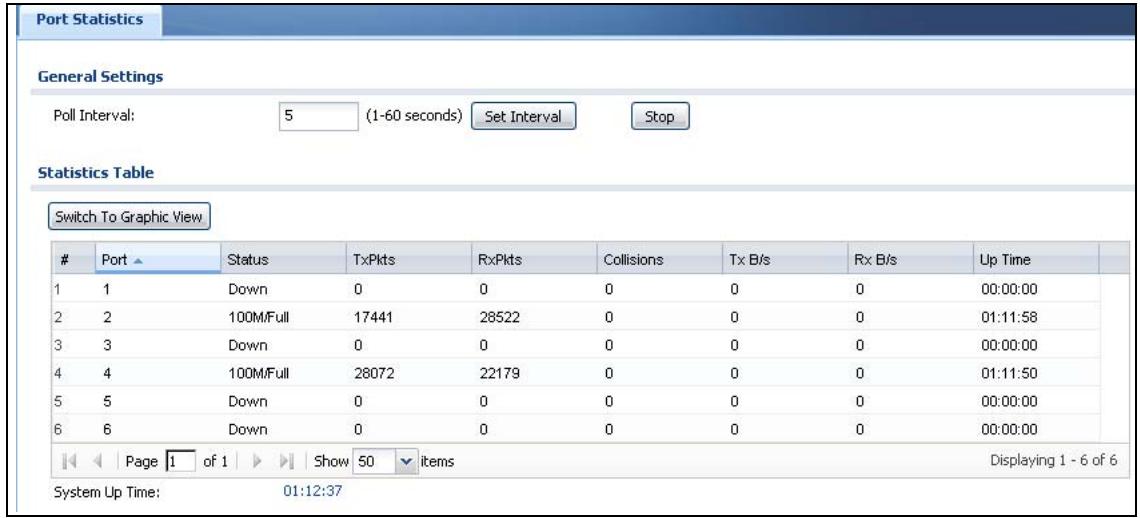
Figure 135 Monitor > System Status > Port Statistics
The following table describes the labels in this screen.
Table 26 Monitor > System Status > Port Statistics
| LABEL | DESCRIPTION |
| Poll Interval | Enter how often you want this window to be updated automatically, and click Set Interval. |
| Set Interval | Click this to set the Poll Interval the screen uses. |
| Stop | Click this to stop the window from updating automatically. You can start it again by setting the Poll Interval and clicking Set Interval. |
| Switch to Graphic View | Click this to display the port statistics as a line graph. |
| # | This field displays the port's number in the list. |
| Port | This field displays the physical port number. |
| Status | This field displays the current status of the physical port. Down - The physical port is not connected. Speed / Duplex - The physical port is connected. This field displays the port speed and duplex setting (Full or Half). |
| TxPkts | This field displays the number of packets transmitted from the ZyWALL on the physical port since it was last connected. |
| RxPkts | This field displays the number of packets received by the ZyWALL on the physical port since it was last connected. |
| Collisions | This field displays the number of collisions on the physical port since it was last connected. |
| Tx B/s | This field displays the transmission speed, in bytes per second, on the physical port in the one-second interval before the screen updated. |
| Rx B/s | This field displays the reception speed, in bytes per second, on the physical port in the one-second interval before the screen updated. |
| Up Time | This field displays how long the physical port has been connected. |
| System Up Time | This field displays how long the ZyWALL has been running since it last restarted or was turned on. |
9.2.1 The Port Statistics Graph Screen
Use this screen to look at a line graph of packet statistics for each physical port. To access this screen, click Port Statistics in the Status screen and then the Switch to Graphic View Button.
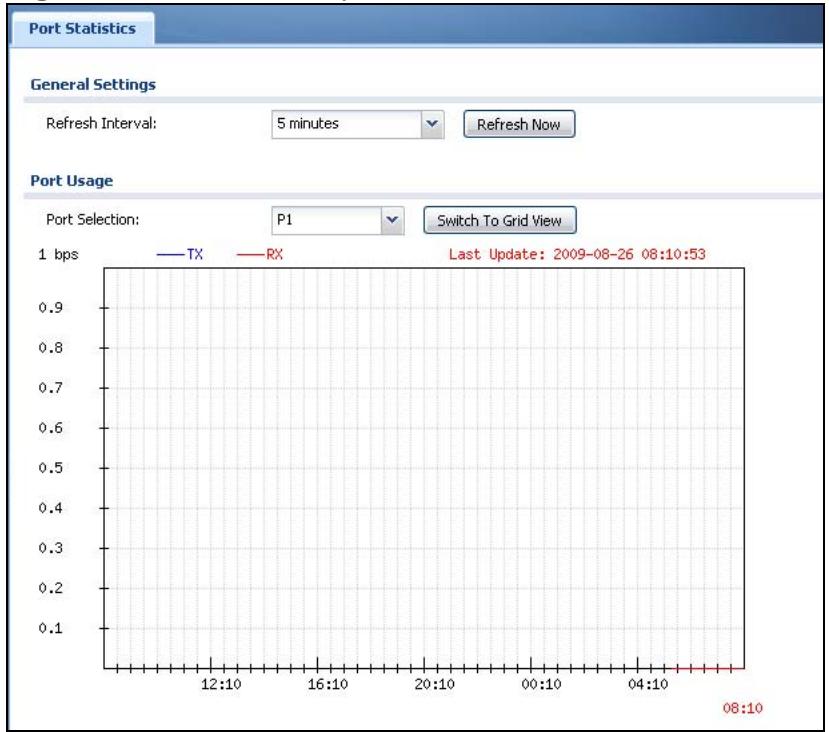
Figure 136 Monitor > System Status > Port Statistics > Switch to Graphic View
The following table describes the labels in this screen.
Table 27 Monitor > System Status > Port Statistics > Switch to Graphic View
| LABEL | DESCRIPTION |
| Refresh Interval | Enter how often you want this window to be automatically updated. |
| Refresh Now | Click this to update the information in the window right away. |
| Port Selection | Select the number of the physical port for which you want to display graphics. |
| Switch to Grid View | Click this to display the port statistics as a table. |
| bps | The y-axis represents the speed of transmission or reception. |
| time | The x-axis shows the time period over which the transmission or reception occurred |
| TX | This line represents traffic transmitted from the ZyWALL on the physical port since it was last connected. |
| RX | This line represents the traffic received by the ZyWALL on the physical port since it was last connected. |
Table 27 Monitor > System Status > Port Statistics > Switch to Graphic View
| LABEL | DESCRIPTION |
| Last Update | This field displays the date and time the information in the window was last updated. |
| System Up Time | This field displays how long the ZyWALL has been running since it last restarted or was turned on. |
9.3 Interface Status Screen
This screen lists all of the ZyWALL's interfaces and gives packet statistics for them. Click Monitor > System Status > Interface Status to access this screen.
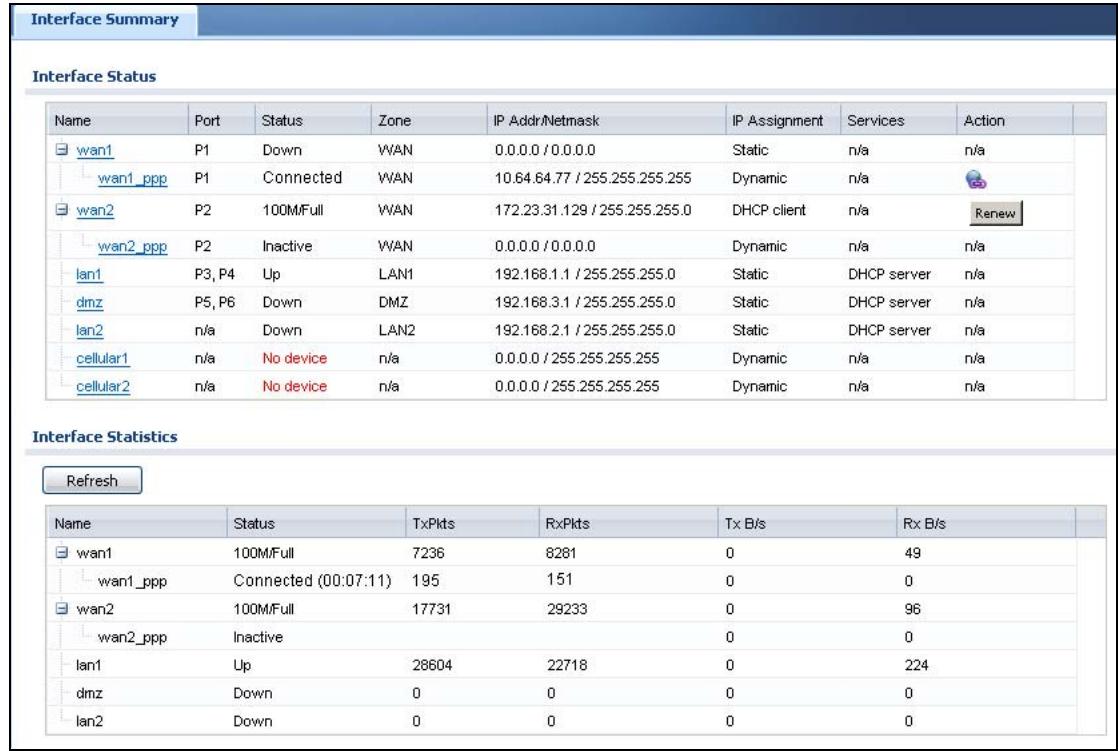
Figure 137 Monitor > System Status > Interface Status
Each field is described in the following table.
Table 28 Monitor > System Status > Interface Status
| LABEL | DESCRIPTION |
| Interface Status | If an Ethernet interface does not have any physical ports associated with it, its entry is displayed in light gray text. |
| Expand/Close | Click this button to show or hide statistics for all the virtual interfaces on top of the Ethernet interfaces. |
| Name | This field displays the name of each interface. If there is a Expand icon (plus-sign) next to the name, click this to look at the status of virtual interfaces on top of this interface. |
| Port | This field displays the physical port number. |
| Status | This field displays the current status of each interface. The possible values depend on what type of interface it is.For Ethernet interfaces:Inactive - The Ethernet interface is disabled.Down - The Ethernet interface does not have any physical ports associated with it or the Ethernet interface is enabled but not connected Speed / Duplex - The Ethernet interface is enabled and connected. This field displays the port speed and duplex setting (Full or Half).For cellular (3G) interfaces, see Section 9.11 on page 195 for the status that can appear.For virtual interfaces, this field always displays Up. If the virtual interface is disabled, it does not appear in the list.For VLAN and bridge interfaces, this field always displays Up. If the VLAN or bridge interface is disabled, it does not appear in the list.For PPP interfaces:Connected - The PPP interface is connected.Disconnected - The PPP interface is not connected.If the PPP interface is disabled, it does not appear in the list.For WLAN interfaces:Up - The WLAN interface is enabled.Down - The WLAN interface is disabled. |
| Zone | This field displays the zone to which the interface is assigned. |
| IP Addr/Netmask | This field displays the current IP address and subnet mask assigned to the interface. If the IP address and subnet mask are 0.0.0.0, the interface is disabled or did not receive an IP address and subnet mask via DHCP.If this interface is a member of an active virtual router, this field displays the IP address it is currently using. This is either the static IP address of the interface (if it is the master) or the management IP address (if it is a backup). |
| IP Assignment | This field displays how the interface gets its IP addressynamic - This interface has a static IP address.DHCP Client - This interface gets its IP address from a DHCP server. |
| Services | This field lists which services the interface provides to the network. Examples include DHCP relay, DHCP server, DDNS, RIP, and OSPF. This field displays n/a if the interface does not provide any services to the network. |
| Action | Use this field to get or to update the IP address for the interface. Click Renew to send a new DHCP request to a DHCP server. Click Connect to try to connect a PPPoE/PPTP interface. If the interface cannot use one of these ways to get or to update its IP address, this field displays n/a. |
| Interface Statistics | This table provides packet statistics for each interface. |
| Refresh | Click this button to update the information in the screen. |
| Expand/Close | Click this button to show or hide statistics for all the virtual interfaces on top of the Ethernet interfaces. |
| Name | This field displays the name of each interface. If there is a Expand icon (plus-sign) next to the name, click this to look at the statistics for virtual interfaces on top of this interface. |
| Status | This field displays the current status of the interface. Down - The interface is not connected. Speed / Duplex - The interface is connected. This field displays the port speed and duplex setting (Full or Half). This field displays Connected and the accumulated connection time (hh:mm:ss) when the PPP interface is connected. |
| TxPkts | This field displays the number of packets transmitted from the ZyWALL on the interface since it was last connected. |
| RxPkts | This field displays the number of packets received by the ZyWALL on the interface since it was last connected. |
| Tx B/s | This field displays the transmission speed, in bytes per second, on the interface in the one-second interval before the screen updated. |
| Rx B/s | This field displays the reception speed, in bytes per second, on the interface in the one-second interval before the screen updated. |
9.4 The Traffic Statistics Screen
Click Monitor > System Status > Traffic Statistics to display the Traffic Statistics screen. This screen provides basic information about the following for example:
- Most-visited Web sites and the number of times each one was visited. This count may not be accurate in some cases because the ZyWALL counts HTTP GET packets. Please see Table 29 on page 184 for more information.
- Most-used protocols or service ports and the amount of traffic on each one
- LAN IP with heaviest traffic and how much traffic has been sent to and from each one
You use the Traffic Statistics screen to tell the ZyWALL when to start and when to stop collecting information for these reports. You cannot schedule data collection; you have to start and stop it manually in the Traffic Statistics screen.
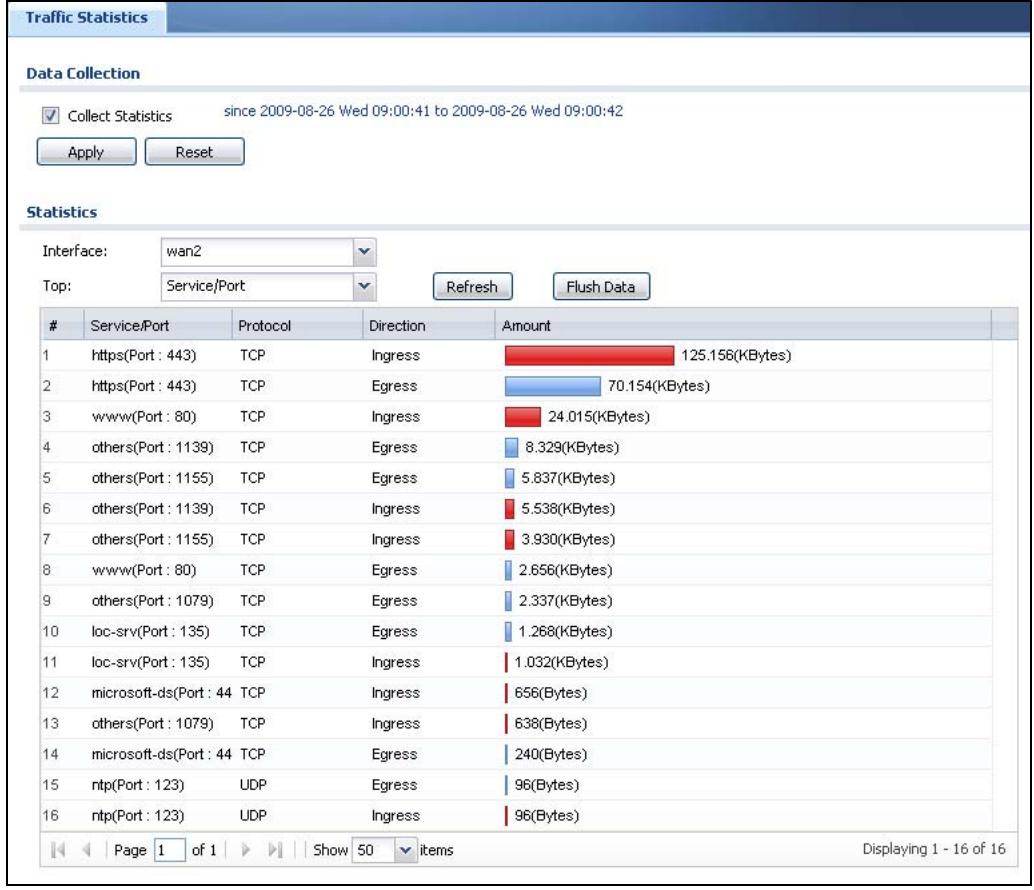
Figure 138 Monitor > System Status > Traffic Statistics
There is a limit on the number of records shown in the report. Please see Table 30 on page 186 for more information. The following table describes the labels in this screen.
Table 29 Monitor > System Status > Traffic Statistics
| LABEL | DESCRIPTION |
| Data Collection | |
| Collect Statistics | Select this to have the ZyWALL collect data for the report. If the ZyWALL has already been collecting data, the collection period displays to the right. The progress is not tracked here real-time, but you can click the Refresh button to update it. |
| Apply | Click Apply to save your changes back to the ZyWALL. |
| Reset | Click Reset to return the screen to its last-saved settings. |
| Statistics | |
| Interface | Select the interface from which to collect information. You can collect information from Ethernet, VLAN, bridge and PPPoE/PPTP interfaces. |
| Traffic Type | Select the type of report to display. Choices are:Host IP Address/User - displays the IP addresses or users with the most traffic and how much traffic has been sent to and from each one(Service/Port - displays the most-used protocols or service ports and the amount of traffic for each one.Web Site Hits - displays the most-visited Web sites and how many times each one has been visited.Each type of report has different information in the report (below). |
| Refresh | Click this button to update the report display. |
| Flush Data | Click this button to discard all of the screen's statistics and update the report display. |
| These fields are available when the Traffic Type is Host IP Address/ User. | |
| # | This field is the rank of each record. The IP addresses and users are sorted by the amount of traffic. |
| IP Address/ User | This field displays the IP address or user in this record. The maximum number of IP addresses or users in this report is indicated in Table 30 on page 186. |
| Direction | This field indicates whether the IP address or user is sending or receiving traffic.Ingress- traffic is coming from the IP address or user to the ZyWALL.Egress - traffic is going from the ZyWALL to the IP address or user. |
| Amount | This field displays how much traffic was sent or received from the indicated IP address or user. If the Direction is Ingress, a red bar is displayed; if the Direction is Egress, a blue bar is displayed. The unit of measure is bytes, Kbytes, Mbytes or Gbytes, depending on the amount of traffic for the particular IP address or user. The count starts over at zero if the number of bytes passes the byte count limit. See Table 30 on page 186. |
| These fields are available when the Traffic Type is Service/Port. | |
| # | This field is the rank of each record. The protocols and service ports are sorted by the amount of traffic. |
| Service/Port | This field displays the service and port in this record. The maximum number of services and service ports in this report is indicated in Table 30 on page 186. |
| Protocol | This field indicates what protocol the service was using. |
| Direction | This field indicates whether the indicated protocol or service port is sending or receiving traffic.Ingress - traffic is coming into the router through the interfaceEgress - traffic is going out from the router through the interface |
| Amount | This field displays how much traffic was sent or received from the indicated service / port. If the Direction is Ingress, a red bar is displayed; if the Direction is Egress, a blue bar is displayed. The unit of measure is bytes, Kbytes, Mbytes, Gbytes, or Tbytes, depending on the amount of traffic for the particular protocol or service port. The count starts over at zero if the number of bytes passes the byte count limit. See Table 30 on page 186. |
| These fields are available when the Traffic Type is Web Site Hits. | |
| # | This field is the rank of each record. The domain names are sorted by the number of hits. |
| Web Site | This field displays the domain names most often visited. The ZyWALL counts each page viewed on a Web site as another hit. The maximum number of domain names in this report is indicated in Table 30 on page 186. |
| Hits | This field displays how many hits the Web site received. The ZyWALL counts hits by counting HTTP GET packets. Many Web sites have HTTP GET references to other Web sites, and the ZyWALL counts these as hits too. The count starts over at zero if the number of hits passes the hit count limit. See Table 30 on page 186. |
The following table displays the maximum number of records shown in the report, the byte count limit, and the hit count limit.
Table 30 Maximum Values for Reports
| LABEL | DESCRIPTION |
| Maximum Number of Records | 20 |
| Byte Count Limit | 264bytes; this is just less than 17 million terabytes. |
| Hit Count Limit | 264hits; this is over 1.8 x 10¹⁹hits. |
9.5 The Session Monitor Screen
The Session Monitor screen displays information about active sessions for debugging or statistical analysis. It is not possible to manage sessions in this screen. The following information is displayed.
- User who started the session
- Protocol or service port used
Source address - Destination address
-
Number of bytes received (so far)
-
Number of bytes transmitted (so far)
Duration (so far)
You can look at all the active sessions by user, service, source IP address, or destination IP address. You can also filter the information by user, protocol / service or service group, source address, and/or destination address and view it by user.
Click Monitor > System Status > Session Monitor to display the following screen.
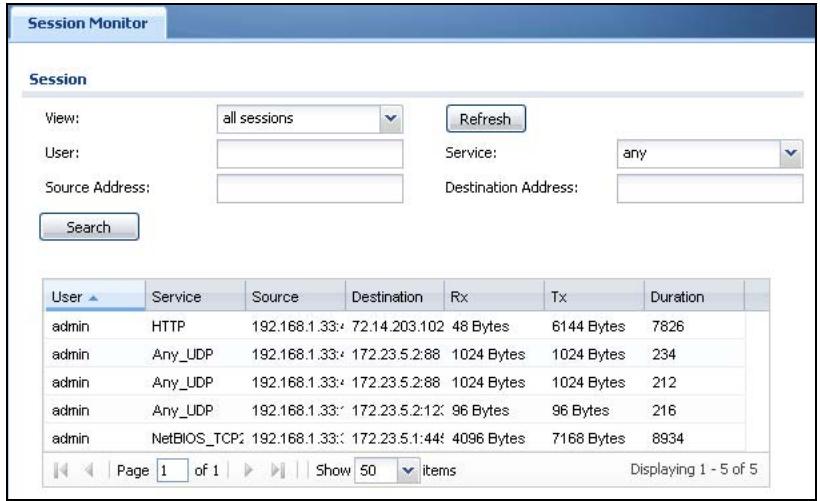
Figure 139 Monitor > System Status > Session Monitor
The following table describes the labels in this screen.
Table 31 Monitor > System Status > Session Monitor
| LABEL | DESCRIPTION |
| View | Select how you want the information to be displayed. Choices are: sessions by users - display all active sessions grouped by user sessions by services - display all active sessions grouped by service or protocol sessions by source IP - display all active sessions grouped by source IP address sessions by destination IP - display all active sessions grouped by destination IP address all sessions - filter the active sessions by the User, Service, Source Address, and Destination Address, and display each session individually (sorted by user). |
| Refresh | Click this button to update the information on the screen. The screen also refreshes automatically when you open and close the screen. |
| The User, Service, Source Address, and Destination Address fields display if you view all sessions. Select your desired filter criteria and click the Search button to filter the list of sessions. | |
| User | This field displays when View is set to all sessions. Type the user whose sessions you want to view. It is not possible to type part of the user name or use wildcards in this field; you must enter the whole user name. |
| Service | This field displays when View is set to all sessions. Select the service or service group whose sessions you want to view. The ZyWALL identifies the service by comparing the protocol and destination port of each packet to the protocol and port of each services that is defined. (See Chapter 35 on page 561 for more information about services.) |
| Source | This field displays when View is set to all sessions. Type the source IP address whose sessions you want to view. You cannot include the source port. |
| Destination | This field displays when View is set to all sessions. Type the destination IP address whose sessions you want to view. You cannot include the destination port. |
| Search | This button displays when View is set to all sessions. Click this button to update the information on the screen using the filter criteria in the User, Service, Source Address, and Destination Address fields. |
| Active Sessions | This is the total number of active sessions that matched the search criteria. |
| Show | Select the number of active sessions displayed on each page. You can use the arrow keys on the right to change pages. |
| User | This field displays the user in each active session. If you are looking at the sessions by users (or all sessions) report, click + or - to display or hide details about a user's sessions. |
| Service | This field displays the protocol used in each active session. If you are looking at the sessions by services report, click + or - to display or hide details about a protocol's sessions. |
| Source | This field displays the source IP address and port in each active session. If you are looking at the sessions by source IP report, click + or - to display or hide details about a source IP address's sessions. |
| Destination | This field displays the destination IP address and port in each active session. If you are looking at the sessions by destination IP report, click + or - to display or hide details about a destination IP address's sessions. |
| Rx | This field displays the amount of information received by the source in the active session. |
| Tx | This field displays the amount of information transmitted by the source in the active session. |
| Duration | This field displays the length of the active session in seconds. |
9.6 The DDNS Status Screen
The DDNS Status screen shows the status of the ZyWALL's DDNS domain names.
Click Monitor > System Status > DDNS Status to open the following screen.
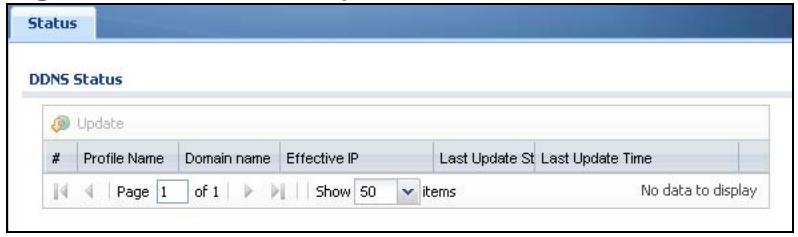
Figure 140 Monitor > System Status > DDNS Status
The following table describes the labels in this screen.
Table 32 Monitor > System Status > DDNS Status
| LABEL | DESCRIPTION |
| Update | Click this to have the ZyWALL update the profile to the DDNS server. The ZyWALL attempts to resolve the IP address for the domain name. |
| Profile Name | This field displays the descriptive profile name for this entry. |
| Domain Name | This field displays each domain name the ZyWALL can route. |
| Effective IP | This is the (resolved) IP address of the domain name. |
| Last Update Status | This shows whether the last attempt to resolve the IP address for the domain name was successful or not. Updating means the ZyWALL is currently attempting to resolve the IP address for the domain name. |
| Last Update Time | This shows when the last attempt to resolve the IP address for the domain name occurred (in year-month-day hour:minute:second format). |
9.7 IP/MAC Binding Monitor
Click Monitor > System Status > IP/MAC Binding to open the IP/MAC Binding Monitor screen. This screen lists the devices that have received an IP address from ZyWALL interfaces with IP/MAC binding enabled and have ever
established a session with the ZyWALL. Devices that have never established a session with the ZyWALL do not display in the list.
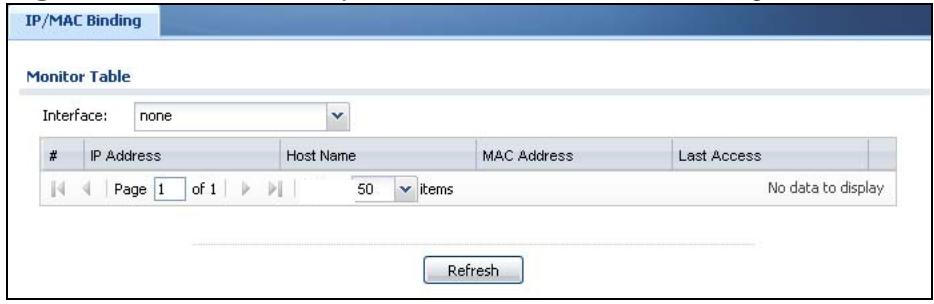
Figure 141 Monitor > System Status > IP/MAC Binding
The following table describes the labels in this screen.
Table 33 Monitor > System Status > IP/MAC Binding
| LABEL | DESCRIPTION |
| Interface | Select a ZyWALL interface that has IP/MAC binding enabled to show to which devices it has assigned an IP address. |
| # | This is the index number of an IP/MAC binding entry. |
| IP Address | This is the IP address that the ZyWALL assigned to a device. |
| Host Name | This field displays the name used to identify this device on the network (the computer name). The ZyWALL learns these from the DHCP client requests. |
| MAC Address | This field displays the MAC address to which the IP address is currently assigned. |
| Last Access | This is when the device last established a session with the ZyWALL through this interface. |
| Refresh | Click this button to update the information in the screen. |
9.8 The Login Users Screen
Use this screen to look at a list of the users currently logged into the ZyWALL. To access this screen, click Monitor > System Status > Login Users.
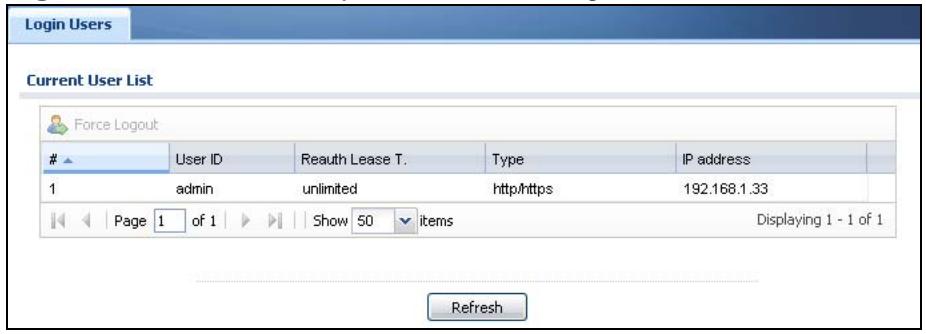
Figure 142 Monitor > System Status > Login Users
The following table describes the labels in this screen.
Table 34 Monitor > System Status > Login Users
| LABEL | DESCRIPTION |
| # | This field is a sequential value and is not associated with any entry. |
| User ID | This field displays the user name of each user who is currently logged in to the ZyWALL. |
| Reauth Lease T. | This field displays the amount of reauthentication time remaining and the amount of lease time remaining for each user. See Chapter 33 on page 539. |
| Type | This field displays the way the user logged in to the ZyWALL. |
| IP address | This field displays the IP address of the computer used to log in to the ZyWALL. |
| ForceLogout | Click this icon to end a user's session. |
| Refresh | Click this button to update the information in the screen. |
9.9 WLAN Status Screen
The WLAN Status screen displays the connection status of the wireless clients connected to (or trying to connect to) a IEEE 802.11b/g card installed in the ZyWALL.
To open the station monitor, click Monitor > System Status > WLAN Status. The screen appears as shown.
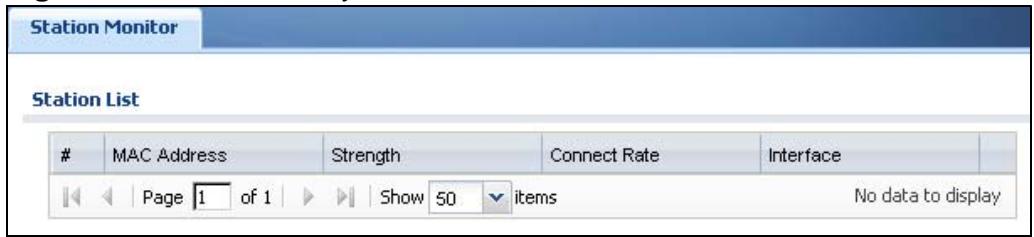
Figure 143 Monitor > System Status > WLAN Status
9.10 The following table describes the labels in this menu. Cellular Status Screen
This screen displays your 3G connection status. click Monitor > System Status > Cellular Status to display this screen.
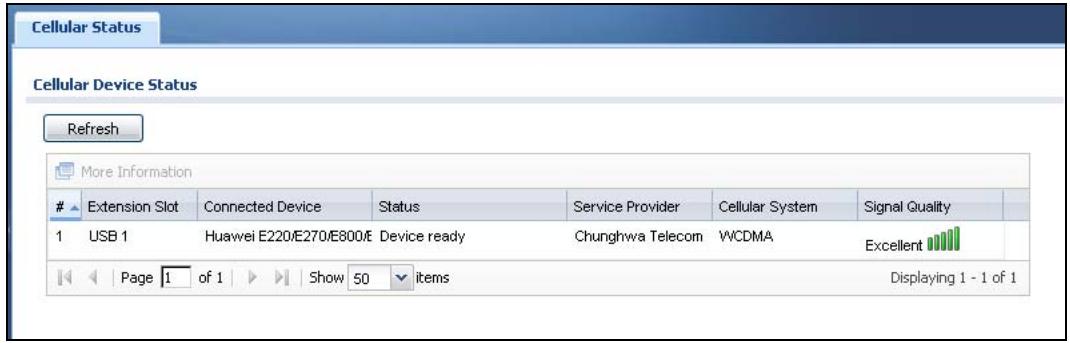
Figure 144 Monitor > System Status > Cellular Status
The following table describes the labels in this screen.
Table 35 Monitor > System Status > Cellular Status
| LABEL | DESCRIPTION |
| Refresh | Click this button to update the information in the screen. |
| More Information | Click this to display more information on your 3G, such as the signal strength, IMEA/ESN and IMSI. This is only available when the 3G device attached and activated on your ZyWALL. Refer to Section 9.10.1 on page 194. |
| # | This field is a sequential value, and it is not associated with any interface. |
| Extension Slot | This field displays where the entry's cellular card is located. |
| Connected Device | This field displays the model name of the cellular card. |
| Status | No device - no 3G device is connected to the ZyWALL.No Service - no 3G network is available in the area; you cannot connect to the Internet.Limited Service - returned by the service provider in cases where the SIM card is expired, the user failed to pay for the service and so on; you cannot connect to the Internet.Device detected - displays when you connect a 3G device.Device error - a 3G device is connected but there is an error.Probe device fail - the ZyWALL's test of the 3G device failed.Probe device ok - the ZyWALL's test of the 3G device succeeded.Init device fail - the ZyWALL was not able to initialize the 3G device.Init device ok - the ZyWALL initialized the 3G card Check lock fail - the ZyWALL's check of whether or not the 3G device is locked failed.Device locked - the 3G device is locked.SIM error - there is a SIM card error on the 3G device.SIM locked-PUK - the PUK is locked on the 3G device's SIM card.SIM locked-PIN - the PIN is locked on the 3G device's SIM card.Unlock PUK fail - Your attempt to unlock a WCDMA 3G device's PUK failed because you entered an incorrect PUK.Unlock PIN fail - Your attempt to unlock a WCDMA 3G device's PIN failed because you entered an incorrect PIN.Unlock device fail - Your attempt to unlock a CDMA2000 3G device failed because you entered an incorrect device code.Device unlocked - You entered the correct device code and unlocked a CDMA2000 3G device.Get dev-info fail - The ZyWALL cannot get cellular device information.Get dev-info ok - The ZyWALL succeeded in retrieving 3G device information.Searching network - The 3G device is searching for a network.Get signal fail - The 3G device cannot get a signal from a network.Network found - The 3G device found a network(APply config - The ZyWALL is applying your configuration to the 3G device.Inactive - The 3G interface is disabled.Active - The 3G interface is enabled.Incorrect device - The connected 3G device is not compatible with the ZyWALL.Correct device - The ZyWALL detected a compatible 3G device.Set band fail - Applying your band selection was not successful.Set band ok - The ZyWALL successfully applied your band selection.Set profile fail - Applying your ISP settings was not successful.Set profile ok - The ZyWALL successfully applied your ISP settings.PPP fail - The ZyWALL failed to create a PPP connection for the cellular interface.Need auth-password - You need to enter the password for the 3G card in the cellular edit screen Device ready - The ZyWALL successfully applied all of your configuration and you can use the 3G connection. |
| Service Provider | This displays the name of your network service provider. This shows Limited Service if the service provider has stopped service to the 3G SIM card. For example if the bill has not been paid or the account has expired. |
| Cellular System | This field displays what type of cellular network the 3G connection is using. The network type varies depending on the 3G card you inserted and could be UMTS, UMTS/HSDPA, GPRS or EDGE when you insert a GSM 3G card, or 1xRTT, EVDO Rev.0 or EVDO Rev.A when you insert a CDMA 3G card. |
| Signal Quality | This displays the strength of the signal. The signal strength mainly depends on the antenna output power and the distance between your ZyWALL and the service provider's base station. |
9.10.1 More Information
This screen displays more information on your 3G, such as the signal strength, IMEA/ESN and IMSI that helps identify your 3G device and SIM card. Click Monitor > System Status > More Information to display this screen.
Note: This screen is only available when the 3G device is attached to and activated on the ZyWALL.
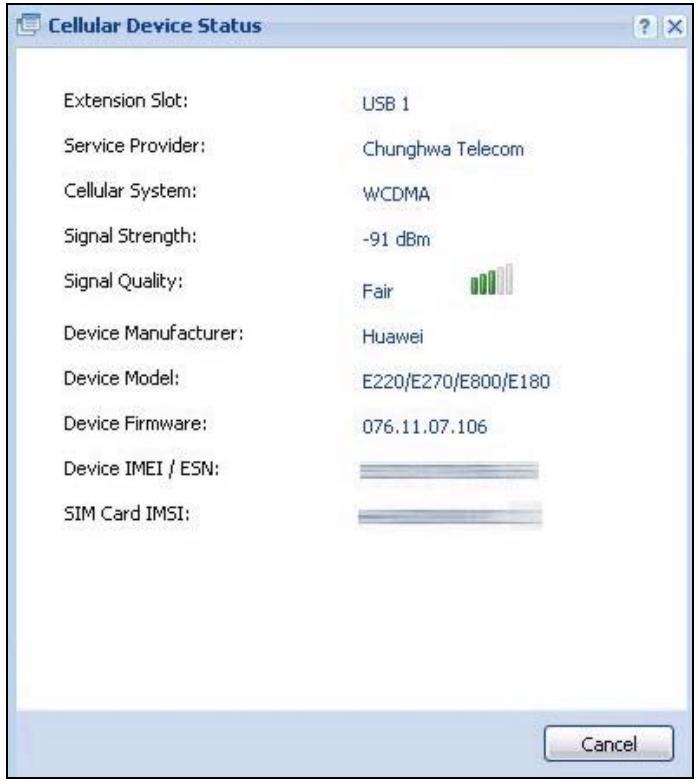
Figure 145 Monitor > System Status > More Information
The following table describes the labels in this screen.
Table 36 Monitor > System Status > More Information
| LABEL | DESCRIPTION |
| Extension Slot | This field displays where the entry's cellular card is located. |
| Service Provider | This displays the name of your network service provider. This shows Limited Service if the service provider has stopped service to the 3G SIM card. For example if the bill has not been paid or the account has expired. |
| Cellular System | This field displays what type of cellular network the 3G connection is using. The network type varies depending on the 3G card you inserted and could be UMTS, UMTS/HSDPA, GPRS or EDGE when you insert a GSM 3G card, or 1xRTT, EVDO Rev.0 or EVDO Rev.A when you insert a CDMA 3G card. |
| Signal Strength | This is the Signal Quality measured in dBm. |
| Signal Quality | This displays the strength of the signal. The signal strength mainly depends on the antenna output power and the distance between your ZyWALL and the service provider's base station. |
| Device Manufacturer | This shows the name of the company that produced the 3G device. |
| Device Model | This field displays the model name of the cellular card. |
| Device Firmware | This shows the software version of the 3G device. |
| Device IMEI/ESN | IMEI (International Mobile Equipment Identity) is a 15-digit code in decimal format that identifies the 3G device.ESN (Electronic Serial Number) is an 8-digit code in hexadecimal format that identifies the 3G device. |
| SIM Card IMSI | IMSI (International Mobile Subscriber Identity) is a 15-digit code that identifies the SIM card. |
9.11 USB Storage Screen
This screen displays information about a connected USB storage device. Click Monitor > System Status > USB Storage to display this screen.
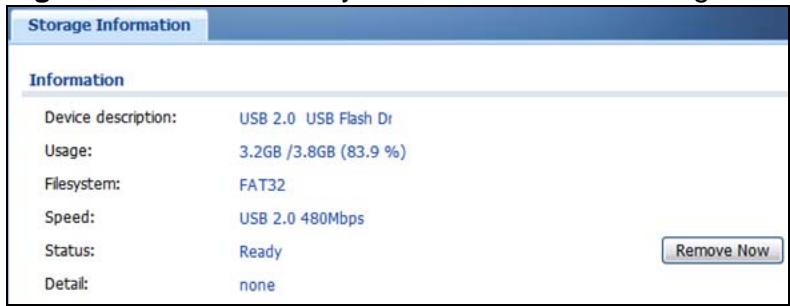
Figure 146 Monitor > System Status > USB Storage
The following table describes the labels in this screen.
Table 37 Monitor > System Status > USB Storage
| LABEL | DESCRIPTION |
| Device description | This is a basic description of the type of USB device. |
| Usage | This field displays how much of the USB storage device's capacity is currently being used out of its total capacity and what percentage that makes. |
| Filesystem | This field displays what file system the USB storage device is formatted with. This field displays Unknown if the file system of the USB storage device is not supported by the ZyWALL, such as NTFS. |
| Speed | This field displays the connection speed the USB storage device supports. |
| Status | Ready - you can have the ZyWALL use the USB storage device. Click Remove Now to stop the ZyWALL from using the USB storage device so you can remove it. Unused - the connected USB storage device was manually unmounted by using the Remove Now button or for some reason the ZyWALL cannot mount it. Click Use It to have the ZyWALL mount a connected USB storage device. This button is grayed out if the file system is not supported (unknown) by the ZyWALL. none - no USB storage device is connected. |
| Detail | This field displays any other information the ZyWALL retrieves from the USB storage device. Deactivated - the use of a USB storage device is disabled (turned off) on the ZyWALL. OutofSpace - the available disk space is less than the disk space full threshold (see Section 43.2 on page 630 for how to configure this threshold). Mounting - the ZyWALL is mounting the USB storage device. Removing - the ZyWALL is unmounting the USB storage device. none - the USB device is operating normally or not connected. |
9.12 The IPSec Monitor Screen
You can use the IPSec Monitor screen to display and to manage active IPSec SAs. To access this screen, click Monitor > VPN Monitor > IPSec. The following
screen appears. Click a column's heading cell to sort the table entries by that column's criteria. Click the heading cell again to reverse the sort order.
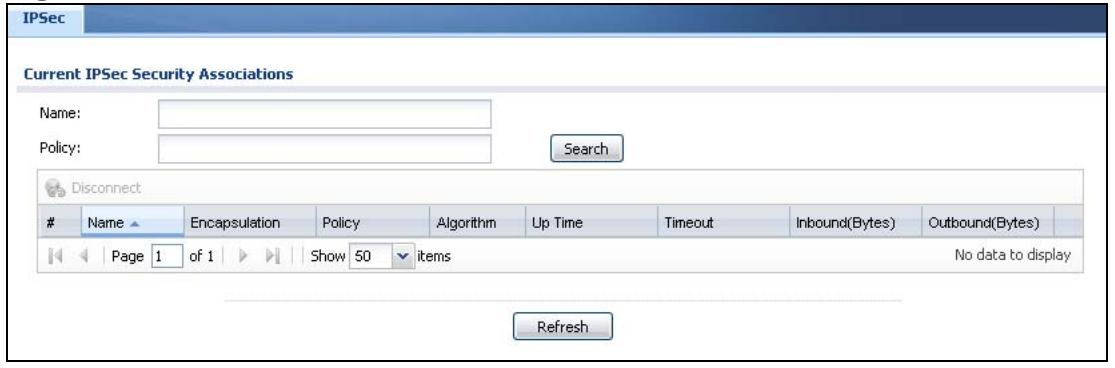
Figure 147 Monitor > VPN Monitor > IPSec
Each field is described in the following table.
Table 38 Monitor > VPN Monitor > IPSec
| LABEL | DESCRIPTION |
| Name | Enter the name of a IPSec SA here and click Search to find it (if it is associated). You can use a keyword or regular expression. Use up to 30 alphanumeric and _+-.()!*^:?|\[ ]<>/ characters. See Section 9.12.1 on page 198 for more details. |
| Policy | Enter the IP address(es) or names of the local and remote policies for an IPSec SA and click Search to find it. You can use a keyword or regular expression. Use up to 30 alphanumeric and _+-.()!*^:?|{\}][ ]<>/ characters. See Section 9.12.1 on page 198 for more details. |
| Search | Click this button to search for an IPSec SA that matches the information you specified above. |
| Disconnect | Select an IPSec SA and click this button to disconnect it. |
| Total Connection | This field displays the total number of associated IPSec SAs. |
| connection per page | Select how many entries you want to display on each page. |
| Page x of x | This is the number of the page of entries currently displayed and the total number of pages of entries. Type a page number to go to or use the arrows to navigate the pages of entries. |
| # | This field is a sequential value, and it is not associated with a specific SA. |
| Name | This field displays the name of the IPSec SA. |
| Encapsulation | This field displays how the IPSec SA is encapsulated. |
| Policy | This field displays the content of the local and remote policies for this IPSec SA. The IP addresses, not the address objects, are displayed. |
| Algorithm | This field displays the encryption and authentication algorithms used in the SA. |
| Up Time | This field displays how many seconds the IPSec SA has been active. This field displays N/A if the IPSec SA uses manual keys. |
| Timeout | This field displays how many seconds remain in the SA life time, before the ZyWALL automatically disconnects the IPSec SA. This field displays N/A if the IPSec SA uses manual keys. |
| Inbound (Bytes) | This field displays the amount of traffic that has gone through the IPSec SA from the remote IPSec router to the ZyWALL since the IPSec SA was established. |
| Outbound (Bytes) | This field displays the amount of traffic that has gone through the IPSec SA from the ZyWALL to the remote IPSec router since the IPSec SA was established. |
| Refresh | Click Refresh to update the information in the display. |
9.12.1 Regular Expressions in Searching IPSec SAs
A question mark (?) lets a single character in the VPN connection or policy name vary. For example, use "a?c" (without the quotation marks) to specify abc, acc and so on.
Wildcards (*) let multiple VPN connection or policy names match the pattern. For example, use " abc" (without the quotation marks) to specify any VPN connection or policy name that ends with "abc". A VPN connection named "testabc" would match. There could be any number (of any type) of characters in front of the "abc" at the end and the VPN connection or policy name would still match. A VPN connection or policy name named "testacc" for example would not match.
A * in the middle of a VPN connection or policy name has the ZyWALL check the beginning and end and ignore the middle. For example, with "abc*123", any VPN connection or policy name starting with "abc" and ending in "123" matches, no matter how many characters are in between.
The whole VPN connection or policy name has to match if you do not use a question mark or asterisk.
9.13 The SSL Connection Monitor Screen
The ZyWALL keeps track of the users who are currently logged into the VPN SSL client portal. Click Monitor > VPN Monitor > SSL to display the user list.
Use this screen to do the following:
- View a list of active SSL VPN connections.
- Log out individual users and delete related session information.
Once a user logs out, the corresponding entry is removed from the Connection Monitor screen.
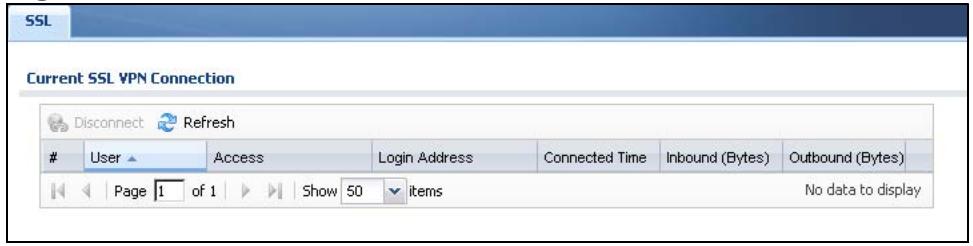
Figure 148 Monitor > VPN Monitor > SSL
The following table describes the labels in this screen.
Table 39 Monitor > VPN Monitor > SSL
| LABEL | DESCRIPTION |
| Disconnect | Select a connection and click this button to terminate the user's connection and delete corresponding session information from the ZyWALL. |
| # | This field displays the index number. |
| User | This field displays the account user name used to establish this SSL VPN connection. |
| Access | This field displays the name of the SSL VPN application the user is accessing. |
| Login Address | This field displays the IP address the user used to establish this SSL VPN connection. |
| Connected Time | This field displays the time this connection was established. |
| Inbound (Bytes) | This field displays the number of bytes received by the ZyWALL on this connection. |
| Outbound (Bytes) | This field displays the number of bytes transmitted by the ZyWALL on this connection. |
| Refresh | Click Refresh to update this screen. |
9.14 The Content Filter Statistics Screen
Click Monitor > Anti-X Statistics > Content Filter to display the following screen. This screen displays content filter statistics.
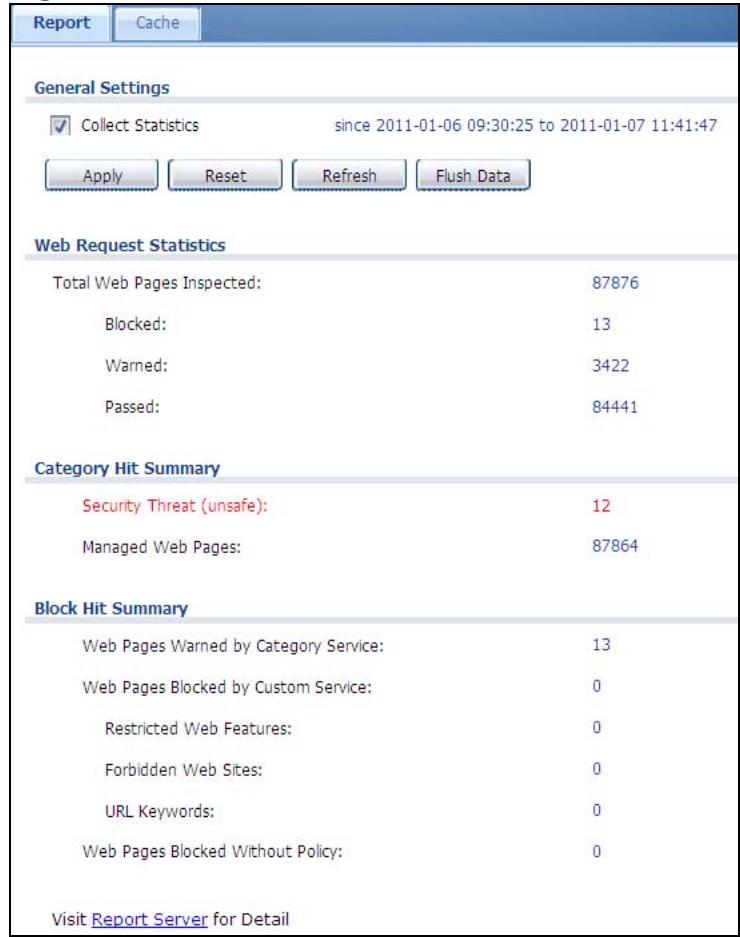
Figure 149 Monitor > Anti-X Statistics > Content Filter
The following table describes the labels in this screen.
Table 40 Monitor > Anti-X Statistics > Content Filter
| LABEL | DESCRIPTION |
| General Settings | |
| Collect Statistics | Select this check box to have the ZyWALL collect content filtering statistics. The collection starting time displays after you click Apply. All of the statistics in this screen are for the time period starting at the time displayed here. The format is year, month, day and hour, minute, second. All of the statistics are erased if you restart the ZyWALL or click Flush Data. Collecting starts over and a new collection start time displays. |
| Apply | Click Apply to save your changes back to the ZyWALL. |
| Reset | Click Reset to return the screen to its last-saved settings. |
| Refresh | Click this button to update the report display. |
| Flush Data | Click this button to discard all of the screen's statistics and update the report display. |
| Web Request Statistics | |
| Total Web Pages Inspected | This field displays the number of web pages that the ZyWALL's content filter feature has checked. |
| Blocked | This is the number of web pages that the ZyWALL blocked access. |
| Warned | This is the number of web pages for which the ZyWALL displayed a warning message to the access requesters. |
| Passed | This is the number of web pages to which the ZyWALL allowed access. |
| Category Hit Summary | |
| Security Threat (unsafe) | This is the number of requested web pages that the ZyWALL's content filtering service identified as posing a threat to users. |
| Managed Web Pages | This is the number of requested web pages that the ZyWALL's content filtering service identified as belonging to a category that was selected to be managed. |
| Block Hit Summary | |
| Web Pages Warned by Category Service | This is the number of web pages that matched an external database content filtering category selected in the ZyWALL and for which the ZyWALL displayed a warning before allowing users access. |
| Web Pages Restricted by Custom Service | This is the number of web pages to which the ZyWALL did not allow access due to the content filtering custom service configuration. |
| Restricted Web Features | This is the number of web pages to which the ZyWALL did not allow access due to the content filtering custom service's restricted web features configuration. |
| Forbidden Web Sites | This is the number of web pages to which the ZyWALL did not allow access because they matched the content filtering custom service's forbidden web sites list. |
| URL Keywords | This is the number of web pages to which the ZyWALL did not allow access because they contained one of the content filtering custom service's list of forbidden keywords. |
| Web Pages Restricted Without Policy | This is the number of web pages to which the ZyWALL did not allow access because they were not rated by the external database content filtering service. |
| Report Server | Click this link to go to http://www.myZyXEL.com where you can view content filtering reports after you have activated the category-based content filtering subscription service. |
9.15 Content Filter Cache Screen
Click Monitor > Anti-X Statistics > Content Filter > Cache to display the Content Filter Cache screen. Use this screen to view and configure your ZyWALL's URL caching. You can also configure how long a categorized web site address remains in the cache as well as view those web site addresses to which access has been allowed or blocked based on the responses from the external content filtering server. The ZyWALL only queries the external content filtering database for sites not found in the cache.
You can remove individual entries from the cache. When you do this, the ZyWALL queries the external content filtering database the next time someone tries to access that web site. This allows you to check whether a web site's category has been changed.
Click a column's heading cell to sort the table entries by that column's criteria. Click the heading cell again to reverse the sort order.
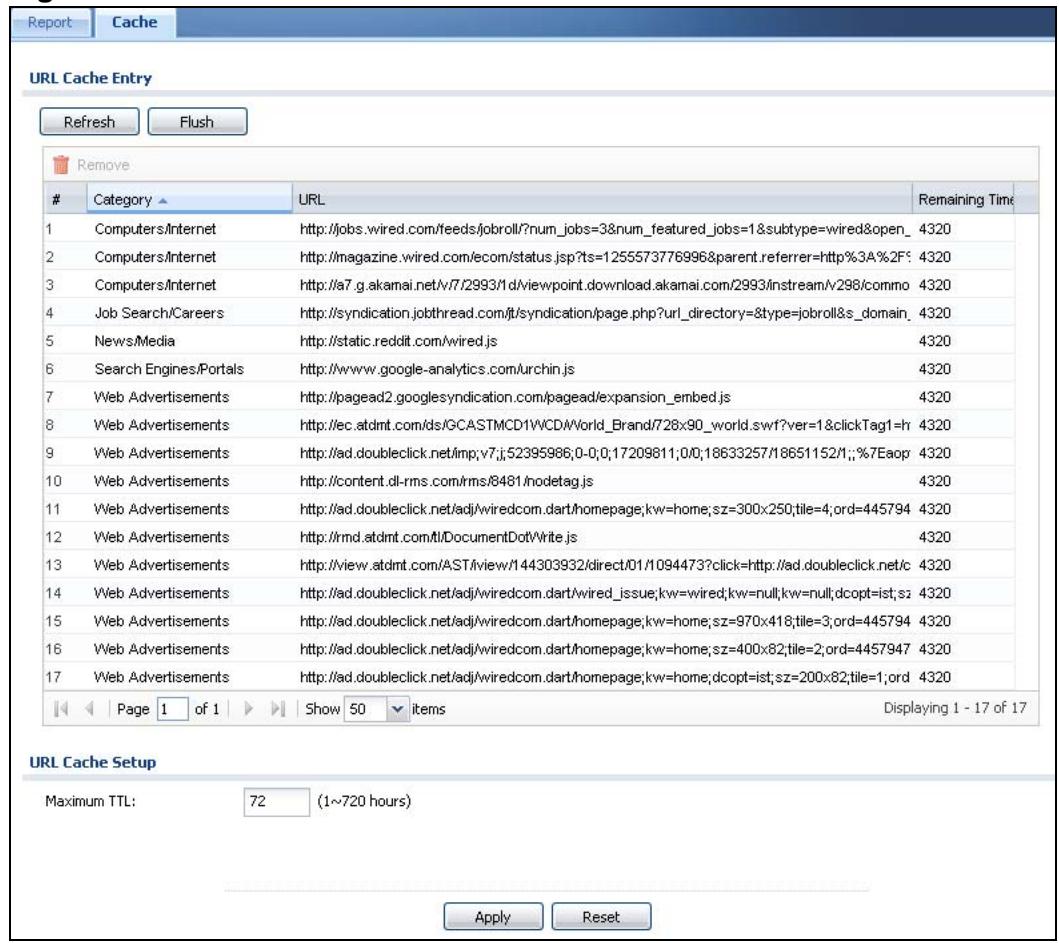
Figure 150 Anti-X > Content Filter > Cache
The following table describes the labels in this screen.
Table 41 Anti-X > Content Filter > Cache
| LABEL | DESCRIPTION |
| URL Cache Entry | |
| Refresh | Click this button to reload the list of content filter cache entries. |
| Flush | Click this button to clear all web site addresses from the cache manually. |
| Remove | Select one or more URL entries and click Delete to remove them from the cache. |
| # | This is the index number of a categorized web site address record. |
| Category | This field shows whether access to the web site's URL was blocked-or allowed. Click the column heading to sort the entries. Point the triangle up to display the blocked URLs before the URLs to which access was allowed. Point the triangle down to display the URLs to which access was allowed before the blocked URLs. |
| URL | This is a web site's address that the ZyWALL previously checked with the external content filtering database. |
| Remaining Time (minutes) | This is the number of minutes left before the URL entry is discarded from the cache. |
| URL Cache Setup | |
| Maximum TTL | Type the maximum time to live (TTL) (1 to 720 hours). This sets how long the ZyWALL is to keep an entry in the URL cache before discarding it. The external content filtering database frequently adds previously un-categorized web sites and sometimes changes a web site's category. Setting this limit higher will speed up the processing of web access requests but will also make it take longer for the ZyWALL to reflect changes in the external content filtering database. |
| Apply | Click Apply to save your changes back to the ZyWALL. |
| Reset | Click Reset to return the screen to its last-saved settings. |
9.16 The Anti-Spam Statistics Screen
Click Monitor > Anti-X Statistics > Anti-Spam to display the following screen. This screen displays spam statistics.
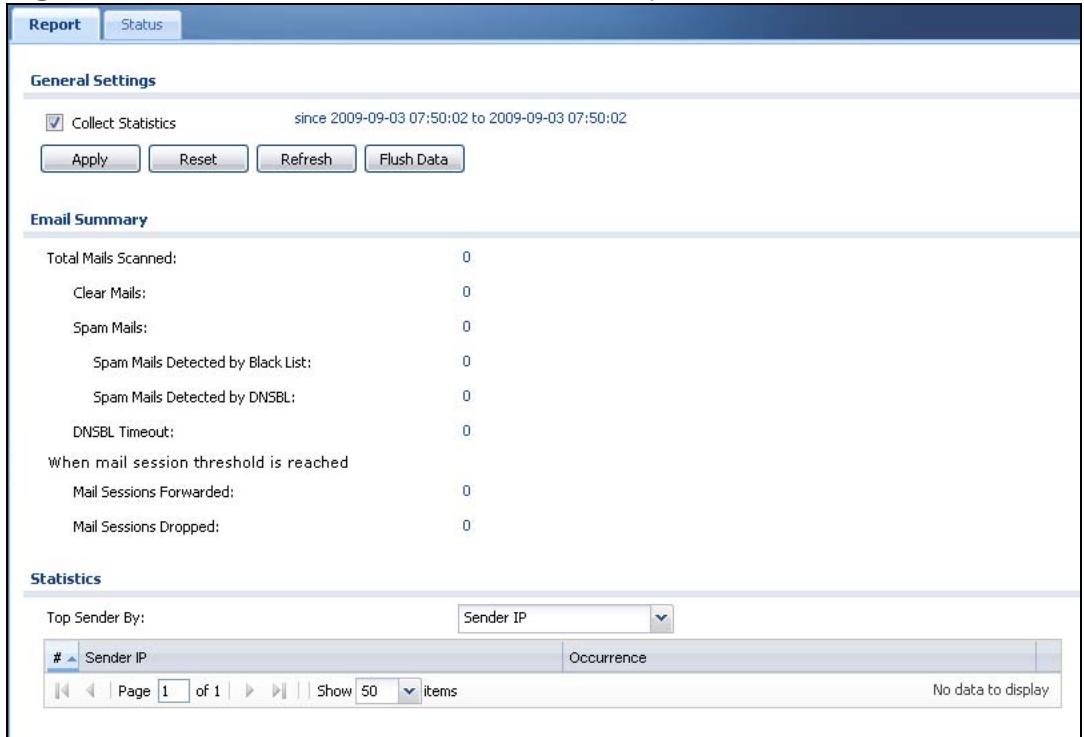
Figure 151 Monitor > Anti-X Statistics > Anti-Spam
The following table describes the labels in this screen.
Table 42 Monitor > Anti-X Statistics > Anti-Spam
| LABEL | DESCRIPTION |
| Collect Statistics | Select this check box to have the ZyWALL collect anti-spam statistics. The collection starting time displays after you click Apply. All of the statistics in this screen are for the time period starting at the time displayed here. The format is year, month, day and hour, minute, second. All of the statistics are erased if you restart the ZyWALL or click Flush Data. Collecting starts over and a new collection start time displays. |
| Apply | Click Apply to save your changes back to the ZyWALL. |
| Reset | Click Reset to return the screen to its last-saved settings. |
| Refresh | Click this button to update the report display. |
| Flush Data | Click this button to discard all of the screen's statistics and update the report display. |
| Total Mails Scanned | This field displays the number of e-mails that the ZyWALL's anti-spam feature has checked. |
| Clear Mails | This is the number of e-mails that the ZyWALL has determined to not be spam. |
| Spam Mails | This is the number of e-mails that the ZyWALL has determined to be spam. |
| Spam Mails Detected by Black List | This is the number of e-mails that matched an entry in the ZyWALL's anti-spam black list. |
| Spam Mails Detected by DNSBL | The ZyWALL can check the sender and relay IP addresses in an e-mail's header against DNS (Domain Name Service)-based spam Black Lists (DNSBLs). This is the number of e-mails that had a sender or relay IP address in the header which matched one of the DNSBLs that the ZyWALL uses. |
| DSNBL Timeout | This is how many queries that were sent to the ZyWALL's configured list of DNSBL domains and did not receive a response in time. |
| Mail Sessions Forwarded | This is how many e-mail sessions the ZyWALL allowed because they exceeded the maximum number of e-mail sessions that the anti-spam feature can check at a time.You can see the ZyWALL's threshold of concurrent e-mail sessions in the Anti-Spam > Status screen.Use the Anti-Spam > General screen to set whether the ZyWALL forwards or drops sessions that exceed this threshold. |
| Mail Sessions Dropped | This is how many e-mail sessions the ZyWALL dropped because they exceeded the maximum number of e-mail sessions that the anti-spam feature can check at a time.You can see the ZyWALL's threshold of concurrent e-mail sessions in the Anti-Spam > Status screen.Use the Anti-Spam > General screen to set whether the ZyWALL forwards or drops sessions that exceed this threshold. |
| Top Sender By | Use this field to list the top e-mail or IP addresses from which the ZyWALL has detected the most spam.Select Sender IP to list the source IP addresses from which the ZyWALL has detected the most spam.Select Sender Email Address to list the top e-mail addresses from which the ZyWALL has detected the most spam. |
| # | This field displays the entry's rank in the list of the top entries. |
| Sender IP | This column displays when you display the entries by Sender IP. It shows the source IP address of spam e-mails that the ZyWALL has detected. |
| Sender Mail Address | This column displays when you display the entries by Sender Mail Address. This column displays the e-mail addresses from which the ZyWALL has detected the most spam. |
| Occurrence | This field displays how many spam e-mails the ZyWALL detected from the sender. |
9.17 The Anti-Spam Status Screen
Click Monitor > Anti-X Statistics > Anti-Spam > Status to display the Anti-Spam Status screen.
Use the Anti-Spam Status screen to see how many e-mail sessions the anti-spam feature is scanning and statistics for the DNSBLs.
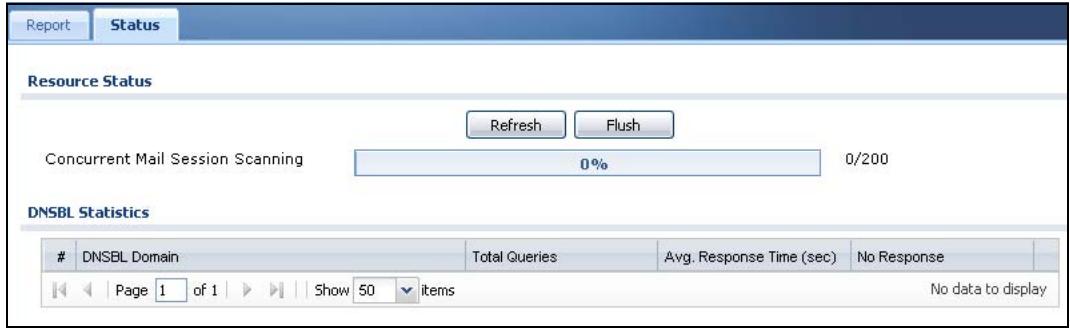
Figure 152 Monitor > Anti-X Statistics > Anti-Spam > Status
The following table describes the labels in this screen.
Table 43 Monitor > Anti-X Statistics > Anti-Spam > Status
| LABEL | DESCRIPTION |
| Refresh | Click this button to update the information displayed on this screen. |
| Flush | Click this button to clear the DNSBL statistics. This also clears the concurrent mail session scanning bar's historical high. |
| Concurrent Mail Session Scanning | The darker shaded part of the bar shows how much of the ZyWALL's total spam checking capability is currently being used.The lighter shaded part of the bar and the pop-up show the historical high.The first number to the right of the bar is how many e-mail sessions the ZyWALL is presently checking for spam. The second number is the maximum number of e-mail sessions that the ZyWALL can check at once. An e-mail session is when an e-mail client and e-mail server (or two e-mail servers) connect through the ZyWALL. |
| DNSBL Statistics | These are the statistics for the DNSBL the ZyWALL uses. These statistics are for when the ZyWALL actually queries the DNSBL servers. Matches for DNSBL responses stored in the cache do not affect these statistics. |
| # | This is the entry's index number in the list. |
| DNSBL Domain | These are the DNSBLs the ZyWALL uses to check sender and relay IP addresses in e-mails. |
| Total Queries | This is the total number of DNS queries the ZyWALL has sent to this DNSBL. |
| Avg. Response Time (sec) | This is the average for how long it takes to receive a reply from this DNSBL. |
| No Response | This is how many DNS queries the ZyWALL sent to this DNSBL without receiving a reply. |
9.18 Log Screen
Log messages are stored in two separate logs, one for regular log messages and one for debugging messages. In the regular log, you can look at all the log messages by selecting All Logs, or you can select a specific category of log messages (for example, firewall or user). You can also look at the debugging log by selecting Debug Log. All debugging messages have the same priority.
To access this screen, click Monitor > Log. The log is displayed in the following screen.
Note: When a log reaches the maximum number of log messages, new log messages automatically overwrite existing log messages, starting with the oldest existing log message first.
- For individual log descriptions, see Appendix A on page 747.
- For the maximum number of log messages in the ZyWALL, see Chapter 51 on page 741.
Events that generate an alert (as well as a log message) display in red. Regular logs display in black. Click a column's heading cell to sort the table entries by that column's criteria. Click the heading cell again to reverse the sort order.
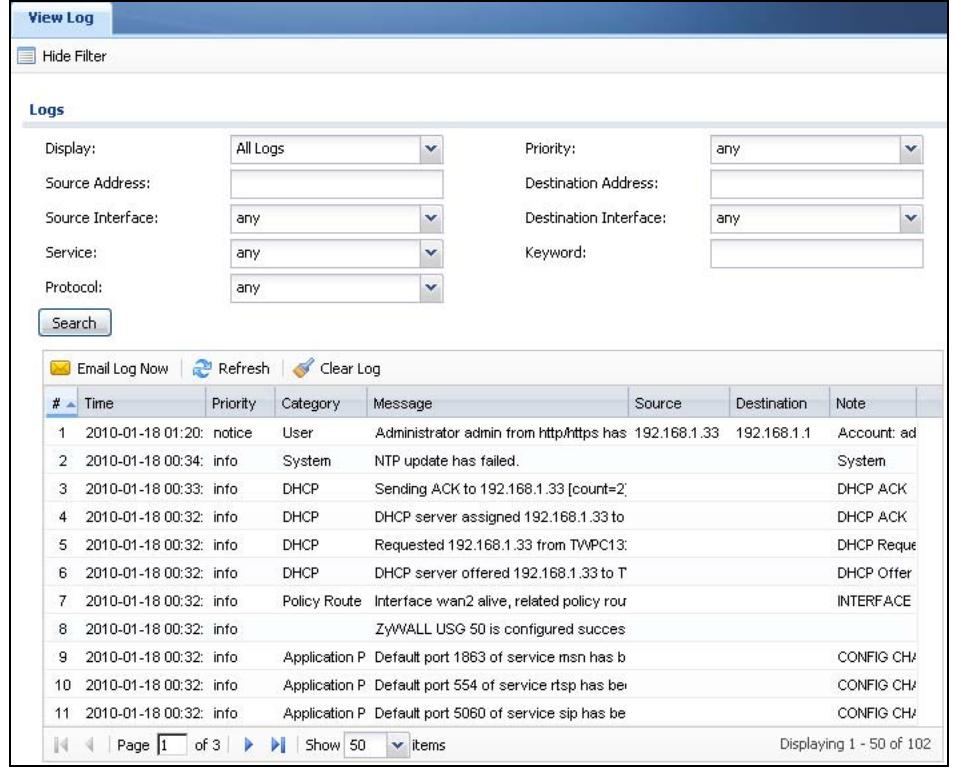
Figure 153 Monitor > Log
The following table describes the labels in this screen.
Table 44 Monitor > Log
| LABEL | DESCRIPTION |
| Show Filter / Hide Filter | Click this button to show or hide the filter settings.If the filter settings are hidden, the Display, Email Log Now, Refresh, and Clear Log fields are available.If the filter settings are shown, the Display, Priority, Source Address, Destination Address, Service, Keyword, and Search fields are available. |
| Display | Select the category of log message(s) you want to view. You can also view All Logs at one time, or you can view the Debug Log. |
| Priority | This displays when you show the filter. Select the priority of log messages to display. The log displays the log messages with this priority or higher. Choices are: any, emerg, alert, crit, error, warn, notice, and info, from highest priority to lowest priority. This field is read-only if the Category is Debug Log. |
| Source Address | This displays when you show the filter. Type the source IP address of the incoming packet that generated the log message. Do not include the port in this filter. |
| Destination Address | This displays when you show the filter. Type the IP address of the destination of the incoming packet when the log message was generated. Do not include the port in this filter. |
| Source Interface | This displays when you show the filter. Select the source interface of the packet that generated the log message. |
| Destination Interface | This displays when you show the filter. Select the destination interface of the packet that generated the log message. |
| Service | This displays when you show the filter. Select the service whose log messages you would like to see. The Web Configurator uses the protocol and destination port number(s) of the service to select which log messages you see. |
| Keyword | This displays when you show the filter. Type a keyword to look for in the Message, Source, Destination and Note fields. If a match is found in any field, the log message is displayed. You can use up to 63 alphanumeric characters and the underscore, as well as punctuation marks ( )', ;;?! +-*/= #$% @; the period, double quotes, and brackets are not allowed. |
| Protocol | This displays when you show the filter. Select a service protocol whose log messages you would like to see. |
| Search | This displays when you show the filter. Click this button to update the log using the current filter settings. |
| Email Log Now | Click this button to send log message(s) to the Active e-mail address(es) specified in the Send Log To field on the Log Settings page (see Section 44.3.2 on page 683). |
| Clear Log | Click this button to clear the whole log, regardless of what is currently displayed on the screen. |
| # | This field is a sequential value, and it is not associated with a specific log message. |
| Time | This field displays the time the log message was recorded. |
| Priority | This field displays the priority of the log message. It has the same range of values as the Priority field above. |
| Category | This field displays the log that generated the log message. It is the same value used in the Display and (other) Category fields. |
| Message | This field displays the reason the log message was generated. The text “[count=x]”, where x is a number, appears at the end of the Message field if log consolidation is turned on (see Log Consolidation in Table 212 on page 685) and multiple entries were aggregated to generate into this one. |
| Source | This field displays the source IP address and the port number in the event that generated the log message. |
| Destination | This field displays the destination IP address and the port number of the event that generated the log message. |
| Note | This field displays any additional information about the log message. |
The Web Configurator saves the filter settings if you leave the View Log screen and return to it later.
Registration
10.1 Overview
Use the Configuration > Licensing > Registration screens to register your ZyWALL and manage its service subscriptions.
10.1.1 What You Can Do in this Chapter
- Use the Registration screen (see Section 10.2 on page 212) to register your ZyWALL with myZyXEL.com and activate a service, such as content filtering.
- Use the Service screen (see Section 10.3 on page 214) to display the status of your service registrations and upgrade licenses.
10.1.2 What you Need to Know
This section introduces the topics covered in this chapter.
myZyXEL.com
myZyXEL.com is ZyXEL's online services center where you can register your ZyWALL and manage subscription services available for the ZyWALL. To update signature files or use a subscription service, you have to register the ZyWALL and activate the corresponding service at myZyXEL.com (through the ZyWALL).
Note: You need to create a myZyXEL.com account before you can register your device and activate the services at myZyXEL.com.
You can directly create a myZyXEL.com account, register your ZyWALL and activate a service using the Registration screen. Alternatively, go to http:// www.myZyXEL.com with the ZyWALL's serial number and LAN MAC address to register it. Refer to the web site's on-line help for details.
Note: To activate a service on a ZyWALL, you need to access myZyXEL.com via that ZyWALL.
Subscription Services Available on the ZyWALL
You can have the ZyWALL use and content filtering subscription services. You can also purchase and enter a license key to have the ZyWALL use more SSL VPN tunnels. See the respective User's Guide chapters for more information about these features.
10.2 The Registration Screen
Use this screen to register your ZyWALL with myZyXEL.com and activate a service, such as content filtering. Click Configuration > Licensing > Registration in the navigation panel to open the screen as shown next.
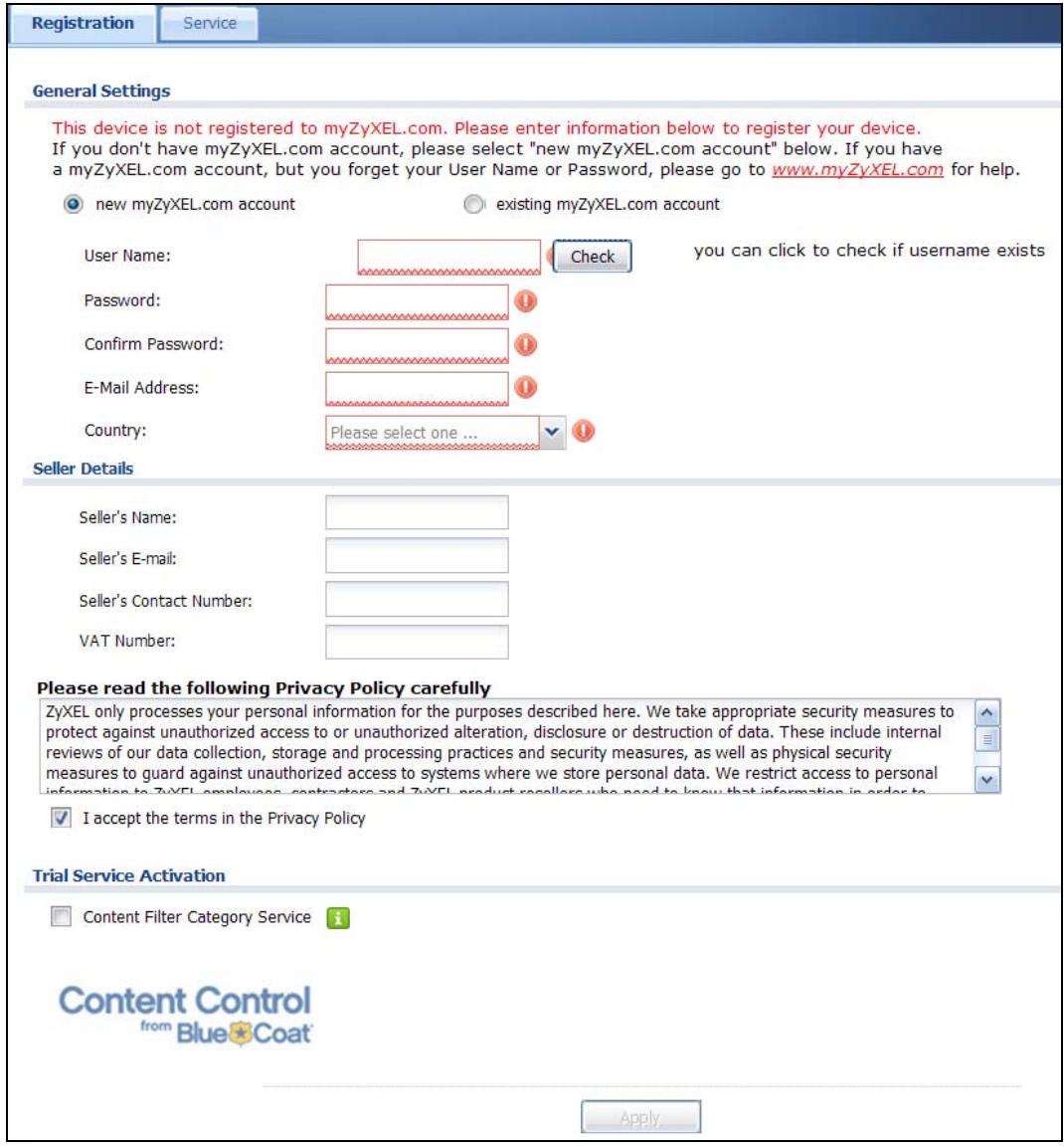
Figure 154 Configuration > Licensing > Registration
The following table describes the labels in this screen.
Table 45 Configuration > Licensing > Registration
| LABEL | DESCRIPTION |
| General Settings | If you select existing myZyXEL.com account, only the User Name and Password fields are available. |
| new myZyXEL.com account | If you haven’t created an account at myZyXEL.com, select this option and configure the following fields to create an account and register your ZyWALL. |
| existing myZyXEL.com account | If you already have an account at myZyXEL.com, select this option and enter your user name and password in the fields below to register your ZyWALL. |
| UserName | Enter a user name for your myZyXEL.com account. The name should be from six to 20 alphanumeric characters (and the underscore). Spaces are not allowed. |
| Check | Click this button to check with the myZyXEL.com database to verify the user name you entered has not been used. |
| Password | Enter a password of between six and 20 alphanumeric characters (and the underscore). Spaces are not allowed. |
| Confirm Password | Enter the password again for confirmation. |
| E-Mail Address | Enter your e-mail address. You can use up to 80 alphanumeric characters (periods and the underscore are also allowed) without spaces. |
| Country | Select your country from the drop-down box list. |
| Seller Details | Use this section to enter your seller information. |
| Seller’s Name | Enter your seller’s name. |
| Seller’s E-mail | Enter your seller’s e-mail address. |
| Seller’s Contact Number | Enter your seller’s phone number. |
| VAT Number | Enter your seller’s Value-Added Tax number, if you bought your ZyWALL from Europe. |
| I accept the terms in the Privacy Policy | If you accept the privacy policy statement shown above this field, select this check box. |
| Trial Service Activation | Select the check box to activate a trial service subscription. The trial period starts the day you activate the trial. After the trial expires, you can buy an iCard and enter the license key in the Registration Service screen to extend the service. |
| Content Filter Category Service | The content filter allows or blocks accessto web sites. Subscribe to category-based content filtering to block access to categories of web sites based on content. Your ZyWALL accesses an external database that has millions of web sites categorized based on content. You can have the ZyWALL block, block and/or log access to web sites based on these categories. |
| Apply | Click Apply to save your changes back to the ZyWALL. |
Note: If the ZyWALL is registered already, this screen is read-only and indicates whether trial services are activated (if any). You can still select the unchecked trial service(s) to activate it after registration. Use the Service screen to update your service subscription status.
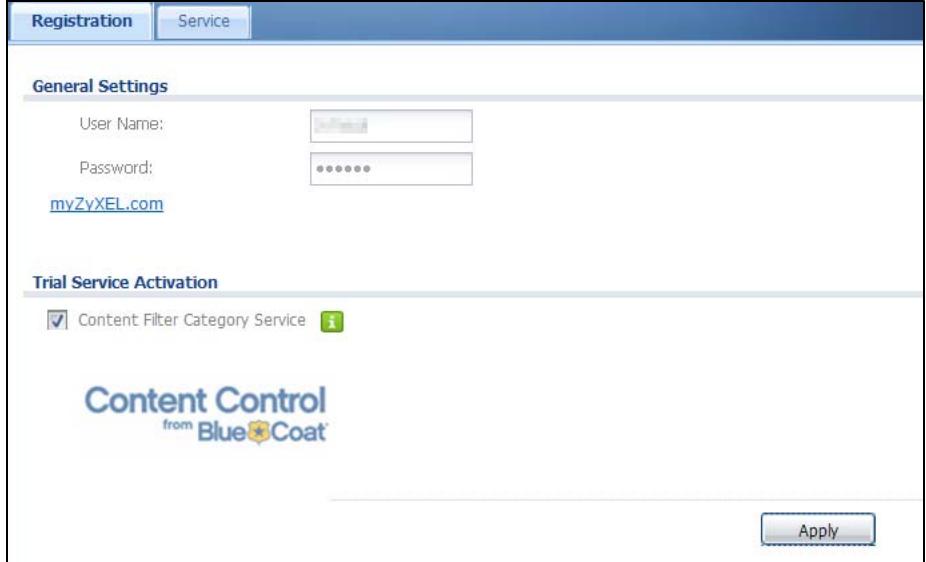
Figure 155 Configuration > Licensing > Registration: Registered Device
10.3 The Service Screen
Use this screen to display the status of your service registrations and upgrade licenses. To activate or extend a standard service subscription, purchase an iCard and enter the iCard's PIN number (license key) in this screen. Click
Configuration > Licensing > Registration > Service to open the screen as shown next.
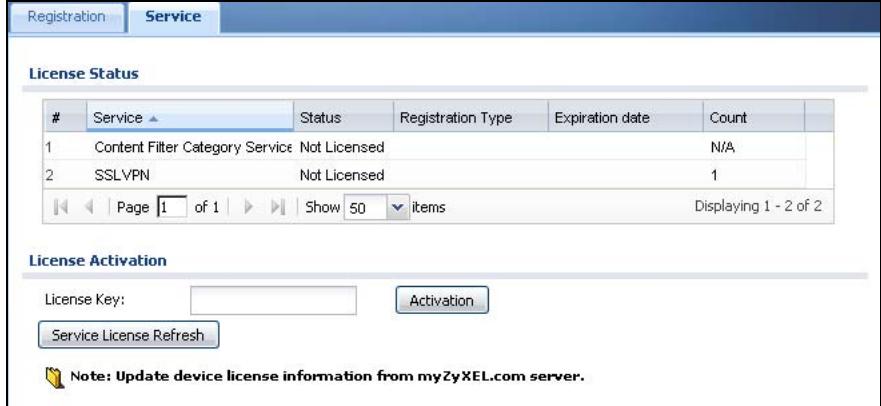
Figure 156 Configuration > Licensing > Registration > Service
The following table describes the labels in this screen.
Table 46 Configuration > Licensing > Registration > Service
| LABEL | DESCRIPTION |
| License Status | |
| # | This is the entry's position in the list. |
| Service | This lists the services that available on the ZyWALL. |
| Status | This field displays whether a service is activated (Licensed) or not (Not Licensed) or expired (Expired). |
| Registration Type | This field displays whether you applied for a trial application (Trial) or registered a service with your iCard's PIN number (Standard). This field is blank when a service is not activated. |
| Expiration date | This field displays the date your service expires. |
| Count | This field displays how many VPN tunnels you can use with your current license. This field does not apply to the other services. |
| License Upgrade | |
| License Key | Enter your iCard's PIN number and click Activation to activate or extend a standard service subscription. If a standard service subscription runs out, you need to buy a new iCard (specific to your ZyWALL) and enter the new PIN number to extend the service. |
| Service License Refresh | Click this button to renew service license information (such as the registration status and expiration day). |
11.1 Interface Overview
Use the Interface screens to configure the ZyWALL's interfaces. You can also create interfaces on top of other interfaces.
- Ports are the physical ports to which you connect cables.
- Interfaces are used within the system operationally. You use them in configuring various features. An interface also describes a network that is directly connected to the ZyWALL. For example, You connect the LAN1 network to the LAN1 interface.
- Zones are groups of interfaces used to ease security policy configuration.
11.1.1 What You Can Do in this Chapter
- Use the Port Role screens (Section 11.2 on page 220) to create port groups and to assign physical ports and port groups to Ethernet interfaces.
- Use the Ethernet screens (Section 11.3 on page 222) to configure the Ethernet interfaces. Ethernet interfaces are the foundation for defining other interfaces and network policies. RIP and OSPF are also configured in these interfaces.
- Use the PPP screens (Section 11.4 on page 233) for PPPoE or PPTP Internet connections.
- Use the Cellular screens (Section 11.5 on page 239) to configure settings for interfaces for Internet connections through an installed 3G card.
- (For USG 20W only) Use the WLAN screens (Section 11.6 on page 248) to configure settings for interfaces on a wireless LAN card.
- Use the VLAN screens (Section 11.8 on page 264) to divide the physical network into multiple logical networks. VLAN interfaces receive and send tagged frames. The ZyWALL automatically adds or removes the tags as needed. Each VLAN can only be associated with one Ethernet interface.
- Use the Bridge screens (Section 11.9 on page 274) to combine two or more network segments into a single network.
- Use the Virtual Interface screen (Section 11.9.3 on page 282) to create virtual interfaces on top of Ethernet interfaces to tell the ZyWALL where to route packets. You can create virtual Ethernet interfaces, virtual VLAN interfaces, and virtual bridge interfaces.
- Use the Trunk screens (Chapter 12 on page 289) to configure load balancing.
11.1.2 What You Need to Know
Interface Characteristics
Interfaces generally have the following characteristics (although not all characteristics apply to each type of interface).
- An interface is a logical entity through which (layer-3) packets pass.
- An interface is bound to a physical port or another interface.
- Many interfaces can share the same physical port.
- An interface belongs to at most one zone.
- Many interfaces can belong to the same zone.
- Layer-3 virtualization (IP alias, for example) is a kind of interface.
Types of Interfaces
You can create several types of interfaces in the ZyWALL.
- Setting interfaces to the same port role forms a port group. Port groups create a hardware connection between physical ports at the layer-2 (data link, MAC address) level.
- Ethernet interfaces are the foundation for defining other interfaces and network policies. RIP and OSPF are also configured in these interfaces.
- VLAN interfaces receive and send tagged frames. The ZyWALL automatically adds or removes the tags as needed. Each VLAN can only be associated with one Ethernet interface.
- Bridge interfaces create a software connection between Ethernet or VLAN interfaces at the layer-2 (data link, MAC address) level. Unlike port groups, bridge interfaces can take advantage of some security features in the ZyWALL. You can also assign an IP address and subnet mask to the bridge.
- PPP interfaces support Point-to-Point Protocols (PPP). ISP accounts are required for PPPoE/PPTP interfaces.
- Cellular interfaces are for 3G WAN connections via a connected 3G device.
- WLAN interfaces are for wireless LAN (IEEE 802.11b/g) connections via an installed wireless LAN card (for USG 20W only).
- Virtual interfaces provide additional routing information in the ZyWALL. There are three types: virtual Ethernet interfaces, virtual VLAN interfaces, and virtual bridge interfaces.
- Trunk interfaces manage load balancing between interfaces.
Port groups and trunks have a lot of characteristics that are specific to each type of interface. See Section 11.2 on page 220 and Chapter 12 on page 289 for details. The other types of interfaces--Ethernet, PPP, cellular, VLAN, bridge, and
virtual--have a lot of similar characteristics. These characteristics are listed in the following table and discussed in more detail below.
Table 47 Ethernet, PPP, Cellular, VLAN, Bridge, and Virtual Interface Characteristics
| CHARACTERISTICS | ETHERNET | ETHERNET | PPP | CELLU LAR | VLAN | BRIDGE | VIRTUAL |
| Name* | wan1 | lan1, lan2, dmz | pppx | cellularx | vlanx | brx | ** |
| Configurable Zone | No | No | No | No | Yes | Yes | No |
| IP Address Assignment | |||||||
| Static IP address | Yes | Yes | Yes | Yes | Yes | Yes | Yes |
| DHCP client | Yes | No | Yes | Yes | Yes | Yes | No |
| Routing metric | Yes | Yes | Yes | Yes | Yes | Yes | Yes |
| Interface Parameters | |||||||
| Bandwidth restrictions | Yes | Yes | Yes | Yes | Yes | Yes | Yes |
| Packet size (MTU) | Yes | Yes | Yes | Yes | Yes | Yes | No |
| DHCP | |||||||
| DHCP server | No | Yes | No | No | Yes | Yes | No |
| DHCP relay | No | Yes | No | No | Yes | Yes | No |
| Connectivity Check | Yes | No | Yes | No | Yes | Yes | No |
-
- The format of interface names other than the Ethernet and ppp interface names is strict. Each name consists of 2-4 letters (interface type), followed by a number (x) . For most interfaces, x is limited by the maximum number of the type of interface. For VLAN interfaces, x is defined by the number you enter in the VLAN name field. For example, Ethernet interface names are wan1, lan1, lan2, dmz; VLAN interfaces are vlan0, vlan1, vlan2, ..., and so on.
** - The names of virtual interfaces are derived from the interfaces on which they are created. For example, virtual interfaces created on Ethernet interface wan1 are called wan1:1, wan1:2, and so on. Virtual interfaces created on VLAN interface vlan2 are called vlan2:1, vlan2:2, and so on. You cannot specify the number after the colon(:) in the Web Configurator; it is a sequential number. You can specify the number after the colon if you use the CLI to set up a virtual interface.
- The format of interface names other than the Ethernet and ppp interface names is strict. Each name consists of 2-4 letters (interface type), followed by a number (x) . For most interfaces, x is limited by the maximum number of the type of interface. For VLAN interfaces, x is defined by the number you enter in the VLAN name field. For example, Ethernet interface names are wan1, lan1, lan2, dmz; VLAN interfaces are vlan0, vlan1, vlan2, ..., and so on.
Relationships Between Interfaces
In the ZyWALL, interfaces are usually created on top of other interfaces. Only Ethernet interfaces are created directly on top of the physical ports or port groups. The relationships between interfaces are explained in the following table.
Table 48 Relationships Between Different Types of Interfaces
| INTERFACE | REQUIRED PORT / INTERFACE |
| port group | physical port |
| Ethernet interface | physical port |
| port group | |
| VLAN interface | Ethernet interface |
| bridge interface | Ethernet interface* |
| WLAN interface* (USG20W only) | |
| VLAN interface* | |
| PPP interface | WAN1 |
| virtual interface | |
| (virtual Ethernet interface) | Ethernet interface* |
| (virtual VLAN interface) | VLAN interface* |
| (virtual bridge interface) | bridge interface |
| trunk | Ethernet interface |
| Cellular interface | |
| VLAN interface | |
| bridge interface | |
| PPP interface |
-
- You cannot set up a PPP interface, virtual Ethernet interface or virtual VLAN interface if the underlying interface is a member of a bridge. You also cannot add an Ethernet interface or VLAN interface to a bridge if the member interface has a virtual interface or PPP interface on top of it.
Finding Out More
- See Section 6.2 on page 88 details on the differences between physical ports, interfaces, and zones in the ZyWALL.
- See Section 6.5.3 on page 96 for related information about the Interface screens.
- See Section 11.10 on page 284 for background information on interfaces.
- See Section 7.1 on page 107 for an example of configuring Ethernet interfaces, port role, and zones.
- See Section 7.2 on page 111 for an example of configuring a cellular (3G) interface.
- See Chapter 12 on page 289 to configure load balancing using trunks.
11.2 Port Role
To access this screen, click Configuration > Network > Interface > Port Role. Use the Port Role screen to set the ZyWALL's flexible ports as part of the Ian1, Ian2 or dmz interfaces. This creates a hardware connection between the physical
ports at the layer-2 (data link, MAC address) level. This provides wire-speed throughput but no security.
Note the following if you are configuring from a computer connected to a lan1, lan2 or dmz port and change the port's role:
1 A port's IP address varies as its role changes, make sure your computer's IP address is in the same subnet as the ZyWALL's lan1, lan2 or dmz IP address.
2 Use the appropriate Ian1, Ian2 or dmz IP address to access the ZyWALL.
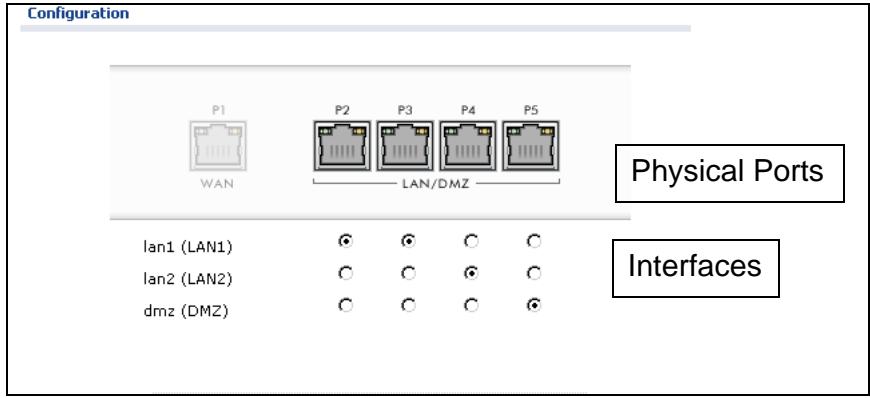
Figure 157 Configuration > Network > Interface > Port Role
Each section in this screen is described below.
Table 49 Configuration > Network > Interface > Port Role
| LABEL | DESCRIPTION |
| LAN1/DMZ P2~P5 | These are physical Ethernet ports. |
| lan1 (LAN1) | These are Ethernet interfaces and the zone to which each belongs. Use the radio buttons to select for which interface (network) you want to use each physical port. For example, select a port's LAN1 radio button to use the port as part of the lan1 interface. The port will use the ZyWALL's lan1 IP address and MAC address. |
| lan2 (LAN2) | |
| dmz (DMZ) | |
| When you assign more than one physical port to a network, you create a port group. Port groups have the following characteristics: · There is a layer-2 Ethernet switch between physical ports in the port group. This provides wire-speed throughput but no security. · It can increase the bandwidth between the port group and other interfaces. · The port group uses a single MAC address. | |
| Apply | Click this button to save your changes and apply them to the ZyWALL. |
| Reset | Click this button to change the port groups to their current configuration (last-saved values). |
11.3 Ethernet Summary Screen
This screen lists every Ethernet interface and virtual interface created on top of Ethernet interfaces. To access this screen, click Configuration > Network > Interface > Ethernet.
Unlike other types of interfaces, you cannot create new Ethernet interfaces nor can you delete any of them. If an Ethernet interface does not have any physical ports assigned to it (see Section 11.2 on page 220), the Ethernet interface is effectively removed from the ZyWALL, but you can still configure it.
Ethernet interfaces are similar to other types of interfaces in many ways. They have an IP address, subnet mask, and gateway used to make routing decisions. They restrict the amount of bandwidth and packet size. They can provide DHCP services, and they can verify the gateway is available.
Use Ethernet interfaces to control which physical ports exchange routing information with other routers and how much information is exchanged through each one. The more routing information is exchanged, the more efficient the routers should be. However, the routers also generate more network traffic, and some routing protocols require a significant amount of configuration and management. The ZyWALL supports two routing protocols, RIP and OSPF. See Chapter 14 on page 313 for background information about these routing protocols.
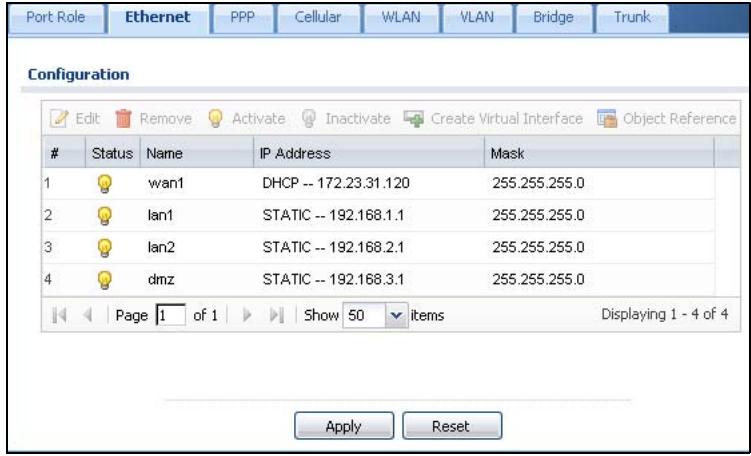
Figure 158 Configuration > Network > Interface > Ethernet (USG 20W)
Each field is described in the following table.
Table 50 Configuration > Network > Interface > Ethernet
| LABEL | DESCRIPTION |
| Edit | Double-click an entry or select it and click Edit to open a screen where you can modify the entry's settings. |
| Remove | To remove a virtual interface, select it and click Remove. The ZyWALL confirms you want to remove it before doing so. |
| Activate | To turn on an interface, select it and click Activate. |
| Inactivate | To turn off an interface, select it and click Inactivate. |
| Create Virtual Interface | To open the screen where you can create a virtual Ethernet interface, select an Ethernet interface and click Create Virtual Interface. |
| Object References | Select an entry and click Object References to open a screen that shows which settings use the entry. See Section 11.3.2 on page 232 for an example. |
| # | This field is a sequential value, and it is not associated with any interface. |
| Status | This icon is lit when the entry is active and dimmed when the entry is inactive. |
| Name | This field displays the name of the interface. |
| IP Address | This field displays the current IP address of the interface. If the IP address is 0.0.0.0, the interface does not have an IP address yet. This screen also shows whether the IP address is a static IP address (STATIC) or dynamically assigned (DHCP). IP addresses are always static in virtual interfaces. |
| Mask | This field displays the interface's subnet mask in dot decimal notation. |
| Apply | Click Apply to save your changes back to the ZyWALL. |
| Reset | Click Reset to return the screen to its last-saved settings. |
11.3.1 Ethernet Edit
The Ethernet Edit screen lets you configure IP address assignment, interface parameters, RIP settings, OSPF settings, DHCP settings, connectivity check, and MAC address settings. To access this screen, click an Edit icon in the Ethernet Summary screen. (See Section 11.3 on page 222.)
The WAN interface's Edit > Configuration screen is shown here as an example.
Note: If you create IP address objects based on an interface's IP address, subnet, or gateway, the ZyWALL automatically updates every rule or setting that uses the object whenever the interface's IP address settings change. For example, if you change LAN1's IP address, the ZyWALL automatically updates the corresponding interface-based, LAN1 subnet address object.
With RIP, you can use Ethernet interfaces to do the following things.
- Enable and disable RIP in the underlying physical port or port group.
- Select which direction(s) routing information is exchanged - The ZyWALL can receive routing information, send routing information, or do both.
- Select which version of RIP to support in each direction - The ZyWALL supports RIP-1, RIP-2, and both versions.
- Select the broadcasting method used by RIP-2 packets - The ZyWALL can use subnet broadcasting or multicasting.
With OSPF, you can use Ethernet interfaces to do the following things.
- Enable and disable OSPF in the underlying physical port or port group.
- Select the area to which the interface belongs.
- Override the default link cost and authentication method for the selected area.
- Select in which direction(s) routing information is exchanged - The ZyWALL can receive routing information, send routing information, or do both.
- Set the priority used to identify the DR or BDR if one does not exist.

Figure 159 Configuration > Network > Interface > Ethernet > Edit (WAN)
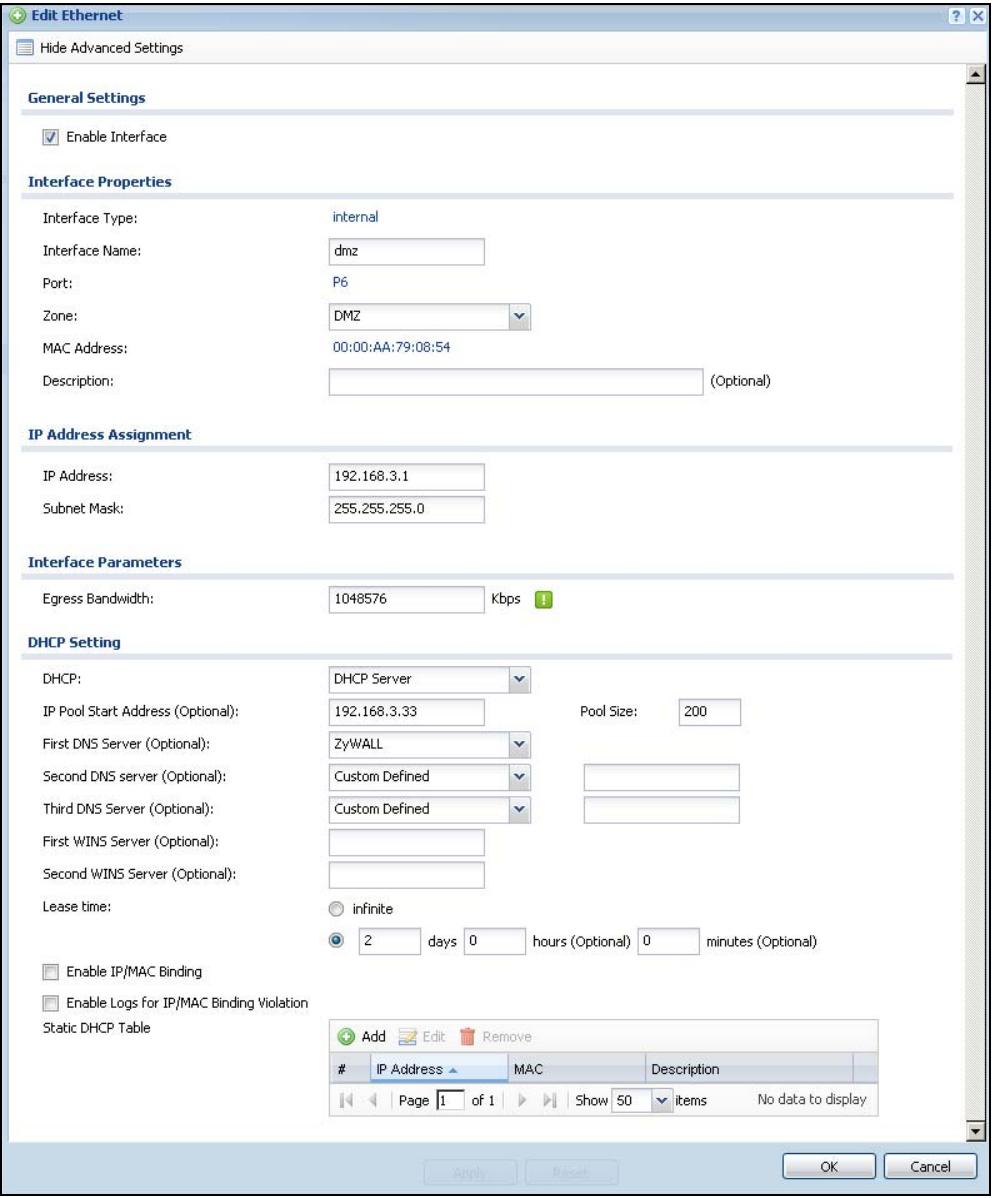
Figure 160 Configuration > Network > Interface > Ethernet > Edit (DMZ)
This screen's fields are described in the table below.
Table 51 Configuration > Network > Interface > Ethernet > Edit
| LABEL | DESCRIPTION |
| Show Advance Settings / Hide Advance Settings | Click this button to display a greater or lesser number of configuration fields. |
| General Settings | |
| Enable Interface | Select this to enable this interface. Clear this to disable this interface. |
| Interface Properties | |
| Interface Type | This field is read-only. |
| Internal is for connecting to a local network. Other corresponding configuration options: DHCP server and DHCP relay. The ZyWALL automatically adds default SNAT settings for traffic flowing from this interface to an external interface. | |
| External is for connecting to an external network (like the Internet). The ZyWALL automatically adds this interface to the default WAN trunk. | |
| For General, the rest of the screen's options do not automatically adjust and you must manually configure a policy route to add routing and SNAT settings for the interface. | |
| Interface Name | Specify a name for the interface. It can use alphanumeric characters, hyphens, and underscores, and it can be up to 11 characters long. |
| Port | This is the name of the Ethernet interface's physical port. |
| Zone | Select the zone to which this interface is to belong. You use zones to apply security settings such as firewall, remote management. |
| MAC Address | This field is read-only. This is the MAC address that the Ethernet interface uses. |
| Description | Enter a description of this interface. It is not used elsewhere. You can use alphanumeric and ( ) + / : =? ! *#@$$_ % - characters, and it can be up to 60 characters long. |
| IP Address Assignment | These IP address fields configure an IP address on the interface itself. If you change this IP address on the interface, you may also need to change a related address object for the network connected to the interface. For example, if you use this screen to change the IP address of your LAN interface, you should also change the corresponding LAN subnet address object. |
| Get Automatically | This option appears when Interface Properties is External or General. Select this to make the interface a DHCP client and automatically get the IP address, subnet mask, and gateway address from a DHCP server. |
| You should not select this if the interface is assigned to a VRRP group. See Chapter 39 on page 715. | |
| Use Fixed IP Address | This option appears when Interface Properties is External or General. Select this if you want to specify the IP address, subnet mask, and gateway manually. |
| IP Address | Enter the IP address for this interface. |
| Subnet Mask | Enter the subnet mask of this interface in dot decimal notation. The subnet mask indicates what part of the IP address is the same for all computers in the network. |
| Gateway | This option appears when Interface Properties is External or General. Enter the IP address of the gateway. The ZyWALL sends packets to the gateway when it does not know how to route the packet to its destination. The gateway should be on the same network as the interface. |
| Metric | This option appears when Interface Properties is External or General. Enter the priority of the gateway (if any) on this interface. The ZyWALL decides which gateway to use based on this priority. The lower the number, the higher the priority. If two or more gateways have the same priority, the ZyWALL uses the one that was configured first. |
| Interface Parameters | |
| Egress Bandwidth | Enter the maximum amount of traffic, in kilobits per second, the ZyWALL can send through the interface to the network. Allowed values are 0 - 1048576. |
| Ingress Bandwidth | This is reserved for future use. Enter the maximum amount of traffic, in kilobits per second, the ZyWALL can receive from the network through the interface. Allowed values are 0 - 1048576. |
| MTU | Maximum Transmission Unit. Type the maximum size of each data packet, in bytes, that can move through this interface. If a larger packet arrives, the ZyWALL divides it into smaller fragments. Allowed values are 576 - 1500. Usually, this value is 1500. |
| Connectivity Check | These fields appear when Interface Properties is External or General. The interface can regularly check the connection to the gateway you specified to make sure it is still available. You specify how often the interface checks the connection, how long to wait for a response before the attempt is a failure, and how many consecutive failures are required before the ZyWALL stops routing to the gateway. The ZyWALL resumes routing to the gateway the first time the gateway passes the connectivity check. |
| Enable Connectivity Check | Select this to turn on the connection check. |
| Check Method | Select the method that the gateway allows. Select icmp to have the ZyWALL regularly ping the gateway you specify to make sure it is still available. Select tcp to have the ZyWALL regularly perform a TCP handshake with the gateway you specify to make sure it is still available. |
| Check Period | Enter the number of seconds between connection check attempts. |
| Check Timeout | Enter the number of seconds to wait for a response before the attempt is a failure. |
| Check Fail Tolerance | Enter the number of consecutive failures before the ZyWALL stops routing through the gateway. |
| Check Default Gateway | Select this to use the default gateway for the connectivity check. |
| Check this address | Select this to specify a domain name or IP address for the connectivity check. Enter that domain name or IP address in the field next to it. |
| Check Port | This field only displays when you set the Check Method to tcp. Specify the port number to use for a TCP connectivity check. |
| DHCP Setting | These fields appear when Interface Properties is Internal or General. |
| DHCP | Select what type of DHCP service the ZyWALL provides to the network. Choices are: None - the ZyWALL does not provide any DHCP services. There is already a DHCP server on the network. DHCP Relay - the ZyWALL routes DHCP requests to one or more DHCP servers you specify. The DHCP server(s) may be on another network. DHCP Server - the ZyWALL assigns IP addresses and provides subnet mask, gateway, and DNS server information to the network. The ZyWALL is the DHCP server for the network. |
| These fields appear if the ZyWALL is a DHCP Relay. | |
| Relay Server 1 | Enter the IP address of a DHCP server for the network. |
| Relay Server 2 | This field is optional. Enter the IP address of another DHCP server for the network. |
| These fields appear if the ZyWALL is a DHCP Server. | |
| IP Pool Start Address | Enter the IP address from which the ZyWALL begins allocating IP addresses. If you want to assign a static IP address to a specific computer, use the Static DHCP Table. If this field is blank, the Pool Size must also be blank. In this case, the ZyWALL can assign every IP address allowed by the interface's IP address and subnet mask, except for the first address (network address), last address (broadcast address) and the interface's IP address. |
| Pool Size | Enter the number of IP addresses to allocate. This number must be at least one and is limited by the interface's Subnet Mask. For example, if the Subnet Mask is 255.255.255.0 and IP Pool Start Address is 10.10.10.10, the ZyWALL can allocate 10.10.10.10 to 10.10.10.254, or 245 IP addresses. If this field is blank, the IP Pool Start Address must also be blank. In this case, the ZyWALL can assign every IP address allowed by the interface's IP address and subnet mask, except for the first address (network address), last address (broadcast address) and the interface's IP address. |
| First DNS Server, Second DNS Server, Third DNS Server | Specify the IP addresses up to three DNS servers for the DHCP clients to use. Use one of the following ways to specify these IP addresses. Custom Defined - enter a static IP address. From ISP - select the DNS server that another interface received from its DHCP server. ZyWALL - the DHCP clients use the IP address of this interface and the ZyWALL works as a DNS relay. |
| First WINS Server, Second WINS Server | Type the IP address of the WINS (Windows Internet Naming Service) server that you want to send to the DHCP clients. The WINS server keeps a mapping table of the computer names on your network and the IP addresses that they are currently using. |
| Lease time | Specify how long each computer can use the information (especially the IP address) before it has to request the information again. Choices are: infinite - select this if IP addresses never expire. days, hours, and minutes - select this to enter how long IP addresses are valid. |
| Enable IP/MAC Binding | Select this option to have this interface enforce links between specific IP addresses and specific MAC addresses. This stops anyone else from manually using a bound IP address on another device connected to this interface. Use this to make use only the intended users get to use specific IP addresses. |
| Enable Logs for IP/MAC Binding Violation | Select this option to have the ZyWALL generate a log if a device connected to this interface attempts to use an IP address that is bound to another device's MAC address. |
| Static DHCP Table | Configure a list of static IP addresses the ZyWALL assigns to computers connected to the interface. Otherwise, the ZyWALL assigns an IP address dynamically using the interface's IP Pool Start Address and Pool Size. |
| Add | Click this to create a new entry. |
| Edit | Select an entry and click this to be able to modify it. |
| Remove | Select an entry and click this to delete it. |
| # | This field is a sequential value, and it is not associated with a specific entry. |
| IP Address | Enter the IP address to assign to a device with this entry's MAC address. |
| MAC Address | Enter the MAC address to which to assign this entry's IP address. |
| Description | Enter a description to help identify this static DHCP entry. You can use alphanumeric and ( )+/:=?!*#@%^- characters, and it can be up to 60 characters long. |
| RIP Setting | See Section 14.2 on page 314 for more information about RIP. |
| Enable RIP | Select this to enable RIP in this interface. |
| Direction | This field is effective when RIP is enabled. Select the RIP direction from the drop-down list box. BiDir - This interface sends and receives routing information. In-Only - This interface receives routing information. Out-Only - This interface sends routing information. |
| Send Version | This field is effective when RIP is enabled. Select the RIP version(s) used for sending RIP packets. Choices are 1, 2, and 1 and 2. |
| Receive Version | This field is effective when RIP is enabled. Select the RIP version(s) used for receiving RIP packets. Choices are 1, 2, and 1 and 2. |
| V2-Broadcast | This field is effective when RIP is enabled. Select this to send RIP-2 packets using subnet broadcasting; otherwise, the ZyWALL uses multicastating. |
| OSPF Setting | See Section 14.3 on page 315 for more information about OSPF. |
| Area | Select the area in which this interface belongs. Select None to disable OSPF in this interface. |
| Priority | Enter the priority (between 0 and 255) of this interface when the area is looking for a Designated Router (DR) or Backup DesignatedRouter (BDR). The highest-priority interface identifies the DR, and the second-highest-priority interface identifies the BDR. Set the priority to zero if the interface can not be the DR or BDR. |
| Link Cost | Enter the cost (between 1 and 65,535) to route packets through this interface. |
| Passive Interface | Select this to stop forwarding OSPF routing information from the selected interface. As a result, this interface only receives routing information. |
| Authentication | Select an authentication method, or disable authentication. To exchange OSPF routing information with peer border routers, you must use the same authentication method that they use. Choices are: Same-as-Area - use the default authentication method in the area None - disable authentication Text - authenticate OSPF routing information using a plain-text password MD5 - authenticate OSPF routing information using MD5 encryption |
| Text Authentication Key | This field is available if the Authentication is Text. Type the password for text authentication. The key can consist of alphanumeric characters and the underscore, and it can be up to 16 characters long. |
| MD5 Authentication ID | This field is available if the Authentication is MD5. Type the ID for MD5 authentication. The ID can be between 1 and 255. |
| MD5 Authentication Key | This field is available if the Authentication is MD5. Type the password for MD5 authentication. The password can consist of alphanumeric characters and the underscore, and it can be up to 16 characters long. |
| MAC Address Setting | This section appears when Interface Properties is External or General. Have the interface use either the factory assigned default MAC address, a manually specified MAC address, or clone the MAC address of another device or computer. |
| Use Default MAC Address | Select this option to have the interface use the factory assigned default MAC address. By default, the ZyWALL uses the factory assigned MAC address to identify itself. |
| Overwrite Default MAC Address | Select this option to have the interface use a different MAC address. Either enter the MAC address in the fields or click Clone by host and enter the IP address of the device or computer whose MAC you are cloning. Once it is successfully configured, the address will be copied to the configuration file. It will not change unless you change the setting or upload a different configuration file. |
| Related Setting | |
| Configure PPPoE/PPTP | Click PPPoE/PPTP if this interface's Internet connection uses PPPoE or PPTP. |
| OK | Click OK to save your changes back to the ZyWALL. |
| Cancel | Click Cancel to exit this screen without saving. |
11.3.2 Object References
When a configuration screen includes an Object References icon, select a configuration object and click Object References to open the Object References screen. This screen displays which configuration settings reference the selected object. The fields shown vary with the type of object.
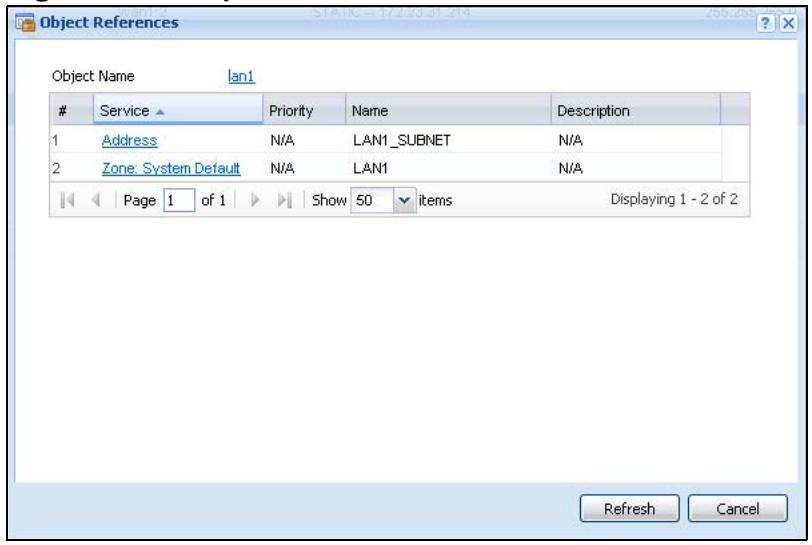
Figure 161 Object References
The following table describes labels that can appear in this screen.
Table 52 Object References
| LABEL | DESCRIPTION |
| Object Name | This identifies the object for which the configuration settings that use it are displayed. Click the object's name to display the object's configuration screen in the main window. |
| # | This field is a sequential value, and it is not associated with any entry. |
| Service | This is the type of setting that references the selected object. Click a service's name to display the service's configuration screen in the main window. |
| Priority | If it is applicable, this field lists the referencing configuration item's position in its list, otherwise N/A displays. |
| Name | This field identifies the configuration item that references the object. |
| Description | If the referencing configuration item has a description configured, it displays here. |
| Refresh | Click this to update the information in this screen. |
| Cancel | Click Cancel to close the screen. |
11.4 PPP Interfaces
Use PPPoE/PPTP interfaces to connect to your ISP. This way, you do not have to install or manage PPPoE/PPTP software on each computer in the network.
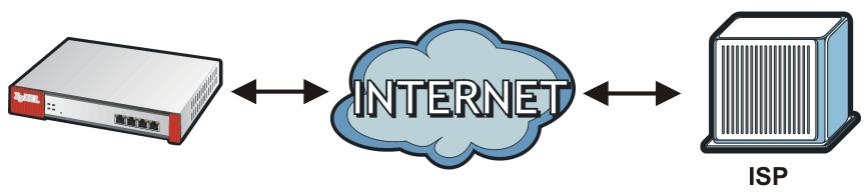
Figure 162 Example: PPPoE/PPTP Interfaces
PPPoE/PPTP interfaces are similar to other interfaces in some ways. They have an IP address, subnet mask, and gateway used to make routing decisions; they restrict bandwidth and packet size; and they can verify the gateway is available. There are two main differences between PPPoE/PPTP interfaces and other interfaces.
- You must also configure an ISP account object for the PPPoE/PPTP interface to use.
Each ISP account specifies the protocol (PPPoE or PPTP), as well as your ISP account information. If you change ISPs later, you only have to create a new ISP account, not a new PPPoE/PPTP interface. You should not have to change any network policies.
- You do not set up the subnet mask or gateway.
PPPoE/PPTP interfaces are interfaces between the ZyWALL and only one computer. Therefore, the subnet mask is always 255.255.255.255. In addition, the ZyWALL always treats the ISP as a gateway.
At the time of writing, it is possible to set up the IP address of the gateway (ISP) using CLI commands but not in the Web Configurator.
11.4.1 PPP Interface Summary
This screen lists every PPPoE/PPTP interface. To access this screen, click Configuration > Network > Interface > PPP.
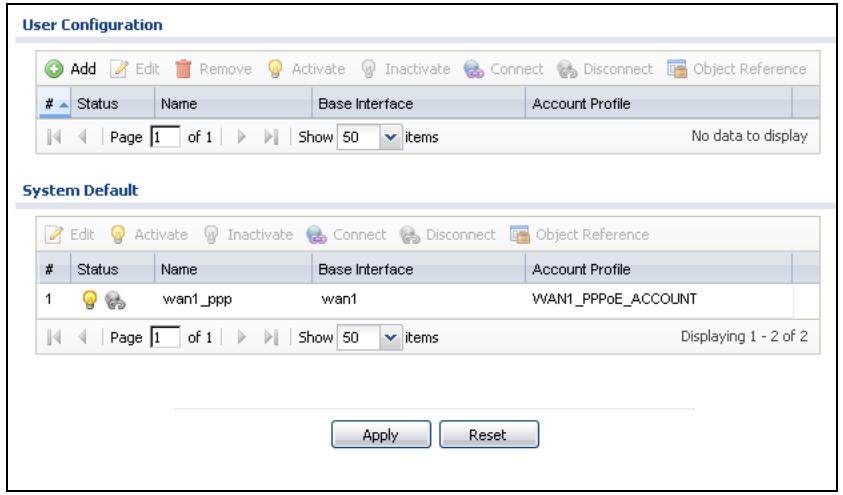
Figure 163 Configuration > Network > Interface > PPP
Each field is described in the table below.
Table 53 Configuration > Network > Interface > PPP
| LABEL | DESCRIPTION |
| User Configuration / System Default | The ZyWALL comes with the (non-removable) System Default PPP interfaces pre-configured. You can create (and delete) User Configuration PPP interfaces. |
| Add | Click this to create a new user-configured PPP interface. |
| Edit | Double-click an entry or select it and click Edit to open a screen where you can modify the entry's settings. |
| Remove | To remove a user-configured PPP interface, select it and click Remove. The ZyWALL confirms you want to remove it before doing so. |
| Activate | To turn on an entry, select it and click Activate. |
| Inactivate | To turn off an entry, select it and click Inactivate. |
| Connect | To connect an interface, select it and click Connect. You might use this in testing the interface orto manually establish the connection for a Dial-on-Demand PPPoE/PPTP interface. |
| Disconnect | To disconnect an interface, select it and click Disconnect. You might use this in testing the interface. |
| Object References | Select an entry and click Object References to open a screen that shows which settings use the entry. See Section 11.3.2 on page 232 for an example. |
| # | This field is a sequential value, and it is not associated with any interface. |
| Status | The activate (light bulb) icon is lit when the entry is active and dimmed when the entry is inactive.The connect icon is lit when the interface is connected and dimmed when it is disconnected. |
| Name | This field displays the name of the interface. |
| Base Interface | This field displays the interface on the top of which the PPPoE/PPTP interface is. |
| Account Profile | This field displays the ISP account used by this PPPoE/PPTP interface. |
| Apply | Click Apply to save your changes back to the ZyWALL. |
| Reset | Click Reset to return the screen to its last-saved settings. |
11.4.2 PPP Interface Add or Edit
Note: You have to set up an ISP account before you create a PPPoE/PPTP interface.
This screen lets you configure a PPPoE or PPTP interface. To access this screen, click the Add icon or an Edit icon in the PPP Interface screen.
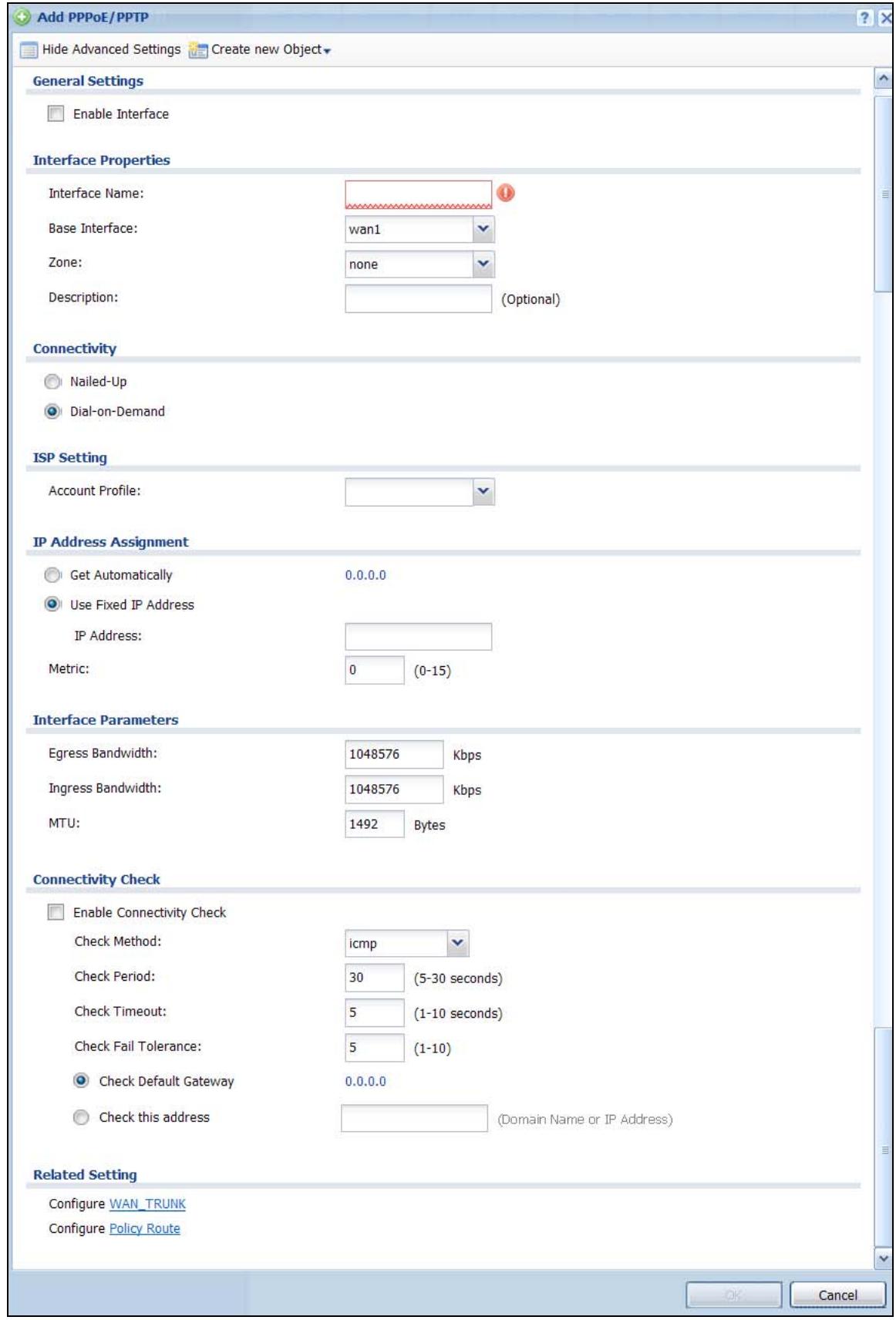
Figure 164 Configuration > Network > Interface > PPP > Add
Each field is explained in the following table.
Table 54 Configuration > Network > Interface > PPP > Add
| LABEL | DESCRIPTION |
| Show Advance Settings / Hide Advance Settings | Click this button to display a greater or lesser number of configuration fields. |
| General Settings | |
| Enable Interface | Select this to enable this interface. Clear this to disable this interface. |
| Interface Properties | |
| Interface Name | Specify a name for the interface. It can use alphanumeric characters, hyphens, and underscores, and it can be up to 11 characters long. |
| Base Interface | Select the interface upon which this PPP interface is built. Note: Multiple PPP interfaces can use the same base interface. |
| Description | Enter a description of this interface. It is not used elsewhere. You can use alphanumeric and ( ) + / : =? ! *#@$ _ % - characters, and it can be up to 60 characters long. |
| Connectivity | |
| Nailed-Up | Select this if the PPPoE/PPTP connection should always be up. Clear this to have the ZyWALL establish the PPPoE/PPTP connection only when there is traffic. You might use this option if a lot of traffic needs to go through the interface or it does not cost extra to keep the connection up all the time. |
| Dial-on-Demand | Select this to have the ZyWALL establish the PPPoE/PPTP connection only when there is traffic. You might use this option if there is little traffic through the interface or if it costs money to keep the connection available. |
| ISP Setting | |
| Account Profile | Select the ISP account that this PPPoE/PPTP interface uses. The drop-down box lists ISP accounts by name. Use Create new Object if you need to configure a new ISP account (see Chapter 40 on page 611 for details). |
| Protocol | This field is read-only. It displays the protocol specified in the ISP account. |
| User Name | This field is read-only. It displays the user name for the ISP account. |
| Service Name | This field is read-only. It displays the PPPoE service name specified in the ISP account. This field is blank if the ISP account uses PPTP. |
| IP Address Assignment | Click Show Advanced Settings to display more settings. Click Hide Advanced Settings to display fewer settings. |
| Get Automatically | Select this if this interface is a DHCP client. In this case, the DHCP server configures the IP address automatically. The subnet mask and gateway are always defined automatically in PPPoE/PPTP interfaces. |
| Use Fixed IP Address | Select this if you want to specify the IP address manually. |
| IP Address | This field is enabled if you select Use Fixed IP Address. Enter the IP address for this interface. |
| Metric | Enter the priority of the gateway (the ISP) on this interface. The ZyWALL decides which gateway to use based on this priority. The lower the number, the higher the priority. If two or more gateways have the same priority, the ZyWALL uses the one that was configured first. |
| Interface Parameters | |
| Egress Bandwidth | Enter the maximum amount of traffic, in kilobits per second, the ZyWALL can send through the interface to the network. Allowed values are 0 - 1048576. |
| Ingress Bandwidth | This is reserved for future use. Enter the maximum amount of traffic, in kilobits per second, the ZyWALL can receive from the network through the interface. Allowed values are 0 - 1048576. |
| MTU | Maximum Transmission Unit. Type the maximum size of each data packet, in bytes, that can move through this interface. If a larger packet arrives, the ZyWALL divides it into smaller fragments. Allowed values are 576 - 1492. Usually, this value is 1492. |
| Connectivity Check | The interface can regularly check the connection to the gateway you specified to make sure it is still available. You specify how often the interface checks the connection, how long to wait for a response before the attempt is a failure, and how many consecutive failures are required before the ZyWALL stops routing to the gateway. The ZyWALL resumes routing to the gateway the first time the gateway passes the connectivity check. |
| Enable Connectivity Check | Select this to turn on the connection check. |
| Check Method | Select the method that the gateway allows. Select icmp to have the ZyWALL regularly ping the gateway you specify to make sure it is still available. Select tcp to have the ZyWALL regularly perform a TCP handshake with the gateway you specify to make sure it is still available. |
| Check Period | Enter the number of seconds between connection check attempts. |
| Check Timeout | Enter the number of seconds to wait for a response before the attempt is a failure. |
| Check Fail Tolerance | Enter the number of consecutive failures before the ZyWALL stops routing through the gateway. |
| Check Default Gateway | Select this to use the default gateway for the connectivity check. |
| Check this address | Select this to specify a domain name or IP address for the connectivity check. Enter that domain name or IP address in the field next to it. |
| Check Port | This field only displays when you set the Check Method to tcp. Specify the port number to use for a TCP connectivity check. |
| Related Setting | |
| Configure WAN TRUNK | Click WAN TRUNK to go to a screen where you can configure the interface as part of a WAN trunk for load balancing. |
| Policy Route | Click Policy Route to go to the screen where you can manually configure a policy route to associate traffic with this interface. |
| OK | Click OK to save your changes back to the ZyWALL. |
| Cancel | Click Cancel to exit this screen without saving. |
11.5 Cellular Configuration Screen (3G)
3G (Third Generation) is a digital, packet-switched wireless technology. Bandwidth usage is optimized as multiple users share the same channel and bandwidth is only allocated to users when they send data. It allows fast transfer of voice and non-voice data and provides broadband Internet access to mobile devices.
Note: The actual data rate you obtain varies depending on the 3G card you use, the signal strength to the service provider's base station, and so on.
(refer to Section 11.5.1 on page 241).
- You can set the 3G device to connect to other networks if the signal strength of the home network is too low or it is unavailable.
Aside from selecting the 3G network, the 3G card may also select an available 2.5G or 2.75G network automatically. See the following table for a comparison between 2G, 2.5G, 2.75G and 3G of wireless technologies.
Table 55 2G, 2.5G, 2.75G, 3G and 3.5G Wireless Technologies
| NAME | TYPE | MOBILE PHONE AND DATA STANDARDS | DATA SPEED | |
| GSM-BASED | CDMA-BASED | |||
| 2G | Circuit-switched | GSM (Global System for Mobile Communications), Personal Handy-phone System (PHS), etc. | Interim Standard 95 (IS-95), the first CDMA-based digital cellular standard pioneered by Qualcomm. The brand name for IS-95 is cdmaOne. IS-95 is also known as TIA-EIA-95. | Slow |
| 2.5G | Packet-switched | GPRS (General Packet Radio Services), High-Speed Circuit-Switched Data (HSCSD), etc. | CDMA2000 is a hybrid 2.5G / 3G protocol of mobile telecommunications standards that use CDMA, a multiple access scheme for digital radio. CDMA2000 1xRTT (1 times Radio Transmission Technology) is the core CDMA2000 wireless air interface standard. It is also known as 1x, 1xRTT, or IS-2000 and considered to be a 2.5G or 2.75G technology. | |
| 2.75G | Packet-switched | Enhanced Data rates for GSM Evolution (EDGE), Enhanced GPRS (EGPRS), etc. | ||
| 3G | Packet-switched | UMTS (Universal Mobile Telecommunications System), a third-generation (3G) wireless standard defined in ITU specification, is sometimes marketed as 3GSM. The UMTS uses GSM infrastructures and W-CDMA (Wideband Code Division Multiple Access) as the air interface. | CDMA2000 EV-DO (Evolution-Data Optimized, originally 1x Evolution-Data Only), also referred to as EV-DO, EVDO, or just EV, is an evolution of CDMA2000 1xRTT and enables high-speed wireless connectivity. It is also denoted as IS-856 or High Data Rate (HDR). | |
| 3.5G | Packet-switched | HSDPA (High-Speed Downlink Packet Access) is a mobile telephony protocol, used for UMTS-based 3G networks and allows for higher data transfer speeds. | ||
A. The International Telecommunication Union (ITU) is an international organization within which governments and the private sector coordinate global telecom networks and services.
To change your 3G WAN settings, click Configuration > Network > Interface > Cellular.
Note: Install (or connect) a compatible 3G USB to use a cellular connection. See Chapter 51 on page 741 for details.
Note: The WAN IP addresses of a ZyWALL with multiple WAN interfaces must be on different subnets.
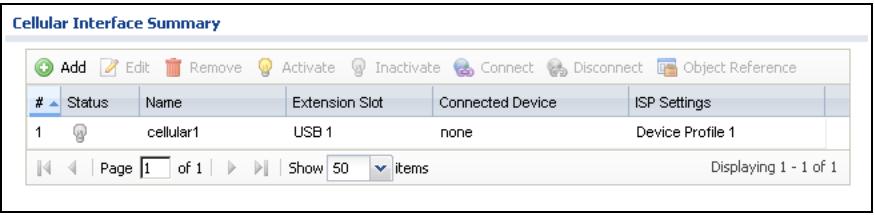
Figure 165 Configuration > Network > Interface > Cellular
The following table describes the labels in this screen.
Table 56 Configuration > Network > Interface > Cellular
| LABEL | DESCRIPTION |
| Add | Click this to create a new cellular interface. |
| Edit | Double-click an entry or select it and click Edit to open a screen where you can modify the entry's settings. |
| Remove | To remove an entry, select it and click Remove. The ZyWALL confirms you want to remove it before doing so. |
| Activate | To turn on an entry, select it and click Activate. |
| Inactivate | To turn off an entry, select it and click Inactivate. |
| Connect | To connect an interface, select it and click Connect. You might use this in testing the interface or to manually establish the connection. |
| Disconnect | To disconnect an interface, select it and click Disconnect. You might use this in testing the interface. |
| Object References | Select an entry and click Object References to open a screen that shows which settings use the entry. See Section 11.3.2 on page 232 for an example. |
| # | This field is a sequential value, and it is not associated with any interface. |
| Status | The activate (light bulb) icon is lit when the entry is active and dimmed when the entry is inactive.The connect icon is lit when the interface is connected and dimmed when it is disconnected. |
| Name | This field displays the name of the interface. |
| Extension Slot | This field displays where the entry's cellular card is located. |
| Connected Device | This field displays the name of the cellular card. |
| ISP Settings | This field displays the profile of ISP settings that this cellular interface is set to use. |
| Apply | Click Apply to save your changes back to the ZyWALL. |
| Reset | Click Reset to return the screen to its last-saved settings. |
11.5.1 Cellular Add/Edit Screen
To change your 3G settings, click Configuration > Network > Interface > Cellular > Add (or Edit). In the pop-up window that displays, select the slot that you want to configure. The following screen displays.
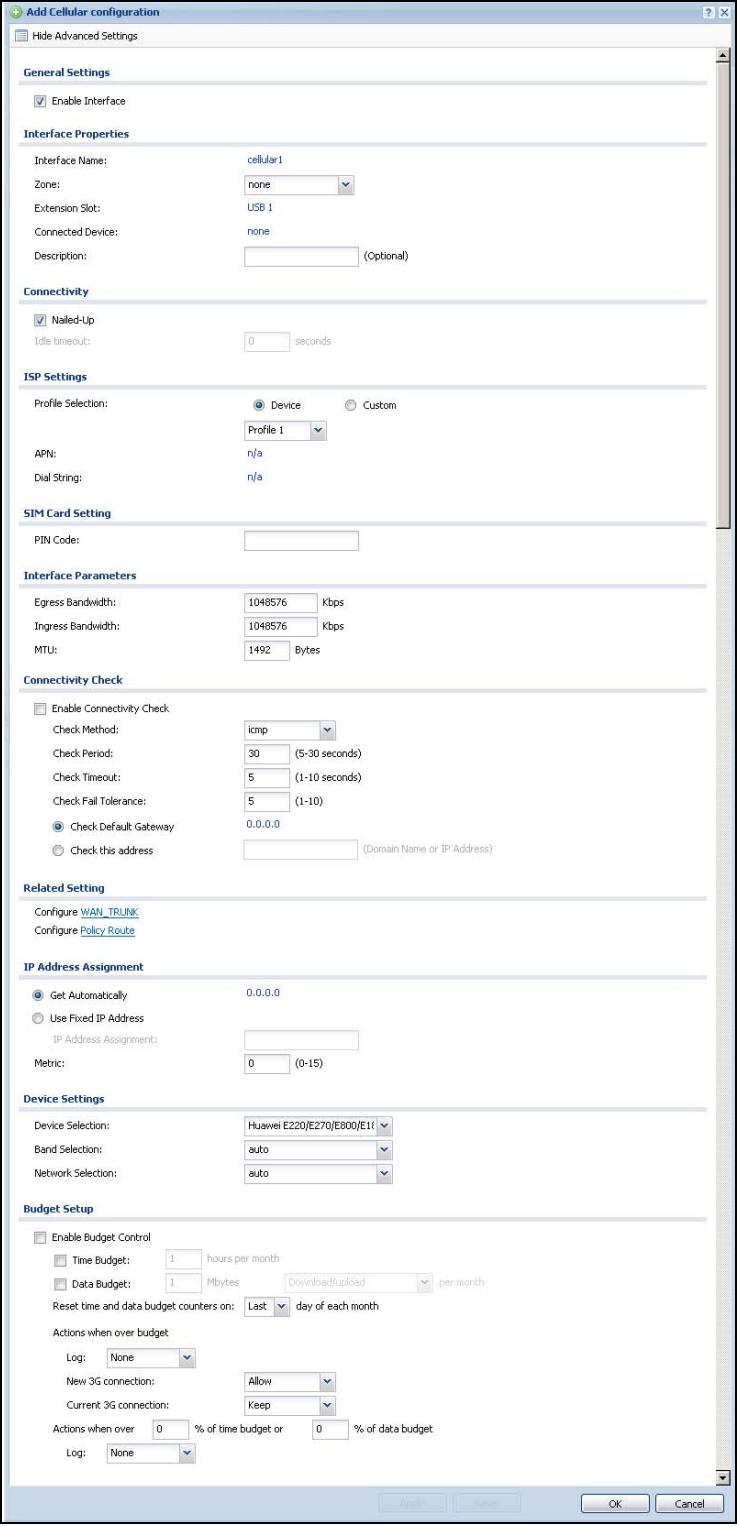
Figure 166 Configuration > Network > Interface > Cellular > Add
The following table describes the labels in this screen.
Table 57 Configuration > Network > Interface > Cellular > Add
| LABEL | DESCRIPTION |
| Show Advance Settings / Hide Advance Settings | Click this button to display a greater or lesser number of configuration fields. |
| General Settings | |
| Enable Interface | Select this option to turn on this interface. |
| Interface Properties | |
| Interface Name | Select a name for the interface. |
| Zone | Select the zone to which you want the cellular interface to belong. The zone determines the security settings the ZyWALL uses for the interface. |
| Extension Slot | This is the USB slot that you are configuring for use with a 3G card. |
| Connected Device | This displays the manufacturer and model name of your 3G card if you inserted one in the ZyWALL. Otherwise, it displays none. |
| Description | Enter a description of this interface. It is not used elsewhere. You can use alphanumeric and ( )+/:=?!*#@-%- characters, and it can be up to 60 characters long. |
| Connectivity | |
| Nailed-Up | Select this if the connection should always be up. Clear this to have the ZyWALL to establish the connection only when there is traffic. You might not nail up the connection if there is little traffic through the interface or if it costs money to keep the connection available. |
| Idle timeout | This value specifies the time in seconds (0~360) that elapses before the ZyWALL automatically disconnects from the ISP's server. Zero disables the idle timeout. |
| ISP Settings | |
| Profile Selection | Select Device to use one of the 3G device's profiles of device settings. Then select the profile (use Profile 1 unless your ISP instructed you to do otherwise).Select Custom to configure your device settings yourself. |
| APN | This field is read-only if you selected Device in the profile selection. Select Custom in the profile selection to be able to manually input the APN (Access Point Name) provided by your service provider. This field applies with a GSM or HSDPA 3G card. Enter the APN from your service provider. Connections with different APNs may provide different services (such as Internet access or MMS (Multi-Media Messaging Service)) and charge method.You can enter up to 63 ASCII printable characters. Spaces are allowed. |
| Dial String | Enter the dial string if your ISP provides a string, which would include the APN, to initialize the 3G card. |
| You can enter up to 63 ASCII printable characters. Spaces are allowed. | |
| This field is available only when you insert a GSM 3G card. | |
| Authentication Type | The ZyWALL supports PAP (Password Authentication Protocol) and CHAP (Challenge Handshake Authentication Protocol). CHAP is more secure than PAP; however, PAP is readily available on more platforms.Use the drop-down list box to select an authentication protocol for outgoing calls. Options are:None: No authentication for outgoing calls.CHAP - Your ZyWALL accepts CHAP requests only.PAP - Your ZyWALL accepts PAP requests only. |
| UserID | This field displays when you select an authentication type other than None. This field is read-only if you selected Device in the profile selection. If this field is configurable, enter the user name for this 3G card exactly as the service provider gave it to you.You can use 1 ~ 64 alphanumeric and #: %-_@ ./ characters. The first character must be alphanumeric or - @$ ./. Spaces are not allowed. |
| Password | This field displays when you select an authentication type other than None. This field is read-only if you selected Device in the profile selection and the password is included in the 3G card's profile. If this field is configurable, enter the password for this SIM card exactly as the service provider gave it to you.You can use 0 ~ 63 alphanumeric and ~!:#%^&*()-_+={} | : '<, >. / characters. Spaces are not allowed. |
| Retype to Confirm | This field displays when you select an authentication type other than None. This field is read-only if you selected Device in the profile selection and the password is included in the 3G card's profile. If this field is configurable, re-enter the password for this SIM card exactly as the service provider gave it to you. |
| SIM Card Setting | |
| PIN Code | This field displays with a GSM or HSDPA 3G card. A PIN (Personal Identification Number) code is a key to a 3G card. Without the PIN code, you cannot use the 3G card.Enter the 4-digit PIN code (0000 for example) provided by your ISP. If you enter the PIN code incorrectly, the 3G card may be blocked by your ISP and you cannot use the account to access the Internet.If your ISP disabled PIN code authentication, enter an arbitrary number. |
| Interface Parameters | |
| Egress Bandwidth | Enter the maximum amount of traffic, in kilobits per second, the ZyWALL can send through the interface to the network. Allowed values are 0 - 1048576. This setting is used in WAN load balancing and bandwidth management. |
| Ingress Bandwidth | This is reserved for future use. Enter the maximum amount of traffic, in kilobits per second, the ZyWALL can receive from the network through the interface. Allowed values are 0 - 1048576. |
| MTU | Maximum Transmission Unit. Type the maximum size of each data packet, in bytes, that can move through this interface. If a larger packet arrives, the ZyWALL divides it into smaller fragments. Allowed values are 576 - 1492. Usually, this value is 1492. |
| Connectivity Check | The interface can regularly check the connection to the gateway you specified to make sure it is still available. You specify how often the interface checks the connection, how long to wait for a response before the attempt is a failure, and how many consecutive failures are required before the ZyWALL stops routing to the gateway. The ZyWALL resumes routing to the gateway the first time the gateway passes the connectivity check. |
| Enable Connectivity Check | Select this to turn on the connection check. |
| Check Method | Select the method that the gateway allows. Select icmp to have the ZyWALL regularly ping the gateway you specify to make sure it is still available. Select tcp to have the ZyWALL regularly perform a TCP handshake with the gateway you specify to make sure it is still available. |
| Check Period | Enter the number of seconds between connection check attempts. |
| Check Timeout | Enter the number of seconds to wait for a response before the attempt is a failure. |
| Check Fail Tolerance | Enter the number of consecutive failures before the ZyWALL stops routing through the gateway. |
| Check Default Gateway | Select this to use the default gateway for the connectivity check. |
| Check this address | Select this to specify a domain name or IP address for the connectivity check. Enter that domain name or IP address in the field next to it. |
| Check Port | This field only displays when you set the Check Method to tcp. Specify the port number to use for a TCP connectivity check. |
| Related Setting | |
| Configure WAN TRUNK | Click WAN TRUNK to go to a screen where you can configure the interface as part of a WAN trunk for load balancing. |
| Configure Policy Route | Click Policy Route to go to the policy route summary screen where you can configure a policy route to override the default routing and SNAT behavior for the interface. |
| IP Address Assignment | |
| Get Automatically | Select this option If your ISP did not assign you a fixed IP address. This is the default selection. |
| Use Fixed IP Address | Select this option If the ISP assigned a fixed IP address. |
| IP Address Assignment | Enter the cellular interface's WAN IP address in this field if you selected Use Fixed IP Address. |
| Metric | Enter the priority of the gateway (if any) on this interface. The ZyWALL decides which gateway to use based on this priority. The lower the number, the higher the priority. If two or more gateways have the same priority, the ZyWALL uses the one that was configured first. |
| Device Settings | |
| Device Selection | Select the 3G card to use with this entry or select auto to have the ZyWALL automatically detect the type of card. |
| Band Selection | This field appears if you selected a 3G device that allows you to select the type of network to use. Select the type of 3G service for your 3G connection. If you are unsure what to select, check with your 3G service provider to find the 3G service available to you in your region. Select auto to have the card connect to an available network. Choose this option if you do not know what networks are available. You may want to manually specify the type of network to use if you are charged differently for different types of network or you only have one type of network available to you. Select GPRS / EDGE (GSM) only to have this interface only use a 2.5G or 2.75G network (respectively). If you only have a GSM network available to you, you may want to select this so the ZyWALL does not spend time looking for a WCDMA network. Select UMTS / HSDPA (WCDMA) only to have this interface only use a 3G or 3.5G network (respectively). You may want to do this if you want to make sure the interface does not use the GSM network. |
| Network Selection | Home network is the network to which you are originally subscribed. Select Home to have the 3G device connect only to the home network. If the home network is down, the ZyWALL's 3G Internet connection is also unavailable. Select Auto (Default) to allow the 3G device to connect to a network to which you are not subscribed when necessary, for example when the home network is down or another 3G base station's signal is stronger. This is recommended if you need continuous Internet connectivity. If you select this, you may be charged using the rate of a different network. |
| Budget Setup | |
| Enable Budget Control | Select this to set a monthly limit for the user account of the installed 3G card. You can set a limit on the total traffic and/or call time. The ZyWALL takes the actions you specified when a limit is exceeded during the month. |
| Time Budget | Select this and specify the amount of time (in hours) that the 3G connection can be used within one month. If you change the value after you configure and enable budget control, the ZyWALL resets the statistics. |
| Data Budget | Select this and specify how much downstream and/or upstream data (in Mega bytes) can be transmitted via the 3G connection within one month. Select Download to set a limit on the downstream traffic (from the ISP to the ZyWALL). Select Upload to set a limit on the upstream traffic (from the ZyWALL to the ISP). Select Download/Upload to set a limit on the total traffic in both directions. If you change the value after you configure and enable budget control, the ZyWALL resets the statistics. |
| Reset time and data budget counters on | Select the date on which the ZyWALL resets the budget every month. If the date you selected is not available in a month, such as 30th or 31th, the ZyWALL resets the budget on the last day of the month. |
| Reset time and data budget counters | This button is available only when you enable budget control in this screen. Click this button to reset the time and data budgets immediately. The count starts over with the 3G connection's full configured monthly time and data budgets. This does not affect the normal monthly budget restart; so if you configured the time and data budget counters to reset on the second day of the month and you use this button on the first, the time and data budget counters will still reset on the second. |
| Actions when over budget | Specify the actions the ZyWALL takes when the time or data limit is exceeded. |
| Log | Select None to not create a log, Log to create a log, or Log-alert to create an alert log. If you select Log or Log-alert you can also select recurring every to have the ZyWALL send a log or alert for this event periodically. Specify how often (from 1 to 65535 minutes) to send the log or alert. |
| New 3G connection | Select Allow to permit new 3G connections or Disallow to drop/block new 3G connections. |
| Current 3G connection | Select Keep to maintain an existing 3G connection or Drop to disconnect it. You cannot set New 3G connection to Allow and Current 3G connection to Drop at the same time. If you set New 3G connection to Disallow and Current 3G connection to Keep, the ZyWALL allows you to transmit data using the current connection, but you cannot build a new connection if the existing connection is disconnected. |
| Actions when over % of time budget or % of data budget | Specify the actions the ZyWALL takes when the specified percentage of time budget or data limit is exceeded. Enter a number from 1 to 99 in the percentage fields. If you change the value after you configure and enable budget control, the ZyWALL resets the statistics. Select None to not create a log when the ZyWALL takes this action, Log to create a log, or Log-alert to create an alert log. If you select Log or Log-alert you can also select recurring every to have the ZyWALL send a log or alert for this event periodically. Specify how often (from 1 to 65535 minutes) to send the log or alert. |
| OK | Click OK to save your changes back to the ZyWALL. |
| Cancel | Click Cancel to exit this screen without saving. |
11.6 WLAN Interface General Screen
This feature is available for USG 20W only.
The following figure provides an example of a wireless network. The wireless network is in the blue circle. Wireless clients (A and B) connect to an access point (AP) to access other devices (such as the printer) or the Internet. Your ZyWALL works as an AP when you install a compatible WLAN card.
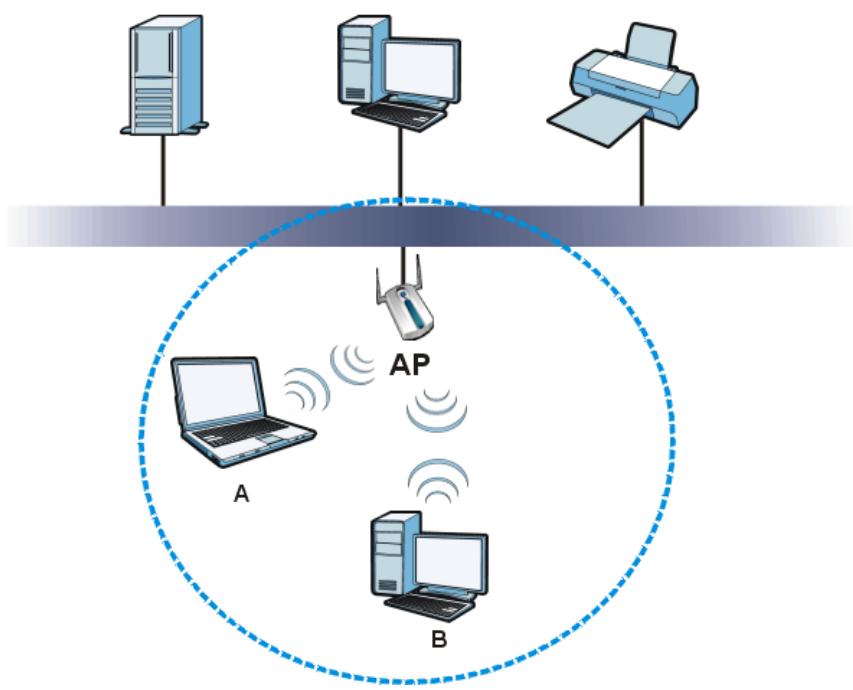
Figure 167 Example of a Wireless Network
- Every device in a wireless network must use the same SSID.
The SSID is the name of the wireless network. It stands for Service Set IDentity.
- Different wireless networks in the same area should use different channels.
Like radio stations or television channels, each wireless network uses a specific channel, or frequency, to send and receive information.
- Every wireless client in a wireless network must use security compatible with the AP.
Security stops unauthorized devices from using the wireless network and can protect the information that is sent in the wireless network.
Click Configuration > Network > Interface > WLAN to open the following screen. See Appendix C on page 803 for more details on wireless LANs.
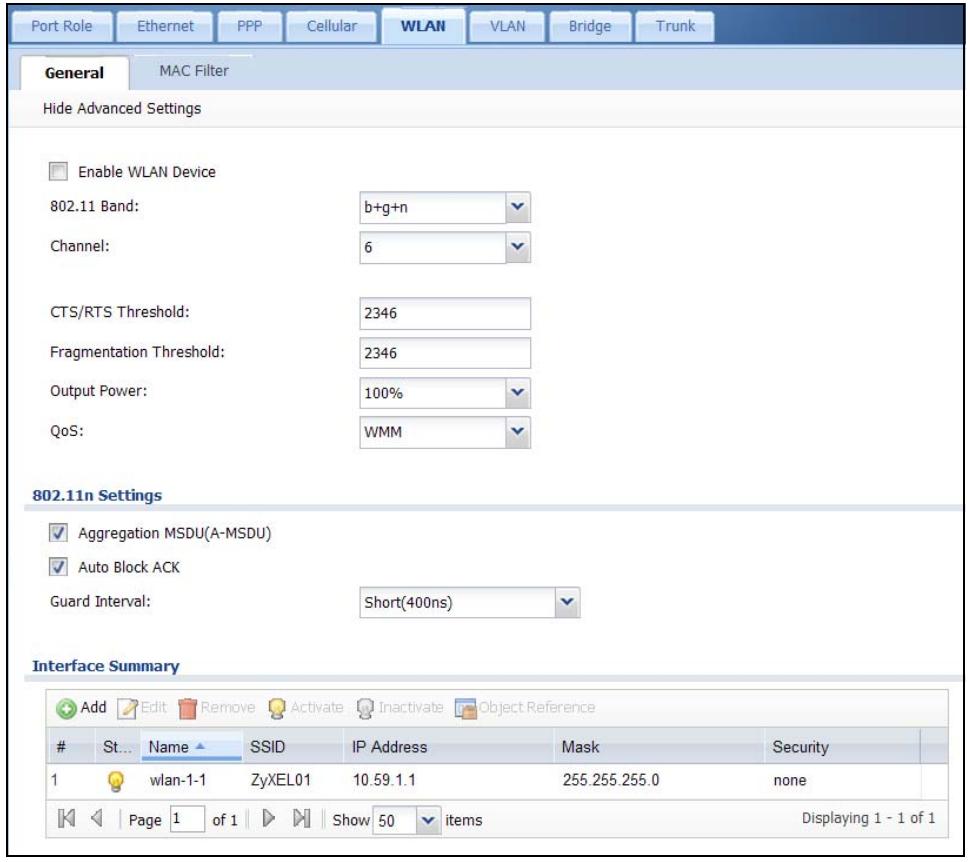
Figure 168 Configuration > Network > Interface > WLAN
The following table describes the labels in this screen.
Table 58 Configuration > Network > Interface > WLAN
| LABEL | DESCRIPTION |
| Show Advance Settings / Hide Advance Settings | Click this button to display a greater or lesser number of configuration fields. |
| Enable WLAN Device | Select this to turn on the wireless LAN card. It is recommended that you configure the wireless security settings before you use this option to turn on a wireless LAN card. |
| 802.11 Band | Select whether you will let wireless clients connect to the ZyWALL using IEEE 802.11b, IEEE 802.11g, or both. Select b Only to allow only IEEE 802.11b compliant WLAN devices to associate with the ZyWALL. Select g Only to allow only IEEE 802.11g compliant WLAN devices to associate with the ZyWALL. Select b+g to allow both IEEE802.11b and IEEE802.11g compliant WLAN devices to associate with the ZyWALL. The transmission rate of your ZyWALL might be reduced. Select b+g+n to allow IEEE802.11b, IEEE802.11g and IEEE802.11n compliant WLAN devices to associate with the ZyWALL. The transmission rate of your ZyWALL might be reduced. Select g+n to allow both IEEE802.11g and IEEE802.11n compliant WLAN devices to associate with the ZyWALL. The transmission rate of your ZyWALL might be reduced. |
| Channel | This allows you to set the operating channel depending on your particular region. Select a channel from the drop-down list box. |
| CTS/RTS Threshold | Use CTS/RTS to reduce data collisions on the wireless network if you have wireless clients that are associated with the same AP but out of range of one another. When enabled, a wireless client sends an RTS (Request To Send) and then waits for a CTS (Clear To Send) before it transmits. This stops wireless clients from transmitting packets at the same time (and causing data collisions). A wireless client sends an RTS for all packets larger than the number (of bytes) that you enter here. Set the RTS/CTS equal to or higher than the fragmentation threshold to turn RTS/CTS off. |
| Fragmentation Threshold | This is the threshold (number of bytes) for the fragmentation boundary for directed messages. It is the maximum data fragment size that can be sent. |
| Output Power | Select the percentage of output power that this WLAN card is to use. If there is a high density of APs in the area, decrease the output power of the ZyWALL to reduce interference with other APs. See the product specifications for more information on your ZyWALL's output power. |
Table 58 Configuration > Network > Interface > WLAN
| LABEL | DESCRIPTION |
| QoS | Select the Quality of Service priority for this traffic. ·If you select WMM (Wi-Fi Multimedia) from the QoS list, the priority of a data packet depends on the packet's IEEE 802.1q or DSCP header. If a packet has no WMM value assigned to it, it is assigned the default priority. ·If you select NONE, the ZyWALL applies no priority to traffic on this SSID. |
| 802.11n Settings | |
| Aggregation MSDU(A-MSDU) | This field is available only when 802.11b+g+n or 802.11g+n is selected as the 802.11 Band. Check this to allow the grouping of several A-MSDUs (Aggregate MAC Service Data Units) into one large A-MPDU (Aggregate MAC Protocol Data Unit). This function allows faster data transfer rates. |
| Auto Block ACK | This field is available only when 802.11b+g+n or 802.11g+n is selected as the 802.11 Band. Check this to add the block ACK (BA) mechanism, in which multiple frames can be streamed out and acknowledged by a single frame. This function allows cutting the wait time between frames and increasing the data throughput. |
| Guard Interval | This field is available only when 802.11b+g+n or 802.11g+n is selected as the 802.11 Band. Select Short to increase data throughput. However, this may make data transfer more prone to errors. Select Long to prioritize data integrity. This may be because your wireless network is busy and congested. The guard interval is the gap introduced between data transmission from users in order to reduce interference. Reducing the GI increases data transfer rates but also increases interference. Increasing the GI reduces data transfer rates but also reduces interference. |
| Add | Click this to create a new WLAN interface. |
| Edit | Double-click an entry or select it and click Edit to open a screen where you can modify the entry's settings. |
| Remove | To remove an entry, select it and click Remove. The ZyWALL confirms you want to remove it before doing so. |
| Activate | To turn on an entry, select it and click Activate. |
| Inactivate | To turn off an entry, select it and click Inactivate. |
| Object References | Select an entry and click Object References to open a screen that shows which settings use the entry. See Section 11.3.2 on page 232 for an example. |
| # | This field is a sequential value, and it is not associated with any interface. |
| Status | This icon is lit when the entry is active and dimmed when the entry is inactive. |
| Name | This field displays the name of the WLAN interface. |
| SSID | This is theSSID (Service Set IDentity) of the WLAN interface. |
Table 58 Configuration > Network > Interface > WLAN
| LABEL | DESCRIPTION |
| IP Address | This field displays the current IP address of the WLAN interface. If the IP address is 0.0.0.0, the interface does not have an IP address yet. This screen also shows whether the IP address is a static IP address (STATIC) or dynamically assigned (DHCP). IP addresses are always static in virtual interfaces. |
| Mask | This field displays the interface's subnet mask in dot decimal notation. |
| Security | This field displays what type of security the WLAN interface uses. |
| Apply | Click Apply to save your changes back to the ZyWALL. |
| Reset | Click Reset to return the screen to its last-saved settings. |
11.6.1 WLAN Add/Edit Screen
Use the strongest security that every wireless client in the wireless network supports.
Table 59 Wireless Security Levels
| SECURITY LEVEL | SECURITY TYPE |
| Strongest | WPA2 |
| WPA-PSK2 | |
| WPA (Wi-Fi Protected Access) | |
| WPA-PSK (Wi-Fi Protected Access Pre-Shared Key) | |
| IEEE 802.1x EAP with RADIUS Server Authentication | |
| WEP Encryption | |
| MAC Address Filtering | |
| No Security |
Note: WPA2 or WPA2-PSK security is recommended.
- You can use the ZyWALL's local user database to use WPA or WPA2 without using an external RADIUS server. With WPA or WPA2, users have to log into the wireless network before using it. This is called user authentication. WPA and WPA2 are also called the enterprise version of WPA).
- WPA2-PSK and WPA-PSK do not employ user authentication and are known as the personal version of WPA.
- WEP is better than no security, but it is still possible for unauthorized devices to figure out the original information pretty quickly.
Click Configuration > Network > Interface > WLAN > Add (or Edit) to open the WLAN Edit screen. The screen varies according to the security features you select. It displays as shown next when you set the Security Type to none.
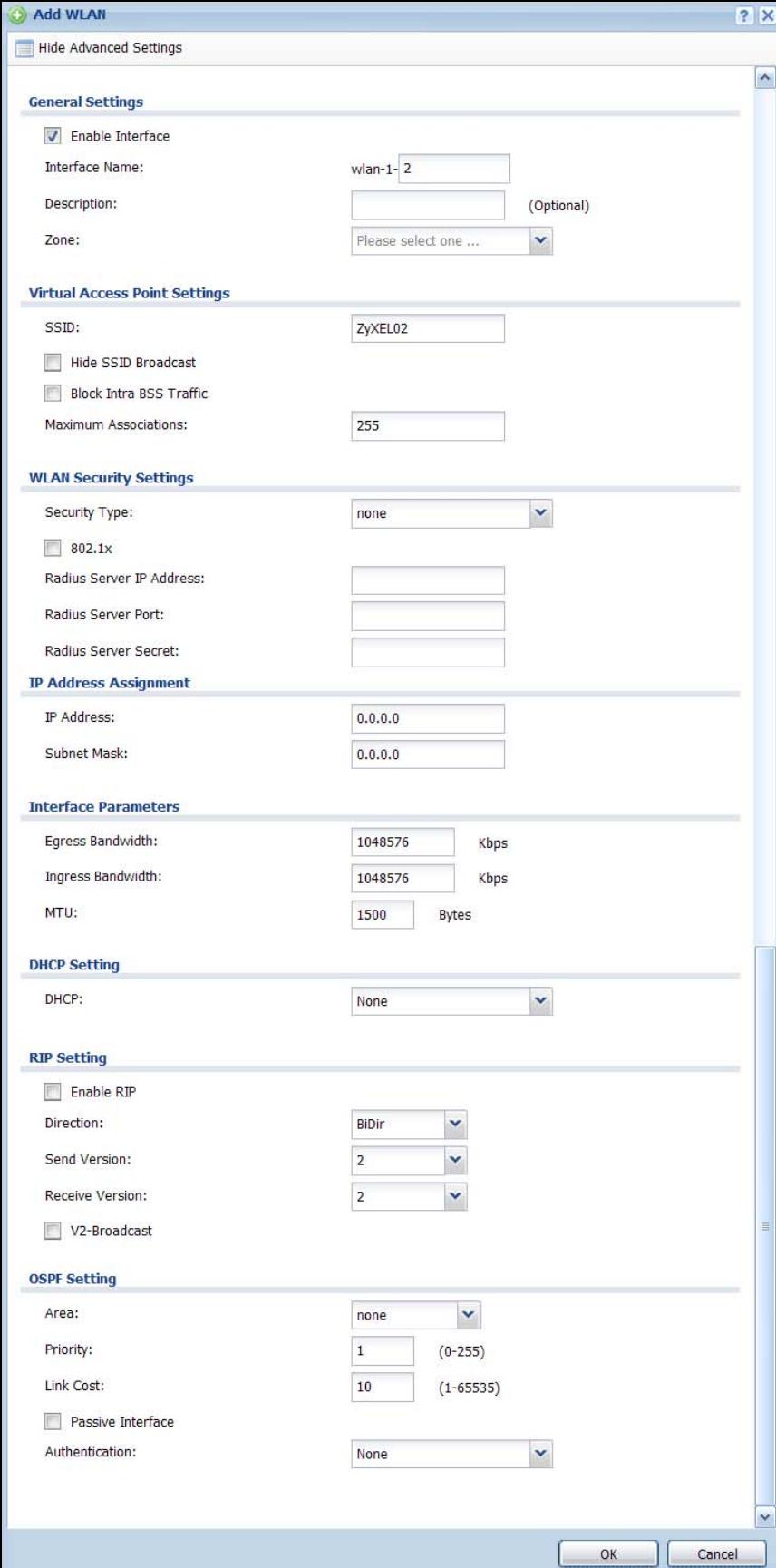
Figure 169 Configuration > Network > Interface > WLAN > Add (No Security)
The following table describes the general wireless LAN labels in this screen.
Table 60 Configuration > Network > Interface > WLAN > Add (No Security)
| LABEL | DESCRIPTION |
| Show Advance Settings / Hide Advance Settings | Click this button to display a greater or lesser number of configuration fields. |
| General Settings | |
| Enable Interface | Select this option to turn on the wireless LAN interface. |
| Interface Name | This shows the name for this wireless LAN interface. |
| Description | Enter a description of this interface. It is not used elsewhere. You can use alphanumeric and ( ) + / : = ? ! *#@$$_% - characters, and it can be up to 60 characters long. |
| Zone | Select the zone to which you want the WLAN interface to belong. |
| Virtual Access Point Settings | |
| SSID | (Service Set IDentity) TheSSID identifies the Service Set with which a wireless station is associated. Wireless stations associating to the access point (AP) must have the sameSSID. Enter a descriptive name (up to 32 printable 7-bit ASCII characters) for the wireless LAN. To make your wireless network more secure, change the defaultSSID to something that is difficult to guess. |
| HideSSID Broadcast | Select to hide theSSID in the outgoing beacon frame so a station cannot obtain theSSID through scanning. |
| Block Intra BSS Traffic | Select this to prevent wireless clients in this profile's BSS from communicating with one another. |
| Maximum Associations | Specify the highest number of wireless clients that are allowed to connect to the wireless interface at the same time. |
| WLAN Security Settings | |
| Security Type | Use this field to select the type of security to use for this wireless LAN interface. Select none to not use any security. See the following sections for details on the other security types. |
| 802.1x | Authentication server (IEEE 802.1x) settings are available when you use no security or WEP security and click Advanced. Select the check box to enable wireless user authentication through an external authentication server. |
| Radius Server IP Address | Enter the IP address of the external authentication server in dotted decimal notation. |
| Radius Server Port | Enter the RADIUS server's listening port number (the default is 1812). |
| Radius Server Secret | Enter a password (up to 31 alphanumeric characters) as the key to be shared between the external authentication server and the ZyWALL. The key is not sent over the network. This key must be the same on the external authentication server and ZyWALL. |
| IP Address Assignment |
Table 60 Configuration > Network > Interface > WLAN > Add (No Security)
| LABEL | DESCRIPTION |
| IP Address | Enter the IP address for this interface. |
| Subnet Mask | Enter the subnet mask of this interface in dot decimal notation. The subnet mask indicates what part of the IP address is the same for all computers in the network. |
| Interface Parameters | |
| Egress Bandwidth | Enter the maximum amount of traffic, in kilobits per second, the ZyWALL can send through the interface to the network. Allowed values are 0 - 1048576. This setting is used in WAN load balancing and bandwidth management. |
| Ingress Bandwidth | This is reserved for future use. Enter the maximum amount of traffic, in kilobits per second, the ZyWALL can receive from the network through the interface. Allowed values are 0 - 1048576. |
| MTU | Maximum Transmission Unit. Type the maximum size of each data packet, in bytes, that can move through this interface. If a larger packet arrives, the ZyWALL divides it into smaller fragments. Allowed values are 576 - 1500. Usually, this value is 1500. |
| DHCP Settings | |
| DHCP | Select what type of DHCP service the ZyWALL provides to the wireless network. Choices are: None - the ZyWALL does not provide any DHCP services. There is already a DHCP server on the network. DHCP Relay - the ZyWALL routes DHCP requests to one or more DHCP servers you specify. The DHCP server(s) may be on another network. DHCP Server - the ZyWALL assigns IP addresses and provides subnet mask, gateway, and DNS server information to the network. The ZyWALL is the DHCP server for the network. |
| These fields appear if the ZyWALL is a DHCP Relay. | |
| Relay Server 1 | Enter the IP address of a DHCP server for the network. |
| Relay Server 2 | This field is optional. Enter the IP address of another DHCP server for the network. |
| These fields appear if the ZyWALL is a DHCP Server. | |
| IP Pool Start Address | Enter the IP address from which the ZyWALL begins allocating IP addresses. If this field is blank, the ZyWALL assigns every IP address allowed by the interface's IP address, subnet mask, and pool size; except for the first address (network address), last address (broadcast address) and the interface's IP address. |
Table 60 Configuration > Network > Interface > WLAN > Add (No Security)
| LABEL | DESCRIPTION |
| Pool Size | Enter the number of IP addresses to allocate. This number must be at least one and is limited by the interface's Subnet Mask. For example, if the Subnet Mask is 255.255.255.0 and IP Pool Start Address is 10.10.10.10, the ZyWALL can allocate 10.10.10.10 to 10.10.10.254, or 245 IP addresses.If this field is blank, the ZyWALL can assign every IP address allowed by the interface's IP address, subnet mask, and IP Pool Start Address; except for the first address (network address), last address (broadcast address) and the interface's IP address. |
| First DNS ServerSecond DNS ServerThird DNS Server | Specify the IP addresses of a maximum of three DNS servers that the network can use. The ZyWALL provides these IP addresses to DHCP clients. Use one of the following ways to specify these IP addresses.Custom Defined - enter a static IP address.From ISP - select the DNS server that another interface received from its DHCP server.ZyWALL - the ZyWALL uses the IP address of this interface and works as a DNS relay. |
| First WINS Server, Second WINS Server | Type the IP address of the WINS (Windows Internet Naming Service) server that you want to send to the DHCP clients. The WINS server keeps a mapping table of the computer names on your network and the IP addresses that they are currently using. |
| Lease time | Specify how long each computer can use the information (especially the IP address) before it has to request the information again. Choices are:infinite - select this if IP addresses never expire.days, hours, and minutes - select this to enter how long IP addresses are valid. |
| Static DHCP Table | Configure a list of static IP addresses the ZyWALL assigns to computers connected to the interface. Otherwise, the ZyWALL assigns an IP address dynamically using the interface's IP Pool Start Address and Pool Size. |
| Add | Click this to create a new entry. |
| Edit | Select an entry and click this to be able to modify it. |
| Remove | Select an entry and click this to delete it. |
| # | This field is a sequential value, and it is not associated with a specific entry. |
| IP Address | Enter the IP address to assign to a device with this entry's MAC address. |
| MAC Address | Enter the MAC address to which to assign this entry's IP address. |
| Description | Enter a description to help identify this static DHCP entry. You can use alphanumeric and ( ) / : =? ! *#@$-%- characters, and it can be up to 60 characters long. |
| RIP Setting | See Section 14.2 on page 314 for more information about RIP. |
| Enable RIP | Select this to enable RIP in this interface. |
Table 60 Configuration > Network > Interface > WLAN > Add (No Security)
| LABEL | DESCRIPTION |
| Direction | This field is effective when RIP is enabled. Select the RIP direction from the drop-down list box.BiDir - This interface sends and receives routing information.In-Only - This interface receives routing information.Out-Only - This interface sends routing information. |
| Send Version | This field is effective when RIP is enabled. Select the RIP version(s) used for sending RIP packets. Choices are 1, 2, and 1 and 2. |
| Receive Version | This field is effective when RIP is enabled. Select the RIP version(s) used for receiving RIP packets. Choices are 1, 2, and 1 and 2. |
| V2-Broadcast | This field is effective when RIP is enabled. Select this to send RIP-2 packets using subnet broadcasting; otherwise, the ZyWALL uses multicastating. |
| OSPF Setting | See Section 14.3 on page 315 for more information about OSPF. |
| Area | Select the area in which this interface belongs. Select None to disable OSPF in this interface. |
| Priority | Enter the priority (between 0 and 255) of this interface when the area is looking for a Designated Router (DR) or Backup Designated Router (BDR). The highest-priority interface identifies the DR, and the second-highest-priority interface identifies the BDR. Set the priority to zero if the interface can not be the DR or BDR. |
| Link Cost | Enter the cost (between 1 and 65,535) to route packets through this interface. |
| Passive Interface | Select this to stop forwarding OSPF routing information from the selected interface. As a result, this interface only receives routing information. |
| Authentication | Select an authentication method, or disable authentication. To exchange OSPF routing information with peer border routers, you must use the same authentication method that they use. Choices are: Same-as-Area - use the default authentication method in the area None - disable authenticationText - authenticate OSPF routing information using a plain-text passwordMD5 - authenticate OSPF routing information using MD5 encryption |
| Text Authentication Key | This field is available if the Authentication is Text. Type the password for text authentication. The key can consist of alphanumeric characters and the underscore, and it can be up to eight characters long. |
| MD5 Authentication ID | This field is available if the Authentication is MD5. Type the ID for MD5 authentication. The ID can be between 1 and 255. |
| MD5 Authentication Key | This field is available if the Authentication is MD5. Type the password for MD5 authentication. The password can consist of alphanumeric characters and the underscore, and it can be up to 16 characters long. |
Table 60 Configuration > Network > Interface > WLAN > Add (No Security)
| LABEL | DESCRIPTION |
| OK | Click OK to save your changes back to the ZyWALL. |
| Cancel | Click Cancel to exit this screen without saving. |
11.6.2 WLAN Add/Edit: WEP Security
WEP provides a mechanism for encrypting data using encryption keys. Both the ZyWALL and the wireless stations must use the same WEP key to encrypt and decrypt data. Your ZyWALL allows you to configure up to four 64-bit or 128-bit WEP keys, but only one key can be used at any one time.
Note: WEP is extremely insecure. Its encryption can be broken by an attacker, using widely-available software. It is strongly recommended that you use a more effective security mechanism. Use the strongest security mechanism that all the wireless devices in your network support. For example, use WPA-PSK or WPA2-PSK or WPA or WPA2 if your wireless devices support it. If your wireless devices support nothing stronger than WEP, use the highest encryption level available.
To configure and enable WEP encryption, click Configuration > Network > Interface > WLAN > Add (or Edit) to open the WLAN Edit screen. Select WEP as the Security Type. The following screen shows the WEP security fields.
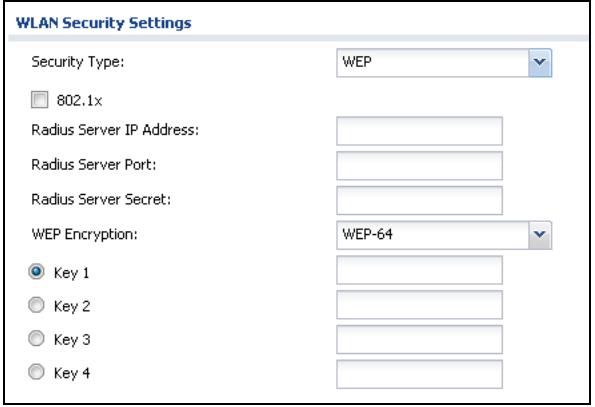
Figure 170 Configuration > Network > Interface > WLAN > Add (WEP Security)
The following table describes the WEP-related wireless LAN security labels. See Table 60 on page 254 for information on the 802.1x fields.
Table 61 Configuration > Network > Interface > WLAN > Add (WEP Security)
| LABEL | DESCRIPTION |
| WEP Encryption | WEP (Wired Equivalent Privacy) provides data encryption to prevent unauthorized wireless stations from accessing data transmitted over the wireless network. Select 64-bit WEP or 128-bit WEP to enable data encryption. |
| Key 1 to Key 4 | If you chose 64-bit WEP in the WEP Encryption field, then enter any 5 characters (ASCII string) or 5 pairs of hexadecimal characters ("0-9", "A-F") preceded by 0x for each key. If you chose 128-bit WEP in the WEP Encryption field, then enter 13 characters (ASCII string) or 13 pairs of hexadecimal characters ("0-9", "A-F") preceded by 0x for each key. There are four data encryption keys to secure your data from eavesdropping by unauthorized wireless users. The values for the keys must be set up exactly the same on the access points as they are on the wireless stations. |
11.6.3 WLAN Add/Edit: WPA-PSK/WPA2-PSK Security
WPA-PSK or WPA2-PSK security has all of the WLAN interface's users share the same password (pre-shared key).
To configure and enable WPA-PSK or WPA2-PSK security, click Configuration > Network > Interface > WLAN > Add (or Edit) to open the WLAN Edit screen. Select WPA-PSK, WPA2-PSK, or WPA/WPA2-PSK as the Security Type. WPA/WPA2-PSK means wireless clients can use either WPA-PSK or WPA2-PSK to connect to the WLAN interface. The following screen shows the security fields.
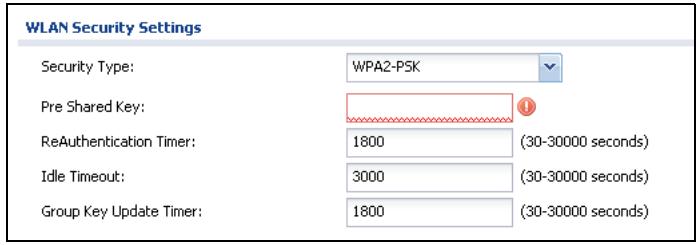
Figure 171 Configuration > Network > Interface > WLAN > Add (WPA-PSK, WPA2-PSK, or WPA/WPA2-PSK Security)
The following table describes the WPA-PSK/WPA2-PSK-related wireless LAN security labels.
Table 62 Configuration > Network > Interface > WLAN > Add (WPA-PSK, WPA2-PSK, or WPA/WPA2-PSK Security)
| LABEL | DESCRIPTION |
| Pre Shared Key | The encryption mechanisms used for WPA and WPA-PSK are the same. The only difference between the two is that WPA-PSK uses a simple common password, instead of user-specific credentials.Type a pre-shared key from 8 to 63 case-sensitive ASCII characters (including spaces and symbols). |
| ReAuthentication Timer | Specify how often wireless stations have to resend usernames and passwords in order to stay connected.Note: If a RADIUS server authenticates wireless stations, the reauthentication timer on the RADIUS server has priority. |
| Idle Timeout | The ZyWALL automatically disconnects a wireless station from the wired network after a period of inactivity. The wireless station needs to enter the username and password again before access to the wired network is allowed. |
| Group Key Update Timer | The Group Key Update Timer is the rate at which the AP sends a new group key out to all clients. The re-keying process is the WPA equivalent of automatically changing the group key for an AP and all stations in a WLAN on a periodic basis. Setting of the Group Key Update Timer is also supported in WPA-PSK mode. |
11.6.4 WLAN Add/Edit: WPA/WPA2 Security
With WPA or WPA2 security, each user can have a separate user name and password. The ZyWALL uses an external RADIUS server or the ZyWALL's internal user account list to authenticate the user names and passwords.
To configure and enable WPA or WPA2 security, click Configuration > Network > Interface > WLAN > Add (or Edit) to open the WLAN Edit screen. Select WPA-Enterprise, WPA2-Enterprise, or WPA/WPA2-Enterprise as the Security Type. WPA/WPA2-Enterprise means wireless clients can use either WPA or WPA2 to connect to the WLAN interface. The following figure shows the security fields.
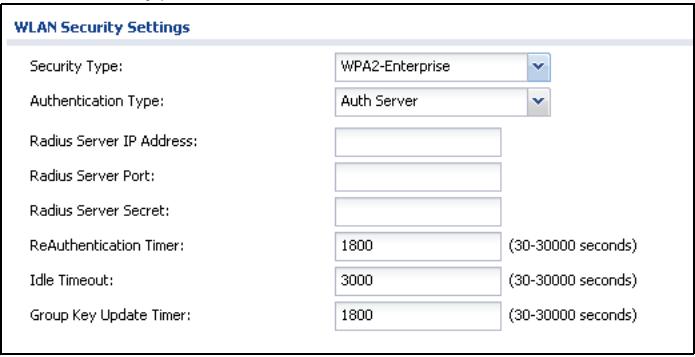
Figure 172 Configuration > Network > Interface > WLAN > Add (WPA/WPA2 Security)
The following table describes the WPA/WPA2-related wireless LAN security labels.
Table 63 Configuration > Network > Interface > WLAN > Add (WPA/WPA2 Security)
| LABEL | DESCRIPTION |
| Authentication Type | Select what the ZyWALL uses to authenticate the wireless clients. Select Auth Method to be able to specify an authentication method object that you have already configured. The authentication method can have the ZyWALL check a user's user name and password against the ZyWALL's local database, a remote LDAP, RADIUS, a Active Directory server, or more than one of these. See Chapter 38 on page 583 for how to create authentication method objects. Select Auth Server to be able to manually specify a RADIUS server's settings in this screen instead of using an authentication method object. |
| Authentication Method | This field displays if you set the Authentication Type field to Auth Method. Select an authentication method object that defines how the ZyWALL authenticates a wireless user. The ZyWALL's default configuration also includes an authentication method object named "default" that you can use. You can configure the "default" authentication method object, but it's default configuration uses the ZyWALL's local database for authentication. |
| TTLS Certificate | This field displays if you select Authentication Method. Select the certificate the ZyWALL uses to authenticate itself to the wireless clients. The certificates you can select from are the ones already configured in the My Certificates screen. EAP-TTLS (Tunnelled Transport Layer Service) is an extension of the EAP-TLS authentication that uses certificates for only the server-side authentications to establish a secure connection. The wireless clients must use TTLS authentication protocol and PAP inside the TTLS secure tunnel. |
| The RADIUS fields display if you set the Authentication Type field to Auth Server. | |
| Radius Server IP Address | Enter the IP address of the external authentication server in dotted decimal notation. |
Table 63 Configuration > Network > Interface > WLAN > Add (WPA/WPA2 Security)
| LABEL | DESCRIPTION |
| Radius Server Port | Enter the RADIUS server's listening port number (the default is 1812). |
| Radius Server Secret | Enter a password (up to 31 alphanumeric characters) as the key to be shared between the external authentication server and the ZyWALL. The key is not sent over the network. This key must be the same on the external authentication server and ZyWALL. |
| ReAuthentication Timer | Specify how often wireless stations have to resend user names and passwords in order to stay connected. Note: If wireless station authentication is done using a RADIUS server, the reauthentication timer on the RADIUS server has priority. |
| Idle Timeout | The ZyWALL automatically disconnects a wireless station from the wired network after a period of inactivity. The wireless station needs to enter the user name and password again before access to the wired network is allowed. |
| Group Key Update Timer | The Group Key Update Timer is the rate at which the AP sends a new group key out to all clients. The re-keying process is the WPA equivalent of automatically changing the group key for an AP and all stations in a WLAN on a periodic basis. Setting of the Group Key Update Timer is also supported in WPA-PSK mode. |
11.7 WLAN Interface MAC Filter
This feature is available for USG 20W only.
The MAC filter allows you to give specific wireless clients exclusive access to the ZyWALL (allow association) or block specific devices from accessing the ZyWALL (deny association) based on the devices' MAC addresses.
Every IEEE 802.11b or IEEE 802.11g device has a unique MAC (Media Access Control) address. The MAC address is assigned at the factory and consists of six pairs of hexadecimal characters, for example, 00:A0:C5:00:00:02. You need to know the MAC addresses of the devices to configure this screen.
If you set the filter to deny access and add the MAC address of a connected device, the ZyWALL drops the device's connection immediately. However, if you set the filter to allow only the specified MAC addresses, the ZyWALL does not immediately disconnect all connected wireless clients.
To display your ZyWALL's MAC filter settings, click Configuration > Network > Interface > WLAN > MAC Filter. The screen appears as shown.
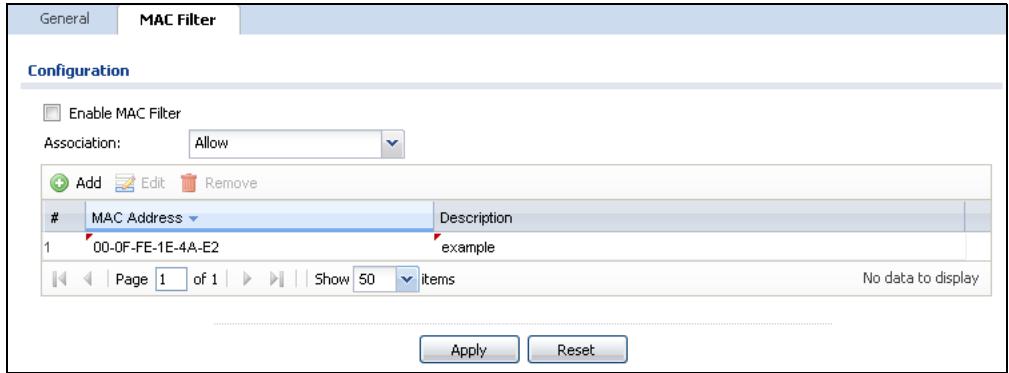
Figure 173 Network > Interface > WLAN > MAC Filter
The following table describes the labels in this screen.
Table 64 Configuration > Network > Interface > WLAN > MAC Filter
| LABEL | DESCRIPTION |
| Enable MAC Filter | Select or clear the check box to enable or disable MAC address filtering. Enable MAC address filtering to have the router allow or deny access to wireless stations based on MAC addresses. Disable MAC address filtering to have the router not perform MAC filtering on the wireless stations. |
| Association | Define the filter action for the list of MAC addresses in the MAC address filter table. Select Deny to block access to the router, MAC addresses not listed will be allowed to access the router. Select Allow to permit access to the router, MAC addresses not listed will be denied access to the router. |
| Add | Click this to add an entry to the table. |
| Edit | Double-click an entry or select it and click Edit to be able to modify the entry's settings. |
| Remove | To remove an entry, select it and click Remove. The ZyWALL confirms you want to remove it before doing so. |
| # | This is the index number of the MAC address. |
| MAC Address | This displays the MAC address (in XX:XX:XX:XX:XX format) of the wireless station that is allowed or denied access to the ZyWALL. Enter the MAC address (in XX:XX:XX:XX:XX or XX-XX-XX-XX-XX format) of the wireless station that is to be allowed or denied access to the ZyWALL. Note that if you enter the MAC address using hyphens for the separators, the ZyWALL automatically converts them to colons. |
| Description | This field displays a descriptive name for the MAC address entry. Enter a descriptive name for the MAC address entry. |
| Apply | Click Apply to save your changes back to the ZyWALL. |
| Reset | Click Reset to return the screen to its last-saved settings. |
11.8 VLAN Interfaces
A Virtual Local Area Network (VLAN) divides a physical network into multiple logical networks. The standard is defined in IEEE 802.1q.
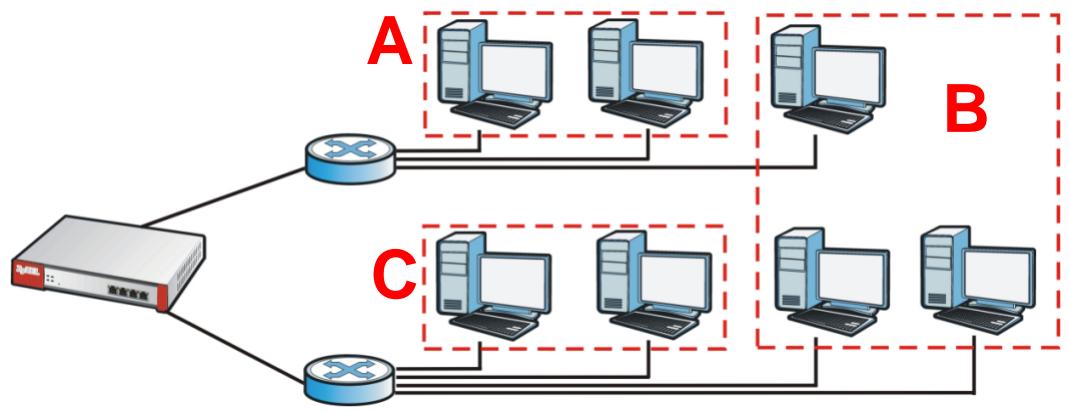
Figure 174 Example: Before VLAN
In this example, there are two physical networks and three departments A, B, and C. The physical networks are connected to hubs, and the hubs are connected to the router.
Alternatively, you can divide the physical networks into three VLANs.
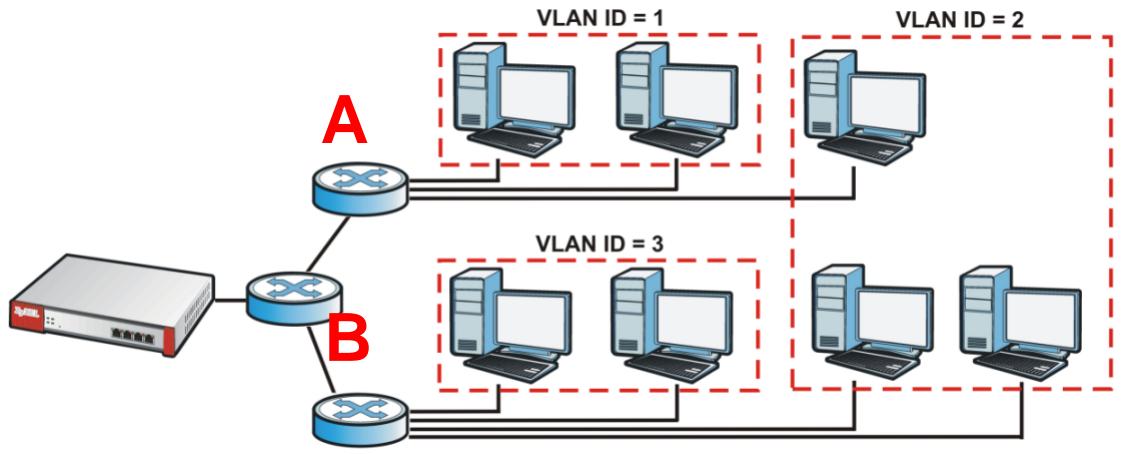
Figure 175 Example: After VLAN
Each VLAN is a separate network with separate IP addresses, subnet masks, and gateways. Each VLAN also has a unique identification number (ID). The ID is a 12-bit value that is stored in the MAC header. The VLANs are connected to switches, and the switches are connected to the router. (If one switch has enough connections for the entire network, the network does not need switches A and B.)
- Traffic inside each VLAN is layer-2 communication (data link layer, MAC addresses). It is handled by the switches. As a result, the new switch is required to handle traffic inside VLAN 2. Traffic is only broadcast inside each VLAN, not each physical network.
- Traffic between VLANs (or between a VLAN and another type of network) is layer-3 communication (network layer, IP addresses). It is handled by the router.
This approach provides a few advantages.
- Increased performance - In VLAN 2, the extra switch should route traffic inside the sales department faster than the router does. In addition, broadcasts are limited to smaller, more logical groups of users.
- Higher security - If each computer has a separate physical connection to the switch, then broadcast traffic in each VLAN is never sent to computers in another VLAN.
- Better manageability - You can align network policies more appropriately for users. For example, you can create different content filtering rules for each VLAN (each department in the example above), and you can set different bandwidth limits for each VLAN. These rules are also independent of the physical network, so you can change the physical network without changing policies.
In this example, the new switch handles the following types of traffic:
- Inside VLAN 2.
- Between the router and VLAN 1.
- Between the router and VLAN 2.
- Between the router and VLAN 3.
VLAN Interfaces Overview
In the ZyWALL, each VLAN is called a VLAN interface. As a router, the ZyWALL routes traffic between VLAN interfaces, but it does not route traffic within a VLAN interface. All traffic for each VLAN interface can go through only one Ethernet interface, though each Ethernet interface can have one or more VLAN interfaces.
Note: Each VLAN interface is created on top of only one Ethernet interface.
Otherwise, VLAN interfaces are similar to other interfaces in many ways. They have an IP address, subnet mask, and gateway used to make routing decisions. They restrict bandwidth and packet size. They can provide DHCP services, and they can verify the gateway is available.
11.8.1 VLAN Summary Screen
This screen lists every VLAN interface and virtual interface created on top of VLAN interfaces. To access this screen, click Configuration > Network > Interface > VLAN.
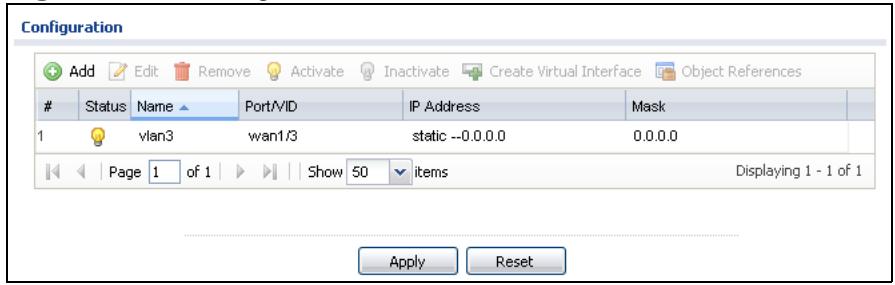
Figure 176 Configuration > Network > Interface > VLAN
Each field is explained in the following table.
Table 65 Configuration > Network > Interface > VLAN
| LABEL | DESCRIPTION |
| Edit | Double-click an entry or select it and click Edit to open a screen where you can modify the entry's settings. |
| Remove | To remove an entry, select it and click Remove. The ZyWALL confirms you want to remove it before doing so. |
| Activate | To turn on an entry, select it and click Activate. |
| Inactivate | To turn off an entry, select it and click Inactivate. |
| Create Virtual Interface | To open the screen where you can create a virtual interface, select an interface and click Create Virtual Interface. |
| Object References | Select an entry and click Object References to open a screen that shows which settings use the entry. See Section 11.3.2 on page 232 for an example. |
| # | This field is a sequential value, and it is not associated with any interface. |
| Status | This icon is lit when the entry is active and dimmed when the entry is inactive. |
| Name | This field displays the name of the interface. |
| Port/VID | For VLAN interfaces, this field displays • the Ethernet interface on which the VLAN interface is created • the VLAN ID For virtual interfaces, this field is blank. |
| IP Address | This field displays the current IP address of the interface. If the IP address is 0.0.0.0, the interface does not have an IP address yet. This screen also shows whether the IP address is a static IP address (STATIC) or dynamically assigned (DHCP). IP addresses are always static in virtual interfaces. |
| Mask | This field displays the interface's subnet mask in dot decimal notation. |
| Apply | Click Apply to save your changes back to the ZyWALL. |
| Reset | Click Reset to return the screen to its last-saved settings. |
11.8.2 VLAN Add/Edit
This screen lets you configure IP address assignment, interface bandwidth parameters, DHCP settings, and connectivity check for each VLAN interface. To access this screen, click the Add icon at the top of the Add column or click an Edit icon next to a VLAN interface in the VLAN Summary screen. The following screen appears.
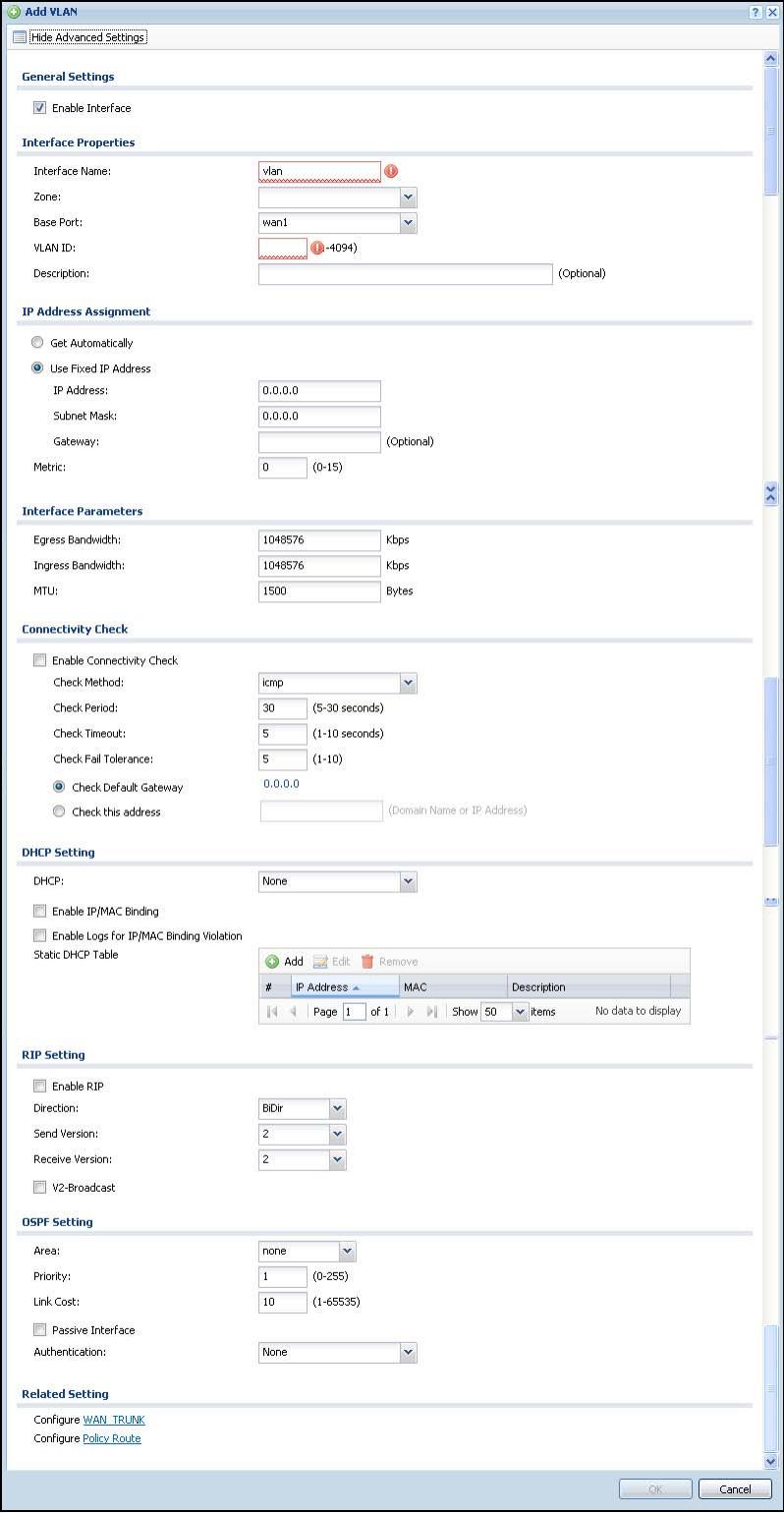
Figure 177 Configuration > Network > Interface > VLAN > Edit
Each field is explained in the following table.
Table 66 Configuration > Network > Interface > VLAN > Edit
| LABEL | DESCRIPTION |
| Show Advance Settings / Hide Advance Settings | Click this button to display a greater or lesser number of configuration fields. |
| General Settings | |
| Enable Interface | Select this to turn this interface on. Clear this to disable this interface. |
| Interface Properties | |
| Interface Name | This field is read-only if you are editing an existing VLAN interface. Enter the number of the VLAN interface. You can use a number from 0~4094. See Chapter 51 on page 741 the User's Guide for the total number of VLANs you can configure on the ZyWALL. For example, vlan0, vlan8, and so on. |
| Zone | Select the zone to which the VLAN interface belongs. |
| Base Port | Select the Ethernet interface on which the VLAN interface runs. |
| VLAN ID | Enter the VLAN ID. This 12-bit number uniquely identifies each VLAN. Allowed values are 1 - 4094. (0 and 4095 are reserved.) |
| Description | Enter a description of this interface. It is not used elsewhere. You can use alphanumeric and ( ) + / : =? ! *#@$-_ %- characters, and it can be up to 60 characters long. |
| IP Address Assignment | |
| Get Automatically | Select this if this interface is a DHCP client. In this case, the DHCP server configures the IP address, subnet mask, and gateway automatically. You should not select this if the interface is assigned to a VRRP group. See Chapter 39 on page 715. |
| Use Fixed IP Address | Select this if you want to specify the IP address, subnet mask, and gateway manually. |
| IP Address | This field is enabled if you select Use Fixed IP Address. Enter the IP address for this interface. |
| Subnet Mask | This field is enabled if you select Use Fixed IP Address. Enter the subnet mask of this interface in dot decimal notation. The subnet mask indicates what part of the IP address is the same for all computers in the network. |
| Gateway | This field is enabled if you select Use Fixed IP Address. Enter the IP address of the gateway. The ZyWALL sends packets to the gateway when it does not know how to route the packet to its destination. The gateway should be on the same network as the interface. |
| Metric | Enter the priority of the gateway (if any) on this interface. The ZyWALL decides which gateway to use based on this priority. The lower the number, the higher the priority. If two or more gateways have the same priority, the ZyWALL uses the one that was configured first. |
| Interface Parameters | |
| Egress Bandwidth | Enter the maximum amount of traffic, in kilobits per second, the ZyWALL can send through the interface to the network. Allowed values are 0 - 1048576. |
| Ingress Bandwidth | This is reserved for future use. Enter the maximum amount of traffic, in kilobits per second, the ZyWALL can receive from the network through the interface. Allowed values are 0 - 1048576. |
| MTU | Maximum Transmission Unit. Type the maximum size of each data packet, in bytes, that can move through this interface. If a larger packet arrives, the ZyWALL divides it into smaller fragments. Allowed values are 576 - 1500. Usually, this value is 1500. |
| Connectivity Check | The ZyWALL can regularly check the connection to the gateway you specified to make sure it is still available. You specify how often to check the connection, how long to wait for a response before the attempt is a failure, and how many consecutive failures are required before the ZyWALL stops routing to the gateway. The ZyWALL resumes routing to the gateway the first time the gateway passes the connectivity check. |
| Enable Connectivity Check | Select this to turn on the connection check. |
| Check Method | Select the method that the gateway allows. Select icmp to have the ZyWALL regularly ping the gateway you specify to make sure it is still available. Select tcp to have the ZyWALL regularly perform a TCP handshake with the gateway you specify to make sure it is still available. |
| Check Period | Enter the number of seconds between connection check attempts. |
| Check Timeout | Enter the number of seconds to wait for a response before the attempt is a failure. |
| Check Fail Tolerance | Enter the number of consecutive failures before the ZyWALL stops routing through the gateway. |
| Check Default Gateway | Select this to use the default gateway for the connectivity check. |
| Check this address | Select this to specify a domain name or IP address for the connectivity check. Enter that domain name or IP address in the field next to it. |
| Check Port | This field only displays when you set the Check Method to tcp. Specify the port number to use for a TCP connectivity check. |
| DHCP Setting | The DHCP settings are available for the OPT, LAN and DMZ interfaces. |
| DHCP | Select what type of DHCP service the ZyWALL provides to the network. Choices are: |
| None - the ZyWALL does not provide any DHCP services. There is already a DHCP server on the network. | |
| DHCP Relay - the ZyWALL routes DHCP requests to one or more DHCP servers you specify. The DHCP server(s) may be on another network. | |
| DHCP Server - the ZyWALL assigns IP addresses and provides subnet mask, gateway, and DNS server information to the network. The ZyWALL is the DHCP server for the network. | |
| These fields appear if the ZyWALL is a DHCP Relay. | |
| Relay Server 1 | Enter the IP address of a DHCP server for the network. |
| Relay Server 2 | This field is optional. Enter the IP address of another DHCP server for the network. |
| These fields appear if the ZyWALL is a DHCP Server. | |
| IP Pool Start Address | Enter the IP address from which the ZyWALL begins allocating IP addresses. If you want to assign a static IP address to a specific computer, click Add Static DHCP. |
| If this field is blank, the Pool Size must also be blank. In this case, the ZyWALL can assign every IP address allowed by the interface's IP address and subnet mask, except for the first address (network address), last address (broadcast address) and the interface's IP address. | |
| Pool Size | Enter the number of IP addresses to allocate. This number must be at least one and is limited by the interface's Subnet Mask. For example, if the Subnet Mask is 255.255.255.0 and IP Pool Start Address is 10.10.10.10, the ZyWALL can allocate 10.10.10.10 to 10.10.10.254, or 245 IP addresses. |
| If this field is blank, the IP Pool Start Address must also be blank. In this case, the ZyWALL can assign every IP address allowed by the interface's IP address and subnet mask, except for the first address (network address), last address (broadcast address) and the interface's IP address. | |
| First DNS Server Second DNS Server Third DNS Server | Specify the IP addresses up to three DNS servers for the DHCP clients to use. Use one of the following ways to specify these IP addresses. |
| Custom Defined - enter a static IP address. | |
| From ISP - select the DNS server that another interface received from its DHCP server. | |
| ZyWALL - the DHCP clients use the IP address of this interface and the ZyWALL works as a DNS relay. | |
| First WINS Server, Second WINS Server | Type the IP address of the WINS (Windows Internet Naming Service) server that you want to send to the DHCP clients. The WINS server keeps a mapping table of the computer names on your network and the IP addresses that they are currently using. |
| Lease time | Specify how long each computer can use the information (especially the IP address) before it has to request the information again. Choices are: infinite - select this if IP addresses never expire days, hours, and minutes - select this to enter how long IP addresses are valid. |
| Enable IP/MAC Binding | Select this option to have the ZyWALL enforce links between specific IP addresses and specific MAC addresses for this VLAN. This stops anyone else from manually using a bound IP address on another device connected to this interface. Use this to make use only the intended users get to use specific IP addresses. |
| Enable Logs for IP/MAC Binding Violation | Select this option to have the ZyWALL generate a log if a device connected to this VLAN attempts to use an IP address that is bound to another device's MAC address. |
| Static DHCP Table | Configure a list of static IP addresses the ZyWALL assigns to computers connected to the interface. Otherwise, the ZyWALL assigns an IP address dynamically using the interface's IP Pool Start Address and Pool Size. |
| Add | Click this to create a new entry. |
| Edit | Select an entry and click this to be able to modify it. |
| Remove | Select an entry and click this to delete it. |
| # | This field is a sequential value, and it is not associated with a specific entry. |
| IP Address | Enter the IP address to assign to a device with this entry's MAC address. |
| MAC Address | Enter the MAC address to which to assign this entry's IP address. |
| Description | Enter a description to help identify this static DHCP entry. You can use alphanumeric and ( ) + / : =? ! *@$-%- characters, and it can be up to 60 characters long. |
| RIP Setting | See Section 14.2 on page 314 for more information about RIP. |
| Enable RIP | Select this to enable RIP on this interface. |
| Direction | This field is effective when RIP is enabled. Select the RIP direction from the drop-down list box. BiDir - This interface sends and receives routing information. In-Only - This interface receives routing information. Out-Only - This interface sends routing information. |
| Send Version | This field is effective when RIP is enabled. Select the RIP version(s) used for sending RIP packets. Choices are 1, 2, and 1 and 2. |
| Receive Version | This field is effective when RIP is enabled. Select the RIP version(s) used for receiving RIP packets. Choices are 1, 2, and 1 and 2. |
| V2-Broadcast | This field is effective when RIP is enabled. Select this to send RIP-2 packets using subnet broadcasting; otherwise, the ZyWALL uses multicasting. |
| OSPF Setting | See Section 14.3 on page 315 for more information about OSPF. |
| Area | Select the area in which this interface belongs. Select None to disable OSPF in this interface. |
| Priority | Enter the priority (between 0 and 255) of this interface when the area is looking for a Designated Router (DR) or Backup Designated Router (BDR). The highest-priority interface identifies the DR, and the second-highest-priority interface identifies the BDR. Set the priority to zero if the interface can not be the DR or BDR. |
| Link Cost | Enter the cost (between 1 and 65,535) to route packets through this interface. |
| Passive Interface | Select this to stop forwarding OSPF routing information from the selected interface. As a result, this interface only receives routing information. |
| Authentication | Select an authentication method, or disable authentication. To exchange OSPF routing information with peer border routers, you must use the same authentication method that they use. Choices are: Same-as-Area - use the default authentication method in the area None - disable authentication Text - authenticate OSPF routing information using a plain-text password MD5 - authenticate OSPF routing information using MD5 encryption |
| Text Authentication Key | This field is available if the Authentication is Text. Type the password for text authentication. The key can consist of alphanumeric characters and the underscore, and it can be up to 16 characters long. |
| MD5 Authentication ID | This field is available if the Authentication is MD5. Type the ID for MD5 authentication. The ID can be between 1 and 255. |
| MD5 Authentication Key | This field is available if the Authentication is MD5. Type the password for MD5 authentication. The password can consist of alphanumeric characters and the underscore, and it can be up to 16 characters long. |
| Related Setting | |
| Configure WAN TRUNK | Click WAN TRUNK to go to a screen where you can set this VLAN to be part of a WAN trunk for load balancing. |
| Configure Policy Route | Click Policy Route to go to the screen where you can manually configure a policy route to associate traffic with this VLAN. |
| OK | Click OK to save your changes back to the ZyWALL. |
| Cancel | Click Cancel to exit this screen without saving. |
11.9 Bridge Interfaces
This section introduces bridges and bridge interfaces and then explains the screens for bridge interfaces.
Bridge Overview
A bridge creates a connection between two or more network segments at the layer-2 (MAC address) level. In the following example, bridge X connects four network segments.
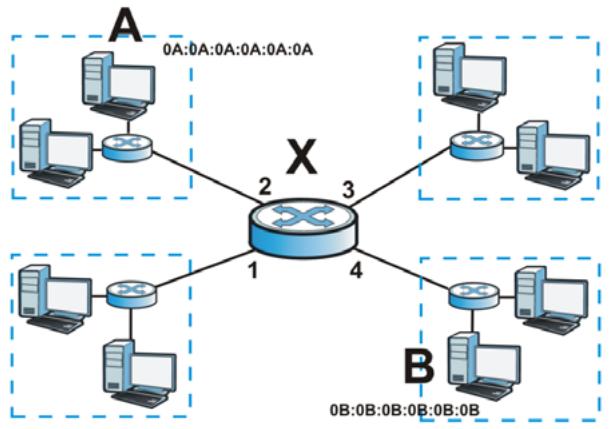
When the bridge receives a packet, the bridge records the source MAC address and the port on which it was received in a table. It also looks up the destination MAC address in the table. If the bridge knows on which port the destination MAC address is located, it sends the packet to that port. If the destination MAC address is not in the table, the bridge broadcasts the packet on every port (except the one on which it was received).
In the example above, computer A sends a packet to computer B. Bridge X records the source address 0A:0A:0A:0A:0A:0A and port 2 in the table. It also looks up 0B:0B:0B:0B:0B in the table. There is no entry yet, so the bridge broadcasts the packet on ports 1, 3, and 4.
Table 67 Example: Bridge Table After Computer A Sends a Packet to Computer B
| MAC ADDRESS | PORT |
| 0A:0A:0A:0A:0A:0A | 2 |
If computer B responds to computer A, bridge X records the source address 0B:0B:0B:0B:0B:0B and port 4 in the table. It also looks up 0A:0A:0A:0A:0A:0A in the table and sends the packet to port 2 accordingly.
Table 68 Example: Bridge Table After Computer B Responds to Computer A
| MAC ADDRESS | PORT |
| 0A:0A:0A:0A:0A:0A | 2 |
| 0B:0B:0B:0B:0B:0B | 4 |
Bridge Interface Overview
A bridge interface creates a software bridge between the members of the bridge interface. It also becomes the ZyWALL's interface for the resulting network.
Unlike the device-wide bridge mode in ZyNOS-based ZyWALLs, this ZyWALL can bridge traffic between some interfaces while it routes traffic for other interfaces. The bridge interfaces also support more functions, like interface bandwidth parameters, DHCP settings, and connectivity check. To use the whole ZyWALL as a transparent bridge, add all of the ZyWALL's interfaces to a bridge interface.
A bridge interface may consist of the following members:
Zero or one WLAN interfaces
- Zero or one VLAN interfaces (and any associated virtual VLAN interfaces)
- Any number of Ethernet interfaces (and any associated virtual Ethernet interfaces)
When you create a bridge interface, the ZyWALL removes the members' entries from the routing table and adds the bridge interface's entries to the routing table. For example, this table shows the routing table before and after you create bridge interface br0 (250.250.250.0/23) between lan1 and vlan1.
Table 69 Example: Routing Table Before and After Bridge Interface br0 Is Created
| IP ADDRESS(ES) | DESTINATION |
| 210.210.210.0/24 | lan1 |
| 210.211.1.0/24 | lan1:1 |
| 221.221.221.0/24 | vlan0 |
| 222.222.222.0/24 | vlan1 |
| 230.230.230.192/26 | wan |
| 241.241.241.241/32 | dmz |
| 242.242.242.242/32 | dmz |
| IP ADDRESS(ES) | DESTINATION |
| 221.221.221.0/24 | vlan0 |
| 230.230.230.192/26 | wan |
| 241.241.241.241/32 | dmz |
| 242.242.242.242/32 | dmz |
| 250.250.250.0/23 | br0 |
In this example, virtual Ethernet interface lan1:1 is also removed from the routing table when lan1 is added to br0. Virtual interfaces are automatically added to or
remove from a bridge interface when the underlying interface is added or removed.
11.9.1 Bridge Summary
This screen lists every bridge interface and virtual interface created on top of bridge interfaces. To access this screen, click Configuration > Network > Interface > Bridge.
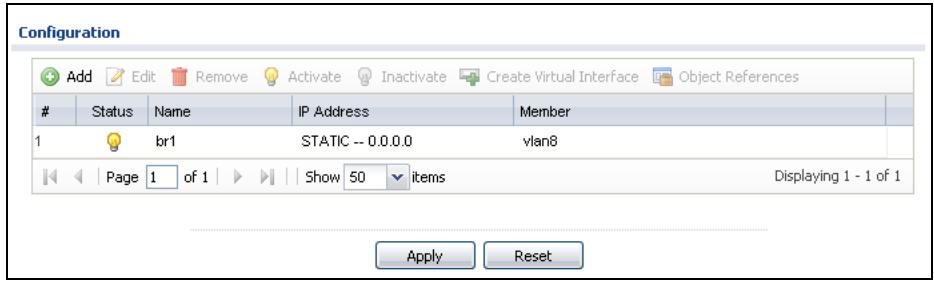
Figure 178 Configuration > Network > Interface > Bridge
Each field is described in the following table.
Table 70 Configuration > Network > Interface > Bridge
| LABEL | DESCRIPTION |
| Add | Click this to create a new entry. |
| Edit | Double-click an entry or select it and click Edit to open a screen where you can modify the entry's settings. |
| Remove | To remove an entry, select it and click Remove. The ZyWALL confirms you want to remove it before doing so. |
| Activate | To turn on an entry, select it and click Activate. |
| Inactivate | To turn off an entry, select it and click Inactivate. |
| Create Virtual Interface | To open the screen where you can create a virtual interface, select an interface and click Create Virtual Interface. |
| Object References | Select an entry and click Object References to open a screen that shows which settings use the entry. See Section 11.3.2 on page 232 for an example. |
| # | This field is a sequential value, and it is not associated with any interface. |
| Status | This icon is lit when the entry is active and dimmed when the entry is inactive. |
| Name | This field displays the name of the interface. |
| IP Address | This field displays the current IP address of the interface. If the IP address is 0.0.0.0, the interface does not have an IP address yet. This screen also shows whether the IP address is a static IP address (STATIC) or dynamically assigned (DHCP). IP addresses are always static in virtual interfaces. |
| Member | This field displays the Ethernet interfaces and VLAN interfaces in the bridge interface. It is blank for virtual interfaces. |
| Apply | Click Apply to save your changes back to the ZyWALL. |
| Reset | Click Reset to return the screen to its last-saved settings. |
11.9.2 Bridge Add/Edit
This screen lets you configure IP address assignment, interface bandwidth parameters, DHCP settings, and connectivity check for each bridge interface. To access this screen, click the Add icon at the top of the Add column in the Bridge Summary screen, or click an Edit icon in the Bridge Summary screen. The following screen appears.
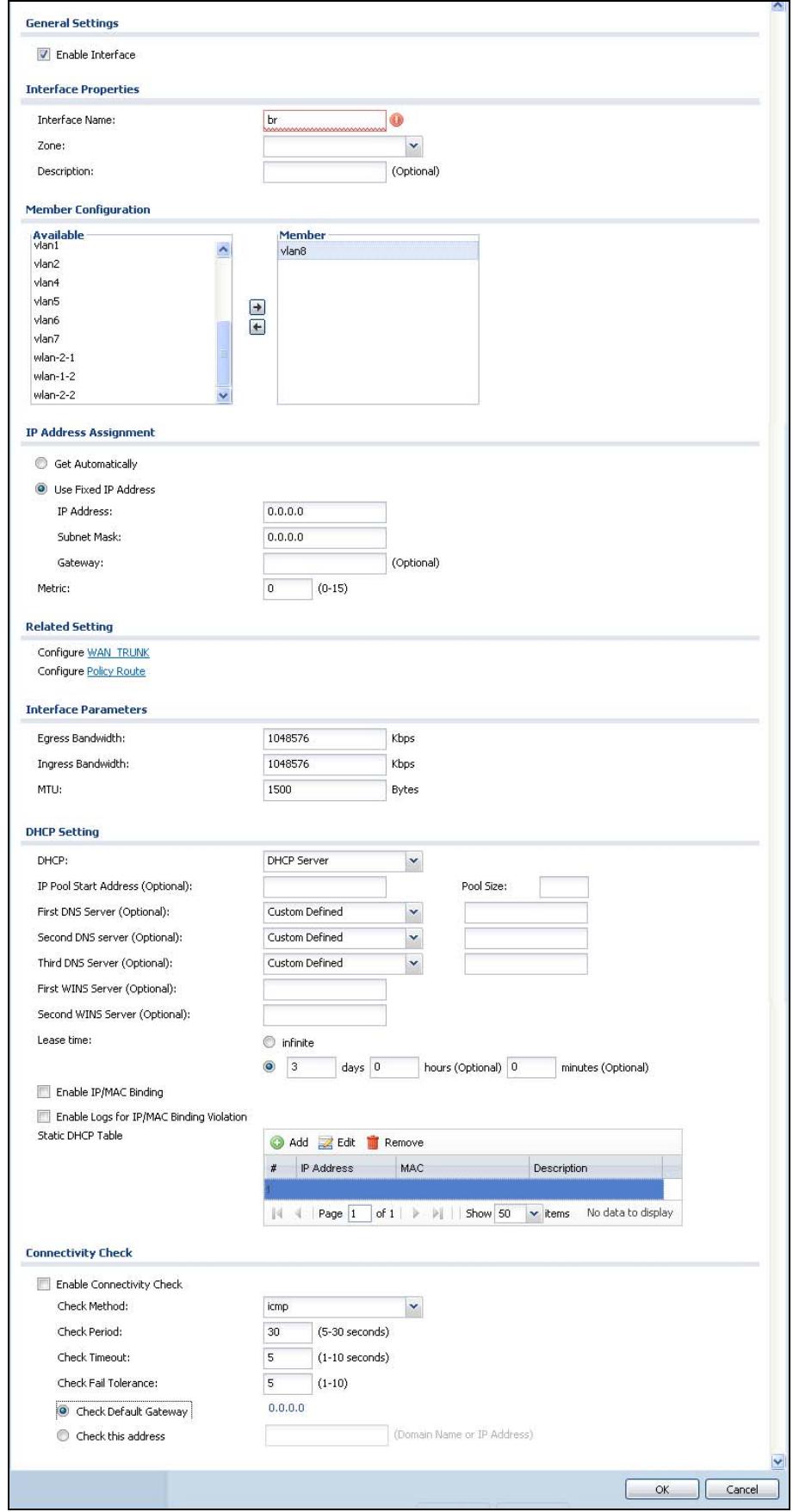
Figure 179 Configuration > Network > Interface > Bridge > Add
Each field is described in the table below.
Table 71 Configuration > Network > Interface > Bridge > Edit
| LABEL | DESCRIPTION |
| Show Advance Settings / Hide Advance Settings | Click this button to display a greater or lesser number of configuration fields. |
| General Settings | |
| Enable Interface | Select this to enable this interface. Clear this to disable this interface. |
| Interface Properties | |
| Interface Name | This field is read-only if you are editing the interface. Enter the name of the bridge interface. The format is brx, where x is 0 - 11. For example, br0, br3, and so on. |
| Zone | Select the zone to which the interface is to belong. You use zones to apply security settings such as firewall, remote management. |
| Description | Enter a description of this interface. It is not used elsewhere. You can use alphanumeric and ( ) + / : =? ! *#@$_ %- characters, and it can be up to 60 characters long. |
| Member Configuration | |
| Available | This field displays Ethernet interfaces and VLAN interfaces that can become part of the bridge interface. An interface is not available in the following situations: • There is a virtual interface on top of it • It is already used in a different bridge interface Select one, and click the >> arrow to add it to the bridge interface. Each bridge interface can only have one VLAN interface. |
| Member | This field displays the interfaces that are part of the bridge interface. Select one, and click the << arrow to remove it from the bridge interface. |
| IP Address Assignment | |
| Get Automatically | Select this if this interface is a DHCP client. In this case, the DHCP server configures the IP address, subnet mask, and gateway automatically. |
| Use Fixed IP Address | Select this if you want to specify the IP address, subnet mask, and gateway manually. |
| IP Address | This field is enabled if you select Use Fixed IP Address. Enter the IP address for this interface. |
| Subnet Mask | This field is enabled if you select Use Fixed IP Address. Enter the subnet mask of this interface in dot decimal notation. The subnet mask indicates what part of the IP address is the same for all computers in the network. |
| Gateway | This field is enabled if you select Use Fixed IP Address. Enter the IP address of the gateway. The ZyWALL sends packets to the gateway when it does not know how to route the packet to its destination. The gateway should be on the same network as the interface. |
| Metric | Enter the priority of the gateway (if any) on this interface. The ZyWALL decides which gateway to use based on this priority. The lower the number, the higher the priority. If two or more gateways have the same priority, the ZyWALL uses the one that was configured first. |
| Related Setting | |
| Configure WAN TRUNK | Click WAN TRUNK to go to a screen where you can configure the interface as part of a WAN trunk for load balancing. |
| Configure Policy Route | Click Policy Route to go to the screen where you can manually configure a policy route to associate traffic with this bridge interface. |
| Interface Parameters | |
| Egress Bandwidth | Enter the maximum amount of traffic, in kilobits per second, the ZyWALL can send through the interface to the network. Allowed values are 0 - 1048576. |
| Ingress Bandwidth | This is reserved for future use. Enter the maximum amount of traffic, in kilobits per second, the ZyWALL can receive from the network through the interface. Allowed values are 0 - 1048576. |
| MTU | Maximum Transmission Unit. Type the maximum size of each data packet, in bytes, that can move through this interface. If a larger packet arrives, the ZyWALL divides it into smaller fragments. Allowed values are 576 - 1500. Usually, this value is 1500. |
| DHCP Setting | |
| DHCP | Select what type of DHCP service the ZyWALL provides to the network. Choices are: None - the ZyWALL does not provide any DHCP services. There is already a DHCP server on the network. DHCP Relay - the ZyWALL routes DHCP requests to one or more DHCP servers you specify. The DHCP server(s) may be on another network. DHCP Server - the ZyWALL assigns IP addresses and provides subnet mask, gateway, and DNS server information to the network. The ZyWALL is the DHCP server for the network. |
| These fields appear if the ZyWALL is a DHCP Relay. | |
| Relay Server 1 | Enter the IP address of a DHCP server for the network. |
| Relay Server 2 | This field is optional. Enter the IP address of another DHCP server for the network. |
| These fields appear if the ZyWALL is a DHCP Server. | |
| IP Pool Start Address | Enter the IP address from which the ZyWALL begins allocating IP addresses. If you want to assign a static IP address to a specific computer, click Add Static DHCP. If this field is blank, the Pool Size must also be blank. In this case, the ZyWALL can assign every IP address allowed by the interface's IP address and subnet mask, except for the first address (network address), last address (broadcast address) and the interface's IP address. |
| Pool Size | Enter the number of IP addresses to allocate. This number must be at least one and is limited by the interface's Subnet Mask. For example, if the Subnet Mask is 255.255.255.0 and IP Pool Start Address is 10.10.10.10, the ZyWALL can allocate 10.10.10.10 to 10.10.10.254, or 245 IP addresses. If this field is blank, the IP Pool Start Address must also be blank. In this case, the ZyWALL can assign every IP address allowed by the interface's IP address and subnet mask, except for the first address (network address), last address (broadcast address) and the interface's IP address. |
| First DNS Server Second DNS Server Third DNS Server | Specify the IP addresses up to three DNS servers for the DHCP clients to use. Use one of the following ways to specify these IP addresses. Custom Defined - enter a static IP address. From ISP - select the DNS server that another interface received from its DHCP server. ZyWALL - the DHCP clients use the IP address of this interface and the ZyWALL works as a DNS relay. |
| First WINS Server, Second WINS Server | Type the IP address of the WINS (Windows Internet Naming Service) server that you want to send to the DHCP clients. The WINS server keeps a mapping table of the computer names on your network and the IP addresses that they are currently using. |
| Lease time | Specify how long each computer can use the information (especially the IP address) before it has to request the information again. Choices are: infinite - select this if IP addresses never expire days, hours, and minutes - select this to enter how long IP addresses are valid. |
| Enable IP/MAC Binding | Select this option to have this interface enforce links between specific IP addresses and specific MAC addresses. This stops anyone else from manually using a bound IP address on another device connected to this interface. Use this to make use only the intended users get to use specific IP addresses. |
| Enable Logs for IP/MAC Binding Violation | Select this option to have the ZyWALL generate a log if a device connected to this interface attempts to use an IP address that is bound to another device's MAC address. |
| Static DHCP Table | Configure a list of static IP addresses the ZyWALL assigns to computers connected to the interface. Otherwise, the ZyWALL assigns an IP address dynamically using the interface's IP Pool Start Address and Pool Size. |
| Add | Click this to create a new entry. |
| Edit | Select an entry and click this to be able to modify it. |
| Remove | Select an entry and click this to delete it. |
| # | This field is a sequential value, and it is not associated with a specific entry. |
| IP Address | Enter the IP address to assign to a device with this entry's MAC address. |
| MAC Address | Enter the MAC address to which to assign this entry's IP address. |
| Description | Enter a description to help identify this static DHCP entry. You can use alphanumeric and ( )+/:=?! *#@$-%- characters, and it can be up to 60 characters long. |
| Connectivity Check | The interface can regularly check the connection to the gateway you specified to make sure it is still available. You specify how often the interface checks the connection, how long to wait for a response before the attempt is a failure, and how many consecutive failures are required before the ZyWALL stops routing to the gateway. The ZyWALL resumes routing to the gateway the first time the gateway passes the connectivity check. |
| Enable Connectivity Check | Select this to turn on the connection check. |
| Check Method | Select the method that the gateway allows. Select icmp to have the ZyWALL regularly ping the gateway you specify to make sure it is still available. Select tcp to have the ZyWALL regularly perform a TCP handshake with the gateway you specify to make sure it is still available. |
| Check Period | Enter the number of seconds between connection check attempts. |
| Check Timeout | Enter the number of seconds to wait for a response before the attempt is a failure. |
| Check Fail Tolerance | Enter the number of consecutive failures before the ZyWALL stops routing through the gateway. |
| Check Default Gateway | Select this to use the default gateway for the connectivity check. |
| Check this address | Select this to specify a domain name or IP address for the connectivity check. Enter that domain name or IP address in the field next to it. |
| Check Port | This field only displays when you set the Check Method to tcp. Specify the port number to use for a TCP connectivity check. |
| OK | Click OK to save your changes back to the ZyWALL. |
| Cancel | Click Cancel to exit this screen without saving. |
11.9.3 Virtual Interfaces Add/Edit
This screen lets you configure IP address assignment and interface parameters for virtual interfaces. To access this screen, click an Add icon next to an Ethernet
interface, VLAN interface, or bridge interface in the respective interface summary screen.
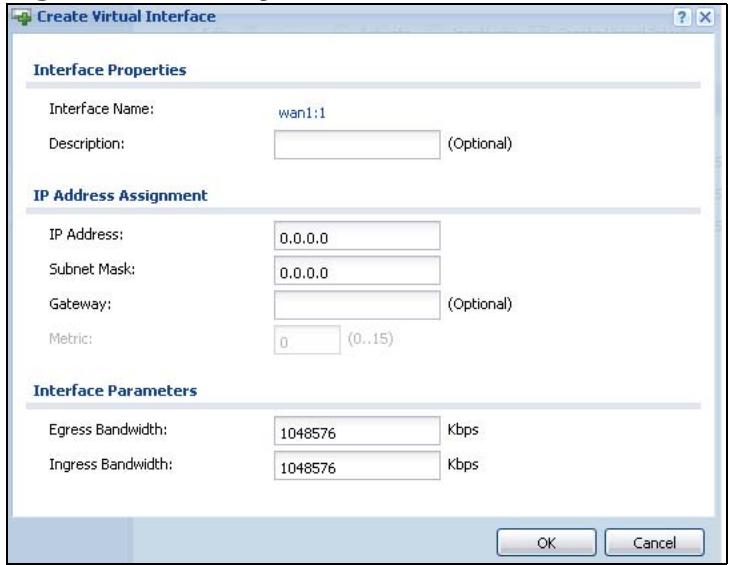
Figure 180 Configuration > Network > Interface > Add
Each field is described in the table below.
Table 72 Configuration > Network > Interface > Add
| LABEL | DESCRIPTION |
| Interface Properties | |
| Interface Name | This field is read-only. It displays the name of the virtual interface, which is automatically derived from the underlying Ethernet interface, VLAN interface, or bridge interface. |
| Description | Enter a description of this interface. It is not used elsewhere. You can use alphanumeric and ( ) + / : =? ! *#@$-_ characters, and it can be up to 60 characters long. |
| IP Address Assignment | |
| IP Address | Enter the IP address for this interface. |
| Subnet Mask | Enter the subnet mask of this interface in dot decimal notation. The subnet mask indicates what part of the IP address is the same for all computers in the network. |
| Gateway | Enter the IP address of the gateway. The ZyWALL sends packets to the gateway when it does not know how to route the packet to its destination. The gateway should be on the same network as the interface. |
| Metric | Enter the priority of the gateway (if any) on this interface. The ZyWALL decides which gateway to use based on this priority. The lower the number, the higher the priority. If two or more gateways have the same priority, the ZyWALL uses the one that was configured first. |
| Interface Parameters | |
| Egress Bandwidth | Enter the maximum amount of traffic, in kilobits per second, the ZyWALL can send through the interface to the network. Allowed values are 0 - 1048576. |
| Ingress Bandwidth | This is reserved for future use. Enter the maximum amount of traffic, in kilobits per second, the ZyWALL can receive from the network through the interface. Allowed values are 0 - 1048576. |
| OK | Click OK to save your changes back to the ZyWALL. |
| Cancel | Click Cancel to exit this screen without saving. |
11.10 Interface Technical Reference
Here is more detailed information about interfaces on the ZyWALL.
IP Address Assignment
Most interfaces have an IP address and a subnet mask. This information is used to create an entry in the routing table.
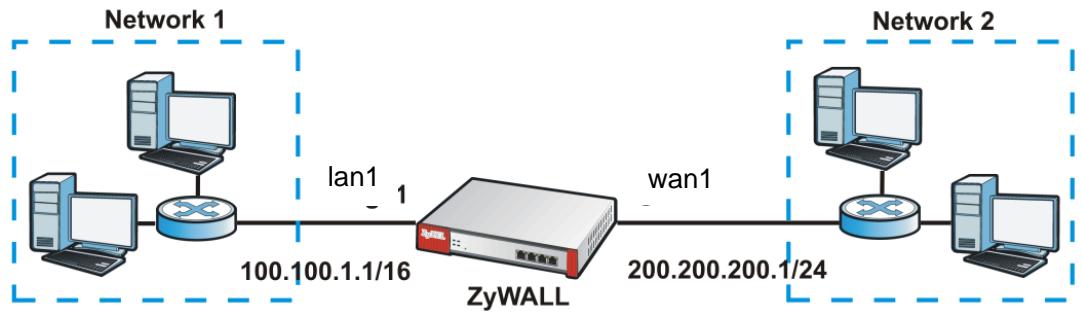
Figure 181 Example: Entry in the Routing Table Derived from Interfaces
Table 73 Example: Routing Table Entries for Interfaces
| IP ADDRESS(ES) | DESTINATION |
| 100.100.1.1/16 | lan1 |
| 200.200.200.1/24 | wan1 |
For example, if the ZyWALL gets a packet with a destination address of 100.100.25.25, it routes the packet to interface lan1. If the ZyWALL gets a packet with a destination address of 200.200.200.200, it routes the packet to interface wan1.
In most interfaces, you can enter the IP address and subnet mask manually. In PPPoE/PPTP interfaces, however, the subnet mask is always 255.255.255.255
because it is a point-to-point interface. For these interfaces, you can only enter the IP address.
In many interfaces, you can also let the IP address and subnet mask be assigned by an external DHCP server on the network. In this case, the interface is a DHCP client. Virtual interfaces, however, cannot be DHCP clients. You have to assign the IP address and subnet mask manually.
In general, the IP address and subnet mask of each interface should not overlap, though it is possible for this to happen with DHCP clients.
In the example above, if the ZyWALL gets a packet with a destination address of 5.5.5.5, it might not find any entries in the routing table. In this case, the packet is dropped. However, if there is a default router to which the ZyWALL should send this packet, you can specify it as a gateway in one of the interfaces. For example, if there is a default router at 200.200.200.100, you can create a gateway at 200.200.200.100 on ge2. In this case, the ZyWALL creates the following entry in the routing table.
Table 74 Example: Routing Table Entry for a Gateway
| IP ADDRESS(ES) | DESTINATION |
| 0.0.0.0/0 | 200.200.200.100 |
The gateway is an optional setting for each interface. If there is more than one gateway, the ZyWALL uses the gateway with the lowest metric, or cost. If two or more gateways have the same metric, the ZyWALL uses the one that was set up first (the first entry in the routing table). In PPPoE/PPTP interfaces, the other computer is the gateway for the interface by default. In this case, you should specify the metric.
If the interface gets its IP address and subnet mask from a DHCP server, the DHCP server also specifies the gateway, if any.
Interface Parameters
The ZyWALL restricts the amount of traffic into and out of the ZyWALL through each interface.
- Egress bandwidth sets the amount of traffic the ZyWALL sends out through the interface to the network.
- Ingress bandwidth sets the amount of traffic the ZyWALL allows in through the interface from the network.1
If you set the bandwidth restrictions very high, you effectively remove the restrictions.
The ZyWALL also restricts the size of each data packet. The maximum number of bytes in each packet is called the maximum transmission unit (MTU). If a packet is larger than the MTU, the ZyWALL divides it into smaller fragments. Each fragment is sent separately, and the original packet is re-assembled later. The smaller the MTU, the more fragments sent, and the more work required to re-assemble packets correctly. On the other hand, some communication channels, such as Ethernet over ATM, might not be able to handle large data packets.
DHCP Settings
Dynamic Host Configuration Protocol (DHCP, RFC 2131, RFC 2132) provides a way to automatically set up and maintain IP addresses, subnet masks, gateways, and some network information (such as the IP addresses of DNS servers) on computers in the network. This reduces the amount of manual configuration you have to do and usually uses available IP addresses more efficiently.
In DHCP, every network has at least one DHCP server. When a computer (a DHCP client) joins the network, it submits a DHCP request. The DHCP servers get the request; assign an IP address; and provide the IP address, subnet mask, gateway, and available network information to the DHCP client. When the DHCP client leaves the network, the DHCP servers can assign its IP address to another DHCP client.
In the ZyWALL, some interfaces can provide DHCP services to the network. In this case, the interface can be a DHCP relay or a DHCP server.
As a DHCP relay, the interface routes DHCP requests to DHCP servers on different networks. You can specify more than one DHCP server. If you do, the interface routes DHCP requests to all of them. It is possible for an interface to be a DHCP relay and a DHCP client simultaneously.
As a DHCP server, the interface provides the following information to DHCP clients.
- IP address - If the DHCP client's MAC address is in the ZyWALL's static DHCP table, the interface assigns the corresponding IP address. If not, the interface assigns IP addresses from a pool, defined by the starting address of the pool and the pool size.
Table 75 Example:Assigning IP Addresses from a Pool
| START IP ADDRESS | POOL SIZE | RANGE OF ASSIGNED IP ADDRESS |
| 50.50.50.33 | 5 | 50.50.50.33 - 50.50.50.37 |
| 75.75.75.1 | 200 | 75.75.75.1 - 75.75.75.200 |
| 99.99.1.1 | 1023 | 99.99.1.1 - 99.99.4.255 |
| 120.120.120.100 | 100 | 120.120.120.100 - 120.120.120.199 |
The ZyWALL cannot assign the first address (network address) or the last address (broadcast address) in the subnet defined by the interface's IP address and subnet mask. For example, in the first entry, if the subnet mask is 255.255.255.0, the ZyWALL cannot assign 50.50.50.0 or 50.50.50.255. If the subnet mask is 255.255.0.0, the ZyWALL cannot assign 50.50.0.0 or 50.50.255.255. Otherwise, it can assign every IP address in the range, except the interface's IP address.
If you do not specify the starting address or the pool size, the interface the maximum range of IP addresses allowed by the interface's IP address and subnet mask. For example, if the interface's IP address is 9.9.9.1 and subnet mask is 255.255.255.0, the starting IP address in the pool is 9.9.9.2, and the pool size is 253.
- Subnet mask - The interface provides the same subnet mask you specify for the interface. See IP Address Assignment on page 284.
- Gateway - The interface provides the same gateway you specify for the interface. See IP Address Assignment on page 284.
- DNS servers - The interface provides IP addresses for up to three DNS servers that provide DNS services for DHCP clients. You can specify each IP address manually (for example, a company's own DNS server), or you can refer to DNS servers that other interfaces received from DHCP servers (for example, a DNS server at an ISP). These other interfaces have to be DHCP clients.
It is not possible for an interface to be the DHCP server and a DHCP client simultaneously.
WINS
WINS (Windows Internet Naming Service) is a Windows implementation of NetBIOS Name Server (NBNS) on Windows. It keeps track of NetBIOS computer names. It stores a mapping table of your network's computer names and IP addresses. The table is dynamically updated for IP addresses assigned by DHCP. This helps reduce broadcast traffic since computers can query the server instead of broadcasting a request for a computer name's IP address. In this way WINS is similar to DNS, although WINS does not use a hierarchy (unlike DNS). A network can have more than one WINS server. Samba can also serve as a WINS server.
PPPoE/PPTP Overview
Point-to-Point Protocol over Ethernet (PPPoE, RFC 2516) and Point-to-Point Tunneling Protocol (PPTP, RFC 2637) are usually used to connect two computers over phone lines or broadband connections. PPPoE is often used with cable modems and DSL connections. It provides the following advantages:
- The access and authentication method works with existing systems, including RADIUS.
- You can access one of several network services. This makes it easier for the service provider to offer the service
- PPPoE does not usually require any special configuration of the modem.
PPTP is used to set up virtual private networks (VPN) in unsecure TCP/IP environments. It sets up two sessions.
1 The first one runs on TCP port 1723. It is used to start and manage the second one.
2 The second one uses Generic Routing Encapsulation (GRE, RFC 2890) to transfer information between the computers.
PPTP is convenient and easy-to-use, but you have to make sure that firewalls support both PPTP sessions.
12.1 Overview
Use trunks for WAN traffic load balancing to increase overall network throughput and reliability. Load balancing divides traffic loads between multiple interfaces. This allows you to improve quality of service and maximize bandwidth utilization for multiple ISP links.
Maybe you have two Internet connections with different bandwidths. You could set up a trunk that uses spillover or weighted round robin load balancing so time-sensitive traffic (like video) usually goes through the higher-bandwidth interface. For other traffic, you might want to use least load first load balancing to even out the distribution of the traffic load.
Suppose ISP A has better connections to Europe while ISP B has better connections to Australia. You could use policy routes and trunks to have traffic for your European branch office primarily use ISP A and traffic for your Australian branch office primarily use ISP B.
Or maybe one of the ZyWALL's interfaces is connected to an ISP that is also your Voice over IP (VoIP) service provider. You can use policy routing to send the VoIP traffic through a trunk with the interface connected to the VoIP service provider set to active and another interface (connected to another ISP) set to passive. This way VoIP traffic goes through the interface connected to the VoIP service provider whenever the interface's connection is up.
12.1.1 What You Can Do in this Chapter
- Use the Trunk summary screen (Section 12.2 on page 292) to configure link sticking and view the list of configured trunks and which load balancing algorithm each trunk uses.
- Use the Trunk Edit screen (Section 12.3 on page 293) to configure which interfaces belong to each trunk and the load balancing algorithm each trunk uses.
12.1.2 What You Need to Know
- Add WAN interfaces to trunks to have multiple connections share the traffic load.
- If one WAN interface's connection goes down, the ZyWALL sends traffic through another member of the trunk.
- For example, you connect one WAN interface to one ISP and connect a second WAN interface to a second ISP. The ZyWALL balances the WAN traffic load between the connections. If one interface's connection goes down, the ZyWALL can automatically send its traffic through another interface.
You can also use trunks with policy routing to send specific traffic types through the best WAN interface for that type of traffic.
- If that interface's connection goes down, the ZyWALL can still send its traffic through another interface.
- You can define multiple trunks for the same physical interfaces.
Load Balancing Algorithms
The following sections describe the load balancing algorithms the ZyWALL can use to decide which interface the traffic (from the LAN) should use for a session2. The available bandwidth you configure on the ZyWALL refers to the actual bandwidth provided by the ISP and the measured bandwidth refers to the bandwidth an interface is currently using.
Least Load First
The least load first algorithm uses the current (or recent) outbound bandwidth utilization of each trunk member interface as the load balancing index(es) when making decisions about to which interface a new session is to be distributed. The outbound bandwidth utilization is defined as the measured outbound throughput over the available outbound bandwidth.
Weighted Round Robin
The Weighted Round Robin (WRR) algorithm is best suited for situations when the bandwidths set for the two WAN interfaces are different. Similar to the Round Robin (RR) algorithm (see Section 12.4 on page 295), the Weighted Round Robin (WRR) algorithm sets the ZyWALL to send traffic through each interface in turn. In addition, the interfaces are assigned weights. An interface with a larger weight gets more of the traffic than an interface with a smaller weight.
Spillover
The spillover load balancing algorithm sends network traffic to the first interface in the trunk member list until the interface's maximum allowable load is reached, then sends the excess network traffic of new sessions to the next interface in the trunk member list. This continues as long as there are more member interfaces and traffic to be sent through them.
Suppose the first trunk member interface uses an unlimited access Internet connection and the second is billed by usage. Spillover load balancing only uses the second interface when the traffic load exceeds the threshold on the first interface. This fully utilizes the bandwidth of the first interface to reduce Internet usage fees and avoid overloading the interface.
Finding Out More
- See Section 6.5.4 on page 96 for related information on the Trunk screens.
- See Section 7.3 on page 113 for an example of how to configure load balancing.
- See Section 12.4 on page 295 for more background information on trunks.
12.2 The Trunk Summary Screen
Click Configuration > Network > Interface > Trunk to open the Trunk screen. This screen lists the configured trunks and the load balancing algorithm that each is configured to use.
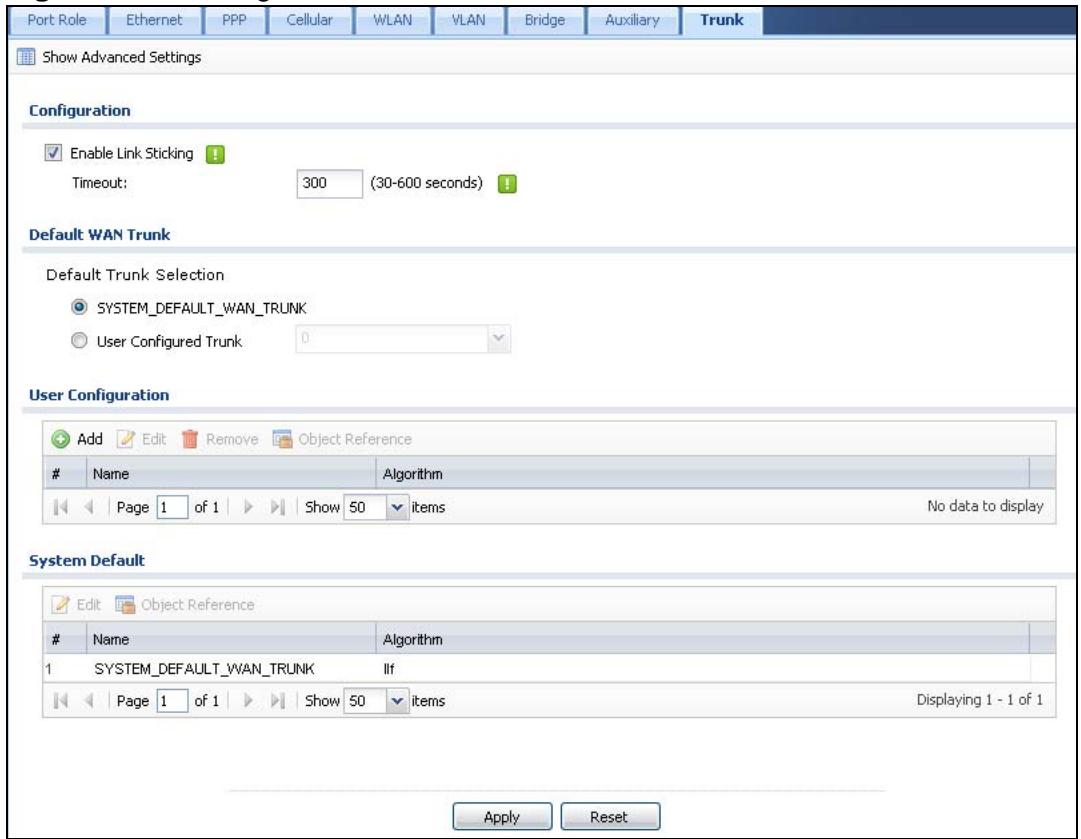
Figure 182 Configuration > Network > Interface > Trunk
The following table describes the items in this screen.
Table 76 Configuration > Network > Interface > Trunk
| LABEL | DESCRIPTION |
| Show Advance Settings / Hide Advance Settings | Click this button to display a greater or lesser number of configuration fields. |
| Enable Link Sticking | Enable link sticking to have the system route sessions from one source to the same destination through the same link for a period of time. This is useful for accessing server that are incompatible with a user's sessions coming from different links.For example, this is useful when a server requires authentication.This setting applies when you use load balancing and have multiple WAN interfaces set to active mode. |
| Timeout | Specify the time period during which sessions from one source to the same destination are to use the same link. |
| Enable Default SNAT | Select this to have the ZyWALL use the IP address of the outgoing interface as the source IP address of the packets it sends out through its WAN trunks. The ZyWALL automatically adds SNAT settings for traffic it routes from internal interfaces to external interfaces. |
| Default Trunk Selection | Select whether the ZyWALL is to use the default system WAN trunk or one of the user configured WAN trunks as the default trunk for routing traffic from internal interfaces to external interfaces. |
| User Configuration / System Default | The ZyWALL automatically adds all external interfaces into the pre-configured system default SYSTEM_DEFAULT_WAN_TRUNK. You cannot delete it. You can create your own User Configuration trunks. |
| Add | Click this to create a new user-configured trunk. |
| Edit | Double-click an entry or select it and click Edit to open a screen where you can modify the entry's settings. |
| Remove | To remove a user-configured trunk, select it and click Remove. The ZyWALL confirms you want to remove it before doing so. |
| Object References | Select an entry and click Object References to open a screen that shows which settings use the entry. See Section 11.3.2 on page 232 for an example. |
| # | This field is a sequential value, and it is not associated with any interface. |
| Name | This field displays the label that you specified to identify the trunk. |
| Algorithm | This field displays the load balancing method the trunk is set to use. |
| Apply | Click this button to save your changes to the ZyWALL. |
| Reset | Click this button to return the screen to its last-saved settings. |
12.3 Configuring a Trunk
Click Configuration > Network > Interface > Trunk and then the Add (or Edit) icon to open the Trunk Edit screen. Use this screen to create or edit a WAN trunk entry.
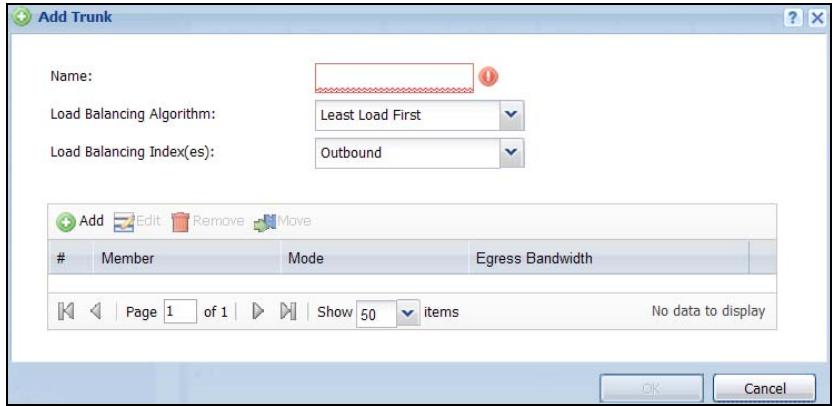
Figure 183 Configuration > Network > Interface > Trunk > Add (or Edit)
Each field is described in the table below.
Table 77 Configuration > Network > Interface > Trunk > Add (or Edit)
| LABEL | DESCRIPTION |
| Name | This is read-only if you are editing an existing trunk. When adding a new trunk, enter a descriptive name for this trunk. You may use 1-31 alphanumeric characters, underscores(____), or dashes (-), but the first character cannot be a number. This value is case-sensitive. |
| Load Balancing Algorithm | Select a load balancing method to use from the drop-down list box. Select Weighted Round Robin to balance the traffic load between interfaces based on their respective weights. Weighted round robin is activated only when the first group member interface has more traffic than it can handle. Select Least Load First to send new session traffic through the least utilized trunk member. Select Spillover to send network traffic through the first interface in the group member list until there is enough traffic that the second interface needs to be used (and so on). |
| Load Balancing Index(es) | This field is available if you selected to use the Least Load First or Spillover method. Select Outbound, Inbound, or Outbound + Inbound to set the traffic to which the ZyWALL applies the load balancing method. Outbound means the traffic traveling from an internal interface (ex. LAN) to an external interface (ex. WAN). Inbound means the opposite. |
| The table lists the trunk's member interfaces. You can add, edit, remove, or move entries for user configured trunks. | |
| Add | Click this to add a member interface to the trunk. Select an interface and click Add to add a new member interface after the selected member interface. |
| Edit | Double-click an entry or select it and click Edit to open a screen where you can modify the entry's settings. |
| Remove | To remove a member interface, select it and click Remove. The ZyWALL confirms you want to remove it before doing so. |
| Move | To move an interface to a different number in the list, click the Move icon. In the field that appears, specify the number to which you want to move the interface. |
| # | This column displays the priorities of the group's interfaces. The order of the interfaces in the list is important since they are used in the order they are listed. |
| Member | Click this icon to open a screen where you can select an interface to be a group member. |
| Mode | Select Active to have the ZyWALL always attempt to use this connection. Select Passive to have the ZyWALL only use this connection when all of the connections set to active are down. You can only set one of a group's interfaces to passive mode. |
| Weight | This field displays with the weighted round robin load balancing algorithm. Specify the weight (1~10) for the interface. The weights of the different member interfaces form a ratio. This ratio determines how much traffic the ZyWALL sends through each member interface. The higher an interface's weight is (relative to the weights of the interfaces), the more traffic the ZyWALL sends through that interface. |
| Ingress Bandwidth | This field displays with the least load first load balancing algorithm. It displays the maximum number of kilobits of data the ZyWALL is to allow to come in through the interface per second. |
| Egress Bandwidth | This field displays with the least load first or spillover load balancing algorithm. It displays the maximum number of kilobits of data the ZyWALL is to send out through the interface per second. |
| Spillover | This field displays with the spillover load balancing algorithm. Specify the maximum bandwidth of traffic in kilobits per second (1~1048576) to send out through the interface before using another interface. When this spillover bandwidth limit is exceeded, the ZyWALL sends new session traffic through the next interface. The traffic of existing sessions still goes through the interface on which they started.The ZyWALL uses the group member interfaces in the order that they are listed. |
| OK | Click OK to save your changes back to the ZyWALL. |
| Cancel | Click Cancel to exit this screen without saving. |
12.4 Trunk Technical Reference
Round Robin Load Balancing Algorithm
Round Robin scheduling services queues on a rotating basis and is activated only when an interface has more traffic than it can handle. A queue is given an amount of bandwidth irrespective of the incoming traffic on that interface. This queue then moves to the back of the list. The next queue is given an equal amount of bandwidth, and then moves to the end of the list; and so on, depending on the number of queues being used. This works in a looping fashion until a queue is empty.
Policy and Static Routes
13.1 Policy and Static Routes Overview
Use policy routes and static routes to override the ZyWALL's default routing behavior in order to send packets through the appropriate interface or VPN tunnel.
For example, the next figure shows a computer (A) connected to the ZyWALL's LAN interface. The ZyWALL routes most traffic from A to the Internet through the ZyWALL's default gateway (R1). You create one policy route to connect to services offered by your ISP behind router R2. You create another policy route to communicate with a separate network behind another router (R3) connected to the LAN.
Figure 184 Example of Policy Routing Topology
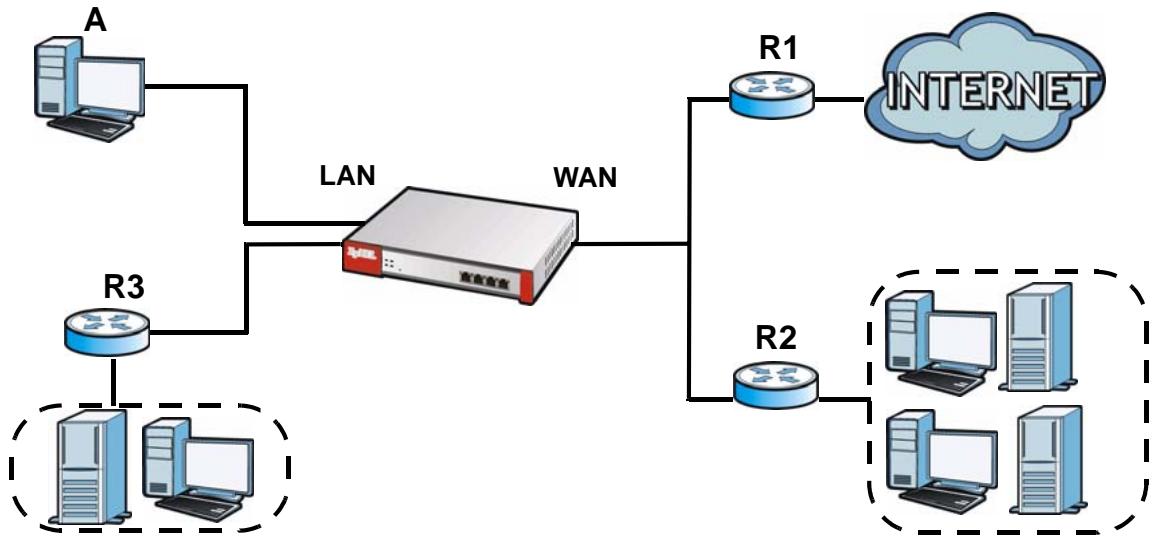
Note: You can generally just use policy routes. You only need to use static routes if you have a large network with multiple routers where you use RIP or OSPF to propagate routing information to other routers.
13.1.1 What You Can Do in this Chapter
-
Use the Policy Route screens (see Section 13.2 on page 300) to list and configure policy routes.
-
Use the Static Route screens (see Section 13.3 on page 307) to list and configure static routes.
13.1.2 What You Need to Know
Policy Routing
Traditionally, routing is based on the destination address only and the ZyWALL takes the shortest path to forward a packet. IP Policy Routing (IPPR) provides a mechanism to override the default routing behavior and alter the packet forwarding based on the policy defined by the network administrator. Policy-based routing is applied to incoming packets on a per interface basis, prior to the normal routing.
How You Can Use Policy Routing
- Source-Based Routing - Network administrators can use policy-based routing to direct traffic from different users through different connections.
- Bandwidth Shaping - You can allocate bandwidth to traffic that matches routing policies and prioritize traffic. You can also use policy routes to manage other types of traffic (like ICMP traffic) and send traffic through VPN tunnels.
- Cost Savings - IPPR allows organizations to distribute interactive traffic on high-bandwidth, high-cost paths while using low-cost paths for batch traffic.
- Load Sharing - Network administrators can use IPPR to distribute traffic among multiple paths.
- NAT - The ZyWALL performs NAT by default for traffic going to or from the WAN interfaces. A routing policy's SNAT allows network administrators to have traffic received on a specified interface use a specified IP address as the source IP address.
Note: The ZyWALL automatically uses SNAT for traffic it routes from internal interfaces to external interfaces. For example LAN to WAN traffic.
Static Routes
The ZyWALL usually uses the default gateway to route outbound traffic from computers on the LAN to the Internet. To have the ZyWALL send data to devices not reachable through the default gateway, use static routes. Configure static routes if you need to use RIP or OSPF to propagate the routing information to other routers. See Chapter 14 on page 313 for more on RIP and OSPF.
Policy Routes Versus Static Routes
-
Policy routes are more flexible than static routes. You can select more criteria for the traffic to match and can also use schedules, NAT, and bandwidth management.
-
Policy routes are only used within the ZyWALL itself. Static routes can be propagated to other routers using RIP or OSPF.
- Policy routes take priority over static routes. If you need to use a routing policy on the ZyWALL and propagate it to other routers, you could configure a policy route and an equivalent static route.
DiffServ
QoS is used to prioritize source-to-destination traffic flows. All packets in the same flow are given the same priority. CoS (class of service) is a way of managing traffic in a network by grouping similar types of traffic together and treating each type as a class. You can use CoS to give different priorities to different packet types.
DiffServ (Differentiated Services) is a class of service (CoS) model that marks packets so that they receive specific per-hop treatment at DiffServ-compliant network devices along the route based on the application types and traffic flow. Packets are marked with DiffServ Code Points (DSCPs) indicating the level of service desired. This allows the intermediary DiffServ-compliant network devices to handle the packets differently depending on the code points without the need to negotiate paths or remember state information for every flow. In addition, applications do not have to request a particular service or give advanced notice of where the traffic is going.
DSCP Marking and Per-Hop Behavior
DiffServ defines a new DS (Differentiated Services) field to replace the Type of Service (TOS) field in the IP header. The DS field contains a 2-bit unused field and a 6-bit DSCP field which can define up to 64 service levels. The following figure illustrates the DS field.
| DSCP (6 bits) | Unused (2 bits) |
DSCP is backward compatible with the three precedence bits in the ToS octet so that non-DiffServ compliant, ToS-enabled network device will not conflict with the DSCP mapping.
The DSCP value determines the forwarding behavior, the PHB (Per-Hop Behavior), that each packet gets across the DiffServ network. Based on the marking rule, different kinds of traffic can be marked for different kinds of forwarding. Resources can then be allocated according to the DSCP values and the configured policies.
Finding Out More
- See Section 6.5.5 on page 96 for related information on the policy route screens.
-
See Section 7.12 on page 145 for an example of creating a policy route for using multiple static public WAN IP addresses for LAN to WAN traffic.
-
See Section 13.4 on page 309 for more background information on policy routing.
13.2 Policy Route Screen
Click Configuration > Network > Routing to open the Policy Route screen. Use this screen to see the configured policy routes and turn policy routing based bandwidth management on or off.
A policy route defines the matching criteria and the action to take when a packet meets the criteria. The action is taken only when all the criteria are met. The criteria can include the user name, source address and incoming interface, destination address, schedule, IP protocol (ICMP, UDP, TCP, etc.) and port.
The actions that can be taken include:
- Routing the packet to a different gateway, outgoing interface, VPN tunnel, or trunk.
- Limiting the amount of bandwidth available and setting a priority for traffic.
IPPR follows the existing packet filtering facility of RAS in style and in implementation.
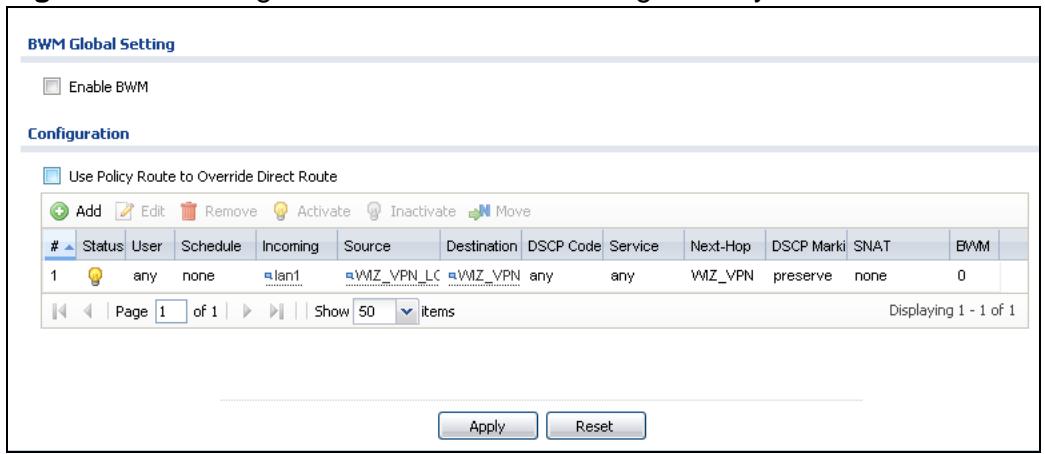
Figure 185 Configuration > Network > Routing > Policy Route
The following table describes the labels in this screen.
Table 78 Configuration > Network > Routing > Policy Route
| LABEL | DESCRIPTION |
| Show Advance Settings / Hide Advance Settings | Click this button to display a greater or lesser number of configuration fields. |
| Enable BWM | This is a global setting for enabling or disabling bandwidth management on the ZyWALL. You must enable this setting to have individual policy routes. |
| Use Policy Route to Override Direct Route | Select this to have the ZyWALL forward packets that match a policy route according to the policy route instead of sending the packets directly to a connected network. See Section 6.4.1 on page 92 for how this option affects the routing table. |
| Add | Click this to create a new entry. Select an entry and click Add to create a new entry after the selected entry. |
| Edit | Double-click an entry or select it and click Edit to open a screen where you can modify the entry's settings. |
| Remove | To remove an entry, select it and click Remove. The ZyWALL confirms you want to remove it before doing so. |
| Activate | To turn on an entry, select it and click Activate. |
| Inactivate | To turn off an entry, select it and click Inactivate. |
| Move | To change a rule's position in the numbered list, select the rule and click Move to display a field to type a number for where you want to put that rule and press [ENTER] to move the rule to the number that you typed. The ordering of your rules is important as they are applied in order of their numbering. |
| # | This is the number of an individual policy route. |
| Status | This icon is lit when the entry is active, red when the next hop's connection is down, and dimmed when the entry is inactive. |
| User | This is the name of the user (group) object from which the packets are sent. any means all users. |
| Schedule | This is the name of the schedule object. none means the route is active at all times if enabled. |
| Incoming | This is the interface on which the packets are received. |
| Source | This is the name of the source IP address (group) object. any means all IP addresses. |
| Destination | This is the name of the destination IP address (group) object. any means all IP addresses. |
| DSCP Code | This is the DSCP value of incoming packets to which this policy route applies.any means all DSCP values or no DSCP marker.default means traffic with a DSCP value of 0. This is usually best effort trafficThe "af" entries stand for Assured Forwarding. The number following the "af" identifies one of four classes and one of three drop preferences. See Assured Forwarding (AF) PHB for DiffServ on page 309 for more details. |
| Service | This is the name of the service object. any means all services. |
| Next-Hop | This is the next hop to which packets are directed. It helps forward packets to their destinations and can be a router, VPN tunnel, outgoing interface or trunk. |
| DSCP Marking | This is how the ZyWALL handles the DSCP value of the outgoing packets that match this route. If this field displays a DSCP value, the ZyWALL applies that DSCP value to the route's outgoing packetspreserve means the ZyWALL does not modify the DSCP value of the route's outgoing packets.default means the ZyWALL sets the DSCP value of the route's outgoing packets to 0.The "af" choices stand for Assured Forwarding. The number following the "af" identifies one of four classes and one of three drop preferences. See Assured Forwarding (AF) PHB for DiffServ on page 309 for more details. |
| SNAT | This is the source IP address that the route uses.It displays none if the ZyWALL does not perform NAT for this route. |
| BWM | This is the maximum bandwidth allotted to the policy. 0 means there is no bandwidth limitation for this route. |
| Apply | Click Apply to save your changes back to the ZyWALL. |
| Reset | Click Reset to return the screen to its last-saved settings. |
13.2.1 Policy Route Edit Screen
Click Configuration > Network > Routing to open the Policy Route screen. Then click the Add or Edit icon to open the Policy Route Edit screen. Use this screen to configure or edit a policy route.
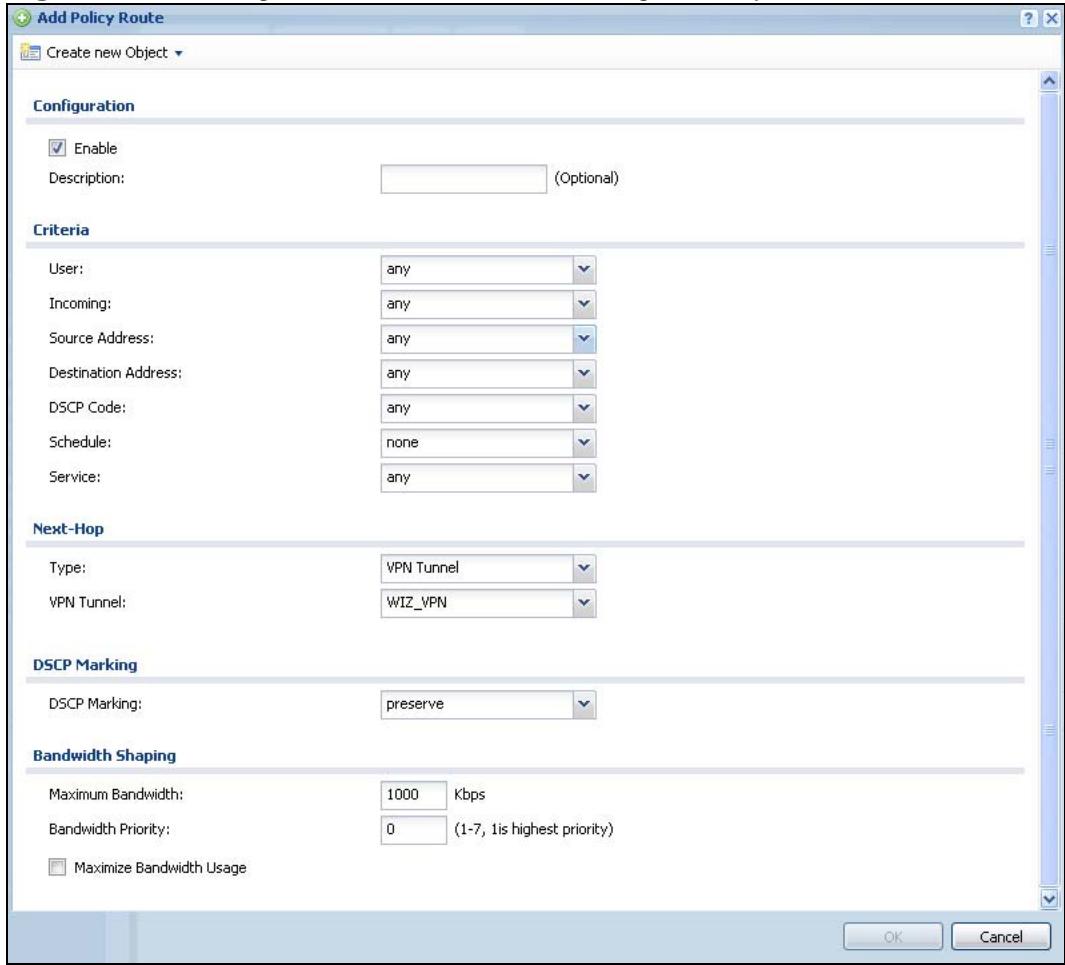
Figure 186 Configuration > Network > Routing > Policy Route > Add
The following table describes the labels in this screen.
Table 79 Configuration > Network > Routing > Policy Route > Edit
| LABEL | DESCRIPTION |
| Create new Object | Use this to configure any new settings objects that you need to use in this screen. |
| Configuration | |
| Enable | Select this to activate the policy. |
| Description | Enter a descriptive name of up to 31 printable ASCII characters for the policy. |
| Criteria | |
| User | Select a user name or user group from which the packets are sent. |
| Incoming | Select where the packets are coming from; any, an interface, a tunnel, an SSL VPN, or the ZyWALL itself. For an interface, a tunnel, or an SSL VPN, you also need to select the individual interface, VPN tunnel, or SSL VPN connection. |
| Source Address | Select a source IP address object from which the packets are sent. |
| Destination Address | Select a destination IP address object to which the traffic is being sent. If the next hop is a dynamic VPN tunnel and you enable Auto Destination Address, the ZyWALL uses the local network of the peer router that initiated an incoming dynamic IPSec tunnel as the destination address of the policy instead of your configuration here. |
| DSCP Code | Select a DSCP code point value of incoming packets to which this policy route applies or select User Defined to specify another DSCP code point. The lower the number the higher the priority with the exception of 0 which is usually given only best-effort treatment.any means all DSCP value or no DSCP marker.default means traffic with a DSCP value of 0. This is usually best effort trafficThe “af” choices stand for Assured Forwarding. The number following the “af” identifies one of four classes and one of three drop preferences.See Assured Forwarding (AF) PHB for DiffServ on page 309 for more details. |
| User-DefinedDSCP Code | Use this field to specify a custom DSCP code point. |
| Schedule | Select a schedule to control when the policy route is active. none means the route is active at all times if enabled. |
| Service | Select a service or service group to identify the type of traffic to which this policy route applies. |
| Next-Hop | |
| Type | Select Auto to have the ZyWALL use the routing table to find a next-hop and forward the matched packets automatically.Select Gateway to route the matched packets to the next-hop router or switch you specified in the Gateway field. You have to set up the next-hop router or switch as a HOST address object first.Select VPN Tunnel to route the matched packets via the specified VPN tunnel.Select Trunk to route the matched packets through the interfaces in the trunk group based on the load balancing algorithm.Select Interface to route the matched packets through the specified outgoing interface to a gateway (which is connected to the interface). |
| Gateway | This field displays when you select Gateway in the Type field. Select a HOST address object. The gateway is an immediate neighbor of your ZyWALL that will forward the packet to the destination. The gateway must be a router or switch on the same segment as your ZyWALL's interface(s). |
| VPN Tunnel | This field displays when you select VPN Tunnel in the Type field. Select a VPN tunnel through which the packets are sent to the remote network that is connected to the ZyWALL directly. |
| Auto Destination Address | This field displays when you select VPN Tunnel in the Type field. Select this to have the ZyWALL use the local network of the peer router that initiated an incoming dynamic IPSectunnel as the destination address of the policy.Leave this cleared if you want to manually specify the destination address. |
| Trunk | This field displays when you select Trunk in the Type field. Select a trunk group to have the ZyWALL send the packets via the interfaces in the group. |
| Interface | This field displays when you select Interface in the Type field. Select an interface to have the ZyWALL send traffic that matches the policy route through the specified interface. |
| Auto- Disable | This field displays when you select Interface or Trunk in the Type field. Select this to have the ZyWALL automatically disable this policy route when the next hop's connection is down. |
| DSCP Marking | |
| DSCP Marking | Set how the ZyWALL handles the DSCP value of the outgoing packets that match this route.Select one of the pre-defined DSCP values to apply or select User Defined to specify another DSCP value. The "af" choices stand for Assured Forwarding. The number following the "af" identifies one of four classes and one of three drop preferences. See Assured Forwarding (AF) PHB for DiffServ on page 309 for more details.Select preserve to have the ZyWALL keep the packets' original DSCP value.Select default to have the ZyWALL set the DSCP value of the packets to 0. |
| User- Defined DSCP Code | Use this field to specify a custom DSCP value. |
| Address Translation | Use this section to configure NAT for the policy route. This section does not apply to policy routes that use a VPN tunnel as the next hop. |
| Source Network Address Translation | Select none to not use NAT for the route. Select outgoing-interface to use the IP address of the outgoing interface as the source IP address of the packets that matches this route. If you select outgoing-interface, you can also configure port trigger settings for this interface.To use SNAT for a virtual interface that is in the same WAN trunk as the physical interface to which the virtual interface is bound, the virtual interface and physical interface must be in different subnets. Otherwise, select a pre-defined address (group) to use as the source IP address(es) of the packets that match this route.Use Create new Object if you need to configure a new address (group) to use as the source IP address(es) of the packets that match this route. |
| Port Triggering | Configure trigger port forwarding to allow computers on the LAN to dynamically take turns using a service that uses a dedicated range of ports on the client side and a dedicated range of ports on the server side.Note: You need to create a firewall rule to allow an incoming service before using a port triggering rule. |
| Add | Click this to create a new entry. Select an entry and click Add to create a new entry after the selected entry. |
| Edit | Select an entry and click this to be able to modify it. You can also just double-click an entry to be able to modify it. |
| Remove | Select an entry and click this to delete it. |
| Move | The ordering of your rules is important as they are applied in order of their numbering.To move an entry to a different number in the list, click the Move icon. In the field that appears, specify the number to which you want to move the entry. |
| # | This is the rule index number. |
| Incoming Service | Select the service that the client computer sends to a remote server.The incoming service should have the same service or protocol type as what you configured in the Service field. |
| Trigger Service | Select a service that a remote server sends. It causes (triggers) the ZyWALL to forward the traffic (received on the outgoing interface) to the client computer that requested the service. |
| Bandwidth Shaping | This allows you to allocate bandwidth to a route and prioritize traffic that matches the routing policy.You must also enable bandwidth management in the main policy route screen (Network > Routing > Policy Route) in order to apply bandwidth shaping. |
| Maximum Bandwidth | Specify the maximum bandwidth (from 1 to 1048576) allowed for the route in kbps. If you enter 0 here, there is no bandwidth limitation for the route.If the sum of the bandwidths for routes using the same next hop is higher than the actual transmission speed, lower priority traffic may not be sent if higher priority traffic uses all of the actual bandwidth.To reserve bandwidth for traffic that does not match any of the policy routes, leave some of the interface's bandwidth unbudgeted and do not enable Maximize Bandwidth Usage. |
| Bandwidth Priority | Enter a number between 1 and 7 to set the priority for traffic. The smaller the number, the higher the priority. If you set the maximum bandwidth to 0, the bandwidth priority will be changed to 0 after you click OK. That means the route has the highest priority and will get all the bandwidth it needs up to the maximum available.A route with higher priority is given bandwidth before a route with lower priority.If you set routes to have the same priority, then bandwidth is divided equally amongst those routes. |
| Maximize Bandwidth Usage | Select this check box to have the ZyWALL divide up all of the interface's unallocated and/or unused bandwidth among the policy routes that require bandwidth. Do not select this if you want to reserve bandwidth for traffic that does not match any of the policy routes. |
| OK | Click OK to save your changes back to the ZyWALL. |
| Cancel | Click Cancel to exit this screen without saving. |
13.3 IP Static Route Screen
Click Configuration > Network > Routing > Static Route to open the Static Route screen. This screen displays the configured static routes. Configure static routes to be able to use RIP or OSPF to propagate the routing information to other routers.
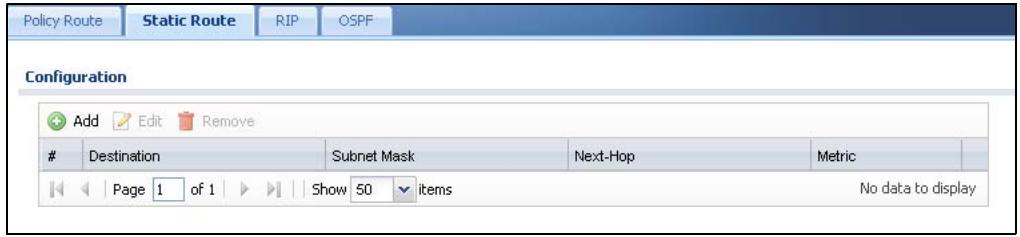
Figure 187 Configuration > Network > Routing > Static Route
The following table describes the labels in this screen.
Table 80 Configuration > Network > Routing > Static Route
| LABEL | DESCRIPTION |
| Add | Click this to create a new static route. |
| Edit | Double-click an entry or select it and click Edit to open a screen where you can modify the entry's settings. |
| Remove | To remove an entry, select it and click Remove. The ZyWALL confirms you want to remove it before doing so. |
| # | This is the number of an individual static route. |
| Destination | This is the destination IP address. |
| Subnet Mask | This is the IP subnet mask. |
| Next-Hop | This is the IP address of the next-hop gateway or the interface through which the traffic is routed. The gateway is a router or switch on the same segment as your ZyWALL's interface(s). The gateway helps forward packets to their destinations. |
| Metric | This is the route's priority among the ZyWALL's routes. The smaller the number, the higher priority the route has. |
13.3.1 Static Route Add/Edit Screen
Select a static route index number and click Add or Edit. The screen shown next appears. Use this screen to configure the required information for a static route.
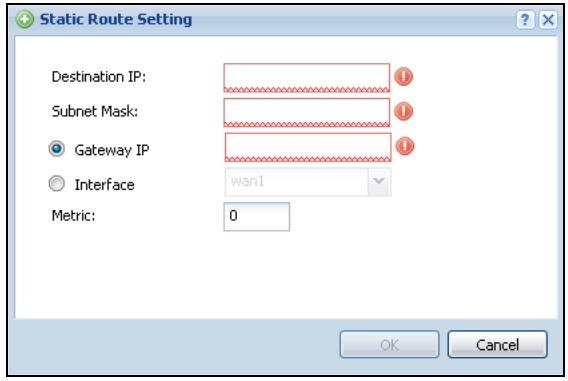
Figure 188 Configuration > Network > Routing > Static Route > Add
The following table describes the labels in this screen.
Table 81 Configuration > Network > Routing > Static Route > Add
| LABEL | DESCRIPTION |
| Destination IP | This parameter specifies the IP network address of the final destination. Routing is always based on network number. If you need to specify a route to a single host, use a subnet mask of 255.255.255.255 in the subnet mask field to force the network number to be identical to the host ID. |
| Subnet Mask | Enter the IP subnet mask here. |
| Gateway IP | Select the radio button and enter the IP address of the next-hop gateway. The gateway is a router or switch on the same segment as your ZyWALL's interface(s). The gateway helps forward packets to their destinations. |
| Interface | Select the radio button and a predefined interface through which the traffic is sent. |
| Metric | Metric represents the "cost" of transmission for routing purposes. IP routing uses hop count as the measurement of cost, with a minimum of 1 for directly connected networks. Enter a number that approximates the cost for this link. The number need not be precise, but it must be 0~127. In practice, 2 or 3 is usually a good number. |
| OK | Click OK to save your changes back to the ZyWALL. |
| Cancel | Click Cancel to exit this screen without saving. |
13.4 Policy Routing Technical Reference
Here is more detailed information about some of the features you can configure in policy routing.
NAT and SNAT
NAT (Network Address Translation - NAT, RFC 1631) is the translation of the IP address in a packet in one network to a different IP address in another network. Use SNAT (Source NAT) to change the source IP address in one network to a different IP address in another network.
Assured Forwarding (AF) PHB for DiffServ
Assured Forwarding (AF) behavior is defined in RFC 2597. The AF behavior group defines four AF classes. Inside each class, packets are given a high, medium or low drop precedence. The drop precedence determines the probability that routers in the network will drop packets when congestion occurs. If congestion occurs between classes, the traffic in the higher class (smaller numbered class) is generally given priority. Combining the classes and drop precedence produces the
following twelve DSCP encodings from AF11 through AF43. The decimal equivalent is listed in brackets.
Table 82 Assured Forwarding (AF) Behavior Group
| Class 1 | Class 2 | Class 3 | Class 4 | |
| Low Drop Precedence | AF11 (10) | AF21 (18) | AF31 (26) | AF41 (34) |
| Medium Drop Precedence | AF12 (12) | AF22 (20) | AF32 (28) | AF42 (36) |
| High Drop Precedence | AF13 (14) | AF23 (22) | AF33 (30) | AF43 (38) |
Port Triggering
Some services use a dedicated range of ports on the client side and a dedicated range of ports on the server side. With regular port forwarding, you set the port(s) and IP address to forward a service (coming in from the remote server) to a client computer. The problem is that port forwarding only forwards a service to a single IP address. In order to use the same service on a different computer, you have to manually replace the client computer's IP address with another client computer's IP address.
Port triggering allows the client computer to take turns using a service dynamically. Whenever a client computer's packets match the routing policy, it can use the pre-defined port triggering setting to connect to the remote server without manually configuring a port forwarding rule for each client computer.
Port triggering is used especially when the remote server responses using a different port from the port the client computer used to request a service. The ZyWALL records the IP address of a client computer that sends traffic to a remote server to request a service (incoming service). When the ZyWALL receives a new connection (trigger service) from the remote server, the ZyWALL forwards the traffic to the IP address of the client computer that sent the request.
In the following example, you configure two services for port triggering:
Incoming service: Game (UDP: 1234)
Trigger service: Game-1 (UDP: 5670-5678)
1 Computer A wants to play a multiplayer online game and tries to connect to game server 1 using port 1234. The ZyWALL records the IP address of computer A when the packets match a policy with SNAT configured.
2 Game server 1 responds using a port number ranging between 5670 - 5678. The ZyWALL allows and forwards the traffic to computer A.
3 Computer A and game server 1 are connected to each other until the connection is closed or times out. Any other computers (such as B or C) cannot connect to remote server 1 using the same port triggering rule as computer A unless they are using a different next hop (gateway, outgoing interface, VPN tunnel or trunk) from computer A or until the connection is closed or times out.
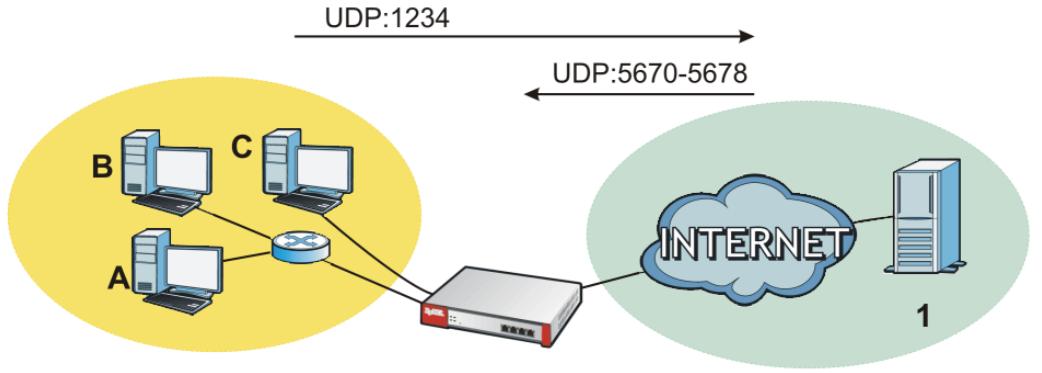
Figure 189 Trigger Port Forwarding Example
Maximize Bandwidth Usage
The maximize bandwidth usage option allows the ZyWALL to divide up any available bandwidth on the interface (including unallocated bandwidth and any allocated bandwidth that a policy route is not using) among the policy routes that require more bandwidth.
When you enable maximize bandwidth usage, the ZyWALL first makes sure that each policy route gets up to its bandwidth allotment. Next, the ZyWALL divides up an interface's available bandwidth (bandwidth that is unbudgeted or unused by the policy routes) depending on how many policy routes require more bandwidth and on their priority levels. When only one policy route requires more bandwidth, the ZyWALL gives the extra bandwidth to that policy route.
When multiple policy routes require more bandwidth, the ZyWALL gives the highest priority policy routes the available bandwidth first (as much as they require, if there is enough available bandwidth), and then to lower priority policy routes if there is still bandwidth available. The ZyWALL distributes the available bandwidth equally among policy routes with the same priority level.
Routing Protocols
14.1 Routing Protocols Overview
Routing protocols give the ZyWALL routing information about the network from other routers. The ZyWALL stores this routing information in the routing table it uses to make routing decisions. In turn, the ZyWALL can also use routing protocols to propagate routing information to other routers. See Section 6.6 on page 103 for related information on the RIP and OSPF screens.
Routing protocols are usually only used in networks using multiple routers like campuses or large enterprises.
14.1.1 What You Can Do in this Chapter
- Use the RIP screen (see Section 14.2 on page 314) to configure the ZyWALL to use RIP to receive and/or send routing information.
- Use the OSPF screen (see Section 14.3 on page 315) to configure general OSPF settings and manage OSPF areas.
- Use the OSPF Area Add/Edit screen (see Section 14.3.2 on page 322) to create or edit an OSPF area.
14.1.2 What You Need to Know
The ZyWALL supports two standards, RIP and OSPF, for routing protocols. RIP and OSPF are compared here and discussed further in the rest of the chapter.
Table 83 RIP vs. OSPF
| RIP | OSPF | |
| Network Size | Small (with up to 15 routers) | Large |
| Metric | Hop count | Bandwidth, hop count, throughput, round trip time and reliability. |
| Convergence | Slow | Fast |
Finding Out More
See Section 14.4 on page 324 for background information on routing protocols.
14.2 The RIP Screen
RIP (Routing Information Protocol, RFC 1058 and RFC 1389) allows a device to exchange routing information with other routers. RIP is a vector-space routing protocol, and, like most such protocols, it uses hop count to decide which route is the shortest. Unfortunately, it also broadcasts its routes asynchronously to the network and converges slowly. Therefore, RIP is more suitable for small networks (up to 15 routers).
- In the ZyWALL, you can configure two sets of RIP settings before you can use it in an interface.
- First, the Authentication field specifies how to verify that the routing information that is received is the same routing information that is sent. This is discussed in more detail in Authentication Types on page 325.
- Second, the ZyWALL can also redistribute routing information from non-RIP networks, specifically OSPF networks and static routes, to the RIP network. Costs might be calculated differently, however, so you use the Metric field to specify the cost in RIP terms.
- RIP uses UDP port 520.
Use the RIP screen to specify the authentication method and maintain the policies for redistribution.
Click Configuration > Network > Routing > RIP to open the following screen.
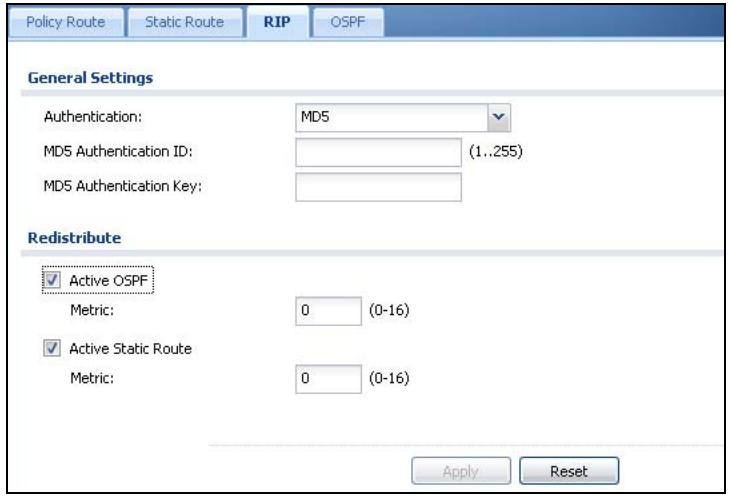
Figure 190 Configuration > Network > Routing > RIP
The following table describes the labels in this screen.
Table 84 Configuration > Network > Routing Protocol > RIP
| LABEL | DESCRIPTION |
| Authentication | |
| Authentication | Select the authentication method used in the RIP network. This authentication protects the integrity, but not the confidentiality, of routing updates. None uses no authentication. Text uses a plain text password that is sent over the network (not very secure). MD5 uses an MD5 password and authentication ID (most secure). |
| Text Authentication Key | This field is available if the Authentication is Text. Type the password for text authentication. The key can consist of alphanumeric characters and the underscore, and it can be up to 16 characters long. |
| MD5 Authentication ID | This field is available if the Authentication is MD5. Type the ID for MD5 authentication. The ID can be between 1 and 255. |
| MD5 Authentication Key | This field is available if the Authentication is MD5. Type the password for MD5 authentication. The password can consist of alphanumeric characters and the underscore, and it can be up to 16 characters long. |
| Redistribute | |
| Active OSPF | Select this to use RIP to advertise routes that were learned through OSPF. |
| Metric | Type the cost for routes provided by OSPF. The metric represents the "cost" of transmission for routing purposes. RIP routing uses hop count as the measurement of cost, with 1 usually used for directly connected networks. The number does not have to be precise, but it must be between 0 and 16. In practice, 2 or 3 is usually used. |
| Active Static Route | Select this to use RIP to advertise routes that were learned through the static route configuration. |
| Metric | Type the cost for routes provided by the static route configuration. The metric represents the "cost" of transmission for routing purposes. RIP routing uses hop count as the measurement of cost, with 1 usually used for directly connected networks. The number does not have to be precise, but it must be between 0 and 16. In practice, 2 or 3 is usually used. |
| Apply | Click this button to save your changes to the ZyWALL. |
| Reset | Click this button to return the screen to its last-saved settings. |
14.3 The OSPF Screen
OSPF (Open Shortest Path First, RFC 2328) is a link-state protocol designed to distribute routing information within a group of networks, called an Autonomous
System (AS). OSPF offers some advantages over vector-space routing protocols like RIP.
- OSPF supports variable-length subnet masks, which can be set up to use available IP addresses more efficiently.
- OSPF filters and summarizes routing information, which reduces the size of routing tables throughout the network.
- OSPF responds to changes in the network, such as the loss of a router, more quickly.
- OSPF considers several factors, including bandwidth, hop count, throughput, round trip time, and reliability, when it calculates the shortest path.
- OSPF converges more quickly than RIP.
Naturally, OSPF is also more complicated than RIP, so OSPF is usually more suitable for large networks.
OSPF uses IP protocol 89.
OSPF Areas
An OSPF Autonomous System (AS) is divided into one or more areas. Each area represents a group of adjacent networks and is identified by a 32-bit ID. In OSPF, this number may be expressed as an integer or as an IP address.
There are several types of areas.
- The backbone is the transit area that routes packets between other areas. All other areas are connected to the backbone.
- A normal area is a group of adjacent networks. A normal area has routing information about the OSPF AS, any networks outside the OSPF AS to which it is directly connected, and any networks outside the OSPF AS that provide routing information to any area in the OSPF AS.
- A stub area has routing information about the OSPF AS. It does not have any routing information about any networks outside the OSPF AS, including networks to which it is directly connected. It relies on a default route to send information outside the OSPF AS.
- A Not So Stubby Area (NSSA, RFC 1587) has routing information about the OSPF AS and networks outside the OSPF AS to which the NSSA is directly connected. It does not have any routing information about other networks outside the OSPF AS.
Each type of area is illustrated in the following figure.
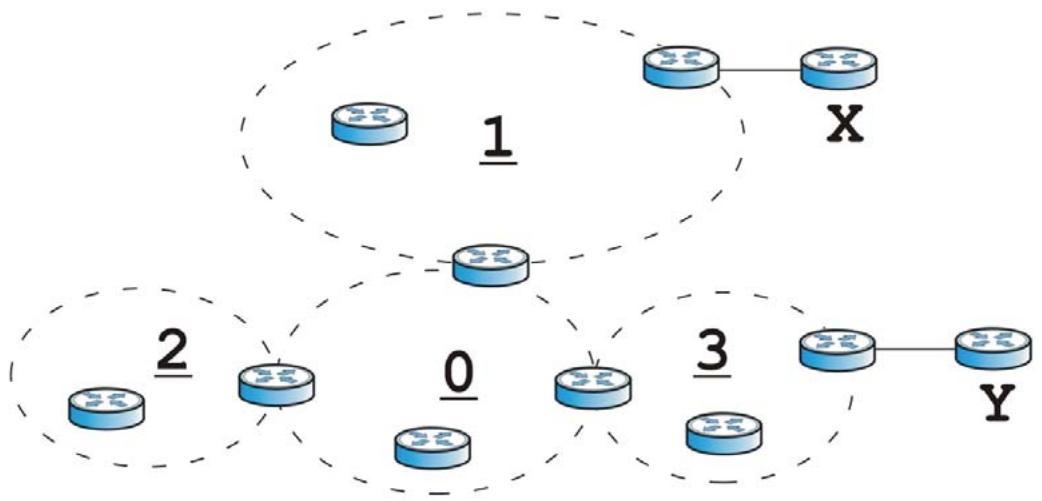
Figure 191 OSPF: Types of Areas
This OSPF AS consists of four areas, areas 0-3. Area 0 is always the backbone. In this example, areas 1, 2, and 3 are all connected to it. Area 1 is a normal area. It has routing information about the OSPF AS and networks X and Y. Area 2 is a stub area. It has routing information about the OSPF AS, but it depends on a default route to send information to networks X and Y. Area 3 is a NSSA. It has routing information about the OSPF AS and network Y but not about network X.
OSPF Routers
Every router in the same area has the same routing information. They do this by exchanging Hello messages to confirm which neighbor (layer-3) devices exist, and then they exchange database descriptions (DDs) to create a synchronized link-state database. The link-state database contains records of router IDs, their associated links and path costs. The link-state database is then constantly updated through Link State Advertisements (LSA). Each router uses the link state database and the Dijkstra algorithm to compute the least cost paths to network destinations.
Like areas, each router has a unique 32-bit ID in the OSPF AS, and there are several types of routers. Each type is really just a different role, and it is possible for one router to play multiple roles at one time.
- An internal router (IR) only exchanges routing information with other routers in the same area.
-
An Area Border Router (ABR) connects two or more areas. It is a member of all the areas to which it is connected, and it filters, summarizes, and exchanges routing information between them.
-
An Autonomous System Boundary Router (ASBR) exchanges routing information with routers in networks outside the OSPF AS. This is called redistribution in OSPF.
Table 85 OSPF: Redistribution from Other Sources to Each Type of Area
| SOURCE \ TYPE OF AREA | NORMAL | NSSA | STUB |
| Static routes | Yes | Yes | No |
| RIP | Yes | Yes | Yes |
- A backbone router (BR) has at least one interface with area 0. By default, every router in area 0 is a backbone router, and so is every ABR.
Each type of router is illustrated in the following example.
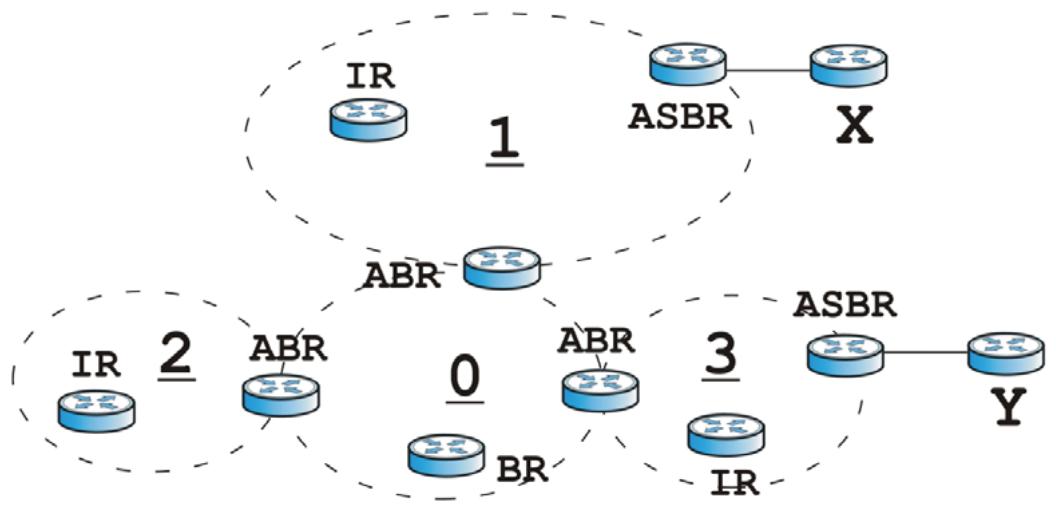
Figure 192 OSPF: Types of Routers
In order to reduce the amount of traffic between routers, a group of routers that are directly connected to each other selects a designated router (DR) and a backup designated router (BDR). All of the routers only exchange information with the DR and the BDR, instead of exchanging information with all of the other routers in the group. The DR and BDR are selected by priority; if two routers have the same priority, the highest router ID is used.
The DR and BDR are selected in each group of routers that are directly connected to each other. If a router is directly connected to several groups, it might be a DR in one group, a BDR in another group, and neither in a third group all at the same time.
Virtual Links
In some OSPF AS, it is not possible for an area to be directly connected to the backbone. In this case, you can create a virtual link through an intermediate area
to logically connect the area to the backbone. This is illustrated in the following example.
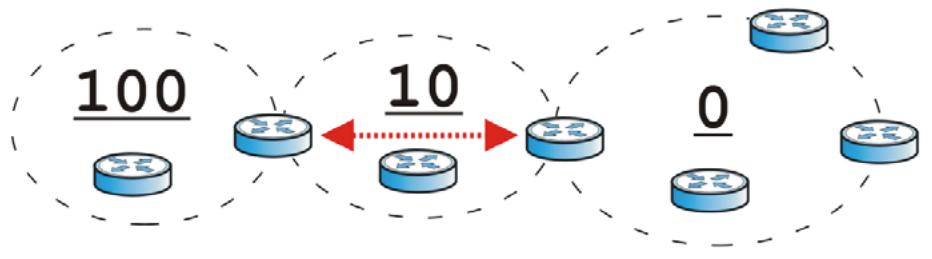
Figure 193 OSPF: Virtual Link
In this example, area 100 does not have a direct connection to the backbone. As a result, you should set up a virtual link on both ABR in area 10. The virtual link becomes the connection between area 100 and the backbone.
You cannot create a virtual link to a router in a different area.
OSPF Configuration
Follow these steps when you configure OSPF on the ZyWALL.
1 Enable OSPF.
2 Set up the OSPF areas.
3 Configure the appropriate interfaces. See Section 11.3.1 on page 223.
4 Set up virtual links, as needed.
14.3.1 Configuring the OSPF Screen
Use the first OSPF screen to specify the OSPF router the ZyWALL uses in the OSPF AS and maintain the policies for redistribution. In addition, it provides a summary of OSPF areas, allows you to remove them, and opens the OSPF Add/Edit screen to add or edit them.
Click Configuration > Network > Routing > OSPF to open the following screen.
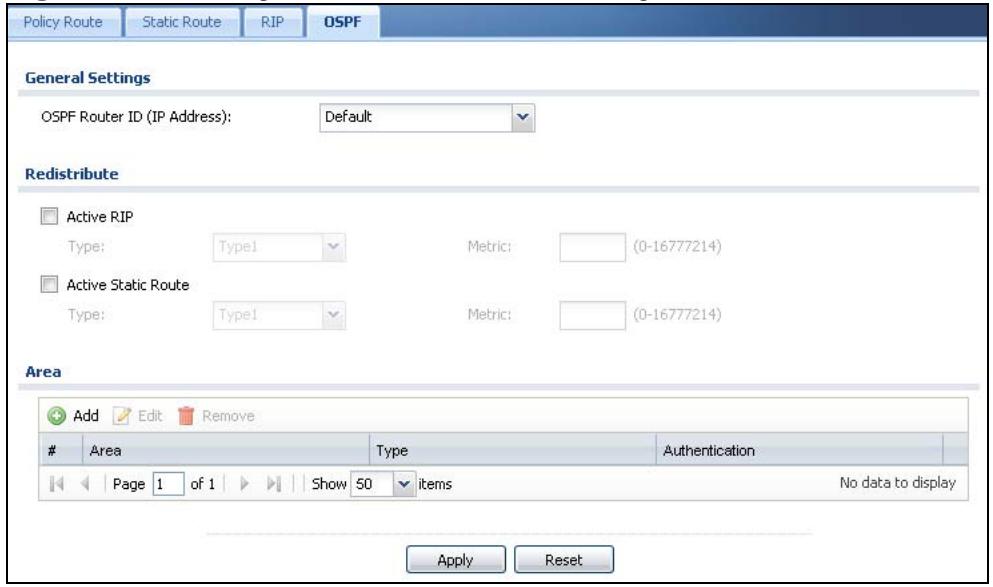
Figure 194 Configuration > Network > Routing > OSPF
The following table describes the labels in this screen. See Section 14.3.2 on page 322 for more information as well.
Table 86 Configuration > Network > Routing Protocol > OSPF
| LABEL | DESCRIPTION |
| OSPF Router ID | Select the 32-bit ID the ZyWALL uses in the OSPF AS. Default - the highest available IP address assigned to the interfaces is the ZyWALL's ID. User Defined - enter the ID (in IP address format) in the field that appears when you select User Defined. |
| Redistribute | |
| Active RIP | Select this to advertise routes that were learned from RIP. The ZyWALL advertises routes learned from RIP to Normal and NSSA areas but not to Stub areas. |
| Type | Select how OSPF calculates the cost associated with routing information from RIP. Choices are: Type 1 and Type 2. Type 1 - cost = OSPF AS cost + external cost (Metric) Type 2 - cost = external cost (Metric); the OSPF AS cost is ignored. |
| Metric | Type the external cost for routes provided by RIP. The metric represents the "cost" of transmission for routing purposes. The way this is used depends on the Type field. This value is usually the average cost in the OSPF AS, and it can be between 1 and 16777214. |
| Active Static Route | Select this to advertise routes that were learned from static routes. The ZyWALL advertises routes learned from static routes to all types of areas. |
| Type | Select how OSPF calculates the cost associated with routing information from static routes. Choices are: Type 1 and Type 2.Type 1 - cost = OSPF AS cost + external cost (Metric)Type 2 - cost = external cost (Metric); the OSPF AS cost is ignored. |
| Metric | Type the external cost for routes provided by static routes. The metric represents the "cost" of transmission for routing purposes. The way this is used depends on the Type field. This value is usually the average cost in the OSPF AS, and it can be between 1 and 16777214. |
| Area | This section displays information about OSPF areas in the ZyWALL. |
| Add | Click this to create a new OSPF area. |
| Edit | Double-click an entry or select it and click Edit to open a screen where you can modify the entry's settings. |
| Remove | To remove an entry, select it and click Remove. The ZyWALL confirms you want to remove it before doing so. |
| # | This field is a sequential value, and it is not associated with a specific area. |
| Area | This field displays the 32-bit ID for each area in IP address format. |
| Type | This field displays the type of area. This type is different from the Type field above. |
| Authentication | This field displays the default authentication method in the area. |
| Apply | Click this button to save your changes to the ZyWALL. |
| Reset | Click this button to return the screen to its last-saved settings. |
14.3.2 OSPF Area Add/Edit Screen
The OSPF Area Add/Edit screen allows you to create a new area or edit an existing one. To access this screen, go to the OSPF summary screen (see Section 14.3 on page 315), and click either the Add icon or an Edit icon.
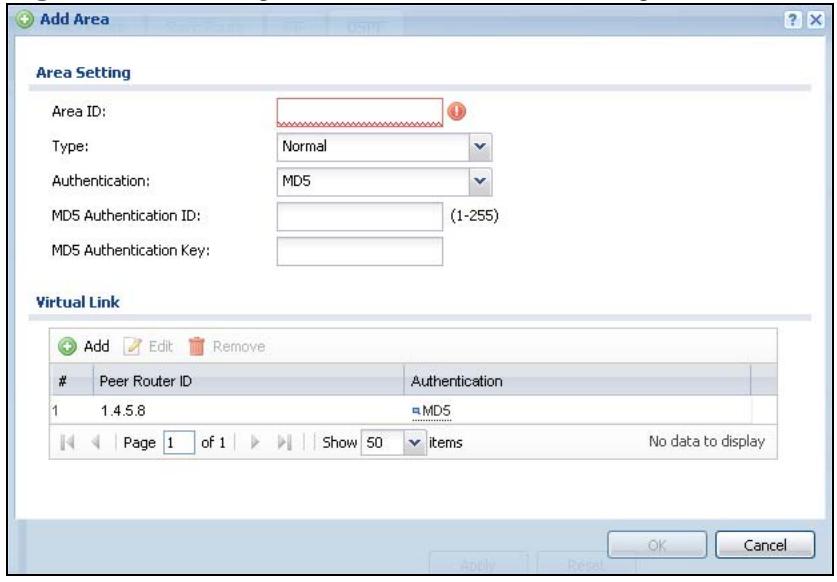
Figure 195 Configuration > Network > Routing > OSPF > Add
The following table describes the labels in this screen.
Table 87 Configuration > Network > Routing > OSPF > Add
| LABEL | DESCRIPTION |
| Area ID | Type the unique, 32-bit identifier for the area in IP address format. |
| Type | Select the type of OSPF area.Normal - This area is a normal area. It has routing information about the OSPF AS and about networks outside the OSPF AS.Stub - This area is an stub area. It has routing information about the OSPF AS but not about networks outside the OSPF AS. It depends on a default route to send information outside the OSPF AS.NSSA - This area is a Not So Stubby Area (NSSA), per RFC 1587. It has routing information about the OSPF AS and networks that are outside the OSPF AS and are directly connected to the NSSA. It does not have information about other networks outside the OSPF AS. |
| Authentication | Select the default authentication method used in the area. This authentication protects the integrity, but not the confidentiality, of routing updates.None uses no authentication.Text uses a plain text password that is sent over the network (not very secure).MD5 uses an MD5 password and authentication ID (most secure). |
| TextAuthenticationKey | This field is available if the Authentication is Text. Type the password for text authentication. The key can consist of alphanumeric characters and the underscore, and it can be up to 16 characters long. |
| MD5AuthenticationID | This field is available if the Authentication is MD5. Type the default ID for MD5 authentication in the area. The ID can be between 1 and 255. |
| MD5AuthenticationKey | This field is available if the Authentication is MD5. Type the default password for MD5 authentication in the area. The password can consist of alphanumeric characters and the underscore, and it can be up to 16 characters long. |
| Virtual Link | This section is displayed if the Type is Normal. Create a virtual link if you want to connect a different area (that does not have a direct connection to the backbone) to the backbone. You should set up the virtual link on the ABR that is connected to the other area and on the ABR that is connected to the backbone. |
| Add | Click this to create a new virtual link. |
| Edit | Double-click an entry or select it and click Edit to open a screen where you can modify the entry's settings. |
| Remove | To remove an entry, select it and click Remove. The ZyWALL confirms you want to remove it before doing so. |
| # | This field is a sequential value, and it is not associated with a specific area. |
| Peer Router_ID | This is the 32-bit ID (in IP address format) of the other ABR in the virtual link. |
| Authentication | This is the authentication method the virtual link uses. This authentication protects the integrity, but not the confidentiality, of routing updates. None uses no authentication. Text uses a plain text password that is sent over the network (not very secure). Hover your cursor over this label to display the password. MD5 uses an MD5 password and authentication ID (most secure). Hover your cursor over this label to display the authentication ID and key. Same as Area has the virtual link also use the Authentication settings above. |
| OK | Click OK to save your changes back to the ZyWALL. |
| Cancel | Click Cancel to exit this screen without saving. |
14.3.3 Virtual Link Add/Edit Screen
The Virtual Link Add/Edit screen allows you to create a new virtual link or edit an existing one. When the OSPF add or edit screen (see Section 14.3.2 on page
322) has the Type set to Normal, a Virtual Link table displays. Click either the Add icon or an entry and the Edit icon to display a screen like the following.
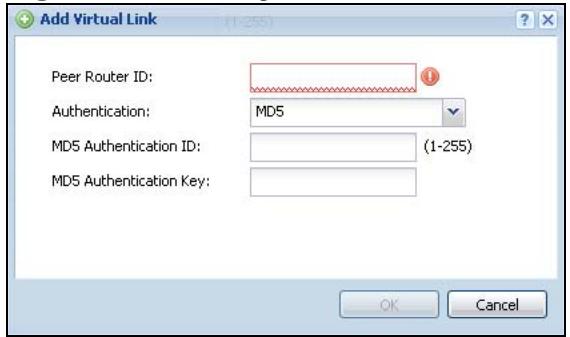
Figure 196 Configuration > Network > Routing > OSPF > Add > Add
The following table describes the labels in this screen.
Table 88 Configuration > Network > Routing > OSPF > Add > Add
| LABEL | DESCRIPTION |
| Peer Router_ID | Enter the 32-bit ID (in IP address format) of the other ABR in the virtual link. |
| Authentication | Select the authentication method the virtual link uses. This authentication protects the integrity, but not the confidentiality, of routing updates. None uses no authentication. Text uses a plain text password that is sent over the network (not very secure). MD5 uses an MD5 password and authentication ID (most secure). Same as Area has the virtual link also use the Authentication settings above. |
| TextAuthenticationKey | This field is available if the Authentication is Text. Type the password for text authentication. The key can consist of alphanumeric characters and the underscore, and it can be up to 16 characters long. |
| MD5AuthenticationID | This field is available if the Authentication is MD5. Type the default ID for MD5 authentication in the area. The ID can be between 1 and 255. |
| MD5AuthenticationKey | This field is available if the Authentication is MD5. Type the default password for MD5 authentication in the area. The password can consist of alphanumeric characters and the underscore, and it can be up to 16 characters long. |
| OK | Click OK to save your changes back to the ZyWALL. |
| Cancel | Click Cancel to exit this screen without saving. |
14.4 Routing Protocol Technical Reference
Here is more detailed information about RIP and OSPF.
Authentication Types
Authentication is used to guarantee the integrity, but not the confidentiality, of routing updates. The transmitting router uses its key to encrypt the original message into a smaller message, and the smaller message is transmitted with the original message. The receiving router uses its key to encrypt the received message and then verifies that it matches the smaller message sent with it. If the received message is verified, then the receiving router accepts the updated routing information. The transmitting and receiving routers must have the same key.
The ZyWALL supports three types of authentication for RIP and OSPF routing protocols:
- None - no authentication is used.
- Text - authentication using a plain text password, and the (unencrypted) password is sent over the network. This method is usually used temporarily to prevent network problems.
- MD5 - authentication using an MD5 password and authentication ID.
MD5 is an authentication method that produces a 128-bit checksum, called a message-digest, for each packet. It also includes an authentication ID, which can be set to any value between 1 and 255. The ZyWALL only accepts packets if these conditions are satisfied.
- The packet's authentication ID is the same as the authentication ID of the interface that received it.
- The packet's message-digest is the same as the one the ZyWALL calculates using the MD5 password.
For RIP, authentication is not available in RIP version 1. In RIP version 2, you can only select one authentication type for all interfaces. For OSPF, the ZyWALL supports a default authentication type by area. If you want to use this default in an interface or virtual link, you set the associated Authentication Type field to Same as Area. As a result, you only have to update the authentication information for the area to update the authentication type used by these interfaces and virtual links. Alternatively, you can override the default in any interface or virtual link by selecting a specific authentication method. Please see the respective interface sections for more information.
15.1 Zones Overview
Set up zones to configure network security and network policies in the ZyWALL. A zone is a group of interfaces and/or VPN tunnels. The ZyWALL uses zones instead of interfaces in many security and policy settings, such as firewall rules, Anti-X, and remote management.
Zones cannot overlap. Each Ethernet interface, VLAN interface, bridge interface, PPPoE/PPTP interface and VPN tunnel can be assigned to at most one zone. Virtual interfaces are automatically assigned to the same zone as the interface on which they run.
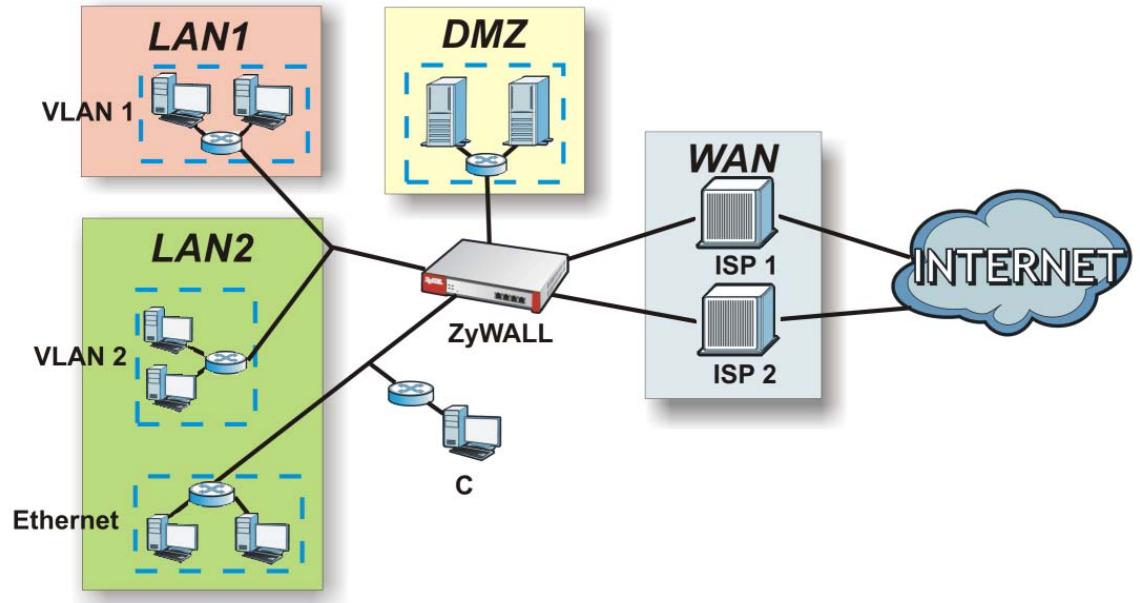
Figure 197 Example: Zones
15.1.1 What You Can Do in this Chapter
Use the Zone screens (see Section 15.2 on page 329) to manage the ZyWALL's zones.
15.1.2 What You Need to Know
Effects of Zones on Different Types of Traffic
Zones effectively divide traffic into three types--intra-zone traffic, inter-zone traffic, and extra-zone traffic--which are affected differently by zone-based security and policy settings.
Intra-zone Traffic
- Intra-zone traffic is traffic between interfaces or VPN tunnels in the same zone. For example, in Figure 197 on page 327, traffic between VLAN 2 and the Ethernet is intra-zone traffic.
- In each zone, you can either allow or prohibit all intra-zone traffic. For example, in Figure 197 on page 327, you might allow intra-zone traffic in the LAN zone but prohibit it in the WAN zone.
- You can also set up firewall rules to control intra-zone traffic (for example, DMZ-to-DMZ), but many other types of zone-based security and policy settings do not affect intra-zone traffic.
Inter-zone Traffic
Inter-zone traffic is traffic between interfaces or VPN tunnels in different zones. For example, in Figure 197 on page 327, traffic between VLAN 1 and the Internet is inter-zone traffic. This is the normal case when zone-based security and policy settings apply.
Extra-zone Traffic
- Extra-zone traffic is traffic to or from any interface or VPN tunnel that is not assigned to a zone. For example, in Figure 197 on page 327, traffic to or from computer C is extra-zone traffic.
- Some zone-based security and policy settings may apply to extra-zone traffic, especially if you can set the zone attribute in them to Any or All. See the specific feature for more information.
Finding Out More
- See Section 6.5.7 on page 98 for related information on these screens.
- See Section 7.1 on page 107 for an example of configuring Ethernet interfaces, port groups, and zones.
15.2 The Zone Screen
The Zone screen provides a summary of all zones. In addition, this screen allows you to add, edit, and remove zones. To access this screen, click Configuration > Network > Zone.
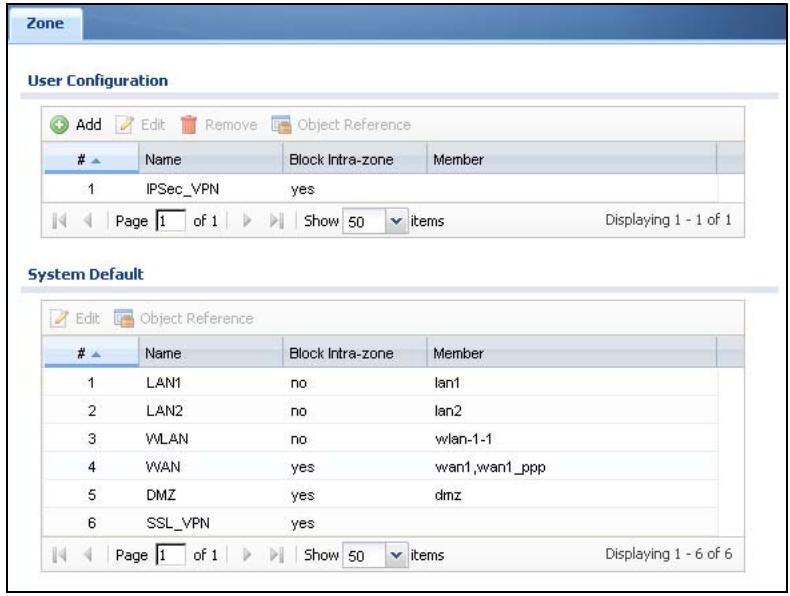
Figure 198 Configuration > Network > Zone (USG 20W)
The following table describes the labels in this screen.
Table 89 Configuration > Network > Zone
| LABEL | DESCRIPTION |
| User Configuration / System Default | The ZyWALL comes with pre-configured System Default zones that you cannot delete. You can create your own User Configuration zones |
| Add | Click this to create a new, user-configured zone. |
| Edit | Double-click an entry or select it and click Edit to open a screen where you can modify the entry's settings. |
| Remove | To remove a user-configured trunk, select it and click Remove. The ZyWALL confirms you want to remove it before doing so. |
| Object References | Select an entry and click Object References to open a screen that shows which settings use the entry. See Section 11.3.2 on page 232 for an example. |
| # | This field is a sequential value, and it is not associated with any interface. |
| Name | This field displays the name of the zone. |
| Block Intra-zone | This field indicates whether or not the ZyWALL blocks network traffic between members in the zone. |
| Member | This field displays the names of the interfaces that belong to each zone. |
15.3 Zone Edit
The Zone Edit screen allows you to add or edit a zone. To access this screen, go to the Zone screen (see Section 15.2 on page 329), and click the Add icon or an Edit icon.
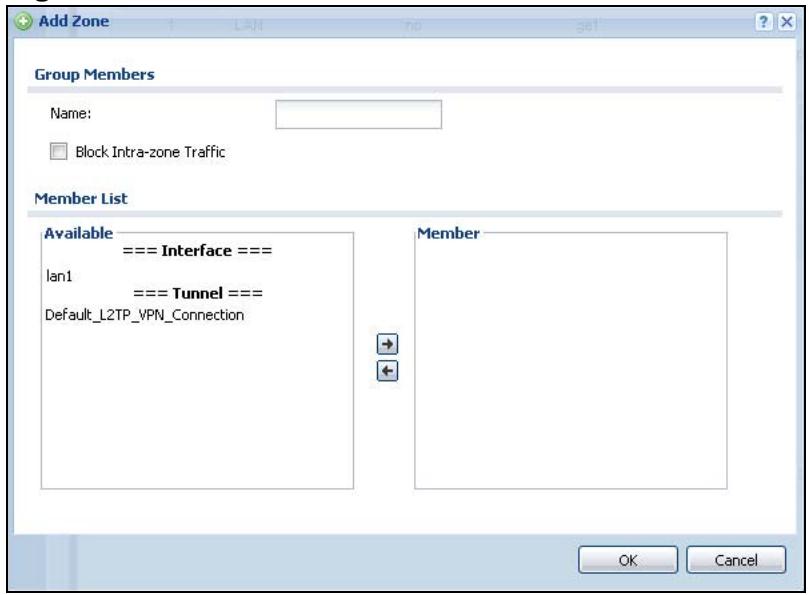
Figure 199 Network > Zone > Add
The following table describes the labels in this screen.
Table 90 Network > Zone > Edit
| LABEL | DESCRIPTION |
| Name | For a system default zone, the name is read only.For a user-configured zone, type the name used to refer to the zone. You may use 1-31 alphanumeric characters, underscores(____), or dashes (-), but the first character cannot be a number. This value is case-sensitive. |
| Block Intra-zone Traffic | Select this check box to block network traffic between members in the zone. |
| Member List | Available lists the interfaces and VPN tunnels that do not belong to any zone. Select the interfaces and VPN tunnels that you want to add to the zone you are editing, and click the right arrow button to add them.Member lists the interfaces and VPN tunnels that belong to the zone. Select any interfaces that you want to remove from the zone, and click the left arrow button to remove them. |
| OK | Click OK to save your customized settings and exit this screen. |
| Cancel | Click Cancel to exit this screen without saving. |
16.1 DDNS Overview
Dynamic DNS (DDNS) services let you use a domain name with a dynamic IP address.
16.1.1 What You Can Do in this Chapter
- Use the DDNS screen (see Section 16.2 on page 332) to view a list of the configured DDNS domain names and their details.
- Use the DDNS Add/Edit screen (see Section 16.2.1 on page 334) to add a domain name to the ZyWALL or to edit the configuration of an existing domain name.
16.1.2 What You Need to Know
DNS maps a domain name to a corresponding IP address and vice versa. Similarly, dynamic DNS maps a domain name to a dynamic IP address. As a result, anyone can use the domain name to contact you (in NetMeeting, CU-SeeMe, etc.) or to access your FTP server or Web site, regardless of the current IP address.
Note: You must have a public WAN IP address to use Dynamic DNS.
You must set up a dynamic DNS account with a supported DNS service provider before you can use Dynamic DNS services with the ZyWALL. When registration is complete, the DNS service provider gives you a password or key. At the time of writing, the ZyWALL supports the following DNS service providers. See the listed websites for details about the DNS services offered by each.
Table 91 DDNS Service Providers
| PROVIDER | SERVICE TYPES SUPPORTED | WEBSITE |
| DynDNS | Dynamic DNS, Static DNS, and Custom DNS | www.dyndns.com |
| Dynu | Basic, Premium | www.dynu.com |
| No-IP | No-IP | www.no-ip.com |
| Peanut Hull | Peanut Hull | www.oray.cn |
| 3322 | 3322 Dynamic DNS, 3322 Static DNS | www.3322.org |
Note: Record your DDNS account's user name, password, and domain name to use to configure the ZyWALL.
After, you configure the ZyWALL, it automatically sends updated IP addresses to the DDNS service provider, which helps redirect traffic accordingly.
Finding Out More
See Section 6.5.8 on page 98 for related information on these screens.
16.2 The DDNS Screen
The DDNS screen provides a summary of all DDNS domain names and their configuration. In addition, this screen allows you to add new domain names, edit the configuration for existing domain names, and delete domain names. Click Configuration > Network > DDNS to open the following screen.

Figure 200 Configuration > Network > DDNS
The following table describes the labels in this screen.
Table 92 Configuration > Network > DDNS
| LABEL | DESCRIPTION |
| Add | Click this to create a new entry. |
| Edit | Double-click an entry or select it and click Edit to open a screen where you can modify the entry's settings. |
| Remove | To remove an entry, select it and click Remove. The ZyWALL confirms you want to remove it before doing so. |
| Activate | To turn on an entry, select it and click Activate. |
| Inactivate | To turn off an entry, select it and click Inactivate. |
| # | This is the number of an individual DDNS profile. |
| Status | This icon is lit when the entry is active and dimmed when the entry is inactive. |
| Profile Name | This field displays the descriptive profile name for this entry. |
| DDNS Type | This field displays which DDNS service you are using. |
| Domain Name | This field displays each domain name the ZyWALL can route. |
| Primary Interface/IP | This field displays the interface to use for updating the IP address mapped to the domain name followed by how the ZyWALL determines the IP address for the domain name. from interface - The IP address comes from the specified interface. auto detected -The DDNS server checks the source IP address of the packets from the ZyWALL for the IP address to use for the domain name. custom - The IP address is static. |
| Backup Interface/IP | This field displays the alternate interface to use for updating the IP address mapped to the domain name followed by how the ZyWALL determines the IP address for the domain name. The ZyWALL uses the backup interface and IP address when the primary interface is disabled, its link is down or its connectivity check fails. from interface - The IP address comes from the specified interface. auto detected -The DDNS server checks the source IP address of the packets from the ZyWALL for the IP address to use for the domain name. custom - The IP address is static. |
| Apply | Click this button to save your changes to the ZyWALL. |
| Reset | Click this button to return the screen to its last-saved settings. |
16.2.1 The Dynamic DNS Add/Edit Screen
The DDNS Add/Edit screen allows you to add a domain name to the ZyWALL or to edit the configuration of an existing domain name. Click Configuration > Network > DDNS and then an Add or Edit icon to open this screen.
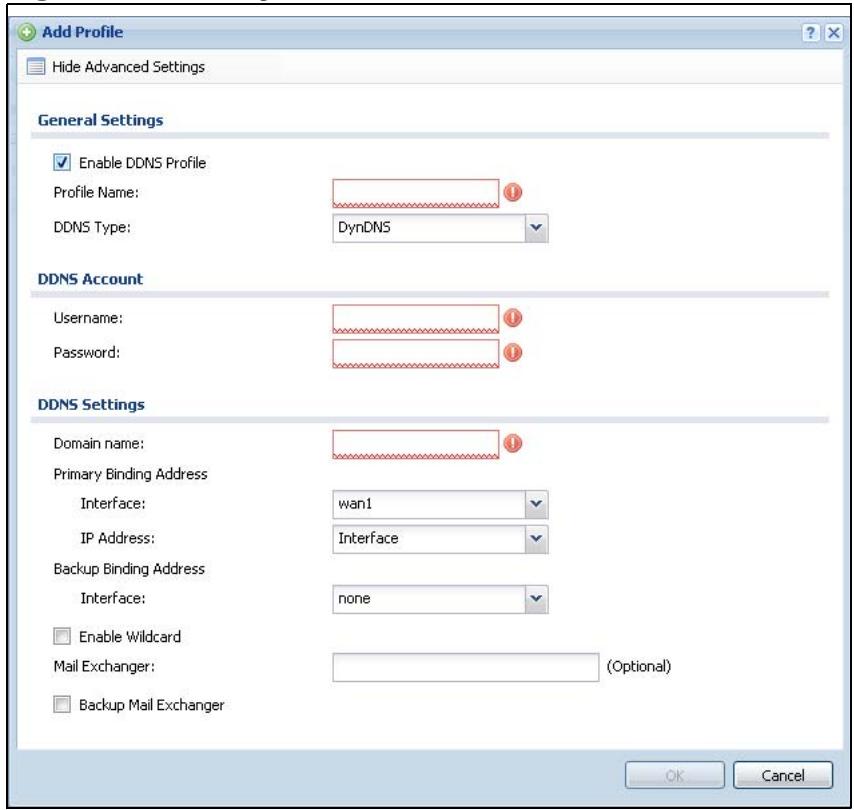
Figure 201 Configuration > Network > DDNS > Add
The following table describes the labels in this screen.
Table 93 Configuration > Network > DDNS > Add
| LABEL | DESCRIPTION |
| Show Advance Settings / Hide Advance Settings | Click this button to display a greater or lesser number of configuration fields. |
| Enable DDNS Profile | Select this check box to use this DDNS entry. |
| Profile Name | When you are adding a DDNS entry, type a descriptive name for this DDNS entry in the ZyWALL. You may use 1-31 alphanumeric characters, underscores(____), or dashes (-), but the first character cannot be a number. This value is case-sensitive. This field is read-only when you are editing an entry. |
| DDNS Type | Select the type of DDNS service you are using. |
| Username | Type the user name used when you registered your domain name. You can use up to 31 alphanumeric characters and the underscore. Spaces are not allowed.For a Dynu DDNS entry, this user name is the one you use for logging into the service, not the name recorded in your personal information in the Dynu website. |
| Password | Type the password provided by the DDNS provider. You can use up to 64 alphanumeric characters and the underscore. Spaces are not allowed. |
| DDNS Settings | |
| Domain name | Type the domain name you registered. You can use up to 255 characters. |
| Primary Binding Address | Use these fields to set how the ZyWALL determines the IP address that is mapped to your domain name in the DDNS server. The ZyWALL uses the Backup Binding Address if the interface specified by these settings is not available. |
| Interface | Select the interface to use for updating the IP address mapped to the domain name. Select Any to let the domain name be used with any interface. |
| IP Address | The options available in this field vary by DDNS provider.Interface -The ZyWALL uses the IP address of the specified interface.This option appears when you select a specific interface in the Primary Binding Address Interface field.Auto - If the interface has a dynamic IP address, the DDNS server checks the source IP address of the packets from the ZyWALL for the IP address to use for the domain name. You may want to use this if there are one or more NAT routers between the ZyWALL and the DDNS server.Note: The ZyWALL may not determine the proper IP address if there is an HTTP proxy server between the ZyWALL and the DDNS server.Custom - If you have a static IP address, you can select this to use it for the domain name. The ZyWALL still sends the static IP address to the DDNS server. |
| Custom IP | This field is only available when the IP Address is Custom. Type the IP address to use for the domain name. |
| Backup Binding Address | Use these fields to set an alternate interface to map the domain name to when the interface specified by the Primary Binding Interface settings is not available. |
| Interface | Select the interface to use for updating the IP address mapped to the domain name. Select Any to let the domain name be used with any interface. Select None to not use a backup address. |
| IP Address | The options available in this field vary by DDNS provider. |
| Interface -The ZyWALL uses the IP address of the specified interface. This option appears when you select a specific interface in the Backup Binding Address Interface field. | |
| Auto -The DDNS server checks the source IP address of the packets from the ZyWALL for the IP address to use for the domain name. You may want to use this if there are one or more NAT routers between the ZyWALL and the DDNS server. | |
| Note: The ZyWALL may not determine the proper IP address if there is an HTTP proxy server between the ZyWALL and the DDNS server. | |
| Custom - If you have a static IP address, you can select this to use it for the domain name. The ZyWALL still sends the static IP address to the DDNS server. | |
| Custom IP | This field is only available when the IP Address is Custom. Type the IP address to use for the domain name. |
| Enable Wildcard | This option is only available with a DynDNS account. |
| Enable the wildcard feature to alias subdomains to be aliased to the same IP address as your (dynamic) domain name. This feature is useful if you want to be able to use, for example, www.yourhost.dyndns.org and still reach your hostname. | |
| Mail Exchanger | This option is only available with a DynDNS account. |
| DynDNS can route e-mail for your domain name to a mail server (called a mail exchanger). For example, DynDNS routes e-mail for john-doe@yourhost.dyndns.org to the host record specified as the mail exchanger. | |
| If you are using this service, type the host record of your mail server here. Otherwise leave the field blank. | |
| See www.dyndns.org for more information about mail exchangers. | |
| Backup Mail Exchanger | This option is only available with a DynDNS account. |
| Select this check box if you are using DynDNS's backup service for e-mail. With this service, DynDNS holds onto your e-mail if your mail server is not available. Once your mail server is available again, the DynDNS server delivers the mail to you. See www.dyndns.org for more information about this service. | |
| OK | Click OK to save your changes back to the ZyWALL. |
| Cancel | Click Cancel to exit this screen without saving. |
17.1 NAT Overview
NAT (Network Address Translation - NAT, RFC 1631) is the translation of the IP address of a host in a packet. For example, the source address of an outgoing packet, used within one network is changed to a different IP address known within another network. Use Network Address Translation (NAT) to make computers on a private network behind the ZyWALL available outside the private network. If the ZyWALL has only one public IP address, you can make the computers in the private network available by using ports to forward packets to the appropriate private IP address.
Suppose you want to assign ports 21-25 to one FTP, Telnet and SMTP server (A in the example), port 80 to another (B in the example) and assign a default server IP address of 192.168.1.35 to a third (C in the example). You assign the LAN IP addresses and the ISP assigns the WAN IP address. The NAT network appears as a single host on the Internet.
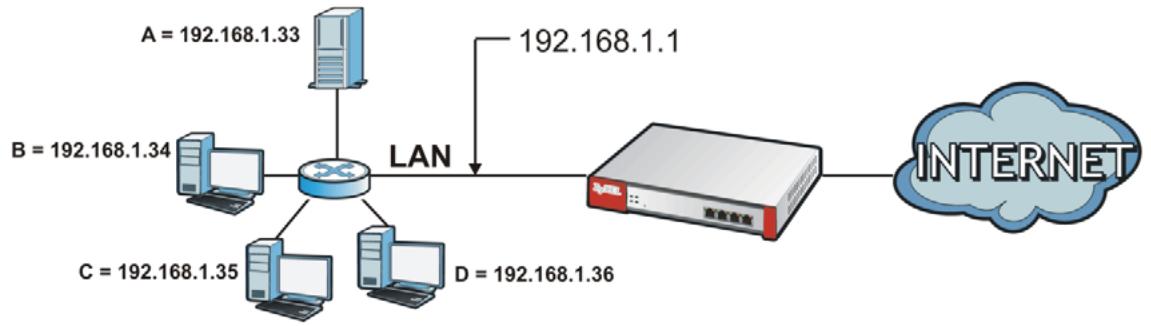
Figure 202 Multiple Servers Behind NAT Example
17.1.1 What You Can Do in this Chapter
Use the NAT screens (see Section 17.2 on page 338) to view and manage the list of NAT rules and see their configuration details. You can also create new NAT rules and edit or delete existing ones.
17.1.2 What You Need to Know
NAT is also known as virtual server, port forwarding, or port translation.
Finding Out More
- See Section 6.5.9 on page 98 for related information on these screens.
- See Section 17.3 on page 343 for technical background information related to these screens.
- See Section 7.9.2 on page 133 for an example of how to configure NAT to allow H.323 traffic from the WAN to the LAN.
- See Section 7.10.2 on page 137 for an example of how to configure NAT to allow web traffic from the WAN to a server on the DMZ.
- See Section 7.11.3 on page 142 for an example of how to configure NAT to allow SIP traffic from the WAN to an IPPBX or SIP server on the DMZ.
17.2 The NAT Screen
The NAT summary screen provides a summary of all NAT rules and their configuration. In addition, this screen allows you to create new NAT rules and edit and delete existing NAT rules. To access this screen, login to the Web Configurator and click Configuration > Network > NAT. The following screen appears, providing a summary of the existing NAT rules.
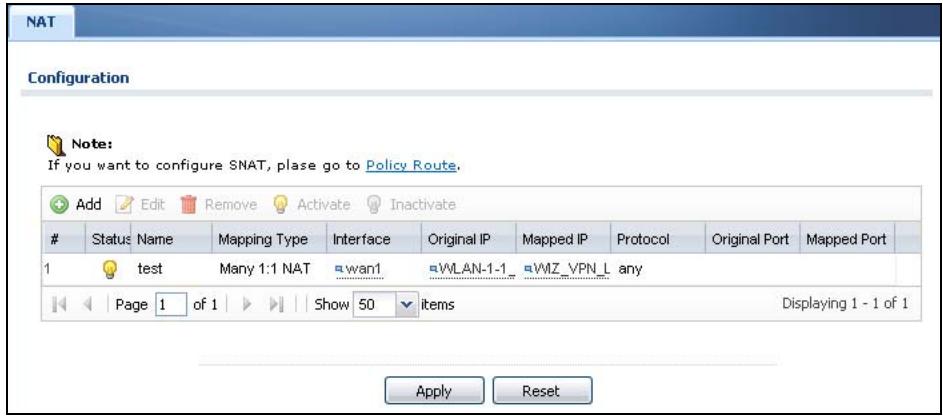
Figure 203 Configuration > Network > NAT
The following table describes the labels in this screen.
Table 94 Configuration > Network > NAT
| LABEL | DESCRIPTION |
| Add | Click this to create a new entry. |
| Edit | Double-click an entry or select it and click Edit to open a screen where you can modify the entry’s settings. |
| Remove | To remove an entry, select it and click Remove. The ZyWALL confirms you want to remove it before doing so. |
| Activate | To turn on an entry, select it and click Activate. |
| Inactivate | To turn off an entry, select it and click Inactivate. |
| # | This field is a sequential value, and it is not associated with a specific entry. |
| Status | This icon is lit when the entry is active and dimmed when the entry is inactive. |
| Name | This field displays the name of the entry. |
| Mapping Type | This field displays what kind of NAT this entry performs: Virtual Server, 1:1 NAT, or Many 1:1 NAT. |
| Interface | This field displays the interface on which packets for the NAT entry are received. |
| Original IP | This field displays the original destination IP address (or address object) of traffic that matches this NAT entry. It displays any if there is no restriction on the original destination IP address. |
| Mapped IP | This field displays the new destination IP address for the packet. |
| Protocol | This field displays the service used by the packets for this NAT entry. It displays any if there is no restriction on the services. |
| Original Port | This field displays the original destination port(s) of packets for the NAT entry. This field is blank if there is no restriction on the original destination port. |
| Mapped Port | This field displays the new destination port(s) for the packet. This field is blank if there is no restriction on the original destination port. |
| Apply | Click this button to save your changes to the ZyWALL. |
| Reset | Click this button to return the screen to its last-saved settings. |
17.2.1 The NAT Add/Edit Screen
The NAT Add/Edit screen lets you create new NAT rules and edit existing ones. To open this window, open the NAT summary screen. (See Section 17.2 on page 338.) Then, click on an Add icon or Edit icon to open the following screen.
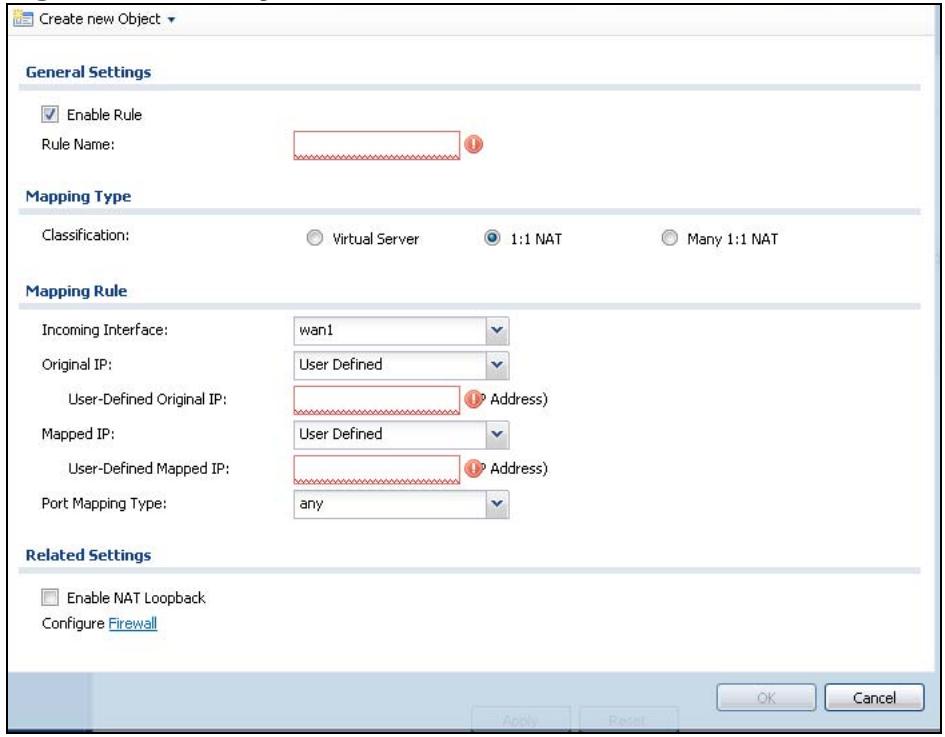
Figure 204 Configuration > Network > NAT > Add
The following table describes the labels in this screen.
Table 95 Configuration > Network > NAT > Add
| LABEL | DESCRIPTION |
| Create new Object | Use to configure any new settings objects that you need to use in this screen. |
| Enable Rule | Use this option to turn the NAT rule on or off. |
| Rule Name | Type in the name of the NAT rule. The name is used to refer to the NAT rule. You may use 1-31 alphanumeric characters, underscores(____), or dashes (-), but the first character cannot be a number. This value is case-sensitive. |
| Classification | Select what kind of NAT this rule is to perform. Virtual Server - This makes computers on a private network behind the ZyWALL available to a public network outside the ZyWALL (like the Internet).1:1 NAT - If the private network server will initiate sessions to the outside clients, select this to have the ZyWALL translate the source IP address of the server's outgoing traffic to the same public IP address that the outside clients use to access the server.Many 1:1 NAT - If you have a range of private network servers that will initiate sessions to the outside clients and a range of public IP addresses, select this to have the ZyWALL translate the source IP address of each server's outgoing traffic to the same one of the public IP addresses that the outside clients use to access the server. The private and public ranges must have the same number of IP addresses.One many 1:1 NAT rule works like multiple 1:1 NAT rules, but it eases configuration effort since you only create one rule. |
| Incoming Interface | Select the interface on which packets for the NAT rule must be received. It can be an Ethernet, VLAN, bridge, or PPPoE/PPTP interface. |
| Original IP | Specify the destination IP address of the packets received by this NAT rule's specified incoming interface.any - Select this to use all of the incoming interface's IP addresses including dynamic addresses or those of any virtual interfaces built upon the selected incoming interface.User Defined - Select this to manually enter an IP address in the User Defined field. For example, you could enter a static public IP assigned by the ISP without having to create a virtual interface for it.Host address - select a host address object to use the IP address it specifies. The list also includes address objects based on interface IPs. So for example you could select an address object based on a WAN interface even if it has a dynamic IP address. |
| User Defined Original IP | This field is available if Original IP is User Defined. Type the destination IP address that this NAT rule supports. |
| Original IP Subnet/Range | This field displays for Many 1:1 NAT. Select the destination IP address subnet or IP address range that this NAT rule supports. The original and mapped IP address subnets or ranges must have the same number of IP addresses. |
| Mapped IP | Select to which translated destination IP address this NAT rule forwards packets.User Defined - this NAT rule supports a specific IP address, specified in the User Defined field.HOST address - the drop-down box lists all the HOST address objects in the ZyWALL. If you select one of them, this NAT rule supports the IP address specified by the address object. |
| User Defined Original IP | This field is available if Mapped IP is User Defined. Type the translated destination IP address that this NAT rule supports. |
| Mapped IP Subnet/Range | This field displays for Many 1:1 NAT. Select to which translated destination IP address subnet or IP address range this NAT rule forwards packets. The original and mapped IP address subnets or ranges must have the same number of IP addresses. |
| Port Mapping Type | Use the drop-down list box to select how many original destination ports this NAT rule supports for the selected destination IP address (Original IP). Choices are: Any - this NAT rule supports all the destination ports. Port - this NAT rule supports one destination port. Ports - this NAT rule supports a range of destination ports. You might use a range of destination ports for unknown services or when one server supports more than one service. See Appendix B on page 799 for some common port numbers. |
| Protocol Type | This field is available if Mapping Type is Port or Ports. Select the protocol (TCP, UDP, or Any) used by the service requesting the connection. |
| Original Port | This field is available if Mapping Type is Port. Enter the original destination port this NAT rule supports. |
| Mapped Port | This field is available if Mapping Type is Port. Enter the translated destination port if this NAT rule forwards the packet. |
| Original Start Port | This field is available if Mapping Type is Ports. Enter the beginning of the range of original destination ports this NAT rule supports. |
| Original End Port | This field is available if Mapping Type is Ports. Enter the end of the range of original destination ports this NAT rule supports. |
| Mapped Start Port | This field is available if Mapping Type is Ports. Enter the beginning of the range of translated destination ports if this NAT rule forwards the packet. |
| Mapped End Port | This field is available if Mapping Type is Ports. Enter the end of the range of translated destination ports if this NAT rule forwards the packet. The original port range and the mapped port range must be the same size. |
| Enable NAT Loopback | Enable NAT loopback to allow users connected to any interface (instead of just the specified Incoming Interface) to use the NAT rule's specified Original IP address to access the Mapped IP device. For users connected to the same interface as the Mapped IP device, the ZyWALL uses that interface's IP address as the source address for the traffic it sends from the users to the Mapped IP device. For example, if you configure a NAT rule to forward traffic from the WAN to a LAN server, enabling NAT loopback allows users connected to other interfaces to also access the server. For LAN users, the ZyWALL uses the LAN interface's IP address as the source address for the traffic it sends to the LAN server. See NAT Loopback on page 343 for more details. If you do not enable NAT loopback, this NAT rule only applies to packets received on the rule's specified incoming interface. |
| Firewall | By default the firewall blocks incoming connections from external addresses. After you configure your NAT rule settings, click the Firewall link to configure a firewall rule to allow the NAT rule's traffic to come in.The ZyWALL checks NAT rules before it applies To-ZyWALL firewall rules, so To-ZyWALL firewall rules do not apply to traffic that is forwarded by NAT rules. The ZyWALL still checks other firewall rules according to the source IP address and mapped IP address. |
| OK | Click OK to save your changes back to the ZyWALL. |
| Cancel | Click Cancel to return to the NAT summary screen without creating the NAT rule (if it is new) or saving any changes (if it already exists). |
17.3 NAT Technical Reference
Here is more detailed information about NAT on the ZyWALL.
NAT Loopback
Suppose a NAT 1:1 rule maps a public IP address to the private IP address of a LAN SMTP e-mail server to give WAN users access. NAT loopback allows other users to also use the rule's original IP to access the mail server.
For example, a LAN user's computer at IP address 192.168.1.89 queries a public DNS server to resolve the SMTP server's domain name (xxx.LAN-SMTP.com in this example) and gets the SMTP server's mapped public IP address of 1.1.1.1.
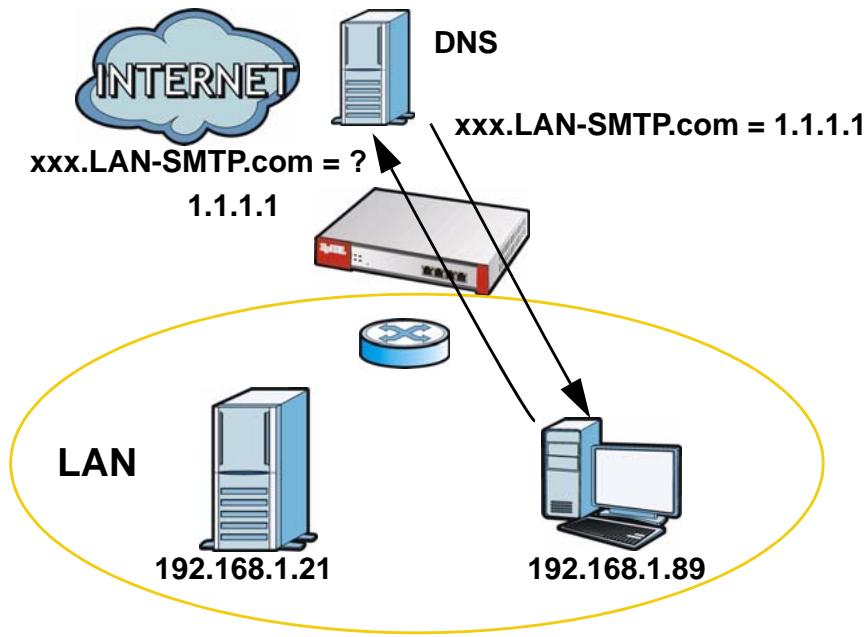
Figure 205 LAN Computer Queries a Public DNS Server
The LAN user's computer then sends traffic to IP address 1.1.1.1. NAT loopback uses the IP address of the ZyWALL's LAN interface (192.168.1.1) as the source address of the traffic going from the LAN users to the LAN SMTP server.
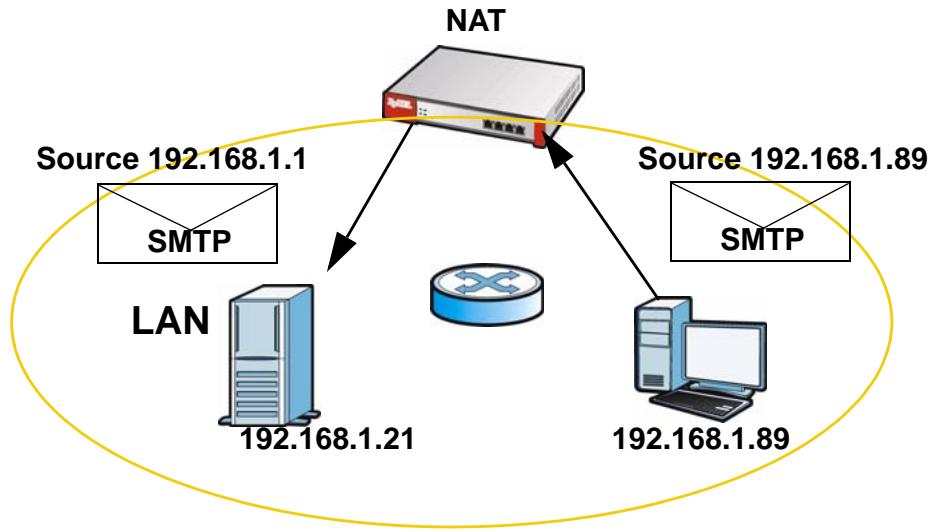
Figure 206 LAN to LAN Traffic
The LAN SMTP server replies to the ZyWALL's LAN IP address and the ZyWALL changes the source address to 1.1.1.1 before sending it to the LAN user. The return traffic's source matches the original destination address (1.1.1.1). If the
SMTP server replied directly to the LAN user without the traffic going through NAT, the source would not match the original destination address which would cause the LAN user's computer to shut down the session.
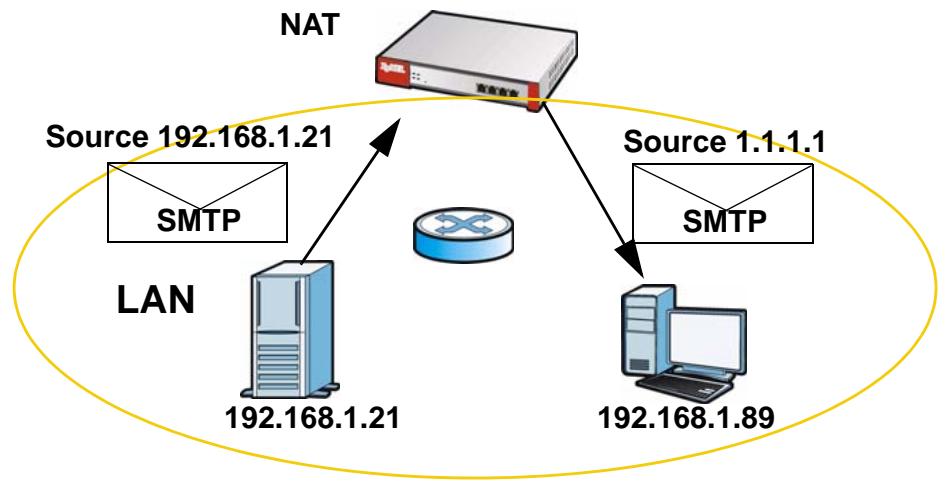
Figure 207 LAN to LAN Return Traffic
HTTP Redirect
18.1 Overview
HTTP redirect forwards the client's HTTP request (except HTTP traffic destined for the ZyWALL) to a web proxy server. In the following example, proxy server A is connected to the DMZ interface. When a client connected to the LAN1 zone wants to open a web page, its HTTP request is redirected to proxy server A first. If proxy server A cannot find the web page in its cache, a policy route allows it to access the Internet to get them from a server. Proxy server A then forwards the response to the client.
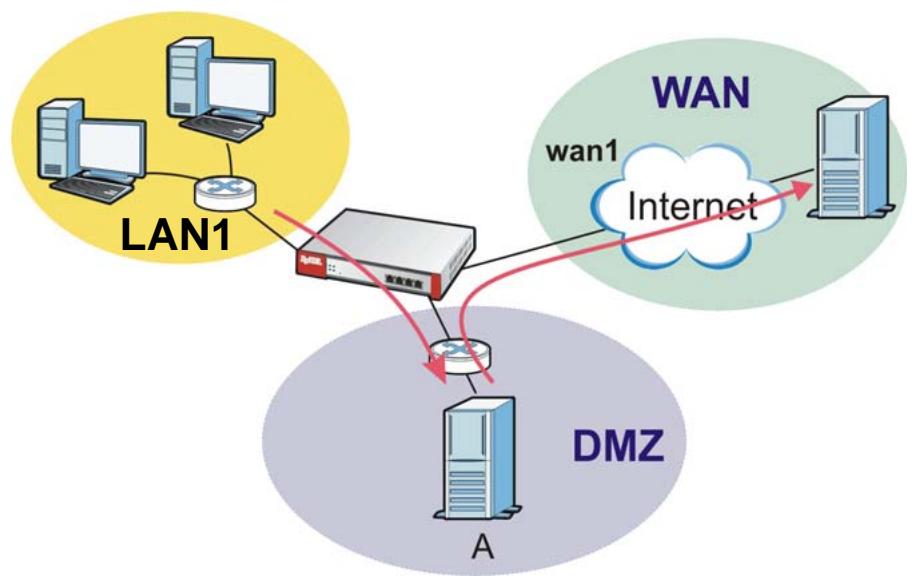
Figure 208 HTTP Redirect Example
18.1.1 What You Can Do in this Chapter
Use the HTTP Redirect screens (see Section 18.2 on page 349) to display and edit the HTTP redirect rules.
18.1.2 What You Need to Know
Web Proxy Server
A proxy server helps client devices make indirect requests to access the Internet or outside network resources/services. A proxy server can act as a firewall or an ALG (application layer gateway) between the private network and the Internet or other networks. It also keeps hackers from knowing internal IP addresses.
A client connects to a web proxy server each time he/she wants to access the Internet. The web proxy provides caching service to allow quick access and reduce network usage. The proxy checks its local cache for the requested web resource first. If it is not found, the proxy gets it from the specified server and forwards the response to the client.
HTTP Redirect, Firewall and Policy Route
With HTTP redirect, the relevant packet flow for HTTP traffic is:
1 Firewall
2 HTTP Redirect
3 Policy Route
Even if you set a policy route to the same incoming interface and service as a HTTP redirect rule, the ZyWALL checks the HTTP redirect rules first and forwards HTTP traffic to a proxy server if matched. You need to make sure there is no firewall rule(s) blocking the HTTP requests from the client to the proxy server.
You also need to manually configure a policy route to forward the HTTP traffic from the proxy server to the Internet. To make the example in Figure 208 on page 347 work, make sure you have the following settings.
For HTTP traffic between lan1 and dmz:
- a from LAN1 to WAN firewall rule (default) to allow HTTP requests from lan1 to dmz. Responses to this request are allowed automatically.
- a HTTP redirect rule to forward HTTP traffic from Ian1 to proxy server A.
For HTTP traffic between dmz and wan1:
- a from DMZ to WAN firewall rule (default) to allow HTTP requests from dmz to wan1. Responses to these requests are allowed automatically.
- a policy route to forward HTTP traffic from proxy server A to the Internet.
Finding Out More
See Section 6.5.10 on page 99 for related information on these screens.
18.2 The HTTP Redirect Screen
To configure redirection of a HTTP request to a proxy server, click Configuration > Network > HTTP Redirect. This screen displays the summary of the HTTP redirect rules.
Note: You can configure up to one HTTP redirect rule for each (incoming) interface.
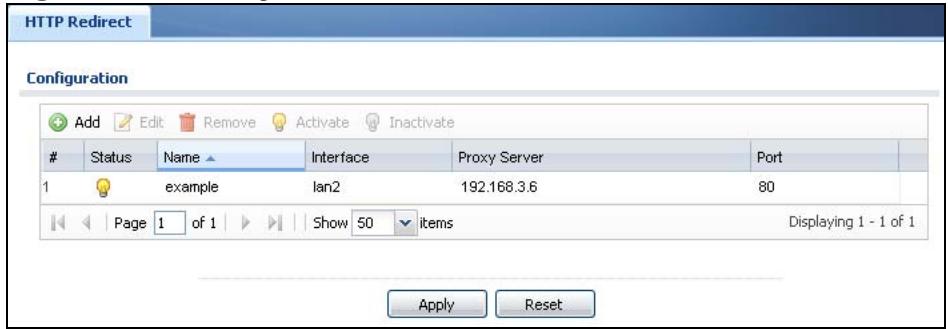
Figure 209 Configuration > Network > HTTP Redirect
The following table describes the labels in this screen.
Table 96 Configuration > Network > HTTP Redirect
| LABEL | DESCRIPTION |
| Add | Click this to create a new entry. |
| Edit | Double-click an entry or select it and click Edit to open a screen where you can modify the entry's settings. |
| Remove | To remove an entry, select it and click Remove. The ZyWALL confirms you want to remove it before doing so. |
| Activate | To turn on an entry, select it and click Activate. |
| Inactivate | To turn off an entry, select it and click Inactivate. |
| # | This field is a sequential value, and it is not associated with a specific entry. |
| Status | This icon is lit when the entry is active and dimmed when the entry is inactive. |
| Name | This is the descriptive name of a rule. |
| Interface | This is the interface on which the request must be received. |
| Proxy Server | This is the IP address of the proxy server. |
| Port | This is the service port number used by the proxy server. |
| Apply | Click Apply to save your changes back to the ZyWALL. |
| Reset | Click Reset to return the screen to its last-saved settings. |
18.2.1 The HTTP Redirect Edit Screen
Click Network > HTTP Redirect to open the HTTP Redirect screen. Then click the Add or Edit icon to open the HTTP Redirect Edit screen where you can configure the rule.
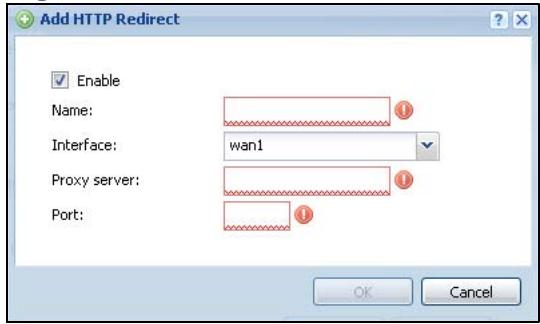
Figure 210 Network > HTTP Redirect > Edit
The following table describes the labels in this screen.
Table 97 Network > HTTP Redirect > Edit
| LABEL | DESCRIPTION |
| Enable | Use this option to turn the HTTP redirect rule on or off. |
| Name | Enter a name to identify this rule. You may use 1-31 alphanumeric characters, underscores(____), or dashes (-), but the first character cannot be a number. This value is case-sensitive. |
| Interface | Select the interface on which the HTTP request must be received for the ZyWALL to forward it to the specified proxy server. |
| Proxy Server | Enter the IP address of the proxy server. |
| Port | Enter the port number that the proxy server uses. |
| OK | Click OK to save your changes back to the ZyWALL. |
| Cancel | Click Cancel to exit this screen without saving. |
19.1 ALG Overview
Application Layer Gateway (ALG) allows the following applications to operate properly through the ZyWALL's NAT.
- SIP - Session Initiation Protocol (SIP) - An application-layer protocol that can be used to create voice and multimedia sessions over Internet.
- H.323 - A teleconferencing protocol suite that provides audio, data and video conferencing.
- FTP - File Transfer Protocol - an Internet file transfer service.
The following example shows SIP signaling (1) and audio (2) sessions between SIP clients A and B and the SIP server.
Figure 211 SIP ALG Example
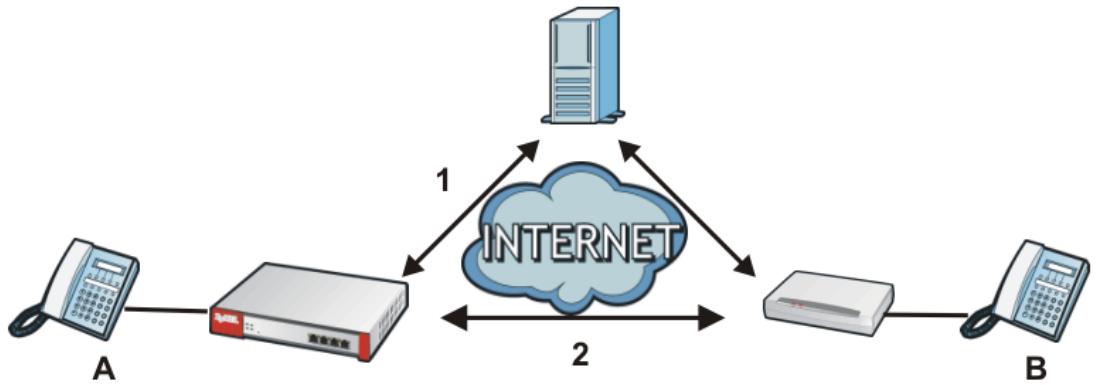
The ALG feature is only needed for traffic that goes through the ZyWALL's NAT.
19.1.1 What You Can Do in this Chapter
Use the ALG screen (Section 19.2 on page 355) to set up SIP, H.323, and FTP ALG settings.
19.1.2 What You Need to Know
Application Layer Gateway (ALG), NAT and Firewall
The ZyWALL can function as an Application Layer Gateway (ALG) to allow certain NAT un-friendly applications (such as SIP) to operate properly through the ZyWALL's NAT and firewall. The ZyWALL dynamically creates an implicit NAT session and firewall session for the application's traffic from the WAN to the LAN. The ALG on the ZyWALL supports all of the ZyWALL's NAT mapping types.
FTP ALG
The FTP ALG allows TCP packets with a specified port destination to pass through. If the FTP server is located on the LAN, you must also configure NAT (port forwarding) and firewall rules if you want to allow access to the server from the WAN.
H.323 ALG
- The H.323 ALG supports peer-to-peer H.323 calls.
- The H.323 ALG handles H.323 calls that go through NAT or that the ZyWALL routes. You can also make other H.323 calls that do not go through NAT or routing. Examples would be calls between LAN IP addresses that are on the same subnet.
- The H.323 ALG allows calls to go out through NAT. For example, you could make a call from a private IP address on the LAN to a peer device on the WAN.
- The H.323 ALG operates on TCP packets with a specified port destination.
- The ZyWALL allows H.323 audio connections.
- The ZyWALL can also apply bandwidth management to traffic that goes through the H.323 ALG.
The following example shows H.323 signaling (1) and audio (2) sessions between H.323 devices A and B.
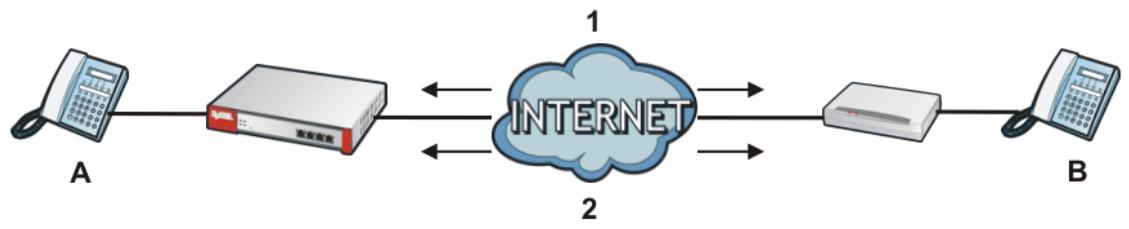
Figure 212 H.323 ALG Example
SIP ALG
-
SIP phones can be in any zone (including LAN, DMZ, WAN), and the SIP server and SIP clients can be in the same network or different networks.
-
There should be only one SIP server (total) on the ZyWALL's private networks. Any other SIP servers must be on the WAN. So for example you could have a Back-to-Back User Agent such as the IPPBX x6004 or an asterisk PBX on the DMZ or on the LAN but not on both.
- Using the SIP ALG allows you to use bandwidth management on SIP traffic.
- The SIP ALG handles SIP calls that go through NAT or that the ZyWALL routes. You can also make other SIP calls that do not go through NAT or routing. Examples would be calls between LAN IP addresses that are on the same subnet.
- The SIP ALG supports peer-to-peer SIP calls. The firewall (by default) allows peer to peer calls from the LAN zone to go to the WAN zone and blocks peer to peer calls from the WAN zone to the LAN zone.
- The SIP ALG allows UDP packets with a specified port destination to pass through.
- The ZyWALL allows SIP audio connections.
- You do not need to use TURN (Traversal Using Relay NAT) for VoIP devices behind the ZyWALL when you enable the SIP ALG.
Peer-to-Peer Calls and the ZyWALL
The ZyWALL ALG can allow peer-to-peer VoIP calls for both H.323 and SIP. You must configure the firewall and NAT (port forwarding) to allow incoming (peer-to-peer) calls from the WAN to a private IP address on the LAN (or DMZ).
VoIP Calls from the WAN with Multiple Outgoing Calls
When you configure the firewall and NAT (port forwarding) to allow calls from the WAN to a specific IP address on the LAN, you can also use policy routing to have H.323 (or SIP) calls from other LAN or DMZ IP addresses go out through a different WAN IP address. The policy routing lets the ZyWALL correctly forward the return traffic for the calls initiated from the LAN IP addresses.
For example, you configure the firewall and NAT to allow LAN IP address A to receive calls from the Internet through WAN IP address 1. You also use a policy route to have LAN IP address A make calls out through WAN IP address 1. Configure another policy route to have H.323 (or SIP) calls from LAN IP addresses B and C go out through WAN IP address 2. Even though only LAN IP address A
can receive incoming calls from the Internet, LAN IP addresses B and C can still make calls out to the Internet.
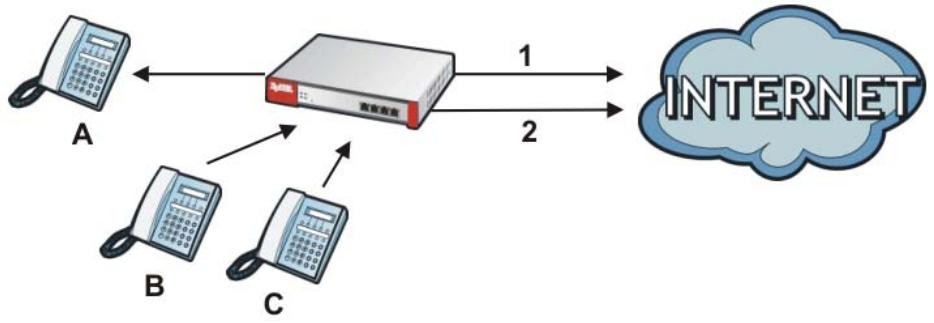
Figure 213 VoIP Calls from the WAN with Multiple Outgoing Calls
VoIP with Multiple WAN IP Addresses
With multiple WAN IP addresses on the ZyWALL, you can configure different firewall and NAT (port forwarding) rules to allow incoming calls from each WAN IP address to go to a specific IP address on the LAN (or DMZ). Use policy routing to have the H.323 (or SIP) calls from each of those LAN or DMZ IP addresses go out through the same WAN IP address that calls come in on. The policy routing lets the ZyWALL correctly forward the return traffic for the calls initiated from the LAN IP addresses.
For example, you configure firewall and NAT rules to allow LAN IP address A to receive calls through public WAN IP address 1. You configure different firewall and port forwarding rules to allow LAN IP address B to receive calls through public WAN IP address 2. You configure corresponding policy routes to have calls from LAN IP address A go out through WAN IP address 1 and calls from LAN IP address B go out through WAN IP address 2.
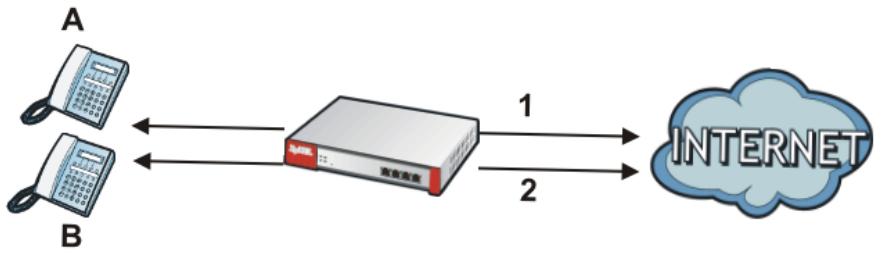
Figure 214 VoIP with Multiple WAN IP Addresses
Finding Out More
See Section 6.5.11 on page 100 for related information on these screens.
- See Section 7.9 on page 132 for a tutorial showing how to use the ALG for peerto-peer H.323 traffic.
- See Section 7.11 on page 139 for an example of making an IPPBX using SIP or a SIP server in the DMZ zone accessible from the Internet (the WAN zone).
- See Section 19.3 on page 357 for ALG background/technical information.
19.1.3 Before You Begin
You must also configure the firewall and enable NAT in the ZyWALL to allow sessions initiated from the WAN.
19.2 The ALG Screen
Click Configuration > Network > ALG to open the ALG screen. Use this screen to turn ALGs off or on, configure the port numbers to which they apply, and configure SIP ALG time outs.
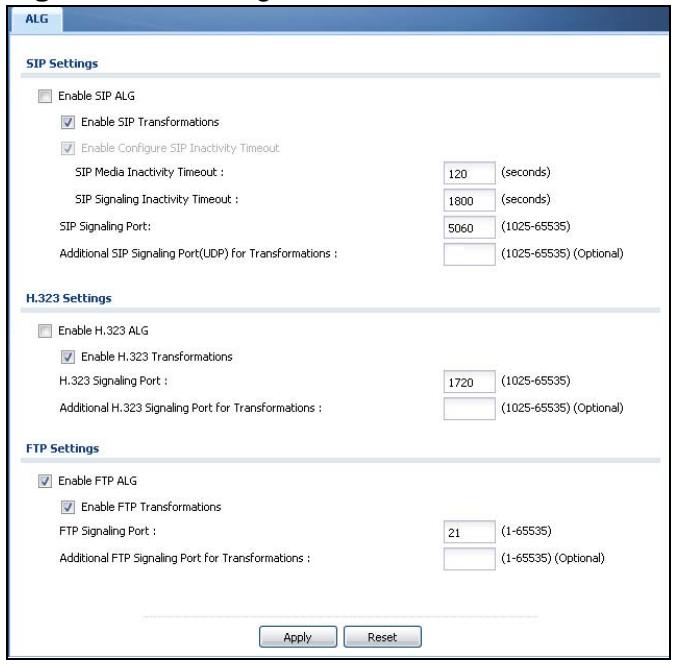
Figure 215 Configuration > Network > ALG
The following table describes the labels in this screen.
Table 98 Configuration > Network > ALG
| LABEL | DESCRIPTION |
| Enable SIP ALG | Turn on the SIP ALG to detect SIP traffic and help build SIP sessions through the ZyWALL's NAT. |
| Enable SIP Transformations | Select this to have the ZyWALL modify IP addresses and port numbers embedded in the SIP data payload. You do not need to use this if you have a SIP device or server that will modify IP addresses and port numbers embedded in the SIP data payload. |
| Enable Configure SIP Inactivity Timeout | Select this option to have the ZyWALL apply SIP media and signaling inactivity time out limits. |
| SIP Media Inactivity Timeout | Use this field to set how many seconds (1~86400) the ZyWALL will allow a SIP session to remain idle (without voice traffic) before dropping it.If no voice packets go through the SIP ALG before the timeout period expires, the ZyWALL deletes the audio session. You cannot hear anything and you will need to make a new call to continue your conversation. |
| SIP Signaling Inactivity Timeout | Most SIP clients have an "expire" mechanism indicating the lifetime of signaling sessions. The SIP user agent sends registration packets to the SIP server periodically and keeps the session alive in the ZyWALL.If the SIP client does not have this mechanism and makes no calls during the ZyWALL SIP timeout, the ZyWALL deletes the signaling session after the timeout period. Enter the SIP signaling session timeout value (1~86400). |
| SIP Signaling Port | If you are using a custom UDP port number (not 5060) for SIP traffic, enter it here. |
| Additional SIP Signaling Port(UDP) for Transformations | If you are also using SIP on an additional UDP port number, enter it here. |
| Enable H.323 ALG | Turn on the H.323 ALG to detect H.323 traffic (used for audio communications) and help build H.323 sessions through the ZyWALL's NAT. |
| Enable H.323 Transformations | Select this to have the ZyWALL modify IP addresses and port numbers embedded in the H.323 data payload.You do not need to use this if you have a H.323 device or server that will modify IP addresses and port numbers embedded in the H.323 data payload. |
| H.323 Signaling Port | If you are using a custom TCP port number (not 1720) for H.323 traffic, enter it here. |
| Additional H.323 Signaling Port for Transformations | If you are also using H.323 on an additional TCP port number, enter it here. |
| Enable FTP ALG | Turn on the FTP ALG to detect FTP (File Transfer Program) traffic and help build FTP sessions through the ZyWALL's NAT. |
| Enable FTP Transformations | Select this option to have the ZyWALL modify IP addresses and port numbers embedded in the FTP data payload to match the ZyWALL's NAT environment.Clear this option if you have an FTP device or server that will modify IP addresses and port numbers embedded in the FTP data payload to match the ZyWALL's NAT environment. |
| FTP Signaling Port | If you are using a custom TCP port number (not 21) for FTP traffic, enter it here. |
| Additional FTP Signaling Port for Transformations | If you are also using FTP on an additional TCP port number, enter it here. |
| Apply | Click Apply to save your changes back to the ZyWALL. |
| Reset | Click Reset to return the screen to its last-saved settings. |
19.3 ALG Technical Reference
Here is more detailed information about the Application Layer Gateway.
ALG
Some applications cannot operate through NAT (are NAT un-friendly) because they embed IP addresses and port numbers in their packets' data payload. The ZyWALL examines and uses IP address and port number information embedded in the VoIP traffic's data stream. When a device behind the ZyWALL uses an application for which the ZyWALL has VoIP pass through enabled, the ZyWALL translates the device's private IP address inside the data stream to a public IP address. It also records session port numbers and allows the related sessions to go through the firewall so the application's traffic can come in from the WAN to the LAN.
ALG and Trunks
If you send your ALG-managed traffic through an interface trunk and all of the interfaces are set to active, you can configure routing policies to specify which interface the ALG-managed traffic uses.
You could also have a trunk with one interface set to active and a second interface set to passive. The ZyWALL does not automatically change ALG-managed connections to the second (passive) interface when the active interface's connection goes down. When the active interface's connection fails, the client needs to re-initialize the connection through the second interface (that was set to passive) in order to have the connection go through the second interface. VoIP clients usually re-register automatically at set intervals or the users can manually force them to re-register.
FTP
File Transfer Protocol (FTP) is an Internet file transfer service that operates on the Internet and over TCP/IP networks. A system running the FTP server accepts
commands from a system running an FTP client. The service allows users to send commands to the server for uploading and downloading files.
H.323
H.323 is a standard teleconferencing protocol suite that provides audio, data and video conferencing. It allows for real-time point-to-point and multipoint communication between client computers over a packet-based network that does not provide a guaranteed quality of service. NetMeeting uses H.323.
SIP
The Session Initiation Protocol (SIP) is an application-layer control (signaling) protocol that handles the setting up, altering and tearing down of voice and multimedia sessions over the Internet. SIP is used in VoIP (Voice over IP), the sending of voice signals over the Internet Protocol.
SIP signaling is separate from the media for which it handles sessions. The media that is exchanged during the session can use a different path from that of the signaling. SIP handles telephone calls and can interface with traditional circuit-switched telephone networks.
RTP
When you make a VoIP call using H.323 or SIP, the RTP (Real time Transport Protocol) is used to handle voice data transfer. See RFC 1889 for details on RTP.
20.1 IP/MAC Binding Overview
IP address to MAC address binding helps ensure that only the intended devices get to use privileged IP addresses. The ZyWALL uses DHCP to assign IP addresses and records to MAC address it assigned each IP address. The ZyWALL then checks incoming connection attempts against this list. A user cannot manually assign another IP to his computer and use it to connect to the ZyWALL.
Suppose you configure access privileges for IP address 192.168.1.27 and use static DHCP to assign it to Tim's computer's MAC address of 12:34:56:78:90:AB. IP/MAC binding drops traffic from any computer trying to use IP address 192.168.1.27 with another MAC address.
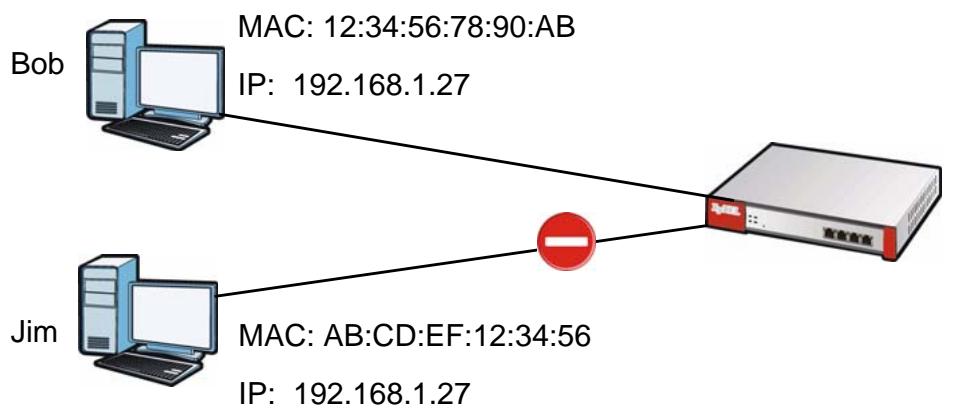
Figure 216 IP/MAC Binding Example
20.1.1 What You Can Do in this Chapter
- Use the Summary and Edit screens (Section 20.2 on page 360) to bind IP addresses to MAC addresses.
- Use the Exempt List screen (Section 20.3 on page 363) to configure ranges of IP addresses to which the ZyWALL does not apply IP/MAC binding.
20.1.2 What You Need to Know
DHCP
IP/MAC address bindings are based on the ZyWALL's dynamic and static DHCP entries.
Interfaces Used With IP/MAC Binding
IP/MAC address bindings are grouped by interface. You can use IP/MAC binding with Ethernet, bridge, VLAN, and WLAN (for USG 20W) interfaces. You can also enable or disable IP/MAC binding and logging in an interface's configuration screen.
20.2 IP/MAC Binding Summary
Click Configuration > Network > IP/MAC Binding to open the IP/MAC Binding Summary screen. This screen lists the total number of IP to MAC address bindings for devices connected to each supported interface.
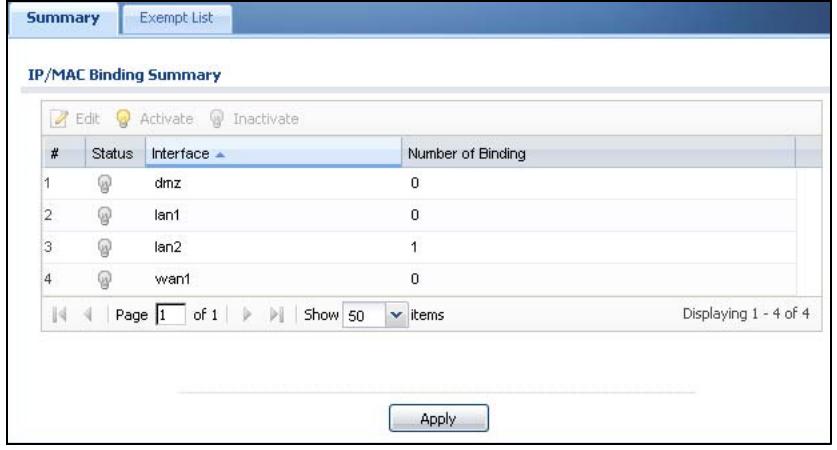
Figure 217 Configuration > Network > IP/MAC Binding > Summary (USG 20W)
The following table describes the labels in this screen.
Table 99 Configuration > Network > IP/MAC Binding > Summary
| LABEL | DESCRIPTION |
| Edit | Double-click an entry or select it and click Edit to open a screen where you can modify the entry's settings. |
| Activate | To turn on an entry, select it and click Activate. |
| Inactivate | To turn off an entry, select it and click Inactivate. |
| # | This field is a sequential value, and it is not associated with a specific entry. |
| Status | This icon is lit when the entry is active and dimmed when the entry is inactive. |
| Interface | This is the name of an interface that supports IP/MAC binding. |
| Number of Binding | This field displays the interface's total number of IP/MAC bindings and IP addresses that the interface has assigned by DHCP. |
| Apply | Click Apply to save your changes back to the ZyWALL. |
20.2.1 IP/MAC Binding Edit
Click Configuration > Network > IP/MAC Binding > Edit to open the IP/MAC Binding Edit screen. Use this screen to configure an interface's IP to MAC address binding settings.
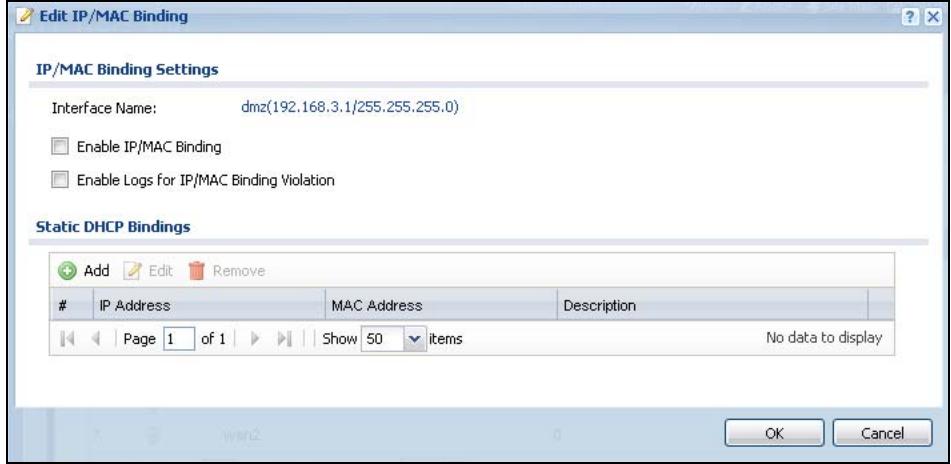
Figure 218 Configuration > Network > IP/MAC Binding > Edit
The following table describes the labels in this screen.
Table 100 Configuration > Network > IP/MAC Binding > Edit
| LABEL | DESCRIPTION |
| IP/MAC Binding Settings | |
| Interface Name | This field displays the name of the interface within the ZyWALL and the interface's IP address and subnet mask. |
| Enable IP/MAC Binding | Select this option to have this interface enforce links between specific IP addresses and specific MAC addresses. This stops anyone else from manually using a bound IP address on another device connected to this interface. Use this to make use only the intended users get to use specific IP addresses. |
| Enable Logs for IP/MAC Binding Violation | Select this option to have the ZyWALL generate a log if a device connected to this interface attempts to use an IP address not assigned by the ZyWALL. |
| Static DHCP Holdings | This table lists the bound IP and MAC addresses. The ZyWALL checks this table when it assigns IP addresses. If the computer's MAC address is in the table, the ZyWALL assigns the corresponding IP address. You can also access this table from the interface's edit screen. |
| Add | Click this to create a new entry. |
| Edit | Double-click an entry or select it and click Edit to open a screen where you can modify the entry's settings. |
| Remove | To remove an entry, select it and click Remove. The ZyWALL confirms you want to remove it before doing so. |
| # | This is the index number of the static DHCP entry. |
| IP Address | This is the IP address that the ZyWALL assigns to a device with the entry's MAC address. |
| MAC Address | This is the MAC address of the device to which the ZyWALL assigns the entry's IP address. |
| Description | This helps identify the entry. |
| OK | Click OK to save your changes back to the ZyWALL. |
| Cancel | Click Cancel to exit this screen without saving. |
20.2.2 Static DHCP Edit
Click Configuration > Network > IP/MAC Binding > Edit to open the IP/MAC Binding Edit screen. Click the Add or Edit icon to open the following screen. Use this screen to configure an interface's IP to MAC address binding settings.
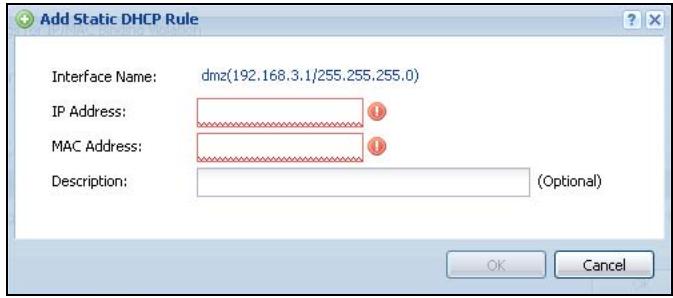
Figure 219 Configuration > Network > IP/MAC Binding > Edit > Add
The following table describes the labels in this screen.
Table 101 Configuration > Network > IP/MAC Binding > Edit > Add
| LABEL | DESCRIPTION |
| Interface Name | This field displays the name of the interface within the ZyWALL and the interface's IP address and subnet mask. |
| IP Address | Enter the IP address that the ZyWALL is to assign to a device with the entry's MAC address. |
| MAC Address | Enter the MAC address of the device to which the ZyWALL assigns the entry's IP address. |
| Description | Enter up to 64 printable ASCII characters to help identify the entry. For example, you may want to list the computer's owner. |
| OK | Click OK to save your changes back to the ZyWALL. |
| Cancel | Click Cancel to exit this screen without saving. |
20.3 IP/MAC Binding Exempt List
Click Configuration > Network > IP/MAC Binding > Exempt List to open the IP/MAC Binding Exempt List screen. Use this screen to configure ranges of IP addresses to which the ZyWALL does not apply IP/MAC binding.
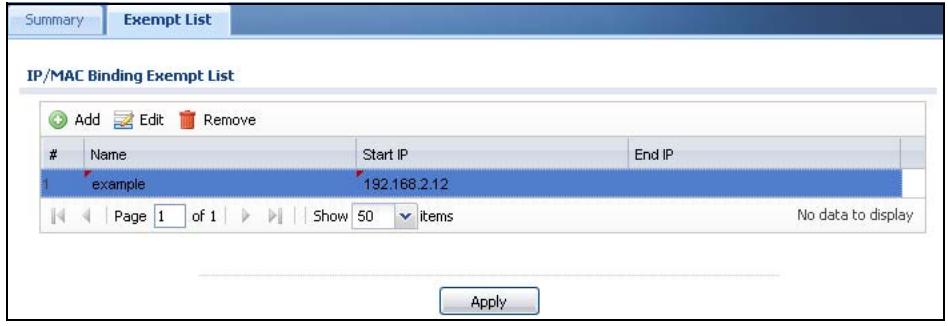
Figure 220 Configuration > Network > IP/MAC Binding > Exempt List
The following table describes the labels in this screen.
Table 102 Configuration > Network > IP/MAC Binding > Exempt List
| LABEL | DESCRIPTION |
| Add | Click this to create a new entry. |
| Edit | Click an entry or select it and click Edit to modify the entry's settings. |
| Remove | To remove an entry, select it and click Remove. The ZyWALL confirms you want to remove it before doing so. |
| # | This is the index number of the IP/MAC binding list entry. |
| Name | Enter a name to help identify this entry. |
| Start IP | Enter the first IP address in a range of IP addresses for which the ZyWALL does not apply IP/MAC binding. |
| End IP | Enter the last IP address in a range of IP addresses for which the ZyWALL does not apply IP/MAC binding. |
| Add icon | Click the Add icon to add a new entry. Click the Remove icon to delete an entry. A window displays asking you to confirm that you want to delete it. |
| Apply | Click Apply to save your changes back to the ZyWALL. |
Authentication Policy
21.1 Overview
Use authentication policies to control who can access the network. You can authenticate users (require them to log in) and even perform Endpoint Security (EPS) checking to make sure users' computers comply with defined corporate policies before they can access the network. After a user passes authentication the user's computer must meet the endpoint security object's Operating System (OS) option and security requirements to gain access. See Chapter 42 on page 621 for how to configure endpoint security objects to use with authentication policies.
In the following figure the ZyWALL's authentication policy requires endpoint security checking on local user A. A passes authentication and the endpoint security check and is given access. Local user B passes authentication but fails the endpoint security check and is denied access.
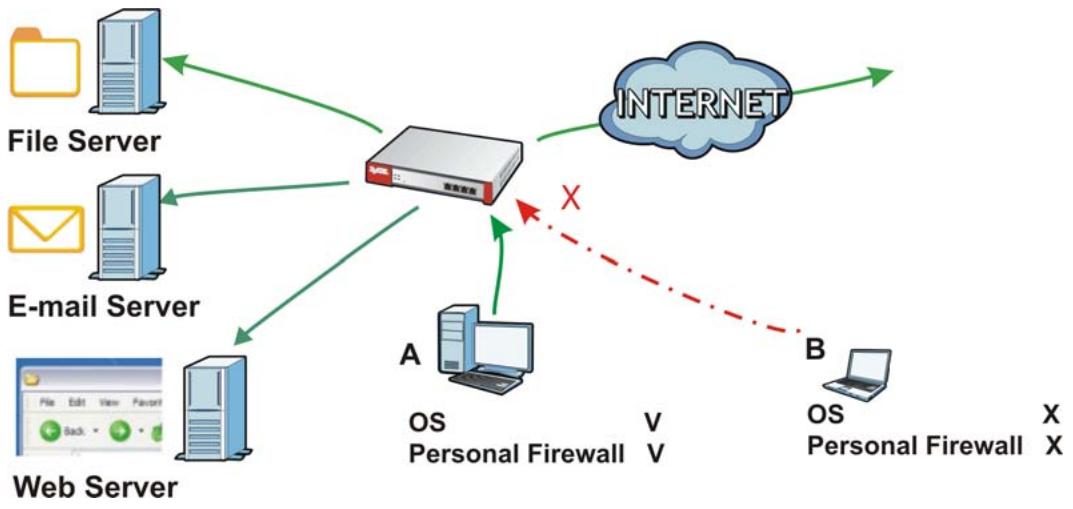
Figure 221 Authentication Policy Using Endpoint Security
21.1.1 What You Can Do in this Chapter
Use the Configuration > Auth. Policy screens (Section 21.2 on page 366) to create and manage authentication policies.
21.1.2 What You Need to Know
Authentication Policy and VPN
Authentication policies are applied based on a traffic flow's source and destination IP addresses. If VPN traffic matches an authentication policy's source and destination IP addresses, the user must pass authentication.
Multiple Endpoint Security Objects
You can set an authentication policy to use multiple endpoint security objects. This allows checking of computers with different OSs or security settings. When a client attempts to log in, the ZyWALL checks the client's computer against the endpoint security objects one-by-one. The client's computer must match one of the authentication policy's endpoint security objects in order to gain access.
Forced User Authentication
Instead of making users for which user-aware policies have been configured go to the ZyWALL Login screen manually, you can configure the ZyWALL to display the Login screen automatically whenever it routes HTTP traffic for anyone who has not logged in yet.
Note: This works with HTTP traffic only. The ZyWALL does display the Login screen when users attempt to send other kinds of traffic.
The ZyWALL does not automatically route the request that prompted the login, however, so users have to make this request again.
Finding Out More
See Section 7.7 on page 126 for an example of how to use endpoint security and authentication policies.
21.2 Authentication Policy Screen
The Authentication Policy screen displays the authentication policies you have configured on the ZyWALL.
Click Configuration > Auth. Policy to display the screen.
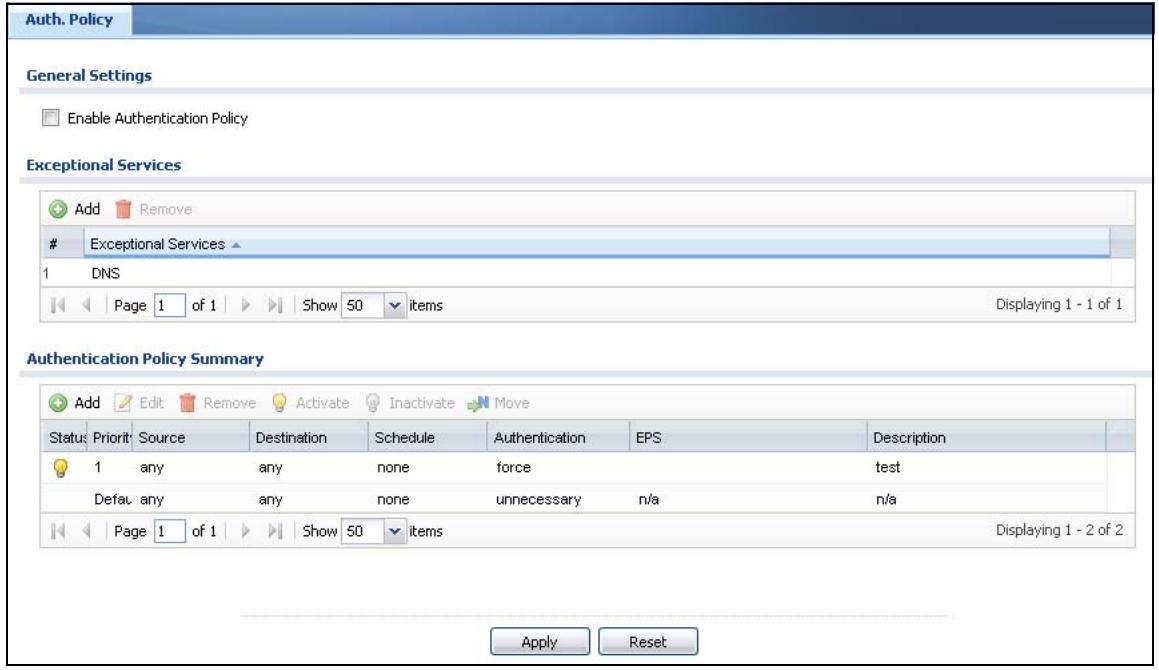
Figure 222 Configuration >Auth. Policy
The following table gives an overview of the objects you can configure.
Table 103 Configuration >Auth. Policy
| LABEL | DESCRIPTION |
| EnableAuthenticationPolicy | Select this to turn on the authentication policy feature. |
| ExceptionalServices | Use this table to list services that users can access without logging in. Click Add to change the list's membership. A screen appears. Available services appear on the left. Select any services you want users to be able to access without logging in and click the right arrow button to add them. The member services are the right. Select any service that you want to remove from the member list, and click the left arrow button to remove them. Keeping DNS as a member allows users' computers to resolve domain names into IP addresses. Figure 223 Configuration >Auth. Policy >Add Exceptional Service |
| Edit Exceptional Services List Available === Object Member === Group ? AH ANY_TCP ANY_UID ? BGP BOOTP_CLIENT BootP_SERVER CU_SEEME.tcp1 OK Cancel | |
| In the table, select one or more entries and click Remove to delete it or them. | |
| AuthenticationPolicySummary | Use this table to manage the ZyWALL's list of authentication policies. |
| Add | Click this to create a new entry. Select an entry and click Add to create a new entry after the selected entry. |
| Edit | Double-click an entry or select it and click Edit to open a screen where you can modify the entry's settings. |
| Remove | To remove an entry, select it and click Remove. The ZyWALL confirms you want to remove it before doing so. |
| Activate | To turn on an entry, select it and click Activate. |
| Inactivate | To turn off an entry, select it and click Inactivate. |
| Move | To move an entry to a different number in the list, click the Move icon. In the field that appears, specify the number to which you want to move the interface. |
| Status | This icon is lit when the entry is active and dimmed when the entry is inactive. |
| Priority | This is the position of the authentication policy in the list. The priority is important as the policies are applied in order of priority. Default displays for the default authentication policy that the ZyWALL uses on traffic that does not match any exceptional service or other authentication policy. You can edit the default rule but not delete it. |
| Source | This displays the source address object to which this policy applies. |
| Destination | This displays the destination address object to which this policy applies. |
| Schedule | This field displays the schedule object that dictates when the policy applies. none means the policy is active at all times if enabled. |
| Authentication | This field displays the authentication requirement for users when their traffic matches this policy. This is n/a for the default policy. unnecessary - Users do not need to be authenticated. required - Users need to be authenticated. They must manually go to the login screen. The ZyWALL will not redirect them to the login screen. force - Users need to be authenticated. The ZyWALL automatically displays the login screen whenever it routes HTTP traffic for users who have not logged in yet. |
| EPS | This lists any endpoint security objects the policy uses. |
| Description | If the entry has a description configured, it displays here. |
| Apply | Click this button to save your changes to the ZyWALL. |
| Reset | Click this button to return the screen to its last-saved settings. |
21.2.1 Creating/Editing an Authentication Policy
Click Configuration > Auth. Policy and then the Add (or Edit) icon to open the Endpoint Security Edit screen. Use this screen to configure an authentication policy.
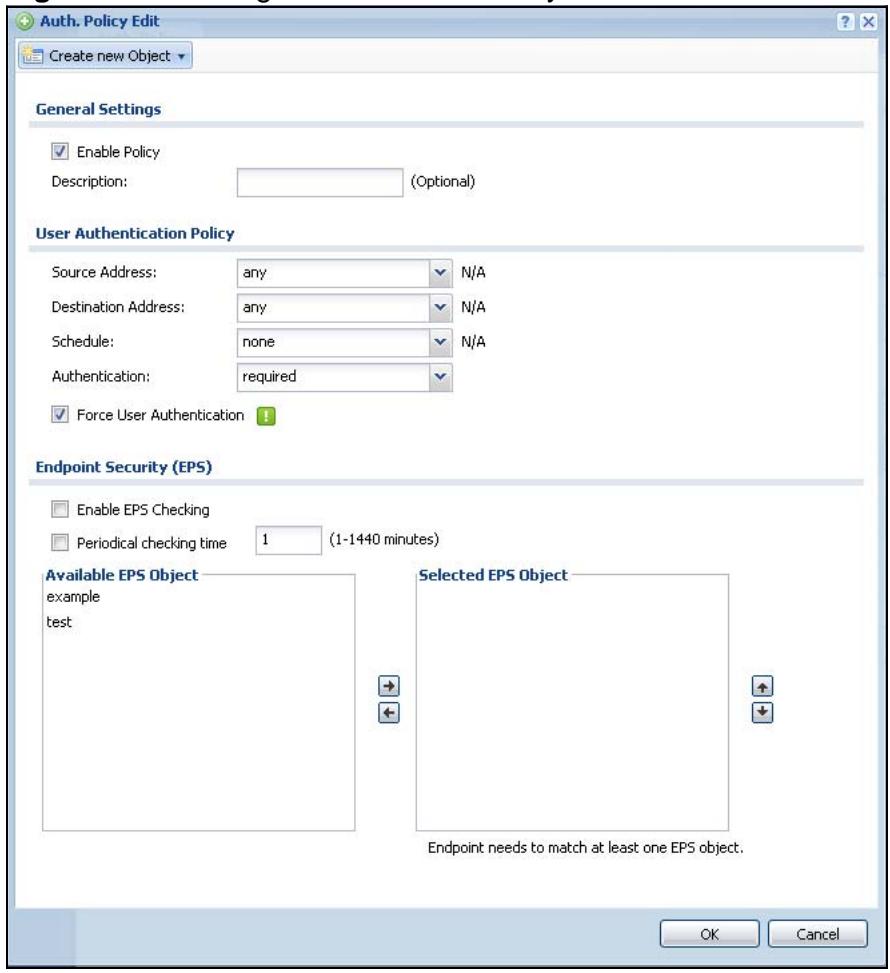
Figure 224 Configuration >Auth. Policy >Add
The following table gives an overview of the objects you can configure.
Table 104 Configuration >Auth. Policy >Add
| LABEL | DESCRIPTION |
| Create new Object | Use to configure any new settings objects that you need to use in this screen. |
| Enable Policy | Select this check box to activate the authentication policy. This field is available for user-configured policies. |
| Description | Enter a descriptive name of up to 60 printable ASCII characters for the policy. Spaces are allowed. This field is available for user-configured policies. |
| User Authentication Policy | Use this section of the screen to determine which traffic requires (or does not require) the senders to be authenticated in order to be routed. |
| Source Address | Select a source address or address group for whom this policy applies. Select any if the policy is effective for every source. This is any and not configurable for the default policy. |
| Destination Address | Select a destination address or address group for whom this policy applies. Select any if the policy is effective for every destination. This is any and not configurable for the default policy. |
| Schedule | Select a schedule that defines when the policy applies. Otherwise, select none and the rule is always effective. This is none and not configurable for the default policy. |
| Authentication | Select the authentication requirement for users when their traffic matches this policy. unnecessary - Users do not need to be authenticated. required - Users need to be authenticated. They must manually go to the login screen. The ZyWALL will not redirect them to the login screen. |
| Log | This field is available for the default policy. Select whether to have the ZyWALL generate a log (log), log and alert (log alert) or not (no) for packets that match the default policy. See Chapter 44 on page 679 for more on logs. |
| Force User Authentication | This field is available for user-configured policies that require authentication. Select this to have the ZyWALL automatically display the login screen when users who have not logged in yet try to send HTTP traffic. |
| Endpoint Security (EPS) | These fields display when you set the Authentication field to required. Use these fields to make sure users' computers meet an endpoint security object's Operating System (OS) and security requirements before granting access. These fields are available for user-configured policies that require authentication. |
| Enable EPS Checking | Select this to have the ZyWALL check that users' computers meet the Operating System (OS) and security requirements of one of the policy's selected endpoint security objects before granting access. |
| Periodical checking time | Select this and specify a number of minutes to have the ZyWALL repeat the endpoint security check at a regular interval. |
| Available EPS Object / Selected EPS Object | Configured endpoint security objects appear on the left. Select the endpoint security objects to use for this policy and click the right arrow button to add them to the selected list on the right. Use the [Shift] and/or [Ctrl] key to select multiple objects. Select any endpoint security objects that you want to remove from the selected list and click the left arrow button to remove them. The ZyWALL checks authenticated users' computers against the policy's selected endpoint security objects in the order you list them here. When a user's computer matches an endpoint security object the ZyWALL grants access and stops checking. Select an endpoint security object and use the up and down arrows to change it's position in the list. To make the endpoint security check as efficient as possible, arrange the endpoint security objects in order with the one that the most users should match first and the one that the least user's should match last. |
| OK | Click OK to save your changes back to the ZyWALL. |
| Cancel | Click Cancel to exit this screen without saving. |
22.1 Overview
Use the firewall to block or allow services that use static port numbers. The firewall can also limit the number of user sessions.
This figure shows the ZyWALL's default firewall rules in action and demonstrates how stateful inspection works. User 1 can initiate a Telnet session from within the LAN1 zone and responses to this request are allowed. However, other Telnet traffic initiated from the WAN or DMZ zone and destined for the LAN1 zone is blocked. Communications between the WAN and the DMZ zones are allowed. The firewall allows VPN traffic between any of the networks.
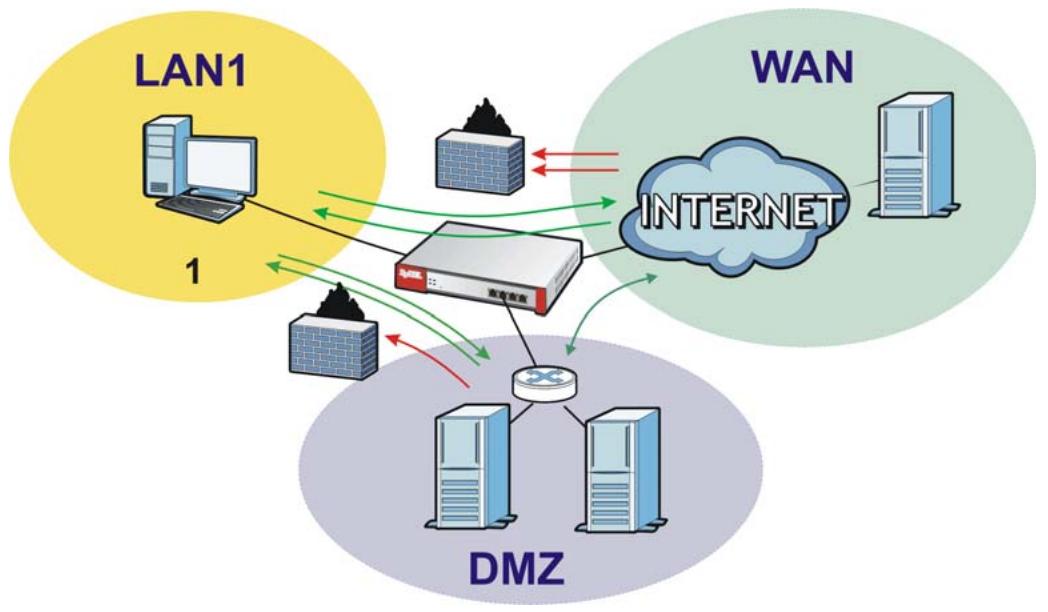
Figure 225 Default Firewall Action
22.1.1 What You Can Do in this Chapter
- Use the Firewall screens (Section 22.2 on page 381) to enable or disable the firewall and asymmetrical routes, and manage and configure firewall rules.
- Use the Session Limit screens (see Section 22.3 on page 386) to limit the number of concurrent NAT/firewall sessions a client can use.
22.1.2 What You Need to Know
Stateful Inspection
The ZyWALL has a stateful inspection firewall. The ZyWALL restricts access by screening data packets against defined access rules. It also inspects sessions. For example, traffic from one zone is not allowed unless it is initiated by a computer in another zone first.
Zones
A zone is a group of interfaces or VPN tunnels. Group the ZyWALL's interfaces into different zones based on your needs. You can configure firewall rules for data passing between zones or even between interfaces and/or VPN tunnels in a zone.
Default Firewall Behavior
Firewall rules are grouped based on the direction of travel of packets to which they apply. Here is the default firewall behavior for traffic going through the ZyWALL in various directions.
Table 105 Default Firewall Behavior
| FROM ZONE TO ZONE | BEHAVIOR |
| From WAN to ZyWALL | Traffic from the WAN to the ZyWALL itself is allowed for certain default services described in To-ZyWALL Rules on page 375. All other WAN to ZyWALL traffic is dropped. |
| From WAN to any (other than the ZyWALL) | Traffic from the WAN to any of the networks behind the ZyWALL is dropped. |
| From DMZ to ZyWALL | Traffic from the DMZ to the ZyWALL itself is allowed for certain default services described in To-ZyWALL Rules on page 375. All other DMZ to ZyWALL traffic is dropped. |
| From DMZ to any (other than the ZyWALL) | Traffic from the DMZ to any of the networks behind the ZyWALL is dropped. |
| From WLAN to WAN (USG 20W) | Traffic from the WLAN to the WAN is allowed. |
| From WLAN to ZyWALL (USG 20W) | Traffic from the WLAN to the ZyWALL itself is allowed for certain default services described in To-ZyWALL Rules on page 375. All other WLAN to ZyWALL traffic is dropped. |
| From WLAN to any (other than the ZyWALL) (USG 20W) | Traffic from the WLAN to any of the networks behind the ZyWALL is dropped. |
| From ANY to ANY | Traffic that does not match any firewall rule is allowed. So for example, LAN to WAN, LAN to DMZ, and LAN to WLAN traffic is allowed. This also includes traffic to or from interfaces or VPN tunnels that are not assigned to a zone (extra-zone traffic). |
To-ZyWALL Rules
Rules with ZyWALL as the To Zone apply to traffic going to the ZyWALL itself. By default:
- The firewall allows only LAN, WLAN (USG 20W), or WAN computers to access or manage the ZyWALL.
- The ZyWALL drops most packets from the WAN zone to the ZyWALL itself, except for ESP/AH/IKE/NATT/HTTPS services for VPN tunnels, and generates a log.
- The ZyWALL drops most packets from the DMZ zone to the ZyWALL itself, except for DNS and NetBIOS traffic, and generates a log.
When you configure a firewall rule for packets destined for the ZyWALL itself, make sure it does not conflict with your service control rule. See Chapter 43 on page 629 for more information about service control (remote management). The ZyWALL checks the firewall rules before the service control rules for traffic destined for the ZyWALL.
You can configure a To-ZyWALL firewall rule (with From Any To ZyWALL direction) for traffic from an interface which is not in a zone.
Global Firewall Rules
Firewall rules with from any and/or to any as the packet direction are called global firewall rules. The global firewall rules are the only firewall rules that apply to an interface or VPN tunnel that is not included in a zone. The from any rules apply to traffic coming from the interface and the to any rules apply to traffic going to the interface.
Firewall Rule Criteria
The ZyWALL checks the schedule, user name (user's login name on the ZyWALL), source IP address, destination IP address and IP protocol type of network traffic against the firewall rules (in the order you list them). When the traffic matches a rule, the ZyWALL takes the action specified in the rule.
User Specific Firewall Rules
You can specify users or user groups in firewall rules. For example, to allow a specific user from any computer to access a zone by logging in to the ZyWALL, you can set up a rule based on the user name only. If you also apply a schedule to the firewall rule, the user can only access the network at the scheduled time. A user-aware firewall rule is activated whenever the user logs in to the ZyWALL and will be disabled after the user logs out of the ZyWALL.
Firewall and VPN Traffic
After you create a VPN tunnel and add it to a zone, you can set the firewall rules applied to VPN traffic. If you add a VPN tunnel to an existing zone (the LAN1 zone for example), you can configure a new LAN1 to LAN1 firewall rule or use intrazone traffic blocking to allow or block VPN traffic transmitting between the VPN tunnel and other interfaces in the LAN zone. If you add the VPN tunnel to a new zone (the VPN zone for example), you can configure rules for VPN traffic between the VPN zone and other zones or From VPN To-ZyWALL rules for VPN traffic destined for the ZyWALL.
Session Limits
Accessing the ZyWALL or network resources through the ZyWALL requires a NAT session and corresponding firewall session. Peer to peer applications, such as file sharing applications, may use a large number of NAT sessions. A single client could use all of the available NAT sessions and prevent others from connecting to or through the ZyWALL. The ZyWALL lets you limit the number of concurrent NAT/ firewall sessions a client can use.
Finding Out More
- See Section 6.5.13 on page 100 for related information on the Firewall screens.
- See Section 7.8 on page 129 for an example of creating firewall rules as part of configuring user-aware access control (Section 7.5 on page 120).
- See Section 7.9.3 on page 135 for an example of creating a firewall rule to allow H.323 traffic from the WAN to the LAN.
- See Section 7.10.3 on page 138 for an example of creating a firewall rule to allow web traffic from the WAN to a server on the DMZ.
- See Section 7.11.4 on page 143 for an example of creating firewall rules to allow SIP traffic for an IPPBX or SIP server on the DMZ.
22.1.3 Firewall Rule Example Applications
Suppose that your company decides to block all of the LAN users from using IRC (Internet Relay Chat) through the Internet. To do this, you would configure a LAN to WAN firewall rule that blocks IRC traffic from any source IP address from going to any destination address. You do not need to specify a schedule since you need
the firewall rule to always be in effect. The following figure shows the results of this rule.
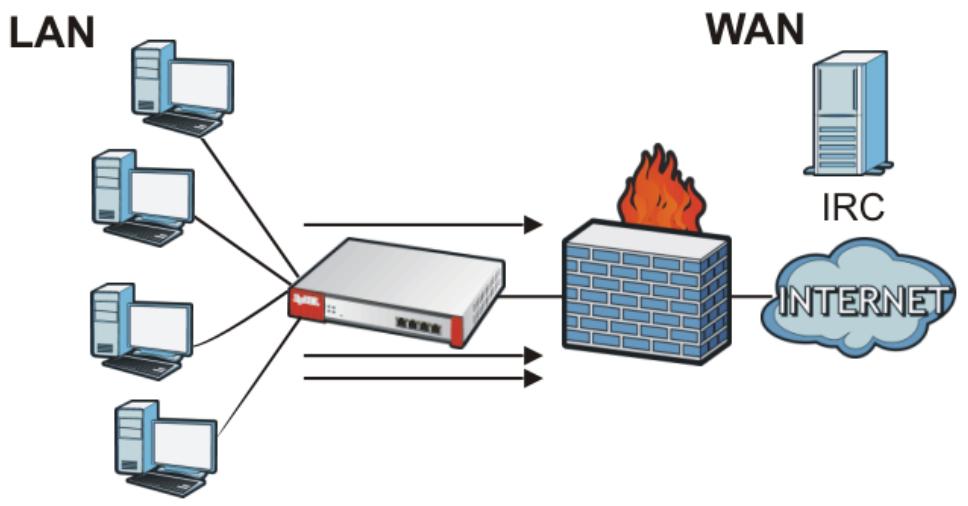
Figure 226 Blocking All LAN to WAN IRC Traffic Example
Your firewallwould have the following rules.
Table 106 Blocking All LAN to WAN IRC Traffic Example
| # | USER | SOURCE | DESTINATION | SCHEDULE | SERVICE | ACTION |
| 1 | Any | Any | Any | Any | IRC | Deny |
| 2 | Any | Any | Any | Any | Any | Allow |
- The first row blocks LAN access to the IRC service on the WAN.
- The second row is the firewall's default policy that allows all LAN1 to WAN traffic.
The ZyWALL applies the firewall rules in order. So for this example, when the ZyWALL receives traffic from the LAN, it checks it against the first rule. If the traffic matches (if it is IRC traffic) the firewall takes the action in the rule (drop) and stops checking the firewall rules. Any traffic that does not match the first firewall rule will match the second rule and the ZyWALL forwards it.
Now suppose that your company wants to let the CEO use IRC. You can configure a LAN1 to WAN firewall rule that allows IRC traffic from the IP address of the CEO's computer. You can also configure a LAN to WAN rule that allows IRC traffic from any computer through which the CEO logs into the ZyWALL with his/her user name. In order to make sure that the CEO's computer always uses the same IP address, make sure it either:
- Has a static IP address,
or
- You configure a static DHCP entry for it so the ZyWALL always assigns it the same IP address (see DHCP Settings on page 286 for information on DHCP).
Now you configure a LAN1 to WAN firewall rule that allows IRC traffic from the IP address of the CEO's computer (192.168.1.7 for example) to go to any destination address. You do not need to specify a schedule since you want the firewall rule to always be in effect. The following figure shows the results of your two custom rules.
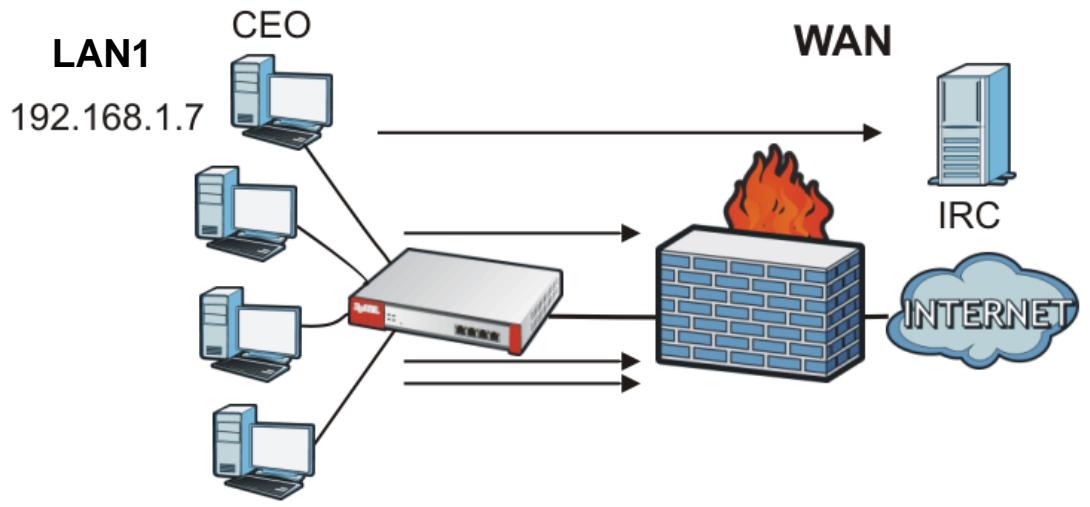
Figure 227 Limited LAN to WAN IRC Traffic Example
Your firewallwould have the following configuration.
Table 107 Limited LAN1 to WAN IRC Traffic Example 1
| # | USER | SOURCE | DESTINATION | SCHEDULE | SERVICE | ACTION |
| 1 | Any | 192.168.1.7 | Any | Any | IRC | Allow |
| 2 | Any | Any | Any | Any | IRC | Deny |
| 3 | Any | Any | Any | Any | Any | Allow |
- The first row allows the LAN1 computer at IP address 192.168.1.7 to access the IRC service on the WAN.
- The second row blocks LAN1 access to the IRC service on the WAN.
- The third row is the firewall's default policy of allowing all traffic from the LAN1 to go to the WAN.
Alternatively, you configure a LAN1 to WAN rule with the CEO's user name (say CEO) to allow IRC traffic from any source IP address to go to any destination address.
Your firewallwould have the following configuration.
Table 108 Limited LAN1 to WAN IRC Traffic Example 2
| # | USER | SOURCE | DESTINATION | SCHEDULE | SERVICE | ACTION |
| 1 | CEO | Any | Any | Any | IRC | Allow |
| 2 | Any | Any | Any | Any | IRC | Deny |
| 3 | Any | Any | Any | Any | Any | Allow |
- The first row allows any LAN1 computer to access the IRC service on the WAN by logging into the ZyWALL with the CEO's user name.
- The second row blocks LAN1 access to the IRC service on the WAN.
- The third row is the firewall's default policy of allowing all traffic from the LAN1 to go to the WAN.
The rule for the CEO must come before the rule that blocks all LAN1 to WAN IRC traffic. If the rule that blocks all LAN1 to WAN IRC traffic came first, the CEO's IRC traffic would match that rule and the ZyWALL would drop it and not check any other firewall rules.
22.1.4 Firewall Rule Configuration Example
The following Internet firewall rule example allows Doom players from the WAN to IP addresses 192.168.1.10 through 192.168.1.15 (Dest_1) on the LAN1.
1 Click Configuration > Firewall. In the summary of firewall rules click Add in the heading row to configure a new first entry. Remember the sequence (priority) of the rules is important since they are applied in order.
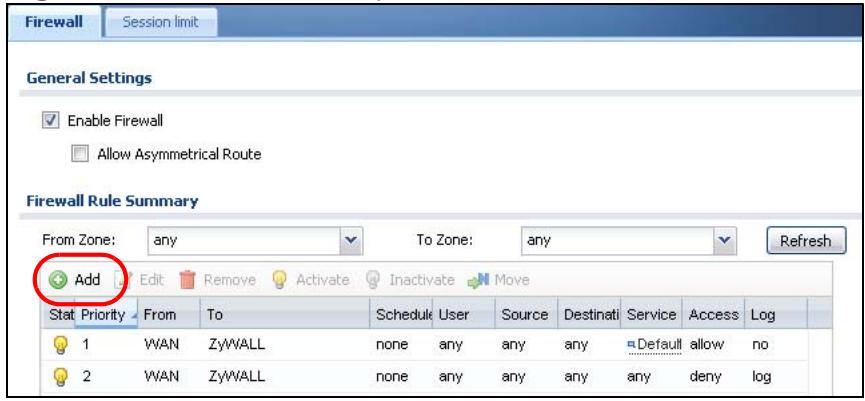
Figure 228 Firewall Example: Firewall Screen
2 At the top of the screen, click Create new Object > Address.
3 The screen for configuring an address object opens. Configure it as follows and click OK.
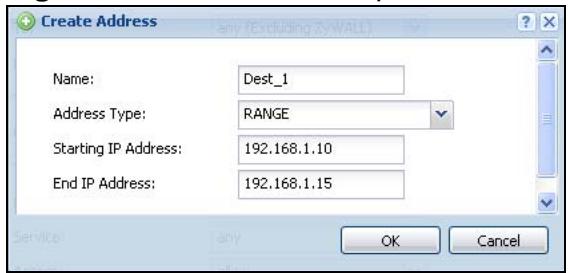
Figure 229 Firewall Example: Create an Address Object
4 Click Create new Object > Service.
5 The screen for configuring a service object opens. Configure it as follows and click OK.
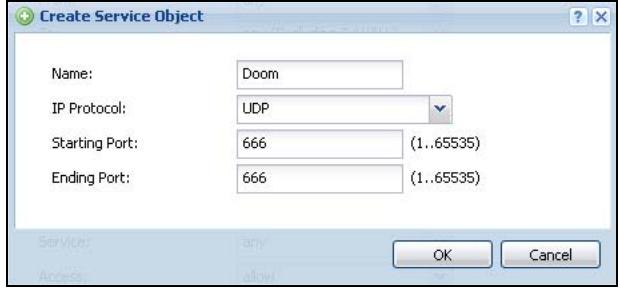
Figure 230 Firewall Example: Create a Service Object
6 Select From WAN and To LAN1.
7 Enter the name of the firewall rule.
8 Select Dest_1 is selected for the Destination and Doom is selected as the Service. Enter a description and configure the rest of the screen as follows. Click OK when you are done.
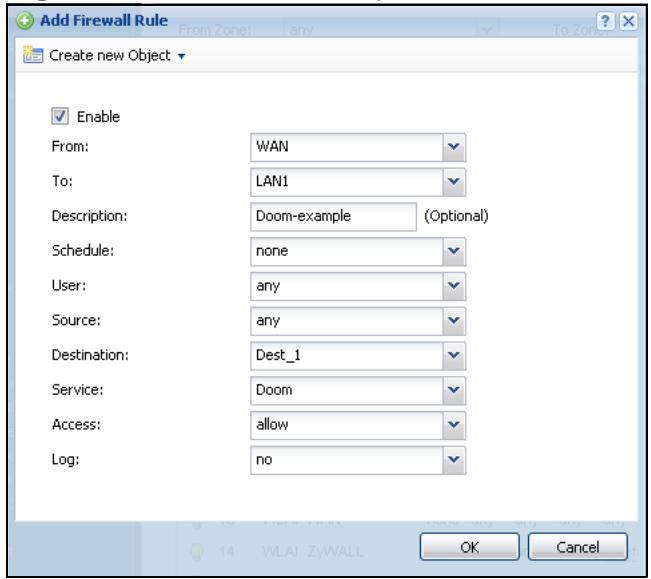
Figure 231 Firewall Example: Edit a Firewall Rule
9 The firewall rule appears in the firewall rule summary.
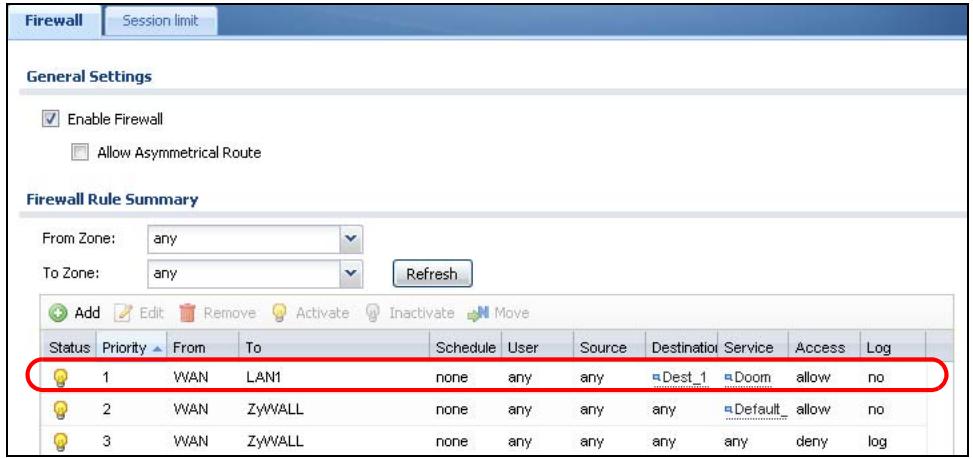
Figure 232 Firewall Example: Doom Rule in Summary
22.2 The Firewall Screen
Asymmetrical Routes
If an alternate gateway on the LAN has an IP address in the same subnet as the ZyWALL's LAN IP address, return traffic may not go through the ZyWALL. This is called an asymmetrical or "triangle" route. This causes the ZyWALL to reset the connection, as the connection has not been acknowledged.
You can have the ZyWALL permit the use of asymmetrical route topology on the network (not reset the connection). However, allowing asymmetrical routes may let traffic from the WAN go directly to the LAN without passing through the ZyWALL. A better solution is to use virtual interfaces to put the ZyWALL and the backup gateway on separate subnets. Virtual interfaces allow you to partition your network into logical sections over the same interface. See the chapter about interfaces for more information.
By putting LAN 1 and the alternate gateway (A in the figure) in different subnets, all returning network traffic must pass through the ZyWALL to the LAN. The following steps and figure describe such a scenario.
1 A computer on the LAN1 initiates a connection by sending a SYN packet to a receiving server on the WAN.
2 The ZyWALL reroutes the packet to gateway A , which is in Subnet 2.
3 The reply from the WAN goes to the ZyWALL.
4 The ZyWALL then sends it to the computer on the LAN1 in Subnet 1.
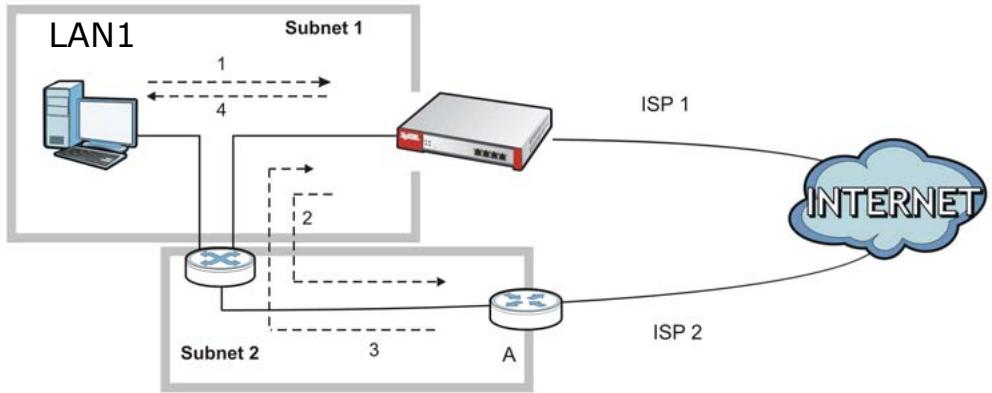
Figure 233 Using Virtual Interfaces to Avoid Asymmetrical Routes
22.2.1 Configuring the Firewall Screen
Click Configuration > Firewall to open the Firewall screen. Use this screen to enable or disable the firewall and asymmetrical routes, set a maximum number of sessions per host, and display the configured firewall rules. Specify from which zone packets come and to which zone packets travel to display only the rules specific to the selected direction. Note the following.
- If you enable intra-zone traffic blocking (see the chapter about zones), the firewall automatically creates (implicit) rules to deny packet passage between the interfaces in the specified zone.
- Besides configuring the firewall, you also need to configure NAT rules to allow computers on the WAN to access LAN devices. See Chapter 17 on page 337 for more information.
-
The ZyWALL applies NAT (Destination NAT) settings before applying the firewall rules. So for example, if you configure a NAT entry that sends WAN traffic to a LAN IP address, when you configure a corresponding firewall rule to allow the traffic, you need to set the LAN IP address as the destination. See Section 7.9 on page 132 for an example.
-
The ordering of your rules is very important as rules are applied in sequence.
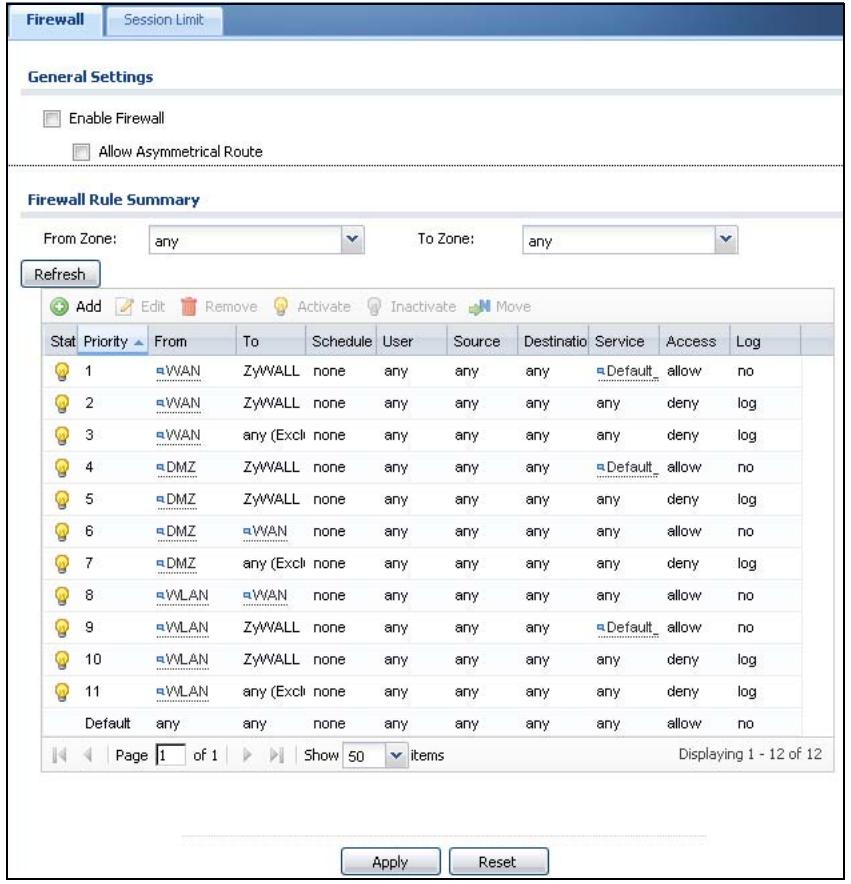
Figure 234 Configuration > Firewall (USG 20W)
The following table describes the labels in this screen.
Table 109 Configuration > Firewall
| LABEL | DESCRIPTION |
| General Settings | |
| Enable Firewall | Select this check box to activate the firewall. TheZyWALLperforms access control when the firewall is activated. |
| Allow Asymmetrical Route | If an alternate gateway on the LAN has an IP address in the same subnet as theZyWALL's LAN IP address, return traffic may not go through theZyWALL. This is called an asymmetrical or "triangle" route. This causes theZyWALLto reset the connection, as the connection has not been acknowledged. Select this check box to have theZyWALLpermit the use of asymmetrical route topology on the network (not reset the connection). Note: Allowing asymmetrical routes may let traffic from the WAN go directly to the LAN without passing through theZyWALL. A better solution is to use virtual interfaces to put theZyWALL and the backup gateway on separate subnets. |
| Firewall Rule Summary | |
| From Zone / To Zone | This is the direction of travel of packets. Select from which zone the packets come and to which zone they go.Firewall rules are grouped based on the direction of travel of packets to which they apply. For example, from LAN1 to LAN1 means packets traveling from a computer or subnet on the LAN to either another computer or subnet on the LAN1.From any displays all the firewall rules for traffic going to the selected To Zone.To any displays all the firewall rules for traffic coming from the selected From Zone.From any to any displays all of the firewall rules.To ZyWALL rules are for traffic that is destined for the ZyWALL and control which computers can manage the ZyWALL. |
| Add | Click this to create a new entry. Select an entry and click Add to create a new entry after the selected entry. |
| Edit | Double-click an entry or select it and click Edit to open a screen where you can modify the entry's settings. |
| Remove | To remove an entry, select it and click Remove. The ZyWALL confirms you want to remove it before doing so. |
| Activate | To turn on an entry, select it and click Activate. |
| Inactivate | To turn off an entry, select it and click Inactivate. |
| Move | To change a rule's position in the numbered list, select the rule and click Move to display a field to type a number for where you want to put that rule and press [ENTER] to move the rule to the number that you typed.The ordering of your rules is important as they are applied in order of their numbering. |
| The following read-only fields summarize the rules you have created that apply to traffic traveling in the selected packet direction. | |
| Status | This icon is lit when the entry is active and dimmed when the entry is inactive. |
| Priority | This is the position of your firewall rule in the global rule list (including all through-ZyWALL and to-ZyWALL rules). The ordering of your rules is important as rules are applied in sequence. Default displays for the default firewall behavior that the ZyWALL performs on traffic that does not match any other firewall rule. |
| From To | This is the direction of travel of packets to which the firewall rule applies. |
| Schedule | This field tells you the schedule object that the rule uses. none means the rule is active at all times if enabled. |
| User | This is the user name or user group name to which this firewall rule applies. |
| Source | This displays the source address object to which this firewall rule applies. |
| Destination | This displays the destination address object to which this firewall rule applies. |
| Service | This displays the service object to which this firewall rule applies. |
| Access | This field displays whether the firewall silently discards packets (deny), discards packets and sends a TCP reset packet to the sender (reject) or permits the passage of packets (allow). |
| Log | This field shows you whether a log (and alert) is created when packets match this rule or not. |
| Apply | Click Apply to save your changes back to the ZyWALL. |
| Reset | Click Reset to return the screen to its last-saved settings. |
22.2.2 The Firewall Add/Edit Screen
In the Firewall screen, click the Edit or Add icon to display the Firewall Rule Edit screen.
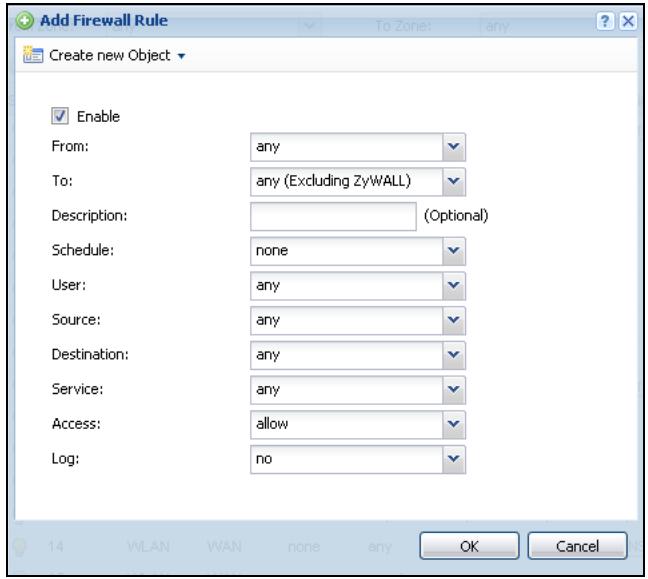
Figure 235 Configuration > Firewall > Add
The following table describes the labels in this screen.
Table 110 Configuration > Firewall > Add
| LABEL | DESCRIPTION |
| Create new Object | Use to configure any new settings objects that you need to use in this screen. |
| Enable | Select this check box to activate the firewall rule. |
| From To | For through-ZyWALL rules, select the direction of travel of packets to which the rule applies.any means all interfaces or VPN tunnels.ZyWALL means packets destined for the ZyWALL itself. |
| Description | Enter a descriptive name of up to 60 printable ASCII characters for the firewall rule. Spaces are allowed. |
| Schedule | Select a schedule that defines when the rule applies. Otherwise, selectnone and the rule is always effective. |
| User | This field is not available when you are configuring a to-ZyWALL rule-select a user name or user group to which to apply the rule. The firewall rule is activated only when the specified user logs into the system andthe rule will be disabled when the user logs out.Otherwise, select any and there is no need for user logging.Note: If you specified a source IP address (group) instead of any inthe field below, the user's IP address should be within the IPaddress range. |
| Source | Select a source address or address group for whom this rule applies.Select any if the policy is effective for every source. |
| Destination | Select a destination address or address group for whom this ruleapplies. Select any if the policy is effective for every destination. |
| Service | Select a service or service group from the drop-down list box. |
| Access | Use the drop-down list box to select what the firewall is to do withpackets that match this ruleSEX deny to silently discard the packets without sending a TCP resetpacket or an ICMP destination-unreachable message to the sender.Select reject to deny the packets and send a TCP reset packet to thesender. Any UDP packets are dropped without sending a responsepacket.Select allow to permit the passage of the packets. |
| Log | Select whether to have the ZyWALL generate a log (log), log and alert(log alert) or not (no) when the rule is matched. See Chapter 44 onpage 679 for more on logs. |
| OK | Click OK to save your customized settings and exit this screen. |
| Cancel | Click Cancel to exit this screen without saving. |
22.3 The Session Limit Screen
Click Configuration > Firewall > Session Limit to display the Firewall Session Limit screen. Use this screen to limit the number of concurrent NAT/ firewall sessions a client can use. You can apply a default limit for all users and
individual limits for specific users, addresses, or both. The individual limit takes priority if you apply both.
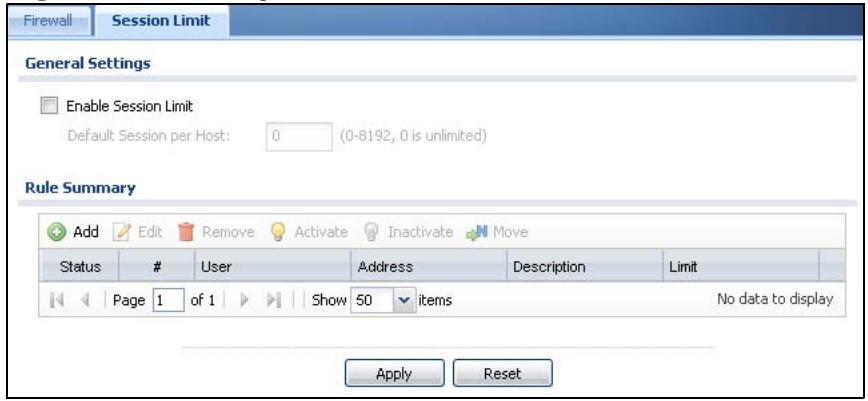
Figure 236 Configuration > Firewall > Session Limit
The following table describes the labels in this screen.
Table 111 Configuration > Firewall > Session Limit
| LABEL | DESCRIPTION |
| General Settings | |
| Enable Session limit | Select this check box to control the number of concurrent sessions hosts can have. |
| Default Session per Host | Use this field to set a common limit to the number of concurrent NAT/ firewall sessions each client computer can have.If only a few clients use peer to peer applications, you can raise this number to improve their performance. With heavy peer to peer application use, lower this number to ensure no single client uses too many of the available NAT sessions.Create rules below to apply other limits for specific users or addresses. |
| Rule Summary | This table lists the rules for limiting the number of concurrent sessions hosts can have. |
| Add | Click this to create a new entry. Select an entry and click Add to create a new entry after the selected entry. |
| Edit | Double-click an entry or select it and click Edit to open a screen where you can modify the entry's settings. |
| Remove | To remove an entry, select it and click Remove. The ZyWALL confirms you want to remove it before doing so. |
| Activate | To turn on an entry, select it and click Activate. |
| Inactivate | To turn off an entry, select it and click Inactivate. |
| Move | To change a rule's position in the numbered list, select the rule and click Move to display a field to type a number for where you want to put that rule and press [ENTER] to move the rule to the number that you typed.The ordering of your rules is important as they are applied in order of their numbering. |
| Status | This icon is lit when the entry is active and dimmed when the entry is inactive. |
| # | This is the index number of a session limit rule. It is not associated with a specific rule. |
| User | This is the user name or user group name to which this session limit rule applies. |
| Address | This is the address object to which this session limit rule applies. |
| Limit | This is how many concurrent sessions this user or address is allowed to have. |
| Apply | Click Apply to save your changes back to the ZyWALL. |
| Reset | Click Reset to return the screen to its last-saved settings. |
22.3.1 The Session Limit Add/Edit Screen
Click Configuration > Firewall > Session Limit and the Add or Edit icon to display the Firewall Session Limit Edit screen. Use this screen to configure rules that define a session limit for specific users or addresses.
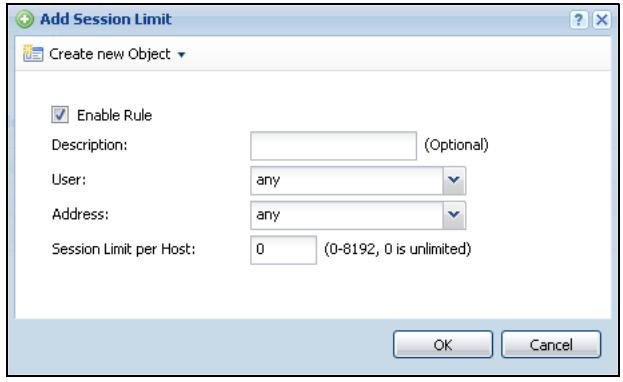
Figure 237 Configuration > Firewall > Session Limit > Edit
The following table describes the labels in this screen.
Table 112 Configuration > Firewall > Session Limit > Edit
| LABEL | DESCRIPTION |
| Create new Object | Use to configure any new settings objects that you need to use in this screen. |
| Enable Rule | Select this check box to turn on this session limit rule. |
| Description | Enter information to help you identify this rule. Use up to 64 printable ASCII characters. Spaces are allowed. |
| User | Select a user name or user group to which to apply the rule. The rule is activated only when the specified user logs into the system and the rule will be disabled when the user logs out. Otherwise, select any and there is no need for user logging. Note: If you specified an IP address (or address group) instead of any in the field below, the user's IP address should be within the IP address range. |
| Address | Select a source address or address group for whom this rule applies. Select any if the policy is effective for every source address. |
| Session Limit per Host | Use this field to set a limit to the number of concurrent NAT/firewall sessions this rule's users or addresses can have. For this rule's users and addresses, this setting overrides the Default Session per Host setting in the general Firewall Session Limit screen. |
| OK | Click OK to save your customized settings and exit this screen. |
| Cancel | Click Cancel to exit this screen without saving. |
23.1 IPSec VPN Overview
A virtual private network (VPN) provides secure communications between sites without the expense of leased site-to-site lines. A secure VPN is a combination of tunneling, encryption, authentication, access control and auditing. It is used to transport traffic over the Internet or any insecure network that uses TCP/IP for communication.
Internet Protocol Security (IPSec) is a standards-based VPN that offers flexible solutions for secure data communications across a public network like the Internet. IPSec is built around a number of standardized cryptographic techniques to provide confidentiality, data integrity and authentication at the IP layer. The following figure is an example of an IPSec VPN tunnel.
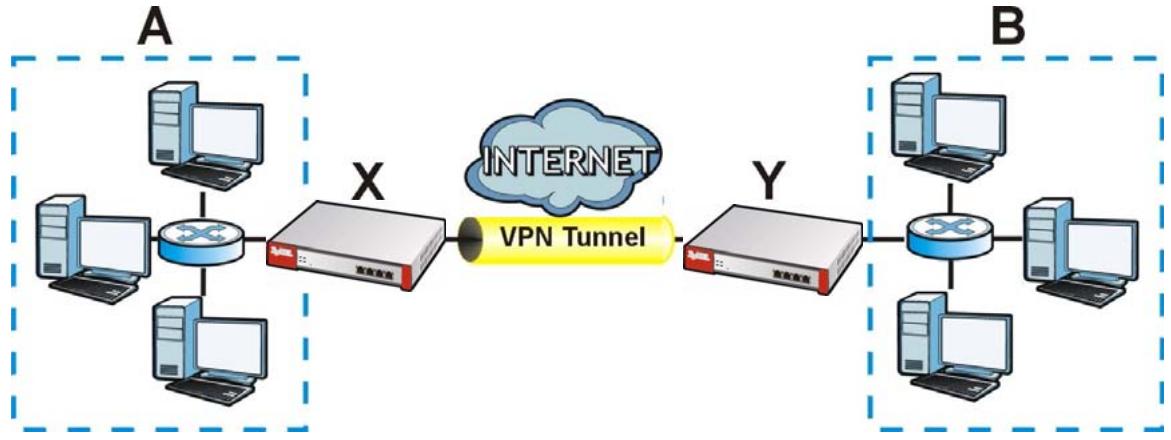
Figure 238 IPSec VPN Example
The VPN tunnel connects the ZyWALL (X) and the remote (peer) IPSec router (Y). These routers then connect the local network (A) and remote network (B).
23.1.1 What You Can Do in this Chapter
-
Use the VPN Connection screens (see Section 23.2 on page 394) to specify which VPN gateway a VPN connection policy uses and which devices (behind the IPSec routers) can use the VPN tunnel and the IPSec SA settings (phase 2 settings). You can also activate / deactivate and connect / disconnect each VPN connection (each IPSec SA).
-
Use the VPN Gateway screens (see Section 23.2.1 on page 396) to manage the ZyWALL's VPN gateways. A VPN gateway specifies the IPSec routers at either end of a VPN tunnel and the IKE SA settings (phase 1 settings). You can also activate and deactivate each VPN gateway.
23.1.2 What You Need to Know
An IPSec VPN tunnel is usually established in two phases. Each phase establishes a security association (SA), a contract indicating what security parameters the ZyWALL and the remote IPSec router will use. The first phase establishes an Internet Key Exchange (IKE) SA between the ZyWALL and remote IPSec router. The second phase uses the IKE SA to securely establish an IPSec SA through which the ZyWALL and remote IPSec router can send data between computers on the local network and remote network. This is illustrated in the following figure.
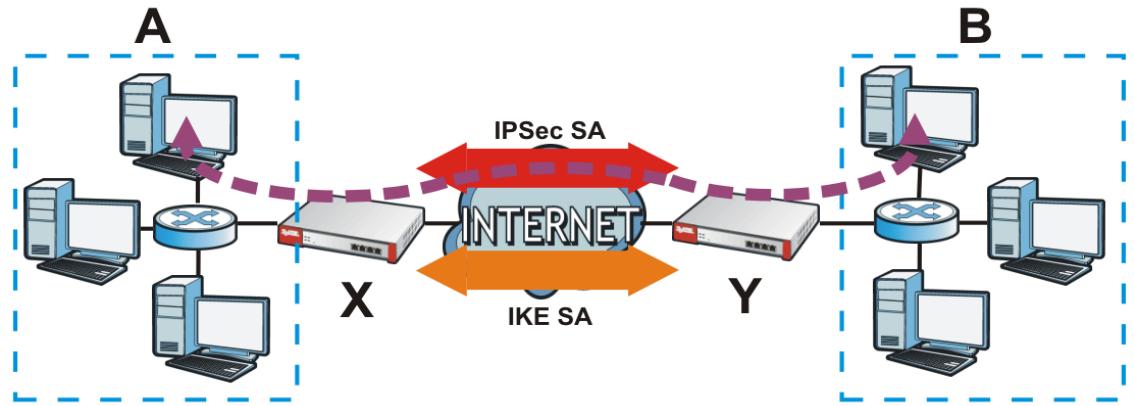
Figure 239 VPN: IKE SA and IPSec SA
In this example, a computer in network A is exchanging data with a computer in network B. Inside networks A and B, the data is transmitted the same way data is normally transmitted in the networks. Between routers X and Y, the data is protected by tunneling, encryption, authentication, and other security features of the IPSec SA. The IPSec SA is secure because routers X and Y established the IKE SA first.
Application Scenarios
The ZyWALL's application scenarios make it easier to configure your VPN connection settings.
Table 113 IPSec VPN Application Scenarios
| SITE-TO-SITE | SITE-TO-SITE WITH DYNAMIC PEER | REMOTE ACCESS (SERVER ROLE) | REMOTE ACCESS (CLIENT ROLE) |
| Static IP Static IP router can initiate the VPN tunnel. The remote IPSec router can also initiate the VPN tunnel if this ZyWALL has a static IP address or a domain name. | Dynamic IP Static IP router's address, but you specify the remote policy (the addresses of the devices behind the remote IPSec router). This ZyWALL must have a static IP address or a domain name. Only the remote IPSec router can initiate the VPN tunnel. | Choose this to allow incoming connections from IPSec VPN clients. The clients have dynamic IP addresses and are also known as dial-in users. You don't specify the addresses of the client IPSec routers or the remote policy. This creates a dynamic IPSec VPN rule that can let multiple clients connect. Only the clients can initiate the VPN tunnel. | Choose this to connect to an IPSec server. This ZyWALL is the client (dial-in user). Client role ZyWALLs initiate IPSec VPN connections to a server role ZyWALL. This ZyWALL can have a dynamic IP address. The IPSec server doesn't configure this ZyWALL's IP address or the addresses of the devices behind it. Only this ZyWALL can initiate the VPN tunnel. |
Finding Out More
- See Section 6.5.14 on page 101 for related information on these screens.
See Section 23.4 on page 415 for IPSec VPN background information.
- See Section 5.4 on page 76 for the IPSec VPN quick setup wizard.
- See Section 7.4 on page 116 for an example of configuring IPSec VPN.
23.1.3 Before You Begin
This section briefly explains the relationship between VPN tunnels and other features. It also gives some basic suggestions for troubleshooting.
You should set up the following features before you set up the VPN tunnel.
- In any VPN connection, you have to select address objects to specify the local policy and remote policy. You should set up the address objects first.
- In a VPN gateway, you can select an Ethernet interface, virtual Ethernet interface, VLAN interface, or virtual VLAN interface to specify what address the ZyWALL uses as its IP address when it establishes the IKE SA. You should set up the interface first. See Chapter 11 on page 217.
- In a VPN gateway, you can enable extended authentication. If the ZyWALL is in server mode, you should set up the authentication method (AAA server) first. The authentication method specifies how the ZyWALL authenticates the remote IPSec router. See Chapter 37 on page 573.
- In a VPN gateway, the ZyWALL and remote IPSec router can use certificates to authenticate each other. Make sure the ZyWALL and the remote IPSec router will trust each other's certificates. See Chapter 39 on page 589.
23.2 The VPN Connection Screen
Click Configuration > VPN > IPSec VPN to open the VPN Connection screen. The VPN Connection screen lists the VPN connection policies and their associated VPN gateway(s), and various settings. In addition, it also lets you activate / deactivate and connect / disconnect each VPN connection (each IPSec
SA). Click a column's heading cell to sort the table entries by that column's criteria. Click the heading cell again to reverse the sort order.
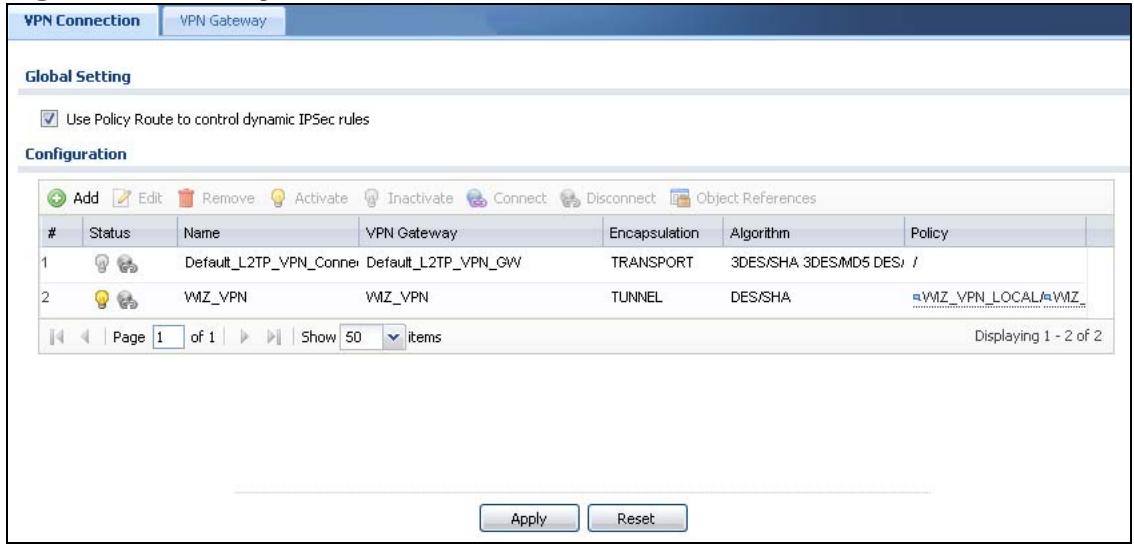
Figure 240 Configuration > VPN > IPSec VPN > VPN Connection
Each field is discussed in the following table. See Section 23.2.2 on page 403 and Section 23.2.1 on page 396 for more information.
Table 114 Configuration >VPN > IPSec VPN >VPN Connection
| LABEL | DESCRIPTION |
| Use Policy Route to control dynamic IPSec rules | Select this to be able to use policy routes to manually specify the destination addresses of dynamic IPSec rules. You must manually create these policy routes. The ZyWALL automatically obtains source and destination addresses for dynamic IPSec rules that do not match any of the policy routes.Clear this to have the ZyWALL automatically obtain source and destination addresses for all dynamic IPSec rules.See Section 6.4.1 on page 92 for how this option affects the routing table. |
| Add | Click this to create a new entry. |
| Edit | Double-click an entry or select it and click Edit to open a screen where you can modify the entry's settings. |
| Remove | To remove an entry, select it and click Remove. The ZyWALL confirms you want to remove it before doing so. |
| Activate | To turn on an entry, select it and click Activate. |
| Inactivate | To turn off an entry, select it and click Inactivate. |
| Connect | To connect an IPSec SA, select it and click Connect. |
| Disconnect | To disconnect an IPSec SA, select it and click Disconnect. |
| # | This field is a sequential value, and it is not associated with a specific connection. |
| Status | The activate (light bulb) icon is lit when the entry is active and dimmed when the entry is inactive.The connect icon is lit when the interface is connected and dimmed when it is disconnected. |
| Name | This field displays the name of the IPSec SA. |
| VPN Gateway | This field displays the associated VPN gateway(s). If there is no VPN gateway, this field displays "manual key". |
| Encapsulation | This field displays what encapsulation the IPSec SA uses. |
| Algorithm | This field displays what encryption and authentication methods, respectively, the IPSec SA uses. |
| Policy | This field displays the local policy and the remote policy, respectively. |
| Apply | Click Apply to save your changes back to the ZyWALL. |
| Reset | Click Reset to return the screen to its last-saved settings. |
23.2.1 The VPN Connection Add/Edit (IKE) Screen
The VPN Connection Add/Edit Gateway screen allows you to create a new VPN connection policy or edit an existing one. To access this screen, go to the Configuration > VPN Connection screen (see Section 23.2 on page 394), and click either the Add icon or an Edit icon. If you click the Add icon, you have to select a specific VPN gateway in the VPN Gateway field before the following screen appears.
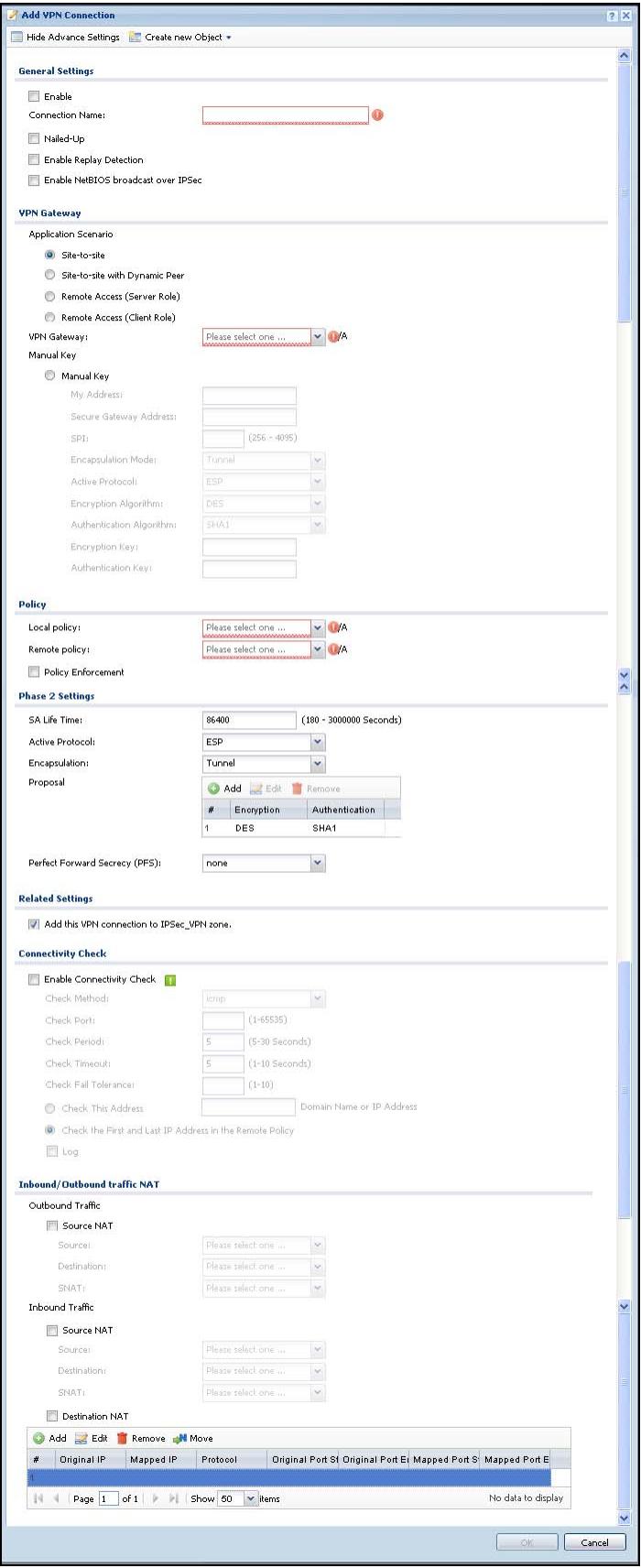
Figure 241 Configuration >VPN > IPSec VPN >VPN Connection > Edit (IKE)
Each field is described in the following table.
Table 115 Configuration >VPN >IPSec VPN >VPN Connection > Edit
| LABEL | DESCRIPTION |
| Show Advance Settings / Hide Advance Settings | Click this button to display a greater or lesser number of configuration fields. |
| Create new Object | Use to configure any new settings objects that you need to use in this screen. |
| General Settings | |
| Enable | Select this check box to activate this VPN connection. |
| Connection Name | Type the name used to identify this IPSec SA. You may use 1-31 alphanumeric characters, underscores(____), or dashes (-), but the first character cannot be a number. This value is case-sensitive. |
| Nailed-Up | Select this if you want the ZyWALL to automatically renegotiate the IPSec SA when the SA life time expires. |
| Enable Replay Detection | Select this check box to detect and reject old or duplicate packets to protect against Denial-of-Service attacks. |
| Enable NetBIOS Broadcast over IPSec | Select this check box if you the ZyWALL to send NetBIOS (Network Basic Input/Output System) packets through the IPSec SA. NetBIOS packets are TCP or UDP packets that enable a computer to connect to and communicate with a LAN. It may sometimes be necessary to allow NetBIOS packets to pass through IPSec SAs in order to allow local computers to find computers on the remote network and vice versa. |
| VPN Gateway | |
| Application Scenario | Select the scenario that best describes your intended VPN connection. Site-to-site - Choose this if the remote IPSec router has a static IP address or a domain name. This ZyWALL can initiate the VPN tunnel. Site-to-site with Dynamic Peer - Choose this if the remote IPSec router has a dynamic IP address. Only the remote IPSec router can initiate the VPN tunnel. Remote Access (Server Role) - Choose this to allow incoming connections from IPSec VPN clients. The clients have dynamic IP addresses and are also known as dial-in users. Only the clients can initiate the VPN tunnel. Remote Access (Client Role) - Choose this to connect to an IPSec server. This ZyWALL is the client (dial-in user) and can initiate the VPN tunnel. |
| VPN Gateway | Select the VPN gateway this VPN connection is to use or select Create Object to add another VPN gateway for this VPN connection to use. |
| Manual Key | Select this option to configure a VPN connection policy that uses a manual key instead of IKE key management. This may be useful if you have problems with IKE key management. See Section 23.2.2 on page 403 for how to configure the manual key fields.Note: Only use manual key as a temporary solution, because it is not as secure as a regular IPSec SA. |
| Policy | |
| Local Policy | Select the address corresponding to the local network. Use Create new Object if you need to configure a new one. |
| Remote Policy | Select the address corresponding to the remote network. Use Create new Object if you need to configure a new one. |
| Policy Enforcement | Clear this to allow traffic with source and destination IP addresses that do not match the local and remote policy to use the VPN tunnel.Leave this cleared for free access between the local and remote networks SELECT this restricts who can use the VPN tunnel. The ZyWALL drops traffic with source and destination IP addresses that do not match the local and remote policy. |
| Phase 2 Settings | |
| SA Life Time | Type the maximum number of seconds the IPSec SA can last. Shorter life times provide better security. The ZyWALL automatically negotiates a new IPSec SA before the current one expires, if there are users who are accessing remote resources. |
| Active Protocol | Select which protocol you want to use in the IPSec SA. Choices are: AH (RFC 2402) - provides integrity, authentication, sequence integrity (replay resistance), and non-repudiation but not encryption.If you select AH, you must select an Authentication algorithm. ESP (RFC 2406) - provides encryption and the same services offered by AH, but its authentication is weaker. If you select ESP, you must select an Encryption algorithm and Authentication algorithm.Both AH and ESP increase processing requirements and latency (delay).The ZyWALL and remote IPSec router must use the same active protocol. |
| Encapsulation | Select which type of encapsulation the IPSec SA uses. Choices are Tunnel - this mode encrypts the IP header information and the data. Transport - this mode only encrypts the data.The ZyWALL and remote IPSec router must use the same encapsulation. |
| Proposal | |
| Add | Click this to create a new entry. |
| Edit | Select an entry and click this to be able to modify it. |
| Remove | Select an entry and click this to delete it. |
| # | This field is a sequential value, and it is not associated with a specific proposal. The sequence of proposals should not affect performance significantly. |
| Encryption | This field is applicable when the Active Protocol is ESP. Select which key size and encryption algorithm to use in the IPSec SA. Choices are:NULL - no encryption key or algorithmDES - a 56-bit key with the DES encryption algorithm3DES - a 168-bit key with the DES encryption algorithmAES128 - a 128-bit key with the AES encryption algorithmAES192 - a 192-bit key with the AES encryption algorithmAES256 - a 256-bit key with the AES encryption algorithmThe ZyWALL and the remote IPSec router must both have at least one proposal that uses the same encryption and the same key Longer keys are more secure, but require more processing power, resulting in increased latency and decreased throughput. |
| Authentication | Select which hash algorithm to use to authenticate packet data in the IPSec SA. Choices are SHA1 and MD5. SHA1 is generally considered stronger than MD5, but it is also slower.The ZyWALL and the remote IPSec router must both have a proposal that uses the same authentication algorithm. |
| Perfect Forward Secrecy (PFS) | Select whether or not you want to enable Perfect Forward Secrecy (PFS) and, if you do, which Diffie-Hellman key group to use for encryption. Choices are:none - disable PFSDH1 - enable PFS and use a 768-bit random numberDH2 - enable PFS and use a 1024-bit random numberDH5 - enable PFS and use a 1536-bit random numberPFS changes the root key that is used to generate encryption keys for each IPSec SA. The longer the key, the more secure the encryption, but also the longer it takes to encrypt and decrypt information. Both routers must use the same DH key group. |
| Related Settings | |
| Add this VPN connection to IPSec_VPN zone. | Select this check box to add the VPN connection policy to the IPSec_VPN security zone. Any security rules or settings configured for the IPSec_VPN security zone will also apply to this VPN connection policy. |
| Connectivity Check | The ZyWALL can regularly check the VPN connection to the gateway you specified to make sure it is still available. |
| Enable Connectivity Check | Select this to turn on the VPN connection check. |
| Check Method | Select how the ZyWALL checks the connection. The peer must be configured to respond to the method you select. |
| Select icmp to have the ZyWALL regularly ping the address you specify to make sure traffic can still go through the connection. You may need to configure the peer to respond to pings. | |
| Select tcp to have the ZyWALL regularly perform a TCP handshake with the address you specify to make sure traffic can still go through the connection. You may need to configure the peer to accept the TCP connection. | |
| Check Port | This field displays when you set the Check Method to tcp. Specify the port number to use for a TCP connectivity check. |
| Check Period | Enter the number of seconds between connection check attempts. |
| Check Timeout | Enter the number of seconds to wait for a response before the attempt is a failure. |
| Check Fail Tolerance | Enter the number of consecutive failures allowed before the ZyWALL disconnects the VPN tunnel. The ZyWALL resumes using the first peer gateway address when the VPN connection passes the connectivity check. |
| Check this Address | Select this to specify a domain name or IP address for the connectivity check. Enter that domain name or IP address in the field next to it. |
| Check the First and Last IP Address in the Remote Policy | Select this to have the ZyWALL check the connection to the first and last IP addresses in the connection's remote policy. Make sure one of these is the peer gateway's LAN IP address. |
| Log | Select this to have the ZyWALL generate a log every time it checks this VPN connection. |
| Inbound/Outbound traffic NAT | |
| Outbound Traffic | |
| Source NAT | This translation hides the source address of computers in the local network. It may also be necessary if you want the ZyWALL to route packets from computers outside the local network through the IPSec SA. |
| Source | Select the address object that represents the original source address (or select Create Object to configure a new one). This is the address object for the computer or network outside the local network. The size of the original source address range (Source) must be equal to the size of the translated source address range (SNAT). |
| Destination | Select the address object that represents the original destination address (or select Create Object to configure a new one). This is the address object for the remote network. |
| SNAT | Select the address object that represents the translated source address (or select Create Object to configure a new one). This is the address object for the local network. The size of the original source address range (Source) must be equal to the size of the translated source address range (SNAT). |
| Inbound Traffic | |
| Source NAT | This translation hides the source address of computers in the remote network. |
| Source | Select the address object that represents the original source address (or select Create Object to configure a new one). This is the address object for the remote network. The size of the original source address range (Source) must be equal to the size of the translated source address range (SNAT). |
| Destination | Select the address object that represents the original destination address (or select Create Object to configure a new one). This is the address object for the local network. |
| SNAT | Select the address object that represents the translated source address (or select Create Object to configure a new one). This is the address that hides the original source address. The size of the original source address range (Source) must be equal to the size of the translated source address range (SNAT). |
| Destination NAT | This translation forwards packets (for example, mail) from the remote network to a specific computer (for example, the mail server) in the local network. |
| Add | Click this to create a new entry. Select an entry and click Add to create a new entry after the selected entry. |
| Edit | Select an entry and click this to be able to modify it. |
| Remove | Select an entry and click this to delete it. |
| Move | To change an entry's position in the numbered list, select it and click Move to display a field to type a number for where you want to put that entry and press [ENTER] to move the entry to the number that you typed. |
| # | This field is a sequential value, and it is not associated with a specific NAT record. However, the order of records is the sequence in which conditions are checked and executed. |
| Original IP | Select the address object that represents the original destination address. This is the address object for the remote network. |
| Mapped IP | Select the address object that represents the desired destination address. For example, this is the address object for the mail server. |
| Protocol | Select the protocol required to use this translation. Choices are: TCP, UDP, or All. |
| Original Port Start / Original Port End | These fields are available if the protocol is TCP or UDP. Enter the original destination port or range of original destination ports. The size of the original port range must be the same size as the size of the mapped port range. |
| Mapped Port Start / Mapped Port End | These fields are available if the protocol is TCP or UDP. Enter the translated destination port or range of translated destination ports. The size of the original port range must be the same size as the size of the mapped port range. |
| OK | Click OK to save the changes. |
| Cancel | Click Cancel to discard all changes and return to the main VPN screen. |
23.2.2 The VPN Connection Add/Edit Manual Key Screen
The VPN Connection Add/Edit Manual Key screen allows you to create a new VPN connection or edit an existing one using a manual key. This is useful if you have problems with IKE key management. To access this screen, go to the VPN Connection summary screen (see Section 23.2 on page 394), and click either the Add icon or an existing manual key entry's Edit icon. In the VPN Gateway section of the screen, select Manual Key.
Note: Only use manual key as a temporary solution, because it is not as secure as a regular IPSec SA.
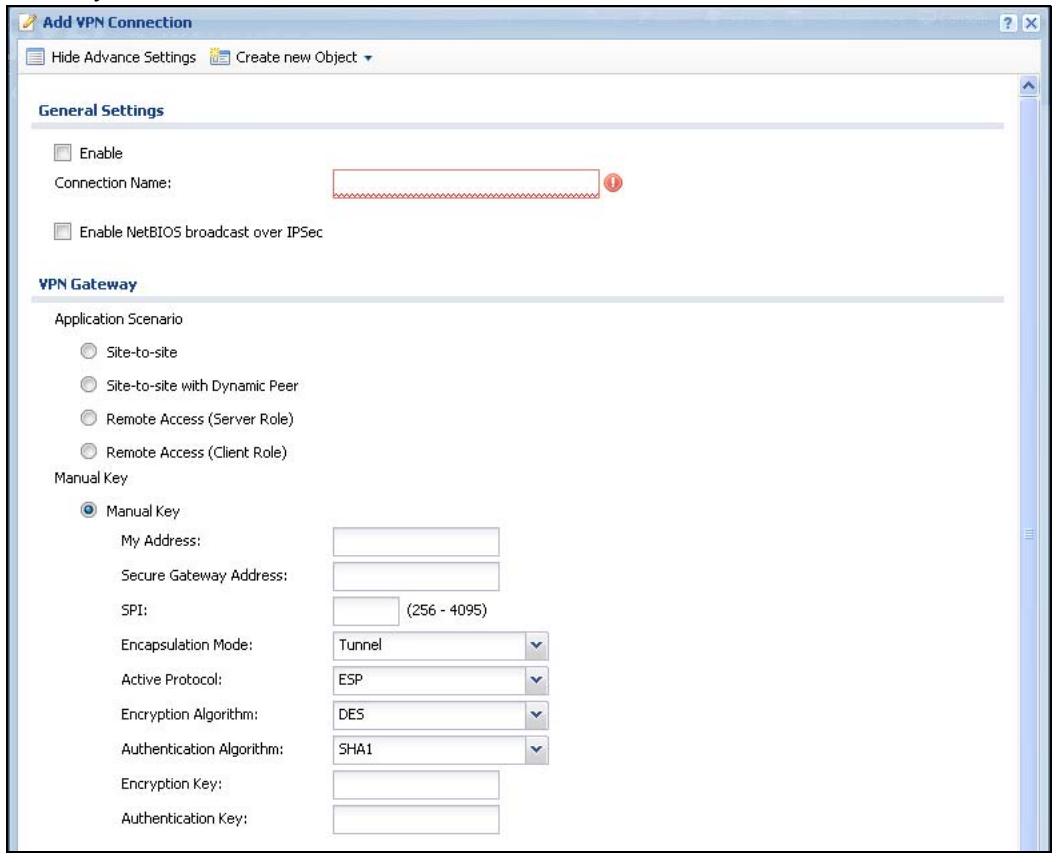
Figure 242 Configuration > VPN > IPSec VPN > VPN Connection > Add > Manual Key
This table describes labels specific to manual key configuration. See Section 23.2 on page 394 for descriptions of the other fields.
Table 116 Configuration > VPN > IPSec VPN > VPN Connection > Add > Manual Key
| LABEL | DESCRIPTION |
| Manual Key | |
| My Address | Type the IP address of the ZyWALL in the IPSec SA. 0.0.0.0 is invalid. |
| Secure Gateway Address | Type the IP address of the remote IPSec router in the IPSec SA. |
| SPI | Type a unique SPI (Security Parameter Index) between 256 and 4095. The SPI is used to identify the ZyWALL during authentication. The ZyWALL and remote IPSec router must use the same SPI. |
| Encapsulation Mode | Select which type of encapsulation the IPSec SA uses. Choices are Tunnel - this mode encrypts the IP header information and the data Transport - this mode only encrypts the data. You should only select this if the IPSec SA is used for communication between the ZyWALL and remote IPSec router. If you select Transport mode, the ZyWALL automatically switches to Tunnel mode if the IPSec SA is not used for communication between the ZyWALL and remote IPSec router. In this case, the ZyWALL generates a log message for this change. The ZyWALL and remote IPSec router must use the same encapsulation. |
| Active Protocol | Select which protocol you want to use in the IPSec SA. Choices are: AH (RFC 2402) - provides integrity, authentication, sequence integrity (replay resistance), and non-repudiation but not encryption. If you select AH, you must select an Authentication Algorithm. ESP (RFC 2406) - provides encryption and the same services offered by AH, but its authentication is weaker. If you select ESP, you must select an Encryption Algorithm and Authentication Algorithm. The ZyWALL and remote IPSec router must use the same protocol. |
| Encryption Algorithm | This field is applicable when the Active Protocol is ESP. Select which key size and encryption algorithm to use in the IPSec SA. Choices are: NULL - no encryption key or algorithm DES - a 56-bit key with the DES encryption algorithm 3DES - a 168-bit key with the DES encryption algorithm AES128 - a 128-bit key with the AES encryption algorithm AES192 - a 192-bit key with the AES encryption algorithm AES256 - a 256-bit key with the AES encryption algorithm The ZyWALL and the remote IPSec router must use the same algorithm and key. Longer keys require more processing power, resulting in increased latency and decreased throughput. |
| Authentication Algorithm | Select which hash algorithm to use to authenticate packet data in the IPSec SA. Choices are SHA1 and MD5. SHA1 is generally considered stronger than MD5, but it is also slower. The ZyWALL and remote IPSec router must use the same algorithm. |
| Encryption Key | This field is applicable when you select an Encryption Algorithm. Enter the encryption key, which depends on the encryption algorithm. DES - type a unique key 8-32 characters long3DES - type a unique key 24-32 characters longAES128 - type a unique key 16-32 characters longAES192 - type a unique key 24-32 characters longAES256 - type a unique key 32 characters longYou can use any alphanumeric characters or, | ~!@#%^&*(\_+\\\':/.<>=-".If you want to enter the key in hexadecimal, type "0x" at the beginning of the key. For example, "0x0123456789ABCDEF" is in hexadecimal format; in "0123456789ABCDEF" is in ASCII format. If you use hexadecimal, you must enter twice as many characters as listed above.The remote IPSec router must have the same encryption key.The ZyWALL ignores any characters above the minimum number of characters required by the algorithm. For example, if you enter 1234567890XYZ for a DES encryption key, the ZyWALL only uses 12345678. The ZyWALL still stores the longer key. |
| Authentication Key | Enter the authentication key, which depends on the authentication algorithm.MD5 - type a unique key 16-20 characters longSHA1 - type a unique key 20 characters longYou can use any alphanumeric characters or, | ~!@#%^&*(\_+\\{\}':/<>=-". If you want to enter the key in hexadecimal, type "0x" at the beginning of the key. For example, "0x0123456789ABCDEF" is in hexadecimal format; in "0123456789ABCDEF" is in ASCII format. If you use hexadecimal, you must enter twice as many characters as listed above.The remote IPSec router must have the same authentication key.The ZyWALL ignores any characters above the minimum number of characters required by the algorithm. For example, if you enter 12345678901234567890 for a MD5 authentication key, the ZyWALL only uses 1234567890123456. The ZyWALL still stores the longer key. |
| OK | Click OK to save your settings and exit this screen. |
| Cancel | Click Cancel to exit this screen without saving. |
23.3 The VPN Gateway Screen
The VPN Gateway summary screen displays the IPSec VPN gateway policies in the ZyWALL, as well as the ZyWALL's address, remote IPSec router's address, and associated VPN connections for each one. In addition, it also lets you activate and deactivate each VPN gateway.
To access this screen, click Configuration > VPN > Network > IPSec VPN > VPN Gateway. The following screen appears.
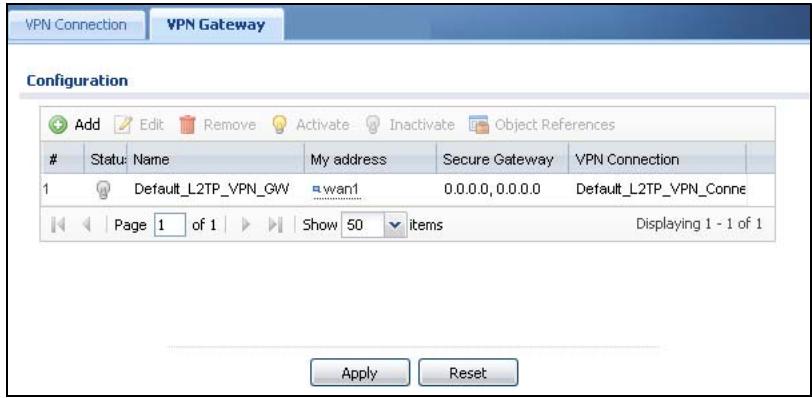
Figure 243 Configuration > VPN > IPSec VPN > VPN Gateway
Each field is discussed in the following table. See Section 23.3.1 on page 407 for more information.
Table 117 Configuration > VPN > IPSec VPN > VPN Gateway
| LABEL | DESCRIPTION |
| Add | Click this to create a new entry. |
| Edit | Double-click an entry or select it and click Edit to open a screen where you can modify the entry's settings. |
| Remove | To remove an entry, select it and click Remove. The ZyWALL confirms you want to remove it before doing so. |
| Activate | To turn on an entry, select it and click Activate. |
| Inactivate | To turn off an entry, select it and click Inactivate. |
| Object References | Select an entry and click Object References to open a screen that shows which settings use the entry. See Section 11.3.2 on page 232 for an example. |
| # | This field is a sequential value, and it is not associated with a specific VPN gateway. |
| Status | The activate (light bulb) icon is lit when the entry is active and dimmed when the entry is inactive. |
| Name | This field displays the name of the VPN gateway |
| My address | This field displays the interface or a domain name the ZyWALL uses for the VPN gateway. |
| Secure Gateway | This field displays the IP address(es) of the remote IPSec routers. |
| VPN Connection | This field displays VPN connections that use this VPN gateway. |
| Apply | Click Apply to save your changes back to the ZyWALL. |
| Reset | Click Reset to return the screen to its last-saved settings. |
23.3.1 The VPN Gateway Add/Edit Screen
The VPN Gateway Add/Edit screen allows you to create a new VPN gateway policy or edit an existing one. To access this screen, go to the VPN Gateway summary screen (see Section 23.3 on page 406), and click either the Add icon or an Edit icon.
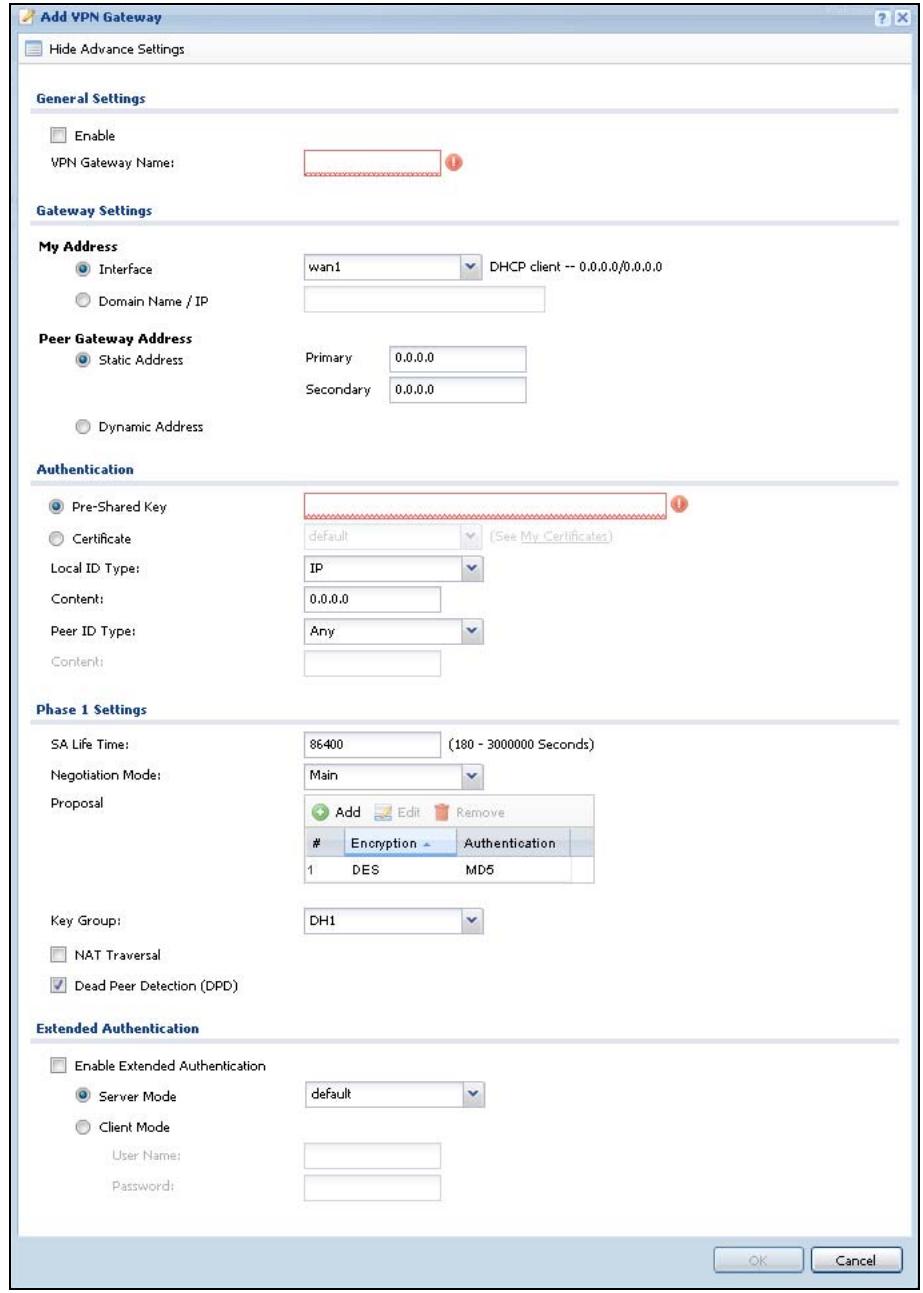
Figure 244 Configuration > VPN > IPSec VPN > VPN Gateway > Edit
Each field is described in the following table.
Table 118 Configuration >VPN > IPSec VPN >VPN Gateway > Edit
| LABEL | DESCRIPTION |
| Show Advance Settings / Hide Advance Settings | Click this button to display a greater or lesser number of configuration fields. |
| General Settings | |
| VPN Gateway Name | Type the name used to identify this VPN gateway. You may use 1-31 alphanumeric characters, underscores(____), or dashes (-), but the first character cannot be a number. This value is case-sensitive. |
| Gateway Settings | |
| My Address | Select how the IP address of the ZyWALL in the IKE SA is defined. If you select Interface, select the Ethernet interface, VLAN interface, virtual Ethernet interface, virtual VLAN interface or PPPoE/ PPTP interface. The IP address of the ZyWALL in the IKE SA is the IP address of the interface.If you select Domain Name / IP, enter the domain name or the IP address of the ZyWALL. The IP address of the ZyWALL in the IKE SA is the specified IP address or the IP address corresponding to the domain name. 0.0.0.0 is invalid. |
| Peer Gateway Address | Select how the IP address of the remote IPSec router in the IKE SA is defined.Select Static Address to enter the domain name or the IP address of the remote IPSec router. You can provide a second IP address or domain name for the ZyWALL to try if it cannot establish an IKE SA with the first one.Select Dynamic Address if the remote IPSec router has a dynamic IP address (and does not use DDNS). |
| Authentication | Note: The ZyWALL and remote IPSec router must use the same authentication method to establish the IKE SA. |
| Pre-Shared Key | Select this to have the ZyWALL and remote IPSec router use a pre-shared key (password) to identify each other when they negotiate the IKE SA. Type the pre-shared key in the field to the right. The pre-shared key can be8 - 32 alphanumeric characters or ,;|`~!@#$%^&*(\_+\\{\}'::/<>=-".8 - 32 pairs of hexadecimal (0-9, A-F) characters, preceded by "0x".If you want to enter the key in hexadecimal, type "0x" at the beginning of the key. For example, "0x0123456789ABCDEF" is in hexadecimal format; in "0123456789ABCDEF" is in ASCII format. If you use hexadecimal, you must enter twice as many characters since you need to enter pairs.The ZyWALL and remote IPSec router must use the same pre-shared key. |
| Certificate | Select this to have the ZyWALL and remote IPSec router use certificates to authenticate each other when they negotiate the IKE SA. Then select the certificate the ZyWALL uses to identify itself to the remote IPSec router. This certificate is one of the certificates in My Certificates. If this certificate is self-signed, import it into the remote IPSec router. If this certificate is signed by a CA, the remote IPSec router must trust that CA. Note: The IPSec routers must trust each other's certificates. The ZyWALL uses one of its Trusted Certificates to authenticate the remote IPSec router's certificate. The trusted certificate can be a self-signed certificate or that of a trusted CA that signed the remote IPSec router's certificate. |
| Local ID Type | This field is read-only if the ZyWALL and remote IPSec router use certificates to identify each other. Select which type of identification is used to identify the ZyWALL during authentication. Choices are: IP - the ZyWALL is identified by an IP address DNS - the ZyWALL is identified by a domain name E-mail - the ZyWALL is identified by an e-mail address |
| Content | This field is read-only if the ZyWALL and remote IPSec router use certificates to identify each other. Type the identity of the ZyWALL during authentication. The identity depends on the Local ID Type. IP - type an IP address; if you type 0.0.0.0, the ZyWALL uses the IP address specified in the My Address field. This is not recommended in the following situations: • There is a NAT router between the ZyWALL and remote IPSec router. • You want the remote IPSec router to be able to distinguish between IPSec SA requests that come from IPSec routers with dynamic WAN IP addresses. In these situations, use a different IP address, or use a different Local ID Type. DNS - type the domain name; you can use up to 31 ASCII characters including spaces, although trailing spaces are truncated. This value is only used for identification and can be any string. E-mail - the ZyWALL is identified by an e-mail address; you can use up to 31 ASCII characters including spaces, although trailing spaces are truncated. This value is only used for identification and can be any string. |
| Peer ID Type | Select which type of identification is used to identify the remote IPSec router during authentication. Choices are:IP - the remote IPSec router is identified by an IP addressDNS - the remote IPSec router is identified by a domain nameE-mail - the remote IPSec router is identified by an e-mail addressAny - the ZyWALL does not check the identity of the remote IPSec routerIf the ZyWALL and remote IPSec router use certificates, there is one more choice.Subject Name - the remote IPSec router is identified by the subject name in the certificate |
| Content | This field is disabled if the Peer ID Type is Any. Type the identity of the remote IPSec router during authentication. The identity depends on the Peer ID Type.If the ZyWALL and remote IPSec router do not use certificates,IP - type an IP address; see the note at the end of this description.DNS - type the domain name; you can use up to 31 ASCII characters including spaces, although trailing spaces are truncated.This value is only used for identification and can be any string.E-mail - the ZyWALL is identified by an e-mail address; you can use up to 31 ASCII characters including spaces, although trailing spaces are truncated. This value is only used for identification and can be any string.If the ZyWALL and remote IPSec router use certificates, type the following fields from the certificate used by the remote IPSec router.IP - subject alternative name field; see the note at the end of this description.DNS - subject alternative name fieldE-mail - subject alternative name fieldSubject Name - subject name (maximum 255 ASCII characters, including spaces)Note: If Peer ID Type is IP, please read the rest of this section.If you type 0.0.0.0, the ZyWALL uses the IP address specified in the Secure Gateway Address field. This is not recommended in the following situations:There is a NAT router between the ZyWALL and remote IPSec router.You want the remote IPSec router to be able to distinguish between IPSec SA requests that come from IPSec routers with dynamic WAN IP addresses.In these situations, use a different IP address, or use a different Peer ID Type. |
| Phase 1 Settings | |
| SA Life Time(Seconds) | Type the maximum number of seconds the IKE SA can last. When this time has passed, the ZyWALL and remote IPSec router have to update the encryption and authentication keys and re-negotiate the IKE SA. This does not affect any existing IPSec SAs, however. |
| Negotiation Mode | Select the negotiation mode to use to negotiate the IKE SA. Choices areMain - this encrypts the ZyWALL's and remote IPSec router's identities but takes more time to establish the IKE SAAggressive - this is faster but does not encrypt the identitiesThe ZyWALL and the remote IPSec router must use the same negotiation mode. |
| Proposal | |
| Add | Click this to create a new entry. |
| Edit | Select an entry and click this to be able to modify it. |
| Remove | Select an entry and click this to delete it. |
| # | This field is a sequential value, and it is not associated with a specific proposal. The sequence of proposals should not affect performance significantly. |
| Encryption | Select which key size and encryption algorithm to use in the IKE SA. Choices are:DES - a 56-bit key with the DES encryption algorithm3DES - a 168-bit key with the DES encryption algorithmAES128 - a 128-bit key with the AES encryption algorithmAES192 - a 192-bit key with the AES encryption algorithmAES256 - a 256-bit key with the AES encryption algorithmThe ZyWALL and the remote IPSec router must use the same key size and encryption algorithm. Longer keys require more processing power, resulting in increased latency and decreased throughput. |
| Authentication | Select which hash algorithm to use to authenticate packet data in the IPSec SA. Choices are SHA1 and MD5. SHA1 is generally considered stronger than MD5, but it is also slower.The remote IPSec router must use the same authentication algorithm. |
| Key Group | Select which Diffie-Hellman key group (DHx) you want to use for encryption keys. Choices are:DH1 - use a 768-bit random numberDH2 - use a 1024-bit random numberDH5 - use a 1536-bit random numberThe longer the key, the more secure the encryption, but also the longer it takes to encrypt and decrypt information. Both routers must use the same DH key group. |
| NAT Traversal | Select this if any of these conditions are satisfied. · This IKE SA might be used to negotiate IPSec SAs that use ESP as the active protocol. · There are one or more NAT routers between the ZyWALL and remote IPSec router, and these routers do not support IPSec pass-thru or a similar feature. The remote IPSec router must also enable NAT traversal, and the NAT routers have to forward packets with UDP port 500 and UDP 4500 headers unchanged. |
| Dead Peer Detection (DPD) | Select this check box if you want the ZyWALL to make sure the remote IPSec router is there before it transmits data through the IKE SA. The remote IPSec router must support DPD. If there has been no traffic for at least 15 seconds, the ZyWALL sends a message to the remote IPSec router. If the remote IPSec router responds, the ZyWALL transmits the data. If the remote IPSec router does not respond, the ZyWALL shuts down the IKE SA. If the remote IPSec router does not support DPD, see if you can use the VPN connection connectivity check (see Section 23.2.1 on page 396). |
| More Settings/ Less Settings | Click this button to show or hide the Extended Authentication fields. |
| Extended Authentication | When multiple IPSec routers use the same VPN tunnel to connect to a single VPN tunnel (telecommuters sharing a tunnel for example), use extended authentication to enforce a user name and password check. This way even though they all know the VPN tunnel's security settings, each still has to provide a unique user name and password. |
| Enable Extended Authentication | Select this if one of the routers (the ZyWALL or the remote IPSec router) verifies a user name and password from the other router using the local user database and/or an external server. |
| Server Mode | Select this if the ZyWALL authenticates the user name and password from the remote IPSec router. You also have to select the authentication method, which specifies how the ZyWALL authenticates this information. |
| Client Mode | Select this radio button if the ZyWALL provides a username and password to the remote IPSec router for authentication. You also have to provide the User Name and the Password. |
| User Name | This field is required if the ZyWALL is in Client Mode for extended authentication. Type the user name the ZyWALL sends to the remote IPSec router. The user name can be 1-31 ASCII characters. It is case-sensitive, but spaces are not allowed. |
| Password | This field is required if the ZyWALL is in Client Mode for extended authentication. Type the password the ZyWALL sends to the remote IPSec router. The password can be 1-31 ASCII characters. It is case-sensitive, but spaces are not allowed. |
| OK | Click OK to save your settings and exit this screen. |
| Cancel | Click Cancel to exit this screen without saving. |
23.4 IPSec VPN Background Information
Here is some more detailed IPSec VPN background information.
IKE SA Overview
The IKE SA provides a secure connection between the ZyWALL and remote IPSec router.
It takes several steps to establish an IKE SA. The negotiation mode determines how many. There are two negotiation modes--main mode and aggressive mode. Main mode provides better security, while aggressive mode is faster.
Note: Both routers must use the same negotiation mode.
These modes are discussed in more detail in Negotiation Mode on page 419. Main mode is used in various examples in the rest of this section.
IP Addresses of the ZyWALL and Remote IPSec Router
To set up an IKE SA, you have to specify the IP addresses of the ZyWALL and remote IPSec router. You can usually enter a static IP address or a domain name for either or both IP addresses. Sometimes, your ZyWALL might offer another alternative, such as using the IP address of a port or interface, as well.
You can also specify the IP address of the remote IPSec router as 0.0.0.0. This means that the remote IPSec router can have any IP address. In this case, only the remote IPSec router can initiate an IKE SA because the ZyWALL does not know the IP address of the remote IPSec router. This is often used for telecommuters.
IKE SA Proposal
The IKE SA proposal is used to identify the encryption algorithm, authentication algorithm, and Diffie-Hellman (DH) key group that the ZyWALL and remote IPSec router use in the IKE SA. In main mode, this is done in steps 1 and 2, as illustrated next.
Figure 245 IKE SA: Main Negotiation Mode, Steps 1 - 2: IKE SA Proposal
One or more proposals, each one consisting of:
-
encryption algorithm
-
authentication algorithm
-
Diffie-Hellman key group
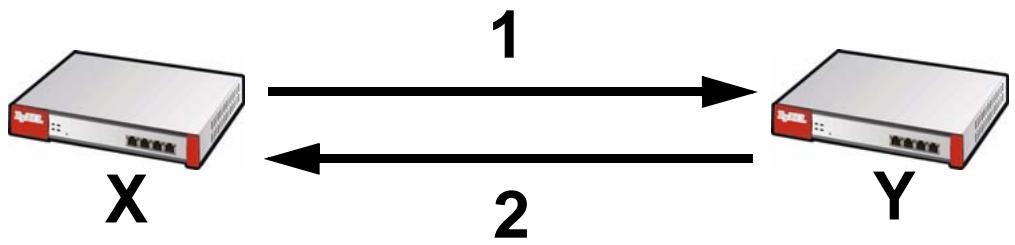
The ZyWALL sends one or more proposals to the remote IPSec router. (In some devices, you can only set up one proposal.) Each proposal consists of an encryption algorithm, authentication algorithm, and DH key group that the ZyWALL wants to use in the IKE SA. The remote IPSec router selects an acceptable proposal and sends the accepted proposal back to the ZyWALL. If the remote IPSec router rejects all of the proposals, the ZyWALL and remote IPSec router cannot establish an IKE SA.
Note: Both routers must use the same encryption algorithm, authentication algorithm, and DH key group.
In most ZyWALLs, you can select one of the following encryption algorithms for each proposal. The algorithms are listed in order from weakest to strongest.
- Data Encryption Standard (DES) is a widely used method of data encryption. It applies a 56-bit key to each 64-bit block of data.
- Triple DES (3DES) is a variant of DES. It iterates three times with three separate keys, effectively tripling the strength of DES.
- Advanced Encryption Standard (AES) is a newer method of data encryption that also uses a secret key. AES applies a 128-bit key to 128-bit blocks of data. It is faster than 3DES.
Some ZyWALLs also offer stronger forms of AES that apply 192-bit or 256-bit keys to 128-bit blocks of data.
In most ZyWALLs, you can select one of the following authentication algorithms for each proposal. The algorithms are listed in order from weakest to strongest.
- MD5 (Message Digest 5) produces a 128-bit digest to authenticate packet data.
- SHA1 (Secure Hash Algorithm) produces a 160-bit digest to authenticate packet data.
See Diffie-Hellman (DH) Key Exchange on page 416 for more information about DH key groups.
Diffie-Hellman (DH) Key Exchange
The ZyWALL and the remote IPSec router use DH public-key cryptography to establish a shared secret. The shared secret is then used to generate encryption
keys for the IKE SA and IPSec SA. In main mode, this is done in steps 3 and 4, as illustrated next.
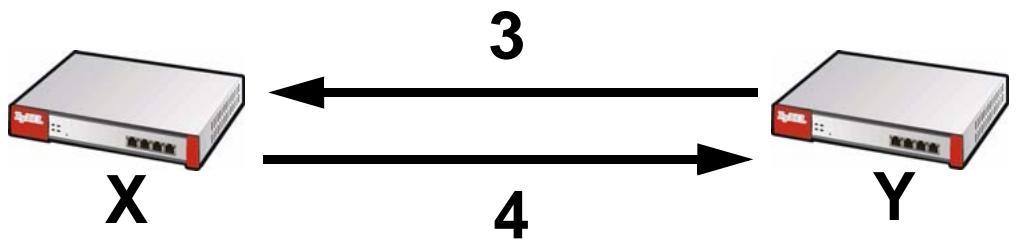
Figure 246 IKE SA: Main Negotiation Mode, Steps 3 - 4: DH Key Exchange
Diffie-Hellman key exchange
DH public-key cryptography is based on DH key groups. Each key group is a fixed number of bits long. The longer the key, the more secure the encryption, but also the longer it takes to encrypt and decrypt information. For example, DH2 keys (1024 bits) are more secure than DH1 keys (768 bits), but DH2 keys take longer to encrypt and decrypt.
Authentication
Before the ZyWALL and remote IPSec router establish an IKE SA, they have to verify each other's identity. This process is based on pre-shared keys and router identities.
In main mode, the ZyWALL and remote IPSec router authenticate each other in steps 5 and 6, as illustrated below. The identities are also encrypted using the encryption algorithm and encryption key the ZyWALL and remote IPSec router selected in previous steps.
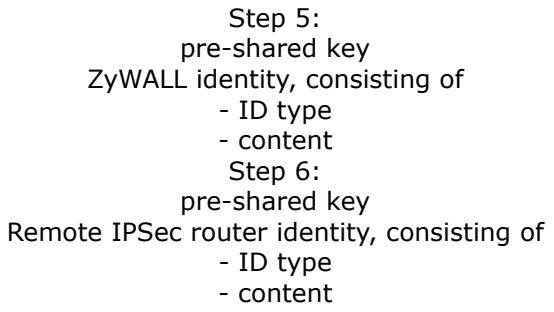
Figure 247 IKE SA: Main Negotiation Mode, Steps 5 - 6: Authentication (continued)
You have to create (and distribute) a pre-shared key. The ZyWALL and remote IPSec router use it in the authentication process, though it is not actually transmitted or exchanged.
Note: The ZyWALL and the remote IPSec router must use the same pre-shared key.
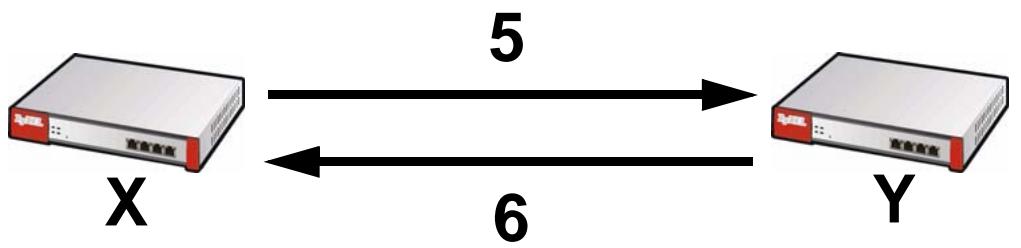
Router identity consists of ID type and content. The ID type can be domain name, IP address, or e-mail address, and the content is a (properly-formatted) domain name, IP address, or e-mail address. The content is only used for identification. Any domain name or e-mail address that you enter does not have to actually exist. Similarly, any domain name or IP address that you enter does not have to correspond to the ZyWALL's or remote IPSec router's properties.
The ZyWALL and the remote IPSec router have their own identities, so both of them must store two sets of information, one for themselves and one for the other router. Local ID type and content refers to the ID type and content that applies to the router itself, and peer ID type and content refers to the ID type and content that applies to the other router.
Note: The ZyWALL's local and peer ID type and content must match the remote IPSec router's peer and local ID type and content, respectively.
For example, in Table 119 on page 418, the ZyWALL and the remote IPSec router authenticate each other successfully. In contrast, in Table 120 on page 418, the ZyWALL and the remote IPSec router cannot authenticate each other and, therefore, cannot establish an IKE SA.
Table 119 VPN Example: Matching ID Type and Content
| ZYWALL | REMOTE IPSEC ROUTER |
| Local ID type: E-mail | Local ID type: IP |
| Local ID content: tom@yourcompany.com | Local ID content: 1.1.1.2 |
| Peer ID type: IP | Peer ID type: E-mail |
| Peer ID content: 1.1.1.2 | Peer ID content: tom@yourcompany.com |
Table 120 VPN Example: Mismatching ID Type and Content
| ZYWALL | REMOTE IPSEC ROUTER |
| Local ID type: E-mail | Local ID type: IP |
| Local ID content: tom@yourcompany.com | Local ID content: 1.1.1.2 |
| Peer ID type: IP | Peer ID type: E-mail |
| Peer ID content: 1.1.1.20 | Peer ID content: tom@yourcompany.com |
It is also possible to configure the ZyWALL to ignore the identity of the remote IPSec router. In this case, you usually set the peer ID type to Any. This is less secure, so you should only use this if your ZyWALL provides another way to check
the identity of the remote IPSec router (for example, extended authentication) or if you are troubleshooting a VPN tunnel.
Additional Topics for IKE SA
This section provides more information about IKE SA.
Negotiation Mode
There are two negotiation modes--main mode and aggressive mode. Main mode provides better security, while aggressive mode is faster.
Main mode takes six steps to establish an IKE SA.
Steps 1 - 2: The ZyWALL sends its proposals to the remote IPSec router. The remote IPSec router selects an acceptable proposal and sends it back to the ZyWALL.
Steps 3 - 4: The ZyWALL and the remote IPSec router exchange pre-shared keys for authentication and participate in a Diffie-Hellman key exchange, based on the accepted DH key group, to establish a shared secret.
Steps 5 - 6: Finally, the ZyWALL and the remote IPSec router generate an encryption key (from the shared secret), encrypt their identities, and exchange their encrypted identity information for authentication.
In contrast, aggressive mode only takes three steps to establish an IKE SA. Aggressive mode does not provide as much security because the identity of the ZyWALL and the identity of the remote IPSec router are not encrypted. It is usually used in remote-access situations, where the address of the initiator is not known by the responder and both parties want to use pre-shared keys for authentication. For example, the remote IPSec router may be a telecommuter who does not have a static IP address.
VPN, NAT, and NAT Traversal
In the following example, there is another router (A) between router X and router Y.
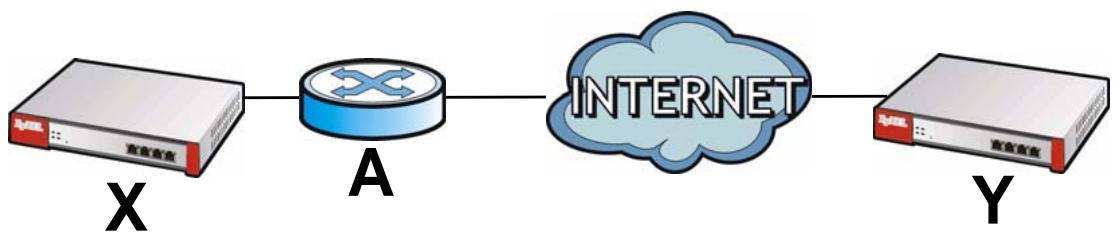
Figure 248 VPN/NAT Example
If router A does NAT, it might change the IP addresses, port numbers, or both. If router X and router Y try to establish a VPN tunnel, the authentication fails because it depends on this information. The routers cannot establish a VPN tunnel.
Most routers like router A now have an IPSec pass-thru feature. This feature helps router A recognize VPN packets and route them appropriately. If router A has this feature, router X and router Y can establish a VPN tunnel as long as the active protocol is ESP. (See Active Protocol on page 421 for more information about active protocols.)
If router A does not have an IPSec pass-thru or if the active protocol is AH, you can solve this problem by enabling NAT traversal. In NAT traversal, router X and router Y add an extra header to the IKE SA and IPSec SA packets. If you configure router A to forward these packets unchanged, router X and router Y can establish a VPN tunnel.
You have to do the following things to set up NAT traversal.
- Enable NAT traversal on the ZyWALL and remote IPSec router.
- Configure the NAT router to forward packets with the extra header unchanged. (See the field description for detailed information about the extra header.)
The extra header may be UDP port 500 or UDP port 4500, depending on the standard(s) the ZyWALL and remote IPSec router support.
Extended Authentication
Extended authentication is often used when multiple IPSec routers use the same VPN tunnel to connect to a single IPSec router. For example, this might be used with telecommuters.
In extended authentication, one of the routers (the ZyWALL or the remote IPSec router) provides a user name and password to the other router, which uses a local user database and/or an external server to verify the user name and password. If the user name or password is wrong, the routers do not establish an IKE SA.
You can set up the ZyWALL to provide a user name and password to the remote IPSec router, or you can set up the ZyWALL to check a user name and password that is provided by the remote IPSec router.
If you use extended authentication, it takes four more steps to establish an IKE SA. These steps occur at the end, regardless of the negotiation mode (steps 7-10 in main mode, steps 4-7 in aggressive mode).
Certificates
It is possible for the ZyWALL and remote IPSec router to authenticate each other with certificates. In this case, you do not have to set up the pre-shared key, local identity, or remote identity because the certificates provide this information instead.
- Instead of using the pre-shared key, the ZyWALL and remote IPSec router check the signatures on each other's certificates. Unlike pre-shared keys, the signatures do not have to match.
- The local and peer ID type and content come from the certificates.
Note: You must set up the certificates for the ZyWALL and remote IPSec router first.
IPSec SA Overview
Once the ZyWALL and remote IPSec router have established the IKE SA, they can securely negotiate an IPSec SA through which to send data between computers on the networks.
Note: The IPSec SA stays connected even if the underlying IKE SA is not available anymore.
This section introduces the key components of an IPSec SA.
Local Network and Remote Network
In an IPSec SA, the local network, the one(s) connected to the ZyWALL, may be called the local policy. Similarly, the remote network, the one(s) connected to the remote IPSec router, may be called the remote policy.
Active Protocol
The active protocol controls the format of each packet. It also specifies how much of each packet is protected by the encryption and authentication algorithms. IPSec VPN includes two active protocols, AH (Authentication Header, RFC 2402) and ESP (Encapsulating Security Payload, RFC 2406).
Note: The ZyWALL and remote IPSec router must use the same active protocol.
Usually, you should select ESP. AH does not support encryption, and ESP is more suitable with NAT.
Encapsulation
There are two ways to encapsulate packets. Usually, you should use tunnel mode because it is more secure. Transport mode is only used when the IPSec SA is used for communication between the ZyWALL and remote IPSec router (for example, for remote management), not between computers on the local and remote networks.
Note: The ZyWALL and remote IPSec router must use the same encapsulation.
These modes are illustrated below.
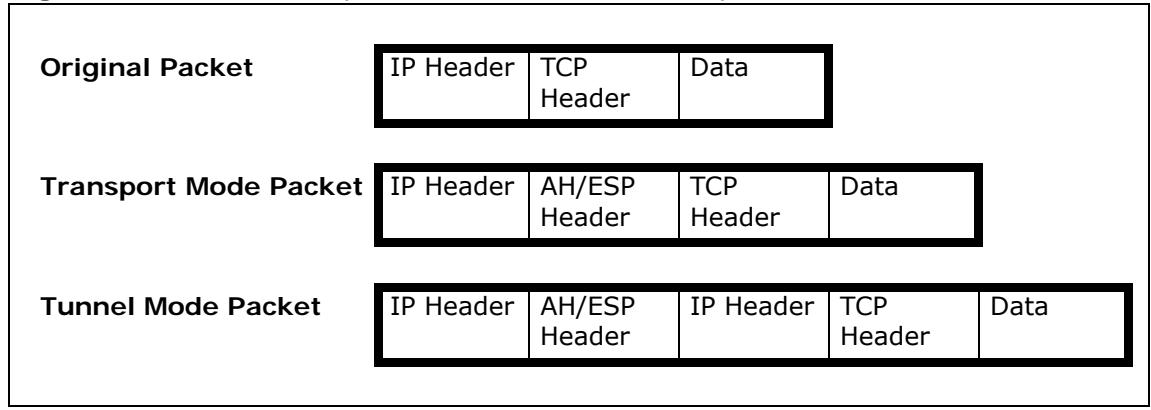
Figure 249 VPN: Transport and Tunnel Mode Encapsulation
In tunnel mode, the ZyWALL uses the active protocol to encapsulate the entire IP packet. As a result, there are two IP headers:
- Outside header: The outside IP header contains the IP address of the ZyWALL or remote IPSec router, whichever is the destination.
- Inside header: The inside IP header contains the IP address of the computer behind the ZyWALL or remote IPSec router. The header for the active protocol (AH or ESP) appears between the IP headers.
In transport mode, the encapsulation depends on the active protocol. With AH, the ZyWALL includes part of the original IP header when it encapsulates the packet. With ESP, however, the ZyWALL does not include the IP header when it encapsulates the packet, so it is not possible to verify the integrity of the source IP address.
IPSec SA Proposal and Perfect Forward Secrecy
An IPSec SA proposal is similar to an IKE SA proposal (see IKE SA Proposal on page 415), except that you also have the choice whether or not the ZyWALL and remote IPSec router perform a new DH key exchange every time an IPSec SA is established. This is called Perfect Forward Secrecy (PFS).
If you enable PFS, the ZyWALL and remote IPSec router perform a DH key exchange every time an IPSec SA is established, changing the root key from which encryption keys are generated. As a result, if one encryption key is compromised, other encryption keys remain secure.
If you do not enable PFS, the ZyWALL and remote IPSec router use the same root key that was generated when the IKE SA was established to generate encryption keys.
The DH key exchange is time-consuming and may be unnecessary for data that does not require such security.
Additional Topics for IPSec SA
This section provides more information about IPSec SA in your ZyWALL.
IPSec SA using Manual Keys
You might set up an IPSec SA using manual keys when you want to establish a VPN tunnel quickly, for example, for troubleshooting. You should only do this as a temporary solution, however, because it is not as secure as a regular IPSec SA.
In IPSec SAs using manual keys, the ZyWALL and remote IPSec router do not establish an IKE SA. They only establish an IPSec SA. As a result, an IPSec SA using manual keys has some characteristics of IKE SA and some characteristics of IPSec SA. There are also some differences between IPSec SA using manual keys and other types of SA.
IPSec SA Proposal using Manual Keys
In an IPSec SA using manual keys, you can only specify one encryption algorithm and one authentication algorithm. You cannot specify several proposals. There is no DH key exchange, so you have to provide the encryption key and the authentication key the ZyWALL and remote IPSec router use.
Note: The ZyWALL and remote IPSec router must use the same encryption key and authentication key.
Authentication and the Security Parameter Index (SPI)
For authentication, the ZyWALL and remote IPSec router use the SPI, instead of pre-shared keys, ID type and content. The SPI is an identification number.
Note: The ZyWALL and remote IPSec router must use the same SPI.
NAT for Inbound and Outbound Traffic
The ZyWALL can translate the following types of network addresses in IPSec SA.
- Source address in outbound packets - this translation is necessary if you want the ZyWALL to route packets from computers outside the local network through the IPSec SA.
- Source address in inbound packets - this translation hides the source address of computers in the remote network.
- Destination address in inbound packets - this translation is used if you want to forward packets (for example, mail) from the remote network to a specific computer (like the mail server) in the local network.
Each kind of translation is explained below. The following example is used to help explain each one.
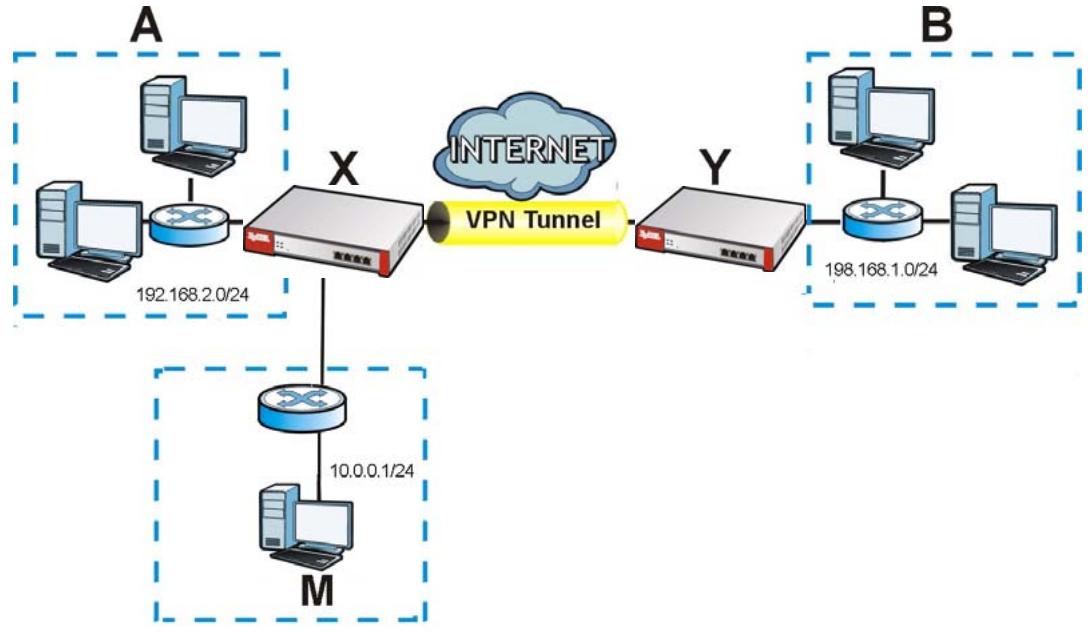
Figure 250 VPN Example: NAT for Inbound and Outbound Traffic
Source Address in Outbound Packets (Outbound Traffic, Source NAT)
This translation lets the ZyWALL route packets from computers that are not part of the specified local network (local policy) through the IPSec SA. For example, in Figure 250 on page 424, you have to configure this kind of translation if you want computer M to establish a connection with any computer in the remote network (B). If you do not configure it, the remote IPSec router may not route messages for computer M through the IPSec SA because computer M's IP address is not part of its local policy.
To set up this NAT, you have to specify the following information:
-
Source - the original source address; most likely, computer M's network.
-
Destination - the original destination address; the remote network (B).
- SNAT - the translated source address; the local network (A).
Source Address in Inbound Packets (Inbound Traffic, Source NAT)
You can set up this translation if you want to change the source address of computers in the remote network. To set up this NAT, you have to specify the following information:
- Source - the original source address; the remote network (B).
- Destination - the original destination address; the local network (A).
- SNAT - the translated source address; a different IP address (range of addresses) to hide the original source address.
Destination Address in Inbound Packets (Inbound Traffic, Destination NAT)
You can set up this translation if you want the ZyWALL to forward some packets from the remote network to a specific computer in the local network. For example, in Figure 250 on page 424, you can configure this kind of translation if you want to forward mail from the remote network to the mail server in the local network (A).
You have to specify one or more rules when you set up this kind of NAT. The ZyWALL checks these rules similar to the way it checks rules for a firewall. The first part of these rules define the conditions in which the rule apply.
- Original IP - the original destination address; the remote network (B).
- Protocol - the protocol [TCP, UDP, or both] used by the service requesting the connection.
- Original Port - the original destination port or range of destination ports; in Figure 250 on page 424, it might be port 25 for SMTP.
The second part of these rules controls the translation when the condition is satisfied.
- Mapped IP - the translated destination address; in Figure 250 on page 424, the IP address of the mail server in the local network (A).
- Mapped Port - the translated destination port or range of destination ports.
The original port range and the mapped port range must be the same size.
24.1 Overview
Use SSL VPN to allow users to use a web browser for secure remote user login (the remote users do not need a VPN router or VPN client software.
24.1.1 What You Can Do in this Chapter
- Use the VPN > SSL VPN > Access Privilege screens (see Section 24.2 on page 429) to configure SSL access policies.
- Use the Click VPN > SSL VPN > Global Setting screen (see Section 24.3 on page 433) to set the IP address of the ZyWALL (or a gateway device) on your network for full tunnel mode access, enter access messages or upload a custom logo to be displayed on the remote user screen.
24.1.2 What You Need to Know
Full Tunnel Mode
In full tunnel mode, a virtual connection is created for remote users with private IP addresses in the same subnet as the local network. This allows them to access network resources in the same way as if they were part of the internal network.
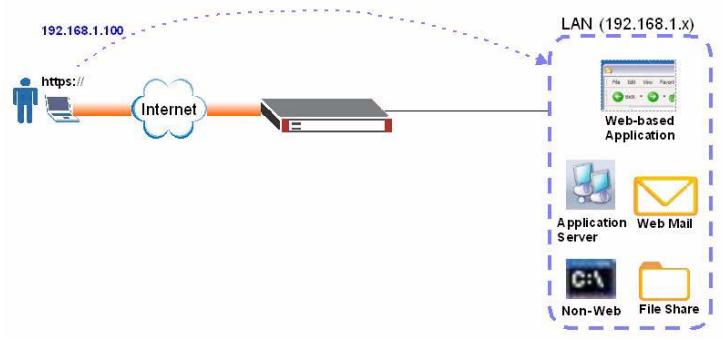
Figure 251 Network Access Mode: Full Tunnel Mode
SSL Access Policy
An SSL access policy allows the ZyWALL to perform the following tasks:
- apply Endpoint Security (EPS) checking to require users' computers to comply with defined corporate policies before they can access the SSL VPN tunnel.
- limit user access to specific applications or files on the network.
- allow user access to specific networks.
- assign private IP addresses and provide DNS/WINS server information to remote users to access internal networks.
SSL Access Policy Objects
The SSL access policies reference the following objects. If you update this information, in response to changes, the ZyWALL automatically propagates the changes through the SSL policies that use the object(s). When you delete an SSL policy, the objects are not removed.
Table 121 Objects
| OBJECT TYPE | OBJECT SCREEN | DESCRIPTION |
| User Accounts | User Account/ User Group | Configure a user account or user group to which you want to apply this SSL access policy. |
| Endpoint Security | Endpoint Security | Endpoint Security (EPS) checking makes sure users' computers comply with defined corporate policies before they can access the SSL VPN tunnel. |
| Application | SSL Application | Configure an SSL application object to specify the type of application and the address of the local computer, server, or web site SSL users are to be able to access. |
| IP Pool | Address | Configure an address object that defines a range of private IP addresses to assign to user computers so they can access the internal network through a VPN connection. |
| Server Addresses | Address | Configure address objects for the IP addresses of the DNS and WINS servers that the ZyWALL sends to the VPN connection users. |
| VPN Network | Address | Configure an address object to specify which network segment users are allowed to access through a VPN connection. |
You cannot delete an object that is referenced by an SSL access policy. To delete the object, you must first unassociate the object from the SSL access policy.
Finding Out More
- See Section 6.5.15 on page 101 for related information on these screens.
- See Section 24.4 on page 435 for how to establish an SSL VPN connection to the ZyWALL (after you have configured the SSL VPN settings on the ZyWALL).
- See Chapter 42 on page 621 for details on endpoint security objects.
- See Chapter 41 on page 615 for details on SSL application objects.
24.2 The SSL Access Privilege Screen
Click VPN > SSL VPN to open the Access Privilege screen. This screen lists the configured SSL access policies.
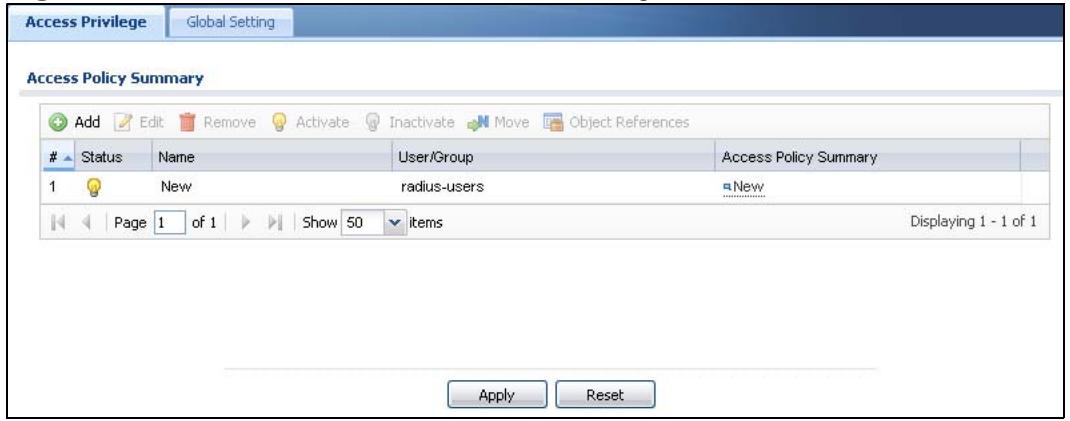
Figure 252 VPN > SSL VPN > Access Privilege
The following table describes the labels in this screen.
Table 122 VPN > SSL VPN > Access Privilege
| LABEL | DESCRIPTION |
| Add | Click this to create a new entry. Select an entry and click Add to create a new entry after the selected entry. |
| Edit | Double-click an entry or select it and click Edit to open a screen where you can modify the entry's settings. |
| Remove | To remove an entry, select it and click Remove. The ZyWALL confirms you want to remove it before doing so. |
| Activate | To turn on an entry, select it and click Activate. |
| Inactivate | To turn off an entry, select it and click Inactivate. |
| Move | To move an entry to a different number in the list, click the Move icon. In the field that appears, specify the number to which you want to move the interface. |
| Object References | Select an entry and click Object References to open a screen that shows which settings use the entry. See Section 11.3.2 on page 232 for an example. |
| # | This field displays the index number of the entry. |
| Status | This icon is lit when the entry is active and dimmed when the entry is inactive. |
| Name | This field displays the descriptive name of the SSL access policy for identification purposes. |
| User/Group | This field displays the user account or user group name(s) associated to an SSL access policy. This field displays up to three names. |
| Access Policy Summary | This field displays details about the SSL application object this policy uses including its name, type, and address. |
Table 122 VPN > SSL VPN > Access Privilege
| LABEL | DESCRIPTION |
| Apply | Click Apply to save the settings. |
| Reset | Click Reset to discard all changes. |
24.2.1 The SSL Access Policy Add/Edit Screen
To create a new or edit an existing SSL access policy, click the Add or Edit icon in the Access Privilege screen.
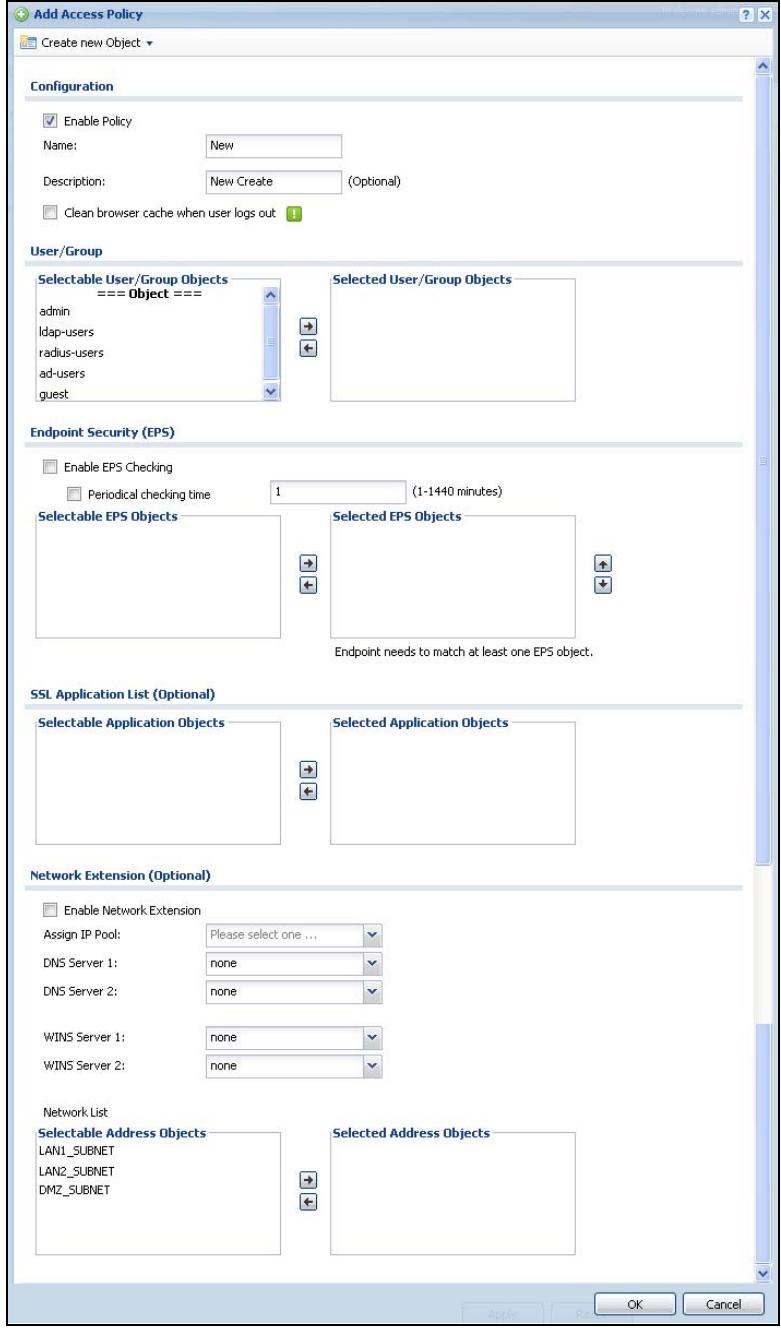
Figure 253 VPN > SSL VPN > Access Privilege > Add/Edit
The following table describes the labels in this screen.
Table 123 VPN > SSL VPN > Access Privilege > Add/Edit
| LABEL | DESCRIPTION |
| Create new Object | Use to configure any new settings objects that you need to use in this screen. |
| Configuration | |
| Enable Policy | Select this option to activate this SSL access policy. |
| Name | Enter a descriptive name to identify this policy. You can enter up to 15 characters ("a-z", A-Z", "0-9") with no spaces allowed. |
| Description | Enter additional information about this SSL access policy. You can enter up to 31 characters ("0-9", "a-z", "A-Z", "-" and "_"). |
| Clean browser cache when user logs out | Select this to clean the cookie, history, and temporary Internet files in the user's browser's cache when the user logs out. The ZyWALL returns them to the values present before the user logged in. |
| User/Group | The Selectable User/Group Objects list displays the name(s) of the user account and/or user group(s) to which you have not applied an SSL access policy yet.To associate a user or user group to this SSL access policy, select a user account or user group and click >> to add to the Selected User/Group Objects list. You can select more than one name.To remove a user or user group, select the name(s) in the Selected User/Group Objects list and click <<.Note: Although you can select admin and limited-admin accounts in this screen, they are reserved for device configuration only. You cannot use them to access the SSL VPN portal. |
| Endpoint Security (EPS) | Use these fields to make sure users' computers meet an endpoint security object's Operating System (OS) and security requirements before granting access. |
| Enable EPS Checking | Select this to have the ZyWALL check that users' computers meet the Operating System (OS) and security requirements of one of the SSL access policy's selected endpoint security objects before granting access. |
| Periodical checking time | Select this and specify a number of minutes to have the ZyWALL repeat the endpoint security check at a regular interval. |
| Available EPS Objects / Selected EPS Objects | Configured endpoint security objects appear on the left. Select the endpoint security objects to use for this SSL access policy and click the right arrow button to add them to the selected list on the right. Use the [Shift] and/or [Ctrl] key to select multiple objects. Select any endpoint security objects that you want to remove from the selected list and click the left arrow button to remove them.The ZyWALL checks authenticated users' computers against the SSL access policy's selected endpoint security objects in the order you list them here. When a user's computer matches an endpoint security object the ZyWALL grants access and stops checking. Select an endpoint security object and use the up and down arrows to change it's position in the list. To make the endpoint security check as efficient as possible, arrange the endpoint security objects in order with the one that the most users should match first and the one that the least users should match last. |
| SSL Application List (Optional) | The Selectable Application Objects list displays the name(s) of the SSL application(s) you can select for this SSL access policy.To associate an SSL application to this SSL access policy, select a name and click >> to add to the Selected Application Objects list. You can select more than one application.To remove an SSL application, select the name(s) in the Selected Application Objects list and click <<. |
| Network Extension (Optional) | |
| Enable Network Extension | Select this option to create a VPN tunnel between the authenticated users and the internal network. This allows the users to access the resources on the network as if they were on the same local network.Clear this option to disable this feature. Users can only access the applications as defined by the selected SSL application settings and the remote user computers are not made to be a part of the local network. |
| Assign IP Pool | Define a separate pool of IP addresses to assign to the SSL users. Select it here.The SSL VPN IP pool cannot overlap with IP addresses on the ZyWALL's local networks (LAN and DMZ for example), the SSL user's network, or the networks you specify in the SSL VPN Network List. |
| DNS/WINS Server 1..2 | Select the name of the DNS or WINS server whose information the ZyWALL sends to the remote users. This allows them to access devices on the local network using domain names instead of IP addresses. |
| Network List | To allow user access to local network(s), select a network name in the Selectable Address Objects list and click >> to add to the Selected Address Objects list. You can select more than one network.To block access to a network, select the network name in the Selected Address Objects list and click <<. |
| OK | Click Ok to save the changes and return to the main Access Privilege screen. |
| Cancel | Click Cancel to discard all changes and return to the main Access Privilege screen. |
24.3 The SSL Global Setting Screen
Click VPN > SSL VPN and click the Global Setting tab to display the following screen. Use this screen to set the IP address of the ZyWALL (or a gateway device) on your network for full tunnel mode access, enter access messages or upload a custom logo to be displayed on the remote user screen.
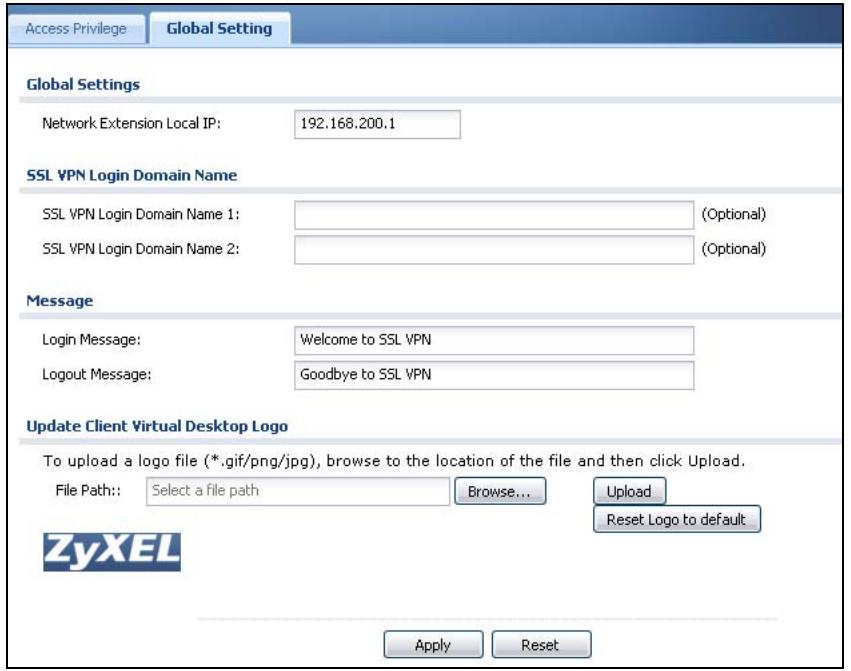
Figure 254 VPN > SSL VPN > Global Setting
The following table describes the labels in this screen.
Table 124 VPN > SSL VPN > Global Setting
| LABEL | DESCRIPTION |
| Global Setting | |
| Network Extension Local IP | Specify the IP address of the ZyWALL (or a gateway device) for full tunnel mode SSL VPN access.Leave this field to the default settings unless it conflicts with another interface. |
| SSL VPN Login Domain Name | |
| SSL VPN Login Domain Name 1/2 | Specify a domain name for users to use for SSL VPN login. The domain name must be registered to one of the ZyWALL's IP addresses or be one of the ZyWALL's DDNS entries. You can specify up to two domain names so you could use one domain name for each of two WAN ports. Do not include the host. For example, www.zyxel.com is a fully qualified domain name where "www" is the host; so you would just use "zyxel.com".The ZyWALL displays the normal login screen without the button for logging into the Web Configurator. |
| Message | |
| Login Message | Specify a message to display on the screen when a user logs in and an SSL VPN connection is established successfully. You can enter up to 60 characters ("a-z", A-Z", "0-9") with spaces allowed. |
| Logout Message | Specify a message to display on the screen when a user logs out and the SSL VPN connection is terminated successfully. You can enter up to 60 characters ("a-z", A-Z", "0-9") with spaces allowed. |
| Update Client Virtual Desktop Logo | You can upload a graphic logo to be displayed on the web browser on the remote user computer. The ZyXEL company logo is the default logo. Specify the location and file name of the logo graphic or click Browse to locate it.Note: The logo graphic must be GIF, JPG, or PNG format. The graphic should use a resolution of 127 x 57 pixels to avoid distortion when displayed. The ZyWALL automatically resize a graphic of a different resolution to 127 x 57 pixels. The file size must be 100 kilobytes or less. Transparent background is recommended. |
| Browse | Click Browse to locate the graphic file on your computer. |
| Upload | Click Upload to transfer the specified graphic file from your computer to the ZyWALL. |
| Reset Logo to Default | Click Reset Logo to Default to display the ZyXEL company logo on the remote user's web browser. |
| Apply | Click Apply to save the changes and/or start the logo file upload process. |
| Reset | Click Reset to return the screen to its last-saved settings. |
24.3.1 How to Upload a Custom Logo
Follow the steps below to upload a custom logo to display on the remote user SSL VPN screens.
1 Click VPN > SSL VPN and click the Global Setting tab to display the configuration screen.
2 Click Browse to locate the logo graphic. Make sure the file is in GIF, JPG, or PNG format.
3 Click Apply to start the file transfer process.
4 Log in as a user to verify that the new logo displays properly.
The following shows an example logo on the remote user screen.
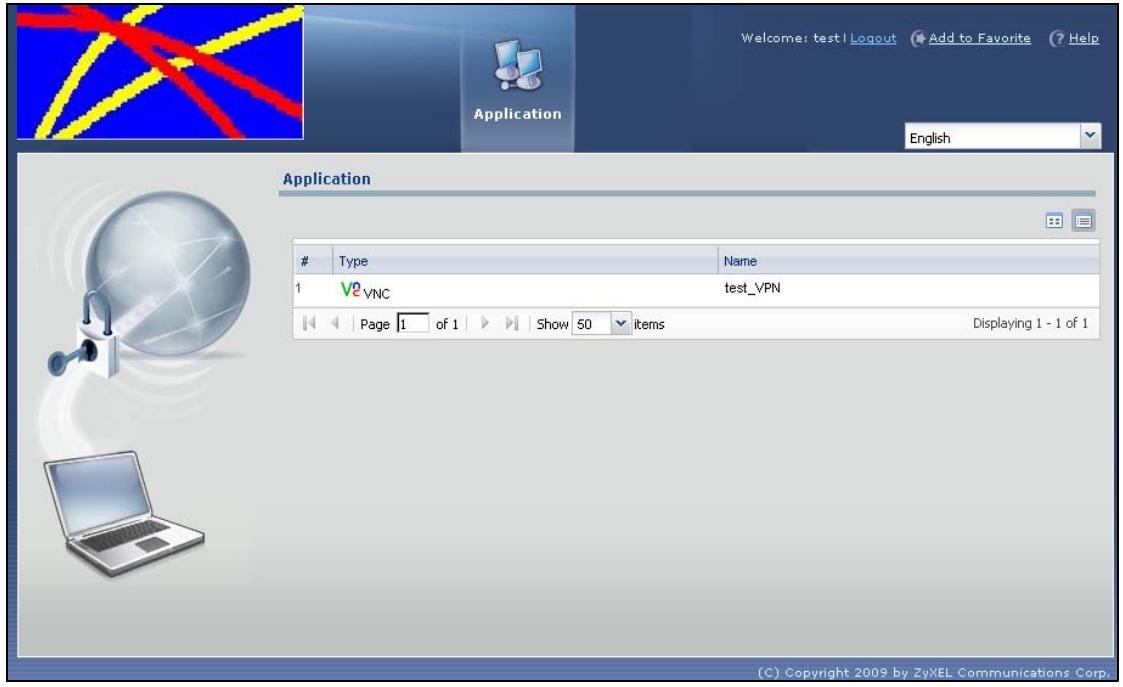
Figure 255 Example Logo Graphic Display
24.4 Establishing an SSL VPN Connection
After you have configured the SSL VPN settings on the ZyWALL, use the ZyWALL login screen's SSL VPN button to establish an SSL VPN connection. See Section 25.2 on page 438 for details.
1 Display the ZyWALL's login screen and enter your user account information (the user name and password). Click SSL VPN.
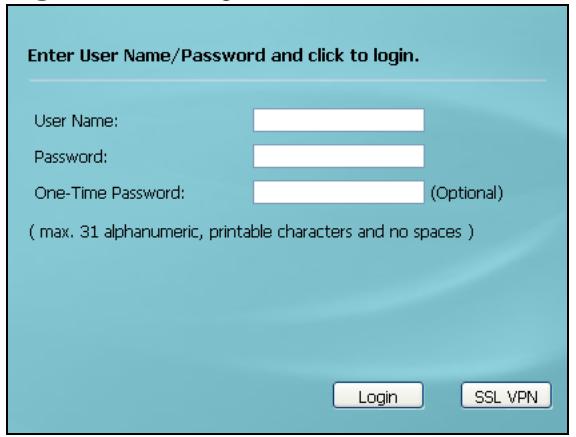
Figure 256 Login Screen
2 SSL VPN connection starts. This may take several minutes depending on your network connection. Once the connection is up, you should see the client portal screen. The following shows an example.
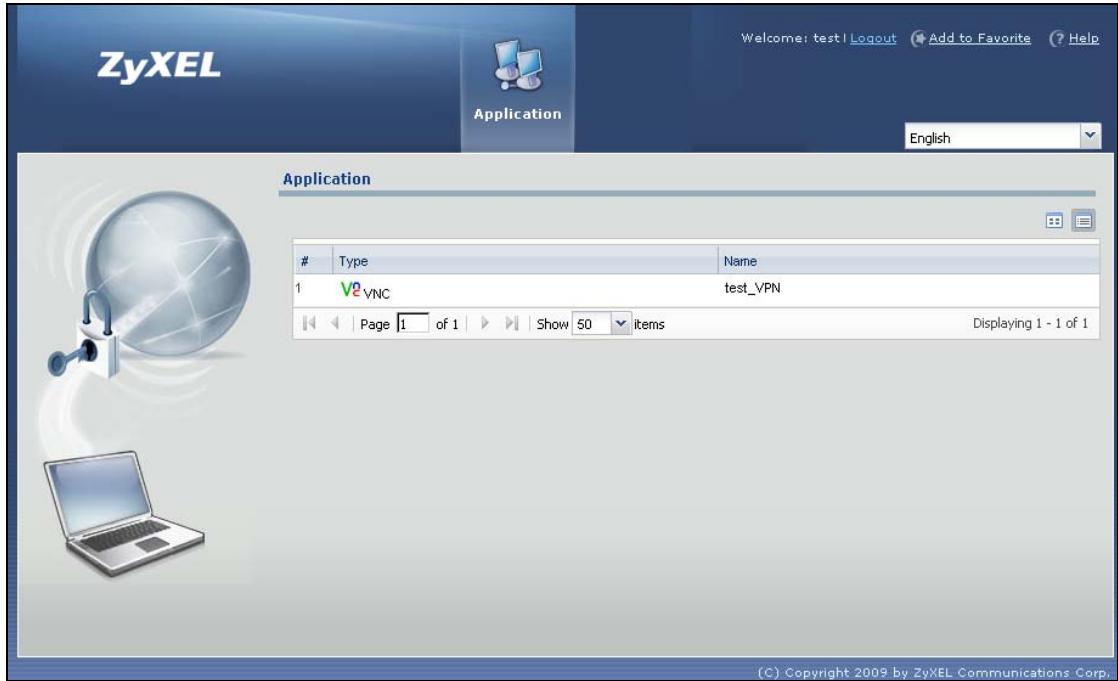
Figure 257 SSL VPN Client Portal Screen Example
If the user account is not set up for SSL VPN access, an "SSL VPN connection is not activated" message displays in the Login screen. Clear the Login to SSL VPN check box and try logging in again.
For more information on user portal screens, refer to Chapter 25 on page 437.
SSL User Screens
25.1 Overview
This chapter introduces the remote user SSL VPN screens. The following figure shows a network example where a remote user (A) logs into the ZyWALL from the Internet to access the web server (WWW) on the local network.

Figure 258 Network Example
25.1.1 What You Need to Know
The ZyWALL can use SSL VPN to provide secure connections to network resources such as applications, files, intranet sites or e-mail through a web-based interface and using Microsoft Outlook Web Access (OWA).
Network Resource Access Methods
As a remote user, you can access resources on the local network using one of the following methods.
- Using a supported web browser
Once you have successfully logged in through the ZyWALL, you can access intranet sites, web-based applications, or web-based e-mails using one of the supported web browsers.
- Using the ZyWALL SecuExtender client
Once you have successfully logged into the ZyWALL, the ZyWALL automatically loads the ZyWALL SecuExtender client program to your computer. With the ZyWALL SecuExtender, you can access network resources, remote desktops and manage files as if you were on the local network. See Chapter 27 on page 449 for more on the ZyWALL SecuExtender.
System Requirements
Here are the browser and computer system requirements for remote user access.
- Windows 7 (32 or 64-bit), Vista (32 or 64-bit), 2003 (32-bit), XP (32-bit), or 2000 (32-bit)
- Internet Explorer 7 and above or Firefox 1.5 and above
- Using RDP requires Internet Explorer
- Sun's Java (Java Runtime Environment or 'JRE') installed and enabled with a minimum version of 1.6.
Required Information
A remote user needs the following information from the network administrator to log in and access network resources.
- the domain name or IP address of the ZyWALL
- the login account user name and password
- if also required, the user name and/or password to access the network resource
Certificates
The remote user's computer establishes an HTTPS connection to the ZyWALL to access the login screen. If instructed by your network administrator, you must install or import a certificate (provided by the ZyWALL or your network administrator). Refer to Appendix D on page 819 for more information.
Finding Out More
See Chapter 24 on page 427 for how to configure SSL VPN on the ZyWALL.
25.2 Remote User Login
This section shows you how to access and log into the network through the ZyWALL. Example screens for Internet Explorer are shown.
1 Open a web browser and enter the web site address or IP address of the ZyWALL. For example, "http://sslvpn.mycompany.com".
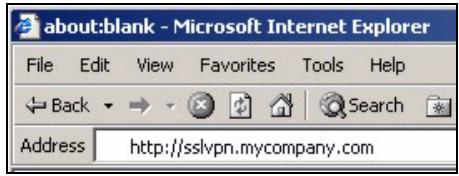
Figure 259 Enter the Address in a Web Browser
2 Click OK or Yes if a security screen displays.
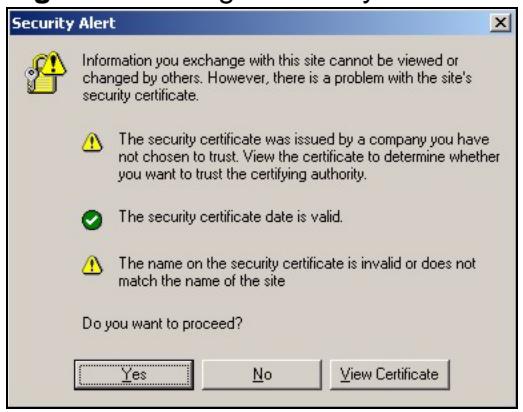
Figure 260 Login Security Screen
3 A login screen displays. Enter the user name and password of your login account. If a token password is also required, enter it in the One-Time Password field.
4 Click SSL VPN to log in and establish an SSL VPN connection to the network to access network resources.
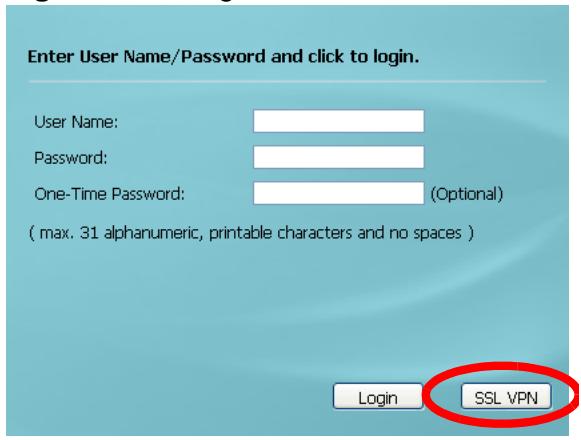
Figure 261 Login Screen
5 Your computer starts establishing a secure connection to the ZyWALL after a successful login. This may take up to two minutes. If you get a message about needing Java, download and install it and restart your browser and re-login. If a certificate warning screen displays, click OK, Yes or Continue.
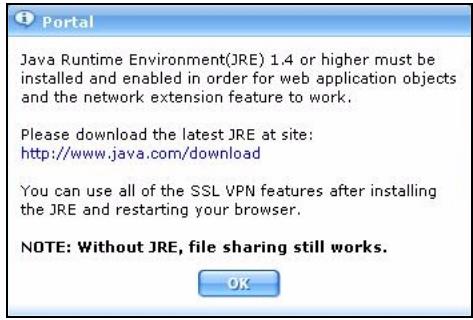
Figure 262 Java Needed Message
6 The ZyWALL tries to install the SecuExtender client. As shown next, you may have to click some pop-ups to get your browser to allow the installation.
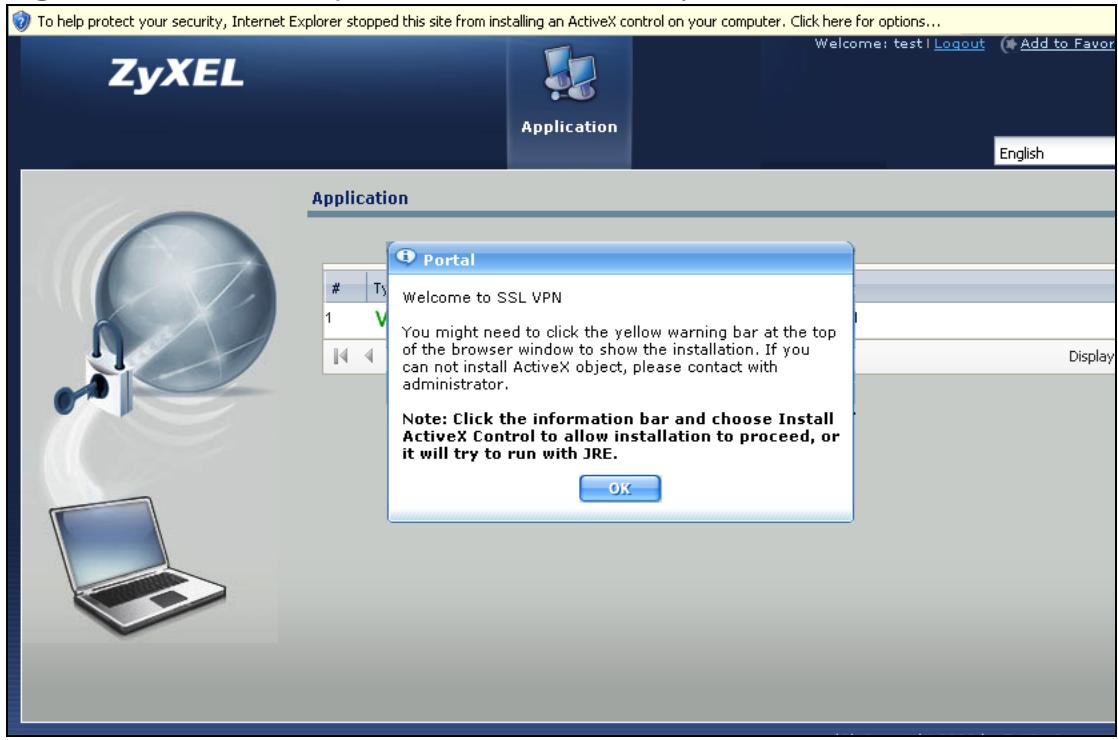
Figure 263 ActiveX Object Installation blocked by Browser
7 The ZyWALL tries to install the SecuExtender client. You may need to click a pop-up to get your browser to allow this. In Internet Explorer, click Install.
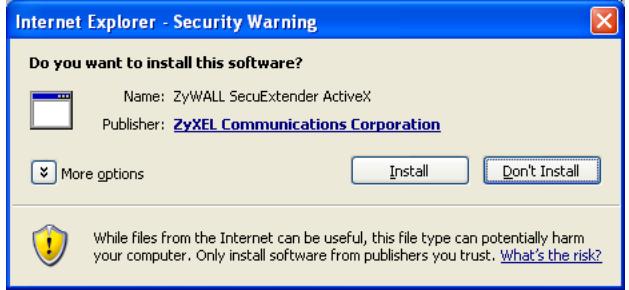
Figure 264 SecuExtenderBlocked by Internet Explorer
8 The ZyWALL tries to run the "ssltun" application. You may need to click something to get your browser to allow this. In Internet Explorer, click Run.
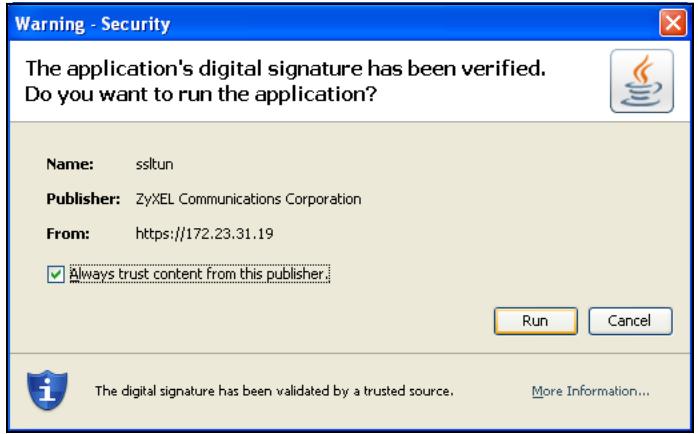
Figure 265 SecuExtender Progress
9 Click Next to use the setup wizard to install the SecuExtender client on your computer.
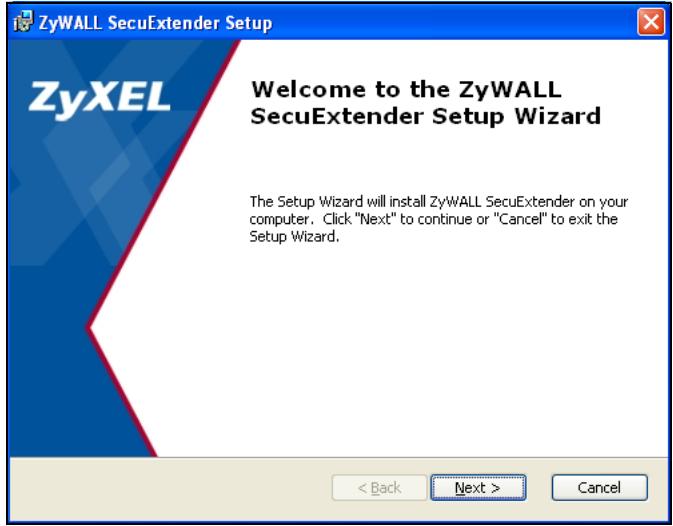
Figure 266 SecuExtender Progress
10 If a screen like the following displays, click Continue Anyway to finish installing the SecuExtender client on your computer.
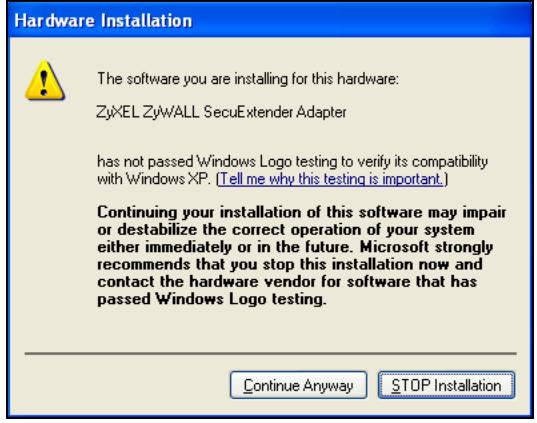
Figure 267 Hardware Installation Warning
11 The Application screen displays showing the list of resources available to you. See Figure 268 on page 443 for a screen example.
Note: Available resource links vary depending on the configuration your network administrator made.
25.3 The SSL VPN User Screens
This section describes the main elements in the remote user screens.
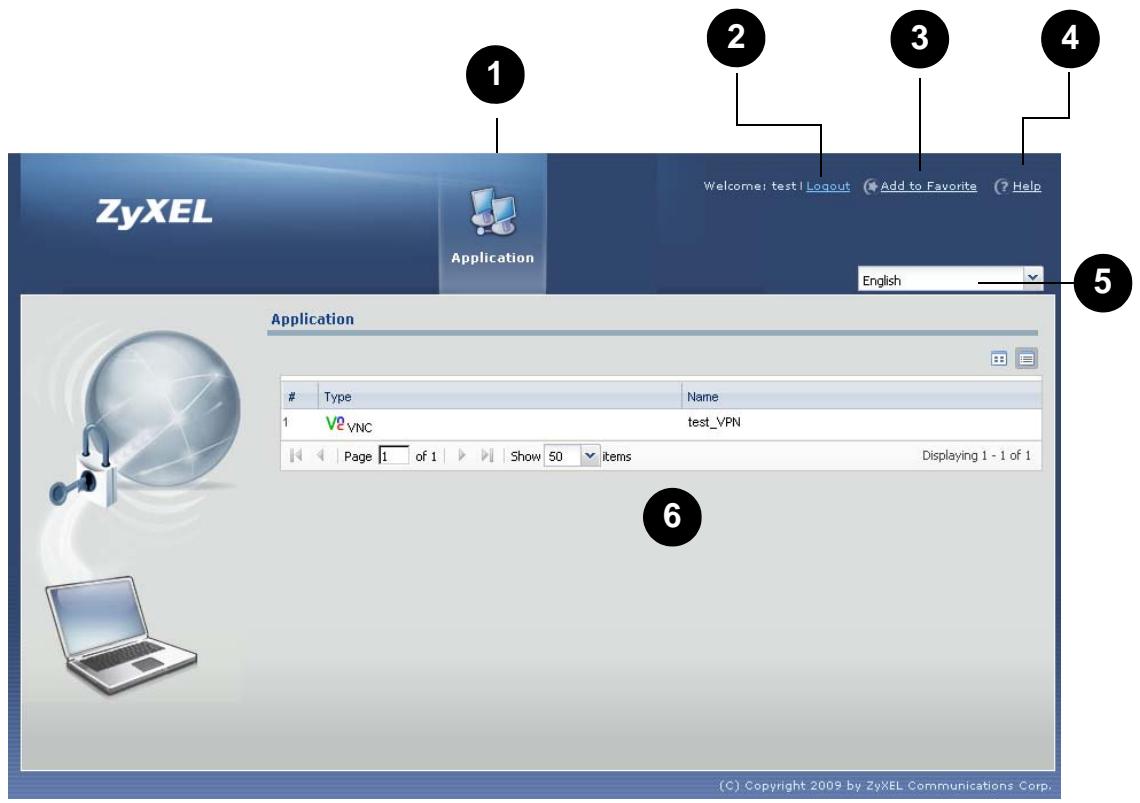
Figure 268 Remote User Screen
The following table describes the various parts of a remote user screen.
Table 125 Remote User Screen Overview
| # | DESCRIPTION |
| 1 | Click on a menu tab to go to the Application screen. |
| 2 | Click this icon to log out and terminate the secure connection. |
| 3 | Click this icon to create a bookmark to the SSL VPN user screen in your web browser. |
| 4 | Click this icon to display the on-line help window. |
| 5 | Select your preferred language for the interface. |
| 6 | This part of the screen displays a list of the resources available to you.In the Application screen, click on a link to access or display the access method. |
25.4 Bookmarking the ZyWALL
You can create a bookmark of the ZyWALL by clicking the Add to Favorite icon. This allows you to access the ZyWALL using the bookmark without having to enter the address every time.
1 In any remote user screen, click the Add to Favorite icon.
2 A screen displays. Accept the default name in the Name field or enter a descriptive name to identify this link.
3 Click OK to create a bookmark in your web browser.
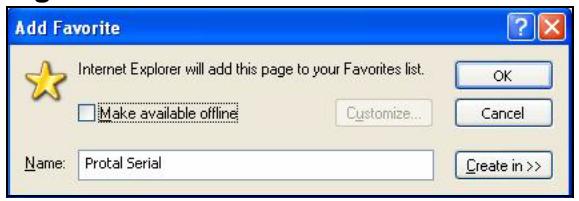
Figure 269 Add Favorite
25.5 Logging Out of the SSL VPN User Screens
To properly terminate a connection, click on theLogout icon in any remote user screen.
1 Click theLogout icon in any remote user screen.
2 A prompt window displays. Click OK to continue.
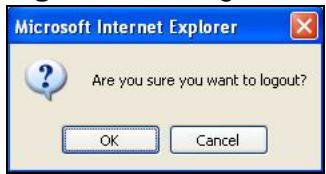
Figure 270截图: Prompt
3 An information screen displays to indicate that the SSL VPN connection is about to terminate.
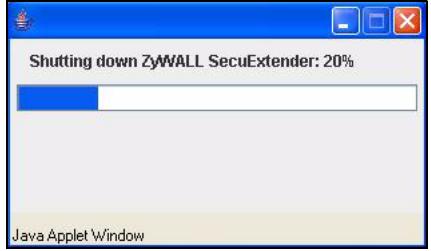
Figure 271截图: Connection Termination Progress
SSL User Application Screens
26.1 SSL User Application Screens Overview
Use the Application screen to access web-based applications (such as web sites and e-mail) on the network through the SSL VPN connection. Which applications you can access depends on the ZyWALL's configuration.
26.2 The Application Screen
Click the Application tab to display the screen. The Name field displays the descriptive name for an application. The Type field displays whether the application supports Virtual Network Computing (VNC) or Remote Desktop Protocol (RDP).
To access a web-based application, simply click a link in the Application screen to display the web screen in a separate browser window.
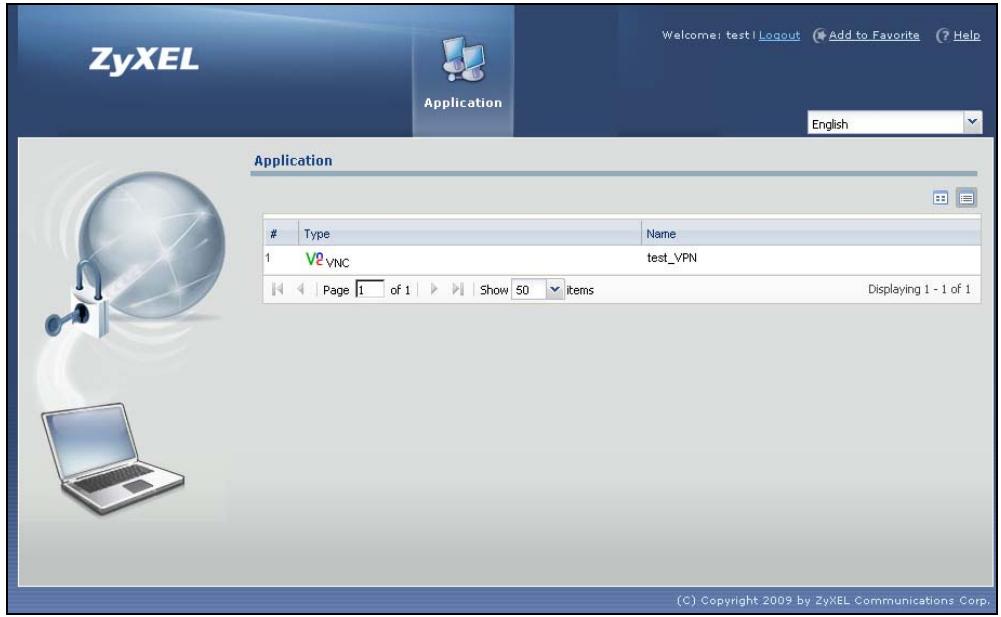
Figure 272 Application
ZyWALL SecuExtender
The ZyWALL automatically loads the ZyWALL SecuExtender client program to your computer after a successful login. The ZyWALL SecuExtender lets you:
- Access servers, remote desktops and manage files as if you were on the local network.
- Use applications like e-mail, file transfer, and remote desktop programs directly without using a browser. For example, you can use Outlook for e-mail instead of the ZyWALL's web-based e-mail.
- Use applications, even proprietary applications, for which the ZyWALL does not offer SSL application objects.
The applications must be installed on your computer. For example, to use the VNC remote desktop program, you must have the VNC client installed on your computer.
27.1 The ZyWALL SecuExtender Icon
The ZyWALL SecuExtender icon color indicates the SSL VPN tunnel's connection status.
Figure 273 ZyWALL SecuExtender Icon


- Red: the SSL VPN tunnel is not connected. You cannot connect to the SSL application and network resources.
- Green: the SSL VPN tunnel is connected. You can connect to the SSL application and network resources. You can also use another application to access resources behind the ZyWALL.
- Gray: the SSL VPN tunnel's connection is suspended. This means the SSL VPN tunnel is connected, but the ZyWALL SecuExtender will not send any traffic through it until you right-click the icon and resume the connection.
27.2 Statistics
Right-click the ZyWALL SecuExtender icon in the system tray and select Status to open the Status screen. Use this screen to view the ZyWALL SecuExtender's statistics.
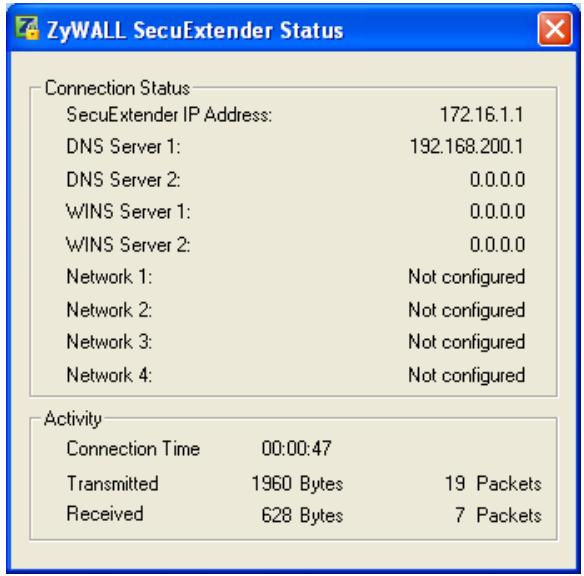
Figure 274 ZyWALL SecuExtender Status
The following table describes the labels in this screen.
Table 126 ZyWALL SecuExtender Statistics
| LABEL | DESCRIPTION |
| Connection Status | |
| SecuExtender IP Address | This is the IP address the ZyWALL assigned to this remote user computer for an SSL VPN connection. |
| DNS Server 1/2 | These are the IP addresses of the DNS server and backup DNS server for the SSL VPN connection.DNS (Domain Name System) maps a domain name to its corresponding IP address and vice versa. The DNS server is extremely important because without it, you must know the IP address of a computer before you can access it. Your computer uses the DNS server specified here to resolve domain names for resources you access through the SSL VPN connection. |
| WINS Server 1/2 | These are the IP addresses of the WINS (Windows Internet Naming Service) and backup WINS servers for the SSL VPN connection. The WINS server keeps a mapping table of the computer names on your network and the IP addresses that they are currently using. |
| Network 1~4 | These are the networks (including netmask) that you can access through the SSL VPN connection. |
| Activity | |
| Connected Time | This is how long the computer has been connected to the SSL VPN tunnel. |
Table 126 ZyWALL SecuExtender Statistics
| LABEL | DESCRIPTION |
| Transmitted | This is how many bytes and packets the computer has sent through the SSL VPN connection. |
| Received | This is how many bytes and packets the computer has received through the SSL VPN connection. |
27.3 View Log
If you have problems with the ZyWALL SecuExtender, customer support may request you to provide information from the log. Right-click the ZyWALL SecuExtender icon in the system tray and select Log to open a notepad file of the ZyWALL SecuExtender's log.
Figure 275 ZyWALL SecuExtender Log Example
##########
[ 2009/03/12 13:35:50 ][SecuExtender Agent][DETAIL] Build Datetime: Feb 24
2009/10:25:07
[ 2009/03/12 13:35:50 ][SecuExtender Agent][DEBUG] rasphone.pbk:
C:\Documents and Settings\11746\rasphone.pbk
[ 2009/03/12 13:35:50 ][SecuExtender Agent][DEBUG] SecuExtender.log:
C:\Documents and Settings\11746\SecuExtender.log
[ 2009/03/12 13:35:50 ][SecuExtender Agent][DETAIL] Check Parameters
[ 2009/03/12 13:35:50 ][SecuExtender Agent][DETAIL] Connect to
172.23.31.19:443/10444
[ 2009/03/12 13:35:50 ][SecuExtender Agent][DETAIL] Parameter is OK
[ 2009/03/12 13:35:50 ][SecuExtender Agent][DETAIL] Checking System
status...
[ 2009/03/12 13:35:50 ][SecuExtender Agent][DETAIL] Checking service
(first) ...
[ 2009/03/12 13:35:50 ][SecuExtender Agent][DETAIL] SecuExtender Helper is
running
[ 2009/03/12 13:35:50 ][SecuExtender Agent][DETAIL] System is OK
[ 2009/03/12 13:35:50 ][SecuExtender Agent][DEBUG] Connect to 2887196435/
443
[ 2009/03/12 13:35:50 ][SecuExtender Agent][DETAIL] Handshake LoopCounter:
0
[ 2009/03/12 13:35:50 ][SecuExtender Agent][DETAIL] 611 bytes of handshake
data received
27.4 Suspend and Resume the Connection
When the ZyWALL SecuExtender icon in the system tray is green, you can right-click the icon and select Suspend Connection to keep the SSL VPN tunnel
connected but not send any traffic through it until you right-click the icon and resume the connection.
27.5 Stop the Connection
Right-click the icon and select Stop Connection to disconnect the SSL VPN tunnel.
27.6 Uninstalling the ZyWALL SecuExtender
Do the following if you need to remove the ZyWALL SecuExtender.
1 Click start > All Programs > ZyXEL > ZyWALL SecuExtender > Uninstall.
2 In the confirmation screen, click Yes.
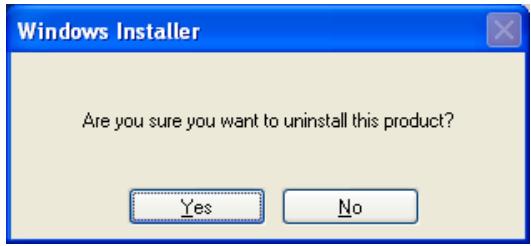
Figure 276 Uninstalling the ZyWALL SecuExtender Confirmation
3 Windows uninstalls the ZyWALL SecuExtender.
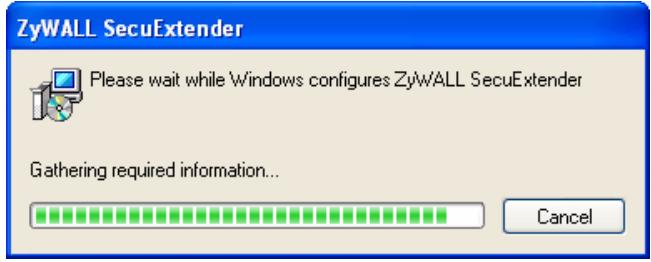
Figure 277 ZyWALL SecuExtender Uninstallation
Bandwidth Management
28.1 Overview
Bandwidth management provides a convenient way to manage the use of various services on the network. It manages general protocols (for example, HTTP and FTP) and applies traffic prioritization to enhance the performance of delay-sensitive applications like voice and video.
28.1.1 What You Can Do in this Chapter
Use the BWM screens (see Section 28.2 on page 461) to control bandwidth for services passing through the ZyWALL, and it identifies the conditions that refine this.
28.1.2 What You Need to Know
When you allow a service, you can restrict the bandwidth it uses. It controls TCP and UDP traffic. Use policy routes to manage other types of traffic (like ICMP).
Note: Bandwidth management in policy routes has priority over policy routes to manage the bandwidth of TCP and UDP traffic.
If you want to use a service, make sure both the firewall allow the service's packets to go through the ZyWALL.
Note: The ZyWALL checks firewall rules before it checks bandwidth management rules for traffic going through the ZyWALL.
Bandwidth management examines every TCP and UDP connection passing through the ZyWALL. Then, you can specify, by port, whether or not the ZyWALL continues to route the connection.
DiffServ and DSCP Marking
QoS is used to prioritize source-to-destination traffic flows. All packets in the same flow are given the same priority. CoS (class of service) is a way of managing traffic
in a network by grouping similar types of traffic together and treating each type as a class. You can use CoS to give different priorities to different packet types.
DiffServ (Differentiated Services) is a class of service (CoS) model that marks packets so that they receive specific per-hop treatment at DiffServ-compliant network devices along the route based on the application types and traffic flow. Packets are marked with DiffServ Code Points (DSCPs) indicating the level of service desired. This allows the intermediary DiffServ-compliant network devices to handle the packets differently depending on the code points without the need to negotiate paths or remember state information for every flow. In addition, applications do not have to request a particular service or give advanced notice of where the traffic is going.
Connection and Packet Directions
Bandwidth management looks at the connection direction, that is from which zone the connection was initiated and to which zone the connection is going.
A connection has outbound and inbound packet flows. The ZyWALL controls the bandwidth of traffic of each flow as it is going out through an interface or VPN tunnel.
- The outbound traffic flows from the connection initiator to the connection responder.
- The inbound traffic flows from the connection responder to the connection initiator.
For example, a LAN1 to WAN connection is initiated from LAN1 and goes to the WAN.
- Outbound traffic goes from a LAN1 zone device to a WAN zone device. Bandwidth management is applied before sending the packets out a WAN zone interface on the ZyWALL.
- Inbound traffic comes back from the WAN zone device to the LAN1 zone device. Bandwidth management is applied before sending the traffic out a LAN1 zone interface.
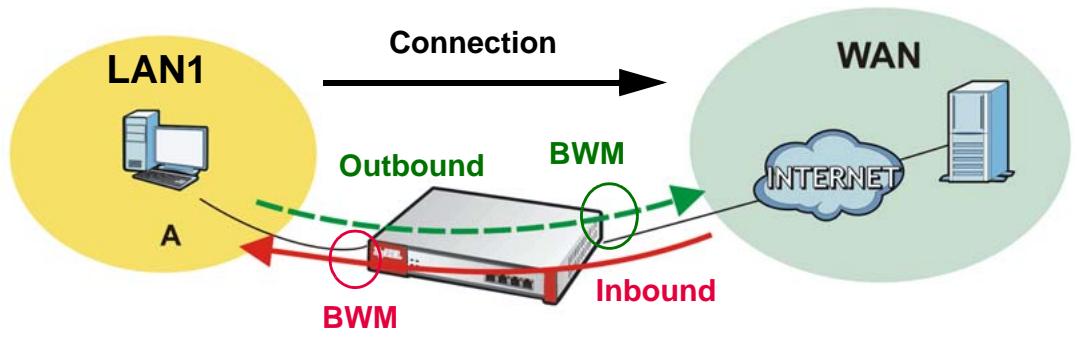
Figure 278 LAN1 to WAN Connection and Packet Directions
Outbound and Inbound Bandwidth Limits
You can limit an application's outbound or inbound bandwidth. This limit keeps the traffic from using up too much of the out-going interface's bandwidth. This way you can make sure there is bandwidth for other applications. When you apply a bandwidth limit to outbound or inbound traffic, each member of the out-going zone can send up to the limit. Take a LAN1 to WAN policy for example.
- Outbound traffic is limited to 200 kbps. The connection initiator is on the LAN1 so outbound means the traffic traveling from the LAN1 to the WAN. Each of the WAN zone's two interfaces can send the limit of 200 kbps of traffic.
- Inbound traffic is limited to 500 kbs. The connection initiator is on the LAN1 so inbound means the traffic traveling from the WAN to the LAN1.
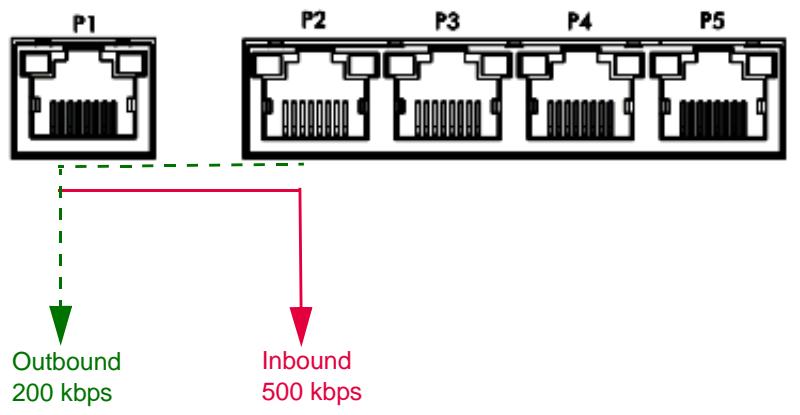
Figure 279 LAN1 to WAN, Outbound 200 kbps, Inbound 500 kbps
Bandwidth Management Priority
- The ZyWALL gives bandwidth to higher-priority traffic first, until it reaches its configured bandwidth rate.
- Then lower-priority traffic gets bandwidth.
- The ZyWALL uses a fairness-based (round-robin) scheduler to divide bandwidth among traffic flows with the same priority.
- The ZyWALL automatically treats traffic with bandwidth management disabled as priority 7 (the lowest priority).
Maximize Bandwidth Usage
Maximize bandwidth usage allows applications with maximize bandwidth usage enabled to "borrow" any unused bandwidth on the out-going interface.
After each application gets its configured bandwidth rate, the ZyWALL uses the fairness- based scheduler to divide any unused bandwidth on the out-going interface amongst applications that need more bandwidth and have maximize bandwidth usage enabled.
Unused bandwidth is divided equally. Higher priority traffic does not get a larger portion of the unused bandwidth.
Bandwidth Management Behavior
The following sections show how bandwidth management behaves with various settings. For example, you configure DMZ to WAN policies for FTP servers A and B. Each server tries to send 1000 kbps, but the WAN is set to a maximum outgoing speed of 1000 kbps. You configure policy A for server A's traffic and policy B for server B's traffic.
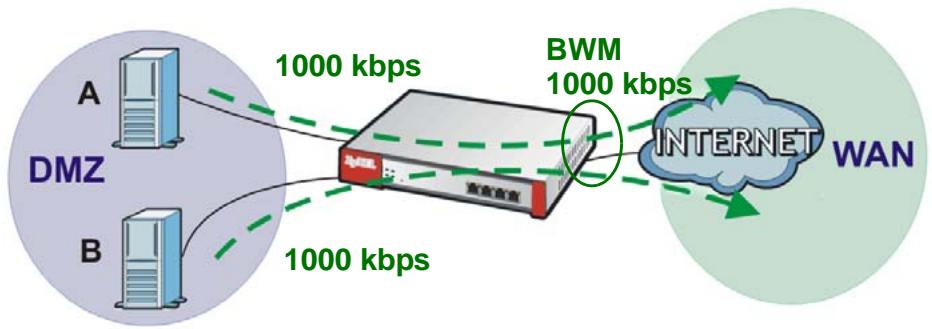
Figure 280 Bandwidth Management Behavior
Configured Rate Effect
In the following table the configured rates total less than the available bandwidth and maximize bandwidth usage is disabled, both servers get their configured rate.
Table 127 Configured Rate Effect
| POLICY | CONFIGURED RATE | MAX. B. U. | PRIORITY | ACTUAL RATE |
| A | 300 kbps | No | 1 | 300 kbps |
| B | 200 kbps | No | 1 | 200 kbps |
Priority Effect
Here the configured rates total more than the available bandwidth. Because server A has higher priority, it gets up to it's configured rate (800 kbps), leaving only 200 kbps for server B.
Table 128 Priority Effect
| POLICY | CONFIGURED RATE | MAX. B. U. | PRIORITY | ACTUAL RATE |
| A | 800 kbps | Yes | 1 | 800 kbps |
| B | 1000 kbps | Yes | 2 | 200 kbps |
Maximize Bandwidth Usage Effect
With maximize bandwidth usage enabled, after each server gets its configured rate, the rest of the available bandwidth is divided equally between the two. So server A gets its configured rate of 300 kbps and server B gets its configured rate of 200 kbps. Then the ZyWALL divides the remaining bandwidth (1000 - 500 = 500) equally between the two (500 / 2 = 250 kbps for each). The priority has no effect on how much of the unused bandwidth each server gets.
So server A gets its configured rate of 300 kbps plus 250 kbps for a total of 550 kbps. Server B gets its configured rate of 200 kbps plus 250 kbps for a total of 450 kbps.
Table 129 Maximize Bandwidth Usage Effect
| POLICY | CONFIGURED RATE | MAX. B. U. | PRIORITY | ACTUAL RATE |
| A | 300 kbps | Yes | 1 | 550 kbps |
| B | 200 kbps | Yes | 2 | 450 kbps |
Priority and Over Allotment of Bandwidth Effect
Server A has a configured rate that equals the total amount of available bandwidth and a higher priority. You should regard extreme over allotment of traffic with different priorities (as shown here) as a configuration error. Even though the ZyWALL still attempts to let all traffic get through and not be lost, regardless of its priority, server B gets almost no bandwidth with this configuration.
Table 130 Priority and Over Allotment of Bandwidth Effect
| POLICY | CONFIGURED RATE | MAX. B. U. | PRIORITY | ACTUAL RATE |
| A | 1000 kbps | Yes | 1 | 999 kbps |
| B | 1000 kbps | Yes | 2 | 1 kbps |
Finding Out More
- See Section 7.5 on page 120 for an example of how to set up web surfing policies with bandwidth restrictions.
- See DSCP Marking and Per-Hop Behavior on page 299 for a description of DSCP marking.
28.1.3 Bandwidth Management Examples
Bandwidth management is very useful when applications are competing for limited bandwidth. For example, say you have a WAN zone interface connected to an ADSL device with a 8 Mbps downstream and 1 Mbps upstream ADSL connection.
Here is an overview of what the rules need to accomplish. See the following sections for more details.
- SIP traffic from VIP users must get through with the least possible delay regardless of if it is an outgoing call or an incoming call. The VIP users must be able to make and receive SIP calls no matter which interface they are connected to.
- HTTP traffic needs to be given priority over FTP traffic.
- FTP traffic from the WAN to the DMZ must be limited so it does not interfere with SIP and HTTP traffic.
- FTP traffic from the LAN1 to the DMZ can use more bandwidth since the interfaces support up to 1 Gbps connections, but it must be the lowest priority and limited so it does not interfere with SIP and HTTP traffic.
SIP: Any to WAN
Outbound: 200 Kbps
Inbound: 200 Kbps
Priority: 1
Max. B. U.
SIP: WAN to Any Outbound: 200 Kbps Inbound: 200 Kbps Priority: 1 Max. B. U.
HTTP: Any to WAN
Outbound: 100 Kbps
Inbound: 500 Kbps
Priority: 2
Max. B. U.
FTP: WAN to DMZ
Outbound: 100 Kbps
Inbound: 300 Kbps
Priority: 3
No Max. B. U.
Figure 281 Bandwidth Management Example
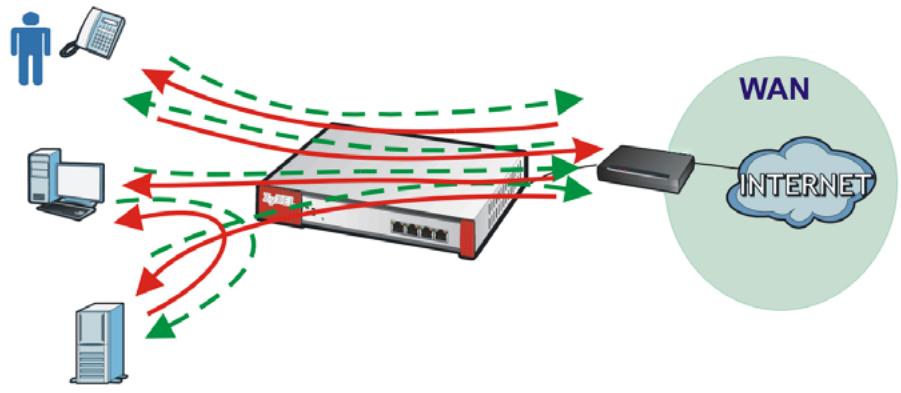
FTP: LAN1 to DMZ
Outbound: 50 Mbps
Inbound: 50 Mbps
Priority: 4
No Max. B. U.
28.1.3.1 Setting the Interface's Bandwidth
Use the interface screens to set the WAN zone interface's upstream bandwidth to be equal to (or slightly less than) what the connected device can support. This example uses 1000 Kbps.
28.1.3.2 SIP Any to WAN Bandwidth Management Example
- Manage SIP traffic going to the WAN zone from a VIP user on the LAN or DMZ.
- Outbound traffic (to the WAN from the LAN and DMZ) is limited to 200 kbps. The ZyWALL applies this limit before sending the traffic to the WAN.
-
Inbound traffic (to the LAN and DMZ from the WAN) is also limited to 200 kbps. The ZyWALL applies this limit before sending the traffic to LAN or DMZ.
-
Enable maximize bandwidth usage so the SIP traffic can borrow unused bandwidth.
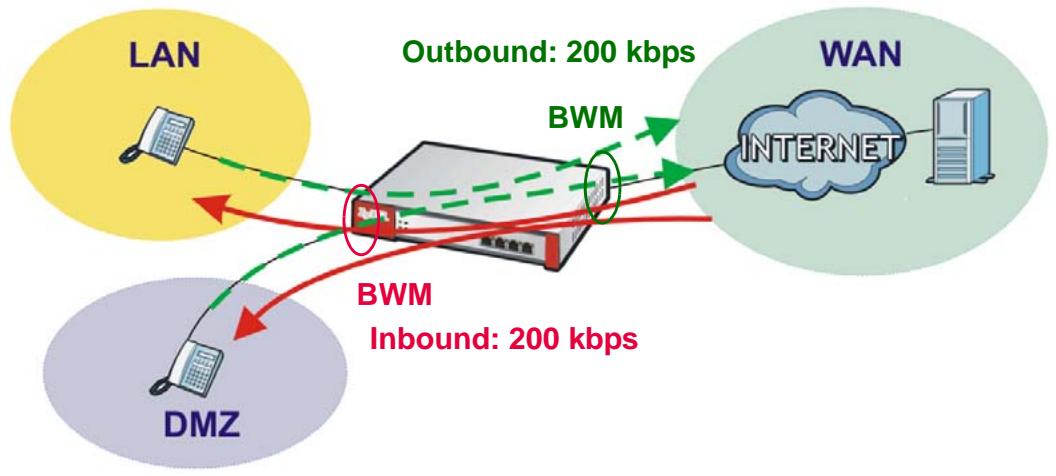
Figure 282 SIP Any to WAN Bandwidth Management Example
28.1.3.3 SIP WAN to Any Bandwidth Management Example
You also create a policy for calls coming in from the SIP server on the WAN. It is the same as the SIP Any to WAN policy, but with the directions reversed (WAN to Any instead of Any to WAN).
28.1.3.4 HTTP Any to WAN Bandwidth Management Example
- Inbound traffic gets more bandwidth as the local users will probably download more than they upload (and the ADSL connection supports this).
- Second highest priority (2). Set policies for other applications (except SIP) to lower priorities so the local users' HTTP traffic gets sent before non-SIP traffic.
- Enable maximize bandwidth usage so the HTTP traffic can borrow unused bandwidth.
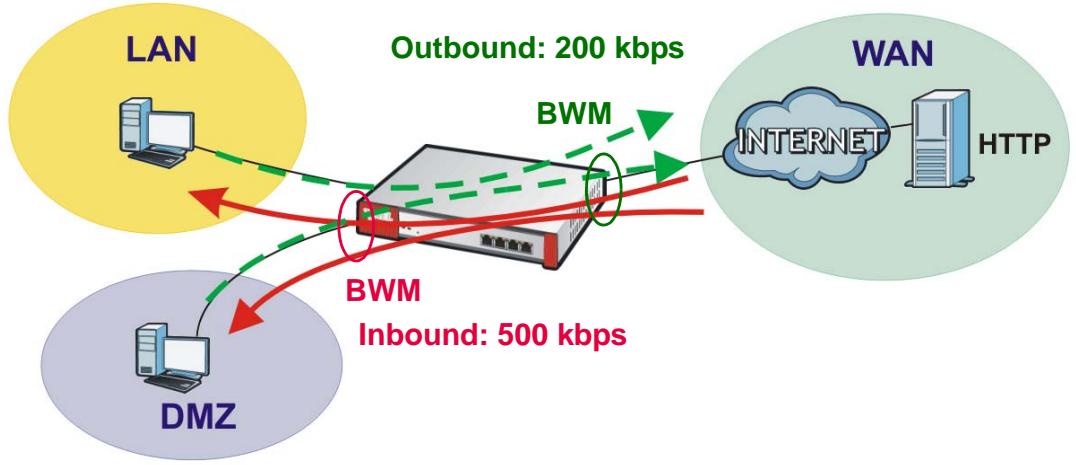
Figure 283 HTTP Any to WAN Bandwidth Management Example
28.1.3.5 FTP WAN to DMZ Bandwidth Management Example
- ADSL supports more downstream than upstream so you allow remote users 300 kbps for uploads to the DMZ FTP server (outbound) but only 100 kbps for downloads (inbound).
- Third highest priority (3).
- Disable maximize bandwidth usage since you do not want to give FTP more bandwidth.
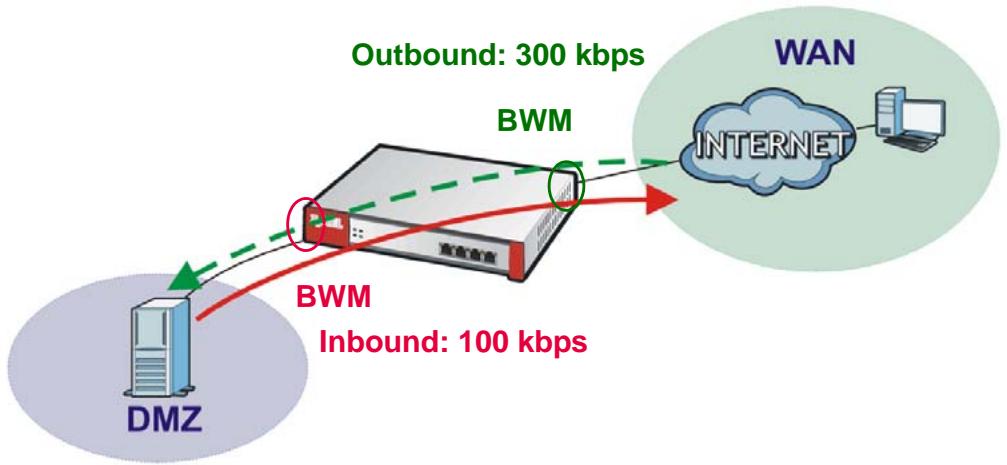
Figure 284 FTP WAN to DMZ Bandwidth Management Example
28.1.3.6 FTP LAN to DMZ Bandwidth Management Example
- The LAN and DMZ zone interfaces are connected to Ethernet networks (not an ADSL device) so you limit both outbound and inbound traffic to 50 Mbps.
Fourth highest priority (4). - Disable maximize bandwidth usage since you do not want to give FTP more bandwidth.
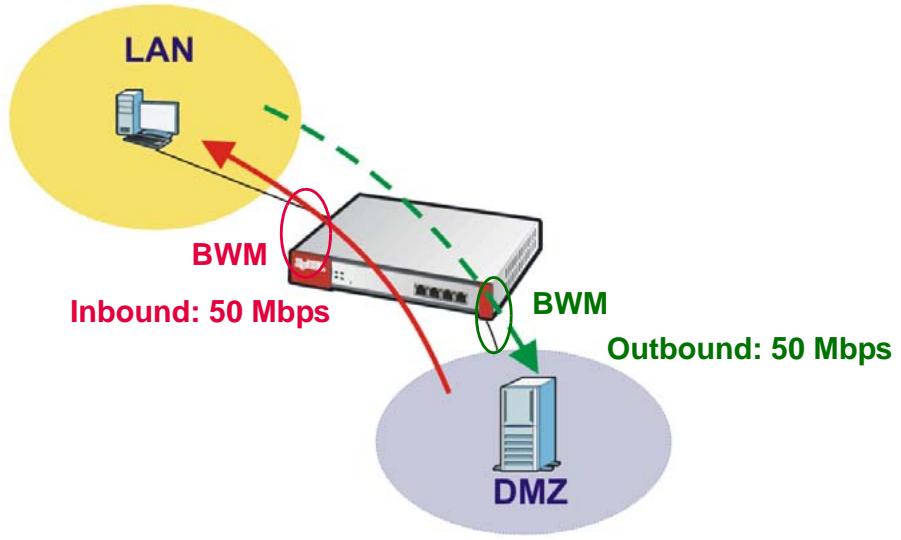
Figure 285 FTP LAN to DMZ Bandwidth Management Example
28.2 TheBandwidth Management Screen
The Bandwidth management screen controls the default policy for TCP and UDP traffic. You can use source zone, destination zone, destination port, schedule, user, source, and destination information as criteria to create a sequence of specific conditions, similar to the sequence of rules used by firewalls, to specify what the ZyWALL should do more precisely. This screen also allows you to add, edit, and remove conditions to this default policy.
Click Configuration > Bandwidth Management to open the following screen.
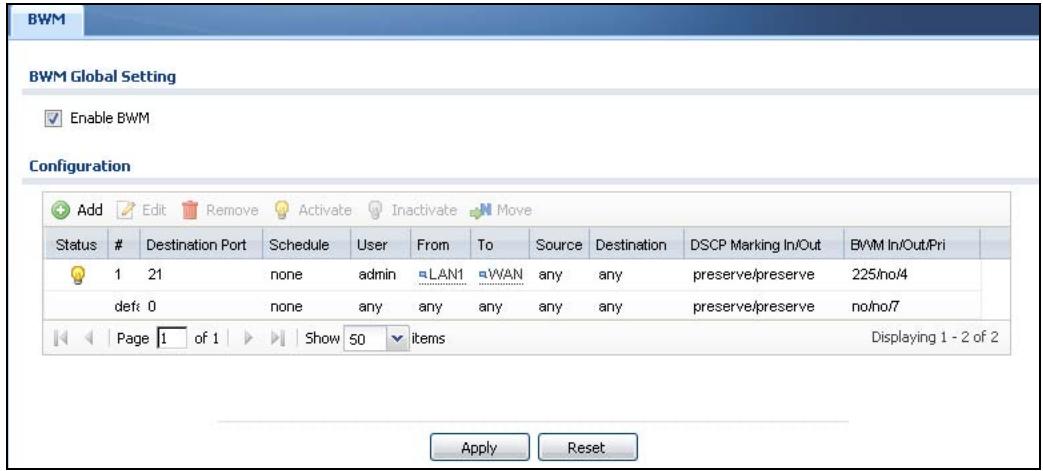
Figure 286 Configuration > Bandwidth Management
The following table describes the labels in this screen. See Section 28.2.1 on page 463 for more information as well.
Table 131 Configuration > Bandwidth Management
| LABEL | DESCRIPTION |
| Enable BWM | Select this check box to activate management bandwidth. |
| Add | Click this to create a new entry. Select an entry and click Add to create a new entry after the selected entry. |
| Edit | Select an entry and click this to be able to modify it. |
| Remove | Select an entry and click this to delete it. |
| Activate | To turn on an entry, select it and click Activate. |
| Inactivate | To turn off an entry, select it and click Inactivate. |
| Move | To change an entry's position in the numbered list, select it and click Move to display a field to type a number for where you want to put that entry and press [ENTER] to move the entry to the number that you typed. |
| Status | The activate (light bulb) icon is lit when the entry is active and dimmed when the entry is inactive. |
Table 131 Configuration > Bandwidth Management
| LABEL | DESCRIPTION |
| # | This field is a sequential value, and it is not associated with a specific condition.Note: The ZyWALL checks conditions in the order they appear in the list. While this sequence does not affect the functionality, you might improve the performance of the ZyWALL by putting more common conditions at the top of the list. |
| Destination Port | This field displays the specific port number to which this policy applies. |
| Schedule | This is the schedule that defines when the policy applies. any means the policy always applies. |
| User | This is the user name or user group to which the policy applies. If any displays, the policy applies to all users. |
| From | This is the source zone of the traffic to which this policy applies. |
| To | This is the destination zone of the traffic to which this policy applies. |
| Source | This is the source address or address group for whom this policy applies. If any displays, the policy is effective for every source. |
| Destination | This is the destination address or address group for whom this policy applies. If any displays, the policy is effective for every destination. |
| DSCP Marking | This is how the ZyWALL handles the DSCP value of the outgoing packets that match this policy.In - Inbound, the traffic the ZyWALL sends to a connection's initiator.Out - Outbound, the traffic the ZyWALL sends out from a connection's initiator.If this field displays a DSCP value, the ZyWALL applies that DSCP value to the route's outgoing packetspreserve means the ZyWALL does not modify the DSCP value of the route's outgoing packets.default means the ZyWALL sets the DSCP value of the route's outgoing packets to 0.The “af” choices stand for Assured Forwarding. The number following the “af” identifies one of four classes and one of three drop preferences.See Assured Forwarding (AF) PHB for DiffServ on page 309 for more details. |
Table 131 Configuration > Bandwidth Management
| LABEL | DESCRIPTION |
| BWM | These fields show the amount of bandwidth the traffic can use.In - This is how much inbound bandwidth, in kilobits per second, this policy allows the matching traffic to use. Inbound refers to the traffic the ZyWALL sends to a connection's initiator. If no displays here, this policy does not apply bandwidth management for the inbound traffic.Out - This is how much outgoing bandwidth, in kilobits per second, this policy allows the matching traffic to use. Outbound refers to the traffic the ZyWALL sends out from a connection's initiator. If no displays here, this policy does not apply bandwidth management for the outbound traffic.Pri - This is the priority for the traffic that matches this policy. The smaller the number, the higher the priority. Traffic with a higher priority is given bandwidth before traffic with a lower priority. The ZyWALL ignores this number if the incoming and outgoing limits are both set to 0. In this case the traffic is automatically treated as being set to the lowest priority (7) regardless of this field's configuration. |
| Apply | Click Apply to save your changes back to the ZyWALL. |
| Reset | Click Reset to return the screen to its last-saved settings. |
28.2.1 The Bandwidth Management Add/Edit Screen
The Configuration > Bandwidth Management Add/Edit screen allows you to create a new condition or edit an existing one. To access this screen, go to the Configuration > Bandwidth Management screen (see Section 28.2 on page 461), and click either the Add icon or an Edit icon.
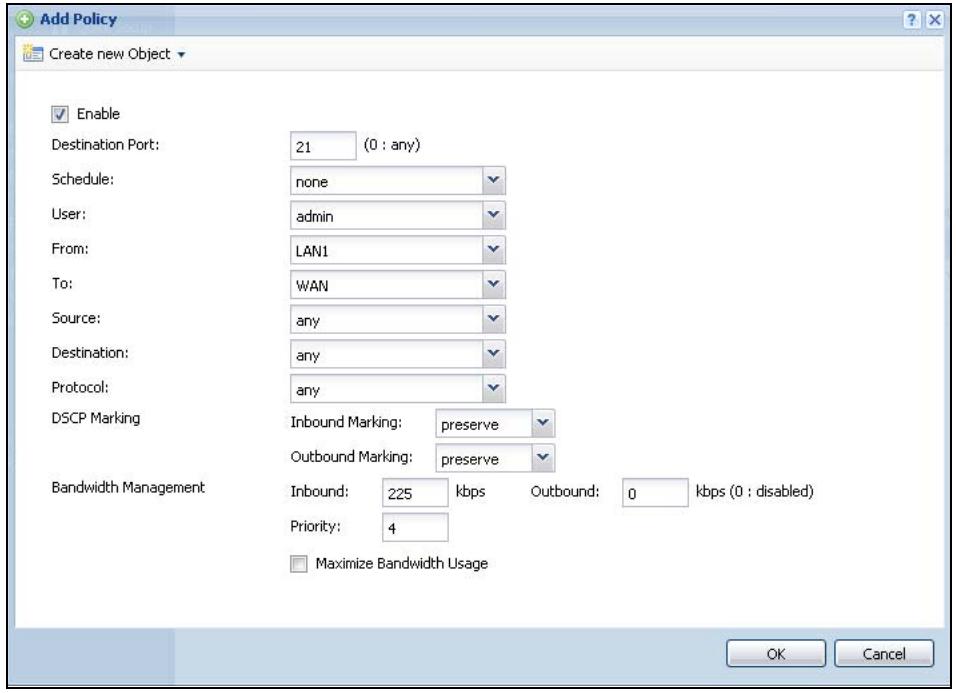
Figure 287 Configuration > Bandwidth Management > Edit
The following table describes the labels in this screen.
Table 132 Configuration > Bandwidth Management
| LABEL | DESCRIPTION |
| Create new Object | Use to configure any new settings objects that you need to use in this screen. |
| Enable | Select this check box to turn on this policy. |
| Destination Port | Use this field to specify a specific port number to which to apply this policy. Type zero, if this policy applies for every port number. |
| Schedule | Select a schedule that defines when the policy applies or select Create Object to configure a new one (see Chapter 36 on page 567 for details). Otherwise, select any to make the policy always effective. |
| User | Select a user name or user group to which to apply the policy. Use Create new Object if you need to configure a new user account (see Section 33.2.1 on page 542 for details). Select any to apply the policy for every user. |
| From | Select the source zone of the traffic to which this policy applies. |
| To | Select the destination zone of the traffic to which this policy applies. |
| Source | Select a source address or address group for whom this policy applies. Use Create new Object if you need to configure a new one. Select any if the policy is effective for every source. |
| Destination | Select a destination address or address group for whom this policy applies. Use Create new Object if you need to configure a new one. Select any if the policy is effective for every destination. |
| Protocol | Select the protocol for which this condition applies. Choices are: TCP and UDP. Select any to apply the policy to both TCP and UDP traffic. |
| DSCP Marking | Set how the ZyWALL handles the DSCP value of the outgoing packets that match this policy. Inbound refers to the traffic the ZyWALL sends to a connection's initiator. Outbound refers to the traffic the ZyWALL sends out from a connection's initiator. Select one of the pre-defined DSCP values to apply or select User Defined to specify another DSCP value. The “af” choices stand for Assured Forwarding. The number following the “af” identifies one of four classes and one of three drop preferences. See Assured Forwarding (AF) PHB for DiffServ on page 309 for more details. Select preserve to have the ZyWALL keep the packets' original DSCP value. Select default to have the ZyWALL set the DSCP value of the packets to 0. |
| Bandwidth Management | Configure these fields to set the amount of bandwidth the application can use. |
Table 132 Configuration > Bandwidth Management
| LABEL | DESCRIPTION |
| Inbound kbps | Type how much inbound bandwidth, in kilobits per second, this policy allows the traffic to use. Inbound refers to the traffic the ZyWALL sends to a connection's initiator.If you enter 0 here, this policy does not apply bandwidth management for the matching traffic that the ZyWALL sends to the initiator. Traffic with bandwidth management disabled (inbound and outbound are both set to 0) is automatically treated as the lowest priority (7).If the sum of the bandwidths for routes using the same next hop is higher than the actual transmission speed, lower priority traffic may not be sent if higher priority traffic uses all of the actual bandwidth. |
| Outbound kbps | Type how much outbound bandwidth, in kilobits per second, this policy allows the traffic to use. Outbound refers to the traffic the ZyWALL sends out from a connection's initiator.If you enter 0 here, this policy does not apply bandwidth management for the matching traffic that the ZyWALL sends out from the initiator. Traffic with bandwidth management disabled (inbound and outbound are both set to 0) is automatically treated as the lowest priority (7).If the sum of the bandwidths for routes using the same next hop is higher than the actual transmission speed, lower priority traffic may not be sent if higher priority traffic uses all of the actual bandwidth. |
| Priority | This field displays when the inbound or outbound bandwidth management is not set to 0. Enter a number between 1 and 7 to set the priority for traffic that matches this policy. The smaller the number, the higher the priority.Traffic with a higher priority is given bandwidth before traffic with a lower priority.The ZyWALL uses a fairness-based (round-robin) scheduler to divide bandwidth between traffic flows with the same priority.The number in this field is ignored if the incoming and outgoing limits are both set to 0. In this case the traffic is automatically treated as being set to the lowest priority (7) regardless of this field's configuration. |
| Maximize Bandwidth Usage | This field displays when the inbound or outbound bandwidth management is not set to 0. Enable maximize bandwidth usage to let the traffic matching this policy "borrow" any unused bandwidth on the out-going interface.After each application or type of traffic gets its configured bandwidth rate, the ZyWALL uses the fairness- based scheduler to divide any unused bandwidth on the out-going interface amongst applications and traffic types that need more bandwidth and have maximize bandwidth usage enabled. |
| OK | Click OK to save your changes back to the ZyWALL. |
| Cancel | Click Cancel to exit this screen without saving your changes. |
29.1 Overview
This chapter introduces ADP (Anomaly Detection and Prevention), anomaly profiles and applying an ADP profile to a traffic direction. ADP protects against anomalies based on violations of protocol standards (RFCs - Requests for Comments) and abnormal flows such as port scans.
29.1.1 ADP
1 ADP anomaly detection is in general effective against abnormal behavior.
2 ADP traffic and anomaly rules are updated when you upload new firmware.
29.1.2 What You Can Do in this Chapter
- Use Anti-X > ADP > General (Section 29.2 on page 469) to turn anomaly detection on or off and apply anomaly profiles to traffic directions.
- Use Anti-X > ADP > Profile (Section 29.3 on page 470) to add a new profile, edit an existing profile or delete an existing profile.
29.1.3 What You Need To Know
Traffic Anomalies
Traffic anomaly rules look for abnormal behavior or events such as port scanning, sweeping or network flooding. It operates at OSI layer-2 and layer-3. Traffic anomaly rules may be updated when you upload new firmware.
Protocol Anomalies
Protocol anomalies are packets that do not comply with the relevant RFC (Request For Comments). Protocol anomaly detection includes HTTP Inspection, TCP Decoder, UDP Decoder and ICMP Decoder. Protocol anomaly rules may be updated when you upload new firmware.
ADP Profile
An ADP profile is a set of traffic anomaly rules and protocol anomaly rules that you can activate as a set and configure common bg and action settings. You can apply ADP profiles to traffic flowing from one zone to another.
Base ADP Profiles
Base ADP profiles are templates that you use to create new ADP profiles. The ZyWALL comes with several base profiles. See Table 134 on page 471 for details on ADP base profiles.
ADP Policy
An ADP policy refers to application of an ADP profile to a traffic flow.
Finding Out More
See Section 6.5.17 on page 102 for ADP prerequisites.
- See Section 29.4 on page 479 for background information on these screens.
29.1.4 Before You Begin
Configure the ZyWALL's zones - see Chapter 15 on page 327 for more information.
29.2 The ADP General Screen
Click Configuration > Anti-X > ADP > General. Use this screen to turn anomaly detection on or off and apply anomaly profiles to traffic directions.
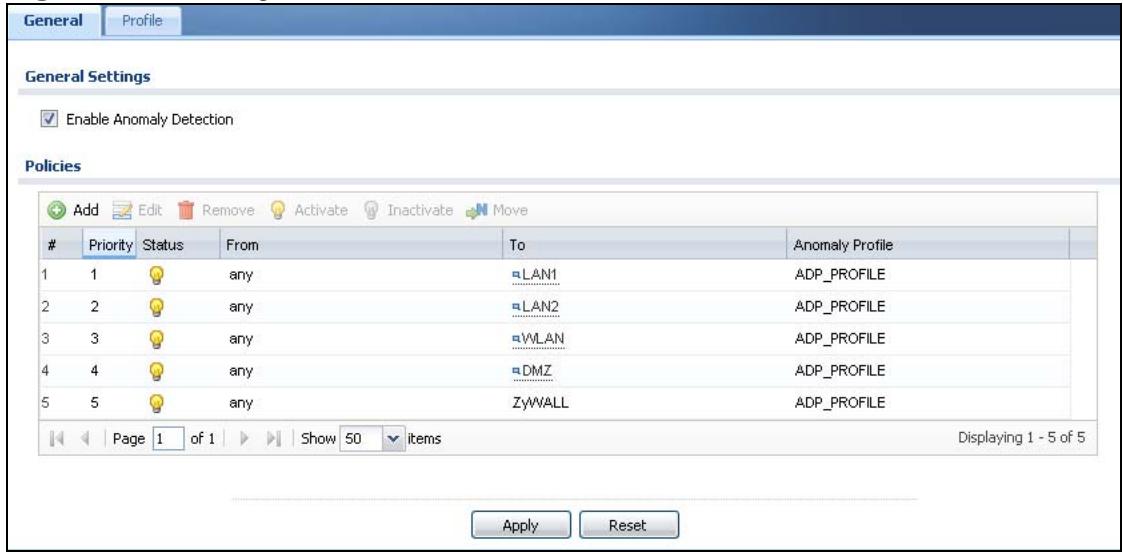
Figure 288 Configuration > Anti-X > ADP > General
The following table describes the screens in this screen.
Table 133 Configuration > Anti-X > ADP > General
| LABEL | DESCRIPTION |
| General Settings | |
| Enable Anomaly Detection | Select this check box to enable traffic anomaly and protocol anomaly detection. |
| Policies | Use this list to specify which anomaly profile the ZyWALL uses for traffic flowing in a specific direction. Edit the policies directly in the table. |
| Add | Click this to create a new entry. Select an entry and click Add to create a new entry after the selected entry. |
| Edit | Select an entry and click this to be able to modify it. |
| Remove | Select an entry and click this to delete it. |
| Activate | To turn on an entry, select it and click Activate. |
| Inactivate | To turn off an entry, select it and click Inactivate. |
| Move | To change an entry's position in the numbered list, select it and click Move to display a field to type a number for where you want to put that entry and press [ENTER] to move the entry to the number that you typed. |
| # | This is the entry's index number in the list. |
| Priority | This is the rank in the list of anomaly profile policies. The list is applied in order of priority. |
| Status | The activate (light bulb) icon is lit when the entry is active and dimmed when the entry is inactive. |
| From, To | This is the direction of travel of packets to which an anomaly profile is bound. Traffic direction is defined by the zone the traffic is coming from and the zone the traffic is going to.Use the From field to specify the zone from which the traffic is coming. Select ZyWALL to specify traffic coming from the ZyWALL itself.Use the To field to specify the zone to which the traffic is going.Select ZyWALL to specify traffic destined for the ZyWALL itself.From LAN1 To LAN1 means packets traveling from a computer on one LAN1 subnet to a computer on another LAN1 subnet via the ZyWALL's LAN1 zone interfaces. The ZyWALL does not check packets traveling from a LAN1 computer to another LAN1 computer on the same subnet.From WAN To WAN means packets that come in from the WAN zone and the ZyWALL routes back out through the WAN zone.Note: Depending on your network topology and traffic load, applying every packet direction to an anomaly profile may affect the ZyWALL's performance. |
| Anomaly Profile | An anomaly profile is a set of anomaly rules with configured activation, log and action settings. This field shows which anomaly profile is bound to which traffic direction. Select an ADP profile to apply to the entry's traffic direction. Configure the ADP profiles in the ADP profile screens. |
| Apply | Click Apply to save your changes. |
| Reset | Click Reset to return the screen to its last-saved settings. |
29.3 The Profile Summary Screen
Use this screen to:
- Create a new profile using an existing base profile
- Edit an existing profile
- Delete an existing profile
29.3.1 Base Profiles
The ZyWALL comes with base profiles. You use base profiles to create new profiles. In the Configuration > Anti-X > ADP > Profile screen, click Add to display the following screen.
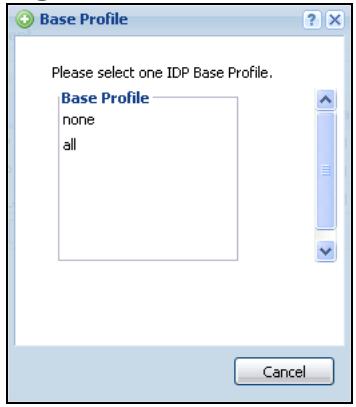
Figure 289 Base Profiles
These are the default base profiles at the time of writing.
Table 134 Base Profiles
| BASE PROFILE | DESCRIPTION |
| none | All traffic anomaly and protocol anomaly rules are disabled. No logs are generated nor actions are taken. |
| all | All traffic anomaly and protocol anomaly rules are enabled. Rules with a high or severe severity level (greater than three) generate log alerts and cause packets that trigger them to be dropped. Rules with a very low, low or medium severity level (less than or equal to three) generate logs (not log alerts) and no action is taken on packets that trigger them. |
| OK | Click OK to save your changes. |
| Cancel | Click Cancel to exit this screen without saving your changes. |
29.3.2 Configuring The ADP Profile Summary Screen
Select Configuration > Anti-X > ADP > Profile.
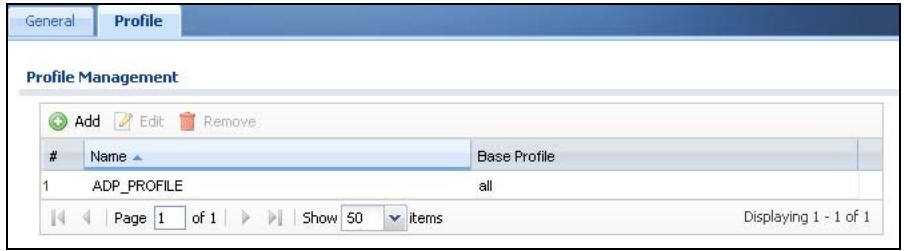
Figure 290 Configuration > Anti-X > ADP > Profile
The following table describes the fields in this screen.
Table 135 Anti-X > ADP > Profile
| LABEL | DESCRIPTION |
| Add | Click this to create a new entry. |
| Edit | Select an entry and click this to be able to modify it. |
| Remove | Select an entry and click this to delete it. |
| # | This is the entry's index number in the list. |
| Name | This is the name of the profile you created. |
| Base Profile | This is the base profile from which the profile was created. |
29.3.3 Creating New ADP Profiles
You may want to create a new profile if not all rules in a base profile are applicable to your network. In this case you should disable non-applicable rules so as to improve ZyWALL ADP processing efficiency.
You may also find that certain rules are triggering too many false positives or false negatives. A false positive is when valid traffic is flagged as an attack. A false negative is when invalid traffic is wrongly allowed to pass through the ZyWALL. As each network is different, false positives and false negatives are common on initial ADP deployment.
You could create a new 'monitor profile' that creates logs but all actions are disabled. Observe the logs over time and try to eliminate the causes of the false alarms. When you're satisfied that they have been reduced to an acceptable level, you could then create an 'inline profile' whereby you configure appropriate actions to be taken when a packet matches a rule.
ADP profiles consist of traffic anomaly profiles and protocol anomaly profiles. To create a new profile, select a base profile (see Table 134 on page 471) and then click OK to go to the profile details screen. Type a new profile name, enable or disable individual rules and then edit the default log options and actions.
29.3.4 Traffic Anomaly Profiles
The traffic anomaly screen is the second screen in an ADP profile. Traffic anomaly detection looks for abnormal behavior such as scan or flooding attempts. In the Configuration > Anti-X > ADP > Profile screen, click the Edit icon or click the Add icon and choose a base profile. If you made changes to other screens
belonging to this profile, make sure you have clicked OK or Save to save the changes before selecting the Traffic Anomaly tab.
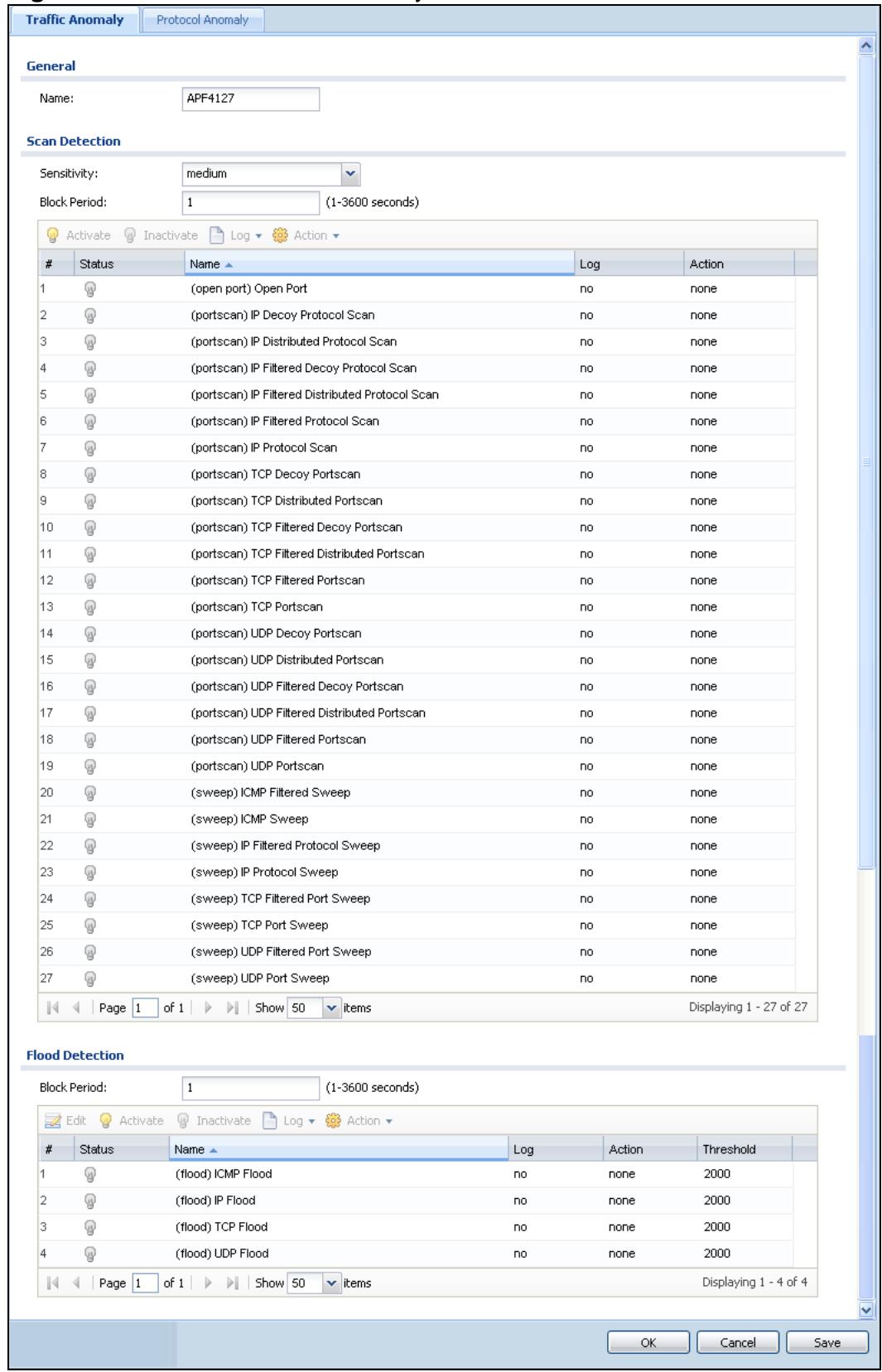
Figure 291 Profiles: Traffic Anomaly
The following table describes the fields in this screen.
Table 136 Configuration > ADP > Profile > Traffic Anomaly
| LABEL | DESCRIPTION |
| Name | This is the name of the ADP profile. You may use 1-31 alphanumeric characters, underscores(____), or dashes (-), but the first character cannot be a number. This value is case-sensitive. These are valid, unique profile names:MyProfilemYProfileMymy12_3-4These are invalid profile names:1mYProfileMy ProfileMyProfile?Whatalongprofilename123456789012 |
| Scan/Flood Detection | |
| Sensitivity | (Scan detection only.) Select a sensitivity level so as to reduce false positives in your network. If you choose low sensitivity, then scan thresholds and sample times are set low, so you will have fewer logs and false positives; however some traffic anomaly attacks may not be detected.If you choose high sensitivity, then scan thresholds and sample times are set high, so most traffic anomaly attacks will be detected; however you will have more logs and false positives. |
| Block Period | Specify for how many seconds the ZyWALL blocks all packets from being sent to the victim (destination) of a detected anomaly attack. |
| Activate | To turn on an entry, select it and click Activate. |
| Inactivate | To turn off an entry, select it and click Inactivate. |
| Log | To edit an item's log option, select it and use the Log icon. Select whether to have the ZyWALL generate a log (log), log and alert (log alert) or neither (no) when traffic matches this anomaly rule. See Chapter 44 on page 679 for more on logs. |
| Action | To edit what action the ZyWALL takes when a packet matches a rule, select the signature and use the Action icon.none: The ZyWALL takes no action when a packet matches the signature(s).block: The ZyWALL silently drops packets that matches the rule. Neither sender nor receiver are notified. |
| # | This is the entry's index number in the list. |
| Status | The activate (light bulb) icon is lit when the entry is active and dimmed when the entry is inactive. |
| Name | This is the name of the traffic anomaly rule. Click the Name column heading to sort in ascending or descending order according to the rule name. |
| Log | These are the log options. To edit this, select an item and use the Log icon. |
| Action | This is the action the ZyWALL should take when a packet matches a rule. To edit this, select an item and use the Action icon. |
| Threshold | For flood detection you can set the number of detected flood packets per second that causes the ZyWALL to take the configured action. |
| OK | Click OK to save your settings to the ZyWALL, complete the profile and return to the profile summary page. |
| Cancel | Click Cancel to return to the profile summary page without saving any changes. |
| Save | Click Save to save the configuration to the ZyWALL but remain in the same page. You may then go to the another profile screen (tab) in order to complete the profile. Click OK in the final profile screen to complete the profile. |
29.3.5 Protocol Anomaly Profiles
Protocol anomaly is the third screen in anADP profile. Protocol anomaly (PA) rules check for protocol compliance against the relevant RFC (Request for Comments).
Protocol anomaly detection includes HTTP Inspection, TCP Decoder, UDP Decoder, and ICMP Decoder where each category reflects the packet type inspected.
Protocol anomaly rules may be updated when you upload new firmware.
29.3.6 Protocol Anomaly Configuration
In the Configuration > Anti-X > ADP > Profile screen, click the Edit icon or click the Add icon and choose a base profile, then select the Protocol Anomaly tab. If you made changes to other screens belonging to this profile, make sure you have clicked OK or Save to save the changes before selecting the Protocol Anomaly tab.
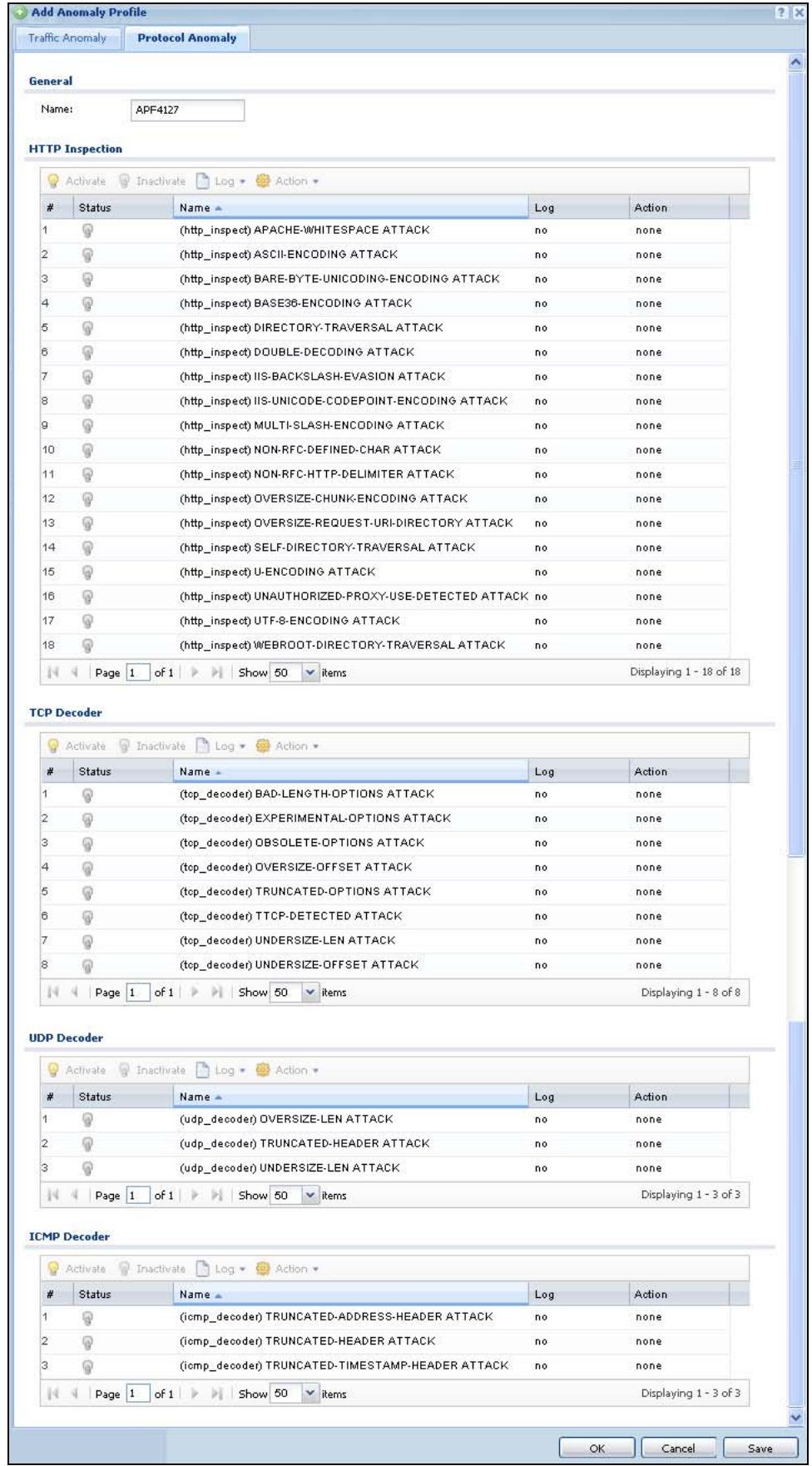
Figure 292 Profiles: Protocol Anomaly
The following table describes the fields in this screen.
Table 137 Configuration > ADP > Profile > Protocol Anomaly
| LABEL | DESCRIPTION |
| Name | This is the name of the profile. You may use 1-31 alphanumeric characters, underscores( ), or dashes (-), but the first character cannot be a number. This value is case-sensitive. These are valid, unique profile names:MyProfilemYProfileMymy12_3-4These are invalid profile names:1mYProfileMy ProfileMyProfile?Whatalongprofilename123456789012 |
| HTTP Inspection/TCP Decoder/UDP Decoder/ICMP Decoder | |
| Activate | To turn on an entry, select it and click Activate. |
| Inactivate | To turn off an entry, select it and click Inactivate. |
| Log | To edit an item's log option, select it and use the Log icon. Select whether to have the ZyWALL generate a log (log), log and alert (log alert) or neither (no) when traffic matches this anomaly rule. See Chapter 44 on page 679 for more on logs. |
| Action | To edit what action the ZyWALL takes when a packet matches a signature, select the signature and use the Action icon. original setting: Select this action to return each signature in a service group to its previously saved configuration. none: Select this action on an individual signature or a complete service group to have the ZyWALL take no action when a packet matches a rule. drop: Select this action on an individual signature or a complete service group to have the ZyWALL silently drop a packet that matches a rule. Neither sender nor receiver are notified reject-sender: Select this action on an individual signature or a complete service group to have the ZyWALL send a reset to the sender when a packet matches the signature. If it is a TCP attack packet, the ZyWALL will send a packet with a 'RST' flag. If it is an ICMP or UDP attack packet, the ZyWALL will send an ICMP unreachable packet reject-receiver: Select this action on an individual signature or a complete service group to have the ZyWALL send a reset to the receiver when a packet matches the rule. If it is a TCP attack packet, the ZyWALL will send a packet with an a'RST' flag. If it is an ICMP or UDP attack packet, the ZyWALL will do nothing reject-both: Select this action on an individual signature or a complete service group to have the ZyWALL send a reset to both the sender and receiver when a packet matches the rule. If it is a TCP attack packet, the ZyWALL will send a packet with a 'RST' flag to the receiver and sender. If it is an ICMP or UDP attack packet, the ZyWALL will send an ICMP unreachable packet. |
| # | This is the entry's index number in the list. |
| Status | The activate (light bulb) icon is lit when the entry is active and dimmed when the entry is inactive. |
| Name | This is the name of the protocol anomaly rule. Click the Name column heading to sort in ascending or descending order according to the protocol anomaly rule name. |
| Activation | Click the icon to enable or disable a rule or group of rules. |
| Log | These are the log options. To edit this, select an item and use the Log icon. |
| Action | This is the action the ZyWALL should take when a packet matches a rule. To edit this, select an item and use the Action icon. |
| Log | Select whether to have the ZyWALL generate a log (log), log and alert (log alert) or neither (no) when traffic matches this anomaly rule. See Chapter 44 on page 679 for more on logs. |
| Action | Select what the ZyWALL should do when a packet matches a rule. none: The ZyWALL takes no action when a packet matches the signature(s). block: The ZyWALL silently drops packets that matches the rule. Neither sender nor receiver are notified. |
| OK | Click OK to save your settings to the ZyWALL, complete the profile and return to the profile summary page. |
| Cancel | Click Cancel to return to the profile summary page without saving any changes. |
| Save | Click Save to save the configuration to the ZyWALL but remain in the same page. You may then go to the another profile screen (tab) in order to complete the profile. Click OK in the final profile screen to complete the profile. |
29.4 ADP Technical Reference
This section is divided into traffic anomaly background information and protocol anomaly background information.
Traffic Anomaly Background Information
The following sections may help you configure the traffic anomaly profile screen (Section 29.3.4 on page 472).
Port Scanning
An attacker scans device(s) to determine what types of network protocols or services a device supports. One of the most common port scanning tools in use today is Nmap.
Many connection attempts to different ports (services) may indicate a port scan. These are some port scan types:
- TCP Portscan
- UDP Portscan
IP Portscan
An IP port scan searches not only for TCP, UDP and ICMP protocols in use by the remote computer, but also additional IP protocols such as EGP (Exterior Gateway Protocol) or IGP (Interior Gateway Protocol). Determining these additional protocols can help reveal if the destination device is a workstation, a printer, or a router.
Decoy Port Scans
Decoy port scans are scans where the attacker has spoofed the source address. These are some decoy scan types:
- TCP Decoy Portscan
- UDP Decoy Portscan
- IP Decoy Portscan
Distributed Port Scans
Distributed port scans are many-to-one port scans. Distributed port scans occur when multiple hosts query one host for open services. This may be used to evade intrusion detection. These are distributed port scan types:
- TCP Distributed Portscan
- UDP Distributed Portscan
- IP Distributed Portscan
Port Sweeps
Many different connection attempts to the same port (service) may indicate a port sweep, that is, they are one-to-many port scans. One host scans a single port on multiple hosts. This may occur when a new exploit comes out and the attacker is looking for a specific service. These are some port sweep types:
- TCP Portsweep
- UDP Portsweep
- IP Portsweep
ICMP Portsweep
Filtered Port Scans
A filtered port scan may indicate that there were no network errors (ICMP unreachables or TCP RSTs) or responses on closed ports have been suppressed. Active network devices, such as NAT routers, may trigger these alerts if they send out many connection attempts within a very small amount of time. These are some filtered port scan examples.
- TCP Filtered Portscan
- TCP Filtered Decoy Portscan
-
TCP Filtered Portsweep
-
UDP Filtered Portscan
- UDP Filtered Decoy Portscan
-
UDP Filtered Portsweep
-
IP Filtered Portscan
- IP Filtered Decoy Portscan
-
IP Filtered Portsweep
-
ICMP Filtered Portsweep
-
TCP Filtered Distributed Portscan
UDP Filtered Distributed Portscan
IP Filtered Distributed Portscan
Flood Detection
Flood attacks saturate a network with useless data, use up all available bandwidth, and therefore make communications in the network impossible.
ICMP Flood Attack
An ICMP flood is broadcasting many pings or UDP packets so that so much data is sent to the system, that it slows it down or locks it up.
Smurf
A smurf attacker (A) floods a router (B) with Internet Control Message Protocol (ICMP) echo request packets (pings) with the destination IP address of each packet as the broadcast address of the network. The router will broadcast the ICMP echo request packet to all hosts on the network. If there are numerous hosts, this will create a large amount of ICMP echo request and response traffic.
If an attacker (A) spoofs the source IP address of the ICMP echo request packet, the resulting ICMP traffic will not only saturate the receiving network (B), but the network of the spoofed source IP address (C).
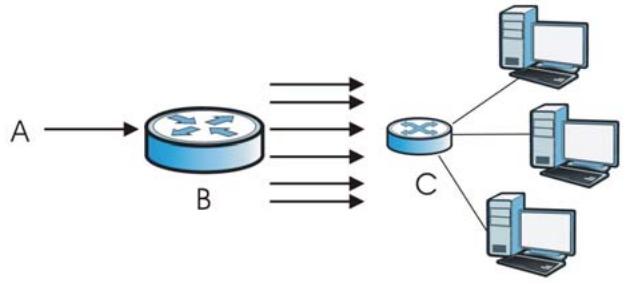
Figure 293 Smurf Attack
TCP SYN Flood Attack
Usually a client starts a session by sending a SYN (synchronize) packet to a server. The receiver returns an ACK (acknowledgment) packet and its own SYN, and then
the initiator responds with an ACK (acknowledgment). After this handshake, a connection is established.
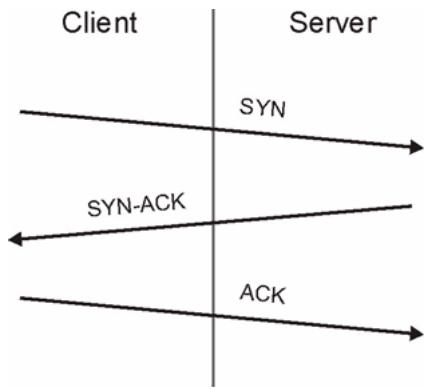
Figure 294 TCP Three-Way Handshake
A SYN flood attack is when an attacker sends a series of SYN packets. Each packet causes the receiver to reply with a SYN-ACK response. The receiver then waits for the ACK that follows the SYN-ACK, and stores all outstanding SYN-ACK responses on a backlog queue. SYN-ACKs are only moved off the queue when an ACK comes back or when an internal timer ends the three-way handshake. Once the queue is full, the system will ignore all incoming SYN requests, making the system unavailable for other users.
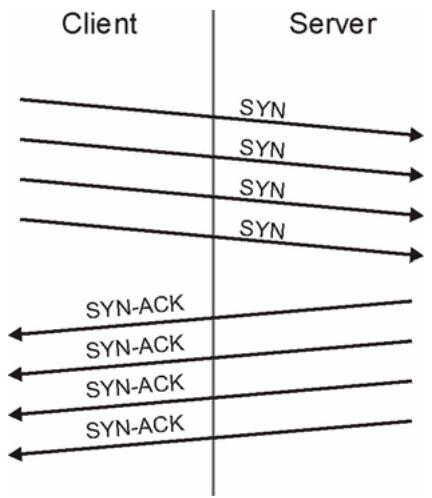
Figure 295 SYN Flood
LAND Attack
In a LAND attack, hackers flood SYN packets into a network with a spoofed source IP address of the network itself. This makes it appear as if the computers in the network sent the packets to themselves, so the network is unavailable while they try to respond to themselves.
UDP Flood Attack
UDP is a connection-less protocol and it does not require any connection setup procedure to transfer data. A UDP flood attack is possible when an attacker sends a UDP packet to a random port on the victim system. When the victim system receives a UDP packet, it will determine what application is waiting on the destination port. When it realizes that there is no application that is waiting on the port, it will generate an ICMP packet of destination unreachable to the forged source address. If enough UDP packets are delivered to ports on victim, the system will go down.
Protocol Anomaly Background Information
The following sections may help you configure the protocol anomaly profile screen (see Section 29.3.5 on page 475)
HTTP Inspection and TCP/UDP/ICMP Decoders
The following table gives some information on the HTTP inspection, TCP decoder, UDP decoder and ICMP decoder ZyWALL protocol anomaly rules.
Table 138 HTTP Inspection and TCP/UDP/ICMP Decoders
| LABEL | DESCRIPTION |
| HTTP Inspection | |
| APACHE-WHITESPACE ATTACK | This rule deals with non-RFC standard of tab for a space delimiter. Apache uses this, so if you have an Apache server, you need to enable this option. |
| ASCII-ENCODING ATTACK | This rule can detect attacks where malicious attackers use ASCII-encoding to encode attack strings. Attackers may use this method to bypass system parameter checks in order to get information or privileges from a web server. |
| BARE-BYTE-UNICODING-ENCODING ATTACK | Bare byte encoding uses non-ASCII characters as valid values in decoding UTF-8 values. This is NOT in the HTTP standard, as all non-ASCII values have to be encoded with a %. Bare byte encoding allows the user to emulate an IIS server and interpret non-standard encodings correctly. |
| BASE36-ENCODING ATTACK | This is a rule to decode base36-encoded characters. This rule can detect attacks where malicious attackers use base36-encoding to encode attack strings. Attackers may use this method to bypass system parameter checks in order to get information or privileges from a web server. |
| DIRECTORY-TRVERSAL ATTACK | This rule normalizes directory traversals and self-referential directories. So, "/abc/this_is_not_a_real_dir/../xyz" get normalized to "/abc/xyz". Also, "/abc/../xyz" gets normalized to "/abc/xyz". If a user wants to configure an alert, then specify "yes", otherwise "no". This alert may give false positives since some web sites refer to files using directory traversals. |
| DOUBLE-ENCODING ATTACK | This rule is IIS specific. IIS does two passes through the request URI, doing decodes in each one. In the first pass, IIS encoding (UTF-8 unicode, ASCII, bare byte, and %u) is done. In the second pass ASCII, bare byte, and %u encodings are done. |
| IIS-BACKSLASH-EVASION ATTACK | This is an IIS emulation rule that normalizes backslashes to slashes. Therefore, a request-URI of "/abc\xyz" gets normalized to "/abc/xyz". |
| IIS-UNICODE-CODEPOINT-ENCODING ATTACK | This rule can detect attacks which send attack strings containing non-ASCII characters encoded by IIS Unicode. IIS Unicode encoding references the unicode.map file. Attackers may use this method to bypass system parameter checks in order to get information or privileges from a web server. |
| MULTI-SLASH-ENCODING ATTACK | This rule normalizes multiple slashes in a row, so something like: "abc//////xyz" get normalized to "abc/xyz". |
| NON-RFC-DEFINED-CHAR ATTACK | This rule lets you receive a log or alert if certain non-RFC characters are used in a request URI. For instance, you may want to know if there are NULL bytes in the request-URI. |
| NON-RFC-HTTP-DELIMITER ATTACK | This is when a newline "\n" character is detected as a delimiter. This is non-standard but is accepted by both Apache and IIS web servers. |
| OVERSIZE-CHUNK-ENCODING ATTACK | This rule is an anomaly detector for abnormally large chunk sizes. This picks up the apache chunk encoding exploits and may also be triggered on HTTP tunneling that uses chunk encoding. |
| OVERSIZE-REQUEST-URI-DIRECTORY ATTACK | This rule takes a non-zero positive integer as an argument. The argument specifies the max character directory length for URL directory. If a URL directory is larger than this argument size, an alert is generated. A good argument value is 300 characters. This should limit the alerts to IDS evasion type attacks, like whisker. |
| SELF-DIRECTORY-TRVERSAL ATTACK | This rule normalizes self-referential directories. So, "/abc.//xyz" gets normalized to "/abc/xyz". |
| U-ENCODING ATTACK | This rule emulates the IIS %u encoding scheme. The %u encoding scheme starts with a %u followed by 4 characters, like %uXXXX. The XXXX is a hex encoded value that correlates to an IIS unicode codepoint. This is an ASCII value. An ASCII character is encoded like, %u002f = /, %u002e = , etc. |
| UTF-8-ENCODING ATTACK | The UTF-8 decode rule decodes standard UTF-8 unicode sequences that are in the URI. This abides by the unicode standard and only uses % encoding. Apache uses this standard, so for any Apache servers, make sure you have this option turned on. When this rule is enabled, ASCII decoding is also enabled to enforce correct functioning. |
| WEBROOT-DIRECTORY-TRVERSAL ATTACK | This is when a directory traversal traverses past the web server root directory. This generates much fewer false positives than the directory option, because it doesn't alert on directory traversals that stay within the web server directory structure. It only alerts when the directory traversals go past the web server root directory, which is associated with certain web attacks. |
| TCP Decoder | |
| BAD-LENGTH-OPTIONS ATTACK | This is when a TCP packet is sent where the TCP option length field is not the same as what it actually is or is 0. This may cause some applications to crash. |
| EXPERIMENTAL-OPTIONS ATTACK | This is when a TCP packet is sent which contains non-RFC-complaint options. This may cause some applications to crash. |
| OBSOLETE-OPTIONS ATTACK | This is when a TCP packet is sent which contains obsolete RFC options. |
| OVERSIZE-OFFSET ATTACK | This is when a TCP packet is sent where the TCP data offset is larger than the payload. |
| TRUNCATED-OPTIONS ATTACK | This is when a TCP packet is sent which doesn't have enough data to read. This could mean the packet was truncated. |
| TTCP DETECTED ATTACK | T/TCP provides a way of bypassing the standard three-way handshake found in TCP, thus speeding up transactions. However, this could lead to unauthorized access to the system by spoofing connections. |
| UNDERSIZE-LEN ATTACK | This is when a TCP packet is sent which has a TCP datagram length of less than 20 bytes. This may cause some applications to crash. |
| UNDERSIZE-OFFSET ATTACK | This is when a TCP packet is sent which has a TCP header length of less than 20 bytes. This may cause some applications to crash. |
| UDP Decoder | |
| OVERSIZE-LEN ATTACK | This is when a UDP packet is sent which has a UDP length field of greater than the actual packet length. This may cause some applications to crash. |
| TRUNCATED-HEADER ATTACK | This is when a UDP packet is sent which has a UDP datagram length of less the UDP header length. This may cause some applications to crash. |
| UNDERSIZE-LEN ATTACK | This is when a UDP packet is sent which has a UDP length field of less than 8 bytes. This may cause some applications to crash. |
| ICMP Decoder | |
| TRUNCATED-ADDRESS-HEADER ATTACK | This is when an ICMP packet is sent which has an ICMP datagram length of less than the ICMP address header length. This may cause some applications to crash. |
| TRUNCATED-HEADER ATTACK | This is when an ICMP packet is sent which has an ICMP datagram length of less than the ICMP header length. This may cause some applications to crash. |
| TRUNCATED-TIMESTAMP-HEADER ATTACK | This is when an ICMP packet is sent which has an ICMP datagram length of less than the ICMP Time Stamp header length. This may cause some applications to crash. |
Content Filtering
30.1 Overview
Use the content filtering feature to control access to specific web sites or web content.
30.1.1 What You Can Do in this Chapter
- Use the General screens (Section 30.2 on page 489) to configure global content filtering settings, configure content filtering policies, and check the content filtering license status.
- Use the Filter Profile screens (Section 30.4 on page 494) to set up content filtering profiles.
30.1.2 What You Need to Know
Content Filtering
Content filtering allows you to block certain web features, such as cookies, and/or block access to specific web sites. It can also block access to specific categories of web site content. You can create different content filter policies for different addresses, schedules, users or groups and content filter profiles. For example, you can configure one policy that blocks John Doe's access to arts and ainment web pages during the workday and another policy that lets him access them after work.
Content Filtering Policies
A content filtering policy allows you to do the following.
- Use schedule objects to define when to apply a content filter profile.
- Use address and/or user/group objects to define to whose web access to apply the content filter profile.
- Apply a content filter profile that you have custom-tailored.
Content Filtering Profiles
A content filtering profile conveniently stores your custom settings for the following features.
- Category-based Blocking
The ZyWALL can block access to particular categories of web site content, such as pornography or racial intolerance.
- Restrict Web Features
The ZyWALL can disable web proxies and block web features such as ActiveX controls, Java applets and cookies.
- Customize Web Site Access
You can specify URLs to which the ZyWALL blocks access. You can alternatively block access to all URLs except ones that you specify. You can also have the ZyWALL block access to URLs that contain particular keywords.
Content Filtering Configuration Guidelines
When the ZyWALL receives an HTTP request, the content filter searches for a policy that matches the source address and time (schedule). The content filter checks the policies in order (based on the policy numbers). When a matching policy is found, the content filter allows or blocks the request depending on the settings of the filtering profile specified by the policy. Some requests may not match any policy. The ZyWALL allows the request if the default policy is not set to block. The ZyWALL blocks the request if the default policy is set to block.
External Web Filtering Service
When you register for and enable the external web filtering service, your ZyWALL accesses an external database that has millions of web sites categorized based on content. You can have the ZyWALL block, block and/or log access to web sites based on these categories.
Keyword Blocking URL Checking
The ZyWALL checks the URL's domain name (or IP address) and file path separately when performing keyword blocking.
The URL's domain name or IP address is the characters that come before the first slash in the URL. For example, with the URL www.zyxel.com.tw/news/pressroom.php, the domain name is www.zyxel.com.tw.
The file path is the characters that come after the first slash in the URL. For example, with the URL www.zyxel.com.tw/news/pressroom.php, the file path is news/pressroom.php.
Since the ZyWALL checks the URL's domain name (or IP address) and file path separately, it will not find items that go across the two. For example, with the URL www.zyxel.com.tw/news/pressroom.php, the ZyWALL would find "tw" in the domain name (www.zyxel.com.tw). It would also find "news" in the file path (news/pressroom.php) but it would not find "tw/news".
Finding Out More
See Section 6.5.18 on page 102 for related information on these screens.
- See Section 30.7 on page 511 for content filtering background/technical information.
30.1.3 Before You Begin
- You must configure an address object, a schedule object and a filtering profile before you can set up a content filter policy.
- You must subscribe to use the external database content filtering (see the Licensing > Registration screens).
30.2 Content Filter General Screen
Click Configuration > Anti-X > Content Filter > General to open the Content Filter General screen. Use this screen to enable content filtering, view and order
your list of content filter policies, create a denial of access message or specify a redirect URL and check your external web filtering service registration status.
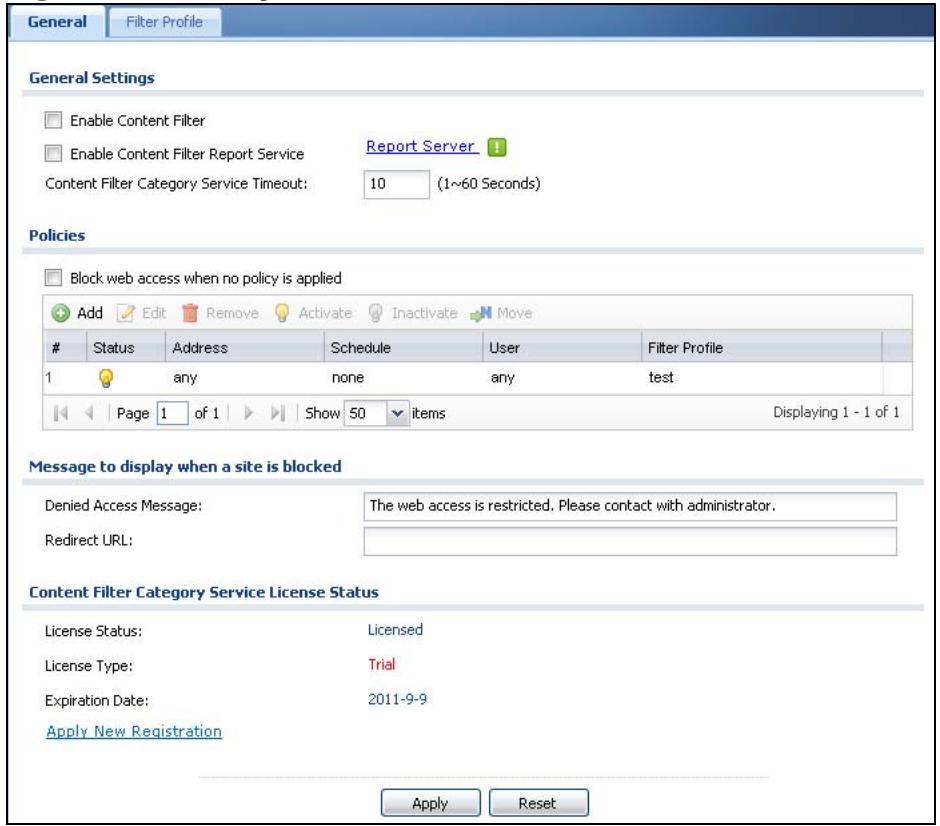
Figure 296 Configuration > Anti-X > Content Filter > General
The following table describes the labels in this screen.
Table 139 Configuration > Anti-X > Content Filter > General
| LABEL | DESCRIPTION |
| General Settings | |
| Enable Content Filter | Select this check box to enable the content filter. |
| Enable Content Filter Report Service | Select this check box to have the ZyWALL collect category-based content filtering statistics. |
| Policies | This is a list of the configured content filter policies. |
| Block web access when no policy is applied | Select this check box to stop users from accessing the Internet by default when their attempted access does not match a content filter policy. |
| Add | Click this to create a new entry. Select an entry and click Add to create a new entry after the selected entry. |
| Edit | Select an entry and click this to be able to modify it. |
| Remove | Select an entry and click this to delete it. |
| Activate | To turn on an entry, select it and click Activate. |
| Inactivate | To turn off an entry, select it and click Inactivate. |
| Move | To change an entry's position in the numbered list, select it and click Move to display a field to type a number for where you want to put that entry and press [ENTER] to move the entry to the number that you typed. |
| # | This column lists the index numbers of the content filter policies.The ordering of the content filter policies is important as they are used in the order they are listed. The ZyWALL checks requests for Web sessions against the list of content filter policies (starting from the first in the list). The ZyWALL's content filter feature blocks or allows the Web session according to the first matching content filter policy and does not check any other content filter policies.The ZyWALL does not perform content filter on Web session requests that do not match any of the content filter policies. |
| Status | The activate (light bulb) icon is lit when the entry is active and dimmed when the entry is inactive. |
| Address | A content filter policy applies to web access from the IP addresses listed here. any means the content filter policy applies to all of the web access requests that the ZyWALL receives from any IP address. |
| Schedule | This column displays the name of the schedule for each content filter policy. You can define different policies for different time periods. none means the content filter policy applies all of the time. |
| User | This column displays the individual or group to which this policy applies. any means the content filter policy applies to all of the web access requests that the ZyWALL receives from any user. |
| Filter Profile | This column displays the name of the content filter profile that each content filter policy uses. The content filter profile defines to which web services, web sites or web site categories access is to be allowed or denied. |
| Denied Access Message | Enter a message to be displayed when content filter blocks access to a web page. Use up to 127 characters (0-9a-zA-Z;/?:@&=+\\-. !~*'(%)","). For example, "Access to this web page is not allowed. Please contact the network administrator".It is also possible to leave this field blank if you have a URL specified in the Redirect URL field. In this case if the content filter blocks access to a web page, the ZyWALL just opens the web page you specified without showing a denied access message. |
| Redirect URL | Enter the URL of the web page to which you want to send users when their web access is blocked by content filter. The web page you specify here opens in a new frame below the denied access message.Use "http://" or "https://" followed by up to 262 characters (0-9a-zA-Z;/?:@&=+\\-. !~*'(%)%. For example, http://192.168.1.17/ blocked access. |
| License Status | This read-only field displays the status of your content-filtering database service registration. |
| Not Licensed displays if you have not successfully registered and activated the service. | |
| Expired displays if your subscription to the service has expired. | |
| Licensed displays if you have successfully registered the ZyWALL and activated the service. | |
| After you register for content filter, you can see Chapter 30 on page 494 for how to use the Test Against Web Filtering Server button. When the content filter is active, you should see the web page's category. The query fails if the content filter is not active. | |
| You can view content filter reports after you register the ZyWALL and activate the subscription service in the Registration screen (see Chapter 31 on page 513). | |
| License Type | This read-only field displays what kind of service registration you have for the content-filtering database. |
| None displays if you have not successfully registered and activated the service. | |
| Standard displays if you have successfully registered the ZyWALL and activated the service. | |
| Trial displays if you have successfully registered the ZyWALL and activated the trial service subscription. | |
| Apply new Registration | This link appears if you have not registered for the service or only have the trial registration. Click this link to go to the screen where you can register for the service. |
| Expiration Date | This field displays the date your service license expires. |
| Apply | Click Apply to save your changes back to the ZyWALL. |
| Reset | Click Reset to return the screen to its last-saved settings. |
30.3 Content Filter Policy Add or Edit Screen
Click Configuration > Anti-X > Content Filter > General > Add or Edit to open the Content Filter Policy screen. Use this screen to configure a content
filter policy. A content filter policy defines which content filter profile should be applied, when it should be applied, and to whose web access it should be applied.
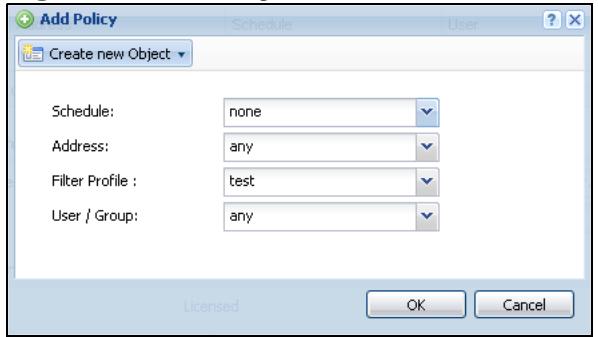
Figure 297 Configuration > Anti-X > Content Filter > General > Add I
The following table describes the labels in this screen.
Table 140 Configuration > Anti-X > Content Filter > General > Add
| LABEL | DESCRIPTION |
| Create new Object | Use this to configure any new settings objects that you need to use in this screen. |
| Schedule | Select a schedule to define when to apply this content filter policy. You can define different policies for different time periods. For example, you could have one policy that blocks access to certain categories of web sites during working hours and another policy that allows access to certain categories after the work day is over. Select none to have the content filter policy apply all of the time. |
| Address | Select the address or address group for which you want to use this policy. Select any to have the content filter policy apply to all of the web access requests that the ZyWALL receives from any IP address. |
| Filter Profile | Use the drop-down list box to select the content filter profile that you want to use for this policy. The content filter profile defines to which web services, web sites or web site categories access is to be allowed or denied. Use the content filter Filter Profile screens to configure the profiles. |
| User/Group | Use the drop-down list box to select the individual or group for which you want to use this policy. Select any to have the content filter policy apply to all of the web access requests that the ZyWALL receives from any user. |
| OK | Click OK to save your changes back to the ZyWALL. |
| Cancel | Click Cancel to exit this screen without saving your changes. |
30.4 Content Filter Profile Screen
Click Configuration > Anti-X > Content Filter > Filter Profile to open the Filter Profile screen. A content filter profile defines to which web services, web sites or web site categories access is to be allowed or denied.
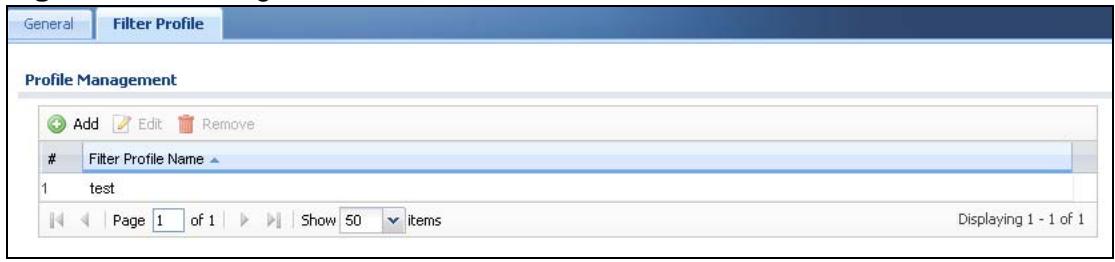
Figure 298 Configuration > Anti-X > Content Filter > Filter Profile
The following table describes the labels in this screen.
Table 141 Configuration > Anti-X > Content Filter > Filter Profile
| LABEL | DESCRIPTION |
| Add | Click this to create a new entry. |
| Edit | Select an entry and click this to be able to modify it. |
| Remove | Select an entry and click this to delete it. |
| # | This column lists the index numbers of the content filter profiles. |
| Filter Profile Name | This column lists the names of the content filter profiles. |
30.5 Content Filter Categories Screen
Click Configuration > Anti-X > Content Filter > Filter Profile > Add or Edit to open the Categories screen. Use this screen to enable external database content filtering and select which web site categories to block and/or log.
Note: You must register for external content filtering before you can use it. See Section 10.2 on page 212 for how to register.
See Chapter 31 on page 513 for how to view content filtering reports.
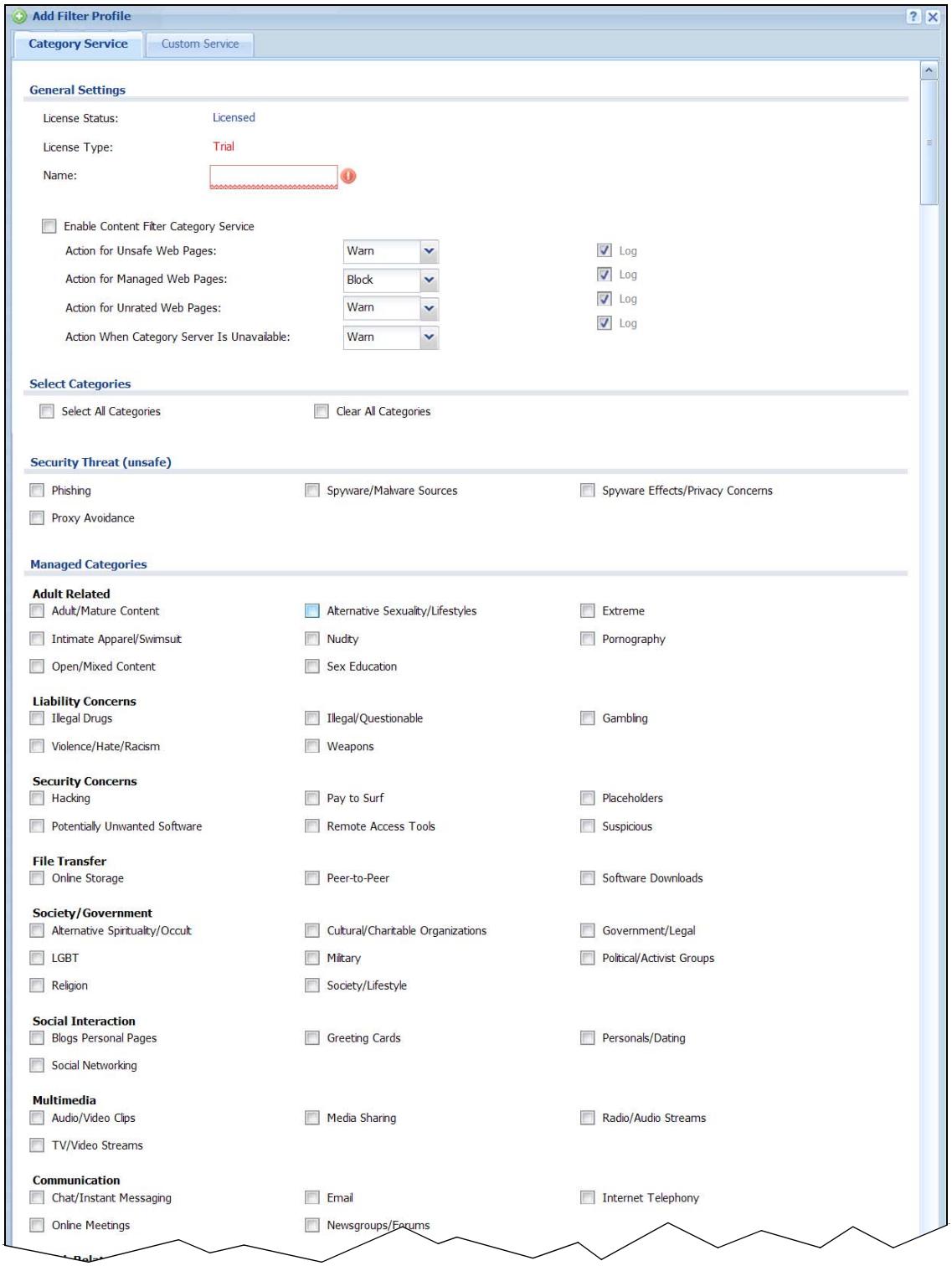
Figure 299 Configuration > Anti-X > Content Filter > Filter Profile > Add
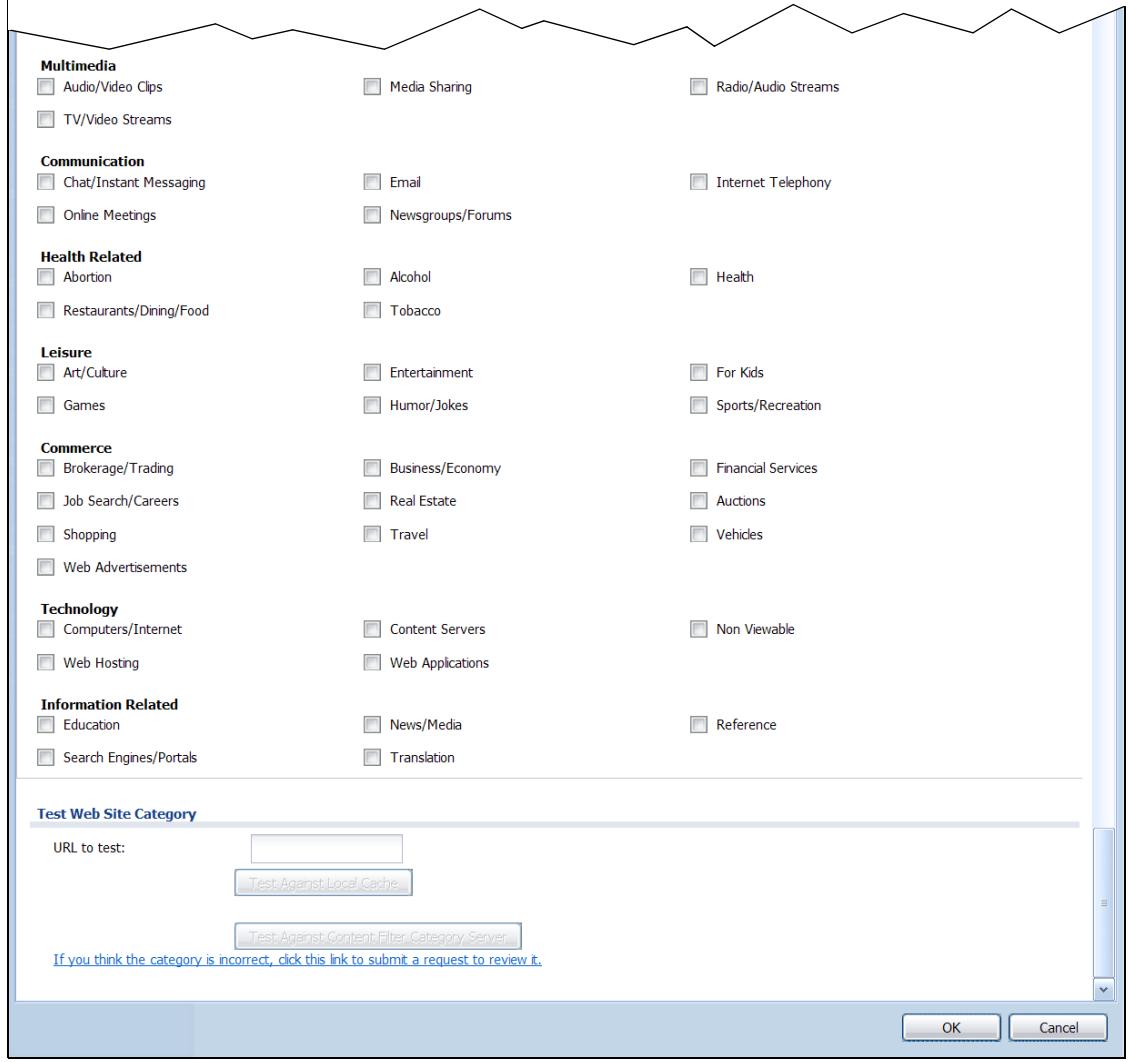
Figure 300 Configuration > Anti-X > Content Filter > Filter Profile > Add (Continue)
The following table describes the labels in this screen.
Table 142 Configuration > Anti-X > Content Filter > Filter Profile > Add
| LABEL | DESCRIPTION |
| License Status | This read-only field displays the status of your content-filtering database service registration. Not Licensed displays if you have not successfully registered and activated the service. Expired displays if your subscription to the service has expired. Licensed displays if you have successfully registered the ZyWALL and activated the service. After you register for content filter, you can see Chapter 30 on page 494 for how to use the Test Against Web Filtering Server button. When the content filter is active, you should see the web page's category. The query fails if the content filter is not active. You can view content filter reports after you register the ZyWALL and activate the subscription service in the Registration screen (see Chapter 31 on page 513). |
| License Type | This read-only field displays what kind of service registration you have for the content-filtering database. None displays if you have not successfully registered and activated the service. Standard displays if you have successfully registered the ZyWALL and activated the standard content filtering service. Trial displays if you have successfully registered the ZyWALL and activated the trial service subscription. |
| Name | Enter a descriptive name for this content filtering profile name. You may use 1-31 alphanumeric characters, underscores(____), or dashes (-), but the first character cannot be a number. This value is case-sensitive. |
| Enable Content Filter Category Service | Enable external database content filtering to have the ZyWALL check an external database to find to which category a requested web page belongs. The ZyWALL then blocks or forwards access to the web page depending on the configuration of the rest of this page. |
| Action for Unsafe Web Pages | Select Pass to allow users to access web pages that match the unsafe categories that you select below. |
| Select Block to prevent users from accessing web pages that match the unsafe categories that you select below. When external database content filtering blocks access to a web page, it displays the denied access message that you configured in the Content Filter General screen along with the category of the blocked web page. | |
| Select Warn to display a warning message before allowing users to access web pages that match the unsafe categories that you select below. | |
| Select Log to record attempts to access web pages that match the unsafe categories that you select below. | |
| Action for Managed Web Pages | Select Pass to allow users to access web pages that match the other categories that you select below. |
| Select Block to prevent users from accessing web pages that match the other categories that you select below. When external database content filtering blocks access to a web page, it displays the denied access message that you configured in the Content Filter General screen along with the category of the blocked web page. | |
| Select Log to record attempts to access web pages that match the other categories that you select below. | |
| Action for Unrated Web Pages | Select Pass to allow users to access web pages that the external web filtering service has not categorized. |
| Select Block to prevent users from accessing web pages that the external web filtering service has not categorized. When the external database content filtering blocks access to a web page, it displays the denied access message that you configured in the Content Filter General screen along with the category of the blocked web page. | |
| Select Warn to display a warning message before allowing users to access web pages that the external web filtering service has not categorized. | |
| Select Log to record attempts to access web pages that are not categorized. | |
| Action When Category Server Is Unavailable | Select Pass to allow users to access any requested web page if the external content filtering database is unavailable. |
| Select Block to block access to any requested web page if the external content filtering database is unavailable. | |
| Select Warn to display a warning message before allowing users to access any requested web page if the external content filtering database is unavailable. | |
| The following are possible causes for the external content filtering server not being available: | |
| • There is no response from the external content filtering server within the time period specified in the Content Filter Server Unavailable Timeout field. | |
| • The ZyWALL is not able to resolve the domain name of the external content filtering database. | |
| • There is an error response from the external content filtering database. This can be caused by an expired content filtering registration (External content filtering's license key is invalid"). | |
| Select Log to record attempts to access web pages that occur when the external content filtering database is unavailable. | |
| Select Categories | |
| Select All Categories | Select this check box to restrict access to all site categories listed below. |
| Clear All Categories | Select this check box to clear the selected categories below. |
| Security Threat (unsafe) | These are categories of web pages that are known to pose a threat to users or their computers. |
| Phishing | This category includes pages that are designed to appear as a legitimate bank or retailer with the intent to fraudulently capture sensitive data (i.e. credit card numbers, pin numbers). |
| Spyware/Malware Sources | This category includes pages which distribute spyware and other malware. Spyware and malware are defined as software which takes control of your computer, modifies computer settings, collects or reports personal information, or misrepresents itself by tricking users to install, download, or enter personal information. This includes drive-by downloads; browser hijackers; dialers; intrusive advertising; any program which modifies your homepage, bookmarks, or security settings; and keyloggers. It also includes any software which bundles spyware (as defined above) as part of its offering. Information collected or reported is "personal" if it contains uniquely identifying data, such as e-mail addresses, name, social security number, IP address, etc. A site is not classified as spyware if the user is reasonably notified that the software will perform these actions (that is, it alerts that it will send personal information, be installed, or that it will log keystrokes). Note: Sites rated as spyware should have a second category assigned with them. |
| Spyware Effects/Privacy Concerns | This category includes pages to which spyware (as defined in the Spyware/Malware Sources category) reports its findings or from which it alone downloads advertisements. Also includes sites that contain serious privacy issues, such as “phone home” sites to which software can connect and send user info; sites that make extensive use of tracking cookies without a posted privacy statement; and sites to which browser hijackers redirect users. Usually does not include sites that can be marked as Spyware/Malware. Note: Sites rated as spyware effects typically have a second category assigned with them. |
| Proxy Avoidance | This category includes pages that provide information on how to bypass proxy server/appliance features or gain access to URLs in any way that bypasses the proxy server/appliance. It also includes any service that will allow a person to bypass the content filtering feature, such as anonymous surfing services. |
| Managed Categories | These are categories of web pages based on their content. Select categories in this section to control access to specific types of Internet content. You must have the standard content filtering license to filter these categories. |
| Adult Related | |
| Adult/Mature Content | This category includes pages that contain material of adult nature that does not necessarily contain excessive violence, sexual content, or nudity. These pages include very profane or vulgar content and pages that are not appropriate for children. |
| Alternative Sexuality/Lifestyles | This category includes pages that provide information, promote, or cater to alternative sexual expressions in their myriad forms. It includes but is not limited to the full range of non-traditional sexual practices, interests, orientations or fetishes. It does not include sites that are sexually gratuitous in nature which would typically fall under the Pornography category, nor does it include lesbian, gay, bi-sexual, transgender or any sites which speak to one's sexual identity. |
| Extreme | This category includes pages that are extreme in nature and not suitable for general viewership. Includes sites that revel in or glorify gore, human or animal suffering, scatological or other aberrant behaviors, perversities, or debaucheries. Visual or written depictions deemed to be of an unusually horrific nature are included. These sites are salacious that are bereft of historical context, educational value or artistic merit created solely to debase, dehumanize or shock. Examples include necrophilia, cannibalism, scat and amputee fetish sites. |
| Intimate Apparel/ Swimsuit | This category includes pages that contain images or offer the sale of swimsuits or intimate apparel or other types of suggestive clothing. It does not include pages selling undergarments as a subsection of other products offered. |
| Nudity | This category includes pages containing nude or seminude depictions of the human body. These depictions are not necessarily sexual in intent or effect, but may include pages containing nude paintings or photo galleries of artistic nature. This category also includes nudist or naturist pages that contain pictures of nude individuals. |
| Pornography | This category includes pages that contain sexually explicit material for the purpose of arousing a sexual or prurient interest. |
| Open/Mixed Content | This category includes pages that contain generally non-offensive content but that also have potentially objectionable content such as adult or pornographic material. |
| Sex Education | This category includes pages that provide graphic information (sometimes graphic) on reproduction, sexual development, safe sex practices, sexuality, birth control, and sexual development. It also includes pages that offer tips for better sex as well as products used for sexual enhancement. |
| Liability Concerns | |
| Illegal Drugs | This category includes pages that promote, offer, sell, supply, encourage or otherwise advocate the illegal use, cultivation, manufacture, or distribution of drugs, pharmaceuticals, intoxicating plants or chemicals and their related paraphernalia. |
| Illegal/Questionable | This category includes pages that advocate or give advice on performing illegal acts such as service theft, evading law enforcement, fraud, burglary techniques and plagiarism. It also includes pages that provide or sell questionable educational materials, such as term papers.Note: This category includes sites identified as being malicious in any way (such as having viruses, spyware and etc.). |
| Gambling | This category includes pages where a user can place a bet or participate in a betting pool (including lotteries) online. It also includes pages that provide information, assistance, recommendations, or training on placing bets or participating in games of chance. It does not include pages that sell gambling related products or machines. It also does not include pages for offline casinos and hotels (as long as those pages do not meet one of the above requirements). |
| Violence/Hate/Racism | This category includes pages that depict extreme physical harm to people or property, or that advocate or provide instructions on how to cause such harm. It also includes pages that advocate, depict hostility or aggression toward, or denigrate an individual or group on the basis of race, religion, gender, nationality, ethnic origin, or other characteristics. |
| Weapons | This category includes pages that sell, review, or describe weapons such as guns, knives or martial arts devices, or provide information on their use, accessories, or other modifications. It does not include pages that promote collecting weapons, or groups that either support or oppose weapons use. |
| Security Concerns | |
| Hacking | This category includes pages that distribute, promote, or provide hacking tools and/or information which may help gain unauthorized access to computer systems and/or computerized communication systems. Hacking encompasses instructions on illegal or questionable tactics, such as creating viruses, distributing cracked or pirated software, or distributing other protected intellectual property. |
| Pay to Surf | This category includes pages that pay users in the form of cash or prizes, for clicking on or reading specific links, email, or web pages. |
| Placeholders | This category includes pages that are under construction, parked domains, search-bait or otherwise generally having no useful value. |
| Potentially Unwanted Software | This category includes pages that contain distribute software that is not malicious but may be unwanted within an organization such as intrusive adware and hoaxes. |
| Remote Access Tools | This category includes pages that primarily focus on providing information about and/or methods that enables authorized access to and use of a desktop computer or private network remotely. |
| Suspicious | This category includes pages considered to have suspicious content and/or intent that poses an elevated security or privacy risk. This is determined by analysis of web reputation factors. It also includes sites that are part of the Web and email spam ecosystem. Sites that are determined to be clearly malicious or benign will be placed in a different category. |
| File Transfer | |
| Online Storage | This category includes pages that provide a secure, encrypted, off-site backup and restoration of personal data. These online repositories are typically used to store, organize and share videos, music, movies, photos, documents and other electronically formatted information. Sites that fit this criteria essentially act as your personal hard drive on the Internet. |
| Peer-to-Peer | This category includes pages that distribute software to facilitate the direct exchange of files between users, including software that enables file search and sharing across a network without dependence on a central server. |
| Software Downloads | This category includes pages that are dedicated to the electronic download of software packages, whether for payment or at no charge. |
| Society/Government | |
| Alternative Spirituality/Occult | This category includes pages that promote and provide information on religions such as Wicca, Witchcraft or Satanism. Occult practices, atheistic views, voodoo rituals or any other form of mysticism are represented here. Includes sites that endorse or offer methods, means of instruction, or other resources to affect or influence real events through the use of spells, incantations, curses and magic powers. This category includes sites which discuss or deal with paranormal or unexplained events. |
| Cultural/Charitable Organizations | This category includes pages that nurture cultural understanding and foster volunteerism such as 4H, the Lions and Rotary Clubs. Also encompasses non-profit associations that cultivate philanthropic or relief efforts. Sites that provide a learning environment or cultural refinement/awareness outside of the strictures of formalized education such as museums and planetariums are included under this heading. |
| Government/Legal | This category includes pages sponsored by or which provide information on government, government agencies and government services such as taxation and emergency services. It also includes pages that discuss or explain laws of various governmental entities. |
| LGBT | This category includes pages that provide information regarding, support, promote, or cater to one's sexual orientation or gender identity including but not limited to lesbian, gay, bi-sexual, and transgender sites. It does not include sites that are sexually gratuitous in nature which would typically fall under the Pornography category. |
| Military | This category includes pages that promote or provide information on military branches or armed services. |
| Political/Activist Groups | This category includes pages sponsored by or which provide information on political parties, special interest groups, or any organization that promotes change or reform in public policy, public opinion, social practice, or economic activities. |
| Religion | This category includes pages that promote and provide information on conventional or unconventional religious or quasi-religious subjects, as well as churches, synagogues, or other houses of worship. It does not include pages containing alternative religions such as Wicca or witchcraft or atheist beliefs (Alternative Spirituality/Occult). |
| Society/Lifestyle | This category includes pages providing information on matters of daily life. This does not include pages relating to ainment, sports, jobs, sex or pages promoting alternative lifestyles such as homosexuality. Personal homepages fall within this category if they cannot be classified in another category. |
| Social Interaction | |
| Blogs Personal Pages | This category includes pages that offer access to Usenet news groups or other messaging or bulletin board systems. Also, blog specific sites or an individual with his own blog. This does not include social networking communities with blogs. |
| Greeting Cards | This category includes pages that facilitate the sending of electronic greeting cards, animated cards, or similar electronic messages typically used to mark an event or occasion. |
| Personals/Dating | This category includes pages that promote interpersonal relationships. |
| Social Networking | This category includes pages that enable people to connect with others to form an online community. Typically members describe themselves in personal web page profiles and form interactive networks, linking them with other members based on common interests or acquaintances. Instant messaging, file sharing and web logs (blogs) are common features of Social Networking sites. Note: These sites may contain offensive material in the community-created content. Sites in this category are also referred to as "virtual communities" or "online communities". This category does not include more narrowly focused sites, like those that specifically match descriptions for Persons/Dating sites or Business sites. |
| Multimedia | |
| Audio/Video Clips | This category includes pages that provide streams or downloads of audio or video clips which are typically less than 15 minutes or less in length. Also includes sites that provide downloaders and players for audio and video clips. |
| Media Sharing | This category includes pages that allow sharing of media (e.g., photo sharing) and have a low risk of including objectionable content such as adult or pornographic material. |
| Radio/Audio Streams | This category includes pages that provide streams or downloads of radio, music, or other audio content-typically more than 15 minutes in length. |
| TV/Video Streams | This category includes pages that provide streams or downloads of television, movie, Webcam, or other video content-typically more than 15 minutes in length. |
| Communication | |
| Chat/Instant Messaging | This category includes pages that provide chat or instant messaging capabilities or client downloads. |
| Online Meetings | This category includes pages that facilitate online meetings or provide online meeting, conferencing or training services. |
| This category includes pages offering web-based email services, such as online email reading, e-cards, and mailing list services. | |
| Newsgroups/Forums | This category includes pages that primarily offer access to newsgroups, messaging or bulletin board systems, or group blogs where participants can post comments, hold discussions, or seek opinions or expertise on a variety of topics. |
| Internet Telephony | This category includes pages that facilitate Internet telephony or provide Internet telephony services such as voice over IP (VoIP). |
| Health Related | |
| Abortion | This category includes pages that provide information or arguments in favor of or against abortion, describe abortion procedures, offer help in obtaining or avoiding abortion, or provide information on the effects, or lack thereof, of abortion. |
| Restaurants/Dining/Food | This category includes pages that list, review, discuss, advertise and promote food, catering, dining services, cooking and recipes. |
| Alcohol | Sites that promote, offer for sale, glorify, review, or in any way advocate the use or creation of alcoholic beverages, including but not limited to beer, wine, and hard liquors. Pages that sell alcohol as a subset of other products such as restaurants or grocery stores are not included. |
| Tobacco | This category includes pages that promote, offer for sale, glorify, review, or in any way advocate the use or creation of tobacco or tobacco related products including but not limited to cigarettes, pipes, cigars and chewing tobacco. Pages that sell tobacco as a subset of other products such as grocery stores are not included. |
| Health | This category includes pages that provide advice and information on general health such as fitness and well-being, personal health or medical services, drugs, alternative and complimentary therapies, medical information about ailments, dentistry, optometry, general psychiatry, self-help, and support organizations dedicated to a disease or condition. |
| Leisure | |
| Art/Culture | This category includes pages that nurture and promote cultural understanding of fine art including but not limited to sculpture, paintings and other visual art forms, literature, music, dance, ballet, and performance art and the venues or foundations that support, foster or house them such as museums, galleries, symphonies and the like. Sites that provide a learning environment or cultural awareness outside of the strictures of formalized education such as museums and planetariums are included under this heading. |
| Entertainment | This category includes pages that provide information on or promote mass entertainment media including but not limited to film, film trailers, television, home entertainment, music, comics, entertainment-oriented periodicals, reviews, interviews, fan clubs, and celebrity gossip. Also includes wedding or other photography sites of a non-adult nature. |
| For Kids | This category includes pages designed specifically for children. |
| Games | This category includes pages that provide information and support game playing or downloading, video games, computer games, electronic games, tips, and advice on games or how to obtain cheat codes. It also includes pages dedicated to selling board games as well as journals and magazines dedicated to game playing. It includes pages that support or host online sweepstakes and giveaways. |
| Humor/Jokes | This category includes pages that primarily focus on comedy, jokes, fun, etc. This may include pages containing jokes of adult or mature nature. Pages containing humorous Adult/Mature content also have an Adult/Mature category rating. |
| Sports/Recreation | This category includes pages that promote or provide information about spectator sports, recreational activities, or hobbies. This does not include pages that discuss or promote gardening, collecting, board games, scrapbooking, quilting, etc. |
| Commerce | |
| Brokerage/Trading | This category includes pages that provide or advertise trading of securities and management of investment assets (online or offline). It also includes insurance pages, as well as pages that offer financial investment strategies, quotes, and news. |
| Business/Economy | This category includes pages devoted to business firms, business information, economics, marketing, business management and entrepreneurship. This does not include pages that perform services that are defined in another category (such as Information Technology companies, or companies that sell travel services). |
| Financial Services | This category includes pages that provide or advertise banking services (online or offline) or other types of financial information, such as loans. It does not include pages that offer market information, brokerage or trading services. |
| Job Search/Careers | This category includes pages that provide assistance in finding employment, and tools for locating prospective employers. |
| Real Estate | This category includes pages that provide information on renting, buying, or selling real estate or properties. |
| Auctions | This category includes pages that support the offering and purchasing of goods between individuals. This does not include classified advertisements. |
| Shopping | This category includes pages that provide or advertise the means to obtain goods or services. It does not include pages that can be classified in other categories (such as vehicles or weapons). |
| Travel | This category includes pages that promote or provide opportunity for travel planning, including finding and making travel reservations, vehicle rentals, descriptions of travel destinations, or promotions for hotels or casinos. |
| Vehicles | This category includes pages that provide information on or promote vehicles, boats, or aircraft, including pages that support online purchase of vehicles or parts. |
| Web Advertisements | This category includes pages that provide online advertisements or banners. This does not include advertising servers that serve adult-oriented advertisements. |
| Technology | |
| Computers/Internet | This category includes pages that sponsor or provide information on computers, technology, the Internet and technology-related organizations and companies. |
| Content Servers | This category includes servers that provide commercial hosting for a variety of content such as images and media files. These types of servers are typically used in conjunction with other web servers to optimize content retrieval speeds. |
| Non Viewable | This category includes servers with non-malicious, non-offensive content or resources used by applications, but not directly viewable by web browsers. It includes but is not limited to Web analytics sites (such as visitor tracking and ranking sites) and content filtering systems. |
| Web Hosting | This category includes pages of organizations that provide top-level domain pages, as well as web communities or hosting services. |
| Web Applications | This category includes pages with interactive, Web-based office/business applications. It excludes email, chat/IM or other sites that have a specific content category. |
| Information Related | |
| Education | This category includes pages that offer educational information, distance learning and trade school information or programs. It also includes pages that are sponsored by schools, educational facilities, faculty, or alumni groups. |
| News/Media | This category includes pages that primarily report information or comments on current events or contemporary issues of the day. It also includes radio stations and magazines. It does not include pages that can be rated in other categories. |
| Reference | This category includes pages containing personal, professional, or educational reference, including online dictionaries, maps, census, almanacs, library catalogues, genealogy-related pages and scientific information. |
| Search Engines/Portals | This category includes pages that support searching the Internet, indices, and directories. |
| Translation | This category includes pages that allow translation of text (words, phrases, web pages, between various languages) or that can be used to identify a language. |
| Test Web Site Category | |
| URL to test | You can check which category a web page belongs to. Enter a web site URL in the text box. |
| Test Against Local Cache | Click this button to see the category recorded in the ZyWALL's content filtering database for the web page you specified (if the database has an entry for it). |
| Test Against Content Filter Category Server | Click this button to see the category recorded in the external content filter server's database for the web page you specified. |
| OK | Click OK to save your changes back to the ZyWALL. |
| Cancel | Click Cancel to exit this screen without saving your changes. |
30.5.1 Content Filter Blocked and Warning Messages
These are the content filtering warning messages:
Table 143 Content Filter Warning Messages
| CASE | WARNINGMESSAGE |
| Safe category | The website access is restricted. Please contact with administrator. (matched category) (If you feel this site is improperly categorized, click here to double check the rating and see more details.) |
| Spyware/ Malware | This site contains malicious code or harmful content that could be downloaded to your computer without your consent. |
| Phishing | This site may be a forgery or imitation of another website, designed to trick users into sharing personal or financial information. |
| Proxy Avoidance | This site provides information on how to bypass proxy server features or gain access to URLs in any way that bypasses the proxy server. |
30.6 Content Filter Customization Screen
Click Configuration > Anti-X > Content Filter > Filter Profile > Add or Edit > Customization to open the Customization screen. You can create a list of good (allowed) web site addresses and a list of bad (blocked) web site addresses. You can also block web sites based on whether the web site's address contains a
keyword. Use this screen to add or remove specific sites or keywords from the filter list.
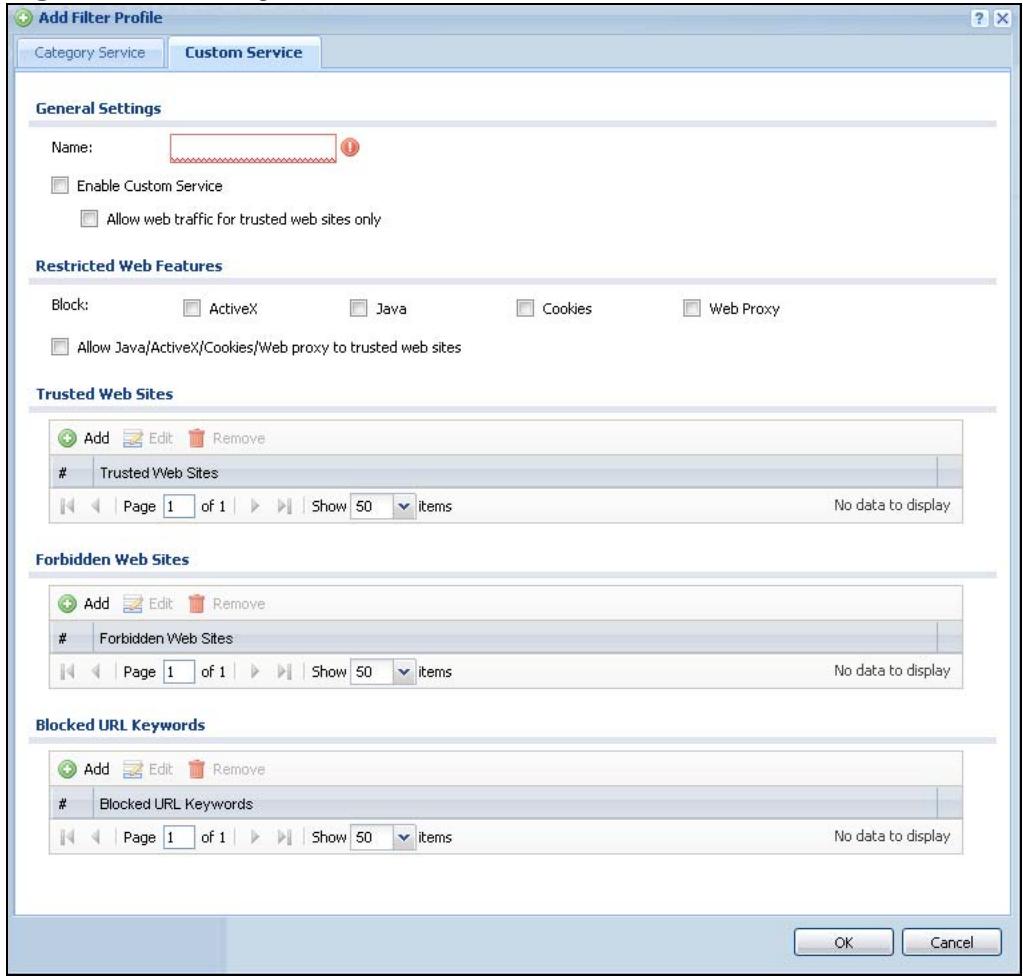
Figure 301 Configuration > Anti-X > Content Filter > Filter Profile > Customization
The following table describes the labels in this screen.
Table 144 Configuration > Anti-X > Content Filter > Filter Profile > Customization
| LABEL | DESCRIPTION |
| Name | Enter a descriptive name for this content filtering profile name. You may use 1-31 alphanumeric characters, underscores( ), or dashes (-), but the first character cannot be a number. This value is case-sensitive. |
| Enable Custom Service | Select this check box to allow trusted web sites and block forbidden web sites. Content filter list customization may be enabled and disabled without re-entering these site names. |
| Allow Web traffic for trusted web sites only | When this box is selected, the ZyWALL blocks Web access to sites that are not on the Trusted Web Sites list. If they are chosen carefully, this is the most effective way to block objectionable material. |
| Restricted Web Features | Select the check box(es) to restrict a feature. When you download a page containing a restricted feature, that part of the web page will appear blank or grayed out. |
Table 144 Configuration > Anti-X > Content Filter > Filter Profile > Customization
| LABEL | DESCRIPTION |
| Block ActiveX | ActiveX is a tool for building dynamic and active web pages and distributed object applications. When you visit an ActiveX web site, ActiveX controls are downloaded to your browser, where they remain in case you visit the site again. |
| Java | Java is a programming language and development environment for building downloadable Web components or Internet and intranet business applications of all kinds. |
| Cookies | Cookies are files stored on a computer's hard drive. Some web servers use them to track usage and provide service based on ID. |
| Web Proxy | A server that acts as an intermediary between a user and the Internet to provide security, administrative control, and caching service. When a proxy server is located on the WAN it is possible for LAN users to circumvent content filtering by pointing to this proxy server. |
| Allow Java/ActiveX/ Cookies/Web proxy to trusted web sites | When this box is selected, the ZyWALL will permit Java, ActiveX and Cookies from sites on the Trusted Web Sites list to the LAN. In certain cases, it may be desirable to allow Java, ActiveX or Cookies from sites that are known and trusted. |
| Trusted Web Sites | These are sites that you want to allow access to, regardless of their content rating, can be allowed by adding them to this list. |
| Add | Click this to create a new entry. |
| Edit | Select an entry and click this to be able to modify it. |
| Remove | Select an entry and click this to delete it. |
| Trusted Web Site | This column displays the trusted web sites already added. Enter host names such as www.good-site.com into this text field. Do not enter the complete URL of the site – that is, do not include "http://". All subdomains are allowed. For example, entering "zyxel.com" also allows "www.zyxel.com", "partner.zyxel.com", "press.zyxel.com", and so on. You can also enter just a top level domain. For example, enter .com to allow all .com domains. Use up to 127 characters (0-9a-z-). The casing does not matter. |
| Forbidden Web Site List | Sites that you want to block access to, regardless of their content rating, can be allowed by adding them to this list. |
| Add | Click this to create a new entry. |
| Edit | Select an entry and click this to be able to modify it. |
| Remove | Select an entry and click this to delete it. |
Table 144 Configuration > Anti-X > Content Filter > Filter Profile > Customization
| LABEL | DESCRIPTION |
| Forbidden Web Sites | This list displays the forbidden web sites already added. Enter host names such as www.bad-site.com into this text field. Do not enter the complete URL of the site – that is, do not include “http://”. All subdomains are also blocked. For example, entering “bad-site.com” also blocks “www.bad-site.com”, “partner.bad-site.com”, “press.bad-site.com”, and do on. You can also enter just a top level domain. For example, enter .com to block all .com domains. Use up to 127 characters (0-9a-z-). The casing does not matter. |
| Blocked URL Keywords | This section allows you to block Web sites with URLs that contain certain keywords in the domain name or IP address. |
| Add | Click this to create a new entry. |
| Edit | Select an entry and click this to be able to modify it. |
| Remove | Select an entry and click this to delete it. |
| Blocked URL Keywords | This list displays the keywords already added. Enter a keyword or a numerical IP address to block. You can also enter a numerical IP address. Use up to 63 case-insensitive characters (0-9a-zA-Z;/ :@&=+\\-.!~*()\%. For example enter Bad_Site to block access to any web page that includes the exact phrase Bad_Site. This does not block access to web pages that only include part of the phrase (such as Bad for example). |
| OK | Click OK to save your changes back to the ZyWALL. |
| Cancel | Click Cancel to exit this screen without saving your changes. |
30.7 Content Filter Technical Reference
This section provides content filtering background information.
External Content Filter Server Lookup Procedure
The content filter lookup process is described below.
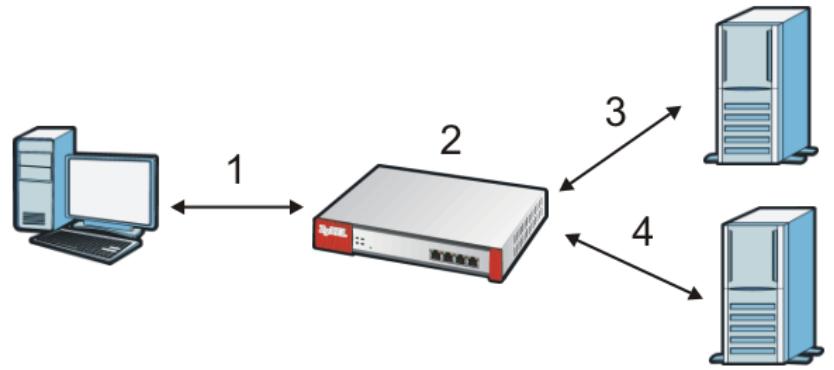
Figure 302 Content Filter Lookup Procedure
1 A computer behind the ZyWALL tries to access a web site.
2 The ZyWALL looks up the web site in its cache. If an attempt to access the web site was made in the past, a record of that web site's category will be in the ZyWALL's cache. The ZyWALL blocks, blocks and logs or just logs the request based on your configuration.
3 Use the Content Filter Cache screen to configure how long a web site address remains in the cache as well as view those web site addresses (see Section 9.15 on page 202). All of the web site address records are also cleared from the local cache when the ZyWALL restarts.
4 If the ZyWALL has no record of the web site, it queries the external content filter database and simultaneously sends the request to the web server.
5 The external content filter server sends the category information back to the ZyWALL, which then blocks and/or logs access to the web site based on the settings in the content filter profile. The web site's address and category are then stored in the ZyWALL's content filter cache.
Content Filter Reports
31.1 Overview
You can view content filtering reports after you have activated the category-based content filtering subscription service.
See Section 10.1 on page 211 on how to create a myZyXEL.com account, register your device and activate the subscription services.
31.2 Viewing Content Filter Reports
Content filtering reports are generated statistics and charts of access attempts to web sites belonging to the categories you selected in your device content filter screen.
You need to register your iCard before you can view content filtering reports.
Alternatively, you can also view content filtering reports during the free trial (up to 30 days).
1 Go to http://www.myZyXEL.com.
2 Fill in your myZyXEL.com account information and click Login.
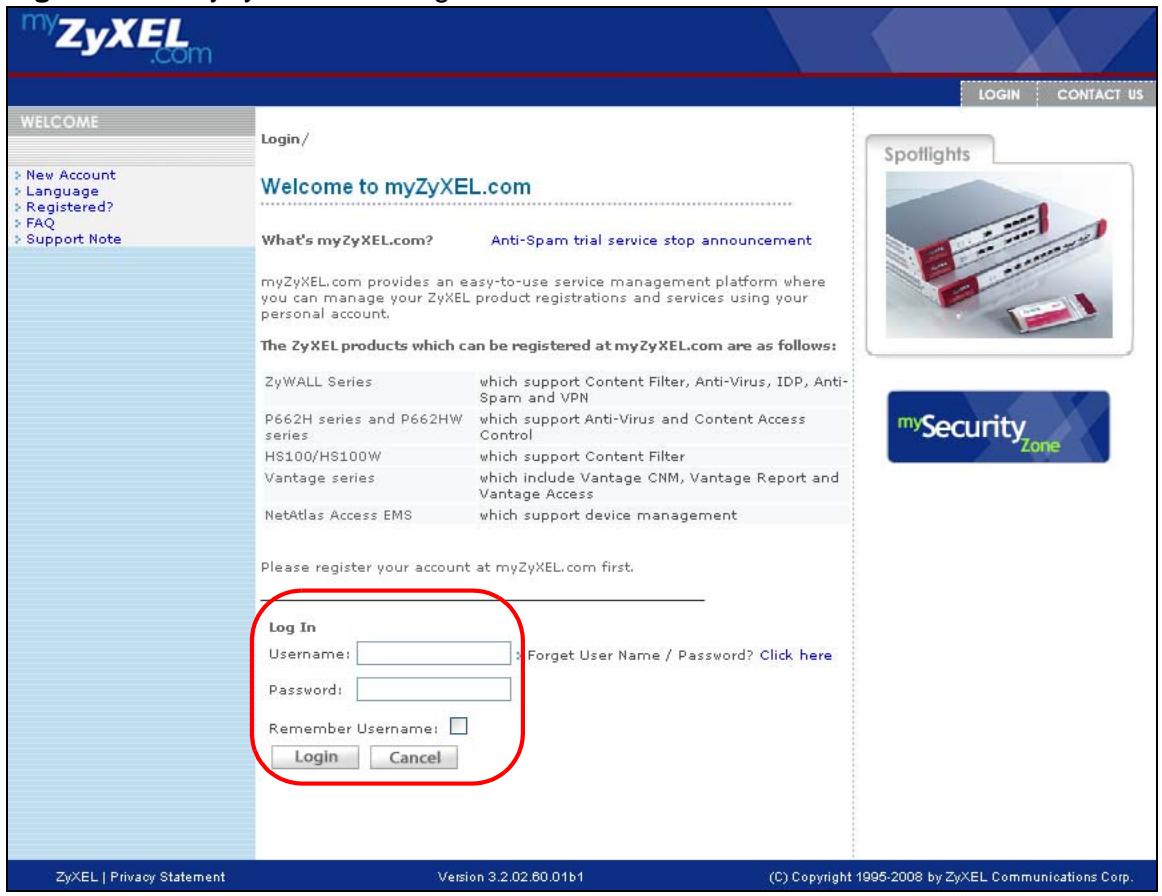
Figure 303 myZyXEL.com: Login
3 A welcome screen displays. Click your ZyWALL's model name and/or MAC address under Registered ZyXEL Products (the ZyWALL 70 is shown as an example here). You can change the descriptive name for your ZyWALL using the Rename button in the Service Management screen (see Figure 305 on page 516).
Figure 304 myZyXEL.com: Welcome
4 In the Service Management screen click Content Filter in the Service Name column to open the content filter reports screens.
Figure 305 myZyXEL.com: Service Management
5 In the Web Filter Home screen, click the Reports tab.
Figure 306 Content Filter Reports Main Screen
6 Select items under Global Reports to view the corresponding reports.
Figure 307 Content Filter Reports: Report Home
7 Select a time period in the Date Range field, either Allowed or Restricted in the Action Taken field and a category (or enter the user name if you want to view single user reports) and click Run Report. The screens vary according to the report type you selected in the Report Home screen.
8 A chart and/or list of requested web site categories display in the lower half of the screen.
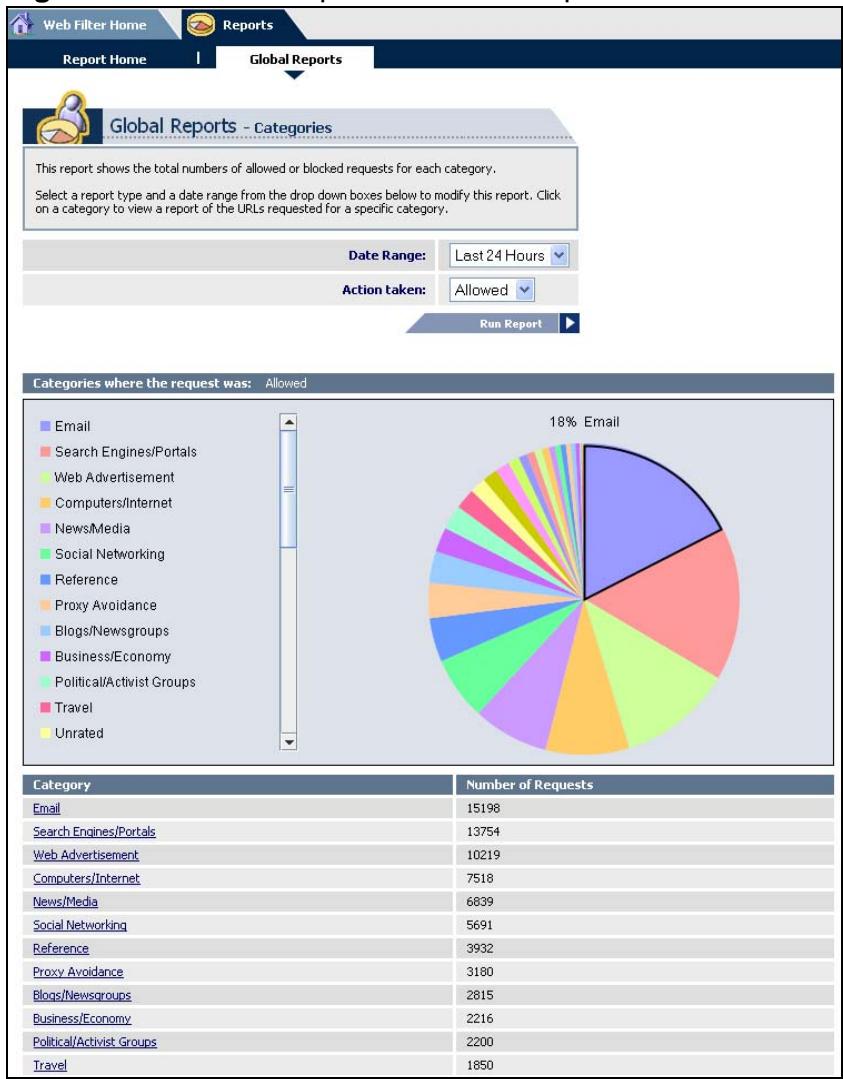
Figure 308 Global Report Screen Example
9 You can click a category in the Categories report or click URLs in the Report Home screen to see the URLs that were requested.
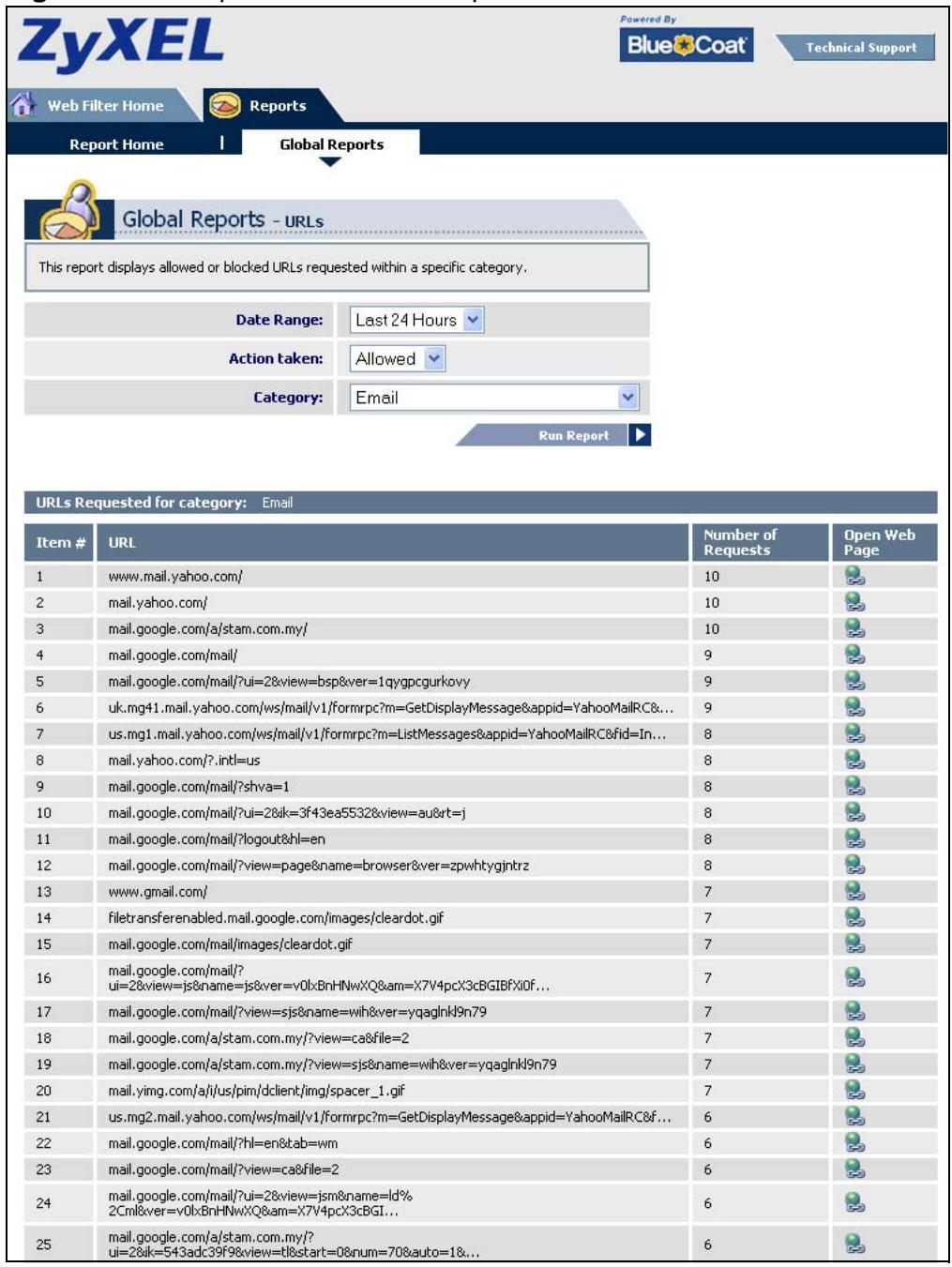
Figure 309 Requested URLs Example
Anti-Spam
32.1 Overview
The anti-spam feature can mark or discard spam (unsolicited commercial or junk e-mail). Use the white list to identify legitimate e-mail. Use the black list to identify spam e-mail. The ZyWALL can also check e-mail against a DNS black list (DNSBL) of IP addresses of servers that are suspected of being used by spammers.
32.1.1 What You Can Do in this Chapter
- Use the General screens (Section 32.3 on page 523) to turn anti-spam on or off and manage anti-spam policies.
- Use the Black/White List screens (Section 32.4 on page 527) to set up a black list to identify spam and a white list to identify legitimate e-mail.
- Use the DNSBL screens (Section 32.6 on page 532) to have the ZyWALL check e-mail against DNS Black Lists.
32.1.2 What You Need to Know
White list
Configure white list entries to identify legitimate e-mail. The white list entries have the ZyWALL classify any e-mail that is from a specified sender or uses a specified header field and header value as being legitimate (see E-mail Headers on page 522 for more on mail headers). The anti-spam feature checks an e-mail against the white list entries before doing any other anti-spam checking. If the e-mail matches a white list entry, the ZyWALL classifies the e-mail as legitimate and does not perform any more anti-spam checking on that individual e-mail. A properly configured white list helps keep important e-mail from being incorrectly classified as spam. The white list can also increase the ZyWALL's anti-spam speed and efficiency by not having the ZyWALL perform the full anti-spam checking process on legitimate e-mail.
Black List
Configure black list entries to identify spam. The black list entries have the ZyWALL classify any e-mail that is from or forwarded by a specified IP address or uses a specified header field and header value as being spam. If an e-mail does not match any of the white list entries, the ZyWALL checks it against the black list entries. The ZyWALL classifies an e-mail that matches a black list entry as spam and immediately takes the configured action for dealing with spam. If an e-mail matches a blacklist entry, the ZyWALL does not perform any more anti-spam checking on that individual e-mail. A properly configured black list helps catch spam e-mail and increases the ZyWALL's anti-spam speed and efficiency.
SMTP and POP3
Simple Mail Transfer Protocol (SMTP) is the Internet's message transport standard. It controls the sending of e-mail messages between servers. E-mail clients (also called e-mail applications) then use mail server protocols such as POP (Post Office Protocol) or IMAP (Internet Message Access Protocol) to retrieve e-mail. E-mail clients also generally use SMTP to send messages to a mail server. The older POP2 requires SMTP for sending messages while the newer POP3 can be used with or without it. This is why many e-mail applications require you to specify both the SMTP server and the POP or IMAP server (even though they may actually be the same server).
The ZyWALL's anti-spam feature checks SMTP (TCP port 25) and POP3 (TCP port 110) e-mails. The anti-spam feature does not check (or act upon) e-mails that use other protocols (such as IMAP) or other port numbers.
E-mail Headers
Every email has a header and a body. The header is structured into fields and includes the addresses of the recipient and sender, the subject, and other information about the e-mail and its journey. The body is the actual message text and any attachments. You can have the ZyWALL check for specific header fields with specific values.
E-mail programs usually only show you the To:, From:, Subject:, and Date: header fields but there are others such as Received: and Content-Type:. To see all of an e-mail's header, you can select an e-mail in your e-mail program and look at its properties or details. For example, in Microsoft's Outlook Express, select a mail and click File > Properties > Details. This displays the e-mail's header. Click Message Source to see the source for the entire mail including both the header and the body.
E-mail Header Buffer Size
The ZyWALL has a 5 K buffer for an individual e-mail header. If an e-mail's header is longer than 5 K, the ZyWALL only checks up to the first 5 K.
DNSBL
A DNS Black List (DNSBL) is a server that hosts a list of IP addresses known or suspected of having sent or forwarded spam. A DNSBL is also known as a DNS spam blocking list. The ZyWALL can check the routing addresses of e-mail against DNSBLs and classify an e-mail as spam if it was sent or forwarded by a computer with an IP address in the DNSBL.
Finding Out More
See Section 32.7 on page 534 for more background information on anti-spam.
32.2 Before You Begin
Configure your zones before you configure anti-spam.
32.3 The Anti-Spam General Screen
Click Configuration > Anti-X > Anti-Spam to open the Anti-Spam General screen. Use this screen to turn the anti-spam feature on or off and manage anti-
spam policies. You can also select the action the ZyWALL takes when the mail sessions threshold is reached.
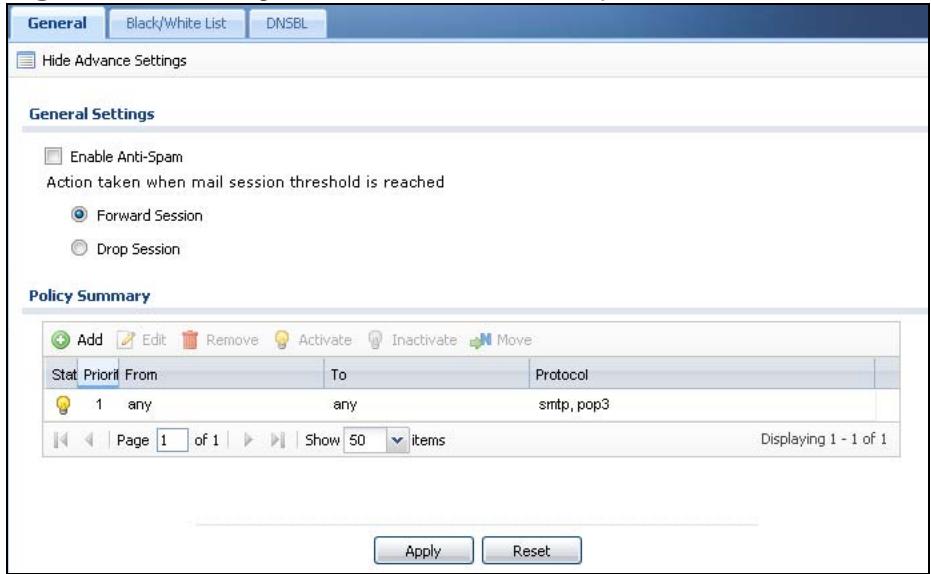
Figure 310 Configuration > Anti-X > Anti-Spam > General
The following table describes the labels in this screen.
Table 145 Configuration > Anti-X > Anti-Spam > General
| LABEL | DESCRIPTION |
| Show Advance Settings / Hide Advance Settings | Click this button to display a greater or lesser number of configuration fields. |
| General Settings | |
| Enable Anti-Spam | Select this check box to check SMTP (TCP port 25) and POP3 (TCP port 110) traffic for spam e-mail. |
| Action taken when mail sessions threshold is reached | An e-mail session is when an e-mail client and e-mail server (or two e-mail servers) connect through the ZyWALL. Select how to handle concurrent e-mail sessions that exceed the maximum number of concurrent e-mail sessions that the anti-spam feature can handle. See the chapter of product specifications for the threshold. Select Forward Session to have the ZyWALL allow the excess e-mail sessions without any spam filtering. Select Drop Session to have the ZyWALL drop mail connections to stop the excess e-mail sessions. The e-mail client or server will have to re-attempt to send or receive e-mail later when the number of e-mail sessions is under the threshold. |
| Policy Summary | |
| Add | Click this to create a new entry. Select an entry and click Add to create a new entry after the selected entry. |
| Edit | Select an entry and click this to be able to modify it. |
Table 145 Configuration > Anti-X > Anti-Spam > General
| LABEL | DESCRIPTION |
| Remove | Select an entry and click this to delete it. |
| Activate | To turn on an entry, select it and click Activate. |
| Inactivate | To turn off an entry, select it and click Inactivate. |
| Move | To change an entry's position in the numbered list, select it and click Move to display a field to type a number for where you want to put that entry and press [ENTER] to move the entry to the number that you typed. |
| Status | The activate (light bulb) icon is lit when the entry is active and dimmed when the entry is inactive. |
| Priority | This is the position of an anti-spam policy in the list. The ordering of your anti-spam policies is important as the ZyWALL applies them in sequence. Once traffic matches an anti-spam policy, the ZyWALL applies that policy and does not check the traffic against any more policies. |
| From | The anti-spam policy has the ZyWALL scan e-mail traffic that is coming from this zone and going to the To zone. |
| To | The anti-spam policy has the ZyWALL scan e-mail traffic that is going to this zone from the From zone. |
| Protocol | These are the protocols of traffic to scan for spam. SMTP applies to traffic using TCP port 25. POP3 applies to traffic using TCP port 110. |
| Apply | Click Apply to save your changes back to the ZyWALL. |
| Reset | Click Reset to return the screen to its last-saved settings. |
32.3.1 The Anti-Spam Policy Add or Edit Screen
Click the Add or Edit icon in the Configuration > Anti-X > Anti-Spam > General screen to display the configuration screen as shown next. Use this screen to configure an anti-spam policy that controls what traffic direction of e-mail to
check, which e-mail protocols to scan, the scanning options, and the action to take on spam traffic.
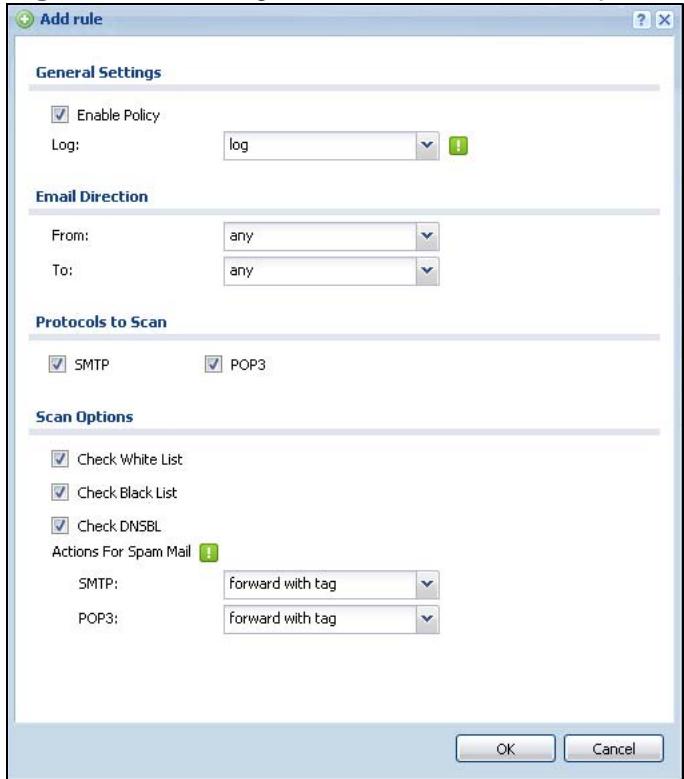
Figure 311 Configuration > Anti-X > Anti-Spam > General > Add
The following table describes the labels in this screen.
Table 146 Configuration > Anti-X > Anti-Spam > General > Add
| LABEL | DESCRIPTION |
| Enable Policy | Select this check box to have the ZyWALL apply this anti-spam policy to check e-mail traffic for spam. |
| Log | Select how the ZyWALL is to log the event when the DNSBL times out or an e-mail matches the white list, black list, or DNSBL.no: Do not create a log/log: Create a log on the ZyWALL.log alert: An alert is an e-mailed log for more serious events that may need more immediate attention. Select this option to have the ZyWALL send an alert. |
| FromTo | Select source and destination zones for traffic to scan for spam. The anti-spam policy has the ZyWALL scan traffic coming from the From zone and going to the To zone. |
| Protocols to Scan | Select which protocols of traffic to scan for spam.SMTP applies to traffic using TCP port 25.POP3 applies to traffic using TCP port 110. |
| Check White List | Select this check box to check e-mail against the white list. The ZyWALL classifies e-mail that matches a white list entry as legitimate (not spam). |
| Check Black List | Select this check box to check e-mail against the black list. The ZyWALL classifies e-mail that matches a black list entry as spam. |
| Check DNSBL | Select this check box to check e-mail against the ZyWALL's configured DNSBL domains. The ZyWALL classifies e-mail that matches a DNS black list as spam. |
| Actions for Spam Mail | Use this section to set how the ZyWALL is to handle spam mail. |
| SMTP | Select how the ZyWALL is to handle spam SMTP mail. Select drop to discard spam SMTP mail. Select forward to allow spam SMTP mail to go through. Select forward with tag to add a spam tag to an SMTP spam mail's mail subject and send it on to the destination. |
| POP3 | Select how the ZyWALL is to handle spam POP3 mail. Select forward to allow spam POP3 mail to go through. Select forward with tag to add a spam tag to an POP3 spam mail's mail subject and send it on to the destination. |
| OK | Click OK to save your changes. |
| Cancel | Click Cancel to exit this screen without saving your changes. |
32.4 The Anti-Spam Black List Screen
Click Configuration > Anti-X > Anti-Spam > Black /White List to display the Anti-Spam Black List screen.
Configure the black list to identify spam e-mail. You can create black list entries based on the sender's or relay server's IP address or e-mail address. You can also create entries that check for particular e-mail header fields with specific values or
specific subject text. Click a column's heading cell to sort the table entries by that column's criteria. Click the heading cell again to reverse the sort order.
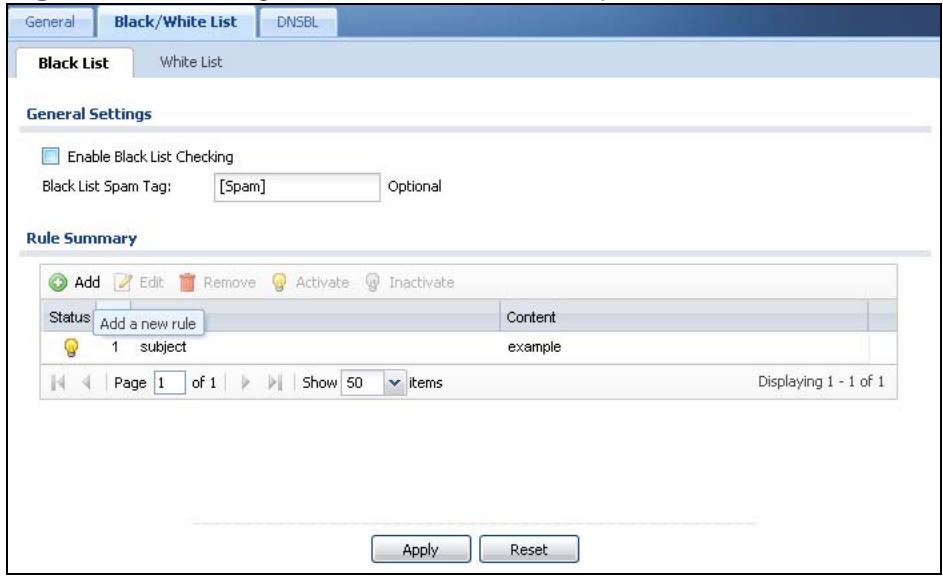
Figure 312 Configuration > Anti-X > Anti-Spam > Black/White List > Black List
The following table describes the labels in this screen.
Table 147 Configuration > Anti-X > Anti-Spam > Black/White List > Black List
| LABEL | DESCRIPTION |
| General Settings | |
| Enable Black List Checking | Select this check box to have the ZyWALL treat e-mail that matches (an active) black list entry as spam. |
| Black List Spam Tag | Enter a message or label (up to 15 ASCII characters) to add to the mail subject of e-mails that match the ZyWALL's spam black list. |
| Rule Summary | |
| Add | Click this to create a new entry. |
| Edit | Select an entry and click this to be able to modify it. |
| Remove | Select an entry and click this to delete it. |
| Activate | To turn on an entry, select it and click Activate. |
| Inactivate | To turn off an entry, select it and click Inactivate. |
| Status | The activate (light bulb) icon is lit when the entry is active and dimmed when the entry is inactive. |
| # | This is the entry's index number in the list. |
| Type | This field displays whether the entry is based on the e-mail's subject, source or relay IP address, source e-mail address, or header. |
| Content | This field displays the subject content, source or relay IP address, source e-mail address, or header value for which the entry checks. |
| Apply | Click Apply to save your changes back to the ZyWALL. |
| Reset | Click Reset to return the screen to its last-saved settings. |
32.4.1 The Anti-Spam Black or White List Add/Edit Screen
In the anti-spam Black List or White List screen, click the Add icon or an Edit icon to display the following screen.
Use this screen to configure an anti-spam black list entry to identify spam e-mail. You can create entries based on specific subject text, or the sender's or relay's IP address or e-mail address. You can also create entries that check for particular header fields and values.
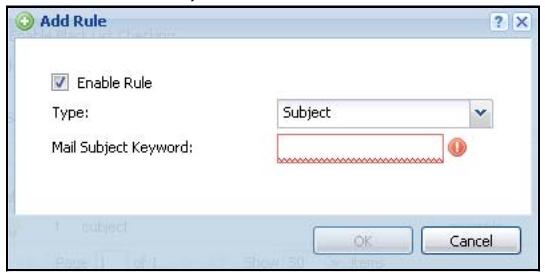
Figure 313 Configuration > Anti-X > Anti-Spam > Black/White List > Black List (or White List) > Add
The following table describes the labels in this screen.
Table 148 Configuration > Anti-X > Anti-Spam > Black/White List > Black List (or White List) > Add
| LABEL | DESCRIPTION |
| Enable Rule | Select this to have the ZyWALL use this entry as part of the black or white list.To actually use the entry, you must also turn on the use of the list in the corresponding list screen, enable the anti-spam feature in the anti-spam general screen, and configure an anti-spam policy to use the list. |
| Type | Use this field to base the entry on the e-mail's subject, source or relay IP address, source e-mail address, or header.Select Subject to have the ZyWALL check e-mail for specific content in the subject line.Select IP Address to have the ZyWALL check e-mail for a specific source or relay IP address.Select E-Mail Address to have the ZyWALL check e-mail for a specific source e-mail address or domain name.Select Mail Header to have the ZyWALL check e-mail for specific header fields and values. Configure black list header entries to check for e-mail from bulk mail programs or with content commonly used in spam. Configure white list header entries to allow certain header values that identify the e-mail as being from a trusted source. |
| Mail Subject Keyword | This field displays when you select the Subject type. Enter up to 63 ASCII characters of text to check for in e-mail headers. Spaces are not allowed, although you could substitute a question mark (?). See Section 32.4.2 on page 530 for more details. |
Table 148 Configuration > Anti-X > Anti-Spam > Black/White List > Black List (or White List) > Add
| LABEL | DESCRIPTION |
| Sender or Mail Relay IP Address | This field displays when you select the IP type. Enter an IP address in dotted decimal notation. |
| Netmask | This field displays when you select the IP type. Enter the subnet mask here, if applicable. |
| Sender E-Mail Address | This field displays when you select the E-Mail type. Enter a keyword (up to 63 ASCII characters). See Section 32.4.2 on page 530 for more details. |
| Mail Header Field Name | This field displays when you select the Mail Header type. Type the name part of an e-mail header (the part that comes before the colon). Use up to 63 ASCII characters. For example, if you want the entry to check the "Received:" header for a specific mail server's domain, enter "Received" here. |
| Field Value Keyword | This field displays when you select the Mail Header type. Type the value part of an e-mail header (the part that comes after the colon). Use up to 63 ASCII characters. For example, if you want the entry to check the "Received:" header for a specific mail server's domain, enter the mail server's domain here. See Section 32.4.2 on page 530 for more details. |
| OK | Click OK to save your changes. |
| Cancel | Click Cancel to exit this screen without saving your changes. |
32.4.2 Regular Expressions in Black or White List Entries
The following applies for a black or white list entry based on an e-mail subject, e-mail address, or e-mail header value.
- Use a question mark (?) to let a single character vary. For example, use "a?c" (without the quotation marks) to specify abc, acc and so on.
- You can also use a wildcard () For example, if you configure def.com, any email address that ends in def.com matches. So "mail.def.com" matches.
- The wildcard can be anywhere in the text string and you can use more than one wildcard. You cannot use two wildcards side by side, there must be other characters between them.
- The ZyWALL checks the first header with the name you specified in the entry. So if the e-mail has more than one "Received" header, the ZyWALL checks the first one.
32.5 The Anti-Spam White List Screen
Click Configuration > Anti-X > Anti-Spam > Black/White List and then the White List tab to display the Anti-Spam White List screen.
Configure the white list to identify legitimate e-mail. You can create white list entries based on the sender's or relay's IP address or e-mail address. You can also create entries that check for particular header fields and values or specific subject text.
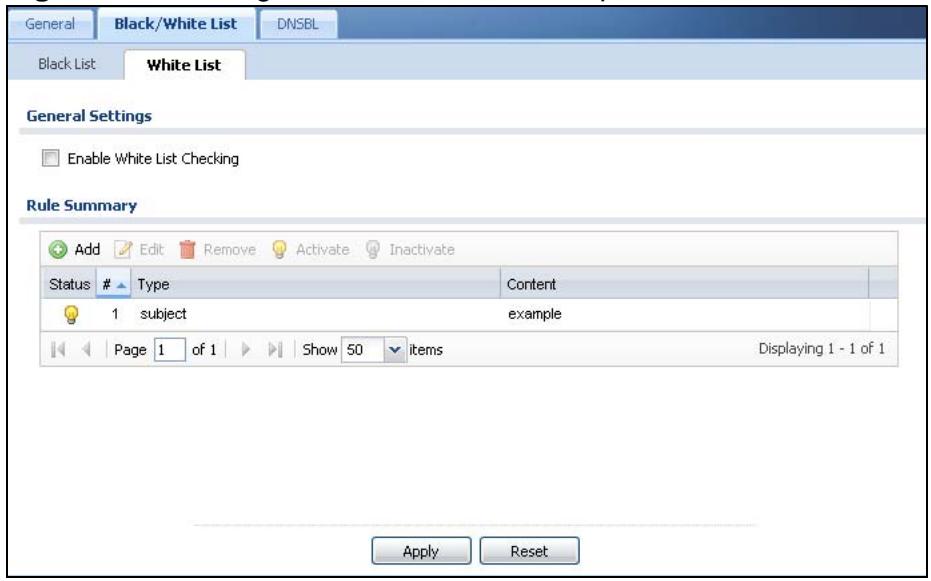
Figure 314 Configuration > Anti-X > Anti-Spam > Black/White List > White List
The following table describes the labels in this screen.
Table 149 Configuration > Anti-X > Anti-Spam > Black/White List > White List
| LABEL | DESCRIPTION |
| General Settings | |
| Enable White List Checking | Select this check box to have the ZyWALL forward e-mail that matches (an active) white list entry without doing any more anti-spam checking on that individual e-mail. |
| Rule Summary | |
| Add | Click this to create a new entry. See Section 32.4.1 on page 529 for details. |
| Edit | Select an entry and click this to be able to modify it. See Section 32.4.1 on page 529 for details. |
| Remove | Select an entry and click this to delete it. |
| Activate | To turn on an entry, select it and click Activate. |
| Inactivate | To turn off an entry, select it and click Inactivate. |
| Status | The activate (light bulb) icon is lit when the entry is active and dimmed when the entry is inactive. |
| # | This is the entry's index number in the list. |
Table 149 Configuration > Anti-X > Anti-Spam > Black/White List > White List
| LABEL | DESCRIPTION |
| Type | This field displays whether the entry is based on the e-mail's subject, source or relay IP address, source e-mail address, or a header. |
| Content | This field displays the subject content, source or relay IP address, source e-mail address, or header value for which the entry checks. |
| OK | Click OK to save your changes. |
| Cancel | Click Cancel to exit this screen without saving your changes. |
32.6 The DNSBL Screen
Click Configuration > Anti-X > Anti-Spam > DNSBL to display the anti-spam DNSBL screen. Use this screen to configure the ZyWALL to check the sender and relay IP addresses in e-mail headers against DNS (Domain Name Service)-based spam Black Lists (DNSBLs).
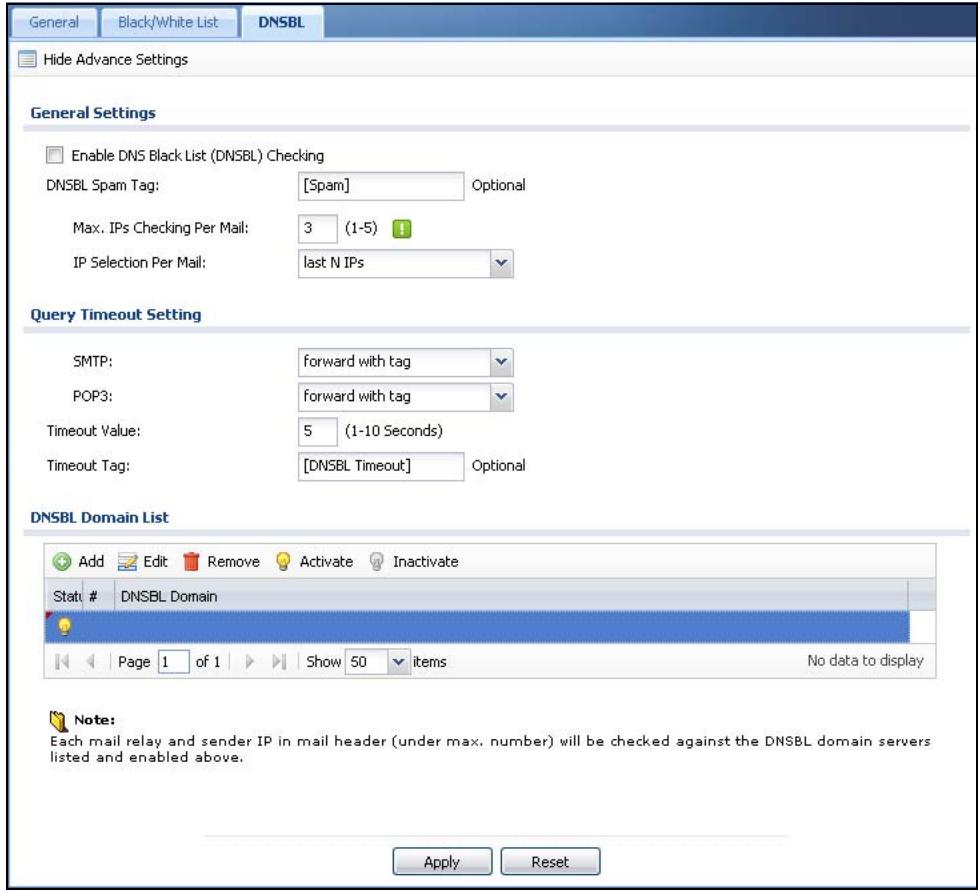
Figure 315 Configuration > Anti-X > Anti-Spam > DNSBL
The following table describes the labels in this screen.
Table 150 Configuration > Anti-X > Anti-Spam > DNSBL
| LABEL | DESCRIPTION |
| Show Advance Settings / Hide Advance Settings | Click this button to display a greater or lesser number of configuration fields. |
| Enable DNS Black List (DNSBL) Checking | Select this to have the ZyWALL check the sender and relay IP addresses in e-mail headers against the DNSBL servers maintained by the DNSBL domains listed in the ZyWALL. |
| DNSBL Spam Tag | Enter a message or label (up to 15 ASCII characters) to add to the beginning of the mail subject of e-mails that have a sender or relay IP address in the header that matches a black list maintained by one of the DNSBL domains listed in the ZyWALL. This tag is only added if the anti-spam policy is configured to forward spam mail with a spam tag. |
| Max. IPs Checking Per Mail | Set the maximum number of sender and relay server IP addresses in the mail header to check against the DNSBL domain servers. |
| IP Selection Per Mail | Select first N IPs to have the ZyWALL start checking from the first IP address in the mail header. This is the IP of the sender or the first server that forwarded the mail. Select last N IPs to have the ZyWALL start checking from the last IP address in the mail header. This is the IP of the last server that forwarded the mail. |
| Query Timeout Setting | |
| SMTP | Select how the ZyWALL is to handle SMTP mail (mail going to an e-mail server) if the queries to the DNSBL domains time out. Select drop to discard SMTP mail. Select forward to allow SMTP mail to go through. Select forward with tag to add a DNSBL timeout tag to the mail subject of an SMTP mail and send it. |
| POP3 | Select how the ZyWALL is to handle POP3 mail (mail coming to an e-mail client) if the queries to the DNSBL domains time out. Select forward to allow POP3 mail to go through. Select forward with tag to add a DNSBL timeout tag to the mail subject of an POP3 mail and send it. |
| Timeout Value | Set how long the ZyWALL waits for a reply from the DNSBL domains listed below. If there is no reply before this time period expires, the ZyWALL takes the action defined in the relevant Actions when Query Timeout field. |
| Timeout Tag | Enter a message or label (up to 15 ASCII characters) to add to the mail subject of e-mails that the ZyWALL forwards if queries to the DNSBL domains time out. |
| DNSBL Domain List | |
| Add | Click this to create a new entry. |
| Edit | Select an entry and click this to be able to modify it. |
| Remove | Select an entry and click this to delete it. |
| Activate | To turn on an entry, select it and click Activate. |
| Inactivate | To turn off an entry, select it and click Inactivate. |
| Status | The activate (light bulb) icon is lit when the entry is active and dimmed when the entry is inactive. |
| # | This is the entry's index number in the list. |
| DNSBL Domain | This is the name of a domain that maintains DNSBL servers. Enter the domain that is maintaining a DNSBL. |
| Apply | Click Apply to save your changes back to the ZyWALL. |
| Reset | Click Reset to return the screen to its last-saved settings. |
32.7 Anti-Spam Technical Reference
Here is more detailed anti-spam information.
DNSBL
- The ZyWALL checks only public sender and relay IP addresses, it does not check private IP addresses.
- The ZyWALL sends a separate query (DNS lookup) for each sender or relay IP address in the e-mail's header to each of the ZyWALL's DNSBL domains at the same time.
- The DNSBL servers send replies as to whether or not each IP address matches an entry in their list. Each IP address has a separate reply.
- As long as the replies are indicating the IP addresses do not match entries on the DNSBL lists, the ZyWALL waits until it receives at least one reply for each IP address.
- If the ZyWALL receives a DNSBL reply that one of the IP addresses is in the DNSBL list, the ZyWALL immediately classifies the e-mail as spam and takes the anti-spam policy's configured action for spam. The ZyWALL does not wait for any more DNSBL replies.
- If the ZyWALL receives at least one non-spam reply for each of an e-mail's routing IP addresses, the ZyWALL immediately classifies the e-mail as legitimate and forwards it.
- Any further DNSBL replies that come after the ZyWALL classifies an e-mail as spam or legitimate have no effect.
- The ZyWALL records DNSBL responses for IP addresses in a cache for up to 72 hours. The ZyWALL checks an e-mail's sender and relay IP addresses against the cache first and only sends DNSBL queries for IP addresses that are not in the cache.
Here is an example of an e-mail classified as spam based on DNSBL replies.
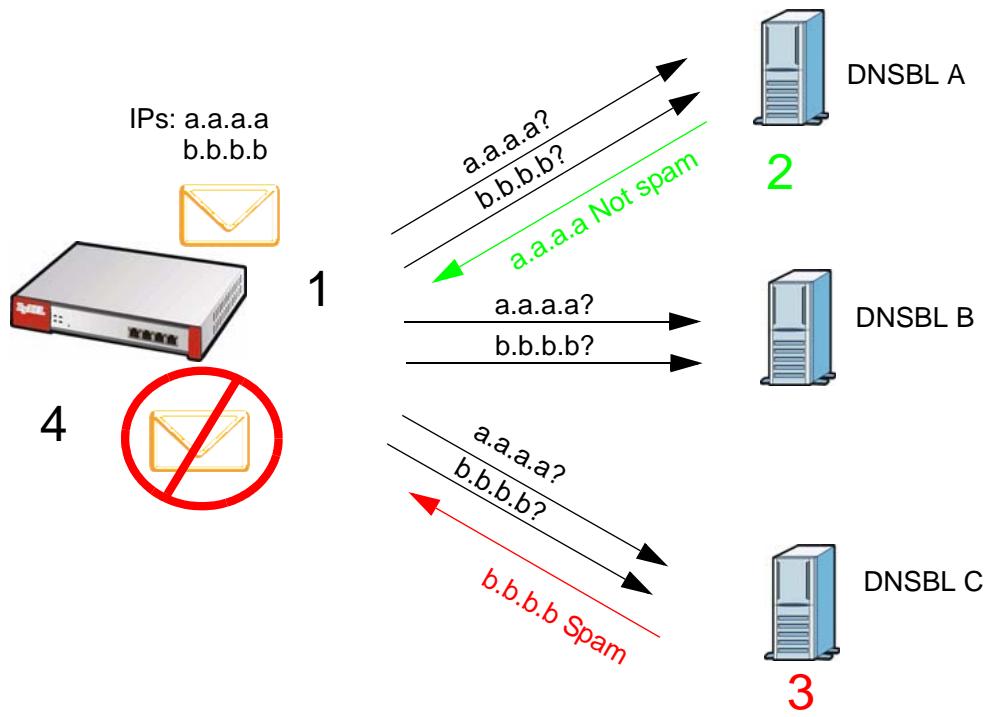
Figure 316 DNSBL Spam Detection Example
1 The ZyWALL receives an e-mail that was sent from IP address a.a.a.a and relayed by an e-mail server at IP address b.b.b.b. The ZyWALL sends a separate query to each of its DNSBL domains for IP address a.a.a.a. The ZyWALL sends another separate query to each of its DNSBL domains for IP address b.b.b.b.
2 DNSBL A replies that IP address a.a.a.a does not match any entries in its list (not spam).
3 DNSBL C replies that IP address b.b.b.b matches an entry in its list.
4 The ZyWALL immediately classifies the e-mail as spam and takes the action for spam that you defined in the anti-spam policy. In this example it was an SMTP mail and the defined action was to drop the mail. The ZyWALL does not wait for any more DNSBL replies.
Here is an example of an e-mail classified as legitimate based on DNSBL replies.
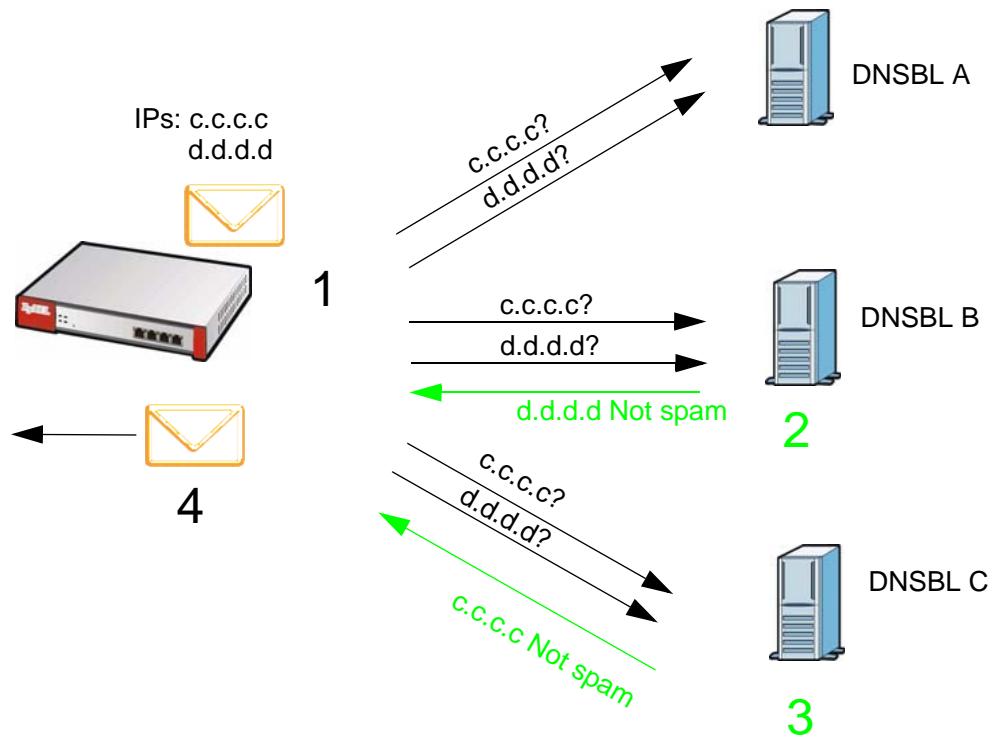
Figure 317 DNSBL Legitimate E-mail Detection Example
1 The ZyWALL receives an e-mail that was sent from IP address c.c.c.c and relayed by an e-mail server at IP address d.d.d.d. The ZyWALL sends a separate query to each of its DNSBL domains for IP address c.c.c.c. The ZyWALL sends another separate query to each of its DNSBL domains for IP address d.d.d.d.
2 DNSBL B replies that IP address d.d.d.d does not match any entries in its list (not spam).
3 DNSBL C replies that IP address c.c.c.c does not match any entries in its list (not spam).
4 Now that the ZyWALL has received at least one non-spam reply for each of the e-mail's routing IP addresses, the ZyWALL immediately classifies the e-mail as legitimate and forwards it. The ZyWALL does not wait for any more DNSBL replies.
If the ZyWALL receives conflicting DNSBL replies for an e-mail routing IP address, the ZyWALL classifies the e-mail as spam. Here is an example.
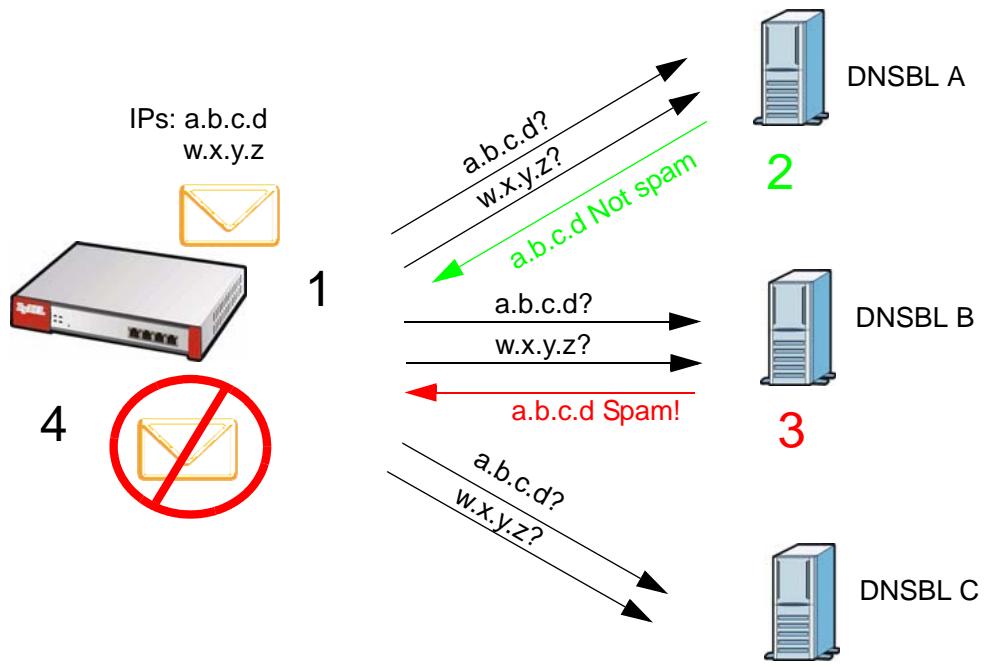
Figure 318 Conflicting DNSBL Replies Example
1 The ZyWALL receives an e-mail that was sent from IP address a.b.c.d and relayed by an e-mail server at IP address w.x.y.z. The ZyWALL sends a separate query to each of its DNSBL domains for IP address a.b.c.d. The ZyWALL sends another separate query to each of its DNSBL domains for IP address w.x.y.z.
2 DNSBL A replies that IP address a.b.c.d does not match any entries in its list (not spam).
3 While waiting for a DNSBL reply about IP address w.x.y.z, the ZyWALL receives a reply from DNSBL B saying IP address a.b.c.d is in its list.
4 The ZyWALL immediately classifies the e-mail as spam and takes the action for spam that you defined in the anti-spam policy. In this example it was an SMTP mail and the defined action was to drop the mail. The ZyWALL does not wait for any more DNSBL replies.
33.1 Overview
This chapter describes how to set up user accounts, user groups, and user settings for the ZyWALL. You can also set up rules that control when users have to log in to the ZyWALL before the ZyWALL routes traffic for them.
33.1.1 What You Can Do in this Chapter
- The User screen (see Section 33.2 on page 542) provides a summary of all user accounts.
- The Group screen (see Section 33.3 on page 545) provides a summary of all user groups. In addition, this screen allows you to add, edit, and remove user groups. User groups may consist of access users and other user groups. You cannot put admin users in user groups
- The Setting screen (see Section 33.4 on page 547) controls default settings, login settings, lockout settings, and other user settings for the ZyWALL. You can also use this screen to specify when users must log in to the ZyWALL before it routes traffic for them.
33.1.2 What You Need To Know
User Account
A user account defines the privileges of a user logged into the ZyWALL. User accounts are used in firewall rules, in addition to controlling access to configuration and services in the ZyWALL.
User Types
These are the types of user accounts the ZyWALL uses.
Table 151 Types of User Accounts
| TYPE | ABILITIES | LOGIN METHOD(S) |
| Admin Users | ||
| admin | Change ZyWALL configuration (web, CLI) | WWW, TELNET, SSH, FTP, Console |
| limited-admin | Look at ZyWALL configuration (web, CLI) | WWW, TELNET, SSH, Console |
| Perform basic diagnostics (CLI) | ||
| Access Users | ||
| user | Access network services | WWW, TELNET, SSH |
| Browse user-mode commands (CLI) | ||
| guest | Access network services | WWW |
| ext-user | External user account | WWW |
| ext-group-user | External group user account | WWW |
Note: The default admin account is always authenticated locally, regardless of the authentication method setting. (See Chapter 37 on page 573 for more information about authentication methods.)
Ext-User Accounts
Set up an ext-user account if the user is authenticated by an external server and you want to set up specific policies for this user in the ZyWALL. If you do not want to set up policies for this user, you do not have to set up an ext-user account.
All ext-user users should be authenticated by an external server, such as AD, LDAP or RADIUS. If the ZyWALL tries to use the local database to authenticate an ext-user, the authentication attempt always fails. (This is related to AAA servers and authentication methods, which are discussed in Chapter 37 on page 573 and Chapter 38 on page 583, respectively.)
Note: If the ZyWALL tries to authenticate an ext-user using the local database, the attempt always fails.
Once an ext-user user has been authenticated, the ZyWALL tries to get the user type (see Table 151 on page 539) from the external server. If the external server does not have the information, the ZyWALL sets the user type for this session to User.
For the rest of the user attributes, such as reauthentication time, the ZyWALL checks the following places, in order.
1 User account in the remote server.
2 User account (Ext-User) in the ZyWALL.
3 Default user account for AD users (ad-users), LDAP users (ldap-users) or RADIUS users (radius-users) in the ZyWALL.
See Setting up User Attributes in an External Server on page 553 for a list of attributes and how to set up the attributes in an external server.
Ext-Group-User Accounts
Ext-Group-User accounts work are similar to ext-user accounts but allow you to group users by the value of the group membership attribute configured for the AD or LDAP server. See Section 37.2.1 on page 577 for more on the group membership attribute.
User Groups
User groups may consist of user accounts or other user groups. Use user groups when you want to create the same rule for several user accounts, instead of creating separate rules for each one.
Note: You cannot put access users and admin users in the same user group.
Note: You cannot put the default admin account into any user group.
The sequence of members in a user group is not important.
User Awareness
By default, users do not have to log into the ZyWALL to use the network services it provides. The ZyWALL automatically routes packets for everyone. If you want to restrict network services that certain users can use via the ZyWALL, you can require them to log in to the ZyWALL first. The ZyWALL is then aware' of the user who is logged in and you can createuser-aware policies' that define what services they can use. See Section 33.4.2 on page 552 for a user-aware login example.
Finding Out More
- See Section 6.6.1 on page 104 for related information on these screens.
- See Section 33.5 on page 553 for some information on users who use an external authentication server in order to log in.
- The ZyWALL supports TTLS using PAP so you can use the ZyWALL's local user database to authenticate users with WPA or WPA2 instead of needing an external RADIUS server. See Section 7.6 on page 124 for an example.
- See Section 7.5 on page 120 for an example of configuring user accounts and user groups as part of user-aware access control.
- See Section 7.6 on page 124 for an example of how to use a RADIUS server to authenticate user accounts based on groups.
33.2 User Summary Screen
The User screen provides a summary of all user accounts. To access this screen, login to the Web Configurator, and click Configuration > Object > User/Group.
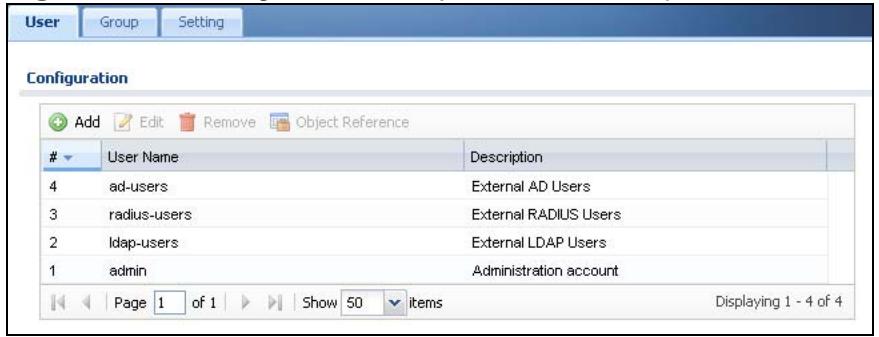
Figure 319 Configuration > Object > User/Group
The following table describes the labels in this screen.
Table 152 Configuration > Object > User/Group
| LABEL | DESCRIPTION |
| Add | Click this to create a new entry. |
| Edit | Double-click an entry or select it and click Edit to open a screen where you can modify the entry's settings. |
| Remove | To remove an entry, select it and click Remove. The ZyWALL confirms you want to remove it before doing so. |
| Object References | Select an entry and click Object References to open a screen that shows which settings use the entry. See Section 11.3.2 on page 232 for an example. |
| # | This field is a sequential value, and it is not associated with a specific user. |
| User Name | This field displays the user name of each user. |
| Description | This field displays the description for each user. |
33.2.1 User Add/Edit Screen
The User Add/Edit screen allows you to create a new user account or edit an existing one.
33.2.1.1 Rules for User Names
Enter a user name from 1 to 31 characters.
The user name can only contain the following characters:
- Alphanumeric A-z 0-9 (there is no unicode support)
-
[underscores]
-
- [dashes]
The first character must be alphabetical (A-Z a-z), an underscore (_), or a dash (-). Other limitations on user names are:
- User names are case-sensitive. If you enter a user 'bob' but use 'BOB' when connecting via CIFS or FTP, it will use the account settings used for 'BOB' not 'bob'.
- User names have to be different than user group names.
Here are the reserved user names:
adm
- debug
- Idap-users
- operator
sync
admin
devicehaecived
- |p
- radius-users
uucp
- any
ftp
mail - root
- zyxel
bin
games
news
- shutdown
- daemon
halt - nobody
- sshd
To access this screen, go to the User screen (see Section 33.2 on page 542), and click either the Add icon or an Edit icon.
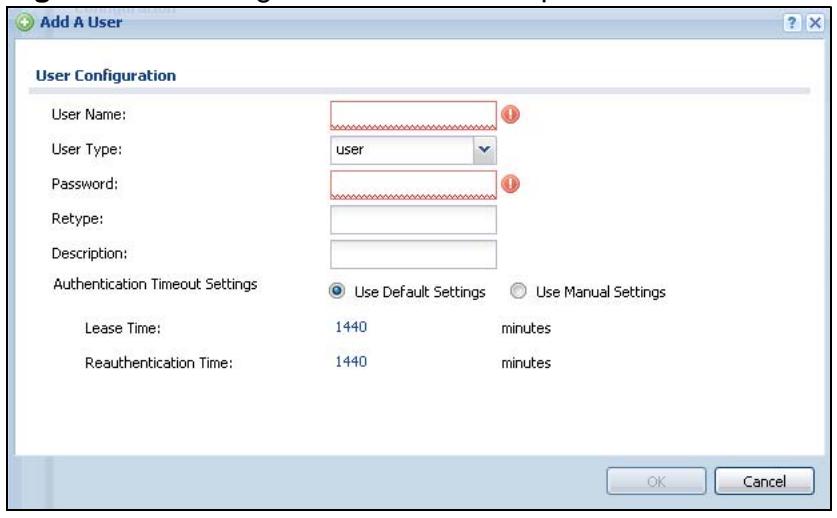
Figure 320 Configuration >User/Group >User >Add
The following table describes the labels in this screen.
Table 153 Configuration >User/Group >User >Add
| LABEL | DESCRIPTION |
| User Name | Type the user name for this user account. You may use 1-31 alphanumeric characters, underscores( ), or dashes (-), but the first character cannot be a number. This value is case-sensitive. User names have to be different than user group names, and some words are reserved. See Section 33.2.1.1 on page 542. |
| User Type | Select what type of user this is. Choices are: ·admin - this user can look at and change the configuration of the ZyWALL ·limited-admin - this user can look at the configuration of the ZyWALL but not to change it ·user - this user has access to the ZyWALL's services but cannot look at the configuration ·guest - this user has access to the ZyWALL's services but cannot look at the configuration ·ext-user - this user account is maintained in a remote server, such as RADIUS or LDAP. See Ext-User Accounts on page 540 for more information about this type. ·ext-group-user - this user account is maintained in a remote server, such as RADIUS or LDAP. See Ext-Group-User Accounts on page 541 for more information about this type. |
| Password | This field is not available if you select the ext-user or ext-group-user type. Enter the password of this user account. It can consist of 4 - 31 alphanumeric characters. |
| Retype | This field is not available if you select the ext-user or ext-group-user type. |
| Group Identifier | This field is available for a ext-group-user type user account. Specify the value of the AD or LDAP server's Group Membership Attribute that identifies the group to which this user belongs. |
| Associated AAA Server Object | This field is available for a ext-group-user type user account. Select the AAA server to use to authenticate this account's users. |
| Description | Enter the description of each user, if any. You can use up to 60 printable ASCII characters. Default descriptions are provided. |
| Authentication Timeout Settings | This field is not available if you select the ext-group-user type. If you want to set authentication timeout to a value other than the default settings, select Use Manual Settings then fill your preferred values in the fields that follow. |
| Lease Time | This field is not available if you select the ext-group-user type. Enter the number of minutes this user has to renew the current session before the user is logged out. You can specify 1 to 1440 minutes. You can enter 0 to make the number of minutes unlimited. Admin users renew the session every time the main screen refreshes in the Web Configurator. Access users can renew the session by clicking the Renew button on their screen. If you allow access users to renew time automatically (see Section 33.4 on page 547), the users can select this check box on their screen as well. In this case, the session is automatically renewed before the lease time expires. |
| Reauthentication Time | This field is not available if you select the ext-group-user type.Type the number of minutes this user can be logged into the ZyWALL in one session before the user has to log in again. You can specify 1 to 1440 minutes. You can enter 0 to make the number of minutes unlimited. Unlike Lease Time, the user has no opportunity to renew the session without logging out. |
| Configuration Validation | Use a user account from the group specified above to test if the configuration is correct. Enter the account's user name in the User Name field and click Test. |
| OK | Click OK to save your changes back to the ZyWALL. |
| Cancel | Click Cancel to exit this screen without saving your changes. |
33.3 User Group Summary Screen
User groups consist of access users and other user groups. You cannot put admin users in user groups. The Group screen provides a summary of all user groups. In addition, this screen allows you to add, edit, and remove user groups. To access this screen, login to the Web Configurator, and click Configuration > Object > User/Group > Group.
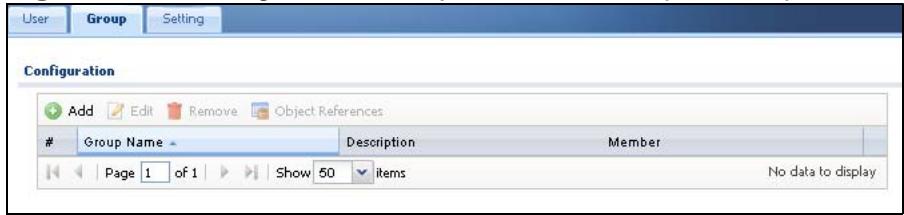
Figure 321 Configuration > Object > User/Group > Group
The following table describes the labels in this screen. See Section 33.3.1 on page 546 for more information as well.
Table 154 Configuration > Object > User/Group > Group
| LABEL | DESCRIPTION |
| Add | Click this to create a new entry. |
| Edit | Double-click an entry or select it and click Edit to open a screen where you can modify the entry's settings. |
| Remove | To remove an entry, select it and click Remove. The ZyWALL confirms you want to remove it before doing so. Removing a group does not remove the user accounts in the group. |
| Object References | Select an entry and click Object References to open a screen that shows which settings use the entry. See Section 11.3.2 on page 232 for an example. |
| # | This field is a sequential value, and it is not associated with a specific user group. |
| Group Name | This field displays the name of each user group. |
| Description | This field displays the description for each user group. |
| Member | This field lists the members in the user group. Each member is separated by a comma. |
33.3.1 Group Add/Edit Screen
The Group Add/Edit screen allows you to create a new user group or edit an existing one. To access this screen, go to the Group screen (see Section 33.3 on page 545), and click either the Add icon or an Edit icon.
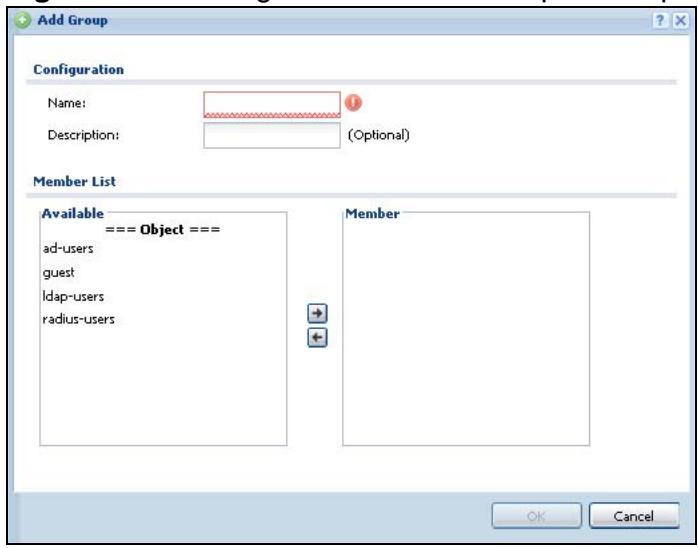
Figure 322 Configuration >User/Group >Group >Add
The following table describes the labels in this screen.
Table 155 Configuration >User/Group >Group >Add
| LABEL | DESCRIPTION |
| Name | Type the name for this user group. You may use 1-31 alphanumeric characters, underscores(____), or dashes (-), but the first character cannot be a number. This value is case-sensitive. User group names have to be different than user names. |
| Description | Enter the description of the user group, if any. You can use up to 60 characters, punctuation marks, and spaces. |
| Member List | The Member list displays the names of the users and user groups that have been added to the user group. The order of members is not important. Select users and groups from the Available list that you want to be members of this group and move them to the Member list. You can double-click a single entry to move it or use the [Shift] or [Ctrl] key to select multiple entries and use the arrow button to move them. Move any members you do not want included to the Available list. |
| OK | Click OK to save your changes back to the ZyWALL. |
| Cancel | Click Cancel to exit this screen without saving your changes. |
33.4 Setting Screen
The Setting screen controls default settings, login settings, lockout settings, and other user settings for the ZyWALL. You can also use this screen to specify when users must log in to the ZyWALL before it routes traffic for them.
To access this screen, login to the Web Configurator, and click Configuration > Object > User/Group > Setting.
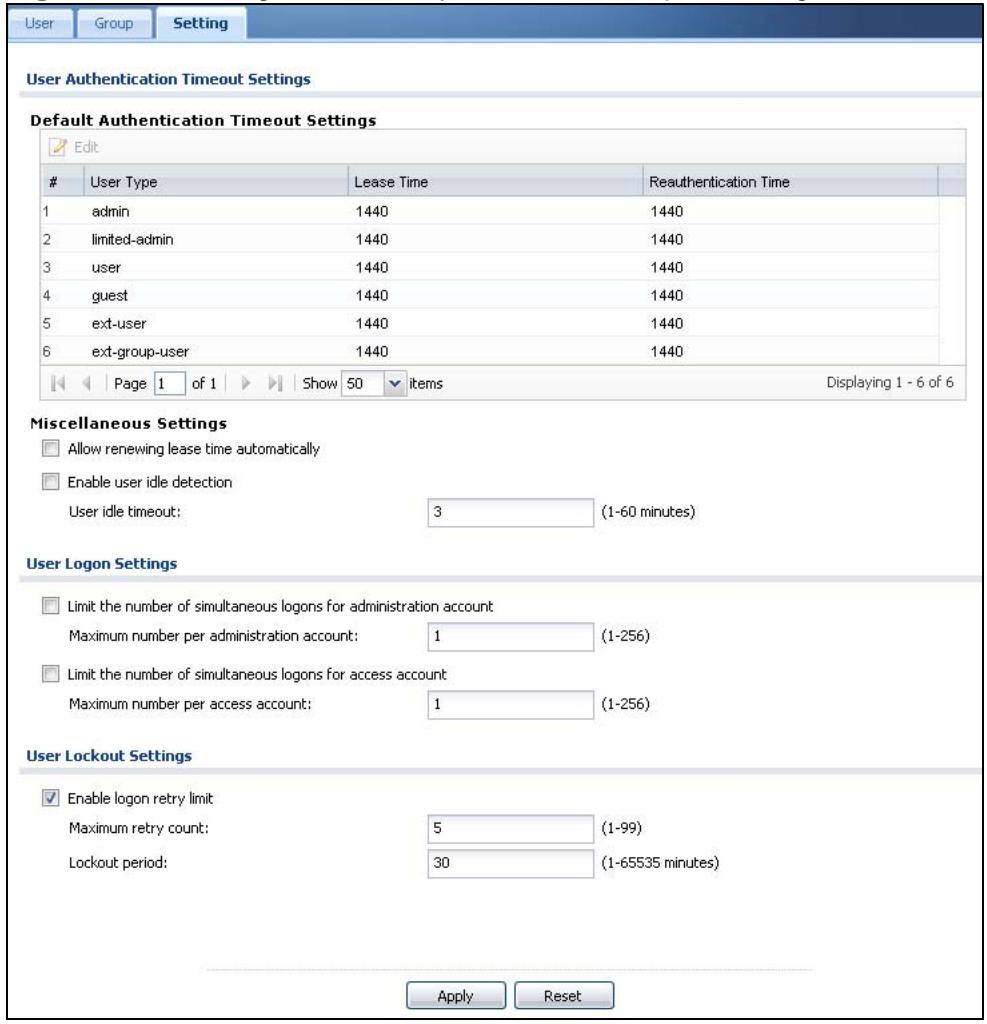
Figure 323 Configuration > Object > User/Group > Setting
The following table describes the labels in this screen.
Table 156 Configuration > Object > User/Group > Setting
| LABEL | DESCRIPTION |
| User Authentication Timeout Settings | |
| Default Authentication Timeout Settings | These authentication timeout settings are used by default when you create a new user account. They also control the settings for any existing user accounts that are set to use the default settings. You can still manually configure any user account's authentication timeout settings. |
| Edit | Double-click an entry or select it and click Edit to open a screen where you can modify the entry's settings. |
| # | This field is a sequential value, and it is not associated with a specific entry. |
| User Type | These are the kinds of user account the ZyWALL supports. • admin - this user can look at and change the configuration of the ZyWALL • limited-admin - this user can look at the configuration of the ZyWALL but not to change it • user - this user has access to the ZyWALL's services but cannot look at the configuration • guest - this user has access to the ZyWALL's services but cannot look at the configuration • ext-user - this user account is maintained in a remote server, such as RADIUS or LDAP. See Ext-User Accounts on page 540 for more information about this type. • ext-group-user - this user account is maintained in a remote server, such as RADIUS or LDAP. See Ext-Group-User Accounts on page 541 for more information about this type. |
| Lease Time | This is the default lease time in minutes for each type of user account. It defines the number of minutes the user has to renew the current session before the user is logged out. Admin users renew the session every time the main screen refreshes in the Web Configurator. Access users can renew the session by clicking the Renew button on their screen. If you allow access users to renew time automatically (see Section 33.4 on page 547), the users can select this checkbox on their screen as well. In this case, the session is automatically renewed before the lease time expires. |
| ReAuthentication Time | This is the default reauthentication time in minutes for each type of user account. It defines the number of minutes the user can be logged into the ZyWALL in one session before having to log in again. Unlike Lease Time, the user has no opportunity to renew the session without logging out. |
| Miscellaneous Settings | |
| Allow renewing lease time automatically | Select this check box if access users can renew lease time automatically, as well as manually, simply by selecting the Updating lease time automatically check box on their screen. |
| Enable user idle detection | This is applicable for access users. Select this check box if you want the ZyWALL to monitor how long each access user is logged in and idle (in other words, there is no traffic for this access user). The ZyWALL automatically logs out the access user once the User idle timeout has been reached. |
| User idle timeout | This is applicable for access users. This field is effective when Enable user idle detection is checked. Type the number of minutes each access user can be logged in and idle before the ZyWALL automatically logs out the access user. |
| User Logon Settings | |
| Limit the number of simultaneous logons for administration account | Select this check box if you want to set a limit on the number of simultaneous logins by admin users. If you do not select this, admin users can login as many times as they want at the same time using the same or different IP addresses. |
| Maximum number per administration account | This field is effective when Limit ... for administration account is checked. Type the maximum number of simultaneous logins by each admin user. |
| Limit the number of simultaneous logons for access account | Select this check box if you want to set a limit on the number of simultaneous logins by non-admin users. If you do not select this, access users can login as many times as they want as long as they use different IP addresses. |
| Maximum number per access account | This field is effective when Limit ... for access account is checked. Type the maximum number of simultaneous logins by each access user. |
| User Lockout Settings | |
| Enable logon retry limit | Select this check box to set a limit on the number of times each user can login unsuccessfully (for example, wrong password) before the IP address is locked out for a specified amount of time. |
| Maximum retry count | This field is effective when Enable logon retry limit is checked. Type the maximum number of times each user can login unsuccessfully before the IP address is locked out for the specified lockout period. The number must be between 1 and 99. |
| Lockout period | This field is effective when Enable logon retry limit is checked. Type the number of minutes the user must wait to try to login again, if logon retry limit is enabled and the maximum retry count is reached. This number must be between 1 and 65,535 (about 45.5 days). |
| Apply | Click Apply to save the changes. |
| Reset | Click Reset to return the screen to its last-saved settings. |
33.4.1 Default User Authentication Timeout Settings Edit Screens
The Default Authentication Timeout Settings Edit screen allows you to set the default authentication timeout settings for the selected type of user account. These default authentication timeout settings also control the settings for any existing user accounts that are set to use the default settings. You can still manually configure any user account's authentication timeout settings.
To access this screen, go to the Configuration > Object > User/Group > Setting screen (see Section 33.4 on page 547), and click one of the Default Authentication Timeout Settings section's Edit icons.
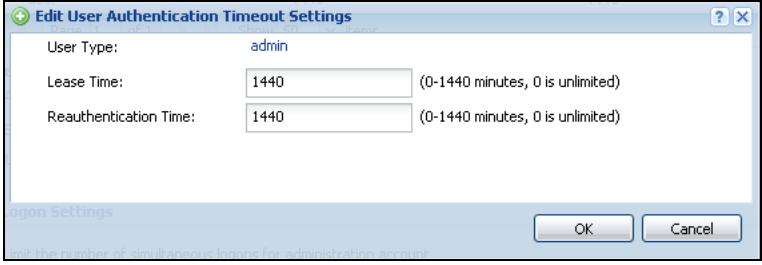
Figure 324 Configuration > Object > User/Group > Setting > Edit
The following table describes the labels in this screen.
Table 157 Configuration > Object > User/Group > Setting > Edit
| LABEL | DESCRIPTION |
| User Type | This read-only field identifies the type of user account for which you are configuring the default settings. • admin - this user can look at and change the configuration of the ZyWALL • limited-admin - this user can look at the configuration of the ZyWALL but not to change it • user - this user has access to the ZyWALL's services but cannot look at the configuration • ext-user - this user account is maintained in a remote server, such as RADIUS or LDAP. See Ext-User Accounts on page 540 for more information about this type. • ext-group-user - this user account is maintained in a remote server, such as RADIUS or LDAP. See Ext-Group-User Accounts on page 541 for more information about this type. |
| Lease Time | Enter the number of minutes this type of user account has to renew the current session before the user is logged out. You can specify 1 to 1440 minutes. You can enter 0 to make the number of minutes unlimited. Admin users renew the session every time the main screen refreshes in the Web Configurator. Access users can renew the session by clicking the Renew button on their screen. If you allow access users to renew time automatically (see Section 33.4 on page 547), the users can select this check box on their screen as well. In this case, the session is automatically renewed before the lease time expires. |
| Reauthentication Time | Type the number of minutes this type of user account can be logged into the ZyWALL in one session before the user has to log in again. You can specify 1 to 1440 minutes. You can enter 0 to make the number of minutes unlimited. Unlike Lease Time, the user has no opportunity to renew the session without logging out. |
| OK | Click OK to save your changes back to the ZyWALL. |
| Cancel | Click Cancel to exit this screen without saving your changes. |
33.4.2 User Aware Login Example
Access users cannot use the Web Configurator to browse the configuration of the ZyWALL. Instead, after access users log into the ZyWALL, the following screen appears.
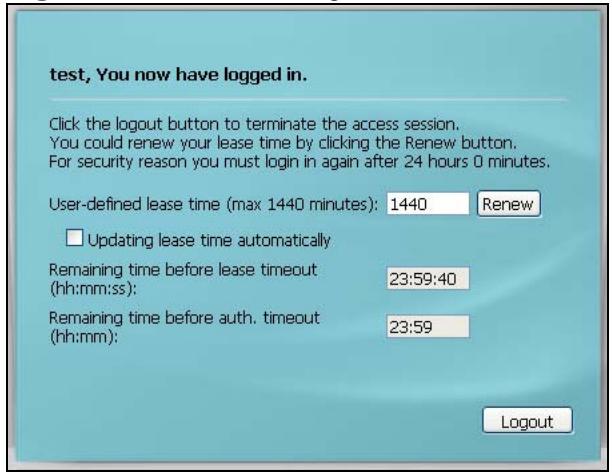
Figure 325 Web Configurator for Non-Admin Users
The following table describes the labels in this screen.
Table 158 Web Configurator for Non-Admin Users
| LABEL | DESCRIPTION |
| User-defined lease time (max ... minutes) | Access users can specify a lease time shorter than or equal to the one that you specified. The default value is the lease time that you specified. |
| Renew | Access users can click this button to reset the lease time, the amount of time remaining before the ZyWALL automatically logs them out. The ZyWALL sets this amount of time according to the ·User-defined lease time field in this screen ·Lease time field in the User Add/Edit screen (see Section 33.2.1 on page 542) ·Lease time field in the Setting screen (see Section 33.4 on page 547) |
| Updating lease time automatically | This box appears if you checked the Allow renewing lease time automatically box in the Setting screen. (See Section 33.4 on page 547.) Access users can select this check box to reset the lease time automatically 30 seconds before it expires. Otherwise, access users have to click the Renew button to reset the lease time. |
| Remaining time before lease timeout | This field displays the amount of lease time that remains, though the user might be able to reset it. |
| Remaining time before auth. timeout | This field displays the amount of time that remains before the ZyWALL automatically logs the access user out, regardless of the lease time. |
33.5 User /Group Technical Reference
This section provides some information on users who use an external authentication server in order to log in.
Setting up User Attributes in an External Server
To set up user attributes, such as reauthentication time, in LDAP or RADIUS servers, use the following keywords in the user configuration file.
Table 159 LDAP/RADIUS: Keywords for User Attributes
| KEYWORD | CORRESPONDING ATTRIBUTE IN WEB CONFIGURATOR |
| type | User Type. Possible Values: admin, limited-admin, user, guest. |
| leaseTime | Lease Time. Possible Values: 1-1440 (minutes). |
| reauthTime | Reauthentication Time. Possible Values: 1-1440 (minutes). |
The following examples show you how you might set up user attributes in LDAP and RADIUS servers.
Figure 326 LDAP Example: Keywords for User Attributes
type:admin leaseTime:99 reauthTime:199
Figure 327 RADIUS Example: Keywords for User Attributes
type=user;leaseTime=222;reauthTime=222
Creating a Large Number of Ext-User Accounts
If you plan to create a large number of Ext-User accounts, you might use CLI commands, instead of the Web Configurator, to create the accounts. Extract the user names from the LDAP or RADIUS server, and create a shell script that creates the user accounts. See Chapter 45 on page 693 for more information about shell scripts.
34.1 Overview
Address objects can represent a single IP address or a range of IP addresses. Address groups are composed of address objects and other address groups.
34.1.1 What You Can Do in this Chapter
- The Address screen (Section 34.2 on page 555) provides a summary of all addresses in the ZyWALL. Use the Address Add/Edit screen to create a new address or edit an existing one.
- Use the Address Group summary screen (Section 34.3 on page 558) and the Address Group Add/Edit screen, to maintain address groups in the ZyWALL.
34.1.2 What You Need To Know
Address objects and address groups are used in dynamic routes, firewall rules, content filtering,and VPN connection policies.For example,addresses are used to specify where content restrictions apply in content filtering.Please see the respective sections for more information about how address objects and address groups are used in each one.
Address groups are composed of address objects and address groups. The sequence of members in the address group is not important.
- See Section 6.6 on page 103 for related information on these screens.
- See Section 7.12 on page 145 for how to create a public IP address range object for using multiple static public WAN IP addresses for LAN to WAN traffic.
34.2 Address Summary Screen
The address screens are used to create, maintain, and remove addresses. There are the types of address objects.
-
HOST - a host address is defined by an IP Address.
-
RANGE - a range address is defined by a Starting IP Address and an Ending IP Address.
- SUBNET - a network address is defined by a Network IP address and Netmask subnet mask.
The Address screen provides a summary of all addresses in the ZyWALL. To access this screen, click Configuration > Object > Address > Address. Click a column's heading cell to sort the table entries by that column's criteria. Click the heading cell again to reverse the sort order.

Figure 328 Configuration > Object > Address > Address (USG 20)
The following table describes the labels in this screen. See Section 34.2.1 on page 557 for more information as well.
Table 160 Configuration > Object > Address > Address
| LABEL | DESCRIPTION |
| Add | Click this to create a new entry. |
| Edit | Double-click an entry or select it and click Edit to be able to modify the entry's settings. |
| Remove | To remove an entry, select it and click Remove. The ZyWALL confirms you want to remove it before doing so. |
| Object References | Select an entry and click Object References to open a screen that shows which settings use the entry. See Section 11.3.2 on page 232 for an example. |
| # | This field is a sequential value, and it is not associated with a specific address. |
| Name | This field displays the configured name of each address object. |
| Type | This field displays the type of each address object. “INTERFACE” means the object uses the settings of one of the ZyWALL's interfaces. |
| Address | This field displays the IP addresses represented by each address object. If the object's settings are based on one of the ZyWALL's interfaces, the name of the interface displays first followed by the object's current address settings. |
34.2.1 Address Add/Edit Screen
The Configuration > Address Add/Edit screen allows you to create a new address or edit an existing one. To access this screen, go to the Address screen (see Section 34.2 on page 555), and click either the Add icon or an Edit icon.
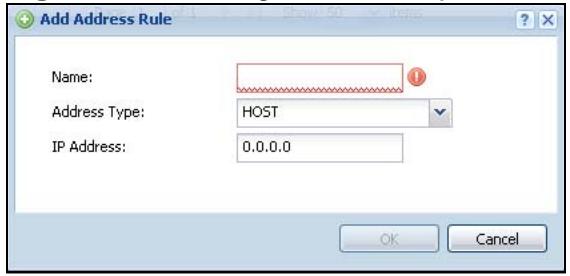
Figure 329 Configuration > Object > Address > Address > Edit
The following table describes the labels in this screen.
Table 161 Configuration > Object > Address > Address > Edit
| LABEL | DESCRIPTION |
| Name | Type the name used to refer to the address. You may use 1-31 alphanumeric characters, underscores( ), or dashes (-), but the first character cannot be a number. This value is case-sensitive. |
| Address Type | Select the type of address you want to create. Choices are: HOST, RANGE, SUBNET, INTERFACE IP, INTERFACE SUBNET, and INTERFACE GATEWAY. Note: The ZyWALL automatically updates address objects that are based on an interface's IP address, subnet, or gateway if the interface's IP address settings change. For example, if you change ge1's IP address, the ZyWALL automatically updates the corresponding interface-based, LAN subnet address object. |
| IP Address | This field is only available if the Address Type is HOST. This field cannot be blank. Enter the IP address that this address object represents. |
| Starting IP Address | This field is only available if the Address Type is RANGE. This field cannot be blank. Enter the beginning of the range of IP addresses that this address object represents. |
| Ending IP Address | This field is only available if the Address Type is RANGE. This field cannot be blank. Enter the end of the range of IP address that this address object represents. |
| Network | This field is only available if the Address Type is SUBNET, in which case this field cannot be blank. Enter the IP address of the network that this address object represents. |
| Netmask | This field is only available if the Address Type is SUBNET, in which case this field cannot be blank. Enter the subnet mask of the network that this address object represents. Use dotted decimal format. |
| Interface | If you selected INTERFACE IP, INTERFACE SUBNET, or INTERFACE GATEWAY as the Address Type, use this field to select the interface of the network that this address object represents. |
| OK | Click OK to save your changes back to the ZyWALL. |
| Cancel | Click Cancel to exit this screen without saving your changes. |
34.3 Address Group Summary Screen
The Address Group screen provides a summary of all address groups. To access this screen, click Configuration > Object > Address > Address Group. Click a column's heading cell to sort the table entries by that column's criteria. Click the heading cell again to reverse the sort order.
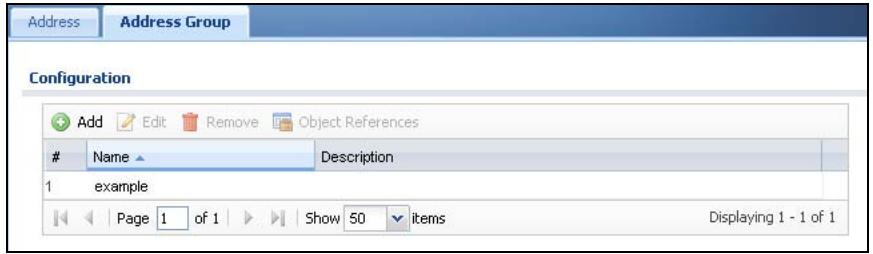
Figure 330 Configuration > Object > Address > Address Group
The following table describes the labels in this screen. See Section 34.3.1 on page 559 for more information as well.
Table 162 Configuration > Object > Address > Address Group
| LABEL | DESCRIPTION |
| Add | Click this to create a new entry. |
| Edit | Double-click an entry or select it and click Edit to be able to modify the entry's settings. |
| Remove | To remove an entry, select it and click Remove. The ZyWALL confirms you want to remove it before doing so. |
| Object References | Select an entry and click Object References to open a screen that shows which settings use the entry. See Section 11.3.2 on page 232 for an example. |
| # | This field is a sequential value, and it is not associated with a specific address group. |
| Name | This field displays the name of each address group. |
| Description | This field displays the description of each address group, if any. |
34.3.1 Address Group Add/Edit Screen
The Address Group Add/Edit screen allows you to create a new address group or edit an existing one. To access this screen, go to the Address Group screen (see Section 34.3 on page 558), and click either the Add icon or an Edit icon.
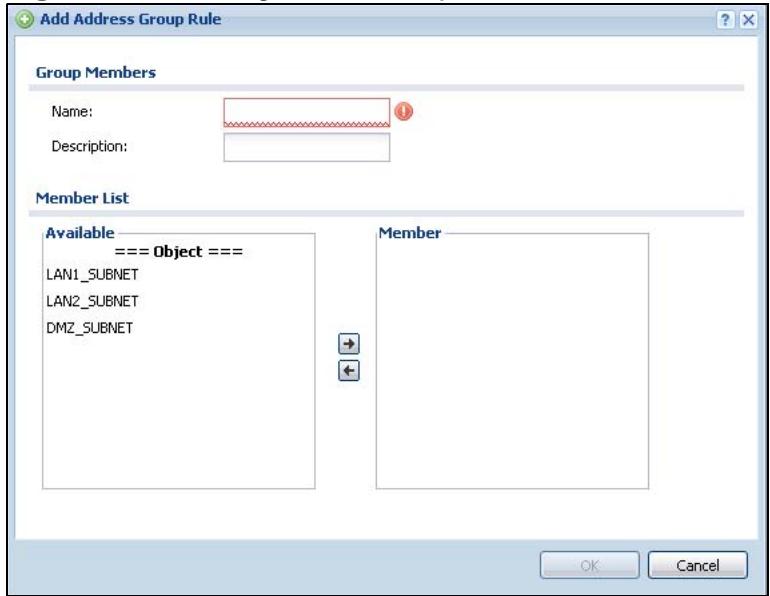
Figure 331 Configuration > Object > Address > Address Group > Add (USG 20)
The following table describes the labels in this screen.
Table 163 Configuration > Object > Address > Address Group > Add
| LABEL | DESCRIPTION |
| Name | Enter a name for the address group. You may use 1-31 alphanumeric characters, underscores(____), or dashes (-), but the first character cannot be a number. This value is case-sensitive. |
| Description | This field displays the description of each address group, if any. You can use up to 60 characters, punctuation marks, and spaces. |
| Member List | The Member list displays the names of the address and address group objects that have been added to the address group. The order of members is not important. Select items from the Available list that you want to be members and move them to the Member list. You can double-click a single entry to move it or use the [Shift] or [Ctrl] key to select multiple entries and use the arrow button to move them. Move any members you do not want included to the Available list. |
| OK | Click OK to save your changes back to the ZyWALL. |
| Cancel | Click Cancel to exit this screen without saving your changes. |
Services
35.1 Overview
Use service objects to define TCP applications, UDP applications, and ICMP messages. You can also create service groups to refer to multiple service objects in other features.
35.1.1 What You Can Do in this Chapter
- Use the Service screens (Section 35.2 on page 562) to view and configure the ZyWALL's list of services and their definitions.
- Use the Service Group screens (Section 35.2 on page 562) to view and configure the ZyWALL's list of service groups.
35.1.2 What You Need to Know
IP Protocols
IP protocols are based on the eight-bit protocol field in the IP header. This field represents the next-level protocol that is sent in this packet. This section discusses three of the most common IP protocols.
Computers use Transmission Control Protocol (TCP, IP protocol 6) and User Datagram Protocol (UDP, IP protocol 17) to exchange data with each other. TCP guarantees reliable delivery but is slower and more complex. Some uses are FTP, HTTP, SMTP, and TELNET. UDP is simpler and faster but is less reliable. Some uses are DHCP, DNS, RIP, and SNMP.
TCP creates connections between computers to exchange data. Once the connection is established, the computers exchange data. If data arrives out of sequence or is missing, TCP puts it in sequence or waits for the data to be retransmitted. Then, the connection is terminated.
In contrast, computers use UDP to send short messages to each other. There is no guarantee that the messages arrive in sequence or that the messages arrive at all.
Both TCP and UDP use ports to identify the source and destination. Each port is a 16-bit number. Some port numbers have been standardized and are used by low-level system processes; many others have no particular meaning.
Unlike TCP and UDP, Internet Control Message Protocol (ICMP, IP protocol 1) is mainly used to send error messages or to investigate problems. For example, ICMP is used to send the response if a computer cannot be reached. Another use is ping. ICMP does not guarantee delivery, but networks often treat ICMP messages differently, sometimes looking at the message itself to decide where to send it.
Service Objects and Service Groups
Use service objects to define IP protocols.
- TCP applications
- UDP applications
- ICMP messages
- user-defined services (for other types of IP protocols)
These objects are used in policy routes, firewall rules.
Use service groups when you want to create the same rule for several services, instead of creating separate rules for each service. Service groups may consist of services and other service groups. The sequence of members in the service group is not important.
Finding Out More
- See Section 6.6 on page 103 for related information on these screens.
- See Appendix B on page 799 for a list of commonly-used services.
35.2 The Service Summary Screen
The Service summary screen provides a summary of all services and their definitions. In addition, this screen allows you to add, edit, and remove services.
To access this screen, log in to the Web Configurator, and click Configuration > Object > Service > Service. Click a column's heading cell to sort the table
entries by that column's criteria. Click the heading cell again to reverse the sort order.
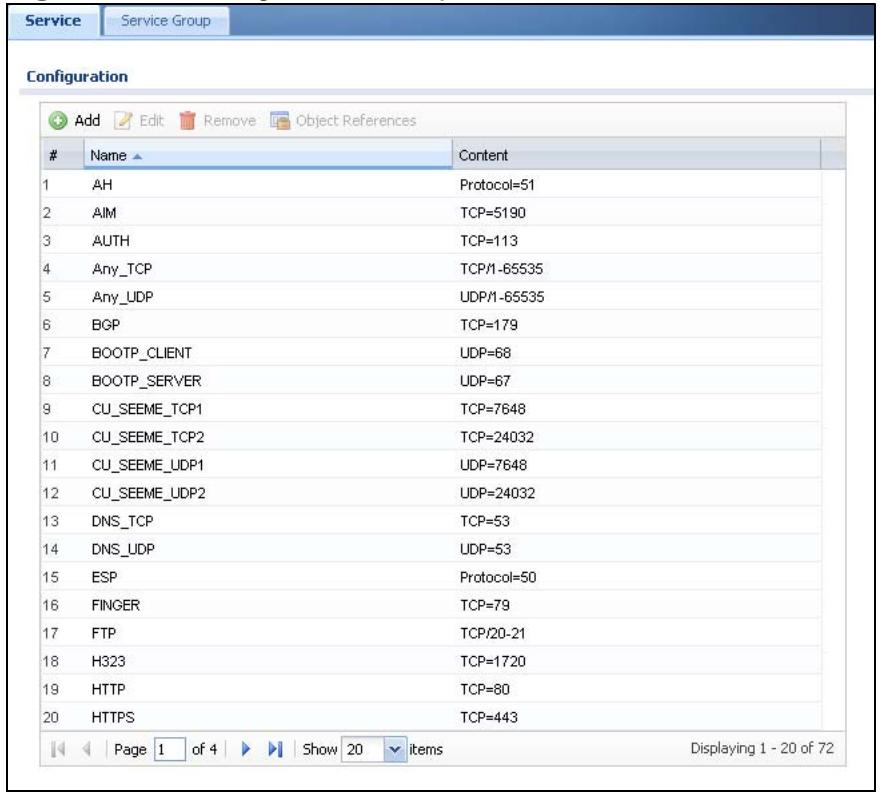
Figure 332 Configuration > Object > Service > Service
The following table describes the labels in this screen.
Table 164 Configuration > Object > Service > Service
| LABEL | DESCRIPTION |
| Add | Click this to create a new entry. |
| Edit | Double-click an entry or select it and click Edit to be able to modify the entry's settings. |
| Remove | To remove an entry, select it and click Remove. The ZyWALL confirms you want to remove it before doing so. |
| Object References | Select an entry and click Object References to open a screen that shows which settings use the entry. See Section 11.3.2 on page 232 for an example. |
| # | This field is a sequential value, and it is not associated with a specific service. |
| Name | This field displays the name of each service. |
| Content | This field displays a description of each service. |
35.2.1 The Service Add/Edit Screen
The Service Add/Edit screen allows you to create a new service or edit an existing one. To access this screen, go to the Service screen (see Section 35.2 on page 562), and click either the Add icon or an Edit icon.
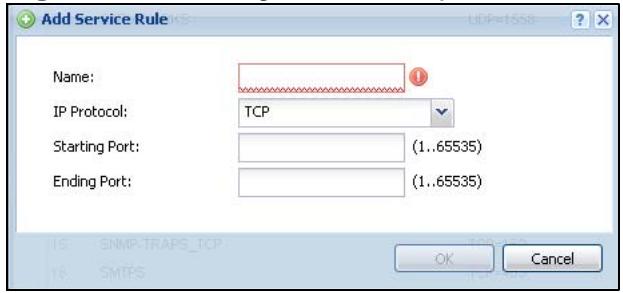
Figure 333 Configuration > Object > Service > Service > Edit
The following table describes the labels in this screen.
Table 165 Configuration > Object > Service > Service > Edit
| LABEL | DESCRIPTION |
| Name | Type the name used to refer to the service. You may use 1-31 alphanumeric characters, underscores(____), or dashes (-), but the first character cannot be a number. This value is case-sensitive. |
| IP Protocol | Select the protocol the service uses. Choices are: TCP, UDP, ICMP, and User Defined. |
| Starting Port Ending Port | This field appears if the IP Protocol is TCP or UDP. Specify the port number(s) used by this service. If you fill in one of these fields, the service uses that port. If you fill in both fields, the service uses the range of ports. |
| ICMP Type | This field appears if the IP Protocol is ICMP Type. Select the ICMP message used by this service. This field displays the message text, not the message number. |
| IP Protocol Number | This field appears if the IP Protocol is User Defined. Enter the number of the next-level protocol (IP protocol). Allowed values are 0 - 255. |
| OK | Click OK to save your changes back to the ZyWALL. |
| Cancel | Click Cancel to exit this screen without saving your changes. |
35.3 The Service Group Summary Screen
The Service Group summary screen provides a summary of all service groups. In addition, this screen allows you to add, edit, and remove service groups.
To access this screen, log in to the Web Configurator, and click Configuration > Object > Service > Service Group.
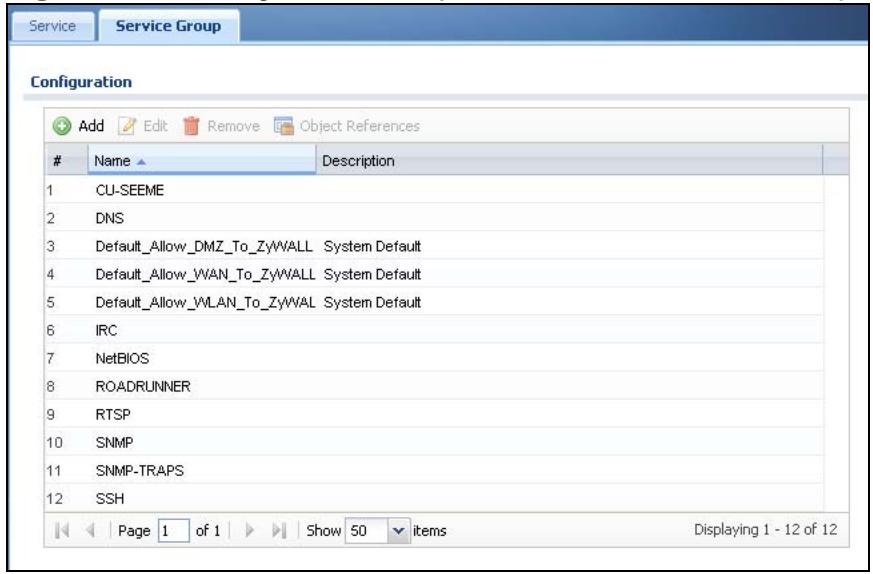
Figure 334 Configuration > Object > Service > Service Group
The following table describes the labels in this screen. See Section 35.3.1 on page 566 for more information as well.
Table 166 Configuration > Object > Service > Service Group
| LABEL | DESCRIPTION |
| Add | Click this to create a new entry. |
| Edit | Double-click an entry or select it and click Edit to be able to modify the entry's settings. |
| Remove | To remove an entry, select it and click Remove. The ZyWALL confirms you want to remove it before doing so. |
| Object References | Select an entry and click Object References to open a screen that shows which settings use the entry. See Section 11.3.2 on page 232 for an example. |
| # | This field is a sequential value, and it is not associated with a specific service group. |
| Name | This field displays the name of each service group. By default, the ZyWALL uses services starting with "Default_AlloW_" in the firewall rules to allow certain services to connect to the ZyWALL. |
| Description | This field displays the description of each service group, if any. |
35.3.1 The Service Group Add/Edit Screen
The Service Group Add/Edit screen allows you to create a new service group or edit an existing one. To access this screen, go to the Service Group screen (see Section 35.3 on page 564), and click either the Add icon or an Edit icon.
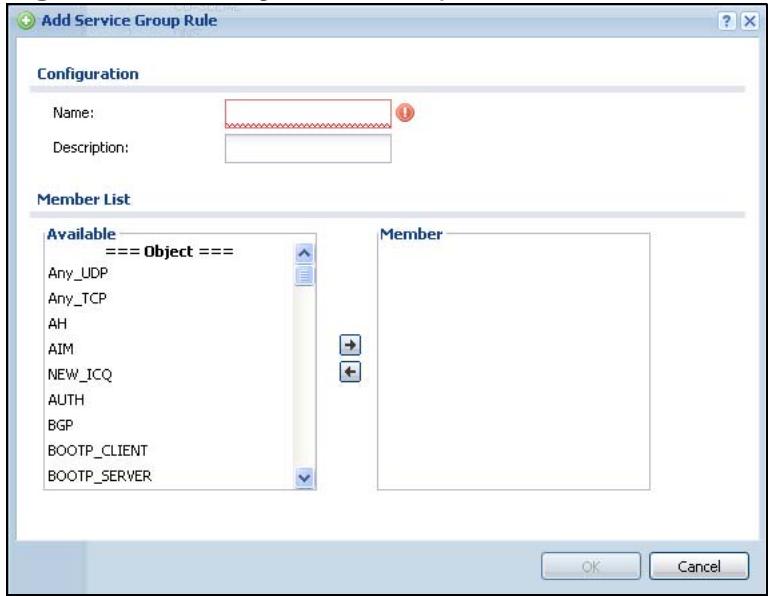
Figure 335 Configuration > Object > Service > Service Group > Edit
The following table describes the labels in this screen.
Table 167 Configuration > Object > Service > Service Group > Edit
| LABEL | DESCRIPTION |
| Name | Enter the name of the service group. You may use 1-31 alphanumeric characters, underscores(____), or dashes (-), but the first character cannot be a number. This value is case-sensitive. |
| Description | Enter a description of the service group, if any. You can use up to 60 printable ASCII characters. |
| Member List | The Member list displays the names of the service and service group objects that have been added to the service group. The order of members is not important. Select items from the Available list that you want to be members and move them to the Member list. You can double-click a single entry to move it or use the [Shift] or [Ctrl] key to select multiple entries and use the arrow button to move them. Move any members you do not want included to the Available list. |
| OK | Click OK to save your changes back to the ZyWALL. |
| Cancel | Click Cancel to exit this screen without saving your changes. |
Schedules
36.1 Overview
Use schedules to set up one-time and recurring schedules for policy routes, firewall rules, and content filtering. The ZyWALL supports one-time and recurring schedules. One-time schedules are effective only once, while recurring schedules usually repeat. Both types of schedules are based on the current date and time in the ZyWALL.
Note: Schedules are based on the ZyWALL's current date and time.
36.1.1 What You Can Do in this Chapter
- Use the Schedule summary screen (Section 36.2 on page 568) to see a list of all schedules in the ZyWALL.
- Use the One-Time Schedule Add/Edit screen (Section 36.2.1 on page 569) to create or edit a one-time schedule.
- Use the Recurring Schedule Add/Edit screen (Section 36.2.2 on page 570) to create or edit a recurring schedule.
36.1.2 What You Need to Know
One-time Schedules
One-time schedules begin on a specific start date and time and end on a specific stop date and time. One-time schedules are useful for long holidays and vacation periods.
Recurring Schedules
Recurring schedules begin at a specific start time and end at a specific stop time on selected days of the week (Sunday, Monday, Tuesday, Wednesday, Thursday, Friday, and Saturday). Recurring schedules always begin and end in the same day. Recurring schedules are useful for defining the workday and off-work hours.
Finding Out More
- See Section 6.6 on page 103 for related information on these screens.
- See Section 43.4 on page 631 for information about the ZyWALL's current date and time.
36.2 The Schedule Summary Screen
The Schedule summary screen provides a summary of all schedules in the ZyWALL. To access this screen, click Configuration > Object > Schedule.
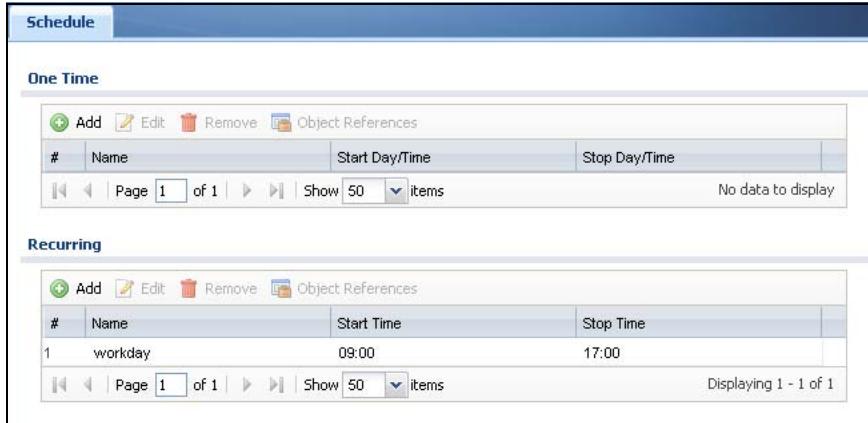
Figure 336 Configuration > Object > Schedule
The following table describes the labels in this screen. See Section 36.2.1 on page 569 and Section 36.2.2 on page 570 for more information as well.
Table 168 Configuration > Object > Schedule
| LABEL | DESCRIPTION |
| One Time | |
| Add | Click this to create a new entry. |
| Edit | Double-click an entry or select it and click Edit to be able to modify the entry's settings. |
| Remove | To remove an entry, select it and click Remove. The ZyWALL confirms you want to remove it before doing so. |
| Object References | Select an entry and click Object References to open a screen that shows which settings use the entry. See Section 11.3.2 on page 232 for an example. |
| # | This field is a sequential value, and it is not associated with a specific schedule. |
| Name | This field displays the name of the schedule, which is used to refer to the schedule. |
| Start Day / Time | This field displays the date and time at which the schedule begins. |
| Stop Day / Time | This field displays the date and time at which the schedule ends. |
| Recurring | |
| Add | Click this to create a new entry. |
| Edit | Double-click an entry or select it and click Edit to be able to modify the entry's settings. |
| Remove | To remove an entry, select it and click Remove. The ZyWALL confirms you want to remove it before doing so. |
| Object References | Select an entry and click Object References to open a screen that shows which settings use the entry. See Section 11.3.2 on page 232 for an example. |
| # | This field is a sequential value, and it is not associated with a specific schedule. |
| Name | This field displays the name of the schedule, which is used to refer to the schedule. |
| Start Time | This field displays the time at which the schedule begins. |
| Stop Time | This field displays the time at which the schedule ends. |
36.2.1 The One-Time Schedule Add/Edit Screen
The One-Time Schedule Add/Edit screen allows you to define a one-time schedule or edit an existing one. To access this screen, go to the Schedule screen (see Section 36.2 on page 568), and click either the Add icon or an Edit icon in the One Time section.
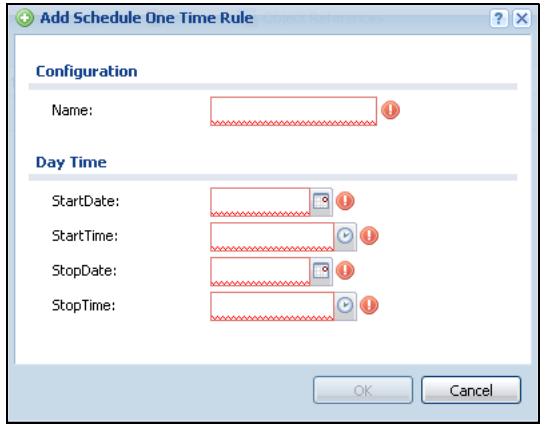
Figure 337 Configuration > Object > Schedule > Edit (One Time)
The following table describes the labels in this screen.
Table 169 Configuration > Object > Schedule > Edit (One Time)
| LABEL | DESCRIPTION |
| Configuration | |
| Name | Type the name used to refer to the one-time schedule. You may use 1-31 alphanumeric characters, underscores(____), or dashes (-), but the first character cannot be a number. This value is case-sensitive. |
| Date Time | |
| StartDate | Specify the year, month, and day when the schedule begins. Year - 1900 - 2999 Month - 1 - 12 Day - 1 - 31 (it is not possible to specify illegal dates, such as February 31.) Hour - 0 - 23 Minute - 0 - 59 |
| StartTime | Specify the hour and minute when the schedule begins. Hour - 0 - 23 Minute - 0 - 59 |
| StopDate | Specify the year, month, and day when the schedule ends. Year - 1900 - 2999 Month - 1 - 12 Day - 1 - 31 (it is not possible to specify illegal dates, such as February 31.) Hour - 0 - 23 Minute - 0 - 59 |
| StopTime | Specify the hour and minute when the schedule ends. Hour - 0 - 23 Minute - 0 - 59 |
| OK | Click OK to save your changes back to the ZyWALL. |
| Cancel | Click Cancel to exit this screen without saving your changes. |
36.2.2 The Recurring Schedule Add/Edit Screen
The Recurring Schedule Add/Edit screen allows you to define a recurring schedule or edit an existing one. To access this screen, go to the Schedule screen
(see Section 36.2 on page 568), and click either the Add icon or an Edit icon in the Recurring section.
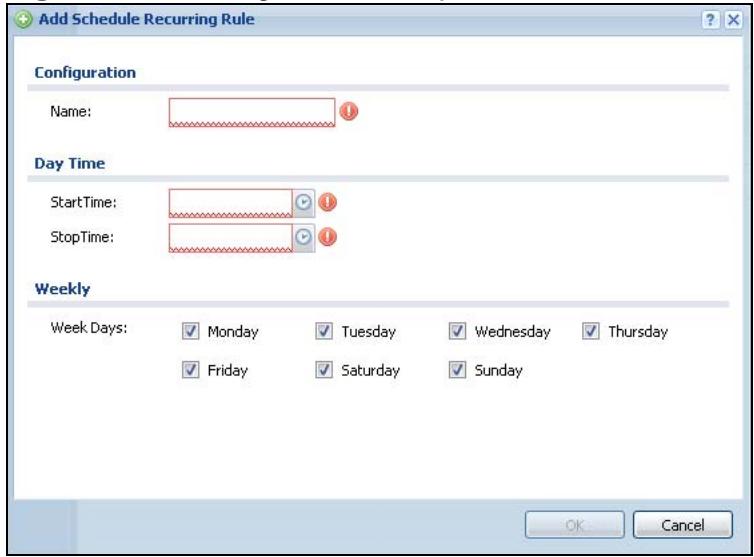
Figure 338 Configuration > Object > Schedule > Edit (Recurring)
The Year, Month, and Day columns are not used in recurring schedules and are disabled in this screen. The following table describes the remaining labels in this screen.
Table 170 Configuration > Object > Schedule > Edit (Recurring)
| LABEL | DESCRIPTION |
| Configuration | |
| Name | Type the name used to refer to the recurring schedule. You may use 1-31 alphanumeric characters, underscores( ), or dashes (-), but the first character cannot be a number. This value is case-sensitive. |
| Date Time | |
| StartTime | Specify the hour and minute when the schedule begins each day. Hour - 0 - 23 Minute - 0 - 59 |
| StopTime | Specify the hour and minute when the schedule ends each day. Hour - 0 - 23 Minute - 0 - 59 |
| Weekly | |
| Week Days | Select each day of the week the recurring schedule is effective. |
| OK | Click OK to save your changes back to the ZyWALL. |
| Cancel | Click Cancel to exit this screen without saving your changes. |
AAA Server
37.1 Overview
You can use a AAA (Authentication, Authorization, Accounting) server to provide access control to your network. The AAA server can be a Active Directory, LDAP, or RADIUS server. Use the AAA Server screens to create and manage objects that contain settings for using AAA servers. You use AAA server objects in configuring ext-group-user user objects and authentication method objects (see Chapter 38 on page 583).
37.1.1 Directory Service (AD/LDAP)
LDAP/AD allows a client (the ZyWALL) to connect to a server to retrieve information from a directory. A network example is shown next.
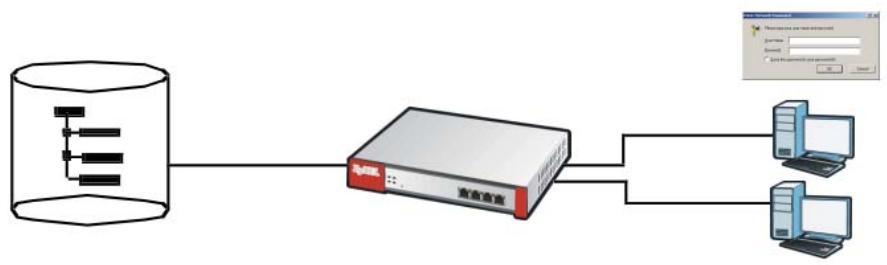
Figure 339 Example: Directory Service Client and Server
The following describes the user authentication procedure via an LDAP/AD server.
1 A user logs in with a user name and password pair.
2 The ZyWALL tries to bind (or log in) to the LDAP/AD server.
3 When the binding process is successful, the ZyWALL checks the user information in the directory against the user name and password pair.
4 If it matches, the user is allowed access. Otherwise, access is blocked.
37.1.2 RADIUS Server
RADIUS (Remote Authentication Dial-In User Service) authentication is a popular protocol used to authenticate users by means of an external server instead of (or in addition to) an internal device user database that is limited to the memory capacity of the device. In essence, RADIUS authentication allows you to validate a large number of users from a central location.
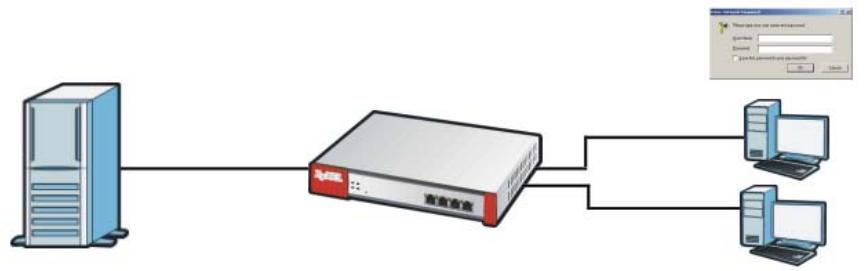
Figure 340 RADIUS Server Network Example
37.1.3 ASAS
ASAS (Authenex Strong Authentication System) is a RADIUS server that works with the One-Time Password (OTP) feature. Purchase a ZyWALL OTP package in order to use this feature. The package contains server software and physical OTP tokens (PIN generators). Do the following to use OTP. See the documentation included on the ASAS' CD for details.
1 Install the ASAS server software on a computer.
2 Create user accounts on the ZyWALL and in the ASAS server.
3 Import each token's database file (located on the included CD) into the server.
4 Assign users to OTP tokens (on the ASAS server).
5 Configure the ASAS as a RADIUS server in the ZyWALL's Configuration > Object > AAA Server screens.
6 Give the OTP tokens to (local or remote) users.
37.1.4 What You Can Do in this Chapter
-
Use the Configuration > Object > AAA Server > Active Directory (or LDAP) screens (Section 37.2 on page 577) to configure Active Directory or LDAP server objects.
-
Use the Configuration > Object > AAA Server > RADIUS screen (Section 37.3 on page 579) to configure the default external RADIUS server to use for user authentication.
37.1.5 What You Need To Know
AAA Servers Supported by the ZyWALL
The following lists the types of authentication server the ZyWALL supports.
- Local user database
The ZyWALL uses the built-in local user database to authenticate administrative users logging into the ZyWALL's Web Configurator or network access users logging into the network through the ZyWALL. You can also use the local user database to authenticate VPN users.
- Directory Service (LDAP/AD)
LDAP (Lightweight Directory Access Protocol)/AD (Active Directory) is a directory service that is both a directory and a protocol for controlling access to a network. The directory consists of a database specialized for fast information retrieval and filtering activities. You create and store user profile and login information on the external server.
- RADIUS
RADIUS (Remote Authentication Dial-In User Service) authentication is a popular protocol used to authenticate users by means of an external or built-in RADIUS server. RADIUS authentication allows you to validate a large number of users from a central location.
Directory Structure
The directory entries are arranged in a hierarchical order much like a tree structure. Normally, the directory structure reflects the geographical or
organizational boundaries. The following figure shows a basic directory structure branching from countries to organizations to organizational units to individuals.
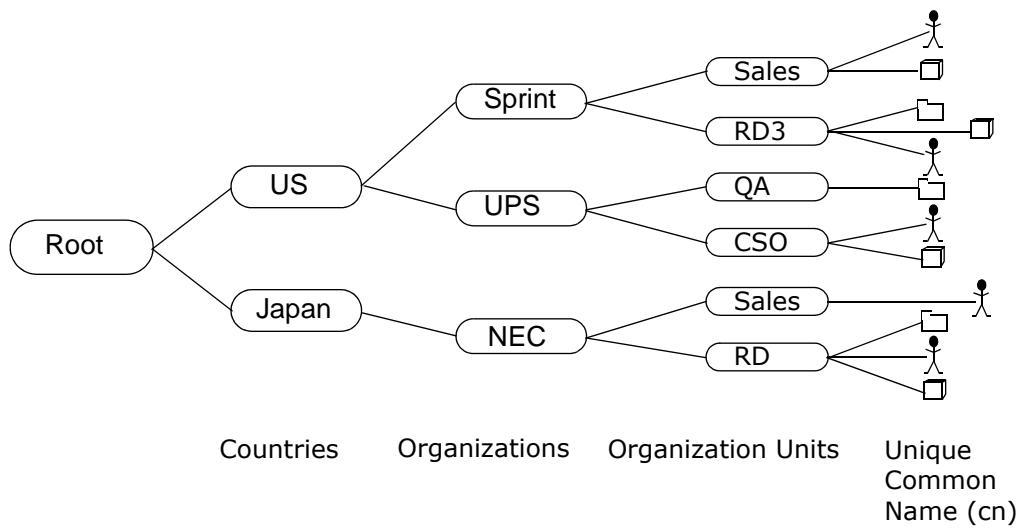
Figure 341 Basic Directory Structure
Distinguished Name (DN)
A DN uniquely identifies an entry in a directory. A DN consists of attribute-value pairs separated by commas. The leftmost attribute is the Relative Distinguished Name (RDN). This provides a unique name for entries that have the same "parent DN" ("cn=domain1.com, ou=Sales, o=MyCompany" in the following examples).
cn=domain1.com, ou = Sales, o=MyCompany, c=US
cn=domain1.com, ou = Sales, o=MyCompany, c=JP
Base DN
A base DN specifies a directory. A base DN usually contains information such as the name of an organization, a domain name and/or country. For example, o=MyCompany, c=UK where o means organization and c means country.
Bind DN
A bind DN is used to authenticate with an LDAP/AD server. For example a bind DN of cn=zywallAdmin allows the ZyWALL to log into the LDAP/AD server using the user name of zywallAdmin. The bind DN is used in conjunction with a bind password. When a bind DN is not specified, the ZyWALL will try to log in as an anonymous user. If the bind password is incorrect, the login will fail.
Finding Out More
-
See Section 7.5.3 on page 122 for an example of how to set up user authentication using a radius server.
-
See Section 7.6 on page 124 for an example of how to use a RADIUS server to authenticate user accounts based on groups.
37.2 Active Directory or LDAP Server Summary
Use the Active Directory or LDAP screen to manage the list of AD or LDAP servers the ZyWALL can use in authenticating users.
Click Configuration > Object > AAA Server > Active Directory (or LDAP) to display the Active Directory (or LDAP) screen.
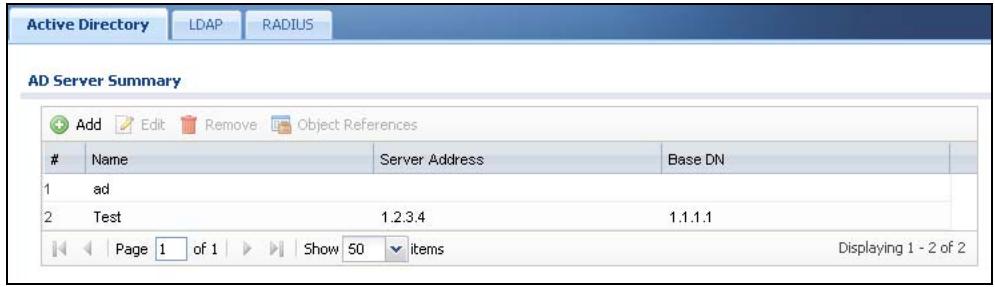
Figure 342 Configuration > Object > AAA Server > Active Directory (or LDAP)
The following table describes the labels in this screen.
Table 171 Configuration > Object > AAA Server > Active Directory (or LDAP)
| LABEL | DESCRIPTION |
| Add | Click this to create a new entry. |
| Edit | Double-click an entry or select it and click Edit to open a screen where you can modify the entry's settings. |
| Remove | To remove an entry, select it and click Remove. The ZyWALL confirms you want to remove it before doing so. |
| Object References | Select an entry and click Object References to open a screen that shows which settings use the entry. See Section 11.3.2 on page 232 for an example. |
| # | This field displays the index number. |
| Server Address | This is the address of the AD or LDAP server. |
| Base DN | This specifies a directory. For example, o=ZyXEL, c=US. |
37.2.1 Adding an Active Directory or LDAP Server
Click Object > AAA Server > Active Directory (or LDAP) to display the Active Directory (or LDAP) screen. Click the Add icon or an Edit icon to display the
following screen. Use this screen to create a new AD or LDAP entry or edit an existing one.
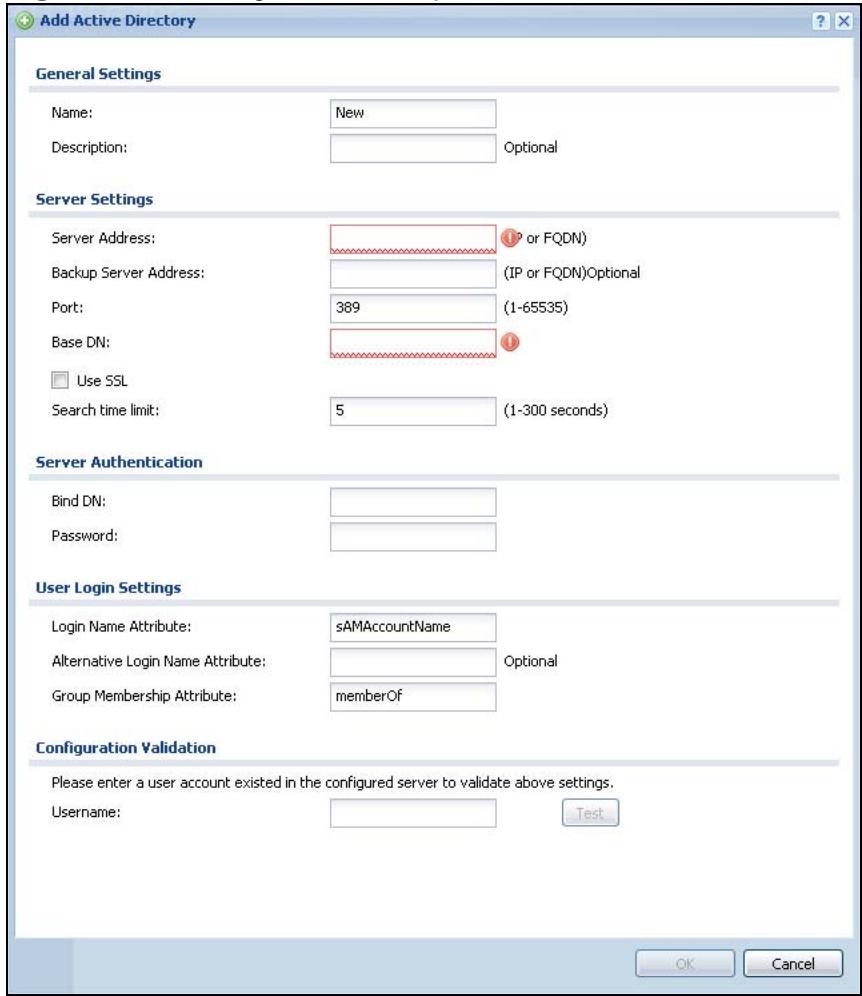
Figure 343 Configuration > Object > AAA Server > Active Directory (or LDAP) > Add
The following table describes the labels in this screen.
Table 172 Configuration > Object > AAA Server > Active Directory (or LDAP) > Add
| LABEL | DESCRIPTION |
| Name | Enter a descriptive name (up to 63 alphanumeric characters) for identification purposes. |
| Description | Enter the description of each server, if any. You can use up to 60 printable ASCII characters. |
| Server Address | Enter the address of the AD or LDAP server. |
| Backup Server Address | If the AD or LDAP server has a backup server, enter its address here. |
| Port | Specify the port number on the AD or LDAP server to which the ZyWALL sends authentication requests. Enter a number between 1 and 65535. This port number should be the same on all AD or LDAP sever(s) in this group. |
Table 172 Configuration > Object > AAA Server > Active Directory (or LDAP) > Add
| LABEL | DESCRIPTION |
| Base DN | Specify the directory (up to 127 alphanumeric characters). For example, o=ZyXEL, c=US. |
| Use SSL | Select Use SSL to establish a secure connection to the AD or LDAP server(s). |
| Search time limit | Specify the timeout period (between 1 and 300 seconds) before the ZyWALL disconnects from the AD or LDAP server. In this case, user authentication fails. Search timeout occurs when either the user information is not in the AD or LDAP server(s) or the AD or LDAP server(s) is down. |
| Bind DN | Specify the bind DN for logging into the AD or LDAP server. Enter up to 127 alphanumeric characters. For example, cn=zywallAdmin specifies zywallAdmin as the user name. |
| Password | If required, enter the password (up to 15 alphanumeric characters) for the ZyWALL to bind (or log in) to the AD or LDAP server. |
| Base DN | Specify the directory (up to 127 alphanumeric characters). For example, o=ZyXEL, c=US. |
| Login Name Attribute | Enter the type of identifier the users are to use to log in. For example "name" or "e-mail address". |
| Alternative Login Name Attribute | If there is a second type of identifier that the users can use to log in, enter it here. For example "name" or "e-mail address". |
| Group Membership Attribute | An AD or LDAP server defines attributes for its accounts. Enter the name of the attribute that the ZyWALL is to check to determine to which group a user belongs. The value for this attribute is called a group identifier; it determines to which group a user belongs. You can add ext-group-user user objects to identify groups based on these group identifier values. For example you could have an attribute named "memberOf" with values like "sales", "RD", and "management". Then you could also create a ext-group-user user object for each group. One with "sales" as the group identifier, another for "RD" and a third for "management". |
| Configuration Validation | Use a user account from the server specified above to test if the configuration is correct. Enter the account's user name in theUsername field and click Test. |
| OK | Click OK to save the changes. |
| Cancel | Click Cancel to discard the changes. |
37.3 RADIUS Server Summary
Use the RADIUS screen to manage the list of RADIUS servers the ZyWALL can use in authenticating users.
Click Configuration > Object > AAA Server > RADIUS to display the RADIUS screen.
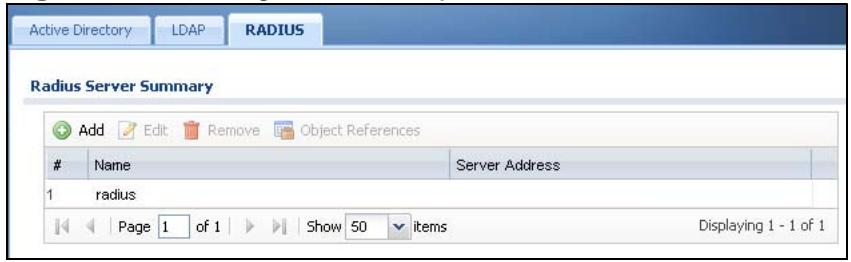
Figure 344 Configuration > Object > AAA Server > RADIUS
The following table describes the labels in this screen.
Table 173 Configuration > Object > AAA Server > RADIUS
| LABEL | DESCRIPTION |
| Add | Click this to create a new entry. |
| Edit | Double-click an entry or select it and click Edit to open a screen where you can modify the entry's settings. |
| Remove | To remove an entry, select it and click Remove. The ZyWALL confirms you want to remove it before doing so. |
| Object References | Select an entry and click Object References to open a screen that shows which settings use the entry. See Section 11.3.2 on page 232 for an example. |
| # | This field displays the index number. |
| Name | This is the name of the RADIUS server entry. |
| Server Address | This is the address of the AD or LDAP server. |
| Base DN | This specifies a directory. For example, o=ZyXEL, c=US. |
| Host | Enter the IP address (in dotted decimal notation) or the domain name (up to 63 alphanumeric characters) of a RADIUS server. |
| Authentication Port | The default port of the RADIUS server for authentication is 1812. You need not change this value unless your network administrator instructs you to do so with additional information. |
| Key | Enter a password (up to 15 alphanumeric characters) as the key to be shared between the external authentication server and the ZyWALL. The key is not sent over the network. This key must be the same on the external authentication server and the ZyWALL. |
| Timeout | Specify the timeout period (between 1 and 300 seconds) before the ZyWALL disconnects from the RADIUS server. In this case, user authentication fails. Search timeout occurs when either the user information is not in the RADIUS server or the RADIUS server is down. |
| Apply | Click Apply to save the changes. |
| Reset | Click Reset to return the screen to its last-saved settings. |
37.3.1 Adding a RADIUS Server
Click Configuration > Object > AAA Server > RADIUS to display the RADIUS screen. Click the Add icon or an Edit icon to display the following screen. Use this screen to create a new AD or LDAP entry or edit an existing one.
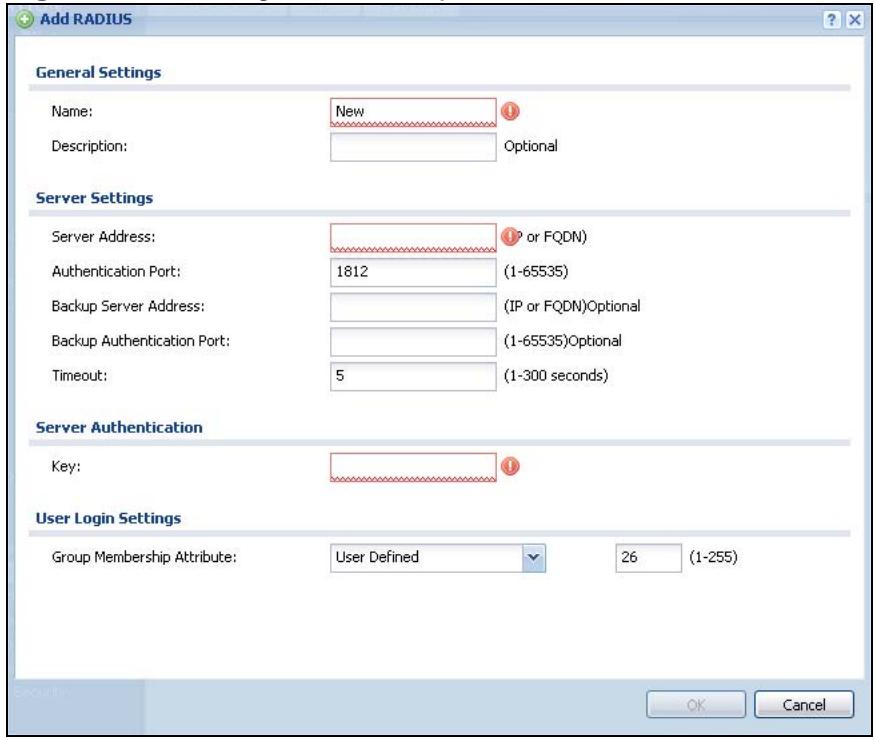
Figure 345 Configuration > Object > AAA Server > RADIUS > Add
The following table describes the labels in this screen.
Table 174 Configuration > Object > AAA Server > RADIUS > Add
| LABEL | DESCRIPTION |
| Name | Enter a descriptive name (up to 63 alphanumeric characters) for identification purposes. |
| Description | Enter the description of each server, if any. You can use up to 60 printable ASCII characters. |
| Server Address | Enter the address of the RADIUS server. |
| Authentication Port | Specify the port number on the RADIUS server to which the ZyWALL sends authentication requests. Enter a number between 1 and 65535. |
| Backup Server Address | If the RADIUS server has a backup server, enter its address here. |
| Backup Authentication Port | Specify the port number on the RADIUS server to which the ZyWALL sends authentication requests. Enter a number between 1 and 65535. |
| Timeout | Specify the timeout period (between 1 and 300 seconds) before the ZyWALL disconnects from the RADIUS server. In this case, user authentication fails.Search timeout occurs when either the user information is not in the RADIUS server or the RADIUS server is down. |
| Key | Enter a password (up to 15 alphanumeric characters) as the key to be shared between the external authentication server and the ZyWALL.The key is not sent over the network. This key must be the same on the external authentication server and the ZyWALL. |
| GroupMembership Attribute | A RADIUS server defines attributes for its accounts. Select the name and number of the attribute that the ZyWALL is to check to determine to which group a user belongs. If it does not display, select user-defined and specify the attribute's number.This attribute's value is called a group identifier; it determines to which group a user belongs. You can add ext-group-user user objects to identify groups based on these group identifier values.For example you could have an attribute named "memberOf" with values like "sales", "RD", and "management". Then you could also create a ext-group-user user object for each group. One with "sales" as the group identifier, another for "RD" and a third for "management". |
| OK | Click OK to save the changes. |
| Cancel | Click Cancel to discard the changes. |
Authentication Method
38.1 Overview
Authentication method objects set how the ZyWALL authenticates wireless, HTTP/ HTTPS clients, and peer IPSec routers (extended authentication) clients. Configure authentication method objects to have the ZyWALL use the local user database, and/or the authentication servers and authentication server groups specified by AAA server objects. By default, user accounts created and stored on the ZyWALL are authenticated locally.
38.1.1 What You Can Do in this Chapter
- Use the Configuration > Object > Auth. Method screens (Section 38.2 on page 584) to create and manage authentication method objects.
Finding Out More
See Section 7.5.3 on page 122 for an example of how to set up user authentication using a radius server.
38.1.2 Before You Begin
Configure AAA server objects (see Chapter 37 on page 573) before you configure authentication method objects.
38.1.3 Example: Selecting a VPN Authentication Method
After you set up an authentication method object in the Auth. Method screens, you can use it in the VPN Gateway screen to authenticate VPN users for establishing a VPN connection. Refer to the chapter on VPN for more information.
Follow the steps below to specify the authentication method for a VPN connection.
1 Access the Configuration > VPN > IPSec VPN > VPN Gateway > Edit screen.
2 Click Show Advance Setting and select Enable Extended Authentication.
3 Select Server Mode and select an authentication method object from the dropdown list box.
4 Click OK to save the settings.
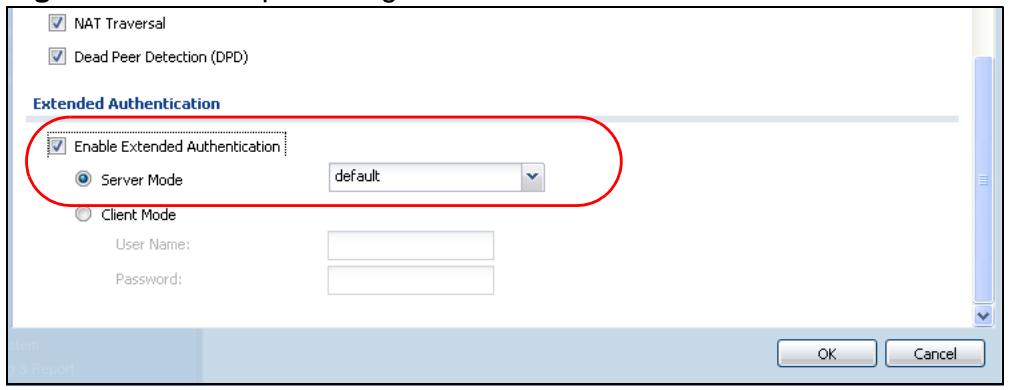
Figure 346 Example: Using Authentication Method in VPN
38.2 Authentication Method Objects
Click Configuration > Object > Auth. Method to display the screen as shown.
Note: You can create up to 16 authentication method objects.
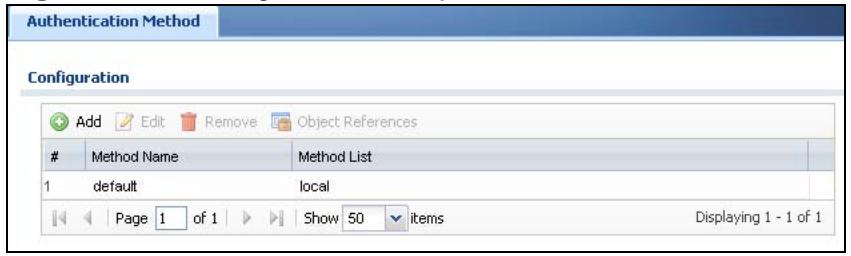
Figure 347 Configuration > Object > Auth. Method
The following table describes the labels in this screen.
Table 175 Configuration > Object > Auth. Method
| LABEL | DESCRIPTION |
| Add | Click this to create a new entry. |
| Edit | Double-click an entry or select it and click Edit to open a screen where you can modify the entry's settings. |
| Remove | To remove an entry, select it and click Remove. The ZyWALL confirms you want to remove it before doing so. |
| Object References | Select an entry and click Object References to open a screen that shows which settings use the entry. See Section 11.3.2 on page 232 for an example. |
| # | This field displays the index number. |
| Method Name | This field displays a descriptive name for identification purposes. |
| Method List | This field displays the authentication method(s) for this entry. |
| Add icon | Click Add to add a new entry. Click Edit to edit the settings of an entry. Click Delete to remove an entry. |
38.2.1 Creating an Authentication Method Object
Follow the steps below to create an authentication method object.
1 Click Configuration > Object > Auth. Method.
2 Click Add.
3 Specify a descriptive name for identification purposes in the Name field. You may use 1-31 alphanumeric characters, underscores(), or dashes (-), but the first character cannot be a number. This value is case-sensitive. For example, "My_Devic".
4 Click Add to insert an authentication method in the table.
5 Select a server object from the Method List drop-down list box.
6 You can add up to four server objects to the table. The ordering of the Method List column is important. The ZyWALL authenticates the users using the databases (in the local user database or the external authentication server) in the order they appear in this screen.
If two accounts with the same username exist on two authentication servers you specify, the ZyWALL does not continue the search on the second authentication server when you enter the username and password that doesn't match the one on the first authentication server.
Note: You can NOT select two server objects of the same type.
7 Click OK to save the settings or click Cancel to discard all changes and return to the previous screen.
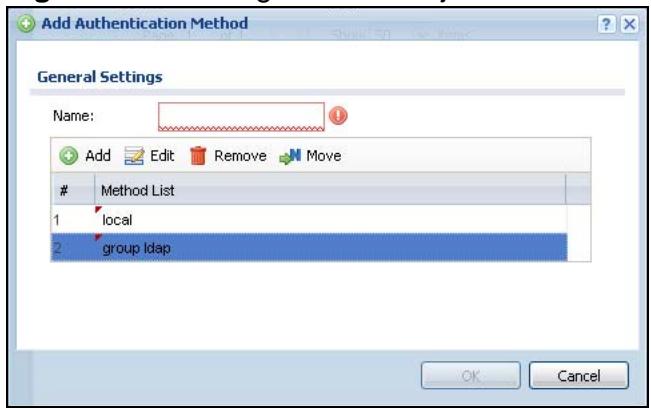
Figure 348 Configuration > Object > Auth. Method > Add
The following table describes the labels in this screen.
Table 176 Configuration > Object > Auth. Method > Add
| LABEL | DESCRIPTION |
| Name | Specify a descriptive name for identification purposes.You may use 1-31 alphanumeric characters, underscores( ), or dashes(-), but the first character cannot be a number. This value is case-sensitive. For example, "My_Devic". |
| Add | Click this to create a new entry. Select an entry and click Add to create a new entry after the selected entry. |
| Edit | Double-click an entry or select it and click Edit to open a screen where you can modify the entry's settings. |
| Remove | To remove an entry, select it and click Remove. The ZyWALL confirms you want to remove it before doing so. |
| Move | To change a method's position in the numbered list, select the method and click Move to display a field to type a number for where you want to put it and press [ENTER] to move the rule to the number that you typed.The ordering of your methods is important as ZyWALL authenticates the users using the authentication methods in the order they appear in this screen. |
| # | This field displays the index number. |
| Method List | Select a server object from the drop-down list box. You can create a server object in the AAA Server screen (see Chapter 37 on page 573 for more information).The ZyWALL authenticates the users using the databases (in the local user database or the external authentication server) in the order they appear in this screen.If two accounts with the same username exist on two authentication servers you specify, the ZyWALL does not continue the search on the second authentication server when you enter the username and password that doesn't match the one on the first authentication server. |
| Add icon | Click Add to add a new entry. |
| Click Edit to edit the settings of an entry. | |
| Click Delete to delete an entry. | |
| OK | Click OK to save the changes. |
| Cancel | Click Cancel to discard the changes. |
Certificates
39.1 Overview
The ZyWALL can use certificates (also called digital IDs) to authenticate users. Certificates are based on public-private key pairs. A certificate contains the certificate owner's identity and public key. Certificates provide a way to exchange public keys for use in authentication.
39.1.1 What You Can Do in this Chapter
- Use the My Certificate screens (see Section 39.2 on page 593 to Section 39.2.3 on page 602) to generate and export self-signed certificates or certification requests and import the ZyWALL's CA-signed certificates.
- Use the Trusted Certificates screens (see Section 39.3 on page 603 to Section 39.3.2 on page 608) to save CA certificates and trusted remote host certificates to the ZyWALL. The ZyWALL trusts any valid certificate that you have imported as a trusted certificate. It also trusts any valid certificate signed by any of the certificates that you have imported as a trusted certificate.
39.1.2 What You Need to Know
When using public-key cryptography for authentication, each host has two keys. One key is public and can be made openly available. The other key is private and must be kept secure.
These keys work like a handwritten signature (in fact, certificates are often referred to as "digital signatures"). Only you can write your signature exactly as it should look. When people know what your signature looks like, they can verify whether something was signed by you, or by someone else. In the same way, your private key "writes" your digital signature and your public key allows people to verify whether data was signed by you, or by someone else. This process works as follows.
1 Tim wants to send a message to Jenny. He needs her to be sure that it comes from him, and that the message content has not been altered by anyone else along the way. Tim generates a public key pair (one public key and one private key).
2 Tim keeps the private key and makes the public key openly available. This means that anyone who receives a message seeming to come from Tim can read it and verify whether it is really from him or not.
3 Tim uses his private key to sign the message and sends it to Jenny.
4 Jenny receives the message and uses Tim's public key to verify it. Jenny knows that the message is from Tim, and that although other people may have been able to read the message, no-one can have altered it (because they cannot re-sign the message with Tim's private key).
5 Additionally, Jenny uses her own private key to sign a message and Tim uses Jenny's public key to verify the message.
The ZyWALL uses certificates based on public-key cryptography to authenticate users attempting to establish a connection, not to encrypt the data that you send after establishing a connection. The method used to secure the data that you send through an established connection depends on the type of connection. For example, a VPN tunnel might use the triple DES encryption algorithm.
The certification authority uses its private key to sign certificates. Anyone can then use the certification authority's public key to verify the certificates.
A certification path is the hierarchy of certification authority certificates that validate a certificate. The ZyWALL does not trust a certificate if any certificate on its path has expired or been revoked.
Certification authorities maintain directory servers with databases of valid and revoked certificates. A directory of certificates that have been revoked before the scheduled expiration is called a CRL (Certificate Revocation List). The ZyWALL can check a peer's certificate against a directory server's list of revoked certificates. The framework of servers, software, procedures and policies that handles keys is called PKI (public-key infrastructure).
Advantages of Certificates
Certificates offer the following benefits.
- The ZyWALL only has to store the certificates of the certification authorities that you decide to trust, no matter how many devices you need to authenticate.
- Key distribution is simple and very secure since you can freely distribute public keys and you never need to transmit private keys.
Self-signed Certificates
You can have the ZyWALL act as a certification authority and sign its own certificates.
Factory Default Certificate
The ZyWALL generates its own unique self-signed certificate when you first turn it on. This certificate is referred to in the GUI as the factory default certificate.
Certificate File Formats
Any certificate that you want to import has to be in one of these file formats:
- Binary X.509: This is an ITU-T recommendation that defines the formats for X.509 certificates.
- PEM (Base-64) encoded X.509: This Privacy Enhanced Mail format uses lowercase letters, uppercase letters and numerals to convert a binary X.509 certificate into a printable form.
- Binary PKCS#7: This is a standard that defines the general syntax for data (including digital signatures) that may be encrypted. A PKCS #7 file is used to transfer a public key certificate. The private key is not included. The ZyWALL currently allows the importation of a PKS#7 file that contains a single certificate.
- PEM (Base-64) encoded PKCS#7: This Privacy Enhanced Mail (PEM) format uses lowercase letters, uppercase letters and numerals to convert a binary PKCS#7 certificate into a printable form.
- Binary PKCS#12: This is a format for transferring public key and private key certificates. The private key in a PKCS #12 file is within a password-encrypted envelope. The file's password is not connected to your certificate's public or private passwords. Exporting a PKCS #12 file creates this and you must provide it to decrypt the contents when you import the file into the ZyWALL.
Note: Be careful not to convert a binary file to text during the transfer process. It is easy for this to occur since many programs use text files by default.
Finding Out More
See Section 6.6 on page 103 for related information on these screens.
See Section 39.4 on page 609 for certificate background information.
39.1.3 Verifying a Certificate
Before you import a trusted certificate into the ZyWALL, you should verify that you have the correct certificate. You can do this using the certificate's fingerprint. A certificate's fingerprint is a message digest calculated using the MD5 or SHA1 algorithm. The following procedure describes how to check a certificate's fingerprint to verify that you have the actual certificate.
1 Browse to where you have the certificate saved on your computer.
2 Make sure that the certificate has a ".cert" or ".crt" file name extension.
Figure 349 Remote Host Certificates
3 Double-click the certificate's icon to open the Certificate window. Click the Details tab and scroll down to the Thumbprint Algorithm and Thumbprint fields.
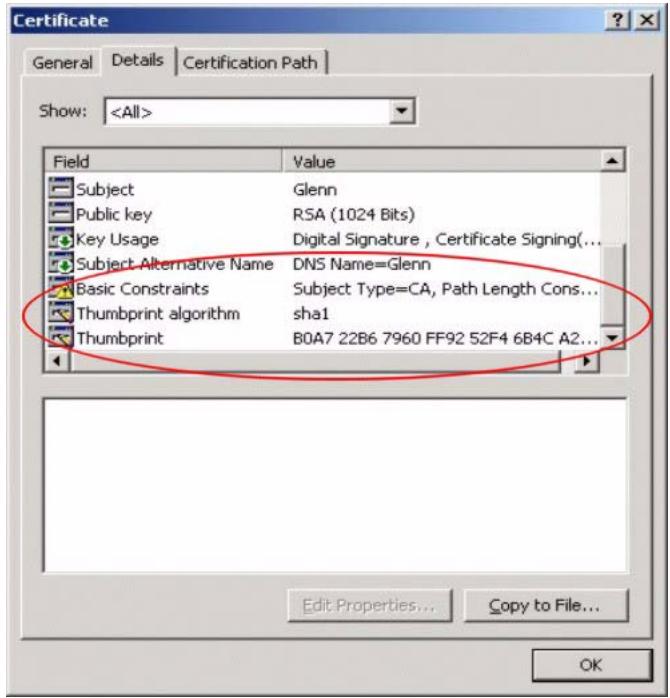
Figure 350 Certificate Details
4 Use a secure method to verify that the certificate owner has the same information in the Thumbprint Algorithm and Thumbprint fields. The secure method may very based on your situation. Possible examples would be over the telephone or through an HTTPS connection.
39.2 The My Certificates Screen
Click Configuration > Object > Certificate > My Certificates to open the My Certificates screen. This is the ZyWALL's summary list of certificates and certification requests.
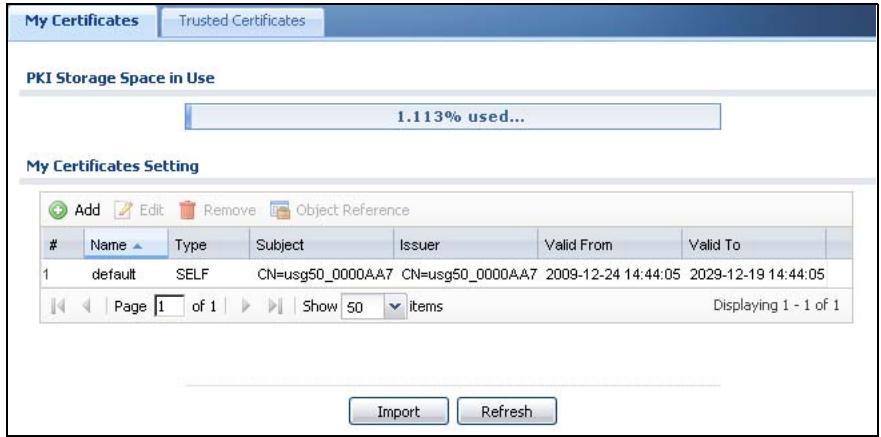
Figure 351 Configuration > Object > Certificate > My Certificates
The following table describes the labels in this screen.
Table 177 Configuration > Object > Certificate > My Certificates
| LABEL | DESCRIPTION |
| PKI Storage Space in Use | This bar displays the percentage of the ZyWALL's PKI storage space that is currently in use. When the storage space is almost full, you should consider deleting expired or unnecessary certificates before adding more certificates. |
| Add | Click this to go to the screen where you can have the ZyWALL generate a certificate or a certification request. |
| Edit | Double-click an entry or select it and click Edit to open a screen with an in-depth list of information about the certificate. |
| Remove | The ZyWALL keeps all of your certificates unless you specifically delete them. Uploading a new firmware or default configuration file does not delete your certificates. To remove an entry, select it and click Remove. The ZyWALL confirms you want to remove it before doing so. Subsequent certificates move up by one when you take this action. |
| Object References | You cannot delete certificates that any of the ZyWALL's features are configured to use. Select an entry and click Object References to open a screen that shows which settings use the entry. See Section 11.3.2 on page 232 for an example. |
| # | This field displays the certificate index number. The certificates are listed in alphabetical order. |
| Name | This field displays the name used to identify this certificate. It is recommended that you give each certificate a unique name. |
| Type | This field displays what kind of certificate this is. REQ represents a certification request and is not yet a valid certificate. Send a certification request to a certification authority, which then issues a certificate. Use the My Certificate Import screen to import the certificate and replace the request. SELF represents a self-signed certificate. CERT represents a certificate issued by a certification authority. |
| Subject | This field displays identifying information about the certificate's owner, such as CN (Common Name), OU (Organizational Unit or department), O (Organization or company) and C (Country). It is recommended that each certificate have unique subject information. |
| Issuer | This field displays identifying information about the certificate's issuing certification authority, such as a common name, organizational unit or department, organization or company and country. With self-signed certificates, this is the same information as in the Subject field. |
| Valid From | This field displays the date that the certificate becomes applicable. |
| Valid To | This field displays the date that the certificate expires. The text displays in red and includes an Expired! message if the certificate has expired. |
| Import | Click Import to open a screen where you can save a certificate to the ZyWALL. |
| Refresh | Click Refresh to display the current validity status of the certificates. |
39.2.1 The My Certificates Add Screen
Click Configuration > Object > Certificate > My Certificates and then the Add icon to open the My Certificates Add screen. Use this screen to have the
ZyWALL create a self-signed certificate, enroll a certificate with a certification authority or generate a certification request.
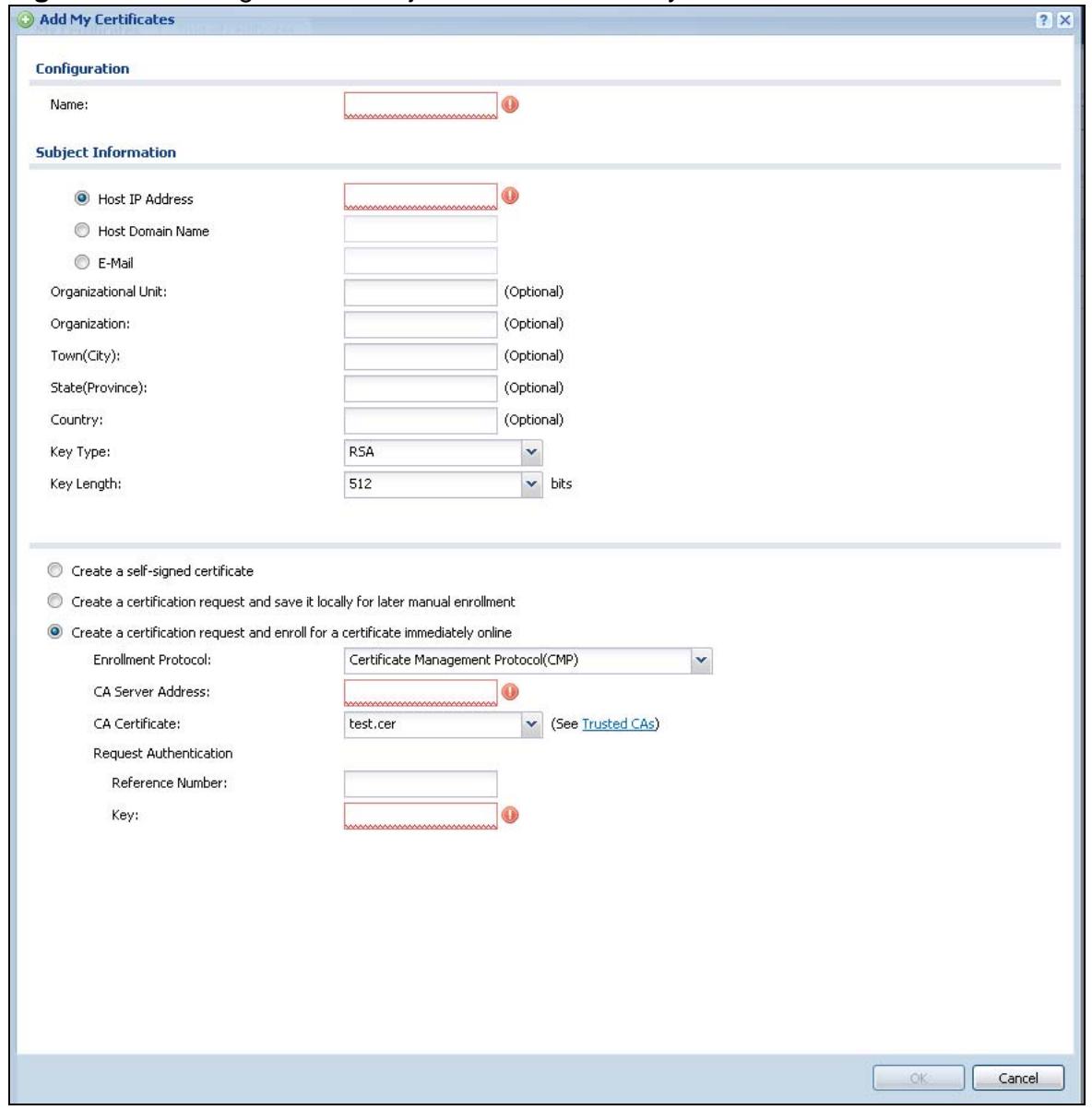
Figure 352 Configuration > Object > Certificate > My Certificates > Add
The following table describes the labels in this screen.
Table 178 Configuration > Object > Certificate > My Certificates > Add
| LABEL | DESCRIPTION |
| Name | Type a name to identify this certificate. You can use up to 31 alphanumeric and ;~!@#%^&()_+[]',.=- characters. |
| Subject Information | Use these fields to record information that identifies the owner of the certificate. You do not have to fill in every field, although you must specify a Host IP Address, Host Domain Name, or E-Mail. The certification authority may add fields (such as a serial number) to the subject information when it issues a certificate. It is recommended that each certificate have unique subject information. Select a radio button to identify the certificate's owner by IP address, domain name or e-mail address. Type the IP address (in dotted decimal notation), domain name or e-mail address in the field provided. The domain name or e-mail address is for identification purposes only and can be any string.A domain name can be up to 255 characters. You can use alphanumeric characters, the hyphen and periods.An e-mail address can be up to 63 characters. You can use alphanumeric characters, the hyphen, the @ symbol, periods and the underscore. |
| Organizational Unit | Identify the organizational unit or department to which the certificate owner belongs. You can use up to 31 characters. You can use alphanumeric characters, the hyphen and the underscore. |
| Organization | Identify the company or group to which the certificate owner belongs. You can use up to 31 characters. You can use alphanumeric characters, the hyphen and the underscore. |
| Town (City) | Identify the town or city where the certificate owner is located. You can use up to 31 characters. You can use alphanumeric characters, the hyphen and the underscore. |
| State, (Province) | Identify the state or province where the certificate owner is located. You can use up to 31 characters. You can use alphanumeric characters, the hyphen and the underscore. |
| Country | Identify the nation where the certificate owner is located. You can use up to 31 characters. You can use alphanumeric characters, the hyphen and the underscore. |
| Key Type | Select RSA to use the Rivest, Shamir and Adleman public-key algorithm.Select DSA to use the Digital Signature Algorithm public-key algorithm. |
| Key Length | Select a number from the drop-down list box to determine how many bits the key should use (512 to 2048). The longer the key, the more secure it is. A longer key also uses more PKI storage space. |
| Enrollment Options | These radio buttons deal with how and when the certificate is to be generated. |
| Create a self-signed certificate | Select this to have the ZyWALL generate the certificate and act as the Certification Authority (CA) itself. This way you do not need to apply to a certification authority for certificates. |
| Create a certification request and save it locally for later manual enrollment | Select this to have the ZyWALL generate and store a request for a certificate. Use the My Certificate Details screen to view the certification request and copy it to send to the certification authority. Copy the certification request from the My Certificate Details screen (see Section 39.2.2 on page 599) and then send it to the certification authority. |
| Create a certification request and enroll for a certificate immediately online | Select this to have the ZyWALL generate a request for a certificate and apply to a certification authority for a certificate. You must have the certification authority's certificate already imported in the Trusted Certificates screen. When you select this option, you must select the certification authority's enrollment protocol and the certification authority's certificate from the drop-down list boxes and enter the certification authority's server address. You also need to fill in the Reference Number and Key if the certification authority requires them. |
| Enrollment Protocol | This field applies when you select Create a certification request and enroll for a certificate immediately online. Select the certification authority's enrollment protocol from the drop-down list box. Simple Certificate Enrollment Protocol (SCEP) is a TCP-based enrollment protocol that was developed by VeriSign and Cisco. Certificate Management Protocol (CMP) is a TCP-based enrollment protocol that was developed by the Public Key Infrastructure X.509 working group of the Internet Engineering Task Force (IETF) and is specified in RFC 2510. |
| CA Server Address | This field applies when you select Create a certification request and enroll for a certificate immediately online. Enter the IP address (or URL) of the certification authority server. For a URL, you can use up to 511 of the following characters. a-zA-Z0-9'()+,':=?!*#@%- |
| CA Certificate | This field applies when you select Create a certification request and enroll for a certificate immediately online. Select the certification authority's certificate from the CA Certificate drop-down list box. You must have the certification authority's certificate already imported in the Trusted Certificates screen. Click Trusted CAs to go to the Trusted Certificates screen where you can view (and manage) the ZyWALL's list of certificates of trusted certification authorities. |
| RequestAuthentication | When you select Create a certification request and enroll for a certificate immediately online, the certification authority may want you to include a reference number and key to identify you when you send a certification request.Fill in both the Reference Number and the Key fields if your certification authority uses the CMP enrollment protocol. Just the Key field displays if your certification authority uses the SCEP enrollment protocol.For the reference number, use 0 to 99999999.For the key, use up to 31 of the following characters. a-zA-Z0-9;|`~!@#$%^&*(\_+\\{\}':,/.<- |
| OK | Click OK to begin certificate or certification request generation. |
| Cancel | Click Cancel to quit and return to the My Certificates screen. |
If you configured the My Certificate Create screen to have the ZyWALL enroll a certificate and the certificate enrollment is not successful, you see a screen with a Return button that takes you back to the My Certificate Create screen. Click Return and check your information in the My Certificate Create screen. Make sure that the certification authority information is correct and that your Internet connection is working properly if you want the ZyWALL to enroll a certificate online.
39.2.2 The My Certificates Edit Screen
Click Configuration > Object > Certificate > My Certificates and then the Edit icon to open the My Certificate Edit screen. You can use this screen to view in-depth certificate information and change the certificate's name.
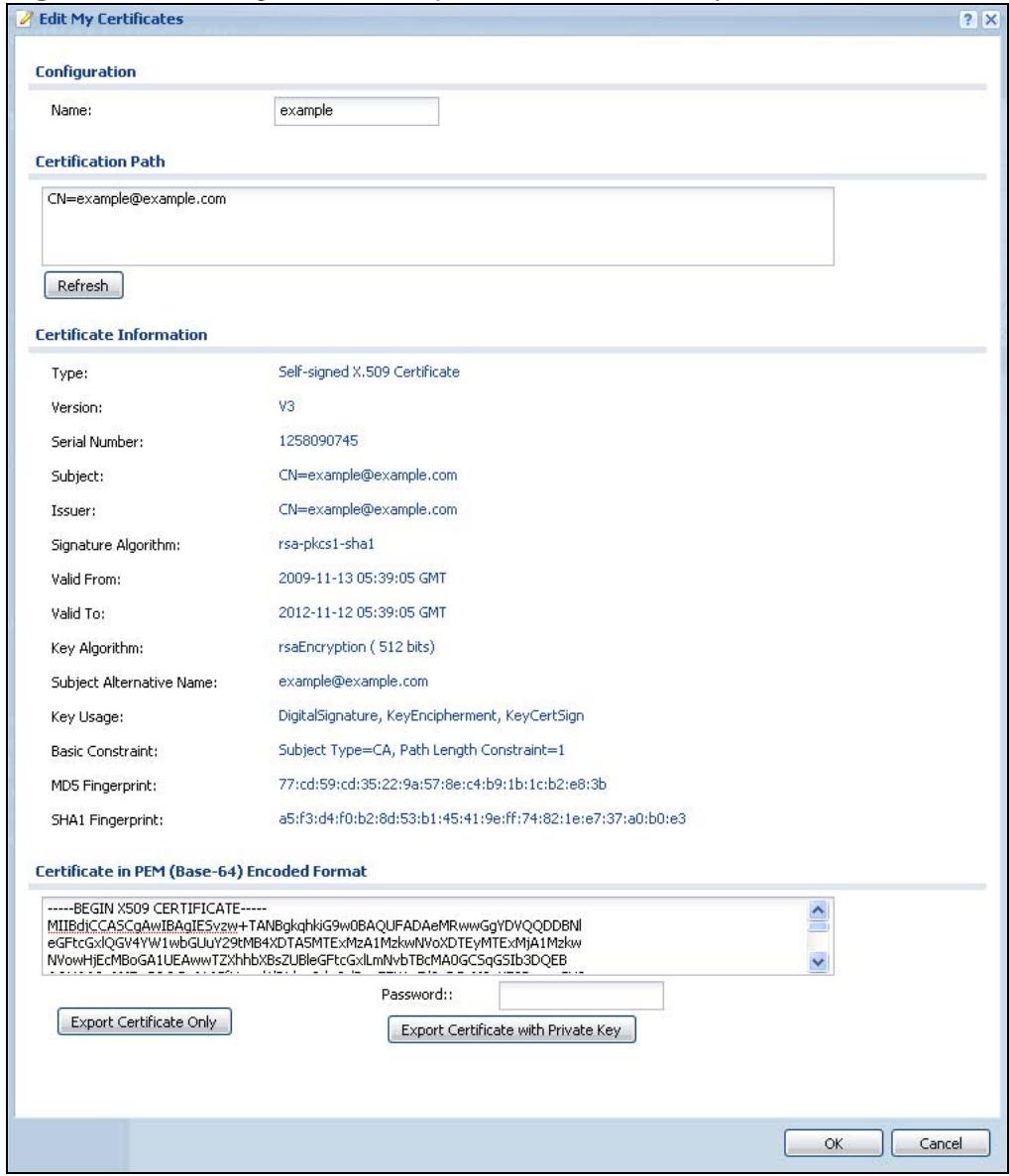
Figure 353 Configuration > Object > Certificate > My Certificates > Edit
The following table describes the labels in this screen.
Table 179 Configuration > Object > Certificate > My Certificates > Edit
| LABEL | DESCRIPTION |
| Name | This field displays the identifying name of this certificate. You can use up to 31 alphanumeric and ;~!@#$%^&()_+[]{}',=- characters. |
| Certification Path | This field displays for a certificate, not a certification request. Click the Refresh button to have this read-only text box display the hierarchy of certification authorities that validate the certificate (and the certificate itself). If the issuing certification authority is one that you have imported as a trusted certification authority, it may be the only certification authority in the list (along with the certificate itself). If the certificate is a self-signed certificate, the certificate itself is the only one in the list. The ZyWALL does not trust the certificate and displays "Not trusted" in this field if any certificate on the path has expired or been revoked. |
| Refresh | Click Refresh to display the certification path. |
| Certificate Information | These read-only fields display detailed information about the certificate. |
| Type | This field displays general information about the certificate. CA-signed means that a Certification Authority signed the certificate. Self-signed means that the certificate's owner signed the certificate (not a certification authority). "X.509" means that this certificate was created and signed according to the ITU-T X.509 recommendation that defines the formats for public-key certificates. |
| Version | This field displays the X.509 version number. " |
| Serial Number | This field displays the certificate's identification number given by the certification authority or generated by the ZyWALL. |
| Subject | This field displays information that identifies the owner of the certificate, such as Common Name (CN), Organizational Unit (OU), Organization (O), State (ST), and Country (C). |
| Issuer | This field displays identifying information about the certificate's issuing certification authority, such as Common Name, Organizational Unit, Organization and Country. With self-signed certificates, this is the same as the Subject Name field. "none" displays for a certification request. |
| Signature Algorithm | This field displays the type of algorithm that was used to sign the certificate. The ZyWALL uses rsa-pkcs1-sha1 (RSA public-private key encryption algorithm and the SHA1 hash algorithm). Some certification authorities may use rsa-pkcs1-md5 (RSA public-private key encryption algorithm and the MD5 hash algorithm). |
| Valid From | This field displays the date that the certificate becomes applicable. "none" displays for a certification request. |
| Valid To | This field displays the date that the certificate expires. The text displays in red and includes an Expired! message if the certificate has expired. "none" displays for a certification request. |
Table 179 Configuration > Object > Certificate > My Certificates > Edit
| LABEL | DESCRIPTION |
| Key Algorithm | This field displays the type of algorithm that was used to generate the certificate's key pair (the ZyWALL uses RSA encryption) and the length of the key set in bits (1024 bits for example). |
| Subject Alternative Name | This field displays the certificate owner's IP address (IP), domain name (DNS) or e-mail address (EMAIL). |
| Key Usage | This field displays for what functions the certificate's key can be used. For example, "DigitalSignature" means that the key can be used to sign certificates and "KeyEncipherment" means that the key can be used to encrypt text. |
| Basic Constraint | This field displays general information about the certificate. For example, Subject Type=CA means that this is a certification authority's certificate and "Path Length Constraint=1" means that there can only be one certification authority in the certificate's path. This field does not display for a certification request. |
| MD5 Fingerprint | This is the certificate's message digest that the ZyWALL calculated using the MD5 algorithm. |
| SHA1 Fingerprint | This is the certificate's message digest that the ZyWALL calculated using the SHA1 algorithm. |
| Certificate in PEM (Base-64) Encoded Format | This read-only text box displays the certificate or certification request in Privacy Enhanced Mail (PEM) format. PEM uses lowercase letters, uppercase letters and numerals to convert a binary certificate into a printable form. You can copy and paste a certification request into a certification authority's web page, an e-mail that you send to the certification authority or a text editor and save the file on a management computer for later manual enrollment. You can copy and paste a certificate into an e-mail to send to friends or colleagues or you can copy and paste a certificate into a text editor and save the file on a management computer for later distribution (via floppy disk for example). |
| Export | This button displays for a certification request. Use this button to save a copy of the request without its private key. Click this button and then Save in the File Download screen. The Save As screen opens, browse to the location that you want to use and click Save. |
| Export Certificate Only | Use this button to save a copy of the certificate without its private key. Click this button and then Save in the File Download screen. The Save As screen opens, browse to the location that you want to use and click Save. |
| Password | If you want to export the certificate with its private key, create a password and type it here. Make sure you keep this password in a safe place. You will need to use it if you import the certificate to another device. |
| Export Certificate with Private Key | Use this button to save a copy of the certificate with its private key. Type the certificate's password and click this button. Click Save in the File Download screen. The Save As screen opens, browse to the location that you want to use and click Save. |
Table 179 Configuration > Object > Certificate > My Certificates > Edit
| LABEL | DESCRIPTION |
| OK | Click OK to save your changes back to the ZyWALL. You can only change the name. |
| Cancel | Click Cancel to quit and return to the My Certificates screen. |
39.2.3 The My Certificates Import Screen
Click Configuration > Object > Certificate > My Certificates > Import to open the My Certificate Import screen. Follow the instructions in this screen to save an existing certificate to the ZyWALL.
Note: You can import a certificate that matches a corresponding certification request that was generated by the ZyWALL. You can also import a certificate in PKCS#12 format, including the certificate's public and private keys.
The certificate you import replaces the corresponding request in the My Certificates screen.
You must remove any spaces from the certificate's filename before you can import it.
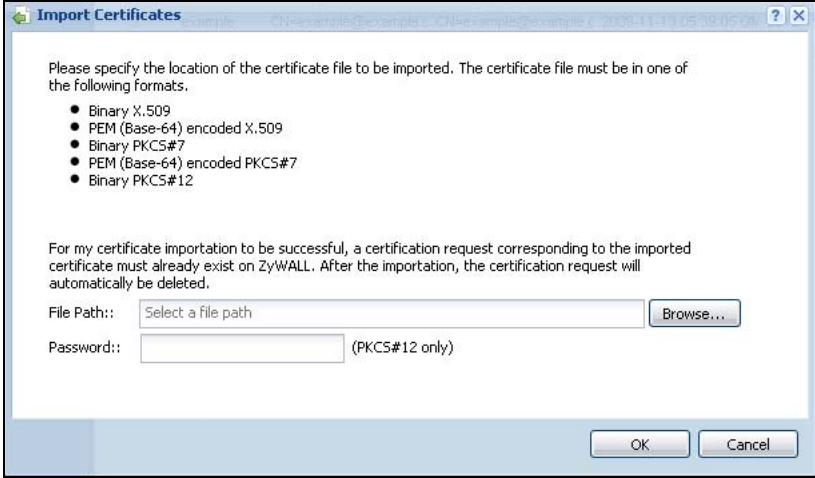
Figure 354 Configuration > Object > Certificate > My Certificates > Import
The following table describes the labels in this screen.
Table 180 Configuration > Object > Certificate > My Certificates > Import
| LABEL | DESCRIPTION |
| File Path | Type in the location of the file you want to upload in this field or click Browse to find it. |
| You cannot import a certificate with the same name as a certificate that is already in the ZyWALL. | |
| Browse | Click Browse to find the certificate file you want to upload. |
| Password | This field only applies when you import a binary PKCS#12 format file. Type the file's password that was created when the PKCS #12 file was exported. |
| OK | Click OK to save the certificate on the ZyWALL. |
| Cancel | Click Cancel to quit and return to the My Certificates screen. |
39.3 The Trusted Certificates Screen
Click Configuration > Object > Certificate > Trusted Certificates to open the Trusted Certificates screen. This screen displays a summary list of certificates that you have set the ZyWALL to accept as trusted. The ZyWALL also accepts any valid certificate signed by a certificate on this list as being trustworthy; thus you do not need to import any certificate that is signed by one of these certificates.
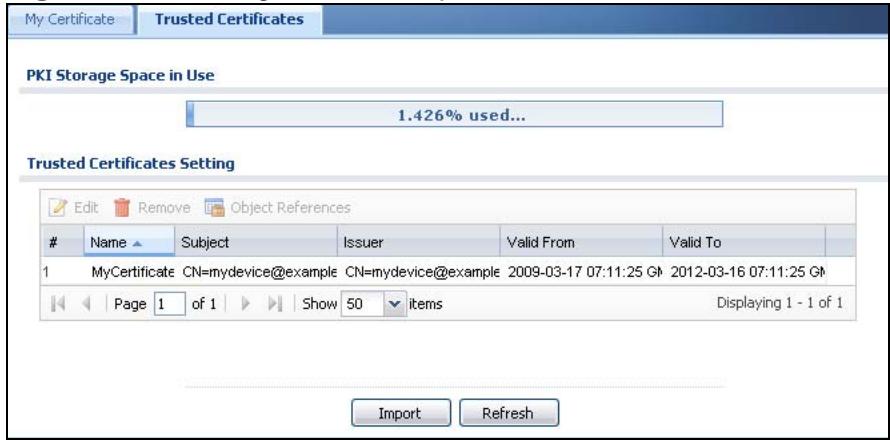
Figure 355 Configuration > Object > Certificate > Trusted Certificates
The following table describes the labels in this screen.
Table 181 Configuration > Object > Certificate > Trusted Certificates
| LABEL | DESCRIPTION |
| PKI Storage Space in Use | This bar displays the percentage of the ZyWALL's PKI storage space that is currently in use. When the storage space is almost full, you should consider deleting expired or unnecessary certificates before adding more certificates. |
| Edit | Double-click an entry or select it and click Edit to open a screen with an in-depth list of information about the certificate. |
| Remove | The ZyWALL keeps all of your certificates unless you specifically delete them. Uploading a new firmware or default configuration file does not delete your certificates. To remove an entry, select it and click Remove. The ZyWALL confirms you want to remove it before doing so. Subsequent certificates move up by one when you take this action. |
| Object References | You cannot delete certificates that any of the ZyWALL's features are configured to use. Select an entry and click Object References to open a screen that shows which settings use the entry. See Section 11.3.2 on page 232 for an example. |
| # | This field displays the certificate index number. The certificates are listed in alphabetical order. |
| Name | This field displays the name used to identify this certificate. |
| Subject | This field displays identifying information about the certificate's owner, such as CN (Common Name), OU (Organizational Unit or department), O (Organization or company) and C (Country). It is recommended that each certificate have unique subject information. |
| Issuer | This field displays identifying information about the certificate's issuing certification authority, such as a common name, organizational unit or department, organization or company and country. With self-signed certificates, this is the same information as in the Subject field. |
| Valid From | This field displays the date that the certificate becomes applicable. |
| Valid To | This field displays the date that the certificate expires. The text displays in red and includes an Expired! message if the certificate has expired. |
| Import | Click Import to open a screen where you can save the certificate of a certification authority that you trust, from your computer to the ZyWALL. |
| Refresh | Click this button to display the current validity status of the certificates. |
39.3.1 The Trusted Certificates Edit Screen
Click Configuration > Object > Certificate > Trusted Certificates and then a certificate's Edit icon to open the Trusted Certificates Edit screen. Use this screen to view in-depth information about the certificate, change the certificate's name and set whether or not you want the ZyWALL to check a certification
authority's list of revoked certificates before trusting a certificate issued by the certification authority.
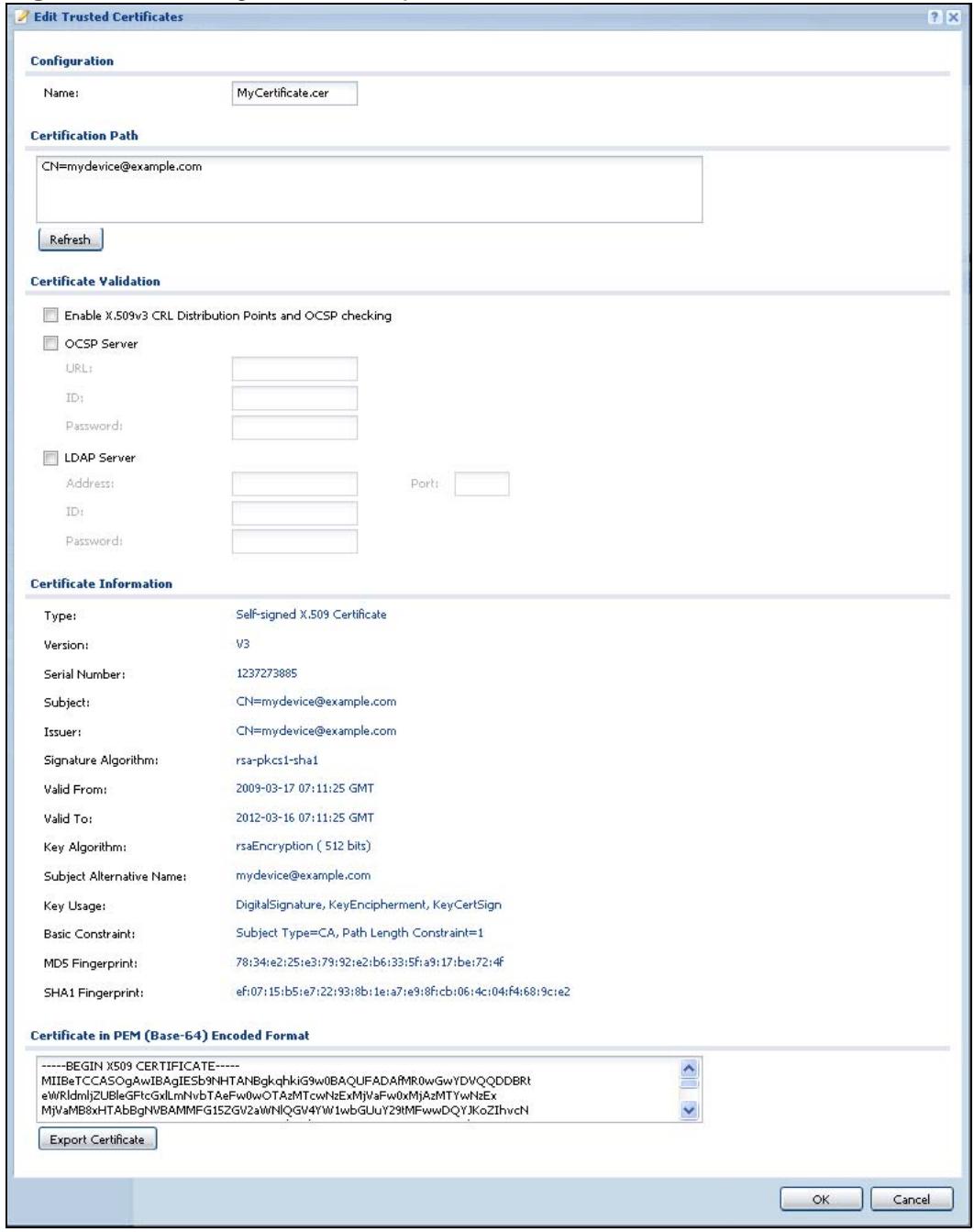
Figure 356 Configuration > Object > Certificate > Trusted Certificates > Edit
The following table describes the labels in this screen.
Table 182 Configuration > Object > Certificate > Trusted Certificates > Edit
| LABEL | DESCRIPTION |
| Name | This field displays the identifying name of this certificate. You can change the name. You can use up to 31 alphanumeric and ‘~!@#%^^&()_+[]{}',.=- characters. |
| Certification Path | Click the Refresh button to have this read-only text box display the end entity's certificate and a list of certification authority certificates that shows the hierarchy of certification authorities that validate the end entity's certificate. If the issuing certification authority is one that you have imported as a trusted certificate, it may be the only certification authority in the list (along with the end entity's own certificate). The ZyWALL does not trust the end entity's certificate and displays “Not trusted” in this field if any certificate on the path has expired or been revoked. |
| Refresh | Click Refresh to display the certification path. |
| Enable X.509v3 CRL Distribution Points and OCSP checking | Select this check box to have the ZyWALL check incoming certificates that are signed by this certificate against a Certificate Revocation List (CRL) or an OCSP server. You also need to configure the OSCP or LDAP server details. |
| OCSP Server | Select this check box if the directory server uses OCSP (Online Certificate Status Protocol). |
| URL | Type the protocol, IP address and hostname of the OCSP server. |
| ID | The ZyWALL may need to authenticate itself in order to assess the OCSP server. Type the login name (up to 31 ASCII characters) from the entity maintaining the server (usually a certification authority). |
| Password | Type the password (up to 31 ASCII characters) from the entity maintaining the OCSP server (usually a certification authority). |
| LDAP Server | Select this check box if the directory server uses LDAP (Lightweight Directory Access Protocol). LDAP is a protocol over TCP that specifies how clients access directories of certificates and lists of revoked certificates. |
| Address | Type the IP address (in dotted decimal notation) of the directory server. |
| Port | Use this field to specify the LDAP server port number. You must use the same server port number that the directory server uses. 389 is the default server port number for LDAP. |
| ID | The ZyWALL may need to authenticate itself in order to assess the CRL directory server. Type the login name (up to 31 ASCII characters) from the entity maintaining the server (usually a certification authority). |
| Password | Type the password (up to 31 ASCII characters) from the entity maintaining the CRL directory server (usually a certification authority). |
| Certificate Information | These read-only fields display detailed information about the certificate. |
Table 182 Configuration > Object > Certificate > Trusted Certificates > Edit
| LABEL | DESCRIPTION |
| Type | This field displays general information about the certificate. CA-signed means that a Certification Authority signed the certificate. Self-signed means that the certificate's owner signed the certificate (not a certification authority). X.509 means that this certificate was created and signed according to the ITU-T X.509 recommendation that defines the formats for public-key certificates. |
| Version | This field displays the X.509 version number. |
| Serial Number | This field displays the certificate's identification number given by the certification authority. |
| Subject | This field displays information that identifies the owner of the certificate, such as Common Name (CN), Organizational Unit (OU), Organization (O) and Country (C). |
| Issuer | This field displays identifying information about the certificate's issuing certification authority, such as Common Name, Organizational Unit, Organization and Country.With self-signed certificates, this is the same information as in the Subject Name field. |
| Signature Algorithm | This field displays the type of algorithm that was used to sign the certificate. Some certification authorities use rsa-pkcs1-sha1 (RSA public-private key encryption algorithm and the SHA1 hash algorithm). Other certification authorities may use rsa-pkcs1-md5 (RSA public-private key encryption algorithm and the MD5 hash algorithm). |
| Valid From | This field displays the date that the certificate becomes applicable. The text displays in red and includes a Not Yet Valid! message if the certificate has not yet become applicable. |
| Valid To | This field displays the date that the certificate expires. The text displays in red and includes an Expiring! or Expired! message if the certificate is about to expire or has already expired. |
| Key Algorithm | This field displays the type of algorithm that was used to generate the certificate's key pair (the ZyWALL uses RSA encryption) and the length of the key set in bits (1024 bits for example). |
| Subject Alternative Name | This field displays the certificate's owner's IP address (IP), domain name (DNS) or e-mail address (EMAIL). |
| Key Usage | This field displays for what functions the certificate's key can be used. For example, "DigitalSignature" means that the key can be used to sign certificates and "KeyEncipherment" means that the key can be used to encrypt text. |
| Basic Constraint | This field displays general information about the certificate. For example, Subject Type=CA means that this is a certification authority's certificate and "Path Length Constraint=1" means that there can only be one certification authority in the certificate's path. |
| MD5 Fingerprint | This is the certificate's message digest that the ZyWALL calculated using the MD5 algorithm. You can use this value to verify with the certification authority (over the phone for example) that this is actually their certificate. |
Table 182 Configuration > Object > Certificate > Trusted Certificates > Edit
| LABEL | DESCRIPTION |
| SHA1 Fingerprint | This is the certificate's message digest that the ZyWALL calculated using the SHA1 algorithm. You can use this value to verify with the certification authority (over the phone for example) that this is actually their certificate. |
| Certificate in PEM (Base-64) Encoded Format | This read-only text box displays the certificate or certification request in Privacy Enhanced Mail (PEM) format. PEM uses lowercase letters, uppercase letters and numerals to convert a binary certificate into a printable form. You can copy and paste the certificate into an e-mail to send to friends or colleagues or you can copy and paste the certificate into a text editor and save the file on a management computer for later distribution (via floppy disk for example). |
| Export Certificate | Click this button and then Save in the File Download screen. The Save As screen opens, browse to the location that you want to use and click Save. |
| OK | Click OK to save your changes back to the ZyWALL. You can only change the name. |
| Cancel | Click Cancel to quit and return to the Trusted Certificates screen. |
39.3.2 The Trusted Certificates Import Screen
Click Configuration > Object > Certificate > Trusted Certificates > Import to open the Trusted Certificates Import screen. Follow the instructions in this screen to save a trusted certificate to the ZyWALL.
Note: You must remove any spaces from the certificate's filename before you can import the certificate.
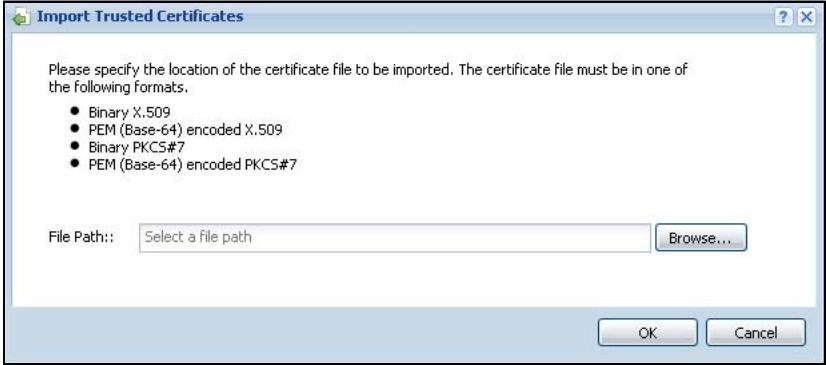
Figure 357 Configuration > Object > Certificate > Trusted Certificates > Import
The following table describes the labels in this screen.
Table 183 Configuration > Object > Certificate > Trusted Certificates > Import
| LABEL | DESCRIPTION |
| File Path | Type in the location of the file you want to upload in this field or click Browse to find it.You cannot import a certificate with the same name as a certificate that is already in the ZyWALL. |
| Browse | Click Browse to find the certificate file you want to upload. |
| OK | Click OK to save the certificate on the ZyWALL. |
| Cancel | Click Cancel to quit and return to the previous screen. |
39.4 Certificates Technical Reference
OCSP
OCSP (Online Certificate Status Protocol) allows an application or device to check whether a certificate is valid. With OCSP the ZyWALL checks the status of individual certificates instead of downloading a Certificate Revocation List (CRL). OCSP has two main advantages over a CRL. The first is real-time status information. The second is a reduction in network traffic since the ZyWALL only gets information on the certificates that it needs to verify, not a huge list. When the ZyWALL requests certificate status information, the OCSP server returns a "expired", "current" or "unknown" response.
40.1 Overview
Use ISP accounts to manage Internet Service Provider (ISP) account information for PPPoE/PPTP interfaces. An ISP account is a profile of settings for Internet access using PPPoE or PPTP.
Finding Out More
- See Section 11.4 on page 233 for information about PPPoE/PPTP interfaces.
- See Section 6.6 on page 103 for related information on these screens.
40.1.1 What You Can Do in this Chapter
Use the Object > ISP Account screens (Section 40.2 on page 611) to create and manage ISP accounts in the ZyWALL.
40.2 ISP Account Summary
This screen provides a summary of ISP accounts in the ZyWALL. To access this screen, click Configuration > Object > ISP Account.
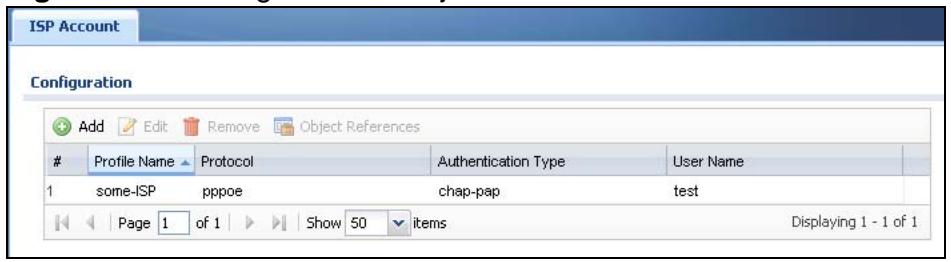
Figure 358 Configuration > Object > ISP Account
The following table describes the labels in this screen. See the ISP Account Edit section below for more information as well.
Table 184 Configuration > Object > ISP Account
| LABEL | DESCRIPTION |
| Add | Click this to create a new entry. |
| Edit | Double-click an entry or select it and click Edit to be able to modify the entry's settings. |
| Remove | To remove an entry, select it and click Remove. The ZyWALL confirms you want to remove it before doing so. |
| Object References | Select an entry and click Object References to open a screen that shows which settings use the entry. See Section 11.3.2 on page 232 for an example. |
| # | This field is a sequential value, and it is not associated with a specific entry. |
| Profile Name | This field displays the profile name of the ISP account. This name is used to identify the ISP account. |
| Protocol | This field displays the protocol used by the ISP account. |
| Authentication Type | This field displays the authentication type used by the ISP account. |
| User Name | This field displays the user name of the ISP account. |
40.2.1 ISP Account Edit
The ISP Account Edit screen lets you add information about new accounts and edit information about existing accounts. To open this window, open the ISP Account screen. (See Section 40.2 on page 611.) Then, click on an Add icon or Edit icon to open the ISP Account Edit screen below.
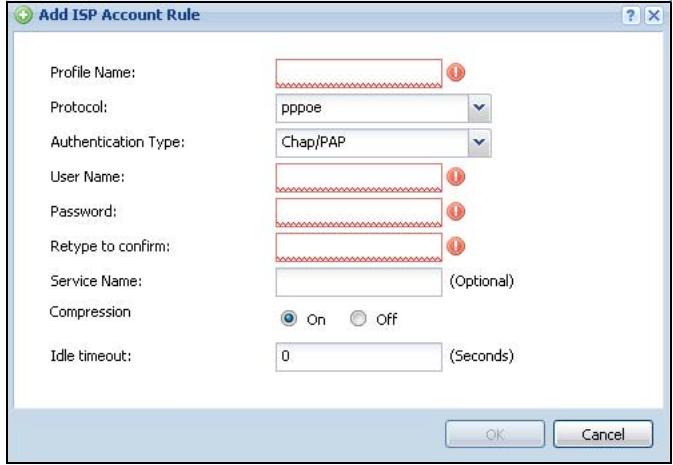
Figure 359 Configuration > Object > ISP Account > Edit
The following table describes the labels in this screen.
Table 185 Configuration > Object > ISP Account > Edit
| LABEL | DESCRIPTION |
| Profile Name | This field is read-only if you are editing an existing account. Type in the profile name of the ISP account. The profile name is used to refer to the ISP account. You may use 1-31 alphanumeric characters, underscores( ), or dashes (-), but the first character cannot be a number. This value is case-sensitive. |
| Protocol | This field is read-only if you are editing an existing account. Select the protocol used by the ISP account. Options are:pppoe - This ISP account uses the PPPoE protocol.pppt - This ISP account uses the PPTP protocol. |
| Authentication Type | Use the drop-down list box to select an authentication protocol for outgoing calls. Options are:CHAP/PAP - Your ZyWALL accepts either CHAP or PAP when requested by this remote node.CHAP - Your ZyWALL accepts CHAP only.PAP - Your ZyWALL accepts PAP only.MSCHAP - Your ZyWALL accepts MSCHAP only.MSCHAP-V2 - Your ZyWALL accepts MSCHAP-V2 only. |
| Encryption Method | This field is available if this ISP account uses the PPTP protocol. Use the drop-down list box to select the type of Microsoft Point-to-Point Encryption (MPPE). Options are:nomppe - This ISP account does not use MPPE.mppe-40 - This ISP account uses 40-bit MPPE.mppe-128 - This ISP account uses 128-bit MMPE. |
| User Name | Type the user name given to you by your ISP. |
| Password | Type the password associated with the user name above. The password can only consist of alphanumeric characters (A-Z, a-z, 0-9). This field can be blank. |
| Retype to Confirm | Type your password again to make sure that you have entered is correctly. |
| Server IP | If this ISP account uses the PPPoE protocol, this field is not displayed.If this ISP account uses the PPTP protocol, type the IP address of the PPTP server. |
| Connection ID | This field is available if this ISP account uses the PPTP protocol. Type your identification name for the PPTP server. This field can be blank. |
| Service Name | If this ISP account uses the PPPoE protocol, type the PPPoE service name to access. PPPoE uses the specified service name to identify and reach the PPPoE server. This field can be blank.If this ISP account uses the PPTP protocol, this field is not displayed. |
| Compression | Select On button to turn on stag compression, and select Off to turn off stag compression. Stac compression is a data compression technique capable of compressing data by a factor of about four. |
| Idle Timeout | This value specifies the number of seconds that must elapse without outbound traffic before the ZyWALL automatically disconnects from the PPPoE/PPTP server. This value must be an integer between 0 and 360. If this value is zero, this timeout is disabled. |
| OK | Click OK to save your changes back to the ZyWALL. If there are no errors, the program returns to the ISP Account screen. If there are errors, a message box explains the error, and the program stays in the ISP Account Edit screen. |
| Cancel | Click Cancel to return to the ISP Account screen without creating the profile (if it is new) or saving any changes to the profile (if it already exists). |
SSL Application
41.1 Overview
You use SSL application objects in SSL VPN. Configure an SSL application object to specify the type of application and the address of the local computer, server, or web site SSL users are to be able to access. You can apply one or more SSL application objects in the VPN > SSL VPN screen for a user account/user group.
41.1.1 What You Can Do in this Chapter
- Use the SSL Application screen (Section 41.2 on page 617) to view the ZyWALL's configured SSL application objects.
- Use the SSL Application Edit screen to create or edit web-based application objects to allow remote users to access an application via standard web browsers (Section 41.2.1 on page 618).
- You can also use the SSL Application Edit screen to specify the name of a folder on a Linux or Windows file server which remote users can access using a standard web browser (Section 41.2.1 on page 618).
41.1.2 What You Need to Know
Application Types
You can configure the following SSL application on the ZyWALL.
Web-based
A web-based application allows remote users to access an intranet site using standard web browsers.
Remote User Screen Links
Available SSL application names are displayed as links in remote user screens. Depending on the application type, remote users can simply click the links or follow the steps in the pop-up dialog box to access.
Remote Desktop Connections
Use SSL VPN to allow remote users to manage LAN computers. Depending on the functions supported by the remote desktop software, they can install or remove software, run programs, change settings, and open, copy, create, and delete files. This is useful for troubleshooting, support, administration, and remote access to files and programs.
The LAN computer to be managed must have VNC (Virtual Network Computing) or RDP (Remote Desktop Protocol) server software installed. The remote user's computer does not use VNC or RDP client software. The ZyWALL works with the following remote desktop connection software:
RDP
- Windows Remote Desktop (supported in Internet Explorer)
VNC
RealVNC
- TightVNC
- UltraVNC
For example, user A uses an SSL VPN connection to log into the ZyWALL. Then he manages LAN computer B which has RealVNC server software installed.

Figure 360 SSL-protected Remote Management
Weblinks
You can configure weblink SSL applications to allow remote users to access web sites.
41.1.3 Example: Specifying a Web Site for Access
This example shows you how to create a web-based application for an internal web site. The address of the web site is http://info with web page encryption.
1 Click Configuration > Object > SSL Application in the navigation panel.
2 Click the Add button and select Web Application in the Type field.
In the Server Type field, select Web Server.
Enter a descriptive name in the Display Name field. For example, "CompanyIntranet".
In the Address field, enter "http://info".
Select Web Page Encryption to prevent users from saving the web content.
Click Apply to save the settings.
The configuration screen should look similar to the following figure.
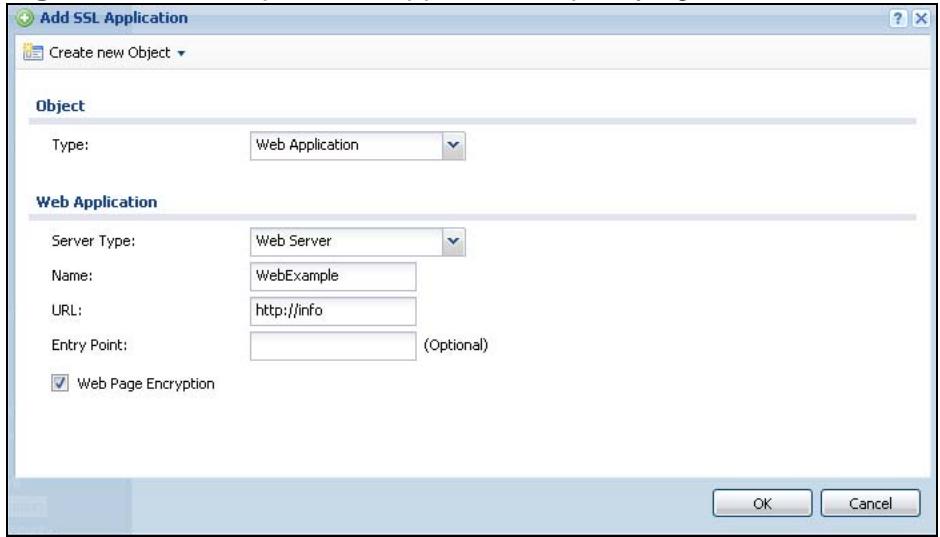
Figure 361 Example: SSL Application: Specifying a Web Site for Access
41.2 The SSL Application Screen
The main SSL Application screen displays a list of the configured SSL application objects. Click Configuration > Object > SSL Application in the navigation panel.
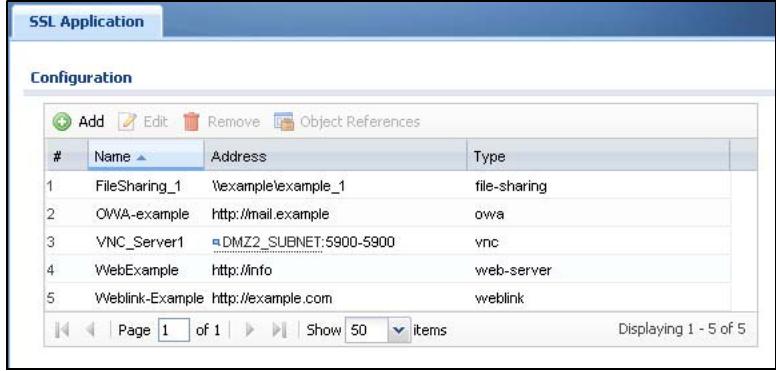
Figure 362 Configuration > Object > SSL Application
The following table describes the labels in this screen.
Table 186 Configuration > Object > SSL Application
| LABEL | DESCRIPTION |
| Add | Click this to create a new entry. |
| Edit | Double-click an entry or select it and click Edit to be able to modify the entry's settings. |
| Remove | To remove an entry, select it and click Remove. The ZyWALL confirms you want to remove it before doing so. |
| Object References | Select an entry and click Object References to open a screen that shows which settings use the entry. See Section 11.3.2 on page 232 for an example. |
| # | This field displays the index number. |
| Name | This field displays the name of the object. |
| Address | This field displays the IP address/URL of the application server or the location of a file share. |
| Type | This field shows whether the object is a file-sharing, web-server, Outlook Web Access, Virtual Network Computing, or Remote Desktop Protocol SSL application. |
41.2.1 Creating/Editing a Web-based SSL Application Object
A web-based application allows remote users to access an application via standard web browsers.
To configure a web-based application, click the Add or Edit button in the SSL Application screen and select Web Application in the Type field to display the configuration screen as shown.
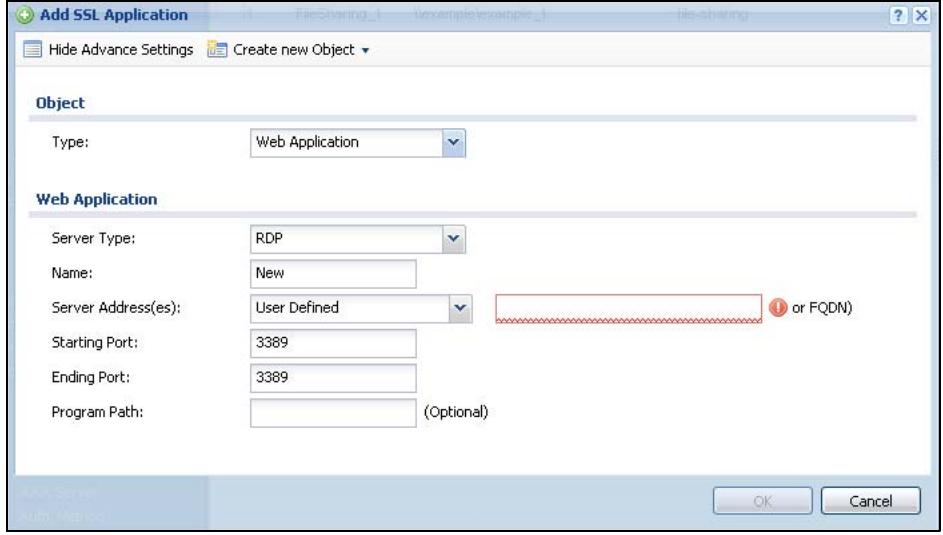
Figure 363 Configuration > Object > SSL Application > Add/Edit: Web Application
The following table describes the labels in this screen.
Table 187 Configuration > Object > SSL Application > Add/Edit: Web Application
| LABEL | DESCRIPTION |
| Show Advance Settings / Hide Advance Settings | This displays for VNC or RDP type web application objects. Click this button to display a greater or lesser number of configuration fields. |
| Create new Object | Use this to configure any new settings objects that you need to use in this screen. |
| Object | |
| Type | Select Web Application from the drop-down list box. |
| Web Application | Click Advanced to display more configuration fields and edit the details of your SSL application setup. Click Basic to display fewer fields. |
| Server Type | Specify the type of service for this SSL application. Select Web Server to allow access to the specified web site hosted on the local network. Select OWA (Outlook Web Access) to allow users to access e-mails, contacts, calenders via Microsoft Outlook-like interface using supported web browsers. The ZyWALL supports one OWA object. Select VNC to allow users to manage LAN computers that have Virtual Network Computing remote desktop server software installed. Select RDP to allow users to manage LAN computers that have Remote Desktop Protocol remote desktop server software installed. Select Weblink to create a link to a web site that you expect the SSL VPN users to commonly use. |
| Name | Enter a descriptive name to identify this object. You can enter up to 31 characters ("0-9", "a-z", "A-Z", "-" and ")". Spaces are not allowed. |
| URL | This field displays if the Server Type is set to Web Server, OWA, or Weblink. Enter the Fully-Qualified Domain Name (FQDN) or IP address of the application server. Note: You must enter the "http://" or "https://" prefix. Remote users are restricted to access only files in this directory. For example, if you enter "\remote"\( in this field, emote users can only access files in the "remote" directory. If a link contains a file that is not within this domain, then remote users cannot access it. |
| Preview | This field displays if the Server Type is set to Web Server, OWA or Weblink. Click Preview to access the URL you specified in a new IE web browser. |
Table 187 Configuration > Object > SSL Application > Add/Edit: Web Application
| LABEL | DESCRIPTION |
| Entry Point | This field displays if the Server Type is set to Web Server or OWA. This field is optional. You only need to configure this field if you need to specify the name of the directory or file on the local server as the home page or home directory on the user screen. |
| Server Address(es) | This field displays if the Server Type is set to RDP or VNC. Specify the IP address or Fully-Qualified Domain Name (FQDN) of the computer(s) that you want to allow the remote users to manage. |
| Starting Port Ending Port | This field displays if the Server Type is set to RDP or VNC. Specify the listening ports of the LAN computer(s) running remote desktop server software. The ZyWALL uses a port number from this range to send traffic to the LAN computer that is being remotely managed. |
| Program Path | This field displays if the Server Type is set to RDP. You can specify an application to open when a remote user logs into the remote desktop application. |
| Web Page Encryption | Select this option to prevent users from saving the web content. |
| Ok | Click Ok to save the changes and return to the main SSL Application Configuration screen. |
| Cancel | Click Cancel to discard the changes and return to the main SSL Application Configuration screen. |
Endpoint Security
42.1 Overview
Use Endpoint Security (EPS), also known as endpoint control, to make sure users' computers comply with defined corporate policies before they can access the network or an SSL VPN tunnel. After a successful user authentication, a user's computer must meet the endpoint security object's Operating System (OS) option and security requirements to gain access. You can configure the endpoint security object to require a user's computer to match just one of the endpoint security object's checking criteria or all of them. Configure endpoint security objects to use with the authentication policy and SSL VPN features.
For example, an authentication policy could use an endpoint security object that requires a LAN user's computer to pass all of the object's checking items in order to access the network. LAN user A passes all of the checks and is given access. An SSL VPN tunnel could use a different endpoint security profile that only requires the user's computer to match at least one checked item. SSL VPN user B matches at least one of the items checked by the SSL VPN's endpoint security object and is granted access to the system resource defined in the SSL VPN access policy; in this example a web server. SSL VPN user C fails all of the SSL VPN's endpoint security check and is not given any access.
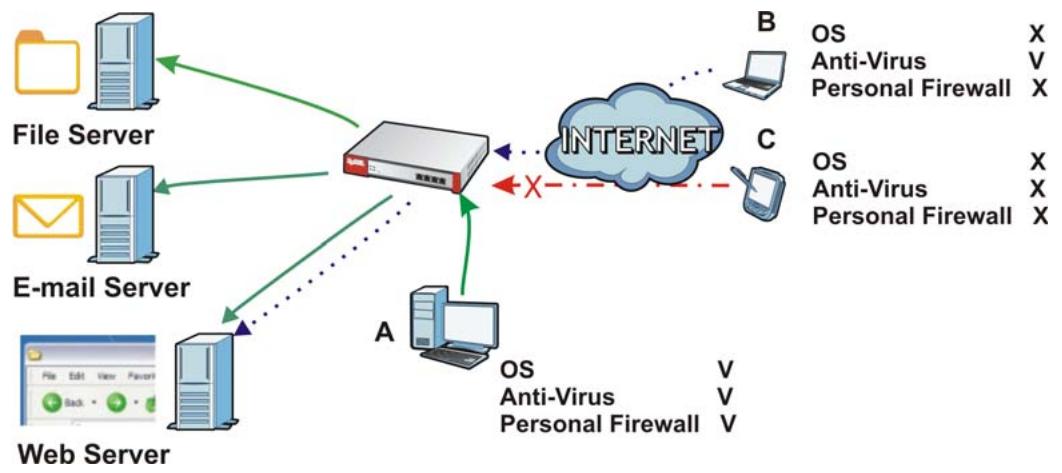
Figure 364 Endpoint Security
42.1.1 What You Can Do in this Chapter
Use the Configuration > Object > Endpoint Security screens (Section 42.2 on page 623) to create and manage endpoint security objects.
42.1.2 What You Need to Know
What Endpoint Security Can Check
The settings endpoint security can check vary depending on the OS of the user's computer. Depending on the OS, EPS can check user computers for the following:
- Windows Auto Update setting
- Installed security patches
- Personal firewall installation and activation
- Anti-virus installation and activation
- Windows registry settings
- Processes that the endpoint must execute
- Processes that the endpoint cannot execute
- The size and version of specific files
Multiple Endpoint Security Objects
You can configure an authentication policy or SSL VPN policy to use multiple endpoint security objects. This allows checking of computers with different OSs or security settings. When a client attempts to log in, the ZyWALL checks the client's computer against the endpoint security objects one-by-one. The client's computer must match one of the force authentication or SSL VPN policy's endpoint security objects in order to gain access.
Requirements
User computers must have Sun's Java (Java Runtime Environment or 'JRE') installed and enabled with a minimum version of 1.4.
Finding Out More
See Section 7.7 on page 126 for an example of how to use endpoint security and authentication policies.
42.2 Endpoint Security Screen
The Endpoint Security screen displays the endpoint security objects you have configured on the ZyWALL.
Click Configuration > Object > Endpoint Security to display the screen.
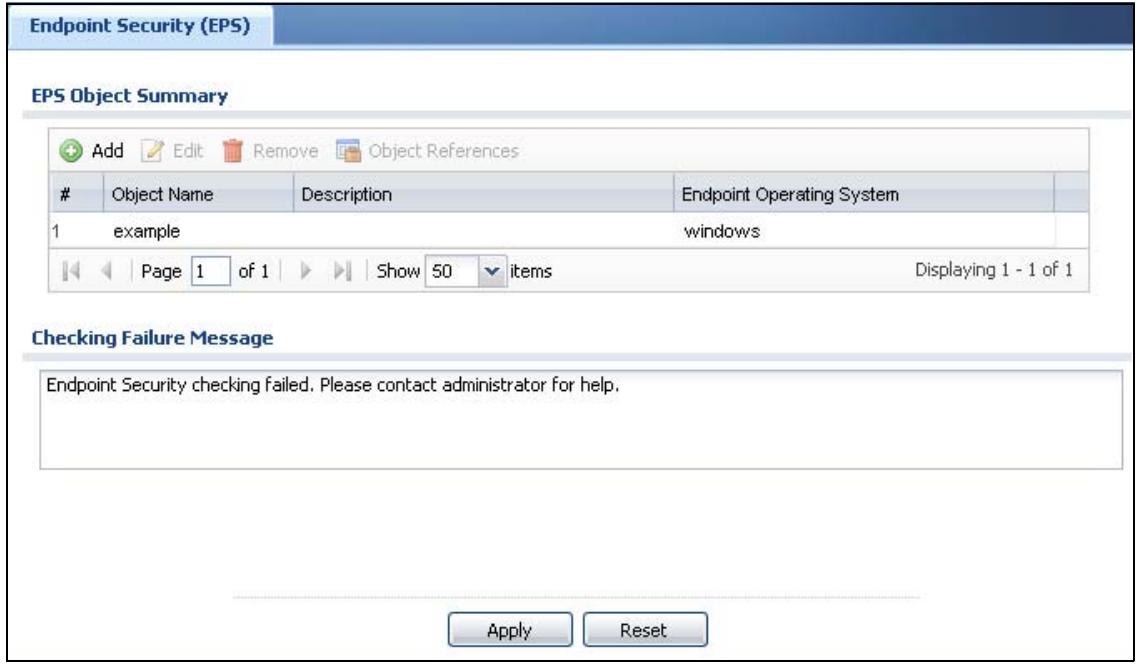
Figure 365 Configuration > Object > Endpoint Security
The following table gives an overview of the objects you can configure.
Table 188 Configuration > Object > Endpoint Security
| LABEL | DESCRIPTION |
| Add | Click this to create a new entry. |
| Edit | Double-click an entry or select it and click Edit to open a screen where you can modify the entry's settings. |
| Remove | To remove an entry, select it and click Remove. The ZyWALL confirms you want to remove it before doing so. |
| Object References | Select an entry and click Object References to open a screen that shows which settings use the object. See Section 11.3.2 on page 232 for an example. |
| Object Name | This field displays the descriptive name that identifies this object. |
| Description | If the entry has a description configured, it displays here. |
| Endpoint Operating System | This is the type of operating system that the user's computer must be using. |
| Checking Failure Message | Enter a message to display when a user's computer fails the endpoint security check. Use up to 1023 characters (0-9a-zA-Z;/?:@@=+\\-.-_!*(%)","). For example, "Endpoint Security checking failed. Please contact your network administrator for help." |
| Apply | Click this button to save your changes to the ZyWALL. |
| Reset | Click this button to return the screen to its last-saved settings. |
42.3 Endpoint Security Add/Edit
Click Configuration > Object > Endpoint Security and then the Add (or Edit) icon to open the Endpoint Security Edit screen. Use this screen to configure an endpoint security object.
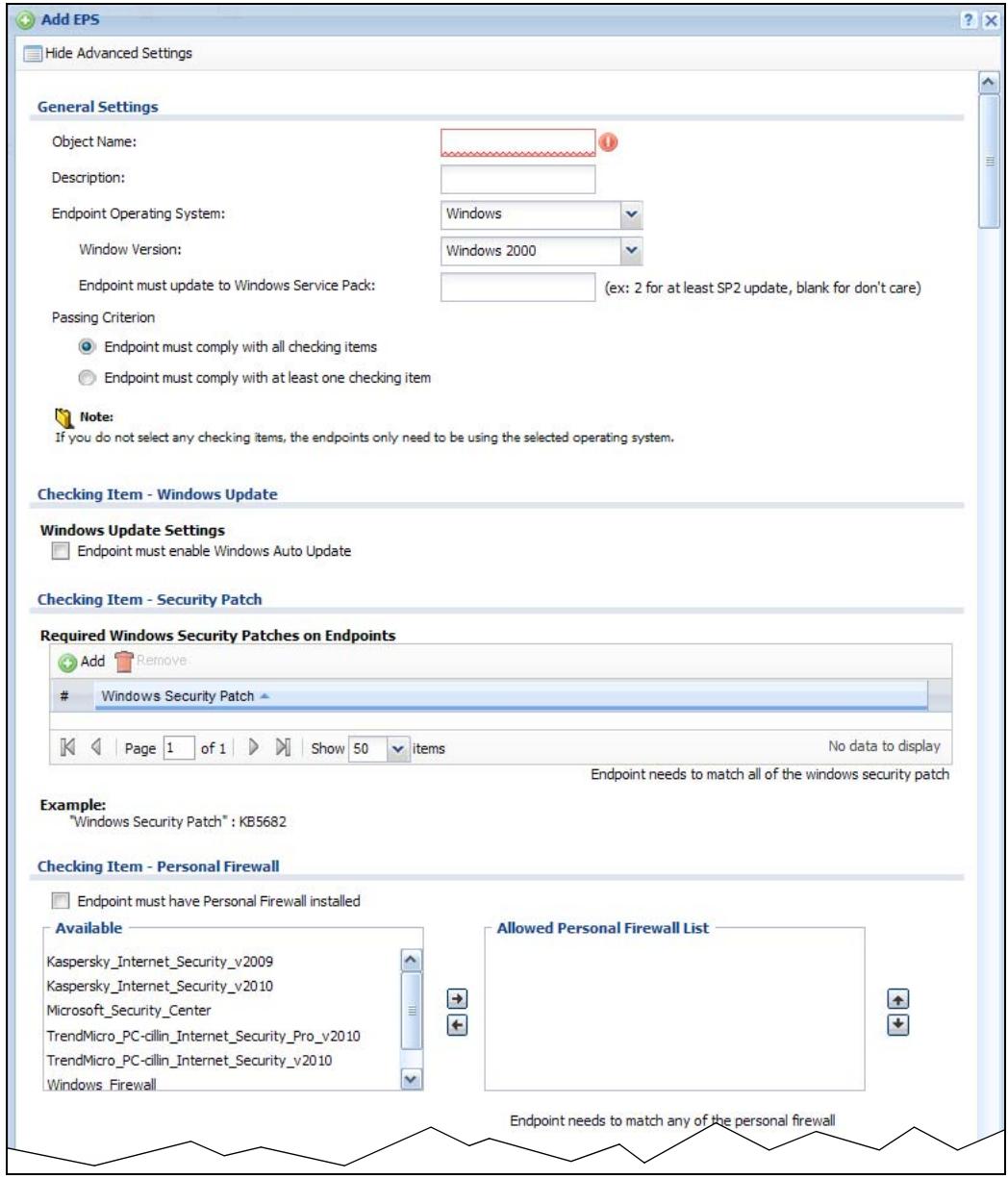
Figure 366 Configuration > Object > Endpoint Security > Add
Checking Item - Anti-Virus Software
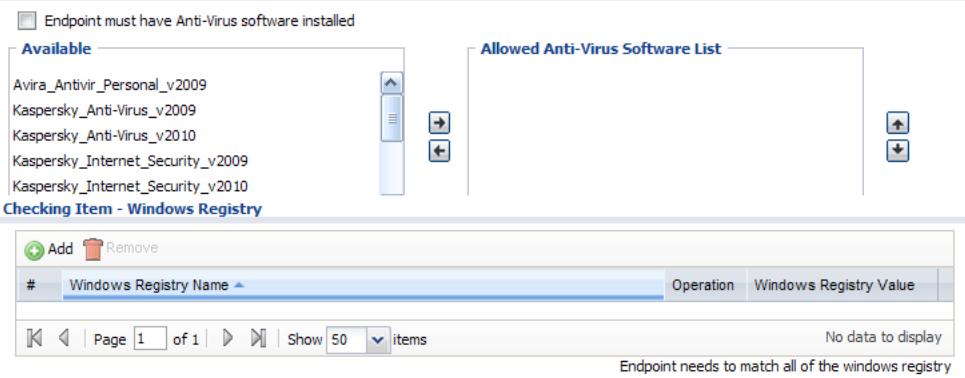
Example:
"Windows Registry Name": HKEY_LOCAL_MACHINE\SOFTWARE\Microsoft\Internet Explorer\Build "Windows Registry Value": 62900.21
Checking Item - Required Processes
Processes Endpoints Must Have Running


"Filename extension" is unnecessary on process check when OS type is "Windows".
Checking Item - Forbidden Processes
Processes Endpoints Must NOT Have Running

Endpoint needs to unmatched all of forbidden process

"Filename extension" is unnecessary on process check when OS type is "Windows".
Checking Item - File Information

Endpoint needs to match any of the selected files
Example:
"File Path": C:\Program Files\Internet Explorer\Explore.exe
"File Size": 1-1073741824 bytes
"File Version": 6.0.2900.2180
The following table gives an overview of the objects you can configure.
Table 189 Configuration > Object > Endpoint Security > Add
| LABEL | DESCRIPTION |
| Show Advance Settings / Hide Advance Settings | Click this button to display a greater or lesser number of configuration fields. |
| General Settings | |
| Object Name | Specify a descriptive name for identification purposes. You can enter up to 31 characters ("0-9", "a-z", "A-Z", "-", "_") with no spaces allowed). |
| Description | Enter a description of this object. It is not used elsewhere. You can use alphanumeric and ( ) + / : = ? ! *#@$_% - characters, and it can be up to 60 characters long. |
| Endpoint Operating System | Select the type of operating system the user's computer must be using. The checking items in the rest of the screen vary depending on the selected operating system. If you select Mac OSX, there are no other checking items. Others allows access for computers not using Windows, Linux, or Mac OSX operating systems. For example you create Windows, Linux, and Mac OSX endpoint security objects to apply to your LAN users. An "others" object allows access for LAN computers using Solaris, HP, Android, or other operating systems. |
| Windows Version | If you selected Windows as the operating system, select the version of Windows here. |
| Endpoint must update to Windows Service Pack | If you selected Windows as the operating system, you can enter the minimum Windows service pack number the user's computer must have installed. The user's computer must have this service pack or higher. For example, "2" means service pack 2. Leave the field blank to have the ZyWALL ignore the Windows service pack number. |
| Passing Criterion | Select whether the user's computer has to match just one of the endpoint security object's checking criteria or all of them. |
| Checking Item - Windows Update | If you selected Windows as the operating system, you can select whether or not the user's computer must have the Windows Auto Update feature activated. |
| Checking Item - Security Patch | Use the table to list Windows security patches that the user's computer must have installed. The user's computer must have all of the listed Windows security patches installed to pass this checking item. Click Add to create a new entry. Select one or more entries and click Remove to delete it or them. |
| Checking Item - Personal Firewall | If you selected Windows as the operating system, you can select whether or not the user's computer is required to have personal firewall software installed. Move the permitted personal firewalls from the Available list to the Allowed Personal Firewall List. Use the [Shift] and/or [Ctrl] key to select multiple entries. The user's computer must have one of the listed personal firewalls to pass this checking item. For some personal firewalls the ZyWALL can also detect whether or not the firewall is activated; in those cases it must also be activated. |
| Checking Item - Anti-Virus Software | If you selected Windows as the operating system, you can select whether or not the user's computer is required to have anti-virus software installed. Move the permitted anti-virus software packages from the Available list to the Allowed Anti-Virus Software List. Use the [Shift] and/or [Ctrl] key to select multiple entries. The user's computer must have one of the listed anti-virus software packages to pass this checking item. For some anti-virus software the ZyWALL can also detect whether or not the anti-virus software is activated; in those cases it must also be activated. |
| Checking Item - Windows Registry | If you selected Windows as the operating system, you can use the table to list Windows registry values to check on the user's computer.Use the Operation field to set whether the value for the registry item in the user's computer has to be equal to (==), greater than (>) , less than (< ), greater than or equal to (>=), less than or equal to (< = ), or not equal to (!=) the value listed in the entry.Click Add to create a new entry. Select one or more entries and click Remove to delete it or them.The user's computer must pass all of the listed Windows registry value checks to pass this checking item. |
| Checking Item - Required Processes | If you selected Windows or Linux as the operating system, you can use this section to list applications that a user's computer must be running.Use the Processes Endpoints Must Have Running table to list processes that the user's computer must have running. The user's computer must have all of the listed applications running to pass this checking item.Include the filename extension for Linux operating systems.Click Add to create a new entry. Select one or more entries and click Remove to delete it or them. |
| Checking Item - Forbidden Processes | If you selected Windows or Linux as the operating system, you can use this section to list applications that a user's computer cannot be running.Use the Processes Endpoints Must NOT Have Running table to list processes that the user's computer are not permitted to have running. The user's computer must not have any of the listed applications running to pass this checking item.Include the filename extension for Linux operating systems.Click Add to create a new entry. Select one or more entries and click Remove to delete it or them. |
| Checking Item - File Information | If you selected Windows or Linux as the operating system, you can use this table to check details of specific files on the user's computer.Use the Operation field to set whether the size or version of the file on the user's computer has to be equal to (==), greater than (>) , less than (< ), greater than or equal to (>=), less than or equal to (< = ), or not equal to (!=) the size or version of the file listed in the entry.Click Add to create a new entry. Select one or more entries and click Remove to delete it or them.The user's computer must pass one of the listed file information checks to pass this checking item. |
| OK | Click OK to save your changes back to the ZyWALL. |
| Cancel | Click Cancel to exit this screen without saving. |
43.1 Overview
Use the system screens to configure general ZyWALL settings.
43.1.1 What You Can Do in this Chapter
- Use the System > Host Name screen (see Section 43.2 on page 630) to configure a unique name for the ZyWALL in your network.
- Use the System > USB Storage screen (see Section 43.2 on page 630) to configure the settings for the connected USB devices.
- Use the System > Date/Time screen (see Section 43.4 on page 631) to configure the date and time for the ZyWALL.
- Use the System > Console Speed screen (see Section 43.5 on page 636) to configure the console port speed when you connect to the ZyWALL via the console port using a terminal emulation program.
- Use the System > DNS screen (see Section 43.6 on page 636) to configure the DNS (Domain Name System) server used for mapping a domain name to its corresponding IP address and vice versa.
- Use the System > WWW screens (see Section 43.7 on page 644) to configure settings for HTTP or HTTPS access to the ZyWALL and how the login and access user screens look.
- Use the System > SSH screen (see Section 43.8 on page 661) to configure SSH (Secure SHell) used to securely access the ZyWALL's command line interface. You can specify which zones allow SSH access and from which IP address the access can come.
- Use the System > TELNET screen (see Section 43.9 on page 666) to configure Telnet to access the ZyWALL's command line interface. Specify which zones allow Telnet access and from which IP address the access can come.
-
Use the System > FTP screen (see Section 43.10 on page 668) to specify from which zones FTP can be used to access the ZyWALL. You can also specify from which IP addresses the access can come. You can upload and download the ZyWALL's firmware and configuration files using FTP. Please also see Chapter 45 on page 693 for more information about firmware and configuration files.
-
Your ZyWALL can act as an SNMP agent, which allows a manager station to manage and monitor the ZyWALL through the network. Use the System > SNMP screen (see Section 43.11 on page 670) to configure SNMP settings, including from which zones SNMP can be used to access the ZyWALL. You can also specify from which IP addresses the access can come.
- Vantage CNM (Centralized Network Management) is a browser-based global management tool that allows an administrator to manage ZyXEL devices. Use the System > Vantage CNM screen (see Section 43.12 on page 674) to allow your ZyWALL to be managed by the Vantage CNM server.
- Use the System > Language screen (see Section 43.13 on page 677) to set a language for the ZyWALL's Web Configurator screens.
Note: See each section for related background information and term definitions.
43.2 Host Name
A host name is the unique name by which a device is known on a network. Click Configuration > System > Host Name to open the Host Name screen.
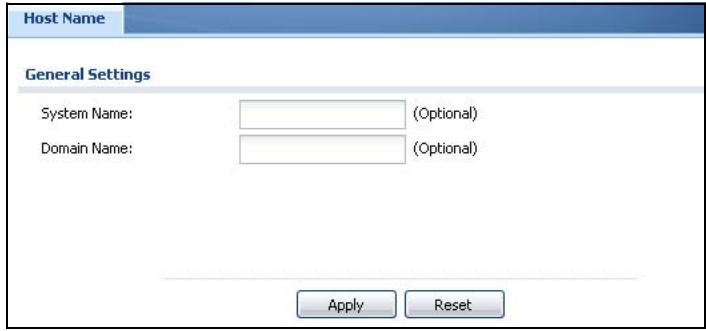
Figure 367 Configuration > System > Host Name
The following table describes the labels in this screen.
Table 190 Configuration > System > Host Name
| LABEL | DESCRIPTION |
| System Name | Choose a descriptive name to identify your ZyWALL device. This name can be up to 64 alphanumeric characters long. Spaces are not allowed, but dashes (-) underscores (___) and periods (. are accepted. |
| Domain Name | Enter the domain name (if you know it) here. This name is propagated to DHCP clients connected to interfaces with the DHCP server enabled. This name can be up to 254 alphanumeric characters long. Spaces are not allowed, but dashes “-” are accepted. |
| Apply | Click Apply to save your changes back to the ZyWALL. |
| Reset | Click Reset to return the screen to its last-saved settings. |
43.3 USB Storage
The ZyWALL can use a connected USB device to store the system log and other diagnostic information. Use this screen to turn on this feature and set a disk full warning limit.
Note: Only connect one USB device. It must allow writing (it cannot be read-only) and use the FAT16, FAT32, EXT2, or EXT3 file system. The ZyWALL uses the partition identified as "sda1".
Click Configuration > System > USB Storage to open the screen as shown next.
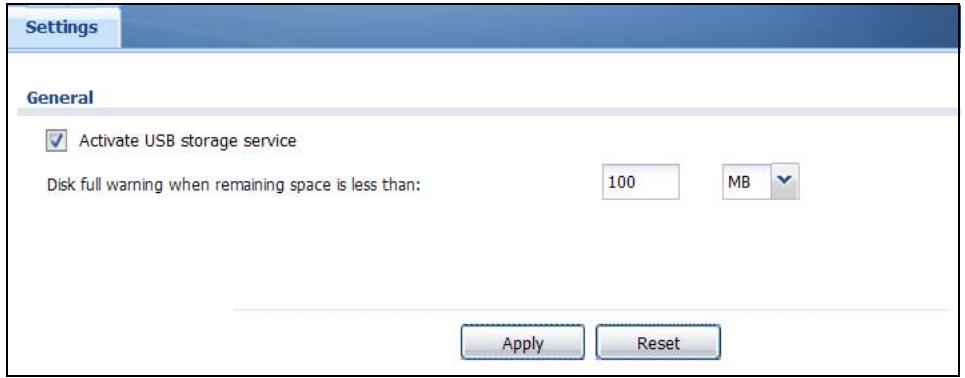
Figure 368 Configuration > System > USB Storage
The following table describes the labels in this screen.
Table 191 Configuration > System > USB Storage
| LABEL | DESCRIPTION |
| Activate USB storage service | Select this if you want to use the connected USB device(s). |
| Disk full warning when remaining space is less than | Set a number and select a unit (MB or %) to have the ZyWALL send a warning message when the remaining USB storage space is less than the value you set here. |
| Apply | Click Apply to save your changes back to the ZyWALL. |
| Reset | Click Reset to return the screen to its last-saved settings. |
43.4 Date and Time
For effective scheduling and logging, the ZyWALL system time must be accurate. The ZyWALL's Real Time Chip (RTC) keeps track of the time and date. There is also
a software mechanism to set the time manually or get the current time and date from an external server.
To change your ZyWALL's time based on your local time zone and date, click Configuration > System > Date/Time. The screen displays as shown. You can manually set the ZyWALL's time and date or have the ZyWALL get the date and time from a time server.
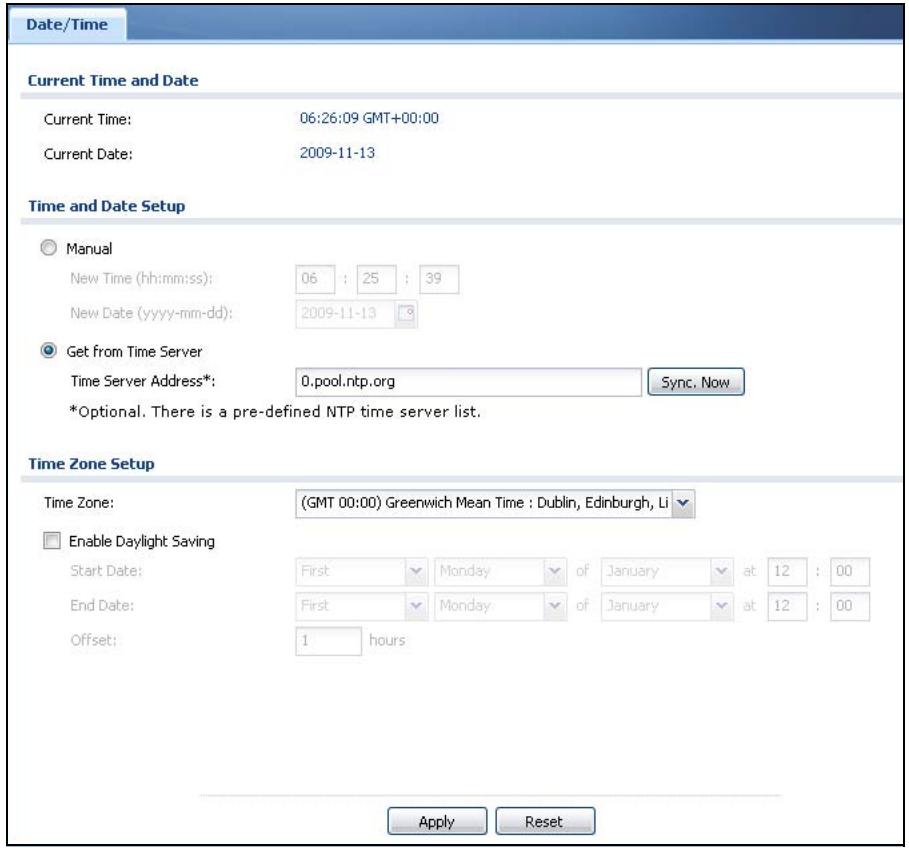
Figure 369 Configuration > System > Date and Time
The following table describes the labels in this screen.
Table 192 Configuration > System > Date and Time
| LABEL | DESCRIPTION |
| Current Time and Date | |
| Current Time | This field displays the present time of your ZyWALL. |
| Current Date | This field displays the present date of your ZyWALL. |
| Time and Date Setup | |
| Manual | Select this radio button to enter the time and date manually. If you configure a new time and date, time zone and daylight saving at the same time, the time zone and daylight saving will affect the new time and date you entered. When you enter the time settings manually, the ZyWALL uses the new setting once you click Apply. |
| New Time (hh-mm-ss) | This field displays the last updated time from the time server or the last time configured manually.When you set Time and Date Setup to Manual, enter the new time in this field and then click Apply. |
| New Date (yyyy-mm-dd) | This field displays the last updated date from the time server or the last date configured manually.When you set Time and Date Setup to Manual, enter the new date in this field and then click Apply. |
| Get from Time Server | Select this radio button to have the ZyWALL get the time and date from the time server you specify below. The ZyWALL requests time and date settings from the time server under the following circumstances. · When the ZyWALL starts up. · When you click Apply or Synchronize Now in this screen. · 24-hour intervals after starting up. |
| Time Server Address | Enter the IP address or URL of your time server. Check with your ISP/ network administrator if you are unsure of this information. |
| Sync. Now | Click this button to have the ZyWALL get the time and date from a time server (see the Time Server Address field). This also saves your changes (except the daylight saving settings). |
| Time Zone Setup | |
| Time Zone | Choose the time zone of your location. This will set the time difference between your time zone and Greenwich Mean Time (GMT). |
| Enable Daylight Saving | Daylight saving is a period from late spring to early fall when many countries set their clocks ahead of normal local time by one hour to give more daytime light in the evening. Select this option if you use Daylight Saving Time. |
| Start Date | Configure the day and time when Daylight Saving Time starts if you selected Enable Daylight Saving. The at field uses the 24 hour format. Here are a couple of examples: Daylight Saving Time starts in most parts of the United States on the second Sunday of March. Each time zone in the United States starts using Daylight Saving Time at 2 A.M. local time. So in the United States you would select Second, Sunday, March and type 2 in the at field. Daylight Saving Time starts in the European Union on the last Sunday of March. All of the time zones in the European Union start using Daylight Saving Time at the same moment (1 A.M. GMT or UTC). So in the European Union you would select Last, Sunday, March. The time you type in the at field depends on your time zone. In Germany for instance, you would type 2 because Germany's time zone is one hour ahead of GMT or UTC (GMT+1). |
| End Date | Configure the day and time when Daylight Saving Time ends if you selected Enable Daylight Saving. The at field uses the 24 hour format. Here are a couple of examples:Daylight Saving Time ends in the United States on the first Sunday of November. Each time zone in the United States stops using Daylight Saving Time at 2 A.M. local time. So in the United States you would select First, Sunday, November and type 2 in the at field.Daylight Saving Time ends in the European Union on the last Sunday of October. All of the time zones in the European Union stop using Daylight Saving Time at the same moment (1 A.M. GMT or UTC). So in the European Union you would select Last, Sunday, October. The time you type in the at field depends on your time zone. In Germany for instance, you would type 2 because Germany's time zone is one hour ahead of GMT or UTC (GMT+1). |
| Offset | Specify how much the clock changes when daylight saving begins and ends.Enter a number from 1 to 5.5 (by 0.5 increments).For example, if you set this field to 3.5, a log occurred at 6 PM. in local official time will appear as if it had occurred at 10:30 P.M. |
| Apply | Click Apply to save your changes back to the ZyWALL. |
| Reset | Click Reset to return the screen to its last-saved settings. |
43.4.1 Pre-defined NTP Time Servers List
When you turn on the ZyWALL for the first time, the date and time start at 2003-01-01 00:00:00. The ZyWALL then attempts to synchronize with one of the following pre-defined list of Network Time Protocol (NTP) time servers.
The ZyWALL continues to use the following pre-defined list of NTP time servers if you do not specify a time server or it cannot synchronize with the time server you specified.
Table 193 Default Time Servers
| 0.pool.ntp.org |
| 1.pool.ntp.org |
| 2POOL.ntp.org |
When the ZyWALL uses the pre-defined list of NTP time servers, it randomly selects one server and tries to synchronize with it. If the synchronization fails, then the ZyWALL goes through the rest of the list in order from the first one tried until either it is successful or all the pre-defined NTP time servers have been tried.
43.4.2 Time Server Synchronization
Click the Synchronize Now button to get the time and date from the time server you specified in the Time Server Address field.
When the Please Wait... screen appears, you may have to wait up to one minute.
Figure 370 Synchronization in Process
The Current Time and Current Date fields will display the appropriate settings if the synchronization is successful.
If the synchronization was not successful, a log displays in the View Log screen. Try re-configuring the Date/Time screen.
To manually set the ZyWALL date and time.
1 Click System > Date/Time.
2 Select Manual under Time and Date Setup.
3 Enter the ZyWALL's time in the New Time field.
4 Enter the ZyWALL's date in the New Date field.
5 Under Time Zone Setup, select your Time Zone from the list.
6 As an option you can select the Enable Daylight Saving check box to adjust the ZyWALL clock for daylight savings.
7 Click Apply.
To get the ZyWALL date and time from a time server
1 Click System > Date/Time.
2 Select Get from Time Server under Time and Date Setup.
3 Under Time Zone Setup, select your Time Zone from the list.
4 As an option you can select the Enable Daylight Saving check box to adjust the ZyWALL clock for daylight savings.
5 Under Time and Date Setup, enter a Time Server Address (Table 193 on page 634).
6 Click Apply.
43.5 Console Port Speed
This section shows you how to set the console port speed when you connect to the ZyWALL via the console port using a terminal emulation program. See Table 2 on page 34 for default console port settings.
Click Configuration > System > Console Speed to open the Console Speed screen.
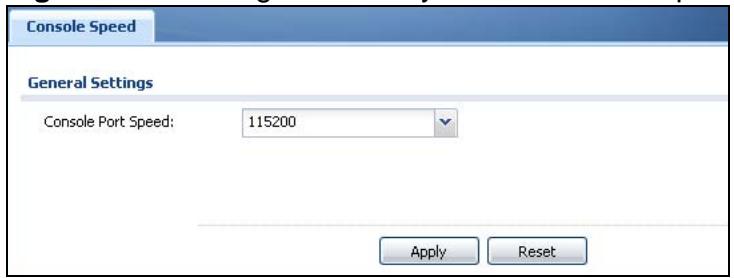
Figure 371 Configuration > System > Console Speed
The following table describes the labels in this screen.
Table 194 Configuration > System > Console Speed
| LABEL | DESCRIPTION |
| Console Port Speed | Use the drop-down list box to change the speed of the console port. Your ZyWALL supports 9600, 19200, 38400, 57600, and 115200 bps (default) for the console port.The Console Port Speed applies to a console port connection using terminal emulation software and NOT the Console in the ZyWALL Web Configurator Status screen. |
| Apply | Click Apply to save your changes back to the ZyWALL. |
| Reset | Click Reset to return the screen to its last-saved settings. |
43.6 DNS Overview
DNS (Domain Name System) is for mapping a domain name to its corresponding IP address and vice versa. The DNS server is extremely important because without it, you must know the IP address of a machine before you can access it.
43.6.1 DNS Server Address Assignment
The ZyWALL can get the DNS server addresses in the following ways.
- The ISP tells you the DNS server addresses, usually in the form of an information sheet, when you sign up. If your ISP gives you DNS server addresses, manually enter them in the DNS server fields.
- If your ISP dynamically assigns the DNS server IP addresses (along with the ZyWALL's WAN IP address), set the DNS server fields to get the DNS server address from the ISP.
- You can manually enter the IP addresses of other DNS servers.
43.6.2 Configuring the DNS Screen
Click Configuration > System > DNS to change your ZyWALL's DNS settings. Use the DNS screen to configure the ZyWALL to use a DNS server to resolve domain names for ZyWALL system features like VPN, DDNS and the time server. You can also configure the ZyWALL to accept or discard DNS queries. Use the Network > Interface screens to configure the DNS server information that the ZyWALL sends to the specified DHCP client devices.
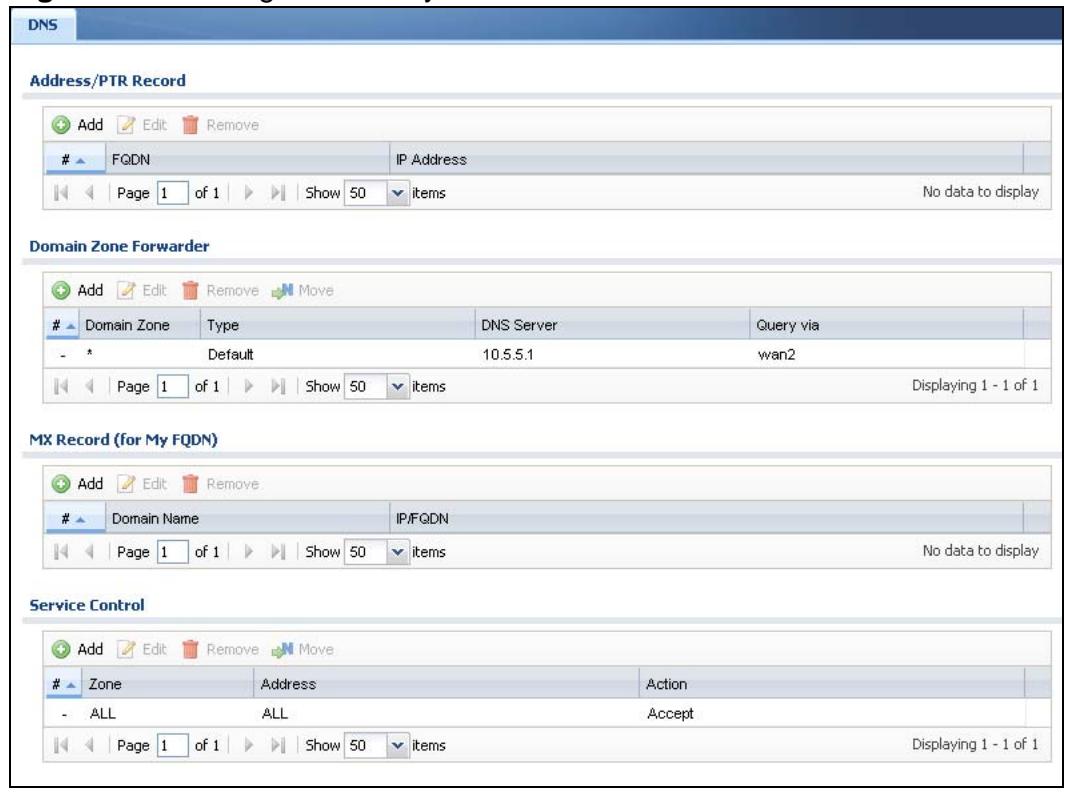
Figure 372 Configuration > System > DNS
The following table describes the labels in this screen.
Table 195 Configuration > System > DNS
| LABEL | DESCRIPTION |
| Address/PTR Record | This record specifies the mapping of a Fully-Qualified Domain Name (FQDN) to an IP address. An FQDN consists of a host and domain name. For example, www.zyxel.com.tw is a fully qualified domain name, where "www" is the host, "zyxel" is the third-level domain, "com" is the second-level domain, and "tw" is the top level domain. |
| Add | Click this to create a new entry. |
| Edit | Double-click an entry or select it and click Edit to be able to modify the entry's settings. |
| Remove | To remove an entry, select it and click Remove. The ZyWALL confirms you want to remove it before doing so. Note that subsequent entries move up by one when you take this action. |
| # | This is the index number of the address/PTR record. |
| FQDN | This is a host's fully qualified domain name. |
| IP Address | This is the IP address of a host. |
| Domain Zone Forwarder | This specifies a DNS server's IP address. The ZyWALL can query the DNS server to resolve domain zones for features like VPN, DDNS and the time server.When the ZyWALL needs to resolve a domain zone, it checks it against the domain zone forwarder entries in the order that they appear in this list. |
| Add | Click this to create a new entry. Select an entry and click Add to create a new entry after the selected entry. |
| Edit | Double-click an entry or select it and click Edit to be able to modify the entry's settings. |
| Remove | To remove an entry, select it and click Remove. The ZyWALL confirms you want to remove it before doing so. Note that subsequent entries move up by one when you take this action. |
| Move | To change an entry's position in the numbered list, select the method and click Move to display a field to type a number for where you want to put it and press [ENTER] to move the rule to the number that you typed. |
| # | This is the index number of the domain zone forwarder record. The ordering of your rules is important as rules are applied in sequence.A hyphen (-) displays for the default domain zone forwarder record.The default record is not configurable. The ZyWALL uses this default record if the domain zone that needs to be resolved does not match any of the other domain zone forwarder records. |
| Domain Zone | A domain zone is a fully qualified domain name without the host. For example, zyxel.com.tw is the domain zone for the www.zyxel.com.tw fully qualified domain name.A"**" means all domain zones. |
| Type | This displays whether the DNS server IP address is assigned by the ISP dynamically through a specified interface or configured manually (User-Defined). |
| DNS Server | This is the IP address of a DNS server. This field displays N/A if you have the ZyWALL get a DNS server IP address from the ISP dynamically but the specified interface is not active. |
| Query Via | This is the interface through which the ZyWALL sends DNS queries to the entry's DNS server. If the ZyWALL connects through a VPN tunnel, tunnel displays. |
| MX Record (for My FQDN) | A MX (Mail eXchange) record identifies a mail server that handles the mail for a particular domain. |
| Add | Click this to create a new entry. |
| Edit | Double-click an entry or select it and click Edit to be able to modify the entry's settings. |
| Remove | To remove an entry, select it and click Remove. The ZyWALL confirms you want to remove it before doing so. Note that subsequent entries move up by one when you take this action. |
| # | This is the index number of the MX record. |
| Domain Name | This is the domain name where the mail is destined for. |
| IP/FQDN | This is the IP address or Fully-Qualified Domain Name (FQDN) of a mail server that handles the mail for the domain specified in the field above. |
| Service Control | This specifies from which computers and zones you can send DNS queries to the ZyWALL. |
| Add | Click this to create a new entry. Select an entry and click Add to create a new entry after the selected entry. |
| Edit | Double-click an entry or select it and click Edit to be able to modify the entry's settings. |
| Remove | To remove an entry, select it and click Remove. The ZyWALL confirms you want to remove it before doing so. Note that subsequent entries move up by one when you take this action. |
| Move | To change an entry's position in the numbered list, select the method and click Move to display a field to type a number for where you want to put it and press [ENTER] to move the rule to the number that you typed. |
| # | This the index number of the service control rule. The ordering of your rules is important as rules are applied in sequence.The entry with a hyphen (-) instead of a number is the ZyWALL's (non-configurable) default policy. The ZyWALL applies this to traffic that does not match any other configured rule. It is not an editable rule. To apply other behavior, configure a rule that traffic will match so the ZyWALL will not have to use the default policy. |
| Zone | This is the zone on the ZyWALL the user is allowed or denied to access. |
| Address | This is the object name of the IP address(es) with which the computer is allowed or denied to send DNS queries. |
| Action | This displays whether the ZyWALL accepts DNS queries from the computer with the IP address specified above through the specified zone (Accept) or discards them (Deny). |
43.6.3 Address Record
An address record contains the mapping of a Fully-Qualified Domain Name (FQDN) to an IP address. An FQDN consists of a host and domain name. For example, www.zyxel.com is a fully qualified domain name, where "www" is the host, "zyxel" is the second-level domain, and "com" is the top level domain.
mail.myZyXEL.com.tw is also a FQDN, where "mail" is the host, "myZyXEL" is the third-level domain, "com" is the second-level domain, and "tw" is the top level domain.
The ZyWALL allows you to configure address records about the ZyWALL itself or another device. This way you can keep a record of DNS names and addresses that people on your network may use frequently. If the ZyWALL receives a DNS query for an FQDN for which the ZyWALL has an address record, the ZyWALL can send the IP address in a DNS response without having to query a DNS name server.
43.6.4 PTR Record
A PTR (pointer) record is also called a reverse record or a reverse lookup record. It is a mapping of an IP address to a domain name.
43.6.5 Adding an Address/PTR Record
Click the Add icon in the Address/PTR Record table to add an address/PTR record.
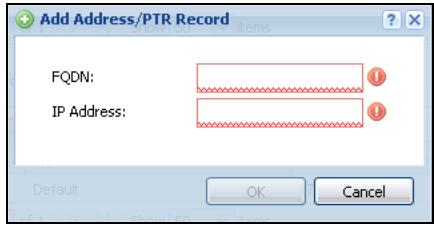
Figure 373 Configuration > System > DNS > Address/PTR Record Edit
The following table describes the labels in this screen.
Table 196 Configuration > System > DNS > Address/PTR Record Edit
| LABEL | DESCRIPTION |
| FQDN | Type a Fully-Qualified Domain Name (FQDN) of a server. An FQDN starts with a host name and continues all the way up to the top-level domain name. For example, www.zyxel.com.tw is a fully qualified domain name, where "www" is the host, "zyxel" is the third-level domain, "com" is the second-level domain, and "tw" is the top level domain. Underscores are not allowed. Use "*." as a prefix in the FQDN for a wildcard domain name (for example, *.example.com). |
| IP Address | Enter the IP address of the host in dotted decimal notation. |
| OK | Click OK to save your customized settings and exit this screen. |
| Cancel | Click Cancel to exit this screen without saving |
43.6.6 Domain Zone Forwarder
A domain zone forwarder contains a DNS server's IP address. The ZyWALL can query the DNS server to resolve domain zones for features like VPN, DDNS and the time server. A domain zone is a fully qualified domain name without the host. For example, zyxel.com.tw is the domain zone for the www.zyxel.com.tw fully qualified domain name.
43.6.7 Adding a Domain Zone Forwarder
Click the Add icon in the Domain Zone Forwarder table to add a domain zone forwarder record.
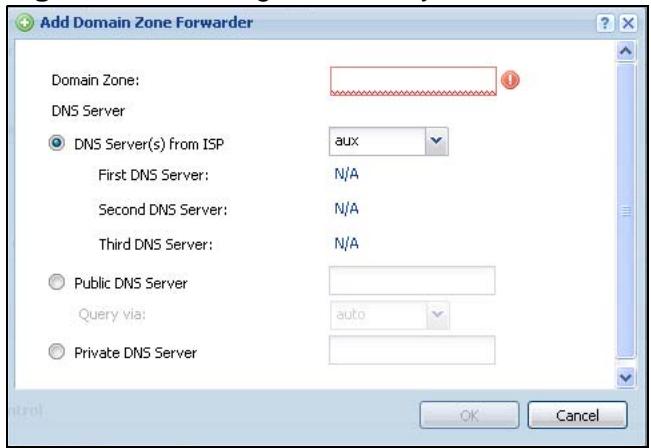
Figure 374 Configuration > System > DNS > Domain Zone Forwarder Add
The following table describes the labels in this screen.
Table 197 Configuration > System > DNS > Domain Zone Forwarder Add
| LABEL | DESCRIPTION |
| Domain Zone | A domain zone is a fully qualified domain name without the host. For example, zyxel.com.tw is the domain zone for the www.zyxel.com.tw fully qualified domain name. For example, whenever the ZyWALL receives needs to resolve a zyxel.com.tw domain name, it can send a query to the recorded name server IP address.Enter * if all domain zones are served by the specified DNS server(s). |
| DNS Server | Select DNS Server(s) from ISP if your ISP dynamically assigns DNS server information. You also need to select an interface through which the ISP provides the DNS server IP address(es). The interface should be activated and set to be a DHCP client. The fields below display the (read-only) DNS server IP address(es) that the ISP assigns. N/A displays for any DNS server IP address fields for which the ISP does not assign an IP address.Select Public DNS Server if you have the IP address of a DNS server. Enter the DNS server's IP address in the field to the right. The ZyWALL must be able to connect to the DNS server without using a VPN tunnel. The DNS server could be on the Internet or one of the ZyWALL's local networks. You cannot use 0.0.0.0. Use the Query via field to select the interface through which the ZyWALL sends DNS queries to a DNS server.Select Private DNS Server if you have the IP address of a DNS server to which the ZyWALL connects through a VPN tunnel. Enter the DNS server's IP address in the field to the right. You cannot use 0.0.0.0. |
| OK | Click OK to save your customized settings and exit this screen. |
| Cancel | Click Cancel to exit this screen without saving |
43.6.8 MX Record
A MX (Mail eXchange) record indicates which host is responsible for the mail for a particular domain, that is, controls where mail is sent for that domain. If you do not configure proper MX records for your domain or other domain, external e-mail from other mail servers will not be able to be delivered to your mail server and vice versa. Each host or domain can have only one MX record, that is, one domain is mapping to one host.
43.6.9 Adding a MX Record
Click the Add icon in the MX Record table to add a MX record.
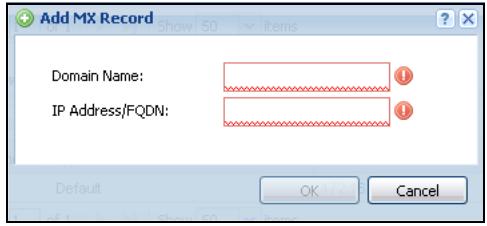
Figure 375 Configuration > System > DNS > MX Record Add
The following table describes the labels in this screen.
Table 198 Configuration > System > DNS > MX Record Add
| LABEL | DESCRIPTION |
| Domain Name | Enter the domain name where the mail is destined for. |
| IP Address/FQDN | Enter the IP address or Fully-Qualified Domain Name (FQDN) of a mail server that handles the mail for the domain specified in the field above. |
| OK | Click OK to save your customized settings and exit this screen. |
| Cancel | Click Cancel to exit this screen without saving |
43.6.10 Adding a DNS Service Control Rule
Click the Add icon in the Service Control table to add a service control rule.
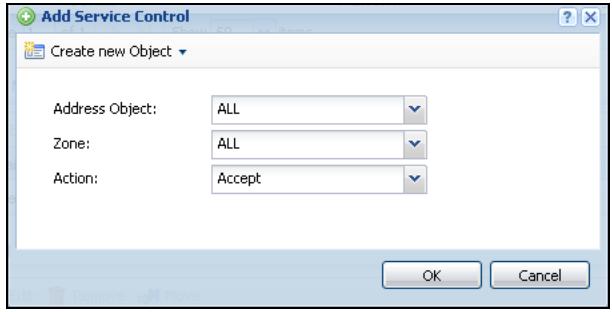
Figure 376 Configuration > System > DNS > Service Control Rule Add
The following table describes the labels in this screen.
Table 199 Configuration > System > DNS > Service Control Rule Add
| LABEL | DESCRIPTION |
| Create new Object | Use this to configure any new settings objects that you need to use in this screen. |
| Address Object | Select ALL to allow or deny any computer to send DNS queries to the ZyWALL. Select a predefined address object to just allow or deny the computer with the IP address that you specified to send DNS queries to the ZyWALL. |
| Zone | Select ALL to allow or prevent DNS queries through any zones. Select a predefined zone on which a DNS query to the ZyWALL is allowed or denied. |
| Action | Select Accept to have the ZyWALL allow the DNS queries from the specified computer. Select Deny to have the ZyWALL reject the DNS queries from the specified computer. |
| OK | Click OK to save your customized settings and exit this screen. |
| Cancel | Click Cancel to exit this screen without saving |
43.7 WWW Overview
The following figure shows secure and insecure management of the ZyWALL coming in from the WAN. HTTPS and SSH access are secure. HTTP and Telnet access are not secure.
- See Section 6.7.1 on page 105 for related information on these screens.
Note: To allow the ZyWALL to be accessed from a specified computer using a service, make sure you do not have a service control rule or to-ZyWALL firewall rule to block that traffic.
- See To-ZyWALL Rules on page 375 for more on To-ZyWALL firewall rules.
- See Section 7.8 on page 129 for an example of configuring service control to block administrator HTTPS access from all zones except the LAN.
To stop a service from accessing the ZyWALL, clear Enable in the corresponding service screen.
43.7.1 Service Access Limitations
A service cannot be used to access the ZyWALL when:
1 You have disabled that service in the corresponding screen.
2 The allowed IP address (address object) in the Service Control table does not match the client IP address (the ZyWALL disallows the session).
3 The IP address (address object) in the Service Control table is not in the allowed zone or the action is set to Deny.
4 There is a firewall rule that blocks it.
43.7.2 System Timeout
There is a lease timeout for administrators. The ZyWALL automatically logs you out if the management session remains idle for longer than this timeout period. The management session does not time out when a statistics screen is polling.
Each user is also forced to log in the ZyWALL for authentication again when the reauthentication time expires.
You can change the timeout settings in the User/Group screens.
43.7.3 HTTPS
You can set the ZyWALL to use HTTP or HTTPS (HTTPS adds security) for Web Configurator sessions. Specify which zones allow Web Configurator access and from which IP address the access can come.
HTTPS (HyperText Transfer Protocol over Secure Socket Layer, or HTTP over SSL) is a web protocol that encrypts and decrypts web pages. Secure Socket Layer (SSL) is an application-level protocol that enables secure transactions of data by ensuring confidentiality (an unauthorized party cannot read the transferred data), authentication (one party can identify the other party) and data integrity (you know if data has been changed).
It relies upon certificates, public keys, and private keys (see Chapter 39 on page 589 for more information).
HTTPS on the ZyWALL is used so that you can securely access the ZyWALL using the Web Configurator. The SSL protocol specifies that the HTTPS server (the ZyWALL) must always authenticate itself to the HTTPS client (the computer which requests the HTTPS connection with the ZyWALL), whereas the HTTPS client only should authenticate itself when the HTTPS server requires it to do so (select
Authentication Client Certificates in the WWW screen). Authentication Client Certificates is optional and if selected means the HTTPS client must send the ZyWALL a certificate. You must apply for a certificate for the browser from a CA that is a trusted CA on the ZyWALL.
Please refer to the following figure.
1 HTTPS connection requests from an SSL-aware web browser go to port 443 (by default) on the ZyWALL's web server.
2 HTTP connection requests from a web browser go to port 80 (by default) on the ZyWALL's web server.
Figure 377 HTTP/HTTPS Implementation
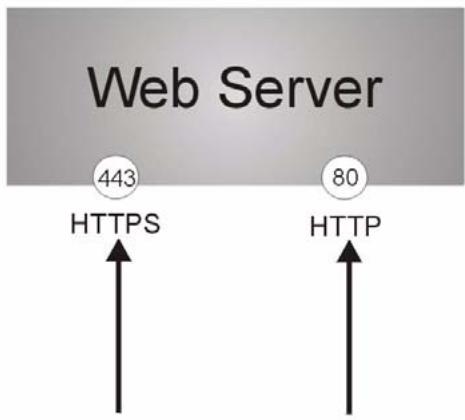
Note: If you disable HTTP in the WWW screen, then the ZyWALL blocks all HTTP connection attempts.
43.7.4 Configuring WWW Service Control
Click Configuration > System > WWW to open the WWW screen. Use this screen to specify from which zones you can access the ZyWALL using HTTP or HTTPS. You can also specify which IP addresses the access can come from.
Note: Admin Service Control deals with management access (to the Web Configurator).
User Service Control deals with user access to the ZyWALL (logging into SSL VPN for example).
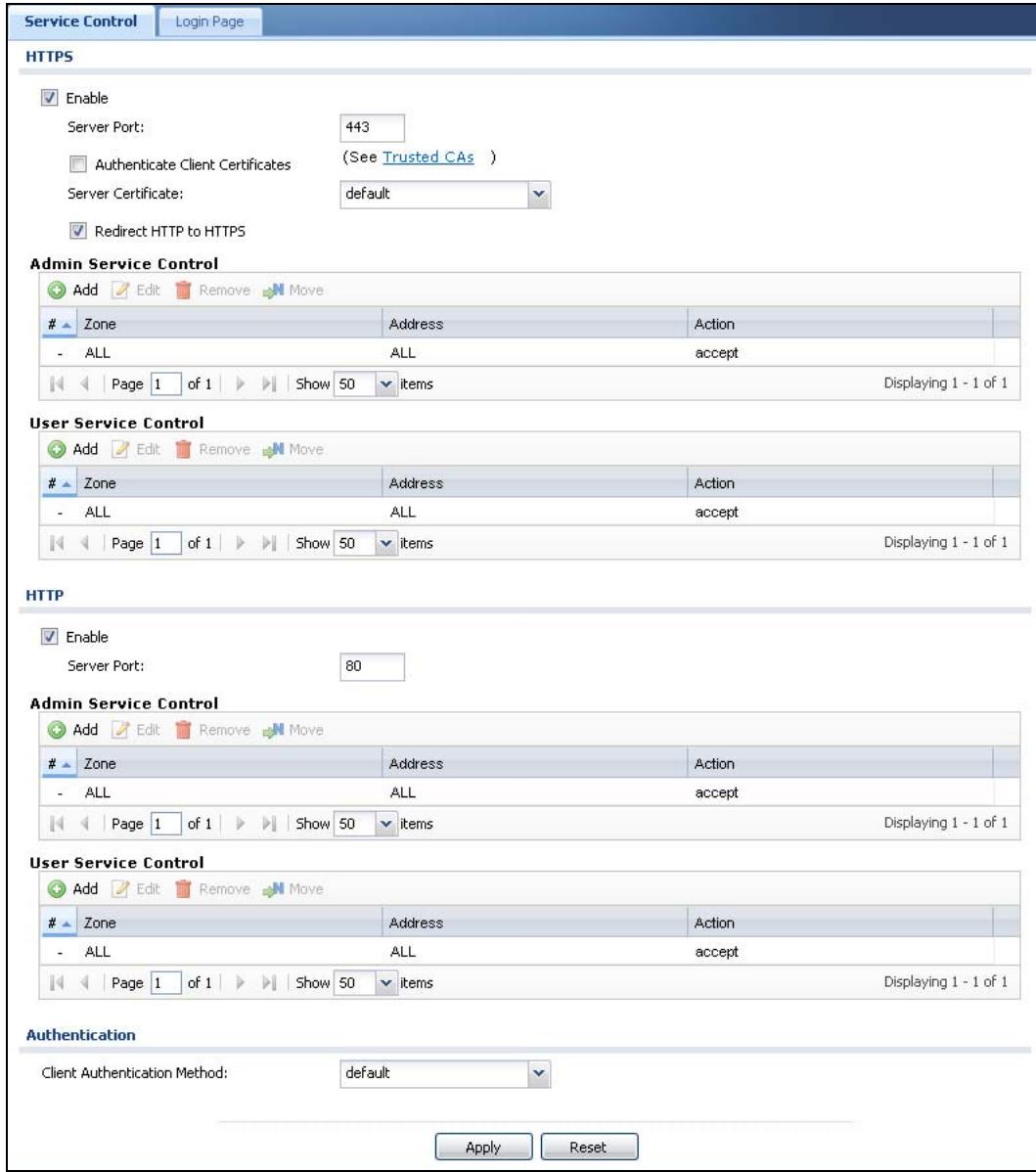
Figure 378 Configuration > System > WWW > Service Control
The following table describes the labels in this screen.
Table 200 Configuration > System > WWW > Service Control
| LABEL | DESCRIPTION |
| HTTPS | |
| Enable | Select the check box to allow or disallow the computer with the IP address that matches the IP address(es) in the Service Control table to access the ZyWALL Web Configurator using secure HTTPS connections. |
| Server Port | The HTTPS server listens on port 443 by default. If you change the HTTPS server port to a different number on the ZyWALL, for example 8443, then you must notify people who need to access the ZyWALL Web Configurator to use "https://ZyWALL IP Address:8443" as the URL. |
| Authentication Client Certificates | Select Authentication Client Certificates (optional) to require the SSL client to authenticate itself to the ZyWALL by sending the ZyWALL a certificate. To do that the SSL client must have a CA-signed certificate from a CA that has been imported as a trusted CA on the ZyWALL (see Section 43.7.7.5 on page 656 on importing certificates for details). |
| Server Certificate | Select a certificate the HTTPS server (the ZyWALL) uses to authenticate itself to the HTTPS client. You must have certificates already configured in the My Certificates screen. |
| Redirect HTTP to HTTPS | To allow only secure Web Configurator access, select this to redirect all HTTP connection requests to the HTTPS server. |
| Admin/User Service Control | Admin Service Control specifies from which zones an administrator can use HTTPS to manage the ZyWALL (using the Web Configurator). You can also specify the IP addresses from which the administrators can manage the ZyWALL.User Service Control specifies from which zones a user can use HTTPS to log into the ZyWALL (to log into SSL VPN for example). You can also specify the IP addresses from which the users can access the ZyWALL. |
| Add | Click this to create a new entry. Select an entry and click Add to create a new entry after the selected entry. |
| Edit | Double-click an entry or select it and click Edit to be able to modify the entry's settings. |
| Remove | To remove an entry, select it and click Remove. The ZyWALL confirms you want to remove it before doing so. Note that subsequent entries move up by one when you take this action. |
| Move | To change an entry's position in the numbered list, select the method and click Move to display a field to type a number for where you want to put it and press [ENTER] to move the rule to the number that you typed. |
| # | This is the index number of the service control rule.The entry with a hyphen (-) instead of a number is the ZyWALL's (non-configurable) default policy. The ZyWALL applies this to traffic that does not match any other configured rule. It is not an editable rule. To apply other behavior, configure a rule that traffic will match so the ZyWALL will not have to use the default policy. |
| Zone | This is the zone on the ZyWALL the user is allowed or denied to access. |
| Address | This is the object name of the IP address(es) with which the computer is allowed or denied to access. |
| Action | This displays whether the computer with the IP address specified above can access the ZyWALL zone(s) configured in the Zone field (Accept) or not (Deny). |
| HTTP | |
| Enable | Select the check box to allow or disallow the computer with the IP address that matches the IP address(es) in the Service Control table to access the ZyWALL Web Configurator using HTTP connections. |
| Server Port | You may change the server port number for a service if needed, however you must use the same port number in order to use that service to access the ZyWALL. |
| Admin/User Service Control | Admin Service Control specifies from which zones an administrator can use HTTP to manage the ZyWALL (using the Web Configurator). You can also specify the IP addresses from which the administrators can manage the ZyWALL.User Service Control specifies from which zones a user can use HTTP to log into the ZyWALL (to log into SSL VPN for example). You can also specify the IP addresses from which the users can access the ZyWALL. |
| Add | Click this to create a new entry. Select an entry and click Add to create a new entry after the selected entry. |
| Edit | Double-click an entry or select it and click Edit to be able to modify the entry's settings. |
| Remove | To remove an entry, select it and click Remove. The ZyWALL confirms you want to remove it before doing so. Note that subsequent entries move up by one when you take this action. |
| Move | To change an entry's position in the numbered list, select the method and click Move to display a field to type a number for where you want to put it and press [ENTER] to move the rule to the number that you typed. |
| # | This is the index number of the service control rule.The entry with a hyphen (-) instead of a number is the ZyWALL's (non-configurable) default policy. The ZyWALL applies this to traffic that does not match any other configured rule. It is not an editable rule. To apply other behavior, configure a rule that traffic will match so the ZyWALL will not have to use the default policy. |
| Zone | This is the zone on the ZyWALL the user is allowed or denied to access. |
| Address | This is the object name of the IP address(es) with which the computer is allowed or denied to access. |
| Action | This displays whether the computer with the IP address specified above can access the ZyWALL zone(s) configured in the Zone field (Accept) or not (Deny). |
| Authentication | |
| Client Authentication Method | Select a method the HTTPS or HTTP server uses to authenticate a client.You must have configured the authentication methods in the Auth. method screen. |
| Apply | Click Apply to save your changes back to the ZyWALL. |
| Reset | Click Reset to return the screen to its last-saved settings. |
43.7.5 Service Control Rules
Click Add or Edit in the Service Control table in a WWW, SSH, Telnet, FTP or SNMP screen to add a service control rule.
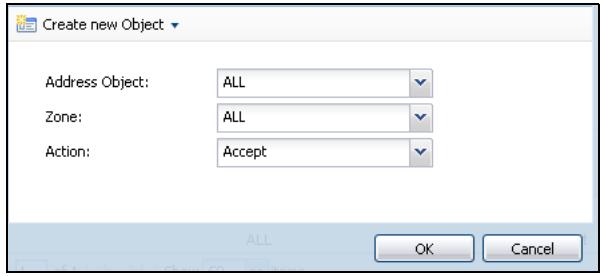
Figure 379 Configuration > System > Service Control Rule > Edit
The following table describes the labels in this screen.
Table 201 Configuration > System > Service Control Rule > Edit
| LABEL | DESCRIPTION |
| Create new Object | Use this to configure any new settings objects that you need to use in this screen. |
| Address Object | Select ALL to allow or deny any computer to communicate with the ZyWALL using this service. Select a predefined address object to just allow or deny the computer with the IP address that you specified to access the ZyWALL using this service. |
| Zone | Select ALL to allow or prevent any ZyWALL zones from being accessed using this service. Select a predefined ZyWALL zone on which a incoming service is allowed or denied. |
| Action | Select Accept to allow the user to access the ZyWALL from the specified computers. Select Deny to block the user's access to the ZyWALL from the specified computers. |
| OK | Click OK to save your customized settings and exit this screen. |
| Cancel | Click Cancel to exit this screen without saving |
43.7.6 Customizing the WWW Login Page
Click Configuration > System > WWW > Login Page to open the Login Page screen. Use this screen to customize the Web Configurator login screen. You can
also customize the page that displays after an access user logs into the Web Configurator to access network services like the Internet. See Chapter 33 on page 539 for more on access user accounts.
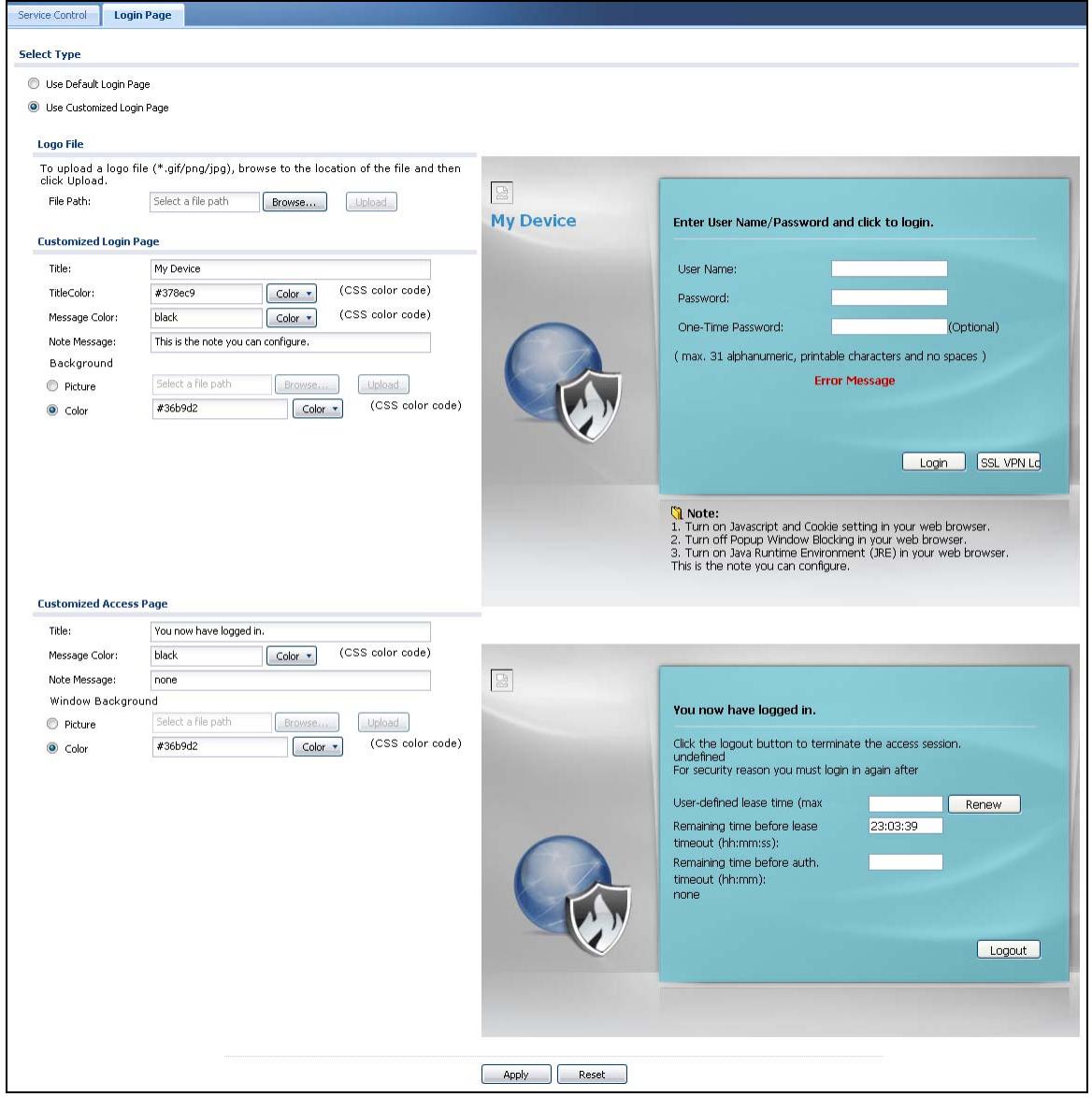
Figure 380 Configuration > System > WWW > Login Page
The following figures identify the parts you can customize in the login and access pages.
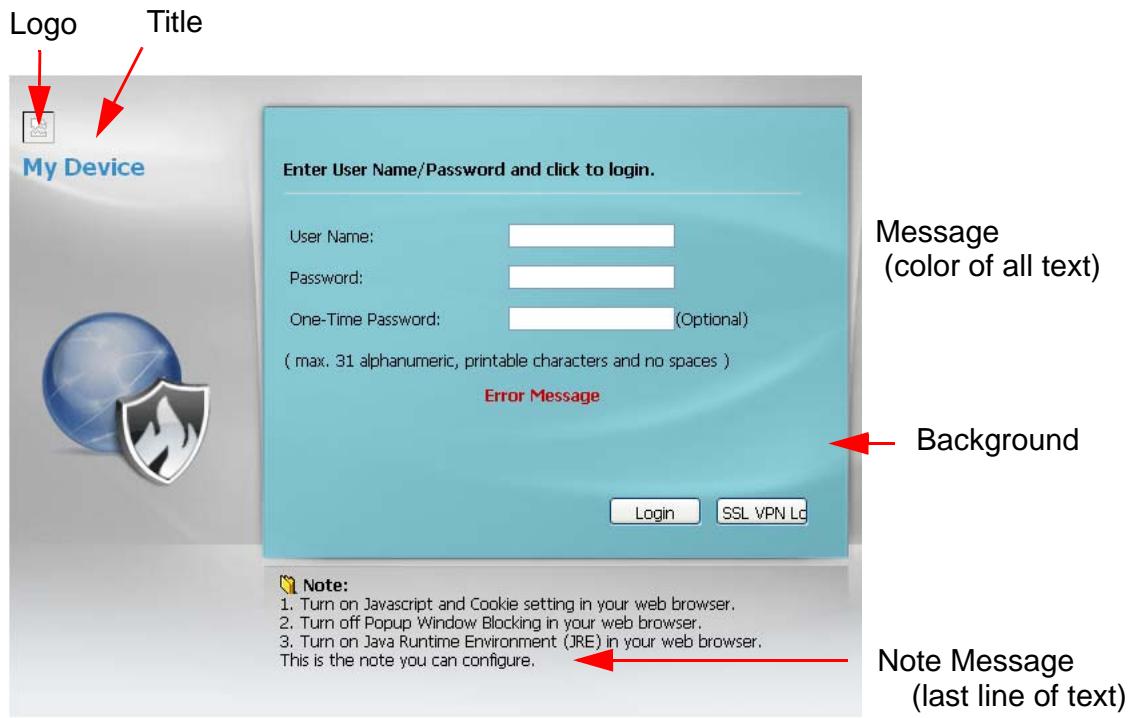
Figure 381 Login Page Customization
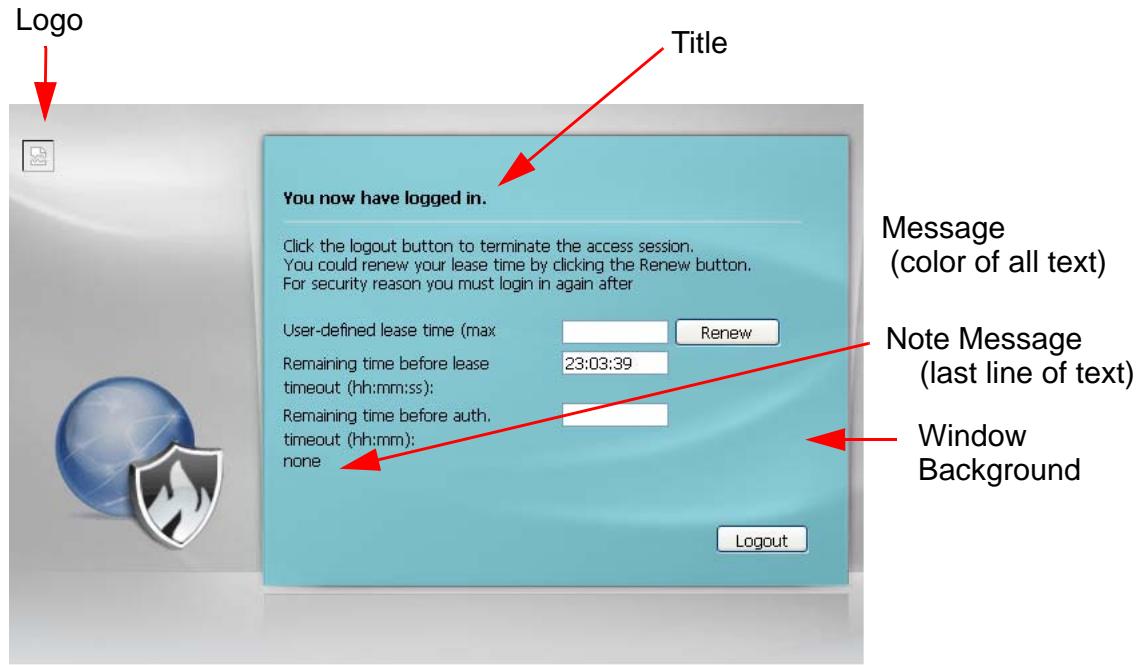
Figure 382 Access Page Customization
You can specify colors in one of the following ways:
- Click Color to display a screen of web-safe colors from which to choose.
- Enter the name of the desired color.
- Enter a pound sign (#) followed by the six-digit hexadecimal number that represents the desired color. For example, use "#000000" for black.
- Enter "rgb" followed by red, green, and blue values in parenthesis and separate by commas. For example, use "rgb(0,0,0)" for black.
Your desired color should display in the preview screen on the right after you click in another field, click Apply, or press [ENTER]. If your desired color does not display, your browser may not support it. Try selecting another color.
The following table describes the labels in the screen.
Table 202 Configuration > System > WWW > Login Page
| LABEL | DESCRIPTION |
| Select Type | Select whether the Web Configurator uses the default login screen or one that you customize in the rest of this screen. |
| Logo File | You can upload a graphic logo to be displayed on the upper left corner of the Web Configurator login screen and access page.Specify the location and file name of the logo graphic or click Browse to locate it.Note: Use a GIF, JPG, or PNG of 100 kilobytes or less.Click Upload to transfer the specified graphic file from your computer to the ZyWALL. |
| Customized Login Page | Use this section to set how the Web Configurator login screen looks. |
| Title | Enter the title for the top of the screen. Use up to 64 printable ASCII characters. Spaces are allowed. |
| Title Color | Specify the color of the screen's title text. |
| Message Color | Specify the color of the screen's text. |
| Note Message | Enter a note to display at the bottom of the screen. Use up to 64 printable ASCII characters. Spaces are allowed. |
| Background | Set how the screen background looks.To use a graphic, select Picture and upload a graphic. Specify the location and file name of the logo graphic or click Browse to locate it.Note: Use a GIF, JPG, or PNG of 100 kilobytes or less.To use a color, select Color and specify the color. |
| Customized Access Page | Use this section to customize the page that displays after an access user logs into the Web Configurator to access network services like the Internet. |
| Title | Enter the title for the top of the screen. Use up to 64 printable ASCII characters. Spaces are allowed. |
| Message Color | Specify the color of the screen's text. |
Table 202 Configuration > System > WWW > Login Page
| LABEL | DESCRIPTION |
| Note Message | Enter a note to display below the title. Use up to 64 printable ASCII characters. Spaces are allowed. |
| Window Background | Set how the window's background looks. To use a graphic, select Picture and upload a graphic. Specify the location and file name of the logo graphic or click Browse to locate it. Note: Use a GIF, JPG, or PNG of 100 kilobytes or less. To use a color, select Color and specify the color. |
| Apply | Click Apply to save your changes back to the ZyWALL. |
| Reset | Click Reset to return the screen to its last-saved settings. |
43.7.7 HTTPS Example
If you haven't changed the default HTTPS port on the ZyWALL, then in your browser enter "https://ZyWALL IP Address/" as the web site address where "ZyWALL IP Address" is the IP address or domain name of the ZyWALL you wish to access.
43.7.7.1 Internet Explorer Warning Messages
When you attempt to access the ZyWALL HTTPS server, a Windows dialog box pops up asking if you trust the server certificate. Click View Certificate if you want to verify that the certificate is from the ZyWALL.
You see the following Security Alert screen in Internet Explorer. Select Yes to proceed to the Web Configurator login screen; if you select No, then Web Configurator access is blocked.
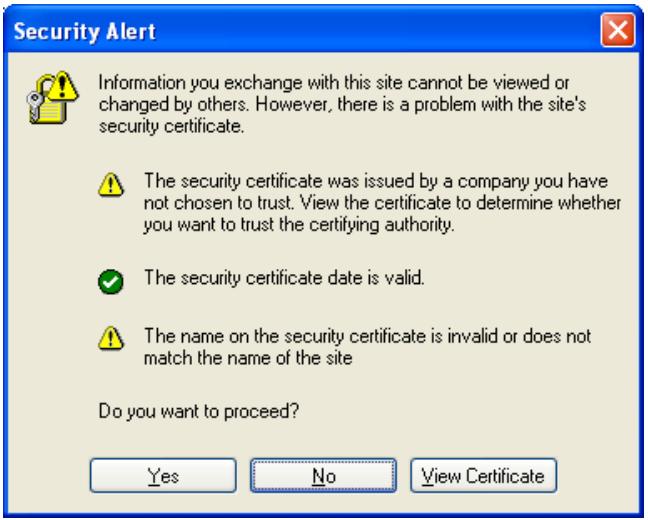
Figure 383 Security Alert Dialog Box (Internet Explorer)
43.7.7.2 Netscape Navigator Warning Messages
When you attempt to access the ZyWALL HTTPS server, a Website Certified by an Unknown Authority screen pops up asking if you trust the server certificate. Click Examine Certificate if you want to verify that the certificate is from the ZyWALL.
If Accept this certificate temporarily for this session is selected, then click OK to continue in Netscape.
Select Accept this certificate permanently to import the ZyWALL's certificate into the SSL client.
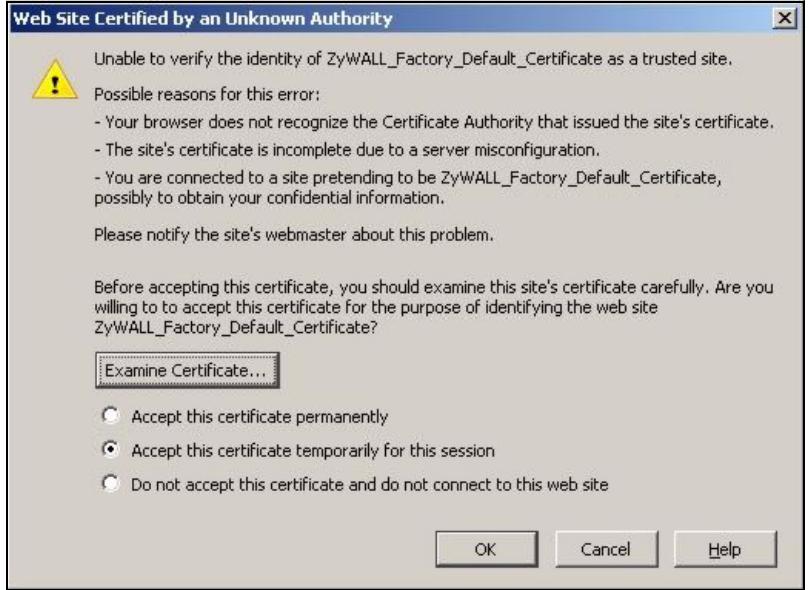
Figure 384 Security Certificate 1 (Netscape)
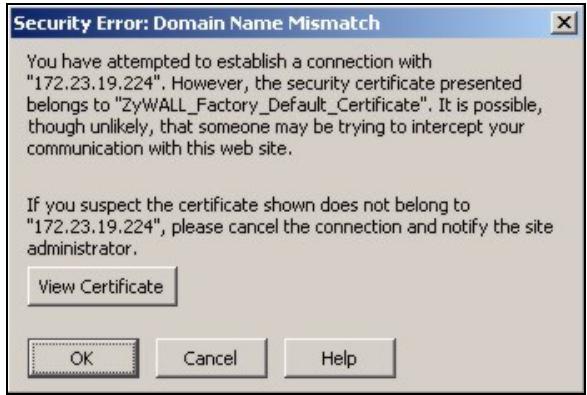
Figure 385 Security Certificate 2 (Netscape)
43.7.7.3 Avoiding Browser Warning Messages
Here are the main reasons your browser displays warnings about the ZyWALL's HTTPS server certificate and what you can do to avoid seeing the warnings:
- The issuing certificate authority of the ZyWALL's HTTPS server certificate is not one of the browser's trusted certificate authorities. The issuing certificate authority of the ZyWALL's factory default certificate is the ZyWALL itself since the certificate is a self-signed certificate.
- For the browser to trust a self-signed certificate, import the self-signed certificate into your operating system as a trusted certificate.
- To have the browser trust the certificates issued by a certificate authority, import the certificate authority's certificate into your operating system as a trusted certificate. Refer to Appendix D on page 819 for details.
43.7.7.4 Login Screen
After you accept the certificate, the ZyWALL login screen appears. The lock displayed in the bottom of the browser status bar denotes a secure connection.
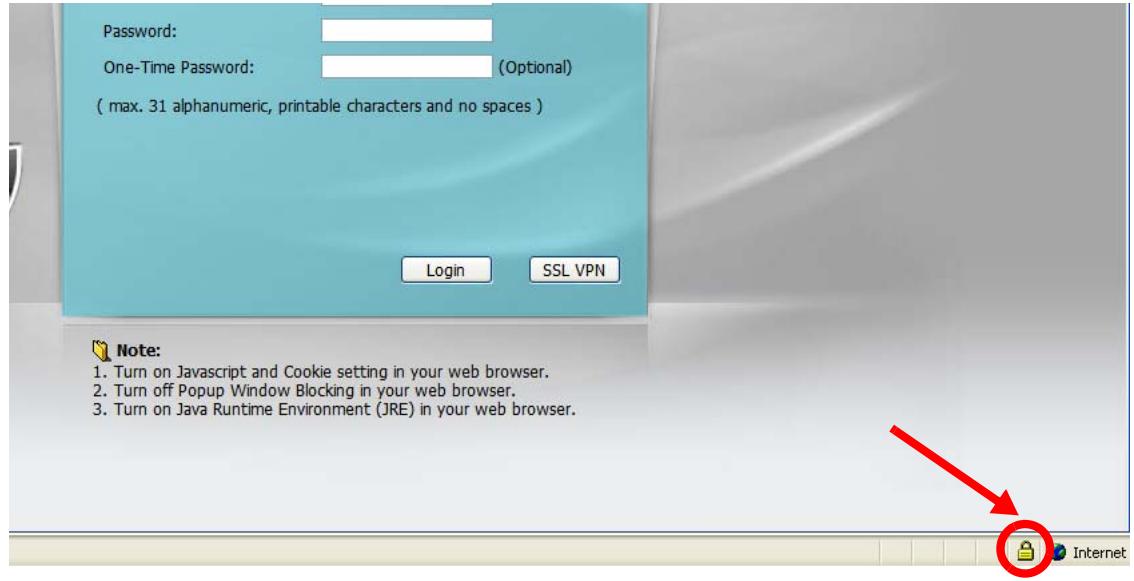
Figure 386 Login Screen (Internet Explorer)
43.7.7.5 Enrolling and Importing SSL Client Certificates
The SSL client needs a certificate if Authenticate Client Certificates is selected on the ZyWALL.
You must have imported at least one trusted CA to the ZyWALL in order for the Authenticate Client Certificates to be active (see the Certificates chapter for details).
Apply for a certificate from a Certification Authority (CA) that is trusted by the ZyWALL (see the ZyWALL's Trusted CA Web Configurator screen).
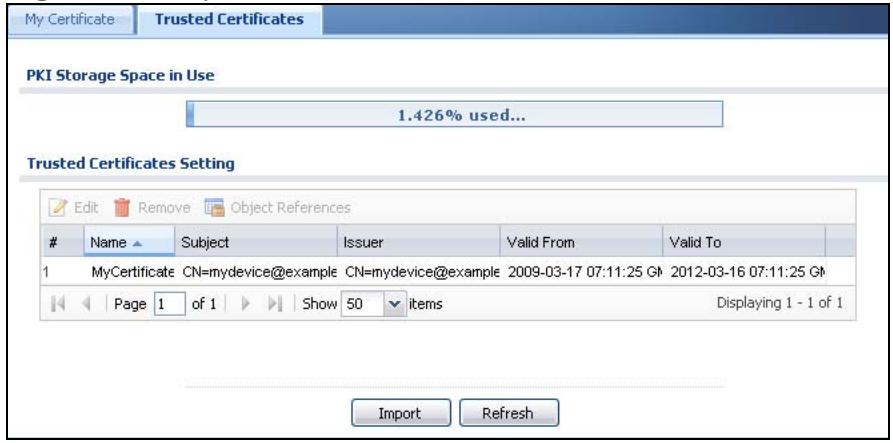
Figure 387 ZyWALL Trusted CA Screen
The CA sends you a package containing the CA's trusted certificate(s), your personal certificate(s) and a password to install the personal certificate(s).
43.7.7.5.1 Installing the CA's Certificate
1 Double click the CA's trusted certificate to produce a screen similar to the one shown next.
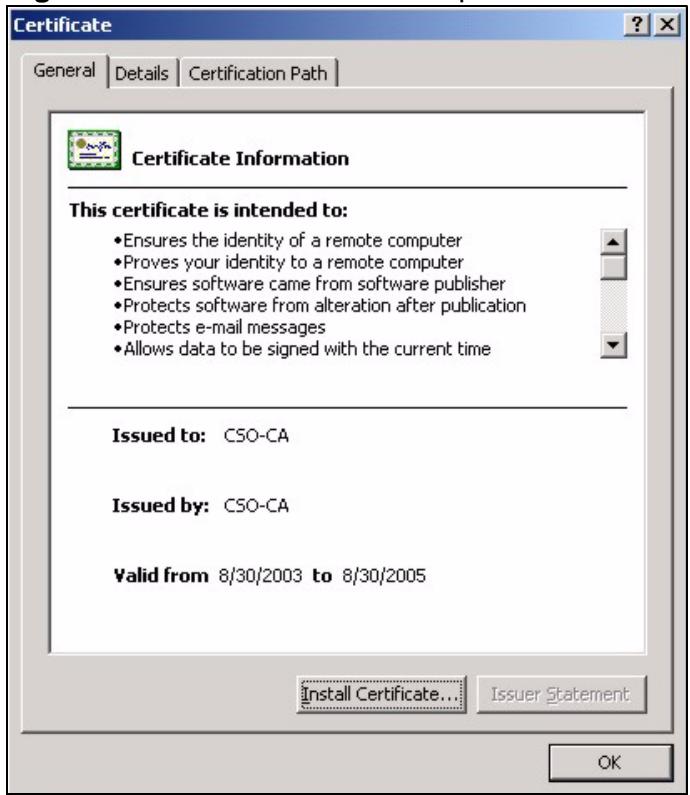
Figure 388 CA Certificate Example
2 Click Install Certificate and follow the wizard as shown earlier in this appendix.
43.7.7.5.2 Installing Your Personal Certificate(s)
You need a password in advance. The CA may issue the password or you may have to specify it during the enrollment. Double-click the personal certificate given to you by the CA to produce a screen similar to the one shown next
1 Click Next to begin the wizard.
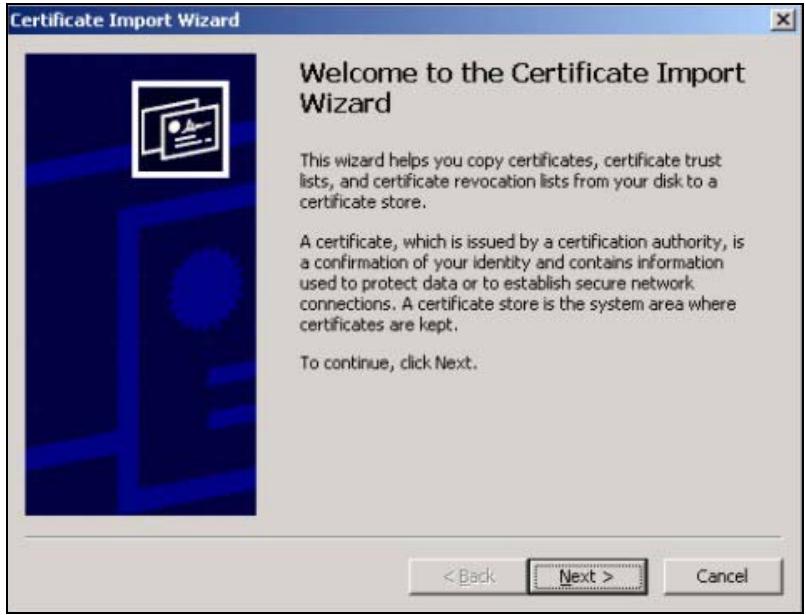
Figure 389 Personal Certificate Import Wizard 1
2 The file name and path of the certificate you double-clicked should automatically appear in the File name text box. Click Browse if you wish to import a different certificate.
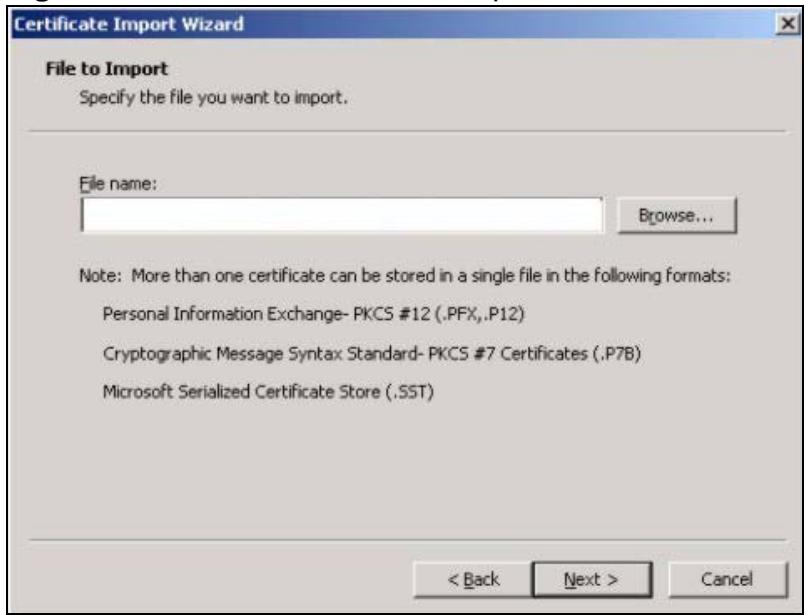
Figure 390 Personal Certificate Import Wizard 2
3 Enter the password given to you by the CA.
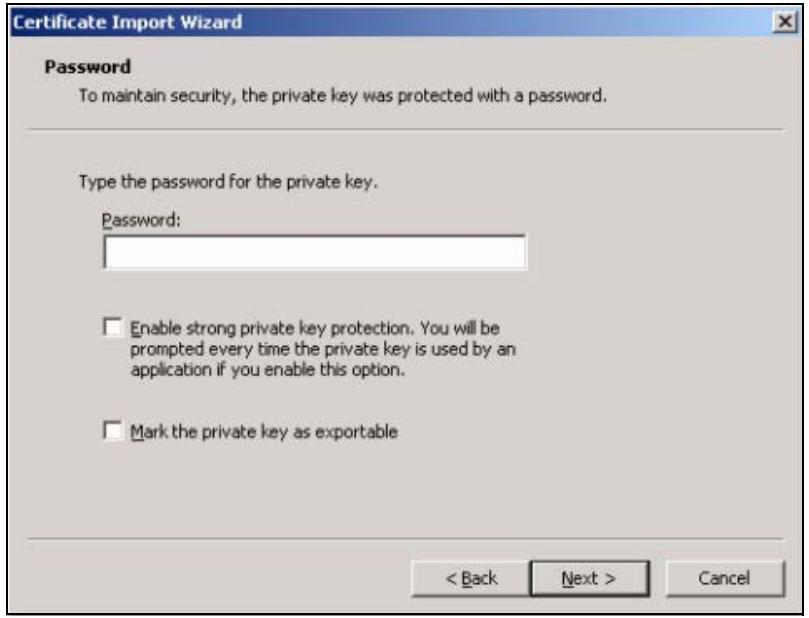
Figure 391 Personal Certificate Import Wizard 3
4 Have the wizard determine where the certificate should be saved on your computer or select Place all certificates in the following store and choose a different location.
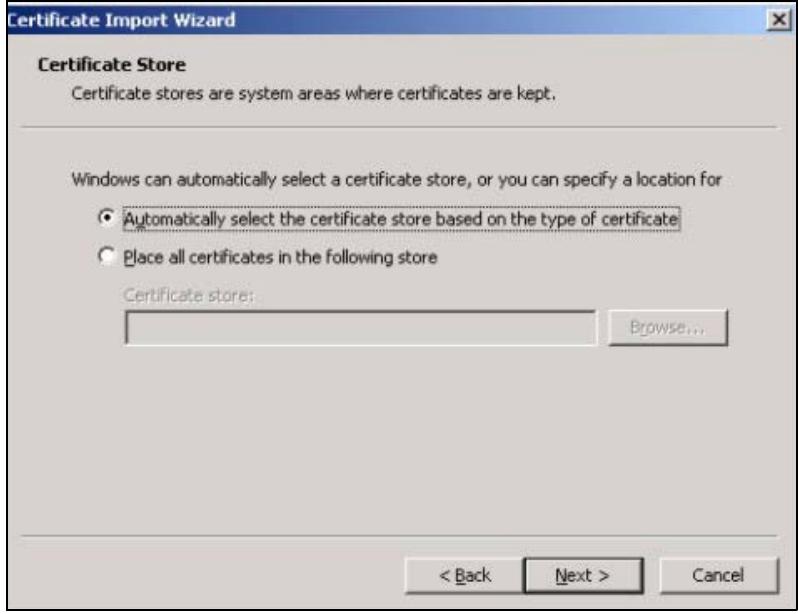
Figure 392 Personal Certificate Import Wizard 4
5 Click Finish to complete the wizard and begin the import process.
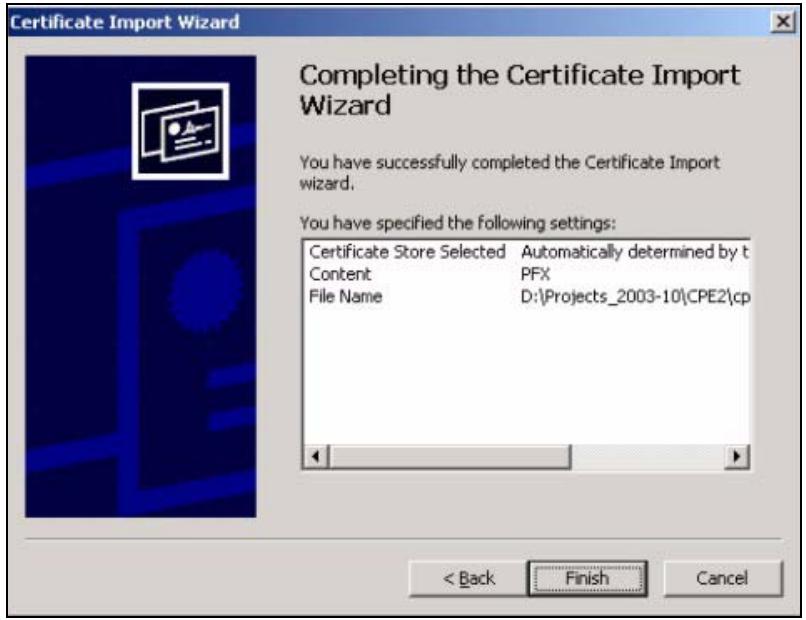
Figure 393 Personal Certificate Import Wizard 5
6 You should see the following screen when the certificate is correctly installed on your computer.
Figure 394 Personal Certificate Import Wizard 6
43.7.7.6 Using a Certificate When Accessing the ZyWALL Example
Use the following procedure to access the ZyWALL via HTTPS.
1 Enter 'https://ZyWALL IP Address/ in your browser's web address field.

Figure 395 Access the ZyWALL Via HTTPS
2 When Authenticate Client Certificates is selected on the ZyWALL, the following screen asks you to select a personal certificate to send to the ZyWALL. This screen displays even if you only have a single certificate as in the example.
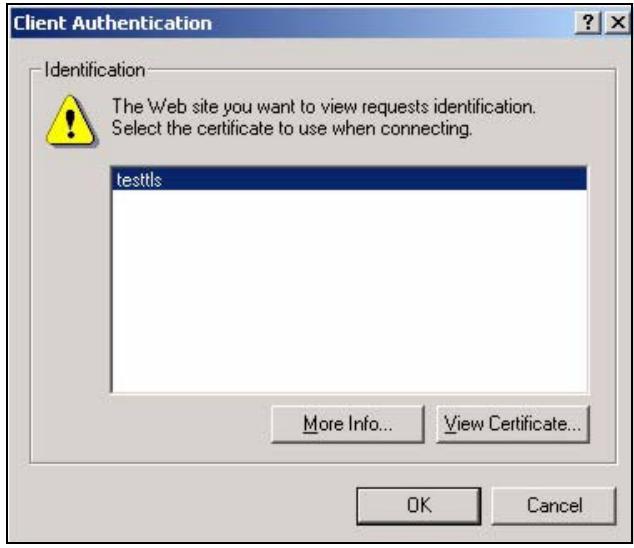
Figure 396 SSL Client Authentication
3 You next see the Web Configurator login screen.
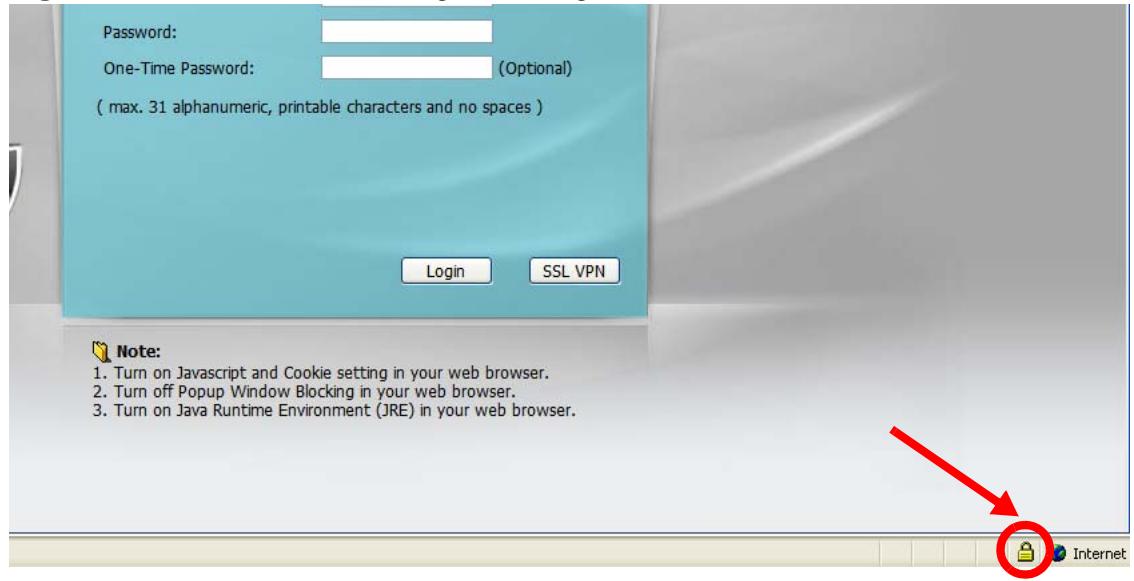
Figure 397 Secure Web Configurator Login Screen
43.8 SSH
You can use SSH (Secure SSH) to securely access the ZyWALL's command line interface. Specify which zones allow SSH access and from which IP address the access can come.
SSH is a secure communication protocol that combines authentication and data encryption to provide secure encrypted communication between two hosts over an unsecured network. In the following figure, computer A on the Internet uses SSH to securely connect to the WAN port of the ZyWALL for a management session.

Figure 398 SSH Communication Over the WAN Example
43.8.1 How SSH Works
The following figure is an example of how a secure connection is established between two remote hosts using SSH v1.
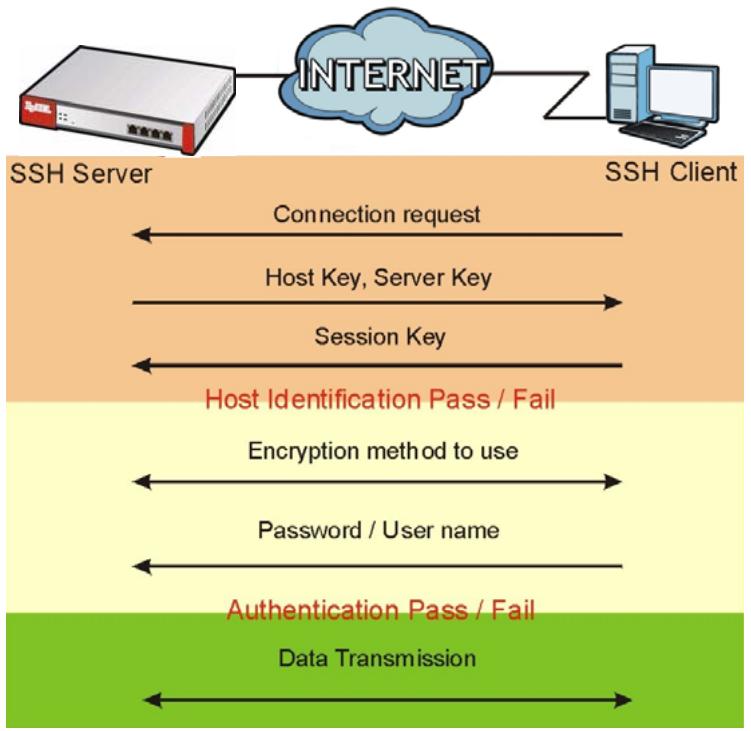
Figure 399 How SSH v1 Works Example
1 Host Identification
The SSH client sends a connection request to the SSH server. The server identifies itself with a host key. The client encrypts a randomly generated session key with the host key and server key and sends the result back to the server.
The client automatically saves any new server public keys. In subsequent connections, the server public key is checked against the saved version on the client computer.
2 Encryption Method
Once the identification is verified, both the client and server must agree on the type of encryption method to use.
3 Authentication and Data Transmission
After the identification is verified and data encryption activated, a secure tunnel is established between the client and the server. The client then sends its authentication information (user name and password) to the server to log in to the server.
43.8.2 SSH Implementation on the ZyWALL
Your ZyWALL supports SSH versions 1 and 2 using RSA authentication and four encryption methods (AES, 3DES, Archfour, and Blowfish). The SSH server is implemented on the ZyWALL for management using port 22 (by default).
43.8.3 Requirements for Using SSH
You must install an SSH client program on a client computer (Windows or Linux operating system) that is used to connect to the ZyWALL over SSH.
43.8.4 Configuring SSH
Click Configuration > System > SSH to change your ZyWALL's Secure Shell settings. Use this screen to specify from which zones SSH can be used to manage the ZyWALL. You can also specify from which IP addresses the access can come.
Note: It is recommended that you disable Telnet and FTP when you configure SSH for secure connections.
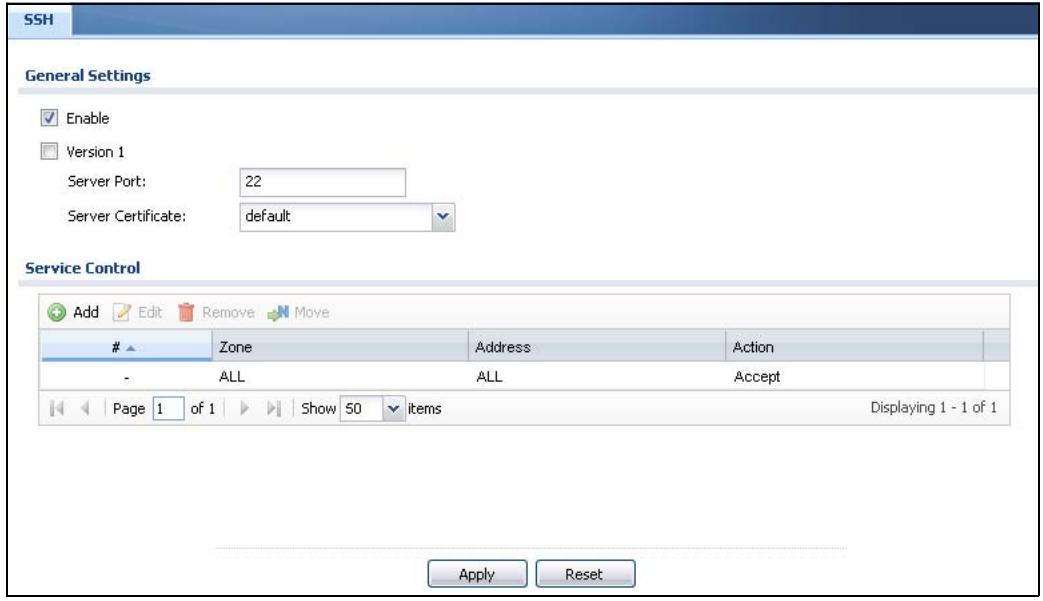
Figure 400 Configuration > System > SSH
The following table describes the labels in this screen.
Table 203 Configuration > System > SSH
| LABEL | DESCRIPTION |
| Enable | Select the check box to allow or disallow the computer with the IP address that matches the IP address(es) in the Service Control table to access the ZyWALL CLI using this service. |
| Version 1 | Select the check box to have the ZyWALL use both SSH version 1 and version 2 protocols. If you clear the check box, the ZyWALL uses only SSH version 2 protocol. |
| Server Port | You may change the server port number for a service if needed, however you must use the same port number in order to use that service for remote management. |
| Server Certificate | Select the certificate whose corresponding private key is to be used to identify the ZyWALL for SSH connections. You must have certificates already configured in the My Certificates screen (Click My Certificates and see Chapter 39 on page 589 for details). |
| Service Control | This specifies from which computers you can access which ZyWALL zones. |
| Add | Click this to create a new entry. Select an entry and click Add to create a new entry after the selected entry. Refer to Table 201 on page 650 for details on the screen that opens. |
| Edit | Double-click an entry or select it and click Edit to be able to modify the entry's settings. |
| Remove | To remove an entry, select it and click Remove. The ZyWALL confirms you want to remove it before doing so. Note that subsequent entries move up by one when you take this action. |
| Move | To change an entry's position in the numbered list, select the method and click Move to display a field to type a number for where you want to put it and press [ENTER] to move the rule to the number that you typed. |
| # | This the index number of the service control rule. |
| Zone | This is the zone on the ZyWALL the user is allowed or denied to access. |
| Address | This is the object name of the IP address(es) with which the computer is allowed or denied to access. |
| Action | This displays whether the computer with the IP address specified above can access the ZyWALL zone(s) configured in the Zone field (Accept) or not (Deny). |
| Apply | Click Apply to save your changes back to the ZyWALL. |
| Reset | Click Reset to return the screen to its last-saved settings. |
43.8.5 Secure Telnet Using SSH Examples
This section shows two examples using a command interface and a graphical interface SSH client program to remotely access the ZyWALL. The configuration and connection steps are similar for most SSH client programs. Refer to your SSH client program user's guide.
43.8.5.1 Example 1: Microsoft Windows
This section describes how to access the ZyWALL using the Secure Shell Client program.
1 Launch the SSH client and specify the connection information (IP address, port number) for the ZyWALL.
2 Configure the SSH client to accept connection using SSH version 1.
3 A window displays prompting you to store the host key in you computer. Click Yes to continue.
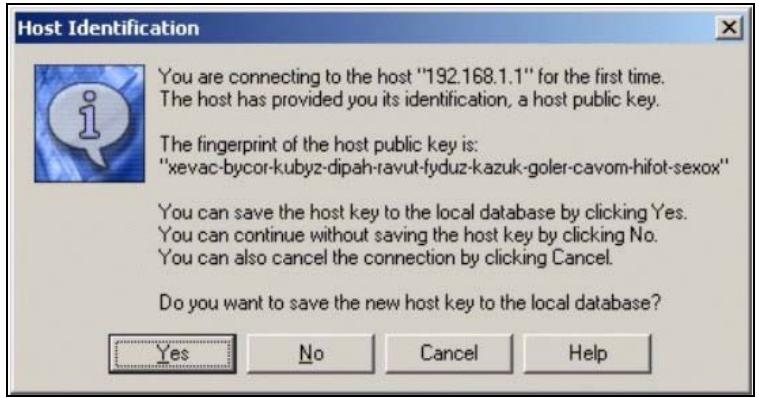
Figure 401 SSH Example 1: Store Host Key
Enter the password to log in to the ZyWALL. The CLI screen displays next.
43.8.5.2 Example 2: Linux
This section describes how to access the ZyWALL using the OpenSSH client program that comes with most Linux distributions.
1 Test whether the SSH service is available on the ZyWALL.
Enter "telnet 192.168.1.1 22" at a terminal prompt and press [ENTER]. The computer attempts to connect to port 22 on the ZyWALL (using the default IP address of 192.168.1.1).
A message displays indicating the SSH protocol version supported by the ZyWALL.
Figure 402 SSH Example 2: Test
$ telnet 192.168.1.1 22
Trying 192.168.1.1...
Connected to 192.168.1.1.
Escape character is '^」'.
SSH-1.5-1.0.0
2 Enter "ssh -1 192.168.1.1". This command forces your computer to connect to the ZyWALL using SSH version 1. If this is the first time you are connecting to the ZyWALL using SSH, a message displays prompting you to save the host information of the ZyWALL. Type "yes" and press [ENTER].
Then enter the password to log in to the ZyWALL.
Figure 403 SSH Example 2: Log in
$ ssh -1 192.168.1.1
The authenticity of host '192.168.1.1' (192.168.1.1)' can't be established.
RSA1 key fingerprint is 21:6c:07:25:7e:f4:75:80:ec:af:bd:d4:3d:80:53:d1.
Are you sure you want to continue connecting (yes/no)? yes
Warning: Permanently added '192.168.1.1' (RSA1) to the list of known hosts.
Administrator@192.168.1.1's password:
3 The CLI screen displays next.
43.9 Telnet
You can use Telnet to access the ZyWALL's command line interface. Specify which zones allow Telnet access and from which IP address the access can come.
43.9.1 Configuring Telnet
Click Configuration > System > TELNET to configure your ZyWALL for remote Telnet access. Use this screen to specify from which zones Telnet can be used to manage the ZyWALL. You can also specify from which IP addresses the access can come.
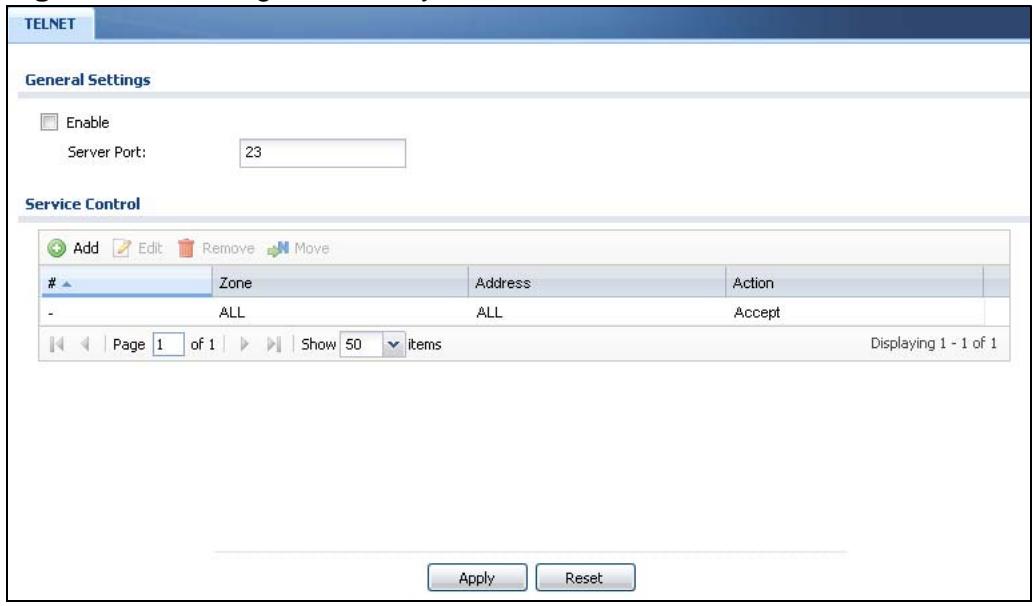
Figure 404 Configuration > System > TELNET
The following table describes the labels in this screen.
Table 204 Configuration > System > TELNET
| LABEL | DESCRIPTION |
| Enable | Select the check box to allow or disallow the computer with the IP address that matches the IP address(es) in the Service Control table to access the ZyWALL CLI using this service. |
| Server Port | You may change the server port number for a service if needed, however you must use the same port number in order to use that service for remote management. |
| Service Control | This specifies from which computers you can access which ZyWALL zones. |
| Add | Click this to create a new entry. Select an entry and click Add to create a new entry after the selected entry. Refer to Table 201 on page 650 for details on the screen that opens. |
| Edit | Double-click an entry or select it and click Edit to be able to modify the entry's settings. |
| Remove | To remove an entry, select it and click Remove. The ZyWALL confirms you want to remove it before doing so. Note that subsequent entries move up by one when you take this action. |
| Move | To change an entry's position in the numbered list, select the method and click Move to display a field to type a number for where you want to put it and press [ENTER] to move the rule to the number that you typed. |
| # | This the index number of the service control rule.The entry with a hyphen (-) instead of a number is the ZyWALL's (non-configurable) default policy. The ZyWALL applies this to traffic that does not match any other configured rule. It is not an editable rule. To apply other behavior, configure a rule that traffic will match so the ZyWALL will not have to use the default policy. |
| Zone | This is the zone on the ZyWALL the user is allowed or denied to access. |
| Address | This is the object name of the IP address(es) with which the computer is allowed or denied to access. |
| Action | This displays whether the computer with the IP address specified above can access the ZyWALL zone(s) configured in the Zone field (Accept) or not (Deny). |
| Apply | Click Apply to save your changes back to the ZyWALL. |
| Reset | Click Reset to return the screen to its last-saved settings. |
43.10 FTP
You can upload and download the ZyWALL's firmware and configuration files using FTP. To use this feature, your computer must have an FTP client. Please see Chapter 45 on page 693 for more information about firmware and configuration files.
43.10.1 Configuring FTP
To change your ZyWALL's FTP settings, click Configuration > System > FTP tab. The screen appears as shown. Use this screen to specify from which zones FTP can
be used to access the ZyWALL. You can also specify from which IP addresses the access can come.
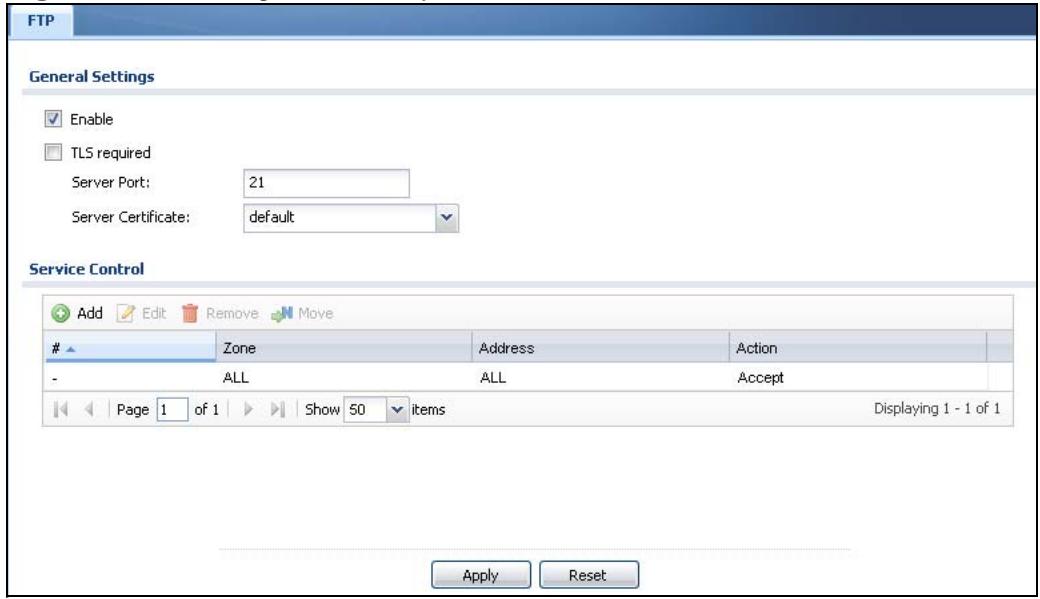
Figure 405 Configuration > System > FTP
The following table describes the labels in this screen.
Table 205 Configuration > System > FTP
| LABEL | DESCRIPTION |
| Enable | Select the check box to allow or disallow the computer with the IP address that matches the IP address(es) in the Service Control table to access the ZyWALL using this service. |
| TLS required | Select the check box to use FTP over TLS (Transport Layer Security) to encrypt communication. This implements TLS as a security mechanism to secure FTP clients and/or servers. |
| Server Port | You may change the server port number for a service if needed, however you must use the same port number in order to use that service for remote management. |
| Server Certificate | Select the certificate whose corresponding private key is to be used to identify the ZyWALL for FTP connections. You must have certificates already configured in the My Certificates screen (Click My Certificates and see Chapter 39 on page 589 for details). |
| Service Control | This specifies from which computers you can access which ZyWALL zones. |
| Add | Click this to create a new entry. Select an entry and click Add to create a new entry after the selected entry. Refer to Table 201 on page 650 for details on the screen that opens. |
| Edit | Double-click an entry or select it and click Edit to be able to modify the entry's settings. |
| Remove | To remove an entry, select it and click Remove. The ZyWALL confirms you want to remove it before doing so. Note that subsequent entries move up by one when you take this action. |
| Move | To change an entry's position in the numbered list, select the method and click Move to display a field to type a number for where you want to put it and press [ENTER] to move the rule to the number that you typed. |
| # | This the index number of the service control rule.The entry with a hyphen (-) instead of a number is the ZyWALL's (non-configurable) default policy. The ZyWALL applies this to traffic that does not match any other configured rule. It is not an editable rule. To apply other behavior, configure a rule that traffic will match so the ZyWALL will not have to use the default policy. |
| Zone | This is the zone on the ZyWALL the user is allowed or denied to access. |
| Address | This is the object name of the IP address(es) with which the computer is allowed or denied to access. |
| Action | This displays whether the computer with the IP address specified above can access the ZyWALL zone(s) configured in the Zone field (Accept) or not (Deny). |
| Apply | Click Apply to save your changes back to the ZyWALL. |
| Reset | Click Reset to return the screen to its last-saved settings. |
43.11 SNMP
Simple Network Management Protocol is a protocol used for exchanging management information between network devices. Your ZyWALL supports SNMP agent functionality, which allows a manager station to manage and monitor the ZyWALL through the network. The ZyWALL supports SNMP version one (SNMPv1)
and version two (SNMPv2c). The next figure illustrates an SNMP management operation.
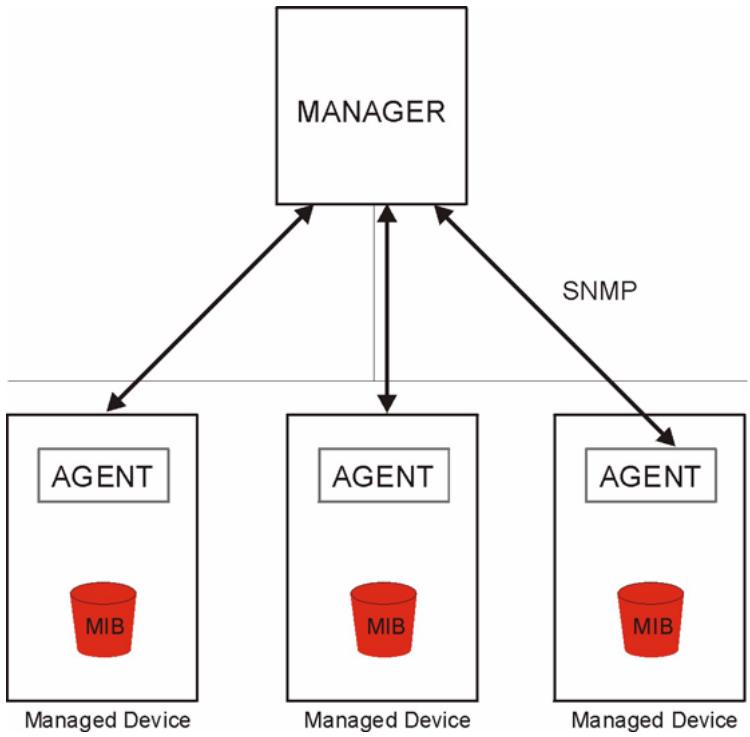
Figure 406 SNMP Management Model
An SNMP managed network consists of two main types of component: agents and a manager.
An agent is a management software module that resides in a managed device (the ZyWALL). An agent translates the local management information from the managed device into a form compatible with SNMP. The manager is the console through which network administrators perform network management functions. It executes applications that control and monitor managed devices.
The managed devices contain object variables/managed objects that define each piece of information to be collected about a device. Examples of variables include such as number of packets received, node port status etc. A Management Information Base (MIB) is a collection of managed objects. SNMP allows a manager and agents to communicate for the purpose of accessing these objects.
SNMP itself is a simple request/response protocol based on the manager/agent model. The manager issues a request and the agent returns responses using the following protocol operations:
-
Get - Allows the manager to retrieve an object variable from the agent.
-
GetNext - Allows the manager to retrieve the next object variable from a table or list within an agent. In SNMPv1, when a manager wants to retrieve all elements of a table from an agent, it initiates a Get operation, followed by a series of GetNext operations.
- Set - Allows the manager to set values for object variables within an agent.
- Trap - Used by the agent to inform the manager of some events.
43.11.1 Supported MIBs
The ZyWALL supports MIB II that is defined in RFC-1213 and RFC-1215. The ZyWALL also supports private MIBs (zywall.mib and zyxel-zywall-ZLD-Common.mib) to collect information about CPU and memory usage and VPN total throughput. The focus of the MIBs is to let administrators collect statistical data and monitor status and performance. You can download the ZyWALL's MIBs from www.zyxel.com.
43.11.2 SNMP Traps
The ZyWALL will send traps to the SNMP manager when any one of the following events occurs.
Table 206 SNMP Traps
| OBJECT LABEL | OBJECT ID | DESCRIPTION |
| Cold Start | 1.3.6.1.6.3.1.1.5.1 | This trap is sent when the ZyWALL is turned on or an agent restarts. |
| linkDown | 1.3.6.1.6.3.1.1.5.3 | This trap is sent when the Ethernet link is down. |
| linkUp | 1.3.6.1.6.3.1.1.5.4 | This trap is sent when the Ethernet link is up. |
| authenticationFailure | 1.3.6.1.6.3.1.1.5.5 | This trap is sent when an SNMP request comes from non-authenticated hosts. |
43.11.3 Configuring SNMP
To change your ZyWALL's SNMP settings, click Configuration > System > SNMP tab. The screen appears as shown. Use this screen to configure your SNMP
settings, including from which zones SNMP can be used to access the ZyWALL. You can also specify from which IP addresses the access can come.
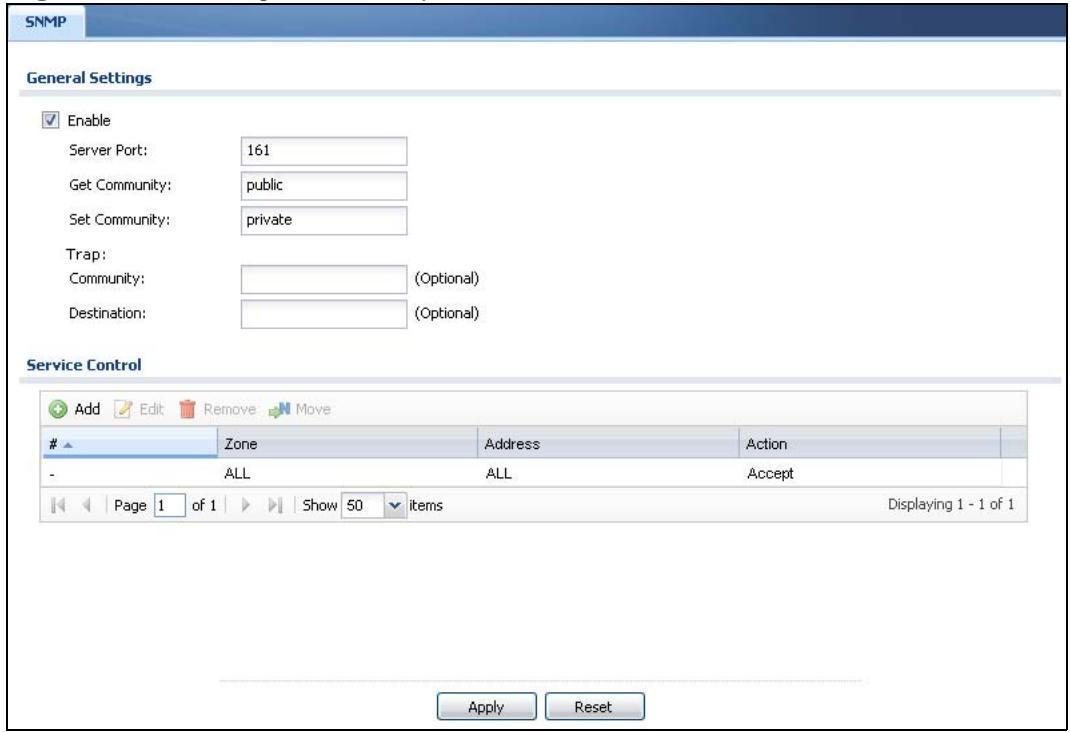
Figure 407 Configuration > System > SNMP
The following table describes the labels in this screen.
Table 207 Configuration > System > SNMP
| LABEL | DESCRIPTION |
| Enable | Select the check box to allow or disallow the computer with the IP address that matches the IP address(es) in the Service Control table to access the ZyWALL using this service. |
| Server Port | You may change the server port number for a service if needed, however you must use the same port number in order to use that service for remote management. |
| Get Community | Enter the Get Community, which is the password for the incoming Get and GetNext requests from the management station. The default is public and allows all requests. |
| Set Community | Enter the Set community, which is the password for incoming Set requests from the management station. The default is private and allows all requests. |
| Trap | |
| Community | Type the trap community, which is the password sent with each trap to the SNMP manager. The default is public and allows all requests. |
| Destination | Type the IP address of the station to send your SNMP traps to. |
| Service Control | This specifies from which computers you can access which ZyWALL zones. |
| Add | Click this to create a new entry. Select an entry and click Add to create a new entry after the selected entry. Refer to Table 201 on page 650 for details on the screen that opens. |
| Edit | Double-click an entry or select it and click Edit to be able to modify the entry's settings. |
| Remove | To remove an entry, select it and click Remove. The ZyWALL confirms you want to remove it before doing so. Note that subsequent entries move up by one when you take this action. |
| Move | To change an entry's position in the numbered list, select the method and click Move to display a field to type a number for where you want to put it and press [ENTER] to move the rule to the number that you typed. |
| # | This the index number of the service control rule. The entry with a hyphen (-) instead of a number is the ZyWALL's (non-configurable) default policy. The ZyWALL applies this to traffic that does not match any other configured rule. It is not an editable rule. To apply other behavior, configure a rule that traffic will match so the ZyWALL will not have to use the default policy. |
| Zone | This is the zone on the ZyWALL the user is allowed or denied to access. |
| Address | This is the object name of the IP address(es) with which the computer is allowed or denied to access. |
| Action | This displays whether the computer with the IP address specified above can access the ZyWALL zone(s) configured in the Zone field (Accept) or not (Deny). |
| Apply | Click Apply to save your changes back to the ZyWALL. |
| Reset | Click Reset to return the screen to its last-saved settings. |
43.12 Vantage CNM
Vantage CNM (Centralized Network Management) is a browser-based global management solution that allows an administrator from any location to easily configure, manage, monitor and troubleshoot ZyXEL devices located worldwide. See the Vantage CNM User's Guide for details.
If you allow your ZyWALL to be managed by the Vantage CNM server, then you should not do any configurations directly to the ZyWALL (using either the Web Configurator or commands) without notifying the Vantage CNM administrator.
43.12.1 Configuring Vantage CNM
Vantage CNM is disabled on the device by default. Click Configuration > System > Vantage CNM to configure your device's Vantage CNM settings.
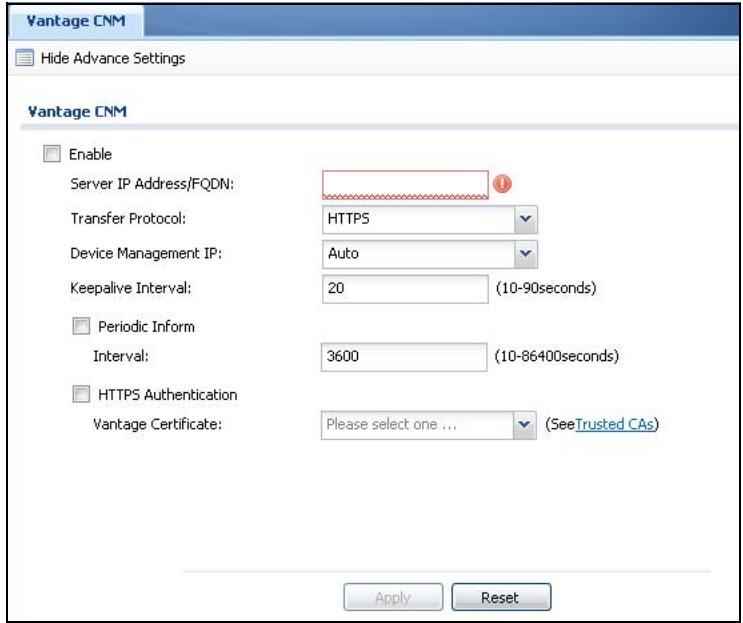
Figure 408 Configuration > System > Vantage CNM
The following table describes the labels in this screen.
Table 208 Configuration > System > Vantage CNM
| LABEL | DESCRIPTION |
| Show Advance Settings / Hide Advance Settings | Click this button to display a greater or lesser number of configuration fields. |
| Vantage CNM | Click Advanced to display more configuration fields or click Basic to display fewer fields. |
| Enable | Select this check box to allow Vantage CNM to manage your ZyWALL. |
| Server IP Address/FQDN | Enter the IP address or fully qualified domain name of the Vantage server. If the Vantage CNM server is on a different subnet to the ZyWALL and is behind a NAT router, enter the WAN IP address of the NAT router here and configure the NAT router to forward UDP port 11864 traffic to the Vantage CNM server. If the Vantage CNM server is behind a firewall, you may have to create a rule on the firewall to allow UDP port 11864 traffic through to the Vantage CNM server (most (new) ZyXEL firewalls automatically allow this). |
| Transfer Protocol | Select whether the Vantage CNM sessions should use regular HTTP connections or secure HTTPS connections. Note: HTTPS is recommended. The Vantage CNM server must use the same setting. |
| Device Management IP | Select Auto to have the ZyWALL allow Vantage CNM sessions to connect to any of the ZyWALL's IP addresses. Select Custom to specify the ZyWALL's IP address that allows Vantage CNM sessions. Configure the Custom IP field if you select this. You might for example need to specify the IP address when using a WAN trunk that uses multiple WAN IP addresses. |
| Custom IP | Specify the ZyWALL's IP address that allows Vantage CNM sessions. This field applies when you select Custom in the Device Management IP field. |
| Keepalive Interval | Set how often the ZyWALL sends a keep alive packet to the Vantage CNM server if there is no other traffic. The keep alive packets maintain the Vantage CNM server's control session. |
| Periodic Inform Interval | Select this option to have the ZyWALL periodically send "Inform" messages to the Vantage CNM server. |
| HTTPSAuthentication | When you are using HTTPS, select this option to have the ZyWALL authenticate the Vantage CNM server's certificate. In order to do this you need to import the Vantage CNM server's public key (certificate) into the ZyWALL's trusted certificates. |
| Vantage Certificate | Select the Vantage CNM server's certificate. This applies when you enable HTTPS authentication. |
| Apply | Click Apply to save your changes back to the ZyWALL. |
| Reset | Click Reset to return the screen to its last-saved settings. |
43.13 Language Screen
Click Configuration > System > Language to open the following screen. Use this screen to select a display language for the ZyWALL's Web Configurator screens.
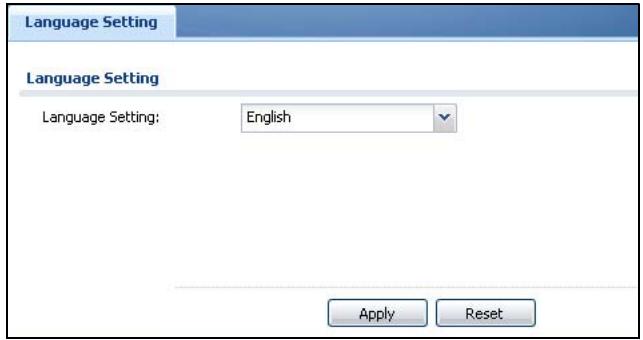
Figure 409 Configuration > System > Language
The following table describes the labels in this screen.
Table 209 Configuration > System > Language
| LABEL | DESCRIPTION |
| Language Setting | Select a display language for the ZyWALL's Web Configurator screens. You also need to open a new browsersession to display the screens in the new language. |
| Apply | Click Apply to save your changes back to the ZyWALL. |
| Reset | Click Reset to return the screen to its last-saved settings. |
Log and Report
44.1 Overview
Use these screens to configure daily reporting and log settings.
44.1.1 What You Can Do In this Chapter
- Use the Email Daily Report screen (Section 44.2 on page 679) to configure where and how to send daily reports and what reports to send.
- Use the Maintenance > Log Setting screens (Section 44.3 on page 681) to specify which log messages are e-mailed, where they are e-mailed, and how often they are e-mailed.
44.2 Email Daily Report
Use the Email Daily Report screen to start or stop data collection and view various statistics about traffic passing through your ZyWALL.
Note: Data collection may decrease the ZyWALL's traffic throughput rate.
Click Configuration > Log & Report > Email Daily Report to display the following screen. Configure this screen to have the ZyWALL e-mail you system statistics every day.
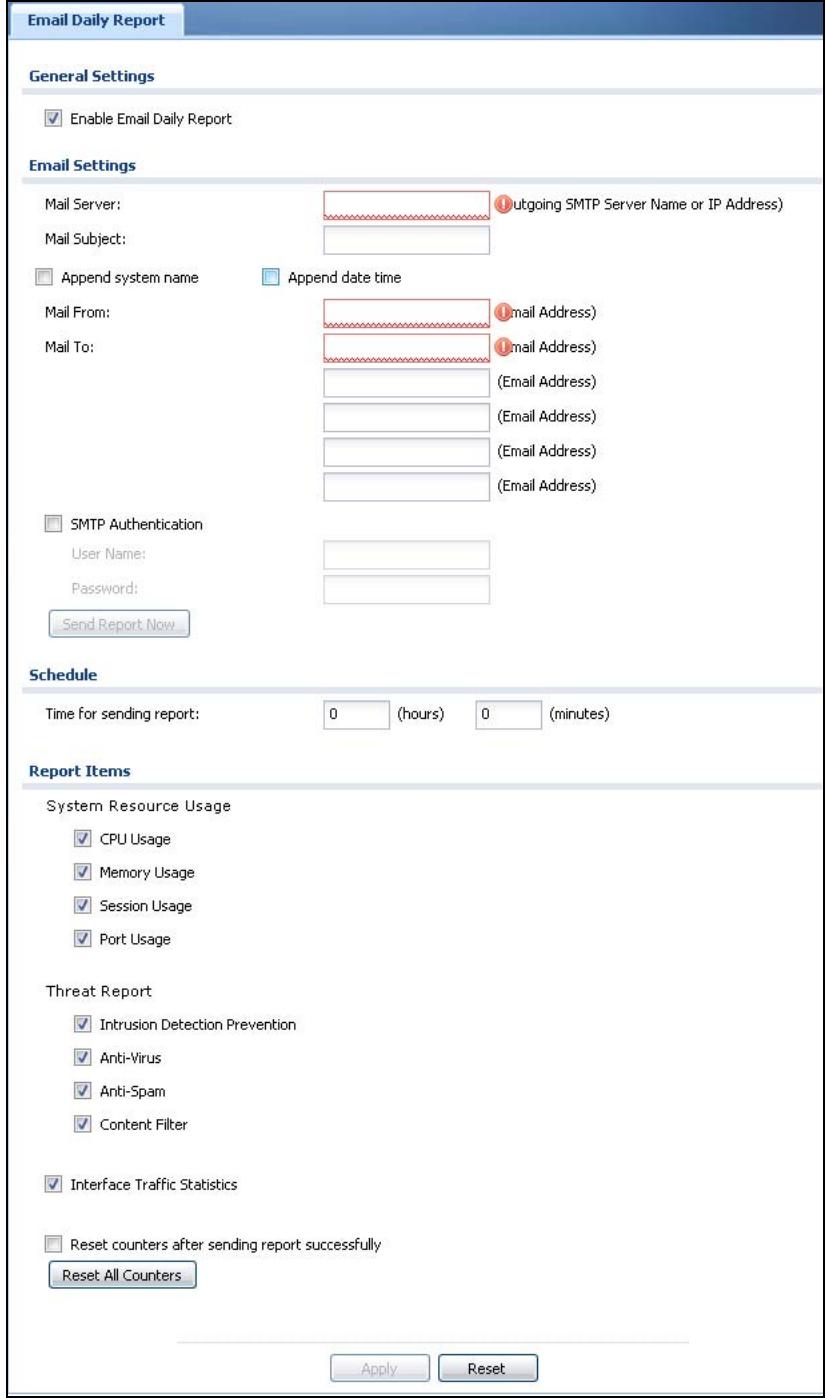
Figure 410 Configuration > Log & Report > Email Daily Report
The following table describes the labels in this screen.
Table 210 Configuration > Log & Report > Email Daily Report
| LABEL | DESCRIPTION |
| Enable Email Daily Report | Select this to send reports by e-mail every day. |
| Mail Server | Type the name or IP address of the outgoing SMTP server. |
| Mail Subject | Type the subject line for the outgoing e-mail. Select Append system name to add the ZyWALL's system name to the subject. Select Append date time to add the ZyWALL's system date and time to the subject. |
| Mail From | Type the e-mail address from which the outgoing e-mail is delivered. This address is used in replies. |
| Mail To | Type the e-mail address (or addresses) to which the outgoing e-mail is delivered. |
| SMTPAuthentication | Select this check box if it is necessary to provide a user name and password to the SMTP server. |
| UserID | This box is effective when you select the SMTP Authentication check box. Type the user name to provide to the SMTP server when the log is e-mailed. |
| Password | This box is effective when you select the SMTP Authentication check box. Type the password to provide to the SMTP server when the log is e-mailed. |
| Send Report Now | Click this button to have the ZyWALL send the daily e-mail report immediately. |
| Time for sending report | Select the time of day (hours and minutes) when the log is e-mailed. Use 24-hour notation. |
| Report Items | Select the information to include in the report. Select Reset counters after sending report successfully if you only want to see statistics for a 24 hour period. |
| Reset All Counters | Click this to discard all report data and start all of the counters over at zero. |
| Apply | Click Apply to save your changes back to the ZyWALL. |
| Reset | Click Reset to return the screen to its last-saved settings. |
44.3 Log Setting Screens
The Log Setting screens control log messages and alerts. A log message stores the information for viewing (for example, in the View Log tab) or regular e-mailing later, and an alert is e-mailed immediately. Usually, alerts are used for events that require more serious attention, such as system errors and attacks.
The ZyWALL provides a system log and supports e-mail profiles and remote syslog servers. The system log is available on the View Log tab, the e-mail profiles are used to mail log messages to the specified destinations, and the other four logs are stored on specified syslog servers.
The Log Setting tab also controls what information is saved in each log. For the system log, you can also specify which log messages are e-mailed, where they are e-mailed, and how often they are e-mailed.
For alerts, the Log Settings tab controls which events generate alerts and where alerts are e-mailed.
The Log Settings Summary screen provides a summary of all the settings. You can use the Log Settings Edit screen to maintain the detailed settings (such as log categories, e-mail addresses, server names, etc.) for any log. Alternatively, if you want to edit what events is included in each log, you can also use the Active Log Summary screen to edit this information for all logs at the same time.
44.3.1 Log Setting Summary
To access this screen, click Configuration > Log & Report > Log Setting.
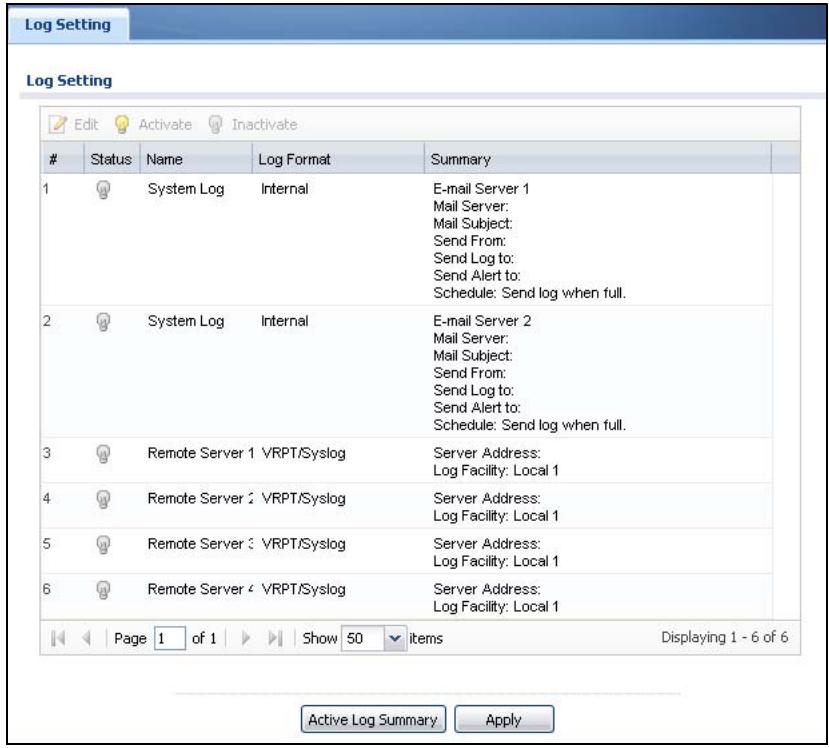
Figure 411 Configuration > Log & Report > Log Setting
The following table describes the labels in this screen.
Table 211 Configuration > Log & Report > Log Setting
| LABEL | DESCRIPTION |
| Edit | Double-click an entry or select it and click Edit to open a screen where you can modify the entry's settings. |
| Activate | To turn on an entry, select it and click Activate. |
| Inactivate | To turn off an entry, select it and click Inactivate. |
| # | This field is a sequential value, and it is not associated with a specific log. |
| Name | This field displays the name of the log (system log or one of the remote servers). |
| Log Format | This field displays the format of the log. Internal - system log; you can view the log on the View Log tab. VRPT/Syslog - ZyXEL's Vantage Report, syslog-compatible format. CEF/Syslog - Common Event Format, syslog-compatible format. |
| Summary | This field is a summary of the settings for each log. Please see Section 44.3.2 on page 683 for more information. |
| Active Log Summary | Click this button to open the Active Log Summary Edit screen. |
| Apply | Click this button to save your changes (activate and deactivate logs) and make them take effect. |
44.3.2 Edit System Log Settings
The Log Settings Edit screen controls the detailed settings for each log in the system log (which includes the e-mail profiles). Go to the Log Settings Summary screen (see Section 44.3.1 on page 682), and click the system log Edit icon.
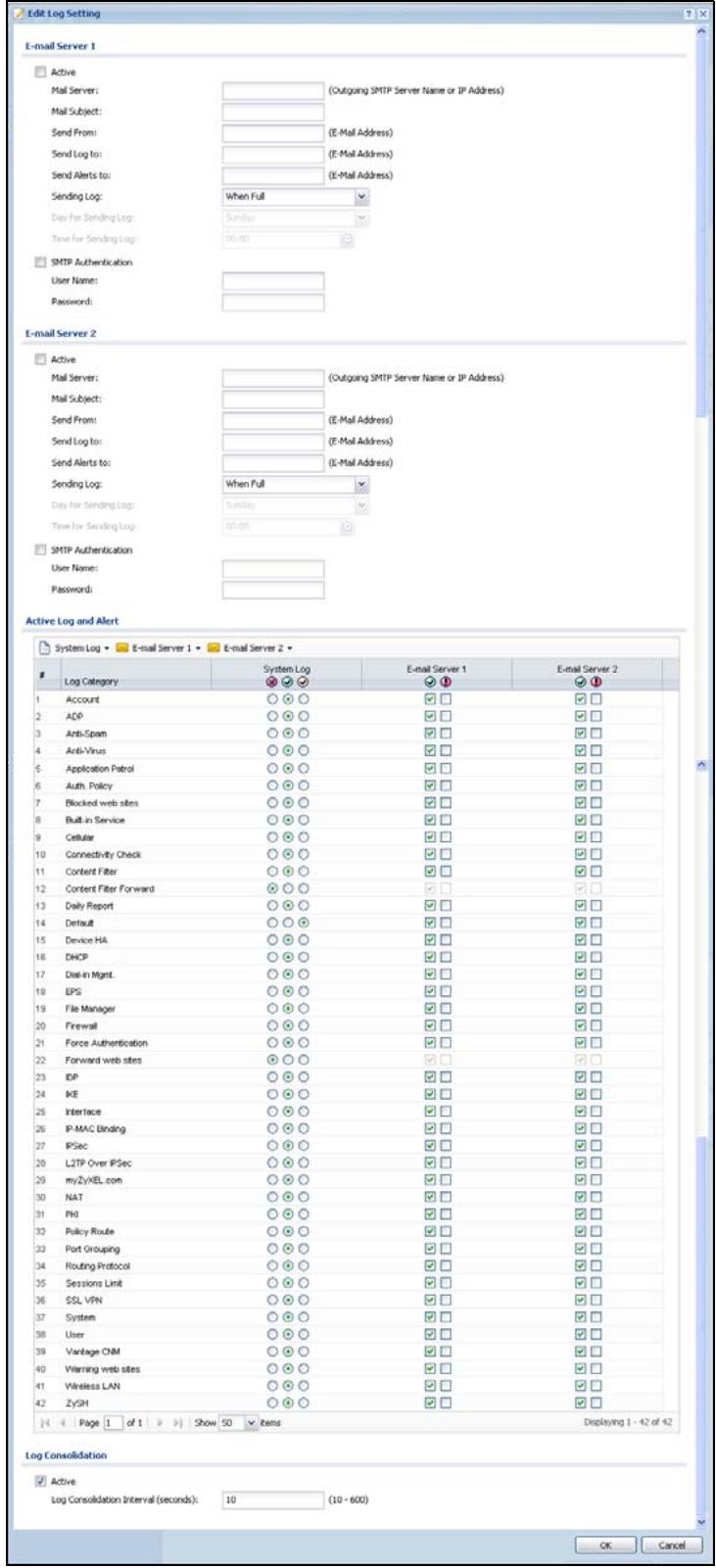
Figure 412 Configuration > Log & Report > Log Setting > Edit (System Log)
The following table describes the labels in this screen.
Table 212 Configuration > Log & Report > Log Setting > Edit (System Log)
| LABEL | DESCRIPTION |
| E-Mail Server 1/2 | |
| Active | Select this to send log messages and alerts according to the information in this section. You specify what kinds of log messages are included in log information and what kinds of log messages are included in alerts in the Active Log and Alert section. |
| Mail Server | Type the name or IP address of the outgoing SMTP server. |
| Mail Subject | Type the subject line for the outgoing e-mail. |
| Send From | Type the e-mail address from which the outgoing e-mail is delivered. This address is used in replies. |
| Send Log To | Type the e-mail address to which the outgoing e-mail is delivered. |
| Send Alerts To | Type the e-mail address to which alerts are delivered. |
| Sending Log | Select how often log information is e-mailed. Choices are: When Full, Hourly and When Full, Daily and When Full, and Weekly and When Full. |
| Day for Sending Log | This field is available if the log is e-mailed weekly. Select the day of the week the log is e-mailed. |
| Time for Sending Log | This field is available if the log is e-mailed weekly or daily. Select the time of day (hours and minutes) when the log is e-mailed. Use 24-hour notation. |
| SMTPAuthentication | Select this check box if it is necessary to provide a user name and password to the SMTP server. |
| UserID | This box is effective when you select the SMTP Authentication check box. Type the user name to provide to the SMTP server when the log is e-mailed. |
| Password | This box is effective when you select the SMTP Authentication check box. Type the password to provide to the SMTP server when the log is e-mailed. |
| Active Log and Alert | |
| System log | Use the System Log drop-down list to change the log settings for all of the log categories. disable all logs (red X) - do not log any information for any category for the system log or e-mail any logs to e-mail server 1 or 2. enable normal logs (green check mark) - create log messages and alerts for all categories for the system log. If e-mail server 1 or 2 also has normal logs enabled, the ZyWALL will e-mail logs to them. enable normal logs and debug logs (yellow check mark) - create log messages, alerts, and debugging information for all categories. The ZyWALL does not e-mail debugging information, even if this setting is selected. |
Table 212 Configuration > Log & Report > Log Setting > Edit (System Log)
| LABEL | DESCRIPTION |
| E-mail Server 1 | Use the E-Mail Server 1 drop-down list to change the settings for e-mailing logs to e-mail server 1 for all log categories.Using the System Log drop-down list to disable all logs overrides your e-mail server 1 settings.enable normal logs (green check mark) - e-mail log messages for all categories to e-mail server 1.enable alert logs (red exclamation point) - e-mail alerts for all categories to e-mail server 1. |
| E-mail Server 2 | Use the E-Mail Server 2 drop-down list to change the settings for e-mailing logs to e-mail server 2 for all log categories.Ussing the System Log drop-down list to disable all logs overrides your e-mail server 2 settings.enable normal logs (green check mark) - e-mail log messages for all categories to e-mail server 2.enable alert logs (red exclamation point) - e-mail alerts for all categories to e-mail server 2. |
| # | This field is a sequential value, and it is not associated with a specific address. |
| Log Category | This field displays each category of messages. It is the same value used in the Display and Category fields in the View Log tab. The Default category includes debugging messages generated by open source software. |
| System log | Select which events you want to log by Log Category. There are three choices: disable all logs (red X) - do not log any information from this category enable normal logs (green checkmark) - create log messages and alerts from this category enable normal logs and debug logs (yellow check mark) - create log messages, alerts, and debugging information from this category; the ZyWALL does not e-mail debugging information, however, even if this setting is selected. |
| E-mail Server 1 | Select whether each category of events should be included in the log messages when it is e-mailed (green check mark) and/or in alerts (red exclamation point) for the e-mail settings specified in E-Mail Server 1. The ZyWALL does not e-mail debugging information, even if it is recorded in the System log. |
| E-mail Server 2 | Select whether each category of events should be included in log messages when it is e-mailed (green check mark) and/or in alerts (red exclamation point) for the e-mail settings specified in E-Mail Server 2. The ZyWALL does not e-mail debugging information, even if it is recorded in the System log. |
| Log Consolidation |
Table 212 Configuration > Log & Report > Log Setting > Edit (System Log)
| LABEL | DESCRIPTION |
| Active | Select this to activate log consolidation. Log consolidation aggregates multiple log messages that arrive within the specified Log Consolidation Interval. In the View Log tab, the text “[count=x]”, where x is the number of original log messages, is appended at the end of the Message field, when multiple log messages were aggregated. |
| Log Consolidation Interval | Type how often, in seconds, to consolidate log information. If the same log message appears multiple times, it is aggregated into one log message with the text “[count=x]”, where x is the number of original log messages, appended at the end of the Message field. |
| OK | Click this to save your changes and return to the previous screen. |
| Cancel | Click this to return to the previous screen without saving your changes. |
44.3.3 Edit Remote Server Log Settings
The Log Settings Edit screen controls the detailed settings for each log in the remote server (syslog). Go to the Log Settings Summary screen (see Section 44.3.1 on page 682), and click a remote server Edit icon.
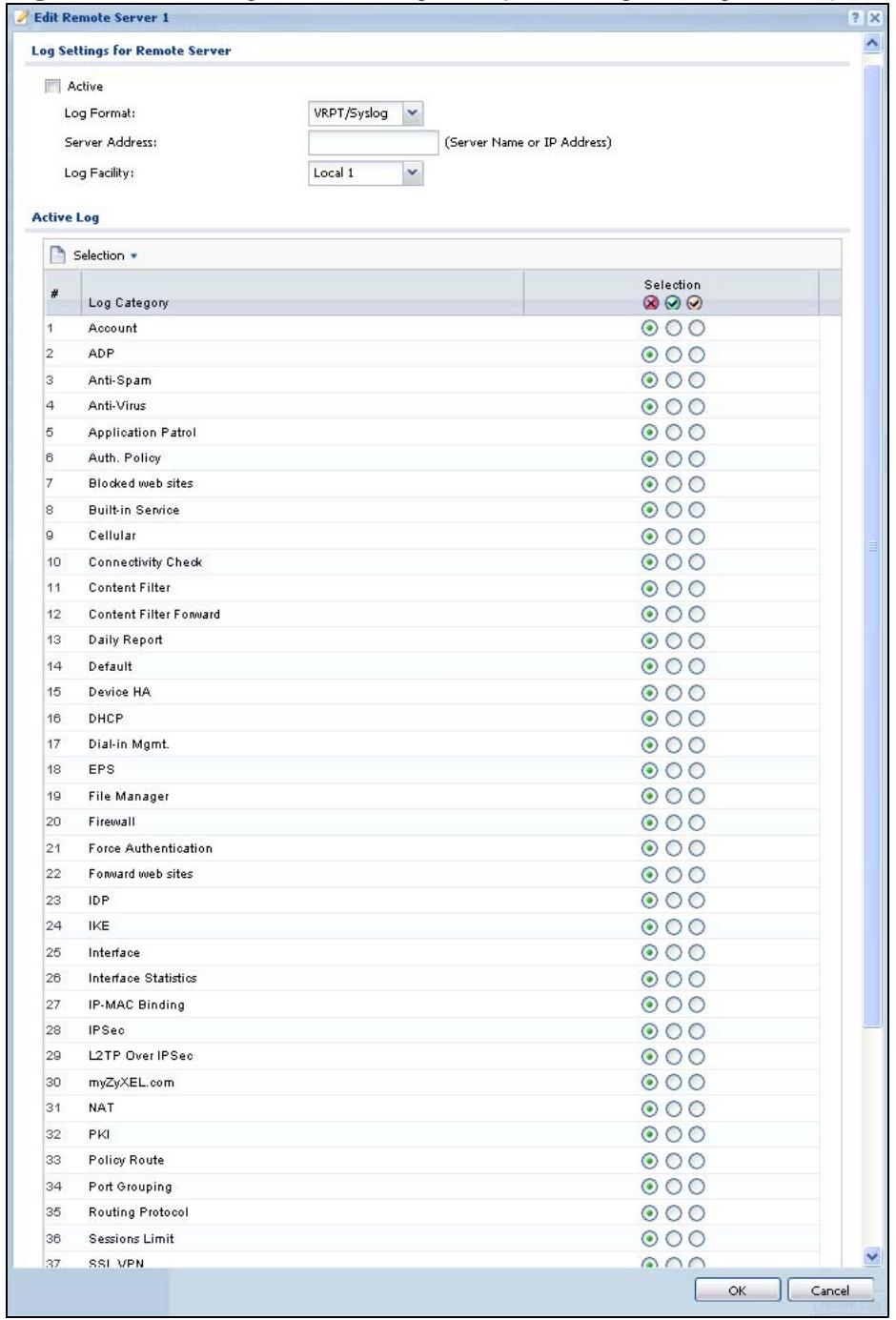
Figure 413 Configuration > Log & Report > Log Setting > Edit (Remote Server)
The following table describes the labels in this screen.
Table 213 Configuration > Log & Report > Log Setting > Edit (Remote Server)
| LABEL | DESCRIPTION |
| Log Settings for Remote Server | |
| Active | Select this check box to send log information according to the information in this section. You specify what kinds of messages are included in log information in the Active Log section. |
| Log Format | This field displays the format of the log information. It is read-only. VRPT/Syslog - ZyXEL's Vantage Report, syslog-compatible format. CEF/Syslog - Common Event Format, syslog-compatible format. |
| Server Address | Type the server name or the IP address of the syslog server to which to send log information. |
| Log Facility | Select a log facility. The log facility allows you to log the messages to different files in the syslog server. Please see the documentation for your syslog program for more information. |
| Active Log | |
| Selection | Use the Selection drop-down list to change the log settings for all of the log categories. disable all logs (red X) - do not send the remote server logs for any log category. enable normal logs (green check mark) - send the remote server log messages and alerts for all log categories. enable normal logs and debug logs (yellow check mark) - send the remote server log messages, alerts, and debugging information for all log categories. |
| # | This field is a sequential value, and it is not associated with a specific address. |
| Log Category | This field displays each category of messages. It is the same value used in the Display and Category fields in the View Log tab. The Default category includes debugging messages generated by open source software. |
| Selection | Select what information you want to log from each Log Category (except All Logs; see below). Choices are: disable all logs (red X) - do not log any information from this category enable normal logs (green checkmark) - log regular information and alerts from this category enable normal logs and debug logs (yellow check mark) - log regular information, alerts, and debugging information from this category |
| OK | Click this to save your changes and return to the previous screen. |
| Cancel | Click this to return to the previous screen without saving your changes. |
44.3.4 Active Log Summary Screen
The Active Log Summary screen allows you to view and to edit what information is included in the system log, e-mail profiles, and remote servers at the same time. It does not let you change other log settings (for example, where and how often log information is e-mailed or remote server names).To access this screen, go to the Log Settings Summary screen (see Section 44.3.1 on page 682), and click the Active Log Summary button.
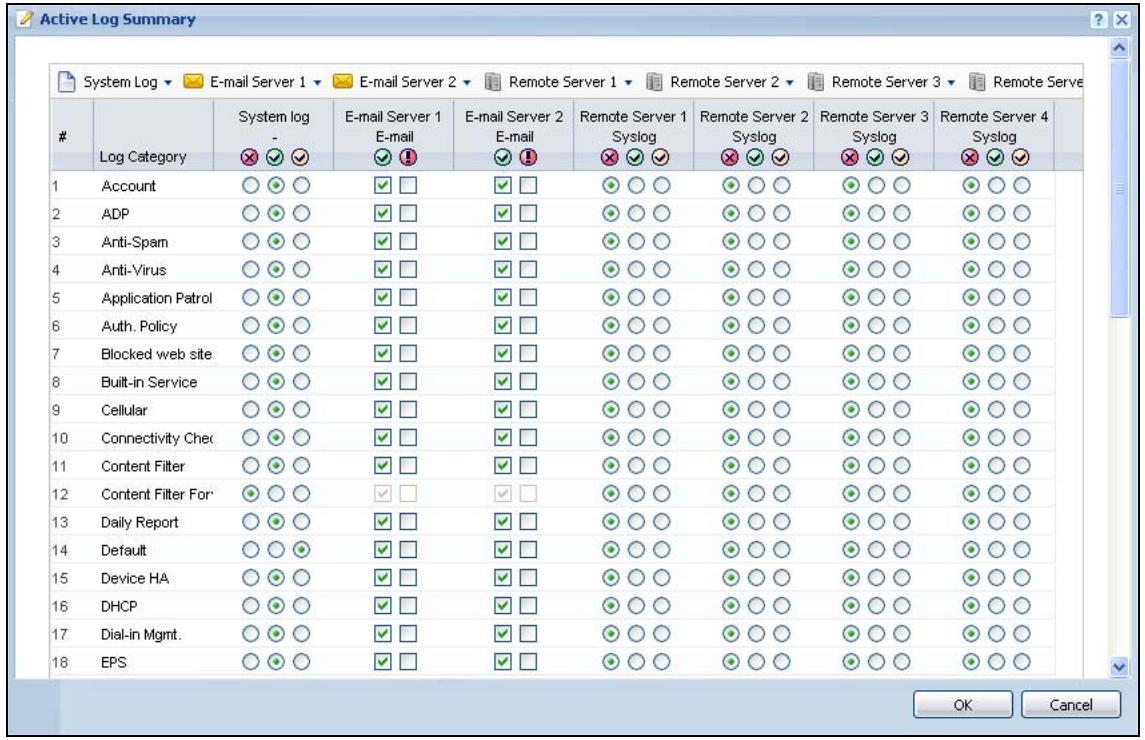
Figure 414 Active Log Summary
This screen provides a different view and a different way of indicating which messages are included in each log and each alert. Please see Section 44.3.2 on page 683, where this process is discussed. (The Default category includes debugging messages generated by open source software.)
The following table describes the fields in this screen.
Table 214 Configuration > Log & Report > Log Setting > Active Log Summary
| LABEL | DESCRIPTION |
| System log | Use the System Log drop-down list to change the log settings for all of the log categories. disable all logs (red X) - do not log any information for any category for the system log or e-mail any logs to e-mail server 1 or 2. enable normal logs (green check mark) - create log messages and alerts for all categories for the system log. If e-mail server 1 or 2 also has normal logs enabled, the ZyWALL will e-mail logs to them. enable normal logs and debug logs (yellow check mark) - create log messages, alerts, and debugging information for all categories. The ZyWALL does not e-mail debugging information, even if this setting is selected. |
| E-mail Server 1 | Use the E-Mail Server 1 drop-down list to change the settings for e-mailing logs to e-mail server 1 for all log categories. Using the System Log drop-down list to disable all logs overrides your e-mail server 1 settings. enable normal logs (green check mark) - e-mail log messages for all categories to e-mail server 1. enable alert logs (red exclamation point) - e-mail alerts for all categories to e-mail server 1. |
| E-mail Server 2 | Use the E-Mail Server 2 drop-down list to change the settings for e-mailing logs to e-mail server 2 for all log categories. Using the System Log drop-down list to disable all logs overrides your e-mail server 2 settings. enable normal logs (green check mark) - e-mail log messages for all categories to e-mail server 2. enable alert logs (red exclamation point) - e-mail alerts for all categories to e-mail server 2. |
| Remote Server 1~4 | For each remote server, use the Selection drop-down list to change the log settings for all of the log categories. disable all logs (red X) - do not send the remote server logs for any log category. enable normal logs (green check mark) - send the remote server log messages and alerts for all log categories. enable normal logs and debug logs (yellow check mark) - send the remote server log messages, alerts, and debugging information for all log categories. |
| # | This field is a sequential value, and it is not associated with a specific address. |
| Log Category | This field displays each category of messages. It is the same value used in the Display and Category fields in the View Log tab. The Default category includes debugging messages generated by open source software. |
Table 214 Configuration > Log & Report > Log Setting > Active Log Summary
| LABEL | DESCRIPTION |
| System log | Select which events you want to log by Log Category. There are three choices: disable all logs (red X) - do not log any information from this category enable normal logs (green checkmark) - create log messages and alerts from this category enable normal logs and debug logs (yellow check mark) - create log messages, alerts, and debugging information from this category; the ZyWALL does not e-mail debugging information, however, even if this setting is selected. |
| E-mail Server 1 E-mail | Select whether each category of events should be included in the log messages when it is e-mailed (green check mark) and/or in alerts (red exclamation point) for the e-mail settings specified in E-Mail Server 1. The ZyWALL does not e-mail debugging information, even if it is recorded in the System log. |
| E-mail Server 2 E-mail | Select whether each category of events should be included in log messages when it is e-mailed (green check mark) and/or in alerts (red exclamation point) for the e-mail settings specified in E-Mail Server 2. The ZyWALL does not e-mail debugging information, even if it is recorded in the System log. |
| Remote Server 1~4 | For each remote server, select what information you want to log from each Log Category (except All Logs; see below). Choices are: disable all logs (red X) - do not log any information from this category enable normal logs (green checkmark) - log regular information and alerts from this category enable normal logs and debug logs (yellow check mark) - log regular information, alerts, and debugging information from this category |
| OK | Click this to save your changes and return to the previous screen. |
| Cancel | Click this to return to the previous screen without saving your changes. |
45.1 Overview
Configuration files define the ZyWALL's settings. Shell scripts are files of commands that you can store on the ZyWALL and run when you need them. You can apply a configuration file or run a shell script without the ZyWALL restarting. You can store multiple configuration files and shell script files on the ZyWALL. You can edit configuration files or shell scripts in a text editor and upload them to the ZyWALL. Configuration files use a .conf extension and shell scripts use a .zysh extension.
45.1.1 What You Can Do in this Chapter
- Use the Configuration File screen (see Section 45.2 on page 696) to store and name configuration files. You can also download configuration files from the ZyWALL to your computer and upload configuration files from your computer to the ZyWALL.
- Use the Firmware Package screen (see Section 45.3 on page 700) to check your current firmware version and upload firmware to the ZyWALL.
- Use the Shell Script screen (see Section 45.4 on page 702) to store, name, download, upload and run shell script files.
45.1.2 What you Need to Know
Configuration Files and Shell Scripts
When you apply a configuration file, the ZyWALL uses the factory default settings for any features that the configuration file does not include. When you run a shell script, the ZyWALL only applies the commands that it contains. Other settings do not change.
These files have the same syntax, which is also identical to the way you run CLI commands manually. An example is shown below.
Figure 415 Configuration File / Shell Script: Example
<h1 id="enter-configuration-mode">enter configuration mode</h1>
configure terminal
<h1 id="change-administrator-password">change administrator password</h1>
username admin password 4321 user-type admin
<h1 id="configure-ge3">configure ge3</h1>
interface ge3
ip address 172.23.37.240 255.255.255.0
ip gateway 172.23.37.254 metric 1
exit
<h1 id="create-address-objects-for-remote-management-to-zywall-firewall-rules">create address objects for remote management / to-ZyWALL firewall rules</h1>
<h1 id="use-the-address-group-in-case-we-want-to-open-up-remote-management-later">use the address group in case we want to open up remote management later</h1>
address-object TW_SUBNET 172.23.37.0/24
object-group address TW TEAM
address-object TW_SUBNET
exit
<h1 id="enable-telnet-access-not-enabled-by-default-unlike-other-services">enable Telnet access (not enabled by default, unlike other services)</h1>
ip telnet server
<h1 id="open-wan-to-zywall-firewall-for-twteam-for-remote-management">open WAN-to-ZyWALL firewall for TWTEAM for remote management</h1>
firewall WAN ZyWALL insert 4
sourceip TW TEAM
service TELNET
action allow
exit
write
While configuration files and shell scripts have the same syntax, the ZyWALL applies configuration files differently than it runs shell scripts. This is explained below.
Table 215 Configuration Files and Shell Scripts in the ZyWALL
Configuration Files (.conf) Shell Scripts (.zysh)
Resets to default configuration. Goes into CLI Configuration mode.. Runs the commands in the configuration file. Goes into CLI Privilege mode.. Runs the commands in the shell script.
You have to run the example in Figure 415 on page 694 as a shell script because the first command is run in Privilege mode. If you remove the first command, you have to run the example as a configuration file because the rest of the commands are executed in Configuration mode.
Comments in Configuration Files or Shell Scripts
In a configuration file or shell script, use "#" or "#!" as the first character of a command line to have the ZyWALL treat the line as a comment.
Your configuration files or shell scripts can use "exit" or a command line consisting of a single "+" to have the ZyWALL exit sub command mode.
Note: "exit" or "!" must follow sub commands if it is to make the ZyWALL exit sub command mode.
Line 3 in the following example exits sub command mode.
interface gel
ip address dhcp
!
Lines 1 and 3 in the following example are comments and line 4 exits sub command mode.
!
interface gel
<h1 id="this-interface-is-a-dhcp-client">this interface is a DHCP client</h1>
!
Lines 1 and 2 are comments. Line 5 exits sub command mode.
! this is from Joe
<h1 id="on-20080405">on 2008/04/05</h1>
interface gel
ip address dhcp
!
Errors in Configuration Files or Shell Scripts
When you apply a configuration file or run a shell script, the ZyWALL processes the file line-by-line. The ZyWALL checks the first line and applies the line if no errors are detected. Then it continues with the next line. If the ZyWALL finds an error, it stops applying the configuration file or shell script and generates a log.
You can change the way a configuration file or shell script is applied. Include setenv stop-on-error off in the configuration file or shell script. The ZyWALL ignores any errors in the configuration file or shell script and applies all of the valid commands. The ZyWALL still generates a log for any errors.
45.2 The Configuration File Screen
Click Maintenance > File Manager > Configuration File to open the Configuration File screen. Use the Configuration File screen to store, run, and name configuration files. You can also download configuration files from the ZyWALL to your computer and upload configuration files from your computer to the ZyWALL.
Once your ZyWALL is configured and functioning properly, it is highly recommended that you back up your configuration file before making further configuration changes. The backup configuration file will be useful in case you need to return to your previous settings.
Configuration File Flow at Restart
- If there is not a startup-config.conf when you restart the ZyWALL (whether through a management interface or by physically turning the power off and back on), the ZyWALL uses the system-default.conf configuration file with the ZyWALL's default settings.
- If there is a startup-config.conf, the ZyWALL checks it for errors and applies it. If there are no errors, the ZyWALL uses it and copies it to the lastgood.conf configuration file as a back up file. If there is an error, the ZyWALL generates a log and copies the startup-config.conf configuration file to the startup-config-bad.conf configuration file and tries the existing lastgood.conf configuration file. If there isn't a lastgood.conf configuration file or it also has an error, the ZyWALL applies the system-default.conf configuration file.
- You can change the way the startup-config.conf file is applied. Include the setenv-startup stop-on-error off command. The ZyWALL ignores any errors in the startup-config.conf file and applies all of the valid commands. The ZyWALL still generates a log for any errors.
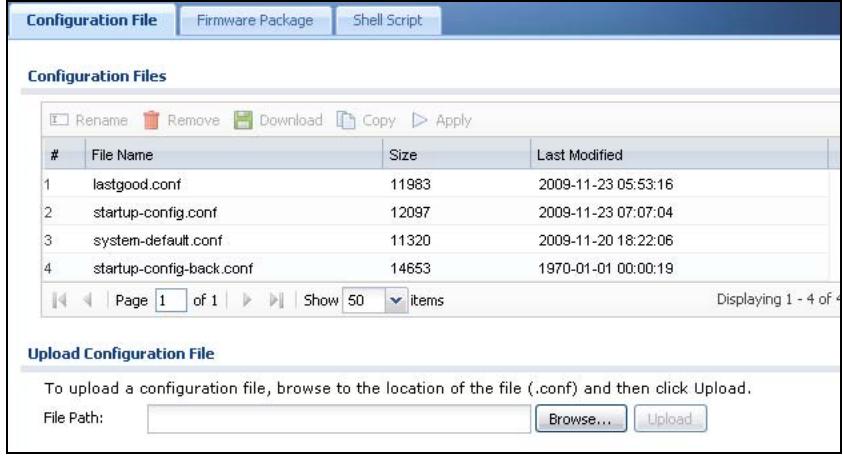
Figure 416 Maintenance > File Manager > Configuration File
Do not turn off the ZyWALL while configuration file upload is in progress.
The following table describes the labels in this screen.
Table 216 Maintenance > File Manager > Configuration File
| LABEL | DESCRIPTION |
| Rename | Use this button to change the label of a configuration file on the ZyWALL. You can only rename manually saved configuration files. You cannot rename the lastgood.conf, system-default.conf and startup-config.conf files. You cannot rename a configuration file to the name of another configuration file in the ZyWALL. Click a configuration file's row to select it and click Rename to open the Rename File screen. Figure 417 Maintenance > File Manager > Configuration File > Rename |
| ? X Source file : : startup-config-back.conf Target file : : OK Cancel | |
| Specify the new name for the configuration file. Use up to 25 characters (including a-zA-Z0-9;~!@#$%^&()_+[]{}',=‐).Click OK to save the duplicate or click Cancel to close the screen without saving a duplicate of the configuration file. | |
| Remove | Click a configuration file's row to select it and click Remove to delete it from the ZyWALL. You can only delete manually saved configuration files. You cannot delete the system-default.conf, startup-config.conf and lastgood.conf files. A pop-up window asks you to confirm that you want to delete the configuration file. Click OK to delete the configuration file or click Cancel to close the screen without deleting the configuration file. |
| Download | Click a configuration file's row to select it and click Download to save the configuration to your computer. |
| Copy | Use this button to save a duplicate of a configuration file on the ZyWALL. Click a configuration file's row to select it and click Copy to open the Copy File screen. Figure 418 Maintenance > File Manager > Configuration File > Copy |
| Copy File ?× Source file : : startup-config.conf Target file : : OK Cancel | |
| Specify a name for the duplicate configuration file. Use up to 25 characters (including a-zA-Z0-9;~!@#$%^&()_+[]{}',=‐). Click OK to save the duplicate or click Cancel to close the screen without saving a duplicate of the configuration file. | |
| Apply | Use this button to have the ZyWALL use a specific configuration file. Click a configuration file's row to select it and click Apply to have the ZyWALL use that configuration file. The ZyWALL does not have to restart in order to use a different configuration file, although you will need to wait for a few minutes while the system reconfigures. The following screen gives you options for what the ZyWALL is to do if it encounters an error in the configuration file. Figure 419 Maintenance > File Manager > Configuration File > Apply |
| Apply Configuration File Apply Configuration File File Name: system-default.conf If applying the configuration file encounters an error: Immediately stop applying the configuration file Immediately stop applying the configuration file and roll back to the previous configuration Ignore errors and finish applying the configuration file Ignore errors and finish applying the configuration file and then roll back to the previous configuration OK Cancel | |
| Immediately stop applying the configuration file - this is not recommended because it would leave the rest of the configuration blank. If the interfaces were not configured before the first error, the console port may be the only way to access the device. Immediately stop applying the configuration file and roll back to the previous configuration - this gets the ZyWALL started with a fully valid configuration file as quickly as possible. Ignore errors and finish applying the configuration file - this applies the valid parts of the configuration file and generates error logs for all of the configuration file's errors. This lets the ZyWALL apply most of your configuration and you can refer to the logs for what to fix. Ignore errors and finish applying the configuration file and then roll back to the previous configuration - this applies the valid parts of the configuration file, generates error logs for all of the configuration file's errors, and starts the ZyWALL with a fully valid configuration file. Click OK to have the ZyWALL start applying the configuration file or click Cancel to close the screen | |
| # | This column displays the number for each configuration file entry. This field is a sequential value, and it is not associated with a specific address. The total number of configuration files that you can save depends on the sizes of the configuration files and the available flash storage space. |
| File Name | This column displays the label that identifies a configuration file.You cannot delete the following configuration files or change their file names.The system-default.conf file contains the ZyWALL's default settings SELECT this file and click Apply to reset all of the ZyWALL settings to the factory defaults. This configuration file is included when you upload a firmware package.The startup-config.conf file is the configuration file that the ZyWALL is currently using. If you make and save changes during your management session, the changes are applied to this configuration file. The ZyWALL applies configuration changes made in the Web Configurator to the configuration file when you click Apply or OK. It applies configuration changes made via commands when you use the write command.The lastgood.conf is the most recently used (valid) configuration file that was saved when the device last restarted. If you upload and apply a configuration file with an error, you can apply lastgood.conf to return to a valid configuration. |
| Size | This column displays the size (in KB) of a configuration file. |
| Last Modified | This column displays the date and time that the individual configuration files were last changed or saved. |
| Upload Configuration File | The bottom part of the screen allows you to upload a new or previously saved configuration file from your computer to your ZyWALLYou cannot upload a configuration file named system-default.conf or lastgood.conf.If you upload startup-config.conf, it will replace the current configuration and immediately apply the new settings. |
| File Path | Type in the location of the file you want to upload in this field or click Browse ... to find it. |
| Browse... | Click Browse... to find the .conf file you want to upload. The configuration file must use a“.conf” filename extension. You will receive an error message if you try to upload a file of a different format.Remember that you must decompress compressed (.zip) files before you can upload them. |
| Upload | Click Upload to begin the upload process. This process may take up to two minutes. |
45.3 The Firmware Package Screen
Click Maintenance > File Manager > Firmware Package to open the Firmware Package screen. Use the Firmware Package screen to check your current firmware version and upload firmware to the ZyWALL.
Note: The Web Configurator is the recommended method for uploading firmware. You only need to use the command line interface if you need to recover the firmware. See the CLI Reference Guide for how to determine if you need to recover the firmware and how to recover it.
Find the firmware package at www.zyxel.com in a file that (usually) uses the system model name with a .bin extension, for example, "zywall.bin".
The firmware update can take up to five minutes. Do not turn off or reset the ZyWALL while the firmware update is in progress!
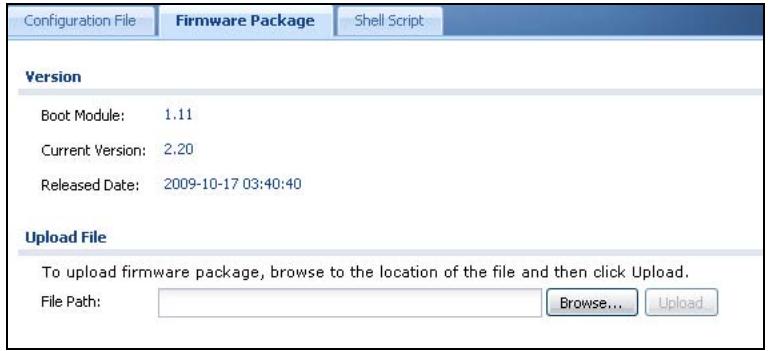
Figure 420 Maintenance > File Manager > Firmware Package
The following table describes the labels in this screen.
Table 217 Maintenance > File Manager > Firmware Package
| LABEL | DESCRIPTION |
| Boot Module | This is the version of the boot module that is currently on the ZyWALL. |
| Current Version | This is the firmware version and the date created. |
| Released Date | This is the date that the version of the firmware was created. |
| File Path | Type in the location of the file you want to upload in this field or click Browse ... to find it. |
| Browse... | Click Browse... to find the .bin file you want to upload. Remember that you must decompress compressed (.zip) files before you can upload them. |
| Upload | Click Upload to begin the upload process. This process may take up to two minutes. |
After you see the Firmware Upload in Process screen, wait two minutes before logging into the ZyWALL again.
Figure 421 Firmware Upload In Process
Note: The ZyWALL automatically reboots after a successful upload.
The ZyWALL automatically restarts causing a temporary network disconnect. In some operating systems, you may see the following icon on your desktop.
Figure 422 Network Temporarily Disconnected
After five minutes, log in again and check your new firmware version in the HOME screen.
If the upload was not successful, the following message appears in the status bar at the bottom of the screen.

Figure 423 Firmware Upload Error
45.4 The Shell Script Screen
Use shell script files to have the ZyWALL use commands that you specify. Use a text editor to create the shell script files. They must use a ".zysh" filename extension.
Click Maintenance > File Manager > Shell Script to open the Shell Script screen. Use the Shell Script screen to store, name, download, upload and run shell script files. You can store multiple shell script files on the ZyWALL at the same time.
Note: You should include write commands in your scripts. If you do not use the write command, the changes will be lost when the ZyWALL restarts. You could use multiple write commands in a long script.
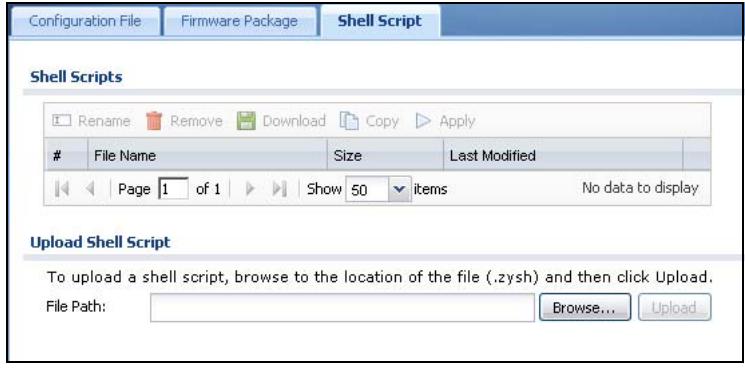
Figure 424 Maintenance > File Manager > Shell Script
Each field is described in the following table.
Table 218 Maintenance > File Manager > Shell Script
| LABEL | DESCRIPTION |
| Rename | Use this button to change the label of a shell script file on the ZyWALL. You cannot rename a shell script to the name of another shell script in the ZyWALL. Click a shell script's row to select it and click Rename to open the Rename File screen. Figure 425 Maintenance > File Manager > Shell Script > Rename |
| Rename Source file : wiz-VPN-2.zysh Target file : OK Cancel | |
| Specify the new name for the shell script file. Use up to 25 characters (including a-zA-Z0-9;~!@#$%^&(.)_+[]{}',.=-). Click OK to save the duplicate or click Cancel to close the screen without saving a duplicate of the configuration file. | |
| Remove | Click a shell script file's row to select it and click Remove to delete the shell script file from the ZyWALL. A pop-up window asks you to confirm that you want to delete the shell script file. Click OK to delete the shell script file or click Cancel to close the screen without deleting the shell script file. |
| Download | Click a shell script file's row to select it and click Download to save the configuration to your computer. |
| Copy | Use this button to save a duplicate of a shell script file on the ZyWALL. Click a shell script file's row to select it and click Copy to open the Copy File screen. Figure 426 Maintenance > File Manager > Shell Script > Copy |
| Copy File Source file : wiz-VPN-2.zysh Target file : OK Cancel | |
| Specify a name for the duplicate file. Use up to 25 characters (including a-zA-Z0-9;~!@#$%^&(.)_+[]{}',.=-). Click OK to save the duplicate or click Cancel to close the screen without saving a duplicate of the configuration file. | |
| Apply | Use this button to have the ZyWALL use a specific shell script file. Click a shell script file's row to select it and click Apply to have the ZyWALL use that shell script file. You may need to wait awhile for the ZyWALL to finish applying the commands. |
| # | This column displays the number for each shell script file entry. |
| File Name | This column displays the label that identifies a shell script file. |
| Size | This column displays the size (in KB) of a shell script file. |
| Last Modified | This column displays the date and time that the individual shell script files were last changed or saved. |
| Upload Shell Script | The bottom part of the screen allows you to upload a new or previously saved shell script file from your computer to your ZyWALL. |
| File Path | Type in the location of the file you want to upload in this field or click Browse ... to find it. |
| Browse... | Click Browse... to find the .zysh file you want to upload. |
| Upload | Click Upload to begin the upload process. This process may take up to several minutes. |
Diagnostics
46.1 Overview
Use the diagnostics screens for troubleshooting.
46.1.1 What You Can Do in this Chapter
- Use the Maintenance > Diagnostics screen (see Section 46.2 on page 705) to generate a file containing the ZyWALL's configuration and diagnostic information if you need to provide it to customer support during troubleshooting.
- Use the Maintenance > Diagnostics > Packet Capture screens (see Section 46.3 on page 707) to capture packets going through the ZyWALL.
- Use the Maintenance > Diagnostics > Core Dump screens (see Section 46.4 on page 712) to have the ZyWALL save a process's core dump to an attached USB storage device if the process terminates abnormally (crashes) so you can send the file to customer support for troubleshooting.
- Use the Maintenance > Diagnostics > System Log screens (see Section 46.5 on page 714) to download files of system logs from a connected USB storage device to your computer.
46.2 The Diagnostic Screen
The Diagnostic screen provides an easy way for you to generate a file containing the ZyWALL's configuration and diagnostic information. You may need to send this file to customer support for troubleshooting.
Click Maintenance > Diagnostics to open the Diagnostic screen.
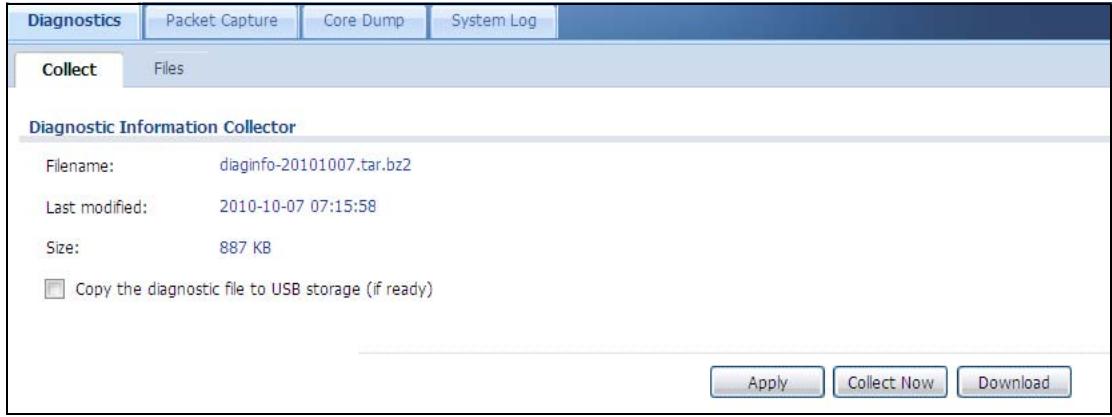
Figure 427 Maintenance > Diagnostics
The following table describes the labels in this screen.
Table 219 Maintenance > Diagnostics
| LABEL | DESCRIPTION |
| Filename | This is the name of the most recently created diagnostic file. |
| Last modified | This is the date and time that the last diagnostic file was created. The format is yyyy-mm-dd hh:mm:ss. |
| Size | This is the size of the most recently created diagnostic file. |
| Copy the diagnostic file to USB storage (if ready) | Select this to have the ZyWALL create an extra copy of the diagnostic file to a connected USB storage device. |
| Apply | Click Apply to save your changes. |
| Collect Now | Click this to have the ZyWALL create a new diagnostic file. |
| Download | Click this to save the most recent diagnostic file to a computer. |
46.2.1 The Diagnostics Files Screen
Click Maintenance > Diagnostics > Files to open the diagnostic files screen. This screen lists the files of diagnostic information the ZyWALL has collected and stored in a connected USB storage device. You may need to send these files to customer support for troubleshooting.
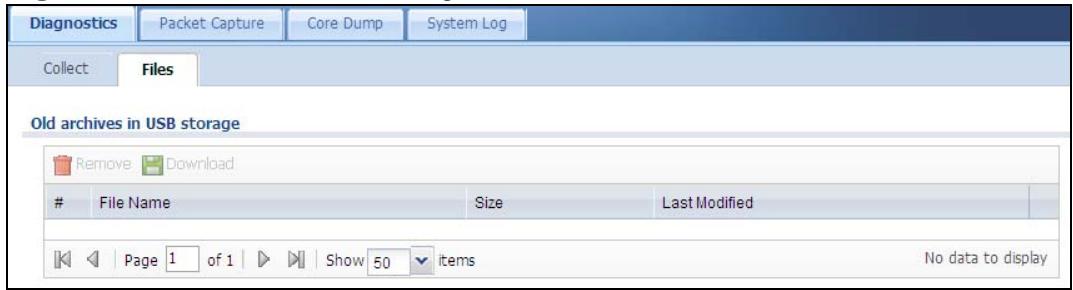
Figure 428 Maintenance > Diagnostics > Files
The following table describes the labels in this screen.
Table 220 Maintenance > Diagnostics > Files
| LABEL | DESCRIPTION |
| Remove | Select files and click Remove to delete them from the ZyWALL. Use the [Shift] and/or [Ctrl] key to select multiple files. A pop-up window asks you to confirm that you want to delete. |
| Download | Click a file to select it and click Download to save it to your computer. |
| # | This column displays the number for each file entry. The total number of files that you can save depends on the file sizes and the available storage space. |
| File Name | This column displays the label that identifies the file. |
| Size | This column displays the size (in bytes) of a file. |
| Last Modified | This column displays the date and time that the individual files were saved. |
46.3 The Packet Capture Screen
Use this screen to capture network traffic going through the ZyWALL's interfaces. Studying these packet captures may help you identify network problems. Click Maintenance > Diagnostics > Packet Capture to open the packet capture screen.
Note: New capture files overwrite existing files of the same name. Change the File Suffix field's setting to avoid this.
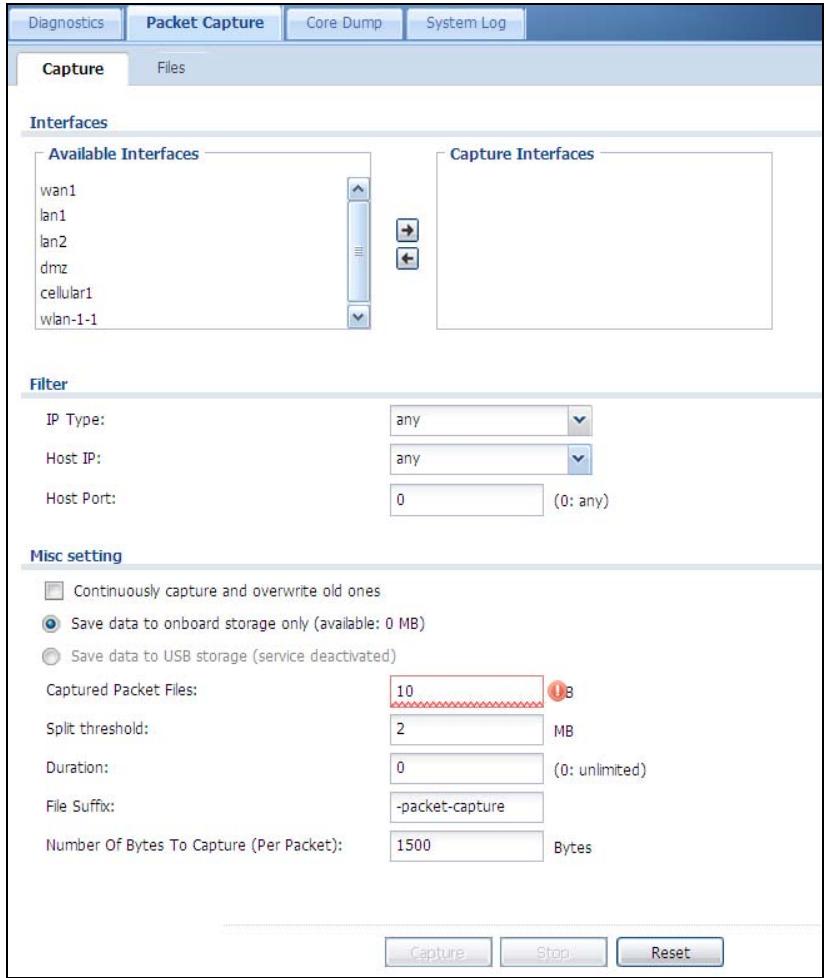
Figure 429 Maintenance > Diagnostics > Packet Capture
The following table describes the labels in this screen.
Table 221 Maintenance > Diagnostics > Packet Capture
| LABEL | DESCRIPTION |
| Interfaces | Enabled interfaces (except for virtual interfaces) appear under Available Interfaces. Select interfaces for which to capture packets and click the right arrow button to move them to the Capture Interfaces list. Use the [Shift] and/or [Ctrl] key to select multiple objects. |
| IP Type | Select the protocol of traffic for which to capture packets. Select any to capture packets for all types of traffic. |
| Host IP | Select a host IP address object for which to capture packets. Select any to capture packets for all hosts. Select User Defined to be able to enter an IP address. |
| Host Port | This field is configurable when you set the IP Type to any, tcp, or udp. Specify the port number of traffic to capture. |
| Continuously capture and overwrite old ones | Select this to have the ZyWALL keep capturing traffic and overwriting old packet capture entries when the available storage space runs out. |
| Save data to onboard storage only | Select this to have the ZyWALL only store packet capture entries on the ZyWALL. |
| Save data to USB storage | Select this to have the ZyWALL store packet capture entries only on a USB storage device connected to the ZyWALL.Status:Unused - the connected USB storage device was manually unmounted by using the Remove Now button or for some reason the ZyWALL cannot mount it.none - no USB storage device is connected availaill - you can have the ZyWALL use the USB storage device.The available storage capacity also displays.Note: The ZyWALL reserves some USG storage space as a buffer. |
| Captured Packet Files | When saving packet captures only to the ZyWALL's onboard storage, specify a maximum limit in megabytes for the total combined size of all the capture files on the ZyWALL.When saving packet captures to a connected USB storage device, specify a maximum limit in megabytes for each capture file.Note: If you have existing capture files and have not selected the Continuously capture and overwrite old ones option, you may need to set this size larger or delete existing capture files.The valid range is 1 to 10000. The ZyWALL stops the capture and generates the capture file when either the file reaches this size or the time period specified in the Duration field expires. |
| Split threshold | Specify a maximum size limit in megabytes for individual packet capture files. After a packet capture file reaches this size, the ZyWALL starts another packet capture file. |
| Duration | Set a time limit in seconds for the capture. The ZyWALL stops the capture and generates the capture file when either this period of time has passed or the file reaches the size specified in the File Size field. 0 means there is no time limit. |
| File Suffix | Specify text to add to the end of the file name (before the dot and filename extension) to help you identify the packet capture files.Modifying the file suffix also avoids making new capture files that overwrite existing files of the same name.The file name format is "interface name-file suffix.cap", for example "vlan2-packet-capture.cap". |
| Number Of Bytes To Capture (Per Packet) | Specify the maximum number of bytes to capture per packet. The ZyWALL automatically truncates packets that exceed this size. As a result, when you view the packet capture files in a packet analyzer, the actual size of the packets may be larger than the size of captured packets. |
| Capture | Click this button to have the ZyWALL capture packets according to the settings configured in this screen.You can configure the ZyWALL while a packet capture is in progress although you cannot modify the packet capture settings.The ZyWALL's throughput or performance may be affected while a packet capture is in progress.After the ZyWALL finishes the capture it saves a separate capture file for each selected interface. The total number of packet capture files that you can save depends on the file sizes and the available flash storage space. Once the flash storage space is full, adding more packet captures will fail. |
| Stop | Click this button to stop a currently running packet capture and generate a separate capture file for each selected interface. |
| Reset | Click this button to return the screen to its last-saved settings. |
46.3.1 The Packet Capture Files Screen
Click Maintenance > Diagnostics > Packet Capture > Files to open the packet capture files screen. This screen lists the files of packet captures stored on the ZyWALL or a connected USB storage device. You can download the files to your computer where you can study them using a packet analyzer (also known as a network or protocol analyzer) such as Wireshark.
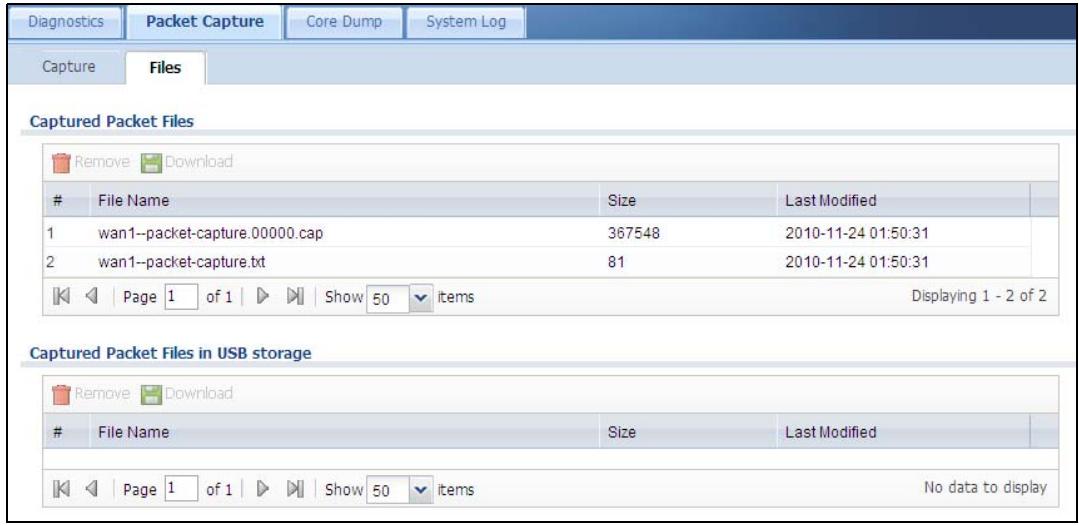
Figure 430 Maintenance > Diagnostics > Packet Capture > Files
The following table describes the labels in this screen.
Table 222 Maintenance > Diagnostics > Packet Capture > Files
| LABEL | DESCRIPTION |
| Remove | Select files and click Remove to delete them from the ZyWALL or the connected USB storage device. Use the [Shift] and/or [Ctrl] key to select multiple files. A pop-up window asks you to confirm that you want to delete. |
| Download | Click a file to select it and click Download to save it to your computer. |
| # | This column displays the number for each packet capture file entry. The total number of packet capture files that you can save depends on the file sizes and the available flash storage space. |
| File Name | This column displays the label that identifies the file. The file name format is interface name-file suffix.cap. |
| Size | This column displays the size (in bytes) of a configuration file. |
| Last Modified | This column displays the date and time that the individual files were saved. |
46.3.2 Example of Viewing a Packet Capture File
Here is an example of a packet capture file viewed in the Wireshark packet analyzer. Notice that the size of frame 15 on the wire is 1514 bytes while the captured size is only 1500 bytes. The ZyWALL truncated the frame because the capture screen's Number Of Bytes To Capture (Per Packet) field was set to 1500 bytes.
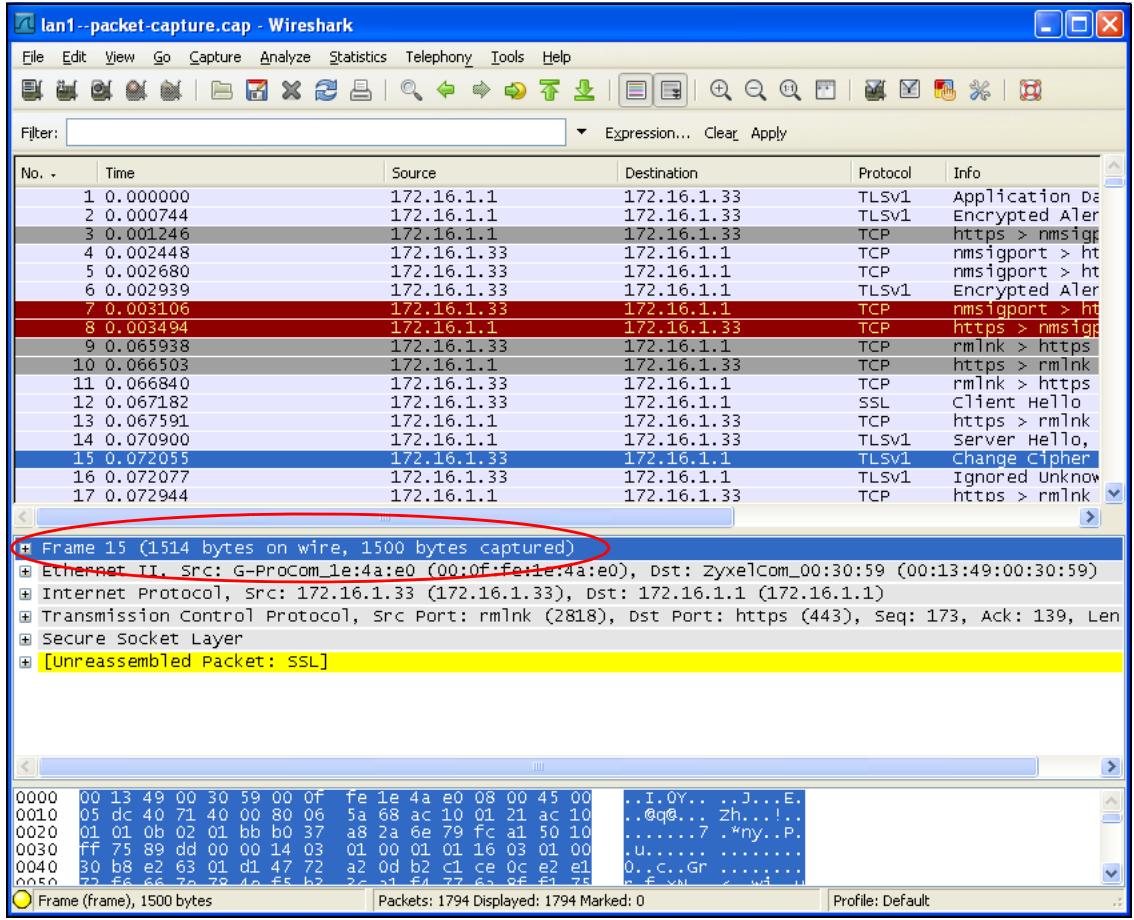
Figure 431 Packet Capture File Example
46.4 Core Dump Screen
Use the Core Dump screen to have the ZyWALL save a process's core dump to an attached USB storage device if the process terminates abnormally (crashes). You may need to send this file to customer support for troubleshooting.
Click Maintenance > Diagnostics > Core Dump to open the following screen.
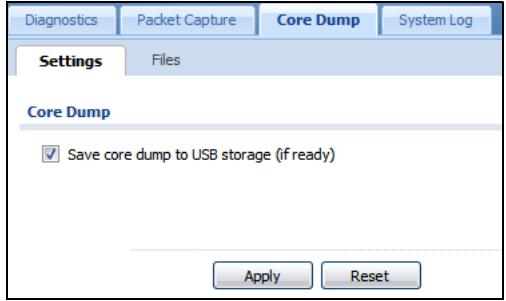
Figure 432 Maintenance > Diagnostics > Core Dump
The following table describes the labels in this screen.
Table 223 Maintenance > Diagnostics > Core Dump
| LABEL | DESCRIPTION |
| Save core dump to USB storage (if ready) | Select this to have the ZyWALL save a process's core dump to an attached USB storage device if the process terminates abnormally (crashes). If you clear this option the ZyWALL only saves |
| Apply | Click Apply to save the changes. |
| Reset | Click Reset to return the screen to its last-saved settings. |
46.4.1 Core Dump Files Screen
Click Maintenance > Diagnostics > Core Dump > Files to open the core dump files screen. This screen lists the core dump files stored on the ZyWALL or a connected USB storage device. You may need to send these files to customer support for troubleshooting.
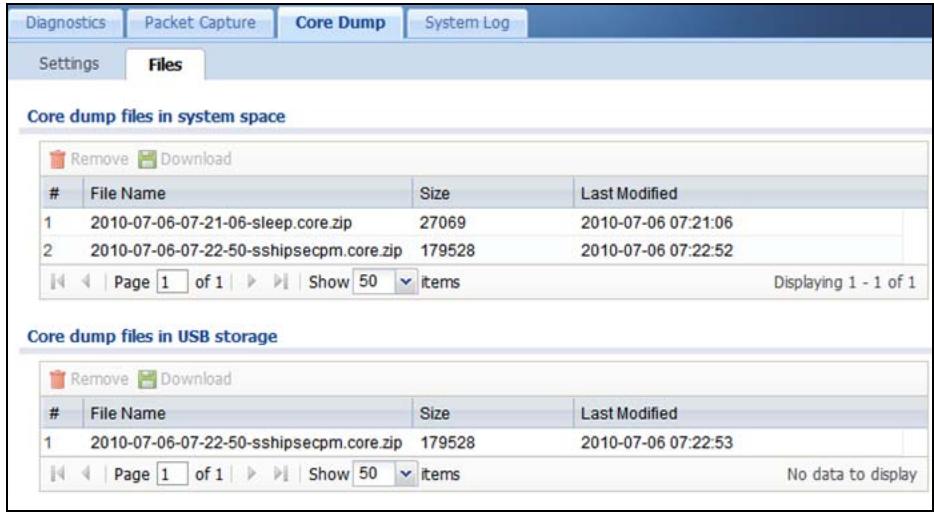
Figure 433 Maintenance > Diagnostics > Core Dump > Files
The following table describes the labels in this screen.
Table 224 Maintenance > Diagnostics > Core Dump > Files
| LABEL | DESCRIPTION |
| Remove | Select files and click Remove to delete them from the ZyWALL. Use the [Shift] and/or [Ctrl] key to select multiple files. A pop-up window asks you to confirm that you want to delete. |
| Download | Click a file to select it and click Download to save it to your computer. |
| # | This column displays the number for each packet capture file entry. The total number of packet capture files that you can save depends on the file sizes and the available flash storage space. |
| File Name | This column displays the label that identifies the file. |
| Size | This column displays the size (in bytes) of a file. |
| Last Modified | This column displays the date and time that the individual files were saved. |
46.5 The System Log Screen
Click Maintenance > Diagnostics > System Log to open the system log files screen. This screen lists the files of system logs stored on a connected USB storage device. The files are in comma separated value (csv) format. You can download them to your computer and open them in a tool like Microsoft's Excel.
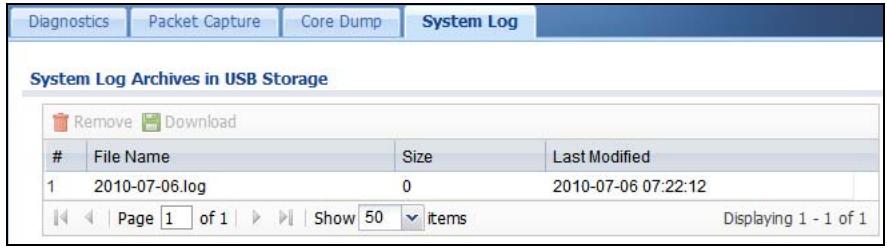
Figure 434 Maintenance > Diagnostics > System Log
The following table describes the labels in this screen.
Table 225 Maintenance > Diagnostics > System Log
| LABEL | DESCRIPTION |
| Remove | Select files and click Remove to delete them from the ZyWALL. Use the [Shift] and/or [Ctrl] key to select multiple files. A pop-up window asks you to confirm that you want to delete. |
| Download | Click a file to select it and click Download to save it to your computer. |
| # | This column displays the number for each file entry. The total number of files that you can save depends on the file sizes and the available storage space. |
| File Name | This column displays the label that identifies the file. |
| Size | This column displays the size (in bytes) of a file. |
| Last Modified | This column displays the date and time that the individual files were saved. |
Packet Flow Explore
47.1 Overview
Use this to get a clear picture on how the ZyWALL determines where to forward a packet and how to change the source IP address of the packet according to your current settings. This function provides you a summary of all your routing and SNAT settings and helps troubleshoot any related problems.
47.1.1 What You Can Do in this Chapter
- Use the Routing Status screen (see Section 47.2 on page 715) to view the overall routing flow and each routing function's settings.
- Use the SNAT Status screen (see Section 47.3 on page 719) to view the overall source IP address conversion (SNAT) flow and each SNAT function's settings.
47.2 The Routing Status Screen
The Routing Status screen allows you to view the current routing flow and quickly link to specific routing settings. Click a function box in the Routing Flow section, the related routes (activated) will display in the Routing Table section. To access this screen, click Maintenance > Packet Flow Explore.
The order of the routing flow may vary depending on whether you:
- select use policy route to override direct route in the CONFIGURATION > Network > Routing > Policy Route screen.
- use policy routes to control 1-1 NAT by using the policy control-virtual-server-rules activate command.
- select use policy routes to control dynamic IPSec rules in the CONFIGURATION > VPN > IPSec VPN > VPN Connection screen.
Note: Once a packet matches the criteria of a routing rule, the ZyWALL takes the corresponding action and does not perform any further flow checking.
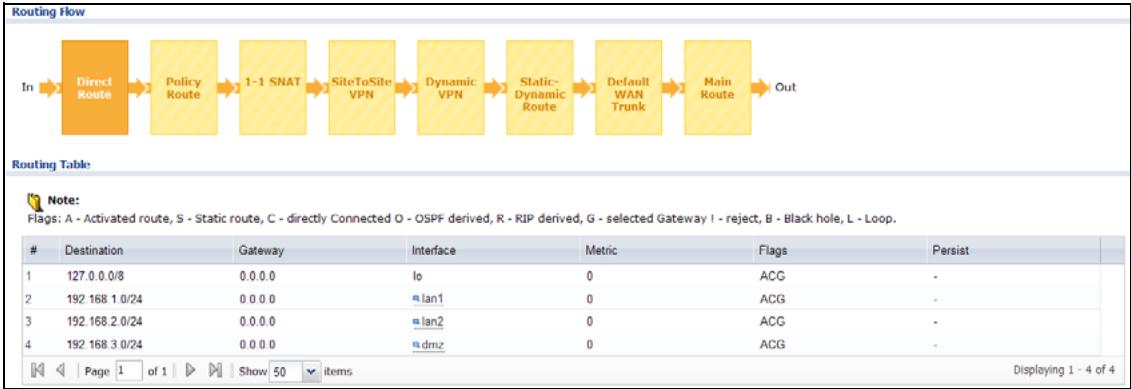
Figure 435 Maintenance > Packet Flow Explore > Routing Status (Direct Route)
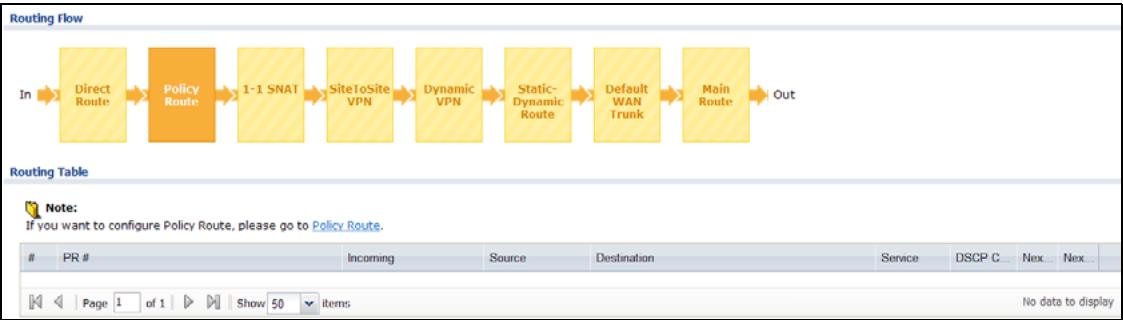
Figure 436 Maintenance > Packet Flow Explore > Routing Status (Policy Route)
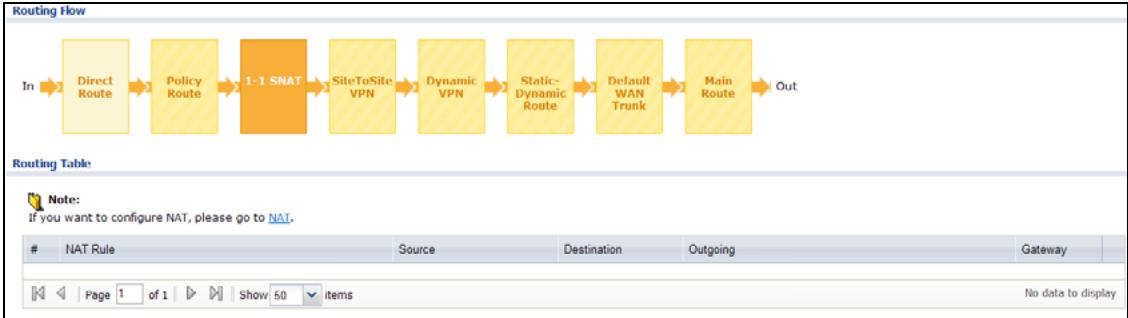
Figure 437 Maintenance > Packet Flow Explore > Routing Status (1-1 SNAT)
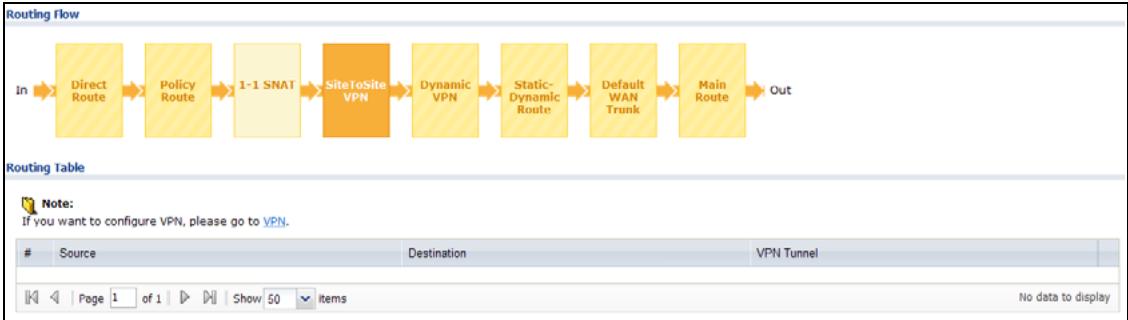
Figure 438 Maintenance > Packet Flow Explore > Routing Status (SitetoSite VPN)
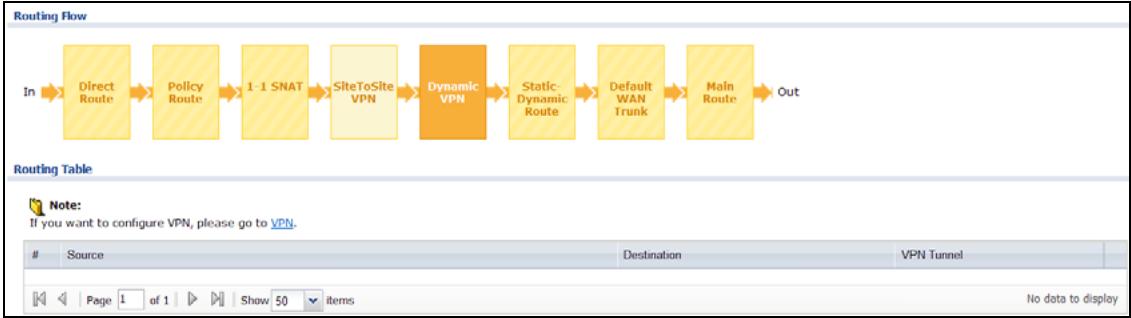
Figure 439 Maintenance > Packet Flow Explore > Routing Status (Dynamic VPN)
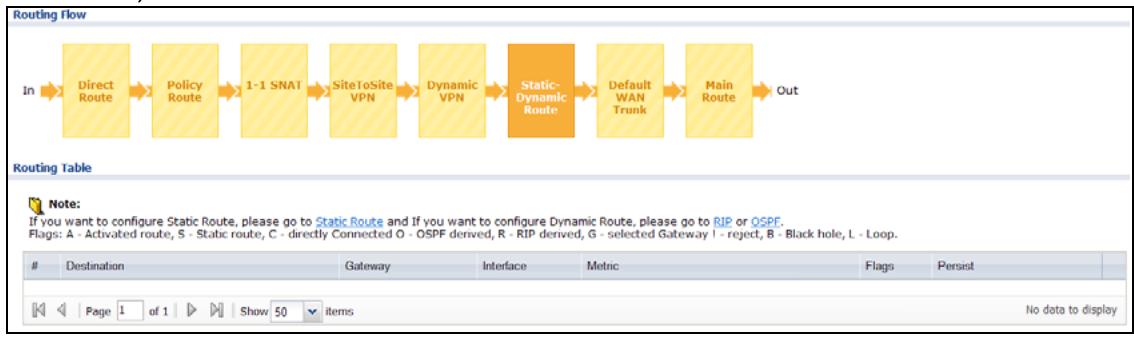
Figure 440 Maintenance > Packet Flow Explore > Routing Status (Static-Dynamic Route)
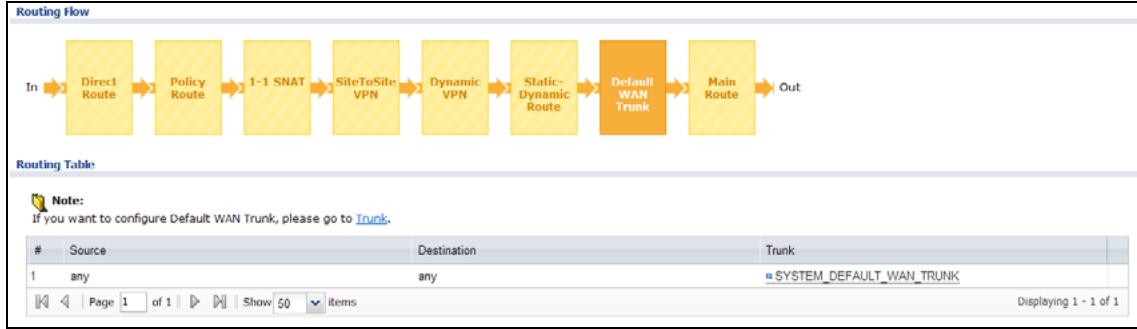
Figure 441 Maintenance > Packet Flow Explore > Routing Status (Default WAN Trunk)
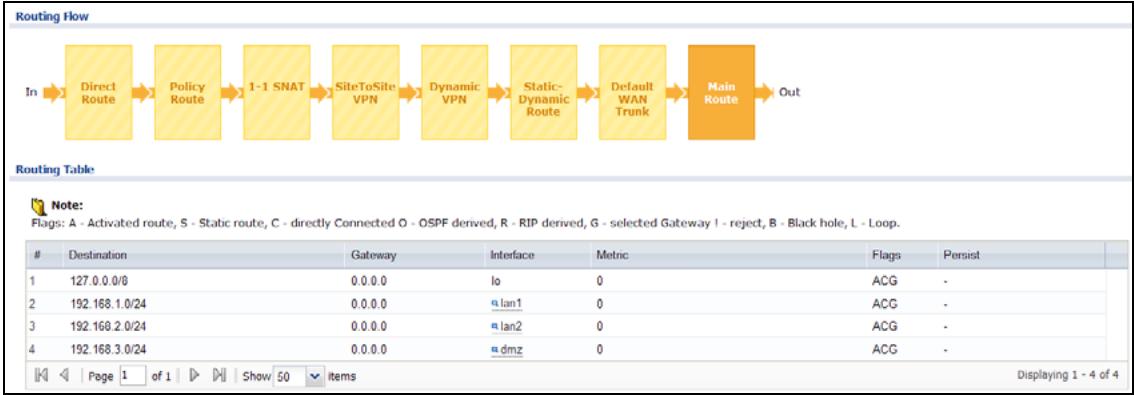
Figure 442 Maintenance > Packet Flow Explore > Routing Status (Main Route)
The following table describes the labels in this screen.
Table 226 Maintenance > Packet Flow Explore > Routing Status
| LABEL | DESCRIPTION |
| Routing Flow | This section shows you the flow of how the ZyWALL determines where to route a packet. Click a function box to display the related settings in the Routing Table section. |
| Routing Table | This section shows the corresponding settings according to the function box you click in the Routing Flow section. |
| The following fields are available if you click Direct Route, Static-Dynamic Route, or Main Route in the Routing Flow section. | |
| # | This field is a sequential value, and it is not associated with any entry. |
| Destination | This is the destination IP address of a route. |
| Gateway | This is the IP address of the next-hop gateway or the interface through which the traffic is routed. |
| Interface | This is the name of an interface associated with the route. |
| Metric | This is the route's priority among the displayed routes. |
| Flags | This indicates additional information for the route. The possible flags are: • A - this route is currently activated • S - this is a static route • C - this is a direct connected route • O - this is a dynamic route learned through OSPF • R - this is a dynamic route learned through RIP • G - the route is to a gateway (router) in the same network. • I - this is a route which forces a route lookup to fail. • B - this is a route which discards packets. • L - this is a recursive route. |
| Persist | This is the remaining time of a dynamically learned route. The ZyWALL removes the route after this time period is counted down to zero. |
| The following fields are available if you click Policy Route in the Routing Flow section. | |
| # | This field is a sequential value, and it is not associated with any entry. |
| PR # | This is the number of an activated policy route. If you have configured a schedule for the route, this screen only displays the route at the scheduled time. |
| Incoming | This is the interface on which the packets are received. |
| Source | This is the source IP address(es) from which the packets are sent. |
| Destination | This is the destination IP address(es) to which the packets are transmitted. |
| Service | This is the name of the service object. any means all services. |
| DSCP Code | This is the DSCP value of incoming packets to which this policy route applies. See Section 13.2 on page 300 for more information. |
| Next Hop Type | This is the type of the next hop to which packets are directed. |
| Next Hop Info | This is the main route if the next hop type is Auto. This is the interface name and gateway IP address if the next hop type is Interface /GW. This is the tunnel name if the next hop type is VPN Tunnel. This is the trunk name if the next hop type is Trunk. |
| The following fields are available if you click 1-1 SNAT in the Routing Flow section. | |
| # | This field is a sequential value, and it is not associated with any entry. |
| NAT Rule | This is the name of an activated 1:1 or Many 1:1 NAT rule in the NAT table. |
| Source | This is the original source IP address(es). any means any IP address. |
| Destination | This is the original destination IP address(es). any means any IP address. |
| Outgoing | This is the name of an interface which transmits packets out of the ZyWALL. |
| Gateway | This is the IP address of the gateway in the same network of the outgoing interface. |
| The following fields are available if you click SiteToSite VPN or Dynamic VPN in the Routing Flow section. | |
| # | This field is a sequential value, and it is not associated with any entry. |
| Source | This is the IP address(es) of the local VPN network. |
| Destination | This is the IP address(es) for the remote VPN network. |
| VPN Tunnel | This is the name of the VPN tunnel. |
| The following fields are available if you click Default WAN Trunk in the Routing Flow section. | |
| # | This field is a sequential value, and it is not associated with any entry. |
| Source | This is the source IP address(es) from which the packets are sent. any means any IP address. |
| Destination | This is the destination IP address(es) to which the packets are transmitted. any means any IP address. |
| Trunk | This is the name of the WAN trunk through which the matched packets are transmitted. |
47.3 The SNAT Status Screen
The SNAT Status screen allows you to view and quickly link to specific source NAT (SNAT) settings. Click a function box in the SNAT Flow section, the related SNAT rules (activated) will display in the SNAT Table section. To access this screen, click Maintenance > Packet Flow Explore > SNAT Status.
The order of the SNAT flow may vary depending on whether you:
-
select use default SNAT in the CONFIGURATION > Network > Interface > Trunk screen.
-
use policy routes to control 1-1 NAT by using the policy control-virtual-server-rules activate command.
Note: Once a packet matches the criteria of an SNAT rule, the ZyWALL takes the corresponding action and does not perform any further flow checking.
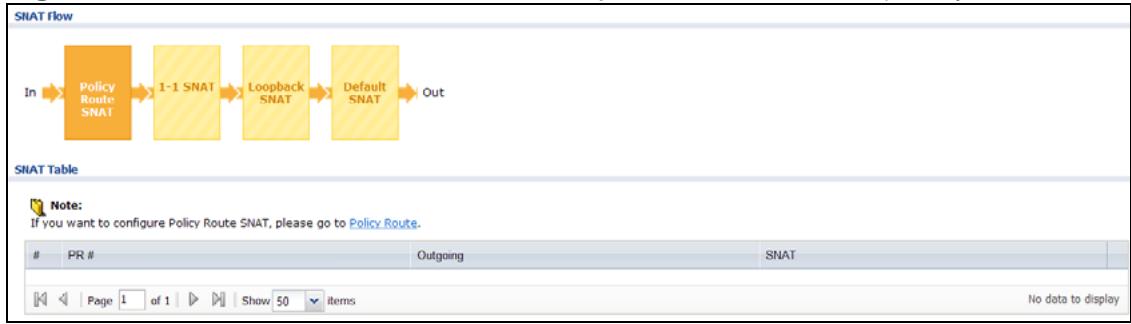
Figure 443 Maintenance > Packet Flow Explore > SNAT Status (Policy Route SNAT)
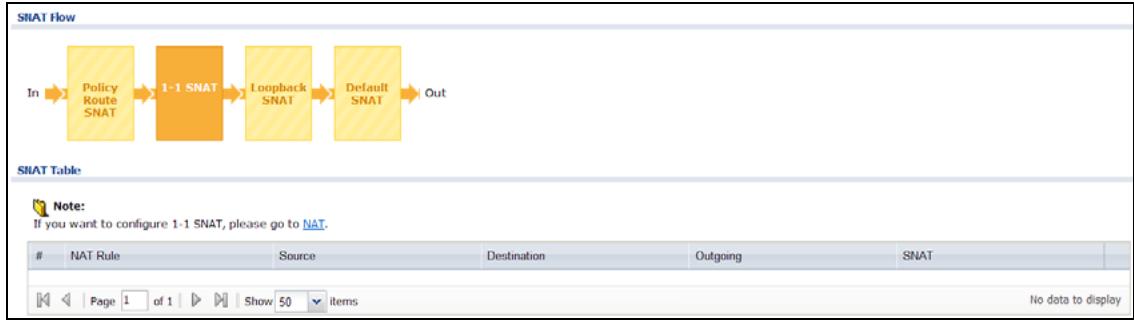
Figure 444 Maintenance > Packet Flow Explore > SNAT Status (1-1 SNAT)
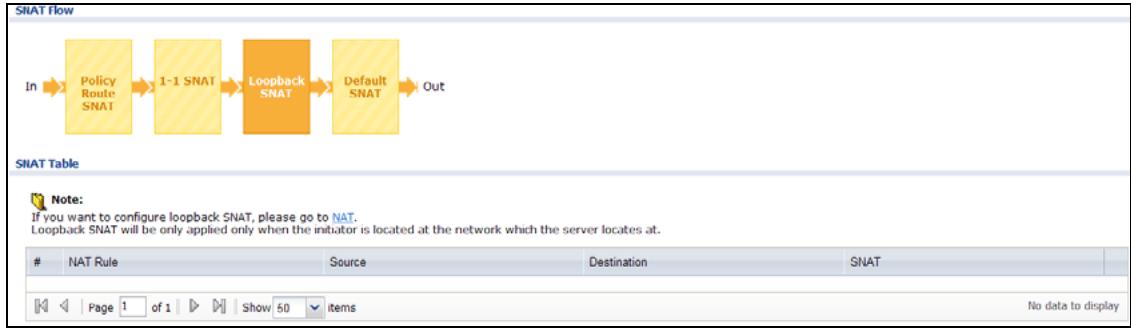
Figure 445 Maintenance > Packet Flow Explore > SNAT Status (Loopback SNAT)
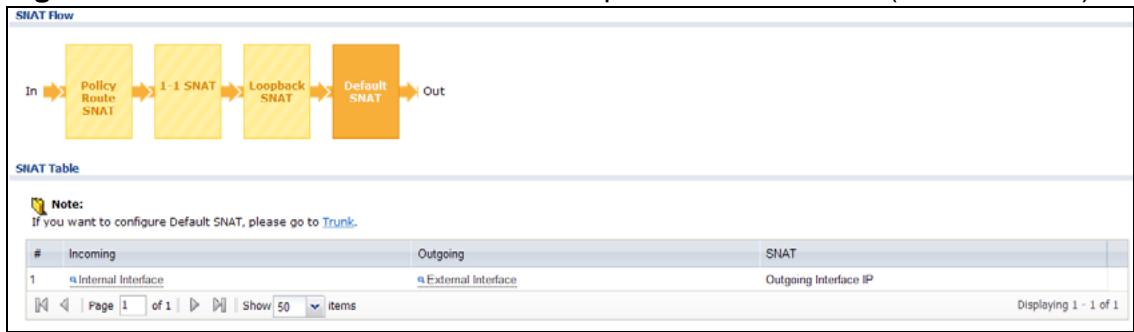
Figure 446 Maintenance > Packet Flow Explore > SNAT Status (Default SNAT)
The following table describes the labels in this screen.
Table 227 Maintenance > Packet Flow Explore > SNAT Status
| LABEL | DESCRIPTION |
| SNAT Flow | This section shows you the flow of how the ZyWALL changes the source IP address for a packet according to the rules you have configured in the ZyWALL. Click a function box to display the related settings in the SNAT Table section. |
| SNAT Table | The table fields in this section vary depending on the function box you select in the SNAT Flow section. |
| The following fields are available if you click Policy Route SNAT in the SNAT Flow section. | |
| # | This field is a sequential value, and it is not associated with any entry. |
| PR # | This is the number of an activated policy route which uses SNAT. |
| Outgoing | This is the outgoing interface that the route uses to transmit packets. |
| SNAT | This is the source IP address(es) that the SNAT rule uses finally. |
| The following fields are available if you click 1-1 SNAT in the SNAT Flow section. | |
| # | This field is a sequential value, and it is not associated with any entry. |
| NAT Rule | This is the name of an activated NAT rule which uses SNAT. |
| Source | This is the original source IP address(es). |
| Destination | This is the original destination IP address(es). |
| Outgoing | This is the outgoing interface that the SNAT rule uses to transmit packets. |
| SNAT | This is the source IP address(es) that the SNAT rule uses finally. |
| The following fields are available if you click Loopback SNAT in the SNAT Flow section. | |
| # | This field is a sequential value, and it is not associated with any entry. |
| NAT Rule | This is the name of an activated NAT rule which uses SNAT and enables NAT loopback. |
| Source | This is the original source IP address(es). any means any IP address. |
| Destination | This is the original destination IP address(es). any means any IP address. |
| SNAT | This indicates which source IP address the SNAT rule uses finally. For example, Outgoing Interface IP means that the ZyWALL uses the IP address of the outgoing interface as the source IP address for the matched packets it sends out through this rule. |
| The following fields are available if you click Default SNAT in the SNAT Flow section. | |
| # | This field is a sequential value, and it is not associated with any entry. |
| Incoming | This indicates internal interface(s) on which the packets are received. |
| Outgoing | This indicates external interface(s) from which the packets are transmitted. |
| SNAT | This indicates which source IP address the SNAT rule uses finally. For example, Outgoing Interface IP means that the ZyWALL uses the IP address of the outgoing interface as the source IP address for the matched packets it sends out through this rule. |
48.1 Overview
Use this to restart the device (for example, if the device begins behaving erratically). See also Section 1.5 on page 34 for information on different ways to start and stop the ZyWALL.
48.1.1 What You Need To Know
If you applied changes in the Web configurator, these were saved automatically and do not change when you reboot. If you made changes in the CLI, however, you have to use the write command to save the configuration before you reboot. Otherwise, the changes are lost when you reboot.
Reboot is different to reset; (see Section 50.1 on page 738) reset returns the device to its default configuration.
48.2 The Reboot Screen
The Reboot screen is part of the Web configurator so that remote users can restart the device. To access this screen, click Maintenance > Reboot.
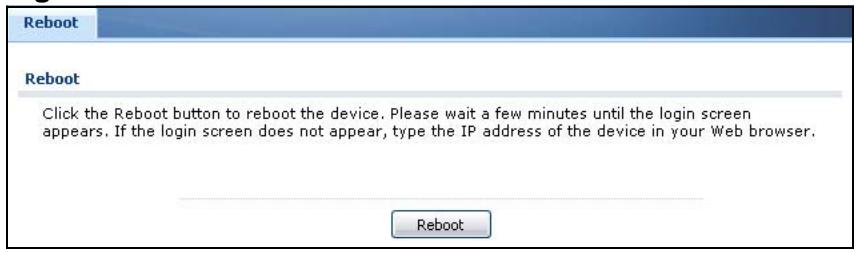
Figure 447 Maintenance >Reboot
Click the Reboot button to restart the ZyWALL. Wait a few minutes until the login screen appears. If the login screen does not appear, type the IP address of the device in your Web browser.
You can also use the CLI command reboot to restart the ZyWALL.
49.1 Overview
Use this to shutdown the device in preparation for disconnecting the power. See also Section 1.5 on page 34 for information on different ways to start and stop the ZyWALL.
Always use the Maintenance > Shutdown > Shutdown screen or the "shutdown" command before you turn off the ZyWALL or remove the power. Not doing so can cause the firmware to become corrupt.
49.1.1 What You Need To Know
Shutdown writes all cached data to the local storage and stops the system processes.
49.2 The Shutdown Screen
To access this screen, click Maintenance > Shutdown.
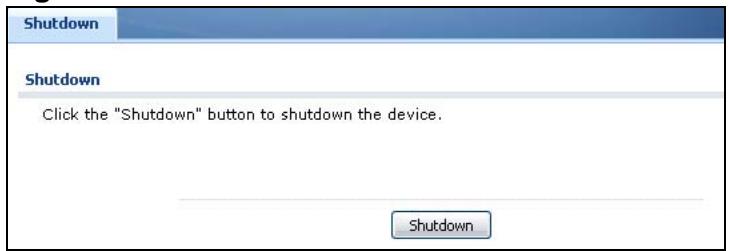
Figure 448 Maintenance > Shutdown
Click the Shutdown button to shut down the ZyWALL. Wait for the device to shut down before you manually turn off or remove the power. It does not turn off the power.
You can also use the CLI command shutdown to shutdown the ZyWALL.
Troubleshooting
This chapter offers some suggestions to solve problems you might encounter.
- You can also refer to the logs (see Chapter 9 on page 207). For individual log descriptions, see the User's Guide appendix Appendix A on page 747.
For the order in which the ZyWALL applies its features and checks, see Section 6.4 on page 91. None of the LEDs turn on.
Make sure that you have the power cord connected to the ZyWALL and plugged in to an appropriate power source. Make sure you have the ZyWALL turned on. Check all cable connections.
If the LEDs still do not turn on, you may have a hardware problem. In this case, you should contact your local vendor.
Cannot access the ZyWALL from the LAN.
- Check the cable connection between the ZyWALL and your computer or switch.
- Ping the ZyWALL from a LAN computer. Make sure your computer's Ethernet card is installed and functioning properly. Also make sure that its IP address is in the same subnet as the ZyWALL's.
- In the computer, click Start, (All) Programs, Accessories and then Command Prompt. In the Command Prompt window, type "ping" followed by the ZyWALL's LAN IP address (192.168.1.1 is the default) and then press [ENTER]. The ZyWALL should reply.
-
If you've forgotten the ZyWALL's password, use the RESET button. Press the button in for about 5 seconds (or until the PWR LED starts to blink), then release it. It returns the ZyWALL to the factory defaults (password is 1234, LAN IP address 192.168.1.1 etc.; see your User's Guide for details).
-
If you've forgotten the ZyWALL's IP address, you can use the commands through the console port to check it. Connect your computer to the CONSOLE port using a console cable. Your computer should have a terminal emulation communications program (such as HyperTerminal) set to VT100 terminal emulation, no parity, 8 data bits, 1 stop bit, no flow control and 115200 bps port speed.
I cannot access the Internet.
- Check the ZyWALL's connection to the Ethernet jack with Internet access. Make sure the Internet gateway device (such as a DSL modem) is working properly.
- Check the WAN interface'sstatus in the Dashboard. Use the installation setup wizard again and make sure that you enter the correct settings. Use the same case as provided by your ISP.
The content filter category service is not working.
- Make sure your ZyWALL has the content filter category service registered and that the license is not expired. Purchase a new license if the license is expired.
- Make sure your ZyWALL is connected to the Internet.
I configured security settings but the ZyWALL is not applying them for certain interfaces.
Many security settings are usually applied to zones. Make sure you assign the interfaces to the appropriate zones. When you create an interface, there is no security applied on it until you assign it to a zone.
The ZyWALL is not applying the custom policy route I configured.
The ZyWALL checks the policy routes in the order that they are listed. So make sure that your custom policy route comes before any other routes that the traffic would also match.
The ZyWALL is not applying the custom firewall rule I configured.
The ZyWALL checks the firewall rules in the order that they are listed. So make sure that your custom firewall rule comes before any other rules that the traffic would also match.
I cannot enter the interface name I want.
- The format of interface names other than the Ethernet interface names is very strict. Each name consists of 2-4 letters (interface type), followed by a number (x, limited by the maximum number of each type of interface). For example, VLAN interfaces are vlan0, vlan1, vlan2, ...; and so on.
I cannot set up a PPP interface, virtual Ethernet interface or virtual VLAN interface on an Ethernet interface.
You cannot set up a PPP interface, virtual Ethernet interface or virtual VLAN interface if the underlying interface is a member of a bridge. You also cannot add an Ethernet interface or VLAN interface to a bridge if the member interface has a virtual interface or PPP interface on top of it.
My rules and settings that apply to a particular interface no longer work.
The interface's IP address may have changed. To avoid this create an IP address object based on the interface. This way the ZyWALL automatically updates every rule or setting that uses the object whenever the interface's IP address settings change. For example, if you change LAN1's IP address, the ZyWALL automatically updates the corresponding interface-based, LAN1 subnet address object.
I cannot set up a PPP interface.
You have to set up an ISP account before you create a PPPoE or PPTP interface.
The data rates through my cellular connection are no-where near the rates I expected.
The actual cellular data rate you obtain varies depending on the cellular device you use, the signal strength to the service provider's base station, and so on.
I created a cellular interface but cannot connect through it.
- Make sure you have a compatible 3G device installed or connected. See Chapter 51 on page 741 for details.
- Make sure you have the cellular interface enabled.
- Make sure the cellular interface has the correct user name, password, and PIN code configured with the correct casing.
- If the ZyWALL has multiple WAN interfaces, make sure their IP addresses are on different subnets.
Hackers have accessed my WEP-encrypted wireless LAN.
WEP is extremely insecure. Its encryption can be broken by an attacker, using widely-available software. It is strongly recommended that you use a more effective security mechanism. Use the strongest security mechanism that all the wireless devices in your network support. WPA2 or WPA2-PSK is recommended.
The wireless security is not following the re-authentication timer setting I specified.
If a RADIUS server authenticates wireless stations, the re-authentication timer on the RADIUS server has priority. Change the RADIUS server's configuration if you need to use a different re-authentication timer setting.
I cannot configure a particular VLAN interface on top of an Ethernet interface even though I have it configured it on top of another Ethernet interface.
Each VLAN interface is created on top of only one Ethernet interface.
The ZyWALL is not applying an interface's configured ingress bandwidth limit.
At the time of writing, the ZyWALL does not support ingress bandwidth management.
I uploaded a custom signature file and now all of my earlier custom signatures are gone.
The name of the complete custom signature file on the ZyWALL is custom.rules. If you import a file named custom/rules, then all custom signatures on the ZyWALL are overwritten with the new file. If this is not your intention, make sure that the files you import are not named custom.rules.
The ZyWALL's performance seems slower after configuring ADP.
Depending on your network topology and traffic load, applying an anomaly profile to each and every packet direction may affect the ZyWALL's performance.
The ZyWALL routes and applies SNAT for traffic from some interfaces but not from others.
The ZyWALL automatically uses SNAT for traffic it routes from internal interfaces to external interfaces. For example LAN to WAN traffic. You must manually configure a policy route to add routing and SNAT settings for an interface with the Interface Type set to General. You can also configure a policy route to override the default routing and SNAT behavior for an interface with the Interface Type set to Internal or External.
The ZyWALL is not applying a policy route's port triggering settings.
You also need to create a firewall rule to allow an incoming service.
I cannot get Dynamic DNS to work.
-
You must have a public WAN IP address to use Dynamic DNS.
-
Make sure you recorded your DDNS account's user name, password, and domain name and have entered them properly in the ZyWALL.
- You may need to configure the DDNS entry's IP Address setting to Auto if the interface has a dynamic IP address or there are one or more NAT routers between the ZyWALL and the DDNS server.
- The ZyWALL may not determine the proper IP address if there is an HTTP proxy server between the ZyWALL and the DDNS server.
I cannot create a second HTTP redirect rule for an incoming interface.
You can configure up to one HTTP redirect rule for each (incoming) interface.
Make sure you have the FTP ALG enabled.
The ZyWALL keeps resetting the connection.
If an alternate gateway on the LAN has an IP address in the same subnet as the ZyWALL's LAN IP address, return traffic may not go through the ZyWALL. This is called an asymmetrical or "triangle" route. This causes the ZyWALL to reset the connection, as the connection has not been acknowledged.
You can set the ZyWALL's firewall to permit the use of asymmetrical route topology on the network (so it does not reset the connection) although this is not recommended since allowing asymmetrical routes may let traffic from the WAN go directly to the LAN without passing through the ZyWALL. A better solution is to use virtual interfaces to put the ZyWALL and the backup gateway on separate subnets. See Asymmetrical Routes on page 381 and the chapter about interfaces for more information.
I cannot set up an IPSec VPN tunnel to another device.
If the IPSec tunnel does not build properly, the problem is likely a configuration error at one of the IPSec routers. Log into both ZyXEL IPSec routers and check the settings in each field methodically and slowly. Make sure both the ZyWALL and remote IPSec router have the same security settings for the VPN tunnel. It may help to display the settings for both routers side-by-side.
Here are some general suggestions. See also Chapter 23 on page 391.
-
The system log can often help to identify a configuration problem.
-
If you enable NAT traversal, the remote IPSec device must also have NAT traversal enabled.
-
The ZyWALL and remote IPSec router must use the same authentication method to establish the IKE SA.
-
Both routers must use the same negotiation mode.
-
Both routers must use the same encryption algorithm, authentication algorithm, and DH key group.
-
When using manual keys, the ZyWALL and remote IPSec router must use the same encryption key and authentication key.
-
When using pre-shared keys, the ZyWALL and the remote IPSec router must use the same pre-shared key.
-
The ZyWALL's local and peer ID type and content must match the remote IPSec router's peer and local ID type and content, respectively.
-
The ZyWALL and remote IPSec router must use the same active protocol.
-
The ZyWALL and remote IPSec router must use the same encapsulation.
-
The ZyWALL and remote IPSec router must use the same SPI.
-
If the sites are/were previously connected using a leased line or ISDN router, physically disconnect these devices from the network before testing your new VPN connection. The old route may have been learnt by RIP and would take priority over the new VPN connection.
-
To test whether or not a tunnel is working, ping from a computer at one site to a computer at the other. Before doing so, ensure that both computers have Internet access (via the IPSec routers).
-
It is also helpful to have a way to look at the packets that are being sent and received by the ZyWALL and remote IPSec router (for example, by using a packet sniffer).
Check the configuration for the following ZyWALL features.
-
The ZyWALL does not put IPSec SAs in the routing table. You must create a policy route for each VPN tunnel. See Chapter 13 on page 297.
-
Make sure the To-ZyWALL firewall rules allow IPSec VPN traffic to the ZyWALL. IKE uses UDP port 500, AH uses IP protocol 51, and ESP uses IP protocol 50.
-
The ZyWALL supports UDP port 500 and UDP port 4500 for NAT traversal. If you enable this, make sure the To-ZyWALL firewall rules allow UDP port 4500 too.
-
Make sure regular firewall rules allow traffic between the VPN tunnel and the rest of the network. Regular firewall rules check packets the ZyWALL sends before the ZyWALL encrypts them and check packets the ZyWALL receives after the ZyWALL decrypts them. This depends on the zone to which you assign the VPN tunnel and the zone from which and to which traffic may be routed.
-
If you set up a VPN tunnel across the Internet, make sure your ISP supports AH or ESP (whichever you are using).
- If you have the ZyWALL and remote IPSec router use certificates to authenticate each other, You must set up the certificates for the ZyWALL and remote IPSec router first and make sure they trust each other's certificates. If the ZyWALL's certificate is self-signed, import it into the remote IPSec router. If it is signed by a CA, make sure the remote IPSec router trusts that CA. The ZyWALL uses one of its Trusted Certificates to authenticate the remote IPSec router's certificate. The trusted certificate can be the remote IPSec router's self-signed certificate or that of a trusted CA that signed the remote IPSec router's certificate.
- Multiple SAs connecting through a secure gateway must have the same negotiation mode.
The VPN connection is up but VPN traffic cannot be transmitted through the VPN tunnel.
If you have the Configuration > VPN > IPSec VPN > VPN Connection screen's Use Policy Route to control dynamic IPSec rules option enabled, check the routing policies to see if they are sending traffic elsewhere instead of through the VPN tunnels.
I uploaded a logo to show in the SSL VPN user screens but it does not display properly.
The logo graphic must be GIF, JPG, or PNG format. The graphic should use a resolution of 127 × 57 pixels to avoid distortion when displayed. The ZyWALL automatically resize a graphic of a different resolution to 127 × 57 pixels. The file size must be 100 kilobytes or less. Transparent background is recommended.
I logged into the SSL VPN but cannot see some of the resource links.
Available resource links vary depending on the SSL application object's configuration.
I changed the LAN IP address and can no longer access the Internet.
The ZyWALL automatically updates address objects based on an interface's IP address, subnet, or gateway if the interface's IP address settings change. However, you need to manually edit any address objects for your LAN that are not based on the interface.
I cannot get the RADIUS server to authenticate the ZyWALL's default admin account.
The default admin account is always authenticated locally, regardless of the authentication method setting. (See Chapter 37 on page 573 for more information about authentication methods.)
The ZyWALL fails to authentication the ext-user user accounts I configured.
An external server such as AD, LDAP or RADIUS must authenticate the ext-user accounts. If the ZyWALL tries to use the local database to authenticate an ext-user, the authentication attempt will always fail. (This is related to AAA servers and authentication methods, which are discussed in Chapter 37 on page 573 and Chapter 38 on page 583, respectively.)
I cannot add the admin users to a user group with access users.
You cannot put access users and admin users in the same user group.
I cannot add the default admin account to a user group.
You cannot put the default admin account into any user group.
The schedule I configured is not being applied at the configured times.
Make sure the ZyWALL's current date and time are correct.
I cannot get a certificate to import into the ZyWALL.
1 For My Certificates, you can import a certificate that matches a corresponding certification request that was generated by the ZyWALL. You can also import a certificate in PKCS#12 format, including the certificate's public and private keys.
2 You must remove any spaces from the certificate's filename before you can import the certificate.
3 Any certificate that you want to import has to be in one of these file formats:
- Binary X.509: This is an ITU-T recommendation that defines the formats for X.509 certificates.
- PEM (Base-64) encoded X.509: This Privacy Enhanced Mail format uses lowercase letters, uppercase letters and numerals to convert a binary X.509 certificate into a printable form.
- Binary PKCS#7: This is a standard that defines the general syntax for data (including digital signatures) that may be encrypted. A PKCS #7 file is used to transfer a public key certificate. The private key is not included. The ZyWALL currently allows the importation of a PKS#7 file that contains a single certificate.
- PEM (Base-64) encoded PKCS#7: This Privacy Enhanced Mail (PEM) format uses lowercase letters, uppercase letters and numerals to convert a binary PKCS#7 certificate into a printable form.
- Binary PKCS#12: This is a format for transferring public key and private key certificates. The private key in a PKCS #12 file is within a password-encrypted envelope. The file's password is not connected to your certificate's public or private passwords. Exporting a PKCS #12 file creates this and you must provide it to decrypt the contents when you import the file into the ZyWALL.
Note: Be careful not to convert a binary file to text during the transfer process. It is easy for this to occur since many programs use text files by default.
I cannot access the ZyWALL from a computer connected to the Internet.
Check the service control rules and to-ZyWALL firewall rules.
I uploaded a logo to display on the upper left corner of the Web Configurator login screen and access page but it does not display properly.
Make sure the logo file is a GIF, JPG, or PNG of 100 kilobytes or less.
I uploaded a logo to use as the screen or window background but it does not display properly.
Make sure the logo file is a GIF, JPG, or PNG of 100 kilobytes or less.
The ZyWALL's traffic throughput rate decreased after I started collecting traffic statistics.
Data collection may decrease the ZyWALL's traffic throughput rate.
I can only see newer logs. Older logs are missing.
When a log reaches the maximum number of log messages, new log messages automatically overwrite existing log messages, starting with the oldest existing log message first.
The commands in my configuration file or shell script are not working properly.
-
In a configuration file or shell script, use "#" or "#" as the first character of a command line to have the ZyWALL treat the line as a comment.
-
Your configuration files or shell scripts can use "exit" or a command line consisting of a single "+" to have the ZyWALL exit sub command mode.
-
Include write commands in your scripts. Otherwise the changes will be lost when the ZyWALL restarts. You could use multiple write commands in a long script.
Note: "exit" or "!" must follow sub commands if it is to make the ZyWALL exit sub command mode.
See Chapter 45 on page 693 for more on configuration files and shell scripts.
I cannot get the firmware uploaded using the commands.
The Web Configurator is the recommended method for uploading firmware. You only need to use the command line interface if you need to recover the firmware.
See the CLI Reference Guide for how to determine if you need to recover the firmware and how to recover it.
My packet capture captured less than I wanted or failed.
The packet capture screen's File Size sets a maximum size limit for the total combined size of all the capture files on the ZyWALL, including any existing capture files and any new capture files you generate. If you have existing capture files you may need to set this size larger or delete existing capture files.
The ZyWALL stops the capture and generates the capture file when either the capture files reach the File Size or the time period specified in the Duration field expires.
My earlier packet capture files are missing.
New capture files overwrite existing files of the same name. Change the File Suffix field's setting to avoid this.
50.1 Resetting the ZyWALL
If you cannot access the ZyWALL by any method, try restarting it by turning the power off and then on again. If you still cannot access the ZyWALL by any method or you forget the administrator password(s), you can reset the ZyWALL to its factory-default settings. Any configuration files or shell scripts that you saved on the ZyWALL should still be available afterwards.
Use the following procedure to reset the ZyWALL to its factory-default settings. This overwrites the settings in the startup-config.conf file with the settings in the system-default.conf file.
Note: This procedure removes the current configuration.
If you want to reboot the device without changing the current configuration, see Chapter 48 on page 723.
1 Make sure the SYS LED is on and not blinking.
2 Press the RESET button and hold it until the SYS LED begins to blink. (This usually takes about five seconds.)
3 Release the RESET button, and wait for the ZyWALL to restart.
You should be able to access the ZyWALL using the default settings.
50.2 Getting More Troubleshooting Help
Search for support information for your model at www.zyxel.com for more troubleshooting suggestions.
Product Specifications
The following specifications are subject to change without notice. See Chapter 2 on page 37 for a general overview of key features.
This table provides basic device specifications.
Table 228 Default Login Information
| ATTRIBUTE | SPECIFICATION |
| Default IP Address (P2, P3) | 192.168.1.1 |
| Default Subnet Mask (P2, P3) | 255.255.255.0 (24 bits) |
| Default Password | 1234 |
This table provides hardware specifications.
Table 229 Hardware Specifications
| FEATURE | SPECIFICATION |
| Ethernet Interfaces | Number of Ethernet interfaces: 4 |
| Management interface | RS-232, DB9F connector |
| USB Slots | 1, 2.0 plug and play |
| Compatible USB Cards (3G) | See www.zyxel.com for the supported 3G cards. |
| Power Requirements | 12V DC |
| Operating Environment | Temperature: 0 C to 40 C Humidity: 20% to 95% (non-condensing) |
| Storage Environment | Temperature: -30 C to 60 C Humidity: 20% to 95% (non-condensing) |
| MTBF | Mean Time Between Failures: 323,823 hours |
| Wall-mounting | The ZyWALL has wall-mounting holes on the bottom panel. The centers of the holes are located 156 mm apart. |
It is recommended that you do NOT wall-mount the ZyWALL. A wall-mounting kit is not included.
This table gives details about the ZyWALL's features.
Table 230 ZyWALL Feature Specifications
| FEATURE | |
| # of MAC | 5 (USG 20)6 (USG 20W) |
| Flash Size | 128 |
| DRAM Size | 256 |
| INTERFACE | |
| VLAN | 8 |
| Virtual (alias) | 4 per interface |
| PPP (system default) | 1 |
| PPP (user created) | 2 |
| Bridge | 2 |
| ROUTING | |
| Static Routes | 64 |
| Policy Routes | 100 |
| Sessions | 6000 |
| ARP Table Size | 1024 |
| MAC Table Size (For Bridge Mode only) | 8K |
| NAT | |
| MAX. Virtual Server Number | 128 |
| Trigger Port Rules | up to 8 per PR rule |
| HTTP Redirect | up to interface limit |
| New Session Rate (sessions per second) | 1000 |
| FIREWALL | |
| Firewall ACL Rules | 500 |
| Maximum Session Limit per Host Rules | 500 |
| USER PROFILES | |
| Maximum Local Users | 64 |
| Maximum Admin Users | 5 |
| Maximum User Groups | 16 |
| Maximum Users in One User Group | 64 |
| OBJECTS | |
| Address Objects | 100 |
| Address Groups | 25 |
| Maximum address object in one group | 64 |
| Service Objects | 200 |
| Service Groups | 50 |
| Maximum service object in one group | 64 |
| Schedule Objects | 16 |
| ISP Account | 4 |
| Maximum Number of LDAP Groups | 2 |
| Maximum Number of LDAP Servers for Each LDAP Group | 2 |
| Maximum Number of RADIUS Groups | 2 |
| Maximum Number of RADIUS Servers for Each RADIUS Group | 2 |
| Maximum AD server for each AD group | 2 |
| Maximum AD group number | 4 |
| Number of Zones (system default) | 7 |
| Maximum Number of Zones (user created) | 8 |
| Number of Trunks (system default) | 1 |
| Maximum Number of Trunks (user created) | 2 |
| IPSEC VPN | |
| Maximum Number of IPSec VPN Tunnels | 5 |
| CERTIFICATES | |
| Certificate Buffer Size | 64 K |
| BUILT-IN SERVICES | |
| A record | 32 |
| NS record | 4 |
| MX record | 4 |
| Maximum Number of Service Control Entries | 8 per service |
| Maximum DHCP Host Pool | 64 |
| Maximum Number of DDNS Profiles | 5 |
| DHCP Relay | 2 per interface |
| CENTRALIZED LOG | |
| Log Entries | 512 |
| Debug Log Entries | 1024 |
| Admin E-mail Addresses | 2 |
| Syslog Servers | 4 |
| ADP | |
| Maximum Number of ADP Profiles | 8 |
| Maximum Number of ADP Rules | 16 |
| Maximum Block Host Number | 1000 |
| Maximum Block Period | 3600 |
| CONTENT FILTER | |
| Maximum Number of Content Filter Policies | 8 |
| Maximum Number of Content Filter Profiles | 8 |
| Maximum Number of Forbidden Domain Entries | 64 per profile |
| Maximum Number of Trusted Domain Entries | 64 per profile |
| Maximum Number of Keywords that Can Be blocked | 64 per profile |
| Local Cache Size | 512 |
| Maximum Number of Concurrent Connection Requests | 64 |
| ANTI-SPAM | |
| Maximum Number of Concurrent Mail Sessions | 50 |
| Maximum Number of Anti-Spam Rules | 16 |
| Maximum Number of White List Entries | 48 |
| Maximum Number of Black List Entries | 48 |
| Maximum Number of DNSBLs | 5 |
| Maximum Number of Anti-Spam Statistics | 100 |
| Maximum Anti-Spam Statistics Ranking | 10 |
| SSL VPN | |
| Maximum SSL VPN Connections | 1 |
| OTHERS | |
| Maximum Number of OSPF Areas | 16 |
The following table, which is not exhaustive, lists standards referenced by ZyWALL features.
Table 231 Standards Referenced by Features
| FEATURE | STANDARDS REFERENCED |
| Interface-Bridge | A subset of the ANSI/IEEE 802.1d standard |
| Interface | RFCs 2131, 2132, 1541 |
| Interface-PPP | RFCs 1144, 1321, 1332, 1334, 1661, 1662, 2472 |
| Interface-PPTP | RFCs 2637, 3078 |
| Interface-PPPOE | RFC 2516 |
| Interface-VLAN | IEEE 802.1Q |
| Dynamic Route, Show IP route | RFCs 1058, 2082, 2453, 2328, 3101, 3137 |
| Telnet server | RFCs 1408, 1572 |
| SSH server | RFCs 4250, 4251, 4252, 4253, 4254 |
| Built-in service, DNS server | RFCs 1034, 1035, 1123, 1183, 1535, 1536, 1706, 1712, 1750, 1876, 1982, 1995, 1996, 2136, 2163, 2181, 2230, 2308, 2535, 2536, 2537, 2538, 2539, 2671, 2672, 2673, 2782, 3007, 3090 |
| Built-in service, DHCP server | RFCs 1542, 2131, 2132, 2485, 2489 |
| Built-in service, HTTP server | RFCs 1945, 2616, 2965, 2732, 2295 |
| Built-in service, SNMP agent | RFCs 1067, 1213, 2576, 2578, 2579, 2580, 2741, 2667, 2981, 3371 |
| Login, LDAP support. | RFCs 2251, 2252, 2253, 2254, 2255, 2256, 2589, 2829, 2830 |
| Used by Apache | RFCs 2437, 2246, 2560, 2712, 3268, 3280, 3820, 4132 |
| Built-in service, FTP server | RFCs 959, 2228, 2389, 2865, 2138, 2640 |
| Used by Centralized log | RFC 3164 |
| Login, new PAM module | OSF-RFC 86.0, 1321 |
| Built-in service, NTP client | RFCs 958, 1059, 1119, 1305 |
| Used by SSH service | RFCs 4250, 4251, 4252, 4253, 4254 |
| Used by Time service | RFCs 3339 |
| Used by Telnet service | RFCs 318, 854, 1413 |
| Used by SIP ALG | RFCs 3261, 3264 |
| DHCP relay | RFC 1541 |
| ZySH | W3C XML standard |
| ARP | RFC 826 |
| IP/IPv4 | RFC 791 |
| TCP | RFC 793 |
51.1 Power Adaptor Specifications
Table 232 North American Plug Standards
| AC POWER ADAPTOR MODEL | PSA18R-120P (ZA)-R |
| INPUT POWER | 100-240VAC, 50/60HZ, 0.5A |
| OUTPUT POWER | 12VDC, 1.5A |
| POWER CONSUMPTION | 20 W MAX. |
| SAFETY STANDARDS | UL, CUL (UL 60950-1 FIRST EDITION CSA C22.2 NO. 60950-1-03 1ST.) |
Table 233 European Plug Standards
| AC POWER ADAPTOR MODEL | PSA18R-120P (ZE)-R |
| INPUT POWER | 100-240VAC, 50/60HZ, 0.5A |
| OUTPUT POWER | 12VDC, 1.5A |
| POWER CONSUMPTION | 20 W MAX. |
| SAFETY STANDARDS | TUV, CE (EN 60950-1) |
Table 234 United Kingdom Plug Standards
| AC POWER ADAPTOR MODEL | PSA18R-120P (ZK)-R |
| INPUT POWER | 100-240VAC, 50/60HZ, 0.5A |
| OUTPUT POWER | 12VDC, 3.5A |
| POWER CONSUMPTION | 20 W MAX. |
| SAFETY STANDARDS | TUV (BS EN 60950-1) |
Table 235 Australia And New Zealand Plug Standards
| AC POWER ADAPTOR MODEL | PSA18R-120P (ZS)-R |
| INPUT POWER | 100-240VAC, 50/60HZ, 0.5A |
| OUTPUT POWER | 12VDC, 3.5A |
| POWER CONSUMPTION | 20 W MAX. |
| SAFETY STANDARDS | AS/NZ60950 |
Table 236 Japan Plug Standards
| AC POWER ADAPTOR MODEL | PSA18R-120P (ZA)-R |
| INPUT POWER | 100-240VAC, 50/60HZ, 0.5A |
| OUTPUT POWER | 12VDC, 3.5A |
| POWER CONSUMPTION | 20 W MAX. |
| SAFETY STANDARDS | JET |
Table 237 China Plug Standards
| AC POWER ADAPTOR MODEL | PSA18R-120P (ZA)-R |
| INPUT POWER | 100-240VAC, 50/60HZ, 0.5A |
| OUTPUT POWER | 12VDC, 3.5A |
| POWER CONSUMPTION | 20 W MAX. |
| SAFETY STANDARDS | CCC |
Log Descriptions
This appendix provides descriptions of example log messages for the ZLD-based ZyWALLs. The logs do not all apply to all of the ZLD-based ZyWALLs. You will not necessarily see all of these logs in your device.
Table 238 Content Filter Logs
| LOGMESSAGE | DESCRIPTION |
| Content filter has been enabled | An administrator turned the content filter on. |
| Content filter has been disabled | An administrator turned the content filter off. |
| Content filter report has been disabled | The content filter report was turned off. |
| Content filter has been enabled | The content filter was report turned on. |
| Content filter has been changed zsb port to 80 | The content filtering checking for unsafe web sites has been changed to use port 80 due to a configuration change. |
| Content filter has been changed zsb port to 23 | The content filtering checking for unsafe web sites has been changed to use port 23 due to a configuration change. |
Table 239 Forward Web Site Logs
| LOGMESSAGE | DESCRIPTION |
| %s: Trusted Web site | The device allowed access to a web site in a trusted domain. %s: website host |
| %s | The device allowed access to a web site. The content filtering service is registered and activated or the service is not activated in a profile, this is a web site that is not blocked according to a profile and the default policy is not set to block. %s: website host |
| %s: Service is not registered | The device allowed access to a web site. The content filtering service is unregistered and the default policy is not set to block. %s: website host |
Table 240 Blocking Web Site Logs
| LOGMESSAGE | DESCRIPTION |
| %s:%s | The rating server responded that the web site is in a specified category and access was blocked according to a content filter profile.1st %s: website host2nd %s: website category |
| %s:Unrated | The rating server responded that the web site cannot be categorized and access was blocked according to a content filter profile.%s: website host |
| %s:Service is unavailable | Content filter rating service is temporarily unavailable and access to the web site was blocked due to:1. Can't resolve rating server IP (No DNS)2. Invalid service license4. Rating service is restarting5. Can't connect to rating server6. Query failed7. Query timeout8. Too many queries9. Unknown reason%s: website host |
| %s:%s(cache hit) | The web site's category exists in the device's local cache and access was blocked according to a content filter profile.1st %s: website host2nd %s: website category |
| %s:Not in trusted web list | The web site is not a trusted host/domain, and the device blocks all traffic except for trusted web sites.%s: website host |
| %s:Contains ActiveX | The web site contains ActiveX and access was blocked according to a profile.%s: website host |
| %s:Contains Java applet | The web site contains Java applet and access was blocked according to a profile.%s: website host |
| %s:Contains cookie | The web site contains a cookie and access was blocked according to a profile.%s: website host |
| %s: Proxy mode is detected | The system detected a proxy connection and blocked access according to a profile. %s: website host |
| %s: Forbidden Web site | The web site is in forbidden web site list. %s: website host |
| %s: Keyword blocking | The web content matched a user defined keyword. %s: website host |
| %s: Blocking by default policy | No content filter policy is applied and access was blocked since the default action is block. %s: website host |
Table 241 Anti-Spam Logs
| LOGMESSAGE | DESCRIPTION |
| Anti-Spam has been activated. | The anti-spam feature has been turned on. |
| Anti-Spam has been deactivated. | The anti-spam feature has been turned off. |
| Anti-Spam policy %d has been modified. | The anti-spam policy with the specified index number (%d) has been changed. |
| Anti-Spam policy %d has been inserted. | The anti-spam policy with the specified index number (%d) has been added into the list. |
| Anti-Spam policy %d has been appended. | The anti-spam policy with the specified index number (%d) has been added to the end of the list. |
| Anti-Spam policy %d has been deleted. | The anti-spam policy with the specified index number (%d) has been removed. |
| Anti-Spam policy %d has been moved to %d. | The anti-spam policy with the specified index number (first %d) was moved to the specified index number (second %d). |
| White List checking has been activated. | The anti-spam white list has been turned on. |
| White List checking has been deactivated. | The anti-spam white list has been turned off. |
| White List rule %d has been added. | The anti-spam white list rule with the specified index number (%d) has been added. |
| White List rule %d has been modified. | The anti-spam white list rule with the specified index number (%d) has been changed. |
| White List rule %d has been deleted. | The anti-spam white list rule with the specified index number (%d) has been removed. |
| White List rule %d has been activated. | The anti-spam white list rule with the specified index number (%d) has been turned on. |
| White List rule %d has been deactivated. | The anti-spam white list rule with the specified index number (%d) has been turned off. |
| Black List checking has been activated. | The anti-spam black list has been turned on. |
| Black List checking has been deactivated. | The anti-spam black list has been turned off. |
| Black List rule %d has been added. | The anti-spam black list rule with the specified index number (%d) has been added. |
| Black List rule %d has been modified. | The anti-spam black list rule with the specified index number (%d) has been changed. |
| Black List rule %d has been deleted. | The anti-spam black list rule with the specified index number (%d) has been removed. |
| Black List rule %d has been activated. | The anti-spam black list rule with the specified index number (%d) has been turned on. |
| Black List rule %d has been deactivated. | The anti-spam black list rule with the specified index number (%d) has been turned off. |
| DNSBL checking has been activated. | The anti-spam DNSBL (DNS Black List) server checking has been turned on. |
| DNSBL checking has been deactivated. | The anti-spam DNSBL checking has been turned off. |
| DNSBL domain %s has been added. | The specified DNSBL domain name (%s) has been added. |
| DNSBL domain %s has been modified to %s. | The specified DNSBL domain name (first %s) has been changed to the second %s. |
| DNSBL domain %s has been deleted. | The specified DNSBL domain name (%s) has been removed. |
| DNSBL domain %s has been activated. | The specified DNSBL domain name (%s) has been turned on. |
| DNSBL domain %s has been deactivated. | The specified DNSBL domain name (%s) has been turned off. |
| Match White List: %d.From:%s Subject:%s | An e-mail matched the specified white list rule (%d). The e-mail's From (first %s) and Subject (second %s) header values are listed. |
| Match Black List: %d.From:%s Subject:%s | An e-mail matched the specified black list rule (%d). The e-mail's From (first %s) and Subject (second %s) header values are listed. |
| IP %s in DNSBL %s.From:%s Subject:%s | The listed IP address (the first %s) was listed in the specified DNSBL (second %s). The e-mail's From (third %s) and Subject (fourth %s) header values are listed. |
| DNSBL timeout. MailFrom:%s Subject:%s | Queries to the DSNBL timed out. The e-mail's From (first %s) and Subject (second %s) header values are listed. |
| Mail sessions have reached the maximum threshold of %d. | The number of concurrent e-mail sessions has exceeded the maximum number of concurrent e-mail sessions that the anti-spam feature can handle (%d). |
Table 242 SSL VPN Logs
| LOGMESSAGE | DESCRIPTION |
| %s %s from %s has logged in SSLVPN | A user has logged into SSL VPN.The first %s is the type of user account.The second %s is the user's user name.The third %s is the name of the service the user is using (HTTP or HTTPS). |
| %s %s from %s has logged out SSLVPN | A user has logged out of SSL VPN.The first %s is the type of user account.The second %s is the user's user name.The third %s is the name of the service the user is using (HTTP or HTTPS).The Note field's %s is the user name. |
| %s accesses web application %s | The specified user (first %s) has logged into the specified SSL VPN web application (second %s). |
| SSL tunnel is established | An SSL tunnel has been built. The source is the login IP address. The destination is the IP address given to the SSL user. |
| SSL tunnel is disconnected | An SSL tunnel has been disconnected. The source is the login IP address. The destination is the IP address given to the SSL user. |
| The %s address-object is invalid IP in SSL Policy %s. | The listed address object (first %s) is not an allowed IP for the listed SSL policy (second %s). |
| The %s address-object does not have assignable IP in SSL Policy %s. | There are no more assignable IP addresses in the listed address object (first %s). The address object is used by the listed SSL policy (second %s). |
| The %s address-object is wrong type for '1st-dns' in SSL Policy %s. | The listed address object (first %s) is not the right kind for the first DNS server specified in the listed SSL VPN policy (second %s). |
| The %s address-object is wrong type for '2nd-dns' in SSL Policy %s. | The listed address object (first %s) is not the right kind for the second DNS server specified in the listed SSL VPN policy (second %s). |
| The %s address-object is wrong type for '1st-wins' in SSL Policy %s. | The listed address object (first %s) is not the right kind for the first WINS server specified in the listed SSL VPN policy (second %s). |
| The %s address-object is wrong type for '2nd-wins' in SSL Policy %s. | The listed address object (first %s) is not the right kind for the second WINS server specified in the listed SSL VPN policy (second %s). |
| The %s address-object is wrong type for 'network' in SSL Policy %s. | The listed address object (first %s) is not the right kind to be specified as a network in the listed SSL VPN policy (second %s). |
| The SSL VPN policy %s has been changed 'ip-pool' value. | The IP pool setting has been modified in the specified SSL VPN policy (%s). |
| The SSL VPN policy %s has been changed '1st-dns' value. | The first DNS server setting has been modified in the specified SSL VPN policy (%s). |
| The SSL VPN policy %s has been changed '2nd-dns' value. | The second DNS server setting has been modified in the specified SSL VPN policy (%s). |
| The SSL VPN policy %s has been changed '1st-wins' value. | The first WINS server setting has been modified in the specified SSL VPN policy (%s). |
| The SSL VPN policy %s has been changed 'network' value. | The list of networks has been modified in the specified SSL VPN policy (%s). |
| The SSL VPN policy %s has been changed '2nd-wins' value. | The second WINS server setting has been modified in the specified SSL VPN policy (%s). |
| The IP pool is same subnet with %s in SSL VPN policy %s. So %s will not be injected to client side. | The IP pool is in the same subnet as the specified address object (first %s) in the listed SSL VPN policy (second %s), so the listed address (third %s) will not be given to an SSL VPN client. |
| The %s is same subnet with IP pool in SSL VPN policy %s. So %s will not be injected to client side. | The specified address object (first %s) is in the same subnet as the IP pool in the listed SSL VPN policy (second %s), so the listed address (third %s) will not be given to an SSL VPN client. |
| The SSL VPN policy %s does not configure users or user groups. | There are no users or user groups configured for the listed SSL VPN policy (%s). |
| SSL VPN policy rule %s has been inserted. | The listed SSL VPN policy (%s) has been inserted in the list of SSL VPN policy rules. |
| SSL VPN policy rule %s has been appended. | The listed SSL VPN policy (%s) has been added to the end of the list. |
| SSL VPN policy rule %s has been modified. | The configuration of the listed SSL VPN policy (%s) has been changed. |
| SSL VPN policy rule %s has been moved to %d. | The listed SSL VPN policy (%s) has been moved to the listed position (%d) in the list of SSL VPN policies. |
| SSL VPN policy rule %s has been deleted. | The listed SSL VPN policy has been removed. |
| %s %s from %s has been logged out SSLVPN (reauth timeout) | The specified user was signed out by the device due to a re-authentication timeout.The first %s is the type of user account.The second %s is the user's user name.The third %s is the name of the service the user is using (HTTP or HTTPS). |
| %s %s from %s has been logged out SSLVPN (lease timeout) | The specified user was signed out by the device due to a lease timeout.The first %s is the type of user account.The second %s is the user's user name.The third %s is the name of the service the user is using (HTTP or HTTPS). |
| %s %s from %s has been logged out SSLVPN (idle timeout) | The specified user was signed out by the device due to an idle timeout.The first %s is the type of user account.The second %s is the user's user name.The third %s is the name of the service the user is using (HTTP or HTTPS). |
| Failed login attempt to SSLVPN from %s (login on a lockout address) | An SSL VPN login attempt from the listed user (%s) was blocked due to too many failed login attempts. |
| Failed login attempt to SSLVPN from %s (reach the max. number of user) | The listed user (%s) failed to log into SSL VPN because the maximum number of users were already logged in. |
| Failed login attempt to SSLVPN from %s (reach the max. number of simultaneous logon) | The listed user (%s) failed to log into SSL VPN because the maximum number of simultaneous logons was already reached. |
| Failed login attempt to SSLVPN from %s (incorrect password or nonexistent username) | The listed user (%s) failed to log into SSL VPN because of entering an incorrect password or a user name that does not exist. |
| %s: Failed to receive messages from uam daemon. | Messages were not received from the UAM daemon. |
The ZySH logs deal with internal system errors.
Table 243 ZySH Logs
| LOGMESSAGE | DESCRIPTION |
| Invalid message queue. Maybe someone starts another zysh daemon. | |
| ZySH daemon is instructed to reset by %d | 1st:pid num |
| System integrity error! | |
| Group OPS | |
| cannot close property group | |
| cannot close group | |
| %s: cannot get size of group | 1st:zysh group name |
| %s: cannot specify properties for entry %s | 1st:zysh group name, 2st:zysh entry name |
| %s: cannot join group %s, loop detected | 1st:zysh group name, 2st:zysh group name |
| cannot create, too many groups (>%d) | 1st:max group num |
| %s: cannot find entry %s | 1st:zysh group name, 2st:zysh entry name |
| %s: cannot remove entry %s | 1st:zysh group name, 2st:zysh entry name |
| List OPS | |
| can't alloc entry: %s! | 1st:zysh entry name |
| can't retrieve entry: %s! | 1st:zysh entry name |
| can't get entry: %s! | 1st:zysh entry name |
| can't print entry: %s! | 1st:zysh entry name |
| %s: cannot retrieve entries from list! | 1st:zysh list name |
| can't get name for entry %d! | 1st:zysh entry index |
| can't get reference count: %s! | 1st:zysh list name |
| can't print entry name: %s! | 1st:zysh entry name |
| Can't append entry: %s! | 1st:zysh entry name |
| Can't set entry: %s! | 1st:zysh entry name |
| Can't define entry: %s! | 1st:zysh entry name |
| %s: list is full! | 1st:zysh list name |
| Can't undefine %s | 1st:zysh list name |
| Can't remove %s | 1st:zysh list name |
| Table OPS | |
| %s: cannot retrieve entries from table! | 1st:zysh table name |
| %s: index is out of range! | 1st:zysh table name |
| %s: cannot set entry %d | 1st:zysh table name,2st: zysh entry num |
| %s: table is full! | 1st:zysh table name |
| %s: invalid old/new index! | 1st:zysh table name |
| Unable to move entry %d! | 1st:zysh entry num |
| %s: invalid index! | 1st:zysh table name |
| Unable to delete entry %d! | 1st:zysh entry num |
| Unable to change entry %d! | 1st:zysh entry num |
| %s: cannot retrieve entries from table! | 1st:zysh table name |
| %s: invalid old/new index! | 1st:zysh table name |
| Unable to move entry %d! | 1st:zysh entry num |
| %s: apply failed at initial stage! | 1st:zysh table name |
| %s: apply failed at main stage! | 1st:zysh table name |
| %s: apply failed at closing stage! | 1st:zysh table name |
Table 244 ADP Logs
| LOGMESSAGE | DESCRIPTION |
| from <zone> to <zone>[type=<type>] <message>, Action: <action>, Severity: <severity> | The ZyWALL detected an anomaly in traffic traveling between the specified zones.The <type> = {scan-detection(<attack>) | flood-detection(<attack>) | http-inspection(<attack>) | tcp-decoder(<attack>)}.The <message> gives details about the attack, although the message is dropped if the log is more than 128 characters.The <action> is what the ZyWALL did with the packet.The <severity> is the threat level (very low, low, medium, high, or severe). |
| Enable ADP succeeded. | ADP was turned on. |
| Disable ADP succeeded. | ADP was turned off. |
| ADP rule <num> has been deleted. | The specified ADP rule has been deleted. |
| ADP rule <num> has been moved to <num>. | The ADP rule with the specified index number (first num) was moved to the specified index number (second num). |
| New ADP rule has been appended. | An ADP rule has been added to the end of the list. |
| ADP rule <num> has been inserted. | An ADP rule has been inserted. <num> is the number of the new rule. |
| ADP rule <num> has been modified. | The ADP rule of the specified number has been changed. |
| ADP profile <name> has been deleted. | The ADP rule with the specified name has been removed. |
| ADP profile <name> has been changed to <name>. | An ADP rule's name has been changed from first <name> to the second <name>. |
| ADP profile <name> has been created. | An ADP profile with the specified name has been added. |
| ADP profile <name> has been modified. | The ADP rule with the specified name has been changed. |
| Packet payload length is over the maximum system handle length | The ZyWALL's ADP feature detected a packet with a length over 16000 bytes. |
| LAND attack packet.Source IP is the same as Destination IP. | The ZyWALL's ADP feature detected traffic with the same IP address set as both the source and the destination. |
Table 245 User Logs
| LOGMESSAGE | DESCRIPTION |
| %s %s from %s has logged in ZyWALL | A user logged into the ZyWALL.1st %s: The type of user account.2nd %s: The user's user name.3rd %s: The name of the service the user is using (HTTP, HTTPS, FTP, Telnet, SSH, or console). |
| %s %s from %s has logged out ZyWALL | A user logged out of the ZyWALL.1st %s: The type of user account.2nd %s: The user's user name.3rd %s: The name of the service the user is using (HTTP, HTTPS, FTP, Telnet, SSH, or console). |
| %s %s from %s has been logged out ZyWALL (reauth timeout) | The ZyWALL is signing the specified user out due to a re-authentication timeout.1st %s: The type of user account.2nd %s: The user's user name.3rd %s: The name of the service the user is using (HTTP, HTTPS, FTP, Telnet, SSH, or console). |
| %s %s from %s has been logged out ZyWALL (lease timeout) | The ZyWALL is signing the specified user out due to a lease timeout.1st %s: The type of user account.2nd %s: The user's user name.3rd %s: The name of the service the user is using (HTTP, HTTPS, FTP, Telnet, SSH, or console). |
| %s %s from %s has been logged out ZyWALL (idle timeout) | The ZyWALL is signing the specified user out due to an idle timeout.1st %s: The type of user account.2nd %s: The user's user name.3rd %s: The name of the service the user is using (HTTP, HTTPS, FTP, Telnet, SSH, or console). |
| Console has been put into lockout state | Too many failed login attempts were made on the console port so the ZyWALL is blocking login attempts on the console port. |
| Address %u.%u.%u.%u has been put into lockout state | Too many failed login attempts were made from an IP address so the ZyWALL is blocking login attempts from that IP address%.u.%u.%u.%u: the source address of the user's login attempt |
| Failed login attempt to ZyWALL from %s (login on a lockout address) | A login attempt came from an IP address that the ZyWALL has locked out. %u.%u.%u.%u: the source address of the user's login attempt |
| Failed login attempt to ZyWALL from %s (reach the max. number of user) | The ZyWALL blocked a login because the maximum login capacity for the particular service has already been reached. %s: service name |
| Failed login attempt to ZyWALL from %s (reach the max. number of simultaneous logon) | The ZyWALL blocked a login because the maximum simultaneous login capacity for the administrator or access account has already been reached. %s: service name |
| User %s has been denied access from %s | The ZyWALL blocked a login according to the access control configuration. %s: service name |
| User %s has been denied access from %s | The ZyWALL blocked a login attempt by the specified user name because of an invalid user name or password. 2nd %s: service name |
Table 246 myZyXEL.com Logs
| LOGMESSAGE | DESCRIPTION |
| Send registration message to MyZyXEL.com server has failed. | The device was not able to send a registration message to MyZyXEL.com. |
| Get server response has failed. | The device sent packets to the MyZyXEL.com server, but did not receive a response. The root cause may be that the connection is abnormal. |
| Timeout for get server response. | zysh need to catch MyZyXEL.com agent's return code, this log will be shown when timeout. |
| User has existed. | The user name already exists in MyZyXEL.com's database. So the user can't use it for device registration and needs to specify another one. |
| User does not exist. | The user name does not yet exist in MyZyXEL.com's database. So the user can use it for device registration. |
| Internal server error. | MyZyXEL.com's database had an error when checking the user name. |
| Device registration has failed:%s. | Device registration failed, an error message returned by the MyZyXEL.com server will be appended to this log. %s: error message returned by the myZyXEL.com server |
| Device registration has succeeded. | The device registered successfully with the myZyXEL.com server. |
| Registration has failed. Because of lack must fields. | The device received an incomplete response from the myZyXEL.com server and it caused a parsing error for the device. |
| %s:Trial service activation has failed:%s. | Trail service activation failed for the specified service, an error message returned by the MyZyXEL.com server will be appended to this log.1st %s: service name2nd %s: error message returned by the myZyXEL.com server |
| %s:Trial service activation has succeeded. | Trail service was activated successfully for the specified service.%s: service name |
| Trial service activation has failed. Because of lack must fields. | The device received an incomplete response from the myZyXEL.com server and it caused a parsing error for the device. |
| Standard service activation has failed:%s. | Standard service activation failed, this log will append an error message returned by the MyZyXEL.com server.%s: error message returned by the myZyXEL.com server |
| Standard service activation has succeeded. | Standard service activation has succeeded. |
| Standard service activation has failed. Because of lack must fields. | The device received an incomplete response from the myZyXEL.com server and it caused a parsing error for the device. |
| Service expiration check has failed:%s. | The service expiration day check failed, this log will append an error message returned by the MyZyXEL.com server.%s: error message returned by myZyXEL.com server |
| Service expiration check has succeeded. | The service expiration day check was successful. |
| Service expiration check has failed. Because of lack must fields. | The device received an incomplete response from the myZyXEL.com server and it caused a parsing error for the device. |
| Server setting error. | The device could not retrieve the myZyXEL.com server's IP address or FQDN from local. |
| Resolve server IP has failed. | The device could not resolve the myZyXEL.com server's FQDN to an IP address through gethostbyname(). |
| Verify server's certificate has failed. | The device could not process an HTTPS connection because it could not verify the myZyXEL.com server's certificate. |
| Connect to MyZyXEL.com server has failed. | The device could not connect to the MyZyXEL.com server. |
| Do account check. | The device started to check whether or not the user name in MyZyXEL.com's database. |
| Do device register. | The device started device registration. |
| Do trial service activation. | The device started trail service activation. |
| Do standard service activation. | The device started standard service activation. |
| Do expiration check. | The device started the service expiration day check. |
| Build query message has failed. | Some information was missing in the packets that the device sent to the MyZyXEL.com server. |
| Parse receive message has failed. | The device cannot parse the response returned by the MyZyXEL.com server. Maybe some required fields are missing. |
| Resolve server IP has failed. Update stop. | The update has stopped because the device couldn't resolve the myZyXEL.com server's FQDN to an IP address through gethostbyname(). |
| Verify server's certificate has failed. Update stop. | The device could not process an HTTPS connection because it could not verify the myZyXEL.com server's certificate. The update has stopped. |
| Send download request to update server has failed. | The device's attempt to send a download message to the update server failed. |
| Get server response has failed. | The device sent packets to the MyZyXEL.com server, but did not receive a response. The root cause may be that the connection is abnormal. |
| Timeout for get server response. | zysh need to catch MyZyXEL.com agent's return code, this log will be shown when timeout. |
| Send update request to update server has failed. | The device could not send an update message to the update server. |
| Update has failed. Because of lack must fields. | The device received an incomplete response from the update server and it caused a parsing error for the device. |
| Update server is busy now. File download after %d seconds. | The update server was busy so the device will wait for the specified number of seconds and send the download request to the update server again. |
| Device has latest file. No need to update. | The device already has the latest version of the file so no update is needed. |
| Device has latest signature file; no need to update | The device already has the latest version of the signature file so no update is needed. |
| Connect to update server has failed. | The device cannot connect to the update server. |
| Wrong format for packets received. | The device cannot parse the response returned by the server. Maybe some required fields are missing. |
| Server setting error. Update stop. | The device could not resolve the update server's FQDN to an IP address through gethostbyname(). The update process stopped. |
| Build query message failed. | Some information was missing in the packets that the device sent to the server. |
| Resolve server IP has failed. | The device could not resolve the myZyXEL.com server's FQDN to an IP address through gethostbyname(). |
| Connect to MyZyXEL.com server has failed. | The device could not connect to the MyZyXEL.com server. |
| Build query message has failed. | Some information was missing in the packets that the device sent to the server. |
| Verify server's certificate has failed. | The device could not process an HTTPS connection because it could not verify the server's certificate. |
| Get server response has failed. | The device sent packets to the server, but did not receive a response. The root cause may be that the connection is abnormal. |
| Expiration daily-check has failed:%s. | The daily check for service expiration failed, an error message returned by the MyZyXEL.com server will be appended to this log. %s: error message returned by myZyXEL.com server |
| Do expiration daily-check has failed. Because of lack must fields. | The device received an incomplete response to the daily service expiration check and the packets caused a parsing error for the device. |
| Server setting error. | The device could not retrieve the server's IP address or FQDN from local. |
| Do expiration daily-check has failed. | The daily check for service expiration failed. |
| Do expiration daily-check has succeeded. | The daily check for service expiration was successful. |
| Expiration daily-check will trigger PPP interface. Do self-check. | Before the device sends an expiration day check packet, it needs to check whether or not it will trigger a PPP connection. |
| System bootup. Do expiration daily-check. | The device processes a service expiration day check immediately after it starts up. |
| After register. Do expiration daily-check immediately. | The device processes a service expiration day check immediately after device registration. |
| Time is up. Do expiration daily-check. | The processes a service expiration day check every 24 hrs. |
| Read MyZyXEL.com storage has failed. | Read data from EEPROM has failed. |
| Open /proc/MRD has failed. | This error message is shown when getting MAC address. |
| Content-Filter service has expired. | The content filtering service period has expired. The device can find this through either a service expiration day check via MyZyXEL.com server or by the device's own count. |
| Unknown TLS/SSL version: %d. | The device only supports SSLv3 protocol. %d: SSL version assigned by client. |
| Load trusted root certificates has failed. | The device needs to load the trusted root certificate before the device can verify a server's certificate. This log displays if the device failed to load it. |
| Certificate has expired. | Verification of a server's certificate failed because it has expired. |
| Self signed certificate. | Verification of a server's certificate failed because it is self-signed. |
| Self signed certificate in certificate chain. | Verification of a server's certificate failed because there is a self-signed certificate in the server's certificate chain. |
| Verify peer certificates has succeeded. | The device verified a server's certificate while processing an HTTPS connection. |
| Certification verification failed: Depth: %d, Error Number(%d):%s. | Verification of a server's certificate failed while processing an HTTPS connection. This log identifies the reason for the failure.1st %d: certificate chain level2nd %d: error number%s: error message |
| Certificate issuer name:%s. | Verification of the specified certificate failed because the device could not get the certificate's issuer name. %s is the certificate name. |
| The wrong format for HTTP header. | The header format of a packet returned by a server is wrong. |
| Timeout for get server response. | After the device sent packets to a server, the device did not receive any response from the server. The root cause may be a network delay issue. |
| Download file size is wrong. | The file size downloaded for AS is not identical with content-length |
| Parse HTTP header has failed. | Device can't parse the HTTP header in a response returned by a server. Maybe some HTTP headers are missing. |
Table 247 IKE Logs
| LOGMESSAGE | DESCRIPTION |
| Peer has not announced DPD capability | The remote IPSec router has not announced its dead peer detection (DPD) capability to this device. |
| [COOKIE] Invalid cookie, no sa found | Cannot find SA according to the cookie. |
| [DPD] No response from peer. Using existing Phase-1 SA in %u seconds. Trying with Phase-1 rekey. | The device's DPD feature has not detected a response from the remote IPSec router. %u is the retry time. |
| [HASH]: Tunnel [%s] Phase 1 hash mismatch | %s is the tunnel name. When negotiating Phase-1, the exchange hash did not match. |
| [HASH]: Tunnel [%s] Phase 2 hash mismatch" | %s is the tunnel name. When negotiating Phase-2, the calculated quick mode authentication hash did not match. |
| [ID]: Invalid ID information | ID payload is not valid (in Phase-1 is local/peer ID, in Phase-2 is local/remote policy). |
| [ID]: Tunnel [%s] Local IP mismatch | %s is the tunnel name. When negotiating Phase-1, the local tunnel IP did not match the My IP in VPN gateway. |
| [ID]: Tunnel [%s] My IP mismatch | %s is the tunnel name. When negotiating Phase-1 and selecting matched proposal, My IP Address could not be resolved. |
| [ID]: Tunnel [%s] Phase 1 ID mismatch | %s is the tunnel name. When negotiating Phase-1, the peer ID did not match. |
| [ID]: Tunnel [%s] Phase 2 Local ID mismatch | %s is the tunnel name. When negotiating Phase-2 and checking IPSec SAs or the ID is IPv6 ID. |
| [ID]: Tunnel [%s] Phase 2 Remote ID mismatch | %s is the tunnel name. When negotiating Phase-2 and checking IPSec SAs or the ID is IPv6 ID. |
| [ID]: Tunnel [%s] Remote IP mismatch | %s is the tunnel name. When negotiating Phase-1, the peer tunnel IP did not match the secure gateway address in VPN gateway. |
| [SA]: Malformed IPSec SA proposal | When selecting a matched proposal, some protocol was given more than once. |
| [SA]: No proposal chosen | When selecting a matched proposal in phase-1 or phase-2, so proposal was selected. |
| [SA]: Tunnel [%s] Phase 1 authentication algorithm mismatch | %s is the tunnel name. When negotiating Phase-1, the authentication algorithm did not match. |
| [SA]: Tunnel [%s] Phase 1 authentication method mismatch | %s is the tunnel name. When negotiating Phase-1, the authentication method did not match. |
| [SA]: Tunnel [%s] Phase 1 encryption algorithm mismatch | %s is the tunnel name. When negotiating Phase-1, the encryption algorithm did not match. |
| [SA]: Tunnel [%s] Phase 1 invalid protocol | %s is the tunnel name. When negotiating Phase-1, the packet was not a ISKAMP packet in the protocol field. |
| [SA]: Tunnel [%s] Phase 1 invalid transform | %s is the tunnel name. When negotiating Phase-1, the transform ID was invalid. |
| [SA] : Tunnel [%s] Phase 1 key group mismatch | %s is the tunnel name. When negotiating Phase-1, the DH group of the attribute list `attrs' did not match the security policy. |
| [SA] : Tunnel [%s] Phase 1 negotiation mode mismatch | %s is the tunnel name. When negotiating Phase-1, the negotiation mode did not match. |
| [SA] : Tunnel [%s] Phase 2 authentication algorithm mismatch | %s is the tunnel name. When negotiating Phase-2, the authentication algorithm did not match. |
| [SA] : Tunnel [%s] Phase 2 encapsulation mismatch | %s is the tunnel name. When negotiating Phase-2, the encapsulation did not match. |
| [SA] : Tunnel [%s] Phase 2 encryption algorithm mismatch | %s is the tunnel name. When negotiating Phase-2, the encryption algorithm did not match. |
| [SA] : Tunnel [%s] Phase 2 pfs mismatch | %s is the tunnel name. When negotiating Phase-2, the PFS specified did not match. |
| [SA] : Tunnel [%s] Phase 2 pfs unsupported: %d | %s is the tunnel name. When negotiating Phase-2, this device does not support the PFS specified. |
| [SA] : Tunnel [%s] Phase 2 SA encapsulation mismatch | %s is the tunnel name. When negotiating Phase-2, the SA encapsulation did not match. |
| [SA] : Tunnel [%s] Phase 2 SA protocol mismatch | %s is the tunnel name. When negotiating Phase-2, the SA protocol did not match. |
| [SA] : Tunnel [%s] SA sequence size mismatch | %s is the tunnel name. When negotiating Phase-2, the SA sequence size did not match. |
| [XCHG] exchange type is not IP, AGGR, or INFO | This device is the responder and this is the initiator's first packet, but exchange type is not IP, AGGR, or INFO and the packet is ignored. |
| Cannot resolve My IP Addr %s for Tunnel [%s] | 1st %s is my ip address. 2nd %s is the tunnel name. When selecting a matched proposal in phase-1, the engine could not get My-IP address. |
| Cannot resolve Secure Gateway Addr %s for Tunnel [%s] | 1st %s is my ip address. 2nd %s is the tunnel name; When selecting a matched proposal in phase-1, the engine could not get the correct secure gateway address. |
| Could not dial dynamic tunnel "%s" | %s is the tunnel name. The tunnel is a dynamic tunnel and the device cannot dial it. |
| Could not dial incomplete tunnel "%s" | %s is the tunnel name. The tunnel setting is not complete. |
| Could not dial manual key tunnel "%s" | %s is the tunnel name. The manual key tunnel cannot be dialed. |
| DPD response with invalid ID | When receiving a DPD response with invalid ID ignored. |
| DPD response with no active request | When receiving a DPD response with no active query. |
| IKE Packet Retransmit | When retransmitting the IKE packets. |
| Phase 1 IKE SA process done | When Phase 1 negotiation is complete. |
| Recv Main Mode request from [%s] | %s is the remote name; When receiving a request to enter Main mode. |
| Recv Aggressive Mode request from [%s] | %s is the remote name; When receiving a request to enter Aggressive mode. |
| Recv: [SA][KE][ID][CERT][CR][HASH][SIG][NONCE][DEL][VID][ATTR][NOTY:%s] | This is a combined message for incoming IKE packets |
| Send Main Mode request to [%s] | %s is the remote name. The device sent a request to enter Main Mode. |
| Send Aggressive Mode request to [%s] | %s is the remote name. The device sent a request to enter Aggressive Mode. |
| Send: [SA][KE][ID][CERT][CR][HASH][SIG][NONCE][DEL][VID][ATTR][NOTY:%s] | This is a combined message for outgoing IKE packets. |
| Start Phase 2: Quick Mode | Indicates the beginning of phase 2 using quick mode. |
| The cookie pair is : 0x%08x%08x / 0x%08x%08x | Indicates the initiator/responder cookie pair. |
| The IPSec tunnel "%s" is already established | %s is the tunnel name. When dialing a tunnel, the tunnel is already dialed. |
| Tunnel [%s] built successfully | %s is the tunnel name. The phase-2 tunnel negotiation is complete. |
| Tunnel [%s] Phase 1 pre-shared key mismatch | %s is the tunnel name. When negotiating phase-1, the pre-shared key did not match. |
| Tunnel [%s] Recving IKE request | %s is the tunnel name. The device received an IKE request. |
| Tunnel [%s] Sending IKE request | %s is the tunnel name. The device sent an IKE request. |
| Tunnel [%s] IKE Negotiation is in process | %s is the tunnel name. When IKE request is already sent but still attempting to dial a tunnel. |
| VPN gateway %s was disabled | %s is the gateway name. An administrator disabled the VPN gateway. |
| VPN gateway %s was enabled | %s is the gateway name. An administrator enabled the VPN gateway. |
| XAUTH fail! My name: %s | %s is the my xauth name. This indicates that my name is invalid. |
| XAUTH fail! Remote user: %s | %s is the remote xauth name. This indicates that a remote user's name is invalid. |
| XAUTH succeed! My name:%s | %s is the my xauth name. This indicates that my name is valid. |
| XAUTH succeed! Remote user:%s | %s is the remote xauth name. This indicate that a remote user's name is valid |
| Dynamic Tunnel [%s:%s:0x%x:%s] built successfully | The variables represent the phase 1 name, tunnel name, SPI and the xauth name (optional). The phase-2 tunnel negotiation is complete. |
| Dynamic Tunnel [%s:%s:0x%x:0x%x:%s] rekeyed successfully | The variables represent the phase 1 name, tunnel name, old SPI, new SPI and the xauth name (optional). The tunnel was rekeyed successfully. |
| Tunnel [%s:%s:0x%x:%s] built successfully | The variables represent the phase 1 name, tunnel name, SPI and the xauth name (optional). The phase-2 tunnel negotiation is complete. |
| Tunnel [%s:%s:0x%x:0x%x:%s] rekeyed successfully | The variables represent the phase 1 name, tunnel name, old SPI, new SPI and the xauth name (optional). The tunnel was rekeyed successfully. |
| Tunnel [%s:%s] Phase 1 pre-shared key mismatch | The variables represent the phase 1 name and tunnel name. When negotiating phase-1, the pre-shared keys did not match. |
| Tunnel [%s:%s] Recving IKE request | The variables represent the phase 1 name and tunnel name. The device received an IKE request. |
| Tunnel [%s:%s] Sending IKE request | The variables represent the phase 1 name and tunnel name. The device sent an IKE request. |
| Tunnel [%s:0x%x] is disconnected | The variables represent the tunnel name and the SPI of a tunnel that was disconnected. |
| Tunnel [%s] rekeyed successfully | %s is the tunnel name. The tunnel was rekeyed successfully. |
Table 248 IPSec Logs
| LOGMESSAGE | DESCRIPTION |
| Corrupt packet, Inbound transform operation fail | The device received corrupt IPsec packets and could not process them. |
| Encapsulated packet too big with length | An outgoing packet needed to be transformed but was longer than 65535. |
| Get inbound transform fail | When performing inbound processing for incoming IPSEC packets and ICMPs related to them, the engine cannot obtain the transform context. |
| Get outbound transform fail | When outgoing packet need to be transformed, the engine cannot obtain the transform context. |
| Inbound transform operation fail | After encryption or hardware accelerated processing, the hardware accelerator dropped a packet (resource shortage, corrupt packet, invalid MAC, and so on). |
| Outbound transform operation fail | After encryption or hardware accelerated processing, the hardware accelerator dropped a packet (e.g., resource overflow, corrupt packet, and so on). |
| Packet too big with Fragment Off | An outgoing packet needed to be transformed, but the fragment flag was off and the packet was too big. |
| SPI:0x%x SEQ:0x%x Execute transform step fail, ret=%d | The variables represent the SPI, sequence number and the error number. When trying to perform transforming, the engine returned an error. |
| SPI:0x%x SEQ:0x%x No rule found, Dropping packet | The variables represent the SPI and the sequence number. The packet did not match the tunnel policy and was dropped. |
| SPI:0x%x SEQ:0x%x Packet Anti-Replay detected | The variables represent the SPI and the sequence number. The device received a packet again (that it had already received). |
| VPN connection %s was disabled. | %s is the VPN connection name. An administrator disabled the VPN connection. |
| VPN connection %s was enabled. | %s is the VPN connection name. An administrator enabled the VPN connection. |
| Due to active connection allowed exceeded, %s was deleted. | %s is the VPN connection name. The number of active connections exceeded the maximum allowed. |
Table 249 Firewall Logs
| LOGMESSAGE | DESCRIPTION |
| priority:%lu, from %s to %s, service %s, %s | 1st variable is the global index of rule, 2nd is the from zone, 3rd is the to zone, 4th is the service name, 5th is ACCEPT/ DROP/Reject. |
| %s:%d: in %s(): | Firewall is dead, trace to %s is which file, %d is which line, %s is which function |
| Firewall has been %s. | %s is enabled/disabled |
| Firewall rule %d has been moved to %d. | 1st %d is the old global index of rule, 2nd %d is the new global index of rule |
| Firewall rule %d has been deleted. | %d is the global index of rule |
| Firewall rules have been flushed. | Firewall rules were flushed |
| Firewall rule %d was %s. | %d is the global index of rule, %s is appended/inserted/ modified |
| Firewall %s %s rule %d was %s. | 1st %s is from zone, 2nd %s is to zone, %d is the index of the rule3rd %s is appended/inserted/modified |
| Firewall %s %s rule %d has been moved to %d. | 1st %s is from zone, 2nd %s is to zone, 1st %d is the old index of the rule 2nd %d is the new index of the rule |
| Firewall %s %s rule %d has been deleted. | 1st %s is from zone, 2nd %s is to zone, %d is the index of the rule |
| Firewall %s %s rules have been flushed. | 1st %s is from zone, 2nd %s is to zone |
| abnormal TCP flag attack detected | Abnormal TCP flag attack detected |
| invalid state detected | Invalid state detected |
| The Asymmetrical Route has been enabled. | Asymmetrical route has been turned on. |
| The Asymmetrical Route has been disabled. | Asymmetrical Route has been turned off. |
Table 250 Sessions Limit Logs
| LOGMESSAGE | DESCRIPTION |
| Maximum sessions per host (%d) was exceeded. | %d is maximum sessions per host. |
Table 251 Policy Route Logs
| LOGMESSAGE | DESCRIPTION |
| Can't open bwm_entries | Policy routing can't activate BWM feature. |
| Can't open link_down | Policy routing can't detect link up/down status. |
| Cannot get handle from UAM, user-aware PR is disabled | User-aware policy routing is disabled due to some reason. |
| mblock: allocate memory failed! | Allocating policy routing rule fails: insufficient memory. |
| pt: allocate memory failed! | Allocating policy routing rule fails: insufficient memory. |
| To send message to policy route daemon failed! | Failed to send control message to policy routing manager. |
| The policy route %d allocates memory fail! | Allocating policy routing rule fails: insufficient memory. %d: the policy route rule number |
| The policy route %d uses empty user group! | Use an empty object group. %d: the policy route rule number |
| The policy route %d uses empty source address group! | Use an empty object group. %d: the policy route rule number |
| The policy route %d uses empty destination address group! | Use an empty object group. %d: the policy route rule number |
| The policy route %d uses empty service group | Use an empty object group. %d: the policy route rule number |
| Policy-route rule %d was inserted. | Rules is inserted into system. %d: the policy route rule number |
| Policy-route rule %d was appended. | Rules is appended into system. %d: the policy route rule number |
| Policy-route rule %d was modified. | Rule is modified. %d: the policy route rule number |
| Policy-route rule %d was moved to %d. | Rule is moved. 1st %d: the original policy route rule number 2nd %d: the new policy route rule number |
| Policy-route rule %d was deleted. | Rule is deleted. %d: the policy route rule number |
| Policy-route rules were flushed. | Policy routing rules are cleared. |
| BWM has been activated. | The global setting for bandwidth management on the ZyWALL has been turned on. |
| BWM has been deactivated. | The global setting for bandwidth management on the ZyWALL has been turned off. |
| Interface %s alive, related policy route rules will be re-enabled | An interface came back up so the ZyWALL will use the related policy route rules again. |
| Interface %s dead, related policy route rules will be disabled | An interface went down so the ZyWALL will stop using the related policy route rules. |
| Trunk %s alive, related policy route rules will be re-enabled | A trunk came back up so the ZyWALL will use the related policy route rules again. |
| Trunk %s dead, related policy route rules will be disabled | A trunk went down so the ZyWALL will stop using the related policy route rules. |
Table 252 Built-in Services Logs
| LOGMESSAGE | DESCRIPTION |
| User on %u.%u.%u.%u has been denied access from %s | HTTP/HTTPS/TELNET/SSH/FTP/SNMP access to the device was denied. %u.%u.%u.%u is IP address %s is HTTP/HTTPS/SSH/SNMP/FTP/TELNET |
| HTTPS certificate:%s does not exist. HTTPS service will not work. | An administrator assigned a nonexistent certificate to HTTPS. %s is certificate name assigned by user |
| HTTPS port has been changed to port %s. | An administrator changed the port number for HTTPS. %s is port number |
| HTTPS port has been changed to default port. | An administrator changed the port number for HTTPS back to the default (443). |
| HTTP port has changed to port %s. | An administrator changed the port number for HTTP. %s is port number assigned by user |
| HTTP port has changed to default port. | An administrator changed the port number for HTTP back to the default (80). |
| SSH port has been changed to port %s. | An administrator changed the port number for SSH. %s is port number assigned by user |
| SSH port has been changed to default port. | An administrator changed the port number for SSH back to the default (22). |
| SSH certificate:%s does not exist. SSH service will not work. | An administrator assigned a nonexistent certificate to SSH. %s is certificate name assigned by user |
| SSH certificate:%s format is wrong. SSH service will not work. | After an administrator assigns a certificate for SSH, the device needs to convert it to a key used for SSH. %s is certificate name assigned by user |
| TELNET port has been changed to port %s. | An administrator changed the port number for TELNET. %s is port number assigned by user |
| TELNET port has been changed to default port. | An administrator changed the port number for TELNET back to the default (23). |
| FTP certificate:%s does not exist. | An administrator assigned a nonexistent certificate to FTP. %s is certificate name assigned by user |
| FTP port has been changed to port %s. | An administrator changed the port number for FTP. %s is port number assigned by user |
| FTP port has been changed to default port. | An administrator changed the port number for FTP back to the default (21). |
| SNMP port has been changed to port %s. | An administrator changed the port number for SNMP. %s is port number assigned by user |
| SNMP port has been changed to default port. | An administrator changed the port number for SNMP back to the default (161). |
| Console baud has been changed to %s. | An administrator changed the console port baud rate. %s is baud rate assigned by user |
| Console baud has been reset to %d. | An administrator changed the console port baud rate back to the default (115200). %d is default baud rate |
| DHCP's DNS option:%s has changed. | DHCP pool's DNS option support from WAN interface. If this interface is unlink/disconnect or link/connect, this log will be shown. %s is interface name. The DNS option of DHCP pool has retrieved from it |
| Settimezone to %s. | An administrator changed the time zone. %s is time zone value |
| Settimezone to default. | An administrator changed the time zone back to the default (0). |
| Enable daylight saving. | An administrator turned on daylight saving. |
| Disable daylight saving. | An administrator turned off daylight saving. |
| DNS access control rules have been reached the maximum number. | An administrator tried to add more than the maximum number of DNS access control rules (64). |
| DNS access control rule %u of DNS has been appended. | An administrator added a new rule. %u is rule number |
| DNS access control rule %u has been inserted. | An administrator inserted a new rule. %u is rule number |
| DNS access control rule %u has been appended | An administrator appended a new rule. %u is rule number |
| DNS access control rule %u has been modified | An administrator modified the rule %u. %u is rule number |
| DNS access control rule %u has been deleted. | An administrator removed the rule %u. %u is rule number |
| DNS access control rule %u has been moved to %d. | An administrator moved the rule %u to index %d.%u is previous index%d variable is current index |
| The default record of Zone Forwarder have reached the maximum number of 128 DNS servers. | The default record DNS servers is more than 128. |
| Interface %s ping check is successful. Zone Forwarder adds DNS servers in records. | Ping check ok, add DNS servers in bind.%s is interface name |
| Interface %s ping check is failed. Zone Forwarder removes DNS servers in records. | Ping check failed, remove DNS servers from bind.%s is interface name |
| Interface %s ping check is disabled. Zone Forwarder adds DNS servers in records. | Ping check disabled, add DNS servers in bind.%s is interface name |
| Wizard apply DNS server failed. | Wizard apply DNS server failed. |
| Wizard adds DNS server %s failed because DNS zone setting has conflicted. | Wizard apply DNS server failed because DNS zone conflicted.%s is the IP address of the DNS server |
| Wizard adds DNS server %s failed because Zone Forwarder numbers have reached the maximum number of 32. | Wizard apply DNS server fail because the device already has the maximum number of DNS records configured.%s is IP address of the DNS server. |
| Access control rules of %s have reached the maximum number of %u | The maximum number of allowable rules has been reached.%s is HTTP/HTTPS/SSH/SNMP/FTP/TELNET.%u is the maximum number of access control rules. |
| Access control rule %u of %s was appended. | A new built-in service access control rule was appended.%u is the index of the access control rule.%s is HTTP/HTTPS/SSH/SNMP/FTP/TELNET. |
| Access control rule %u of %s was inserted. | An access control rule was inserted successfully.%u is the index of the access control rule.%s is HTTP/HTTPS/SSH/SNMP/FTP/TELNET. |
| Access control rule %u of %s was modified. | An access control rule was modified successfully. %u is the index of the access control rule. %s is HTTP/HTTPS/SSH/SNMP/FTP/TELNET. |
| Access control rule %u of %s was deleted. | An access control rule was removed successfully. %u is the index of the access control rule. %s is HTTP/HTTPS/SSH/SNMP/FTP/TELNET. |
| Access control rule %d of %s was moved to %d. | An access control rule was moved successfully. 1st %d is the previous index. %s is HTTP/HTTPS/SSH/SNMP/FTP/TELNET. 2nd %d is current previous index. |
| SNMP trap can not be sent successfully | Cannot send a SNMP trap to a remote host due to network error |
Table 253 System Logs
| LOGMESSAGE | DESCRIPTION |
| Port %d is up!! | When LINK is up, %d is the port number. |
| Port %d is down!! | When LINK is down, %d is the port number. |
| %s is dead at %s | A daemon (process) is gone (was killed by the operating system).1st %s: Daemon Name, 2nd %s: date and time |
| %s process count is incorrect at %s | The count of the listed process is incorrect.1st %s: Daemon Name, 2nd %s: date and time |
| %s becomes Zombie at %s | A process is present but not functioning.1st %s: Daemon Name, 2nd %s: date and timeWhen memory usage exceed threshold-max, memory usage reaches %d%% :mem-threshold-max.When local storage usage exceeds threshold-max, %s: Partition name file system usage reaches %d%% : disk-threshold-max.When memory usage drops below threshold-min, System Memory usage drops below the threshold of %d%% : mem-threshold-min.When local storage usage drops below threshold-min, %s: partition_name file system drops below the threshold of %d%% : disk-threshold-min. |
| DHCP Server executed with cautious mode enabled | DHCP Server executed with cautious mode enabled. |
| DHCP Server executed with cautious mode disabled | DHCP Server executed with cautious mode disabled. |
| Received packet is not an ARP response packet | A packet was received but it is not an ARP response packet. |
| Receive an ARP response | The device received an ARP response. |
| Receive ARP response from %s (%s) | The device received an ARP response from the listed source. |
| The request IP is: %s, sent from %s | The device accepted a request. |
| Received ARP response NOT for the request IP address | The device received an ARP response that is NOT for the requested IP address. |
| Receive an ARP response from the client issuing the DHCP request | The device received an ARP response from the client issuing the DHCP request. |
| Receive an ARP response from an unknown client | The device received an ARP response from an unknown client. |
| In total, received %d arp response packets for the requested IP address | The device received the specified total number of ARP response packets for the requested IP address. |
| Clear arp cache successfully. | The ARP cache was cleared successfully. |
| Client MAC address is not an Ethernet address | A client MAC address is not an Ethernet address. |
| DHCP request received via interface %s (%s:%s), src_mac: %s with requested IP: %s | The device received a DHCP request through the specified interface. |
| IP conflict is detected. Send back DHCP-NAK. | IP conflict was detected. Send back DHCP-NAK. |
| Clear ARP cache done | Clear ARP cache done. |
| Set manual time has succeeded. Current time is %s | The device date and time was changed manually. %s is the date and time. |
| NTP update successful, current time is %s | The device successfully synchronized with a NTP time server. %s is the date and time. |
| NTP update failed | The device was not able to synchronize with the NTP time server successfully. |
| Device is rebooted by administrator! | An administrator restarted the device. |
| Insufficient memory. | Cannot allocate system memory. |
| Connect to dyndns server has failed. | Cannot connect to members.dyndns.org to update DDNS. |
| Update the profile %s has failed because of strange server response. | Update profile failed because the response was strange, %s is the profile name. |
| Update the profile %s has succeeded because the IP address of FQDN %s was not changed. | Update profile succeeded, because the IP address of profile is unchanged, %s is the profile name. |
| Update the profile %s has succeeded. | Update profile succeeded, %s is the profile name. |
| Update the profile %s has failed because the FQDN %s is invalid. | Update profile failed because FQDN for the profile is invalid for DynDNS, 1st %s is the profile name, 2nd %s is the FQDN of the profile. |
| Update the profile %s has failed because the FQDN %s is malformed. | The FQDN format is malformed for DynDNS server, 1st %s is the profile name, 2nd %s is the FQDN of the profile. |
| Update the profile %s has failed because the FQDN %s is not under your control. | The owner of this FQDN is not the user, 1st %s is the profile name, 2nd %s is the FQDN of the profile. |
| Update the profile %s has failed because the FQDN %s was blocked for abuse. | The FQDN is blocked by DynDNS, 1st %s is the profile name, 2nd %s is the FQDN of the profile. |
| Update the profile %s has failed because of authentication fail. | Try to update profile, but failed, because of authentication fail, %s is the profile name. |
| Update the profile %s has failed because of invalid system parameters. | Some system parameters are invalid to update FQDN, %s is the profile name. |
| Update the profile %s has failed because the FQDN %s was blocked. | The FQDN is blocked by DynDNS, 1st %s is the profile name, 2nd %s is the FQDN of the profile. |
| Update the profile %s has failed because too many or too few hosts found. | %s is the profile name. |
| Update the profile %s has failed because of dyndns internal error | Update profile failed because of a dynsdns internal error, %s is the profile name. |
| Update the profile %s has failed because the feature requested is only available to donors. | Update profile failed because the feature requested is only available to donors, %s is the profile name. |
| Update the profile %s has failed because of error response. | Update profile failed because the response is incorrect, %s is the profile name. |
| Update the profile %s has failed because %s. | Update profile failed, and show the response message, 1st %s is the profile name, 2nd %s is the reason. |
| Update the profile %s has failed because of unknown error. | Update profile failed because unknown error. Sometimes, the force authentication will result in this error, 1st %s is the profile name. |
| Update the profile %s has failed becauseUsername was empty. | DDNS profile needs username, %s is the profile name. |
| Update the profile %s has failed becausePassword was empty. | DDNS profile needs password, %s is the profile name. |
| Update the profile %s has failed becauseDomain name was empty. | DDNS profile needs domain name, %s is the profile name. |
| Update the profile %s has failed becauseCustom IP was empty. | The DDNS profile's IP select type is custom, and a custom IP was not defined, %s is the profile name. |
| Update the profile %s has failed because WAN interface was empty. | If the DDNS profile's IP select type is iface, it needs a WAN iface, %s is the profile name. |
| Update the profile %s has failed because WAN interface was link-down. | DDNS profile cannot be updated for WAN IP because WAN iface is link-down, %s is the profile name. |
| Update the profile %s has failed because WAN interface was not connected. | DDNS profile cannot be updated for WAN IP because WAN iface is PPP and not connected, %s is the profile name. |
| Update the profile %s has failed because IP address of WAN interface was empty. | DDNS profile cannot be updated because the IP of WAN iface is 0.0.0.0, 1st %s is the profile name. |
| Update the profile %s has failed because ping-check of WAN interface has failed. | DDNS profile cannot be updated because the ping-check for WAN iface failed, %s is the profile name. |
| Disable DDNS has succeeded. | Disable DDNS. |
| Enable DDNS has succeeded. | Enable DDNS. |
| DDNS profile %s has been renamed as %s. | Rename DDNS profile, 1st %s is the original profile name, 2nd %s is the new profile name. |
| DDNS profile %s has been deleted. | Delete DDNS profile, %s is the profile name, |
| DDNS Initialization has failed. | Initialize DDNS failed, |
| All DDNS profiles are deleted | All DDNS profiles have been removed. |
| Collect Diagnostic Information has failed - Server did not respond. | There was an error and the diagnostics were not completed. |
| Collect Diagnostic Infomation has succeeded. | The diagnostics scripts were executed successfully. |
| Port %d is up!! | The specified port has it's link up. |
| Port %d is down!! | The specified port has it's link down. |
| Release interface %s failed for packet capture. | Releasing of the specified interface's usage count failed while exiting the packet capture function. |
| Release address-object %s failed for packet capture. | Releasing of the specified address object's usage count failed while exiting the packet capture function. |
| The interface %s is inactive, packet capture for this interface will not take effect. | The specified interface is not activated so the packet capture for the interface will not take effect. |
| Directory packet_trace not existed. Create it automatically. | The packet trace did not exist so the ZyWALL created it automatically. |
| Directory debug not existed! Create it automatically. | A debug directory did not exist so the ZyWALL created it automatically. |
Table 254 Connectivity Check Logs
| LOGMESSAGE | DESCRIPTION |
| Can't open link_up2 | Cannot recover routing status which is link-down. |
| Can not open %s.pid | Cannot open connectivity check process ID file. %s: interface name |
| Can not open %s.arg | Cannot open configuration file for connectivity check process. %s: interface name |
| The connectivity-check is activate for %s interface | The link status of interface is still activate after check of connectivity check process. %s:interface name |
| The connectivity-check is fail for %s interface | The link status of interface is fail after check of connectivity check process. %s:interface name |
| Can't get gateway IP of %s interface | The connectivity check process can't get the gateway IP address for the specified interface. %s:interface name |
| Can't alloc memory | The connectivity check process can't get memory from OS. |
| Can't load %s module | The connectivity check process can't load module for check link-status. %s:the connectivity module, currently only ICMP available. |
| Can't handle 'isalive' function of %s module | The connectivity check process can't execute 'isalive' function from module for check link-status. %s: the connectivity module, currently only ICMP available. |
| Create socket error | The connectivity check process can't get socket to send packet. |
| Can't get IP address of %s interface | The connectivity check process can't get IP address of interface. %s:interface name. |
| Can't get flags of %s interface | The connectivity check process can't get interface configuration. %s:interface name |
| Can't get remote address of %s interface | The connectivity check process can't get remote address of PPP interface %s:interface name |
| Can't get NETMASK address of %s interface | The connectivity check process can't get netmask address of interface. %s:interface name |
| Can't get BROADCAST address of %s interface | The connectivity check process can't get broadcast address of interface %s:interface name |
| Can't use MULTICAST IP for destination | The connectivity check process can't use multicast address to check link-status. |
| The destination is invalid, because destination IP is broadcast IP | The connectivity check process can't use broadcast address to check link-status. |
| Can't get MAC address of %s interface! | The connectivity check process can't get MAC address of interface. %s:interface name |
| To send ARP REQUEST error! | The connectivity check process can't send ARP request packet. |
| The %s routing status seted to DEAD by connectivity-check | The interface routing can't forward packet. %s:interface name |
| The %s routing status seted ACTIVATE by connectivity-check | The interface routing can forward packet. %s:interface name |
| The link status of %s interface is inactive | The specified interface failed a connectivity check. |
Table 255 Routing Protocol Logs
| LOGMESSAGE | DESCRIPTION |
| RIP on all interfaces have been stopped | Got the CLI command 'no router rip' to shut down RIP on all interfaces |
| Invalid RIP md5 authentication | RIP md5 authentication has been set without setting md5 authentication id and key first |
| Invalid RIP text authentication. | RIP text authentication has been set without setting authentication key first |
| RIP on interface %s has been activated. | RIP on interface %s has been activated. %s: Interface Name |
| RIP direction on interface %s has been changed to In-Only. | RIP direction on interface %s has been changed to In-Only. %s: Interface Name |
| RIP direction on interface %s has been changed to Out-Only. | RIP direction on interface %s has been changed to Out-Only. %s: Interface Name |
| RIP authentication mode has been changed to %s. | RIP authentication mode has been changed to text or md5. |
| RIP text authentication key has been changed. | RIP text authentication key has been changed. |
| RIP md5 authentication id and key have been changed. | RIP md5 authentication id and key have been changed. |
| RIP global version has been changed to %s. | RIP global version has been changed to version 1 or 2. |
| RIP redistribute OSPF routes has been enabled. | RIP redistribute OSPF routes has been enabled. |
| RIP redistribute static routes has been enabled. | RIP redistribute static routes has been enabled. |
| RIP on interface %s has been deactivated. | RIP on interface %s has been deactivated. %s: Interface Name |
| RIP direction on interface %s has been changed to BiDir. | RIP direction on interface %s has been changed to BiDir. %s: Interface Name |
| RIP authentication has been disabled. | RIP text or md5 authentication has been disabled. |
| RIP text authentication key has been deleted. | RIP text authentication key has been deleted. |
| RIP md5 authentication id and key have been deleted. | RIP md5 authentication id and key have been deleted. |
| RIP global version has been deleted. | RIP global version has been deleted. |
| RIP redistribute OSPF routes has been disabled. | RIP redistribute OSPF routes has been disabled. |
| RIP redistribute static routes has been disabled. | RIP redistribute static routes has been disabled. |
| RIP v2-broadcast on interface %s has been enabled. | RIP v2-broadcast on interface %s has been enabled. %s: Interface Name. |
| RIP send-version on interface %s has been changed to %s. | RIP send-version on interface %s has been changed to version 1 or 2 or both 1 2. %s: Interface Name. |
| RIP receive-version on interface %s has been changed to %s. | RIP receive-version on interface %s has been changed to version 1 or 2 or both 1 2. 2nd%s: Interface Name. |
| RIP send-version on interface %s has been reset to current global version %s. | RIP send-version on interface %s has been reset to current global version %s. 1st %s: Interface Name, 2nd %s: RIP Version |
| RIP receive-version on interface %s has been reset to current global version %s. | RIP receive-version on interface %s has been reset to current global version %s. 1st %s: Interface Name, 2nd %s: RIP |
| RIP v2-broadcast on interface %s has been disabled. | RIP v2-broadcast on interface %s has been disabled. %s: Interface Name |
| Area %s cannot be removed. This area is in use. | One or more interfaces are still using this area, so area %s cannot be removed. %s: OSPF Area |
| Invalid OSPF %s authentication of area %s. | OSPF md5 or text authentication has been set without setting md5 authentication id and key, or text authentication key first. |
| Invalid OSPF virtual-link %d md5 authentication of area %s. | Virtual-link %s md5 authentication has been set without setting md5 authentication id and key first. %s: Virtual-Link ID |
| Invalid OSPF virtual-link %s text authentication of area %s. | Virtual-link %s text authentication has been set without setting text authentication key first. %s: Virtual-Link ID |
| Invalid OSPF virtual-link %s authentication of area %s. | Virtual-link %s authentication has been set to same-as-area but the area has invalid authentication configuration. %s: Virtual-Link ID |
| Invalid OSPF md5 authentication on interface %s. | Invalid OSPF md5 authentication is set on interface %s. %s: Interface Name |
| Invalid OSPF text authentication on interface %s. | Invalid OSPF text authentication is set on interface %s. %s: Interface Name |
| Interface %s does not belong to any OSPF area. | Interface %s has been set OSPF authentication same-as-area, however the interface does not belong to any OSPF area. %s: Interface Name |
| Invalid OSPF authentication of area %s on interface %s. | Interface %s has been set OSPF authentication same-as-area, however the area has invalid text authentication configuration. %s: Interface Name |
Table 256 NAT Logs
| LOGMESSAGE | DESCRIPTION |
| The NAT range is full | The NAT mapping table is full. |
| %s FTP ALG has succeeded. | The FTP Application Layer Gateway (ALG) has been turned on or off. %s: Enable or Disable |
| Extra signal port of FTP ALG has been modified. | Extra FTP ALG port has been changed. |
| Signal port of FTP ALG has been modified. | Default FTP ALG port has been changed. |
| %s H.323 ALG has succeeded. | The H.323 ALG has been turned on or off. %s: Enable or Disable |
| Extra signal port of H.323 ALG has been modified. | Extra H.323 ALG port has been changed. |
| Signal port of H.323 ALG has been modified. | Default H.323 ALG port has been changed. |
| %s SIP ALG has succeeded. | The SIP ALG has been turned on or off. %s: Enable or Disable |
| Extra signal port of SIP ALG has been modified. | Extra SIP ALG port has been changed. |
| Signal port of SIP ALG has been modified. | Default SIP ALG port has been changed. |
| Register SIP ALG extra port=%d failed. | SIP ALG apply additional signal port failed. %d: Port number |
| Register SIP ALG signal port=%d failed. | SIP ALG apply signal port failed. %d: Port number |
| Register H.323 ALG extra port=%d failed. | H323 ALG apply additional signal port failed. %d: Port number |
| Register H.323 ALG signal port=%d failed. | H323 ALG apply signal port failed. %d: Port number |
| Register FTP ALG extra port=%d failed. | FTP ALG apply additional signal port failed. %d: Port number |
| Register FTP ALG signal port=%d failed. | FTP ALG apply signal port failed. %d: Port number |
Table 257 PKI Logs
| LOGMESSAGE | DESCRIPTION |
| Generate X509 certificate"%s" successfully | The router created an X509 format certificate with the specified name. |
| Generate X509 certificate"%s" failed, errno %d | The router was not able to create an X509 format certificate with the specified name. See Table 282 on page 784 for details about the error number. |
| Generate certificate request"%s" successfully | The router created a certificate request with the specified name. |
| Generate certificate request"%s" failed, errno %d | The router was not able to create a certificate request with the specified name. See Table 282 on page 784 for details about the error number. |
| Generate PKCS#12 certificate"%s" successfully | The router created a PKCS#12 format certificate with the specified name. |
| Generate PKCS#12 certificate"%s" failed, errno %d | The router was not able to create anPKCS#12 format certificate with the specified name. See Table 282 on page 784 for details about the error number. |
| Prepare to import "%s" into "My Certificate" | %s is the name of a certificate request. |
| Prepare to import "%s" into Trusted Certificate" | %s is the name of a certificate request. |
| CMP enrollment "%s" successfully, CA "%s", URL "%s" | The device used CMP to enroll a certificate. 1st %s is a request name, 2nd %s is the CA name, 3rd %s is the URL. |
| CMP enrollment "%s" failed, CA "%s", URL "%s" | The device was unable to use CMP to enroll a certificate. 1st %s is a request name, 2nd %s is the CA name, 3rd %s is the URL. |
| SCEP enrollment "%s" successfully, CA "%s", URL "%s" | The device used SCEP to enroll a certificate. 1st %s is a request name, 2nd %s is the CA name, 3rd %s is the URL. |
| SCEP enrollment "%s" failed, CA "%s", URL "%s" | The device was unable to use SCEP to enroll a certificate. 1st %s is a request name, 2nd %s is the CA name, 3rd %s is the URL |
| Import X509 certificate "%s" into My Certificate successfully | The device imported a x509 format certificate into My Certificates. %s is the certificate request name. |
| Import X509 certificate "%s" into Trusted Certificate successfully | The device imported a x509 format certificate into Trusted Certificates. %s is the certificate request name. |
| Import PKCS#12 certificate "%s" into "My Certificate" successfully | The device imported a PKCS#12 format certificate into My Certificates. %s is the certificate request name. |
| Import PKCS#7 certificate "%s" into "My Certificate" successfully | The device imported a PKCS#7 format certificate into My Certificates. %s is the certificate request name. |
| Import PKCS#7 certificate "%s" into "Trusted Certificate" successfully | The device imported a PKCS#7 format certificate into Trusted Certificates. %s is the certificate request name. |
| Decode imported certificate "%s" failed | The device was not able to decode an imported certificate. %s is certificate the request name |
| Export PKCS#12 certificate "%s" from "My Certificate" successfully | The device exported a PKCS#12 format certificate from My Certificates. %s is the certificate request name. |
| Export PKCS#12 certificate "%s" from "My Certificate" failed | The device was not able to export a PKCS#12 format certificate from My Certificates. %s is the certificate request name. |
| Export X509 certificate"%s" from "My Certificate" failed | The device was not able to export a x509 format certificate from My Certificates. %s is the certificate request name. |
| Export X509 certificate"%s" from "Trusted Certificate" failed | The device was not able to export a x509 format certificate from Trusted Certificates. %s is the certificate request name. |
| Export X509 certificate"%s" from "My Certificate" successfully | The device exported a x509 format certificate from My Certificates. %s is the certificate request name. |
| Export X509 certificate"%s" from "Trusted Certificate" successfully | The device exported a x509 format certificate from Trusted Certificates. %s is the certificate request name. |
| Export X509 certificate"%s" from "My Certificate" failed | The device was not able to export a x509 format certificate from My Certificates. %s is the certificate request name. |
| Import PKCS#12 certificate"%s" with incorrect password | An administrator used the wrong password when trying to import a PKCS#12 format certificate. %s is the certificate name. |
| Cert trusted: %s | %s is the subject. |
| Due to %d, cert not trusted: %s | %d is an error number (see Table 282 on page 784), %s is the certificate subject. |
| CODE | DESCRIPTION |
| 1 | Algorithm mismatch between the certificate and the search constraints. |
| 2 | Key usage mismatch between the certificate and the search constraints. |
| 3 | Certificate was not valid in the time interval. |
| 4 | (Not used) |
| 5 | Certificate is not valid. |
| 6 | Certificate signature was not verified correctly. |
| 7 | Certificate was revoked by a CRL. |
| 8 | Certificate was not added to the cache. |
| 9 | Certificate decoding failed. |
| 10 | Certificate was not found (anywhere). |
| 11 | Certificate chain looped (did not find trusted root). |
| 12 | Certificate contains critical extension that was not handled. |
| 13 | Certificate issuer was not valid (CA specific information missing). |
| 14 | (Not used) |
| 15 | CRL is too old. |
| 16 | CRL is not valid. |
| 17 | CRL signature was not verified correctly. |
| 18 | CRL was not found (anywhere). |
| 19 | CRL was not added to the cache. |
| 20 | CRL decoding failed. |
| 21 | CRL is not currently valid, but in the future. |
| 22 | CRL contains duplicate serial numbers. |
| 23 | Time interval is not continuous. |
| 24 | Time information not available. |
| 25 | Database method failed due to timeout. |
| 26 | Database method failed. |
| 27 | Path was not verified. |
| 28 | Maximum path length reached. |
Table 258 Interface Logs
| LOGMESSAGE | DESCRIPTION |
| Interface %s has been deleted. | An administrator deleted an interface. %s is the interface name. |
| Create interface %s has been failed. | When PPP can't running fail, %s: interface name. |
| Base interface %s is disabled. Interface %s is disabled now. | When user disable ethernet, vlan or bridge interface and this interface is base interface of PPP or virtual interface. PPP and virtual will disable too. 1st %s is interface name, 2nd %s is interface. |
| Interface %s has been changed. | An administrator changed an interface's configuration. %s: interface name. |
| Interface %s has been added. | An administrator added a new interface. %s: interface name. |
| Interface %s is enabled. | An administrator enabled an interface. %s: interface name. |
| Interface %s is disabled. | An administrator disabled an interface. %s: interface name. |
| %s MTU > (%s MTU - 8), %s may not work correctly. | An administrator configured a PPP interface, PPP interface MTU > (base interface MTU - 8), PPP interface may not run correctly because PPP packets will be fragmented by base interface and the peer will not receive correct PPP packets. 1st %s: PPP interface name, 2nd %s: ethernet interface name. |
| (%s MTU - 8) < %s MTU, %s may not work correctly. | An administrator configured ethernet, vlan or bridge and this interface is base interface of PPP interface. PPP interface MTU > (base interface MTU - 8), PPP interface may not run correctly because PPP packets will be fragmented by base interface and peer will not receive correct PPP packets.1st %s: Ethernet interface name, 2nd %s: PPP interface name. |
| Interface %s links down. Default route will not apply until interface %s links up. | An administrator set a static gateway in interface but this interface is link down. At this time the configuration will be saved but route will not take effect until the link becomes up.1st %s: interface name, 2nd %s: interface name. |
| name=%s, status=%s, TxP kts=%u, RxPkts=%u, Colli.=%u, TxB/s=%u, RxB/s=%u, UpTime=%s | Port statistics log. This log will be sent to the VRPT server.1st %s: physical port name, 2nd %s: physical port status, 1st %u: physical port Tx packets, 2nd %u: physical port Rx packets, 3rd %u: physical port packets collisions, 4th %u: physical port Tx Bytes/s, 5th %u: physical port Rx Bytes/s, 3rd %s: physical port up time. |
| name=%s, status=%s, TxP kts=%u, RxPkts=%u, Colli.=%u, TxB/s=%u, RxB/s=%u | Interface statistics log. This log will be sent to the VRPT server.1st %s: interface name, 2nd %s: interface status, 1st %u variable: interface Tx packets, 2nd %u variable: interface Rx packets, 3rd %u: interface packets collisions, 4th %u: interface Tx Bytes/s, 5th %u: interface Rx Bytes/s. |
| Interface %s start dailing. | A PPP interface started dialing to a server. %s: interface name. |
| Interface %s connect failed: Connect to server failed. | A PPTP interface failed to connect to the PPTP server. %s: interface name. |
| Interface %s connection terminated. | A PPP connection will terminate. %s: interface name. |
| Interface %s connection terminated: idle timeout. | An idle PPP connection timed out.1%s: interface name. |
| Interface %s connect failed: MS-CHAPv2 mutual authentication failed. | MS-CHAPv2 authentication failed (the server must support mS-CHAPv2 and verify that the authentication failed, this does not include cases where the servers does not support MS-CHAPv2). %s: interface name. |
| Interface %s connect failed: MS-CHAP authentication failed. | MS-CHAP authentication failed (the server must support MS-CHAP and verify that the authentication failed, this does not include cases where the server does not support MS-CHAP). %s: interface name. |
| Interface %s connect failed: CHAP authentication failed. | CHAP authentication failed (the server must support CHAP and verify that the authentication failed, this does not include cases where the server does not support CHAP). CHAP: interface name. |
| Interface %s is connected. | A PPP interface connected successfully. %s: interface name. |
| Interface %s is disconnected. | A PPP interface disconnected successfully. %s: interface name. |
| Interface %s connect failed: Peer not responding. | The interface's connection will be terminated because the server did not send any LCP packets. %s: interface name. |
| Interface %s connect failed: PAP authentication failed. | PAP authentication failed (the server must support PAP and verify verify that the authentication failed, this does not include cases where the server does not support PAP). %s: PPP interface name. |
| Interface %s connect failed: Connect timeout. | A PPPOE connection timed out due to a lack of response from the PPPOE server. %s: PPP interface name. |
| Interface %s create failed because has no member. | A bridge interface has no member. %s: bridge interface name. |
| "Interface cellular Application Error Code %d\n." | The listed error code (%d) was generated due to an internal cellular interface error. |
| "An error [%d] occurred while negotiating with the device in %s. Please try to remove then insert the device. | The listed error code (%d) happened when the ZyWALL attempted to negotiate with the cellular device installed in (or connected to) the listed slot (%s). Remove and reinstall the device. |
| "Unable to negotiate with the device in %s. Please try to remove then insert the device. | The ZyWALL could not negotiate with the cellular device installed in (or connected to) the listed slot (%s). Remove and reinstall the device. |
| "Unable to configure the selected frequency band to the device in %s. Please try to remove then insert the device. | The ZyWALL failed to set the cellular device installed in (or connected to) the listed slot (%s) to use the frequency band you configured. The cellular device may not support the band or you may need to try removing and reinstalling the device. |
| "PIN code is required for interface cellular%d. Please check the PIN code setting. | The PIN code configured for the listed cellular interface (%d) is incorrect or missing. |
| "SIM card has been successfully unlocked by PUK code on interface cellular%d. | You entered the correct PUK code and unlocked the SIM card for the cellular device associated with the listed cellular interface (%d). |
| "Incorrect PUK code of interface cellular%d. Please check the PUK code setting. | You entered an incorrect PUK code so you were not able to unlock the SIM card for the cellular device associated with the listed cellular interface (%d). |
| "SIM card of interface cellular%d in %s is damaged or not inserted. Please remove the device, then check the SIM card. | The SIM card for the cellular device associated with the listed cellular interface (%d) cannot be detected. The SIM card may be missing, not inserted properly, or damaged. Remove the device and check its SIM card. If it does not appear to be damaged, try re-inserting the SIM card. |
| "SIM card of interface cellular%d in %s is locked. Please enter PUK code to unlock. | The SIM card for the cellular device associated with the listed cellular interface (%d) is locked. This may be because the PIN code was entered incorrectly more than three times. You need to enter the PUK code to unlock the SIM card. . |
| "Incorrect PIN code of interface cellular%d. Please check the PIN code setting. | The listed cellular interface (%d) does has the wrong PIN code configured. |
| "Unable to query the signal quality from the device in %s. Please try to remove then insert the device. | The ZyWALL could not check the signal strength for the listed cellular interface (%d). This could be due to an error or being out of range of the ISP's cellular station. |
| "Interface cellular%d cannot connect to the service provider. | The listed cellular interface (%d) cannot connect to the ISP. This could be due to an error or being out of range of the ISP's cellular station. |
| "Interface cellular%d is configured with incorrect APN. | The listed cellular interface (%d) does not have the correct APN (Access Point Name) configured. |
| "Interface cellular%d is configured with incorrect phone number. | The listed cellular interface (%d) does not have the correct phone number configured. |
| "Interface cellular%d is configured with incorrect username or password. | The listed cellular interface (%d) does not have the correct user name and password configured. |
| "Interface cellular%d is configured with device %s, but current inserted device is %s. | The listed cellular interface (%d) is configured for a particular cellular device (first %s), but a different cellular device (second %s) is inserted. |
| "Cellular device [%s %s] has been inserted into %s. | The cellular device (identified by its manufacturer and model) has been inserted in or connected to the specified slot. |
| "Cellular device [%s %s] has been removed from %s. | The cellular device (identified by its manufacturer and model) has been removed from the specified slot. |
| Interface cellular%d required authentication password.Please set password in cellular%d edit page. | You need to manually enter the password for the listed cellular interface (%d). |
| "Cellular%d (IMSI=%s or ESN=%s) over time budget!(budget = %d seconds). | The listed cellular interface (%d) with the listed SIM card IMSI number or IMEI/ESN number went over the listed time budget threshold value (second %d). |
| "Cellular%d (IMSI=%s or ESN=%s) over time budget %d%% (budget = %d seconds). | The listed cellular interface (%d) with the listed SIM card IMSI number or IMEI/ESN number went over the listed percentage of the time budget threshold value (second %d). |
| "Cellular%d (IMSI=%s or ESN=%s) over time budget!(budget = %d seconds). | This alert lets you know that the listed cellular interface (%d) with the listed SIM card IMSI number or IMEI/ESN number went over the listed time budget threshold value (second %d). |
| "Cellular%d (IMSI=%s or ESN=%s) over time budget %d%% (budget = %d seconds). | This alert lets you know that the listed cellular interface (%d) with the listed SIM card IMSI number or IMEI/ESN number went over the listed percentage of the time budget threshold value (second %d). |
| "Cellular%d (IMSI=%s or ESN=%s) over data budget!(budget = %1ld Mbytes, used = %1ld Mbytes). | The listed cellular interface (%d) with the listed SIM card IMSI number or IMEI/ESN number went over the listed data budget by the listed number of MB. |
| "Cellular%d (IMSI=%s or ESN=%s) over data budget %d%% (budget = %.2f Mbytes, used = %.2f Mbytes). | The listed cellular interface (%d) with the listed SIM card IMSI number or IMEI/ESN number went over the listed percentage of the data budget threshold value. |
| "Cellular%d (IMSI=%s or ESN=%s) over data budget!(budget = %1ld Mbytes, used = %1ld Mbytes). | This alert lets you know that the listed cellular interface (%d) with the listed SIM card IMSI number or IMEI/ESN number went over the listed data budget by the listed number of MB. |
| "Cellular%d (IMSI=%s or ESN=%s) over data budget %d%% (budget = %.2f Mbytes, used = %.2f Mbytes). | This alert lets you know that the listed cellular interface (%d) with the listed SIM card IMSI number or IMEI/ESN number went over the listed percentage of the data budget threshold value. |
| The interface name is not accepted. | An incorrect name was not permitted for an interface. |
| Configured interface name is reserved word. | A reserved word was not permitted to be used in an interface name. |
| Configured interface name match reserved prefix. | A reserved pre-fix was not permitted to be used in an interface name. |
| Duplicated interface name. | A duplicate name was not permitted for an interface. |
| This Interface can not be renamed. | An interface's name cannot be changed. |
| Virtual interface is not supported on this type of interface. | A virtual interface was not created on an interface because the type of interface does not support virtual interfaces. |
| Virtual interface need to be removed before changing the interface property. | An interface property cannot be changed because the interface has a virtual interface on it. |
| Virtual interface cannot be configured at external interface. | A virtual interface cannot be configured on an external interface. |
| Interface property is not accepted. | An invalid interface property was not accepted. |
| The property cannot be changed at this interface. | An interface property cannot be changed. |
| System default ppp interface can not bind with other ethernet interface. | The system default PPP interface can only be bound with the corresponding Ethernet interface, not any other. |
| Related system default ppp interface need to deactivate first. | The related system default PPP interface has to be deactivated before the attempted configuration can be done. |
| Related system default ppp interface can not be activated since interface property is internal. | The system default PPP interface cannot be activated because it is related to an internal interface. |
| System default ppp interface can not be removed. | A PPP interface could not be removed because it is a system default PPP interface. |
| Interface property cannot change to internal since interface is the member of other trunk. | An interface can not be set to be an internal interface because it is a member of a trunk. |
| Port-grouping is not support | The interface does not support port grouping. |
| This interface type can not set 3rd-dns. | This type of interface does not support setting a third DNS server setting. |
| name=%s, status=%s, TxPkts=%u,RxPkts=%u,Colli.=%u,TxB/s=%u,RxB/s=%u,UpTime=%s | This log is sent to the VRPT server to show the specified PPP/ Cellular interface's statistics and uptime.The arguments represent the interface name,interface status,interface Tx packets,interface Rx packets,interface collision packets,interface Tx Bytes/s,interface Rx Bytes/s,and interface up time. |
| Interface %s has been renamed from '%s' to '%s' | The user-configurable name of the specified interface (internal system name) has been renamed from one name to another. |
Table 259 WLAN Logs
| LOGMESSAGE | DESCRIPTION |
| Wlan %s is enabled. | The WLAN (IEEE 802.11 b and or g) feature has been turned on. %s is the slot number where the WLAN card is or can be installed. |
| Wlan %s is disabled. | The WLAN (IEEE 802.11 b and or g) feature has been turned off. %s is the slot number where the WLAN card is or can be installed. |
| Wlan %s has been configured. | The WLAN (IEEE 802.11 b and or g) feature's configuration has been changed. %s is the slot number where the WLAN card is or can be installed. |
| Interface %s has been configured. | The configuration of the specified WLAN interface (%s) has been changed. |
| Interface %s has been deleted. | The specified WLAN interface (%s) has been removed. |
| Create interface %s has failed. Wlan device does not exist. | The wireless device failed to create the specified WLAN interface (%s). Remove the wireless device and reinstall it. |
| System internal error. No 802.1X or WPA enabled! | IEEE 802.1x or WPA is not enabled. |
| System internal error. Error configuring WPA state! | The ZyWALL was not able to configure the wireless device to use WPA. Remove the wireless device and reinstall it. |
| System internal error. Error enabling WPA/802.1x! | The ZyWALL was not able to enable WPA/IEEE 802.1X. |
| Station has associated. Interface:%s, MAC: %s. | A wireless client with the specified MAC address (second %s) associated with the specified WLAN interface (first %s). |
| WPA or WPA2 enterprise EAP timeout. Interface: %s, MAC: %s. | There was an EAP timeout for a wireless client connected to the specified WLAN interface (first %s). The MAC address of the wireless client is listed (second %s). |
| Station association has failed. Maximum associations have reached the maximum number. Interface: %s, MAC: %s. | A wireless client with the specified MAC address (second %s) failed to connect to the specified WLAN interface (first %s) because the WLAN interface already has its maximum number of wireless clients. |
| WPA authentication has failed. Interface: %s, MAC: %s. | A wireless client used an incorrect WPA key and thus failed to connect to the specified WLAN interface (first %s). The MAC address of the wireless client is listed (second %s). |
| Incorrect password for WPA or WPA2 enterprise internal authentication. Interface: %s, MAC: %s. | A wireless client used an incorrect WPA or WPA2 user password and failed authentication by the ZyWALL's local user database while trying to connect to the specified WLAN interface (first %s). The MAC address of the wireless client is listed (second %s). |
| Incorrect username or password for WPA or WPA2 enterprise internal authentication. Interface: %s, MAC: %s. | A wireless client used an incorrect WPA or WPA2 user name or user password and failed authentication by the ZyWALL's local user database while trying to connect to the specified WLAN interface (first %s). The MAC address of the wireless client is listed (second %s). |
| System internal error. %s: STA %s could not extract EAP-Message from RADIUS message | There was an error when attempting to extract the EAP-Message from a RADIUS message. The first %s is the WLAN interface. The second %s is the MAC address of the wireless client. |
Table 260 Account Logs
| LOGMESSAGE | DESCRIPTION |
| Account %s %s has been deleted. | A user deleted an ISP account profile. 1st %s: profile type, 2nd %se: profile name. |
| Account %s %s has been changed. | A user changed an ISP account profile's options. 1st %s: profile type, 2nd %s: profile name. |
| Account %s %s has been added. | A user added a new ISP account profile. 1st %s: profile type, 2nd %s: profile name. |
Table 261 Port Grouping Logs
| LOGMESSAGE | DESCRIPTION |
| Interface %s links up because of changing Port Group. Enable DHCP client. | An administrator used port-grouping to assign a port to a representative Interface and this representative interface is set to DHCP client and only has one member. In this case the DHCP client will be enabled. %s: interface name. |
| Interface %s links down because of changing Port Group. Disable DHCP client. | An administrator used port-grouping to assign a port to a representative interface and this representative interface is set to DHCP client and has no members in its group. In this case the DHCP client will be disabled. %s: interface name. |
| Port Group on %s is changed. Renew DHCP client. | An administrator used port-grouping to assign a port to a representative interface and this representative interface is set to DHCP client and has more than one member in its group. In this case the DHCP client will renew. %s: interface name. |
| Port Grouping %s has been changed. | An administrator configured port-grouping, %s: interface name. |
Table 262 Force Authentication Logs
| LOGMESSAGE | DESCRIPTION |
| ForceUserAuthenticationwill be enabled due to http server is enabled. | Force user authentication will be turned on because HTTP server was turned on. |
| ForceUserAuthenticationwill bedisabled due to http server is disabled. | Force user authentication will be turned off because HTTP server was turned off. |
| ForceUserAuthenticationmay not work properly! |
Table 263 File Manager Logs
| LOGMESSAGE | DESCRIPTION |
| ERROR:#%s,%s | Apply configuration failed, this log will be what CLI command is and what error message is.1st %s is CLI command.2nd %s is error message when apply CLI command. |
| WARNING:#%s,%s | Apply configuration failed, this log will be what CLI command is and what warning message is.1st %s is CLI command.2nd %s is warning message when apply CLI command. |
| ERROR:#%s,%s | Run script failed, this log will be what wrong CLI command is and what error message is.1st %s is CLI command.2nd %s is error message when apply CLI command. |
| WARNING:#%s,%s | Run script failed, this log will be what wrong CLI command is and what warning message is.1st %s is CLI command.2nd %s is warning message when apply CLI command. |
| Resetting system... | Before apply configuration file. |
| System resetted. Now apply %s.. | After the system reset, it started to apply the configuration file.%s is configuration file name. |
| Running %s... | An administrator ran the listed shell script.%s is script file name. |
| Going to rollback previous running-config. | Applying the configuration file failed and the ZyWALL is going to roll back to the previous running-config. |
Table 264 DHCP Logs
| LOGMESSAGE | DESCRIPTION |
| Can't find any lease for this client-%s, DHCP pool full! | All of the IP addresses in the DHCP pool are already assigned to DHCP clients, so there is no IP address to give to the listed DHCP client. |
| DHCP server offered %s to %s(%s) | The DHCP server feature gave the listed IP address to the computer with the listed hostname and MAC address. |
| Requested %s from %s(%s) | The ZyWALL received a DHCP request for the specified IP address from the computer with the listed hostname and MAC address. |
| No applicable lease found for DHCP request-%s ! | There is no matching DHCP lease for a DHCP client's request for the specified IP address. |
| DHCP released %s with %s(%s) | A DHCP client released the specified IP address. The DHCP client's hostname and MAC address are listed. |
| Sending ACK to %s | The DHCP server feature received a DHCP client's inform packet and is sending an ACK to the client. |
| DHCP server assigned %s to %s(%s) | The DHCP server feature assigned a client the IP address that it requested. The DHCP client's hostname and MAC address are listed. |
Table 265 E-mail Daily Report Logs
| LOGMESSAGE | DESCRIPTION |
| Email Daily Report has been activated. | The daily e-mail report function has been turned on. The ZyWALL will e-mail a daily report about the selected items at the scheduled time if the required settings are configured correctly. |
| Email Daily Report has been deactivated. | The daily e-mail report function has been turned off. The ZyWALL will not e-mail daily reports. |
| Email daily report has been sent successfully. | The ZyWALL sent a daily e-mail report mail successfully. |
| Cannot resolve mail server address %s. | The (listed) SMTP address configured for the daily e-mail report function is incorrect. |
| Mail server authentication failed. | The user name or password configured for authenticating with the e-mail server is incorrect. |
| Failed to send report. Mail From address %s1 is inconsistent with SMTP account %s2. | The user name and password configured for authenticating with the e-mail server are correct, but the (listed) sender e-mail address does not match the (listed) SMTP e-mail account. |
| Failed to connect to mail server %s. | The ZyWALL could not connect to the SMTP e-mail server (%s). The address configured for the server may be incorrect or there may be a problem with the ZyWALL's or the server's network connection. |
Table 266 IP-MAC Binding Logs
| LOGMESSAGE | DESCRIPTION |
| Drop packet %s-%u.%u.%u-%02X:%02X:%02X:%02X:02X:%02X | The IP-MAC binding feature dropped an Ethernet packet. The interface the packet came in through and the sender's IP address and MAC address are also shown. |
| Cannot bind ip-mac from dhcpd:%s#%u.%u.%u.%u#%02X:%02X:%02X:%02X:%02X. | The IP-MAC binding feature could not create an IP-MAC binding hash table entry. The interface the packet came in through, the sender's IP address and MAC address, are also shown along with the binding type ("s" for static or "d" for dynamic). |
| Cannot remove ip-mac binding from dhcpd:%s#%u.%u.%u.%u#%02X:%02X:%02X:%02X:%02X. | The IP-MAC binding feature could not delete an IP-MAC binding hash table entry. The interface the packet came in through, the sender's IP address and MAC address, are also shown along with the binding type ("s" for static or "d" for dynamic). |
Table 267Auth. Policy Logs
| LOGMESSAGE | DESCRIPTION |
| Auth. Policy featuar is disabled. | The auth. policy feature is not enabled. |
| Auth. policy %d is disabled. | The specified auth. policy rule is not activated. |
| System integrity error! | The ZyWALL cannot get the auth. policy rule and related operation index. |
| Get lock id has failed | Cannot get semaphore locked ID. |
| Lock buffer id has failed | Cannot use the current semaphore related buffer. |
| The Auth. policy %d has been changed 'EPS' value. | The EPS object of the specified Auth. policy has changed. |
| EPS' signature data of Auth. policy %d has been updated. | The EPS object used by the specified Auth. policy was updated. |
Table 268 EPS Logs
| LOGMESSAGE | DESCRIPTION |
| Windows service pack check fail in %s | The Windows service pack on a user's computer did not match the specified EPS object. |
| Windows auto update check fail in %s | The Windows automatic update setting on a user's computer did not match the specified EPS object. |
| Windows security patch check fail in %s | The Windows security patch on a user's computer did not match the specified EPS object. |
| Personal firewall check fail in %s | A user's computer did not match the personal firewall software check in the specified EPS object. |
| Windows registry check fail in %s | A user's computer did not match the registry check in the specified EPS object. |
| Trusted process check fail in %s | A user's computer did not match the user-defined trusted process check in the specified EPS object. |
| Forbidden process check fail in %s | A user's computer did not match the user-defined forbidden process check in the specified EPS object. |
| Files information check fail in %s | A user's computer did not match the user-defined file information check in the specified EPS object. |
| OS type check fail in %s | A user's computer did not match the OS type check in the specified EPS object. |
Table 268 EPS Logs
| LOGMESSAGE | DESCRIPTION |
| Windows version check fail in %s | A user's computer did not match the Windows version check in the specified EPS object. |
| EPS checking result is pass. | A user's computer passed the EPS check. |
Common Services
The following table lists some commonly-used services and their associated protocols and port numbers. For a comprehensive list of port numbers, ICMP type/ code numbers and services, visit the IANA (Internet Assigned Number Authority) web site.
- Name: This is a short, descriptive name for the service. You can use this one or create a different one, if you like.
- Protocol: This is the type of IP protocol used by the service. If this is TCP/UDP, then the service uses the same port number with TCP and UDP. If this is USER-DEFINED, the Port(s) is the IP protocol number, not the port number.
-
Port(s): This value depends on the Protocol. Please refer to RFC 1700 for further information about port numbers.
-
If the Protocol is TCP, UDP, or TCP/UDP, this is the IP port number.
- If the Protocol is USER, this is the IP protocol number.
- Description: This is a brief explanation of the applications that use this service or the situations in which this service is used.
Table 269 Commonly Used Services
| NAME | PROTOCOL | PORT(S) | DESCRIPTION |
| AH(IPSEC_TUNNEL) | User-Defined | 51 | The IPSEC AH (Authentication Header) tunneling protocol uses this service. |
| AIM/New-ICQ | TCP | 5190 | AOL's Internet Messenger service. It is also used as a listening port by ICQ. |
| AUTH | TCP | 113 | Authentication protocol used by some servers. |
| BGP | TCP | 179 | Border Gateway Protocol. |
| BOOTP_CLIENT | UDP | 68 | DHCP Client. |
| BOOTP_SERVER | UDP | 67 | DHCP Server. |
| CU-SEEME | TCP | 7648 | A popular videoconferencing solution from White Pines Software. |
| UDP | 24032 | ||
| DNS | TCP/UDP | 53 | Domain Name Server, a service that matches web names (for example www.zyxel.com) to IP numbers. |
| ESP(IPSEC_TUNNEL) | User-Defined | 50 | The IPSEC ESP (Encapsulation Security Protocol) tunneling protocol uses this service. |
| FINGER | TCP | 79 | Finger is a UNIX or Internet related command that can be used to find out if a user is logged on. |
| FTP | TCP | 20 | File Transfer Program, a program to enable fast transfer of files, including large files that may not be possible by e-mail. |
| TCP | 21 | ||
| H.323 | TCP | 1720 | NetMeeting uses this protocol. |
| HTTP | TCP | 80 | Hyper Text Transfer Protocol - a client/server protocol for the world wide web. |
| HTTPS | TCP | 443 | HTTPS is a secured http session often used in e-commerce. |
| ICMP | User-Defined | 1 | Internet Control Message Protocol is often used for diagnostic or routing purposes. |
| ICQ | UDP | 4000 | This is a popular Internet chat program. |
| IGMP(MULTICAST) | User-Defined | 2 | Internet Group Management Protocol is used when sending packets to a specific group of hosts. |
| IKE | UDP | 500 | The Internet Key Exchange algorithm is used for key distribution and management. |
| IRC | TCP/UDP | 6667 | This is another popular Internet chat program. |
| MSN Messenger | TCP | 1863 | Microsoft Networks' messenger service uses this protocol. |
| NEW-ICQ | TCP | 5190 | An Internet chat program. |
| NEWS | TCP | 144 | A protocol for news groups. |
| NFS | UDP | 2049 | Network File System - NFS is a client/server distributed file service that provides transparent file sharing for network environments. |
| NNTP | TCP | 119 | Network News Transport Protocol is the delivery mechanism for the USENET newsgroup service. |
| PING | User-Defined | 1 | Packet INternet Groper is a protocol that sends out ICMP echo requests to test whether or not a remote host is reachable. |
| POP3 | TCP | 110 | Post Office Protocol version 3 lets a client computer get e-mail from a POP3 server through a temporary connection (TCP/IP or other). |
| PPTP | TCP | 1723 | Point-to-Point Tunneling Protocol enables secure transfer of data over public networks. This is the control channel. |
| PPTP_TUNNEL (GRE) | User-Defined | 47 | PPTP (Point-to-Point Tunneling Protocol) enables secure transfer of data over public networks. This is the data channel. |
| RCMD | TCP | 512 | Remote Command Service. |
| REAL=AUDIO | TCP | 7070 | A streaming audio service that enables real time sound over the web. |
| REXEC | TCP | 514 | Remote Execution Daemon. |
| RLOGIN | TCP | 513 | Remote Login. |
| RTELNET | TCP | 107 | Remote Telnet. |
| RTSP | TCP/UDP | 554 | The Real Time Streaming (media control) Protocol (RTSP) is a remote control for multimedia on the Internet. |
| SFTP | TCP | 115 | Simple File Transfer Protocol. |
| SMTP | TCP | 25 | Simple Mail Transfer Protocol is the message-exchange standard for the Internet. SMTP enables you to move messages from one e-mail server to another. |
| SNMP | TCP/UDP | 161 | Simple Network Management Program. |
| SNMP-TRAPS | TCP/UDP | 162 | Traps for use with the SNMP (RFC:1215). |
| SQL-NET | TCP | 1521 | Structured Query Language is an interface to access data on many different types of database systems, including mainframes, midrange systems, UNIX systems and network servers. |
| SSH | TCP/UDP | 22 | Secure Shell Remote Login Program. |
| STRM WORKS | UDP | 1558 | Stream Works Protocol. |
| SYSLOG | UDP | 514 | Syslog allows you to send system logs to a UNIX server. |
| TACACS | UDP | 49 | Login Host Protocol used for (Terminal Access Controller Access Control System). |
| TELNET | TCP | 23 | Telnet is the login and terminal emulation protocol common on the Internet and in UNIX environments. It operates over TCP/IP networks. Its primary function is to allow users to log into remote host systems. |
| TFTP | UDP | 69 | Trivial File Transfer Protocol is an Internet file transfer protocol similar to FTP, but uses the UDP (User Datagram Protocol) rather than TCP (Transmission Control Protocol). |
| VDOLIVE | TCP | 7000 | Another videoconferencing solution. |
Wireless LANs
Wireless LAN Topologies
This section discusses ad-hoc and infrastructure wireless LAN topologies.
Ad-hoc Wireless LAN Configuration
The simplest WLAN configuration is an independent (Ad-hoc) WLAN that connects a set of computers with wireless adapters (A, B, C). Any time two or more wireless adapters are within range of each other, they can set up an independent network, which is commonly referred to as an ad-hoc network or Independent Basic Service Set (IBSS). The following diagram shows an example of notebook computers using wireless adapters to form an ad-hoc wireless LAN.
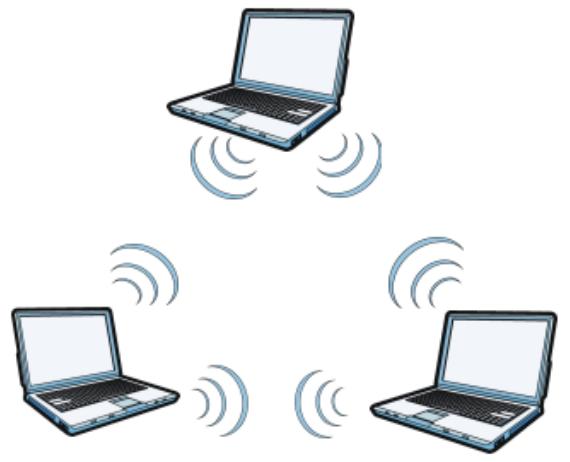
Figure 449 Peer-to-Peer Communication in an Ad-hoc Network
BSS
A Basic Service Set (BSS) exists when all communications between wireless clients or between a wireless client and a wired network client go through one access point (AP).
Intra-BSS traffic is traffic between wireless clients in the BSS. When Intra-BSS is enabled, wireless client A and B can access the wired network and communicate
with each other. When Intra-BSS is disabled, wireless client A and B can still access the wired network but cannot communicate with each other.
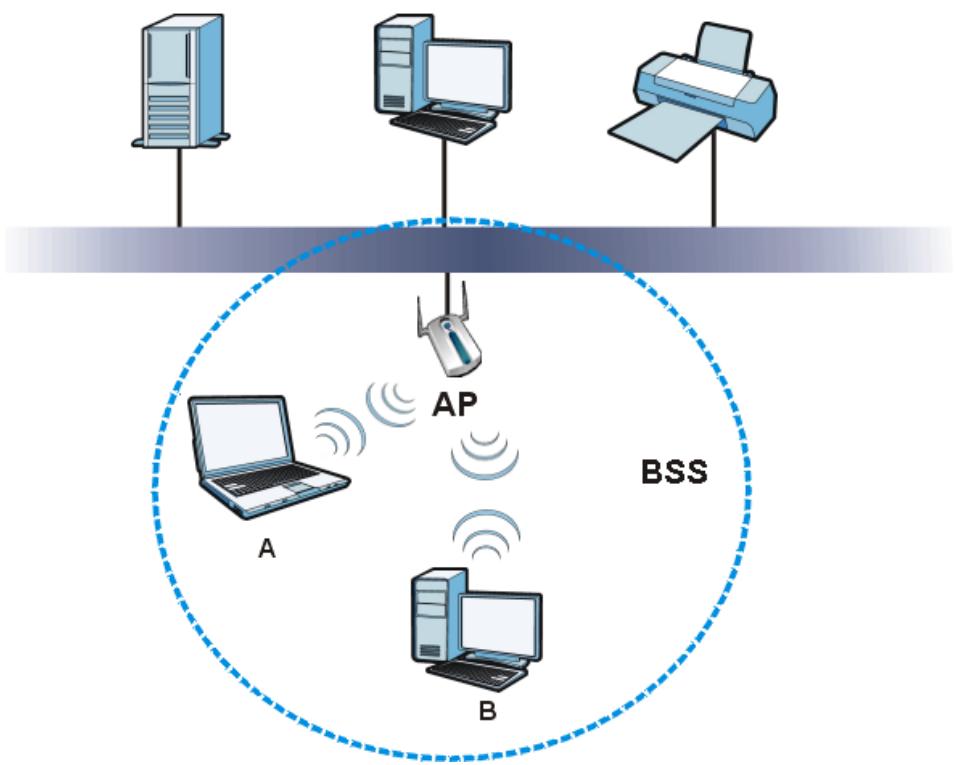
Figure 450 Basic Service Set
ESS
An Extended Service Set (ESS) consists of a series of overlapping BSSs, each containing an access point, with each access point connected together by a wired network. This wired connection between APs is called a Distribution System (DS).
This type of wireless LAN topology is called an Infrastructure WLAN. The Access Points not only provide communication with the wired network but also mediate wireless network traffic in the immediate neighborhood.
An ESSID (ESS IDentification) uniquely identifies each ESS. All access points and their associated wireless clients within the same ESS must have the same ESSID in order to communicate.
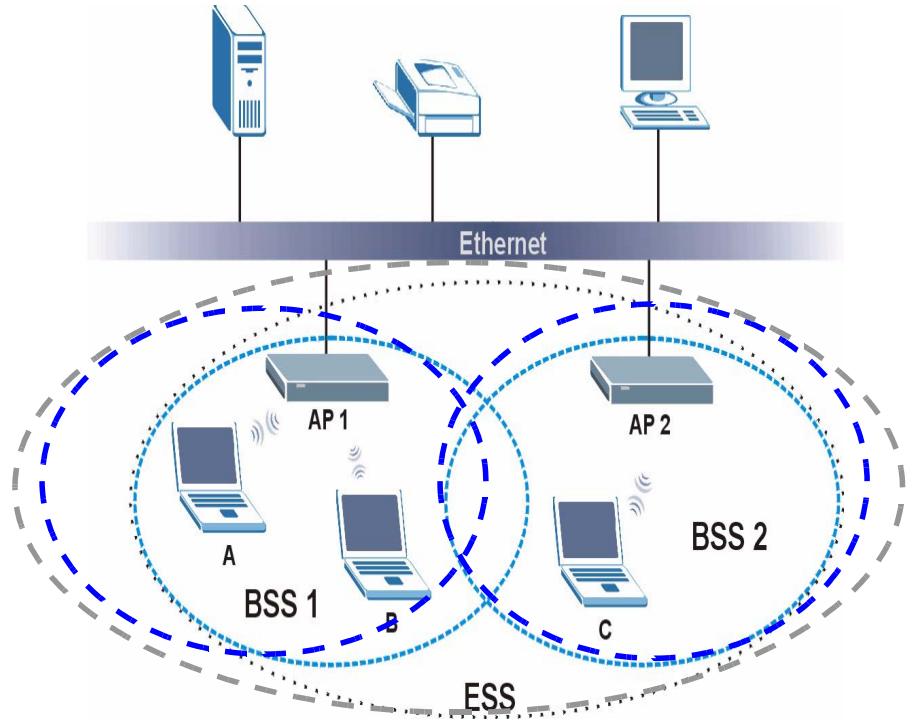
Figure 451 Infrastructure WLAN
Channel
A channel is the radio frequency(ies) used by wireless devices to transmit and receive data. Channels available depend on your geographical area. You may have a choice of channels (for your region) so you should use a channel different from an adjacent AP (access point) to reduce interference. Interference occurs when radio signals from different access points overlap causing interference and degrading performance.
Adjacent channels partially overlap however. To avoid interference due to overlap, your AP should be on a channel at least five channels away from a channel that an adjacent AP is using. For example, if your region has 11 channels and an adjacent AP is using channel 1, then you need to select a channel between 6 or 11.
RTS/CTS
A hidden node occurs when two stations are within range of the same access point, but are not within range of each other. The following figure illustrates a hidden node. Both stations (STA) are within range of the access point (AP) or
wireless gateway, but out-of-range of each other, so they cannot "hear" each other, that is they do not know if the channel is currently being used. Therefore, they are considered hidden from each other.
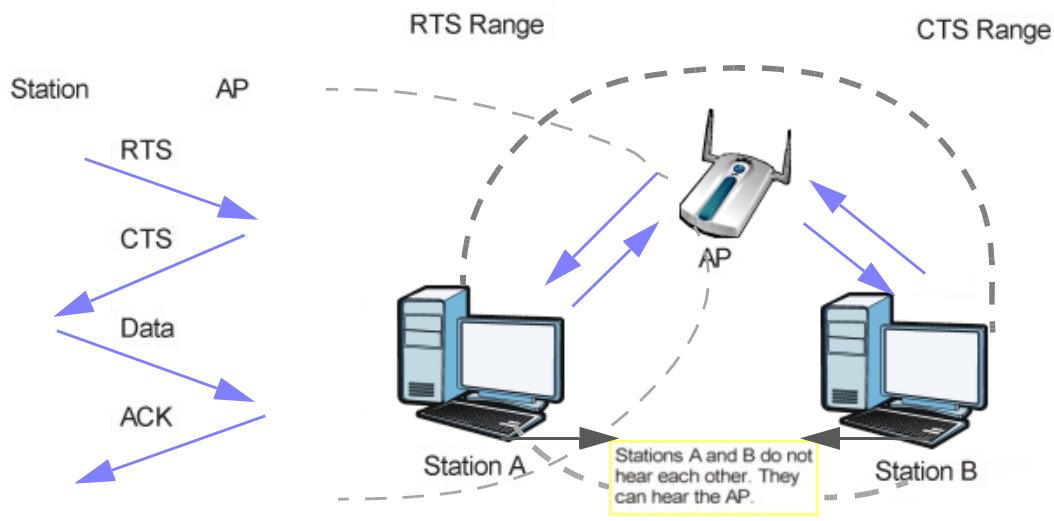
Figure 452 RTS/CTS
When station A sends data to the AP, it might not know that the station B is already using the channel. If these two stations send data at the same time, collisions may occur when both sets of data arrive at the AP at the same time, resulting in a loss of messages for both stations.
RTS/CTS is designed to prevent collisions due to hidden nodes. An RTS/CTS defines the biggest size data frame you can send before an RTS (Request To Send)/CTS (Clear to Send) handshake is invoked.
When a data frame exceeds the RTS/CTS value you set (between 0 to 2432 bytes), the station that wants to transmit this frame must first send an RTS (Request To Send) message to the AP for permission to send it. The AP then responds with a CTS (Clear to Send) message to all other stations within its range to notify them to defer their transmission. It also reserves and confirms with the requesting station the time frame for the requested transmission.
Stations can send frames smaller than the specified RTS/CTS directly to the AP without the RTS (Request To Send)/CTS (Clear to Send) handshake.
You should only configure RTS/CTS if the possibility of hidden nodes exists on your network and the "cost" of resending large frames is more than the extra network overhead involved in the RTS (Request To Send)/CTS (Clear to Send) handshake.
If the RTS/CTS value is greater than the Fragmentation Threshold value (see next), then the RTS (Request To Send)/CTS (Clear to Send) handshake will never occur as data frames will be fragmented before they reach RTS/CTS size.
Note: Enabling the RTS Threshold causes redundant network overhead that could negatively affect the throughput performance instead of providing a remedy.
Fragmentation Threshold
A Fragmentation Threshold is the maximum data fragment size (between 256 and 2432 bytes) that can be sent in the wireless network before the AP will fragment the packet into smaller data frames.
A large Fragmentation Threshold is recommended for networks not prone to interference while you should set a smaller threshold for busy networks or networks that are prone to interference.
If the Fragmentation Threshold value is smaller than the RTS/CTS value (see previously) you set then the RTS (Request To Send)/CTS (Clear to Send) handshake will never occur as data frames will be fragmented before they reach RTS/CTS size.
Preamble Type
Preamble is used to signal that data is coming to the receiver. Short and long refer to the length of the synchronization field in a packet.
Short preamble increases performance as less time sending preamble means more time for sending data. All IEEE 802.11 compliant wireless adapters support long preamble, but not all support short preamble.
Use long preamble if you are unsure what preamble mode other wireless devices on the network support, and to provide more reliable communications in busy wireless networks.
Use short preamble if you are sure all wireless devices on the network support it, and to provide more efficient communications.
Use the dynamic setting to automatically use short preamble when all wireless devices on the network support it, otherwise the ZyWALL uses long preamble.
Note: The wireless devices MUST use the same preamble mode in order to communicate.
IEEE 802.11g Wireless LAN
IEEE 802.11g is fully compatible with the IEEE 802.11b standard. This means an IEEE 802.11b adapter can interface directly with an IEEE 802.11g access point
(and vice versa) at 11 Mbps or lower depending on range. IEEE 802.11g has several intermediate rate steps between the maximum and minimum data rates. The IEEE 802.11g data rate and modulation are as follows:
Table 270 IEEE 802.11g
| DATA RATE (MBPS) | MODULATION |
| 1 | DBPSK (Differential Binary Phase Shift Keyed) |
| 2 | DQPSK (Differential Quadrature Phase Shift Keying) |
| 5.5 / 11 | CCK (Complementary Code Keying) |
| 6/9/12/18/24/36/48/54 | OFDM (Orthogonal Frequency Division Multiplexing) |
Wireless Security Overview
Wireless security is vital to your network to protect wireless communication between wireless clients, access points and the wired network.
Wireless security methods available on the ZyWALL are data encryption, wireless client authentication, restricting access by device MAC address and hiding the ZyWALL identity.
The following figure shows the relative effectiveness of these wireless security methods available on your ZyWALL.
Table 271 Wireless Security Levels
| SECURITY LEVEL | SECURITY TYPE |
| Least Secure | Unique SSID (Default) |
| Unique SSID with Hide SSID Enabled | |
| MAC Address Filtering | |
| WEP Encryption | |
| IEEE802.1x EAP with RADIUS Server Authentication | |
| Most Secure | Wi-Fi Protected Access (WPA) |
| WPA2 |
Note: You must enable the same wireless security settings on the ZyWALL and on all wireless clients that you want to associate with it.
IEEE 802.1x
In June 2001, the IEEE 802.1x standard was designed to extend the features of IEEE 802.11 to support extended authentication as well as providing additional
accounting and control features. It is supported by Windows XP and a number of network devices. Some advantages of IEEE 802.1x are:
- User based identification that allows for roaming.
- Support for RADIUS (Remote Authentication Dial In User Service, RFC 2138, 2139) for centralized user profile and accounting management on a network RADIUS server.
- Support for EAP (Extensible Authentication Protocol, RFC 2486) that allows additional authentication methods to be deployed with no changes to the access point or the wireless clients.
RADIUS
RADIUS is based on a client-server model that supports authentication, authorization and accounting. The access point is the client and the server is the RADIUS server. The RADIUS server handles the following tasks:
Authentication
Determines the identity of the users.
- Authorization
Determines the network services available to authenticated users once they are connected to the network.
- Accounting
Kees track of the client's network activity.
RADIUS is a simple package exchange in which your AP acts as a message relay between the wireless client and the network RADIUS server.
Types of RADIUS Messages
The following types of RADIUS messages are exchanged between the access point and the RADIUS server for user authentication:
- Access-Request
Sent by an access point requesting authentication.
- Access-Reject
Sent by a RADIUS server rejecting access.
- Access-Accept
Sent by a RADIUS server allowing access.
- Access-Challenge
Sent by a RADIUS server requesting more information in order to allow access. The access point sends a proper response from the user and then sends another Access-Request message.
The following types of RADIUS messages are exchanged between the access point and the RADIUS server for user accounting:
- Accounting-Request
Sent by the access point requesting accounting.
- Accounting-Response
Sent by the RADIUS server to indicate that it has started or stopped accounting.
In order to ensure network security, the access point and the RADIUS server use a shared secret key, which is a password, they both know. The key is not sent over the network. In addition to the shared key, password information exchanged is also encrypted to protect the network from unauthorized access.
Types of EAP Authentication
This section discusses some popular authentication types: EAP-MD5, EAP-TLS, EAP-TTLS, PEAP and LEAP. Your wireless LAN device may not support all authentication types.
EAP (Extensible Authentication Protocol) is an authentication protocol that runs on top of the IEEE 802.1x transport mechanism in order to support multiple types of user authentication. By using EAP to interact with an EAP-compatible RADIUS server, an access point helps a wireless station and a RADIUS server perform authentication.
The type of authentication you use depends on the RADIUS server and an intermediary AP(s) that supports IEEE 802.1x..
For EAP-TLS authentication type, you must first have a wired connection to the network and obtain the certificate(s) from a certificate authority (CA). A certificate (also called digital IDs) can be used to authenticate users and a CA issues certificates and guarantees the identity of each certificate owner.
EAP-MD5 (Message-Digest Algorithm 5)
MD5 authentication is the simplest one-way authentication method. The authentication server sends a challenge to the wireless client. The wireless client 'proves' that it knows the password by encrypting the password with the challenge and sends back the information. Password is not sent in plain text.
However, MD5 authentication has some weaknesses. Since the authentication server needs to get the plaintext passwords, the passwords must be stored. Thus someone other than the authentication server may access the password file. In addition, it is possible to impersonate an authentication server as MD5 authentication method does not perform mutual authentication. Finally, MD5
authentication method does not support data encryption with dynamic session key. You must configure WEP encryption keys for data encryption.
EAP-TLS (Transport Layer Security)
With EAP-TLS, digital certifications are needed by both the server and the wireless clients for mutual authentication. The server presents a certificate to the client. After validating the identity of the server, the client sends a different certificate to the server. The exchange of certificates is done in the open before a secured tunnel is created. This makes user identity vulnerable to passive attacks. A digital certificate is an electronic ID card that authenticates the sender's identity. However, to implement EAP-TLS, you need a Certificate Authority (CA) to handle certificates, which imposes a management overhead.
EAP-TTLS (Tunnel Transport Layer Service)
EAP-TTLS is an extension of the EAP-TLS authentication that uses certificates for only the server-side authentications to establish a secure connection. Client authentication is then done by sending username and password through the secure connection, thus client identity is protected. For client authentication, EAP-TTLS supports EAP methods and legacy authentication methods such as PAP, CHAP, MS-CHAP and MS-CHAP v2.
PEAP (Protected EAP)
Like EAP-TTLS, server-side certificate authentication is used to establish a secure connection, then use simple username and password methods through the secured connection to authenticate the clients, thus hiding client identity. However, PEAP only supports EAP methods, such as EAP-MD5, EAP-MSCHAPv2 and EAP-GTC (EAP-Generic Token Card), for client authentication. EAP-GTC is implemented only by Cisco.
LEAP
LEAP (Lightweight Extensible Authentication Protocol) is a Cisco implementation of IEEE 802.1x.
Dynamic WEP Key Exchange
The AP maps a unique key that is generated with the RADIUS server. This key expires when the wireless connection times out, disconnects or reauthentication times out. A new WEP key is generated each time reauthentication is performed.
If this feature is enabled, it is not necessary to configure a default encryption key in the wireless security configuration screen. You may still configure and store keys, but they will not be used while dynamic WEP is enabled.
Note: EAP-MD5 cannot be used with Dynamic WEP Key Exchange
For added security, certificate-based authentications (EAP-TLS, EAP-TTLS and PEAP) use dynamic keys for data encryption. They are often deployed in corporate environments, but for public deployment, a simple user name and password pair is more practical. The following table is a comparison of the features of authentication types.
Table 272 Comparison of EAP Authentication Types
| EAP-MD5 | EAP-TLS | EAP-TTLS | PEAP | LEAP | |
| Mutual Authentication | No | Yes | Yes | Yes | Yes |
| Certificate – Client | No | Yes | Optional | Optional | No |
| Certificate – Server | No | Yes | Yes | Yes | No |
| Dynamic Key Exchange | No | Yes | Yes | Yes | Yes |
| Credential Integrity | None | Strong | Strong | Strong | Moderate |
| Deployment Difficulty | Easy | Hard | Moderate | Moderate | Moderate |
| Client Identity Protection | No | No | Yes | Yes | No |
WPA and WPA2
Wi-Fi Protected Access (WPA) is a subset of the IEEE 802.11i standard. WPA2 (IEEE 802.11i) is a wireless security standard that defines stronger encryption, authentication and key management than WPA.
Key differences between WPA or WPA2 and WEP are improved data encryption and user authentication.
If both an AP and the wireless clients support WPA2 and you have an external RADIUS server, use WPA2 for stronger data encryption. If you don't have an external RADIUS server, you should use WPA2-PSK (WPA2-Pre-Shared Key) that only requires a single (identical) password entered into each access point, wireless gateway and wireless client. As long as the passwords match, a wireless client will be granted access to a WLAN.
If the AP or the wireless clients do not support WPA2, just use WPA or WPA-PSK depending on whether you have an external RADIUS server or not.
Select WEP only when the AP and/or wireless clients do not support WPA or WPA2. WEP is less secure than WPA or WPA2.
Encryption
Both WPA and WPA2 improve data encryption by using Temporal Key Integrity Protocol (TKIP), Message Integrity Check (MIC) and IEEE 802.1x. WPA and WPA2
use Advanced Encryption Standard (AES) in the Counter mode with Cipher block chaining Message authentication code Protocol (CCMP) to offer stronger encryption than TKIP.
TKIP uses 128-bit keys that are dynamically generated and distributed by the authentication server. AES (Advanced Encryption Standard) is a block cipher that uses a 256-bit mathematical algorithm called Rijndael. They both include a per-packet key mixing function, a Message Integrity Check (MIC) named Michael, an extended initialization vector (IV) with sequencing rules, and a re-keying mechanism.
WPA and WPA2 regularly change and rotate the encryption keys so that the same encryption key is never used twice.
The RADIUS server distributes a Pairwise Master Key (PMK) key to the AP that then sets up a key hierarchy and management system, using the PMK to dynamically generate unique data encryption keys to encrypt every data packet that is wirelessly communicated between the AP and the wireless clients. This all happens in the background automatically.
The Message Integrity Check (MIC) is designed to prevent an attacker from capturing data packets, altering them and resending them. The MIC provides a strong mathematical function in which the receiver and the transmitter each compute and then compare the MIC. If they do not match, it is assumed that the data has been tampered with and the packet is dropped.
By generating unique data encryption keys for every data packet and by creating an integrity checking mechanism (MIC), with TKIP and AES it is more difficult to decrypt data on a Wi-Fi network than WEP and difficult for an intruder to break into the network.
The encryption mechanisms used for WPA(2) and WPA(2)-PSK are the same. The only difference between the two is that WPA(2)-PSK uses a simple common password, instead of user-specific credentials. The common-password approach makes WPA(2)-PSK susceptible to brute-force password-guessing attacks but it's still an improvement over WEP as it employs a consistent, single, alphanumeric password to derive a PMK which is used to generate unique temporal encryption keys. This prevent all wireless devices sharing the same encryption keys. (a weakness of WEP)
User Authentication
WPA and WPA2 apply IEEE 802.1x and Extensible Authentication Protocol (EAP) to authenticate wireless clients using an external RADIUS database. WPA2 reduces the number of key exchange messages from six to four (CCMP 4-way handshake) and shortens the time required to connect to a network. Other WPA2 authentication features that are different from WPA include key caching and pre
authentication. These two features are optional and may not be supported in all wireless devices.
Key caching allows a wireless client to store the PMK it derived through a successful authentication with an AP. The wireless client uses the PMK when it tries to connect to the same AP and does not need to go with the authentication process again.
Pre-authentication enables fast roaming by allowing the wireless client (already connecting to an AP) to perform IEEE 802.1x authentication with another AP before connecting to it.
Wireless Client WPA Suppliers
A wireless client supplicant is the software that runs on an operating system instructing the wireless client how to use WPA. At the time of writing, the most widely available supplicant is the WPA patch for Windows XP, Funk Software's Odyssey client.
The Windows XP patch is a free download that adds WPA capability to Windows XP's built-in "Zero Configuration" wireless client. However, you must run Windows XP to use it.
WPA(2) with RADIUS Application Example
To set up WPA(2), you need the IP address of the RADIUS server, its port number (default is 1812), and the RADIUS shared secret. A WPA(2) application example with an external RADIUS server looks as follows. "A" is the RADIUS server. "DS" is the distribution system.
1 The AP passes the wireless client's authentication request to the RADIUS server.
2 The RADIUS server then checks the user's identification against its database and grants or denies network access accordingly.
3 A 256-bit Pairwise Master Key (PMK) is derived from the authentication process by the RADIUS server and the client.
4 The RADIUS server distributes the PMK to the AP. The AP then sets up a key hierarchy and management system, using the PMK to dynamically generate unique data encryption keys. The keys are used to encrypt every data packet that is wirelessly communicated between the AP and the wireless clients.
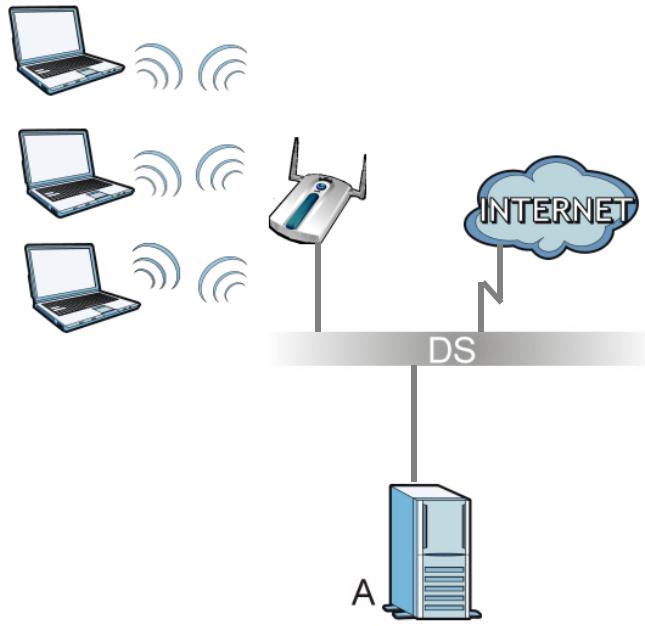
Figure 453 WPA(2) with RADIUS Application Example
WPA(2)-PSK Application Example
A WPA(2)-PSK application looks as follows.
1 First enter identical passwords into the AP and all wireless clients. The Pre-Shared Key (PSK) must consist of between 8 and 63 ASCII characters or 64 hexadecimal characters (including spaces and symbols).
2 The AP checks each wireless client's password and allows it to join the network only if the password matches.
3 The AP and wireless clients generate a common PMK (Pairwise Master Key). The key itself is not sent over the network, but is derived from the PSK and the SSID.
4 The AP and wireless clients use the TKIP or AES encryption process, the PMK and information exchanged in a handshake to create temporal encryption keys. They use these keys to encrypt data exchanged between them.
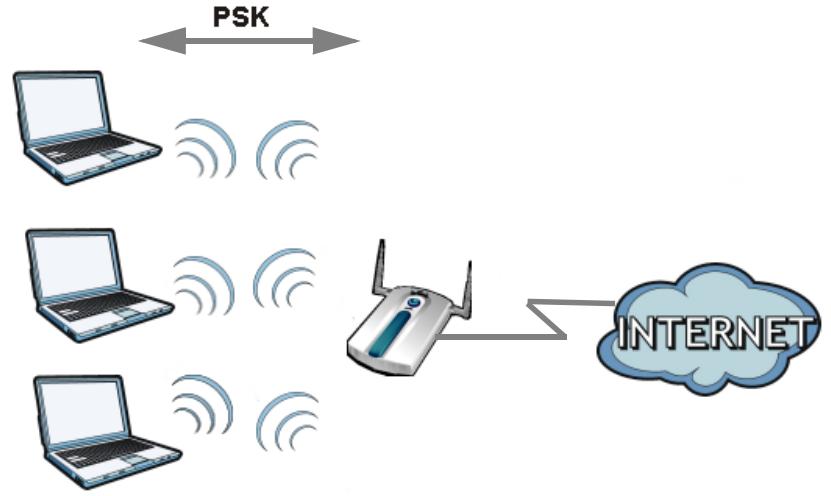
Figure 454 WPA(2)-PSK Authentication
Security Parameters Summary
Refer to this table to see what other security parameters you should configure for each authentication method or key management protocol type. MAC address filters are not dependent on how you configure these security features.
Table 273 Wireless Security Relational Matrix
| AUTHENTICATION METHOD/ KEYMANAGEMENT PROTOCOL | ENCRYPTION METHOD | ENTERMANUAL KEY | IEEE 802.1X |
| Open | None | No | Disable |
| Enable without Dynamic WEP Key | |||
| Open | WEP | No | Enable with Dynamic WEP Key |
| Yes | Enable without Dynamic WEP Key | ||
| Yes | Disable | ||
| Shared | WEP | No | Enable with Dynamic WEP Key |
| Yes | Enable without Dynamic WEP Key | ||
| Yes | Disable | ||
| WPA | TKIP/AES | No | Enable |
| WPA-PSK | TKIP/AES | Yes | Disable |
| WPA2 | TKIP/AES | No | Enable |
| WPA2-PSK | TKIP/AES | Yes | Disable |
Antenna Overview
An antenna couples RF signals onto air. A transmitter within a wireless device sends an RF signal to the antenna, which propagates the signal through the air. The antenna also operates in reverse by capturing RF signals from the air.
Positioning the antennas properly increases the range and coverage area of a wireless LAN.
Antenna Characteristics
Frequency
An antenna in the frequency of 2.4GHz (IEEE 802.11b and IEEE 802.11g) or 5GHz (IEEE 802.11a) is needed to communicate efficiently in a wireless LAN
Radiation Pattern
A radiation pattern is a diagram that allows you to visualize the shape of the antenna's coverage area.
Antenna Gain
Antenna gain, measured in dB (decibel), is the increase in coverage within the RF beam width. Higher antenna gain improves the range of the signal for better communications.
For an indoor site, each 1 dB increase in antenna gain results in a range increase of approximately 2.5% . For an unobstructed outdoor site, each 1dB increase in gain results in a range increase of approximately 5% . Actual results may vary depending on the network environment.
Antenna gain is sometimes specified in dBi, which is how much the antenna increases the signal power compared to using an isotropic antenna. An isotropic antenna is a theoretical perfect antenna that sends out radio signals equally well in all directions. dBi represents the true gain that the antenna provides.
Types of Antennas for WLAN
There are two types of antennas used for wireless LAN applications.
- Omni-directional antennas send the RF signal out in all directions on a horizontal plane. The coverage area is torus-shaped (like a donut) which makes these antennas ideal for a room environment. With a wide coverage area, it is possible to make circular overlapping coverage areas with multiple access points.
- Directional antennas concentrate the RF signal in a beam, like a flashlight does with the light from its bulb. The angle of the beam determines the width of the coverage pattern. Angles typically range from 20 degrees (very directional) to 120 degrees (less directional). Directional antennas are ideal for hallways and outdoor point-to-point applications.
Positioning Antennas
In general, antennas should be mounted as high as practically possible and free of obstructions. In point-to-point application, position both antennas at the same height and in a direct line of sight to each other to attain the best performance.
For omni-directional antennas mounted on a table, desk, and so on, point the antenna up. For omni-directional antennas mounted on a wall or ceiling, point the antenna down. For a single AP application, place omni-directional antennas as close to the center of the coverage area as possible.
For directional antennas, point the antenna in the direction of the desired coverage area.
Importing Certificates
This appendix shows you how to import public key certificates into your web browser.
Public key certificates are used by web browsers to ensure that a secure web site is legitimate. When a certificate authority such as VeriSign, Comodo, or Network Solutions, to name a few, receives a certificate request from a website operator, they confirm that the web domain and contact information in the request match those on public record with a domain name registrar. If they match, then the certificate is issued to the website operator, who then places it on the site to be issued to all visiting web browsers to let them know that the site is legitimate.
Many ZyXEL products, such as the ZyWALL, issue their own public key certificates. These can be used by web browsers on a LAN or WAN to verify that they are in fact connecting to the legitimate device and not one masquerading as it. However, because the certificates were not issued by one of the several organizations officially recognized by the most common web browsers, you will need to import the ZyXEL-created certificate into your web browser and flag that certificate as a trusted authority.
Note: You can see if you are browsing on a secure website if the URL in your web browser's address bar begins with https://or there is a sealed padlock icon ( ) somewhere in the main browser window (not all browsers show the padlock in the same location.)
In this appendix, you can import a public key certificate for:
- Internet Explorer on page 819
- Firefox on page 828
- Opera on page 833
- Konqueror on page 840
Internet Explorer
The following example uses Microsoft Internet Explorer 7 on Windows XP Professional; however, they can also apply to Internet Explorer on Windows Vista.
1 If your device's Web Configurator is set to use SSL certification, then the first time you browse to it you are presented with a certification error.
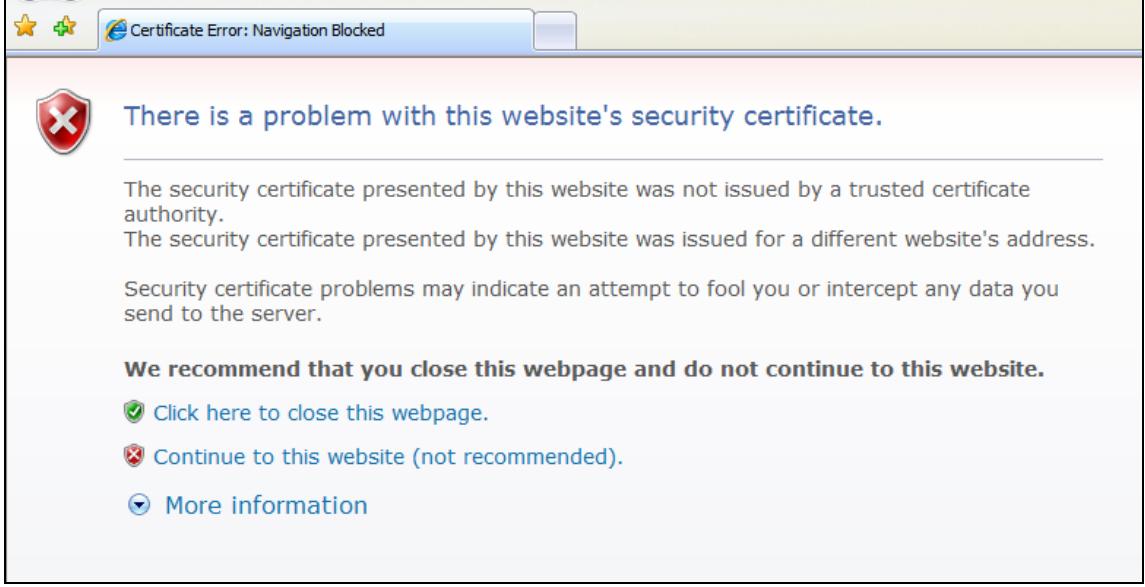
Figure 455 Internet Explorer 7: Certification Error
2 Click Continue to this website (not recommended).

Figure 456 Internet Explorer 7: Certification Error
Continue to this website (not recommended).
3 In the Address Bar, click Certificate Error > View certificates.
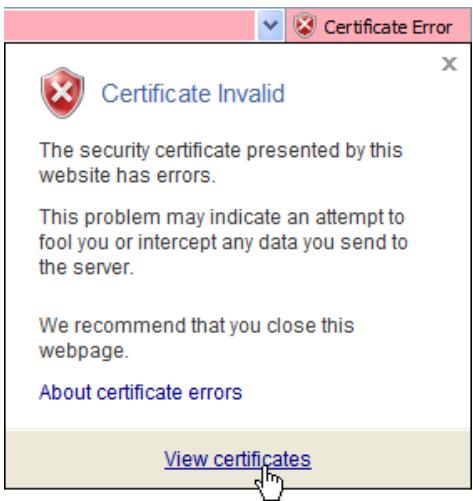
Figure 457 Internet Explorer 7: Certificate Error
4 In the Certificate dialog box, click Install Certificate.
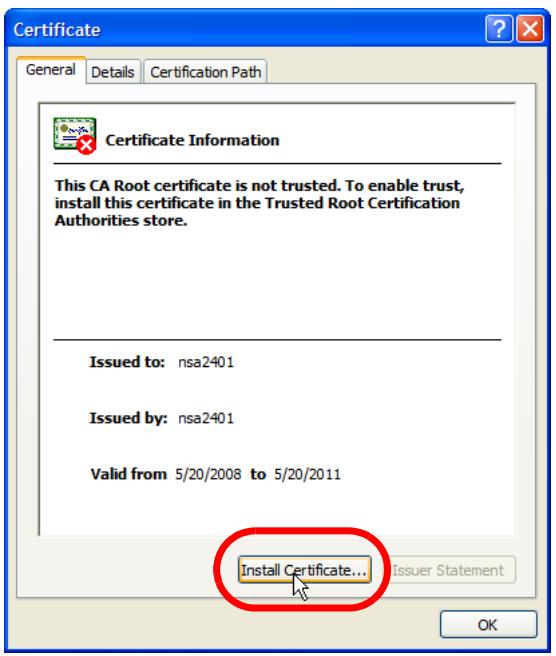
Figure 458 Internet Explorer 7: Certificate
5 In the Certificate Import Wizard, click Next.
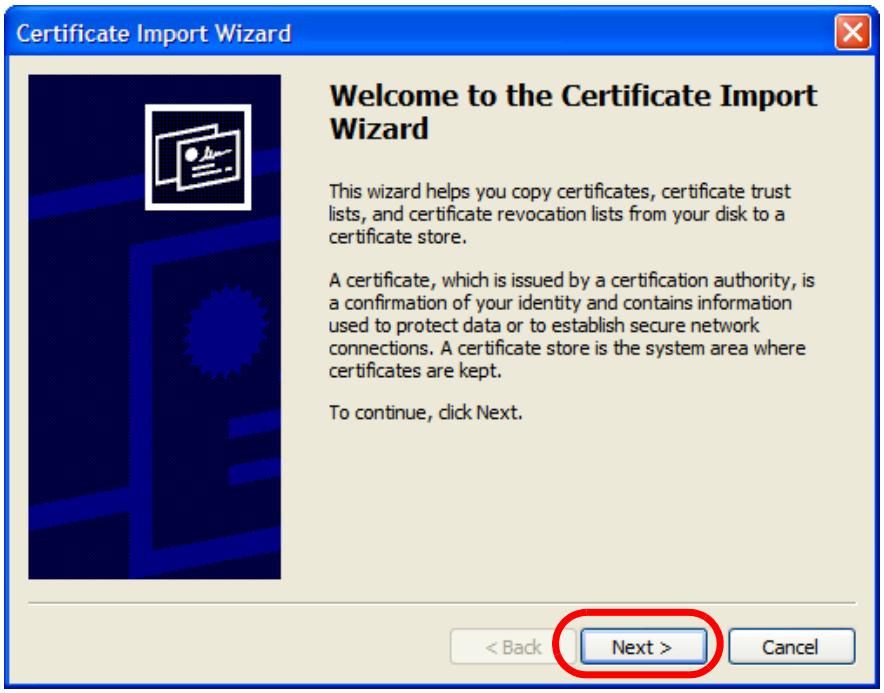
Figure 459 Internet Explorer 7: Certificate Import Wizard
6 If you want Internet Explorer to Automatically select certificate store based on the type of certificate, click Next again and then go to step 9.
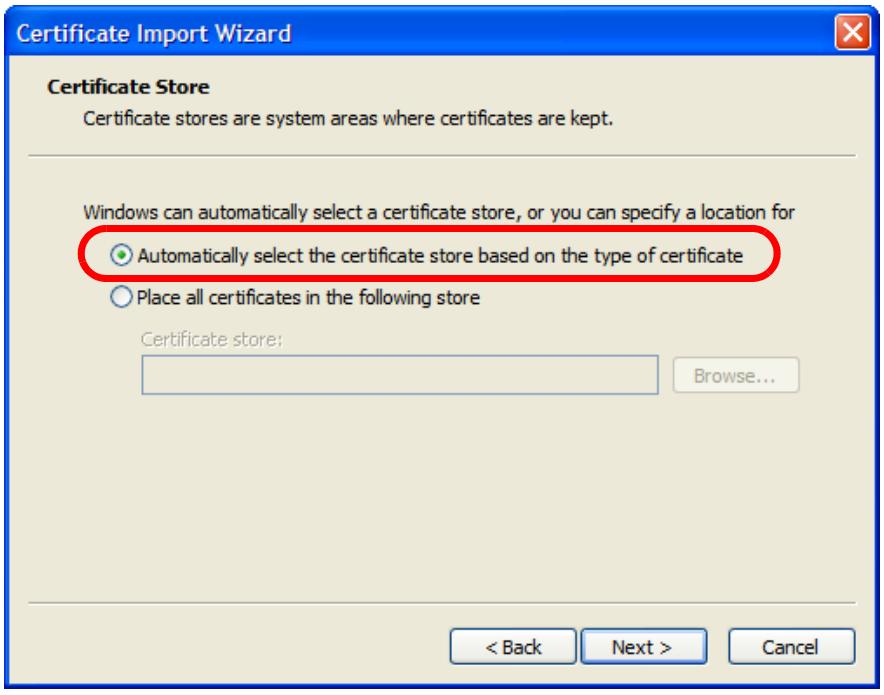
Figure 460 Internet Explorer 7: Certificate Import Wizard
7 Otherwise, select Place all certificates in the following store and then click Browse.
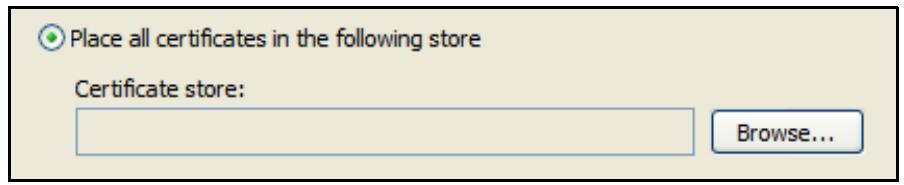
Figure 461 Internet Explorer 7: Certificate Import Wizard
8 In the Select Certificate Store dialog box, choose a location in which to save the certificate and then click OK.
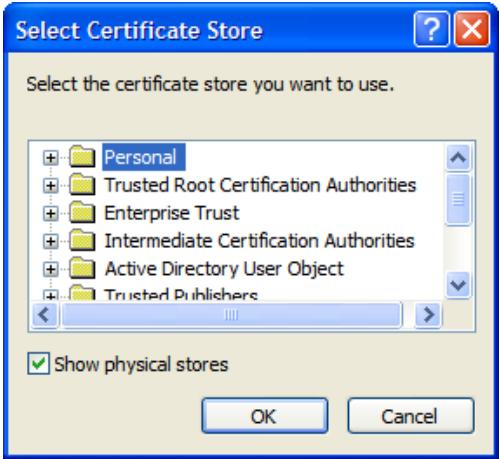
Figure 462 Internet Explorer 7: Select Certificate Store
9 In the Completing the Certificate Import Wizard screen, click Finish.
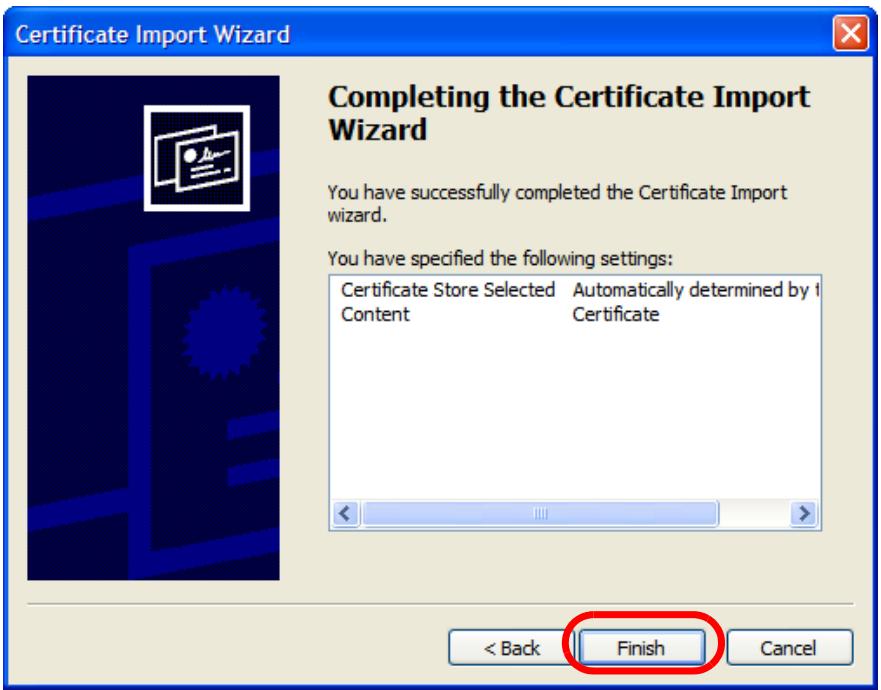
Figure 463 Internet Explorer 7: Certificate Import Wizard
10 If you are presented with another Security Warning, click Yes.
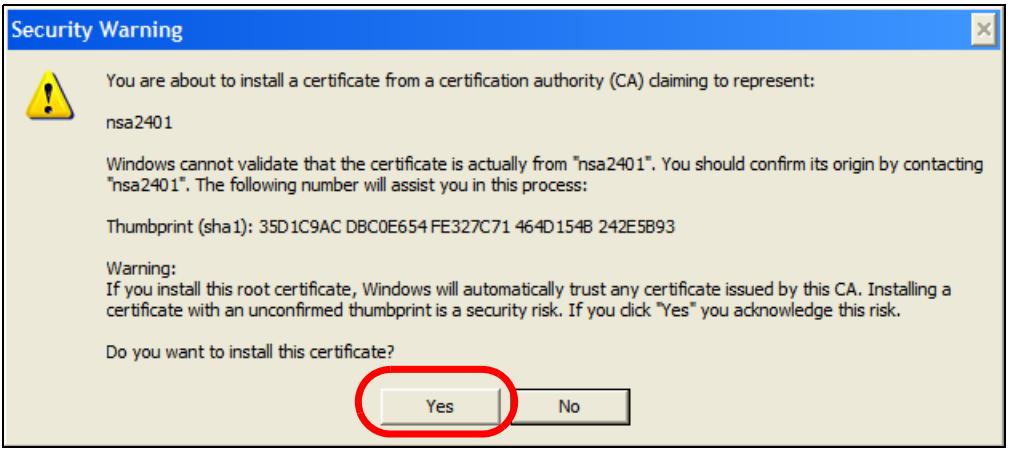
Figure 464 Internet Explorer 7: Security Warning
11 Finally, click OK when presented with the successful certificate installation message.
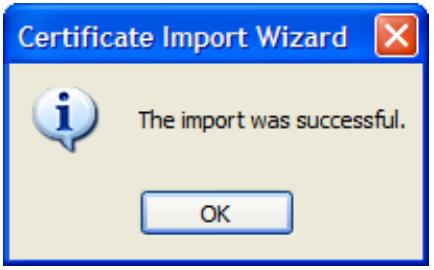
Figure 465 Internet Explorer 7: Certificate Import Wizard
12 The next time you start Internet Explorer and go to a ZyXEL Web Configurator page, a sealed padlock icon appears in the address bar. Click it to view the page's Website Identification information.
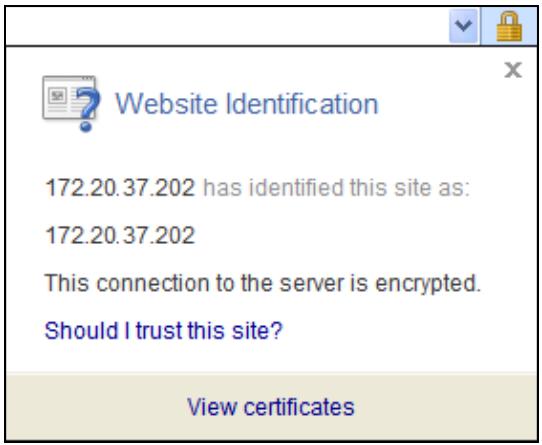
Figure 466 Internet Explorer 7: Website Identification
Installing a Stand-Alone Certificate File in Internet Explorer
Rather than browsing to a ZyXEL Web Configurator and installing a public key certificate when prompted, you can install a stand-alone certificate file if one has been issued to you.
1 Double-click the public key certificate file.
Figure 467 Internet Explorer 7: Public Key Certificate File


2 In the security warning dialog box, click Open.
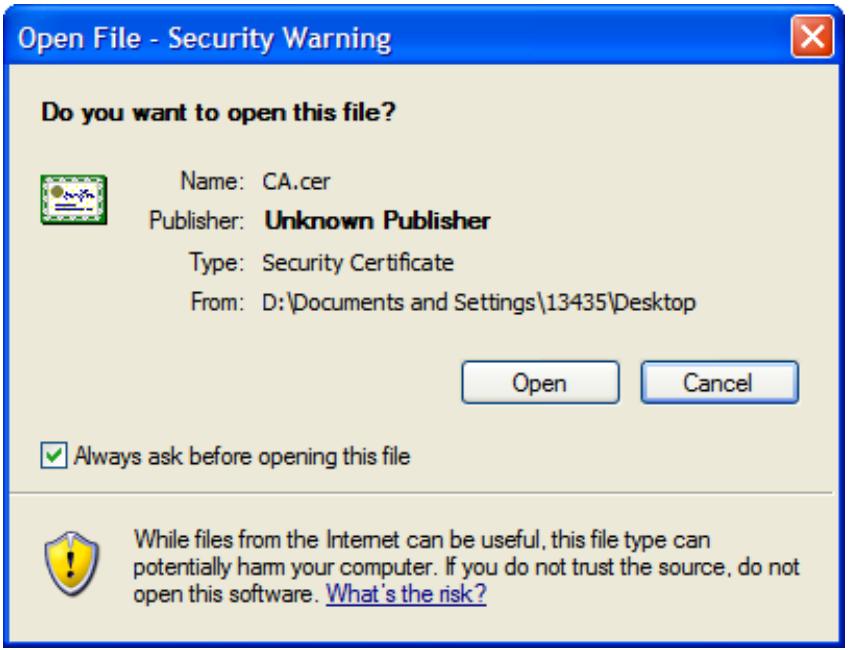
Figure 468 Internet Explorer 7: Open File - Security Warning
3 Refer to steps 4-12 in the Internet Explorer procedure beginning on page 819 to complete the installation process.
Removing a Certificate in Internet Explorer
This section shows you how to remove a public key certificate in Internet Explorer 7.
1 Open Internet Explorer and click Tools > Internet Options.
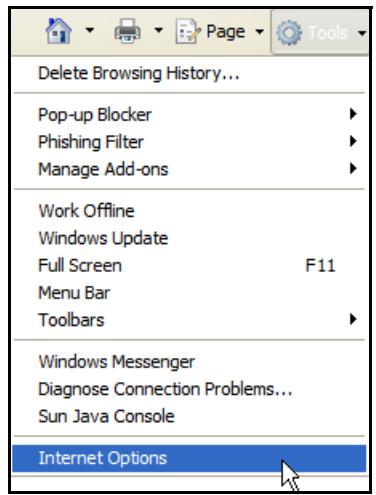
Figure 469 Internet Explorer 7: Tools Menu
2 In the Internet Options dialog box, click Content > Certificates.
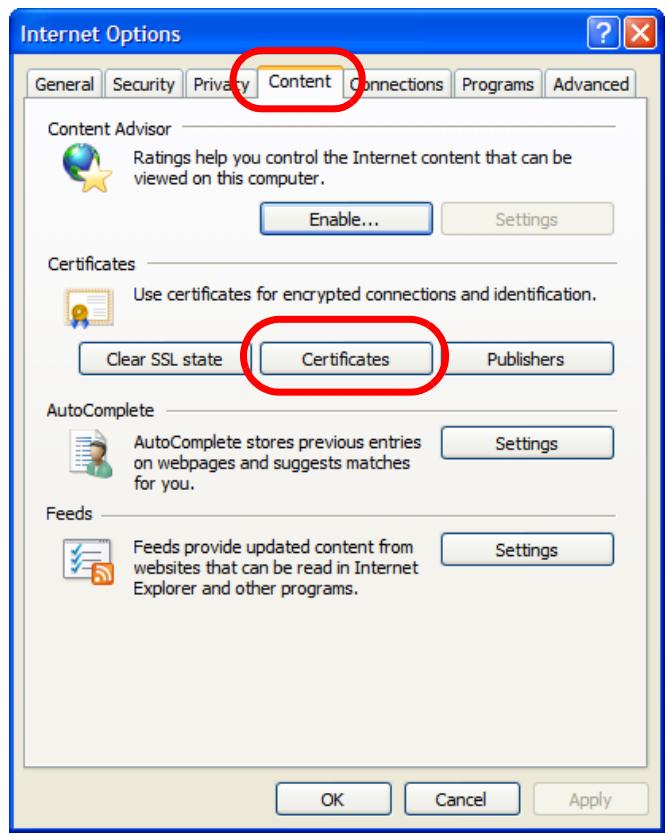
Figure 470 Internet Explorer 7: Internet Options
3 In the Certificates dialog box, click the Trusted Root Certificates Authorities tab, select the certificate that you want to delete, and then click Remove.
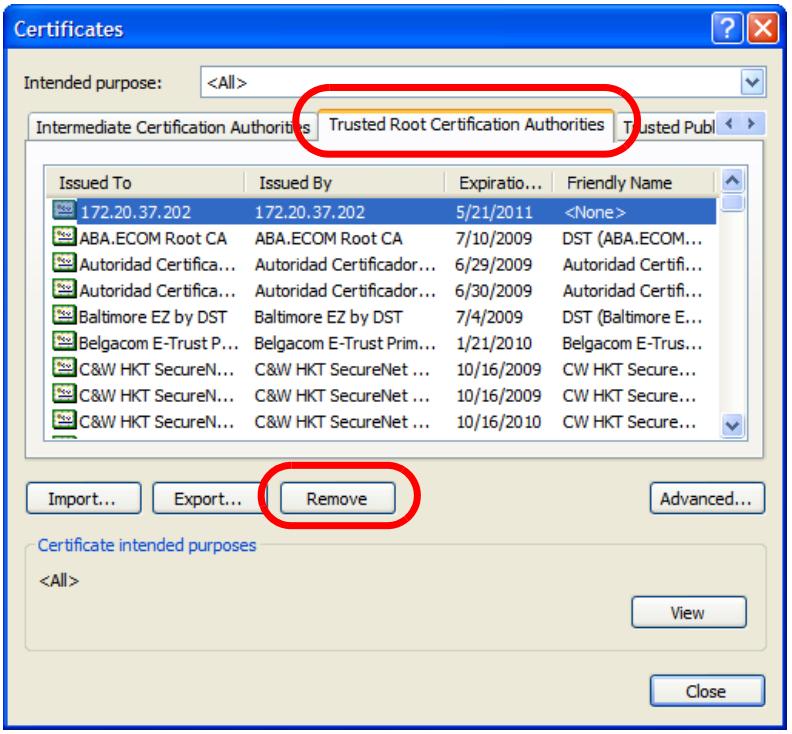
Figure 471 Internet Explorer 7: Certificates
4 In the Certificates confirmation, click Yes.
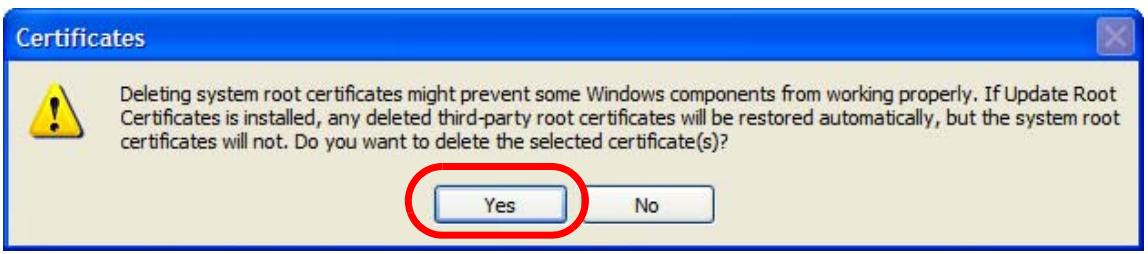
Figure 472 Internet Explorer 7: Certificates
5 In the Root Certificate Store dialog box, click Yes.
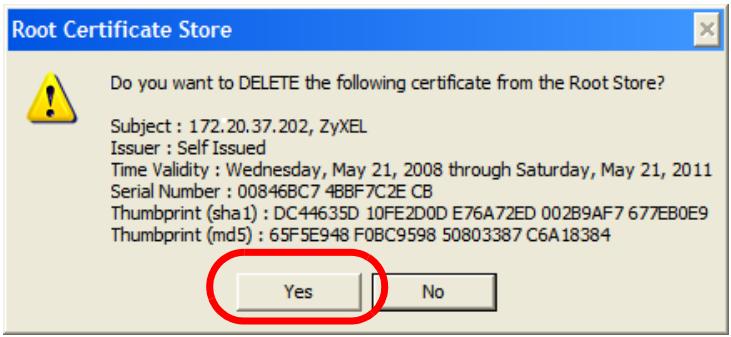
Figure 473 Internet Explorer 7: Root Certificate Store
6 The next time you go to the web site that issued the public key certificate you just removed, a certification error appears.
Firefox
The following example uses Mozilla Firefox 2 on Windows XP Professional; however, the screens can also apply to Firefox 2 on all platforms.
1 If your device's Web Configurator is set to use SSL certification, then the first time you browse to it you are presented with a certification error.
2 Select Accept this certificate permanently and click OK.
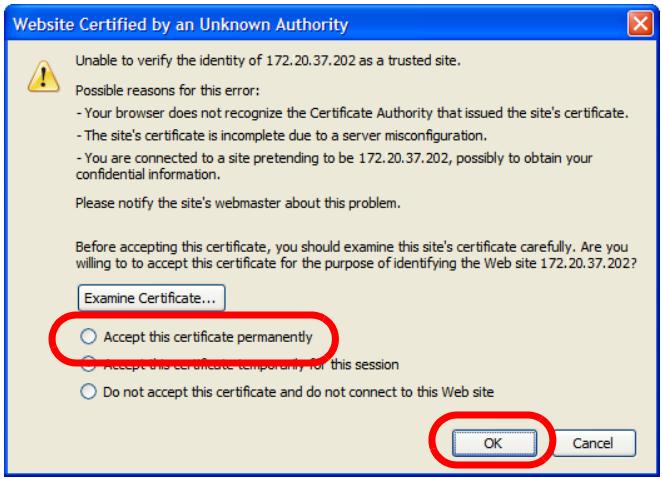
Figure 474 Firefox 2: Website Certified by an Unknown Authority
3 The certificate is stored and you can now connect securely to the Web Configurator. A sealed padlock appears in the address bar, which you can click to open the Page Info > Security window to view the web page's security information.
Figure 475 Firefox 2: Page Info

Installing a Stand-Alone Certificate File in Firefox
Rather than browsing to a ZyXEL Web Configurator and installing a public key certificate when prompted, you can install a stand-alone certificate file if one has been issued to you.
1 Open Firefox and click Tools > Options.
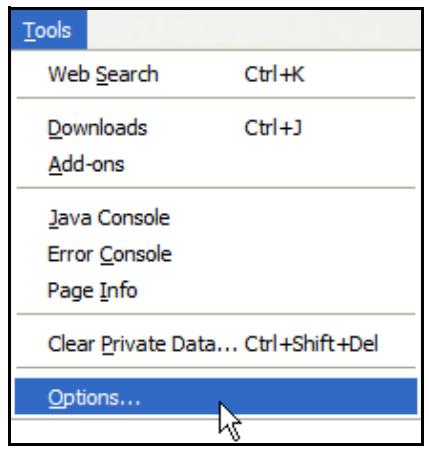
Figure 476 Firefox 2: Tools Menu
2 In the Options dialog box, click Advanced > Encryption > View Certificates.
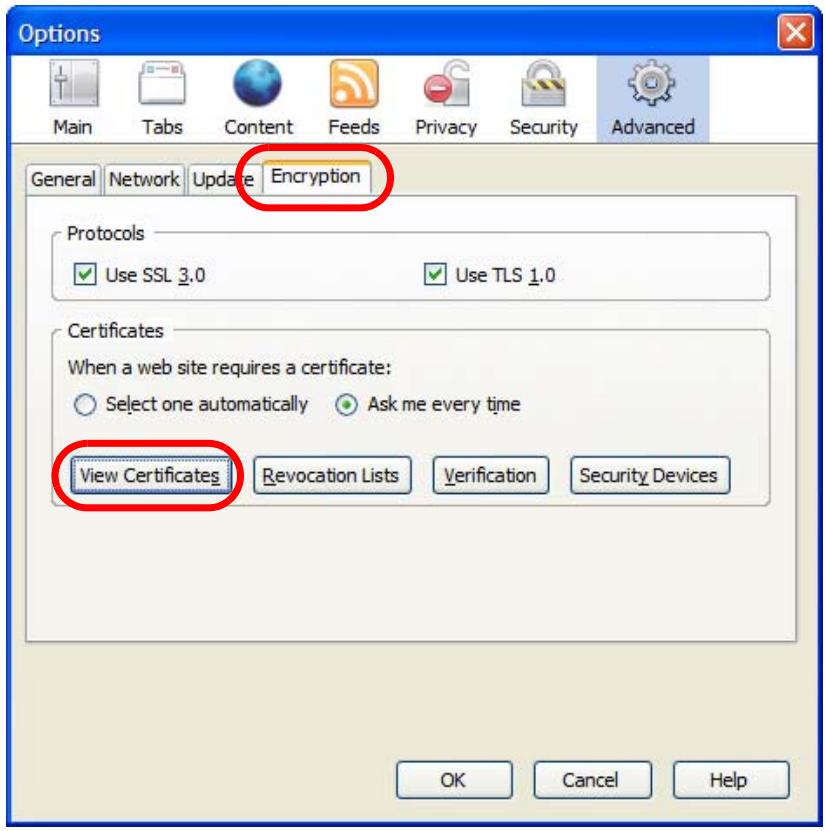
Figure 477 Firefox 2: Options
3 In the Certificate Manager dialog box, click Web Sites > Import.
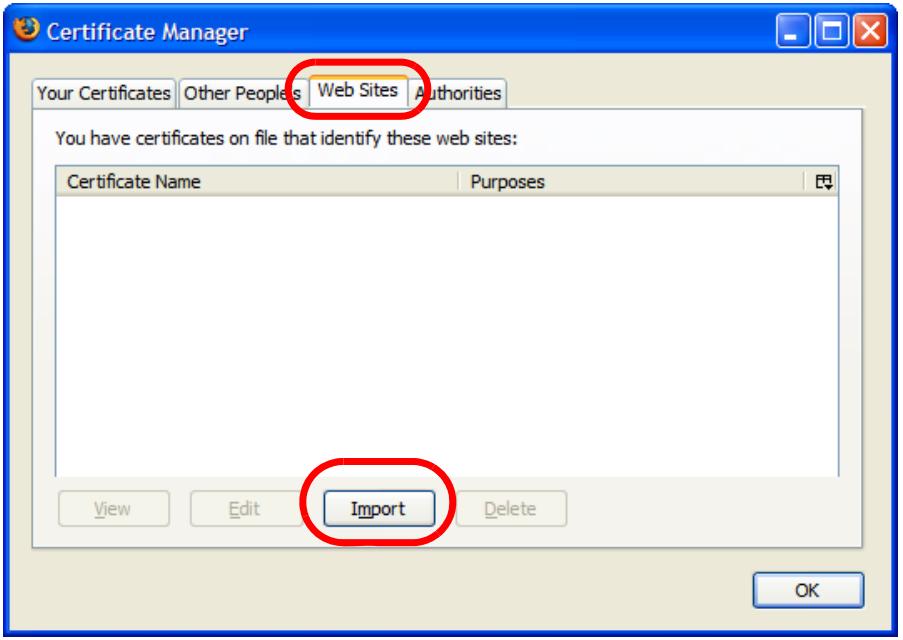
Figure 478 Firefox 2: Certificate Manager
4 Use the Select File dialog box to locate the certificate and then click Open.
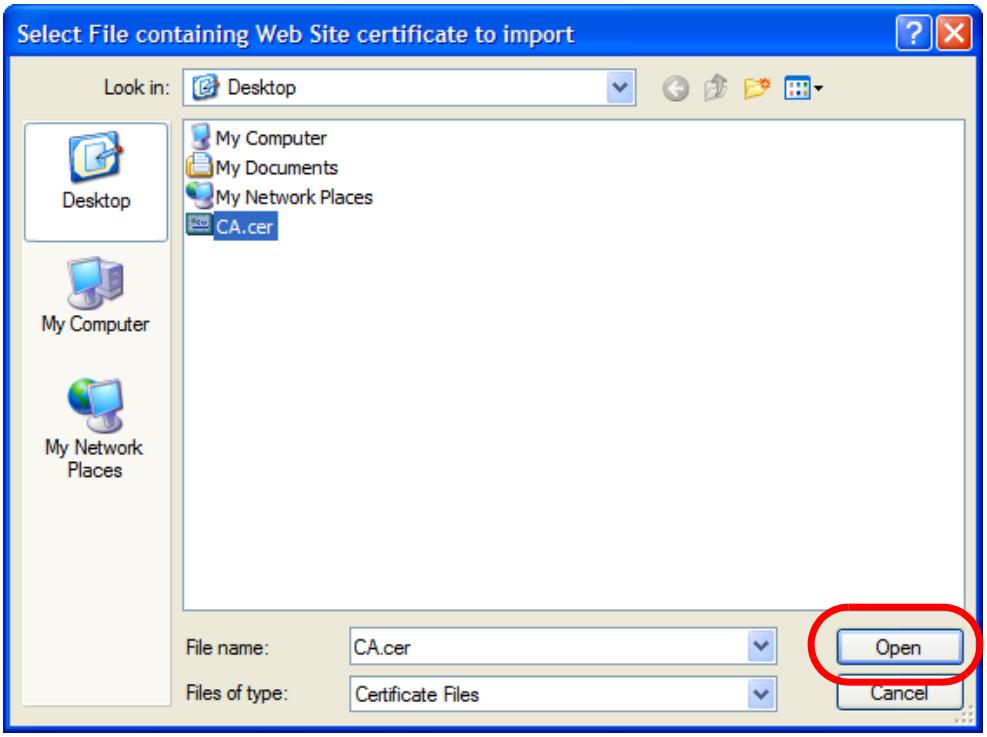
Figure 479 Firefox 2: Select File
5 The next time you visit the web site, click the padlock in the address bar to open the Page Info > Security window to see the web page's security information.
Removing a Certificate in Firefox
This section shows you how to remove a public key certificate in Firefox 2.
1 Open Firefox and click Tools > Options.
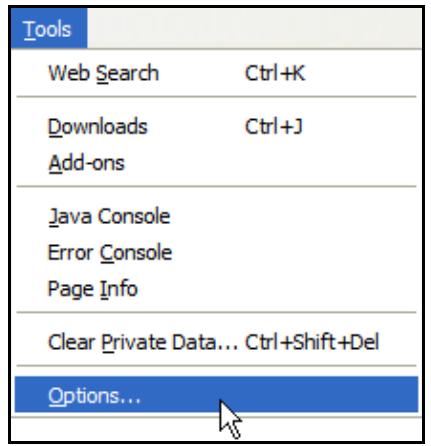
Figure 480 Firefox 2: Tools Menu
2 In the Options dialog box, click Advanced > Encryption > View Certificates.
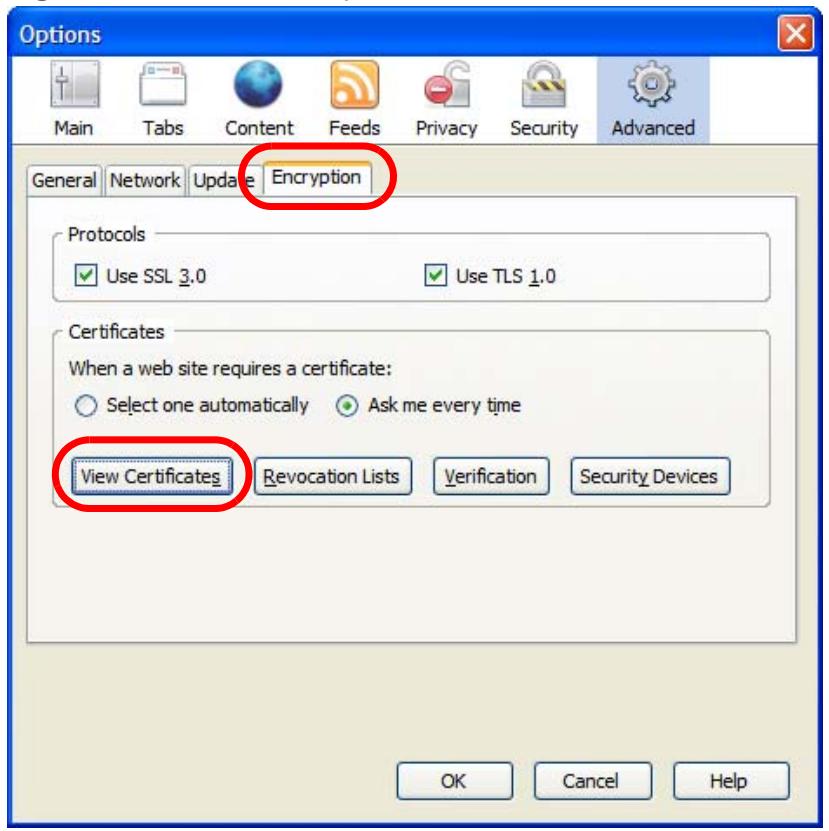
Figure 481 Firefox 2: Options
3 In the Certificate Manager dialog box, select the Web Sites tab, select the certificate that you want to remove, and then click Delete.
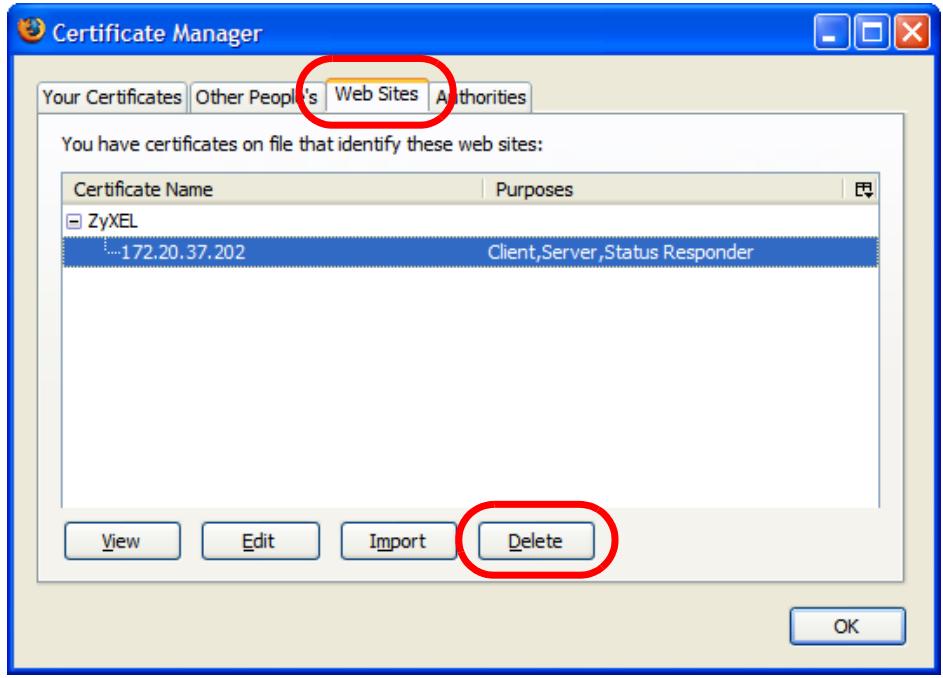
Figure 482 Firefox 2: Certificate Manager
4 In the Delete Web Site Certificates dialog box, click OK.

Figure 483 Firefox 2: Delete Web Site Certificates
5 The next time you go to the web site that issued the public key certificate you just removed, a certification error appears.
Opera
The following example uses Opera 9 on Windows XP Professional; however, the screens can apply to Opera 9 on all platforms.
1 If your device's Web Configurator is set to use SSL certification, then the first time you browse to it you are presented with a certification error.
2 Click Install to accept the certificate.
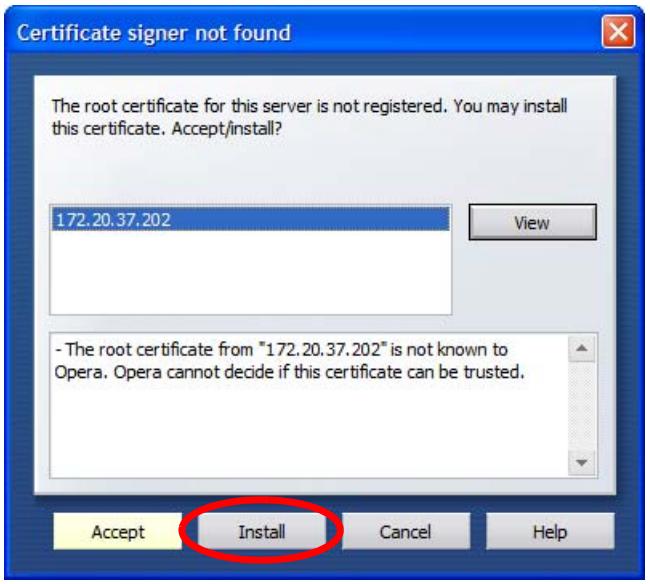
Figure 484 Opera 9: Certificate signer not found
3 The next time you visit the web site, click the padlock in the address bar to open the Security information window to view the web page's security details.
Figure 485 Opera 9: Security information
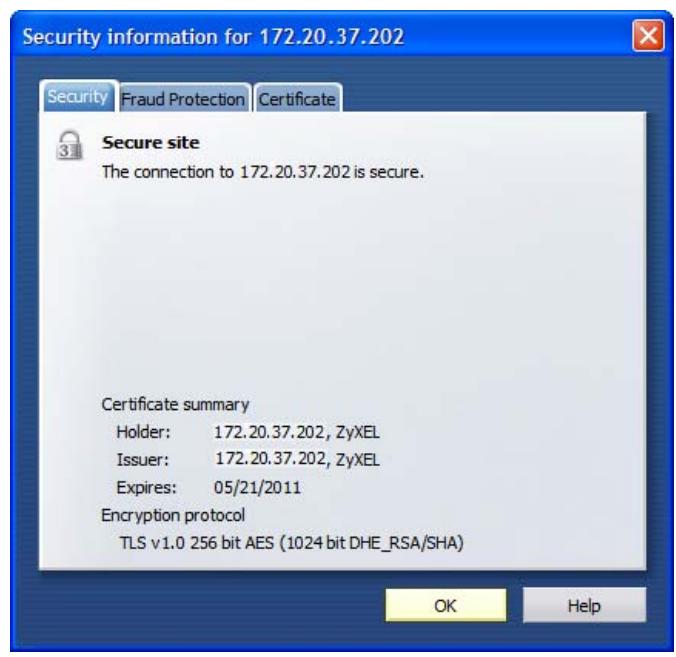
Installing a Stand-Alone Certificate File in Opera
Rather than browsing to a ZyXEL Web Configurator and installing a public key certificate when prompted, you can install a stand-alone certificate file if one has been issued to you.
1 Open Opera and click Tools > Preferences.
Figure 486 Opera 9: Tools Menu
2 In Preferences, click Advanced > Security > Manage certificates.
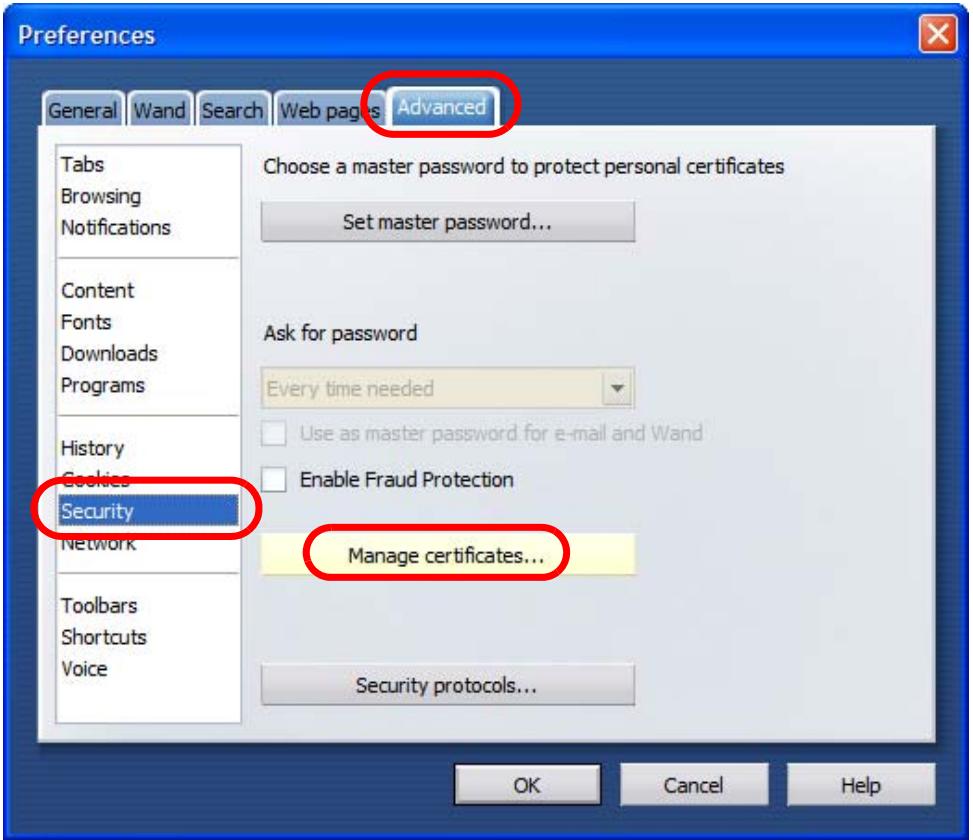
Figure 487 Opera 9: Preferences
3 In the Certificates Manager, click Authorities > Import.
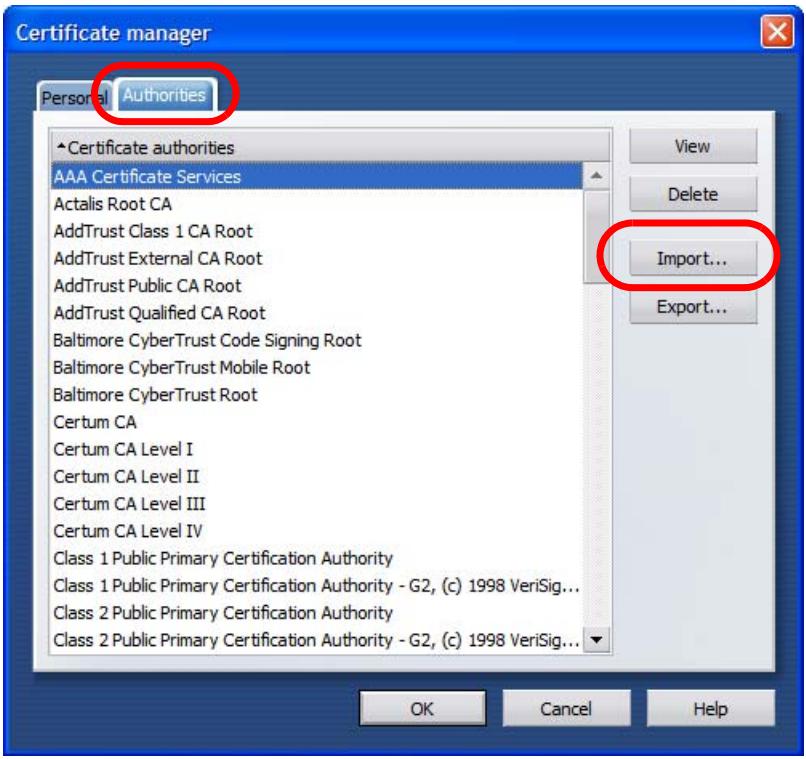
Figure 488 Opera 9: Certificate manager
4 Use the Import certificate dialog box to locate the certificate and then click Open.
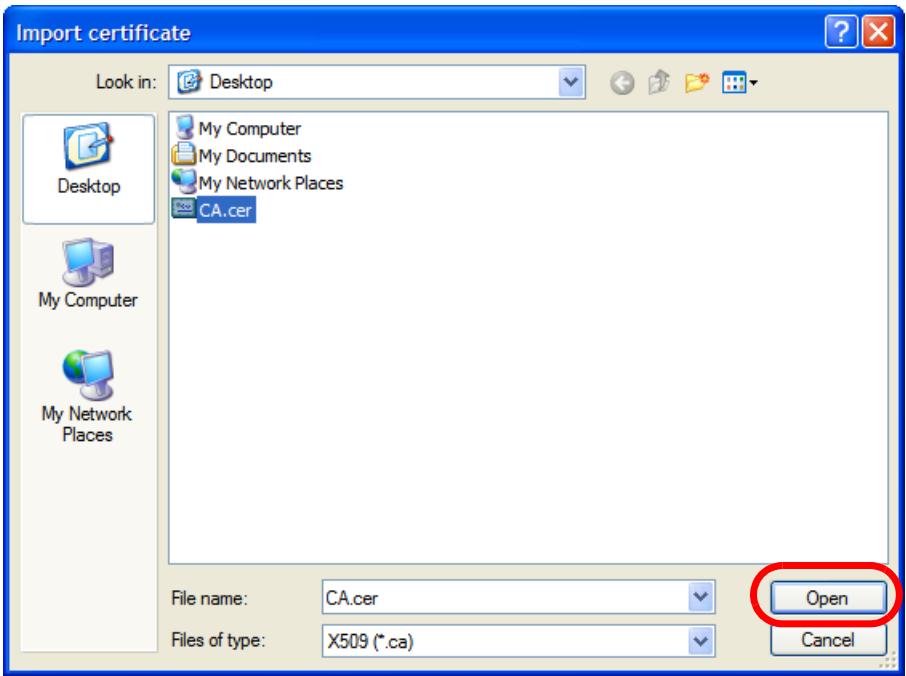
Figure 489 Opera 9: Import certificate
5 In the Install authority certificate dialog box, click Install.
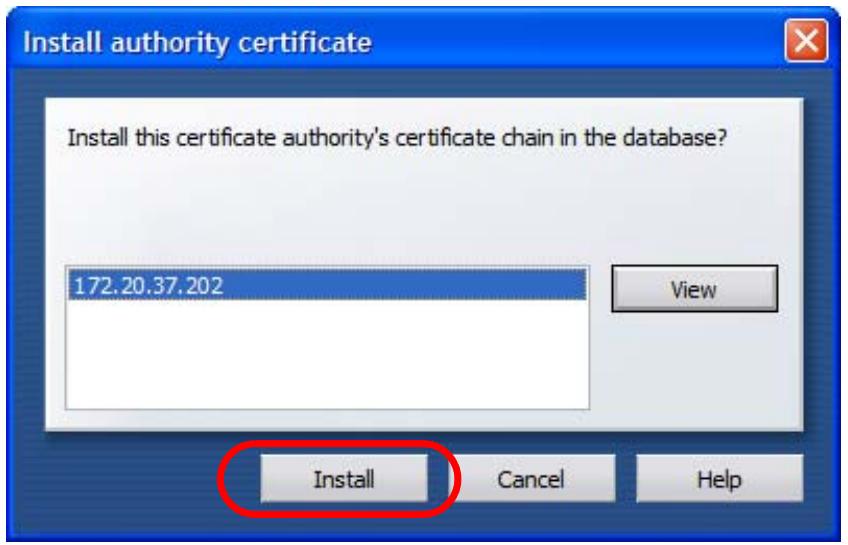
Figure 490 Opera 9: Install authority certificate
6 Next, click OK.
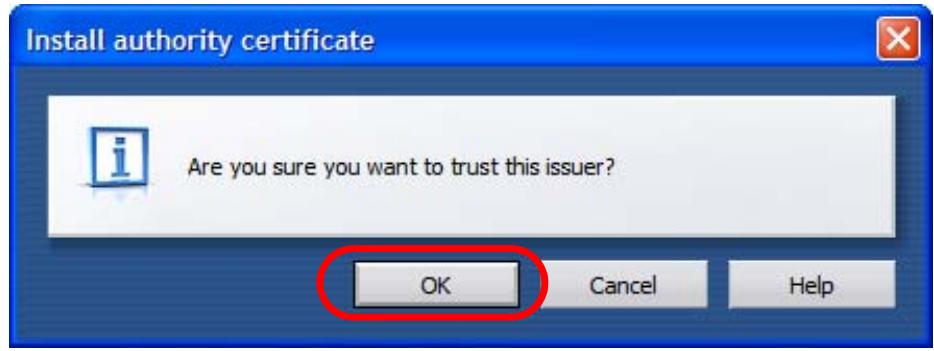
Figure 491 Opera 9: Install authority certificate
7 The next time you visit the web site, click the padlock in the address bar to open the Security information window to view the web page's security details.
Removing a Certificate in Opera
This section shows you how to remove a public key certificate in Opera 9.
1 Open Opera and click Tools > Preferences.
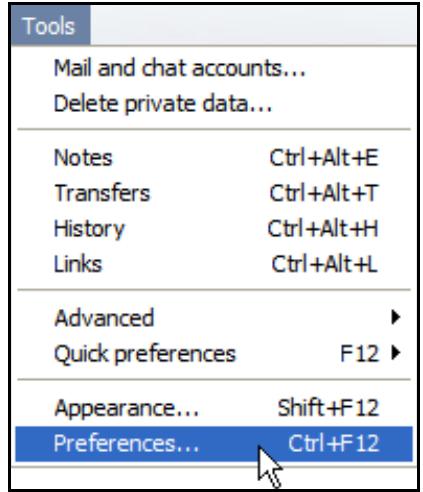
Figure 492 Opera 9: Tools Menu
2 In Preferences, Advanced > Security > Manage certificates.
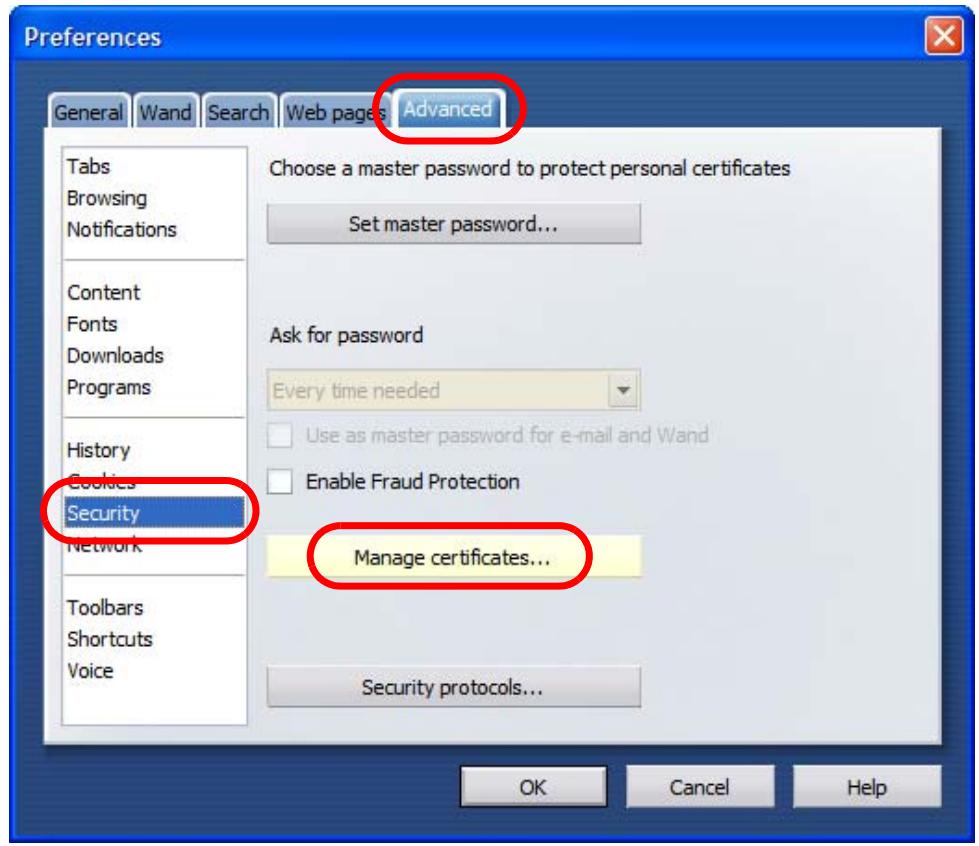
Figure 493 Opera 9: Preferences
3 In the Certificates manager, select the Authorities tab, select the certificate that you want to remove, and then click Delete.
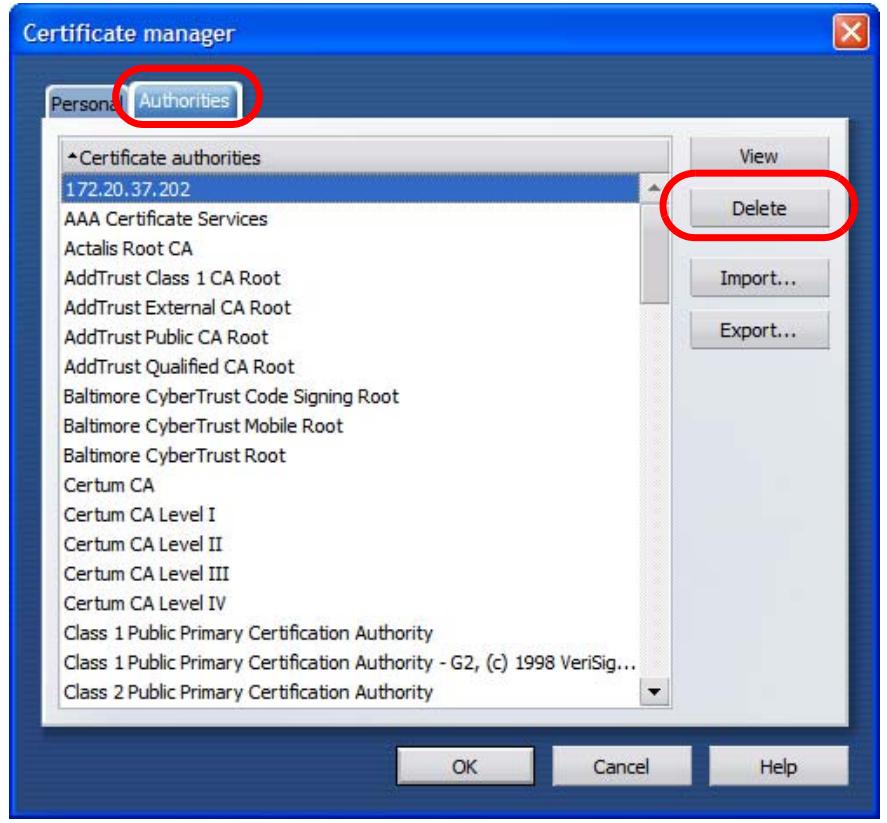
Figure 494 Opera 9: Certificate manager
4 The next time you go to the web site that issued the public key certificate you just removed, a certification error appears.
Note: There is no confirmation when you delete a certificate authority, so be absolutely certain that you want to go through with it before clicking the button.
Konqueror
The following example uses Konqueror 3.5 on openSUSE 10.3, however the screens apply to Konqueror 3.5 on all Linux KDE distributions.
1 If your device's Web Configurator is set to use SSL certification, then the first time you browse to it you are presented with a certification error.
2 Click Continue.
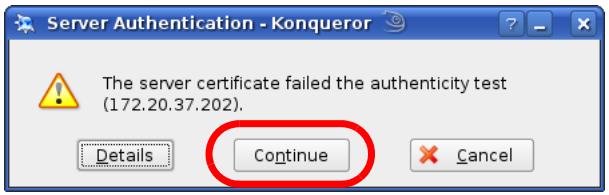
Figure 495 Konqueror 3.5: Server Authentication
3 Click Forever when prompted to accept the certificate.
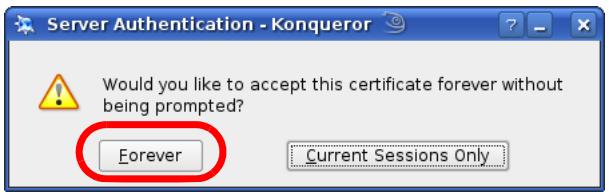
Figure 496 Konqueror 3.5: Server Authentication
4 Click the padlock in the address bar to open the KDE SSL Information window and view the web page's security details.

Figure 497 Konqueror 3.5: KDE SSL Information
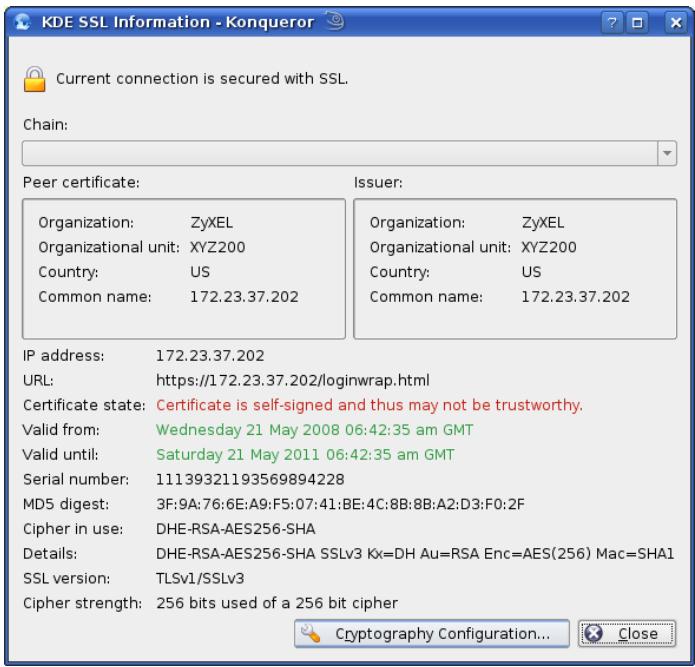
Installing a Stand-Alone Certificate File in Konqueror
Rather than browsing to a ZyXEL Web Configurator and installing a public key certificate when prompted, you can install a stand-alone certificate file if one has been issued to you.
1 Double-click the public key certificate file.
Figure 498 Konqueror 3.5: Public Key Certificate File
2 In the Certificate Import Result - Kleopatra dialog box, click OK.
Figure 499 Konqueror 3.5: Certificate Import Result
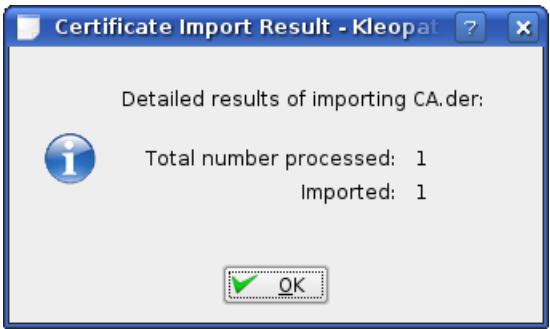
The public key certificate appears in the KDE certificate manager, Kleopatra.
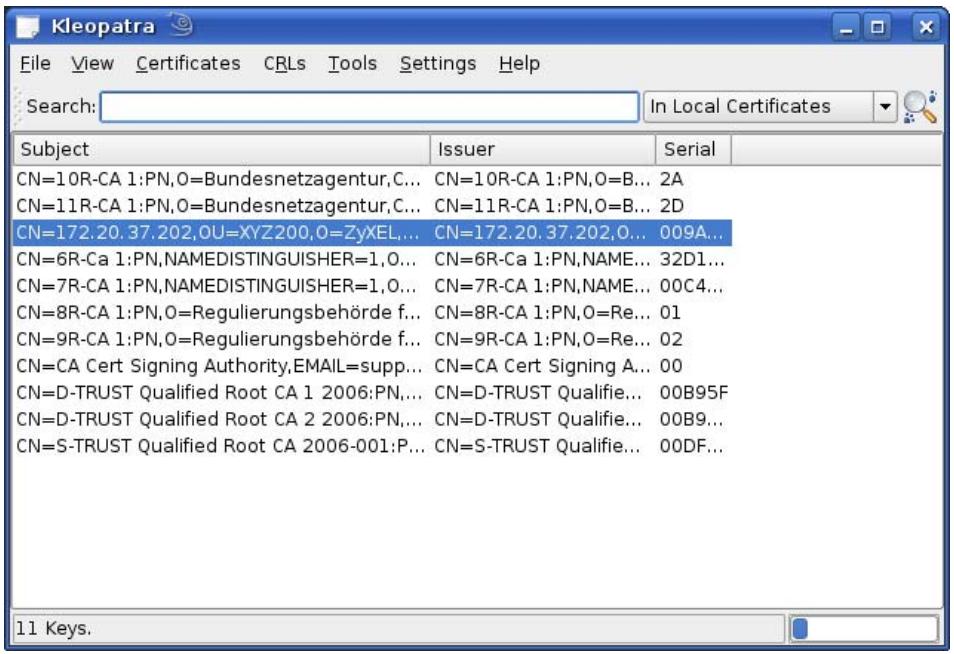
Figure 500 Konqueror 3.5: Kleopatra
3 The next time you visit the web site, click the padlock in the address bar to open the KDE SSL Information window to view the web page's security details.
Removing a Certificate in Konqueror
This section shows you how to remove a public key certificate in Konqueror 3.5.
1 Open Konqueror and click Settings > Configure Konqueror.
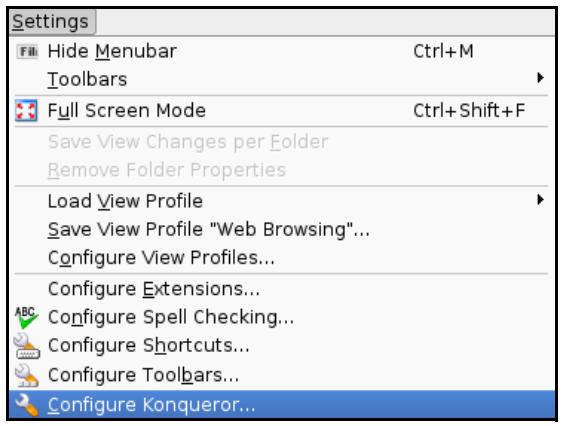
Figure 501 Konqueror 3.5: Settings Menu
2 In the Configure dialog box, select Crypto.
3 On the Peer SSL Certificates tab, select the certificate you want to delete and then click Remove.
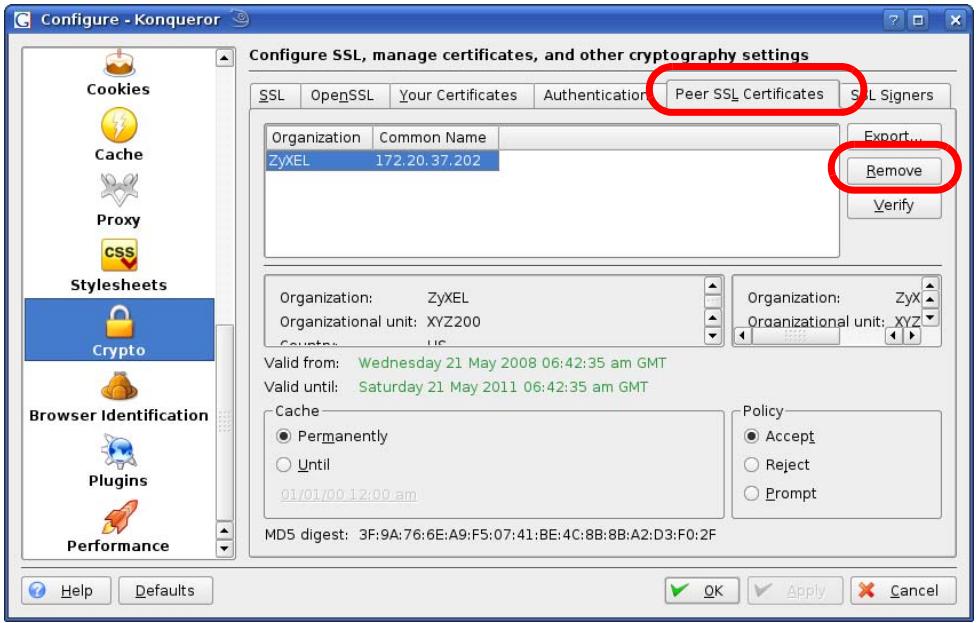
Figure 502 Konqueror 3.5: Configure
4 The next time you go to the web site that issued the public key certificate you just removed, a certification error appears.
Note: There is no confirmation when you remove a certificate authority, so be absolutely certain you want to go through with it before clicking the button.
Open Software Announcements
End-User License Agreement for "ZyWALL USG 20"
WARNING: Zyxel Communications Corp. IS WILLING TO LICENSE THE SOFTWARE TO YOU ONLY UPON THE CONDITION THAT YOU ACCEPT ALL OF THE TERMS CONTAINED IN THIS LICENSE AGREEMENT. PLEASE READ THE TERMS CAREFULLY BEFORE COMPLETING THE INSTALLATION PROCESS AS INSTALLING THE SOFTWARE WILL INDICATE YOUR ASSENT TO THEM. IF YOU DO NOT AGREE TO THESE TERMS, THEN Zyxel IS UNWILLING TO LICENSE THE SOFTWARE TO YOU, IN WHICH EVENT YOU SHOULD RETURN THE UNINSTALLED SOFTWARE AND PACKAGING TO THE PLACE FROM WHICH IT WAS ACQUIRED OR Zyxel, AND YOUR MONEY WILL BE REFUNDED. HOWEVER CERTAIN COMPONENTS OF THE SOFTWARE, AND THIRD PARTY OPEN SOURCE PROGRAMS INCLUDED WITH THE SOFTWARE, HAVE BEEN OR MAY BE MADE AVAILABLE BY Zyxel LISTED IN THE BELOW NOTICE (COLLECTIVELY THE iOPEN-Sourced COMPONENTAS). FOR THESE OPEN-Sourced COMPONENTS YOU SHOULD COMPLY WITH THE TERMS OF THIS LICENSE AND ANY APPLICABLE LICNESING TERMS GOVERNING USE OF THE OPEN-Sourced COMPONENTS, WHICH HAVE BEEN PROVIDED ON THE LICENSE NOTICE AS BELOW FOR THE SOFTWARE.
1. Grant of License for Personal Use
ZyXEL Communications Corp. ("ZyXEL") grants you a non-exclusive, non-subs license, non-transferable license to use the program with which this license is distributed (the "Software"), including any documentation files accompanying the Software ("Documentation"), for internal business use only, for up to the number of users specified in sales order and invoice. You have the right to make one backup copy of the Software and Documentation solely for archival, back-up or disaster recovery purposes. You shall not exceed the scope of the license granted hereunder. Any rights not expressly granted by ZyXEL to you are reserved by ZyXEL, and all implied licenses are disclaimed.
2. Ownership
You have no ownership rights in the Software. Rather, you have a license to use the Software as long as this License Agreement remains in full force and effect. Ownership of the Software, Documentation and all intellectual property rights
therein shall remain at all times with ZyXEL. Any other use of the Software by any other entity is strictly forbidden and is a violation of this License Agreement.
3. Copyright
The Software and Documentation contain material that is protected by International Copyright Law and trade secret law, and by international treaty provisions. All rights not granted to you herein are expressly reserved by ZyXEL. You may not remove any proprietary notice of ZyXEL or any of its licensors from any copy of the Software or Documentation.
4. Restrictions
You may not publish, display, disclose, sell, rent, lease, modify, store, loan, distribute, or create derivative works of the Software, or any part thereof. You may not assign, sublicense, convey or otherwise transfer, pledge as security or otherwise encumber the rights and licenses granted hereunder with respect to the Software. Certain components of the Software, and third party open source programs included with the Software, have been or may be made available by ZyXEL listed in the below Notice (collectively the iOpen-Sourced Components!) You may modify or replace only these Open-Sourced Components; provided that you comply with the terms of this License and any applicable licensing terms governing use of the Open-Sourced Components, which have been provided on the License Notice as below for the Software. ZyXEL is not obligated to provide any maintenance, technical or other support for the resultant modified Software. You may not copy, reverse engineer, decompile, reverse compile, translate, adapt, or disassemble the Software, or any part thereof, nor shall you attempt to create the source code from the object code for the Software. Except as and only to the extent expressly permitted in this License, by applicable licensing terms governing use of the Open-Sourced Components, or by applicable law, you may not market, co-brand, private label or otherwise permit third parties to link to the Software, or any part thereof. You may not use the Software, or any part thereof, in the operation of a service bureau or for the benefit of any other person or entity. You may not cause, assist or permit any third party to do any of the foregoing.
Portions of the Software utilize or include third party software and other copyright material. Acknowledgements, licensing terms and disclaimers for such material are contained in the License Notice as below for the Software, and your use of such material is governed by their respective terms. ZyXEL has provided, as part of the Software package, access to certain third party software as a convenience. To the extent that the Software contains third party software, ZyXEL has no express or implied obligation to provide any technical or other support for such software. Please contact the appropriate software vendor or manufacturer directly for technical support and customer service related to its software and products.
5. Confidentiality
You acknowledge that the Software contains proprietary trade secrets of ZyXEL and you hereby agree to maintain the confidentiality of the Software using at least as great a degree of care as you use to maintain the confidentiality of your own most confidential information. You agree to reasonably communicate the terms and conditions of this License Agreement to those persons employed by you who come into contact with the Software, and to use reasonable best efforts to ensure their compliance with such terms and conditions, including, without limitation, not knowingly permitting such persons to use any portion of the Software for the purpose of deriving the source code of the Software.
6. No Warranty
THE SOFTWARE IS PROVIDED "AS IS." TO THE MAXIMUM EXTENT PERMITTED BY LAW, Zyxel DISCLAIMS ALL WARRANTYES OF ANY KIND, EITHER EXPRESSED OR IMPLIED, INCLUDING, WITHOUT LIMITATION, IMPLIED WARRANTYES OF MERCHANTABILITY AND FITNESS FOR A PARTICULAR PURPOSE. Zyxel DOES NOT WARRANTY THAT THE FUNCTIONS CONTAINED IN THE SOFTWARE WILL MEET ANY REQUIREMENTS OR NEEDS YOU MAY HAVE, OR THAT THE SOFTWARE WILL OPERATE ERROR FREE, OR IN AN UNINTERrupted FASHION, OR THAT ANY DEFECTS OR ERRORS IN THE SOFTWARE WILL BE CORRECTED, OR THAT THE SOFTWARE IS COMPATIBLE WITH ANY PARTICULAR PLATFORM. SOME JURISDICTIONS DO NOT ALLOW THE WAIVER OR EXCLUSION OF IMPLIED WARRANTYES SO THEY MAY NOT APPLY TO YOU. IF THIS EXCLUSION IS HELD TO BE UNENFORCEABLE BY A COURT OF COMPETENT JURISDICTION, THEN ALL EXPRESS AND IMPLIED WARRANTYES SHALL BE LIMITED IN DURATION TO A PERIOD OF THIRTY (30) DAYS FROM THE DATE OF PURCHASE OF THE SOFTWARE, AND NO WARRANTYES SHALL APPLY AFTER THAT PERIOD.
7. Limitation of Liability
IN NO EVENT WILL ZyxEL BE LIABLE TO YOU OR ANY THIRD PARTY FOR ANY INCIDENTAL OR CONSEQUENTIAL DAMAGES (INCLUDING, WITHOUT LIMITATION, INDIRECT, SPECIAL, PUNITIVE, OR EXEMPLARY DAMAGES FOR LOSS OF BUSINESS, LOSS OF PROFITS, BUSINESS INTERRUPTION, OR LOSS OF BUSINESS INFORMATION) ARISING OUT OF THE USE OF OR INABILITY TO USE THE PROGRAM, OR FOR ANY CLAIM BY ANY OTHER PARTY, EVEN IF ZyxEL HAS BEEN ADVISED OF THE POSSIBILITY OF SUCH DAMAGES. ZyxEL's AGGREGATE LIABILITY WITH RESPECT TO ITS OBLIGATIONS UNDER THIS AGREEMENT OR OTHERWISE WITH RESPECT TO THE SOFTWARE AND DOCUMENTATION OR OTHERWISE SHALL BE EQUAL TO THE PURCHASE PRICE, BUT SHALL IN NO EVENT EXCEED THE PRODUCT'S PRICE. BECAUSE SOME STATES/COUNTRIES DO NOT ALLOW THE EXCLUSION OR LIMITATION OF LIABILITY FOR CONSEQUENTIAL OR INCIDENTAL DAMAGES, THE ABOVE LIMITATION MAY NOT APPLY TO YOU.
8. Export Restrictions
THIS LICENSE AGREEMENT IS EXPRESSLY MADE SUBJECT TO ANY APPLICABLE LAWS, REGULATIONS, ORDERS, OR OTHER RESTRICTIONS ON THE EXPORT OF THE SOFTWARE OR INFORMATION ABOUT SUCH SOFTWARE WHICH MAY BE IMPOSED FROM TIME TO TIME. YOU SHALL NOT EXPORT THE SOFTWARE, DOCUMENTATION OR INFORMATION ABOUT THE SOFTWARE AND DOCUMENTATION WITHOUT COMPLYING WITH SUCH LAWS, REGULATIONS, ORDERS, OR OTHER RESTRICTIONS. YOU AGREE TO INDEMNIFY Zyxel AGAINST ALL CLAIMS, LOSSES, DAMAGES, LIABILITIES, COSTS AND EXPENSES, INCLUDING REASONABLE ATTORNEYS' FEES, TO THE EXTENT SUCH CLAIMS ARESE OUT OF ANY BREACH OF THIS SECTION 8.
9. Audit Rights
ZyXEL SHALL HAVE THE RIGHT, AT ITS OWN EXPENSE, UPON REASONABLE PRIOR NOTICE, TO PERIODICALLY INSPECT AND AUDIT YOUR RECORDS TO ENSURE YOUR COMPLIANCE WITH THE TERMS AND CONDITIONS OF THIS LICENSE AGREEMENT.
10. Termination
This License Agreement is effective until it is terminated. You may terminate this License Agreement at any time by destroying or returning to ZyXEL all copies of the Software and Documentation in your possession or under your control. ZyXEL may terminate this License Agreement for any reason, including, but not limited to, if ZyXEL finds that you have violated any of the terms of this License Agreement. Upon notification of termination, you agree to destroy or return to ZyXEL all copies of the Software and Documentation and to certify in writing that all known copies, including backup copies, have been destroyed. All provisions relating to confidentiality, proprietary rights, and non-disclosure shall survive the termination of this Software License Agreement.
11. General
This License Agreement shall be construed, interpreted and governed by the laws of Republic of China without regard to conflicts of laws provisions thereof. The exclusive forum for any disputes arising out of or relating to this License Agreement shall be an appropriate court or Commercial Arbitration Association sitting in ROC, Taiwan. This License Agreement shall constitute the entire Agreement between the parties hereto. This License Agreement, the rights granted hereunder, the Software and Documentation shall not be assigned by you without the prior written consent of ZyXEL. Any waiver or modification of this License Agreement shall only be effective if it is in writing and signed by both parties hereto. If any part of this License Agreement is found invalid or unenforceable by a court of competent jurisdiction, the remainder of this License Agreement shall be interpreted so as to reasonably effect the intention of the parties.
NOTE: Some components of this product incorporate source code covered under the open source code licenses. Further, for at least three (3) years from the date of distribution of the applicable product or software, we will give to anyone who contacts us at the ZyXEL Technical Support (support@zyxel.com.tw), for a charge of no more than our cost of physically performing source code distribution, a complete machine-readable copy of the complete corresponding source code for the version of the Programs that we distributed to you if we are in possession of such.
Notice
Information herein is subject to change without notice. Companies, names, and data used in examples herein are fictitious unless otherwise noted. No part may be reproduced or transmitted in any form or by any means, electronic or mechanical, for any purpose, except the express written permission of ZyXEL Communications Corporation.
This Product includes ntp software under the NTP License
NTP License
Copyright (c) David L. Mills 1992-2004
Permission to use, copy, modify, and distribute this software and its documentation for any purpose and without fee is hereby granted, provided that the above copyright notice appears in all copies and that both the copyright notice and this permission notice appear in supporting documentation, and that the name University of Delaware not be used in advertising or publicity pertaining to distribution of the software without specific, written prior permission. The University of Delaware makes no representations about the suitability of this software for any purpose. It is provided "as is" without express or implied warranty.
This Product includes expat software under the Expat License
Expat License
Copyright (c) 1998, 1999, 2000 Thai Open Source Software Center Ltd
Permission is hereby granted, free of charge, to any person obtaining a copy of this software and associated documentation files (the "Software"), to deal in the Software without restriction, including
without limitation the rights to use, copy, modify, merge, publish, distribute, sublicense, and/or sell copies of the Software, and to permit persons to whom the Software is furnished to do so, subject to
the following conditions:
The above copyright notice and this permission notice shall be included in all copies or substantial portions of the Software.
THE SOFTWARE IS PROVIDED "AS IS", WITHOUT WARRANTY OF ANY KIND, EXPRESS OR IMPLIED, INCLUDING BUT NOT LIMITED TO THE WARRANTY OF MERCHANTABILITY, FITNESS FOR A PARTICULAR PURPOSE AND NONINFRINGEMENT.
IN NO EVENT SHALL THE AUTHORS OR COPYRIGHT HOLDERS BE LIABLE FOR ANY CLAIM, DAMAGES OR OTHER LIABILITY, WHETHER IN AN ACTION OF CONTRACT, TORT OR OTHERWISE, ARISING FROM, OUT OF OR IN CONNECTION WITH THE SOFTWARE OR THE USE OR OTHER DEALINGS IN THE SOFTWARE.
an X11-style license
This is a Free Software License
This license is compatible with The GNU General Public License, Version 1
This license is compatible with The GNU General Public License, Version 2
This is just like a Simple Permissive license, but it requires that a copyright notice be maintained.
Permission is hereby granted, free of charge, to any person obtaining a copy of this software and associated documentation files (the "Software"), to deal in the Software without restriction, including without limitation the rights to use, copy, modify, merge, publish, distribute, sublicense, and/or sell copies of the Software, and to permit persons to whom the Software is furnished to do so, subject to the following conditions:
The above copyright notice and this permission notice shall be included in all copies or substantial portions of the Software.
This Product includes ppp-2.4.2 software under the PPP License
OpenSSL
LICENSE ISSUES
The OpenssL toolkit stays under a dual license, i.e. both the conditions of the OpenssL License and the original SLeay license apply to the toolkit. See below for the actual license texts. Actually both licenses are BSD-style Open Source licenses. In case of any license issues related to OpenssL please contact openssI core@openssI.org.
OpenSSL License
/*
- Copyright (c) 1998-2008 The OpenSSL Project. All rights reserved.
* - Redistribution and use in source and binary forms, with or without
- modification, are permitted provided that the following conditions
- are met:
*
-
- Redistributions of source code must retain the above copyright
-
notice, this list of conditions and the following disclaimer.
* -
- Redistributions in binary form must reproduce the above copyright
-
notice, this list of conditions and the following disclaimer in
- the documentation and/or other materials provided with the
-
distribution.
* -
- All advertising materials mentioning features or use of this
- software must display the following acknowledgment:
- "This product includes software developed by the OpenSSL Project
-
for use in the OpenSSL Toolkit. (http://www.openss.org/)
* -
- The names "OpenSSL Toolkit" and "OpenSSL Project" must not be used to
- endorse or promote products derived from this software without
- prior written permission. For written permission, please contact
- opensssl-core@openssll.org.
*
-
- Products derived from this software may not be called "OpenSSL"
-
nor may "OpenSSL" appear in their names without prior written
-
permission of the OpenSSL Project.
*
-
- Redistributions of any form whatsoever must retain the following
-
acknowledgment:
-
"This product includes software developed by the OpenSSL Project
-
for use in the OpenSSL Toolkit (http://www.openssll.org/)
*
-
THIS SOFTWARE IS PROVIDED BY THE OpensSL PROJECT `AS IS" AND ANY
-
EXPRESSSED OR IMPLIED WARRANTYES, INCLUDING, BUT NOT LIMITED TO, THE
-
IMPLIED WARRANTYES OF MERCHANTABILITY AND FITNESS FOR A PARTICULAR
-
PURPOSE ARE DISCLAIMED. IN NO EVENT SHALL THE OpensSL PROJECT OR
-
ITS COLLECTORS BE LIABLE FOR ANY DIRECT, INDIRECT, INCIDENTAL,
-
SPECIAL, EXEMPLARY, OR CONSEQUENTIAL DAMAGES (INCLUDING, BUT
-
NOT LIMITED TO, PROCEDURE OF SUBSTITUTE GOODS OR SERVICES;
-
LOSS OF USE, DATA, OR PROFITS; OR BUSINESS INTERRUPTION)
-
HOWEVER CAUSED AND ON ANY THEORY OF LIABILITY, WHETHER IN CONTRACT,
-
STRICT LIABILITY, OR TORT (INCLUDING NEGLIGENCE OR OTHERWISE)
-
ARISING IN ANY WAY OUT OF THE USE OF THIS SOFTWARE, EVEN IF ADVISED
-
OF THE POSSIBILITY OF SUCH DAMAGE.
*
*
This product includes cryptographic software written by Eric Young
(eay@cryptsoft.com). This product includes software written by Tim
Hudson (tjh@cryptsoft.com).
*
*/
Original SSLeay License
/* Copyright (C) 1995-1998 Eric Young (eay@cryptsoft.com)
All rights reserved.
*
This package is an SSL implementation written
by Eric Young (eay@cryptsoft.com).
The implementation was written so as to conform with Netscapes SSL.
*
This library is free for commercial and non-commercial use as long as
the following conditions are ahead to. The following conditions
apply to all code found in this distribution, be it the RC4, RSA,
Ihash, DES, etc., code; not just the SSL code. The SSL documentation
included with this distribution is covered by the same copyright terms
except that the holder is Tim Hudson (tjh@cryptsoft.com).
*
Copyright remains Eric Young's, and as such any Copyright notices in
the code are not to be removed.
If this package is used in a product, Eric Young should be given attribution
- as the author of the parts of the library used.
- This can be in the form of a textual message at program startup or
- in documentation (online or textual) provided with the package.
* - Redistribution and use in source and binary forms, with or without
- modification, are permitted provided that the following conditions
- are met:
-
- Redistributions of source code must retain the copyright
- notice, this list of conditions and the following disclaimer.
-
- Redistributions in binary form must reproduce the above copyright
- notice, this list of conditions and the following disclaimer in the
- documentation and/or other materials provided with the distribution.
-
- All advertising materials mentioning features or use of this software
- must display the following acknowledgement:
- "This product includes cryptographic software written by
- Eric Young (eay@cryptsoft.com)"
- The word 'cryptographic' can be left out if the rouines from the library
- being used are not cryptographic related :-).
-
- If you include any Windows specific code (or a derivative thereof) from
- the apps directory (application code) you must include an acknowledgement:
- "This product includes software written by Tim Hudson (tjh@cryptsoft.com)"
* - THIS SOFTWARE IS PROVIDED BY ERIC YOUNG
AS IS" AND -
ANY EXPRESS OR IMPLIED WARRANTYES, INCLUDING, BUT NOT LIMITED TO, THE
-
IMPLIED WARRANTYES OF MERCHANTABILITY AND FITNESS FOR A PARTICULAR PURPOSE
- ARE DISCLAIMED. IN NO EVENT SHALL THE AUTHOR OR CONTRIBUTORS BE LIABLE
- FOR ANY DIRECT, INDIRECT, INCIDENTAL, SPECIAL, EXEMPLARY, OR CONSEQUENTIAL
- DAMAGES (INCLUDING, BUT NOT LIMITED TO, PROCEDURE OF SUBSTITUTE GOODS
- OR SERVICES; LOSS OF USE, DATA, OR PROFITS; OR BUSINESS INTERruption)
- HOWEVER CAUSED AND ON ANY THEORY OF LIABILITY, WHETHER IN CONTRACT, STRICT
- LIABILITY, OR TORT (INCLUDING NEGLIGENCE OR OTHERWISE) ARISING IN ANY WAY
- OUT OF THE USE OF THIS SOFTWARE, EVEN IF ADVISED OF THE POSSIBILITY OF
- SUCH DAMAGE.
* - The licence and distribution terms for any publicly available version or
- derivative of this code cannot be changed. i.e. this code cannot simply be
- copied and put under another distribution licence
*
This Product includes libevent and xinetd software under the a 3-clause BSD License
a 3-clause BSD-style license
This is a Free Software License
This license is compatible with The GNU General Public License, Version 1. This license is compatible with The GNU General Public License, Version 2
This is the BSD license without the obnoxious advertising clause. It's also known as the "modified BSD license." Note that the University of California now prefers this license to the BSD license with advertising clause, and now allows BSD itself to be used under the three-clause license.
Redistribution and use in source and binary forms, with or without modification, are permitted provided that the following conditions are met:
-
Redistributions of source code must retain the above copyright notice, this list of conditions and the following disclaimer.
-
Redistributions in binary form must reproduce the above copyright notice, this list of conditions and the following disclaimer in the documentation and/or other materials provided with the distribution.
-
Neither the name of [original copyright holder] nor the names of its contributors may be used to endorse or promote products derived from this software without specific prior written permission.
THIS SOFTWARE IS PROVIDED BY THE COPYRIGHT HOLDERS AND CONTRIBUTORS "AS IS" AND ANY EXPRESS OR IMPLIED WARRANTYES, INCLUDING, BUT NOT LIMITED TO, THE IMPLIED WARRANTYES OF MERCHANTABILITY AND FITNESS FOR A PARTICULAR PURPOSE ARE DISCLAIMED. IN NO EVENT SHALL THE COPYRIGHT OWNER OR CONTRIBUTORS BE LIABLE FOR ANY DIRECT, INDIRECT, INCIDENTAL, SPECIAL, EXEMPLARY, OR CONSEQUENTIAL DAMAGES (INCLUDING, BUT NOT LIMITED TO, PROCEDURE OF SUBSTITUTE GOODS OR SERVICES; LOSS OF USE, DATA, OR PROFITS; OR BUSINESS INTERRUPTION) HOWEVER CAUSED AND ON ANY THEORY OF LIABILITY, WHETHER IN CONTRACT, STRICT LIABILITY, OR TORT (INCLUDING NEGLIGENCE OR OTHERWISE) ARISING IN ANY WAY OUT OF THE USE OF THIS SOFTWARE, EVEN IF ADVISED OF THE POSSIBILITY OF SUCH DAMAGE.
This Product includes bind and dhcp software under the ISC License
ISC license
Copyright (c) 4-digit year, Company or Person's Name
Permission to use, copy, modify, and distribute this software for any purpose with or without fee is hereby granted, provided that the above copyright notice and this permission notice appear in all copies.
THE SOFTWARE IS PROVIDED "AS IS" AND ISC DISCLAIMS ALL WARRANTYES WITH REGARD TO THIS SOFTWARE INCLUDING ALL IMPLIED WARRANTYES OF MERCHANTABILITY AND FITNESS. IN NO EVENT SHALL ISC BE LIABLE FOR ANY SPECIAL, DIRECT, INDIRECT, OR CONSEQUENTIAL DAMAGES OR ANY DAMAGES WHATSOEVER RESULTING FROM LOSS OF USE, DATA OR PROFITS, WHETHER IN AN ACTION OF CONTRACT, NEGLIGENCE OR OTHER TORTIOUS ACTION, ARISING
OUT OF OR IN CONNECTION WITH THE USE OR PERFORMANCE OF THIS SOFTWARE.
This Product includes httpd software developed by the Apache Software Foundation under Apache License.
Apache License
Version 2.0, January 2004
http://www.apache.org/licenses/
TERMS AND CONDITIONS FOR USE, REPRODUCTION, AND DISTRIBUTION
- Definitions.
"License" shall mean the terms and conditions for use, reproduction, and distribution as defined by Sections 1 through 9 of this document.
"License" shall mean the copyright owner or entity authorized by the copyright owner that is granting the License.
"Legal Entity" shall mean the union of the acting entity and all other entities that control, are controlled by, or are under common control with that entity. For the purposes of this definition, "control" means (i) the power, direct or indirect, to cause the direction or management of such entity, whether by contract or otherwise, or (ii) ownership of fifty percent (50%) or more of the outstanding shares, or (iii) beneficial ownership of such entity.
"You" (or "Your") shall mean an individual or Legal Entity exercising permissions granted by this License.
"Source" form shall mean the preferred form for making modifications, including but not limited to software source code, documentation source, and configuration files.
"Object" form shall mean any form resulting from mechanical transformation or translation of a Source form, including but not limited to compiled object code, generated documentation, and conversions to other media types.
"Work" shall mean the work of authorship, whether in Source or Object form, made available under the License, as indicated by a copyright notice that is included in or attached to the work (an example is provided in the Appendix below).
"Derivative Works" shall mean any work, whether in Source or Object form, that is based on (or derived from) the Work and for which the editorial revisions, annotations, elaborations, or other modifications represent, as a whole, an original
work of authorship. For the purposes of this License, Derivative Works shall not include works that remain separable from, or merely link (or bind by name) to the interfaces of, the Work and Derivative Works thereof.
"Contribution" shall mean any work of authorship, including the original version of the Work and any modifications or additions to that Work or Derivative Works thereof, that is intentionally submitted to Licensor for inclusion in the Work by the copyright owner or by an individual or Legal Entity authorized to submit on behalf of the copyright owner. For the purposes of this definition, "submitted" means any form of electronic, verbal, or written communication sent to the Licensor or its representatives, including but not limited to communication on electronic mailing lists, source code control systems, and issue tracking systems that are managed by, or on behalf of, the Licensor for the purpose of discussing and improving the Work, but excluding communication that is conspicuously marked or otherwise designated in writing by the copyright owner as "Not a Contribution."
"Contributor" shall mean Licensor and any individual or Legal Entity on behalf of whom a Contribution has been received by Licensor and subsequently incorporated within the Work.
-
Grant of Copyright License. Subject to the terms and conditions of this License, each Contributor hereby grants to You a perpetual, worldwide, non-exclusive, no-charge, royalty-free, irrevocable copyright license to reproduce, prepare Derivative Works of, publicly display, publicly perform, sublicense, and distribute the Work and such Derivative Works in Source or Object form.
-
Grant of Patent License. Subject to the terms and conditions of this License, each Contributor hereby grants to You a perpetual, worldwide, non-exclusive, no-charge, royalty-free, irrevocable (except as stated in this section) patent license to make, have made, use, offer to sell, sell, import, and otherwise transfer the Work, where such license applies only to those patent claims licensable by such Contributor that are necessarily infringed by their Contribution(s) alone or by combination of their Contribution(s) with the Work to which such Contribution(s) was submitted. If You institute patent litigation against any entity (including a cross-claim or counterclaim in a lawsuit) alleging that the Work or a Contribution incorporated within the Work constitutes direct or contributory patent infringement, then any patent licenses granted to You under this License for that Work shall terminate as of the date such litigation is filed.
-
Redistribution. You may reproduce and distribute copies of the Work or Derivative Works hereof in any medium, with or without modifications, and in Source or Object form, provided that You meet the following conditions:
(a) You must give any other recipients of the Work or Derivative Works a copy of this License; and
(b) You must cause any modified files to carry prominent notices stating that You changed the files; and
(c) You must retain, in the Source form of any Derivative Works that You distribute, all copyright, patent, trademark, and attribution notices from the Source form of the Work, excluding those notices that do not pertain to any part of the Derivative Works; and
(d) If the Work includes a "NOTICE" text file as part of its distribution, then any Derivative Works that You distribute must include a readable copy of the attribution notices contained within such NOTICE file, excluding those notices that do not pertain to any part of the Derivative Works, in at least one of the following places: within a NOTICE text file distributed as part of the Derivative Works; within the Source form or documentation, if provided along with the Derivative Works; or, within a display generated by the Derivative Works, if and wherever such third-party notices normally appear. The contents of the NOTICE file are for informational purposes only and do not modify the License. You may add Your own attribution notices within Derivative Works that You distribute, alongside or as an addendum to the NOTICE text from the Work, provided that such additional attribution notices cannot be construed as modifying the License. You may add Your own copyright statement to Your modifications and may provide additional or different license terms and conditions for use, reproduction, or distribution of Your modifications, or for any such Derivative Works as a whole, provided Your use, reproduction, and distribution of the Work otherwise complies with the conditions stated in this License.
-
Submission of Contributions. Unless You explicitly state otherwise, any Contribution intentionally submitted for inclusion in the Work by You to the Licensee shall be under the terms and conditions of this License, without any additional terms or conditions. Notwithstanding the above, nothing herein shall supersede or modify the terms of any separate license agreement you may have executed with Licensee regarding such Contributions.
-
Trademarks. This License does not grant permission to use the trade names, trademarks, service marks, or product names of the Licensor, except as required for reasonable and customary use in describing the origin of the Work and reproducing the content of the NOTICE file.
-
Disclaimer of Warranty. Unless required by applicable law or agreed to in writing, Licensee provides the Work (and each Contributor provides its Contributions) on an "AS IS" BASIS, WITHOUT WARRANTY OR CONDITIONS OF ANY KIND, either express or implied, including, without limitation, any warranties or conditions of TITLE, NON-INFRINGEMENT, MERCHANTABILITY, or FITNESS FOR A PARTICULAR PURPOSE. You are solely responsible for determining the appropriateness of using or redistributing the Work and assume any risks associated with Your exercise of permissions under this License.
-
Limitation of Liability. In no event and under no legal theory, whether in tort (including negligence), contract, or otherwise, unless required by applicable law (such as deliberate and grossly negligent acts) or agreed to in writing, shall any Contributor be liable to You for damages, including any direct, indirect, special, incidental, or consequential damages of any character arising as a result of this License or out of the use or inability to use the Work (including but not limited to damages for loss of goodwill, work stoppage, computer failure or malfunction, or any and all other commercial damages or losses), even if such Contributor has been advised of the possibility of such damages.
-
Accepting Warranty or Additional Liability. While redistributing the Work or Derivative Works thereof, You may choose to offer, and charge a fee for, acceptance of support, warranty, indemnity, or other liability obligations and/or rights consistent with this License. However, in accepting such obligations, You may act only on Your own behalf and on Your sole responsibility, not on behalf of any other Contributor, and only if You agree to indemnify, defend, and hold each Contributor harmless for any liability incurred by, or claims asserted against, such Contributor by reason of your accepting any such warranty or additional liability.
END OF TERMS AND CONDITIONS
Version 1.1
Copyright (c) 1999-2003 The Apache Software Foundation. All rights reserved.
Redistribution and use in source and binary forms, with or without modification, are permitted provided that the following conditions are met:
Redistributions of source code must retain the above copyright notice, this list of conditions and the following disclaimer.
Redistributions in binary form must reproduce the above copyright notice, this list of conditions and the following disclaimer in the documentation and/or other materials provided with the distribution.
The end-user documentation included with the redistribution, if any, must include the following acknowledgment: iThis product includes software developed by the Apache Software Foundation (http://www.apache.org/).i Alternately, this acknowledgment may appear in the software itself, if and wherever such third-party acknowledgments normally appear.
The names iApache and iApache Software Foundation must not be used to endorse or promote products derived from this software without prior written permission. For written permission, please contact apache@apache.org.
Products derived from this software may not be called iApachehat, nor may iApachehat appear in their name, without prior written permission of the Apache Software Foundation.
THIS SOFTWARE IS PROVIDED ``AS IS" AND ANY EXPRESSED OR IMPLIED WARRANTYES, INCLUDING, BUT NOT LIMITED TO, THE IMPLIED WARRANTYES OF MERCHANTABILITY AND FITNESS FOR A PARTICULAR PURPOSE ARE DISCLAIMED. IN NO EVENT SHALL THE APACHE SOFTWARE FOUNDATION OR ITS Contributors BE LIABLE FOR ANY DIRECT, INDIRECT, INCIDENTAL, SPECIAL, EXEMPLARY, OR CONSEQUENTIAL DAMAGES (INCLUDING, BUT NOT LIMITED TO, PROCUREMENT OF SUBSTITUTE GOODS OR SERVICES; LOSS OF USE, DATA, OR PROFITS; OR BUSINESS INTERRUsION) HOWEVER CAUSED AND ON ANY THEORY OF LIABILITY, WHETHER IN CONTRACT, STRICT LIABILITY, OR TORT (INCLUDING NEGLIGENCE OR OTHERWISE) ARISING IN ANY WAY OUT OF THE USE OF THIS SOFTWARE, EVEN IF ADVISED OF THE POSSIBILITY OF SUCH DAMAGE.
This software consists of voluntary contributions made by many individuals on behalf of the Apache Software Foundation. For more information on the Apache Software Foundation, please see http://www.apache.org/.
Portions of this software are based upon public domain software originally written at the National Center for Supercomputing Applications, University of Illinois, Urbana-Champaign.
GNU LESSER GENERAL PUBLIC LICENSE
Version 2.1, February 1999
Copyright (C) 1991, 1999 Free Software Foundation, Inc.
59 Temple Place, Suite 330, Boston, MA 02111-1307 USA
Everyone is permitted to copy and distribute verbatim copies of this license document, but changing it is not allowed. [This is the first released version of the Lesser GPL. It also counts
as the successor of the GNU Library Public License, version 2, hence the version number 2.1.
Preamble
The licenses for most software are designed to take away your freedom to share and change it. By contrast, the GNU General Public Licenses are intended to guarantee your freedom to share and change free software--to make sure the software is free for all its users.
This license, the Lesser General Public License, applies to some specially designated software packages--typically libraries--of the Free Software Foundation and other authors who decide to use it. You can use it too, but we suggest you first think carefully about whether this license or the ordinary General
Public License is the better strategy to use in any particular case, based on the explanations below.
When we speak of free software, we are referring to freedom of use, not price. Our General Public Licenses are designed to make sure that you have the freedom to distribute copies of free software (and charge for this service if you wish); that you receive source code or can get
it if you want it; that you can change the software and use pieces of it in new free programs; and that you are informed that you can do these things.
To protect your rights, we need to make restrictions that forbid distributors to deny you these rights or to ask you to surrender these rights. These restrictions translate to certain responsibilities for you if you distribute copies of the library or if you modify it.
For example, if you distribute copies of the library, whether gratis or for a fee, you must give the recipients all the rights that we gave you. You must make sure that they, too, receive or can get the source code. If you link other code with the library, you must provide complete object files to the recipients, so that they can relink them with the library after making changes to the library and recompiling it. And you must show them these terms so they know their rights.
We protect your rights with a two-step method: (1) we copyright the library, and (2) we offer you this license, which gives you legal permission to copy, distribute and/or modify the library.
To protect each distributor, we want to make it very clear that there is no warranty for the free library. Also, if the library is modified by someone else and passed on, the recipients should know that what they have is not the original version, so that the original author's reputation will not be affected by problems that might be introduced by others.
Finally, software patents pose a constant threat to the existence of any free program. We wish to make sure that a company cannot effectively restrict the users of a free program by obtaining a restrictive license from a patent holder. Therefore, we insist that any patent license obtained for a version of the library must be consistent with the full freedom of use specified in this license.
Most GNU software, including some libraries, is covered by the ordinary GNU General Public License. This license, the GNU Lesser General Public License, applies to certain designated libraries, and is quite different from the ordinary General Public License. We use this license for certain libraries in order to permit linking those libraries into non-free programs.
When a program is linked with a library, whether statically or using a shared library, the combination of the two is legally speaking a combined work, a
derivative of the original library. The ordinary General Public License therefore permits such linking only if the entire combination fits its criteria of freedom. The Lesser General Public License permits more lax criteria for linking other code with the library.
We call this license the "Lesser" General Public License because it does Less to protect the user's freedom than the ordinary General Public License. It also provides other free software developers Less of an advantage over competing non-free programs. These disadvantages are the reason we use the ordinary General Public License for many libraries. However, the Lesser license provides advantages in certain special circumstances.
For example, on rare occasions, there may be a special need to encourage the widest possible use of a certain library, so that it becomes a de-facto standard. To achieve this, non-free programs must be allowed to use the library. A more frequent case is that a free library does the same job as widely used non-free libraries. In this case, there is little to gain by limiting the free library to free software only, so we use the Lesser General Public License. In other cases, permission to use a particular library in non-free programs enables a greater number of people to use a large body of free software. For example, permission to use the GNU C Library in non-free programs enables many more people to use the whole GNU operating system, as well as its variant, the GNU/Linux operating system.
Although the Lesser General Public License is Less protective of the users' freedom, it does ensure that the user of a program that is linked with the Library has the freedom and the wherewithal to run that program using a modified version of the Library.
The precise terms and conditions for copying, distribution and modification follow. Pay close attention to the difference between a "work based on the library" and a "work that uses the library". The former contains code derived from the library, whereas the latter must be combined with the library in order to run.
GNU LESSER GENERAL PUBLIC LICENSE TERMS AND CONDITIONS FOR COPYING, DISTRIBUTION AND MODIFICATION
- This License Agreement applies to any software library or other program which contains a notice placed by the copyright holder or other authorized party saying it may be distributed under the terms of this Lesser General Public License (also called "this License").
Each licensee is addressed as "you".
A "library" means a collection of software functions and/or data prepared so as to be conveniently linked with application programs (which use some of those functions and data) to form executables. The "Library", below, refers to any such
software library or work which has been distributed under these terms. A "work based on the Library" means either the Library or any derivative work under copyright law: that is to say, a work containing the Library or a portion of it, either verbatim or with modifications and/or translated straightforwardly into another language. (Hereinafter, translation is included without limitation in the term "modification".)
"Source code" for a work means the preferred form of the work for making modifications to it. For a library, complete source code means all the source code for all modules it contains, plus any associated interface definition files, plus the scripts used to control compilation and installation of the library. Activities other than copying, distribution and modification are not covered by this License; they are outside its scope. The act of running a program using the Library is not restricted, and output from such a program is covered only if its contents constitute a work based on the Library (independent of the use of the Library in a tool for writing it). Whether that is true depends on what the Library does and what the program that uses the Library does.
-
You may copy and distribute verbatim copies of the Library's complete source code as you receive it, in any medium, provided that you conspicuously and appropriately publish on each copy an appropriate copyright notice and disclaimer of warranty; keep intact all the notices that refer to this License and to the absence of any warranty; and distribute a copy of this License along with the Library. You may charge a fee for the physical act of transferring a copy, and you may at your option offer warranty protection in exchange for a fee.
-
You may modify your copy or copies of the Library or any portion of it, thus forming a work based on the Library, and copy and distribute such modifications or work under the terms of Section 1 above, provided that you also meet all of these conditions: a) The modified work must itself be a software library. b) You must cause the files modified to carry prominent notices stating that you changed the files and the date of any change. c) You must cause the whole of the work to be licensed at no charge to all third parties under the terms of this License. d) If a facility in the modified Library refers to a function or a table of data to be supplied by an application program that uses the facility, other than as an argument passed when the facility is invoked, then you must make a good faith effort to ensure that, in the event an application does not supply such function or table, the facility still operates, and performs whatever part of its purpose remains meaningful. (For example, a function in a library to compute square roots has a purpose that is entirely well-defined independent of the application. Therefore, Subsection 2d requires that any application-supplied function or table used by this function must be optional: if the application does not supply it, the square root function must still compute square roots.) These requirements apply to the modified work as a whole. If identifiable sections of that work are not derived from the Library, and can be reasonably considered independent and separate works in themselves, then this License, and its terms, do not apply to those sections when you distribute them as separate works. But when you distribute the same sections as
part of a whole which is a work based on the Library, the distribution of the whole must be on the terms of this License, whose permissions for other licensees extend to the entire whole, and thus to each and every part regardless of who wrote
it. Thus, it is not the intent of this section to claim rights or contest your rights to work written entirely by you; rather, the intent is to exercise the right to control the distribution of derivative or collective works based on the Library. In addition, mere aggregation of another work not based on the Library with the Library (or with a work based on the Library) on a volume of a storage or distribution medium does not bring the other work under the scope of this License.
-
You may opt to apply the terms of the ordinary GNU General Public License instead of this License to a given copy of the Library. To do this, you must alter all the notices that refer to this License, so that they refer to the ordinary GNU General Public License, version 2, instead of to this License. (If a newer version than version 2 of the ordinary GNU General Public License has appeared, then you can specify that version instead if you wish.) Do not make any other change in these notices. Once this change is made in a given copy, it is irreversible for that copy, so the ordinary GNU General Public License applies to all subsequent copies and derivative works made from that copy. This option is useful when you wish to copy part of the code of the Library into a program that is not a library.
-
You may copy and distribute the Library (or a portion or derivative of it, under Section 2) in object code or executable form under the terms of Sections 1 and 2 above provided that you accompany it with the complete corresponding machine-readable source code, which must be distributed under the terms of Sections 1 and 2 above on a medium customarily used for software interchange. If distribution of object code is made by offering access to copy from a designated place, then offering equivalent access to copy the source code from the same place satisfies the requirement to distribute the source code, even though third parties are not
compelled to copy the source along with the object code.
- A program that contains no derivative of any portion of the Library, but is designed to work with the Library by being compiled or linked with it, is called a "work that uses the Library". Such a work, in isolation, is not a derivative work of the Library, and therefore falls outside the scope of this License.
However, linking a "work that uses the Library" with the Library creates an executable that is a derivative of the Library (because it contains portions of the Library), rather than a "work that uses the library". The executable is therefore covered by this License. Section 6 states terms for distribution of such executables. When a "work that uses the Library" uses material from a header file that is part of the Library, the object code for the work may be a derivative work of the Library even though the source code is not. Whether this is true is especially
significant if the work can be linked without the Library, or if the work is itself a library. The threshold for this to be true is not precisely defined by law. If such an object file uses only numerical parameters, data structure layouts and accessors, and small macros and small inline functions (ten lines or less in length), then the use of the object file is unrestricted, regardless of whether it is legally a derivative work. (Executables containing this object code plus portions of the Library will still fall under Section 6.) Otherwise, if the work is a derivative of the Library, you may distribute the object code for the work under the terms of Section 6. Any executables containing that work also fall under Section 6, whether or not they are linked directly with the Library itself.
- As an exception to the Sections above, you may also combine or link a "work that uses the Library" with the Library to produce a work containing portions of the Library, and distribute that work under terms of your choice, provided that the terms permit modification of the work for the customer's own use and reverse engineering for debugging such modifications. You must give prominent notice with each copy of the work that the Library is used in it and that the Library and its use are covered by this License. You must supply a copy of this License. If the work during execution displays copyright notices, you must include the copyright notice for the Library among them, as well as a reference directing the user to the copy of this License. Also, you must do one of these things: a) Accompany the work with the complete corresponding
machine-readable source code for the Library including whatever changes were used in the work (which must be distributed under Sections 1 and 2 above); and, if the work is an executable linked with the Library, with the complete machine-readable "work that uses the Library", as object code and/or source code, so that the user can modify the Library and then relink to produce a modified executable containing the modified Library. (It is understood that the user who changes the contents of definitions files in the Library will not necessarily be able to recompile the application to use the modified definitions.) b) Use a suitable shared library mechanism for linking with the Library. A suitable mechanism is one that (1) uses at run time a
copy of the library already present on the user's computer system, rather than copying library functions into the executable, and (2) will operate properly with a modified version of the library, if the user installs one, as long as the modified version is interface-compatible with the version that the work was made with. c) Accompany the work with a written offer, valid for at least three years, to give the same user the materials specified in Subsection 6a, above, for a charge no more than the cost of performing this distribution. d) If distribution of the work is made by offering access to copy from a designated place, offer equivalent access to copy the above specified materials from the same place. e) Verify that the user has already received a copy of these materials or that you have already sent this user a copy. For an executable, the required form of the "work that uses the Library" must include any data and utility programs needed for reproducing the executable from it. However, as a special exception, the materials to be distributed need not
include anything that is normally distributed (in either source or binary form) with the major components (compiler, kernel, and so on) of the operating system on which the executable runs, unless that component itself accompanies the executable.
It may happen that this requirement contradicts the license restrictions of other proprietary libraries that do not normally accompany the operating system. Such a contradiction means you cannot use both them and the Library together in an executable that you distribute.
- You may place library facilities that are a work based on the Library side-by-side in a single library together with other library facilities not covered by this License, and distribute such a combined library, provided that the separate distribution of the work based on the Library and of the other library facilities is otherwise permitted, and provided that you do these two things: a) Accompany the combined library with a copy of the same work based on the Library, uncombined with any other library facilities. This must be distributed under the terms of the Sections above. b) Give prominent notice with the combined library of the fact that part of it is a work based on the Library, and explaining where to find the accompanying uncombined form of the same work.
- You may not copy, modify, sublicense, link with, or distribute the Library except as expressly provided under this License. Any attempt otherwise to copy, modify, sublicense, link with, or distribute the Library is void, and will automatically terminate your rights under this License. However, parties who have received copies, or rights, from you under this License will not have their licenses terminated so long as such parties remain in full compliance.
- You are not required to accept this License, since you have not signed it. However, nothing else grants you permission to modify or distribute the Library or its derivative works. These actions are prohibited by law if you do not accept this License. Therefore, by modifying or distributing the Library (or any work based on the Library), you indicate your acceptance of this License to do so, and all its terms and conditions for copying, distributing or modifying the Library or works based on it.
- Each time you redistribute the Library (or any work based on the Library), the recipient automatically receives a license from the original licensor to copy, distribute, link with or modify the Library subject to these terms and conditions. You may not impose any further restrictions on the recipients' exercise of the rights granted herein. You are not responsible for enforcing compliance by third parties with this License.
- If, as a consequence of a court judgment or allegation of patent infringement or for any other reason (not limited to patent issues), conditions are imposed on you (whether by court order, agreement or otherwise) that contradict the conditions of this License, they do not excuse you from the conditions of this
License. If you cannot distribute so as to satisfy simultaneously your obligations under this License and any other pertinent obligations, then as a consequence you may not distribute the Library at all. For example, if a patent license would not permit royalty-free redistribution of the Library by all those who receive copies directly or indirectly through you, then the only way you could satisfy both it and this License would be to
refrain entirely from distribution of the Library. If any portion of this section is held invalid or unenforceable under any particular circumstance, the balance of the section is intended to apply, and the section as a whole is intended to apply in other circumstances. It is not the purpose of this section to induce you to infringe any patents or other property right claims or to contest validity of any such claims; this section has the sole purpose of protecting the integrity of the free software distribution system which is implemented by public license practices. Many people have made generous contributions to the wide range of software distributed through that system in reliance on consistent application of that system; it is up to the author/donor to decide if he or she is willing to distribute software through any other system and a licensee cannot impose that choice. This section is intended to make thoroughly clear what is believed to be a consequence of the rest of this License.
- If the distribution and/or use of the Library is restricted in certain countries either by patents or by copyrighted interfaces, the original copyright holder who places the Library under this License may add an explicit geographical distribution limitation excluding those countries, so that distribution is permitted only in or among countries not thus excluded. In such case, this License incorporates the limitation as if written in the body of this License.
- The Free Software Foundation may publish revised and/or new versions of the Lesser General Public License from time to time. Such new versions will be similar in spirit to the present version, but may differ in detail to address new problems or concerns. Each version is given a distinguishing version number. If the Library specifies a version number of this License which applies to it and "any later version", you have the option of following the terms and conditions either of that version or of any later version published by the Free Software Foundation. If the Library does not specify a license version number, you may choose any version ever published by the Free Software Foundation.
- If you wish to incorporate parts of the Library into other free programs whose distribution conditions are incompatible with these, write to the author to ask for permission. For software which is copyrighted by the Free Software Foundation, write to the Free Software Foundation; we sometimes make exceptions for this. Our decision will be guided by the two goals of preserving the free status of all derivatives of our free software and of promoting the sharing
and reuse of software generally.
NO WARRANTY
-
BECAUSE THE LIBRARY IS LICENSED FREE OF CHARGE, THERE IS NO WARRANTY FOR THE LIBRARY, TO THE EXTENT PERMITTED BY APPLICABLE LAW. EXCEPT WHEN OTHERWISE STATED IN WRITING THE COPYRIGHT HOLDERS AND/ OR OTHER PARTIES PROVIDE THE LIBRARY "AS IS" WITHOUT WARRANTY OF ANY KIND, EITHER EXPRESSED OR IMPLIED, INCLUDING, BUT NOT LIMITED TO, THE IMPLIED WARRANTYES OF MERCHANTABILITY AND FITNESS FOR A PARTICULAR PURPOSE. THE ENTIRE RISK AS TO THE QUALITY AND PERFORMANCE OF THE LIBRARY IS WITH YOU. SHOULD THE LIBRARY PROVE DEFECTIVE, YOU ASSUME THE COST OF ALL NECESSARY SERVICING, REPAIR OR CORRECTION.
-
IN NO EVENT UNLESS REQUIRED BY APPLICABLE LAW OR AGREED TO IN WRITING WILL ANY COPYRIGHT HOLDER, OR ANY OTHER PARTY WHO MAY MODIFY AND/OR REDISTRIBUTE THE LIBRARY AS PERMITTED ABOVE, BE LIABLE TO YOU FOR DAMAGES, INCLUDING ANY GENERAL, SPECIAL, INCIDENTAL OR CONSEQUENTIAL DAMAGES ARISING OUT OF THE USE OR INABILITY TO USE THE LIBRARY (INCLUDING BUT NOT LIMITED TO LOSS OF DATA OR DATA BEING RENDERED INACCURATE OR LOSSES SUSTAINED BY YOU OR THIRD PARTIES OR A FAILURE OF THE LIBRARY TO OPERATE WITH ANY OTHER SOFTWARE), EVEN IF SUCH HOLDER OR OTHER PARTY HAS BEEN ADVISED OF THE POSSIBILITY OF SUCHDAMAGES.
END OF TERMS AND CONDITIONS.
This Product includes arp-sk, bridge-utils, busybox, dhcpcd, dhcp-helper, gd, libqsearch, ipset, samba, libeeprog, msmtp, pam, pptp, ppp, proftpd, rp-pppoe, vlan, syslog-ng, tzcode, quagga, iproute2, iptables, Linux kernel, pcmcia, netkittelnet and libol software under GPL license.
GNU GENERAL PUBLIC LICENSE
Version 2, June 1991
Copyright (C) 1989, 1991 Free Software Foundation, Inc.
59 Temple Place - Suite 330, Boston, MA 02111-1307, USA
Everyone is permitted to copy and distribute verbatim copies of this license document, but changing it is not allowed.
Preamble
The licenses for most software are designed to take away your freedom to share and change it. By contrast, the GNU General Public License is intended to guarantee your freedom to share and change free software--to make sure the software is free for all its users. This General Public License applies to most of the Free Software Foundation's software and to any other program whose authors
commit to using it. (Some other Free Software Foundation software is covered by the GNU Library General Public License instead.) You can apply it to your programs, too.
When we speak of free software, we are referring to freedom, not price. Our General Public Licenses are designed to make sure that you have the freedom to distribute copies of free software (and charge for this service if you wish), that you receive source code or can get it if you want it, that you can change the software or use pieces of it in new free programs; and that you know you can do these things.
To protect your rights, we need to make restrictions that forbid anyone to deny you these rights or to ask you to surrender the rights. These restrictions translate to certain responsibilities for you if you distribute copies of the software, or if you modify it. For example, if you distribute copies of such a program, whether gratis or for a fee, you must give the recipients all the rights that you have. You must make sure that they, too, receive or can get the source code. And you must show them these terms so they know their rights.
We protect your rights with two steps: (1) copyright the software, and (2) offer you this license which gives you legal permission to copy, distribute and/or modify the software. Also, for each author's protection and ours, we want to make certain that everyone understands that there is no warranty for this free software. If the software is modified by someone else and passed on, we want its recipients to know that what they have is not the original, so that any problems introduced by others will not reflect on the original authors' reputations.
Finally, any free program is threatened constantly by software patents. We wish to avoid the danger that redistributors of a free program will individually obtain patent licenses, in effect making the program proprietary. To prevent this, we have made it clear that any patent must be licensed for everyone's free use or not licensed at all.
The precise terms and conditions for copying, distribution and modification follow.
TERMS AND CONDITIONS FOR COPYING, DISTRIBUTION AND MODIFICATION
- This License applies to any program or other work which contains a notice placed by the copyright holder saying it may be distributed under the terms of this General Public License. The "Program", below, refers to any such program or work, and a "work based on the Program" means either the Program or any derivative work under copyright law: that is to say, a work containing the Program or a portion of it, either verbatim or with modifications and/or translated into another language. (Hereinafter, translation is included without limitation in the term "modification".) Each licensee is addressed as "you". Activities other than
copying, distribution and modification are not covered by this License; they are outside its scope. The act of running the Program is not restricted, and the output from the Program is covered only if its contents constitute a work based on the Program (independent of having been made by running the Program). Whether that is true depends on what the Program does.
-
You may copy and distribute verbatim copies of the Program's source code as you receive it, in any medium, provided that you conspicuously and appropriately publish on each copy an appropriate copyright notice and disclaimer of warranty; keep intact all the notices that refer to this License and to the absence of any warranty; and give any other recipients of the Program a copy of this License along with the Program. You may charge a fee for the physical act of transferring a copy, and you may at your option offer warranty protection in exchange for a fee.
-
You may modify your copy or copies of the Program or any portion of it, thus forming a work based on the Program, and copy and distribute such modifications or work under the terms of Section 1 above, provided that you also meet all of these conditions:
a) You must cause the modified files to carry prominent notices stating that you changed the files and the date of any change.
b) You must cause any work that you distribute or publish, that in whole or in part contains or is derived from the Program or any part thereof, to be licensed as a whole at no charge to all third parties under the terms of this License.
c) If the modified program normally reads commands interactively when run, you must cause it, when started running for such interactive use in the most ordinary way, to print or display an announcement including an appropriate copyright notice and a notice that there is no warranty (or else, saying that you provide a warranty) and that users may redistribute the program under these conditions, and telling the user how to view a copy of this License. (Exception: if the Program itself is interactive but does not normally print such an announcement, your work based on the Program is not required to print an announcement.)
These requirements apply to the modified work as a whole. If identifiable sections of that work are not derived from the Program, and can be reasonably considered independent and separate works in themselves, then this License, and its terms, do not apply to those sections when you distribute them as separate works. But when you distribute the same sections as part of a whole which is a work based on the Program, the distribution of the whole must be on the terms of this License, whose permissions for other licensees extend to the entire whole, and thus to each and every part regardless of who wrote it. Thus, it is not the intent of this section to claim rights or contest your rights to work written entirely by you; rather, the intent is to exercise the right to control the distribution of derivative or collective works based on the Program. In addition, mere aggregation of another work not based on the Program with the Program (or with a work based on the
Program) on a volume of a storage or distribution medium does not bring the other work under the scope of this License.
- You may copy and distribute the Program (or a work based on it, under Section 2) in object code or executable form under the terms of Sections 1 and 2 above provided that you also do one of the following:
a) Accompany it with the complete corresponding machine-readable source code, which must be distributed under the terms of Sections 1 and 2 above on a medium customarily used for software interchange; or,
b) Accompany it with a written offer, valid for at least three years, to give any third party, for a charge no more than your cost of physically performing source distribution, a complete machine-readable copy of the corresponding source code, to be distributed under the terms of Sections 1 and 2 above on a medium customarily used for software interchange; or, c) Accompany it with the information you received as to the offer to distribute corresponding source code. (This alternative is allowed only for noncommercial distribution and only if you received the program in object code or executable form with such an offer, in accord with Subsection b above.) The source code for a work means the preferred form of the work for making modifications to it. For an executable work, complete source code means all the source code for all modules it contains, plus any associated interface definition files, plus the
scripts used to control compilation and installation of the executable. However, as a special exception, the source code distributed need not include anything that is normally distributed (in either source or binary form) with the major components (compiler, kernel, and so on) of the operating system on which the executable runs, unless that component itself accompanies the executable. If distribution of executable or object code is made by offering access to copy from a designated place, then offering equivalent access to copy the source code from the same place counts as distribution of the source code, even though third parties are not compelled to copy the source along with the object code.
-
You may not copy, modify, sublicense, or distribute the Program except as expressly provided under this License. Any attempt otherwise to copy, modify, sublicense or distribute the Program is void, and will automatically terminate your rights under this License. However, parties who have received copies, or rights, from you under this License will not have their licenses terminated so long as such parties remain in full compliance.
-
You are not required to accept this License, since you have not signed it. However, nothing else grants you permission to modify or distribute the Program or its derivative works. These actions are prohibited by law if you do not accept this License. Therefore, by modifying or distributing the Program (or any work based on the Program), you indicate your acceptance of this License to do so, and
all its terms and conditions for copying, distributing or modifying the Program or works based on it.
-
Each time you redistribute the Program (or any work based on the Program), the recipient automatically receives a license from the original licensor to copy, distribute or modify the Program subject to these terms and conditions. You may not impose any further restrictions on the recipients' exercise of the rights granted herein. You are not responsible for enforcing compliance by third parties to this License.
-
If, as a consequence of a court judgment or allegation of patent infringement or for any other reason (not limited to patent issues), conditions are imposed on you (whether by court order, agreement or otherwise) that contradict the conditions of this License, they do not excuse you from the conditions of this License. If you cannot distribute so as to satisfy simultaneously your obligations under this License and any other pertinent obligations, then as a consequence you may not distribute the Program at all. For example, if a patent license would not permit royalty-free redistribution of the Program by all those who receive copies directly or indirectly through you, then the only way you could satisfy both it and this License would be to refrain entirely from distribution of the Program. If any portion of this section is held invalid or unenforceable under any particular circumstance, the balance of the section is intended to apply and the section as a whole is intended to apply in other circumstances. It is not the purpose of this section to induce you to infringe any patents or other property right claims or to contest validity of any such claims; this section has the sole purpose of protecting the integrity of the free software distribution system, which is implemented by public license practices. Many people have made generous contributions to the wide range of software distributed through that system in reliance on consistent application of that system; it is up to the author/donor to decide if he or she is willing to distribute software through any other system and a licensee cannot impose that choice. This section is intended to make thoroughly clear what is believed to be a consequence of the rest of this License.
-
If the distribution and/or use of the Program is restricted in certain countries either by patents or by copyrighted interfaces, the original copyright holder who places the Program under this License may add an explicit geographical distribution limitation excluding those countries, so that distribution is permitted only in or among countries not thus excluded. In such case, this License incorporates the limitation as if written in the body of this License.
-
The Free Software Foundation may publish revised and/or new versions of the General Public License from time to time. Such new versions will be similar in spirit to the present version, but may differ in detail to address new problems or concerns. Each version is given a distinguishing version number. If the Program specifies a version number of this License which applies to it and "any later version", you have the option of following the terms and conditions either of that version or of any later version published by the Free Software Foundation. If the
Program does not specify a version number of this License, you may choose any version ever published by the Free Software Foundation.
- If you wish to incorporate parts of the Program into other free programs whose distribution conditions are different, write to the author to ask for permission. For software which is copyrighted by the Free Software Foundation, write to the Free Software Foundation; we sometimes make exceptions for this. Our decision will be guided by the two goals of preserving the free status of all derivatives of our free software and of promoting the sharing and reuse of software generally.
NO WARRANTY
-
BECAUSE THE PROGRAM IS LICENSED FREE OF CHARGE, THERE IS NO WARRANTY FOR THE PROGRAM, TO THE EXTENT PERMITTED BY APPLICABLE LAW. EXCEPT WHEN OTHERWISE STATED IN WRITING THE COPYRIGHT HOLDERS AND/ OR OTHER PARTIES PROVIDE THE PROGRAM "AS IS" WITHOUT WARRANTY OF ANY KIND, EITHER EXPRESSED OR IMPLIED, INCLUDING, BUT NOT LIMITED TO, THE IMPLIED WARRANTYES OF MERCHANTABILITY AND FITNESS FOR A PARTICULAR PURPOSE. THE ENTIRE RISK AS TO THE QUALITY AND PERFORMANCE OF THE PROGRAM IS WITH YOU. SHOULD THE PROGRAM PROVE DEFECTIVE, YOU ASSUME THE COST OF ALL NECESSARY SERVICING, REPAIR OR CORRECTION.
-
IN NO EVENT UNLESS REQUIRED BY APPLICABLE LAW OR AGREED TO IN WRITING WILL ANY COPYRIGHT HOLDER, OR ANY OTHER PARTY WHO MAY MODIFY AND/OR REDISTRIBUTE THE PROGRAM AS PERMITTED ABOVE, BE LIABLE TO YOU FOR DAMAGES, INCLUDING ANY GENERAL, SPECIAL, INCIDENTAL OR CONSEQUENTIAL DAMAGES ARISING OUT OF THE USE OR INABILITY TO USE THE PROGRAM (INCLUDING BUT NOT LIMITED TO LOSS OF DATA OR DATA BEING RENDERED INACCURATE OR LOSSES SUSTAINED BY YOU OR THIRD PARTIES OR A FAILURE OF THE PROGRAM TO OPERATE WITH ANY OTHER PROGRAMS), EVEN IF SUCH HOLDER OR OTHER PARTY HAS BEEN ADVISED OF THE POSSIBILITY OF SUCH DAMAGES.
END OF TERMS AND CONDITIONS
All other trademarks or trade names mentioned herein, if any, are the property of their respective owners.
This Product includes ppp, libpcap, tcpdump, unzip, zip, libnet, net-snmp, openssh, and ftp-tls software under BSD license
BSD
Copyright (c) [dates as appropriate to package]
The Regents of the University of California. All rights reserved. Redistribution and use in source and binary forms, with or without modification, are permitted provided that the following conditions are met:
Redistributions of source code must retain the above copyright notice, this list of conditions and the following disclaimer.
Redistributions in binary form must reproduce the above copyright notice, this list of conditions and the following disclaimer in the documentation and/or other materials provided with the distribution.
Neither the name of the University nor of the Laboratory may be used to endorse or promote products derived from this software without specific prior written permission.
THIS SOFTWARE IS PROVIDED BY THE REGENTS AND COLLECTORS 'AS IS" AND ANY EXPRESS OR IMPLIED WARRANTYES, INCLUDING, BUT NOT LIMITED TO, THE IMPLIED WARRANTYES OF MERCHANTABILITY AND FITNESS FOR A PARTICULAR PURPOSE ARE DISCLAIMED. IN NO EVENT SHALL THE REGENTS OR COLLECTORS BE LIABLE FOR ANY DIRECT, INDIRECT, INCIDENTAL, SPECIAL, EXEMPLARY, OR CONSEQUENTIAL DAMAGES (INCLUDING, BUT NOT LIMITED TO, PROCUREMENT OF SUBSTITUTE GOODS OR SERVICES; LOSS OF USE, DATA, OR PROFITS; OR BUSINESS INTERCEPTION) HOWEVER CAUSED AND ON ANY THEORY OF LIABILITY, WHETHER IN CONTRACT, STRICT LIABILITY, OR TORT (INCLUDING NEGLIGENCE OR OTHERWISE) ARISING IN ANY WAY OUT OF THE USE OF THIS SOFTWARE, EVEN IF ADVISED OF THE POSSIBILITY OF SUCH DAMAGE.
This Product includes libxml2, tablekit, prototype and persist-js software under the MIT License
The MIT License
Copyright (c)
Permission is hereby granted, free of charge, to any person obtaining a copy of this software and associated documentation files (the "Software"), to deal in the Software without restriction, including without limitation the rights to use, copy, modify, merge, publish, distribute, sublicense, and/or sell copies of the Software, and to permit persons to whom the Software is furnished to do so, subject to the following conditions:
The above copyright notice and this permission notice shall be included in all copies or substantial portions of the Software.
THE SOFTWARE IS PROVIDED "AS IS", WITHOUT WARRANTY OF ANY KIND, EXPRESS OR IMPLIED, INCLUDING BUT NOT LIMITED TO THE WARRANTYES OF MERCHANTABILITY, FITNESS FOR A PARTICULAR PURPOSE AND
NONINFRINGEMENT. IN NO EVENT SHALL THE AUTHORS OR COPYRIGHT HOLDERS BE LIABLE FOR ANY CLAIM, DAMAGES OR OTHER LIABILITY, WHETHER IN AN ACTION OF CONTRACT, TORT OR OTHERWISE, ARISING FROM, OUT OF OR IN CONNECTION WITH THE SOFTWARE OR THE USE OR OTHER DEALINGS IN THE SOFTWARE.
This Product includes openldap software under the Openldap License
The Public License
Version 2.8, 17 August 2003
Redistribution and use of this software and associated documentation("Software"), with or without modification, are permitted provided that the following conditions are met:
-
Redistributions in source form must retain copyright statements and notices,
-
Redistributions in binary form must reproduce applicable copyright statements and notices, this list of conditions, and the following disclaimer in the documentation and/or other materials provided with the distribution, and
-
Redistributions must contain a verbatim copy of this document.
The OpenLDAP Foundation may revise this license from time to time. Each revision is distinguished by a version number. You may use this Software under terms of this license revision or under the terms of any subsequent revision of the license.
THIS SOFTWARE IS PROVIDED BY THE OPENLDAP FOUNDATION AND ITS CONTRIBUTORS `AS IS' AND ANY EXPRESSED OR IMPLIED WARRANTYES, INCLUDING, BUT NOT LIMITED TO, THE IMPLIED WARRANTYES OF MERCHANTABILITY AND FITNESS FOR A PARTICULAR PURPOSE ARE DISCLAIMED. IN NO EVENT SHALL THE OPENLDAP FOUNDATION, ITS CONTRIBUTORS, OR THE AUTHOR(S) OR OWNER(S) OF THE SOFTWARE BE LIABLE FOR ANY DIRECT, INDIRECT, INCIDENTAL, SPECIAL, EXEMPLARY, OR CONSEQUENTIAL DAMAGES (INCLUDING, BUT NOT LIMITED TO, PROCUREMENT OF SUBSTITUTE GOODS OR SERVICES; LOSS OF USE, DATA, OR PROFITS; OR BUSINESS INTERRUPTION) HOWEVER CAUSED AND ON ANY THEORY OF LIABILITY, WHETHER IN CONTRACT, STRICT LIABILITY, OR TORT (INCLUDING NEGLIGENCE OR OTHERWISE) ARISING IN ANY WAY OUT OF THE USE OF THIS SOFTWARE, EVEN IF ADVISED OF THE POSSIBILITY OF SUCH DAMAGE.
The names of the authors and copyright holders must not be used in advertising or otherwise to promote the sale, use or other dealing in this Software without specific, written prior permission. Title to copyright in this Software shall at all times remain with copyright holders.
OpenLDAP is a registered trademark of the OpenLDAP Foundation.
Copyright 1999-2003 The OpenLDAP Foundation, Redwood City, California, USA. All Rights Reserved. Permission to copy and distribute verbatim copies of this document is granted.
This Product includes libpng software under the Libpng License
This copy of the libpng notices is provided for your convenience. In case of any discrepancy between this copy and the notices in the file png.h that is included in the libpng distribution, the latter shall prevail.
COPYRIGHT NOTICE, DISCLAIMER, and LICENSE:
If you modify libpng you may insert additional notices immediately following this sentence.
This code is released under the libpng license.
libpng versions 1.2.6, August 15, 2004, through 1.4.1, February 25, 2010, are
Copyright (c) 2004, 2006-2007 Glenn Randers-Pehrson, and are distributed according to the same disclaimer and license as libpng-1.2.5 with the following individual added to the list of Contributing Authors
Cosmin Truta
libpng versions 1.0.7, July 1, 2000, through 1.2.5 - October 3, 2002, are Copyright (c) 2000-2002 Glenn Randers-Pehrson, and are distributed according to the same disclaimer and license as libpng-1.0.6 with the following individuals added to the list of Contributing Authors
Simon-Pierre Cadieux
Eric S. Raymond
Gilles Vollant
and with the following additions to the disclaimer:
There is no warranty against interference with your enjoyment of the library or against infringement. There is no warranty that our efforts or the library will fulfill any of your particular purposes or needs. This library is provided with all faults, and the entire risk of satisfactory quality, performance, accuracy, and effort is with the user.
libpng versions 0.97, January 1998, through 1.0.6, March 20, 2000, are Copyright (c) 1998, 1999 Glenn Randers-Pehrson, and are distributed according to the same
disclaimer and license as libpng-0.96, with the following individuals added to the list of Contributing Authors:
Tom Lane
Glenn Randers-Pehrson
Willem van Schaik
libpng versions 0.89, June 1996, through 0.96, May 1997, are Copyright (c) 1996, 1997 Andreas Dilger Distributed according to the same disclaimer and license as libpng-0.88, with the following individuals added to the list of Contributing Authors:
John Bowler
Kevin Bracey
Sam Bushell
Magnus Holmgren
Greg Roelofs
Tom Tanner
libpng versions 0.5, May 1995, through 0.88, January 1996, are Copyright (c) 1995, 1996 Guy Eric Schalnat, Group 42, Inc.
For the purposes of this copyright and license, "Contributing Authors" is defined as the following set of individuals:
Andreas Dilger
Dave Martindale
Guy Eric Schalnat
Paul Schmidt
Tim Wegner
The PNG Reference Library is supplied "AS IS". The Contributing Authors and Group 42, Inc. disclaim all warranties, expressed or implied, including, without limitation, the warranties of merchantability and of fitness for any purpose. The Contributing Authors and Group 42, Inc. assume no liability for direct, indirect, incidental, special, exemplary, or consequential damages, which may result from the use of the PNG
Reference Library, even if advised of the possibility of such damage.
Permission is hereby granted to use, copy, modify, and distribute this source code, or portions thereof, for any purpose, without fee, subject to the following restrictions:
-
The origin of this source code must not be misrepresented.
-
Altered versions must be plainly marked as such and must not be misrepresented as being the original source.
- This Copyright notice may not be removed or altered from any source or altered source distribution.
The Contributing Authors and Group 42, Inc. specifically permit, without fee, and encourage the use of this source code as a component to supporting the PNG file format in commercial products. If you use this source code in a product, acknowledgment is not required but would be appreciated.
A "png_get_copyright" function is available, for convenient use in "about" boxes and the like:
printf("%s",png_get)."copyright(NULL));
Also, the PNG logo (in PNG format, of course) is supplied in the files "pngbar.png" and "pngbar.jpg (88x31) and "pngnow.png" (98x31).
Libpng is OSI Certified Open Source Software. OSI Certified Open Source is a certification mark of the Open Source Initiative.
Glenn Randers-Pehrson
glennrp at users.sourceforge.net
February 25, 2010
This Product includes libmd5-rfc software under the Zlib/libpng License
Copyright (c)
This software is provided 'as-is', without any express or implied warranty. In no event will the authors be held liable for any damages arising from the use of this software.
Permission is granted to anyone to use this software for any purpose, including commercial applications, and to alter it and redistribute it freely, subject to the following restrictions:
- The origin of this software must not be misrepresented; you must not claim that you wrote the original software. If you use this software in a product, an acknowledgment in the product documentation would be appreciated but is not required.
- Altered source versions must be plainly marked as such, and must not be misrepresented as being the original software.
- This notice may not be removed or altered from any source distribution.
This Product includes pcmcia-cs software under the MPL License
Mozilla Public License Version 1.1
- Definitions.
1.0.1. "Commercial Use"
means distribution or otherwise making the Covered Code available to a third party.
1.1. "Contributor"
means each entity that creates or contributes to the creation of Modifications.
1.2. "Contributor Version"
means the combination of the Original Code, prior Modifications used by a Contributor, and the Modifications made by that particular Contributor.
1.3. "Covered Code"
means the Original Code or Modifications or the combination of the Original Code and Modifications, in each case including portions thereof.
1.4. "Electronic Distribution Mechanism"
means a mechanism generally accepted in the software development community for the electronic transfer of data.
1.5. "Executable"
means Covered Code in any form other than Source Code.
1.6. "Initial Developer"
means the individual or entity identified as the Initial Developer in the Source Code notice required by Exhibit A.
1.7. "Larger Work"
means a work which combines Covered Code or portions thereof with code not governed by the terms of this License.
1.8. "License"
means this document.
1.8.1. "Licensable"
means having the right to grant, to the maximum extent possible, whether at the time of the initial grant or subsequently acquired, any and all of the rights conveyed herein.
1.9. "Modifications"
means any addition to or deletion from the substance or structure of either the Original Code or any previous Modifications. When Covered Code is released as a series of files, a Modification is:
a. Any addition to or deletion from the contents of a file containing Original Code or previous Modifications.
b. Any new file that contains any part of the Original Code or previous Modifications.
1.10. "Original Code"
means Source Code of computer software code which is described in the Source Code notice required by Exhibit A as Original Code, and which, at the time of its release under this License is not already Covered Code governed by this License.
1.10.1. "Patent Claims"
means any patent claim(s), now owned or hereafter acquired, including without limitation, method, process, and apparatus claims, in any patent Licensable by grantor.
1.11. "Source Code"
means the preferred form of the Covered Code for making modifications to it, including all modules it contains, plus any associated interface definition files, scripts used to control compilation and installation of an Executable, or source code differential comparisons against either the Original Code or another well known, available Covered Code of the Contributor's choice. The Source Code can be in a compressed or archival form, provided the appropriate decompression or de-archiving software is widely available for no charge.
1.12. "You" (or "Your")
means an individual or a legal entity exercising rights under, and complying with all of the terms of, this License or a future version of this License issued under Section 6.1. For legal entities, "You" includes any entity which controls, is controlled by, or is under common control with You. For purposes of this definition, "control" means (a) the power, direct or indirect, to cause the direction or management of such entity, whether by contract or otherwise, or (b) ownership of more than fifty percent (50%) of the outstanding shares or beneficial ownership of such entity.
2. Source Code License.
2.1. The Initial Developer Grant.
The Initial Developer hereby grants You a world-wide, royalty-free, non-exclusive license, subject to third party intellectual property claims:
a. under intellectual property rights (other than patent or trademark) Licensable by Initial Developer to use, reproduce, modify, display, perform, sublicense and distribute the Original Code (or portions thereof) with or without Modifications, and/or as part of a Larger Work; and
b. under Patents Claims infringed by the making, using or selling of Original Code, to make, have made, use, practice, sell, and offer for sale, and/or otherwise dispose of the Original Code (or portions thereof).
c. the licenses granted in this Section 2.1 (a) and (b) are effective on the date Initial Developer first distributes Original Code under the terms of this License.
d. Notwithstanding Section 2.1 (b) above, no patent license is granted: 1) for code that You delete from the Original Code; 2) separate from the Original Code; or 3) for infringements caused by: i) the modification of the Original Code or ii) the combination of the Original Code with other software or devices.
2.2. Contributor Grant.
Subject to third party intellectual property claims, each Contributor hereby grants You a world-wide, royalty-free, non-exclusive license
a. under intellectual property rights (other than patent or trademark) Licensable by Contributor, to use, reproduce, modify, display, perform, sublicense and distribute the Modifications created by such Contributor (or portions thereof) either on an unmodified basis, with other Modifications, as Covered Code and/or as part of a Larger Work; and
b. under Patent Claims infringed by the making, using, or selling of Modifications made by that Contributor either alone and/or in combination with its Contributor Version (or portions of such combination), to make, use, sell, offer for sale, have made, and/or otherwise dispose of: 1) Modifications made by that Contributor (or portions thereof); and 2) the combination of Modifications made by that Contributor with its Contributor Version (or portions of such combination).
c. the licenses granted in Sections 2.2 (a) and 2.2 (b) are effective on the date
Contributor first makes Commercial Use of the Covered Code.
d. Notwithstanding Section 2.2 (b) above, no patent license is granted: 1) for any code that Contributor has deleted from the Contributor Version; 2) separate from the Contributor Version; 3) for infringements caused by: i) third party modifications of Contributor Version or ii) the combination of Modifications made by that Contributor with other software (except as part of the Contributor Version) or other devices; or 4) under Patent Claims infringed by Covered Code in the absence of Modifications made by that Contributor.
- Distribution Obligations.
3.1. Application of License.
The Modifications which You create or to which You contribute are governed by the terms of this License, including without limitation Section 2.2. The Source Code version of Covered Code may be distributed only under the terms of this License or a future version of this License released under Section 6.1, and You must include a copy of this License with every copy of the Source Code You distribute. You may not offer or impose any terms on any Source Code version that alters or restricts the applicable version of this License or the recipients' rights hereunder. However, You may include an additional document offering the additional rights described in Section 3.5.
3.2. Availability of Source Code.
Any Modification which You create or to which You contribute must be made available in Source Code form under the terms of this License either on the same media as an Executable version or via an accepted Electronic Distribution Mechanism to anyone to whom you made an Executable version available; and if made available via Electronic Distribution Mechanism, must remain available for at least twelve (12) months after the date it initially became available, or at least six (6) months after a subsequent version of that particular Modification has been made available to such recipients. You are responsible for ensuring that the Source Code version remains available even if the Electronic Distribution Mechanism is maintained by a third party.
3.3. Description of Modifications.
You must cause all Covered Code to which You contribute to contain a file documenting the changes You made to create that Covered Code and the date of any change. You must include a prominent statement that the Modification is derived, directly or indirectly, from Original Code provided by the Initial Developer and including the name of the Initial Developer in (a) the Source Code, and (b) in any notice in an Executable version or related documentation in which You describe the origin or ownership of the Covered Code.
3.4. Intellectual Property Matters
(a) Third Party Claims
If Contributor has knowledge that a license under a third party's intellectual property rights is required to exercise the rights granted by such Contributor under Sections 2.1 or 2.2, Contributor must include a text file with the Source Code distribution titled "LEGAL" which describes the claim and the party making the claim in sufficient detail that a recipient will know whom to contact. If Contributor obtains such knowledge after the Modification is made available as described in Section 3.2, Contributor shall promptly modify the LEGAL file in all copies Contributor makes available thereafter and shall take other steps (such as notifying appropriate mailing lists or newsgroups) reasonably calculated to inform those who received the Covered Code that new knowledge has been obtained.
(b) Contributor APIs
If Contributor's Modifications include an application programming interface and Contributor has knowledge of patent licenses which are reasonably necessary to implement that API, Contributor must also include this information in the legal file.
(c) Representations.
Contributor represents that, except as disclosed pursuant to Section 3.4 (a) above, Contributor believes that Contributor's Modifications are Contributor's original creation(s) and/or Contributor has sufficient rights to grant the rights conveyed by this License.
3.5. Required Notices.
You must duplicate the notice in Exhibit A in each file of the Source Code. If it is not possible to put such notice in a particular Source Code file due to its structure, then You must include such notice in a location (such as a relevant directory) where a user would be likely to look for such a notice. If You created one or more Modification(s) You may add your name as a Contributor to the notice described in Exhibit A. You must also duplicate this License in any documentation for the Source Code where You describe recipients' rights or ownership rights relating to Covered Code. You may choose to offer, and to charge a fee for, warranty, support, indemnity or liability obligations to one or more recipients of Covered Code. However, You may do so only on Your own behalf, and not on behalf of the Initial Developer or any Contributor. You must make it absolutely clear than any such warranty, support, indemnity or liability obligation is offered by You alone, and You hereby agree to indemnify the Initial Developer and every Contributor for any liability incurred by the Initial Developer or such Contributor as a result of warranty, support, indemnity or liability terms You offer.
3.6. Distribution of Executable Versions.
You may distribute Covered Code in Executable form only if the requirements of Sections 3.1, 3.2, 3.3, 3.4 and 3.5 have been met for that Covered Code, and if You include a notice stating that the Source Code version of the Covered Code is available under the terms of this License, including a description of how and where You have fulfilled the obligations of Section 3.2. The notice must be conspicuously included in any notice in an Executable version, related documentation or collateral in which You describe recipients' rights relating to the Covered Code. You may distribute the Executable version of Covered Code or ownership rights under a license of Your choice, which may contain terms different from this License, provided that You are in compliance with the terms of this License and that the license for the Executable version does not attempt to limit or alter the recipient's rights in the Source Code version from the rights set forth in this License. If You distribute the Executable version under a different license You must make it absolutely clear that any terms which differ from this License are offered by You
alone, not by the Initial Developer or any Contributor. You hereby agree to indemnify the Initial Developer and every Contributor for any liability incurred by the Initial Developer or such Contributor as a result of any such terms You offer.
3.7. Larger Works.
You may create a Larger Work by combining Covered Code with other code not governed by the terms of this License and distribute the Larger Work as a single product. In such a case, You must make sure the requirements of this License are fulfilled for the Covered Code.
- Inability to Comply Due to Statute or Regulation.
If it is impossible for You to comply with any of the terms of this License with respect to some or all of the Covered Code due to statute, judicial order, or regulation then You must: (a) comply with the terms of this License to the maximum extent possible; and (b) describe the limitations and the code they affect. Such description must be included in the legal file described in Section 3.4 and must be included with all distributions of the Source Code. Except to the extent prohibited by statute or regulation, such description must be sufficiently detailed for a recipient of ordinary skill to be able to understand it.
- Application of this License.
This License applies to code to which the Initial Developer has attached the notice in Exhibit A and to related Covered Code.
- Versions of the License.
6.1. New Versions
Netscape Communications Corporation ("Netscape") may publish revised and/or new versions of the License from time to time. Each version will be given a distinguishing version number.
6.2. Effect of New Versions
Once Covered Code has been published under a particular version of the License, You may always continue to use it under the terms of that version. You may also choose to use such Covered Code under the terms of any subsequent version of the License published by Netscape. No one other than Netscape has the right to modify the terms applicable to Covered Code created under this License.
6.3. Derivative Works
If You create or use a modified version of this License (which you may only do in order to apply it to code which is not already Covered Code governed by this License), You must (a) rename Your license so that the phrases "Mozilla",
"MOZILLAPL", "MOZPL", "Netscape", "MPL", "NPL" or any confusingly similar phrase do not appear in your license (except to note that your license differs from this License) and (b) otherwise make it clear that Your version of the license contains terms which differ from the Mozilla Public License and Netscape Public License. (Filling in the name of the Initial Developer, Original Code or Contributor in the notice described in Exhibit A shall not of themselves be deemed to be modifications of this License.)
7. Disclaimer of warranty
Covered code is provided under this license on an "as is" basis, without warranty of any kind, either expressed or implied, including, without limitation, warranties that the covered code is free of defects, merchantable, fit for a particular purpose or non-infringing. The entire risk as to the quality and performance of the covered code is with you. Should any covered code prove defective in any respect, you (not the initial developer or any other contributor) assume the cost of any necessary servicing, repair or correction. This disclaimer of warranty constitutes an essential part of this license. No use of any covered code is authorized hereunder except under this disclaimer.
8. Termination
8.1. This License and the rights granted hereunder will terminate automatically if You fail to comply with terms herein and fail to cure such breach within 30 days of becoming aware of the breach. All licenses to the Covered Code which are properly granted shall survive any termination of this License. Provisions which, by their nature, must remain in effect beyond the termination of this License shall survive.
8.2. If You initiate litigation by asserting a patent infringement claim (excluding declaratory judgment actions) against Initial Developer or a Contributor (the Initial Developer or Contributor against whom You file such action is referred to as "Participant") alleging that:
a. such Participant's Contributor Version directly or indirectly infringes any patent, then any and all rights granted by such Participant to You under Sections 2.1 and/or 2.2 of this License shall, upon 60 days notice from Participant terminate prospectively, unless if within 60 days after receipt of notice You either: (i) agree in writing to pay Participant a mutually agreeable reasonable royalty for Your past and future use of Modifications made by such Participant, or (ii) withdraw Your litigation claim with respect to the Contributor Version against such Participant. If within 60 days of notice, a reasonable royalty and
payment arrangement are not mutually agreed upon in writing by the parties or the litigation claim is not withdrawn, the rights granted by Participant to You under Sections 2.1 and/or 2.2 automatically terminate at the expiration of the 60 day notice period specified above.
b. any software, hardware, or device, other than such Participant's Contributor Version, directly or indirectly infringes any patent, then any rights granted to You by such Participant under Sections 2.1(b) and 2.2(b) are revoked effective as of the date You first made, used, sold, distributed, or had made, Modifications made by that Participant.
8.3. If You assert a patent infringement claim against Participant alleging that such Participant's Contributor Version directly or indirectly infringes any patent where such claim is resolved (such as by license or settlement) prior to the initiation of patent infringement litigation, then the reasonable value of the licenses granted by such Participant under Sections 2.1 or 2.2 shall be taken into account in determining the amount or value of any payment or license.
8.4. In the event of termination under Sections 8.1 or 8.2 above, all end user license agreements (excluding distributors and resellers) which have been validly granted by You or any distributor hereunder prior to termination shall survive termination.
9. Limitation of liability
Under no circumstances and under no legal theory, whether tort (including negligence), contract, or otherwise, shall you, the initial developer, any other contributor, or any distributor of covered code, or any supplier of any of such parties, be liable to any person for any indirect, special, incidental, or consequential damages of any character including, without limitation, damages for loss of goodwill, work stoppage, computer failure or malfunction, or any and all other commercial damages or losses, even if such party shall have been informed of the possibility of such damages. This limitation of liability shall not apply to liability for death or personal injury resulting from such party's negligence to the extent applicable law prohibits such limitation. Some jurisdictions do not allow the exclusion or limitation of incidental or consequential damages, so this exclusion and limitation may not apply to you.
10. U.S. government end users
The Covered Code is a "commercial item," as that term is defined in 48 C.F.R. 2.101 (Oct. 1995), consisting of "commercial computer software" and "commercial computer software documentation," as such terms are used in 48 C.F.R. 12.212 (Sept. 1995). Consistent with 48 C.F.R. 12.212 and 48 C.F.R. 227.7202-1 through 227.7202-4 (June 1995), all U.S. Government End Users acquire Covered Code with only those rights set forth herein.
11. Miscellaneous
This License represents the complete agreement concerning subject matter thereof. If any provision of this License is held to be unenforceable, such provision shall be reformed only to the extent necessary to make it enforceable. This License shall be governed by California law provisions (except to the extent applicable law, if any, provides otherwise), excluding its conflict-of-law provisions. With respect to disputes in which at least one party is a citizen of, or an entity chartered or registered to do business in the United States of America, any litigation relating to this License shall be subject to the jurisdiction of the Federal Courts of the Northern District of California, with venue lying in Santa Clara County, California, with the losing party responsible for costs, including without limitation, court costs and reasonable attorneys' fees and expenses. The application of the United Nations Convention on Contracts for the International Sale of Goods is expressly excluded. Any law or regulation which provides that the language of a contract shall be construed against the drafter shall not apply to this License.
12. Responsibility for claims
As between Initial Developer and the Contributors, each party is responsible for claims and damages arising, directly or indirectly, out of its utilization of rights under this License and You agree to work with Initial Developer and Contributors to distribute such responsibility on an equitable basis. Nothing herein is intended or shall be deemed to constitute any admission of liability.
13. Multiple-licensed code
Initial Developer may designate portions of the Covered Code as "Multiple-Licensed". "Multiple-Licensed" means that the Initial Developer permits you to utilize portions of the Covered Code under Your choice of the MPL or the alternative licenses, if any, specified by the Initial Developer in the file described in Exhibit A.
Exhibit A - Mozilla Public License.
"The contents of this file are subject to the Mozilla Public License
Version 1.1 (the "License"); you may not use this file except in
compliance with the License. You may obtain a copy of the License at
http://www.mozilla.org/MPL/
Software distributed under the License is distributed on an "AS IS" basis, WITHOUT WARRANTY OF ANY KIND, either express or implied. See the License for the specific language governing rights and limitations under the License.
The Original Code is
The Initial Developer of the Original Code is
Portions created by __ are Copyright (C) ____.
____. All Rights Reserved.
Contributor(s):
Alternatively, the contents of this file may be used under the terms of the license (the "[_] License"), in which case the provisions of [] License are applicable instead of those above. If you wish to allow use of your version of this file only under the terms of the [_] License and not to allow others to use your version of this file under the MPL, indicate your decision by deleting the provisions above and replace them with the notice and other provisions required by the [] License. If you do not delete the provisions above, a recipient may use your version of this file under either the MPL or the [____] License."
NOTE: The text of this Exhibit A may differ slightly from the text of the notices in the Source Code files of the Original Code. You should use the text of this Exhibit A rather than the text found in the Original Code Source Code for Your Modifications.
End-User License Agreement for "ZyWALL USG 20W"
WARNING: Zyxel Communications Corp. IS WILLING TO LICENSE THE SOFTWARE TO YOU ONLY UPON THE CONDITION THAT YOU ACCEPT ALL OF THE TERMS CONTAINED IN THIS LICENSE AGREEMENT. PLEASE READ THE TERMS CAREFULLY BEFORE COMPLETING THE INSTALLATION PROCESS AS INSTALLING THE SOFTWARE WILL INDICATE YOUR ASSENT TO THEM. IF YOU DO NOT AGREE TO THESE TERMS, THEN Zyxel IS UNWILLING TO LICENSE THE SOFTWARE TO YOU, IN WHICH EVENT YOU SHOULD RETURN THE UNINSTALLED SOFTWARE AND PACKAGING TO THE PLACE FROM WHICH IT WAS ACQUIRED OR Zyxel, AND YOUR MONEY WILL BE REFUNDED. HOWEVER CERTAIN COMPONENTS OF THE SOFTWARE, AND THIRD PARTY OPEN SOURCE PROGRAMS INCLUDED WITH THE SOFTWARE, HAVE BEEN OR MAY BE MADE AVAILABLE BY Zyxel LISTED IN THE BELOW NOTICE (COLLECTIVELY THE iOPEN-Sourced COMPONENTAS!). FOR THESE OPEN-Sourced COMPONENTS YOU SHOULD COMPLY WITH THE TERMS OF THIS LICENSE AND ANY APPLICABLE LICNESING TERMS GOVERNING USE OF THE OPEN-Sourced COMPONENTS, WHICH HAVE BEEN PROVIDED ON THE LICENSE NOTICE AS BELOW FOR THE SOFTWARE.
1. Grant of License for Personal Use
ZyXEL Communications Corp. ("ZyXEL") grants you a non-exclusive, non-sub license, non-transferable license to use the program with which this license is distributed (the "Software"), including any documentation files accompanying the Software ("Documentation"), for internal business use only, for up to the number of users specified in sales order and invoice. You have the right to make one backup copy of the Software and Documentation solely for archival, back-up or disaster recovery purposes. You shall not exceed the scope of the license granted hereunder. Any rights not expressly granted by ZyXEL to you are reserved by ZyXEL, and all implied licenses are disclaimed.
2. Ownership
You have no ownership rights in the Software. Rather, you have a license to use the Software as long as this License Agreement remains in full force and effect. Ownership of the Software, Documentation and all intellectual property rights therein shall remain at all times with ZyXEL. Any other use of the Software by any other entity is strictly forbidden and is a violation of this License Agreement.
3. Copyright
The Software and Documentation contain material that is protected by International Copyright Law and trade secret law, and by international treaty provisions. All rights not granted to you herein are expressly reserved by ZyXEL. You may not remove any proprietary notice of ZyXEL or any of its licensors from any copy of the Software or Documentation.
4. Restrictions
You may not publish, display, disclose, sell, rent, lease, modify, store, loan, distribute, or create derivative works of the Software, or any part thereof. You may not assign, sublicense, convey or otherwise transfer, pledge as security or otherwise encumber the rights and licenses granted hereunder with respect to the Software. Certain components of the Software, and third party open source programs included with the Software, have been or may be made available by ZyXEL listed in the below Notice (collectively the iOpen-Sourced Components!) You may modify or replace only these Open-Sourced Components; provided that you comply with the terms of this License and any applicable licensing terms governing use of the Open-Sourced Components, which have been provided on the License Notice as below for the Software. ZyXEL is not obligated to provide any maintenance, technical or other support for the resultant modified Software. You may not copy, reverse engineer, decompile, reverse compile, translate, adapt, or disassemble the Software, or any part thereof, nor shall you attempt to create the source code from the object code for the Software. Except as and only to the extent expressly permitted in this License, by applicable licensing terms governing use of the Open-Sourced Components, or by applicable law, you may not market, co-brand, private label or otherwise permit third parties to link to the Software, or any part thereof. You may not use the Software, or any part thereof, in the operation of a service bureau or for the benefit of any other person or entity. You may not cause, assist or permit any third party to do any of the foregoing.
Portions of the Software utilize or include third party software and other copyright material. Acknowledgements, licensing terms and disclaimers for such material are contained in the License Notice as below for the Software, and your use of such material is governed by their respective terms. ZyXEL has provided, as part of the Software package, access to certain third party software as a convenience. To the extent that the Software contains third party software, ZyXEL has no express or implied obligation to provide any technical or other support for such software. Please contact the appropriate software vendor or manufacturer directly for technical support and customer service related to its software and products.
5. Confidentiality
You acknowledge that the Software contains proprietary trade secrets of ZyXEL and you hereby agree to maintain the confidentiality of the Software using at least as great a degree of care as you use to maintain the confidentiality of your own most confidential information. You agree to reasonably communicate the terms and conditions of this License Agreement to those persons employed by you who come into contact with the Software, and to use reasonable best efforts to ensure their compliance with such terms and conditions, including, without limitation, not knowingly permitting such persons to use any portion of the Software for the purpose of deriving the source code of the Software.
6. No Warranty
THE SOFTWARE IS PROVIDED "AS IS." TO THE MAXIMUM EXTENT PERMITTED BY LAW, Zyxel DISCLAIMS ALL WARRANTYES OF ANY KIND, EITHER EXPRESSED OR IMPLIED, INCLUDING, WITHOUT LIMITATION, IMPLIED WARRANTYES OF MERCHANTABILITY AND FITNESS FOR A PARTICULAR PURPOSE. Zyxel DOES NOT WARRANTY THAT THE FUNCTIONS CONTAINED IN THE SOFTWARE WILL MEET ANY REQUIREMENTS OR NEEDS YOU MAY HAVE, OR THAT THE SOFTWARE WILL OPERATE ERROR FREE, OR IN AN UNINTERTUPTED FASHION, OR THAT ANY DEFECTS OR ERRORS IN THE SOFTWARE WILL BE CORRECTED, OR THAT THE SOFTWARE IS COMPATIBLE WITH ANY PARTICULAR PLATFORM. SOME JURISDICTIONS DO NOT ALLOW THE WAIVER OR EXCLUSION OF IMPLIED WARRANTYES SO THEY MAY NOT APPLY TO YOU. IF THIS EXCLUSION IS HELD TO BE UNENFORCEABLE BY A COURT OF COMPETENT JURISDICTION, THEN ALL EXPRESS AND IMPLIED WARRANTYES SHALL BE LIMITED IN DURATION TO A PERIOD OF THIRTY (30) DAYS FROM THE DATE OF PURCHASE OF THE SOFTWARE, AND NO WARRANTYES SHALL APPLY AFTER THAT PERIOD.
7. Limitation of Liability
IN NO EVENT WILL ZyxEL BE LIABLE TO YOU OR ANY THIRD PARTY FOR ANY INCIDENTAL OR CONSEQUENTIAL DAMAGES (INCLUDING, WITHOUT LIMITATION, INDIRECT, SPECIAL, PUNITIVE, OR EXEMPLARY DAMAGES FOR LOSS OF BUSINESS, LOSS OF PROFITS, BUSINESS INTERRUPTION, OR LOSS OF BUSINESS INFORMATION) ARISING OUT OF THE USE OF OR INABILITY TO USE THE PROGRAM, OR FOR ANY CLAIM BY ANY OTHER PARTY, EVEN IF ZyxEL HAS BEEN ADVISED OF THE POSSIBILITY OF SUCH DAMAGES. ZyxEL's AGGREGATE LIABILITY WITH RESPECT TO ITS OBLIGATIONS UNDER THIS AGREEMENT OR OTHERWISE WITH RESPECT TO THE SOFTWARE AND DOCUMENTATION OR OTHERWISE SHALL BE EQUAL TO THE PURCHASE PRICE, BUT SHALL IN NO EVENT EXCEED THE PRODUCTIS PRICE. BECAUSE SOME STATES/COUNTRIES DO NOT ALLOW THE EXCLUSION OR LIMITATION OF LIABILITY FOR CONSEQUENTIAL OR INCIDENTAL DAMAGES, THE ABOVE LIMITATION MAY NOT APPLY TO YOU.
8. Export Restrictions
THIS LICENSE AGREEMENT IS EXPRESSLY MADE SUBJECT TO ANY APPLICABLE LAWS, REGULATIONS, ORDERS, OR OTHER RESTRICTIONS ON THE EXPORT OF THE SOFTWARE OR INFORMATION ABOUT SUCH SOFTWARE WHICH MAY BE IMPOSED FROM TIME TO TIME. YOU SHALL NOT EXPORT THE SOFTWARE, DOCUMENTATION OR INFORMATION ABOUT THE SOFTWARE AND DOCUMENTATION WITHOUT COMPLYING WITH SUCH LAWS, REGULATIONS, ORDERS, OR OTHER RESTRICTIONS. YOU AGREE TO INDEMNIFY Zyxel AGAINST ALL CLAIMS, LOSSES, DAMAGES, LIABILITIES, COSTS AND EXPENSES, INCLUDING REASONABLE ATTORNEYS' FEES, TO THE EXTENT SUCH CLAIMS ARESE OUT OF ANY BREACH OF THIS SECTION 8.
9. Audit Rights
ZyXEL SHALL HAVE THE RIGHT, AT ITS OWN EXPENSE, UPON REASONABLE PRIOR NOTICE, TO PERIODICALLY INSPECT AND AUDIT YOUR RECORDS TO ENSURE YOUR COMPLIANCE WITH THE TERMS AND CONDITIONS OF THIS LICENSE AGREEMENT.
10. Termination
This License Agreement is effective until it is terminated. You may terminate this License Agreement at any time by destroying or returning to ZyXEL all copies of the Software and Documentation in your possession or under your control. ZyXEL may terminate this License Agreement for any reason, including, but not limited to, if ZyXEL finds that you have violated any of the terms of this License Agreement. Upon notification of termination, you agree to destroy or return to ZyXEL all copies of the Software and Documentation and to certify in writing that all known copies, including backup copies, have been destroyed. All provisions relating to confidentiality, proprietary rights, and non-disclosure shall survive the termination of this Software License Agreement.
11. General
This License Agreement shall be construed, interpreted and governed by the laws of Republic of China without regard to conflicts of laws provisions thereof. The exclusive forum for any disputes arising out of or relating to this License Agreement shall be an appropriate court or Commercial Arbitration Association sitting in ROC, Taiwan. This License Agreement shall constitute the entire Agreement between the parties hereto. This License Agreement, the rights granted hereunder, the Software and Documentation shall not be assigned by you without the prior written consent of ZyXEL. Any waiver or modification of this License Agreement shall only be effective if it is in writing and signed by both parties hereto. If any part of this License Agreement is found invalid or unenforceable by a court of competent jurisdiction, the remainder of this License Agreement shall be interpreted so as to reasonably effect the intention of the parties.
NOTE: Some components of this product incorporate source code covered under the open source code licenses. Further, for at least three (3) years from the date of distribution of the applicable product or software, we will give to anyone who contacts us at the ZyXEL Technical Support (support@zyxel.com.tw), for a charge of no more than our cost of physically performing source code distribution, a complete machine-readable copy of the complete corresponding source code for the version of the Programs that we distributed to you if we are in possession of such.
Notice
Information herein is subject to change without notice. Companies, names, and data used in examples herein are fictitious unless otherwise noted. No part may
be reproduced or transmitted in any form or by any means, electronic or mechanical, for any purpose, except the express written permission of ZyXEL Communications Corporation.
This Product includes ntp software under the NTP License
NTP License
Copyright (c) David L. Mills 1992-2004
Permission to use, copy, modify, and distribute this software and its documentation for any purpose and without fee is hereby granted, provided that the above copyright notice appears in all copies and that both the copyright notice and this permission notice appear in supporting documentation, and that the name University of Delaware not be used in advertising or publicity pertaining to distribution of the software without specific, written prior permission. The University of Delaware makes no representations about the suitability of this software for any purpose. It is provided "as is" without express or implied warranty.
This Product includes expat software under the Expat License
Expat License
Copyright (c) 1998, 1999, 2000 Thai Open Source Software Center Ltd
Permission is hereby granted, free of charge, to any person obtaining a copy of this software and associated documentation files (the "Software"), to deal in the Software without restriction, including
without limitation the rights to use, copy, modify, merge, publish, distribute, sublicense, and/or sell copies of the Software, and to permit persons to whom the Software is furnished to do so, subject to
the following conditions:
The above copyright notice and this permission notice shall be included in all copies or substantial portions of the Software.
THE SOFTWARE IS PROVIDED "AS IS", WITHOUT WARRANTY OF ANY KIND, EXPRESS OR IMPLIED, INCLUDING BUT NOT LIMITED TO THE WARRANTY OF MERCHANTABILITY, FITNESS FOR A PARTICULAR PURPOSE AND NONINFRINGEMENT.
IN NO EVENT SHALL THE AUTHORS OR COPYRIGHT HOLDERS BE LIABLE FOR ANY CLAIM, DAMAGES OR OTHER LIABILITY, WHETHER IN AN ACTION OF CONTRACT, TORT OR OTHERWISE, ARISING FROM, OUT OF OR IN CONNECTION WITH THE SOFTWARE OR THE USE OR OTHER DEALINGS IN THE SOFTWARE.
an X11-style license
This is a Free Software License
This license is compatible with The GNU General Public License, Version 1.
This license is compatible with The GNU General Public License, Version 2
This is just like a Simple Permissive license, but it requires that a copyright notice be maintained.
Permission is hereby granted, free of charge, to any person obtaining a copy of this software and associated documentation files (the "Software"), to deal in the Software without restriction, including without limitation the rights to use, copy, modify, merge, publish, distribute, sublicense, and/or sell copies of the Software, and to permit persons to whom the Software is furnished to do so, subject to the following conditions:
The above copyright notice and this permission notice shall be included in all copies or substantial portions of the Software.
This Product includes ppp-2.4.2 software under the PPP License
OpenSSL
LICENSE ISSUES
The OpenssL toolkit stays under a dual license, i.e. both the conditions of the OpenssL License and the original SLeay license apply to the toolkit. See below for the actual license texts. Actually both licenses are BSD-style Open Source licenses. In case of any license issues related to OpenssL please contact openssI core@openssI.org.
OpenSSL License
*
- Copyright (c) 1998-2008 The OpenSSL Project. All rights reserved.
*
- Redistribution and use in source and binary forms, with or without
-
modification, are permitted provided that the following conditions
-
are met:
-
- Redistributions of source code must retain the above copyright
- notice, this list of conditions and the following disclaimer.
-
- Redistributions in binary form must reproduce the above copyright
- notice, this list of conditions and the following disclaimer in
- the documentation and/or other materials provided with the
- distribution.
* -
- All advertising materials mentioning features or use of this
- software must display the following acknowledgment:
- "This product includes software developed by the OpenSSL Project
- for use in the OpenSSL Toolkit. (http://wwwopenssl.org/)
* -
- The names "OpenSSL Toolkit" and "OpenSSL Project" must not be used to
- endorse or promote products derived from this software without
- prior written permission. For written permission, please contact
openssl-core@openssl.org
*-
- Products derived from this software may not be called "OpenSSL"
- nor may "OpenSSL" appear in their names without prior written
- permission of the OpenSSL Project.
* -
- Redistributions of any form whatsoever must retain the following
-
acknowledge:
- "This product includes software developed by the OpenSSL Project
- for use in the OpenSSL Toolkit (http://www.openssll.org/)
*
- THIS SOFTWARE IS PROVIDED BY THE OpensSL PROJECT `AS IS" AND ANY
- EXPRESSED OR IMPLIED WARRANTYES, INCLUDING, BUT NOT LIMITED TO, THE
- IMPLIED WARRANTYES OF MERCHANTABILITY AND FITNESS FOR A PARTICULAR
- PURPOSE ARE DISCLAIMED. IN NO EVENT SHALL THE OpensSL PROJECT OR
- ITS COLLECTORS BE LIABLE FOR ANY DIRECT, INDIRECT, INCIDENTAL,
- SPECIAL, EXEMPLARY, OR CONSEQUENTIAL DAMAGES (INCLUDING, BUT
- NOT LIMITED TO, PROCEDURE OF SUBSTITUTE GOODS OR SERVICES;
- LOSS OF USE, DATA, OR PROFITS; OR BUSINESS INTERRUPTION)
- HOWEVER CAUSED AND ON ANY THEORY OF LIABILITY, WHETHER IN CONTRACT,
- STRICT LIABILITY, OR TORT (INCLUDING NEGLIGENCE OR OTHERWISE)
- ARISING IN ANY WAY OUT OF THE USE OF THIS SOFTWARE, EVEN IF ADVISED
- OF THE POSSIBILITY OF SUCH DAMAGE.
* - This product includes cryptographic software written by Eric Young
- (eay@cryptsoft.com). This product includes software written by Tim
- Hudson (tjh@cryptsoft.com).
*
*/
Original SSLeay License
/ Copyright (C) 1995-1998 Eric Young (eay@cryptsoft.com)
All rights reserved.
*
This package is an SSL implementation written
by Eric Young (eay@cryptsoft.com).
The implementation was written so as to conform with Netscapes SSL.
*
This library is free for commercial and non-commercial use as long as
the following conditions are ahead to. The following conditions
apply to all code found in this distribution, be it the RC4, RSA,
Ihash, DES, etc., code; not just the SSL code. The SSL documentation
included with this distribution is covered by the same copyright terms
except that the holder is Tim Hudson (tjh@cryptsoft.com).
*
Copyright remains Eric Young's, and as such any Copyright notices in
the code are not to be removed.
If this package is used in a product, Eric Young should be given attribution
as the author of the parts of the library used.
This can be in the form of a textual message at program startup or
in documentation (online or textual) provided with the package.
*
Redistribution and use in source and binary forms, with or without
* modification, are permitted provided that the following conditions
- are met:
-
- Redistributions of source code must retain the copyright
- notice, this list of conditions and the following disclaimer.
-
- Redistributions in binary form must reproduce the above copyright
- notice, this list of conditions and the following disclaimer in the
- documentation and/or other materials provided with the distribution.
-
- All advertising materials mentioning features or use of this software
- must display the following acknowledgement:
- "This product includes cryptographic software written by
- Eric Young (eay@cryptsoft.com)"
- The word 'cryptographic' can be left out if the rouines from the library
- being used are not cryptographic related :-).
-
- If you include any Windows specific code (or a derivative thereof) from
- the apps directory (application code) you must include an acknowledgement:
- "This product includes software written by Tim Hudson (tjh@cryptsoft.com)"
* - THIS SOFTWARE IS PROVIDED BY ERIC YOUNG
AS IS" AND - ANY EXPRESS OR IMPLIED WARRANTYES, INCLUDING, BUT NOT LIMITED TO, THE
- IMPLIED WARRANTYES OF MERCHANTABILITY AND FITNESS FOR A PARTICULAR PURPOSE
- ARE DISCLAIMED. IN NO EVENT SHALL THE AUTHOR OR CONTRIBUTORS BE LIABLE
- FOR ANY DIRECT, INDIRECT, INCIDENTAL, SPECIAL, EXEMPLARY, OR CONSEQUENTIAL
-
DAMAGES (INCLUDING, BUT NOT LIMITED TO, PROCEDURE OF SUBSTITUTE GOODS
-
OR SERVICES; LOSS OF USE, DATA, OR PROFITS; OR BUSINESS INTERruption)
- HOWEVER CAUSED AND ON ANY THEORY OF LIABILITY, WHETHER IN CONTRACT, STRICT
- LIABILITY, OR TORT (INCLUDING NEGLIGENCE OR OTHERWISE) ARISING IN ANY WAY
- OUT OF THE USE OF THIS SOFTWARE, EVEN IF ADVISED OF THE POSSIBILITY OF
- SUCH DAMAGE.
*
- The licence and distribution terms for any publically available version or
- derivative of this code cannot be changed. i.e. this code cannot simply be
- copied and put under another distribution licence
*
This Product includes libevent and xinetd software under the a 3-clause BSD License
a 3-clause BSD-style license
This is a Free Software License
This license is compatible with The GNU General Public License, Version 1. This license is compatible with The GNU General Public License, Version 2
This is the BSD license without the obnoxious advertising clause. It's also known as the "modified BSD license." Note that the University of California now prefers this license to the BSD license with advertising clause, and now allows BSD itself to be used under the three-clause license.
Redistribution and use in source and binary forms, with or without modification, are permitted provided that the following conditions are met:
-
Redistributions of source code must retain the above copyright notice, this list of conditions and the following disclaimer.
-
Redistributions in binary form must reproduce the above copyright notice, this list of conditions and the following disclaimer in the documentation and/or other materials provided with the distribution.
- Neither the name of [original copyright holder] nor the names of its contributors may be used to endorse or promote products derived from this software without specific prior written permission.
THIS SOFTWARE IS PROVIDED BY THE COPYRIGHT HOLDERS AND CONTRIBUTORS "AS IS" AND ANY EXPRESS OR IMPLIED WARRANTYES, INCLUDING, BUT NOT LIMITED TO, THE IMPLIED WARRANTYES OF MERCHANTABILITY AND FITNESS FOR A PARTICULAR PURPOSE ARE DISCLAIMED. IN NO EVENT SHALL THE COPYRIGHT OWNER OR CONTRIBUTORS BE LIABLE FOR ANY DIRECT, INDIRECT, INCIDENTTAL, SPECIAL, EXEMPLARY, OR CONSEQUENTIAL DAMAGES (INCLUDING, BUT NOT LIMITED TO, PROCEDURE OF SUBSTITUTE GOODS OR SERVICES; LOSS OF USE, DATA, OR PROFITS; OR BUSINESS INTERRUPTION) HOWEVER CAUSED AND ON ANY THEORY OF LIABILITY, WHETHER IN CONTRACT, STRICT LIABILITY, OR TORT (INCLUDING NEGLIGENCE OR OTHERWISE) ARISING IN ANY WAY OUT OF THE USE OF THIS SOFTWARE, EVEN IF ADVISED OF THE POSSIBILITY OF SUCH DAMAGE.
This Product includes bind and dhcp software under the ISC License
ISC license
Copyright (c) 4-digit year, Company or Person's Name
Permission to use, copy, modify, and distribute this software for any purpose with or without fee is hereby granted, provided that the above copyright notice and this permission notice appear in all copies.
THE SOFTWARE IS PROVIDED "AS IS" AND ISC DISCLAIMS ALL WARRANTYES WITH REGARD TO THIS SOFTWARE INCLUDING ALL IMPLIED WARRANTYES OF MERCHANTABILITY AND FITNESS. IN NO EVENT SHALL ISC BE LIABLE FOR ANY SPECIAL, DIRECT, INDIRECT, OR CONSEQUENTIAL DAMAGES OR ANY DAMAGES WHATsoever RESULTING FROM LOSS OF USE, DATA OR PROFITS, WHETHER IN AN ACTION OF CONTRACT, NEGLIGENCE OR OTHER TORTIOUS ACTION, ARISING OUT OF OR IN CONNECTION WITH THE USE OR PERFORMANCE OF THIS SOFTWARE.
This Product includes httpd software developed by the Apache Software Foundation under Apache License.
Apache License
Version 2.0, January 2004
http://www.apache.org/licenses/
TERMS AND CONDITIONS FOR USE, REPRODUCTION, AND DISTRIBUTION
1. Definitions.
"License" shall mean the terms and conditions for use, reproduction, and distribution as defined by Sections 1 through 9 of this document.
"Licensor" shall mean the copyright owner or entity authorized by the copyright owner that is granting the License.
"Legal Entity" shall mean the union of the acting entity and all other entities that control, are controlled by, or are under common control with that entity. For the purposes of this definition, "control" means (i) the power, direct or indirect, to cause the direction or management of such entity, whether by contract or otherwise, or (ii) ownership of fifty percent (50%) or more of the outstanding shares, or (iii) beneficial ownership of such entity.
"You" (or "Your") shall mean an individual or Legal Entity exercising permissions granted by this License.
"Source" form shall mean the preferred form for making modifications, including but not limited to software source code, documentation source, and configuration files.
"Object" form shall mean any form resulting from mechanical transformation or translation of a Source form, including but not limited to compiled object code, generated documentation, and conversions to other media types.
"Work" shall mean the work of authorship, whether in Source or Object form, made available under the License, as indicated by a copyright notice that is included in or attached to the work (an example is provided in the Appendix below).
"Derivative Works" shall mean any work, whether in Source or Object form, that is based on (or derived from) the Work and for which the editorial revisions, annotations, elaborations, or other modifications represent, as a whole, an original work of authorship. For the purposes of this License, Derivative Works shall not include works that remain separable from, or merely link (or bind by name) to the interfaces of, the Work and Derivative Works thereof.
"Contribution" shall mean any work of authorship, including the original version of the Work and any modifications or additions to that Work or Derivative Works thereof, that is intentionally submitted to Licensee for inclusion in the Work by the copyright owner or by an individual or Legal Entity authorized to submit on behalf of the copyright owner. For the purposes of this definition, "submitted" means any form of electronic, verbal, or written communication sent to the Licensee or its representatives, including but not limited to communication on electronic mailing lists, source code control systems, and issue tracking systems that are managed
by, or on behalf of, the Licensor for the purpose of discussing and improving the Work, but excluding communication that is conspicuously marked or otherwise designated in writing by the copyright owner as "Not a Contribution."
"Contributor" shall mean Licensor and any individual or Legal Entity on behalf of whom a Contribution has been received by Licensor and subsequently incorporated within the Work.
-
Grant of Copyright License. Subject to the terms and conditions of this License, each Contributor hereby grants to You a perpetual, worldwide, non-exclusive, no-charge, royalty-free, irrevocable copyright license to reproduce, prepare Derivative Works of, publicly display, publicly perform, sublicense, and distribute the Work and such Derivative Works in Source or Object form.
-
Grant of Patent License. Subject to the terms and conditions of this License, each Contributor hereby grants to You a perpetual, worldwide, non-exclusive, no-charge, royalty-free, irrevocable (except as stated in this section) patent license to make, have made, use, offer to sell, sell, import, and otherwise transfer the Work, where such license applies only to those patent claims licensable by such Contributor that are necessarily infringed by their Contribution(s) alone or by combination of their Contribution(s) with the Work to which such Contribution(s) was submitted. If You institute patent litigation against any entity (including a cross-claim or counterclaim in a lawsuit) alleging that the Work or a Contribution incorporated within the Work constitutes direct or contributory patent infringement, then any patent licenses granted to You under this License for that Work shall terminate as of the date such litigation is filed.
-
Redistribution. You may reproduce and distribute copies of the Work or Derivative Works hereof in any medium, with or without modifications, and in Source or Object form, provided that You meet the following conditions:
(a) You must give any other recipients of the Work or Derivative Works a copy of this License; and
(b) You must cause any modified files to carry prominent notices stating that You changed the files; and
(c) You must retain, in the Source form of any Derivative Works that You distribute, all copyright, patent, trademark, and attribution notices from the Source form of the Work, excluding those notices that do not pertain to any part of the Derivative Works; and
(d) If the Work includes a "NOTICE" text file as part of its distribution, then any Derivative Works that You distribute must include a readable copy of the attribution notices contained within such NOTICE file, excluding those notices that do not pertain to any part of the Derivative Works, in at least one of the following places: within a NOTICE text file distributed as part of the Derivative Works;
within the Source form or documentation, if provided along with the Derivative Works; or, within a display generated by the Derivative Works, if and wherever such third-party notices normally appear. The contents of the NOTICE file are for informational purposes only and do not modify the License. You may add Your own attribution notices within Derivative Works that You distribute, alongside or as an addendum to the NOTICE text from the Work, provided that such additional attribution notices cannot be construed as modifying the License. You may add Your own copyright statement to Your modifications and may provide additional or different license terms and conditions for use, reproduction, or distribution of Your modifications, or for any such Derivative Works as a whole, provided Your use, reproduction, and distribution of the Work otherwise complies with the conditions stated in this License.
-
Submission of Contributions. Unless You explicitly state otherwise, any Contribution intentionally submitted for inclusion in the Work by You to the Licensor shall be under the terms and conditions of this License, without any additional terms or conditions. Notwithstanding the above, nothing herein shall supersede or modify the terms of any separate license agreement you may have executed with Licensor regarding such Contributions.
-
Trademarks. This License does not grant permission to use the trade names, trademarks, service marks, or product names of the Licensor, except as required for reasonable and customary use in describing the origin of the Work and reproducing the content of the NOTICE file.
-
Disclaimer of Warranty. Unless required by applicable law or agreed to in writing, Licensee provides the Work (and each Contributor provides its Contributions) on an "AS IS" BASIS, WITHOUT WARRANTY OR CONDITIONS OF ANY KIND, either express or implied, including, without limitation, any warranties or conditions of TITLE, NON-INFRINGEMENT, MERCHANTABILITY, or FITNESS FOR A PARTICULAR PURPOSE. You are solely responsible for determining the appropriateness of using or redistributing the Work and assume any risks associated with Your exercise of permissions under this License.
-
Limitation of Liability. In no event and under no legal theory, whether in tort (including negligence), contract, or otherwise, unless required by applicable law (such as deliberate and grossly negligent acts) or agreed to in writing, shall any Contributor be liable to You for damages, including any direct, indirect, special, incidental, or consequential damages of any character arising as a result of this License or out of the use or inability to use the Work (including but not limited to damages for loss of goodwill, work stoppage, computer failure or malfunction, or any and all other commercial damages or losses), even if such Contributor has been advised of the possibility of such damages.
-
Accepting Warranty or Additional Liability. While redistributing the Work or Derivative Works thereof, You may choose to offer, and charge a fee for, acceptance of support, warranty, indemnity, or other liability obligations and/or
rights consistent with this License. However, in accepting such obligations, You may act only on Your own behalf and on Your sole responsibility, not on behalf of any other Contributor, and only if You agree to indemnify, defend, and hold each Contributor harmless for any liability incurred by, or claims asserted against, such Contributor by reason of your accepting any such warranty or additional liability.
END OF TERMS AND CONDITIONS
Version 1.1
Copyright (c) 1999-2003 The Apache Software Foundation. All rights reserved.
Redistribution and use in source and binary forms, with or without modification, are permitted provided that the following conditions are met:
Redistributions of source code must retain the above copyright notice, this list of conditions and the following disclaimer.
Redistributions in binary form must reproduce the above copyright notice, this list of conditions and the following disclaimer in the documentation and/or other materials provided with the distribution.
The end-user documentation included with the redistribution, if any, must include the following acknowledgment: iThis product includes software developed by the Apache Software Foundation (http://www.apache.org/).i Alternately, this acknowledgment may appear in the software itself, if and wherever such third-party acknowledgments normally appear.
The names iApache and iApache Software Foundation must not be used to endorse or promote products derived from this software without prior written permission. For written permission, please contact apache@apache.org.
Products derived from this software may not be called iApachehat, nor may iApachehat appear in their name, without prior written permission of the Apache Software Foundation.
THIS SOFTWARE IS PROVIDED ``AS IS" AND ANY EXPRESSED OR IMPLIED WARRANTYES, INCLUDING, BUT NOT LIMITED TO, THE IMPLIED WARRANTYES OF MERCHANTABILITY AND FITNESS FOR A PARTICULAR PURPOSE ARE DISCLAIMED. IN NO EVENT SHALL THE APACHE SOFTWARE FOUNDATION OR ITS Contributors BE LIABLE FOR ANY DIRECT, INDIRECT, INCIDENTAL, SPECIAL, EXEMPLARY, OR CONSEQUENTIAL DAMAGES (INCLUDING, BUT NOT LIMITED TO, PROCUREMENT OF SUBSTITUTE GOODS OR SERVICES; LOSS OF USE, DATA, OR PROFITS; OR BUSINESS INTERRUsION) HOWEVER CAUSED AND ON ANY THEORY OF LIABILITY, WHETHER IN CONTRACT, STRICT LIABILITY, OR TORT (INCLUDING NEGLIGENCE OR OTHERWISE) ARISING IN ANY WAY OUT OF THE USE OF THIS SOFTWARE, EVEN IF ADVISED OF THE POSSIBILITY OF SUCH DAMAGE.
This software consists of voluntary contributions made by many individuals on behalf of the Apache Software Foundation. For more information on the Apache Software Foundation, please see http://www.apache.org/.
Portions of this software are based upon public domain software originally written at the National Center for Supercomputing Applications, University of Illinois, Urbana-Champaign.
GNU LESSER GENERAL PUBLIC LICENSE
Version 2.1, February 1999
Copyright (C) 1991, 1999 Free Software Foundation, Inc.
59 Temple Place, Suite 330, Boston, MA 02111-1307 USA
Everyone is permitted to copy and distribute verbatim copies of this license document, but changing it is not allowed. [This is the first released version of the Lesser GPL. It also counts
as the successor of the GNU Library Public License, version 2, hence the version number 2.1.
Preamble
The licenses for most software are designed to take away your freedom to share and change it. By contrast, the GNU General Public Licenses are intended to guarantee your freedom to share and change free software--to make sure the software is free for all its users.
This license, the Lesser General Public License, applies to some specially designated software packages--typically libraries--of the Free Software Foundation and other authors who decide to use it. You can use it too, but we suggest you first think carefully about whether this license or the ordinary General Public License is the better strategy to use in any particular case, based on the explanations below.
When we speak of free software, we are referring to freedom of use, not price. Our General Public Licenses are designed to make sure that you have the freedom to distribute copies of free software (and charge for this service if you wish); that you receive source code or can get
it if you want it; that you can change the software and use pieces of it in new free programs; and that you are informed that you can do these things.
To protect your rights, we need to make restrictions that forbid distributors to deny you these rights or to ask you to surrender these rights. These restrictions
translate to certain responsibilities for you if you distribute copies of the library or if you modify it.
For example, if you distribute copies of the library, whether gratis or for a fee, you must give the recipients all the rights that we gave you. You must make sure that they, too, receive or can get the source code. If you link other code with the library, you must provide complete object files to the recipients, so that they can relink them with the library after making changes to the library and recompiling it. And you must show them these terms so they know their rights.
We protect your rights with a two-step method: (1) we copyright the library, and (2) we offer you this license, which gives you legal permission to copy, distribute and/or modify the library.
To protect each distributor, we want to make it very clear that there is no warranty for the free library. Also, if the library is modified by someone else and passed on, the recipients should know that what they have is not the original version, so that the original author's reputation will not be affected by problems that might be introduced by others.
Finally, software patents pose a constant threat to the existence of any free program. We wish to make sure that a company cannot effectively restrict the users of a free program by obtaining a restrictive license from a patent holder. Therefore, we insist that any patent license obtained for a version of the library must be consistent with the full freedom of use specified in this license.
Most GNU software, including some libraries, is covered by the ordinary GNU General Public License. This license, the GNU Lesser General Public License, applies to certain designated libraries, and is quite different from the ordinary General Public License. We use this license for certain libraries in order to permit linking those libraries into non-free programs.
When a program is linked with a library, whether statically or using a shared library, the combination of the two is legally speaking a combined work, a derivative of the original library. The ordinary General Public License therefore permits such linking only if the entire combination fits its criteria of freedom. The Lesser General Public License permits more lax criteria for linking other code with the library.
We call this license the "Lesser" General Public License because it does Less to protect the user's freedom than the ordinary General Public License. It also provides other free software developers Less of an advantage over competing non-free programs. These disadvantages are the reason we use the ordinary General Public License for many libraries. However, the Lesser license provides advantages in certain special circumstances.
For example, on rare occasions, there may be a special need to encourage the widest possible use of a certain library, so that it becomes a de-facto standard. To achieve this, non-free programs must be allowed to use the library. A more frequent case is that a free library does the same job as widely used non-free libraries. In this case, there is little to gain by limiting the free library to free software only, so we use the Lesser General Public License. In other cases, permission to use a particular library in non-free programs enables a greater number of people to use a large body of free software. For example, permission to use the GNU C Library in non-free programs enables many more people to use the whole GNU operating system, as well as its variant, the GNU/Linux operating system.
Although the Lesser General Public License is Less protective of the users' freedom, it does ensure that the user of a program that is linked with the Library has the freedom and the wherewithal to run that program using a modified version of the Library.
The precise terms and conditions for copying, distribution and modification follow. Pay close attention to the difference between a "work based on the library" and a "work that uses the library". The former contains code derived from the library, whereas the latter must be combined with the library in order to run.
GNU LESSER GENERAL PUBLIC LICENSE TERMS AND CONDITIONS FOR COOPYING, DISTRIBUTION AND MODIFICATION
- This License Agreement applies to any software library or other program which contains a notice placed by the copyright holder or other authorized party saying it may be distributed under the terms of this Lesser General Public License (also called "this License").
Each licensee is addressed as "you".
A "library" means a collection of software functions and/or data prepared so as to be conveniently linked with application programs (which use some of those functions and data) to form executables. The "Library", below, refers to any such software library or work which has been distributed under these terms. A "work based on the Library" means either the Library or any derivative work under copyright law: that is to say, a work containing the Library or a portion of it, either verbatim or with modifications and/or translated straightforwardly into another language. (Hereinafter, translation is included without limitation in the term "modification".)
"Source code" for a work means the preferred form of the work for making modifications to it. For a library, complete source code means all the source code for all modules it contains, plus any associated interface definition files, plus the scripts used to control compilation and installation of the library. Activities other than copying, distribution and modification are not covered by this License; they
are outside its scope. The act of running a program using the Library is not restricted, and output from such a program is covered only if its contents constitute a work based on the Library (independent of the use of the Library in a tool for writing it). Whether that is true depends on what the Library does and what the program that uses the Library does.
-
You may copy and distribute verbatim copies of the Library's complete source code as you receive it, in any medium, provided that you conspicuously and appropriately publish on each copy an appropriate copyright notice and disclaimer of warranty; keep intact all the notices that refer to this License and to the absence of any warranty; and distribute a copy of this License along with the Library. You may charge a fee for the physical act of transferring a copy, and you may at your option offer warranty protection in exchange for a fee.
-
You may modify your copy or copies of the Library or any portion of it, thus forming a work based on the Library, and copy and distribute such modifications or work under the terms of Section 1 above, provided that you also meet all of these conditions: a) The modified work must itself be a software library. b) You must cause the files modified to carry prominent notices stating that you changed the files and the date of any change. c) You must cause the whole of the work to be licensed at no charge to all third parties under the terms of this License. d) If a facility in the modified Library refers to a function or a table of data to be supplied by an application program that uses the facility, other than as an argument passed when the facility is invoked, then you must make a good faith effort to ensure that, in the event an application does not supply such function or table, the facility still operates, and performs whatever part of its purpose remains meaningful. (For example, a function in a library to compute square roots has a purpose that is entirely well-defined independent of the application. Therefore, Subsection 2d requires that any application-supplied function or table used by this function must be optional: if the application does not supply it, the square root function must still compute square roots.) These requirements apply to the modified work as a whole. If identifiable sections of that work are not derived from the Library, and can be reasonably considered independent and separate works in themselves, then this License, and its terms, do not apply to those sections when you distribute them as separate works. But when you distribute the same sections as part of a whole which is a work based on the Library, the distribution of the whole must be on the terms of this License, whose permissions for other licensees extend to the entire whole, and thus to each and every part regardless of who wrote
it. Thus, it is not the intent of this section to claim rights or contest your rights to work written entirely by you; rather, the intent is to exercise the right to control the distribution of derivative or collective works based on the Library. In addition, mere aggregation of another work not based on the Library with the Library (or with a work based on the Library) on a volume of a storage or distribution medium does not bring the other work under the scope of this License.
-
You may opt to apply the terms of the ordinary GNU General Public License instead of this License to a given copy of the Library. To do this, you must alter all the notices that refer to this License, so that they refer to the ordinary GNU General Public License, version 2, instead of to this License. (If a newer version than version 2 of the ordinary GNU General Public License has appeared, then you can specify that version instead if you wish.) Do not make any other change in these notices. Once this change is made in a given copy, it is irreversible for that copy, so the ordinary GNU General Public License applies to all subsequent copies and derivative works made from that copy. This option is useful when you wish to copy part of the code of the Library into a program that is not a library.
-
You may copy and distribute the Library (or a portion or derivative of it, under Section 2) in object code or executable form under the terms of Sections 1 and 2 above provided that you accompany it with the complete corresponding machine-readable source code, which must be distributed under the terms of Sections 1 and 2 above on a medium customarily used for software interchange. If distribution of object code is made by offering access to copy from a designated place, then offering equivalent access to copy the source code from the same place satisfies the requirement to distribute the source code, even though third parties are not
compelled to copy the source along with the object code.
- A program that contains no derivative of any portion of the Library, but is designed to work with the Library by being compiled or linked with it, is called a "work that uses the Library". Such a work, in isolation, is not a derivative work of the Library, and therefore falls outside the scope of this License.
However, linking a "work that uses the Library" with the Library creates an executable that is a derivative of the Library (because it contains portions of the Library), rather than a "work that uses the library". The executable is therefore covered by this License. Section 6 states terms for distribution of such executables. When a "work that uses the Library" uses material from a header file that is part of the Library, the object code for the work may be a derivative work of the Library even though the source code is not. Whether this is true is especially significant if the work can be linked without the Library, or if the work is itself a library. The threshold for this to be true is not precisely defined by law. If such an object file uses only numerical parameters, data structure layouts and accessors, and small macros and small inline functions (ten lines or less in length), then the use of the object file is unrestricted, regardless of whether it is legally a derivative work. (Executables containing this object code plus portions of the Library will still fall under Section 6.) Otherwise, if the work is a derivative of the Library, you may distribute the object code for the work under the terms of Section 6. Any executables containing that work also fall under Section 6, whether or not they are linked directly with the Library itself.
- As an exception to the Sections above, you may also combine or link a "work that uses the Library" with the Library to produce a work containing portions of the Library, and distribute that work under terms of your choice, provided that the terms permit modification of the work for the customer's own use and reverse engineering for debugging such modifications. You must give prominent notice with each copy of the work that the Library is used in it and that the Library and its use are covered by this License. You must supply a copy of this License. If the work during execution displays copyright notices, you must include the copyright notice for the Library among them, as well as a reference directing the user to the copy of this License. Also, you must do one of these things: a) Accompany the work with the complete corresponding
machine-readable source code for the Library including whatever changes were used in the work (which must be distributed under Sections 1 and 2 above); and, if the work is an executable linked with the Library, with the complete machine-readable "work that uses the Library", as object code and/or source code, so that the user can modify the Library and then relink to produce a modified executable containing the modified Library. (It is understood that the user who changes the contents of definitions files in the Library will not necessarily be able to recompile the application to use the modified definitions.) b) Use a suitable shared library mechanism for linking with the Library. A suitable mechanism is one that (1) uses at run time a
copy of the library already present on the user's computer system, rather than copying library functions into the executable, and (2) will operate properly with a modified version of the library, if the user installs one, as long as the modified version is interface-compatible with the version that the work was made with. c) Accompany the work with a written offer, valid for at least three years, to give the same user the materials specified in Subsection 6a, above, for a charge no more than the cost of performing this distribution. d) If distribution of the work is made by offering access to copy from a designated place, offer equivalent access to copy the above specified materials from the same place. e) Verify that the user has already received a copy of these materials or that you have already sent this user a copy. For an executable, the required form of the "work that uses the Library" must include any data and utility programs needed for reproducing the executable from it. However, as a special exception, the materials to be distributed need not include anything that is normally distributed (in either source or binary form) with the major components (compiler, kernel, and so on) of the operating system on which the executable runs, unless that component itself accompanies the executable.
It may happen that this requirement contradicts the license restrictions of other proprietary libraries that do not normally accompany the operating system. Such a contradiction means you cannot use both them and the Library together in an executable that you distribute.
-
You may place library facilities that are a work based on the Library side-by-side in a single library together with other library facilities not covered by this License, and distribute such a combined library, provided that the separate distribution of the work based on the Library and of the other library facilities is otherwise permitted, and provided that you do these two things: a) Accompany the combined library with a copy of the same work based on the Library, uncombined with any other library facilities. This must be distributed under the terms of the Sections above. b) Give prominent notice with the combined library of the fact that part of it is a work based on the Library, and explaining where to find the accompanying uncombined form of the same work.
-
You may not copy, modify, sublicense, link with, or distribute the Library except as expressly provided under this License. Any attempt otherwise to copy, modify, sublicense, link with, or distribute the Library is void, and will automatically terminate your rights under this License. However, parties who have received copies, or rights, from you under this License will not have their licenses terminated so long as such parties remain in full compliance.
-
You are not required to accept this License, since you have not signed it. However, nothing else grants you permission to modify or distribute the Library or its derivative works. These actions are prohibited by law if you do not accept this License. Therefore, by modifying or distributing the Library (or any work based on the Library), you indicate your acceptance of this License to do so, and all its terms and conditions for copying, distributing or modifying the Library or works based on it.
-
Each time you redistribute the Library (or any work based on the Library), the recipient automatically receives a license from the original licensor to copy, distribute, link with or modify the Library subject to these terms and conditions. You may not impose any further restrictions on the recipients' exercise of the rights granted herein. You are not responsible for enforcing compliance by third parties with this License.
-
If, as a consequence of a court judgment or allegation of patent infringement or for any other reason (not limited to patent issues), conditions are imposed on you (whether by court order, agreement or otherwise) that contradict the conditions of this License, they do not excuse you from the conditions of this License. If you cannot distribute so as to satisfy simultaneously your obligations under this License and any other pertinent obligations, then as a consequence you may not distribute the Library at all. For example, if a patent license would not permit royalty-free redistribution of the Library by all those who receive copies directly or indirectly through you, then the only way you could satisfy both it and this License would be to
refrain entirely from distribution of the Library. If any portion of this section is held invalid or unenforceable under any particular circumstance, the balance of the section is intended to apply, and the section as a whole is intended to apply in
other circumstances. It is not the purpose of this section to induce you to infringe any patents or other property right claims or to contest validity of any such claims; this section has the sole purpose of protecting the integrity of the free software distribution system which is implemented by public license practices. Many people have made generous contributions to the wide range of software distributed through that system in reliance on consistent application of that system; it is up to the author/donor to decide if he or she is willing to distribute software through any other system and a licensee cannot impose that choice. This section is intended to make thoroughly clear what is believed to be a consequence of the rest of this License.
-
If the distribution and/or use of the Library is restricted in certain countries either by patents or by copyrighted interfaces, the original copyright holder who places the Library under this License may add an explicit geographical distribution limitation excluding those countries, so that distribution is permitted only in or among countries not thus excluded. In such case, this License incorporates the limitation as if written in the body of this License.
-
The Free Software Foundation may publish revised and/or new versions of the Lesser General Public License from time to time. Such new versions will be similar in spirit to the present version, but may differ in detail to address new problems or concerns. Each version is given a distinguishing version number. If the Library specifies a version number of this License which applies to it and "any later version", you have the option of following the terms and conditions either of that version or of any later version published by the Free Software Foundation. If the Library does not specify a license version number, you may choose any version ever published by the Free Software Foundation.
-
If you wish to incorporate parts of the Library into other free programs whose distribution conditions are incompatible with these, write to the author to ask for permission. For software which is copyrighted by the Free Software Foundation, write to the Free Software Foundation; we sometimes make exceptions for this. Our decision will be guided by the two goals of preserving the free status of all derivatives of our free software and of promoting the sharing
and reuse of software generally.
NO WARRANTY
- BECAUSE THE LIBRARY IS LICENSED FREE OF CHARGE, THERE IS NO WARRANTY FOR THE LIBRARY, TO THE EXTENT PERMITTED BY APPLICABLE LAW. EXCEPT WHEN OTHERWISE STATED IN WRITING THE COPYRIGHT HOLDERS AND/ OR OTHER PARTIES PROVIDE THE LIBRARY "AS IS" WITHOUT WARRANTY OF ANY KIND, EITHER EXPRESSED OR IMPLIED, INCLUDING, BUT NOT LIMITED TO, THE IMPLIED WARRANTYES OF MERCHANTABILITY AND FITNESS FOR A PARTICULAR PURPOSE. THE ENTIRE RISK AS TO THE QUALITY AND PERFORMANCE OF THE
LIBRARY IS WITH YOU. SHOULD THE LIBRARY PROVE DEFECTIVE, YOU ASSUME THE COST OF ALL NECESSARY SERVICING, REPAIR OR CORRECTION.
- IN NO EVENT UNLESS REQUIRED BY APPLICABLE LAW OR AGREED TO IN WRITING WILL ANY COPYRIGHT HOLDER, OR ANY OTHER PARTY WHO MAY MODIFY AND/OR REDISTRIBUTE THE LIBRARY AS PERMITTED ABOVE, BE LIABLE TO YOU FOR DAMAGES, INCLUDING ANY GENERAL, SPECIAL, INCIDENTAL OR CONSEQUENTIAL DAMAGES ARISING OUT OF THE USE OR INABILITY TO USE THE LIBRARY (INCLUDING BUT NOT LIMITED TO LOSS OF DATA OR DATA BEING RENDERED INACCURATE OR LOSSES SUSTAINED BY YOU OR THIRD PARTIES OR A FAILURE OF THE LIBRARY TO OPERATE WITH ANY OTHER SOFTWARE), EVEN IF SUCH HOLDER OR OTHER PARTY HAS BEEN ADVISED OF THE POSSIBILITY OF SUCH DAMAGES.
END OF TERMS AND CONDITIONS.
This Product includes arp-sk, bridge-utils, busybox, dhcpcd, dhcp-helper, hostapd, wireless.tools, gd, libqsearch, ipset, samba, libeeprog, msmtp, pam, pptp, ppp, proftpd, rp-pppoe, vlan, syslog-ng, tzcode, quagga, iproute2, iptables, Linux kernel, pcmcia, netkit-telnet, and libol software under GPL license.
GNU GENERAL PUBLIC LICENSE
Version 2, June 1991
Copyright (C) 1989, 1991 Free Software Foundation, Inc.
59 Temple Place - Suite 330, Boston, MA 02111-1307, USA
Everyone is permitted to copy and distribute verbatim copies of this license document, but changing it is not allowed.
Preamble
The licenses for most software are designed to take away your freedom to share and change it. By contrast, the GNU General Public License is intended to guarantee your freedom to share and change free software--to make sure the software is free for all its users. This General Public License applies to most of the Free Software Foundation's software and to any other program whose authors commit to using it. (Some other Free Software Foundation software is covered by the GNU Library General Public License instead.) You can apply it to your programs, too.
When we speak of free software, we are referring to freedom, not price. Our General Public Licenses are designed to make sure that you have the freedom to distribute copies of free software (and charge for this service if you wish), that you receive source code or can get it if you want it, that you can change the software
or use pieces of it in new free programs; and that you know you can do these things.
To protect your rights, we need to make restrictions that forbid anyone to deny you these rights or to ask you to surrender the rights. These restrictions translate to certain responsibilities for you if you distribute copies of the software, or if you modify it. For example, if you distribute copies of such a program, whether gratis or for a fee, you must give the recipients all the rights that you have. You must make sure that they, too, receive or can get the source code. And you must show them these terms so they know their rights.
We protect your rights with two steps: (1) copyright the software, and (2) offer you this license which gives you legal permission to copy, distribute and/or modify the software. Also, for each author's protection and ours, we want to make certain that everyone understands that there is no warranty for this free software. If the software is modified by someone else and passed on, we want its recipients to know that what they have is not the original, so that any problems introduced by others will not reflect on the original authors' reputations.
Finally, any free program is threatened constantly by software patents. We wish to avoid the danger that redistributors of a free program will individually obtain patent licenses, in effect making the program proprietary. To prevent this, we have made it clear that any patent must be licensed for everyone's free use or not licensed at all.
The precise terms and conditions for copying, distribution and modification follow.
TERMS AND CONDITIONS FOR COPYING, DISTRIBUTION AND MODIFICATION
-
This License applies to any program or other work which contains a notice placed by the copyright holder saying it may be distributed under the terms of this General Public License. The "Program", below, refers to any such program or work, and a "work based on the Program" means either the Program or any derivative work under copyright law: that is to say, a work containing the Program or a portion of it, either verbatim or with modifications and/or translated into another language. (Hereinafter, translation is included without limitation in the term "modification".) Each licensee is addressed as "you". Activities other than copying, distribution and modification are not covered by this License; they are outside its scope. The act of running the Program is not restricted, and the output from the Program is covered only if its contents constitute a work based on the Program (independent of having been made by running the Program). Whether that is true depends on what the Program does.
-
You may copy and distribute verbatim copies of the Program's source code as you receive it, in any medium, provided that you conspicuously and appropriately
publish on each copy an appropriate copyright notice and disclaimer of warranty; keep intact all the notices that refer to this License and to the absence of any warranty; and give any other recipients of the Program a copy of this License along with the Program. You may charge a fee for the physical act of transferring a copy, and you may at your option offer warranty protection in exchange for a fee.
- You may modify your copy or copies of the Program or any portion of it, thus forming a work based on the Program, and copy and distribute such modifications or work under the terms of Section 1 above, provided that you also meet all of these conditions:
a) You must cause the modified files to carry prominent notices stating that you changed the files and the date of any change.
b) You must cause any work that you distribute or publish, that in whole or in part contains or is derived from the Program or any part thereof, to be licensed as a whole at no charge to all third parties under the terms of this License.
c) If the modified program normally reads commands interactively when run, you must cause it, when started running for such interactive use in the most ordinary way, to print or display an announcement including an appropriate copyright notice and a notice that there is no warranty (or else, saying that you provide a warranty) and that users may redistribute the program under these conditions, and telling the user how to view a copy of this License. (Exception: if the Program itself is interactive but does not normally print such an announcement, your work based on the Program is not required to print an announcement.)
These requirements apply to the modified work as a whole. If identifiable sections of that work are not derived from the Program, and can be reasonably considered independent and separate works in themselves, then this License, and its terms, do not apply to those sections when you distribute them as separate works. But when you distribute the same sections as part of a whole which is a work based on the Program, the distribution of the whole must be on the terms of this License, whose permissions for other licensees extend to the entire whole, and thus to each and every part regardless of who wrote it. Thus, it is not the intent of this section to claim rights or contest your rights to work written entirely by you; rather, the intent is to exercise the right to control the distribution of derivative or collective works based on the Program. In addition, mere aggregation of another work not based on the Program with the Program (or with a work based on the Program) on a volume of a storage or distribution medium does not bring the other work under the scope of this License.
- You may copy and distribute the Program (or a work based on it, under Section 2) in object code or executable form under the terms of Sections 1 and 2 above provided that you also do one of the following:
a) Accompany it with the complete corresponding machine-readable source code, which must be distributed under the terms of Sections 1 and 2 above on a medium customarily used for software interchange; or,
b) Accompany it with a written offer, valid for at least three years, to give any third party, for a charge no more than your cost of physically performing source distribution, a complete machine-readable copy of the corresponding source code, to be distributed under the terms of Sections 1 and 2 above on a medium customarily used for software interchange; or, c) Accompany it with the information you received as to the offer to distribute corresponding source code. (This alternative is allowed only for noncommercial distribution and only if you received the program in object code or executable form with such an offer, in accord with Subsection b above.) The source code for a work means the preferred form of the work for making modifications to it. For an executable work, complete source code means all the source code for all modules it contains, plus any associated interface definition files, plus the
scripts used to control compilation and installation of the executable. However, as a special exception, the source code distributed need not include anything that is normally distributed (in either source or binary form) with the major components (compiler, kernel, and so on) of the operating system on which the executable runs, unless that component itself accompanies the executable. If distribution of executable or object code is made by offering access to copy from a designated place, then offering equivalent access to copy the source code from the same place counts as distribution of the source code, even though third parties are not compelled to copy the source along with the object code.
- You may not copy, modify, sublicense, or distribute the Program except as expressly provided under this License. Any attempt otherwise to copy, modify, sublicense or distribute the Program is void, and will automatically terminate your rights under this License. However, parties who have received copies, or rights, from you under this License will not have their licenses terminated so long as such parties remain in full compliance.
- You are not required to accept this License, since you have not signed it. However, nothing else grants you permission to modify or distribute the Program or its derivative works. These actions are prohibited by law if you do not accept this License. Therefore, by modifying or distributing the Program (or any work based on the Program), you indicate your acceptance of this License to do so, and all its terms and conditions for copying, distributing or modifying the Program or works based on it.
- Each time you redistribute the Program (or any work based on the Program), the recipient automatically receives a license from the original licensor to copy, distribute or modify the Program subject to these terms and conditions. You may not impose any further restrictions on the recipients' exercise of the rights granted
herein. You are not responsible for enforcing compliance by third parties to this License.
-
If, as a consequence of a court judgment or allegation of patent infringement or for any other reason (not limited to patent issues), conditions are imposed on you (whether by court order, agreement or otherwise) that contradict the conditions of this License, they do not excuse you from the conditions of this License. If you cannot distribute so as to satisfy simultaneously your obligations under this License and any other pertinent obligations, then as a consequence you may not distribute the Program at all. For example, if a patent license would not permit royalty-free redistribution of the Program by all those who receive copies directly or indirectly through you, then the only way you could satisfy both it and this License would be to refrain entirely from distribution of the Program. If any portion of this section is held invalid or unenforceable under any particular circumstance, the balance of the section is intended to apply and the section as a whole is intended to apply in other circumstances. It is not the purpose of this section to induce you to infringe any patents or other property right claims or to contest validity of any such claims; this section has the sole purpose of protecting the integrity of the free software distribution system, which is implemented by public license practices. Many people have made generous contributions to the wide range of software distributed through that system in reliance on consistent application of that system; it is up to the author/donor to decide if he or she is willing to distribute software through any other system and a licensee cannot impose that choice. This section is intended to make thoroughly clear what is believed to be a consequence of the rest of this License.
-
If the distribution and/or use of the Program is restricted in certain countries either by patents or by copyrighted interfaces, the original copyright holder who places the Program under this License may add an explicit geographical distribution limitation excluding those countries, so that distribution is permitted only in or among countries not thus excluded. In such case, this License incorporates the limitation as if written in the body of this License.
-
The Free Software Foundation may publish revised and/or new versions of the General Public License from time to time. Such new versions will be similar in spirit to the present version, but may differ in detail to address new problems or concerns. Each version is given a distinguishing version number. If the Program specifies a version number of this License which applies to it and "any later version", you have the option of following the terms and conditions either of that version or of any later version published by the Free Software Foundation. If the Program does not specify a version number of this License, you may choose any version ever published by the Free Software Foundation.
-
If you wish to incorporate parts of the Program into other free programs whose distribution conditions are different, write to the author to ask for permission. For software which is copyrighted by the Free Software Foundation, write to the Free Software Foundation; we sometimes make exceptions for this.
Our decision will be guided by the two goals of preserving the free status of all derivatives of our free software and of promoting the sharing and reuse of software generally.
NO WARRANTY
-
BECAUSE THE PROGRAM IS LICENSED FREE OF CHARGE, THERE IS NO WARRANTY FOR THE PROGRAM, TO THE EXTENT PERMITTED BY APPLICABLE LAW. EXCEPT WHEN OTHERWISE STATED IN WRITING THE COPYRIGHT HOLDERS AND/ OR OTHER PARTIES PROVIDE THE PROGRAM "AS IS" WITHOUT WARRANTY OF ANY KIND, EITHER EXPRESSED OR IMPLIED, INCLUDING, BUT NOT LIMITED TO, THE IMPLIED WARRANTYES OF MERCHANTABILITY AND FITNESS FOR A PARTICULAR PURPOSE. THE ENTIRE RISK AS TO THE QUALITY AND PERFORMANCE OF THE PROGRAM IS WITH YOU. SHOULD THE PROGRAM PROVE DEFECTIVE, YOU ASSUME THE COST OF ALL NECESSARY SERVICING, REPAIR OR CORRECTION.
-
IN NO EVENT UNLESS REQUIRED BY APPLICABLE LAW OR AGREED TO IN WRITING WILL ANY COPYRIGHT HOLDER, OR ANY OTHER PARTY WHO MAY MODIFY AND/OR REDISTRIBUTE THE PROGRAM AS PERMITTED ABOVE, BE LIABLE TO YOU FOR DAMAGES, INCLUDING ANY GENERAL, SPECIAL, INCIDENTAL OR CONSEQUENTIAL DAMAGES ARISING OUT OF THE USE OR INABILITY TO USE THE PROGRAM (INCLUDING BUT NOT LIMITED TO LOSS OF DATA OR DATA BEING RENDERED INACCURATE OR LOSSES SUSTAINED BY YOU OR THIRD PARTIES OR A FAILURE OF THE PROGRAM TO OPERATE WITH ANY OTHER PROGRAMS), EVEN IF SUCH HOLDER OR OTHER PARTY HAS BEEN ADVISED OF THE POSSIBILITY OF SUCH DAMAGES.
END OF TERMS AND CONDITIONS
All other trademarks or trade names mentioned herein, if any, are the property of their respective owners.
This Product includes ppp, libpcap, hostapd, tcpdump, unzip, zip, libnet, netsnmp, openssh, and ftp-tls software under BSD license
BSD
Copyright (c) [dates as appropriate to package]
The Regents of the University of California. All rights reserved. Redistribution and use in source and binary forms, with or without modification, are permitted provided that the following conditions are met:
Redistributions of source code must retain the above copyright notice, this list of conditions and the following disclaimer.
Redistributions in binary form must reproduce the above copyright notice, this list of conditions and the following disclaimer in the documentation and/or other materials provided with the distribution.
Neither the name of the University nor of the Laboratory may be used to endorse or promote products derived from this software without specific prior written permission.
THIS SOFTWARE IS PROVIDED BY THE REGENTS AND COLLECTORS 'AS IS" AND ANY EXPRESS OR IMPLIED WARRANTYES, INCLUDING, BUT NOT LIMITED TO, THE IMPLIED WARRANTYES OF MERCHANTABILITY AND FITNESS FOR A PARTICULAR PURPOSE ARE DISCLAIMED. IN NO EVENT SHALL THE REGENTS OR COLLECTORS BE LIABLE FOR ANY DIRECT, INDIRECT, INCIDENTAL, SPECIAL, EXEMPLARY, OR CONSEQUENTIAL DAMAGES (INCLUDING, BUT NOT LIMITED TO, PROCUREMENT OF SUBSTITUTE GOODS OR SERVICES; LOSS OF USE, DATA, OR PROFITS; OR BUSINESS INTERCEPTION) HOWEVER CAUSED AND ON ANY THEORY OF LIABILITY, WHETHER IN CONTRACT, STRICT LIABILITY, OR TORT (INCLUDING NEGLIGENCE OR OTHERWISE) ARISING IN ANY WAY OUT OF THE USE OF THIS SOFTWARE, EVEN IF ADVISED OF THE POSSIBILITY OF SUCH DAMAGE.
This Product includes libxml2, tablekit, prototype and persist-js software under the MIT License
The MIT License
Copyright (c)
Permission is hereby granted, free of charge, to any person obtaining a copy of this software and associated documentation files (the "Software"), to deal in the Software without restriction, including without limitation the rights to use, copy, modify, merge, publish, distribute, sublicense, and/or sell copies of the Software, and to permit persons to whom the Software is furnished to do so, subject to the following conditions:
The above copyright notice and this permission notice shall be included in all copies or substantial portions of the Software.
THE SOFTWARE IS PROVIDED "AS IS", WITHOUT WARRANTY OF ANY KIND, EXPRESS OR IMPLIED, INCLUDING BUT NOT LIMITED TO THE WARRANTYES OF MERCHANTABILITY, FITNESS FOR A PARTICULAR PURPOSE AND NONINFRINGEMENT. IN NO EVENT SHALL THE AUTHORS OR COPYRIGHT HOLDERS BE LIABLE FOR ANY CLAIM, DAMAGES OR OTHER LIABILITY, WHETHER IN AN ACTION OF CONTRACT, TORT OR OTHERWISE, ARISING FROM, OUT OF OR IN CONNECTION WITH THE SOFTWARE OR THE USE OR OTHER DEALINGS IN THE SOFTWARE.
This Product includes openldap software under the Openldap License
The Public License
Version 2.8, 17 August 2003
Redistribution and use of this software and associated documentation("Software"), with or without modification, are permitted provided that the following conditions are met:
- Redistributions in source form must retain copyright statements and notices,
- Redistributions in binary form must reproduce applicable copyright statements and notices, this list of conditions, and the following disclaimer in the documentation and/or other materials provided with the distribution, and
- Redistributions must contain a verbatim copy of this document.
The OpenLDAP Foundation may revise this license from time to time. Each revision is distinguished by a version number. You may use this Software under terms of this license revision or under the terms of any subsequent revision of the license.
THIS SOFTWARE IS PROVIDED BY THE OPENLDAP FOUNDATION AND ITS CONTRIBUTORS `AS IS' AND ANY EXPRESSED OR IMPLIED WARRANTYES, INCLUDING, BUT NOT LIMITED TO, THE IMPLIED WARRANTYES OF MERCHANTABILITY AND FITNESS FOR A PARTICULAR PURPOSE ARE DISCLAIMED. IN NO EVENT SHALL THE OPENLDAP FOUNDATION, ITS CONTRIBUTORS, OR THE AUTHOR(S) OR OWNER(S) OF THE SOFTWARE BE LIABLE FOR ANY DIRECT, INDIRECT, INCIDENTAL, SPECIAL, EXEMPLARY, OR CONSEQUENTIAL DAMAGES (INCLUDING, BUT NOT LIMITED TO, PROCEDURE OF SUBSTITUTE GOODS OR SERVICES; LOSS OF USE, DATA, OR PROFITS; OR BUSINESS INTERRUPTION) HOWEVER CAUSED AND ON ANY THEORY OF LIABILITY, WHETHER IN CONTRACT, STRICT LIABILITY, OR TORT (INCLUDING NEGLIGENCE OR OTHERWISE) ARISING IN ANY WAY OUT OF THE USE OF THIS SOFTWARE, EVEN IF ADVISED OF THE POSSIBILITY OF SUCH DAMAGE.
The names of the authors and copyright holders must not be used in advertising or otherwise to promote the sale, use or other dealing in this Software without specific, written prior permission. Title to copyright in this Software shall at all times remain with copyright holders.
OpenLDAP is a registered trademark of the OpenLDAP Foundation.
Copyright 1999-2003 The OpenLDAP Foundation, Redwood City, California, USA. All Rights Reserved. Permission to copy and distribute verbatim copies of this document is granted.
This Product includes libpng software under the Libpng License
This copy of the libpng notices is provided for your convenience. In case of any discrepancy between this copy and the notices in the file png.h that is included in the libpng distribution, the latter shall prevail.
COPYRIGHT NOTICE, DISCLAIMER, and LICENSE:
If you modify libpng you may insert additional notices immediately following this sentence.
This code is released under the libpng license.
libpng versions 1.2.6, August 15, 2004, through 1.4.1, February 25, 2010, are
Copyright (c) 2004, 2006-2007 Glenn Randers-Pehrson, and are distributed according to the same disclaimer and license as libpng-1.2.5 with the following individual added to the list of Contributing Authors
Cosmin Truta
libpng versions 1.0.7, July 1, 2000, through 1.2.5 - October 3, 2002, are Copyright (c) 2000-2002 Glenn Randers-Pehrson, and are distributed according to the same disclaimer and license as libpng-1.0.6 with the following individuals added to the list of Contributing Authors
Simon-Pierre Cadieux
Eric S. Raymond
Gilles Vollant
and with the following additions to the disclaimer:
There is no warranty against interference with your enjoyment of the library or against infringement. There is no warranty that our efforts or the library will fulfill any of your particular purposes or needs. This library is provided with all faults, and the entire risk of satisfactory quality, performance, accuracy, and effort is with the user.
libpng versions 0.97, January 1998, through 1.0.6, March 20, 2000, are Copyright (c) 1998, 1999 Glenn Randers-Pehrson, and are distributed according to the same disclaimer and license as libpng-0.96, with the following individuals added to the list of Contributing Authors:
Tom Lane
Glenn Randers-Pehrson
Willem van Schaik
libpng versions 0.89, June 1996, through 0.96, May 1997, are Copyright (c) 1996, 1997 Andreas Dilger Distributed according to the same disclaimer and license as
libpng-0.88, with the following individuals added to the list of Contributing Authors:
John Bowler
Kevin Bracey
Sam Bushell
Magnus Holmgren
Greg Roelofs
Tom Tanner
libpng versions 0.5, May 1995, through 0.88, January 1996, are Copyright (c) 1995, 1996 Guy Eric Schalnat, Group 42, Inc.
For the purposes of this copyright and license, "Contributing Authors" is defined as the following set of individuals:
Andreas Dilger
Dave Martindale
Guy Eric Schalnat
Paul Schmidt
Tim Wegner
The PNG Reference Library is supplied "AS IS". The Contributing Authors and Group 42, Inc. disclaim all warranties, expressed or implied, including, without limitation, the warranties of merchantability and of fitness for any purpose. The Contributing Authors and Group 42, Inc. assume no liability for direct, indirect, incidental, special, exemplary, or consequential damages, which may result from the use of the PNG
Reference Library, even if advised of the possibility of such damage.
Permission is hereby granted to use, copy, modify, and distribute this source code, or portions thereof, for any purpose, without fee, subject to the following restrictions:
- The origin of this source code must not be misrepresented.
- Altered versions must be plainly marked as such and must not be misrepresented as being the original source.
- This Copyright notice may not be removed or altered from any source or altered source distribution.
The Contributing Authors and Group 42, Inc. specifically permit, without fee, and encourage the use of this source code as a component to supporting the PNG file
format in commercial products. If you use this source code in a product, acknowledgment is not required but would be appreciated.
A "png_get_copyright" function is available, for convenient use in "about" boxes and the like:
printf("%s",png_get)."copyright(NULL));
Also, the PNG logo (in PNG format, of course) is supplied in the files "pngbar.png" and "pngbar.jpg (88x31) and "pngnow.png" (98x31).
Libpng is OSI Certified Open Source Software. OSI Certified Open Source is a certification mark of the Open Source Initiative.
Glenn Randers-Pehrson
glennrp at users.sourceforge.net
February 25, 2010
This Product includes libmd5-rfc software under the Zlib/libpng License
Copyright (c)
This software is provided 'as-is', without any express or implied warranty. In no event will the authors be held liable for any damages arising from the use of this software.
Permission is granted to anyone to use this software for any purpose, including commercial applications, and to alter it and redistribute it freely, subject to the following restrictions:
-
The origin of this software must not be misrepresented; you must not claim that you wrote the original software. If you use this software in a product, an acknowledgment in the product documentation would be appreciated but is not required.
-
Altered source versions must be plainly marked as such, and must not be misrepresented as being the original software.
-
This notice may not be removed or altered from any source distribution.
This Product includes pcmcia-cs software under the MPL License
Mozilla Public License Version 1.1
- Definitions.
1.0.1. "Commercial Use"
means distribution or otherwise making the Covered Code available to a third party.
1.1. "Contributor"
means each entity that creates or contributes to the creation of Modifications.
1.2. "Contributor Version"
means the combination of the Original Code, prior Modifications used by a Contributor, and the Modifications made by that particular Contributor.
1.3. "Covered Code"
- means the Original Code or Modifications or the combination of the Original Code and Modifications, in each case including portions thereof.
1.4. "Electronic Distribution Mechanism"
means a mechanism generally accepted in the software development community for the electronic transfer of data.
1.5. "Executable"
means Covered Code in any form other than Source Code.
1.6. "Initial Developer"
It means the individual or entity identified as the Initial Developer in the Source Code notice required by Exhibit A.
1.7. "Larger Work"
means a work which combines Covered Code or portions thereof with code not governed by the terms of this License.
1.8. "License"
means this document.
1.8.1. "Licensable"
means having the right to grant, to the maximum extent possible, whether at the time of the initial grant or subsequently acquired, any and all of the rights conveyed herein.
1.9. "Modifications"
means any addition to or deletion from the substance or structure of either the Original Code or any previous Modifications. When Covered Code is released as a series of files, a Modification is:
a. Any addition to or deletion from the contents of a file containing Original Code or previous Modifications.
b. Any new file that contains any part of the Original Code or previous Modifications.
1.10. "Original Code"
means Source Code of computer software code which is described in the Source Code notice required by Exhibit A as Original Code, and which, at the time of its release under this License is not already Covered Code governed by this License.
1.10.1. "Patent Claims"
means any patent claim(s), now owned or hereafter acquired, including without limitation, method, process, and apparatus claims, in any patent Licensable by grantor.
1.11. "Source Code"
means the preferred form of the Covered Code for making modifications to it, including all modules it contains, plus any associated interface definition files, scripts used to control compilation and installation of an Executable, or source code differential comparisons against either the Original Code or another well known, available Covered Code of the Contributor's choice. The Source Code can be in a compressed or archival form, provided the appropriate decompression or de-archiving software is widely available for no charge.
1.12. "You" (or "Your")
means an individual or a legal entity exercising rights under, and complying with all of the terms of, this License or a future version of this License issued under Section 6.1. For legal entities, "You" includes any entity which controls, is controlled by, or is under common control with You. For purposes of this definition, "control" means (a) the power, direct or indirect, to cause the direction or management of such entity, whether by contract or otherwise, or (b) ownership of more than fifty percent (50%) of the outstanding shares or beneficial ownership of such entity.
2. Source Code License.
2.1. The Initial Developer Grant.
The Initial Developer hereby grants You a world-wide, royalty-free, non-exclusive license, subject to third party intellectual property claims:
a. under intellectual property rights (other than patent or trademark) Licensable by Initial Developer to use, reproduce, modify, display, perform, sublicense and distribute the Original Code (or portions thereof) with or without Modifications, and/or as part of a Larger Work; and
b. under Patents Claims infringed by the making, using or selling of Original Code, to make, have made, use, practice, sell, and offer for sale, and/or otherwise dispose of the Original Code (or portions thereof).
c. the licenses granted in this Section 2.1 (a) and (b) are effective on the date Initial Developer first distributes Original Code under the terms of this License.
d. Notwithstanding Section 2.1 (b) above, no patent license is granted: 1) for code that You delete from the Original Code; 2) separate from the Original Code; or 3) for infringements caused by: i) the modification of the Original Code or ii) the combination of the Original Code with other software or devices.
2.2. Contributor Grant.
Subject to third party intellectual property claims, each Contributor hereby grants You a world-wide, royalty-free, non-exclusive license
a. under intellectual property rights (other than patent or trademark) Licensed by Contributor, to use, reproduce, modify, display, perform, sublicense and distribute the Modifications created by such Contributor (or portions thereof) either on an unmodified basis, with other Modifications, as Covered Code and/or as part of a Larger Work; and
b. under Patent Claims infringed by the making, using, or selling of Modifications made by that Contributor either alone and/or in combination with its Contributor Version (or portions of such combination), to make, use, sell, offer for sale, have made, and/or otherwise dispose of: 1) Modifications made by that Contributor (or portions thereof); and 2) the combination of Modifications made by that Contributor with its Contributor Version (or portions of such combination).
c. the licenses granted in Sections 2.2 (a) and 2.2 (b) are effective on the date Contributors first makes Commercial Use of the Covered Code.
d. Notwithstanding Section 2.2 (b) above, no patent license is granted: 1) for any code that Contributor has deleted from the Contributor Version; 2) separate from the Contributor Version; 3) for infringements caused by: i) third party modifications of Contributor Version or ii) the combination of Modifications made by that Contributor with other software (except as part of the Contributor Version) or other devices; or 4) under Patent Claims infringed by Covered Code in the absence of Modifications made by that Contributor.
- Distribution Obligations.
3.1. Application of License.
The Modifications which You create or to which You contribute are governed by the terms of this License, including without limitation Section 2.2. The Source Code version of Covered Code may be distributed only under the terms of this License or a future version of this License released under Section 6.1, and You must include a copy of this License with every copy of the Source Code You distribute. You may not offer or impose any terms on any Source Code version that alters or restricts the applicable version of this License or the recipients' rights hereunder. However, You may include an additional document offering the additional rights described in Section 3.5.
3.2. Availability of Source Code.
Any Modification which You create or to which You contribute must be made available in Source Code form under the terms of this License either on the same media as an Executable version or via an accepted Electronic Distribution Mechanism to anyone to whom you made an Executable version available; and if made available via Electronic Distribution Mechanism, must remain available for at least twelve (12) months after the date it initially became available, or at least six (6) months after a subsequent version of that particular Modification has been made available to such recipients. You are responsible for ensuring that the Source Code version remains available even if the Electronic Distribution Mechanism is maintained by a third party.
3.3. Description of Modifications.
You must cause all Covered Code to which You contribute to contain a file documenting the changes You made to create that Covered Code and the date of any change. You must include a prominent statement that the Modification is derived, directly or indirectly, from Original Code provided by the Initial Developer and including the name of the Initial Developer in (a) the Source Code, and (b) in any notice in an Executable version or related documentation in which You describe the origin or ownership of the Covered Code.
3.4. Intellectual Property Matters
(a) Third Party Claims
If Contributor has knowledge that a license under a third party's intellectual property rights is required to exercise the rights granted by such Contributor under Sections 2.1 or 2.2, Contributor must include a text file with the Source Code distribution titled "LEGAL" which describes the claim and the party making the claim in sufficient detail that a recipient will know whom to contact. If Contributor obtains such knowledge after the Modification is made available as described in Section 3.2, Contributor shall promptly modify the LEGAL file in all copies Contributor makes available thereafter and shall take other steps (such as notifying appropriate mailing lists or newsgroups) reasonably calculated to inform those who received the Covered Code that new knowledge has been obtained.
(b) Contributor APIs
If Contributor's Modifications include an application programming interface and Contributor has knowledge of patent licenses which are reasonably necessary to implement that API, Contributor must also include this information in the legal file.
(c) Representations.
Contributor represents that, except as disclosed pursuant to Section 3.4 (a) above, Contributor believes that Contributor's Modifications are Contributor's original creation(s) and/or Contributor has sufficient rights to grant the rights conveyed by this License.
3.5. Required Notices.
You must duplicate the notice in Exhibit A in each file of the Source Code. If it is not possible to put such notice in a particular Source Code file due to its structure, then You must include such notice in a location (such as a relevant directory) where a user would be likely to look for such a notice. If You created one or more Modification(s) You may add your name as a Contributor to the notice described in Exhibit A. You must also duplicate this License in any documentation for the Source Code where You describe recipients' rights or ownership rights relating to Covered Code. You may choose to offer, and to charge a fee for, warranty, support, indemnity or liability obligations to one or more recipients of Covered Code. However, You may do so only on Your own behalf, and not on behalf of the Initial Developer or any Contributor. You must make it absolutely clear than any such warranty, support, indemnity or liability obligation is offered by You alone, and You hereby agree to indemnify the Initial Developer and every Contributor for any liability incurred by the Initial Developer or such Contributor as a result of warranty, support, indemnity or liability terms You offer.
3.6. Distribution of Executable Versions.
You may distribute Covered Code in Executable form only if the requirements of Sections 3.1, 3.2, 3.3, 3.4 and 3.5 have been met for that Covered Code, and if You include a notice stating that the Source Code version of the Covered Code is available under the terms of this License, including a description of how and where You have fulfilled the obligations of Section 3.2. The notice must be conspicuously included in any notice in an Executable version, related documentation or collateral in which You describe recipients' rights relating to the Covered Code. You may distribute the Executable version of Covered Code or ownership rights under a license of Your choice, which may contain terms different from this License, provided that You are in compliance with the terms of this License and that the license for the Executable version does not attempt to limit or alter the recipient's rights in the Source Code version from the rights set forth in this License. If You distribute the Executable version under a different license You must make it absolutely clear that any terms which differ from this License are offered by You
alone, not by the Initial Developer or any Contributor. You hereby agree to indemnify the Initial Developer and every Contributor for any liability incurred by the Initial Developer or such Contributor as a result of any such terms You offer.
3.7. Larger Works.
You may create a Larger Work by combining Covered Code with other code not governed by the terms of this License and distribute the Larger Work as a single product. In such a case, You must make sure the requirements of this License are fulfilled for the Covered Code.
- Inability to Comply Due to Statute or Regulation.
If it is impossible for You to comply with any of the terms of this License with respect to some or all of the Covered Code due to statute, judicial order, or regulation then You must: (a) comply with the terms of this License to the maximum extent possible; and (b) describe the limitations and the code they affect. Such description must be included in the legal file described in Section 3.4 and must be included with all distributions of the Source Code. Except to the extent prohibited by statute or regulation, such description must be sufficiently detailed for a recipient of ordinary skill to be able to understand it.
- Application of this License.
This License applies to code to which the Initial Developer has attached the notice in Exhibit A and to related Covered Code.
- Versions of the License.
6.1. New Versions
Netscape Communications Corporation ("Netscape") may publish revised and/or new versions of the License from time to time. Each version will be given a distinguishing version number.
6.2. Effect of New Versions
Once Covered Code has been published under a particular version of the License, You may always continue to use it under the terms of that version. You may also choose to use such Covered Code under the terms of any subsequent version of the License published by Netscape. No one other than Netscape has the right to modify the terms applicable to Covered Code created under this License.
6.3. Derivative Works
If You create or use a modified version of this License (which you may only do in order to apply it to code which is not already Covered Code governed by this License), You must (a) rename Your license so that the phrases "Mozilla",
"MOZILLAPL", "MOZPL", "Netscape", "MPL", "NPL" or any confusingly similar phrase do not appear in your license (except to note that your license differs from this License) and (b) otherwise make it clear that Your version of the license contains terms which differ from the Mozilla Public License and Netscape Public License. (Filling in the name of the Initial Developer, Original Code or Contributor in the notice described in Exhibit A shall not of themselves be deemed to be modifications of this License.)
7. Disclaimer of warranty
Covered code is provided under this license on an "as is" basis, without warranty of any kind, either expressed or implied, including, without limitation, warranties that the covered code is free of defects, merchantable, fit for a particular purpose or non-infringing. The entire risk as to the quality and performance of the covered code is with you. Should any covered code prove defective in any respect, you (not the initial developer or any other contributor) assume the cost of any necessary servicing, repair or correction. This disclaimer of warranty constitutes an essential part of this license. No use of any covered code is authorized hereunder except under this disclaimer.
8. Termination
8.1. This License and the rights granted hereunder will terminate automatically if You fail to comply with terms herein and fail to cure such breach within 30 days of becoming aware of the breach. All licenses to the Covered Code which are properly granted shall survive any termination of this License. Provisions which, by their nature, must remain in effect beyond the termination of this License shall survive.
8.2. If You initiate litigation by asserting a patent infringement claim (excluding declatory judgment actions) against Initial Developer or a Contributor (the Initial Developer or Contributor against whom You file such action is referred to as "Participant") alleging that:
a. such Participant's Contributor Version directly or indirectly infringes any patent, then any and all rights granted by such Participant to You under Sections 2.1 and/or 2.2 of this License shall, upon 60 days notice from Participant terminate prospectively, unless if within 60 days after receipt of notice You either: (i) agree in writing to pay Participant a mutually agreeable reasonable royalty for Your past and future use of Modifications made by such Participant, or (ii) withdraw Your litigation claim with respect to the Contributor Version against such Participant. If within 60 days of notice, a reasonable royalty and
payment arrangement are not mutually agreed upon in writing by the parties or the litigation claim is not withdrawn, the rights granted by Participant to You under Sections 2.1 and/or 2.2 automatically terminate at the expiration of the 60 day notice period specified above.
b. any software, hardware, or device, other than such Participant's Contributor Version, directly or indirectly infringes any patent, then any rights granted to You by such Participant under Sections 2.1(b) and 2.2(b) are revoked effective as of the date You first made, used, sold, distributed, or had made, Modifications made by that Participant.
8.3. If You assert a patent infringement claim against Participant alleging that such Participant's Contributor Version directly or indirectly infringes any patent where such claim is resolved (such as by license or settlement) prior to the initiation of patent infringement litigation, then the reasonable value of the licenses granted by such Participant under Sections 2.1 or 2.2 shall be taken into account in determining the amount or value of any payment or license.
8.4. In the event of termination under Sections 8.1 or 8.2 above, all end user license agreements (excluding distributors and resellers) which have been validly granted by You or any distributor hereunder prior to termination shall survive termination.
9. Limitation of liability
Under no circumstances and under no legal theory, whether tort (including negligence), contract, or otherwise, shall you, the initial developer, any other contributor, or any distributor of covered code, or any supplier of any of such parties, be liable to any person for any indirect, special, incidental, or consequential damages of any character including, without limitation, damages for loss of goodwill, work stoppage, computer failure or malfunction, or any and all other commercial damages or losses, even if such party shall have been informed of the possibility of such damages. This limitation of liability shall not apply to liability for death or personal injury resulting from such party's negligence to the extent applicable law prohibits such limitation. Some jurisdictions do not allow the exclusion or limitation of incidental or consequential damages, so this exclusion and limitation may not apply to you.
10. U.S. government end users
The Covered Code is a "commercial item," as that term is defined in 48 C.F.R. 2.101 (Oct. 1995), consisting of "commercial computer software" and "commercial computer software documentation," as such terms are used in 48 C.F.R. 12.212 (Sept. 1995). Consistent with 48 C.F.R. 12.212 and 48 C.F.R. 227.7202-1 through 227.7202-4 (June 1995), all U.S. Government End Users acquire Covered Code with only those rights set forth herein.
11. Miscellaneous
This License represents the complete agreement concerning subject matter thereof. If any provision of this License is held to be unenforceable, such provision shall be reformed only to the extent necessary to make it enforceable. This License shall be governed by California law provisions (except to the extent applicable law, if any, provides otherwise), excluding its conflict-of-law provisions. With respect to disputes in which at least one party is a citizen of, or an entity chartered or registered to do business in the United States of America, any litigation relating to this License shall be subject to the jurisdiction of the Federal Courts of the Northern District of California, with venue lying in Santa Clara County, California, with the losing party responsible for costs, including without limitation, court costs and reasonable attorneys' fees and expenses. The application of the United Nations Convention on Contracts for the International Sale of Goods is expressly excluded. Any law or regulation which provides that the language of a contract shall be construed against the drafter shall not apply to this License.
12. Responsibility for claims
As between Initial Developer and the Contributors, each party is responsible for claims and damages arising, directly or indirectly, out of its utilization of rights under this License and You agree to work with Initial Developer and Contributors to distribute such responsibility on an equitable basis. Nothing herein is intended or shall be deemed to constitute any admission of liability.
13. Multiple-licensed code
Initial Developer may designate portions of the Covered Code as "Multiple-Licensed". "Multiple-Licensed" means that the Initial Developer permits you to utilize portions of the Covered Code under Your choice of the MPL or the alternative licenses, if any, specified by the Initial Developer in the file described in Exhibit A.
Exhibit A - Mozilla Public License.
"The contents of this file are subject to the Mozilla Public License
Version 1.1 (the "License"); you may not use this file except in
compliance with the License. You may obtain a copy of the License at
http://www.mozilla.org/MPL/
Software distributed under the License is distributed on an "AS IS" basis, WITHOUT WARRANTY OF ANY KIND, either express or implied. See the License for the specific language governing rights and limitations under the License.
The Original Code is
The Initial Developer of the Original Code is
Portions created by are Copyright (C)
____. All Rights Reserved.
Contributor(s):
Alternatively, the contents of this file may be used under the terms of the license (the "[_] License"), in which case the provisions of [] License are applicable instead of those above. If you wish to allow use of your version of this file only under the terms of the [_] License and not to allow others to use your version of this file under the MPL, indicate your decision by deleting the provisions above and replace them with the notice and other provisions required by the [] License. If you do not delete the provisions above, a recipient may use your version of this file under either the MPL or the [____] License."
NOTE: The text of this Exhibit A may differ slightly from the text of the notices in the Source Code files of the Original Code. You should use the text of this Exhibit A rather than the text found in the Original Code Source Code for Your Modifications.
Legal Information
Copyright
Copyright © 2011 by ZyXEL Communications Corporation.
The contents of this publication may not be reproduced in any part or as a whole, transcribed, stored in a retrieval system, translated into any language, or transmitted in any form or by any means, electronic, mechanical, magnetic, optical, chemical, photocopying, manual, or otherwise, without the prior written permission of ZyXEL Communications Corporation.
Published by ZyXEL Communications Corporation. All rights reserved.
Disclaimer
ZyXEL does not assume any liability arising out of the application or use of any products, or software described herein. Neither does it convey any license under its patent rights nor the patent rights of others. ZyXEL further reserves the right to make changes in any products described herein without notice. This publication is subject to change without notice.
Your use of the ZyWALL is subject to the terms and conditions of any related service providers.
Trademarks
ZyNOS (ZyXEL Network Operating System) is a registered trademark of ZyXEL Communications, Inc. Other trademarks mentioned in this publication are used for identification purposes only and may be properties of their respective owners.
Certifications (Class B)
Federal Communications Commission (FCC) Interference Statement
The device complies with Part 15 of FCC rules. Operation is subject to the following two conditions:
- This device may not cause harmful interference.
- This device must accept any interference received, including interference that may cause undesired operations.
This device has been tested and found to comply with the limits for a Class B digital device pursuant to Part 15 of the FCC Rules. These limits are designed to provide reasonable protection against harmful interference in a residential installation. This device generates, uses, and can radiate radio frequency energy, and if not installed and used in accordance with the instructions, may cause harmful interference to radio communications. However, there is no guarantee that interference will not occur in a particular installation.
If this device does cause harmful interference to radio/television reception, which can be determined by turning the device off and on, the user is encouraged to try to correct the interference by one or more of the following measures:
1 Reorient or relocate the receiving antenna.
2 Increase the separation between the equipment and the receiver.
3 Connect the equipment into an outlet on a circuit different from that to which the receiver is connected.
4 Consult the dealer or an experienced radio/TV technician for help.
FCC Radiation Exposure Statement
- This transmitter must not be co-located or operating in conjunction with any other antenna or transmitter.
注意!
依據低功率電波輻射性電機管理辦法
Changes or modifications not expressly approved by the party responsible for compliance could void the user's authority to operate the equipment.
This Class B digital apparatus complies with Canadian ICES-003.
Viewing Certifications
1 Go to http://www.zyxel.com.
2 Select your product on the ZyXEL home page to go to that product's page.
3 Select the certification you wish to view from this page.
ZyXEL Limited Warranty
ZyXEL warrants to the original end user (purchaser) that this product is free from any defects in material or workmanship for a specific period (the Warranty Period) from the date of purchase. The Warranty Period varies by region. Check with your vendor and/or the authorized ZyXEL local distributor for details about the Warranty Period of this product. During the warranty period, and upon proof of purchase, should the product have indications of failure due to faulty workmanship and/or materials, ZyXEL will, at its discretion, repair or replace the defective products or components without charge for either parts or labor, and to whatever extent it shall deem necessary to restore the product or components to proper operating condition. Any replacement will consist of a new or re-manufactured functionally equivalent product of equal or higher value, and will be solely at the discretion of ZyXEL. This warranty shall not apply if the product has been modified, misused, tampered with, damaged by an act of God, or subjected to abnormal working conditions.
Note
Repair or replacement, as provided under this warranty, is the exclusive remedy of the purchaser. This warranty is in lieu of all other warranties, express or implied, including any implied warranty of merchantability or fitness for a particular use or purpose. ZyXEL shall in no event be held liable for indirect or consequential damages of any kind to the purchaser.
To obtain the services of this warranty, contact your vendor. You may also refer to the warranty policy for the region in which you bought the device at http:// www.zyxel.com/web/support_warranty_info.php.
Registration
Register your product online to receive e-mail notices of firmware upgrades and information at www.zyxel.com.
Index
Symbols
Numerics
3322 Dynamic DNS 331
3DES 416
3G 111
3G see also cellular 239
A
AAA
Base DN 576
Bind DN 576, 579
directory structure 575
Distinguished Name, see DN
DN 576, 577, 579, 580
password 579
port 578, 581
search time limit 579
SSL 579
AAA server 573
AD 575
and users 540
directory service 573
LDAP 573, 575
local user database 575
object, where used 104
RADIUS 574, 575, 579
RADIUS group 581
see also RADIUS
access 43
Access Point Name, see APN
access point, See AP 248
access users 540, 541
custom page 650
forcing login 366
idle timeout 549
logging in 366
multiple logins 550
see also users 540
Web Configurator 552
access users, see also force user authentication policies
account
myZyXEL.com 213
user 539
accounting server 573
Active Directory, see AD
active protocol 421
AH 421
and encapsulation 422
ESP 421
active sessions 169, 173, 186
ActiveX 510
AD 573, 576, 577, 579, 580
directory structure 575
Distinguished Name, see DN
password 579
port 578, 581
search time limit 579
SSL 579
address groups 555
and content filtering 487, 488, 493
and firewall370,386
and FTP 670
andSNMP674
and SSH 665
and Telnet 668
and WWW 650
where used 104
address objects 555
and content filtering 487, 488, 493
and firewall370,386
and FTP 670
and NAT 306, 341
and policy routes 304
andSNMP674
and SSH 665
and Telnet 668
and VPN connections 394
and WWW 650
HOST 555
RANGE 556
SUBNET 556
types of 555
where used 104
address record 640
admin user
troubleshooting 735
admin users 539
multiple logins 550
see also users 539
ADP 467
base profiles 468, 471
configuration overview 102
false negatives 472
false positives 472
inline profile 472
monitor profile 472
port scanning 479
prerequisites 102
protocol anomaly 468
traffic anomaly 468, 472
Advanced Encryption Standard, see AES
AES 416,813
AF 309
AH 399, 421
and transport mode 422
errors 682, 685, 686, 689, 690, 691
anti-spam 526
ALG 351, 357
and firewall351,354
and NAT 352, 354
and policy routes 353, 354, 357
and trunks 357
configuration overview 100
FTP 352
H.323 352, 358
peer-to-peer calls 353
RTP 358
see also VoIP pass through 352
SIP 352
tutorial 132
Anomaly Detection and Prevention, see ADP
antenna
directional 818
gain 817
omni-directional 818
anti-spam 521, 527
action for spam mails 527
errors 526
black list 522, 527
concurrent e-mail sessions 205, 524
configuration overview 103
DNSBL 523, 527, 532
e-mail header buffer 523
e-mail headers 522
excess e-mail sessions 524
general settings 523
identifying legitimate e-mail 521
identifying spam 522
log options 526
mail sessions threshold 524
POP2 522
POP3 522
prerequisites 103
priority 525
regular expressions 530
SMTP 522
statistics 204
status 206
white list 521, 527, 529, 531
AP (Access Point) 248, 805
Apache server 483, 484
Apache-whitespace attack 483
APN 243
Application Layer Gateway, see ALG
application order 91
applications 39
ASAS (Authenex Strong Authentication System) 574
ASCII-encoding 483
ASCII-encoding attacks 483
asymmetrical routes 381
allowing through the firewall 383
vs virtual interfaces 381
ATC 251
ATC+WMM 251
attacks
Apache-whitespace 483
ASCII-encoding 483
bare byte encoding 483
base36-encoding 483
Denial of Service (DoS) 398
directory traversal 483
double-encoding 484
IIS-backslash-evasion 484
IIS-unicode-codepoint-encoding 484
multi-slash-encoding 484
network-based 38
non-RFC-defined-char 484
non-RFC-HTTP-delimiter 484
obsolete-options 485
oversize-chunk-encoding 484
oversize-len 485
oversize-offset 485
oversize-request-uri-directory 484
self-directory-traversal attack 484
truncated-address-header 485
truncated-header 485, 486
truncated-options 485
truncated-timestamp-header 486
TTCP-detected 485
u-encoding 484
undersize-1en 485
undersize-offset 485
UTF-8-encoding 484
Authenex Strong Authentication System (ASAS) 574
authentication
in IPSec 400
LDAP/AD 575
server 573
authentication algorithms 325, 415, 416
and active protocol 416
androutingprotocols325
MD5 325,416
SHA1 416
text 325
Authentication Header, see AH
authentication method objects 583
and users 540
and WWW 649
create 585
example 583
where used 104
authentication policy 365
exceptional services 368
authentication type 73, 613
Authentication, Authorization, Accounting servers, see AAA server
authorization server 573
B
backing up configuration files 696
backslashes 484
bad-length-options attack 485
bandwidth
egress 245
ingress 245
bandwidth limit
troubleshooting 730
bandwidth management
and policy routes 307
interface, outbound, see interfaces
maximize bandwidth usage 307, 311, 457
see also policy routes
bare byte encoding 483
barebyteencodingattack483
Base DN 576
base profiles
in ADP 468, 471
base36-encoding 483
base36-encoding attack 483
Basic Service Set, See BSS 803
Bind DN 576, 579
black list 527
anti-spam 522
bookmarks 444
boot module 701
bridge interfaces 218, 275
and virtual interfaces of members 275
basic characteristics 219
effect on routing table 275
member interfaces 275
bridges 274
BSS 803
C
CA 811
and certificates 590
CA (Certificate Authority), see certificates
capturing packets 707
card SIM 244
CEF (Common Event Format) 683, 689
cellular 111, 239
APN 243
band selection 246
interfaces 218
signal quality 194, 195
SIM card 244
status 195
system 194, 195
troubleshooting 729, 730
Centralized Network Management
see Vantage CNM 630, 674
certificate
troubleshooting 736
Certificate Authority (CA) 811
see certificates
Certificate Management Protocol (CMP) 597
Certificate Revocation List (CRL) 590
vs OCSP 609
certificates 589
advantages of 590
and CA 590
and FTP 669
and HTTPS 645
and IKE SA 421
and SSH 664
and VPN gateways 394
and WWW 648
certification path 590, 600, 606
expired 590
factory-default 591
file formats 591
fingerprints 601, 607
importing 594
in IPSec 410
not used for encryption 590
revoked 590
self-signed 590, 596
serial number 600, 607
storage space 593, 603
thumbprint algorithms 592
thumbprints 592
used for authentication 590
verifying fingerprints 591
where used 104
certification requests 597
certifications
notices 937
viewing 937
Challenge Handshake Authentication Protocol (CHAP) 613
channel 249, 805
interference 805
CHAP (Challenge Handshake Authentication Protocol) 613
CHAP/PAP 613
checking order 91
CLI 33, 54
button 54
messages 54
pickup window 54
Reference Guide 3
client 449
CNM 675
cold start 34
commands 33
sent by Web Configurator 54
Common Event Format (CEF) 683, 689
common services 799
compression (stac) 614
computer names 230, 256, 271, 281, 287
concurrent e-mail sessions 205, 524
configuration
information 705, 712
object-based 87
overview 95
web-based SSL application example 616
configuration file
troubleshooting 737
configuration files 693
at restart 696
backing up 696
downloading 697
downloading with FTP 668
editing 693
how applied 694
lastgood.conf 696, 700
managing 696
not stopping or starting the ZyWALL 35
startup-config.conf 700
startup-config-bad.conf 696
syntax 694
system-default.conf 700
uploading 700
uploading with FTP 668
use without restart 693
connection
troubleshooting 732
connection monitor (in SSL) 198
connectivity check 228, 238, 245, 270, 282, 400
console port 34
speed 636
content filter
troubleshooting 728
content filtering 487, 488
and address groups 487, 488, 493
and address objects 487, 488, 493
and registration 492, 494, 497
and schedules 487, 488
and user groups 487
and users 487
by category 488, 499
by keyword (in URL) 488, 511
by URL 488, 510
by web feature 488, 509
cache 202, 512
categories 499
category service 497
configuration overview 102
default policy 488, 490
external web filtering service 497, 512
filter list 488
managed web pages 498
message for blocked access 491
policies 487, 488
prerequisites 102
registration status 215, 492, 497
reports, see content filtering reports
statistics 200
testing 507
trial service activation 213
uncategorized pages 498
unsafe web pages 498
URL for blocked access 491
content filtering reports 513
and registration 513
during trial service 513
how to view 513
see also content filtering
cookies 43, 510
copyright 935
CPU usage 169, 171
CTS (Clear to Send) 806
current date/time 168, 631
and schedules 567
daylight savings 633
setting manually 635
time server 635
current user list 198
custom
access user page 650
login page 650
custom signatures 731
custom.rules file 731
D
Data Encryption Standard, see DES
date 631
daylight savings 633
DDNS 331
backup mail exchanger 336
configuration overview 98
mail exchanger 336
prerequisites 98
service providers 331
troubleshooting 731
Dead Peer Detection, see DPD
default
firewall behavior 374
interfaces and zones 90
login settings 741
Denial of Service (Dos) attacks 398
DES 416
device access
troubleshooting 727
device introduction 29
DHCP 286, 630
and DNS servers 287
anddomainname630
and interfaces 286
client list 174
pool 287
static DHCP 287
diagnostics 705, 712
Diffie-Hellman key group 417
DiffServ 309
Digital Signature Algorithm public-key
algorithm, see DSA
direct routes 301
directory 573
directory service 573
file structure 575
directory traversal attack 483
directorytraversals483
disclaimer 5, 935
Distinguished Name (DN) 576, 577, 579, 580
distributed port scans 480
DN 576, 577, 579, 580
DNS 256, 636
address records 640
domain name forwarders 641
domain name to IP address 640
IP address to domain name 640
Mail eXchange (MX) records 642 pointer (PTR) records 640
DNS Blacklist see DNSBL 523
DNS servers 74, 637, 641 and interfaces 287
DNSBL 523, 527, 532 see also anti-spam 523
documentation related 3
domain name 630
Domain Name System, see DNS
double-encoding attack 484
DPD 414
DSA 596
DSCP 302, 304, 718
Dynamic Domain Name System, see DDNS
Dynamic Host Configuration Protocol, see DHCP.
dynamic peers in IPSec 398
dynamic WEP key exchange 811
DynDNS 331
DynDNS see also DDNS 331
Dynu 331
E
EAP Authentication 810
EGP (Exterior Gateway Protocol) 479
egress bandwidth 245
e-mail 521
daily statistics report 680
header buffer 523
headers 522
Encapsulating Security Payload, see ESP
encapsulation
and active protocol 422
IPSec 399
transport mode 422
tunnel mode 422
VPN 422
encryption 812
IPSec 400
RSA 600
WEP 259
encryption algorithms 416
3DES 416
AES 416
and active protocol 416
DES 416
encryption method 613
end-point control 621
end-point security 621
multiple 622
multiple objects 366
SSL policy 622
summary 623
endpoint security object where used 104
enforcing policies in IPSec 399
EPC (End Point Control), see also end-point security 626
ESP 399,421
and transport mode 422
ESS 804
ESSID 254
Ethernet interfaces 107, 218
and OSPF 224
and RIP 223
androutingprotocols222
basic characteristics 219
examples (tutorials) 107
exceptional services 368
experimental-options attack 485
extended authentication and VPN gateways 394
IKE SA 420
Extended Service Set IDentification. See ESSID.
Extended Service Set, See ESS 804
ext-user
troubleshooting 735
F
false negatives 472
false positives 472, 474
FCC interference statement 935
feature specifications 742
features overview 37
file extensions
configuration files 693
shell scripts 693
file manager 693
configuration overview 106
filter, MAC address 262
filtered port scan 480
Firefox 43
firewall 374
actions 386
and address groups 370, 386
and address objects 370, 386
and ALG 351, 354
and H.323 (ALG) 352
and HTTP redirect 348
and IPSec SA 376
and IPSecVPN733
and logs 371, 386
and NAT 382
and port triggering 306, 731
and schedules 371, 386, 462, 464
and service groups 386
and service objects 562
and services 386
and SIP (ALG) 353
and user groups 386, 389
and users 386, 389
and VoIP pass through 354
and zones 374, 384
asymmetrical routes 381, 383
configuration overview 100
global rules 375
prerequisites 100
priority 384
rule criteria 375
see also to-ZyWALL firewall 374
session limits 376, 386
to-ZyWALL, see to-ZyWALL firewall
triangle routes 381, 383
troubleshooting 728
firmware
and restart 701
boot module, see boot module
current version 168, 701
getting updated 701
uploading 700, 701
uploading with FTP 668
firmware upload
troubleshooting 737
flash usage 169
flood detection 481
force user authentication policies
prerequisites 104
forcing login 366
FQDN 640
fragmentation threshold 807
FTP 668
additional signaling port 357
ALG 351
and address groups 670
and address objects 670
and certificates 669
and zones 670
signaling port 356
with Transport Layer Security (TLS) 669
full tunnel mode 40, 427, 432
Fully-Qualified Domain Name, see FQDN
G
gateway policy, see VPN gateways
Generic Routing Encapsulation, see GRE.
global SSL setting 433
user portal logo 434
GRE 288
GSM 244
Guide
CLI Reference 3
Quick Start 3
H
H.323 132, 358
additional signaling port 356
ALG 351, 358
and firewall352
and RTP 358
signaling port 356
hidden node 805
HSDPA 244
HTTP
inspection 475, 483
over SSL, see HTTPS
redirect to HTTPS 648
vs HTTPS 646
HTTP redirect 347
and firewall348
and interfaces 350
and policy routes 348
configuration overview 99
packet flow 348
prerequisites 99
troubleshooting 732
HTTPS 130,645
and certificates 645
authenticating clients 645
avoiding warning messages 655
example 654
VS HTTP 646
with Internet Explorer 654
with Netscape Navigator 655
HyperText Transfer Protocol over Secure Socket
Layer, see HTTPS
1
IBSS 803
ICMP 562
datagram length 486
decoder 475, 483
echo 481
floodattack481
portsweep 480
Time Stamp header length 486
unreachable 480
identifying
legitimate e-mail 521
spam 522
IEEE 802.11g 807
IEEE 802.1q VLAN
IGP (Interior Gateway Protocol) 479
IIS
backslash-evasionattack484
emulation 484
encoding 484
server 483
unicode 484
unicode-codepoint-encoding attack 484
IKE SA
aggressive mode 415, 419
and certificates 421
and RADIUS 420
and to-ZyWALL firewall 733
authentication algorithms 415, 416
content 418
Dead Peer Detection (DPD) 414
Diffie-Hellman key group 417
encryption algorithms 416
extended authentication 420
ID type 418
IP address, remote IPSec router 415
IP address, ZyXEL device 415
local identity 418
main mode 415, 419
NAT traversal 420
negotiation mode 415
password 420
peer identity 418
pre-shared key 417
proposal 415
see also VPN
user name 420
IMAP 522
incoming bandwidth 245
Independent Basic Service Set
See IBSS 803
ingress bandwidth 245
initialization vector (IV) 813
inline profile 472
interface
status 170, 181
troubleshooting 729
types 89
interfaces 88, 107, 217
and DNS servers 287
and HTTP redirect 350
and layer-3 virtualization 218
and NAT 341
and physical ports 88, 218
and policy routes 305
and static routes 309
andVPN gateways 394
and zones 88, 218
as DHCP relays 286
as DHCP servers 286, 630
backup, see trunks
bandwidth management 285, 295
bridge, see also bridge interfaces.
cellular 218
configuration overview 96
default configuration 90
DHCP clients 285
Ethernet, see also Ethernet interfaces.
gateway 285
general characteristics 218
IP address 284
metric 285
MTU 286
overlapping IP address and subnet mask 285
port groups, see also port groups.
PPPoE/PPTP, see also PPPoE/PPTP interfaces.
prerequisites 96, 219
relationships between 219
static DHCP 287
subset mask 284
trunks, see also trunks.
types 218
virtual, see also virtual interfaces.
VLAN, see also VLAN interfaces.
where used 96
WLAN 218
Internet access
troubleshooting 728, 734
Internet Control Message Protocol, see ICMP
Internet Explorer 43
Internet Message Access Protocol, see IMAP 522
Internet Protocol Security, see IPSec
IP alias, see virtual interfaces
IP decoy portscan 480
IP distributed portscan 480
IP policy routing, see policy routes
IP pool 432
IP portscan 479
IP portsweep 480
IP protocols 561
and service objects 562
ICMP, see ICMP
TCP, see TCP
UDP, see UDP
IP static routes, see static routes
IP/MAC binding 359
exempt list 363
monitor 189
static DHCP 362
IPSec 391
active protocol 399
AH 399
and certificates 394
authentication 400
basic troubleshooting 732
certificates 410
connections 394
connectivity check 400
encapsulation 399
encryption 400
ESP 399
established in two phases 392
local network 391
local policy 399
manual key 399
NetBIOS 398
peer 391
Perfect Forward Secrecy 400
PFS 400
phase 2 settings 399
policy enforcement 399
remote access 398
remote IPSec router 391
remote network 391
remote policy 399
replay detection 398
SA life time 399
SA monitor 196
SA see also IPSec SA 421
see also VPN
site-to-site with dynamic peer 398
static site-to-site 398
transport encapsulation 399
tunnel encapsulation 399
VPN gateway 394
IPSec SA
active protocol 421
and firewall376,733
and to-ZyWALL firewall 733
authentication algorithms 415, 416
authentication key (manual keys) 423
destination NAT for inbound traffic 425
encapsulation 422
encryption algorithms 416
encryption key (manual keys) 423
local policy 421
manual keys 423
NAT for inbound traffic 424
NAT for outbound traffic 424
Perfect Forward Secrecy (PFS) 422
proposal 422
remote policy 421
search by name 197
search by policy 197
Security Parameter Index (SPI) (manual keys) 423
see also IPSec
see also VPN
source NAT for inbound traffic 425
source NAT for outbound traffic 424
status 196
transport mode 422
tunnel mode 422
when IKE SA is disconnected 421
IPSec VPN
configuration overview 101
prerequisites 100, 101
see also IPSec
troubleshooting 732
tutorial 116
where used 101
ISP account
CHAP 613
CHAP/PAP 613
MPPE 613
MSCHAP 613
MSCHAP-V2 613
PAP 613
ISP accounts 611
and PPPoE/PPTP interfaces 233, 611
authentication type 613
encryption method 613
stac compression 614
J
Java 510
permissions 43
JavaScripts 43
K
key pairs 589
L
LANDattack482
lastgood.conf 696,700
LDAP 573
and users 540
Base DN 576
Bind DN 576, 579
directory 573
directory structure 575
Distinguished Name, see DN
DN 576, 577, 579, 580
password 579
port 578, 581
search time limit 579
SSL 579
user attributes 553
least load first load balancing 290
LED troubleshooting 727
legitimate e-mail 521
license
key 215
upgrading 215
licensing 211
Lightweight Directory Access Protocol, see LDAP
load balancing 289
algorithms 290, 294
least load first 290
round robin 295
see also trunks 289
session-oriented 290
spillover 291
tutorial 113
weighted round robin 290
local user database 575
log
troubleshooting 737
log messages
categories 686, 689, 690, 691
debugging 207
regular 207
types of 207
log options 526
logged in users 175
login
custom page 650
default settings 741
SSL user 438
logo
troubleshooting 736
logo in SSL 434
logout
SSL user 444
Web Configurator 46
logs
and firewall371,386
configuration overview 105
descriptions 747
e-mail profiles 681
e-mailing log messages 208, 685
format683
log consolidation 686
settings 681
syslog servers 681
system 681
types of 681
M
MAC address
and VLAN 264
Ethernet interface 227
filter 262
range 168
mail sessions threshold 524
malware 499
managed web pages 498
management access
troubleshooting 736
Management Information Base (MIB) 671, 672
manual key IPSec 399
MD5 416
memory usage 169, 172
message bar 52
Message Digest 5, see MD5
Message Integrity Check (MIC) 812
messages
CLI 54
warning 52
metrics, see reports
Microsoft
Challenge-Handshake Authentication
Protocol (MSCHAP) 613
Challenge-Handshake Authentication
Protocol Version 2 (MSCHAP-V2) 613
Point-to-Point Encryption (MPPE) 613
model name 168
monitor 198
SA 196
monitor profile
ADP 472
mounting
wall 29
MPPE (Microsoft Point-to-Point Encryption) 613
MSCHAP (Microsoft Challenge-Handshake
Authentication Protocol) 613
MSCHAP-V2 (Microsoft Challenge-Handshake
Authentication Protocol Version 2) 613
MTU 245
multipleslashencoding484
multi-slash-encoding attack 484
My Certificates, see also certificates 593
myZyXEL.com 211
accounts, creating 211
N
NAT 309, 337
address mapping, see policy routes
ALG, see ALG
and address objects 306
and address objects (HOST) 341
and ALG 352, 354
and firewall382
and interfaces 341
and policy routes 298, 305
and to-ZyWALL firewall 343
and VoIP pass through 354
and VPN 419
and VPN, see also VPN
configuration overview 98
limitations 310
loopback 343
port forwarding, see NAT
port translation, see NAT
port triggering 310
port triggering, see also policy routes
prerequisites 99
traversal 420
trigger port, see also policy routes
tutorial 136, 139
NBNS 230, 256, 271, 281, 287, 432
NetBIOS
Broadcast over IPSec 398
Name Server, see NBNS.
NetBIOS Name Server, see NBNS
NetMeeting 358
see also H.323
Netscape Navigator 43
network access mode 39
full tunnel 40, 427
Network Address Translation, see NAT
network list, see SSL 432
network policy, see VPN connections
Network Time Protocol (NTP) 634
Nmap 479
No-IP 331
non-RFC
characters 484
defined-charattack484
HTTP-delimiter attack 484
NSSA 316
0
object
end-point security 621
object-based configuration 87
objects 87, 103, 428
AAA server 573
addresses and address groups 555
authentication method 583
certificates 589
for configuration 87
introduction to 87
schedules 567
services and service groups 561
SSL application 615
users, user groups 539
obsolete-options attack 485
One-Time Password (OTP) 574
Online Certificate Status Protocol (OCSP) 609
vs CRL 609
Open Shortest Path First, see OSPF
order of feature application 91
OSPF 315
and Ethernet interfaces 224
and RIP 318
and static routes 318
and to-ZyWALL firewall 316
area 0 317
areas, see OSPF areas
authentication method 224
autonomous system (AS) 315
backbone 317
configuration steps 319
direction 224
link cost 224
priority 224
redistribute 318
redistribute type (cost) 320, 321
routers, see OSPF routers
virtual links 318
VS RIP 313, 315
OSPF areas 316
and Ethernet interfaces 224
backbone 316
Not So Stubby Area (NSSA) 316
stub areas 316
types of 316
OSPF routers 317
area border (ABR) 317
autonomous system boundary (ASBR) 318
backbone (BR) 318
backup designated (BDR) 318
designated (DR) 318
internal (IR) 317
link state advertisements
priority 318
types of 317
other documentation 3
OTP (One-Time Password) 574
outgoing bandwidth 245
oversize
chunk-encoding attack 484
lenattack485
offsetattack485
request-uri-directory attack 484
P
packet
flow 91
statistics 178, 180
packet capture 707
example 711
files 706, 710, 713, 714
troubleshooting 738
packet captures
downloading files 707, 711, 713, 714
Pairwise Master Key (PMK) 813, 815
PAP (Password Authentication Protocol) 613
Password Authentication Protocol (PAP) 613
Peanut Hull 331
Peer-to-peer (P2P)
calls 132, 353
Perfect Forward Secrecy (PFS) 400
Diffie-Hellman key group 422
performance
troubleshooting 731
Personal Identification Number code, see PIN code
PFS (Perfect Forward Secrecy) 400, 422
phishing 499
physical ports
and interfaces 88
packet statistics 178, 180
PIN code 244
PIN generator 574
pointer record 640
Point-to-Point Protocol over Ethernet, see PPPoE.
Point-to-Point Tunneling Protocol, see PPTP
policy enforcement in IPSec 399
policy route
troubleshooting 728
policy routes 298
actions 300
and address objects 304
and ALG 353, 354, 357
and HTTP redirect 348
and interfaces 305
and NAT 298
and schedules 304, 462, 464
and service objects 562
andtrunks290,305
and user groups 303, 304, 462, 464
and users 303, 304, 462, 464
and VoIP pass through 353, 354
andVPNconnections305,733
bandwidth management 307
benefits 298
BWM 301
configuration overview 96
criteria 300
overriding direct routes 301
prerequisites 97
POP
POP2 522
POP3 522
pop-up windows 43
port forwarding, see NAT
port groups 107, 218, 221
port roles 220
and Ethernet interfaces 220
and physical ports 220
port scan, filtered 480
port scanning 479
port sweep 480
port translation, see NAT
port triggering 310
and firewall306,731
and policy routes 306
and service groups 306
and services 306
troubleshooting 731
Post Office Protocol, see POP 522
power off 35, 725
power on 34
PPP 288
troubleshooting 729
PPP interfaces
subset mask 284
PPPoE 288
and RADIUS 288
TCP port 1723 288
PPPoE/PPTP interfaces 218, 233
and ISP accounts 233, 611
basic characteristics 219
gateway 233
subset mask 233
PPTP 288
and GRE 288
as VPN 288
preamble mode 807
privacy concerns 500
problems 727
product
overview 29
registration 938
protocol anomaly 468, 483
detection 475
proxy servers 348
web, see web proxy servers
PSK 813
PTR record 640
public server tutorial 136, 139
Public-Key Infrastructure (PKI) 590
public-private key pairs 589
Q
QoS 251, 299, 453
Quick Start Guide 3
R
RADIUS 574, 575, 809
advantages 574
and IKE SA 420
and PPPoE 288
and users 540
message types 809
messages 809
shared secret key 810
user attributes 553
RADIUS server
troubleshooting 735
RDP 616
Real-time Transport Protocol, see RTP
RealVNC 616
reauthentication time 260, 262
reboot 34,106,723
vs reset 723
Reference Guide, CLI 3
registration 211
and content filtering 492, 494, 497
configuration overview 96
prerequisites 96
product 938
subscription services, see subscription
services
related documentation 3
Relative Distinguished Name (RDN) 576, 577
579.580
remote access IPSec 398
Remote Authentication Dial-In User Service,
see RADIUS
remote desktop connections 616
Remote Desktop Protocol
see RDP
remote management
CNM 675
configuration overview 105
FTP, see FTP
prerequisites 105
see also service control 644
Telnet 666
to-ZyWALL firewall 375
WWW, see WWW
remote network 391
remote user screen links 615
replay detection 398
reports
anti-spam 204
collecting data 184
configuration overview 105
content filtering 200
daily 680
daily e-mail 680
specifications 186
traffic statistics 183
reset 738
vs reboot 723
RESET button 34, 738
RFC
1058 (RIP) 314
1389 (RIP) 314
1587 (OSPF areas) 316
1631 (NAT) 309
1889 (RTP) 358
2131 (DHCP) 286
2132 (DHCP) 286
2328 (OSPF) 315
2402 (AH) 399, 421
2406 (ESP) 399, 421
2510 (Certificate Management Protocol or CMP) 597
2516 (PPPoE) 288
2637 (PPTP) 288
2890 (GRE) 288
3261 (SIP) 358
RIP 314
and Ethernet interfaces 223
and OSPF 314
and static routes 314
and to-ZyWALL firewall 314
authentication 314
direction 224
redistribute 314
RIP-2 broadcasting methods 224
versions 224
vs OSPF 313
Rivest, Shamir and Adleman public-key
algorithm (RSA) 596
round robin 295
routing
troubleshooting 731
Routing Information Protocol, see RIP
routing protocols 313
and authentication algorithms 325
and Ethernet interfaces 222
RSA 596, 600, 607
RTP 358
see also ALG 358
RTS (Request To Send) 806
threshold 805, 807
s
safety warnings 8
SCEP (Simple Certificate Enrollment Protocol) 597
schedule
troubleshooting 735
schedules 567
and content filtering 487, 488
and current date/time 567
and firewall371,386,462,464
and policy routes 304, 462, 464
one-time 567
recurring 567
types of 567
where used 104
screen resolution 43
SecuExtender 449
Secure Hash Algorithm, see SHA1
Secure Socket Layer, see SSL
security associations, see IPSec
security settings
troubleshooting 728
self-directory-traversal attack 484
self-referentialdirectories484
sensitivity level 474
serial number 168
service control 129, 644
and to-ZyWALL firewall 644
and users 645
limitations 644
timeouts 645
service groups 562
and firewall386
and port triggering 306
where used 104
service objects 561
and firewall562
and IP protocols 562
and policy routes 562
service set 254
Service Set IDentity, See SSID. 249, 251
service subscription status 215
services 561, 799
and firewall386
and port triggering 306
subscription 212
where used 104
Session Initiation Protocol, see SIP
session limits 376, 386
sessions 186
sessions usage 169, 173
SHA1 416
shell script
troubleshooting 737
shell scripts 693
and users 553
downloading 703
editing 702
how applied 694
managing 702
not stopping or starting the ZyWALL 35
syntax 694
uploading 704
shutdown 35, 725
signal quality 194, 195
SIM card 244
Simple Certificate Enrollment Protocol (SCEP) 597
Simple Mail Transfer Protocol, see SMTP 522
Simple Network Management Protocol, see SNMP
Simple Traversal of UDP through NAT, see STUN
SIP 352, 358
ALG 351
and firewall353
and RTP 358
media inactivity timeout 356
signaling inactivity timeout 356
signaling port 356
SMTP 522
smurfattack481
SNAT 309
troubleshooting 731
SNMP 670, 671
agents 671
and address groups 674
and address objects 674
and zones 674
Get 671
GetNext 672
Manager 671
managers 671
MIB 671, 672
network components 671
Set 672
Trap 672
traps 672
versions 670
Source Network Address Translation, see SNAT spam 521
specifications 741
device 741
feature 742
hardware 741
spillover (for load balancing) 291
spyware 499
SSH 661
and address groups 665
and address objects 665
and certificates 664
and zones 665
client requirements 663
encryption methods 663
for secure Telnet 665
how connection is established 662
versions 663
with Linux 666
with Microsoft Windows 665
SSID 249, 251
SSL 427, 432, 645
access policy 427
and AAA 579
and AD 579
and LDAP 579
certificates 438
client 449
client virtual desktop logo 434
computer names 432
connection monitor 198
full tunnel mode 432
global setting 433
IP pool 432
network list 432
remote user login 438
remote user logout 444
SecuExtender 449
see also SSL VPN 427
troubleshooting 734
user application screens 447
user screen bookmarks 444
user screens 437, 443
user screens access methods 437
user screens certificates 438
user screens login 438
user screens logout 444
user screens required information 438
user screens system requirements 438
WINS 432
SSL application object 615
remote user screen links 615
summary 617
types 615
web-based 615, 618
web-based example 616
where used 104
SSL policy
add 430
edit 430
objects used 428
SSL VPN 427
access policy 427
configuration overview 101
full tunnel mode 40, 427
network access mode 39
prerequisites 101
remote desktop connections 616
see also SSL 427
troubleshooting 734
weblink 616
where used 101
stac compression 614
starting the ZyWALL 34, 35
startup-config.conf 700
if errors 696
missing at restart 696
present at restart 696
startup-config-bad.conf 696
static DHCP 362
static routes 298
and interfaces 309
and OSPF 318
and RIP 314
configuration overview 98
metric 309
prerequisites 98
statistics
anti-spam 204
content filtering 200
daily e-mail report 680
traffic 183
status 165
status bar 52
warning message popup 52
stopping the ZyWALL 34, 35
stub area 316
STUN 353
and ALG 353
subscription services 212
content filtering 213
SSL VPN 212
SSL VPN, see also SSL VPN
status 215
upgrading 215
supported browsers 43
SWM 301
SYN flood 482
syntax conventions 6
syslog 683, 689
syslog servers, see also logs
system log, see logs
system name 168, 630
system reports, see reports
system uptime 168
system-default.conf 700
T
T/TCP 485
target market 29
TCP 561
ACK (acknowledgment) 481
connections 561
decoder 475, 483
decoy portscan 480
distributed portscan 480
port numbers 562
portscan 479
portsweep 480
RST 480
SYN (synchronize) 481
SYN flood 481
technical reference 163
Telnet 666
and address groups 668
and address objects 668
and zones 668
with SSH 665
Temporal Key Integrity Protocol (TKIP) 812
terminology differences
with ZyNOS 91
three-way handshake 482
throughput rate
troubleshooting 737
TightVNC 616
time 631
time servers (default) 634
token 574
to-ZyWALL firewall 375
and NAT 343
and NAT traversal (VPN) 733
and OSPF 316
and remote management 375
and RIP 314
and service control 644
and VPN 733
global rules 375
see also firewall 374
trademarks 935
traffic anomaly 468, 472
traffic statistics 183
Transmission Control Protocol, see TCP
transport encapsulation 399
Transport Layer Security (TLS) 669
triangle routes 381
allowing through the firewall 383
vs virtual interfaces 381
Triple Data Encryption Standard, see 3DES
troubleshooting 705, 712, 727
admin user 735
bandwidth limit 730
cellular 729, 730
certificate 736
configuration file 737
connection resets 732
content filter 728
DDNS 731
device access 727
ext-user 735
firewall 728
firmware upload 737
HTTP redirect 732
interface 729
Internet access 728, 734
IPSecVPN732
LEDs 727
logo 736
logs 737
management access 736
packet capture 738
packet flow 91
performance 731
policy route 728
port triggering 731
PPP 729
RADIUS server 735
routing 731
schedules 735
security settings 728
shell scripts 737
SNAT 731
SSL 734
SSL VPN 734
throughput rate 737
VLAN 730
VPN 734
WLAN 730
truncated-address-header attack 485
truncated-headerattack485,486
truncated-options attack 485
truncated-timestamp-header attack 486
trunks 218, 289
and ALG 357
and policy routes 290, 305
configuration overview 96
member interface mode 294
member interfaces 294
prerequisites 96
see also load balancing 289
tutorial 113
where used 96
Trusted Certificates, see also certificates 603
TTCP-detected attack 485
tunnel encapsulation 399
tutorials 107
U
UDP 561
decoder 475, 483
decoy portscan 480
distributed portscan 480
flood attack 483
messages 561
port numbers 562
portscan 479
portsweep 480
u-encoding attack 484
UltraVNC 616
undersize-len attack 485
undersize-offset attack 485
unreachable (ICMP) 480
unsafe web pages 498
unsolicited commercial e-mail 521
upgrading
firmware 700
licenses 215
uploading
configuration files 700
firmware 700
shell scripts 702
usage
CPU 169, 171
flash 169
memory 169, 172
onboard flash 169
sessions 169, 173
user accounts
for Wlan 147, 541
user authentication 539
external 540
local user database 575
user awareness 541
User Datagram Protocol, see UDP
user group objects 539
user groups 539, 541
and content filtering 487
and firewall386,389
and policy routes 303, 304, 462, 464
configuration overview 104
user name
rules 542
user objects 539
user portal
links 615
logo 434
see SSL user screens 437, 443
user sessions, see sessions
user SSL screens 437, 443
access methods 437
bookmarks 444
certificates 438
login 438
logout 444
required information 438
system requirements 438
User's Guide 27
user-aware 120
users 539
access, see also access users
admin (type) 539
admin, see also admin users
and AAA servers 540
and authentication method objects 540
and content filtering 487
and firewall386,389
and LDAP 540
and policy routes 303, 304, 462, 464
and RADIUS 540
and service control 645
and shell scripts 553
attributes for Ext-User 540
attributes for LDAP 553
attributes for RADIUS 553
attributes in AAA servers 553
configuration overview 104
currently logged in 169, 175
default lease time 549, 551
default reauthentication time 549, 551
default type for Ext-User 540
ext-group-user (type) 540
Ext-User (type) 540
ext-user (type) 540
groups, see user groups
Guest (type) 540
lease time 544
limited-admin (type) 540
lockout 550
prerequisites for force user authentication policies 104
reauthentication time 545
types of 539
user (type) 540
user names 542
UTF-8decode 484
UTF-8-encoding attack 484
V
Vantage CNM 674
Vantage Report (VRPT) 683, 689
virtual interfaces 218
basic characteristics 219
not DHCP clients 285
vs asymmetrical routes 381
vs triangle routes 381
Virtual Local Area Network, see VLAN.
Virtual Network Computing see VNC
Virtual Private Network, see VPN
VLAN 264
advantages 265
and MAC address 264
ID 264
troubleshooting 730
VLAN interfaces 218, 265
and Ethernet interfaces 265, 730
basic characteristics 219
VoIP 251
VoIP pass through 358
and firewall354
and NAT 354
and policy routes 353, 354
see also ALG 352
VPN 391
active protocol 421
and NAT 419
and the firewall 376
basic troubleshooting 732
IKE SA, see IKE SA
IPSec 391
IPSec SA
proposal 416
security associations (SA) 392
see also IKE SA
see also IPSec 391
see also IPSec SA
status 174
troubleshooting 734
VPN connections
and address objects 394
and policy routes 305, 733
VPN gateways
and certificates 394
and extended authentication 394
and interfaces 394
and to-ZyWALL firewall 733
VRPT (Vantage Report) 683, 689
W
wall-mounting 29
warm start 34
warning message popup 52
warranty 937
note 937
Web Configurator 33, 43
access 43
access users 552
requirements 43
supported browsers 43
web features
ActiveX 510
cookies 510
Java 510
web proxy servers 510
web proxy servers 348, 510
see also HTTP redirect
web site
ZyXEL 4
web-based SSL application 615
configuration example 616
create 618
weblink 616
webroot-directory-traversal attack 485
weighted round robin (for load balancing) 290
white list (anti-spam) 521, 527, 529, 531
Wi-Fi Protected Access 812
Windows Internet Naming Service, see WINS
Windows Internet Naming Service, see WINS.
Windows Internet Naming Service. See WINS.
Windows Remote Desktop 616
WINS 230, 256, 271, 281, 287, 432
WINS server 230, 256
wireless
clients 191
MAC filter 262
wireless client 248
wireless client WPA supplicants 814
wireless network
channel 249
example 248
overview 248
security 249
SSID 249
wireless security 249, 808
Wizard Setup 59, 69
WLAN 146, 248
interfaces 218
interference 805
security parameters 816
see also wireless.
troubleshooting 730
user accounts 147, 541
wireless client setup 150
WLAN station monitor 191
WMM 251
WPA 812
key caching 814
pre-authentication 814
user authentication 813
vs WPA-PSK 813
wireless client supplicant 814
with RADIUS application example 814
WPA2 812
user authentication 813
vs WPA2-PSK 813
wireless client supplicant 814
with RADIUS application example 814
WPA2-Pre-Shared Key (WPA2-PSK) 812
WPA2-PSK 812, 813
application example 815
WPA-PSK 812, 813
application example 815
WWW 646
and address groups 650
and address objects 650
and authentication method objects 649
and certificates 648
and zones 650
see also HTTP, HTTPS 130, 646
www.zyxel.com 4
Z
zones 88, 327
and firewall374,384
and FTP 670
and interfaces 88, 327
andSNMP674
and SSH 665
and Telnet 668
andVPN88,327
and WWW 650
block intra-zone traffic 330, 382
configuration overview 98
default 90
extra-zone traffic 328
inter-zone traffic 328
intra-zone traffic 328
prerequisites 98
types of traffic 328
where used 98
ZyWALL terminology differences 91
ZyXEL
web site 4
- User's Guide
- Default Login Details
- About This User's Guide
- Intended Audience
- How To Use This Guide
- Related Documentation
- User Guide Feedback
- Need More Help?
- Customer Support
- Disclaimer
- Document Conventions
- Warnings and Notes
- Warnings tell you about things that could harm you or your device.
- Syntax Conventions
- Icons Used in Figures
- SafetyWarnings
- Contents Overview
- User's Guide 27
- Technical Reference 163
- Table of Contents
- Part I: User's Guide 27
- Chapter 1 Introducing the ZyWALL 29
- Chapter 2 Features and Applications 37
- Chapter 3 Web Configurator 43
- Chapter 4
- Installation Setup Wizard 59
- Chapter 5
- Quick Setup 69
- Chapter 6
- Configuration Basics 87
- Chapter 7
- Chapter 8
- Chapter 9
- Monitor 177
- Chapter 10
- Registration 211
- Chapter 11
- Interfaces 217
- Chapter 12
- Chapter 13
- Chapter 14
- Routing Protocols 313
- Chapter 15
- Zones 327
- Chapter 16
- DDNS 331
- Chapter 17
- NAT 337
- Chapter 18
- HTTP Redirect 347
- Chapter 19
- ALG 351
- Chapter 20
- IP/MAC Binding 359
- Chapter 21
- Authentication Policy 365
- Chapter 22
- Firewall 373
- Chapter 23
- IPSecVPN 391
- Chapter 24
- Chapter 25
- Chapter 26
- Chapter 27
- Chapter 28
- Bandwidth Management 453
- Chapter 29
- ADP 467
- Chapter 30
- Content Filtering 487
- Chapter 31
- Content Filter Reports 513
- Chapter 32
- Anti-Spam 521
- Chapter 33
- User/Group 539
- Chapter 34
- 555
- Chapter 35
- Services 561
- Chapter 36
- Chapter 37
- Chapter 38
- Chapter 39
- Chapter 40
- Chapter 41
- Chapter 42
- Chapter 43
- Chapter 44
- Chapter 45
- File Manager 693
- Chapter 46
- Diagnostics 705
- Chapter 47
- Packet Flow Explore 715
- Chapter 48
- Reboot 723
- Chapter 49
- Shutdown 725
- Chapter 50
- Troubleshooting 727
- Chapter 51
- Product Specifications 741
- PART I
- Introducing the ZyWALL
- Overview and Key Default Settings
- Wall-mounting
- Front Panel
- Front Panel LEDs
- Management Overview
- Web Configurator
- Command-Line Interface (CLI)
- Console Port
- Starting and Stopping the ZyWALL
- Features and Applications
- Features
- High Availability
- Virtual Private Networks (VPN)
- Flexible Security Zones
- Firewall
- Anomaly Detection and Prevention (ADP)
- Bandwidth Management
- Content Filter
- Anti-Spam
- Applications
- VPN Connectivity
- SSL VPN Network Access
- Full Tunnel Mode
- User-Aware Access Control
- Web Configurator Requirements
- Web Configurator Access
- Web Configurator Screens Overview
- Title Bar
- Figure 9 Title Bar
- About
- Navigation Panel
- Dashboard
- Monitor Menu
- Configuration Menu
- Maintenance Menu
- Main Window
- Warning Messages
- Site Map
- Object Reference
- CLI Messages
- Tables and Lists
- Manipulating Table Display
- Working with Table Entries
- Working with Lists
- Installation Setup Wizard
- Installation Setup Wizard Screens
- Internet Access Setup - WAN Interface
- Internet Access: Ethernet
- Figure 25 Internet Access: Ethernet Encapsulation
- Internet Access: PPPoE
- ISP Parameters
- WAN IP Address Assignments
- Internet Access: PPTP
- ISP Parameters
- PPTP Configuration
- WAN IP Address Assignments
- Internet Access - Finish
- Device Registration
- Quick Setup Overview
- WAN Interface Quick Setup
- Choose an Ethernet Interface
- Select WAN Type
- Configure WAN Settings
- WAN and ISP Connection Settings
- Quick Setup Interface Wizard: Summary
- VPN Quick Setup
- VPN Setup Wizard: Wizard Type
- VPN Express Wizard - Scenario
- VPN Express Wizard - Configuration
- VPN Express Wizard - Summary
- VPN Express Wizard - Finish
- VPN Advanced Wizard - Scenario
- VPN Advanced Wizard - Phase 1 Settings
- VPN Advanced Wizard - Phase 2
- VPN Advanced Wizard - Summary
- VPN Advanced Wizard - Finish
- Configuration Basics
- Object-based Configuration
- Zones, Interfaces, and Physical Ports
- Interface Types
- Default Interface and Zone Configuration
- Terminology in the ZyWALL
- Packet Flow
- Routing Table Checking Flow
- NAT Table Checking Flow
- Feature Configuration Overview
- Feature
- Licensing Registration
- Interface
- Trunks
- Policy Routes
- Static Routes
- Zones
- DDNS
- NAT
- HTTP Redirect
- ALG
- Auth. Policy
- Firewall
- IPSec VPN
- SSL VPN
- Bandwidth Management
- ADP
- Content Filter
- Anti-Spam
- Objects
- User/Group
- System
- DNS, WWW, SSH, TELNET, FTP, SNMP, Vantage CNM
- Logs and Reports
- File Manager
- Diagnostics
- Shutdown
- Tutorials
- How to Configure Interfaces, Port Roles, and Zones
- Configure a WAN Ethernet Interface
- Configure Port Roles
- Configure the DMZ Interface for a Local Network
- Configure Zones
- How to Configure a Cellular Interface
- How to Configure Load Balancing
- Set Up Available Bandwidth on Ethernet Interfaces
- Configure the WAN Trunk
- Select the trunk as the default trunk and click Apply.
- How to Set Up an IPSec VPN Tunnel
- Set Up the VPN Gateway
- Set Up the VPN Connection
- Configure Security Policies for the VPN Tunnel
- How to Configure User-aware Access Control
- Set Up User Accounts
- Set Up User Groups
- Set Up User Authentication Using the RADIUS Server
- How to Use a RADIUS Server to authenticate User Accounts based on Groups
- How to Use Endpoint Security and Authentication Policies
- Configure the Endpoint Security Objects
- Configure the Authentication Policy
- Turn on authentication policy and click Apply.
- How to Configure Service Control
- Allow HTTPS Administrator Access Only From the LAN
- Click Apply.
- How to Allow Incoming H.323 Peer-to-peer Calls
- Turn On the ALG
- Set Up a NAT Policy For H.323
- Set Up a Firewall Rule For H.323
- How to Allow Public Access to a Web Server
- Create the Address Objects
- Configure NAT
- Set Up a Firewall Rule
- How to Use an IPPBX on the DMZ
- Turn On the ALG
- Create the Address Objects
- Setup a NAT Policy for the IPPBX
- Set Up a WAN to DMZ Firewall Rule for SIP
- Set Up a DMZ to LAN Firewall Rule for SIP
- How to Use Multiple Static Public WAN IP Addresses for LAN to WAN Traffic
- Create the Public IP Address Range Object
- Configure the Policy Route
- How to Set Up a Wireless LAN
- Set Up User Accounts
- Create the WLAN Interface
- Turn on the wireless LAN and click Apply.
- Set Up the Wireless Clients to Use the WLAN Interface
- Configure the ZyXEL Wireless Client Utility
- Open the wireless client utility and click Profile.
- Add a new profile. This example uses "ZYXEL_WPA" as the name. It is also the SSID (name) of the wireless network. Select Infrastructure and click Next.
- Configure the Funk Odyssey Wireless Client
- Click Networks > Add.
- Wireless Clients Import the ZyWALL's Certificate
- Wireless Clients Use the WLAN Interface
- PART II
- Technical Reference
- Dashboard
- Overview
- What You Can Do in this Chapter
- The Dashboard Screen
- The CPU Usage Screen
- The Memory Usage Screen
- The Active Sessions Screen
- The VPN Status Screen
- The DHCP Table Screen
- The Number of Login Users Screen
- Monitor
- Overview
- What You Can Do in this Chapter
- The Port Statistics Screen
- The Port Statistics Graph Screen
- Interface Status Screen
- The Traffic Statistics Screen
- The Session Monitor Screen
- The DDNS Status Screen
- IP/MAC Binding Monitor
- The Login Users Screen
- WLAN Status Screen
- The following table describes the labels in this menu. Cellular Status Screen
- More Information
- USB Storage Screen
- The IPSec Monitor Screen
- Regular Expressions in Searching IPSec SAs
- The SSL Connection Monitor Screen
- The Content Filter Statistics Screen
- Content Filter Cache Screen
- The Anti-Spam Statistics Screen
- The Anti-Spam Status Screen
- Log Screen
- Registration
- Overview
- What You Can Do in this Chapter
- What you Need to Know
- myZyXEL.com
- Subscription Services Available on the ZyWALL
- The Registration Screen
- The Service Screen
- Interface Overview
- What You Can Do in this Chapter
- What You Need to Know
- Interface Characteristics
- Types of Interfaces
- Relationships Between Interfaces
- Finding Out More
- Port Role
- Ethernet Summary Screen
- Ethernet Edit
- Object References
- PPP Interfaces
- PPP Interface Summary
- PPP Interface Add or Edit
- Cellular Configuration Screen (3G)
- Cellular Add/Edit Screen
- WLAN Interface General Screen
- WLAN Add/Edit Screen
- WLAN Add/Edit: WEP Security
- WLAN Add/Edit: WPA-PSK/WPA2-PSK Security
- WLAN Add/Edit: WPA/WPA2 Security
- WLAN Interface MAC Filter
- VLAN Interfaces
- VLAN Interfaces Overview
- VLAN Summary Screen
- VLAN Add/Edit
- Bridge Interfaces
- Bridge Overview
- Bridge Interface Overview
- Bridge Summary
- Bridge Add/Edit
- Virtual Interfaces Add/Edit
- Interface Technical Reference
- IP Address Assignment
- Interface Parameters
- DHCP Settings
- WINS
- PPPoE/PPTP Overview
- Overview
- What You Can Do in this Chapter
- What You Need to Know
- Load Balancing Algorithms
- Least Load First
- Weighted Round Robin
- Spillover
- The Trunk Summary Screen
- Configuring a Trunk
- Trunk Technical Reference
- Round Robin Load Balancing Algorithm
- Policy and Static Routes
- Policy and Static Routes Overview
- What You Can Do in this Chapter
- What You Need to Know
- Policy Routing
- How You Can Use Policy Routing
- Static Routes
- Policy Routes Versus Static Routes
- DiffServ
- DSCP Marking and Per-Hop Behavior
- Policy Route Screen
- Policy Route Edit Screen
- IP Static Route Screen
- Static Route Add/Edit Screen
- Policy Routing Technical Reference
- NAT and SNAT
- Assured Forwarding (AF) PHB for DiffServ
- Port Triggering
- Maximize Bandwidth Usage
- Routing Protocols
- Routing Protocols Overview
- What You Can Do in this Chapter
- What You Need to Know
- The RIP Screen
- The OSPF Screen
- OSPF Areas
- OSPF Routers
- Virtual Links
- OSPF Configuration
- Configuring the OSPF Screen
- OSPF Area Add/Edit Screen
- Virtual Link Add/Edit Screen
- Routing Protocol Technical Reference
- Authentication Types
- Zones Overview
- What You Can Do in this Chapter
- What You Need to Know
- Effects of Zones on Different Types of Traffic
- Intra-zone Traffic
- Inter-zone Traffic
- Extra-zone Traffic
- The Zone Screen
- Zone Edit
- DDNS Overview
- What You Can Do in this Chapter
- What You Need to Know
- The DDNS Screen
- The Dynamic DNS Add/Edit Screen
- NAT Overview
- What You Can Do in this Chapter
- What You Need to Know
- The NAT Screen
- The NAT Add/Edit Screen
- NAT Technical Reference
- NAT Loopback
- HTTP Redirect
- Overview
- What You Can Do in this Chapter
- What You Need to Know
- Web Proxy Server
- HTTP Redirect, Firewall and Policy Route
- The HTTP Redirect Screen
- The HTTP Redirect Edit Screen
- ALG Overview
- What You Can Do in this Chapter
- What You Need to Know
- Application Layer Gateway (ALG), NAT and Firewall
- FTP ALG
- H.323 ALG
- SIP ALG
- Peer-to-Peer Calls and the ZyWALL
- VoIP Calls from the WAN with Multiple Outgoing Calls
- VoIP with Multiple WAN IP Addresses
- Before You Begin
- The ALG Screen
- ALG Technical Reference
- ALG
- ALG and Trunks
- FTP
- H.323
- SIP
- RTP
- IP/MAC Binding Overview
- What You Can Do in this Chapter
- What You Need to Know
- DHCP
- Interfaces Used With IP/MAC Binding
- IP/MAC Binding Summary
- IP/MAC Binding Edit
- Static DHCP Edit
- IP/MAC Binding Exempt List
- Authentication Policy
- Overview
- What You Can Do in this Chapter
- What You Need to Know
- Authentication Policy and VPN
- Multiple Endpoint Security Objects
- Forced User Authentication
- Authentication Policy Screen
- Creating/Editing an Authentication Policy
- Overview
- What You Can Do in this Chapter
- What You Need to Know
- Stateful Inspection
- Zones
- Default Firewall Behavior
- To-ZyWALL Rules
- Global Firewall Rules
- Firewall Rule Criteria
- User Specific Firewall Rules
- Firewall and VPN Traffic
- Session Limits
- Firewall Rule Example Applications
- Firewall Rule Configuration Example
- The Firewall Screen
- Asymmetrical Routes
- Configuring the Firewall Screen
- The Firewall Add/Edit Screen
- The Session Limit Screen
- The Session Limit Add/Edit Screen
- IPSec VPN Overview
- What You Can Do in this Chapter
- What You Need to Know
- Application Scenarios
- Before You Begin
- The VPN Connection Screen
- The VPN Connection Add/Edit (IKE) Screen
- The VPN Connection Add/Edit Manual Key Screen
- The VPN Gateway Screen
- The VPN Gateway Add/Edit Screen
- IPSec VPN Background Information
- IKE SA Overview
- IP Addresses of the ZyWALL and Remote IPSec Router
- IKE SA Proposal
- Diffie-Hellman (DH) Key Exchange
- Authentication
- Additional Topics for IKE SA
- Negotiation Mode
- VPN, NAT, and NAT Traversal
- Extended Authentication
- Certificates
- IPSec SA Overview
- Local Network and Remote Network
- Active Protocol
- Encapsulation
- IPSec SA Proposal and Perfect Forward Secrecy
- Additional Topics for IPSec SA
- IPSec SA using Manual Keys
- IPSec SA Proposal using Manual Keys
- Authentication and the Security Parameter Index (SPI)
- NAT for Inbound and Outbound Traffic
- Source Address in Outbound Packets (Outbound Traffic, Source NAT)
- Source Address in Inbound Packets (Inbound Traffic, Source NAT)
- Destination Address in Inbound Packets (Inbound Traffic, Destination NAT)
- Overview
- What You Can Do in this Chapter
- What You Need to Know
- Full Tunnel Mode
- SSL Access Policy
- SSL Access Policy Objects
- The SSL Access Privilege Screen
- The SSL Access Policy Add/Edit Screen
- The SSL Global Setting Screen
- How to Upload a Custom Logo
- Establishing an SSL VPN Connection
- SSL User Screens
- Overview
- What You Need to Know
- Network Resource Access Methods
- System Requirements
- Required Information
- Remote User Login
- The SSL VPN User Screens
- Bookmarking the ZyWALL
- Logging Out of the SSL VPN User Screens
- SSL User Application Screens
- SSL User Application Screens Overview
- The Application Screen
- ZyWALL SecuExtender
- The ZyWALL SecuExtender Icon
- Figure 273 ZyWALL SecuExtender Icon
- Statistics
- View Log
- Suspend and Resume the Connection
- Stop the Connection
- Uninstalling the ZyWALL SecuExtender
- Overview
- What You Can Do in this Chapter
- What You Need to Know
- DiffServ and DSCP Marking
- Connection and Packet Directions
- Outbound and Inbound Bandwidth Limits
- Bandwidth Management Priority
- Bandwidth Management Behavior
- Configured Rate Effect
- Priority Effect
- Maximize Bandwidth Usage Effect
- Priority and Over Allotment of Bandwidth Effect
- Bandwidth Management Examples
- Setting the Interface's Bandwidth
- SIP Any to WAN Bandwidth Management Example
- SIP WAN to Any Bandwidth Management Example
- HTTP Any to WAN Bandwidth Management Example
- FTP WAN to DMZ Bandwidth Management Example
- FTP LAN to DMZ Bandwidth Management Example
- TheBandwidth Management Screen
- The Bandwidth Management Add/Edit Screen
- Overview
- ADP
- What You Can Do in this Chapter
- What You Need To Know
- Traffic Anomalies
- Protocol Anomalies
- ADP Profile
- Base ADP Profiles
- ADP Policy
- Before You Begin
- The ADP General Screen
- The Profile Summary Screen
- Base Profiles
- Configuring The ADP Profile Summary Screen
- Creating New ADP Profiles
- Traffic Anomaly Profiles
- Protocol Anomaly Profiles
- Protocol Anomaly Configuration
- ADP Technical Reference
- Traffic Anomaly Background Information
- Port Scanning
- Decoy Port Scans
- Distributed Port Scans
- Port Sweeps
- Filtered Port Scans
- Flood Detection
- ICMP Flood Attack
- Smurf
- TCP SYN Flood Attack
- LAND Attack
- UDP Flood Attack
- Protocol Anomaly Background Information
- HTTP Inspection and TCP/UDP/ICMP Decoders
- Content Filtering
- Overview
- What You Can Do in this Chapter
- What You Need to Know
- Content Filtering Policies
- Content Filtering Profiles
- Content Filtering Configuration Guidelines
- External Web Filtering Service
- Keyword Blocking URL Checking
- Before You Begin
- Content Filter General Screen
- Content Filter Policy Add or Edit Screen
- Content Filter Profile Screen
- Content Filter Categories Screen
- Content Filter Blocked and Warning Messages
- Content Filter Customization Screen
- Content Filter Technical Reference
- External Content Filter Server Lookup Procedure
- Content Filter Reports
- Overview
- Viewing Content Filter Reports
- Overview
- What You Can Do in this Chapter
- What You Need to Know
- White list
- Black List
- SMTP and POP3
- E-mail Headers
- E-mail Header Buffer Size
- DNSBL
- Before You Begin
- The Anti-Spam General Screen
- The Anti-Spam Policy Add or Edit Screen
- The Anti-Spam Black List Screen
- The Anti-Spam Black or White List Add/Edit Screen
- Regular Expressions in Black or White List Entries
- The Anti-Spam White List Screen
- The DNSBL Screen
- Anti-Spam Technical Reference
- Overview
- What You Can Do in this Chapter
- What You Need To Know
- User Account
- User Types
- Ext-User Accounts
- Ext-Group-User Accounts
- User Groups
- User Awareness
- User Summary Screen
- User Add/Edit Screen
- Rules for User Names
- User Group Summary Screen
- Group Add/Edit Screen
- Setting Screen
- Default User Authentication Timeout Settings Edit Screens
- User Aware Login Example
- User /Group Technical Reference
- Setting up User Attributes in an External Server
- Creating a Large Number of Ext-User Accounts
- Overview
- What You Can Do in this Chapter
- What You Need To Know
- Address Summary Screen
- Address Add/Edit Screen
- Address Group Summary Screen
- Address Group Add/Edit Screen
- Services
- Overview
- What You Can Do in this Chapter
- What You Need to Know
- IP Protocols
- Service Objects and Service Groups
- The Service Summary Screen
- The Service Add/Edit Screen
- The Service Group Summary Screen
- The Service Group Add/Edit Screen
- Schedules
- Overview
- What You Can Do in this Chapter
- What You Need to Know
- One-time Schedules
- Recurring Schedules
- The Schedule Summary Screen
- The One-Time Schedule Add/Edit Screen
- The Recurring Schedule Add/Edit Screen
- AAA Server
- Overview
- Directory Service (AD/LDAP)
- RADIUS Server
- ASAS
- What You Can Do in this Chapter
- What You Need To Know
- AAA Servers Supported by the ZyWALL
- Directory Structure
- Distinguished Name (DN)
- Base DN
- Bind DN
- Active Directory or LDAP Server Summary
- Adding an Active Directory or LDAP Server
- RADIUS Server Summary
- Adding a RADIUS Server
- Authentication Method
- Overview
- What You Can Do in this Chapter
- Before You Begin
- Example: Selecting a VPN Authentication Method
- Authentication Method Objects
- Creating an Authentication Method Object
- Overview
- What You Can Do in this Chapter
- What You Need to Know
- Advantages of Certificates
- Self-signed Certificates
- Factory Default Certificate
- Certificate File Formats
- Verifying a Certificate
- The My Certificates Screen
- The My Certificates Add Screen
- The My Certificates Edit Screen
- The My Certificates Import Screen
- The Trusted Certificates Screen
- The Trusted Certificates Edit Screen
- The Trusted Certificates Import Screen
- Certificates Technical Reference
- OCSP
- Overview
- What You Can Do in this Chapter
- ISP Account Summary
- ISP Account Edit
- SSL Application
- Overview
- What You Can Do in this Chapter
- What You Need to Know
- Application Types
- Remote User Screen Links
- Remote Desktop Connections
- RDP
- VNC
- Weblinks
- Example: Specifying a Web Site for Access
- The SSL Application Screen
- Creating/Editing a Web-based SSL Application Object
- Endpoint Security
- Overview
- What You Can Do in this Chapter
- What You Need to Know
- What Endpoint Security Can Check
- Requirements
- Endpoint Security Screen
- Endpoint Security Add/Edit
- Checking Item - Anti-Virus Software
- Example:
- Checking Item - Required Processes
- Processes Endpoints Must Have Running
- Checking Item - Forbidden Processes
- Processes Endpoints Must NOT Have Running
- Checking Item - File Information
- Overview
- What You Can Do in this Chapter
- Host Name
- USB Storage
- Date and Time
- Pre-defined NTP Time Servers List
- Time Server Synchronization
- Console Port Speed
- DNS Overview
- DNS Server Address Assignment
- Configuring the DNS Screen
- Address Record
- PTR Record
- Adding an Address/PTR Record
- Domain Zone Forwarder
- Adding a Domain Zone Forwarder
- MX Record
- Adding a MX Record
- Adding a DNS Service Control Rule
- WWW Overview
- Service Access Limitations
- System Timeout
- HTTPS
- Configuring WWW Service Control
- Service Control Rules
- Customizing the WWW Login Page
- HTTPS Example
- Internet Explorer Warning Messages
- Netscape Navigator Warning Messages
- Avoiding Browser Warning Messages
- Login Screen
- Enrolling and Importing SSL Client Certificates
- Installing the CA's Certificate
- Installing Your Personal Certificate(s)
- Click Next to begin the wizard.
- Using a Certificate When Accessing the ZyWALL Example
- SSH
- How SSH Works
- Host Identification
- Encryption Method
- Authentication and Data Transmission
- SSH Implementation on the ZyWALL
- Requirements for Using SSH
- Configuring SSH
- Secure Telnet Using SSH Examples
- Example 1: Microsoft Windows
- Example 2: Linux
- Telnet
- Configuring Telnet
- FTP
- Configuring FTP
- SNMP
- Supported MIBs
- SNMP Traps
- Configuring SNMP
- Vantage CNM
- Configuring Vantage CNM
- Language Screen
- Log and Report
- Overview
- What You Can Do In this Chapter
- Email Daily Report
- Log Setting Screens
- Log Setting Summary
- Edit System Log Settings
- Edit Remote Server Log Settings
- Active Log Summary Screen
- Overview
- What You Can Do in this Chapter
- What you Need to Know
- Configuration Files and Shell Scripts
- Comments in Configuration Files or Shell Scripts
- Errors in Configuration Files or Shell Scripts
- The Configuration File Screen
- Configuration File Flow at Restart
- The Firmware Package Screen
- The firmware update can take up to five minutes. Do not turn off or reset the ZyWALL while the firmware update is in progress!
- The Shell Script Screen
- Diagnostics
- Overview
- What You Can Do in this Chapter
- The Diagnostic Screen
- The Diagnostics Files Screen
- The Packet Capture Screen
- The Packet Capture Files Screen
- Example of Viewing a Packet Capture File
- Core Dump Screen
- Core Dump Files Screen
- The System Log Screen
- Packet Flow Explore
- Overview
- What You Can Do in this Chapter
- The Routing Status Screen
- The SNAT Status Screen
- Overview
- What You Need To Know
- The Reboot Screen
- Overview
- What You Need To Know
- The Shutdown Screen
- Troubleshooting
- Cannot access the ZyWALL from the LAN.
- I cannot access the Internet.
- The content filter category service is not working.
- I configured security settings but the ZyWALL is not applying them for certain interfaces.
- The ZyWALL is not applying the custom policy route I configured.
- The ZyWALL is not applying the custom firewall rule I configured.
- I cannot enter the interface name I want.
- I cannot set up a PPP interface, virtual Ethernet interface or virtual VLAN interface on an Ethernet interface.
- My rules and settings that apply to a particular interface no longer work.
- I cannot set up a PPP interface.
- The data rates through my cellular connection are no-where near the rates I expected.
- I created a cellular interface but cannot connect through it.
- Hackers have accessed my WEP-encrypted wireless LAN.
- The wireless security is not following the re-authentication timer setting I specified.
- I cannot configure a particular VLAN interface on top of an Ethernet interface even though I have it configured it on top of another Ethernet interface.
- The ZyWALL is not applying an interface's configured ingress bandwidth limit.
- I cannot get a certificate to import into the ZyWALL.
- My packet capture captured less than I wanted or failed.
- My earlier packet capture files are missing.
- Resetting the ZyWALL
- Getting More Troubleshooting Help
- Product Specifications
- Power Adaptor Specifications
- Log Descriptions
- Common Services
- Wireless LANs
- Wireless LAN Topologies
- Ad-hoc Wireless LAN Configuration
- BSS
- ESS
- Channel
- RTS/CTS
- Fragmentation Threshold
- Preamble Type
- IEEE 802.11g Wireless LAN
- Wireless Security Overview
- IEEE 802.1x
- RADIUS
- Types of RADIUS Messages
- Types of EAP Authentication
- EAP-MD5 (Message-Digest Algorithm 5)
- EAP-TLS (Transport Layer Security)
- EAP-TTLS (Tunnel Transport Layer Service)
- PEAP (Protected EAP)
- LEAP
- Dynamic WEP Key Exchange
- WPA and WPA2
- Encryption
- User Authentication
- Wireless Client WPA Suppliers
- WPA(2) with RADIUS Application Example
- WPA(2)-PSK Application Example
- Security Parameters Summary
- Antenna Overview
- Antenna Characteristics
- Frequency
- Radiation Pattern
- Antenna Gain
- Types of Antennas for WLAN
- Positioning Antennas
- Importing Certificates
- Internet Explorer
- Installing a Stand-Alone Certificate File in Internet Explorer
- Removing a Certificate in Internet Explorer
- Firefox
- Installing a Stand-Alone Certificate File in Firefox
- Open Firefox and click Tools > Options.
- In the Options dialog box, click Advanced > Encryption > View Certificates.
- Removing a Certificate in Firefox
- Opera
- Installing a Stand-Alone Certificate File in Opera
- In the Certificates Manager, click Authorities > Import.
- Use the Import certificate dialog box to locate the certificate and then click Open.
- Removing a Certificate in Opera
- Konqueror
- Click Continue.
- Click Forever when prompted to accept the certificate.
- Click the padlock in the address bar to open the KDE SSL Information window and view the web page's security details.
- Installing a Stand-Alone Certificate File in Konqueror
- Removing a Certificate in Konqueror
- Open Software Announcements
- End-User License Agreement for "ZyWALL USG 20"
- Grant of License for Personal Use
- Ownership
- Copyright
- Restrictions
- Confidentiality
- No Warranty
- Limitation of Liability
- Export Restrictions
- Audit Rights
- Termination
- General
- Notice
- NTP License
- Expat License
- an X11-style license
- OpenSSL
- a 3-clause BSD-style license
- ISC license
- Apache License
- END OF TERMS AND CONDITIONS
- GNU LESSER GENERAL PUBLIC LICENSE
- Preamble
- NO WARRANTY
- GNU GENERAL PUBLIC LICENSE
- TERMS AND CONDITIONS FOR COPYING, DISTRIBUTION AND MODIFICATION
- BSD
- The MIT License
- The Public License
- "Licensable"
- "Modifications"
- "Original Code"
- "Patent Claims"
- "Source Code"
- "You" (or "Your")
- Source Code License.
- The Initial Developer Grant.
- Contributor Grant.
- Availability of Source Code.
- Description of Modifications.
- Intellectual Property Matters
- Third Party Claims
- Contributor APIs
- Representations.
- Required Notices.
- Distribution of Executable Versions.
- Larger Works.
- New Versions
- Effect of New Versions
- Derivative Works
- Disclaimer of warranty
- Termination
- Limitation of liability
- U.S. government end users
- Miscellaneous
- Responsibility for claims
- Multiple-licensed code
- End-User License Agreement for "ZyWALL USG 20W"
- Original SSLeay License
- Definitions.
- "Commercial Use"
- "Contributor"
- "Contributor Version"
- "Covered Code"
- "Electronic Distribution Mechanism"
- "Executable"
- "Initial Developer"
- "Larger Work"
- "License"
- Legal Information
- Copyright
- Trademarks
- Certifications (Class B)
- Federal Communications Commission (FCC) Interference Statement
- FCC Radiation Exposure Statement
- Viewing Certifications
- ZyXEL Limited Warranty
- Note
- Index
- Symbols
- Numerics
- A
- B
- C
- D
- E
- F
- G
- H
- 1
- J
- K
- L
- M
- N
- 0
- P
- Q
- R
- s
- T
- U
- V
- W
- Z
Brand : ZYXEL
Model : ZYWALL USG 20
Category : Security Router