
PL-100 - Powerline Adapter ZYXEL - Free user manual and instructions
Find the device manual for free PL-100 ZYXEL in PDF.


| Product type | Powerline Adapter |
| Brand | ZYXEL |
| Model | PL-100 |
| Maximum speed | 200 Mbps (HomePlug AV) |
| Ethernet port | 1 RJ45 10/100 port |
| Security | 128-bit AES encryption |
| Protocol | HomePlug AV, IEEE 1901 |
| Power consumption | < 2 W (standby), < 4 W (active) |
| Dimensions | 80 x 56 x 31 mm |
| Weight | 95 g |
| Power supply | Via electrical outlet (100-240 V AC) |
| Operating temperature | 0 °C to 40 °C |
| Humidity | 10 % to 90 % (non-condensing) |
| Package contents | Adapter, Ethernet cable, installation guide |
| Compatibility | Windows, Mac, Linux |
| Standards | FCC, CE |
| Maintenance | Clean with a soft dry cloth |
| Safety | Do not expose to water, unplug before cleaning |
| Repairability | Not user-serviceable, contact support |
Frequently Asked Questions - PL-100 ZYXEL
User questions about PL-100 ZYXEL
0 question about this device. Answer the ones you know or ask your own.
Ask a new question about this device
Download the instructions for your Powerline Adapter in PDF format for free! Find your manual PL-100 - ZYXEL and take your electronic device back in hand. On this page are published all the documents necessary for the use of your device. PL-100 by ZYXEL.
USER MANUAL PL-100 ZYXEL
Copyright © 2005 by ZyXEL Communications Corporation.
The contents of this publication may not be reproduced in any part or as a whole, transcribed, stored in a retrieval system, translated into any language, or transmitted in any form or by any means, electronic, mechanical, magnetic, optical, chemical, photocopying, manual, or otherwise, without the prior written permission of ZyXEL Communications Corporation.
Published by ZyXEL Communications Corporation. All rights reserved.
Disclaimer
ZyXEL does not assume any liability arising out of the application or use of any products, or software described herein. Neither does it convey any license under its patent rights nor the patent rights of others. ZyXEL further reserves the right to make changes in any products described herein without notice. This publication is subject to change without notice.
Trademarks
ZyNOS (ZyXEL Network Operating System) is a registered trademark of ZyXEL Communications, Inc. Other trademarks mentioned in this publication are used for identification purposes only and may be properties of their respective owners.
Federal Communications Commission (FCC) Interference Statement
This device complies with Part 15 of FCC rules. Operation is subject to the following two conditions:
- This device may not cause harmful interference.
- This device must accept any interference received, including interference that may cause undesired operations.
This equipment has been tested and found to comply with the limits for a Class B digital device pursuant to Part 15 of the FCC Rules. These limits are designed to provide reasonable protection against harmful interference in a commercial environment. This equipment generates, uses, and can radiate radio frequency energy, and if not installed and used in accordance with the instructions, may cause harmful interference to radio communications.
If this equipment does cause harmful interference to radio or television reception, which can be determined by turning the equipment off and on, the user is encouraged to try to correct the interference by one or more of the following measures:
- Reorient or relocate the receiving antenna.
- Increase the separation between the equipment and the receiver.
- Connect the equipment into an outlet on a circuit different from that to which the receiver is connected.
- Consult the dealer or an experienced radio or TV technician for help.
Notice 1
Changes or modifications not expressly approved by the party responsible for compliance could void the user's authority to operate the equipment.
This Class B digital apparatus complies with Canadian ICES-003.
1 Go to www.zyxel.com.
2 Select your product from the drop-down list box on the ZyXEL home page to go to that product's page.
3 Select the certification you wish to view from this page.
SafetyWarnings
For your safety, be sure to read and follow all warning notices and instructions.
- Do NOT open the device or unit. Opening or removing covers can expose you to dangerous high voltage points or other risks. ONLY qualified service personnel can service the device. Please contact your vendor for further information.
- Connect the power cord to the right supply voltage (110V AC in North America or 230V AC in Europe).
- Place connecting cables carefully so that no one will step on them or stumble over them. Do NOT allow anything to rest on the power cord and do NOT locate the product where anyone can walk on the power cord.
- If you wall mount your device, make sure that no electrical, gas or water pipes will be damaged.
- Do NOT install nor use your device during a thunderstorm. There may be a remote risk of electric shock from lightning.
- Do NOT expose your device to dampness, dust or corrosive liquids.
- Do NOT use this product near water, for example, in a wet basement or near a swimming pool.
- Make sure to connect the cables to the correct ports.
- Do NOT obstruct the device ventilation slots, as insufficient airflow may harm your device.
- Do NOT store things on the device.
- Connect ONLY suitable accessories to the device.
ZyXEL Limited Warranty
ZyXEL warrants to the original end user (purchaser) that this product is free from any defects in materials or workmanship for a period of up to two years from the date of purchase. During the warranty period, and upon proof of purchase, should the product have indications of failure due to faulty workmanship and/or materials, ZyXEL will, at its discretion, repair or replace the defective products or components without charge for either parts or labor, and to whatever extent it shall deem necessary to restore the product or components to proper operating condition. Any replacement will consist of a new or re-manufactured functionally equivalent product of equal value, and will be solely at the discretion of ZyXEL. This warranty shall not apply if the product is modified, misused, tampered with, damaged by an act of God, or subjected to abnormal working conditions.
Note
Repair or replacement, as provided under this warranty, is the exclusive remedy of the purchaser. This warranty is in lieu of all other warranties, express or implied, including any implied warranty of merchantability or fitness for a particular use or purpose. ZyXEL shall in no event be held liable for indirect or consequential damages of any kind of character to the purchaser.
To obtain the services of this warranty, contact ZyXEL's Service Center for your Return Material Authorization number (RMA). Products must be returned Postage Prepaid. It is recommended that the unit be insured when shipped. Any returned products without proof of purchase or those with an out-dated warranty will be repaired or replaced (at the discretion of ZyXEL) and the customer will be billed for parts and labor. All repaired or replaced products will be shipped by ZyXEL to the corresponding return address, Postage Paid. This warranty gives you specific legal rights, and you may also have other rights that vary from country to country.
Customer Support
Please have the following information ready when you contact customer support.
Product model and serial number.
- Warranty Information.
- Date that you received your device.
- Brief description of the problem and the steps you took to solve it.
| METHOD LOCATION | SUPPORT E-MAIL | TELEPHONEA | WEB SITE | REGULAR MAIL |
| SALES E-MAIL | FAX | FTP SITE | ||
| CORPORATE HEADQUARTERS (WORLDWIDE) | support@zyxel.com.tw | +886-3-578-3942 | www.zyxel.com www.europe.zyxel.com | ZyXEL Communications Corp. 6 Innovation Road II Science Park Hsinchu 300 Taiwan |
| sales@zyxel.com.tw | +886-3-578-2439 | ftp.zyxel.com ftp.europe.zyxel.com | ||
| CZECH REPUBLIC | info@cz.zyxel.com | +420 241 091 350 | www.zyxel.cz | ZyXEL Communications Czech s.r.o. Modranská 621 143 01 Praha 4 - Modrany Ceská Republika |
| info@cz.zyxel.com | +420 241 091 359 | |||
| DENMARK | support@zyxel.dk | +45 39 55 07 00 | www.zyxel.dk | ZyXEL CommunicationsA/S Columbusvej 5 2860 Soeborg Denmark |
| sales@zyxel.dk | +45 39 55 07 07 | |||
| FINLAND | support@zyxel.fi | +358-9-4780-8411 | www.zyxel.fi | ZyXEL Communications Oy Malminkaari 10 00700 Helsinki Finland |
| sales@zyxel.fi | +358-9-4780 8448 | |||
| FRANCE | info@zyxel.fr | +33 (0)4 72 52 97 97 | www.zyxel.fr | ZyXEL France 1 rue des Vergers Bat. 1 / C 69760 Limonest France |
| +33 (0)4 72 52 19 20 | ||||
| GERMANY | support@zyxel.de | +49-2405-6909-0 | www.zyxel.de | ZyXEL Deutschland GmbH. Adenauerstr. 20/A2 D-52146 Wuerselen Germany |
| sales@zyxel.de | +49-2405-6909-99 | |||
| NORTH AMERICA | support@zyxel.com | +1-800-255-4101 | www.us.zyxel.com | ZyXEL Communications Inc. 1130 N. Miller St. |
| +1-714-632-0882 | Anaheim CA 92806-2001 U.S.A. | |||
| sales@zyxel.com | +1-714-632-0858 | ftp.us.zyxel.com | ||
| NORWAY | support@zyxel.no | +47 22 80 61 80 | www.zyxel.no | ZyXEL CommunicationsA/S Nils Hansens vei 13 0667 Oslo Norway |
| sales@zyxel.no | +47 22 80 61 81 | |||
| SPAIN | support@zyxel.es | +34 902 195 420 | www.zyxel.es | ZyXEL Communications Alejandro Villegas 33 1°,28043Madrid Spain |
| sales@zyxel.es | +34 913 005 345 | |||
| SWEDEN | support@zyxel.se | +46 31 744 7700 | www.zyxel.se | ZyXEL CommunicationsA/S Sjöporten 4, 41764 Göteborg Sweden |
| sales@zyxel.se | +46 31 744 7701 | |||
| UNITED KINGDOM | support@zyxel.co.uk | +44 (0) 1344 303044 08707 555779 (UK only) | www.zyxel.co.uk | ZyxEL Communications UK Ltd.,11 The Courtyard, Eastern Road, Bracknell, Berkshire, RG12 2XB, United Kingdom (UK) |
| sales@zyxel.co.uk | +44 (0) 1344 303034 | ftp.zyxel.co.uk |
a. “+” is the (prefix) number you enter to make an international telephone call.
Table of Contents
Copyright 2
Federal Communications Commission (FCC) Interference Statement 3
SafetyWarnings 4
ZyXEL Limited Warranty 5
Customer Support 6
Table of Contents 9
List of Figures 11
List of Tables 13
Preface 15
Chapter 1
Getting to Know Your PL-100. 17
1.1 PL-100 PowerLine 85 Mbps Ethernet Adapter Overview 17
1.2 Key Features 17
1.3 System Requirements 18
1.4 Applications for the PL-100 18
1.4.1 Broadband Internet Access via Cable or DSL Modem 18
1.4.2 Connect a Computer, Printer or Game Device to a Network 18
1.4.3 Share Files, Printers and Other Devices 19
Chapter 2 Connecting the PL-100 21
2.1 Preparing to Install the PL-100 21
2.2 Connecting the PL-100 22
2.2.1 Connecting the PL-100 to Your Main Cable or DSL Modem 22
2.2.2 Connecting the PL-100 to a Computer 23
2.2.3 LED Status 24
Chapter 3
Installing the PL-100 Software 25
3.1 Installation of the Utility 25
Chapter 4
Using the Configuration Utility 29
4.1 Configuration Utility Main Screen 29
4.2 Privacy Screen 32
4.3 Diagnostics Screen 33
4.4 About Screen 35
Chapter 5
Troubleshooting 37
5.1 Using LEDs to Diagnose a Problem 37
5.1.1 PWR LED is Off 37
5.1.2 LINK LED is Off 37
5.1.3 ETHN LED is Off 37
Appendix A
PL-100 Specifications 39
Appendix B
Setting up Your Computer's IP Address 41
Index 53
List of Figures
Figure 1 Connecting the PL-100 to a Broadband Modem 22
Figure 2 Connecting the PL-100 to a Computer 23
Figure 3 PL-100 Top View With LED Lights 24
Figure 4 InstallShield Wizard Start Screen 25
Figure 5 Customer Information Input 26
Figure 6 Install Destination Folder 26
Figure 7 Install Begin Screen 27
Figure 8 Install Process Screen 27
Figure 9 Installation Confirmation Screen 28
Figure 10 PL-100 Configuration Utility Main 29
Figure 11 Add Device 31
Figure 12 Naming and Passwords 31
Figure 13 Privacy Screen 32
Figure 14 Diagnostics Screen 33
Figure 15 About Screen 35
Figure 16 Windows 95/98/Me: Network: Configuration 42
Figure 17 Windows 95/98/Me: TCP/IP Properties: IP Address 43
Figure 18 Windows 95/98/Me: TCP/IP Properties: DNS Configuration 44
Figure 19 Windows XP: Start Menu 45
Figure 20 Windows XP: Control Panel 45
Figure 21 Windows XP: Control Panel: Network Connections: Properties 46
Figure 22 Windows XP: Local Area Connection Properties 46
Figure 23 Windows XP: Internet Protocol (TCP/IP) Properties 47
Figure 24 Windows XP: Advanced TCP/IP Properties 48
Figure 25 Windows XP: Internet Protocol (TCP/IP) Properties 49
Figure 26 Macintosh OS 8/9: Apple Menu 50
Figure 27 Macintosh OS 8/9: TCP/IP 51
Figure 28 Macintosh OS X: Apple Menu 51
Figure 29 Macintosh OS X: Network 52
List of Tables
Table 1 LED Status of the PL-100 After Connection 24
Table 2 Utility Main Window Descriptions 30
Table 3 Privacy Screen Choices 32
Table 4 Diagnostics Screen Items 34
Table 5 About Screen Choices 35
Table 6 Troubleshooting PWR LED 37
Table 7 Troubleshooting LINK LED 37
Table 8 Troubleshooting ETHN LED 37
Table 9 Specifications 39
Table 10 RJ-45 Connector Pin Assignments 39
Preface
Congratulations on your purchase of the PL-100 PowerLine 85 Mbps Ethernet Adapter.
Note: Register your product online to receive e-mail notices of firmware upgrades and information at www.zyxel.com for global products, or at www.us.zyxel.com for North American products.
Your PL-100 Ethernet Adapter is easy to install and configure.
About This User's Guide
This manual is designed to guide you through the configuration of your PL-100 for its various applications.
Related Documentation
Supporting Disk
Refer to the included CD for support documents.
- Quick Start Guide
The Quick Start Guide is designed to help you get up and running right away. It contains a detailed easy-to-follow connection diagram, default settings, handy checklists and information on setting up your network and configuring for Internet access.
ZyXEL Glossary and Web Site
Please refer to www.zyxel.com for an online glossary of networking terms and additional support documentation.
User Guide Feedback
Help us help you. E-mail all User Guide-related comments, questions or suggestions for improvement to techwriters@zyxel.com.tw or send regular mail to The Technical Writing Team, ZyXEL Communications Corp., 6 Innovation Road II, Science-Based Industrial Park, Hsinchu, 300, Taiwan. Thank you!
Syntax Conventions
- "Enter" means for you to type one or more characters. "Select" or "Choose" means for you to use one predefined choices.
- Mouse action sequences are denoted using a comma. For example, "In Windows, click Start, Settings and then Control Panel" means first click the Start button, then point your mouse pointer to Settings and then click Control Panel.
-e.g.," is a shorthand for "for instance", and "i.e.," means "that is" or "in other words
CHAPTER 1
Getting to Know Your PL-100
This chapter introduces the main features and applications of the PL-100.
1.1 PL-100 PowerLine 85 Mbps Ethernet Adapter Overview
Thank you for purchasing the The PL-100 PowerLine 85 Mbps Ethernet Adapter transforms a house's existing electrical wiring into a powerful networking infrastructure. The PL-100 plugs into an ordinary outlet to easily extend a cable or DSL broadband connection or existing Ethernet (LAN) network to any other electrical outlet in any room of a house, all without the need for any new cabling.
The PL-100 supports up to an 85 Mbps data rate over common power lines while providing 56-bit DES Link Encryption for a safe and secure network. Easy to install, simply plug the PL-100 into an outlet and connect it to any broadband modem or router, and then plug each PC, home entertainment device, gaming console or network-ready printer into a power socket with another PL-100.
1.2 Key Features
Up to an 85 Mbps Data Rate Over Power Lines
Power line communication (PLC), also called Broadband over Power Lines (BPL) or Power Line Telecoms (PLT), is a wireline technology that is able to use the current electricity networks for data and voice transmission. The technology allows the transfer of voice and data by superimposing an analog signal over the standard 50 or 60Hz alternating current (AC).
56-bit DES Link Encryption
Data Encryption Standard (DES) is a widely used method of data encryption using a secret key. DES applies a 56-bit key to each 64-bit block of data.
No New Wiring to Install
The PL-100 works in any home with copper wiring used as for electrical lines. Since some older houses built before 1950 might have older wiring, then it may not work in these cases. The PL-100 signal has no problem passing through circuit breakers, but can't pass through power transformers (which usually feed power to a house or groups of houses). The PL-100 works with AC input of 100 240V .
LAN Port
The 10/100 Mbps auto-negotiating Ethernet LAN port allows the PL-100 to detect the speed of incoming transmissions and adjust appropriately without manual intervention. It allows data transfer of either 10 Mbps or 100 Mbps in either half-duplex or full-duplex mode depending on your Ethernet network. The port is also auto-crossover (MDI/MDI-X) meaning it automatically adjusts to either a crossover or straight-through Ethernet cable.
HomePlug V1.01 Compatible
A coalition of manufacturers, the HomePlug Powerline Alliance, established the HomePlug 1.0 Standard, which enables the establishment of an Ethernet-class network over powerline channel.
1.3 System Requirements
- At least two available power outlets
- Standard home power wiring
-
A computer with the following:
-
CD-ROM drive
IBM compatible running at 200 MHz or better
64 MB of RAM - Ethernet network adapter
- TCP/IP installed
1.4 Applications for the PL-100
Here are some examples of what you can do with your PL-100.
1.4.1 Broadband Internet Access via Cable or DSL Modem
You can connect the PL-100 to cable modem, DSL or wireless modem via an Ethernet switch or wireless port on the modem, and extend this high speed connection to all other PL-100 devices in the house.
1.4.2 Connect a Computer, Printer or Game Device to a Network
Besides a computer, you can connect other devices to your PL-100 enabled home LAN network. A printer, game device or a home entertainment system can be easily added to the system by connecting each to a PL-100. Each device only needs a standard ethernet connector.
1.4.3 Share Files, Printers and Other Devices
The benefit of any home network is of course to easily connect to high speed Internet, but also to share and exchange content. Easily share one printer with everyone in the house. Send or receive videos or music anywhere in the house. It is a great way to connect and is safer than a wireless connection.
CHAPTER 2
Connecting the PL-100
This chapter describes how to connect the PL-100 to your broadband connection and computers.
2.1 Preparing to Install the PL-100
The PL-100 PowerLine 85 Mbps Ethernet Adapter allows you to set up a high speed home network using your house's existing electrical wiring. The PL-100 plugs into an ordinary outlet to easily extend a cable or DSL broadband connection or existing Ethernet (LAN) network to any other electrical outlet in any room of a house.
Basically, you need to plug one PL-100 Ethernet adapter into a wall outlet for each computer (or other Ethernet device like printer or game console) you want to connect to your network. You will also need one PL-100 to extend your cable or DSL modem connection, the PL-100 connects to your modem or router to extend your broadband connection to the other PL-100 units in your house.
The steps below will show how to setup the hardware, install the required software and then use the PL-100 home networking functions.
If needed, there is a Troubleshooting section included that will hopefully help you work through any issues you might encounter. Section Chapter 5 on page 37 for help.
To summarize what you need to install the system, let's do a quick summary.
- One PL-100 Ethernet adapter connected to each computer.
- A standard broadband modem.
- A standard router connected to broadband modem (some units might have a combined Cable or DSL modem or router).
2.2 Connecting the PL-100
2.2.1 Connecting the PL-100 to Your Main Cable or DSL Modem
In order to get the whole house networked, you want to first make sure all the computers you wish to be networked are connected properly to a PL-100 adapter. The figure below shows how to connect the PL-100 into your existing broadband connection via Ethernet switch.
Follow the steps below to connect the PL-100 to your broadband modem.
1 Connect an Ethernet cable to the port on the PL-100.
2 Connect the other end of this Ethernet cable to an available Ethernet LAN port of your router (broadband modem or router device).
3 Plug the PL-100 into a wall socket that is near your computer.
4 Confirm that the PWR, LINK and ETHN LEDs on the PL-100 are on.
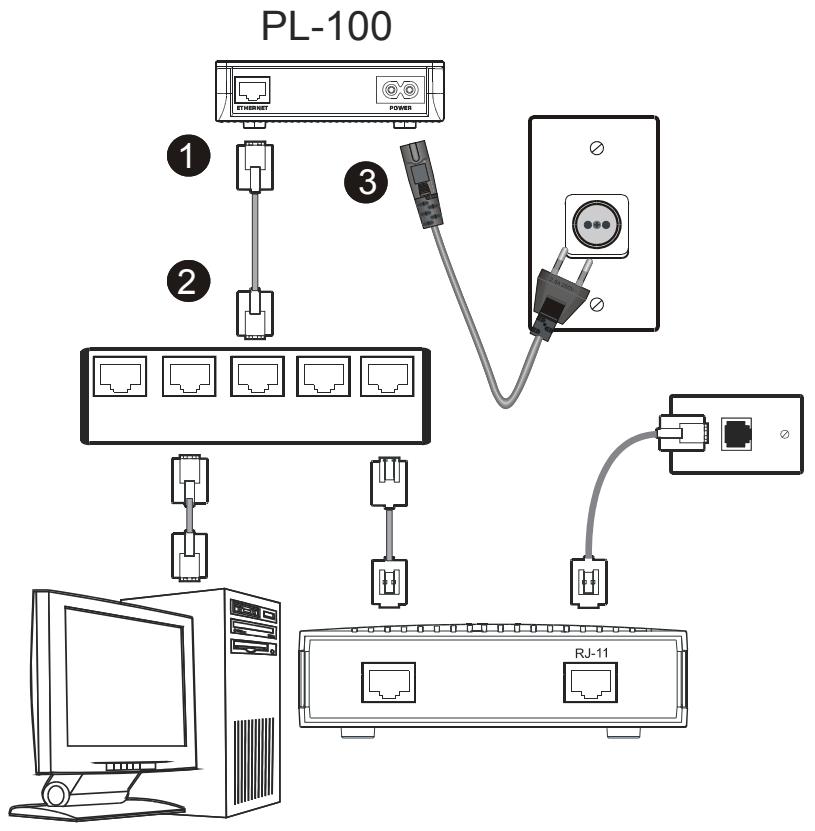
Figure 1 Connecting the PL-100 to a Broadband Modem
2.2.2 Connecting the PL-100 to a Computer
For all the computers you wish to be networked, they must each be connected properly to a PL-100 Ethernet adapter. The figure below shows how to connect the PL-100 to each computer.
Follow the steps below to connect the PL-100 to your computer.
1 Connect an Ethernet cable to the port on the PL-100.
2 Connect the other end of this Ethernet cable to the Ethernet port of your computer.
3 Plug the PL-100 into a wall socket that is near your computer.
4 Confirm that the PWR, LINK and ETHN LEDs on the PL-100 are on.
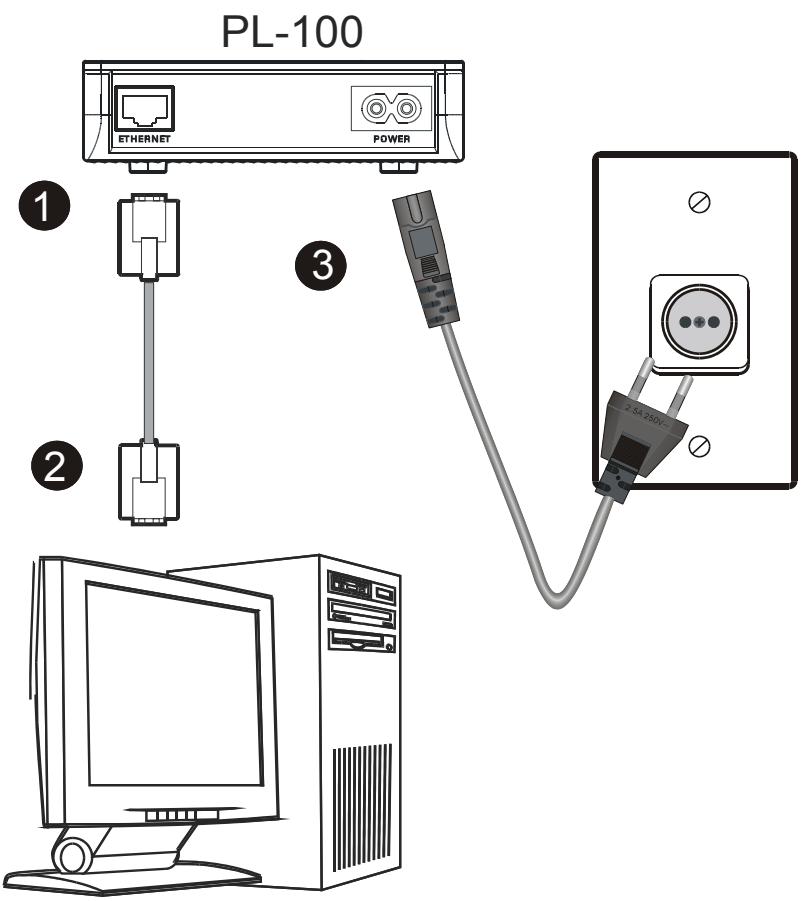
Figure 2 Connecting the PL-100 to a Computer
2.2.3 LED Status
The LEDs of the PL-100 show the current connection status.
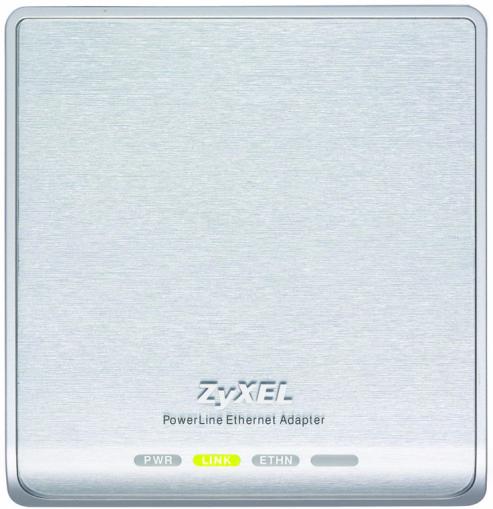
Figure 3 PL-100 Top View With LED Lights
Table 1 LED Status of the PL-100 After Connection
| LABEL | STATUS | DESCRIPTION |
| PWR | ON | The PL-100 is on and receiving power. |
| OFF | The PL-100 is not receiving power. | |
| LINK | ON | The Powerline port detects another powerline device. |
| Flashing | The Powerline port is transmitting. | |
| OFF | The Powerline port is not detecting another powerline device. | |
| ETHN | ON | The Ethernet port is on and ready. |
| Flashing | The Ethernet port is transmitting. | |
| OFF | Devices on the Ethernet port are not connected or not on. |
Please refer to the troubleshooting guide for additional help if needed. Section Chapter 5 on page 37 for help.
CHAPTER 3
Installing the PL-100 Software
3.1 Installation of the Utility
Please verify that no other HomePlug or Encryption Management Utilities are installed before installing this product. If other utilities are installed, uninstall them and restart before installing this software.
To install the PL-100 Configuration Utility, please follow the steps below.
1 Insert the ZyXEL Windows OS Configuration Utility Setup utility CD-ROM into the computer's CD-ROM drive. The Setup utility runs automatically. Alternatively this can also be done manually by double clicking the setup.exe file on the CD. The CD will launch an installation utility similar to the one shown in Figure 4. Click Next to continue.
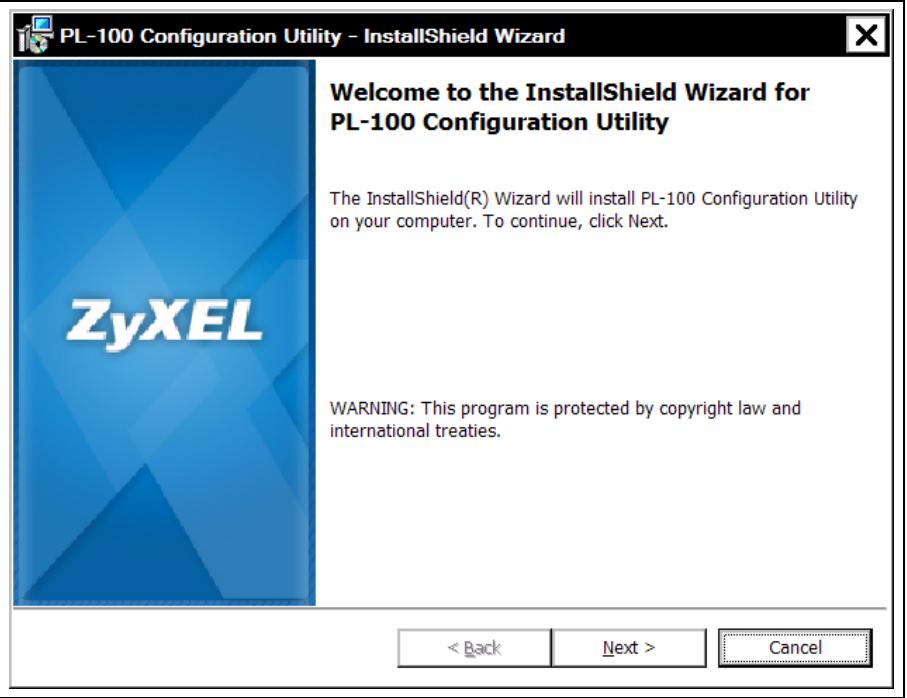
Figure 4 InstallShield Wizard Start Screen
2 Enter your User Name and Organization (optional). For exclusive control by an individual, click the "Only for me" radio button. Click Next to continue.
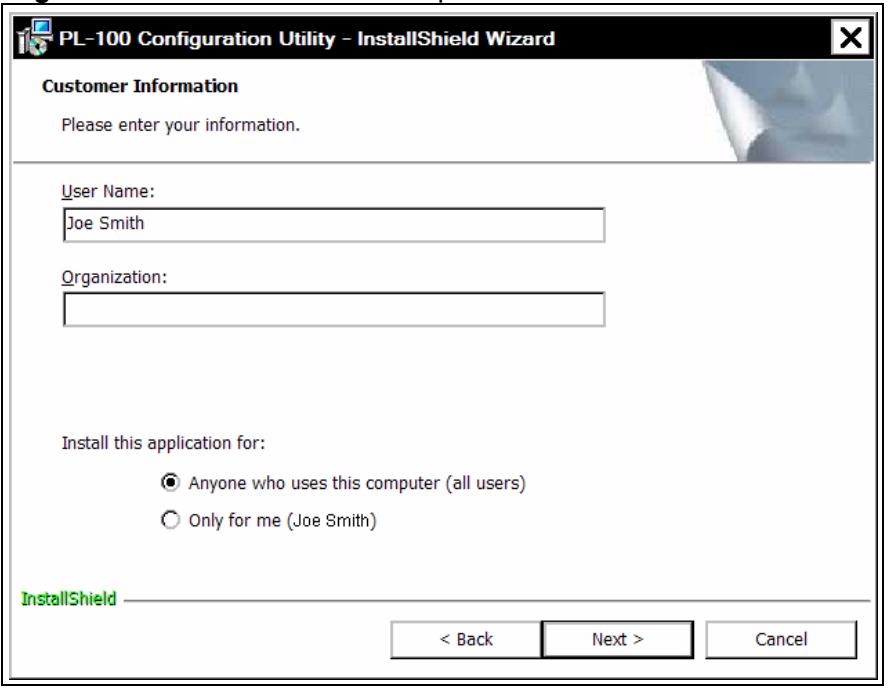
Figure 5 Customer Information Input
3 Click Next to install to the default folder, or click Change to install to a different folder.
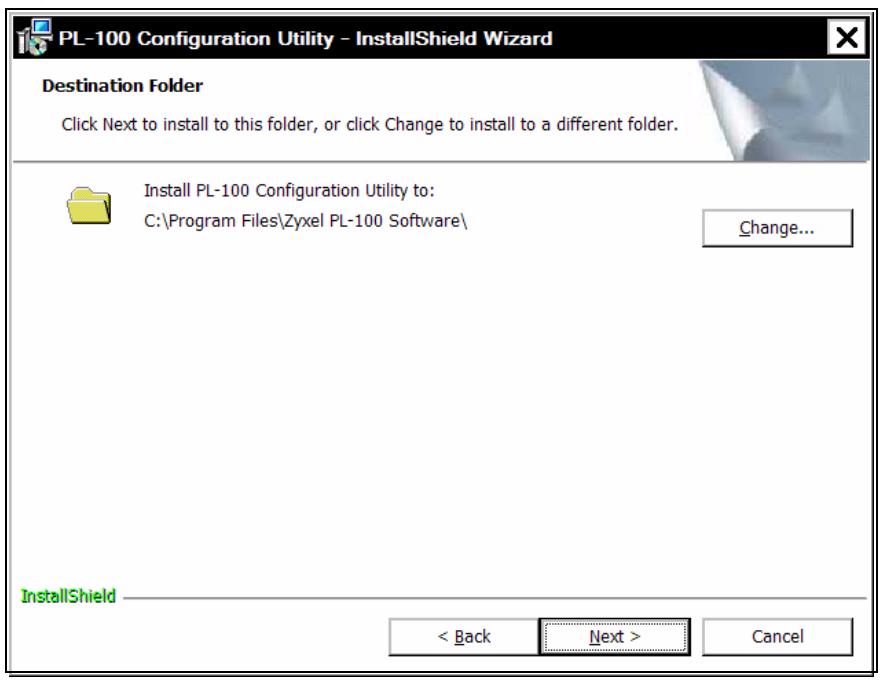
Figure 6 Install Destination Folder
4 The installation wizard is ready to begin the installation. Click Next to proceed or Cancel to exit the wizard.
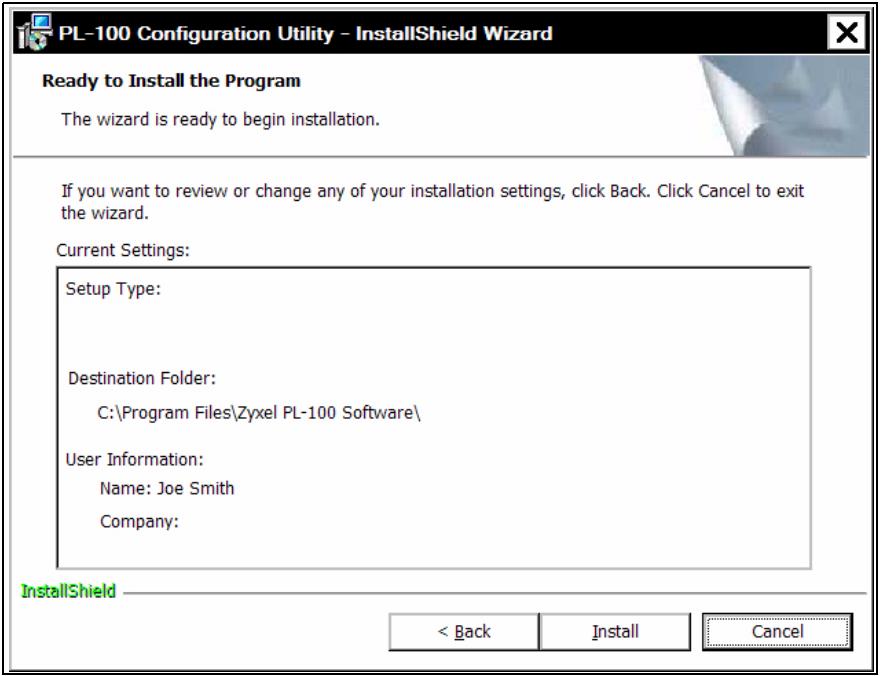
Figure 7 Install Begin Screen
5 The PL-100 Configuration Utility is being installed. Please wait for installation to complete.
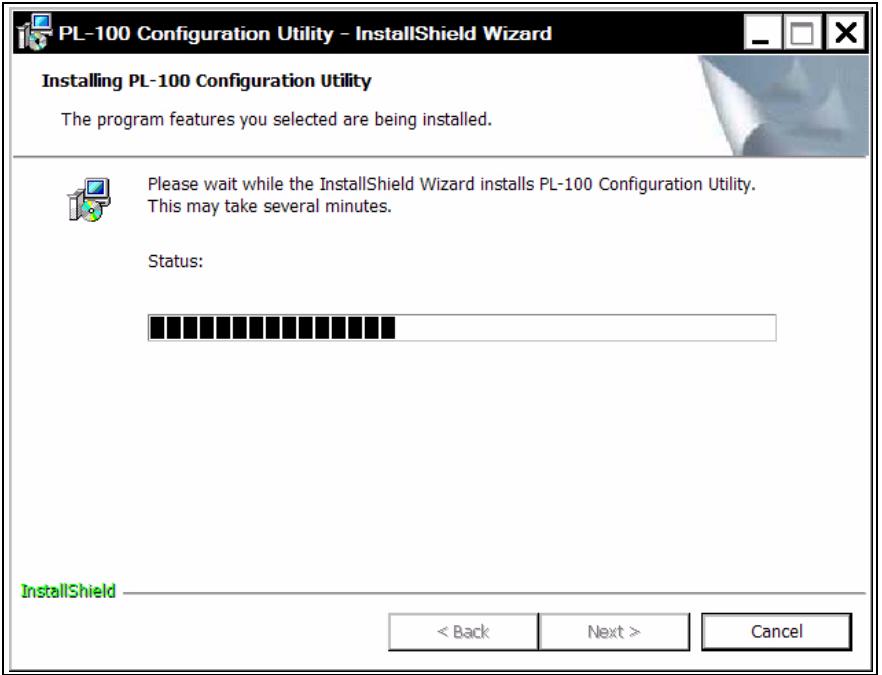
Figure 8 Install Process Screen
6 This is the screen to confirm the Installation Wizard has successfully installed the PL-100 Configuration Utility to your computer. Click Finish to exit the wizard.
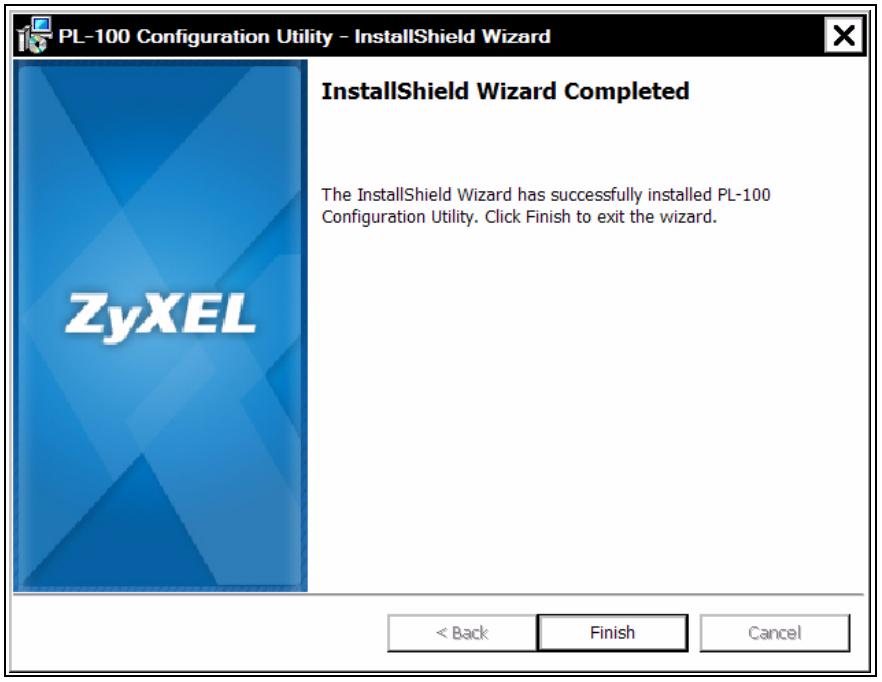
Figure 9 Installation Confirmation Screen
CHAPTER 4
Using the Configuration Utility
After the hardware and software are installed successfully, you can set up and adjust your network. In order to run the configuration utility, double-click the utility icon. To do this, click Start, Programs and Zyxel Software and click on PL-100 Configuration Utility. Figure 10 on page 29 below shows the main screen of the configuration utility.
4.1 Configuration Utility Main Screen
The Main screen essentially provides a list of all powerline devices logically connected to the computer where the utility is running.
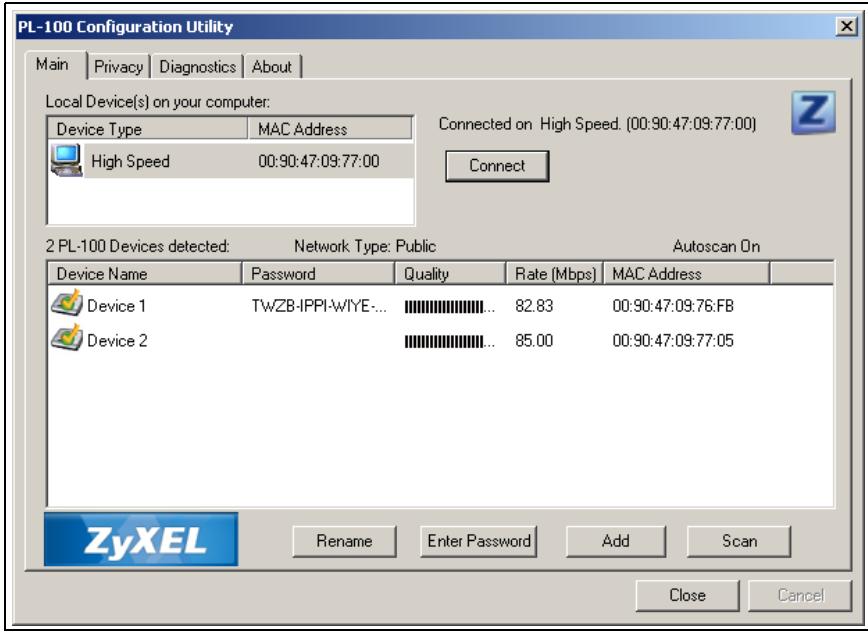
Figure 10 PL-100 Configuration Utility Main
Table 2 Utility Main Window Descriptions
| LABEL | DESCRIPTION |
| Top Panel | This shows all local HomePlug devices found connected to the computer's NIC (Network Interface Card). In most cases, only one device will be seen. In situations where there are more than one device connected, such as a USB and also an Ethernet device, you may click to select the one to manage through and then click the Connect button to its right. The status area above the button indicates that your PC is connected to that same device. Once connected to the chosen local device, the utility will automatically scan the power line periodically for any other HomePlug devices. If no local HomePlug devices are discovered, the status area above the connect button will indicate that accordingly. |
| Lower Panel | This displays all the HomePlug devices discovered on the current logical network (remote devices). Displayed immediately above this panel is the number of remote devices found, the type of logical network (Public or Private), and a message area that reports connectivity and scan status. The following information is displayed for each of the devices discovered that appear in the lower panel. |
| Device Name | This shows the default device name, which may be re-defined. You may change the name by clicking on the name and editing in-place, or by using the rename button. An icon is optionally shown with the name. A distinction in icons is made between low-speed and high-speed devices (HomePlug 1.0 and Turbo). By default, the icon is displayed with the name. |
| Rename | This allows you to rename a device. |
| Password | This shows current password for device. |
| Quality | This shows the quality of the High speed or Low speed device connection. |
| Rate | This shows the current transmission rate of selected device. |
| MAC Address | This shows the device's MAC address. |
| Enter Password | This column shows the supplied device password (initially left blank). You may enter the password by using the Set Password button (explained below). To set the Password of the device (required when creating a private network), first select the device by clicking on its name in the lower panel and then click on the Enter Password button. A dialog box will appear as shown below to type the password. The selected device name is shown above the field for entering the password. Click OK after entering the new password.A confirmation box will appear if the password was entered correctly. If a device is not found, you will be notified and suggestions to resolve common problems will be presented. |
| Add Button | This is used to add a remote device to your network that is not on the displayed list in the lower panel. For example, a device currently on another logical network See Figure 11 on page 31, can be added this way. You are advised to locate the passwords for all devices you wish to manage and add them to the local logical network by clicking on the Add button. A dialog box will appear as seen below. The dialog box allows you to enter both a device name and the password. |
| Scan Button | This is used to perform an immediate search of the HomePlug devices connected to the computer. By default the utility automatically scans every few seconds and updates the display. |
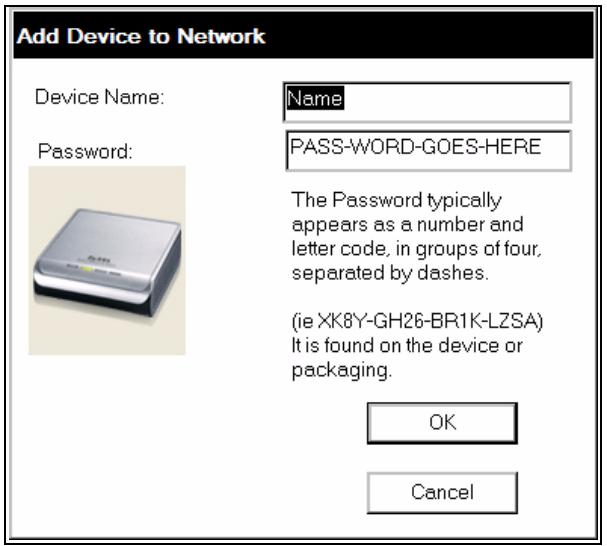
Figure 11 Add Device
A confirmation box will appear if the password was entered correctly and if the device was found. If a device is not found, you will be notified and suggestions to resolve common problems will be presented.
Note: The device must be present on the power line (plugged in) in order for the password to be confirmed and added to the network. If the device could not be located, a warning message will be shown.
A typical screen after naming and supplying passwords might appear as below, which is also the diagnostics screen.
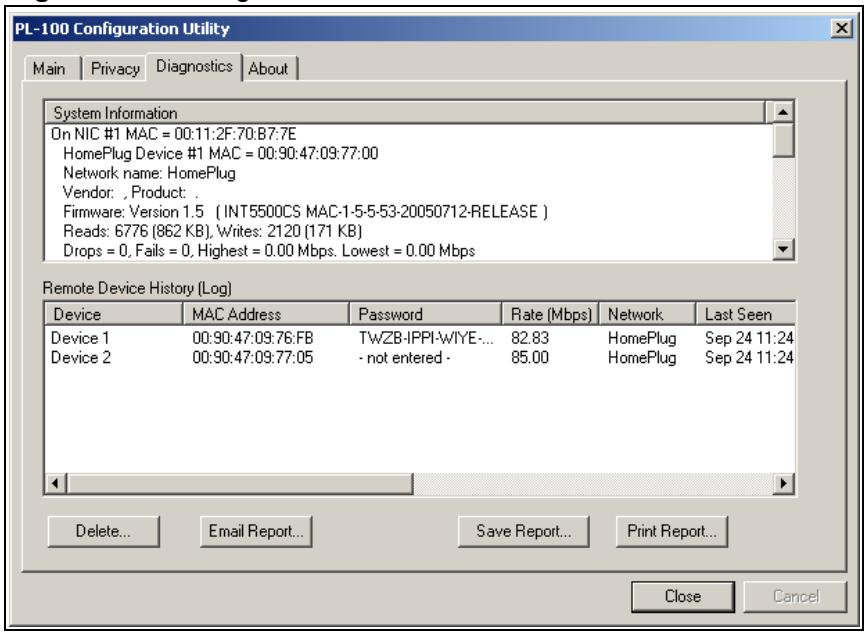
Figure 12 Naming and Passwords
4.2 Privacy Screen
The Privacy dialog screen provides a means for managing the local network and providing additional security. All HomePlug devices are shipped using a default logical network (network name), which is normally "HomePlug". The Privacy dialog screen allows you to make the network private by changing the network name (network password) of devices.
You can always reset a HomePlug network to the universal one (public) by entering "HomePlug" as the network name or by clicking on the Use Default button.
Note: Changing the network name to any other name other than HomePlug will show the network type on the main screen as Private.
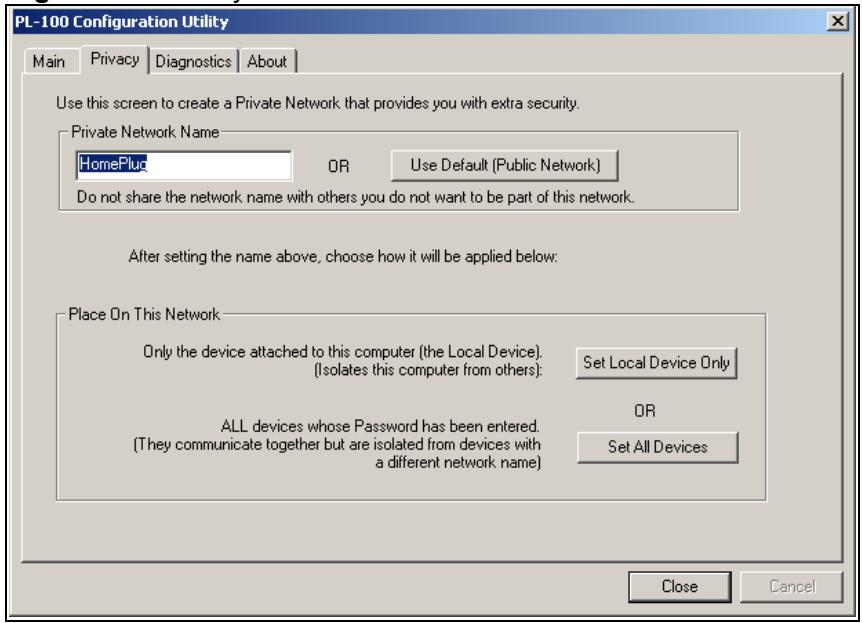
Figure 13 Privacy Screen
Table 3 Privacy Screen Choices
| LABEL | DESCRIPTION |
| Set Local Device Only | This is used to change the network name (network password) for the local device only. After doing this, all the devices seen on the Main panel prior to this will no longer be able to communicate or respond to the computer, as they will be on a different logical network. Devices previously set up with the same logical network (same network name) will appear in the device list afterward selecting this option. |
| Set All Devices | This is used to change the logical network of all devices that appear on the Main panel. You must have entered the device's Password in order to set it to the new logical network. A notification message will appear to report the success of this operation. |
4.3 Diagnostics Screen
The Diagnostics screen shows system information and a history of all devices seen. The appearance is shown in the figure below.
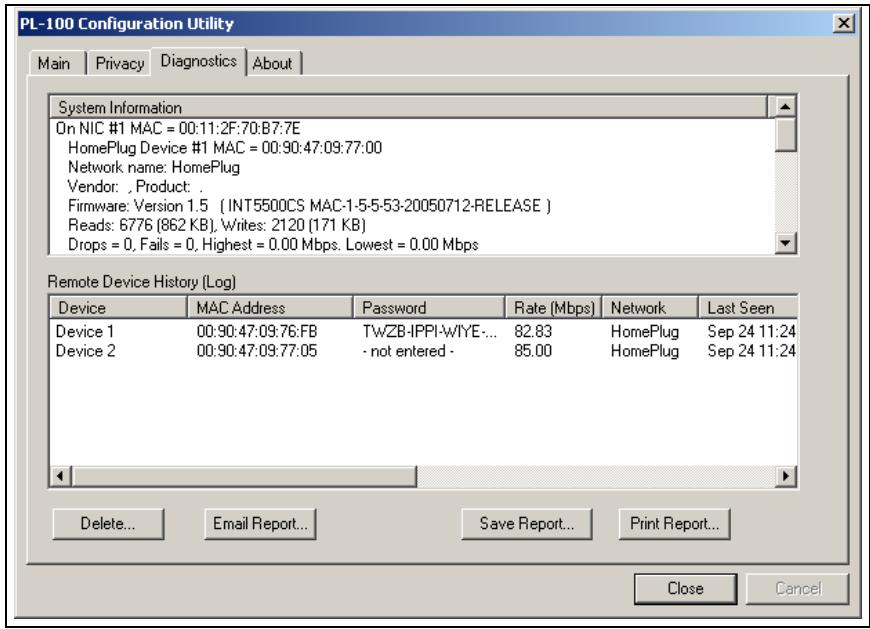
Figure 14 Diagnostics Screen
Table 4 Diagnostics Screen Items
| LABEL | DESCRIPTION |
| Upper Panel | This area shows technical data concerning software and hardware on the host computer used to communicate over HomePlug. It includes the following:Operating System Type or VersionHost Network NameUser NameMAC Address of all NICs (network interface card)Identify Versions of all Driver DLLs and Libraries used (NDIS)HomePlug chipset manufacturer name (Turbo Only devices)MAC Firmware Version (Turbo Only devices)Vendor Name |
| Lower Panel | This area contains a history of all remote devices seen on the computer over time. Devices are shown here regardless of whether or not they are on the same logical network. Devices that are active on the current logical network will show a transfer rate in the Rate column; devices on other networks, or devices that may no longer exist are shown with a “?” in the Rate column. The following remote device information is available from the diagnostics screen:Adapter Alias NameAdapter MAC AddressAdapter PasswordAdapter Last known rateAdapter Last Known NetworkHomePlug chipset manufacturer nameDate device last scanned.MAC Firmware Version (Turbo Only). |
| Delete, Email Report, Save Report, Print Report | The diagnostics information displayed may be saved to a text file for later emailing to technical support of a manufacturer, or printed for reference during a technical support call. Devices no longer part of the network can be deleted using the Delete button. |
4.4 About Screen
The About screen in the figure below shows the software version and provides access to the ZyXEL website.
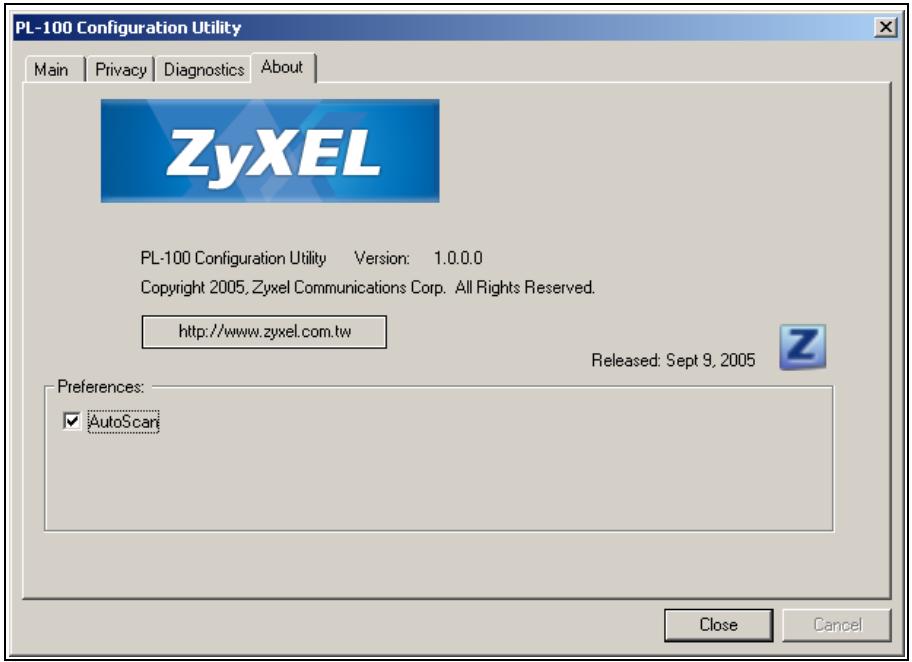
Figure 15 About Screen
Table 5 About Screen Choices
| LABEL | DESCRIPTION |
| http://www.zyxel.com.tw | Clicking on this web address field will open a web browser and take you directly to the ZyxEL web site. |
| AutoScan | This is used as the default Autoscan setting to find all HomePlug devices connected to the computer. When checked, the utility automatically scans every few seconds and updates the information to display. When left blank, the Configuration Utility only scans for devices when the Scan button on the Main utility screen is clicked. |
CHAPTER 5
Troubleshooting
This chapter covers potential problems and possible remedies. After each problem description, instructions are provided to help you diagnose and fix the problem.
5.1 Using LEDs to Diagnose a Problem
5.1.1 PWR LED is Off
Table 6 Troubleshooting PWR LED
| STEPS | CORRECTIVE ACTION |
| 1 | Make sure the PL-100 is properly connected to a power outlet. Make sure the outlet is working by plugging another electric device into it. If it is working, plug in the PL-100 again. If the PL-100 LED still does not light, contact our technical support. |
5.1.2 LINK LED is Off
Table 7 Troubleshooting LINK LED
| STEPS | CORRECTIVE ACTION |
| 1 | Use the PL-100 Configuration Utility to detect all other Homeplug devices on your power line network. |
| 2 | Try plugging a second Homeplug device into an adjacent socket (to your PL-100) and see if the lights light up. If you are still having a problem, please contact our technical support line. |
5.1.3 ETHN LED is Off
Table 8 Troubleshooting ETHN LED
| STEPS | CORRECTIVE ACTION |
| 1 | Check that all Ethernet cables are securely connected at all ports and are the correct type (Cat-5 or higher). |
| 2 | Check the Ethernet adapter on your computer and make sure it's enabled and working properly. If the PL-100 is connected to an Eternent switch or router, make sure the device is working correctly, and that the LAN network is working and configured correctly as well. |
APPENDIX A
PL-100 Specifications
Table 9 Specifications
| ITEM | DESCRIPTION |
| Product Name | PL-100 PowerLine 85 Mbps Ethernet Adapter |
| Power Input | 100 - 240 VAC, 50 ~ 60 Hz, 0.05 A |
| Dimensions | 112 (L) mm x 106 (D) mm x 28.5 mm (H) |
| Operating Temp | 0°C ~ 45°C |
| Humidity | 10% ~ 90% Noncondensing |
| Frequency Band | 4.3 MHz, 20.9 MHz |
| Cabling Type | 1 x Powerline Power Cord 1 x LAN UTP Category 5 or Better |
| Network Ports | 1 x 10/100M BASE-T Ethernet port with Auto MDI/MDIX 1 x 85 Mbps PowerLine port compliant with 14M HomePlug V1.01 |
| Power Line Network | Supports up to 16 (Tone Map) PL devices communicating on a single network. 1 PL device supports 16 remote Ethernet addresses, Total support 64. |
| Network Interface | 1 x RJ-45 (10/100BASE-T Ethernet) 1 x 2 PIN AC-JACK + Power Cable |
| Encryption | 56-bit DES Link Encryption with Key Management |
| Certifications | FCC, CE |
Table 10 RJ-45 Connector Pin Assignments
| RJ-45 CONNECTOR | PIN NO | RJ-45 SIGNAL ASSIGNMENT |
| 12345678 | 1 | RxD + |
| 2 | RxD - | |
| 3 | TxD + | |
| 4 | Not connected | |
| 5 | Not connected | |
| 6 | TxD - | |
| 7 | Not connected | |
| 8 | Not connected |
APPENDIX B Setting up Your Computer's IP Address
All computers must have a 10M or 100M Ethernet adapter card and TCP/IP installed.
Windows 95/98/Me/NT/2000/XP, Macintosh OS 7 and later operating systems and all versions of UNIX/LINUX include the software components you need to install and use TCP/IP on your computer. Windows 3.1 requires the purchase of a third-party TCP/IP application package.
TCP/IP should already be installed on computers using Windows NT/2000/XP, Macintosh OS 7 and later operating systems.
After the appropriate TCP/IP components are installed, configure the TCP/IP settings in order to "communicate" with your network.
If you manually assign IP information instead of using dynamic assignment, make sure that your computers have IP addresses that place them in the same subnet as the Prestige's LAN port.
Windows 95/98/Me
Click Start, Settings, Control Panel and double-click the Network icon to open the Network window.
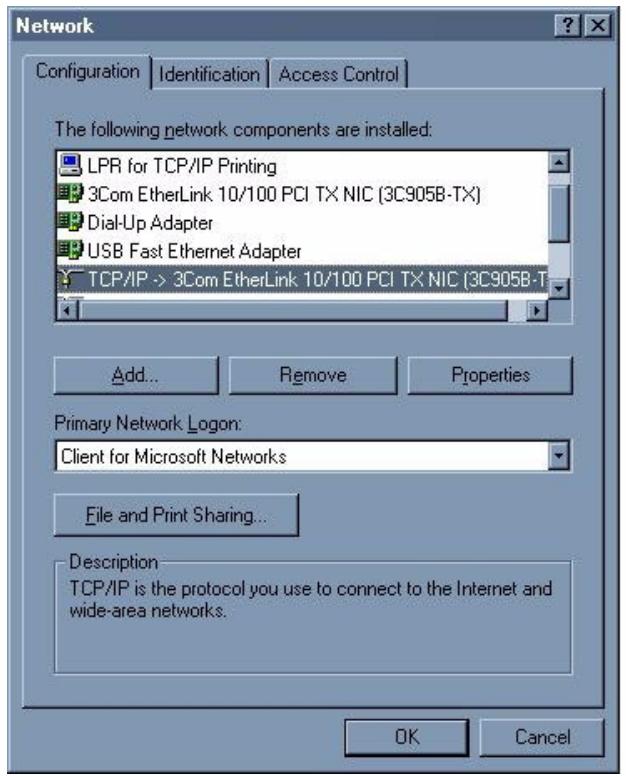
Figure 16 Windows 95/98/Me: Network: Configuration
Installing Components
The Network window Configuration tab displays a list of installed components. You need a network adapter, the TCP/IP protocol and Client for Microsoft Networks.
If you need the adapter:
1 In the Network window, click Add.
2 Select Adapter and then click Add.
3 Select the manufacturer and model of your network adapter and then click OK.
If you need TCP/IP:
1 In the Network window, click Add.
2 Select Protocol and then click Add.
3 Select Microsoft from the list of manufacturers.
4 Select TCP/IP from the list of network protocols and then click OK.
If you need Client for Microsoft Networks:
1 Click Add.
2 Select Client and then click Add.
3 Select Microsoft from the list of manufacturers.
4 Select Client for Microsoft Networks from the list of network clients and then click OK.
5 Restart your computer so the changes you made take effect.
Configuring
1 In the Network window Configuration tab, select your network adapter's TCP/IP entry and click Properties
2 Click the IP Address tab.
If your IP address is dynamic, select Obtain an IP address automatically.
- If you have a static IP address, select Specify an IP address and type your information into the IP Address and Subnet Mask fields.
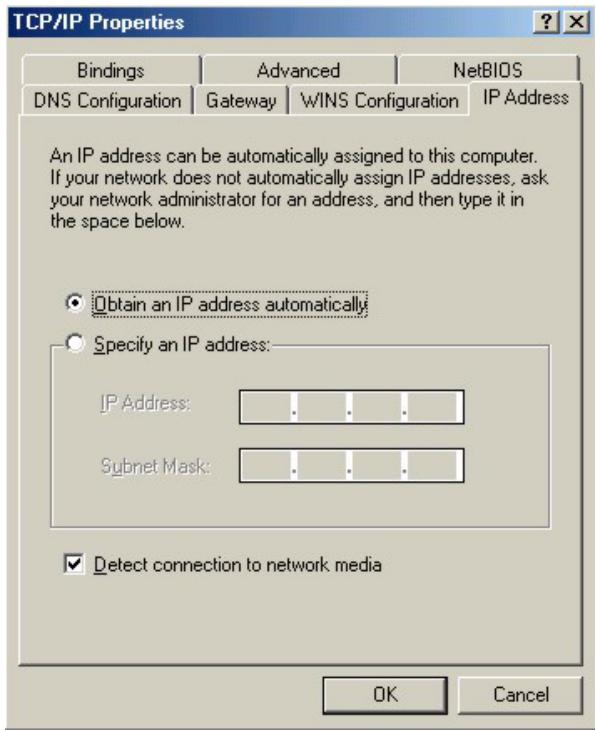
Figure 17 Windows 95/98/Me: TCP/IP Properties: IP Address
3 Click the DNS Configuration tab.
If you do not know your DNS information, select Disable DNS.
- If you know your DNS information, select Enable DNS and type the information in the fields below (you may not need to fill them all in).
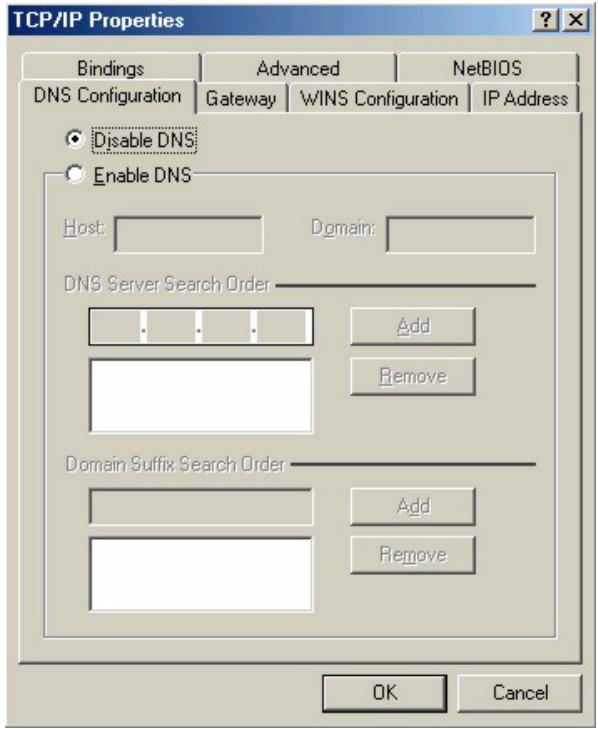
Figure 18 Windows 95/98/Me: TCP/IP Properties: DNS Configuration
4 Click the Gateway tab.
If you do not know your gateway's IP address, remove previously installed gateways.
- If you have a gateway IP address, type it in the New gateway field and click Add.
5 Click OK to save and close the TCP/IP Properties window.
6 Click OK to close the Network window. Insert the Windows CD if prompted.
7 Turn on your Prestige and restart your computer when prompted.
Verifying Settings
1 Click Start and then Run.
2 In the Run window, type "winipcfg" and then click OK to open the IP Configuration window.
3 Select your network adapter. You should see your computer's IP address, subnet mask and default gateway.
Windows 2000/NT/XP
The following example figures use the default Windows XP GUI theme.
1 Click start (Start in Windows 2000/NT), Settings, Control Panel.
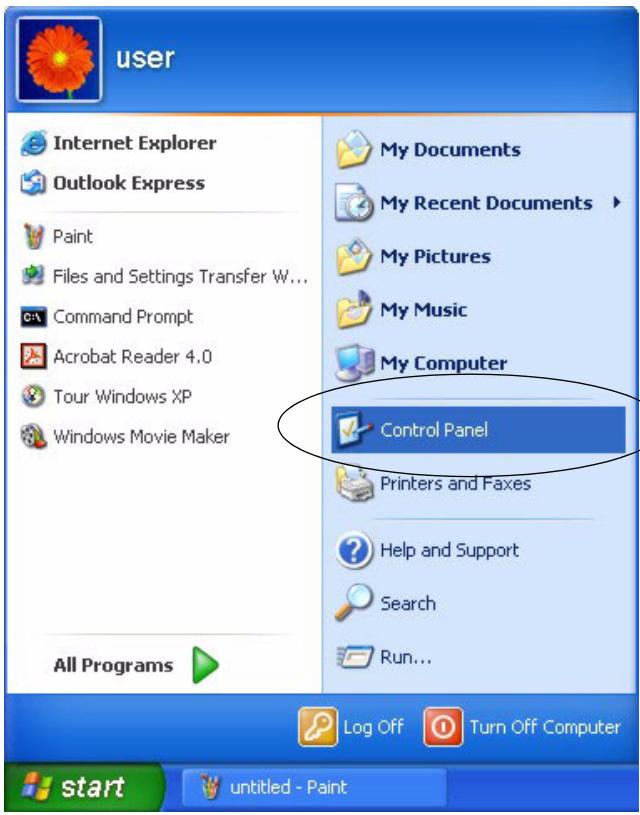
Figure 19 Windows XP: Start Menu
2 In the Control Panel, double-click Network Connections (Network and Dial-up Connections in Windows 2000/NT).
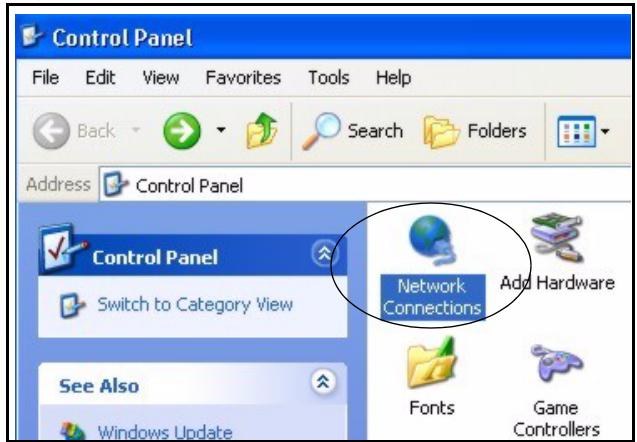
Figure 20 Windows XP: Control Panel
3 Right-click Local Area Connection and then click Properties.
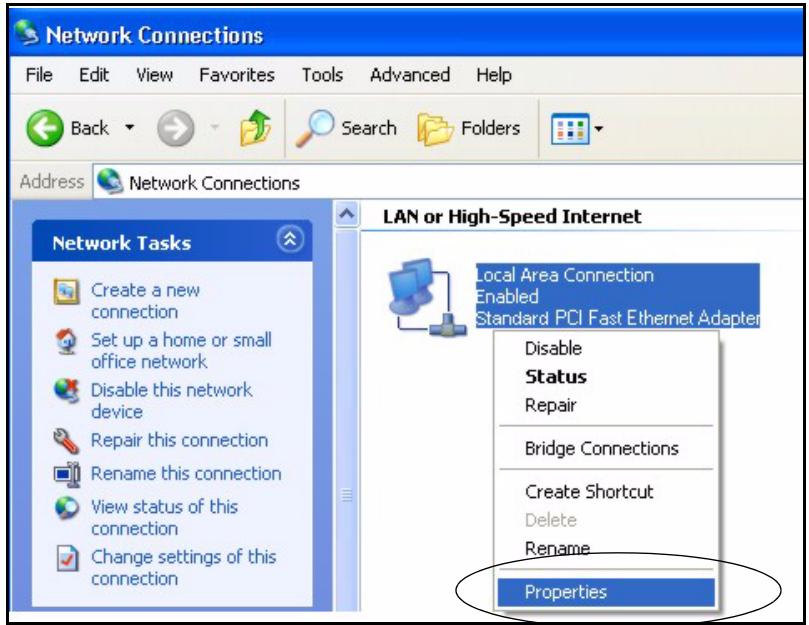
Figure 21 Windows XP: Control Panel: Network Connections: Properties
4 Select Internet Protocol (TCP/IP) (under the General tab in Win XP) and then click Properties.
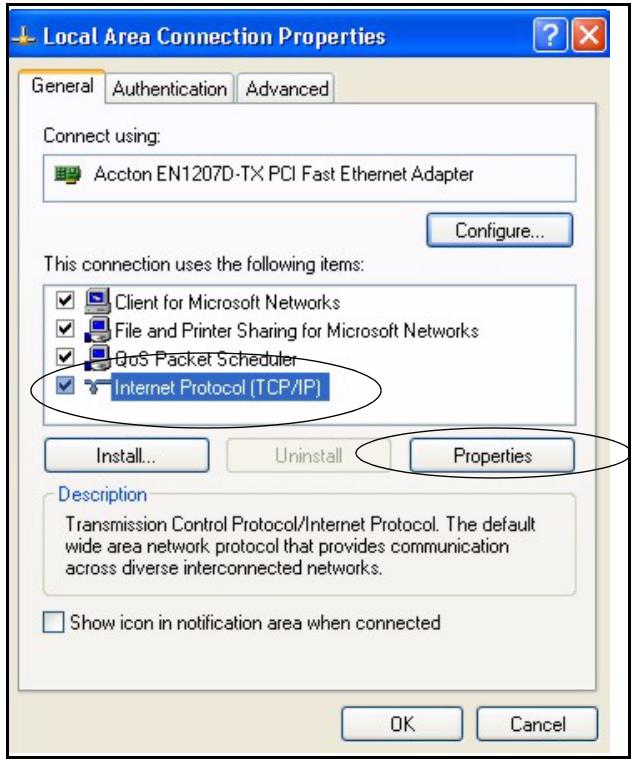
Figure 22 Windows XP: Local Area Connection Properties
5 The Internet Protocol TCP/IP Properties window opens (the General tab in Windows XP).
If you have a dynamic IP address click Obtain an IP address automatically.
- If you have a static IP address click Use the following IP Address and fill in the IP address, Subnet mask, and Default gateway fields.
- Click Advanced.
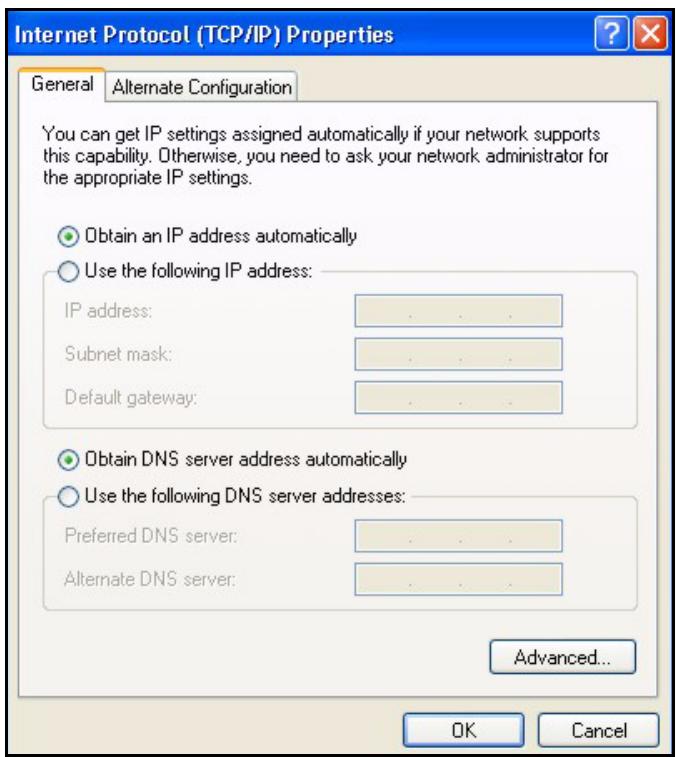
Figure 23 Windows XP: Internet Protocol (TCP/IP) Properties
6 If you do not know your gateway's IP address, remove any previously installed gateways in the IP Settings tab and click OK.
Do one or more of the following if you want to configure additional IP addresses:
In the IP Settings tab, in IP addresses, click Add.
- In TCP/IP Address, type an IP address in IP address and a subnet mask in Subnet mask, and then click Add.
- Repeat the above two steps for each IP address you want to add.
- Configure additional default gateways in the IP Settings tab by clicking Add in Default gateways.
- In TCP/IP Gateway Address, type the IP address of the default gateway in Gateway. To manually configure a default metric (the number of transmission hops), clear the Automatic metric check box and type a metric in Metric.
- Click Add.
- Repeat the previous three steps for each default gateway you want to add.
- Click OK when finished.
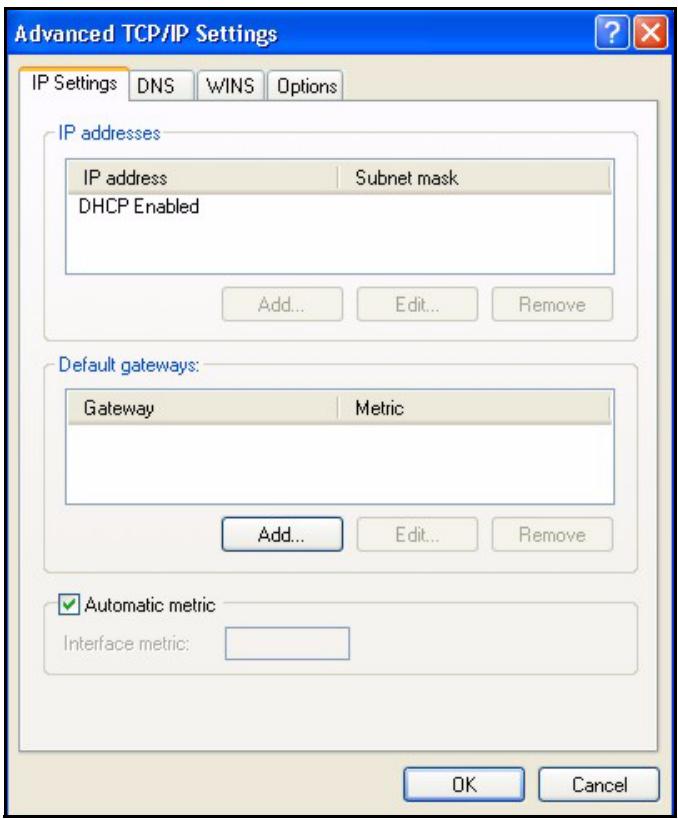
Figure 24 Windows XP: Advanced TCP/IP Properties
7 In the Internet Protocol TCP/IP Properties window (the General tab in Windows XP):
- Click Obtain DNS server address automatically if you do not know your DNS server IP address(es).
- If you know your DNS server IP address(es), click Use the following DNS server addresses, and type them in the Preferred DNS server and Alternate DNS server fields.
If you have previously configured DNS servers, click Advanced and then the DNS tab to order them.
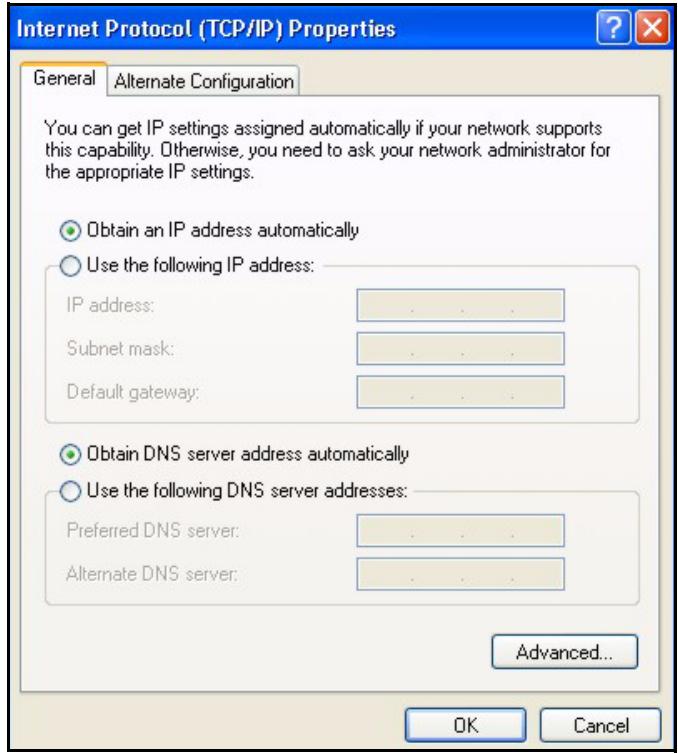
Figure 25 Windows XP: Internet Protocol (TCP/IP) Properties
8 Click OK to close the Internet Protocol (TCP/IP) Properties window.
9 Click Close (OK in Windows 2000/NT) to close the Local Area Connection Properties window.
10 Close the Network Connections window (Network and Dial-up Connections in Windows 2000/NT).
11Turn on your Prestige and restart your computer (if prompted).
Verifying Settings
1 Click Start, All Programs, Accessories and then Command Prompt.
2 In the Command Prompt window, type "ipconfig" and then press [ENTER]. You can also open Network Connections, right-click a network connection, click Status and then click the Support tab.
Macintosh OS 8/9
1 Click the Apple menu, Control Panel and double-click TCP/IP to open the TCP/IP Control Panel.
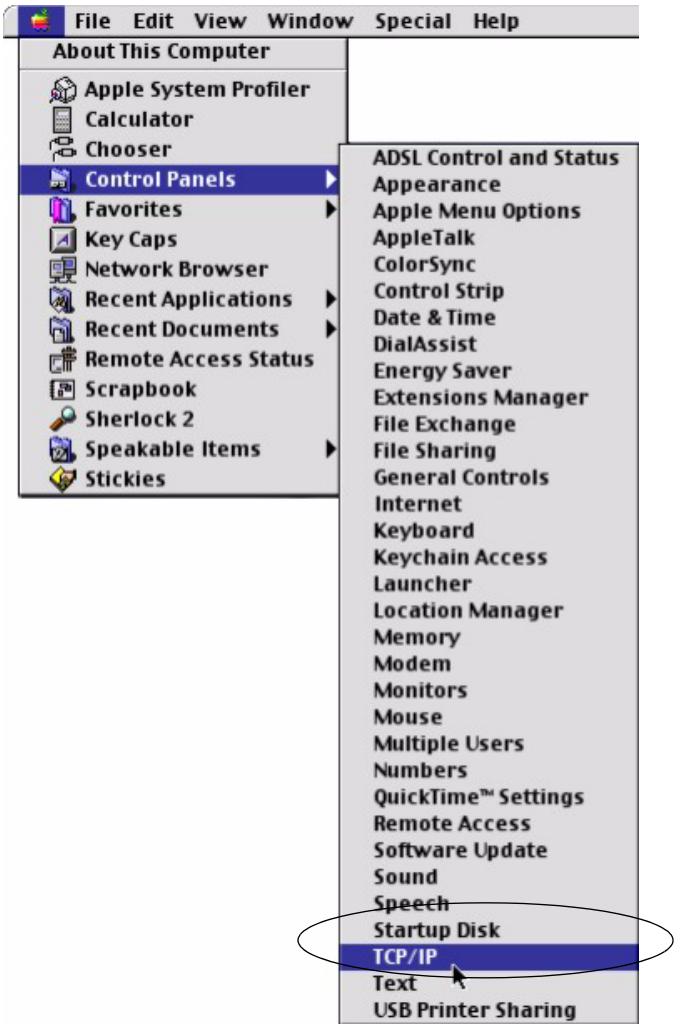
Figure 26 Macintosh OS 8/9: Apple Menu
2 Select Ethernet built-in from the Connect via list.
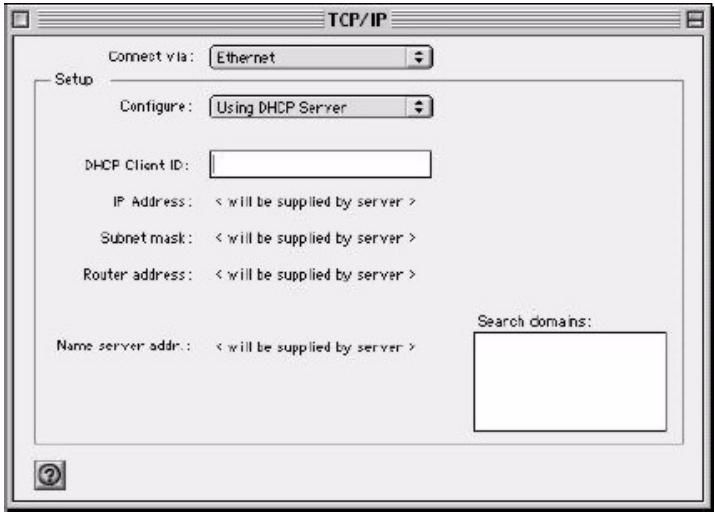
Figure 27 Macintosh OS 8/9: TCP/IP
3 For dynamically assigned settings, select Using DHCP Server from the Configure: list.
4 For statically assigned settings, do the following:
From the Configure box, select Manually.
- Type your IP address in the IP Address box.
- Type your subnet mask in the Subnet mask box.
- Type the IP address of your Prestige in the Router address box.
5 Close the TCP/IP Control Panel.
6 Click Save if prompted, to save changes to your configuration.
7 Turn on your Prestige and restart your computer (if prompted).
Verifying Settings
Check your TCP/IP properties in the TCP/IP Control Panel window.
Macintosh OS X
1 Click the Apple menu, and click System Preferences to open the System Preferences window.
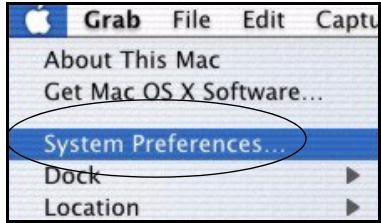
Figure 28 Macintosh OS X:Apple Menu
2 Click Network in the icon bar.
-
Select Automatic from the Location list.
-
Select Built-in Ethernet from the Show list.
- Click the TCP/IP tab.
3 For dynamically assigned settings, select Using DHCP from the Configure list.
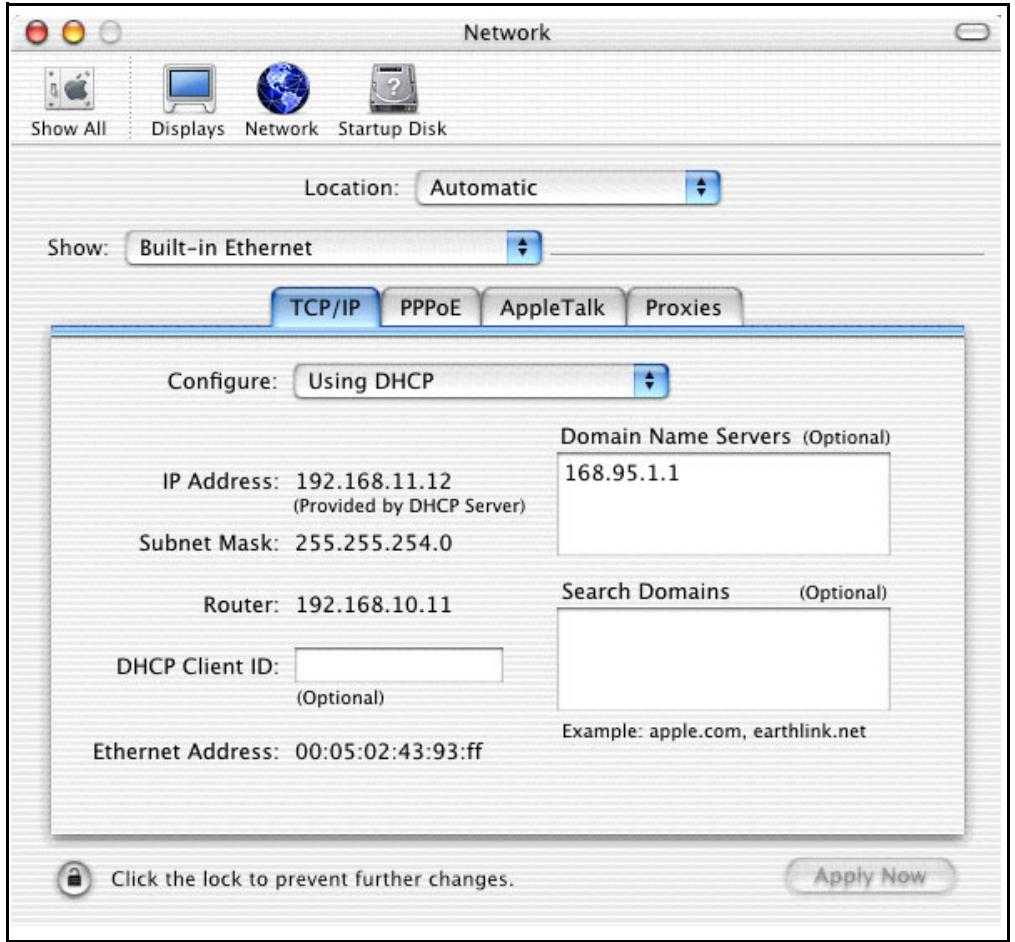
Figure 29 Macintosh OS X: Network
4 For statically assigned settings, do the following:
From the Configure box, select Manually.
Type your IP address in the IP Address box.
- Type your subnet mask in the Subnet mask box.
- Type the IP address of your Prestige in the Router address box.
5 Click Apply Now and close the window.
6 Turn on your Prestige and restart your computer (if prompted).
Verifying Settings
Check your TCP/IP properties in the Network window.
Index
Numerics
10/100 Mbps 18
110V AC 4
230V AC 4
56-bit DES 17
85 Mbps 17
A
Abnormal Working Conditions 5
About Screen 35
AC4
Accessories 4
Acts of God 5
Adapter Last Known Network 34
Adapter Last known rate 34
Add 30
Add Device 31
Airflow 4
Alias 34
Authority 3
auto-negotiating 18
B
Basement 4
BPL 17
Broadband over Power Lines 17
C
Cables, Connecting 4
Cabling Type 39
CE 39
Certifications 3, 39
Changes or Modifications 3
Charge 5
Circuit 3
Class B 3
Communications 3
Compliance, FCC 3
Components 5
Condition 5
Configuration Utility 29
Connecting Cables 4
Connecting the PL-100 21
Consequential Damages 5
Contact Information 6
Contacting Customer Support 6
Copyright 2
Correcting Interference 3
Corrosive Liquids 4
Covers 4
Customer Information 26
Customer Support 6
D
Dampness 4
Danger 4
Dealer 3
Default Logical Network 32
Defective 5
Delete 34
Denmark, Contact Information 6
Destination 26
Device Name 30
Dimensions 39
Disclaimer 2
Discretion 5
DSL Modem 18
Dust 4
E
Electric Shock 4
Electrical Pipes 4
Email Report 34
Encryption 39
Enter Password 30
Equal Value 5
Europe 4
Exposure 4
Installing the PL-100 21
InstallShield Wizard 25
Insurance 5
Interference 3
Interference Correction Measures 3
Interference Statement 3
F
Failure 5
FCC3,39
Compliance 3
Rules, Part 15 3
FCC Rules 3
Federal Communications Commission 3
Finland, Contact Information 6
Fitness 5
France, Contact Information 6
Frequency Band 39
Full-duplex 18
Functionally Equivalent 5
L
Labor 5
LED Status 24
LED status 24
Legal Rights 5
Liability 2
License 2
Lightning 4
Liquids, Corrosive 4
G
Game Console 21
Gas Pipes 4
Germany, Contact Information 6
God, act of 5
M
MAC Address 30
MAC Firmware Version 34
Materials 5
MDI/MDI-X 18
Merchantability 5
Modifications 3
H
Half-duplex 18
Harmful Interference 3
High Voltage Points 4
HomePlug 1.0 18
HomePlug chipset manufacturer name 34
HomePlug Powerline Alliance 18
Host Network Name 34
Humidity 39
N
Naming and Passwords 31
Network Interface 39
Network Password 32
Network Ports 39
New 5
NIC 30
North America 4
North America Contact Information 6
Norway, Contact Information 6
1
Indirect Damages 5
Installation Confirmation 28
0
Only for Me 26
Opening 4
Operating Condition 5
Operating System Type/Version 34
Operating Temp 39
Organization 26
Out-dated Warranty 5
Outlet 3
P
Parts 5
Password 30
Patent 2
Permission 2
Photocopying 2
Pipes 4
PL-100 Configuration Utility 29
PL-100 Specifications 39
PLC 17
PLT 17
Pool 4
Postage Prepaid. 5
Power Cord 4
Power Input 39
Power Line Network 39
Preferences 35
Print Report 34
Privacy Screen 32
Private 30
Product Model 6
Product Page 3
Product Serial Number 6
Products 5
Proof of Purchase 5
Proper Operating Condition 5
Public 30
Purchase, Proof of 5
Purchaser 5
Q
Qualified Service Personnel 4
Quality 30
R
Radio Communications 3
Radio Frequency Energy 3
Radio Interference 3
Radio Reception 3
Radio Technician 3
Rate 30
Read Me First 15
Receiving Antenna 3
Registered 2
Registered Trademark 2
Regular Mail 6
Related Documentation 15
Relocate 3
Re-manufactured 5
Removing 4
Rename 30
Reorient 3
Repair 5
Replace 5
Replacement 5
Reproduction 2
Restore 5
Return Material Authorization (RMA) Number 5
Returned Products 5
Returns 5
Rights 2
Rights, Legal 5
Risk 4
Risks 4
RMA 5
s
SafetyWarnings 4
Save Report, 34
Scan 30
Separation Between Equipment and Receiver 3
Serial Number 6
Service 4, 5
Service Personnel 4
Set All Devices 32, 35
Set Local Device 32, 35
Set Password 30
Shipping 5
Shock, Electric 4
Spain, Contact Information 6
Supply Voltage 4
Support E-mail 6
Supporting Disk 15
Sweden, Contact Information 6
Swimming Pool 4
Syntax Conventions 15
T
Tampering 5
Telephone 6
Television Interference 3
Television Reception 3
Thunderstorm 4
Top View 24
Trademark 2
Trademark Owners 2
Trademarks 2
Translation 2
Troubleshooting 37
Troubleshooting ETHN 37
Troubleshooting LINK 37
Troubleshooting PWR 37
Turbo 30
TV Technician 3
U
Undesired Operations 3
UserID 26,34
Utility Main Window 30
V
Value 5
Vendor 4, 34
Ventilation Slots 4
Viewing Certifications 3
Voltage Supply 4
Voltage, High 4
W
Wall Mount 4
Warnings 4
Warranty 5
Warranty Information 6
Warranty Period 5
Water 4
Water Pipes 4
Web Configurator 21
Web Site 6
Wet Basement 4
Workmanship 5
Worldwide Contact Information 6
Written Permission 2
Z
ZyNOS 2
ZyXEL Communications Corporation 2
ZyXEL Home Page 3
ZyXEL Limited Warranty Note 5
ZyXEL Network Operating System 2
Zyxel Software 29
- Disclaimer
- Trademarks
- Federal Communications Commission (FCC) Interference Statement
- Notice 1
- SafetyWarnings
- ZyXEL Limited Warranty
- Note
- Customer Support
- Table of Contents
- Chapter 4
- Using the Configuration Utility 29
- Chapter 5
- Troubleshooting 37
- Appendix A
- PL-100 Specifications 39
- Appendix B
- Setting up Your Computer's IP Address 41
- Index 53
- List of Figures
- List of Tables
- Preface
- About This User's Guide
- Related Documentation
- User Guide Feedback
- Syntax Conventions
- CHAPTER 1
- Getting to Know Your PL-100
- PL-100 PowerLine 85 Mbps Ethernet Adapter Overview
- Key Features
- Up to an 85 Mbps Data Rate Over Power Lines
- 56-bit DES Link Encryption
- No New Wiring to Install
- LAN Port
- HomePlug V1.01 Compatible
- System Requirements
- Applications for the PL-100
- Broadband Internet Access via Cable or DSL Modem
- Connect a Computer, Printer or Game Device to a Network
- Share Files, Printers and Other Devices
- CHAPTER 2
- Connecting the PL-100
- Preparing to Install the PL-100
- Connecting the PL-100
- Connecting the PL-100 to Your Main Cable or DSL Modem
- Connecting the PL-100 to a Computer
- LED Status
- CHAPTER 3
- Installing the PL-100 Software
- Installation of the Utility
- Using the Configuration Utility
- Configuration Utility Main Screen
- Privacy Screen
- Diagnostics Screen
- About Screen
- Troubleshooting
- Using LEDs to Diagnose a Problem
- PWR LED is Off
- LINK LED is Off
- ETHN LED is Off
- PL-100 Specifications
- APPENDIX B Setting up Your Computer's IP Address
- Windows 95/98/Me
- Installing Components
- Configuring
- Verifying Settings
- Windows 2000/NT/XP
- Macintosh OS 8/9
- Macintosh OS X
- Index
- Numerics
- A
- B
- C
- D
- E
- F
- L
- G
- M
- H
- N
- 1
- 0
- P
- Q
- R
- s
- T
- U
- V
- W
- Z
Brand : ZYXEL
Model : PL-100
Category : Powerline Adapter