
PLA-470 V2 - Powerline Adapter ZYXEL - Free user manual and instructions
Find the device manual for free PLA-470 V2 ZYXEL in PDF.


| Product Type | Powerline Adapter (PLC) |
| Brand | ZYXEL |
| Model | PLA-470 V2 |
| Network Standard | HomePlug AV |
| Theoretical Maximum Data Rate | 200 Mbps |
| Network Interface | Ethernet 10/100 Mbps (RJ-45) |
| Number of Ethernet Ports | 1 |
| Security | AES 128-bit encryption |
| Power Supply | 100-240 V AC, 50/60 Hz (via integrated power plug) |
| Power Consumption | Standby: < 1 W, operating: < 4 W |
| Dimensions (L x W x H) | 72 x 56 x 33 mm |
| Weight | Approximately 150 g |
| Operating Temperature | 0 °C to 40 °C |
| Operating Humidity | 10 % to 90 % (non-condensing) |
| Installation | Plug & Play, no configuration required |
| Pairing Button | Yes (Pairing or Sync button) |
| LED Indicators | Power, Powerline network, Ethernet |
| Compatibility | All HomePlug AV powerline adapters |
| Maintenance | Clean with a soft, dry cloth. Do not use chemicals. |
| Safety | Do not open the device. Use in a dry location away from moisture. |
| Spare Parts and Repairability | Device not user-serviceable. No spare parts available. |
| General Information | Compliant with CE and FCC standards. Class B (residential use). |
Frequently Asked Questions - PLA-470 V2 ZYXEL
User questions about PLA-470 V2 ZYXEL
0 question about this device. Answer the ones you know or ask your own.
Ask a new question about this device
Download the instructions for your Powerline Adapter in PDF format for free! Find your manual PLA-470 V2 - ZYXEL and take your electronic device back in hand. On this page are published all the documents necessary for the use of your device. PLA-470 V2 by ZYXEL.
USER MANUAL PLA-470 V2 ZYXEL
About This User's Guide
Intended Audience
This manual is intended for people who want to configure the PLA-400, PLA-400 v2, PLA-401, PLA401 v2, PLA-470 and PLA470 v2 using the PLA-4xx Series Configuration Utility version 3.0.5(AG). You should have your basic Internet access or home network already set up.
Related Documentation
- Quick Start Guide
The Quick Start Guide is designed to help you get up and running right away. It contains information on making your hardware connections. - Supporting Disk
Refer to the included CD for support documents.
ZyXEL Web Site
Please refer to www.zyxel.com for additional support documentation and product certifications.
User Guide Feedback
Help us help you. Send all User Guide-related comments, questions or suggestions for improvement to the following address, or use e-mail instead. Thank you!
The Technical Writing Team,
ZyXEL Communications Corp.,
6 Innovation Road II,
Science-Based Industrial Park,
Hsinchu, 300, Taiwan.
E-mail: techwriters@zyxel.com.tw
Document Conventions
Warnings and Notes
These are how warnings and notes are shown in this User's Guide.

Warnings tell you about things that could harm you or your device.

Notes tell you other important information (for example, other things you may need to configure or helpful tips) or recommendations.
Syntax Conventions
- The PLA-400, PLA-400 v2, PLA-401, PLA401 v2 and PLA-470 may be referred to as the "PLA-4xx", the "ZyXEL device", the "device" or the "powerline adapter" in this User's Guide.
- The PLA-4xx Series Configuration Utility version 3.0.5(AG) may be referred to as the "configuration utility" or the "utility" in this User's Guide.
- Product labels, screen names, field labels and field choices are all in bold font.
- A key stroke is denoted by square brackets and uppercase text, for example, [ENTER] means the "enter" or "return" key on your keyboard.
- “Enter” means for you to type one or more characters and then press the [ENTER] key. "Select" or "choose" means for you to use one of the predefined choices.
- A right angle bracket (>) within a screen name denotes a mouse click. For example, Maintenance > Log > Log Setting means you first click Maintenance in the navigation panel, then the Log sub menu and finally the Log Setting tab to get to that screen.
- Units of measurement may denote the "metric" value or the "scientific" value. For example, "k" for kilo may denote "1000" or "1024", "M" for mega may denote "1000000" or "1048576" and so on.
- "e.g.," is a shorthand for "for instance", and "i.e.," means "that is" or "in other words".
Icons Used in Figures
Figures in this User's Guide may use the following generic icons. The PLA-4xx icons used may not be an exact representation of your device.
PLA-4xx


Computer

Notebook computer
SafetyWarnings

For your safety, be sure to read and follow all warning notices and instructions.
- Do NOT use this product near water, for example, in a wet basement or near a swimming pool.
- Do NOT expose your device to dampness, dust or corrosive liquids.
- Do NOT store things on the device.
- Do NOT install, use, or service this device during a thunderstorm. There is a remote risk of electric shock from lightning.
- Connect ONLY suitable accessories to the device.
- Do NOT open the device or unit. Opening or removing covers can expose you to dangerous high voltage points or other risks. ONLY qualified service personnel should service or disassemble this device. Please contact your vendor for further information.Make sure to connect the cables to the correct ports.
- Place connecting cables carefully so that no one will step on them or stumble over them.
- Always disconnect all cables from this device before servicing or disassembling.
- Use ONLY an appropriate power adapter or cord for your device.
- Connect the power adapter or cord to the right supply voltage (for example, 110V AC in North America or 230V AC in Europe).
- Do NOT allow anything to rest on the power adapter or cord and do NOT place the product where anyone can walk on the power adapter or cord.
- Do NOT use the device if the power adapter or cord is damaged as it might cause electrocution.
- If the power adapter or cord is damaged, remove it from the power outlet.
- Do NOT attempt to repair the power adapter or cord. Contact your local vendor to order a new one.
- Do not use the device outside, and make sure all the connections are indoors. There is a remote risk of electric shock from lightning.
- Do NOT obstruct the device ventilation slots, as insufficient airflow may harm your device.
- If you wall mount your device, make sure that no electrical lines, gas or water pipes will be damaged.
PLA-401 v2 models only:
- This power unit is intended to be correctly orientated in a vertical or floor mount position.
This product is recyclable. Dispose of it properly.

Table of Contents
About This User's Guide 3
Document Conventions 4
SafetyWarnings 5
Table of Contents 7
List of Tables 11
List of Figures 13
Part I: Introduction 15
Chapter 1 Introducing the PLA-4xx 17
1.1 Overview 17
1.2 Expand Your Network with the PLA-4xx 17
1.3 Ways to Manage the PLA-4xx 18
1.4 Security 18
1.4.1 Passwords 18
1.4.2 Setting Up Security 18
1.5 Multiple Networks 19
Chapter 2
Installing the Utility. 21
2.1 Overview of the Installation Process 21
2.2 Installing the Utility 21
Part II: Managing the PLA-4xx 27
Chapter 3
Firmware Tools. 29
3.1 Firmware Detection Tool 29
3.1.1 Firmware Detection Issues 29
3.1.2 Firmware Detection Procedure 30
3.2 Firmware Upgrade Tool 32
Chapter 4
The ENCRYPT Button 35
4.1 ENCRYPT Button Overview 35
4.2 Set Up a HomePlug AV Network with ENCRYPT 35
4.3 Setting Up Multiple Networks 37
4.4 ENCRYPT Button Behavior 38
Chapter 5
The Configuration Utility 41
5.1 Overview 41
5.1.1 Powerline Network Security 41
5.1.2 Device Access Key (DAK) 42
5.2 Starting the Configuration Utility 42
5.3 Configuration Screen 42
5.4 Firmware Screen 44
5.5 Network Info Screen 45
5.6 Advanced Screen 46
5.7 About Screen 49
Chapter 6
Powerline Network Setup Tutorial 51
6.0.1 Overview 51
6.0.2 Important Terms 52
6.0.3 Accessing Your Powerline Adapter 52
6.0.4 Adding a Powerline Adapter 53
6.0.5 Setting Up a New Network with a New Adapter 55
6.0.6 Splitting a Network into Two Networks 56
6.1 Troubleshooting 58
Chapter 7
LEDs and Troubleshooting 61
7.1 LEDs 61
7.1.1 PLA-401/PLA401 v2 61
7.1.2 PLA-400/400 v2 62
7.1.3 PLA-470/PLA470 v2 64
7.2 Power and Light Problems 66
7.3 Configuration Utility Problems 67
7.4 Powerline Problems 68
7.5 ENCRYPT Button Problems 68
Part III: Appendices and Index 71
Appendix A Product Specifications 73
Appendix B Customer Support 79
Appendix C Legal Information 85
Index 89
List of Tables
Table 1 Password Summary 18
Table 2 Firmware Detection Tool: Result Screen 31
Table 3 Time ENCRYPT Button is Pressed and Action 38
Table 4 Configuration Screen 43
Table 5 Network Info Screen 46
Table 6 Priority Settings 47
Table 7 Advanced Screen 49
Table 8 About Screen 49
Table 9 PLA-401 Lights 61
Table 10 PLA-401 v2 Lights 62
Table 11 PLA-400 Lights 63
Table 12 PLA-400 v2 Lights 63
Table 13 PLA-470 Lights 65
Table 14 PLA470 v2 Lights 65
Table 15 Hardware Specifications 73
Table 16 Firmware Specifications 74
Table 17 Performance 75
Table 18 Standards Supported 75
Table 19 RJ-45 Connector Pin Assignments 77
List of Figures
Figure 1 Expand Your Network with the PLA-4xx 17
Figure 2 .NET Framework Installation Prompt 22
Figure 3 Microsoft's Agreement 22
Figure 4 .NET Framework Installation Process 23
Figure 5 Microsoft's Agreement 23
Figure 6 InstallShield Wizard Start Screen 23
Figure 7 Customer Information Input 24
Figure 8 Install Destination Folder 24
Figure 9 Restart Screen 25
Figure 10 Firmware Detection With an Early Firmware Local Device 30
Figure 11 Firmware Detection With a Latest Firmware Local Device 30
Figure 12 Firmware Detection Tool: Start 31
Figure 13 Firmware Detection Tool: Result 31
Figure 14 Firmware Upgrade Tool: Start 32
Figure 15 Firmware Upgrade Tool: Upgrading 33
Figure 16 Firmware Upgrade Tool: Finish 33
Figure 17 ENCRYPT Connection Procedure 36
Figure 18 Adding More Powerline Adapters to Your Network 37
Figure 19 One Existing Powerline Network 37
Figure 20 Two Separate Powerline Networks 38
Figure 21 Example Network Setup 41
Figure 22 PLA-4xx Series Configuration Utility Icon 42
Figure 23 Configuration Screen 43
Figure 24 Firmware Screen 45
Figure 25 Network Info Screen 45
Figure 26 Priority Settings 48
Figure 27 Advanced Screen 48
Figure 28 About Screen 49
Figure 29 Plug Your Powerline Adapter into a Power Socket 52
Figure 30 Connect Your Powerline Adapter to a Computer 52
Figure 31 Click on the PLA-4xx Series Configuration Utility Icon 53
Figure 32 Add a Printer to Your Powerline Network 53
Figure 33 Adding a New Adapter 54
Figure 34 Adding an Adapter to an Existing Network 54
Figure 35 Network Name Pop-up 54
Figure 36 Add New Adapters to Make a Second Network 55
Figure 37 Making a New Network with the New Adapter 56
Figure 38 Local/Remote Adapters on a Powerline Network 56
Figure 39 Adding an Adapter to Your New Network 57
Figure 40 Incorrect DAK or No DAK 57
Figure 41 Correct DAK 57
Figure 42 An Adapter on Your New Network 58
Figure 43 Adapters on a New Powerline Network 58
Figure 44 PLA-401 Lights 61
Figure 45 PLA-400/400 v2 Lights 63
Figure 46 PLA-470 and PLA-470 v2 Lights 64
Figure 47 Wall-mounting Example 76
Figure 48 RJ-45 Connector Pins 77
PART I
Introduction
Introducing the PLA-4xx (17)
Installing the Utility (21)
Introducing the PLA-4xx
1.1 Overview
This chapter introduces the main applications and features of the PLA-4xx HomePlug AV compliant powerline adapter. See Appendix A on page 73 for detailed product specifications.
In this User's Guide the electrical wiring network and coaxial cable network are both referred to as the "powerline network". The HomePlug AV standard specifies how network devices communicate using standard electrical wiring.
1.2 Expand Your Network with the PLA-4xx
The PLA-4xx plugs into an ordinary power outlet to easily extend a cable or DSL broadband connection or existing Ethernet (LAN) network to any other electrical outlet in any room of a house, all without the need for any new cabling. Devices can securely communicate with each other at high data transfer rates. (See Appendix A on page 73 for speeds currently supported by the PLA-4xx.) The PLA-4xx uses 128-bit Advanced Encryption Standard (AES) to ensure safe transfer of information.
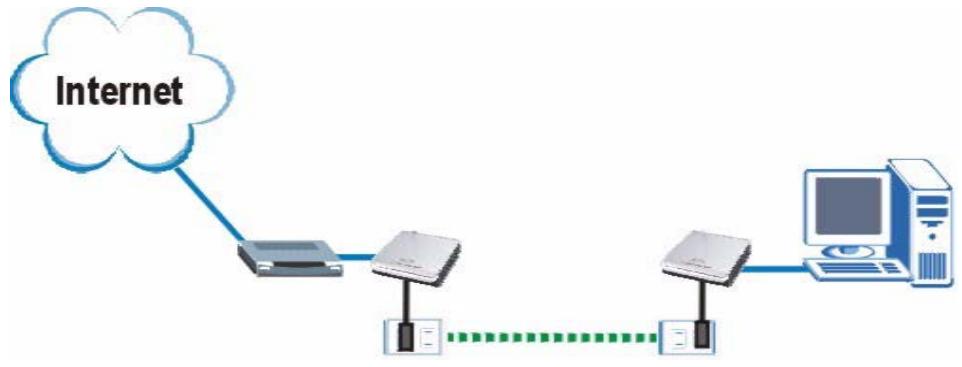
Figure 1 Expand Your Network with the PLA-4xx
Connect your PLA-4xx to an Internet gateway such as a modem and plug it into an ordinary power outlet in your home. Plug a second PLA-4xx into another power outlet and connect a computer to the PLA-4xx for Internet access. Your network can be further expanded by plugging additional PLA-4xxs into other outlets in your home and connecting other computers or network devices (for example, a printer) to them.
Refer to your Quick Start Guide for hardware connection information. Refer to Appendix A on page 73 for wall mounting instructions.
1.3 Ways to Manage the PLA-4xx
Use the ENCRYPT button to add powerline devices to your powerline network if they have this button. See Chapter 4 on page 35 for instructions on using the ENCRYPT feature.
Use the PLA-4xx Series Configuration Utility (or utility, for short) to manage the PLA-4xx. See Section 2.2 on page 21 for instructions on installing the utility.
Use the firmware detection and firmware upgrade tools to upgrade to the latest firmware. Because the latest PLA-4xxs are only compatible with other powerline devices with the latest HomePlug AV firmware, as well as the latest version Utility, these tools are available to help you upgrade. You can download both of these tools from the ZyXEL website (www.zyxel.com.tw). See Chapter 3 on page 29 for information in using these tools.

This User's Guide describes the latest version utility. This utility is only compatible with a PLA-4xx which has the latest firmware installed. If you don't already have them, download the latest firmware and utility from the ZyXEL website.
1.4 Security
Since your powerline network may extend outside your premises, it is important to set up security on your PLA-4xx.
1.4.1 Passwords
You use two types of passwords in the HomePlug AV powerline network. The following table describes the differences between the passwords.
Table 1 Password Summary
| password | DESCRIPTION |
| Network Name | All powerline adapters that follow the HomePlug AV standard are shipped with the same powerline network name “HomePlugAV”. Change the network name via the PLA-4xx Series Configuration Utility to create a private network. See Section 5.3 on page 42. |
| DAK (Data Access Key) Password | In order to manage the powerline adapters on your powerline network you must enter the adapters’ DAK password in the PLA-4xx Series Configuration Utility. This password is printed on the powerline adapter itself. You don’t need to add the password for the powerline adapter directly connected to the computer running the configuration utility (local powerline adapter), you only have to add the remote powerline adapters’ passwords (those on your circuit, but not directly connected to your computer). |
1.4.2 Setting Up Security
The ENCRYPT feature automatically sets up security on your powerline network. Use this feature if your powerline devices have the ENCRYPT button.
If your devices do not have the ENCRYPT button, use the PLA-4xx Series Configuration Utility to set up security on the PLA-4xx. Although the PLA-4xx is a "plug-and-play" network expanding solution there are several reasons for enabling security on the powerline network in your home.
1 It's easy and only requires you to change a network name.
2 It's a good idea to ensure privacy of your communication. When you use the PLA-4xx and other powerline adapters, the electrical wiring in your home becomes an extension of your Ethernet network. Your network traffic flows freely within the electrical circuit of your home and is bounded in most cases by a power meter.
Without security (encryption) your information is accessible to anyone using a powerline adapter on the same electrical circuit. In some cases, a circuit can be shared by more than one household.
To prevent compromising your network security, you can create a private network. A private network uses a secret password (Network Name) to make sure that only permitted powerline adapters can communicate in your network. See Section 5.3 on page 42 for information on setting up a private network.

Buildings and even streets may share a coaxial cable connection. If your powerline network uses a coaxial cable, the network will probably extend outside your premises. In this case make your network more secure with a private network name.
3 You may need to change the Network Name to create multiple powerline networks. See the next section for more information on how to set up a multiple network.
1.5 Multiple Networks
Multiple powerline networks can coexist on a single powerline circuit. You might want to implement multiple powerline networks in a small office environment where you have two separate Ethernet networks.
1 Connect one powerline adapter to a router or switch on the first Ethernet network and assign a Network Name (for example "Password1") to this powerline adapter. Add additional powerline adapters to your network by plugging them into your powerline outlets and assigning them "Password1". This completes the configuration of your first powerline network.
2 Connect another powerline adapter to a router or switch on the second Ethernet network and assign a different Network Name (for example "Password2") to this powerline adapter. Again, add additional powerline adapters and assign them "Password2".
You now have two private networks on your powerline circuit. Information is not shared between the two networks as only powerline adapters with the same Network Name can communicate with each other.
Installing the Utility
This chapter guides you through the installation of the configuration utility for your PLA-4xx.
2.1 Overview of the Installation Process
The installation of the configuration utility does the following:
1 Checks for and installs Microsoft's .NET Framework version 1.1 software on your computer. This software is necessary for the installation of the PLA-4xx Series Configuration Utility. If you already have .NET Framework version 1.1 installed on your computer this step will be skipped.
2 Installs ZyXEL's PLA-4xx Series Configuration Utility. This utility allows you to manage the network name (See Section 5.3 on page 42 for more information) or view the devices recognized on your powerline network.

At the time of writing the utility is only compatible on Microsoft Windows XP and Microsoft Windows Vista (32-bit version) operating systems.

This User's Guide describes the latest version utility. This utility is only compatible with a PLA-4xx which has the latest firmware installed. If you don't already have them, download the latest firmware and utility from the ZyXEL website.
2.2 Installing the Utility
Follow the steps below to install .NET Framework version 1.1 and the PLA-4xx Series Configuration Utility on your computer.
1 Insert the included CD-ROM into your computer's CD-ROM drive. The Setup utility runs automatically. Alternatively this can also be done manually by double clicking the setup.exe file on the CD. A prompt appears asking you to install the .NET Framework version 1.1. Click Yes to continue with the installation.
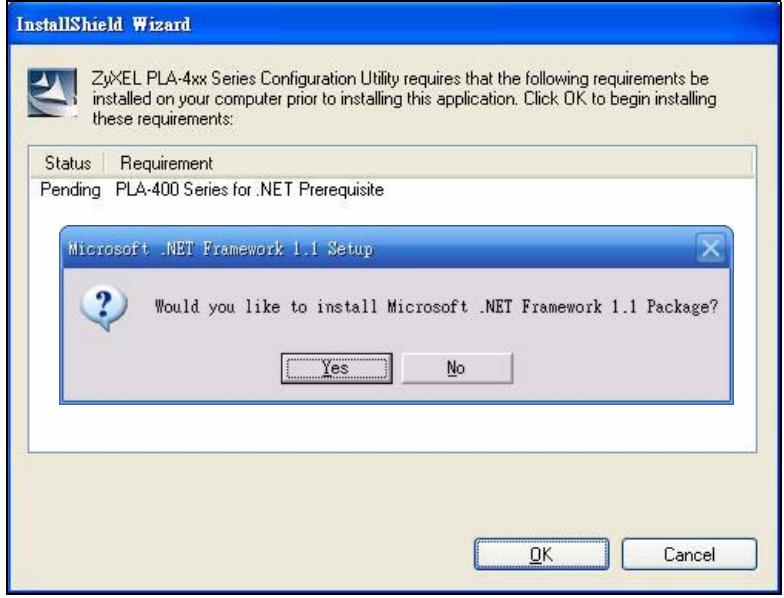
Figure 2 .NET Framework Installation Prompt
2 Review Microsoft's License Agreement, select I agree and click Install to proceed.
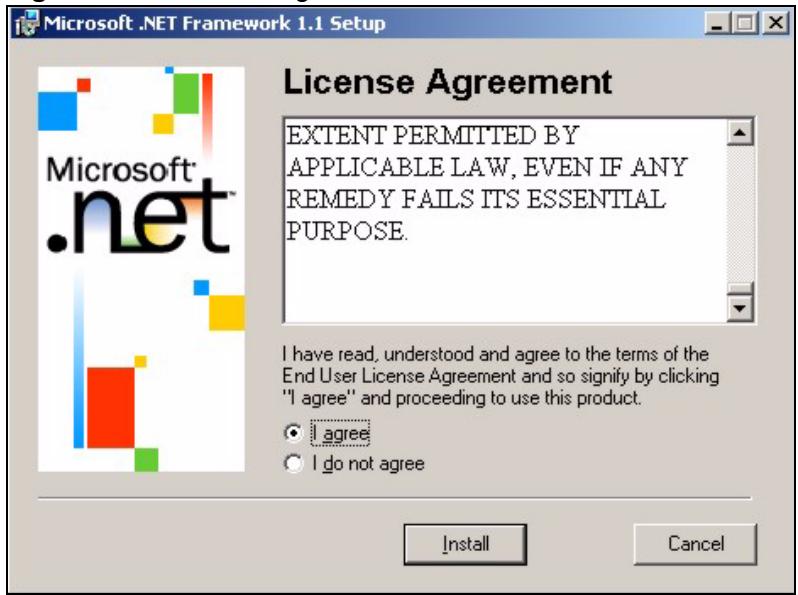
Figure 3 Microsoft's Agreement
3 The next screen allows you to see the progress of the installation.
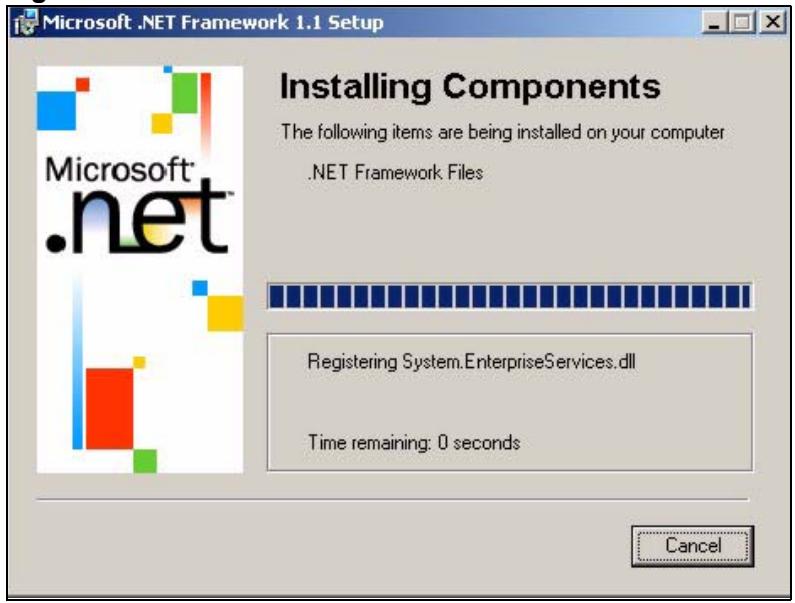
Figure 4 .NET Framework Installation Process
4 Click OK to complete the installation process.
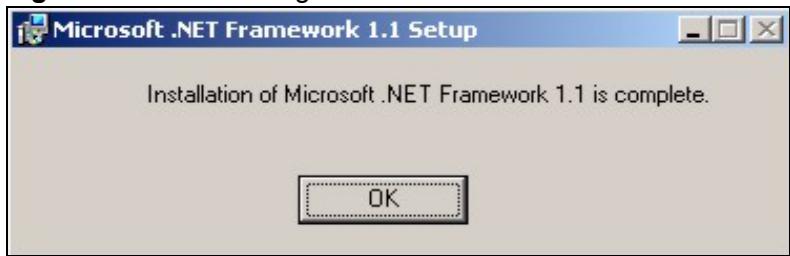
Figure 5 Microsoft's Agreement
5 The Setup utility runs automatically. Click Yes or Next to continue through the initial screen. Click Cancel only if you want to abort the installation.
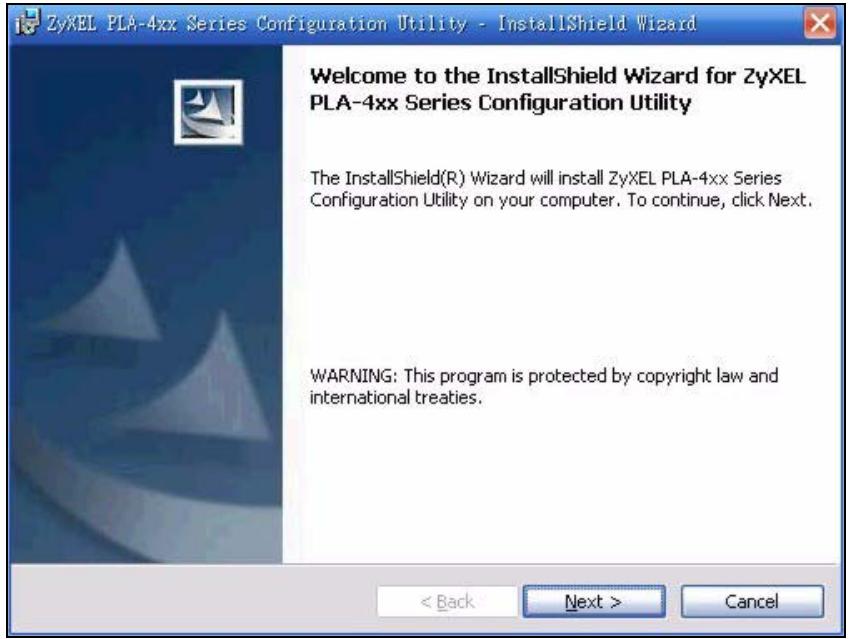
Figure 6 InstallShield Wizard Start Screen
6 Fill in the User Name and Company Name fields (optional). If you want the utility to be only available to the currently logged in user, select Only for me(...). Otherwise, click Next to continue and allow all users to use the configuration utility.
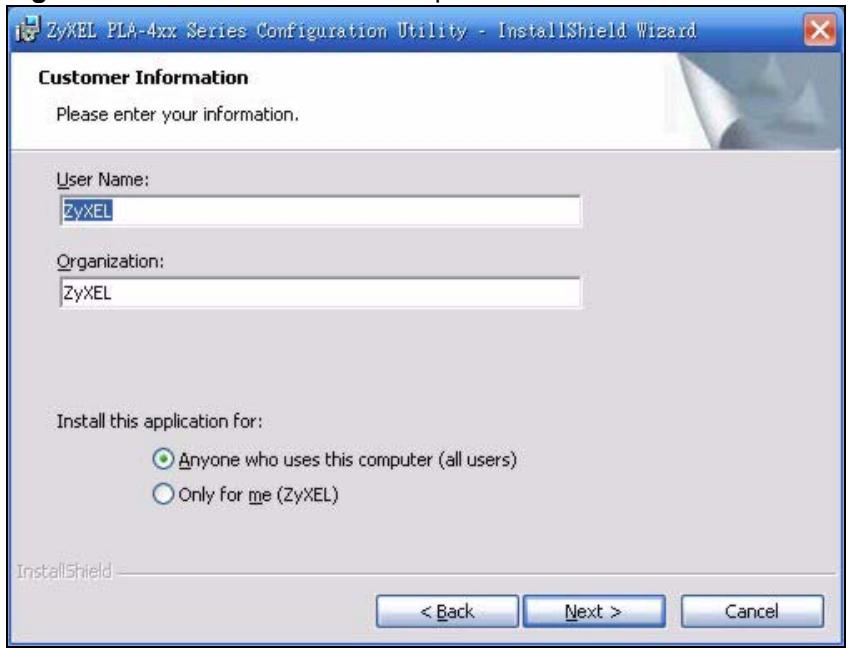
Figure 7 Customer Information Input
7 Click Next to install the utility to the default folder, or click Change to specify a different location on your computer.
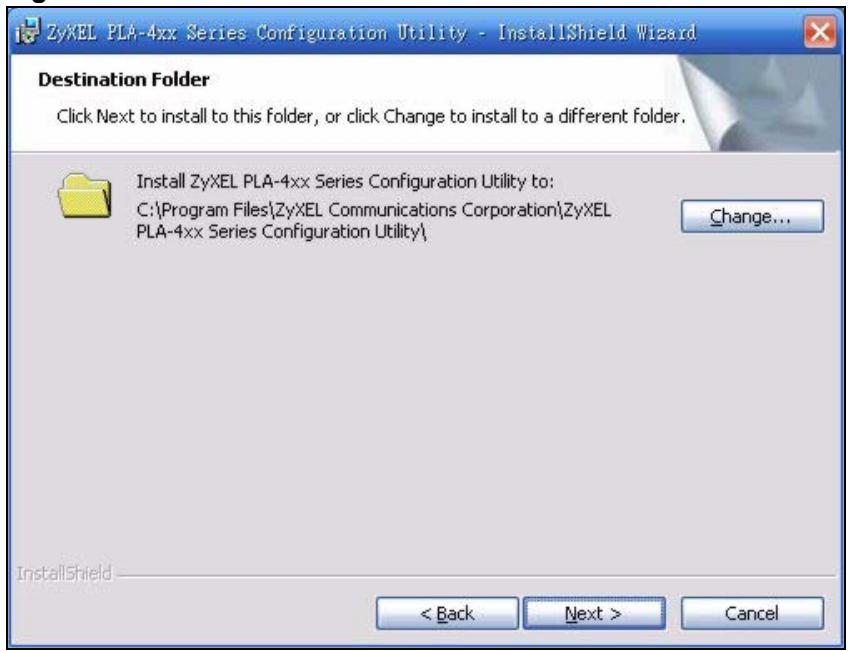
Figure 8 Install Destination Folder
8 When the installation is finished, a screen appears to confirm the InstallShield Wizard has successfully installed the PLA-4xx Series Configuration Utility to your computer. Click Finish to exit the wizard.
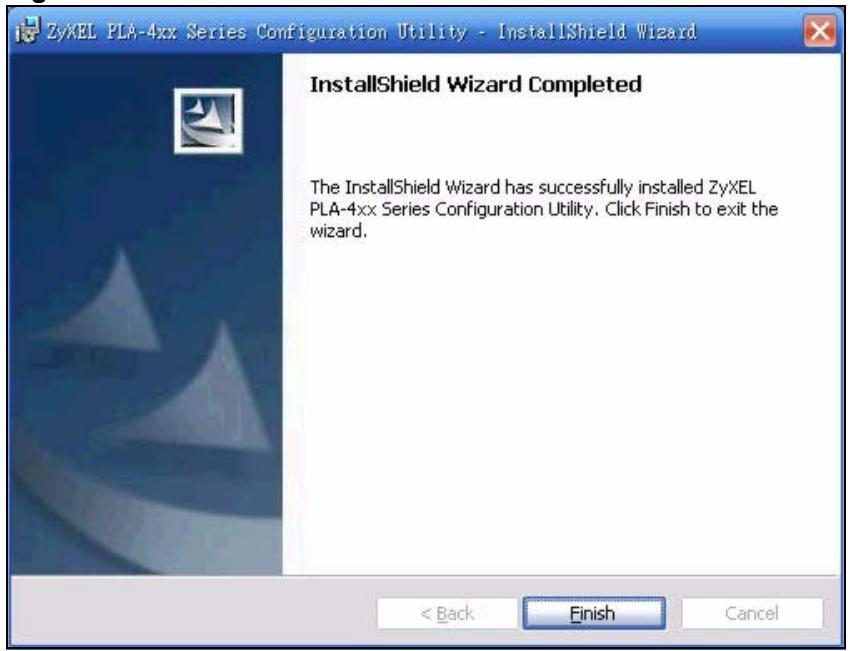
Figure 9 Restart Screen
9 The following pop-up appears. Click Yes to restart your computer, or click No to restart your computer later.
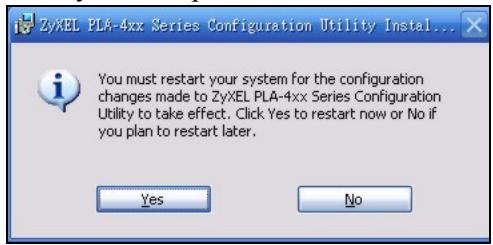

If you select "No, I will restart my computer later", you will not be able to launch the utility until after a restart of your computer.
PART II
Managing the PLA-4xx
Firmware Tools (29)
The ENCRYPT Button (35)
The Configuration Utility (41)
Powerline Network Setup Tutorial (51)
LEDs and Troubleshooting (61)
Firmware Tools
Use the Firmware Detection Tool and Firmware Upgrade Tool to ensure you have the latest firmware (version 3.0.5 or later) on your PLA-4xx(s).
You need to upgrade all your PLA-4xxs to the latest firmware to ensure they can connect with each other and they are compatible with the latest version Utility.
Use the Firmware Detection Tool to detect the firmware version of powerline devices on your network. If your firmware is early version (earlier than 3.0.5), then upgrade your firmware using the Firmware Upgrade Tool.

Run the tools or the Utility one at a time, as only one of these applications can access the PLA-4xx connected to your computer at any time.
3.1 Firmware Detection Tool
Use the Firmware Detection Tool to detect the firmware on devices on your powerline network.
3.1.1 Firmware Detection Issues

The powerline device directly connected to your computer (the local device) is only compatible with other powerline devices which have the same firmware. So if your local device is running the latest firmware, the detection tool will not be able to detect devices with older firmware. Use a local device with early version firmware to allow the detection tool to detect any powerline devices with early version firmware.
This diagram shows the Firmware Detection Tool detecting the firmware on early firmware devices only, as the local device has early firmware.
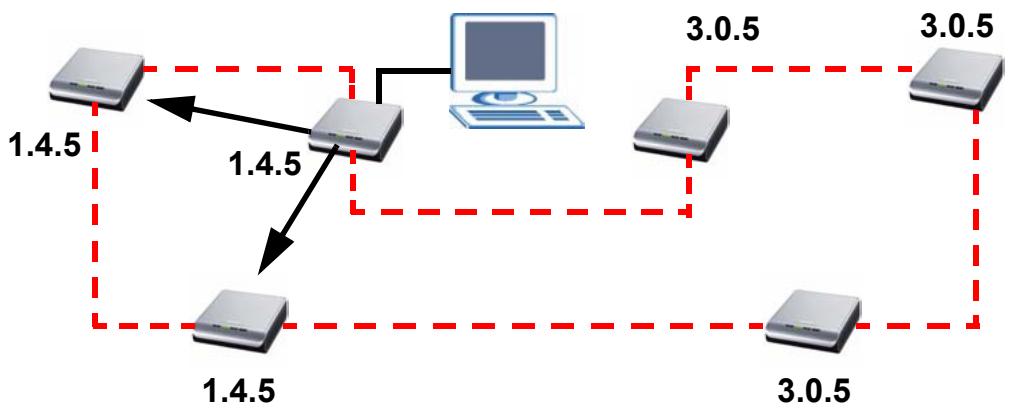
Figure 10 Firmware Detection With an Early Firmware Local Device
This diagram shows the Firmware Detection Tool detecting the firmware on latest firmware devices only, as the local device has the latest firmware.
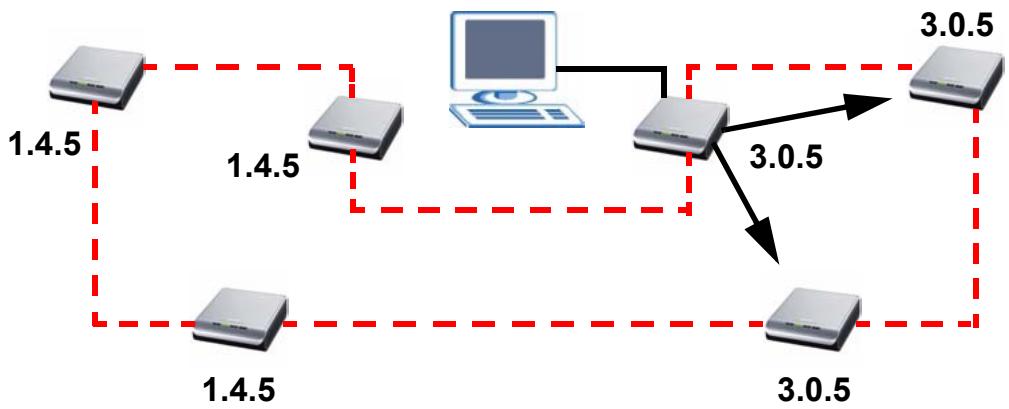
Figure 11 Firmware Detection With a Latest Firmware Local Device
3.1.2 Firmware Detection Procedure
Follow these instructions to run the Firmware Detection Tool.
1 Close the Utility and Firmware Upgrade Tool if either of them are open.
2 Double click on the Firmware Detection Tool to run the file.
3 Click Next to begin the firmware detection process.
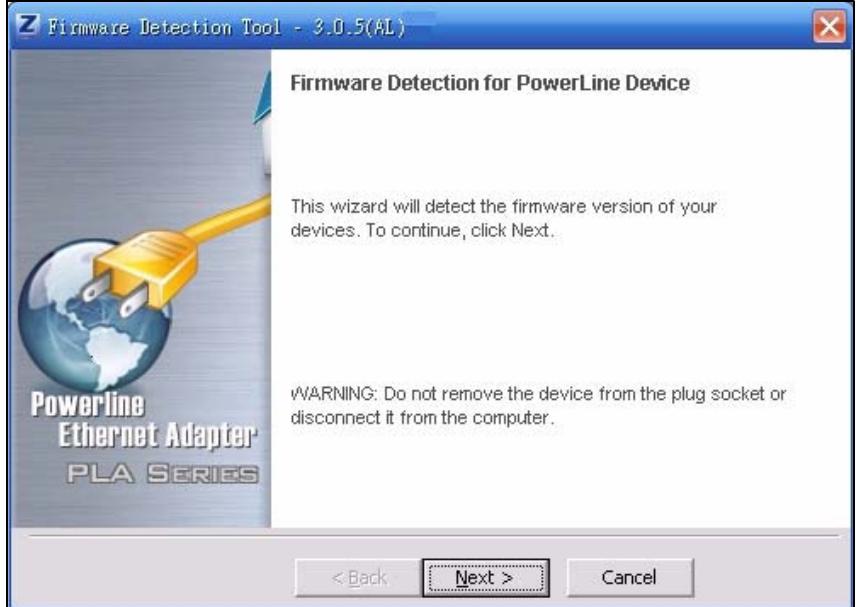
Figure 12 Firmware Detection Tool: Start
The Tool shows the firmware version(s) of devices it has detected on your powerline network.
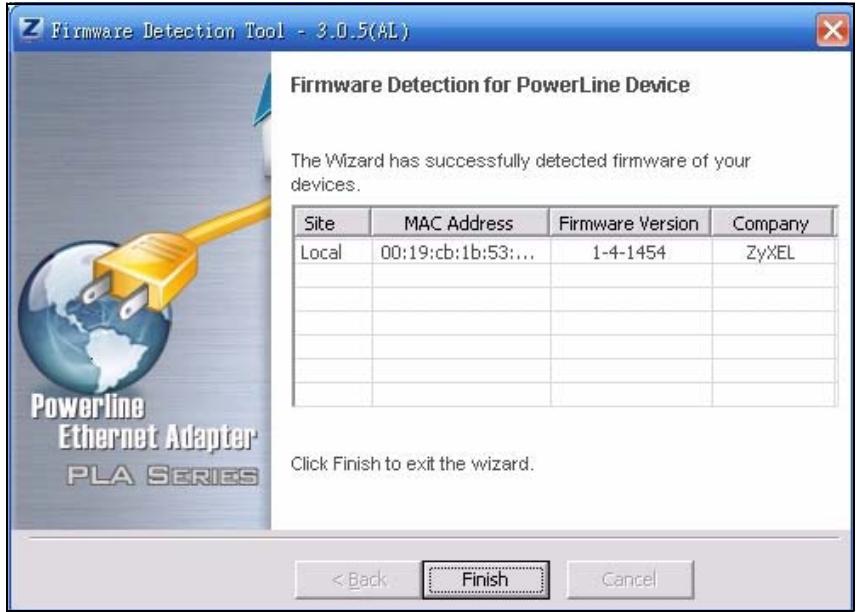
Figure 13 Firmware Detection Tool: Result
The following table describes the labels in this screen.
Table 2 Firmware Detection Tool: Result Screen
| LABEL | DESCRIPTION |
| Site | This field displays • Local, if it is identifying the powerline adapter directly connected to the computer running the configuration utility. • Remote, if it is a powerline adapter in your powerline network but not directly connected to the computer running the configuration utility. |
| MAC Address | This shows the MAC address of the powerline adapter. You can find the MAC address of your PLA-4xx displayed on a sticker on the bottom of your device. |
| Firmware Version | This is the firmware version of your device. In the example firmware version given in the screen, 1-4-1454, the firmware version is shown by the numbers 145, meaning this is firmware version 1.4.5. If your device's firmware is earlier than 3.0.5, please use the Firmware Upgrade Tool to upgrade your firmware. |
| Company | You can upgrade your device if this field displays ZyXEL. If Other displays then you cannot use the Firmware Upgrade Tool. |
3.2 Firmware Upgrade Tool
Use the firmware upgrade tool to upgrade firmware earlier than version 3.0.5 to the latest version firmware on the powerline device directly connected to your computer. This is necessary as devices with ZyXEL's early version firmware are not compatible with the latest Utility or with devices running ZyXEL's latest version firmware.

The firmware is included in the Tool. You do not need to download the firmware separately.
1 Connect the powerline device to be upgraded to your computer.
2 Close the Utility and Firmware Detection Tool if either of them are open.
3 Double click on the Firmware Upgrade Tool to run the file.
4 Click Next to begin the firmware upgrade process.
Figure 14 Firmware Upgrade Tool: Start
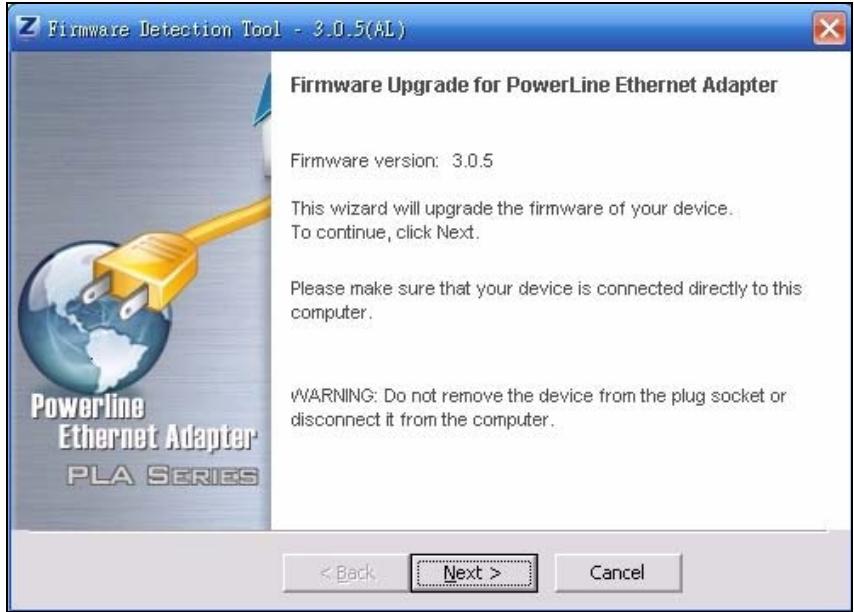
5 Wait several minutes while the firmware is upgraded.
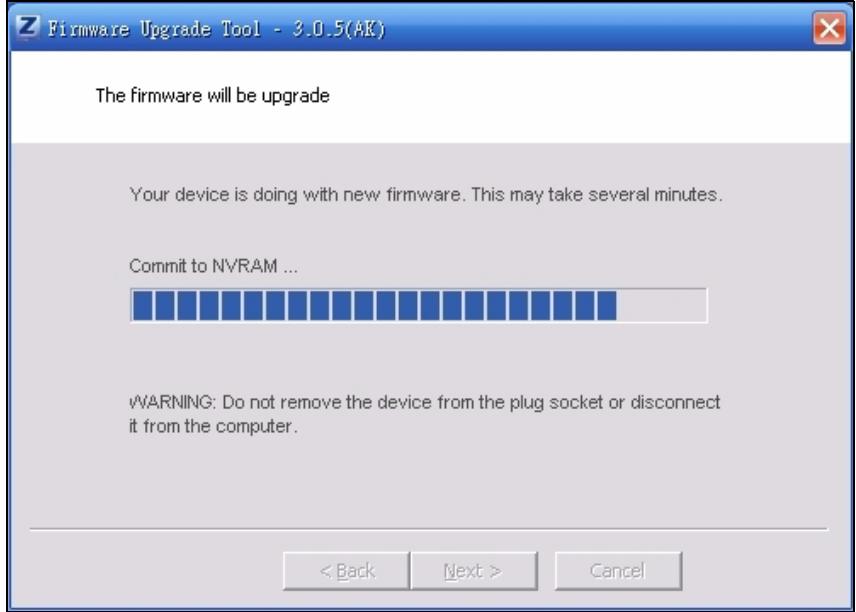
Figure 15 Firmware Upgrade Tool: Upgrading
6 If your firmware is successfully upgraded, the following screen appears. Click Finish to close the Tool.

Figure 16 Firmware Upgrade Tool: Finish
7 To check your firmware is successfully upgraded, run the Firmware Detection Utility again and check your firmware version.
8 Repeat this upgrade process for each powerline device you need to upgrade.
The ENCRYPT Button
Use the ENCRYPT button to automatically set up a secure powerline connection between your powerline devices.
4.1 ENCRYPT Button Overview
The ENCRYPT button allows you to set up a secure powerline connection with other HomePlug AV compliant powerline devices which also support the ENCRYPT feature. No other powerline setting changes are required to connect.
You can use the ENCRYPT button to:
- set up a new powerline network
- separate an existing powerline network into multiple networks
4.2 Set Up a HomePlug AV Network with ENCRYPT
You can connect a number of devices on a powerline network, but you can use the ENCRYPT button on only two devices at a time. The PLA-4xx and PLA-400 v2 are shown below as examples.
1 Place a powerline device close to another powerline device so you have time to set up each one. After you set up the first powerline device, you have 120 seconds to set up the second powerline device.
2 You can disconnect them from your computer or modem (or other networking equipment) if you need to move them close to each other, but the powerline devices need to be plugged into power outlets.
3 Press the ENCRYPT button at the rear of your powerline device for more than 10 seconds until the power (↓) light flashes. This resets the network name to a random value and removes your device from any network it may belong to.
4 Press the ENCRYPT button at the rear of your powerline device for 1 2 seconds. The power (↓) light will blink as the powerline device tries to set up a connection.
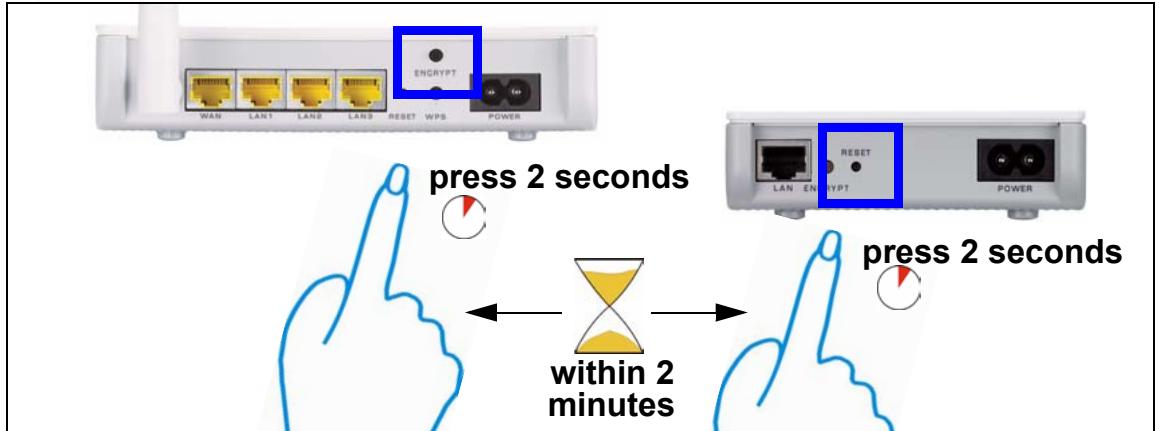
Figure 17 ENCRYPT Connection Procedure
5 Repeat step 4 in this section for the other powerline device you wish to connect. This must be done within 120 seconds of pressing the ENCRYPT button on the PLA-4xx.
6 Check the lights on the two powerline devices. The power () and HomePlug (业) lights should be blinking while the devices are connecting. Several times all lights blink simultaneously and the HomePlug (业) light also shows red. Wait for about one minute while your powerline devices connect.

If the power () light does not blink when you press ENCRYPT, you have probably pressed the ENCRYPT button for too long. Try again, pressing the ENCRYPT button for 1 2 seconds.

If the HomePlug ( ) lights on both powerline devices do not light up, the powerline devices are not connected. Repeat steps 4 and 5 in this section. If that doesn't work, see the Troubleshooting in Section 7.5 on page 68 for suggestions.
7 To add more powerline devices to your network, press the ENCRYPT button on device C (shown below) for more than 10 seconds until the power () light flashes.
8 Then repeat steps 4 and 5 in this section using any powerline device (A or B) you have connected using ENCRYPT and the powerline device you want to connect (C). You must use the ENCRYPT button on both devices.
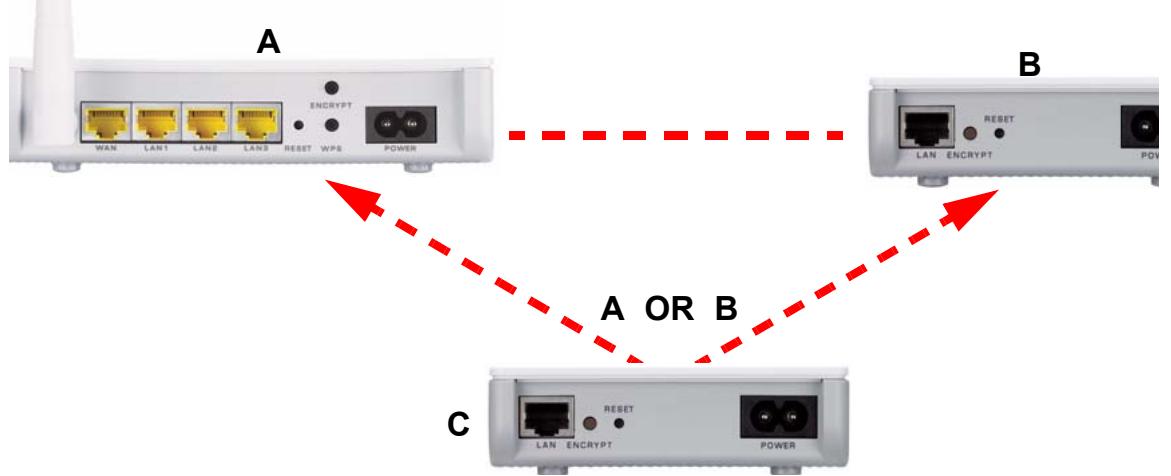
Figure 18 Adding More Powerline Adapters to Your Network
9 If you disconnected your computer or modem (or any other networking product connected to your powerline device) in step 1 of this section, you can now reconnect them.
This sets up your powerline network between your powerline devices.
4.3 Setting Up Multiple Networks
You can use the ENCRYPT button to set up multiple powerline networks using your existing powerline network.
For example, you have already set up a powerline network in your home (A) which accesses a printer (B). Now you want a separate powerline network connection from your laptop to your printer (C).
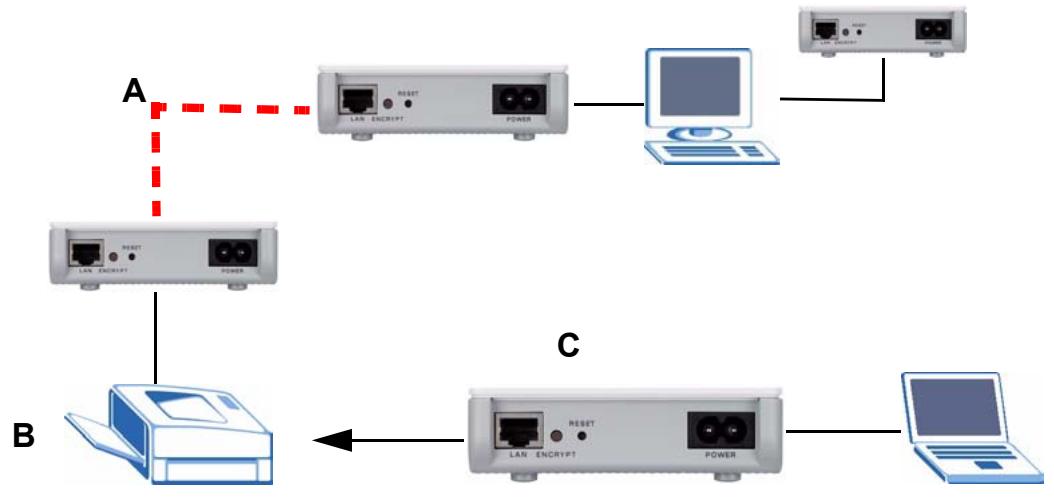
Figure 19 One Existing Powerline Network
1 Click the ENCRYPT button on (A) for more than 10 seconds until the power () light flashes. This disconnects (A) from (B).
2 Click the ENCRYPT button on (A) and (C) for 1 2 seconds and within two minutes of each other.
3 Wait for about one minute while (A) and (C) connect.
4 Check the LEDs on both (A) and (C). When the power () and HomePlug () lights stop blinking and the power () light shines steadily, the devices are connected.
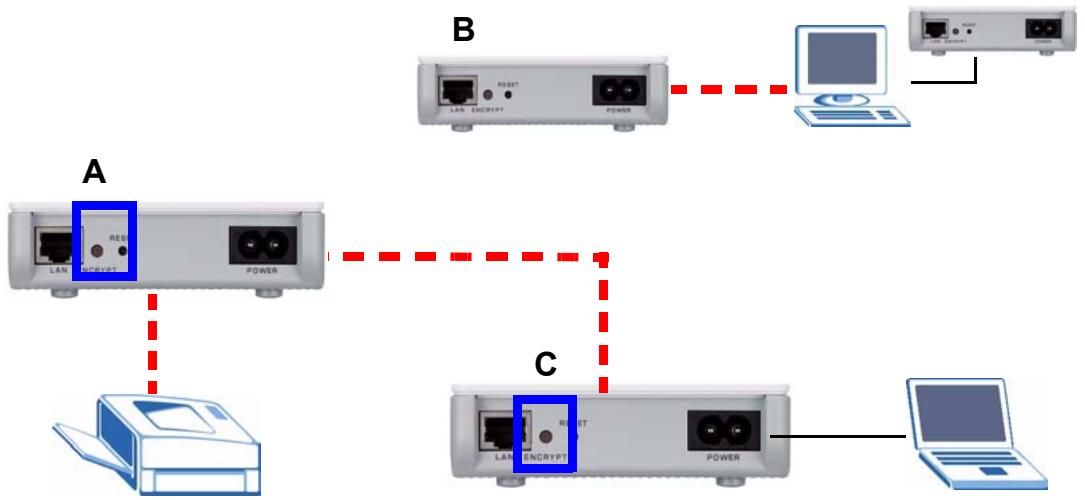
Figure 20 Two Separate Powerline Networks
Congratulations. You now have two separate powerline networks as shown above.

If the HomePlug ( ) lights on both powerline devices do not light up, the powerline devices are not connected. Repeat the connection process, making certain you press the ENCRYPT buttons for the correct time and within two minutes of each other. If that does not work see Section 7.5 on page 68 for suggestions.
4.4 ENCRYPT Button Behavior
The following table summarizes the actions that occur when the ENCRYPT button is pressed for specific lengths of time.
Table 3 Time ENCRYPT Button is Pressed and Action
| TIME | ACTION | POWER LIGHT BEHAVIOR | HOMEPLUG LIGHT BEHAVIOR |
| less than 3 seconds | The device joins a network. It shares the same network name as other devices on the network. | The power (▲) light blinks until the device is connected. This may take a minute. | The HomePlug (▲) light turns on if your device is connected to another powerline device or a powerline network. |
| more than 10 seconds | The device leaves any network it is associated with and its network name assumes a random value. | The power (▲) light blinks several times and then shines steadily. | The HomePlug (▲) light blinks red one time and then turns off when it disconnects from the powerline network. |
See Troubleshooting in Chapter 7 on page 68 for suggestions on problems with the ENCRYPT button and the lights.
The Configuration Utility
This chapter shows you how to use the Configuration Utility (or Utility) to secure, manage and set up Quality of Service (QoS) on your powerline network.
5.1 Overview
The PLA-4xx is designed as a plug-and-play network expanding solution. This means that once you complete your hardware connections, the PLA-4xxs in your network (without additional configuration) are able to communicate with each other by sending and receiving information over your home's electrical wiring (A).
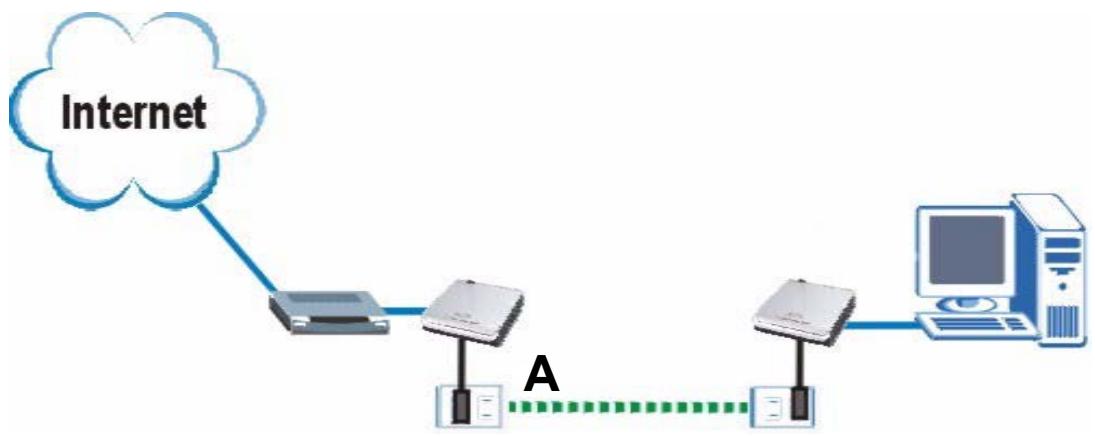
Figure 21 Example Network Setup
All HomePlug AV compliant powerline adapters within range can join your network. The range varies depending on the quality of your home's wiring.

See Section 5.1.1 on page 41 for more information on enhancing your powerline network security.
5.1.1 Powerline Network Security
When the PLA-4xxs communicate with each other, they use encryption to protect the information that is sent in the powerline network. Encryption is like a secret code. If you do not know the secret code, you cannot understand the message. The HomePlug AV standard uses 128-bit AES (Advanced Encryption Standard) to safely transmit data between powerline adapters.
For the powerline adapters to communicate with each other they all need to use the same network name. This network name allows the powerline adapters to understand the encrypted information sent in the powerline network.
By default the PLA-4xxs are all configured with the network name HomePlugAV, this allows you to simply plug the devices in and not worry about setting up security. If you want to enhance the security on your powerline network, you can change the network name on the powerline adapters you want to allow to communicate in your powerline network.
5.1.2 Device Access Key (DAK)
In order to manage the powerline adapters on your powerline network you must enter the adapters' password in the PLA-4xx Series Configuration Utility. This password is called the DAK (Device Access Key) password. This password is printed on the powerline adapter itself.
You don't need to enter the DAK password for the powerline adapter directly connected to the computer running the utility (local powerline adapter), you only have to add the remote powerline adapters' passwords (those in your powerline network, but not directly connected to your computer).
5.2 Starting the Configuration Utility
To launch the PLA-4xx Series Configuration Utility simply double click on the configuration icon on your desktop.
Figure 22 PLA-4xx Series Configuration Utility Icon
Alternatively, start the utility by browsing to it from the start menu. Click Start > Programs > ZyXEL PLA-4xx Series Configuration > PLA-4xx Series Configuration Utility.

Close the Firmware Upgrade Tool and Firmware Detection Tool if either of them are open for the Utility to work properly.
5.3 Configuration Screen
Use the Configuration screen to see which devices are recognized by your powerline network, to configure your PLA-4xx and to set up a secure powerline network by changing the powerline network name. This screen opens up when you launch the utility.

Use the icon to view online help information in each screen of the utility.
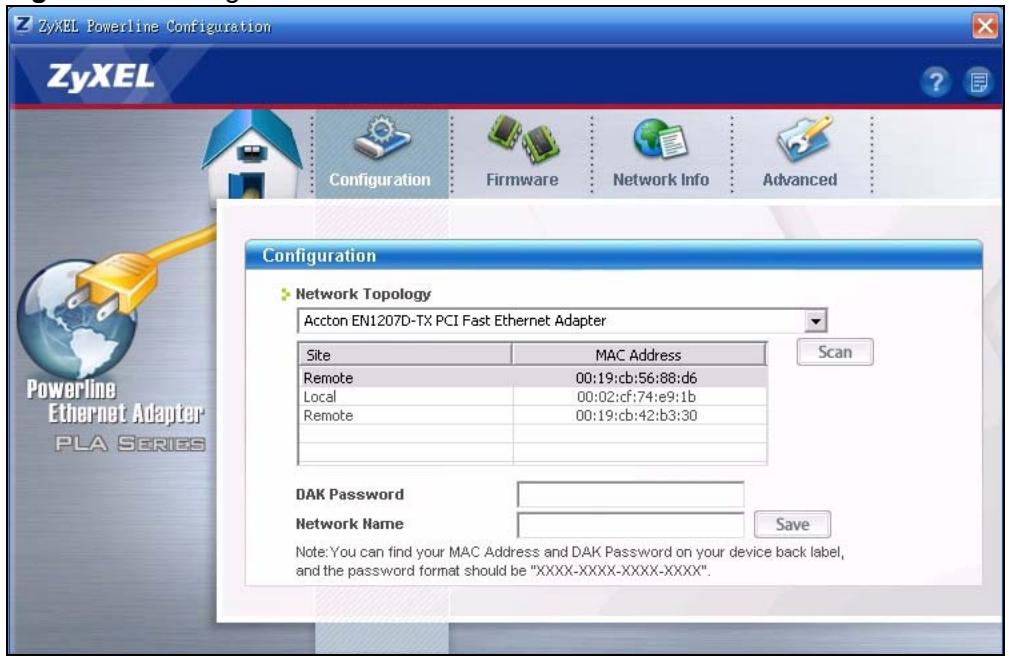
Figure 23 Configuration Screen
The following table describes the labels in this screen.
Table 4 Configuration Screen
| LABEL | DESCRIPTION |
| Network Topology | Use this to select which powerline network information is displayed. Different powerline networks are identified by the Ethernet interface (network card) connected directly to the PLA-4xx. Typically there is only one connection, however, if your computer has two network cards and both are connected to a powerline device then you have two powerline networks. |
| The fields described below are used to identify the powerline adapters recognized on the powerline network. The configuration utility automatically updates this information every 10 seconds. Click Scan to refresh the information in these fields (immediately).Note: Only devices which share the same network name are displayed in this table. | |
| Site | This field displays • Local, if it is identifying the powerline adapter directly connected to the computer running the configuration utility. • Remote, if it is a powerline adapter in your powerline network but not directly connected to the computer running the configuration utility. |
| MAC Address | This is a read-only field which shows the MAC address of the powerline adapter you are configuring. You can find the MAC address of your PLA-4xx displayed on a sticker on the bottom of your device. |
| DAK Password | DAK (Device Access Key) password is used to verify that you are authorized to perform changes on a remote device. You can find the DAK password printed on a sticker on the bottom of your PLA-4xx. Select the remote powerline adapter you want to manage by clicking the MAC address which corresponds to it in the MAC Address column. Enter the DAK Password value and click Save. Note: You must enter the DAK Password value exactly as it is printed on the label (all caps and with dashes “-”). |
| Network Name | The default network name (sometimes called a network password or network membership key (NMK)) of the PLA-4xx is “HomePlugAV”. HomePlug compatible devices use the same network name to recognize and communicate with each other over the powerline network. If you change the network name of one device on the network, it will no longer be recognized as part of that network. If you change the network name, make sure you change the network name for all of the powerline adapters that you want to be part of your powerline network. The network name can be from 8 to 64 characters in length, using “A”~“Z”, “a”~“z”, “0”~“9”, spaces are not allowed. |
| Save | Click this to apply your changes. The new Network Name is applied to the selected powerline adapter. Note: You must enter the correct DAK password for the selected powerline adapter before you can make changes to it. |
5.4 Firmware Screen

To upgrade to the latest firmware, use the firmware upgrade tool available from the ZyXEL website (www.zyxel.com), or from the CD included with your PLA-4xx. Make sure you also upgrade the PLA-4xx Series Configuration Utility if you do so, as older version utilities are not compatible with PLA-4xxs using the latest firmware.

Be sure to upload the correct model firmware as uploading the wrong model firmware may damage your device.
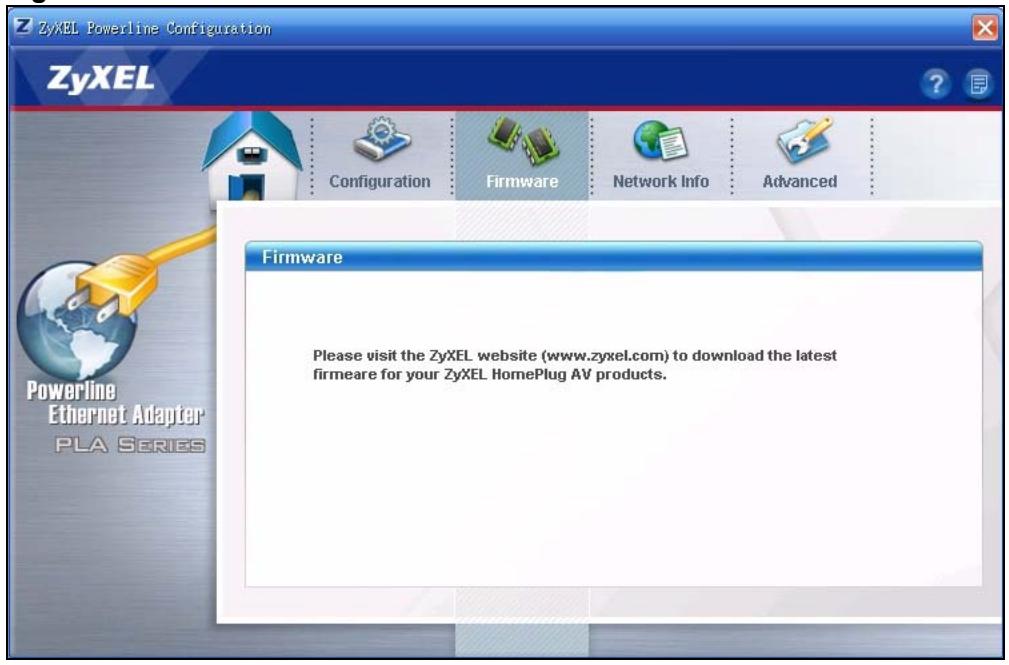
Figure 24 Firmware Screen
5.5 Network Info Screen
Use the Network Info screen to see the rates at which a specific PLA-4xx is communicating with other powerline adapters on your powerline network.
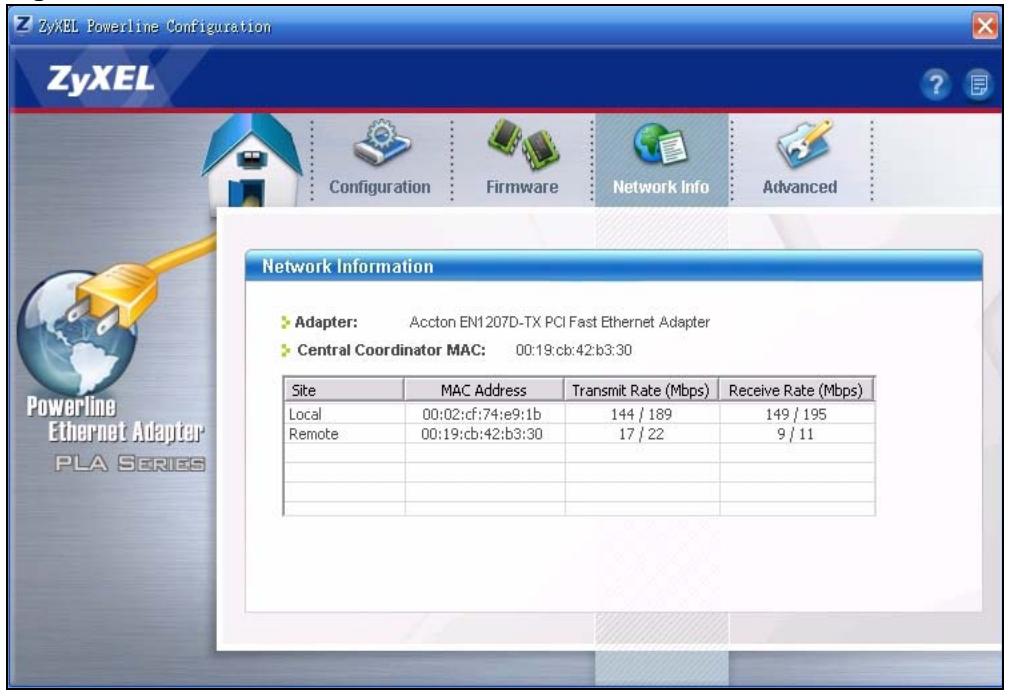
Figure 25 Network Info Screen
The following table describes the labels in this screen.
Table 5 Network Info Screen
| LABEL | DESCRIPTION |
| Adapter | This field identifies which powerline network information is displayed. Different powerline networks are identified by the Ethernet interface (network card) connected directly to the PLA-4xx. Typically there is only one connection, however, if your computer has two network cards and both are connected to a PLA-4xx, then you have two powerline networks. |
| Central Coordinator MAC | The Central Coordinator of the powerline network is the powerline adapter which keeps track of which devices are part of the network as well as synchronizes communication within the powerline network. If the Central Coordinator is removed from the powerline network then another powerline adapter takes its place. This field displays the MAC address of the PLA-4xx which is the Central Coordinator of the powerline network. The powerline adapters in your powerline network automatically select the Central Coordinator. |
| The information provided in the following table reflects transmission rate information about the powerline adapters which communicate in your powerline network.The powerline adapters listed in this table are all the powerline adapters in your powerline network except the powerline adapter selected in the Configuration page of the configuration utility. In other words, if the Local powerline adapter is selected in the Configuration screen, then this table will display the rates of transmission from the powerline adapter connected to the computer running the configuration utility to all the Remote powerline adapters. | |
| Site | This field displays:Local, if it is the PLA-4xx directly connected to the computer running the configuration utility.Remote, if it is a PLA-4xx in your powerline network but not directly connected to the computer running the configuration utility. |
| MAC Address | This field displays the MAC address of your powerline adapter. The MAC address of your powerline adapter can be found by looking at the label on your device. It consists of six pairs of hexadecimal characters (hexadecimal characters are “0-9” and “a-f”). In the case of the PLA-4xx, this label is on the bottom of the device. |
| Transmit Rate (Mbps) | This field displays how fast information is sent from the powerline adapter selected in the Configuration screen to this powerline adapter. The rate is given in the following format: “application data transmission rate / raw data transmission rate”. Application data reflects more accurately how fast devices are transmitting application relevant traffic (for example Internet Protocol (IP) traffic). Raw data refers to the whole payload of the packets transmitted across the powerline network. |
| Receive Rate (Mbps) | This field displays how fast information is received from the powerline adapter selected in the Configuration screen to this powerline adapter. The rate is given in the following format: “application data transmission rate / raw data transmission rate”. Application data reflects more accurately how fast devices are transmitting application relevant traffic (for example Internet Protocol (IP) traffic). Raw data refers to the whole payload of the packets transmitted across the powerline network. |
5.6 Advanced Screen

This feature is only available with the latest version utility. Go to the ZyXEL website to download the latest utility and firmware for your ZyXEL HomePlug AV adapter.
You can configure the powerline adapters on your network to give priority to network traffic depending on its importance. When you set the priority of a powerline adapter, you set how quickly messages FROM your powerline adapter are sent in your powerline network.
Transmissions TO your powerline adapter do not receive any priority.
For example, if you have a file server on your home network to deliver music and movie files to computers in your home, you should set the priority of the powerline adapter connected to this server to Medium. If video traffic is delivered too slowly, quality problems may occur.
On the other hand, a powerline adapter attached to a printer should have a low priority setting since the slow delivery of messages will not affect the print job.
Similarly, if you want to prioritize any downloads from the Internet, set the priority on the powerline adapter attached to your Internet gateway to High.
Allocate priority settings based on application type as follows.
Table 6 Priority Settings
| PRIORITY LEVEL | APPLICATION |
| High | Voice Application |
| Medium | Video and Audio Applications |
| Normal | Data Applications |
| Low | Data Applications |
The figure below shows an example powerline home network connected to the Internet.
Device A is a printer and does not handle traffic with high importance, so the powerline adapter connected to it can be set to low priority.
Device B is a file server, delivering audio or movie files to other users on the network. The powerline adapter attached to it should have a medium setting.
- Device C, a home computer which connects to the Internet, can receive a normal priority setting as it usually sends simple requests for data. For example, when you surf the Internet, your computer sends requests to open web pages.
- Device D is a modem attached to the Internet. It should receive a high priority setting if you want faster downloading through your network.
- Although device E receives audio or movie files, it does not send a lot of traffic, so the powerline adaptor attached to it can be set to a low priority.
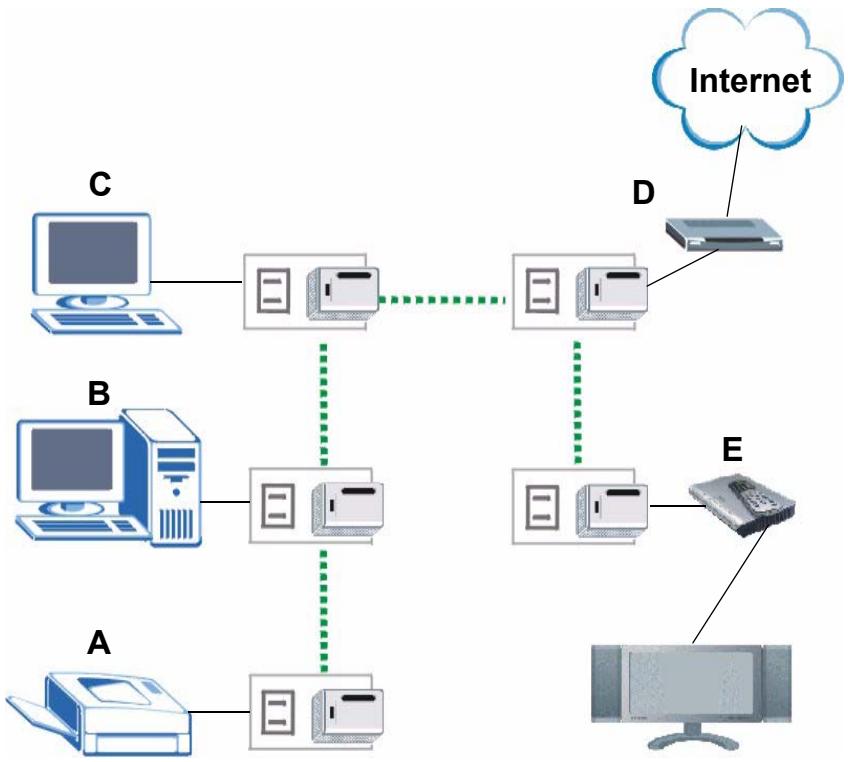
Figure 26 Priority Settings
Use this screen to configure priority settings for traffic from the powerline adapters on your network.
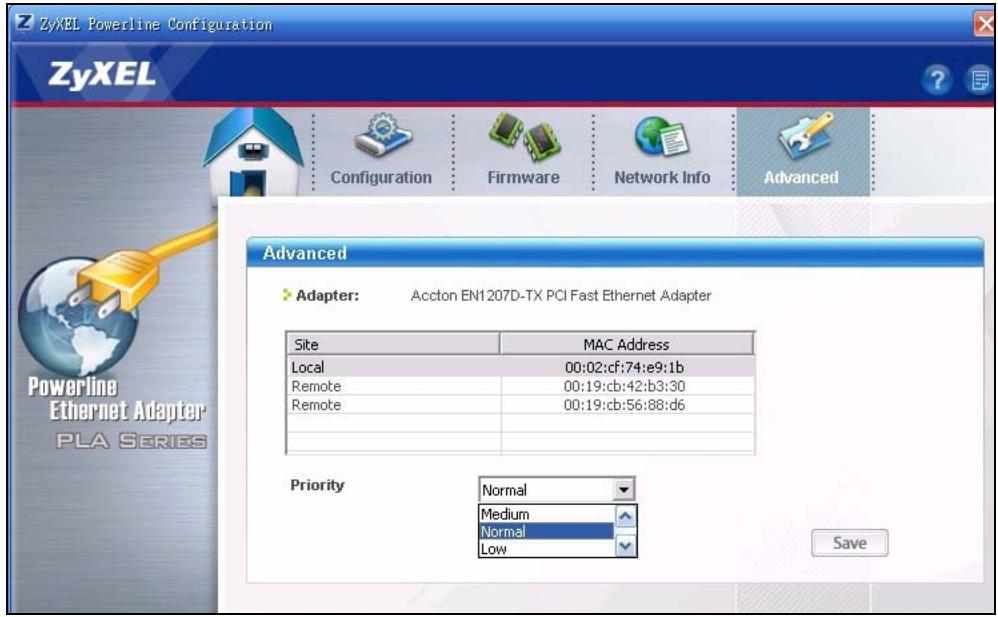
Figure 27 Advanced Screen
The following table describes the labels in this screen.
Table 7 Advanced Screen
| LABEL | DESCRIPTION |
| Adapter | This field identifies which powerline network information is displayed. Different powerline networks are identified by the Ethernet interface (network card) on your computer which is connected directly to a powerline adapter. Typically there is only one connection. However, if your computer has two network cards and both are connected to a powerline adapter, then you have two powerline networks. |
| Site | This field displays: • Local, if it is the PLA-4xx directly connected to the computer running the configuration utility. • Remote, if it is a powerline adapter in your powerline network but not directly connected to the computer running the configuration utility. |
| MAC Address | This is a read-only field which shows the MAC address of the powerline adapter you are configuring. You can find the MAC address of your PLA-4xx displayed on a sticker on the bottom of your device. |
| Priority | Select a priority setting from the drop-down box for traffic FROM your selected device. The options, in order of importance, are High, Medium, Normal and Low. |
| Save | Click this to apply your changes. The new Priority setting is applied to the selected powerline adapter. |
5.7 About Screen
Use the About screen to view information regarding the configuration utility and firmware version of the PLA-4xx you are connected to. Click the icon in the top right corner of the utility to view the About screen.
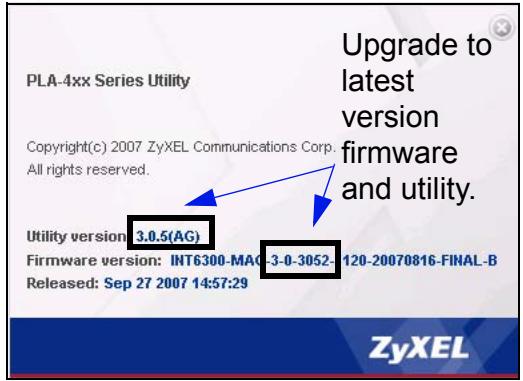
Figure 28 About Screen
The following table describes the labels in this screen.
Table 8 About Screen
| LABEL | DESCRIPTION |
| Utility version: | This field displays the software version of the configuration utility. |
| Firmware version | This field displays the firmware version of the device you selected in the Device Selection field of the Configuration screen. In the example firmware version given in the screen, 3-0-3052, the firmware version is shown by the numbers 305, meaning this is firmware version 3.0.5. If your device's firmware is earlier than 3.0.5, please use the Firmware Upgrade Tool to upgrade your firmware. |
| Released | This field displays the date when the firmware was released. |
| Close | Click the button in upper right corner to close the About window. |
Powerline Network Setup Tutorial
Use this tutorial to expand your existing powerline network.
6.0.1 Overview
After setting up your first home powerline network (instructions for that are in the Quick Start Guide for your ZyXEL powerline adapter) you may want to extend the network or create a new one by adding additional powerline adapters. This tutorial shows you the following.
- How to start up your new powerline adapter. You need to do this before you can begin the next sections.
- How to make your existing powerline network bigger by adding new powerline adapters.
- How to make a new network separate from your existing network with new powerline adapters.
- How to make a new, separate powerline network with the powerline adapters you have.
The tutorial uses the PLA-4xx Series Configuration Utility to set up your powerline adapter.
If you haven't already installed the utility, see Chapter 2 on page 21 for instructions. If you do not have the CD with the utility, the utility software is also available for download at www.zyxel.com. Navigate to the powerline products section of the ZyxEL website to find this software. Follow the instructions provided by the software to install it on your computer.
See the product specifications in the User's Guide for a list of hardware and software compatible with the utility.

The PLA-4xx in this tutorial is an example only. Your powerline adapter may be different.
6.0.2 Important Terms
| Network Name | The network name allows a powerline adapter to connect with other powerline adapters that have the same network name. It provides security for your powerline network. The network name uses English letters or numbers, from 8 to 64 characters long, with no spaces allowed. |
| DAK Password | DAK = Device Access Key. The DAK Password lets you access the powerline adapter. You can find the DAK Password on a label on your powerline device. |
6.0.3 Accessing Your Powerline Adapter
1 Attach the power cord that came in the package to your powerline adapter.
2 Plug the power cord of the powerline adapter you want to add to your network into a power socket and, if needed, switch the power socket on.
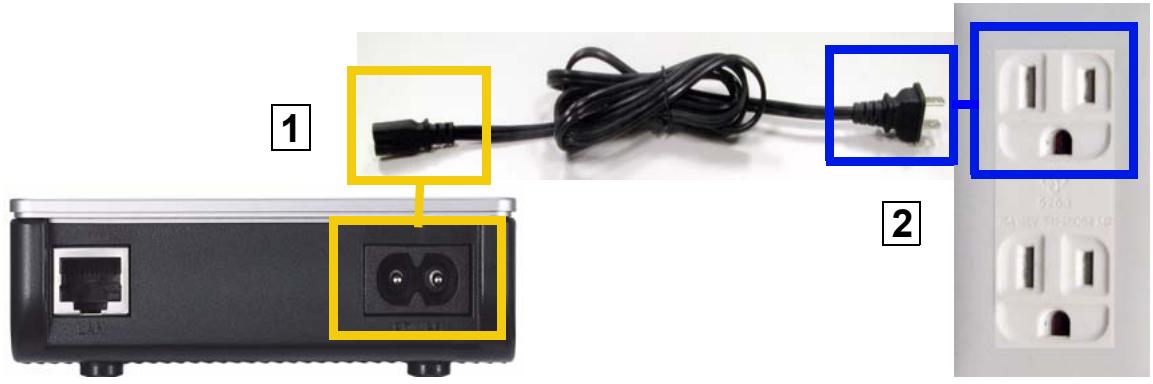
Figure 29 Plug Your Powerline Adapter into a Power Socket
3 Connect the powerline adapter to your computer.
4 Use a LAN or Ethernet cable (shown below) to connect the LAN or Ethernet port on your adapter to the same kind of port on your computer.
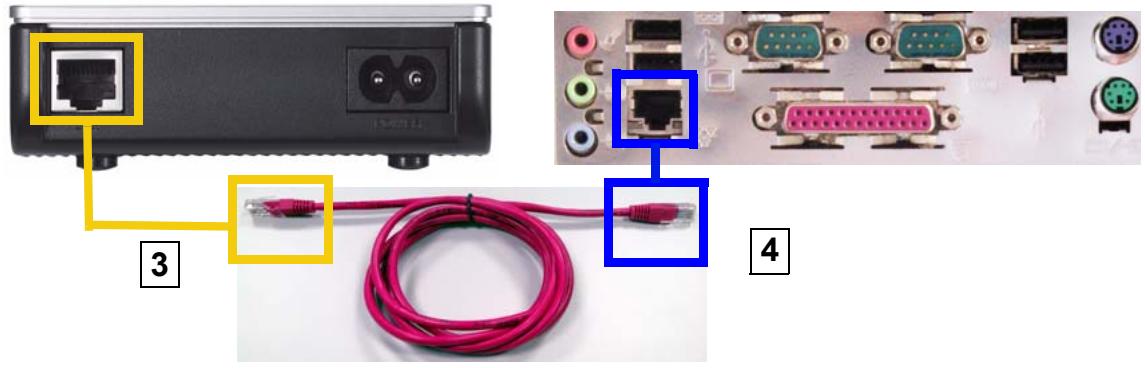
Figure 30 Connect Your Powerline Adapter to a Computer
5 Open the PLA-4xx Series Configuration Utility on your computer. Go to Start > (All) Programs > ZyXEL PLA-4xx Series Configuration > PLA-4xx Series Configuration Utility, or click on the icon on your desktop shown below.
Figure 31 Click on the PLA-4xx Series Configuration Utility Icon
6 You are now ready to extend your powerline network or set up a second network.
- See Section 6.0.4 on page 53 to add a new powerline adapter to your network.
- See Section 6.0.5 on page 55 to set up a second network with your new adapters.
- See Section 6.0.6 on page 56 to set up a second network with your existing adapters.
6.0.4 Adding a Powerline Adapter
This section shows you how to add a new powerline adapter to expand your existing network. The figure below shows the family computer with Internet access on a powerline network. Expand the network by adding a new powerline adapter connected to a printer.
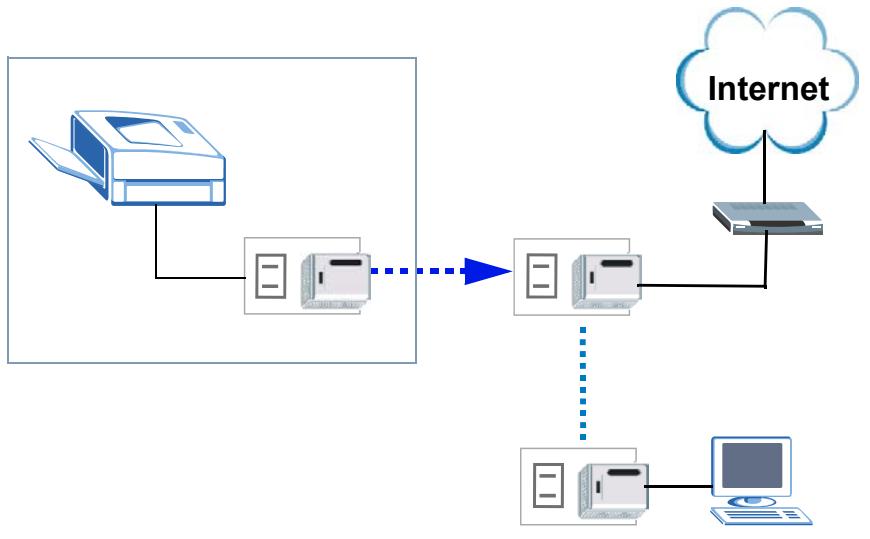
Figure 32 Add a Printer to Your Powerline Network

You do not need to know the network name of the new adapter to add it to your network.
1 Connect your computer to the powerline adapter you want to add to your network and open the PLA-4xx Series Configuration Utility (see Section 6.0.3 on page 52).
2 The utility should open to the configuration tab. On this screen in the Site column your new powerline adapter should appear as Local (A). Check the Local adapter's MAC address (B). It should match the MAC address listed on the label on the back of your powerline adapter.
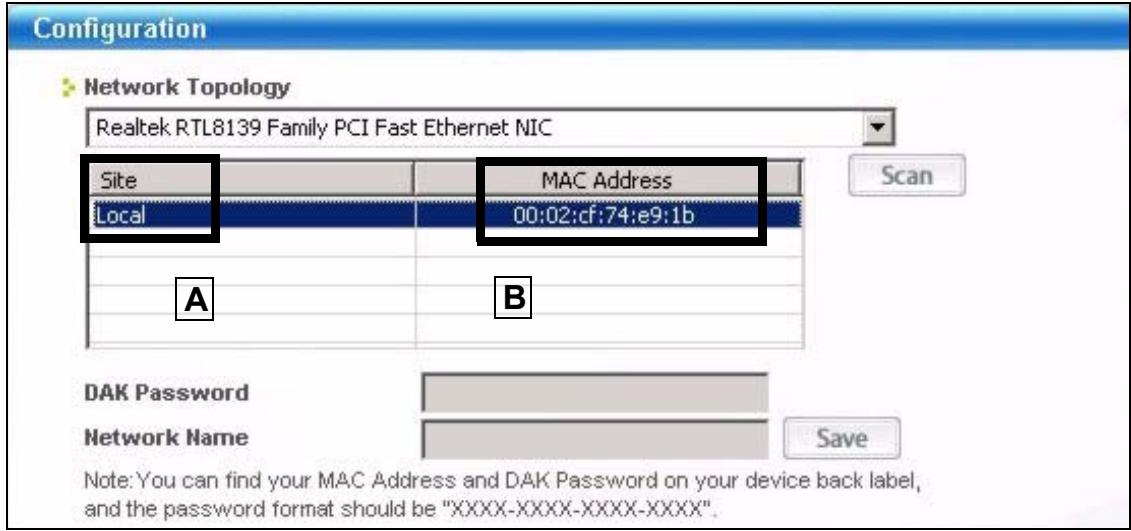
Figure 33 Adding a New Adapter
3 Select your adapter by selecting Local and type the network name for your existing network in the Network Name field (C).
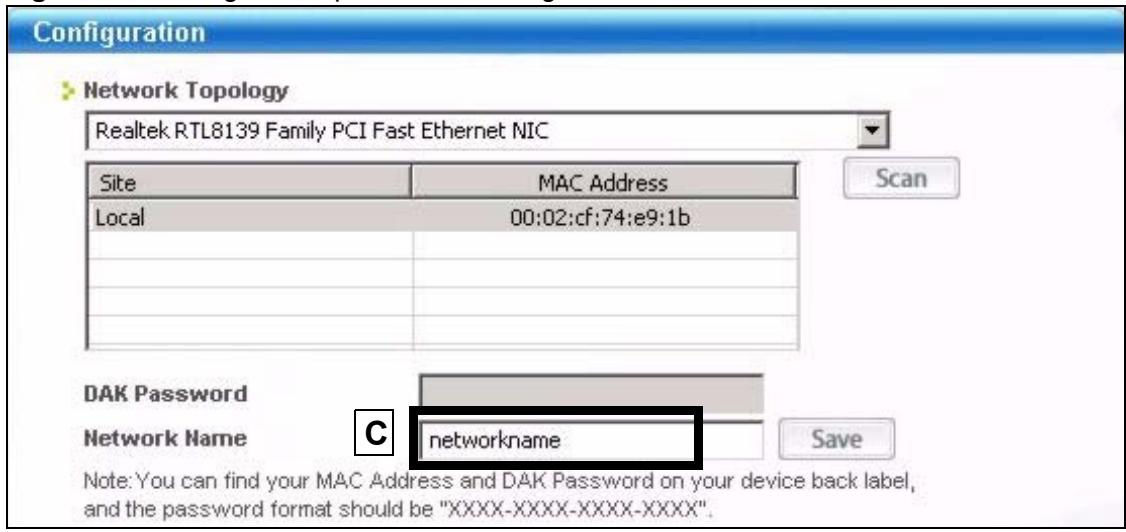
Figure 34 Adding an Adapter to an Existing Network
4 Click Save and click OK on the pop-up.
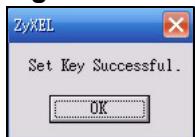
Figure 35 Network Name Pop-up
5 Your new adapter will now have the same Network Name as your existing network and so has now joined your existing network.
6 Connect the adapter to the device you want to add to the network, for example, your Internet refrigerator in the kitchen.
7 Plug the adapter's power cord into a power outlet and, if required, switch the power outlet on.
8 Repeat this procedure for all additional powerline adapters that you want to add to your existing or new powerline network.
6.0.5 Setting Up a New Network with a New Adapter
This section shows you how to use your new powerline adapters to set up a new powerline network separate to your existing network.
The figure below shows two powerline networks in a house. The first network (1) shows the home computer connected to a printer and access to the Internet. The second network (2) has no Internet access but with a media adapter such as the ZyXEL DMA-1100P you can use your TV to watch movies and play games which are stored on a computer.
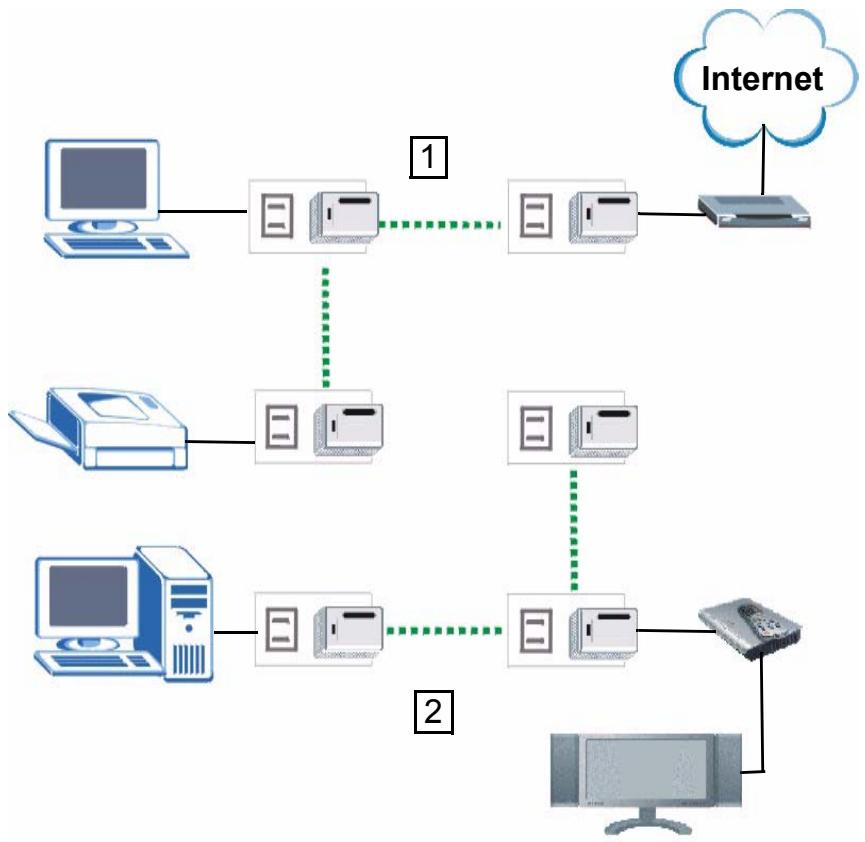
Figure 36 Add New Adapters to Make a Second Network
1 Connect your new powerline adapter and open the configuration utility as shown in Section 6.0.5 on page 55. The screen shown below appears.
2 Type a Network Name that is different from the Network Name for your existing network. Make sure you use the same new Network Name for all new adapters you want to add to your new network.
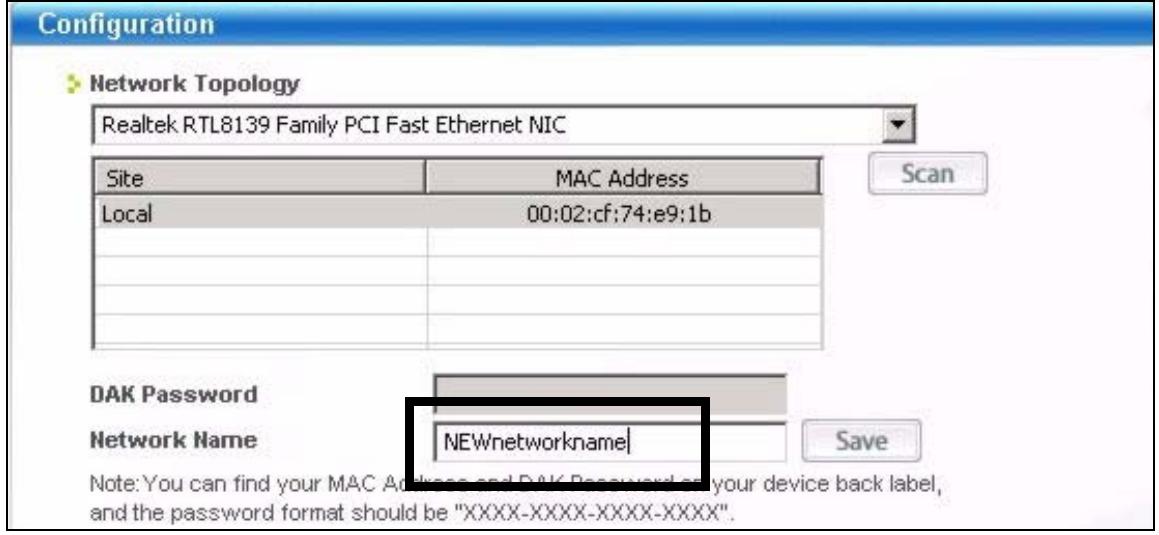
Figure 37 Making a New Network with the New Adapter
3 After you have set up a new network, you are ready to connect each powerline adapter on your new network to devices, for example, a computer or a games console.
6.0.6 Splitting a Network into Two Networks
This section shows you how to split your existing network into two networks. This is useful if you want to set up a second powerline network in your home, for example, in your study connecting a laptop and printer. See Figure 36 on page 55 for an example.
To set up your existing powerline network you had to set each powerline adapter with the same network name. To move some of these adapters to a new network, you need to give them a new network name.
1 Connect a powerline adapter to your computer and open the PLA-4xx Series Configuration Utility (see Section 6.0.3 on page 52).
2 The utility should open to the configuration tab as shown below. A list of powerline adapters on your network displays. These adapters all have the same network name as the adapter you are connected to. The adapter you are connected to will appear as Local in this table. All others are listed as Remote.
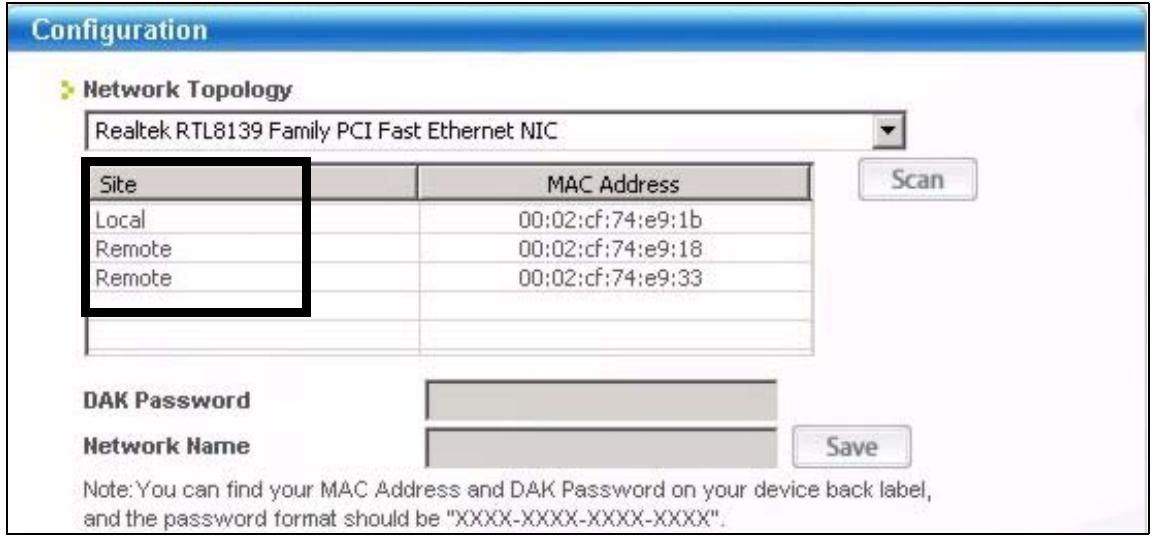
Figure 38 Local/Remote Adapters on a Powerline Network
3 To set up a new powerline network, type the DAK Password and change the Network Name on all powerline adapters you wish to add to your network.
- Look for the DAK Password on a label on your powerline adapter. The DAK Password lets you access the adapter.
- Select the Remote adapter you want to add (A) and type the DAK Password in the DAK Password field (B).
- Then type the new network name in the Network Name field.
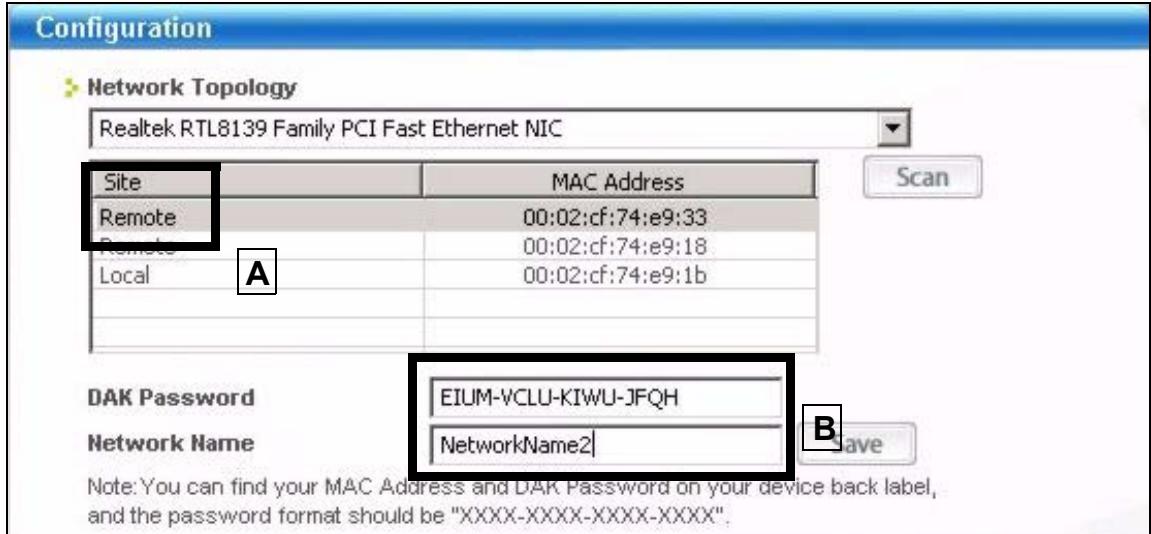
Figure 39 Adding an Adapter to Your New Network
4 Click Save.
- If you do not type the DAK password or type it incorrectly either of the following pop-ups appear. Click OK and type the DAK Password correctly in the DAK Password field.
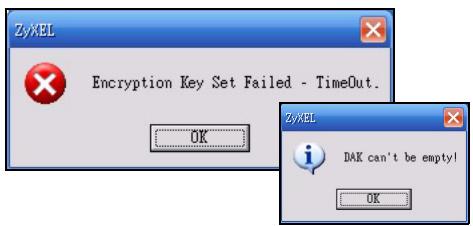
Figure 40 Incorrect DAK or No DAK
- If you have correctly entered the DAK Password, click OK on the pop-up.
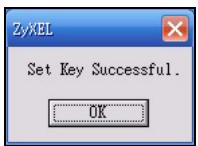
Figure 41 Correct DAK
5 The settings for the adapter will now grey out and the adapter will disappear from the table after a few minutes.
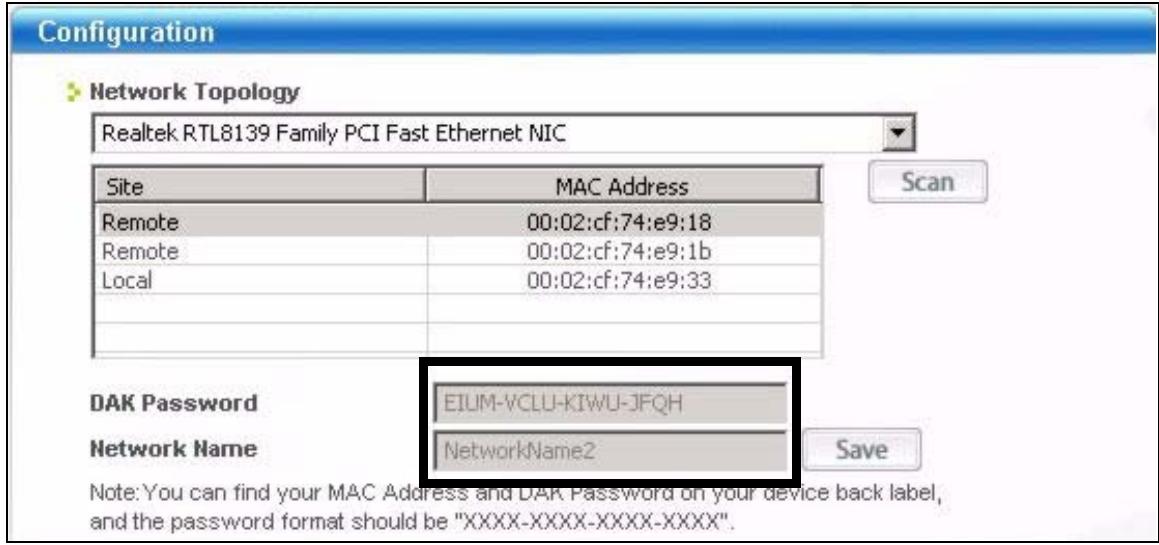
Figure 42 An Adapter on Your New Network
6 Go back to step 3 in this section to set the same, new Network Name for all remote adapters you want to add to your new network.
7 Check you have added the adapters correctly by changing the network name for the local adapter. All adapters with the new Network Name now appear in the list of adapters on your network. These adapters are now part of your new network.
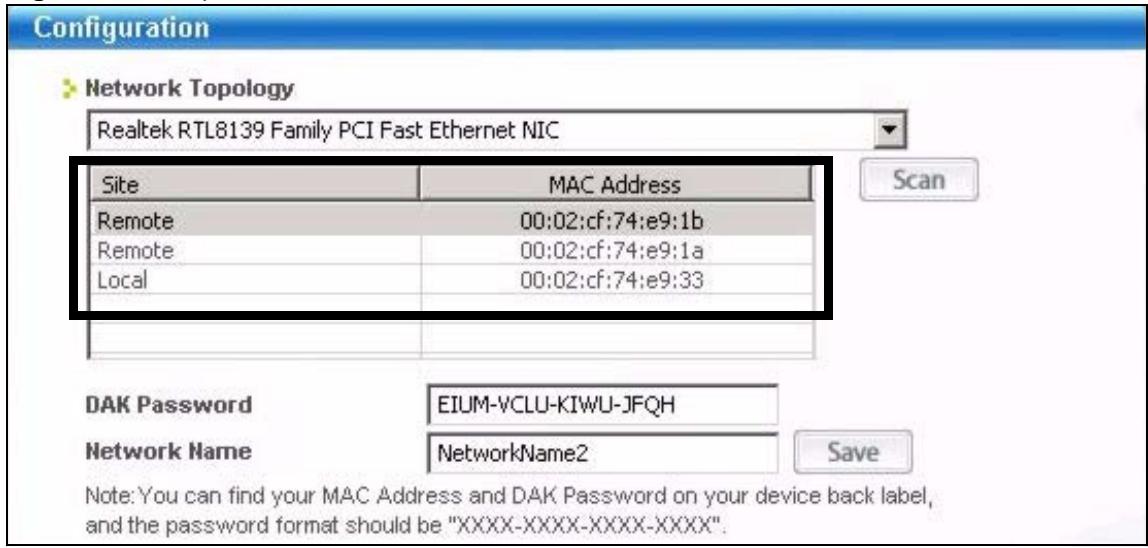
Figure 43 Adapters on a New Powerline Network
- If you want to access any of your new powerline networks using the PLA-4xx Series Configuration Utility, change the Network Name on your local adapter to the network name for the network you want to access. The adapters on that network will then display in the adapter table, allowing you to select and configure each one.
6.1 Troubleshooting
The HomePlug (LED) LED (light) should light up on your adapter when it successfully connects to other adapters on your network. If it does not, try the following measures.
- Make sure the adapter is plugged in to a power socket and the power socket is turned on.
-
Check you have entered the correct network name for your network.
-
Check your powerline adapter is connected to the same electrical circuit as other powerline adapters on your network.
LEDs and Troubleshooting
This chapter describes the behavior of the LEDs (lights) and offers some suggestions to solve problems you might encounter.
7.1 LEDs
The following sections describe the lights on the PLA-400 and PLA-400 v2, the PLA-401, PLA401 v2 and the PLA-470.
The following figure is the front panel of the PLA-401. Use the lights to determine if the PLA-4xx is behaving normally or if there are some problems on your powerline network.
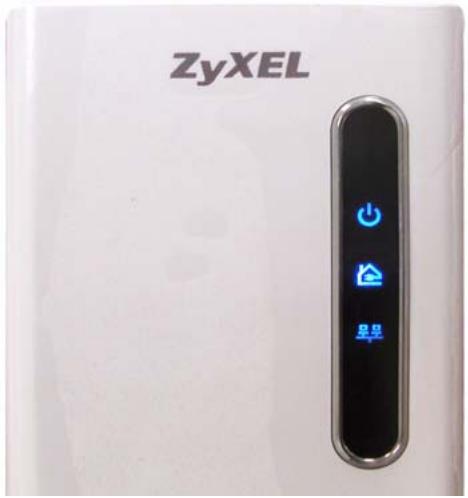
Figure 44 PLA-401 Lights
The following table describes the behavior of the lights on the PLA-401.
Table 9 PLA-401 Lights
| LIGHT | ICON | STATUS | DESCRIPTION |
| POWER | On | The PLA-401 is on and receiving power. | |
| Off | The PLA-401 is not receiving power. | ||
| HomePlug | On | The PLA-400 detects another powerline adapter. | |
| Blinking | The PLA-401 is communicating with another powerline adapter. | ||
| Off | The PLA-400 is not detecting another powerline adapter. | ||
| ETHERNET | 무료 | On | The ETHERNET port is on and ready and the PLA-401 detects a device connected to it. |
| Blinking | The PLA-401 is communicating with a router, modem, switch or a computer connected to it. | ||
| Off | The PLA-401 does not detect any devices connected to its ETHERNET port. |
The following table describes the behavior of the lights on the PLA-401 v2.
Table 10 PLA-401 v2 Lights
| LIGHTS | ICON | COLOR | STATUS | DESCRIPTION |
| POWER | Green | On | The PLA-401 v2 is on and receiving power. It also indicates a successful connection using the ENCRYPT button. | |
| Blinking | The PLA-401 v2 is starting up. It also indicates the PLA-400 v2 is trying to connect with another device using the ENCRYPT function. Blinking at the same time as the HomePlug light indicates an unsuccessful connection if you have used the ENCRYPT button. | |||
| Off | The PLA-401 v2 is not receiving power. | |||
| HomePlug | Green | On | The PLA-401 v2 detects another powerline adapter. The data transfer rate is greater than 40 Mbps. | |
| Amber | The PLA-401 v2 detects another powerline adapter. The data transfer rate is between 10~40 Mbps. | |||
| Red | The PLA-401 v2 detects another powerline adapter. The data transfer rate is between 0~10 Mbps. | |||
| Green/ Amber/ Red | Blinking | The PLA-401 v2 is communicating with another powerline adapter. Data is being transmitted and/or received. Blinking at the same time as the POWER light indicates an unsuccessful connection if you have used the ENCRYPT button. | ||
| Off | The HomePlug port does not detect another powerline adapter. | |||
| ETHERNET | Green | On | The ETHERNET port is on and ready and the PLA-401 v2 detects a device connected to it. | |
| Blinking | The PLA-401 v2 is communicating with a networking device connected to it. | |||
| Off | The PLA-401 v2 does not detect any devices connected to its ETHERNET port. |
7.1.2 PLA-400/400 v2
The following figure is the front panel of the PLA-400 and PLA-400 v2. Use the lights to determine if your PLA-4xx is behaving normally or if there are some problems on your powerline network.
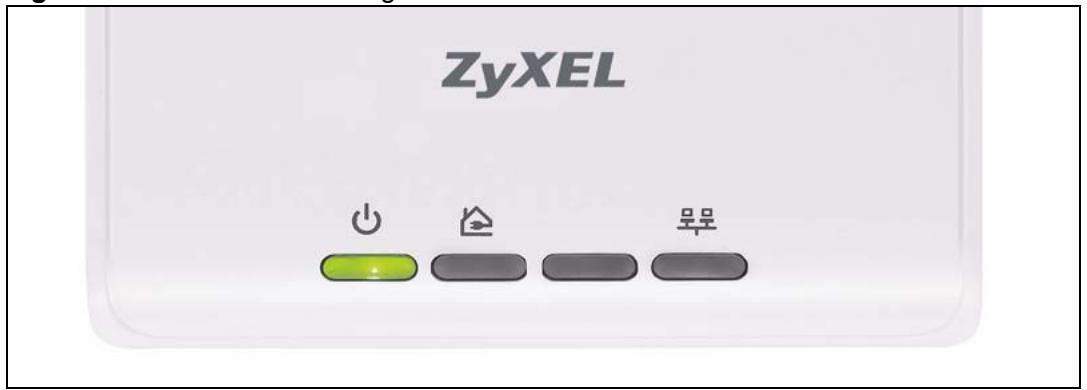
Figure 45 PLA-400/400 v2 Lights
The following table describes the behavior of the lights on the PLA-400.
Table 11 PLA-400 Lights
| LIGHTS | ICON | STATUS | DESCRIPTION |
| POWER | On | The PLA-400 is on and receiving power. | |
| Off | The PLA-400 is not receiving power. | ||
| HomePlug | On | The PLA-400 detects another powerline adapter. | |
| Blinking | The PLA-400 is communicating with another powerline adapter. | ||
| Off | The PLA-400 is not detecting another powerline adapter. | ||
| ETHERNET | On | The ETHERNET port is on and ready and the PLA-400 detects a device connected to it. | |
| Blinking | The PLA-400 is communicating with a router, modem, switch or a computer connected to it. | ||
| Off | The PLA-400 does not detect any devices connected to its ETHERNET port. |
The following table describes the behavior of the lights on the PLA-400 v2.
Table 12 PLA-400 v2 Lights
| LIGHTS | ICON | COLOR | STATUS | DESCRIPTION |
| POWER | Green | On | The PLA-400 v2 is on and receiving power. It also indicates a successful connection using the ENCRYPT button. | |
| Blinking | The PLA-400 v2 is starting up. It also indicates the PLA-400 v2 is trying to connect with another device using the ENCRYPT function. Blinking at the same time as the HomePlug light indicates an unsuccessful connection if you have used the ENCRYPT button. | |||
| Off | The PLA-400 v2 is not receiving power. | |||
| HomePlug | Green | On | The PLA-400 v2 detects another powerline adapter. The data transfer rate is greater than 40 Mbps. | |
| Amber | The PLA-400 v2 detects another powerline adapter. The data transfer rate is between 10~40 Mbps. | |||
| Red | The PLA-400 v2 detects another powerline adapter. The data transfer rate is between 0~10 Mbps. | |||
| Green/ Amber/ Red | Blinking | The PLA-400 v2 is communicating with another powerline adapter. Data is being transmitted and/or received. Blinking at the same time as the POWER light indicates an unsuccessful connection if you have used the ENCRYPT button. | ||
| Off | The HomePlug port does not detect another powerline adapter. | |||
| ETHERNET | Green | On | The ETHERNET port is on and ready and the PLA-400 v2 detects a device connected to it. | |
| Blinking | The PLA-400 v2 is communicating with a networking device connected to it. | |||
| Off | The PLA-400 v2 does not detect any devices connected to its ETHERNET port. |
7.1.3 PLA-470/PLA470 v2
The following figure is the front panel of the PLA-470 and PLA-470 v2. Use the lights to determine if the PLA-470 or PLA470 v2 is behaving normally or if there are some problems on your powerline network.
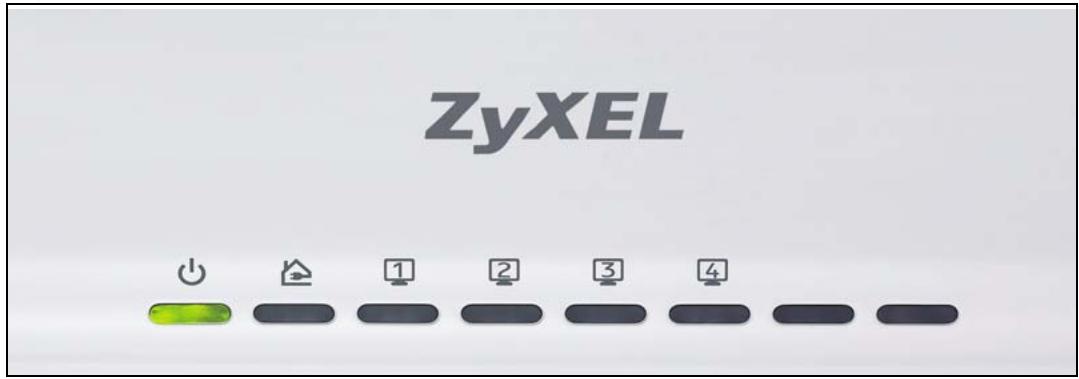
Figure 46 PLA-470 and PLA-470 v2 Lights
The following table describes the behavior of the lights on the PLA-470.
Table 13 PLA-470 Lights
| LIGHTS | ICON | COLOR | STATUS | DESCRIPTION |
| POWER | Green | On | The PLA-470 is on and receiving power. It also indicates a successful connection using the ENCRYPT button. | |
| Blinking | The PLA-470 is starting up. It also indicates the PLA-470 is trying to connect with another device using the ENCRYPT function. Blinking at the same time as the HomePlug light indicates an unsuccessful connection if you have used the ENCRYPT button. | |||
| Off | The PLA-470 is not receiving power. | |||
| HomePlug | Green | On | The PLA-470 detects another powerline adapter.. | |
| Blinking | The PLA-470 is communicating with another powerline adapter. Data is being transmitted and/or received. Blinking at the same time as the POWER light indicates an unsuccessful connection if you have used the ENCRYPT button. | |||
| Off | The HomePlug port does not detect another powerline adapter. | |||
| ETHERNET | 1 2 3 4 | On | The ETHERNET port is on and ready and the PLA-470 detects a device connected to it. | |
| Blinking | The PLA-470 is communicating with a router, modem, switch or a computer connected to it. | |||
| Off | The PLA-470 does not detect any devices connected to its ETHERNET port. |
The following table describes the behavior of the lights on the PLA470 v2.
Table 14 PLA470 v2 Lights
| LIGHTS | ICON | COLOR | STATUS | DESCRIPTION |
| POWER | Green | On | The PLA470 v2 is on and receiving power. It also indicates a successful connection using the ENCRYPT button. | |
| Blinking | The PLA470 v2 is starting up. It also indicates the PLA470 v2 is trying to connect with another device using the ENCRYPT function. Blinking at the same time as the HomePlug light indicates an unsuccessful connection if you have used the ENCRYPT button. | |||
| Off | The PLA470 v2 is not receiving power. | |||
| HomePlug | Green | On | The PLA470 v2 detects another powerline adapter. The data transfer rate is greater than 40 Mbps. | |
| Amber | The PLA470 v2 detects another powerline adapter. The data transfer rate is between 10~40 Mbps. | |||
| Red | The PLA470 v2 detects another powerline adapter. The data transfer rate is between 0~10 Mbps. | |||
| Green/Amber/Red | Blinking | The PLA470 v2 is communicating with another powerline adapter. Data is being transmitted and/or received. Blinking at the same time as the POWER light indicates an unsuccessful connection if you have used the ENCRYPT button. | ||
| Off | The HomePlug port does not detect another powerline adapter. | |||
| ETHERNET | 1 23 4 | On | The ETHERNET port is on and ready and the PLA470 detects a device connected to it. | |
| Blinking | The PLA470 is communicating with a router, modem, switch or a computer connected to it. | |||
| Off | The PLA470 does not detect any devices connected to its ETHERNET port. |
7.2 Power and Light Problems

The PLA-4xx does not turn on. None of the lights turn on.
1 Make sure you are using the power cord included with the PLA-4xx.
2 Make sure the power cord is connected to the PLA-4xx and plugged in to an appropriate power source. Make sure the power source is turned on.
3 Disconnect and re-connect the power cord to the PLA-4xx.
4 Remove the powerline adapter from the outlet. Then connect an electrical device that you know works into the same power outlet. This checks the status of the power outlet.
5 If the problem continues, contact the vendor.

The ETHERNET light does not turn on.
1 Check the hardware connections. See the Quick Start Guide.
2 Inspect your cables for damage. Contact the vendor to replace any damaged cables.
3 Check the Ethernet adapter on your computer and make sure it's enabled and working properly.
4 If the PLA-4xx is connected to an Ethernet switch or router, make sure the device is working correctly, and that the LAN network is working and configured correctly as well.

The HomePlug light does not turn on.
1 Check all PLA-4xxs on your network have the latest firmware installed. PLA-4xxs with the latest firmware cannot communicate with PLA-4xxs using earlier versions of the firmware. Go to Section 5.4 on page 44 for instructions on installing the latest firmware.
2 Use the PLA-4xx Series Configuration Utility to detect all other HomePlug devices on your powerline network. Make sure that the network name (sometimes called the network password) is the same on all of your powerline adapters. See Section 5.3 on page 42 for instructions on checking the network name.
3 Check the DAK password and MAC address for all powerline adapters are typed correctly in the utility. See Section 5.3 on page 42 for instructions on checking the DAK and MAC address.
4 Make sure that all your powerline adapters are HomePlug AV compliant. Check the package it came in or ask your vendor. This PLA-4xx can not detect earlier versions of HomePlug powerline adapters such as HomePlug 1.0 or 1.0.1. (Although they can coexist on the same electrical wiring without interfering with each other.)
5 Make sure that the powerline adapters on your network are all on the same electrical wiring. Connect another powerline adapter into an outlet close to your PLA-4xx's power outlet. They are probably now on the same electrical wiring. Check the HomePlug light. If it now lights up your powerline adapter was probably previously on separate electrical wiring. Ask an electrician for more information on the electrical wiring in your building.
6 If your powerline network is using coaxial cable, check all powerline adapters are on the same coaxial cable.
7 If your powerline network is using electrical wiring (not coaxial cable), check you do not have a power meter between powerline adapters. Powerline signals cannot pass this.

The POWER and HomePlug light blink at the same time.
- You have pressed the ENCRYPT button for more than three seconds. Try setting up a connection again, this time pressing the ENCRYPT buttons on both devices for less than three seconds.
7.3 Configuration Utility Problems

The PLA-4xx Series Configuration Utility displays an error during installation.
- Make sure your computer is using Windows XP or Windows Vista (32-bit) operating system. At the time of writing, this is the only compatible operating system for the configuration utility.

The PLA-4xx Series Configuration Utility does not display all or any of my devices.
- Inspect the LEDs on your PLA-4xx and make sure that the ETHERNET and HomePlug LEDs are on or blinking. See Section 7.2 on page 66 for troubleshooting LED related problems.
- Check all ZyxEL HomePlug AV devices on your network have the latest firmware installed. The latest utility cannot communicate with PLA-4xxs using earlier versions of the firmware. Go to Section 5.4 on page 44 for instructions on installing the latest firmware.
- Check you are using the latest version utility. Earlier version utilities cannot communicate with PLA-4xxs using the latest firmware. If you do not have the latest utility, download it from the ZyXEL website.
- If the device is not a ZyXEL device, then the DAK and Network Name will be greyed out.
- If you are running another tool such as the Firmware Detection Tool or Firmware Upgrade Tool, the Utility will not detect your local device.
7.4 Powerline Problems

The signal on my powerline network is weak.
1 Your powerline adapters may be connected to electrical surge protectors. Connect them to standard power outlets.
2 Your powerline adapters may be located close to large appliances such as refrigerators or air-conditioners that cause interference with the powerline signal. Move the adapters further away from such appliances to reduce interference.
3 Your powerline adapters may be placed close to electrical devices such as electrical insect-killers which produce radio waves. These may interfere with the powerline signals. Move the adapters further away from such electrical devices.
4 Your wiring may be old and/or low quality or with a long wiring path.
7.5 ENCRYPT Button Problems
This section applies only to PLA-4xxs with the ENCRYPT button.

The HomePlug light is already on, but I haven't pressed the ENCRYPT button yet.
Your device has already connected to another powerline device. Press the ENCRYPT button for more than 10 seconds to release the connection.

The POWER light does not blink when I press the ENCRYPT button.
- Check the device is on.
- Press the ENCRYPT button again, making certain you have pressed the button for more than one second and less than three seconds.
- The POWER light on some powerline devices do not blink as part of the ENCRYPT process. Check your powerline device is a PLA-4xx.

The POWER light blinks two times quickly then pauses, before repeating.
The ENCRYPT process has failed. Press the ENCRYPT button on both devices for more than 10 seconds, then try to reconnect.

The POWER lights on both devices blink when I press the ENCRYPT buttons, but the HomePlug light does not turn on.
- Ensure you have pressed the ENCRYPT button on both devices.
- Wait for about a minute while the devices set up a connection.
- If that does not work, try again with both devices connected to a power strip next to each other. If they now connect, then the devices were not on the same electrical circuit before.

The POWER lights on both devices blink, then many lights blink and the HomePlug light blinks red.
Do not worry, the connection process is proceeding normally.

The POWER lights on both devices finished blinking, but only one device's HomePlug light is on.
One device may have connected to a third powerline device. To check device A is connected to device B and not another device, disconnect device B from its power source. Device A's HomePlug ( ) light will turn off if the connection is with Device B. Press the ENCRYPT button on both devices for more than 10 seconds, then try to reconnect, pressing the ENCRYPT button for less than 3 seconds on both devices.

I pressed the ENCRYPT button for more than 10 seconds, but the HomePlug light is still on.
The HomePlug light is on, indicating it is still connected to another powerline device. Try again, pressing the ENCRYPT button for more than 10 seconds.
PART III
Appendices and Index
Product Specifications (73)
Customer Support (79)
Legal Information (85)
Index (89)
Product Specifications
The following tables summarize the PLA-4xx's hardware and firmware features.
Table 15 Hardware Specifications
| Dimensions (W x D x H) | PLA-400/400 v2 112 (L) mm x 106 (D) mm x 28.5 (H) mm PLA-470 162 (L) mm x 118 (D) mm x 40 (H) mm PLA-401/PLA401 v2 97 mm (L) x 45 (H) mm x 70 (W) mm |
| Power Input | PLA-400/401 v2 100 - 240 VAC, 50/60 Hz, 0.12 A PLA-400 v2 100 - 240 VAC, 50/60 Hz, 0.13 A PLA401/470 100 - 240 VAC, 50/60 Hz, 0.2 A |
| Ethernet Port | Auto-negotiating: 10 Mbps or 100 Mbps in either half-duplex or full-duplex mode. Auto-crossover: Use either crossover or straight-through Ethernet cables. |
| RESET | Pressing this button in for less than 3 seconds resets the device to factory default settings. Network Name becomes HomePlugAV. Pressing this button in for more than 10 seconds resets the firmware to the previous version. |
| ENCRYPT | Pressing this button in for less than 3 seconds begins the connection setup process. Pressing this button in for more than 10 seconds resets the network name to a random value. |
| Operation Environment | PLA-400/401/400 v2/470 Temperature: 0°C ~ 45°C Humidity: 5% ~ 95% Noncondensing PLA401 v2 Temperature: 0°C ~ 45°C Humidity:10% ~ 85% Noncondensing |
| Storage Environment | PLA-400/401/400 v2/470 Temperature: -10°C ~ 70°C Humidity: 10% ~ 85% Noncondensing PLA401 v2 Temperature: - 20°C ~ 60°C Humidity: 10% ~ 90% Noncondensing |
Table 15 Hardware Specifications
| Cabling Type | PLA-400/400 v2/401/401 v2/470 1 x Power Cord PLA-400/400 v2/401/401 v2 1 x LAN UTP Category 5 or Better PLA-470 4 x LAN UTP Category 5 or Better |
| Network Interface | PLA-400/400 v2/401/401 v2/470 1 x 200 Mbps Powerline port compliant with HomePlug AV standard PLA-400/400 v2/401/401 v2 1 x 10/100M BASE-T Ethernet port with Auto MDI/MDIX PLA-470 4 x 10/100 M Base-T Ethernet Ports with Auto MDI/MDIX |
| Distance between the centers of the holes on the device's back. | PLA-400/400 v2/401/401 v2 74 mm PLA-470 1150 mm PLA-401/401 v2 Not applicable |
| Recommended type of screws for wall-mounting | PLA-400/400 v2/470 M3 Tap Screw PLA-401/401 v2 Not applicable |
Table 16 Firmware Specifications
| FEATURE | DESCRIPTION |
| Powerline Functionality | The HomePlug AV standard specifies how network devices communicate using standard electrical wiring. It supports a data transfer rate of up to 200Mbps. Data is encrypted using 128-bit AES (Advanced Encryption Standard). HomePlug AV compatible devices co-exist with HomePlug 1.0 devices but do not detect each other. The range of a HomePlug AV network is 300 meters/984 feet in optimal conditions. HomePlug AV is compatible with all OSs. The maximum number of devices connected (bridged) to single powerline adapter is 64. The maximum number of powerline devices on a single network is 64. The maximum number of powerline networks on a single electrical circuit is 4. HomePlug AV devices using version 3.0.5 firmware cannot communicate with earlier version firmware. |
| Encryption | 128-bit AES Encryption |
| Frequency Band | 1.8 MHz ~ 30 MHz |
| Certifications | FCC, CE, CUL, UL, HomePlug AV, RoHS |
Table 16 Firmware Specifications
| FEATURE | DESCRIPTION |
| Device Management | Use the PLA-4xx Series Configuration Utility version 3.0.5(AG) to easily configure the PLA-4xx. |
| Note: The PLA-4xx Series Configuration Utility version 3.0.5(AG) is only compatible with PLA-4xxs with the latest firmware installed. | |
| Network Name | Change the powerline network name to only allow the powerline adapters you specify to join your network. |
| Firmware Upgrade | Download new firmware (when available) from the ZyXEL website and use the configuration utility to install it. |
| Note: You do not need the configuration utility to install the latest firmware. Follow the instructions in Section 5.4 on page 44 for installing the latest firmware. | |
| Note: Only install firmware for your specific model! |
Table 17 Performance
| FEATURE | DESCRIPTION |
| Throughput over PHYsical Transport Medium (PHY) | Supports up to 200 Mbps in half duplex mode |
| Throughput over UDP | Supports up to 150 Mbps over in-house power/coaxial lines (LAN port limits to 100 Mbps) |
| Number of devices in one powerline network | Supports up to 64 devices in 4 network groups |
The following list, which is not exhaustive, illustrates the standards supported in the PLA-4xx.
Table 18 Standards Supported
| STANDARD | DESCRIPTION |
| HomePlug AV | Designed for transmitting audio/video on a home powerline network. |
| RFC 868 | Time Protocol. |
| RFC 1112 | IGMP v1 |
| RFC 1157 | SNMPv1: Simple Network Management Protocol version 1 |
| RFC 1901 | SNMP v2c Simple Network Management Protocol version 2c |
| RFC 2236 | Internet Group Management Protocol, Version 2. |
Wall-mounting Instructions
Complete the following steps to hang your PLA-400/400 v2/401/401 v2 on a wall.

See Table 15 on page 73 for the size of screws to use and how far apart to place them.
1 Select a high position on a sturdy wall that is free of obstructions.
2 Drill two holes for the screws. The distance between the centers of the holes is listed in the product specifications appendix.

Be careful to avoid damaging pipes or cables located inside the wall when drilling holes for the screws.
3 Do not insert the screws all the way into the wall. Leave a small gap of about 0.5cm between the heads of the screws and the wall.
4 Make sure the screws are snugly fastened to the wall. They need to hold the weight of the PLA-4xx with the connection cables.
5 Align the holes on the back of the PLA-4xx with the screws on the wall. Hang the PLA-4xx on the screws.
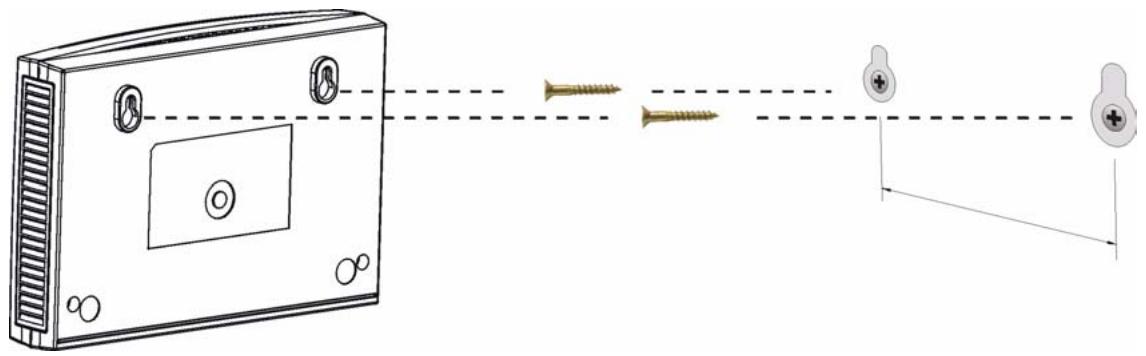
Figure 47 Wall-mounting Example
Cable Pin Assignments
RJ-45 Connector Pin Assignments
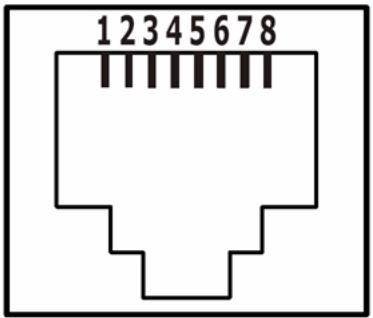
Figure 48 RJ-45 Connector Pins
Table 19 RJ-45 Connector Pin Assignments
| PIN NO | RJ-45 SIGNAL ASSIGNMENT |
| 1 | RxD + |
| 2 | RxD - |
| 3 | TxD + |
| 4 | Not connected |
| 5 | Not connected |
| 6 | TxD - |
| 7 | Not connected |
| 8 | Not connected |
Customer Support
Please have the following information ready when you contact customer support.
Required Information
Product model and serial number.
Warranty Information.
- Date that you received your device.
- Brief description of the problem and the steps you took to solve it.
“+” is the (prefix) number you dial to make an international telephone call.
Corporate Headquarters (Worldwide)
- Support E-mail: support@zyxel.com.tw
Sales E-mail: sales@zyxel.com.tw
Telephone: +886-3-578-3942
Fax: +886-3-578-2439
Web: www.zyxel.com, www.europe.zyxel.com - FTP: ftp.zyxel.com, ftp.europe.zyxel.com
- Regular Mail: ZyXEL Communications Corp., 6 Innovation Road II, Science Park, Hsinchu 300, Taiwan
Costa Rica
- Support E-mail: soporte@zyxel.co.cr
Sales E-mail: sales@zyxel.co.cr
Telephone: +506-2017878
Fax: +506-2015098
Web: www.zyxel.co.cr
FTP: ftp.zyxel.co.cr - Regular Mail: ZyXEL Costa Rica, Plaza Roble Escazú, Etapa El Patio, Tercer Piso, San José, Costa Rica
Czech Republic
E-mail: info@cz.zyxel.com
Telephone: +420-241-091-350
Fax: +420-241-091-359
Web: www.zyxel.cz
- Regular Mail: ZyXEL Communications, Czech s.r.o., Modranska 621, 143 01 Praha 4 - Modrany, Ceská Republika
Denmark
- Support E-mail: support@zyxel.dk
Sales E-mail: sales@zyxel.dk
Telephone: +45-39-55-07-00
Fax: +45-39-55-07-07
Web: www.zyxel.dk
Regular Mail: ZyXEL Communications A/S, Columbusvej, 2860 Soeborg, Denmark
Finland
- Support E-mail: support@zyxel.fi
Sales E-mail: sales@zyxel.fi
Telephone: +358-9-4780-8411
Fax: +358-9-4780-8448
Web: www.zyxel-fi - Regular Mail: ZyXEL Communications Oy, Malminkaari 10, 00700 Helsinki, Finland
France
E-mail: info@zyxel.fr
Telephone: +33-4-72-52-97-97
Fax: +33-4-72-52-19-20
Web: www.zyxel.fr
- Regular Mail: ZyXEL France, 1 rue des Vergers, Bat. 1 / C, 69760 Limonest, France
Germany
- Support E-mail: support@zyxel.de
Sales E-mail: sales@zyxel.de
Telephone: +49-2405-6909-69
Fax: +49-2405-6909-99
Web: www.zyxel.de - Regular Mail: ZyXEL Deutschland GmbH., Adenauerstr. 20/A2 D-52146, Wuerselen, Germany
Hungary
- Support E-mail: support@zyxel.hu
Sales E-mail: info@zyxel.hu
Telephone: +36-1-3361649
Fax: +36-1-3259100
Web: www.zyxel.hu - Regular Mail: ZyXEL Hungary, 48, Zoldlomb Str., H-1025, Budapest, Hungary
India
- Support E-mail: support@zyxel.in
Sales E-mail: sales@zyxel.in - Telephone: +91-11-30888144 to +91-11-30888153
Fax: +91-11-30888149, +91-11-26810715
Web: http://www.zyxel.in - Regular Mail: India - ZyXEL Technology India Pvt Ltd., II-Floor, F2/9 Okhra Phase -1, New Delhi 110020, India
Japan
- Support E-mail: support@zyxel.co.jp
Sales E-mail: zyp@zyxel.co.jp
Telephone: +81-3-6847-3700
Fax: +81-3-6847-3705
Web: www.zyxel.co.jp - Regular Mail: ZyXEL Japan, 3F, Office T&U, 1-10-10 Higashi-Gotanda, Shinagawa-ku, Tokyo 141-0022, Japan
Kazakhstan
- Support: http://zyxel.kz/support
Sales E-mail: sales@zyxel.kz
Telephone: +7-3272-590-698
Fax: +7-3272-590-689
Web: www.zyxel.kz - Regular Mail: ZyXEL Kazakhstan, 43 Dostyk Ave., Office 414, Dostyk Business Centre, 050010 Almaty, Republic of Kazakhstan
Malaysia
- Support E-mail: support@zyxel.com.my
Sales E-mail: sales@zyxel.com.my
Telephone: +603-8076-9933
Fax: +603-8076-9833
Web: http://www.zyxel.com.my - Regular Mail: ZyXEL Malaysia Sdn Bhd., 1-02 & 1-03, Jalan Kenari 17F, Bandar Puchong Jaya, 47100 Puchong, Selangor Darul Ehsan, Malaysia
North America
Support E-mail: support@zyxel.com
Support Telephone: +1-800-978-7222
Sales E-mail: sales@zyxel.com
Sales Telephone: +1-714-632-0882
Fax: +1-714-632-0858
Web: www.zyxel.com
- Regular Mail: ZyXEL Communications Inc., 1130 N. Miller St., Anaheim, CA 92806-2001, U.S.A.
Norway
- Support E-mail: support@zyxel.no
Sales E-mail: sales@zyxel.no
Telephone: +47-22-80-61-80
Fax: +47-22-80-61-81
Web: www.zyxel.no
Regular Mail: ZyXEL Communications A/S, Nils Hansens vei 13, 0667 Oslo, Norway
Poland
E-mail: info@pl.zyoxel.com
Telephone: +48-22-333 8250
Fax: +48-22-333 8251
Web: www.pl.zyxel.com
- Regular Mail: ZyXEL Communications, ul. Okrzej 1A, 03-715 Warszawa, Poland
Russia
- Support: http://zyxel.ru/support
Sales E-mail: sales@zyxel.ru
Telephone: +7-095-542-89-29
Fax: +7-095-542-89-25
Web: www.zyxel.ru - Regular Mail: ZyXEL Russia, Ostrovityanova 37a Str., Moscow 117279, Russia
Singapore
- Support E-mail: support@zyxel.com.sg
Sales E-mail: sales@zyxel.com.sg
Telephone: +65-6899-6678
Fax: +65-6899-8887
Web: http://www.zyxel.com.sg - Regular Mail: ZyXEL Singapore Pte Ltd., No. 2 International Business Park, The Strategy #03-28, Singapore 609930
Spain
- Support E-mail: support@zyxel.es
Sales E-mail: sales@zyxel.es
Telephone: +34-902-195-420
Fax: +34-913-005-345
Web: www.zyxel.es - Regular Mail: ZyXEL Communications, Arte, 21 5^a planta, 28033 Madrid, Spain
Sweden
- Support E-mail: support@zyxel.se
Sales E-mail: sales@zyxel.se
Telephone: +46-31-744-7700
Fax: +46-31-744-7701
Web: www.zyxel.se - Regular Mail: ZyXEL Communications A/S, Sjöporten 4, 41764 Göteborg, Sweden
Thailand
- Support E-mail: support@zyxel.co.th
Sales E-mail: sales@zyxel.co.th
Telephone: +662-831-5315
Fax: +662-831-5395
Web: http://www.zyxel.co.th - Regular Mail: ZyXEL Thailand Co., Ltd., 1/1 Moo 2, Ratchaphruk Road, Bangrak-Noi, Muang, Nonthaburi 11000, Thailand.
Ukraine
- Support E-mail: support@ua.zyxel.com
- Sales E-mail: sales@ua.zyxel.com
Telephone: +380-44-247-69-78
Fax: +380-44-494-49-32
Web: www.ua.zyxel.com
Regular Mail: ZyXEL Ukraine, 13, Pimonenko Str., Kiev 04050, Ukraine
United Kingdom
Support E-mail: support@zyxel.co.uk
Sales E-mail: sales@zyxel.co.uk
- Telephone: +44-1344-303044, 08707-555779 (UK only)
Fax: +44-1344-303034
Web: www.zyxel.co.uk
FTP: ftp.zyxel.co.uk
- Regular Mail: ZyXEL Communications UK Ltd., 11 The Courtyard, Eastern Road, Bracknell, Berkshire RG12 2XB, United Kingdom (UK)
Legal Information
Copyright
Copyright © 2007 by ZyXEL Communications Corporation.
The contents of this publication may not be reproduced in any part or as a whole, transcribed, stored in a retrieval system, translated into any language, or transmitted in any form or by any means, electronic, mechanical, magnetic, optical, chemical, photocopying, manual, or otherwise, without the prior written permission of ZyXEL Communications Corporation.
Published by ZyXEL Communications Corporation. All rights reserved.
Disclaimer
ZyXEL does not assume any liability arising out of the application or use of any products, or software described herein. Neither does it convey any license under its patent rights nor the patent rights of others. ZyXEL further reserves the right to make changes in any products described herein without notice. This publication is subject to change without notice.
Trademarks
ZyNOS (ZyXEL Network Operating System) is a registered trademark of ZyXEL Communications, Inc. Other trademarks mentioned in this publication are used for identification purposes only and may be properties of their respective owners.
Certifications
Federal Communications Commission (FCC) Interference Statement
The device complies with Part 15 of FCC rules. Operation is subject to the following two conditions:
- This device may not cause harmful interference.
- This device must accept any interference received, including interference that may cause undesired operations.
This device has been tested and found to comply with the limits for a Class B digital device pursuant to Part 15 of the FCC Rules. These limits are designed to provide reasonable protection against harmful interference in a residential installation. This device generates, uses, and can radiate radio frequency energy, and if not installed and used in accordance with the instructions, may cause harmful interference to radio communications. However, there is no guarantee that interference will not occur in a particular installation.
If this device does cause harmful interference to radio/television reception, which can be determined by turning the device off and on, the user is encouraged to try to correct the interference by one or more of the following measures:
1 Reorient or relocate the receiving antenna.
2 Increase the separation between the equipment and the receiver.
3 Connect the equipment into an outlet on a circuit different from that to which the receiver is connected.
4 Consult the dealer or an experienced radio/TV technician for help.
CE-Konformität
Changes or modifications not expressly approved by the party responsible for compliance could void the user's authority to operate the equipment.
This Class B digital apparatus complies with Canadian ICES-003.
Viewing Certifications
1 Go to http://www.zyxel.com.
2 Select your product on the ZyXEL home page to go to that product's page.
3 Select the certification you wish to view from this page.
ZyXEL Limited Warranty
ZyXEL warrants to the original end user (purchaser) that this product is free from any defects in materials or workmanship for a period of up to two years from the date of purchase. During the warranty period, and upon proof of purchase, should the product have indications of failure due to faulty workmanship and/or materials, ZyXEL will, at its discretion, repair or replace the defective products or components without charge for either parts or labor, and to whatever extent it shall deem necessary to restore the product or components to proper operating condition. Any replacement will consist of a new or re-manufactured functionally equivalent product of equal or higher value, and will be solely at the discretion of ZyXEL. This warranty shall not apply if the product has been modified, misused, tampered with, damaged by an act of God, or subjected to abnormal working conditions.
Note
Repair or replacement, as provided under this warranty, is the exclusive remedy of the purchaser. This warranty is in lieu of all other warranties, express or implied, including any implied warranty of merchantability or fitness for a particular use or purpose. ZyXEL shall in no event be held liable for indirect or consequential damages of any kind to the purchaser.
To obtain the services of this warranty, contact ZyXEL's Service Center for your Return Material Authorization number (RMA). Products must be returned Postage Prepaid. It is recommended that the unit be insured when shipped. Any returned products without proof of purchase or those with an out-dated warranty will be repaired or replaced (at the discretion of ZyXEL) and the customer will be billed for parts and labor. All repaired or replaced products will be shipped by ZyXEL to the corresponding return address, Postage Paid. This warranty gives you specific legal rights, and you may also have other rights that vary from country to country.
Registration
Register your product online to receive e-mail notices of firmware upgrades and information at www.zyxel.com for global products, or at www.us.zyxel.com for North American products.
Index
Symbols
.NET Framework 21
encryption 17, 41, 74
ETHN LED 61
A
about screen 49
Advanced Encryption Standard, see AES 17
AES 18, 41
AES (Advanced Encryption Standard) 17
applications 17
F
FCC 74
FCC interference statement 85
frequency band 74
C
cabling type 74
CE74
certifications 74, 85
notices 86
viewing 86
configuration screen 42
connections overview 17
contact information 79
copyright 85
customer support 79
H
HomePlug AV standard 17
humidity, operation and storage 73
1
installation
overview 21
procedure 21
requirements 21
InstallShield wizard 23
introduction 17
D
DAK 31, 41, 43
DAK (Data Access Password) 18
Data Access Password, see DAK 18
dimensions 73
disclaimer 85
L
LED 61
ETHN 61
LINK 61
PWR 61
LINK LED 61
local vs. remote adapter 31, 43
E
electrical and cable wiring 41
electrical circuit boundaries 41
M
MAC address 31, 43
management
multiple networks 19
overview 41
managing the device
using the web configurator. See web configurator.
multiple networks 19
N
network example 41
network information 45
network ports 74
T
temperature, operation and storage 73
trademarks 85
transfer rates 17
transmit rate 45
troubleshooting 61
U
utility
launching 42
P
passwords 31, 41, 43, 44
types of 18
plug-and-play 41
power specification 73
priority settings 46
application type 47
priority levels 49
private network 18
problems and solutions 61
product registration 87
PWR LED 61
W
warranty 87
note 87
web configurator 18
R
receive rate 45
registration
customer information 24
product 87
user name 24
related documentation 3
s
safety warnings 5
screws 76
security 18, 19, 41
passwords 18
starting the utility 42
syntax conventions 4
- About This User's Guide
- Intended Audience
- Related Documentation
- User Guide Feedback
- Document Conventions
- Warnings and Notes
- Syntax Conventions
- Icons Used in Figures
- SafetyWarnings
- For your safety, be sure to read and follow all warning notices and instructions.
- Table of Contents
- Chapter 4
- The ENCRYPT Button 35
- Chapter 5
- The Configuration Utility 41
- Chapter 6
- Powerline Network Setup Tutorial 51
- Chapter 7
- LEDs and Troubleshooting 61
- Part III: Appendices and Index 71
- List of Tables
- List of Figures
- PART I
- Introduction
- Introducing the PLA-4xx
- Overview
- Expand Your Network with the PLA-4xx
- Ways to Manage the PLA-4xx
- Security
- Passwords
- Setting Up Security
- Buildings and even streets may share a coaxial cable connection. If your powerline network uses a coaxial cable, the network will probably extend outside your premises. In this case make your network more secure with a private network name.
- Multiple Networks
- Installing the Utility
- Overview of the Installation Process
- Installing the Utility
- PART II
- Managing the PLA-4xx
- Firmware Tools
- Firmware Detection Tool
- Firmware Detection Issues
- Firmware Detection Procedure
- Firmware Upgrade Tool
- The firmware is included in the Tool. You do not need to download the firmware separately.
- The ENCRYPT Button
- ENCRYPT Button Overview
- Set Up a HomePlug AV Network with ENCRYPT
- Setting Up Multiple Networks
- ENCRYPT Button Behavior
- The Configuration Utility
- Overview
- Powerline Network Security
- Device Access Key (DAK)
- Starting the Configuration Utility
- Configuration Screen
- Firmware Screen
- Network Info Screen
- Advanced Screen
- About Screen
- Powerline Network Setup Tutorial
- Overview
- Important Terms
- Accessing Your Powerline Adapter
- Adding a Powerline Adapter
- Setting Up a New Network with a New Adapter
- Splitting a Network into Two Networks
- Click Save.
- Troubleshooting
- LEDs and Troubleshooting
- LEDs
- PLA-400/400 v2
- PLA-470/PLA470 v2
- Power and Light Problems
- The PLA-4xx does not turn on. None of the lights turn on.
- The ETHERNET light does not turn on.
- The HomePlug light does not turn on.
- The POWER and HomePlug light blink at the same time.
- Configuration Utility Problems
- The PLA-4xx Series Configuration Utility displays an error during installation.
- The PLA-4xx Series Configuration Utility does not display all or any of my devices.
- Powerline Problems
- The signal on my powerline network is weak.
- ENCRYPT Button Problems
- The HomePlug light is already on, but I haven't pressed the ENCRYPT button yet.
- The POWER light does not blink when I press the ENCRYPT button.
- The POWER light blinks two times quickly then pauses, before repeating.
- The POWER lights on both devices blink when I press the ENCRYPT buttons, but the HomePlug light does not turn on.
- The POWER lights on both devices blink, then many lights blink and the HomePlug light blinks red.
- The POWER lights on both devices finished blinking, but only one device's HomePlug light is on.
- PART III
- Appendices and Index
- Product Specifications
- Wall-mounting Instructions
- See Table 15 on page 73 for the size of screws to use and how far apart to place them.
- Be careful to avoid damaging pipes or cables located inside the wall when drilling holes for the screws.
- Cable Pin Assignments
- RJ-45 Connector Pin Assignments
- Customer Support
- Required Information
- Corporate Headquarters (Worldwide)
- Costa Rica
- Czech Republic
- Denmark
- Finland
- France
- Germany
- Hungary
- India
- Japan
- Kazakhstan
- Malaysia
- North America
- Norway
- Poland
- Russia
- Singapore
- Spain
- Sweden
- Thailand
- Ukraine
- United Kingdom
- Legal Information
- Copyright
- Disclaimer
- Trademarks
- Certifications
- Federal Communications Commission (FCC) Interference Statement
- CE-Konformität
- Viewing Certifications
- ZyXEL Limited Warranty
- Note
- Registration
- Index
- Symbols
- A
- F
- C
- H
- 1
- D
- L
- E
- M
- N
- T
- U
- P
- W
- R
- s
Brand : ZYXEL
Model : PLA-470 V2
Category : Powerline Adapter