
TS4GMP840J - Flash Memory TRANSCEND - Free user manual and instructions
Find the device manual for free TS4GMP840J TRANSCEND in PDF.


User questions about TS4GMP840J TRANSCEND
0 question about this device. Answer the ones you know or ask your own.
Ask a new question about this device
Download the instructions for your Flash Memory in PDF format for free! Find your manual TS4GMP840J - TRANSCEND and take your electronic device back in hand. On this page are published all the documents necessary for the use of your device. TS4GMP840J by TRANSCEND.
USER MANUAL TS4GMP840J TRANSCEND
Package Contents 5
Features 6
System Requirements. 6
Safety Precautions 8
Backing Up Data. 8
Caution: Risk of Deafness 8
Reminders. 8
Product Overview 9
Color LCD Display 10
Basic Operation 11
Charging the Battery 11
Power ON 11
Power OFF 11
Play a Track 12
Pause a Track 12
Next Track. 12
Previous Track. 12
Fast Forward. 12
Fast Rewind 12
Increase Volume. 12
Decrease Volume 12
Main Menu. 12
File Navigation 13
Make an Audio Recording 13
Repeat/Shuffle Functions 13
A-B Repeat: Repeat a Section of a Track 13
Lock. 13
Reset the MP840. 13
MUSIC Mode 14
Play MP3, WMA and WMA-DRM10 (Subscription) Music 14
File Navigator Mode 15
Delete a file in the MUSIC Mode 16
RADIO Mode 17
Listen to the Radio 17
Selecting a Radio Station 17
Increase/Decrease the Volume. 18
Saving a Radio Station 18
Recall a Saved Station 18
Record a Radio Station 19
RECORD Mode 21
Record Sound 21
Record using the Built-In Microphone. 21
File Navigator Mode 22
Delete a file in the RECORD Mode 23
VIDEO Mode 25
Play MTV Video files on your MP840 25
File Navigator Mode 25
Delete a file in the VIDEO Mode 26
PHOTO Mode 28
File Navigator Mode 28
Delete a file in the PHOTO Mode 29
E-book Mode 31
File Navigator Mode 31
Delete a file in the E-book Mode 32
Settings 34
Enter the Settings Menu 34
Equalizer (EQ) Mode 34
User EQ Customization 35
Repeat Mode 36
Play Speed 36
Record Quality 37
VAD (Voice Activation Detection) 38
Sleep 39
Screen Saver 40
Slide Show Time 41
Sync. Lyrics 42
Date/Time Setting 42
Time Zone 43
Daylight 44
Language 45
FM Reset 46
Media Transfer Modes 46
MTP Media Transfer Mode 46
USB Media Transfer Mode 47
About 48
Driver Installation 49
Driver Installation for Windows® Me, 2000, XP and Vista 49
Driver Installation for Mac OS 10.0, or Later 49
Driver Installation for LinuxTM Kernel 2.4, or Later 49
Connecting to a Computer 50
Download and Upload Music and other Files 51
Disconnecting from a Computer 54
MP840 Software 55
Software System Requirements 55
Installing the MP840 Software 55
Transcend Multimedia Converter 56
Slideshow Maker 59
Transcend Digital Music Player Utility 61
Installing the Transcend Digital Music Player Utility. 61
PC-Lock Function 63
PC-Lock Function for Windows® Me, 2000, XP and Vista 63
Lock Your Computer 65
Unlock Your Computer 65
Partition & Security Function 66
Enable the Security Function in Windows® Me, 2000, XP and Vista 66
Changing your Password 67
Forgotten your Password 68
Troubleshooting 69
Specifications 72
Transcend Limited Warranty 73
Introduction
Thank you for purchasing Transcend's MP840. The MP840 is an advanced Flash MP3 Player that can play Music, Video and Photos. The MP840 combines all the advantages of a great sounding MP3 player with a USB Flash Drive and includes many extra features as standard such as, an FM Radio, Advanced Digital Voice Recorder, Karaoke-type LYrics display, A-B repeat functions and variable Track Playback speeds. Your MP840 can also be used to read E-books and it supports Hi-speed USB 2.0 for faster uploading and downloading of files to and from a computer. Using the A-B repeat and variable Track Playback speed features allows you to continuously replay a designated section of a track at slower/faster speeds; this makes the MP840 an ideal language-learning tool. In addition, you can record memos to yourself or from others using the advanced digital voice recorder to your MP840. The stylish MP840 from Transcend will change the way you think about your multimedia content forever.
Package Contents
The MP840 package includes the following items:
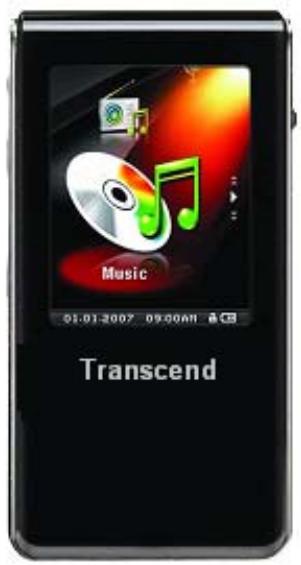
MP840
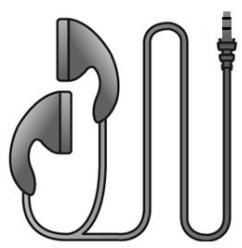
- Earphones
- Software CD
- Mini USB to USB A-Type cable

- Quick Instruction Guide
Travel Pouch

Features
1.8-inch (176 x 220 pixel) Super Color LCD Display for Playing Videos and Photos
- Plays Music, Video (.mtv) and Photos (.jpg, .bmp)
- MP3 Player supports MP3, WMA, WMA-DRM10 (subscription music) and WAV music formats
- FM Radio (FM Radio recording and the ability to preset 20 FM radio stations)
- Advanced Digital Voice Recorder
- Ability to read E-books (.txt)
- Karaoke-type lyrics display
VAD (Voice Activation Detection), Very High quality Gapless Audio Recordings
- A-B repeat function allows you to continuously replay a designated section of a track
- Variable TrackPlayback speeds
Supports 13 user languages including song/artist name display
- USB Flash Drive capabilities for data transfer and storage
- Included Software can be used to Lock your computer and setup Passwords for your files
- 7 Equalizer effects, including a customizable USER EQ setting
- Powered using a rechargeable Li-ion battery (fully charged battery supports over 30 hours of continuous music operation) *
Hi-Speed Mini USB 2.0 port for easy computer connectivity and fast file transfers
Real Time Clock (RTC) displays local and world times
- Sleep Mode, preset the player to Auto-Power OFF after 15, 30, or 60 minutes
- Automatic screen saver runs if the unit is idle for more than a few seconds, this acts as a battery saving measure
* Max. playback time achieved with screen saver set to "Blank" and "Lyrics Sync" disabled.
System Requirements
Desktop or notebook computer with a working USB port.
One of the following Operating Systems (OS):
- Windows®Me
-
Windows® 2000
-
Windows® XP
- Windows® Vista
Mac™ OS 10.0, or later
LinuxTM Kernel 2.4, or later
Safety Precautions
These usage and safety guidelines are IMPORTANT! Please follow them carefully.

Your MP840 is connected to a computer using a Mini USB to USB A-Type cable. Please ensure that you connect the cable ends to the ports correctly.
General Use
- Carefully unpack the contents of the MP840 package.
- Do not allow your MP840 to become damp or wet from water or any other liquids.
- Do not use a damp/wet cloth to wipe or clean the exterior case.
- Do not use or store your MP840 in any of the listed environments:
Direct sunlight
o Next to an air conditioner, electric heater or other heat sources
In a closed car that is in direct sunlight
Backing Up Data
- Transcend does NOT take any responsibility for data loss, or damage during operation. If you decide to store data on your MP840 we strongly advise that you regularly backup the data to a computer, or other storage medium.
- To ensure Hi-Speed USB 2.0 data transfer rates when using the MP840, please check the computer has the relevant USB drivers installed. If you are unsure on how to check this, please consult the computer, or motherboard User's Manual for USB driver information.
Caution: Risk of Deafness
- Repeated or regular use of headphones or earphones at volume levels above 80 decibels can give a false impression that the audio level is not high enough. Users may try to progressively increase the volume control therefore risking a dangerous noise level for their ears.
- To protect your health and your hearing, keep the volume of your MP3 player below 80 decibels and do not use for an extended period of time. Stop use if symptoms like headaches, nausea, or hearing disorders occur.
- Your MP3 player is limited to a volume level of 100 decibels.
- Both the MP3 player and its accompanying earphones are compliant with the French regulation concerning musical Walkmans (24th July 1998 Order).
- Before using other earphones, confirm that their technical specifications are compatible with the original set.
Reminders
- Make sure the LOCK switch is set to "OFF" before trying to Power ON the unit.
- Never use the "Quick Format," or "Full Format" in Windows® to format your MP840.
- Follow the procedures in the "Disconnecting from a Computer" section to remove your MP840 from a computer.
- We suggest you update your device's firmware before starting to use it for the first time.
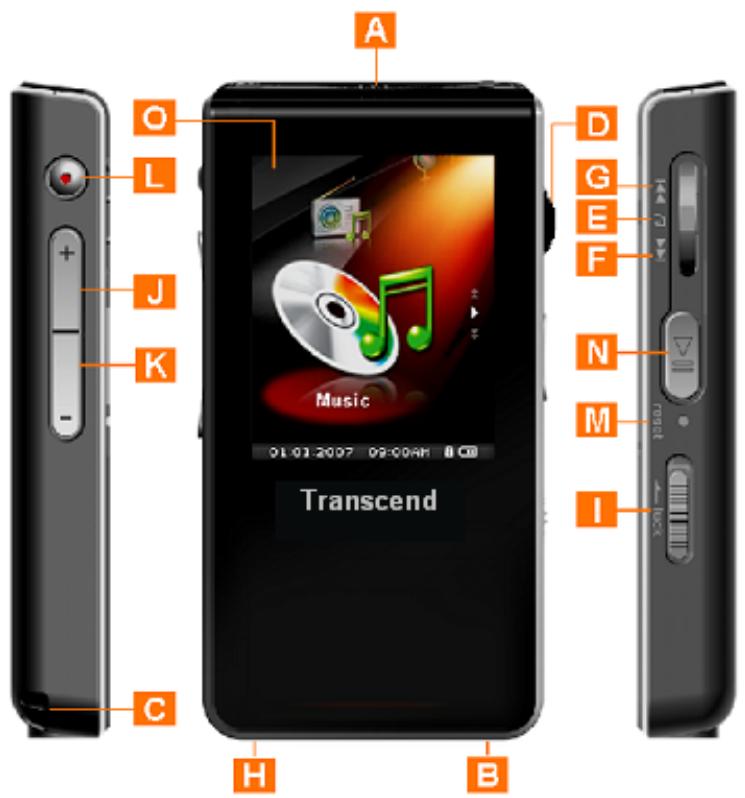
Product Overview
| A | Microphone | |
| B | Earphones Jack | |
| C | Neck Strap Hole | |
| D | Menu Switch | |
| E | Menu (In) | |
| F | Next / Fast Forward (Down) | |
| G | Previous / Fast Rewind (Up) | |
| H | Hi-Speed Mini USB 2.0 Port | |
| I | lock | LOCK Switch |
| J | + | Volume Up Button |
| K | - | Volume Down Button |
| L | A-B Repeat / Rec Button | |
| M | RESET | Reset Switch |
| N | II | PLAY / PAUSE / POWER ON-OFF Button |
| O | 1.8" Super Color LCD Display | |
Color LCD Display
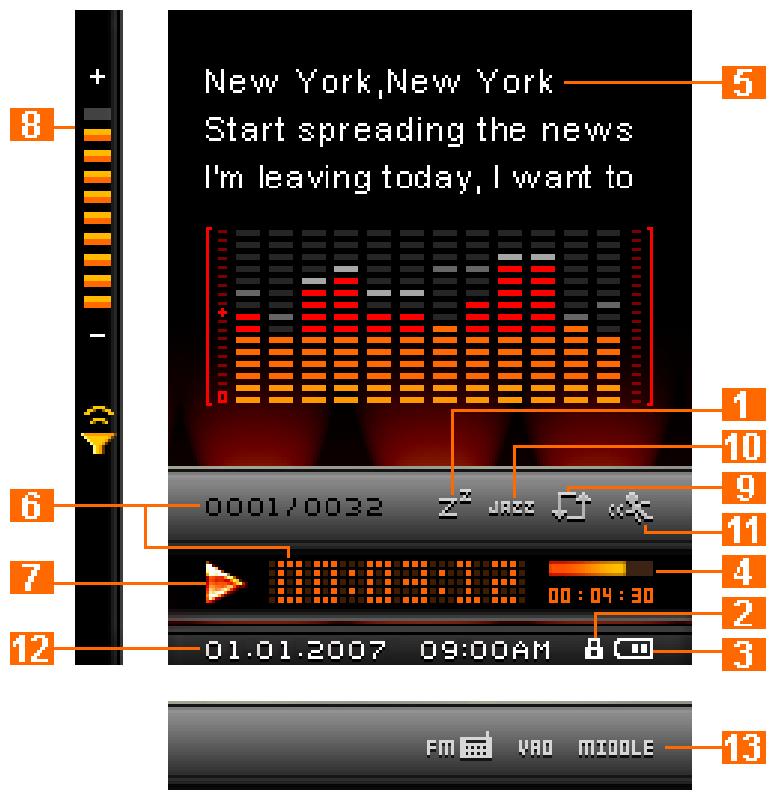
Figure 1. Color LCD Display
| ICON | INDICATION | |
| 1 | Sleep Mode | Indicates the Player is setup to auto Power OFF |
| 2 | Lock | Indicates when the Lock switch is enabled |
| 3 | Battery | Indicates the Battery power level |
| 4 | Scrollbar | Indicates the file length |
| 5 | Album/Artist | Indicates the Song title and Album and/or Artist name |
| 6 | Track Info | Indicates the Track number and Playtime length |
| 7 | Player Status | Indicates the Play, Pause, Fast Forward, Fast Rewind and Record status |
| 8 | Volume | Indicates the volume level |
| 9 | A-B Repeat | Indicates the A-B Repeat/Repeat/Shuffle modes: Normal, Repeat One, Repeat All, Shuffle and Normal/Repeat/Shuffle in a Folder |
| 10 | EQ Mode | Indicates the Equalizer (EQ) mode: Normal, POP, Rock, Classical, Jazz, Bass and USER EQ |
| 11 | Play Speed | Indicates the Playback speed |
| 12 | Time & Date | Real Time Clock (RTC) displays times & Date |
| 13 | REC settings | Indicates the Recording Quality and VAD |
Basic Operation
Charging the Battery
Plug the small end of the Mini USB to USB A-Type cable into the Mini USB connector on the MP840 and plug the large end of the cable into an available USB port on your desktop, or notebook computer. The MP840's internal Li-ion battery will begin charging.
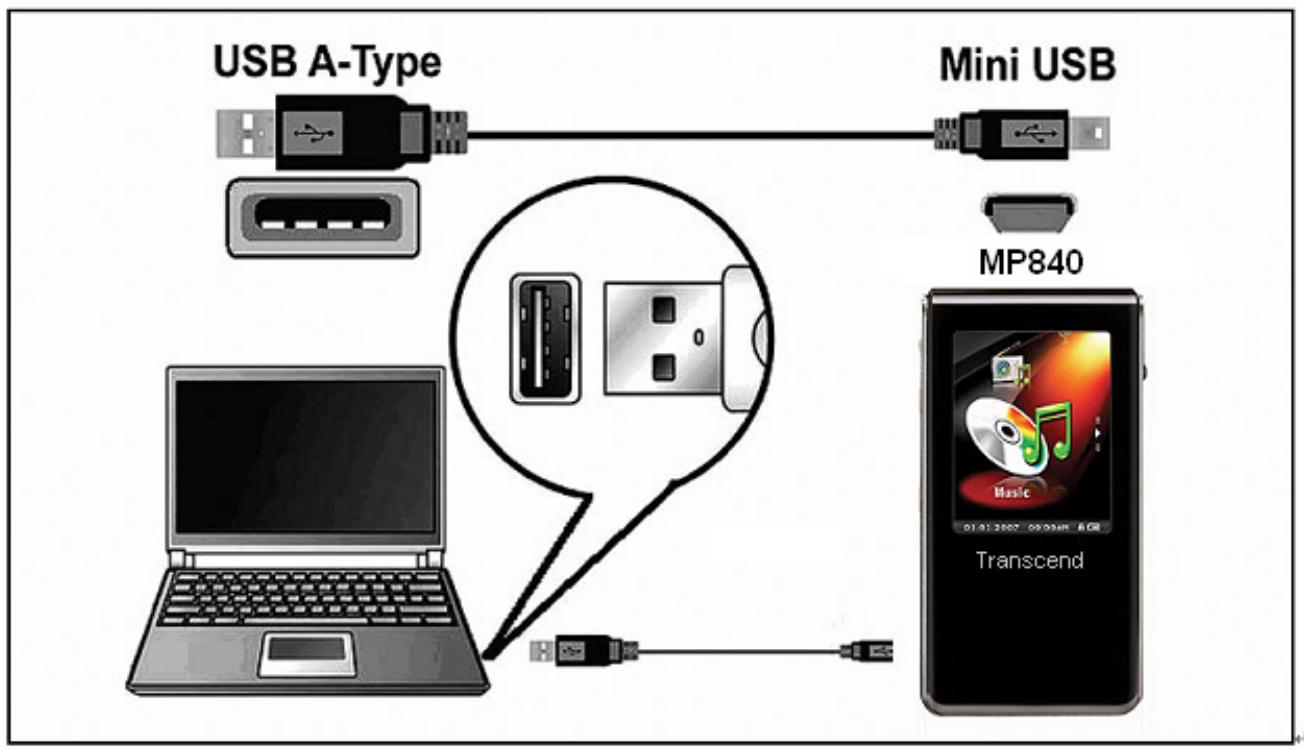
Figure 2. Connecting to a Computer
Power ON
Press and Hold the “PLAY / PAUSE / POWER ON-OFF” button to Power ON the MP840. An animated logo will appear on the Color LCD Display. After the startup screen disappears the player will revert to the default MUSIC Mode screen, you can now begin to use the MP840.





It takes a few seconds to Power ON the unit.
When powering on the unit, if the LOCK icon appears on the Color LCD Display, this means that the MP840's "LOCK" switch is on. You must switch off the "LOCK" before you can Power ON the MP840.
Power OFF
- Press and Hold the "PLAY / PAUSE / POWER ON-OFF" button to Power OFF the MP840.
It takes a few seconds to Power OFF the unit.
The Color LCD screen will display the Power OFF status.

Play a Track
- Press the "PLAY / PAUSE / POWER ON-OFF" button to play a selected Music, Video, Photo, E-book, or Recorded file.
Pause a Track
- Press the "PLAY / PAUSE / POWER ON-OFF" button to pause a track during playback.
Next Track
- Push the "Menu Switch" down (Next) to skip to the Next track.
Previous Track
- Push the "Menu Switch" up (Previous) to return to the Previous track.
Fast Forward
- Push and Hold the "Menu Switch" down (Next) to Fast Forward a track.
Fast Rewind
- Push and Hold the "Menu Switch" up (Previous) to Fast Rewind a track.
Increase Volume
- Press once, or Press and Hold the "Volume Up" button + until you reach the desired volume level.
Decrease Volume
- Press once, or Press and Hold the “Volume Down” button “-” until you reach the desired volume level.
Main Menu
- Press the "Menu Switch" inwards (MENU) in any Mode to enter the Main Menu. The Main Menu gives you access to the MUSIC, RADIO, RECORD, VIDEO, PHOTO, E-book and SETTINGS Modes.
File Navigation
- Press and Hold the "Menu Switch" inwards (MENU) in the MUSIC, RECORD, VIDEO, PHOTO, or E-book Mode to enter the File Navigator for that mode.
Make an Audio Recording
- Press and Hold the “A-B Repeat / Rec” button for more than 2 seconds in any mode except the RADIO Mode will activate the MP840's built-in microphone and begin recording.
- Press and Hold the “A-B Repeat / Rec” button for more than 2 seconds during a recording to stop the recording.
- Recorded audio files are saved in the RECORD Mode.
Repeat/Shuffle Functions
Normal, Repeat One, Repeat All, or Shuffle a track and Normal/Repeat/Shuffle tracks in a Folder, Please see the "REPEAT Mode" in the Settings section for detailed instructions.
A-B Repeat: Repeat a Section of a Track
- In the MUSIC, or RECORD Modes', press the "A-B Repeat / Rec" button once to mark the beginning of the track you wish to repeat.
- Press the “A-B Repeat / Rec” button again to mark the end of the section of the track you wish to repeat.
- The marked section of the track is played as a continuous loop when playing an MP3, WMA, WMA-DRM10, or WAV track.
- Press the "A-B Repeat / Rec" button for a third time to stop the track repeating.
Lock
When the "LOCK" switch is set to the "ON" position, all of the MP840's buttons are disabled.
Reset the MP840
You can Reset the unit by pressing the "Reset" button for 3 to 5 seconds.
MUSIC Mode

If you want to buy DRM (Digital Rights Management) music online please be advised that the MP840 only supports WMA-DRM10 music files and you must use the MTP Music Transfer Mode to transfer the files to the player.
Play MP3, WMA and WMA-DRM10 (Subscription) Music
- Press and Hold the “PLAY / PAUSE / POWER ON-OFF” button to Power ON the unit. The default screen is the MUSIC Mode screen.
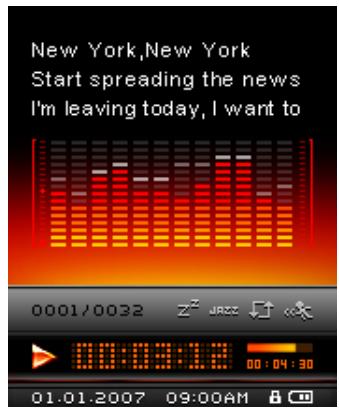
You can also enter the MUSIC Mode by pressing the “Menu Switch” inwards (MENU) to enter the Main Menu, then push the “Menu Switch” down (Next) or up (Previous) until you reach the “MUSIC” icon. Press the “Menu Switch” inwards (MENU) to enter the MUSIC Mode.
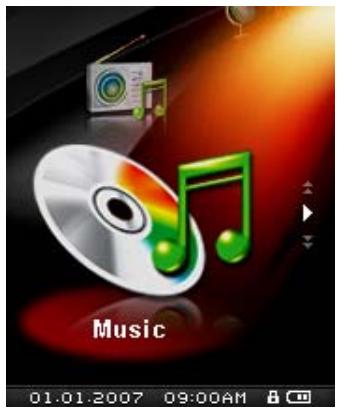
- If no MP3, WMA, or WMA-DRM10 files exist, a “No Files” message will be displayed on the Color LCD screen.
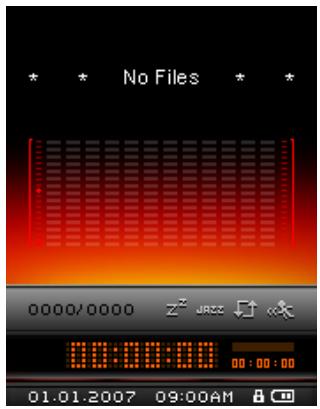
- Push the "Menu Switch" down (Next) ▷ or up (Previous) ▷ to select a desired MP3/WMA, or WMA-DRM10 file.
- Press the “PLAY / PAUSE / POWER ON-OFF” button to play the MP3/WMA, or WMA-DRM10 music file.
MP840 only supports Mpeg I Layer 3 and WMA files compressed at a rate between 32Kbps - 320Kbps.
File Navigator Mode
The File Navigator is a fast and convenient way of moving between tracks, files and folders.
- Press and Hold the "Menu Switch" inwards (MENU) to enter the Navigator.
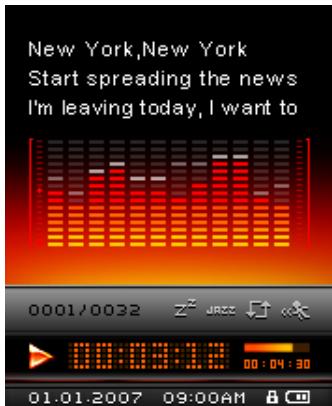

- Push the "Menu Switch" down (Next) or up (Previous) to select a folder.
- Press the "Menu Switch" inwards (MENU) to enter a folder, push the "Menu Switch" down (Next) or up (Previous) to select a file and press the "PLAY / PAUSE / POWER ON-OFF" button to play a selected music file.
- Pushing the "Menu Switch" up (Previous) and selecting the top entry will move you up one folder level.
-
Repeating the previous operation will take you back to the root directory [/Root.DIR/) (top folder level).
-
Pushing the "Menu Switch" up (Previous) and selecting the top entry in the root directory [/Root.DIR/] (top folder level) will quit the Navigator.
Delete a file in the MUSIC Mode
- In the MUSIC Mode, Press and Hold the “Menu Switch” inwards (MENU) to enter the Navigator.
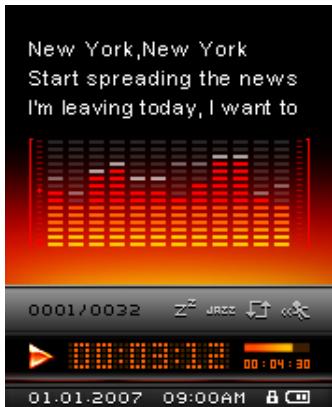
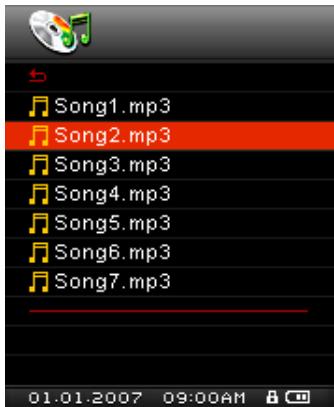
- Push the "Menu Switch" down (Next) or up (Previous) to select a folder.
- Press the "Menu Switch" inwards (MENU) to enter a folder, push the "Menu Switch" down (Next) or up (Previous) to select a file.
- Press the "A-B Repeat / Rec" button to open the Delete a file options.
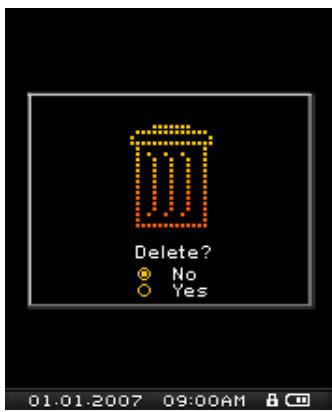
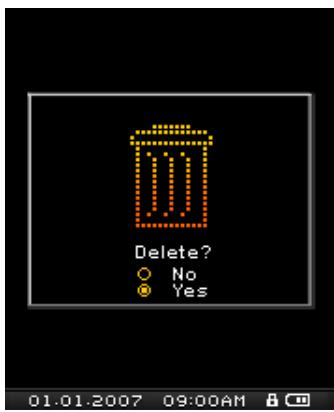
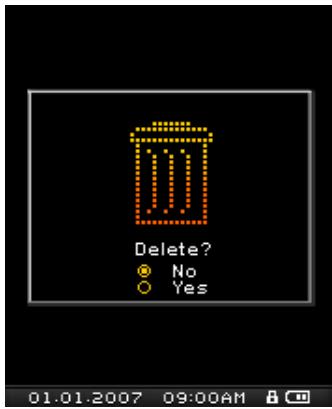
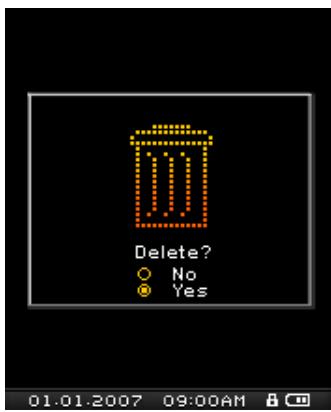
- Push the "Menu Switch" down (Next) ▷ or up (Previous) ▷ to select YES, or NO to Delete the file and press the "Menu Switch" inwards (MENU) □ to confirm the selection and return to the NAVIGATOR Mode.
RADIO Mode
Listen to the Radio
- The Earphones must be plugged in to listen to the Radio.
- Press the "Menu Switch" inwards (MENU) to enter the Main Menu.
- Push the "Menu Switch" down (Next) or up (Previous) until you reach the "RADIO" icon. Press the "Menu Switch" inwards (MENU) to enter the RADIO Mode.
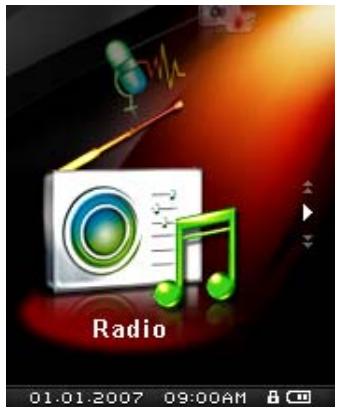
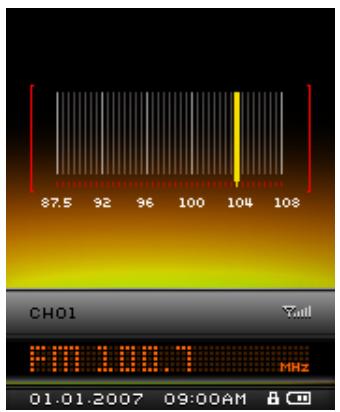
- The FM Radio Frequency will be displayed on the Color LCD screen.
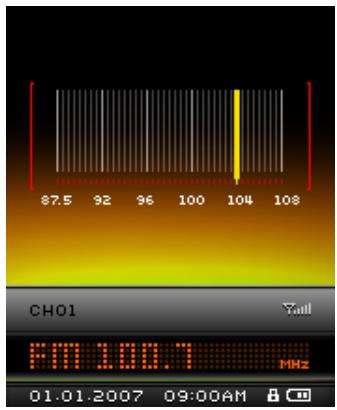
For your convenience the first time you use the Radio, all the FM channels will be automatically scanned and the first 20 channels with a strong signal will be preset. This feature also works if you activate the "FM Reset" in the SETTINGS menu.
Selecting a Radio Station
You can manually search for a Radio station in the RADIO Mode.
- Push the "Menu Switch" down (Next) or up (Previous) to adjust the FM frequency by 0.1 MHz each time until you reach the desired station. Alternatively, you can Push and Hold the "Menu Switch" down (Next) or up (Previous) to quickly auto-scan for the next available channel.
Increase/Decrease the Volume
- Press once, or Press and Hold the “Volume Up” button “+”, or “Volume Down” button “-” until you reach the desired volume level.
Saving a Radio Station
You can save your 20 favorite Radio stations from CH 01 to CH 20 in the MP840's memory.
- Select the Radio station (FM frequency) that you wish to save.
- Press the "A-B Repeat / Rec" button to enter the Preset FM Channel.
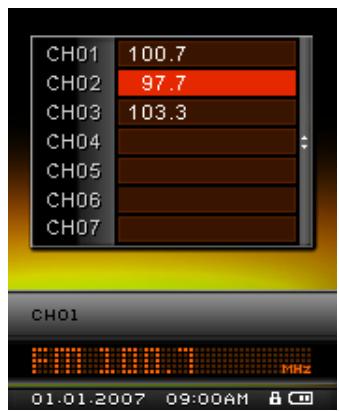
- Push the "Menu Switch" down (Next) or up (Previous) to select a channel number and press the "A-B Repeat / Rec" button to save the selected station to it.
Recall a Saved Station
- In the RADIO Mode press the “A-B Repeat / Rec” button to enter the Preset FM Channel.
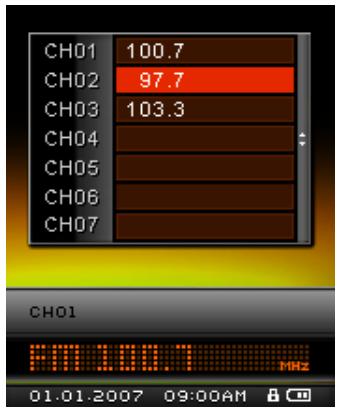
- Push the "Menu Switch" down (Next) or up (Previous) to select the channel number of the Radio station to which you want to listen and press the "PLAY / PAUSE / POWER ON-OFF" button then the Radio station that has been saved to this channel will begin to play.
- The screen will return to the RADIO Mode displaying the saved FM frequency.
Record a Radio Station
- Select the Radio station (FM frequency) that you wish to record.
- Press and Hold the “A-B Repeat / Rec” button for more than 2 seconds to begin recording the station.
- A recording FM Radio file is generated and will appear on the screen; this file is saved in the RECORD Mode in the [/FMIN.DIR/) folder.
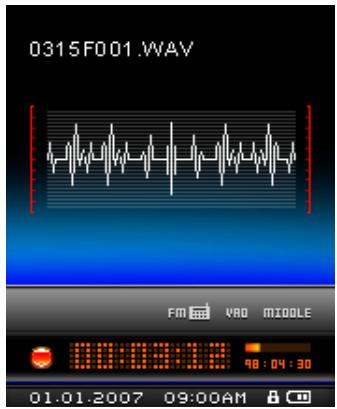
- Files Recorded from the FM Radio are named in the order [Month/DayF001.WAV], then [Month/DayF002.WAV], and so forth.
- Pressing the “PLAY / PAUSE / POWER ON-OFF” button during a recording will Pause the recording, pressing the “PLAY / PAUSE / POWER ON-OFF” button again will resume the recording.
-
Press and Hold the “A-B Repeat / Rec” button for more than 2 seconds during a recording to stop the recording and the screen will return to the RADIO Mode.
-
Radio Recordings are saved in the RECORD Mode in the [/FMIN.DIR/) folder, Recorded Radio files are saved in the order [Month/DayF001.WAV], then [Month/DayF002.WAV], and so forth. Recorded Radio files can be accessed using the File Navigator.
| Record Sound | Sample rate | Channels | 2GB | 4GB |
| Low (8KHz) | 2 (stereo) | 64 hrs | 128 hrs | |
| Med (16KHz) | 2 (stereo) | 32 hrs | 64 hrs | |
| High (32KHz) | 2 (stereo) | 16 hrs | 32 hrs |
If not enough memory space is available, or the battery power is too low, the MP840 cannot support the maximum recording capacity as outlined in the above table.
RECORD Mode
Record Sound
The MP840 has advanced recording features and is capable of recording audio from 2 different sources:
FM Radio or Built-In Microphone. Both are capable of making very high quality Audio Recordings.
The FM Radio recording feature has been covered in the previous section "Record a Radio Station."
Record using the Built-In Microphone
- Pressing and Holding the “A-B Repeat / Rec” button for more than 2 seconds in any mode except the RADIO Mode will begin an audio recording using the MP840's Built-in Microphone.
- A Recording file is generated and will appear on the screen; this file is saved in the RECORD Mode in the [/MICIN.DIR/) folder.
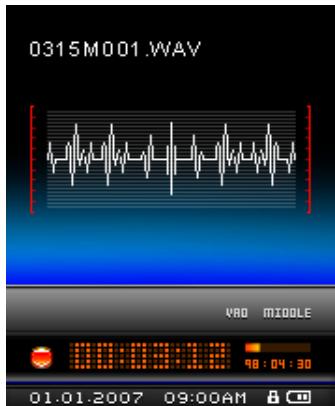
- Files Recorded using the Built-in Microphone are named in the order [Month/DayM001.WAV], then [Month/DayM002.WAV] and so forth.
- Pressing the “PLAY / PAUSE / POWER ON-OFF” button during a recording will Pause the recording, pressing the “PLAY / PAUSE / POWER ON-OFF” button again will resume the recording.
- Press the “A-B Repeat / Rec” button for more than 2 seconds during a recording to stop the recording and the screen will return to the RECORD Mode.
- Recorded audio files can be accessed in the RECORD Mode, or by using the File Navigator.
| Record Sound | Sample rate | Channels | 2GB | 4GB |
| Low (8KHz) | 1 (mono) | 128 hrs | 256 hrs | |
| Med (16KHz) | 1 (mono) | 64 hrs | 128 hrs | |
| High (32KHz) | 1 (mono) | 32 hrs | 64 hrs |
If not enough memory space is available, or the battery power is too low, the MP840 cannot support the maximum recording capacity as outlined in the above table.
The closer you move the MP840's Microphone to the source of the sound the higher the quality of the
recording.
Play a Recorded Sound File
- Press the "Menu Switch" inwards (MENU) to enter the Main Menu.
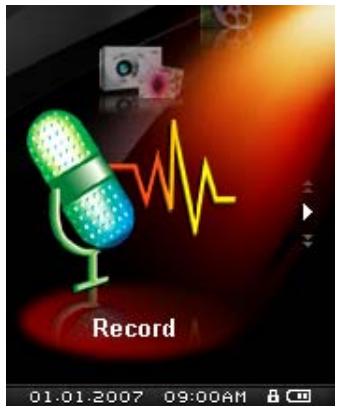
- Push the "Menu Switch" down (Next) or up (Previous) until you reach the "A-B Repeat / Rec" icon. Press the "Menu Switch" inwards (MENU) to enter the RECORD Mode.
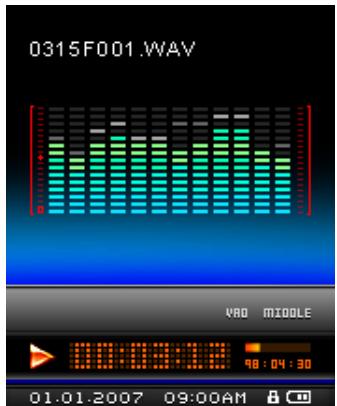
- Push the "Menu Switch" down (Next) or up (Previous) to select a desired [Month/DayF00x.WAV], or [Month/DayM00x.WAV] file.
- Press the "PLAY / PAUSE / POWER ON-OFF" button to play the recorded file.
File Navigator Mode
The File Navigator is a fast and convenient way of moving between tracks, files and folders.
- In RECORD Mode, Press and Hold the "Menu Switch" inwards (MENU) to enter the Navigator.
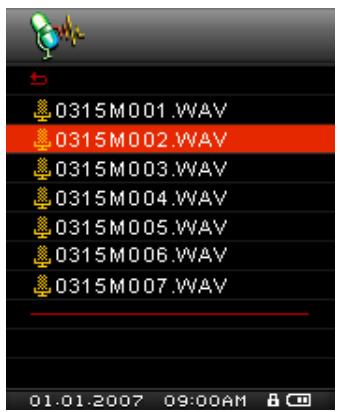
- Navigator starts at the location of the file you just played. Push the "Menu Switch" down (Next) or up (Previous) to select a folder or push the "Menu Switch" down (Next) or up (Previous) to select a [Month/DayM00x.WAV] or [Month/DayF00x.WAV] file and press the "PLAY / PAUSE / POWER ON-OFF" button to play the file.
- Pushing the "Menu Switch" up (Previous) and selecting the top entry will move you up one folder level.
- Repeating the previous operation will take you back to the root directory [/Root.DIR/) (top folder level). Push the "Menu Switch" down (Next) ▷ or up (Previous) ▷ to select the [/MICIN.DIR/) or [/FMIN.DIR/) folder at the root directory [/Root.DIR] (top folder level).
- Pushing the "Menu Switch" up (Previous) and selecting the top entry in the root directory [/Root.DIR/) (top folder level) will quit the Navigator.
Delete a file in the RECORD Mode
- Press and Hold the "Menu Switch" inwards (MENU) to enter the Navigator.
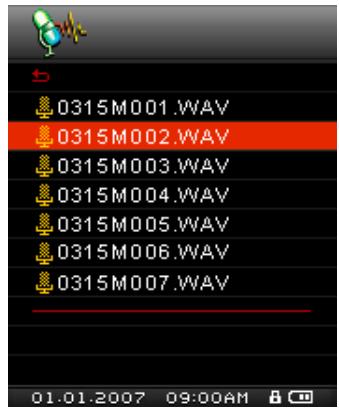
- Push the "Menu Switch" down (Next) or up (Previous) to select a folder.
-
Press the "Menu Switch" inwards (MENU) to enter a folder, push the "Menu Switch" down (Next) or up (Previous) to select a file and press the "A-B Repeat / Rec" button to enter the DELETE FILE Mode.
-
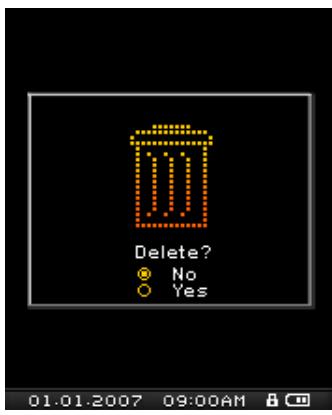
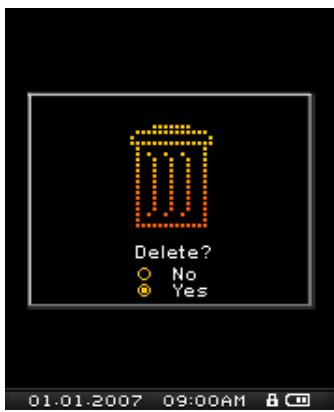
Push the "Menu Switch" down (Next) ▷ or up (Previous) ▷ to select YES, or NO to Delete the file and press the "Menu Switch" inwards (MENU) □ to confirm the selection and return to the NAVIGATOR Mode.
VIDEO Mode

If you want to play Videos on your MP840 you must convert your Video file(s) to the '.mtv' file format before transferring the Video to the player.
Play MTV Video files on your MP840
- Press the "Menu Switch" inwards (MENU) to enter the Main Menu.
- Push the “Menu Switch” down (Next) ▷ or up (Previous) ▷ until you reach the “VIDEO” icon. Press the “Menu Switch” inwards (MENU) □ to enter the VIDEO Mode.
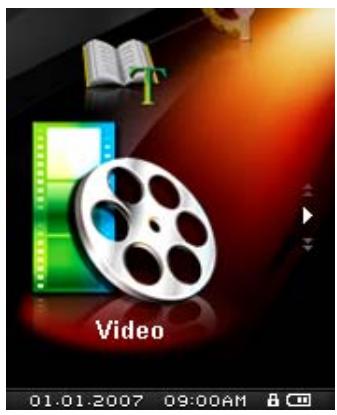
- Push the "Menu Switch" down (Next) or up (Previous) to select a desired MTV file.
- Press the "PLAY/PAUSE/POWER ON-OFF" button to play the Video file.

- During Video Playback Pressing and Holding the "Menu Switch" down (Next) will Fast Forward the Video and Pressing and Holding the "Menu Switch" up (Previous) will Fast Rewind the Video.
MP840 only supports“.mtv” video files. You must use the“Transcend Multimedia Converter” Software to convert“.MPEG4,”“.DivX,”“.AVI” and“.xVID” video files to the“.mtv” format.
File Navigator Mode
The File Navigator is a fast and convenient way of moving between files and folders.
- In the VIDEO Mode, Press and Hold the “Menu Switch” inwards (MENU) to enter the Navigator.
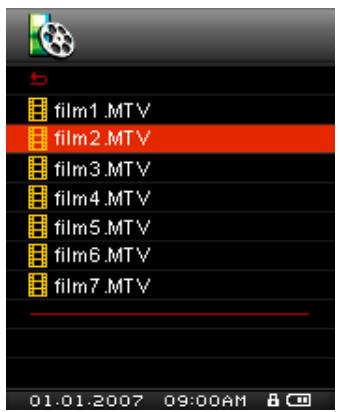
- Push the "Menu Switch" down (Next) or up (Previous) to select a folder.
- Press the "Menu Switch" inwards (MENU) to enter a folder, push the "Menu Switch" down (Next) or up (Previous) to select a file and press the "PLAY / PAUSE / POWER ON-OFF" button to play a selected Video file.
- Pushing the "Menu Switch" up (Previous) and selecting the top entry will move you up one folder level.
- Repeating the previous operation will take you back to the root directory [/Root.DIR/] (top folder level).
- Pushing the "Menu Switch" up (Previous) and selecting the top entry in the root directory [/Root.DIR/) (top folder level) will quit the Navigator.
Delete a file in the VIDEO Mode
- Press and Hold the "Menu Switch" inwards (MENU) to enter the Navigator.
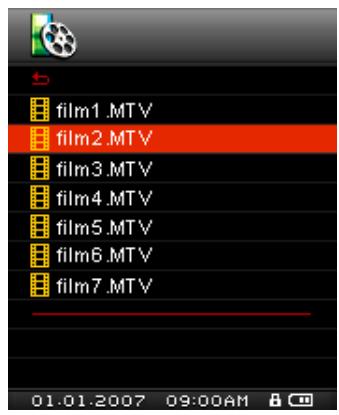
- Push the "Menu Switch" down (Next) or up (Previous) to select a folder.
-
Press the "Menu Switch" inwards (MENU) to enter a folder, push the "Menu Switch" down (Next) or up (Previous) to select a file and press the "A-B Repeat / Rec" button to enter the DELETE FILE Mode.
-
Push the "Menu Switch" down (Next) ▷ or up (Previous) ▷ to select YES, or NO to Delete the file and press the "Menu Switch" inwards (MENU) □ to confirm the selection and return to the NAVIGATOR Mode.
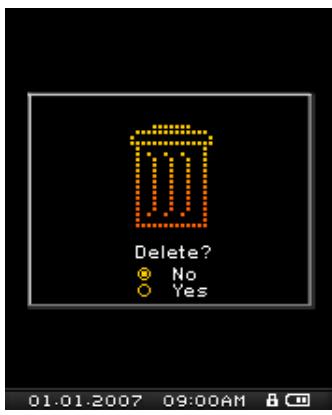
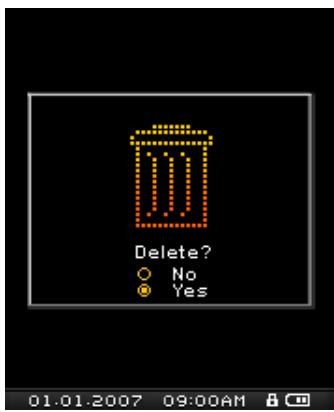
PHOTO Mode

If you want to display Photos on your MP840 you must select a '.jpg' or '.bmp' photo file to transfer to the player.
Display JPG and BMP Photo files on your MP840
- Press the "Menu Switch" inwards (MENU) to enter the Main Menu.
- Push the "Menu Switch" down (Next) or up (Previous) until you reach the "PHOTO" icon. Press the "Menu Switch" inwards (MENU) to enter the PHOTO Mode.
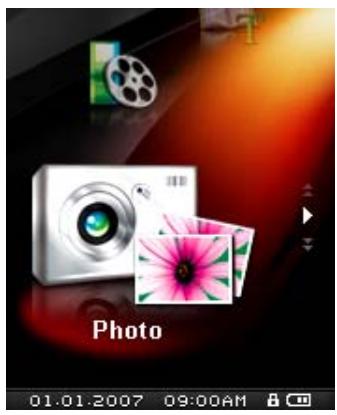
- Push the "Menu Switch" down (Next) or up (Previous) to select a desired JPG, or BMP file.
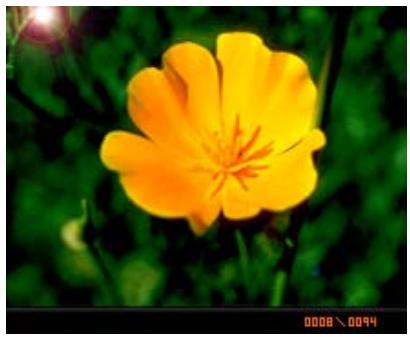
- Press the "PLAY / PAUSE / POWER ON-OFF" button to display the Photo file, press the "PLAY / PAUSE / POWER ON-OFF" button again to begin the Photo Slideshow.
MP840 only supports“.jpg” and“.bmp” photo files.
File Navigator Mode
The File Navigator is a fast and convenient way of moving between files and folders.
- In the PHOTO Mode, Press and Hold the “Menu Switch” inwards (MENU) to enter the Navigator.
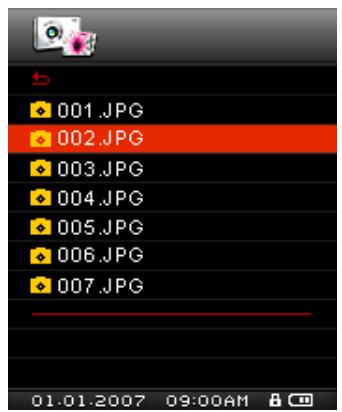
- Push the "Menu Switch" down (Next) or up (Previous) to select a folder.
- Press the "Menu Switch" inwards (MENU) to enter a folder, push the "Menu Switch" down (Next) or up (Previous) to select a file and press the "PLAY / PAUSE / POWER ON-OFF" button to display a selected Photo file.
- Pushing the "Menu Switch" up (Previous) and selecting the top entry will move you up one folder level.
- Repeating the previous operation will take you back to the root directory [/Root.DIR/] (top folder level).
- Pushing the "Menu Switch" up (Previous) and selecting the top entry in the root directory [/Root.DIR/) (top folder level) will quit the Navigator.
Delete a file in the PHOTO Mode
- Press and Hold the "Menu Switch" inwards (MENU) to enter the Navigator.
- Push the "Menu Switch" down (Next) or up (Previous) to select a folder.
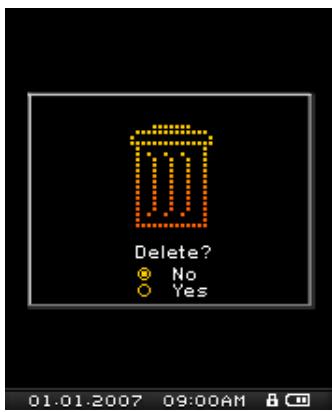
- Press the "Menu Switch" inwards (MENU) to enter a folder, push the "Menu Switch" down (Next) or up (Previous) to select a file and press the "A-B Repeat / Rec" button to enter the DELETE FILE Mode.
- Push the "Menu Switch" down (Next) ▷ or up (Previous) ▷ to select YES, or NO to Delete the file and press the "Menu Switch" inwards (MENU) □ to confirm the selection and return to the NAVIGATOR Mode.
E-book Mode

If you want to read E-books on your MP840 you must select a ‘.txt’ E-book file to transfer to the player.
Read TXT E-book files on your MP840
- Press the "Menu Switch" inwards (MENU) to enter the Main Menu.
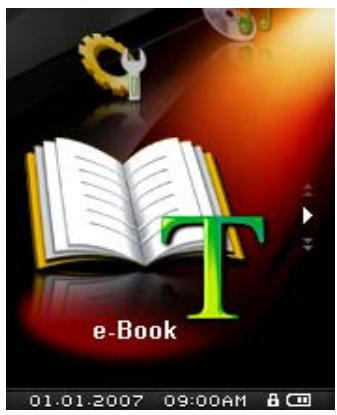
- Push the "Menu Switch" down (Next) or up (Previous) until you reach the "E-book" icon. Press the "Menu Switch" inwards (MENU) to enter the E-book Mode.
- Push the "Menu Switch" down (Next) or up (Previous) to select a desired TXT file.
- Press the "PLAY / PAUSE / POWER ON-OFF" button to display the E-book.
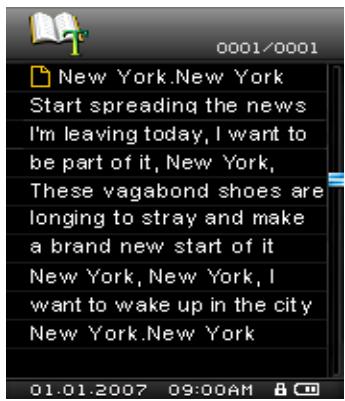
- Push the "Menu Switch" down (Next) or up (Previous) to move Up/Down to the Previous/Next line of text in the E-book.
MP840 only supports“.txt” E-book files.
File Navigator Mode
The File Navigator is a fast and convenient way of moving between files and folders.
- In the E-book Mode, Press and Hold the “Menu Switch” inwards (MENU) to enter the Navigator.
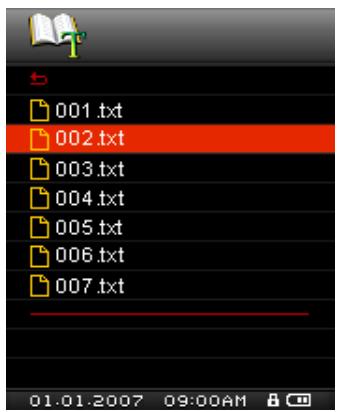
- Push the "Menu Switch" down (Next) or up (Previous) to select a folder.
- Press the "Menu Switch" inwards (MENU) to enter a folder, push the "Menu Switch" down (Next) or up (Previous) to select a file and press the "PLAY / PAUSE / POWER ON-OFF" button to play a selected E-book file.
- Pushing the "Menu Switch" up (Previous) and selecting the top entry will move you up one folder level.
- Repeating the previous operation will take you back to the root directory [/Root.DIR/] (top folder level).
- Pushing the "Menu Switch" up (Previous) and selecting the top entry in the root directory [/Root.DIR/) (top folder level) will quit the Navigator.
Delete a file in the E-book Mode
- Press and Hold the "Menu Switch" inwards (MENU) to enter the Navigator.
- Push the "Menu Switch" down (Next) or up (Previous) to select a folder.
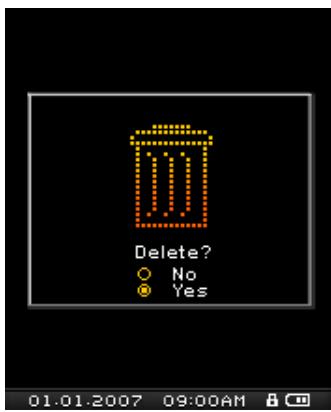
- Press the "Menu Switch" inwards (MENU) to enter a folder, push the "Menu Switch" down (Next) or up (Previous) to select a file and press the "A-B Repeat / Rec" button to enter the DELETE FILE Mode.
- Push the "Menu Switch" down (Next) ▷ or up (Previous) ▷ to select YES, or NO to Delete the file and press the "Menu Switch" inwards (MENU) □ to confirm the selection and return to the NAVIGATOR Mode.
Settings
Enter the Settings Menu
- Press the "Menu Switch" inwards (MENU) to enter the Main Menu.
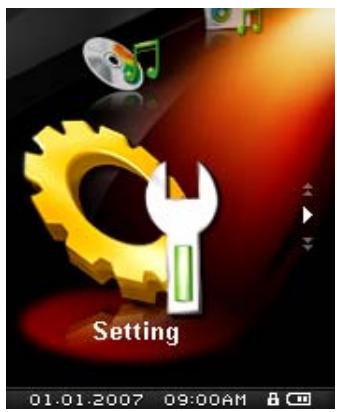
- Push the "Menu Switch" down (Next) or up (Previous) until you reach the " SETTINGS" icon. Press the "Menu Switch" inwards (MENU) to enter the SETTINGS Mode.
Equalizer (EQ) Mode
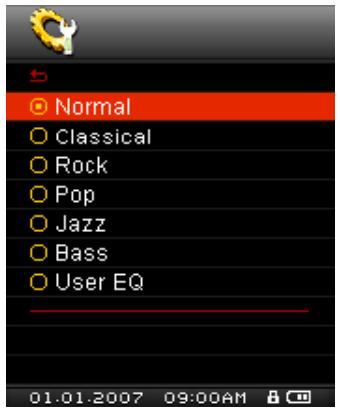
There are several EQUALIZER Modes to choose from: Normal, Classical, Rock, Pop, Jazz, Bass, User EQ.
- In the SETTINGS Menu, push the "Menu Switch" down (Next) or up (Previous) to select the EQ item, then press the "Menu Switch" inwards (MENU) to enter the EQUALIZER Mode.
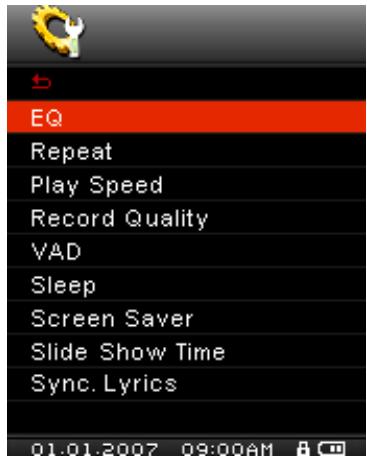
- Push the "Menu Switch" down (Next) or up (Previous) to change the EQUALIZER Mode, press the "Menu Switch" inwards (MENU) to select the EQ setting and return to the SETTINGS Menu. You will immediately hear the different sound effect in your earphones.
User EQ Customization
The User EQ allows you to customize the settings of a 5 Band Equalizer to your personal preferences.
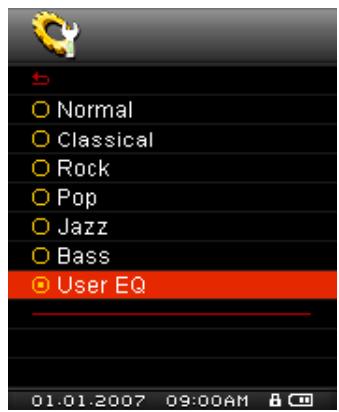
- In the EQUALIZER Mode, push the “Menu Switch” down (Next) ▷ or up (Previous) ▷ to select the User EQ item, then press the “Menu Switch” inwards (MENU) □ to enter the USER EQ Mode.
- Push the "Menu Switch" down (Next) ▷ or up (Previous) ▷ to switch between the 5 customizable equalizer Bands: 80Hz - 250Hz - 1KHz - 4KHz - 12KHz. Press the "Volume Up" button “+”, or "Volume Down" button “-” to Increase, or Decrease the EQ settings from -8dB to +7dB in 1.0dB steps.
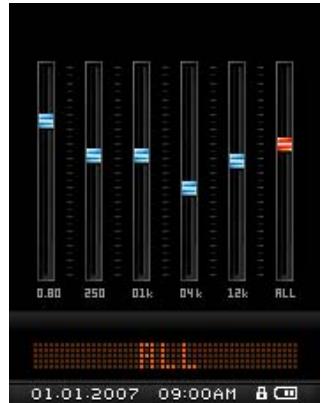
Press the "Menu Switch" inwards (MENU) to save the new User EQ settings and return to the EQUALIZER Mode.
Repeat Mode
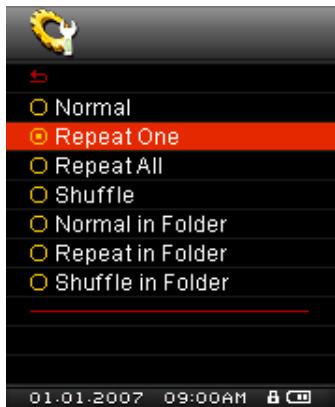
There are several REPEAT Modes to choose from: Normal, Repeat One, Repeat All, Shuffle and Normal/Repeat/Shuffle all the files in a Folder.
- In the SETTINGS Menu, push the “Menu Switch” down (Next) ▷ or up (Previous) ▷ to select the Repeat item, then press the “Menu Switch” inwards (MENU) □ to enter the REPEAT Mode.
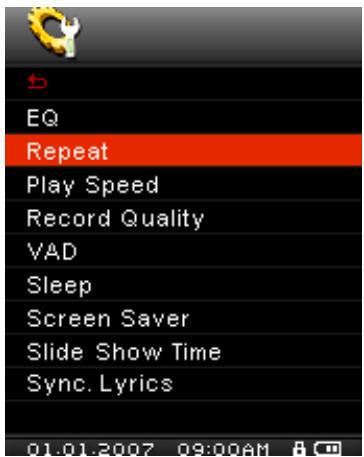
- Push the "Menu Switch" down (Next) or up (Previous) to change the REPEAT Mode press the "Menu Switch" inwards (MENU) to select the Repeat setting and return to the SETTINGS Menu.
Play Speed
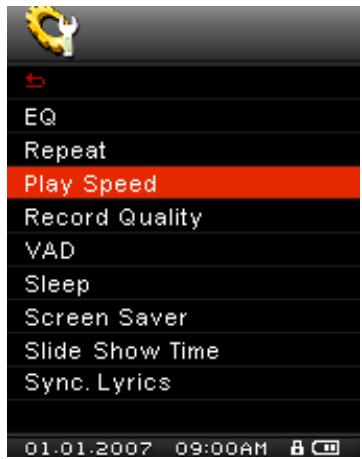
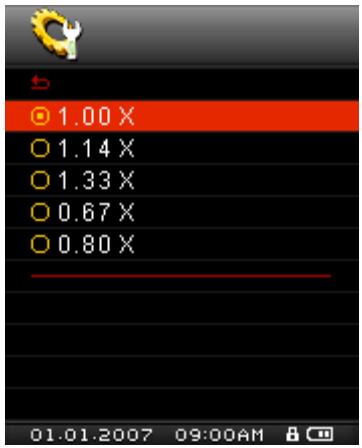
The speed at which you listen to an audio file can be increased, or decreased. Playback speeds can be set to 0.67x, 0.8x, 1.0x, 1.14x and 1.33x.
- In the SETTINGS Menu, push the “Menu Switch” down (Next) ▷ or up (Previous) ▷ to select the Play Speed item, then press the “Menu Switch” inwards (MENU) □ to enter the Play Speed Menu.
- Push the “Menu Switch” down (Next) ▷ or up (Previous) ▷ to switch between the 5 Play Speed settings: 1.00x - 1.14x - 1.33x - 0.67x - 0.80x . Press the “Menu Switch” inwards (MENU) □ to select the Play Speed and return to the SETTINGS Menu.
Record Quality
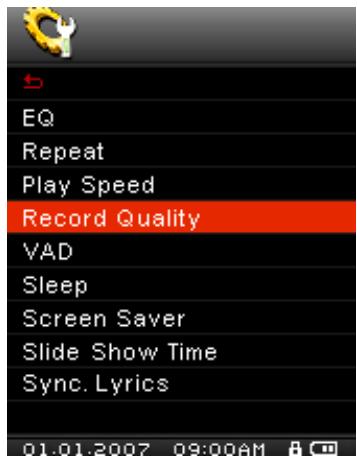
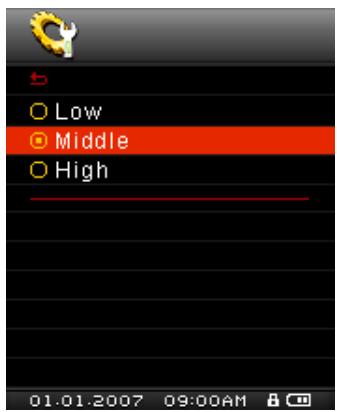
The quality of an audio recording can be set to Low (8,000Hz), Middle (16,000Hz), or High (32,000Hz), but the higher you set the Record Quality the greater the memory space required to save the resulting WAV file.
- In the SETTINGS Menu, push the “Menu Switch” down (Next) ▷ or up (Previous) ▷ to select the Record Quality item, then press the “Menu Switch” inwards (MENU) □ to enter the Record Quality Mode.
- Push the "Menu Switch" down (Next) or up (Previous) to switch between the 3 Record Quality settings: Low - Middle - High. Press the "Menu Switch" inwards (MENU) to select the Record Quality level and return to the SETTINGS Menu.
| Record Sound | Sample rate | Channels | 2GB | 4GB |
| Low (8KHz) | 1 (stereo/mono) | 64/128 hrs | 128/256 hrs | |
| Middle (16KHz) | 1 (stereo/mono) | 32/64 hrs | 64/128 hrs | |
| High (32KHz) | 1 (stereo/mono) | 16/32 hrs | 32/64 hrs |
If not enough memory space is available, or the battery power is too low, the MP840 cannot support the maximum recording capacity as outlined in the above table.
The closer you move the MP840's Microphone to the source of the sound the higher the quality of the recording.
RADIO Recordings are recorded in Stereo. MIC Recordings are recorded in Mono.
VAD (Voice Activation Detection)
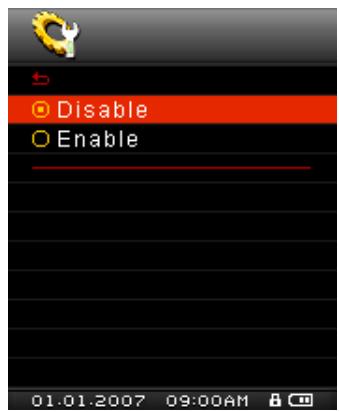
VAD allows the MP840 to make gapless audio recordings. This means the player will only begin recording when it detects the subject is speaking, if the person(s) pauses, or stops speaking the MP840 will stop recording until the person(s) starts speaking again. This allows you to make complete and very easy to listen to recordings.
- In the SETTINGS Menu, push the "Menu Switch" down (Next) or up (Previous) to select the VAD item, then press the "Menu Switch" inwards (MENU) to enter the VAD Mode.
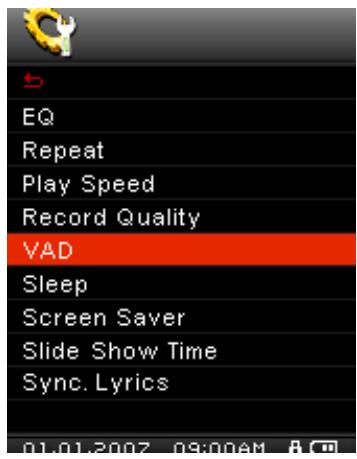
- Push the "Menu Switch" down (Next) or up (Previous) to select the DISABLE, or ENABLE option and press the "Menu Switch" inwards (MENU) to confirm the selection and return to the SETTINGS Menu.
Sleep
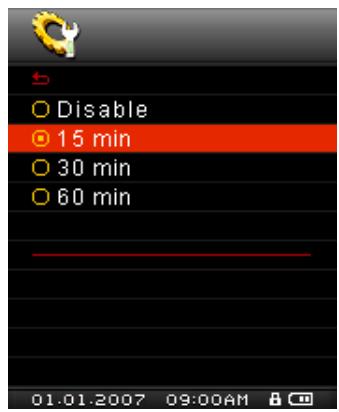
Sets a time delay to automatically Power OFF the MP840 even during operation.
- In the SETTINGS Menu, push the "Menu Switch" down (Next) or up (Previous) to select the Sleep item, then press the "Menu Switch" inwards (MENU) to enter the Sleep Mode.
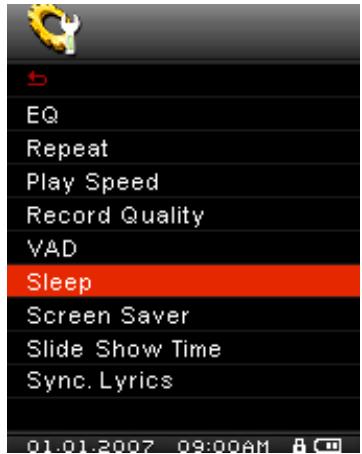
- Push the “Menu Switch” down (Next) ▷ or up (Previous) ▷ to set the Sleep timer for the unit to automatically Power OFF: Disable - 15 Min - 30 Min - 60 Min. Press the “Menu Switch” inwards (MENU) □ to select the Sleep timer delay and return to the SETTINGS Menu.
Screen Saver
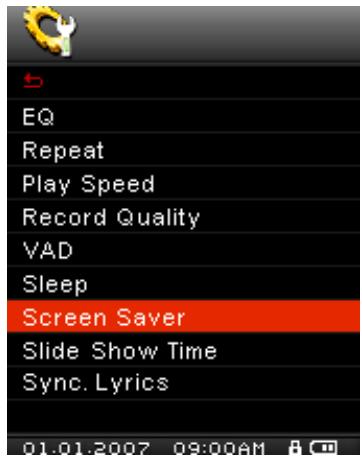
Sets a time delay for the screen to (1) display the Song Title, (2) display Clock, (3) go Blank, or (4) display Slide Show, if no buttons are being pressed e.g. After 30 Seconds of button inactivity the screen will go blank.
- In the SETTINGS Menu, push the “Menu Switch” down (Next) ▷ or up (Previous) ▷ to select the Screen Saver item, then press the “Menu Switch” inwards (MENU) □ to enter the Screen Saver Mode.
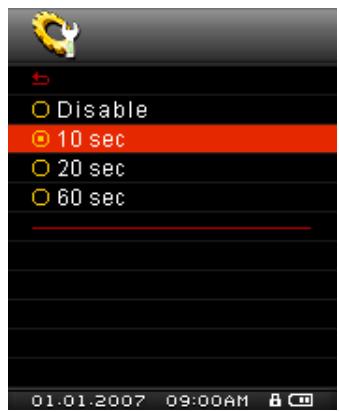
- Push the "Menu Switch" down (Next) or up (Previous) to set the timer for the Screen Saver: Disable - 10 Sec - 20 Sec - 60 Sec. Press the "Menu Switch" inwards (MENU) to select the Screen Saver time delay.
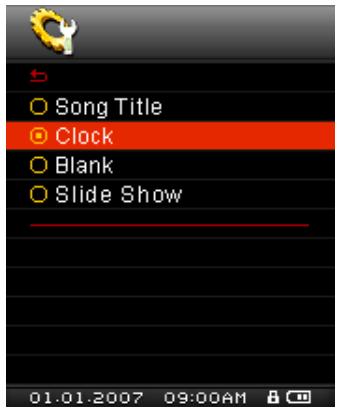
- After you select a Screen Saver time delay you can setup the screen to display the Song Title, display the Clock, go Blank, or display Slide Show when the screen saver is activated.
- Push the "Menu Switch" down (Next) or up (Previous) to select the Song Title, Clock, Blank, or Slide Show item. Press the "Menu Switch" inwards (MENU) to select the type of Screen Saver and return to the SETTINGS Menu.
Slide Show Time
Sets a time delay for the photo that is currently being displayed on the screen to change to the next photo. You must use the SlideShow Maker software application to setup a photo slideshow. The Slideshow feature will only work on“.sls” files. Please see the“SlideShow Maker” section in the Software Setup chapter to configure the Slideshow application.
- In the SETTINGS Menu, push the “Menu Switch” down (Next) ▷ or up (Previous) ▷ to select the Slide Show Time item, then press the “Menu Switch” inwards (MENU) □ to enter the Slide Show Time Mode.
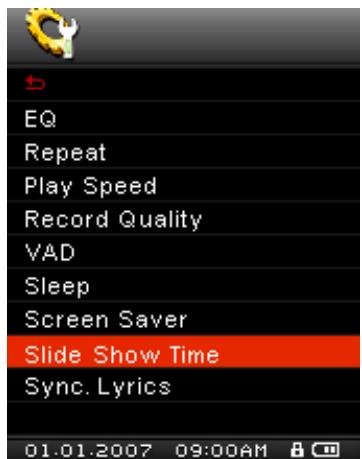
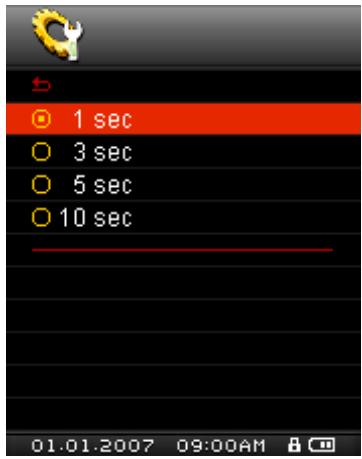
- Push the "Menu Switch" down (Next) or up (Previous) to set the timer for the Slideshow: 1 Sec - 3 Sec - 5 Sec - 10 Sec. Press the "Menu Switch" inwards (MENU) to select the Slideshow time delay and return to the SETTINGS Menu.
Sync. Lyrics
Karaoke-type feature that displays the lyrics of a song on the Color LCD screen during Playback.
- In the SETTINGS Menu, push the “Menu Switch” down (Next) ▷ or up (Previous) ▷ to select the Sync. Lyrics item, then press the “Menu Switch” inwards (MENU) □ to enter the Sync. Lyrics Mode.
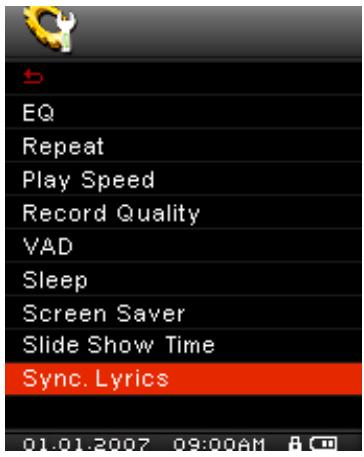
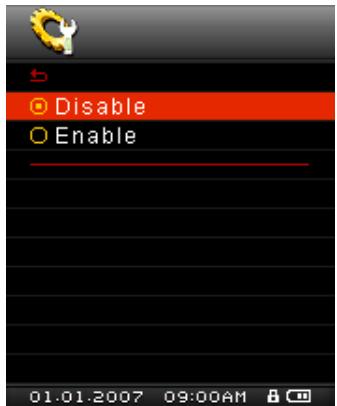
- Push the "Menu Switch" down (Next) or up (Previous) to Disable, or Enable the Sync. LYrics feature. Press the "Menu Switch" inwards (MENU) to save the selection and return to the SETTINGS Menu.
Date/Time Setting
The MP840's RTC displays the local time and date, both can be adjusted and an additional setting lets you enable Daylight Saving Time (DST) to allow for local Summer and Winter times.
- In the SETTINGS Menu, push the “Menu Switch” down (Next) ▷ or up (Previous) ▷ to select the Date/Time Setting item, then press the “Menu Switch” inwards (MENU) □ to enter the Date/Time Setting Mode.
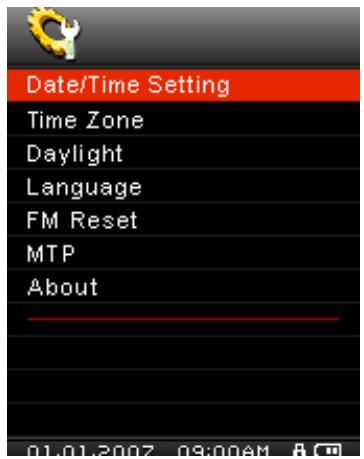
- Push the "Menu Switch" down (Next) ▷ or up (Previous) ▷ to switch between the Time, Month, Day and Year. Press the "Volume Up" button “+”, or "Volume Down" button “-” to change the time, or date.
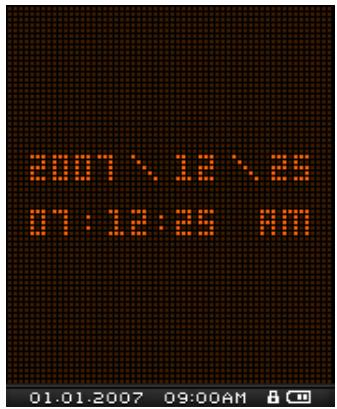
- Press the "Menu Switch" inwards (MENU) in the Date/Time Setting Menu to return to the SETTINGS Menu.
Time Zone
The MP840 has the ability to display the local time for different time zones; this is a handy feature if you are traveling.
- In the SETTINGS Menu, push the “Menu Switch” down (Next) ▷ or up (Previous) ▷ to select the Time Zone item, then press the “Menu Switch” inwards (MENU) □ to enter the Time Zone Mode.
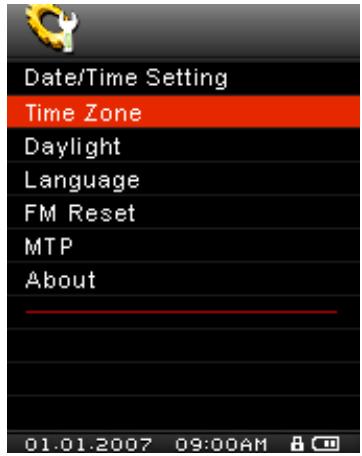
- In the Time Zone screen, push the "Menu Switch" down (Next) or up (Previous) to select the Time Zone you are in.
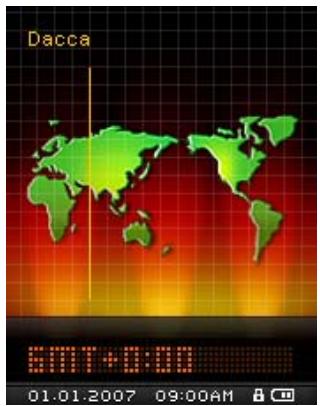
- Press the "Menu Switch" inwards (MENU) to confirm the new time zone and return to the SETTINGS Menu.
Daylight
The MP840 has the option of enabling/disabling the Daylight Saving Time (DST) feature for local summer or winter times.
- In the SETTINGS Menu, push the “Menu Switch” down (Next) ▷ or up (Previous) ▷ to select the Daylight item, then press the “Menu Switch” inwards (MENU) □ to enter the Daylight Mode.
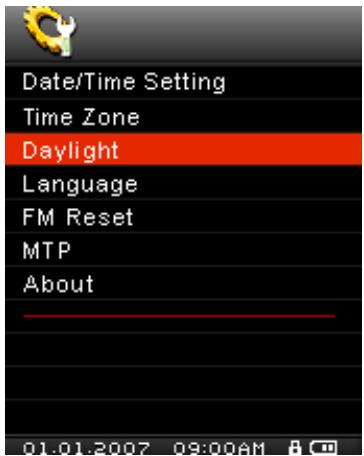
- Push the "Menu Switch" down (Next) or up (Previous) to Disable, or Enable the Daylight feature. Press the "Menu Switch" inwards (MENU) to save the selection and return to the SETTINGS Menu.
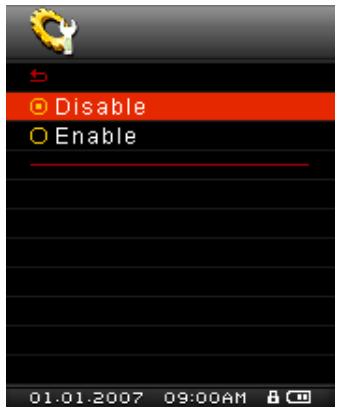
- Enabling the Daylight Saving Time feature will automatically adjust the MP840's Clock by plus, or minus one hour depending on the time of year and the time zone you are in.
Language
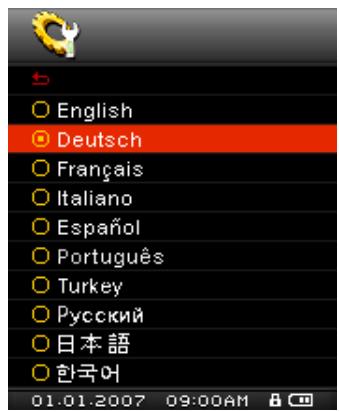
Sets the MP840's User language, including the display of song and artist titles. The player supports 13 User languages.
- In the SETTINGS Menu, push the “Menu Switch” down (Next) ▷ or up (Previous) ▷ to select the Language item, then press the “Menu Switch” inwards (MENU) □ to enter the LANGUAGE Mode.
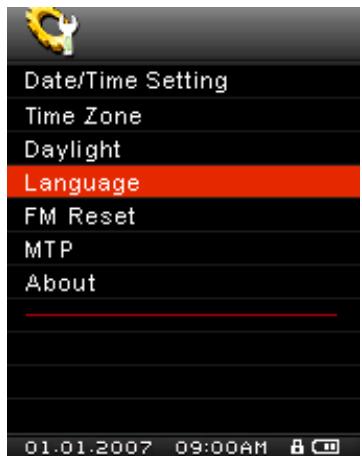
- Push the "Menu Switch" down (Next) or up (Previous) to change the User Language. Press the "Menu Switch" inwards (MENU) to select the new Language and return to the SETTINGS Menu.
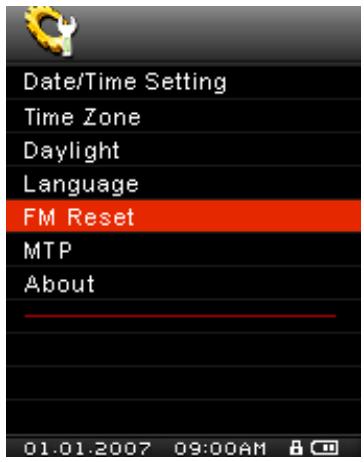
FM Reset
Reset the saved Radio stations, so the next time you enter the RADIO Mode the MP840 will automatically scan and save the 20 strongest Radio station signals.
- In the SETTINGS Menu, push the “Menu Switch” down (Next) or up (Previous) to select the FM Reset item, then press the “Menu Switch” inwards (MENU) to enter the FM Reset Mode.
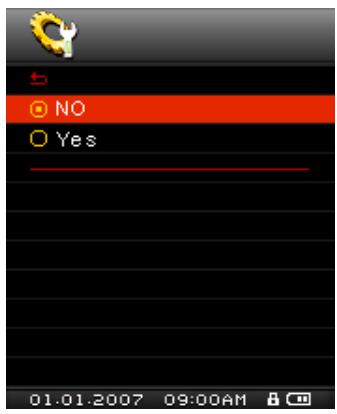
- Push the "Menu Switch" down (Next) or up (Previous) to select No, or Yes and press the "Menu Switch" inwards (MENU) to confirm the selection and return to the SETTINGS Menu.
Media Transfer Modes
To transfer Multimedia files to your MP840 you must select one of two Media Transfer Modes. One mode is the MTP (Media Transfer Protocol) Media Transfer Mode and the other is the USB Media Transfer Mode
MTP Media Transfer Mode
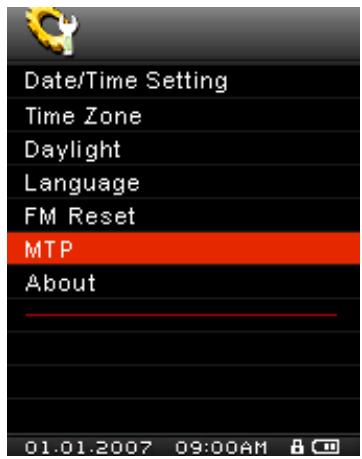
If you want to buy and play WMA-DRM10 (only) music files, you must select Windows Media Player 10 to transfer and synchronize your WMA-DRM10 music files with the MP840's MTP Folder.
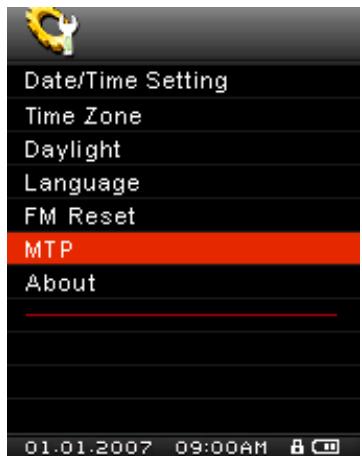
- In the SETTINGS Menu, push the "Menu Switch" down (Next) or up (Previous) to select the MTP item, then press the "Menu Switch" inwards (MENU) to enter the Media Transfer Mode.
- Push the "Menu Switch" down (Next) or up (Previous) to select MTP, press the "Menu Switch" inwards (MENU) to confirm the selection and return to the SETTINGS Menu.
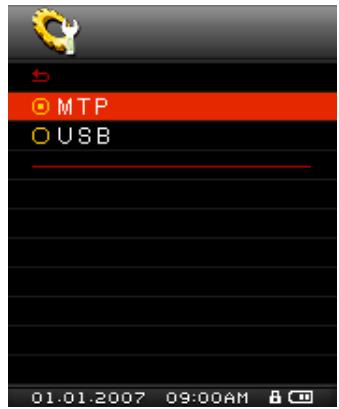
- When transferring files in the MTP Media Transfer Mode you will have the option of using two folders to store files, an MTP Media, or Data Folder. Use Windows Media Player 10 to transfer and synchronize your WMA-DRM10 music files with the MTP Folder. All other files should be transferred to the Data Folder.
USB Media Transfer Mode
If you are using a Mac™/Linux™ computer, or you want to create specific folders on your PC for each of your media files (Music, Video, Photo, E-book), please select the USB (WMA-DRM10 NOT supported) Media Transfer Mode to transfer multimedia files to your MP840.
- In the SETTINGS Menu, push the “Menu Switch” down (Next) or up (Previous) to select the MTP item, then press the “Menu Switch” inwards (MENU) to enter the Media Transfer Mode.
- Push the "Menu Switch" down (Next) or up (Previous) to select USB, press the "Menu Switch" inwards (MENU) to confirm the selection and return to the SETTINGS Menu.
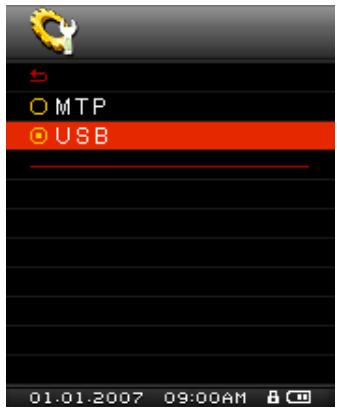
- In the USB Mode (WMA-DRM10 NOT supported) you can drag and drop files onto any media specific folders that you have created, or onto the MP840's corresponding Removable Disk drive letter.
About
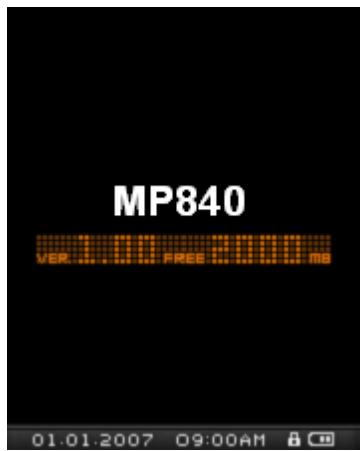
Displays information about the MP840's firmware version and memory capacity.
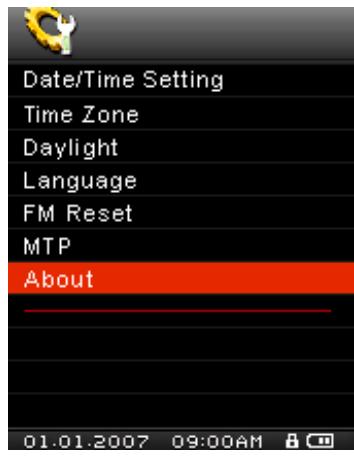
- In the SETTINGS Menu, push the “Menu Switch” down (Next) ▷ or up (Previous) ▷ to select the About item, then press the “Menu Switch” inwards (MENU) □ to display the About information on the Color LCD screen.
Driver Installation
Driver Installation for Windows® Me, 2000, XP and Vista
No drivers are required. These Windows® Operating Systems have built-in drivers to support the MP840.
Plug your MP840 into an available USB port and Windows® will install the necessary files. A new
Removable Disk drive with a newly assigned drive letter will appear in the My Computer window.
Driver Installation for Mac™ OS 10.0, or Later
No drivers are required. Plug your MP840 into an available USB port and your computer will automatically detect it.
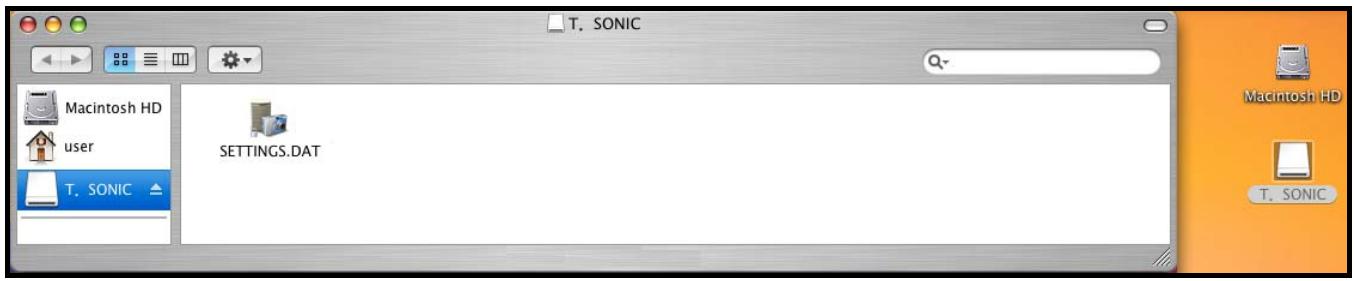
Figure 3. Mac Driver Installation
Driver Installation for Linux™ Kernel 2.4, or Later
No drivers are required. Plug your MP840 into a USB port and mount it.
- First create a directory for the MP840.
Example: mkdir /mnt /MP840
- Then, mount the MP840.
Example: mount -a -t mdos /dev/sda1 /mnt /MP840

- When the MP840 is connected to a computer it is locked into transferring files. You will not be able to play or record any music at this time. Please disconnect your MP840 from the computer when you want to use the player.
- NEVER format your MP840 in Windows.
- Audio files (MP3/WMA/WMA-DRM10/WAV) must be organized, so that they are no more than 4 folder levels away from the [/Root.DIR/) root directory.
- The MP840 is limited to 128 characters for a file name.
Connecting to a Computer

If you want to buy and play WMA-DRM10 (only) music files, or you are using Windows Media Player 10 you must choose the MTP (Media Transfer Protocol) Music Transfer Mode to transfer and synchronize music files between the computer and your MP840.
- Plug the small end of the Mini USB to USB A-Type cable into the Mini USB connector on the MP840 and plug the large end of the cable into an available USB port on your desktop, or notebook computer. When connected to a computer the MP840's rechargeable Li-ion battery will begin charging and the MP840 can only be used for transferring files.
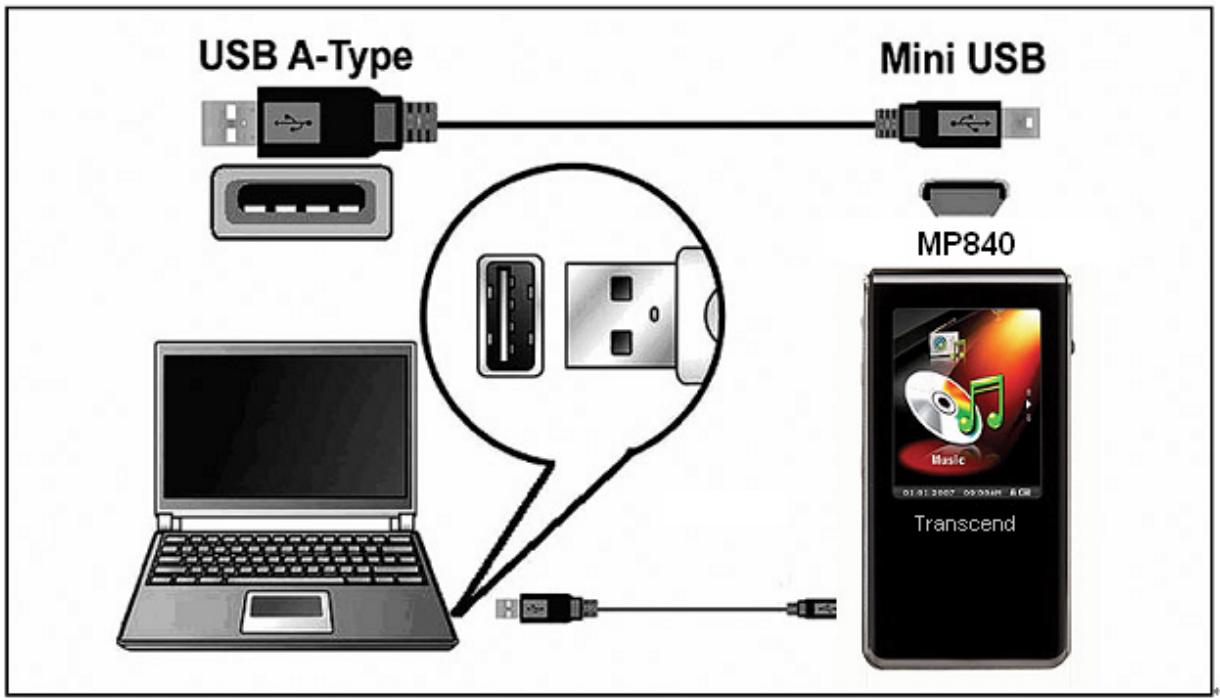
Figure 4. Connecting to a Computer
Download and Upload Music and other Files

If you want to buy and play WMA-DRM10 (only) music files, you must select Windows Media Player 10 to transfer and synchronize your WMA-DRM10 music files with the MP840's MTP Folder.
Other than the Radio, if you want to be entertained by your MP840 you must download Music, Video, Photo, or E-book files to the Player.
- If you are using a Windows OS, please find out what version of Windows Media Player the computer is running before connecting your MP840. If you are using Windows Media Player 10, or you want to listen to WMA-DRM10 music, please see the "Media Transfer Mode" section in SETTINGS.
- Plug the small end of the Mini USB to USB A-Type cable into the MP840's Mini USB port and plug the large end of the cable into an available USB port on a computer. When connected to a computer the unit's rechargeable Li-ion battery will begin charging and the MP840 can only be used for transferring files.
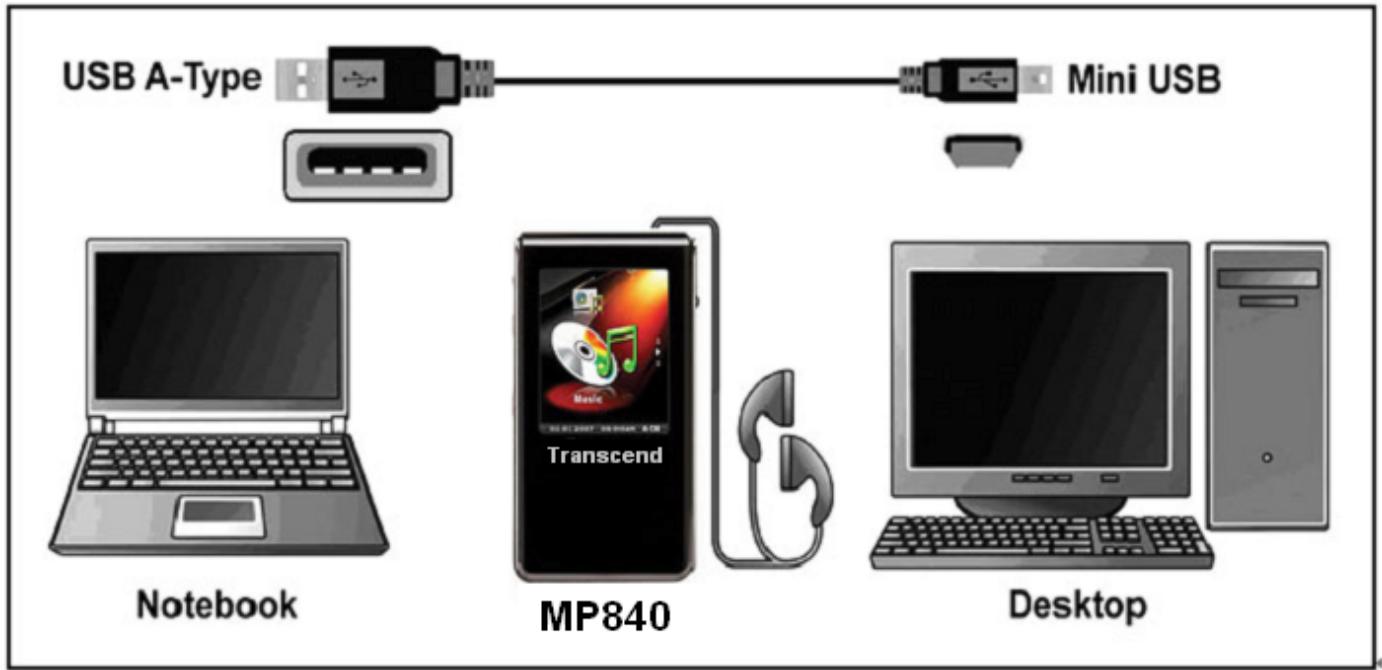
Figure 5. Mini USB Cable and Connecting to a Computer
- After you connect the MP840 to a computer its screen will display a “READY” message, indicating that files can be loaded onto the player. If you are using Windows® a new Removable Disk drive with a newly assigned drive letter representing the MP840 will appear in the My Computer window.
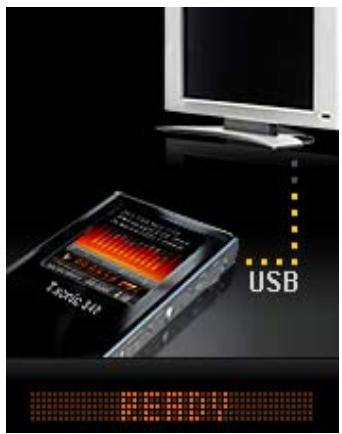
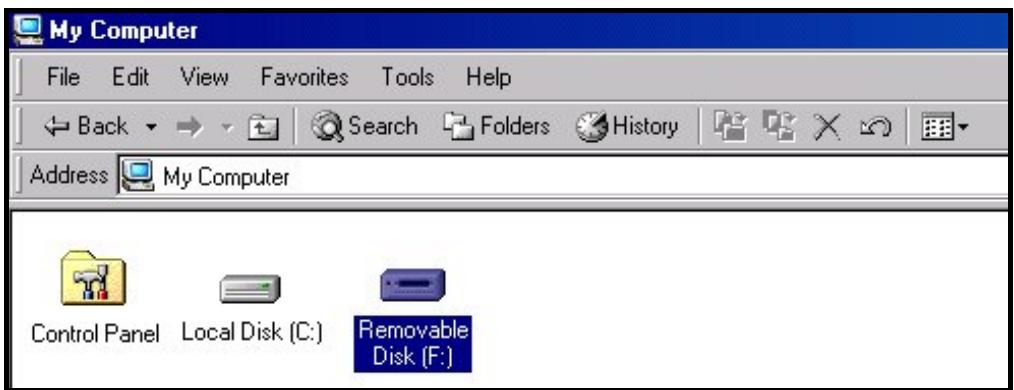
Figure 6. *F: is an example drive letter, the letter in your "My Computer" window may differ
- In the MTP (Media Transfer Mode) use Windows Media Player 10 to transfer and synchronize your WMA-DRM10 Music files with the MP840's MTP Folder, all other files should be dropped on to the Data Folder. In the USB Mode (WMA-DRM10 NOT supported) you can create specific folders on your PC for each of your media files (Music, Video, Photo, E-book). Drag and drop your files onto the media folders, or onto the MP840's corresponding Removable Disk drive letter, at this stage the players' screen will display a "WRITE" message indicating that the files are being transferred to the MP840. When the players' screen returns to the "READY" message you will know that the files have successfully transferred.
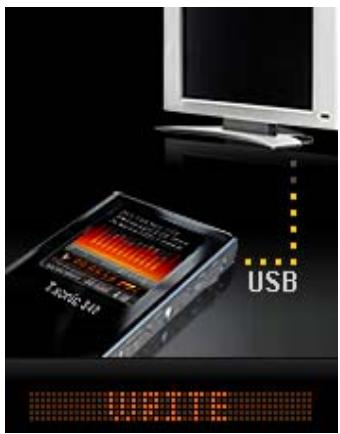
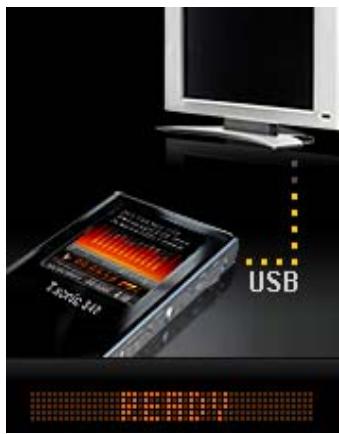
- If you choose to upload files, or folders to the computer, the players' screen will display a "READ" message indicating that the files are being transferred to the Computer. When the players' screen returns to the "READY" message you will know that the files have successfully transferred.
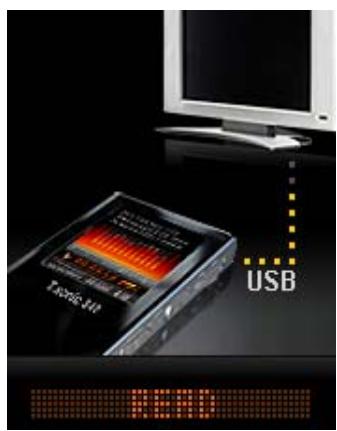
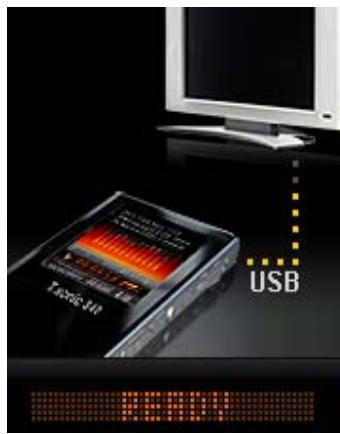
- Always disconnect the MP840 from a computer by selecting and following the instructions for the "Safely Remove Hardware" icon that can be found on the Windows® Toolbar at the bottom of the computer screen.

Figure 7. Safely Remove Hardware

Before removing your MP840, always ensure the Color LCD Display is not in the READ/WRITE status, otherwise your files or MP840 may be damaged.
Removing the MP840 in Windows® Me, 2000, XP and Vista
- Select the Hardware icon on the system tray.
- The Safely Remove Hardware pop-up window will appear. Select it to continue.

Figure 8. Safely Remove Hardware
- A window will appear stating "The 'USB Mass Storage Device' device can now be safely removed from the system." Unplug the MP840.
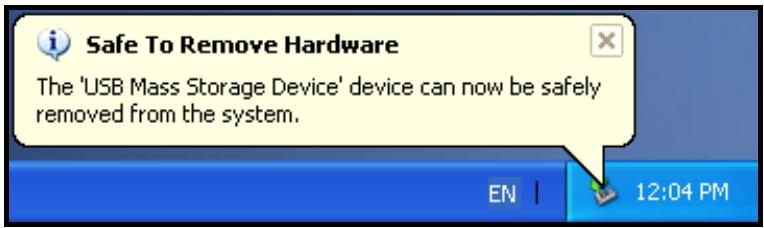
Figure 9. Safe to Remove Hardware
Removing the MP840 in Mac™ OS 10.0, or Later
Drag and drop the Disk icon corresponding to your MP840 into the trashcan. Then unplug your MP840 from the USB port.
Remove the MP840 in Linux™ Kernel 2.4, or Later
Execute umount /mnt /MP840 to un-mount the device. Then unplug your MP840 from the USB port.
MP840 Software
The MP840 comes with some very useful bundled software that can increase your productivity and enhance your entertainment experience. The three software applications that come with your MP840 are:
- Transcend Multimedia Converter
- Slideshow Maker
- Transcend Digital Music Player Utility
Before using any of these programs, please read the following sections carefully.
Software System Requirements
Desktop or notebook computer with a working USB port.
One of the following Operating Systems (OS):
- Windows® 2000
- Windows® XP
- Windows® Vista
Installing the MP840 Software
- Put the Software CD into the CD-ROM (Auto-Run supported). The MP840 Main Menu window will appear.
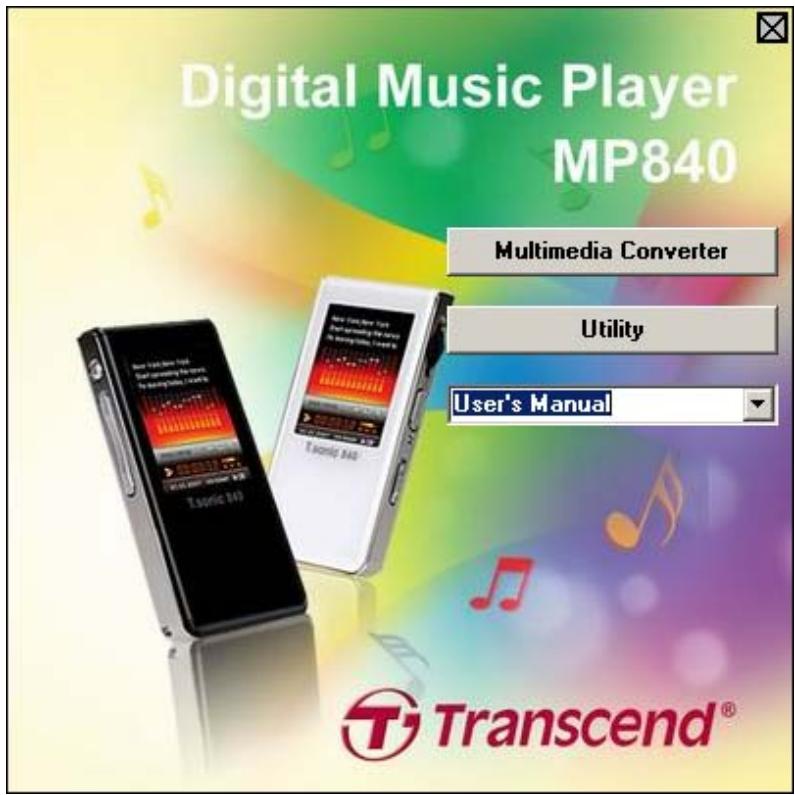
Figure 10. MP840 Main Menu
Transcend Multimedia Converter
If you want to play Videos on your MP840 you must convert your Video files to the '.mtv' file format using the Transcend Multimedia Converter before transferring the Video files to the player.
The MP840 only supports“.mtv” Video files. You must use the Transcend Multimedia Converter software to convert your“.MPEG4,”“.DivX,”“.AVI,” or“.xVID” video files to the“.mtv” format.
Transcend Multimedia Converter
- Start the Transcend Multimedia Converter program and the MTV Video Converter main window will appear. Click on the "Input Video" button to continue.
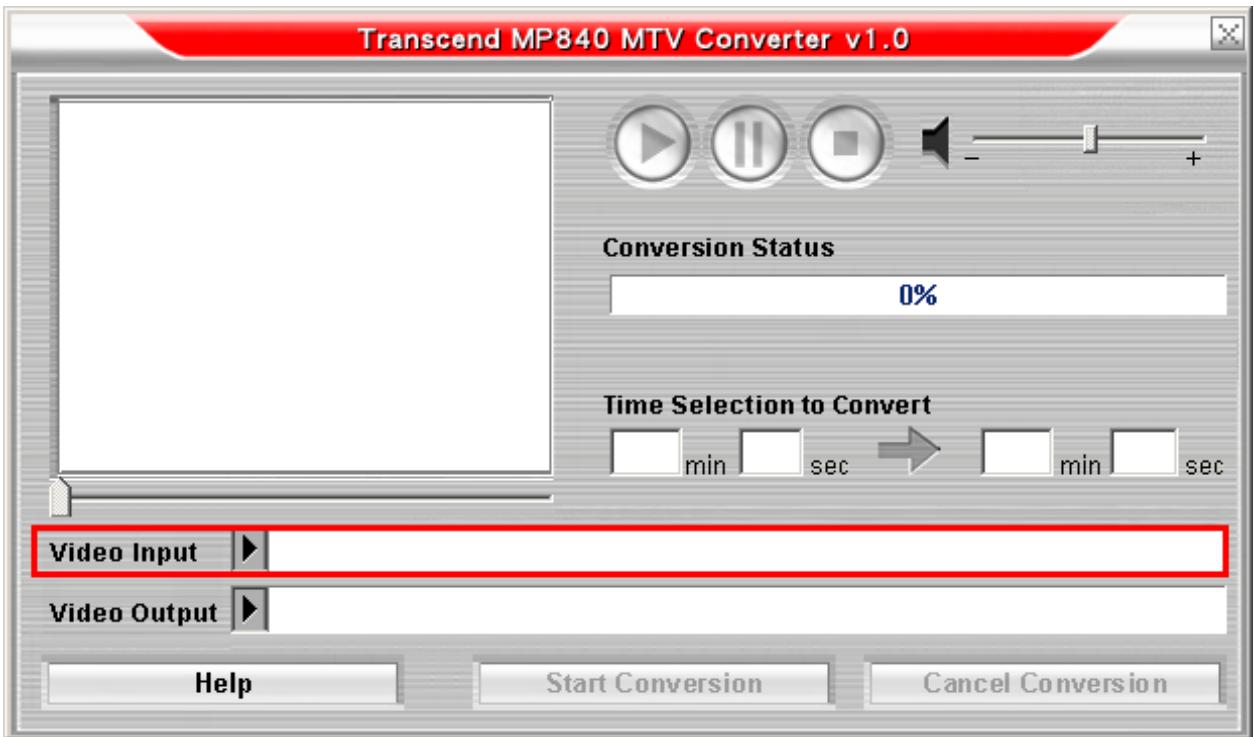
Figure 11. MTV Video Converter Main Menu
- The Open Video Input File window will appear. Select the ".MPEG4," ".DivX," ".AVI," or ".xVID" video file that you want to convert to the ".mtv" format and click on the "Open" button to continue.
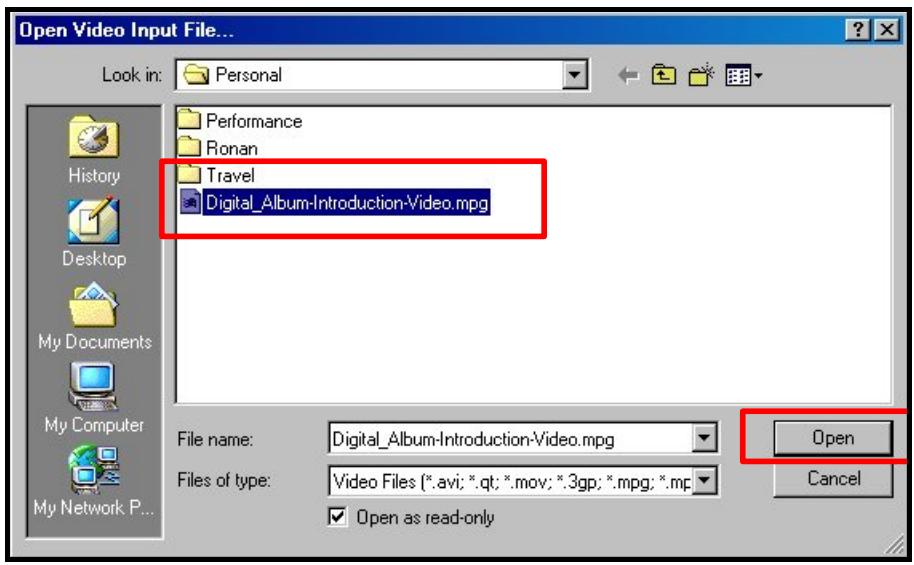
Figure 12. Select Video files for conversion
- After you select a Video file for conversion to the“.mtv” format, click on the“Video Output” button to select a destination for the converted file.
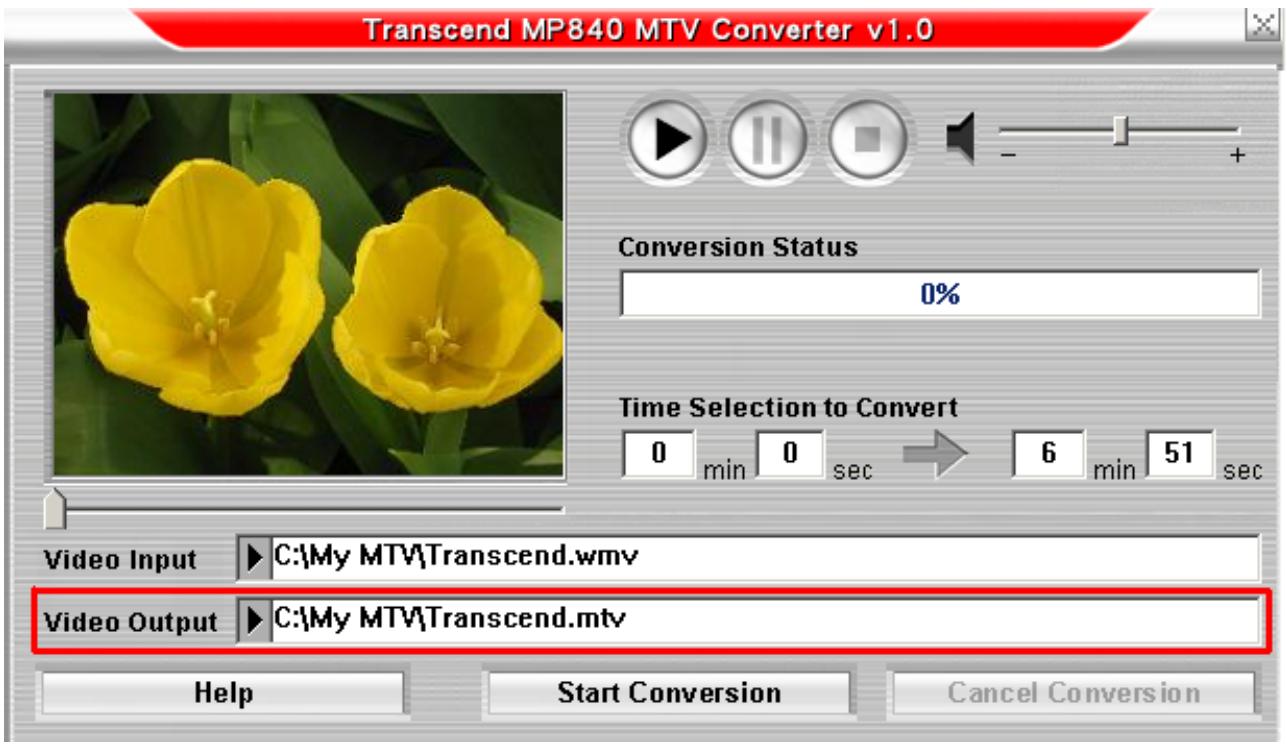
Figure 13. Select a Destination for the '.mtv' file
- After selecting a Video Output destination click on the "Start Conversion" button to begin the conversion.
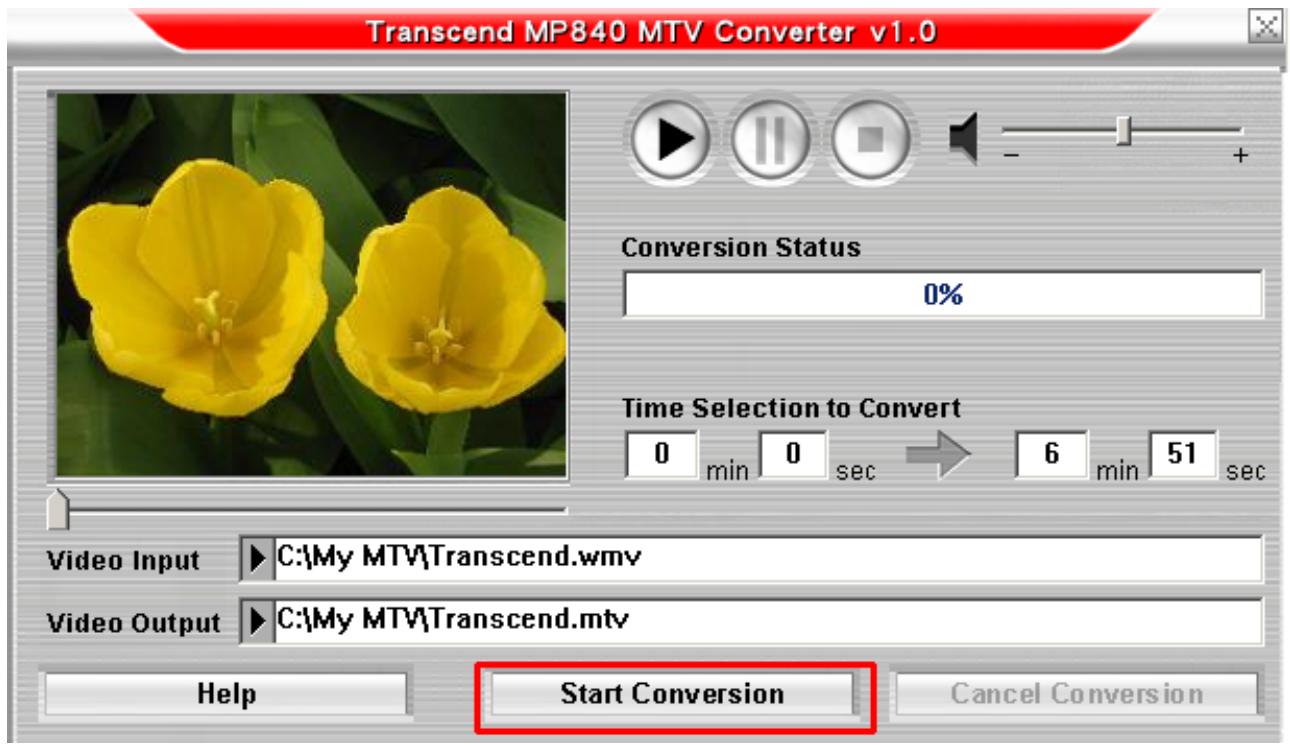
Figure 14. Start Conversion
- When the Conversion is complete a "Conversion Complete" message window will appear. Click on the "OK" button to complete the Conversion process and return to the MTV Video Converter main window.
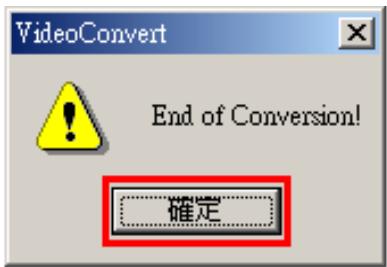
Figure 15. Conversion Complete
Slideshow Maker
If you want to use the Slideshow feature on your MP840 you must first, convert your Photo files to the '.sls' file format using the Slideshow Maker, then transfer the Slideshow files to the player.
The MP840 will only display a Slideshow of your Photos if they are converted to the“.sls” file format. You must use the Slideshow Maker software to transfer your“.JPG,”“.BMP,” or“.GIF” photo files to the“.sls” format.
Slideshow Maker
- Start the Slideshow Maker program and the Slideshow Maker main window will appear. Click on the "Load Image" button to continue.
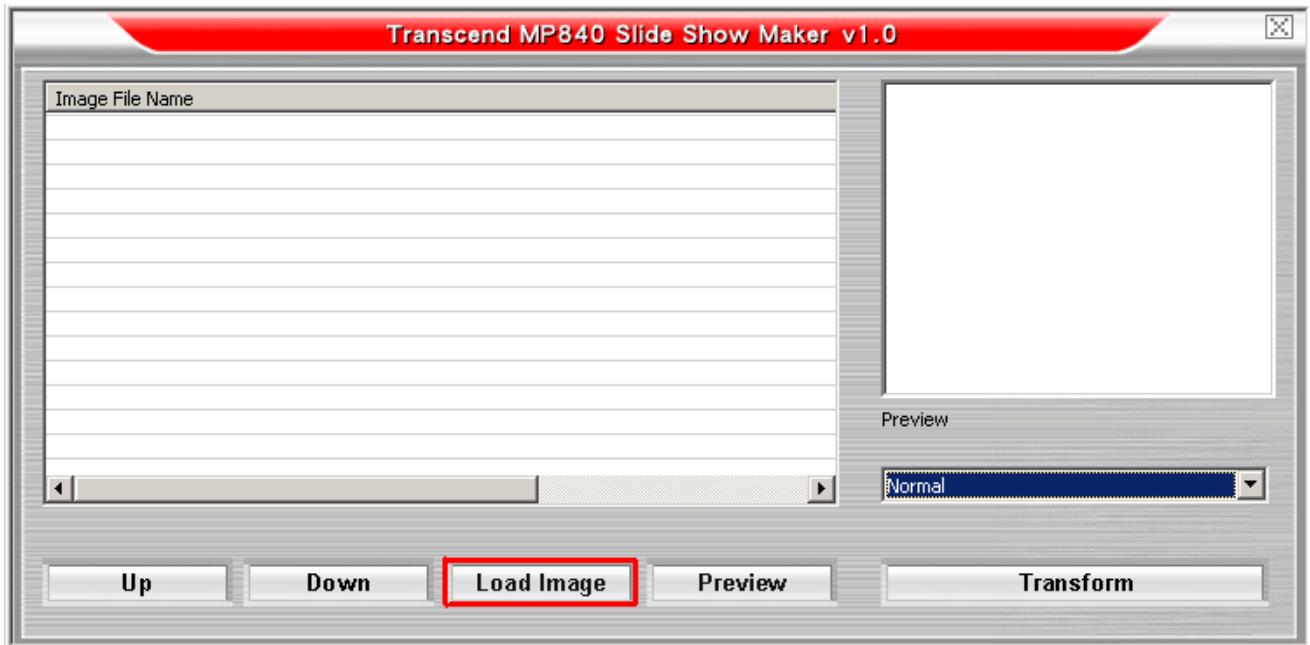
Figure 16. Slideshow Maker Main Menu
- The Open window will appear. Select the“.JPG,”“.BMP,” or“.GIF” photo files that you want to convert to the“.sls” format and click on the“Open” button to continue.
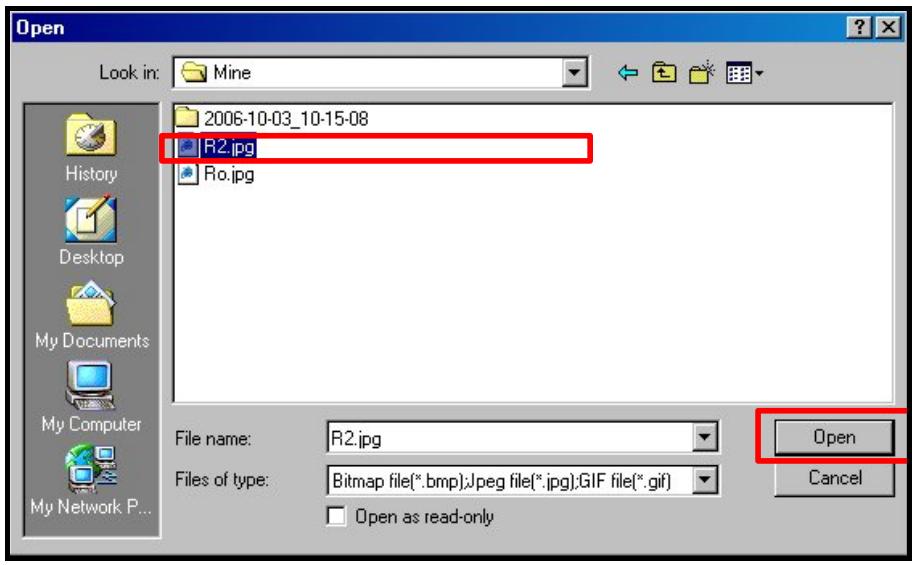
Figure 17. Select Photo files for conversion
- You can Preview the Photo files that you are going to convert in the Preview Panel. After you select all the Photo files that you want to convert to the“.sls” format, click on the “Transform” button to continue.
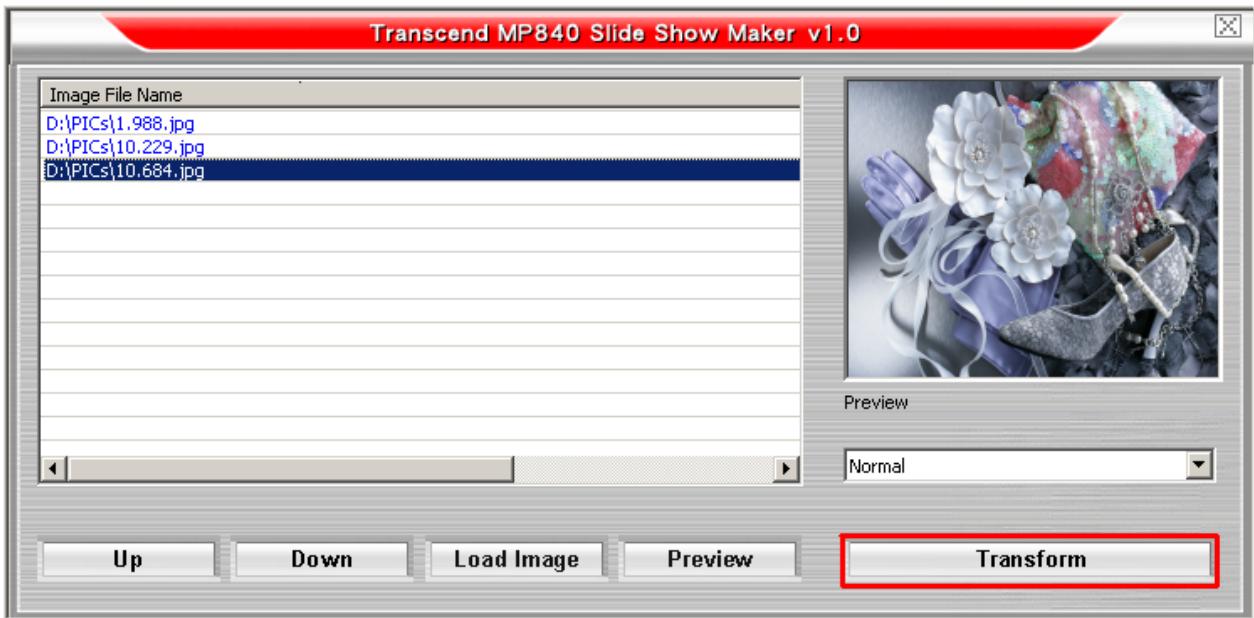
Figure 18. Preview and Start Converting
- The Save As window will appear. Select a destination for the converted file and click on the "Save" button to save the ".sls" file to the .sls folder.
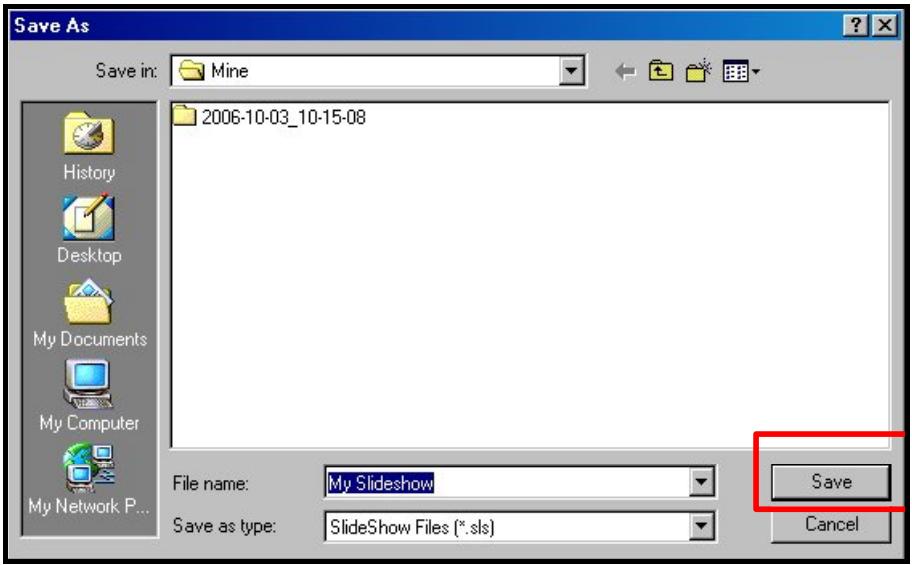
Figure 19. Select a Destination for the 'sls' file
- After the ".sls" file is saved the "Transfer Complete" message window will appear. Click on the "OK" button to complete the Transfer process and return to the Slideshow Maker main window.
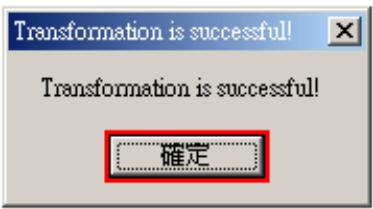
Figure 20. Transfer Complete
Transcend Digital Music Player Utility
The Transcend Digital Music Player Utility* provides you with several software options including a:
PC-Lock Function
- Partition & Security Function
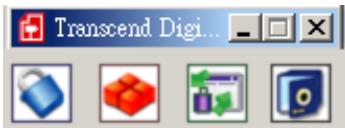
Figure 18. Transcend Digital Music Player Utility Menu
The Transcend Digital Music Player Utility is not supported on Mac™, or Linux™ Operating Systems.
To use the Transcend Digital Music Player Utility, you must log in to the Windows® OS with Administrator rights.
Installing the Transcend Digital Music Player Utility
- After selecting the "Utility" software option in the Software Setup window, the "InstallShield Wizard" appears. Click on the "Next" button to continue. The InstallShield Wizard will guide you through the Transcend Digital Music Player Utility Program installation process.
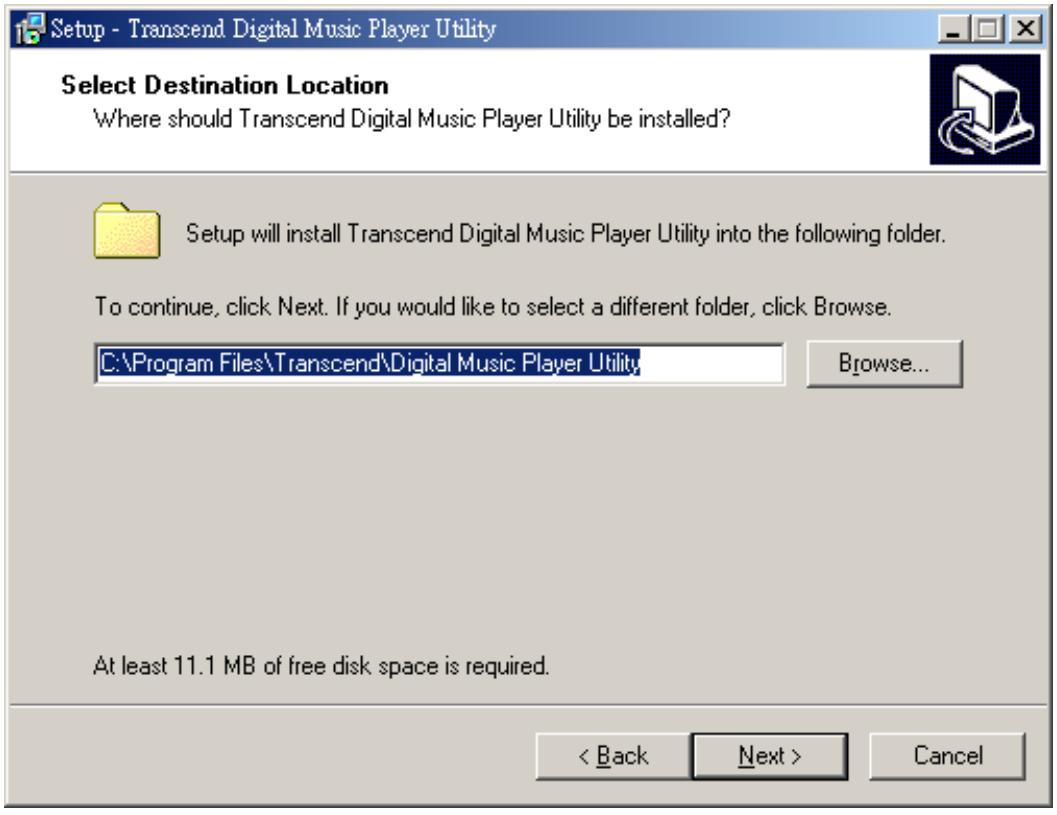
Figure 19. Transcend Digital Music Player Utility Program InstallShield Wizard
- When the Transcend Digital Music Player Utility is finished installing, click on the "Finish" button to exit the wizard.
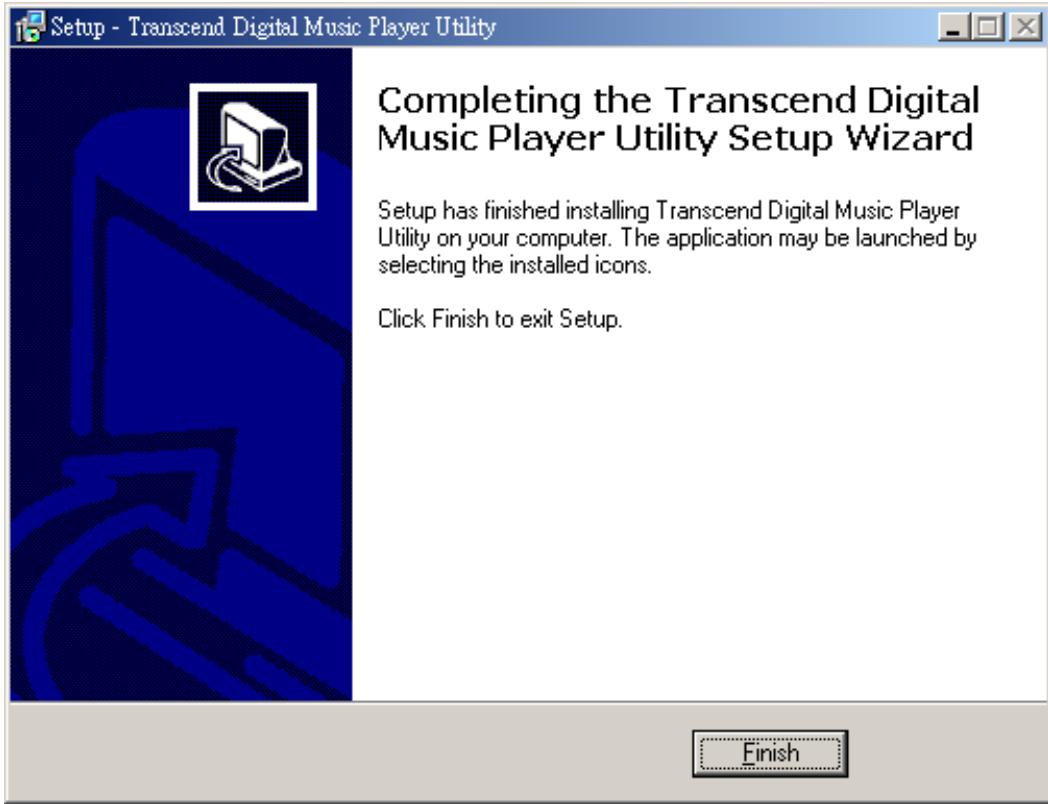
Figure 20. Installation complete
- The Transcend Digital Music Player Utility Software Program can be found in: Start > Programs > Transcend > Digital Music Player Utility.
PC-Lock Function
When the PC-Lock Function is enabled, you can use your MP840 as a key to lock your computer protecting it from use by others.
The PC-Lock function is not supported in the Mac™ or Linux™ Operating Systems.
To use the PC-Lock function, you must log in to the Windows OS with Administrator rights.
PC-Lock Function for Windows® Me, 2000, XP and Vista
- Click on the "PC-Lock" button in the Transcend Digital Music Player Utility window.
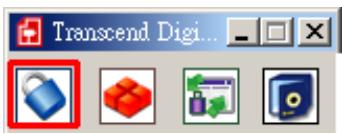
Figure 21. Transcend Digital Music Player Utility PC-Lock
- The PC-Lock Settings window will appear. Select the "Enable PC-Lock" option.
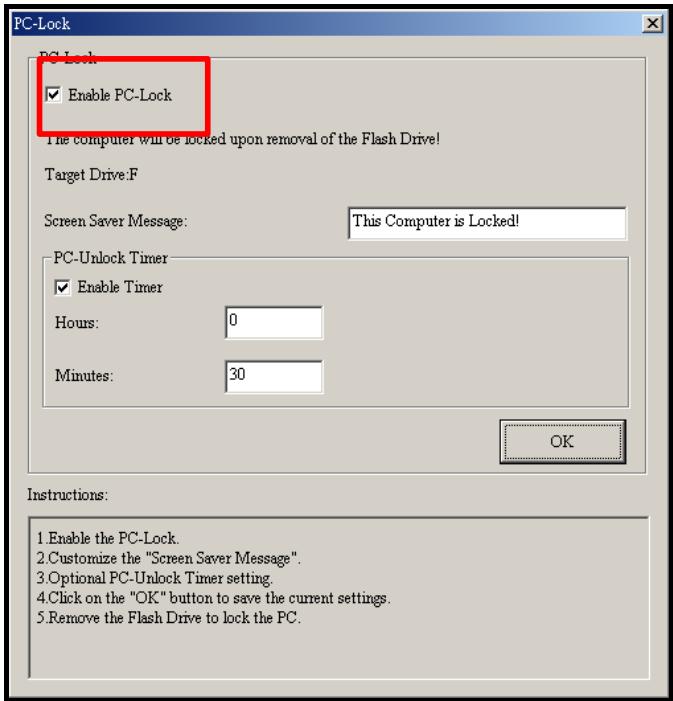
Figure 22. Enable PC-Lock
- After selecting the Enable PC-Lock you can type the Text to be displayed on the screen while the computer is locked.
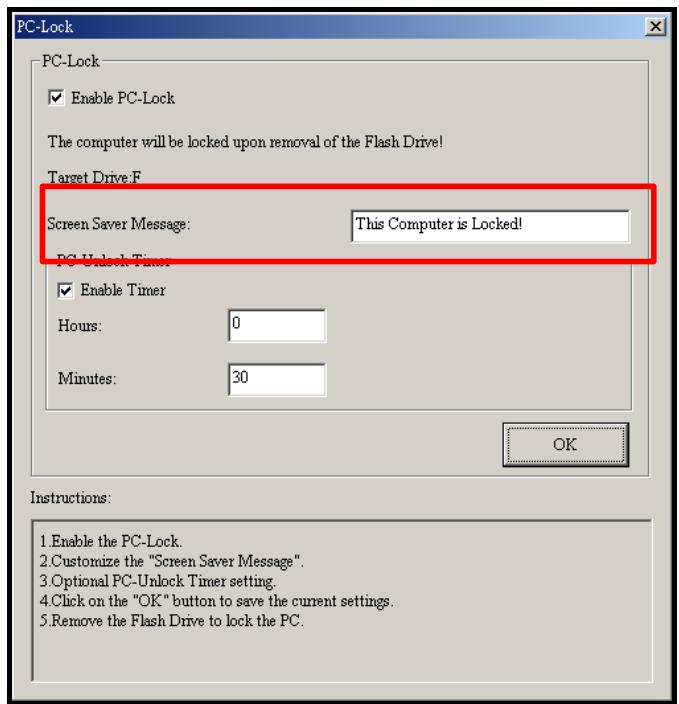
Figure 23. Screen Saver Text
- If you want to set a timer to automatically unlock your computer select the "Enable Timer" option. Input the Lock Period in Hours and Minutes, after the time elapses your computer is automatically unlocked.
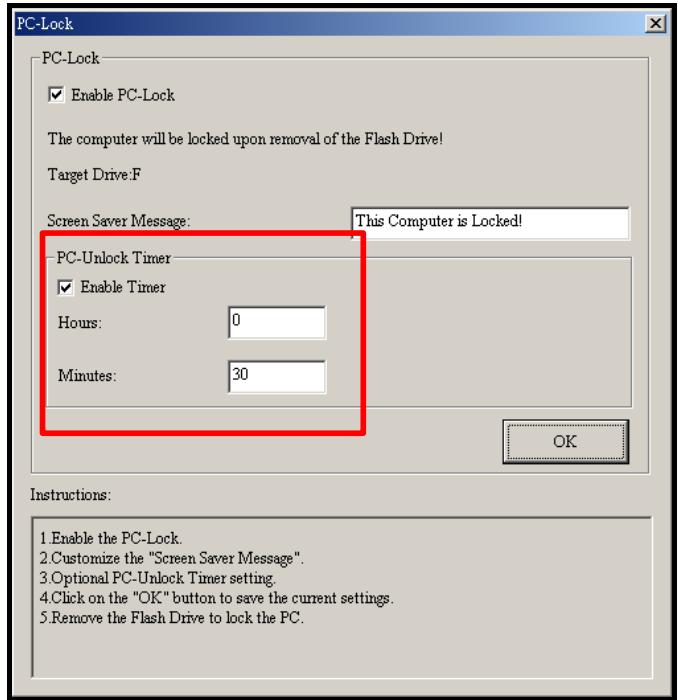
Figure 24. PC-Lock Timer
- Click on the "OK" button to start the PC-Lock.
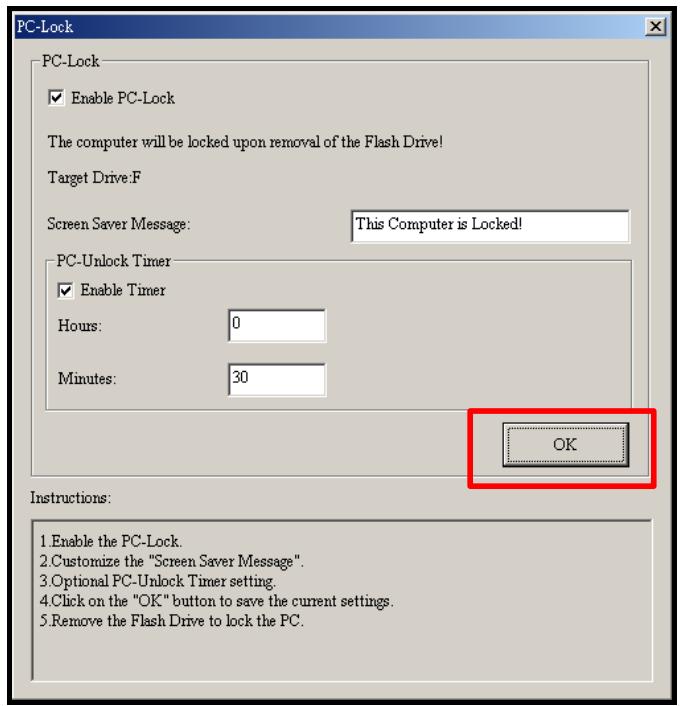
Figure 28. Enable PC-Lock
Lock Your Computer
After the PC-Lock function is enabled, your computer will be locked whenever you remove your MP840. When your computer is locked, the screen will display the Text screen saver.
Unlock Your Computer
To unlock the computer, you must re-insert your MP840. The locked status on the screen will disappear and you are now free to use your computer. The computer's locked status will also end automatically after the specified lock period timer has expired.
Partition & Security Function
Enabling this feature allows you to setup a secure area on the MP840 to protect your personal information with a Private Password. You can partition the MP840 into Public and Private Password protected areas. Data and information in the Private Area is kept secure and can only be accessed by logging onto the MP840 using the correct password.
The Partition & Security function is not supported in the Mac™ or Linux™ Operating Systems.
To use the Partition & Security function, you must log in to the Windows OS with Administrator rights.
Enable the Security Function in Windows® Me, 2000, XP and Vista
- Click on the "Partition" button in the Transcend Digital Music Player Utility window.
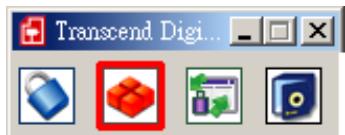
Figure 29. Transcend Digital Music Player Utility Partition
- The Partition window will appear. Partition the MP840 into a Public and Private partition by using the mouse to move the disk partition bar on the slider until the Public Disk Area and Private Disk Area have the desired memory capacity sizes.
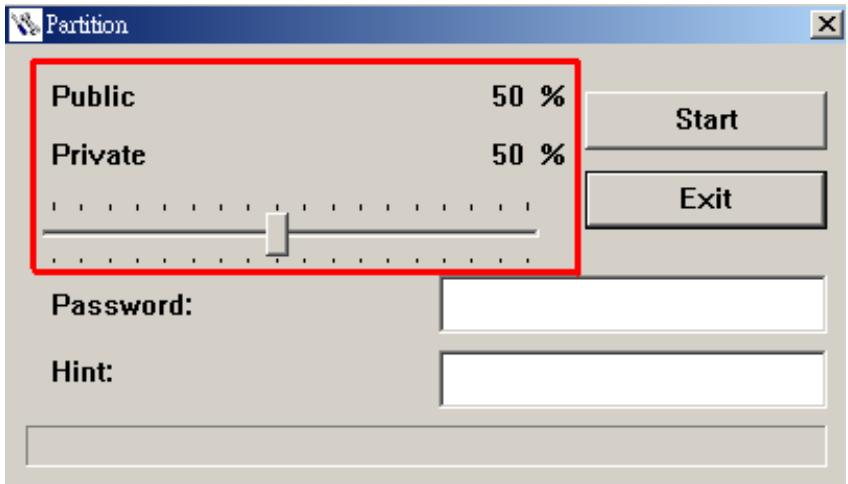
Figure 30. Create a Partition
- Input a "Password" and a "Password Hint" (a reminder, should you forget your password). Click on the "Start" button to complete the Partition & Security setup.
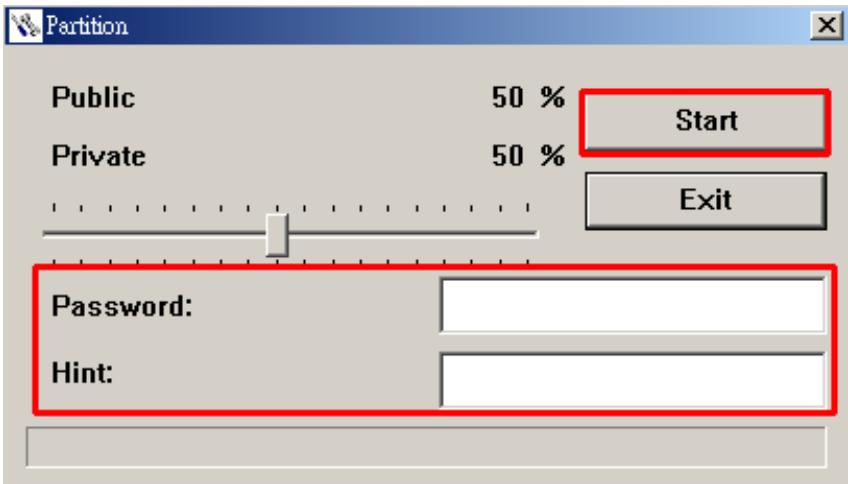
Figure 31. Password and Hint
Use the Transcend Digital Music Player Security Features
- Click on the "Login/Logout" button in the Transcend Digital Music Player Utility window.
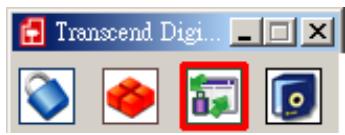
Figure 25. Transcend Digital Music Player Utility Login/out
- The Login/out window will appear. Input your Password and click on the "Login" button to enter the MP840 Security area.
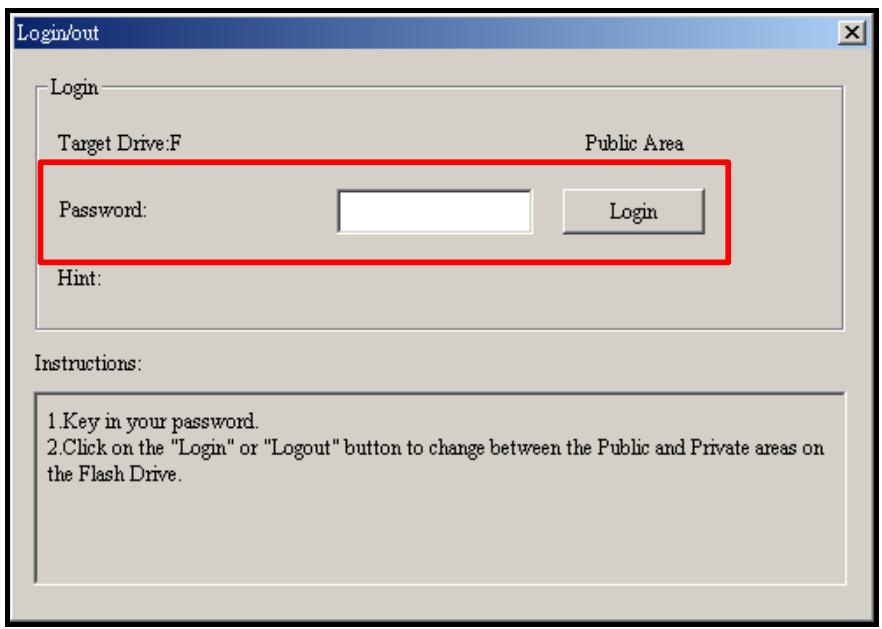
Figure 26. Enter your password
- When you are finished using the Secure Area and no data is being transferred between the MP840 and the computer, click on the "Logout" button to Log Out of the Private Partition.
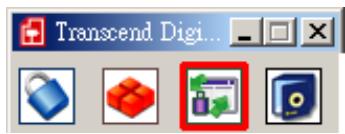
Figure 27. Transcend Digital Music Player UtilityLogout
Changing your Password
- Click on the "Password" button in the Transcend Digital Music Player Utility window.
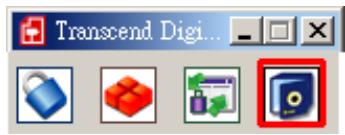
Figure 35. Transcend Digital Music Player Password
- The New Password window will appear. Input your current "Password," a "New Password," "Confirm Password" and a "New Password Hint" (a reminder, should you forget your password). Click on the "OK" button to complete the New Password setup.
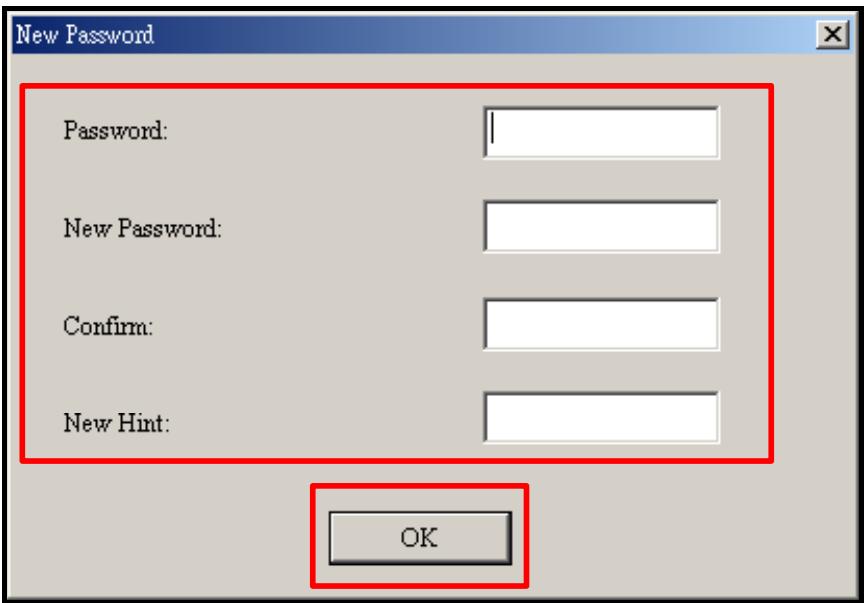
Figure 28. Change Password
Forgotten your Password
If you forget your password use the password hint to try and remember your password. However, if the hint does not work you can use the Partition Function to repartition your MP840. Any data that you saved on the MP840's unprotected Public Disk Partition should be backed-up before re-partitioning the MP840.

WARNING! Repartitioning the Disk will erase all of the data in the Private Area of your MP840.
Troubleshooting
If a problem occurs with your MP840, please first check the information listed below before taking your MP840 for repair. If you are unable to remedy a problem from the following hints, please consult your dealer, service center, or local Transcend branch office. We also have FAQ and Support services on our websites.
Software CD cannot auto-run in Windows®
Go to the Device Manager in the Control Panel and enable the Auto-Insert function for the CD-ROM drive. Alternatively, you can manually run the "MP840.EXE" file on the software CD.
Operating system cannot detect the MP840
Check the following:
- Is your MP840 properly connected to the USB port? If not, unplug it and plug it in again.
- Is your MP840 connected to the Mac keyboard? If yes, unplug it and plug it into an available USB port on your Mac Desktop.
- Is the USB port enabled? If not, refer to the user's manual of your computer (or motherboard) to enable it.
Cannot Power ON
Check the following:
- Is the MP840 connected to your computer? If yes, unplug it.
- Is the LOCK switch set to "LOCK"? If yes, set it to the "OFF" position.
- Is the battery out of power? If yes, please recharge the battery.
Cannot download MP3, WMA, WMA-DRM10, or WAV files to the MP840
As required, uninstall and re-install the driver. If this doesn't work, try Resetting the unit and if this fails, please see the "Restoring Factory Defaults" section to recover your MP840.
Buttons aren't working
Is the LOCK switch set to "LOCK"? If yes, set it to the "OFF" position.
Cannot hear track playback
- Have you downloaded any music files onto the MP840? If no, then you must first do so from your computer or the Internet. (Only Mpeg I Layer 3 and WMA files compressed at a rate of 32Kbps-320Kbps are supported.)
- Are the earphones properly connected to the earphone jack? If not, reconnect them.
- Is the volume loud enough? If not, increase the volume level until the music can be heard.
Track name does NOT display correctly on the screen
- The default language of the MP840 is English. Please set the language option first.
- ID3 tag information has display priority on the screen of the MP840. You could modify the ID3 tag by using Windows Media Player or Winamp.
- If the ID3 tag is empty, just the file name will be displayed on the screen.
Cannot enter the RECORD Mode
To make sure the recorded file will not be lost, two safety mechanisms are provided.
- If the remaining battery capacity is less than 10% , you cannot enter the RECORD Mode.
- During recording, if the remaining battery capacity goes below 10% the MP840 will automatically save the recording.
Track playback sounds intermittent
Plug the earphones into the earphones jack again to make sure they are properly connected.
MP840 Powers OFF automatically
MP840 features a SLEEP Mode, which acts as a Power Saving feature. You can preset your MP840 to Power OFF automatically after 15, 30, or 60 minutes. Please refer to the "Sleep" section in SETTINGS.
MP840 just isn’t working properly
If your MP840 ever stops working properly, or locks up, try Powering it ON and OFF a few times, if this does not correct the problem you can Reset the unit by pressing the “Reset” button for 3 to 5 seconds. If all of these options fail you can restore your MP840 to its Default Factory Settings by using the “Recovery Function.”
Cannot find the file that was just copied to the MP840
Re-copy the file and refer to the "Disconnecting from a Computer" section to remove the MP840 after the copy process is completed.
A File that was just deleted still appears
Re-delete the file and refer to the "Disconnecting from a Computer" section to remove the MP840 after the delete process is completed.
MP840 automatically removed from the operating system
This problem occurs when you press the "Volume Down" button "--" while your MP840 is still connected to a Computer USB port. Unplug your MP840 from the USB port and plug it back in again.
MP840 cannot operate after it was formatted in Windows®
Formatting the MP840 using the "Quick Format," or "Full Format" option in Windows® erases the default format of the MP840. To retrieve the default format, you must link to http://www.transcendusa.com/ and download a Firmware Update for your MP840.
How do I find out what Windows Media Player version I am using?
- Open your Windows Media Player program.
- Click on the "Help" menu and select the "About Windows Media Player" option.
- The version of your Windows Media Player will be displayed on the computer screen.
Cannot listen to DRM music on my MP840?
- The MP840 only supports WMA-DRM10 music files, is this the file type you are using?
- You must use Windows Media Player 10 to transfer and synchronize your WMA-DRM10 music files with the MP840's MTP Folder.
Cannot play a Video file on my MP840?
The MP840 only supports“.MTV” Video files, please see the “Transcend Multimedia Converter” section on how to convert your videos to the MTV format.
Having problems converting a Video file using the Transcend Multimedia
Converter?
First, download DirectX 9.0 (or later) onto your computer. Next, open the Video file on you computer that you had a problem converting and try playing it, if the Video does not play, then this means that the Video Codec you are trying to convert has a compatibility issue with your PC and cannot be converted using the Transcend Multimedia Converter.
Cannot view a Photo file on my MP840?
The MP840 only supports“.JPG,”“.BMP” Photo files, please ensure that the photo is one of these file types.
Cannot read an E-book file on my MP840?
The MP840 only supports“.TXT” E-book files, please ensure that the E-book is this file type.
SyncLyrics:Whycan'tIsee thewords of the song Iamlisteningto?
For detailed SyncLyrics instructions, please link to the FAQ section on our website http://www.transcendusa.com/Support/FAQ/
Specifications
| • Size (L x W x H): | 82 mm × 40.5 mm × 12.5 mm |
| • Weight: | 70g (with Li-ion battery) |
| • Music Formats: | MP3 WMA and WMA-DRM10 (Subscription music) |
| • Video Formats | MTV |
| • Photo Formats | JPG, BMP |
| • Recording Format: | IMA_ADPCM (WAV) |
| • Estimated Battery Life: | 30 hours Music playback (fully charged battery) |
| • Compression Rates: | 32Kbps to 320Kbps |
| • Data Retention: | Up to 10 years |
| • Erase Cycles: | ≥ 100,000 times |
| • Signal-to-Noise Ratio: | ≥ 90dB |
| • Certificates: | CE, FCC, BSMI |
| • Warranty: | 2-years |
Ordering Information
| Device Description | Memory Size | Transcend P/N |
| MP840 MP3 Music Player | 2GB | TS2GMP840 |
| MP840 MP3 Music Player | 4GB | TS4GMP840 |
| MP840 MP3 Music Player | 8GB | TS8GMP840 |
Transcend Limited Warranty
"Above and Beyond" is the standard we set ourselves for customer service at Transcend. We consistently position ourselves to be significantly above the industry norm, which is all part of our commitment to Customer Satisfaction.
All Transcend information, Inc. (Transcend) products are warranted and tested to be free from defects in material and workmanship and to conform to the published specifications. During the warranty period should your Transcend MP840 fail under normal use in the recommended environment due to improper workmanship or materials, Transcend will repair the product or replace it with a comparable one. This warranty is subject to the conditions and limitations set forth herein.
Duration of Warranty: The Transcend MP840 is covered by this warranty for a period of two (2) years from the date of purchase. Proof of purchase including the date of purchase is required to collect on the warranty. Transcend will inspect the product and decide whether to repair or replace it. Transcend reserves the right to provide a functional equivalent product, or a refurbished replacement product.
Limitations: This warranty does not apply to product failure caused by accidents, abuse, mishandling, improper installation, alteration, acts of nature, improper usage, or problems with electrical power. In addition, opening or tampering with the product casing, or any physical damage, abuse or alteration to the product's surface, including all warranty or quality stickers, product serial or electronic numbers will also void the product warranty. Transcend is not responsible for recovering any data lost due to the failure of a flash memory device. Transcend's MP840 must be used with devices that conform to the recommended industry standards. Transcend will not be liable for damages resulting from a third party device that causes the Transcend MP840 to fail. Transcend shall in no event be liable for any consequential, indirect, or incidental damages, lost profits, lost business investments, lost goodwill, or interference with business relationships as a result of lost data. Transcend is also not responsible for damage or failure of any third party equipment, even if Transcend has been advised of the possibility. This limitation does not apply to the extent that it is illegal or unenforceable under applicable law.
Disclaimer: The foregoing limited warranty is exclusive. There are no other warranties, including any implied warranty of merchantability or fitness for a particular purpose. This warranty is not affected in any part by Transcend providing technical support or advice. Please read Transcend's Warranty Policy in full to understand your rights.
Transcend Warranty Policy: http://www.transcendusa.com/Support/Warranty.asp
Online Registration: To expedite the warranty service, please register your Transcend Product within 30 days of purchase.
Register online at http://www.transcendusa.com/registration
The specifications mentioned above are subject to change without notice.
Transcend
Exceeding Your Expectations
Transcend Information, Inc.
www.transcendusa.com
*The Transcend logo is a registered trademark of Transcend Information, Inc.
*All logos and marks are trademarks of their respective companies.