
PAGE 14I - Printer OKI - Free user manual and instructions
Find the device manual for free PAGE 14I OKI in PDF.


User questions about PAGE 14I OKI
0 question about this device. Answer the ones you know or ask your own.
Ask a new question about this device
Download the instructions for your Printer in PDF format for free! Find your manual PAGE 14I - OKI and take your electronic device back in hand. On this page are published all the documents necessary for the use of your device. PAGE 14I by OKI.
USER MANUAL PAGE 14I OKI
OkiLAN 6010e® Pocket Print Server User's Guide
High Performance Ethernet Network Print Server
Printing History
Every effort has been made to ensure that the information in this document is complete, accurate, and up-to-date. Okidata assumes no responsibility for the results of errors beyond its control. Okidata also cannot guarantee that changes in products made by other manufacturers and referred to in this handbook will not affect the applicability of the information in it. This handbook is subject to change without notification.
©1998 by Okidata. All rights reserved.
Okidata, OKIPAGE, OkiVIEW, OkiLAN Reg. T.M., M.D., OKI Electric Industry Co., Ltd., Windows, MS-DOS Reg. T.M., Microsoft Corp.; HP LaserJet, PCL, Reg. T.M. Hewlett Packard Company; Centronics Reg. T.M., Centronics Data Computer Corp.; Energy Star, Reg. T.M., U.S. EPA; Ethernet Reg. T.M. Digital Equipment Corp.; Adobe Reg. T.M., PostScript T.M., Adobe Systems Inc.; Macintosh EtherTalk, LocalTalk, TrueType Reg. T.M., Apple Computer Inc.; Novell, NetWare, Unix, YES NetWare Tested and Approved logo, Reg. T.M. Novell Corp.; ProPrinter, OS/2 Reg. T.M. TokenRing, T.M., International Business Machines Corp.
Organization
This manual has been divided into five sections. Section I contains installation instructions for the OkiLAN 6010e Pocket Print Server.
Section II contains information about management features, an extremely valuable set of OkiLAN 6010e management tools for network administration.
The Network Operating Systems (NOS) and protocol sections are found in Sections III and IV.
Section V contains information and instruction on Windows printing options.
With the exception of the Advanced Management Features section, each section in this manual has been designed to be independent of one another.
Contents
Section I: Hardware Installation
Section II: Advanced Mangement Features
Chapter 1: SNMP II-5
Chapter 2: HP JetAdmin Support II-9
Chapter 3: HP Web JetAdmin Support II-12
Chapter 4: OkiLAN 6010e Web Configuration II-15
Chapter 5: Additional Management Features II-26
Section III: NetWare
Chapter 1: Introduction III-5
Chapter 2: OkiNet for NetWare III-8
Chapter 3: OkiNet for NDS III-29
Section IV: TCP/IP
Chapter 1: Introduction IV-6
Chapter 2: Configuring the OkiLAN 6010e IV-9
Chapter 3: TCP/IP Configuration and Printing IV-17
Chapter 4: OkiNet for TCP/IP IV-28
Chapter 5: Telnet Configuration IV-53
Appendix A: Troubleshooting IV-61
Appendix B: Application Considerations IV-70
Section V: Windows Printing
Chapter 1: OkiLAN 6010e Set Up for Windows NT 4.0 .. V-5
Chapter 2: OkiLAN 6010e Set Up for
Windows NT 3.51 V-15
Chapter 3: OkiLAN 6010e Set Up for Windows 95 ......... V-20
Index
Network Operating Systems
Overview
OkiLAN 6010e simultaneously supports several network protocols in various combinations. Below is a list of supported network protocols accompanied with NOS/OS requirements.
Novell NetWare
Novell NetWare versions 3.x, 4.1 and higher.
TCP/IP and Windows NT
TCP/IP, FTP and Remote LPD protocols. Simple Network Management Protocol (SNMP) and Windows NT are supported in this environment.
Service Information
This information is valid for the United States and Canada only.
OKIDATA Online
Visit the OKIDATA Web Site at
http://www.okidata.com
for the latest information on:
- Software drivers
Product guides - Customer support
Corporate information - Dealers
- Documentation
Your Dealer
Consult the store where you purchased your OkiLAN 6010e, or call 1-800-OKIDATA (800-654-3282) for the location of the nearest authorized Okidata service dealer. Have your ZIP code ready.
Proof of purchase is required for warranty work. Be sure to retain your purchase documents.
- Prices and minimum charges may vary.
The Okidata Customer Support Center
For customer service, call 1-800-OKIDATA (800-654-3282). The Okidata Information System Automated Attendant is available 24 hours a day, 7 days a week. The system can provide immediate assistance with:
Basic printer operating procedures
Sales and service referrals
- Parts and consumable referrals
Product information
Okidata Customer Service Representatives
Agents are available 24 hours a day, 7 days a week at 1-800-OKIDATA (800-654-3282). Please be sure that you are calling from a telephone close to your printer, so you can describe your problem accurately. Our customer service representatives (CSRs) are trained on all current Oki products. They can answer your questions regarding:
Installation
- Determination of product issues that require service
Consumer relations
- Interface information
Availability and installation of product drivers. (CSRs are not trained to provide assistance with the use of commercial software packages. Please consult your software user's manual for times and availability of their support).
Taxable Facts
You can have product and support information faxed automatically to you through Okidata's Faxable Facts, an online document retrieval system. A touch-tone telephone and facsimile machine with a designated telephone number are required.
Call toll-free at 1-800-654-6651. If you are calling for the first time, order a catalog of available documents. This faxback system is accessible 24 hours a day, 7 days a week. The following information can be faxed to you in minutes:
Product data brochures
- Product part numbers and pricing (USA and Canadian)
- User tips
- Accessories, options, and consumables part numbers and pricing (USA and Canadian)
OKIDATA SERVICE CENTERS
If you need to ship your OkiLAN 6010e to a service center, replace it in the original packing materials. Before shipping your print server, call for a return authorization number (RA).
UNITED STATES and CANADA
OKIDATA
Tel: 1-800-OKIDATA (800-654-3282)
Fax: 1-609-222-5247
MEXICO
Oki Data de Mexico, S.A. de C.V.
Tel: 525-661-6860
Fax: 525-661-5861
ARGENTINA
Megatech
Tel: (541)-371-4123
Fax: (541)-371-4123 [Touch-Tone® required]
CHILE
When you call Customer Support Center, the following information will help us answer your questions more quickly and accurately. Please be able to identify the following:
- Serial Number
- Configuration sheet settings
- Type of network cable connected to the OkiLAN 6010e
- Computer and network adapter card make and model numbers
Network Operating System and version number
Please write these numbers down in the space provided below for future reference.
S/N:
Ethernet ADDR: 00:40:68: :
Section I:
Hardware Installation
In This Section
Powering On the OkiLAN 6010e............I-7
Printing a Configuration Sheet............I-8
The OkiLAN 6010e Pocket Print Server enables Ethernet network users to connect to a printer with a bidirectional parallel port. The OkiLAN 6010e can be made to work with any centronics or IEEE-1284 parallel interface printer that includes a resident emulation such as PCL versions 4 through 6, Adobe PostScript®, IBM ProPrinter® or Epson® emulations.
The OkiLAN 6010e supports 10-megabit networks and most popular network operating systems and printers, except for the OKIPAGE 8w or other GDI-based printers.
The OkiLAN 6010e kit includes the following:
- OkiLAN 6010e hardware
Power adapter with line cord
Installation User's Guide
Utilities CD
Product registration card
Installing the OkiLAN 6010e
- Turn off printer power.
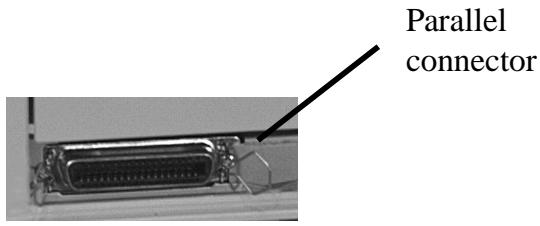
- Attach the OkiLAN 6010e to the centronics connector on your printer.
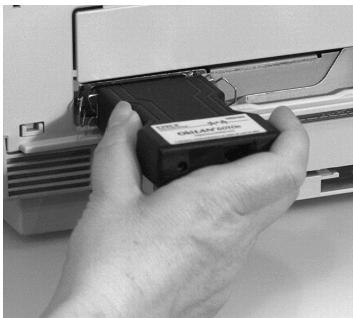
- Secure the OkiLAN 6010e with the wire clips on the printer's connector.
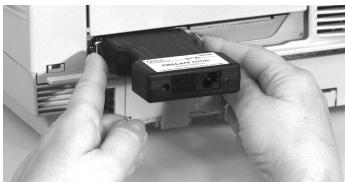
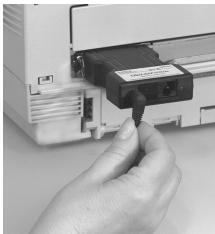
- Plug the power adapter wire into the power jack on the OkiLAN 6010e. Then plug the power adapter into a wall outlet.
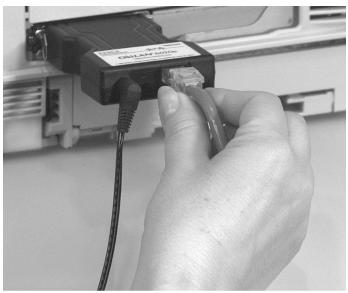
- Attach the 10Base-T UTP cable to the receptacle on the back of the OkiLAN 6010e.
Attach the other end of the cable to the Network.
Powering On the OkiLAN 6010e
Turn printer power on. The status indicator on the OkiLAN 6010e will blink orange during self-test. When self-test completes successfully, the status indicator will change to green.
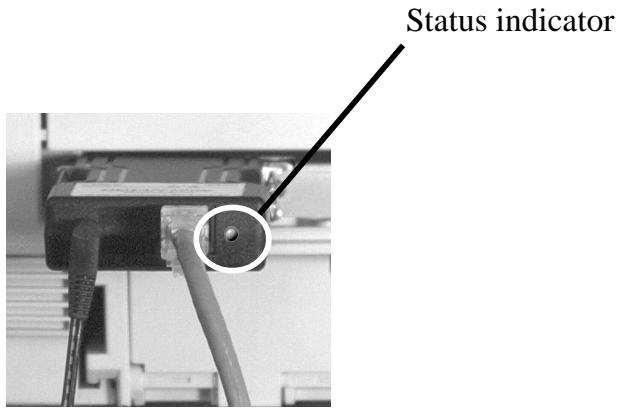
Note: If Status Indicator does not display as indicated above, see Hardware Troubleshooting at the end of this section.
Printing a Configuration Sheet
To print configuration information, press the Test button on the side of the OkiLAN 6010e. You can also print configuration information using the utility program provided on the CD.

Note: By default, the configuration sheet prints in ASCII text. If you want the configuration sheet to print in PostScript or PCL, select this option when you run the network configuration utility program. The selected language must match the printer's configured language to print correctly.
The content of the configuration sheet will vary depending on your printer and system setup.
Installing the OkiLAN Utilities Software in Windows
- Insert the OkiLAN CD into your CD-ROM drive.
- The Setup screen appears automatically (if it doesn't, click Start Run, then enter D:\setup, if "D" is your CD-ROM drive).
- Select the utility group for the network environment you have, then click Next.
- Select the specific utility you want to install and the proper location for installation, then click Install.
Windows Utility Groups:
NetWare Management Utilities
OkiNet Utility for NetWare
OkiNet Utility for NDS (Workstation and
Server)
OkiNet Utility for NDS (Workstation)
OkiNet Connect Windows Printing
OkiNet Connect for TCP/IP (Windows 95/98)
OkiNet Connect for TCP/IP (Windows NT)
OkiNet Connect for IPX/SPX (Windows 95/98)
OkiNet Connect for IPX/SPX Windows NT)
OkiNet Connect DLC (Windows 95/98)
OkiNet Connect DLC (Windows NT)
TCP/IP Management Utilities
OkiNet Utilities for TCP/IP
OkiNet Alert for TCP/IP
Okidata MIB
BootP Server
Note: The OkiLAN Utilities CD is designed for more than one type of OkiLAN print server and includes features that do not apply to the OkiLAN 6010e. Specifically, Banyan VINES and Apple EtherTalk are supported by other OKI print servers but not by the OkiLAN 6010e.
Hardware Troubleshooting
Status Indicator
The LED status indicator displays the general operating state of the OkiLAN 6010e. During normal operation, the LED is solid green indicating that the OkiLAN 6010e is functioning properly and the presence of the network is detected.
The following list describes LED displays that indicate problems, as well as possible solutions:
LED Display
Flashing green very rapidly
Problem
The OkiLAN 6010e has not detected the presence of a network cable.
Solution
a) Unplug the OkiLAN 6010e power adapter from the wall outlet. Remove the network cable. Plug the network cable back in until you hear a positive click. Check the other end of the cable in the same manner. Plug the OkiLAN 6010e back in. If it does not detect a cable, continue below.
b) Verify the cable is a 10Base-T cable and it has an RJ-45 end. The network cable must have a cat-3 or higher rating. Silver Satin or flat ribbon cable is not adequate.
c) Connect to a network that a currently working PC or print server is using. If the OkiLAN 6010e is still unable to detect the network cable, contact Technical Support for assistance.
LED Display
LED is flashing green slowly (1 timer/sec); the OkiLAN 6010e is trying to print a job.
Problem
The printer is malfunctioning or does not have sufficient paper or toner.
Solution
Verify that the printer is not showing any errors and has sufficient paper and toner.
LED Display
LED is solid orange for more than 30 seconds
Problem
The printer server has failed the Power On Self Test.
Solution
The OkiLAN 6010e will try to print a configuration sheet on the printer with more information.
Failing the self test can be caused by any of the following:
a) The printer is malfunctioning. Unplug the OkiLAN 6010e from the printer and unplug the power adapter. Reconnect the OkiLAN 6010e and the power adapter. If the OkiLAN 6010e still fails the self test, continue below.
b) The OkiLAN 6010e power supply has failed or there is a hardware problem. Contact Okidata Customer Support for replacement information.
LED Display
The LED is alternately flashing orange and green for longer than two minutes.
Problem
The OkiLAN 6010e is in firmware download mode. This means it is waiting for new firmware to be sent before it will continue functioning normally.
Solution
If the OkiLAN 6010e was purposely put into firmware download mode, finish the download with the proper update utility. Contact our web site at http:// www.okidata.com to download the utility.
Section II:
Advanced Management Features
In This Section
Chapter 1: SNMP II-5
Overview II-5
Private MIB II-5
Traps II-6
Security II-7
Chapter 2: HP JetAdmin Support ...... II-9
Overview II-9
Configuring the OkiLAN 6010e Using JetAdmin II-9
Chapter 3: HP Web JetAdmin Support
Overview II-12
Configuring the OkiLAN 6010e Using Web JetAdmin II-12
Installing a Windows NT Printer for the OkiLAN 6010e II-13
Obtaining Diagnostic Information from the OkiLAN 6010e II-14
Chapter 4: OkiLAN 6010e Web Configuration II-15
Overview II-15
Connecting to the OkiLAN 6010e II-16
Configuration. II-18
Status II-21
Support II-21
Reset II-22
OkiLAN 6010e Server Discovery II-23
Troubleshooting II-24
Chapter 5: Additional Management
Features II-26
OkiNet Alert II-26
Enhanced Printer Status II-26
OkiNet for NDS II-27
OkiNet for TCP/IP
(Creating Custom Views) II-27
NetWare Load Balancing II-27
Windows Printing II-28
Printer Security for TCP/IP Printing II-28
Chapter 1: SNMP
Overview
Simple Network Management Protocol (SNMP) provides network administrators with the ability to communicate management functions between an SNMP manager and an SNMP agent. An SNMP manager is a user program the network administrator can use to manage SNMP agents. The manager can retrieve Get information from the agent or alter Set information on the agent. An agent can also send an unsolicited message Trap to a manager when it encounters an unusual condition.
The OkiLAN 6010e is a fully functional SNMP agent and supports any standard SNMP management platform, including:
HP OpenView
Novell NMS
Sun SunNet Manager
- IBM Viewing
Private MIB
OkiLAN 6010e SNMP support has been enhanced with a private MIB. It is accessible via SNMP over TCP/IP and IPX. This private MIB contains over 150 configuration and status variables for the network protocols, printer ports, network interface printer settings, and the overall OkiLAN 6010e status. Printer status traps such as on-line, off-line, detached printer and printer error are also provided.
The setting of certain variables causes an immediate firmware reset. These variables are listed in the private MIB under cmdReset.
Note: If you attempt a reset while a job is printing, the job may not print successfully.
Certain variables are critical, that is, they change a fundamental operating parameter of the OkiLAN 6010e. These variables are saved by the OkiLAN 6010e but are not actually used until it is power cycled or is reset. When any one of these variables is changed the variable genConfigDirty is automatically set to yes by the print server. This signifies a reset is required for all configuration changes to be made active. We recommend checking the genConfigDirty variable after using a MIB browser to make any configuration changes to the OkiLAN 6010e. If genConfigDirty is set to yes, then the cmdReset variable should also be set to yes. This will cause the OkiLAN 6010e to reset, make all configuration changes active on the OkiLAN 6010e and set both the cmdReset and genConfigDirty variables to no. These critical variables are listed in the private MIB under genConfigDirty.
Traps
Traps are unsolicited information from the SNMP agent. The OkiLAN 6010e uses a ColdStart trap to inform the manager it has been powered on or reset. An authentication failure trap is sent when the OkiLAN 6010e receives an SNMP trap GET or SET request with an incorrect community name.
The OkiLAN 6010e sends printer traps when there is a change in the status of the printer. If the printer goes off-line, runs out of paper or is detached, the administrator will be notified via the OkiLAN 6010e traps over both UDP and IPX. Additionally, the OkiLAN 6010e can send traps on toner low, paper jam, and printer cover open. The traps may be configured for specific destination addresses and can be configured for a particular printer port and/or printer trap.
In order to receive OkiNet Alert traps, the OkiLAN 6010e must have bidirectional status enabled (it is disabled by default). Extended Status can be enabled through the OkiLAN 6010e Configuration utility (telnet) from the Configure Port option. You can also enable OkiNet Alert through OkiNet for TCP/IP or IPX from the Output Port file tab.
Security
SNMP implements a simple security system known as community names. Each SNMP message has a community name associated with the command in the message. SNMP allows for a Set community name, Get community name and a Trap community name. When the SNMP Agent receives a command, it checks the community name of the message with the community name of the device. If the community names do not match, the Agent discards the message and sends an authentication failure trap.
Both the OkiNet for TCP/IP and the IPX, and the OkiLAN 6010e Configuration utility (telnet) allow you to specify the community names and a trap destination IP address.
Chapter 2: HP JetAdmin Support
Overview
This section contains instructions and information on how to configure and obtain diagnostic information from your OkiLAN 6010e using the Hewlett-Packard JetAdmin software.
Software Requirements
- JetAdmin 2.4, 2.5, or 3.02
- Windows 95 or Windows NT
Note: For more information on installing and using HP JetAdmin, refer to the HP JetAdmin documentation.
Configuring the OkiLAN 6010e Using JetAdmin
NetWare Configuration
- From the main JetAdmin screen, select the OkiLAN 6010e port you wish to configure.
- Select Modify from the Device menu.
- On the Configuration screen, select the General tab and enter the print server name and description.
-
Select the NetWare tab and click on the Operating Mode icon from the left column. Set the print server operating mode from the given options on the right.
-
If you are running a NetWare 4.x network, click the NetWare Directory Services icon from the left column. Select NDS Tree Name from the pull-down menu and enter the Print Server Context.
- Click the Queues icon from the left column to bring up the Queues screen and then click the Change button.
- Select the desired queues from the list of Available Queues to be added into service. Click the Service button to move the selection to the Serviced Queues column. When all queues have been added, click OK.
- Click OK again to return to the main screen.
WARNING: Do not use both OkiNet and JetAdmin to change NetWare configuration settings as unexpected results may occur.
TCP/IP Configuration
- From the main JetAdmin screen, select the OkiLAN 6010e port you wish to configure.
- Select Modify from the Device menu.
- On the Configuration screen, select the General tab and enter the print server name and description.
- Select the TCP/IP tab and set the print server IP configuration.
Obtaining Diagnostic Information Using JetAdmin
- From the main JetAdmin screen, select the OkiLAN 6010e port on which you wish to view diagnostic information.
- Select Properties from the Device menu.
- From the Properties screen, select the appropriate tab to view the desired diagnostic information.
Note: For JetAdmin to function correctly with the OkiLAN 6010e, the SNMP Get community name in JetAdmin must be set to public.
Chapter 3: HP Web JetAdmin Support
Overview
This section contains instructions and information on how to configure, install, and obtain diagnostic information from your OkiLAN 6010e using the Hewlett-Packard Web JetAdmin software.
Software Requirements
Web JetAdmin 1.x, 2.x, 3.x, or 4.x
Note: For more information on installing and using HP Web JetAdmin, refer to the HP Web JetAdmin documentation.
Configuring the OkiLAN 6010e Using Web JetAdmin
- From the main Web JetAdmin page, select the OkiLAN 6010e port you wish to configure.
- On the Properties page, click the Config button.
- Make any necessary changes to the options listed and click the corresponding Apply button.
Installing a Windows NT Printer for the OkiLAN 6010e
- From the main Web JetAdmin page, select the OkiLAN 6010e port you wish to install.
- On the Properties page, click the Install Printer button.
- In the Specify the device address... field, enter the print server IP address, followed by a comma and then the output port number. For example, to install a printer for output port 2 of an OkiLAN 6010e with an IP address of 10.10.10.2, enter "10.10.10.2,2".
- On the Install Printer Page 1 page, select an NT domain from the pull-down menu. Enter the user name and password of a domain user with sufficient rights to create a printer and click the Continue button.
- On the Install Printer Page 2 page, select the Windows NT machine from the pull-down menu on which you want to create the shared printer and click the Continue button.
- On the Install Printer Page 3 page, select a printer driver from the pull-down menu and click the Continue button.
- On the Install Printer Page 4 page, enter a name for the printer in the Select Printer Name field and click the Install Printer button.
- Users in the domain can now print to the new printer.
Obtaining Diagnostic Information from the OkiLAN 6010e
- From the main Web JetAdmin page, select the OkiLAN 6010e port on which you wish to view diagnostic information.
- Click the Diagnose button.
- From the Properties page, select the appropriate diagnostic category name to view information.
Chapter 4: OkiLAN 6010e Web Configuration
Overview
This section contains instructions and information on how to configure and manage your OkiLAN 6010e using a standard Web browser.
Software Requirements
- TCP/IP Protocol
- Netscape Navigator 2.0 or greater and Microsoft Explorer 3.0 or greater (Other browsers may work).
Note: If you experience difficulties connecting to the server, refer to Appendix A, Troubleshooting.
Connecting to the OkiLAN 6010e
- Enter http://HTTP Address in the browser address prompt.
The HTTP address can be the IP address, the System Name if the print server has been configured to use WINS, or the DNS name if registered with a DNS server.
Note: It is not currently possible to discover all OkiLAN 6010e products from a Web browser. If you need to create a list of all available OkiLAN 6010e products and their addresses, refer to the OkiLAN 6010e Product Discovery section for instructions.
Note: As a layer of security, the TCP port number that the device uses to communicate with browsers, called the HTTP port, can be modified from a default of 80. If the port is modified, the HTTP address put in the browser must include the port number, for example, http://vpn.company.com:99/ would be entered for port 99. Refer to the Web Admin Configuration section for details.
- A successful connection will display the print server home page.
Note: By default, only Status and Support information can be viewed. To configure the print server, see the Configuration section.
The print server pages are normally displayed in a frame with two panes. The left pane shows all the top level menus along with links to the pages under each menu. The right pane displays the currently selected page. If your browser does not support frames, or you select the No Frames link at the bottom of the left pane, a single page will be displayed. In this case, the menu items normally shown in the left pane can be accessed by using the menu links that appear at the bottom of the page.
Configuration
-
Select the Login as Admin link under the Configuration menu.
-
On the Enter Network Password screen, enter the User name and Password.
The default administrator User name is admin. The default administrator Password is OkiLAN—note that the password is case sensitive. We suggest that the print server administrator change the default administrator User name and Password. New User name and Password entries can contain up to 24 characters.
- Select the appropriate link under the Configuration menu and modify the desired values on the page that appears.
Note: All values (except as noted on the following pages*) are configured exactly the same as in the OkiNet utility. Please refer to the OkiLAN 6010e User's Guide Section IV - TCP/IP, Chapter 4 - OkiNet for TCP/IP for instructions on configuration.
- Select the Submit Changes button at the bottom of the page to send the new values to the print server.
WARNING: Changes will not be saved if the Submit Changes button is not selected before continuing to another page.
-
A Request Results page will appear indicating one of the following:
-
Configuration Successfully Set: The values have been successfully saved to the print server. Go to another page to continue configuration or exit the browser.
- Invalid Input: Some or all input fields contain invalid information. None of the values have been saved to the print server. The Request Results page will list all fields that contain errors along with a description of the problem. Selecting the Back button on your browser will generally redisplay the page you just submitted and allow the values to be edited. Selecting the Reload link on the Request Results page will produce a new entry page from the server so you can start over.
-
Configuration Successfully Set. Reset Required: The values have been successfully saved, but the print server must be reset for the desired values to take effect. Reset the server immediately or wait until all configuration is complete before resetting. If you do not reset immediately, a link will appear at the top of all subsequent configuration pages reminding you to reset the server.
-
The following values are currently only configurable through the Web browser interface:
Web Admin Configuration
Under the Configuration menu, select the Admin(Web) link.
- Admin Name - The name used to access full configuration privileges. The default Admin Name is admin.
- Admin Password – This field is used to specify the Admin Password used to access full configuration privileges. This field will accommodate up to 24 characters. The default Admin Password is OkiLAN – note that the password is case sensitive.
Note: The Admin Password is also used as the Telnet password.
- Confirm Admin Password – This field is used to confirm the Admin Password entry by entering a second time.
- HTTP Port - This field is used to specify the TCP port that the HTTP protocol will listen on. The default HTTP port is 80, but can be changed to provide added security.
- FAQ URL - By default points to the FAQ page on the OKI Web Server. Maximum URL length is 63 characters.
-
Updates URL - By default points to the firmware update site on the OKI FTP Server. Maximum URL length is 63 characters.
-
Custom Link Title - This field is useful for setting up a link to an internal help desk. If configured, it will appear under the Support menu. Will accommodate up to 24 characters.
- Custom Link URL – This field is useful for setting up a link to an internal help desk. Can contain any URL up to 63 characters.
Status
The home page for the print server shows general status information including the status of all printers currently attached. For more detailed status information, select the View Cnfg Sheet link under the Status menu. This will show information similar to what is printed on the print server's configuration sheet.
Support
There are up to four links listed under the Support menu.
Contact
This page provides the necessary addresses and phone numbers for contacting Okidata Customer Support.
FAQ
By default this link will connect you to the FAQ page on the Okidata Web Server. This link can be configured to point to other locations by selecting the
Admin(Web) link under the Configuration menu.
Updates
By default this link will connect you to the firmware update location on the Okidata FTP Server. This link can be configured to point to other locations by selecting the Admin(Web) link under the Configuration menu.
Custom Link
This link will only appear if it has been configured by selecting the Admin(Web) link under the Configuration menu. This link can be used to access internal help desk sites.
Reset
Reset
Reset the print server by selecting the Reset link under the Reset menu. A message will appear asking you to confirm the reset.
Restore
Select Restore Defaults under the Reset menu to restore selected protocols to factory defaults. Select the individual protocols to be restored and then select the Restore Selected Protocols button. All protocols can be restored simultaneously by selecting the Restore All Protocols button.
OkiLAN 6010e Server Discovery
An HTML file containing links to all OkiLAN 6010e print servers on the network can be created using the OkiNet utility for TCP/IP. Complete the following steps to create the HTML file:
- Install and run the OkiNet for TCP/IP utility. The utility will discover and display all OkiLAN 6010e print servers on the local network.
- Create a custom view, if desired, to control which devices are displayed. See Creating Customized Views in the OkiLAN 6010e Users Guide, Section IV.
- Select Save View to HTML under the File menu.
- Enter a name and save the file.
- From the Web browser, select Open under the File menu and enter the path and name of the file saved in step 4.
- You can now create a bookmark or add the file to your list of favorites.
Note: This file does not update automatically. The OkiNet utility must be run again to obtain current information.
Troubleshooting
Server Connection
-
The print server only supports two simultaneous HTTP connections. If your browser fails to connect to the print server, the browser may be trying to open more than two connections. Please refer to your browser's Help files for information on changing the connection settings. Both Netscape Navigator and Microsoft Explorer for the Macintosh and Power PC will sometimes display a failure to connect message after being configured for only two connections. Should this occur, select OK to bypass the error message. The menu page will still be displayed and configuration can be completed.
-
Quickly refreshing a page within some browsers can cause the browser to leave active connections open with the server called a hung connection. This will use up one of the HTTP connections, can cause problems connecting to the server and will slow down Web response time. If TCP timeout checking is enabled under TCP/IP configuration, the hung connection will timeout after the timeout period has expired.
Login
- If you forget the administrator password, restoring the TCP/IP protocol to factory defaults from any other configuration utility restores the Web admin name and password to default values.
Configuration
- Web browsers will generally cache previously viewed Web pages on the local machine. To view the most current print server information, it is a good idea to select the Reload or Refresh buttons on your browser instead of using the Back button.
Chapter 5: Additional Management Features
OkiNet Alert
OKI OkiNet Alert enterprise management utility allows administrators to proactively manage printers by being immediately alerted to printing problems before they are encountered by users. This remote management utility can be configured to monitor all SNMP traps from a list of printers chosen by the administrator, without requiring HP OpenView. It runs in the background on any Windows-based PC and alerts the user with a sound or a screen flash when an error has occurred, and OkiNet Alert can be configured to respond only to the specific error conditions that are of concern to you. You can also launch batch files on given error conditions. OKI OkiNet Alert can be used in IPX and IP environments.
Enhanced Printer Status
The OkiLAN 6010e communicates with the printer to monitor the current condition of the printer. This information can be observed in real time via the utilities or can be interpreted by the OkiLAN 6010e to generate traps to your SNMP management utility of choice: HP OpenView or the OKI OkiNet Alert utility.
For bidirectional capable printers the OkiLAN 6010e can retrieve the printer information, such as front panel message, and display it through the OkiNet utilities.
OkiNet for NDS
OkiNet for NDS allows administrators to create and manage OKI print server objects in the NDS tree. OkiNet for NDS integrates into Novell's NetWare Administrator, NetWareAdmin. For more information, see OkiNet for NDS under NetWare in this manual.
OkiNet for TCP/IP (Creating Custom Views)
OkiNet for TCP/IP allows discovery on a pure TCP/IP Windows environment. To assign a TCP/IP address assignment, simply select Discover Unconfigured Device and double-click. To create multiple views and customize the viewing environment, specify devices and define Filters, Sorts, Columns, Search Information and Refresh rates. For more information about OkiNet for TCP/IP, see Creating Custom Views under the TCP/IP section of this manual.
NetWare Load Balancing
Using this feature, administrators can distribute the print load among several print servers. Simply assign the queue to the desired print ports on the selected print servers.
Windows Printing
From a Windows operating system, using TCP/IP or DLC protocols, the OkiNet Connect utility routes the print job to the appropriate printer without passing through a file server or print queue. This cuts down on network printing traffic. For more information, see the Windows Printing section of this manual.
Printer Security for TCP/IP Printing
The OkiLAN 6010e print server has a Printer Security for TCP/IP Printing feature which allows the printers to only be accessed from a specified list of IP addresses. This feature is accessed via TELNET option #9, TCP Connection Configuration.
Section III:
NetWare
In This Section
Chapter 1: Introduction III-5
Overview III-5
Before You Start. III-5
Selecting PServer or RPrinter/NPrinter Mode. III-6
Chapter 2: OkiNet for NetWare .III-8
Overview III-8
Running OkiNet for NetWare. III-8
Configuring the OkiLAN 6010e Using OkiNet for NetWare III-9
NetWare Configuration Options III-10
NetWare Queues Configuration Options III-12
NetWare Port Configuration Options ...... III-12
TCP/IP Configuration Options III-13
Output Port Configuration Options III-13
SNMP Configuration Options III-16
SNMP Traps Configuration III-18
Saving the Configuration III-20
Enabling/Disabling Protocols III-20
Displaying OkiLAN 6010e Diagnostic Information III-21
Printing a Configuration Sheet. III-21
Resetting the OkiLAN 6010e III-21
Restoring Factory Default Settings III-22
Creating Customized Views III-23
Modifying View Settings III-24
Permanently Defining SNMP Access
Information III-27
Chapter 3: OkiNet for NDS... III-29
Overview III-29
Installing OkiNet for NDS for Novell
NetWare 4.1 III-31
Installing OkiNet for NDS for Novell
NetWare 4.11 and Windows 3.x III-32
Installing OkiNet for NDS for Novell
NetWare 4.11 and Windows 95/
Windows NT. III-33
Installing OkiNet for NDS for Novell
NetWare 4.11 and Windows 95/
Windows NT. III-34
Creating a New OkiLAN 6010e Object ... III-35
Printing with an OkiLAN 6010e
Print Server III-36
Configuring the OkiLAN 6010e Using
OkiNet for NDS. III-38
Adding or Removing the OKI Print Server
Class III-39
Chapter 1: Introduction
Overview
This section contains instructions and information on how to configure your OkiLAN 6010e in the NetWare environment.
There are two environments in which to configure the OkiLAN 6010e:
- Bindery (NetWare 3.x)
- NetWare Directory Services (NDS)—for NetWare versions 4.1 and later.
Before You Start
- You should be familiar with network administration as well as the physical setup and operation of your network.
Write down the serial number and the Ethernet address of your OkiLAN 6010e. You will find these numbers on the OkiLAN 6010e enclosure. - Install the OkiLAN 6010e hardware and connect the cabling—see Section I. Instructions for hardware installation are found in Section I of this manual.
- Install the OkiNet Utility for NetWare—see Section I.
Selecting PServer or RPrinter/NPrinter Mode
Your OkiLAN 6010e supports both PServer and NPrinter mode. There are several factors to consider when choosing which mode to use.
In PServer mode, the OkiLAN 6010e operates as the print server. It services specified queues on the network. In RPrinter mode, the NetWare Print Server NLM or EXE is in control.
| Feature | PServer Mode | RPrinter/NPrinter Mode |
| User Connection | Requires one NetWare user connection per OkiLAN 6010e. | Requires no user connection. |
| Performance | High performance. | Good performance. |
| Installation | Easier to set up. Requires fewer steps. | More steps to set up, but works well with existing utilities. |
| Print Server | Separate print server node, print server functions, and NetWare print server software not required. | Requires NetWare print server software. Integrates with NetWare print utilities. |
| Status Reporting | Printer status is reported via messages sent to client nodes. Job status is available via job notification. Printer status available via OkiNet utilities. | PCONSOLE, PSC, and print server screen. Job status is reported via the print server screen, PSC, job notification. |
| Security | Without supervisor intervention, other printers cannot access data sent to the queues. Data can be password protected from the file server to the printer. | Data can be password protected from the file server to the printer. |
Chapter 2: OkiNet for NetWare
Overview
This chapter contains information about how to configure the OkiLAN 6010e in Bindery and NDS environments using the OkiNet for NetWare utility.
Note: OkiNet for NetWare contains minimal NDS configuration support. For more extensive configuration options, use the OkiNet for NDS utility described in Chapter 3.
OkiNet for NetWare allows you to:
- Configure the OkiLAN 6010e for all Supported Protocols
- Display OkiLAN 6010e Diagnostic Information
- Print a Configuration Sheet
- Reset the OkiLAN 6010e
- Restore Factory Default Settings
Create Customized Views
Modify View Settings - Permanently Define SNMP Access Information
Running OkiNet for NetWare
To run the utility, double-click on the OkiNet icon. The main OkiNet for NetWare screen will display.
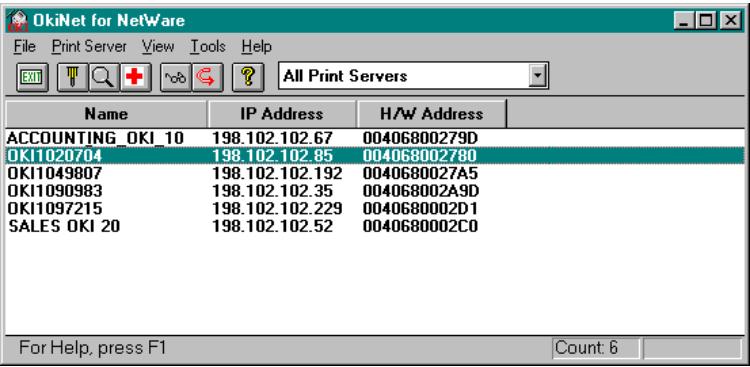
By default, the All Print Servers view is selected and all print servers attached to the network from which the OkiNet utility is running are listed.
Configuring the OkiLAN 6010e Using OkiNet for NetWare
The following steps outline how to configure an OkiLAN 6010e.
- Select the OkiLAN 6010e you wish to configure.
- Select Configuration from the Print Server menu or select the Configuration icon on the toolbar.
- Set the appropriate configuration by choosing the applicable file folder tabs.
The following settings are configurable based on the capabilities of the OkiLAN 6010e:
- NetWare
- NetWare Queues
- NetWare Port
- TCP/IP
- Protocols
- Output Port
SNMP
SNMP Traps
NetWare Configuration Options
To configure options specific to the NetWare protocol, select the NetWare file tab. The following screen will display:
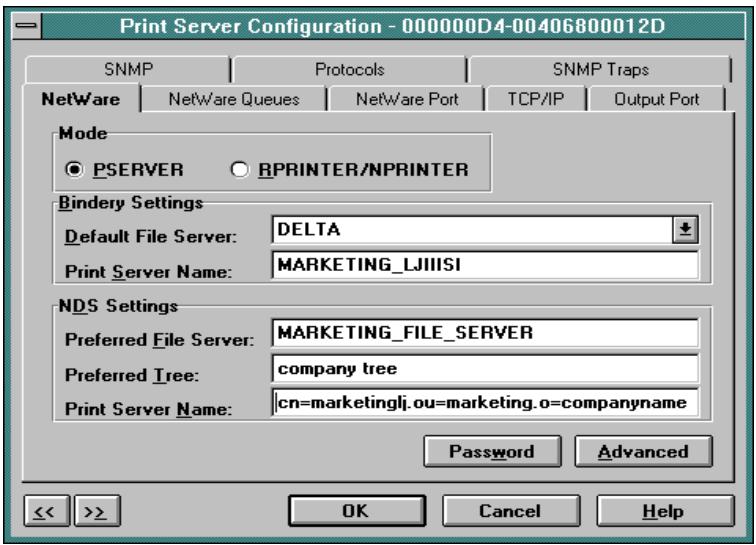
PServer or RPrinter Mode
Several factors should be considered when choosing between PServer or RPrinter mode. For more detailed information regarding these modes, see page III-4.
Bindery Settings
- Default File Server - The default file server can be selected from any file server listed in the Default File Server scroll menu. The default file server must be active at power up for the OkiLAN 6010e to recognize other servers.
- Print Server Name - Enter the print server name of your choice.
NDS Settings
NDS settings need to first be created and setup using the NWAdmin or PConsole utility. Create an NDS print server object. Then, create one NDS printer object per output port. For example, Printer 1 goes to Port 1, Printer 2 goes to port 2. Attach NDS print queues to the NDS printer objects. Once you have created NDS objects and queues, use the OkiNet for NetWare utility to configure the following fields:
- Preferred File Server - This is the file server on which the print server object was created.
- Preferred Tree - This is the NDS tree on which the NDS print server object was created.
- Print Server Name - The fully qualified (canonical) name of the NDS print server object that was created.
Example: cn=marketinglj.ou=marketing.o=companyname
where cn is the Common Name of the leaf object, ou is the Organizational Unit name, and o is the Organizational name.
Note: After any change to the servicing of queues for the OkiLAN 6010e from NWAdmin or PConsole, the OkiLAN 6010e must be reset via OkiNet for NetWare.
NetWare Queues Configuration Options
The NetWare Queues option allows you to add bindery print queues to be serviced by first selecting each desired queue and then selecting the button.
To have a queue print to an output port other than the currently selected port, select the Output Port button and then select the desired port.
NetWare Queue Load Balancing
Print jobs can be distributed to multiple printers on selected queues by selecting the same queue multiple times and selecting a different output port for each queue entry.
NetWare Port Configuration Options
To modify the NetWare port settings to fit your NetWare printing environment, select the NetWare Port file tab.
TCP/IP Configuration Options
To modify configuration settings specific to the TCP/IP protocol such as IP address, subnet mask and default gateway. For specific information on TCP/IP configuration options, see Section IV, TCP/IP, or select the HELP button on the bottom right of the screen.
Output Port Configuration Options
To configure the OkiLAN 6010e output port, select the Output Port file tab. The following screen will display:
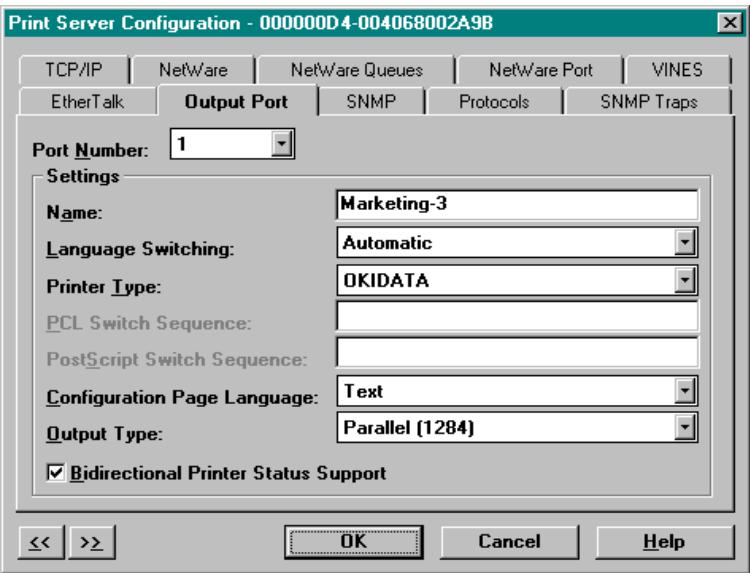
Port Number
Select the port you wish to configure.
Name Field
Enter a descriptive name to identify the port.
Language Switching
Each output port can be configured to perform the following language switching options: OFF, PCL, PostScript or Automatic. Unless OFF is selected, a language switching character string will be inserted before each print job. The Printer Type selection is used to determine the actual characters required to switch the language of the printer.
- OFF - Print data stream will be sent directly to the output port without alteration.
- PCL - Inserts the appropriate character string in front of each print job to switch the printer to the PCL print language.
- PostScript - Inserts the appropriate character string in front of each print job to switch the printer to the PostScript printer language.
- Automatic – Enables the auto language sensing function. This function examines the print job data stream and determines the required print language and inserts the appropriate character string in front of each print job to switch the printer to the appropriate printer language.
Note: If you are not switching languages or the printer can switch languages automatically, this option should be set to OFF.
Printer Type
The Printer Type selection is used to determine the actual character string required for your printer. If your printer type is not listed, select Other and enter the character string for switching the printer to PCL or PostScript mode.
To enter nonprintable characters, enclose the ASCII value of the character in angle brackets. For example, to enter the ESC character type: <27> .
PCL Switch Sequence
Enter the character string to switch the printer to the PCL print language.
PostScript Switch Sequence
Enter the character string to switch the printer to the PostScript print language.
Configuration Page Language
Select the appropriate printer language for printing configuration pages on your printer.
Note: Do not set the Configuration Page Language to OFF for all ports of your OkiLAN 6010e. If a configuration sheet cannot be printed, troubleshooting abilities are limited.
Bidirectional Printer Status Support
Enable this option for enhanced status from bidirectional printers that support PJL.
SNMP Configuration Options
SNMP options specify which information is necessary for an SNMP manager to access the OkiLAN 6010e. The system variables are for user convenience and are optional.
SNMP community names are used as passwords to GET and SET information on the OkiLAN 6010e. The values should be changed for enhanced security.
To configure SNMP specific information, select the SNMP filetab. The following screen will display:
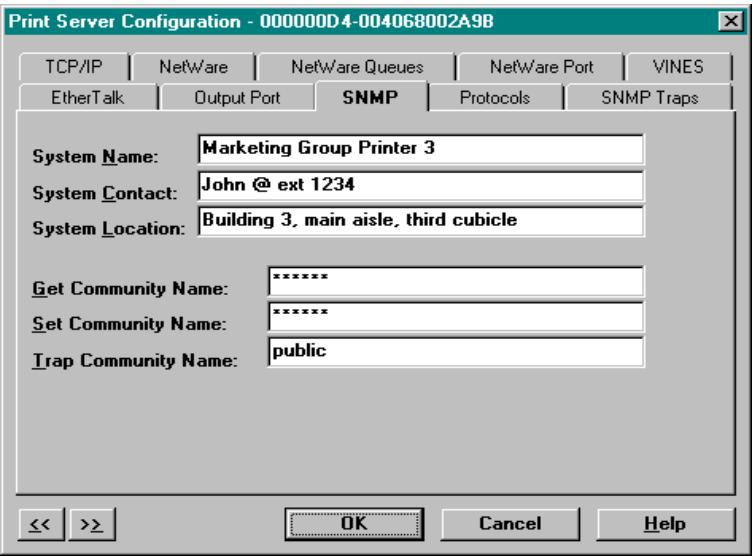
Note: SNMP options need to be configured only if you are managing OkiLAN 6010e products or getting system information using SNMP.
Fill in the following information:
System Name
Enter the name of your choice. This name will identify the OkiLAN 6010e in your SNMP-based management program.
System Contact
Enter any information useful to a user if problems with the OkiLAN 6010e arise.
System Location
Enter a description of the OkiLAN 6010e location.
Get Community Name
This field is used to set the community name required to Get information from the print server. The default community name is public.
Note: To use the JetAdmin utility with the OkiLAN 6010e, the Get and Set Community Names must be set to public.
Set Community Name
This field sets the community name required to Set information on the OkiLAN 6010e. The default community name is public.
Note: The OkiLAN 6010e cannot be configured without the correct Set community name. To secure the configuration of the OkiLAN 6010e, change the community name from the default setting.
Trap Community Name
Enter the community name which will be used when traps are sent from the OkiLAN 6010e. This setting allows trap utilities to only accept traps from devices with appropriate community names.
The Trap community name field is used by the OKI OkiNet Alert and other monitoring utilities for grouping or filtering OkiLAN 6010e devices. OkiNet Alert assists in managing network printers by immediately alerting you of printer problems.
SNMP Traps Configuration
The SNMP Trap option allows configuration of traps. Traps are unsolicited information concerning the OkiLAN 6010e. Traps can be sent to an SNMP manager or be broadcast to all hosts on the local segment.
To configure SNMP traps, select the SNMP Traps file tab. The following screen will display:
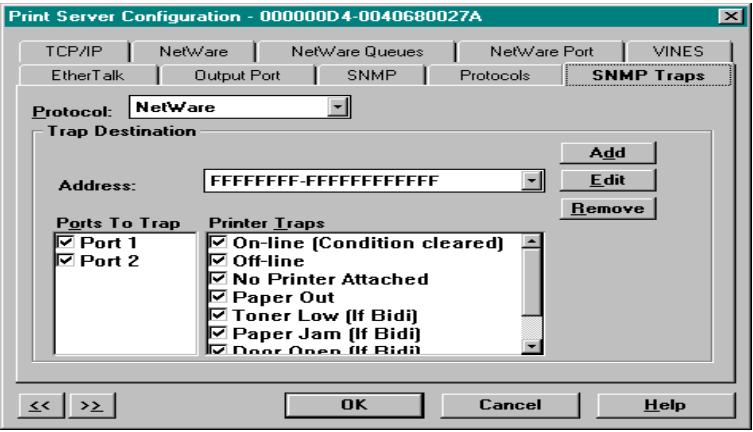
Fill in the following information:
Protocol
Select the protocol for which you wish to configure trap information.
Trap Destination
-
NetWare Protocol - Enter the network number and hardware address, respectively, to which traps will be sent. To broadcast traps to all addresses on all networks, enter FFFFFFF (8 characters) in the first field and FFFFFFF (12 characters) in the second field. To broadcast traps to all addresses on a specific network, enter the network number in the first field and then FFFFFFF (12 characters) in the second field.
-
TCP/IP Protocol - Enter the IP address to which traps will be sent. The IP address must follow the format XXX.XXX.XXX.XXX, where each XXX is a number from 0 to 255. To broadcast traps to all hosts on the local subnet, enter 255.255.255.255.
Ports to Trap
Select the output ports on which you wish traps to be active.
Printer Traps
Select the printer traps to be activated. The following printer conditions may cause a printer trap to occur:
On-line
- Off-line
No Printer Attached
- Paper Out
- Toner Low
- Paper Jam
Door Open
- Printer Error
Note: Toner Low, Paper Jam and Door Open require the printer to be set in PCL or Auto mode.
Saving the Configuration
Once all settings have been defined, select OK. The settings will be saved and you will be returned to the main OkiNet for NetWare screen.
Enabling/Disabling Protocols
To enable or disable protocols on the OkiLAN 6010e, select the Protocols file tab. Select each protocol you wish to enable. If you disable a protocol, the OkiLAN 6010e will no longer communicate using that protocol.
To reduce unnecessary network traffic, disable unused protocols.
Displaying OkiLAN 6010e Diagnostic Information
To view OkiLAN 6010e diagnostic information, select Diagnostics from the Print Server pull-down menu on the main NetWare Print Manager screen. Diagnostic information is available for the following topics:
- Printer
- Print Server
- Protocols
Network - Statistics
Technical Support
System
Printing a Configuration Sheet
The configuration sheet provides current network, print server and printer information. To print a configuration sheet, select the OkiLAN 6010e from the list of available print servers. Select Print Configuration Sheet from the Print Server menu bar.
Resetting the OkiLAN 6010e
To reset the OkiLAN 6010e, select the OkiLAN 6010e from the list of available print servers. From the Print Server menu bar, select Reset.
CAUTION: Make sure there are no print jobs active when you reset the OkiLAN 6010e. All protocols will be restarted. If you attempt a reset while a job is printing, the job may not print successfully.
Restoring Factory Default Settings
To restore the OkiLAN 6010e to factory default settings, select the OkiLAN 6010e from the list of available print servers. From the Print Server menu bar, select the Reset option. Choose one or more of the following options:
Output Ports
Restores settings related to output ports such as port name and output type.
TCP/IP
Restores settings specific to the TCP/IP protocol configuration such as the IP address and subnet mask.
NetWare
Restores settings specific to the NetWare protocol configuration such as the mode and default file server.
Once you have chosen the desired options, select Restore. To completely restore the print server to factory default settings, select all items in the list.
CAUTION: Make sure there are no active print jobs when you select Restore Factory Defaults. If you reset the OkiLAN 6010e while a job is printing, the job may not print successfully.
Creating Customized Views
OkiNet for NetWare allows users to create multiple customized views for the list of OkiLAN 6010e products. By creating different views, the user can narrow the information displayed to that which is of highest priority. These views can be saved and selected as needed.
OkiNet has two predefined views. The All Print Servers view displays all the print servers available on your local network. The Unconfigured Print Servers View displays only the print servers on the local network that have not been configured.
Creating a New Customized View
To create a new view, select the New option from the View menu. Enter a name for the new customized view. Define Filters, Sorts, Column, Search information and Refresh rates (see the Modifying View Settings sections for more detail). Select OK to save this view.
Selecting an Existing View
To select an existing view, choose Select from the View menu. Highlight the view you wish to open and select OK. The OkLAN 6010e list in the utility will be displayed as described by the view selected.
Searching for a Specific OkiLAN 6010e
To search for a specific OkiLAN 6010e, select Search from the tools menu. Choose the Search List option to search for OkiLAN 6010e products already listed. For OkiLAN 6010e products which cannot be found in the list, select the Search Network by Address option. For more information about this option, select HELP.
Modifying View Settings
Before modifying the settings, select the name of the view you wish to edit from the Name field.
Display Filter
The filter option displays only those print servers matching specific criteria. The print server list can be filtered by any of the following:
| Filter By | Enter for the Filter Value |
| <No Filter> | No value |
| DateCode | Four digits followed by a letter (e.g. 9502B) |
| H/W Address | 12 hexadecimal digits for the hardware address |
| Name | NetWare print server name |
| Product # | Select from the list of product number(s) |
| Product Type | Select from the list of product types |
| Status | Select from the list of status conditions |
| Default File Server | The default NetWare file server |
Mode
The NetWare mode the print server is running
Network #
The IPX network number
Search Filter
The Search option defines the criteria for locating OkiLAN 6010e products on the network.
- Search Local Network - This method searches the bindery to locate all OkiLAN 6010e products on the network. All OkiLAN 6010e print servers that respond are placed in the list. If you have a large number of OkiLAN 6010e print servers on your network and do not wish to view all of them, do not select this option.
- Specify Devices/Networks - This method adds specific print servers (or groups of print servers) to the list. This can be useful when only a subset of the list of OkiLAN 6010e products is desired.
To select all desired print servers, select Add.
Sort
The Sort option displays the OkiLAN 6010e list in a specific order. The list can also be sorted by clicking on the column by which you wish to sort. A sort order can only be defined on columns displayed on the main OkiNet for NetWare screen.
Columns
Column information for each print server can be modified. To define the location of a new column, select the location in the Columns Displayed field where you wish the new column to be inserted, then select Add. If no location is selected, the new column will be added to the end of the list and the column will be displayed to the right of the last column on the screen. For example, if you currently have three columns displayed and you wish to add a fourth column to the far left of the screen, follow these steps:
- Select the first column in the Columns Displayed field.
- Select the column to be added from the Columns Available field.
- Select Add.
Columns may also be removed by selecting Remove from the Columns Available field.
Refresh
The refresh rate defines how often the OkiNet for NetWare utility updates the main print server list. To define a refresh rate, select the Automatic Refresh box and then enter the refresh rate in the field provided. Decide how frequently to refresh the screen based on factors such as network traffic and desire for most recent information. For example, if traffic is not an issue on your network and the most current information is desired, set the refresh rate to 1 so the screen is updated every minute. If network traffic is an issue, you may wish to set the refresh rate to 10. This would update the screen every ten minutes and minimize network traffic.
Permanently Defining SNMP Access Information
Access to OkiLAN 6010e configuration and diagnostic information is determined by using community names. The Special Options window is used to permanently define access information so it does not need to be entered each time the OkiLAN 6010e is accessed. To Get and/or Set information on the OkiLAN 6010e through OkiNet for NetWare, community names used by the utility must match the community names assigned to the OkiLAN 6010e.
To configure the OkiNet for NetWare utility to use the correct community names, select Special Options from the File menu.
Serial/Network Numbers
This field displays the serial number of each OkiLAN 6010e or the network number for a network of OkiLAN 6010e products for which the OkiNet utility has defined access. To add a new serial number or network number to this list, select the Add button.
Get Community Name
Enter the Get Community Name necessary to access the OkiLAN 6010e or group of OkiLAN 6010e products selected.
Set Community Name
Enter the Set Community Name necessary to access the OkiLAN 6010e or group of OkiLAN 6010e products selected.
Add
Select the Add button to define access to a new OkiLAN 6010e or a group of OkiLAN 6010e products. Enter a serial number or a network number followed by a dash (-). Use an asterisk (*) as a wildcard to match multiple devices. For example, to add a single OkiLAN 6010e, enter 1500001. To add a whole network, enter D4-.
Delete
The Delete button deletes an OkiLAN 6010e access entry in the Serial/Network Number list.
Chapter 3: OkiNet for NDS
Overview
OkiNet for NDS is a Dynamic Link Library (DLL) which allows users to create and manage OKI print server objects in the NDS tree. OkiNet for NDS integrates into Novell's NetWare Administrator, a Windows-based utility that allows users to view and manage their NetWare 4.x NDS tree. Once OkiNet for NDS is integrated into NetWare Administrator, users can manage OKI devices with the same utility used to manage other network objects such as printers and queues.
The OkiLAN 6010e supports NetWare NDS using Novell Embedded Systems Technology, also known as NEST. OkiNet for NDS can be installed to support Novell NetWare version 4.1 or 4.11 and for operating systems running Windows 3.x, Windows 95 and/or Windows NT. If you have multiple versions of Windows operating systems to service, you can install OkiNet for NDS for each.
OkiNet for NDS supports four different versions of NWAdmin.
-
OkiNet for NDS installation for NetWare version 4.1 (one version of NWAdmin) requires a single installation which will work for all platforms including Windows 3.x. Windows 95 and/or Windows NT.
-
The OkiNet for NDS installation for NetWare version 4.11 requires a separate installation for each of the three platforms: Windows 3.x, Windows 95 and/or Windows NT (three separate versions of NWAdmin).
Refer to the following table to determine which method to use to install OkiNet for NDS:
| NetWare Version | Client Operating System | |
| Windows 3.x | Windows 95/Windows NT | |
| NetWare 4.1 | See Installing OkiNet for NDS for Novell Netware 4.1 | |
| NetWare 4.11 | See Installing OkiNet for NDS for Novell NetWare 4.11 and Windows 3.x | See Installing OkiNet for NDS for Novell NetWare 4.11 and Windows 95/Windows NT |
Installing OkiNet for NDS for Novell NetWare 4.1
A single installation is required to service Windows 3.x and Windows 95 operating systems with OkiNet for NDS for Novell NetWare 4.1. OkiNet for NDS must be installed in the same location you have installed NetWare Administrator. This may be located on the file server or on an independent workstation. In most cases NetWare Administrator can be found in the SYS:\PUBLIC directory. To install OkiNet for NDS for Novell NetWare 4.1 and Windows 3.x and/or Windows 95:
- Login to the directory tree as a user with Admin rights at the root of the directory tree.
- Run the installation program provided. Select the option to install OkiNet for NDS. Follow the instructions on the screen.
When installing OkiNet for NDS, the install utility copies the OkiNet for NDS files to the destination directory, adds the OKI print server class to the NDS schema and modifies the user's NWADMIN.INI file.
- If OkiNet for NDS is installed on the file server, anybody using NetWare Administrator on the network can use it. To do so, they must add the following text to the NWADMIN.INI file in their Windows directory:
[Snapin Object DLLs]
SNAPIN=XVIEWNDS.DLL
Installing OkiNet for NDS for Novell NetWare 4.11 and Windows 3.x
OkiNet for NDS must be installed in the same location you have installed NetWare Administrator. This may be located on the file server or on an independent workstation. In most cases NetWare Administrator can be found in the SYS:\PUBLIC directory. To install OkiNet for NDS for Novell NetWare version 4.11 and Windows 3.x:
- Login to the directory tree as a user with Admin rights at the root of the directory tree.
- Install OkiNet for NDS.—see Section I.
When installing OkiNet for NDS, the install utility copies the OkiNet for NDS files to the destination directory, adds the OKI print server class to the NDS schema and modifies the user's NWADMIN3X.INI file.
- Once OkiNet for NDS is installed on the file server, anybody using NetWare Administrator on the network can use it. To do so, they must add the following text to the NWADMIN.INI file in their Windows directory:
[Snapin Object DLLs Win3x] XVWNS16DLL=XVWNS16DLL
Installing OkiNet for NDS for Novell NetWare 4.11 and Windows 95/Windows NT
OkiNet for NDS must be installed in the same location you have installed NetWare Administrator. This may be located on the file server or on an independent workstation. In most cases NetWare Administrator can be found in the SYS:\PUBLIC\Win95 or SYS:\PUBLIC\WinNT directory. To install OkiNet for NDS for Novell NetWare version 4.11 and Windows 95/Windows NT:
- Login to the directory tree as a user with Admin rights at the root of the directory tree.
- Install—see Section I.
When installing OkiNet for NDS, the install utility copies the OkiNet for NDS files to the destination directory, adds the OKI print server class to the NDS schema and modifies the user's NWADMIN3X.INI file.
- Once OkiNet for NDS is installed on the file server, anybody using NetWare Administrator on the network can use it. To do so, they must add the following text to the NWADMIN.INI file in their Windows directory:
[Snapin Object DLLs Win3x] XVWNS16DLL=XVWNS16DLL
Installing OkiNet for NDS for Novell NetWare 4.11 and Windows 95/Windows NT
OkiNet for NDS must be installed in the same location you have installed NetWare Administrator. This may be located on the file server or on an independent workstation. In most cases NetWare Administrator can be found in the SYS:\PUBLIC\Win95 or SYS:\PUBLIC\WinNT directory. To install OkiNet for NDS for Novell NetWare version 4.11 and Windows 95/Windows NT:
- Login to the directory tree as a user with Admin rights at the root of the directory tree.
- Install—see Section I.
When installing OkiNet for NDS, the install utility copies the OkiNet for NDS files to the destination directory, adds the OKI print server class to the NDS schema and modifies the user's registry.
- Once OkiNet for NDS is installed on the file server, anybody using NetWare Administrator on the network can use it. To do so, they must run Reginst.exe found on the installation diskette.
Windows 95:
Reginst XVWNDS32.dll (path to NWAdmin)\ XVWNDS32.dll “Snapin Object DLLs Win95”
Windows NT:
Reginst XVWNDS32.dll (path to NWAdmin)\ XVWNDS32.dll “Snapin Object DLLs WinNT”
Creating a New OkiLAN 6010e Object
To create a new OkiLAN 6010e object from Novell's NetWare Administrator, perform the following steps:
- Select the container (also known as organizational unit) in which you want the object created. For example, to create an object that is within the sales organizational unit, select SALES.
- From the Object menu, select Create. If the Create option is grayed, you do not have sufficient rights or you have selected a leaf object.
-
From the Class of New Object list box, select OKI Print Server. If the OKI Print Server is not listed, check the following:
-
The OkiNet for NDS utility has been installed.
-
The OKI Printing Device has not been removed from the schema. See Adding or Removing the OKI Print Server section for more information.
-
Click OK.
-
Define filter and sort criteria for displaying a list of Extended Systems devices from which to choose.
-
Click OK.
Note: If the Device list box is still empty, select Find Device. This will allow you to locate the specific device you are trying to define. You will be prompted for the Ethernet address and network number of the device. A mismatch in the OKI device frame format may cause the device not to show up in the Device list box.
- From the list of OKI devices, select a device to assign to the object.
- Enter a name for the new OKI Print Server object.
- Select Create.
The new OKI Print Server object should now appear in the directory tree.
Printing with an OkiLAN 6010e Print Server
To configure the NetWare environment for printing to an OkiLAN 6010e print server, follow these steps:
- Install the OkiLAN 6010e hardware and connect the cabling. Instructions for hardware installation are found in Section I of this manual.
-
Create an OKI Print Server object. If you are unfamiliar with how to do this, see the previous section.
-
Open the OKI Print Server object's Details dialog. This may be done by double-clicking on the OKI print server icon in the NDS tree or by selecting Details from the File menu.
- If your OkiLAN 6010e supports both PServer and NPrinter mode, there are several factors to consider when choosing which mode to use. See page III-6 for more information. From the Identification page, select either PServer or NPrinter mode. If you select NPrinter mode, skip to Step 11.
- From the Assignments page, choose the Port # associated with the printer to which the queue will print.
- Select Assign
- Select or create a NetWare Printer object from the Printer/Queue Assignments dialog.
- Select or create a NetWare Print Queue object from the Printer/Queue Assignments dialog.
- Select OK to save your printer and queue selections.
Note: To load balance print queue jobs, repeat steps 5 through 9 for another port. Create a new printer object for the OkiLAN 6010e port and then select the same print queue object. This will allow multiple printers to service a single print queue.
-
From the Assignments page, select OK to save changes. If you have selected PServer mode, you have completed all necessary steps. Continue to Configuring the OkiLAN 6010e Using OkiNet for NDS.
-
Select or create a NetWare Print Server object from the Assignments page.
- Select a port to configure from the Assignments page, then select Assign.
- Select or create a NetWare Printer object from the Printer/Queue Assignments dialog.
- Select or create a NetWare Print Queue object from the Printer/Queue Assignments dialog.
- Select OK to save your printer and queue selections.
- From the Assignments page, select OK to save changes.
- From the file server, restart the PSERVER.nlm.
Configuring the OkiLAN 6010e Using OkiNet for NDS
The following steps outline how to configure an OkiLAN 6010e.
- From the NWAdmin screen, select (double-click) the OkiLAN 6010e you wish to configure.
- Set the appropriate configuration by choosing the applicable detail pages.
The following settings are configurable:
- Identification
Network Protocols - Assignments
- Port Configuration
Network Configuration - Status
For specific information about these detail pages, select the HELP button.
Adding or Removing the OKI Print Server Class
The OKI print server class is added to Novell's NetWare Administrator by the installation utility. This class must exist in order to create an OKI Print Server object for use in printing to the device.
Removing the OKI Print Server Class
- Run Novell's NetWare Administrator.
- Verify all OKI print server objects have been removed from the directory tree.
- From the Tools menu, choose Remove OKI Printing Device Class. The OKI print server class will no longer show up in the Create New Object dialog. If the Remove OKI Printing Device Class option is grayed, the class has already been removed. If the option does not exist, OkiNet for NDS is not installed.
The install utility on the installation diskette can also be used to remove the OKI print server class. This utility removes the class from Novell's NetWare Administrator and removes all the associated files that were copied during the installation process.
Note: Be sure to remove all OKI Print Server objects from the directory tree before uninstalling OkiNet for NDS.
Adding the OKI Print Server Class
The OKI print server class is initially added to Novell's NetWare Administrator when the Install utility is run from the diskette. If the OKI print server class has been removed through Novell's NetWare Administrator's Tools menu, you will need to add the class again.
From the Tools menu in Novell's NetWare Administrator, choose Define OKI Printing Device Class. If this option is grayed, the class has already been added. If the option does not exist, you will need to run the install utility from the diskette to install OkiNet for NDS.
The OKI print server class will now appear in the Create New Object dialog.
Section IV:
TCP/IP
In This Section
Chapter 1: Introduction IV-6
Overview IV-6
Software Requirements IV-6
Network Preparation IV-7
Before You Start IV-7
Overview of TCP/IP Configuration IV-8
Chapter 2: Configuring the OkiLAN 6010e IV-9
Choosing an IP Address IV-9
Configuring the OkiLAN 6010e IV-10
Assigning the IP Address IV-11
Other Utilities IV-16
Verifying Access to the OkiLAN 6010e... IV-16
Chapter 3: TCP/IP Configuration and Printing IV-17
Overview IV-17
Configuring for TCP/IP Network Printing IV-18
Remote Print Queue Name IV-18
Configuring a BSD-Style Print Queue .... IV-20
Remote LPD Printing IV-23
FTP Printing IV-23
Timeout Checking IV-26
Raw Port Printing IV-27
Chapter 4: OkiNet for TCP/IP IV-28
Overview IV-28
System Requirements IV-28
Running OkiNet for TCP/IP IV-29
Configuring the OkiLAN 6010e Using OkiNet for TCP/IP. IV-30
Configuring TCP/IP Options IV-31
NetWare and NetWare Port Configuration Options IV-34
NetWare Queues Configuration Options.. IV-34
Output Port Configuration Options IV-34
SNMP Configuration Options IV-37
Enabling/Disabling Protocols IV-40
SNMP Trap Configuration IV-40
Saving the Configuration IV-42
Displaying OkiLAN 6010e Diagnostic Information IV-43
Printing a Configuration Sheet IV-43
Resetting the OkiLAN 6010e IV-43
Restoring Factory Default Settings IV-44
Creating Customized Views IV-45
Modifying View Settings IV-46
Permanently Defining SNMP Access Information IV-50
Configuring the Discovery UDP Port Number IV-51
Starting a Telnet Session IV-52
Starting the BOOTP Server IV-52
Chapter 5: Telnet Configuration .... IV-53
Overview IV-53
Running a Telnet Session IV-53
Showing Network/Printer Information (Option 1) IV-55
Changing the Password (Option 2) IV-55
Specify Print Server IP Address
(Option 3) IV-55
Specify the Subnet Mask for Your
Network (Option 4) IV-56
Identify Default Gateway IP Address
(Option 5) IV-57
Configure Port (Option 6)
TCP Connection Configuration
(Option 7) IV-59
Download New Firmware (Option 8)
Restore to Factory Default
Configuration (Option 9) IV-60
Appendix A: Troubleshooting
Main Status Indicator
Restoring the OkiLAN 6010e to Factory
Defaults IV-61
Unable to Assign IP Address
Hardware Error Messages
Printing a Configuration Page
Unable to Print
Appendix B: Application
Considerations IV-70
Overview IV-70
Assigning the OkiLAN 6010e IP Address with
BOOTP IV-71
Configuring the OkiLAN 6010e IP Address
with RARP IV-75
Configuring HP-UX v8.07 for Printing with the
OkiLAN 6010e IV-79
Configuring HP-UX v9.xx for Printing with the OkiLAN 6010e IV-84
Configuring HP-UX v10.xx for Printing with the OkiLAN 6010e IV-89
Configuring SCO UNIX for Printing with the OkiLAN 6010e IV-94
IBM's AIX ver. 3.x for Printing with the OkiLAN 6010e IV-97
Configuring Solaris 2.x for Printing with the OkiLAN 6010e IV-100
Configuring Sun-OS v4.1.x or Ultrix v4.2 for Printing with the OkiLAN 6010e..... IV-102
Chapter 1: Introduction
Overview
This section contains instructions and information on how to configure your OkiLAN 6010e. You will also be instructed on how to set up your host computers to print to the OkiLAN 6010e using the TCP/IP protocol.
OkiLAN 6010e supports three TCP/IP methods for printing:
Remote Line Printer Daemon (LPD)
- File Transfer Protocol (FTP)
- Printing directly through a TCP port (Raw Port Printing)
Software Requirements
The OkiLAN 6010e may be configured for TCP/IP using the OkiNet for TCP/IP utility, or from a computer supporting the OkiNet for NetWare utility, OR telnet and one of the following:
- Manual arp table entry and ping
Static route entry using route add command - DHCP
RARP - BOOTP
Network Preparation
- You should be familiar with network administration as well as the physical setup and operation of your network.
- Advise users of possible disruption during installation.
- Make sure the serial number and Ethernet address of your OkiLAN 6010e are available.
- Assign an IP address and a hostname (alias) to the OkiLAN 6010e.
- Use the network name service or the "/etc/hosts" file to add the OkiLAN 6010e to the network.
Before You Start
Before running OkiNet for TCP/IP, you must do the following:
- Install the OkiLAN 6010e hardware and connect the cabling. Instructions for hardware installation are found in Section I of this manual.
Write down the serial number and Ethernet address of your OkiLAN 6010e. (These numbers are located on the OkiLAN 6010e board.) - Install OkiNet for TCP/IP—see Section I.
Overview of TCP/IP Configuration
- Assign an IP address for the OkiLAN 6010e
- Configure the OkiLAN 6010e network information
- Configure hosts for printing to the OkiLAN 6010e
- Test print (optional)
Chapter 2: Configuring the OkiLAN 6010e
Choosing an IP Address
Every TCP/IP network device is required to have a unique IP address. The IP address can be permanently stored using one of the following:
- OKI OkiNet management utilities for TCP/IP or Novell NetWare
- OkiLAN 6010e Configuration utility via telnet.
Note: The OkiNet utilities are the easiest way to assign an IP address.
Using factory default settings, the OkiLAN 6010e first attempts to determine its IP address (flashing rapid green) using DHCP, RARP, BOOTP or Gleaning. If the OkiLAN 6010e has not resolved its IP address after 2 minutes, it defaults to 198.102.102.254. (This IP address should be used only temporarily for configuration purposes.)
To choose an IP address:
- Select an IP address and hostname for the OkiLAN 6010e.
Example: 192.168.42.50 OkiLAN 6010e_name
- Add the name and IP address to the "/etc/ hosts" file of each host that will access the OkiLAN 6010e. Or, if your network uses a name service, add the host name and IP address to the name server.
Most TCP/IP networks use the Network Information Service (NIS), Domain Name Service (DNS) or the “/etc/hosts” database. See your network documentation for instructions.
Configuring the OkiLAN 6010e
There are four utilities available to configure the OkiLAN 6010e for TCP/IP printing. You may use whichever utility is best suited for your needs.
-
OkiNet for TCP/IP - Windows TCP/IP print manager utility. See Chapter 3 of this section for more information.
-
OkiLAN 6010e Configuration Utility – This utility is accessed via telnet. See Chapter 5 of this section for more information.
In order to configure the OkiLAN 6010e via telnet, you must first assign an IP address to the OkiLAN 6010e and verify communication by pinging the device.
- OkiNet for NetWare – This windows utility must be run from a Novell NetWare client. See Section III of this manual for specific information.
Assigning the IP Address
There are eight different methods for assigning an IP address to the OkiLAN 6010e: Gleaning, Static Route Entry, DHCP, RARP, BOOTP and using the OkiNet utilities. Gleaning, Static Route Entry and RARP require the OkiLAN 6010e and the host to be on the same subnet. DHCP and BOOTP also have this restriction unless the network routers are configured to pass these requests. The OkiNet utilities do not have this restriction.
Gleaning
If an IP address has not been permanently assigned when the OkiLAN 6010e is powered on or reset, it will look for a ping packet on the network. If the OkiLAN6010e receives a ping packet within two minutes, it will accept the IP address in the ping packet as its own address.
To use Gleaning, you must have Windows 95, Windows NT, or super-user privileges on a UNIX system.
- Add an entry in the ARP table that assigns an IP address to the hardware address of the OkiLAN 6010e. To do this, use the arp command.
arp -s
UNIX Example:
arp -s 192.168.42.24 00:02:16:00:00:01 temp
Windows 95, Windows NT Example: arp -s 192.168.42.24 00-02-16-00-00-01
- Start a continuous ping to the OkiLAN 6010e.
$$ \text {p i n g} < i p _ a d d r e s s > $$
Example: ping 192.168.42.24
On some systems, this may require an additional parameter. Some implementations of ping only send out one ping packet which could get lost in transit. Check your system documentation for more information.
- Connect power to the OkiLAN 6010e.
The OkiLAN 6010e will glean its IP address from the ping packet. This IP address will remain in effect until the OkiLAN 6010e is powered off or reset. Therefore, a permanent IP address should be assigned by running the OkiNet for TCP/IP utility or via telnet.
Note: Gleaning does not work with Windows NT Workstation 3.5.
DHCP
The Dynamic Host Configuration Protocol (DHCP) provides a framework for passing configuration information to hosts on a TCP/IP network in a client/server fashion. DHCP is based on the Bootstrap Protocol (BOOTP), adding the capability of automatic allocation of reusable network addresses and additional configuration options. DHCP uses the same packet structure as BOOTP so current BOOTP relay agents will also interact with DHCP messages.
DHCP offers dynamic IP address allocation. When a client receives an IP address, it also receives a lease (an amount of time the host may use the address). The lease times vary from 1 hour to 100 years, or may be infinite. When the lease expires, the host must stop using the address. DHCP may also be used like BOOTP, with a certain IP address always assigned to a certain device. Depending on the server, both methods may be used at the same time.
If the OkiLAN 6010e does not find a DHCP server after two minutes, it will timeout and assume a default address of 198.102.102.254. This follows current BOOTP and RARP behavior.
If the OkiLAN 6010e receives multiple responses, it will choose the first one.
When the OkiLAN 6010e receives an address, it sends an ARP message once every second for five seconds on the offered address to determine if another device is using it. If the OkiLAN 6010e finds another device is using the address, it will refuse the address and start looking for a new address.
Static Route Entry
When the OkiLAN 6010e is powered on or reset and no permanent IP address has been assigned, it will attempt to obtain an IP address through Gleaning, RARP, BOOTP or DHCP. If the OkiLAN 6010e has not determined its IP address after two minutes, the IP address will default to 198.102.102.254. This IP address should only be used temporarily to configure a new, permanent IP address. To change to a permanent IP address, the route add command is used to place the OkiLAN 6010e product's default IP address into the workstation's network routing table. To use the route command, you must have Windows 95, Windows NT or super-user privileges under UNIX. The syntax for this command is
route add 198.102.102.254 “IP address of the workstation” 0
Note: The zero (0) placed at the end of the route add command shown above is optional.
The Static Route method only works if the host from which you are telneting is on the same subnet as the OkiLAN 6010e. Once the route add command has been issued, telnet will allow you to change and/or make the IP address permanent. After changing the IP address to its permanent address, the routing table entry should be deleted using route delete.
For more information, consult your system documentation for the route command.
RARP or BOOTP
If an IP address has not been permanently assigned, the OkiLAN 6010e will use Reverse Address Resolution Protocol (RARP) or Bootstrap Protocol (BOOTP). The OkiLAN 6010e will broadcast requests for its IP address to both RARP and BOOTP servers. A RARP or BOOTP server will respond by searching a configuration file that maps the Ethernet hardware addresses of devices on the network to their respective IP addresses. If a match is found, the server's response will include the IP address of the device.
Most UNIX operating systems support either the RARP or BOOTP protocol. To find out which protocol your operating system supports, request the manual page for the protocol's daemon (e.g. man bootpd or man rarpd), or see your network manuals. Both protocols require that you add the product's network hardware address and IP address to a configuration file. See your network documentation for instructions or refer to Appendix B, Application Considerations.
Note: An IP address received from a RARP or BOOTP server is not permanently programmed into the OkiLAN 6010e. Therefore, if you choose this method of assigning the IP address, the RARP or BOOTP server must be available every time the OkiLAN 6010e is powered on or reset. The IP address can be stored permanently using telnet, OkiNet for TCP/IP or OkiNet for NetWare.
A Winsock compliant BOOTP server is located on the OkiNet disk. This has been provided for users who do not have UNIX machines.
Other Utilities
The IP address can also be set from Novell NetWare using the OkiNet for NetWare utility.
Note: The OkiNet for NetWare utilities can only be used if Novell NetWare is installed on your network.
Verifying Access to the OkiLAN 6010e
Use the ping utility to verify access to the OkiLAN 6010e.
$$ \text {p i n g} < I P \quad a d d r e s s o f O k i L A N 6 0 1 0 e > $$
If the OkiLAN 6010e does not respond, your network or the device is not configured correctly.
- Verify the IP address, default gateway and subnet mask are set to the proper values on the OkiLAN 6010e by printing a configuration sheet. This can be done using either the print configuration sheet button, through the OkiNet or OkiNet for VINES utilities or via telnet.
- If the settings appear to be correct, try repeating the installation steps. If problems persist, call Okidata Customer Support at 1-800-OKIDATA (1-800-654-3282).
Chapter 3: TCP/IP Configuration and Printing
Overview
The OkiLAN 6010e supports printing from computers using TCP/IP and any of the following printing protocols:
- Line Printer Redirect/Line Printer Daemon (lpr/lpd)
- File Transfer Protocol (FTP)
- Printing directly through a TCP port (Raw Port Printing)
This chapter presents basic instructions on how to configure your computer to print using Remote LPD and FTP. Specific instructions for several popular computer systems have been documented in Appendix B, Application Considerations. If your specific system is not addressed in this appendix, follow the instructions outlined below. You should also refer to your operating system or computer manual for information about configuring remote network printing. If you are still unable to configure your computer system to print to the OkiLAN 6010e, contact Okidata Customer Support at 1-800-OKIDATA (1-800-654-3282).
Configuring for TCP/IP Network Printing
Most computers that support TCP/IP network printing use the Remote Line Printer Daemon (LPD) protocol. This protocol was originally part of the Berkeley Software Distribution (BSD) version of the UNIX operating system. Remote LPD was quickly adopted as a de facto standard. As a result, Remote LPD is now supported by most versions of the UNIX operating system and by many TCP/IP packages available for other operating systems. Configuration of Remote LPD printing varies among vendors who supply TCP/IP.
You may also use the File Transfer Protocol (FTP) for printing. Typically FTP is used to transfer files between computers on a TCP/IP network. The OkiLAN 6010e simply prints the files it receives from FTP.
Remote Print Queue Name
The Remote Print Queue Name determines which printer port will service the print job. The Remote Print Queue Name may also be used to specify ASCII print jobs. Both Remote LPD and FTP have provisions for specifying a Remote Print Queue Name.
The OkiLAN 6010e looks at the last character of the Remote Print Queue Name to determine which printer port will service the print job. All Remote Print Queue Names should end with the number 1, 2, 3 or 4. If a number is not specified, the OkiLAN 6010e will use printer port 1.
The OkiLAN 6010e is designed to handle many different types of printers and print data. Typically you will select the printer type for your printer in telnet under the Configure Port option. However, if you are connecting to an ASCII printer, you may wish to use the OkiLAN 6010e to format the print data for your printer.
The OkiLAN 6010e will parse the remote queue name and search for certain characters at the end which tell how to convert an ASCII print job. The print server uses FF, LF and NF as ASCII conversion specifiers and uses the last number as an output port. The FF, LF and NF specifiers must be the last letters in the queue name.
Example: LaserWriterFF, SalesColorLaserNF, ChemDeptLF2
FF Use the FF suffix at the end of the Remote Print Queue Name, before the port number.
Example: queueFF2
If the last character in the print job is not a form feed, the OkiLAN 6010e appends a form feed. This form feed prompts the printer to print any partial page at the end of the job.
LF Use the LF suffix at the end of the Remote Print Queue Name, before the port number.
Example: queueLF2
In addition to the form feed described above, the OkiLAN 6010e inserts a carriage-return character into the print job immediately before each line-feed character. This feature is useful for printing UNIX text files.
NF Use the NF suffix at the end of the Remote Print Queue Name, before the port number.
Example: queueNF2
The OkiLAN 6010e inserts a carriage-return character into the print job immediately before each line-feed character. This feature is useful for printing UNIX text files.
This option differs from LF in that form feed is not added to the end of jobs.
Configuring a BSD-Style Print Queue
For remote BSD-Style LPD printing, add the OkiLAN 6010e as a remote printer in the "/etc/printcap" database to each host printing to the OkiLAN 6010e.
You can add PRINTCAP options as needed. If you are unfamiliar with PRINTCAP, consult your local documentation.
The entry should be similar to the following:
local_print_queue_name[printer_model_and_manufacturer]:\
:lp=:mx#0:rm=OkiLAN 6010e_name:\
:rp=remote_print_queue_name:\
:sd=path_to_spool_directory:lf=just
log_file_name
local_print_queue_name
The local_print_queue_name defines the name of the printcap entry. It is used by the lpr/lpd utilities to specify which printcap entry is being referenced. Additional printcap entries can be added as needed for different queue types. Each entry must have a unique local_print_queue_name and a different spool directory to work properly. When you are ready to print, use the local_print_queue_name that matches the data type of the file to be printed.
OkiLAN 6010e_name
This is the name (alias) of the OkiLAN 6010e. This must be the same name as entered in the /etc/hosts file or your NIS or DNS system. An IP address may also be used here.
remote_print_queue_name
The remote_print_queue_name entry determines the OkiLAN 6010e port where the print job will be printed and optionally specifies ASCII printing.
path_to_spool_directory
This is the path to a directory where the print jobs will be spooled for this queue. You must create a unique spool directory for each printcap entry.
log_file_name
This is the path to a file where error information from the lpd will be logged.
Example: If you are printing to an ASCII printer that requires a carriage return/line feed, you may need two separate printcap entries: one entry for print jobs which terminate lines with a carriage return/line feed, and another entry for print jobs which terminate lines with a line feed only. Your printcap entries might look like the following:
ascii_files|form/feedQueue_on_Port_2:\
:lp=:mx#0:rm=pserver1:rp=MYQUEUEEFF2:\sd=/usr/spool/myqueueff2:\lf=/usr/spool/myqueueff2/queue.log
ascilf_files|line/feed.Quee_on_Port_2:\
:lp=:mx#0:rm=pserver1:rp=MYQUEUEELF2:\sd=/usr/spool/myqueueelf2:\lf=/usr/spool/myqueueelf2/queue.log
Note: Each printcap entry must have a different spool directory to work properly.
Remote LPD Printing
The way print jobs are queued to a Remote LPD system varies among the vendors that support TCP/IP. UNIX systems that are BSD-based typically use the lpr program to submit print jobs. Other UNIX systems may use the lp program to submit print jobs. PC-based TCP/IP packages often provide a command line lpr program and a utility to redirect the output of an LPT port to a Remote LPD system.
Consult your system administrator or software vendor for assistance troubleshooting LPD.
Note: The Remote LPD implementation of the OkiLAN 6010e does not support any UNIX LPD input or output filters or the direct printing of banner pages. It is possible to configure some UNIX systems so that banner pages and input and output filters will be generated at the UNIX host and then sent to the OkiLAN 6010e. (Refer to Appendix B, Application Considerations.)
FTP Printing
FTP is a command line program used to transfer files between computers. FTP provides commands for opening a connection to another computer, specifying the data type of any transfers, and sending and receiving files. The OkiLAN 6010e supports a subset of the FTP command set. This subset allows the FTP user to open a connection to the OkiLAN 6010e, specify a file transfer data type and send print files to a Remote Print Queue Name on the OkiLAN 6010e.
The OkiLAN 6010e recognizes the following FTP commands:
PUT Print a single file
The PUT command sends the file to the OkiLAN 6010e. The first parameter of the PUT command is the name of the local file to PUT. The second parameter of the PUT command is the name of the file for the remote PC. In order to print the file, this second parameter must be a Remote Print Queue Name. If you do not specify the second parameter, FTP sets the remote file name to the local file name. This may produce undesirable printing results.
SEND Treated the same as PUT.
MPUT Print multiple files.
TYPE Changes the representation type used for data transfer. Image (or binary) and ASCII are the only types supported.
ASCII Equivalent to "TYPE ASCII".
BINARY Equivalent to "TYPE BINARY".
IMAGE Equivalent to "TYPE IMAGE".
STRU Specifies file structure. File is the only structure supported.
MODE Specifies transfer mode. Stream is the only transfer mode supported.
OPEN Opens connection to remote host.
CLOSE Terminates FTP session.
QUIT Terminates FTP session and exits FTP.
BYE Equivalent to QUIT.
OkiLAN 6010e print servers will allow one FTP connection. If more FTP connections are attempted, the OkiLAN 6010e will reject the connection until one of the other FTP connections is closed. When an FTP connection is rejected, the FTP program will typically display a message like the following:
$ ftp
Note: Specifying binary mode is important for all jobs. Most FTP implementations default to ASCII mode. This may cause unexpected or undesired printing results.
Example: The following example prints a PostScript file called chart.ps to the OkiLAN 6010e printer Port 1 using FTP.
$ ftp OkiLAN 6010e_name
Connected to OkiLAN 6010e_name.
220 ESI-2810 Version 3.0 ready.
Name (OkiLAN 6010e_name:anyone):
230 User logged in.
ftp> binary
200 Type set to I.
ftp> put chart.ps MPX1
local: chart.ps remote: MPX1
200 PORT command successful.
150 Opening BINARY mode data connection for MPX1.
226 Transfer complete.
4549 bytes sent in 0 seconds (4.4 Kbytes/s)
ftp> bye
221 Goodbye.
\$
Timeout Checking
If timeout checking is enabled on the OkiLAN 6010e, the OkiLAN 6010e will close any connection that stays idle for more than five minutes. For example, if you open an FTP connection to the OkiLAN 6010e and walk away from your computer for more than five minutes, the FTP connection will be closed. You can reestablish a connection to the OkiLAN 6010e with the OPEN command.
Raw Port Printing
Host computer software can use a raw TCP/IP port connection to send data to the OkiLAN 6010e. A TCP/IP port has been assigned to the output port of the OkiLAN 6010e as follows:
| TCP/IP Port | Output Port |
| 9100 | 1 |
Consult your system documentation for information on how to submit print jobs to a raw port.
Chapter 4: OkiNet for TCP/IP
Overview
This section contains information about OkiNet for TCP/IP. OkiNet for TCP/IP provides SNMP-based support for the entire OkiLAN 6010e family of print servers.
OkiNet for TCP/IP allows you to:
- Easily assign an IP address
- Configure an OkiLAN 6010e for all Supported Protocols
- Display OkiLAN 6010e Diagnostic Information
- Print a Configuration Sheet
- Reset the OkiLAN 6010e
- Restore Factory Default Settings
- Creating Customized Views
Modify View Settings - Permanently Define SNMP Access Information
System Requirements
OkiNet for TCP/IP is a Windows-based program which is compatible with Windows 3.x, Windows NT and Windows 95.
OkiNet for TCP/IP requires that the TCP/IP protocol is running using a Winsock (Windows Sockets) TCP/IP stack, version 1.1 or greater. A Winsock TCP/IP protocol stack is available from many vendors including the following:
Microsoft
- FTP Software
- Trumpet
NetManage
Distinct
For more information on the Winsock TCP/IP stack and setting up a host name, see the README file.
Running OkiNet for TCP/IP
To run the utility, double-click on the OkiNet icon. The main OkiNet for TCP/IP screen will display.
By default, the All Print Servers view is selected and all print servers attached to the subnet of the network from which the OkiNet utility is running are listed.
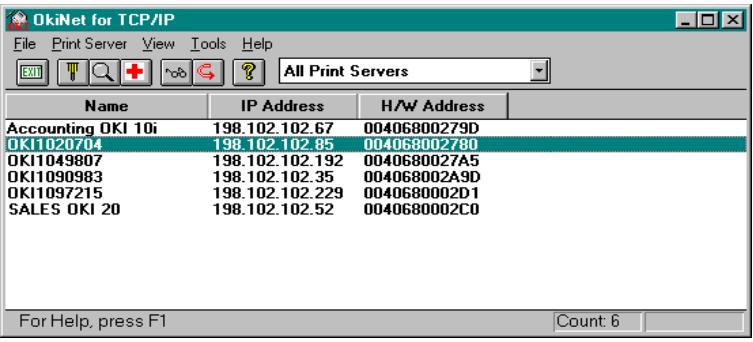
Configuring the OkiLAN 6010e Using OkiNet for TCP/IP
The following steps outline how to configure an OkiLAN 6010e. To change settings of a previously configured OkiLAN 6010e, follow the same procedure but skip Step 3, as no prompt will appear.
- Select the OkiLAN 6010e you wish to configure.
- Select Configuration from the Print Server menu or select the Configuration icon on the toolbar.
- When prompted, enter the IP Address of the OkiLAN 6010e.
- Set the appropriate configuration by choosing the applicable file folder tabs.
The following settings are configurable:
- TCP/IP
- Output Port
- NetWare
SNMP - NetWare Port
- Protocols
- NetWare Queues
SNMP Traps
Configuring TCP/IP Options
To configure options specific to the TCP/IP protocol, select the TCP/IP tab. The following screen will display:
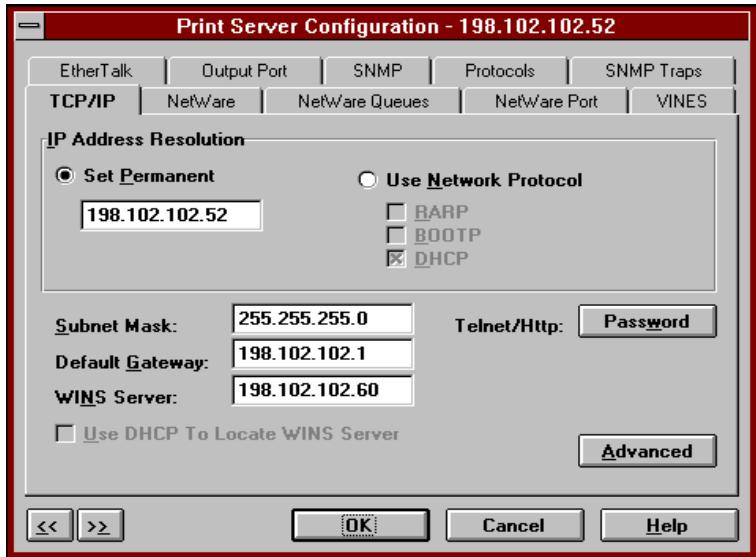
Fill in the following information:
IP Address Resolution
- Set Permanent - Select this option to make the IP address permanent. If the OkiLAN 6010e has been configured to remember its IP address, it does not need to determine its address each time it is powered on.
Enter the IP address for the OkiLAN 6010e. The IP address must follow the format XXX.XXX.XXX.XXX, where each XXX is a number from 0 to 255.
CAUTION: If you select an invalid IP address, you may not be able to access the OkiLAN 6010e.
- Use Network Protocol – Select this option to use RARP, BOOTP or DHCP to determine the IP address at power up. Specify which protocol(s) to use.
Subnet Mask
If your network environment includes subnets, you will want to set the subnet mask. The subnet mask must follow the format XXX.XXX.XXX.XXX, where each XXX is a number from 0 to 255.
The default subnet mask is 0.0.0.0. The OkiLAN 6010e interprets a subnet mask of 0.0.0.0 or 255.255.255.255 as no subnet mask specified.
CAUTION: If you select an invalid subnet mask, you may not be able to access the OkiLAN 6010e.
Default Gateway
If your local network is attached to other networks, you can specify the address of your default gateway. This gateway will be selected whenever messages need to be sent to another network.
The gateway address must follow the format XXX.XXX.XXX.XXX, where each XXX is a number from 0 to 255.
CAUTION: If you select an invalid default gateway or the default gateway becomes unavailable, the OkiLAN 6010e may not be able to communicate with non-local networks.
WINS Server
If you are using WINS name resolution, set the address of the WINS Server where the System Name of the OkiLAN 6010e will be registered.
Use DHCP to Locate WINS Server
If you are using DHCP for IP address resolution, select this option to obtain the address of the WINS Server from the DHCP Server.
Telnet/Http Password:
Allows you to modify the current password required for Telnet or Http access. The default password is the serial number of the OkiLAN6010e.
NetWare and NetWare Port Configuration Options
For specific information on NetWare or NetWare Port options, see Section III, Novell NetWare, or select the HELP button on the bottom right of the screen.
NetWare Queues Configuration Options
The NetWare Queues option allows you to add bindery print queues to be serviced by first selecting each desired queue and then selecting the button.
To have a queue print to a specific output port, select the Output Port button and then select the desired port.
NetWare Queue Load Balancing
Print jobs can be distributed to multiple printers on selected queues by selecting the same queue multiple times and selecting a different output port for each queue entry.
Output Port Configuration Options
To configure the OkiLAN 6010e output port, select the Output Port file tab. The following screen will display:
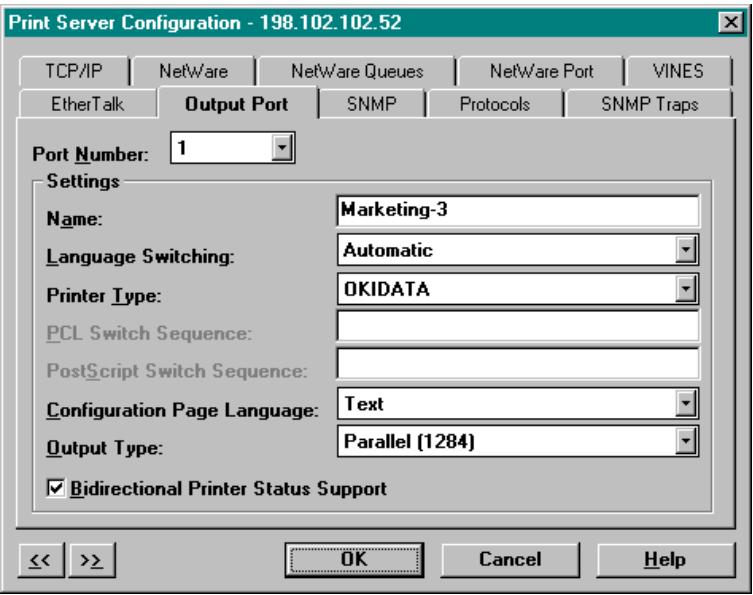
Port Number
Select the port number you wish to configure.
Name Field
Enter a descriptive name to identify the port.
Language Switching
Each output port can be configured to perform the following language switching options: OFF, PCL, PostScript or Automatic. Unless OFF is selected, a language switching character string will be inserted before each print job. The Printer Type selection is used to determine the actual characters required to switch your printer's language.
- OFF - Print data stream will be sent directly to the output port without alteration.
- PCL - Inserts the appropriate character string in front of each print job to switch the printer to the PCL print language.
- PostScript - Inserts the appropriate character string in front of each print job to switch the printer to the PostScript printer language.
- Automatic - Enables the auto language sensing function. This function examines the print job data stream and determines the required print language and inserts the appropriate character string in front of each print job to switch the printer to the appropriate printer language.
Note: If you are not switching languages or the printer can switch automatically, this option should be set to OFF.
Printer Type
The Printer Type selection is used to determine the actual character string required for your printer. If your printer type is not listed, select Other and enter the character string for switching the printer to PCL or PostScript mode.
To enter nonprintable characters, enclose the ASCII value of the character in angle brackets. For example, to enter the ESC character type: <27> .
PCL Switch Sequence
Enter the character string to switch the printer to the PCL print language.
PostScript Switch Sequence
Enter the character string to switch the printer to the PostScript print language.
Configuration Page Language
Select the appropriate printer language for printing configuration pages on your printer.
Output Type
Select the appropriate baud rate.
Bidirectional Printer Status Support
Enable this option for enhanced status from the bidirectional printer.
SNMP Configuration Options
SNMP options specify which information is necessary for an SNMP manger to access the OkiLAN 6010e. The system variables are for user convenience and are optional.
To configure SNMP specific information, select the SNMP tab. The following screen will display:
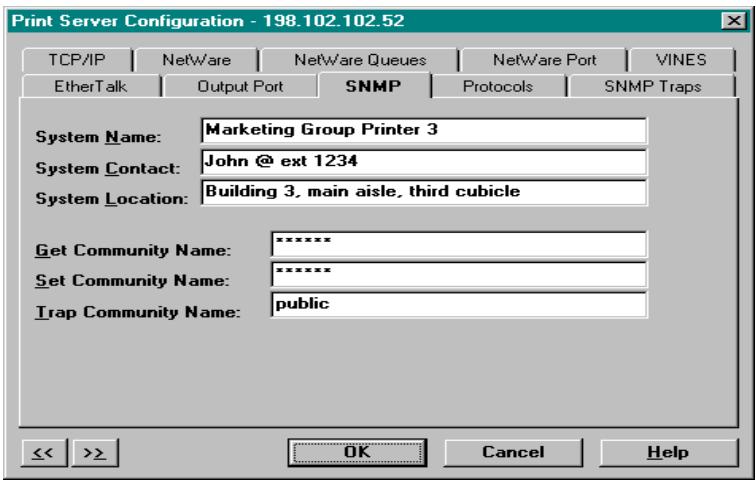
Note: SNMP options need to be configured only if you are managing an OkiLAN 6010e or getting system information using SNMP.
System Name
Enter the name of your choice. This name will identify the OkiLAN 6010e in your SNMP-based management program.
System Contact
Enter any information useful to a user if problems with the OkiLAN 6010e arise.
System Location
Enter a description of the OkiLAN 6010e location.
Get Community Name
This field is used to set the community name required to Get information from the print server. The default community name is public.
Note: For JetAdmin to function correctly with the OkiLAN 6010e, the SNMP Get and Set community name must be set to public.
Set Community Name
This field sets the community name required to Set information on the OkiLAN 6010e. The default community name is public.
Note: The OkiLAN 6010e cannot be configured without the correct Set community name. To secure the configuration of the OkiLAN 6010e, change the community name from the default setting.
Trap Community Name
Enter the community name which will be used when traps are sent from the OkiLAN 6010e. This setting allows trap utilities to only accept traps from devices with appropriate community names.
The trap community name field is used by the OkiNet Alert and other network monitoring utilities for grouping or filtering OkiLAN 6010e devices. OkiNet Alert assists in managing network printers by immediately alerting you of printer problems.
Enabling/Disabling Protocols
To enable or disable protocols on the OkiLAN 6010e, select the Protocols tab. Select each protocol you wish to enable. If you disable a protocol, the OkiLAN 6010e will no longer communicate using that protocol.
SNMP Trap Configuration
The SNMP Trap option allows configuration of traps. Traps are unsolicited information concerning the OkiLAN 6010e. Traps can be sent to an SNMP manager or be broadcast to all hosts on the local segment.
To configure SNMP traps, select the SNMP Traps tab.
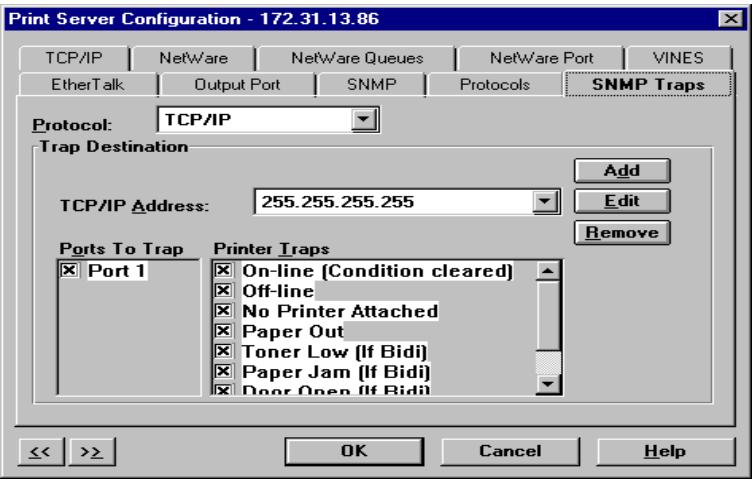
Note: SNMP options need to be configured only if you are managing an OkiLAN 6010e or getting system information using SNMP.
Protocol
Select the protocol for which you wish to configure trap information.
Trap Destination
- TCP/IP Protocol - Enter the IP address to which traps will be sent. The IP address must follow the format XXX.XXX.XXX.XXX, where each XXX is a number from 0 to 255. To broadcast traps to all hosts on the local subnet, enter 255.255.255.255.
- NetWare Protocol - Enter the network number and hardware address, respectively, to which traps will be sent. To broadcast traps to all addresses on all networks, enter FFFFFFF (8 characters) in the first field and FFFFFFF (12 characters) in the second field. To broadcast traps to all addresses on a specific network, enter the network number in the first field and then FFFFFFF (12 characters) in the second field.
Ports to Trap
Select the output ports on which you wish traps to be active.
Printer Traps
Select the printer traps to be activated. The following printer error conditions may cause a printer trap to occur:
- On-line
- Off-line
No Printer Attached - Paper Out
- Paper Jam
Door Open - Toner Low
- Printer Error
The toner low, door open and paper jam traps require that your printer be set to automatic emulation switching (the default) or PCL emulation.
Saving the Configuration
Once all settings have been defined, select OK. The settings will be saved and you will be returned to the main OkiNet for TCP/IP screen.
Displaying OkiLAN 6010e Diagnostic Information
To view OkiLAN 6010e diagnostic information, double click on Diagnostics from the Print Server pull-down menu on the main OkiNet TCP/IP screen. Diagnostic information is available on the following topics:
- Printer
- Print Server
- Protocols
Network - Statistics
Technical Support - System
Printing a Configuration Sheet
The configuration sheet provides current network, print server and printer information. To print a configuration sheet, select the OkiLAN 6010e from the list of available print servers. Select Print Configuration Sheet from the Print Server menu bar.
Resetting the OkiLAN 6010e
To reset the OkiLAN 6010e, select the OkiLAN 6010e from the list of available print servers. From the Print Server menu bar, select Reset.
CAUTION: Make sure there are no print jobs active when you reset the OkiLAN 6010e. All protocols will be restarted. If you attempt a reset while a job is printing, the job may not print successfully.
Restoring Factory Default Settings
To restore the OkiLAN 6010e to factory default settings, select the OkiLAN 6010e from the list of available print servers. From the Print Server menu bar, select Reset.
From the Reset Print Server screen, choose one or more of the following options:
Output Ports
Restores settings related to output ports such as port name and output type.
TCP/IP
Restores settings specific to the TCP/IP protocol configuration such as the IP address and subnet mask.
NetWare
Restores settings specific to the NetWare protocol configuration such as the mode and default file server.
Once you have chosen the desired options, select Restore. To completely restore the print server to factory default settings, select all items in the list.
CAUTION: Make sure there are no active print jobs when you select Restore Factory Defaults. If you reset the OkiLAN 6010e while a job is printing, the job may not print successfully.
Creating Customized Views
OkiNet for TCP/IP allows users to create multiple customized views for the list of OkiLAN 6010e products. By creating different views, the user can narrow the information displayed to that which is of highest priority. These views can be saved and selected as needed.
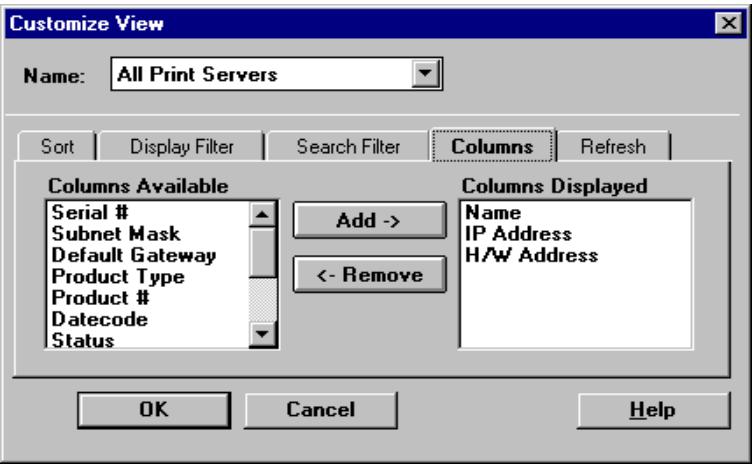
OkiNet has two predefined views. The All Print Servers view displays all the print servers available on your local network. The Unconfigured Print Servers view displays only the print servers on the local network that have not been configured.
Creating a New Customized View
To create a new view, select New from the View menu. Enter a name for the new customized view. Define Filters, Sorts, Column, Search information and Refresh rates. Select OK to save this view.
Selecting an Existing View
To select an existing view, choose Select from the View menu. Highlight the view you wish to open and select OK. The OkiLAN 6010e list will be displayed as described by the view selected.
Modifying View Settings
Before modifying the settings, select the name of the view you wish to edit from the Name field.
Sort
The Sort option displays the OkiLAN 6010e list in a specific order. The list can also be sorted by clicking on the column by which you wish to sort the list. A sort order can be defined on columns displayed on the main OkiNet for TCP/IP screen.
Display Filter
The filter option displays only those print servers matching specific criteria. The print server list can be filtered by any of the following:
| Filter By | Enter for the Filter Value |
| <No Filter> | No value |
| DateCode | Four digits followed by a letter (e.g. 9502B) |
| Default Gateway | XXX.XXX.XXX.XXX; use “*” for groups / subnets |
H/W Address 12 hexadecimal digits for the Ethernet address
IP Address XXX.XXX.XXX.XXX; use“*”for groups/subnets
Name SNMP System Name (sys name) for the print server
Product # Select from the list of product number(s)
Product Type Select from the list of product types
Status Select from the list of status conditions
Subnet Mask XXX.XXX.XXX.XXX; use“*”for groups/subnets
Search Filter
The Search option defines the criteria for identifying OkiLAN 6010e products on the network.
-
Search Local Network - This method broadcasts a discovery request to locate all OkiLAN 6010e print servers on the local network. All OkiLAN 6010e print servers that respond are placed in the list. If you have a large number of OkiLAN 6010e print servers on your local network and wish to minimize network traffic, do not select this option.
-
Specify Devices/Networks - This method adds specific print servers (or groups of print servers) to the list. If you have OkiLAN 6010e print servers that are not on the local network (i.e. across routers), the address of each OkiLAN 6010e must be entered in order to locate and insert it into the list.
Example: 192.168.42.24
When specifying a subnet, enter a * for the last (fourth) part of the IP address. OkiNet for TCP/IP will search every address on the subnet.
Example: 192.168.42.*
Select Add to enter these addresses.
Columns
Column information for each print server can be modified.
To define the location of a new column, select the location in the Columns Displayed field where you wish the new column to be inserted, then select Add. If no location is selected, the new column will be added to the end of the list and the column will be displayed to the right of the last column on the screen.
For example, if you currently have three columns displayed and you wish to add a fourth column to the far left of the screen, follow these steps:
- Select the first column in the Columns Displayed field.
- Select the column to be added from the Columns Available field.
- Select Add.
Columns may also be removed by selecting Remove from the Columns Available field.
Refresh
The refresh rate defines how often the OkiNet for TCP/IP utility updates the main print server list. To define a refresh rate, select Automatic Refresh and enter the refresh rate in the field provided. Decide how frequently to refresh the screen based on factors such as network traffic and desire for most recent information.
For example, if traffic on your network is not an issue and the most current information is desired, set the refresh rate to 1 so that the screen is updated every minute.
If network traffic is an issue, you may wish to set the refresh rate to 10. This would update the screen every ten minutes and minimize network traffic.
Permanently Defining SNMP Access Information
Access to OkiLAN 6010e configuration and diagnostic information is determined by using community names. The Special Options window is used to permanently define access information so that it does not need to be entered each time the OkiLAN 6010e is accessed. To Get and/or Set information on the OkiLAN 6010e through OkiNet for TCP/IP, community names must match the community names assigned to the OkiLAN 6010e.
To configure OkiNet for TCP/IP to use the correct community names, select Special Options from the File menu.
IP Address
This field displays the address of each OkiLAN 6010e for which OkiNet for TCP/IP has defined access. To add a new IP address to this list, select the Add button.
Get Community Name
Enter the Get Community Name necessary to access the OkiLAN 6010e or group of OkiLAN 6010e products selected.
Set Community Name
Enter the Set Community Name necessary to access the OkiLAN 6010e or group of OkiLAN 6010e print servers selected.
Add
Select the Add button to define access to a new OkiLAN 6010e or a group of OkiLAN 6010e print servers. The IP address must follow the format XXX.XXX.XXX.XXX, where each XXX is a number from 0 to 255. Use * to specify groups/subnets.
For example: To add a single OkiLAN 6010e, enter 198.168.42.24. To add a group of OkiLAN 6010e print servers, enter 198.168.42.*.
Delete
The Delete button deletes an OkiLAN 6010e access entry in the IP address.
Configuring the Discovery UDP Port Number
In order to discover OkiLAN 6010e print servers on the network, OkiNet for TCP/IP communicates with the OkiLAN 6010e print servers on a UDP port number. Normally, using this port number should not interfere with other devices on the network. If there are problems using the given port number, select a new number.
Note: Windows NT will not permit the use of Port 9 for discovery. Select one of the other available ports.
Starting a Telnet Session
A simple telnet interface has been provided to communicate with devices supporting telnet. A telnet session can be started by selecting the OkiLAN 6010e from the print server list and choosing the Telnet Session option from the Tools menu. For more information about how to configure an OkiLAN 6010e using telnet, see Chapter 6.
Starting the BOOTP Server
OKI has provided a stand-alone BOOTP server to help assign IP addresses to the OkiLAN 6010e.
To access the stand-alone BOOTP server, select BOOTP Server from the Tools menu or run the program bootpsrv.exe from Windows. The BOOTP server displays all BOOTP activity on the local network. It responds to BOOTP requests for which the hardware address has been entered into the BOOTP file. For more information, view the on-line help for the BOOTP server.
Chapter 5: Telnet Configuration
Overview
The OkiLAN 6010e Configuration utility (telnet) provides system, network and printer status information and allows you to change the configuration of your OkiLAN 6010e.
Note: The configuration of your OkiLAN 6010e is password protected. Any user who knows the Get and Set community names can change the Telnet password. During setup we suggest the system administrator change the Get and Set community names to ensure that only authorized users can alter the configuration. See pages IV-37 through IV-39 for instructions on setting community names.
Running a Telnet Session
- To run the configuration utility, type the following:
telnet
- Replace OkiLAN 6010e_name with the IP address or the host name assigned to the OkiLAN 6010e you want to configure.
A screen will appear displaying an introductory message. When prompted for a password, enter Okinet. The password will not be echoed.
- When you are finished typing your password, press Enter. For password verification, you will then be asked to enter your password again.
Each time you use the utility, you will be asked to enter your password. If you fail to enter the password correctly in three attempts, your connection with the OkiLAN 6010e will be closed.
- Once your password is entered and accepted, a list of options will display. An explanation of each option follows.
OkiLAN 6010e Configuration Utility
- Show Network/Printer Information
- Change Password
- Specify Print Server IP Address
- Specify Subnet Mask For Your Network
- Identify Default Gateway IP Address
- Configure Port
- TCP Connection Configuration
- Download New Firmware
- Restore to Factory Defaults
To select an option above, type its number and press Enter.
To quit, press Enter.
Showing Network/Printer Information (Option 1)
This option displays current network and printer information.
Changing the Password (Option 2)
This option allows you to change the password required for access to this utility. We recommend that you change your password periodically, especially if security may have been compromised. Type a password (5-24 characters long). The characters you type will not appear on the screen. When you are done typing, press Enter. You will be asked to enter your password again. This allows you to verify your password was typed correctly.
You must save your changes when you exit the utility for the new password to take effect.
Specify Print Server IP Address (Option 3)
This option allows you to select the method the OkiLAN 6010e uses to obtain its IP address or to set a permanent IP address. If the OkiLAN 6010e has been configured to use a permanent IP address, a DHCP, RARP or BOOTP server does not need to be available when the OkiLAN 6010e is powered on.
If you change the IP address, the change will remain undetected until the OkiLAN 6010e is reset or is powered off and on.
Remember, when choosing a permanent IP address:
- The IP address must follow the format XXX.XXX.XXX.XXX, where each XXX is a number between 0 and 255.
If you select an invalid IP address you may not be able to access the OkiLAN 6010e. - You can also use OkiNet for TCP/IP, OkiNet for NetWare or the Banyan VINES OkiNet for VINES utilities to set a permanent IP address.
Note: If you select an invalid IP address you may not be able to access the OkiLAN 6010e. Use this option with care!
Specify the Subnet Mask for Your Network (Option 4)
If your network environment includes subnets, you will want to set the subnet mask.
The subnet mask must follow the format XXX.XXX.XXX.XXX, where each XXX is a number between 0 and 255.
The default subnet mask is 0.0.0.0. The OkiLAN 6010e interprets a subnet mask of 0.0.0.0 or 255.255.255.255 as no subnet mask specified.
If you change the subnet mask, the change will remain undetected until the OkiLAN 6010e is reset or is power cycled.
Note: If you select an invalid subnet mask you may not be able to access the OkiLAN 6010e. Use this option with care!
Identify Default Gateway IP Address (Option 5)
If your local network is attached to other networks, you must specify the address of your default gateway.
Whenever packets need to be sent to another network, the default gateway is used.
The gateway address must follow the format
XXX.XXX.XXX.XXX, where each XXX is a number between 0 and 255.
When the default gateway is changed, it will remain undetected until the OkiLAN 6010e is reset or is power cycled.
Note: If you select an invalid default gateway or the default gateway goes down, the OkiLAN 6010e may not be able to communicate with non-local networks.
Configure Port (Option 6)
After the Configure menu appears, you can access the following configuration option screens.
Specify Configuration Page Language
This option enables you to select how the OkiLAN 6010e configuration pages should be printed: Text (default), PCL, PostScript, or OFF.
Configure Language Switching
This option asks you to select the language of your printer. For a description of language switching options, see pages 35-36.
Configure Printer Type
This option enables you to indicate the printer type to which the OkiLAN 6010e is connected. Printer choices are:
-
Okidata printer.
2.Custom printer. -
Language Switching Sequence – If you select Custom Printer from the Configure Printer Type screen, you must indicate the switching sequence to be used for both PCL and PostScript. This is only necessary if language switching is set to something other than OFF.
TCP Connection Configuration (Option 7)
TCP Connection Timeout
This is used to sever network TCP/IP Connections that are idle for more than a specified period of time (between 1 and 3600 seconds). You can also disable timeout checking. Under most conditions you will want to leave this function enabled.
Raw Port Number
Set the port number where the raw port connections will be accepted.
Download New Firmware (Option 8)
This option is provided for future product modifications and enhancements. It requires an update file from OKIDATA.
CAUTION: Do NOT use this option without having the upgrade files on hand. The OkiLAN 6010e will be locked in download mode. This is indicated by a flashing orange-green Status LED.
The latest firmware and utilities are available through:
World Wide Web: http://www.okidata.com
Firmware update instructions are available with the download file.
Restore to Factory Default Configuration (Option 9)
This option automatically restores the OkiLAN 6010e to its original factory defaults. Be aware that when you restore the OkiLAN 6010e to the original factory default settings, only the TCP/IP protocol and output port information is restored and your TCP/IP password and IP address are erased.
CAUTION: Make sure that no print jobs are active when you select Restore to Factory Defaults. Performing this operation will restore parameters for the TCP/IP protocol to factory defaults. If you reset the OkiLAN 6010e while a job is printing, the job may not print successfully.
Appendix A: Troubleshooting
Main Status Indicator
Upon power-up, the main status indicator flashes orange. It changes to green when the OkiLAN 6010e passes self-test. The indicator stays orange if the OkiLAN 6010e fails self-test. If the indicator turns solid orange due to an error, a configuration sheet will be printed automatically. Check the error message reported on the configuration sheet.
Restoring the OkiLAN 6010e to Factory Defaults
In most cases, the best way to restore the OkiLAN 6010e to factory defaults is via telnet. However, if you are unable to connect to the device because of a configuration error, use the following method which does not require a network connection.
To restore the OkiLAN 6010e to factory defaults, complete the following steps:
- Power down the OkiLAN 6010e.
- While holding in the Print Configuration Sheet Test button, power up the OkiLAN 6010e. Hold the button until the status indicator turns solid green.
- Power cycle the OkiLAN 6010e. It will have restored itself to defaults.
Unable to Assign IP Address
Gleaning
If you ping the device and are not getting a response, the glean is not working. Check the following possible problems:
- Verify the ARP table contains the correct hardware and IP address by running the 'arp -a' command.
- If you are getting a response, but the OkiLAN 6010e LED is still blinking green, power down the print server and try the ping again. There might be a different device answering to the ping.
- Verify the OkiLAN 6010e is on the same subnet as the computer running the ping.
- The glean will not work if the OkiLAN 6010e has already defaulted to an IP address two minutes after power up. The LED will turn solid green and the device will print a configuration page. Power cycle the device and try the glean again.
RARP or BOOTP
If you are using a BOOTP or RARP server and the OkiLAN 6010e is not getting an IP address, check the following:
- Verify the BOOTP/RARP configuration files are correctly set up (“/etc/ethers” and “/etc/hosts” for RARP and “/etc/bootptab” for BOOTP). Verify the files have the correct hardware address of the OkiLAN 6010e. If using RARP, check that the hostnames are the same between the “/etc/ethers” and “/etc/hosts” files.
UNIX BOOTP
If you are running UNIX, try the following methods with the BOOTP server (check the documentation for your particular UNIX flavor).
-
Verify the BOOTP server has reread the "/etc/bootptab" file when the new entry was added. If the BOOTP server was running when you added the new entries, the server might not have reread the new bootptab file. Try sending the SIGHUP signal to the running BOOTP server. For example, kill -HUP
tells it to reread "/etc/bootptab". Most BOOTP servers support this option. Check your local BOOTP documentation. If this does not work, restart the BOOTP server (kill and restart the process). -
Some BOOTP servers will write their internal bootptab tables to a file when they receive a SIGUSR1 signal. You can check this file to verify the hardware and IP address are correct. You can use the kill command to send signals. For example, kill -USR1
. Check your documentation for more information. -
Check the system's syslog file. Some BOOTP servers will write error messages into the syslog file.
Example:
Sep 6 14:38:43 bootpd[17565]: hardware address not found: 004068175042
This message appears when the BOOTP server received a request from a device not in its internal bootptab tables.
Static Route Entry
If the OkiLAN 6010e has printed a configuration page showing the default address, but it cannot be reached through telnet, check the following:
- Display the host's routing tables with the 'netstat -r' command. Verify the route has been set correctly.
-
If the route is set correctly, try pinging the device.
-
Verify the OkiLAN 6010e is on the same subnet as the host from which you are telneting. As a drastic measure, try creating an isolated subnet with your host and the OkiLAN 6010e. If you are using 10BASE2, run the cable directly from the host to the OkiLAN 6010e. If using 10BASE-T cabling, connect the host to the OkiLAN 6010e through a hub not connected to any other host.
- If the static route has been set up and can telnet to the OkiLAN 6010e, but your changes do not seem to be saved, check the host's routing tables. You might have telneted to a different OkiLAN 6010e than the one you intended. While in telnet, select the second menu option, Show Network/ Printer Information. The hardware address and serial number are displayed. Verify they are the same as the unit you are configuring.
- Turn off the OkiLAN 6010e you want to configure. Run telnet again. If you reach a different device, there is an IP address conflict.
- If you are able to ping to the OkiLAN 6010e, but are unable to telnet, the IP address is probably being shared with another device that does not support telnet.
OkiNet for TCP/IP - Winsock Errors
- If you see an error before OkiNet for TCP/IP appears on the screen, try setting a host name in the hosts file in the Windows directory (check the documentation for your Windows TCP/IP stack).
- If you have difficulty seeing a particular OkiLAN 6010e, try moving the device onto the same subnet as the computer running the utility.
- If OkiNet for TCP/IP gives you the Winsock error: Could not bind to socket, use the Special Options dialog under the File menu to change the Discovery UDP Port to a different port number.
Hardware Error Messages
ST: Cable not connected
Self-test has determined that the network cable is not connected.
- Check the cable connection to the OkiLAN 6010e.
- Move the OkiLAN 6010e to another known working node.
If you find the cable is connected and you are still receiving this message or any other "ST:" error message, power cycle the OkiLAN 6010e. If the error continues, call Okidata Customer Support at 1-800-OKIDATA (1-800-654-3282).
System CRC Failed
The OkiLAN 6010e has failed.
- Power cycle the OkiLAN 6010e once. If the error continues, call Okidata Customer Support at 1-800-OKIDATA (1-800-654-3282).
Printing a Configuration Page
If the status indicator turns solid orange due to an error and no configuration page is printed, your printer may be configured for PostScript operation. If so, you must re-configure your printer for standard ASCII mode so that the configuration page can be printed.
If you do not know the configuration of the OkiLAN 6010e or you think the configuration has been changed, use the following method for printing a configuration page:
- With the network cable detached, attach the OkiLAN 6010e to a printer and power cycle the print server. When the OkiLAN 6010e powers up, it will detect the detached network cable and print a configuration sheet. If no configuration sheet is printed and the indicator has turned green, check the printer and verify it is ready to print. If you are using boot protocols (RARP or BOOTP) to assign the IP address, the IP address will be listed as Using network protocol (0.0.0.0) on the configuration page.
Unable to Print
LPR/LP
-
If the indicator blinks green, the OkiLAN 6010e is receiving data. If nothing is actually printing, check the printer settings. For example, if you are using a PostScript printer, verify the OkiLAN 6010e is also set to PostScript.
-
Try pinging the OkiLAN 6010e by its IP address (not the hostname). This will verify the unit is functioning on the network.
-
If the ping succeeds, try ftping a test file to the print server. If the ping fails, you might have a configuration problem with the OkiLAN 6010e (the IP address or gateway address might be incorrect, etc.).
- If the ftp succeeds, there is a problem with the lpr/lp setup. Verify the hostname or IP address is correctly set for the queue. Try doing an lpstat (System V) or lpq (BSD) to query the status of the OkiLAN 6010e.
FTP
- If the indicator blinks green, the printer is receiving data. If nothing is actually printing, check the printer settings. For example, if you are using a PostScript printer, verify the OkiLAN 6010e is set to PostScript also.
- Try pinging the device by its IP address (not the hostname). This will verify the OkiLAN 6010e is functioning on the network.
- If you cannot connect over ftp but the ping succeeds, try telneting to the OkiLAN 6010e and print a configuration page to verify settings. If that fails, you might have a TCP/IP configuration problem with the OkiLAN 6010e.
Appendix B: Application Considerations
Overview
This appendix provides application notes for the following:
- Assigning the OkiLAN 6010e IP Address with BOOTP
- Assigning the OkiLAN 6010e IP Address with RARP
Using the Windows NT v3.5 LPR Print Monitor - Configuring HP-UX v8.07 for Printing
- Configuring HP-UX v9.xx for Printing
- Configuring HP-UX v10.xx for Printing
- Configuring SCO UNIX for Printing
- Configuring IBM's AIX ver. 3.x for Printing
- Configuring the OkiLAN 6010e for Solaris Printing
- Configuring Sun-OS v4.1.x or Ultrix v4.2 for Printing
Assigning the OkiLAN 6010e IP Address with BOOTP
BOOTP is an acronym for BOOTStrap Protocol. Every TCP/IP network device is required to have a unique 32-bit IP address assigned to it. TCP/IP network devices will have both an IP address and a 48 bit Ethernet/Token-Ring (network hardware) address. Ethernet addresses usually cannot be configured and are hard coded by the manufacturer of the device. BOOTP is a protocol used by devices that know their network hardware address, but do not know their IP address. When powering up on a network, a device that uses BOOTP will broadcast its network hardware address in a BOOT request packet. A BOOTP server (which may be a UNIX workstation) will respond with an IP address. The device will then know its IP address and use this address to perform subsequent TCP/IP transactions.
Note: Once the OkiLAN 6010e has been assigned an IP address, the OkiLAN 6010e configuration utility (which is run by accessing the OkiLAN 6010e using telnet) or OkiNet for TCP/IP will allow you to change and/or make the IP address permanent. This means that a BOOTP server needs to be available only during installation of the OkiLAN 6010e.
Address Formats
Network hardware addresses are 48-bits and are expressed in 6 bytes (hexadecimal format) usually separated by colons. Each hexadecimal byte has a range from 00 to FF.
Example: 00:40:68:17:50:A4
IP addresses are 32-bits and are expressed in 4 bytes (decimal format) usually separated by periods. Each decimal byte has a range from 0 to 255.
Example: 192.168.42.1
Configuration File
The purpose of BOOTP is to look up a 32-bit IP address given a 48-bit network hardware address. The BOOTP server (which is usually a UNIX workstation running a bootpd daemon) performs this function using one configuration file and one or more daemons. The configuration file is "/etc/bootptab" and the daemon is called bootpd.
A name can be arbitrarily assigned to any device on a network. The following examples use the name OKIPRINTER. Remember that this name is arbitrary; a customer can assign any name they wish.
/etc/bootptab:
The "/etc/bootptab" file has entries where each entry maps a network hardware address to an IP address.
Example:
OKIPRINTER:\
ht=ether:\
ha=0040681750A4:\
ip=192.168.42.55
The ht signifies hardware type. For the OkiLAN 6010e, it will always be ether for an Ethernet device and token for a Token-Ring device. The ha signifies the network hardware address. For BOOTP, the network hardware address must be represented without the colons between each byte. The ip part of the entry is where the IP address is specified. There are several other parameters that can be specified in a bootptab entry. However, the three parameters shown here are the only ones required for OkiLAN 6010e installation.
The following sequence of events occurs during the power up of the OkiLAN 6010e using BOOTP.
- An OkiLAN 6010e powers up but does not know its IP address. (It does know its network hardware address.)
- The OkiLAN 6010e sends out a BOOTP request packet with its network hardware address. For this example, the network hardware address is 00:40:68:17:50:A4.
-
The bootpd daemon running on a BOOTP server (which in this example is a UNIX workstation) sees the BOOTP request along with the network hardware address. It looks up the network hardware address in the "/etc/bootptab" file. The bootpd daemon finds the associated IP address of the device in the bootptab file.
-
The bootpd daemon transmits a response to the OkiLAN 6010e with the IP address 192.168.42.55. The OkiLAN 6010e will use this IP address for all subsequent transmissions.
For these steps to work properly, at least one BOOTP daemon (bootpd) must be running on the BOOTP server. To test whether a BOOTP daemon is running on the BOOTP server, use the ps command with the show all process option within fifteen minutes of an attempted BOOTP request. Unfortunately, the ps options differ from one UNIX workstation to another. Perform a man ps at the UNIX prompt to consult a manual page on the ps command for a particular workstation. If bootpd is not running on a workstation, type man bootpd at the UNIX prompt to consult a manual page on the BOOTP daemon and how to start it.
Limitations
Often TCP/IP networks are divided into subnets. BOOTP does not work across subnets. When installing an OkiLAN 6010e, make sure the following criteria are met for BOOTP to work properly.
- Both the BOOTP server and the OkiLAN 6010e are physically attached to the same subnet.
- The IP address assigned to the OkiLAN 6010e and the IP address of the BOOTP server belong to the same subnet.
OR
- Your router(s) are configured to forward BOOTP packets between the OkiLAN 6010e's subnet and the subnet of the host running the BOOTP server.
Configuring the OkiLAN 6010e IP Address with RARP
RARP is an acronym for Reverse Address Resolution Protocol. Every TCP/IP network device must have a unique 32-bit IP address. TCP/IP network devices will have both an IP address and a 48-bit Ethernet (network hardware) address. Ethernet addresses usually cannot be configured and are hard coded by the manufacturer of the device. RARP is a protocol used by devices that know their network hardware address, but do not know their IP address. When powering up on a network, a device that uses RARP will broadcast its network hardware address in a RARP request message. A RARP server (which may be a UNIX workstation) will respond with an IP address. The device will then know its IP address and use this address to perform subsequent TCP/IP transactions.
Note: Once the OkiLAN 6010e has been assigned an IP address, the OkiLAN 6010e configuration utility (which is accessed by telneting to the OkiLAN 6010e) or OkiNet for TCP/IP will allow you to change and/or make the IP address permanent. This means that a RARP server needs to be available only during installation of the OkiLAN 6010e.
Address Formats
Network hardware addresses are 48-bits and are expressed in 6 bytes in hexadecimal format usually separated by colons. Each hexadecimal byte has a range from 00 to FF.
Example: 00:02:16:17:50:A4
IP addresses are 32-bits and are expressed in 4 bytes in decimal format usually separated by periods. Each decimal byte has a range from 0 to 255.
Example: 192:168:42:55
Configuration Files
The purpose of RARP is to look up a 32-bit IP address given a 48-bit network hardware address. The RARP server (which is usually a UNIX workstation running a rarpd daemon) performs this function using two configuration files and one or more daemons. The configuration files are "/etc/hosts" and "/etc/ethers" and the daemon is called rarpd. A name can be assigned to any device on a network and is arbitrary. For the following examples the name used for the OkiLAN 6010e is OKIPRINTER. Remember that this name is arbitrary; a customer can assign any name.
/etc/hosts: The “/etc/hosts” file is where each entry maps a host name to an IP address. An example entry is shown below.
192.168.42.55 OKIPRINTER
/etc/ethers:
The "/etc/ethers" file is where each entry maps a host name to a network hardware address. An example entry is shown below.
00:02:16:17:50:A4 OKIPRINTER
The following sequence of events occurs during the power up of the OkiLAN 6010e using RARP:
- The OkiLAN 6010e powers up but does not know its IP address. However, it does know its network hardware address.
- It sends out an RARP request message with its network hardware address. For this example, the OkiLAN 6010e address is 00:02:16:17:50:A4.
- The rarpd daemon running on an RARP server (in this example the RARP server is a UNIX workstation) sees the RARP request along with the network hardware address in the "/etc/ethers" file. The rarpd daemon finds the host name, OKIPrintER, listed as the name associated with the network hardware address.
-
The rarpd then consults the "/etc/hosts" file and looks up the name OKIPrintER. It finds an IP address (in this case 192.168.42.55) associated with the name OKIPrintER.
-
The rarpd daemon transmits a response to the OkiLAN 6010e with the IP address 192.168.42.55. The OkiLAN 6010e will then use this IP address for all subsequent transmissions.
For all these steps to work properly, at least one RARP daemon (rarpd) must be running on the RARP server. On most UNIX systems, this can be tested by using the ps command with the show all processes option. Unfortunately, the ps options differ from one UNIX workstation to another. Perform a man ps at the UNIX prompt to consult a manual page on the ps command for a particular workstation. If rarpd is not running on a workstation, type man rarpd at the UNIX prompt to consult a manual page on the RARP daemon and how to start it.
Limitations
Often TCP/IP networks are divided into subnets. RARP does not work across subnets. When installing an OkiLAN 6010e, make sure the following two criteria are met for RARP to work properly.
- Both the RARP server and the OkiLAN 6010e are physically attached to the same subnet.
- The IP address assigned to the OkiLAN 6010e and the IP address of the RARP server belong to the same subnet.
Configuring HP-UX v8.07 for Printing with the OkiLAN 6010e
This application note describes the configuration of the printing system on the HP-UX ver. 8.07 of the UNIX operating system. For clarity and brevity, the following specific names will be used to represent general devices or concepts.
- lj4 - The local queue name on the HP-UX system to which print jobs that are destined for a printer attached to the OkiLAN 6010e will be directed.
- OKIPrintER - The host name of the remote system which is the OkiLAN 6010e. For example, to telnet to the OkiLAN 6010e and invoke the OkiLAN 6010e Configuration utility, you would type telnet OKIPrintER. A host name is not required for the OkiLAN 6010e, the IP Address may be used.
- yourqueueiname – This is the name of the queue on the OkiLAN 6010e and must end with 1, 2, 3 or 4, depending on the port selected to service the print jobs.
If FF, LF or NF are the last two letters of the queue name, the job will be converted accordingly. See pages 18 through 20 for more information on remote queue names.
Prerequisites
Before you proceed, the following prerequisites must be met. Most of the time, steps 2 through 5 are already configured since the HP-UX system is on a TCP/IP network. Do not perform steps 2 through 5 unless the installation procedure fails!
-
The name OKIPRINTER and the IP address assigned to the OkiLAN 6010e are in the "/etc/hosts" file on the HP-UX system.
-
Make sure the rlp process is not running by typing at the UNIX prompt:
ps -e | grep rlp
If rlp is not running, you will not see any output after executing this command.
If rlp is running (that is, if you see output after executing this command), kill the process with the command:
kill -15 process_number
- Make sure the following entry is in the "etc/inetd.conf" file:
printer stream tcp nowait root /usr/lib/ rlpdaemon rlpdaemon -i
If the rlp daemon is not running when a print request is made, this entry in "/etc/inetd.conf" tells inetd to auto-start the rlp daemon to service the pending print request.
This is helpful if the daemon was terminated for some reason. For more information on inetd or “/etc/inetd.conf”, type man inetd or man inetd.conf.
- Make sure the following entry is in the “/etc/services” file
primer 515/tcp spooler
- Start inetd by typing the following at the UNIX prompt:
/etc/inetd-c
Procedure
HP-UX uses an interactive utility called SAM (System Administration Manager) to configure printing. To configure printing using SAM, do the following:
- Login to the HP-UX system as root.
- Invoke the SAM utility by typing sam at the UNIX prompt. (We suggest you do this at the system console. SAM uses a screen oriented interface that works best at the console.)
- Select the following options, in order, from the SAM menu:
Peripheral Devices ->
Printers and Plotters ->
Actions -> Add a Remote Printer
(Do NOT select Add a Network Printer)
A form appears asking you to define a remote printer.
- Enter information into the following fields as described.
a) Printer name -lj4
This is the name of the printer as referenced by the local HP machine. Print jobs sent to this printer are passed to the OkiLAN 6010e.
b) Remote system name - OKIPRINTER
This is the name of the OkiLAN 6010e on the network. The name must also be in the "/etc/hosts" file.
c) Remote printer name - yourqueueiname
This is the name of the queue on the OkiLAN 6010e and must end with 1, 2, 3, or 4, depending on the port selected to service the print jobs.
d) Remote cancel model - rmodel
Used for remote printer job removal.
e) Remote status model - rsmodel
Used for remote printer queue status.
f )Make this the system default printer? (y or n )-n
g) Printer class - (optional)
h) Restrict cancel - (optional)
i) Remote printer on a BSD system? (y or n ) - y
Tells the HP-UX system that it is communicating with a Berkeley style remote printer (such as LPD).
- Select Perform Task from the SAM menu.
- Enable the printer you just created using SAM.
Peripheral Devices ->
Printers and Plotters ->
Enable a Printer ...
- Printer name: — lj4
- Start the LP request scheduler by typing:
/usr/lib/psched
- Run a test print job to the OkiLAN 6010e with the following command:
lp -d lj4 filename
Configuring HP-UX v9.xx for Printing with the OkiLAN 6010e
This application note describes the configuration of the printing system on the HP-UX ver. 9.xx of the UNIX operating system. For clarity and brevity, the following specific names will be used to represent general devices or concepts.
-
lj4 – The local queue name on the HP-UX system to which print jobs will be directed. The print jobs are destined for a printer attached to the OkiLAN 6010e.
-
OKIPrintER - The host name of the remote system which is the OkiLAN 6010e. For example, to telnet to the OkiLAN 6010e and invoke the OkiLAN 6010e Configuration utility, you would type telnet OKIPrintER. A host name is not required for the OkiLAN 6010e, the IP Address may be used.
-
yourqueueiname – This is the name of the queue on the OkiLAN 6010e and must end with 1, 2, 3 or 4, depending on the port selected to service the print jobs.
If FF, LF or NF are the last two letters of the queue name, the job will be converted accordingly. See pages 18 through 20 for more information on Remote Queue Names.
Prerequisites
Before you proceed, the following prerequisites must be met. Most of the time steps 2 through 5 are already configured since the HP-UX system is on a TCP/IP network. Do not perform steps 2 through 5 unless the installation procedure fails!
- The name OKIPRINTER and the IP address assigned to the OkiLAN 6010e are in the "/etc/hosts" file on the HP-UX system.
- Make sure the rlp process is not running by typing at the UNIX prompt:
ps -e | grep rlp
If rlp is not running, you will not see any output after executing this command.
If rlp is running (that is, if you see output after executing this command), kill the process with the command:
kill -15 process_number
- Make sure the following entry is in the "/etc/inetd.conf" file:
printer stream tcp nowait root "/usr/lib/ rlpdaemon" rlpdaemon -i
If the rlp daemon is not running when a print request is made, this entry in "/etc/inetd.conf" will tell inetd to auto-start the rlp daemon and service the pending print request. This is helpful if the daemon died or was terminated for some reason. For more information on inetd or "/etc/inetd.conf", type man inetd or man inetd.conf.
- Make sure the following entry is in the "/etc/services" file:
primer 515/tcp spooler
- Start inetd by typing the following at the UNIX prompt:
/etc/inetd -c
Procedure
HP-UX uses an interactive utility called SAM (System Administration Manager) to configure printing.
-
Login to the HP-UX system as root.
-
Invoke the SAM utility by typing
samat the UNIX prompt. (We suggest you do this at the system console. SAM uses a screen oriented interface that works best at the console.) -
Select the following options from the SAM menu:
Printers and Plotters ->
Printers/Plotters ->
Actions -> Add a Remote Printer
(Do NOT add a Network Printer)
A form appears asking you to define a remote printer.
- Enter information into the following fields as described.
a) Printer name -lj4
The name of the printer as referenced by the local HP machine. Print jobs sent to this printer are passed to the OkiLAN 6010e.
b) Remote system name - OKIPRINTER
The name of the OkiLAN 6010e on the network. The name must also be in the / etc/hosts file.
c) Remote printer name - yourqueueiname
This is the name of the queue on the OkiLAN 6010e and must end with 1, 2, 3 or 4, depending on the port selected to service the print jobs.
d) Remote cancel model - rcmodel
Used for remote printer job removal.
e) Remote status model - rsmodel
Used for remote printer queue status.
f) Printer class - (optional)
g) Make this the system default printer. Leave box unchecked.
h) Allow anyone to cancel requests. Check if desired.
i) Remote printer is on a BSD system. Check this box.
Tells the HP-UX system that it is communicating with a Berkeley style remote printer (such as LPD).
-
Select the OK button. A status window will outline the tasks performed to install the queue. When you see the message task completed, select OK.
-
Pull down the Lists menu and select Exit.
-
Select the Exit SAM button.
- Test printing to the OkiLAN 6010e with the following command:
lp -d lj4 filename
Configuring HP-UX v10.xx for Printing with the OkiLAN 6010e
This application note describes the configuration of the printing system on the HP-UX ver. 10.xx of the UNIX operating system. For clarity and brevity, the following specific names will be used to represent general devices or concepts.
- lj4 – The local queue name on the HP-UX system to which print jobs will be directed. The print jobs are destined for a printer attached to the OkiLAN 6010e.
- OKIPrintER - The host name of the remote system which is the OkiLAN 6010e. For example, to telnet to the OkiLAN 6010e and invoke the OkiLAN 6010e Configuration utility, you would type telnet OKIPrintER. A host name is not required for the OkiLAN 6010e, the IP Address may be used.
- yourqueueiname – This is the name of the queue on the OkiLAN 6010e and must end with 1, 2, 3 or 4, depending on the port selected to service the print jobs.
If FF, LF or NF are the last two letters of the queue name, the job will be converted accordingly. See the section on Remote Queue Names.
Prerequisites
Before you proceed, the following prerequisites must be met. Most of the time steps 2 through 5 are already configured since the HP-UX system is on a TCP/IP network. Do not perform steps 2 through 5 unless the installation procedure fails!
- The name OKIPRINTER and the IP address assigned to the OkiLAN 6010e are in the “/etc/hosts” file on the HP-UX system.
- Make sure the rlp process is not running by typing at the UNIX prompt:
ps -e | grep rlp
If rlp is not running, you will not see any output after executing this command.
If rlp is running (that is, if you see output after executing this command), kill the process with the command:
kill -15 process_number
- Make sure the following entry is in the "/etc/inetd.conf" file:
printer stream tcp nowait root "/usr/lib/ rlpdaemon" rlpdaemon -i
If the rlp daemon is not running when a print request is made, this entry in “/etc/inetd.conf” will tell inetd to auto-start the rlp daemon and service the pending print request. This is helpful if the daemon died or was terminated for some reason. For more information on inetd or “/etc/inetd.conf”, type man inetd or man inetd.conf.
- Make sure the following entry is in the “/etc/services” file:
primer 515/tcp spooler
- Start inetd by typing the following at the UNIX prompt:
/etc/inetd-c
Procedure
HP-UX uses an interactive utility called SAM (System Administration Manager) to configure printing.
-
Login to the HP-UX system as root.
-
Invoke the SAM utility by typing
samat the UNIX prompt. (We suggest you do this at the system console. SAM uses a screen oriented interface that works best at the console.) - Select the following options from the SAM menu:
Printers and Plotters ->
LP Spooler ->
Printers/Plotters ->
Actions -> Add a Remote Printer
(Do NOT add a Network Printer)
A form appears asking you to define a remote printer.
- Enter information into the following fields as described.
a) Printer name -1j4
The name of the printer as referenced by the local HP machine. Print jobs sent to this printer are passed to the OkiLAN 6010e.
b) Remote system name - OKIPRINTER
The name of the OkiLAN 6010e on the network. The name must also be in the / etc/hosts file.
c) Remote printer name - yourqueueiname
This is the name of the queue on the OkiLAN 6010e and must end with 1, 2, 3 or 4, depending on the port selected to service the print jobs.
d) Remote cancel model - rcmodel
Used for remote printer job removal.
e) Remote status model - rsmodel
Used for remote printer queue status.
f) Printer class - (optional)
g) Make this the system default printer. Leave box unchecked.
h) Allow anyone to cancel requests. Check if desired.
i) Remote printer is on a BSD system. Check this box.
Tells the HP-UX system that it is communicating with a Berkeley style remote printer (such as LPD).
-
Select the OK button. A status window will outline the tasks performed to install the queue. When you see the message task completed, select OK.
-
Pull down the Lists menu and select Exit.
- Select the Exit SAM button.
- Test printing to the OkiLAN 6010e with the following command:
lp -d lj4 filename
Configuring SCO UNIX for Printing with the OkiLAN 6010e
This application note describes the configuration of the printing system on the Santa Cruz Operation's (SCO) version of the UNIX operating system. For clarity and brevity, the following specific names will be used to represent general devices or concepts.
- 1j4 - The local queue name of the SCO system to which print jobs that are destined for a printer attached to the OkiLAN 6010e will be directed.
-
OKIPRINTER - The host name of the remote system which is the OkiLAN 6010e. For example, to telnet to the OkiLAN 6010e and invoke the OkiLAN 6010e Configuration utility, you would type telnet OKIPRINTER. A host name is not required for the OkiLAN 6010e, the IP address may be used.
-
yourqueueiname – This is the name of the queue on the OkiLAN 6010e and must end with 1, 2, 3 or 4 depending on the port selected to service the print jobs.
If FF, LF or NF are the last two letters of the queue name, the job will be converted accordingly. See pages 13 and 14 for more information on remote queue names.
Prerequisites
Before you proceed, verify that the following prerequisites are met:
- SCO TCP/IP version 1.2 or later must be installed.
- The name of the OkiLAN 6010e (OKIPRINTER) and the IP address you wish to assign are in the “/etc/hosts” file of the SCO machine.
- The IP address of the OkiLAN 6010e has been assigned and you are able to telnet to OKIPRINTER successfully.
Procedure
- Login to the SCO machine as root.
-
Install Remote Line Printing or verify that it is running by typing mkdev rlp at the UNIX prompt. It will respond by asking if you want to install or remove remote line printing. Choose Install even if remote line printing may already be installed.
-
If remote line printing is already installed, mkdev rlp will respond with the message Remote line printing working directory already exists. Do you wish to continue installing the remote line printing system? Answer no to this prompt and skip to Step 6.
If remote line printing was not installed, mkdev rlp will respond with messages detailing files and directories that it is creating.
- The command mkdev rlp will ask if you wish to change the printer description file “/etc/printcap”. Choose no for this prompt. It will respond saying Run ‘/etc/rlpconf’ to change the remote printer description file. Do NOT run “/etc/rlpconf”. We will be performing the functions of “/etc/rlpconf” manually.
- The next prompt is Do you want to start remote daemon now? Answer yes to this prompt. This should bring you back to the UNIX prompt.
- Using a text editor (such as vi), add the following entry to the “/etc/printcap” file
lj4:\
:lp=:rm=OKIPRINTER:rp=pcl2:\
:sd=/usr/spool/lpd/lj4:\
:lf=/usr/spool/lpd/lj4/lj4.log:
- At the UNIX prompt, type: mkdir /usr/spool/lpd/lj4
- Type: touch/usr/spool/lpd/lj4/lj4.log
- Try printing to the OkiLAN 6010e by issuing the following command:
lp -d lj4 filename
IBM's AIX ver. 3.x for Printing with the OkiLAN 6010e
This application note describes the configuration of the printing system on IBM's AIX version 3.x of the UNIX operating system. The following specific names will be used to represent general devices or concepts.
- lj4 - The local queue name on the AIX system to which print jobs that are destined for a printer attached to the OkiLAN 6010e will be directed.
-
OKIPRINTER - The host name of the remote system which is the OkiLAN 6010e. For example, to telnet to the OkiLAN 6010e and invoke the OkiLAN 6010e Configuration utility, you would type telnet OKIPRINTER. A host name is not required for the OkiLAN 6010e, the IP Address may be used.
-
yourqueueiname – This is the name of the queue on the OkiLAN 6010e and must end with 1 or 2, depending on the port selected to service the print jobs.
If FF, LF or NF are the last two letters of the queue name, the job will be converted accordingly. See pages 18 through 20 for more information on remote queue names.
Prerequisites
Before you proceed, the name OKIPRINTER and the IP address assigned to the OkiLAN 6010e should be in the "/etc/hosts" file on the AIX system.
Procedure
To configure the AIX machine so that users can spool print jobs to the pcl2 print queue on the OkiLAN 6010e named OKIPRINTER, do the following:
- Login to the AIX machine as root.
- Invoke the SMIT utility by typing:
AIX> smit
- To add a remote queue, select the following options from the SMIT menu:
Spooler (Print Jobs and Printers)
Manage Remote Printer Subsystem
Client Services
Remote Printer Queues
Add a Remote Queue
A form appears asking you to define a remote print queue.
- Enter information into the following fields as described. All other fields should use the default value.
a) NAME of queue to add -1j4
This is the name of the local print queue.
b) DESIGNATION HOST for remote jobs - OKIPRINTER
This is the name of the OkiLAN 6010e. This host name must also be contained in the "/etc/hosts" file.
c) Name of Queue on remote printer – yourqueue name
d) NAME of device to add – “any arbitrary name”
This is a device name required by AIX, but this name has no effect on the print service for the OkiLAN 6010e. Enter any name of seven characters or less. The name does not need to be an existing device, nor does it need to be unique.
- Start the lpd subsystem with SMIT:
Spooler (Print Jobs and Printers)
Manage Remote Printer Subsystem
Server Services
lpd Remote Printer Subsystem
Start Using the lpd Subsystem
Start BOTH Now and at System Restart
- Start the qdaemon by typing:
AIX> startsrc -s qdaemon
- Try printing to the printer attached to the OkiLAN 6010e by issuing the following command:
AIX> lpr -Plj4 filename
Configuring Solaris 2.x for Printing with the OkiLAN 6010e
This application note describes the configuration of the printing system on the Solaris ver. 2.x UNIX operating system. For clarity and brevity, the following specific names will be used to represent general devices or concepts.
-
lj4 - The local queue name on the Solaris system to which print jobs that are destined for a printer attached to the OkiLAN 6010e will be directed.
-
OKIPrintER - The host name of the remote system which is the OkiLAN 6010e. For example, to telnet to the OkiLAN 6010e and invoke the OkiLAN 6010e Configuration utility, you would type telnet OKIPrintER. A host name is not required for the OkiLAN 6010e, the IP Address may be used.
-
yourqueueiname – This is the name of the queue on the OkiLAN 6010e and must end with 1, 2, 3 or 4, depending on the port selected to service the print jobs.
If FF, LF or NF are the last two letters of the queue name, the job will be converted accordingly. See pages 18 through 20 for more information on remote queue names.
Prerequisites
Before you proceed, the following prerequisites must be met:
- The name OKIPRINTER and the IP address assigned to the OkiLAN 6010e are in the "/etc/hosts" file on the Solaris system.
- Make sure the LPD daemon is running on the Solaris system.
Procedure
To configure the Solaris machine so users can spool print jobs to the pcl print queue on the OkiLAN 6010e named OKIPRINTER, do the following:
- Login to the Solaris machine as root.
- Type: lpsystem -t bsd OKIPRINTER
- Type: lpadmin -plj4 -s OKIPRINTER!yourqueue name -I any
- Type: accept lj4
- Type: enablelj4
- Try printing by issuing the following command: lp -d lj4 filename
Configuring Sun-OS v4.1.x or Ultrix v4.2 for Printing with the OkiLAN 6010e
This application note describes the configuration of the printing system on the Sun-OS ver 4.1.x and Ultrix ver. 4.2 of the UNIX operating system. For clarity and brevity, the following specific names will be used to represent general devices or concepts.
-
lj4 – The local queue name on the Sun-OS or Ultrix system to which print jobs that are destined for a printer attached to the OkiLAN 6010e will be directed.
-
OKIPrintER - The host name of the remote system which is the OkiLAN 6010e. For example, to telnet to the OkiLAN 6010e and invoke the OkiLAN 6010e Configuration utility, you would type telnet OKIPrintER. A host name is not required for the OkiLAN 6010e, the IP Address may be used.
-
yourqueueiname – This is the name of the queue on the OkiLAN 6010e and must end with 1, 2, 3 or 4, depending on the port selected to service the print jobs.
If FF, LF or NF are the last two letters of the queue name, the job will be converted accordingly. See pages 18 through 20 for more information on remote queue names.
Prerequisites
Before you proceed, the following prerequisites must be met:
-
The name OKIPRINTER and the IP address assigned to the OkiLAN 6010e are in the “/etc/hosts” file on the Sun-OS or Ultrix system.
-
Make sure the LPD daemon is running on the Sun-OS or Ultrix system by issuing the following command at the UNIX prompt:
ps aux | grep lpd
If the LPD daemon is running, you should see output similar to:
root 135 0.0 0.0 52 0 ? IW May 24 0:01 /usr/lib/lpd
If the LPD daemon is not running, start the daemon by logging into the Sun-OS or Ultrix machine as root and issuing the following command at the UNIX prompt:
/usr/lib/lpd
Verify that the daemon is running by using the "ps" command described previously.
To start the LPD daemon automatically when the system boots, make sure that lines similar to the following exist in the "/etc/rc" file:
if [-f /usr/lib/lpd] ; then
rm -f /dev/printer/var/spool/lpd.lock
/usr/lib/lpd; echo -n ' printer'
fi
Procedure
To configure the Sun-OS or Ultrix machine so that users can spool print jobs to the pcl print queue on the OkiLAN 6010e named OKIPRINTER, do the following:
- Login to the Sun-OS or Ultrix machine as root.
- Using a text editor (such as vi), add this entry to the "/etc/printcap" file:
lj4:\
$$ \begin{array}{l} \text {l p = : r m = O K I P R I N T E R : r p = y o u r q u e u n a m e :} \ \quad \text {: s d = / u s r / s p o o l / l j 4 :} \ \quad \text {: l f = / u s r / s p o o l / l j 4 / l j 4 . l o g} \end{array} $$
- At the UNIX prompt, type: mkdir /usr/spool/lj4
- Type: touch /usr/spool/lj4/lj4.log
- Try printing by issuing the following command:
lpr -Plj4 filename
Section V:
Windows Printing
In This Section
Chapter 1: OkiLAN 6010e Set Up for Windows NT 4.0 V-5
Overview V-5
OkiLAN 6010e Connect for IP V-5
OkiLAN 6010e Connect for DLC .V-10
Using the Windows NT 4.0 LPR Print Monitor .V-11
Chapter 2: OkiLAN 6010e Set Up for Windows NT 3.51 V-15
Overview V-15
OkiLAN 6010e Connect for IP .V-15
OkiLAN 6010e Connect for DLC .V-17
Using the Windows NT 3.51 LPR Print Monitor .V-17
Chapter 3: OkiLAN 6010e Set Up for Windows 95 V-20
Overview V-20
OkiLAN 6010e Connect for TCP/IP .........V-20
OkiLAN 6010e Connect for DLC .V-24
Output Port Configuration Options .V-26
Enabling/Disabling V-26
Chapter 1: OkiLAN 6010e Set Up for Windows NT 4.0
Overview
This section contains instruction and information on how to set up your OkiLAN 6010e for a Windows NT 4.0 environment. Print options for Windows NT 4.0 include:
- OkiLAN 6010e Connect for IP
- OkiLAN 6010e Connect for DLC
LPR
OkiLAN 6010e Connect for IP
OkiLAN 6010e Connect for TCP/IP is a full featured utility that allows simple, direct, TCP/IP printing from your computer to a printer attached to an OKI TCP/IP enabled print server. OkiLAN 6010e Connect has advantages over other TCP/IP printing options. It allows you to print to print servers that are using Dynamic IP addresses (DHCP). It will also notify you immediately in the event of a printer error (e.g. Paper out). Print jobs printed through OkiLAN 6010e Connect are sent directly to the OkiLAN 6010e print server and not routed through a network server, resulting in a reduction of network traffic.
System Requirements
To use OkiLAN 6010e Connect for TCP/IP for your Windows NT 4.0 operating system, your computer must be configured to run TCP/IP. The OkiLAN 6010e print server must also be configured to run TCP/IP.
Installation
To install OkiLAN 6010e Connect for TCP/IP, follow the instructions below:
- Install the OkiLAN 6010e Connect for TCP/IP files - see Section I.
- When installation is complete, click on Start, Settings and then Printers.
- Select the Windows printer from which you would like to print with the OkiLAN 6010e Connect, then select Properties from the menu.
- Add an OkiLAN 6010e Connect port. This may be done by selecting Add Port under the Ports tab.
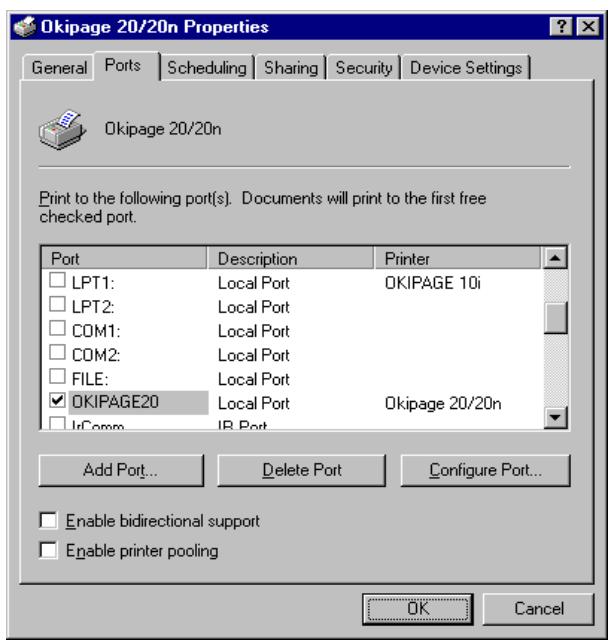
- From the list of Available Printer Ports, select OKI OkiLAN 6010e Connect IP Monitor as the type of port to add and click New Port.
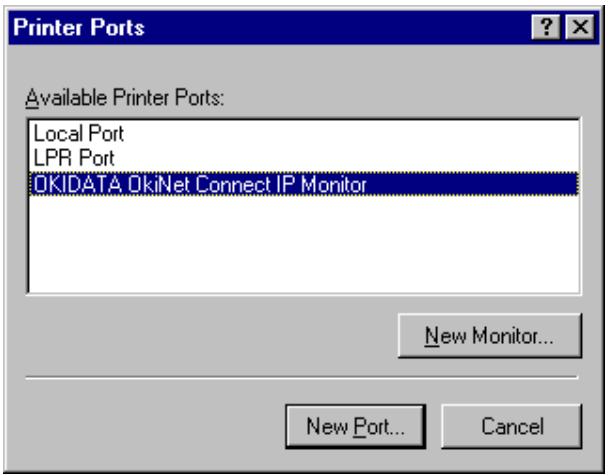
You will enter into the Add OkiLAN 6010e Connect Port screen where there will be a list of all OkiLAN 6010e print servers available on the local subnet.
- If the port you wish to add is listed in the Ports available on local subnet: window, select the port name and click Add.
If the port you wish to use is not listed, click the Locate non-local device button and enter the Static IP Address used for the print server. Click the Add button.
Note: The OkiLAN 6010e Connect DHCP discovery feature will relocate a print server on the local subnet by its port name, even if the IP address changes. This feature is enabled on the local subnet only. A non-local print server will not be re-discovered if the IP address changes.
7. Click OK.
You will now be able to use OkiLAN 6010e Connect for TCP/IP. Whenever you print to the printer configured with OkiLAN 6010e Connect, your print job will go directly to the OkiLAN 6010e print server port.
Notify When Printed
This feature will provide an alert when your job is active on the printer. This may be useful if the printer is especially busy.
Description
An optional field where you may list the location or other useful information about the printer port.
OkiLAN 6010e Connect for DLC
OkiLAN 6010e Connect for Data-Link Control (DLC) provides a direct printing solution for users in Microsoft Windows NT serverless environments with the DLC/ LLC protocol. Print jobs printed through OkiLAN 6010e Connect are sent directly to the OkiLAN 6010e print server and not routed through the network server, resulting in a reduction of network traffic. OkiLAN 6010e Connect for DLC can be used to configure the print server, obtain status from the print server and printer, and send jobs to the printer.
Note: To obtain a version of OkiLAN 6010e Connect for DLC that supports Windows NT, visit our FTP site (ftp://ftp.extendsys.com/pub/printserver/utilities/) or contact Technical Support.
Configure Port
If you have printing problems while using the OkiLAN 6010e Connect printing port, you may check the status of the port by selecting Configure Port under the Ports tab in the Properties screen.
Notify On Printer Error
This feature will check the printer status prior to printing the job. If a printer error is detected (e.g. printer offline or out of paper) the error description will be given.
Notify When Printed
This feature will provide an alert when your job is active on the printer. This may be useful if the printer is especially busy.
Description
An optional field where you may list the location or other useful information about the printer port.
Using the Windows NT 4.0 LPR Print Monitor
A Microsoft LPR print monitor is shipped with Windows NT 4.0. This print monitor is not included in the default Windows NT installation; therefore, it will need to be installed. In order to set up an LPR printer in Windows NT 4.0, the system must have an IP address, the print server must have an IP address, and Microsoft TCP/IP printing must be installed.
System Requirements
- Administrator privileges
- Windows NT installation disks or CD
Install TCP/IP on NT Server
If Microsoft TCP/IP has not been installed on the Windows NT print server, follow the steps below:
- Open the Windows NT Control Panel.
- Double-click the Network icon.
- Select the Protocols tab.
- Select TCP/IP Protocol and click the Properties button.
- Assign the server an IP address (for LANS without Internet access, it is suggested to use 10.10.10.1). Click OK.
Install LPR Print Monitor
- Open the Windows NT Control Panel.
- Select the Services tab.
- Select Add, then Microsoft TCP/IP printing.
- Click the Close button.
- Restart the system.
Assign Print Server IP Address
- Using OkiNet for IP, assign the print server an IP address; for example, 10.10.10.2.
Note: For more information on using OkiLAN 6010e TCP/IP, see OkiNet for TCP/IP.
Add LPR Printer
- Open the Control Panel, Printers and then select Add Printer.
- Select My Computer and click Next.
- Click the Add Port button.
- On the Printer Ports screen, select LPR Port from the list of Available Printer Ports and click the New Port button.
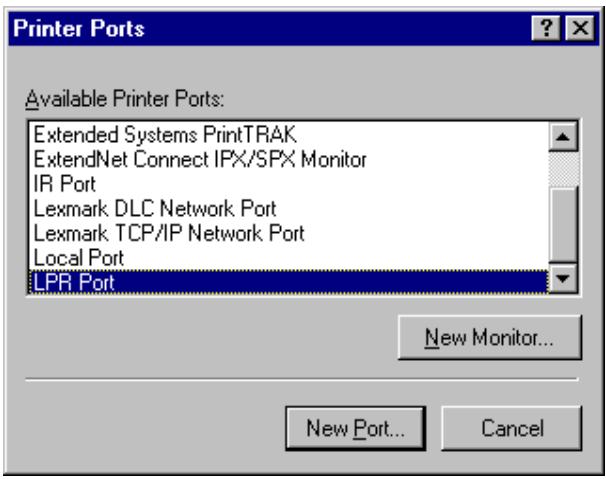
- In the Name or address of server providing lpd: field, enter the IP address you assigned to the printer.
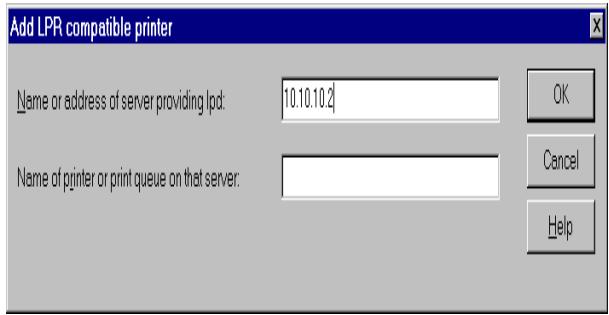
- In the Name of printer or print queue on that server: field, enter the print server output port being used. For example, for port 1 enter P1, for port 2 enter P2, etc. Click OK.
7. Click OK.
- Verify the port just added is selected and then click Next.
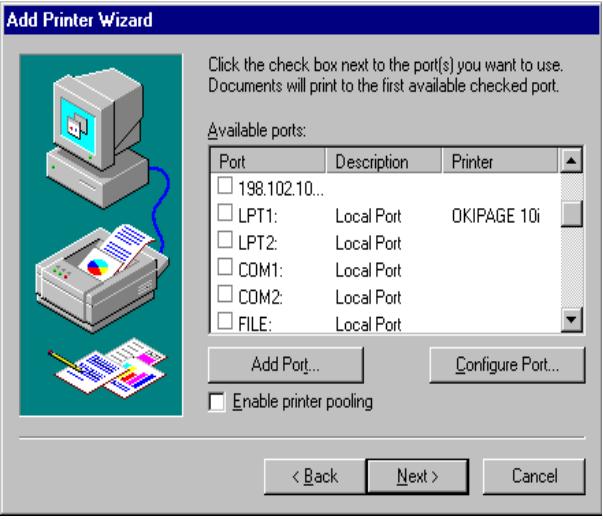
- Select a printer driver and click Next.
- Enter a name for the printer and click Next.
- To share the printers with others on the network, select Shared and enter a share name for the printer.
Chapter 2: OkiLAN 6010e Set Up for Windows NT 3.51
Overview
This section contains instruction and information on how to set up your OkiLAN 6010e for a Windows NT 3.51 environment. Print options for Windows NT 3.51 include:
- OkiLAN 6010e Connect for IP
- OkiLAN 6010e Connect for DLC
LPR
OkiLAN 6010e Connect for IP
OkiLAN 6010e Connect for TCP/IP is a full featured utility that allows simple, direct, TCP/IP printing from your computer to a printer attached to an OKI TCP/IP enabled print server. OkiLAN 6010e Connect has advantages over other TCP/IP printing options. It allows you to print to print servers that are using Dynamic IP addresses (DHCP). It will also notify you immediately in the event of a printer error (e.g. Paper out). Print jobs printed through OkiLAN 6010e Connect are sent directly to the OkiLAN 6010e print server and not routed through a network server, resulting in a reduction of network traffic.
System Requirements
To use OkiLAN 6010e Connect for TCP/IP for your Windows NT 3.51 operating system, your computer must be configured to run TCP/IP. The OkiLAN 6010e print server must also be configured to run TCP/IP.
Installation
To install OkiLAN 6010e Connect for TCP/IP, follow the instructions below:
-
Install the OkiLAN 6010e Connect for TCP/IP files—see Section I.
-
From the Windows NT Print Manager Printer menu select Create Printer.
-
In the Create Printer window select:
-
Printer Name
-
Driver
Description -
At the Print prompt, select Other.
-
From the Print Destinations window, select OKI OkiLAN 6010e Connect for IP.
-
If the port you wish to add is listed in the Ports available on local subnet: window, select the port name and click Add.
If the port you wish to use is not listed, click the Locate non-local device button and enter the Static IP Address used for the print server. Click the Add button.
- Click OK.
OkiLAN 6010e Connect for DLC
OkiLAN 6010e Connect for Data-Link Control (DLC) provides a direct printing solution for users in Microsoft Windows NT serverless environments with the DLC/LLC protocol. Print jobs printed through OkiLAN 6010e Connect are sent directly to the OkiLAN 6010e print server and not routed through the network server, resulting in a reduction of network traffic. OkiLAN 6010e Connect for DLC can be used to configure the print server, obtain status from the print server and printer, and send jobs to the printer.
Note: To obtain a version of OkiLAN 6010e Connect for DLC that supports Windows NT, visit our website (www.Okidata.com) or contact Customer Support.
Using the Windows NT 3.51 LPR Print Monitor
A Microsoft LPR print monitor is shipped with Windows NT 3.51. This print monitor is not included in the default Windows NT installation; therefore it will need to be installed.
System Requirements
- Administrator privileges
- Windows NT installation disks or CD
Install TCP/IP and LPR Print Monitor
To install the LPR print monitor on your system, follow the steps below:
- Open the Windows NT Control Panel.
- Double-click the Network icon.
- Select Add Software from the Network Settings window.
- Select TCP/IP Protocol and Related Components from the Add Network Software window. Click Continue.
- Select Connectivity Utilities and TCP/IP Network Printing Support from the Windows NT TCP/IP Installation Options window.
Note: If either of these items is grayed out, it means the item has already been installed and you may skip the installation of that item.
- Select Continue from the Windows NT TCP/IP Installation Options window. Respond appropriately to the installation windows presented.
- Shutdown the application and restart Windows NT.
Assign Print Server IP Address
- Using OkiNet for IP, assign the print server an IP address; for example, 10.10.10.2.
Note: For more information on using OkiLAN 6010e TCP/IP, see OkiNet for TCP/IP.
Add LPR Printer
-
From the Windows NT Print Manager Printer menu, select Create Printer.
-
In the Create Printer window select:
-
Printer Name
-
Driver
Description -
At the Print prompt, select Other.
- From the Print Destinations window, select LPRPort.
- From the Add LPR Compatible Printer window, enter the print server's IP address or name (if you are using DNS or WINS) for the host name prompt.
- Enter a number indicating the desired print server's output port for the printer name prompt and click OK. For example, for port 1 enter P1, for port 2 enter P2, etc.
- Click OK from the Create Printer window to add the printer.
Chapter 3: OkiLAN 6010e Set Up for Windows 95
Overview
This section contains instruction and information on how to set up your OkiLAN 6010e for a Windows 95 environment. Print options for Windows 95 include:
- OkiLAN 6010e Connect for TCP/IP
- OkiLAN 6010e Connect for DLC
- OkiLAN 6010e Connect for IPX/SPX
OkiLAN 6010e Connect for TCP/IP
OkiLAN 6010e Connect for TCP/IP is a full featured utility that allows simple, direct, TCP/IP printing from your computer to a printer attached to an OKI TCP/IP enabled print server. With OkiLAN 6010e Connect, you can even print to print servers using Dynamic IP addresses (DHCP). Print jobs printed through OkiLAN 6010e Connect are sent directly to the OkiLAN 6010e print server and not routed through the network server, resulting in a reduction of network traffic.
System Requirements
To use OkiLAN 6010e Connect for TCP/IP, your operating system must be Windows 95 and your computer must be configured to run TCP/IP. The OkiLAN 6010e print server must also be configured to run TCP/IP.
Installation
To install OkiLAN 6010e Connect for TCP/IP, follow the instructions below:
- Install the OkiLAN 6010e Connect for TCP/IP—see Section I.
- When installation is complete, click on Start, Settings and then Printers.
- Select the Windows printer from which you would like to print with OkiLAN 6010e Connect, then select Properties from the File menu.
- Add an OkiLAN 6010e Connect port. This may be done by selecting Add Port under the Details tab.
- In the Add Port window, select the radio button labeled Other and then select OKI OkiLAN 6010e Connect IP Monitor as the type of port to add. Click OK.
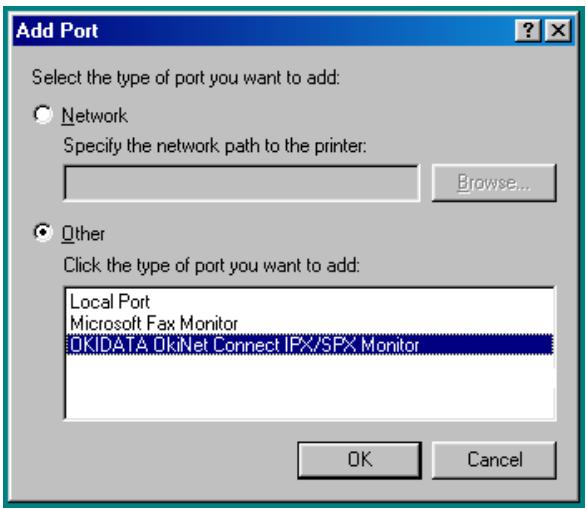
You will enter into the Add OkiLAN 6010e Connect Port screen where there will be a list of all OkiLAN 6010e print servers available on the local subnet.
- If the port you wish to add is listed in the Ports available on local subnet window, select the port name and click the Add button.
If the port you wish to use is not listed, click the Locate non-local device button and enter the Static IP Address used for the print server. Click the Add button.
Note: The OkiLAN 6010e Connect discovery feature will relocate a print server by the port name, even if the IP address changes. This feature is enabled on the local subnet
7. Click OK.
You will now be able to use OkiLAN 6010e Connect for TCP/IP. Whenever you print to the printer configured with OkiLAN 6010e Connect, your print job will go directly to the OkiLAN 6010e print server port.
Port Settings
If you have printing problems while using the OkiLAN 6010e Connect printing port, you may check the status of the port by selecting Port Settings under the Details tab in the Properties screen.
OkiLAN 6010e Connect for DLC
OkiLAN 6010e Connect for Data-Link Control (DLC) provides a direct printing solution for users in Microsoft Windows 95 serverless environments with the DLC/LLC protocol. Print jobs printed through OkiLAN 6010e Connect are sent directly to the OkiLAN 6010e print server and not routed through the network server, resulting in a reduction of network traffic. OkiLAN 6010e Connect for DLC can be used to configure the print server, obtain status from the print server and printer, and send jobs to the printer.
System Requirements
To use OkiLAN 6010e Connect for DLC, your operating system must be Windows 95 and the Microsoft 32-bit DLC protocol must be installed.
Installation
To install OkiLAN 6010e Connect for DLC, follow the instructions below:
- Install OkiNet for DLC—see Section I.
- When the installation is complete, click on Start, Settings and then Printers.
- Select the printer driver from which you would like to print with OkiLAN 6010e Connect, then select Properties from the File menu.
-
Add an OkiLAN 6010e Connect port. This may be done by selecting Add Port under the Details tab.
-
In the Add Port window, select the radio button labeled Other and select OKI OkiLAN 6010e Connect DLC Monitor as the type of port to add. Click OK.
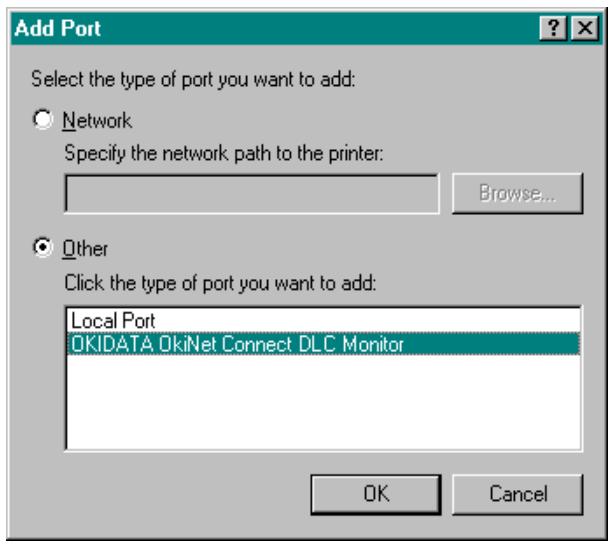
You will enter into the Add OkiLAN 6010e Connect Port screen where there will be a list of all OkiLAN 6010e print servers available on the local subnet.
- Select the OkiLAN 6010e print server port name and click the Add button.
- Click OK.
You will now be able to use OkiLAN 6010e Connect for DLC. Whenever you print to the printer configured with OkiLAN 6010e Connect, your print job will go directly to the OkiLAN 6010e print server port.
Port Settings
If you have printing problems while using the OkiLAN 6010e Connect printing port, you may check the status of the port. Select the Details tab on the Properties screen and then click the Port Settings button.
For more configuration options, click the Configure button.
Output Port Configuration Options
To configure the OkiLAN 6010e output port, select the Output Port tab.
Port Number
Select the port number you wish to configure.
Configuration Page Language
Select the appropriate printer language for printing and configuration pages on your printer.
Enabling/Disabling
To enable or disable protocols on the OkiLAN 6010e, select the Protocols tab. Select each protocol you wish to enable. If you disable a protocol, the OkiLAN 6010e will no longer communicate using that protocol.
Index
A
Advanced Management Features
OkiNet Alert II-26
OkiNet for NDS II-27
OkiNet for TCP/IP II-27
primer security for TCP/IP II-28
Security II-7
Assigning an IP Address
BOOTP IV-15, IV-71
DHCP IV-12
gleaning IV-11
RARP IV-15, IV-75
static route entry IV-14
B
Bindery Settings
in NetWare III-11
BOOTP
assigning an IP address IV-15, IV-71
troubleshooting IV-63
BOOTP Server
starting in OkiNet for TCP/IP IV-52
BSD-Style Print Queue
configuring in TCP/IP IV-20
C
Choosing an IP Address
TCP/IP IV-9
Configuration Sheet
printing
NetWare III-21
TCP/IP IV-43
troubleshooting
in TCP/IP IV-67
Configuring for TCP/IP Network Printing IV-18
Index
Custom Views II-27
Customer Information Center vii
Customer Service Representatives vii
Customer Support Center vii
Customized Views
creating
in OkiNet for NetWare III-23
in OkiNet for TCP/IP IV-45
D
Default Gateway IP Address
identifying in telnet IV-57
DHCP
assigning an IP address IV-12
Diagnostic Information
displaying in NetWare III-21
E
Enabling/Disabling Protocols
OkiNet for NetWare III-20
OkiNet for TCP/IP IV-40
Error Messages
TCP/IP
hardware IV-66
F
FTP
troubleshooting IV-69
FTP Printing
ASCII IV-24
BINARY IV-24
BYE IV-25
CLOSE IV-25
IMAGE IV-24
MODE IV-25
MPUT IV-24
OPEN IV-25
PUT IV-24
QUIT IV-25
SEND IV-24
STRU IV-24
TYPE IV-24
G
GET Community Name (TCP/IP) IV-39
Gleaning
assigning an IP address IV-11
H
HP-UX v10.xx Application
prerequisites IV-90
procedure IV-91
HP-UX v8.07 Application
prerequisites IV-80
procedure IV-81
HP-UX v9.xx Application
prerequisites IV-85
procedure IV-86
1
IBM AIX ver. 3.x Application
prerequisites IV-98
procedure IV-98
IP Address
assigning
BOOTP IV-15
DHCP IV-12
gleaning IV-11
RARP IV-15
static route entry IV-14
choosing IV-9
J
JetAdmin Support
NetWare configuration II-9
obtaining diagnostic information II-11
Overview II-9
TCP/IP configuration II-10
L
Language Switching NetWare III-14
N
NDS Settings in NetWare III-11
NPrinter Mode in NetWare III-6
0
OkiLAN 6010e Diagnostic Information displaying in OkiNet for TCP/IP IV-43
OkiNet Connect for DLC V-24
OkiNet Connect for TCP/IP V-5, V-20
OkiNet for NDS adding or removing the Extended Systems print serv III-39 configuring the OkiLAN 6010e III-38 creating a new Extended Systems OkiLAN 6010e object III-35 installing III-29 overview III-29 printing with an OkiLAN 6010e in PServer mode III-36
OkiNet for NetWare configuration options III-10 customized views, creating III-23 enabling/disabling protocols III-20 NetWare queues configuration options III-12, IV-34 output port configuration options III-13 port configuration options III-12 resetting the OkiLAN 6010e III-21 restoring factory default settings III-22 running the utility III-8 searching for a specific OkiLAN 6010e III-23 SNMP access information III-27 view settings, modifying III-24
OkiNet for TCP/IP running the utility IV-29 starting a BOOTP server IV-52 troubleshooting IV-66
Output Port Configuration Options
in TCP/IP IV-34
Output port configuration options in NetWare III-13
P
Port Configuration
in NetWare III-12
Print Queue
configuring BSD-style IV-20
Print Server Class
adding or removing in OkiNet for NDS III-39
Printer Traps
in TCP/IP IV-42
Printing
OkiLAN 6010e Connect for DLC V-24
OkiLAN 6010e Connect for TCP/IP V-5, V-20
OkiLAN 6010e Set Up for Windows NT 3.51 V-15
PServer Mode
in NetWare III-6, III-11
Q
Queues
NetWare configuration options III-12
R
RARP
assigning an IP address IV-15, IV-75
troubleshooting IV-63
Raw Port Printing IV-27
Remote LPD Printing IV-23
Remote Print Queue Name
FF IV-19
LF IV-19
NF IV-20
Resetting the OkiLAN 6010e
in NetWare III-21
Restoring Factory Default Configuration
in NetWare III-22
in TCP/IP IV-44
RPrinter Mode in NetWare III-6,III-11
S
SCO UNIX Application prerequisites IV-95 procedure IV-95
Security in SNMP II-7
Service and Support Customer Information Center vii Customer Service Representatives vii Dealers vi REGIONAL SERVICE CENTER viii
SET Community Name in TCP/IP IV-39
SNMP
advanced management II-5
configuration options
OkiNet for TCP/IP IV-37
SNMP Traps advanced management II-6
Solaris 2.x Application prerequisites IV-101 procedure IV-102
Static Route Entry
assigning an IP address IV-14
troubleshooting IV-64
Sun-OS v4.1.x Application
prerequisites IV-103
procedure IV-105
T
TCP/IP
BOOTP IV-63
FTP IV-69
gleaning IV-62
hardware error messages IV-66
OkiLAN 6010e Connect for TCP/IP V-5
OkiNet for TCP/IP utility IV-66
RARP IV-63
requirements V-5, V-15
restoring to factory default configuration IV-61
static route entry IV-64
unable to assign IP address IV-62
UNIX BOOTP IV-63
Winsock errors IV-66
TCP/IP Configuration
overview IV-8
TCP/IP Network Printing
configuring for IV-17
Telnet Session
configuring port information IV-58
identifying default gateway IP address IV-57
running IV-53
showing port information IV-54
specifying print server IP address IV-55
specifying the subnet mask for your network IV-56
starting from OkiNet for TCP/IP IV-52
Timeout Checking
about IV-26
Trap Community Name
in TCP/IP IV-39
Trap Destination
in TCP/IP IV-41
Traps, SNMP
advanced management II-6
configuring in NetWare III-18
U
Ultrix v 4.2 Application
prerequisites IV-103
Ultrix v4.2 Application
procedure IV-105
UNIX BOOTP
troubleshooting IV-63
V
Verifying Access to the OkiLAN 6010e IV-16
View Settings modifying in OkiNet for TCP/IP IV-46
View settings modifying in NetWare III-24
W
Web Configuration
connecting to the OkiLAN 6010e II-16
OkiLAN 6010e product discovery II-23
Overview II-15
reset II-22
status II-21
support II-21
Web Admin configuration II-20
Web JetAdmin Support configuring the OkiLAN 6010e II-12 installing a Windows NT printer II-13 obtaining diagnostic information II-14 Overview II-12
Windows 95 DLC requirements V-24 OkiNet Connect for DLC V-24 OkiNet Connect for TCP/IP V-20 TCP/IP requirements V-20
Windows NT 3.51
OkiLAN 6010e Set Up for V-15
requirements V-15, V-17
Windows NT 4.0 requirements V-11
Winsock troubleshooting IV-66