
DVR908MFD - Surveillance Camera VIVITAR - Free user manual and instructions
Find the device manual for free DVR908MFD VIVITAR in PDF.


| Product Type | Surveillance camera (digital helmet camera) |
| Brand | VIVITAR |
| Model | DVR908MFD |
| Image Sensor | CMOS |
| Video Resolution | VGA (640×480) / QVGA (320×240) |
| File Format | AVI |
| Lens | F=3.0, f=3.6 mm |
| Shutter Speed | Electronic 1/2 to 1/2000 s |
| Focus Range | 1.5 m to infinity |
| Display | LCD |
| External Memory | SD/MMC card up to 16 GB (not included) |
| Power Supply | 2 AAA 1.5 V batteries (alkaline recommended, not included) |
| Interface | USB 2.0 |
| Compatible Operating Systems | Windows XP (SP3), Vista (SP1), 7; Mac OS X v10.5.x and higher |
| Included Mounts | Bike mount, adhesive mount, strap, water-resistant silicone case |
| Main Functions | Video recording, resolution selection, helmet/bike mounting, transfer to PC |
| Care and Cleaning | Avoid exposure to heat and humidity; clean with a soft cloth |
| Safety | Do not use in humid conditions without waterproof case; remove batteries during prolonged non-use |
| Spare Parts and Repairability | Standard batteries and memory card; warranty repair by manufacturer (1 year) |
| General Information | 1-year warranty for original purchaser; technical support at www.vivitar.com |
Frequently Asked Questions - DVR908MFD VIVITAR
User questions about DVR908MFD VIVITAR
0 question about this device. Answer the ones you know or ask your own.
Ask a new question about this device
Download the instructions for your Surveillance Camera in PDF format for free! Find your manual DVR908MFD - VIVITAR and take your electronic device back in hand. On this page are published all the documents necessary for the use of your device. DVR908MFD by VIVITAR.
USER MANUAL DVR908MFD VIVITAR
Introduction 2
What's Included 2
Parts of the Camera 3
Initial Camera Setup 4
Camcorder Mounts and Accessories 7
Main Camera Mode 10
Using your Helmet Camcorder 11
Technical Specifications 13
Computer System Requirements 14
Installing the Software 15
Connecting the Camcorder to the Computer 16
Getting Videos from your Camcorder to Your Computer 17
Get started! 18
Transferring Videos from my Camcorder to my Computer Manually 18
Camcorder Maintenance 19
Sakar Warranty Card 20
Technical Support 21
Troubleshooting 21
Introduction
Thank you for purchasing this Digital Helmet Camcorder. Everything you need to take quality digital videos is included with your camera.
Vivitar makes capturing those special moments as easy as possible.
Please read this manual carefully first in order to get the most out of your digital camcorder.
Note:
- Your digital helmet camcorder supports an SD or MMC Memory Card (up to 16GB).
- In order to use your digital helmet camcorder normally, please insert the SD Memory card before use.
- SD Memory cards are not included and need to be purchased separately.
What's Included
- Digital Helmet Camcorder
- USB Cable
- Installation CD
- Strap
- Slide Adhesive Mount
- Top Adhesive Mount
- Bike Mount
- Water Resistant Silicon
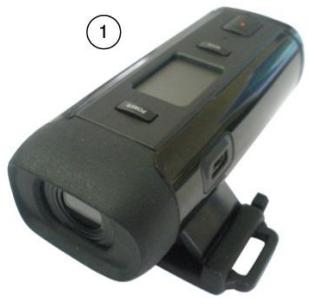
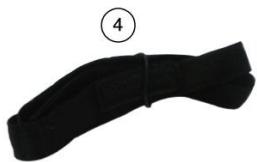
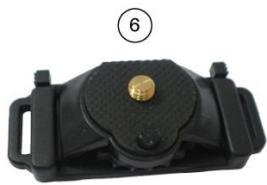
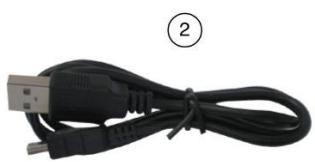
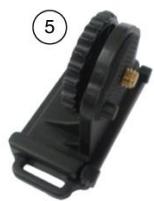
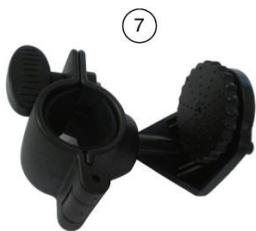
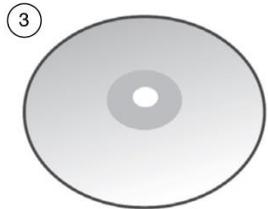
Note: SD Memory Card and batteries not included.
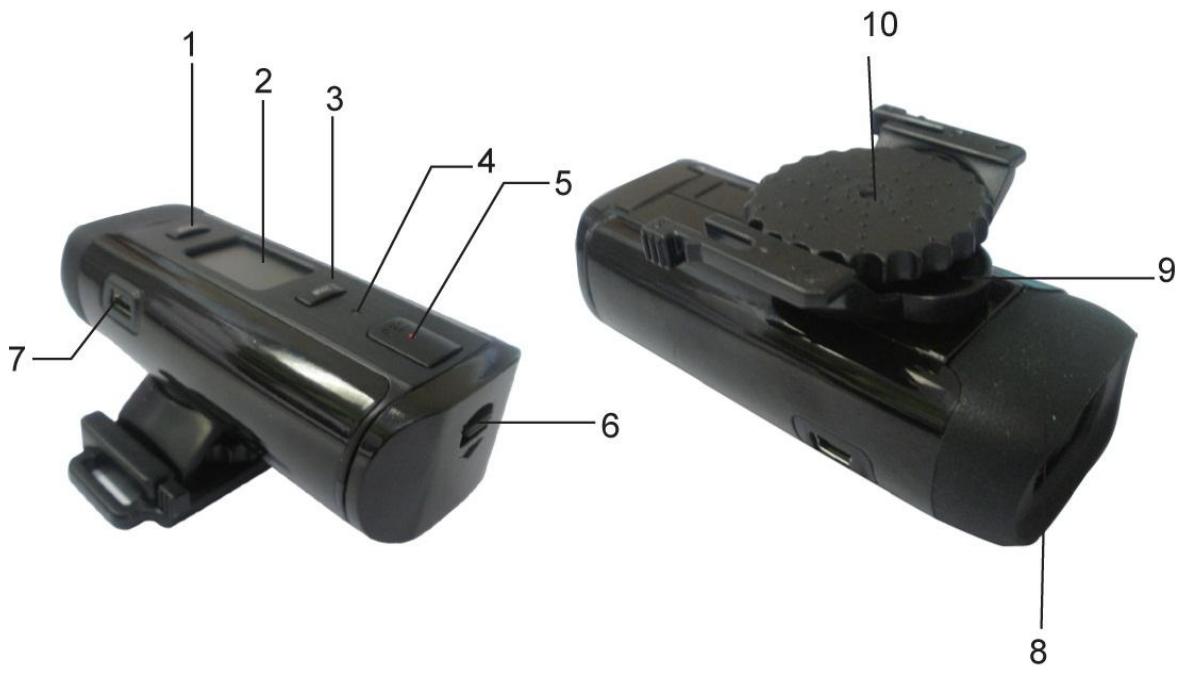
- POWER Button
- LCD Screen
- MODE Button
- Power Indicator Light/Busy LED
- RECORD Button
- Battery Cover/Memory Card Slot
- USB Jack
- Lens
- Microphone
- Camera Mount
Installing the Batteries
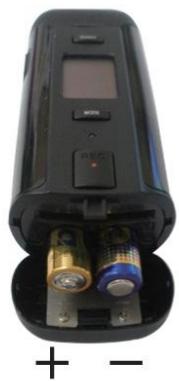

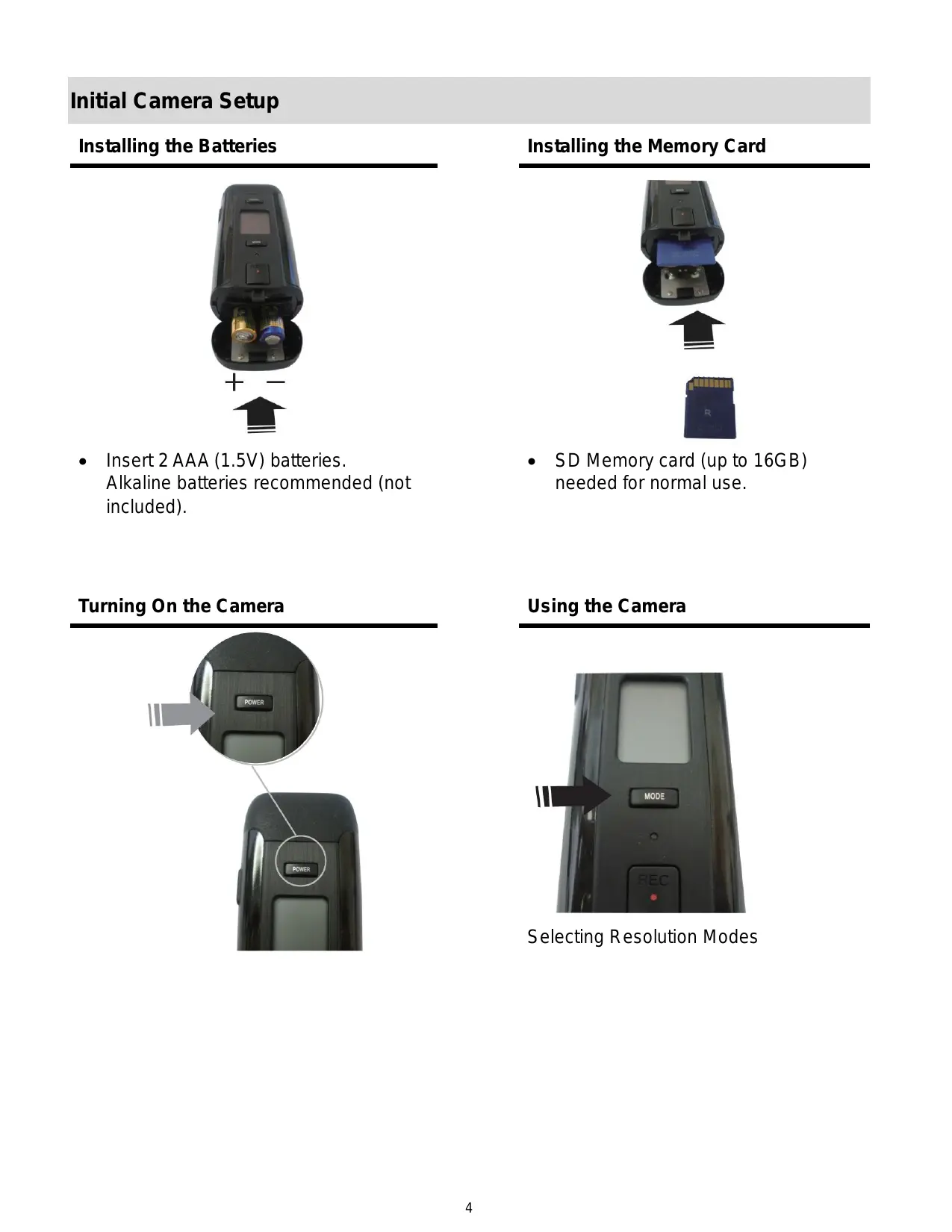
- Insert 2 AAA (1.5V) batteries. Alkaline batteries recommended (not included).
Turning On the Camera
Installing the Memory Card
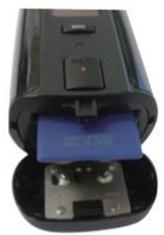

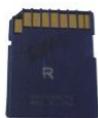
- SD Memory card (up to 16GB) needed for normal use.
Using the Camera
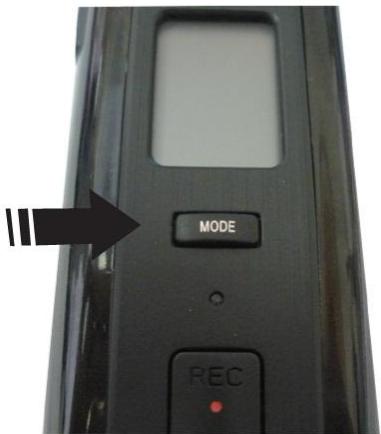
Selecting Resolution Modes
Powering the Digital Camcorder ON
- Make sure the batteries have been inserted properly into your digital video recorder.
Use 2 x AAA (1.5V) batteries. Rechargeable batteries are not recommended for use.
- Make sure an SD card has been properly inserted into your digital video recorder (inserted until a click sound is heard).
Note: After the digital camcorder is powered on, an SD icon will appear on the LCD display. If you do not see the SD icon on the display, please check if the card was inserted properly.
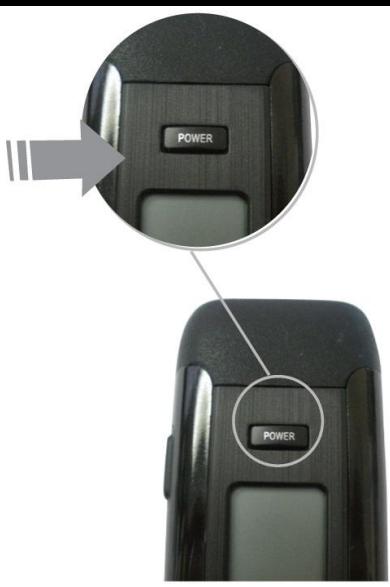
- Press the POWER button, located above the LCD Screen, to turn on the digital video recorder.
Installing the Batteries
- Pull down the Battery cover/Memory card slot to open it.
- Open the battery door as indicated by the arrow.
- Insert 2 x AAA batteries with the positive (+) and negative (-) poles matching the directions indicated on the battery cover.
- Close the battery door.
Battery Indicator
| Battery indicator | Description |
| The battery level is full. | |
| The battery level is half. | |
| The battery level is low, indicating to prepare for replacing batteries. If no battery level icon shows, the battery is exhausted and the camcorder will automatically turn off in a few seconds. |
- Be sure to turn off the camcorder power before inserting or removing batteries.
- Use only Alkaline battery to power this camcorder. Use of any other type battery is not recommended.
- Replace all batteries at the same time. Never mix old and new batteries.
- Remove batteries after extended use.
- The camcorder body may be warm after extended use. This is normal.
Installing the Memory Card
In order to use your camcorder, please insert an SD Card or MMC Card into the camcorder.
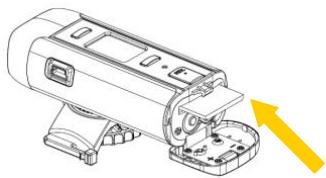
- Turn off the camcorder.
- Pull down the Battery cover/Memory card slot to open it.
- Slide battery cover and insert the SD card with the front piece of the card against the LCD screen. If the memory card has successfully been inserted, you will hear a click and an icon will appear on the LCD screen.
- To remove the card, gently press on the edge of the card and release it. Pull the card out and close the battery cover.
- Do not touch the connection terminals on the back side of the card.
- If the card is inserted or removed while the camcorder's power is on, it may damage the card and/or any recorded data. Always confirm that the power is off before inserting the card into the camcorder.
Camcorder Mounts and Accessories
Installing the Helmet Camcorder Mounts
The digital camcorder comes with three different kinds of mounts. Insert the cylinder screw of the chosen mount into the tripod hole at the bottom of the camera, making sure that the nearby black knob is aligned with the parallel hole. Turn the screw's disc clock-wise to tighten the screw to the camera.
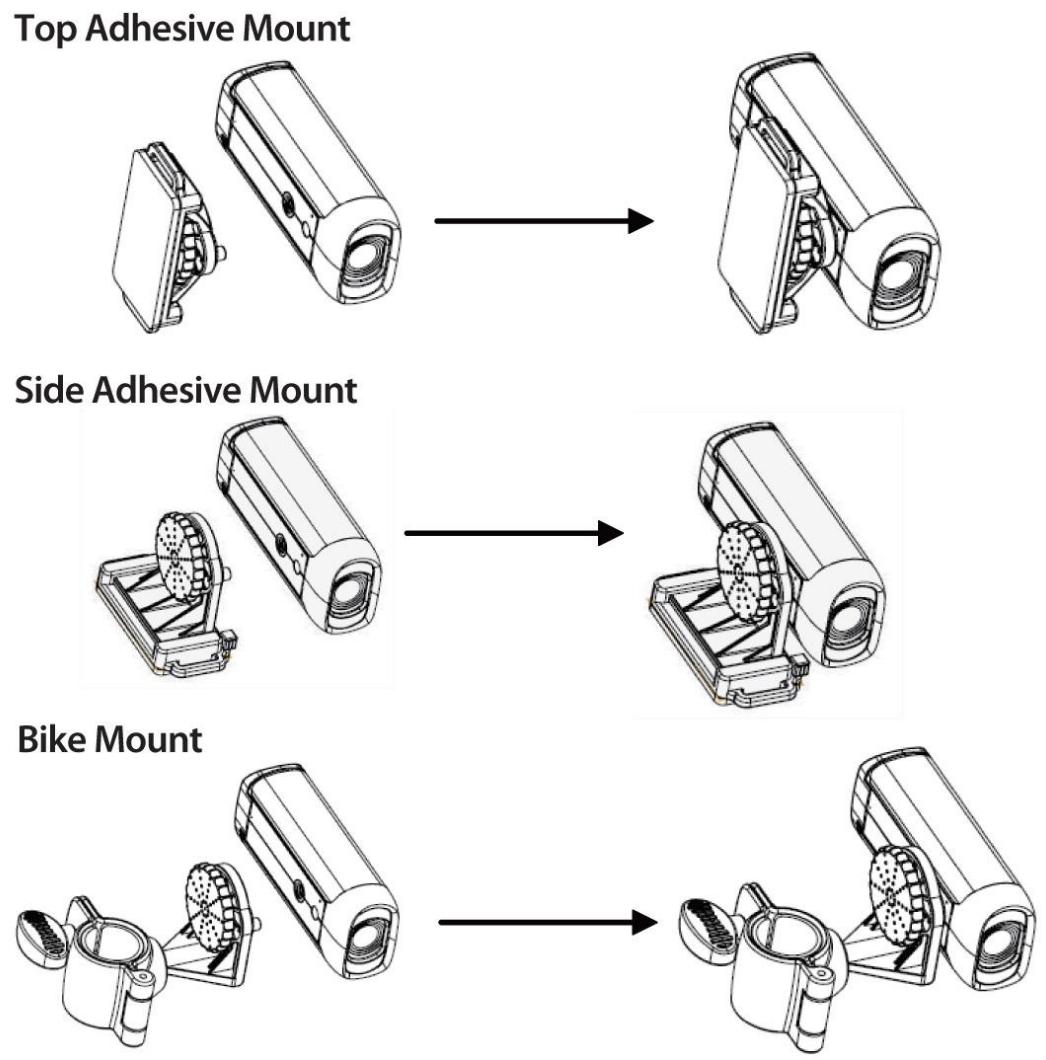
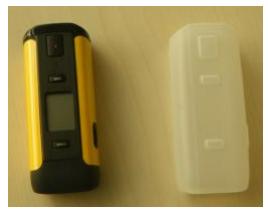
Water Resistant Silicon Case
Attach the water resistant silicon case during inclement weather, as well as during any other time there is a chance of your camera coming in contact with moisture.
Attaching the Camcorder to the Bike
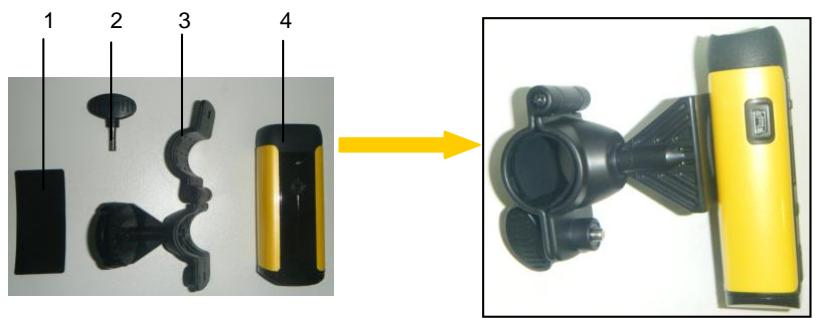
Choose the appropriate bike mount (3), insert the rubber pad (1) into the mount and attach it to the bike's handlebars by tightening the accompanying screw (2).
Attaching the Camcorder to your Helmet
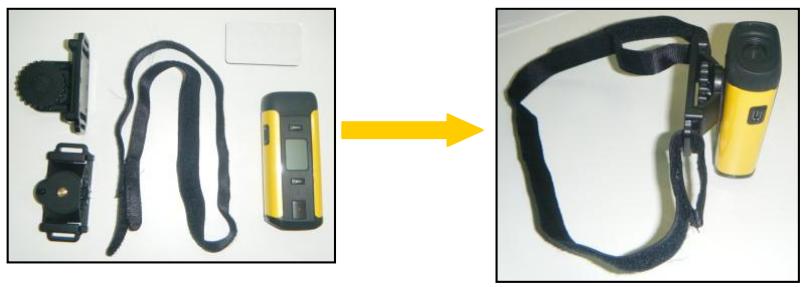
Attach the helmet mount to the camera.
Insert the strap into the two ends of the mount, adjusting length according to the helmet's size.
Thread the strap through the holes of the helmet and secure.
Using the Sticker Fix with your Helmet
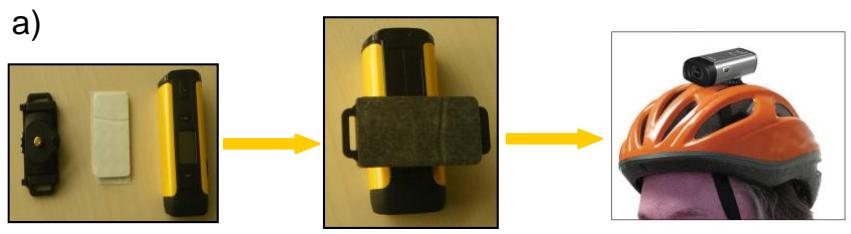
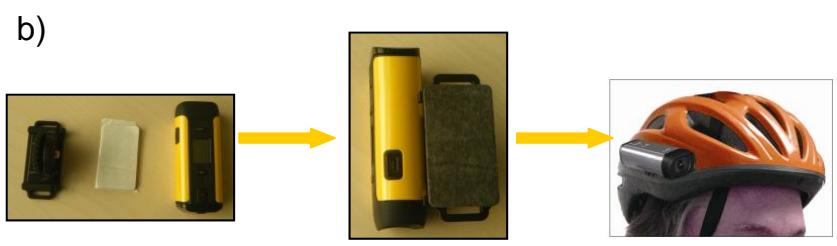
a) Attach the camera mount to the helmet.
b) Stick double ended sticky pad to the mount and then to the helmet.
See above for the 2 ways to mount your camcorder with the sticker fix.

Video Capture Mode
Use this mode to capture videos with your digital camcorder.
To take a video, aim your camcorder as desired and press the "Record" (REC) button to start the recording. The LCD monitor displays the recorded time while the recording is in progress. To stop the recording, press the "Record" (REC) button again. The captured video is automatically saved to the SD memory card.
To change the video resolution, press the "MODE" button. The LCD monitor displays your selected resolution.
Turning Power On and Off
- Press the POWER button to turn on the camcorder.
- Press the POWER button again to turn the power off.
This camcorder will automatically turns off 60 seconds after the last control accessed.
Press the POWER button to turn on the camcorder.
Display on the LCD screen
When the Helmet camcorder is power on, the following icons display on the LCD screen:
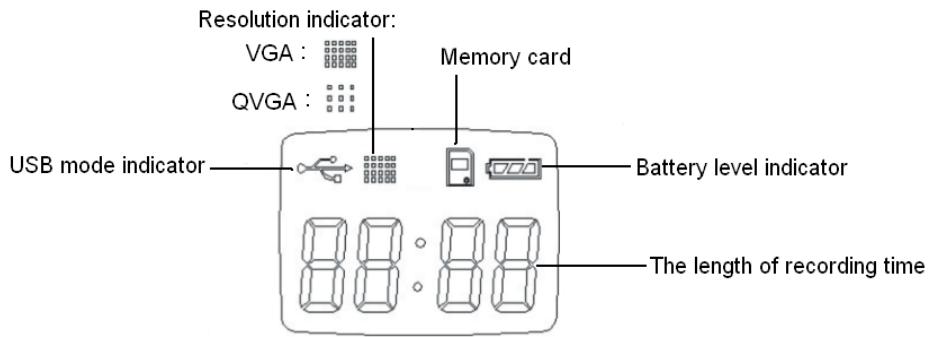
Recording Movie Clips
- Turn the power on.
-
Start recording:
-
Press the REC button to start recording.
-
The LCD monitor displays the recorded time.
-
Finish recording:
-
Press the REC button again to stop recording.
- The camcorder stops recording automatically when the memory capacity is full.
Setting the resolution
- Turn on the Helmet camcorder.
- Press the MODE button to change the resolution.
Each time the MODE button is pressed the icon on the LCD screen is changed.

VGA: The video clip size is higher and the quality is better when the resolution is VGA than that is QVGA.

QVGA: The length of recording is longer when the resolution is QVGA than when the resolution is VGA.
| Image Sensor | CMOS Sensor |
| Video Resolution | VGA (640X480) / QVGA (320X240) |
| File Format | AVI |
| External Memory | External - SD and MMC card compatible (up to 16GB) |
| LCD Display | Illumination: 100-16000 (lux) |
| Lens | F=3.0 f=3.6 |
| Shutter Speed | Electronic shutter 1/2-1/2000 s |
| Focus Range | 1.5M to infinity |
| Interface | USB 2.0 |
| System Requirements | Windows XP (SP3), Vista (SP1) or 7 Mac OSX v10.5.x and above |
| Battery | 2 x AA batteries (Alkaline batteries recommended.) |
Computer System Requirements
WINDOWS
To be able to download videos to your PC, you will need the following minimum configuration:
- Microsoft® Windows XP with Service Pack 3, Windows Vista with Service Pack 1 or Windows 7
- Pentium® 4 processor (or above)
- 512 MB of RAM, with 250 MB of free hard disk space
16-bit Color monitor, 1024 X 768 recommended screen resolution - CD-ROM Drive
- QuickTime® 6 or higher
Microsoft® Internet Explorer 7 or higher - Windows Media Player 10 or higher
- DirectX 9 or higher
- Internet connection required
MACINTOSH
To be able to download videos to your Macintosh, you will need the following minimum configuration:
Intel processor running Mac OS X v10.5.x or later
256 MB RAM, 250 MB free hard disk space
Display: 1024 x 768 or higher-resolution monitor
- QuickTime® 6 or higher
- Internet connection required
You must be connected to the internet to install and run the Vivitar Experience Image Manager software.
- Insert the installation CD into your CD-ROM drive. The installation screen should automatically open.
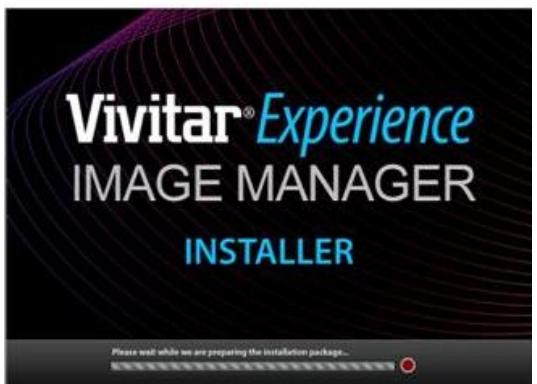
- On PC: The Vivitar Experience Image Manager Installer window appears. If the window does not appear, open the application's CD/DVD drive and click on "Setup.exe" to launch the installer.
- On Macintosh: Click the icon that appears on the desktop to install the Vivitar Experience Image Manager.
- If you do not have internet access at the time of inserting the CD-ROM, connect to the internet and then click the "Install Vivitar Experience Image Manager" button to begin the installation.
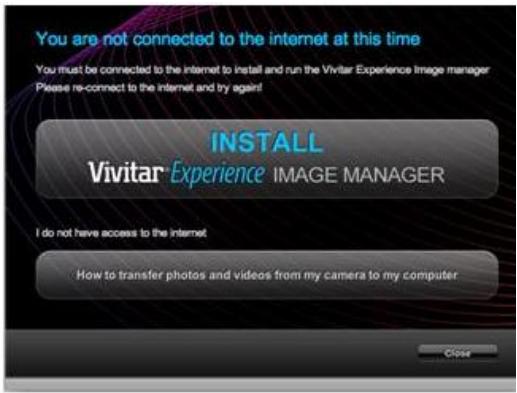
Note: If you do not have internet access, you can still download media from the camcorder. Click the "How to transfer photos and videos from my camera to my computer" button for instructions.
- If you have internet access, the "Choose your language" window opens, choose your
language and click "Next" to open the next window.
- Select your camera model from the list and click "Next" to open the next window.
- Click "Next" to confirm your camera model selection and to install the application.
- Please wait while the application is being installed on your computer.
- Please review the license terms.
On PC and Macintosh: Click the "I accept the terms of this license agreement" and then click "Next" to continue.
- On PC only: Let the "Vivitar Experience Image Manager" installer create the folder to where the program will be installed, and then click "Install".
- Please wait while the application continues the installation process on your computer.
- On PC: Click the "Close" button when the installation is complete.
Click the "Launch Vivitar Experience Image Manager" to open the application.
- On Macintosh: Click the "Quit" button when the installation is complete.
Click the "Launch Vivitar Experience Image Manager" to open the application.
- If you close the application you can run the Vivitar Experience Image Manager from the Programs (PC) or Applications (Mac) menu on your computer.
Connecting the Camcorder to the Computer
- Use the USB cable that came with your camcorder to connect your digital camcorder to your computer.
- Power the camera ON.
- The first time you connect the device to the computer you will have to wait a few seconds until the computer recognizes the device.
Getting Videos from your Camcorder to Your Computer
An SD card needs to be inserted. Do not disconnect the cable during transfer. Doing so will cancel the transfer of any files on their way to your computer.
- Select the "Get Images" button from the Main menu.
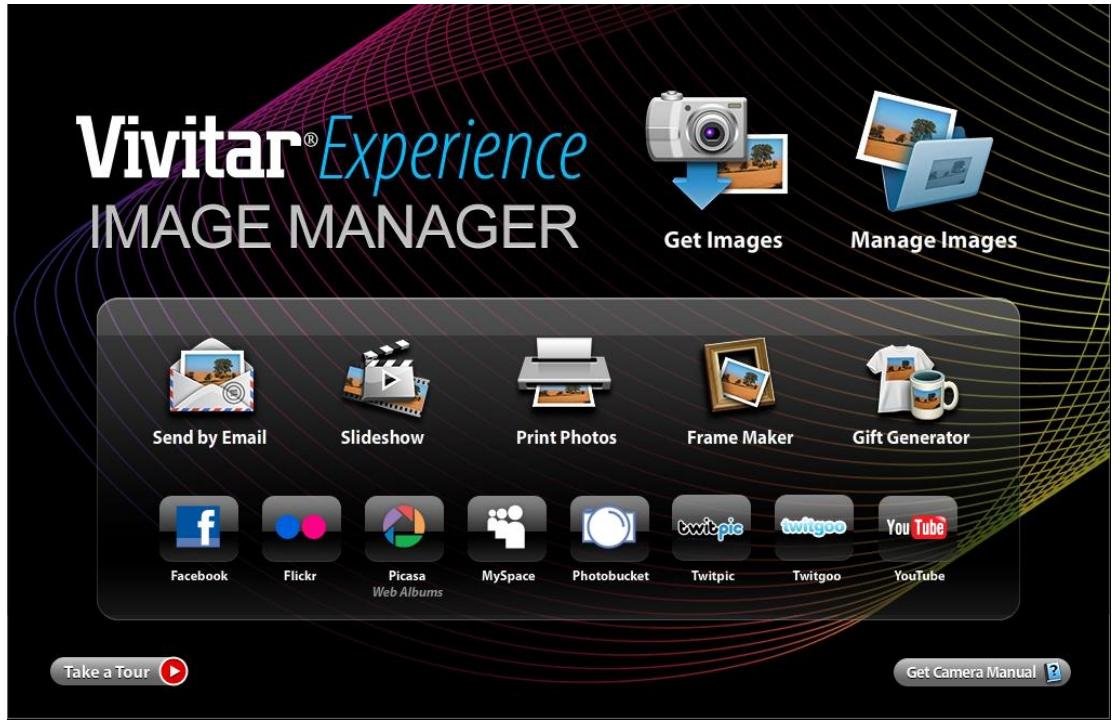
- The "Get Images from device" window opens.
- You can select to download videos.
- Select your camera (removable disk) from the device window. If your camera is the only USB device connected then it will be selected automatically.
- Select a location on the computer where to place the new video files.
- Add the new video files to albums if desired.
- Select to remove the media files from the selected device (removable disk) after the import.
- Click the "Get Images" button to transfer the videos from your camera to your computer.
- A media download progress bar appears on the bottom left showing the number of media files downloading to your computer. A message appears when the download is complete.
- The video files that you selected are now downloaded to your computer to the selected folder ready for your use.
Get started!
Using the Vivitar Experience Image Manager, you can:
- Upload and manage videos to and from the most popular photo sharing and social networking sites - Facebook, Flickr, Picasa, MySpace, Photobucket, Twitpic, Twitgoo and YouTube
- Seamlessly transfer videos from one social network to another
- Organize your images by creating offline and online albums
- Edit images using automatic and manual tools
- Use automatic "Geotagging" with built in Google Maps
For more details on how to use the Vivitar Experience Image Manager open the Help file or click the “Take a Tour” button on the application’s Home page.
Transferring Videos from my Camcorder to my Computer Manually
WINDOWS
- Use the USB cable that came with your camcorder to connect your camcorder to your computer's USB port.
- Turn on the camcorder. If the connection is successful an icon will display on the LCD screen.
- A window appears with a list of options, select "Open folder to view files" and click OK.
- Open the DCIM folder and the folder inside to view the media files.
- Select the media and copy the files from this folder into your computer. Optionally, select the files and choose Copy from the Edit menu. Then select a folder and choose Paste from the Edit menu.
- We recommend that you copy the videos into the Videos/My Videos folder.
- Do not disconnect the cable during transfer. Doing so will cancel the transfer of any files on their way to your computer.
MACINTOSH
- Use the USB cable that came with your camcorder to connect your camcorder to your computer's USB port.
- Turn on the camcorder. If the connection is successful an icon will display on the LCD screen.
- MSDC appears on the LCD.
- The camera's device icon appears on the desktop.
- Click on the device icon and open the DCIM folder and the folder inside to view the media files.
- Select the files and drag them into your computer. Optionally, select the files and choose Copy from the Finder's Edit menu. Then select a folder and choose Paste from the Edit menu.
- We recommend that you copy the videos into the Movies folder.
- Do not disconnect the cable during transfer. Doing so will cancel the transfer of any files on their way to your computer.
Using a Card Reader
- Eject the memory card from the camcorder and insert it in a card reader that is connected to a computer.
- Open [My Computer] or [Windows Explorer] and double-click the removable drive icon that represents the memory card.
- Copy images from the card into a directory of your choice on the computer's hard disk.
Camcorder Maintenance
The digital camera is a delicate device. Please handle your camera with care to avoid damaging it.
Do not expose your camera to heat sources.
Do not use you camera in wet or moist conditions.
Sakar Warranty Card
This warranty covers for the original consumer purchaser only and is not transferable. Products that fail to function properly UNDER NORMAL USAGE, due to defects in material or workmanship will be repaired at no charge for parts or labor for a period of one year from the time of purchase.
What Is Not Covered By Warranty:
Damages or malfunctions not resulting from defects in material or workmanship and damages or malfunctions from other than normal use, including but limited to, repair by unauthorized parties, tampering, modification or accident.
What to Do When Service Is Required:
When returning your defective product (postage pre-paid) for service, your package should include:
- Copy of original bill of sale
- A detailed written description of the problem.
- Your return address and telephone number (Daytime)
MAIL TO ADDRESS BELOW:
| Sakar US | Sakar UK/Europe | Sakar Australia |
| Sakar International | Attention: Service Department | Return faulty camera to |
| Attention: Service Department | 2D, Siskin Parkway East | the Refund Counter at |
| 195 Carter Drive | 4020 Middlemarch Business Park | the store where |
| Edison, NJ | Coventry, CV3 4PE | purchased |
| 08817 |
Technical Support
For technical support issues please visit our website at www.vivitar.com. You can find manuals, software and FAQ's at the website. Can't find what you are looking for? E-mail us at support@vivitar.com and one of our technical support team members will answer your questions. For phone support in the US please call 1-800-592-9541, in the UK call 0800 917 4831, in Australia call 1800-006-614. If you would like to call from anywhere else, please visit www.vivitar.com for your local toll free number.
Troubleshooting
Q: How do I make sure I don't lose important pictures?
This camera requires an SD card for normal use. If the camera powers off nothing will happen to the images stored on the SD memory card. We recommend always downloading your photos to your computer as soon as possible to prevent unintentional data loss.
Q: I deleted images using the Vivitar Experience Image Manager. The images were also deleted from my computer. How do I recover images that I accidentally deleted?
All images deleted using the Vivitar Experience Image Manager are sent to your computer's Recycle or Trash Bin and can be retrieved from there.
DVR480(ver1)-030411-TA