
WNDAP620 - Wireless Access Point NETGEAR - Free user manual and instructions
Find the device manual for free WNDAP620 NETGEAR in PDF.

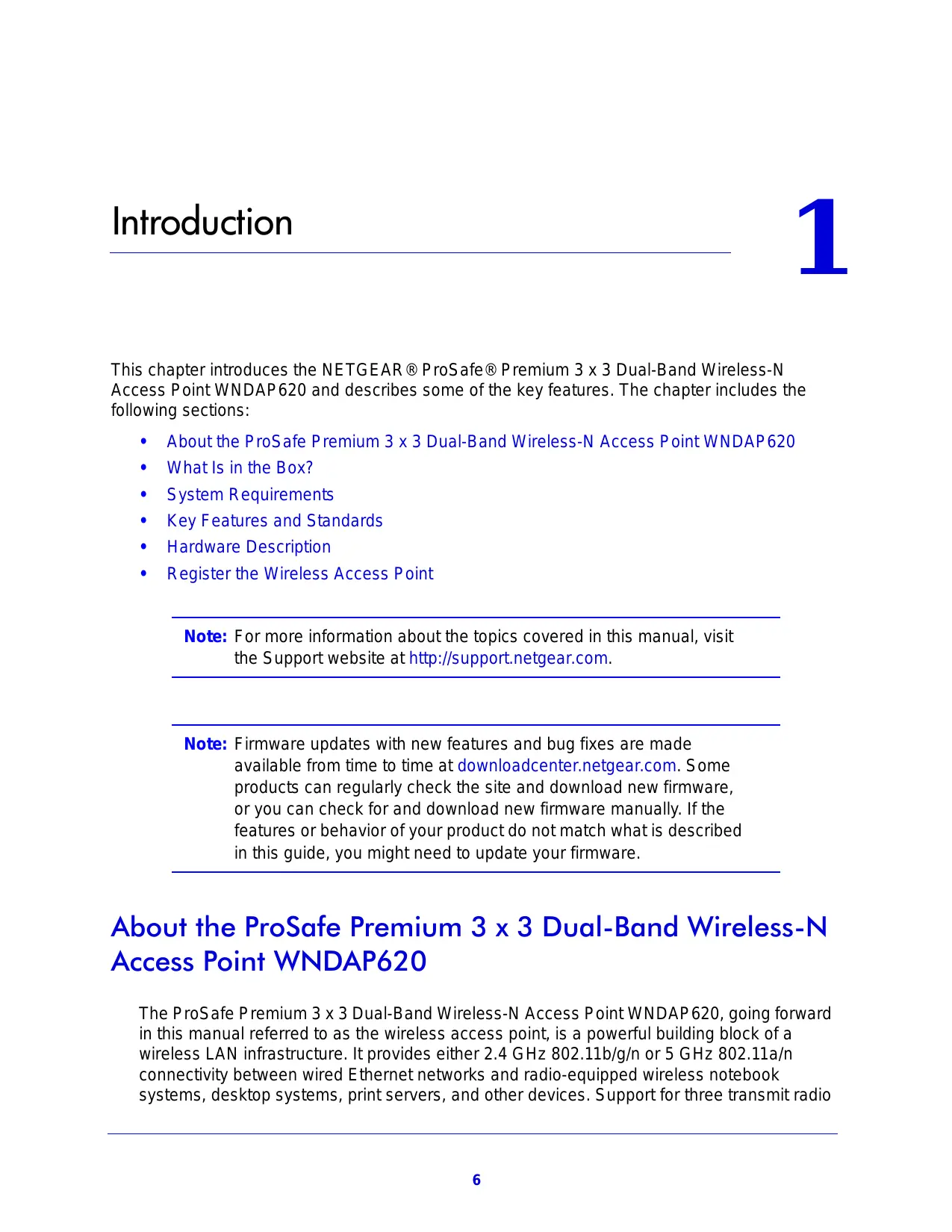

| Product Type | Wireless Access Point |
| Brand | NETGEAR |
| Model | WNDAP620 |
| Wi-Fi Standards | IEEE 802.11a/b/g/n |
| Frequency Bands | 2.4 GHz and 5 GHz |
| Maximum Data Rate | Up to 300 Mbps per band |
| Ports | 1 Gigabit Ethernet port (10/100/1000) |
| Power Supply | PoE IEEE 802.3af or 12V DC power adapter |
| Power Consumption | Approximately 12 W |
| Dimensions (L x W x H) | 254 x 178 x 32 mm |
| Weight | Approximately 500 g |
| Antennas | 2 removable RP-SMA antennas |
| Wireless Security | WPA/WPA2, WEP, 802.1X, MAC filtering |
| Advanced Features | VLAN, QoS, multi-SSID, load balancing |
| Mounting | Wall and ceiling (mounting kit included) |
| Operating Temperature | 0°C to 50°C |
| Humidity | 10% to 90% non-condensing |
| Maintenance | Clean with a soft, dry cloth. Do not use chemicals. |
| Safety | Do not expose to water or moisture. Ensure adequate ventilation. |
| Spare Parts | Removable antennas available as an option |
Frequently Asked Questions - WNDAP620 NETGEAR
User questions about WNDAP620 NETGEAR
0 question about this device. Answer the ones you know or ask your own.
Ask a new question about this device
Download the instructions for your Wireless Access Point in PDF format for free! Find your manual WNDAP620 - NETGEAR and take your electronic device back in hand. On this page are published all the documents necessary for the use of your device. WNDAP620 by NETGEAR.
USER MANUAL WNDAP620 NETGEAR
ProSafe Premium 3 x 3 Dual-Band Wireless-N Access Point WNDAP620
Reference Manual
350 East Plumeria Drive San Jose, CA 95134 USA
October 2012
202-10983-02
v2.0
Support
Thank you for choosing NETGEAR.
After installing your device, locate the serial number on the label of your product and use it to register your product at https://my.netgear.com. You must register your product before you can use NETGEAR telephone support.
NETGEAR recommends registering your product through the NETGEAR website. For product updates and web support, visit http://support.netgear.com.
Phone (US & Canada only): 1-888-NETGEAR.
Phone (Other Countries): Check the list of phone numbers at
http://support.netgear.com/general/contact/default.aspx.
NETGEAR recommends that you use only the official NETGEAR support resources.
Trademarks
NETGEAR, the NETGEAR logo, and Connect with Innovation are trademarks and/or registered trademarks of NETGEAR, Inc. and/or its subsidiaries in the United States and/or other countries. Information is subject to change without notice. Other brand and product names are registered trademarks or trademarks of their respective holders. NETGEAR, Inc. All rights reserved.
Revision History
| Publication Part Number | Version | Publish Date | Comments |
| 202-10983-02 | 2.0 | October 2012 | Minor nontechnical revisions |
| 202-10983-02 | 1.0 | September 2012 | • Added and refined information (no new features added) • Added Appendix B, Command-Line Reference • Added Index |
| 202-10983-01 | 1.0 | August 2012 | First publication |
Contents
Chapter 1 Introduction
About the ProSafe Premium 3 x 3 Dual-Band Wireless-N Access Point
WNDAP620 6
What Is in the Box? 7
System Requirements 8
Key Features and Standards 8
Supported Standards and Conventions 8
Key Features 9
802.11b/g/n and 802.11a/n Standards-Based Wireless Networking . . . 11
Autosensing Ethernet Connections with Auto Uplink 11
Hardware Description 11
Top Panel 11
Rear Panel 13
Bottom Panel with Product Label 13
Register the Wireless Access Point 14
Chapter 2 Installation and Basic Configuration
What You Need Before You Begin. 17
Wireless Equipment Placement and Range Guidelines 17
Ethernet Cabling Requirements 18
LAN Configuration Requirements. 18
Hardware Requirements for Computers on Your LAN 19
Operating Frequency (Channel) Guidelines 19
Requirements for Entering IP Addresses 19
Install and Configure the Wireless Access Point 20
Connect the Wireless Access Point to a Computer 20
Log In to the Wireless Access Point 22
Configure Basic General System Settings and Time Settings 23
Configure the IPv4 Settings 25
Configure the Optional DHCPv4 Server 27
Configure the Basic Wireless Settings 28
Test Basic Wireless Connectivity 34
Mount the Wireless Access Point. 35
Ceiling Installation 35
Wall Installation 38
Desk Installation 41
Chapter 3 Wireless Configuration and Security
Wireless Data Security Options 42
Security Profiles 44
Before You Change the SSID, WEP, and WPA Settings 46
Configure and Enable Security Profiles 48
Configure RADIUS Server Settings 57
Restrict Wireless Access by MAC Address 60
Schedule the Wireless Radio to Be Turned Off 61
Configure Basic Wireless Quality of Service 62
Chapter 4 Management and Monitoring
Enable Remote Management. 64
SNMP Management 64
Secure Shell and Telnet Management 66
Upgrade the Wireless Access Point Software 67
Web Browser Upgrade Procedure 68
TFTP Server Upgrade Procedure. 69
Manage the Configuration File or Reset to Factory Defaults 70
Save the Configuration 70
Restore the Configuration. 71
Restore the Wireless Access Point to the Factory Default Settings. 71
Reboot the Wireless Access Point without Restoring the
Default Configuration 73
Change the Administrator Password 74
Manage User Accounts 75
Enable the Syslog Server. 76
Monitor the Wireless Access Point. 77
View System Information 77
Monitor Wireless Stations 80
View the Activity Log 83
Traffic Statistics 83
Enable Rogue AP Detection and Monitor Access Points 85
Enable and Configure Rogue AP Detection 85
View and Save Access Point Lists 87
Configure Wireless Intrusion Detection and Prevention 89
Configure Wireless Intrusion Detection and Prevention Policy Settings 89
Configure Wireless Intrusion Detection and Prevention Mail Settings . . 95
Monitor Traps, Counters, and Ad Hoc Networks 96
Chapter 5 Advanced Configuration
Configure IPv6 Settings and Optional DHCPv6 Server Settings 99
Configure the IPv6 Settings 99
Configure the Optional DHCPv6 Server 101
Configure Spanning Tree Protocol, 802.1Q VLAN, and
Link Layer Discovery Protocol 103
Configure STP and VLANs. 103
Configure Ethernet LLDP 105
Configure Hotspot Settings. 106
Configure Advanced Wireless Settings 107
Configure Advanced Quality of Service Settings 110
Configure Quality of Service Policies 112
Configure Wireless Bridging 118
Configure a Point-to-Point Wireless Network 118
Configure a Point-to-Multipoint Wireless Network 122
Configure the Wireless Access Point to Repeat the Wireless
Signal Using Point-to-Multipoint Bridge Mode 126
Chapter 6 Troubleshooting
Basic Functioning 132
Verify the Correct Sequence of Events at Startup 132
No LEDs Are Lit on the Wireless Access Point 132
The Active LED or the LAN LED Is Not Lit 133
The WLAN LED Does Not Light Up 133
You Cannot Access the Internet or the LAN from a
Wireless-Capable Computer 134
You Cannot Configure the Wireless Access Point from a Browser . . . . . . 134
When You Enter a URL or IP Address a Time-Out Error Occurs. 135
Troubleshoot a TCP/IP Network Using the Ping Utility 135
Test the LAN Path to Your Wireless Access Point 136
Test the Path from Your Computer to a Remote Device 137
Problems with Date and Time 137
Use the Packet Capture Tool 138
Appendix A Supplemental Information
Technical Specifications 139
Factory Default Settings 142
Appendix B Command-Line Reference
Appendix C Notification of Compliance
Index
This chapter introduces the NETGEAR® ProSafe® Premium 3 x 3 Dual-Band Wireless-N Access Point WNDAP620 and describes some of the key features. The chapter includes the following sections:
- About the ProSafe Premium 3 x 3 Dual-Band Wireless-N Access Point WNDAP620
What Is in the Box?
System Requirements
Key Features and Standards - Hardware Description
Register the Wireless Access Point
Note: For more information about the topics covered in this manual, visit the Support website at http://support.netgear.com.
Note: Firmware updates with new features and bug fixes are made available from time to time at downloadcenter.netgear.com. Some products can regularly check the site and download new firmware, or you can check for and download new firmware manually. If the features or behavior of your product do not match what is described in this guide, you might need to update your firmware.
About the ProSafe Premium 3 x 3 Dual-Band Wireless-N Access Point WNDAP620
The ProSafe Premium 3 x 3 Dual-Band Wireless-N Access Point WNDAP620, going forward in this manual referred to as the wireless access point, is a powerful building block of a wireless LAN infrastructure. It provides either 2.4 GHz 802.11b/g/n or 5 GHz 802.11a/n connectivity between wired Ethernet networks and radio-equipped wireless notebook systems, desktop systems, print servers, and other devices. Support for three transmit radio
chains and three receive radio chains, also referred to as 3x3 multiple input, multiple output (MIMO), can increase wireless throughput considerably.
The wireless access point provides wireless connectivity to multiple wireless network devices within a fixed range or area of coverage—interacting with a wireless network interface card (NIC) through an antenna. Typically, an individual in-building wireless access point provides a maximum connectivity area with about a 500-foot radius. The wireless access point can support a maximum of 128 clients in a range of several hundred feet. The throughput is shared between all clients. Make sure that you install a sufficient number of wireless access points to meet the required coverage, throughput, and quality of your wireless network.
The wireless access point acts as a bridge between the wired LAN and wireless clients. Connecting multiple wireless access points through a wired Ethernet backbone can further increase the wireless network coverage. As a mobile computing device moves out of the range of one wireless access point, it moves into the range of another. As a result, wireless clients can freely roam from one wireless access point to another and still maintain a seamless connection to the network.
The autosensing capability of the wireless access point allows packet transmission at up to 450 Mbps, or at reduced speeds to compensate for distance or electromagnetic interference.
Advanced wireless features that are supported on the wireless access point include a wireless intrusion detection system (IDS), wireless intrusion prevention system (IPS), and configurable wireless QoS policies.
You can manage the wireless access point from either an IPv4 or IPv6 address, and the wireless access point can allocate either IPv4 or IPv6 DHCP addresses to its wireless clients.
What Is in the Box?
The product package contains the following items:
- ProSafe Premium 3 x 3 Dual-Band Wireless-N Access Point WNDAP620
Power adapter and cord (12 VCD, 1.5A)
Straight-through Category 5 Ethernet cable
Installation guide
Resource CD, which includes this manual - Wall-mount kit made up of brackets and hardware
Contact your reseller or customer support in your area if there are any missing or damaged parts.
See the NETGEAR website at http://support.netgear.com/general/contact/default.aspx for the telephone number of customer support in your area. Keep the installation guide, along with the original packing materials. If you need to return the wireless access point for repair, use the packing materials to repack the wireless access point.
System Requirements
Before installing the wireless access point, make sure that your system meets these requirements:
A 10/100/1000 Mbps local area network device such as a hub or switch
- The Category 5 UTP straight-through Ethernet cable with RJ-45 connector included in the package, or one like it
A 100-120V, 50-60 Hz AC power source
- A computer with the TCP/IP protocol installed and a web browser for configuration, such as Microsoft Internet Explorer 6.0 or later, or Mozilla 1.5 or later
- An 802.11a/n- or 802.11b/g/n-compliant device, such as the NETGEAR N600 Wireless-N Dual Band USB Adapter (WNDA3100)
Key Features and Standards
Supported Standards and Conventions
Key Features
802.11b/g/n and 802.11a/n Standards-Based Wireless Networking
- Autosensing Ethernet Connections with Auto Uplink
The wireless access point is easy to use and provides solid wireless and networking support. It also offers a wide range of security options.
Supported Standards and Conventions
The wireless access point supports the following standards and conventions:
- Standards compliance. The wireless access point complies with the IEEE 802.11a/b/g standards for wireless LANs and is Wi-Fi certified for 802.11n standard.
- WPA and WPA2. The wireless access point provides WPA and WPA2 enterprise-class strong security with RADIUS and certificate authentication as well as dynamic encryption key generation. The WPA-PSK and WPA2-PSK pre-shared key authentication does not have the overhead of RADIUS servers but provides the strong security of WPA.
- Multiple BSSIDs. The wireless access point supports multiple BSSIDs. When a wireless access point is connected to a wired network and a set of wireless stations, it is called a basic service set (BSS). The basic service set identifier (BSSID) is a unique identifier attached to the header of packets sent over a WLAN that differentiates one WLAN from another when a mobile device tries to connect to the network.
The multiple BSSID feature allows you to configure up to 16 SSIDs (8 per radio, but only one radio can be active at a time) on your wireless access point and assign different configuration settings to each SSID. All the configured SSIDs are active, and the network devices can connect to the wireless access point by using any of these SSIDs.
- DHCP server and client. The DHCP server of the wireless access point can provide a dynamic IPv4 or IPv6 address to wireless clients. The wireless access point can also act as a client and obtain an IPv4 or IPv6 address from a DHCP server on the LAN.
- SNMP. The wireless access point supports Simple Network Management Protocol (SNMP) for Management Information Base (MIB) management.
- STP and LLDP. The wireless access point supports Spanning Tree Protocol (STP) and Ethernet Link Layer Discovery Protocol (LLDP). LLDP is enabled by default.
802.1Q VLAN. A network of computers can behave as if they are connected to the same network even though they might actually be physically on different segments of a LAN. Virtual LANs (VLANs) are configured through software rather than hardware, which makes them very flexible. VLANs are very useful for user and host management, bandwidth allocation, and resource optimization.
Key Features
The wireless access point provides solid functionality, including the following features:
- Dual band. The wireless access point can operate either in the 2.4 GHz band or the 5 GHz band. The choice of band is reflected in the wireless modes that you can select and the administration screens that are displayed in the web management interface.
-
IPv4 and IPv6. The wireless access point is manageable from either an IPv4 or IPv6 address, it can function as an IPv4 or IPv6 DHCP client, and its DHCP server can allocate either IPv4 or IPv6 addresses.
Multiple operating modes: -
Wireless access point. Operates as a standard 802.11b/g/n or 802.11a/n wireless access point.
- Point-to-point bridge. In this mode, the wireless access point communicates only with another bridge-mode wireless station or wireless access point. Network authentication should be used to protect this communication.
- Point-to-multipoint bridge. Select this option only if this wireless access point is the master for a group of bridge-mode wireless stations. The other bridge-mode wireless stations send all traffic to this master and do not communicate directly with each other. Network authentication should be used to protect this traffic.
-
Repeater. In this mode, the wireless access point does not function as an access point for clients but functions only in point-to-multipoint bridge mode to repeat the wireless signal and send all traffic to a remote access point. Network authentication should be used to protect this communication.
-
WMM. Wi-Fi Multimedia (WMM) is a subset of the 802.11e standard. WMM allows wireless traffic to have a range of priorities, depending on the kind of data. Time-dependent information, like video or audio, has a higher priority than normal traffic. For WMM to function correctly, wireless clients also need to support WMM.
-
QoS. Quality of Service (QoS) support lets you configure parameters that affect traffic flowing from the wireless access point to the client station and traffic flowing from the client station to the wireless access point:
-
The QoS settings let you prioritize traffic, such as voice and video traffic, so that packets do not get dropped.
-
The QoS policies let you configure classifications (match clauses) and apply traffic to eight priority queues based on IP precedence, DSCP, MAC address, IP address, and other information that might be present in Layer 2 and Layer 3 packet headers.
-
Wireless IDS/IPS. The wireless intrusion detection system (IDS) and intrusion prevention system (IPS) can detect and prevent a variety of wireless attacks. Attacks are covered by preconfigured policy rules. When an attack occurs, the wireless access point can notify a network administrator though an email.
- Hotspot support. You can allow all HTTP (TCP, port 80) requests to be captured and redirected to the URL you specify.
- Rogue AP and ad hoc network detection. Rogue AP filtering and ad hoc network detection ensure that unknown APs and networks are not given access to any part of the secured wireless and wired LAN.
- Access control. MAC address filtering can ensure that only trusted wireless stations can use the wireless access point to gain access to the wireless and wired LAN.
- Security profiles. When using multiple BSSIDs, you can configure unique security settings (encryption, SSID, and so on) for each BSSID.
- Hidden mode. The SSID is not broadcast, assuring that only clients configured with the correct SSID can connect.
- Secure Telnet command-line interface. The secure Telnet command-line interface (CLI) enables direct secure access over the serial port and easy scripting of configuration of multiple wireless access points across an extensive network through the Ethernet interface. A Secure Shell (SSH) client is required.
- Upgradeable firmware. Firmware is stored in a flash memory. You can upgrade it easily, using only your web browser, and you can upgrade it remotely. You can also use the command-line interface.
- Configuration backup. Configuration settings can be backed up to a file and restored.
- Secure and economical operation. Adjustable power output allows more secure or economical operation.
- PoE support. Using Power over Ethernet (PoE), any 802.3af-compliant midspan or end-span source can supply power to the wireless access point over its Ethernet port.
- Autosensing Ethernet connection with Auto Uplink™ interface. Connects to 10/100/1000 Mbps IEEE 802.3 Ethernet networks.
- LED indicators. Power/Test, Active, LAN, and WLAN for each radio mode are easily identified.
- VLAN security profiles. Each security profile is automatically allocated a VLAN ID when the security profile is modified.
802.11b/g/n and 802.11a/n Standards-Based Wireless Networking
The wireless access point provides a bridge between wired Ethernet LANs and 802.11b/g/n- and 802.11a/n-compatible wireless LAN networks. It provides connectivity between wired Ethernet networks and radio-equipped wireless notebook systems, desktop systems, print servers, and other devices.
In addition, the wireless access point supports the following wireless features:
Aggregation support
- Reduced InterFrame spacing support
- 3 × 3 multiple input, multiple output (MIMO) support
- Distributed coordinated function (CSMA/CA, back-off procedure, ACK procedure, retransmission of unacknowledged frames)
RTS/CTS handshake
- Beacon generation
- Packet fragmentation and reassembly
- Auto or long preamble
- Roaming among wireless access points on the same subnet
Autosensing Ethernet Connections with Auto Uplink
The wireless access point can connect to a standard Ethernet network. The LAN interface is autosensing and capable of full-duplex or half-duplex operation.
The wireless access point incorporates Auto Uplink technology. The Ethernet port automatically senses whether the Ethernet cable plugged into the port should have a "normal" connection such as to a computer or an "uplink" connection such as to a switch or hub. That port then configures itself correctly. This feature also eliminates any concerns about crossover cables, as Auto Uplink accommodates either type of cable to make the right connection.
Hardware Description
This section describes the top and rear hardware functions of the wireless access point.
Top Panel
Rear Panel
Bottom Panel with Product Label
Top Panel
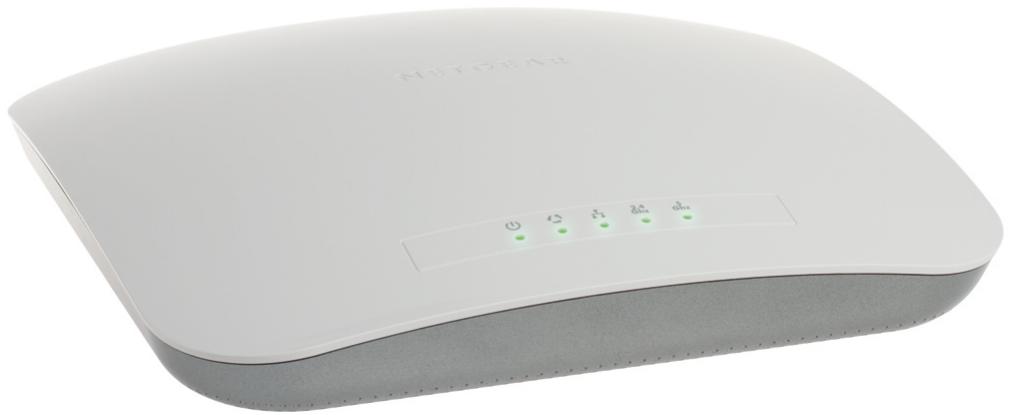
The LEDs of the wireless access point are described in the following figure and table:
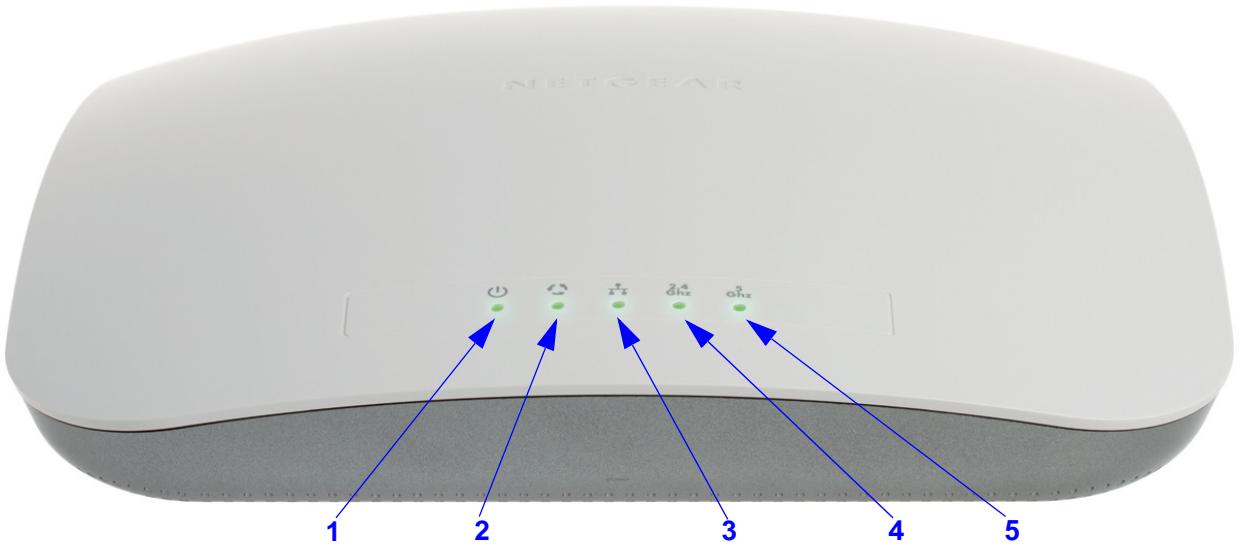
Figure 1.
Table 1. Top panel LEDs
| Item | LED | Description | ||
| 1 | Power/Test | Off | Power is off. | |
| On (green) | Power is on. | |||
| Amber, then blinking green | A self-test is running or software is being loaded. During startup, the LED is first steady amber, then goes off, and then blinks green before turning steady green after about 45 seconds. If after 1 minute the LED remains amber or continues to blink green, it indicates a system fault. | |||
| 2 | Active | Off | No Ethernet traffic is detected, or no link is detected. | |
| On or blinking (green) | Ethernet traffic is detected. | |||
| 3 | LAN | Off | 10 Mbps or no link is detected. | |
| Amber | 10/100 Mbps link is detected. | |||
| Green | 1000 Mbps link is detected. | |||
| 4 | 2.4 Ghz | WLAN | Off | Wireless 802.11b/g/n (2.4 GHz) LAN is not ready, or no wireless activity is detected. |
| On or blinking (green) | Wireless 802.11b/g/n (2.4 GHz) LAN is ready, or wireless activity is detected. | |||
| 5 | 5 Ghz | WLAN | Off | Wireless 802.11n/a (5 GHz) LAN is not ready, or no wireless activity is detected. |
| On or blinking (green) | Wireless 802.11n/a (5 GHz) LAN is ready, or wireless activity is detected. | |||
Rear Panel
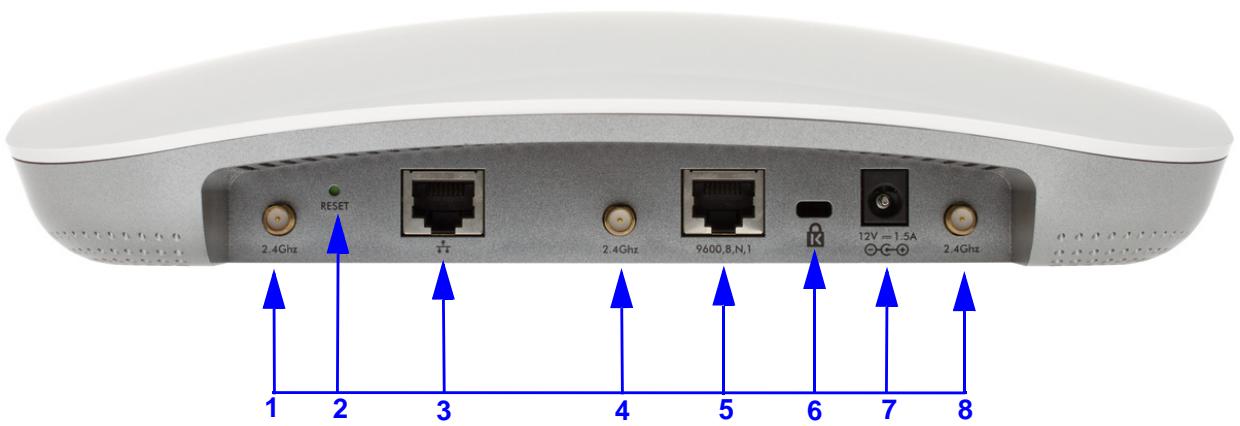
Figure 2.
The rear panel components of the wireless access point, from left to right, are described in the following list:
- First reverse SMA connector for an optional 2.4 GHz antenna.
- Factory default Reset button. Using a sharp object, press and hold this button for about 5 seconds to reset the wireless access point to factory defaults settings. All configuration settings are lost, and the default password is restored. For more information, see Restore the Wireless Access Point to the Factory Default Settings on page 71.
- 10/100/1000BASE-T Gigabit Ethernet (RJ-45) port with Auto Uplink (Auto MDI-X) with IEEE 802.3af Power over Ethernet (PoE) support for connection to a switch or router.
- Second reverse SMA connector for an optional 2.4 GHz antenna.
- Console port for connecting to an optional console terminal. The port has an RJ-45 connector and supports the following settings: 9600 K default baud rate, 8 data bits, no (N) parity bit, and one (1) stop bit.
- Cable security lock receptacle for an optional lock.
- Power socket for a 12 VDC, 1.5A power adapter.
- Third reverse SMA connector for an optional 2.4 GHz antenna.
Note: The wireless access point can support up to three optional 2.4 GHz antennas.
Bottom Panel with Product Label
The product label on the bottom of the wireless access point's enclosure displays factory default settings, regulatory compliance, and other information:
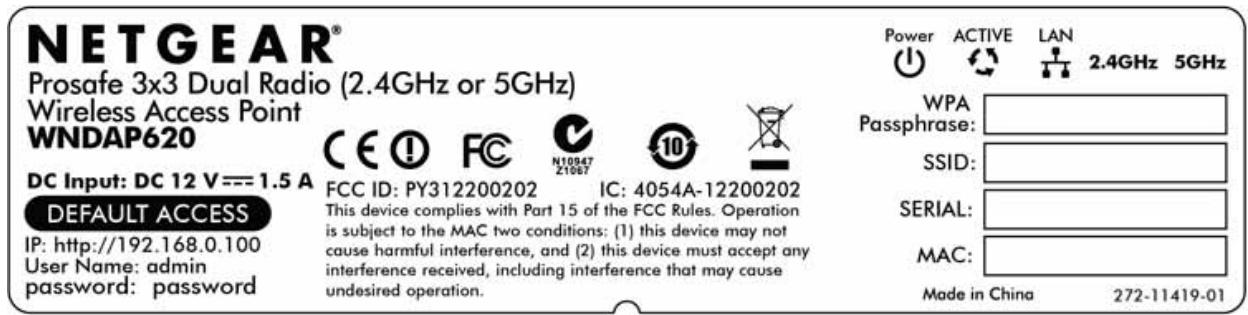
Figure 3.
Register the Wireless Access Point
To qualify for product updates and product warranty, NETGEAR encourages you to register your product. The first time that you connect to the wireless access point while it is connected to the Internet, you have the option to register your product. At any time, you can register your product from the web management interface, or you can go to the NETGEAR website for registration at https://my.netgear.com/registration/login.aspx.
To register the wireless access point with NETGEAR:
- Select Support > Registration. The Product Registration screen displays:
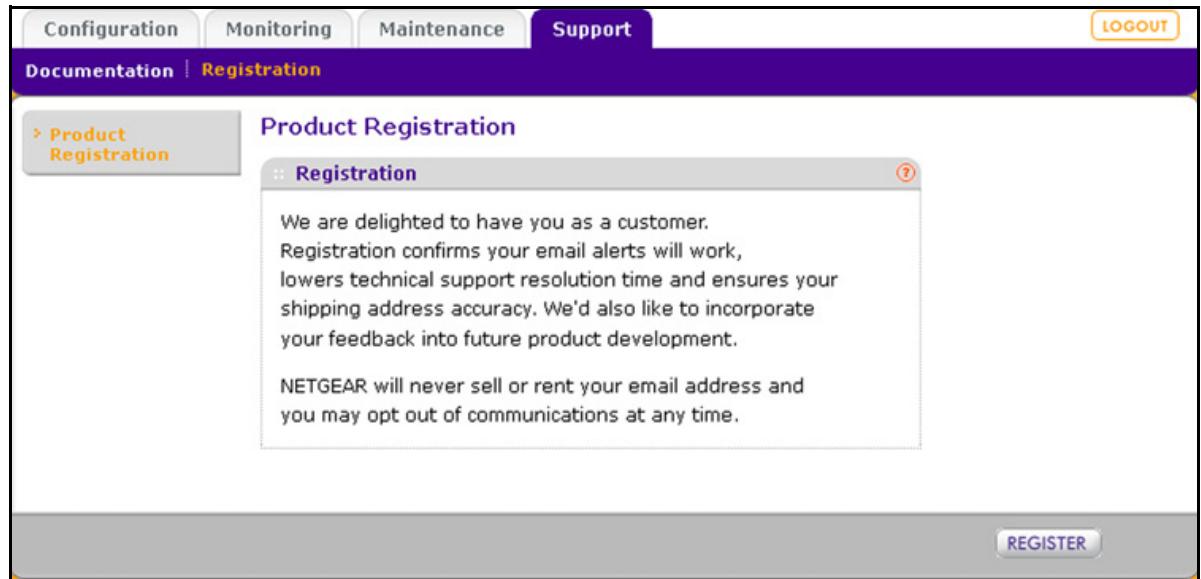
Figure 4.
- Click Register. A new screen displays in your browser:
Please complete the form below to register your product
Serial Number:
Model No:
Date Purchased:
Country:
Email:
First name:
Last name:
Telephone:
1234567891232
WNDAP623
8/22/2012
12x - 1 = 12x( 1 - x)
A
Fields are mandatory
If you enter a valid email address, you will be sent a username and password, giving you access to the NETGEAR customer support site, which will allow you to view your support history and purchase extended warranty options.

Figure 5.
- Enter the information in the blank fields. The serial number, model number, and date of purchase are entered automatically.
- Click Register. The registration web page displays:
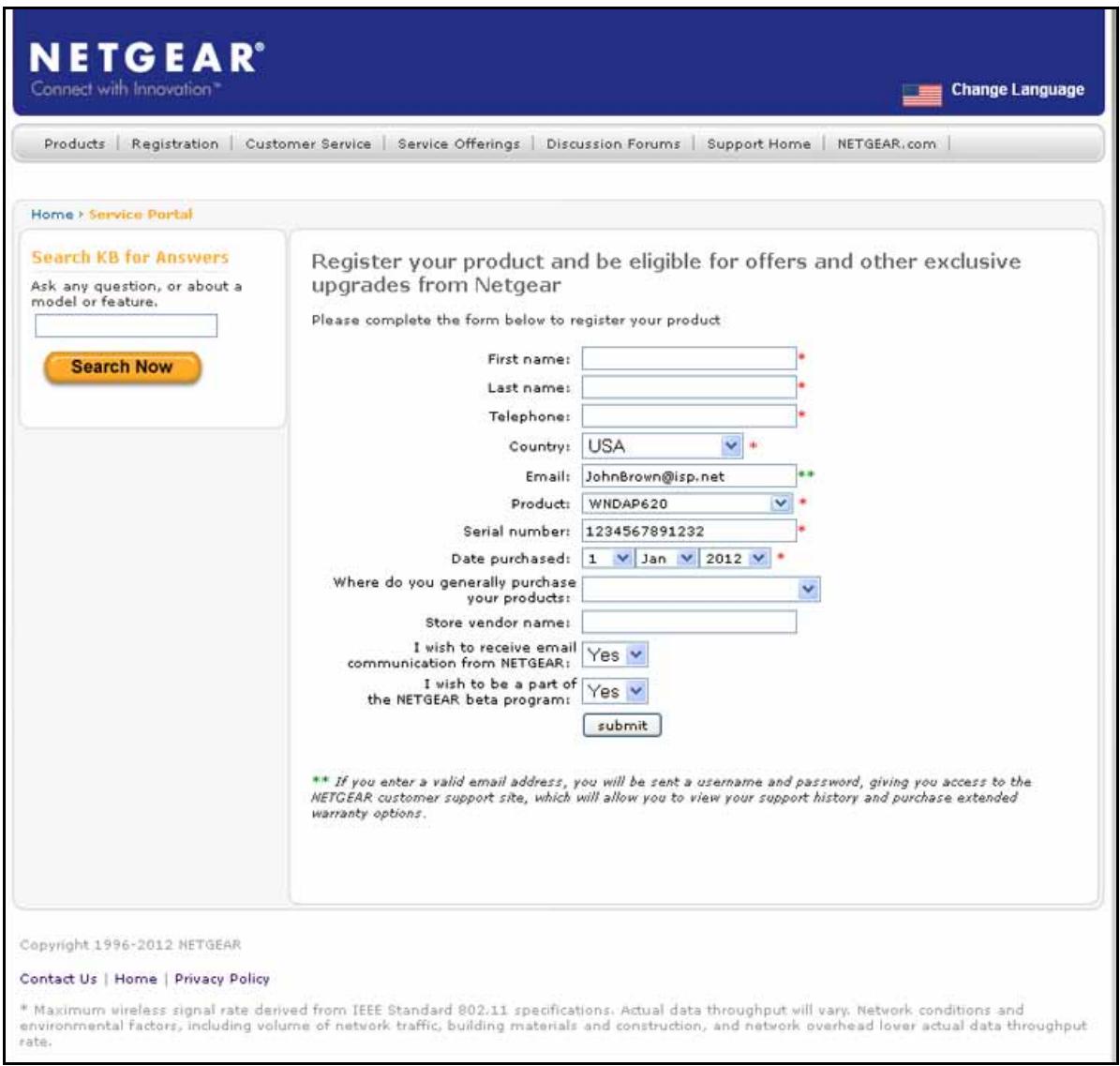
Figure 6.
- Complete the registration form.
- Click submit.
This chapter describes how to install and configure the wireless access point for wireless connectivity to your LAN. This basic configuration enables computers with either 2.4 GHz 802.11b/g/n or 5 GHz 802.11a/n wireless adapters to connect to the Internet or access printers and files on your LAN. In planning your wireless network, consider the level of security required. Chapter 3, Wireless Configuration and Security, describes how to set up wireless security for your network. This chapter includes the following sections:
What You Need Before You Begin
Install and Configure the Wireless Access Point
Test Basic Wireless Connectivity
Mount the Wireless Access Point
What You Need Before You Begin
- Wireless Equipment Placement and Range Guidelines
- Ethernet Cabling Requirements
- LAN Configuration Requirements
- Hardware Requirements for Computers on Your LAN
- Operating Frequency (Channel) Guidelines
- Requirements for Entering IP Addresses
You need to consider the following guidelines and requirements before you can set up your wireless access point. See also System Requirements on page 8.
Wireless Equipment Placement and Range Guidelines
The range of your wireless connection can vary significantly based on the location of the wireless access point. The latency, data throughput performance, and power consumption of wireless adapters also vary depending on your configuration choices.
Note: Failure to follow these guidelines can result in significant performance degradation or inability to connect wirelessly to the wireless access point. For complete performance specifications, see Appendix A, Supplemental Information.
Note: Before you position and mount the wireless access point at its permanent position, first configure the wireless access point and test the computers on your LAN for wireless connectivity as explained in this chapter.
For best results, place your wireless access point according to the following general guidelines:
Near the center of the area in which the wireless devices will operate.
- In an elevated location such as a high shelf where the wirelessly connected devices have line-of-sight access (even if through walls).
- Away from sources of interference, such as computers, microwaves ovens, and 2.4 GHz cordless phones.
- Away from large metal surfaces or water.
- Placing an external antenna in a vertical position provides best side-to-side coverage. Placing an external antenna in a horizontal position provides best up-and-down coverage. (An external antenna does not come standard with the wireless access point.)
- If you are using multiple wireless access points, it is better if adjacent wireless access points use different radio frequency channels to reduce interference. The recommended channel spacing between adjacent wireless access points is five channels (for example, use Channels 1 and 6, or 6 and 11, or 1 and 11).
The time it takes to establish a wireless connection can vary depending on both your security settings and placement. WEP connections can take slightly longer to establish. Also, WEP encryption can consume more battery power on a notebook computer.
Ethernet Cabling Requirements
The wireless access point connects to your LAN using twisted-pair Category 5 Ethernet cable with RJ-45 connectors.
LAN Configuration Requirements
For the initial configuration of your wireless access point, you need to connect a computer to the wireless access point.
Hardware Requirements for Computers on Your LAN
To connect to the wireless access point on your network, each computer needs to have an 802.11b/g/n or 802.11a/n wireless adapter installed. NETGEAR recommends using the wireless access point with computers that have the NETGEAR N600 Wireless Dual Band USB Adapter (WNDA3100) installed.
Operating Frequency (Channel) Guidelines
You do not need to change the operating frequency (channel) unless you notice interference problems or you place the wireless access point near another wireless access point. If you do change the operating frequency, observe the following guidelines:
- Wireless access points use a fixed channel. You can select a channel that provides the least interference and best performance. In the United States and Canada, 11 channels are available.
- If you use multiple wireless access points, it is better if adjacent wireless access points use different channels to reduce interference. The recommended channel spacing between adjacent wireless access points is 5 channels (for example, use channels 1 and 6, or 6 and 11).
- In infrastructure mode (which is the default mode for the wireless access point), wireless stations normally scan all channels, looking for a wireless access point. If more than one wireless access point can be used, the one with the strongest signal is used. This is possible only if the wireless access points use the same SSID.
Requirements for Entering IP Addresses
IPv4
The fourth octet of an IP address needs to be between 0 and 255 (both inclusive). This requirement applies to any IP address that you enter on a screen of the web management interface.
IPv6
IPv6 addresses are denoted by eight groups of hexadecimal quartets that are separated by colons. Any four-digit group of zeroes within an IPv6 address can be reduced to a single zero or altogether omitted.
The following errors invalidate an IPv6 address:
More than eight groups of hexadecimal quartets
More than four hexadecimal characters in a quartet
More than two colons in a row
Install and Configure the Wireless Access Point
Install and configure your wireless access point in the order of the following sections:
- Connect the Wireless Access Point to a Computer
- Log In to the Wireless Access Point
- Configure Basic General System Settings and Time Settings
- Configure the IPv4 Settings
- Configure the Optional DHCPv4 Server
- Configure the Basic Wireless Settings
Before installing the wireless access point, make sure that your Ethernet network functions. After you have connected the wireless access point to the Ethernet network, computers with either 802.11b/g/n or 802.11a/n wireless adapters are able to communicate with the Ethernet network.
For this to work correctly, verify that you have met all the system requirements, shown in System Requirements on page 8.
Connect the Wireless Access Point to a Computer
Tip: Before you place the wireless access point in an elevated position that is difficult to reach, first set up and test the wireless access point to verify wireless network connectivity.
To set up the wireless access point:
- Unpack the box and verify the contents.
- Prepare a computer with an Ethernet adapter. If this computer is already part of your network, record its TCP/IP configuration settings. Configure the computer with a static IP address of 192.168.0.210 and 255.255.255.0 as the subnet mask.
- Connect an Ethernet cable from the wireless access point to the computer (point A in the following figure).
- Securely insert the other end of the cable into the wireless access point's Ethernet port (point B in the following figure).
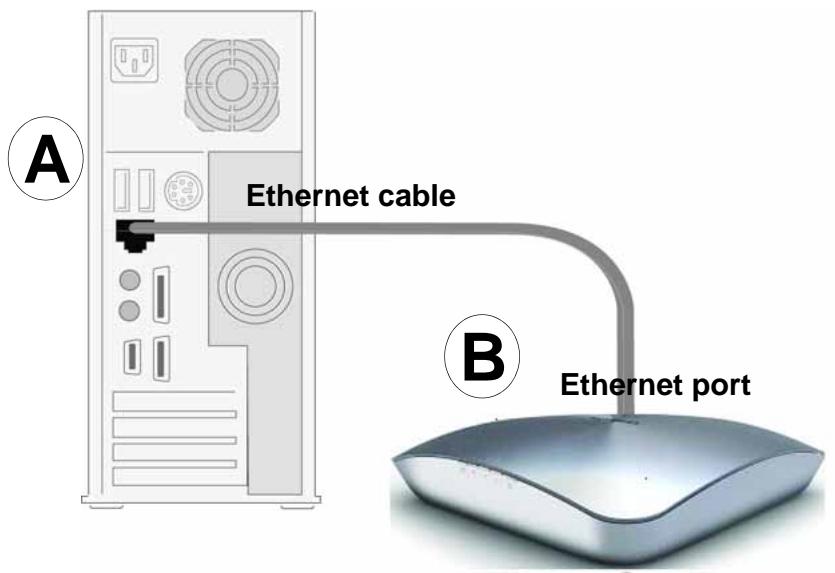
Figure 7.
- Turn on your computer.
- Connect the power adapter to the wireless access point.
Tip: The wireless access point supports Power over Ethernet (PoE). If you have a switch that provides PoE, you do not need to use the power adapter to power the wireless access point. Using PoE can be especially convenient when the wireless access point is installed in a high location far away from a power outlet.
- Verify the following:

Power/Test LED. The Power/Test LED blinks when the wireless access point is first turned on. (To be exact, during startup, the LED is first steady amber, then goes off, and then blinks green.) After about 45 seconds, the LED should stay lit (steady green). If after 1 minute the Power/Test LED is not lit or is still blinking, check the connections and see if the power outlet is controlled by a wall switch that is turned off.

Active LED. The Active LED is lit or blinks green when there is Ethernet traffic.

LAN LED. The LAN LED indicates the LAN speed: green for 1000 Mbps, amber for 100 Mbps, and no light for 10 Mbps. If the LAN LED is not lit, make sure that the Ethernet cable is securely attached at both ends.

WLAN LED. The 2.4 GHz WLAN LED is lit or blinks green when the wireless LAN (WLAN) is ready.

WLAN LED. The 5 GHz WLAN LED is lit or blinks green when the wireless LAN (WLAN) is ready.
Log In to the Wireless Access Point
The default IP address of your wireless access point is 192.168.0.100. By default, the DHCP client on the wireless access point is disabled so you can log in using the default IP address.
To log in to the wireless access point:
- Open a web browser such as Microsoft Internet Explorer 6.0 or later, or Mozilla Firefox 1.5 or later.
- Connect to the wireless access point by entering its default address of 192.168.0.100 into your browser (use http and not https). The Login screen displays:
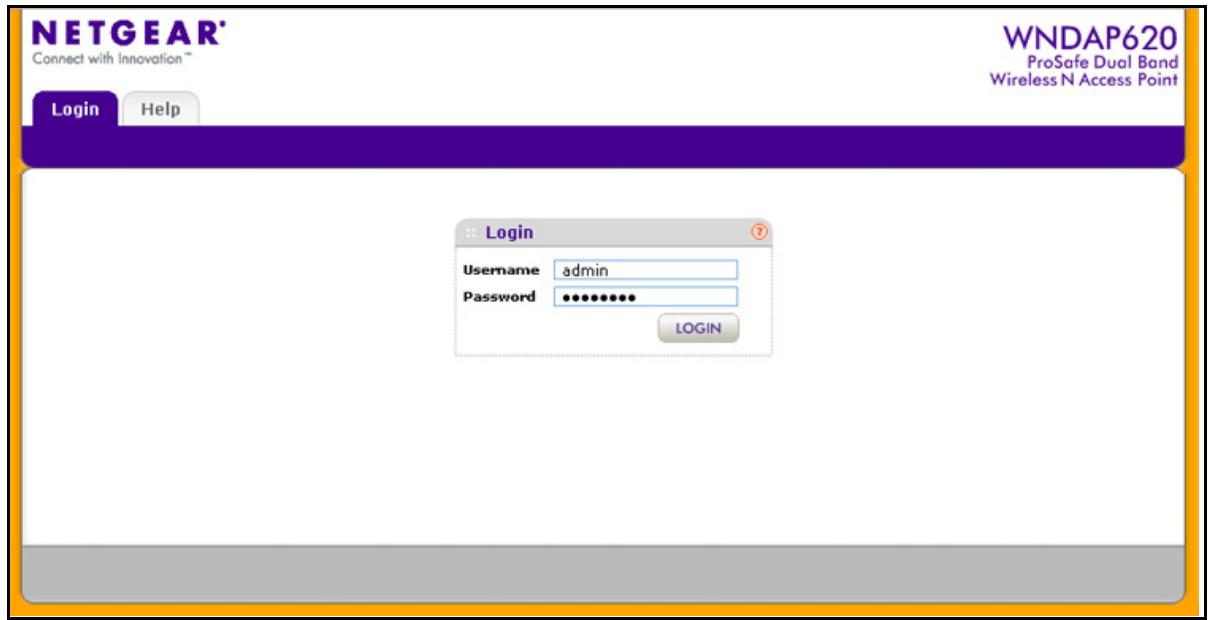
Figure 8.
- Enter the default user name of admin and the default password of password.
- Click Login. The web browser displays the basic General system settings screen under the Configuration tab of the main menu as shown in Figure 11 on page 23.
Web Management Interface
The navigation tabs across the top of the web management interface provide access to all the configuration functions of the wireless access point and remain constant. The menu items in the blue bar change according to the navigation tab that is selected.

Figure 9.
The bottom right corner of all screens that allow you to make configuration changes show the Apply and Cancel buttons, and on several screens the Edit button.

Figure 10.
These buttons have the following functions:
- Edit. Allows you to edit the existing configuration.
- Cancel. Cancels all configuration changes that you made on the screen.
- Apply. Saves and applies all configuration changes that you made on the screen.
Configure Basic General System Settings and Time Settings
Note: After you have successfully logged in to the wireless access point, the basic General system settings screen displays.
To configure basic system settings:
- Select Configuration > System > Basic > General. The basic General system settings screen displays:
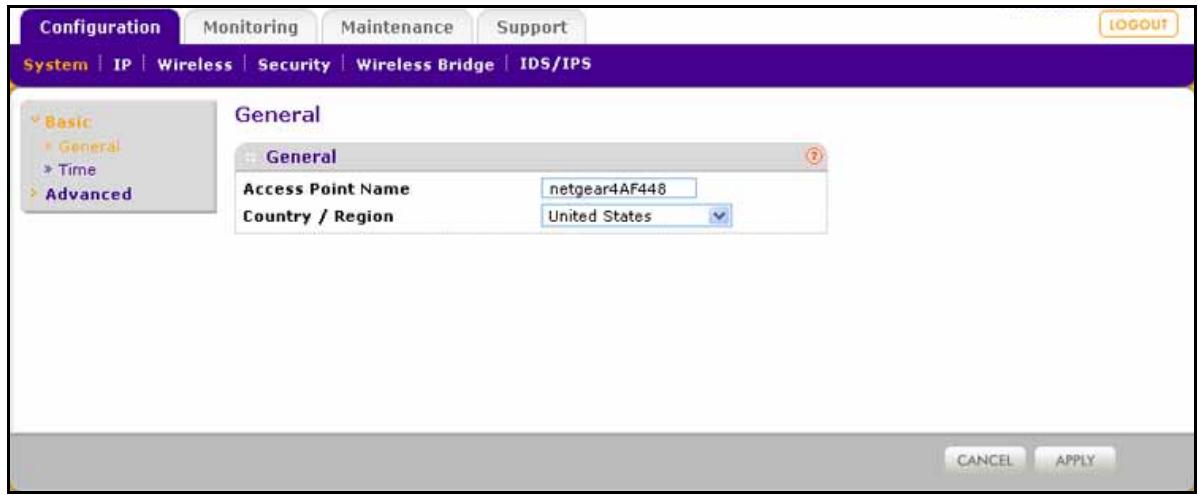
Figure 11.
- Configure the settings as explained in the following table:
Table 2. Basic general system settings
| Setting | Description |
| Access Point Name | This unique name is the wireless access point NetBIOS name. The name is printed on the rear label of the wireless access point. The default is netgearxxxxxx, in which xxxxxx represents the last 6 digits of the wireless access point MAC address. You can replace the default name with a unique name up to 15 characters long. The access point name can be retrieved through SNMP. |
| Country / Region | From the Country / Region drop-down list, select the country where the wireless access point is installed.Note: It might not be legal to operate this wireless access point in a region other than one of those identified in this field. |
- Click Apply to save your settings.
To configure time settings:
- Select Configuration > System > Basic > Time. The Time screen displays:
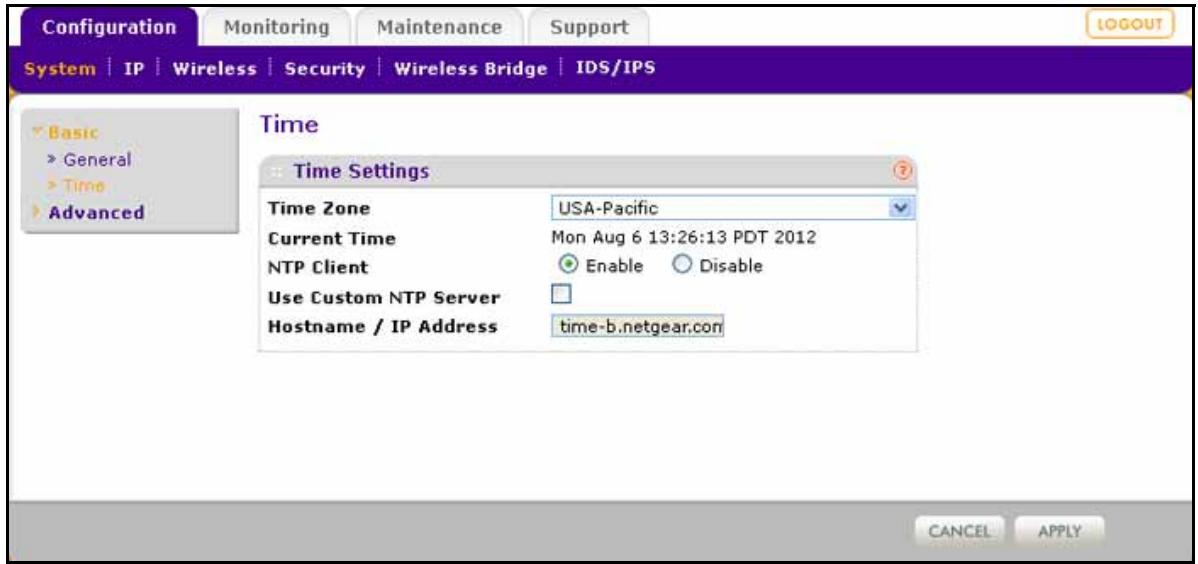
Figure 12.
- Configure the settings as explained in the following table:
Table 3. Time system settings
| Setting | Description | |
| Time Zone | Select the time zone to match your location. | |
| Current Time | This is a nonconfigurable field that displays the current date and time. | |
| Setting | Description | |
| NTP Client | Enable the Network Time Protocol (NTP) client to synchronize the time of the wireless access point with an NTP server. By default the Enable radio button is selected. | |
| Use Custom NTP Server | Select this check box if you want to use a custom NTP server. Note: You need to have an Internet connection to use an NTP server that is not on your local network. | |
| Hostname / IP Address | Enter the host name or IP address of the custom NTP server. The default is time-b.netgear.com. Note: If you use a host name, make sure that you have configured a DNS server. For more information, see the next section. | |
- Click Apply to save your settings.
Configure the IPv4 Settings
Note: For information about how to configure the IPv6 settings, see Configure the IPv6 Settings on page 99.

WARNING:
If you enable the DHCP client, the IP address of the wireless access point changes when you click Apply, causing you to lose your connection to the wireless access point. You then need to use the new IP address to reconnect to the wireless access point.
Tip: If you enable the DHCP client on the wireless access point, you can discover the new IP address of the wireless access point by accessing the DHCP server on your LAN, or by using a network IP address scanner application.
To configure the IPv4 settings:
- Select Configuration > IP > IP Settings. The IP Settings screen displays:
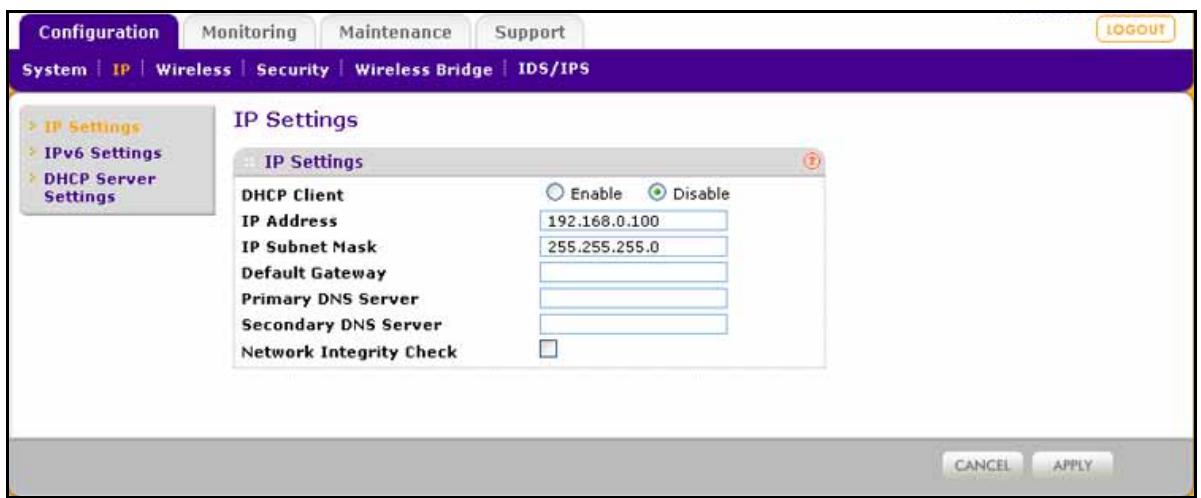
Figure 13.
- Configure the IPv4 settings as explained in the following table:
Table 4. IPv4 settings
| Setting | Description |
| DHCP Client | By default, the Dynamic Host Configuration Protocol (DHCP) client is disabled. If you have a DHCP server on your LAN and you select the Enable check box, the wireless access point receives its IP address, subnet mask, and default gateway settings automatically from the DHCP server on your network when you connect the wireless access point to your LAN. |
| IP Address | Enter the IP address of your wireless access point. The default IP address is 192.168.0.100. To change the address, enter an unused IP address from the address range used on your LAN, or enable DHCP the server. |
| IP Subnet Mask | Enter the network number portion of an IP address. Unless you are implementing subnetting, enter 255.255.0.0 as the subnet mask. |
| Default Gateway | Enter the IP address of the ISP gateway to which the wireless access point connects. |
| Primary DNS Server | Enter the IP address of the primary and secondary DNS servers.A DNS server is a host on the Internet that translates Internet names (such as www.netgear.com) to numeric IP addresses. Typically your ISP transfers the IP address of one or two DNS servers to your wireless access point during login. If the ISP does not transfer an address, you need to obtain it from the ISP and enter it manually in this field. |
| Secondary DNS Server | |
| Network Integrity Check | Select this check box to validate that the upstream link is active before allowing wireless associations. Ensure that the default gateway is configured. |
- Click Apply to save your settings.
Configure the Optional DHCPv4 Server
The wireless access point provides a built-in DHCPv4 server for wireless clients only, which can be especially useful in small networks. When the DHCP server is enabled, the wireless access point provides preconfigured TCP/IP configurations to all connected wireless stations.
Note: For information about how to configure the DHCPv6 server, see Configure the Optional DHCPv6 Server on page 101.
To configure DHCPv4 server settings:
- Select Configuration > IP > DHCP Server Settings. The DHCP Server Settings screen displays. The following figure displays the DHCPv4 server settings only. For information about the DHCPv6 server settings, see Configure the Optional DHCPv6 Server on page 101.
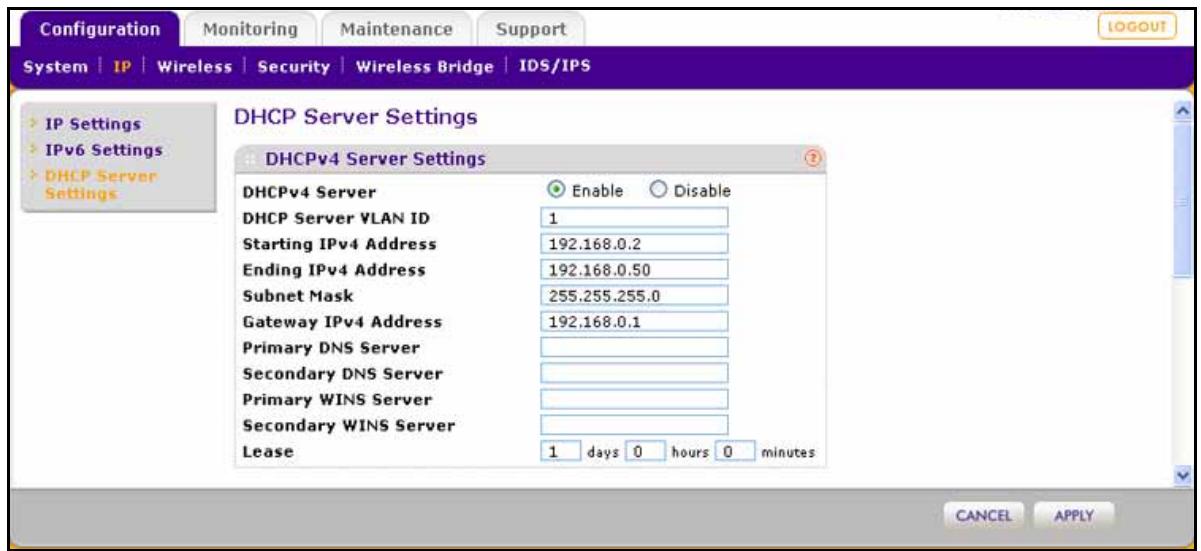
Figure 14.
- Configure the settings as explained in the following table:
Table 5. DHCP server settings for IPv4
| Setting | Description |
| Select the DHCPv4 Server check box to enable the DHCP server. Use the default settings or specify the pool of IPv4 addresses to be assigned by setting the starting IPv4 address and ending IPv4 address. These addresses should be part of the same IPv4 address subnet as the wireless access point's LAN IPv4 address. | |
| DHCP Server VLAN ID | Enter the VLAN ID for the DHCP server. The VLAN ID range is from 1 to 4094. The default VLAN is 1. |
| Starting IPv4 Address | Enter the first address in the range of IPv4 addresses to be assigned to DHCP clients. The default address is 192.168.1.02. |
| Ending IPv4 Address | Enter the last address in the range of IPv4 addresses to be assigned to DHCP clients. The default address is 192.168.1.50. |
| Subnet Mask | Enter the subnet mask to be used by DHCP clients. The default mask is 255.255.255.0. |
| Gateway IPv4 Address | Enter the IPv4 address of the default routing gateway to be used by DHCP clients. The default address is 192.168.0.1. |
| Primary DNS Address | Enter the IP address of the primary Domain Name System (DNS) server available to DHCP clients. |
| Secondary DNS Address | Enter the IP address of the secondary DNS server available to DHCP clients. |
| Primary WINS Server | Enter the IP address of the primary WINS server for the network, if there is any. |
| Secondary WINS Server | Enter the IP address of the secondary WINS server for the network, if there is any. |
| Lease | Enter the period that the DHCP server grants to DHCP clients to use the assigned IP addresses. The default time is one day. |
- Click Apply to save your settings.
Configure the Basic Wireless Settings
For proper compliance and compatibility between similar products in your coverage area, you need to configure the 802.11b/g/n or 802.11a/n wireless adapter settings correctly, including the operating channel and country. You also need to configure the basic wireless network settings for wireless devices to connect to your network. For other wireless features, including wireless security, see Chapter 3, Wireless Configuration and Security.

WARNING:
If you configure the wireless access point from a wireless computer and you change the wireless access point's SSID, channel, or wireless security settings, you lose your wireless connection when you click Apply. You then need to change the wireless settings of your computer to match the wireless access point's new settings.
Configure 802.11b/bg/ng Wireless Settings
To configure the 802.11b/g/n wireless settings:
- Select Configuration > Wireless > Basic > Wireless Settings. The basic Wireless Settings screen displays. (The following figure shows the 11ng settings.)
Note: The radio wave icon ( ) displays next to the enabled wireless mode.
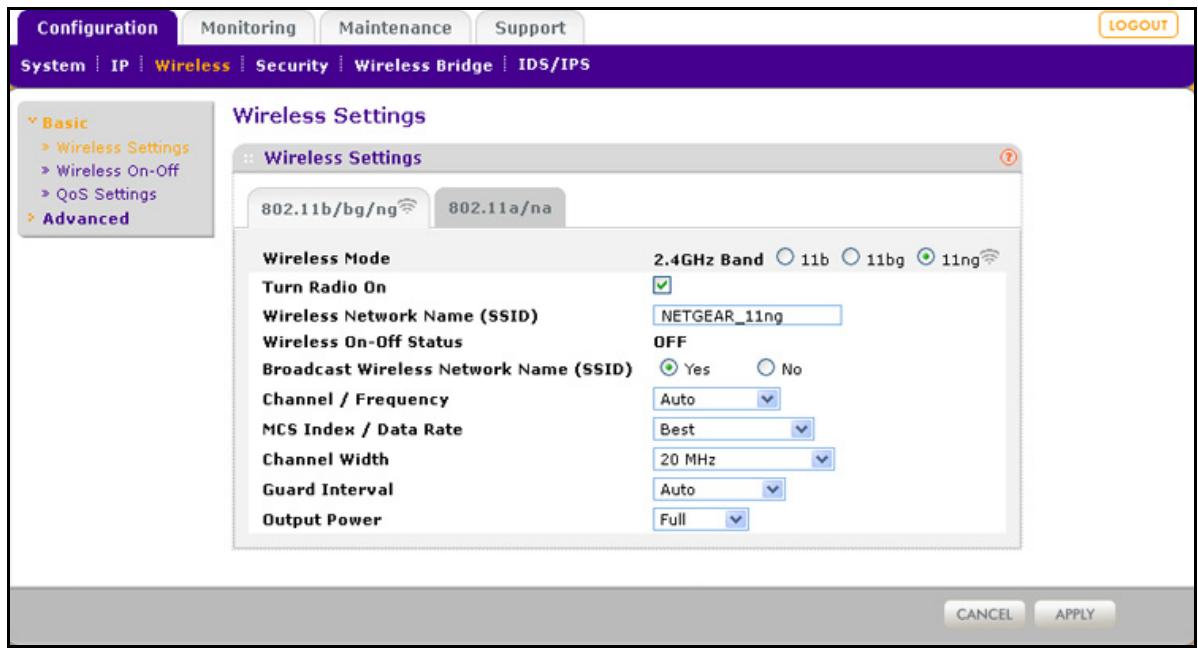
Figure 15.
-
Specify the wireless mode in the 2.4 GHz band by selecting one of the following radio buttons:
-
11b. Both 802.11n- and 802.11g-compliant devices can connect to the access point because they are backward compatible.
11bg. 802.11n-compliant devices can connect to the access point because they are backward compatible. - 11ng. This is the default setting. 802.11b-compliant devices cannot connect to the access point. If you keep the default setting, go to Step 5.
When you change the wireless mode, the Turn Radio On check box is automatically cleared, and all fields, buttons, and drop-down lists onscreen are masked out.
- Turn on the radio by selecting the Turn Radio On check box. A pop-up screen displays.
Note: Under normal conditions, you want the radio to be turned on. Turning off the radio disables access through the wireless access point, which can be helpful for configuration, network tuning, or troubleshooting activities.
-
Click OK to confirm the change of wireless mode. The change does not take effect until you click the Apply button after you have completed the wireless configuration.
-
Specify the remaining wireless settings as explained the following table:
Table 6. Basic 2.4 GHz band wireless settings
| Setting | Descriptions | |
| Wireless Network Name (SSID) | Enter a 32-character (maximum) service set identifier (SSID); the characters are case-sensitive. The default is NETGEAR_11ng. TheSSID assigned to a wireless device needs to match the wireless access point'sSSID for the wireless device to communicate with the wireless access point. If the SSIDs do not match, you do not get a wireless connection to the wireless access point. | |
| Wireless On-Off Status | This field is not configurable. It shows the status of the wireless scheduler. For more information, see Schedule the Wireless Radio to Be Turned Off on page 61. | |
| Broadcast Wireless Network Name (SSID) | Select the Yes radio button to enable the wireless access point to broadcast itsSSID, allowing wireless stations that have a null (blank)SSID to adopt the wireless access point'sSSID. Yes is the default setting. To prevent theSSID from being broadcast, select the No radio button. | |
| Channel / Frequency | From the drop-down list, select the channel you wish to use for your wireless LAN. The wireless channels and frequencies depend on the country and wireless mode. The default setting is Auto.Note: It should not be necessary to change the wireless channel unless you experience interference (indicated by lost connections or slow data transfers). If this happens, you might want to experiment with different channels to see which is the best. For more information, see Operating Frequency (Channel) Guidelines on page 19.Note: For more information about available channels and frequencies, see Technical Specifications on page 139. | |
| 11ng mode onlyNote: For most networks, the default settings work fine. | MCS Index / Data Rate | From the drop-down list, select a Modulation and Coding Scheme (MCS) index and transmit data rate for the wireless network. The default setting is Best. For a list of all options that you can select from in 11ng mode, see Factory Default Settings on page 142. |
| Channel Width | From the drop-down list, select a channel width. The options are Dynamic 20/40 MHz, 20 MHz, and 40 MHz. The default is 20 MHz. A wider channel improves the performance, but some legacy devices can operate only in either 20 MHz or 40 MHz. | |
| Guard Interval | From the drop-down list, select the guard interval to protect transmissions from interference. The default is Auto, or you can select Long - 800 ns. Some legacy devices can operate only with a long guard interval. | |
| 11b and 11bg modes only | Data Rate | From the drop-down list, select the transmit data rate of the wireless network. The default setting is Best. For a list of all options that you can select from in 11b mode and 11bg mode, see Factory Default Settings on page 142. |
| Output Power | From the drop-down list, select the transmission power of the wireless access point: Full, Half, Quarter, Eighth, Minimum. The default is Full.Note: Increasing the power improves performance, but if two or more wireless access points are operating in the same area and on the same channel, interference can occur.Note: Make sure that you comply with the regulatory requirements for total radio frequency (RF) output power in your country. | |
- Click Apply to save your settings and enable the selected wireless mode.
Note: For information about how to configure advanced wireless settings, see Configure Advanced Wireless Settings on page 107.
Configure 802.11a/na Wireless Settings
To configure the 802.11a/na wireless settings:
- Select Configuration > Wireless > Basic > Wireless Settings. The basic Wireless Settings screen displays. (The following figure shows the 802.11na settings.)
Note: The radio wave icon ( ) displays next to the selected radio mode.
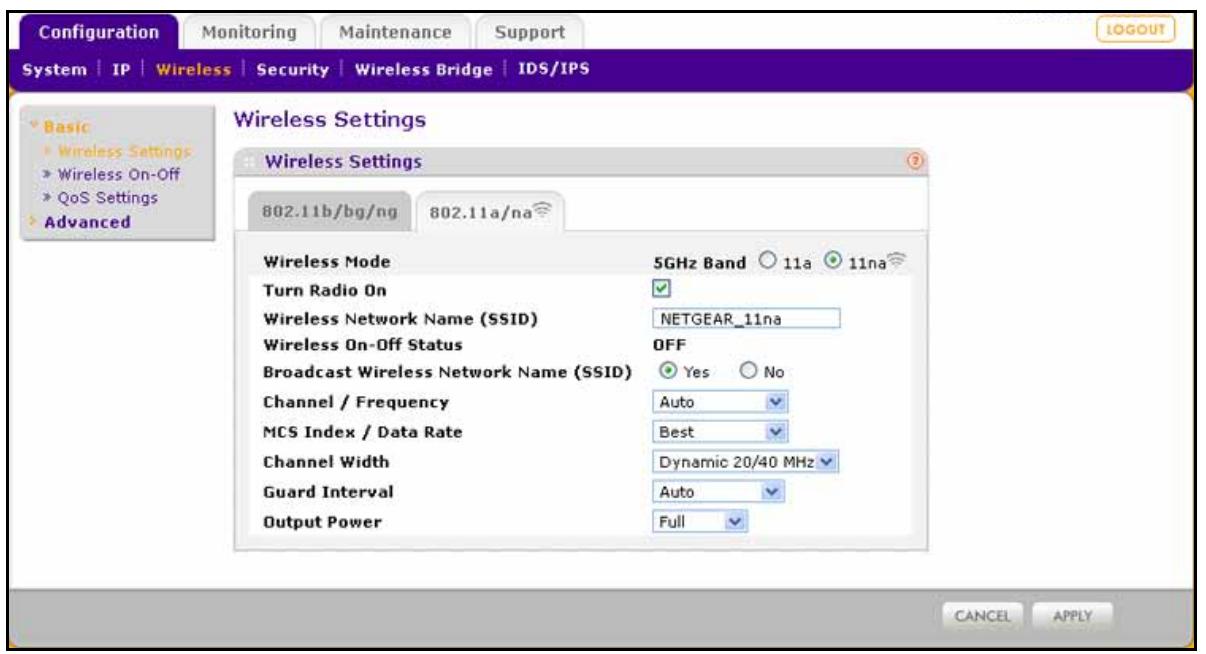
Figure 16.
- Specify the wireless mode in the 5 GHz band by selecting one of the following radio buttons:
11a. 802.11n-compliant devices can connect to the access point because they are backward compatible.
11na. This is the default setting. If you keep the default setting, go to Step 5.
When you change the wireless mode, the Turn Radio On check box is automatically cleared, and all fields, buttons, and drop-down lists onscreen are masked out.
- Turn on the radio by selecting the Turn Radio On check box. A pop-up screen displays.
Note: Under normal conditions, you want the radio to be turned on. Turning off the radio disables access through the wireless access point, which can be helpful for configuration, network tuning, or troubleshooting activities.
-
Click OK to confirm the change of wireless mode. The change does not take effect until you click the Apply button after you have completed the wireless configuration.
-
Specify the remaining wireless settings as explained the following table:
Table 7. Basic 5 GHz band wireless settings
| Setting | Descriptions | |
| Wireless Network Name (SSID) | Enter a 32-character (maximum) service set identifier (SSID); the characters are case-sensitive. The default is NETGEAR_11na. TheSSID assigned to a wireless device needs to match the wireless access point'sSSID for the wireless device to communicate with the wireless access point. If the SSIDs do not match, you do not get a wireless connection to the wireless access point. | |
| Wireless On-Off Status | This is a nonconfigurable field that shows the status of the wireless scheduler. For more information, see Schedule the Wireless Radio to Be Turned Off on page 61. | |
| Broadcast Wireless Network Name (SSID) | Select the Yes radio button to enable the wireless access point to broadcast itsSSID, allowing wireless stations that have a null (blank)SSID to adopt the wireless access point'sSSID. Yes is the default setting. To prevent theSSID from being broadcast, select the No radio button. | |
| Channel / Frequency | From the drop-down list, select the channel you wish to use on your wireless LAN. The wireless channels and frequencies depend on the country and wireless mode. The default setting is Auto.Note: It should not be necessary to change the wireless channel unless you experience interference (indicated by lost connections or slow data transfers). If this happens, you might want to experiment with different channels to see which is the best. For more information, see the guidelines following this table.Note: For more information about available channels and frequencies, see Technical Specifications on page 139. | |
| 11na mode onlyNote: For most networks, the default settings work fine. | MCS Index / Data Rate | From the drop-down list, select a Modulation and Coding Scheme (MCS) index and transmit data rate for the wireless network. The default setting is Best. For a list of all options that you can select from in 11na mode, see Factory Default Settings on page 142. |
| Channel Width | From the drop-down list, select a channel width. The options are Dynamic 20/40 MHz, 20 MHz, and 40 MHz. The default is Dynamic 20/40 MHz. A wider channel improves the performance, but some legacy devices can operate only in either 20 MHz or 40 MHz. | |
| Guard Interval | From the drop-down list, select the guard interval to protect transmissions from interference. The default is Auto, or you can select Long - 800 ns. Some legacy devices can operate only with a long guard interval. | |
| 11a mode only | Data Rate | From the drop-down list, select the transmit data rate of the wireless network. The default setting is Best. For a list of all options that you can select from in 11a mode, see Factory Default Settings on page 142. |
| Output Power | From the drop-down list, select the transmission power of the wireless access point: Full, Half, Quarter, Eighth, Minimum. The default is Full.Note: Increasing the power improves performance, but if two or more wireless access points are operating in the same area and on the same channel, interference can occur.Note: Make sure that you comply with the regulatory requirements for total radio frequency (RF) output power in your country. | |
- Click Apply to save your settings and enable the selected wireless mode.
Note: For information about how to configure advanced wireless settings, see Configure Advanced Wireless Settings on page 107.
Test Basic Wireless Connectivity
After you have configured the wireless access point as explained in the previous sections, test the computers on your LAN for wireless connectivity before you position and mount the wireless access point at its permanent position.
To test for wireless connectivity:
- Configure the 802.11b/g/n or 802.11a/n wireless adapters of your computers so that they all have the same SSID and channel that you have configured on the wireless access point.
- Verify that your computers have a wireless link to the wireless access point. If you have enabled the DHCP server on the wireless access point, verify that your computers are able to obtain an IP address through DHCP from the wireless access point.
- Verify network connectivity by using a browser such as Internet Explorer 6.0 or later or Mozilla Firefox 1.5 or later to browse the Internet, or check for file and printer access on your network.
Note: If you have trouble connecting to the wireless access point, see Chapter 6, Troubleshooting.
NETGEAR recommends that you complete the following tasks before you deploy the wireless access point in your network:
- Configure wireless security and other wireless features as described in Chapter 3, Wireless Configuration and Security.
- Configure any additional features that you might need as described in Chapter 4, Management and Monitoring, and Chapter 5, Advanced Configuration.
After you have completed the configuration of the wireless access point, you can reconfigure the computer that you used for this process back to its original TCP/IP settings.
Mount the Wireless Access Point
Ceiling Installation
- Wall Installation
- Desk Installation
Note: NETGEAR recommends that you review the information in Wireless Equipment Placement and Range Guidelines on page 17 before you mount the wireless access point at its permanent position.
Note: The figures in the procedures in this section do not show the WNDAP620 wireless access point. However, the procedures are generic and do apply to the WNDAP620 wireless access point.
Ceiling Installation
The best location for ceiling installation is at the center of your wireless coverage area, and within line of sight of all mobile devices. Make sure the top (the dome side) of the wireless access point is directed toward the users and not the ceiling.
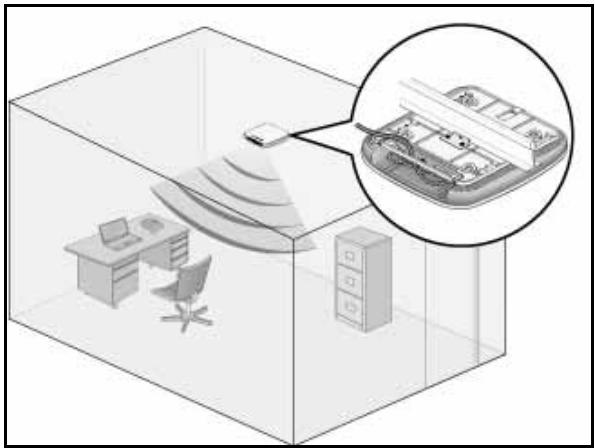
Note: Do not place the wireless access point in a false ceiling space facing up.
To install the wireless access point using the ceiling installation kit:
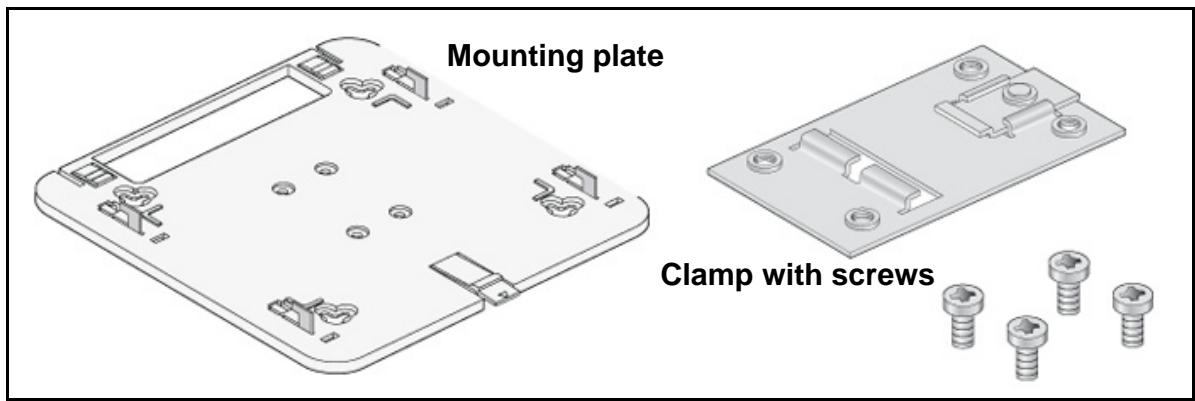
- Verify the package contents of the ceiling installation kit.
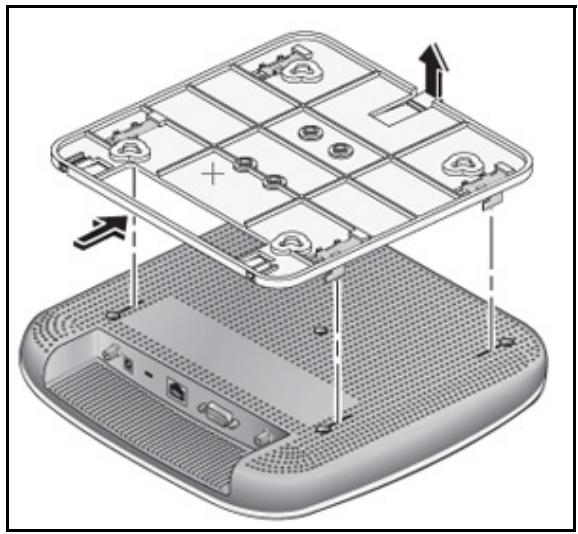
- Detach the mounting plate from the wireless access point.
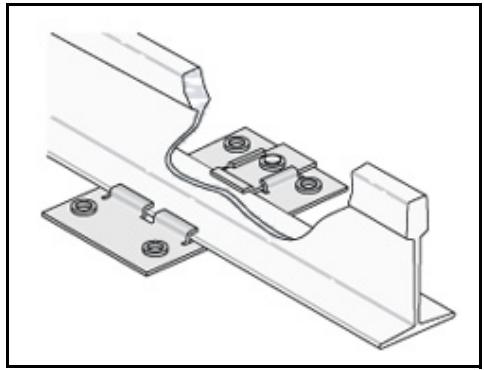
- Attach the clamp to the ceiling rail.
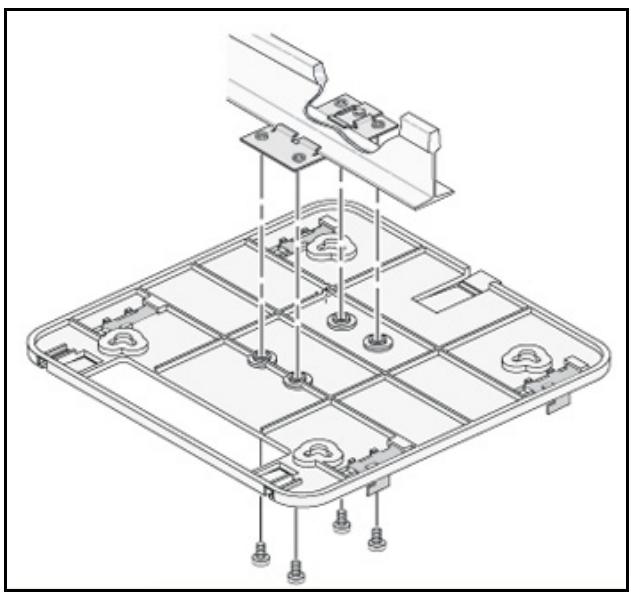
- Attach the mounting plate to the clamp.
- Connect the cables to the wireless access point.
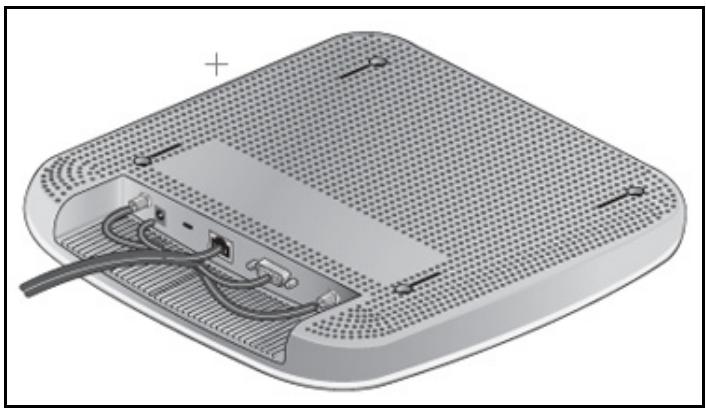
- Attach the wireless access point to the mounting plate.
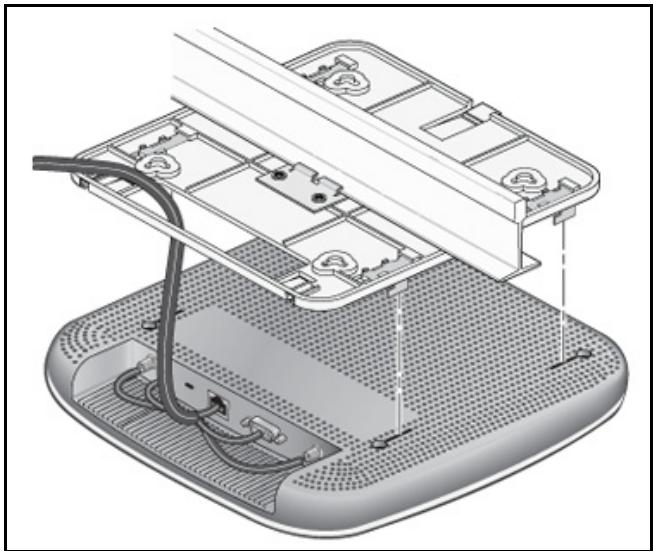
- Attach the cover to the wireless access point.
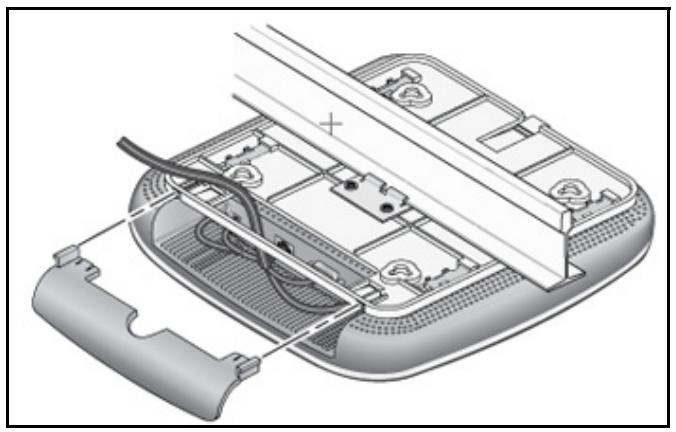
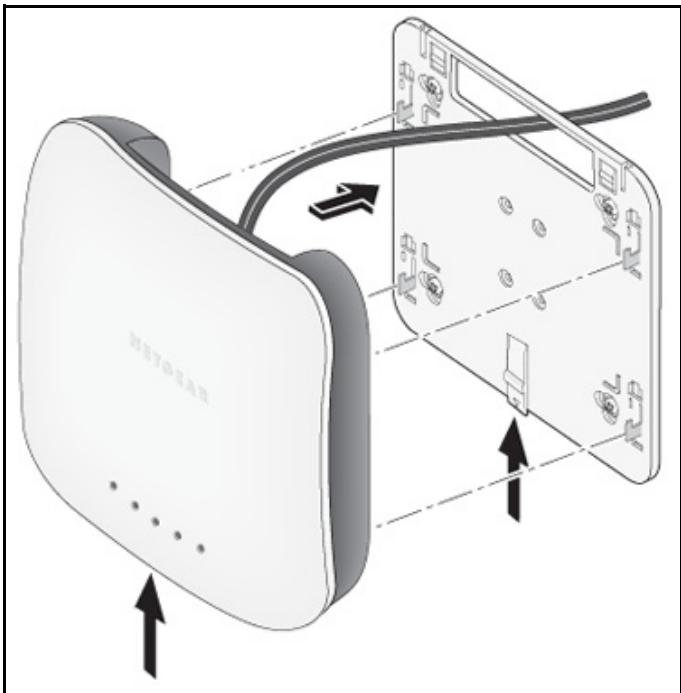
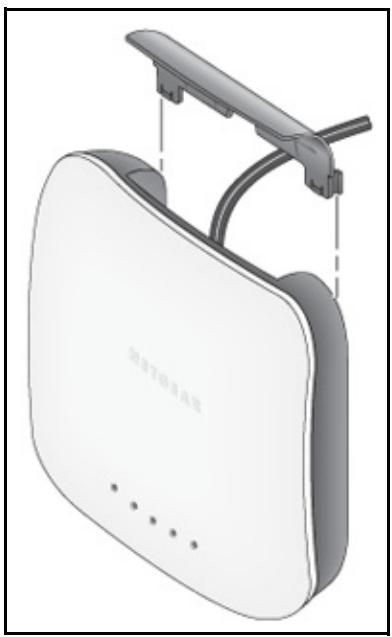
Wall Installation
The best location for wall installation is at the center of your wireless coverage area, and within line of sight of all mobile devices. Make sure the top (the dome side) of the wireless access point is directed toward the users and not the wall.
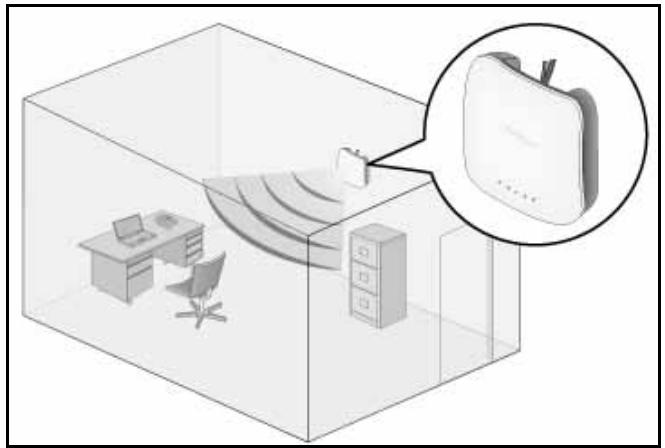
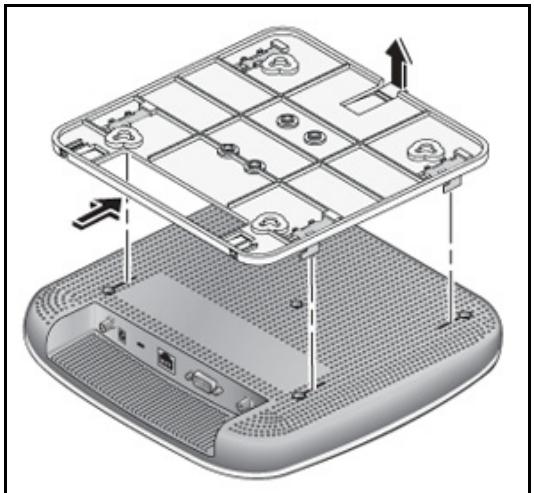
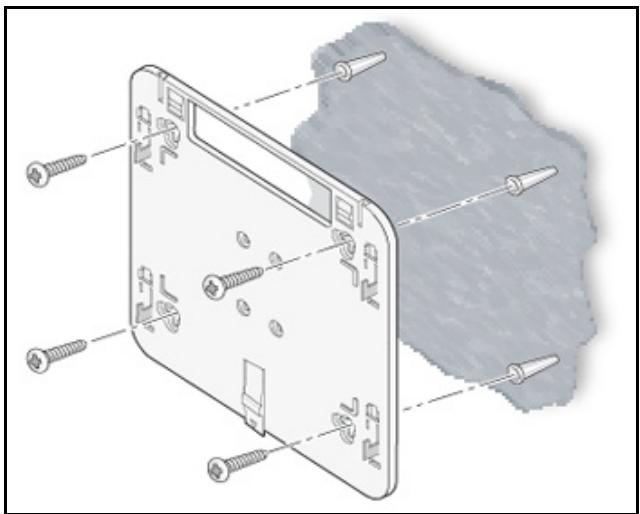
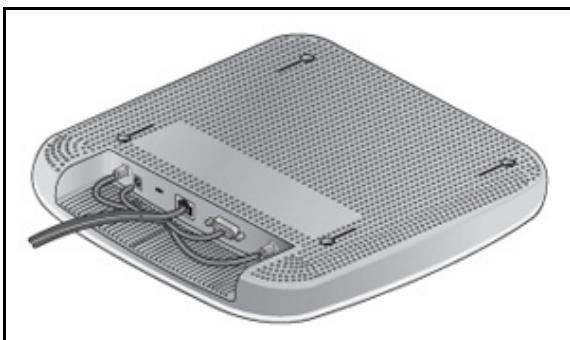
To install the wireless access point using the wall installation kit:
- Verify the package contents of the wall installation kit.
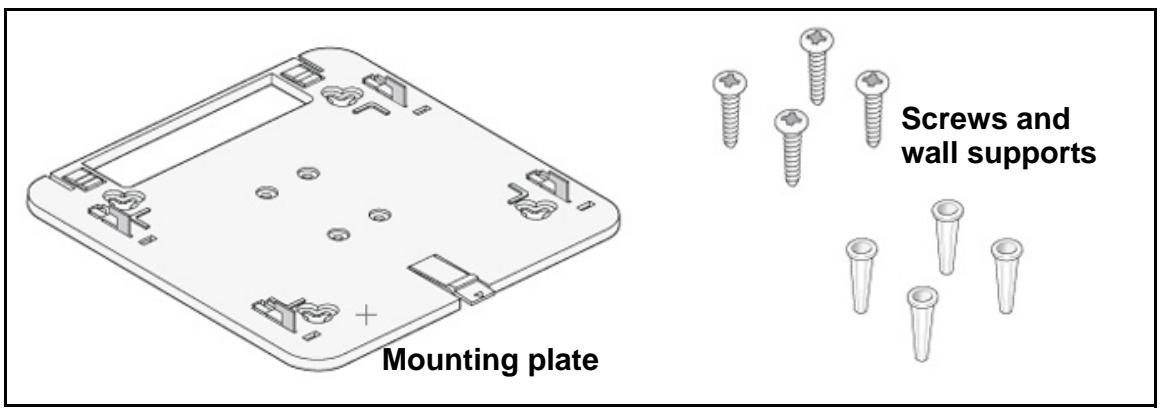
- Detach the mounting plate from the wireless access point.
- Attach the mounting plate to the wall.
- Connect the cables to the wireless access point.
- Attach the wireless access point to the mounting plate.
- Attach the cover to the wireless access point.
Desk Installation
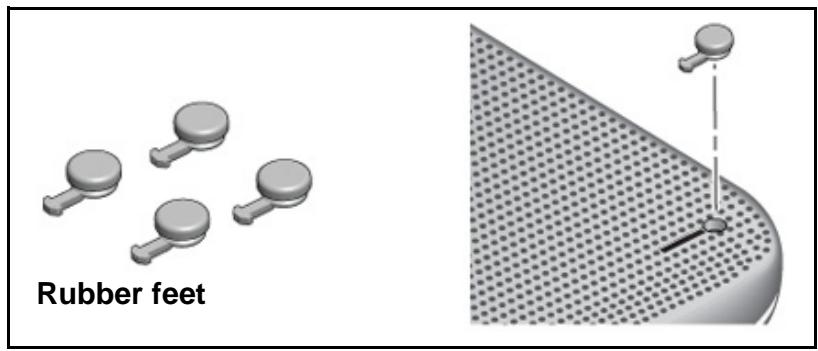
To install the wireless access point on a desk:
Attach the rubber feet to the holes in the bottom of the wireless access point.
This chapter describes how to configure the wireless features of the wireless access point. The chapter includes the following sections:
- Wireless Data Security Options
Security Profiles - Configure RADIUS Server Settings
- Restrict Wireless Access by MAC Address
Schedule the Wireless Radio to Be Turned Off - Configure Basic Wireless Quality of Service
Before you set up wireless security and additional wireless features that are described in this chapter, connect the wireless access point, get the Internet connection working, and configure the 802.11b, 11bg, or 11ng wireless settings and the 802.11a or 11na wireless settings as described in Chapter 2, Installation and Basic Configuration. The wireless access point functions with an Ethernet LAN connection. Make sure that you have verified wireless connectivity before you set up wireless security and additional wireless features.

WARNING:
If you are configuring the wireless access point from a wireless computer and you change the wireless access point's SSID, channel, or wireless security settings, you lose your wireless connection when you click Apply. You then need to change the wireless settings of your computer to match the wireless access point's new settings.
Wireless Data Security Options
Indoors, computers can connect over 802.11n wireless networks at a maximum range of 300 feet. Typically, a wireless access point inside a building works best with devices within a 100-foot radius. Such distances can allow for others outside your immediate area to access your network.
Unlike wired network data, your wireless data transmissions can extend beyond your walls and can be received by anyone with a compatible adapter. For this reason, use the security features of your wireless equipment. The wireless access point provides highly effective security features that are covered in detail in this chapter. Deploy the security features appropriate to your needs.
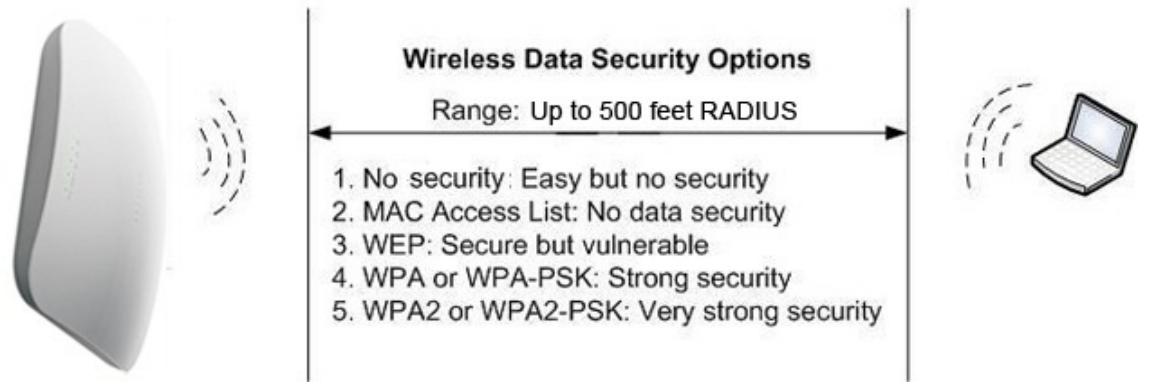
Figure 17.
There are several ways you can enhance the security of your wireless network:
- Use multiple BSSIDs combined with VLANs. You can configure combinations of VLANS and BSSIDs (security profiles) with stronger or less restrictive access security according to your requirements. For example, visitors could be given wireless Internet access but be excluded from any access to your internal network. For information about how to configure BSSIDs, see Configure and Enable Security Profiles on page 48.
- Restrict access based by MAC address. You can allow only trusted devices to connect so that unknown devices cannot wirelessly connect to the wireless access point. Restricting access by MAC address adds an obstacle against unwanted access to your network, but the data broadcast over the wireless link is fully exposed. For information about how to restrict access by MAC address, see Restrict Wireless Access by MAC Address on page 60.
- Turn off the broadcast of the wireless network name (SSID). If you disable broadcast of theSSID, only devices that have the correctSSID can connect. This nullifies the wireless network discovery feature of some products, such as Windows XP, but the data is still exposed. For information about how to turn off broadcast of theSSID, see Configure and Enable Security Profiles on page 48.
- WEP. Wired Equivalent Privacy (WEP) data encryption provides data security. WEP shared key authentication and WEP data encryption block all but the most determined eavesdropper. This data encryption mode has been superseded by WPA-PSK and WPA2-PSK. For information about how to configure WEP, see Configure and Enable Security Profiles on page 48 and Configure an Open System with WEP or Shared Key with WEP on page 53.
-
Legacy 802.1X. Legacy 802.1X uses RADIUS-based 802.1x authentication but no data encryption. For information about how to configure Legacy 802.1X, see Configure and Enable Security Profiles on page 48 and Configure Legacy 802.1X on page 54.
-
WPA and WPA-PSK (TKIP). Wi-Fi Protected Access (WPA) data encryption provides strong data security with Temporal Key Integrity Protocol (TKIP) encryption. The very strong authentication along with dynamic per-frame rekeying of WPA makes it virtually impossible to compromise.
WPA uses RADIUS-based 802.1x authentication; for more information, see Configure and Enable Security Profiles on page 48 and Configure WPA with RADIUS, WPA2 with RADIUS, and WPA & WPA2 with RADIUS on page 55.
WPA-PSK uses a pre-shared key (PSK) for authentication; for more information, see Configure and Enable Security Profiles on page 48 and Configure WPA-PSK, WPA2-PSK, and WPA-PSK & WPA2-PSK on page 56.
- WPA2 and WPA2-PSK (AES). Wi-Fi Protected Access version 2 (WPA2) data encryption provides strong data security with Advanced Encryption Standard (AES) encryption. The very strong authentication along with dynamic per-frame rekeying of WPA2 makes it virtually impossible to compromise.
WPA2 uses RADIUS-based 802.1x authentication; for more information, see Configure and Enable Security Profiles on page 48 and Configure WPA with RADIUS, WPA2 with RADIUS, and WPA & WPA2 with RADIUS on page 55.
WPA2-PSK uses a pre-shared key (PSK) for authentication; for more information, see Configure and Enable Security Profiles on page 48 and Configure WPA-PSK, WPA2-PSK, and WPA-PSK & WPA2-PSK on page 56.
- WPA & WPA2 and WPA-PSK & WPA2-PSK mixed modes. These modes support data encryption either with both WPA and WPA2 clients or with both WPA-PSK and WPA2-PSK clients and provide the most reliable security.
WPA & WPA2 uses RADIUS-based 802.1x authentication; for more information, see Configure and Enable Security Profiles on page 48 and Configure WPA with RADIUS, WPA2 with RADIUS, and WPA & WPA2 with RADIUS on page 55.
WPA-PSK & WPA2-PSK uses a pre-shared key (PSK) for authentication; for more information, see Configure and Enable Security Profiles on page 48 and Configure WPA-PSK, WPA2-PSK, and WPA-PSK & WPA2-PSK on page 56.
Security Profiles
Before You Change the SSID, WEP, and WPA Settings
- Configure and Enable Security Profiles
Security profiles let you configure unique security settings for each SSID on each radio of the wireless access point. For each radio, the wireless access point supports up to eight security profiles (BSSIDs) that you can configure on the individual Edit Wireless Network screens that are accessible from the Edit Security Profile screen (see Configure and Enable Security Profiles on page 48).
To set up a security profile, select its network authentication type, data encryption, wireless client security separation, and VLAN ID:
Network authentication
The wireless access point is set by default as an open system with no authentication. When you configure network authentication, bear in mind that not all wireless adapters support WPA or WPA2. Windows XP, Windows 2000 with Service Pack 3, and Windows Vista do include the client software that supports WPA. However, client software is required on the client. Consult the product documentation for your wireless adapter and WPA or WPA2 client software for instructions about how to configure WPA2 settings.
For information about the types of network authentication that the wireless access point supports, see Configure and Enable Security Profiles on page 48.
Data encryption
Select the data encryption that you want to use. The available options depend on the network authentication setting described earlier (otherwise, the default is None). The data encryption settings are explained in Configure and Enable Security Profiles on page 48.
- Wireless client security separation
If this feature is enabled, the associated wireless clients (using the same SSID) are not able to communicate with each other. This feature is useful for hotspots and other public access situations. By default, wireless client separation is disabled. For more information, see Configure and Enable Security Profiles on page 48.
VLANID
If this feature is enabled and if the network devices (hubs and switches) on your LAN support the VLAN (802.1Q) standard, the default VLAN ID for the wireless access point is associated with each profile. The default VLAN ID needs to match the IDs that are used by the other network devices. For more information, see Configure and Enable Security Profiles on page 48.
Some concepts and guidelines regarding the SSID are explained in the following list:
- A basic service set (BSS) is a group of wireless stations and a single wireless access point, all using the same security profile or service set identifier (BSSID). The actual identifier in the BSSID is the MAC address of the wireless radio. (A wireless radio can have multiple MAC addresses, one for each security profile.)
- An extended service set (ESS) is a group of wireless stations and multiple wireless access points, all using the same identifier (ESSID).
- Different wireless access points within an ESS can use different channels. To reduce interference, adjacent wireless access points should use different channels.
- Roaming is the ability of wireless stations to connect wirelessly when they physically move from one BSS to another one within the same ESS. The wireless station automatically changes to the wireless access point with the least interference or best performance.
Before You Change the SSID, WEP, and WPA Settings
For a new wireless network, print or copy one of the following forms and fill in the settings. For an existing wireless network, the network administrator can provide this information. Be sure to set the country or region correctly as the first step.
Form for 802.11b/bg/ng Modes
Print this page and store the security information in a safe place:
- SSID: The service set identifier (SSID) identifies the wireless local area network. You can customize it by using up to 32 alphanumeric characters. Write your SSID on the line.
SSID:
The SSID in the wireless access point is the SSID you configure on the wireless adapter card. All wireless nodes in the same network need to be configured with the same SSID.
WEP key size and authentication
Choose the key size by circling one: 64, 128, or 152 bits.
Choose the authentication type by circling one: open system or shared key.
Passphrase:
Note: If you select shared key, the other devices in the network cannot connect unless they are set to shared key and have the same keys in the same positions as those in the wireless access point.
WPA-PSK (pre-shared key) and WPA2-PSK
Record the WPA-PSK passphrase:
WPA-PSK passphrase:
Record the WPA2-PSK passphrase:
WPA2-PSK passphrase:
WPA RADIUS settings
For WPA, record the following settings for the primary and secondary RADIUS servers:
Server name/IP address: Primary Secondary
Port:
Shared secret:
WPA2 RADIUS settings
For WPA2, record the following settings for the primary and secondary RADIUS servers:
Server name/IP address: Primary Secondary
Port:
Shared secret:
End of Form
Form for 802.11a/an Modes
Print this page and store the security information in a safe place:
- SSID: The service set identifier (SSID) identifies the wireless local area network. You can customize it by using up to 32 alphanumeric characters. Write your SSID on the line.
SSID:
The SSID in the wireless access point is the SSID you configure on the wireless adapter card. All wireless nodes in the same network need to be configured with the same SSID.
WEP key size and authentication
Choose the key size by circling one: 64, 128, or 152 bits.
Choose the authentication type by circling one: open system or shared key.
Passphrase:
Note: If you select shared key, the other devices in the network cannot connect unless they are set to shared key and have the same keys in the same positions as those in the wireless access point.
WPA-PSK (pre-shared key) and WPA2-PSK
Record the WPA-PSK passphrase:
WPA-PSK passphrase:
Record the WPA2-PSK passphrase:
WPA2-PSK passphrase:
WPA RADIUS settings
For WPA, record the following settings for the primary and secondary RADIUS servers:
Server name/IP address: Primary Secondary
Port:
Shared secret:
WPA2 RADIUS settings
For WPA2, record the following settings for the primary and secondary RADIUS servers:
Server name/IP address: Primary Secondary
Port:
Shared secret:
End of Form
Configure and Enable Security Profiles
To configure and enable a security profile, you need to enable the associated radio:
- For 802.11b/bg/ng modes, the 2.4 GHz radio needs to be enabled (see Configure 802.11b/bg/ng Wireless Settings on page 28).
- For 802.11a/na modes, the 5 GHz radio needs to be enabled. (see Configure 802.11a/na Wireless Settings on page 31).
To configure and enable a security profile:
- Select Configuration > Security > Profile Settings. The Profile Settings screen for the 802.11b/bg/ng modes displays, showing eight wireless security profiles. (If the 2.4 GHz radio is disabled, the Enable column is masked out.)
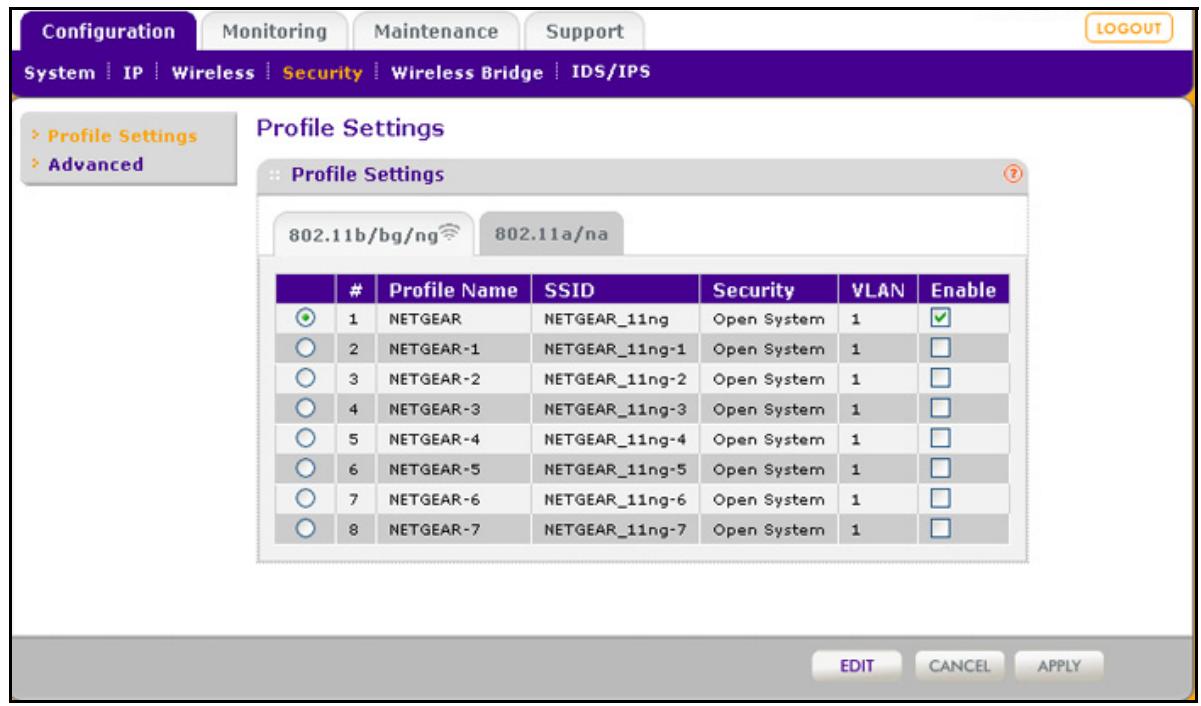
Figure 18.
- Optional: To display the Profile Settings screen for the 802.11a/na modes, click the 802.11a/na tab. This screen also shows eight wireless security profiles. (If the 5 GHz radio is disabled, the Enable column is masked out.)
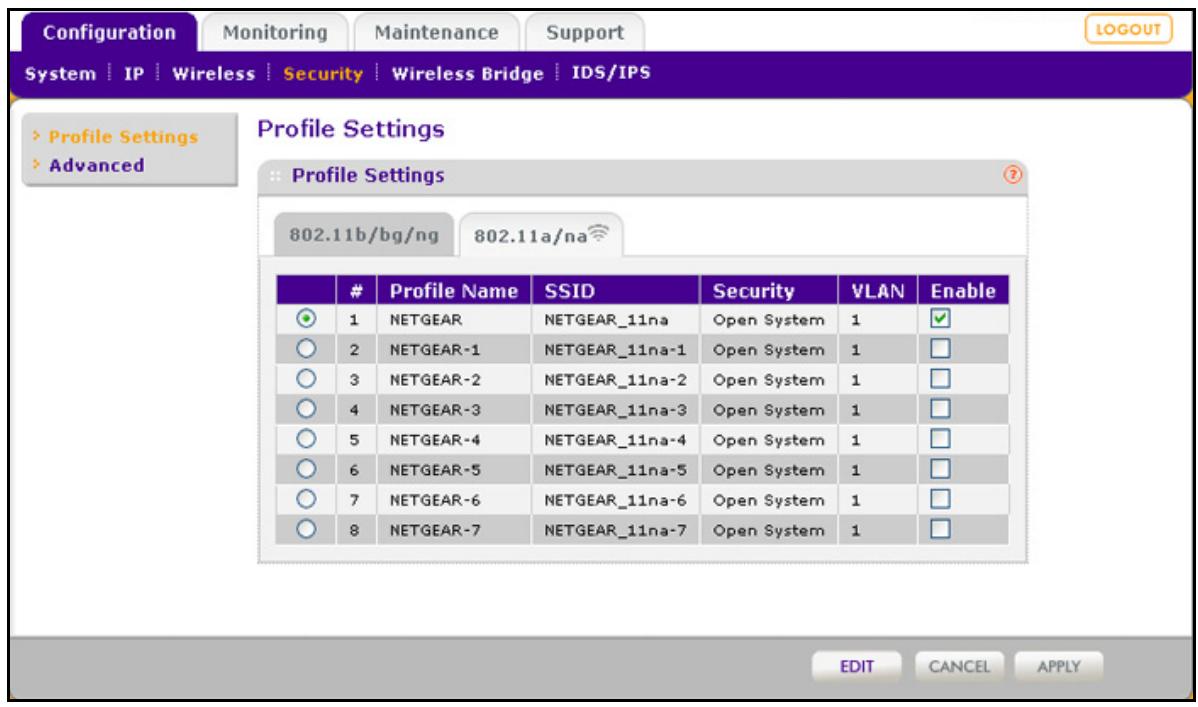
Figure 19.
The following table explains the fields of the Profile Settings screen:
Table 8. Profile settings
| Setting | Description |
| Profile Name | The unique name of the wireless security profile that makes it easy to recognize the profile. |
| SSID | The wireless network name (SSID) for the wireless security profile. |
| Security | The configured wireless authentication method for the wireless security profile. |
| VLAN | The default VLAN ID that is associated with the wireless security profile. |
| Enable | The check box that lets you select the wireless security profile so you can enable it by clicking Apply. |
-
To configure a wireless security profile, select the corresponding radio button to the left of the wireless security profile. The Edit Security Profile screen opens for the selected wireless security profile (see the following figure). The screen has three sections:
-
Profile Definition (see Step 4)
Authentication Settings (see Step 5) - QoS Policies (see Step 6)

Figure 20.
- Specify the settings of the Profile Definition section of the Edit Security Profile screen as explained in the following table:
Table 9. Profile definition settings
| Setting | Description |
| Profile Name | Enter a unique name of the wireless security profile that makes it easy to recognize the profile. The default names are NETGEAR, NETGEAR-1, NETGEAR-2, and so on, through NETGEAR-7. You can enter a value of up to 32 alphanumeric characters. |
| Wireless Network Name (SSID) | The wireless network name (SSID) for the wireless security profile. The default names depend on the selected radio band: • 802.11b/bg/ng. The default names are NETGEAR_11ng, NETGEAR_11ng-1, NETGEAR_11ng-2, and so on, through NETGEAR_11ng-7 for the eighth profile. • 802.11a/na. The default names are NETGEAR_11na, NETGEAR_11na-1, NETGEAR_11na-2, and so on, through NETGEAR_11na-7 for the eighth profile. |
| Broadcast Wireless Network Name (SSID) | Select the Yes radio button to enable the wireless access point to broadcast itsSSID, allowing wireless stations that have a null (blank)SSID to adopt the wireless access point'sSSID. Yes is the default setting. To prevent theSSID from being broadcast, select the No radio button. |
- Specify the settings of the Authentication Settings section of the Edit Security Profile screen as explained in the following table.
The wireless access point is set by default as an open system with no authentication. When you configure network authentication, bear in mind the following:
- If you are using access point mode (which is the default mode if you did not enable wireless bridging), then all options are available. In other modes such as bridge mode, some options might be unavailable.
- Not all wireless adapters support WPA or WPA2. Windows XP, Windows 2000 with Service Pack 3, and Windows Vista do include the client software that supports WPA. However, client software is required on the client. Consult the product documentation for your wireless adapter and WPA or WPA2 client software for instructions about how to configure WPA2 settings.
Table 10. Profile authentication settings
| Setting | Description | |
| Network Authentication and Data Encryption Note: The data encryption fields that display onscreen depend on your selection from the Network Authentication drop-down list. | Open System | This is the default setting. Use an open system without any encryption or with WEP encryption. See Configure an Open System with WEP or Shared Key with WEP on page 53. |
| Shared Key | Use WEP encryption and enter at least one shared key. See Configure an Open System with WEP or Shared Key with WEP on page 53. | |
| Legacy 802.1X | Configure the RADIUS server settings. Encryption is not supported. See Configure Legacy 802.1X on page 54. | |
| WPA with Radius | Configure the RADIUS server settings and select TKIP or TKIP + AES encryption. See Configure WPA with RADIUS, WPA2 with RADIUS, and WPA & WPA2 with RADIUS on page 55. | |
| WPA2 with Radius | Configure the RADIUS server settings and select AES or TKIP + AES encryption. See Configure WPA with RADIUS, WPA2 with RADIUS, and WPA & WPA2 with RADIUS on page 55. Note: Select this setting only if all clients support WPA2. | |
| Network Authentication and Data Encryption (continued) | WPA & WPA2 with Radius | Configure the RADIUS server setting. TKIP + AES encryption is the default encryption.See Configure WPA with RADIUS, WPA2 with RADIUS, and WPA & WPA2 with RADIUS on page 55.Note: This setting allows clients to connect through either WPA with TKIP or WPA2 with AES. |
| WPA-PSK | Enter a WPA passphrase and select TKIP or TKIP + AES encryption.See Configure WPA-PSK, WPA2-PSK, and WPA-PSK & WPA2-PSK on page 56. | |
| WPA2-PSK | Enter a WPA passphrase and select AES or TKIP + AES encryption.See Configure WPA-PSK, WPA2-PSK, and WPA-PSK & WPA2-PSK on page 56.Note: Select this setting only if all clients support WPA2. | |
| WPA-PSK & WPA2-PSK | Enter a WPA passphrase. TKIP + AES encryption is the default encryption.See Configure WPA-PSK, WPA2-PSK, and WPA-PSK & WPA2-PSK on page 56.Note: This setting allows clients to connect through either WPA with TKIP or WPA2 with AES. | |
| Wireless Client Security Separation | If you enable wireless client security separation by selecting Enable from the drop-down list, the associated wireless clients cannot communicate with each other. By default, Disable is selected from the drop-down list. This feature is intended for hotspots and other public access situations. | |
| VLAN ID | Enter the VLAN ID to be associated with this wireless security profile. The default VLAN ID is 1. The VLAN ID needs to match the VLAN ID that is used by the other devices in your network. | |
- Optional: In the QoS Policies section of the screen, select a QoS policy from the Incoming drop-down list, Outgoing drop-down list, or both. Depending on your selection, the policy is applied to incoming packets, outgoing packets, or both incoming and outgoing packets, and is displayed in the Policy Details fields.
Note: To be able to select a QoS policy, you first need to have configured one or more policies (see Configure Quality of Service Policies on page 112).
- Click Apply to save your settings.

WARNING:
If you use a wireless computer to configure wireless security settings, you are disconnected when you click Apply. Reconfigure your wireless computer to match the new settings, or access the wireless access point from a wired computer to make further changes.
To change the QoS policy selection on the Edit Security Profile screen:
- From the drop-down list from which you want select another QoS policy, select None.
- Click Apply to remove the old policy from the security profile.
- Select the new QoS policy from the same drop-down list.
- Click Apply to save your settings.
Configure an Open System with WEP or Shared Key with WEP
Whether you use an open system with WEP or shared key with WEP, configure the settings that are explained in the following table.
- Open system with WEP
An open system can function without any encryption or with pre-shared WEP key encryption without RADIUS authentication. The security level of static WEP is not very strong.
When you select Open System from the Network Authentication drop-down list and any selection other than None from the Data Encryption drop-down list, the screen expands to display the WEP fields:
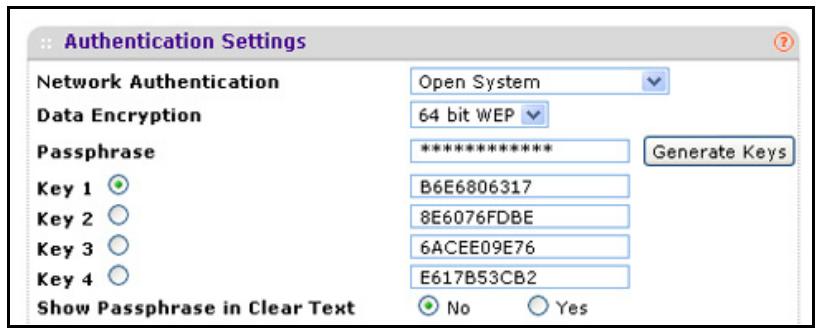
Figure 21.
- Shared key with WEP
Shared key provides pre-shared WEP key encryption without RADIUS authentication. The security level of static WEP is not very strong. When you select Shared Key from the Network Authentication drop-down list, the screen expands to display the WEP fields:
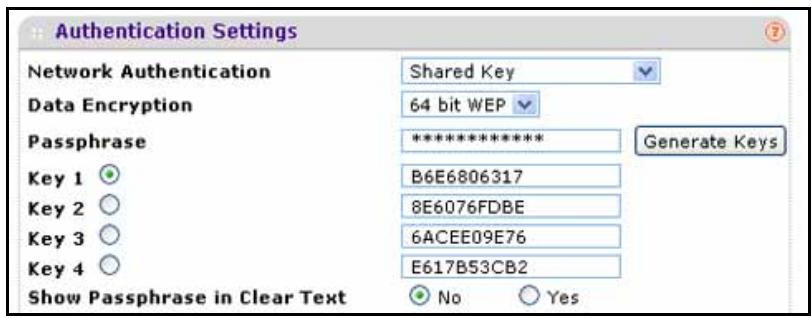
Figure 22.
Table 11. WEP encryption settings
| Setting | Descriptions |
| Data Encryption | Select the encryption key size from the drop-down list:64-bit WEP. Standard WEP encryption, using 40/64-bit encryption.128-bit WEP. Standard WEP encryption, using 104/128-bit encryption.152-bit WEP. Proprietary WEP encryption mode, using 128+24 bit encryption. This mode functions only with other wireless stations that support this mode. |
| Passphrase | Enter a passphrase. The passphrase length needs to be between 8 and 63 characters (inclusive). The secret passphrase allows you to generate the keys automatically by clicking Generate Keys. The default passphrase is sharedsecret.You can display the actual passphrase by selecting the Show Passphrase in Clear Text Yes radio button. |
| Encryption Key(Key1–Key4) | Either enter a key manually or allow the key to be automatically generated by clicking Generate Keys.For ASCII format, depending on the key size selected, the manually entered encryption key needs to have a length of 5 (64-bit WEP), 13 (128-bit WEP), or 16 characters (152-bit WEP).For HEX format, depending on the key size selected, the manually entered or automatically generated encryption key needs to have a length of 10 (64-bit WEP), 26 (128-bit WEP), or 32 (152-bit WEP) characters.Note: Wireless stations need to use the key to access the wireless access point. |
| Show Passphrase in Clear Text | Select the Yes radio button to display the actual passphrase in the Passphrase field. The default setting is No. |
Configure Legacy 802.1X
To use legacy 802.1X security, you need to define RADIUS server settings. For information about RADIUS servers, see Configure RADIUS Server Settings on page 57.
When you select Legacy 802.1X from the Network Authentication drop-down list, the Data Encryption drop-down list is automatically set to None. To use legacy 802.1X security, you need to define the RADIUS servers only.

Figure 23.
Configure WPA with RADIUS, WPA2 with RADIUS, and WPA & WPA2 with RADIUS
WPA, WPA2, and WPA & WPA2 security requires RADIUS-based 802.1x authentication, so you also need to define RADIUS server settings. For information about RADIUS servers, see Configure RADIUS Server Settings on page 57.
The selections that are available from the Data Encryption drop-down list depend on the type of WPA authentication that you select from the Network Authentication drop-down list and are shown in the table that follows the figures.
WPA with RADIUS

Figure 24.
WPA2 with RADIUS

Figure 25.
WPA & WPA2 with RADIUS

Figure 26.
Table 12. Settings for WPA with RADIUS, WPA2 with RADIUS, and WPA & WPA2 with RADIUS
| Setting | Descriptions |
| TKIP | Temporal Key Integrity Protocol (TKIP) is the standard encryption method used with WPA. You can also use TKIP with WPA2.Note: TKIP provides only legacy (slower) rates of operation. NETGEAR recommends WPA2 authentication with AES encryption if you want to use the 11n rates and speed. |
| AES | Advanced Encryption Standard (AES) is the standard encryption method used with WPA2.Note: Although some wireless clients might support AES with WPA, the WNDAP620 wireless access point does not support WPA with AES. |
| TKIP + AES | The TKIP + AES encryption method is supported both for WPA and WPA2. Broadcast packets use TKIP. For unicast (point-to-point) transmissions, WPA clients use TKIP, and WPA2 clients use AES. For the WPA & WPA2 mixed mode, TKIP + AES is the only supported data encryption method. |
Configure WPA-PSK, WPA2-PSK, and WPA-PSK & WPA2-PSK
WPA-PSK, WPA-PSK, and WPA-PSK & WPA2-PSK authentication use a pre-shared key (PSK, also called a passphrase or a network key) and do not require authentication from a RADIUS server.
The selections that are available from the Data Encryption drop-down list depend on the type of WPA-PSK authentication that you select from the Network Authentication drop-down list and are shown in the table that follows the figures.
WPA-PSK
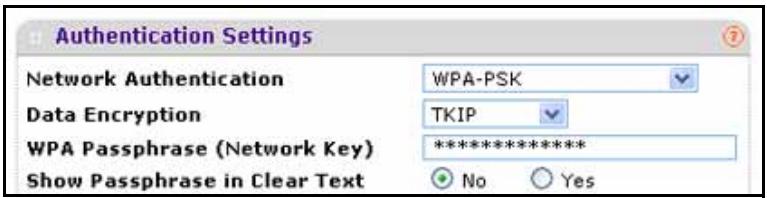
Figure 27.
WPA2-PSK
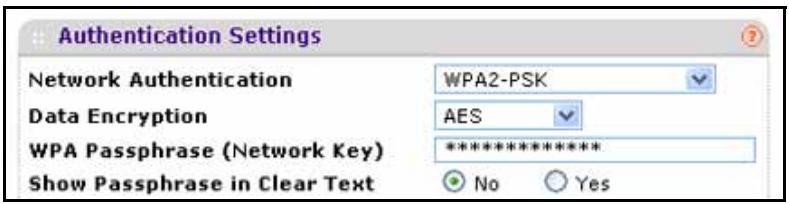
Figure 28.
WPA-PSK & WPA2-PSK
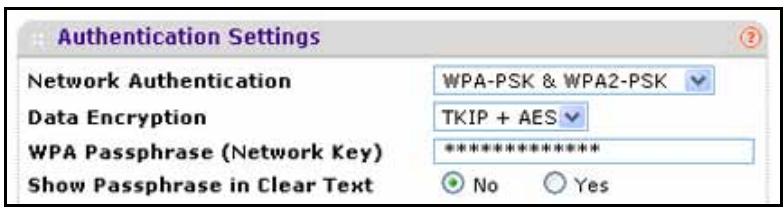
Figure 29.
Table 13. Settings for WPA-PSK, WPA2-PSK, and WPA-PSK & WPA2-PSK
| Setting | Descriptions | |
| Data Encryption | TKIP | Temporal Key Integrity Protocol (TKIP) is the standard encryption method used with WPA. You can also use TKIP with WPA2.Note: TKIP provides only legacy (slower) rates of operation. NETGEAR recommends WPA2 authentication with AES encryption if you want to use the 11n rates and speed. |
| AES | Advanced Encryption Standard (AES) is the standard encryption method used with WPA2.Note: Although some wireless clients might support AES with WPA, the WNDAP620 wireless access point does not support WPA with AES. | |
| TKIP + AES | TKIP + AES supports both WPA and WPA2. Broadcast packets use TKIP. For unicast (point-to-point) transmissions, WPA clients use TKIP, and WPA2 clients use AES.For the WPA & WPA2 mixed mode, TKIP + AES is the only supported data encryption method. | |
| Passphrase | Enter a passphrase. The passphrase length needs to be between 8 and 63 characters (inclusive). The default passphrase is sharedsecret.You can display the actual passphrase by selecting the Show Passphrase in Clear Text Yes radio button. | |
| Show Passphrase in Clear Text | Select the Yes radio button to display the actual passphrase in the Passphrase field. The default setting is No. | |
Configure RADIUS Server Settings
For authentication, accounting, or both authentication and accounting using RADIUS, you need to configure primary servers and optional secondary servers. These RADIUS server settings can apply to all devices that are connected to the wireless access point.
You can configure both IPv4 and IPv6 servers. In the IPv4 Radius Server Settings section, enter IPv4 addresses only; in the IPv6 Radius Server Settings section, enter IPv6 addresses only.
To configure the RADIUS server settings:
- Select Configuration > Security > Advanced > Radius Server Settings. The Radius Server Settings screen displays.
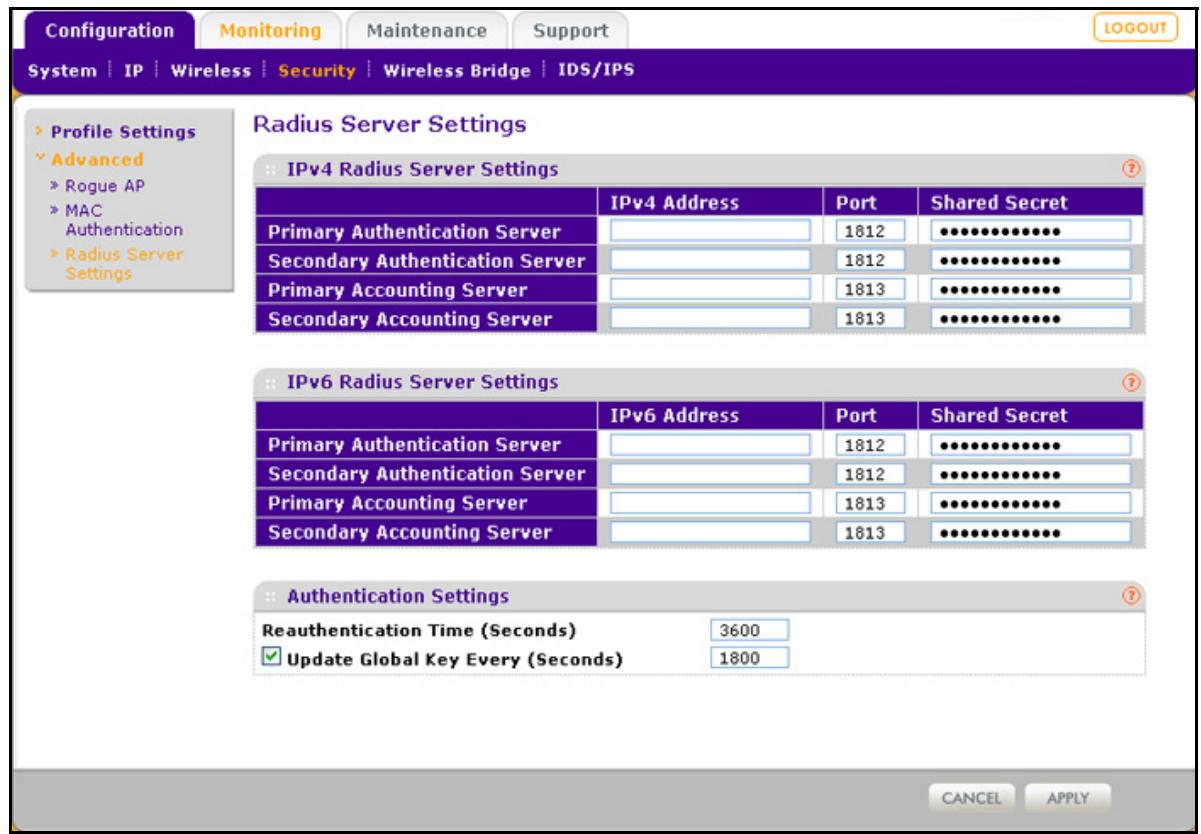
Figure 30.
- Specify the settings as explained in the following table:
Table 14. RADIUS server settings for IPv4 and IPv6
| Setting | Descriptions | |
| Radius Server Settings | ||
| PrimaryAuthentication Server | IPv4 Address or IPv6 Address | Enter the IP address of the primary RADIUS server for authentication. |
| Port | Enter the number of the UDP port on the wireless access point that is used to access the primary RADIUS server for authentication. The default port number is 1812. | |
| Shared Secret | Enter the shared key that is used between the wireless access point and the primary RADIUS server during authentication. | |
| SecondaryAuthentication Server | IPv4 Address or IPv6 Address | Enter the IP address of the secondary RADIUS server for authentication. The secondary RADIUS server is used when the primary RADIUS server is not available. |
| Port | Enter the number of the UDP port on the wireless access point that is used to access the secondary RADIUS server for authentication. The default port number is 1812. | |
| Shared Secret | Enter the shared key that is used between the wireless access point and the secondary RADIUS server during authentication. | |
| PrimaryAccounting Server | IPv4 Address or IPv6 Address | Enter the IP address of the primary RADIUS server for accounting. |
| Port | Enter the number of the UDP port on the wireless access point that is used to access the primary RADIUS server for accounting. The default port number is 1813. | |
| Shared Secret | Enter the shared key that is used between the wireless access point and the primary RADIUS server during the accounting process. | |
| SecondaryAccounting Server | IPv4 Address or IPv6 Address | Enter the IP address of the secondary RADIUS server for accounting. The secondary RADIUS server is used when the primary RADIUS server is not available. |
| Port | Enter the number of the UDP port on the wireless access point that is used to access the secondary RADIUS server for accounting. The default port number is 1813. | |
| Shared Secret | Enter the shared key that is used between the wireless access point and the secondary RADIUS server during the accounting process. | |
| Authentication Settings | ||
| ReauthenticationTime (Seconds) | The interval in seconds after which the supplicant is reauthorized with the RADIUS server. The default interval is 3600 seconds (1 hour). Enter 0 to disable reauthentication. | |
| Update Global KeyEvery (Seconds) | Select the check box to allow the global key update, and enter the interval in seconds. The check box is selected by default, and the default interval is 1800 seconds (30 minutes). Clear the check box to prevent the global key update. | |
- Click Apply to save your settings.
Restrict Wireless Access by MAC Address
For increased security, you can restrict access to an SSID by allowing access to only specific computers or wireless stations based on their MAC addresses. You can restrict access to only trusted computers so that unknown computers cannot connect wirelessly to the wireless access point. MAC address filtering adds an obstacle against unwanted access to your network, but the data broadcast over the wireless link is fully exposed.
Note: For wireless adapters, you can usually find the MAC address printed on the wireless adapter.
To restrict access based on MAC addresses:
- Select Configuration > Security > Advanced > MAC Authentication. The MAC Authentication screen displays. (The following figure shows some examples.)
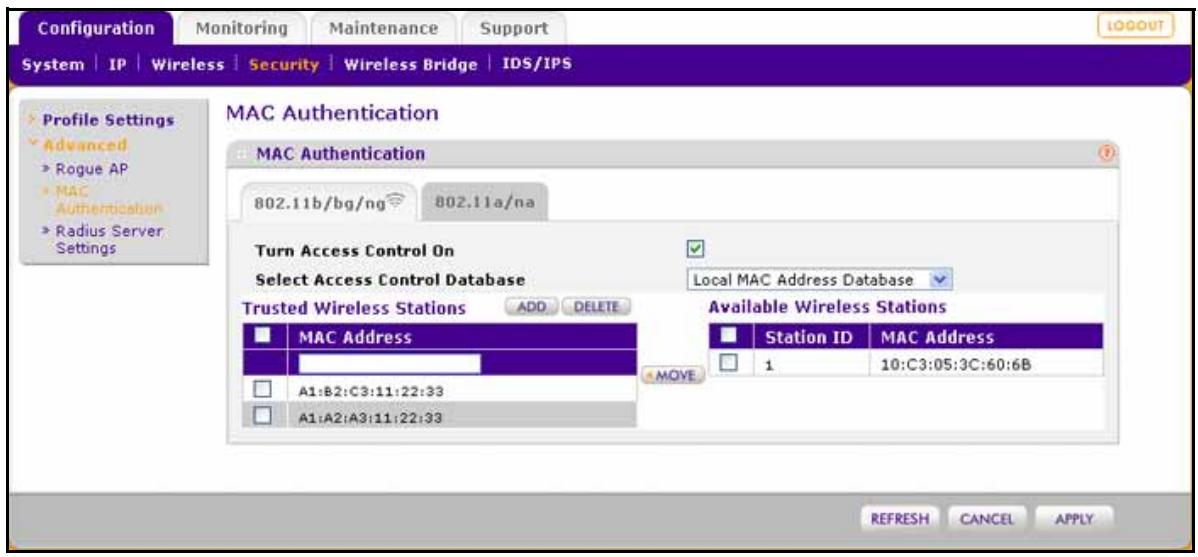
Figure 31.
- Optional: To display the MAC Authentication screen for the 802.11a/na modes, click the 802.11a/na tab.
- Select the Turn Access Control On check box to enable the access control feature.
-
From the Select Access Control Database drop-down list, select one of the following database options:
-
Local MAC Address Database. The wireless access point uses the local MAC address database for access control. This is the default setting.
-
Remote MAC Address Database. The wireless access point uses the MAC address database on an external RADIUS server on the LAN for access control. If you select this database, you first need to configure the RADIUS server settings (see Configure RADIUS Server Settings on page 57).
-
Click Refresh to refresh the Available Wireless Stations table. The wireless access point places the MAC addresses of the attached wireless stations in this table.
-
Populate the Trusted Wireless Stations table by one of the following methods:
-
Select MAC addresses from the Available Wireless Stations table:
a. Select individual check boxes for MAC addresses, or select all MAC addresses by selecting the check box in the heading.
b. Click Move to transfer the MAC addresses from the Available Wireless Stations table to the Trusted Wireless Stations table.
- Enter MAC addresses manually:
a. Enter a MAC address directly in the Trusted Wireless Stations table.
b. Click Add.
To delete a MAC address from the Trusted Wireless Stations table, select individual check boxes for MAC addresses, or select all MAC addresses by selecting the check box in the heading, and then click Delete.
- Click Apply to save your settings.
Now, only devices in the Trusted Wireless Stations table are allowed to connect to the wireless access point over a wireless connection.

WARNING:
When configuring the wireless access point from a wireless computer whose MAC address is not on the access control list, you lose your wireless connection when you click Apply. You then need to access the wireless access point from a wired computer or from a wireless computer that is on the access control list to make any further changes.
Schedule the Wireless Radio to Be Turned Off
Scheduling the wireless radio to be turned off is a green feature that allows you to turn off the wireless radio during scheduled vacations, office shutdowns, on evenings, or on weekends.
To schedule the radio to be turned on and off:
- Select Configuration > Wireless > Basic > Wireless On-Off. The Wireless On-Off screen displays:
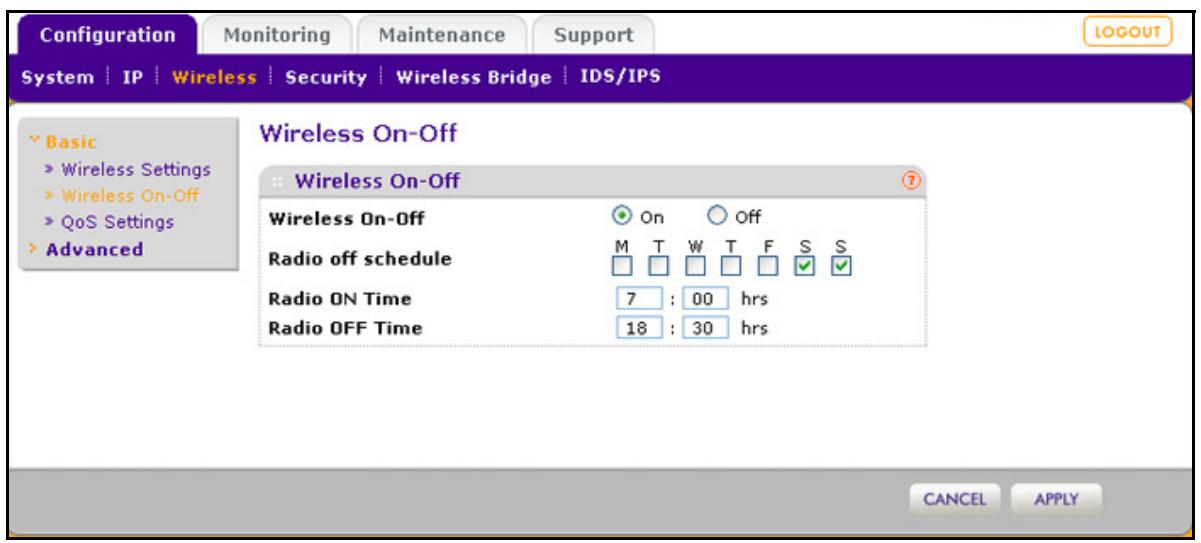
Figure 32.
- Specify the settings as explained in the following table:
Table 15. Wireless radio on/off settings
| Setting | Description |
| Wireless On-Off | Select the On radio button to enable the timer. By default, the Off radio button is selected. |
| Radio off schedule | Select check boxes to specify the days when you want to schedule the radio to be turned off. By default, Saturday and Sunday are selected. |
| Radio ON Time | Enter the time that you want the radio to be turned back on. Use 24-hour time format. |
| Radio OFF Time | Enter the time that you want the radio to be turned off. Use 24-hour time format. |
- Click Apply to save your settings.
Configure Basic Wireless Quality of Service
Wi-Fi Multimedia (WMM) is a subset of the 802.11e standard. WMM allows wireless traffic to have a range of priorities, depending on the type of data. Time-dependent information, such as video or audio, has a higher priority than normal traffic. For WMM to function correctly, wireless clients also need to support WMM.
By enabling WMM, you allow Quality of Service (QoS) control for upstream traffic flowing from a wireless station to the wireless access point and for downstream traffic flowing from the wireless access point to a wireless station.
WMM defines the following four queues in decreasing order of priority:
- Voice. The highest priority queue with minimum delay, which makes it ideal for applications like VoIP and streaming media.
Video. The second highest priority queue with low delay is given to this queue. Video applications are routed to this queue.
- Best Effort. The medium priority queue with medium delay is given to this queue. Most standard IP applications use this queue.
- Background. Low priority queue with high throughput. Applications, such as FTP, that are not time-sensitive but require high throughput can use this queue.
The WMM Powersave feature saves power for battery-powered equipment by increasing the efficiency and flexibility of data transmission.
Note: For information about how to configure advanced wireless QoS, that is, to configure specific Enhanced Distributed Channel Access (EDCA) settings, see Configure Advanced Quality of Service Settings on page 110.
To configure basic wireless QoS:
- Select Configuration > Wireless > Basic > QoS Settings. The basic QoS Settings screen displays:
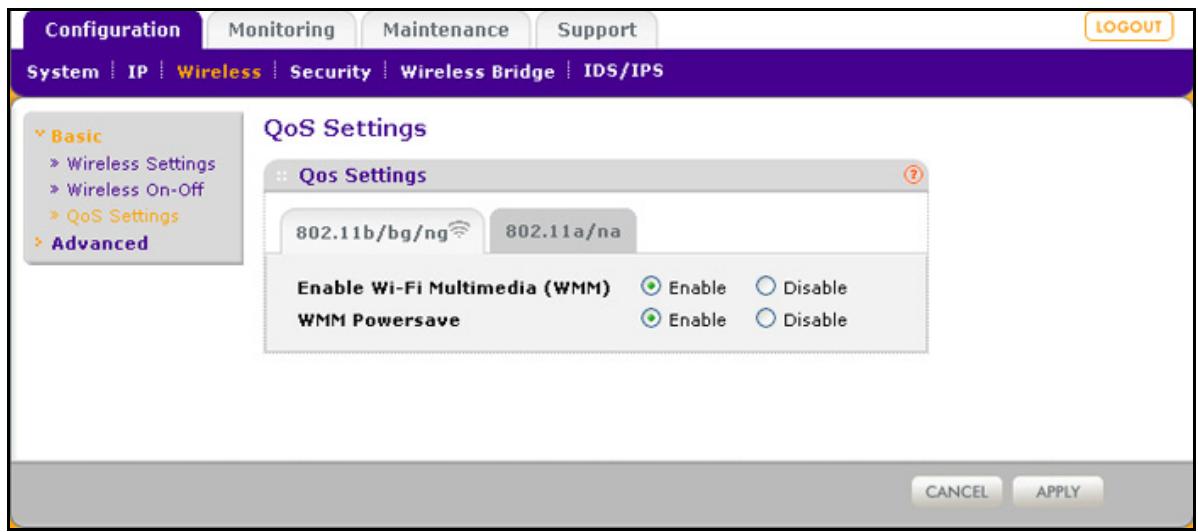
Figure 33.
- Optional: To display the basic QoS Settings screen for the 802.11a/na modes, click the 802.11a/na tab.
-
Enable or disable the WMM features:
-
Enable Wi-Fi Multimedia (WMM). To enable this feature, select the Enable radio button, which is the default setting. Select the Disable radio button to disable the feature.
-
WMM Powersave. To enable this feature, select the Enable radio button, which is the default setting. Select the Disable radio button to disable the feature.
-
Click Apply to save your settings.
This chapter describes how to use the management and monitoring features of the wireless access point. The chapter includes the following sections:
- Enable Remote Management
- Upgrade the Wireless Access Point Software
- Manage the Configuration File or Reset to Factory Defaults
- Change the Administrator Password
Manage User Accounts - Enable the Syslog Server
Monitor the Wireless Access Point - Enable Rogue AP Detection and Monitor Access Points
- Configure Wireless Intrusion Detection and Prevention
Enable Remote Management
SNMP Management
- Secure Shell and Telnet Management
Both Simple Network Management Protocol (SNMP) and the remote console Secure Shell (SSH) are enabled by default, which allows for remote management of the wireless access point from a client running SNMP management software, as well as from an SSH client. The Telnet console is disabled by default.
SNMP Management
To set up an SNMP management interface:
- Select Maintenance > Remote Management > SNMP. The SNMP screen displays:
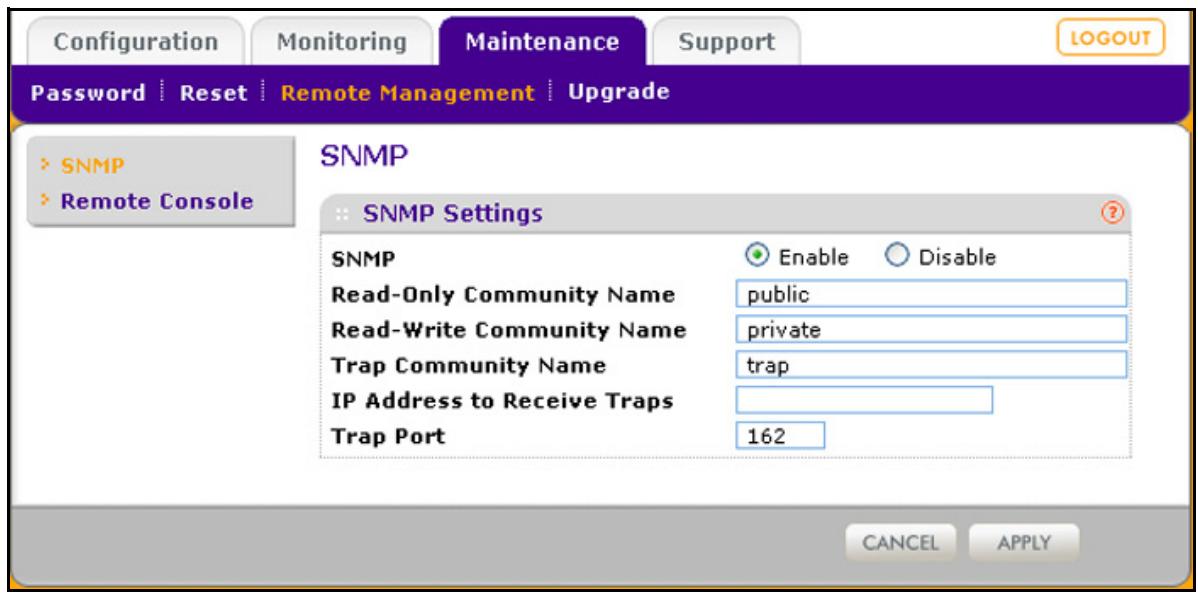
Figure 34.
- Specify the settings as explained in the following table:
Table 16. SNMP settings
| Setting | Description |
| SNMP | Select the Enable radio button to allow the SNMP network management software, such as HP OpenView, to manage the wireless access point through SNMPv1/v2 protocol. By default, the Disable radio button is selected. |
| Read-Only Community Name | Enter the community string to allow the SNMP manager to read the wireless access point's Management Information Base (MIB) objects. The default is public. |
| Read-Write Community Name | Enter the community string to allow the SNMP manager to read and write the wireless access point's MIB objects. The default is private. |
| Trap Community Name | Enter the community string to allow the SNMP manager to send traps. The default is trap. |
| IP Address to Receive Traps | Enter the IP address of the SNMP manager to receive traps sent from the wireless access point. |
| Trap Port | Enter the number of the SNMP manager port to receive traps sent from the wireless access point. The default is 162. |
- Click Apply to save your settings.
Secure Shell and Telnet Management
To configure remote console features:
- Select Maintenance > Remote Management > Remote Console. The Remote Console screen displays:
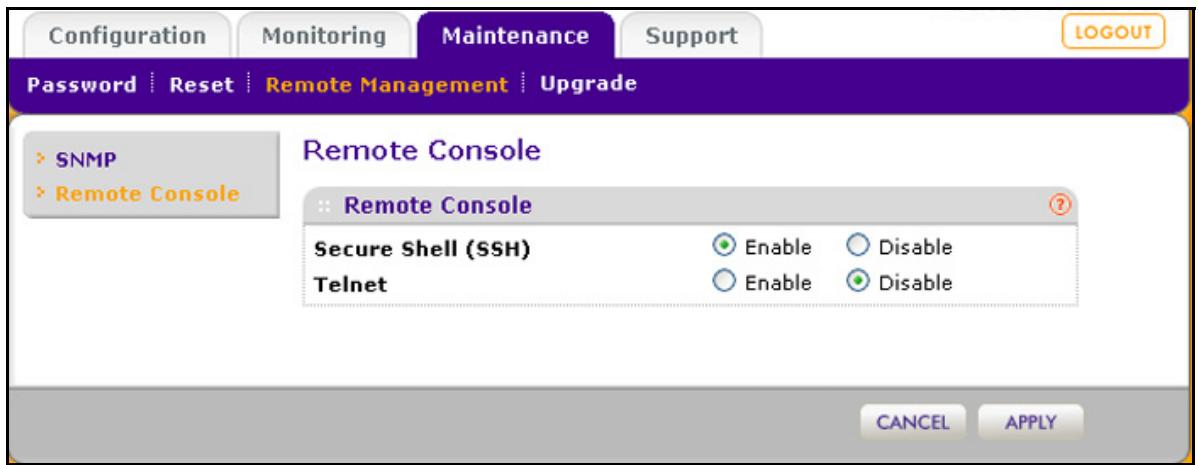
Figure 35.
-
Enable or disable the remote console features:
-
Secure Shell (SSH). To enable this feature, select the Enable radio button, which is the default setting. Select the Disable button to disable the feature.
-
Telnet. To enable this feature, select the Enable radio button. Select the Disable button to disable the feature, which is the default setting.
-
Click Apply to save your settings.
To manage the wireless access point over a Telnet connection:
- Connect an Ethernet cable to the console port of the wireless access point.
- Connect the other end of the cable to a VT100/ANSI terminal or a workstation.
If you attach a PC, Apple Macintosh, or UNIX workstation, start a secure terminal emulation program, and configure the terminal emulation program to use the following settings:
Baud rate: 9600 bps
Data bits: 8
- Parity: none
- Stop bit: 1
- Flow control: none
- Start a secure Telnet session from the terminal or workstation to the wireless access point. A screen similar to the following displays:
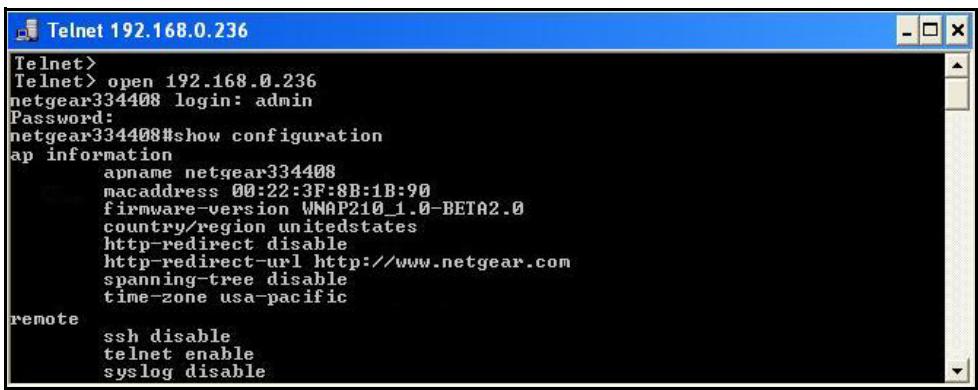
Figure 36.
- Enter the login name and password (admin and password are the defaults).
After successful login, the > prompt appears, preceded by the name of the wireless access point. In this example, the prompt is netgear334408.
- Enter the CLI commands that you want to use. You can enter show configuration to display the available CLI commands. The CLI commands are also listed in Appendix B, Command-Line Reference.
Note: You can also access the wireless access point remotely over a Telnet or SSH session using an application such as PuTTY, if such an encryption application is allowed by law in your country. After you have connected to the wireless access point, enter the login name and password to access the CLI.
Upgrade the Wireless Access Point Software
The software of the wireless access point is stored in flash memory and can be upgraded as NETGEAR releases new software. You can download upgrade files from the NETGEAR website. If the upgrade file is compressed (.zip file), you first need to extract the image (.rmt) file before sending it to the wireless access point. You can send the upgrade file using your browser. There are two methods to perform a software upgrade that are described in the following sections:
Web Browser Upgrade Procedure
TFTP Server Upgrade Procedure
Note: The web browser that you use to upload new firmware into the wireless access point needs to support HTTP uploads. Use a browser such as Microsoft Internet Explorer 6.0 or later or Mozilla 1.5 or later.
Note: You cannot perform the software upgrade from a computer that is connected to the wireless access point over a wireless link. You need to use a computer that is connected to the wireless access point over an Ethernet cable.

WARNING:
When uploading software to the wireless access point, do not interrupt the web browser by closing the window, clicking a link, or loading a new page. If the browser is interrupted, the upload might fail, corrupt the software, and render the wireless access point inoperable.
IMPORTANT:
In some cases, such as a major upgrade, you might need to erase the configuration and manually reconfigure your wireless access point after upgrading it. See the release notes included with the software to find out if you need to reconfigure the wireless access point.
Web Browser Upgrade Procedure
To use a web browser to upgrade the wireless access point firmware:
- Download the new software file from the NETGEAR website and save it to your hard disk.
- If necessary, unzip the new software file.
- If available, read the release notes before upgrading the software.
- Select Maintenance > Upgrade > Firmware Upgrade. The Firmware Upgrade screen displays:
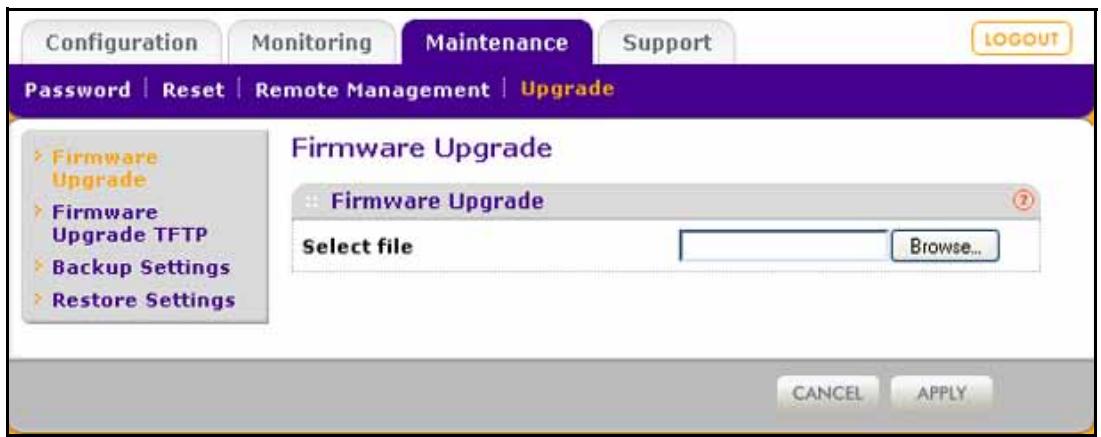
Figure 37.
- Click Browse and locate the image (.zip) upgrade file.
- Click Apply to initiate the upgrade process.
During the upgrade process, the wireless access point automatically restarts. The upgrade process typically takes several minutes. When the Test LED turns off, wait a few more seconds before doing anything with the wireless access point.
- Verify that the new software file has been installed by selecting Monitoring > System. The System screen displays (see Figure 46 on page 78). The firmware version is shown in the Access Point Information section of the screen.
TFTP Server Upgrade Procedure
To use this method, you need to have a TFTP server set up.
To use a TFTP server to upgrade the wireless access point firmware:
- Download the new software file from the NETGEAR website and save it to your hard disk.
- Place the software file in your TFTP server location. (You do not need to unzip the file.)
- If available, read the release notes before upgrading the software.
- Select Maintenance > Upgrade > Firmware Upgrade TFTP. The Firmware Upgrade TFTP screen displays:
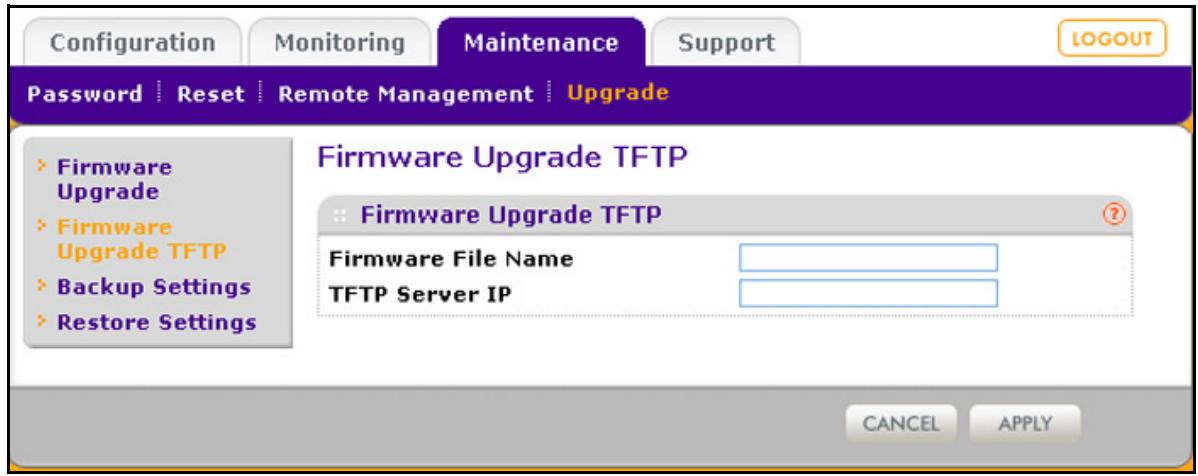
Figure 38.
-
Specify the following information:
-
Firmware File Name. The name of the unzipped software file.
TFTP Server IP. The IP address of your TFTP server. -
Click Apply to initiate the upgrade process.
During the upgrade process, the wireless access point automatically restarts. The upgrade process typically takes several minutes. When the Test LED turns off, wait a few more seconds before doing anything with the wireless access point.
- Verify that the new software file has been installed by selecting Monitoring > System. The System screen displays (see Figure 46 on page 78). The firmware version is shown in the Access Point Information section of the screen.
Manage the Configuration File or Reset to Factory Defaults
- Save the Configuration
- Restore the Configuration
- Restore the Wireless Access Point to the Factory Default Settings
Reboot the Wireless Access Point without Restoring the Default Configuration
The wireless access point settings are stored in the configuration file. You can save this file (back it up) to a computer, restore it from a computer, or reset it to factory default settings.
Save the Configuration
To save your settings:
- Select Maintenance > Upgrade > Backup Settings. The Backup Settings screen displays (see the following figure).
- Click Backup. Your browser extracts the configuration file (the file name is config) from the wireless access point and prompts you for a location on your computer to store the file.
- Follow the instructions of your browser to save the file.
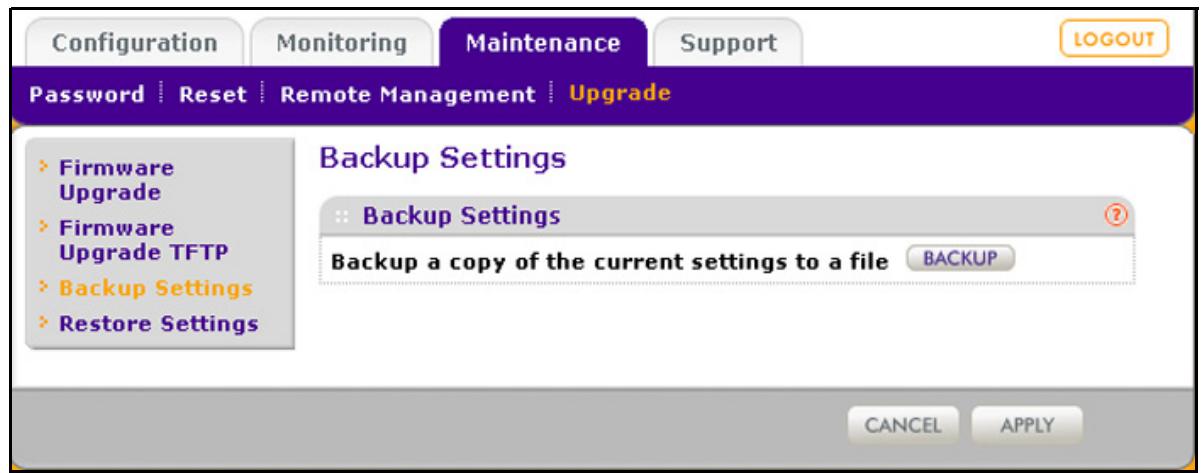
Figure 39.
Restore the Configuration
IMPORTANT:
During the restoration process, do not try to go online, turn off the wireless access point, shut down the computer, or do anything else to the wireless access point until it finishes restarting!
To restore your settings from a saved configuration file:
- Select Maintenance > Upgrade > Restore Settings. The Restore Settings screen displays:
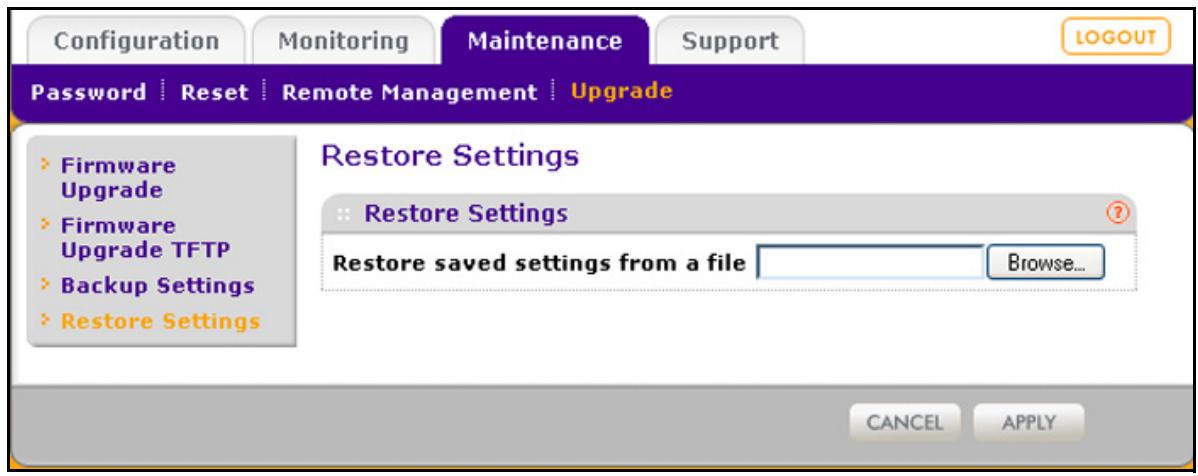
Figure 40.
- Click Browse and locate the backup configuration file (the file name is config).
- Click Apply to initiate the restoration process. During the restoration process, the wireless access point automatically restarts. The restoration process typically takes about 1 minute. When the Test LED turns off, wait a few more seconds before doing anything with the wireless access point.
Restore the Wireless Access Point to the Factory Default Settings
You can restore the wireless access point to the factory default settings by two methods that are described in the following sections:
Use the Web Management Interface to Restore Factory Default Settings
Use the Reset Button to Restore Factory Default Settings
Note: After you have restored the factory default settings on the wireless access point:
- All custom configurations are lost.
- The login password is password.
- The default LAN IP address is 192.168.0.100.
- The DHCP client is disabled.
- The Access Point Name field is reset to the name printed on the label on the bottom of the unit.
Use the Web Management Interface to Restore Factory Default Settings
IMPORTANT:
During the restoration process, do not try to go online, turn off the wireless access point, shut down the computer, or do anything else to the wireless access point until it finishes restarting!
To restore the factory default settings using the web management interface:
- Select Maintenance > Reset > Restore Defaults. The Restore Defaults screen displays:
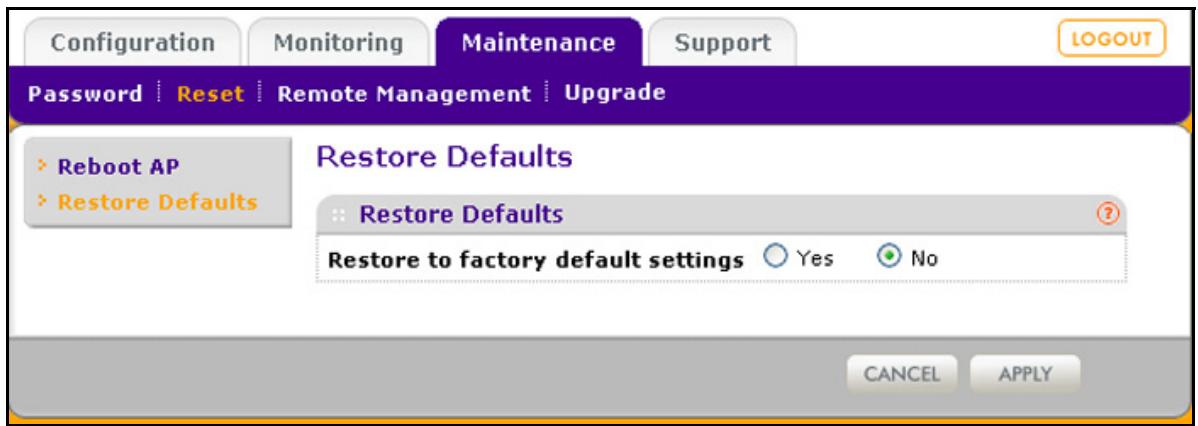
Figure 41.
- Select the Yes radio button. (By default, the No radio button is selected.)
- Click Apply to reset the wireless access point to the factory default settings.
During the restoration process, the wireless access point automatically restarts. The restoration process typically takes about 1 minute. When the Test LED turns off, wait a few more seconds before doing anything with the wireless access point.
Use the Reset Button to Restore Factory Default Settings
To restore the factory default settings when you do not know the login user name, login password, or IP address, you need to use the Reset button on the rear panel of the wireless access point (see Figure 2 on page 13).
To restore the factory default settings using the Reset button:
- Using a sharp object, press and hold the Reset button for about 5 seconds (until the Test LED blinks rapidly) to reset the wireless access point to factory defaults settings.
Note: Pressing the Reset button for a shorter time simply causes the wireless access point to reboot.
- Release the Reset button.
During the restoration process, the wireless access point automatically restarts. The restoration process typically takes about 1 minute. When the Test LED turns off, wait a few more seconds before doing anything with the wireless access point.
Reboot the Wireless Access Point without Restoring the Default Configuration
If you do not have physical access to the wireless access point to switch it off and on again, you can use the software to reboot the wireless access point.
To reboot the wireless access point:
- Select Maintenance > Reset > Reboot AP. The Reboot AP screen displays:
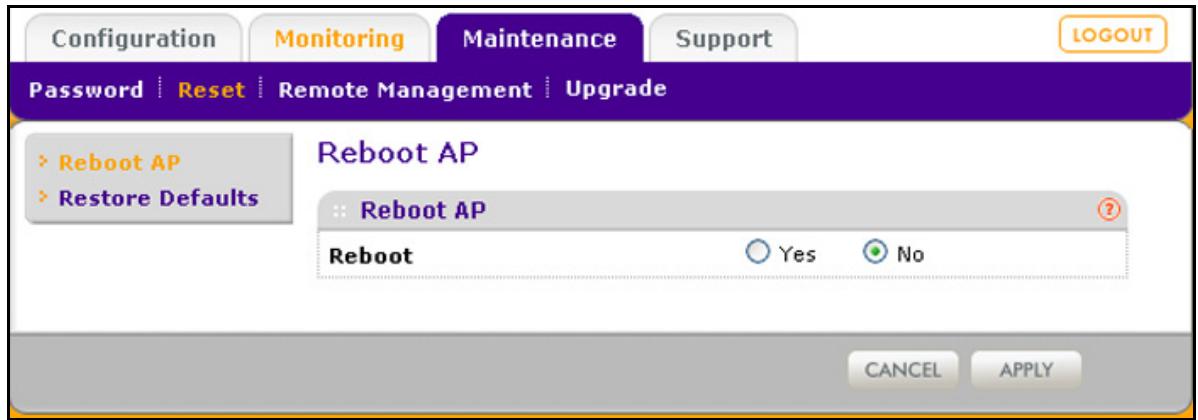
Figure 42.
- Select the Yes radio button. (By default, the No radio button is selected.)
- Click Apply to reboot the wireless access point.
The reboot process typically takes about 1 minute. When the Test LED turns off, wait a few more seconds before doing anything with the wireless access point.
Change the Administrator Password
The default password is password. NETGEAR recommends that you change this password to a more secure password. You cannot change the administrator login name (admin).
The ideal password contains no dictionary words from any language and is a mixture of letters (both uppercase and lowercase), numbers, and symbols. Your password can be up to 30 characters.
To change the administrator password:
- Select Maintenance > Password > Change Password. The Change Password screen displays:
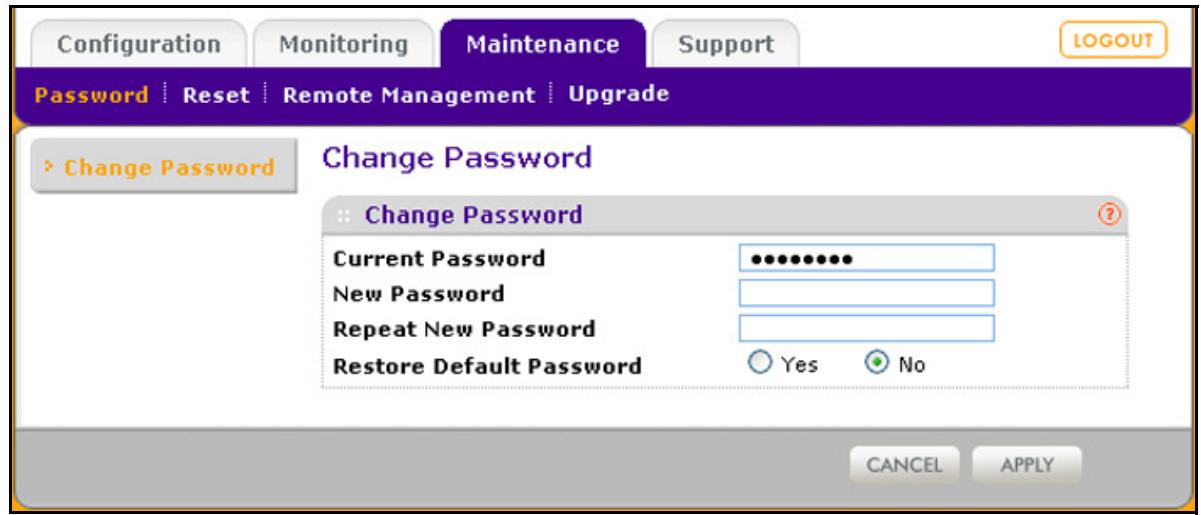
Figure 43.
-
Take one of the following actions:
-
Enter a new password twice, once in the New Password field and again in the Repeat New Password field.
-
Next to Restore Default Password, select the Yes radio button to restore the default password. By default, the No radio button is selected.
-
Click Apply to save your settings.
If you have restored the default password, the login password is password. If you have configured a new password, write it down in a secure place.
Manage User Accounts
The admin user account is the default user account, which you cannot delete. However, you can add other user accounts, modify them, and delete them. Users for whom you set up an account can access the web management interface with read-only or read-write privileges.
Note: Only the administrator can create, change, and delete user accounts.
To add a new user account:
- Select Configuration > System > Advanced > User Accounts. The User Accounts screen displays:
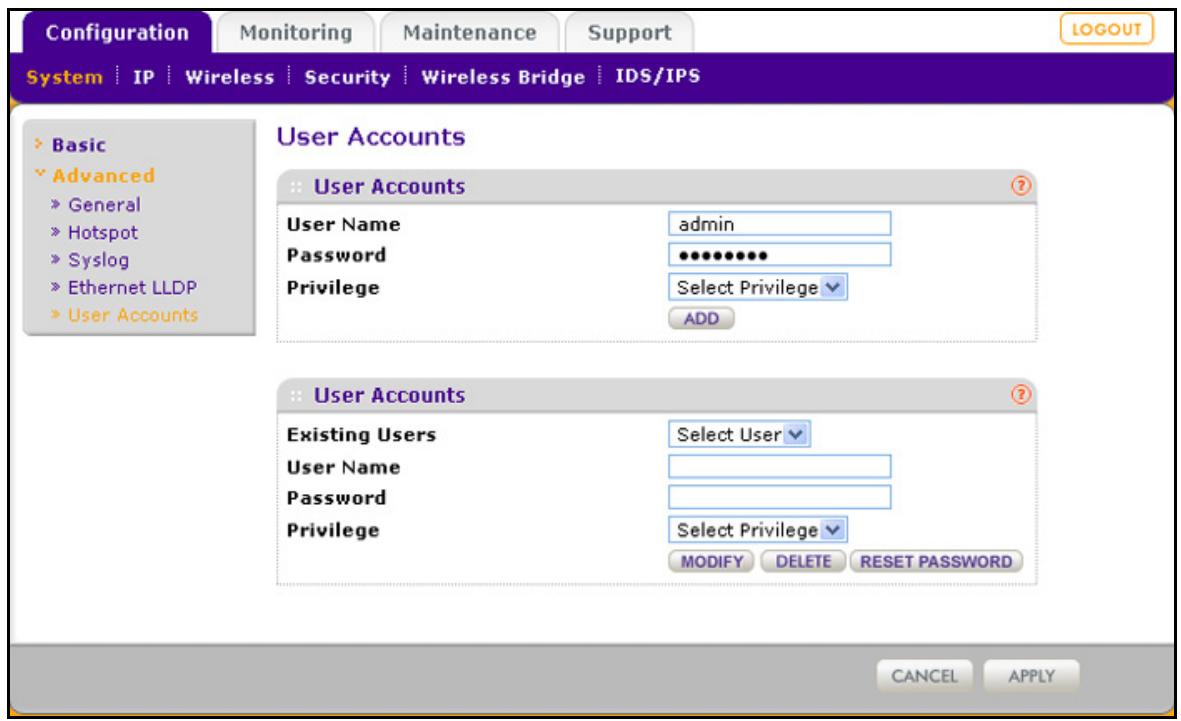
Figure 44.
- Configure the settings in the upper part of the screen as explained in the following table:
Table 17. Add user account settings
| Setting | Description |
| User Name | Enter a new user name |
| Password | Enter a password between 4 and 12 characters in length. |
| Privilege | From the Privilege drop-down list, select Read Write or Read Only. |
- Click Add.
- Click Apply to save your settings.
To change the name for a user account:
- On the User Accounts screen, in the lower part of the screen, select the user from the Existing Users drop-down list.
- In the User Name field, modify the name.
- Click Modify.
- Click Apply to save your settings.
To change the privilege for a user account:
- On the User Accounts screen, in the lower part of the screen, select the user from the Existing Users drop-down list.
- From the Privilege drop-down list, select another privilege.
- Click Reset Password. The password is reset to the default password, which is password.
- Click Apply to save your settings.
To reset the password for a user account:
- On the User Accounts screen, in the lower part of the screen, select the user from the Existing Users drop-down list.
- Click Reset Password. The password is reset to the default password, which is password.
- Click Apply to save your settings.
Note: If you want to modify a password, delete the user account, and then recreate the user account with the password of your choice.
To delete a user account:
- On the User Accounts screen, in the lower part of the screen, select the user from the Existing Users drop-down list.
- Click Delete.
- Click Apply to save your settings.
Enable the Syslog Server
The Syslog screen allows you to enable the syslog option if you have a syslog server on your LAN. If syslog is enabled, the wireless access point sends its syslog files to the syslog server.
To enable a syslog server:
- Select Configuration > System > Advanced > Syslog. The Syslog screen displays:
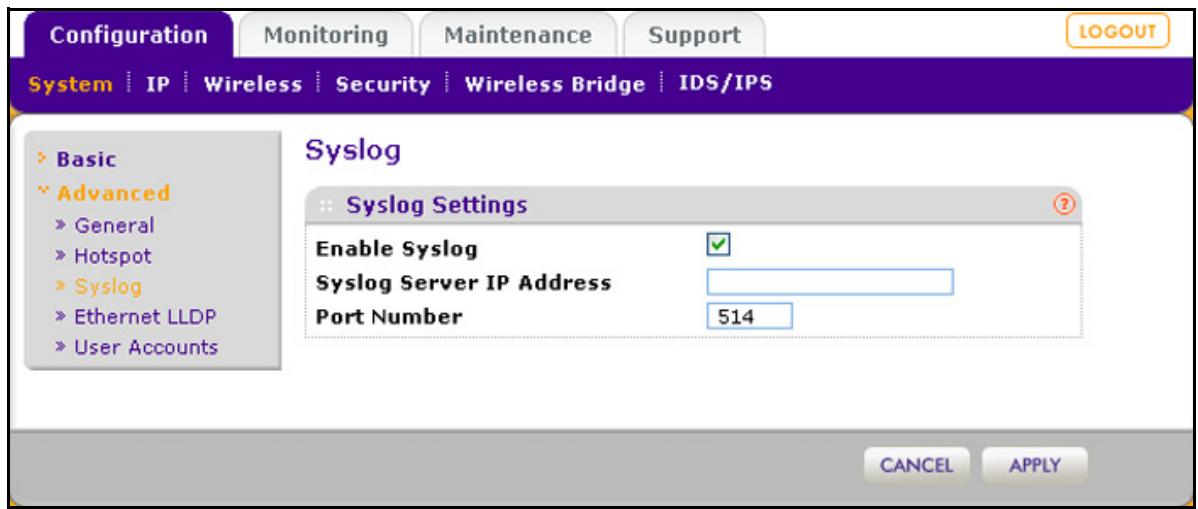
Figure 45.
Specify the settings as explained in the following table:
Table 18. Syslog settings
| Setting | Description |
| Enable Syslog | Select the check box to enable the syslog option. By default, the syslog option is disabled. |
| Syslog Server IP Address | Enter the IP address of the syslog server to which the wireless access point sends the syslog files. |
| Port Number | Enter the port number that is configured on the syslog server. The default port number is 514. |
- Click Apply to save your settings.
Monitor the Wireless Access Point
View System Information
Monitor Wireless Stations
View the Activity Log
Traffic Statistics
View System Information
The System screen provides a summary of the current wireless access point configuration settings, including current IP settings and current wireless settings. This information is read only, so any changes need to be made on other screens.
To view the System screen:
Select Monitoring > System.
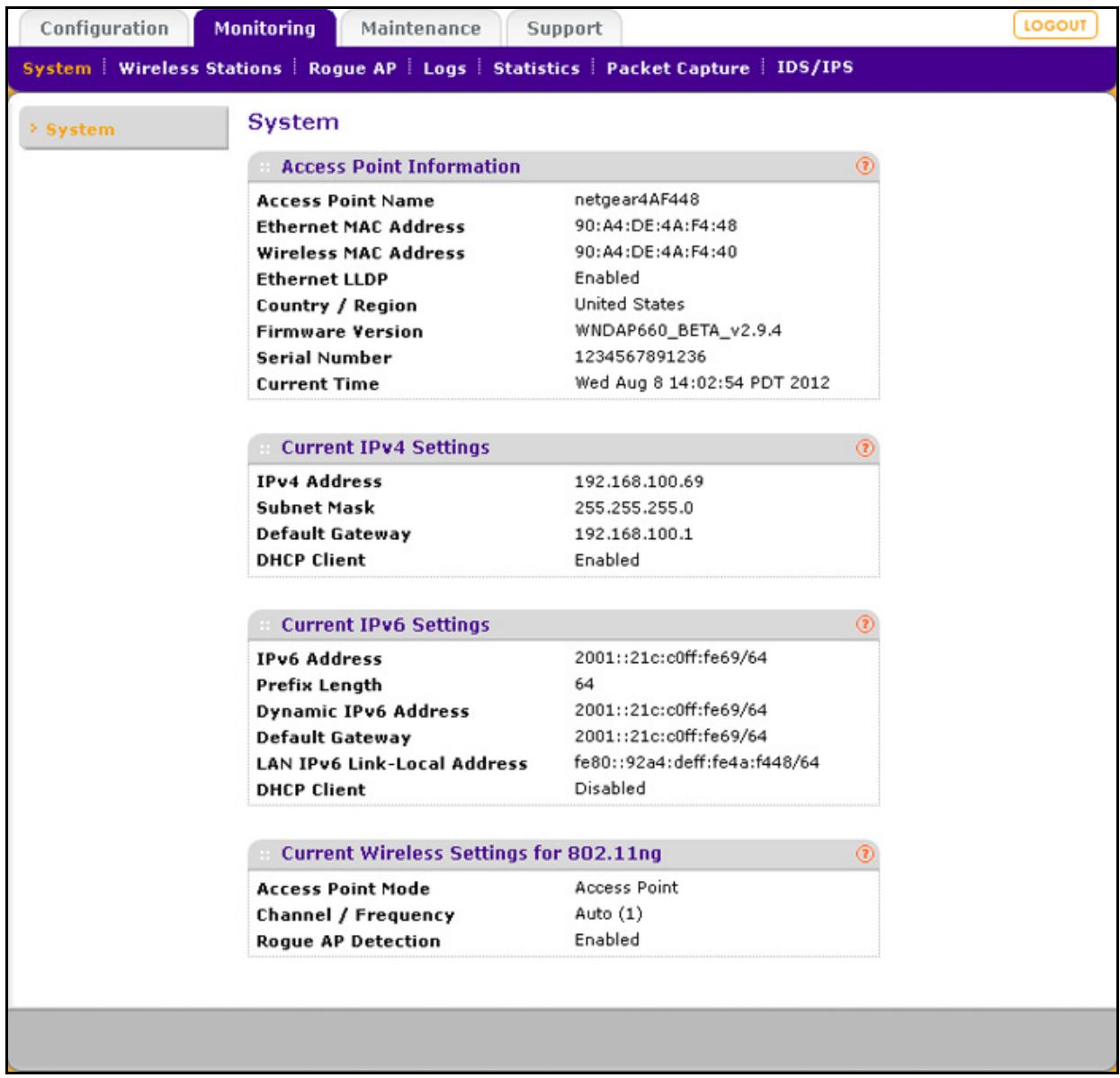
Figure 46.
The following table explains the fields of the System screen:
Table 19. System screen fields
| Setting | Description |
| Access Point Information | |
| Access Point Name | The NetBIOS name. For information about how to change the default name, see Configure Basic General System Settings and Time Settings on page 23. |
| Ethernet MAC Address | The MAC address of the wireless access point's Ethernet port. |
| Wireless MAC Address | The MAC address of the wireless access point's wireless card. |
| Ethernet LLDP | Enabled indicates that LLDP is enabled. Disabled indicates that it is not. |
| Country/Region | The country or region for which the wireless access point is licensed for use. For information about how to change the country or region, see Configure Basic General System Settings and Time Settings on page 23.Note: It might not be legal to operate this wireless access point in a country or region other than one of those identified in this field. |
| Firmware Version | The version of the firmware that is currently installed. |
| Serial Number | The serial number of the wireless access point. |
| Current Time | The current time. For information about how to change the time settings, see Configure Basic General System Settings and Time Settings on page 23. |
| Current IPv4 SettingsFor information about how to change any of these IP settings, see Configure the IPv4 Settings on page 25. | |
| IP Address | The IPv4 address of the wireless access point. |
| Subnet Mask | The subnet mask for the address of the wireless access point. |
| Default Gateway | The default IPv4 gateway for the wireless access point communication. |
| DHCP Client | Enabled indicates that the current IP address was obtained from a DHCPv4 server on your LAN network. Disabled indicates a static IP configuration. |
| Current IPv6 SettingsFor information about how to change any of these IP settings, see Configure IPv6 Settings and Optional DHCPv6 Server Settings on page 99. | |
| IPv6 Address | The default IPv6 address of the wireless access point. |
| Prefix Length | The prefix length for the address of the wireless access point. |
| Dynamic IPv6 Address | The dynamically assigned IPbv6 address if the DHCPv6 server has the stateful option enabled. |
| Default Gateway | The default IPv6 gateway for the wireless access point communication. |
| LAN IPv6 Link-Local Address | This is an automatically generated IPv6 address that uses the IPv4 address in the interface portion of its address. |
| DHCP Client | Enabled indicates that the current IP address was obtained from a DHCPv6 server on your LAN network. Disabled indicates a static IP configuration. |
| Current Wireless Settings for 802.11b, 802.11g, or 802.11ng or Current Wireless Settings for 802.11a or 802.11na Note: The section heading depends on the configured wireless mode. | |
| Access Point Mode | The operating mode of the wireless access point. One of the following modes is indicated:Access PointPoint-to-Point BridgePoint-to-Point Bridge with Access PointMulti-Point Bridge with/without client associationFor information about how to change the mode, see Configure Wireless Bridging on page 118. |
| Channel / Frequency | The channel that the wireless port is using. For information about how to change the channel and frequency, see Configure 802.11b/bg/ng Wireless Settings on page 28 and Configure 802.11a/na Wireless Settings on page 31. |
| Rogue AP Detection | Enabled indicates that rogue AP detection is enabled. Disabled indicates that it is not. |
Monitor Wireless Stations
The Wireless Stations screen contains the Available Wireless Stations table. This table shows all IP devices that are associated with the wireless access point in the wireless network that is defined by the wireless network name (SSID). The table heading indicates the wireless mode (802.11b, 802.11bg, or 802.11ng for the 2.4-GHz band, or 802.11a or 802.11na for the 5-GHz band).
Note: A wireless network can include multiple wireless access points, all using the same network name (SSID). This uniformity extends the reach of the wireless network and allows users to roam from one wireless access point to another, providing seamless network connectivity. Under these circumstances, be aware that the Available Wireless Stations table includes only the stations associated with this wireless access point.
To view the attached wireless stations, and to view details for a wireless station:
- Select Monitoring > Wireless Stations. The Wireless Stations screen displays:
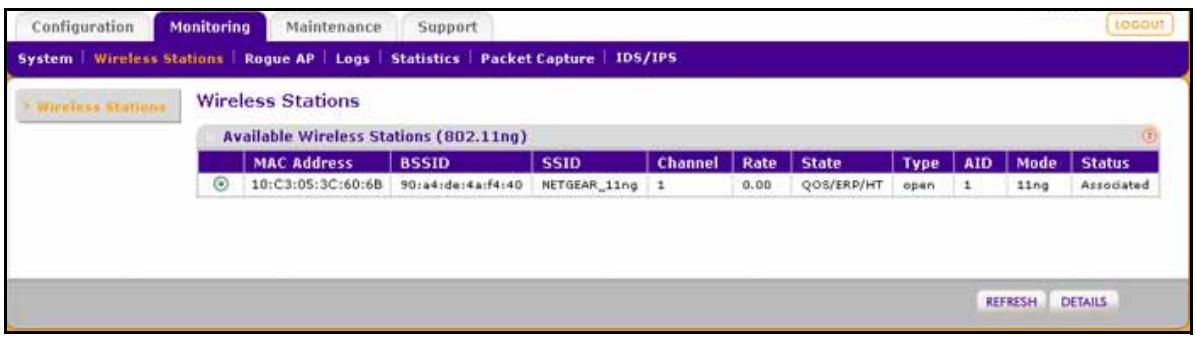
Figure 47.
To update the list, click Refresh. If the wireless access point is rebooted, the wireless station data is lost until the wireless access point rediscovers the devices. To force the wireless access point to look for associated devices, click Refresh.
The Available Wireless Stations table shows the MAC address, BSSID, SSID, channel, rate, state, type, AID, mode, and status for each device. For information about these and more fields, see the table that follows the next figure.
- To view details of a wireless station, select the corresponding radio button, and then click Details. The Wireless Stations Details screen displays:
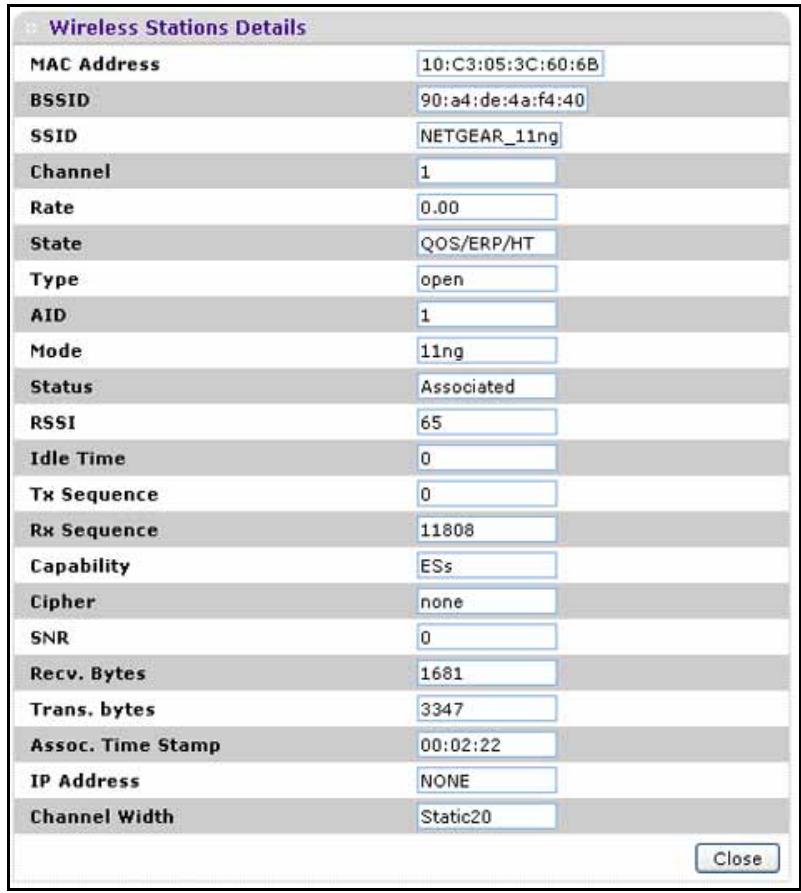
Figure 48.
The following table explains the fields of the Wireless Stations Details screen:
Table 20. Wireless stations details fields
| Setting | Description |
| MAC Address | The MAC address of the wireless station. |
| BSSID | The BSSID that the wireless station is using. |
| SSID | The SSID that the wireless station is using. |
| Channel | The channel that the wireless station is using. |
| Rate | The transmit data rate in Mbps of the wireless station. |
| State | The features that are enabled on the wireless station. |
| Type | The authentication and encryption type that the wireless station is using. |
| AID | The associated identifier (AID) of the wireless station. |
| Mode | The wireless mode in which the wireless station is operating. |
| Status | The wireless status of the wireless station (Associated). |
| RSSI | The received signal strength indicator (RSSI) of the wireless station. |
| Idle Time | The time since the last frame was received from the wireless station. |
| Tx Sequence | The sequence number of the last frame that was transmitted to the wireless station. |
| Rx Sequence | The sequence number of the last frame that was received from the wireless station. |
| Capability | The summary of the capability of the wireless station that was detected during association. |
| Cipher | The cipher that the wireless station is using and that defines the type of encryption. |
| SNR | The signal-to-noise ratio (SNR) that indicates how much the signal of the wireless station has been corrupted by noise. |
| Recv. Bytes | The number of bytes received on the wireless station since it last started up. |
| Trans. bytes | The number of bytes transmitted by the wireless station since it last started up. |
| Assoc. Time Stamp | The time when these details of the wireless station were retrieved. |
| IP Address | The IP address of the wireless station. |
| Channel Width | The channel width at which the wireless station operates. |
View the Activity Log
You can view the wireless access point's activity logs onscreen and save the logs.
To display the activity log and save it:
- Select Monitoring > Logs. The Logs screen displays:
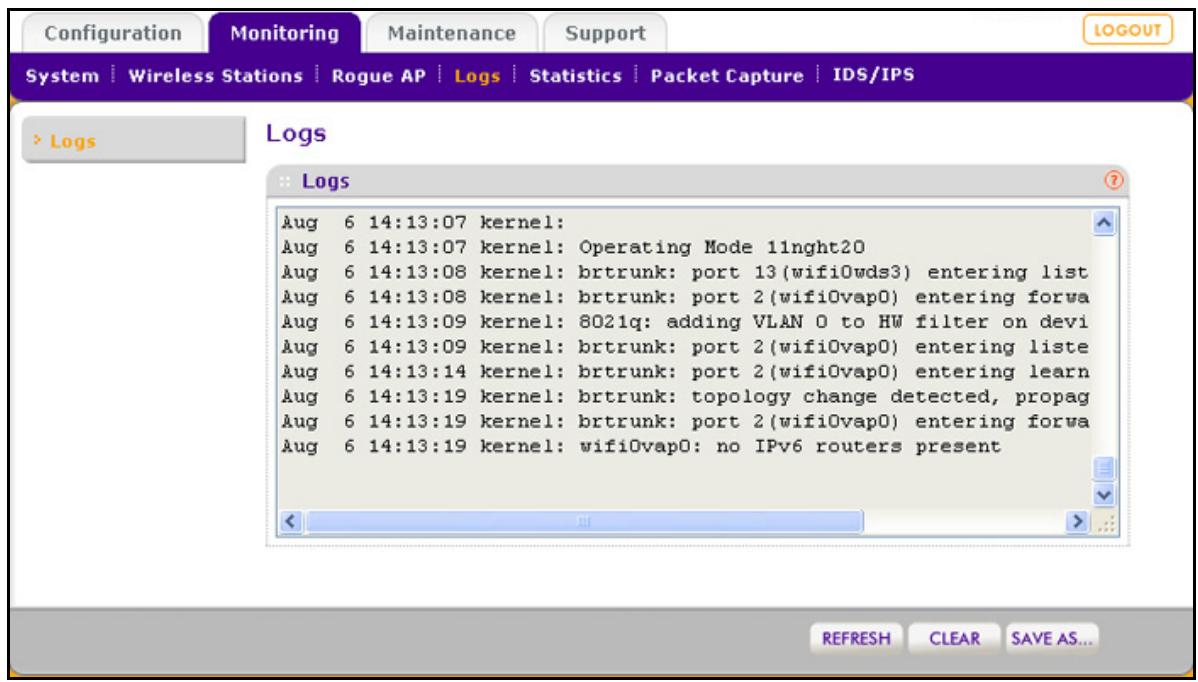
Figure 49.
- Click Save As to save the log contents to a file on your computer or to a disk drive. To update the display onscreen, click Refresh; to clear the log content, click Clear.
Traffic Statistics
The Statistics screen displays information for both wired (LAN) and wireless (WLAN) network traffic.
To display the Statistics screen:
Select Monitoring > Statistics.
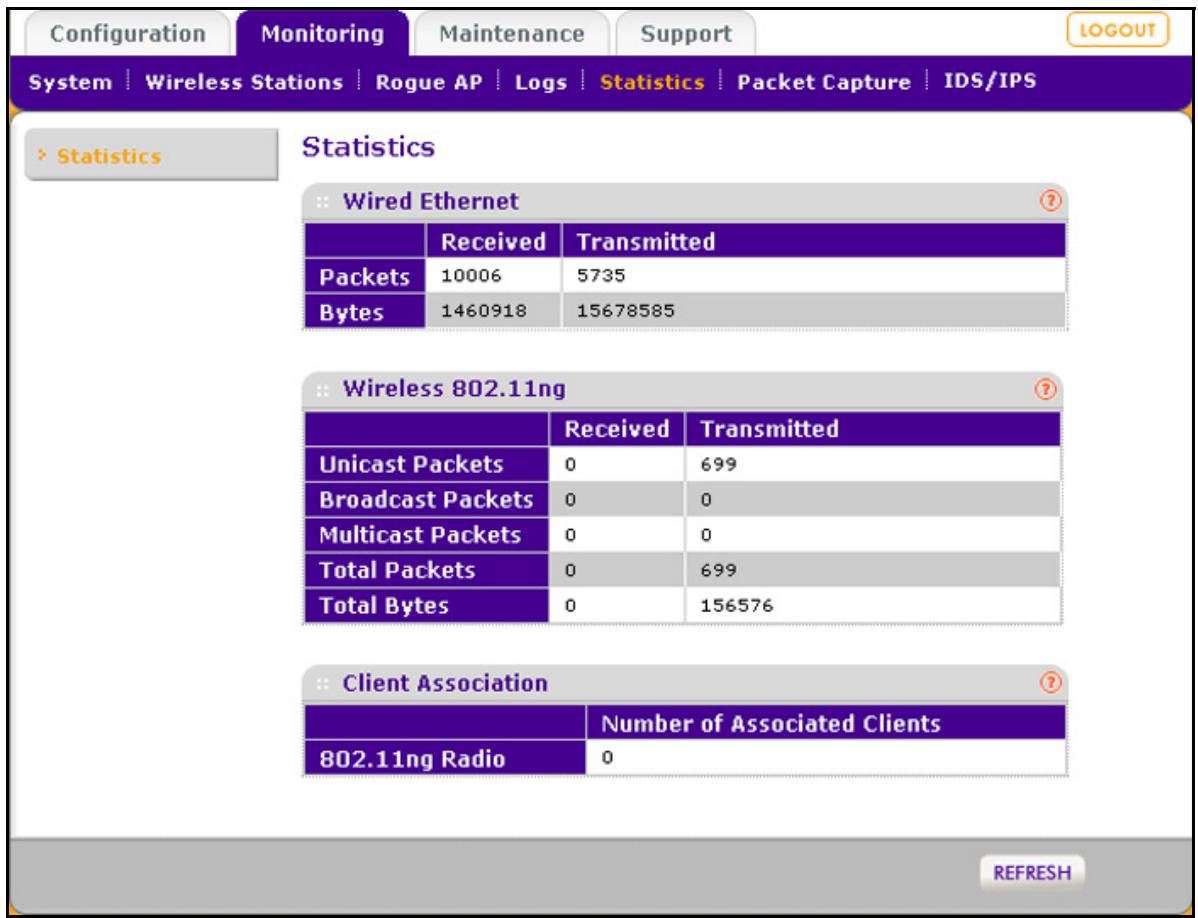
Figure 50.
To update the statistics information, click Refresh.
The following table explains the fields of the Statistics screen:
Table 21. Statistics fields
| Setting | Description |
| Wired Ethernet | |
| Packets | The number of packets received and transmitted over the Ethernet connection since the wireless access point was restarted. |
| Bytes | The number of bytes received and transmitted over the Ethernet connection since the wireless access point was restarted. |
| Wireless 802.11b, Wireless 802.11bg, Wireless 801.11ng, Wireless 802.11a, or Wireless 802.11na Note: The section heading depends on the configured wireless mode. | |
| Unicast Packets | The number of unicast packets received and transmitted over the wireless connection since the wireless access point was restarted. |
| Broadcast Packets | The number of broadcast packets received and transmitted over the wireless connection since the wireless access point was restarted. |
| Multicast Packets | The number of multicast packets received and transmitted over the wireless connection since the wireless access point was restarted. |
| Total Packets | The total number of packets received and transmitted over the wireless connection since the wireless access point was restarted. |
| Total Bytes | The total number of bytes received and transmitted over the wireless connection since the wireless access point was restarted. |
| Client Association | |
| 802.11b Radio, 802.11bg Radio, or 802.11ng Radio 802.11na Radio or 802.11a Radio | The number of associated clients connected to the radio in the configured wireless modes. |
Enable Rogue AP Detection and Monitor Access Points
- Enable and Configure Rogue AP Detection
View and Save Access Point Lists
Enable and Configure Rogue AP Detection
The wireless access point can detect rogue access points and prevent them from connecting to the wireless access point. The wireless access point maintains a list of access points it detects in the area. Initially all detected access points are displayed in the Unknown AP List. You restrict communication to approved access points by adding them to the Known AP List and enabling the rogue AP detection feature.
If you enable rogue AP detection, the wireless access point continuously scans the wireless network and collects information about all access points on its channel.
To enable and configure rogue AP detection:
- Select Configuration > Security > Advanced > Rogue AP. The Rogue AP screen displays. (The following figure shows examples in the Known AP List and Unknown AP List.)
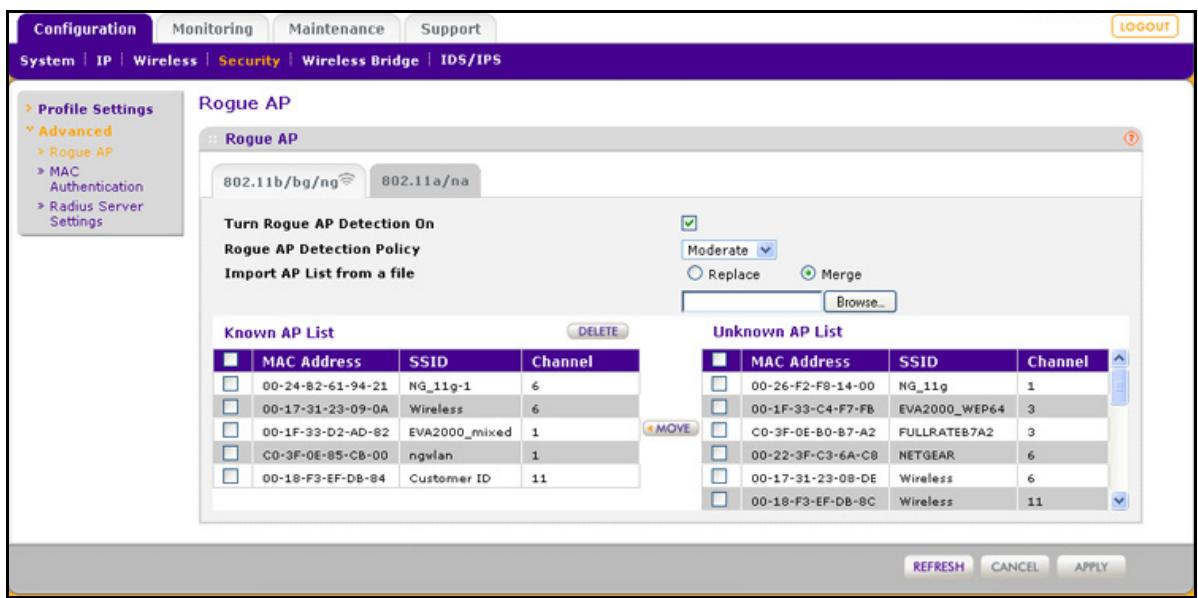
Figure 51.
- Optional: To enable and configure rogue AP detection for the 802.11a/na modes, click the 802.11a/na tab.
- Select the Turn Rogue AP Detection On check box to enable rogue AP detection.
- Specify the detection policy by making a selection from the Rogue AP Detection Policy drop-down list:
Mild. The wireless access point scans for rogue access points every 10 seconds.
- Moderate. The wireless access point scans for rogue access points every 5 seconds. This is the default setting.
- Aggressive. The wireless access point scans for rogue access points every second.
- Click Refresh to let the wireless access point discover the access points and populate the Unknown AP List.
- In the Unknown AP List, select individual check boxes for access points, or select all access points by selecting the check box in the column heading.
- Click Move to transfer the access points from the Unknown AP List to the Known AP List.
- Click Apply to save your settings.
To remove APs from the Known AP List and return them to the Unknown AP List:
- In the Known AP List, select individual check boxes for access points, or select all access points by selecting the check box in the column heading.
- Click Delete.
To import a file with a precompiled list of access points into the Known AP List:
-
Take one of the following actions:
-
Select the Replace radio button to let the imported list of access points replace the existing Known AP List.
-
Select the Merge radio button to add the imported list of access points to the existing Known AP List.
-
Click Browse and locate the file that contains the list of access points. This file needs to be a simple text file with one MAC address per line.
- Select the file, and click Open.
- Click Apply to upload the list of access points to the Known AP List.
View and Save Access Point Lists
The wireless access point detects nearby APs and wireless stations and maintains them in a list. You can use this list to prevent them from connecting to the wireless access point.
To view the Unknown AP List and save it to a file:
- Select Monitoring > Rogue AP > Unknown AP List. The Unknown AP List screen displays:
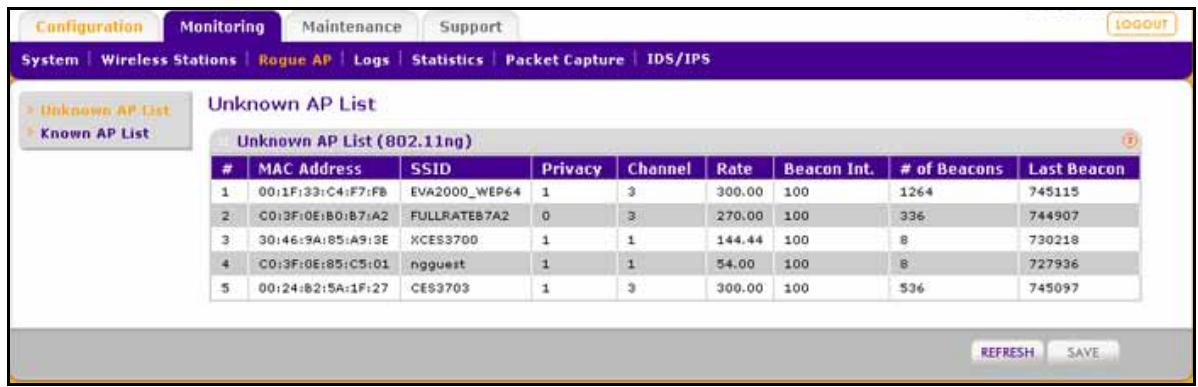
Figure 52.
- Click Refresh to let the wireless access point discover the access points and populate the Unknown AP List for the configured wireless mode.
The following table explains the fields of the Unknown AP List screen:
Table 22. Unknown AP List fields
| Setting | Description |
| MAC Address | The MAC address of the unknown AP. |
| SSID | TheSSID that the unknown AP is using. |
| Privacy | Indicates whether security is enabled (1 means enabled; 0 means disabled). |
| Channel | The channel that the unknown AP is using. |
| Rate | The transmit data rate in Mbps of the unknown the AP. |
| Beacon Int. | The interval for each beacon transmission in ms. |
| # of Beacons | The number of beacons transmitted by the unknown AP that the wireless access point has detected. |
| Last Beacon | The time stamp that indicates the time when the most recent beacon was detected. |
- Click Save to export the list of unknown or known APs to a file. A window opens so you can browse to the location where you want to save the file. The default file name is macList.txt.
If you wish, you can now import the saved list into the Known AP List on the Rogue AP screen (see Enable and Configure Rogue AP Detection on page 85).
To view the Known AP Lists and save it to a file:
- Select Monitoring > Rogue AP > Known AP List. The Known AP List screen displays:
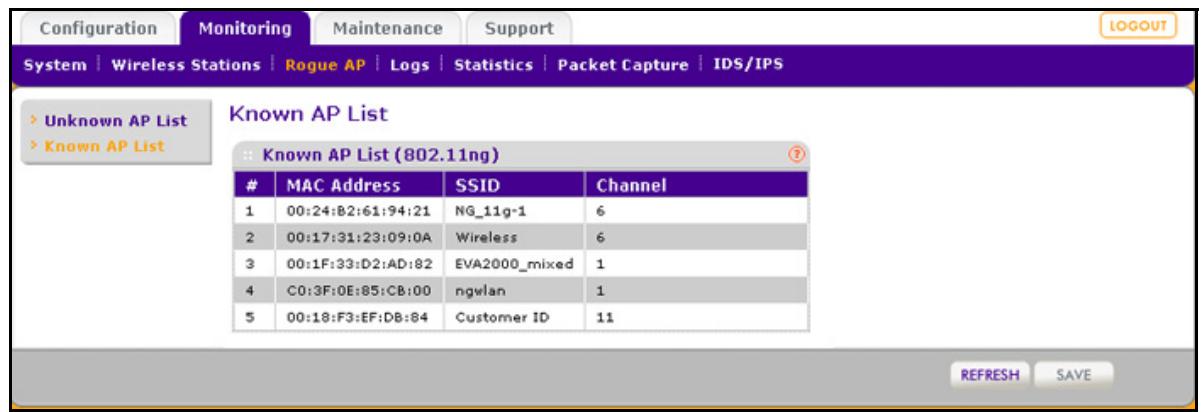
Figure 53.
- Click Refresh to let the wireless access point discover the access points and populate the Known AP List for the configured wireless mode.
The following table explains the fields of the Known AP List screen:
Table 23. Known AP List fields
| Setting | Description |
| MAC Address | The MAC address of the known AP. |
| SSID | TheSSID that the known AP is using. |
| Channel | The channel that the known AP is using. |
- Click Save to export the list of known access points to a file. A window opens so you can browse to the location where you want to save the file. The default file name is macList.txt.
You can now import the saved list into the Known AP List on the Rogue AP screen (see Enable and Configure Rogue AP Detection on page 85).
Configure Wireless Intrusion Detection and Prevention
- Configure Wireless Intrusion Detection and Prevention Policy Settings
- Configure Wireless Intrusion Detection and Prevention Mail Settings
Monitor Traps, Counters, and Ad Hoc Networks
Configure Wireless Intrusion Detection and Prevention Policy Settings
The wireless access point provides a wireless intrusion detection system (WIDS) and wireless intrusion prevention system (WIPS) to detect and mitigate wireless attacks. These intrusion systems are referred to as IDS/IPS.
If enabled, the IDS recognizes multiple types of wireless attacks, and the IPS automatically neutralizes many attacks. Attacks are covered by preconfigured policy rules. When an attack occurs, the wireless access point can notify a network administrator though an email.
The following table lists all IDS/IPS policies with their policy rules. Most of these policies provide protection against denial of service (DoS) attacks. You can enable or disable IDS/IPS policies, but both the policies and the policy rules are not configurable.
All thresholds are measured over a short period. For the IDS/IPS to send a notification according to the policy rule, you first need to configure the email settings (see Configure Wireless Intrusion Detection and Prevention Mail Settings on page 95).
Table 24. IDS/IPS policies and policy rules
| Policy | Description | Policy Rule | |
| Threshold | Notification | ||
| Authentication flood | Attack. Multiple authentication requests (5 or more) that use spoofed MAC addresses of legitimate clients are sent to the wireless access point. Result. The client association table overflows, causing authentication requests from legitimate clients to be denied. Solution. The oldest clients that are stuck in the authentication phase are removed from the table. | 5 | Trap |
| Association flood | Attack. Multiple association requests (5 or more) that use spoofed MAC addresses of legitimate clients are sent to the wireless access point. Result. The client association table overflows, causing association requests from legitimate clients to be denied. Solution. The oldest associations are removed from the table. | 5 | Trap |
| Unauthorized association | Attack. Multiple unauthenticated association requests (5 or more) that use spoofed MAC addresses of legitimate clients are sent to the wireless access point.Result. The client association table overflows, causing authentication requests from legitimate clients to be denied.Solution. The oldest clients that are stuck in the authentication phase are removed from the table. | 5 | Trap |
| Association table overflow | Attack. Multiple clients (5 or more) that use spoofed MAC addresses of legitimate clients attempt to connect to the wireless access point(Result. The client association table overflows, causing association requests from legitimate clients to be denied.Solution. The oldest associations are removed from the table. | 5 | Trap |
| Authentication failure attack | Attack. Multiple invalid authentication requests (5 or more) that use the spoofed MAC address of a legitimate client are sent to the wireless access point(Result. The client is disconnected from the wireless access point.Solution. The wireless access point determines if the legitimate client is already connected before processing an authentication request. | 5 | Trap |
| Deauthentication broadcast attack | Attack. Multiple deauthentication frames (5 or more) that use the spoofed MAC address of the wireless access point are sent to legitimate clients(Result. Clients are disconnected from the wireless access point.Note: The IDS detects this attack, but the IPS does not take action against this attack. | 5 | Trap |
| Disassociation flood | Attack. Multiple disassociation frames (5 or more) that use the spoofed MAC address of the wireless access point are sent to a legitimate client(Result. The client is disconnected from the wireless access point.Note: The IDS detects this attack, but the IPS does not take action against this attack. | 5 | Trap |
| Malformed 802.11 packets detected | Detection. Multiple malformed packets (5 or more) are sent to the wireless access point(Result. Clients behave unexpectedly or crash.Solution. The wireless access point drops the malformed packets. | 5 | Trap |
| EAPOL-start attack | Attack. Multiple EAPOL start frames (5 or more) are sent to the wireless access point to initiate the RADIUS authentication process for clients. Result. Wireless service is disrupted. Solution. The wireless access point determines if the legitimate clients have already been authenticated before processing EAPOL start frames. | 5 | Trap |
| EAPOL-logoff attack | Attack. Several EAPOL logoff frames (2 or more) that use the spoofed MAC address of a legitimate client are sent to the wireless access point to terminate a RADIUS authenticated session. Result. The client is disconnected from the wireless access point. Solution. The wireless access point determines if it still receives traffic from the client before disconnecting the client. | 2 | Trap |
| Premature EAP failure attack | Attack. Several premature EAP failure frames (2 or more) are sent to a legitimate client to suggest RADIUS authentication failure. Result. The client cannot be authenticated and cannot connect to the wireless access point. Note: The IDS detects this attack, but the IPS does not take action against this attack. | 2 | Trap |
| Premature EAP success attack | Attack. Several premature EAP success frames (2 or more) are sent to a legitimate client to suggest RADIUS authentication success. Result. The client cannot be authenticated and cannot connect to the wireless access point. Note: The IDS detects this attack, but the IPS does not take action against this attack. | 2 | Trap |
| CTS flood | Attack. Multiple clear-to-send (CTS) frames (60 or more) are sent to the wireless access point. Result. Wireless service is disrupted. Solution. The wireless access point sends a channel change frame to the legitimate clients and uses automatic channel selection to switch to a new clear channel. | 60 | Trap |
| RTS flood | Attack. Multiple request-to-send (RTS) frames (60 or more) are sent to the wireless access point. Result. Wireless service is disrupted. Solution. The wireless access point sends a channel change frame to the legitimate clients and uses automatic channel selection to switch to a new clear channel. | 60 | Trap |
| RF jamming attack | Attack. Multiple RF transmissions (100 or more) are sent to the wireless access point, jamming the radio frequency. Result. Wireless service is disrupted. Note: The IDS detects this attack, but the IPS does not take action against this attack. | 100 | Trap |
| Virtual carrier attack | Attack. Multiple frames (60 or more) with a large duration value are sent to the wireless access point. Result. Wireless service is disrupted. Solution. The wireless access point sends a channel change frame to the legitimate clients and uses automatic channel selection to switch to a new clear channel. | 60 | Trap |
| MAC spoofing | Attack. Several frames (3 or more) that contain the spoofed MAC address of the wireless access point itself or the spoofed MAC address of a legitimate client are sent to the wireless access point. Result. Wireless security might be compromised. Note: The IDS detects MAC spoofing, but the IPS does not take action against MAC spoofing. | 3 | Trap |
| Rogue AP detection | Detection. A wireless access point is not in the managed AP list (see View and Save Access Point Lists on page 87) and is not connected to the secured wireless or wired network. Result. Wireless security might be compromised. Note: The IDS detects rogue APs, but the IPS does not take action against rogue APs. For information about how to exclude rogue APs from your network, see Enable Rogue AP Detection and Monitor Access Points on page 85. | 0 | Trap |
| Ad-hoc network detected | Detection. A group of wireless access points are part of an ad hoc network that might broadcast the same SSID as the secured wireless network. Result. Wireless security might be compromised. Note: The IDS detects ad hoc networks, but the IPS does not take action against ad hoc networks. | 0 | Trap |
| Ad-hoc network with wired connectivity | Detection. A group of wireless access points are part of an ad hoc network that has a wired connection and that might broadcast the same SSID as the secured wireless network. Result. Wireless security might be compromised. Note: The IDS detects ad hoc networks, but the IPS does not take action against ad hoc networks. | 0 | Trap |
Table 24. IDS/IPS policies and policy rules (continued)
| Policy | Description | Policy Rule | ||||||
| Threshold | Notification | |||||||
| Known client associating with ad-hoc network | Detection. Clients that should be connected to the secured wireless network are instead connected to wireless access points that are part of an ad hoc network. Result. Wireless security might be compromised. Solution. The clients are disconnected from the ad hoc network. | 0 | Trap | |||||
| AP property changed | Detection. Unauthorized changes such as a change ofSSID, security settings, or channel are made on a known wireless access point in the network. Result. Wireless security is compromised and clients cannot connect to the wireless access point. Note: The IDS detects that the properties of a known wireless access point in the network are changed, but the IPS does not take action. The changes that the IDS detects are listed in a table. The affected wireless access point is identified by its MAC address. To correct the situation, access the web management interface of the affected wireless access point, and reverse the changes. | 0 | Trap | |||||
| Delete | ||||||||
| ■ | MAC Address | SSID | Security | Channel | Beacon Interval | |||
| To remove the detected changes from the table: 1. Select the check box to the left of the wireless access point for which you want to remove the changes from the table. 2. Above the table, click Delete. | ||||||||
| Device probing for access points | Detection. Multiple probe requests (30 or more) are sent to collect information about the wireless access point for possible future attacks. For example, it is suspect when there are too many probe requests with a differentSSID from same MAC address. Result. An attack might occur, or wireless security might become compromised. Solution. The wireless access point does not respond to probe requests that do not contain itsSSID. | 30 | Trap | |||||
| PS poll flood attack | Attack. Multiple power save (PS)-Poll frames (50 or more) are sent to the wireless access point from an address that has a spoofed MAC address of a legitimate client. Result. Traffic that is intended for the legitimate client is sent to the attacking address and is lost. Solution. PS-Poll frames without a corresponding traffic indication map (TIM) are rejected. | 50 | Trap | |||||
To enable and configure the IDS/IPS:
- Select Configuration > IDS/IPS. The IDS/IPS screen displays:
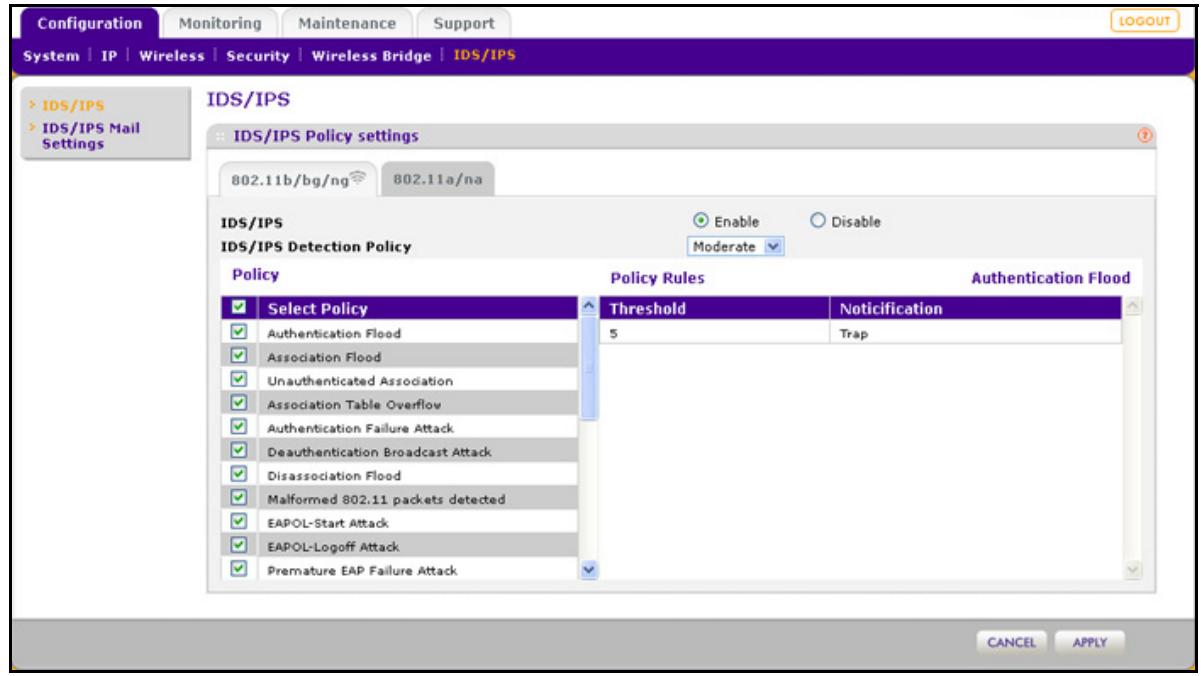
Figure 54.
- Select the Enable radio button. By default, the IDS/IPS is disabled.
- Specify the detection policy by making a selection from the IDS/IPS Detection Policy drop-down list:
Mild. The wireless access point scans for attacks every 10 seconds.
- Moderate. The wireless access point scans for attacks every 5 seconds. This is the default setting.
- Aggressive. The wireless access point scans for attacks every second.
- Optional: Click a policy name to display the policy rules that are stated next to the policy in the table. IDS/IPS policy rules are not configurable.
- Optional: Clear check boxes for policies that you want to disable. By default, the check box next to Select Policy in the table heading is selected, and all IDS/IPS policies are enabled.
- Click Apply to save your settings.
Configure Wireless Intrusion Detection and Prevention Mail Settings
For the IDS/IPS to send a notification according to the policy rule, you need to configure the email settings.
To configure IDS/IPS email settings:
- Select Configuration > IDS/IPS Mail Settings. The IDS/IPS Mail Settings screen displays:
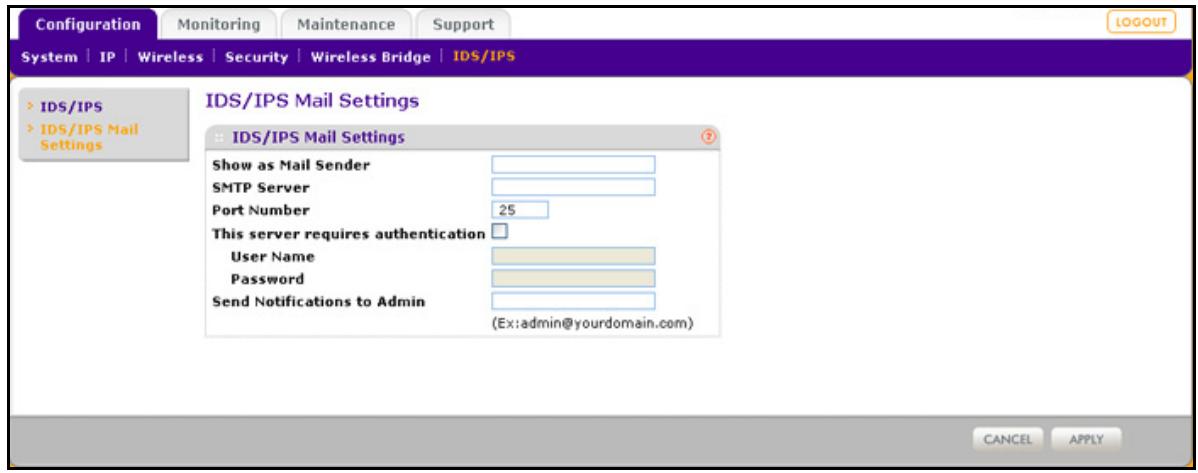
Figure 55.
- Configure the settings as explained in the following table.
Table 25. IDS/IPS mail settings
| Setting | Description | |
| Show as Mail Sender | A descriptive name of the sender for email identification purposes. For example, enter WNAP620-IDS-IPS@company.com. | |
| SMTP Server | The IP address or Internet name of the outgoing email SMTP server of your ISP. | |
| Port Number | The port number of the outgoing email SMTP server of your ISP. The default port number is 25. | |
| This server requires authentication | If the SMTP server requires authentication, select the This server requires authentication check box, and enter the user name and password. | |
| User Name | The user name for SMTP server authentication. | |
| Password | The password for SMTP server authentication. | |
| Send Notifications to Admin | The email address to which the notifications should be sent. Typically, this is the email address of the administrator. | |
- Click Apply to save your settings.
Monitor Traps, Counters, and Ad Hoc Networks
The IDS/IPS monitoring screens provide information about the most recent attacks, the number of occurrences per attack, and ad hoc networks. This information is read only.
Most Recent Attacks
To display the last 50 attacks against the wireless access point and its clients:
Select Monitoring > IPS/IDS > Traps. The Traps screen displays.
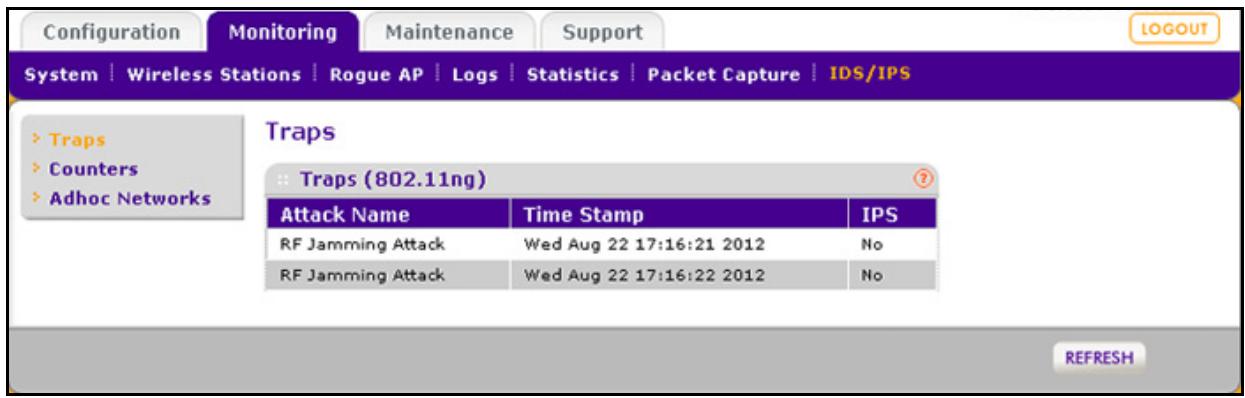
Figure 56.
To update the information onscreen, click Refresh.
The following table explains the fields of the Traps screen:
Table 26. Traps fields
| Setting | Description |
| Attack Name | The name of the attack that corresponds to a policy in Table 24 on page 89. |
| Time Stamp | The time that the attack occurred. |
| IPS | If the IPS has prevented the attack, the field displays Yes. If the IPS did not prevent the attack, or the IPS is not applicable to the attack, the field displays No. |
Attack Counter
To display the number of occurrences per attacks:
Select Monitoring > IPS/IDS > Counters. The Counters screen displays.
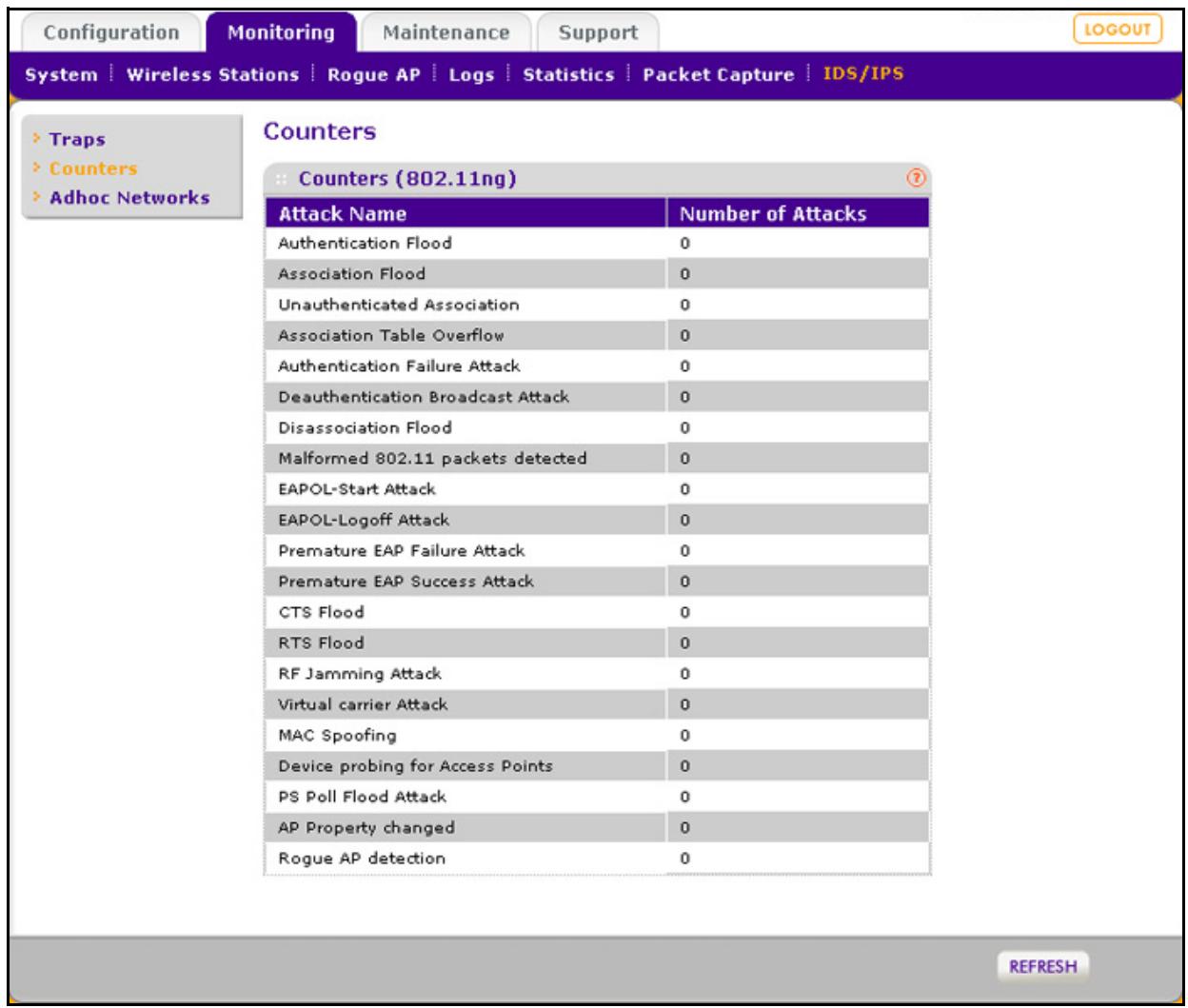
Figure 57.
To update the information onscreen, click Refresh.
Ad Hoc Networks
To display the ad hoc networks and their associated clients:
Select Monitoring > IPS/IDS > Adhoc Networks. The Adhoc Network screen displays.
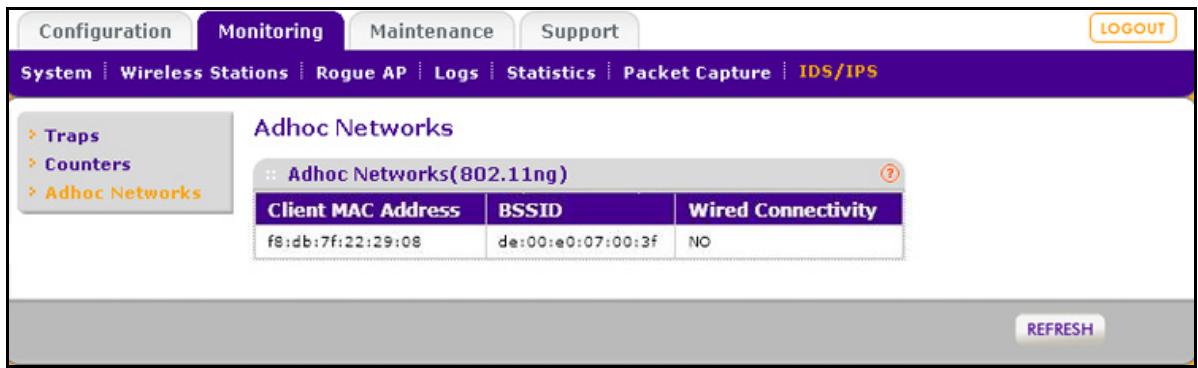
Figure 58.
To update the information onscreen, click Refresh.
The following table explains the fields of the Adhoc Networks screen:
Table 27. Ad hoc network fields
| Setting | Description |
| Client MAC Address | The MAC address of the client that is connected to the ad hoc network. |
| BSSID | The BSSID of the ad hoc network. Note: A wireless access point that is connected to a wired network and a set of wireless stations is called a basic service set (BSS). The basic service set identifier (BSSID) differentiates one WLAN from another. |
| Wired Connectivity | If the ad hoc network has wired connectivity, the field displays YES. If the ad hoc network does not have wired connectivity, the field displays NO. |
This chapter describes how to configure the advanced features of the wireless access point. The chapter includes the following sections:
- Configure IPv6 Settings and Optional DHCPv6 Server Settings
- Configure Spanning Tree Protocol, 802.1Q VLAN, and Link Layer Discovery Protocol
- Configure Hotspot Settings
- Configure Advanced Wireless Settings
- Configure Advanced Quality of Service Settings
- Configure Quality of Service Policies
- Configure Wireless Bridging
Configure IPv6 Settings and Optional DHCPv6 Server Settings
The wireless access point supports IPv6:
- You can manage the wireless access point from an IPv6 address.
- The wireless access point can function as an IPv6 DHCP client.
- The DHCPv6 server of the wireless access point can allocate IPv6 addresses to its wireless clients, either through stateless or stateful allocation.
Configure the IPv6 Settings
Note: For information about how to configure the IPv4 settings, see Configure the IPv4 Settings on page 25.

WARNING:
If you enable the DHCP client, the IP address of the wireless access point changes when you click Apply, causing you to lose your connection to the wireless access point. You then need to use the new IP address to reconnect to the wireless access point.
Tip: If you enable the DHCP client on the wireless access point, you can discover the new IP address of the wireless access point by accessing the DHCP server on your LAN, or by using a network IP address scanner application.
To configure the IPv6 settings:
- Select Configuration > IP > IPv6 Settings. The IP Settings screen displays:
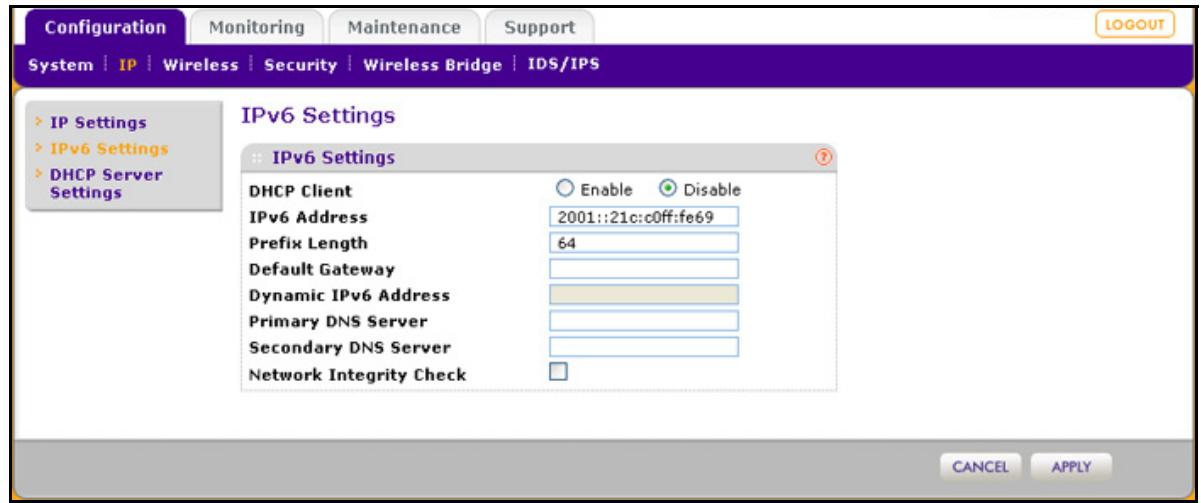
Figure 59.
- Configure the IPv6 settings as explained in the following table:
Table 28. IPv6 settings
| Setting | Description |
| DHCP Client | By default, the Dynamic Host Configuration Protocol (DHCP) client is disabled. If you have a DHCPv6 server on your LAN and you select the Enable radio button, the wireless access point receives its dynamic IPv6 address, prefix length, and default gateway settings automatically from the DHCPv6 server on your network when you connect the wireless access point to your LAN. |
| IPv6 Address | Enter the IP address of your wireless access point. The default IP address is 2001::21c:c0ff:fe69. To change the address, enter an unused IPv6 address from the address range used on your LAN. |
| Prefix Length | Enter the prefix length for the IPv6 address. The default prefix length us 64. |
| Default Gateway | Enter the IPv6 address of the ISP gateway to which the wireless access point connects. |
| Dynamic IPv6 Address | The dynamic IPv6 address that is assigned by the DHCPv6 server on your network. This address does not overwrite the address in the IPv6 Address field. |
| Primary DNS Server | Enter the IP address of the primary and secondary DNS servers.A DNS server is a host on the Internet that translates Internet names (such as www.netgear.com) to numeric IP addresses. Typically your ISP transfers the IP address of one or two DNS servers to your wireless access point during login. If the ISP does not transfer an address, you need to obtain it from the ISP and enter it manually in this field. |
| Secondary DNS Server | |
| Network Integrity Check | Select this check box to validate that the upstream link is active before allowing wireless associations. Ensure that the default gateway is configured. |
3. Click Apply to save your settings.
Configure the Optional DHCPv6 Server
The wireless access point provides a built-in DHCPv6 server for wireless clients only, which can be especially useful in small networks. When the DHCP server is enabled, the wireless access point provides preconfigured TCP/IP configurations to all connected wireless stations.
Note: For information about how to configure the DHCPv4 server, see Configure the Optional DHCPv4 Server on page 27.
To configure DHCPv6 server settings:
- Select Configuration > IP > DHCP Server Settings. The DHCP Server Settings screen displays. The following figure displays the DHCPv6 server settings only. For information about the DHCPv6 server settings, see Configure the Optional DHCPv4 Server on page 27.
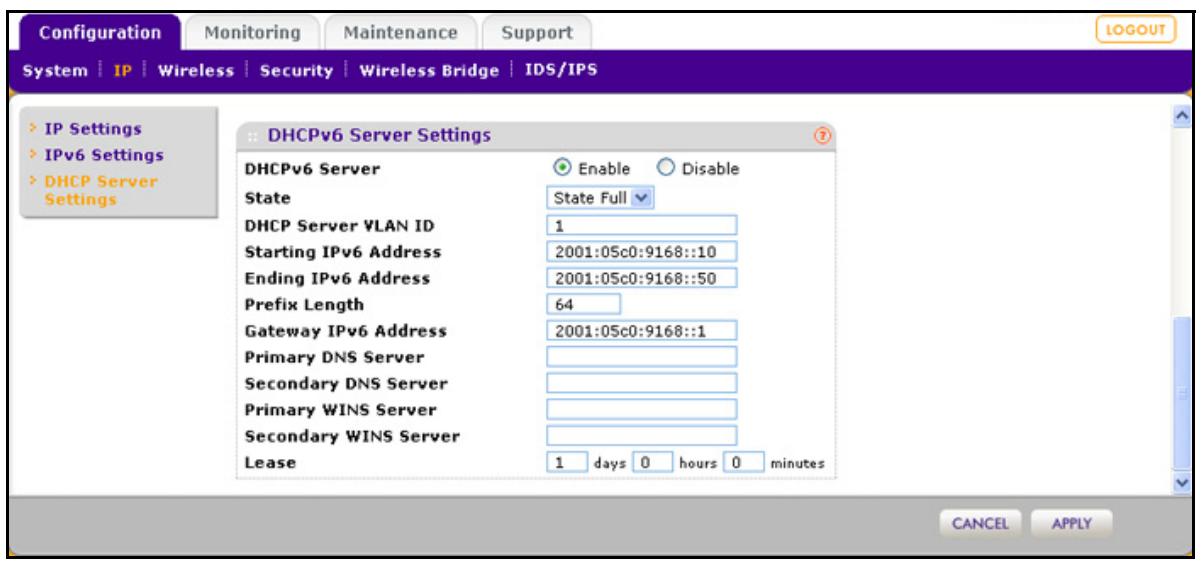
Figure 60.
- Configure the settings as explained in the following table:
Table 29. DHCP server settings for IPv6
| Setting | Description |
| Select the DHCPv6 Server Enable radio button to enable the DHCP server. Use the default settings or specify the pool of IPv6 addresses to be assigned by setting the starting IPv6 address and ending IPv6 address. These addresses should be part of the same IP address subnet as the wireless access point's LAN IPv6 address. | |
| State | From the State drop-down list, select the DHCPv6 server option:· Stateless. The IPv6 clients in the LAN generate their own IP address by using a combination of locally available information and router advertisements, but receive DNS server information from the DHCPv6 server.Note: When you select the Stateless option, you do not need to configure any other DHCPv6 server settings fields.· Stateful. The IPv6 clients in the LAN obtain an interface IP address, configuration information such as DNS server information, and other parameters from the DHCPv6 server. The IP address is a dynamic address. Note: When you select the Stateful option, you need to configure all other DHCPv6 server settings fields. |
| DHCP Server VLAN ID | Enter the VLAN ID for the DHCP server. The VLAN ID range is from 1 to 4094. The default VLAN is 1. |
| Starting IPv6 Address | Enter the first address in the range of IPv6 addresses to be assigned to DHCP clients. The default address is 2001:05c0:9168::10. |
| Ending IPv6 Address | Enter the last address in the range of IPv6 addresses to be assigned to DHCP clients. The default address is 2001:05c0:9168::50. |
| Prefix Length | Enter the prefix length to be used by DHCP clients. The default length is 64. |
| Gateway IPv6 Address | Enter the IPv6 address of the default routing gateway to be used by DHCP clients. The default address is 2001:05c0:9168::1. |
| Primary DNS Address | Enter the IP address of the primary Domain Name System (DNS) server available to DHCP clients. |
| Secondary DNS Address | Enter the IP address of the secondary DNS server available to DHCP clients. |
| Primary WINS Server | Enter the IP address of the primary WINS server for the network, if there is any. |
| Secondary WINS Server | Enter the IP address of the secondary WINS server for the network, if there is any. |
| Lease | Enter the period that the DHCP server grants to DHCP clients to use the assigned IP addresses. The default time is one day. |
3. Click Apply to save your settings.
Configure Spanning Tree Protocol, 802.1Q VLAN, and Link Layer Discovery Protocol
- Configure STP and VLANs
- Configure Ethernet LLDP
As part of the advanced system configuration, you can enable the Spanning Tree Protocol (STP), configure the VLANs, and enable Ethernet Link Layer Discovery Protocol (LLDP).
Configure STP and VLANs
STP provides network traffic optimization in locations where multiple wireless access points are active by preventing path redundancy. NETGEAR recommends that you enable STP if you have more than one active wireless access point at your location.
The 802.1Q VLAN protocol on the wireless access point logically separates traffic on the same physical network:
- Untagged VLAN. When the wireless access point sends frames that are associated with the untagged VLAN from its Ethernet interface, those frames are untagged. When the wireless access point receives untagged frames over its Ethernet interface, those frames are assigned to the untagged VLAN.
Note: Select the Untagged VLAN check box only if the hubs and switches on your LAN support the 802.1Q VLAN protocol. Likewise, change the untagged VLAN value only if the hubs and switches on your LAN support the 802.1Q VLAN protocol.
- Tagged VLAN. When you clear the Untagged VLAN check box, the wireless access point tags all frames that are sent from its Ethernet interface. Only incoming frames that are tagged with known VLAN IDs are accepted.
- Management VLAN. The management VLAN can be active only when the wireless access point functions as a point-to-point or point-to-multipoint bridge (see Configure Wireless Bridging on page 118). The management VLAN is used for managing traffic (Telnet, SNMP, and HTTP) to and from the wireless access point.
Frames belonging to the management VLAN are not given any 802.1Q header when they are sent over the trunk. If a port is in a single VLAN, it can be untagged. However, if the port is a member of multiple VLANs, it needs to be tagged.
To configure STP and VLANs:
- Select Configuring > System > Advanced > General. The advanced General system settings screen displays:
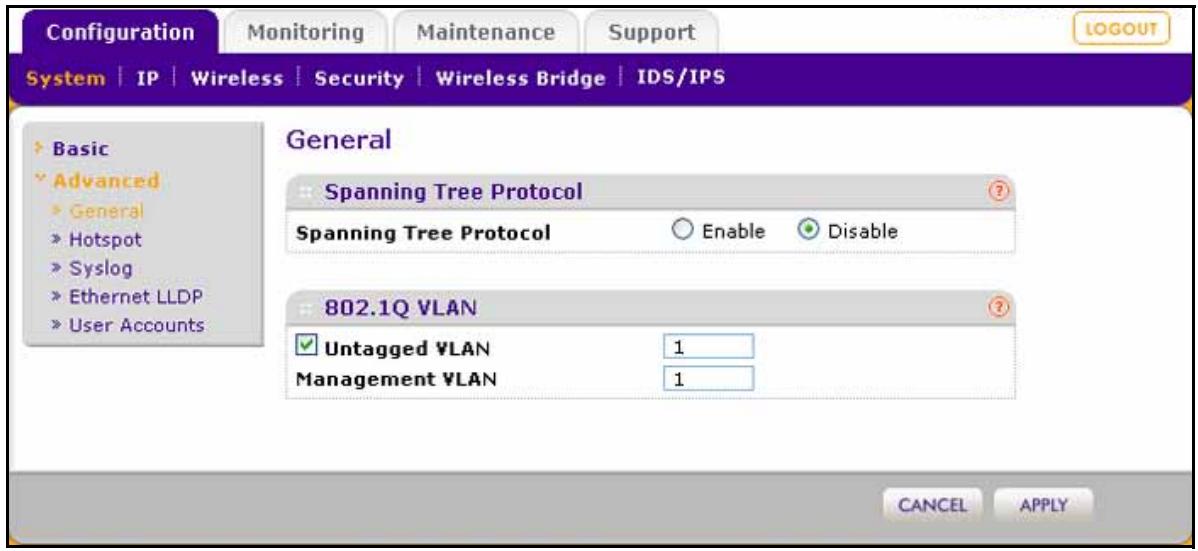
Figure 61.
2. Specify the settings as explained in the following table:
Table 30. STP and VLAN settings
| Setting | Description |
| Spanning Tree Protocol | |
| Spanning Tree Protocol | Select the Enable radio button to enable STP to prevent path redundancy. By default, the Disable radio button is selected. |
| 802.1Q VLAN | |
| Untagged VLAN | Select the Untagged VLAN check box to configure one VLAN as an untagged VLAN. By default, the Untagged VLAN check box is selected. Specify a VLAN ID. The default VLAN ID is 1. |
| Management VLAN | Specify an ID for the VLAN from which the wireless access point can be managed. The default VLAN ID is 1. Note: If you configure the management VLAN ID as 0 (zero), the wireless access point can be managed over any VLAN, and frames that belong to the management VLAN are not tagged with an 802.1Q header when sent over the trunk. |

WARNING:
Selecting the Untagged VLAN check box or changing the untagged VLAN value causes loss of IP connectivity if the hubs and switches on your LAN have not yet been configured with the corresponding VLAN.
3. Click Apply to save your settings.
Configure Ethernet LLDP
Link Layer Discovery Protocol (LLDP), IEEE 802.1ab, is a management tool that delivers link-layer messages to adjacent network devices. For example, LLDP messages enable networking devices such as switches and management tools to discover the wireless access point in the network, and might indicate whether the wireless access point receives power through a PoE connection. LLDP is intervendor compatible.
By default, LLDP is enabled on the wireless access point.
To turn off LLDP:
- Select Configuring > System > Advanced > Ethernet LLDP. The Ethernet LLDP screen displays:
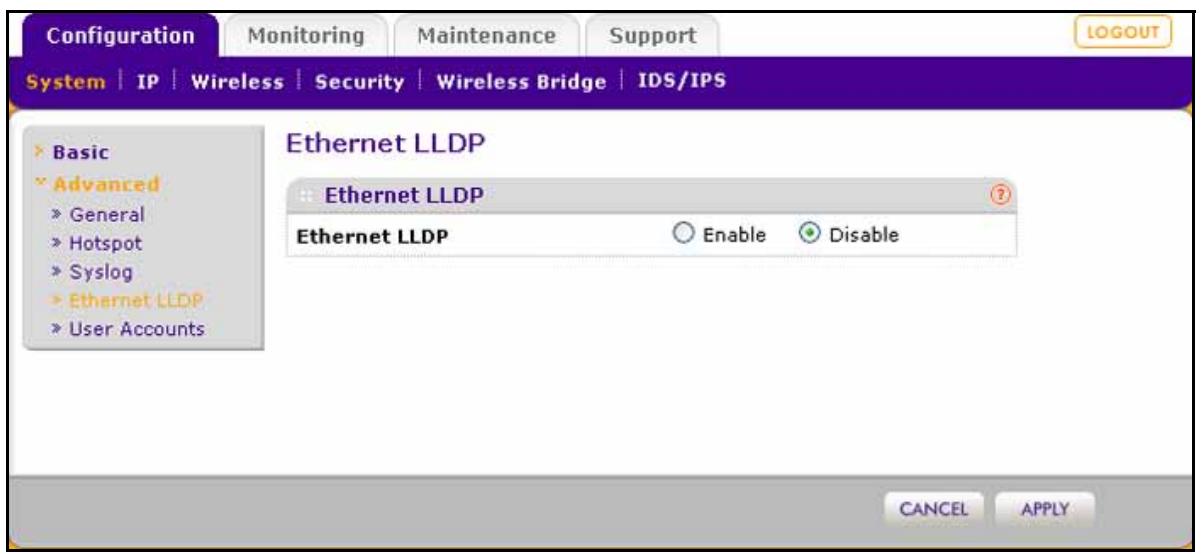
Figure 62.
- Select the Disable radio button. By default, the Enable radio button is selected.
- Click Apply to save your settings.
Configure Hotspot Settings
If the wireless access point functions as a public access point and you want it to capture and redirect all HTTP requests (over TCP, port 80), set up a hotspot server to redirect the requests to the specified URL and manage the clients. For example, you can redirect HTTP requests to a web server for authentication, timing control, or advertising. A hotel might want all wireless connections to go to its server to start a billing transaction.
Note: The redirection occurs only the first time that a wireless client opens a web browser.
To set up a hotspot server:
- Select Configuration > System > Advanced > Hotspot. The Hotspot screen displays:
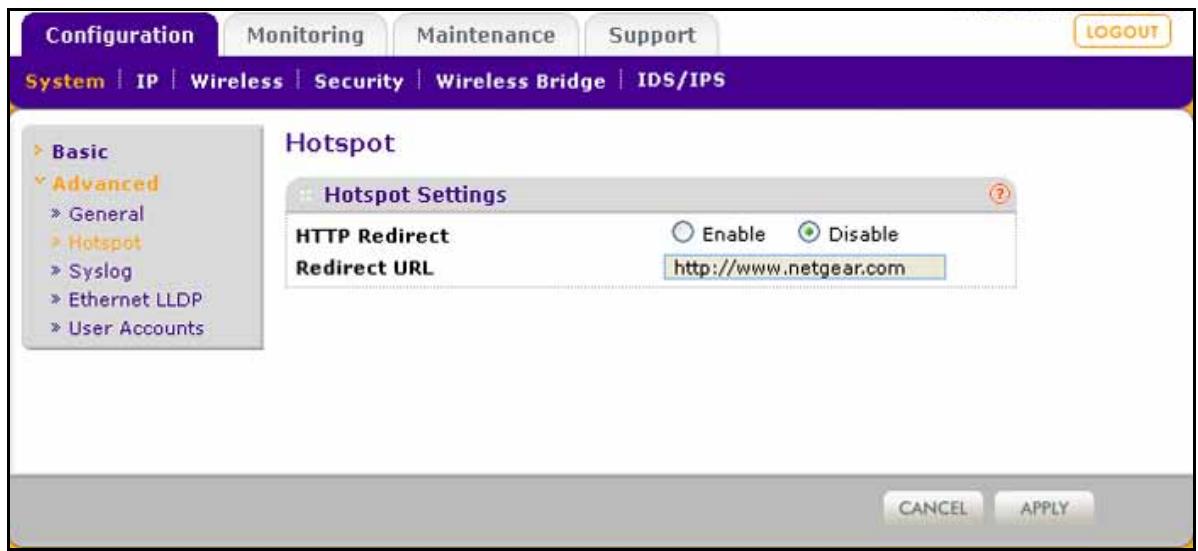
Figure 63.
- To enable HTTP redirection, select the Enable radio button. By default, the Disable radio button is selected.
- In the Redirect URL field, enter the URL of the web server to which you wish to redirect HTTP requests.
- Click Apply to save your settings. All HTTP requests are now redirected to the specified URL.
Configure Advanced Wireless Settings
Use the advanced Wireless Settings screen to configure and enable various WLAN settings for the 802.11b/bg/ng or 802.11a/na modes. You can configure the settings only for the active mode. (For information about how to change the wireless mode, see Configure the Basic Wireless Settings on page 28.)
The default WLAN settings normally work well. However, you can use the advanced settings to fine-tune the overall performance of the wireless access point for your specific environment.
To configure advanced wireless settings:
- Select Configuration > Wireless > Advanced > Wireless Settings. The advanced Wireless Settings screen displays. The following figure shows the 11ng settings, as indicated by the radio wave icon ( ) that is displayed next to ng:
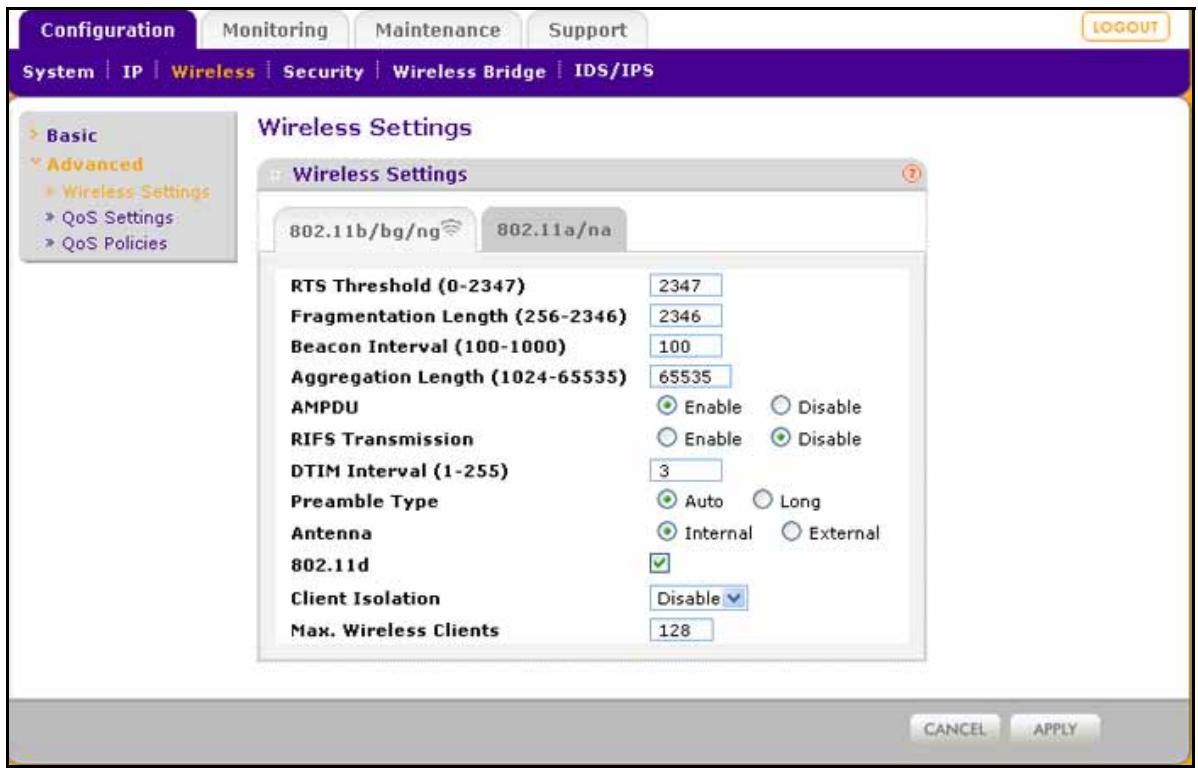
Figure 64.
- Optional: To configure advanced wireless settings for the 802.11a/na modes, click the 802.11a/na tab.
- Specify the settings as explained in the following table:
Table 31. Advanced wireless settings
| Setting | Description |
| RTS Threshold (0–2347) | Enter the Request to Send (RTS) threshold. The default setting is 2347.If the packet size is equal to or less than the RTS threshold, the wireless access point uses the Carrier Sense Multiple Access with Collision Detection (CSMA/CD) mechanism, and the data frame is transmitted immediately after the silence period.If the packet size is larger than the RTS threshold, the wireless access point uses the CSMA with Collision Avoidance (CSMA/CA) mechanism. In this situation, the transmitting station sends an RTS packet to the receiving station and waits for the receiving station to return a Clear to Send (CTS) packet before sending the actual packet data. |
| Fragmentation Length (256–2346) | Enter the maximum packet size that is used for the fragmentation of data packets. Packets that are larger than the specified fragmentation length are broken up into smaller packets before being transmitted. The fragmentation length needs to be an even number. The default setting is 2346. |
| Beacon Interval (100–1000) | Enter the interval between 100 ms and 1000 ms for each beacon transmission, which allows the wireless access point to synchronize the wireless network. The default setting is 100. |
| Aggregation Length (1024–65535)Note: This setting does not apply to the 802.11a mode. | Enter the maximum length of aggregated MAC protocol data unit (A-MPDU) packets. Larger aggregation lengths could lead to better network performance. Aggregation is a mechanism used to achieve higher throughput. The default setting is 65535. |
| AMPDUNote: This setting does not apply to the 802.11b/bg modes and the 802.11a mode. | Select the Enable radio button to allow the aggregation of several MAC frames into a single large frame to achieve higher throughput. Enabling the aggregated MAC protocol data unit (A-MPDU) could lead to better network performance. By default, the Enable radio button is selected. |
| RIFS TransmissionNote: This setting does not apply to the 802.11b/bg modes and the 802.11a mode. | Select the Enable radio button to allow transmission of successive frames at different transmit powers. Enabling reduced interframe space (RIFS) could lead to better network performance. By default, the Disable radio button is selected. |
| DTIM Interval (1–255) | Enter the delivery traffic indication message (DTIM) interval, also referred to as the data beacon rate, which indicates the beacon delivery traffic indication message period in multiples of beacon intervals. This value needs to be between 1 and 255. The default setting is 3. |
| Preamble TypeNote: This setting does not apply to the 802.11a/na modes. | Select one of the following radio buttons to specify the preamble type: · Long. A long transmit preamble might provide a more reliable connection or a slightly longer range. A short transmit preamble gives better performance. · Auto. The Auto setting enables the wireless access point to handle both long and short preambles. The default setting is Auto. |
| AntennaNote: This setting does not apply to the 802.11a/na modes. | Select one of the following radio buttons to specify the antenna: · Internal. Enables the internal antenna. This is the default setting. · External. Enables an optional external antenna or antennas. |
| 802.11dNote: This setting does not apply to the 802.11a/na modes. | Select this check box to enable support for additional regulatory domains that are not in the current standard; support includes the addition of a country information element to beacons, probe requests, and probe responses. This check box is selected by default. |
| Client Isolation | From the drop-down list, select one of the following options: · Enable. Communication between wireless clients that are associated to different virtual access points (VAPs) is blocked. · Disable. Communication between wireless clients that are associated to different VAPs is allowed. This is the default setting. |
| Max. Wireless Clients | Enter the maximum number of wireless clients that can simultaneously connect to the wireless access point at one time. The default setting is 128 clients. |
- Click Apply to save your settings.
Configure Advanced Quality of Service Settings
For most networks, the default Quality of Service (QoS) queue settings work well. For information about how to configure basic QoS, see Configure Basic Wireless Quality of Service on page 62.
You can specify the settings on multiple queues for increased throughput and better performance of differentiated wireless traffic such as Voice-over-IP (VoIP), other types of audio, video, and streaming media, as well as traditional IP data.
The advanced QoS options on the wireless access point are as follows:
- AP EDCA parameters. Specify the access point (AP) Enhanced Distributed Channel Access (EDCA) settings for different types of data transmitted from the wireless access point to wireless clients.
- Station EDCA parameters. Specify the station EDCA parameters for different types of data transmitted from the wireless clients to the wireless access point. If WMM is disabled, you cannot configure the Station EDCA parameters. (For information about how to enable WMM, see Configure Basic Wireless Quality of Service on page 62.)
When you configure the EDCA settings, the wireless access point can leverage existing information in the IP packet header that is related to the Type of Service (ToS). The wireless access point examines the ToS field in the headers of all packets that it processes. Based on the value in a packet's ToS field, the wireless access point prioritizes the packet for transmission by assigning it to one of the queues. A different type of data is associated with each queue. You can configure how the wireless access point treats each queue.
The queues defined for different types of data transmitted from AP-to-station and station-to-AP are:
Data 0 (Best Effort). Medium priority queue, medium throughput and delay. Most traditional IP data is sent to this queue.
- Data 1 (Background). Lowest priority queue, high throughput. Bulk data that requires maximum throughput and is not time-sensitive is sent to this queue (FTP data, for example).
- Data 2 (Video). Highest priority queue, minimum delay. Time-sensitive video data is automatically sent to this queue.
- Data 3 (Voice). Highest priority queue, minimum delay. Time-sensitive data such as VoIP and streaming media are automatically sent to this queue.
To configure advanced QoS:
- Select Configuration > Wireless > Advanced > QoS Settings. The advanced QoS Settings screen displays:
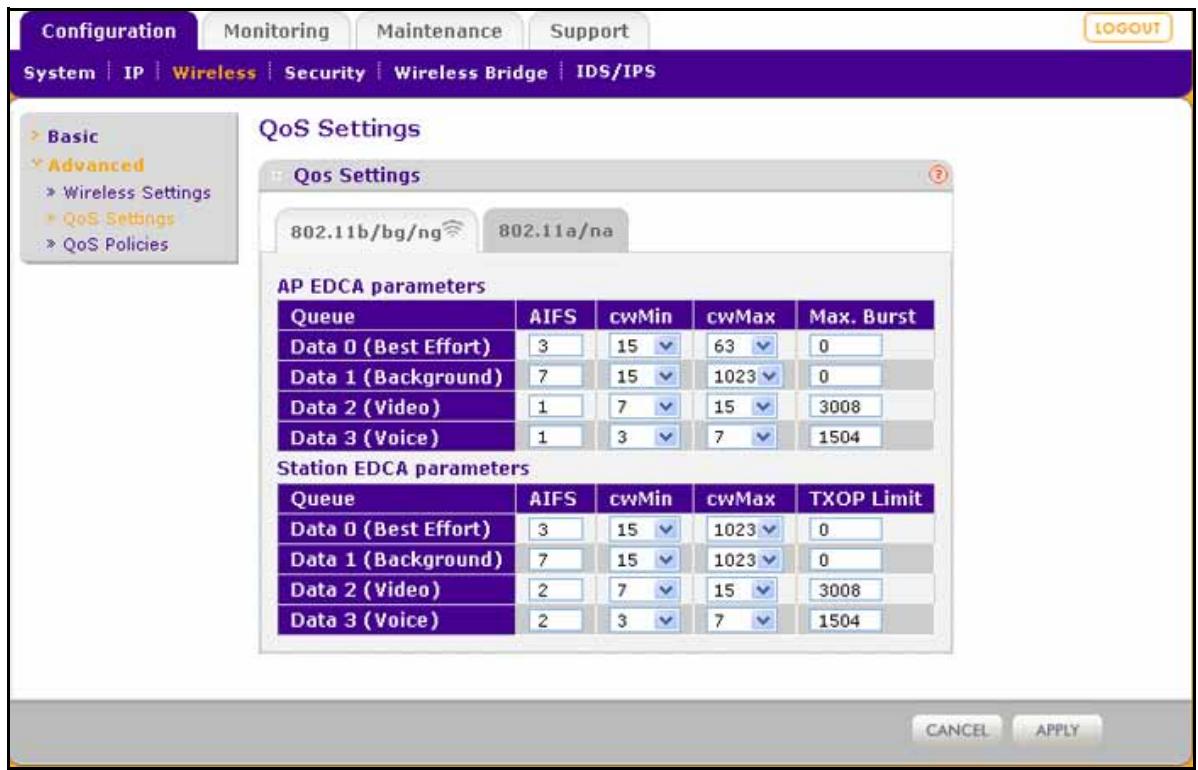
Figure 65.
- Optional: To configure advanced QoS for the 802.11a/na modes, click the 802.11a/na tab.
- Specify the settings as explained in the following table:
Table 32. EDCA settings
| Setting | Description |
| AP EDCA parameters | |
| AIFS | Enter the Arbitration Inter-Frame Spacing (AIFS) interval that specifies the wait time (in milliseconds) between data frames. A higher AIFS value means a higher priority for a queue. Valid values for AIFS are 0 through 8. The default values are Data 0: 3; Data 1: 7; Data 2: 1; Data 3: 1. |
| cwMin | Enter the minimum contention window (cwMin) value that specifies the upper limit (in milliseconds) of a range from which the initial random back-off wait time is determined. Decreasing this value increases the priority of the queue. The value for cwMin needs to be lower than the value for cwMax. Valid values are 0, 1, 3, 7, 15, 31, 63, 127, 255, 511, and 1023. The default values are Data 0: 15; Data 1: 15; Data 2: 7; Data 3: 3. |
| cwMax | Enter the maximum contention window (cwMax) value that specifies the upper limit (in milliseconds) for the doubling of the random back-off value. Decreasing this value increases the priority of the queue. The value for cwMax needs to be higher than the value for cwMin. Valid values are 0, 1, 3, 7, 15, 31, 63, 127, 255, 511, and 1023. The default values are Data 0: 63; Data 1: 1023; Data 2: 15; Data 3: 7. |
| Max. Burst | Enter the maximum burst value that specifies the maximum burst length (in microseconds) allowed for packet bursts on the wireless network. A packet burst is a collection of multiple frames transmitted without header information. Decreasing this value increases the priority of the queue. Valid values for maximum burst length are all multiples of 32 between 0 and 8192, inclusive of 0 and 8192.The default values are Data 0: 0; Data 1: 0; Data 2: 3008; Data 3: 1504. |
| Station EDCA parameters | |
| AIFS | Enter the Arbitration Inter-Frame Spacing (AIFS) interval that specifies the wait time (in milliseconds) between data frames. A higher AIFS value means a higher priority for a queue. Valid values for AIFS are 0 through 8.The default values are Data 0: 3; Data 1: 7; Data 2: 2; Data 3: 2. |
| cwMin | Enter the minimum contention window (cwMin) value that specifies the upper limit (in milliseconds) of a range from which the initial random back-off wait time is determined.Decreasing this value increases the priority of the queue. The value for cwMin needs to be lower than the value for cwMax. Valid values are 0, 1, 3, 7, 15, 31, 63, 127, 255, 511, and 1023.The default values are Data 0: 15; Data 1: 15; Data 2: 7; Data 3: 3. |
| cwMax | Enter the maximum contention window (cwMax) value that specifies the upper limit (in milliseconds) for the doubling of the random back-off value. Decreasing this value increases the priority of the queue. The value for cwMax needs to be higher than the value for cwMin. Valid values are 0, 1, 3, 7, 15, 31, 63, 127, 255, 511, and 1023.The default values are Data 0: 1023; Data 1: 1023; Data 2: 15; Data 3: 7. |
| TXOP Limit | Enter the transmission opportunity (TXOP) value that specifies the time interval (in microseconds) in which a client station can initiate transmissions on the wireless medium (WM). Decreasing this value increases the priority of the queue. Valid values for TXOP Limit are all multiples of 32 between 0 and 8192, inclusive of 0 and 8192.The default values are Data 0: 0; Data 1: 0; Data 2: 3008; Data 3: 1504. |
- Click Apply to save your settings.
Configure Quality of Service Policies
The wireless access point lets you configure and apply QoS policies to wireless clients. In each QoS policy, you can specify multiple classifications (match clauses) and apply traffic to eight priority queues based on the following information in the Layer 2, Layer 3, Layer 3 IP headers, and Layer 4:
IP precedence. Indicates the IP Type of Service (ToS) or precedence in the IP headers.
IP DSCP. Indicates the Differentiated Services Code Point (DSCP) marking in the IP header.
IP protocol 119. Indicates the IP protocol field in the IP header with value 119.
802.1P. Indicates the 3-bit Class of Service (CoS) field in the class header.
- IP protocol. Indicates the protocol field in the IP header.
- EtherType. Indicates the EtherType field in Ethernet-II frame header.
Source MAC. Indicates the source MAC address in Ethernet-II frame header. - Destination MAC. Indicates the destination MAC address in Ethernet-II frame header.
- Source IP. Indicates the source IP address in the IP header.
- Destination IP. Indicates the destination IP address in the IP header.
- Source port. Indicates the source port number in the port header.
- Destination port. Indicates the destination port number in the port header.
For each classification in a QoS policy, you can configure rate limiting by specifying the maximum bit rate and maximum burst rate. Packets that exceed the maximum bit rate are retained in the traffic queue and are processed when transmission falls below the maximum bit rate again. You can also configure the overall maximum bit rate and maximum burst rate for the entire wireless interface.
You can configure up to eight QoS policies.
To configure a new QoS policy:
- Select Configuration > Wireless > Advanced > QoS Policies. The advanced QoS Policies screen displays:
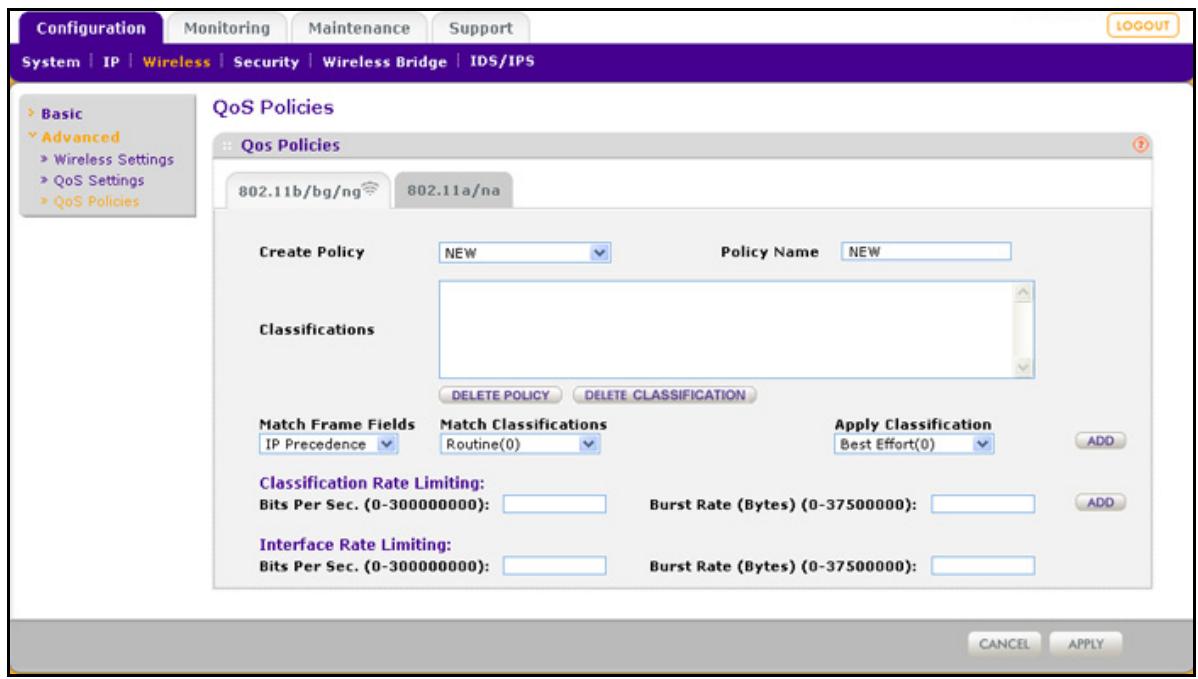
Figure 66.
- Optional: To configure the QoS Policies screen for the 802.11a/na modes, click the 802.11a/na tab.
- From the Create Policy drop-down list, select NEW. If you have not created any QoS policies, NEW is the only selection possible.
- In the Policy Name field, enter a name for the new QoS policy.
- Specify a classification for the QoS policy as explained in the following table.
Note: Depending on your selection from the Match Frame Fields drop-down list, Match Classifications appears either as a drop-down list from which you need to make a selection or a field in which you need to enter information.
Table 33. QoS classification settings
| Setting | Description | |
| Match Frame Fields and Match Classifications | IP DCSP | From the Match Classifications drop-down list, select the DSCP traffic class against which the information in the IP header needs to be matched:Routine(0)Priority(1)Immediate(2)Flash(3)Flash Override(4)Critic/CCP(5)Inter Control(6)Network Control(7) |
| IP Precedence | From the Match Classifications drop-down list, select the DSCP marking against which the information in the IP header needs to be matched:Best EffortAssured Forwarding - Class 1 LowAssured Forwarding - Class 1 MediumAssured Forwarding - Class 1 HighAssured Forwarding - Class 2 LowAssured Forwarding - Class 2 MediumAssured Forwarding - Class 2 HighAssured Forwarding - Class 3 LowAssured Forwarding - Class 3 MediumAssured Forwarding - Class 3 HighAssured Forwarding - Class 4 LowAssured Forwarding - Class 4 MediumAssured Forwarding - Class 4 HighClass Selector 1Class Selector 2Class Selector 3Class Selector 4Class Selector 5Class Selector 6Class Selector 7 Expedited Forwarding | |
| IP Protocol119 | Traffic is matched against value 119 in the IP protocol field in the IP header. | |
| Match Frame Fields and Match Classifications (continued) | 802.1P | From the Match Classifications drop-down list, select the CoS priority value against which the information in the IP header needs to be matched:Routine(0)Priority(1)Immediate(2)Flash(3)Flash Override(4)Critic/CCP(5)Inter Control(6)Network Control(7) |
| IP Protocol | In the Match Classifications field, enter the IP protocol value against which the information in the IP header needs to be matched. A list of protocol values is available at http://www.iana.org/assignments/protocol-numbers/protocol-numbers.xml. | |
| Ether Type | In the Match Classifications field, enter the Ether type value against which the information in the IP header needs to be matched. A list of Ether type values is available at http://standards.ieee.org/develop/regauth/ethertype/eth.txt. | |
| Source MAC | In the Match Classifications field, select or enter the source MAC address against which the information in the IP header needs to be matched.To select the MAC address of a wireless client that is connected to the wireless access point:1. Select the radio button to the left of the Match Classifications drop-down list.2. From the drop-down list, select a MAC address.To enter a MAC address:1. Select the radio button to the right of the Match Classifications drop-down list.2. In the field to the right of the radio button, enter a MAC address. | |
| Destination MAC | In the Match Classifications field, select or enter the destination MAC address against which the information in the IP header needs to be matched.To select the MAC address of a wireless client that is connected to the wireless access point:1. Select the radio button to the left of the Match Classifications drop-down list.2. From the drop-down list, select a MAC address.To enter a MAC address:1. Select the radio button to the right of the Match Classifications drop-down list.2. In the field to the right of the radio button,Enter a MAC address. | |
| Match Frame Fields and Match Classifications (continued) | Source IP | In the Match Classifications field, enter the source IP address against which the information in the IP header needs to be matched. |
| Destination IP | In the Match Classifications field, enter the destination IP address against which the information in the IP header needs to be matched. | |
| Source Port | The Match Classifications field is separated into two sections. In the left section, enter the source port number, and optionally, in the right section, enter the associated IP address against which the information in the IP header needs to be matched. | |
| Destination Port | The Match Classifications field is separated into two sections. In the left section, enter the destination port number, and optionally, in the right section, enter the associated IP address against which the information in the IP header needs to be matched. | |
| Apply Classification | From the Apply Classification drop-down list, select the traffic class that needs to be applied to the packets that match the selection in the Match Classifications field: • Best Effort(0) • Background(1) • Spare(2) • Excellent(3) • Control Load(4) • Video < 100 ms Latency(5) • Voice < 10 ms Latency(6) • Network Control(7) | |
- Optional: Specify rate limiting for the classification as explained in the following table:
Table 34. Classification rate limiting settings
| Setting | Description | |
| Classification Rate Limiting | Bits Per Sec. | Enter a value between 0 and 300,000,000 bps to specify the maximum data rate up to which packets that match the classification are queued for transmission and sent immediately over the wireless interface. This value applies only to traffic that matches the classification. Note: When the maximum rate is exceeded, packets are retained in the queue and sent when the transmission falls below the maximum rate again. |
| Burst Rate (Bytes) | Enter a value between 0 and 37,500,000 bytes to specify the maximum amount of data that can be transmitted in a burst for packets that match the classification. This value applies only to traffic that matches the classification. | |
- Click Add to add the classification to the Classifications field.
- To add another classification to the QoS policy, repeat Step 5, Step 6, and Step 7.
- Click Apply to save your settings. The QoS policy is saved.
Note: Rate limiting for the wireless interface is an optional setting that applies to all traffic on the wireless interface. Unlike classification rate limiting, which you can specify for each classification, rate limiting for the wireless interface needs to be specified only once.
To specify rate limiting for the wireless interface:
- Specify rate limiting for the entire wireless interface as explained in the following table:
Table 35. Wireless interface rate limiting settings
| Setting | Description | |
| Interface Rate Limiting | Bits Per Sec. | Enter a value between 0 and 300,000,000 bps to specify the maximum data rate up to which packets are queued for transmission and sent immediately over the wireless interface. This value applies to all traffic on the wireless interface. Note: When the maximum rate is exceeded, packets are retained in the queue and sent when the transmission falls below the maximum rate again. |
| Burst Rate (Bytes) | Enter a value between 0 and 37,500,000 bytes to specify the maximum amount of data that can be transmitted in a burst over the wireless interface. This value applies to all traffic on the wireless interface. | |
- Click Apply to save your settings.
To modify a QoS policy:
- From the Create Policy drop-down list, select the policy that you want to modify.
- To delete a classification, select it in the Classification field, and click Delete Classification.
- To add a classification, follow Step 5 through Step 7 in the procedure to configure a new QoS policy. You can also change the name of the policy.
- Click Apply to save your settings.
To delete a QoS policy:
- From the Create Policy drop-down list, select the policy that you want to delete.
- Click Delete Policy.
- Click Apply to save your settings.
Configure Wireless Bridging
- Configure a Point-to-Point Wireless Network
- Configure a Point-to-Multipoint Wireless Network
- Configure the Wireless Access Point to Repeat the Wireless Signal Using Point-to-Multipoint Bridge Mode
The wireless access point supports a wireless distributing system (WDS) that lets you build large bridged wireless networks. You can select from the following wireless access point modes:
- Wireless point-to-point bridge. In this mode, the wireless access point can communicate with another bridge-mode wireless station and, as an option, also with wireless clients. Use WEP, WPA-PSK, or WPA2-PSK to secure the communication. For information about how to configure this mode, see Configure a Point-to-Point Wireless Network on page 118.
- Wireless point-to-multipoint bridge. In this mode, the wireless access point is the master for a group of bridge-mode wireless stations. As an option, the wireless access point can also communicate with wireless clients. You can configure up to four profiles.
The other bridge-mode wireless stations need to be set to point-to-point bridge mode, using the MAC address of the master wireless access point. Rather than communicating directly with each other, all other bridge-mode wireless stations send their traffic to the master wireless access point. Use WEP, WPA-PSK, or WPA2-PSK to secure the communication. For information about how to configure this mode, see Configure a Point-to-Multipoint Wireless Network on page 122.
- Repeating the wireless signal. In this mode, this wireless access point repeats the wireless signal, does not support communication with wireless clients, and sends all traffic to a remote access point. In this mode, wireless clients cannot associate with the wireless access point. Use WEP, WPA-PSK, or WPA2-PSK to secure the communication. For information about how to configure this mode, see Configure the Wireless Access Point to Repeat the Wireless Signal Using Point-to-Multipoint Bridge Mode on page 126.
Note: You cannot configure wireless bridging when automatic channel selection is enabled. On the basic Wireless Settings screen, make sure that Auto is not selected from the Channel / Frequency drop-down list (see Configure the Basic Wireless Settings on page 28).
Configure a Point-to-Point Wireless Network
In point-to-point bridge mode, the wireless access point communicates with another bridge-mode wireless station. Use wireless security to protect this communication. The following figure shows an example in which two wireless access points (APs) function in point-to-point bridge mode:
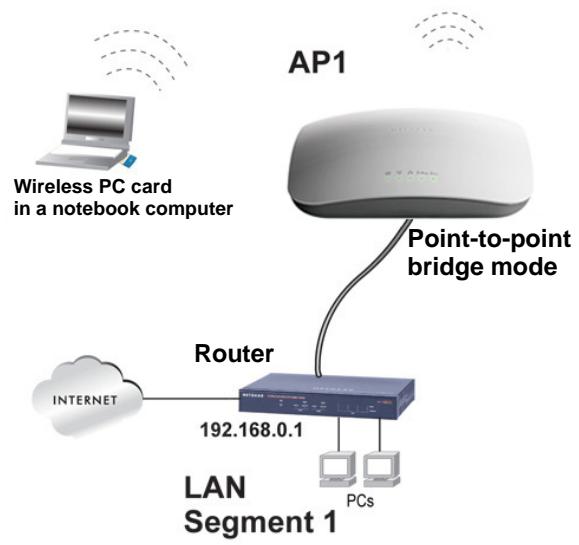
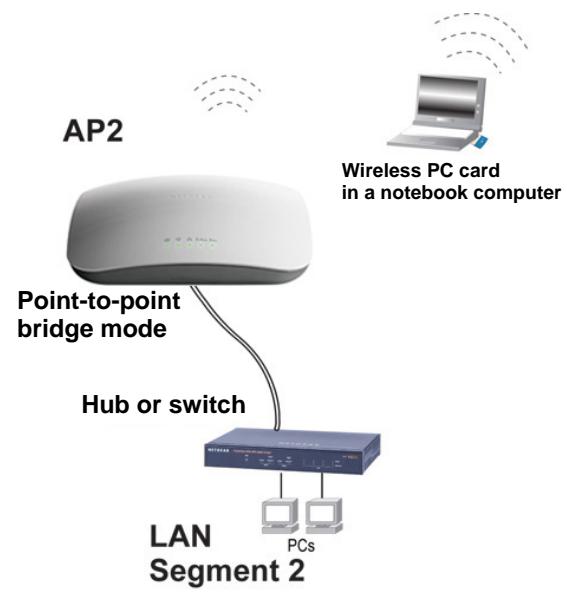
Figure 67.
To configure a point-to-point wireless network:
- Configure the wireless access point (AP1 on LAN Segment 1 in the previous figure) as a point-to-point bridge:
a. Select Configuration > Wireless Bridge. The Bridging screen displays (see the following figure).
b. Optional: To display the Bridging screen for the 802.11a/na modes, click the 802.11a/na tab.
c. Select the Enable Wireless Bridging check box. The Local MAC Address field is a nonconfigurable field that shows the MAC address of the wireless access point.
d. Select the Wireless Point-to-Point Bridge radio button. The screen adjusts.
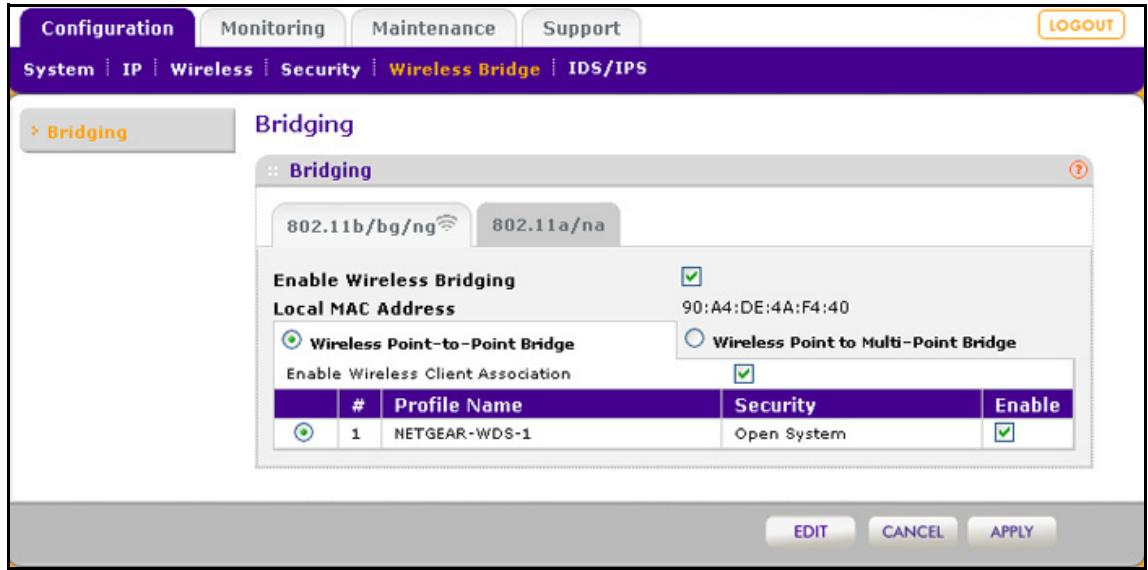
Figure 68.
e. If you want to enable wireless client association while the wireless access point functions as a point-to-point bridge, select the Enable Wireless Client Association check box.
f. Click Edit to configure the security profile settings. The Edit Security Profile screen displays:
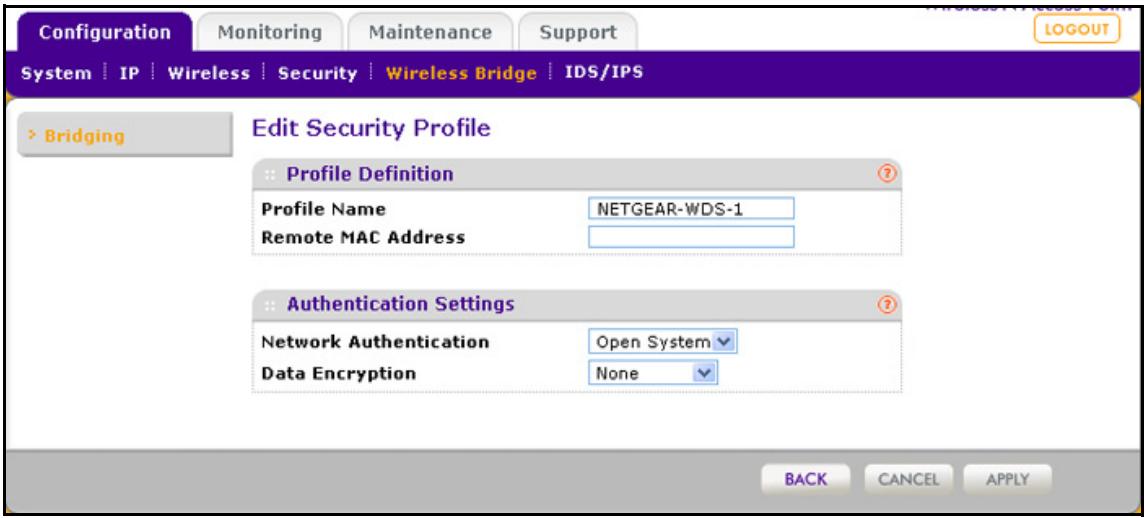
Figure 69.
g. Specify the settings as explained in the following table:
Table 36. Point-to-point bridge profile and authentication settings
| Setting | Description | |
| Profile Definition | ||
| Profile Name | Enter a profile name that is easy to remember. The default name is NETGEAR-WDS-1. | |
| Remote MAC Address | Enter the MAC address of the remote wireless access point (the MAC address of AP2 on LAN Segment 1 in Figure 67 on page 119). | |
| Authentication Settings | ||
| Network Authentication and Data Encryption | From the Network Authentication drop-down list, select Open System, WPA-PSK, or WPA2-PSK. Your selection determines the options that the Data Encryption drop-down list provides, and whether the WPA Passphrase (Network Key) field displays. | |
| Setting | Description | |
| Network Authentication and Data Encryption (continued) | Open System | Although you can use the bridge communication without any authentication and encryption, NETGEAR recommends that you use WEP if you do select an open system. From the Data Encryption drop-down list, select one of the following: • None. No authentication and encryption. • 64-bit WEP. Standard WEP encryption, using 40/64-bit encryption. • 128-bit WEP. Standard WEP encryption, using 104/128-bit encryption. • 152-bit WEP. Proprietary WEP encryption mode, using 128+24 bit encryption. This mode functions only with other wireless stations that support this mode. |
| WPA-PSK | TKIP (Temporal Key Integrity Protocol) is the standard encryption method used with WPA-PSK and the only selection possible from the Data Encryption drop-down list. In the WPA Passphrase (Network Key) field, enter a passphrase. The passphrase length needs to be between 8 and 63 characters (inclusive). | |
| WPA2-PSK | AES (Advanced Encryption Standard) is the standard encryption method used with WPA2-PSK and the only selection possible from the Data Encryption drop-down list. In the WPA Passphrase (Network Key) field, enter a passphrase. The passphrase length needs to be between 8 and 63 characters (inclusive). Note: NETGEAR recommends WPA2-PSK authentication with AES encryption if you want to use the 11n rates and speed. | |
h. Click Apply to save your security profile settings. The Bridging screen displays again.
i. If the correct profile name and security option are displayed in the table, select the check box in the Enable column.
j. Click Apply on the Bridging screen to save your point-to-point bridge settings.
- Configure a second wireless access point (AP2) on LAN Segment 2 (see Figure 67 on page 119) in point-to-point bridge mode.
AP1 needs to have AP2's MAC address in its Remote MAC Address field, and AP2 needs to have AP1's MAC address in its Remote MAC Address field.
-
Verify the following settings for both wireless access points:
-
Both wireless access points are configured to operate in the same LAN network address range as the LAN devices.
-
Both wireless access points use the same channel, authentication mode, and security settings.
-
Verify connectivity across the LAN 1 and LAN 2.
A computer on either LAN segment should be able to connect to the Internet or share files and printers of any other computers or servers connected to LAN Segment 1 or LAN Segment 2.
Configure a Point-to-Multipoint Wireless Network
In a point-to-multipoint bridge, the wireless access point is the master for a group of bridge-mode wireless access points. All traffic is sent to the master rather than to the other wireless access points. Use wireless security to protect this communication.
For each wireless access point that you want the master to be able to connect to, you need to configure a security profile with a unique name and the MAC address of the wireless access point. You can configure up to four such security profiles (NETGEAR-WDS-1, NETGEAR-WDS-2, and so on).
The following figure shows an example in which AP1 functions in point-to-multipoint bridge mode and AP2 and AP3 function in point-to-point bridge mode:
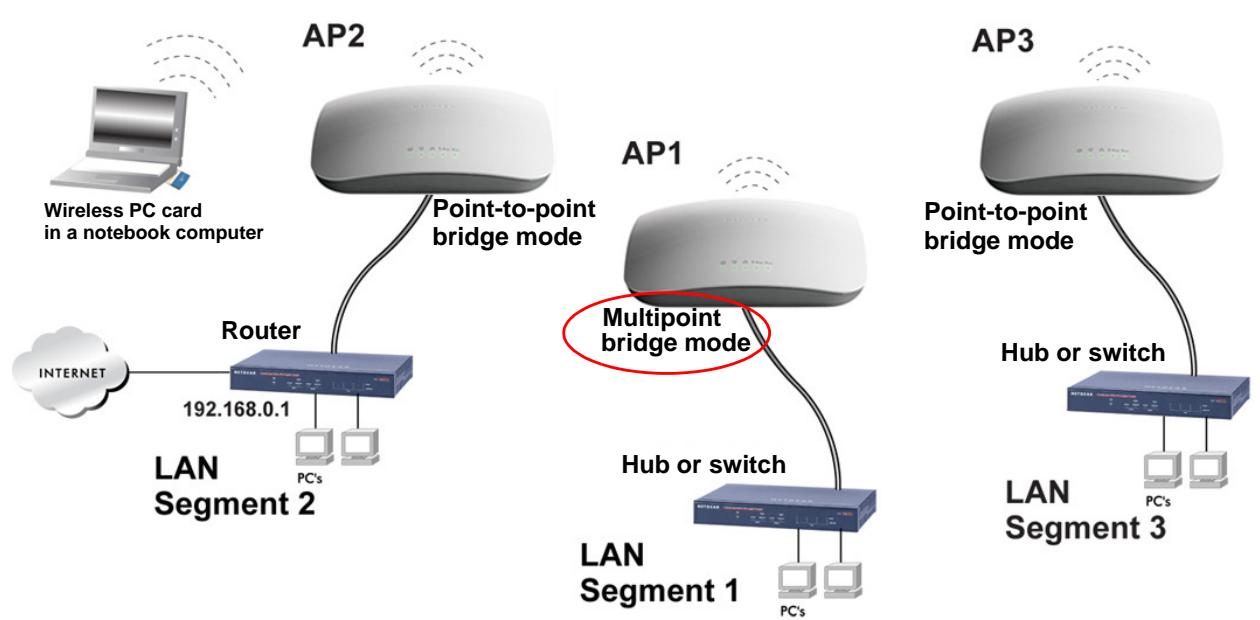
Figure 70.
To configure a point-to-multipoint wireless network:
- Configure the security profiles on the wireless access point (AP1 on LAN Segment 1 in the previous figure):
a. Select Configuration > Wireless Bridge. The Bridging screen displays. (The following figure shows the screen after you have completed Step d.)
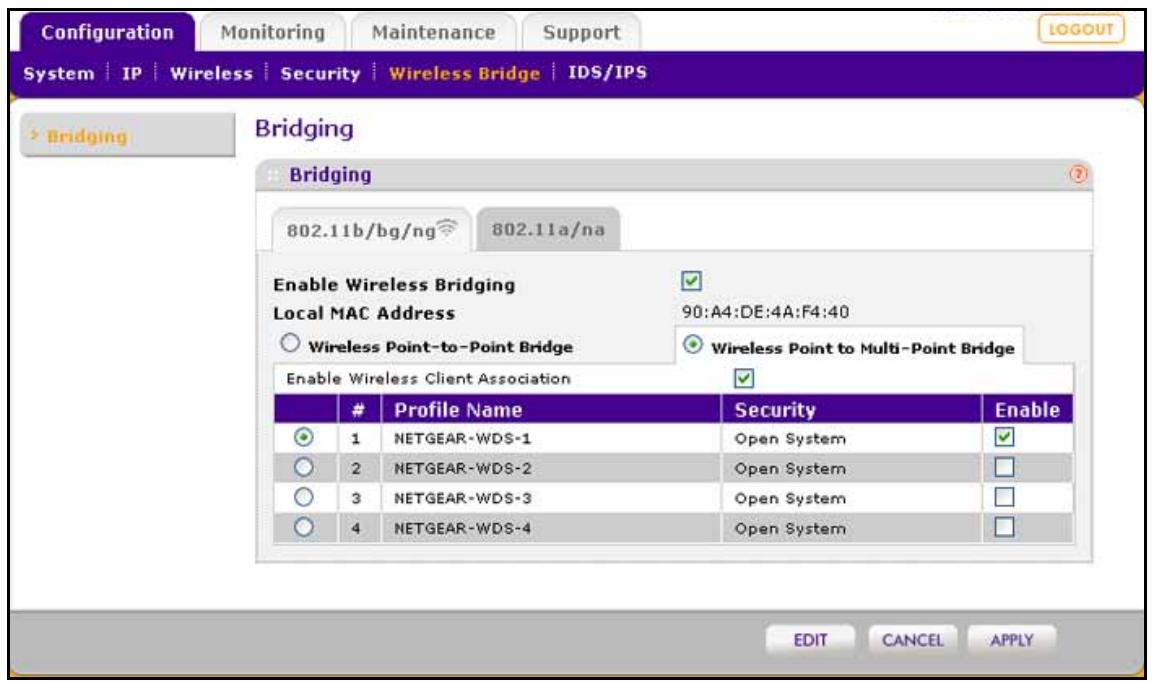
Figure 71.
b. Optional: To display the Bridging screen for the 802.11a/na modes, click the 802.11a/na tab.
c. Select the Enable Wireless Bridging check box. The Local MAC Address field is a nonconfigurable field that shows the MAC address of the wireless access point.
d. Select the Wireless Point-to-Multi-Point Bridge radio button. The screen adjusts.
e. The profile table shows four security profiles. Choose a security profile to edit by selecting the corresponding radio button to the left of the profile.
f. Click Edit to configure the selected security profile settings. The Edit Security Profile screen displays for the selected security profile. (The following figure contains an example.)
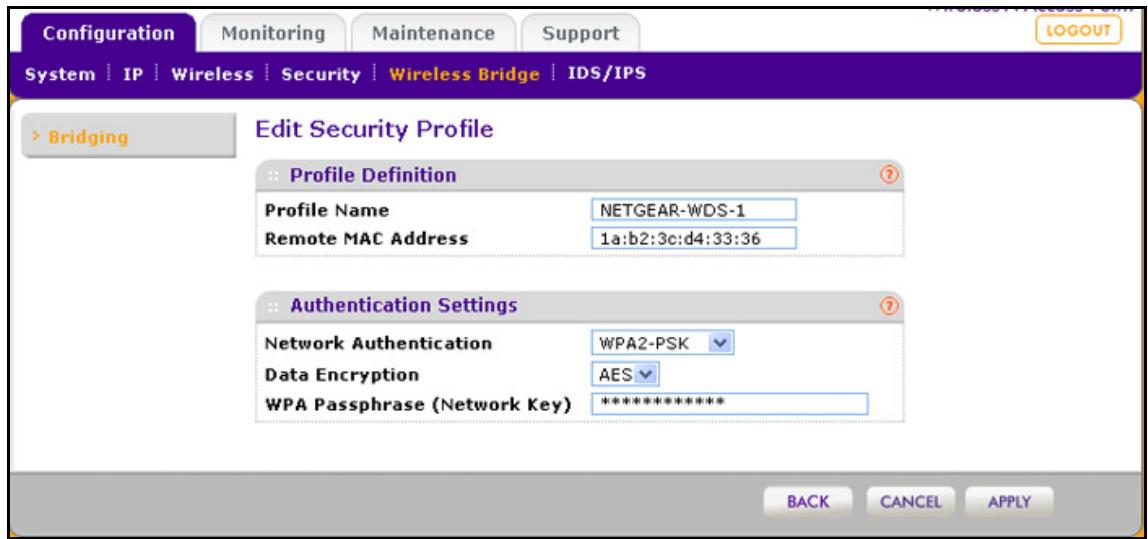
Figure 72.
g. Specify the settings as explained in the following table:
Table 37. Point-to-multipoint bridge profile and authentication settings
| Setting | Description | |
| Profile Definition | ||
| Profile Name | Enter a profile name that is easy to remember. The default names for the four security profiles are NETGEAR-WDS-1, NETGEAR-WDS-2, NETGEAR-WDS-3, and NETGEAR-WDS-4. | |
| Remote MAC Address | Enter the MAC address of the remote wireless access point (the MAC address of AP2 or AP 3 on LAN Segment 1 in Figure 70 on page 122). | |
| Authentication Settings | ||
| Network Authentication and Data Encryption | From the Network Authentication drop-down list, select Open System, WPA-PSK, or WPA2-PSK. Your selection determines the options that the Data Encryption drop-down list provides, and whether the WPA Passphrase (Network Key) field displays. | |
| Open System | Although you can use the bridge communication without any authentication and encryption, NETGEAR recommends that you use WEP if you do select an open system. From the Data Encryption drop-down list, select one of the following: · None. No authentication and encryption. · 64-bit WEP. Standard WEP encryption, using 40/64-bit encryption. · 128-bit WEP. Standard WEP encryption, using 104/128-bit encryption. · 152-bit WEP. Proprietary WEP encryption mode, using 128+24 bit encryption. This mode functions only with other wireless stations that support this mode. | |
| WPA-PSK | TKIP (Temporal Key Integrity Protocol) is the standard encryption method used with WPA-PSK and the only selection possible from the Data Encryption drop-down list. In the WPA Passphrase (Network Key) field, enter a passphrase. The passphrase length needs to be between 8 and 63 characters (inclusive). | |
| WPA2-PSK | AES (Advanced Encryption Standard) is the standard encryption method used with WPA2-PSK and the only selection possible from the Data Encryption drop-down list. In the WPA Passphrase (Network Key) field, enter a passphrase. The passphrase length needs to be between 8 and 63 characters (inclusive). Note: NETGEAR recommends WPA2-PSK authentication with AES encryption if you want to use the 11n rates and speed. | |
h. Click Apply to save your security profile settings. The Bridging screen displays again.
i. Repeat Step c through Step h for any other security profile that you want to edit.
For example, first configure security profile NETGEAR-WDS-1 with the MAC address of AP2, and then configure security profile NETGEAR-WDS-2 with the MAC address of AP3 (see Figure 70 on page 122).
- Activate the wireless access point (AP1 on LAN Segment 1 in Figure 70 on page 122) as a point-to-multipoint bridge (that is, it is the master in the wireless network):
a. On the Bridging screen, select the Enable Wireless Bridging check box.
b. Select the Wireless Point-to-Multi-Point Bridge radio button.
c. Select the Enable Wireless Client Association check box to enable wireless client association.
Note: If you do not select the Enable Wireless Client Association check box, the wireless access point does not function in point-to-multipoint bridge but in repeater mode.
d. If the correct profile names and security options are displayed in the table, select the check boxes in the Enable column for all security profiles that you want to enable.
e. Click Apply on the Bridging screen to activate your point-to-multipoint bridge settings.
- Configure AP2 on LAN Segment 2 (see Figure 70 on page 122) in point-to-point bridge mode with the remote MAC address of AP1.
-
Configure AP3 on LAN Segment 3 (see Figure 70 on page 122) in point-to-point bridge mode with the remote MAC address of AP1.
-
Verify the following for all wireless access points:
-
Only AP1 on LAN Segment 1 is configured in point-to-multipoint bridge mode, and all others APs are configured in point-to-point bridge mode.
- AP2 and AP3 (the point-to-point APs) have AP1's MAC address in their Remote MAC Address field.
- All APs are on the same LAN, that is, the LAN IP addresses of all APs are in the same network as the LAN devices.
- If you use DHCP, all wireless access points can obtain IP addresses automatically (as DHCP clients). For more information, see Configure the Optional DHCPv4 Server on page 27 or Configure the Optional DHCPv6 Server on page 101.
-
All wireless access points use the same channel, authentication mode, and security settings.
-
Verify connectivity across the LANs:
A computer on any LAN segment should be able to connect to the Internet or share files and printers with any other devices or servers connected to any of the three LAN segments.
Note: You can extend this multipoint bridging configuration by adding additional wireless access points that are configured in point-to-point mode for each additional LAN segment. Furthermore, you can extend the range of the wireless network with NETGEAR wireless antenna accessories.
Configure the Wireless Access Point to Repeat the Wireless Signal Using Point-to-Multipoint Bridge Mode
You can configure the wireless access point to repeat the wireless signal, without communication with other wireless clients. All traffic is sent to the remote or downstream wireless access point. You can configure up to four security profiles to enable the wireless access point to repeat the wireless signal for four remote wireless access points. Each security profile requires a unique name and needs to include the MAC address of the remote wireless access point. You can configure up to four such security profiles (NETGEAR-WDS-1, NETGEAR-WDS-2, and so on).
The following figure shows an example in which AP1, AP2, and AP3 repeat the wireless signal in point-to-multipoint bridge mode. AP2 requires a security profile for AP1 and another one for AP3:
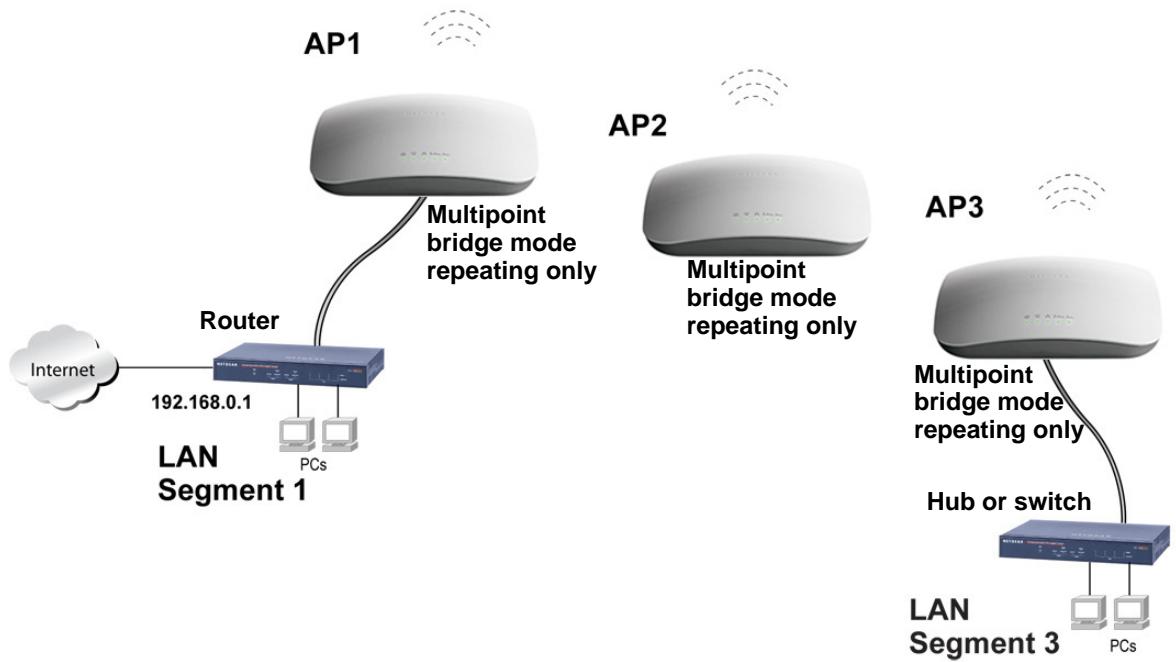
Figure 73.
To configure the wireless access point to repeat the wireless signal:
- Configure the security profiles on the wireless access point (AP2 in the previous figure):
a. Select Configuration > Wireless Bridge. The Bridging screen displays (see the following figure).
b. Optional: To display the Bridging screen for the 802.11a/na modes, click the 802.11a/na tab.
c. Select the Enable Wireless Bridging check box. The Local MAC Address field is a nonconfigurable field that shows the MAC address of the wireless access point.
d. Select the Wireless Point-to-Multi-Point Bridge radio button. The screen adjusts.
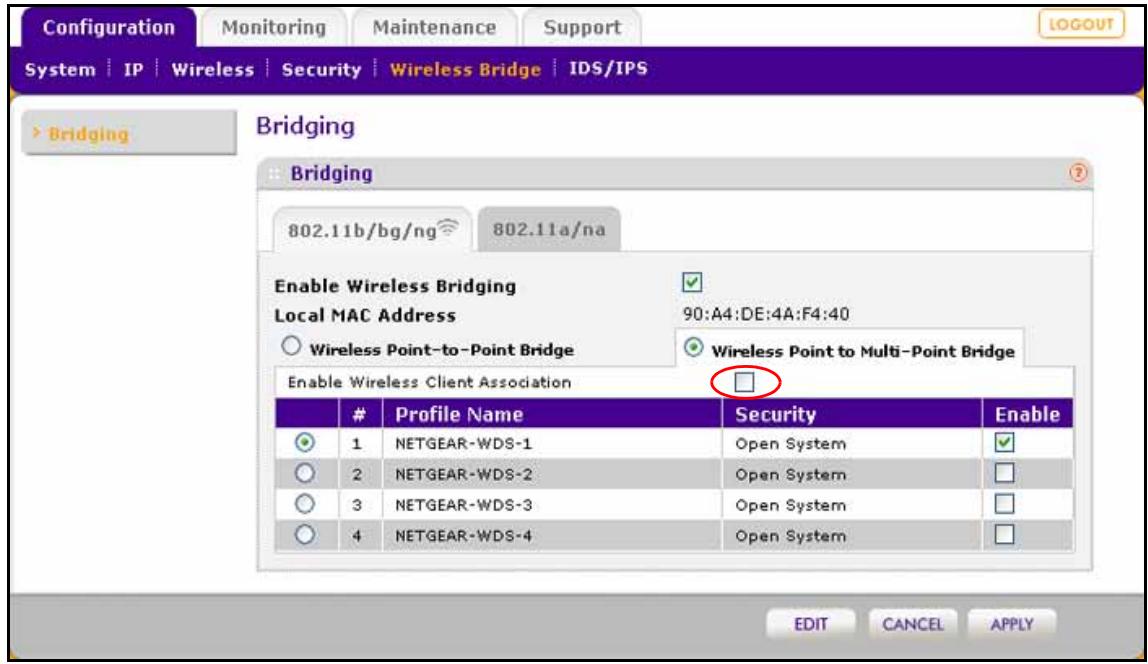
Figure 74.
e. The profile table shows four security profiles. Choose a security profile to edit by selecting the corresponding radio button to the left of the profile.
f. Click Edit to configure the selected security profile settings. The Edit Security Profile screen displays for the selected security profile. (The following figure contains an example.)
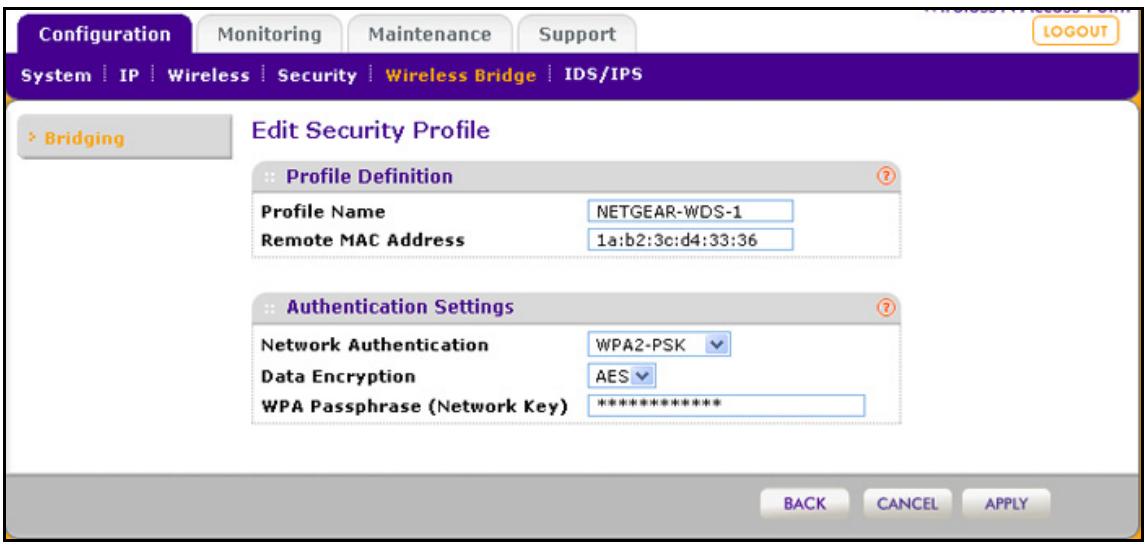
Figure 75.
g. Specify the settings as explained in the following table:
Table 38. Wireless signal repeating profile and authentication settings
| Setting | Description | |
| Profile Definition | ||
| Profile Name | Enter a profile name that is easy to remember. The default names for the four security profiles are NETGEAR-WDS-1, NETGEAR-WDS-2, NETGEAR-WDS-3, and NETGEAR-WDS-4. | |
| Remote MAC Address | Enter the MAC address of the remote wireless access point (the MAC address of AP1 or AP3 in Figure 73 on page 126). | |
| Authentication Settings | ||
| Network Authentication and Data Encryption | From the Network Authentication drop-down list, select Open System, WPA-PSK, or WPA2-PSK. Your selection determines the options that the Data Encryption drop-down list provides, and whether the WPA Passphrase (Network Key) field displays. | |
| Open System | Although you can use the bridge communication without any authentication and encryption, NETGEAR recommends that you use WEP if you do select an open system. From the Data Encryption drop-down list, select one of the following: · None. No authentication and encryption. · 64-bit WEP. Standard WEP encryption, using 40/64-bit encryption. · 128-bit WEP. Standard WEP encryption, using 104/128-bit encryption. · 152-bit WEP. Proprietary WEP encryption mode, using 128+24 bit encryption. This mode functions only with other wireless stations that support this mode. | |
| Network Authentication and Data Encryption (continued) | WPA-PSK | TKIP (Temporal Key Integrity Protocol) is the standard encryption method used with WPA-PSK and the only selection possible from the Data Encryption drop-down list. In the WPA Passphrase (Network Key) field, enter a passphrase. The passphrase length needs to be between 8 and 63 characters (inclusive). |
| WPA2-PSK | AES (Advanced Encryption Standard) is the standard encryption method used with WPA2-PSK and the only selection possible from the Data Encryption drop-down list. In the WPA Passphrase (Network Key) field, enter a passphrase. The passphrase length needs to be between 8 and 63 characters (inclusive).Note: NETGEAR recommends WPA2-PSK authentication with AES encryption if you want to use the 11n rates and speed. | |
h. Click Apply to save your security profile settings. The Bridging screen displays again.
i. Repeat Step e through Step h for any other security profile that you want to edit. For example, first configure security profile NETGEAR-WDS-1 with the MAC address of AP1, and then configure security profile NETGEAR-WDS-2 with the MAC address of AP3 (see Figure 73 on page 126).
- Activate repeater mode on the wireless access point (AP2 in Figure 73 on page 126):
a. On the Bridging screen, select the Enable Wireless Bridging check box.
b. Select the Wireless Point-to-Multi-Point Bridge radio button.
c. Clear the Enable Wireless Client Association check box to disable wireless client association (see the red circle in Figure 74 on page 127).
Note: If you do not clear the Enable Wireless Client Association check box, the wireless access point functions in regular point-to-multipoint bridge mode.
d. If the correct profile names and security options are displayed in the table, select the check boxes in the Enable column for all security profiles that you want to enable.
e. Click Apply on the Bridging screen to activate your repeater settings.
- Configure AP1 on LAN Segment 1 (see Figure 73 on page 126) in repeater mode with the remote MAC address of AP2.
-
Configure AP3 on LAN Segment 3 (see Figure 73 on page 126) in repeater mode with the remote MAC address of AP2.
-
Verify the following for all wireless access points:
-
All APs are on the same LAN, that is, the LAN IP addresses of all APs are in the same network as the LAN devices.
- If you use DHCP, all wireless access points can obtain IP addresses automatically (as DHCP clients). For more information, see Configure the Optional DHCPv4 Server on page 27 or Configure the Optional DHCPv6 Server on page 101.
-
All wireless access points use the same channel, authentication mode, and security settings.
-
Verify connectivity across the LANs:
A computer on any LAN segment should be able to connect to the Internet or share files and printers with any other devices or servers connected to any of the two LAN segments.
Note: You can extend repetition of the wireless signal by adding up to two more wireless access points that are configured in point-to-multipoint bridge mode without client association. Also, you can extend the range of the wireless network with NETGEAR wireless antenna accessories.
This chapter provides information about troubleshooting the wireless access point. After each problem description, instructions are given to help you diagnose and solve the problem. For the common problems listed, go to the section indicated.
Is the wireless access point on?
Go to Basic Functioning on page 132.
- Have I connected the wireless access point correctly?
Go to Basic Functioning on page 132.
- I cannot access the Internet or the LAN.
Go to You Cannot Access the Internet or the LAN from a Wireless-Capable Computer on page 134.
- I cannot access the wireless access point from a browser.
Go to You Cannot Configure the Wireless Access Point from a Browser on page 134.
A time-out occurs.
Go to When You Enter a URL or IP Address a Time-Out Error Occurs on page 135.
I have problems with the LAN connection.
Go to Troubleshooting a TCP/IP Network Using the Ping Utility on page 135.
- I cannot remember the wireless access point's configuration password.
Go to Change the Administrator Password on page 74.
I want to clear the configuration and start over again.
Go to Restore the Wireless Access Point to the Factory Default Settings on page 71.
The date or time is not correct.
Go to Problems with Date and Time on page 137.
The wireless access point provides a packet capture tool that enables you to perform problem diagnoses. For information about how to use this tool, see Use the Packet Capture Tool on page 138.
Basic Functioning
- Verify the Correct Sequence of Events at Startup
- No LEDs Are Lit on the Wireless Access Point
- The Active LED or the LAN LED Is Not Lit
- The WLAN LED Does Not Light Up
Note: For descriptions of the LEDs, see Top Panel on page 11.
Verify the Correct Sequence of Events at Startup
After you turn on power to the wireless access point, check that the following sequence of events occurs:
- The Power/Test LED is first steady amber, then goes off, and then blinks green before turning steady green after about 45 seconds.
The Active LED is lit or blinks green when there is Ethernet traffic. - The LAN LED indicates the LAN speed: green for 1000 Mbps, amber for 100 Mbps, and no light for 10 Mbps.
- The WLAN LED is lit or blinks green when the wireless LAN (WLAN) is ready.
If any of these conditions does not occur, see to the appropriate following section.
No LEDs Are Lit on the Wireless Access Point
It takes a few seconds for the Power LED to light up. Wait a minute and check the Power LED status on the wireless access point. If the wireless access point has no power:
If you use a PoE switch to provide power to the wireless access point, check these items:
- Make sure that the Ethernet cable between the wireless access point and the PoE switch is correctly connected at both ends.
- Make sure that the power cord of the PoE switch is plugged into a working power outlet or power strip.
Make sure that your PoE switch is functioning normally.
If you use a power cord to provide power to the wireless access point, check these items:
- Make sure that the power cord is connected to the wireless access point.
- Make sure that the power adapter is connected to a functioning power outlet. If it is in a power strip, make sure that the power strip is turned on. If it is plugged directly into the wall, verify that it is not a switched outlet.
- Make sure that you are using the correct NETGEAR power adapter that is supplied with your wireless access point.
The Active LED or the LAN LED Is Not Lit
There is a hardware connection problem.
Check these items:
- Make sure that the cable connectors are securely plugged in at the wireless access point and the network device—hub, (PoE) switch, or router.
Make sure that the connected device is turned on. - Make sure that the correct cable is used. Use a standard Category 5 Ethernet patch cable. If the network device has Auto Uplink (MDI/MDIX) ports, you can use either a crossover cable or a normal patch cable.
The WLAN LED Does Not Light Up
The wireless access point's antenna is not working.
Check these items:
- If the WLAN LED remains off, either disconnect the cable to the PoE switch and then reconnect it again, or disconnect the adapter from its power source and then plug it in again.
- Make sure that optional external antennas are tightly connected to the wireless access point.
Contact NETGEAR technical support if the WLAN LED remains off.
You Cannot Access the Internet or the LAN from a Wireless-Capable Computer
There is a configuration problem.
> Check these items:
- You might not have restarted the computer with the wireless adapter to allow TCP/IP changes take effect. Restart the computer.
- The computer with the wireless adapter might not have the correct TCP/IP settings to communicate with the network. Restart the computer and check that TCP/IP is set up correctly for that network. In Windows, the usual setting for Network Properties is to obtain an IP address automatically.
- The wireless access point's default values might not work with your network. Check the wireless access point's default configuration against the configuration of other devices in your network.
- Make sure that the SSID, network authentication, and data encryption settings of the computer with the wireless adapter are the same as those of the wireless access point.
- Ping the IP address of the wireless access point to verify that there is a wireless connection between the computer with the wireless adapter and the wireless access point. If the ping fails, check the network configuration (for the wireless access point, see Configure the IPv4 Settings on page 25).
- Ping the default gateway to verify that there is a path from the computer with the wireless adapter to the default gateway. If the ping fails, check the network configuration or call the Internet service provider (ISP).
You Cannot Configure the Wireless Access Point from a Browser
> Check these items:
- The wireless access point is correctly installed, it is powered on, and LAN connections are okay. Check that the Active LED and LAN LED are on to verify that the Ethernet connection is okay.
- If your computer uses a fixed (static) IP address, ensure that it is using an IP address in the range of the wireless access point. The wireless access point's default IP address is 192.168.0.100, and its subnet mask is 255.255.255.0 with DHCP disabled. Make sure that your network configuration settings are correct.
-
If you are using the NetBIOS name of the wireless access point to connect, ensure that your computer and the wireless access point are on the same network segment or that there is a WINS server on your network.
If your computer is set to obtain an IP address automatically (DHCP client), restart it. -
Make sure that your browser has Java, JavaScript, or ActiveX enabled. If you are using Internet Explorer, click Refresh to be sure that the Java applet is loaded.
- Try quitting the browser, clearing the cache, deleting the cookies, and launching the browser again.
- Make sure that you are using the correct login information. The factory default login name is admin, and the password is password. Make sure that Caps Lock is off when entering this information.
If the wireless access point does not save changes you have made in the web management interface, check the following:
- When entering configuration settings, be sure to click the Apply button before moving to another screen or tab, or your changes are lost.
- Click the Refresh or Reload button in the web browser. The changes might have occurred, but the web browser might be caching the old configuration.
When You Enter a URL or IP Address a Time-Out Error Occurs
A number of things could be causing this.
Try the following troubleshooting steps:
- Check whether other computers on the LAN work correctly. If they do, ensure that your computer's TCP/IP settings are correct. If you use a fixed (static) IP address, check the subnet mask, default gateway, DNS, and IP addresses of the wireless access point (see Configure the IPv4 Settings on page 25).
- If the computer is configured correctly but still not working, ensure that the wireless access point is connected and turned on. Access it and check its settings. If you cannot connect to the wireless access point, check the LAN and power connections.
- If the wireless access point is configured correctly, check your Internet connection (for example, your cable modem) to make sure that it is working correctly.
Troubleshoot a TCP/IP Network Using the Ping Utility
Test the LAN Path to Your Wireless Access Point
Test the Path from Your Computer to a Remote Device
Most TCP/IP terminal devices and routers contain a ping utility that sends an echo request packet to the designated device. The device then responds with an echo reply. You can easily troubleshoot a TCP/IP network by using the ping utility in your computer.
Test the LAN Path to Your Wireless Access Point
You can ping the wireless access point from your computer to verify that the LAN path to your wireless access point is set up correctly.
To ping the wireless access point from a computer running Windows 95 or later:
- From the Windows toolbar, click the Start button, and select Run.
- In the field provided, type ping followed by the IP address of the wireless access point, as in this example:
ping 192.168.0.100
- Click OK.
You should see a message like this one:
Pinging
If the path is working, you see this message:
Reply from < IP address >: bytes=32 time=NN ms TTL=xxx
If the path is not working, you see this message:
Request timed out
If the path is not functioning correctly, you could have one of the following problems:
-
Wrong physical connections:
-
Make sure that the Active LED and LAN LED are on. If one or both of these LEDs are off, follow the instructions in The Active LED or the LAN LED Is Not Lit on page 133.
-
Check that the corresponding link LEDs are on for your network interface card and for the hub ports (if any) that are connected to your workstation and wireless access point.
-
Wrong network configuration:
-
Verify that the Ethernet card driver software and TCP/IP software are both installed and configured on your computer.
- Verify that the IP address for your wireless access point and your workstation are correct and that the addresses are on the same subnet.
Test the Path from Your Computer to a Remote Device
After verifying that the LAN path works correctly, test the path from your computer to a remote device.
- From the Windows toolbar, click the Start button, and select Run.
- In the Windows Run window, type:
ping -n 10
where
If the path is functioning correctly, replies as in the previous section display. If you do not receive replies:
- Check that your computer has the IP address of your router listed as the default wireless access point. If the IP configuration of your computer is assigned by DHCP, this information is not visible in your computer's Network Control Panel. Verify that the IP address of the router is listed as the default wireless access point.
- Check to see that the network address of your computer (the portion of the IP address specified by the netmask) is different from the network address of the remote device.
- Check that your cable or DSL modem is connected and functioning.
- If your ISP assigned a host name to your computer, enter that host name as the account name in the basis General system settings screen (see Configure Basic General System Settings and Time Settings on page 23).
Problems with Date and Time
The Time Settings screen that is accessible through the Configuration > System > Basic > Time menu choices displays the current date and time of day. The wireless access point uses the Network Time Protocol (NTP) to obtain the current time from a network time server on the Internet that you specify in the Time Settings screen (see Configure Basic General System Settings and Time Settings on page 23). Each entry on the Logs screen is stamped with the date and time of day. Problems with the date and time function can include the following:
- Date and time shown is Fri Dec 31 00:00:00 1999 or a similar incorrect date and time. Cause: The wireless access point has not yet successfully reached the network time server. Check that your Internet access settings are configured correctly. If you have just completed configuring the wireless access point, wait at least 5 minutes and check the date and time again.
- The day is correct or one day ahead or behind, and the hours are ahead or behind. Cause: You have selected an incorrect time zone for your area. Specify the correct time zone in the basic General system settings screen (see Configure Basic General System Settings and Time Settings on page 23).
Use the Packet Capture Tool
You can capture wireless packets to analyze traffic patterns with a network traffic analyzer tool. The captured packet flow can show if traffic is flowing correctly to its destinations or if packets are dropped. There is a limit to the size of the packet flow that you can capture in a file.
To capture packets:
- Select Monitoring > Packet Capture. The Packet Capture screen displays:
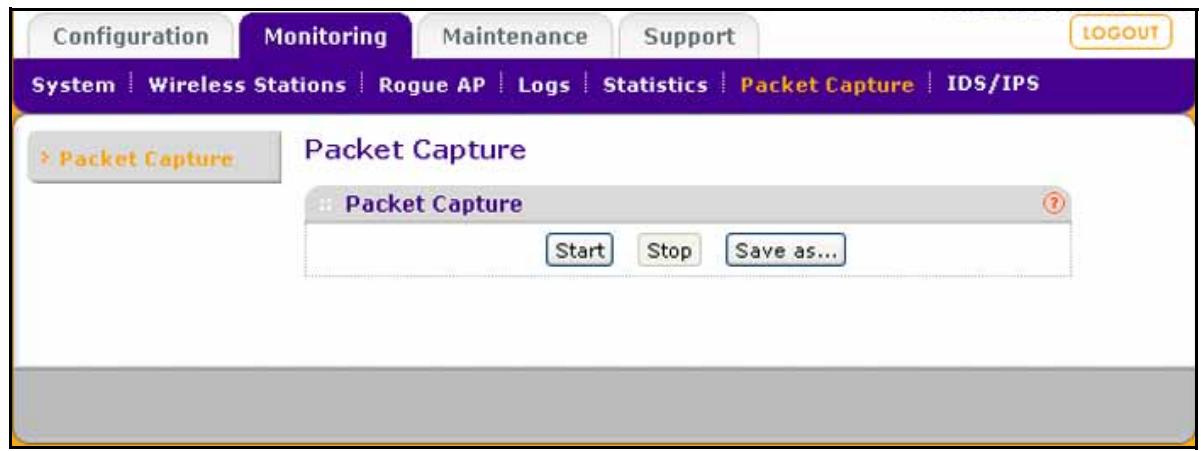
Figure 76.
- Click Start to start capturing wireless packets leaving or entering the wireless access point on the active operating channel. Depending on which interface is enabled, packets on the 2.4 GHz interface or 5 GHz interface are captured. Normal functioning of the wireless access point is not affected during the packet capture process.
If any previously captured packets exist, you are prompted to delete them, and only then can you capture new packets.
- Click Stop to stop capturing packets.
- Click Save as to save the pacture.pcap file on your computer or to a disk drive.
This appendix provides factory default settings and technical specifications for the ProSafe Premium 3 x 3 Dual-Band Wireless-N Access Point WNDAP620. The appendix includes the following sections:
Technical Specifications
Factory Default Settings
Technical Specifications
Table 39. Technical specifications
| Feature | Description |
| 802.11b/bg/ng wireless specifications | |
| 802.11b data rates | 1, 2, 5.5, and 11 Mbps, and auto-rate capable |
| 802.11bg data rates | 1, 2, 5.5, 6, 9, 11, 12, 18, 24, 36, 48, 54 Mbps, and auto-rate capable |
| 802.11ng MCS index and data rates | Data rates for a 20 MHz channel width and an automatic guard interval: 0 / 7.2 Mbps, 1 / 14.4 Mbps, 2 / 21.7 Mbps, 3 / 28.9 Mbps, 4 / 43.3 Mbps, 5 / 57.8 Mbps, 6 / 65 Mbps, 7 / 72.2 Mbps, 8 / 14.44 Mbps, 9 / 28.88 Mbps, 10 / 43.33 Mbps, 11 / 57.77 Mbps, 12 / 86.66 Mbps, 13 / 115.56 Mbps, 14 / 130 Mbps, 15 / 144.44 Mbps, 16 / 21.7 Mbps, 17 / 43.3 Mbps, 18 / 65 Mbps, 19 / 86.7 Mbps, 20 / 130.7 Mbps, 21 / 173.3 Mbps, 22 / 195 Mbps, 23 / 216.7 Mbps, and auto-rate capable |
| Data rates for a 20 MHz channel width and a long guard interval (800 ms): 0 / 6.5 Mbps, 1 / 13 Mbps, 2 / 19.5 Mbps, 3 / 26 Mbps, 4 / 39 Mbps, 5 / 52 Mbps, 6 / 58.5 Mbps, 7 / 65 Mbps, 8 / 13 Mbps, 9 / 26 Mbps, 10 / 39 Mbps, 11 / 52 Mbps, 12 / 78 Mbps, 13 / 104 Mbps, 14 / 117 Mbps, 15 / 130 Mbps, 16 / 19.5 Mbps, 17 / 39 Mbps, 18 / 58.5 Mbps, 19 / 78 Mbps, 20 / 117 Mbps, 21 / 156 Mbps, 22 / 175.5 Mbps, 23 / 195 Mbps, and auto-rate capable | |
| Data rates for a 40 MHz channel width and an automatic guard interval: 0 / 15 Mbps, 1 / 30 Mbps, 2 / 45 Mbps, 3 / 60 Mbps, 4 / 90 Mbps, 5 / 120 Mbps, 6 / 135 Mbps, 7 / 150 Mbps, 8 / 30 Mbps, 9 / 60 Mbps, 10 / 90 Mbps, 11 / 120 Mbps, 12 / 180 Mbps, 13 / 240 Mbps, 14 / 270 Mbps, 15 / 300 Mbps, 16 / 45 Mbps, 17 / 90 Mbps, 18 / 135 Mbps, 19 / 180 Mbps, 20 / 270 Mbps, 21 / 360 Mbps, 22 / 405 Mbps, 23 / 450 Mbps, and auto-rate capable | |
| 802.11ng MCS index and data rates (continued) | Data rates for a 40 MHz channel width and a long guard interval (800 ms): 0 / 13.5 Mbps, 1 / 27 Mbps, 2 / 40.5 Mbps, 3 / 54 Mbps, 4 / 81 Mbps, 5 / 108 Mbps, 6 / 121.5 Mbps, 7 / 135 Mbps, 8 / 27 Mbps, 9 / 54 Mbps, 10 / 81 Mbps, 11 / 108 Mbps, 12 / 162 Mbps, 13 / 216 Mbps, 14 / 243 Mbps, 15 / 270 Mbps, 16 / 40.5 Mbps, 17 / 81 Mbps, 18 / 121.5 Mbps, 19 / 162 Mbps, 20 / 243 Mbps, 21 / 324 Mbps, 22 / 364.5 Mbps, 23 / 405 Mbps, and auto-rate capable |
| 802.11b/bg/ng operating frequencies | • 2.412-2.462 GHz (US) • 2.457-2.462 GHz (Spain) • 2.410-2.484 GHz (Japan 11b) • 2.410-2.472 GHz (Japan 11ng) • 2.457-2.472 GHz (France) • 2.412-2.472 GHz (Europe ETSI) • 2.412-2.472 GHz (China) |
| 802.11 b/bg/ng encryption | • 64-bit, 128-bit, and 52-bit WEP • AES • TKIP |
| 802.11a/na wireless specifications | |
| 802.11a data rates | 6, 9, 12, 18, 24, 36, 48, 54 Mbps, and auto-rate capable |
| 802.11na data rates | Data rates for a 20 MHz channel width and an automatic guard interval: 0 / 7.2 Mbps, 1 / 14.4 Mbps, 2 / 21.7 Mbps, 3 / 28.9 Mbps, 4 / 43.3 Mbps, 5 / 57.8 Mbps, 6 / 65 Mbps, 7 / 72.2 Mbps, 8 / 14.44 Mbps, 9 / 28.88 Mbps, 10 / 43.33 Mbps, 11 / 57.77 Mbps, 12 / 86.66 Mbps, 13 / 115.56 Mbps, 14 / 130 Mbps, 15 / 144.44 Mbps, 16 / 21.7 Mbps, 17 / 43.3 Mbps, 18 / 65 Mbps, 19 / 86.7 Mbps, 20 / 130.7 Mbps, 21 / 173.3 Mbps, 22 / 195 Mbps, 23 / 216.7 Mbps, and auto-rate capable |
| Data rates for a 20 MHz channel width and a long guard interval (800 ms): 0 / 6.5 Mbps, 1 / 13 Mbps, 2 / 19.5 Mbps, 3 / 26 Mbps, 4 / 39 Mbps, 5 / 52 Mbps, 6 / 58.5 Mbps, 7 / 65 Mbps, 8 / 13 Mbps, 9 / 26 Mbps, 10 / 39 Mbps, 11 / 52 Mbps, 12 / 78 Mbps, 13 / 104 Mbps, 14 / 117 Mbps, 15 / 130 Mbps, 16 / 19.5 Mbps, 17 / 39 Mbps, 18 / 58.5 Mbps, 19 / 78 Mbps, 20 / 117 Mbps, 21 / 156 Mbps, 22 / 175.5 Mbps, 23 / 195 Mbps, and auto-rate capable | |
| Data rates for a 40 MHz channel width and an automatic guard interval: 0 / 15 Mbps, 1 / 30 Mbps, 2 / 45 Mbps, 3 / 60 Mbps, 4 / 90 Mbps, 5 / 120 Mbps, 6 / 135 Mbps, 7 / 150 Mbps, 8 / 30 Mbps, 9 / 60 Mbps, 10 / 90 Mbps, 11 / 120 Mbps, 12 / 180 Mbps, 13 / 240 Mbps, 14 / 270 Mbps, 15 / 300 Mbps, 16 / 45 Mbps, 17 / 90 Mbps, 18 / 135 Mbps, 19 / 180 Mbps, 20 / 270 Mbps, 21 / 360 Mbps, 22 / 405 Mbps, 23 / 450 Mbps, and auto-rate capable | |
| Data rates for a 40 MHz channel width and a long guard interval (800 ms): 0 / 13.5 Mbps, 1 / 27 Mbps, 2 / 40.5 Mbps, 3 / 54 Mbps, 4 / 81 Mbps, 5 / 108 Mbps, 6 / 121.5 Mbps, 7 / 135 Mbps, 8 / 72.2 Mbps, 9 / 54 Mbps, 10 / 81 Mbps, 11 / 108 Mbps, 12 / 162 Mbps, 13 / 216 Mbps, 14 / 243 Mbps, 15 / 270 Mbps, 16 / 40.5 Mbps, 17 / 81 Mbps, 18 / 121.5 MPs, 19 / 162 Mbps, 20 / 243 Mbps, 21 / 324 Mbps, 22 / 364.5 Mbps, 23 / 405 Mbps, and auto-rate capable | |
| 802.11a/ana operating frequencies | 5.180-5.240 GHz (US, lower frequencies) 5.260-5.320 GHz (US, middle frequencies) 5.180-5240 GHz (CE [EU], lower frequencies) 5.260-5.320 GHz (CE [EU], middle frequencies) 5.500-5.680 GHz (CE [EU], upper frequencies) |
| 802.11 a/ana encryption | 64-bit, 128-bit, and 52-bit WEP AES TKIP |
| Management and Other Specifications | |
| Network management | Remote configuration and management through the web management interface, through SNMP, or through Telnet or SSH with the command-line interface (CLI). SNMP management supports SNMP MIB I, MIB II, 802.11 MIB and proprietary configuration MIB. |
| Maximum clients | Limited by the amount of wireless network traffic generated by each node; a maximum of 128 clients is supported. |
| Status LEDs | Power/Test LED Link speed LED Ethernet LAN Wireless LAN (2.4 GHz and 5 GHz) |
| Electrical and Physical Specifications | |
| Power adapter | 12 VDC, 1A; plug is localized to country of sale |
| Physical specifications | Dimensions (h x w x d): 253.75 x 253.75 x 54.76 mm (10.0 x 10.0 x 2.16 in.) Weight: 1.5 kg (3.31 lb) |
| Environmental specifications | Operating temperature: 0 to 55°C (32 to 131°F) Operating humidity: 10-9%, noncondensing |
| Compliance Note: For more information about compliance, see Appendix C, Notification of Compliance. | |
| Electromagnetic compliance | FCC Part 15 SubPart B FCC Part 15 SubPart C FCC Part 15 SubPart E CE C-TICK |
Factory Default Settings
You can use the Reset button located on the rear of the wireless access point to reset all settings to their factory defaults. This is called a hard reset.
To perform a hard reset, use a sharp object to press and hold the Reset button for approximately 5 seconds (until the Test LED blinks rapidly). This returns the wireless access point to the factory configuration settings that are shown in the following table.
Note: Pressing the Reset button for a shorter period of time simply causes the wireless access point to reboot.
Table 40. Default configuration settings
| Feature | Description | ||
| Login for management and configuration | |||
| LAN IPv4 management address | 192.168.0.100 | ||
| Subnet mask for IPv4 management address | 255.255.255.0 | ||
| LAN IPv6 management address | 2001::21c:c0ff:fe69 | ||
| Prefix length for IPv6 management address | 64 | ||
| Required static IPv4 address for management computer | 192.168.0.210 and 255.255.255.0 | ||
| User name (case-sensitive) for login | admin | ||
| Login password (case-sensitive) for login | password | ||
| LAN and management features | |||
| DHCPv4 client | Disabled | ||
| DHCPv6 client | Disabled | ||
| Untagged VLAN | Enabled, VLAN ID 1 | ||
| Management VLAN | VLAN ID 1 | ||
| SNMP | Disabled | ||
| Syslog | Disabled | ||
| Spanning Tree Protocol (STP) | Disabled | ||
| Link Layer Discovery Protocol (LLDP) | Enabled | ||
| Secure Shell (SSH) | Enabled | ||
| Feature | Description | ||
| Hotspot | Disabled | ||
| Secure Telnet | Disabled | ||
| Time zone | USA-Pacific | ||
| NTP client | Enabled | ||
| Custom NTP server | Disabled | ||
| Port speed | 10/100/1000 | ||
| Ethernet MAC address | See bottom label | ||
| DHCP server | |||
| IPv4 | DHCPv4 server | Disabled | |
| DHCPv4 server VLAN ID | 1 | ||
| DHCPv4 server IP range start address | 192.168.0.2 | ||
| DHCPv4 server IP range start address | 192.168.0.50 | ||
| DHCPv4 server subnet mask | 255.255.255.0 | ||
| DHCPv4 server gateway IPv4 address | 192.168.0.1 | ||
| DHCPv4 server IP address lease for clients | 1 day | ||
| IPv6 | DHCPv6 server | Disabled | |
| DHCPv6 server state | Stateful | ||
| DHCPv6 server VLAN ID | 1 | ||
| DHCPv6 server IP range start address | 2001:05c0:9168::10 | ||
| DHCPv6 server IP range start address | 2001:05c0:9168::50 | ||
| DHCPv6 server prefix length | 64 | ||
| DHCPv6 server gateway IPv4 address | 2001:05c0:9168::1 | ||
| DHCPv6 server IP address lease for clients | 1 day | ||
| Radio and wireless settings | |||
| Operating mode | Access point, infrastructure mode | ||
| Wireless access point name | netgearxxxxxx, where xxxxxx are the last 6 digits of the wireless access point MAC address | ||
| Country and region | Varies by region | ||
| Wireless communication | 2.4 GHz radio enabled 5 GHz radio disabled | ||
| Feature | Description | ||
| Wireless mode | 11ng | ||
| Wireless network name (SSID) | NETGEAR_11ng | ||
| Broadcast network name SSID | Enabled | ||
| 802.11ng radio frequency channel | Auto | ||
| MCS index/data rate (transmission speed) | Best Note: Maximum wireless signal rate derived from IEEE Standard 802.11 specifications. Actual throughput will vary. Network conditions and environmental factors, including volume of network traffic, building materials and construction, and network overhead, lower actual data throughput rate. | ||
| Channel width | 20 MHz | ||
| Guard interval | Auto | ||
| Output power | Full | ||
| Wireless on/off (radio scheduling) | Disabled | ||
| RTS threshold | 2347 | ||
| Fragmentation length | 2346 | ||
| Beacon interval | 100 | ||
| Aggregation length | 65535 | ||
| AMPDU | Enabled | ||
| RIFS transmission | Disabled | ||
| DTIM interval | 3 | ||
| Preamble type | Auto | ||
| Antenna | Internal | ||
| 802.11d | Enabled | ||
| Client isolation | Disabled | ||
| Maximum wireless clients | 128 | ||
| Wi-Fi Multimedia (WMM) | Enabled | ||
| WMM powersave | Enabled | ||
| AP EDCA parameters (QoS settings) | See Table 32 on page 111. | ||
| Station EDCA parameters (QoS settings) | |||
| QoS policies | None | ||
| Wireless bridging | Disabled | ||
| Default wireless profile and profile security | |||
| Profile name | NETGEAR | ||
| Profile state | Enabled | ||
| Wireless network name (SSID) | NETGEAR_11ng | ||
| Broadcast wireless network name (SSID) | Enabled | ||
| Network authentication | Open system (no authentication) | ||
| Data encryption | None | ||
| Wireless client security separation | Disabled | ||
| VLAN ID | 1 | ||
| Wireless security features | |||
| Rogue AP detection | Disabled | ||
| Rogue AP detection policy | Moderate | ||
| MAC authentication | Disabled | ||
| RADIUS servers | None | ||
| RADIUS authentication port number | 1812 | ||
| RADIUS shared secret | sharedsecret | ||
| RADIUS accounting port number | 1813 | ||
| RADIUS reauthentication time | 3600 seconds | ||
| RADIUS update of the global key | 1800 seconds | ||
| IDS/IPS | Disabled | ||
| IDS/IPS policies | Preconfigured policies (see Table 24 on page 89), all disabled | ||
| IDS/IPS detection policy | Moderate | ||
| IDS/IPS mail settings | Blank | ||
The wireless access point can be configured through either the command-line interface (CLI), a web browser, or a MIB browser.
The CLI allows viewing and modification of the configuration from a terminal or computer through a Telnet or SSH connection.
Keyword Description
--backup-configuration --Backup configuration
--config> --Configuration setting
--apname --Access point name
--country --Country/region
--dhcpv4> --DHCPv4 server
--dns-server --DNS server
--gateway --Default gateway
--ip-address --IP range
--lease-time --Lease time
--status --Status
--vlan-id --Vlan-id
-- subnet-mask --Subnet mask
--wins-server --WINS server
--dhcpv6> --DHCPv6 server
--dns-server --DNS server
--gateway --Default gateway
--ip-address --IP range
--prefixlen --Prefixlen of IP
--status --Status
--vlan-id --Vlan-id
--state --State
--wins-server --WINS server
--http-redirect --Enable HTTP redirection
--http-redirecturl --HTTP redirection URL
--ids-ips-mail> --IDS/IPS mail settings
--mail-sender --Administrator/superuser mail address
--smtp-server --SMTP server address & port
--smtp-server-authentication --SMTP server status
--username --Username of the Administrator/superuser
--password --Password of the Administrator/superuser
| | --send-notifications --Administrator/superuser mail address |
| | |
| | --interface> --Select wireless lan interface |
| | |-wlan> --Wireless LAN interface setting |
| | |-2.4GHz> --2.4 GHz wireless LAN interface setting |
| | |-aggregation-length --Aggregated packet size |
| | |-ampdu --Aggregated MAC Protocol Data Unit |
| | |-beacon-interval --Wireless beacon period in TU(1024 us) |
| | |-channel --Wireless channel (depends on country and wireless mode) |
| | |-channelwidth --Wireless channel width |
| | |-dtim-interval --Wireless DTIM period in beacon interval |
| | |-fragmentation-length --Wireless fragmentation threshold(even only) |
| | |-guardinterval --Interval (from interference from other transmissions) |
| | |-knownap-add --Add known access point |
| | |-knownap-del --Delete known access point |
| | |-macacl-add --Add wireless access control (ACL) |
| | |-macacl-database --Delete wireless access control (ACL) database |
| | |-macacl-del --Delete wireless access control (ACL) |
| | |-mcstrate --Transmit data rate |
| | |-mode --Enable wireless access control (ACL) |
| | |-operation-mode --Wireless operation mode |
| | |-power --Wireless transmit power |
| | |-preamble --Wireless preamble (only effect on 802.11b rates) |
| | |-radio --Enable wireless radio |
| | |-rate --Wireless transmission date rate |
| | |-rifs-transmission --Enable successive frame transmission at different transmit powers |
| | |-rogue-ap-detection --Enable rogue access point detection |
| | |-rts-threshold --Wireless RTS/CTS threshold |
| | |-1ldSupport --IEEE802.11d status |
| | |-client-isolation --Client isolation status |
| | |-create-QoS-policy --Create QoS (Quality of service) policy |
| | |-create-QoS-classification --Create QoS (Quality of service) classification |
| | |-delete-QoS-policy --Delete QoS (Quality of service) policy |
| | |-delete-QoS-classification --Delete QoS (Quality of service) classification |
| | |-security-profile> --Create security profile |
| | |-1> --1st security profile |
| | |-authentication --Wireless authentication type |
| | |-encryption --Data encryption |
| | |-hide-network-name --Hide network name |
| | |-key1 --Wireless wep key 1 |
| | |-key2 --Wireless wep key 2 |
| | |-key3 --Wireless wep key 3 |
| | |-key4 --Wireless wep key 4 |
| | |-keyno --Key number |
| | |-name --Profile name |
| | |-presharedkey --Pre-shared key |
| | |-security-separation --Disable associated wireless client communication |
| | |-ssid --Network name (1-32 chars) |
| | |-status --Profile status |
| | |-vlan-id --VLAN id |
| | |-wep-pass-phrase --Wireless wep passphrase key |
| | |-wepkeytype --Wireless wep key type |
| | |-apply-incoming-QoSpolicy --Apply QoS policy as a incoming |
| | |-apply-outgoing-QoSpolicy --Apply QoS policy as a outgoing |
| | -delete-incoming-QoSpolicy--Delete incoming QoS policy
--delete-outgoing-QoS policy--Delete outgoing QoS policy
--2> --2nd security profile
--authentication --Wireless authentication type
--encryption --Data encryption
--hide-network-name --Hide network name
--key1 --Wireless wep key 1
--key2 --Wireless wep key 2
--key3 --Wireless wep key 3
--key4 --Wireless wep key 4
--keyno --Key number
--name --Profile name
--preshaledkey --Pre-shared key
--security-separation --Disable associated wireless client communication
--ssid --Network name (1-32 chars)
--status --Profile status
-vlan-id --VLAN id
--wep-pass-phrase --Wireless wep passphrase key
--wepkeytype --Wireless wep key type
--apply-incoming-QoS policy --Apply QoS policy as a incoming
--apply-outgoing-QoS policy --Apply QoS policy as a outgoing
--delete-incoming-QoS policy--Delete incoming QoS policy
--delete-outgoing-QoS policy--Delete outgoing QoS policy
--3> --3rd security profile
--authentication --Wireless authentication type
--encryption --Data encryption
--hide-network-name --Hide network name
--key1 --Wireless wep key 1
--key2 --Wireless wep key 2
--key3 --Wireless wep key 3
--key4 --Wireless wep key 4
--keyno --Key number
--name --Profile name
--preshaledkey --Pre-shared key
--security-se separation --Disable associated wireless client communication
--ssid --Network name (1-32 chars)
--status --Profile status
-vlan-id --VLAN id
-wep-pass-phrase --Wireless wep passphrase key
-wepkeytype --Wireless wep key type
--apply-incoming-QoS policy --Apply QoS policy as a incoming
--apply-outgoing-QoS policy --Apply QoS policy as a outgoing
--delete-incoming-QoS policy--Delete incoming QoS policy
--delete-outgoing-QoS policy--Delete outgoing QoS policy
--4> --4th security profile
--authentication --Wireless authentication type
--encryption --Data encryption
--hide-network-name --Hide network name
--key1 --Wireless wep key 1
--key2 --Wireless wep key 2
--key3 --Wireless wep key 3
--key4 --Wireless wep key 4
--presharedkey --Pre-shared key
--security-separation --Disable associated wireless client communication
--ssid --Network name (1-32 chars)
--status --Profile status
-vlan-id --VLAN id
--wep-pass-phrase --Wireless wep passphrase key
--wepkeytype --Wireless wep key type
--apply-incoming-QoS policy --Apply QoS policy as a incoming
--apply-outgoing-QoS policy --Apply QoS policy as a outgoing
--delete-incoming-QoSpolicy--Delete incoming QoS policy
--delete-outgoing-QoSpolicyv--Delete outgoing QoS policy
--5> --5th security profile
--authentication --Wireless authentication type
--encryption --Data encryption
--hide-network-name --Hide network name
--key1 --Wireless wep key 1
--key2 --Wireless wep key 2
--key3 --Wireless wep key 3
--key4 --Wireless wep key 4
--keyno --Key number
--name --Profile name
--preshaledkey --Pre-shared key
--security-separation --Disable associated wireless client communication
--ssid --Network name (1-32 chars)
--status --Profile status
-vlan-id --VLAN id
--wep-pass-phrase --Wireless wep passphrase key
--wepkeytype --Wireless wep key type
--apply-incoming-QoS policy --Apply QoS policy as a incoming
--apply-outgoing-QoS policy --Apply QoS poliacy as a outgoing
--delete-incoming-QoSpolicy--Delete incoming QoS policy
--delete-outgoing-QoSpolicy--Delete outgoing QoS policy
--6> --6th security profile
--authentication --Wireless authentication type
--encryption --Data encryption
--hide-network-name --Hide network name
--key1 --Wireless wep key 1
--key2 --Wireless wep key 2
--key3 --Wireless wep key 3
--key4 --Wireless wep key 4
--keyno --Key number
--name --Profile name
--preshaledkey --Pre-shared key
--security separation --Disable associated wireless client communication
--ssid --Network name (1-32 chars)
--status --Profile status
-vlan-id --VLAN id
--wep-pass-phrase --Wireless wep passphrase key
--wepkeytype --Wireless wep key type
--apply-incoming-QoS policy --Apply QoS policy as a incoming
--apply-outgoing-QoSpolicy --Apply QoS policy as a outgoing
--delete-incoming-QoSpolicy--Delete incoming QoS policy
--delete-outgoing-QoSpolicy--Delete outgoing QoS policy
| | | | | | | --authentication --Wireless authentication type |
| | | | | | --encryption --Data encryption |
| | | | | | --hide-network-name --Hide network name |
| | | | | | --key1 --Wireless wep key 1 |
| | | | | | --key2 --Wireless wep key 2 |
| | | | | | --key3 --Wireless wep key 3 |
| | | | | | --key4 --Wireless wep key 4 |
| | | | | | --keyno --Key number |
| | | | | | --name --Profile name |
| | | | | | --presharekey --Pre-shared key |
| | | | | | --security-separation --Disable associated wireless client communication |
| | | | | | -ssid --Network name (1-32 chars) |
| | | | | | -status --Profile status |
| | | | | | -vlan-id --VLAN id |
| | | | | | --wep-pass-phrase --Wireless wep passphrase key |
| | | | | | --wepkeytype --Wireless wep key type |
| | | | | | --apply-incoming-QoS policy --Apply QoS policy as a incoming |
| | | | | | --apply-outgoing-QoS policy --Apply QoS policy as a outgoing |
| | | | | | --delete-incoming-QoS policy--Delete incoming QoS policy |
| | | | | | --delete-outgoing-QoS policy--Delete outgoing QoS policy |
| |-8> --8th security profile |
| |-8> --authentication --Wireless authentication type |
| |-8> --encryption --Data encryption |
| |-8> --hide-network-name --Hide network name |
| |-8> --key1 --Wireless wep key 1 |
| |-8> --key2 --Wireless wep key 2 |
| |-8> --key3 --Wireless wep key 3 |
| |-8> --key4 --Wireless wep key 4 |
| |-8> --keyno --Key number |
| |-8> --presharedkey --Pre-shared key |
| |-8> --security-separation --Disable associated wireless client communication |
| |-8> --ssid --Network name (1-32 chars) |
| |-8> --status --Profile status |
| |-8> --vlan-id --VLAN id |
| |-8> --wep-pass-phrase --Wireless wep passphrase key |
| |-8> --wepkeytype --Wireless wep key type |
| |-8> --apply-incoming-QoS policy --Apply QoS policy as a incoming |
| |-8> --apply-outgoing-QoS policy --Apply QoS policy as a outgoing |
| |-8> --delete-incoming-QoS policy--Delete incoming QoS policy |
| |-8> --delete-outgoing-QoS policy--Delete outgoing QoS policy |
| |-ids-ips-profile>
| |-ids-ips-profile>
| |-ips-status --IDS/IPS (Intrusion detection & prevention system) status |
| |-ips-detection-policy --IDS/IPS (Intrusion detection & prevention system)
| |-ips-profile>
| |-attack-status > --IDS/IPS attack configurations |
| |-EAPOL-logoff-attack --EAPOL logoff attack status |
| |-EAPOL-start-attack --EAPOL start attack status |
| |-adhoc-network-detected --ADHOC network detected attack status |
| |-adhoc-nw-wired-connectivity --ADHOC network wired connectivity attack status |
| |-ap-property-change --AP property change attack status |
| |-association-flood --Association flood attack status |
| |-association-table-overflow --Association table overflow attack status
| | | | | | | | | --authentication-failure-attack | --Authentication failure attack status |
| | | | | | | | | --authentication-flood | --Authentication flood attack status |
| | | | | | | | | -cts-flood | --CTS flood attack status |
| | | | | | | | | -rts-flood | --RTS flood attack status |
| | | | | | | | | --deauthentication-broadcast-attack | --Deauthentication broadcast attack status |
| | | | | | | | | --device-probing-for-AP | --Device probing for AP attack status |
| | | | | | | | | --disassociation-flood | --Disassociation flood attack status |
| | | | | | | | | -known-client-association-Adhoc-nw | --Known client association ADHOC network attack status |
| | | | | | | | | -mac-spoofing | --MAC spoofing attack status |
| | | | | | | | | -malformed-802.11-packet-detection | --Malformed IEEE802.11 packet detection attack status |
| | | | | | | | | -pretature-EAP-failure-attack | --Premature EAP failure attack status |
| | | | | | | | | --pretature-EAP-success-attack | --Premature EAP success attack status |
| | | | | | | | | -ps-poll-flood-attack | --PS POLL flood attack status |
| | | | | | | | | -rf-jamming-attack | --RF jamming attack status |
| | | | | | | | | -rogue-ap-detection | --Rogue AP detection attack status |
| | | | | | | | | -unauthenticated-association | --Unauthorized-association attack status |
| | | | | | | | | -virtual-carrier-attack | --Virtual carrier attack status |
| | | | | | | | | -wireless-bridge> | --Wireless bridge setting |
| | | | | | | | | -security-profile> | --Create security profile |
| | | | | | | | | -1> | --1st security profile |
| | | | | | | | | --authentication | --Authentication type |
| | | | | | | | | --encryption | --Data encryption |
| | | | | | | | | -name | --Profile name |
| | | | | | | | | --presharekey | --Preshare key |
| | | | | | | | | --remote-mac | --Remote MAC |
| | | | | | | | | -status | --Profile status |
| | | | | | | | | --wep-pass-phrase | --Wireless wep passphrase key |
| | | | | | | | | --wepkey | --Wireless wep key |
| | | | | | | | | --wepkeytype | --Wireless wep key type |
| | | | | | | | | -2> | --2nd security profile |
| | | | | | | | | --authentication | --Authentication type |
| | | | | | | | | --encryption | --Data encryption |
| | | | | | | | | -name | --Profile name |
| | | | | | | | | --presharekey | --Preshare key |
| | | | | | | | | --remote-mac | --Remote MAC |
| | | | | | | |||
| | | | | | | | | -status | --Profile status |
| | | | | | | | | --wep-pass-phrase | --Wireless wep passphrase key |
| | | | | | | | | --wepkey | --Wireless wep key |
| | | | | | | | | --wepkeytype | --Wireless wep key type |
| | | | | | | | | -3> | --3rd security profile |
| | | | | | | | | --authentication | --Authentication type |
| | | | | | | | | --encryption | --Data encryption |
| | | | | | | | | -name | --Profile name |
| | | | | | | | | --presharekey | --Preshare key |
| | | | | | | | | --remote-ma | --Remote MAC |
| | | | | | | | | -status | --Profile status |
| | | | | | | | | --wep-pass-phrase | --Wireless wep passphrase key |
| | | | | | | | | --wepkey | --Wireless wep key |
| | | | | | | | | --wepkeytype | --Wireless wep key type |
| | | | | | | |||
| | | | | | | | | -4> | --4th security profile |
| | | | | | | | | --authentication | --Authentication type |
| | | | | | | |-encryption --Data encryption |
| | | | | | | |-name --Profile name |
| | | | | | | |-presharekey --Preshared key |
| | | | | | | |-remote-mac --Remote MAC |
| | | | | | | |-status --Profile status |
| | | | | | | |-wep-pass-phrase --Wireless wep passphrase key |
| | | | | | |-wepkey --Wireless wep key |
| | | | | | |-wepkeytype --Wireless wep key type |
| | | | | | |-WMM> --WMM settings |
| | | | | |-ap-data0-best-effort --Access point best effort voice data |
| | | | | |-ap-data1-background --Access point low-priority data |
| | | | | |-ap-data2-video --Access point video data |
| | | | | |-ap-data3-voice --Access point voice data |
| | | | | |-powersave |
| | | | | |-station-data0-best-effort --Station best effort voice data |
| | | | | |-station-data1-background --Station low-priority data |
| | | | | |-station-data2-video --Station video data |
| | | | | |-station-data3-voice --Station voice data |
| | | | | |-support --Support |
| -5GHz> --5.0 GHz wireless LAN interface setting |
| |-aggregation-length --Aggregated packet size |
| |-ampdu --Aggregated MAC Protocol Data Unit |
| |-beacon-interval --Wireless beacon period in TU(1024 us) |
| |-channel --Wireless channel (depends on country and wireless mode) |
| |-channelwidth --Wireless channel width |
| |-dtim-interval --Wireless DTIM period in beacon interval |
| |-fragmentation-length --Wireless fragmentation threshold(even only) |
| |-guardinterval --Interval (from interference from other transmissions) |
| |-knownap-add --Add known access point |
| |-knownap-del --Delete known access point |
| |-macacl-add --Add wireless access control (ACL) |
| |-macacl-database --Delete wireless access control (ACL) database |
| |-macacl-del --Delete wireless access control (ACL) |
| |-mcsrrate --Transmit data rate |
| |-mode --Enable wireless access control (ACL) |
| |-operation-mode --Wireless operation mode |
| |-power --Wireless transmit power |
| |-preamble --Wireless preamble (only effect on 802.11b rates) |
| |-radio --Enable wireless radio |
| |-rate --Wireless transmission date rate |
| |-rifs-transmission --Enable successive frame transmission at different transmit powers |
| |-rogue-ap-detection --Enable rogue access point detection |
| |-rts-threshold --Wireless RTS/CTS threshold |
| |-11dSupport --IEEE802.11d status |
| |-client-isolation --Client isolation status |
| |-create-QoS-policy --Create QoS (Quality of service) policy |
| |-create-QoS-classification --Create QoS (Quality of service) classification |
| |-delete-QoS-policy --Delete QoS (Quality of service) policy |
| |-delete-QoS-classification --Delete QoS (Quality of service) classification
--security-profile>
| -1>
| ---| ---|
| | --authentication |
| | --encryption |
| | --hide-network-name |
| | --key1 |
| | --key2 |
| | --key3 |
| | --key4 |
| | --keyno |
| | --name |
| | --presharedkey |
| | --security-separation |
| | --ssid |
| | --status |
| | --vlan-id |
| | --wep-pass-phrase |
| | --wepkeytype |
| | --apply-incoming-QoS policy |
| | --apply-outgoing-QoS policy |
| | --delete-incoming-QoS policy |
| | --delete-outgoing-QoS policy |
-2> --2nd security profile
| |-authentication --Wireless authentication type
| |-encryption --Data encryption
| |-hide-network-name --Hide network name
| |-key1 --Wireless wep key 1
| |-key2 --Wireless wep key 2
| |-key3 --Wireless wep key 3
| |-key4 --Wireless wep key 4
| |-keyno --Key number
| |-name --Profile name
| |-presharedkey --Pre-shared key
| |-security-separation --Disable associated wireless client communication
| |-ssid --Network name (1-32 chars)
| |-status --Profile status
| |-vlan-id --VLAN id
| |-wep-pass-phrase --Wireless wep passphrase key
| |-wepkeytype --Wireless wep key type
| |-apply-incoming-QoS policy --Apply QoS policy as a incoming
| |-apply-outgoing-QoS policy --Apply QoS policy as a outgoing
| |--delete-incoming-QoS policy--Delete incoming QoS policy
| |--delete-outgoing-QoS policy--Delete outgoing QoS policy
-3> --3rd security profile
| |-authentication --Wireless authentication type
| |-encryption --Data encryption
| |-hide-network-name --Hide network name
| |-key1 --Wireless wep key 1
| |-key2 --Wireless wep key 2
| |-key3 --Wireless wep key 3
| |-key4 --Wireless wep key 4
| |-keyno --Key number
| |-name --Profile name
| |-presharedkey --Pre-shared key
| |-security-separation --Disable associated wireless client communication
--ssid --Network name (1-32 chars)
--status --Profile status
--vlan-id --VLAN id
--wep-pass-phrase --Wireless wep passphrase key
--wepkeytype --Wireless wep key type
--apply-incoming-QoS policy --Apply QoS policy as a incoming
--apply-outgoing-QoS policy --Apply QoS policy as a outgoing
--delete-incoming-QoS policy--Delete incoming QoS policy
--delete-outgoing-QoS policy--Delete outgoing QoS policy
--4> --4th security profile
--authentication --Wireless authentication type
--encryption --Data encryption
--hide-network-name --Hide network name
--key1 --Wireless wep key 1
--key2 --Wireless wep key 2
--key3 --Wireless wep key 3
--key4 --Wireless wep key 4
--keyno --Key number
--name --Profile name
--presharedkey --Pre-shared key
--security-separation --Disable associated wireless client communication
--SSID --Network name (1-32 chars)
--status --Profile status
-vlan-id --VLAN id
--wep-pass-phrase --Wireless wep passphrase key
--wepkeytype --Wireless wep key type
--apply-incoming-QoS policy --Apply QoS policy as a incoming
--apply-outgoing-QoS policy --Apply QoS policy as a outgoing
--delete-incoming-QoS policy--Delete incoming QoS policy
--delete-outgoing-QoS policy--Delete outgoing QoS policy
--5> --5th security profile
--authentication --Wireless authentication type
--encryption --Data encryption
--hide-network-name --Hide network name
--key1 --Wireless wep key 1
--key2 --Wireless wep key 2
--key3 --Wireless wep key 3
--key4 --Wireless wep key 4
--keyno --Key number
--name --Profile name
--presharedkey --Pre-shared key
--Security-separation --Disable associated wireless client communication
--SSID --Network name (1-32 chars)
--status --Profile status
-vlan-id --VLAN id
--wep-pass-phrase --Wireless wep passphrase key
--wepkeytype --Wireless wep key type
--apply-incoming-QoS policy --Apply QoS policy as a incoming
--apply-outgoing-QoS policy --Apply QoS policy as a outgoing
--delete-incoming -QoS policy--Delete incoming QoS policy
--delete-outgoing-QoS policy--Delete outgoing QoS policy
--6> --6th security profile
| | | | | | --encryption --Data encryption |
| | | | | | --hide-network-name --Hide network name |
| | | | | | --key1 --Wireless wep key 1 |
| | | | | | --key2 --Wireless wep key 2 |
| | | | | | --key3 --Wireless wep key 3 |
| | | | | | --key4 --Wireless wep key 4 |
| | | | | | --keyno --Key number |
| | | | | | --name --Profile name |
| | | | | | --preshaledkey --Pre-shared key |
| | | | | | --security-separation --Disable associated wireless client communication |
| | | | | | --ssid --Network name (1-32 chars) |
| | | | | | --status --Profile status |
| | | | | | --vlan-id --VLAN id |
| | | | | | --wep-pass-phrase --Wireless wep passphrase key |
| | | | | | --wepkeytype --Wireless wep key type |
| | | | | | --apply-incoming-QoS policy --Apply QoS policy as a incoming |
| | | | | | --apply-outgoing-QoS policy --Apply QoS policy as a outgoing |
| | | | | | --delete-incoming-QoS policy--Delete incoming QoS policy |
| | | | | | --delete-outgoing-QoS policy--Delete outgoing QoS policy |
| -7> --7th security profile |
| | | | | | --authentication --Wireless authentication type |
| | | | | | --encryption --Data encryption |
| | | | | | --hide-network-name --Hide network name |
| | | | | | --key1 --Wireless wep key 1 |
| | | | | | --key2 --Wireless wep key 2 |
| | | | | | --key3 --Wireless wep key 3 |
| | | | | | --key4 --Wireless wep key 4 |
+ -keyno --Key number |
| -name --Profile name |
| -preshaledkey --Pre-shared key |
| -security-separation --Disable associated wireless client communication |
| -ssid --Network name (1-32 chars) |
| -status --Profile status |
| -vlan-id --VLAN id |
| -wep-pass-phrase --Wireless wep passphrase key |
| -wepkeytype --Wireless wep key type |
| -apply-incoming-QoS policy --Apply QoS policy as a incoming |
| -apply-outgoing-QoS policy --Apply QoS policy as a outgoing |
| -delete-incoming-QoS policy--Delete incoming QoS policy |
| -delete-outgoing-QoS policy--Delete outgoing QoS policy |
| -8> --8th security profile |
| -authentication --Wireless authentication type |
| -encryption --Data encryption |
| -hide-network-name --Hide network name |
| -key1 --Wireless wep key 1 |
| -key2 --Wireless wep key 2 |
| -key3 --Wireless wep key 3 |
| -key4 --Wireless wep key 4 |
| -keyno --Key number |
| -name --Profile name |
| -preshaledkey --Pre-shared key |
| -security-separation --Disable associated wireless client communication |
| -ssid --Network name (1-32 chars) |
| -status --Profile status |
| -vlan-id --VLAN id
- -2nd security profile
- -2nd security type
``"
""
""
""
""
""
""
""
""
""
""
""
""
""
""
""
""
""
""
""
""
""
""
""
""
""
``)
-3> --3rd security profile
| --Authentication --Authentication type
| --Encryption --Data encryption
| --name --Profile name
| --presharekey --Preshare key
| --remote-mac --Remote MAC
| --status --Profile status
| --wep-pass-phrase --Wireless wep passphrase key
| --wepkey --Wireless wep key
| --wepkeytype --Wireless wep key type
| -3>
| --3rd security profile
| --Authentication type
| --Encryption --Data encryption
| --name --Profile name
| --presharekey --Preshare key
| --remote-mac --Remote MAC
| --status --Profile status
| --wep-pass-phrase --Wireless wep passphrase key
| --wepkey --Wireless wep key
| --wepkeytype --Wireless wep key type
| -4>
| --4th security profile
| --Authentication type
| --encryption --Data encryption
| --name --Profile name
| --presharekey --Preshare key
| --remote-mac --Remote MAC
| --status --Profile status
| --wep-pass-phrase --Wireless wep passphrase key
| --wepkey --Wireless wep key
| --wepkeytype --Wireless wep key type
| -4>
| -4th security profile
| --Authentication type
| --Encryption --Data encryption
| --name --Profile name
| --presharekey --Preshare key
| --remote-mac --Remote MAC
| --status --Profile status
| --wep-pass-phrase --Wireless wep passphrase key
| --wepkey --Wireless wep key
| --wepkeytype --Wireless wep key type
| -4>
| -4th security profile
| --Authentication type
| --Encryption --Data Encryption
| --name --Profile name
| --presharekey --Preshare key
| --remote-mac --Remote MAC
| --status --Profile status
| --wep-pass-phrase --Wireless wep passphrase key
| --wepkey --Wireless wep key
| --wepkeytype --Wireless wep key type
| -4>
| -4th security profile
| --Authentication type
| --Encryption --Data Encryption
| -name -Access point best effort voice data
| -ap-data0-best-effort -Access point best effort voice data
| -ap-data1-background -Access point low-priority data
| -ap-data2-video -Access point video data
| -ap-data3-voice -Access point voice data
| -powersave -Station best effort voice data
| -station-data1-background -Station low-priority data
| -station-data2-video -Station video data
| -station-data3-voice -Station voice data
| -support -??? |
|
|
|
|
|
|
|
|
|
|
|
|
|
|
|
|
|
|
|
|
|
|
}
-ipv4>
-Address -Set host IPv4
-Address -Host IPv4 address
-Default-gateway -IPv4 address of default gateway
-dhcp-client -Enable dhcpv4 client
-dns-server -IPv4 address of DNS server
-network-integrity-check
-ipv6>
-Address -Set host IPv6
```txt
| --default-gateway --IPv6 address of default gateway |
| -- Dhcp-client --Enable dhcpv6 client |
| --dns-server --IPv6 address of DNS server |
| --network-integrity-check |
| |
| --log> --Syslog setting |
| --syslog-status --Enable syslog client |
| --syslog-server-ip --Syslog server IP address |
| --syslog-server-port --Syslog server port number |
| |
| --lldp-status --Enable/Disable LLDP |
| |
| --radiusv4> --Radiusv4 settings |
| --accounting-server-primary --Primary accounting server |
| --accounting-server-primary-port --Primary accounting server port |
| --accounting-server-primary-sharedsecret --Primary accounting server shared secret |
| --accounting-server-secondary --Secondary accounting server |
| --accounting-server-secondary-port --Secondary accounting server port |
| --accounting-server-secondary-sharedsecret --Secondary accounting server shared secret |
| --authentication-server-primary --Primary authentication server |
| --authentication-server-primary-port --Primary system accounting server shared secret |
| --authentication-server-primary-sharedsecret --Primary authentication server shared secret |
| --authentication-server-secondary --Secondary authentication server |
| --authentication-server-secondary-port --Secondary authentication server port |
| --authentication-server-secondary-sharedsecret--Secondary authentication server shared secret |
| --reauthentication-time |
| --update-global-key |
| --update-global-key-interval |
| |
| --radiusv6> --Radiusv4 settings |
| --accounting-server-primary --Primary accounting server |
| --accounting-server-primary-port --Primary accounting server port |
| --accounting-server-primary-sharedsecret --Primary accounting server shared secret |
| --accounting-server-secondary --Secondary accounting server |
| --accounting-server-secondary-port --Secondary accounting server port |
| --accounting-server-secondary-sharedsecret --Secondary accounting server shared secret |
| --authentication-server-primary --Primary authentication server |
| --authentication-serverprimary-port --Primary system accounting server shared secret |
| --authentication-server-primary-sharedsecret --Primary authentication server shared secret |
| --authentication-server-secondary --Secondary authentication server |
| --authentication-server-secondary-port --Secondary authentication server port |
| --authentication-server-secondary-sharedsecret--Secondary authentication server shared secret |
| -reauthentication-time |
| --update-global-key |
| --update-global-key-interval |
| |
| --remote> --Remote access settings |
| --ssh --Enable remote access via SSH |
| --telnet --Enable remote access via Telnet |
| |
| -snmp> --SNMP settings |
| --description --SNMP system description |
| --read-community --SNMP ReadCommunity |
| --snmp-status --SNMP status |
| --trap-community --SNMP ReadCommunity |
| --trap-server --SNMP TrapServer IP address |
| | --write-community --SNMP WriteCommunity |
| --- | --- |
| --spanning-tree --Enable spanning tree protocol |
| --time> --Time Setting |
| --custom-ntp-server --Custom NTP server host name |
| --ntp-client --NTP client host name |
| --ntp-server --NTP server host name |
| --time-zone --Time zone |
| --vlan> --VLAN settings |
| --management-vlan --VLAN management-id |
| --untagged-vlan --Untagged VLAN-id |
| --untagged-vlan-status --Untagged vlan status |
| exit --Logout from CLI |
| -file -- |
| -firmware-upgrade --Upload new system firmware file from httpd server |
| -firmware-upgrade-tftp --Upload new system firmware file from tftpd server |
| -password --System password |
| -reboot --System reboot |
| -restore-configuration --Restore system configuration |
| -restore-default-password --Restore default system password |
| -restore-factory-default --Restore default system configurations |
| -show> --Show system settings |
| --configuration --Show system configuration |
| -interface> --Show wireless lan interface |
| --eth> --Ethernet interface |
| | --statistics --Show ethernet statistics |
| | |
| --vlan> --Wlan interface settings |
| | -2.4GHz> --2.4GHz wlan interface settings |
| | --configuration --Interface configuration |
| | --statistics --Interface statistics |
| | -stationlist --Station list |
| | --trusted-stationlist --Trusted station list |
| | --knownalist --Known access point list |
| | --unknownalist --Unknown access point list |
| | --ids-ips-statistics --IDS/IPS statistics |
| | --ids-ips-thresholds --IDS/IPS thresholds |
| | --ids-ips-traps --IDS/IPS trap list |
| | --qos-policies --QoS policy list |
| | |
| -5GHz> --5GHz wlan interface settings |
| | --configuration --Interface configuration |
| | --statistics --Interface statistics |
| | -stationlist --Station list |
| | --trusted-stationlist --Trusted station list |
| | --knownalist --Known access point list |
| | --unknownalist --Unknown access point list |
| | --ids-ips-statistics --IDS/IPS statistics |
| | --ids-ips-thresholds --IDS/IPS thresholds |
| | --ids-ops-traps --IDS/IPS trap list |
| | -qos-policies --QoS policy list |
1
- >
--System log
system
--System setting
-time
--System time settings
Regulatory Compliance Information
This section includes user requirements for operating this product in accordance with National laws for usage of radio spectrum and operation of radio devices. Failure of the end-user to comply with the applicable requirements may result in unlawful operation and adverse action against the end-user by the applicable National regulatory authority.
Note: This product's firmware limits operation to only the channels allowed in a particular Region or Country.
Therefore, all options described in this user's guide may not be available in your version of the product.
Europe - EU Declaration of Conformity

Marking by the above symbol indicates compliance with the Essential Requirements of the R&TTE Directive of the European Union (1999/5/EC). This equipment meets the following conformance standards:
EN300 328 (2.4 GHz), EN301 489-17, EN301 893 (5 GHz), EN60950-1
For complete DoC please visit the NETGEAR EU Declarations of Conformity website at
http://support.netgear.com/app/answers/detail/a_id/11621/.
EDOC in Languages of the European Community
| Language | Statement |
| Cesky [Czech] | NETGEAR Inc. tímtó prohlášuje, ze tento Radiolan je ve shode se základními požadavya dalšími príslušnými ustanoveními smernice 1999/5/ES. |
| Dansk [Danish] | Undertegnede NETGEAR Inc. erklær herved, at følgende udstyr Radiolan overholder de væsentlige krav og øvrige relevante krav i direktiv 1999/5/EF. |
| Deutsch [German] | Hiermit erklärt NETGEAR Inc., dass sich das Gerät Radiolan in Übereinstimmung mit den grundlegenden Anforderungen und den übrigen einschlögigen Bestimmungen der Richtlinie 1999/5/EG befindet. |
| Eesti [Estonian] | Käesolevaga kinnitab NETGEAR Inc. seadme Radiolan vastavust direktiivi 1999/5/EÜ põhinõuetele ja nimetakud direktiivist tulenevatele teistele asjakohastele sâtetele. |
| English | Hereby, NETGEAR Inc., declares that this Radiolan is in compliance with the essential requirements and other relevant provisions of Directive 1999/5/EC. |
| Espanol [Spanish] | Por medio de la presente NETGEAR Inc. declara que el Radiolan cumple con los requisitos esenciales y cualessquiera除外 dispositions aplicables o exigibles de la Directiva 1999/5/CE. |
| Ελληνική [Greek] | ME THN ΠΑΡΟΥΣA NETGEAR Inc. ΔΗΛΩNEI OTI Radiolan ΣΥΜΜΟΡΟΦΩNETAI ΠΙΝΟ ΕΤΙ ΟΥΣΙΩΔΕΙΣ ΑΝΑΙΤΗΣΕΙΣ KΑΙ TΙΣ ΑΟΙΠΕΣ ΣΧΕΤΙΚΕΣ ΔΙΑΤΑΞΕΙΣ ΘΗ ΕΟΗΓΙΑΣ 1999/5/EK. |
| François [French] | Par laprésente NETGEAR Inc. déclare que l'appareil Radiolan est conforme aux exigences essentielles et aux autres dispositions pertinentes de la directive 1999/5/CE. |
| Italiano [Italian] | Con la presente NETGEAR Inc. dichiara che questo Radiolan è conforme ai requisiti essenziali ed alle autres disposizioni pertinenti stabilite alla direttiva 1999/5/CE. |
| Latviski [Latvian] | Ar šo NETGEAR Inc. deklare, ka Radiolan atbilst Direktīvas 1999/5/EK būtiskajām prisībām un citiem ar to saistītajiem noteikumiem. |
| Lietuvić [Lithuanian] | Šiuo NETGEAR Inc. deklaruoja, kad šis Radiolan atitinka esminius reikalavimus irKitas 1999/5/EB Direktyvos nuostatas. |
| Nederlands [Dutch] | Hierbij verkaart NETGEAR Inc. dat het toestel Radiolan in overeenstemming is met de essentièle eisen en de andere relevante bepalingen van richtlijn 1999/5/EG. |
| Malti [Maltese] | Hawnhekk, NETGEAR Inc., jiddikjara li dan Radiolan jikkonforma mal-htigijet essenjali u ma provvedimenti ohrajn relevanti li hemm fid-Dirrettiva 1999/5/EC. |
| Magyar [Hungarian] | Alulirött, NETGEAR Inc. nyilatkozom, hogy a Radiolan megfelel a vonatkoźó alapvető követelményeknek és az 1999/5/EC irányelv égyéb előirásainak. |
| Polski [Polish] | Niniejszym NETGEAR Inc. oświadcza, ze Radiolan jest zgodny z zasadniczymi wymogami oraz pozkostalymi stosownymi postanowieniami Dyrektywy 1999/5/EC. |
| Portugués [Portuguese] | NETGEAR Inc. declara que este Radiolan está conforme com os requisitos essencias i其中之一 Dispositões da Directa 1999/5/CE. |
| Slovensko [Slovenian] | NETGEAR Inc. izjavlja, da je ta Radiolan v skladu z bistvenimi zahtevami in ostalimi relevantnimi določili direktive 1999/5/ES. |
| Slovensky [Slovak] | NETGEAR Inc. týmto vyhlasuje, ze Radiolan spína základné požiadavya a věsetky príslušné ustanovenia Smernice 1999/5/ES. |
| Suomi [Finnish] | NETGEAR Inc. vakuuttaa täten attä Radiolan typpinen laite on direktivin 1999/5/EY oleellisten vaatimusten ja sitä koskevien direktivin muiden ehtojen mukainen. |
| Svenska [Swedish] | Härmed intygar NETGEAR Inc. attenna Radiolan står I overensstammelse med de väsentliga egenskapskrav och övriga relevanta bestämmlser som framgår av direktiv 1999/5/EG. |
| Íslenska [Icelandic] | Hér með lýsjir NETGEAR Inc. yfirþvi að Radiolan erí samræmi við grunnkröfur og aðrar kröfur, sem gerðar eruí tilskipun 1999/5/EC. |
| Norsk [Norwegian] | NETGEAR Inc. erklærer herved at utstyret Radiolan erí samsvar med de grunnleggende krav og øvrige relevante krav i direktiv 1999/5/EF. |
This device is a 2.4 GHz wideband transmission system (transceiver), intended for use in all EU member states and EFTA countries, except in France and Italy where restrictive use applies.
In Italy the end-user should apply for a license at the national spectrum authorities in order to obtain authorization to use the device for setting up outdoor radio links and/or for supplying public access to telecommunications and/or network services.
This device may not be used for setting up outdoor radio links in France and in some areas the RF output power may be limited to 10 mW EIRP in the frequency range of 2454 - 2483.5 MHz. For detailed information the end-user should contact the national spectrum authority in France.
FCC Requirements for Operation in the United States
FCC Information to User
This product does not contain any user serviceable components and is to be used with approved antennas only. Any product changes or modifications will invalidate all applicable regulatory certifications and approvals.
FCC Guidelines for Human Exposure (Radiation Exposure Statement)
This equipment complies with FCC radiation exposure limits set forth for an uncontrolled environment. This equipment should be installed and operated with minimum distance of 23 cm between the radiator and your body.
This device and its antenna(s) must not be co-located or operation in conjunction with any other antenna or transmitter.
FCC Declaration of Conformity
We, NETGEAR, Inc., 350 East Plumeria Drive, San Jose, CA 95134, declare under our sole responsibility that the ProSafe Premium 3 x 3 Dual-Band Wireless-N Access Point WNDAP620 complies with Part 15 Subpart B of FCC CFR47 Rules. Operation is subject to the following two conditions:
- This device may not cause harmful interference, and
This device must accept any interference received, including interference that may cause undesired operation.
FCC Radio Frequency InterferenceWarnings & Instructions
This device complies with Part 15 of the FCC Rules. Operation is subject to the following two conditions: (1) This device may not cause harmful interference, and (2) this device must accept any interference received, including interference that may cause undesired operation.
This equipment has been tested and found to comply with the limits for a Class B digital device, pursuant to Part 15 of the FCC Rules. These limits are designed to provide reasonable protection against harmful interference in a residential installation. This equipment uses and can radiate radio frequency energy and, if not installed and used in accordance with the instructions, may cause harmful interference to radio communications. However, there is no guarantee that interference will not occur in a particular installation. If this equipment does cause harmful interference to radio or television reception, which can be determined by turning the equipment off and on, the user is encouraged to try to correct the interference by one or more of the following methods:
- Reorient or relocate the receiving antenna.
- Increase the separation between the equipment and the receiver.
- Connect the equipment into an electrical outlet on a circuit different from that which the radio receiver is connected.
- Consult the dealer or an experienced radio/TV technician for help.
FCC Caution
-
Any changes or modifications not expressly approved by the party responsible for compliance could void the user's authority to operate this equipment.
-
This transmitter must not be co-located or operating in conjunction with any other antenna or transmitter.
- For operation within 5.15 5.25GHz frequency range, it is restricted to indoor environment. This device meets all the other requirements specified in Part 15E, Section 15.407 of the FCC Rules.
- This device complies with Part 15 of the FCC Rules. Operation is subject to the following two conditions: (1) This device may not cause harmful interference, and (2) this device must accept any interference received, including interference that may cause undesired operation.
- For products available in the USA market, only channel 1 ~ 11 can be operated. Selection of other channels is not possible.
Radiation Exposure Statement:
This equipment complies with FCC radiation exposure limits set forth for an uncontrolled environment. This equipment should be installed and operated with minimum distance 23 cm between the radiator & your body.
Industry Canada
This device complies with RSS-210 of the Industry Canada Rules. Operation is subject to the following two conditions:
(1) This device may not cause harmful interference, and
(2) this device must accept any interference received, including interference that may cause undesired operation.
This device has been designed to operate with an antenna having a maximum gain of 6.29dB. Antenna having a higher gain is strictly prohibited per regulations of Industry Canada. The required antenna impedance is 50 ohms.
Under Industry Canada regulations, this radio transmitter may only operate using an antenna of a type and maximum (or lesser) gain approved for the transmitter by Industry Canada. To reduce potential radio interference to other users, the antenna type and its gain should be so chosen that the equivalent isotropically radiated power (e.i.r.p.) is not more than that necessary for successful communication.
IMPORTANT NOTE: Radiation Exposure Statement
This equipment complies with IC radiation exposure limits set forth for an uncontrolled environment. This equipment should be installed and operated with minimum distance 23~cm between the radiator and your body.
Caution
The device for operation in the band 5150 - 5250 MHz is only for indoor usage to reduce the potential for harmful interference to co-channel mobile satellite systems.
High power radars are allocated as primary users (that is, priority users) of the bands 5250 - 5350 MHz and 5650 - 5850 MHz and these radars could cause interference and/or damage to LE-LAN devices.
Industrie Canada
This device has been designed to operate with a Dipole antenna with a maximum gain of 5dBi. An antenna having a higher gain is strictly prohibited per regulations of Industry Canada. The required antenna impedance is 50 ohms.
Under Industry Canada regulations, this radio transmitter may only operate using an antenna of a type and maximum (or lesser) gain approved for the transmitter by Industry Canada. To reduce potential radio interference to other users, the antenna type and its gain should be so chosen that the equivalent isotropically radiated power (e.i.r.p.) is not more than that necessary for successful communication.
This radio transmitter (IC: 4054A-12200202 / Model: WNDAP620) has been approved by Industry Canada to operate with the antenna type, maximum permissible gain and required antenna impedance for each antenna type indicated. Antenna types not included in this user's manual, having a gain greater than the maximum gain indicated for that type, are strictly prohibited for use with this device.
11a and 11na wireless modes 32
11b, 11bg, and 11ng wireless modes 29
2.4 GHz antenna, connectors for 13
2.4 GHz or 5 GHz operation 9
64-bit, 128-bit, and 152-bit WEP 54
802.11b/g/n and 802.11a/n
wireless adapters 19
wireless settings 28-34
802.11d support 109
802.1P, QoS policies 115
802.1Q VLAN 9, 105
A
access, restricting by MAC address 43, 60
accounting, RADIUS servers 57-59
accounts, users 75
Active LED
behavior 21
described 12
troubleshooting 133
ActiveX 135
activity log 83
ad hoc networks
detecting 92
monitoring 97
admin password
changing or restoring 74
default 142
AES (Advanced Encryption Standard) 44, 56-57
Aggregated MAC Protocol Data Unit (A-MPDU) frames 109
aggregation length 109
aggressive detection policy 86, 94
AID (associated identifier) 82
AIFS (Arbitration Inter-Frame Spacing) interval 111
A-MPDU (Aggregated MAC Protocol Data Unit) frames 109
antennas
connecting external 13
enabling internal or external 109
external orientation 18
Arbitration Inter-Frame Spacing (AIFS) interval 111
associated identifier (AID) 82
association flood and table overflow 89-90
associations, wireless clients 85
attacks
detecting and preventing 89
monitoring 96
authentication
network 45
RADIUS servers 57-58
authentication flood and failure attack 89-90
autosensing over Ethernet 10
B
background traffic
advanced QoS 110
WMM QoS 63
backing up 70
basic service set (BSS) 45
basic service set identifier (BSSID)
ad hoc networks 98
configuring 48-57
described 8, 43-44
monitoring 81
beacon interval 109
beacons, unknown access points 87
best effort traffic
advanced QoS 110
WMM QoS 63
bits per second, QoS policies 116-117
bridging modes, wireless 118
broadcast packets, transmitted and received 85
broadcasting wireless network names (SSIDs)
802.11a/na modes 33
802.11b/bg/ng modes 30
security 43
browsers, recommended 22
BSS (basic service set) 45
BSSID (basic service set identifier)
ad hoc networks 98
configuring 48-57
described 8, 43-44
monitoring 81
burst rate, QoS policies 116-117
bytes, received and transmitted
Ethernet connection 84
wireless connection 82
C
capturing packets 138
Carrier Sense Multiple Access (CSMA) 108
Category 5 Ethernet cable 7
channel width (802.11na) 33
channel width and offset (802.11ng) 30
channels and frequencies
defaults 140
selecting for 802.11a/na modes 33
selecting for 802.11b/bg/ng modes 30
channels, wireless spacing 18
classifications, QoS policies 114-117
Clear to Send (CTS) packets 108
CLI (command line-interface) commands 146
clients
associated, number of 85
DHCPv4, enabling 26
DHCPv6, enabling 100
isolation, enabling 109
maximum number 109
monitoring 80
NTP, enabling 25
trusted 61
wireless separation, enabling 45, 52
collision detection and collision avoidance, CSMA 108
command line-interface (CLI) commands 146
community names and traps, SNMP 65
compliance 161
electromagnetic 141
notification of 161
configuration file, backing up or restoring 70
connectors and ports, rear panel 13
console port 13
country, wireless location 24
CSMA (Carrier Sense Multiple Access) 108
CTS (Clear to Send) packets 108
CTS flood 91
cwMin (minimum contention window) and cwMax (maximum contention window) values 111
D
data encryption
WEP 54
WPA and WPA2 57
data rates
802.11a mode 34
802.11b/bg modes 31
specifications for all modes 139-140
date and time, troubleshooting 137
deauthentication broadcast attack 90
defaults
channels and frequencies 140
DHCPv4 gateway 28
DHCPv6 gateway 103
factory settings, list of 142-145
factory settings, restoring 71
IPv4 address 22, 142
IPv6 address 142
ISP gateway 26, 101
login password 22, 142
prefix length 142
SNMP 65
subset mask 26, 142
user name 22, 142
delivery traffic indication message (DTIM) interval 109
destination port, QoS policies 116
detection policies
IDS/IPS 94
rogue access points 86
device probing 93
DHCP (Dynamic Host Configuration Protocol)
DHCPv4 client and server 26-28
DHCPv6 client and server 100-103
disassociation flood 90
DNS (Domain Name System) servers
IPv4 26-28
IPv6 100-103
DTIM (delivery traffic indication message) interval 109
dual-band support (nonconcurrent) 9
Dynamic Host Configuration Protocol (DHCP)
DHCPv4 client and server 26-28
DHCPv6 client and server 100-103
E
EAPOL (Extensible Authentication Protocol) attacks 91
EDCA (Enhanced Distributed Channel Access)
parameters 110-112
electromagnetic compliance 141
email settings, IDS/IPS 95
encryption
WEP 54
WPA and WPA2 57
environmental specifications 141
ESS (extended service set) 45
Ether type, QoS policies 115
Ethernet cabling requirements 18
Ethernet packets and bytes, received and transmitted 84
extended service set (ESS) 45
Extensible Authentication Protocol EAPOL) attacks 91
external antennas
connecting 13
enabling 109
F
factory default settings
list of 142-145
restoring 71
firmware
backing up 70
factory defaults 71
restoring from backup file 71
upgrading 68
version, viewing 79
flash memory 67
fragmentation length 108
frequencies and channels
defaults 140
selecting for 802.11a/na modes 33
selecting for 802.11b/bg/ng modes 30
FTP traffic
advanced QoS 110
WMM QoS 63
G
gateways
ISP and DHCPv4 26-28
ISP and DHCPv6 101-103
generating keys, WEP 54
Gigabit Ethernet (RJ-45) port 13
graphical user interface (GUI)
described 22
troubleshooting 134
guard interval
802.11na 33
802.11ng 30
H
hotspot server 106
1
idle time 82
IDS (intrusion detection system) 10, 89
importing known access points 86
infrastructure mode 19
installation kits 35
installation order 20
interface rate limiting and burst rate 117
interference 18
internal antenna, disabling 109
Internet browsing, troubleshooting 134
intrusion detection system (IDS) and intrusion prevention
system (IPS) 10, 89
IP addresses
NTP servers 25
QoS policies 116
SNMP manager 65
syslog server 77
TFTP server 69
IP DCSP and IP precedence, QoS policies 114
IPS (intrusion prevention system) 10, 89
IPv4 addresses
default 22, 26, 79, 142
DHCPv4 and DNS servers 26-28
DHCPv4 WINS servers 28
errors 19
RADIUS servers 58
requirements 19
static for management computer 142
IPv6 addresses
default 79, 100, 142
DHCPv6 and DNS servers 100-103
DHCPv6 WINS servers 103
dynamic 79, 101
errors 19
RADIUS servers 58
requirements 19
isolating clients 109
J
Java and Javascript 135
K
key generation, WEP 54
key update, RADIUS servers 59
L
LAN
configuration requirements 18
IPv4 and IPv6 addresses 142
troubleshooting 134
LANLED
behavior 21
described 12
troubleshooting 133
LAN path, troubleshooting 136
lease
DHCPv4 28
DHCPv6 103
LEDS
behavior 21
described 12
troubleshooting 132
legacy 802.1X (wireless security) 51, 54
LLDP (Link Layer Discovery Protocol) 105
local MAC addresses 60
location, country and region 24
logging activities 83
logging in 22
login URL, name, and password 142
losing wireless connection 61
M
MAC addresses
ad hoc network clients 98
default, wireless access point 24
Ethernet port 79
known access points 88
QoS policies 115
restricting access by 43, 60
unknown access points 87
wireless card 79
MAC spoofing 92
malformed 802.11 packets 90
management VLAN 104
management, remote options 64
match clauses, QoS policies 114-117
maximum burst value 112
maximum contention window (cwMax) value 111
maximum number of clients 109
MCS (Modulation and Coding Scheme)
index and data rate 802.11na 33
index and data rate 802.11ng 30
mild detection policy 86, 94
minimum contention window (cwMin) value 111
moderate detection policy 86, 94
Modulation and Coding Scheme (MCS) 30, 33
mounting plate
ceiling 36
wall 38
multicast packets, transmitted and received 85
N
names
attacks and IDS/IPS policies 89
firmware file 69
mail sender 95
NTP server 25
profiles 50
QoS policies 113
SNMP communities 65
users 75
wireless access point 24
wireless network (SSID for 802.11a/na modes) 33
wireless network (SSID for 802.11b/bg/ng modes) 30
NetBIOS name 24
network
ad hoc 97
authentication 45
configuration, troubleshooting 136
integrity check 26, 101
Network Time Protocol (NTP), client and server 25
0
open system (no security) 51, 53
operating frequencies 140
operatingsodes9
order of installation and configuration 20
output power
2.4 GHz transmission 31
5.4 GHz transmission 34
P
package contents 7
packets
capturing 138
received and transmitted 84
passphrase
WEP 54
WPA, WPA2, and mixed mode 44, 57
password
changing or restoring 74
default 22
login 142
physical connections, troubleshooting 136
physical specifications 141
pinging wireless access point 134, 135
placement, wireless equipment 17
PoE (Power over Ethernet) 10, 21
point-to-multipoint bridge
regular mode 122
repeating wireless signal 126
point-to-point bridge 118
port and connectors, rear panel 13
ports
QoS policy classification 116
RADIUS servers 58
SNMP manager, traps 65
syslog server 77
poweradapter specifications 141
power socket 13
Power/Test LED
behavior 21
described 12
troubleshooting 132
powersaving, WMM 63
preamble type 109
prefix length
default 142
DHCPv6 clients 103
wireless access point 79, 100
premature EAP attacks 91
pre-shared key (PSK), WPA, WPA2, and mixed mode 44, 57
priority queues
advanced QoS 110
WMM QoS 62
privileges, user accounts 75
product registration 14
profiles, security
creating and configuring 48-52
described 44
PS poll flood attack 93
PSK (pre-shared key), WPA, WPA2, and mixed mode 44, 57
Q
QoS (Quality of Service)
advanced settings 110-112
basic settings (WMM) 62-63
policies 112-117
rate limiting and burst rate 116-117
R
radio
scheduling to turn off 61
turning off, 2.4 GHz 29
turning off, 5 GHz 32
RADIUS servers, configuring 57
range guidelines, wireless equipment 17
rate limiting, QoS policies 116-117
read-only name, read-write name, SNMP 65
rear panel 13
reauthentication time, RADIUS servers 59
rebooting from web management interface 73
received signal strength indicator (RSSI) 82
redirecting HTTP requests 106
Reduced Interframe Space (RIFS) transmission 109
region, wireless location 24
registering product 14
remote devices, troubleshooting 137
remote MAC addresses 60
remote management, options 64
repeating wireless signal 126
Request to Send (RTS) threshold 108
Reset button 13, 73, 142
restoring
factory defaults 71
password 74
settings, from backup file 71
restricting access by MAC address 43, 60
RF jamming attack 92
RIFS (Reduced Interframe Space) transmission 109
roaming 45
rogue access point detection 85-88
RSSI (received signal strength indicator) 82
RTS (Request to Send) threshold 108
RTS flood 91
Rx sequence 82
s
Secure Shell (SSH), enabling 66
security lock 13
security profiles
creating and configuring 48-52
described 44
security, wireless options 42
separating wireless clients 45, 52
serial number 79
servers, configuring
DHCPv4 27
DHCPv6 102
DNS 26-28, 101-103
hotspot 106
NTP 25
RADIUS 57
syslog 76
service set identifiers. See SSIDs.
settings 117
shared key, WEP 51, 53
shared secrets, RADIUS servers 59
signal-to-noise ratio (SNR) 82
SMA connectors, external antennas 13
SNMP (Simple Network Management Protocol),
configuring 64
software
backing up 70
factory defaults 71
restoring from backup file 71
upgrading 68
version, viewing 79
source port, QoS policies 116
Spanning Tree Protocol (STP), enabling 105
specifications, technical 139
SSH (Secure Shell), enabling 66
SSIDs (service set identifiers)
broadcasting 50
broadcasting and security 43
broadcasting for 802.11a/na modes 33
broadcasting for 802.11b/bg/ng modes 30
matching 19
stateless and stateful DHCPv6 server 102
station EDCA parameters 112
statistics, traffic 83
STP (Spanning Tree Protocol), enabling 105
streaming media
advanced QoS 110
WMM QoS 62
subset mask
default 142
DHCPv4 clients 28
wireless access point 26
supported standards 8
syslog 76
system monitoring 77
system requirements 8
T
tagged VLAN 104
TCP/IP network, troubleshooting 135
technical specifications 139
technical support 2
Telnet, enabling 66
Temporal Key Integrity Protocol (TKIP) 44, 56-57
TFTP server, upgrade procedure 69
time and time zone
configuring 24
troubleshooting 137
time-out error 135
TKIP (Temporal Key Integrity Protocol) 44, 56-57
TKIP + AES (WPA & WPA2 mixed mode) 56-57
top panel 11
trademarks 2
traffic
advanced QoS 110
patterns, analyzing 138
statistics 83
WMM QoS 62
traffic classes, QoS policies 116
transmission opportunity (TXOP) limit 112
transmission output power
2.4 GHz radio 31
5.4 GHz radio 34
traps
IDS/IPS 89
SNMP 65
troubleshooting
basic functioning 132
browser configuration 134
capturing packets 138
date 137
Internet and LAN connection 134
IP addresses, requirements 19
LAN path 136
LEDs 132
network configuration 136
path to remote device 137
physical connections 136
pinging 134, 135
PoE connection 132
power cord 133
TCP/IP settings 134
time and time zone 137
time-out error 135
trusted wireless stations 61
turning off
2.4 GHz radio 29
5 GHz radio 32
scheduling wireless radio 61
Tx sequence 82
TXOP (transmission opportunity) limit 112
U
unauthenticated association 90
unauthorized changes 93
unicast packets
encryption methods 56
transmitted and received 84
untagged VLAN 103
upgrading software 68
URLs, redirecting 106
user accounts 75
user name, default 22, 142
V
VAPs (virtual access points) 109
version, software 79
video traffic
advanced QoS 110
WMM QoS 63
virtual access points (VAPs) 109
virtual carrier attack 92
VLANs
DHCPv4 server VLAN ID 27
DHCPv6 server VLAN ID 102
identifiers (IDs) 45, 52
tagged, untagged, and management, enabling 103
VoIP (voice over IP) traffic
advanced QoS 110
WMM QoS 62
W
web browsers, recommended 22
web management interface
described 22
troubleshooting 134
WEP (wired equivalent privacy)
configuring 51, 53
types of encryption 43
WEP legacy 802.1X, configuring 51, 54
WIDS (wireless intrusion detection system) 10, 89
Wi-Fi Multimedia (WMM) 9, 62, 63
Wi-Fi Protected Access (WPA), WPA2, and mixed mode adapter restrictions 51
PSK(pre-sharedkey),configuringwith52,56
RADIUS, configuring with 51, 55
types of encryption 44
WINS servers 28, 103
WIPS (wireless intrusion prevention system) 10, 89
wired equivalent privacy (WEP)
configuring 51, 53
types of encryption 43
wireless adapters, 802.11b/g/n and 802.11a/n 19
wireless bridging modes 118
wireless clients
associated, number of 85
monitoring 80
separating 45, 52
trusted 61
wireless connection, losing 61
wireless equipment, placement and range 17
wireless IDS/IPS 10,89
wireless interface rate limiting and burst rate 117
wireless intrusion detection system (WIDS) and wireless intrusion prevention system (WIPS) 10, 89
wireless location 24
wireless modes
2.4 GHz band 29
5 GHz band 32
monitoring 80
wireless network name (SSID)
broadcasting 50
broadcasting and security 43
broadcasting for 802.11a/na modes 33
broadcasting for 802.11b/bg/ng modes 30
matching 19
wireless packets and bytes, transmitted and received 84
wireless radio, turning off
2.4 GHz radio 29
5 GHz radio 32
scheduling 61
wireless security, options 42
wireless specifications 139
wireless stations
associated, number of 85
monitoring 80
separating 45, 52
trusted 61
WLANLED
behavior 21
described 12
troubleshooting 133
WMM (Wi-Fi Multimedia) 9, 62, 63
WPA (Wi-Fi Protected Access), WPA2, and mixed mode adapter restrictions 51
PSK(pre-sharedkey),configuringwith52,56
RADIUS, configuring with 51, 55
types of encryption 44