
MBR1210 - Mobile router NETGEAR - Free user manual and instructions
Find the device manual for free MBR1210 NETGEAR in PDF.


| Product Type | Mobile broadband router 11n |
| Brand | NETGEAR |
| Model | MBR1210 |
| Dimensions (W x D x H) | 173 x 128 x 33 mm (6.8 x 5.03 x 1.28 in) |
| Weight | 0.29 kg (0.65 lb) |
| Power supply | 12 V DC, 1.5 A power adapter; input 120 V AC, 60 Hz (North America) |
| Network interfaces | 4 LAN RJ-45 10/100 ports, 1 WAN RJ-45 10/100 port, 1 USB port for mobile modem |
| Wireless standards | IEEE 802.11 b/g/n (up to 145 Mbps) |
| Mobile bands | 2G/3G (HSDPA/HSUPA) |
| Wireless security | WEP 64/128-bit, WPA-PSK (TKIP), WPA2-PSK (AES), Mixed WPA-PSK/WPA2-PSK |
| Main functions | Mobile/Ethernet connection with automatic failover, firewall, content filtering, QoS, VPN (UPnP), setup wizard |
| VPN and diagnostics | Router status, statistics, connection test (Ping), backup/restore settings |
| Maintenance and cleaning | Clean with a dry, lint-free cloth. Do not use chemicals or liquids. |
| Advanced security | Block sites by keywords, MAC address filtering, DoS firewall, email notification |
| Spare parts and repairability | No user-serviceable parts. Repair by manufacturer only. |
| Standby power | Reduced power consumption in standby; automatic connection cutoff after 5 minutes of inactivity |
| Environment | Operating temperature: 0°C to 40°C; relative humidity up to 90% non-condensing |
Frequently Asked Questions - MBR1210 NETGEAR
User questions about MBR1210 NETGEAR
0 question about this device. Answer the ones you know or ask your own.
Ask a new question about this device
Download the instructions for your Mobile router in PDF format for free! Find your manual MBR1210 - NETGEAR and take your electronic device back in hand. On this page are published all the documents necessary for the use of your device. MBR1210 by NETGEAR.
USER MANUAL MBR1210 NETGEAR
©2010 NETGEAR, Inc. All rights reserved.
No part of this publication may be reproduced, transmitted, transcribed, stored in a retrieval system, or translated into any language in any form or by any means without the written permission of NETGEAR, Inc.
Technical Support
Thank you for choosing NETGEAR. To register your product, get the latest product updates, or get support online, visit us at http://support.netgear.com.
Phone (US & Canada only): 1-888-NETGEAR
Phone (Other Countries): See Support information card.
Trademarks
NETGEAR, the NETGEAR logo, ReadyNAS, ProSafe, Smart Wizard, Auto Uplink, X-RAID2, and NeoTV are trademarks or registered trademarks of NETGEAR, Inc. Microsoft, Windows, Windows NT, and Vista are registered trademarks of Microsoft Corporation. Other brand and product names are registered trademarks or trademarks of their respective holders.
Statement of Conditions
To improve internal design, operational function, and/or reliability, NETGEAR reserves the right to make changes to the products described in this document without notice. NETGEAR does not assume any liability that may occur due to the use, or application of, the product(s) or circuit layout(s) described herein.
Revision History
| Publication Part Number | Version | Publish Date | Comments |
| 202-10734-03 | v1.0 | October 2010 | First publication |
Table of Contents
ENGLISH
Chapter 1 Connecting to the Internet
Hardware Features. 7
Router Stand 7
Router Front Panel 8
Router Back Panel 10
Router Label 10
Log In to Your Router 11
Access the Configuration Assistant after Installation 13
Manually Configure Your Internet Settings. 14
Broadband Settings 14
Mobile Broadband Settings 16
Ethernet Broadband Settings 18
Chapter 2 Wireless Network Configuration
Planning Your Wireless Network 25
Wireless Placement and Range Guidelines 25
Wireless Security Options 26
Manually Configure Your Wireless Settings 27
Configuring WEP 28
Configuring WPA, WPA2, or WPA + WPA2 30
Use Push 'N' Connect (WPS) to Configure Your Wireless Network. 31
WPS Button 31
WPS PIN Entry 33
Add Wireless Computers That Do Not Support WPS. 34
SIM Card PIN Code 35
SIM Card Modem Unlock Code 36
Chapter 3 Content Filtering
Viewing, Selecting, and Saving Logged Information 38
Log Message Examples 40
Blocking Sites and Keywords 41
Blocking Services 43
Scheduling 44
Setting Your Time Zone 44
Scheduling Firewall Services 44
Enabling Security Event Email Notification. 45
Chapter 4 Managing Your Network
Router Status 47
Showing Statistics 49
Connection Status 50
Viewing Attached Devices 51
Backing Up, Restoring, or Erasing Your Settings. 52
Backing Up the Configuration to a File 52
Restoring the Configuration from a File 52
Erasing the Configuration 53
Protecting Access to Your Router 54
Changing the Built-In Password 54
Changing the Administrator Login Time-Out 55
Running Diagnostic Utilities and Rebooting the Router 56
Upgrading the Router Firmware 57
Chapter 5 Advanced
SIM Settings 59
Advanced Wireless Settings 60
Wireless Station Access Control 61
Restricting Access by MAC Address 61
Wireless Repeating Function 63
Port Forwarding and Port Triggering 64
Port Forwarding 64
Port Triggering 65
WAN Setup. 66
Setting Up a Default DMZ Server 67
LAN Setup 68
DHCP Settings 69
Reserved IP Addresses 70
QoS Setup 71
QoS Priority Rule List 72
QoS Priority Rules 73
Dynamic DNS. 76
Using Static Routes 77
Static Route Example 77
Enabling Remote Management 79
Universal Plug and Play 80
Traffic Meter 81
Chapter 6 Troubleshooting
Basic Functioning 83
Troubleshooting Access to the Router Main Menu 85
Troubleshooting the ISP Connection 86
Connecting to the Internet 86
Troubleshooting Internet Browsing. 87
Troubleshooting a TCP/IP Network Using the Ping Utility 88
Testing the LAN Path to Your Router 88
Testing the Path from Your Computer to a Remote Device 89
Problems with Date and Time 90
Restoring the Default Configuration and Password 90
Appendix A Supplemental Information
Factory Default Settings 93
Technical Specifications 95
Related Documents 96
Appendix B Compliance Notification
Index
Connecting to the Internet
1
Hardware Features
- Log In to Your Router
- Access the Configuration Assistant after Installation
- Manually Configure Your Internet Settings
Note: For help with installation, see the Mobile Broadband 11n Wireless Router MBR1210 Installation Guide.
Hardware Features
This section outlines the physical aspects of your Mobile Broadband 11n Wireless Router.
Router Stand
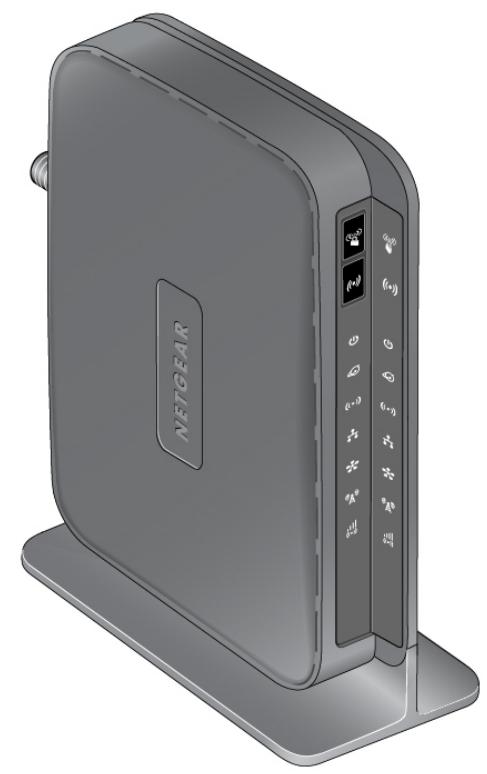
Since the Mobile Broadband 11n Wireless Router is a vertical-only device, use the stand to position your router upright.
- Insert the tabs on the stand into the slot on the bottom of your router.
- Place your router near an AC power outlet in a location where you can connect the cables you need for your home network.
The router must also be located where you can receive a strong mobile broadband signal while indoors if you are planning to connect to the Internet using mobile broadband.
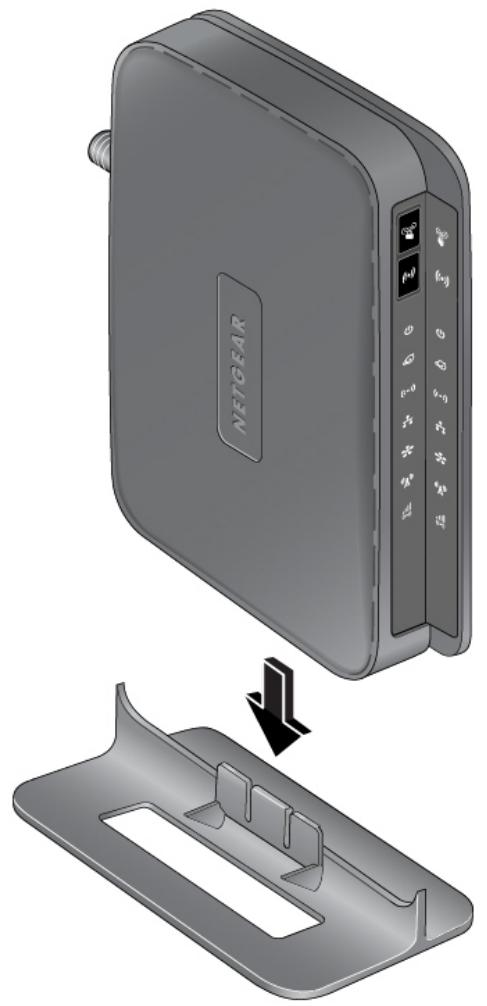
Figure 1.
Router Front Panel
The router front panel contains control buttons and status LEDs. Use the LEDs to verify status and connections.
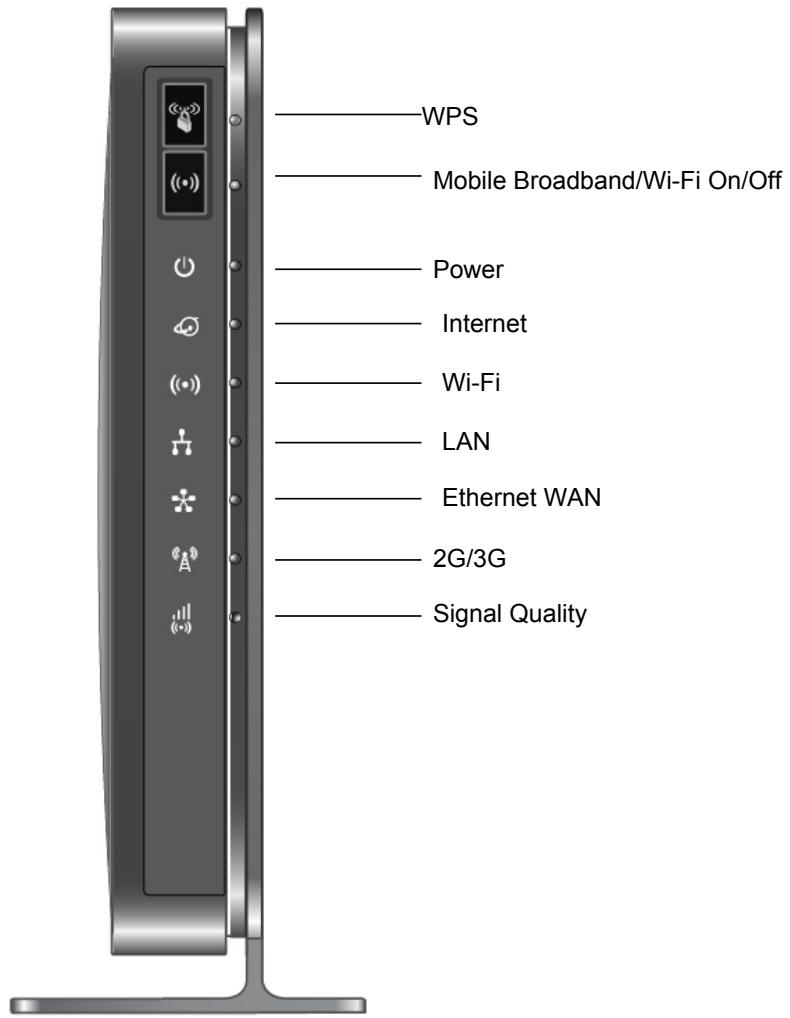
Figure 2.
Table 1 describes each LED and button located on the front panel of the router.
Table 1. LED Descriptions
| LED | Activity | Description |
| WPS | Press the WPS button to open a 2-minute window for the router to connect with other WPS-enabled devices. For more information about this function, see Use Push 'N' Connect (WPS) to Configure Your Wireless Network on page 32. | |
| Wi-Fi | This button can be used to control the WiFi radio or both the WiFi radio and mobile broadband radio. Use the router interface to select the options. The default is set for Wi-Fi radio only. | |
Table 1. LED Descriptions
| LED | Activity | Description |
| Power | Solid green | The router is turned on and operating normally. |
| Solid amber | POST (power-on self-test) in progress. | |
| Off | Power is not supplied to the router. | |
| Internet Port | Solid green | There is an Internet session. |
| Solid amber | Traffic meter limit has been reached, traffic is blocked. | |
| Blinking green | Data is being transmitted over the Internet connection. | |
| Blinking amber | Traffic meter limit has been reached, but traffic not blocked. | |
| Blinking green and amber | Failover from WAN to Mobile Broadband. | |
| Off | No Internet connection detected. | |
| Wi-Fi | Solid blue | The Wi-Fi local port is initialized. |
| Blinking blue | Data is being transmitted or received over the Wi-Fi link. | |
| Off | The wireless access point is turned off. | |
| LAN Ports | Solid green | The local Ethernet ports have detected wired links with PCs. |
| Blinking | Data is being transmitted or received. | |
| Off | No link is detected on these ports. | |
| WAN Port | Solid green | The Ethernet WAN port has detected an active link. |
| Blinking | Data is being transmitted or received. | |
| Off | No link is detected on these ports. | |
| 2G/3G | Solid blue | Indicates the router is in 3G+ coverage. |
| Solid green | Indicates the router is in 2G coverage. | |
| Off | No coverage is detected. | |
| Signal Quality | Solid blue | Excellent coverage detected. |
| Solid green | Good coverage detected. | |
| Solid amber | Marginal coverage detected. | |
| Off | No coverage detected. | |
| Restore Factory Settings | Locate the small hole outlined in red on the back of the router. Insert a paperclip into the hole and push for 6 seconds. Depressing the reset button causes the LED to blink briefly. After the button is held down for more than 6 seconds, the LED will flash AMBER, and then turn green as the router resets to the factory defaults. See | |
Router Back Panel
The back panel of the router contains port connections.
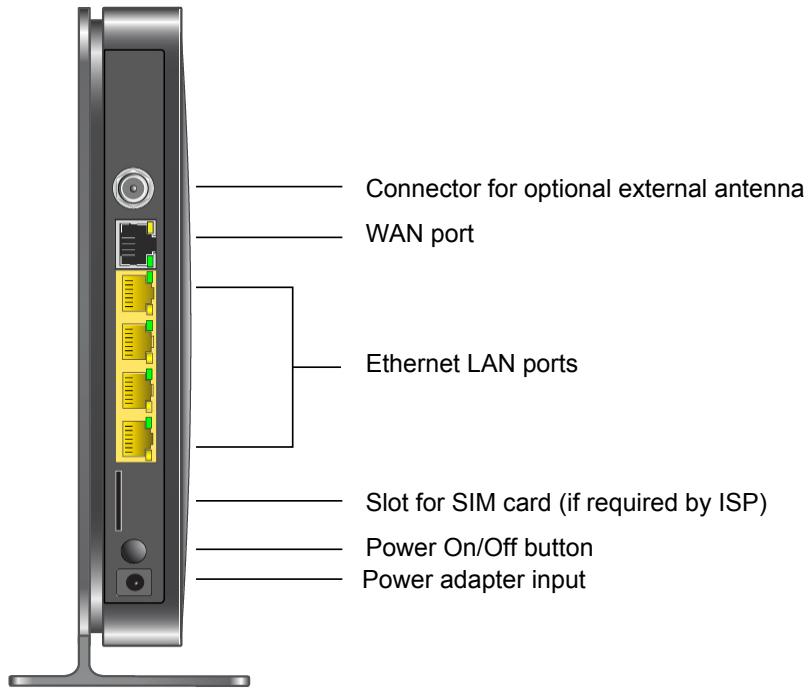
Router Label
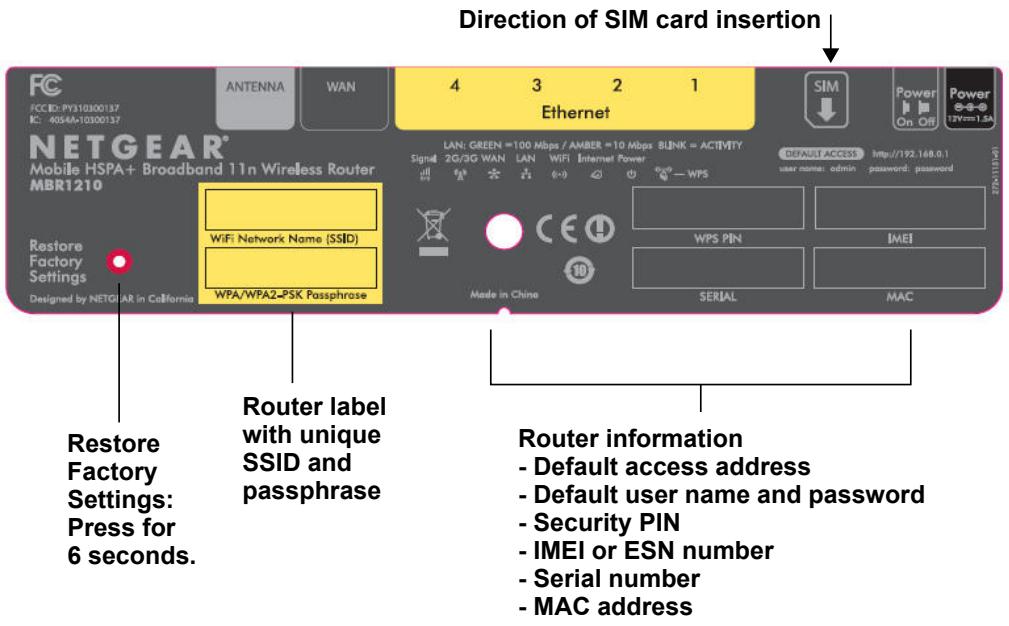
The label on the left side of the router shows the router's MAC address, serial number, security PIN, IMEI or ESN number, and factory default login information. It also contains the SSID and passphrase that is unique to each router.
Log In to Your Router
When you first connect to your router during installation, a Setup Wizard displays. For help using the Setup Wizard to configure your Internet and wireless network, see the Mobile Broadband 11n Wireless Router MBR1210 Installation Guide.
After the initial configuration, you can use your Web browser to log in to the router to view or change its settings. Links to Knowledge Base and documentation are also available on the router main menu.
Note: Your computer must be configured for DHCP. For help configuring DHCP, refer to the documentation that came with your computer, or see the link to the online document in Preparing Your Network in Appendix A.
When you have logged in, if you do not clickLogout, after 5 minutes of no activity the router automatically logs you out.
To log in to the router:
- Type http://www Routerlogin.net in the address field of your browser, and then press enter to display the login window.
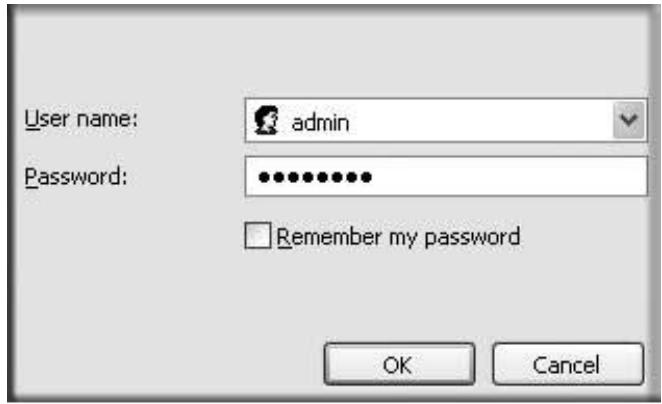
- Enter admin for the user name and your password (or the default, password).
For information about how to change the password, see Changing the Built-In Password on page 55.
Note: If you do not remember your password, you can restore the router to its factory default settings, which will reset the password. See Factory Default Settings on page 93.
-
If the router has not been configured, the Smart Wizard screen displays. After the router has been configured, one of the following screens appears:
-
Firmware Upgrade Assistant screen. After initial setup, the Firmware Upgrade Assistant screen displays unless the Check for Updated Firmware Upon Log-in check box is cleared.
Note: You can disable this automatic checking and updating feature during future log ins by clearing the Check for Updated Firmware Upon Log-in check box, but NETGEAR recommends that you keep this feature enabled to ensure your router is using the latest updated firmware.
Firmware Upgrade Assistant
The router is checking the NETGEAR server to see if updated firmware available for your router.
This could take up to 90 seconds, please wait...
Check for Updated Firmware Upon Log-in
Cancel
-
Router Status screen. The Router Status screen displays the current router connection status. SeeRouterStatusonpage48.
-
You can use different methods to configure your router.
-
Select Setup Wizard from the router menu to set up your Internet connection and wireless network configuration. See Access the Configuration Assistant after Installation on page 14.
- You can manually configure the router settings. See Manually Configure Your Internet Settings on page 15.
Access the Configuration Assistant after Installation
- Log in to the router as described in Log In to Your Router on page 12.
The Configuration Assistant opens.
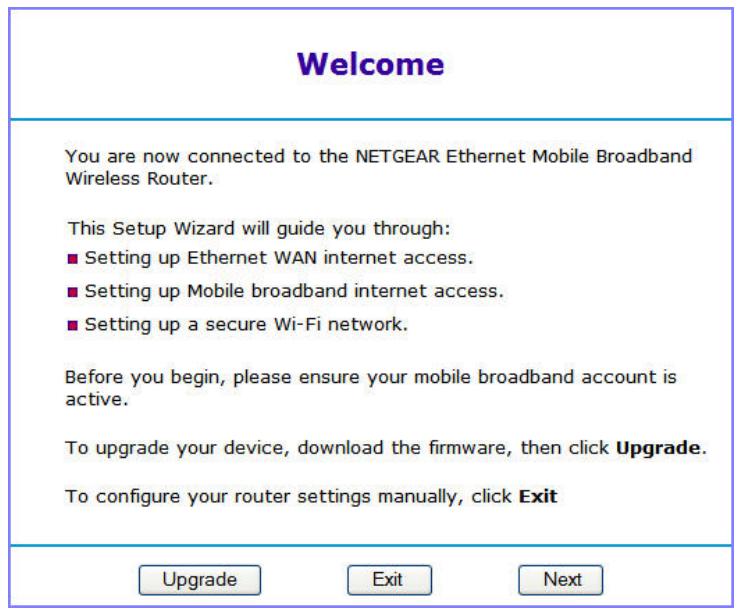
2. Click Next.
The Configuration Assistant prompts you to set up your Internet connection and wireless network as described in the Mobile Broadband 11n Wireless Router MBR1210 Installation Guide.
a. Select your Internet connection mode:
- Use Ethernet first and if fail use mobile broadband connection
Always use mobile broadband connection
Always use Ethernet connection
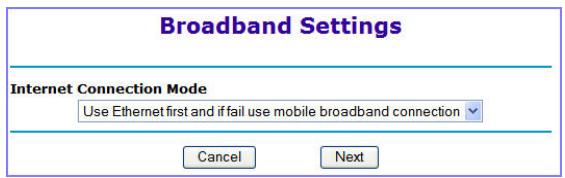
b. Click Next.
c. Select your country and then your Internet Service Provider.
d. Click Done.
Manually Configure Your Internet Settings
For you to connect to the network, an active broadband service account is required. Contact your ISP for your user name, password, and the network name. You must also configure some or all of the settings described in the following sections, depending on how you have chosen to connect to the Internet:
- Broadband Settings on page 15.
- Mobile Broadband Settings on page 17 (not required if using Ethernet connection only).
- Ethernet Broadband Settings on page 19 (not required if using mobile broadband connection only).
Broadband Settings
To manually configure your broadband Internet settings:
- Log in to the router as described in Log In to Your Router on page 12.
- From the main menu, select Broadband Settings.
Broadband Settings
Internet Connection Mode
Use Ethernet connection first and if fail use mobile broadband connection
Failover Detection Method
DNS lookup using WAN DNS Server
Perform a DNS lookup by a hostname
Ping this IP address
Retry Interval is
Failover after
Resume after
Enable Hardware link detection
Failover after
Apply Cancel
30 (In Seconds)
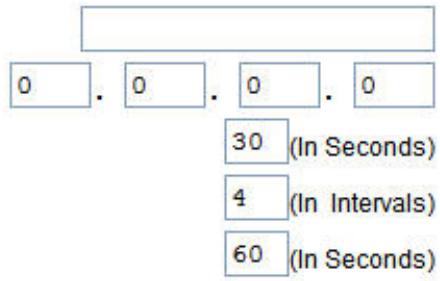
- Adjust the settings as needed based on your Internet connection. The fields in this screen are described in Table 2.
-
The following buttons are available:
-
Apply. Apply the changes that you made.
- Cancel. Discard changes.
Table 2. Internet Connection Settings
| Fields and Check Boxes | Description |
| Internet Connection Mode | The choices are: • Always use an Ethernet connection (default) • Use Ethernet first and if it fails use mobile broadband connection • Always use mobile broadband connection |
| Failover Detection Method1 | Select the failover method and enter the related information: • DNS lookup using WAN DNS Server • Perform a DNS lookup by a hostname • Ping this IP address |
| Retry Interval is1 | Enter the retry interval. |
| Failover after1 | Enter how many retry attempts to make before failing over. |
| Resume after1 | Enter how long to wait for primary link is stabilized before resuming to use the primary link. |
| Enable Hardware link detection | Enter when to failover when the Ethernet link is dropped. This is independent of the DNS / Ping detection methods. |
1 This field is available only when the Internet Connection Mode is Use Ethernet first and if fail use 3G mobile connection.
Mobile Broadband Settings
To manually configure your mobile broadband Internet settings:
- Log in to the router as described in Log In to Your Router on page 12.
- From the main menu, select Mobile Broadband Settings.
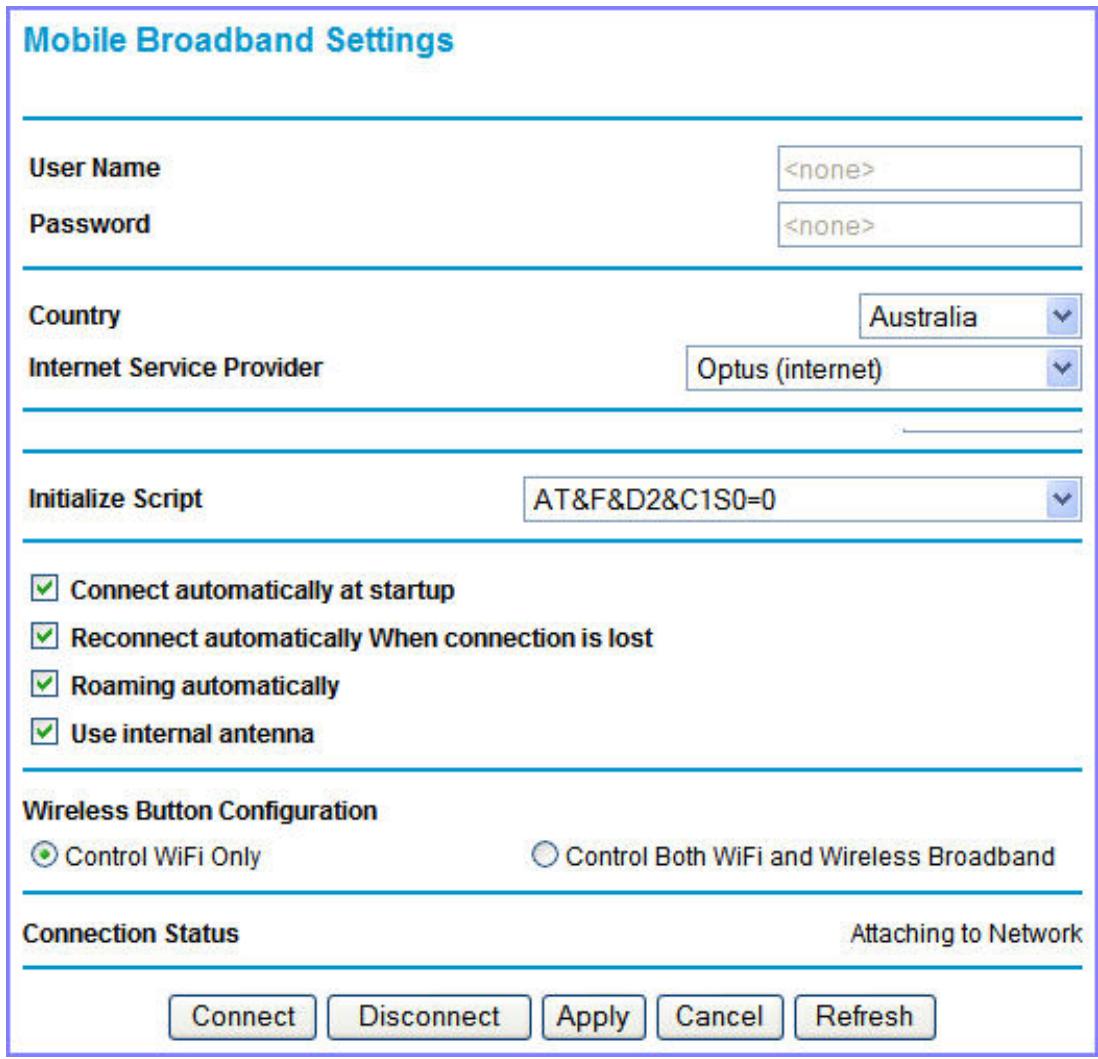
- Adjust the settings as needed based on your Internet connection. The fields in this screen are described in Table 3.
-
Available buttons are:
-
Connect. Manually connect to the network.
- Disconnect. Disconnect from the current network.
- Apply. Apply the changes that you made.
- Cancel. Discard changes.
Refresh. Update the connection status
Table 3. Settings
| Fields and Check Boxes | Description |
| User Name | Internet account login user name. |
| Password | Internet account password for authentication. |
| Country | Select your country from the drop-down list. |
| Internet Service Provider | Select your Internet Service Provider from the drop-down list. |
| Access Number | The remote site's phone number. |
| PIN code | Pin code of the SIM card, where applicable. |
| APN | Access point name. |
| PDP type | Select the type of packet data protocol: ·IP ·PDP-IP ·PPP ·PPP-IP |
| Connect automatically at startup | When this check box is selected, the modem automatically connects to the network when powered up. This should be selected after login information is provided. |
| Reconnect automatically when connection is lost | When this check box is selected, the modem will attempt to reconnect to the network when the connection is lost. Under normal situations, this setting should be selected. |
| Roaming automatically | When this check box is checked, the unit might roam to any available operator in range and might incur roaming charges. |
| Use internal antenna | If this check box is selected, the router will use the internal antenna rather than the external antenna. |
| Wireless Button Configuration | Select the option to determine the behavior of the WPS push button on the front panel when pressed. ·Control Wi-Fi Only: Pressing the push button toggles the Wi-Fi function. If Wi-Fi is turned on, pressing the push button turns off the Wi-Fi. Pressing it again will turn on the Wi-Fi. This function is available only if the Wi-Fi function is enabled. The Wireless Broadband function is unaffected. ·Control Both Wi-Fi and Wireless Broadband: Pressing the push button toggles both the Wi-Fi function and wireless broadband at the same time. If Wi-Fi is turned on, pressing the push button turns off the Wi-Fi. At the same time, the wireless broadband connection is disconnected. If you press the push button again, Wi-Fi is turned on and the router attempts to re-establish the wireless broadband connection. Depending on the coverage, wireless broadband coverage might or might not be connected successfully. |
| Connection status | Current WAN port status. |
Ethernet Broadband Settings
To manually configure your Ethernet Broadband Internet settings:
- Log in to the router as described in Log In to Your Router on page 12.
- From the main menu, select Ethernet Broadband Settings.
The following question displays at the top of the screen:
Does Your Internet Connection Require A Login?

Yes

No
Select the option based on the type of account you have with your ISP.
If you need to enter login information every time you connect to the Internet, or you have a PPPoE account with your ISP, select Yes.
- Otherwise, select No.
Then fill out the appropriate screen.
For details, see:
Step a, Login required on page 20
or
step ^b , Login not required on page 22.
Note: If you have installed PPP software such as WinPoET (from Earthlink) or Internet (from PacBell), then you have PPPoE. Select Yes. After selecting Yes and configuring your router, you do not need to run the PPP software on your PC to connect to the Internet.
a. Login required
Adjust the settings as needed based on your Internet connection. The fields in this screen are described in Table 4.
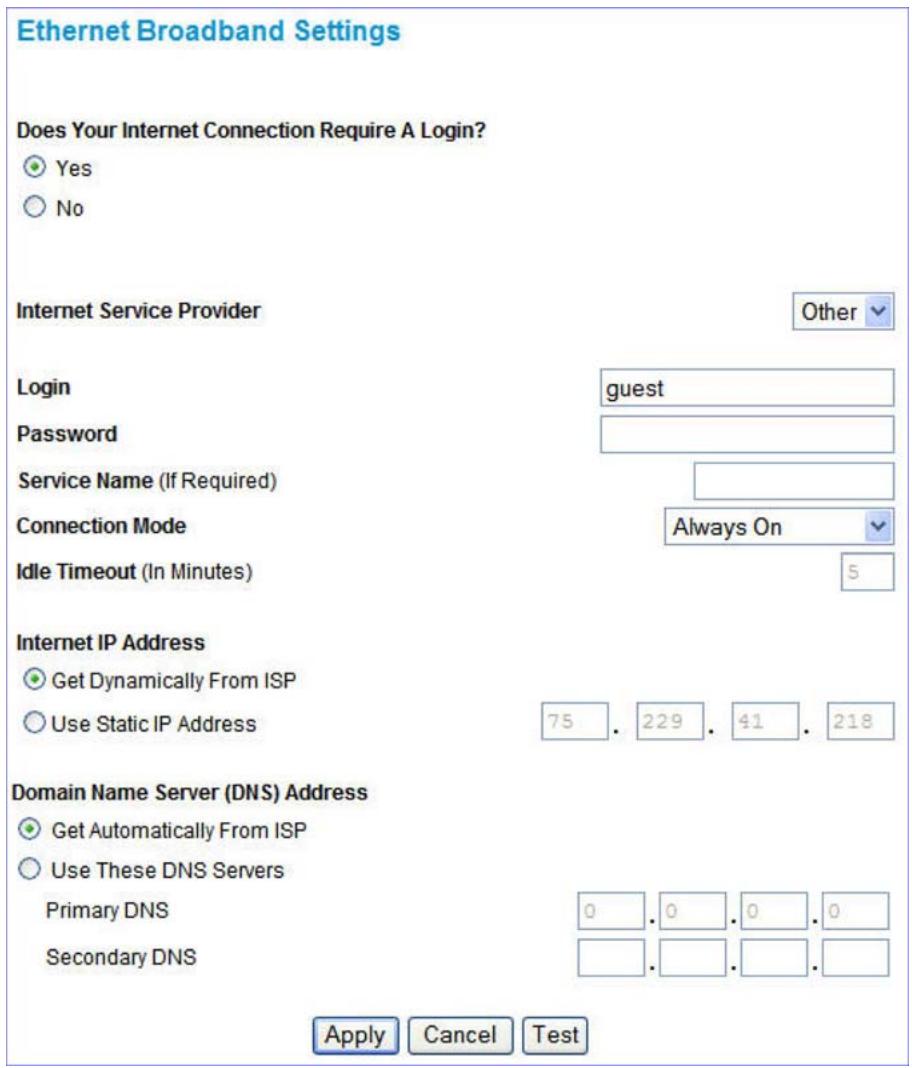
Table 4. Ethernet Broadband Settings When Login Required
| Fields and Checkboxes | Description |
| Internet Service Provider | Select the service provided by your ISP. • Other (PPPoe) is the most common. • PPTP is used in Austria and other European countries. • Telstra BigPond is for Australia only. |
| Login | This is usually the name that you use in your email address. For example, if your main mail account is JerAB@ISP.com, then put JerAB in this field. Some ISPs (such as Mindspring, Earthlink, and T-DSL) require that you use your full email address when you log in. If your ISP requires your full email address, then type it in the Login field. |
Table 4. Ethernet Broadband Settings When Login Required
| Fields and Checkboxes | Description |
| Password | Type the password that you use to log in to your ISP. |
| Service Name (If Required) | If your ISP provided a service name, enter it here. Otherwise, this can be left blank. |
| Connection Mode | Set the connection mode to Dial on Demand, Always On, or Manually Connect. ·With the default setting, Dial on Demand, a PPPoE connection automatically starts when there is outbound traffic to the Internet, and it automatically terminates if the connection is idle based on the value in the Idle Timeout field. ·When the connection mode is set to Always On, the PPPoE connection automatically starts when the computer boots up, but the connection does not time out. The router will keep trying to bring up the connection if it is disconnected for some reason. ·If you select Manually Connect, you must go to the Router Status screen and click the Connect button to connect to the Internet. The manual connection does not time out, and you have to click the Disconnect button on the Router Status screen to disconnect it. |
| Idle Timeout (In Minutes) | An idle Internet connection will be terminated after this time period. If this value is zero (0), then the router will keep the connection alive by reconnecting immediately whenever the connection is lost. |
| Internet IP Address | If you log in to your service or your ISP did not provide you with a fixed IP address, the router finds an IP address for you automatically when you connect. Select Get Dynamically from ISP. If you have a fixed (static, permanent) IP address, your ISP has provided you with an IP address. Select Use Static IP Address and type in the IP address. |
| Domain Name Server (DNS) Address | The DNS server is used to look up site addresses based on their names. ·If your ISP gave you one or two DNS addresses, select Use These DNS Servers and type the primary and secondary addresses. ·Otherwise, select Get Automatically From ISP. Note: If you get “Address not found” errors when you go to a website, it is likely that your DNS servers are not set up correctly. You should contact your ISP to get DNS server addresses. |
b. Login not required
Adjust the settings as needed based on your Internet connection. The fields in this screen are described in Table 5.
Ethernet Broadband Settings
Does Your Internet Connection Require A Login?
Yes
No
Account Name (If Required)
Domain Name (If Required)
MBR1000
Internet IP Address
Get Dynamically From ISP
Use Static IP Address
IP Address
IP Subnet Mask
Gateway IP Address
Domain Name Server (DNS) Address
Get Automatically From ISP
Use These DNS Servers
Primary DNS
Secondary DNS
Router MAC Address
Use Default Address
Use Computer MAC Address
Use This MAC Address
00:1F:33:E0:82:79
Apply
Cancel
Test
Table 5. Ethernet Broadband Settings Fields When Login Not Required
| Fields and Check Boxes | Description |
| Account Name (If Required) | This is also known as the host name or system name. For most users, type your account name or user name in this field. For example, if your main mail account is JerAB@ISP.com, then put JerAB in this field. If your ISP has given you a specific host name, then type it (for example, CCA7324-A). |
| Domain Name (If Required) | For most users, you can leave this field blank, unless required by your ISP. You can type the domain name of your ISP. For example, if your ISP's mail server is mail.xxx.xxx.zzz, you would type xxx.xxx.zzz as the domain name. If you have a domain name given to you by your ISP, type it in this field. (For example, Earthlink Cable might require a host name of home, and Comcast sometimes supplies a domain name.) If you have a cable modem, this is usually the workgroup name. |
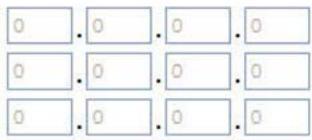
| Internet IP Address | If you log in to your service or your ISP did not provide you with a fixed IP address, the router finds an IP address for you automatically when you connect. Select Get Dynamically From ISP. If you have a fixed (or static IP) address, your ISP has provided you with the required information. Select Use Static IP Address and type the IP address, subnet mask and gateway IP address into the correct fields. For example: • IP Address . 24.218.156.183 • Subnet Mask . 255.255.255.0 • Gateway IP Address . 24.218.156.1 |
| Domain Name Server (DNS) Address | The DNS server is used to look up site addresses based on their names. • If your ISP gave you one or two DNS addresses, select Use These DNS Servers and type the primary and secondary addresses. • Otherwise, select Get Automatically From ISP. Note: If you get “Address not found” errors when you go to a website, it is likely that your DNS servers are not set up correctly. You should contact your ISP to get DNS server addresses. |
| Router MAC Address | Your computer's local address is its unique address on your network. This is also referred to as the computer's MAC (Media Access Control) address. • Usually, select Use Default MAC Address. • If your ISP requires MAC authentication, then select either Use Computer MAC Address to disguise the router's MAC address with the computer's own MAC address, or Use This MAC Address to manually type the MAC address for a different computer. The format for the MAC address is XX:XX:XX:XX:XX. This value might be changed if Use Computer MAC Address is selected once a value has already been set in the Use This MAC Address selection. |
-
The following buttons are available:
-
Apply. Apply the changes that you made.
- Cancel. Discard changes.
- Test. Connect to the NETGEAR website. If you connect successfully, your settings work, and you can clickLogout to exit these screens.
For a wireless connection, the SSID, (also known as the wireless network name), and the wireless security settings must be the same for the router and wireless computers or wireless adapters. NETGEAR strongly recommends that you use wireless security.
The router is pre-configured with WPA-PSK/WPA2-PSK mixed mode and uses a unique SSID and passphrase. This information is printed on the label on the bottom of the router. Use this information to setup your WiFi computer and devices.
This chapter addresses the following:
- Planning Your Wireless Network
- Manually Configure Your Wireless Settings
Use Push 'N' Connect (WPS) to Configure Your Wireless Network
Note: Computers can connect wirelessly at a range of several hundred feet. If you do not use wireless security, this can allow others outside your immediate area to access your network.
Planning Your Wireless Network
For compliance and compatibility between similar products in your area, the operating channel and region must be set correctly.
To configure the wireless network, you can either specify the wireless settings, or you can use Wi-Fi Protected Setup (WPS) to automatically set the SSID and implement WPA/WPA2 security.
-
To manually configure the wireless settings, you must know the following:
-
SSID. The default SSID for the router is NETGEAR-3G.
- The wireless mode (802.11n, 802.11g, or 802.11b) that each wireless adapter supports.
- Wireless security option. To successfully implement wireless security, check each wireless adapter to determine which wireless security option it supports.
See Manually Configure Your Wireless Settings on page 28.
- Push 'N' Connect (WPS) implements WPA/WPA2 wireless security on the router and your wireless computer or device at the same time. The wireless computer or device must be compatible with WPS.
See Use Push 'N' Connect (WPS) to Configure Your Wireless Network on page 32.
Wireless Placement and Range Guidelines
The range of your wireless connection can vary significantly based on the physical placement of the router. The latency, data throughput performance, and notebook power consumption of wireless adapters also vary depending on your configuration choices.
For best results, place your router according to the following guidelines:
Near the center of the area in which your computers will operate.
- In an elevated location, such as a high shelf, where the wirelessly connected computers have line-of-sight access (even if through walls).
- Away from sources of interference, such as microwave ovens, and 2.4 GHz cordless phones (see Interference Reduction Table on page 100).
- Away from large metal surfaces.
- Put the antenna in a vertical position to provide the best side-to-side coverage. Put the antenna in a horizontal position to provide the best up-and-down coverage.
- If using multiple access points, it is better if adjacent access points use different radio frequency channels to reduce interference. The recommended channel spacing between adjacent access points is 5 channels (for example, use Channels 1 and 6, or 6 and 11).
The time it takes to establish a wireless connection can vary depending on both your security settings and placement. WEP connections can take slightly longer to establish. Also, WEP encryption can consume more battery power on a notebook computer.
Wireless Security Options
Indoors, computers can connect over 802.11n wireless networks at a maximum range of up to 300 feet. Such distances can allow others outside your immediate area to access your network.
Unlike wired network data, your wireless data transmissions can extend beyond your walls and can be received by anyone with a compatible adapter. For this reason, use the security features of your wireless equipment. The Mobile Broadband 11n Wireless Router provides highly effective security features, which are covered in detail in this chapter. Deploy the security features appropriate to your needs.
Each router is preconfigured for WPA-PSK/WPA2-PSK mixed-mode, and comes with a unique SSID and passphrase for each router.
There are several ways you can enhance the security of your wireless network:
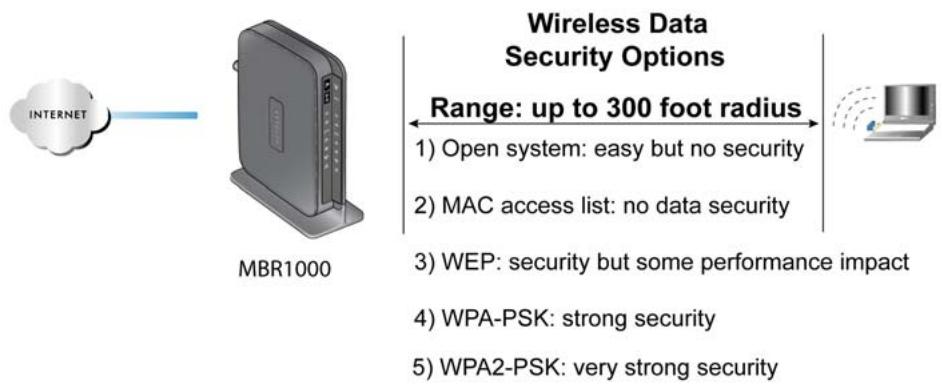
Figure 1. Wireless Security
- Restrict access based on MAC address. You can allow only trusted PCs to connect so that unknown PCs cannot wirelessly connect to the router. Restricting access by MAC address adds an obstacle against unwanted access to your network, but the data broadcast over the wireless link is fully exposed.
- Turn off the broadcast of the wireless network name (SSID). If you disable broadcast of the SSID, only devices that have the correct SSID can connect. This nullifies wireless network "discovery" feature of some products, such as Windows XP, but the data is still exposed.
- WEP. Wired Equivalent Privacy (WEP) data encryption provides data security. WEP Shared Key authentication and WEP data encryption block all but the most determined eavesdropper. This data encryption mode has been superseded by WPA-PSK and WPA2-PSK.
- WPA-PSK (TKIP), WPA2-PSK (AES). Wi-Fi Protected Access (WPA) using a pre-shared key to perform authentication and generate the initial data encryption keys. The very strong authentication along with dynamic per frame re-keying of WPA makes it virtually impossible to compromise.
For more information about wireless technology, click the link to the online document Wireless Networking Basics in Appendix A.
Manually Configure Your Wireless Settings
Note: If you use a wireless computer to change the wireless network name (SSID) or wireless security, you will be disconnected when you click Apply. To avoid this occurrence, connect your computer directly to the router with an Ethernet cable while you are making changes.
To view or manually configure the wireless settings:
- Log in to the router as described in Log In to Your Router on page 12.
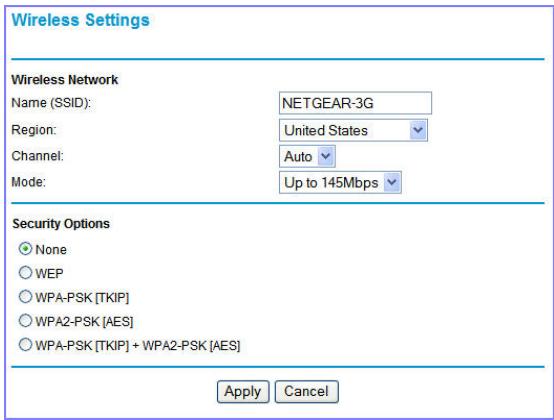
- Select Wireless Settings from the main menu. The settings for this screen are explained in Table 6.
- Select the region in which the router will operate.
- For initial configuration and test, leave the other settings unchanged.
- To save your changes, click Apply.
- Configure and test your computers for wireless connectivity.
Set up your wireless computers with the same SSID and wireless security settings as your router. Check that they have a wireless link and are able to obtain an IP address by DHCP from the router. If there is interference, adjust the channel.
Table 1.
| Settings | Description | |
| Wireless Network | Name (SSID) | TheSSID is also known as the wireless network name. Enter a 32-character (maximum) name in this field. This field is case-sensitive. When there is more than one wireless network, SSIDs provide a means for separating the traffic. To join a network, a wireless computer or device must use theSSID. |
| Region | The location where the router is used. | |
| Channel | The wireless channel used by the gateway. The default is Auto. Do not change the channel unless you experience interference (shown by lost connections or slow data transfers). If this happens, you might need to try different channels to see which works best. | |
| Mode | The default is Up to 145 Mbps. | |
Table 1.
| Settings | Description | |
| Security Options | None | Use this setting to establish wireless connectivity before implementing wireless security. NETGEAR strongly recommends that you implement wireless security. |
| WEP | Use encryption keys and data encryption for data security. You can select 64-bit or 128-bit encryption. See Configuring WEP on page 29. | |
| WPA-PSK (TKIP) | Allow only computers configured with WPA to connect to the router. See Configuring WPA, WPA2, or WPA + WPA2 on page 31. | |
| WPA2-PSK (AES) | Allow only computers configured with WPA2 to connect to the router. See Configuring WPA, WPA2, or WPA + WPA2 on page 31. | |
| WPA-PSK (TKIP) + WPA2-PSK (AES) | Allow computers configured with either WPA-PSK or WPA2-PSK security to connect to the router. See Configuring WPA, WPA2, or WPA + WPA2 on page 31. | |
Configuring WEP
Note: If you use a wireless computer to configure wireless security settings, you will be disconnected when you click Apply. Reconfigure your wireless computer to match the new settings, or access the router from a wired computer to make further changes.
To configure WEP data encryption:
- Log in to the router as described in Log In to Your Router on page 12.
-
From the main menu, select Wireless Settings to display the Wireless Settings screen.
-
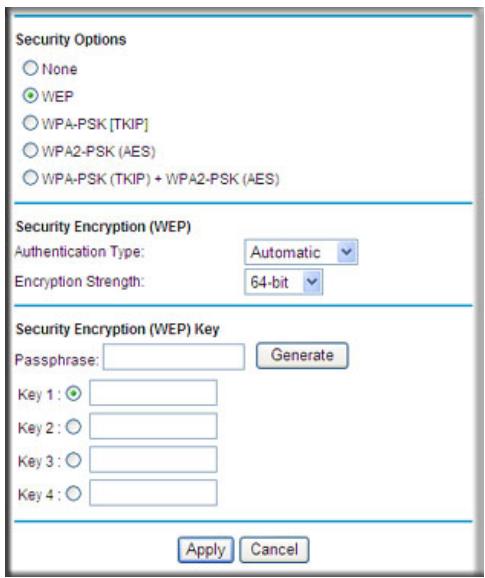
In the Security Options section, select the WEP (Wired Equivalent Privacy) radio button:
- Select the Authentication Type setting: Automatic, Open System, or Shared Key. The default is Open System.
Note: The authentication is separate from the data encryption. You can select authentication that requires a shared key, but still leaves data transmissions unencrypted. Security is stronger if you use both the Shared Key and WEP encryption settings.
-
Select the Encryption Strength setting:
-
64-bit. Enter 10 hexadecimal digits (any combination of 0–9, a–f, or A–F).
128-bit. Enter 26 hexadecimal digits (any combination of 0-9, a-f, or A-F).
-
Enter the encryption keys. You can manually or automatically program the four data encryption keys. These values must be identical on all computers and access points in your network:
-
Passphrase. To use a passphrase to generate the keys, enter a passphrase, and click Generate. This automatically creates the keys. Wireless stations must use the passphrase or keys to access the router.
Note: Not all wireless adapters support passphrase key generation.
Key 1-Key4. These values are not case-sensitive. You can manually enter the four data encryption keys. These values must be identical on all computers and access points in your network. Enter 10 hexadecimal digits (any combination of 0-9, a-f, or A-F).
- Select which of the four keys will be the default.
Data transmissions are always encrypted using the default key. The other keys can be used only to decrypt received data. The four entries are disabled if WPA-PSK or WPA authentication is selected.
- Click Apply to save your settings.
Configuring WPA, WPA2, or WPA + WPA2
Both WPA and WPA2 provide strong data security. WPA with TKIP is a software implementation that can be used on Windows systems with Service Pack 2 or later; WPA2 with AES is a hardware implementation; see your device documentation before implementing it. Consult the product documentation for your wireless adapter for instructions for configuring WPA settings.
Note: If you use a wireless computer to configure wireless security settings, you will be disconnected when you click Apply. If this happens, reconfigure your wireless computer to match the new settings, or access the router from a wired computer to make further changes.
To configure WPA or WPA2 in the router:
- Log in to the router as described in Log In to Your Router on page 12.
- Select Wireless Settings from the main menu.
- On the Wireless Setting screen, select the radio button for the WPA or WPA2 option of your choice.
- For WPA-PSK or WPA2-PSK, enter the passphrase.
- To save your settings, click Apply.
Use Push 'N' Connect (WPS) to Configure Your Wireless Network
To use Push 'N' Connect, your wireless computers or devices must support Wi-Fi Protected Setup (WPS). Compatible equipment usually has the WPS symbol on it. WPS can configure the network name (SSID) and set up WPA/WPA2 wireless security for the router and the wireless computer or device at the same time.
WPS considerations:
- NETGEAR's Push 'N' Connect feature is based on the WPS standard. All other Wi-Fi-certified and WPS-capable products should be compatible with NETGEAR products that implement Push 'N' Connect.
- If your wireless network will include a combination of WPS-capable devices and non-WPS-capable devices, NETGEAR suggests that you set up your wireless network and security settings manually first, and use WPS only for adding WPS-capable devices.
WPS Button
Any wireless computer or wireless adapter that will connect to the router wirelessly is a client. The client must support a WPS button, and must have a WPS configuration utility, such as the NETGEAR Smart Wizard or Atheros Jumpstart.
To use the router WPS button to add a WPS client:
- Log in to the router as described in Log In to Your Router on page 12.
- On the router main menu, select Add WPS Client, and then click Next.
By default, the Push Button (recommended) radio button is selected.
- Either click the onscreen button or press the WPS button on the front of the router.
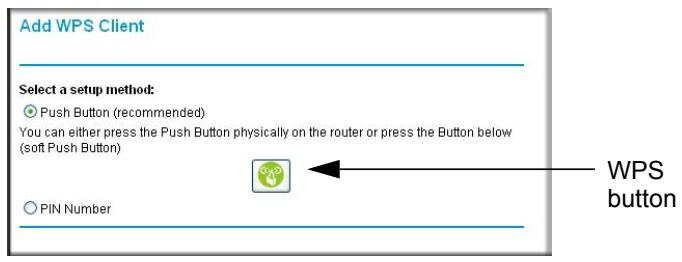
The router tries to communicate with the client (the computer that wants to join the network) for 2 minutes.
- Go to the client wireless computer, and run a WPS configuration utility. Follow the utility's instructions to click a WPS button.
- Go back to the router screen to check for a message.
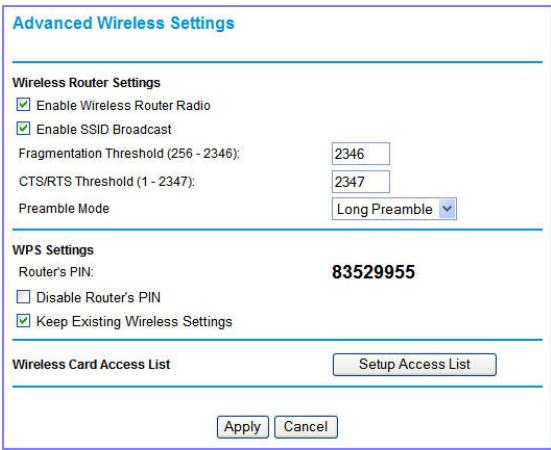
The router WPS screen displays a message confirming that the client was added to the wireless network. The router generates an SSID, and implements WPA/WPA2 wireless security. The router will keep these wireless settings unless you change them, or you clear the Keep Existing Wireless Settings check box in the Advanced Wireless Settings/WPS Settings screen.
- Note the new SSID and WPA/WPA2 password for the wireless network. You can view these settings in the Wireless Settings screen. See Manually Configure Your Wireless Settings on page 28.
To access the Internet from any computer connected to your router, launch a browser such as Microsoft Internet Explorer or Mozilla Firefox. You should see the router's Internet LED blink, indicating communication to the ISP.
Note: If no WPS-capable client devices are located during the 2-minute time frame, the SSID does not change, and no security is set up.
WPS PIN Entry
Any wireless computer or device that will connect to the router wirelessly is a client. The client must support a WPS PIN, and must have a WPS configuration utility, such as the NETGEAR Smart Wizard or Atheros Jumpstart.
The first time you add a WPS client, make sure that the Keep Existing Wireless Settings check box on the WPS Settings screen is cleared. This is the default setting for the router, and allows it to generate the SSID and WPA/WPA2 security settings when it implements WPS. After WPS is implemented, the router automatically selects this check box so that your SSID and wireless security settings stay the same if other WPS devices are added later.
To use a PIN to add a WPS client:
- Log in to the router as described in Log In to Your Router on page 12.
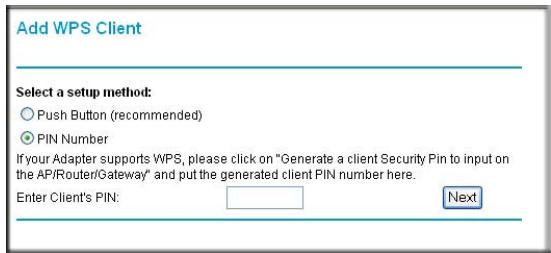
- On the router main menu, select Add WPS Client (computers that will connect wirelessly to the router are clients), and then click Next. The Add WPS Client screen displays.
- Select the PIN Number radio button.
- Go to the client wireless computer. Run a WPS configuration utility. Follow the utility's instructions to generate a PIN. Take note of the client PIN.
-
In the router Add WPS Client screen, enter the client PIN number, and then click Next.
-
The router tries to communicate with the client for 4 minutes. If no WPS clients connect during this time, the router wireless settings do not change.
-
The router WPS screen confirms that the client was added to the wireless network. The router generates an SSID, and implements WPA/WPA2 wireless security.
-
Note the new SSID and WPA/WPA2 password for the wireless network. You can view these settings in the Wireless Settings screen. See Manually Configure Your Wireless Settings on page 28.
To access the Internet from any computer connected to your router, launch an Internet browser such as Mozilla Firefox. You should see the router's Internet LED blink.
Add Wireless Computers That Do Not Support WPS
If you set up your network with WPS, and now you want to add a computer that does not support WPS, you must manually configure that computer. For information about how to view the wireless settings for the router, see Manually Configure Your Wireless Settings on page 28.
Because WPA randomly creates the SSID and WPA/WPA2 keys, they might be difficult to type or remember (that is one reason why the network is so secure). You can change the wireless settings so that they are easier for you to remember. If you do that, then you will need to set up the WPS-compatible computers again.
Note: Making these changes will cause all wireless computers to be disconnected from network. You will then have to set them up with the new wireless settings.
To change wireless settings for the network:
- Use an Ethernet cable to connect a computer to the router. That way you will not get disconnected when you change the wireless settings.
- Log in to the router and select Wireless Settings (see Manually Configure Your Wireless Settings on page 28).
-
Make the following changes:
-
Change the wireless network name (SSID) to a meaningful name.
- On the WPA/PSK + WPA2/PSK screen, select a passphrase.
-
Make sure that the Keep Wireless Settings check box is selected in the WPS Settings screen so that your new settings will not be erased if you use WPS.
-
Click Apply so that your changes take effect. Write down your settings.
All existing wireless clients are disassociated and disconnected from the router.
- For the non-WPS devices that you want to connect, open the networking utility and follow the utility's instructions to enter the security settings that you selected in Step 3 (the SSID, WPA/PSK + WPA2/PSK security method, and passphrase).
- For the WPS devices that you want to connect, follow the procedure WPS Button on page 32 or WPS PIN Entry on page 34.
The settings that you configured in Step 3 are broadcast to the WPS devices so that they can connect to the router.
SIM Card PIN Code
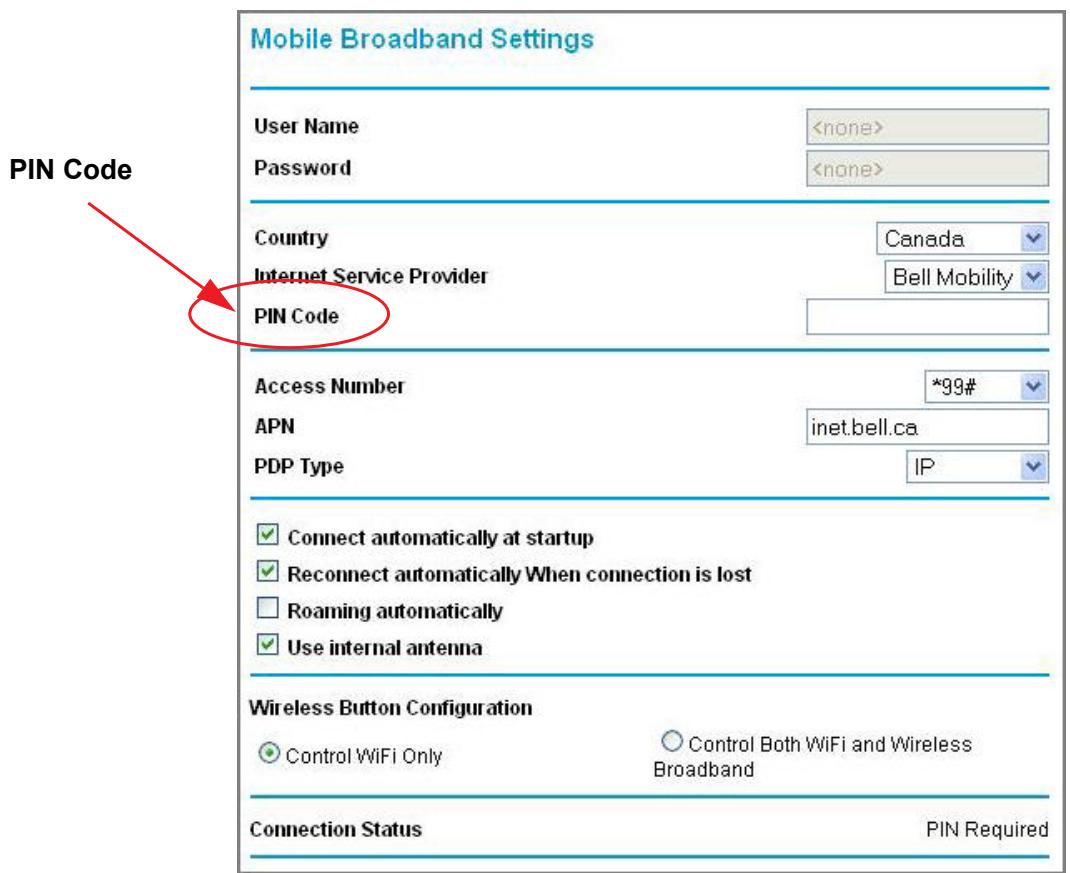
Some SIM cards may have a PIN code associated with them. Without the PIN code, you will not be able to access the internet. This status appears when a PIN is required, but has not yet been entered.

To enter the PIN code:
- Log into the router and select Mobile Broadband Settings from the navigation tab.
- Enter the PIN Code.
Check with the router company if you do not know the PIN code.
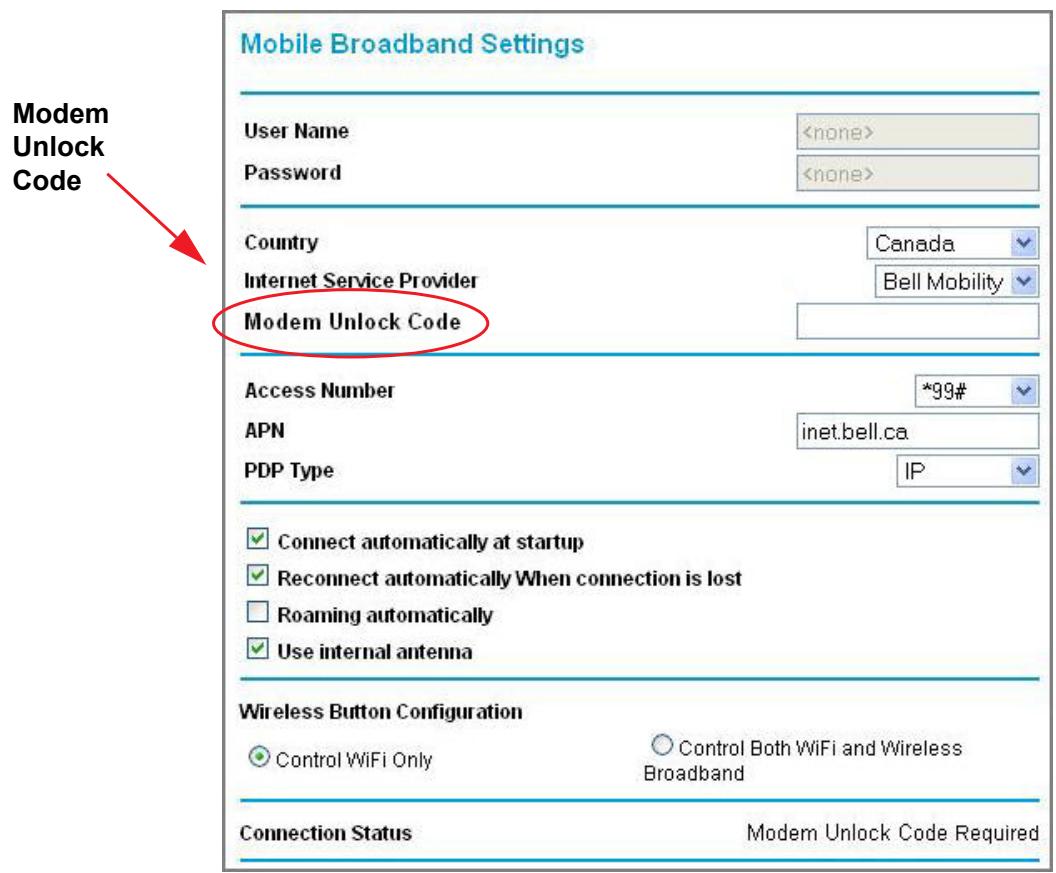
SIM Card Modem Unlock Code
If you have a SIM card that is not provided by the company where you got the router, you might get an error indicating the modem is locked. To proceed, you must enter an unlock code.
No Internet Connection Available
Modem Unlock Code Required
To enter the modem unlock code:
- Log into the router and select Mobile Broadband Settings from the navigation tab.
- Enter the Modem Unlock Code.
The modem unlock code can be obtained from the company that supplied the router.
This chapter describes how to use the basic firewall features of the router to protect your network.
Viewing, Selecting, and Saving Logged Information
- Blocking Sites and Keywords
- Blocking Services
- Scheduling
Enabling Security Event Email Notification
Note: For information about the advanced content filtering features port forwarding and port triggering, see Port Forwarding and Port Triggering on page 65.
Viewing, Selecting, and Saving Logged Information
The router logs security-related events such as denied incoming service requests, hacker probes, and administrator logins. If you enabled content filtering in the Block Sites screen, the Logs screen can show you when someone on your network tries to access a blocked site.
On the main menu, under Content Filtering, select Logs to display this screen:
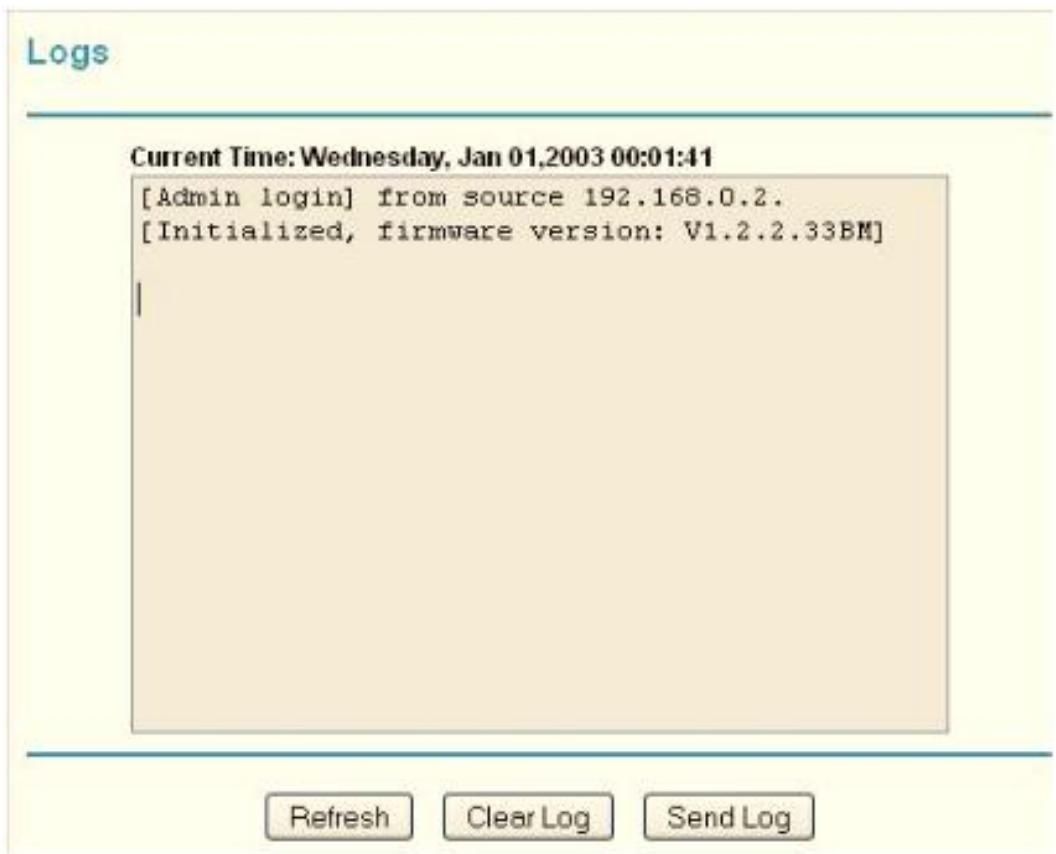
Figure 1.
Note: You can enable email notification to receive these logs in an email message. See Enabling Security Event Email Notification on page 46.
Log entries and action buttons are described in the Table 7.
Table 1.
| Field or Button | Description |
| Current time | The date and time the log entry was recorded. |
| Description or action | The type of event and what action was taken, if any. |
| Source IP | The IP address of the initiating device for this log entry. |
| Source port and interface | The service port number of the initiating device, and whether it originated from the LAN or WAN. |
| Destination | The name or IP address of the destination device or website. |
| Destination port and interface | The service port number of the destination device, and whether it is on the LAN or WAN. |
| Refresh button | Refresh the log screen. |
| Clear Log button | Clear the log entries. |
| Send Log button | Email the log immediately. |
| Apply button | Apply the current settings. |
| Cancel button | Clear the current settings. |
Selecting Which Information to Log
Besides the standard information listed previously, you can choose to log additional information. Those optional selections are as follows:
- Attempted access to blocked site
- Connections to the router menu
- Router operation (start up, get time, and so on)
- Known DoS attacks and port scans
Saving Log Files on a Server
You can choose to write the logs to a computer running a syslog program. To activate this feature, select to the Broadcast on LAN radio button, or enter the IP address of the server where the syslog file will be written.
Log Message Examples
Following are examples of log messages. In all cases, the log entry shows the time stamp as Day, Year-Month-Date Hour:Minute:Second.
Activation and Administration
Tue, 2002-05-21 18:48:39 - NETGEAR activated
This entry indicates a power-up or reboot with initial time entry.
Tue, 2002-05-21 18:55:00 - Administrator login successful - IP:192.168.0.2
Thu, 2002-05-21 18:56:58 - Administrator logout - IP:192.168.0.2
This entry shows an administrator logging in to and out from IP address 192.168.0.2.
Tue, 2002-05-21 19:00:06 - Login screen timed out - IP:192.168.0.2
This entry shows a time-out of the administrator login.
Wed, 2002-05-22 22:00:19 - Log emailed
This entry shows when the log was emailed.
Dropped Packets
Wed, 2002-05-22 07:15:15 - TCP packet dropped - Source:64.12.47.28,4787,WAN - Destination:134.177.0.11,21,LAN - [Inbound Default rule match]
Sun, 2002-05-22 12:50:33 - UDP packet dropped - Source:64.12.47.28,10714,WAN - Destination:134.177.0.11,6970,LAN - [Inbound Default rule match]
Sun, 2002-05-22 21:02:53 - ICMP packet dropped - Source:64.12.47.28,0,WAN - Destination:134.177.0.11,0,LAN - [Inbound Default rule match]
These entries show an inbound FTP (port 21) packet, User Datagram Protocol (UDP) packet (port 6970), and Internet Control Message Protocol (ICMP) packet (port 0) being dropped as a result of the default inbound rule, which states that all inbound packets are denied.
Blocking Sites and Keywords
The router provides a variety of options for blocking Internet-based content and communications services. With its content filtering feature, the router prevents objectionable content from reaching your PCs. You can control access to Internet content by screening for keywords within Web addresses. Content filtering options include:
- Keyword blocking of HTTP traffic.
- Outbound service blocking. Limits access from your LAN to Internet locations or services that you specify as off-limits.
Denial of service (DoS) protection. Detects and thwarts DoS attacks such as Ping of Death, SYN flood, LAND attack, and IP spoofing. - Blocking unwanted traffic from the Internet to your LAN.
The router allows you to restrict access to Internet content based on Web addresses and Web address keywords.
- Log in to the router as described in Log In to Your Router on page 12.
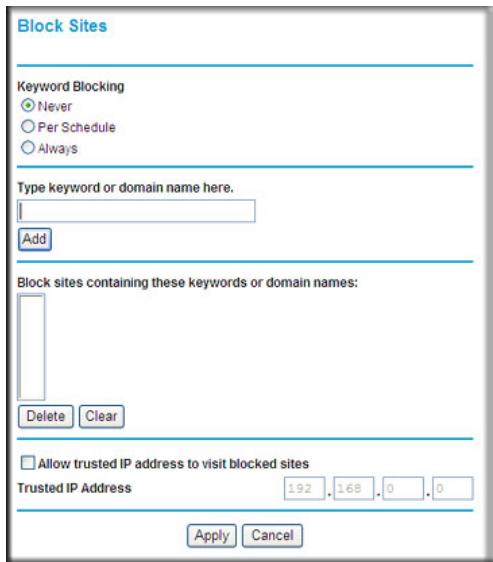
- On the main menu, select Block Sites to display the Block Sites screen:
-
To enable keyword blocking, select one of the following:
-
Per Schedule. Turn on keyword blocking according to the settings on the Schedule screen.
Always. Turn on keyword blocking all the time, independent of the setting in the Schedule screen. -
Enter a keyword or domain in the Keyword field, click Add Keyword, and then click Apply.
Some examples of keyword applications are shown in the following chart.
Table 2.
| Keyword | Result |
| XXX | Block the URL http://www.badstuf.com/xxx.html. |
| .com | Only websites with other domain suffixes (such as .edu or .gov) can be viewed. |
| ( a period) | Block all Internet browsing access. |
Up to 32 entries are supported in the Keyword list.
Note: If you block sites, you can set up the router to log attempts to access them. See Viewing, Selecting, and Saving Logged Information on page 39.
- To delete a keyword or domain, select it from the list, click Delete Keyword, and then click Apply.
- To specify a trusted user, enter that computer's IP address in the Trusted IP Address field, and then click Apply.
You can specify one trusted user, which is a computer that will be exempt from blocking and logging. Since the trusted user will be identified by an IP address, you should configure that computer with a fixed IP address.
- Click Apply to save your settings.
Blocking Services
- Log in to the router as described in Log In to Your Router on page 12.
- In the main menu, under Content Filtering, select Block Services to display this screen:
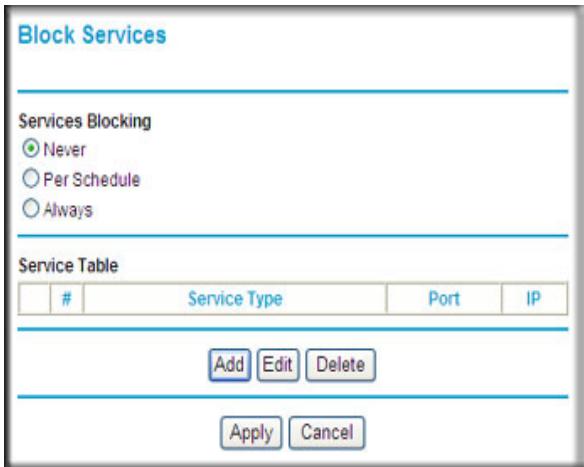
Figure 2.
-
Select one of the following:
-
Per Schedule. Turn on keyword blocking according to the settings in the Schedule screen.
Always. Turn on keyword blocking all the time, independent of the Schedule screen. -
Click Add, and the following screen displays:
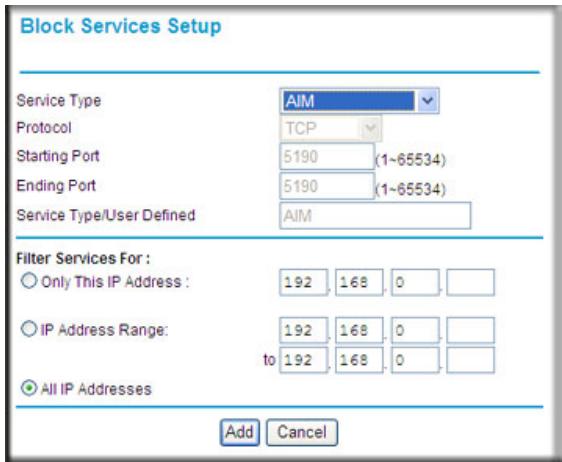
Figure 3.
- Either select a service from the Service Type drop-down list, or use the Service/Type User Defined field to create a custom service.
- Click Add to create the service, and it will be listed in the Service Table on the Block Services screen.
- Click Apply to save your settings.
Scheduling
The router uses Network Time Protocol (NTP) to obtain the current time and date from one of several network time servers on the Internet.
Setting Your Time Zone
To localize the time for your log entries, you must specify your time zone:
- Log in to the router as described in Log In to Your Router on page 12.
- On the main menu under Content Filtering, select Schedule:
- Select your time zone. This setting will be used for the blocking schedule according to your local time zone and for time-stamping log entries.
If your time zone is currently in daylight savings time, select the Automatically adjust for daylight savings time check box.
- Click Apply to save your settings.
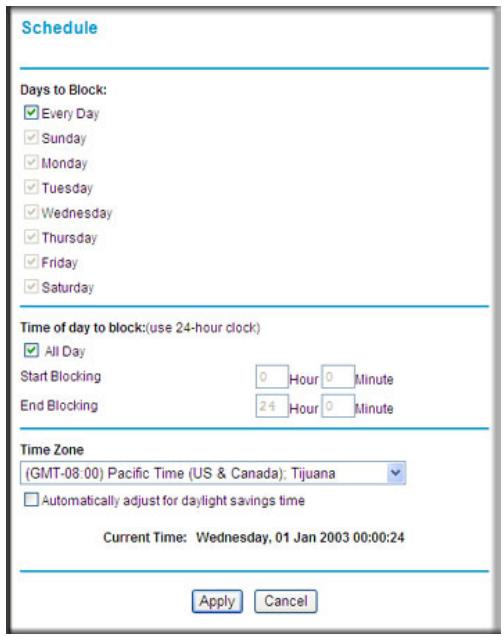
Scheduling Firewall Services
If you enabled service blocking in the Block Services screen or port forwarding in the Ports screen, you can set up a schedule for when blocking occurs or when access is not restricted.
- Log in to the router as described in Log In to Your Router on page 12.
- On the main menu, select the Schedule. The Schedule screen appears.
- To block Internet services based on a schedule, select Every Day, or select one or more days. If you want to limit access completely for the selected days, select All Day. Otherwise, to limit access during certain times for the selected days, fill in the Start Blocking and End Blocking fields.
- Enter the values in 24-hour time format. For example, 10:30 a.m. would be 10 hours and 30 minutes, and 10:30 p.m. would be 22 hours and 30 minutes. If you set the start time after the end time, the schedule will be effective through midnight the next day.
- Click Apply to save your changes.
Enabling Security Event Email Notification
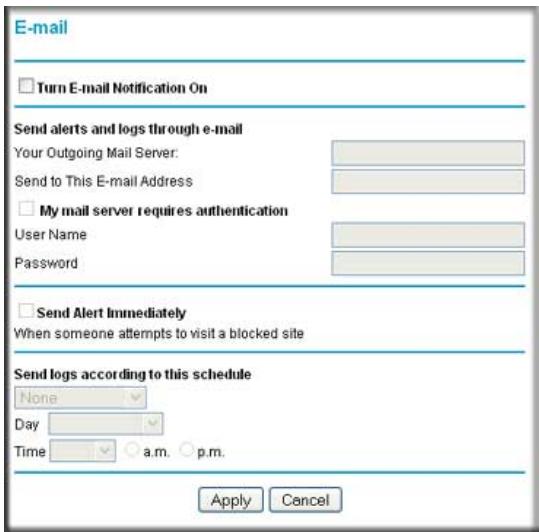
To set up the router so that you can receive logs and alerts by email, select Email from the router menu to display the following screen:
To receive alerts and logs by email:
- Select the Turn Email Notification On check box.
-
Fill in the fields to send alerts and logs through email.
-
Your Outgoing Mail Server. Enter the name or IP address of the outgoing SMTP mail server of your ISP (such as mail.myISP.com).
- Send to This Email Address. Enter
the e-mail address where you want to
send the alerts and logs. Use a full email address, such as ChrisXY@myISP.com.
- My mail server requires authentication. Select this check box if you need to log in to your SMTP server to send email. If you select this feature, you must enter the user name and password for the mail server.
Tip: If you cannot remember this information, check the settings in your email program.
-
Specify when you want the alerts and logs to be sent:
-
Send alert immediately. Select the corresponding check box if you would like immediate notification of a significant security event, such as a known attack, port scan, or attempted access to a blocked site.
- Send logs according to this schedule. Specifies how often to send the logs: Hourly, Daily, Weekly, or When Full.
- Day for sending log. Specifies which day of the week to send the log. Relevant when the log is sent weekly.
- Time for sending log. Specifies the time of day to send the log. Relevant when the log is sent daily or weekly.
If the Weekly, Daily, or Hourly option is selected and the log fills up before the specified period, the log is automatically e-mailed to the specified email address. After the log is sent, it is cleared from the router's memory. If the router cannot e-mail the log file, the log buffer might fill up. In this case, the router overwrites the log and discards its contents.
- Click Apply so that your changes take effect.
This chapter describes how to perform network management tasks with your Mobile Broadband 11n Wireless Router.
- Router Status
- Backing Up, Restoring, or Erasing Your Settings
- Protecting Access to Your Router
- Running Diagnostic Utilities and Rebooting the Router
Upgrading the Router Firmware
Router Status
From the main menu, under Maintenance, select Router Status to view this screen.
You can use this screen to view the status of the router, to show statistics, or to view the connection status.
For information about the fields on this screen, see Table 9.
See Showing Statistics on page 50 for information about statistics.
For information about the Internet connection, see Connection Status on page 51.
| Router Status | |
| Active Connection | HSDPA |
| Account Name | MBRN3300C |
| Firmware Version | V1.2.2.24 |
| Ethernet Port | |
| MAC Address | 00:1F:33:E0:82:79 |
| IP Address | 0.0.0.0 |
| Network Type | DHCPClient |
| IP Subnet Mask | 0.0.0.0 |
| Gateway IP Address | 0.0.0.0 |
| Domain Name Server | 0.0.0.0 |
| Modem | |
| EVDO | |
| Modem Identity | MC5725 |
| Modem SW version | p2006004,51735 [Jun 20 2008 08:55:54] |
| Modem driver version | v1.7 |
| ESN | 0x604EB235 |
| Operator | VERIZON |
| Network mode | 1xEVDO |
| Wireless Boardband Port | |
| Connection Status | Connected |
| IP Address | 75.210.81.198 |
| Protocol | PPP |
| IP Subnet Mask | 255.255.255.255 |
| Gateway Ip Address | 66.174.216.64 |
| Domain Name Server | 66.174.92.14 |
| 69.78.96.14 | |
| LAN Port | |
| MAC Address | 00:1F:33:E0:82:78 |
| IP Address | 192.168.0.1 |
| DHCP | ON |
| IP Subnet Mask | 255.255.255.0 |
| Wireless Port | |
| Name (SSID) | NETGEAR-3G |
| Region | United States |
| Channel | Auto (11) |
| Wireless AP | ON |
| Broadcast Name | ON |
| Connection Status | Refresh |
| Show Statistics | |
Table 1.
| Field | Description | |
| Firmware Version | This field displays the router firmware version. | |
| Mobile Broadband | Modem Identity | Shows the modem in use. |
| Modem sw version | The software version of the modem. | |
| Modem driver version | The driver version of the modem. | |
| IMSI | International Mobile Subscriber Identity. SIM card identity. | |
| IMEI | International Mobile Equipment Identity. Unique identity of the modem. | |
| Operator | The ISP for the broadband wireless network. | |
| Network mode | The mode of the current network the modem is connected to. This is dependent on coverage and distance from the cell site. | |
| WAN Port | Connection Status | The status of the Internet connection. |
| IP Address | The IP address used by the modem. If no address is shown, the router cannot connect to the Internet. | |
| Protocol | The protocol for the Internet connection, which is PPP (Point-to-Point). | |
| IP Subnet Mask | The IP subnet mask used by the router's USB port. | |
| Gateway IP Address | The IP address used by the router. | |
| Domain Name Server | The DNS server IP addresses used by the router. These addresses are usually obtained dynamically from the ISP. | |
| LAN Port | MAC Address | The Ethernet MAC address used by the router's LAN port. |
| IP Address | The LAN port IP address. The default is 192.168.0.1. | |
| DHCP | • Off. The router does not assign IP addresses to PCs on the LAN. • On. The router assigns IP addresses to PCs on the LAN. | |
| IP Subnet Mask | The LAN port IP subnet mask. The default is 255.255.255.0. | |
| Wireless Port (See Manually Configure Your Wireless Settings on page 28. | Name (SSID) | The service set ID, also known as the wireless network name. |
| Region | The country where the unit is set up for use. | |
| Channel | The current channel, which determines the operating frequency. | |
| Wireless AP | Indicates if the access point feature is disabled or not. If not enabled, the Wireless LED on the front panel will be off. | |
| Broadcast Name | Indicates if the router is configured to broadcast itsSSID. | |
Showing Statistics
Click the Show Statistics button on the Router Status screen to display router usage statistics:
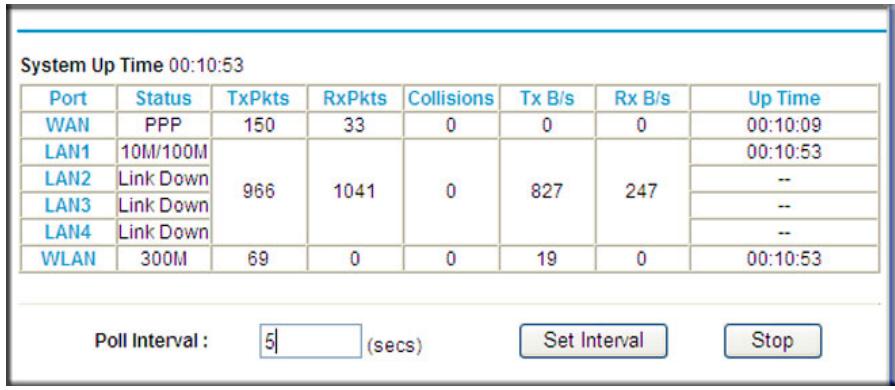
Table 10 explains the statistic fields.
Table 2.
| Field | Description |
| Status | The link status. Note that LAN2, LAN3, and LAN4 are guest networks. |
| TxPkts | The number of packets transmitted on this port since reset or manual clear. |
| RxPkts | The number of packets received on this port since reset or manual clear. |
| Collisions | The number of collisions on this port since reset or manual clear. |
| Tx B/s | The average egress line utilization for this port. |
| Rx B/s | The average for this port. |
| Up Time | The time elapsed since the last power cycle or reset. |
Connection Status
Click the Connection Status button on the Router Status screen:
Mobile broadband Status
Connection Status
Connected
Received Signal Quality(in dbm)
-93
Bytes Transmitted
28192417
Bytes Received
40438051
Tx B/s
7803
Rx B/s
3600
System Uptime
00:42:01
Connection Status
Connection Time
00:40:11
Connecting to Server
ON
Negotiation
ON
Authentication
ON
Getting IP Address
166.129.82.85
Getting Network Mask
255.255.255.255
Poll
Interval:
(secs)
Set Interval
Stop
Close Window
This screen shows the following statistics:
Table 3.
| Field | Description | |
| Mobile Broadband Service | Connection Status | The status of the Internet connection. • Scanning. The modem is scanning for broadband wireless networks in your area. • Connected. The router is connected to the Internet. • No USB Device Attached. The router does not detect a USB modem connected to its USB port. Either the modem is disconnected, or it is not correctly seated. To correct the problem remove the modem and reinsert it into the port. |
| Received Signal Quality (in dBm) | Modem radio reception. A small, negative number indicates good signal quality. | |
| Bytes Transmitted | The number of bytes transmitted in the most recent connection session. | |
| Bytes Received | The number of bytes received in the most recent connection session. | |
| Tx B/s | The transmission rate. | |
| Rx B/s | The receiving rate. | |
| System Uptime | Time elapsed since the last reboot. | |
Table 3.
| Field | Description | |
| Connection Status | Connection Time | The time elapsed since the last connection to the Internet through the broadband port. |
| Connecting to Server | The connection status. | |
| Negotiation | Success or Failed. | |
| Authentication | Success or Failed. | |
| Getting IP Address | The IP address assigned to the WAN port by the ADSL Internet Service Provider. | |
| Getting Network Mask | The network mask assigned to the WAN port by the ADSL Internet Service Provider. | |
Viewing Attached Devices
The Attached Devices screen shows all IP devices that the router discovered on the local network. From the main menu, under Maintenance, select Attached Devices:
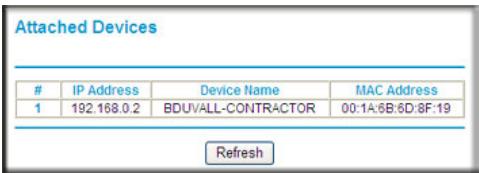
For each device, the table shows the IP address, device name if available, and the Ethernet MAC address. If the router is rebooted, this data is lost until the router rediscovers the devices. To force the router to look for attached devices, click the Refresh button.
Backing Up, Restoring, or Erasing Your Settings
The configuration settings of the router are stored in a configuration file in the router. This file can be backed up to your computer, restored, or reverted to factory default settings. The procedures in the following sections explain how to do these tasks.
Backing Up the Configuration to a File
- Log in to the router. Type http://www_ROUTerlogin.net in the address field of your Internet browser. Enter admin for the user name and your password (or the default, password).
- Under Maintenance on the main menu, select Backup Settings to display the Backup Settings screen.
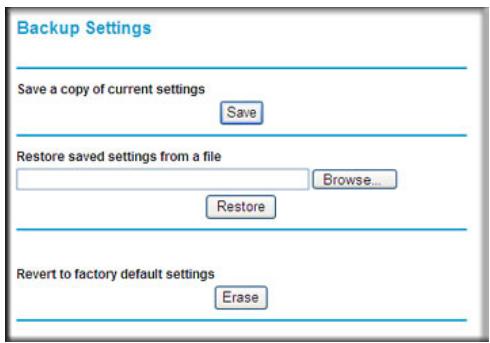
- Click Save to save a copy of the current settings.
- Store the .cfg file on a computer on your network.
Restoring the Configuration from a File
To restore the configuration:
- Log in to the router. Type http://www.ruterlogin.net in the address field of your Internet browser. Enter admin for the user name and your password (or the default, password).
- Under Maintenance on the main menu, select Backup Settings.
- Enter the full path to the file on your network, or click Browse to locate the file.
- When you have located the .cfg file, click Restore to upload the file to the router. The router reboots.
Erasing the Configuration
You can use the Erase feature to erase its configuration settings and restore the router to the factory default settings.
To erase the configuration:
- Under Maintenance on the main menu, select Backup Settings.
- Click Erase.
The router reboots.
After an erase, the router password is password, the LAN IP address is 192.168.0.1, and the router DHCP client is enabled.
Note: To restore the factory default settings when you do not know the login password or IP address, press the Restore Factory Settings button on the bottom of the router for 6 seconds.
Protecting Access to Your Router
For security reasons, the router has its own user name and password. Also, after a period of inactivity, the login automatically disconnects. The user name and password are not the same as a user name or password you might use to log in to your Internet connection.
NETGEAR recommends that you change this password to a more secure password. The ideal password should contain no dictionary words from any language, and should be a mixture of both uppercase and lowercase letters, numbers, and symbols. Your password can be up to 30 characters.
Changing the Built-In Password
- To log in to the router, type http://www_ROUTerlogin.net in the address field of your Internet browser. Enter admin for the user name and your password (or the default, password).
Note: If you changed the password and do not remember what it is, you can reset the router to its factory default settings. See Restoring the Default Configuration and Password on page 91.
- From the main menu, under Maintenance, select Set Password.
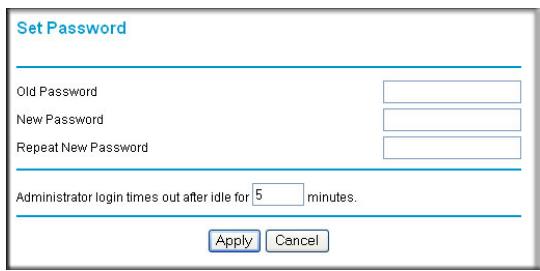
- To change the password, first enter the old password, and then enter the new password twice.
- Click Apply to save your changes.
Note: After changing the password, you must log in again to continue the configuration. If you have backed up the router settings previously, you should do a new backup so that the saved settings file includes the new password.
Changing the Administrator Login Time-Out
For security, the administrator login to the router configuration times out after a period of inactivity. To change the login time-out period:
- In the Set Password screen, type a number in the Administrator login times out field. The suggested default value is 5 minutes.
- Click Apply to save your changes, or click Cancel to keep the current period.
Running Diagnostic Utilities and Rebooting the Router
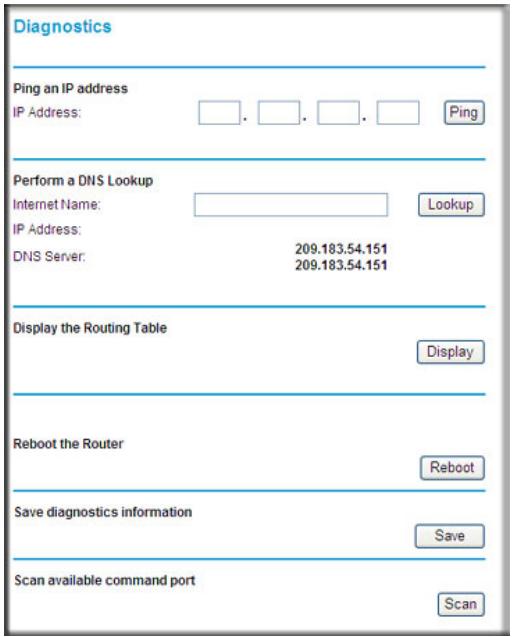
The router has a diagnostics feature. You can use the Diagnostics screen to perform the following functions from the router:
- Ping an IP address to test connectivity to see if you can reach a remote host. If Ping VPN is enabled, the ping packet always goes through the VPN if the VPN tunnel is enabled and working.
- Perform a DNS lookup to test if an Internet name resolves to an IP address to verify that the DNS server configuration is working.
- Display the routing table to identify what other routers the router is communicating with.
- Reboot the router to enable new network configurations to take effect or to clear problems with the router's network connection.
From the main menu, under Maintenance, select Diagnostics.
- Ping. Ping an IP address.
- Lookup. A Domain Name Server (DNS) converts the Internet name such as www.netgear.com to an IP address. If you need the IP address of a server on the Internet, you can do a DNS lookup to find the IP address.
- Display. View the internal routing table. Typically, this information is used only by Technical Support.
Reboot. Shut down and restart the router.
If you reboot the router you will lose your connection. To access the router you will need to log in again after it has finished rebooting.
- Save. Save diagnostic information.
Upgrading the Router Firmware
The router firmware is stored in flash memory, and can be upgraded as new firmware is released by NETGEAR. Upgrade files can be downloaded from the NETGEAR web site. If the upgrade file is compressed (a .zip file), you must first extract the binary (.bin or .img) file before uploading it to the router.
NETGEAR recommends that you back up your configuration before doing a firmware upgrade. After the upgrade is complete, you might need to restore your configuration settings.
- Download and unzip the new firmware file from NETGEAR.
The Web browser used to upload new firmware into the router must support HTTP uploads. NETGEAR recommends using Microsoft Internet Explorer 5.0 or later, or Mozilla Firefox 2.0 or later. - Log in to the router. Type http://www_ROUTerlogin.net in the address field of your Internet browser. Enter admin for the user name and your password (or the default, password).
- From the main menu, under Maintenance, select Router Upgrade to display this screen.
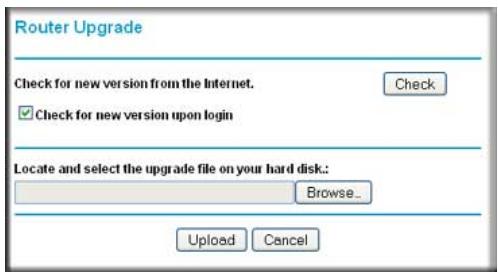
- Click Browse to locate the binary (.bin or .img) upgrade file.
- Click Upload.

WARNING!
When uploading firmware to the router, do not interrupt the Web browser by closing the window, clicking a link, or loading a new page. If the browser is interrupted, it might corrupt the firmware, causing router to be unworkable and inaccessible. When the upload is complete, your router will automatically restart. The upgrade process typically takes about 1 minute. In some cases, you might need to clear the configuration and reconfigure the router after upgrading.
This chapter describes how to configure the advanced features of your Mobile Broadband 11n Wireless Router.
- SIM Settings
Advanced Wireless Settings - Wireless Repeating Function
- Port Forwarding and Port Triggering
WAN Setup
LAN Setup - QoS Setup
Dynamic DNS
Using Static Routes
Enabling Remote Management
Universal Plug and Play
Traffic Meter
SIM Settings
From the main menu, select SIM Settings to display the following screen:
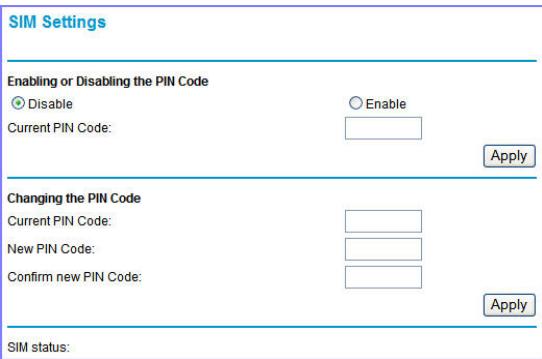
Table 1.
| Field | Description |
| Enabling or Disabling the PIN Code | Controls whether the PIN code on the SIM card will be used to connect to the network. |
| Changing the PIN Code | Changes the PIN code on the SIM card. |
| SIM status | Current SIM card access status. |
Advanced Wireless Settings
From the main menu, select Advanced Wireless Settings to display the following screen:
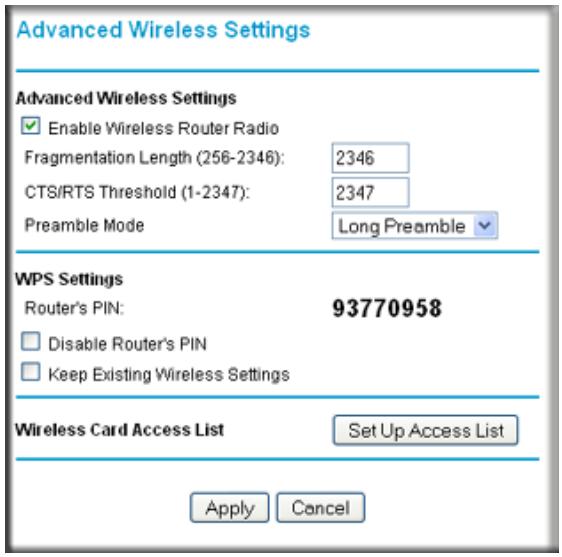
Table 2.
| Field | Description |
| Enable Wireless Router Radio | Selected by default, this setting enables the wireless radio, which allows the router to work as a wireless access point. Turning off the wireless radio can be helpful for configuration, network tuning, or troubleshooting. |
| Fragmentation Length, CTS/RTS Threshold, and Preamble Mode | These should be left at their default settings. |
| Router PIN | The PIN number used for Push 'N' Connect. |
| Disable Router_PIN | By default, this check box is cleared. This allows the WPS clients to discover the router's PIN. |
| Keep Wireless Settings | By default, this check box is cleared. This allows the router to automatically generate the SSID and WPA/WPA2 security settings when it implements WPS. After WPS is implemented, the router automatically selects the Keep Existing Wireless Settings check box so that your SSID and wireless security settings remain the same if other WPS-enabled devices are added later. |
| Turn Access Control On | Access control is disabled by default so that any computer configured with the correct SSID can connect. See Restricting Access by MAC Address on page 62. |
Wireless Station Access Control
By default, any wireless PC configured with the correct SSID and wireless security settings is allowed access to your wireless network. You can use wireless access point settings in the Wireless Setting screen to further restrict wireless access to your network:
- Turn off wireless connectivity completely.
You can completely turn off the wireless portion of the router. For example, if you use your notebook computer to wirelessly connect to your router, and you take a business trip, you can turn off the wireless portion of the router while you are traveling. Other members of your household who use computers connected to the router via Ethernet cables can still use the router. To do this, clear the Enable Wireless Router Radio check box on the Wireless Settings screen, and then click Apply.
- Hide your wireless network name (SSID).
By default, the router is set to broadcast its wireless network name (SSID). You can restrict wireless access to your network by not broadcasting the wireless network name (SSID). To do this, clear the Enable SSID Broadcast check box on the Wireless Settings screen, and then click Apply. Wireless devices will not "see" your router. You must configure your wireless devices to match the wireless network name (SSID) of the router.
Note: The SSID of any wireless access adapters must match the SSID you configure in the router. If they do not match, you will not get a wireless connection to the router.
Restricting Access by MAC Address
For increased security, you can restrict access to the wireless network to allow only specific PCs based on their MAC addresses. You can restrict access to only trusted PCs so that unknown PCs cannot wirelessly connect to the Mobile Broadband 11n Wireless Router. MAC address filtering adds an obstacle against unwanted access to your network, but the data broadcast over the wireless link is fully exposed.
Note: If you configure the router from a wireless computer, add your computer's MAC address to the access list. Otherwise you will lose your wireless connection when you click Apply. You must then access the router from a wired computer, or from a wireless computer that is on the access control list, to make any further changes.
To restrict access based on MAC addresses:
- From the main menu, under Advanced, select Wireless Settings. Click Setup Access List to display the Wireless Station Access List screen.

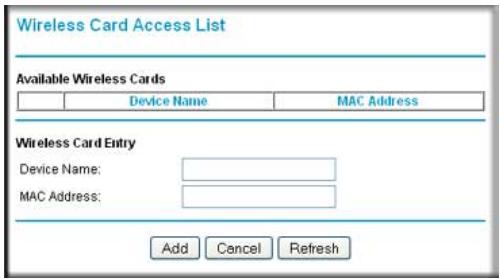
- Select Turn Access Control On check box. Adjust the list as needed for your network. You can add devices to the Trusted Wireless Stations list. Click Add to display the following screen:
-
You can add devices to the list using either of the following methods:
-
If the computer is in the Available Wireless Cards table, select its radio button to capture its MAC address.
- Use the Wireless Card Entry fields to enter the MAC address of the device to be added. The MAC address can usually be found on the bottom of the wireless device.
-
If no device name appears when you enter the MAC address, you can type a descriptive name for the computer that you are adding.
-
Click Apply to save these settings. Now, only devices on this list will be allowed to wirelessly connect to the router.
Wireless Repeating Function
From the main menu, select Wireless Repeating Function to display the following screen:
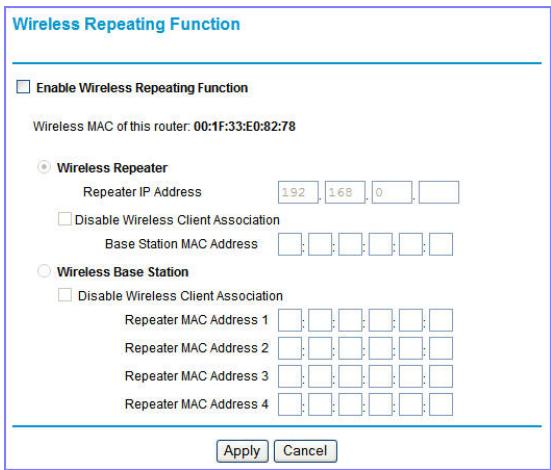
Table 3.
| Field | Description |
| Enable Wireless Repeating | Enable this if you wish to use either Bridge mode or Repeater mode, and then select the mode you want for your environment. ·Wireless Repeater. In this mode, the MBR1210 will communicate only with another Base Station-mode wireless station. You must enter the MAC address (physical address) of the other Base Station-mode wireless station in the field provided. WEP / WPA-PSK [TKIP] can (and should) be used to protect this communication. ·Wireless Base Station. Select this only if this MBR1210 is the "master" for a group of Repeater-mode wireless stations. The other Repeater-mode wireless stations must be set to Wireless Repeater-mode, using this MBR1210's MAC address. They then send all traffic to this master, rather than communicate directly with each other. WEP / WPA-PSK [TKIP] can (and should) be used to protect this traffic. If this option is selected, you must enter the MAC addresses of the other access points in the fields provided. |
Port Forwarding and Port Triggering
Port forwarding and port triggering are advanced features that affect the behavior of the firewall in your router. In the Port Forwarding / Port Triggering screen, you can make local computers or servers available to the Internet for different services (for example, FTP or HTTP), to play Internet games (like Quake III), or to use Internet applications (like CU-SeeMe).
- Port forwarding is designed for FTP, Web server, or other server-based services. Once port forwarding is set up, requests from the Internet are forwarded to the correct server.
- Port triggering monitors outbound traffic. When the router detects traffic on the specified outbound port, it remembers the IP address of the computer that sent the data and triggers the incoming port. Incoming traffic on the triggered port is then forwarded to the triggering computer. Port triggering allows requests from the Internet only after a designated port is triggered. Port triggering applies to chat and Internet games.
Port Forwarding
To set up port forwarding:
- From the main menu, under Advanced, select Port Forwarding/Port Triggering. The following screen displays:
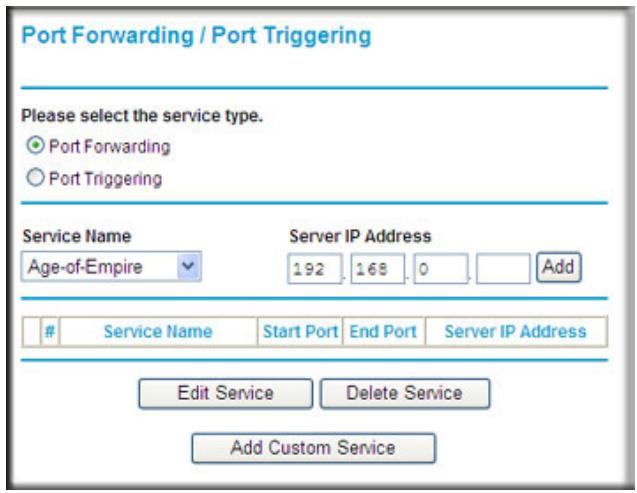
By default, the Port Forwarding radio button is selected.
-
You can select a service or create a custom service.
-
Select a service from the Service Name drop-down list and specify the computer's IP address.
- If you want to add a service that is not in the list, click the Add Custom Service button. Fill in the fields in the Add Custom Service screen.
The service appears in the list.
Port Triggering
To set up port triggering:
- From the main menu, under Advanced, select Port Forwarding/Port Triggering.
- Select the Port Triggering radio button to display the following screen:
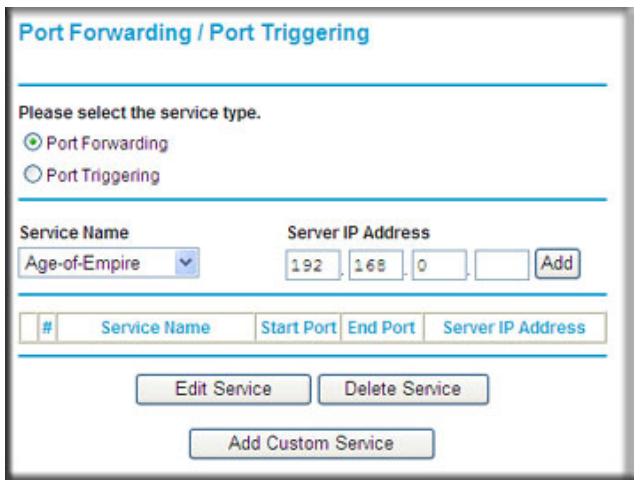
- Click Add Service and fill in the fields in the Add Service screen.
The service appears in the list. For more detailed information, see the Port Forwarding/Port Triggering help.
WAN Setup
To change broadband Internet connection settings, use the Broadband Settings screen, as described in Manually Configure Your Internet Settings on page 15.
To view or change the WAN setup:
- From the main menu, select WAN Setup to display the WAN Setup screen.
- Make the changes that you want, and then click Apply to save the settings.
The WAN Setup fields are described in the table below.
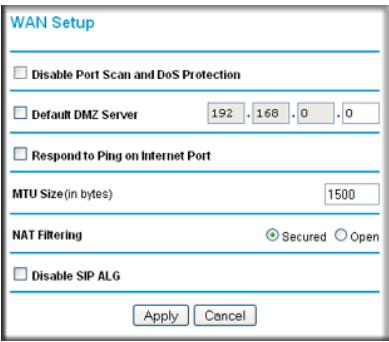
Table 4.
| Setting | Description |
| Disable SPI Firewall | This check box is usually cleared so that the firewall protects your LAN against port scans and denial of service attacks. This check box should be selected only in special circumstances. |
| Default DMZ Server | This feature is sometimes helpful when you are using some online games and videoconferencing. Be careful when using this feature because it makes the firewall security less effective. See Setting Up a Default DMZ Server on page 68. |
| Respond to Ping on Internet | If you want the router to respond to a ping from the Internet, select this check box. This should be used only as a diagnostic tool, since it allows your router to be discovered. Do not select this check box unless you have a specific reason to do so. |
| MTU Size | Maximum Transmit Unit (MTU) value. For most Ethernet networks this is 1500 bytes, or 1492 bytes for PPPoE connections, or 1436 bytes for PPTP connections. |
| NAT Filtering | This is set to Secured to provide a secure firewall to protect computers on the LAN from attacks from the Internet. The Open setting is less secure. |
| Disable SIP ALG | Some VoIP applications do not work well with SIP ALG. Selecting this check box might help your VoIP devices create or accept a call through the router. |
Setting Up a Default DMZ Server

WARNING!
For security reasons, you should avoid using the default DMZ server feature. When a computer is designated as the default DMZ server, it loses much of the protection of the firewall, and is exposed to many exploits from the Internet. If compromised, the computer can be used to attack your network.
The default DMZ server feature is helpful when you are using some online games and videoconferencing applications that are incompatible with NAT. The router is programmed to recognize some of these applications and to work correctly with them, but there are other applications that might not function well. In some cases, one local computer can run the application correctly if that computer's IP address is entered as the default DMZ server.
Incoming traffic from the Internet is normally discarded by the router unless the traffic is a response to one of your local computers or a service that you have configured in the Ports screen. Instead of discarding this traffic, you can have it forwarded to one computer on your network. This computer is called the default DMZ server.
To assign a computer or server to be a default DMZ server:
- Go to the WAN Setup screen as described in the previous section.
- Select the Default DMZ Server check box.
- Type the IP address for that server.
- Click Apply to save your changes.
LAN Setup
The LAN Setup screen allows configuration of LAN IP services such as DHCP and RIP. These features can be found under Advanced in the router main menu.
The router is shipped preconfigured to use private IP addresses on the LAN side, and to act as a DHCP server. The router default LAN IP configuration is:
LAN IP address. 192.168.0.1
- Subnet mask. 255.255.255.0
These addresses are part of the Internet Engineering Task Force (IETF)-designated private address range for use in private networks, and should be suitable in most applications. If your network has a requirement to use a different IP addressing scheme, you can make those changes in this screen.
Tip: If you change the LAN IP address of the router while connected through the browser, you will be disconnected, and so will others connected to the router. To connect to the router, you must open a new connection to the new IP address and log in again. Others using the router must restart their computers to connect to the router again.
To view or change the LAN setup:
- Select LAN IP to display the LAN Setup screen.
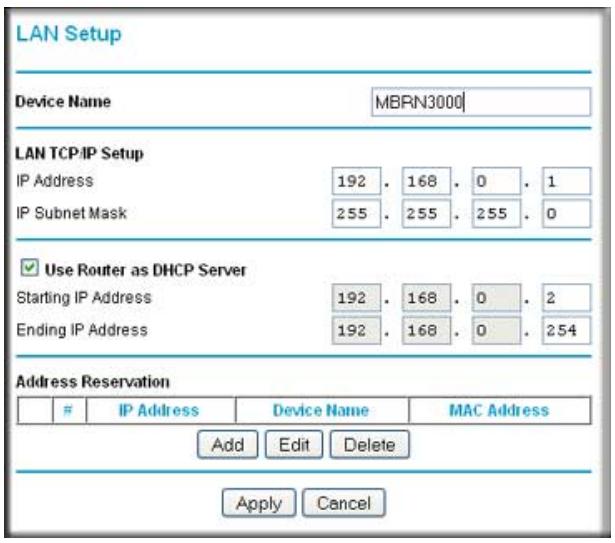
- Change the settings. For more information, see DHCP Settings on page 70, or Reserved IP Addresses on page 71.
- Click Apply to save the changes.
The LAN TCP/IP Setup parameters are explained in the table below.
Table 5.
| Settings | Description | |
| Device Name | ||
| LAN TCP/IP Setup | IP Address | The LAN IP address of the router. |
| IP Subnet Mask | The LAN subnet mask of the router. Combined with the IP address, the IP subnet mask allows a device to know which other addresses are local to it, and which must be reached through a gateway or router. | |
| DHCP Server For more information, see DHCP Settings on page 70. | Use Router as a DHCP Server | This check box is usually selected so that the router functions as a Dynamic Host Configuration Protocol (DHCP) server. See DHCP Settings on page 70. |
| Starting IP Address | Specify the start of the range for the pool of IP addresses in the same subnet as the router. | |
| Ending IP Address | Specify the end of the range for the pool of IP addresses in the same subnet as the router. | |
| Address Reservation For more information, see DHCP Settings on page 70. | When you specify a reserved IP address for a computer on the LAN, that computer receives the same IP address each time it access the router's DHCP server. Assign reserved IP addresses to servers that require permanent IP settings. | |
DHCP Settings
By default, the router functions as a Dynamic Host Configuration Protocol (DHCP) server, allowing it to assign IP, DNS server, and default gateway addresses to all computers connected to the router's LAN. The assigned default gateway address is the LAN address of the router. IP addresses is assigned to the attached PCs from a pool of addresses specified in this screen. Each pool address is tested before it is assigned to avoid duplicate addresses on the LAN.
For most applications, the default DHCP and TCP/IP settings of the router are satisfactory. Click the link to the online document ITCP/IP Networking Basics on page 96 for an explanation of DHCP and information about how to assign IP addresses for your network.
Use Router as DHCP Server
If another device on your network will be the DHCP server, or if you will manually configure the network settings of all of your computers, clear the Use Router as DHCP Server check box on the LAN IP Setup screen. Otherwise, leave it selected.
Specify the pool of IP addresses to be assigned by filling in the Starting IP Address and Ending IP Address fields. These addresses should be part of the same IP address subnet as the router's LAN IP address. Using the default addressing scheme, you should define a range between 192.168.0.2 and 192.168.0.254, although you might want to save part of the range for devices with fixed addresses.
The router delivers the following parameters to any LAN device that requests DHCP:
An IP address from the range you have defined.
- Subnet mask.
- Gateway IP address is the router's LAN IP address.
- Primary DNS server, if you entered a primary DNS address in the Basic Settings screen; otherwise, the router's LAN IP address.
- Secondary DNS server, if you entered a secondary DNS address in the Basic Settings screen.
- WINS server (Windows Internet Naming Service Server) determines the IP address associated with a particular Windows computer. A WINS server records and reports a list of names and IP address of Windows PCs on its local network. If you connect to a remote network that contains a WINS server, enter the server's IP address here. This allows your PCs to browse the network using the Network Neighborhood feature of Windows.
Reserved IP Addresses
When you specify a reserved IP address for a computer on the LAN, that computer always receives the same IP address each time it access the router's DHCP server. Reserved IP addresses should be assigned to servers that require permanent IP settings.
To reserve an IP address:
- Click the Add button.
- In the IP Address field, type the IP address to assign to the computer or server. Choose an IP address from the router's LAN subnet, such as 192.168.0.x.
- Type the MAC address of the computer or server.
Tip: If the computer is on your network, it is listed on the same screen for your convenience. Clicking the radio button for each entry in the attached device list fills in the fields automatically with the computer's MAC address and name.
- Click Apply to enter the reserved address into the table.
Note: The reserved address will not be assigned until the next time the computer contacts the router's DHCP server. Reboot the computer or access its IP configuration and force a DHCP release and renew.
To edit or delete a reserved address entry:
- Click the button next to the reserved address you want to edit or delete.
- Click Edit or Delete.
QoS Setup
QoS is an advanced feature that can be used to prioritize some Internet applications and online gaming, and to minimize the impact when the bandwidth is busy.
From the main menu, select QoS Setup to display the following screen:
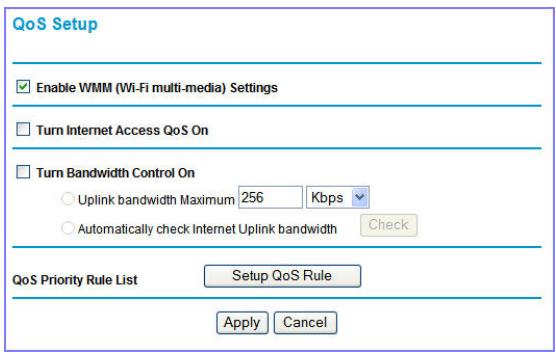
Table 6.
| Field | Description |
| Wi-Fi Multi-media (WMM) Settings | WMM (Wireless Multimedia) is a subset of the 802.11e standard. WMM allows wireless traffic to have a range of priorities depending on the kind of data. Time-dependent information, such as video or audio, has a higher priority than normal traffic. For WMM to function correctly, wireless clients must also support WMM. |
| Turn Internet Access QoS On | If you enable QoS, the QoS function works to prioritize Internet access traffic. For the applications that already exist in the drop-down list (e.g., On-line Gaming, Ethernet LAN Port, or a specified MAC address), you can modify the priority level by clicking the Edit button, or clicking the Delete button to erase the priority rule. Otherwise, you can also define the priority policy for online gaming, an application, a LAN port, or the computer's MAC address by clicking the Add Priority Rule button. |
| Bandwidth Control | To set up the total maximum uplink bandwidth, click the Check button to detect current uplink bandwidth that will help you to determinate the maximum bandwidth setting. |
QoS Priority Rule List
From the QoS Setup screen, click Setup QoS Rule to display the following screen:
QoS Priority Rule List
| # | QoS Policy | Priority | Description | |
| ○ | 1 | MSN Messenger | High | MSN Messenger application |
| ○ | 2 | Yahoo Messenger | High | Yahoo Messenger application |
| ○ | 3 | IP Phone | Highest | IP Phone application |
| ○ | 4 | Vonage IP Phone | Highest | Vonage IP Phone application |
| ○ | 5 | NetMeeting | High | NetMeeting application |
| ○ | 6 | AIM | High | AIM application |
| ○ | 7 | Google Talk | Highest | Google Talk application |
| ○ | 8 | Netgear EVA | Highest | Netgear EVA application |
| ○ | 9 | SSH | High | SSH application |
| ○ | 10 | Telnet | High | Telnet application |
| ○ | 11 | VPN | High | VPN application |
| ○ | 12 | FTP | Normal | FTP application |
| ○ | 13 | SMTP | Normal | SMTP application |
| ○ | 14 | WWW | Normal | WWW application |
| ○ | 15 | DNS | Normal | DNS application |
| ○ | 16 | ICMP | Normal | ICMP application |
| ○ | 17 | eMule / eDonkey | Low | eMule / eDonkey application |
| ○ | 18 | Kazaa | Low | Kazaa application |
| ○ | 19 | Gnutella | Low | Gnutella application |
| ○ | 20 | BT / Azureus | Low | BT / Azureus application |
| ○ | 21 | Counter Strike | High | On-line gaming Counter Strike |
| ○ | 22 | Ages of Empires | High | On-line gaming Age of Empires |
| ○ | 23 | Everquest | High | On-line gaming Everquest |
| ○ | 24 | Quake 2 | High | On-line gaming Quake 2 |
| ○ | 25 | Quake 3 | High | On-line gaming Quake 3 |
| ○ | 26 | Unreal Tourment | High | On-line gaming Unreal Tourment |
| ○ | 27 | Warcraft | High | On-line gaming Warcraft |
EditDeleteDelete All
Add Priority Rule
Apply Cancel
QoS Priority Rules
From the QoS Priority Rule List, click Add Priority Rule to display the following screen:
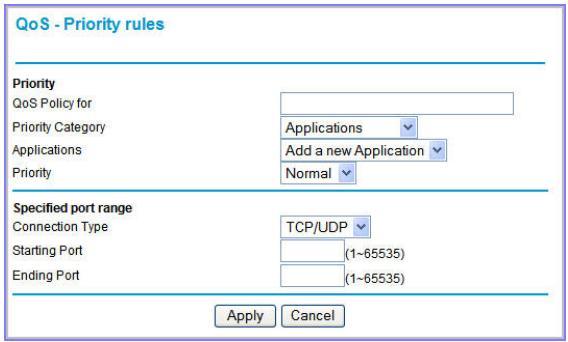
For Applications or Online Gaming
To set up the priority for an application or online gaming:
- Select Applications or On-line Gaming from the Priority Category lists.
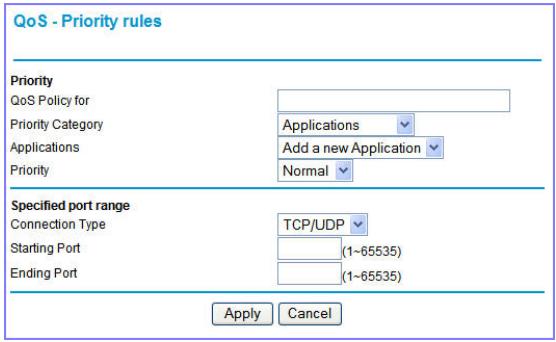
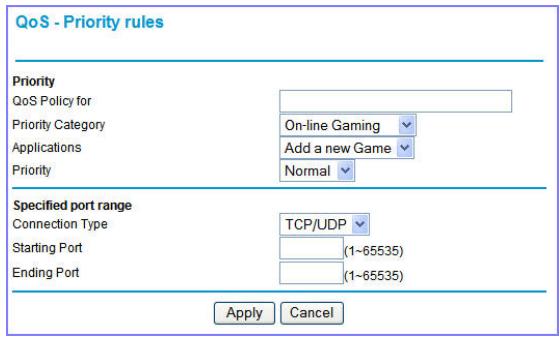
- Select the Internet application or game for which you want to set the priority from the relevant list.
- Select the priority level: Highest, High, Normal, or Low.
- You can also type the name in the QoS Policy field for this rule if you prefer.
- Click Apply.
For Ethernet LAN Ports
To set up the priority for LAN port:
- Select Ethernet LAN Port from the Priority Category list.
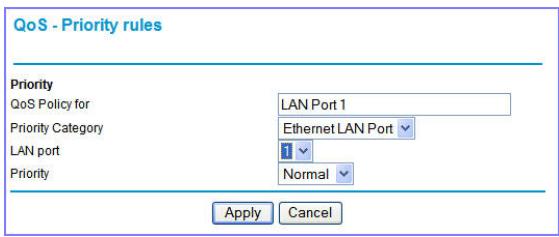
- Select the LAN port number you plan to specify the priority level for those computers connecting on this LAN port.
- Select the priority level: Highest, High, Normal, or Low.
- You can also type the name in the QoS Policy field for this rule if you prefer.
- Click Apply.
For MAC Addresses
To set up the priority for specified computer via its MAC address:
- Select MAC Address from the Priority Category list.
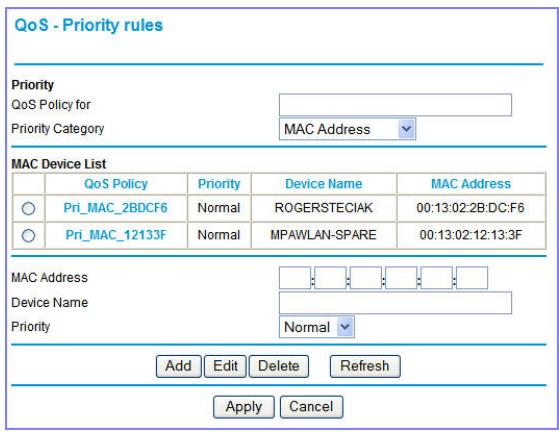
- Click the Refresh button to update the list of computers already connected to the router.
- Select the entry's radio button.
- Modify the information in the MAC Address and Device Name fields.
- Select the priority level: Highest, High, Normal, or Low.
- You can also type the name in the QoS Policy field for this rule if you prefer.
- Click the Edit button.
- Click Apply.
To add the priority for specified computer via its MAC address:
- Choose MAC Address from the Priority Category list.
- Enter the MAC address for the computer for which you are specifying the priority.
- You can also type a name that is easy to remember in the Device Name fields.
- Select the priority level: Highest, High, Normal, or Low.
- You can also type a name in the QoS Policy field for this rule if you prefer.
- Click the Add button.
- Click Apply.
To delete a priority rule entry:
- Select the entry's radio button of the table.
- Click the Delete button.
- Click Apply.
Dynamic DNS
If your network has a permanently assigned IP address, you can register a domain name and have that name linked with your IP address by public Domain Name Servers (DNS).
However, if your Internet account uses a dynamically assigned IP address, you will not know in advance what your IP address will be, and the address can change frequently. In this case, you can use a commercial Dynamic DNS service to register your domain to their IP address, and forward traffic directed at your domain to your frequently changing IP address.
The router contains a client that can connect to a Dynamic DNS service provider. To use this feature, you must select a service provider and obtain an account with them. After you have configured your account information in the router, whenever your ISP-assigned IP address changes, your router will automatically contact your Dynamic DNS service provider, log in to your account, and register your new IP address.

WARNING!
If your ISP assigns a private WAN IP address such as 192.168.x.x or 10.x.x.x, the Dynamic DNS service will not work because private addresses will not be routed on the Internet.
To configure Dynamic DNS:
- From the main menu, select Dynamic DNS to display the Dynamic DNS screen:
- Access the website of one of the Dynamic DNS service providers whose names appear in the Service Provider drop-down list, and register for an account.
For example, for dyndns.org, go to www.dyndns.org.
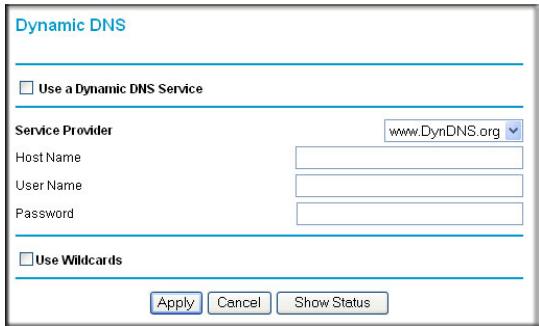
- Select the Use a Dynamic DNS Service check box.
- Select the name of your Dynamic DNS service provider.
- Fill in the Host Name, User Name, and Password fields.
The Dynamic DNS service provider might call the host name a domain name. If your URL is myName.dyndns.org, then your host name is myName. The password can be a key for your Dynamic DNS account.
If your Dynamic DNS provider allows the use of wildcards in resolving your URL, you can select the Use wildcards check box to activate this feature.
For example, the wildcard feature will cause *.yourhost.dyndns.org to be aliased to the same IP address as yourhost.dyndns.org.
- Click Apply to save your configuration.
Using Static Routes
Static routes provide additional routing information to your router. Under normal circumstances, the router has adequate routing information after it has been configured for Internet access, and you do not need to configure additional static routes. You must configure static routes only for unusual cases such as multiple routers or multiple IP subnets located on your network.
Static Route Example
As an example of when a static route is needed, consider the following case:
- Your primary Internet access is through a cable modem to an ISP.
- You have an ISDN router on your home network for connecting to the company where you are employed. This router's address on your LAN is 192.168.0.100.
- Your company's network is 134.177.0.0.
When you first configured your router, two implicit static routes were created. A default route was created with your ISP as the router, and a second static route was created to your local network for all 192.168.0.x addresses. With this configuration, if you attempt to access a device on the 134.177.0.0 network, your router forwards your request to the ISP. The ISP forwards your request to the company where you are employed, and the request is likely to be denied by the company's firewall.
In this case you must define a static route, telling your router that 134.177.0.0 should be accessed through the ISDN router at 192.168.0.100.
In this example:
- The Destination IP Address and IP Subnet Mask fields specify that this static route applies to all 134.177.x.x addresses.
- The Gateway IP Address fields specify that all traffic for these addresses should be forwarded to the ISDN router at 192.168.0.100.
- In the Metric field, a value of 1 will work since the ISDN router is on the LAN. This represents the number of routers between your network and the destination. This is a direct connection, so it is set to 1.
- Private is selected only as a precautionary security measure in case RIP is activated.
To configure static routes:
- From the main menu, under Advanced, select Static Routes to view the Static Routes screen.
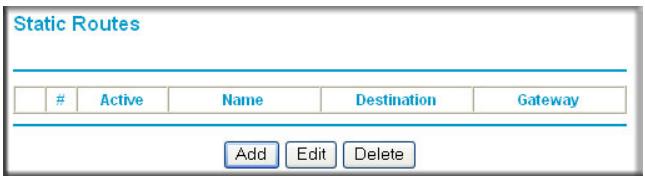
- Select the radio button of the static route you want to configure.
- Click Add or Edit to display the following screen:
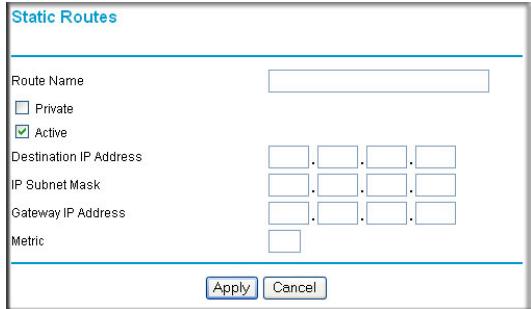
-
Fill in or change the fields:
-
Route Name. The route name is for identification purposes only.
- Private. Select this check box if you want to limit access to the LAN only. The static route will not be reported in RIP.
Active. Select this check box to make this route effective. - Destination IP Address, and IP Subnet Mask. If the destination is a single host, type a subnet value of 255.255.255.255.
- Gateway IP Address. This must be a router on the same LAN segment as the router.
-
Metric. Type a number between 2 and 15. This represents the number of routers between your network and the destination. Usually, a setting of 2 or 3 works, but if this is a direct connection, set it to 2.
-
Click Apply to save your changes. If you added a static route, it is added to the Static Routes screen.
Enabling Remote Management
Using the Remote Management screen, you can allow a user or users on the Internet to configure, upgrade, and check the status of your router.
Tip: Be sure to change the router default password to a very secure password. The ideal password should contain no dictionary words from any language, and should be a mixture of letters (both upper-case and lower-case), numbers, and symbols. Your password can be up to 30 characters.
To configure Remote Management
- Log in to the router. Type http://www+ruterlogin.net in the address field of your Internet browser. Enter admin for the user name and your password (or the default, password).
- Under Advanced, select Remote Management:
- Select the Turn Remote Management On check box.
- Specify which external addresses will be allowed to access the router's remote management.
For security, restrict access to as few external IP addresses as practical:
- To allow access from any IP address on the Internet, select Everyone.
- To allow access from a range of IP addresses on the Internet, select IP
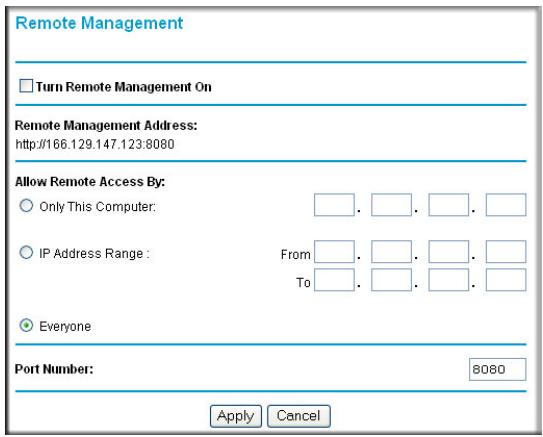
Address Range. Enter a beginning and ending IP address to define the allowed range.
- To allow access from a single IP address on the Internet, select Only This Computer. Enter the IP address that will be allowed access.
- Specify the port number that will be used for accessing the router menu.
Access normally uses the standard HTTP service port 80. For greater security, you can enter a different port number. Choose a number between 1024 and 65535, but do not use the number of any common service port. The default is 8080, which is a common alternate for HTTP.
- Click Apply to have your changes take effect.
When accessing your router from the Internet, type your router WAN IP address in your Internet browser address or location field, followed by a colon (:) and the custom port number. For example, if your external address is 134.177.0.123 and you use port number 8080, enter: http://134.177.0.123:8080. Be sure to include http:// in the address.
Universal Plug and Play
Universal Plug and Play (UPnP) helps devices such as Internet appliances and computers access the network and connect to other devices as needed. UPnP devices can automatically discover the services from other registered UPnP devices on the network.
- Select UPnP on the main menu to display the UPnP screen:
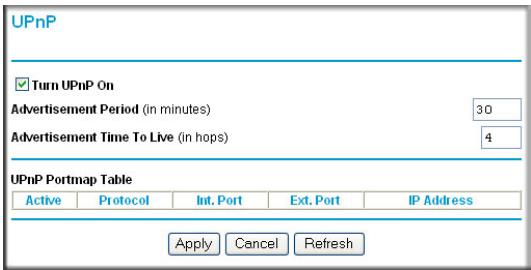
-
Fill in the settings on the UPnP screen:
-
Turn UPnP On. UPnP can be enabled or disabled for automatic device configuration. The default setting for UPnP is enabled. If this feature is disabled, the router will not allow any device to automatically control the resources, such as port forwarding (mapping), of the router.
- Advertisement Period. The advertisement period is how often the router advertises (broadcasts) its UPnP information. This value can range from 1 to 1440 minutes. The default period is 30 minutes. Shorter durations ensure that control points have current device status at the expense of additional network traffic. Longer durations might compromise the freshness of the device status but can significantly reduce network traffic.
- Advertisement Time To Live. The time to live for the advertisement is measured in hops for each UPnP packet sent. A hop is the number of steps allowed to propagate for each UPnP advertisement before it disappears. The number of hops can range from 1 to 255. The default value for the advertisement time to live is 4 hops, which should be fine for most home networks. If you notice that some devices are not being updated or reached correctly, then it might be necessary to increase this value a little.
-
UPnP Portmap Table. The UPnP Portmap Table displays the IP address of each UPnP device that is currently accessing the router and which ports (internal and external) that device has opened.
-
To save or cancel your changes or refresh the table:
-
Click Apply to save the new settings to the router.
- Click Cancel to disregard any unsaved changes.
- Click Refresh to update the portmap table and to show the active ports that are currently opened by UPnP devices.
Traffic Meter
Traffic metering allows you to monitor the volume of Internet traffic passing through your router's Internet port. With the Traffic Meter utility, you can set limits for traffic volume, set a monthly limit, and get a live update of traffic usage. You enable separate traffic meters for the mobile broadband connection and the Ethernet connection.
To monitor traffic on your router:
- Under Advanced on the router menu, select Traffic Meter.
- Click the appropriate Show Traffic Meter Application for ... radio button for the type of Internet connection (e.g., mobile broadband or Ethernet) you are setting up.
- To enable the traffic meter, select the Enable Traffic Meter check box.
-
If you would like to record and restrict the volume of Internet traffic, select the Traffic volume control by radio button. You can select one of the following options for controlling the traffic volume:
-
No Limit. No restriction is applied when the traffic limit is reached.
Download only. The restriction is applied to incoming traffic only. -
Both Directions. The restriction is applied to both incoming and outgoing traffic.
-
You can limit the amount of data traffic allowed per month:
-
By specifying how many Mbytes per month are allowed.
-
By specifying how many hours of traffic are allowed.
-
Set the Traffic Counter to begin at a specific time and date.
- Set up traffic control to issue a warning message before the monthly limit of Mbytes or hours is reached. You can select one of the following to occur when the limit is attained:
The Internet LED flashes green or amber.
- The Internet connection is disconnected and disabled.
- Set up Internet Traffic Statistics to monitor the data traffic.
- Click the Traffic Status button if you want a live update on Internet traffic status on your router.
- Click Apply to save your settings.
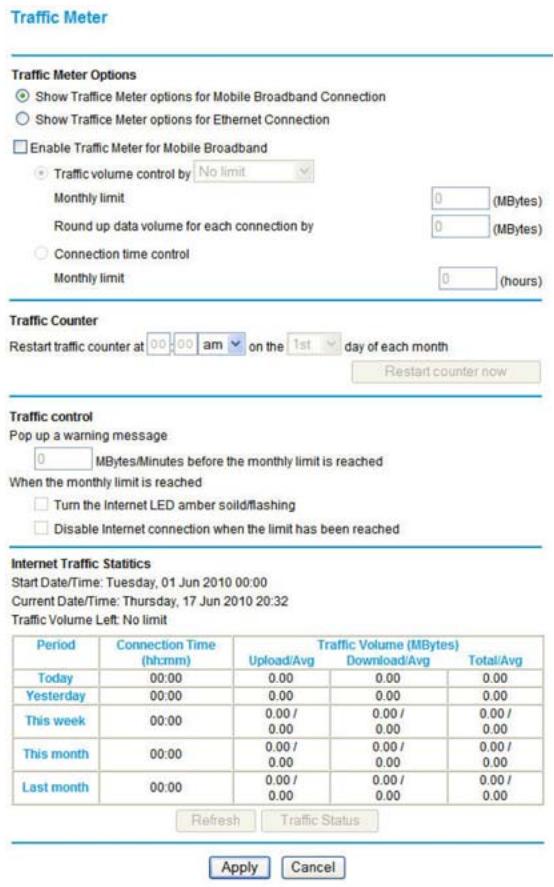
This chapter gives information about troubleshooting your Mobile Broadband 11n Wireless Router. After each problem description, instructions are provided to help you diagnose and solve the problem. For the common problems listed, go to the section indicated.
Is the router on?
Go to Basic Functioning on page 84.
- Have I connected the router correctly?
Go to Basic Functioning on page 84.
I can't access the router's configuration with my browser.
Go to Troubleshooting Access to the Router Main Menu on page 86.
I've configured the router but I can't access the Internet.
Go to Troubleshooting the ISP Connection on page 87.
I want to clear the configuration and start over again.
Go to Restoring the Default Configuration and Password on page 91.
Basic Functioning
After you turn on power to the router, the following sequence of events should occur:
- When power is first applied, verify that the Power LED is on.
- After approximately 10 seconds, verify that:
a. The Power LED is still solid green. An amber light indicates the unit has failed its power-on self-test (POST).
b. The Internet LED is lit.
c. The Wi-Fi radio LED is lit. The Wi-Fi radio is on by default.
d. The Ethernet LAN port LED is lit when any local ports are connected.
If a LAN port's LED is lit, a link has been established to the connected device. If a LAN port is connected to a 100 Mbps device, verify that the port's LED is green. If the port is 10 Mbps, the LED is amber.
e. The Ethernet WAN port LED is lit when the router is connected to a wired modem.
f. The Signal LED is lit when the router has detected a mobile broadband signal.
- A blue LED indicates excellent coverage.
A green LED indicates good coverage. - An amber LED indicates marginal coverage.
If any of these conditions does not occur, refer to the following table.
| LED | Action | |
| Power | Power LED is off. | ·Make sure the power cord is correctly connected to your router, and that the power supply adapter is correctly connected to a functioning power outlet. ·Check that you are using the power adapter supplied by NETGEAR for this product. ·If the error persists, you might have a hardware problem and should contact Technical Support. |
| Power LED is amber. | There is a fault within the router. Try to clear the fault as follows: ·Cycle the power to see if the router recovers. ·Clear the router's configuration to factory defaults. This sets the router's IP address to 192.168.0.1. This procedure is explained in Restoring the Default Configuration and Password on page 91. If the error persists, you might have a hardware problem and should contact Technical Support. | |
| Internet Port | Internet LED is off. | Be sure the SIM card you received is in the router. SIM cards from other devices will not function in the router, and the this SIM card will not function in other devices. |
| Internet LED is amber. | The router cannot connect to the Internet. Check the Internet connection option being used. • For the mobile broadband connection option, check the Signal LED. • For the Ethernet connection option, check the WAN LED. | |
| Internet LED is blinking amber and green. | The Traffic Meter feature is enabled, and the limit set has been reached. | |
| Wi-Fi | Wi-Fi LED is off. | The Wi-Fi radio has been turned off. If you want a Wi-Fi connection with the router, push the Wi-Fi button to turn the Wi-Fi radio back on. |
| Wi-Fi LED is not blinking. | If this LED does not blink when you are attempting to send data over the Wi-Fi link, log in to the router menu using the Ethernet LAN connection and check your router's wireless (Wi-Fi) configuration. | |
| LAN Ports | LAN LED is off. | If this LED does not light when an Ethernet connection is made, check the following: • Make sure that the Ethernet cable connections are secure at the router and at the hub or workstation. • Make sure that power is turned on to the connected hub or workstation. |
| WAN Port | WAN LED is off. | If this LED does not light when an Ethernet connection is made using the Ethernet connection option, check the following: • Make sure that the Ethernet cable connections are secure at the router and at the modem. • Make sure that power is turned on to the modem. |
| 2G/3G | 2G/3G LED is off. | The router cannot tell if the mobile broadband connection uses 2G or 3G signals. |
| Signal | Signal LED is off or amber. | If this LED does not light when the Mobile Broadband connection option is used, check the following: • Check with your ISP to ensure that there is good coverage in the area. • Ensure that your mobile broadband account is active. • Ensure that the SIM card is inserted correctly into the router. • Locate the router near the window or other area of the building. Make sure that the Signal LED is lit, indicating there is mobile broadband coverage with the router. • Log in to the router menu and check the Internet configuration. Check that the user name, password, and APN with ISP are set correctly. If you use a PIN to connect to the Internet, make sure it is entered correctly. |
Troubleshooting Access to the Router Main Menu
If you are unable to access the router main menu from a computer on your local network, check the following:
- If you are using an Ethernet-connected computer, check the Ethernet connection between the computer and the router as described in the previous section.
- Make sure your computer's IP address is on the same subnet as the router. If you are using the recommended addressing scheme, your computer's address should be in the range of 192.168.0.2 to 192.168.0.254. See the online document you can access from ITCP/IP Networking Basics in Appendix A to find your computer's IP address.
Note: If your computer's IP address is shown as 169.254.x.x: Recent versions of Windows and MacOS generate and assign an IP address if the computer cannot reach a DHCP server. These auto-generated addresses are in the range of 169.254.x.x. If your IP address is in this range, check the connection from the computer to the router, and reboot your computer.
- If your router's IP address was changed and you do not know the current IP address, clear the router's configuration to factory defaults. This will set the router's IP address to 192.168.0.1. This procedure is explained in Restoring the Default Configuration and Password on page 91.
- Make sure that your browser has Java, JavaScript, or ActiveX enabled. If you are using Internet Explorer, click Refresh to be sure that the Java applet is loaded.
Try quitting the browser and launching it again. - Make sure that you are using the correct login information. The factory default login name is admin, and the password is password. Make sure that Caps Lock is off when entering this information.
If the router does not save changes you have made in the Web Man agement Interface, check the following:
- When entering configuration settings, be sure to click the Apply button before moving to another screen or tab, or your changes are lost.
- Click the Refresh or Reload button in the Web browser. The changes might have occurred, but the Web browser might be caching the old configuration.
Troubleshooting the ISP Connection
Check these possible sources of trouble if you are having difficulty connecting to or browsing the Internet.
Connecting to the Internet
If unable to connect to Internet, check the following:
- The Internet account is active.
If your ISP has provided you with a SIM card and you haven't inserted it into the SIM card slot on the back of the router yet, do so now. - Wireless broadband coverage is available where the unit is located.
- Access the router main menu to verify that the broadband settings are correct. Check with your ISP if you are unsure.
- Check the location of the router.
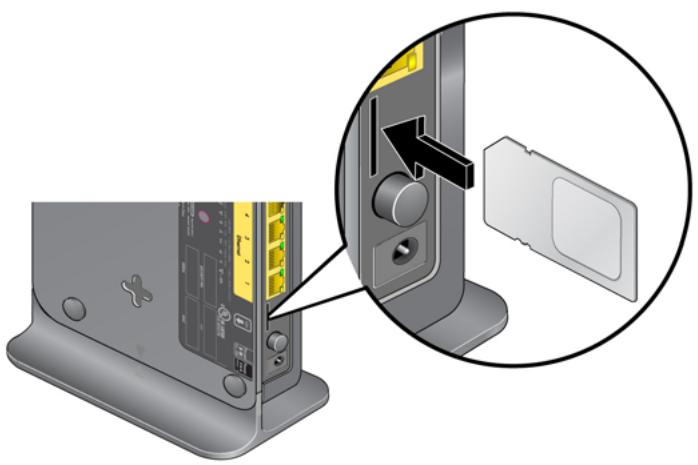
a. Move the router closer to a window for better access to the Internet signal.
- A blue Signal LED indicates excellent coverage.
A green Signal LED indicates good coverage. - An amber Signal LED indicates marginal coverage.
An unlighted Signal LED indicates no coverage.
b. Maintain recommended minimum distances between NETGEAR equipment and household appliances to reduce interference (see Regulatory Compliance Information on page 97).
- Using an external antenna for improved signal strength:
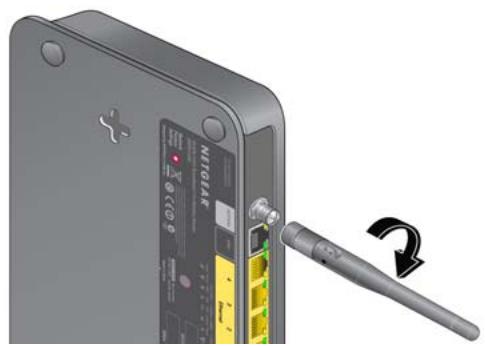
a. Install an external antenna. (The external antenna is an optional accessory that you can purchase.)
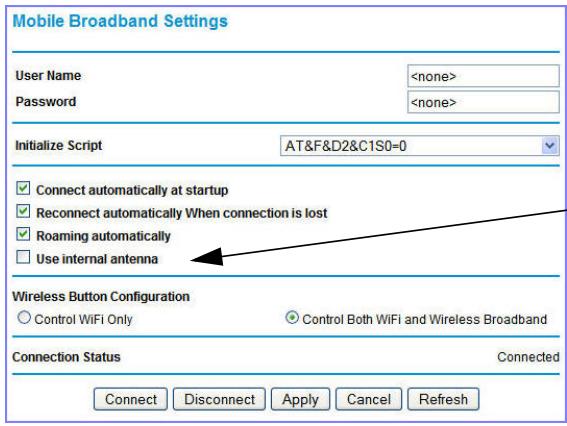
b. Clear the Use Internal Antenna check box on the Mobile Broadband Settings screen and then click Apply.
c. Click Connect to connect to the Internet.
Troubleshooting Internet Browsing
If your router can obtain an IP address but your computer is unable to load any Web pages from the Internet:
The traffic meter is enabled, and the limit might have been reached.
By configuring the traffic meter not to block, you can resume Internet access. If you have an usage limit, your ISP might charge you for the overage.
- Your computer might not recognize any DNS server addresses.
A DNS server is a host on the Internet that translates Internet names (such as www addresses) to numeric IP addresses. Typically your ISP provides the addresses of one or two DNS servers for your use. If you entered a DNS address during the router's configuration, reboot your computer and verify the DNS address as described in the article you can access from ITCP/IP Networking Basics in Appendix A. Alternatively, you can configure your computer manually with DNS addresses, as explained in your operating system documentation.
- Your computer might not have the router configured as its TCP/IP router.
If your computer obtains its information from the router by DHCP, reboot the computer, and verify the router address as described in the online document you can access from ITCP/IP Networking Basics in Appendix A.
Troubleshooting a TCP/IP Network Using the Ping Utility
Most TCP/IP terminal devices and routers contain a ping utility that sends an echo request packet to the designated device. The device then responds with an echo reply. You can easily troubleshoot a TCP/IP network by using the ping utility in your computer.
Testing the LAN Path to Your Router
You can ping the router from your PC to verify that the LAN path to your router is set up correctly.
To ping the router from a PC running Windows 95 or later:
- From the Windows toolbar, click the Start button, and select Run.
- In the field provided, type ping followed by the IP address of the router, as in this example: ping 192.168.0.1
- Click OK.
You should see a message like this one:
Pinging
If the path is working, you see this message:
Reply from < IP address >: bytes=32 time=NN ms TTL=xxx
If the path is not working, you see this message:
Request timed out
If the path is not working correctly, you could have one of the following problems:
-
Wrong physical connections
-
Make sure that the LAN port LED is on. If the LED is off, follow the instructions in Connecting to the Internet on page 87.
-
Check that the corresponding Link LEDs are on for your network interface card and for the hub ports (if any) that are connected to your workstation and router.
-
Wrong network configuration
-
Verify that the Ethernet card driver software and TCP/IP software are both installed and configured on your PC or workstation.
- Verify that the IP address for your router and your workstation are correct and that the addresses are on the same subnet.
Testing the Path from Your Computer to a Remote Device
After verifying that the LAN path works correctly, test the path from your PC to a remote device.
- From the Windows toolbar, click the Start button, and select Run.
- In the Windows Run window, type:
ping -n 10 IP address
where IP address is the IP address of a remote device such as your ISP's DNS server.
If the path is functioning correctly, replies as in the previous section are displayed. If you do not receive replies:
- Check that your PC has the IP address of your router listed as the default router. If the IP configuration of your PC is assigned by DHCP, this information is not visible in your PC's Network Control Panel. Verify that the IP address of the router is listed as the default router as described in the online document you can access from Preparing Your Network in Appendix A.
- Make sure that the network address of your PC (the portion of the IP address specified by the netmask) is different from the network address of the remote device.
- Check that your cable or DSL modem is connected and functioning.
- If your ISP assigned a host name to your PC, enter that host name as the account name in the Basic Settings screen.
- Your ISP could be rejecting the Ethernet MAC addresses of all but one of your PCs. Many broadband ISPs restrict access by allowing only traffic from the MAC address of your broadband modem, but some ISPs additionally restrict access to the MAC address of a single PC connected to that modem. If this is the case, you must configure your router to clone or spoof the MAC address from the authorized PC. See the Mobile Broadband 11n Wireless Router MBR1210 Installation Guide.
Problems with Date and Time
The email screen displays the current date and time of day. The Mobile Broadband 11n Wireless Router uses the Network Time Protocol (NTP) to obtain the current time from one of several network time servers on the Internet. Each entry in the log is stamped with the date and time of day. Problems with the date and time function can include the following:
- Date shown is January 1, 2000.
Cause: The router has not yet successfully reached a network time server. Check that your Internet access settings are configured correctly. If you have just completed configuring the router, wait at least 5 minutes, and check the date and time again.
Time is off by one hour.
Cause: The router does not automatically sense daylight savings time. On the E-mail screen, select or clear the Adjust for Daylight Savings Time check box.
Restoring the Default Configuration and Password
This section explains how to restore the factory default configuration settings, changing the router's admin password to password and the IP address to 192.168.0.1. You can erase the current configuration and restore factory defaults in two ways:
- Use the Erase feature (see Erasing the Configuration on page 54).
- Press the Restore Factory Settings button on the bottom of the router for 6 seconds. Use this method for cases when the administration password or IP address is not known.
The factory default settings are shown in Factory Default Settings in Appendix A.
Supplemental Information

This appendix provides the following information:
Factory Default Settings
Technical Specifications
Related Documents
Factory Default Settings
Use the Restore Factory Settings button located on the bottom of your router to reset all settings to their original factory default settings. This is called a hard reset. To perform a hard reset, push and hold the Restore Factory Settings button for 6 seconds. Your router will return to the factory configuration settings that are shown in the following table.
| Feature | Default Behavior | |
| Router login | User login URL | http://www routerlogin.net or http://www routerlogin.com |
| User name (case-sensitive) | admin | |
| Login password (case-sensitive) | password | |
| Internet Connection | WAN MAC address | Use default address |
| WAN MTU size | 1500 | |
| Port speed | AutoSense | |
| Local network (LAN) | LAN IP | 192.168.0.1 |
| Subnet mask | 255.255.255.0 | |
| RIP direction | None | |
| RIP version | Disabled | |
| RIP authentication | None | |
| DHCP server | Enabled | |
| DHCP starting IP address | 192.168.0.2 | |
| DHCP ending IP address | 192.168.0.254 | |
| DMZ | Disabled | |
| Time zone | EST for North America | |
| Daylight saving time adjustment | Disabled | |
| Firewall | Inbound communication from the Internet | Disabled (except traffic on port 80, the HTTP port) |
| Outbound communication to the Internet) | Enabled (all) | |
| Source MAC filtering | Disabled | |
| Feature (Continued) | Default Behavior (Continued) | |
| Mobile Broadband | Internet Service Provider: | Bell Mobility |
| APN: | inet.bell.ca | |
| Access Number: | *99# | |
| PDP Type: | IP | |
| Username: | none required | |
| WiFi | Wireless communication | Enabled |
| SSID name | See label on the bottom of router | |
| Security | WPA-PSK/WPA2-PSK mixed mode | |
| BroadcastSSID | Enabled | |
| Transmission speed | Auto (maximum wireless signal rate derived from IEEE Standard 802.11 specifications. Actual throughput will vary. Network conditions and environmental factors, including volume of network traffic, building materials and construction, and network overhead, lower actual data throughput rate.) | |
| Country/Region | Canada | |
| RF channel | Auto | |
| Operating mode | Up to 145 Mbps | |
| Data rate | Best | |
| Output power | Full | |
| Access point | Enabled | |
| Authentication type | Open system | |
| Wireless Card Access List | All wireless stations allowed | |
Technical Specifications
| Technical Specifications | |
| Network Protocol and Standards Compatibility | TCP/IP, DHCP |
| Power adapter | • North America: 120V AC, 60 Hz, input • 12V DC @ 1.5A output |
| Physical specifications | • Dimensions: 6.8 in. x 5.03 in. x 1.28 in. (173 mm x 128 mm x 33 mm) • Weight: 0.65 lbs. without the stand (0.29 kg) |
| Environmental Specifications | • Operating temperature: 0° to 40°C (32° to 104°F) • Operating humidity: 90% maximum relative humidity, noncondensing |
| Electromagnetic Emissions | FCC Part 15 Class B; IC; EN 55 022 (CISPR 22), Class B |
| Interface Specifications | • LAN: 10BASE-T or 100BASE-Tx, RJ-45 • WAN: 10BASE-T or 100BASE-TX, RJ-45 |
| Antenna Connection (Optional) | • R-TNC connector |
Related Documents
The table below provides links to reference documents you can use to gain a more complete understanding of the technologies used in your NETGEAR product.
| Document | Link |
| Using Microsoft Vista and Windows XP to Manage Wireless Network Connections | http://documentation.netgear.com/reference/enu/winzerocfg/index.htm |
| ITCP/IP Networking Basics | http://documentation.netgear.com/reference/enu/tcpip/index.htm |
| Wireless Networking Basics | http://documentation.netgear.com/reference/enu/wireless/index.htm |
| Preparing Your Network | http://documentation.netgear.com/reference/enu/wsdhcp/index.htm |
| Virtual Private Networking Basics | http://documentation.netgear.com/reference/enu/vpn/index.htm |
| Glossary | http://documentation.netgear.com/reference/enu/glossary/index.htm |
Notification of Compliance
NETGEAR Wireless Routers, Gateways, AP's
B
Regulatory Compliance Information
This section includes user requirements for operating this product in accordance with National laws for usage of radio spectrum and operation of radio devices. Failure of the end-user to comply with the applicable requirements may result in unlawful operation and adverse action against the end-user by the applicable National regulatory authority.
Note: This product's firmware limits operation to only the channels allowed in a particular Region or Country.
Therefore, all options described in this user's guide may not be available in your version of the product.
FCC Requirements for Operation in the United States
FCC Information to User
This product does not contain any user serviceable components and is to be used with approved antennas only. Any product changes or modifications will invalidate all applicable regulatory certifications and approvals
FCC Guidelines for Human Exposure
This equipment complies with FCC radiation exposure limits set forth for an uncontrolled environment. This equipment should be installed and operated with minimum distance of 20~cm between the radiator and your body.
This transmitter must not be co-located or operating in conjunction with any other antenna or transmitter.
FCC Declaration of Conformity
We, NETGEAR, Inc., 350 East Plumeria Drive, San Jose, CA 95134, declare under our sole responsibility that the Routeur sans fil MBR1210 11n à haut débit mobile complies with Part 15 Subpart B of FCC CFR47 Rules.
Operation is subject to the following two conditions:
- This device may not cause harmful interference, and
This device must accept any interference received, including interference that may cause undesired operation.
FCC Radio Frequency InterferenceWarnings & Instructions
This equipment has been tested and found to comply with the limits for a Class B digital device, pursuant to Part 15 of the FCC Rules. These limits are designed to provide reasonable protection against harmful interference in a residential installation. This equipment uses and can radiate radio frequency energy and, if not installed and used in accordance with the instructions, may cause harmful interference to radio communications. However, there is no guarantee that interference will not occur in a particular installation. If this equipment does cause harmful interference to radio or television reception, which can be determined by turning the equipment off and on, the user is encouraged to try to correct the interference by one or more of the following methods:
- Reorient or relocate the receiving antenna.
- Increase the separation between the equipment and the receiver.
- Connect the equipment into an electrical outlet on a circuit different from that which the radio receiver is connected.
- Consult the dealer or an experienced radio/TV technician for help.
FCC Caution
- Any changes or modifications not expressly approved by the party responsible for compliance could void the user's authority to operate this equipment.
- This device complies with Part 15 of the FCC Rules. Operation is subject to the following two conditions: (1) This device may not cause harmful interference, and (2) this device must accept any interference received, including interference that may cause undesired operation.
- For product available in the USA market, only channel 1~11 can be operated. Selection of other channels is not possible.
- This device and its antenna(s) must not be co-located or operation in conjunction with any other antenna or transmitter.
Canadian Department of Communications Radio Interference Regulations
This digital apparatus, Routeur sans fil MBR1210 11n à haut débit mobile, does not exceed the Class B limits for radio-noise emissions from digital apparatus as set out in the Radio Interference Regulations of the Canadian Department of Communications.
Europe - EU Declaration of Conformity

Marking with the above symbol indicates compliance with the Essential Requirements of the R&TTE Directive of the European Union (1999/5/EC).
This equipment meets the following conformance standards:
- EN300 328 (2.4Ghz), EN301 489-17, EN301 893 (5Ghz), EN60950-1
- This device is a 2.4 GHz wideband transmission system (transceiver), intended for use in all EU member states and EFTA countries, except in France and Italy where restrictive use applies.
- In Italy, the end-user should apply for a license at the national spectrum authorities in order to obtain authorization to use the device for setting up outdoor radio links and/or for supplying public access to telecommunications and/or network services.
- This device may not be used for setting up outdoor radio links in France, and in some areas the RF output power may be limited to 10mW EIRP in the frequency range of 2454 - 2483.5 MHz. For detailed information contact the national spectrum authority in France.
For complete DoC, visit the NETGEAR EU Declarations of Conformity website at: http://kb.netgear.com/app/answers/detail/a_id/11621/
Table 1. EDOC in Languages of the European Community
| Language | Statement |
| Cesky [Czech] | NETGEAR Inc. tímto prohlašuje, Že tento Radiolan je ve shode se základními požadavky a dalěsi mi príslušnými ustanoveními smernice 1999/5/ES. |
| Dansk [Danish] | Undertegnede NETGEAR Inc. erklærer herved, at følgende udstyr Radiolan overholder de væsentlige krav og øvrige relevante krav i direktiv 1999/5/EF. |
| Deutsch [German] | Hiermit erklärt NETGEAR Inc., dass sich das Gerät Radiolan in Übereinstimmung mit den grundlegenden Anforderungen und den übrigen einschlögigen Bestimmungen der Richtlinie 1999/5/EG befindet. |
| Eesti [Estonian] | Käesolevaga kinnitab NETGEAR Inc. seadme Radiolan vastavust direktivi 1999/5/EÜ põhinõuetele ja nimetatud direktiivist tulenevatele teistele asjakohastele sätetele. |
Table 1. EDOC in Languages of the European Community
| Language | Statement |
| English | Hereby, NETGEAR Inc., declares that this Radiolan is in compliance with the essential requirements and other relevant provisions of Directive 1999/5/EC. |
| Espanol [Spanish] | Por medio de la presente NETGEAR Inc. declara que el Radiolan cumple con los requisitos esencias y cualessqueradietasdispositions aplicables o exigibles de la Directiva 1999/5/CE. |
| Erlηνική [Greek] | ME ΘΝΗ ΠΑΡΟΥΣΑ NETGEAR Inc. ΔΗλΩNEΙ OTI Radiolan ΣΥΜΜΟΡΩNETAI ΠΡΟΣ TΙΣ ΟΥΣΙΩΔΕΙΣ ΑΠΑΙΤΗΣΕΙΣΚΑΙ TΙΣ ΑΟΙΝΕΣ ΣΧΕΤΙΚΕΣ ΔΙΑΤΑΞΕΙΣ THΣΟΔΗΓΙΑΣ 1999/5/ΕK. |
| François [French] | Par laprésente NETGEAR Inc. déclare que l'appareil Radiolan est conforme aux exigences essentielles et aux autres dispositions pertinentes de la directive 1999/5/CE. |
| Italiano [Italian] | Con la presente NETGEAR Inc. dichiarare che questo Radiolan è conforme ai requisiti essenziali ed alle autres disposizioni pertinenti stabilite alla direttiva 1999/5/CE. |
| Latviski [Latvian] | Ar šо NETGEAR Inc. deklare, ka Radiolan atbilst Direktīvas 1999/5/EK butiskajām prasilbām un citiem ar to saistītajiem noteikumiem. |
| Lietuvić [Lithuanian] | Šiuo NETGEAR Inc. deklaruoja, kad šis Radiolan atitinka esminius reikalavimus ir kitas 1999/5/EB Direktyvos nuostatas. |
| Nederlands [Dutch] | Hierbij verkaart NETGEAR Inc. dat het toestel Radiolan in overeenstemming is met de essentièle eisen en de andere relevante bepalingen van richtlijn 1999/5/EG. |
| Malti [Maltese] | Hawnhekk, NETGEAR Inc., jiddikjara li dan Radiolan jikkonforma mal-htigijiet essenzjali u ma provvedimenti ohrajn relevanti li hemm fid-Dirrettiva 1999/5/EC. |
| Magyar [Hungarian] | Alulírott, NETGEAR Inc. nyilatkozom, hagy a Radiolan megfelela vonaţkozó alapvető követelményeknek és az 1999/5/EC irányelv egyéb előirásainak. |
| Polski [Polish] | Niniejszym NETGEAR Inc. oswiadcza, ze Radiolan jest zgodny zzasadniczymi wymogami oraz pozostalymi stosownymi postanowieniami Dyrektywy 1999/5/EC. |
| Portugués [Portuguese] | NETGEAR Inc. declara que este Radiolan está conforme com os requisitos essenciais e outras dispositions da Directiva 1999/5/CE. |
| Slovensko [Slovenian] | NETGEAR Inc. izjavlja, da je ta Radiolan v skladu z bistvenimi zahtevami in ostalimi relevantnimi dolocili direktive 1999/5/ES. |
| Slovensky [Slovak] | NETGEAR Inc. týmto vyhlasuje, ze Radiolan splána základné požiadavyka a věsetky príslušné ustanovenia Smernice 1999/5/ES. |
Table 1. EDOC in Languages of the European Community
| Language | Statement |
| Suomi [Finnish] | NETGEAR Inc. vakuuttaa täten attä Radiolan typpinen laite on direktiivin 1999/5/EY oleellisten vaatimusten ja sitä koskevien direktiivin muiden ehtoen mukainen. |
| Svenska [Swedish] | Härmed intygar NETGEAR Inc. attenna Radiolan står I overensstättelse med deväsentliga egenskapskrav och övriga relevanta beställmelser som framgår av direktiv 1999/5/EG. |
| Íslenska [Icelandic] | Hér með lýsjir NETGEAR Inc. yfirþvi að Radiolan erí samræmi við grunnkröfur og aðrar kröfur, sem gerðar eruí tilskipun 1999/5/EC. |
| Norsk [Norwegian] | NETGEAR Inc. erklærer herved at utstyret Radiolan er i samsvar med de grunnleggende krav og övrige relevante krav i direktiv 1999/5/EF. |
Interference Reduction Table
The table below shows the Recommended Minimum Distance between NETGEAR equipment and household appliances to reduce interference (in feet and meters).
Table 2. Interference Reduction Table
| Household Appliance | Recommended Minimum Distance (in feet and meters) |
| Microwave ovens | 30 feet / 9 meters |
| Baby Monitor - Analog | 20 feet / 6 meters |
| Baby Monitor - Digital | 40 feet / 12 meters |
| Cordless phone - Analog | 20 feet / 6 meters |
| Cordless phone - Digital | 30 feet / 9 meters |
| Bluetooth devices | 20 feet / 6 meters |
| ZigBee | 20 feet / 6 meters |
Index
Numerics
2G/3G LED 9
A
access 54
restrict by MAC address 61
restricting by MAC address 26
router password 54
access control 61
administrator login 55
attached devices 51
auto-detect connection 13
B
blocking
keywords 41
services 43
sites 41
broadband settings 14
C
compliance, adapters 97
configuration backup 52
connection mode 13
connection status 50
control buttons 8
D
date and time 90
daylight savings time 44, 90
Denial of Service (DoS) 41
DHCP 11, 69
diagnostics 56
DMZ server 67
Dynamic DNS, configure 76
E
email notification 38, 45
ethernet broadband settings 18
F
factory defaults 9, 53
Firmware Upgrade Assistant 12
flash memory 57
1
interference 25
internet port LED 9
Internet traffic statistics 81
IP addresses, auto-generated 85
K
keywords,blocking41
L
LAN
setup 68
LED descriptions 8
log files, save 39
log in 11
log messages 40
log out 11
login not required 21
login required 19
logs, sending 45
M
MAC address 89
location of 62
restricting access 26
manual configuration 14
metric (static route) 78
mobile broadband settings 16
modem unlock code 36
N
network management 46
Network Time Protocol (NTP) 44, 90
P
password
change 54
restoring 90
placement 25
portforwarding64
port triggering 64
ports
LAN 9
WAN 9
power LED 9
Push 'N' Connect 31
Q
Quality of Service (QoS) 71
R
range 25
remote management 79
reserved IP addresses 70
restore factory defaults 9, 53
restricted access 61
router
access 54
assembly 7
back panel 10
front panel 8, 83
label 10
logs 38
status 47
S
show statistics 49
signal quality 9
SIM
modem unlock 36
PIN Code 35
settings 59
SMTP 45
static routes 77
status LEDs 8, 83
syslog 39
T
TCP/IP network, troubleshooting 88
technical support 2
time of day 90
time zone 44
timeout 55
time-stamping 44
trademarks 2
traffic counter 81
traffic meter 81
traffic status 81
troubleshooting 82
trusted host 42
U
Universal Plug and Play (UPnP) 80
update firmware 12
W
WAN
setup 66
WAN port LED 9
websites,blocking41
WEP
26
configure 28
Wi-Fi
button 8
LED9
WINS 70
wireless
access control 61
configuration 24
repeat function 63
security 26
settings 27
WPA
26, 30
configure 30
WPA + WPA2 30
WPA2
26, 30
configure 30
WPS
8,31
PIN entry 33
unsupported 34
| Numero de publication | Version | Date de publication | Commentaires |
| 202-10734-03 | v1.0 | October 2010 | Première publication |
Table des matières
FRANCAIS CANADIEN
Tue, 2002-05-21 18:48:39 - NETGEAR activated
Tue, 2002-05-21 18:55:00 - Administrator login successful - IP:192.168.0.2
Thu, 2002-05-21 18:56:58 - Administrator logout - IP:192.168.0.2
Tue, 2002-05-21 19:00:06 - Login screen timed out - IP:192.168.0.2
Wed, 2002-05-22 22:00:19 - Log emailed
Wed, 2002-05-22 07:15:15 - TCP packet dropped - Source:64.12.47.28,4787,WAN Destination:134.177.0.11,21,LAN - [Inbound Default rule match]
Sun, 2002-05-22 12:50:33 - UDP packet dropped - Source:64.12.47.28,10714,WAN - Destination:134.177.0.11,6970,LAN - [Inbound Default rule match]
Sun, 2002-05-22 21:02:53 - ICMP packet dropped - Source:64.12.47.28,0,WAN - Destination:134.177.0.11,0,LAN - [Inbound Default rule match]
sites Web, blocage 143
SMTP 147
Universal Plug and Play (service UPnP) 182
V
voyant
2G/3G 111
d'alimentation 111
d'etat 110, 185
de port Internet 111
de port WAN 111
W
WEP
128
configuration 130
Wi-Fi
bouton 110
voyant 111
WINS 172
WPA 128, 132
configuration 132
WPA + WPA2 132
WPA2 128, 132
configuration 132
WPS 110, 133
entree d'un code PIN 135
- Technical Support
- Trademarks
- Statement of Conditions
- Revision History
- Table of Contents
- ENGLISH
- Chapter 1 Connecting to the Internet
- Chapter 2 Wireless Network Configuration
- Chapter 3 Content Filtering
- Chapter 4 Managing Your Network
- Chapter 5 Advanced
- Chapter 6 Troubleshooting
- Appendix A Supplemental Information
- Appendix B Compliance Notification
- Index
- Connecting to the Internet
- 1
- Hardware Features
- Router Stand
- Router Front Panel
- Router Back Panel
- Router Label
- Log In to Your Router
- To log in to the router:
- Firmware Upgrade Assistant
- Access the Configuration Assistant after Installation
- Click Next.
- Manually Configure Your Internet Settings
- Broadband Settings
- Internet Connection Mode
- Failover Detection Method
- Mobile Broadband Settings
- Ethernet Broadband Settings
- Does Your Internet Connection Require A Login?
- a. Login required
- b. Login not required
- Internet IP Address
- Domain Name Server (DNS) Address
- Router MAC Address
- Planning Your Wireless Network
- Wireless Placement and Range Guidelines
- Wireless Security Options
- Manually Configure Your Wireless Settings
- To view or manually configure the wireless settings:
- Configuring WEP
- To configure WEP data encryption:
- Configuring WPA, WPA2, or WPA + WPA2
- To configure WPA or WPA2 in the router:
- Use Push 'N' Connect (WPS) to Configure Your Wireless Network
- WPS Button
- To use the router WPS button to add a WPS client:
- WPS PIN Entry
- To use a PIN to add a WPS client:
- Add Wireless Computers That Do Not Support WPS
- To change wireless settings for the network:
- SIM Card PIN Code
- To enter the PIN code:
- SIM Card Modem Unlock Code
- To enter the modem unlock code:
- Viewing, Selecting, and Saving Logged Information
- Selecting Which Information to Log
- Saving Log Files on a Server
- Log Message Examples
- Activation and Administration
- Dropped Packets
- Blocking Sites and Keywords
- Blocking Services
- Scheduling
- Setting Your Time Zone
- Scheduling Firewall Services
- Enabling Security Event Email Notification
- To receive alerts and logs by email:
- Router Status
- Showing Statistics
- Connection Status
- Mobile broadband Status
- Viewing Attached Devices
- Backing Up, Restoring, or Erasing Your Settings
- Backing Up the Configuration to a File
- Restoring the Configuration from a File
- To restore the configuration:
- Erasing the Configuration
- To erase the configuration:
- Protecting Access to Your Router
- Changing the Built-In Password
- Changing the Administrator Login Time-Out
- Running Diagnostic Utilities and Rebooting the Router
- Upgrading the Router Firmware
- WARNING!
- SIM Settings
- Advanced Wireless Settings
- Wireless Station Access Control
- - Turn off wireless connectivity completely.
- - Hide your wireless network name (SSID).
- Restricting Access by MAC Address
- To restrict access based on MAC addresses:
- Wireless Repeating Function
- Port Forwarding and Port Triggering
- Port Forwarding
- To set up port forwarding:
- Port Triggering
- To set up port triggering:
- WAN Setup
- To view or change the WAN setup:
- Setting Up a Default DMZ Server
- To assign a computer or server to be a default DMZ server:
- LAN Setup
- To view or change the LAN setup:
- DHCP Settings
- Use Router as DHCP Server
- Reserved IP Addresses
- To reserve an IP address:
- To edit or delete a reserved address entry:
- QoS Setup
- QoS Priority Rule List
- QoS Priority Rules
- For Applications or Online Gaming
- For Ethernet LAN Ports
- For MAC Addresses
- To delete a priority rule entry:
- Dynamic DNS
- To configure Dynamic DNS:
- Using Static Routes
- Static Route Example
- To configure static routes:
- Enabling Remote Management
- To configure Remote Management
- Universal Plug and Play
- Traffic Meter
- To monitor traffic on your router:
- Basic Functioning
- Troubleshooting Access to the Router Main Menu
- Troubleshooting the ISP Connection
- Troubleshooting Internet Browsing
- Troubleshooting a TCP/IP Network Using the Ping Utility
- Testing the LAN Path to Your Router
- To ping the router from a PC running Windows 95 or later:
- Request timed out
- Testing the Path from Your Computer to a Remote Device
- Problems with Date and Time
- Restoring the Default Configuration and Password
- Supplemental Information
- Factory Default Settings
- Technical Specifications
- Related Documents
- Notification of Compliance
- B
- Regulatory Compliance Information
- FCC Requirements for Operation in the United States
- FCC Information to User
- FCC Guidelines for Human Exposure
- FCC Declaration of Conformity
- FCC Radio Frequency InterferenceWarnings & Instructions
- FCC Caution
- Canadian Department of Communications Radio Interference Regulations
- Europe - EU Declaration of Conformity
- Interference Reduction Table
- Numerics
- A
- C
- D
- E
- F
- K
- L
- M
- N
- P
- Q
- R
- S
- T
- U
- W
- Table des matières
- V
Brand : NETGEAR
Model : MBR1210
Category : Mobile router