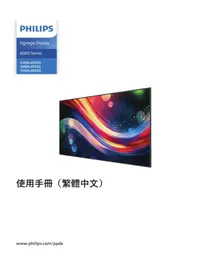
50BDL4050Q - Uncategorized PHILIPS - Free user manual and instructions
Find the device manual for free 50BDL4050Q PHILIPS in PDF.


Pick your language and provide your email: we'll send you a specifically translated version.
| Product type | Professional display |
| Brand | PHILIPS |
| Model | 50BDL4050Q |
| Screen size | 50 inches (127 cm) |
| Resolution | 3840 x 2160 pixels (4K UHD) |
| Brightness | 500 cd/m² |
| Aspect ratio | 16:9 |
| Backlight | LED |
| Power supply | AC 100-240V, 50/60Hz |
| Power consumption | Approximately 150 W (standby < 0.5 W) |
| Dimensions (without stand) | Approximately 1123 x 646 x 66 mm |
| Weight | Approximately 12 kg |
| Connectors | HDMI, DisplayPort, USB, RS232, RJ45 |
| Wall mount | VESA 400 x 400 mm |
| Operating temperature | 0°C to 40°C |
| Care and cleaning | Use a soft, slightly damp cloth |
| Safety | Secure wall mounting recommended |
| Spare parts | Remote control, power cable |
| Repairability | Access by a qualified technician |
| General information | User manual available online |
Frequently Asked Questions - 50BDL4050Q PHILIPS
How do I turn on the Philips 50BDL4050Q display?
To turn on the display, use the power button on the side or the remote control. Press Power to start.
How do I connect a computer to this display?
Use an HDMI or DisplayPort cable to connect the computer to the display. Then select the corresponding source in the menu.
How do I adjust the brightness of the display?
Access the OSD menu using the display buttons, then adjust the Brightness setting to your preference.
How do I clean the display without damaging it?
Use a soft, dry cloth or one slightly dampened with water. Avoid chemical products and direct sprays.
How do I mount the display on the wall?
The display is compatible with the VESA 400 x 400 mount. Use a suitable wall mount and secure it firmly to the wall.
How do I use the display for digital signage?
You can play content via the built-in media player or connect an external device. Schedule times using the Scheduling menu.
What should I do if the display won't turn on?
Check that the power cable is plugged in and the outlet works. Try with the remote control or the physical button.
How do I update the firmware?
Download the firmware from the Philips website, put it on a USB drive, then use the display's Update menu.
How do I control the display via RS232?
Connect the RS232 cable to a control system and use the commands documented in the technical manual.
How do I contact Philips support?
Visit the official Philips Professional Displays website to find support contact information for your region.
User questions about 50BDL4050Q PHILIPS
0 question about this device. Answer the ones you know or ask your own.
Ask a new question about this device
No questions yet. Be the first to ask one.
Download the instructions for your Uncategorized in PDF format for free! Find your manual 50BDL4050Q - PHILIPS and take your electronic device back in hand. On this page are published all the documents necessary for the use of your device. 50BDL4050Q by PHILIPS.
USER MANUAL 50BDL4050Q PHILIPS


Manual assistant
Powered by Anthropic
Waiting for your message
Product information
Brand : PHILIPS
Model : 50BDL4050Q
Category : Uncategorized