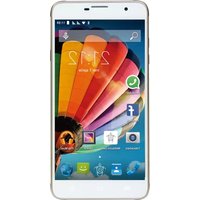
PhonePad Duo S650 - Smartphone Mediacom - Free user manual and instructions
Find the device manual for free PhonePad Duo S650 Mediacom in PDF.


Pick your language and provide your email: we'll send you a specifically translated version.
| Product Type | Smartphone |
| Brand | Mediacom |
| Model | PhonePad Duo S650 |
| Display Size | 6.5 inches |
| Display Type | IPS LCD capacitive touchscreen |
| SIM Card | Dual SIM (Nano-SIM, dual stand-by) |
| Operating System | Android |
| Processor | Quad-core 1.3 GHz |
| RAM | 2 GB |
| Storage | 16 GB, expandable via microSD up to 128 GB |
| Rear Camera | 8 MP with autofocus and LED flash |
| Front Camera | 5 MP |
| Battery Capacity | 4000 mAh Li-Ion |
| Dimensions | 165 x 76 x 8.5 mm |
| Weight | 180 g |
| Connectivity | 4G LTE, Wi-Fi 802.11 b/g/n, Bluetooth 4.2, GPS |
| Main Functions | Dual SIM support, face unlock, fingerprint sensor (rear-mounted) |
| Power Supply | Micro USB charging port, 5V/1A adapter |
| Maintenance and Cleaning | Wipe the screen and body with a soft, dry cloth. Avoid using harsh chemicals. |
| Safety | Use only approved chargers and batteries to prevent damage or overheating. |
| Spare Parts and Repairability | Contact Mediacom authorized service center for genuine spare parts and repairs. |
| General Information | Supports dual-band Wi-Fi, FM radio, and proximity sensor. |
Frequently Asked Questions - PhonePad Duo S650 Mediacom
How do I insert the SIM cards into my Mediacom PhonePad Duo S650?
To insert the SIM cards, power off the device, then remove the back cover and battery (if removable). Locate the two Nano-SIM slots and insert the SIM cards as indicated. Replace the battery and cover, then power on the phone.
Can I expand the storage on this phone?
Yes, the Mediacom PhonePad Duo S650 supports microSD cards up to 128 GB. Insert the card into the dedicated slot, usually located under the back cover or in the SIM tray, and you can store more photos, videos, and apps.
How do I take a screenshot?
To take a screenshot, press and hold the Power button and Volume Down button simultaneously for about 2 seconds. The screenshot will be saved in your Gallery under the Screenshots folder.
How can I reset my device to factory settings?
To perform a factory reset, go to Settings > Backup & Reset > Factory Data Reset. This will erase all data on the phone. Alternatively, you can use the hard reset method by turning off the phone and pressing the Power and Volume Up buttons together until the recovery menu appears.
How do I save battery life?
To extend battery life, enable Battery Saver mode from Settings > Battery. Reduce screen brightness, turn off Wi-Fi, Bluetooth, and GPS when not in use, and close background apps. Using 2G/3G instead of 4G in areas with poor signal also helps.
How do I update the operating system?
Go to Settings > About Phone > System Updates. Tap Check for Updates. If an update is available, download and install it while connected to Wi-Fi and with sufficient battery level. Ensure your data is backed up before updating.
How do I connect to a Wi-Fi network?
Open Settings > Wi-Fi and toggle it on. The phone will scan for available networks. Tap your desired network, enter the password, and press Connect. To forget a network, long-press it and select Forget.
How do I back up my data?
You can back up your data using a USB cable to a computer, or via a microSD card. Go to Settings > Backup & Reset to enable Back up my data to Google servers. For contacts, ensure they are synced with your Google account.
How should I clean the phone?
For routine cleaning, use a soft, lint-free cloth slightly dampened with water. Gently wipe the screen and body. Do not use any abrasive cleaners or sprays directly on the device. Avoid getting moisture in ports and openings.
How can I improve the camera quality?
Go to Camera settings and ensure the photo resolution is set to maximum. Enable HDR for better contrast in difficult lighting. Clean the lens with a soft cloth, and use tap-to-focus on your subject to improve sharpness.
User questions about PhonePad Duo S650 Mediacom
0 question about this device. Answer the ones you know or ask your own.
Ask a new question about this device
No questions yet. Be the first to ask one.
Download the instructions for your Smartphone in PDF format for free! Find your manual PhonePad Duo S650 - Mediacom and take your electronic device back in hand. On this page are published all the documents necessary for the use of your device. PhonePad Duo S650 by Mediacom.
USER MANUAL PhonePad Duo S650 Mediacom
Manual assistant
Powered by Anthropic
Waiting for your message
Product information
Brand : Mediacom
Model : PhonePad Duo S650
Category : Smartphone