PhonePad X532L - Smartphone Mediacom - Free user manual and instructions
Find the device manual for free PhonePad X532L Mediacom in PDF.


Pick your language and provide your email: we'll send you a specifically translated version.
| Type of product | Smartphone |
| Brand | Mediacom |
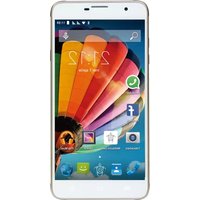
| Model | PhonePad X532L |
| Display | 5.3-inch IPS LCD, 540 x 960 pixels |
| Processor | Quad-core 1.3 GHz MediaTek MT6582 |
| RAM | 1 GB |
| Internal storage | 4 GB, expandable via microSD up to 32 GB |
| Rear camera | 8 MP with autofocus and LED flash |
| Front camera | 2 MP |
| Battery | Removable Li-Ion 2500 mAh |
| Operating system | Android 4.2 Jelly Bean |
| SIM | Dual SIM (Mini-SIM) |
| Connectivity | 3G, Wi-Fi 802.11 b/g/n, Bluetooth 4.0, GPS, microUSB 2.0 |
| Dimensions | 143.5 x 72.5 x 9.3 mm (approximately) |
| Weight | 158 g (approximately) |
| Sensors | Accelerometer, proximity |
| Audio | 3.5 mm headphone jack, built-in speaker |
| Power supply | AC adapter 5V/1A, microUSB charging |
| Cleaning | Use a soft, dry cloth; avoid liquids and abrasive cleaners |
| Safety precautions | Keep away from water, heat sources, and use approved chargers only |
| Repair and spare parts | Contact a certified service center; the battery is user-replaceable |
Frequently Asked Questions - PhonePad X532L Mediacom
How to insert a SIM card and a microSD card?
Turn off the phone, then remove the back cover and the battery. Slide the SIM cards into the designated slots and the microSD card into the memory slot. Replace the battery and the cover, then power on the device.
How to take a screenshot?
Press and hold the Power and Volume Down buttons simultaneously for about 2 seconds. The screenshot is captured and saved in the Gallery app.
How to connect to a Wi-Fi network?
Go to Settings > Wi-Fi, turn the switch on, and select your network from the list. Enter the password when prompted and tap Connect.
How to transfer files to a computer?
Connect the phone to your computer using a USB cable. Swipe down the notification bar and select File Transfer (MTP) mode. The phone storage and SD card will appear as drives on the computer.
How to reset the phone to factory settings?
First, back up your important data. Then go to Settings > Backup & Reset > Factory data reset. Confirm your choice, and the phone will reset to its original state.
The phone is not charging. What should I do?
Check the charger and USB cable for damage. Try another compatible adapter. Clean the microUSB port gently with a dry brush. If the problem persists, the battery might need replacement.
How can I improve battery life?
Reduce screen brightness, disable Wi-Fi, Bluetooth, and GPS when not in use, close background apps, and enable power-saving mode from the Settings menu.
How to update the Android software?
Check for updates via Settings > About Phone > System Updates. If an update is available, download and install it. You can also visit the Mediacom support website for official firmware.
How do I save contacts to the SIM card or phone memory?
Open the Contacts app, tap the menu icon, then choose Import/Export. Select the export destination, such as SIM card or phone storage. For cloud backup, link a Google account in Settings.
How to free up internal storage?
Install a microSD card up to 32 GB and set the default write disk to the SD card in the camera settings. Move supported apps to the SD card via Settings > Apps.
User questions about PhonePad X532L Mediacom
0 question about this device. Answer the ones you know or ask your own.
Ask a new question about this device
No questions yet. Be the first to ask one.
Download the instructions for your Smartphone in PDF format for free! Find your manual PhonePad X532L - Mediacom and take your electronic device back in hand. On this page are published all the documents necessary for the use of your device. PhonePad X532L by Mediacom.
USER MANUAL PhonePad X532L Mediacom
Manual assistant
Powered by Anthropic
Waiting for your message
Product information
Brand : Mediacom
Model : PhonePad X532L
Category : Smartphone