DIGITAL 5500 - Audio System CREATIVE - Free user manual and instructions
Find the device manual for free DIGITAL 5500 CREATIVE in PDF.


| Brand | Creative |
| Model | Digital 5500 |
| Product Type | 2.1 audio system (satellite speakers + subwoofer) |
| Subwoofer dimensions (W x H x D) | Approximately 200 x 250 x 300 mm |
| Satellite speaker dimensions (W x H x D) | Approximately 90 x 160 x 100 mm |
| Total weight | Approximately 4.5 kg |
| Power supply | Mains 220-240V, 50 Hz |
| Power consumption | 30 W operating |
| Output power (RMS) | 20 W (subwoofer) + 2 x 10 W (satellites) |
| Frequency response | 30 Hz – 20 kHz |
| Audio inputs | 3.5 mm stereo jack, optical Toslink input |
| Outputs | Headphones (3.5 mm jack) |
| Main features | Built-in amplifier, volume and treble/bass control, infrared remote control |
| Wireless connectivity | No |
| Care and cleaning | Unplug before cleaning; use a soft dry cloth; avoid solvents |
| Safety | Do not expose to moisture, do not open, use the supplied power adapter |
| Spare parts and repairability | Repairability index not known; contact Creative support for parts |
| General information | Compliant with Class B standard (Canada); user manual available in PDF |
Frequently Asked Questions - DIGITAL 5500 CREATIVE
User questions about DIGITAL 5500 CREATIVE
0 question about this device. Answer the ones you know or ask your own.
Ask a new question about this device
Download the instructions for your Audio System in PDF format for free! Find your manual DIGITAL 5500 - CREATIVE and take your electronic device back in hand. On this page are published all the documents necessary for the use of your device. DIGITAL 5500 by CREATIVE.
USER MANUAL DIGITAL 5500 CREATIVE
DTT3500-lic.book Page ii Wednesday, July 24, 2002 3:11 PM





User's Guide
品
Inspire 5500
Information in this document is subject to change without notice and does not represent a commitment on the part of Creative Technology Ltd. No part of this manual may be reproduced or transmitted in any form or by any means, electronic or mechanical, including photocopying and recording, for any purpose without the written permission of Creative Technology Ltd. The software described in this document is furnished under a license agreement and may be used or copied only in accordance with the terms of the license agreement. It is against the law to copy the software on any other medium except as specifically allowed in the license agreement. The licensee may make one copy of the software for backup purposes.
Copyright © 2002 by Creative Technology Ltd. All rights reserved.
Version 1.0
July 2002
Copyright © 2002 Creative Technology Ltd. All rights reserved. The Creative logo, Sound Blaster and the Sound Blaster logo are registered trademarks and Audigy, Sound Blaster Audigy, Inspire, the EAX logo, PC-DVD, and Live! are trademarks of Creative Technology Ltd. in the United States and other countries. NOMAD is a registered trademark of Aonix and is used by Creative Technology Ltd., and/or its affiliates under license. Manufactured under license from Dolby Laboratories. 'Dolby', 'Pro Logic' and the double-D symbol are trademarks of Dolby Laboratories. Confidential unpublished works. Copyright 1992-1997 Dolby Laboratories. All rights reserved. This product contains one or more programs protected under international and U.S. copyright laws as unpublished works. They are confidential and proprietary to Dolby Laboratories. Their reproduction or disclosure, in whole or in part, or the production of derivative works therefrom without the express permission of Dolby Laboratories is prohibited. Copyright 1992-1997 by Dolby Laboratories, Inc. All rights reserved. SONY is a registered trademark of Sony Corporation. PlayStation is a registered trademark of Sony Computer Entertainment Inc. Microsoft and DirectX sound are registered trademarks of Microsoft Inc. All Rights Reserved. All other logos, brands and product names are trademarks or registered trademarks of their respective holders and are hereby recognised as such. All specifications are subject to change without notice. Actual contents may differ slightly from those pictured.
Notice for the USA
FCC Part 15: This equipment has been tested and found to comply with the limits for a Class B digital device, pursuant to Part 15 of the FCC Rules. These limits are designed to provide reasonable protection against harmful interference in a residential installation. This equipment generates, uses, and can radiate radio frequency energy and, if not installed and used in accordance with the instructions, may cause harmful interference to radio communications. However, this notice is not a guarantee that interference will not occur in a particular installation. If this equipment does cause harmful interference to radio or television reception, which can be determined by turning the equipment off and on, the user is encouraged to try one or more of the following measures:
Reorient or relocate the receiving antenna.
- Increase the distance between the equipment and receiver.
- Connect the equipment to an outlet on a circuit different from that to which the receiver is connected.
Consult the dealer or an experienced radio/TV technician.
CAUTION: To comply with the limits for the Class B digital device, pursuant to Part 15 of the FCC Rules, this device must be installed with computer equipment certified to comply with the Class B limits.
All cables used to connect the computer and peripherals must be shielded and grounded. Operation with non
Safety & Regulatory Information
The following sections contain notices for various countries:
certified computers or non-shielded cables may result in interference to radio or television reception.
Modifications
Any changes or modifications not expressly approved by the grantee of this device could void the user's authority to operate the device.
Notice for Canada
This apparatus complies with the Class B limits for radio interference as specified in the Canadian Department of Communications Radio Interference Regulations.
WARNING: To prevent fire or shock hazard, do not expose this appliance to rain or moisture.
Important Notice
The serial number for your Creative Inspire 5.1 Digital 5500 is located at the back of the decoder. Please write this number down and keep it in a secure area. This is for your security.
Compliance
This product conforms to the following Council Directive:
Directive 89/336/ EEC, 92/31/ EEC (EMC), 73/23/ EEC (LVD)
Read Instructions
Read all safety and operating instructions before operating the product.
Retain Instructions
Keep all safety and operating instructions for future reference.
HeedWarnings
Take note of all warnings on the product and in the operating instructions.
Follow Instructions
Follow all operating and usage instructions.
Cleaning
Unplug this product from the power source before cleaning. Do not use liquid or aerosol cleaners. Use a damp cloth for cleaning.
Attachments
Do not use attachments or accessories not recommended by Creative as they may cause hazards.
Water and Moisture
Do not use this product near any water source or water hazard.
Placement
Place the product on a stable surface or recommended stand, or sold with the product.
Otherwise, the product may fall and cause injury to a person, and damage to the product. Follow the manufacturer's instructions for mounting the product.
Ventilation
To ensure reliable operation and to prevent overheating, do not block or cover ventilation openings and slots with fabrics or impermeable material. Do not place in a built-in installation
IMPORTANT SAFETY INSTRUCTIONS
such as a bookcase or rack unless there is proper ventilation or Creative's instructions have been adhered to.
Heat
Do not place this product anywhere near heat sources such as radiators, stoves, and other products (including amplifiers) that produce heat.
Power Sources
This speaker system is specifically designed for operation within the electrical range(s) specified on the provided power adapter and use outside of this range shall be at your own risk. Please contact your local electric utility company if you have any questions about the electrical voltage at your intended location of use.
Polarization
The product may be equipped with a polarized alternating-current line plug, a safety feature. As one blade is wider than the other, this plug can only fit into the power outlet in one way. If you cannot insert the plug fully into the outlet, reverse the plug. If the plug still fails to fit, contact your electrician to replace your obsolete outlet. Do not force the plug into the outlet.
Power-cord Protection
Arrange the power-cords to minimize the risk of damage from traffic or other hazards. Pay particular attention to the area near the plug head, the power source outlet and the connection from the product.
Lightning
Unplug the product from the power source during lightning storms or if unused for long periods of time. This will prevent lightning and power-line surge damage to the product.
Overloading
Do not overload wall outlets, extension cords, or integral power circuits as this can result in a risk of fire or electric shock.
Object and Liquid Entry
Never push any object through the product's openings, as this can result in a fire, electric shock or damage. Do not spill liquids on the product.
Servicing
Do not attempt to service the product yourself. Refer all servicing to qualified service personnel
Damage Requiring Service
Unplug the product from the power source. Call for servicing when:
a) the power-supply cord or plug is damaged.
b) objects have fallen through or liquids have been spilled into the product's openings.
c) the product has been exposed to rain or water.
d) the product does not operate normally when following the operating instructions
e) the product behaves differently.
f) the product has been dropped or damaged in any way.
Replacement Parts
When replacing parts, check that the service technician has used replacement parts specified by Creative or have the same characteristics as the original parts. Unauthorized substitutions may result in fire, electric shock, or other hazards.
Safety Check
After servicing or repairing the product, get the service technician to perform safety checks to be sure that the product is working properly.
Contents
Introduction
Using Your Creative Inspire 5.1 Digital 5500
1 Decoder and Remote Control Functions
Turning On Your Decoder 1-2
Decoder and Remote Control Key Functions 1-2
2 Connecting Devices and Selecting Input Sources
Set-top Device User's Chart 2-1
Game Console User's Chart 2-2
Personal Computer User's Chart 2-2
3 Verifying Decoder Signal Indicators
Program Material and Signal Detection Chart 3-1
4 Selecting Mode and Controlling Speaker Output
Stereo 4-1
Dolby Pro Logic 4-2
Dolby Digital 4-3
Controlling Speaker Output 44
A Audio Technology Reference
Dolby Digital A-1
Dolby Pro Logic A-1
B General Specifications
Creative Inspire 5.1 Digital 5500 B-1
Introduction
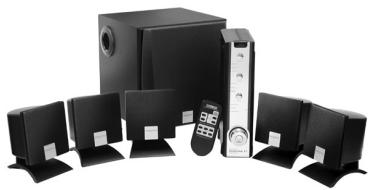
Thank you for purchasing Creative Inspire 5.1 Digital 5500. With audio quality that rivals a component home theater system, Creative Inspire 5.1 Digital 5500 gives you the full potential of Dolby Digital™ multichannel sound from your DVD player, personal computer or game console. The system decodes, Dolby Digital and Dolby Surround program material, letting you enjoy the best in today's media software.
Using Your Creative Inspire 5.1 Digital 5500
Using your Creative Inspire 5.1 Digital 5500 involves five basic steps: Set Up, Connecting Devices, Selecting Input Sources, Verifying Decoder Signal Indicators and Selecting Mode and Controlling Speaker Output. Refer to the chart below to locate information about each step.
Set Up
A Quick Start Guide is provided separately. Consult this guide for set up instructions on your Creative Inspire 5.1 Digital 5500 before continuing with this manual.
After set up, familiarise yourself with the features on your decoder amplifier. See Chapter 1.
Connecting Devices
Connect the decoder to your DVD player, game console or personal computer using the appropriate cable. See Chapter 2.
Selecting Input Sources
On the decoder, select the source appropriate to the device or input connection. See Chapter 2.
Verifying Decoder Signal Indicators
The decoder automatically detects signal type. Verify the output signal from your program source. See Chapter 3.
Selecting Mode and Controlling Speaker Output.
Select the mode that best suits your program content or listening needs. See Chapter 1 and Chapter 4.
Introduction i

DTT3500-lic.book Page ii Wednesday, July 24, 2002 3:11 PM




品
Decoder and Remote Control Functions
This chapter describes and shows you the location of the various control buttons, knobs and sockets on your Decoder and Remote Control.
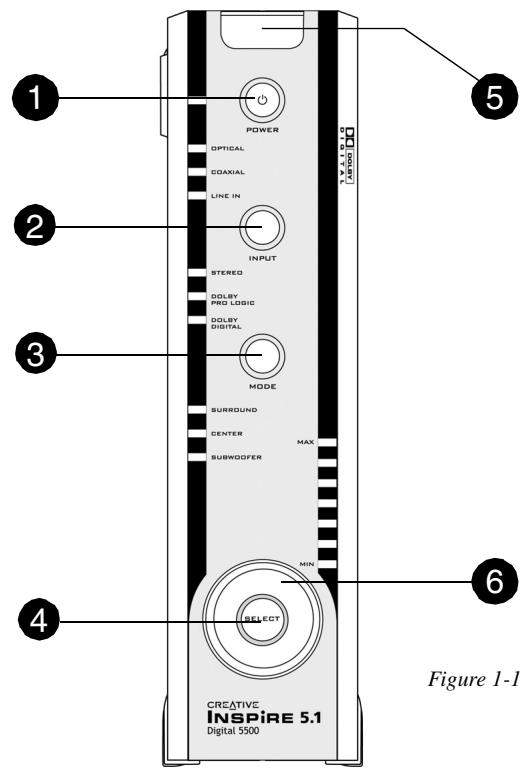
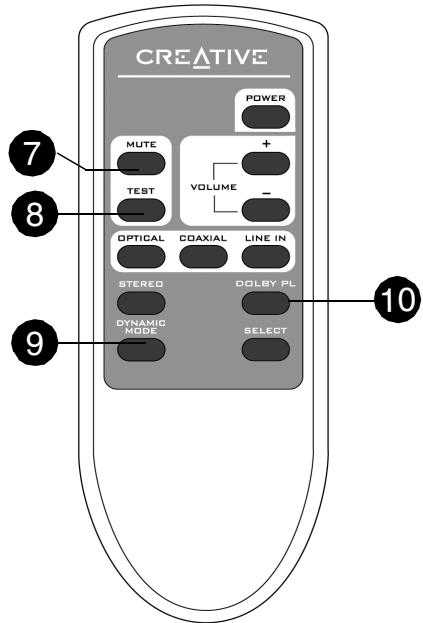
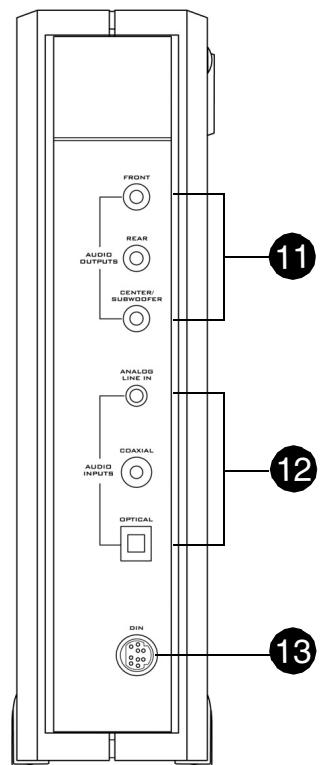
Figure 1-1: Decoder and Remote Control Front Views, and Decoder Rear Panel View.
Decoder and Remote Control Functions 1-1

Turning On Your Decoder
The Standby LED (next to the POWER button) turns red when the power adapter is connected to a power outlet or when the power supply is turned on. Press the Power button to turn on the Decoder. The default input is Optical and the default mode is Stereo. Future settings are retained as long as the decoder is connected to the power supply.
Decoder and Remote Control Key Functions
Figure 1-1 on page 1 shows the location of the various knobs, buttons and sockets on your Decoder and Remote Control.
| Decoder/Remote Control | Function |
| 1 POWER Button | Sets the system to “On” or Standby mode. When the system is turned on, the Standby LED remains off. When the system is on Standby mode, the Standby LED turns red. When you turn on the system for the first time, the default input, mode and volume settings are: □ Optical (The Optical LED lights up) □ Stereo (the Stereo LED lights up) □ Medium (the bottom 3 LED’s light up) The next time you turn on the system, it will display the setting it was last in. This is provided the system remains in Standby Mode, and is not turned off. |
| 2 INPUT Button | Selects the type of input. Press this button to select Optical, Coaxial, or Analog Line-in. |
| 3 MODE Button | Press the button once to select Stereo or Dolby Pro logic. The Dolby Pro Logic LED illuminates whenever a Dolby Surround encoded program material is detected from a digital source, or when the Digital Pro Logic mode is selected. The Dolby Digital LED illuminates automatically whenever a Dolby Digital signal is detected from an optical or coaxial input. |
| 4 SELECT Button | Selects the volume channel. Press this button to select Surround, Center, Subwoofer or Master. |
1-2 Decoder and Remote Control Functions
| Decoder/Remote Control | Function |
| 5 Infrared Receiver | Detects infrared signals from your Remote Control. For reliable Remote Control functionality, do not obstruct this portion of the decoder. |
| 6 VOLUME Knob | Adjusts the master volume and volume of the selected channel. The output level of the selected channel should be adjusted to balance with the fixed output of the Front Left and Front Right speakers. The volume may also be adjusted using the remote control. |
| 7 MUTE Button | Mutes all audio output from the decoder. Press the button once to mute. The volume indicators blink. The number of volume indicators blinking depends on the volume set before muted. To resume audio output, press the MUTE button again. You can also resume audio output by turning the Volume knob clockwise or counterclockwise. |
| TEST Button (This function is only available on the Remote Control) | Activates the “test sound” generator that helps you position the speakers and to balance their relative output. The test sound moves in a circular sequence from the Left speaker, the Center speaker, the Right speaker, then to the rear Right Satellite, rear Left Satellite and Subwoofer. These are indicated by the LEDs on the volume indicator. All functions except for the level controls are disabled while the test sound is running. □ The test sound lasts three complete cycles. You can stop the sound at any point by pressing the Test button again. □ You can use the Test to be sure that each speaker works before deciding on proper speaker connection and placement. □ Adjust the level controls for the Center speaker, Subwoofer and rear satellites using the Select button so that each speaker achieves a balanced output level with the Left and Right speakers (which provide a fixed “reference” output level). During Test Sequence Repeats for 3 cycles MAX Left speaker Center speaker Right speaker Rear Right satellite Rear Left satellite Subwoofer Volume indicators Note: Volume levels during the test sequence are lower than during normal operation. You may need to reduce the master volume before resuming normal playback. |
| 9 DYNAMIC MODE Button (This function is only available on the Remote Control) | By default, your Creative Inspire 5.1 Digital 5500 is set for a compressed dynamic range mode, which compresses the loud and soft passages of a Dolby Digital soundtrack for late night listening. Enabling Dynamic Mode restores the very wide dynamic range between soft and loud sounds found in Dolby Digital programs. Press this button to experience the full dynamic range of Dolby Digital programs (uncompressed). The volume indicator LEDs on the top half (vertical placement) of the Decoder light up momentarily. If you press this button again, the default mode (compressed) resumes. The volume indicator LEDs on the bottom half of the Decoder light up momentarily. |
| 10 Dolby PL Button | Activates Dolby Pro Logic processing to provide surround sound from encoded stereo sources such as many television broadcasts and video tapes. |
| 11 AUDIO OUTPUTS | Connects your Subwoofer. See the Quick Start Guide for more information on connecting your speakers. |
| 12 AUDIO INPUTS | Connects the respective audio source cables — Optical, Coaxial and Analog Line In — to the corresponding sockets. See Chapter 2, “Connecting Devices and Selecting Input Sources” for more details. |
| 13 DIN | For control and power signals. Connects your Subwoofer. Note: Do not connect this socket to other devices. |

ImportantPlayback LevelWarning!
Creative Inspire 5.1 Digital 5500 is intended for individual or small group listening and can achieve surprisingly high output levels. However, playing heavy-bass program material continuously at overly loud, distorted levels may permanently damage the system's internal fuse. The fuse can be replaced only by a qualified representative. To avoid this inconvenience and a possible non-warranty repair charge, reduce the playback volume when the system shows obvious signs of stress, for example, when it sounds raspy, fuzzy, and/or muddy.
Note: Set the Decoder Amplifier to Standby mode before unplugging or turning off the power supply.

DTT3500-lic.book Page 6 Wednesday, July 24, 2002 3:11 PM




Connecting Devices and Selecting Input Sources
2
品

Types of cables supplied may vary in different regions.
The Creative Inspire 5.1 Digital 5500 can be used with many devices — DVD player, game console or personal computer. The following charts tell you the correct cables, and corresponding inputs on the decoder, to use for each type of device. The charts are divided according to device type: set-top devices, game consoles and personal computers.
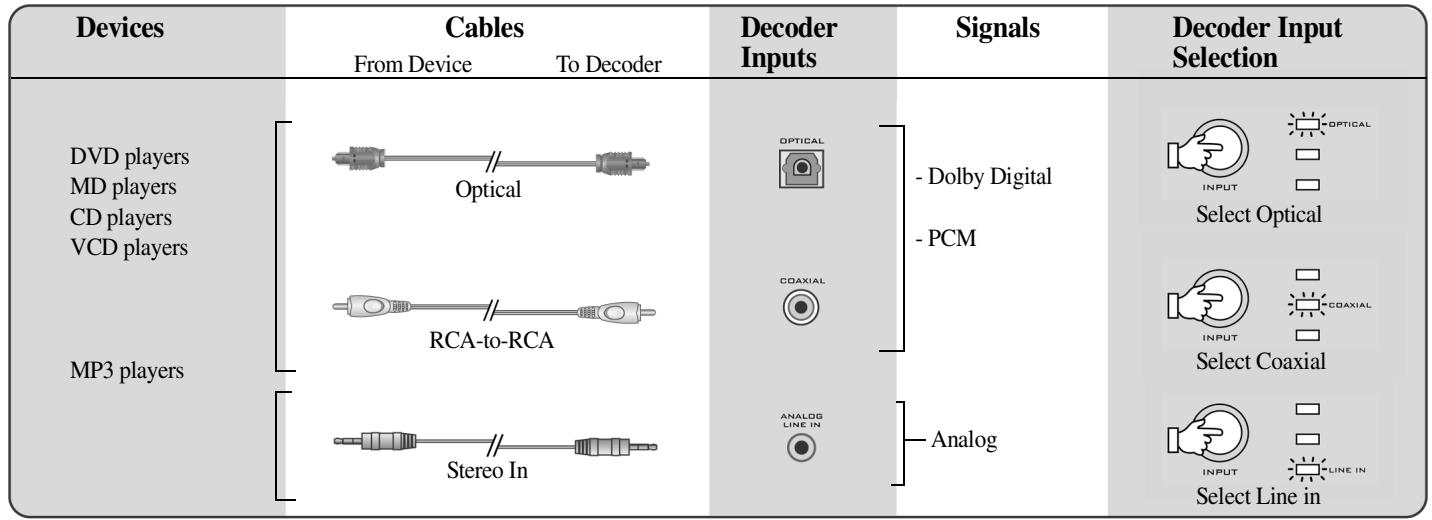
Set-top Device User's Chart
Note: Not all cables are included with the respective devices.
*Dolby Digital signals from audio cards should be in "undecoded" form to allow Creative Inspire 5.1
Digital 5500 to accurately decode them (see "Personal Computer User's Chart" on page 2-2).

Game Console User's Chart
| Devices | Cables From Device To Decoder | Decoder Inputs | Signals | Decoder Input Selection |
| Sony Playstation®2 | Optical | OPTICAL | -Dolby Digital -PCM | OPTICAL INPUT Select Optical |
| Sony Playstation® | Dual Female-Female RCA Adapter and Dual RCA to Stereo | ANALOG LINE IN | Analog | LINE IN Select Line-in |
Personal Computer User's Chart
| Devices | Cables From Device To Decoder | Decoder Inputs | Signals | Decoder Input Selection |
| Creative Sound Blaster Live 5.1 or Audigy audio cards* (Software DVD) | 4 conductor Miniplug to RCA (female) RCA-to-RCA (male) (Both cables must be used together) Stereo Line-in | RCA | - Dolby Digital - PCM | □ COAXIAL □ INPUT □ Select Coaxial |
| 2-channel audio cards | ANALOG LINE IN | - Analog Stereo | □ □ □ □ □ □ □ □ □ □ □ □ □ □ □ □ □ □ □ □ □ □ □ □ □ □ □ □ □ □ □ □ □ □ □ □ □ □ □ □ □ □ □ □ □ □ □ □ □ □ □ |
2-2 Connecting Devices and Selecting Input Sources


Verifying Decoder Signal Indicators
S
The Creative Inspire 5.1 Digital 5500 decoder automatically detects signal type. This chapter describes the response of your Decoder when Dolby programs are channeled through it. The table below shows you the typical output signals used in some common program materials.
Program Material and Signal Detection Chart
| Program Material | Output Signal from Device | Auto Detection |
| DVDs, CDs or games with Dolby Digital bitstream | Dolby Digital | □ □ □ DOLBY DIGITAL |
| DVDs with Dolby Digital bitstream | Dolby surround encoded program carried with the Dolby Digital bitstream | □ □ DOLBY PRO LOGIC □ DOLBY DIGITAL |

DTT3500-lic.book Page 2 Wednesday, July 24, 2002 3:11 PM




Selecting Mode and Controlling Speaker Output
This chapter guides you on the most appropriate setting to select for each connection and signal source.
Stereo
| Type Of Signal Source | Decoder Inputs | Input Select | Source Select | Speaker Output | |
| PCM Stereo | ANALOG LINE IN | INPUT | LINE IN | 2.1 L SUB RL RR | |
| COAXIAL | INPUT | COAXIAL MODE | STEREO | ||
| Dolby Digital PCM Stereo | |||||
| OPTICAL | INPUT | OPTICAL |
Dolby Pro Logic
| Type Of Signal Source | Decoder Input | Input Select | Source Select | Speaker Output | |
| Analog 2- channel | ANALOG LINE IN | INPUT | LINE IN | 5.1 L SUB RL RR | |
| Activates Dolby Pro Logic processing to provide surround sound from encoded stereo sources such as many television broadcasts and video tapes. | Dolby Digital 2-channel PCM | COAXIAL | INPUT | COAXIAL MODE | DOLOBY PRO LOGIC DLB R |
| OPTICAL | INPUT | OPTICAL □ □ |

Dolby Digital
| This mode automatically detects a Dolby Digital bitstream through the decoder input. The Dolby Digital bitstream can only be carried in the digital medium. | Type Of Signal Source | Decoder Inputs | Input Select | Source Select | Speaker Output |
| Dolby Digital | COAXIAL | INPUT | COAXIAL | Auto detects | |
| OPTICAL | INPUT | OPTICAL | Depends on the number of channels encoded in the Dolby Digital signal. Normally it is a 5.1 channel output. | ||


Controlling Speaker Output
When playing back multichannel programs like Dolby Digital soundtracks, you may want to set the speaker output level to suit your sitting position relative to the speakers. This is to obtain the desired (balanced) output required for multichannel playback from all speakers.
- Press the SELECT button on the decoder until the LED of the channel you want lights up.
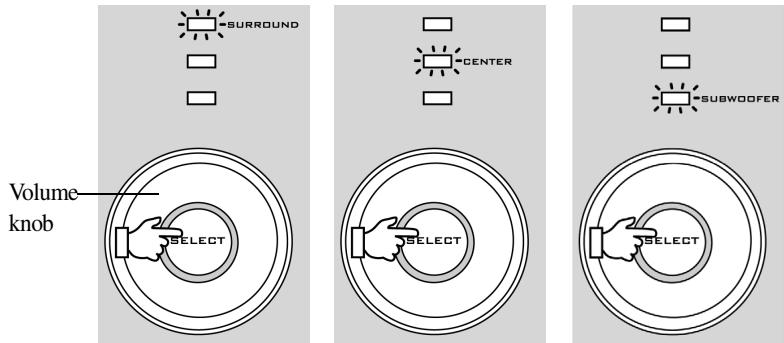
Figure 4-1: Selecting the channel volume.
- Turn the volume knob clockwise to increase the selected channel volume or counterclockwise to decrease the selected channel volume. The LED indicators on the front of the decoder (see Figure 4-2) indicate the volume selected. The more lit indicators there are, the higher the volume.
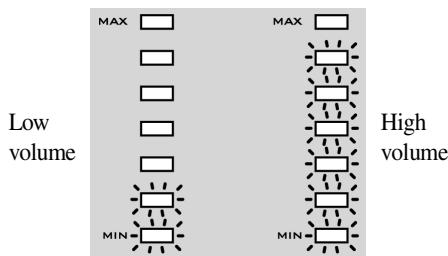
Figure 4-2: LED volume indicators.
If the volume setting in any of the three channel levels — surround, center or subwoofer — remains unchanged for 2-3 seconds, the master volume control resumes.
Note: The volume is set relative to the front speakers.
4-4 Selecting Mode and Controlling Speaker Output
Audio Technology Reference
A
Dolby Digital
This chapter describes and defines the various technologies used in your Creative Inspire 5.1 Digital 5500.
Dolby Digital (also referred to as AC-3) delivers five discrete full-range channels (left, center, right, left surround and right surround) plus a separate Low Frequency Effects (LFE) channel. Many soundtracks on the latest generation laser discs, DVDs and High Definition Television (HDTV), are encoded with Dolby Digital technology. When a 5.1-channel Dolby Digital program source is playing, such as from a DVD player or game console, the Dolby Digital indicator light lights up automatically.
Note: Not all media in a DVD will be 5.1-channel encoded. On many DVDs, only the main movie program will be available in 5.1-channel sound. Other supporting chapters (like a "Director's Commentary" section) may be in stereo or mono. For these programs, the Dolby Digital indicator may not light up, even though the sound will be properly reproduced by the Creative Inspire 5.1 Digital 5500.
Dolby Pro Logic
Dolby Surround is an earlier surround sound standard that is decoded with a Pro Logic processor. The Pro Logic steering circuitry derives separate center and rear channels from encoded stereo program sources.
Pro Logic processing provides a convincing movie soundfield when the material is specifically encoded for Dolby Surround. Most older stereo movie soundtracks will only be encoded for Dolby Surround, even though the program source may be a DVD's digital output. Most DVDs containing Dolby Surround program material will cause both the Dolby Digital and Dolby Pro Logic lights to illuminate. Creative Inspire 5.1 Digital 5500 will decode these digitally transferred Dolby Surround programs through the digital Pro Logic decoder automatically. CD-ROMs and CDs with Dolby Surround encoding will feature the Dolby Surround logo at the beginning of the program or on the packaging.
If you are using an analog input, select Line In, and then select Pro Logic processing. If using Optical or Coaxial input, ensure that the corresponding digital input is selected, and then select Pro Logic processing.
General Specifications
Creative Inspire 5.1
Digital 5500
These specifications apply to Creative Inspire 5.1 Digital 5500 operating from the supplied 12V
AC power adapter.
Dual Outputs:
12V AC, 4.2A
12VAC,700mA
Satellite power
6 watts RMS per channel (4 channels)
Center Satellite power
6 watts RMS
Subwoofer power
18 watts RMS

DTT3500-lic.book Page 2 Wednesday, July 24, 2002 3:11 PM