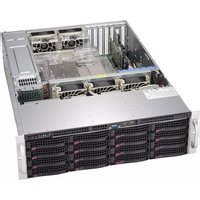
A4SAN-L - NAS Supermicro - Free user manual and instructions
Find the device manual for free A4SAN-L Supermicro in PDF.


Pick your language and provide your email: we'll send you a specifically translated version.
| Product Type | Network Attached Storage (NAS) |
| Form Factor | Desktop |
| Number of Drive Bays | 4 |
| Drive Interface | SATA III |
| Supported RAID Levels | 0, 1, 5, 10 |
| Processor | Intel Atom C3000 series |
| System Memory | Up to 32GB DDR4 SO-DIMM |
| Network Connectivity | 2 x Gigabit Ethernet |
| USB Connectivity | 2 x USB 3.0 ports |
| Power Supply | External 90W adapter |
| Dimensions (W x H x D) | 230 x 200 x 300 mm |
| Weight | 3.5 kg |
| Operating Temperature | 0°C to 40°C |
| Operating Humidity | 20% to 80% non-condensing |
| Management Interface | Web-based GUI |
| Data Protection | RAID, snapshots, encryption |
| Media Features | DLNA media streaming |
| Maintenance | Regular dust removal and fan cleaning |
| Safety Features | Overheat protection, surge protection |
| Repairability | Hot-swappable drives, replaceable memory and fan |
Frequently Asked Questions - A4SAN-L Supermicro
What is the process for installing hard drives in the Supermicro A4SAN-L?
Turn off the NAS, remove the drive tray, insert a 3.5-inch SATA drive, secure it with screws, and slide the tray back. Power on and initialize the drive via the web management GUI.
How do I access the management interface?
Connect the NAS to your network via Ethernet, use the Supermicro Finder utility to locate the device's IP address, and enter it in a web browser. The default username is admin and password is admin (change it upon first login).
What RAID levels are supported?
The system supports RAID 0, RAID 1, RAID 5, and RAID 10, allowing you to balance performance, capacity, and data redundancy.
Can I expand storage capacity later?
Yes, you can replace existing drives with larger ones or add additional drives if free bays are available. Remember to back up data before changing the RAID configuration.
How do I perform a factory reset?
Press and hold the reset button on the back panel for 10 seconds while the NAS is powered on. This restores the system to default settings without erasing data.
What should I do if the NAS is not discoverable on the network?
Check the Ethernet cable connection, ensure the NAS is powered on, and verify that your router's DHCP client list shows the device. You can also use the Supermicro Finder utility or assign a static IP manually.
How to set up a backup schedule?
In the web GUI, navigate to the Backup section, create a new backup task, select the source and destination folders, and configure a schedule (daily, weekly, etc.) to automate the process.
What is the recommended maintenance routine?
Clean dust from the vents every 3 to 6 months using a soft brush or compressed air, check that the cooling fan is running smoothly, and review system logs for any warnings.
Is it possible to increase RAM?
Yes, the memory module is replaceable. Ensure you use compatible DDR4 SO-DIMM modules, power off the device, and follow the instructions in the manual to avoid damage.
What power supply is required?
The NAS uses an external 90W power adapter. Always use the supplied adapter or an equivalent with the same specifications to ensure reliable operation.
User questions about A4SAN-L Supermicro
0 question about this device. Answer the ones you know or ask your own.
Ask a new question about this device
No questions yet. Be the first to ask one.
Download the instructions for your NAS in PDF format for free! Find your manual A4SAN-L - Supermicro and take your electronic device back in hand. On this page are published all the documents necessary for the use of your device. A4SAN-L by Supermicro.
USER MANUAL A4SAN-L Supermicro
Manual assistant
Powered by Anthropic
Waiting for your message
Product information
Brand : Supermicro
Model : A4SAN-L
Category : NAS