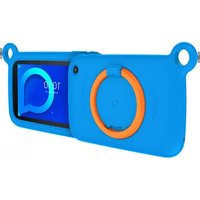
One Touch Tab 8HD - Tablet ALCATEL - Free user manual and instructions
Find the device manual for free One Touch Tab 8HD ALCATEL in PDF.


Pick your language and provide your email: we'll send you a specifically translated version.
| Type of product | Tablet |
| Brand | Alcatel |
| Model | One Touch Tab 8HD |
| Display | 8.0 inch, 1280 x 800 HD |
| Processor | Dual-core 1.2 GHz |
| Operating System | Android 4.1 Jelly Bean |
| RAM | 1 GB |
| Storage | 16 GB (expandable via microSD) |
| Dimensions | 209.3 x 162.5 x 9.1 mm |
| Weight | 360 g |
| Battery | 4100 mAh |
| Camera | Main 2 MP, front 0.3 MP |
| Connectivity | Wi-Fi 802.11 b/g/n, Bluetooth 3.0 |
| Sensors | Accelerometer, gyroscope |
| Power Adapter | 5V / 1.5A output |
| Cleaning and Maintenance | Wipe with a soft, dry cloth; avoid solvents |
| Safety | Do not expose to excessive heat or water; use only authorized accessories |
| Spare Parts and Repairability | Available via authorized service centers; screen and battery replaceable by professionals |
| General Information | Designed for multimedia and internet browsing; supports Google Play apps |
Frequently Asked Questions - One Touch Tab 8HD ALCATEL
How do I perform a factory reset on my Alcatel One Touch Tab 8HD?
Go to Settings > Backup & reset > Factory data reset. Confirm by tapping Reset tablet. This will erase all data and restore the device to its original state. Make sure to back up important files first.
How do I insert a microSD card?
Turn off the tablet and locate the microSD slot on the side. Insert the card with the gold contacts facing down until it clicks into place. You can then access the card under Storage in the Settings menu.
How can I extend the battery life?
Reduce screen brightness, disable unused features like Bluetooth and Wi-Fi when not needed, and close background apps. Enabling Battery Saver mode from Settings also helps.
Is the tablet compatible with external keyboards?
Yes, the tablet supports USB OTG and Bluetooth keyboards. You can connect a wireless keyboard via Bluetooth or use a USB keyboard with an OTG adapter for enhanced productivity.
How do I update the Android operating system?
Go to Settings > About tablet > System updates. The tablet will check for updates. If available, follow the on-screen instructions to download and install. Always connect to Wi-Fi and ensure adequate battery charge.
How do I take a screenshot?
Press and hold the Power button and the Volume Down button simultaneously until the screen flashes. The screenshot is saved in the Gallery app under Screenshots.
How do I connect to Wi-Fi?
Swipe down from the top of the screen to open the notification panel. Tap the Wi-Fi icon to enable it, then select your network from the list and enter the password. The tablet will automatically connect to known networks.
How do I manage storage space?
Go to Settings > Storage to view used and available space. You can uninstall unused apps, clear cached data, and move files to a microSD card to free up internal memory.
What should I do if the tablet freezes or becomes unresponsive?
Press and hold the Power button for about 10 seconds to force a restart. If the issue persists, perform a factory reset as a last resort. Ensure the device is running the latest software update.
How do I clean the screen safely?
Use a soft, lint-free microfiber cloth slightly dampened with water or a screen-cleaning solution. Gently wipe the screen in circles. Avoid using paper towels or abrasive cleaners that may scratch the display.
User questions about One Touch Tab 8HD ALCATEL
0 question about this device. Answer the ones you know or ask your own.
Ask a new question about this device
No questions yet. Be the first to ask one.
Download the instructions for your Tablet in PDF format for free! Find your manual One Touch Tab 8HD - ALCATEL and take your electronic device back in hand. On this page are published all the documents necessary for the use of your device. One Touch Tab 8HD by ALCATEL.
USER MANUAL One Touch Tab 8HD ALCATEL

Manual assistant
Powered by Anthropic
Waiting for your message
Product information
Brand : ALCATEL
Model : One Touch Tab 8HD
Category : Tablet