TB85 Plus - Tablet Unitech - Free user manual and instructions
Find the device manual for free TB85 Plus Unitech in PDF.


Pick your language and provide your email: we'll send you a specifically translated version.
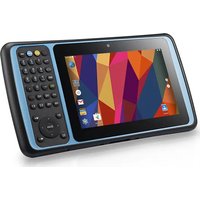
| Product Type | Rugged Tablet |
| Brand | Unitech |
| Model | TB85 Plus |
| Operating System | Android 10 (or later) |
| Display Size | 8 inches |
| Display Resolution | 800 x 1280 pixels |
| Processor | Quad-core Cortex-A53, 1.8 GHz |
| RAM | 2 GB |
| Internal Storage | 16 GB (expandable via microSD) |
| Rear Camera | 5 MP with autofocus |
| Front Camera | 2 MP |
| Battery | Li-Ion 7000 mAh, non-removable |
| Charging Port | USB Type-C |
| Audio Jack | 3.5 mm |
| Wireless Connectivity | Wi-Fi 802.11 a/b/g/n/ac, Bluetooth 5.0, GPS |
| Mobile Network | 4G LTE (optional) |
| IP Rating | IP65 |
| Drop Resistance | MIL-STD-810G, drops up to 1.2 m |
| Dimensions | 250 x 170 x 15 mm |
| Weight | 600 g |
| Temperature Range | -10°C to 50°C |
| Cleaning | Wipe with soft, dry cloth; avoid solvents |
| Repairability | Battery and display replaceable by service center |
Frequently Asked Questions - TB85 Plus Unitech
How do I turn on the TB85 Plus for the first time?
Press and hold the Power button on the top edge until the Unitech logo appears. Follow the on-screen setup wizard.
The touchscreen is not responding. What should I do?
First, clean the screen with a soft cloth. If unresponsive, perform a soft reset by pressing and holding the Power button for 10 seconds. If problem persists, contact support.
How can I extend battery life?
Reduce screen brightness, disable unused wireless connections (Wi-Fi, Bluetooth), and close background apps. You can also enable Battery Saver mode in Settings.
Is the TB85 Plus waterproof?
The tablet is IP65 rated, meaning it is dust-tight and protected against low-pressure water jets. It is not designed for submersion. Avoid prolonged exposure to rain.
Can I use a stylus on this tablet?
The TB85 Plus supports capacitive styluses. For best results, use a fine-tip stylus designed for touchscreens.
How do I connect to a Wi-Fi network?
Go to Settings > Wi-Fi, toggle it on, select your network from the list, and enter the password.
The device is charging slowly. What could be the cause?
Use the provided charger and cable. Charging via a computer USB port may be slower. Also, avoid using the device while charging.
How to update the operating system?
Go to Settings > System > System Update. Tap 'Check for Updates' and follow the instructions. Ensure the battery is above 50% and connect to Wi-Fi.
Can I attach a barcode scanner to this tablet?
The TB85 Plus has a USB Type-C port that supports OTG. You can connect an external barcode scanner via USB. Some versions may have an integrated scanner. Check your model.
How do I clean the tablet?
Turn off the device and disconnect all cables. Wipe the exterior with a soft, lint-free cloth slightly dampened with water. Do not use abrasive cleaners or solvents. Dry thoroughly.
User questions about TB85 Plus Unitech
0 question about this device. Answer the ones you know or ask your own.
Ask a new question about this device
No questions yet. Be the first to ask one.
Download the instructions for your Tablet in PDF format for free! Find your manual TB85 Plus - Unitech and take your electronic device back in hand. On this page are published all the documents necessary for the use of your device. TB85 Plus by Unitech.
USER MANUAL TB85 Plus Unitech


Manual assistant
Powered by Anthropic
Waiting for your message
Product information
Brand : Unitech
Model : TB85 Plus
Category : Tablet