
TB120 - Tablet Unitech - Free user manual and instructions
Find the device manual for free TB120 Unitech in PDF.


| Product Type | Rugged Tablet Computer |
| Brand | Unitech |
| Model | TB120 |
| Operating System | Android 4.3 |
| Display | 7-inch color multi-touch sunlight-readable display, 1280x800 dots, Gorilla Glass III |
| CPU | TI OMAP 4470 1.5GHz Dual Core |
| Memory | 1GB DDR RAM, 8GB eMMC flash |
| Dimensions | 264.5 x 143.7 x 18.8 mm |
| Weight | 735g (with 1D engine and battery) |
| Battery | Swappable 5200mAh Li-ion; backup capacity 1 hour |
| Enclosure Protection | IP65 (dust and water resistant) |
| Drop Test | 1.2m to concrete, MIL-STD-810G compliant |
| Keypad | 37 physical keys including numeric, function keys, and directional keypad |
| Camera | Front 2MP, Rear 5MP with autofocus and LED flash |
| Barcode Scanner | Optional 1D CCD or 2D imager; supports major 1D/2D codes |
| MSR | Magnetic Stripe Reader with encrypted read head (optional) |
| Wireless | Wi-Fi 802.11 a/b/g/n, Bluetooth 4.0, GPS, GSM/UMTS (optional WWAN) |
| RFID / NFC | 13.56MHz, supports ISO15693, ISO14443A/B, NFC |
| Sensors | eCompass, light/proximity sensor, G-sensor |
| Accessories Included | USB cable, power adapter, battery, hand strap, and cradle (optional) |
| Regulatory Approvals | CE, FCC, NCC, BSMI, VCCI, CCC, RoHS |
Frequently Asked Questions - TB120 Unitech
User questions about TB120 Unitech
0 question about this device. Answer the ones you know or ask your own.
Ask a new question about this device
Download the instructions for your Tablet in PDF format for free! Find your manual TB120 - Unitech and take your electronic device back in hand. On this page are published all the documents necessary for the use of your device. TB120 by Unitech.
USER MANUAL TB120 Unitech
7" Rugged Tablet Computer
-TB120-

natural_image
Illustration of a remote control device with a screen, keypad, and scroll (no text or symbols visible)User's Manual
401161G Version 1.1
Change Log
| Date | Change Description | Vers |
| 20151028 1. update preface2. Add information of MSR | 1.1 | |
Preface
About This Manual
Thank you for purchasing the unitech product.
This manual explains how to install, operate and maintain our product.
No part of this publication may be reproduced or used in any form, or by any electrical or mechanical means, such as photocopying, recording, or information storage and retrieval systems, without permission in writing from the manufacturer. The material in this manual is subject to change without notice.
Regulatory Compliance Statements
FCC Warning Statement
This device has been tested and found to comply with the limits for a Class B digital device, pursuant to part 15 of the FCC rules. These limits are designed to provide reasonable protection against harmful interference in a residential installation. This equipment generates, uses and can radiate radio frequency energy and, if not installed and used in accordance with the instructions, may cause harmful interference with radio communications. However, there is no guarantee that interference will not occur in a particular installation. If this equipment does cause harmful interference with radio or television reception, which can be determined by turning the equipment off and on, the user is encouraged to try to correct the interference by one or more of the following measures:
-Reorient or relocate the receiving antenna.
—Increase the separation between the equipment and receiver.
-Connect the equipment into an outlet on a circuit different from that to which the receiver is connected.
-Consult the dealer or an experienced radio/TV technician for help.
- This transmitter must not be co-located or operating in conjunction with any other antenna or transmitter.
- This device complies with FCC RF radiation exposure limits set forth for an uncontrolled environment. To maintain compliance with FCC RF exposure requirements, avoid direct contact to the transmitting antenna during transmitting.
- Any changes or modifications (including the antennas) made to this device that are not expressly approved by the manufacturer may void the user's authority to operate the equipment.
Operation on the 5.15 - 5.25GHz frequency band is restricted to indoor use only. The FCC requires indoor use for the 5.15-5.25GHz band to reduce the potential for harmful interference to co-channel Mobile Satellite Systems.
Therefore, it will only transmit on the 5.25-5.35 GHz, 5.47-5.725 GHz and 5.725 - 5.850 GHz band when associated with an access point (AP).
FCC Label Statement
This device complies with part 15 of the FCC rules. Operation is subject to the following two conditions:
- This device may not cause harmful interference.
- This device must accept any interference received, including interference that may cause undesired operation.
RF Radiation Exposure Statement
For body contact during operation, this device has been tested and meets FCC RF exposure guidelines when used with an accessory that contains no metal and that positions the handset a minimum of 1.5 cm from the body. Use of other accessories may not ensure compliance with FCC RF exposure guidelines.
Canadian Compliance Statement
This Class B Digital apparatus meets all requirements of the Canadian Interference-Causing Equipment Regulations.
European Conformity Statement
unitech Electronics co., Ltd herewith declares that the unitech product is in compliance with the essential requirements and all other provisions of the R&TTE 1999/5/EC directive, the EMC 2004/108/EC directive and the Low Voltage 2006/95/EC directive.
The declaration of conformity is available for download at : https://portal.unitech.eu/public/Safetyregulatorystatement
RoHS Statement
unitech
Green Product

This device conforms to RoHS (Restriction of Hazardous Substances) European Union regulations that set maximum concentration limits on hazardous materials used in electrical and electronic equipment.
Waste electrical and electronic equipment (WEEE)

unitech has set up a policy and process to meet the EU directive 2002/96/EC and update 2003/108/EC concerning electronic waste disposal.
For more detailed information of the electronic waste disposal of the products you have purchased from unitech directly or via unitech's resellers, you shall either contact your local supplier or visit us at :
https://portal.unitech.eu/public/WEEE
Taiwan NCC Warning Statement
The unitech product is certified in the U.S. to conform to the requirements of DHHS/CDRH 21CFR Subchapter J and to the requirements of IEC 825-1. Class II and Class 2 products are not considered to be hazardous. The unitech product contains internally a Visible Laser Diode (VLD) whose emissions do not exceed the maximum limits as set forth in the above regulations. The scanner is designed so that there is no human access to harmful laser light during normal operation, user maintenance or prescribed service operations.
The laser safety warning label required by the DHHS/IEC for the unitech product's optional laser scanner module is located on the memory compartment cover, on the back of the unit.
* Laser information only applies to the products with laser components.
CAUTION! Use of controls or adjustments or performance of procedures other than those specified herein may result in hazardous laser light. Use of optical instruments with the scanner, including binoculars, microscopes, and magnifying glasses, with will increase eye damage. This does not include eyeglasses worn by the user.
LED Information
The unitech product contains LED indicator(s) or LED ring whose luminance is not harmful to human eyes during normal operation, user maintenance or prescribed service operations.
*LED information only applies to the products with LED components.
Battery Notice
- To guarantee optimal performance, it is recommended that rechargeable batteries be replaced every year, or after 500 charging cycles are completed. It is normal for the battery to balloon or expand after one year or 500 cycles. Although it does not cause damage, it cannot be used again and must be disposed of according to the location's safe battery disposal procedures.
- If a battery performance decreases more than 20%, the battery is at the end of its life cycle. Stop use and ensure the battery is disposed of properly.
-
The length of time that a battery lasts depends on the battery type and how the device is used. Conserve the battery life by doing the following:
-
Avoid fully uncharging the battery because this places additional strain on it. Several partial uncharges with frequent charges are better than a fully uncharged battery. Charging a partially charged battery does not cause harm to the unit.
- Keep the battery cool. Avoid hot vehicles. For prolonged storage, keep the battery at a 40% charge level.
-
Do not leave the battery uncharged and unused for an extended period of time, the battery will wear out and the longevity of the battery will be at least half of one with frequent charges.
-
Protect battery life by not over or under charging the battery.
- Please do not leave battery unused for long time without charging it. Despite unitech's safety precautions, the battery pack may begin to change shape. If so, stop using it immediately. Please check to see if you are using a proper power adapter to charge the battery or contact your service provider for service.
- If you cannot charge the battery after it has been idle for an extended period of time and it begins to heat up, please do not try to charge it. It may not be functional anymore.
- Please only use the original battery from unitech. Using a third party battery can damage our products. Please note that when such damage occurs, it is not covered by unitech's warranty policy.
CAUTION!
- RISK OF EXPLOSION IF BATTERY IS REPLACED INCORRECTLY. DISPOSE OF USED BATTERIES ACCORDING TO THE INSTRUCTIONS.
Battery charge notice
It is important to consider temperature when the battery pack is charging. Charging is most efficient at normal room temperature or in a slightly cooler environment. It is essential that batteries are charged within the stated range of 0^ C to 40^ C. Charging batteries outside of the specified range could damage the batteries and shorten their life cycle.
CAUTION! Do not charge batteries at a temperature lower than 0^ C. This will and make the batteries unstable and dangerous. Please use a battery temperature detecting device for a charger to ensure a safe charging temperature range.
Storage and safety notice
Although charged batteries may be left unused for several months, their capacity may be depleted due to build up of internal resistance. If this happens, they will require recharging prior to use. Batteries may be stored at temperatures between -20°C to 60°C, however they may deplete more rapidly at higher temperatures. It is recommended to store batteries at room temperature.
* The message above only applies to the usage of the removable batteries. For the products with non-removable batteries / without batteries, please refer to the specification of each product.
Product Operation and Storage Notice
The unitech product has applicable operation and storage temperature conditions. Please follow the limitation of suggested temperature conditions to avoid failure, damage or malfunction.
*For applicable temperature conditions, please refer to the specification of each product.
Adapter Notice
- Please do not leave the power adapter in the socket when it is not connected to your unitech product for charging.
- Please remove the power adapter when the battery is fully recharged.
- The bundled power adapter that comes with your unitech product is not meant to be used outdoors. An adapter exposed to water or rain, or a very humid environment can cause damage to both the adapter and the product.
- Please only use the bundled power adapter or same specification of adapter to charge your unitech product. Using the wrong power adapter can damage your unitech product.
* The message above only applies to the product connected to the adapter. For the products without using the adapters, please refer to the specification of each product.
Hearing Damage Warning
Zx.3 Warning
The warning shall be placed on the equipment, or on the packaging, or in the instruction manual and shall consist of the following:
- the symbol of Figure 1 with a minimum height of 5 mm; and
- the following wording, or similar :
To prevent possible hearing damage, do not listen at high volume levels for long periods.

Figure 1 – Warning label (IEC 60417-6044)
Alternatively, the entire warning may be given through the equipment display during use, when the user is asked to acknowledge activation of the higher level.
Worldwide Support
unitech's professional support team is available to quickly answer questions or assist with technical-related issues. Should an equipment problem occur, please contact the nearest unitech regional service representative.
For complete contact information please visit the Web sites listed below:
| Taipei, Taiwan – Headquarters | Europe |
| Tel: +886-2-89121122E-mail: info@hq.ute.comAddress: 5F, No. 136, Lane 235, Baoqiao Road, Xindian District, New Taipei City 231, Taiwan (R.O.C.)Website: http://www.ute.com | Tel: +31-13-4609292E-mail: info@eu.ute.comAddress: Kapitein Hatterasstraat 19, 5015 BB,Tilburg, the NetherlandsWebsite: http://eu.ute.com |
| China Japan | |
| Tel: +86-59-2310-9966E-mail: info@cn.ute.comAddress: Room401C, 4F, RIHUA International Mansion,Xinfeng 3nd Road, Huoju Hi-tech District,Xiamen, Fujan , ChinaWebsite: http://cn.ute.com | Tel: +81-3-35232766E-mail: info@jp.ute.comAddress: Kayabacho Nagaoka Building 8F.,1-5-19Shinkawa, Chuo-Ku,Tokyo, 104-0033, JapanWebsite: http://jp.ute.com |
| Asia & Pacific / Middle East | Latin America |
| Tel: +886-2-27911556E-mail: info@apac.ute.cominfo@india.ute.cominfo@mideast.ute.comAddress: 4F., No. 236, ShinHu 2nd Rd.,NeiHu Chiu, 114, Taipei,TaiwanWebsite: http://apac.ute.com / http://mideast.ute.com | Tel: +52-55-5171-0528E-mail: info@latin.ute.comAddress: 17171 Park Row, Suite 210Houston, TX 77084USA (Rep.)Website: http://latin.ute.com |
| North America | |
| Tel: +1-714-8916400E-mail: info@us.ute.com / info@can.ute.comAddress: 6182 Katella Ave, Cypress, CA 90630, USAWebsite: http://us.ute.com / http://can.ute.com |
Warranty Policy
The items covered under the unitech Limited Warranty are free from defects during normal use.
The warranty period is varied from each country. Please consult with your supplier or unitech local office for actual length of warranty period to your purchased product.
Warranty becomes void if equipment is modified, improperly installed or used, damaged by accident or neglect, or if any parts are improperly installed or replaced by the users.
Table of content
Preface .... i
Regulatory Compliance Statements...... i
Laser Information......v
LED Information...... v
Battery Notice ......vi
Adapter Notice......viii
Hearing Damage Warning ......viii
Worldwide Support ix
Warranty Policy....x
Table of content....xi
1. Package Contents .... 1
2. Getting started....2
2.1 Device overview ( with Bar code Scan Engine) ...... 2
Device overview (with MSR reader) 3
Physical keyboard overview 5
2.2 Assembly 6
Accessing battery, Micro SD card and SIM card 6
2.3 Charging the battery 8
2.4 Data Communicating with PC Device 9
2.5 LED status 9
2.6 To check the battery level and to access the battery usage menu.... 10
3. Basic Operation.... 11
3.1 Accessing and using applications ...... 11
To open the Application screen.... 11
To browse the Application screen.... 11
To create a shortcut to an application on the Home screen 11
To Remove a shortcut of an application on the Home screen.... 11
3.2 Barcode Scanning (For Imager Version only) 12
3.3 Serial Port API Sample 13
4. Specification....15
1. Package Contents
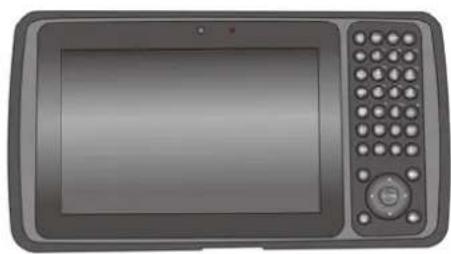
natural_image
Front view of a gray electronic device with a screen, keypad, and control panel (no visible text or symbols)TB120

natural_image
Illustration of a USB connector with a U-shaped cable (no text or symbols)USB cable
(Standard USB to Micro USB)
natural_image
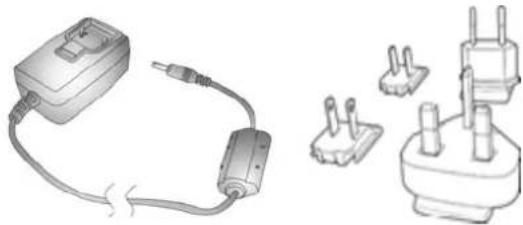
Illustration of a power adapter connected to a plug socket, showing wiring and terminal blocks (no text or symbols)Power adapter Battery
natural_image
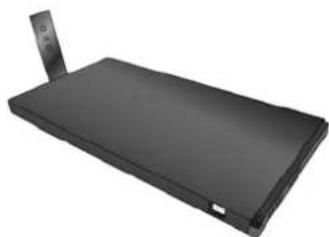
Black rectangular electronic device with a small protrusion on top (no visible text or symbols)
natural_image
3D rendered mechanical component with no visible text or symbolsHand
2. Getting started
unitech TB120 is an Android platform device. Android platform device has great flexibility that allows you to make customized configurations and enhancements by install and remove Apps.
With Android operation system, your device has limitless possibilities to update to latest features and improvements.
2.1 Device overview (with Bar code Scan Engine)

| 1. 7" LCD touchscreen 6. Trigger button | |
| 2. 2M pixels front camera 7. LED flashlight | |
| 3. LED indicator 8. 5M pixels rear camera with AF | |
| 4. Cradle connector 9. Speaker | |
| 5. Physical keyboard (37 keys) | 10. Mounting screw for battery cover |
Device overview (with MSR reader)

natural_image
Illustration of a portable electronic device with control panel and keypad (no text or symbols)
natural_image
Top-down view of a gray electronic device casing with mounting holes and a central screen (no visible text or symbols)
- Micro USB port 12. DC-IN port
- Earphone jack 14. Cradle connector
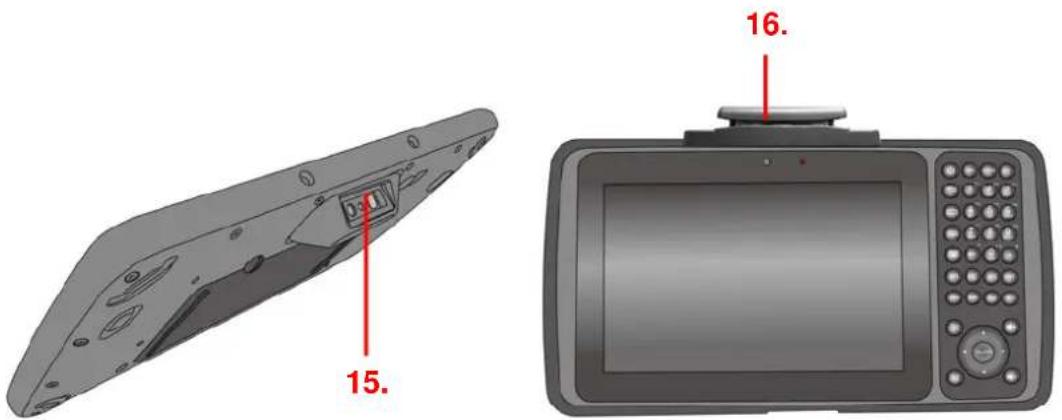
- Bar code Scan Engine 16. MSR reader
Physical keyboard overview
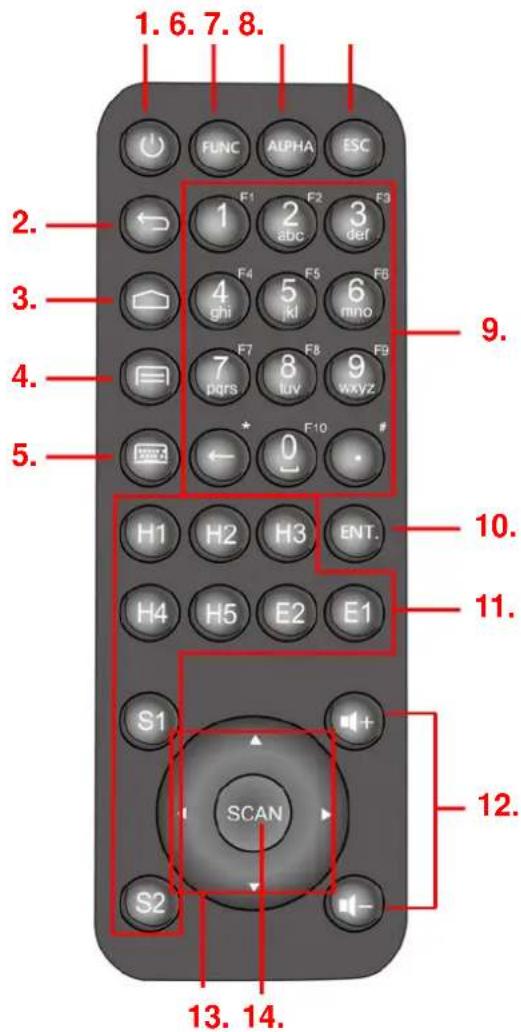
| 1. Power on/off key 8. Escape key | |
| 2. Android BACK key 9. Alpha/Numeric keys | |
| 3. Android HOME key 10. Enter key | |
| 4. Android APP List key 11. H.E.S. keys (programable) | |
| 5. Soft keypad on/off key 12. Volume up/down keys | |
| 6. Function keys to enter F1-F10 13. 4 directional keys | |
| 7. Alpha key 14. Scan key |
2.2 Assembly
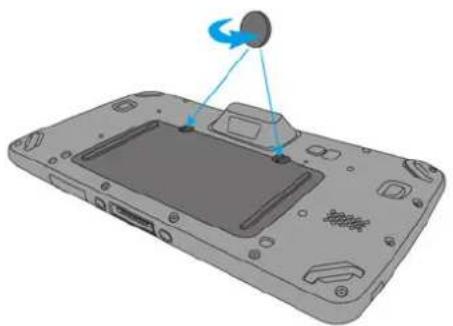
Accessing battery, Micro SD card and SIM card
- Using a proper tool (ex. a coin) to loosen the two screws on the battery cover by turning anticlockwise.
natural_image
3D rendering of a device's internal components with a circular component and blue arrows indicating motion (no text or symbols)- Remove the back cover and pull the battery out.

natural_image
3D diagram of a device showing an open lid and internal components with blue arrows indicating movement (no text or symbols)- Now you can access the micro SD card slot and SIM card slot.

- Micro SD card slot
- SIM card slot
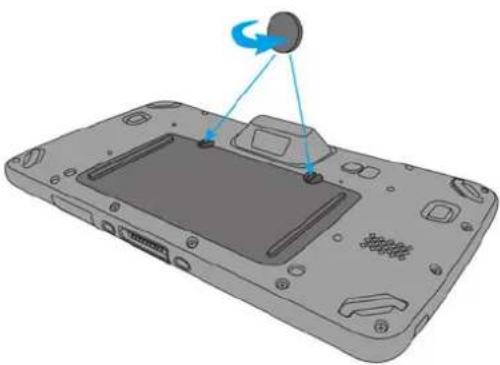
Put battery back to TB120
- Using a proper tool (ex. a coin) to loosen the two screws on the battery cover by turning anticlockwise.
natural_image
3D rendering of a device's front panel with a circular button and blue motion arrow indicating rotation (no text or symbols)- Put battery into battery compartment and put back cover.

natural_image
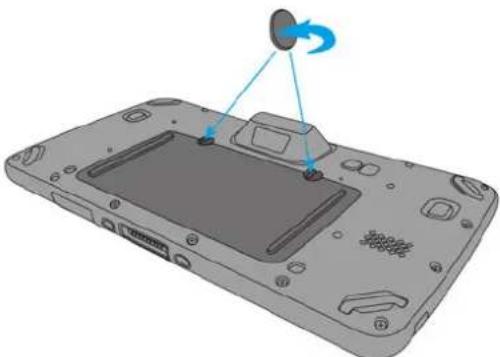
3D diagram of a smartphone showing the internal structure and a blue arrow indicating a process (no text or symbols present)- Lock the two screws on the battery cover by turning clockwise.
natural_image
3D diagram of a device with a screen and a sensor, showing no text or symbols2.3 Charging the battery
Connect TB120 to the charger, it will be charged automatically.
- Plug the power adapter into the DC-IN port at the bottom.

natural_image
Illustration of a handheld electronic device with a blue arrow pointing to its port, showing no text or symbols.- Plug the power adapter into a wall outlet. If needed, attach a plug converter onto the power adapter.

natural_image
Illustration of two electrical wall connectors: one with two slots, the other with a plug (no text or symbols)2.4 Data Communicating with PC Device
- Connect the standard USB connector to the USB port of the PC device.

natural_image
Illustration of a laptop with an external USB cable pointing to the right side (no text or symbols present)- Connect the micro USB connector to the micro USB port at the bottom.

natural_image
Illustration of a handheld electronic device with an attached USB cable, showing ports and connectors (no text or symbols)2.5 LED status
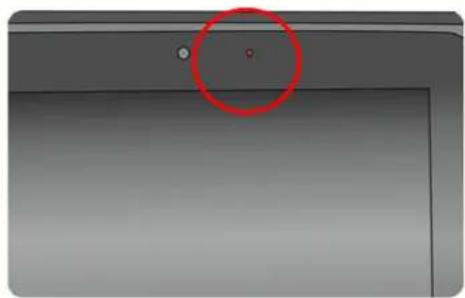
natural_image
Close-up of a device's top panel with a red circle highlighting a small dot (no text or symbols visible)| Green The battery is fully charged |
| Lights Red The battery is charging. The battery level is between low and full |
| Blue Message is received. |
2.6 To check the battery level and to access the battery usage menu
- From your Home screen, tap

- Find and tap Settings.

- Find and tap battery.

battery.


bar
76% - Not charging | Category | Time (ms) | |---|---| | Cell standby | 36 | | Wi-Fi | 24 | | Screen | 10 | | Android CS | 9 | | Google Services | 8 | | Android System | 5 | Rm33s on battery3. Basic Operation
3.1 Accessing and using applications
To open the Application screen
From your Home screen, tap

To browse the Application screen
From the Application screen, flick right or left.
To create a shortcut to an application on the Home screen
- From your Home screen, tap

-
Touch and hold an application icon and then the Home screen opens.
-
Drag the icon to the desired page on the Home screen by flicking left or right, then release your finger.
To Remove a shortcut of an application on the Home screen
-
From your Home screen, touch and hold the icon of the desired application you want to remove
-
"X Remove" shows on the top of the home screen.
-
Drag the icon to be removed to the "X Remove".
3.2 Barcode Scanning (For Imager Version only)
1. Tap the ScanService


- Aim the Bar code Scan Engine to the barcode and press one of two trigger buttons.

natural_image
Top-down view of a device chassis with two red-circled buttons on the back panel (no text or symbols visible)3.3 Serial Port API Sample
- From your Home screen, tap

- Find and tap Serial Port API sample

- Find Console

- Please swipe your card with MSR (Magnetic Stripe Readers)

- After swiping the card, the card information will be shown on the reception section.

- To go back on the menu, please press

4. Specification
| Features | |
| Android 4.3 | |
| Ultra-Rugged Construction: IP65 rated, 1.2M drop and MIL-STD-810G certified | |
| Lightweight and compact design: Only 735g with 1D engine and battery | |
| Large 7-inch color multi-touch sunlight-readable display | |
| Built in 1D / 2D scanner, keypad, and 5 Megapixel camera | |
| Latest Bluetooth v4.0, GPS, Wi-Fi and wireless LAN 802.11 a/b/g/n quad-mode radios | |
| Swappable Battery: 5200mAh Li-ion battery pack | |
| System Features | |
| CPU TI OMAP 4470 1.5Ghz Dual Core Processor | |
| Memory 1GB Mobile DDR RAM | 8GB eMMC Flash |
| OS | Android 4.3 |
| Languages support English, Simp. Chinese, Traditional Chinese, Japanese, Spanish, German, French | |
| Display | |
| Gorilla Glass III with capacitive touch panel | |
| 7" Color Transmissive 1280x800 dots LCD | |
| Keypad | |
| 37 physical keys. Numeric and functionable keys | |
| 1 LED indicate charge/Message Vibrator | |
| Optional Modules | |
| 1D CCD Barcode scanner | |
| 1D Barcode Engine UPC-A/E, EAN-8/13, Codabar, Code 39, Code 39 full ASCI, Code 93,Code 32, Interleaved & Std. 2 of 5, EAN 128, Code 11,Delta, MSI/Plessey,Code 128, Toshiba, RSS expended, RSS Limited, RSS14. | |
| 2D Imager | |
| 1D All major codes | |
| 2D PDF417, MicroPDF417, Composite, RSS, TLC-39, Datamatrix, QR code, Micro QR code, Aztec, MaxiCode, Postal Codes: US PostNet, US Planet, UK Postal, Australian Postal, Japan Postal Dutch Postal (KIX) | |
| Magnetic Stripe Reader | |
| MSR SecureHeadTM Encrypted Magnetic Read Head | |
| Regulatory Approvals | |
| CE, NCC, FCC, BSMI, VCCI, CCC, RoHS compliance | |
| Communication | |
| Camera and Flash Light 2M Pixels Front Camera | |
| 5M Pixels Rear Camera CMOS Sensor Camera with Auto focus, LED flash light | |
| External storage Support MicroSD memory card up to 32GB | |
| USB USB 2.0 OTG | |
| WLAN IEEE 802.11 a/b/g/n | |
| Bluetooth Bluetooth 4.0 with Bluetooth SIG certification | |
| WWAN GSM/GPRS/EDGE 850/900/1800/1900 MHz UMTS850/900/1700/1900/2100 MHz WCDMA modem, HSPA+, DL: 21Mbps/ UL: 5.76Mbps. | |
| GPS GPS supports MS-assisted, MS-based and autonomous operation modes | |
| Other Sensors eCompass | Light & Proximity sensorG-sensor |
| RFID | Frequency: 13.56MHzTag Support: ISO15693, ISO14443A , ISO14443BSupport NFC |
| Power Source | |
| Main Battery Swappable Battery. 19.76 Wh 3.8V @5200mAhLi-ion battery pack | |
| Backup Battery capacity 1 hour | |
| Enclosure | |
| Weight 735g (1D); 724g (No engine) with battery | |
| Dimension | 264.5x143.7x18.8 (mm) |
| Environmental | |
| Operating temperature 14°F to 122°F (-10°C to 50°C) | |
| Storage temperature -4°F to 140°F (-20°C to 60°C) | |
| Charging Temperature 32°F to 104°F (0°C to 40°C) | |
| Relative Humidity 5% ~ 95% ( non-condensing ) | |
| Drop test to Concrete | 1.2 meter MIL-STD 810G,Method 516.6,Procedure IV |
| Environmental Sealing | IP65 IEC/EN 60529 Standard |
| Vibration and Shock test | MIL-STD-810G, Method 514.6, Procedure IMIL-STD-810G,Method 514.6,Procedure II, Category 5 |
| Mobile Device Management Software and Service | |
| MoboLink® Device Management;Application Management;Event Triggers | |
| Accessories | |
| Accessories | |
| Single Slot USB Client/Host Cradle with Battery Charger | |
| Handstrap | |
| 5200 mAH standard Battery | |
| USB Communication Cable | |
| Power adaptor with universal plugs | |


- 7" Rugged Tablet Computer
- Preface
- About This Manual
- Regulatory Compliance Statements
- FCC Warning Statement
- FCC Label Statement
- RF Radiation Exposure Statement
- Canadian Compliance Statement
- European Conformity Statement
- RoHS Statement
- Waste electrical and electronic equipment (WEEE)
- Taiwan NCC Warning Statement
- LED Information
- Battery Notice
- CAUTION!
- Battery charge notice
- Storage and safety notice
- Product Operation and Storage Notice
- Adapter Notice
- Hearing Damage Warning
- Zx.3 Warning
- Worldwide Support
- Warranty Policy
- Table of content
- Preface .... i
- Table of content....xi
- Package Contents .... 1
- Getting started....2
- Basic Operation.... 11
- Specification....15
- Package Contents
- Getting started
- Device overview (with Bar code Scan Engine)
- Device overview (with MSR reader)
- Physical keyboard overview
- Assembly
- Accessing battery, Micro SD card and SIM card
- Put battery back to TB120
- Charging the battery
- Data Communicating with PC Device
- LED status
- To check the battery level and to access the battery usage menu
- Basic Operation
- Accessing and using applications
- To open the Application screen
- To browse the Application screen
- To create a shortcut to an application on the Home screen
- To Remove a shortcut of an application on the Home screen
- Barcode Scanning (For Imager Version only)
- Tap the ScanService
- Serial Port API Sample
- Specification
Brand : Unitech
Model : TB120
Category : Tablet