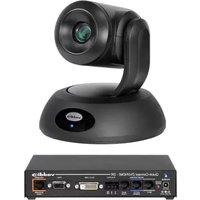
PowerVIEW HD-22 - Video Conferencing System Vaddio - Free user manual and instructions
Find the device manual for free PowerVIEW HD-22 Vaddio in PDF.


Pick your language and provide your email: we'll send you a specifically translated version.
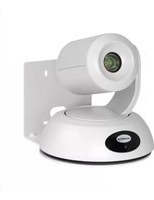
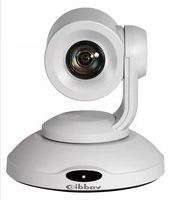
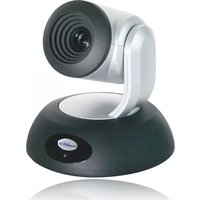
| Product Type | PTZ Video Conferencing Camera |
| Model | PowerVIEW HD-22 |
| Image Sensor | 1/2.8-inch CMOS |
| Resolution | 1080p Full HD (1920x1080) |
| Optical Zoom | 22x |
| Horizontal Field of View | 60.7° (wide end) |
| Video Outputs | HDMI, 3G-SDI, USB 2.0 (UVC) |
| Control Interface | RS-232, IR remote, USB HID |
| Pan/Tilt Range | Pan: ±170°, Tilt: -30° to +90° |
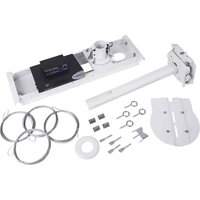
| Mounting | Tabletop or ceiling mount (included) |
| Dimensions (W x H x D) | 7.5 x 6.0 x 7.0 inches (191 x 152 x 178 mm) |
| Weight | 4.4 lbs (2.0 kg) |
| Power Supply | 12V DC, 2.0A (included adapter) |
| Power Consumption | 20W (max) |
| Key Features | Auto framing, noise reduction, wide dynamic range |
| Maintenance & Cleaning | Clean lens with soft dry cloth; keep vents clear |
| Safety | Use only supplied power adapter; avoid liquids |
| Spare Parts & Repairability | Contact Vaddio support for replacement parts |
| General Information | Designed for small to medium conference rooms |
Frequently Asked Questions - PowerVIEW HD-22 Vaddio
How do I connect the PowerVIEW HD-22 to my computer?
Use the USB 2.0 port (UVC) to connect directly to your computer. The camera will be recognized as a standard webcam. For HDMI or SDI, connect to a capture card.
Can I control the camera with a remote?
Yes, the camera comes with an IR remote for basic pan, tilt, zoom, and preset recall. For advanced control, use RS-232 or IP control.
What is the maximum resolution and frame rate?
The camera outputs up to 1080p at 60 fps via HDMI and SDI. USB output is limited to 1080p at 30 fps.
How do I mount the camera on a ceiling?
Use the included ceiling mount kit. Screw the mount plate to the ceiling, attach the camera, and secure with the locking screw.
Does the camera support auto framing?
Yes, the auto framing feature uses face detection to keep participants centered. Enable it via the remote or web interface.
What should I do if the camera does not power on?
Check the power adapter connection and ensure the outlet is working. Try a different USB cable if using bus power. If still no power, contact support.
How do I clean the lens?
Use a soft, lint-free cloth slightly dampened with lens cleaner. Gently wipe in circles. Avoid touching the lens with fingers.
Can I store presets for camera positions?
Yes, you can store up to 10 presets via the remote or RS-232 commands. Recall presets by pressing the corresponding number on the remote.
Is the camera compatible with Zoom, Teams, etc.?
Yes, the USB UVC connection makes it compatible with Zoom, Microsoft Teams, Google Meet and other software that supports standard cameras.
What does the LED indicator mean?
A solid green LED indicates power on and normal operation. Blinking green means the camera is booting or in standby. Red indicates an error.
User questions about PowerVIEW HD-22 Vaddio
0 question about this device. Answer the ones you know or ask your own.
Ask a new question about this device
No questions yet. Be the first to ask one.
Download the instructions for your Video Conferencing System in PDF format for free! Find your manual PowerVIEW HD-22 - Vaddio and take your electronic device back in hand. On this page are published all the documents necessary for the use of your device. PowerVIEW HD-22 by Vaddio.
USER MANUAL PowerVIEW HD-22 Vaddio
Manual assistant
Powered by Anthropic
Waiting for your message
Product information
Brand : Vaddio
Model : PowerVIEW HD-22
Category : Video Conferencing System