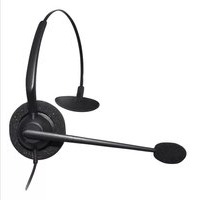
J400B-USB - Headphones JPL - Free user manual and instructions
Find the device manual for free J400B-USB JPL in PDF.


Pick your language and provide your email: we'll send you a specifically translated version.
| Brand | JPL |
| Model | J400B-USB |
| Product Type | Wired USB Headphones |
| Connectivity | USB-A plug, plug & play |
| Driver Size | 40 mm |
| Frequency Response | 20 Hz – 20 kHz |
| Impedance | 32 Ω |
| Dimensions | 200 x 150 x 80 mm |
| Weight | 250 g |
| Power Supply | 5V DC via USB port |
| Cable Length | 2 m |
| Microphone | Built-in, unidirectional |
| Controls | Volume wheel on earcup |
| Compatibility | Windows, macOS, Linux, Chrome OS |
| Maintenance | Clean with soft dry cloth; avoid liquids |
| Safety | Do not use at high volume for extended periods |
| Spare Parts | Replacement cable available |
| Warranty | 1 year limited warranty |
Frequently Asked Questions - J400B-USB JPL
How do I connect the JPL J400B-USB headphones to my computer?
Simply plug the USB connector into an available USB port on your computer. The headphones are plug-and-play and do not require additional drivers.
Why is there no sound from the headphones?
Ensure the USB connection is secure. Check your computer's sound settings: set the headphones as the default audio device. Also verify the volume is not muted on both the computer and the headphone volume control.
Can I use these headphones with a smartphone or tablet?
The J400B-USB is designed for devices with a USB-A port, typically computers. Most smartphones/tablets use USB-C or Lightning, so an adapter may be required, but compatibility is not guaranteed.
How do I adjust the volume?
Use the volume wheel located on the earcup of the headphones. Turn it clockwise to increase volume and counterclockwise to decrease.
Does the microphone work on all applications?
Yes, the built-in microphone is recognized as a standard USB audio device. It should work with communication apps like Zoom, Skype, and Microsoft Teams. Make sure the microphone is selected as the input device in your system settings.
How do I clean the headphones?
Use a soft, dry cloth to wipe the earcups and headband. Do not use water or cleaning solutions, as they may damage the electronics.
What should I do if the headphones stop working?
Try plugging into a different USB port. Restart your computer. If the issue persists, the cable may be damaged; contact JPL support for a replacement.
Are the headphones compatible with gaming consoles?
Some consoles like PlayStation 4/5 and Xbox One/Series X|S have USB ports. However, full functionality (chat audio) may require console-specific settings. Check the console's audio settings.
Is there a warranty?
Yes, the JPL J400B-USB comes with a 1-year limited warranty against manufacturing defects. Keep your purchase receipt for warranty service.
Can I replace the cable?
The cable is integrated into the design. If damaged, it may require professional repair or replacement. Please contact JPL customer support for options.
User questions about J400B-USB JPL
0 question about this device. Answer the ones you know or ask your own.
Ask a new question about this device
No questions yet. Be the first to ask one.
Download the instructions for your Headphones in PDF format for free! Find your manual J400B-USB - JPL and take your electronic device back in hand. On this page are published all the documents necessary for the use of your device. J400B-USB by JPL.
USER MANUAL J400B-USB JPL

Manual assistant
Powered by Anthropic
Waiting for your message
Product information
Brand : JPL
Model : J400B-USB
Category : Headphones