
MRS4 - Multitrack audio recorder ZOOM - Free user manual and instructions
Find the device manual for free MRS4 ZOOM in PDF.


| Product type | Digital multitrack audio recorder |
| Brand | ZOOM |
| Model | MRS-4 |
| Dimensions (W x D x H) | 220 x 165 x 56.3 mm |
| Weight (without batteries) | 700 g |
| Power supply | DC 9V 300 mA AC adapter (Zoom AD-0006) or 4 AA batteries (alkaline recommended) |
| Battery life | Approximately 5 hours with alkaline batteries |
| Number of tracks | 4 physical tracks, 8 virtual takes per track (32 total) |
| Max simultaneous recording | 2 tracks |
| Max simultaneous playback | 4 tracks |
| Storage media | SmartMedia card 16-128 MB (3.3V) |
| Recording quality | HiFi (32 kHz) or Long (16 kHz) |
| Built-in effects | Insert (compressor, limiter, amp simulator, mic preamp), Send/Return (reverb, delay, chorus), Mixdown (Power, Boost, Vocal) |
| Advanced functions | Bounce, manual and auto punch-in/out, A-B repeat, metronome, chromatic tuner, markers, track editing, MIDI output |
| Inputs | 2 mono jack inputs (instrument/mic) + 2 AUX inputs (L/Mono, R) |
| Outputs | Master RCA (L/R), stereo headphone jack |
| Display | Backlit LCD with adjustable contrast |
| Maintenance and cleaning | Use a soft, dry cloth; do not use solvents or abrasive products |
| Safety | Do not open the case; use only the specified adapter; avoid moisture, dust, and shock; turn off before disconnecting |
| Spare parts and repairability | Replaceable batteries and AC adapter; standard SmartMedia card; repair by a certified technician recommended |
| Included accessories | 32 MB SmartMedia card |
| General information | Up to 15 songs per card; compatibility with MRS-4 Card Manager software (free download) |
Frequently Asked Questions - MRS4 ZOOM
User questions about MRS4 ZOOM
0 question about this device. Answer the ones you know or ask your own.
Ask a new question about this device
Download the instructions for your Multitrack audio recorder in PDF format for free! Find your manual MRS4 - ZOOM and take your electronic device back in hand. On this page are published all the documents necessary for the use of your device. MRS4 by ZOOM.
USER MANUAL MRS4 ZOOM
MultiTrak Recording Studio
zoom MRS-4
Operation Manual
Thank you for purchasing the ZOOM MultiTrak Recording Studio MRS-4 (subsequently referred to as "the MRS-4").
The MRS-4 offers the following attractive features.
Simultaneous 4-track playback/2-track recording
8 virtual takes per track add up to a total of 32 takes available for recording.
Flexible track parameter settings
Hi/Lo EQ, effect send, and other parameters can be set individually for each track.
Bounce feature supports recording from 4 tracks of simultaneous playback
Even when there are no empty tracks, the MRS-4 allows you to bounce existing material onto 2 tracks, while performing simultaneous playback of 4 tracks.
Versatile effects
The MRS-4 incorporates an insert effect for processing the input signal, a send/return effect for use in a mixer loop, and a mixdown effect for use on the master bus.
Other sophisticated features
Metronome, MIDI output, AUX input, long-stroke faders, and other exciting features make the MRS-4 a great all-round package.
In order to take full advantage of the MRS-4's versatile functionality and to ensure trouble-free enjoyment, please read this manual carefully. Keep this manual in a safe place together with the warranty card.
USAGE AND SAFETY PRECAUTIONS
Safety Precautions
In this manual, symbols are used to highlight warnings and cautions for you to read so that accidents can be prevented. The meanings of these symbols are as follows:

This symbol indicates explanations about extremely dangerous matters. If users ignore this symbol and handle the device the wrong way, serious injury or death could result.

This symbol indicates explanations about dangerous matters. If users ignore this symbol and handle the device the wrong way, bodily injury and damage to the equipment could result.
Please observe the following safety tips and precautions to ensure hazard-free use of the MRS-4.

About power
Since power consumption of this unit is fairly high, we recommend the use of an AC adapter whenever possible. When powering the unit from the batteries, use only an alkaline type.
AC adapter operation
- Be sure to use only an AC adapter which supplies 9V DC, 300mA and is equipped with a "center minus" plug (Zoom AD-0006).
The use of an adapter other than the specified type may damage the unit and pose a safety hazard.
- Connect the AC adapter only to an AC outlet that supplies the rated voltage required by the adapter.
- When disconnecting the AC adapter from the AC outlet, always grasp the adapter itself and do not pull at the cable
- If the unit is not to be used for a long time, disconnect the AC adapter from the outlet.
Battery operation
- Use four IEC R6 (size AA) batteries (alkaline or manganese).
- The MRS-4 cannot be used for recharging.
Pay close attention to the labelling of the battery to make sure you choose the correct type.
If the MRS-4 is not to be used for an extended period of time, remove the battery from the unit. - If batteries leakage has occurred, wipe the battery compartment and the battery terminals carefully to remove all remnants of battery fluid.
- While using the unit, the battery compartment cover should be closed.

Environment
Avoid using your MRS-4 in environments where it will be exposed to:
Extreme temperature
High humidity or moisture
- Excessive dust or sand
- Excessive vibration or shock

Handling
- Since the MRS-4 is a precision electronic device, avoid applying excessive force to the controls. Do not operate the keys or controls with your foot.
- Take care that no foreign objects (coins or pins etc.) or liquids can enter the unit.
- Be sure to turn the power to all equipment off before making connections.
- Before moving the unit, turn the power off, and disconnect all cables and the AC adapter.

Alterations
Never open the case of the MRS-4 or attempt to modify the product in any way since this can result in damage to the unit.

In Case of Trouble
If there seems to be a defect or a problem with the unit, immediately disconnect the AC adapter or remove the batteries to shut off the power. Then disconnect any other cables connected to the unit.
Usage Precautions
- Electrical interference
For safety considerations, the MRS-4 has been designed to provide maximum protection against the emission of electromagnetic radiation from inside the device, and protection from external interference. However, equipment that is very susceptible to interference or that emits powerful electromagnetic waves should not be placed near the MRS-4, as the possibility of interference cannot be ruled out entirely.
With any type of digital control device, the MRS-4 included, electromagnetic interference can cause malfunctioning and can corrupt or destroy data. Care should be taken to minimize the risk of damage.
- Cleaning
Use a soft, dry cloth to clean the MRS-4. If necessary, slightly moisten the cloth. Do not use abrasive cleanser, wax, or solvents (such as paint thinner or cleaning alcohol), since these may dull the finish or damage the surface.
Please keep this manual at hand for future reference.
Contents
USAGE AND SAFETY PRECAUTIONS 2
Introduction 4
Internal configuration 4
Recorder section 4
Effect section 5
Mixer section 5
SmartMedia 5
Parts of the MRS-4 6
Top panel 6
Rear panel 7
Front panel 7
Connections 8
Power on/off switching 9
Turning power on 9
Turning power off 9
Operating the unit on batteries 9
Basic Operation 10
Step 1 Preparations for recording 10
1-1 Creating a new song 10
Step 2 Recording the first track 12
2-1 Adjusting input sensitivity 12
2-2 Using the insert effect 13
2-3 Selecting a track and recording on it 15
Step 3 Overdubbing 17
3-1 Adjusting input sensitivity and setting the insert effect 17
3-2 Selecting and recording to a track 17
Step 4 Mixdown 18
4-1 Preparations for mixdown 18
4-2 Adjusting volume/pan/EQ 19
4-3 Using the send/return effect 21
4-4 Using the mixdown effect 25
4-5 Recording on the master recorder 27
Reference [Recorder] 28
Using V-takes 28
Combining multiple tracks (Bounce function) 29
Re-recording only a specified region
(Punch-in/out function) 30
Using manual punch-in/out 31
Using auto punch-in/out 31
Reference [Locating a Point] 33
Moving to a desired point in a song
(Locate function) 33
Switching between time and measure indication 33
Marking a point in a song (marker function) 34
Assigning a mark 34
Moving to a mark location 34
Clearing a mark 35
Playing back the same passage repeatedly
(A-B Repeat) 36
Reference [Mixing] 37
Assigning two inputs to a track 37
Adding the input signal to the mixdown 38
Linking two tracks (stereo link function) 39
Reference [Track Editing] 40
Copying a specified region of data to another location 40
Copying the data of an entire track 41
Erasing a specified segment 42
Erasing an entire track 43
Exchanging the data of entire tracks 44
Reference [Song Functions] 46
Song menu basic functions 46
Song menu items 47
Creating a new song (SONG NEW) 47
Reading in an existing song (SONG SELECT) 47
Checking the remaining recording time (SONG CAPACITY) 47
Copying a song (SONG COPY) 48
Deleting a song (SONG DELETE) 48
Protecting a song (SONG PROTECT) 49
Selecting the recording grade (SONG GRADE) 49
Reference [Metronome/MIDI] 50
Basic metronome settings 50
Functions available with MIDI 51
Synchronizing an external device to the MRS-4 51
Reference [Other Functions] 52
Using the tuner 52
4 Formatting a SmartMedia card 53
Display adjustments 54
Using the AUX IN jacks to save tracks 55
Specifications 56
MRS-4 file configuration 57
File compatibility with PS-02 57
MRS-4 Card Manager Software 57
Troubleshooting 58
Playback problems 58
Problems with recording 58
Problems with effects 59
Problems with MIDI 59
Other problems 59
MIDI Implementation 60
MIDI implementation 60
MIDI implementation chart 61
Index 62
Introduction
This section shows the various sections of the unit and explains some important concepts of the MRS-4.
Internal configuration
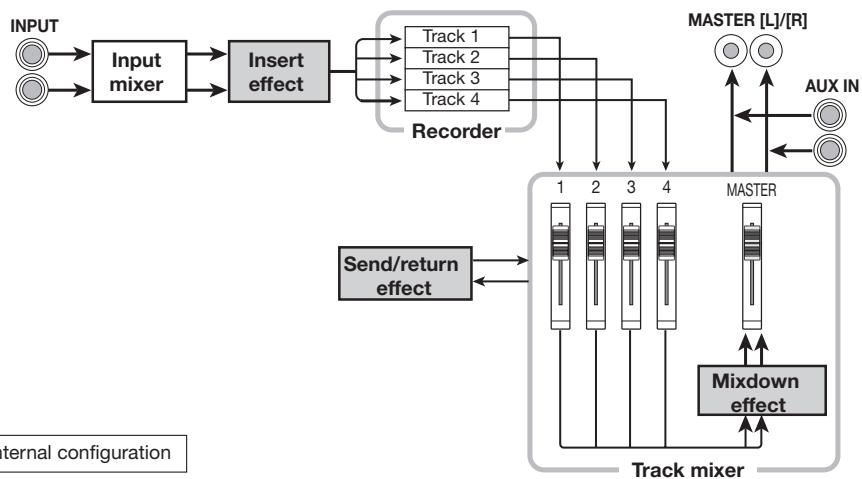
assigning the input signal to various tracks, and a track mixer that adjusts level and sound quality for each track before sending the result to the left and right MASTER jacks.
The MRS-4 is divided internally into the following three sections.
The illustration below shows the signal flow and how the sections fit together.
■ Recorder section
The MRS-4 is a 4-track recorder that uses SmartMedia cards for storing data. This allows audio recording/playback on four tracks.
Now let's take a closer look at each section.
Recorder section
■ Effect section
The audio signal can be processed in various ways by the effect section. The MRS-4 offers an insert effect for the input signal as well as a send/return effect and mixdown effect for use on the recorderd signal.
Mixer section
This section is used for mixing the various signals and supplying them to the other sections. There is an input mixer for
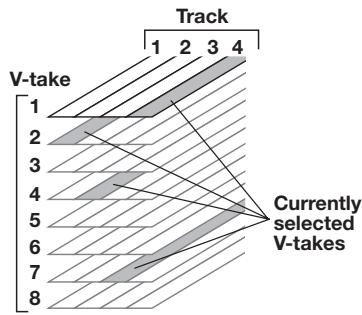
The recorder section of the MRS-4 has four tracks (separate segments for recording audio data). Up to two tracks can be recorded simultaneously, and up to four tracks can be played back simultaneously. Each of the tracks 1 - 4 has eight virtual tracks (called "V-takes"). In each track, one V-take can be selected for recording/playback. For example, you can record guitar solos onto multiple V-takes, and then compare them later to select the best take.
Effect section
The MRS-4 provides three types of effects: insert effect, mixdown effect, and send/return effect. These effects have different characteristics, as described below.
Insert effect
This effect operates directly after the input mixer. It is used to modify the input signal before it is recorded.
■ Mixdown effect
This effect operates directly before the MASTER faders of the track mixer. It is used to modify the signal mixed from tracks 1-4.
■ Send/return effect
This effect is internally connected to the send/return loop of the mixer section. The effect can be adjusted individually for each track by using the send level control. The higher the setting, the stronger the effect.
Mixer section
The MRS-4 has two types of mixers.
■ Input mixer
Serves to adjust the instrument or mic signal input to the MRS-4 and to assign the signal to the desired track.
Track mixer
Serves to mix the playback signal of the recorder before sending it to the stereo output jacks. The signal from each of tracks 1 - 4 is sent to the mixer channels 1 - 4 for individual adjustment of EQ, effect send level, panning (left/right playback position), etc. These items are called track parameters.
SmartMedia
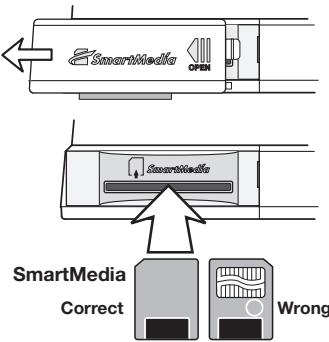
To use the MRS-4, a SmartMedia card is required. Before turning the MRS-4 on, insert the card into the front panel slot, as shown in the illustration below.
Caution
- If the card is inserted upside down or with wrong orientation, it does not go all the way in. Do not try to force the card in, because this will damage the card.
- Never insert or remove the SmartMedia card while power to the unit is turned on. Otherwise data may be lost.
- Standard SmartMedia cards (designed for 3.3V) with a capacity from 16 - 128 MB can be used.
- When wishing to use a SmartMedia card that has been formatted in other equipment such as a computer or digital camera, you must format the card again in the MRS-4, as described on page 53.
Parts of the MRS-4
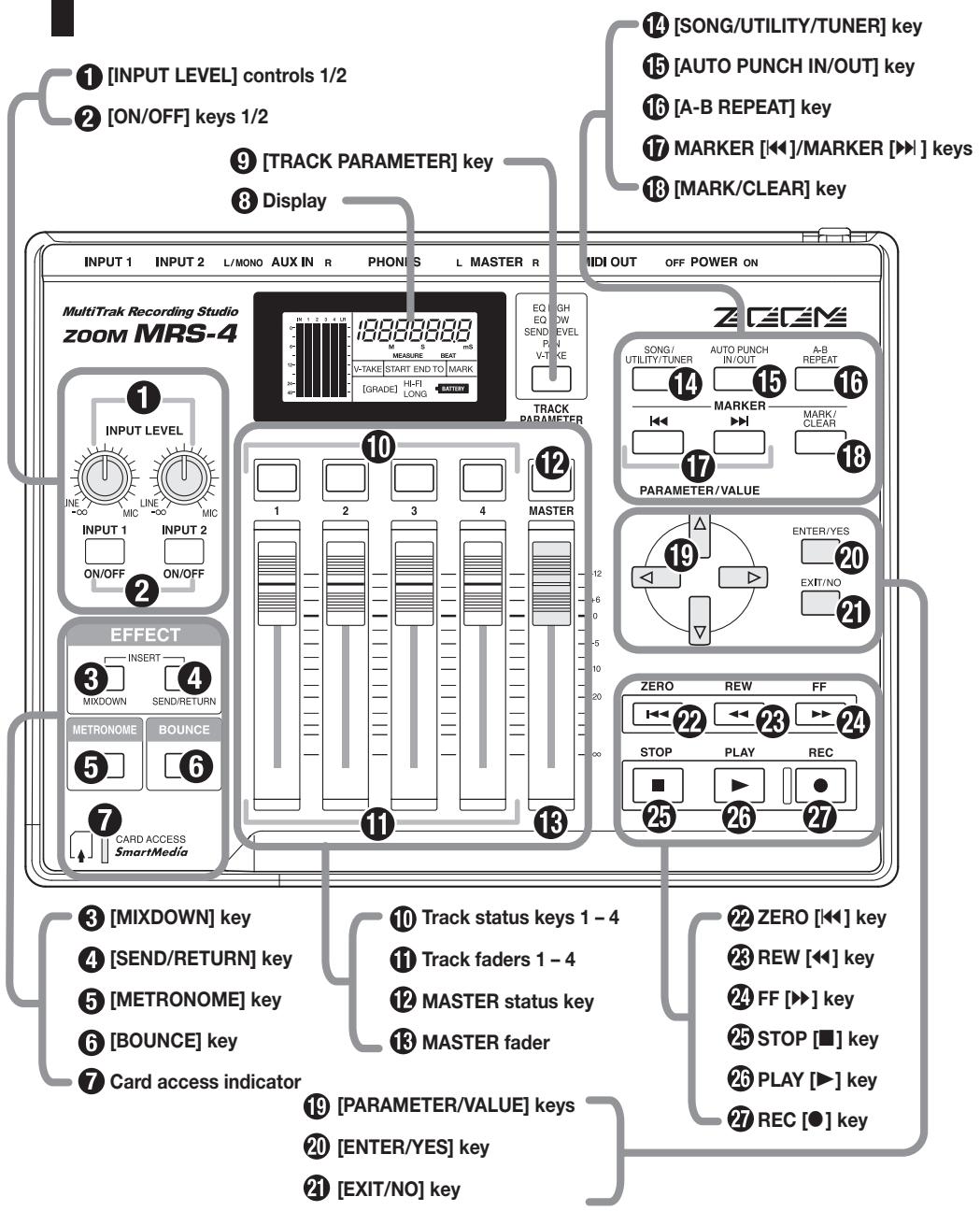
Top panel
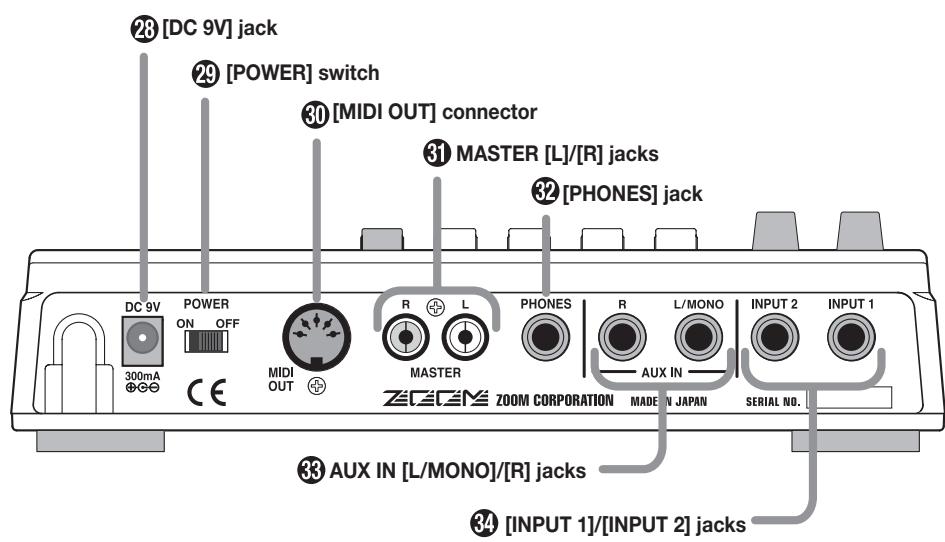
Rear panel
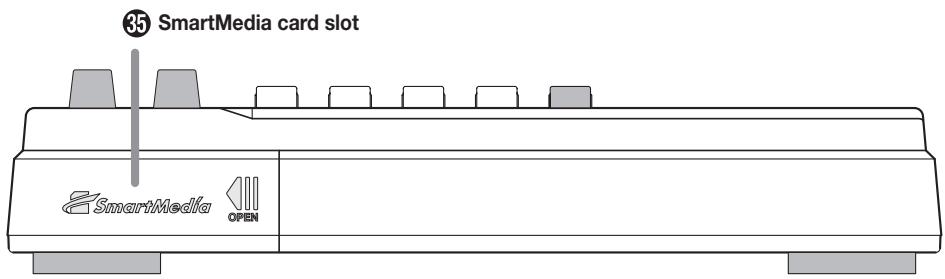
Front panel
Connections
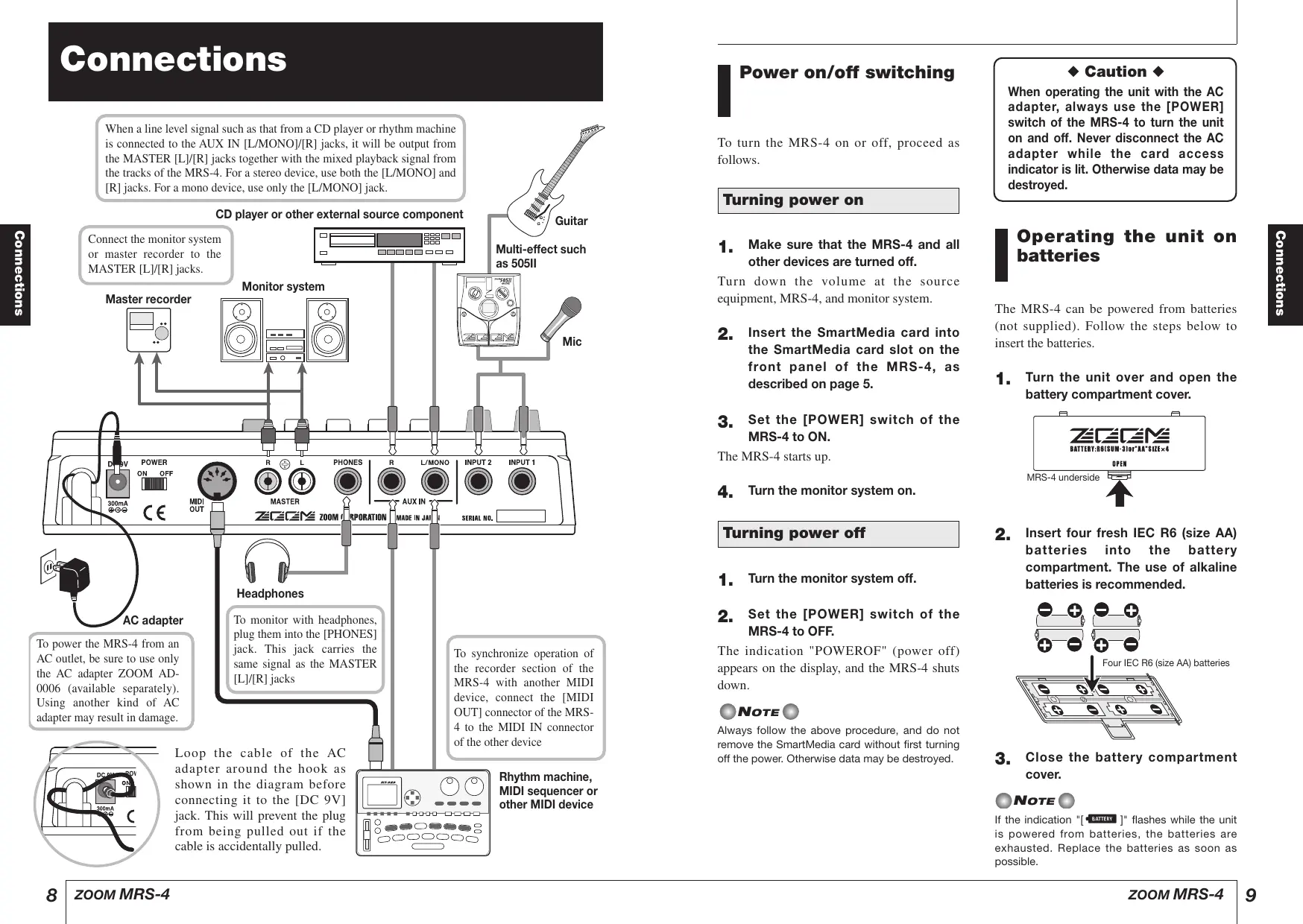
When a line level signal such as that from a CD player or rhythm machine is connected to the AUX IN [L/MONO]/[R] jacks, it will be output from the MASTER [L]/[R] jacks together with the mixed playback signal from the tracks of the MRS-4. For a stereo device, use both the [L/MONO] and [R] jacks. For a mono device, use only the [L/MONO] jack.

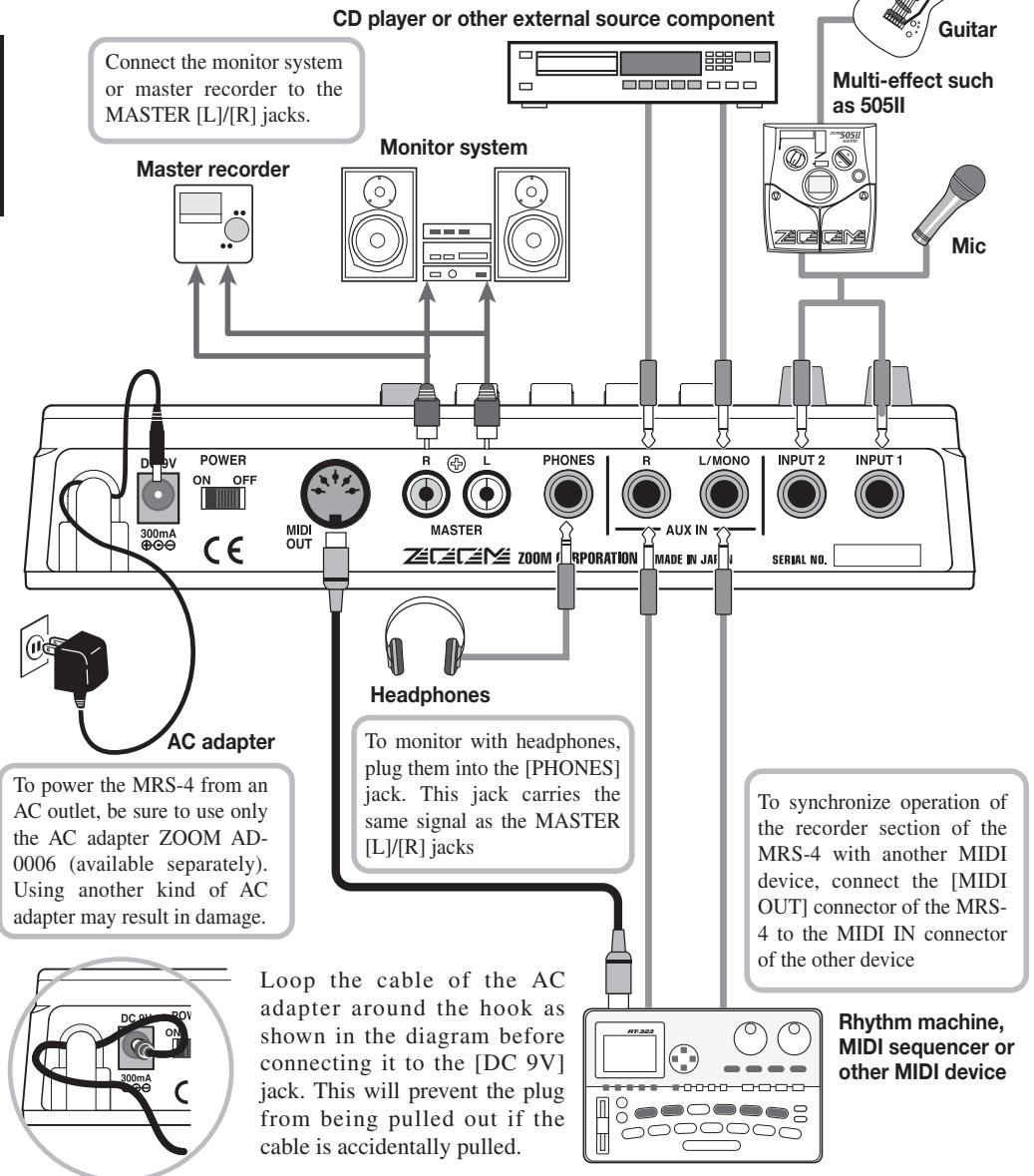
Power on/off switching
To turn the MRS-4 on or off, proceed as follows.
Turning power on
- Make sure that the MRS-4 and all other devices are turned off.
Turn down the volume at the source equipment, MRS-4, and monitor system. - Insert the SmartMedia card into the SmartMedia card slot on the front panel of the MRS-4, as described on page 5.
- Set the [POWER] switch of the MRS-4 to ON.
The MRS-4 starts up.
- Turn the monitor system on.
Turning power off
- Turn the monitor system off.
- Set the [POWER] switch of the MRS-4 to OFF.
The indication "POWEROF" (power off) appears on the display, and the MRS-4 shuts down.

NOTE
Always follow the above procedure, and do not remove the SmartMedia card without first turning off the power. Otherwise data may be destroyed.
Caution
When operating the unit with the AC adapter, always use the [POWER] switch of the MRS-4 to turn the unit on and off. Never disconnect the AC adapter while the card access indicator is lit. Otherwise data may be destroyed.
Operating the unit on batteries
The MRS-4 can be powered from batteries (not supplied). Follow the steps below to insert the batteries.
- Turn the unit over and open the battery compartment cover.

- Insert four fresh IEC R6 (size AA) batteries into the battery compartment. The use of alkaline batteries is recommended.
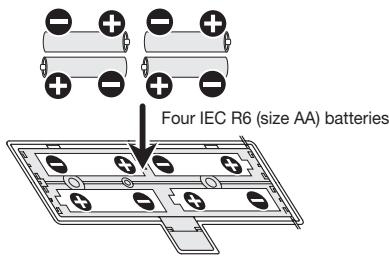
- Close the battery compartment cover.

NOTE

If the indication ["BATTERY]" flashes while the unit is powered from batteries, the batteries are exhausted. Replace the batteries as soon as possible.
Basic Operation
This section describes basic operation steps of the MRS-4, starting with preparations for recording and continuing through the final mixdown process.
Operation is divided into four major steps.
- Step 1: Preparations for recording
Make the necessary connections and prepare to record a song.
- Step 2: Recording the first track
Use the insert effect on the input signal if necessary and record the first track.
- Step 3: Overdubbing
While listening to the recorded track, record the second and subsequent tracks (over dubbing).
- Step 4: Mixdown
Adjust the level, panning, and EQ for each recorded track, and apply the send/return effect to create a stereo mix. Apply the mixdown effect to the signal, and then send the result to the master recorder.
Step 1 | Preparations for recording
1-1 | Creating a new song
In the MRS-4, all data required to play a piece you have created is collectively referred to as a "song".
A song contains the following information.
- All recording data from the recorder section
- All settings of the mixer section
- All settings of the effect section
- Other settings such as for metronome and tuner functions
Up to 15 songs can be stored on one SmartMedia card, provided that there is enough capacity. By reading a song stored on a card back into the MRS-4, all previous settings are recreated (except for fader setting positions).
When you start to use the MRS-4 for recording, you must choose whether to create a new song or open an existing song for modification.
- Connect the monitor system to the MASTER [L]/[R] jacks.
To use headphones for monitoring, connect them to the [PHONES] jack.
- Make sure that a SmartMedia card is inserted in the SmartMedia card slot. Then turn power on in the order MRS-4 monitor system.
When the MRS-4 is turned on, it automatically checks whether the inserted SmartMedia card already contains any songs.
- When there are no songs on the SmartMedia card
A new song is automatically created, and the display shows the following information. This display condition is called the "main screen". The main screen is the starting point for all operations.
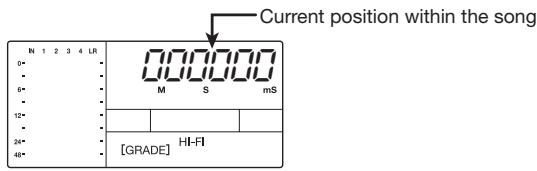
- When there are songs on the SmartMedia card
The following two indications appear alternately on the display.

When you press the [ENTER/YES] key in this condition, a new song is created, and the main screen appears. The recording will be automatically set to HiFi.
HINT
- If you press the [EXIT/NO] key at the above screen, or if no key is operated for 5 seconds, the most recent song is automatically read into the unit. (For information on how to create a new song after a song has been read in, see page 47.)
- If required, change the recording grade setting ( p. 49).
Step 2 Recording the first track
This section describes how to record an electric guitar connected to the [INPUT 1] jack on track 1 to create the first track of a recording.
2-1 Adjusting input sensitivity
Connect the instrument to the input of the MRS-4 and adjust input sensitivity.
- Connect the instrument to the [INPUT 1] jack on the MRS-4 (→ p. 8).
- Press the [ON/OFF] key 1 so that the key lights up.
The [ON/OFF] keys 1/2 serve to activate their respective inputs. When the key is lit, the input is active.

HINT

To record from an instrument with stereo output such as a synthesizer, connect the L/R output of the device to the [INPUT 1]/[INPUT 2] jacks and set both [ON/OFF] keys 1/2 to ON.

NOTE

The MRS-4 can accept up to two simultaneous input signals.
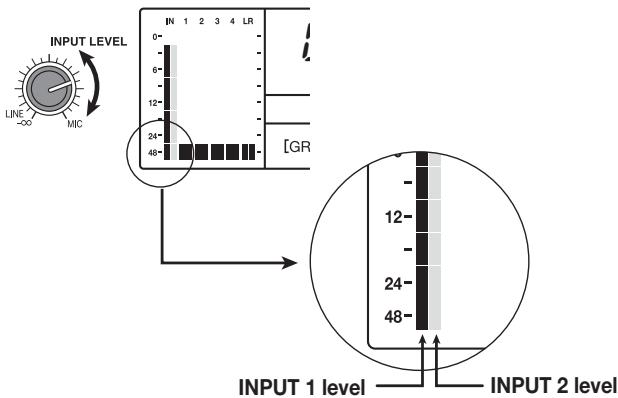
- While playing the instrument, use the [INPUT LEVEL] control 1 to adjust the input sensitivity.
The signal input level appears on the level meter (IN) in the left part of the display. Adjust the control so that the 0 dB indicator does not light when you play the instrument at the loudest level.
2-2 Using the insert effect
The insert effect processes the signal from input 1/2 before it is sent to the tracks for recording. In this example, you apply the insert effect on the guitar signal supplied to the INPUT 1 jack. If you do not wish to use the insert effect, proceed to section 2-3 on page 15.
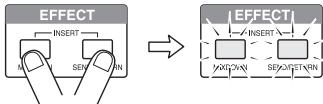
- Press the [MIXDOWN] key and the [SEND/RETURN] key simultaneously.
The [MIXDOWN] key and [SEND/RETURN] key serve to select the effect to be used. Pressing both keys simultaneously causes the keys to flash in red. This indicates that the insert effect has been activated.
NOTE
While the [MIXDOWN] key and [SEND/RETURN] key are both flashing simultaneously, the mixdown effect and send/return effect cannot be used.
The display shows the currently selected algorithm (effect type).
$$ \overline {{L}} \cap \mathbb {E} 0 $$
The following algorithms are available for the insert effect.
- Use the [PARAMETER/VALUE] keys to select the algorithm and the setting value.
Insert effect algorithms
| Algorithm 1 (LIMIT 0 - LIMIT 9) | |
| L17E0 ↓ L17E9 | This effect suppresses signal peaks to keep the input signal below a certain level. During stereo recording, the effect monitors both inputs. Higher setting values produce stronger limiter action. |
| Algorithm 2 (COMP 0 - COMP 9) | |
| CoNP0 ↓ CoNP9 | This effect compresses the signal when the input signal exceeds a certain level. During stereo recording, the effect monitors both inputs. Higher setting values produce stronger compressor action. |
| Algorithm 3 (CAB CO, CAB BC, CAB ST) | |
| CRbCo CRbBC CRbSt | This is a cabinet simulator that duplicates the sound of a guitar amplifier. It is useful when a distortion effect is connected between the guitar and the input of the MRS-4. The abbreviation on the right indicates the amp type. CoCombo amp BCBright combo amp StStack amp |
| Algorithm 4 (MICEF 10 - MICEF 19) | |
| N ICEF 10 | This is a mic input limiter. Unlike the LIMIT 0 - LIMIT 9 effect, the effect operates independently for input 1 and 2. Higher setting values produce stronger limiter action. |
| N ICEF 19 | |
| Algorithm 5 (MICEF 20 - MICEF 29) | |
| N ICEF20 | This is a mic input limiter optimized for vocals. The effect operates independently for input 1 and 2. Higher setting values produce stronger limiter action. |
| N ICEF29 | |
| Algorithm 6 (MICEF 30 - MICEF 39) | |
| N ICEF30 | This is a mic input limiter optimized for acoustic guitar. The effect operates independently for input 1 and 2. Higher setting values produce stronger limiter action. |
| N ICEF39 | |
The up/down [PARAMETER/VALUE] keys change the right-hand setting value. When the highest or lowest setting is reached, the unit switches to the next algorithm.
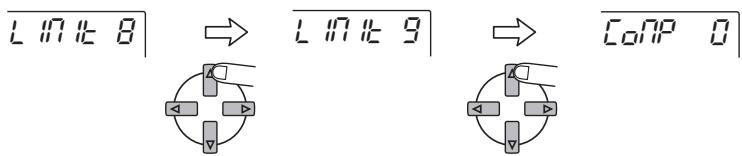
Pressing the left/right [PARAMETER/VALUE] keys changes directly to the next algorithm.
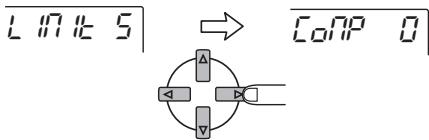
3. Press the [EXIT/NO] key.
The main screen returns.
HINT
Pressing the [MIXDOWN] and [SEND/RETURN] keys together turns the insert effect off. Pressing both keys once more together turns the insert effect on again, with the most recent setting in use.
2-3
Selecting and recording to a track
Record the guitar sound with insert effect on track 1, as follows.
1. Press the status key 1 repeatedly, until the key is lit in red.
The status keys 1 - 4 serve for selecting the recording track, and for controlling the mute on/off condition for the track. With each push of the status key, the setting changes as follows.

When the status key 1 changes from green to red, track 1 is in the recording standby condition. The input signal routing in this condition is as follows.
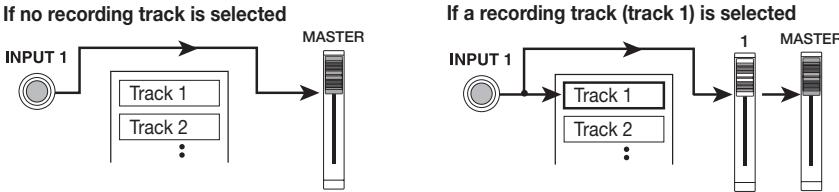
HINT
Up to two tracks (tracks 1/2 or tracks 3/4) can be selected for recording simultaneously.
2. While playing your instrument, operate fader 1 of the MRS-4 or the volume control of the monitor system to adjust the monitoring level.
The setting of fader 1 has no effect on the recording level.
3. To use the metronome function, press the [METRONOME] key so that the key lights up.
When the [METRONOME] key is lit, the internal metronome operates.
HINT
In the default condition of the song, the metronome is set to a 4/4 beat, tempo of 120 BPM, and a precount of 4 beats. These settings can be changed if desired. For details, see page 50.
4. To start recording, use the ZERO [<] key to return to the beginning of the song, and then press the PLAY [▶] key while holding down the REC [●] key.
The precount clicks are heard, and then recording on track 1 starts. The REC [] key and PLAY [ ] key are lit. Play your guitar while using the metronome sounds as a guide.
![ZOOM MRS4 - To start recording, use the ZERO [<] key to return to the beginning of the song, and then press the PLAY [▶] key while holding down the REC [●] key. - 1](/content/2025/01/152286/images/5cd257f903ec14c157d9ed78fce1d18f9c87df451a7f05e6d8022ed30804759e.jpg)
5. When your guitar play is finished, press the STOP [■] key.
The REC [ ] key and PLAY [ ] key go out, and the recorder section stops. The display briefly shows "WAIT", and then the main screen reappears.
![ZOOM MRS4 - When your guitar play is finished, press the STOP [■] key. - 1](/content/2025/01/152286/images/3e2e219a7ebd6f596330ec4cf2d486ec476520fb3935c0444614cd012717c68a.jpg)
The length of the "WAIT" interval differs, depending on recording conditions.
6. To listen to the recording, use the ZERO [I] key to return to the beginning of the song, and then press the PLAY [▶] key.
The recorded track is played back.
![ZOOM MRS4 - To listen to the recording, use the ZERO [I] key to return to the beginning of the song, and then press the PLAY [▶] key. - 1](/content/2025/01/152286/images/44084bdd141b8dc11fc36e59256deb016fcec2566dc04cb526aad980740b6599.jpg)
- To turn the metronome off while checking the recording, press the [METRONOME] key so that the key is no longer lit.
- While the recorder is stopped, you can use the REW [←] key and FF [▶] key to move the current position in 0.1 second units. If you then press the PLAY [▶] key, playback starts from that position.
- The basic functions of the transport keys are explained below.
Basic functions of transport keys
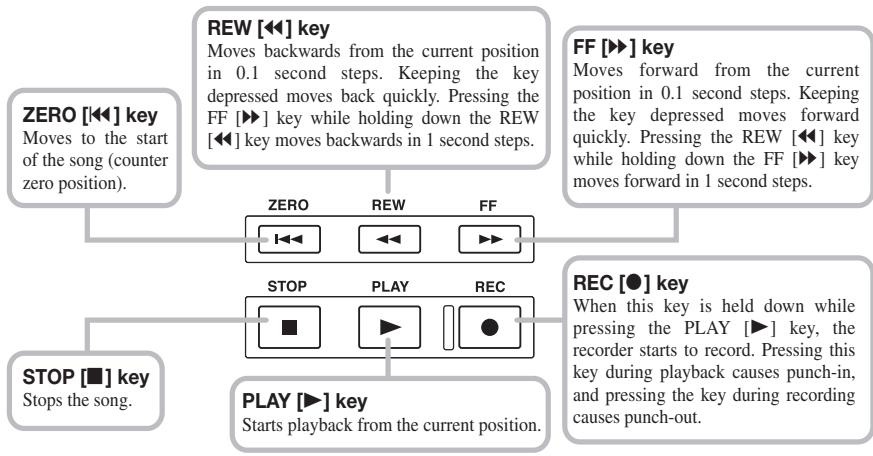
7. To stop playback, press the STOP [■] key.
To redo the recording, repeat steps 4 - 5.
8. Press the status key 1 so that the key is lit in green.
The recording condition of track 1 is turned off.
Step 3 Over dubbing
This section describes how to record another instrument on track 2 while listening to the guitar recorded in step 2 (track 1).
3-1 Adjusting input sensitivity and setting the insert effect
- Connect the instrument or mic to the [INPUT 1] jack.
- Press the [ON/OFF] key 1 so that the key lights up.
- While playing the instrument, use the [INPUT LEVEL] control 1 to adjust the input sensitivity.
- Press the [MIXDOWN] key and the [SEND/RETURN] key simultaneously, so that the keys are flashing in red.
- Select the algorithm and set the value as was done in step 2.
- Press the [EXIT/NO] key to return to the main screen.
3-2 Selecting a track and recording on it
Record the sound of the second instrument on track 2.
- Press the status key 2 repeatedly, until the key is lit in red. Make sure that status key 1 is lit in green.
This places track 2 into the recording standby condition. - Operate fader 2 to adjust the monitor level.
If necessary, perform playback and adjust faders 1 and 2 for optimum balance between track playback sound and input signal. - To use the metronome function, press the [METRONOME] key so that the key lights up.
- To start recording, use the ZERO [←] key to return to the beginning of the song, and then press the PLAY [▶] key while holding down the REC [●] key.
The precount clicks are heard, and then recording starts. The REC [●] key and PLAY [▶] key are lit. Play your guitar while listening to the playback sound of track 1 and the metronome.
- When recording is finished, press the STOP [■] key.
The display briefly shows "WAIT", and then the main screen reappears.
The length of the "WAIT" interval depends on setting conditions.
- To listen to the recording, use the ZERO [←] key to return to the beginning of the song, and then press the PLAY [▶] key.
The recorded tracks 1 and 2 are played back. If necessary, adjust faders 1 and 2 for optimum balance.
- To stop playback, press the STOP [■] key.
- Press the status key 2 so that the key is lit in green.
You can record more tracks in the same way.
Step 4 | Mixdown
When recording of tracks 1 - 4 is completed, you can adjust the level, EQ, and panning of each track to create the final stereo mix. This process is called mixdown.
When performing mixdown on the MRS-4, you can either record the completed song on an external master recorder, or on unused V-takes in the MRS-4. The example in this section explains how to record on an external master recorder.
4-1 | Preparations for mixdown
Connect the master recorder and make other preparations as follows.
- Connect a master recorder (MD or DAT or similar) to the MASTER [L]/[R] jacks.
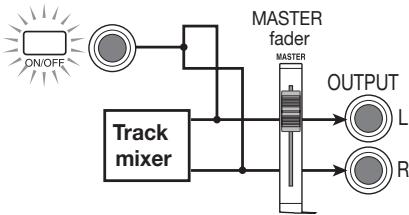
The connection principle for an external master recorder is shown below.
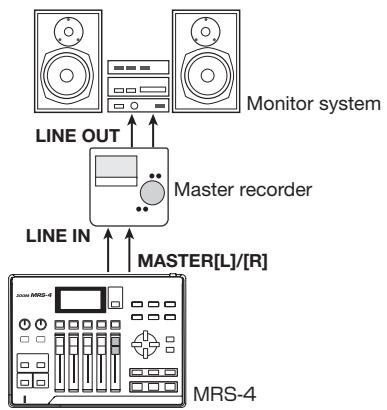
To listen to the final mix on the monitor system during mixdown, set the master recorder to monitor the input source. (For details, refer to the documentation of the master recorder.)
- Make sure that all status keys are lit in green.
- Set the [ON/OFF] keys 1/2 and the [METRONOME] key to OFF.
HINT
It is also possible to add the input signal from inputs 1/2 to the mix. In this case, set the desired [ON/OFF] key to ON ( P. 38).
4-2 Adjusting volume/pan/EQ
- Set the [MASTER] fader to 0 dB.
- While the main screen is shown, press the [TRACK PARAMETER] key.
The track parameter menu appears. With this menu, you can change the settings for individual tracks.
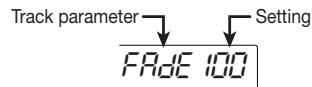
- Use the status keys 1 - 4 to select the track.
While the track parameter menu is shown, the status keys 1 - 4 serve for selecting a track. The status key for the currently selected track is lit in orange.
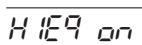
Selectable track parameters and settings are listed in the table below.
Track parameters and settings
| Parameter | Display | Setting range | Description |
| HI EQ ON/OFF | H EQ | ON/OFF | Switches high EQ on or off |
| HI EQ GAIN | H G | -12 - 12 | Adjusts high EQ boost/cut from -12 (dB) to +12 (dB). This parameter is only shown when HI EQ is set to ON. |
| HI EQ FREQUENCY | H F | 500 - 8000 (Hz) | Selects the frequency for high EQ boost/cut. This parameter is only shown when HI EQ is set to ON. |
| LO EQ ON/OFF | LoC | ON/OFF | Switches low EQ on or off |
| LO EQ GAIN | LoU | -12 - 12 | Adjusts low EQ boost/cut from -12 (dB) to +12 (dB). This parameter is only shown when LO EQ is set to ON. |
| LO EQ FREQUENCY | LoF | 63 - 2000 (Hz) | Selects the frequency for low EQ boost/cut. This parameter is only shown when LO EQ is set to ON. |
| SEND ON/OFF | SEnd | ON/OFF | Determines whether the signal from the respective channel (track) is sent to the send/return effect. |
| SEND LEVEL | SLUL | 0 - 100 | Adjusts the level of the signal sent to the send/return effect. This parameter is only shown when SEND is set to ON. |
| PAN | PAn | L50 - 0 - R50 | Adjusts panning (left/right position) of the signal from the respective track. When STL (stereo link) is set to ON, this adjusts the left/right volume balance of the stereo tracks. |
| FADER | FADe | 0 - 127 | Shows the current fader position numerically (display only). |
| STEREO LINK | SEL | ON/OFF | Controls the stereo link function for using tracks 1/2 and 3/4 in a stereo configuration. (For details, see page 39.) |
| V TAKE | Ex-y | x=1 - 4 y=1 - 8 | Selects the V-take to be used for the respective track. * x is the track number and y is the V-take number. (For details, see page 28.) |
4. Use the [PARAMETER/VALUE] keys to set the track parameters.
The left/right [PARAMETER/VALUE] keys select the parameter, and the up/down [PARAMETER/VALUE] keys change the setting value.
![ZOOM MRS4 - Use the [PARAMETER/VALUE] keys to set the track parameters. - 1](/content/2025/01/152286/images/791fb543475d3068d88a3cc0054f6a271cbb631be2aed1efac011e57f57e05a1.jpg)
![ZOOM MRS4 - Use the [PARAMETER/VALUE] keys to set the track parameters. - 2](/content/2025/01/152286/images/d0df696d48501e8fbcd563828092a451d5b6f0cb053574ed9959787851cf0820.jpg)
![ZOOM MRS4 - Use the [PARAMETER/VALUE] keys to set the track parameters. - 3](/content/2025/01/152286/images/4daafa17fafbcc6bb7b8c7883ceedd42f1f3251ac11e370a3e7b0d9380844c51.jpg)
HINT
When STL (stereo link) is ON, all parameters for tracks 1 and 2, and tracks 3 and 4 are linked, except for the V-take selection.

NOTE
The FADER parameter is only for display and cannot be changed. (When the respective fader is moved, the indication changes.)
4-3 Using the send/return effect
The track mixer incorporates a send/return effect with reverb/delay/chorus. The signal flow when using the send/return effect is as follows.
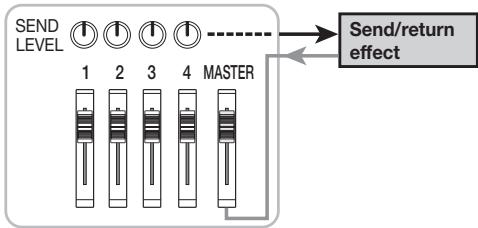
The intensity of the send/return effect can be adjusted for each track individually by adjusting the send level. Raising the level causes the effect to be more pronounced for that track. This example shows how to select the algorithm for the send/return effect and how to adjust the send level.
Setting the algorithm and parameter for the send/return effect
1. While the main screen is shown, press the [SEND/RETURN] key.
The [SEND/RETURN] key lights up and the send/return effect is activated. The menu for selecting the algorithm for the send/return effect appears on the display.
![ZOOM MRS4 - While the main screen is shown, press the [SEND/RETURN] key. - 1](/content/2025/01/152286/images/5ac9fad164af036a692de11597e2c5a473d29e92a71dd08a7cd3d9a7a2d16cc3.jpg)
For the send/return effect, you can select a reverb, delay, or chorus type algorithm. Each type has one parameter (an element for adjusting the action of the effect) that allows a more finely graded adjustment than the send level. Available algorithms and parameters are listed in the table on page 22 - 23.
Send/return effect algorithms and parameters
| Algorithm 1 (HALL 0-HALL 9) | ||
| HALL 0 ↑ HALL 9 | This is a stereo effect that adds hall type reverberation. Higher settings produce longer rever time. | |
| Parameter (TONE 0-TONE 10) | ||
| tone 0 ↑ tone 0 | Adjusts the rever tone. Higher settings produce stronger treble boost. (5 is the flat setting.) | |
| Algorithm 2 (ROOM 0-ROOM 9) | ||
| roa# 0 ↓ roa# 9 | This is a stereo effect that adds room type reverberation. Higher settings produce longer rever time. | |
| Parameter (TONE 0-TONE 10) | ||
| tone 0 ↓ tone 0 | Adjusts the rever tone. Higher settings produce stronger treble boost. (5 is the flat setting.) | |
| Algorithm 3 (DOUBLE0-DOUBLE9) | ||
| doble 0 ↓ doble 9 | This is a mono doubling delay which adds a slightly delayed component to the original sound, giving the sound more body. Higher settings produce more delayed components. | |
| Parameter (TIME 2-TIME 50) | ||
| tine 2 ↓ tine 50 | Adjusts the delay time in the range from 2-50 ms. | |
| Algorithm 4 (SHORT 0-SHORT 9) | ||
| SHORT 0 ↓ SHORT 9 | This is a mono short delay. Higher settings produce more delayed components. | |
| Parameter (TIME 50-TIME 250) | ||
| tine 50 ↓ tine 250 | Adjusts the delay time in the range from 50-250 ms. | |
| Algorithm 5 (LONG 0-LONG 9) | ||
| Long 0 ↓ Long 9 | This is a mono long delay. Higher settings produce more delayed components. | |
| Parameter (TIME 25-TIME 100) | ||
| tine 25 ↓ tine 100 | Adjusts the delay time in the range from 250 ms (setting value 25) - 1000 ms (setting value 100). | |
| Algorithm 6 (CHO MN) | ||
| CHO Mn | This is a mono chorus effect. A component whose pitch shifts cyclically up and down is added to the original sound, resulting in a wavering, expansive sound. | |
| Parameter (RATE 1 - RATE 50) | ||
| rATE ↑ ↓ rATE 50 | Adjusts the fluctuation rate. Higher values produce faster fluctuation. | |
| Algorithm 7 (CHO ST) | ||
| CHO St | This is a stereo chorus effect. The pitch of left and right components are shifted upside down, resulting in a unique, expansive sound. | |
| Parameter (RATE 1 - RATE 50) | ||
| rATE ↑ ↓ rATE 50 | Adjusts the fluctuation rate. Higher values produce faster fluctuation. | |
2. Use the [PARAMETER/VALUE] keys to select the algorithm and the setting value.
The up/down [PARAMETER/VALUE] keys change the setting value. When the highest or lowest setting is reached, the unit switches to the next algorithm.
![ZOOM MRS4 - Use the [PARAMETER/VALUE] keys to select the algorithm and the setting value. - 1](/content/2025/01/152286/images/511459e46b87c9ddff86b3133a872ebbb0117faf146ac918541e34056d6159d1.jpg)
Pressing the left/right [PARAMETER/VALUE] keys changes directly to the next algorithm.
![ZOOM MRS4 - Use the [PARAMETER/VALUE] keys to select the algorithm and the setting value. - 2](/content/2025/01/152286/images/fbeca23b105efbddd6eecde02d315d34a2705ab3f68e1ffe6c8ebc9128c895d6.jpg)
3. To change the parameter of the currently selected algorithm, press the [ENTER/YES] key.
While the algorithm is displayed, pressing the [ENTER/YES] key calls up the parameter for that algorithm.
![ZOOM MRS4 - To change the parameter of the currently selected algorithm, press the [ENTER/YES] key. - 1](/content/2025/01/152286/images/65bc934a91af9d6d4261d8bdf56b9a4735f814992be269daf9a10d2cdf597736.jpg)
- To change the setting, use the up/down [PARAMETER/VALUE] keys.
![ZOOM MRS4 - To change the parameter of the currently selected algorithm, press the [ENTER/YES] key. - 2](/content/2025/01/152286/images/ca8785f81c11f734fbb52183c8f1503c2964533ff2c951e7bf38432e816b09b9.jpg)
- To return to the algorithm display, press the [EXIT/NO] key.
![ZOOM MRS4 - To change the parameter of the currently selected algorithm, press the [ENTER/YES] key. - 3](/content/2025/01/152286/images/fd939ed1c9f88da6035d2277d5e97b67df7a17514d3c02d979006fe9974f5f9b.jpg)
- When the algorithm and parameter setting for the send/return effect has been made, press the [EXIT/NO] key several times to return to the main screen.
HINT
The send/return effect setting is stored for each song separately.
Adjusting the send/return effect intensity for each track
- While the main screen is shown, press the [TRACK PARAMETER] key and then use the status keys 1 - 4 to select the track for which you want to make the setting.
- Use the left/right [PARAMETER/VALUE] keys to call up the SEND (send/return effect) parameter, and set it to ON.
$$ \overline {{S E n d o n}} $$
- Press the right [PARAMETER/VALUE] key once to call up the indication "SLVL" (send level).
$$ \begin{array}{c c} \hline S L W & 0 \ \hline \end{array} $$
-
While playing the song, use the up/down [PARAMETER/VALUE] keys to adjust the send level for that track.
-
Perform the same steps for other tracks.
4-4
Using the mixdown effect
The mixdown effect serves to process the stereo signal produced by the track mixer. This effect can be used simultaneously with the send/return effect. The signal flow is shown below.
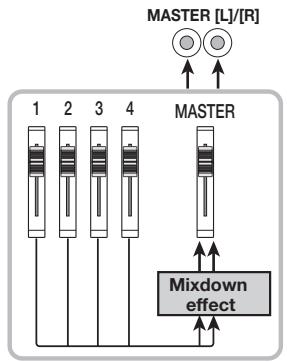
Proceed as follows to select the algorithm for the mixdown effect and adjust the effect intensity.
Selecting the algorithm for the mixdown effect
- While the main screen is shown, press the [MIXDOWN] key.
The [MIXDOWN] key lights up and the mixdown effect is activated. The menu for selecting the algorithm for the mixdown effect appears on the display.
$$ \overline {{P o b E r \Omega}} $$
Available algorithms for the mixdown effect are listed in the table on the next page.
Mixdown effect algorithms
| Algorithm 1 ( POWER 0 - POWER 9 ) | |
| Poder 0 Poder 9 | This effect adds fat bass and more power to the sound. Higher values produce more bass emphasis. |
| Algorithm 2 ( BOOST 0 - BOOST 9 ) | |
| booSt 0 ↓ booSt 9 | This effect produces a tight low end and crisp high end. Higher values produce more bass and treble boost. |
| Algorithm 3 ( VOCAL 0 - VOCAL 9 ) | |
| uORAL 0 ↓ uORAL 9 | This effect emphasizes the midrange, lending warmth and suppleness to vocals. Higher values produce more midrange emphasis. |
- While playing the song, use the [PARAMETER/VALUE] keys to adjust the algorithm.
The up/down [PARAMETER/VALUE] keys change the setting value. When the highest or lowest setting is reached, the unit switches to the next algorithm.
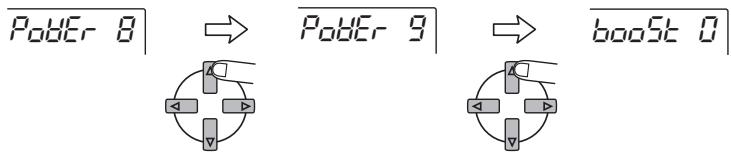
Pressing the left/right [PARAMETER/VALUE] keys changes directly to the next algorithm.
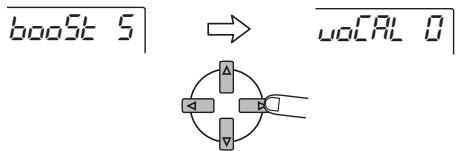
- Press the [EXIT/NO] key.
The main screen returns.
4-5
Recording on the master recorder
When the mixdown effect setting is completed, you are ready to record the final mix on the master recorder.
- Use the ZERO [4] key to return to the beginning of the song.
- Set the master recorder to the recording condition.
- Press the PLAY [▶] key.
- When the song has been completely recorded, stop the master recorder and the MRS-4.
- To check the recording, rewind the master recorder and play the recording from the beginning.

HINT

Whenever you make any changes to a song on the MRS-4, the song is automatically saved on the SmartMedia card.
Reference [Recorder]
This section describes various advanced functions and operations of the recorder section of the MRS-4.
Using V-takes
Each track 1 - 4 of the recorder contains eight virtual tracks called "V-takes". For each track, you can select one take, which will be used for recording and playback. For example, you can switch V-takes and record important passages such as vocal or guitar solos several times on the same track. Later you can compare them and select the best V-take.
To switch the V-take for a track, proceed as follows.
- While the main screen is shown, press the [TRACK PARAMETER] key.
The track parameter menu appears. - Use the status keys 1 - 4 to select the track you wish to switch.
- Use the left/right [PARAMETER/ VALUE] keys to bring the V-take indicator onto the display.
The track number and V-take number are shown at the top right of the display.
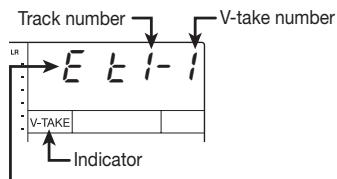
Indicates an empty V-take.
- Use the up/down [PARAMETER/ VALUE] keys to select the V-take number.
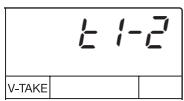
- Repeat steps 2 - 4 as required to switch V-takes for other tracks.
- Press the [EXIT/NO] key to return to the main screen.
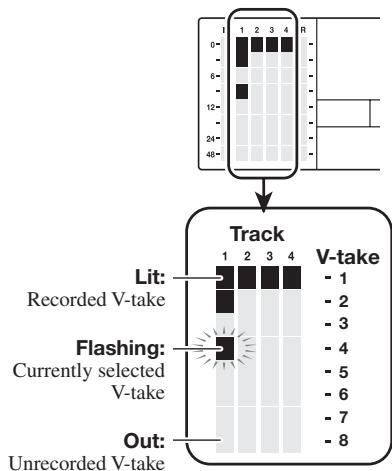
Combining multiple tracks (Bounce function)
"Bounce" is a function that mixes the recorded content of several tracks and records them on one or two tracks. This is sometimes also called "ping-pong recording". Even when all 4 tracks are recorded, the MRS-4 allows you to play them back simultaneously and bounce them onto currently unused V-takes.
For example, after bouncing 4 tracks onto 1 or 2 V-takes, switching the V-takes of the tracks allows you to listen to the bounce target tracks while overdubbing another instrument on the remaining tracks. Instead of using an external master recorder, it is also possible to perform mixdown onto two internal V-takes.
This section describes how to bounce the V-takes 1 of tracks 1 - 4 onto V-takes 8 of tracks 1 and 2.
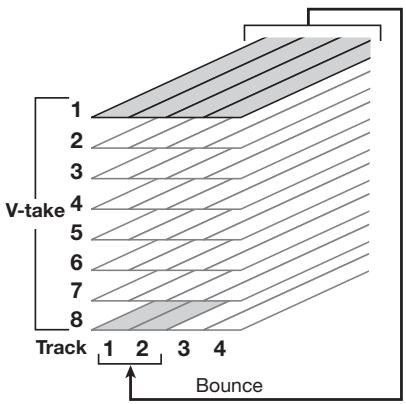
Specifying the bounce target V-take
- While the main screen is shown, press the [SONG/UTILITY/TUNER] key, and then use the left/right [PARAMETER/VALUE] keys to bring the indication "BOUNCE" onto the display.
bounCE
2. Press the [ENTER/YES] key.
The display changes as follows.
rEe Cr
At this screen, you can select the V-take of the bounce target track you plan to record to.
3. Use the up/down [PARAMETER/ VALUE] keys to select the V-take as follows.
CR (Current)
Record on currently selected V-take.
- 1-8 (V-take 1-8)
Record on the specified V-take.
In this example, let's select V-take 8.
E B
- Press the [EXIT/NO] key several times to return to the main screen.
Carrying out the bounce function
-
Adjust the level balance, pan, and EQ of tracks 1-4.
-
Press the [BOUNCE] key.
The [BOUNCE] key lights up and the bounce function is activated.
HINT
If desired, you can also use the send/return effect and mixdown effect during bounce. (For details, see page 21, 25.)
- On the main screen, press the status keys 1/2 for the bounce target tracks 1/2, so that the keys are lit in red.
Make sure that [ON/OFF] keys 1/2 and the [METRONOME] key are out. - Return to the beginning of the song, and then press the PLAY [▶] key while holding down the REC [●] key.
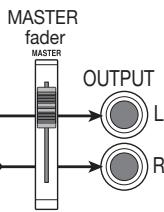
The mixed signal of tracks 1 - 4 is routed through the MASTER fader and recorded on the bounce target (V-takes 8 of tracks 1 and 2). The level meter L/R indication allows checking the level.
HINT
- When bouncing in stereo, the odd-numbered track of the bounce destination is automatically recorded as the left channel and the even-numbered track as the right channel.
- By setting the ON/OFF keys 1/2 to ON, it is possible to add the input signal from inputs 1/2 to the bounced signal.
-
The input signal from the AUX IN jacks and from the internal metronome is not recorded.
-
When recording is completed, stop the recorder.
The display briefly shows "WAIT".
NOTE
The length of the "WAIT" interval depends on setting conditions.
- On the target track, select the V-takes that were used as bounce targets, return to the beginning of the song, and check the recording.
At this time, the status keys of tracks 3/4 should be out, so that the tracks are muted.
To redo the bounce process, repeat steps 5 - 9.
NOTE
When playing back bounce target V-takes, the parameters previously set for that track will be active. Panning, EQ, and effect depth therefore may be different from the actual recording. To accurately monitor the content of the bounce target, reset the track parameter settings.
11. When the results are as desired, press the [BOUNCE] key so that the key goes out.
The bounce function is turned off.
Re-recording only a specified region (Punch-in/out function)
Punch-in/out is a function that lets you re-record just a specified region of a previously recorded track. The action of switching a track that is in play mode to record mode is called "punch-in", and the action of switching back from recording to playback is called "punch-out".
The MRS-4 provides two ways to do this. You can use the panel keys to punch-in/out manually ("manual punch-in/out"), or cause punch-in/out to occur automatically at previously specified points ("auto punch-in/out").
Using manual punch-in/out
This section describes how to use manual punch-in/out to re-record a region of a previously recorded track.
- Repeatedly press the status key of the track on which you want to punch-in/out, until the key is lit in red.
- Raise the fader of the corresponding channel to a suitable position.
- While playing the instrument connected to the input, adjust the input sensitivity.
If necessary, play back the recorder and use the faders of the mixer section to adjust the mix balance of your instrument and the playback of the tracks.
4. Move to a point several measures earlier than where you want to punch-in, and press the PLAY [▶] key to begin playback.
When the metronome is on and playback is started from a point midway in a song, no precount clicks are heard. Depending on the start position, the metronome sound may start within a beat.
5. When you come to the punch-in location, press the REC [●] key.
The REC [ ] key lights, and track recording begins from that location (punch-in).
6. When you come to the punch-out location, press the REC [●] once more.
The REC [ ] key goes out, and the unit switches from recording to playback (punch-out).
7. To stop the recorder, press the STOP [■] key.
The display briefly shows "WAIT".
NOTE
The length of the "WAIT" interval depends on setting conditions.
- To check the newly recorded content, move to the point of step 4, and press the PLAY [▶] key.
To redo punch-in/punch-out, repeat steps 4 - 7. - When the results are as desired, press the status key for that track so that the key lights in green.
Using auto punch-in/out
Auto punch-in/out is a function that lets you specify beforehand the region to be re-recorded. Punch-in will occur automatically when you reach the starting location (In point), and punch-out will occur automatically when you reach the ending location (Out point).
The procedure is as follows.
Setting the In/Out points
-
Move to the point at which you want to punch-in, and press the [AUTO PUNCH IN/OUT] key.
-
Repeatedly press the status key of the track on which you want to punch-in/out, until the key is lit in red.
- Raise the fader of the corresponding channel to a suitable position.
- While playing the instrument connected to the input, adjust the input sensitivity.
The [AUTO PUNCH IN/OUT] key flashes. This sets the "In point" at which recording will begin.
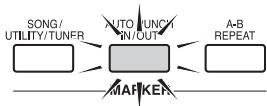
- Move to the point at which you want to punch-out, and press the [AUTO PUNCH IN/OUT] button once more.
This sets the "Out point" at which recording will end. The [AUTO PUNCH IN/OUT] button changes from flashing to constantly lit.
HINT
The In/Out points can also be set while the recorder is operating.
Carrying out auto punch-in/out
- Move to a point several measures earlier than the In point.
- Repeatedly press the status key of the track on which you want to punch-in/out, until the key is flashing in red.
- If you want to rehearse the auto punch-in/out, press only the PLAY [▶] key. To actually carry out auto punch-in/out, hold down the REC [●] key while pressing the PLAY [▶] key.
- If only PLAY [▶] key was pushed (rehearsal)
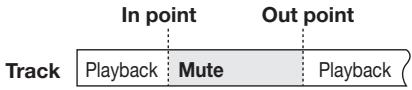
When the In point is reached, the track on which you are punching-in/out will be muted. When you reach the Out point, muting will be defeated. (You will always be able to monitor the input signal during this time.)
Performing this action will not record
anything on the track.
- If REC [●] key + PLAY [▶] key were pushed (actual operation)
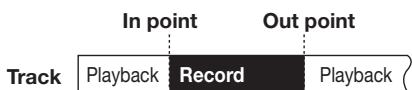
When the In point is reached, recording will begin automatically (punch-in). When the Out point is reached, recording will end automatically, and playback will resume (punch-out).
- When punch-in/out is complete, press the STOP [■] key.
The display briefly shows "WAIT".
NOTE
The length of the "WAIT" interval depends on setting conditions.
10. To listen to the recorded result, press the status key for the track on which you performed punch-in/out until the key is lit in green. Then move to a location earlier than the In point and press the PLAY [▶] key.
If you want to re-do the recording, repeat steps 6-9.
11. When the results are as desired, press the [AUTO PUNCH IN/OUT] key so that the key goes out.
The auto punch-in/out function is turned off, and the In point and Out point settings are discarded.
Reference [Locating a Point]
This section describes how to quickly move to any desired point in a song.
Moving to a desired point in a song (Locate function)
You can specify a location within the song in time units (minutes/seconds/milliseconds), and move to that location.
- While the main screen is shown, press the right [PARAMETER/ VALUE] key once.
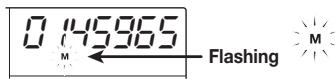
The indication "M" flashes on the display.
- Use the left/right [PARAMETER/ VALUE] keys to move the flashing indication.
To show the current position in minutes, "M" should be flashing. For indication in seconds, "S" should be flashing. For indication in milliseconds, "mS" should be flashing.
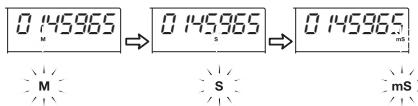
- Use the up/down [PARAMETER/ VALUE] keys to change the numerical indication for the currently selected unit.
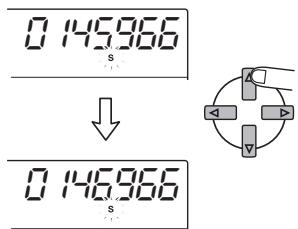
While holding down the key for one direction, pressing the key for the other direction will cause a rapid change.
When the numbers have been changed, the unit is at the corresponding song position. Pressing the PLAY [▶] key will start playback from that point.
- To return to the main screen, repeatedly press the left [PARAMETER/VALUE] key until the flashing stops.
Switching between time and measure indication
The current point can be shown on the display either as time or in measures.
- While the main screen is shown, press the left/right [PARAMETER/ VALUE] keys repeatedly until the measure and beat indication is shown on the display.
The display switches to measure indication (measure number/beat count). When the transport keys are used in this condition to move in the song, the measure number/beat count indication changes accordingly.
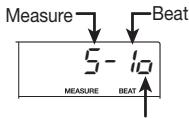
If the measure indication and time indication do not match, this symbol is shown.
NOTE
- The measure number and beat count shown here have been converted using the
metronome beat as reference. (For information on how to change the metronome beat and tempo, see page 50.)
-
This indication is for information only. The measure indication cannot be used to move to a point in the song.
-
To return to time indication, press the left [PARAMETER/VALUE] key once.
Marking a point in a song (marker function)
You can assign up to 50 marks in a song at any desired location, allowing you to quickly move to that point later. This is convenient when you want to play back repeatedly from a specific location.
Assigning a mark
To assign a mark at a location in a song, proceed as follows.
- Move to the point at which you want to assign a mark.
If necessary, you can specify the current point in minutes/seconds/milliseconds.

HINT

A mark can be assigned either during playback or when stopped.
- Press the [MARK/CLEAR] key.
A mark will be assigned to the current location, and the mark number is shown.
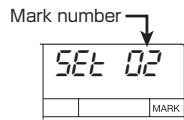
The mark number is assigned automatically in ascending order from 01 to 50. (The beginning of the song always corresponds to the mark number 00.) If you add a new mark between two existing marks, the subsequent marks will be renumbered.
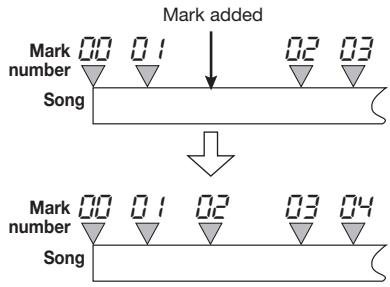
Moving to a mark location
Here's how to move to the location of a mark. This can be done in two ways: you can use key operations, or specify the mark number directly.
Using keys to move to a mark
- While the main screen is shown, press either the MARKER [▶] or the MARKER [▶] key.
Each time you press the key, the unit moves to the next mark before or after the current location.
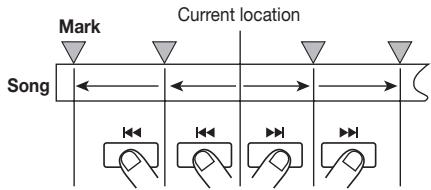
Specifying a mark directly
- While the main screen is shown, press the left [PARAMETER/ VALUE] key once.
The indication "MARK" flashes on the display, and the number of the nearest mark before the current location is shown.
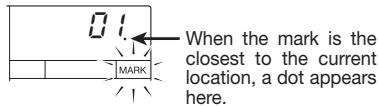
- Use the up/down [PARAMETER/ VALUE] keys to select the desired mark number.
As the mark number is changed, the unit also moves to that location.
Clearing a mark
You can clear (delete) an existing mark as follows.
- While the main screen is shown, press the left [PARAMETER/ VALUE] key once. Then use the up/down [PARAMETER/VALUE] keys to select the desired mark number.
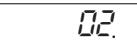

NOTE
If the mark position and the current position do not match, the mark cannot be deleted. If no dot is shown at the bottom right of the mark number, use the MARKER [I] / MARKER [▶] keys to bring the marker position and the current position to match.
2. Press the [MARK/CLEAR] key.
The selected mark is deleted, and the subsequent marks are renumbered.
![ZOOM MRS4 - Press the [MARK/CLEAR] key. - 1](/content/2025/01/152286/images/daffd7f20f53c8d5c6bc4a0c955e124c4dfdf521fe158c554fdf2799cb312f09.jpg)
![ZOOM MRS4 - Press the [MARK/CLEAR] key. - 2](/content/2025/01/152286/images/d7abed08d7e9c01f50f279ba9cdac16b162755645d59365f8a573372fe26bc69.jpg)
NOTE
- Once deleted, a mark cannot be restored.
- The mark number 00 that corresponds to the beginning of a song cannot be deleted.
Playing back the same passage repeatedly (A-B Repeat)
A-B Repeat is a function that repeatedly plays back a desired region of the song. This is useful when you want to listen to the same region repeatedly.
1. Move to the point at which you want to begin repeat playback, and press the [A-B REPEAT] key.
The [A-B REPEAT] key flashes, and the repeat start location (point A) is specified.
2. Move to the point at which you want to end repeat playback, and press the [A-B REPEAT] key.
The [A-B REPEAT] key will change from flashing to constantly lit, and the repeat end location (point B) will be specified.
HINT
- If you specify a point B that is located earlier than point A, the region from points B → A will be played repeatedly.
- If you want to redo the point A/B settings, press the [A-B REPEAT] key several times to make it go out, and then repeat steps 1 - 2.
- Point A/B setting can be done when the recorder is either stopped or playing.
3. To begin repeat playback, press the PLAY [▶] key.
Repeat playback will begin when you press the PLAY [▶] key while the [A-B REPEAT] key is lit. When the end point (normally point B) is reached, the recorder jumps to the start point (normally point A), and playback continues.
![ZOOM MRS4 - To begin repeat playback, press the PLAY [▶] key. - 1](/content/2025/01/152286/images/8ac84766ac8f6071bed0debfed6e0972fa635f43ab85602271f8fb014d92487f.jpg)
4. To stop repeat playback, press the STOP [■] key.
Even after pressing the STOP [■] key to stop playback, you can perform repeat playback again as many times as desired, as long as the [A-B REPEAT] key is lit.
5. To turn off repeat playback, press the [A-B REPEAT] key.
The [A-B REPEAT] key goes out, and repeat playback will be turned off.
![ZOOM MRS4 - To turn off repeat playback, press the [A-B REPEAT] key. - 1](/content/2025/01/152286/images/7921dd4b3dc9e394cf67c5f85848ba5b0455790eb1abf201628d9acaa96f1636.jpg)
HINT

You can use repeat playback together with the auto punch-in/out function. By setting points A and B outside the punch-in/out points, you can automatically have the recorder return to point A after punch-out and play back the recorded section for checking.
Reference [Mixing]
This section describes advanced mixing techniques using the input mixer and track mixer.
Assigning two inputs to a track
In the "Basic Operation" section, we learned how to record the signal from one input on one track. By using the input mixer, it is also possible to combine the signal from two inputs onto one track, or to record it on two tracks separately. The procedure is described below.
- Connect the instrument or microphone to be recorded to the [INPUT 1]/[INPUT 2] jacks.
- Set [ON/OFF] keys 1/2 to ON.
- While listening to the sound, operate the [INPUT LEVEL] controls 1/2 to adjust the input sensitivity.
The input level for each input can be checked separately on the display.
4. Repeatedly press the status key for the track on which you want to record, until the key is lit in red. The track is now in the recording standby condition.
The maximum number of tracks you can record to simultaneously is two. Only the combination of tracks 1/2 or tracks 3/4 is allowed.
The signal flow from the input mixer to the tracks depends on the track selection and the status of the [ON/OFF] keys 1/2, as shown in the illustrations.
- When only one recording track is selected
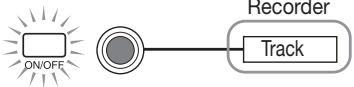
INPUT 1 or INPUT 2
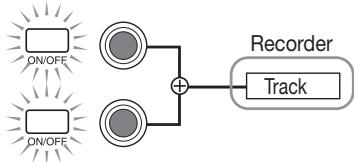
INPUT 1
INPUT 2
- When two recording tracks are selected (tracks 1/2 or tracks 3/4)
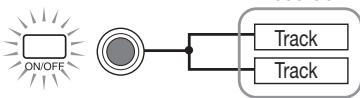
INPUT 1 or INPUT 2
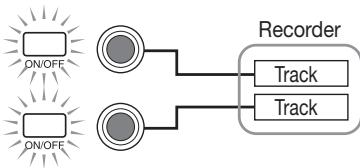
INPUT 1
INPUT 2
- When no recording track is selected
INPUT 1 or INPUT 2
INPUT 1

INPUT 2
Track
HINT
- When when the insert effect is used, the basic signal flow for inputs 1/2 remains same.
Depending on the selected insert effect algorithm, the level at input 1 and 2 may be watched simultaneously for operation in both channels, or inputs 1 and 2 may operate independently.
Adding the input signal to the mixdown
When performing mixdown, the input mixer can be used to add the signal from inputs 1/2 .
- Connect the master recorder to the MASTER [L]/[R] jacks and make the necessary preparations for mixdown ( p. 18).
- Connect the instrument or microphone to add to the mix to the [INPUT 1]/[INPUT 2] jacks.
- Set the [ON/OFF] keys 1/2 to ON.
- While listening to the sound, adjust the input sensitivity with the [INPUT LEVEL] controls 1/2.
- While the main screen is shown, press the [TRACK PARAMETER] key.
The track parameter menu for changing the settings for individual tracks appears.
6. Press the [ON/OFF] key 1 or 2 to select the input on which to operate.
Available parameters and their setting range are shown in the table below.
Input setting parameters and setting range
| Parameter | Display | Setting range | Description |
| SEND/RETURN | SEND | ON/OFF | Determines whether input signal is routed to send/return effect. |
| SEND LEVEL | SLCL | 0~100 | Adjusts signal level sent from input to send/return effect. Appears only if SEND parameter is set to ON. |
| PAN | PAN | L50~0~R50 | Adjusts panning (if only one input is active) or balance (if two inputs are active) for signal sent from input mixer to track and output. |
7. Use the [PARAMETER/VALUE] keys to adjust the parameter.
The left/right [PARAMETER/VALUE] keys serve for selecting the parameter and the up/down [PARAMETER/VALUE] keys for setting the value.
![ZOOM MRS4 - Use the [PARAMETER/VALUE] keys to adjust the parameter. - 1](/content/2025/01/152286/images/ea7d288ab3eda207020869512e9600ad03110fa5bf32937488be999454dd8347.jpg)
NOTE
- When wishing to use the send/return effect, press the [SEND/RETURN] key to set it to ON, and then select the algorithm and parameter ( p. 21).
- When a signal is sent from the input mixer to the send/return effect, only the signal output from the MASTER [L]/[R] jacks reflects the effect. The effect has no influence on the signal recorded on the track.
8. When preparations are complete, play the instrument and perform mixdown.
The input 1 / 2 signal is mixed to the track 1 - 4 signal and sent to the master recorder. It is also possible to apply the mixdown effect to the mixed signal.

HINT
When bouncing the signal onto internal V-takes, the input signal can also be mixed in as described above.
Linking two tracks (stereo link function)
This function allows you to link two tracks in the track mixer, so that their parameters (except the V-take selection) are adjusted in sync. This is convenient to control stereo material that was recorded on two tracks.
1. While the main screen is shown, press the [TRACK PARAMETER] key.
The track parameter menu appears.
- Use the status keys 1 - 4 to select one of the two tracks you want to link.
- Use the left/right [PARAMETER/ VALUE] keys to call up the STL (stereo link) parameter.
SCL OF
- Use the up/down [PARAMETER/ VALUE] keys to set the STL parameter to ON.
5tL on
When status key 1 or 2 was pressed in step 2, tracks 1 and 2 are linked. When status key 3 or 4 was pressed, tracks 3 and 4 are linked. When two tracks are linked, the following applies.
- When the stereo link is activated, the PAN parameter is set to 0 for both tracks. The values for all other track parameters (except V-take selection) are copied from the odd-numbered track to the even-numbered track.
- When the parameter in one track is changed, the parameter of the other track also changes accordingly (except V-take selection).
- When the fader for the odd-numbered track is operated, the level in both tracks changes. (The fader of the even-numbered track is inactive.)
- The PAN parameter operates as a BALANCE parameter that adjusts the level balance between the two (left and right) channels.
- To cancel the stereo link, set the STL parameter to OFF.
Reference [Track Editing]
The audio data recorded on the tracks of the recorder can be edited in a variety of ways, including erasing portions or copying. This section explains the track editing functions.
Copying a specified region of data to another location
A specified region of recorded data can be copied to any location in any track. The data that was previously at the copy destination will be erased and overwritten by the copy source data.
- While the main screen is shown, press the [SONG/UTILITY/TUNER] key.
The display will show the song number.
- Press the right [PARAMETER/VALUE] key once to bring up the indication "tr Edit" (track edit) on the display. Then press the [ENTER/YES] key.
The first item of the track edit menu appears.
$$ \boxed {t r \underline {{C o P y}}} $$
- Make sure that the display indicates "tr COPY" and press the [ENTER/ YES] key.
The screen for specifying the copy source track and V-take appears.
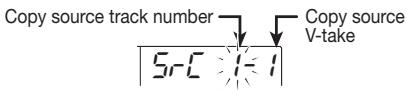
- Use the [PARAMETER/VALUE] keys to specify the copy source track and V-take.
In "Src x-y", "x" is the copy source track number and "y" is the V-take number. Use the left/right [PARAMETER/VALUE] keys to move the flashing section, and use the
up/down [PARAMETER/VALUE] keys to change the number.
- Press the [ENTER/YES] key.
The screen for specifying the start point of the copy source appears.
103560
- Use the [PARAMETER/VALUE] keys to specify the copy source start point.
The start location can be specified in two ways.
- Specifying the start point using time units
Press the right [PARAMETER/VALUE] key until the desired time unit indication ("M" = minutes, "S" = seconds, "MS" = milliseconds) is flashing at the bottom of the display. Then use the up/down [PARAMETER/VALUE] keys to change the numeric value. You can also use the ZERO [▶] key, REW [▶] key, and FF [▶] key to move the position (but playback is not possible).
- Specifying the start point using a preset mark
Press the left [PARAMETER/VALUE] key once to bring up the mark number display (MARK indicator flashes). Then use the up/down [PARAMETER/VALUE] keys to specify the mark number. You can also use the MARKER [▶]/MARKER [▶] keys.
- When you have specified the start point, press the [ENTER/YES] key.
The screen for specifying the end point of the copy source appears.
105560
- Specify the end point in the same way as described in step 6.
- When you have specified the end point, press the [ENTER/YES] key.
The screen for specifying the copy destination track and V-take appears. - Specify the copy destination track and V-take in the same way as described in step 4.
- Specify the copy destination start point in the same way as described in step 6.
The display changes as follows.
yE5 no - To execute the copy, press the [ENTER/YES] key.
While the copy is in progress, the remaining time is shown on the display as a percentage, such as "doinG90". When the copy is complete, the "tr Edit" screen returns.
The length of the processing interval depends on setting conditions.
By pressing the [EXIT/NO] key instead of the [ENTER/YES] key, you can return to the display of the preceding step and make changes.


NOTE
Copying the data of an entire track
The recorded data of an entire track can be copied to another track. The recorded data at the copy destination will be erased, and overwritten by the copy source data.
- While the main screen is shown, press the [TRACK PARAMETER] key.
The track parameter menu appears. - Use the status keys 1 - 4 to select the copy source track. Then use the left/right [PARAMETER/VALUE] keys to call up the screen for selecting the V-take.
The track number and V-take number are shown.
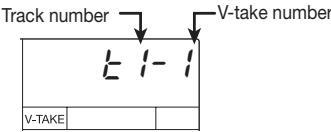
- Press the [ENTER/YES] key.
The display changes as follows.
ERASE
- Press the right [PARAMETER/ VALUE] key once to bring up the indication "CoPy" on the display. Then press the [ENTER/YES] key.
The copy source track number and V-take number are shown. (In the initial condition, this is the V-take currently set for the track selected in step 2.)
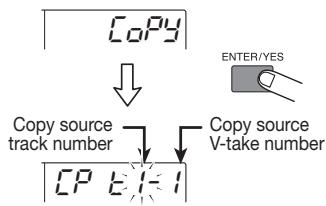
- If necessary, specify the track number and V-take number, and press the [ENTER/YES] key.
Use the left/right [PARAMETER/VALUE] keys to move the flashing section, and use the up/down [PARAMETER/VALUE] keys to change the number. You can also specify a V-take that is currently not selected for the track.
When you press the [ENTER/YES] key, the copy destination track number and V-take number are shown.
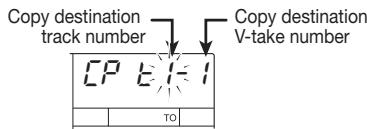
- Specify the copy destination track and V-take in the same way as described in step 5.
- Press the [ENTER/YES] key.
The display changes as follows.
yes no
- To execute the copy, press the [ENTER/YES] key.
While the copy is in progress, the remaining time is shown on the display as a percentage, such as "doinG90". When the copy is complete, the V-take selection screen returns.

NOTE
The length of the processing interval depends on setting conditions.
By pressing the [EXIT/NO] key instead of the [ENTER/YES] key, you can return to the display of the preceding step and make changes.
Erasing a specified segment
This operation erases the recorded data from the specified segment of a track, returning it to a silent (blank) state.
- While the main screen is shown, press the [SONG/UTILITY/TUNER] key.
The display will show the song number. - Press the right [PARAMETER/ VALUE] key once to bring up the indication "tr Edit" (track edit) on the display. Then press the [ENTER/YES] key.
The first item of the track edit menu appears.
Tr [oPy]
- Press the right [PARAMETER/ VALUE] key once to bring up the indication "tr Ers" (track erase) on the display. Then press the [ENTER/YES] key.
The screen for specifying the track and V-take to erase appears.
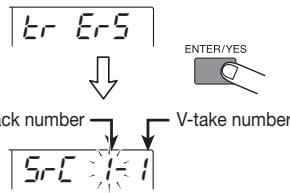
- Use the [PARAMETER/VALUE] keys to specify the track and V-take to erase.
Use the left/right [PARAMETER/VALUE] keys to move the flashing section, and use the up/down [PARAMETER/VALUE] keys to change the number.
- Press the [ENTER/YES] key.
A screen will appear that allows you to set a start point for the erase action.
03560
- Use the [PARAMETER/VALUE] keys to specify the start point for the segment to be erased.
The start location can be specified in two ways.
For information on how to specify the position, see page 40.
- When you have specified the start point, press the [ENTER/YES] key.
A screen will appear that allows you to set the end point for the erase action.
05560
- Specify the end point in the same way as described in step 6.
- When you have specified the end point, press the [ENTER/YES] key.
The display changes as follows.
yes no
- To execute the erase process, press the [ENTER/YES] key.
While erasing is in progress, the remaining time is shown on the display as a percentage, such as "doinG90". When the copy is complete, the "tr Edit" screen returns.

NOTE
The length of the processing interval depends on setting conditions.
By pressing the [EXIT/NO] key instead of the [ENTER/YES] key, you can return to the display of the preceding step and make changes.
Erasing an entire track
This operation erases all recorded data from the specified track/V-take.
- While the main screen is shown, press the [TRACK PARAMETER] key.
The track parameter menu appears. - Use the status keys 1 - 4 to select the track to be erased. Then use the left/right [PARAMETER/VALUE] keys to call up the screen for selecting the V-take.
The track number and V-take number are shown.

- Press the [ENTER/YES] key.
The display changes as follows.
ERASE
- Press the [ENTER/YES] key.
The track number and V-take number to be erased are shown. (In the initial condition, this is the V-take currently set for the track selected in step 2.)
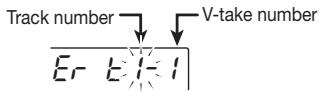
- If necessary, specify the track number and V-take number, and press the [ENTER/YES] key.
Use the left/right [PARAMETER/VALUE] keys to move the flashing section, and use the up/down [PARAMETER/VALUE] keys to change the number. You can also specify a V-take that is currently not selected for the track.
When you press the [ENTER/YES] key, the display changes as follows.
YES no
- To execute the erase process, press the [ENTER/YES] key.
While erasing is in progress, the remaining time is shown on the display as a percentage, such as "doinG90". When the copy is complete, the "tr Edit" screen returns.

NOTE
The length of the processing interval depends on setting conditions.
By pressing the [EXIT/NO] key instead of the [ENTER/YES] key, you can return to the display of the preceding step and make changes.
Exchanging the data of entire tracks
You can exchange the recorded data of two specified tracks.
- While the main screen is shown, press the [TRACK PARAMETER] key.
The track parameter menu appears.
- Use the status keys 1 - 4 to select the exchange source track. Then use the left/right [PARAMETER/ VALUE] keys to call up the screen for selecting the V-take.
The track number and V-take number are shown.
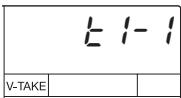
- Press the [ENTER/YES] key.
The display changes as follows.
ERASE
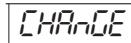
- Press the right [PARAMETER/ VALUE] key two times to bring up the indication "CHAnGE" on the display. Then press the [ENTER/ YES] key.
The track number and V-take number to be used as exchange source are shown. (In the initial condition, this is the V-take currently set for the track selected in step 2.)


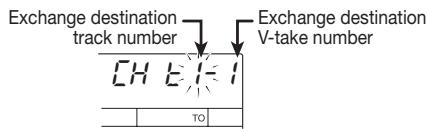
Exchange source track number
Exchange source V-take number
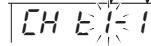
- If necessary, specify the track number and V-take number, and press the [ENTER/YES] key.
Use the left/right [PARAMETER/VALUE] keys to move the flashing section, and use the up/down [PARAMETER/VALUE] keys to change the number. You can also specify a V-take that is currently not selected for the track.
When you press the [ENTER/YES] key, the exchange destination track number/V-take number are shown.
-
Use the [PARAMETER/VALUE] keys to specify the exchange destination track and V-take.
-
Press the [ENTER/YES] key.
The display changes as follows.
yES no
- To execute the exchange process, press the [ENTER/YES] key.
While exchange is in progress, the remaining time is shown on the display as a percentage, such as "doinG90". When the copy is complete, the V-take selection screen is shown.
By pressing the [EXIT/NO] key instead of the [ENTER/YES] key, you can return to the display of the preceding step and make changes.
Reference [Song Functions]
This section describes how to create a new song, how to read in an existing song, and how to perform other song related operations.
Song menu basic functions

The song menu that appears when you press the [SONG/UTILITY/TUNER] key lets you perform various song related functions. The basic operation principles described below are similar for most items.
1. While the main screen is shown, press the [SONG/UTILITY/TUNER] key.
The number of the currently selected song (01 - 15) appears on the display. This is the top screen of the song menu.
2. Press the [ENTER/YES] key.
The first item of the song menu appears.
![ZOOM MRS4 - Press the [ENTER/YES] key. - 1](/content/2025/01/152286/images/fada90ba66986e01c606d560801a4eda01af1a06fbbc2e39a4f6889642173480.jpg)
3. Use the left/right [PARAMETER/ VALUE] keys to call up the desired item.
The song menu has the following items.
Song menu items
| Item | Display | Description |
| SONG NEW | SnC nED | Create a new song |
| SONG SELECT | SnC SEL | Read in an existing song. |
| SONG CAPACITY | CAPC 4y | Show the remaining recording capacity based on the currently selected recording grade setting. |
| SONG COPY | SnC0py | Copy the contents of an entire song to an empty song. |
| SONG DELETE | SnC del | Delete an existing song. * This item does not appear if the currently selected song is protected. |
| SONG PROTECT | Protect | Protect a song from accidental deletion or overwriting. |
| SONG GRADE | CrAe | Set the recording grade (sound quality). * This item does not appear for songs that are already recorded. |
4. Press the [ENTER/YES] key.
The screen for the item selected in step 3 appears.
The subsequent steps differ for each item. For details, see the following section.
Song menu items
Operation steps for the various song items are described here.
Creating a new song (SONG NEW)
To create a new song on the SmartMedia card, proceed as follows.
1. Select "SnG nEW" on the song menu, and press the [ENTER/YES] key.
The indication "YES NO" appears on the display.
yes no
![ZOOM MRS4 - Select "SnG nEW" on the song menu, and press the [ENTER/YES] key. - 1](/content/2025/01/152286/images/a1a2f3c299c68b87f22c8e52fc897345b396bfc9b89e53f4c5faef1560123b80.jpg)
NOTE
The maximum number of songs that can be stored on one SmartMedia card is 15 (song numbers 01 - 15), provided that there is enough capacity. If there are no more empty song numbers, the indication "SnG FUL" is shown on the display, and this item cannot be selected.
2. Press the [ENTER/YES] key.
A new song is created, and the main screen returns. The lowest available song number is automatically assigned to the song.
Reading in an existing song (SONG SELECT)
To read in an existing song from the SmartMedia card, proceed as follows.
1. Select "SnG SEL" on the song menu, and press the [ENTER/YES] key.
The display changes as follows.
![ZOOM MRS4 - Select "SnG SEL" on the song menu, and press the [ENTER/YES] key. - 1](/content/2025/01/152286/images/b12992dc773e2eb7ed479a820b6938e0437e2724fb09c1d9cb4e6ee0aa20efda.jpg)
2. Use the up/down [PARAMETER/ VALUE] keys to select the song number.
Only songs with recorded data can be selected.
3. Press the [ENTER/YES] key.
The song is read into the memory of the MRS-4, and the main screen returns.
Checking the remaining recording time (SONG CAPACITY)
To check the remaining recording time for the currently selected song, proceed as follows.
1. Select "CAPACity" on the song menu, and press the [ENTER/YES] key.
The remaining recording capacity of the song (calculated for monaural tracks) is shown on the display.
![ZOOM MRS4 - Select "CAPACity" on the song menu, and press the [ENTER/YES] key. - 1](/content/2025/01/152286/images/287970a8361f68f6a3d48a3d48e085477a6e5279be382bbee59f0e8bb45a4682.jpg)
![ZOOM MRS4 - Select "CAPACity" on the song menu, and press the [ENTER/YES] key. - 2](/content/2025/01/152286/images/14a445900a5c55f2c9b22e822d499a86631abd827eb28969fb7f1941584e53cb.jpg)
NOTE
-
This display is for reference only. It cannot be changed.
-
The capacity depends on the selected recording grade.
-
To return to the song menu, press the [EXIT/NO] key.
Copying a song (SONG COPY)
To copy the entire contents of the currently selected song into an empty song number, proceed as follows.
- Select "SnGCopy" on the song menu, and press the [ENTER/YES] key.
- Use the up/down [PARAMETER/ VALUE] keys to select the destination song number.
Only empty song numbers can be selected.
- Press the [ENTER/YES] key.
The indication "YES NO" appears on the display.
yE5 no
- To carry out the copy, press the [ENTER/YES] key.
When copying is completed, the song menu appears again. By pressing the [EXIT/NO] key instead of the [ENTER/YES] key, you can return to the display of the preceding step and make changes.
Deleting a song (SONG DELETE)
To delete the entire contents of a song on the SmartMedia card, proceed as follows.
- Select "SnG dEL" on the song menu, and press the [ENTER/YES] key.
The number of the signal that will be deleted appears on the display.
DEL 01
NOTE
If the currently selected song is protected, the "SnG dEL" menu item does not appear. Turn protection off first ( p. 49).
2. Use the left/right [PARAMETER/ VALUE] keys to select the number of the song you want to delete.
Numbers of protected songs or songs with no data do not appear.
3. Press the [ENTER/YES] key.
The indication "YES NO" appears on the display.
4. To carry out the deletion, press the [ENTER/YES] key.
When deletion is completed, the song menu appears again. (If the current song was deleted, the song with the lowest number is read in.) By pressing the [EXIT/NO] key instead of the [ENTER/YES] key, you can return to the display of the preceding step and make changes.
Protecting a song (SONG PROTECT)
You can protect the currently selected song, so that no further recording or editing is possible. When a song is protected, you can still change effects or parameters, but you cannot store the results on the SmartMedia card.
- From the song menu, select "ProtECT" and press the [ENTER/YES] key.
The current protection on/off status is shown on the display.
PRT aFF
- Use the up/down [PARAMETER/ VALUE] keys to switch the protection status between on and off.
Prt on
By pressing the [EXIT/NO] key you can return to the preceding screen.
Selecting the recording grade (SONG GRADE)
Before starting to record a song, you can select the recording grade from the following two choices.
HiFi: High-quality recording for best sound
- LONG: Slightly lower quality recording for longer recording time

HINT
The default setting when you start a new song is HiFi. If you have not started to record yet, you can switch to LONG.
- From the song menu, select "GrAdE".
An indicator on the display shows the currently selected grade (HiFi or LONG).
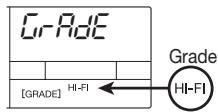

NOTE
It is not possible to change the grade setting for a song after you have recorded anything. Therefore this item does not appear for recorded songs.
- Use the up/down [PARAMETER/ VALUE] keys to select the grade setting.
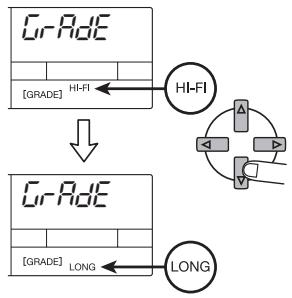
- Press the [ENTER/YES] key.
The indication "YES NO" appears on the display.
YES no
- To carry out the grade setting, press the [ENTER/YES] key.
When the setting is completed, the song menu appears again. By pressing the [EXIT/NO] key instead of the [ENTER/YES] key, you can return to the display of the preceding step and make changes.
Reference [Metronome/MIDI]
This section describes how to make metronome settings and how to synchronize operation of the MRS-4 with other MIDI devices.
Basic metronome settings
You can set the metronome tempo, time signature, volume, and precount.
- While the main screen is shown, press the [SONG/UTILITY/TUNER] key.
The number of the currently selected song appears on the display.
SonGO1
- Use the left/right [PARAMETER/ VALUE] keys to bring the indication "MEtro" (metronome menu) onto the display.
NEtro
- Press the [ENTER/YES] key.
The first item of the metronome menu is shown.
Metronome items and setting range
| Item | Display | Setting range | Description |
| LEVEL | LUL | 0 - 15 | Adjusts the metronome level. |
| BPM (Tempo) | BPN | 40.0 - 250.0 | Adjusts the metronome tempo. |
| SIGNATURE (Time signature) | S iU | 0-4 - 8-4 | Sets the metronome time signature. The setting range is 0/4 to 8/4. |
| PRECOUNT | P-Cnt | oF, 2 - 8 | Sets the number of beats for the precount. Available settings are oF (no precount) and 2 - 8 beats. |
LUL 10
- Use the left/right [PARAMETER/ VALUE] keys to select the item, and use the up/down [PARAMETER/ VALUE] keys to change the setting value.
Available items and their setting range are shown in the table below.
- When the setting is complete, press the [EXIT/NO] key several times to return to the main screen.
HINT
The metronome time signature and tempo settings serve as reference for the measure/time signature information shown on the display of the MRS-4, as well as for the position information and clock information provided to external MIDI devices.
When you press the PLAY [▶] key at the metronome menu, the metronome sound only is heard. This is convenient for checking the tempo and level.

HINT
When the metronome is on and playback is started from a point midway in a song, no precount clicks are heard. Depending on the start position, the metronome sound may start partly through a beat.
Functions available with MIDI
MIDI (Musical Instrument Digital Interface) is a standard that allows various types of messages such as playing and timing information to be exchanged between devices such as electronic musical instruments and computers.
The MRS-4 supports MIDI, and can transfer the following messages to another MIDI-compatible device via the [MIDI OUT] connector located on the rear panel.
- Timing clock
Timing information used for synchronization of MIDI devices such as rhythm machines and MIDI sequencers. The internal metronome of the MRS-4 divides a quarter note into 24 ticks and sends this as a timing signal.
- Song position pointer
A message that specifies the current location in measures and beats, counted from the start of the song. The measure and beat count uses the time signature of the internal metronome as a reference.
- Start/Stop/Continue
Message that controls transport movements of a device.
By sending the above kinds of messages for example to a rhythm machine or MIDI sequencer, the external device can be synchronized to the song of the MRS-4.

NOTE
The MRS-4 supplies the above MIDI messages at all times. When not wishing to receive these at an external device, disconnect the MIDI cable.
Synchronizing an external device to the MRS-4
You can synchronize operation of an external MIDI device such as a rhythm machine or MIDI sequencer to the song of the MRS-4.
- Connect the MIDI IN connector of the other device to the [MIDI OUT] connector of the MRS-4. (For information on connections, see page 8.)
- Set the rhythm machine, MIDI sequencer, or other MIDI device to synchronize with an external MIDI clock.
For details, refer to the documentation of the rhythm machine, MIDI sequencer, or other MIDI device.
- Set the metronome tempo and time signature setting of the MRS-4 as required for the music piece that you want to synchronize.
When synchronizing an external device to the MRS-4, the measure/beat position information is referenced to the internal metronome of the MRS-4. Therefore a matching setting should be used. (For information on how to make metronome settings, see page 50.)
4. Return to the start position of the MRS-4 song, and start playback.
When the precount is finished, a start message is sent to the external device, and the device operates in sync with the MRS-4. When the song is stopped at the MRS-4, the external device is also stopped.

HINT
When the song is stopped midway, a song position pointer indicating the current position is sent. Consequently, provided that the metronome time signature setting matches, the external device will start playback from the same position even if playback of the song at the MRS-4 is started midway.
Reference [Other Functions]
This section describes other convenient functions of the MRS-4.
Using the tuner
The MRS-4 has a built-in chromatic tuner that can be used when tuning an instrument connected to the [INPUT 1]/[INPUT 2] jacks. To use the tuner, proceed as follows.
- Connect the instrument to the [INPUT 1]/[INPUT 2] jack and set the appropriate [ON/OFF] key 1/2 to ON.
- While the main screen is shown, press the [SONG/UTILITY/TUNER] key.
The number of the currently selected song is shown.
3. Use the left/right [PARAMETER/ VALUE] keys to call up the indication "tunEr" on the display, and then press the [ENTER/YES] key.
The tuner function is turned on, and the tuner reference pitch value is shown on the display. In this condition, all effects are bypassed (temporarily turned off).
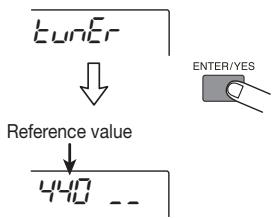

During playback of a song, the tuner function cannot be used.
4. Play a single note on the instrument.
The nearest note to the one you played is shown on the display. An indicator to the right of the pitch shows by how much the pitch is off.
Note names
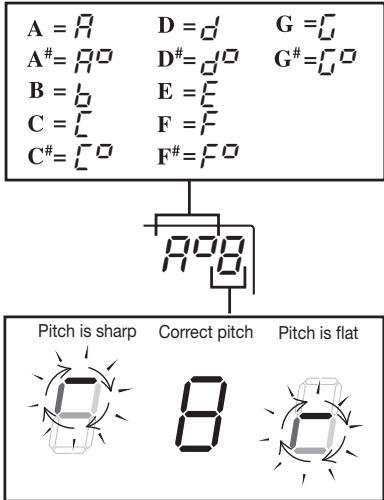
The more the pitch is off, the faster the indicator rotates.
- Tune your instrument until the note indication shows that the note is matched.
- To change the reference pitch of the tuner, use the up/down [PARAMETER/VALUE] keys.
The default setting is A = 440Hz . The adjustment range is 435 - 445Hz

- When tuning is complete, press the [EXIT/NO] key several times to return to the main screen.
Formatting a SmartMedia card
Before starting to use an off-the-shelf SmartMedia card (designed for 3.3V capacity 16 - 128MB ), you must first format it in the MRS-4 as follows.
- While the MRS-4 is turned off, insert the unformatted SmartMedia card into the card slot on the front panel ( P.5).
- Turn power to the MRS-4 on.
The MRS-4 starts up.

Also when an unformatted SmartMedia card is inserted, the MRS-4 is operative, but when you try to activate a transport function, the indication "noCARD" appears.
- While the main screen is shown, press the [SONG/UTILITY/TUNER] key, and then use the left/right [PARAMETER/VALUE] keys to bring the indication "CArg" (card menu) onto the display.

4. Press the [ENTER/YES] key two times.
The display changes as follows.
![ZOOM MRS4 - Press the [ENTER/YES] key two times. - 1](/content/2025/01/152286/images/038fb8bb77b41bf624ce6e6573654b028f138f6914e803a0c02b5d183538bd0a.jpg)
5. To execute the formatting process, press the [ENTER/YES] key.
Formatting starts. When formatting is completed, the card menu appears again. Press the [EXIT/NO] key several times to return to the main screen.
By pressing the [EXIT/NO] key instead of the [ENTER/YES] key, you can return to the display of the preceding step and make changes.
Display adjustments

HIN
When operating the MRS-4 on battery power, switching the backlight off will result in longer battery life.
You can adjust the display contrast and control the backlight as follows.
-
While the main screen is shown, press the [SONG/UTILITY/TUNER] key, and then use the left/right [PARAMETER/VALUE] keys to bring the indication "Lcd" onto the display.
-
When the setting is complete, press the [EXIT/NO] key several times to return to the main screen.
-
Press the [ENTER/YES] key.
The first item of the LCD menu is shown.
- Use the left/right [PARAMETER/ VALUE] keys to select the item, and use the up/down [PARAMETER/ VALUE] keys to adjust the setting value.
Available items and their setting range are shown in the table below.
Display items and setting range
| Item | Display | Setting range | Description |
| CONTRAST | Contrast | 0, 1, 2 | Adjust the display contrast. |
| BACK LIGHT | Backlight | ON, OF | Switch the display backlight on and off. |
Using the AUX IN jacks to save tracks
AUX IN is an input that accepts an external signal which is then mixed with the internal signal of the MRS-4 and output as is at the MASTER [L]/[R] jacks.
This can serve several purposes. For example, during track recording or overdubbing, you could connect a rhythm machine synchronized to the MRS-4 to the [AUX IN] jacks and reproduce this with the overall sound. This eliminates the need to record the rhythm machine on its own track, thereby freeing up tracks for other purposes. The procedure for doing this is described below.
Track recording/over dubbing
During track recording/overdubbing, connect the output of a rhythm machine to the [AUX IN] jacks. Synchronize playback of the rhythm machine to operation of the MRS-4, use tracks 1 - 4 for recording parts such as guitar, bass, vocal etc. while listening to the sound of the rhythm machine.
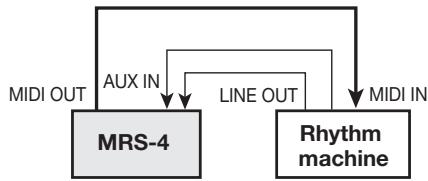
The output at the MASTER [L]/[R] jacks allows you to monitor the sound from the instrument currently being recorded, the playback sound of MRS-4 tracks, and the rhythm machine sound input via the [AUX IN] jacks. However, the rhythm machine sound cannot be recorded on a track.
Bounce/mixdown
During bounce/mixdown, change the rhythm machine connection over to the [INPUT 1]/[INPUT 2] jacks. If you synchronize operation of the MRS-4 and the rhythm machine, you can mix the rhythm machine sound with the playback sound from tracks 1 - 4 for bounce/mixdown. The rhythm machine mix ratio can be adjusted with the [INPUT LEVEL] control 1/2.
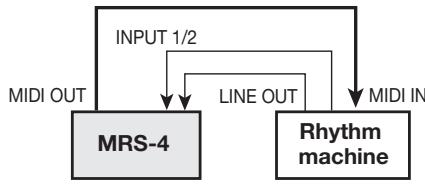
You can also apply the send/return effect and mixdown effect to the rhythm machine sound ( p.21,25)
Specifications
Recorder
| Physical tracks: | 4 |
| Virtual takes: | 32 (8 V-takes per track) |
| Maximum number of simultaneous recording tracks: | 2 |
| Maximum number of simultaneous playback tracks: | 4 |
| Recording media: | SmartMedia card 16 - 128 MB (3.3V) |
| Recording grade: | 32 kHz (HiFi) / 16 kHz (Long) |
| Maximum recording time (converted to single monaural track): | 16 MB = 8 min. or more (HiFi), 16 min. or more (Long) |
| 32 MB = 16 min. or more (HiFi), 33 min. or more (Long) | |
| 64 MB = 33 min. or more (HiFi), 67 min. or more (Long) | |
| 128 MB = 67 min. or more (HiFi), 135 min. or more (Long) | |
| Marker function: | 50 points (per song) |
| Locate function: | min/sec/ms or measure/beat |
| Track editing functions: | Copy & paste, erase, exchange |
| Punch-in/out function: | Manual/auto |
| Other functions: | Bounce, A-B repeat |
| Mixer | |
| Faders: | 45 mm x 5 (Track 1 - 4, Master) |
| Level meter indicator bars: | 8 (Input 1/2, Track 1 - 4, Master L/R) |
| Track parameters: | Equalizer, Effect Send, Pan (Stereo operation: balance) |
| Equalizer: | High (f:500 - 8000 Hz, Gain: ±12 dB) |
| Low (f:63 - 2000 Hz, Gain: ±12 dB) | |
| Stereo Link: | Tracks 1 + 2 or 3 + 4, selectable |
| Effects | |
| Mixdown effect: | Power, Boost, Vocal |
| Send/return effect: | Hall, Room, Doubling, Delay, Chorus |
| Insert effect: | Compressor, Limiter, Cabinet Simulator, Mic Pre) |
| Tuner function: | Chromatic auto tuner |
| Metronome | |
| Tempo: | 40.0 - 250.0 |
| Time signature: | 0/4-8/4 |
| Precount: | Off, 2 - 8 |
| Maximum number of songs: | 15 |
| A/D converter: | 20-bit, 64x oversampling |
| D/A converter: | 20-bit, 8x oversampling |
| Sampling frequency: | 32 kHz |
| Display: | MRS-4 original LCD (with backlight) |
| Inputs | |
| Inputs: | 2 standard mono phone jacks |
| Input level: - | -50 to +4 dBm, continuously variable |
| Input impedance: | 1 to 500 kilohms, continuously variable |
| AUX input (L/MONO, R): | 2 standard mono phone jacks |
| Input impedance 10 kilohms (mono), 20 kilohms (stereo) | |
| Outputs | |
| Master out: | RCA type phono jacks (L/R) |
| Rated output level: | -10 dBm (into load impedance 10 kilohms or higher) |
| Output impedance: | 1 kilohm max. |
| Headphone output: | standard stereo phone jack, 50 mW (into 32 ohms load) |
| MIDI | OUT |
| Dimensions: | 220 (W) x 165 (D) x 56.3 (H) mm |
| Weight: | 700 g (without batteries) |
| Power requirements: | DC 9V, 300 mA from AC adapter Zoom AD-0006 |
| 4 batteries IEC R6 (size AA); battery life 5 hours or more (with alkaline batteries) | |
| Supplied accessory: | SmartMedia card (32 MB) |
| 0 dB = 0.775 Vrms | |
| Design and specifications subject to change without notice. | |
MRS-4 file configuration
The MRS-4 stores the following file types on the SmartMedia card.
xx-yz.aud
This file contains the audio data recorded on a V-take. The number of such files on the SmartMedia card corresponds to the number of recorded V-takes. When a song is deleted, the V-take files belonging to that song are deleted.
xx = song number (0-14)
y = track number (0 - 3)
z = V -take number (0-7)
Songno.mr4
This file contains information about the currently used song number, global parameter values, and mount information for the MRS-4 Card Manager (see below).
- UtyprmXX.mr4
This file contains the default settings for all items and song parameters. The number of such files on the SmartMedia card corresponds to the number of songs that were created. When a song is deleted, this file is also deleted.
$$ \mathrm {x x} = \text {s o n g n u m b e r (0 - 1 4)} $$
File compatibility with PS-02
Setting file
Setting files for the ZOOM PS-02 and the MRS-4 are not compatible. If a PS-02 SmartMedia card is inserted in the MRS-4, the various setting files are disregarded.
Audio file
Audio files for the ZOOM PS-02 and the MRS-4 are theoretically not compatible. If a PS-02 SmartMedia card is inserted in the MRS-4, some audio files may be readable, but playback pitch will be different from the original. Depending on the settings, some audio files may not be readable at all.

NOTE
Zoom Corporation assumes no responsibility for any consequences of using PS-02 SmartMedia in the MRS-4.
MRS-4 Card Manager Software
If you have Internet access, you can download the MRS-4 Card Manager software from the Zoom Corporation web site free of charge (Windows/Macintosh versions). It allows a computer equipped with a SmartMedia card reader to manage MRS-4 data. The software provides the following functions.
- Convert MRS-4 audio data into WAV files
- Convert WAV/AIFF format audio files into MRS-4 audio data
- Back up the SmartMedia card contents onto the hard disk of the computer
Web site of Zoom Corporation:
If the MRS-4 does not seem to function normally, check the following points first.
Playback problems
No sound, or very low volume
- Check the connections to your monitor system, and the volume of your monitor system.
- Make sure that the status keys 1 - 4 are lit in green. If a key is not lit, press the key to make it light in green.
Make sure that the track faders 1-4 and the MASTER fader are raised. - Make sure that a SmartMedia card is inserted in the card slot.
Operating the fader does not affect the volume
- On channels for which stereo link is turned on, the fader of the even-numbered channel will have no effect. Either turn stereo link off ( p. 39), or operate the fader of the odd-numbered channel.
Recorder stops midway during play
- When performing playback with a status key lit in red, a temporary file is created internally by the MRS-4. If the remaining capacity of the SmartMedia card then becomes low, playback is stopped midway through the song. In such a case, press the status key so that it goes out or is lit in green.
Noise occurs during mixdown
Make sure that the [ON/OFF] keys 1/2 are out.
- Check whether the mixdown effect is set to an extreme setting.
Problems with recording
Input signal is not heard, or very low volume
Make sure that the [ON/OFF] keys 1/2 are lit.
- Make sure that the [INPUT LEVEL] controls 1/2 are turned up.
Can't record on a track
- Make sure that the status key of the track selected for recording is lit in red.
- Recording is not possible if the song is protected. Either turn protect off ( p. 49), or use another song.
- Make sure that a SmartMedia card is inserted in the card slot.
- The signal from the [AUX IN] jacks cannot be recorded on a track. Connect the sound source for recording to the [INPUT 1]/[INPUT 2] jacks.
Cannot perform bounce
Make sure that the [BOUNCE] key is on.
Make sure that the status key of the track selected as bounce destination is lit in red.
Make sure that the track faders 1-4 and the MASTER fader are raised.
The recorded sound is distorted
- Check whether the input sensitivity setting ([INPUT LEVEL] controls 1/2) was appropriate.
- Lower the track faders or MASTER faders so that the 0 (dB) dot of the level meter does not light.
- If the EQ gain of the track mixer is set extremely high, the sound may be audiably distorted even if the fader is lowered. Set the EQ to an appropriate value.
Problems with effects
Insert effect does not operate
- Make sure that the [SEND/RETURN] key and [MIXDOWN] key are flashing or lit in red.
- Check that the limiter and compressor settings are not too low for the input level.
Send/return effect does not operate
- Make sure that the [SEND/RETURN] key is flashing or lit in green. If the key is not lit, press the key to make it light in green.
- Make sure that the SEND parameter for each mixer track is on and that the SLVL parameter is set to a suitable value.
Mixdown effect does not operate
- Make sure that the [SEND/RETURN] key is flashing or lit in green. If the key is not lit, press the key to make it light in green.
Problems with MIDI
Cannot synchronize with external MIDI device
- Make sure that the [MIDI OUT] connector on the MRS-4 is properly connected to the MIDI IN connector on the external MIDI device with a MIDI cable.
- Make sure that the external MIDI device is set up to receive a timing clock signal for synchronized operation.
- Make sure that the external MIDI device is set to the playback condition.
- Make sure that the metronome tempo and time signature settings match the song on the external MIDI device.
Other problems
Cannot use tuner function
- The tuner cannot be used during song playback. Stop the song before using the tuner.
- Make sure that the [ON/OFF] key of the respective input is on, and the [INPUT LEVEL] control 1/2 is raised.
One of the following messages appears on the display
PL560P
This operation cannot be carried out during recorder operation. Stop the recorder first.
SnL FuL
The SmartMedia card already contains 15 songs. Therefore a new song cannot be created. Erase unneeded songs.
- noErd
- noErd1
No SmartMedia card is inserted, otherwise the card you inserted is not supported.
CDFNEER
The SmartMedia card is not formatted properly. Format the card in the MRS-4 first.
- [BrdErr]
Cannot read SmartMedia card. Wipe the metal side of the card with a soft cloth and try again.
- CdPrEtCt
A write protect seal is attached to the SmartMedia card. Remove the seal and try again.
- RECFLLL
There is no more free capacity, and recording cannot proceed. Erase unneeded tracks or songs.
- rEC Err
There is not enough free capacity on the card for the selected conditions, and recording data cannot be created. Erase unneeded tracks or songs.
MIDI Implementation
MIDI implementation
- Recognized Messages
None.
- Transmitted Messages
Status 1st 2nd Description
F2H sl sh Song Position Pointer shsl: song position
F8H TimingClock
FAH Start
FBH Continue
FCH Stop
MIDI implementation chart
[Smartmedia Digital Recorder] Date: 06.Jan.,2002
Model MRS-4 MIDI Implementation Chart Version :1.00
| Function ... | Transmitted | Recognized | Remarks | |
| Basic Channel Changed | x x | |||
| Mode Default Messages Altered | 3 x **** **** **** | |||
| Note Number | True voice | x **** **** **** | ||
| Velocity Note ON Note OFF | x x | |||
| After Key's Touch Ch's | x x | |||
| Pitch Bend | x | |||
| Control Change | x | |||
| Prog Change | True # | x **** **** **** | ||
| System Exclusive | x | |||
| System Common | Song Pos Song Sel Tune | o x x | ||
| System Real Time | Clock Commands | o o | ||
| Aux Mes-sages | Local ON/OFF All Notes OFF Active Sense Reset | x x x x | ||
| Notes | No recognized messages. | |||
Mode 1 : OMNI ON, POLY Mode 2 : OMNI ON, MONO o : Yes
Mode 3 : OMNI OFF, POLY Mode 4 : OMNI OFF, MONO x : No
Index
DISPLAY
boosk BOOST 26
BOUNCE BOUNCE 29
CABBC 13
CABCO 13
CAB ST 13
CAPCITY 47
CARD CARD 53
CHINCE CHANGES 44
CHO MN 23
CHO ST 23
COMP 13
COPY 41
DOUBLE 22
ERBSE ERASE 43
FADE 20
ForntFormat 53
CRAGE GRADE 49
HALL HALL 22
HI EQ 19
LCD 54
L 13
LOEQ LOEQ 20
Long 22
METRO 50
MICEF 14
eBSonC NEWSONG 11
PAN 20,38
POBER POWER 26
PROTECT 49
ROOM 22
SEND 24,38
SHORT 22
SLVL 24,38
SNG DEL 48
SnG nEB SNG NEW 47
SnG SEL SNG SEL 47
SnCOPy SNGCOPY 48
5L L STL 39
Tr Copy TR COPY 40
E Ed 40
Eer Ers TRERS 42
Euner TUNER 52
VOCAL 26
HA WAIT 16
A
A-B Repeat 36
[A-B REPEAT] key 36
Algorithm 13
Auto punch-in/out 31
Operation 32
Rehearsal 32
[AUX IN] jack 8,55
B
Batteries 9
Bounce 29
[BOUNCE] key 30
C
Connections 8
E
Editing a track 40
Effects 5
Bypass 52
Error messages 59
F
Fader 20
FF [▶] key 16
File configuration 57
Front panel 7
H
Hi EQ 19
#
Input 38
Parameter 38
[INPUT LEVEL] control 12,37
Input mixer 5,37
Input sensitivity 12
Insert effect 5, 13
Algorithm 13
L
Level meter 12
Locate 33
Low EQ 20
M
Main screen 11
Manual punch-in/out 31
Mark 34
[MARK/CLEAR] key 34
Deleting 35
Locating 34
Setting 34
MARKindicator 35
Marker 34
MARKER [1]/MARKER [key 34
MASTER [L]/[R] jack 8
Measure display 33
BEAT indicator 33
Metronome 50
[METRONOME] key 15
MIDI 51
MIDI implementation 60
MIDI implementation chart 61
[MIDI OUT] jack 8
Mixdown 18
Adding an input signal 38
Mixdown effect 5, 25
Algorithm 26
Mixer 5
MRS-4 Card Manager 57
[MIXDOWN] key 13, 25
0
[ON/OFF] key 12,37
Overdubbing 17
P
Panning 20
Parameter 21
[PARAMETER/VALUE] key 14
[PHONES] jack 8
PLAY [▶] key 16
Point A 36
Point B 36
Power on/off 9
Precount 15
PS-02 file compatibility 57
Punch-in/out 30
In point 31
Out point 31
R
Rear panel 7
Recorder 4
REC [●] key 16
REW [4] key 16
S
Send/return effect 5, 21
Algorithm 22
Parameters 22
[SEND/RETURN] key 13,21
SmartMedia card 5
Formatting 53
Inserting 5
Song 10,46
Copying 48
Creating 10,47
Deletng 48
Protecting 49
Reading in 47
Remaining time indication 47
Selecting a recording grade 49
Song menu 46
Song position pointer 51
Specifications 56
Start/Stop/Continue 51
Status key 15
Stereo link 20,39
STOP [■] key 16
Synchronization 51
T
Time display 33
MEASURE indicator 33
Timing clock 51
Top panel 6
Track 40
Copying 40
Copying all data 41
Erasing all data 43
Erasing specified data segment 42
Exchanging 44
Track mixer 5
Track number 28
Track parameters 5, 19
[TRACK PARAMETER] key 19
Transport keys 16
Tuner 52
V
V-take 4,20,28
V-TAKE indicator 28
V-take number 28
#
ZERO [K] key 16
ZEBM
CATCH US IF YOU CAN
ZOOM CORPORATION
NOAH Bldg., 2-10-2, Miyanishi-cho, Fuchu-shi, Tokyo 183-0022, Japan
PHONE: +81-42-369-7116 FAX: +81-42-369-7115
Web Site: http://wwwzoomo.co.jp
Printed in Japan MRS-4 - 5000-2
- MultiTrak Recording Studio
- zoom MRS-4
- Operation Manual
- USAGE AND SAFETY PRECAUTIONS
- Safety Precautions
- About power
- AC adapter operation
- Battery operation
- Environment
- Handling
- Alterations
- In Case of Trouble
- Usage Precautions
- - Electrical interference
- - Cleaning
- Contents
- USAGE AND SAFETY PRECAUTIONS 2
- Introduction 4
- Parts of the MRS-4 6
- Connections 8
- Basic Operation 10
- Reference [Recorder] 28
- Reference [Locating a Point] 33
- Reference [Mixing] 37
- Reference [Track Editing] 40
- Reference [Song Functions] 46
- Reference [Metronome/MIDI] 50
- Reference [Other Functions] 52
- Specifications 56
- Troubleshooting 58
- MIDI Implementation 60
- Index 62
- Introduction
- Internal configuration
- ■ Recorder section
- Recorder section
- ■ Effect section
- Mixer section
- Effect section
- Insert effect
- ■ Mixdown effect
- ■ Send/return effect
- ■ Input mixer
- Track mixer
- SmartMedia
- Caution
- Parts of the MRS-4
- Connections
- Power on/off switching
- Turning power on
- Turning power off
- NOTE
- Operating the unit on batteries
- Basic Operation
- Step 1 | Preparations for recording
- 1-1 | Creating a new song
- HINT
- Step 2 Recording the first track
- 2-1 Adjusting input sensitivity
- 2-2 Using the insert effect
- Press the [EXIT/NO] key.
- 2-3
- Selecting and recording to a track
- Press the status key 1 repeatedly, until the key is lit in red.
- While playing your instrument, operate fader 1 of the MRS-4 or the volume control of the monitor system to adjust the monitoring level.
- To use the metronome function, press the [METRONOME] key so that the key lights up.
- To start recording, use the ZERO [<] key to return to the beginning of the song, and then press the PLAY [▶] key while holding down the REC [●] key.
- When your guitar play is finished, press the STOP [■] key.
- To listen to the recording, use the ZERO [I] key to return to the beginning of the song, and then press the PLAY [▶] key.
- Basic functions of transport keys
- To stop playback, press the STOP [■] key.
- Press the status key 1 so that the key is lit in green.
- Step 3 Over dubbing
- 3-1 Adjusting input sensitivity and setting the insert effect
- 3-2 Selecting a track and recording on it
- Step 4 | Mixdown
- 4-1 | Preparations for mixdown
- 4-2 Adjusting volume/pan/EQ
- Use the [PARAMETER/VALUE] keys to set the track parameters.
- 4-3 Using the send/return effect
- Setting the algorithm and parameter for the send/return effect
- While the main screen is shown, press the [SEND/RETURN] key.
- Use the [PARAMETER/VALUE] keys to select the algorithm and the setting value.
- To change the parameter of the currently selected algorithm, press the [ENTER/YES] key.
- Adjusting the send/return effect intensity for each track
- 4-4
- Using the mixdown effect
- Selecting the algorithm for the mixdown effect
- 4-5
- Recording on the master recorder
- Reference [Recorder]
- Using V-takes
- Combining multiple tracks (Bounce function)
- Specifying the bounce target V-take
- Press the [ENTER/YES] key.
- Use the up/down [PARAMETER/ VALUE] keys to select the V-take as follows.
- CR (Current)
- - 1-8 (V-take 1-8)
- Carrying out the bounce function
- Re-recording only a specified region (Punch-in/out function)
- Using manual punch-in/out
- Using auto punch-in/out
- Setting the In/Out points
- Carrying out auto punch-in/out
- Reference [Locating a Point]
- Moving to a desired point in a song (Locate function)
- Switching between time and measure indication
- Marking a point in a song (marker function)
- Assigning a mark
- Moving to a mark location
- Using keys to move to a mark
- Specifying a mark directly
- Clearing a mark
- Press the [MARK/CLEAR] key.
- Playing back the same passage repeatedly (A-B Repeat)
- Move to the point at which you want to begin repeat playback, and press the [A-B REPEAT] key.
- Move to the point at which you want to end repeat playback, and press the [A-B REPEAT] key.
- To begin repeat playback, press the PLAY [▶] key.
- To stop repeat playback, press the STOP [■] key.
- To turn off repeat playback, press the [A-B REPEAT] key.
- Reference [Mixing]
- Assigning two inputs to a track
- Repeatedly press the status key for the track on which you want to record, until the key is lit in red. The track is now in the recording standby condition.
- - When only one recording track is selected
- - When two recording tracks are selected (tracks 1/2 or tracks 3/4)
- Adding the input signal to the mixdown
- Use the [PARAMETER/VALUE] keys to adjust the parameter.
- When preparations are complete, play the instrument and perform mixdown.
- Linking two tracks (stereo link function)
- While the main screen is shown, press the [TRACK PARAMETER] key.
- Reference [Track Editing]
- Copying a specified region of data to another location
- Copying the data of an entire track
- Erasing a specified segment
- Erasing an entire track
- Exchanging the data of entire tracks
- Reference [Song Functions]
- Song menu basic functions
- While the main screen is shown, press the [SONG/UTILITY/TUNER] key.
- Use the left/right [PARAMETER/ VALUE] keys to call up the desired item.
- Press the [ENTER/YES] key.
- Song menu items
- Creating a new song (SONG NEW)
- Select "SnG nEW" on the song menu, and press the [ENTER/YES] key.
- Reading in an existing song (SONG SELECT)
- Select "SnG SEL" on the song menu, and press the [ENTER/YES] key.
- Use the up/down [PARAMETER/ VALUE] keys to select the song number.
- Press the [ENTER/YES] key.
- Checking the remaining recording time (SONG CAPACITY)
- Select "CAPACity" on the song menu, and press the [ENTER/YES] key.
- Copying a song (SONG COPY)
- Deleting a song (SONG DELETE)
- Protecting a song (SONG PROTECT)
- Selecting the recording grade (SONG GRADE)
- Reference [Metronome/MIDI]
- Basic metronome settings
- Functions available with MIDI
- Synchronizing an external device to the MRS-4
- Reference [Other Functions]
- Using the tuner
- Play a single note on the instrument.
- Formatting a SmartMedia card
- Press the [ENTER/YES] key two times.
- To execute the formatting process, press the [ENTER/YES] key.
- Display adjustments
- HIN
- Using the AUX IN jacks to save tracks
- Track recording/over dubbing
- Bounce/mixdown
- Specifications
- MRS-4 file configuration
- xx-yz.aud
- Songno.mr4
- - UtyprmXX.mr4
- File compatibility with PS-02
- Setting file
- Audio file
- MRS-4 Card Manager Software
- Playback problems
- No sound, or very low volume
- Operating the fader does not affect the volume
- Recorder stops midway during play
- Noise occurs during mixdown
- Problems with recording
- Input signal is not heard, or very low volume
- Can't record on a track
- Cannot perform bounce
- The recorded sound is distorted
- Problems with effects
- Insert effect does not operate
- Send/return effect does not operate
- Mixdown effect does not operate
- Problems with MIDI
- Cannot synchronize with external MIDI device
- Other problems
- Cannot use tuner function
- One of the following messages appears on the display
- MIDI Implementation
- MIDI implementation chart
- Index
- DISPLAY
- A
- B
- C
- E
- F
- H
- #
- L
- M
- 0
- P
- R
- S
- T
- V
Brand : ZOOM
Model : MRS4
Category : Multitrack audio recorder