
RFX-2000 - Audio Effects ZOOM - Free user manual and instructions
Find the device manual for free RFX-2000 ZOOM in PDF.


User questions about RFX-2000 ZOOM
0 question about this device. Answer the ones you know or ask your own.
Ask a new question about this device
Download the instructions for your Audio Effects in PDF format for free! Find your manual RFX-2000 - ZOOM and take your electronic device back in hand. On this page are published all the documents necessary for the use of your device. RFX-2000 by ZOOM.
USER MANUAL RFX-2000 ZOOM
DIGITAL REVERB & MULTI EFFECTS
OPERATION MANUAL
Introduction
Thank you for selecting the ZOOM RFX-2000 (hereafter simply called the "RFX-2000"). The RFX-2000 is a sophisticated digital reverb and multi-effect processor with the following features and functions.
- Versatile effects and high-quality reverb
The RFX-2000 comes with a full complement of 48 preset effects (8 effects x 6 banks). The reverb effects alone allow 121 different settings. The convincing sound stage created by the RFX-2000 far surpasses anything else available in this class.
- 100 patch memory for immediate use
Up to 100 patches (effect settings) can be stored in the internal memory. Calling up any patch is quick and easy.
- Supplied editing software
The RFX-2000 is supplied with nifty software that lets you manage and edit patches on a computer. (Versions for Windows 95/98 and Macintosh are included.) Besides patch editing and management, the software also provides access to eight additional effects including a 31-band graphic equalizer and a 20-tap delay effect.
- Digital output
The S/PDIF output (with optical and coaxial connectors) allows connection to consumer equipment with digital input (digital multitrack recorder, MD recorder, DAT recorder or similar), keeping the signal in the digital domain.
- MIC IN jack
The dedicated microphone jack on the front panel comes in handy for creating vocal effects without having to make cumbersome connections in the rear. Controlling the VOCODER effect is a snap thanks to this feature.
Built-in tap input
Time-based parameters such as delay time can be entered directly, using the tap input feature. This makes it easy for example to match the delay time to the tempo of a song.
- MIDI based control
Functions such as patch switching, real-time parameter control, and storing of patch data on external equipment can be performed via a MIDI link.
Please take the time to read this manual carefully so as to get the most out of your RFX-2000 and to ensure optimum performance and reliability. Retain this manual, the warranty card and all other documentation for future reference.
- Windows 95 and Windows 98 are registered trademarks of Microsoft Corporation.
- Macintosh is a registered trademark of Apple Computer Inc.
Contents
Controls and Functions 2
Front Panel 2
Rear Panel 2
Rack Mounting 4
Getting Connected 4
Trying Out the Effects 6
Editing a Patch 7
Useful Functions 8
Using the MIDI Control Function 10
Returning the RFX-2000
to the Factory Default Settings 13
RFX-2000 Effects 14
Supplied Software 24
Troubleshooting 24
Specifications 25
MIDI Implementation Chart 26
Safety Precautions/Usage Precautions 27
Front Panel
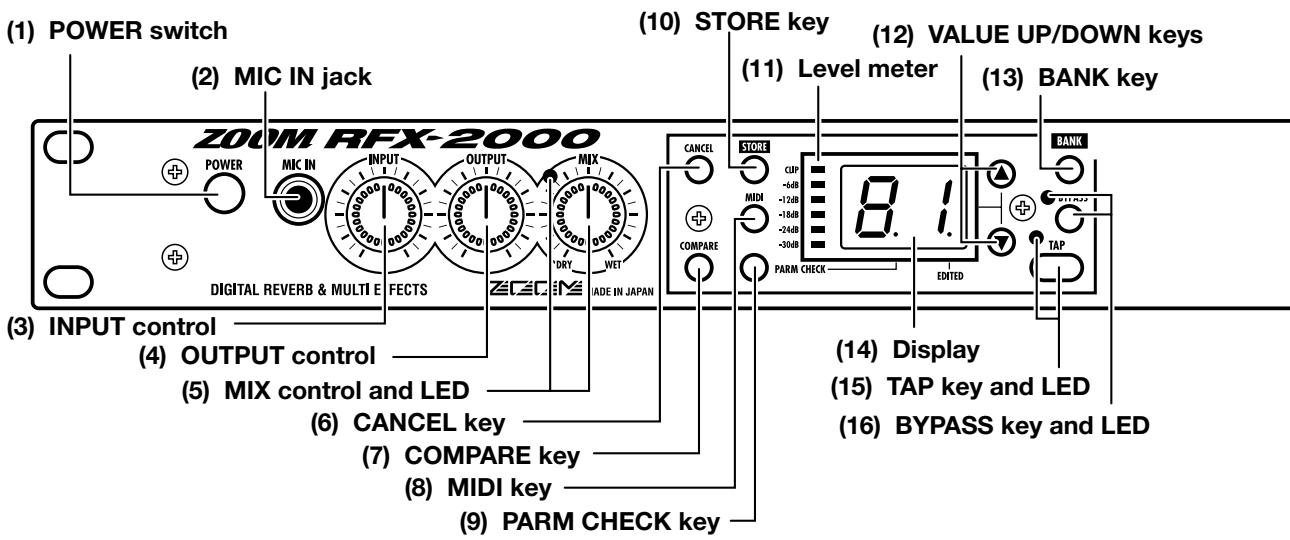
(1) POWER switch
Serves to turn the unit on and off.
(2) MIC IN jack
A dynamic microphone with an output impedance of about 600 ohms can be connected here. Normally the input signal from this jack is mixed with the signal from the rear-panel INPUT jacks and sent to the internal effect circuitry. When the VOCODER effect is selected, the mike input signal serves for controlling the sound character and the envelope (volume change curve) of the effect.
(3) INPUT control
Serves to adjust the signal from the INPUT jacks and the MIC IN jack.
(4) OUTPUT control
Serves to adjust the level of the signal supplied at the OUTPUT jacks.
(5) MIX control and LED
Serves to adjust the balance between original sound (DRY) and effect sound (WET). When the control is
turned fully counterclockwise, only the original sound is output. When the control is turned fully clockwise, only the effect sound is output. If the mixing balance setting was changed since the last store operation, the LED lights up.
(6) CANCEL key
Serves to cancel a store operation.
(7) COMPARE key
When a patch (group of stored effect settings) is being edited, this key can be used to compare the sound before and after the edit.
(8) MIDI key
This key is used to make various MIDI settings.
(9) PARM CHECK key
Serves for checking effect parameter settings.
(10) STORE key
Used for storing patches in memory and other functions.
(11) Level meter
These indicators show the signal input level.
Rear Panel
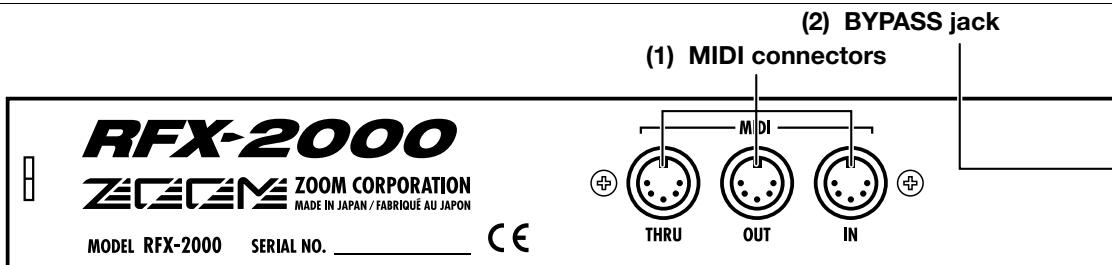
(1) MIDI connectors
Serves for connection to the MIDI interface of a computer or to a MIDI keyboard or similar. This allows patch switching from external equipment or control of the entire operation of the RFX-2000 from a computer, using the supplied editor/librarian software.
(2) BYPASS jack
Serves for connection of the foot switch FS01 (option) for switching effects on and off.
(3) DIGITAL OUT connectors
The same signal as available at the OUTPUT jacks is carried by these connectors in S/PDIF digital format. This can be used to supply the signal to consumer equipment with a digital input, such as a digital multitrack recorder,
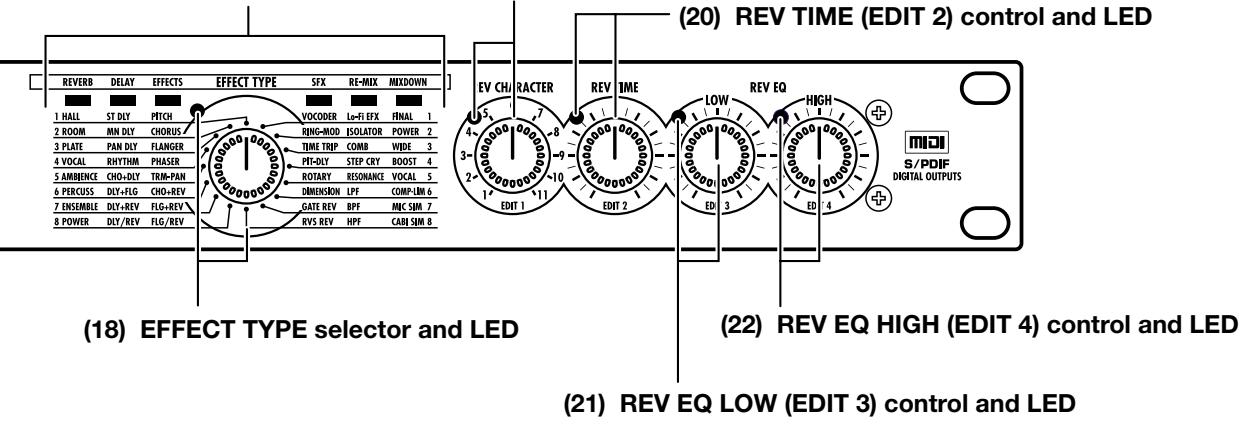
(17) BANK LEDs
(12) VALUE UP/DOWN keys
Serve for switching patches and changing parameter values. Holding down one key while pressing the other results in a fast change.
(13) BANK key
Serves to select the effect bank (group of effects arranged by general type).
(14) Display
Shows various information such as patch numbers and parameter values.
(15) TAP key and LED
This key serves for tap input of time-based parameters such as delay time and rate. When an effect where tap input can be used is selected, the LED flashes with a frequency that indicates the current setting. When an effect where tap input cannot be used is selected, the LED is out.
(16) BYPASS key and LED
Serves to set the unit to the bypass condition where only the original sound is output. In this condition, the LED is lit.
(17) BANK LEDs
These indicators show which bank is currently selected. When the EXTRA bank (only selectable with the supplied software) is selected, all six LEDs are lit.
(18) EFFECT TYPE selector and LED
Serves to choose an effect from the currently selected bank. If the setting was changed since the last store operation, the LED lights up.
(19) REV CHARACTER (EDIT 1) control and LED
(20) REV TIME (EDIT 2) control and LED
(21) REV EQ LOW (EDIT 3) control and LED
(22) REV EQ HIGH (EDIT 4) control and LED
These controls allow the user to adjust effect parameters to a desired value. Which parameters can be adjusted depends on the currently selected effect. If a setting was changed since the last store operation, the respective LED lights up.
Rear Panel

(3) DIGITAL OUT connectors
MD recorder, or DAT recorder. The optical and coaxial output connectors can be used at the same time. The OUTPUT control is not active in this case.
(4) OUTPUT jacks
Connect these jacks to the recorder or playback system.
(5) INPUT jacks
Connect a line-level source, such as an instrument or CD
player to these jacks. If a plug is inserted only in the L/MONO jack, the signal from this plug will be supplied to both channels.
(6) POWER (AC adapter) connector
The supplied AC adapter is to be connected here for powering the unit.
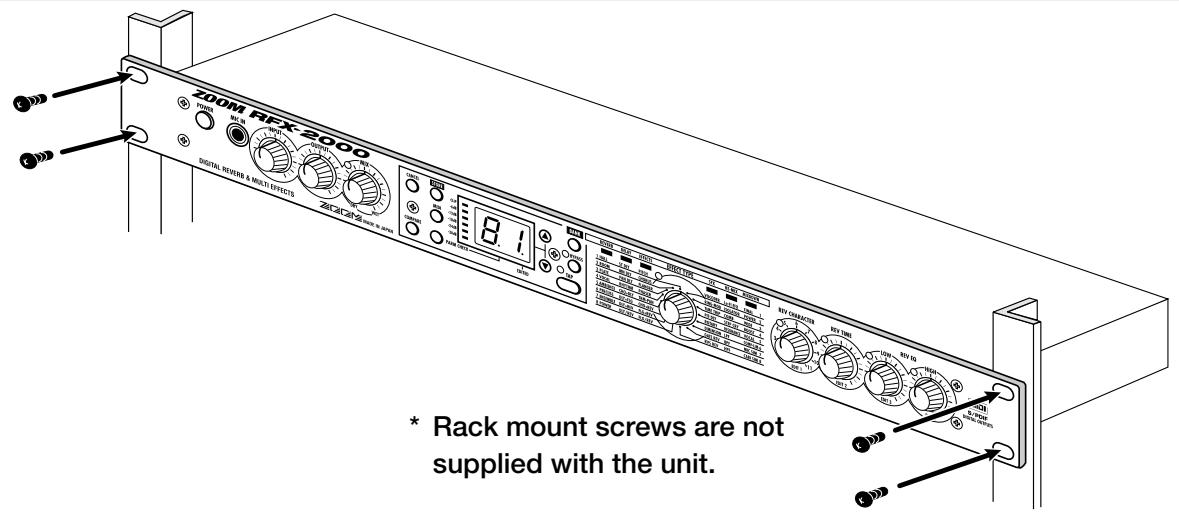
The RFX-2000 is compatible with international 19-inch rack standards (EIA, DIN). Because the unit has been designed for rack installation, it is preferable to operate the unit in this
way, rather than simply placing it on a table or similar. Align the four screw holes with the rack screw holes and securely fasten the unit to the rack with screws.

- The RFX-2000 uses a metal frame, making the unit heavier than it might seem at first glance. While installing the unit in a rack, carefully support the weight of the unit until all screws are securely tightened. Otherwise the unit may drop, possibly causing injury to persons or damage to itself or to other equipment.
- Do not directly stack the unit on top of other equipment. Otherwise heat may
lead to a fire risk or cause performance degradation.
- Before installation, always unplug any connecting cables and the AC adapter cable. Otherwise the equipment or the cables may be damaged.
- Make sure that the rack in which the unit is installed is placed on a firm, solid surface, so that it cannot shake or topple over. Otherwise there is a risk of injury to persons or damage to the unit or to other equipment.
Getting Connected
This section shows how to connect the RFX-2000 to the sound source and to the playback system.
Insert Connection
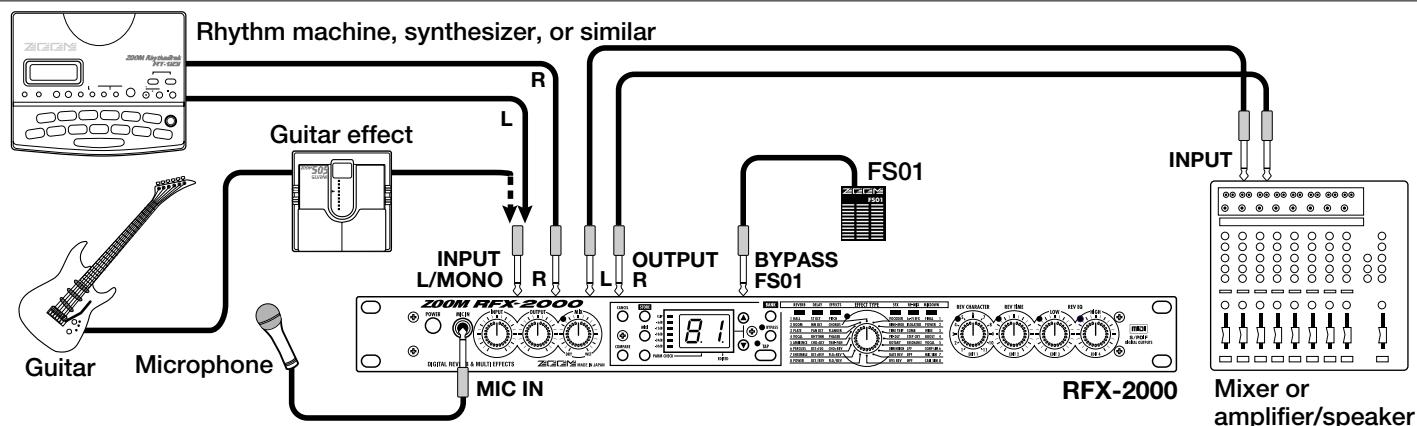
This is an example for inserting the RFX-2000 between the sound source such as a microphone or instrument and a playback system or multi-track recorder (MTR). A stereo source should be connected to the INPUT L/MONO and R jacks. A mono source should be connected to the L/MONO jack only.
In this example, the balance between original sound and effect sound is adjusted with the MIX control of the RFX-2000.
When a component with an S/PDIF digital input (such as a digital multitrack recorder, MD recorder, or DAT recorder) is used, the connection can be made in the digital domain.
Send/Return Connection
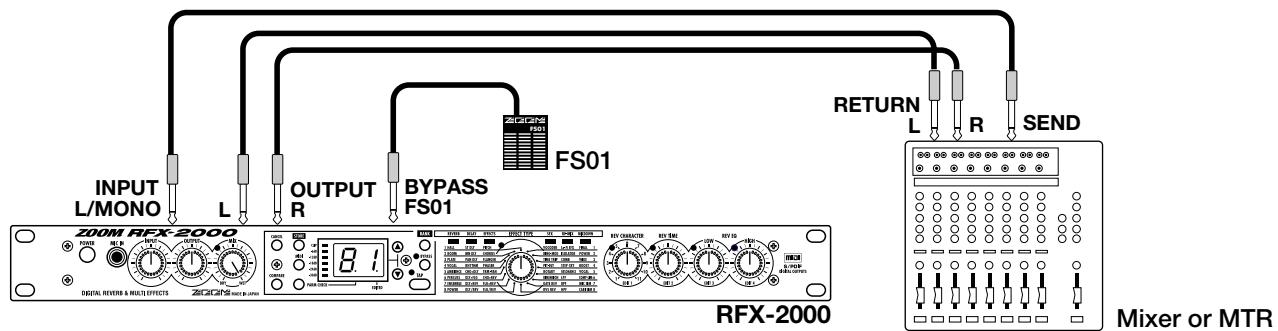
This is an example for connecting the RFX-2000 to the send/return jacks of a mixer or multi-track recorder. Connect the send jack of the mixer or MTR to the INPUT L/MONO jack of the RFX-2000, and connect the OUTPUT L/R jacks of the RFX-2000 to the return jacks (or the stereo line input jacks) of the mixer or MTR.
When a component with an S/PDIF digital input (such as a digital multitrack recorder, MD recorder, or DAT recorder) is
used, the connection can be made in the digital domain.
In this configuration, the MIX control of the RFX-2000 should be set so that it outputs only the effect sound, and the balance between original sound and effect sound should be adjusted at the mixer or multi-track recorder. If the mixer or multi-track recorder has a stereo send output, supplying the send signal to the RFX-2000 in stereo is also possible.
Getting Connected

Using the VOCODER Effect
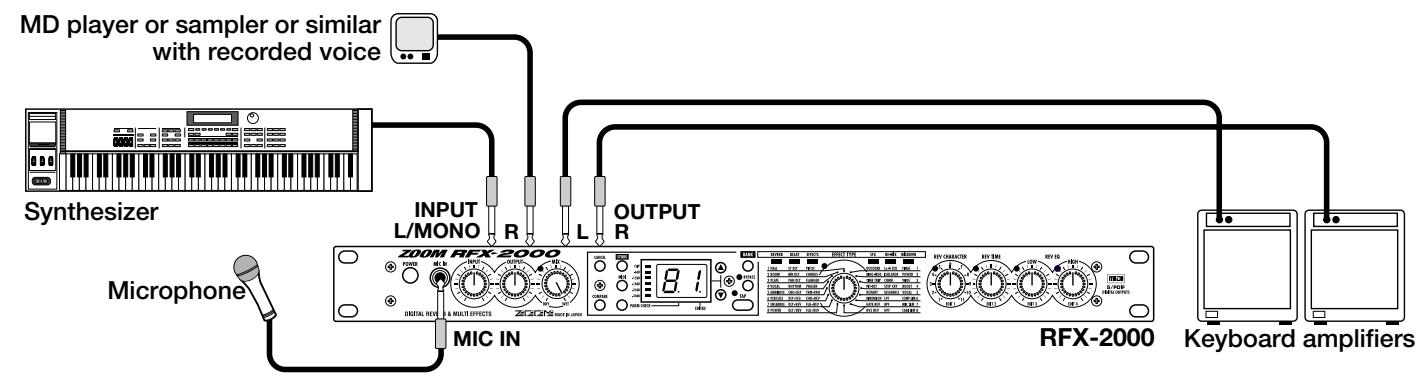
This is a connection example for using the VOCODER effect from the SFX bank. Connect a dynamic microphone to the front-panel MIC IN jack on the RFX-2000. Connect a synthesizer or other instrument to the rear-panel INPUT L/MONO jack. You can then use the mike to vary the
envelope (volume change curve) and the sound character of the VOCODER effect.
If nothing is connected to the MIC IN jack, the signal supplied to the INPUT L/MONO jack is controlled by the signal supplied to the INPUT R jack.
Controlling the RFX-2000 Effects from a Computer
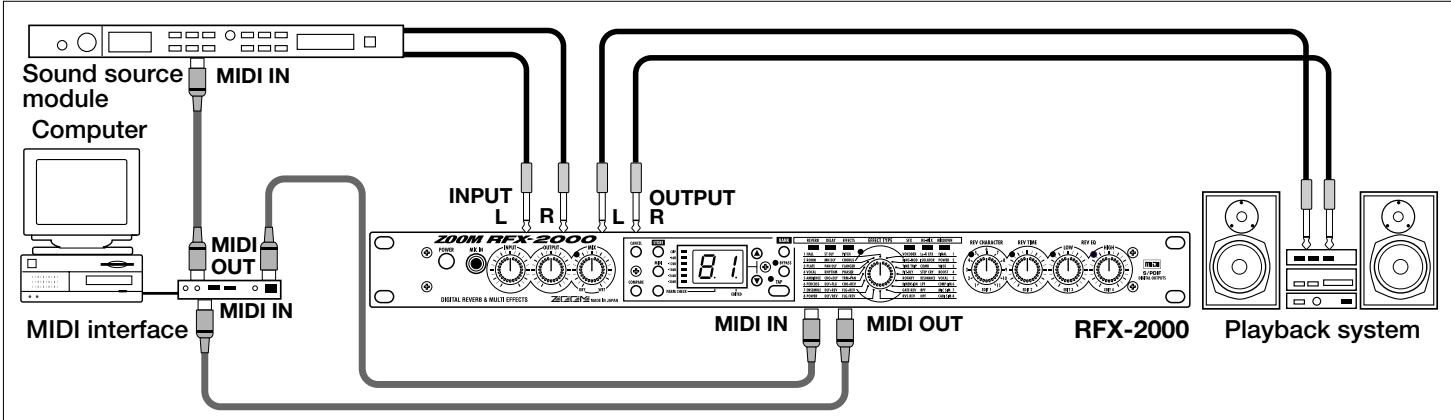
The supplied software can be used to edit the patches of the RFX-2000, switch the patches in conjunction with other sequencer software, and to control patch switching and make parameter changes. To enable these functions, make connections as shown above.
Note: For information on software installation, please refer to the separate sheet. For information on how to use the software, please refer to the documentation included on the CD-ROM.
This section is intended to familiarize you with the basic operation steps of the RFX-2000.
Power UP
- Verify that the AC adapter, sound source, and playback system are correctly connected to the RFX-2000.
The INPUT control and OUTPUT control of the RFX-2000 as well as the volume control of the playback system should be set to minimum.
- Turn on the system in the following order: sound source RFX-2000 playback system.
- While playing the sound source, turn up the
INPUT control of the RFX-2000 to adjust the input level.
To minimize noise and distortion, the INPUT control should be set as high as possible without causing the CLIP LED to light.
- Adjust the OUTPUT control and the volume control of the playback equipment to obtain a suitable playback volume.
Selecting a Patch
The memory of the RFX-2000 contains 100 stored patches. The display shows the number of the currently selected patch (01, 02,...99, 00). This condition is called the play mode.
To switch patches, proceed as described below. We suggest that you simply try out various patches to see what kind of sound the unit can produce.
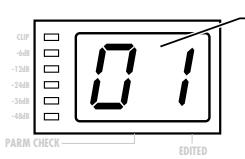
Number of the currently selected patch (01, 02,...99, 00)
- Use the VALUE UP/DOWN keys to select the number of the desired patch.
The VALUE UP key switches to higher patch numbers and the VALUE DOWN key to lower patch numbers.
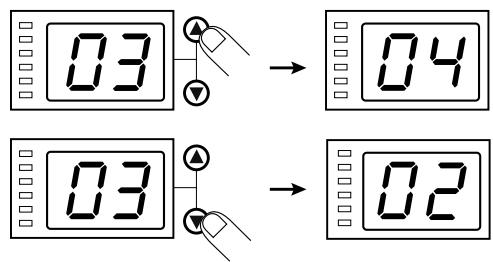
- While playing the instrument or producing sound from the sound source, switch patches to check out the resulting sound.
Bypassing the Effects
You can temporarily turn effect processing off, so that only the original sound is output. This is useful to quickly check the change brought about by an effect.
- To set the RFX-2000 to the bypass mode, press the BYPASS key while the unit is in play mode.
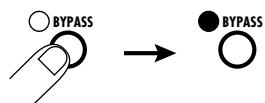
The BYPASS indicator lights up.
The RFX-2000 has two different bypass states, depending on the effect in the currently selected patch. (For information on which effects use which bypass type, please refer to pages 14 - 23.)
WET MUTE
In this condition, only the effect sound is muted and the original sound is output. The level of the original sound output depends on the MIX control position. Therefore there may be a drop in volume or the sound may be entirely cut off.
- DRY THRU
The original sound is output without any processing. The setting of the MIX control has no effect on the volume level.
- To cancel the bypass mode and return the RFX-2000 to the normal state, press the BYPASS key once more.
A patch called up from memory can be edited using the front-panel controls. You can for example select different effects and adjust effect intensity and other parameters.
If any parameter is changed from the stored condition, the new parameter value is shown on the display for about 2 seconds, and the EDITED mark (. ) at the right edge of the display
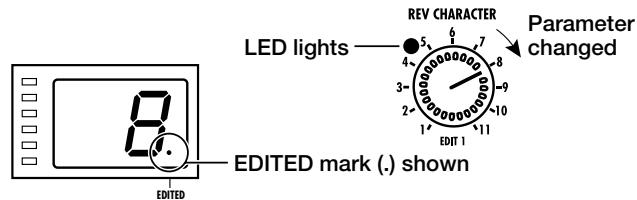
appears. This indicates that the current patch has been edited. Because the LED of the control knob that was used to adjust the value also lights, it is easy to see which parameter has been edited.
Note:
When the effect is changed, the LEDs of all control knobs except the MIX control light up.
Selecting an Effect
The effect determines the type of sound processing that is performed. To select an effect, use the BANK key and EFFECT TYPE selector.
■ BANK key
The BANK key serves to select the effect bank (group of effects arranged by general type). Which banks are available depends on the current BANK position.
- Left side BANK selected
Pressing the BANK key cycles through the following banks: REVERB DELAY EFFECTS REVERB etc.
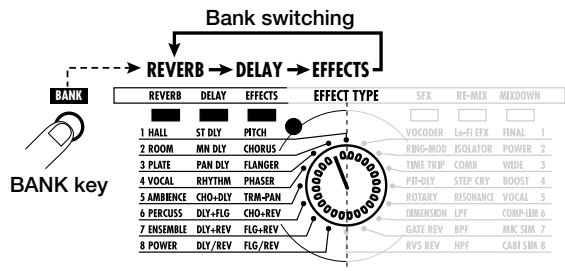
- Right side BANK selected
Pressing the BANK key cycles through the following banks: SFX RE-MIX MIXDOWN SFX etc.
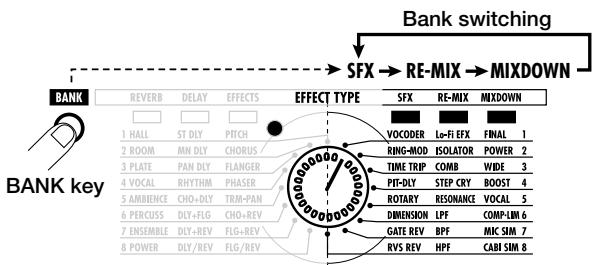
- When a changed bank is returned to the original setting, the respective BANK LED flashes for 1 second.
Note:
For patches where the EXTRA bank is selected, all six BANK LEDs light up.
■ EFFECT TYPE selector
This selector serves to choose the effect. As shown below, effects can be chosen from two banks, depending on the setting currently selected with the BANK key.
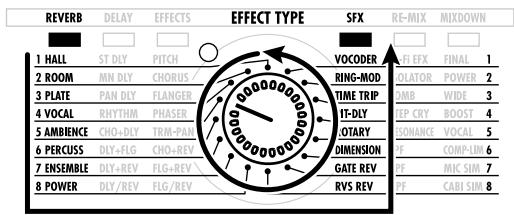
REVERB or SFX bank selected
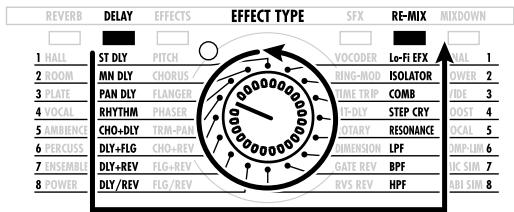
DELAY or RE-MIX bank selected
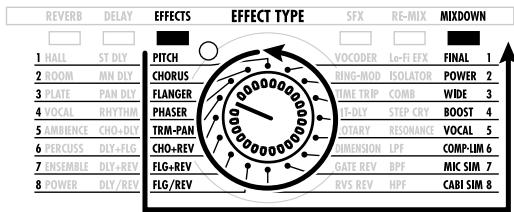
EFFECTS or MIXDOWN bank selected
- When the EFFECT TYPE selector is moved, the display shows the effect number (1 - 8 in the normal banks) for about 2 seconds.
- When the effect number is changed from the last stored condition, the LED of the EFFECT TYPE selector lights up. When the setting is returned to the original effect, the LED goes out.
- When calling up a patch, the LED of the bank where the patch is stored lights up.
Each effect of the RFX-2000 consists of certain effect parameters which determine the intensity and tone character of the effect. Effect parameters can be adjusted with the following edit controls.
■ MIX control
The MIX control serves to adjust the balance between original sound (DRY) and effect sound (WET). When the control is turned fully counterclockwise, only the original sound is output. When the control is turned fully clockwise, only the effect sound is output.
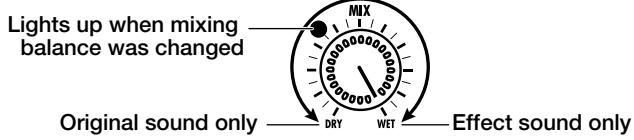
- When the MIX control is moved, the mixing balance setting (0 - 99) is shown on the display for about 2 seconds.
- When the mixing balance setting is changed from the last stored condition, the LED of the MIX control lights up. When the setting is returned to the original value, the LED goes out.
REV CHARACTER (EDIT 1) control
REV TIME (EDIT 2) control
REV EQ LOW (EDIT 3) control
■ REV EQ HIGH (EDIT 4) control
These controls serve to edit parameters of the currently selected effect. (For information on which parameters can be edited for which effect, please refer to pages 14 - 23.)
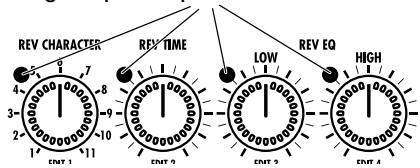
Lights up when parameter was edited
- When any of the above controls is moved, the corresponding parameter value is shown for 2 seconds on the display.
- When a parameter setting is changed from the last stored condition, the LED of the respective control lights up. When the setting is returned to the original value, the LED goes out. When the effect is switched, the LEDs of all controls except the MIX control light up.
Storing an Edited Patch
If an edited patch is not stored in memory, the edited contents will be lost when another patch is selected. When wishing to keep the edited patch, store it in memory as follows.
- Select the patch and edit it.
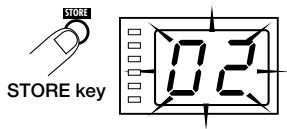
- Press the STORE key.
The patch number on the display flashes.
- Use the VALUE UP/DOWN keys to select the patch number in which you want to store
the patch.
When wishing to use the same patch number, this step is not necessary.
- Press the STORE key once more to execute the store operation.
The patch is stored in memory and the flashing of the display stops.
If you press the CANCEL key instead of the STORE key, the operation is aborted and the unit reverts to the condition of step 1.
Useful Functions
The RFX-2000 offers various handy functions for editing patches.
Checking the parameter value (parameter check)
You can also check a parameter value without moving its associated front-panel control.
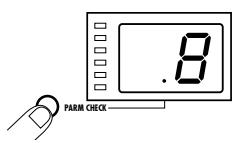
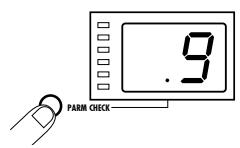
- Press the PARM CHECK key.
The PARM CHECK mark (. in the center of the display appears and the EFFECT TYPE selector LED flashes for about 2 seconds.
This indicates that the effect setting is being checked. The number of the currently selected effect (1 - 8) is shown for about 2 seconds on the display. The display then reverts to the original condition.
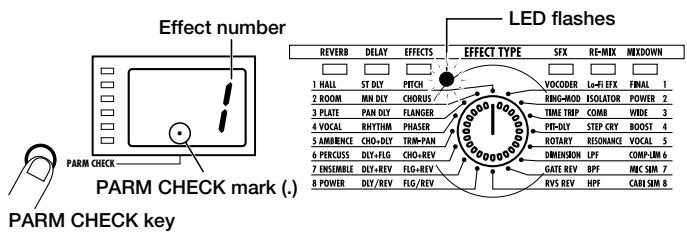
- To check another parameter, press the PARM CHECK key again before the display indication reverts to the previous condition.
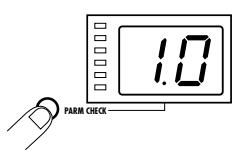
With each push of the PARM CHECK key, the parameter to be checked is advanced successively.
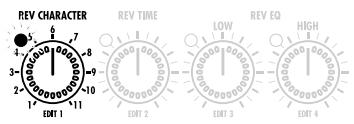
REV CHARACTER
Parameter adjusted with REV CHARACTER (EDIT 1) control
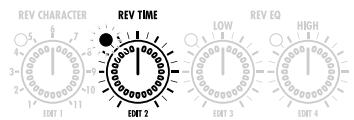
REV TIME
Parameter adjusted with REV TIME (EDIT 2) control
REV EQ LOW
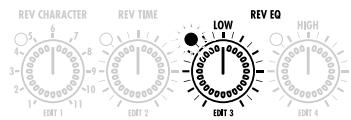
Parameter adjusted with REV EQ LOW (EDIT 3) control
Comparing the Sound Before and After Edit (Compare Function)
This function allows you to compare the currently edited sound to the sound before editing.
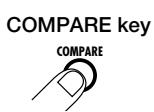
1. Press the COMPARE key.
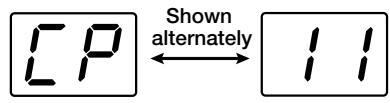
The currently edited patch is temporarily returned to the condition before editing. The indication "CP" and the patch number flash alternately on the display, and the "EDITED" mark is out.
2. To return to editing, press the COMPARE key once more (or press the CANCEL key).
- If desired, you can check the original value of each parameter by pressing the PARM CHECK key while the unit is in the compare mode.
- Moving any of the controls in compare mode has no effect.
Setting Parameters With the Tap Key (Tap Input)
The RFX-2000 allows input of time-based parameters by tapping the TAP key at the desired intervals. For example, the flanger modulation speed or delay time can be easily matched to the tempo of a song in this way.
1. Select a patch for which tap input is possible.
Whether tap input is possible or not depends on the effect selected for that patch (see pages 14 - 23). When a patch for which tap input is possible is selected, the TAP LED flashes.

2. Hit the TAP key several times in the desired interval.
The delay time or rate is set according to the tap interval and the tap beat parameter set for the respective patch (see page 12).
The parameter changed by tap input will revert to the original setting when the patch is switched. If wishing to retain the change, you should therefore store the patch.
- The parameter which can be set by tap input is preset (see pages 14 - 23).
- The maximum interval that can be measured by the tap input function is 2 seconds.
- If the tap input interval is outside the setting range for that parameter, it will be corrected to an acceptable value.
- If a parameter was set by tap input and is then changed by moving the control knob for that parameter, the control knob setting will override the tap input.
3. If desired, store the patch.
Using the MIDI Control Function
The RFX-2000 can accept commands via a MIDI link for patch switching, parameter control, and transfer of memory contents to an external MIDI device. This section describes the general steps for using MIDI based functions.
Setting the MIDI Channel
Set the MIDI channel for communication with the RFX-2000 as follows.
1. In play mode, press the MIDI key once.
The indication "CH" and the currently selected MIDI channel are shown alternately on the display.

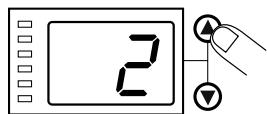
2. Use the VALUE UP/DOWN keys to select a MIDI channel between 1 and 16. When the display shows "--", the MIDI send/receive
function is disabled.
3. Press the CANCEL key to return to the play mode.

Selecting Patches Via MIDI
To switch the patch of the RFX-2000, a program change message must be sent from a MIDI keyboard or sequencer or similar device to the RFX-2000.
1. Connect the MIDI OUT connector of the external MIDI device to the MIDI IN connector on the RFX-2000.
The MIDI channel setting at the RFX-2000 must match the MIDI send channel setting at the external device.
2. Send a program change message from the external MIDI device to the RFX-2000.
In the factory default condition, the RFX-2000 patch numbers correspond to the following program change numbers.
| RFX-2000 patch number | Program change number |
| 01 | 0 |
| 02 | 1 |
| : | : |
| 99 | 98 |
| 0.0 | 99 |
| : | : |
| 0.0 | 127 |
- When the patch is switched at the RFX-2000, a corresponding program change message appears at the MIDI OUT connector.
Storing Program Change Numbers in the Learn Table
Sometimes it may be desirable to assign specific program change numbers to the patch numbers of the RFX-2000. (For example to call up patch number 1 of the RFX-2000 when the tone associated with program change 100 of a synthesizer is selected.) In such a case, you can use the so-called learn table in the memory of the RFX-2000 to change the program change number assigned to the patch number.
1. In play mode, select the patch to which you want to assign a program change number and press the MIDI key two times.
The indication "PC" and the indication "--" are shown alternately on the display.

2. Send a program change message from the MIDI device connected to the MIDI IN connector of the RFX-2000.
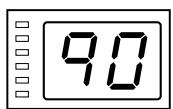
The display indication "--" changes to the received program change number. This program change number is now assigned to the currently selected patch.
3. When wishing to assign a separate program change number to this patch, repeat step 2.
It is also possible to assign multiple program change numbers to the same patch number.
4. When the setting is complete, press the CANCEL key to return to the play mode.

If necessary, repeat steps 1 - 4 for other patch numbers and program change numbers.
- The program change numbers 100 - 127 are shown on the display as "0.0" - "2.7".
- The changed learn table information is retained also when the unit is turned off. (For information on how to return the learn table to the factory default setting, see page 13.)
Changing Effect Parameters Via MIDI
The effect parameters of the RFX-2000 can be changed using MIDI control change messages sent from an external MIDI device (MIDI keyboard or sequencer or similar). This is useful to change parameters from a separate location.
1. Connect the MIDI OUT connector of the external MIDI device to the MIDI IN connector on the RFX-2000.
The MIDI channel setting at the RFX-2000 must match the MIDI send channel setting at the external device.
(For information on setting the MIDI channel, see page 10.)
2. Send a control change message from the external MIDI device to the RFX-2000.
The effect parameters of the RFX-2000 correspond to the following control change numbers.
| Effect parameter | Control change number | Acceptable receive value | Acceptable send value |
| EFFECT TYPE | 86 | 0 - 47 | 0 - 47 |
| REV CHARACTER(EDIT1) | 84 | 0 - 10 | 0 - 10 |
| REV TIME(EDIT2) | 85 | 0 - 127 | 0 - 127 |
| REV EQ LOW(EDIT3) | 87 | 0 - 127 | 0 - 127 |
| REV EQ HIGH(EDIT4) | 88 | 0 - 127 | 0 - 127 |
| MIX | 8 | 0 - 127 | 0 - 127 |
| BYPASS | 80, 91 | 0 - 63 = bypass off 64 - 127 = bypass on | |
| 80 | 0 = bypass off / 127 = bypass on | ||
| TAP | 64 | 64 - 127 | Output 127 followed immediately by 0 |
-
When a key or control on the front panel is operated, the above control change message is sent.
-
Changing a parameter with a control change message has the same effect as editing the parameter with the front-panel controls. If required, save the changed patch.
Storing Panel Operations on a Sequencer
Operation functions of the front-panel controls of the RFX-2000 can be stored as control change messages on a MIDI sequencer for later playback. This is convenient for example to play a sound source module on the sequencer and simultaneously adjust the RFX-2000 in real time.
1. Connect the MIDI OUT connector of the external MIDI device to the MIDI IN connector on the RFX-2000, and connect the MIDI OUT connector on the RFX-2000 to the MIDI IN connector of the external MIDI device.
- The MIDI channel setting at the RFX-2000 must match the MIDI send channel for the sequencer track on which the operation should be recorded. (For information on setting the MIDI channel, see page 10.)
- Verify that MIDI echo (MIDI thru) at the sequencer is set to OFF.
- It will be useful to record a program change message at
the start of the sequencer track which calls the patch to be used as operation start point.
- Start the MIDI sequencer and start recording.
- Operate the control knobs on the front-panel of the RFX-2000.
The control knob operation is recorded as control change information on the MIDI sequencer track.
4. Stop recording at the MIDI sequencer and play back the track from the beginning.
Parameters will change according to the operations carried out in step 3.
Tap Input Using the MIDI Clock
Instead of using the TAP key, it is also possible to use an external MIDI device (such as a MIDI sequencer or rhythm machine) to supply a MIDI clock for setting the delay time or rate that matches the clock tempo.
1. Connect the MIDI OUT connector of the external MIDI device to the MIDI IN connector on the RFX-2000.
- When wishing to perform tempo input with the TAP key, set MIDI clock receive = OFF.
2. Select a patch at the RFX-2000 for which tap input can be used.
- For information on which parameters allow tap input, please refer to pages 14 - 23.)
3. In play mode, press the MIDI key four times.
The indication "CL" and the indication "on" (MIDI clock receive ON) or "oF" (MIDI clock receive OFF) are
shown alternately on the display.

4. Use the VALUE UP/DOWN keys to set the setting to "on".
Tap input via the MIDI clock is now possible. This setting applies to all patches.
5. Press the CANCEL key to return to the play mode.
You can now use the MIDI clock tap input feature. This setting applies to all patches.
6. Supply the MIDI clock from the external MIDI device.
The delay time or rate is set according to the tempo of the supplied MIDI clock and the tap beat parameter set for the respective patch see below).
7. If desired, store the patch.
The parameter changed by MIDI clock tap input will revert to the original setting when the patch is switched. If wishing to retain the change, you should therefore store the patch.
- When the patch was stored and the same patch is then called up again, it suffices to supply the MIDI clock to automatically adjust delay time or rate according to the clock tempo.
- If a parameter was set by MIDI clock tap input and is then changed by moving the control knob for that parameter, the control knob setting will override the MIDI clock tap input.
- The RFX-2000 counts 24 MIDI clock pulses as one interval, using 1-ms units. The maximum interval that can be measured is 2 seconds.
Tap Beat Setting
The tap beat is a parameter that determines the length of the reference beat used for setting the delay time or rate when using the tap input feature. For example, if the tap beat is set to "4" (quarter note), the length of one beat of the MIDI clock (24 clock signals) or the interval in which the TAP key is hit will be taken as the delay time or rate. When the tap beat setting is "8" (eighth note), the setting will be one half.
1. In play mode, select a patch for which tap input is possible.
2. Press the MIDI key five times.
- The tap beat setting is made individually for each patch.
The indication "bt" and the number showing the tap beat note length setting are shown alternately on the display.

3. Use the VALUE UP/DOWN keys to set the note length.
oF For this patch, MIDI clock input is not used. The interval in which the TAP key is hit is taken directly as delay time or rate parameter.
32 Thirty-second note 4 Quarter note
16 Sixteenth note 4. Dotted quarter note
t8 Eighth triplet note 2 Half note
16. Dotted sixteenth note 01 Whole note
8 Eighth note 02 Two whole notes
t4 Quarter triplet note 04 Four whole notes
8. Dotted eighth note
4. Press the CANCEL key.
The RFX-2000 returns to the play mode. When wishing to store the tap beat setting for the patch, perform the store operation.
NOTE:
The tap beat setting will take effect the next time tap input is performed or the tempo is set by MIDI clock input.
Data Transfer (Send)
The patch information and learn table information stored internally in the RFX-2000 can be output via the MIDI link. This can be used for example to exchange settings between two RFX-2000 units, or to store the data on a MIDI sequencer. The data can then be reloaded into the RFX-2000 whenever required.
1. When using two RFX-2000 units, connect the MIDI OUT connector on the first RFX-2000 to the MIDI IN connector of the second RFX-2000, and connect the MIDI OUT connector on the second RFX-2000 to the MIDI IN connector on the first RFX-2000. The MIDI channel must be set to a matching setting.
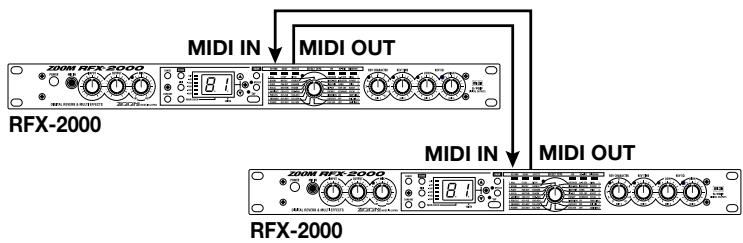
Connection example for two RFX-2000 units
When using a MIDI sequencer or other MIDI device, connect the MIDI OUT connector on the RFX-2000 to
the MIDI IN connector of the MIDI sequencer.
2. Press the MIDI key of the sending RFX-2000 three times.
The indication "dt" and the indication "AL" are shown alternately on the display.
3. Use the VALUE UP/DOWN keys to select the type of data to be sent.
AL
All patch data in memory and learn table
- Current patch number
Current patch data only (if editing, data currently being edited)
4. To execute the data transfer, press the STORE key.
The sending RFX-2000 starts to transmit the data. (The data are received automatically by the receiving RFX-2000. No special steps are necessary.) During the transfer, the indication "dt" flashes on the display of the
sending RFX- 2000 and the indication "dr" on the display of the receiving RFX-2000.
When the transfer is completed, the units automatically revert to play mode.
- When "AL" was selected for sending
All patch data and learn table data in the memory of the receiving RFX-2000 are overwritten.
- When "current patch number" was selected for sending
The currently edited patch data are overwritten. Perform store as necessary.
- To record data on an external MIDI sequencer or other MIDI device, set the device to the
recording mode and press the STORE key.
When the transfer is complete, stop recording at the external MIDI device and perform any necessary steps for storing the data on the device.
- When wishing to abort the data send process, press the CANCEL key instead of the STORE key in step 4.
Note:
The RFX-2000 sends several system exclusive data in succession. If a MIDI data recorder is used which stops recording after receiving one set of system exclusive data, the data of the RFX-2000 may not be stored correctly.
Data Transfer (Receive)
This section describes how to load patch data and learn table data stored on an external MIDI device back into the RFX-2000.
-
Connect the MIDI OUT connector of the external MIDI device (sequencer etc.) to the MIDI IN connector on the RFX-2000.
-
Perform playback at the external MIDI device.
-
When "AL" was selected for sending
All patch data and learn table data in the memory of the receiving RFX-2000 are overwritten. The indication "dr" flashes on the display while data are being received.
- When "current patch number" was selected for sending
The currently edited patch data are overwritten. Perform store as necessary.
- When sending data to or loading data from an external MIDI device, the RFX-2000 and the device must be set to the same MIDI channel. Otherwise data will be disregarded by the RFX-2000 also if playback is performed on the external MIDI device.
-
Playback at the external MIDI device must be performed at the same tempo as recording. If the tempo is faster, the RFX-2000 may not receive the data properly.
-
After data have been loaded into the RFX-2000, stop playback at the external MIDI device.
Returning the RFX-2000 to the Factory Default Settings
You can return the entire RFX-2000 or individual patches to the factory default condition.(Recall) This is useful if an original patch was overwritten by mistake or when wishing to return the entire unit to the original state.
Note:
When the recall function is carried out, data stored in memory by the user will be lost. Make sure that these data are no longer needed before carrying out this function.
- Turn on the power to the RFX-2000 while keeping the STORE key depressed.
The indication "FA" is shown while the STORE key is held down.

When you release the STORE key, "AL" flashes on the display.
- Use the VALUE UP/DOWN keys to select the recall contents.
AL
Return all patch data and the learn table to the factory default condition.
01-99,00
Only the selected patch data are returned to the factory default condition.
PC
Only the learn table is initialized (returned to the factory default condition).
-
To carry out the recall operation, press the STORE key once more.
-
When AL or PC was selected in step 2
Recall is carried out and the unit reverts to the play mode. - When a specific patch number was selected in step 2
The unit stays in the recall mode, and recall is carried out subsequently for any specified patch numbers.
To stop the recall operation, press the CANCEL key.
This section lists all the effects and parameters available in the RFX-2000. For effects from the EXTRA bank (which can be called up only from a computer), only the parameters that can be adjusted with the front-panel controls of the RFX-2000 are described.

Effects suitable for a send/return connection (p. 4) are marked with this symbol.

Effects for which tap input (p. 9) can be used are marked with this symbol.
The parameter that can be set by tap input is marked with a "TAP" indication besides the name.
BYPASS
BYPASS indicates the operation of the unit in bypass mode (p. 6). This can be either WET MUTE (effect sound only is muted) or DRY THRU (original sound is passed through unprocessed).
REVERB Bank
This bank contains only reverb effects. The parameters REV CHARACTER, REV TIME, REV EQ LOW, and REV EQ HIGH adjusted with the respective controls are common to all of these effects. For each effect, there are 11 character settings selected with the REV CHARACTER control, producing a different tone and style.
| 1 | HALL | These effects simulate the reverb in various types of medium to large size buildings. | ↓↑ S/R | |||
| 2 | ROOM | These effects simulate the reverb in various types of interior spaces, ranging from small rooms to large clubs. | ↓↑ S/R | |||
| 3 | PLATE | These effects simulate the so-called "plate reverb" sound (as produced by a pickup mounted to a large, free-hanging iron plate). | ↓↑ S/R | |||
| 4 | VOCAL | Reverb effects best suited for vocals and narration. | ↓↑ S/R | |||
| 5 | AMBIENCE | These effects lend a natural sounding ambience to the sound source which is suitable not only for single instruments but also for stereo music sources. | ↓↑ S/R | |||
| 6 | PERCUSS | (PERCUSSION) These reverb effects are most suitable for drums and percussion. | ↓↑ S/R | |||
| 7 | ENSEMBLE | These effects are best for ensemble sections such as strings or brass. | ↓↑ S/R | |||
| 8 | POWER | These effects add a feeling of power and energy to sound sources. | ↓↑ S/R | |||
| Control knob | REV CHARACTER | REV TIME | REV EQ LOW | REV EQ HIGH | TAP | BYPASS |
| Parameter | Character | Reverb Time | EQ Low | EQ High | ||
| Description | Selects the reverb character (see table). | Adjusts the reverb time. | Adjusts EQ Low boost/cut. | Adjusts EQ High boost/cut. | WET MUTE | |
| Setting range | 1 - 11 | 1 - 30 | -12 - +12 | -12 - +12 | ||
Reverb Character Table
1. HALL
1 Large Hall Simulates a large concert hall.
2 Bright Hall Simulates a medium-size hall with strong, bright reverb.
3 Recital Hall Simulates a small hall.
4 Municipal Simulates a fairly large municipal style hall.
5 Wood Hall Simulates a medium-size hall with predominantly wooden interior.
6 Cathedral Simulates a large cathedral.
7 Medconcert Simulates a medium-size concert hall.
8 Strings Hall Simulates a concert hall designed for classical music.
9 Castle Hall Simulates a medieval castle.
10 Small Hall Simulates a small hall with warm sound character.
11 Gymnasium Simulates a gymnasium.
2. ROOM
1 Tile Chamber Simulates the acoustics of a tiled room.
2 Warm Room Simulates the acoustics of a room with warm sound character.
3 Big Wooden Simulates the acoustics of a fairly large room made of wood.
4 Meeting Room .... Simulates the acoustics of a conference room.
5 Large Club Simulates the acoustics of a large club with strong reverb.
6 GtrSpace Reverb with a pronounced midrange.
7 Strings Room .... Reverb emphasizing the low range and midrange.
8 Small Chamber .... Reverb which makes the spoken voice stand out clearly.
9 Glass Room Reverb with lean low end.
10 Rehearsal Space.... Simulates a rehearsal room with strong reverb.
11 Garage Simulates the reverb character of a garage.
3. PLATE
1 Large Plate Simulates the reverb produced by a large plate.
2 Bright Plate Bright plate reverb suitable for percussion.
3 Dark Plate Plate reverb with a feeling of depth.
4 Clear Plate Transparent plate reverb suitable for vocals.
5 Short Plate Plate reverb with short reverb time.
6 Slap Plate Reverb with a long pre-delay.
7 Lo-Pass Plate ...... Plate reverb acting on the low frequencies.
8 Hi-Pass Plate ...... Plate reverb acting on the high frequencies.
9 Rich Plate .Dense, rich-sounding plate reverb.
10 Endless Plate ....... Smooth plate reverb with long duration.
11 Tunnel Simulates the reverb as heard in a tunnel.
4. VOCAL
1 Female Rock Reverb suitable for female rock singers.
2 Male Ballad Reverb suitable for ballads sung by male vocalists.
3 Chorus Reverb suitable for chorus music.
4 Female Folk Natural sounding reverb great for female vocals.
5 Hi Male Rock Reverb suitable for fairly high-pitched male vocals.
6 Narration Reverb suitable for emphasizing narration.
7 Chanting Reverb suitable for chanting.
8 Slapback Emphasizes vocals without changing other characteristics.
9 Enhancer Reverb with emphasized high end.
10 LushVerb Wide simulated space suitable for vocals.
11 EchoVerb Reverb with long pre-delay.
5. AMBIENCE
1 Rock Mix Reverb for rock type music sources.
2 Jazz Band Reverb for jazz band type music sources.
3 Reggae Mix Reverb with a strong wet feeling, for reggae and related genres.
4 Keyboard Great ambience for keyboard playing.
5 Hip Hop Ambience for rap and hip hop type music.
6 Film Score Ambience for film music.
7 Electronic Mix .... Spatial effect suitable for synthesizer.
8 New Age Ambience suitable for MIDI sound sources.
9 Strings Quartet .... Warm, midrange centered ambience for strings.
10 Choral Mix Rich ambience for chorus and vocal ensembles.
11 Percussion Mix .... Ambience suitable for percussion ensembles.
6. PERCUSSION
1 Rock Kit/1 Reverb suitable for rock drum.
2 LatinPerc Light ambience for percussion.
3 Jazz Drums Reverb for jazz drums.
4 Tom Slightly deep effect for tom-toms.
5 Shaker creates optimum ambience for shakers and similar percussion instruments.
6 Reggae Drums .... Midrange-centered effect for reggae drums.
7 Rock Kit/2 Allows adding reverb to snares or cymbals without affecting the low range.
8 MalletPerc ........ Mallet type percussion can be enhanced with this effect.
9 Slap Reverb with short pre-delay, emphasizing the low frequencies.
10 Afro Drums Reverb suitable for Afro type drums.
11 Bells High range effect suitable for bells.
7. ENSEMBLE
1 Strings Reverb suitable for strings.
2 Brass Reverb suitable for brass ensembles.
3 Piano Warm, extended reverb great for piano solos.
4 Winds Reverb suitable for woodwinds.
5 Synth/1 Reverb suitable for synthesizer.
6 Solo Strings Reverb suitable for solo strings.
7 Jazz Organ Light reverb for highlighting organ sound.
8 Chorus Wide reverb for chorus groups.
9 Solo Winds Subdued reverb great for wind instrument solos.
10 Church Organ .... Reverb for adding a spacious feeling to organ music.
11 Synth/2 Great reverb sound for synthesizer.
8. POWER
1 Kick/1 Stresses the body impact of bass drums.
2 Kick/2 Increases the perceived size of the bass drum image.
3 Snare/1 Stresses the body sound of snare drums.
4 Snare/2 ........ Adds a bright reverb sound to snare drums.
5 Toms/1. Suitable for low toms and floor-standing toms.
6 Toms/2. Emphasizes the midrange sound of tomtoms.
7 Hand Perc. Suitable for hand percussion.
8 DistGtr/1. Suitable for distortion guitar sound with strong box character.
9 DistGtr/2. Suitable for distortion guitar sound with bright character.
10 Vocal/1. Increases the power impact of vocals.
11 Vocal/2. Suitable for ballad type vocals.
Contains single delay effects and combined effects that allow use of delay and another effect. The combined effects marked with a "+" are made up of two effects connected in series. The combined effects marked with a "/" use two effects in parallel in the left and right channel.
Beat
| 1 ST DLY | (STEREO DELAY) Stereo delay with a delay time of max. 1486 ms. | |||||
| Control knob | EDIT 1 | EDIT 2 | EDIT 3 | EDIT 4 | TAP | BYPASS |
| Parameter | High Damp | Time[x 100] [TAP] | Time[x 1] [TAP] | Feedback | ||
| Description | Adjusts the amount of treble attenuation in the high range. | Adjusts the delay time in 100-ms units. | Adjusts the delay time in 1-ms units. | Adjusts the amount of feedback. Negative values result in cross-feedback. | ●TAP ON | WET MUTE |
| Setting range | 1 - 11 | 0 - 14 | 0 - 99 | -15 - 15 | ||
| 2 MN DLY | (MONO DELAY) Monaural delay with a delay time of max. 2972 ms. | |||||
| Control knob | EDIT 1 | EDIT 2 | EDIT 3 | EDIT 4 | TAP | BYPASS |
| Parameter | High Damp | Time[x 100] [TAP] | Time[x 1] [TAP] | Feedback | ||
| Description | Adjusts the amount of treble attenuation in the high range. | Adjusts the delay time in 100-ms units | Adjusts the delay time in 1-ms units. | Adjusts the amount of feedback. | ●TAP ON | WET MUTE |
| Setting range | 1 - 11 | 0 - 29 | 0 - 99 | 0 - 30 | ||
| 3 PAN DLY | (AUTO PANNING DELAY) Monaural delay with auto-panning. | |||||
| Control knob | EDIT 1 | EDIT 2 | EDIT 3 | EDIT 4 | TAP | BYPASS |
| Parameter | Depth | Rate [TAP] | Time[x 10] | Feedback | ||
| Description | Adjusts the panning depth. | Adjusts the panning cycle. | Adjusts the delay time in 10-ms units (max. 990 ms). | Adjusts the amount of feedback. | ●TAP ON | WET MUTE |
| Setting range | 1 - 11 | 1 - 50 | 1 - 99 | 0 - 30 | ||
| 4 RHYTHM | (RHYTHMIC DELAY) This is a mono delay for which the delay time can be set in BPM and notes. If MIDI clock receive is set to "on", this effect always receives the MIDI clock. | |||||
| Control knob | EDIT 1 | EDIT 2 | EDIT 3 | EDIT 4 | TAP | BYPASS |
| Parameter | Beat | BPM[x 10] [TAP] | BPM[x 1] [TAP] | Feedback | ||
| Description | Selects the note corresponding to the delay time (see below). | Adjusts the BPM value in 10-beat steps (setting range: 41 - 250). | Adjusts the BPM value in 1-beat steps. | Adjusts the amount of feedback. | ●TAP ON | WET MUTE |
| Setting range | 1 - 11 | 4 - 25 | 0 - 9 | 0 - 30 | ||
1: Thirty-second note
2: Sixteenth triplet note
3: Sixteenth note
4:Eighth triplet note 5: Dotted sixteenth note
6: Eighth note
7:Quarter triplet note
8: Dotted eighth note
9:Quarter note
10:Dotted quarter note
11:Half note
| 5 CHO+DLY | This is an in-series combination of chorus and delay. | |||||
| Control knob | EDIT 1 | EDIT 2 | EDIT 3 | EDIT 4 | TAP | BYPASS |
| Parameter | Chorus Mix | Chorus Depth | Delay Time[x 10] | Delay Feedback | ||
| Description | Adjusts the chorus mix ratio. | Adjusts the chorus modulation depth. | Adjusts the delay time in 10-ms units (75:743ms). | Adjusts the amount of delay feedback. | WET MUTE | |
| Setting range | 1 - 11 | 1 - 30 | 1 - 75 | 0 - 30 | ||
| 6 DLY+FLG | This is an in-series combination of delay and flanger. | |||||
| Control knob | EDIT 1 | EDIT 2 | EDIT 3 | EDIT 4 | TAP | BYPASS |
| Parameter | Flanger Feedback | Flanger Rate [TAP] | Delay Time[x 10] | Delay Feedback | ||
| Description | Adjusts the amount of flanger feedback. | Adjusts the flanger fluctuation cycle. | Adjusts the delay time in 10-ms units (75:743ms). | Adjusts the amount of delay feedback. | ●TAP ON | WET MUTE |
| Setting range | 1 - 11 | 1 - 50 | 1 - 75 | 0 - 30 | ||
| 7 DLY+REV | This is an in-series combination of delay and reverb. | ↓↑ S/R | |||||
| Control knob | EDIT 1 | EDIT 2 | EDIT 3 | EDIT 4 | TAP | BYPASS | |
| Parameter | Reverb Mix | Reverb Time | Delay Time[x 10] | Delay Feedback | |||
| Description | Adjusts the reverb mix ratio. | Adjusts the reverb duration. | Adjusts the delay time in 10-ms units (75:743ms). | Adjusts the amount of delay feedback. | WET MUTE | ||
| Setting range | 1 - 11 | 1 - 30 | 1 - 75 | 0 - 30 | |||
| 8 DLY/REV | This is a parallel combination of delay and reverb. The left channel carries the delay effect and the right channel the reverb effect. | ↓↑ S/R | |||||
| Control knob | EDIT 1 | EDIT 2 | EDIT 3 | EDIT 4 | TAP | BYPASS | |
| Parameter | Reverb Mix | Reverb Time | Delay Time[x 10] | Delay Feedback | |||
| Description | Adjusts the reverb mix ratio. | Adjusts the reverb duration. | Adjusts the delay time in 10-ms units(75:743ms). | Adjusts the amount of delay feedback. | WET MUTE | ||
| Setting range | 1 - 11 | 1 - 30 | 1 - 75 | 0 - 30 | |||
EFFECTS Bank
Contains single modulation effects and combined effects that allow simultaneous use of two effects. The combined effects marked with a "+" are made up of two effects connected in series. The combined effects marked with a "/" use two effects in parallel in the left and right channel.
| 1 PITCH | Stereo pitch shifter which adds a pitch-shifted component to the original sound. | |||||
| Control knob | EDIT 1 | EDIT 2 | EDIT 3 | EDIT 4 | TAP | BYPASS |
| Parameter | Tone | Pitch | Fine | Shift | ||
| Description | Adjusts the tone. | Adjusts the pitch shift amount in semitones. | Performs fine adjustment of pitch. | Adjusts the direction of pitch shift (up or down). | WET MUTE | |
| Setting range | 1 - 11 | 0 - 24 | -10 - +10 | dn, UP | ||
| 2 CHORUS | A stereo chorus with three voices per channel. | |||||
| Control knob | EDIT 1 | EDIT 2 | EDIT 3 | EDIT 4 | TAP | BYPASS |
| Parameter | Tone | Depth | Rate | Pre Delay | ||
| Description | Adjusts the tone. | Adjusts the depth of the effect. | Adjusts the modulation cycle. | Adjusts the predelay time. | WET MUTE | |
| Setting range | 1 - 11 | 1 - 30 | 1 - 50 | 1 - 30 | ||
| 3 FLANGER | Stereo flanger with a wide range. | |||||
| Control knob | EDIT 1 | EDIT 2 | EDIT 3 | EDIT 4 | TAP | BYPASS |
| Parameter | Feedback | Depth | Rate [TAP] | Manual | ||
| Description | Adjusts the amount of feedback. | Adjusts the depth of the effect. | Adjusts the modulation cycle. | Adjusts the filter effect bandwidth. | ●TAPON | WET MUTE |
| Setting range | 1 - 11 | 0 - 30 | 1 - 50 | 1 - 30 | ||
| 4 PHASER | Phaser with pronounced fluctuation. | |||||
| Control knob | EDIT 1 | EDIT 2 | EDIT 3 | EDIT 4 | TAP | BYPASS |
| Parameter | Stage | Depth | Rate [TAP] | Feedback | ||
| Description | Selects the number of phaser stages and the phase.1 - 5: 4, 6, 8, 10 (normal phase) 6 - 11: 4, 6, 8, 10, 12, 16 (opposite phase) | Adjusts the depth of the effect. | Adjusts the modulation cycle. | Adjusts the amount of feedback. | ●TAPON | WET MUTE |
| Setting range | 1 - 11 | 1 - 30 | 1 - 50 | 0 - 30 | ||
| 5 TRM-PAN | Effect ranging from tremolo to auto-panpot. | ||||||
| Control knob | EDIT 1 | EDIT 2 | EDIT 3 | EDIT 4 | TAP | BYPASS | |
| Parameter | Width | Depth | Rate [TAP] | Clip | |||
| Description | Turning the control counterclockwise gives tremolo. Turning it clockwise gives auto-panning with a wider spread. | Adjusts the auto-panning depth. | Adjusts the modulation cycle. | Adjusts the LFO waveform clip pattern that controls the modulation. | ● TAP ON | WET MUTE | |
| Setting range | 1 - 11 | 1 - 10 | 1 - 50 | 0 - 10 | |||
| 6 CHO+REV | This is an in-series combination of chorus and reverb. | ↓↑ S/R | |||||
| Control knob | EDIT 1 | EDIT 2 | EDIT 3 | EDIT 4 | TAP | BYPASS | |
| Parameter | Reverb Mix | Reverb Time | Chorus Depth | Chorus Mix | |||
| Description | Adjusts the reverb mix ratio. | Adjusts the reverb duration. | Adjusts the chorus depth. | Adjusts the chorus mix ratio. | WET MUTE | ||
| Setting range | 1 - 11 | 1 - 30 | 1 - 30 | 0 - 99 | |||
| 7 FLG+REV | This is an in-series combination of flanger and reverb. | ↓↑ S/R | |||||
| Parameters are the same as for "8 FLG/REV". | |||||||
| 8 FLG/REV | This is a parallel combination of flanger and reverb. The left channel carries the flanger effect and the right channel the reverb effect. | ↓↑ S/R | |||||
| Control knob | EDIT 1 | EDIT 2 | EDIT 3 | EDIT 4 | TAP | BYPASS | |
| Parameter | Reverb Mix | Reverb Time | Flanger Rate [TAP] | Flanger Feedback | |||
| Description | Adjusts the reverb mix ratio. | Adjusts the reverb duration. | Adjusts the flanger fluctuation cycle. | Adjusts the flanger feedback. | ● TAP ON | WET MUTE | |
| Setting range | 1 - 11 | 1 - 30 | 1 - 50 | 0 - 30 | |||
SFX Bank
This bank contains special effects such as a Vocoder and ring modulator.
| 1 VOCODER | This effect lets you use a mike connected to the MIC IN jack to control the signal from a synthesizer supplied to the INPUT L jack. | ||||||
| Control knob | EDIT 1 | EDIT 2 | EDIT 3 | EDIT 4 | TAP | BYPASS | |
| Parameter | Band/Attack | Chorus Mix | Distortion | Sens | |||
| Description | Adjusts the number of Vocoder bands and the response speed. 1 - 5: 18 bands, 6 - 11: 10 bands (lower values mean faster response) | Adjusts the chorus mix ratio. | Adjusts the distortion. | Adjusts the Vocoder sensitivity. | WET MUTE | ||
| Setting range | 1 - 11 | 0 - 10 | 0 - 10 | 1 - 30 | |||
| 2 RING-MOD | This is a ring modulator with short delay. | ||||||
| Control knob | EDIT 1 | EDIT 2 | EDIT 3 | EDIT 4 | TAP | BYPASS | |
| Parameter | Delay Mode | Frequency | EQ Low | EQ High | |||
| Description | Switches the delay effect. | Adjusts the modulation frequency. | Adjusts the EQ Low cut/boost amount. | Adjusts the EQ High cut/boost amount. | WET MUTE | ||
| Setting range | 1 - 11 | 1 - 50 | -12 - 12 | -12 - 12 | |||
| 3 TIME TRIP | This effect varies the delay time according to the intensity of the input signal. | ||||||
| Control knob | EDIT 1 | EDIT 2 | EDIT 3 | EDIT 4 | TAP | BYPASS | |
| Parameter | Depth | Sensitivity | Feedback | Feedback Polarity | |||
| Description | Adjusts the delay time change range. | Adjusts the delay time change sensitivity. | Adjusts the amount of feedback. | Adjusts the feedback polarity. -1: reverse phase, 1: normal phase | WET MUTE | ||
| Setting range | 1 - 11 | 1 - 50 | 0 - 30 | -1, 1 | |||
| 4 PIT-DLY | This is an effect with a pitch shifter integrated in the feedback loop. | |||||
| Control knob | EDIT 1 | EDIT 2 | EDIT 3 | EDIT 4 | TAP | BYPASS |
| Parameter | Feedback | Delay TIME[x 10] | Pitch | Pitch Goal | ||
| Description | Adjusts the amount of feedback. | Adjusts the delay time in 10-ms units (75:743ms). | Adjusts the pitch shift value. At the maximum setting (30), the shift amount is equal to the Pitch Goal setting. | Adjusts the pitch shift amount in semitones. | WET MUTE | |
| Setting range | 1 - 11 | 1 - 75 | 0 - 30 | -12 - 12 | ||
| 5 ROTARY | Simulates a rotary speaker where the speaker is turned by mechanical means. | |||||
| Control knob | EDIT 1 | EDIT 2 | EDIT 3 | EDIT 4 | TAP | BYPASS |
| Parameter | Drive | Speed 1 | Speed 2 [TAP] | Speed Select | ||
| Description | Adjusts the distortion. | Adjusts the speed 1. | Adjusts the speed 2. | Switches between speed 1 (S1) and speed 2 (S2). | WET MUTE | |
| Setting range | 1 - 11 | 1 - 50 | 1 - 50 | S1, S2 | ||
| 6 DIMENSION | (DIMENSION REVERB) These effects control the spatial expansiveness of the sound. | |||||
| Control knob | EDIT 1 | EDIT 2 | EDIT 3 | EDIT 4 | TAP | BYPASS |
| Parameter | Character | Reverb Time | EQ Low | EQ High | ||
| Description | Adjusts the character. (See table) | Adjusts the reverb duration. | Adjusts the EQ Low cut/boost amount. | Adjusts the EQ High cut/boost amount. | WET MUTE | |
| Setting range | 1 - 11 | 1 - 30 | -12 - 12 | -12 - 12 | ||
DIMENSION character table
1 Super Wide Emphasizes the stereo spread of music sources.
2 StereoMono Changes the sound localization from stereo to mono.
3 LeftRight Changes the sound localization from left to right.
4 RightLeft Changes the sound localization from right to left.
5 Big Delay Effect with long pre-delay for creating a wide space.
6 MonoStereo .... Changes the sound localization from mono to stereo.
7 StereoMids ....... Add a wide, expansive feeling to the midrange.
8 Huge Bass . . . . . . . . . . . . . . . . . . . . . . . . . . . . . . . . . . . . . . . . . . . . . . . . . . . . . . . . . . . . . . . . . . . . . . . . . . . . . . . . . . . . . . . . . .. creates an expansive low end.
9 Ping-Pong Reverbouncing back and forth between left and right.
10 Bass/Treble ....... Adds reverb to the low and high range.
11 Millennium . . . . . . . . . . . . . . . . . . . . . . . . . . . . . . . . . . . . . . . . . . . . . . . . . . . . . . . . . . . . . . . . . . . . . . . . . . . . . . . . . . . . . . . . .
- 11 Millennium
- 11 Millennium
- 11 Millennium
- 11 Millennium
- 11 Millennium
- 11 Millennium
- 11 Millennium
- 11 Millennium
- 11 Millennium
- 11 Millennium
- 11 Millennium
- 11 Millennium
- 11 Millennium
- 11 Millennium
- 11 Millennium
- 11 Millennium
- 11 Millennium
- 1
| 7 GATE REV | (GATE REVERB) Special effect where the reverb is briskly cut by a gate. | |||||
| Control knob | EDIT 1 | EDIT 2 | EDIT 3 | EDIT 4 | TAP | BYPASS |
| Parameter | Threshold | Reverb Time | EQ Low | EQ High | ||
| Description | Adjusts the gate sensitivity. | Adjusts the reverb duration. | Adjusts the EQ Low cut/boost amount. | Adjusts the EQ High cut/boost amount. | WET MUTE | |
| Setting range | 1 - 11 | 1 - 30 | -12 - 12 | -12 - 12 | ||
| 8 RVS REV | (REVERSE REVERB) This achieves a similar effect as a tape run in reverse. | |||||
| Control knob | EDIT 1 | EDIT 2 | EDIT 3 | EDIT 4 | TAP | BYPASS |
| Parameter | Threshold | Reverb Time | EQ Low | EQ High | ||
| Description | Adjusts the sensitivity of the effect, that is the level from which the reverb is applied. | Adjusts the reverb duration. | Adjusts the EQ Low cut/boost amount. | Adjusts the EQ High cut/boost amount. | WET MUTE | |
| Setting range | 1 - 11 | 1 - 30 | -12 - 12 | -12 - 12 | ||
This bank contains mainly effects for processing stereo sources in various ways. Lo-Fi purposely degrades sound quality for special effect. The ISOLATOR separates the signal into three bands whose level can be adjusted separately. The bank is useful for example for 2-track mixing or DJ work.
| 1 Lo-Fi EFX | This is a special effect that can be used to purposely degrade sound quality. | ||||||
| Control knob | EDIT 1 | EDIT 2 | EDIT 3 | EDIT 4 | TAP | BYPASS | |
| Parameter | Character | Color | Distortion | Tone | |||
| Description | Gradually changes the filter character. | Adjusts the color. | Adjusts the distortion. | Adjusts the tone. | WET MUTE | ||
| Setting range | 1 - 11 | 1 - 10 | 1 - 10 | 1 - 20 | |||
| 2 ISOLATOR | This effect divides the signal into three bands, with control of the mix ratio. | ||||||
| Control knob | EDIT 1 | EDIT 2 | EDIT 3 | EDIT 4 | TAP | BYPASS | |
| Parameter | Character | Low Mix | Mid Mix | High Mix | |||
| Description | Adjusts the crossover frequency. | Adjusts the low-range mix ratio. | Adjusts the midrange mix ratio. | Adjusts the high-range mix ratio. | WET MUTE | ||
| Setting range | 1 - 11 | 0 - 99 | 0 - 99 | 0 - 99 | |||
| 3 COMB | (COMB FILTER) This effect processes the input source sound with a comb filter. | ||||||
| Control knob | EDIT 1 | EDIT 2 | EDIT 3 | EDIT 4 | TAP | BYPASS | |
| Parameter | Response | Range | Frequency | Feedback | |||
| Description | Adjusts the response speed for changing the Frequency parameter. | Adjusts the Frequency parameter adjustment range. | Adjusts the comb filter frequency. | Adjusts the amount of feedback. | WET MUTE | ||
| Setting range | 1 - 11 | 1 - 40 | 1 - 30 | 0 - 30 | |||
| 4 STEP CRY | This is effect uses filters to lend a distinct, stair-like character to the sound. | ||||||
| Control knob | EDIT 1 | EDIT 2 | EDIT 3 | EDIT 4 | TAP | BYPASS | |
| Parameter | Wave Balance | Depth | Step Rate [TAP] | Resonance | |||
| Description | Smaller values result in a stronger CRY effect, and higher values in a stronger STEP effect. | Adjusts the depth of the effect. | Adjusts the stair frequency. | Adjusts the effect strength. | ● TAP ON | WET MUTE | |
| Setting range | 1 - 11 | 1 - 30 | 1 - 50 | 1 - 10 | |||
| 5 RESONANCE | This is a filter effect with a resonance component. | ||||||
| Control knob | EDIT 1 | EDIT 2 | EDIT 3 | EDIT 4 | TAP | BYPASS | |
| Parameter | Resonance | Sensitivity | LFO Rate [TAP] | LFO Depth | |||
| Description | Adjusts the resonance. | Adjusts the filter sensitivity in relation to the input signal. | Adjusts the LFO cycle. | Adjusts the LFO change range. | ● TAP ON | WET MUTE | |
| Setting range | 1 - 11 | 1 - 30 | 1 - 50 | 0 - 30 | |||
| 6 LPF | (Low PASS FILTER) This is a filter which lets only low-frequency signal components through. | ||||||
| "6 LPF", "7 BPF", "8 HPF" use the same parameters | |||||||
| 7 BPF | (BAND PASS FILTER) This is a filter which lets only mid-frequency signal components through. | ||||||
| "6 LPF", "7 BPF", "8 HPF" use the same parameters | |||||||
| 8 HPF | (HIGH PASS FILTER) This is a filter which lets only high-frequency signal components through. | ||||||
| Control knob | EDIT 1 | EDIT 2 | EDIT 3 | EDIT 4 | TAP | BYPASS | |
| Parameter | Resonance | Frequency | LFO Rate [TAP] | LFO Depth | |||
| Description | Adjusts the resonance | Adjusts the cutoff frequency. | Adjusts the LFO cycle. | Adjusts the LFO change range. | ● TAP ON | WET MUTE | |
| Setting range | 1 - 11 | 1 - 30 | 1 - 50 | 0 - 30 | |||
The effects in this bank serve to tailor the overall mood of a song when performing mixdown (mixing multiple tracks onto two final stereo tracks) or mastering (fine-tuning the sound and level of a final 2-track mix).
For optimum results, the effects in this bank should be used with the MIX control set to 99, so that only the effect sound (WET) is output.
| 1 FINAL | (FINAL MASTER) This is an in-series combination of a 4-band equalizer and 3-band compressor. | |||||
| Control knob | EDIT 1 | EDIT 2 | EDIT 3 | EDIT 4 | TAP | BYPASS |
| Parameter | Character | Low MIX | Mid MIX | High MIX | ||
| Description | Selects the compression and EQ character. | Adjusts the low-range level to -∞infinite> or -24.5 to 0 dB (in 0.5-dB steps) 50:0 dB | Adjusts the mid-range level to -∞infinite> or -24.5 to 0 dB (in 0.5-dB steps) 50:0 dB | Adjusts the high-range level to -∞infinite> or -24.5 to 0 dB (in 0.5-dB steps) 50:0 dB | DRY THRU | |
| Setting range | 1 - 11 | 0 - 50 | 0 - 50 | 0 - 50 | ||
| 2 POWER | (POWER BOOST) Mixdown effect which emphasizes the bass and gives the sound a powerful punch. | |||||
| Control knob | EDIT 1 | EDIT 2 | EDIT 3 | EDIT 4 | TAP | BYPASS |
| Parameter | Reverb Character | Reverb Time | Reverb Mix | Intensity | ||
| Description | Selects various reverb character settings with different reverb times. | Adjusts the reverb duration. | Adjusts the reverb mix ratio. | Adjusts the bass emphasis. | DRY THRU | |
| Setting range | 1 - 11 | 1 - 30 | 0 - 99 | 0 - 15 | ||
| 3 WIDE | (WIDE IMAGE) Mixdown effect which stresses the left/right stereo spread. | |||||
| Control knob | EDIT 1 | EDIT 2 | EDIT 3 | EDIT 4 | TAP | BYPASS |
| Parameter | Reverb Character | Reverb Time | Reverb Mix | Intensity | ||
| Description | Selects various reverb character settings with different reverb times. | Adjusts the reverb duration. | Adjusts the reverb mix ratio. | Adjusts the left/right spread. | DRY THRU | |
| Setting range | 1 - 11 | 1 - 30 | 0 - 99 | 0 - 15 | ||
| 4 BOOST | (BOOST EQ) Mixdown effect which gives the sound a tight low end and snappy high end. | |||||
| Control knob | EDIT 1 | EDIT 2 | EDIT 3 | EDIT 4 | TAP | BYPASS |
| Parameter | Reverb Character | Reverb Time | Reverb Mix | Intensity | ||
| Description | Selects various reverb character settings with different reverb times. | Adjusts the reverb duration. | Adjusts the reverb mix ratio. | Adjusts the low-range/high-range volume. | DRY THRU | |
| Setting range | 1 - 11 | 1 - 30 | 0 - 99 | 0 - 15 | ||
| 5 VOCAL | (VOCAL PRESENCE) This mixdown effect brings out suppleness and warmth in vocals. | |||||
| Control knob | EDIT 1 | EDIT 2 | EDIT 3 | EDIT 4 | TAP | BYPASS |
| Parameter | Reverb Character | Reverb Time | Reverb Mix | Intensity | ||
| Description | Selects various reverb character settings with different reverb times. | Adjusts the reverb duration. | Adjusts the reverb mix ratio. | Adjusts the band for enhancing clarity and stressing the richness of vocals. | DRY THRU | |
| Setting range | 1 - 11 | 1 - 30 | 0 - 99 | 0 - 15 | ||
| 6 COMP-LIM | This effect serves for keeping signal levels within a certain range. The compressor raises the level of signals below a certain threshold and reduces the level of strong signals. The limiter only reduces the level of strong signals. | |||||
| Control knob | EDIT 1 | EDIT 2 | EDIT 3 | EDIT 4 | TAP | BYPASS |
| Parameter | Character | Threshold | EQ Low | EQ High | ||
| Description | Selects the effect type and adjusts the release time. 1 - 6: Compressor 7 - 11: Limiter (higher values result in longer release time) | Adjusts the sensitivity for the compressor/limiter action. | Adjusts EQ Low boost/cut. | Adjusts EQ High boost/cut. | DRY THRU | |
| Setting range | 1 - 11 | 1 - 16 | -12 - +12 | -12 - +12 | ||
| 7 MIC SIM | (MIC SIMULATOR) Simulates the characteristics of a high-quality condenser microphone while using an economical dynamic microphone. | |||||
| Control knob | EDIT 1 | EDIT 2 | EDIT 3 | EDIT 4 | TAP BYPASS | |
| Parameter | Character | Threshold | EQ Low | EQ High | ||
| Description | Selects the microphone character and the degree of enhancement. 1 - 6: For vocals 7 - 11: For instruments (larger values result in stronger enhancement) | Adjusts the limiter threshold. | Adjusts EQ Low boost/cut. | Adjusts EQ High boost/cut. | DRY THRU | |
| Setting range | 1 - 11 | 1 - 16 | -12 - +12 | -12 - +12 | ||
| 8 CABI SIM | (CABINET SIMULATOR) Adds the sound character of an amplifier speaker cabinet to the sound of an electric guitar. | |||||
| Control knob | EDIT 1 | EDIT 2 | EDIT 3 | EDIT 4 | TAP BYPASS | |
| Parameter | Character | Presence | EQ Low | EQ High | ||
| Description | Selects the amplifier character and the degree of cabinet sound. 1 - 6: COMBO 7 - 11: STACK (higher values result in stronger cabinet sound) | Adjusts the ultra-high range. | Adjusts EQ Low boost/cut. | Adjusts EQ High boost/cut. | DRY THRU | |
| Setting range | 1 - 11 | 1 - 16 | -12 - +12 | -12 - +12 | ||
EXTRA Bank
The effects in the EXTRA bank cannot be called up in the same way as the other effects. To select an effect from the EXTRA bank, you must initially use a computer running the supplied software. When an effect has been selected, storing the patch containing that effect in memory will allow you to later call it up also without using the software. The effects from the EXTRA bank have many parameters, but in this manual, only the parameters that can be adjusted with the front-panel controls of the RFX-2000 are described. Using the supplied software, all parameters can be adjusted.
When checking the effect number while an effect from the EXTRA bank is selected, the effect number is shown with a preceding "E", such as "E1, "E2, etc.
When using effects for which the bypass mode is DRY THRU, the MIX control should be set to 99, so that only the effect sound (WET) is output. This will produce optimum results.
| E1 | (31 BAND GRAPHIC EQ) This effect is a combination of a 31-band graphic equalizer and a 3-band overall equalizer. | |||||
| Control knob | EDIT 1 | EDIT 2 | EDIT 3 | EDIT 4 | TAP BYPASS | |
| Parameter | Input Attenuate | Total EQ Mid | Total EQ Low | Total EQ High | ||
| Description | Adjusts attenuation before the signal passes through the equalizer. 1 (-10 dB) to 11 (0 dB) | Provides midrange compensation in 1-dB steps. | Provides low-range compensation in 1-dB steps. | Provides high-range compensation in 1-dB steps. | DRY THRU | |
| Setting range | 1 - 11 | -12 - +12 | -12 - +12 | -12 - +12 | ||
| E2 | (5 BAND PARAMETRIC EQ) This is a 5-band parametric equalizer. | |||||
| Control knob | EDIT 1 | EDIT 2 | EDIT 3 | EDIT 4 | TAP BYPASS | |
| Parameter | Input Attenuate | EQ Mid | EQ Low | EQ High | ||
| Description | Adjusts attenuation before the signal passes through the equalizer. 1 (-10 dB) to 11 (0 dB) | Provides midrange compensation in 1-dB steps. | Provides low-range compensation in 1-dB steps. | Provides high-range compensation in 1-dB steps. | DRY THRU | |
| Setting range | 1 - 11 | -12 - +12 | -13 - +12 | -12 - +12 | ||
| E3 | (20 TAP DELAY) This is a 20-tap delay. | ↓↑ (S/R) | ||||
| The parameters for "20 TAP DELAY" are the same as "10 TAP DELAY" below. | ||||||
| E4 | (10 TAP DELAY) This is a 10-tap delay. | ↓↑ (S/R) | ||||
| Control knob | EDIT 1 | EDIT 2 | EDIT 3 | EDIT 4 | TAP | BYPASS |
| Parameter | Tone | Feedback Time [x 100] | FeedbackTime[x 1] | Feedback | ||
| Description | Adjusts the tone. | Adjusts the feedback delay time in 100-ms units (setting range 1 - 1486 ms) | Adjusts the feedback delay time in 1-ms units. | Adjusts the feedback amount. | WET MUTE | |
| Setting range | 1 - 11 | 0 - 14 | 0 - 99 | 0 - 30 | ||
| E5 | (MULTI EFX) This is a multi-effect which allows simultaneous use of chorus or flanger, delay, and reverb. | ↓↑ (S/R) | ||||
| Control knob | EDIT 1 | EDIT 2 | EDIT 3 | EDIT 4 | TAP | BYPASS |
| Parameter | Connection | Modulation Mix | Delay Mix | Reverb Mix | ||
| Description | Selects the connection method for the three modules. For details, please refer to the documentation of the supplied software. | Adjusts the chorus or flanger mix ratio. | Adjusts the delay mix ratio. | Adjusts the reverb mix ratio. | WET MUTE | |
| Setting range | 1 - 11 | 0 - 99 | 0 - 99 | 0 - 99 | ||
| E6 | (EARLY REFLECTION) This effect creates early reflections. | ↓↑ (S/R) | ||||
| Control knob | EDIT 1 | EDIT 2 | EDIT 3 | EDIT 4 | TAP | BYPASS |
| Parameter | Input Attenuate | EQ Mid | EQ Low | EQ High | ||
| Description | Adjusts attenuation before the signal passes through the equalizer. 1 (-10 dB) to 11 (0 dB) | Provides midrange compensation in 1-dB steps. | Provides low-range compensation in 1-dB steps. | Provides high-range compensation in 1-dB steps. | WET MUTE | |
| Setting range | 1 - 11 | -12 - +12 | -12 - +12 | -12 - +12 | ||
| E7 | (CUSTOM REVERB) This is a reverb effect that allows the user to make detailed settings at the computer. | ↓↑ (S/R) | ||||
| Control knob | EDIT 1 | EDIT 2 | EDIT 3 | EDIT 4 | TAP | BYPASS |
| Parameter | High Ratio | Reverb Time | EQ Low | EQ High | ||
| Description | Adjusts the high-range attenuation. | Adjusts the reverb duration. | Provides low-range compensation in 1-dB steps. | Provides high-range compensation in 1-dB steps. | WET MUTE | |
| Setting range | 1 - 11 | 1 - 30 | -12 - +12 | -12 - +12 | ||
| E8 | (CUSTOM FINAL MASTER) This is an in-series combination of a 4-band equalizer and 3-band compressor. | |||||
| Control knob | EDIT 1 | EDIT 2 | EDIT 3 | EDIT 4 | TAP | BYPASS |
| Parameter | Input Attenuate | Low Mix | Mid Mix | High Mix | ||
| Description | Adjusts attenuation before the signal passes through the equalizer. | Adjusts the low-range level to -∞ or -24.5 to 0 dB (in 0.5-dB steps) 50: 0 dB | Adjusts the mid-range level to -∞ or -24.5 to 0 dB (in 0.5-dB steps) 50: 0 dB | Adjusts the high-range level to -∞ or -24.5 to 0 dB (in 0.5-dB steps) 50: 0 dB | DRY THRU | |
| Setting range | 1 - 11 | 0 - 50 | 0 - 50 | 0 - 50 | ||
Supplied Software
The RFX-2000 comes with a CD-ROM that contains software for editing patches on a personal computer. (The disc contains versions for Windows 95/98 and Macintosh.) The software comprises the following functions.
(1) Patch librarian
Serves to manage patch information of the RFX-2000 on the computer. Information about all patches of the RFX-2000 is sent to the computer via a MIDI link and can be stored on the hard disk as a project file. Within a project, the order of patches can be changed, and information stored as project files can be loaded back into the RFX-2000. In effect, this increases the memory capacity of the RFX-2000 to an unlimited size.
(2) Visual editor
Using sliders and other graphical elements appearing on the computer screen, patches contained in project files can be edited. Because the edited contents are sent immediately to the RFX-2000 via the MIDI link, the aural effect of any editing operation can be checked immediately. Edited patches can be stored on the computer and can also be sent to the RFX-2000 via the MIDI link.
(3) EXTRA bank
Using this software gives access to effects from the EXTRA bank that cannot be selected in the same way as the other effects at the unit. These effects comprise a custom reverb with extensive control over many parameters, a 31-band equalizer, a 20-tap delay effect, etc. The additional effects further increase the application scope for the RFX-2000. By storing a patch containing an effect from the EXTRA bank in the memory of the RFX-2000, the effect can then be called up like other patches, and some major parameters of the effect can be edited with the controls of the RFX-2000.
- For information on software installation, please refer to the separate sheet. For information on how to use the software, please refer to the documentation included on the CD-ROM.
- The latest version of the software can be downloaded from the Zoom web site.
URL: http://wwwzoomo.co.jp
Troubleshooting
| Symptom | Check | Remedy |
| No sound or very low volume | ·Is supplied AC adapter connected correctly? | Follow the instructions in "Getting Connected". |
| ·Is another kind of AC adapter connected? | Use only the supplied AC adapter. | |
| ·Is sound source connected correctly to INPUT jacks and are OUTPUT jacks connected correctly to playback system? | Follow the instructions in "Getting Connected". | |
| ·Are all shielded cables used for the connection okay? | Try replacing the shielded cables. | |
| ·Are the connected sound source and playback system operating normally? Is the volume set to a proper position? | Check all components and set the volume to a suitable position. | |
| ·Are INPUT and OUTPUT controls of RFX-2000 set to a proper position? | Adjust the controls as described in the section "Trying Out the Effects". | |
| ·Is a microphone connected to the rear-panel INPUT jack? | Connect the microphone to the front-panel MIC IN jack. | |
| ·Is unit in bypass mode and is MIX control fully turned to the WET position? | Turn MIX control towards DRY. | |
| ·Is EDIT control knob 1 - 4 set to a position where sound is cut off? | Turn EDIT control knob 1 - 4 clockwise. | |
| Input sound breaks up or is distorted | ·Is input signal level too high? | Adjust INPUT control so that CLIP LED does not light at signal peaks. |
| No effect sound | ·Is RFX-2000 set to bypass mode? | Cancel the bypass mode. |
| ·Is incorrect foot switch connected? | Use only ZOOM FS01. |
| • Number of preset programs | 616 (8 effects x 7 banks x 11 characters) | • Digital audio Interface | Coaxial output Optical output (S/PDIF) |
| • Program memory | 100 | ||
| Total | 716 programs | ||
| • Control connectors | |||
| • Sampling frequency | 44.1 kHz | MIDI IN | |
| MIDI OUT | |||
| • A/D converter | 20 bit, 64 times oversampling | MIDI THRU | |
| • D/A converter | 20 bit, 128 times oversampling | BYPASS(FS01) | |
| • DSP | Zoom original ZFX-2 (24-bit signal processing) | • Power requirements | Applied AC adapter 12 V AC (AD-0008) |
| • Rear Inputs | |||
| L/MONO, R: | standard monaural phone jack x 2 | • Dimensions | |
| Input impedance: | 10 kilohms (MONO), 20 kilohms (STEREO) | 482 (W) x 44 (H) x 115 (D) mm | |
| Reference input level: | -10 dBm to +4 dBm | • Weight | 1.5 kg |
| • Microphone input: | standard monaural phone jack x 1 | ||
| Input impedance: | 20 kilohms | * 0 dBm = 0.775 Vrms | |
| Reference input level: | -56 dBm | * Design and specifications subject to change without notice. | |
| • Outputs | |||
| L, R: | standard monaural phone jack x 2 | ||
| Output impedance: | 500 ohms | ||
| Reference output level: | -10 dBm to +4 dBm |
| [EFFECTOR Model RFX-2000] | Date: 20 Sep, 1999 Version:1.00 | |||
| Function ... | Transmitted | Recognized | Remarks | |
| Basic Default Channel Changed | 1-16 OFF | 1-16,OFF | Memorized See Notel | |
| 1-16 OFF | 1-16,OFF | |||
| Default Mode Messages Altered | 3 x | 3 x | ||
| ********** | ********** | |||
| Note Number True voice | x | x | ||
| ********** | x | |||
| Velocity Note ON Note OFF | x x | x x | ||
| x | x | |||
| After Key's Touch Ch's | x x | x x | ||
| x | x | |||
| Pitch Bend | x | x | ||
| 86 | 86 | Effect Type Edit1 Edit2 Edit3 Edit4 Mix | ||
| Control | 84 | 84 | ||
| 85 | 85 | |||
| 87 | 87 | |||
| Change | 88 | 88 | ||
| 8 | 8 | |||
| 80 | 80,91 | Bypass Tap | ||
| 64 | 64 | |||
| Prog Change | True # | o 0-99 | o | ||
| ********** | * | |||
| System Exclusive | o | o | ||
| + | ||||
| System | Song Pos Song Sel Common | Tune | x x x | x x | ||
| x | x | |||
| x | x | |||
| System | Clock Real Time | Commands | x x | o x | ||
| + | ||||
| Aux | Local ON/OFF | All Notes OFF | Mes-sages | Reset | x x x | x x x | ||
| x | x x | |||
| x | x | |||
| Notes | 1. Transmit channel and Recognized channel is same. | |||
Safety Precautions
In this manual, symbols are used to highlight warnings and cautions for you to read so that accidents can be prevented. The meanings of these symbols are as follows:

This symbol indicates explanations about extremely dangerous matters. If users ignore this symbol and handle the device the wrong way, serious injury or death could result.

This symbol indicates explanations about dangerous matters. If users ignore this symbol and handle the device the wrong way, bodily injury and damage to the equipment could result.
Please observe the following safety tips and precautions to ensure hazard-free use of the RFX-2000.

Power requirements
The RFX-2000 is powered by the supplied AC adapter. To prevent malfunction and safety hazards, Do not use any other kind of AC adapter.
When using the RFX-2000 in an area with a different line voltage, please consult your local ZOOM distributor about acquiring a proper AC adapter.

- Environment
Avoid using your RFX-2000 in environments where it will be exposed to:
- Extreme temperature
High humidity or moisture - Excessive dust or sand
- Excessive vibration or shock

Handling
The RFX-2000 is a precision instrument. Do not exert undue pressure on the unit.
Also take care not to drop the unit, and do not subject it to shock or excessive pressure.

- Connecting cables and input and output jacks
You should always turn off the power to the RFX-2000 and all other equipment before connecting or disconnecting any cables. Also make sure to disconnect all cables and the AC adapter before moving the RFX-2000.

- Alterations
Never open the case of the RFX-2000 or attempt to modify the product in any way since this can result in damage to the unit.
Usage Precautions
- Electrical interference
The RFX-2000 has been designed to minimize radio frequency emissions and is highly resistant to external interference. However, if placed very close to equipment such as TV sets or radio receivers, reception interference may occur. If you encounter problems, move the RFX-2000 further away from the affected equipment.
Whatever the type of digital control device, the RFX-2000 included, electromagnetic damage can cause malfunctioning, and can corrupt or destroy data. Since this is an ever-present danger, thorough care should be taken to minimize the risk of damage.
- Cleaning
Use a soft, dry cloth to clean the RFX-2000. If necessary, slightly moisten the cloth. Do not use abrasive cleanser, wax, or solvents (such as paint thinner or cleaning alcohol), since these may dull the finish or damage the surface.
Please keep this manual in a convenient place for future reference.
ZEEM CATCH US IF YOU CAN
ZOOM CORPORATION
NOAH Bldg., 2-10-2, Miyanishi-cho, Fuchu-shi, Tokyo 183-0022, Japan
PHONE: +81-42-369-7116 FAX: +81-42-369-7115
- DIGITAL REVERB & MULTI EFFECTS
- OPERATION MANUAL
- Introduction
- - Versatile effects and high-quality reverb
- - 100 patch memory for immediate use
- - Supplied editing software
- - Digital output
- - MIC IN jack
- Built-in tap input
- - MIDI based control
- Contents
- Front Panel
- POWER switch
- MIC IN jack
- INPUT control
- OUTPUT control
- MIX control and LED
- CANCEL key
- COMPARE key
- MIDI key
- PARM CHECK key
- STORE key
- Level meter
- Rear Panel
- MIDI connectors
- BYPASS jack
- DIGITAL OUT connectors
- VALUE UP/DOWN keys
- BANK key
- Display
- TAP key and LED
- BYPASS key and LED
- BANK LEDs
- EFFECT TYPE selector and LED
- REV CHARACTER (EDIT 1) control and LED
- REV TIME (EDIT 2) control and LED
- REV EQ LOW (EDIT 3) control and LED
- REV EQ HIGH (EDIT 4) control and LED
- OUTPUT jacks
- INPUT jacks
- POWER (AC adapter) connector
- Getting Connected
- Insert Connection
- Send/Return Connection
- Using the VOCODER Effect
- Controlling the RFX-2000 Effects from a Computer
- Power UP
- Selecting a Patch
- Bypassing the Effects
- Note:
- Selecting an Effect
- ■ BANK key
- - Left side BANK selected
- - Right side BANK selected
- ■ EFFECT TYPE selector
- ■ MIX control
- Storing an Edited Patch
- Useful Functions
- Checking the parameter value (parameter check)
- REV CHARACTER
- REV TIME
- REV EQ LOW
- Comparing the Sound Before and After Edit (Compare Function)
- Press the COMPARE key.
- To return to editing, press the COMPARE key once more (or press the CANCEL key).
- Setting Parameters With the Tap Key (Tap Input)
- Select a patch for which tap input is possible.
- Hit the TAP key several times in the desired interval.
- If desired, store the patch.
- Using the MIDI Control Function
- Setting the MIDI Channel
- In play mode, press the MIDI key once.
- Use the VALUE UP/DOWN keys to select a MIDI channel between 1 and 16. When the display shows "--", the MIDI send/receive
- Press the CANCEL key to return to the play mode.
- Selecting Patches Via MIDI
- Connect the MIDI OUT connector of the external MIDI device to the MIDI IN connector on the RFX-2000.
- Send a program change message from the external MIDI device to the RFX-2000.
- Storing Program Change Numbers in the Learn Table
- In play mode, select the patch to which you want to assign a program change number and press the MIDI key two times.
- Send a program change message from the MIDI device connected to the MIDI IN connector of the RFX-2000.
- When wishing to assign a separate program change number to this patch, repeat step 2.
- When the setting is complete, press the CANCEL key to return to the play mode.
- Changing Effect Parameters Via MIDI
- Send a control change message from the external MIDI device to the RFX-2000.
- Storing Panel Operations on a Sequencer
- Connect the MIDI OUT connector of the external MIDI device to the MIDI IN connector on the RFX-2000, and connect the MIDI OUT connector on the RFX-2000 to the MIDI IN connector of the external MIDI device.
- Stop recording at the MIDI sequencer and play back the track from the beginning.
- Tap Input Using the MIDI Clock
- Select a patch at the RFX-2000 for which tap input can be used.
- In play mode, press the MIDI key four times.
- Use the VALUE UP/DOWN keys to set the setting to "on".
- Press the CANCEL key to return to the play mode.
- Supply the MIDI clock from the external MIDI device.
- If desired, store the patch.
- Tap Beat Setting
- In play mode, select a patch for which tap input is possible.
- Press the MIDI key five times.
- Use the VALUE UP/DOWN keys to set the note length.
- Press the CANCEL key.
- Data Transfer (Send)
- When using two RFX-2000 units, connect the MIDI OUT connector on the first RFX-2000 to the MIDI IN connector of the second RFX-2000, and connect the MIDI OUT connector on the second RFX-2000 to the MIDI IN connector on the first RFX-2000. The MIDI channel must be set to a matching setting.
- Press the MIDI key of the sending RFX-2000 three times.
- Use the VALUE UP/DOWN keys to select the type of data to be sent.
- - Current patch number
- To execute the data transfer, press the STORE key.
- recording mode and press the STORE key.
- Data Transfer (Receive)
- Returning the RFX-2000 to the Factory Default Settings
- REVERB Bank
- Reverb Character Table
- HALL
- ROOM
- PLATE
- VOCAL
- AMBIENCE
- PERCUSSION
- ENSEMBLE
- POWER
- EFFECTS Bank
- SFX Bank
- DIMENSION character table
- EXTRA Bank
- Supplied Software
- Patch librarian
- Visual editor
- EXTRA bank
- Troubleshooting
- Safety Precautions
- Power requirements
- - Environment
- Handling
- - Connecting cables and input and output jacks
- - Alterations
- Usage Precautions
- - Electrical interference
- - Cleaning
- ZEEM CATCH US IF YOU CAN
Brand : ZOOM
Model : RFX-2000
Category : Audio Effects