
DR-670 - Drum sequencer BOSS - Free user manual and instructions
Find the device manual for free DR-670 BOSS in PDF.


| Product Type | Digital Drum Sequencer |
| Brand | BOSS |
| Model | DR-670 |
| Dimensions (W x D x H) | Approx. 30 x 20 x 5 cm |
| Weight | Approx. 1.5 kg |
| Power Supply | 9 V DC adapter (center negative) |
| Main Functions | Recording and playback of drum patterns, 16 velocity-sensitive pads, 256 patterns, 8 parts, built-in effects |
| Maintenance and Cleaning | Dust with a soft dry cloth. Avoid solvents. |
| Safety | Do not expose to moisture, shocks, or extreme temperatures. |
| Spare parts and repairability | Parts not available to the public. Contact a BOSS authorized center. |
| General Information | Class B digital device compliant with Canadian standards. |
Frequently Asked Questions - DR-670 BOSS
User questions about DR-670 BOSS
0 question about this device. Answer the ones you know or ask your own.
Ask a new question about this device
Download the instructions for your Drum sequencer in PDF format for free! Find your manual DR-670 - BOSS and take your electronic device back in hand. On this page are published all the documents necessary for the use of your device. DR-670 by BOSS.
USER MANUAL DR-670 BOSS
Thank you, and congratulations on your choice of the BOSS DR-670 Dr. Rhythm.
Before using this unit, carefully read the sections entitled:
- USING THE UNIT SAFELY (page 2-4)
- IMPORTANT NOTES (page 10-11)
These sections provide important information concerning the proper operation of the unit.
Additionally, in order to feel assured that you have gained a good grasp of every feature provided by your new unit, Owner's manual should be read in its entirety. The manual should be saved and kept on hand as a convenient reference.
■ Printing Conventions in This Manual
- Text or numerals enclosed in square brackets [ ] indicate bottoms.
[START] START button
[REC] REC button
- Reference such as (p. **) indicate pages in this manual to which you can refer.
Copyright © 2001 BOSS CORPORATION
All rights reserved. No part of this publication may be reproduced in any form without the written permission of BOSS CORPORATION.
USING THE UNIT SAFELY
INSTRUCTIONS FOR THE PREVENTION OF FIRE, ELECTRIC SHOCK, OR INJURY TO PERSONS
About WARNING and CAUTION Notices
| ▲WARNING | Used for instructions intended to alert the user to the risk of death or severe injury should the unit be used improperly. |
| ▲CAUTION | Used for instructions intended to alert the user to the risk of injury or material damage should the unit be used improperly. * Material damage refers to damage or other adverse effects caused with respect to the home and all its furnishings, as well to domestic animals or pets. |
About the Symbols
| A | The △symbol alerts the user to important instructions or warnings. The specific meaning of the symbol is determined by the design contained within the triangle. In the case of the symbol at left, it is used for general cautions, warnings, or alerts to danger. |
| ◎ | The ⊙symbol alerts the user to items that must never be carried out (are forbidden). The specific thing that must not be done is indicated by the design contained within the circle. In the case of the symbol at left, it means that the unit must never be disassembled. |
| ◆ | The ●symbol alerts the user to things that must be carried out. The specific thing that must be done is indicated by the design contained within the circle. In the case of the symbol at left, it means that the power-cord plug must be unplugged from the outlet. |
ALWAYS OBSERVE THE FOLLOWING

WARNING
- Before using this unit, make sure to read the instructions below, and the Owner's Manual.

- Do not open (or modify in any way) the unit or its AC adaptor.

- Do not attempt to repair the unit, or replace parts within it (except when this manual provides specific instructions directing you to do so). Refer all servicing to your retailer, the nearest Roland Service Center, or an authorized Roland distributor, as listed on the "Information" page.

- Never use or store the unit in places that are:

- Subject to temperature extremes (e.g., direct sunlight in an enclosed vehicle, near a heating duct, on top of heat-generating equipment); or are

- Damp (e.g., baths, washrooms, on wet floors); or are
- Humid; or are
- Exposed to rain; or are
- Dusty; or are
- Subject to high levels of vibration.

WARNING
- Make sure you always have the unit placed so it is level and sure to remain stable. Never place it on stands that could wobble, or on inclined surfaces.

- Use only the specified AC adaptor (PSA series), and make sure the line voltage at the installation matches the input voltage specified on the AC adaptor's body. Other AC adaptors may use a different polarity, or be designed for a different voltage, so their use could result in damage, malfunction, or electric shock.

- Do not excessively twist or bend the power cord, nor place heavy objects on it. Doing so can damage the cord, producing severed elements and short circuits. Damaged cords are fire and shock hazards!

WARNING
- This unit, either alone or in combination with an amplifier and headphones or speakers, may be capable of producing sound levels that could cause permanent hearing loss. Do not operate for a long period of time at a high volume level, or at a level that is uncomfortable. If you experience any hearing loss or ringing in the ears, you should immediately stop using the unit, and consult an audiologist.

- Do not allow any objects (e.g., flammable material, coins, pins); or liquids of any kind (water, soft drinks, etc.) to penetrate the unit.

- Immediately turn the power off, remove the AC adaptor from the outlet, and request servicing by your retailer, the nearest Roland Service Center, or an authorized Roland distributor, as listed on the "Information" page when:

- The AC adaptor or the power-supply cord has been damaged; or
- Objects have fallen into, or liquid has been spilled onto the unit; or
- The unit has been exposed to rain (or otherwise has become wet); or
-
The unit does not appear to operate normally or exhibits a marked change in performance.
-
In households with small children, an adult should provide supervision until the child is capable of following all the rules essential for the safe operation of the unit.

- Protect the unit from strong impact. (Do not drop it!)

WARNING
- Do not force the unit's power-supply cord to share an outlet with an unreasonable number of other devices. Be especially careful when using extension cords—the total power used by all devices you have connected to the extension cord's outlet must never exceed the power rating (watts/ amperes) for the extension cord. Excessive loads can cause the insulation on the cord to heat up and eventually melt through.

- Before using the unit in a foreign country, consult with your retailer, the nearest Roland Service Center, or an authorized Roland distributor, as listed on the "Information" page.

- Batteries must never be recharged, heated, taken apart, or thrown into fire or water.


CAUTION
- The unit and the AC adaptor should be located so their location or position does not interfere with their proper ventilation.

- Always grasp only the plug or the body of the AC adaptor when plugging into, or unplugging from, an outlet or this unit.

- Whenever the unit is to remain unused for an extended period of time, disconnect the AC adaptor.

- Try to prevent cords and cables from becoming entangled. Also, all cords and cables should be placed so they are out of the reach of children.

- Never climb on top of, nor place heavy objects on the unit.

- Never handle the AC adaptor body, or its plugs, with wet hands when plugging into, or unplugging from, an outlet or this unit.

- Before moving the unit, disconnect the AC adaptor and all cords coming from external devices.

- Before cleaning the unit, turn off the power and unplug the AC adaptor from the outlet (p. 14).

- Whenever you suspect the possibility of lightning in your area, disconnect the AC adaptor from the outlet.

CAUTION
- If used improperly, batteries may explode or leak and cause damage or injury. In the interest of safety, please read and observe the following precautions (p. 16).

- Carefully follow the installation instructions for batteries, and make sure you observe the correct polarity.
- Avoid using new batteries together with used ones. In addition, avoid mixing different types of batteries.
- Remove the batteries whenever the unit is to remain unused for an extended period of time.
- If a battery has leaked, use a soft piece of cloth or paper towel to wipe all remnants of the discharge from the battery compartment.
Then install new batteries. To avoid inflammation of the skin, make sure that none of the battery discharge gets onto your hands or skin.
Exercise the utmost caution so that none of the discharge gets near your eyes. Immediately rinse the affected area with running water if any of the discharge has entered the eyes.
-
Never keep batteries together with metallic objects such as ballpoint pens, necklaces, hairpins, etc.
-
Used batteries must be disposed of in compliance with whatever regulations for their safe disposal that may be observed in the region in which you live.

Plays Bass Parts
The DR-670 plays bass parts that are synchronized with the drum parts. This lets you enjoy backing performances with rhythm patterns using various combinations of drum and bass sounds.
High-Quality Sound Generator
The DR-670 features high-quality internal instrument sounds, including 256 drum part sounds and sixteen bass part sounds.
This lets you perform in various styles such as Rock, Jazz and Latin.
Large Screen-Current Pattern Indicated
The large-size custom liquid crystal display makes it extremely easy to read the performance and editing data that's presented on screen. In addition, you can confirm which performance pattern is currently being played just by checking for the dot.
Dynamic-Response Key Pads
The DR-670 is equipped with dynamics-sensitive key pads, so you can readily obtain changes in volume in response to the force with which you tap them. Use this feature to achieve realistic volume changes when playing rolls.
Synchronized Performance with Digital Recorders and Sequencers
Using MIDI allows you to synchronize performances with the BR-8 and other digital recorders and with MIDI sequencers.
Fill-In Function
Each rhythm pattern features a corresponding fill pattern that is perfectly matched to it; these fills can be inserted in the pattern at the press of a single button.
Foot Switch Control
You can connect two foot switches and use them for foot control of various other operations, such as for starting and stopping performances, adding fills, and more.
Setting the Tempo with Tap Tempo Function
You can set tempos just by tapping the button at the desired timing.
DPP Function (Direct Pattern Play)
You can directly select a rhythm pattern number and initiate its playback simply by tapping a key pad.
TEMPO Dial Situated on Top Panel
The placement of the TEMPO dial right on the DR-670's top panel allows you to make changes to the tempo directly, anytime you want.
Play Rhythm Patterns and Songs
In addition to 200 different preset rhythm patterns, you can also create another 200 original rhythm patterns of your own.
You can also compose up to 100 songs by connecting these rhythm patterns together.
Enjoy connecting and repeating your songs using the Song Chain and Song Repeat functions.
Compact Body
The DR-670 is lightweight, compact, and very portable. And since the unit can be powered with batteries, you can use it just about anywhere.
Easy Operation
You can hold down the [SHIFT] button in combination with other buttons to easily call up commonly used parameters and editing functions. Making changes in settings is also simple with the TEMPO/VALUE dial.
Main Features 5
IMPORTANT NOTES 10
Panel Descriptions 12
Front Panel. 12
Rear Panel 14
Quick Start 16
Install batteries 16
Making Connections. 17
Turning On the Power 18
Turning Off the Power 18
Reset to Default Factory Settings (Factory Reset) 19
Listen to the Demo Song 20
Using the Key Pads to Play Sounds 21
Specialized Performance Techniques (Roll) 22
Adding Character to Performances (Flam) 23
Playing Different Sounds (Switching Pad Drum Banks) 24
Playing Bass Sounds. 25
Performing Rhythm Patterns 26
Selecting and Performing Patterns 26
Selecting and Performing Patterns (DPP Function) 28
Adjusting the Tempo. 30
Changing the tempo using the Tap Tempo function 31
Inserting Fill-Ins 32
Using the Foot Switches. 34
Playing a Pattern Using a Different Sound (Switching Drum Kits) 36
Chapter 1 Before Composing Rhythm Patterns and Songs. 38
How the Work Progresses 38
About Operational Modes 40
Drum Kits and Pad Performances 42
Drum Kits. 42
Pad Performances 43
How to View the Scale/Pattern Display 44
Pattern Display 44
Switching the Instrument 44
Scale Display 45
Changing the Scale 45
Using [SHIFT] 46
Chapter 2 Playing Patterns (Pattern Play Mode) 47
Playing Sounds with the Key Pads 47
Selecting a Drum Kit 47
Selecting the Drum Bank 47
Playing the Bass Sounds 47
Changing the Bass Pitch (Fret Shift) 48
Playing with Special Performance Techniques 48
Playing Rolls 48
Playing Flams 48
Playing Patterns 49
Playing Patterns with the DPP Function 49
Adjusting the Tempo. 50
Adjusting the Tempo with the Tap Tempo Function 50
Inserting Fill-Ins 50
Adding Fill-Ins While the Pattern is Playing 50
Playing a Fill Pattern at the Beginning of the Following Pattern 51
Starting Performances from the Fill Pattern 51
Chapter 3 Recording and Editing Patterns (Pattern Edit Mode) .... 52
Before You Start Recording 52
< 1> Select an Unrecorded Pattern. 53
< 2> Select the Beat. 53
< 3> Select the Measures. 54
< 4> Select the Drum Kit. 54
< 5> Set the Quantization. 55
< 6> Record the Basic Pattern 55
(6-1A) Do Realtime Recording 55
(6-1B) Do Step Recording 57
(6-2) Confirm the Recorded Sounds. 59
< 7> Record the Fill Pattern. 59
(7-1) Select the Fill Pattern 59
(7-2A) Do Realtime Recording 59
(7-2B) Do Step Recording 59
(7-3) Confirm the Fill-In. 59
Erasing Patterns (Pattern Clear) 60
Copying Patterns 61
Replacing Drum Kits 62
Changing the Key of the Bass Part (Key Transpose) 62
Chapter 4 Recording and Editing Songs (Song Edit Mode) 63
Before You Start Recording 63
< 1> Select an Unrecorded Song. 64
< 2> Select the Tempo (Initial Tempo). 64
< 3A> Do Realtime Recording. 65
Using the DPP Function in Realtime Recording 66
Switching Recorded Patterns 66
Starting Realtime Recording Within a Song 67
Adding Patterns at the End of a Song 67
< 3B> Do Step Recording. 68
Switching Recorded Patterns 68
Adding Patterns at the End of a Song 68
Adding Patterns In the Song (Insert) 69
Deleting Patterns (Delete) 69
Removing Unneeded Song (Song Clear) 70
Copying Song 70
Connecting Multiple Songs Into One Song (Song Chain) 71
Chapter 5 Performing Songs (Song Play Mode) 72
Performing Songs 72
Starting a Song From a Point Other Than the Beginning 73
Repeating Performances of Songs (Song Repeat) 73
Performing Multiple Songs In One Sequence (Song Chain) 74
Checking the Song Chain Settings 74
Creating Performances Combining the Repeat and Chain Functions 74
Checking a Song's Initial Tempo 74
Chapter 6 Assigning Patterns to the Key Pads (DPP Assign Mode) .. 75
Chapter 7 Customizing Your Setup (Utility Mode) 76
Procedure 76
Switching the Sounding/Muting of Drum Parts and Bass Parts (Output Part).... 76
Assigning Functions to the Foot Switches 77
Changing the Roll Settings (Roll Type) 77
Changing the Flam Settings 78
Adjusting the Key Pad Sensitivity (Pad Sens) 78
Changing the Metronome Settings. 78
Tuning the Bass Part. 78
Chapter 8 Creating Your Own Favorite Drum Kits (Drum Kit Edit Mode) ... 79
Before Changing the Settings (Editing) 79
Select the Drum Kit to Edit. 79
Editing Procedure 80
Editing the Drum Parts 80
Selecting the Sounds Assigned to the Key Pads (Instrument) 80
Setting the Volume (Level) 80
Setting the Pitch (Pitch) 80
Lengthening and Shortening the Reverberation (Decay) 81
Obtaining Tonal Changes Relative to Strike Position (Nuance) 81
Setting the Position of the Sound (Pan) 81
Determining Whether Or Not Sounds Overlap (Assign Type) 82
Editing the Bass Part. 83
Selecting the Tone (Bass Tone) 83
Setting the Volume (Level) 83
Adjusting the Envelope (Attack, Decay, Release) 83
Positioning the Sound (Pan) 84
Copying Drum Kits 84
Chapter 9 Connecting and Using External MIDI Devices (MIDI Mode)....85
What is MIDI? 85
AboutMIDI Mode 86
Procedure 86
Synchronizing Performances with a Digital Recorder or MIDI Sequencer (Sync Mode) .... 86
Setting Sync Mode 87
Using An External MIDI Device to Play the DR-670/
Using the DR-670 to Play An External MIDI Device 88
Setting the MIDI Channel 88
Transmitting the DR-670's Data to an External MIDI Device/
Returning Transmitted Data to the DR-670 89
Setting the Device ID 89
Transmitting the DR-670's Data (Bulk Dump) 89
Returning Transmitted Data to the DR-670 (Bulk Load) 90
Using in Combination with the BR-8 90
Synching the DR-670's Patterns and Songs with the BR-8 90
Playing the BR-8's Rhythm Guide Sound as a DR-670 Drum Sound..... 91
Error Message List 92
Troubleshooting 94
Operation List 95
Parameter List. 97
Instrument/Bass Tone List 99
Preset Drum Kit List. 102
Preset Pattern List. 110
MIDI Implementation Chart 112
Specifications 114
Index 115
In addition to the items listed under "USING THE UNIT SAFELY" on page 2-4, please read and observe the following:
Power Supply: Use of Batteries
- Do not use this unit on the same power circuit with any device that will generate line noise (such as an electric motor or variable lighting system).
- The AC adaptor will begin to generate heat after long hours of consecutive use. This is normal, and is not a cause for concern.
- The use of an AC adaptor is recommended as the unit's power consumption is relatively high. Should you prefer to use batteries, please use the alkaline type.
- When installing or replacing batteries, always turn off the power on this unit and disconnect any other devices you may have connected. This way, you can prevent malfunction and/or damage to speakers or other devices.
- Batteries are supplied with the unit. The life of these batteries may be limited, however, since their primary purpose was to enable testing.
- Before connecting this unit to other devices, turn off the power to all units. This will help prevent malfunctions and/or damage to speakers or other devices.
Placement
- Using the unit near power amplifiers (or other equipment containing large power transformers) may induce hum. To alleviate the problem, change the orientation of this unit; or move it farther away from the source of interference.
- This device may interfere with radio and television reception. Do not use this device in the vicinity of such receivers.
- Do not expose the unit to direct sunlight, place it near devices that radiate heat, leave it inside an enclosed vehicle, or otherwise subject it to temperature extremes. Excessive heat can deform or discolor the unit.
- To avoid possible breakdown, do not use the unit in a wet area, such as an area exposed to rain or other moisture.
Maintenance
- For everyday cleaning wipe the unit with a soft, dry cloth or one that has been slightly dampened with water. To remove stubborn dirt, use a cloth impregnated with a mild, non-abrasive detergent. Afterwards, be sure to wipe the unit thoroughly with a soft, dry cloth.
- Never use benzine, thinners, alcohol or solvents of any kind, to avoid the possibility of discoloration and/or deformation.
Repairs and Data
- Please be aware that all data contained in the unit's memory may be lost when the unit is sent for repairs. Important data should always be backed up in another MIDI device (e.g., a sequencer), or written down on paper (when possible). During repairs, due care is taken to avoid the loss of data. However, in certain cases (such as when circuitry related to memory itself is out of order), we regret that it may not be possible to restore the data, and Roland assumes no liability concerning such loss of data.
Memory Backup
- This unit contains a battery which powers the unit's memory circuits while the main power is off. When this battery becomes weak, the message shown below will appear in the display. Once you see this message, have the battery replaced with a fresh one as soon as possible to avoid the loss of all data in memory. To have the battery replaced, consult with your retailer, the nearest Roland Service Center, or an authorized Roland distributor, as listed on the "Information" page.
"BAK BATTERY LOW"
Additional Precautions
- Please be aware that the contents of memory can be irretrievably lost as a result of a malfunction, or the improper operation of the unit. To protect yourself against the risk of loosing important data, we recommend that you periodically save a backup copy of important data you have stored in the unit's memory in another MIDI device (e.g., a sequencer).
Unfortunately, it may be impossible to restore the contents of data that was stored in the unit's memory once it has been lost. Roland Corporation assumes no liability concerning such loss of data. - Use a reasonable amount of care when using the unit's buttons, sliders, or other controls; and when using its jacks and connectors. Rough handling can lead to malfunctions.
- Never strike or apply strong pressure to the display.
- When connecting / disconnecting all cables, grasp the connector itself—never pull on the cable. This way you will avoid causing shorts, or damage to the cable's internal elements.
- To avoid disturbing your neighbors, try to keep the unit's volume at reasonable levels. You may prefer to use headphones, so you do not need to be concerned about those around you (especially when it is late at night).
- When you need to transport the unit, package it in the box (including padding) that it came in, if possible. Otherwise, you will need to use equivalent packaging materials.
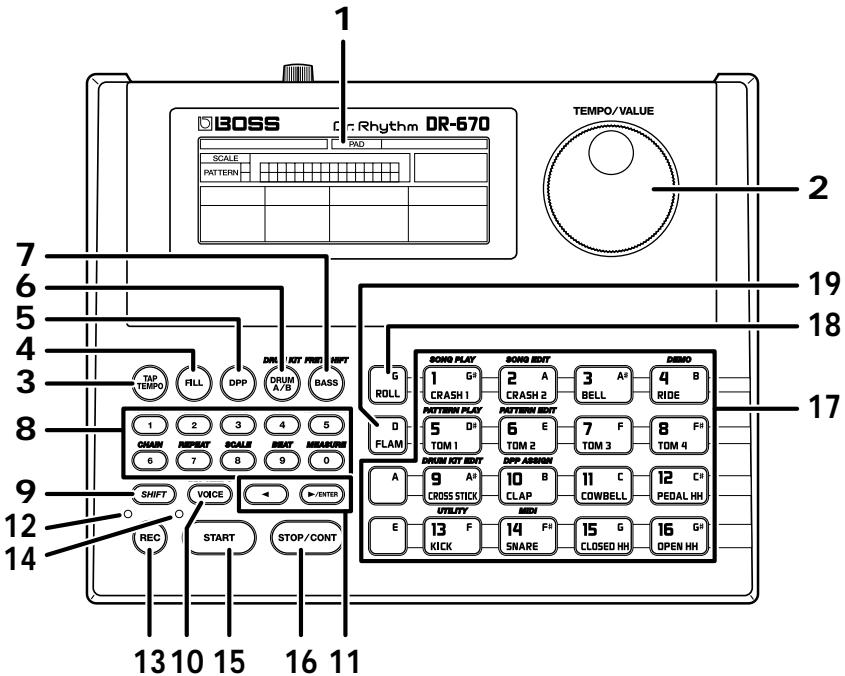
1 Display
2 TEMPO/VALUE Dial
Selects patterns and songs.
You can set tempos by rotating the dial while holding down the TAP TEMPO button.
This is also used during editing to input settings values.
3 TAP TEMPO Button
This is tapped in time to input the tempo.
4 FILL Button
You can use this to add fill-ins.
5 DPP (Direct Pattern Play) Button
Press when using the DPP function (p. 28).
6 DRUM A/B Button
Pressing this button allows you to change the drum sound to be played with the key pad. By holding down SHIFT while pressing this button you can switch the drum kit currently being played.
7 BASS Button
Pressing this button allows you to play bass sounds with the key pad.
By holding down SHIFT while pressing this button you can change the pitch of the bass sound with the key pad.
8 Numeric Keys
Used for entering song numbers and pattern numbers.
By holding down SHIFT while pressing the numeric keys, you can access a variety of editing functions and make changes in parameter settings.
9 SHIFT Button
Used in conjunction with other buttons.
10 VOICE Button
By holding down this button and pressing the key pads, you can confirm tone names and switch tones for performance patterns indicated with the “●”symbol.
11 / ENTER Button
In Step Recording, this specifies the step number.
During editing, this switches parameters.
12 REC (Recording) Indicator
Illuminated while Realtime Recording is in progress; blinks on and off during Step Recording.
13 REC (Recording) Button
Press this button when using Realtime Recording.
14 Tempo Indicator
Blinks in sync with the tempo of the song.
15 START Button
Starts playback.
16 STOP/CONT (Continue) Button
Stops playback.
You can also press this to resume playback of the performance from the point where it was previously stopped.
17 Key Pad
Plays the drum and bass sounds.
When the DPP function (p. 28) is in use, you can select patterns with the key pad.
18 ROLL Pad
When a drum sound is playing, you can perform rolls by holding down the ROLL pad and then pressing another of the pads.
When a bass sound is playing, this is used as an ordinary pad.
19 FLAM Pad
When a drum sound is playing, you can perform flams by holding down the FLAM pad and then pressing another of the pads.
When a bass sound is playing, this is used as an ordinary pad.
Rear Panel
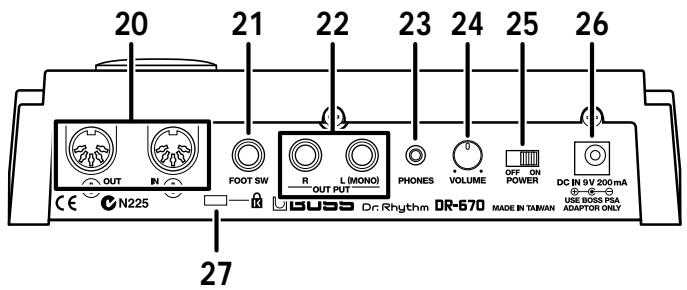
20 MIDI Connector IN/OUT
External MIDI devices can be connected to these connectors.
21 FOOT SW (Switch) Jack
By connecting a foot switch, you can obtain pedal control over the start and stop of performances, the addition of fills, or other actions.
22 OUTPUT Jack R/L (MONO)
Provides output of the audio signals. Connect to your amp, stereo system, or similar equipment.
For monaural output use the L (MONO) jack.
23 PHONES (Headphones) Jack
A set of headphones can be connected to this jack.
24 VOLUME Knob
Adjusts the volume from the OUTPUT jack and PHONES jack.
25 POWER Switch
Switches the power on and off.
26 AC Adaptor Jack
You can use a separately sold AC adapter (BOSS PSA series).
27 Security Slot (R)
http://www.kensington.com/
Memo …
1
Make sure that the power is turned off.
2
Remove the battery cover on the unit's underside.
- When turning the unit upside-down, get a bunch of newspapers or magazines, and place them under the four corners or at both ends to prevent damage to the buttons and controls. Also, you should try to orient the unit so no buttons or controls get damaged.
- When turning the unit upside-down, handle with care to avoid dropping it, or allowing it to fall or tip over.
3
Insert six AA batteries in the battery case, taking care to ensure that the positive (+) and negative (-) terminals are not reversed.
- We recommend the use of alkaline batteries for extended battery life.
- Do not mix new batteries with partially used batteries, and do not mix batteries of differing types.
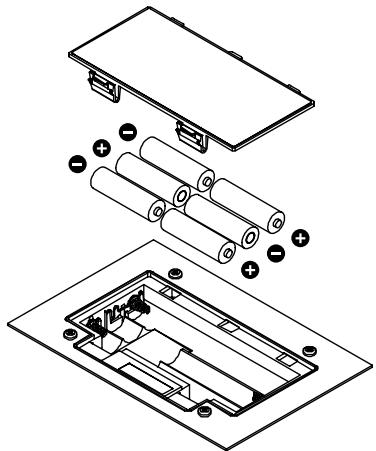
4
Close the battery cover.

When the battery power begins to run low, "DRY BATTERY LOW" appears in the display when the power is turned on. When this occurs, replace with new (six AA) batteries.
Making Connections
The DR-670 is not equipped with an internal amp or speakers. To hear sound, either connect an amplifier and speakers or use stereo headphones.
Audio cables, MIDI cables, Stereo headphones, and foot switches are not included. You will need to purchase these items from your dealer.
1
Before you begin making connections, confirm the following.
- Is the volume level of the DR-670 or connected amp turned all the way down?
- Is the power to the DR-670 or connected amp turned off?
To prevent malfunction and/or damage to speakers or other devices, always turn down the volume, and turn off the power on all devices before making any connections with the DR-670.
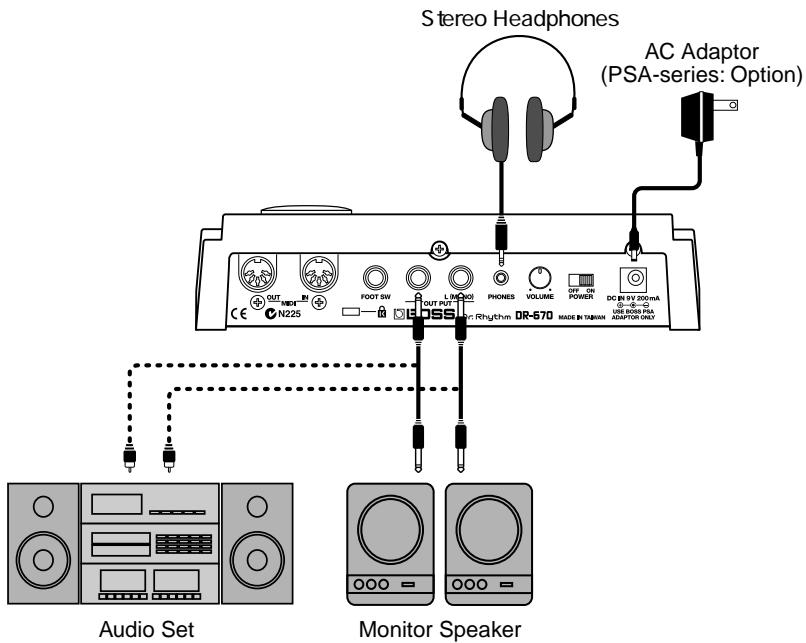
2
Connect the amp and audio gear as shown in the diagram.
If necessary, connect headphones and foot switches.
In order to take full advantage of the DR-670's sound we recommend that you play it in stereo.
When using the system in mono, connect to the OUTPUT L (MONO) jack.
- For instructions on connecting to the MIDI connectors, refer to p. 85.
- For instructions on connecting to the FOOT SW jack, refer to p. 34.
Turning On the Power
Once the connections have been completed (p. 17), turn on power to your various devices in the order specified. By turning on devices in the wrong order, you risk causing malfunction and/or damage to speakers and other devices.
1
Before you turn the power on, make sure of the following points.
- Are external devices connected correctly?
- Is the volume level of the DR-670 or connected amp turned all the way down?
2
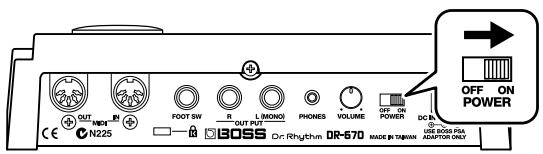
Turn on the POWER switch located on the rear panel of the DR-670.
3
Turn on the power of the amp.
4
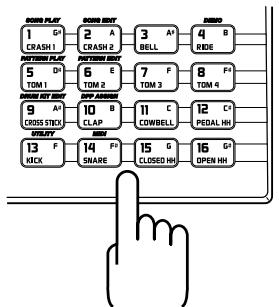
While tapping the key pad, rotate the VOLUME knob on the rear panel to adjust the DR-670's volume level.
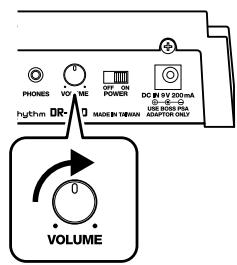
Also adjust the volume levels for amps and other connected gear.
- This unit is equipped with a protection circuit. A brief interval (a few seconds) after power up is required before the unit will operate normally.
Turning Off the Power
1
Before turning off the DR-670's power, make sure that:
- Is the volume level of the DR-670 or connected amp turned all the way down?
2
Switch off any amps and other external equipment.
3
Turn off the power of the DR-670.
Reset to Default Factory Settings (Factory Reset)
If changes are made to the settings after purchase of the DR-670, you may be unable to operate the unit as described in the Quick Start manual. If this occurs, then follow the instructions below to restore the unit to the original factory settings (Factory Reset), then proceed to read Quick Start. When Factory Reset is carried out, all data stored in the DR-670 is returned to the settings in effect when the unit was shipped from the factory. If you already have important data saved in the DR-670, save the data to an external MIDI device (such as a sequencer) using the bulk dump procedure (p. 89), then carry out Factory Reset.
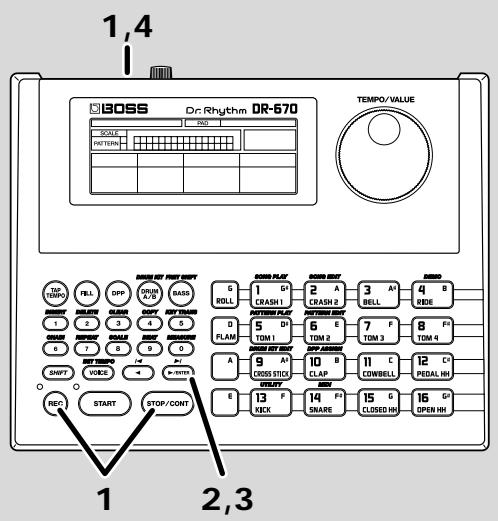

While holding down [REC] and [STOP/CONT], turn on the DR-670's power.
| FCT | RST | ENTP |

Press [▶/ENTER].
Along with an "OK," a message confirming that you want to proceed with Factory Reset is displayed.
| FCT | RST | OK? | ENTP |
If you want to cancel Factory Reset at this point, just turn off the power.

Press [▶/ENTER] once more.
"DONE" appears in the display once the Factory Reset has been completed.

Turn off the power.
When the power is turned on again, the settings revert to those in effect when the unit was shipped from the factory.
Listen to the Demo Song
The DR-670 features internal demo songs that exhibit the special capabilities of the instrument. Here's how to listen to the demo song.
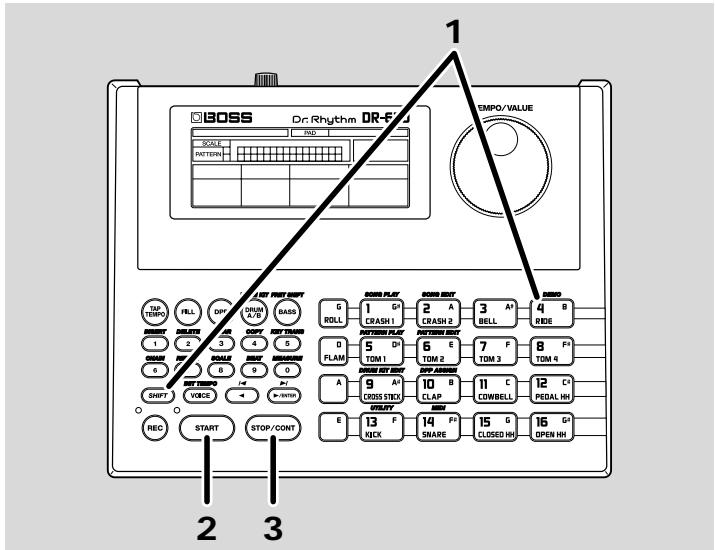
1
Hold down [SHIFT] and press Key Pad 4 (DEMO).
| IPA | 670 | BEMO | SONG |
2
Press [START] to begin playback.
3
Press [STOP/CONT] to stop playback.
When [STOP/CONT] is pressed once more, playback of the performance starts from the point where it was stopped (this is referred to as continued play).
Press [START] to have playback start from the beginning of the performance.
After the demo song is played to the end, the performance then starts again from the beginning.
- All rights reserved. Unauthorized use of this material for purposes other than private, personal enjoyment is a violation of applicable laws.
- No data for the music that is played will be output from MIDI OUT.
Using the Key Pads to Play Sounds
Let's try playing the DR-670's internal rhythm instrument sounds by tapping the key pads.
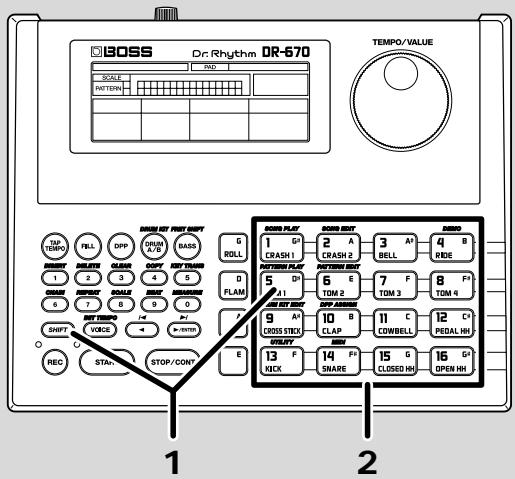

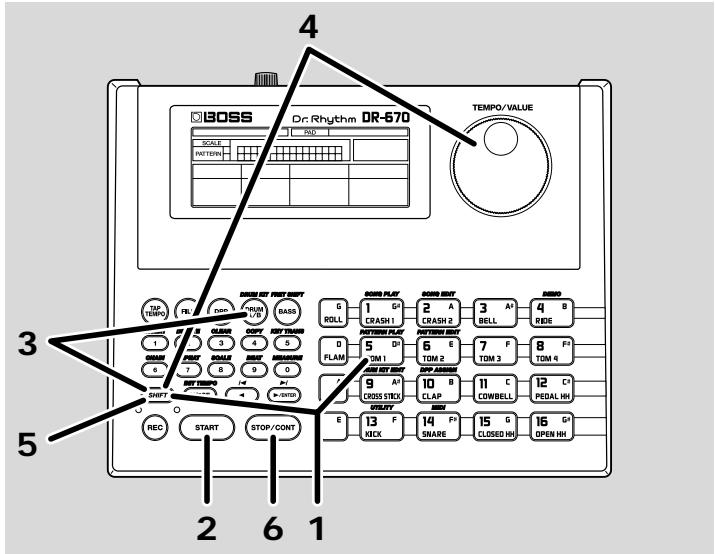
Hold down [SHIFT] and press Key Pad 5 (PATTERN PLAY).
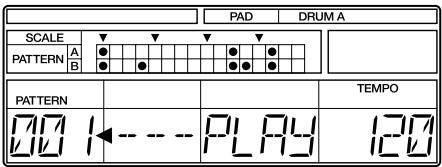

Tapping the key pads now plays the instruments assigned to each of the pads.
The key pads feature dynamic response, so the volume and sound change according to the force used to tap them.
Specialized Performance Techniques (Roll)
A roll is performed by playing the same sound consecutively at the same interval.
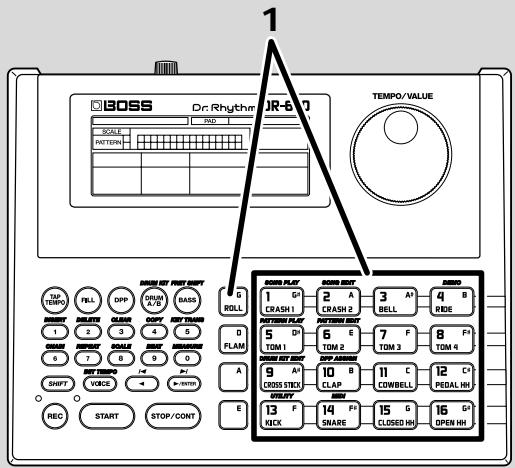
1
While pressing [ROLL], hold down a key pad.
You can change the roll interval.
Refer to "Changing the Roll Settings" (p. 77).
Adding Character to Performances (Flam)

What is a Flam?
A flam is produced by striking the snare or other drum simultaneously with the two sticks held in the hands, but with a slight difference in force used in playing each stick.
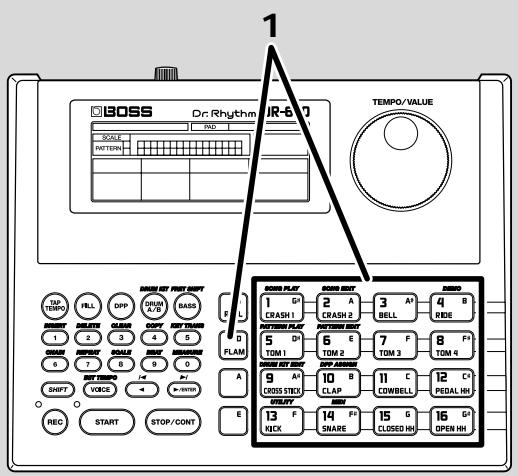
1
While pressing [FLAM], press a key pad.
You can change the flam interval and force. Refer to "Changing the Flam Settings" (p. 78).
■ Playing Different Sounds (Switching Pad Drum Banks)
You can have different instruments sound, even when the same key pad is tapped, by switching the pad's drum bank.
Pad drum banks are collections of drum instrument sounds that are assigned as a single group to the sixteen key pads. There are two drum banks, Bank A and Bank B.
For more detailed information, refer to "Drum Kits and Pad Performances" (p. 42).
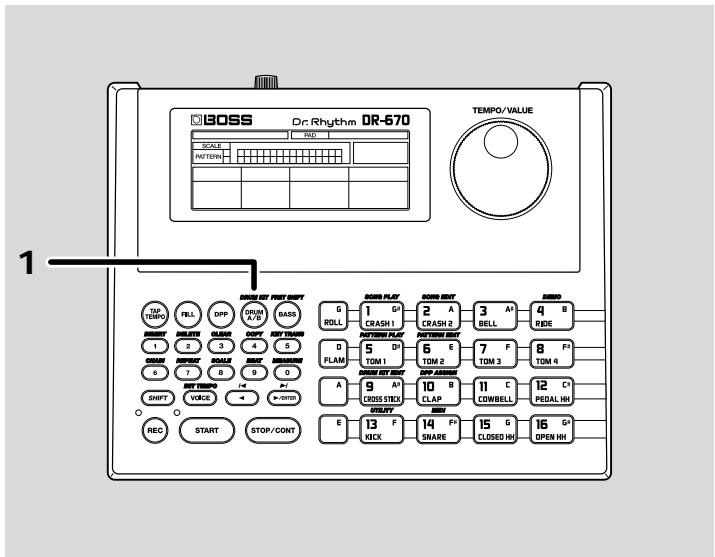
1
Press [DRUM A/B].
Each time the button is pressed, A and B alternately switch in the display, indicating the switch between Drum Banks A and B.
![BOSS DR-670 - Press [DRUM A/B]. - 1](/content/2025/01/152003/images/bab482f11b63ffa8f89952acc70cd9e63fceec17aa84045ffe17948a300afe78.jpg)
When the drum bank is switched, the sounds (the instruments) played by tapping the key pads are also switched.
Playing Bass Sounds
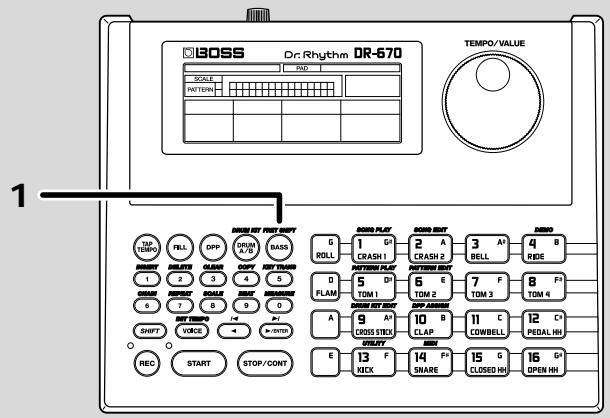
1
You can play bass sounds with the key pads by pressing [BASS].
| PAD | BASS |
When a key pad is pressed, a bass sound plays at the pitch predetermined for that key pad. The bass sound stops playing when the key pad is released.
Pitches are assigned to the key pads in such a way as to simulate the frets of a bass guitar.
- You cannot play two or more bass sounds simultaneously.
- Rolls and flams cannot be played when using the key pads to play bass sounds.
You can shift all the pitches of sounds being played overall. Refer to "Changing the Bass Pitch (Fret Shift)" (p. 48).
Performing Rhythm Patterns
The DR-670 comes with 200 different Preset Patterns and 200 User Patterns for you to use.
Use the following procedure to perform these patterns and listen to the sounds.
Pattern refers to a one- to two-measure rhythm performance pattern.
Selecting and Performing Patterns
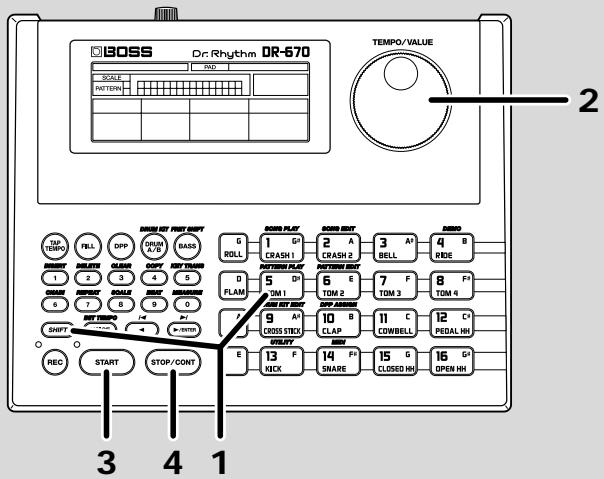
1
Hold down [SHIFT] and press Key Pad 5 (PATTERN PLAY).

2
Rotate the TEMPO/VALUE dial to select the pattern number.
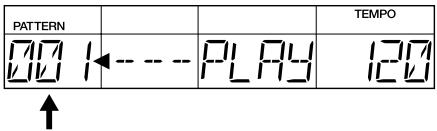
3
Press [START] to begin playback.
The Tempo indicator flashes once each beat.
Turning the TEMPO/VALUE dial while a performance is in progress sets up the pattern number for the next pattern to be played. When the current pattern finishes playing, the next preselected pattern then begins to play.
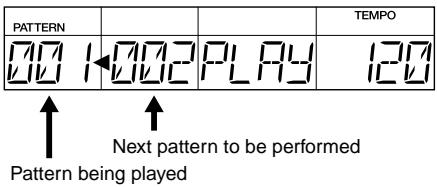
4
When [STOP/CONT] is pressed, playback of the performance stops.
Press [START] to begin the performance of the most recently selected pattern.
You can select patterns with the numeric keys. Refer to "Playing Patterns" (p. 49).
Selecting and Performing Patterns (DPP Function)
Ordinarily, tapping the key pads plays the instruments assigned to those pads, but with DPP (Direct Pattern Play), you can instead trigger the playback of the patterns that are assigned to the key pads.
With DPP, you can instantly perform desired patterns by tapping the pads.
Here, we suggest that you try using the DPP function to play the patterns that were assigned at the factory to the key pads, and see for yourself how useful this feature is.
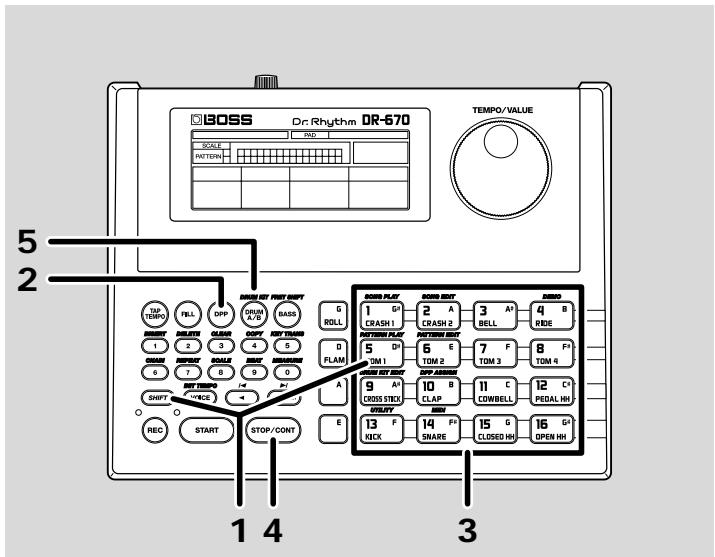

Hold down [SHIFT] and press Key Pad 5 (PATTERN PLAY).
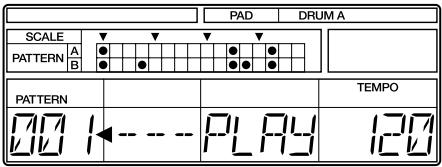

Press [DPP] to turn the DPP function on.
| PAD | DPP |
3
When you tap the key pad, performance of the assigned pattern begins.
The Tempo indicator flashes once each beat.
The pattern number for the pattern currently being played appears in the display.
| PATTERN | TEMPO | ||
| PLAY | 120 |
When you tap a different key pad while the pattern is still being played, the performance of the current pattern stops, and the performance of the pattern assigned to the pad that was tapped then begins.
| PATTERN | TEMPO | ||
| PLAY |
4
When [STOP/CONT] is pressed, playback of the performance stops.
When the key pad is pressed once more, playback of the pattern starts again.
Press [START] to begin the performance of the most recently selected pattern.
5
To turn off the DPP function, press [DRUM A/B] or [BASS].
For instructions on assigning patterns to the key pads, refer to "Assigning Patterns to the Key Pads" (p. 75).
Adjusting the Tempo
Try changing the tempo used for performing the pattern.
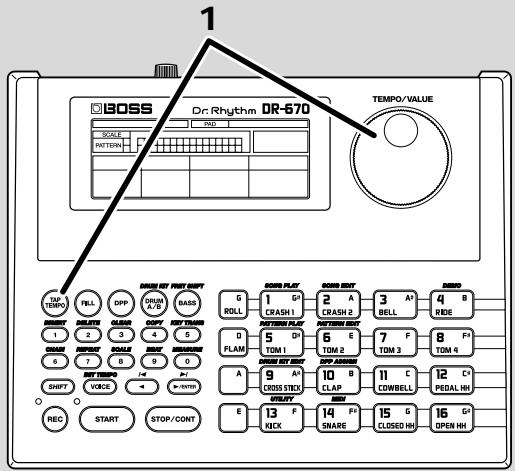
1
Hold down [TAP TEMPO] and rotate the TEMPO/VALUE dial to change the tempo.
| TEMPO |
The tempo can be changed with in the range from 20 to 260 beats per minute.
Changing the tempo using the Tap Tempo function
You can determine the tempo by the timing with which you press [TAP TEMPO].
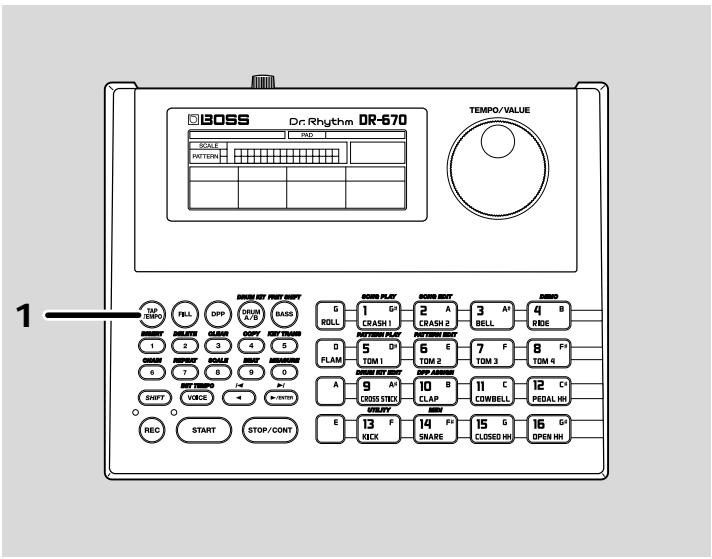
1
Press [TAP TEMPO] at least three or four times in a row at the desired timing; the tempo will be set to the same timing you've just used for your tapping.
The tempo can be changed with in the range from 20 to 260 beats per minute.
Inserting Fill-Ins
With the DR-670, you can add fill-ins to a pattern being played at whatever timing you want.
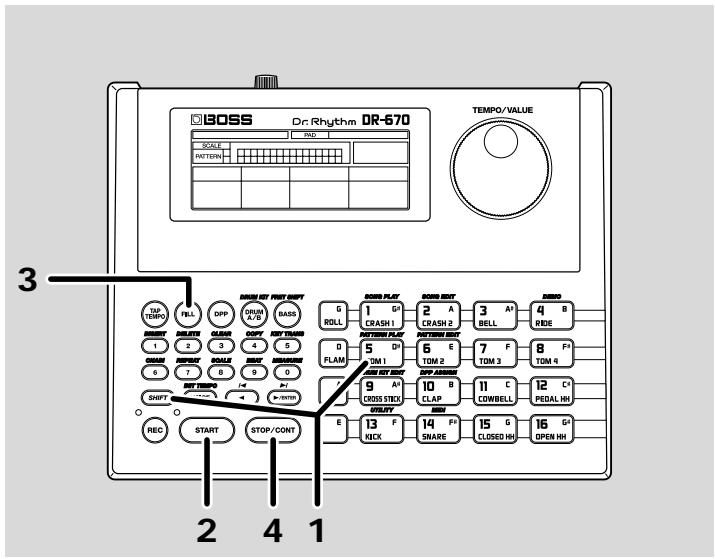
1
Hold down [SHIFT] and press Key Pad 5 (PATTERN PLAY).
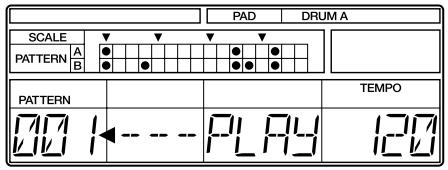
2
Press [START] to start the performance of the pattern.
3
Press [FILL] at the points where you want a fill-in added.
The fill-in pattern is played instantly after [FILL] is pressed.
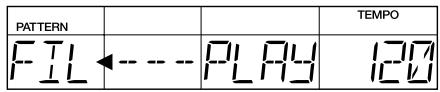
When the fill-in pattern is played to the end, the performance reverts to the original pattern.
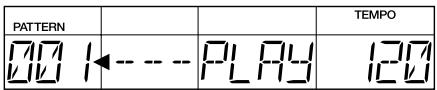
4
Press [STOP/CONT] to stop the performance.
By pressing [FILL] during the final beat of a pattern, you can have the fill-in pattern play at the beginning of the next pattern.
For more details, refer to "Inserting Fill-Ins" (p. 50).
Using the Foot Switches
You can use up to two foot switches (such as the optional FS-5U) to start and stop performance and insert fill-ins.
- When only one foot switch is connected, the foot switch only starts and stops performances.
- A special PCS-31 cable (optional) is required when connecting two foot switches.
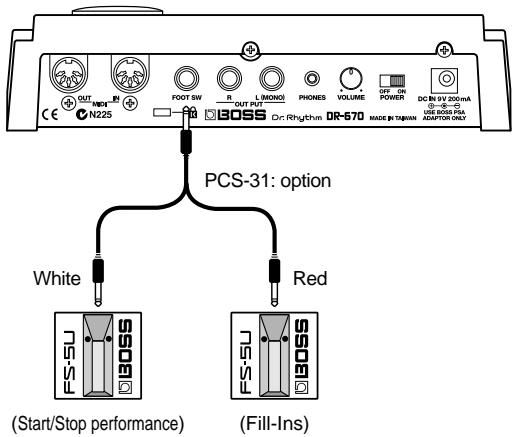
Foot switches connected with plugs that have a white stripe are used for starting and stopping performances; foot switches connected with plugs that have a red stripe are used for fill-ins.
To prevent malfunction and/or damage to speakers or other devices, always turn down the volume, and turn off the power on all devices before connecting a foot switch.
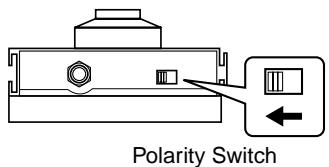
When connecting the foot switch (the optional FS-5U) to the FOOT SW jack, set the polarity switch as shown in the following figure.
1
Hold down [SHIFT] and press Key Pad 5 (PATTERN PLAY).
2
When the foot switch connected with a plug that has a white stripe is pressed while the performance is stopped, the performance then starts.
| PATTERN | TEMPO | ||
| PLA | 120 |
3
Pressing the foot switch connected with a plug that has a red stripe while the performance is in progress inserts a fill-in.
| PATTERN | TEMPO | ||
| FILL | PLA |
When the fill-in pattern is played to the end, the performance reverts to the original pattern.
4
When the foot switch connected with a plug that has a white stripe is pressed while the performance is in progress, the performance then stops.
You can assign functions other than starting/stopping the performance and inserting fill-ins can be assigned to the foot switches. Refer to "Assigning Functions to the Foot Switches" (p. 77).
■ Playing a Pattern Using a Different Sound (Switching Drum Kits)
Even when using the same pattern, you can change the mood (the performance and the way it is played) of the pattern by altering the instruments from which the pattern is made up.
Here, try playing the same pattern with various different instruments, changing drum kits while the performance is in progress.
A drum kit is a collection of 32 drum instruments and one bass tone that is selected as a single set.
The DR-670 features 64 Preset Drum Kits along with 64 additional User Drum Kits whose settings you can change.
For more details, refer to "Drum Kits and Pad Performances" (p. 42).
1
Hold down [SHIFT] and press Key Pad 5 (PATTERN PLAY).
2
Press [START] to start the performance of the pattern.
| PATTERN | TEMPO | ||
| PLA |
3
Hold down [SHIFT] and press [DRUM A/B] (DRUM KIT).
Keep [SHIFT] held down.
| PATTERN | PARAMETER | VALUE | |
| KITT |
4
While continuing to hold down [SHIFT], rotate the TEMPO/VALUE dial to select the drum kit number.
Try switching among the drum kits and listening to the different sounds.
| PARAMETER | VALUE |
| KTT | 12 |
| Current dru | |
5
Release [SHIFT].
This completes the selection of the drum kit.
| PATTERN | TEMPO | ||
| PLA |
6
Press [STOP/CONT] to stop the performance.
For more on the Preset Drum Kits, refer to "Preset Drum Kit List" (p. 102).
When you want to make changes to the drum kit settings, refer to "Chapter 8 Creating Your Own Favorite Drum Kits" (p. 79).
You Can Create Songs
With the DR-670, you can compose and perform songs by arranging sequences of rhythm pattern performances.
For more detailed information, refer to "Chapter 1 Before Composing Rhythm Patterns and Songs" (p. 38) and "Chapter 4 Recording and Editing Songs" (p. 63).
This section provides a summary description of the DR-670.
How the Work Progresses
The process of creating one song's worth of rhythm patterns can be divided broadly into two steps: creating the patterns, then composing the song.
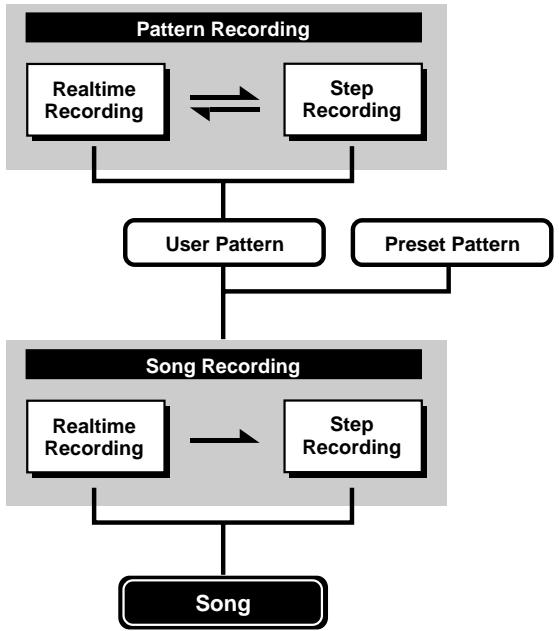
Composing the Rhythm Patterns
Compose (record) the performance patterns that constitute the sections or parts of the song. You can create up to 200 of your own User Patterns.
There two different recording methods are shown below.
Realtime Recording
With this method, the key pads are played in time with a metronome count, with the pattern being recorded just as it is performed. Even if there is a little unevenness in the timing used in tapping the key pads, the Quantize function allows you to record with the timing corrected. (Refer to "Set the Quantization" p. 55)
Step Recording
With this recording method, the timing for playing instrument sounds (steps), volume levels, and other aspects of the pattern are specified one by one. This allows patterns to be recorded accurately, even those that are hard to record using Realtime Recording.
You can also record patterns using both Realtime and Step Recording.
After recording the basic pattern using Step Recording, finish creating the Pattern by using Realtime Recording to add sounds in a freer ad-lib style.
Composing the Song
Compose (record) the song by stringing together a sequence of performances using your User Patterns and the 200 Preset Patterns. There are two methods used for recording songs as well.
Realtime Recording
Here, the song is recorded just by selecting and playing patterns. This allows quick and easy recording of songs.
Step Recording
With this method, the individual patterns to be played and the points where they are played in the sequence (the parts) are specified one by one. This allows accurate recording of songs, even those that are difficult to record using Realtime Recording and those involving complex combinations of patterns.
About Operational Modes
The DR-670 features numerous functions for creating patterns and songs and for Editing sounds. These functions are categorized into the following nine different modes.
Pattern Play mode
(Refer to Chapter 2 Playing Patterns; p. 47)
Used for performing rhythm patterns.
To go into Pattern Play mode, hold down [SHIFT] and press Key Pad 5 (PATTERN PLAY) while the performance is stopped.
The DR-670 will initially be in the Pattern Play mode each time it is powered up.
| PATTERN | TEMPO | ||
| PLA |
Pattern Edit mode
(Refer to Chapter 3 Recording and Editing Patterns; p. 52)
Used for recording and editing rhythm patterns.
To go into Pattern Edit mode, hold down [SHIFT] and press Key Pad 6 (PATTERN EDIT) while the performance is stopped.
| PATTERN EDIT | BEAT - STEP | TEMPO | |
Song Edit mode
(Refer to Chapter 4 Recording and Editing Songs; p. 63)
Used for recording and editing songs.
To go into Song Edit mode, hold down [SHIFT] and press Key Pad 2 (SONG EDIT) while the performance is stopped.
| SONG EDIT | MEASURE | PATTERN | TEMPO |
| 1 | 1 | 1011 | 1211 |
Song Play mode
(Refer to Chapter 5 Performing Songs; p. 72)
Used for performing songs.
To go into Song Play mode, hold down [SHIFT] and press Key Pad 1 (SONG PLAY) while the performance is stopped.
| SONG | MEASURE | PATTERN | TEMPO |
| 1 | 1 | 1011 | 1201 |
Drum Kit Edit mode
Used for making drum kit settings, assigning sounds to the key pads, and for setting the way sounds are played.
To go into Drum Kit Edit mode, hold down [SHIFT] and press Key Pad 9 (DRUM KIT EDIT) while the performance is stopped.
| DRUM KIT EDIT | PAD | PARAMETER | VALUE |
| 9 | A B | IN S T | K C I E |
DPP Assign mode
Used for assigning rhythm patterns to the key pads when the DPP (Direct Pattern Play) function is used.
To go into DPP Assign mode, hold down [SHIFT] and press Key Pad 10 (DPP ASSIGN) while the performance is stopped.
| PAD | PATTERN | ||
Utility mode
Used for setting the output part, metronome, foot switches, rolls, flams, pad sensitivity, and master tuning.
To go into Utility mode, hold down [SHIFT] and press Key Pad 13 (UTILITY) while the performance is stopped.
| PARAMETER | VALUE | ||
| UITL | OUT | PART | ALL |
MIDI mode
Used for making settings to synchronize performances with the BR-8 or other external MIDI devices. Also used for transmission and reception of the DR-670's internal data with respect to an external MIDI sequencer (Bulk function).
To go into MIDI mode, hold down [SHIFT] and press Key Pad 14 (MIDI) while the performance is stopped.
| PARAMETER | VALUE | ||
| MITT | SUNIC | AUTO |
Demo mode
Used for playing the demo songs.
To go into Demo mode, hold down [SHIFT] and press Key Pad 4 (DEMO) while the performance is stopped.
| IPA | IPA | BEMO | SONG |
Drum Kits and Pad Performances
Drum Kits
The DR-670 includes 256 internal drum sounds (instruments) and sixteen internal bass sounds (bass tones). A "drum kit" is a single set containing 32 of these drum sounds and one of the bass sounds.
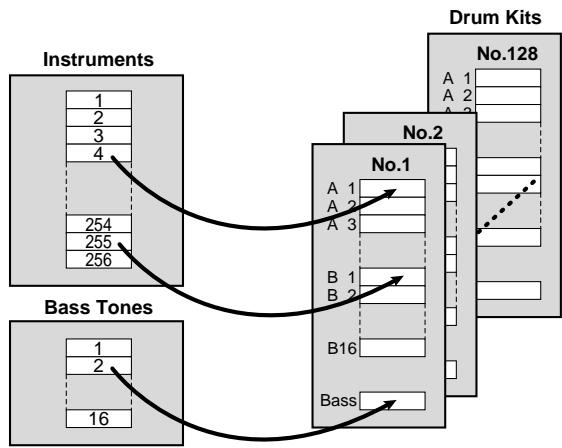
- The DR-670 comes with 64 Preset Drum Kits (Numbers 1-64), and 64 User Drum Kits (Numbers 65-128), whose settings you can change.
- You can modify the sound (change the volume, pitch, and other settings) of instruments assigned to the User Drum Kits, thus enabling you to handle such sounds as new instruments distinct from the internal instruments.
- On the DR-670 you can use only one drum kit when creating any one pattern. You cannot use multiple drum kits simultaneously to make one pattern.
- The number of the drum kit used when creating a pattern is stored within the pattern. As a result, during playback of patterns, a switch is made to the relevant drum kit whenever you switch patterns.
Pad Performances
Drum sounds are divided into two banks, Drum Bank A and Drum Bank B, each of which contains sixteen sounds, with one of the sixteen sounds each being assigned to a key pad.
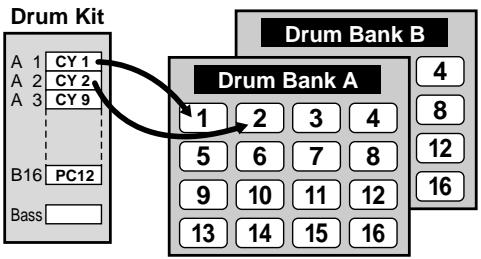
With the DR-670, you can elect to have either Drum Bank A or B, or bass sounds played when the key pads are tapped.
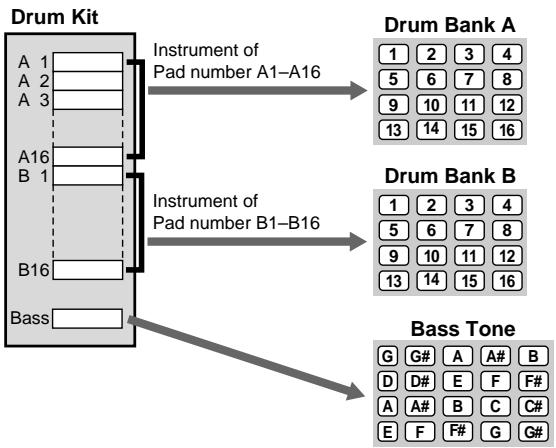
About Polyphony
The DR-670 features 20-voice polyphony; that is, a maximum of twenty sounds (voices) can be played simultaneously. However, some instruments use two voices each time they sound, so when playing such instruments, the actual number of simultaneous notes may be less than twenty.
To find the number of voices used by each instrument, refer to the "Instrument/Bass Tone List" (p. 99).
How to View the Scale/Pattern Display
■ Pattern Display
The content of any one of the instruments or the bass tone for the currently selected pattern is indicated in the pattern display.
The following shows the relationship between the pattern and what is indicated.






The DR-670 uses patterns that are composed of either one or two measures. When a two-measure pattern is selected, it is indicated as shown below.

Switching the Instrument
When you want to display the information for a different instrument, hold down [VOICE] and press the key pad for the instrument whose information you want to display.
- To switch drum banks, press [DRUM A/B].
The name of the selected instrument appears in the display.
| VOICE | |
| A | B |
- To display bass tone information, hold down [VOICE] and press [BASS].
Scale Display
The "▼" mark in the scale display indicates the timing of the quarter notes.
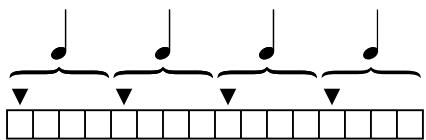
When there are too many beats to allow all of the notes from the beginning to the end of the pattern to be displayed at one time, “▶” appears, indicating that there are steps that are not being displayed.
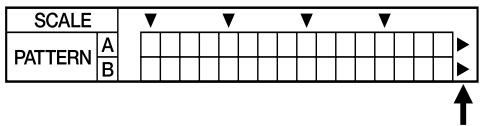
Changing the Scale
By changing the scale (the length of individual steps = a single square), you can have patterns containing many notes be shown in their entirety, as well as display the content of more complex patterns.
(Example)
BEAT: 4/4
SCALE:32
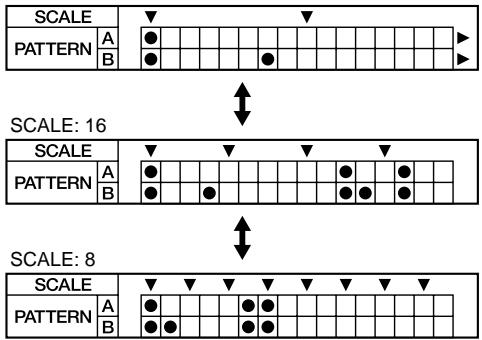
Operation
- Hold down [SHIFT] and press [8] (SCALE).
- While continuing to hold down [SHIFT], turn the TEMPO/VALUE dial to change the scale setting. For example, when set to "16," the length of a step becomes a sixteenth note.
Valid Settings: 32, 16 (triplets), 16, 8 (triplets), 8
| PARAMETER | VALUE |
| SCAL | 16 |
- Changing the scale settings does not change the performance data.
Using [SHIFT]
With the DR-670, by holding down [SHIFT] while pressing another button or key pad, you can switch modes and use a variety of convenient functions for editing songs and rhythm patterns.
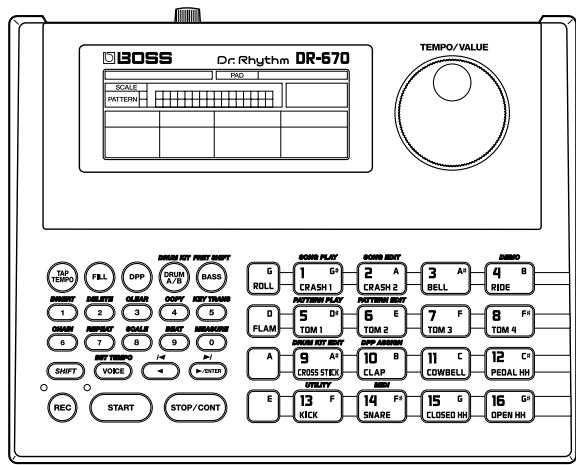
The text (or symbols) printed above the buttons and key pads on the DR-670's panel indicate the functions selected when [SHIFT] is held down while they are pressed.
![BOSS DR-670 - Using [SHIFT] - 1](/content/2025/01/152003/images/36fe817a25c43962e37e6f512caf83a84dbd131a3fcea6ba31189942ee145862.jpg)
Chapter 2 Playing Patterns (Pattern Play Mode)
Patterns are played in Pattern Play mode.
You can also tap the key pads to play drum sounds and bass sounds.
To switch to Pattern Play mode, hold down [SHIFT] while the performance is stopped and press Key Pad 5 (PATTERN PLAY).
| PATTERN | TEMPO | ||
| PLA |
Playing Sounds with the Key Pads
You can tap the key pads to play the sounds of the instruments assigned to them.
The volume and tone of the sound will change depending on how hard you strike a key pad.

The sensitivity of the key pads is adjustable. Refer to "Adjusting the Key Pad Sensitivity" (p. 78).
Selecting a Drum Kit
- Hold down [SHIFT] and press [DRUM A/B] (DRUM KIT).
- Hold down [SHIFT] and rotate the TEMPO/ VALUE dial to select a drum kit.
Preset: 1-64
User: 65-128
| PATTERN | PARAMETER | VALUE | |
| KITT |
- Once the drum kit has been selected, release your finger from [SHIFT].
You're returned to the Pattern Play Mode screen.

"Preset Drum Kit List" (p. 102)
Selecting the Drum Bank
You can switch between Drum Banks A and B.
- Press [DRUM A/B].
This button is pressed to toggle between Banks A and B.
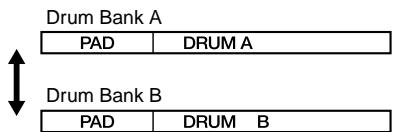
- You cannot change instruments recorded to patterns by pressing [DRUM A/B].
Playing the Bass Sounds
Follow the procedure below to play bass sounds.
- Press [BASS].
| PAD | BASS |
- Press a key pad.
The bass sound plays at the predetermined pitches assigned to the key pads.
The bass sound stops when you release the key pad.
Pitches assigned to the key pads correspond to the fret arrangement of the bass guitar.
- You cannot have more than one bass sound play at a time.
- You cannot play rolls and flams when playing bass sounds with the key pads.
Changing the Bass Pitch (Fret Shift)
You can shift the entire tuning of the bass sound.
- Hold down [SHIFT] and press [BASS] (FRET SHIFT).
- Hold down [SHIFT] and rotate the TEMPO/ VALUE dial to select the number of frets you want to shift by.
| PATTERN | PARAMETER | VALUE | |
| FRET |
Setting a negative value (-) shifts the pitch down; setting a positive value (+) shifts the pitch up.
One fret is equivalent to a half-step change in pitch; any value from -5 to +16 can be set.

To play the pitches of the fifth string of a five-string bass (low B), set Fret Shift to -5. You can then use Key Pads E, 13-16 to perform the fifth string's low notes (from open string to the fourth fret).
| PARAMETER | VALUE |
| FET | --5 |
- Once Fret Shift has been set, release [SHIFT].
You're returned to the Pattern Play Mode screen.
- The Fret Shift function is not enabled during pattern playback.
Playing with Special Performance Techniques
You can play rolls and flams when using the key pads to play drum sounds.

Roll: This is a technique where the same sound is continuously repeated with the same timing or interval between the sounds.
Flam: In this performance technique, a stick is held in each hand, and each stick strikes the snare (or other instrument) with a very slight difference in timing and force.
- You cannot use roll and flam performances with bass sounds.
Playing Rolls
- While holding down [ROLL], press a key pad.
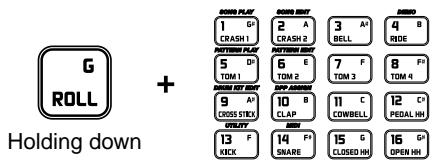
You can change the time interval used for the rolls (p. 77).
■ Playing Flams
- While holding down [FLAM], press a key pad.
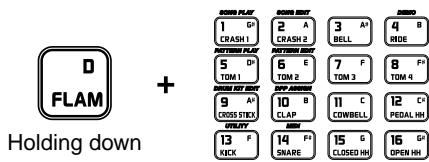
You can change the difference in the timing of the first and second sticks striking the snare and the relative striking force of each stick (p. 78).
Playing Patterns
You can select from 200 Preset and 200 User patterns to play.
Patterns 001-200 are Preset patterns, and
Patterns 201-400 are User patterns.
-
When the unit left the factory, the User patterns were empty of all data.
-
Select the pattern to be played.
Turn the TEMPO/VALUE dial to select the pattern number.
Use the following procedure when selecting the pattern number with the numeric keys.
Press the numeric keys to input the number.
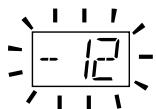
Press [▶/ENTER] to set the pattern number.
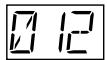
-
If you make a mistake in pressing a numeric key, press [▲] and then reinput with the correct numeric key.
-
Press [START] to start the performance.
The tempo indicator flashes on each beat.
If a pattern number is entered while the performance of a different pattern is in progress, the pattern with the newly-input number begins after the performance of the pattern currently being played is finished.
| PATTERN | TEMPO | ||
| PLAY |
- Pressing [STOP/CONT] stops the performance.
When [START] is pressed again, the performance starts from the beginning of the pattern.
■ Playing Patterns with the DPP Function
With the DPP (Direct Pattern Play) function, you can play patterns assigned to the key pads (1-16).
- Press [DPP]; "DPP" appears in the display.
| PAD | DPP |
- Press any of the key pads.
The pattern assigned to the key pad starts to play, with the tempo indicator flashing on each beat.
The pattern number for the pattern being played appears in the display.
| PATTERN | TEMPO | ||
| PLA |
If a key pad is pressed while the performance of a different pattern is in progress, the pattern assigned to the pressed key pad will begin after the performance of the pattern currently being played has finished.
- Pressing [STOP/CONT] stops the performance.
When a key pad is pressed again, the performance starts from the beginning of the pattern.
When [START] is pressed, the most recently selected pattern starts playing from the beginning.
- To switch the DPP function off, press [DRUM A/B] or [BASS].
Adjusting the Tempo
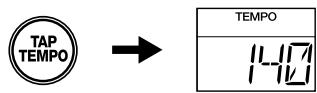
- Hold down [TAP/TEMPO] and rotate the TEMPO/VALUE dial to adjust the tempo.
You can adjust the tempo within the range from 20 to 260.
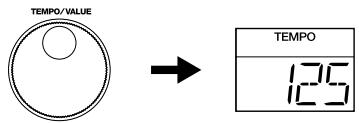
Adjusting the Tempo with the Tap Tempo Function
You can set the tempo to the interval at which [TAP TEMPO] is pressed.
- Press [TAP TEMPO] at least three or four times in a steady rhythm.
The tempo is set to the same timing you've just used when tapping [TAP TEMPO].
You can adjust the tempo this way within the range from 20 to 260.
Inserting Fill-Ins
With the DR-670, you can add fill-in patterns at any point in a pattern while the performance is in progress.
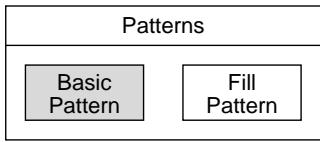
Each pattern features a fill-in prepared for use with that pattern. These fill-in patterns are called "fill patterns," whereas the original pattern on which these are based are called "basic patterns."

You can also create one fill-in pattern for each of the User patterns.
For more details, refer to "Record the Fill Pattern" (p. 59).
Adding Fill-Ins While the Pattern is Playing
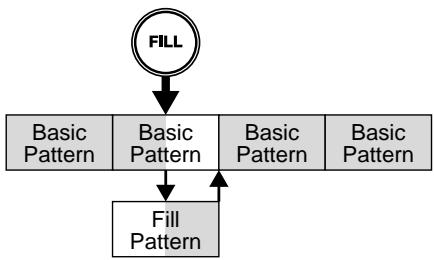
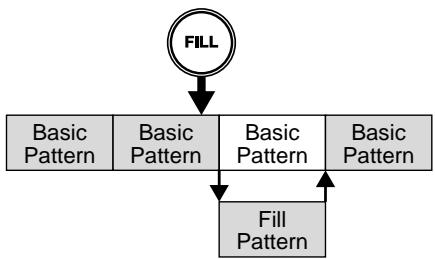
By pressing [FILL] while the basic pattern is in progress, you can go directly to the performance of the fill pattern and insert the fill-in.
- Press [START] to start the performance of the pattern.
2. Press [FILL] at the time you want to have the fill pattern inserted.
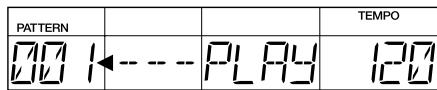
You are moved to the fill pattern the moment [FILL] is pressed.
| PATTERN | TEMPO | ||
| FILL | ←---→ | PLA | 120 |
When the fill pattern plays to the end, you are returned to the basic pattern.
| PATTERN | TEMPO | ||
| PLA |
3. Press [STOP/CONT] to stop the performance.
■ Playing a Fill Pattern at the Beginning of the Following Pattern
By pressing [FILL] while the final beat of the basic pattern is playing, you can have the fill pattern play at the beginning of the next pattern.
Starting Performances from the Fill Pattern
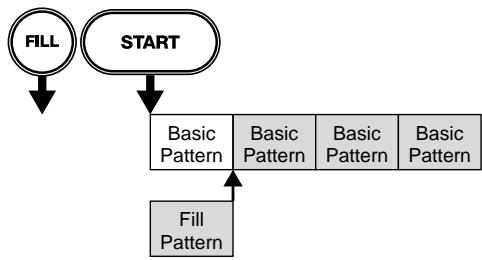
When you press [FILL] while performance of the pattern stopped, the fill pattern plays at the moment you press [START], and the performance then goes on to the basic pattern once the fill pattern is finished playing.
Using the Foot Switch for Performances
With a foot switch connected, you can then use the foot switch to carry out the [START], [STOP/CONT], and [FILL] operations.
This allows you to use pedal operations to start and stop performances and fill-ins.
You can assign functions other than starting and stopping performances and fill-ins.
Refer to "Assigning Functions to the Foot Switches" (p. 77).
Chapter 3 Recording and Editing Patterns (Pattern Edit Mode)
This section describes the procedures used for recording (Realtime Recording and Step) and editing User patterns.
These operations are carried out in Pattern Edit mode.
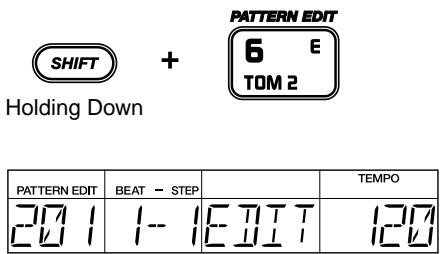
To switch to Pattern Edit mode, hold down [SHIFT] while the performance is stopped and press Key Pad 6 (PATTERN EDIT).
Before You Start Recording
When creating a new pattern, proceed through the following steps for the recording.
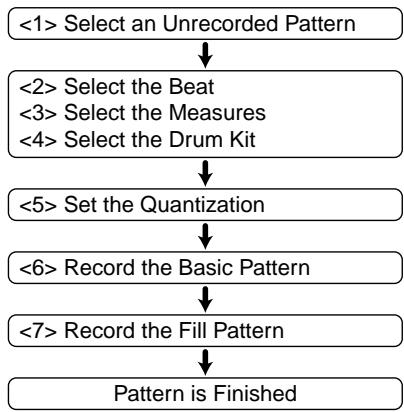
Use the procedures below to record the basic pattern and fill pattern.
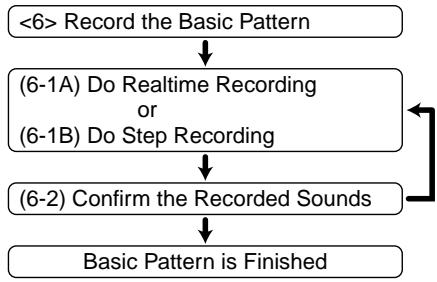
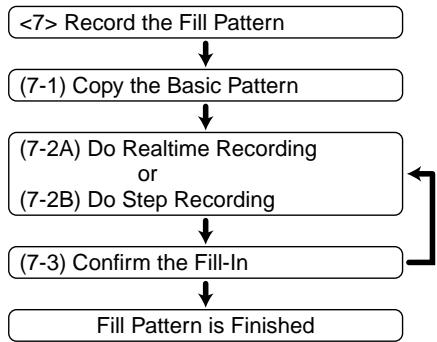
- The Beat, Measure, and Drum Kit settings are common to both the basic pattern and the fill pattern.
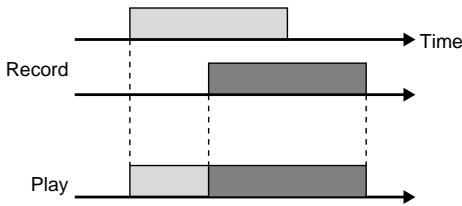
- When you use Realtime Recording or Step Recording to a pattern which has already been recorded, the sounds are layered without the previously recorded sounds being erased.
- With the drum part, you cannot record multiple notes from the same pad number at the same step (timing).
- Bass parts are monophonic. Even if multiple notes are layered in a recording, only one sound is played.
<1> Select an Unrecorded Pattern
1. With the performance stopped, select a User pattern (201-400).
Turn the TEMPO/VALUE dial to select the pattern number.
- You can also select the pattern by inputting the pattern number with the numeric keys and pressing [▶/ENTER ].
The following appears in the display when an unrecorded pattern (a pattern which contains no data) is selected.
| PATTERN EDIT | BEAT - STEP | TEMPO | |

You can also use patterns after erasing them.
Refer to "Erasing Patterns (Pattern Clear)" (p. 60).
- You cannot record or edit the Preset patterns (1-200).
"PRESET" appears in the display if you try to record or edit a Preset pattern.
If you want to record or edit a Preset pattern, first copy the pattern to a User pattern, then proceed with recording or editing.
<2> Select the Beat
1. Hold down [SHIFT] and press [9] (BEAT).
- Continue to hold down [SHIFT].
![BOSS DR-670 - Hold down [SHIFT] and press [9] (BEAT). - 1](/content/2025/01/152003/images/310d7c3d8d111bdeb597419fbba290662534d0306354af75eb34b15f9b027b2e.jpg)
"●" is displayed when the length is one measure.
- “▶” is indicated to the right of the pattern when the measure is too long to be displayed at once.
To show the entire measure, change the scale setting. For more details, refer to "How to View the Scale/Pattern Display" (p. 44).
2. While still holding down [SHIFT], rotate the TEMPO/VALUE dial to select the beat.
2/4, 3/4, ... 8/4,
4/8, 5/8, ... 16/8
- Release [SHIFT].
<3> Select the Measures
This setting determines whether a one-measure or two-measure pattern is recorded.
-
Hold down [SHIFT] and press [0] (MEASURE).
-
Continue to hold down [SHIFT].
| PARAMETER | VALUE |
| MEAS | 2 |
- While still holding down [SHIFT], rotate the TEMPO/VALUE dial to select a one-measure or two-measure pattern.
-
Release [SHIFT].
-
When a two-measure pattern is selected, you cannot set different beats for the first and second measures.

In some recorded data, reducing the number of beats or measures after recording instruments may end up changing the beat length.
Furthermore, once beats or measures have been reduced, you may not be able to restore the original data correctly, even by adding beats or measures again.
Always be sure to confirm settings after making changes.
<4> Select the Drum Kit
-
Hold down [SHIFT] and press [DRUM A/B] (DRUM KIT).
-
Continue to hold down [SHIFT].
| PARAMETER | VALUE |
| I I I | I |
- While still holding down [SHIFT], rotate the TEMPO/VALUE dial to select a drum kit.
1-64: Preset Drum Kits
65-128:User Drum Kits

For more on the Preset drum kits, refer to "Preset Drum Kit List" (p. 102).
- Release [SHIFT].
You can check the beat, measure, and drum kit settings in modes such as the Pattern Play mode and Song Play mode.
Hold down [SHIFT] and press [9] (BEAT), [0] (MEASURE), or [DRUM A/B] (DRUM KIT).
The values of settings are displayed while [SHIFT] is held down.
< 5 > Set the Quantization
Using Quantize in Realtime Recording corrects any timing discrepancies made while tapping the key pads during recording. Normally, this is set to the smallest note unit to be recorded.
To record without the quantization, set this to "OFF." When this is turned off, the key pads are recorded at the exact timing at which they are played.
When using Quantize in Step Recording, you can set how precisely the beat is to be divided.
-
When Quantize is set to “OFF” during Step Recording, one step is set to a 32nd note.
-
Hold down [SHIFT] and press [8] (SCALE).
- Continue to hold down [SHIFT].
| PARAMETER | VALUE |
| OUT12 | 16 |
- While still holding down [SHIFT], rotate the TEMPO/VALUE dial to set the quantization.

(no quantize)

(32nd note)

(16th note triplets)

(16th note)

(8th note triplets)

(8th note)
- Release [SHIFT].
<6> Record the Basic Pattern
(6-1A) Do Realtime Recording
Rehearsing
It can be helpful to rehearse your performance before carrying out Realtime Recording.
- Press [START].
The metronome sound begins, and the tempo indicator flashes in time with the count. - Press [DRUM A/B] or [BASS] to select the drum bank or bass part for the instrument to be recorded.
-
Rehearse the performance, tapping the key pads in time with the metronome.
-
Even though you are tapping the key pads, they are not being recorded.
If you want to speed up (or slow down) the metronome tempo, adjust the tempo by holding down [TAP TEMPO] and rotating the TEMPO/VALUE dial. -
The tempo set here is temporary, and is not recorded to the pattern.
-
When you have finished rehearsing, press [STOP] to stop the metronome.

You can change the metronome volume and beat (count interval). Refer to "Changing the Metronome Settings" (p. 78).
Recording Using a Foot Switch
With a foot switch connected, you can then use the foot switch to start and stop playback and to start recording.
For more information on setting the functions used with the foot switch, refer to "Assigning Functions to the Foot Switches" (p. 77).
Realtime Recording of the Drum Part
- Hold down [REC] and press [START]. The REC indicator lights, and the metronome begins playing. The metronome sound begins, and the tempo indicator flashes in time with the count. The BEAT display follows the count.
| PATTERN EDIT | BEAT - STEP | TEMPO | |
| REAL |
- Press [DRUM A/B] to select the drum bank for the instrument to be recorded.
- Tap the key pad for the instrument being recorded in time with the metronome. At this time, the force used to tap the key pads is recorded as velocity data. The recorded performance is repeated.
You can check a sound, playing but not recording it, by holding down [VOICE] and pressing the corresponding key pad. The instrument indicated in the pattern display is specified simultaneously.
You can record rolls and flams by holding down [ROLL] or [FLAM] while tapping the key pads.
When playing rolls, even if the roll sound is extremely rapid, it is recorded at the same note division as the Quantize setting for the recording. If you want to record rolls with the precision (Roll Type; p. 77) exactly as set, turn Quantize to "OFF."
Sounds may be delayed or omitted in the recording when rapid rolls are played at fast tempos. If this occurs, record at a slower tempo.
* When playing flams, the flam settings (Flam Interval/Ratio; p. 78) are not recorded. Changing these settings after recording also changes the way the flam sounds.
- Repeat Steps 2 and 3 as needed.
- Press [STOP] to stop recording. The REC indicator goes out.
To Erase Previously Recorded Sounds As You Record
Hold down [SHIFT] and press [2] (DELETE), then while still holding down [SHIFT], press the key pad to which the instrument you want to erase is assigned.
The sounds are erased as long as you hold down [SHIFT] and the key pad.
Realtime Recording of the Bass Part
- Hold down [REC] and press [START].
The REC indicator lights, and the metronome begins playing. The metronome sound begins, and the tempo indicator flashes in time with the count. - Press [BASS] to select the bass part.
- Tap the key pad with the name of the instrument to be recorded in time with the metronome.
At this time, the force used to tap the key pads is recorded as velocity, and the length of time starting when you press the key pad until you release it (when the sound stops) is recorded as the note length.
The recorded sounds are repeated.
You can check a sound, playing but not recording it, by holding down [VOICE] and pressing the corresponding key pad.
You cannot play rolls and flams in bass parts.
Bass parts are monophonic. Even if multiple notes are layered in a recording, only one sound is played (most recently specified one given priority).
- Repeat Steps 2 and 3 as needed.
- Press [STOP] to stop recording.
The REC indicator goes out.
To Erase Previously Recorded Sounds As You Record
Hold down [SHIFT] and press [2]
(DELETE), then while still holding down [SHIFT], press one key pad.
All of the sounds, regardless of the pitch, are erased as long as you hold down [SHIFT] and the key pad.
- When erasing long note sounds, press the key pad at the point the sound begins to play. Regardless of the length of the note, the entire sound recorded at that time is erased.
(6-1B) Do Step Recording
Step Recording of the Drum Part
1. Press [REC].
The REC indicator flashes, and the dot “ ” in the Pattern display flashes as well. The flashing dot is for the step being recorded. Either “A” or “B” flashes according to whether the step being recorded is in the first or second measure.
![BOSS DR-670 - Press [REC]. - 1](/content/2025/01/152003/images/b3c92115b0638f2c60ad1a178e721244e16e1f60f3371fa28da120e01dc03dd5.jpg)
- Press [DRUM A/B] to select the drum bank for the instrument to be recorded.
- Press [ ] [ /ENTER] to specify the step to be recorded.
![BOSS DR-670 - Press [REC]. - 2](/content/2025/01/152003/images/e87409622036ddac6d1bef56796146f5c5ae21ef5a39f378952769023920ee0b.jpg)
Holding down [SHIFT] and pressing [] lets you jump to the first step. Jump to the final step by holding down [SHIFT] and pressing [▶/ENTER].
- Tap the key pad for the instrument to be recorded.
At this time, the force used to tap the key pads is recorded as velocity.
The recording automatically advances by one step.
You can check a sound, playing but not recording it, by holding down [VOICE] and pressing the corresponding key pad. The
instrument indicated in the pattern display is specified simultaneously.
You can record rolls and flams by holding down [ROLL] or [FLAM] while tapping the key pads.
When recording rolls in Step Recording, the roll settings (Roll Type; p. 77) are disabled, and the steps in the interval from the time you press a key pad to the moment you release it are recorded one sound at a time.
When playing flams, the flam settings (Flam Interval/Ratio; p. 78) are not recorded. Changing these settings after recording also changes the way the flam sounds.
* You cannot record multiple notes to the same pad number at the same step.
-
Repeat Steps 2 through 4 as needed.
-
If necessary, change the Quantize settings for recording (p. 55).
-
Press [STOP] to stop recording.
The REC indicator goes out.
- Note that pressing [START] during Step Recording (while the REC indicator is lit) switches the DR-670 to Realtime Recording.
To Erase Previously Recorded Sounds As You Record
a. Press [ ] [ /ENTER] to move to the step to be deleted.
b. Hold down [SHIFT] and press [2] (DELETE), then while still holding down [SHIFT], press the key pad to which the instrument you want to erase is assigned.
Step Recording of the Bass Part
1. Press [REC].
The REC indicator flashes, and the dot "●" in the Pattern display flashes as well. The flashing dot is for the step being recorded. Either "A" or "B" flashes according to whether the step being recorded is in the first or second measure.
-
Press [BASS] to select the bass part.
-
Press [ ] [ /ENTER] to specify the step to be recorded.
![BOSS DR-670 - Press [REC]. - 1](/content/2025/01/152003/images/9d11ab7d086d629ec2cc1d8086b788648f17b0606c24ab2107000e48d87be12d.jpg)
Holding down [SHIFT] and pressing [] lets you jump to the first step.
- Tap the key pad with the note to be recorded.
At this time, the velocity (the force used to tap the key pad) is also recorded.
The recording automatically advances by one step.
![BOSS DR-670 - Press [REC]. - 2](/content/2025/01/152003/images/c6fff5db079f427cfc261e158fbce21c62bca03aa1f16f1d13d55d744f9febea.jpg)
"To Record Long Notes in the Bass Part" (p. 58)
You can record over a wide range of pitches by using the Fret Shift function (p. 48).
You can check a sound, playing but not recording it, by holding down [VOICE] and pressing the corresponding key pad.
- You cannot play rolls and flams in bass parts.
- You cannot record multiple notes to the same pad number at the same step.
-
Bass parts are monophonic. Even if multiple notes are layered in a recording, only one sound is played (with the last selected note played).
-
Repeat Steps 3 and 4 as needed.
-
If necessary, change the Quantize settings for recording (p. 55).
-
Press [STOP] to stop Step Recording.
The REC indicator goes out.
To Erase Previously Recorded Sounds As You Record
a. Press [ ] [ /ENTER] to move to the step to be deleted.
b. Hold down [SHIFT] and press [2] (DELETE), then while still holding down [SHIFT], press one key pad.
- When erasing a long bass sound, erase the sound in the step that contains the sound (the step in which the sound begins to play). Regardless of the length of the note, the entire sound is erased.
To Record Long Notes in the Bass Part
a. Press [ ] [ /ENTER] to specify the steps to be recorded.
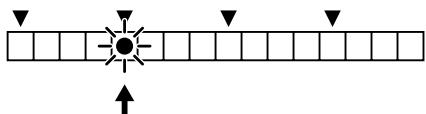
Step at which recording begins
b. Hold down the key pad with the note to be recorded.
c. Press [▶/ENTER ], and continue pressing until the step where you want the sound to stop playing.
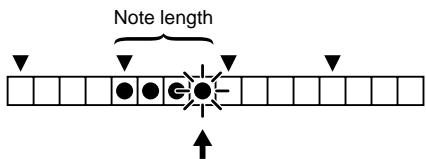
Step at which recording ends
d. Release the key pad.
This sets the length of the note.
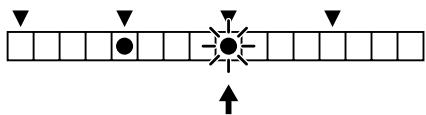
Next step to be recorded
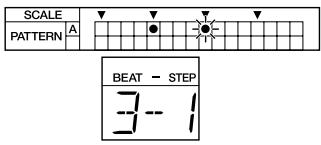
(Example)
When using Step Recording to record a quarter note starting at the second beat in the pattern, with Quantize set to sixteenth notes

a. Press [ ] [▶/ENTER] to specify Step 2-1.
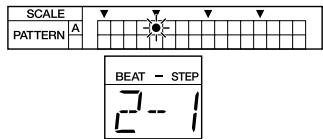
b. Tap a key pad, and continue holding it down instead of releasing it.
c. While continuing to hold down the key pad, press [▶/ENTER] to specify Step 2-4.
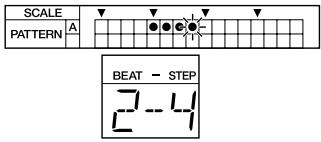
d. Release the key pad.
(6-2) Confirm the Recorded Sounds
- If recording is in progress, press [STOP] to stop the recording.
The REC indicator goes out. - When you press [START], the recorded pattern is played.
- Press [STOP] to stop the performance.
<7> Record the Fill Pattern
- The Beat, Measure, and Drum Kit settings are common to both the basic pattern and the fill pattern.
(7-1) Select the Fill Pattern
- With the performance stopped, press [FILL].
If there is no data recorded to that fill pattern, check whether or not the basic pattern has been copied.
| PATTERN EDIT | |||
| FIL | CPY | BSCP | ENTP |
- When copying, press [▶/ENTER].
When recording a new pattern instead of copying, press [ ].
(7-2A) Do Realtime Recording
(7-2B) Do Step Recording
These operations are identical to the recording operations for the basic pattern.
Refer to p. 55-59.
(7-3) Confirm the Fill-In
When you have finished recording the fill pattern, try using the Fill-In function (p. 50) to check that the performances of the basic pattern and the fill pattern join together smoothly.
- To return to recording of basic patterns, either press [FILL] once more, or directly select the pattern by entering the pattern number.
Erasing Patterns (Pattern Clear)
You can clear unneeded User patterns.
- The Preset patterns (1-200) cannot be cleared.
1. With the performance stopped, select the User pattern to be cleared.
Turn the TEMPO/VALUE dial to select the pattern number.
- You can also select the pattern by inputting the pattern number with the numeric keys and pressing [▶/ENTER ].
- When selecting a fill pattern, press [FILL].
2. Hold down [SHIFT] and press [3] (CLEAR).
- Continue to hold down [SHIFT].
![BOSS DR-670 - Hold down [SHIFT] and press [3] (CLEAR). - 1](/content/2025/01/152003/images/4bafd013ba003c6eae422e149bdf2b9ad4b1ed7dbf9ec87f90a9bf4c05d36b62.jpg)
Data to be cleared
3. While continuing to hold down [SHIFT], rotate the TEMPO/VALUE dial to select the data to be cleared.
When Selecting Basic Patterns ([FILL] Not Pressed)
ALL: All pattern data (the beat, measures, drum kit, recorded basic pattern data, recorded fill pattern data)
BSC: Basic pattern
BSC DRUM: Basic pattern drum part only
BSC BASS: Basic pattern bass part only
When Selecting Fill Patterns ([FILL] Is Pressed)
FIL: Fill pattern
FIL DRUM: Fill pattern drum part only
FIL BASS: Fill pattern bass part only
- If you are sure you want to clear the data, while still holding down [SHIFT], press [▶/ENTER].
Deletion of the User pattern is executed, and when it is finished the display will indicate "DONE."
5. When the data is all cleared, release [SHIFT].
- To cancel the operation, release [SHIFT].
- If the selected pattern has not been recorded yet (has no data recorded to it), "DATA EMPT" is displayed without the deletion being executed.
Copying Patterns
This copies User and Preset patterns to other User patterns.
-
Note that when a pattern is recorded to a copy destination, the data previously occupying the copy destination is discarded.
-
With the performance stopped, select the User pattern you want to copy.
Turn the TEMPO/VALUE dial to select the pattern number.
- You can also select the pattern by inputting the pattern number with the numeric keys and pressing [▶/ENTER ].
-
When selecting a fill pattern, press [FILL].
-
With the performance still stopped, hold down [SHIFT] and press [4] (COPY).
-
Continue to hold down [SHIFT].
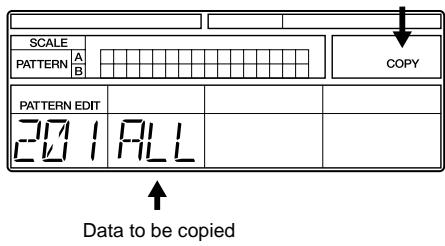
- While continuing to hold down [SHIFT], rotate the TEMPO/VALUE dial to select the data to be copied.
When Selecting Basic Patterns ([FILL] Not Pressed)
ALL: All pattern data (the beat, measures, drum kit, recorded basic pattern data, recorded fill pattern data)
BSC: Basic pattern
BSC DRUM: Basic pattern drum part only
BSC BASS: Basic pattern bass part only
When Selecting Fill Patterns ([FILL] Is Pressed)
FIL: Fill pattern
FIL DRUM: Fill pattern drum part only
FIL BASS: Fill pattern bass part only
- When you have finished determining which data is to be copied, then while still holding down [SHIFT], press [▶/ENTER]. The display switches to the copy-destination User pattern selection screen.
Copy destination
| PATTERN EDIT | |||
| ∅ ∩ ∅ | ∅ ∪ ∅ | ∅ ∪ ∅ |
- Hold down [SHIFT] and rotate the TEMPO/ VALUE dial to select the copy-destination User pattern.
You can also enter the pattern number with the numeric keys. When the number is entered, press [▶/ENTER] to set it.
When selecting anything other than "ALL" as the data to be copied, you then need to select whether to have the data copied to the basic pattern or the fill pattern.
You can switch between basic and fill patterns by pressing [FILL].
![BOSS DR-670 - When Selecting Basic Patterns ([FILL] Not Pressed) - 1](/content/2025/01/152003/images/8c259717c127fb9642a4dd71e580c14f4e7af1359094f3ba5a6bcb74815e651b.jpg)
Basic Pattern
↑
![BOSS DR-670 - When Selecting Basic Patterns ([FILL] Not Pressed) - 2](/content/2025/01/152003/images/9758aeaa429d2846d3b51da28d9951149654e4d2bcd192eaef71c10484a2fb8c.jpg)
Fill Pattern
↑
- If you are sure you want to copy the data, hold down [SHIFT] and press
[ENTER].
The copy of the User pattern is executed, and when it is finished the display will indicate "DONE."
-
To cancel the operation, release [SHIFT].
-
When the copy is completed, release [SHIFT].
-
When anything other than ALL is selected for copying, the performance data may not play back correctly if the number of beats and measures in the copy source and copy destination differ. Be sure to check it after copying the data.
- If the selected pattern has not been recorded yet (has no data recorded to it), "DATA EMPT" is displayed without the copying being executed.
Replacing Drum Kits
You can substitute a drum kit selected in recording with a different drum kit.
- You cannot select different drum kits for the basic pattern and the fill pattern.
- Select the User pattern with the replacement drum kit.
Turn the TEMPO/VALUE dial to select the pattern number. - You can also select the pattern by inputting the pattern number with the numeric keys and pressing [▶/ENTER ].
- Hold down [SHIFT] and press [DRUM A/ B] (DRUM KIT).
- Continue to hold down [SHIFT].
| PARAMETER | VALUE |
| I' T I' | I |
- Still holding down [SHIFT], rotate the TEMPO/VALUE dial to select the drum kit.
You can select from the Preset drum kits (1- 64) and the User drum kits (65-128).

"Preset Drum Kit List" (p. 102)
- Release [SHIFT].
Changing the Key of the Bass Part (Key Transpose)
With the "Key Transpose" function, you can change (transpose) the key of the bass part during playback.
- Key Transpose settings are disregarded when recording and playing back patterns in Pattern Edit mode. Confirm that Key Transpose is enabled in Pattern Play mode.
-
You cannot select different Key Transpose settings for the basic pattern and the fill pattern.
-
With the performance stopped, select the User pattern with the bass part whose key you want to change.
Turn the TEMPO/VALUE dial to select the pattern number. - You can also select the pattern by inputting the pattern number with the numeric keys and pressing [▶/ENTER ].
- Hold down [SHIFT] and press [5] (KEY TRANS).
- Continue to hold down [SHIFT].
| PARAMETER | VALUE |
| KEY |
- Still holding down [SHIFT], rotate the TEMPO/VALUE dial to select the new key.
Settings range: -12- +12
You can set the transposition in semitone steps up to a ± 1 octaves up or down. - Release [SHIFT].
Chapter 4 Recording and Editing Songs (Song Edit Mode)
This section describes the procedures used for recording (Realtime/Step) and editing User patterns.
These operations are carried out in Song Edit mode.
- You can record up to a maximum of 100 songs.
- You can record up to a maximum of 250 patterns in one song, with a maximum total number of 3,000 patterns for all the songs together.
To switch to Song Edit mode, hold down [SHIFT] while the performance is stopped and press Key Pad 2 (SONG EDIT).
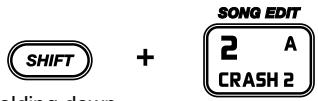
Holding down
| SONG EDIT | MEASURE | PATTERN | TEMPO |
| 1 | 1 | 1111 | 1111 |
Select a song to create or edit when in Song Edit mode.
- With the performance stopped, hold down [SHIFT] and then press Key Pad 2 (SONG EDIT) to switch to Song Edit mode.
- Continue to hold down [SHIFT].
- Hold down [SHIFT] and rotate the TEMPO/ VALUE dial to select the song.
- You can also select the song by inputting the number with the numerical keys and pressing [▶/ENTER].
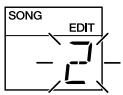
- Release [SHIFT].
Before You Start Recording
When creating a new song, proceed through the following steps for the recording.
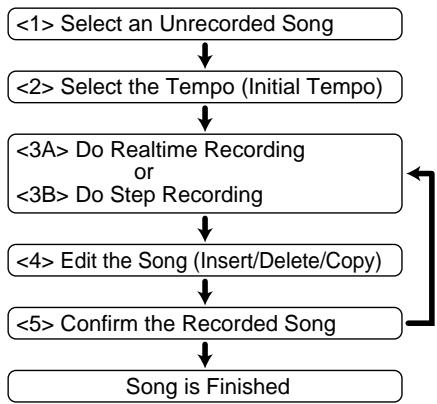
<1> Select an Unrecorded Song
1. Switch to Song Edit mode.
With the performance stopped, press Key Pad 2 (SONG EDIT).
- Continue to hold down [SHIFT].
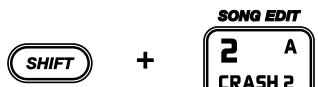
Holding down
2. Select the song.
Hold down [SHIFT] and rotate the TEMPO/ VALUE dial to select the song.
- You can also select the song by inputting the number with the numerical keys and pressing [▶/ENTER].
The following appears in the display when an unrecorded song (a song which contains no data) is selected.
| SONG EDIT | MEASURE | PATTERN | TEMPO |
| 1 | 1 | -- -- -- | 124 |

3. Release [SHIFT].
![BOSS DR-670 - Release [SHIFT]. - 1](/content/2025/01/152003/images/44a68a84a4dd968ab38bf95918c7f4a6b0b813985b0a46c84129ad00231c0875.jpg)
You can also remove previously recorded songs and use them for recording new songs.
Refer to "Removing Unneeded Songs (Song Clear)" (p. 70).
<2> Select the Tempo (Initial Tempo)
This sets the initial tempo, the basic tempo used to play the song.
1. Hold down [SHIFT] and press [VOICE] (INIT TEMPO).
- Continue to hold down [SHIFT].
| PARAMETER | TEMPO |
| I N I T | I C I T |
2. While still holding down [SHIFT], rotate the TEMPO/VALUE dial to select the initial tempo.
When set to "OFF," the song is played at the tempo selected at the time.
3. Release [SHIFT].
- You can check the initial tempo settings in Song Play mode.
Hold down [SHIFT] and press [VOICE] (INIT TEMPO).
The initial tempo settings are displayed while [SHIFT] is held down.
<3A> Do Realtime Recording
Here, select the pattern and then record it as it is being performed.
- When recording over a song that has already been recorded, the newly recorded data overwrites the previously recorded data, which is discarded.
1. With the performance stopped, select the first pattern to be recorded.
Turn the TEMPO/VALUE dial to select the pattern number.
- You can also select the pattern by inputting the pattern number with the numeric keys and pressing [▶/ENTER ].
| SONG EDIT | MEASURE | PATTERN | TEMPO |
| 1 | 1 | 001 | 1201 |
When you want to begin the recording with the performance of a fill pattern, press [FILL] after selecting the pattern.
| FQW1 |
2. Hold down [REC] and press [START] to start recording.
The first selected pattern simultaneously starts to play.
The tempo indicator flashes on each beat.
- When a fill pattern is selected, the fill pattern is played until the end, and then the performance returns to the basic pattern.
- The same pattern continues to be recorded until the next pattern is selected.
3. Select the next pattern to be recorded.
Turn the TEMPO/VALUE dial to select the pattern number.
- You can also select the pattern by inputting the pattern number with the numeric keys and pressing [▶/ENTER ].
You can record fill patterns by pressing [FILL] during recording.
The fill pattern is played until the end, and then the performance returns to the basic pattern.
In addition, by pressing [FILL] while the final beat of a pattern is being played, you can have the fill pattern recorded from the beginning of the next pattern.
- Although the fill pattern is played when [FILL] is pressed at the time of recording, the fill pattern is played at the beginning of the pattern during playback.
4. Repeat Step 3 as needed to record one song's worth of patterns.
- When Pattern 250 is reached, the message "PTN FULL" appears, and recording is ended automatically.
5. Press [STOP/CONT] to stop the recording.
- If recording is stopped in a pattern's second measure, the measure number is reduced by one after such stoppage, and that number then becomes the number of the starting measure for the pattern.
Recording Using a Foot Switch
With a foot switch connected, you can then use the foot switch to carry out the [START], [STOP/CONT], and [FILL] operations.
For more information on setting the functions used with the foot switch, refer to "Assigning Functions to the Foot Switches" (p. 77).
Using the DPP Function in Realtime Recording
- Press [DPP]; "DPP" appears in the display.
| PAD | DPP |
-
With the song stopped, press the key pad to which the first pattern to be recorded is assigned.
-
Hold down [REC] and press [START] to start recording.
The first selected pattern simultaneously starts to play.
The tempo indicator flashes on each beat.
-
Press a key pad to select the next pattern to be recorded.
-
You can also select patterns by rotating the TEMPO/VALUE dial or pressing the numeric keys and [▶/ENTER].
- Repeat Step 4 as needed.
- Press [STOP/CONT] to stop the recording.
Switching Recorded Patterns
-
To switch the pattern in the first measure, select the substitute pattern before carrying out Step 1.
-
Hold down [REC] and press [START] to start Realtime Recording.
The prerecorded pattern starts to play.
The tempo indicator flashes on each beat.
- When you reach the measure before the one you want to substitute, select the next pattern to be recorded.
Turn the TEMPO/VALUE dial to select the pattern number.
-
You can also select the pattern by inputting the pattern number with the numeric keys and pressing [▶/ENTER ].
You cannot select with the key pads when [DPP] is pressed and the DPP function is turned on. -
When you have finished recording the replacement pattern, press [STOP/CONT] to finish the recording.
-
If no pattern number is entered as the replacement pattern, then the pattern already recorded is played.
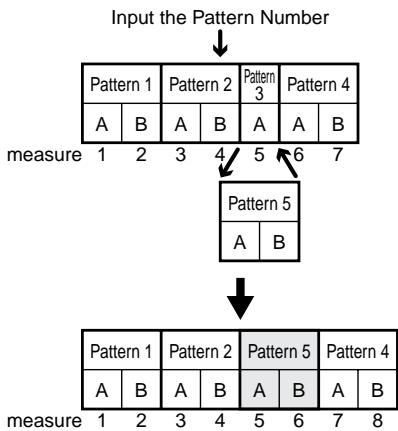
You can replace the pattern being recorded by pressing [FILL] during recording. After the fill pattern is played to the end, the recording returns to the basic pattern.
* Although the fill pattern is played when [FILL] is pressed at the time of recording, the fill pattern is played at the beginning of the pattern during playback.
Starting Realtime Recording Within a Song
You can start Realtime Recording from a point other than the beginning of the song.
This is convenient when you want to insert patterns in lengthy songs.
-
With the performance stopped, press [ ] [ENTER] to specify the measure where recording is to begin.
-
When recording two-measure patterns, you cannot specify the second measure of each pattern.
| Pattern 1 | Pattern 2 | Pattern 3 | Pattern 4 | ||||
| A | B | A | B | A | A | B | |
measure ① 2 ③ 4 ⑤ ⑥ 7
Measures You Can Specify
- Hold down [REC] and press [START].
Recording begins from the currently selected measure.
The tempo indicator flashes on each beat.
- When you reach the measure before the one you want to substitute, select the next pattern to be recorded.
Turn the TEMPO/VALUE dial to select the pattern number.
-
You can also select the pattern by inputting the pattern number with the numeric keys and pressing [▶/ENTER ].
-
When the replacement pattern is recorded, press [STOP/CONT] to end recording.
-
If no pattern number is entered as the replacement pattern, then the pattern already recorded is played.
Adding Patterns at the End of a Song
You can start Realtime Recording at the end of a recorded song to add more patterns to the song.
- With the performance stopped, hold down [SHIFT] and press [▶/ENTER].
This lets you jump to the measure following the last measure of the song. - Select a pattern to add.
Turn the TEMPO/VALUE dial to select the pattern number. - You can also select the pattern by inputting the pattern number with the numeric keys and pressing [▶/ENTER ].
- Hold down [REC] and press [START].
Recording begins from the measure number following the last measure of the song, while the additional pattern you selected starts to play.
The tempo indicator flashes on each beat. - The same pattern continues to be recorded until the next pattern is selected.
- Select the next pattern to be recorded.
- Repeat Step 4 as needed to record additional patterns.
- When Pattern 250 is reached, the message "PTN FULL" appears, and recording is ended automatically.
- Press [STOP/CONT] to stop the recording.
<3B> Do Step Recording
This lets you record the song by specifying patterns one at a time in the order they are to be played.
- With the performance stopped, press [REC].
The DR-670 is put in Step Recording mode, and the REC indicator flashes.
- Select a pattern to record.
Rotate the TEMPO/VALUE dial to select the pattern.
When you press [▶/ENTER], the pattern is recorded, and the measure number advances automatically.
- When using the numeric keys for input, the pattern is recorded and the measure number advances automatically when you press [▶/ENTER] after inputting the number.
You cannot select with the key pads when [DPP] is pressed and the DPP function is turned on.
After pressing a key pad to select a pattern, press [▶/ENTER] to set the pattern.
After selecting the pattern, you can then select the fill pattern by pressing [FILL] and then [▶/ENTER]. - During Step Recording, you cannot switch to a fill pattern while a recording of another pattern is in progress.
- Repeat Step 2 as needed to record one song's worth of patterns.
- Press [STOP/CONT] to stop the recording.
When you hold down [SHIFT] and press [START] during Step Recording, the selected pattern is played. This allows you to check the content of patterns to be recorded.
The pattern stops playing when you release [SHIFT].
- Pressing [START] without holding down [SHIFT] starts Realtime Recording.
Switching Recorded Patterns
- With the performance stopped, press [REC] to start Step Recording.
The REC indicator flashes. - Press [ ] [▶/ENTER] to select the measure with the pattern to be switched.
- Select the pattern to be switched.
Rotate the TEMPO/VALUE dial to select the pattern.
When you press [▶/ENTER], the pattern is recorded, and the measure number advances automatically.
-
When using the numeric keys for input, the pattern is recorded and the measure number advances automatically when you press [▶/ENTER] after inputting the number.
-
Repeat Step 3 as needed.
- When you have finished recording the substitute pattern, press [STOP/CONT] to stop the recording.
Adding Patterns at the End of a Song
- With the performance stopped, hold down [SHIFT] and press [▶/ENTER].
This lets you jump to the measure following the last measure of the song.
- Press [REC] to start Step Recording.
The REC indicator flashes.
- Select a pattern to add.
Rotate the TEMPO/VALUE dial to select the pattern.
When you press [▶/ENTER], the pattern is recorded, and the measure number advances automatically.
- When using the numeric keys for input, the pattern is recorded and the measure number advances automatically when you press [▶/ENTER] after inputting the number.
- Repeat Step 3 as needed.
- When you have finished recording additional patterns, press [STOP/CONT] to end the recording.
Adding Patterns In the Song (Insert)
This operation inserts a pattern at a point within the song.
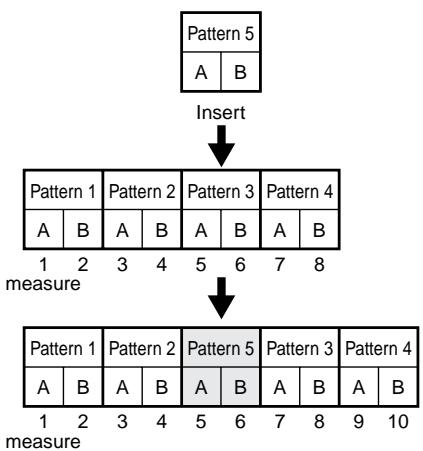
- When the pattern to be inserted is two measures, you cannot insert only one measure. Furthermore, you cannot insert material between the measures of a two-measure pattern being recorded.
- With the performance stopped, press [ ] [ENTER] to specify the measure where the pattern is to be inserted.
- Hold down [SHIFT] and press [1] (INSERT).
- Continue to hold down [SHIFT].
- Select the pattern to insert.
Continue holding down [SHIFT] and rotate the TEMPO/VALUE dial to select the pattern number. Press [▶/ENTER] to set the number.
- You can also input the pattern number by holding down [SHIFT] and pressing the numeric keys. When you have decided on the pattern, press [▶/ENTER] to set the pattern.
The pattern is inserted, and when it is finished the display will indicate "DONE."
- When the insertion is finished, release [SHIFT].
- To cancel the operation, release [SHIFT].
Deleting Patterns (Delete)
This deletes unneeded patterns from songs.
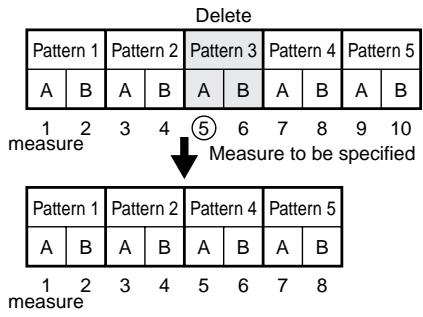
- With the performance stopped, press [ ] [ENTER] to specify the measure to be deleted.
-
Hold down [SHIFT] and press [2] (DELETE).
-
Continue to hold down [SHIFT].
-
While continuing to hold down [SHIFT], press [▶/ENTER].
The pattern is deleted, and when it is finished the display will indicate "DONE." - When the deletion is finished, release [SHIFT].
- To cancel the deletion, release [SHIFT].
Removing Unneeded Song (Song Clear)
This erases content of the currently selected Song.
1. Hold down [SHIFT] and press [3] (CLEAR).
- Continue to hold down [SHIFT].
![BOSS DR-670 - Hold down [SHIFT] and press [3] (CLEAR). - 1](/content/2025/01/152003/images/7f98417fb2d051b4c67670ca0d82043edddd6955f537da8aced10a52b9bc756f.jpg)
2. If you are sure you want to clear the song, while still holding down [SHIFT], press [▶/ENTER].
The song is erased, and when it is finished the display will indicate "DONE."
3. When the song is cleared, release [SHIFT].
- If the selected pattern has not been recorded yet (has no data recorded to it), "DATA EMPT" is displayed without the clear being executed. If this occurs, first release [SHIFT] and carry out the procedure again from the beginning.
- To cancel the operation, release [SHIFT].
Copying Song
This copies content of the currently selected Song to other Song.
- Note that when a song is recorded to a copy destination, the data that was in the copy destination is discarded.
1. Hold down [SHIFT] and press [4] (COPY).
- Continue to hold down [SHIFT].
![BOSS DR-670 - Hold down [SHIFT] and press [4] (COPY). - 1](/content/2025/01/152003/images/c6279ba9a8a79bd9e3d9e235f7ff6a71f48f8c80897d9d68e3d421b7c6deeace.jpg)
2. Select the copy-destination song number.
Hold down [SHIFT] and rotate the TEMPO/ VALUE dial to select the song, then press [▶ENTER] to confirm the selection
- You can also input the song number by pressing the numeric keys, and select the song by pressing [▶/ENTER].
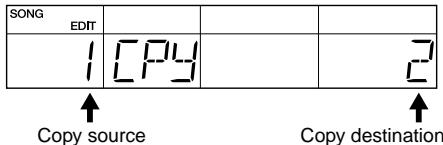
3. If you are sure you want to copy the song, hold down [SHIFT] and press
[ENTER].
The song is copied, and when it is finished the display will indicate "DONE."
4. When the copy is completed, release [SHIFT].
- If the copied song has not been recorded yet (has no data recorded to it), "DATA EMPT" is displayed without the copy being executed. If this occurs, first release [SHIFT] and carry out the procedure again from the beginning.
- To cancel the operation, release [SHIFT].
Connecting Multiple Songs Into One Song (Song Chain)
You can have a number of songs performed in one connected sequence. This function is called "Song Chain."
Each song is assigned the song number of the song that is to follow it—you can chain up to 100 songs this way.

The procedure for making the Song Chain setting for the currently selected song is as follows.
1. Hold down [SHIFT], and press [6] (CHAIN).
- Continue to hold down [SHIFT].
| PARAMETER | VALUE |
| CHIN | OFF |
2. Select the next song to be played.
Hold down [SHIFT] and rotate the TEMPO/ VALUE dial to select the song number.
- You can also input the song number by holding down [SHIFT] and pressing the numeric keys, and select the song by pressing [▶/ENTER ].
Set to "OFF" at the last song to be played in the sequence.
3. When you have finished making the settings, release [SHIFT].
4. Switch the currently selected song to continue adding to the song chain as needed.
Set the final song to be played in the chain to "OFF."

Creating Songs Featuring Tempo Changes
You can use the Song Chain function to create songs that have changes in tempo.
Create songs to be positioned both before and after the tempo change, making the necessary initial tempo settings for each song.
When you use the Song Chain function to connect the performances of the two songs, it allows you to create a performance in which the tempo changes in the middle of the song.
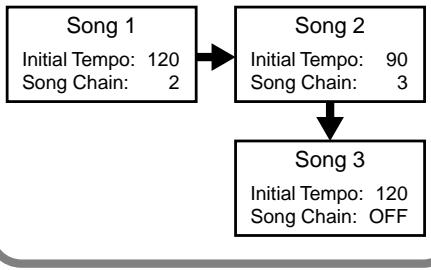
Chapter 5 Performing Songs (Song Play Mode)
In Song Play mode, you can play the songs that have been created.
To switch to Song Play mode, hold down [SHIFT] while the performance is stopped and press Key Pad 1 (SONG PLAY).
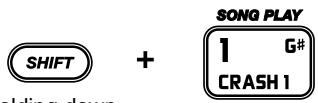
Holding down
Performing Songs
1. Select a song to play.
Turn the TEMPO/VALUE dial to select the song.
- You can also input the number by pressing the numeric keys, and select the song by pressing [▶/ENTER].
| SONG | MEASURE | PATTERN | TEMPO |
| 1 | 1 | 001 | 120 |
- The following appears in the display if the selected song contains no data.
| SONG | MEASURE | PATTERN | TEMPO |
| 1 | 1 | --- | 120 |
2. Press [START].
The song is played from the beginning.
The tempo indicator flashes with each beat, and the measure currently being played is displayed.
![BOSS DR-670 - Press [START]. - 1](/content/2025/01/152003/images/c2c589af41116856176225dad9404fc7f186090283b5c8f334a42bd50c85fb94.jpg)
3. Press [STOP/CONT] to stop the song.
When you press [STOP/CONT] once again, the song starts playing again from the point where it was stopped.
- You can change the tempo settings, even while a song is being played, by holding down [TAP TEMPO] and rotating the TEMPO/VALUE dial or by tapping [TAP TEMPO] in rhythm.
Starting a Song From a Point Other Than the Beginning
You can start playing a song from a specified measure. This is convenient when you want to start playing a song containing many measures from some point within the song.
- With the performance stopped, press [ ] [▶/ENTER] to specify the starting measure.
| SONG | MEASURE | PATTERN | TEMPO |
| 1 | 12 | 001 | 120 |
Hold down [SHIFT] and press [] to jump to the first measure of the song.
When a song is set as part of a chain, you can hold down [SHIFT] and press [▶/ENTER] to jump to the next song.
- Press [STOP/CONT].
The song is played from the specified measure.
Repeating Performances of Songs (Song Repeat)
You can have songs be played repeatedly. This function is called "Song Repeat."
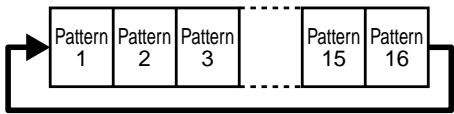
-
With the performance stopped, hold down [SHIFT] and press [7] (REPEAT).
-
Continue to hold down [SHIFT].
| PARAMETER | VALUE |
| PPT | OFF |
- Hold down [SHIFT] and rotate the TEMPO/ VALUE dial to set the Song Repeat function to on or off.
"SONG REPEAT" appears in the display when the Song Repeat function is on.
SONG REPEAT
-
Release [SHIFT].
-
Song Repeat settings are not saved when the power is turned off. The function is always turned off when the DR-670's power is turned off.
Performing Multiple Songs In One Sequence (Song Chain)
"SONG CHAIN" appears in the display when the currently selected song is specified in "Song Chain" (p. 71).
SONG CHAIN
■ Checking the Song Chain Settings
You can confirm the Song Chain settings in Song Play mode.
1. Hold down [SHIFT] and press [6] (CHAIN).
As you continue to hold down [SHIFT], the following appears in the display.
| PARAMETER | VALUE |
| HIN |
![BOSS DR-670 - Hold down [SHIFT] and press [6] (CHAIN). - 1](/content/2025/01/152003/images/c1aafe1d82ba8a7d4c84d58f2c824ee25c3eabcf28de55fec2a12bf7df4d9588.jpg)
For instructions on making settings for the Song Chain function, refer to "Connecting Multiple Songs Into One Song (Song Chain)" (p. 71).
Creating Performances Combining the Repeat and Chain Functions
You can repeatedly play performances of multiple songs by setting Song Repeat to "ON" for songs set using the Song Chain function.
Song Repeat: ON
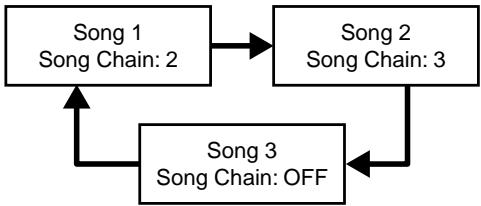
Checking a Song's Initial Tempo
You can check the Initial Tempo (p. 64) setting for a song in Song Play mode.
1. Hold down [SHIFT] and press [VOICE] (INIT TEMPO).
As you continue to hold down [SHIFT], the following appears in the display.
| PARAMETER | TEMPO |
| I N I T | I C I T |
![BOSS DR-670 - Hold down [SHIFT] and press [VOICE] (INIT TEMPO). - 1](/content/2025/01/152003/images/6b9ca3b96e3cde70189613bb8fc1aa1c039e8ad5c03172698f5ecd6b6b7aeb02.jpg)
For instructions on making the Initial Tempo settings, refer to "Select the Tempo (Initial Tempo)" (p. 64).
- If you change the tempo settings after selecting a song, the performance is played at the changed tempo when the song is started. If you want to restore the initial tempo, reselect the song.
Using a Foot Switch to Play Songs
With a foot switch connected, you can then use the foot switch to carry out the [START] and [STOP/CONT] operations.
For more information on setting the functions used with the foot switch, refer to "Assigning Functions to the Foot Switches" (p. 77).
Chapter 6 Assigning Patterns to the Key Pads (DPP Assign Mode)
Here, patterns are assigned to the key pads (1- 16) for DPP (Direct Pattern Play).
- With the performance stopped, hold down [SHIFT] and press Key Pad 10 (DPP ASSIGN).
The DR-670 switches to DPP Assign mode.
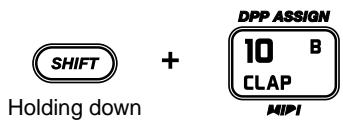
| PAD | PATTERN | ||
| PPP | 1 | 2011 |
Key Pad assigned to pattern
- Press a key pad to which you wish to assign a pattern.
-
Rotate the TEMPO/VALUE dial to select the pattern.
-
You can also enter the pattern number with the numeric keys. When the number is entered, press [▶/ENTER] to set the number.
-
You cannot assign the fill pattern.
-
Repeat Steps 2 and 3 as needed.
- Hold down [SHIFT] and press Key Pad 5 (PATTERN PLAY).
The DR-670 switches to Pattern Play mode. The DPP function turns on automatically, allowing you to use Direct Pattern Play.
You can also check the DPP Assign settings in Pattern Play mode.
- While in Pattern Play mode, press [DPP] to turn on the DPP function.
- Press [VOICE]; the DPP assignment is displayed while [VOICE] is held down.
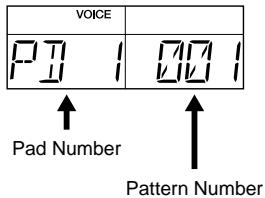
- To check another pad, continue to hold down [VOICE] and press the pad you want to check.
Chapter 7 Customizing Your Setup (Utility Mode)
You can make the following settings in Utility mode.
- Switch the sounding/muting of drum parts and bass parts (Output Part)
- Assign functions to the foot switches
- Change the roll interval (Roll Type)
-
Change the flam settings (Flam Interval, Flam Ratio)
-
Adjust the key pad sensitivity (Pad Sens)
- Change the metronome settings (Click Level, Click Beat)
Tune the bass part (Master Tune)
Procedure
- With the performance stopped, hold down [SHIFT] and press Key Pad 13 (UTILITY). The DR-670 switches to Utility mode.
| PARAMETER | VALUE | ||
| UITL | OUT | PART | ALL |
- Press [][/ENTER] to select the parameter with the settings you want to change.
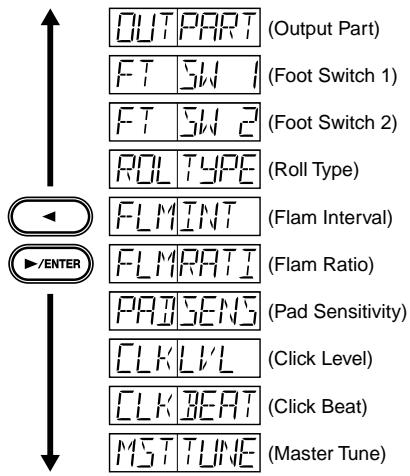
- Rotate the TEMPO/VALUE dial to change the value of the setting.
- Repeat Steps 2 and 3 as needed.
Switching the Sounding/ Muting of Drum Parts and Bass Parts (Output Part)
| PARAMETER | VALUE | ||
| U | L | P | A |
ALL: Both the drum part and the bass part are played
DRUM: The drum part is played, and the bass part is muted
BASS: The bass part is played, and the drum part is muted
- Output Part settings are not saved. The function always reverts to "ALL" when the DR-670's power is turned off.
- The Output Part settings are effective only with respect to the playback of patterns. The Output Part settings have no effect on the output when you perform by playing the pads.
Assigning Functions to the Foot Switches
Settings for the functions controlled with the foot switches 1 and 2.
Foot Switch 1
| PARAMETER | VALUE | ||
| U TL | F T | S W | I T P T |
Foot Switch 2
| PARAMETER | VALUE | ||
| U T L | F T | S W E | F I L L |
STRT:
Used for starting the pattern or song from the beginning and stopping the pattern or song.
Same operations achieved by pressing [START] and [STOP/CONT].
FILL:
Switches to the fill pattern.
Same operation achieved by pressing [FILL].
CONT:
Controls Continue Start/Stop.
Same operation achieved by pressing [STOP/CONT].
RSET:
Resetsthe song or pattern (jumps to the beginning).
Same operation achieved by holding down [SHIFT] and pressing [] .
REC:
Starts Realtime Recording.
Same operation achieved by holding down [REC] and pressing [START].
- This is enabled in Pattern Edit mode and Song Edit mode.
CHAS:
When the DPP function is off, this function selects the pattern with the number one greater than the currently selected pattern number. If Pattern Number 400 is currently selected, then Pattern Number 1 is the next pattern selected.
When the DPP function is on, this function selects the pad with the number one higher than the currently selected pad. If Pad Number 16 is currently selected, then Pad Number 1 is selected next.
- This is enabled in Pattern Play mode and Song Edit mode.
PD 1-PD16, PD G, PD D, PD A, PD E:
Performs the same operations achieved by pressing the pads with the specified numbers (1-16, G, D, A, E).
Functions according to the currently selected pad function (DRUM A, DRUM B, BASS, DPP).
Changing the Roll Settings (Roll Type)
Sets the note length for rolls.
| PARAMETER | VALUE | ||
| UCTL | ROL | TYPE | 16 |

(32nd note)

(16th note triplets)

(16th note)

(8th note triplets)

(8th note)
Changing the Flam Settings
By changing the flam interval and flam ratio settings, you can change the way the flam sounds.
- Changing the flam settings only changes the way flams are played in patterns that have already been recorded.
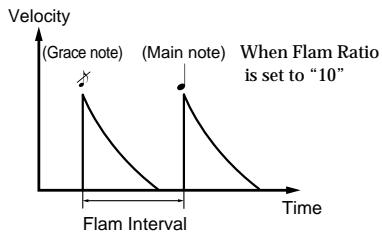
Flam Interval (0-31)
Sets the difference in time of the two sounds making up the flam. When set to 0, no flam is produced.
| PARAMETER | VALUE | ||
| U TL | F L M | I N T | 12 |
Flam Ratio (0-10)
Sets the relative force (velocity) of the first and second strikes. No grace note is played when this is set to 0.
| PARAMETER | VALUE | ||
| U TL | FL M | R A T I | 5 |
Adjusting the Key Pad Sensitivity (Pad Sens)
The lower the value you select, the lower the sensitivity becomes. While this means that strong accents are unobtainable unless the pads are hit with a considerable amount of force, it does make it easier to produce subtle changes. Sensitivity increases as the settings value is raised. Although this lets you add strong accents even if the pads are tapped lightly, it becomes more difficult to get subtle changes.
Valid Settings: 0-10
| PARAMETER | VALUE | ||
| U TL | P A W | S E N S | 5 |
Changing the Metronome Settings
Click Level (0-15)
Adjusts the volume of the metronome during Realtime Recording of patterns.
| PARAMETER | VALUE | ||
| UPLL | CLK | UPLL | 15 |
Click Beat
Sets the beat of the metronome during Realtime Recording of patterns.
| PARAMETER | VALUE | ||
| UCTL | CLK | BERT | 4 |
8: 8th note
4: 4th note
Tuning the Bass Part
Sets the basic pitch for the bass part.
- The drum parts (Includes Instruments BS1-BS5) cannot be changed.
Valid Settings: 438-445
| PARAMETER | VALUE | ||
| LTL | MST | TLINE | 440 |
- The pitch of the sound being played does not change. This goes into effect from the sound played after the settings are made.
Chapter 8 Creating Your Own Favorite Drum Kits (Drum Kit Edit Mode)
In Drum Kit Edit mode, you can select drum and bass instruments, change the way they sound, and make other changes to drum kit settings to create up to 64 original User drum kits.
To switch to Drum Kit Edit mode, hold down [SHIFT] while the performance is stopped and press Key Pad 9 (DRUM KIT EDIT).
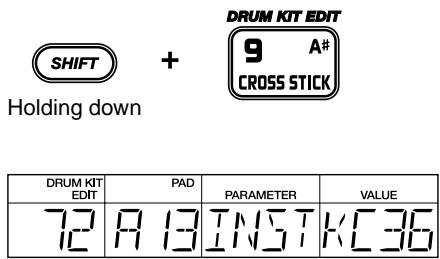
Before Changing the Settings (Editing)
Use the procedure below to change (edit) the drum kit settings.
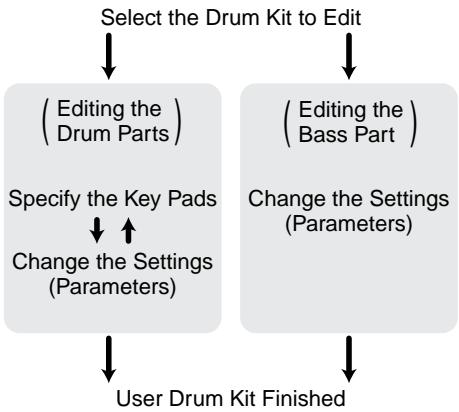
- When the unit left the factory, the User drum kits (65-128) contained the same settings as the Preset drum kits (1-64).
Select the Drum Kit to Edit
You cannot edit the Preset drum kits. If you want to base a new kit on a Preset drum kit, you can copy the Preset to a User drum kit first, then edit it to your liking. For instructions on copying drum kits, refer to "Copying Drum Kits" (p. 84).
- Hold down [SHIFT] and press [DRUM A/B] (DRUM KIT).
- Continue to hold down [SHIFT].
- While holding down [SHIFT], rotate the TEMPO/VALUE dial to select the drum kit to be edited.
- Release [SHIFT].
■ Editing Procedure
- If editing a drum part, press [DRUM A/B] then specify Drum Bank A or B. If editing a bass part, press [BASS] to specify the bass part.
- If editing a drum part, specify the key pad to be edited by pressing that key pad.
This step is not required if you are editing a bass part.
-
You cannot edit individual key pads for the bass part.
-
Press [ ] [ /ENTER] to specify the setting (parameter) you want to change.
| DRUM KIT EDIT | PAD | PARAMETER | VALUE |
| 72 | 83 | INST | K36 |
- Rotate the TEMPO/VALUE dial to change the value of the setting.
- Repeat Steps 3 and 4 as needed.
When editing drum parts, start from Step 2 if you are editing other key pads.
Editing the Drum Parts
Selecting the Sounds Assigned to the Key Pads (Instrument)
This selects the instruments to be assigned to the key pads.
For more on the instruments that can be selected, refer to the "Instrument/Bass Tone List" (p. 99).
| DRUM KIT EDIT | PAD | PARAMETER | VALUE |
| 72 | 7 | 1 IN 5 T | 4 |
- You cannot select bass tones for the drum parts.
Setting the Volume (Level)
This sets the volume (the level) for each instrument. The velocity when you actually tap the key pads is changed within the level range set here.
Valid Settings: 0-15
| DRUM KIT EDIT | PAD | PARAMETER | VALUE |
| 72 | 711 | L'1'L | 15 |
Setting the Pitch (Pitch)
This sets the pitch of each instrument in units of 10 cents.
Valid Settings: -1200- +1200
| DRUM KIT EDIT | PAD | PARAMETER | VALUE |
| 72 | A B C D E F G H I J K L | PTCH | I U |
Positive (+) Values:
The pitch is raised as the value increases; an increase of 100 cents raises the pitch a half step (semitone).
0: The original pitch is used.
Negative (-) Values:
The pitch is lowered as the value increases; an increase of 100 cents lowers the pitch a half step (semitone).
- With some instruments, the pitch may not change properly when the value is positive (set to “+”).
Lengthening and Shortening the Reverberation (Decay)
This lengthens and shortens the reverberation of the sound (the decay) for each instrument.
Valid Settings: -32- +31
| DRUM KIT EDIT | PAD | PARAMETER | VALUE |
| 72 | A B C D | IIC AY | 17 |
Positive (+) Values: As the value increases, the decay is lengthened relative to the original decay.
0: The original decay time is used.
Negative (-) Values: As the value increases, the decay is shortened relative to the original decay.
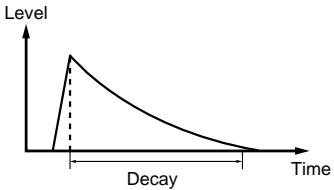
* With some instruments, it may seem that the amount of change when using a positive setting is slight.
Obtaining Tonal Changes Relative to Strike Position (Nuance)
When playing percussion, the tone changes depending on where you hit the instrument. For example, when playing a cymbal, the tone around the center differs from the tone at the edge.
With the instruments in the "Instrument/Bass Tone List" (p. 99) that have * or ** added to the name, you can change the Nuance settings, which allow you to obtain tonal changes relative to the position the instrument is struck.
Settings Values: -7- +7
| DRUM KIT EDIT | PAD | PARAMETER | VALUE |
| 72 | 7111 | NULIN | 71 |
Instruments Appended with an Asterisk (*)
Positive (+) Values: As the value increases, the low frequency components of the sound increase (sound from striking closer to the center).
0: Original nuance
Negative (-) Values: As the value increases, the low frequency components of the sound decrease (sound from striking the outside part).
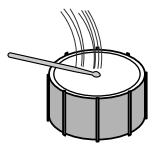
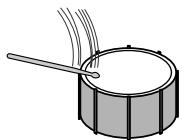
Instruments Appended with a Double Asterisk (^**) (Hi-Hat, Ride Cymbal, Etc.)
Positive (+) Values: As the value increases, the sound appears to come more from the interior (sound from striking the interior part).
0: Original nuance
Negative (-) Values: As the value increases, the sound appears to come more from the outside (sound from striking the outside part).
The Nuance settings are disabled on instruments that are not marked with a single or double asterisk (^,^*)
Setting the Position of the Sound (Pan)
This sets the placement (Pan) of each instrument, with seven degrees of adjustment.
Settings Values: L3-CNTR-R3
| DRUM KIT EDIT | PAD | PARAMETER | VALUE |
| P B | A B | PAN | C N T P |
L3
L1 CNTR R1
R3
- The Pan settings of instruments in the "Instrument/Bass Tone List" (p. 99) that are marked with three asterisks (^***) are disabled.
Determining Whether Or Not Sounds Overlap (Assign Type)
This sets the way each instrument sounds (the assign type) when one or more instruments continue to be played.
Settings Values: POLY, EX1P-EX7P, MONO, EX1M-EX7M
| DRUM KIT EDIT | PAD | PARAMETER | VALUE |
| 72 | A10 | ASGN | POLY |
POLY
When one instrument continues playing, the new sound overlaps the previously sounded instrument without that earlier instrument's sound being stopped. This is effective with cymbals and other instruments with long decay times.
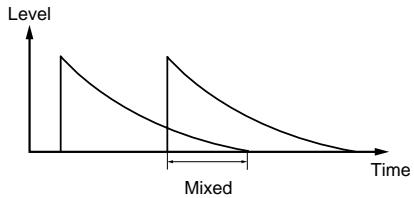
EX1P (POLY EXC1)-EX7P (POLY EXC7)
The sounds of the same instrument are allowed to overlap, but the sound of another instrument sharing the same number (EXM, EXP) is not allowed to overlap. This is effective with sounds that normally are not heard at the same time (such as the open and closed hi-hat sounds), but which do produce overlapping sounds when one of them is being sounded consecutively.
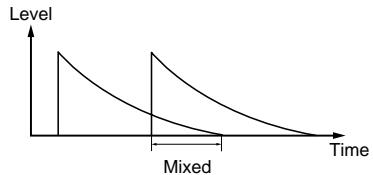
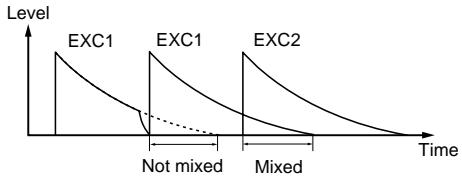
MONO
When one instrument sound is played consecutively, the previous sound is stopped when a new sound is played.
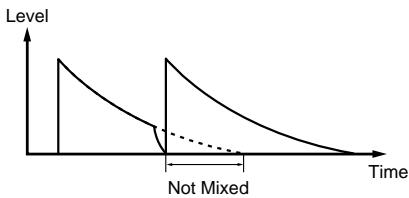
EX1M (MONO EXC1)-EX7M (MONO EXC7)
The sounds of instruments with the same number (EXM, EXP) are not layered. Furthermore, instrument sounds with the same number are not layered even when played continuously. This is effective with sounds that normally are not played simultaneously, such as Guiro short and Guiro long sounds.
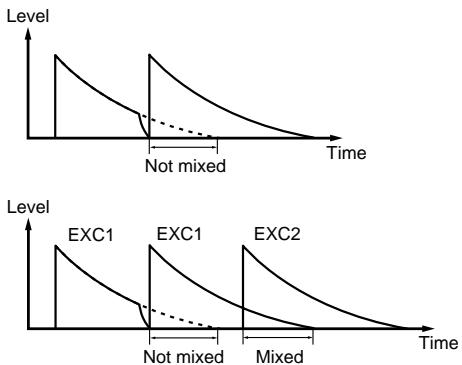
Editing the Bass Part
Selecting the Tone (Bass Tone)
This selects the tone for the bass part (the bass tone). For more on the bass tones you can select, refer to the "Instrument/Bass Tone List" (p. 99).
| DRUM KIT EDIT | PAD | PARAMETER | VALUE |
| 72 | --- -- | TONE | FNLG |
- You cannot select drum instruments for use in bass parts.
Setting the Volume (Level)
This sets the volume (level). The velocity when you actually tap the key pads is changed within the level range set here.
Valid Settings: 0-15
| DRUIM KIT EDIT | PAD | PARAMETER | VALUE |
| 72 | --- -- | L L L | 15 |
Adjusting the Envelope (Attack, Decay, Release)
This adjusts the envelope of the bass sound.
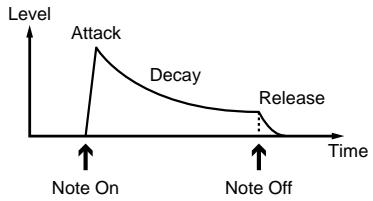
Sharpness in the Rise of the Sound (Attack) Valid Settings: 0-15
| DRUM KIT EDIT | PAD | PARAMETER | VALUE |
| 72 | --- -- | A T L C |
0: Original nuance
1-15: The attack gets duller as the value increases.
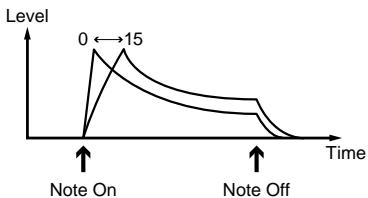
Decay Time for the Sound (Decay) Valid Settings: -31- +31
| DRUM KIT EDIT | PAD | PARAMETER | VALUE |
| 72 | --- -- | 71 | 71 |
Positive (+) Values:
The more the value is increased, the more the decay slows relative to the original decay.
0: Original nuance
Negative (-) Values:
The more the value is decreased, the more the decay quickens relative to the original decay.
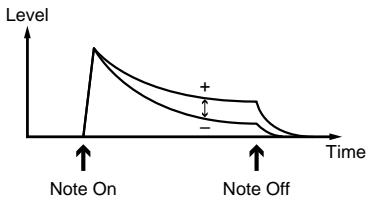
Decay Time After Note Off (Release)
Valid Settings: -7- +7
| DRUM KIT EDIT | PAD | PARAMETER | VALUE |
| 72 | --- -- | REL |
Positive (+) Values:
The release gets longer than the original as the value increases.
0: Original nuance
Negative (-) Values:
The release gets shorter than the original as the value increases.
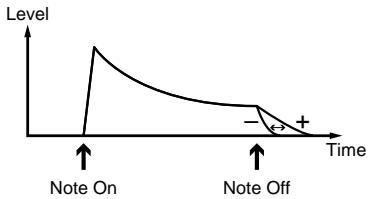
Positioning the Sound (Pan)
This sets the placement of the sound, with seven degrees of adjustment.
Valid Settings: L3-CNTR-R3
| DRUM KIT EDIT | PAD | PARAMETER | VALUE |
| 72 | --- -- | PAN | NTT |
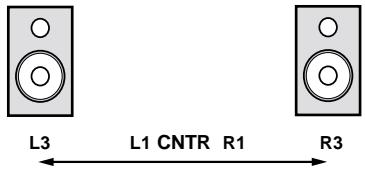
Copying Drum Kits
This copies the currently selected drum kit to one of the User drum kits (65-128).
- If the drum kit you want to copy is not the one that is currently selected, first select the drum kit that you do want to copy before continuing.
1. Hold down [SHIFT] and press [4] (COPY).
- Continue to hold down [SHIFT].
| PAD | DRUM A | ||
| SCALE PATTERN | A B | ||
| DRUM KIT EDIT | |||
| 1 | CPY | 65 | |
- While holding down [SHIFT], rotate the TEMPO/VALUE dial to select the copy-destination drum kit.
- You cannot select 1-64 (the Preset drum kits).
- If you are sure you want to copy the drum kit, hold down [SHIFT] and press [▶/ENTER].
The drum kit copying process starts. - To cancel the operation, release [SHIFT].
- Once the copy has been completed, release your finger from [SHIFT].
What is MIDI?
MIDI (Musical Instrument Digital Interface) is a universal standard that allows for the exchange of performance data and other information among electronic musical instruments and computers. Once MIDI cables are used to connect together devices equipped with MIDI connectors, each device can send data to, or receive data from any of the others.
MIDI Connectors
The DR-670 is equipped with a MIDI IN connector and MIDI OUT connector.
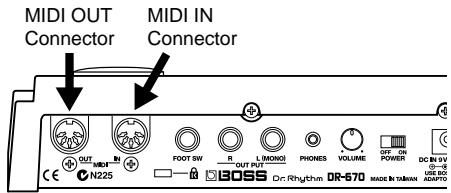
MIDI Implementation Chart
In order to exchange MIDI data, the data transmitted by the MIDI devices must be common to both. The owner's manuals for a MIDI device always includes a MIDI Implementation Chart, which allows you to quickly check the compatibility of that device with other devices. By comparing the MIDI Implementation Charts of each device you are using, you can confirm which kinds of data can be exchanged.
- A separate publication titled "MIDI Implementation" is also available. It provides complete details concerning the way MIDI has been implemented on this unit. If you should require this publication (such as when you intend to carry out byte-level programming), please contact the nearest Roland Service Center or authorized Roland distributor.
MIDI IN
Receives data from an external MIDI device. Connect to the MIDI OUT connector on the external MIDI device.
MIDI OUT
Transmits the DR-670's data. Connect to the MIDI IN connector on the external MIDI device.
- Do not connect the MIDI IN connector directly to the own MIDI OUT connector.
- When making a looped connection with other MIDI devices, do not set the connected devices to THRU (SOFT THRU). Otherwise, malfunction could result.
About MIDI Mode
With the DR-670, you can use MIDI data to do the following.
- Synchronize performances with a digital recorder or MIDI sequencer
- Use an external MIDI device to play the DR-670, and use the DR-670 to play an external MIDI device
- Transmit data from the DR-670 to an external MIDI device and return the transmitted data to the DR-670
In MIDI mode, you can make the necessary parameter settings for handling MIDI data.
You can also transmit data in MIDI mode.
To switch to MIDI mode, hold down [SHIFT] while the performance is stopped and press Key Pad 14 (MIDI).
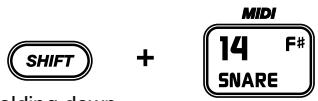
Holding down
| PARAMETER | VALUE | ||
| M | J | S | H |
Procedure
- Switch to MIDI mode.
- Press [ ] [ /ENTER] to select the parameter to be set.
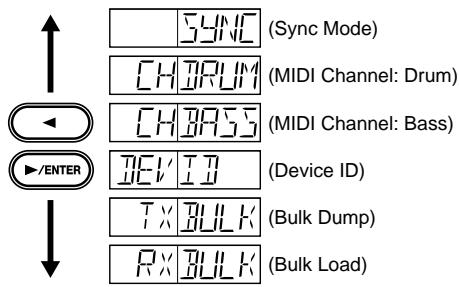
- Change values in the Sync Mode, MIDI Channel (Drum), and Device ID settings screens by rotating the TEMPO/VALUE dial.
Synchronizing Performances with a Digital Recorder or MIDI Sequencer (Sync Mode)
You can synchronize the DR-670's performances with digital recorders, MIDI sequencers, rhythm machines, and other such devices.
Master and Slave
When synchronizing two or more devices, one is made the "master" device and all others "slaves."
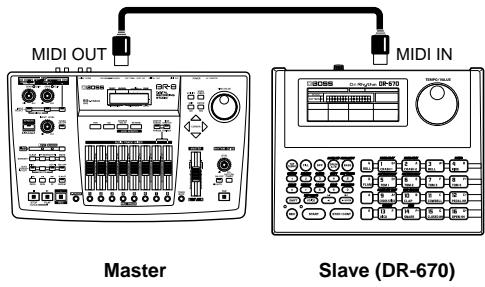
When the master device is started or stopped, a MIDI message for that operation is transmitted. The slave or slaves then start or stop in accordance with the transmitted MIDI message. Furthermore, timing clock data corresponding to the tempo is transmitted by the master device. Slave devices synchronize their performances to this timing clock.
Other data transmitted from the master device to slave devices includes song numbers (Song Select) and the position of song performances (Song Position Pointer).
Data Synchronized with the DR-670
The following MIDI messages are handled during synchronization with the DR-670.
Start
Timing Clock
- Continue
Song Select
- Stop
Song Position Pointer
- Song Select and Song Position Pointer data are not output in Song Edit mode.
- For more information on the MIDI messages handled by the devices you are connecting, refer to the owner's manual for each device.
Setting Sync Mode
Select whether the DR-670 is to be the master or slave in Sync mode.
| PARAMETER | VALUE | ||
| M | H | S | AUTO |
AUTO:
Master and slave are switched automatically.
While the DR-670 normally functions as the master, when the performance is stopped and a Start message is input from an external MIDI device, the DR-670 automatically switches to slave.
INT:
The DR-670 functions as the master.
Operating the DR-670 starts and stops performances, and performances play at the tempo set in the DR-670.
MIDI:
The DR-670 functions as a slave device.
The DR-670 starts and stops according to the messages input from an external MIDI device, and performances are synchronized to the timing clock transmitted by the external MIDI device.
- Sync mode settings are not saved. The function is always set to "AUTO" when the DR-670's power is turned off.
Tempo Display with the DR-670 as Slave
When the DR-670 is functioning as a slave device, the tempo appears in the display as shown below, and the tempo cannot be controlled from the DR-670.
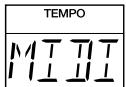
If no timing clock is being transmitted by the external source when [START] is pressed, then the tempo indicator lights and remains lit, and the start of the performance is put on hold until the timing clock arrives.
- You cannot switch modes while the DR-670 is in this state. To switch modes, press [STOP/CONT], then proceed to switch the mode after the tempo indicator has gone out.
Using An External MIDI Device to Play the DR-670/ Using the DR-670 to Play An External MIDI Device
You can use performance data transmitted from an external MIDI device to play the DR-670, or operate the DR-670 to control performances of external MIDI devices.
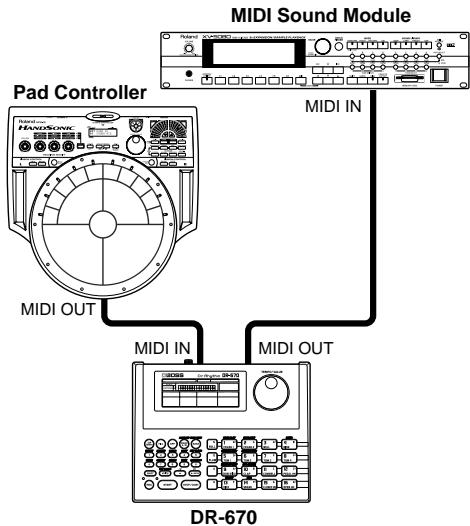
MIDI Channels
In order to exchange performance data between an external MIDI device and the DR-670, the MIDI channel settings must be the same for both devices. Performance data can be exchanged successfully only when the MIDI channels match.
Performance Data Handled by the DR-670
Note Messages
These are messages that convey the performance status of drum parts and bass parts. These are equivalent to the performance data for keys on a keyboard. The different kinds of Note messages are shown below.
Note Number: Key pad number to which an instrument or bass tone is assigned
Note On: Key pad is tapped
Note Off: Key pad is released
Velocity: Force used to tap the key pad
This correspondence of the DR-670's key pads to Note Number as shown below.
Bank A
| 49 | 57 | 53 | 51 |
| 50 | 48 | 45 | 41 |
| 37 | 39 | 56 | 44 |
| 36 | 38 | 42 | 46 |
Bank B
| 69 | 75 | 70 | 58 |
| 67 | 68 | 73 | 74 |
| 60 | 61 | 66 | 65 |
| 54 | 62 | 63 | 64 |
When you tap one of the DR-670's key pads, the Note Number for that key pad is transmitted.
When a Note Number is received from an external MIDI device, the instrument or bass tone assigned to the key pad corresponding to that Note Number is played.
- Note Numbers that do not correspond to any of the key pads are disregarded if received.
Program Change
This message switches the drum kit.
- Program Change messages are not output in Song Edit mode.
- For more information on the messages that can be handled by the devices you are connecting, refer to the owner's manual for each device.
Setting the MIDI Channel
In order to have the performance data be transmitted and received correctly, the transmitting and receiving devices must be set to the same channel.
Settings Values: 1-16, OFF
Drum Part
| PARAMETER | VALUE | ||
| MII | CH | IRLIM | OFF |
Bass Part
| PARAMETER | VALUE | ||
| MII | CH | BASS | OFF |
When set to "OFF," Note and Program Change messages are not transmitted or received.
- Program Change messages are transmitted and received on the drum part MIDI channel.
Transmitting the DR-670's Data to an External MIDI Device/ Returning Transmitted Data to the DR-670
Transmitting the DR-670's data to a MIDI sequencer or another DR-670 is known as "Bulk Dump."
Conversely, returning data saved to a MIDI sequencer back to the DR-670, or receiving data transmitted from another DR-670 is referred to as "Bulk Load."
Setting the Device ID
Although patterns, drum kits, and other device-specific data are transmitted and received in "Bulk Dump" and "Bulk Load" as "Exclusive messages," the number used by the devices to recognize each other (the Device ID number) must match.
| PARAMETER | VALUE | ||
| M I J | I E V' | I J | 17 |
Settings Values: 17-32
Transmitting the DR-670's Data (Bulk Dump)
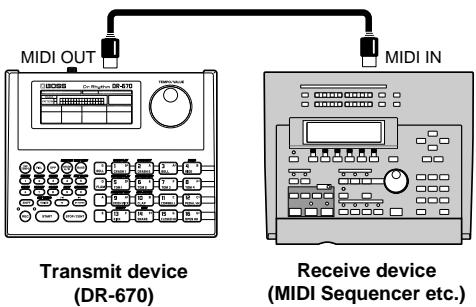
Use the following procedure in MIDI mode when carrying out Bulk Dump.
- Press [▲] [▶/ENTER] to select "TX BULK."
| PARAMETER | VALUE | ||
| M I J | T X | B U L K | F L L |
2. Rotate the TEMPO/VALUE dial to select the data to be transmitted.
ALL: All of the DR-670's data
SEQ: Data recorded in the User patterns and songs
UTIL: Utility mode, MIDI mode and DPP assign settings data
KIT: All of the User drum kits
3. Press [START].
Bulk Dump starts, and the tempo indicator lights up.
After a few moments, the tempo indicator goes out, and the Bulk Dump is completed.
- If you do inadvertently start Bulk Dump, you can cancel transmission by pressing [STOP/ CONT]. Do not use the data from the cancelled operation.
- When executing Bulk Dump with "ALL" selected, the memory of the receiving device may become filled, and any data following that will not be received.
If this occurs, change the setting for the transmitted data to "SEQ," "UTIL," or "KIT," then execute Bulk Dump.
Returning Transmitted Data to the DR-670 (Bulk Load)
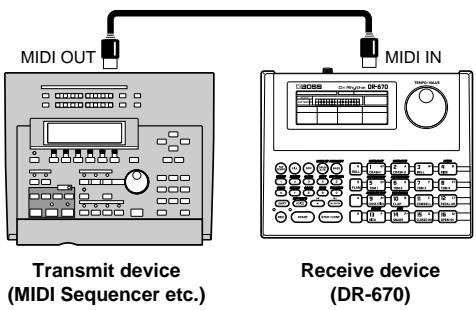
To carry out Bulk Load, perform the following procedure from MIDI mode.
- Press [▲] [▶/ENTER] to select "RX BULK."
| PARAMETER | VALUE | ||
| MII | R× | BULK | -- -- -- |
- Transmit the data from the connected MIDI device.
Bulk Load starts, and the REC indicator lights up.
After a few moments, the REC indicator goes out, and the Bulk Load is completed.
Using in Combination with the BR-8
The following is an introduction to using the DR-670 in combination with the BR-8.
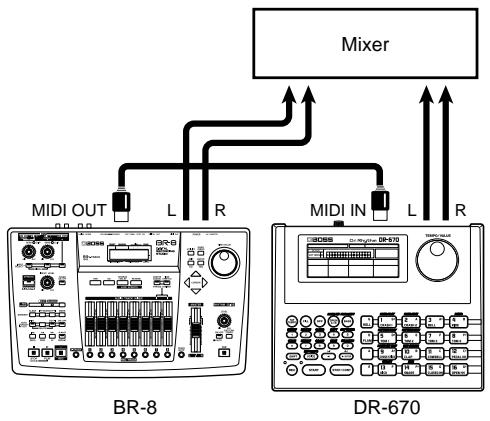
Connecting
Synching the DR-670's Patterns and Songs with the BR-8
This synchronizes the performances of the DR-670's songs and patterns to songs recorded on the BR-8.
In this case, the BR-8 is the master, and the DR670 is the slave.
Making the BR-8 Settings
Use the following procedure to make the settings for the BR-8.
- Press [UTILITY].
- Press CURSOR [ ] [ ] to select the Sync icon, then press [ENTER].
- Use [CURSOR] and the TIME/VALUE dial to set "Gen." to "MIDI CLOCK."
- Press [EXIT] enough times to return to the Level Meter screen.
Making the DR-670 Settings
On the DR-670, select the song (Song Play mode) or pattern (Pattern Play mode) to use.
- You can use the DR-670's MIDI settings with the power left on. If you mistakenly make changes to the Sync mode settings (p. 87), set the DR-670 to "AUTO" or "MIDI."
Performing
When you have finished making the settings, start the performance of the song on the BR-8 from the beginning of the song.
The performance of the DR-670 is synchronized to the song.
■ Playing the BR-8's Rhythm Guide Sound as a DR-670 Drum Sound
When playing the BR-8's internal Rhythm Guide sound, you can have the guide sound converted to a DR-670 drum sound.
Making the BR-8 Settings
Use the following procedure to make the settings for the BR-8.
- Press [UTILITY].
- Press CURSOR [ ][ ] to select the MIDI icon, then press [ENTER].
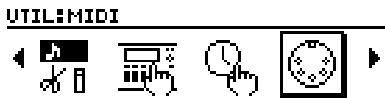
- Press CURSOR [ ] to move the cursor to "Rhythm MIDI ch.," then rotate the TIME/ VALUE dial to select the MIDI channel (1-16). Set this to 10 here.
- Press [EXIT] enough times to return to the Level Meter screen.
Making the DR-670 Settings
Use the following procedure to make the settings for the BR-8.
- Hold down [SHIFT] and press key pad 14 (MIDI).
The DR-670 switches to MIDI mode.
- Confirm that you have switched to the Sync mode settings screen, then rotate the TEMPO/VALUE dial to set the Sync mode to "INT."
| PARAMETER | VALUE | ||
| M12 | M12NC | INT |
- Press [▶/ENTER] to select "CH DRUM."
The drum part's MIDI channel selection screen appears in the display.
| PARAMETER | VALUE | ||
| M | H | JRLIM | OFF |
- Rotate the TEMPO/VALUE dial to set the MIDI channel.
Set this to 10 here. - Hold down [SHIFT] and press key pad 5 (PATTERN PLAY).
The DR-670 switches to Pattern Play mode. - Hold down [SHIFT] and press [DRUM A/ B] (DRUM KIT). Then, while continuing to hold down [SHIFT], rotate the TEMPO/ VALUE dial to select the drum kit you want to use.
- Release [SHIFT].
Performing
When you have finished making the settings, start the performance of the song on the BR-8 from the beginning.
The BR-8's Rhythm Guide pattern is played using a DR-670 sound.
Error Message List
Error messages are displayed when there is an error in an operation or when an operation cannot be executed properly. Take the actions suggested in the error messages that are displayed.
BRY BAT TERY LOW
- The DR-670's batteries are running low.
Use the AC adapter, or change the batteries promptly.
Press [STOP/CONT] to clear the message. Sounds may become distorted, or the DR670 may not operate correctly if you continue to use it in this condition.
BHK BAT TERY LOW
- The DR-670's memory backup battery is nearly depleted (this message appears when the power is turned on).
Have the battery replaced as soon as possible.
For information on replacing the battery, consult Roland Service.
Although you can press [STOP/CONT] to clear the message and continue using the DR-670, the recorded pattern and song data may be lost if the power is turned off.
MEM RST OK ?ENT
- Data stored in the DR-670 is corrupted; resetting the data is necessary (this message appears when the power is turned on).
Press [▶/ENTER] to restore the factory settings.
ME
- Memory is full. No more patterns or songs can be recorded.
Press [STOP/CONT]. To continue recording, first delete unneeded patterns or songs (p. 60, 70).
PINT FILL
The number of patterns recorded in the song exceeded 250.
Press [STOP/CONT]. You cannot record any further to the song currently being edited. To continue, create a new song, then use Song Chain (p. 71).
#
- Copy source and cleared patterns and song data are not being recorded during copying and clearing of the pattern or song.
Confirm the pattern numbers and song numbers of the copy source, or the data to be cleared.
A C T V S E N G
A MIDI Active Sensing error has occurred. A abnormality has been detected in the device or cable connected to MIDI IN.
Check the device or cable connected to MIDI IN.
ERR MIJI FULL
- Too many MIDI messages were received all at once, and the DR-670 was unable to process all of them.
Press [STOP/CONT]. Reduce the volume of the MIDI messages being sent by the transmitting device.
| ERR | CHECK | SUM |
- MIDI Exclusive messages could not be received correctly.
Press [STOP/CONT], then try the operation again.
| TIMEOUT |
- Reception of data during Bulk Load was cancelled before the operation was completed.
Press [STOP/CONT], then try carrying out Bulk Load again.
| ERR | TOO | BUSY |
The system attempted to concurrently process abnormally large amounts of data, but was unable to succeed.
Press [STOP/CONT]. Make sure that the unit is not being forced to handle an overly large amount of data (in patterns, or received MIDI messages) all at once, and try to reduce the amount of data.
| ERR | SSTEM |
An unknown error has occurred in the system.
Immediately stop using the unit, and consult your dealer or nearest Roland Service Center.
Troubleshooting
If you find the DR-670 is not operating correctly, check the items listed below.
If the DR-670 still does not work properly after you check these points, consult your local Roland Service or your dealer.
No Sound
Is the volume turned down (p. 18)?
Is the output part set to "DRUM" or "BASS" (p. 76)?
Is the instrument's level set to "0" (p. 80)?
Have you selected a pattern or song containing no performance data?
Sounds Drop Out
Are you playing too many sounds simultaneously?
The DR-670 has a maximum polyphony of 20 sounds (voices). Some instruments use two voices each time they are played, so using such instruments results in reducing polyphony to fewer than 20 voices.
With some kinds of patterns, you can reduce the number of voices that sound simultaneously by setting the Assign Type to MONO. This would be effective, for example, in a pattern where a lengthy cymbal sound is triggered on every beat.
Could there be a mistake in the Assign Type settings (p. 82)?
Can't Play Rolls/Flams
Could there be a mistake in the Flam Interval or Flam Ratio settings (p. 78)?
□ Are you trying to play a roll or flam with a bass part?
Performance Does Not Start When [START] Is Pressed
Is "MIDI" selected in Sync mode (p. 87)?
Have you selected a pattern or song containing no performance data?
REC Indicator Does Not Flash When [REC] Is Pressed
Recording Does Not Start When [REC] Is Held Down and [START] Is Pressed
Have you selected a Preset pattern?
Have you selected except Song Edit mode (p. 63) or Pattern Edit mode (p. 52)?
No Metronome Sound
Is the metronome level (Click Level) set to "0" (p. 78)?
Cannot Change the Drum Kit Settings
Have you selected a Preset drum kit?
Cannot Play the DR-670 Using an External MIDI Device
Cannot Play External MIDI Device From the DR-670
Could there be a mistake in the MIDI channel settings (p. 88)?
Could there be a mistake in the note numbers (p. 88)?
Operations Common to All Modes
| Operation | Purpose |
| [START] | Start/Stop Performances |
| [STOP/CONT] | Stop Performance/Continue Play |
| [TAP TEMPO] + [TEMPO/VALUE] | Adjust Tempo |
| [REC] | Step Recording |
| [REC] + [START] | Realtime Recording |
| [TAP TEMPO] | Tap Tempo |
| [FILL] | Fill-In |
| [DPP] | Direct Pattern Play On |
| [DRUM A/B] | Switch Drum Banks A/B |
| [BASS] | Play Bass Tone with the key pads |
| [SHIFT] + [DRUM A/B] (DRUM KIT) | Switch Drum Kit |
| [SHIFT] + [BASS] (FRET SHIFT) | Fret Shift Settings |
| [VOICE] | Confirm Instrument/Bass Tone |
| [SHIFT] + [8] (SCALE) | Scale/Quantize Settings |
| [▲] | Move/Select Parameter |
| [▶/ENTER] | Move/Select Parameter/Set Value |
| [SHIFT] + [▲] | Jump to Beginning |
| Key Pad | Pad Performances/Direct Pattern Play |
| [ROLL] + Key Pad | Play Roll |
| [FLAM] + Key Pad | Play Flam |
Song Play Mode
| Operation | Purpose |
| [TEMPO/VALUE] | Select Song |
| Numeric Keys → [▶/ENTER ] | Select Song |
| [SHIFT] + [6] (CHAIN) | Confirm Song Chain Settings |
| [SHIFT] + [7] (REPEAT) | Song Repeat |
| [SHIFT] + [VOICE] (INIT TEMPO) | Confirm Initial Tempo |
Song Edit Mode
| Operation | Purpose |
| [SHIFT] + (Key Pad 2 (SONG EDIT) → [TEMPO/VALUE]) | Select Song |
| [SHIFT] + (Key Pad 2 (SONG EDIT) → Numeric Keys → [ ▶/ENTER ]) | Select Song |
| [SHIFT] + [6] (CHAIN) | Song Chain |
| [SHIFT] + [7] (REPEAT) | Song Repeat |
| [SHIFT] + [VOICE] (INIT TEMPO) | Initial Tempo |
| [SHIFT] + [1] (INSERT) | Insert Pattern |
| [SHIFT] + [2] (DELETE) | Delete Pattern |
| [SHIFT] + [3] (CLEAR) | Clear Song |
| [SHIFT] + [4] (COPY) | Copy Song |
| [SHIFT] + [START] | Start Performance |
Pattern Play Mode
| Operation | Purpose |
| [TEMPO/VALUE] | Select Pattern |
| Numeric Keys → [▶/ENTER ] | Select Pattern |
| [SHIFT] + [5] (KEY TRANS) | Confirm Key Transpose Settings |
| [SHIFT] + [9] (BEAT) | Confirm Beat |
| [SHIFT] + [0] (MEASURE) | Confirm Measures |
Pattern Edit Mode
| Operation | Purpose |
| [TEMPO/VALUE] | Select Pattern/Change Values |
| Numeric Keys → [▶/ENTER ] | Select Pattern |
| [SHIFT] + [5] (KEY TRANS) | Key Transpose Settings |
| [SHIFT] + [9] (BEAT) | Beat Settings |
| [SHIFT] + [0] (MEASURE) | Measure Settings |
| [SHIFT] + [2] (DELETE) | Delete Instrument |
| [SHIFT] + [3] (CLEAR) | Clear Pattern |
| [SHIFT] + [4] (COPY) | Copy Pattern |
DPP Assign Mode
| Operation | Purpose |
| [TEMPO/VALUE] | Select Pattern |
Parameter List
Parameters marked with an asterisk (*) are not saved. These are reset each time the DR-670's power is turned on.
| Parameter | Display | Value | Reset Value |
| System | |||
| Mode* | SONG PLAY, SONG EDIT, PATTERN PLAY, PATTERN EDIT, DRUM KIT EDIT, DPP ASSIGN, UTILITY, MIDI, DEMO | PATTERN PLAY | |
| Pattern Number* | 1-400 | 1 | |
| Song Beat* | RPT | OFF, ON | OFF |
| Drum Kit | KIT | 1-128 | 9 |
| Pad* | DRUM A, DRUM B, BASSS, DPP | DRUM A | |
| Scale* | SCAL | 32, 16 (triplets), 16, 8 (triplets), 8 | 16 |
| Quantize* | QNTZ | OFF, 32, 16 (triplets), 16, 8 (triplets), 8 | 16 |
| Fred Shift* | FRET | -5- +16 | 0 |
| Song | |||
| Song Chain | CHN | OFF, 1-100 | OFF |
| Initial Tempo | INIT | OFF, 20-260 | OFF |
| Pattern | |||
| Beat | BEAT | 2/4-8/4, 4/8-16/8 | 4/4 |
| Measure | MEAS | 1, 2 | 2 |
| Drum Kit | KIT | 1-128 | |
| Key Transpose | KEY | -12- +12 | 0 |
| Drum Kit (Drum Part) | |||
| Instrument | INST | Refer to Instrument List (p. 99) | |
| Level | LVL | 0-15 | |
| Pitch | PTCH | -1200- +1200 (step:10) | |
| Decay | DCAY | -31- + 31 | |
| Nuance | NUAN | -7- + 7 | |
| Pan | PAN | L3-CNTR-R3 | |
| Assign | ASGN | POLY, EX1P-EX7P, MONO, EX1M-EX7M | |
| Drum Kit (Bass Part) | |||
| Tone | TONE | Refer to Bass Tone List (p. 101) | |
| Level | LVL | 0-15 | |
| Attack | ATCK | 0-15 | |
| Decay | DCAY | -31- +31 | |
| Release | RELS | -7- +7 | |
| Pan | PAN | L3-CNTR-R3 | |
| DPP Assign (Pads 1-16) | |||
| Pattern Number | 1-400 | ||
| Utility | |||
| Output Part* | OUT PART | ALL, DRUM, BASS | ALL |
| Foot Switch 1 | FT SW 1 | STRT, FILL, CONT, RSET, REC, CHAS, PD 1-PD16, PDG, PDD, PDA, PDE | STRT |
| Foot Switch 2 | FT SW 2 | STRT, FILL, CONT, REC, RSET, CHAS, PD 1-PD16, PDG, PDD, PDA, PDE | FILL |
| Roll Type | ROL TYPE | 32, 16 (triplets), 16, 8 (triplets), 8 | 32 |
| Flam Interval | FLM INT | 0-31 | 16 |
| Flam Ratio | FLM RATIO | 0-10 | 5 |
| Pad Sensitivity | PAD SENS | 0-10 | 5 |
| Clock Level | CLK LVL | 0-15 | 15 |
| Click Beat* | CLK BEAT | 8, 4 | 4 |
| Master Tune | MST TUNE | 438-445 | 440 |
| MIDI | |||
| Sync Mode* | SYNC | AUTO, INT, MIDI | AUTO |
| Drum Part MIDI Channel | CH DRUM | 1-16, OFF | OFF |
| Bass Part MIDI Channel | CH BASS | 1-16, OFF | OFF |
| Device ID | DEV ID | 17-32 | 17 |
| Bulk Damp | TX BLK | ALL, SEQ, UTIL, KIT | |
| Bulk Road | RX BLK | ||
Instrument/Bass Tone List
Instrument
| Display | Instrument | Voice |
| * KC1 | attack kick | 2 |
| KC2 | real dry kick | 1 |
| * KC3 | dry kick | 2 |
| * KC4 | dry medium kick | 2 |
| * KC5 | dry hard kick | 2 |
| * KC6 | heavy kick | 2 |
| * KC7 | pillow kick | 2 |
| * KC8 | vintage kick 1 | 2 |
| * KC9 | vintage kick 2 | 2 |
| * KC10 | jazz kick 1 | 2 |
| * KC11 | jazz kick 2 | 2 |
| * KC12 | maple kick | 2 |
| * KC13 | maple pillow kick | 2 |
| * KC14 | maple reverb kick | 2 |
| * KC15 | real kick | 2 |
| * KC16 | 26" deep kick | 2 |
| KC17 | medium kick 1 | 1 |
| * KC18 | medium kick 2 | 2 |
| * KC19 | big low kick | 2 |
| * KC20 | wood beater kick | 2 |
| * KC21 | hybrid kick 1 | 2 |
| KC22 | hybrid kick 2 | 1 |
| * KC23 | ambient kick | 2 |
| KC24 | boomer kick | 1 |
| KC25 | comp kick 1 | 1 |
| KC26 | comp kick 2 | 1 |
| * KC27 | deep kick | 2 |
| KC28 | reverb kick 1 | 1 |
| * KC29 | reverb kick 2 | 2 |
| * KC30 | room kick | 2 |
| * KC31 | deep room kick | 2 |
| * KC32 | mondo reverb kick | 2 |
| * KC33 | mondo deep kick | 2 |
| * KC34 | easy kick | 2 |
| * KC35 | soft acoustic kick | 2 |
| * KC36 | solid kick | 2 |
| * KC37 | electronic kick 1 | 2 |
| * KC38 | electronic kick 2 | 2 |
| * KC39 | house kick | 2 |
| * KC40 | dance kick | 2 |
| * KC41 | rap kick 1 | 2 |
| * KC42 | rap kick 2 | 2 |
| KC43 | plastic kick | 1 |
| * KC44 | gubba kick | 2 |
| KC45 | jungle kick | 1 |
| * KC46 | TR-808 kick 1 | 2 |
| Display | Instrument | Voice |
| * KC47 | TR-808 kick 2 | 2 |
| * KC48 | 808 electronic kick | 2 |
| * KC49 | 808 boom kick | 2 |
| * KC50 | TR-909 kick 1 | 2 |
| KC51 | TR-909 kick 2 | 1 |
| * KC52 | 909 hard kick | 2 |
| * SN1 | medium snare soft | 2 |
| * SN2 | medium snare rim shot | 2 |
| * SN3 | steel snare hard | 2 |
| * SN4 | steel snare rim shot | 2 |
| * SN5 | beech snare soft | 2 |
| * SN6 | beech snare rim shot | 2 |
| * SN7 | piccolo snare soft | 2 |
| * SN8 | piccolo snare Hard | 2 |
| * SN9 | high piccolo snare | 2 |
| * SN10 | open rim shot snare | 2 |
| * SN11 | slam dry snare soft | 2 |
| *** SN12 | slam dry snare hard | 2 |
| *** SN13 | slam room snare soft | 2 |
| *** SN14 | slam room snare hard | 2 |
| *** SN15 | dry hard snare | 2 |
| *** SN16 | ring hard snare | 2 |
| *** SN17 | rock-on snare | 2 |
| *** SN18 | funk snare | 2 |
| SN19 | sharp snare | 1 |
| *** SN20 | warm hard snare | 2 |
| SN21 | dry fat snare | 1 |
| SN22 | snappy snare | 1 |
| SN23 | dry snare soft | 1 |
| SN24 | dry snare hard | 1 |
| *** SN25 | wet snare | 2 |
| * SN26 | L.A.fat snare | 2 |
| * SN27 | acoustic rim shot snare | 2 |
| * SN28 | ambient snare | 2 |
| * SN29 | attack snare | 2 |
| * SN30 | big shot snare | 2 |
| * SN31 | hall snare | 2 |
| * SN32 | hard snare | 2 |
| * SN33 | light maple snare | 2 |
| * SN34 | loose snare | 2 |
| SN35 | natural snare | 1 |
| SN36 | power snare | 1 |
| * SN37 | rockin' snare | 2 |
| * SN38 | rock rim shot snare | 2 |
| * SN39 | real snare | 2 |
| *** SN40 | rock snare 1 | 2 |
| * SN41 | rock snare 2 | 2 |
| * SN42 | ring maple snare | 2 |
| SN43 | brush roll snare 1 | 1 |
| * SN44 | brush roll snare 2 | 2 |
| * SN45 | brush slap snare 1 | 2 |
| * SN46 | brush slap snare 2 | 2 |
| * SN47 | brush slap snare 3 | 2 |
| * SN48 | brush swish snare | 2 |
| * SN49 | reggae snare | 2 |
| * SN50 | swing snare | 2 |
| * SN51 | 90's snare | 2 |
| * SN52 | dance snare | 2 |
| * SN53 | dopin' snare | 2 |
| * SN54 | house snare | 2 |
| * SN55 | house dopin' snare | 2 |
| SN56 | jungle tiny snare | 1 |
| * SN57 | electronic snare 1 | 2 |
| * SN58 | electronic snare 2 | 2 |
| * SN59 | TR-808 snare 1 | 2 |
| SN60 | TR-808 snare 2 | 1 |
| * SN61 | TR-909 snare | 2 |
| STK1 | ambient cross stick | 1 |
| *** STK2 | hall cross stick | 2 |
| STK3 | natural cross stick | 1 |
| STK4 | metal cross stick | 1 |
| STK5 | TR-808 cross stick | 1 |
| STK6 | TR-909 cross stick | 1 |
| * TM1 | studio tom 1 soft | 2 |
| * TM2 | studio tom 1 hard | 2 |
| * TM3 | studio tom 2 soft | 2 |
| * TM4 | studio tom 2 hard | 2 |
| * TM5 | vintage tom 1 | 2 |
| * TM6 | vintage tom 2 | 2 |
| * TM7 | jazz tom 1 | 2 |
| * TM8 | jazz tom 2 | 2 |
| * TM9 | fusion tom 1 | 2 |
| * TM10 | fusion tom 2 | 2 |
| * TM11 | bowl tom 1 | 2 |
| * TM12 | bowl tom 2 | 2 |
| * TM13 | ambient tom 1 | 2 |
| * TM14 | ambient tom 2 | 2 |
| * TM15 | brush slap tom 1 | 2 |
| * TM16 | brush slap tom 2 | 2 |
| * TM17 | double head tom 1 | 2 |
| * TM18 | double head tom 2 | 2 |
| * TM19 | light tom 1 | 2 |
| * TM20 | light tom 2 | 2 |
| * TM21 | real tom 1 | 2 |
| Display | Instrument | Voice |
| * TM22 | real tom 2 | 2 |
| * TM23 | ring tom1 | 2 |
| * TM24 | ring tom2 | 2 |
| * TM25 | room tom 1 | 2 |
| * TM26 | room tom 2 | 2 |
| * TM27 | rock tom 1 | 2 |
| * TM28 | rock tom 2 | 2 |
| * TM29 | electronic tom 1 | 2 |
| * TM30 | electronic tom 2 | 2 |
| * TM31 | TR-808 tom | 2 |
| * TM32 | TR-909 tom | 2 |
| ** HH1 | pure closed hi-hat | 2 |
| ** HH2 | pure open hi-hat | 2 |
| ** HH3 | pedal closed hi-hat | 2 |
| ** HH4 | 16" closed hi-hat | 2 |
| ** HH5 | 16" half open hi-hat | 2 |
| HH6 | 16" open hi-hat | 1 |
| HH7 | 16" pedal closed hi-hat | 1 |
| ** HH8 | pop closed hi-hat | 2 |
| ** HH9 | pop open hi-hat | 2 |
| ** HH10 | real closed hi-hat | 2 |
| ** HH11 | real open hi-hat | 2 |
| HH12 | brush closed hi-hat | 1 |
| HH13 | brush open hi-hat | 1 |
| ** HH14 | TR-808 closed hi-hat | 2 |
| ** HH15 | TR-808 open hi-hat | 2 |
| HH16 | TR-909 closed hi-hat | 1 |
| HH17 | TR-909 open hi-hat | 1 |
| HH18 | CR-78 closed hi-hat | 1 |
| HH19 | CR-78 open hi-hat | 1 |
| CY1 | crash cymbal 1 | 1 |
| CY2 | crash cymbal 2 | 1 |
| CY3 | crash cymbal 3 | 1 |
| CY4 | soft crash cymbal | 1 |
| ** CY5 | pgy crash cymbal | 2 |
| CY6 | splash cymbal | 1 |
| CY7 | chinese cymbal | 1 |
| ** CY8 | ride cymbal 1 | 2 |
| ** CY9 | ride cymbal 2 | 2 |
| ** CY10 | sizzle ride cymbal | 2 |
| ** CY11 | ride bell cymbal 1 | 2 |
| ** CY12 | ride bell cymbal 2 | 2 |
| CY13 | brush crash cymbal | 1 |
| CY14 | brush ride cymbal | 1 |
| CY15 | large gong | 1 |
| CY16 | TR-808 cymbal | 1 |
| CY17 | TR-606 cymbal | 1 |
| ** PC1 | cowbell | 2 |
| PC2 | tambourine | 1 |
| PC3 | sleigh bell | 1 |
| PC4 | castanet | 1 |
| PC5 | triangle open | 1 |
| PC6 | woodblock | 1 |
| * PC7 | bongo high | 2 |
| * PC8 | bongo low | 2 |
| * PC9 | conga high mute | 2 |
| * PC10 | conga high slap | 2 |
| * PC11 | conga high open | 2 |
| * PC12 | conga low open | 2 |
| * PC13 | timbale high | 2 |
| * PC14 | timbale low | 2 |
| PC15 | timbale side | 1 |
| * PC16 | claves | 2 |
| PC17 | vibraslap | 1 |
| PC18 | guiro short | 1 |
| PC19 | guiro long | 1 |
| PC20 | maracas | 1 |
| PC21 | shaker | 1 |
| PC22 | cabasa | 1 |
| PC23 | samba whistle short | 1 |
| PC24 | samba whistle long | 1 |
| ** PC25 | agogo | 2 |
| PC26 | cuica high | 1 |
| PC27 | cuica low | 1 |
| * PC28 | surdo mute | 2 |
| * PC29 | surdo open | 2 |
| ** PC30 | tabla 1 | 2 |
| PC31 | tabla 2 | 1 |
| ** PC32 | tabla 3 | 2 |
| PC33 | real clap | 1 |
| PC34 | DR-55 claves | 1 |
| PC35 | CR-78 cowbell | 1 |
| PC36 | CR-78 metallic beat | 1 |
| PC37 | CR-78 guiro | 1 |
| PC38 | CR-78 tambourine | 1 |
| PC39 | CR-78 maracas | 1 |
| * PC40 | TR-808 conga | 2 |
| PC41 | TR-808 claves | 1 |
| PC42 | TR-808 maracas | 1 |
| PC43 | TR-808 hand clap | 1 |
| PC44 | TR-808 cowbell | 1 |
| ** FX1 | scratch 1 | 2 |
| ** FX2 | scratch 2 | 2 |
| ** FX3 | scratch snare | 2 |
| FX4 | jungle hat | 1 |
| ** FX5 | high-Q | 2 |
| Display | Instrument | Voice |
| FX6 | tape rewind | 1 |
| FX7 | philly hit | 1 |
| FX8 | dance shaker | 1 |
| ** FX9 | beam high-Q | 2 |
| FX10 | metal sweep | 1 |
| ** FX11 | analog bird | 2 |
| ** FX12 | sound effect | 2 |
| ** FX13 | reverse snare | 2 |
| ** FX14 | reverse tom | 2 |
| FX15 | reverse cymbal | 1 |
| *** FX16 | kick ambience | 2 |
| *** FX17 | snare ambience | 2 |
| *** FX18 | tom ambience | 2 |
| *** FX19 | long reverb | 2 |
| *** FX20 | gate reverb | 2 |
| * BS1 | acoustic bass | 2 |
| BS2 | fingered bass | 1 |
| BS3 | slap bass | 1 |
| BS4 | TB-303 bass | 1 |
| BS5 | bass glissando | 1 |
Bass Tone
| Display | Instrument | Voice |
| FNG1 | Fingered Bass 1 | 1 |
| FNG2 | Fingered Bass 2 | 1 |
| MTB | Mute Bass | 1 |
| FRLS | Fretless Bass | 1 |
| PIC1 | Picked Bass 1 | 1 |
| PIC2 | Picked Bass 2 | 1 |
| ACO1 | Acoustic Bass 1 | 1 |
| ACO2 | Acoustic Bass 2 | 1 |
| SLAP | Slap Bass | 1 |
| STCK | Stick | 1 |
| MGB | MG Bass Pedal | 1 |
| OBB | OB Bass | 1 |
| 101 | 101 Bass | 1 |
| SLD | Solid Bass | 1 |
| PLCK | Pluck Bass | 1 |
| SINE | Sine Wave Bass | 1 |
- The sound will alter depending on the strength you strike the pads or the Nuance setting (p. 81).
The sound will alter depending on the Nuance setting.
* The Pan setting (p. 81) will be ignored.
Preset Drum Kit List
| Pad No. | No. 1 Standrd | No. 2 Room 1 | No. 3 Power 1 | No. 4 Elctro1 | No. 5 TR808 1 | No. 6 Jazz 1 | No. 7 Brushes | No. 8 Ambient |
| Instrument | Instrument | Instrument | Instrument | Instrument | Instrument | Instrument | Instrument | |
| A 1 | CY1 | CY1 | CY1 | CY1 | CY16 | CY4 | CY13 | CY1 |
| A 2 | CY2 | CY3 | CY2 | CY17 | CY17 | CY2 | CY14 | CY2 |
| A 3 | CY12 | CY12 | CY12 | CY11 | CY12 | CY11 | CY11 | CY12 |
| A 4 | CY9 | CY9 | CY9 | CY9 | CY9 | CY10 | CY14 | CY8 |
| A 5 | TM1 | TM25 | TM13 | TM29 | TM31 | TM7 | TM15 | TM27 |
| A 6 | TM1 | TM25 | TM13 | TM29 | TM31 | TM7 | TM15 | TM27 |
| A 7 | TM1 | TM25 | TM13 | TM29 | TM31 | TM8 | TM15 | TM28 |
| A 8 | TM3 | TM26 | TM14 | TM29 | TM31 | TM8 | TM16 | TM28 |
| A 9 | STK3 | STK1 | CY7 | STK6 | STK5 | STK3 | STK3 | STK1 |
| A10 | SN1 | CY6 | CY15 | PC43 | PC43 | SN27 | SN45 | SN32 |
| A11 | PC1 | PC1 | PC1 | SN58 | PC44 | PC1 | SN44 | PC1 |
| A12 | HH3 | HH3 | HH7 | HH14 | HH15 | HH3 | HH3 | HH7 |
| A13 | KC4 | KC30 | KC33 | KC37 | KC46 | KC11 | KC10 | KC36 |
| A14 | SN2 | SN37 | SN41 | SN57 | SN59 | SN34 | SN48 | SN29 |
| A15 | HH1 | HH10 | HH5 | HH14 | HH14 | HH1 | HH12 | HH4 |
| A16 | HH2 | HH11 | HH6 | HH15 | HH15 | HH2 | HH13 | HH6 |
| B 1 | PC22 | PC22 | PC22 | PC22 | PC22 | PC22 | PC22 | PC22 |
| B 2 | CY7 | PC16 | PC16 | PC16 | PC41 | PC16 | PC16 | PC16 |
| B 3 | PC20 | PC20 | PC20 | PC20 | PC42 | PC20 | PC20 | PC20 |
| B 4 | PC17 | PC17 | PC17 | PC17 | PC17 | PC17 | PC17 | CY7 |
| B 5 | PC25 | PC25 | PC25 | PC25 | PC25 | PC25 | PC25 | FX18 |
| B 6 | PC25 | PC25 | PC25 | PC25 | PC25 | PC25 | PC25 | FX18 |
| B 7 | PC18 | PC18 | PC18 | PC18 | PC37 | PC18 | PC18 | FX18 |
| B 8 | PC19 | PC19 | PC19 | PC19 | PC37 | PC19 | PC19 | FX18 |
| B 9 | PC7 | PC7 | PC7 | PC7 | PC7 | PC7 | PC7 | BS5 |
| B10 | PC8 | PC8 | PC8 | PC8 | PC8 | PC8 | PC8 | FX17 |
| B11 | PC14 | PC14 | PC14 | PC14 | PC14 | PC14 | PC14 | PC14 |
| B12 | PC13 | PC13 | PC13 | PC13 | PC13 | PC13 | PC13 | PC13 |
| B13 | PC2 | KC27 | PC2 | PC2 | PC38 | SN7 | KC35 | FX16 |
| B14 | PC9 | PC9 | SN30 | PC9 | PC40 | PC9 | PC9 | FX17 |
| B15 | PC11 | PC11 | PC11 | PC11 | PC40 | PC11 | PC11 | PC11 |
| B16 | PC12 | PC12 | PC12 | PC12 | PC40 | PC12 | PC12 | PC12 |
| BASS | FNG1 | PIC1 | PIC1 | OBB | 101 | ACO1 | ACO1 | FNG2 |
| No. 9 Big | No. 10 Exprsn | No. 11 Power 2 | No. 12 Loud | No. 13 Studio | No. 14 Power 3 | No. 15 TR808 2 | No. 16 TR909 | |
| Pad No. | Instrument | Instrument | Instrument | Instrument | Instrument | Instrument | Instrument | Instrument |
| A 1 | CY1 | CY1 | CY1 | CY1 | CY1 | CY1 | CY16 | CY17 |
| A 2 | CY2 | CY2 | CY2 | CY3 | CY2 | CY2 | HH19 | CY16 |
| A 3 | CY11 | CY11 | CY12 | CY11 | CY12 | CY12 | CY12 | CY12 |
| A 4 | CY9 | CY9 | CY9 | CY7 | CY9 | CY9 | CY9 | CY9 |
| A 5 | TM5 | TM2 | TM2 | TM27 | TM2 | TM21 | TM31 | TM32 |
| A 6 | TM5 | TM2 | TM2 | TM27 | TM2 | TM21 | TM31 | TM32 |
| A 7 | TM6 | TM2 | TM2 | TM28 | TM2 | TM21 | TM31 | TM32 |
| A 8 | TM6 | TM4 | TM4 | TM28 | TM4 | TM22 | TM31 | TM32 |
| A 9 | STK3 | STK1 | STK2 | STK2 | STK3 | STK1 | STK5 | STK6 |
| A10 | SN5 | SN8 | CY7 | SN12 | SN1 | SN30 | PC43 | SN50 |
| A11 | PC1 | PC1 | PC1 | PC1 | PC1 | PC1 | PC44 | PC44 |
| A12 | HH7 | HH3 | HH7 | HH3 | HH7 | HH7 | HH15 | HH17 |
| A13 | KC16 | KC3 | KC28 | KC1 | KC9 | KC18 | KC47 | KC52 |
| A14 | SN6 | SN2 | SN28 | SN20 | SN10 | SN25 | SN60 | SN61 |
| A15 | HH4 | HH1 | HH5 | HH1 | HH4 | HH5 | HH14 | HH16 |
| A16 | HH5 | HH2 | HH6 | HH2 | HH6 | HH6 | HH15 | HH17 |
| B 1 | PC22 | CY4 | PC22 | PC22 | PC22 | CY1 | PC22 | PC22 |
| B 2 | PC16 | CY4 | PC16 | PC16 | CY6 | CY2 | PC41 | PC41 |
| B 3 | PC20 | CY11 | PC20 | PC20 | CY7 | CY12 | PC42 | PC42 |
| B 4 | PC17 | CY9 | PC17 | PC17 | CY8 | CY7 | PC17 | PC17 |
| B 5 | PC25 | TM1 | PC25 | PC25 | PC25 | TM13 | PC25 | PC25 |
| B 6 | PC25 | TM1 | PC25 | PC25 | PC25 | TM13 | PC25 | PC25 |
| B 7 | PC18 | TM1 | PC18 | PC18 | PC18 | TM13 | PC37 | PC37 |
| B 8 | PC19 | TM3 | PC19 | PC19 | PC19 | TM14 | PC37 | PC37 |
| B 9 | PC7 | STK1 | PC7 | PC7 | KC5 | PC7 | PC7 | PC7 |
| B10 | PC8 | SN7 | PC8 | PC8 | SN35 | PC8 | PC8 | PC8 |
| B11 | PC14 | PC1 | PC14 | PC14 | PC14 | PC14 | PC14 | PC14 |
| B12 | PC13 | HH3 | PC13 | PC13 | PC13 | PC13 | PC13 | PC13 |
| B13 | PC2 | KC12 | KC24 | PC2 | PC2 | PC2 | PC38 | PC38 |
| B14 | PC9 | SN1 | PC9 | PC9 | PC9 | PC9 | PC40 | PC40 |
| B15 | PC11 | HH1 | PC11 | PC11 | PC11 | PC11 | PC40 | PC40 |
| B16 | PC12 | HH2 | PC12 | PC12 | PC12 | PC12 | PC40 | PC40 |
| BASS | STCK | FNG2 | PIC2 | PIC1 | FNG1 | PIC1 | MTB | MTB |
| No. 17 Dance 1 | No. 18 Rock | No. 19 Funk 1 | No. 20 Funk 2 | No. 21 HipHop | No. 22 House | No. 23 DrumnBs | No. 24 Techno | |
| Pad No. | Instrument | Instrument | Instrument | Instrument | Instrument | Instrument | Instrument | Instrument |
| A 1 | CY3 | CY1 | CY2 | CY2 | CY1 | CY2 | CY2 | CY2 |
| A 2 | CY3 | CY4 | CY2 | CY5 | CY2 | CY17 | CY17 | CY17 |
| A 3 | CY12 | CY12 | CY12 | CY11 | CY12 | CY12 | CY12 | CY12 |
| A 4 | CY9 | CY8 | CY8 | CY8 | CY8 | CY9 | CY9 | CY9 |
| A 5 | TM2 | TM21 | TM5 | TM21 | TM1 | TM31 | TM32 | TM32 |
| A 6 | TM2 | TM21 | TM5 | TM21 | TM1 | TM31 | TM32 | TM32 |
| A 7 | TM2 | TM22 | TM5 | TM21 | TM1 | TM31 | TM32 | TM32 |
| A 8 | TM2 | TM22 | TM6 | TM22 | TM3 | TM31 | TM32 | TM32 |
| A 9 | STK1 | STK1 | STK3 | STK1 | STK3 | STK5 | STK5 | STK6 |
| A10 | PC43 | PC43 | SN1 | SN38 | PC33 | PC43 | PC43 | PC43 |
| A11 | PC35 | PC1 | PC1 | PC1 | PC1 | PC44 | PC44 | PC44 |
| A12 | HH14 | HH3 | HH3 | HH3 | HH3 | HH7 | FX4 | HH3 |
| A13 | KC39 | KC26 | KC4 | KC22 | KC4 | KC51 | KC51 | KC51 |
| A14 | SN54 | SN35 | SN6 | SN18 | SN9 | SN61 | SN54 | SN61 |
| A15 | HH18 | HH10 | HH1 | HH10 | HH1 | HH16 | HH18 | HH16 |
| A16 | HH19 | HH13 | HH2 | HH11 | HH2 | HH17 | HH19 | HH17 |
| B 1 | PC22 | PC22 | PC22 | PC22 | PC22 | PC22 | PC22 | PC22 |
| B 2 | PC16 | PC16 | CY6 | CY6 | PC16 | PC41 | PC41 | PC41 |
| B 3 | PC20 | PC20 | PC20 | PC20 | PC20 | PC42 | PC42 | PC42 |
| B 4 | PC17 | PC17 | CY7 | CY7 | PC17 | PC17 | CY6 | CY6 |
| B 5 | PC25 | PC25 | PC6 | PC25 | TM29 | PC25 | FX8 | PC36 |
| B 6 | PC25 | PC25 | PC6 | PC25 | TM29 | PC25 | FX8 | PC36 |
| B 7 | PC18 | FX9 | TM1 | PC5 | TM29 | PC37 | PC37 | PC37 |
| B 8 | PC19 | FX1 | TM3 | PC5 | TM29 | PC37 | PC37 | PC37 |
| B 9 | PC7 | PC7 | KC5 | KC25 | SN52 | KC39 | PC34 | SN60 |
| B10 | PC8 | PC8 | SN5 | PC8 | CY15 | SN60 | SN60 | PC33 |
| B11 | PC14 | PC14 | PC5 | PC14 | PC14 | HH19 | FX15 | PC33 |
| B12 | PC13 | PC13 | PC5 | PC13 | PC13 | HH15 | KC49 | HH19 |
| B13 | PC2 | PC2 | PC2 | PC2 | PC2 | PC38 | KC44 | PC38 |
| B14 | PC9 | PC9 | PC9 | PC9 | SN6 | PC40 | PC40 | PC40 |
| B15 | PC10 | PC10 | PC11 | PC11 | PC11 | PC40 | PC40 | PC40 |
| B16 | PC12 | PC12 | PC12 | PC12 | PC12 | PC40 | PC40 | PC40 |
| BASS | SLD | PIC2 | SLAP | STCK | SLD | SLD | SINE | PLCK |
| No. 25 Brazil | No. 26 India | No. 27 Room 2 | No. 28 Room 3 | No. 29 Fusion | No. 30 Natural | No. 31 Ballad | No. 32 Groove | |
| Pad No. | Instrument | Instrument | Instrument | Instrument | Instrument | Instrument | Instrument | Instrument |
| A 1 | CY1 | CY1 | CY1 | CY2 | CY1 | CY1 | CY1 | CY1 |
| A 2 | CY2 | CY2 | CY2 | CY5 | CY2 | CY2 | CY2 | CY3 |
| A 3 | CY12 | CY12 | CY12 | CY11 | CY12 | CY11 | CY11 | CY12 |
| A 4 | CY9 | CY9 | CY9 | CY8 | CY9 | CY8 | CY8 | CY9 |
| A 5 | PC9 | PC30 | TM13 | TM27 | TM9 | TM21 | TM5 | TM25 |
| A 6 | PC10 | PC30 | TM13 | TM27 | TM9 | TM21 | TM5 | TM25 |
| A 7 | PC11 | PC31 | TM14 | TM28 | TM10 | TM22 | TM6 | TM25 |
| A 8 | PC11 | PC32 | TM14 | TM28 | TM10 | TM22 | TM3 | TM26 |
| A 9 | PC12 | STK3 | STK2 | STK1 | STK1 | STK3 | STK3 | STK3 |
| A10 | PC16 | PC43 | PC43 | PC43 | CY6 | SN23 | SN2 | PC43 |
| A11 | PC2 | PC1 | PC1 | PC1 | PC1 | PC1 | PC1 | PC1 |
| A12 | HH3 | HH3 | HH3 | HH3 | HH3 | HH3 | HH7 | HH3 |
| A13 | KC10 | KC35 | KC17 | KC31 | KC7 | KC25 | KC16 | KC25 |
| A14 | SN4 | SN27 | SN11 | SN14 | SN3 | SN35 | SN1 | SN26 |
| A15 | HH1 | HH1 | HH1 | HH10 | HH1 | HH1 | HH4 | HH10 |
| A16 | HH2 | HH2 | HH2 | HH11 | HH9 | HH2 | HH6 | HH11 |
| B 1 | PC22 | PC22 | PC22 | PC22 | PC22 | PC22 | PC22 | PC22 |
| B 2 | PC22 | PC16 | PC16 | PC16 | PC16 | PC16 | PC16 | PC16 |
| B 3 | PC20 | PC20 | PC20 | PC20 | PC20 | PC20 | PC20 | PC20 |
| B 4 | PC17 | PC2 | PC17 | PC17 | PC17 | CY7 | PC17 | PC17 |
| B 5 | PC25 | PC25 | PC6 | PC25 | PC25 | PC25 | PC25 | PC25 |
| B 6 | PC25 | PC25 | PC6 | PC25 | PC25 | PC25 | PC25 | PC25 |
| B 7 | PC18 | PC18 | PC5 | PC18 | PC18 | PC18 | PC18 | PC35 |
| B 8 | PC19 | PC19 | PC5 | PC19 | PC19 | PC19 | PC19 | FX8 |
| B 9 | PC7 | PC7 | PC7 | PC7 | PC7 | KC26 | PC7 | PC7 |
| B10 | PC8 | PC8 | SN38 | PC8 | PC8 | SN22 | PC8 | PC8 |
| B11 | PC14 | PC14 | PC14 | PC14 | PC14 | PC14 | PC14 | PC14 |
| B12 | PC13 | PC13 | PC13 | PC13 | PC13 | PC13 | PC13 | PC13 |
| B13 | PC15 | KC5 | PC2 | PC2 | PC2 | PC2 | PC2 | PC2 |
| B14 | PC22 | PC9 | PC9 | PC9 | PC9 | PC9 | PC9 | PC9 |
| B15 | PC1 | PC11 | PC11 | PC11 | PC11 | PC11 | PC11 | PC11 |
| B16 | PC1 | PC12 | PC12 | PC12 | PC12 | PC12 | PC12 | PC12 |
| BASS | FNG2 | ACO2 | FNG1 | PIC2 | PIC1 | PIC2 | FRLS | SLAP |
| No. 33Boom | No. 34Jazz 2 | No. 35Afro 1 | No. 36HvyFunk | No. 37Folk | No. 38Samba 1 | No. 39Blues | No. 40Gospel | |
| Pad No. | Instrument | Instrument | Instrument | Instrument | Instrument | Instrument | Instrument | Instrument |
| A 1 | CY17 | CY4 | CY3 | CY1 | CY4 | CY1 | CY1 | CY1 |
| A 2 | CY17 | CY2 | CY6 | CY2 | CY13 | CY2 | CY3 | CY2 |
| A 3 | CY11 | CY11 | CY12 | CY11 | CY12 | CY12 | CY12 | CY12 |
| A 4 | CY9 | CY10 | CY9 | CY9 | CY14 | CY9 | CY10 | CY9 |
| A 5 | TM29 | TM17 | TM2 | TM21 | TM19 | PC24 | TM7 | TM17 |
| A 6 | TM29 | TM17 | TM2 | TM21 | TM19 | TM1 | TM7 | TM17 |
| A 7 | TM29 | TM18 | TM2 | TM21 | TM19 | TM1 | TM7 | TM17 |
| A 8 | TM29 | TM18 | TM4 | TM22 | TM20 | TM3 | TM8 | TM18 |
| A 9 | STK6 | STK3 | STK3 | STK3 | STK3 | PC23 | STK2 | SN23 |
| A10 | PC43 | SN34 | PC26 | SN5 | SN47 | SN1 | PC33 | PC33 |
| A11 | PC1 | PC1 | PC1 | PC1 | PC33 | PC29 | PC2 | PC1 |
| A12 | HH16 | HH3 | HH7 | HH3 | HH3 | HH3 | HH3 | HH3 |
| A13 | KC50 | KC16 | KC39 | KC18 | KC35 | KC5 | KC11 | KC12 |
| A14 | SN55 | SN34 | SN39 | SN6 | SN5 | SN2 | SN15 | SN35 |
| A15 | HH16 | HH1 | HH4 | HH1 | HH1 | HH1 | HH1 | HH1 |
| A16 | HH17 | HH2 | HH6 | HH2 | HH2 | HH2 | HH2 | HH2 |
| B 1 | PC22 | PC22 | PC20 | PC22 | PC22 | PC22 | CY4 | PC22 |
| B 2 | PC16 | PC16 | PC16 | PC16 | PC16 | CY7 | CY9 | CY6 |
| B 3 | PC20 | PC20 | PC20 | PC20 | PC20 | PC20 | CY8 | CY7 |
| B 4 | PC17 | PC17 | PC19 | PC17 | PC17 | PC17 | CY9 | CY8 |
| B 5 | PC35 | PC25 | PC25 | PC25 | PC25 | PC25 | PC25 | PC25 |
| B 6 | FX6 | PC25 | PC25 | PC25 | PC25 | PC25 | PC25 | PC25 |
| B 7 | FX3 | PC18 | PC15 | PC18 | PC18 | PC26 | PC18 | PC6 |
| B 8 | PC19 | PC19 | PC19 | PC19 | PC19 | PC27 | PC19 | PC6 |
| B 9 | PC7 | PC7 | PC7 | PC7 | PC7 | PC5 | PC7 | PC7 |
| B10 | PC8 | PC8 | PC8 | PC8 | PC8 | PC5 | PC8 | PC8 |
| B11 | PC14 | PC14 | PC12 | PC14 | PC14 | PC14 | PC14 | PC14 |
| B12 | PC13 | PC13 | PC12 | PC13 | PC13 | PC13 | PC13 | PC13 |
| B13 | PC2 | PC2 | PC2 | PC2 | PC2 | PC2 | BS5 | PC2 |
| B14 | PC9 | PC9 | PC9 | PC9 | PC9 | PC9 | SN1 | KC5 |
| B15 | PC11 | PC11 | PC11 | PC11 | PC11 | PC11 | PC11 | PC11 |
| B16 | PC12 | PC12 | PC11 | PC12 | PC12 | PC12 | PC12 | PC12 |
| BASS | PLCK | ACO2 | MTB | STCK | MTB | FING1 | ACO2 | FNG1 |
| No. 41 Jazz 3 | No. 42 BigFunk | No. 43 Samba 2 | No. 44 Reggae | No. 45 Salsa | No. 46 Tabla | No. 47 Electro2 | No. 48 Vintage | |
| Pad No. | Instrument | Instrument | Instrument | Instrument | Instrument | Instrument | Instrument | Instrument |
| A 1 | CY1 | CY1 | CY1 | CY6 | CY1 | CY1 | CY2 | CY1 |
| A 2 | CY2 | CY7 | CY2 | CY3 | CY3 | CY6 | CY6 | CY2 |
| A 3 | CY12 | CY12 | CY12 | CY12 | CY12 | CY12 | CY11 | CY11 |
| A 4 | CY9 | CY9 | CY9 | CY9 | CY9 | CY9 | CY8 | CY8 |
| A 5 | TM7 | TM21 | PC23 | TM23 | PC10 | PC30 | TM30 | TM11 |
| A 6 | TM7 | TM21 | PC24 | TM23 | TM17 | PC30 | TM30 | TM11 |
| A 7 | TM7 | TM21 | PC28 | TM23 | TM17 | PC32 | TM30 | TM12 |
| A 8 | TM8 | TM22 | PC29 | TM24 | TM18 | PC31 | TM30 | TM12 |
| A 9 | STK2 | STK2 | STK3 | STK3 | STK3 | PC32 | STK2 | STK2 |
| A10 | PC33 | PC33 | SN1 | PC33 | PC6 | SN1 | PC43 | SN3 |
| A11 | PC2 | PC2 | PC1 | PC1 | PC1 | PC1 | PC1 | PC1 |
| A12 | HH3 | HH3 | HH3 | HH3 | HH3 | HH3 | HH7 | HH3 |
| A13 | KC11 | KC12 | KC12 | KC25 | KC9 | KC22 | KC38 | KC12 |
| A14 | SN2 | SN25 | SN2 | SN49 | SN3 | SN35 | SN58 | SN4 |
| A15 | HH1 | HH10 | HH1 | HH1 | HH1 | HH1 | HH10 | HH1 |
| A16 | HH2 | HH11 | HH2 | HH2 | HH2 | HH2 | HH11 | HH2 |
| B 1 | CY4 | CY9 | PC22 | PC22 | PC20 | PC22 | PC22 | PC22 |
| B 2 | CY9 | CY9 | PC16 | PC16 | PC16 | PC16 | PC16 | PC16 |
| B 3 | CY8 | CY9 | PC20 | PC20 | PC21 | PC20 | PC20 | PC20 |
| B 4 | CY9 | CY9 | PC17 | PC17 | PC17 | PC17 | PC17 | CY7 |
| B 5 | PC25 | PC25 | PC25 | PC25 | PC25 | PC25 | PC25 | PC25 |
| B 6 | PC25 | PC25 | PC25 | PC25 | PC25 | PC25 | PC25 | PC25 |
| B 7 | PC18 | PC18 | PC26 | PC26 | PC18 | PC18 | PC18 | PC18 |
| B 8 | PC19 | PC19 | PC27 | PC27 | PC19 | PC19 | PC19 | PC19 |
| B 9 | PC7 | PC7 | PC7 | PC7 | PC7 | TM1 | PC7 | PC7 |
| B10 | PC8 | PC8 | PC8 | PC8 | PC8 | TM1 | PC8 | PC8 |
| B11 | PC14 | PC14 | PC14 | PC14 | PC14 | TM1 | PC14 | PC14 |
| B12 | PC13 | PC13 | PC13 | PC13 | PC13 | TM3 | PC13 | PC13 |
| B13 | BS5 | KC35 | PC2 | PC2 | PC2 | STK3 | PC2 | PC2 |
| B14 | SN1 | SN15 | PC9 | PC9 | PC9 | PC7 | PC9 | PC9 |
| B15 | PC11 | PC11 | PC11 | PC11 | PC11 | PC8 | PC11 | PC11 |
| B16 | PC12 | PC12 | PC12 | PC12 | PC12 | PC2 | PC12 | PC12 |
| BASS | ACO1 | STCK | FRLS | MTB | ACO1 | ACO2 | 101 | FNG1 |
| No. 49 Ring | No. 50 Light | No. 51 Afro 2 | No. 52 Dance 2 | No. 53 Delay | No. 54 FlingDly | No. 55 Drm&Prc | No. 56 SFX | |
| Pad No. | Instrument | Instrument | Instrument | Instrument | Instrument | Instrument | Instrument | Instrument |
| A 1 | CY4 | CY4 | CY2 | CY1 | CY1 | CY6 | CY15 | CY2 |
| A 2 | CY1 | CY1 | CY6 | CY17 | CY2 | CY2 | CY6 | CY1 |
| A 3 | CY11 | CY11 | CY12 | CY12 | CY12 | CY12 | CY12 | CY11 |
| A 4 | CY8 | CY9 | CY9 | CY9 | CY9 | CY9 | CY9 | CY9 |
| A 5 | TM23 | TM19 | TM17 | TM31 | TM27 | TM21 | TM17 | TM13 |
| A 6 | TM23 | TM19 | TM18 | TM31 | TM27 | TM21 | TM17 | TM13 |
| A 7 | TM24 | TM20 | PC28 | TM31 | TM28 | TM22 | TM17 | TM13 |
| A 8 | TM24 | TM20 | PC29 | TM31 | TM28 | TM22 | TM18 | TM14 |
| A 9 | STK2 | STK3 | STK3 | STK5 | STK2 | STK5 | STK3 | STK1 |
| A10 | SN33 | SN47 | SN4 | SN55 | SN36 | PC43 | PC26 | SN11 |
| A11 | PC1 | PC1 | PC1 | PC44 | PC1 | PC1 | PC1 | PC1 |
| A12 | HH3 | HH3 | HH3 | FX4 | HH3 | HH3 | HH3 | HH7 |
| A13 | KC7 | KC35 | KC26 | KC51 | KC29 | KC40 | KC26 | KC18 |
| A14 | SN42 | SN27 | SN3 | SN56 | SN31 | SN53 | SN9 | SN14 |
| A15 | HH1 | HH10 | HH1 | HH16 | HH10 | HH10 | HH8 | HH5 |
| A16 | HH2 | HH11 | HH2 | HH17 | HH11 | HH11 | HH9 | HH6 |
| B 1 | PC22 | PC22 | PC22 | FX8 | PC22 | PC22 | BS5 | FX5 |
| B 2 | PC16 | PC16 | PC16 | PC41 | PC16 | PC16 | FX10 | FX5 |
| B 3 | PC20 | PC20 | PC20 | PC42 | PC20 | PC20 | PC25 | FX6 |
| B 4 | PC17 | PC17 | PC17 | FX11 | PC17 | PC17 | PC3 | FX7 |
| B 5 | PC25 | PC25 | PC5 | PC25 | PC25 | PC25 | PC7 | FX8 |
| B 6 | PC25 | PC25 | PC5 | PC25 | PC25 | PC25 | PC7 | FX9 |
| B 7 | PC18 | PC18 | PC25 | PC37 | PC18 | PC18 | PC13 | FX9 |
| B 8 | PC19 | PC19 | PC25 | PC1 | PC19 | PC19 | PC14 | FX10 |
| B 9 | PC7 | PC7 | PC7 | FX7 | PC7 | PC7 | PC23 | FX11 |
| B10 | PC8 | PC8 | PC8 | FX9 | PC8 | PC8 | PC43 | FX11 |
| B11 | PC14 | PC14 | PC14 | KC49 | PC14 | PC14 | FX9 | FX19 |
| B12 | PC13 | PC13 | PC13 | SN61 | PC13 | PC13 | BS5 | FX20 |
| B13 | PC2 | PC2 | PC2 | PC2 | PC2 | PC2 | PC30 | FX12 |
| B14 | PC9 | PC9 | PC9 | FX15 | PC9 | PC9 | PC2 | FX13 |
| B15 | PC11 | PC11 | PC11 | PC3 | PC11 | PC11 | PC36 | FX14 |
| B16 | PC12 | PC12 | PC12 | PC38 | PC12 | PC12 | PC19 | FX15 |
| BASS | FNG2 | MTB | ACO2 | SINE | PLCK | FRLS | SLD | MGB |
| No. 57 CtryBas | No. 58 SmbaBas | No. 59 BluzBas | No. 60 RockBas | No. 61 FunkBas | No. 62 BrshBas | No. 63 SynBass | No. 64 AcoBass | |
| Pad No. | Instrument | Instrument | Instrument | Instrument | Instrument | Instrument | Instrument | Instrument |
| A 1 | CY1 | CY1 | CY1 | CY2 | CY1 | CY13 | CY17 | CY4 |
| A 2 | CY2 | CY2 | CY3 | CY7 | CY7 | CY4 | CY1 | CY2 |
| A 3 | CY12 | CY12 | CY12 | CY11 | CY12 | CY12 | CY12 | CY11 |
| A 4 | CY9 | CY9 | CY10 | CY9 | CY9 | CY14 | CY9 | CY10 |
| A 5 | TM21 | TM1 | TM7 | TM13 | TM1 | TM15 | TM32 | TM7 |
| A 6 | TM21 | TM1 | TM7 | TM13 | TM1 | TM15 | TM32 | TM7 |
| A 7 | TM21 | TM1 | TM7 | TM13 | TM1 | TM15 | TM32 | TM8 |
| A 8 | TM22 | TM3 | TM8 | TM14 | TM3 | TM16 | TM32 | TM8 |
| A 9 | STK3 | STK3 | STK3 | STK1 | STK3 | STK3 | STK6 | STK3 |
| A10 | PC33 | SN1 | SN1 | SN11 | SN23 | SN45 | SN50 | SN27 |
| A11 | PC1 | PC1 | PC1 | PC1 | PC1 | PC1 | PC44 | PC1 |
| A12 | HH3 | HH3 | HH3 | HH7 | HH3 | HH3 | HH17 | HH3 |
| A13 | KC12 | KC4 | KC11 | KC18 | KC12 | KC8 | KC52 | KC11 |
| A14 | SN21 | SN2 | SN15 | SN14 | SN25 | SN44 | SN61 | SN34 |
| A15 | HH10 | HH1 | HH1 | HH5 | HH10 | HH1 | HH16 | HH1 |
| A16 | HH11 | HH2 | HH2 | HH6 | HH11 | HH2 | HH17 | HH2 |
| B 1 | BS1 | PC22 | BS2 | BS3 | BS3 | BS1 | BS4 | BS1 |
| B 2 | BS1 | PC16 | BS2 | BS3 | BS3 | BS1 | BS4 | BS1 |
| B 3 | BS1 | PC20 | BS2 | BS3 | BS3 | BS1 | BS4 | BS1 |
| B 4 | BS1 | PC17 | BS2 | BS3 | BS3 | BS1 | BS4 | BS1 |
| B 5 | BS1 | BS1 | BS2 | BS3 | BS3 | BS1 | BS4 | BS1 |
| B 6 | BS1 | BS1 | BS2 | BS3 | BS3 | BS1 | BS4 | BS1 |
| B 7 | BS1 | BS1 | BS2 | BS3 | BS3 | BS1 | BS4 | BS1 |
| B 8 | BS1 | BS1 | BS2 | BS3 | BS3 | BS1 | BS4 | BS1 |
| B 9 | BS1 | PC7 | BS2 | BS3 | BS3 | BS1 | BS4 | BS1 |
| B10 | BS1 | PC8 | BS2 | BS3 | BS3 | BS1 | BS4 | BS1 |
| B11 | BS1 | PC14 | BS2 | BS3 | BS3 | BS1 | BS4 | BS1 |
| B12 | BS1 | PC13 | BS2 | BS3 | BS3 | BS1 | BS4 | BS1 |
| B13 | BS1 | PC2 | BS2 | BS3 | BS3 | BS1 | BS4 | BS1 |
| B14 | BS1 | PC9 | BS2 | BS3 | BS3 | BS1 | BS4 | BS1 |
| B15 | BS1 | PC11 | BS2 | BS3 | BS3 | BS1 | BS4 | BS1 |
| B16 | BS1 | PC12 | BS2 | BS3 | BS3 | BS1 | BS4 | BS1 |
| BASS | FNG1 | FNG1 | FNG2 | PIC1 | SLAP | ACO2 | OBB | ACO1 |
| (Recommand) | ||
| No. | Tempo | Pattern |
| 001 | 136 | Hard Rock 1-1 |
| 002 | 136 | Hard Rock 1-2 |
| 003 | 120 | Hard Rock 2-1 |
| 004 | 120 | Hard Rock 2-2 |
| 005 | 120 | Hard Rock 3-1 |
| 006 | 120 | Hard Rock 3-2 |
| 007 | 120 | Hard Rock 4-1 |
| 008 | 120 | Hard Rock 4-2 |
| 009 | 160 | Hard Rock 5-1 |
| 010 | 160 | Hard Rock 5-2 |
| 011 | 162 | Hard Rock 6-1 |
| 012 | 162 | Hard Rock 6-2 |
| 013 | 110 | Hard Rock 7-1 |
| 014 | 110 | Hard Rock 7-2 |
| 015 | 120 | Heavy Metal 1-1 |
| 016 | 120 | Heavy Metal 1-2 |
| 017 | 130 | Heavy Metal 2-1 |
| 018 | 130 | Heavy Metal 2-2 |
| 019 | 120 | Fast Hard Rock 1 |
| 020 | 120 | Fast Hard Rock 2 |
| 021 | 100 | Punk Bass 1 |
| 022 | 100 | Punk Bass 2 |
| 023 | 120 | Rock 1-1 |
| 024 | 120 | Rock 1-2 |
| 025 | 130 | Rock 2-1 |
| 026 | 130 | Rock 2-2 |
| 027 | 130 | Rock 3-1 |
| 028 | 130 | Rock 3-2 |
| 029 | 140 | Rock 4-1 |
| 030 | 140 | Rock 4-2 |
| 031 | 156 | Rock 5-1 |
| 032 | 156 | Rock 5-2 |
| 033 | 170 | Rock 6-1 |
| 034 | 170 | Rock 6-2 |
| 035 | 93 | Rock 7-1 |
| 036 | 93 | Rock 7-2 |
| 037 | 120 | Rock 8-1 |
| 038 | 120 | Rock 8-2 |
| 039 | 110 | Acoustic Rock 1 |
| 040 | 110 | Acoustic Rock 2 |
| (Recommend) | ||
| No. | Tempo | Pattern |
| 041 | 130 | Electronic Rock 1 |
| 042 | 130 | Electronic Rock 2 |
| 043 | 90 | Rock Bass 1 |
| 044 | 90 | Rock Bass 2 |
| 045 | 120 | 8th Note Feel 1-1 |
| 046 | 120 | 8th Note Feel 1-2 |
| 047 | 120 | 8th Note Feel 2-1 |
| 048 | 120 | 8th Note Feel 2-2 |
| 049 | 120 | 8th Note Feel 3-1 |
| 050 | 120 | 8th Note Feel 3-2 |
| 051 | 120 | 16th Note Feel 1-1 |
| 052 | 120 | 16th Note Feel 1-2 |
| 053 | 120 | 16th Note Feel 2-1 |
| 054 | 120 | 16th Note Feel 2-2 |
| 055 | 130 | Shuffle 1 |
| 056 | 130 | Shuffle 2 |
| 057 | 120 | 6/8 Feel 1 |
| 058 | 120 | 6/8 Feel 2 |
| 059 | 104 | Ballade 1-1 |
| 060 | 104 | Ballade 1-2 |
| 061 | 120 | Ballade 2-1 |
| 062 | 120 | Ballade 2-2 |
| 063 | 80 | Rockabilly 1 |
| 064 | 80 | Rockabilly 2 |
| 065 | 125 | Bluegrass 1 |
| 066 | 125 | Bluegrass 2 |
| 067 | 120 | Country 1-1 |
| 068 | 120 | Country 1-2 |
| 069 | 120 | Country 2-1 |
| 070 | 120 | Country 2-2 |
| 071 | 100 | Country Bass 1 |
| 072 | 100 | Country Bass 2 |
| 073 | 150 | Funk 1-1 |
| 074 | 150 | Funk 1-2 |
| 075 | 120 | Funk 2-1 |
| 076 | 120 | Funk 2-2 |
| 077 | 120 | Funk 3-1 |
| 078 | 120 | Funk 3-2 |
| 079 | 114 | Funk 4-1 |
| 080 | 114 | Funk 4-2 |
| (Recommend) | ||
| No. | Tempo | Pattern |
| 081 | 112 | Funk Bass 1 |
| 082 | 112 | Funk Bass 2 |
| 083 | 120 | Blues 1 |
| 084 | 120 | Blues 2 |
| 085 | 120 | Medium Blues 1 |
| 086 | 120 | Medium Blues 2 |
| 087 | 100 | 6/8 Blues 1 |
| 088 | 100 | 6/8 Blues 2 |
| 089 | 114 | Soul 1-1 |
| 090 | 114 | Soul 1-2 |
| 091 | 125 | Soul 2-1 |
| 092 | 125 | Soul 2-2 |
| 093 | 90 | Soul 3-1 |
| 094 | 90 | Soul 3-2 |
| 095 | 120 | Gospel 1-1 |
| 096 | 120 | Gospel 1-2 |
| 097 | 120 | Gospel 2-1 |
| 098 | 120 | Gospel 2-2 |
| 099 | 120 | Jazz 1-1 |
| 100 | 120 | Jazz 1-2 |
| 101 | 132 | Jazz 2-1 |
| 102 | 132 | Jazz 2-2 |
| 103 | 150 | Brush 1 |
| 104 | 150 | Brush 2 |
| 105 | 120 | Big Band 1 |
| 106 | 120 | Big Band 2 |
| 107 | 130 | Jazz Waltz 1 |
| 108 | 130 | Jazz Waltz 2 |
| 109 | 150 | Jazz in Five 1 |
| 110 | 150 | Jazz in Five 2 |
| 111 | 120 | Fusion 1-1 |
| 112 | 120 | Fusion 1-2 |
| 113 | 100 | Fusion 2-1 |
| 114 | 100 | Fusion 2-2 |
| 115 | 135 | Fusion 3-1 |
| 116 | 135 | Fusion 3-2 |
| 117 | 110 | Fusion 4-1 |
| 118 | 110 | Fusion 4-2 |
| 119 | 120 | Groove In Six-1 |
| 120 | 120 | Groove In Six-2 |
| 121 | 100 | Smooth Jazz 1 |
| 122 | 100 | Smooth Jazz 2 |
| 123 | 120 | Heavy Funk 1 |
| 124 | 120 | Heavy Funk 2 |
| 125 | 120 | Technical Fusion 1 |
| 126 | 120 | Technical Fusion 2 |
| 127 | 98 | Hip Hop 1-1 |
| 128 | 98 | Hip Hop 1-2 |
| 129 | 122 | Hip Hop 2-1 |
| 130 | 122 | Hip Hop 2-2 |
| 131 | 95 | Hip Hop 3-1 |
| 132 | 95 | Hip Hop 3-2 |
| 133 | 115 | Hip Hop 4-1 |
| 134 | 115 | Hip Hop 4-2 |
| 135 | 160 | Drum 'n' Bass 1-1 |
| 136 | 160 | Drum 'n' Bass 1-2 |
| 137 | 160 | Drum 'n' Bass 2-1 |
| 138 | 160 | Drum 'n' Bass 2-2 |
| 139 | 140 | Drum 'n' Bass 3-1 |
| 140 | 140 | Drum 'n' Bass 3-2 |
| 141 | 130 | Techno 1-1 |
| 142 | 130 | Techno 1-2 |
| 143 | 140 | Techno 2-1 |
| 144 | 140 | Techno 2-2 |
| 145 | 130 | House 1-1 |
| 146 | 130 | House 1-2 |
| 147 | 140 | House 2-1 |
| 148 | 140 | House 2-2 |
| 149 | 140 | Boom 1 |
| 150 | 140 | Boom 2 |
| 151 | 110 | Disco 1 |
| 152 | 110 | Disco 2 |
| 153 | 130 | Bossa Nova 1-1 |
| 154 | 130 | Bossa Nova 1-2 |
| 155 | 130 | Bossa Nova 2-1 |
| 156 | 130 | Bossa Nova 2-2 |
| 157 | 120 | Samba 1-1 |
| 158 | 120 | Samba 1-2 |
| 159 | 120 | Samba 2-1 |
| 160 | 120 | Samba 2-2 |
| (Recommend) | ||
| No. | Tempo | Pattern |
| 161 | 140 | Samba 3-1 |
| 162 | 140 | Samba 3-2 |
| 163 | 115 | Samba Bass 1 |
| 164 | 115 | Samba Bass 2 |
| 165 | 95 | Salsa 1-1 |
| 166 | 95 | Salsa 1-2 |
| 167 | 100 | Salsa 2-1 |
| 168 | 100 | Salsa 2-2 |
| 169 | 110 | Mambo 1 |
| 170 | 110 | Mambo 2 |
| 171 | 145 | Merenge 1 |
| 172 | 145 | Merenge 2 |
| 173 | 130 | Latin Pop 1-1 |
| 174 | 130 | Latin Pop 1-2 |
| 175 | 120 | Latin Pop 2-1 |
| 176 | 120 | Latin Pop 2-2 |
| 177 | 95 | Latin Pop 3-1 |
| 178 | 95 | Latin Pop 3-2 |
| 179 | 150 | Reggae 1-1 |
| 180 | 150 | Reggae 1-2 |
| 181 | 150 | Reggae 2-1 |
| 182 | 150 | Reggae 2-2 |
| 183 | 150 | Reggae 3-1 |
| 184 | 150 | Reggae 3-2 |
| 185 | 172 | Reggae 4-1 |
| 186 | 172 | Reggae 4-2 |
| 187 | 115 | Songo 1-1 |
| 188 | 115 | Songo 1-2 |
| 189 | 115 | Songo 2-1 |
| 190 | 115 | Songo 2-2 |
| 191 | 120 | Polka 1 |
| 192 | 120 | Polka 2 |
| 193 | 135 | India 1-1 |
| 194 | 135 | India 1-2 |
| 195 | 110 | India 2-1 |
| 196 | 110 | India 2-2 |
| 197 | 142 | Afro 1-1 |
| 198 | 142 | Afro 1-2 |
| 199 | 115 | Afro 2-1 |
| 200 | 115 | Afro 2-2 |
Date: May 18, 2001
Version : 1.00
Dr. Rhythm
Model DR-670
| Function... | Transmitted | Recognized | Remarks | |
| Basic Channel | Default Changed | 1-16 1-16 | 1-16 1-16 | Storable in Memory |
| Mode | Default Messages Altered | Mode 3 X __________________________ | Mode 3 X | |
| Note Number: | True Voice | 23-87 __________________________ | 23-87 | |
| Velocity | Note On Note Off | O X | O X | 9n v=1-127 |
| After Touch | Key's Channel's | X X | X X | |
| Pitch Bend | X | X | ||
| Control Change | X | X | ||
| Program Change : True Number | O********** | O | |
| System Exclusive | O | O | |
| System Common : Song Position | O SYNC=INT *1 | O SYNC=MIDI *2 | 0-99 |
| O SYNC=INT *1 | O SYNC=MIDI *2 | ||
| X | X | ||
| System Real Time : Clock | O SYNC=INT *1 | O SYNC=MIDI *2 | |
| O SYNC=INT *1 | O SYNC=MIDI *2 | ||
| Aux Messages : Active Sensing | X | X | |
| X | X | ||
| O | O | ||
| X | X | ||
| Notes | *1 Transmitted when Sync Mode is INT or AUTO and unit is functioning as master *2 Received when Sync Mode is MIDI or AUTO and unit is functioning as slave | ||
| Mode 1: OMNI ON, POLY | Mode 2: OMNI ON, MONO | O: Yes | |
| Mode 3: OMNI OFF, POLY | Mode 4: OMNI OFF, MONO | X: No | |
Specifications
Maximum Polyphony
20 voices
- Depending on the instruments and drum kits used, maximum polyphony may be lower.
Instruments
Drum: 256
Bass: 16
Rhythm Patterns
User Patterns: 200
Preset Patterns: 200
Songs
Songs: 100
Song Length: Maximum 250 patterns for a song
Total Patterns for all songs: approx. 3,000
Maximum Note Storage
approx. 8,000 notes
Resolution
Perquater note:96
Tempo
Quater note: 20-260 bpm
Recording Method
Realtime / Step
Pads
20
Display
Custom LCD
Connectors
Output Jacks L(MONO)/R
Headphones Jack (stereo miniature phone type)
Foot Switch Jack (stereo 1/4 inch phone type)
MIDI Connectors IN/OUT
AC Adaptor Jack (DC 9 V)
Power Supply
DC 9V: Dry Battery x 6, AC Adaptor (PSA series)
Power Consumption
200 mA or less
- Expected battery life under continuous use: Carbon: approx. 2.5 hours Alkaline: approx. 6 hours These figures will vary depending on the actual conditions of use.
Dimensions
750g / 1 lb 11 oz (excluding dry batteries)
Accessories
Alkaline Dry Battery (LR6 (AA) type) x 6
Owner's Manual
Roland Service (Information sheet)
Options
AC Adaptor: PSA series
Foot Switch: FS-5U
Foot Switch cable: PCS-31 (Roland)
(1/4 inches Phone Plug (stereo) - 1/4 inches Phone Plug (mono) x 2)
- In the interest of product improvement, the specifications and/or appearance of this unit are subject to change without prior notice.
A
Assign Type 82
Attack 83
B
Basic Pattern 50-51
Basic Pitch 78
Bass 47
Bass Part 56-58, 62, 76, 78
Bass Tone 36,42,83
BEAT 53
Beat 52-53
BulkDump 89
Bulk Load 89-90
C
CHAIN 74
CLEAR 60,70
Click Beat 78
Click Level 78
Continued Play 20
COPY 61,70,84
Copy 61,70,84
D
Decay 81, 83
DELETE 56, 69
Delete 69
DEMO 20,41
Demo Mode 41
Device ID 89
Direct Pattern Play 28, 41, 49, 75
DPP 28,49,66,75
DPP ASSIGN 41,75
DPP Assign mode 41
Drum Bank 24, 43, 47
DRUMKIT 47
Drum Kit 36,42,47,54,62,84
DRUMKITEDIT 41
DrumKitEditmode 41,79
Drum Part 56-57, 76
E
Edit 79
Envelope 83
Erase 56-58,60,70
EX1M 82
EX1P 82
F
Factory Reset 19
Fill Pattern 50-51, 59
Fill-In 32,50
Flam 23,48,78
Flam Interval 78
Flam Ratio 78
Foot Switch 51, 55, 65, 74, 77
Fret Shift 48
1
Initial Tempo 64,74
INSERT 69
Insert 69
Instrument 21, 24, 42, 80
K
Key 62
Key Transpose 62
L
Level 80, 83
M
Master 86
MEASURE 54
Measure 52, 54
Metronome 55, 78
MIDI 41,85
MIDI Channel 88
MIDI IN 85
MIDI Mode 41,86
MIDI OUT 85
MONO 82
Monophonic 52
N
Note Messages 88
Nuance 81
0
Output Part 76
P
Pad Sens 78
Pan 81, 84
Pattern 38,49
Pattern Clear 60
Pattern Display 44
PATTERNEDIT 40,52
Pattern Edit mode 40, 52
Pattern Number 27
PATTERN PLAY 21, 27-28, 33, 35-36, 40, 47
Pattern Play mode 40, 47
PCS-31 34
Pitch 80
Polarity Switch 34
POLY 82
Polyphony 43
PRESET 53
Preset Pattern 26,49
Program Change 88
Q
Quantize 55
R
Realtime Recording 38-39, 56, 59, 65-66
Rehearse 55
Release 83-84
REPEAT 73
Roll 22,48,77
Roll Type 77
s
SCALE 45
Scale Display 45
Slave 86
Song 39, 72
Song Chain 71, 74
Song Clear 70
SONGEDIT 40,63
Song Edit mode 40, 63
SONG PLAY 40,72
Song Play mode 40, 72
Song Repeat 73-74
Step 45
Step Recording 38-39,57,59,68
Sync Mode 86
T
Tap Tempo 50
Tempo 30,50
Tuning 78
U
User Pattern 26,49
UTILITY 41, 76
Utility Mode 41, 76
Memo …
Memo …
Apparatus containing Lithium batteries
ADVARSEL!
Danger of explosion if battery is incorrectly replaced.
Replace only with the same or equivalent type recommended by the manufacturer.
Discard used batteries according to the manufacturer's instructions.
WARNING
Explosionsfara vid felaktigt batterbyte.
Anvand sxamate batterotypi eller en
This product complies with the requirements of European Directive 89/336/EEC.
For the USA
FEDERAL COMMUNICATIONS COMMISSION RADIO FREQUENCY INTERFERENCE STATEMENT
This equipment has been tested and found to comply with the limits for a Class B digital device, pursuant to Part 15 of the FCC Rules. These limits are designed to provide reasonable protection against harmful interference in a residential installation. This equipment generates, uses, and can radiate radio frequency energy and, if not installed and used in accordance with the instructions, may cause harmful interference to radio communications. However, there is no guarantee that interference will not occur in a particular installation. If this equipment does cause harmful interference to radio or television reception, which can be determined by turning the equipment off and on, the user is encouraged to try to correct the interference by one or more of the following measures:
Reorient or relocate the receiving antenna.
- Increase the separation between the equipment and receiver.
- Connect the equipment into an outlet on a circuit different from that to which the receiver is connected.
- Consult the dealer or an experienced radio/TV technician for help.
This device complies with Part 15 of the FCC Rules. Operation is subject to the following two conditions:
(1) This device may not cause harmful interference, and
(2) This device must accept any interference received, including interference that may cause undesired operation.
Unauthorized changes or modification to this system can void the users authority to operate this equipment. This equipment requires shielded interface cables in order to meet FCC class B Limit.
For Canada
NOTICE
This Class B digital apparatus meets all requirements of the Canadian Interference-Caising Equipment Regulations.
AVIS
- ■ Printing Conventions in This Manual
- Copyright © 2001 BOSS CORPORATION
- USING THE UNIT SAFELY
- ALWAYS OBSERVE THE FOLLOWING
- WARNING
- CAUTION
- Plays Bass Parts
- High-Quality Sound Generator
- Large Screen-Current Pattern Indicated
- Dynamic-Response Key Pads
- Synchronized Performance with Digital Recorders and Sequencers
- Fill-In Function
- Foot Switch Control
- Setting the Tempo with Tap Tempo Function
- DPP Function (Direct Pattern Play)
- TEMPO Dial Situated on Top Panel
- Play Rhythm Patterns and Songs
- Compact Body
- Easy Operation
- Panel Descriptions 12
- Quick Start 16
- Chapter 1 Before Composing Rhythm Patterns and Songs. 38
- Chapter 2 Playing Patterns (Pattern Play Mode) 47
- Chapter 3 Recording and Editing Patterns (Pattern Edit Mode) .... 52
- Chapter 4 Recording and Editing Songs (Song Edit Mode) 63
- Chapter 5 Performing Songs (Song Play Mode) 72
- Chapter 6 Assigning Patterns to the Key Pads (DPP Assign Mode) .. 75
- Chapter 7 Customizing Your Setup (Utility Mode) 76
- Chapter 8 Creating Your Own Favorite Drum Kits (Drum Kit Edit Mode) ... 79
- Chapter 9 Connecting and Using External MIDI Devices (MIDI Mode)....85
- Power Supply: Use of Batteries
- Placement
- Maintenance
- Repairs and Data
- Memory Backup
- Additional Precautions
- Display
- TEMPO/VALUE Dial
- TAP TEMPO Button
- FILL Button
- DPP (Direct Pattern Play) Button
- DRUM A/B Button
- BASS Button
- Numeric Keys
- SHIFT Button
- VOICE Button
- / ENTER Button
- REC (Recording) Indicator
- REC (Recording) Button
- Tempo Indicator
- START Button
- STOP/CONT (Continue) Button
- Key Pad
- ROLL Pad
- FLAM Pad
- Rear Panel
- MIDI Connector IN/OUT
- FOOT SW (Switch) Jack
- OUTPUT Jack R/L (MONO)
- PHONES (Headphones) Jack
- VOLUME Knob
- POWER Switch
- AC Adaptor Jack
- Security Slot (R)
- Memo …
- Making Connections
- 1
- 2
- Turning On the Power
- Turning Off the Power
- Reset to Default Factory Settings (Factory Reset)
- Listen to the Demo Song
- Using the Key Pads to Play Sounds
- Specialized Performance Techniques (Roll)
- Adding Character to Performances (Flam)
- What is a Flam?
- ■ Playing Different Sounds (Switching Pad Drum Banks)
- Press [DRUM A/B].
- Playing Bass Sounds
- Performing Rhythm Patterns
- Selecting and Performing Patterns
- 3
- 4
- Selecting and Performing Patterns (DPP Function)
- 5
- Adjusting the Tempo
- Changing the tempo using the Tap Tempo function
- Inserting Fill-Ins
- Using the Foot Switches
- ■ Playing a Pattern Using a Different Sound (Switching Drum Kits)
- 6
- You Can Create Songs
- How the Work Progresses
- Composing the Rhythm Patterns
- Realtime Recording
- Step Recording
- Composing the Song
- About Operational Modes
- Pattern Play mode
- Pattern Edit mode
- Song Edit mode
- Song Play mode
- Drum Kit Edit mode
- DPP Assign mode
- Utility mode
- MIDI mode
- Demo mode
- Drum Kits and Pad Performances
- Drum Kits
- Pad Performances
- About Polyphony
- How to View the Scale/Pattern Display
- ■ Pattern Display
- Switching the Instrument
- Scale Display
- Changing the Scale
- Operation
- Using [SHIFT]
- Chapter 2 Playing Patterns (Pattern Play Mode)
- Playing Sounds with the Key Pads
- Selecting a Drum Kit
- Selecting the Drum Bank
- Playing the Bass Sounds
- Changing the Bass Pitch (Fret Shift)
- Playing with Special Performance Techniques
- Playing Rolls
- ■ Playing Flams
- Playing Patterns
- ■ Playing Patterns with the DPP Function
- Adjusting the Tempo with the Tap Tempo Function
- Adding Fill-Ins While the Pattern is Playing
- Press [FILL] at the time you want to have the fill pattern inserted.
- Press [STOP/CONT] to stop the performance.
- ■ Playing a Fill Pattern at the Beginning of the Following Pattern
- Starting Performances from the Fill Pattern
- Using the Foot Switch for Performances
- Chapter 3 Recording and Editing Patterns (Pattern Edit Mode)
- Before You Start Recording
- <1> Select an Unrecorded Pattern
- With the performance stopped, select a User pattern (201-400).
- <2> Select the Beat
- Hold down [SHIFT] and press [9] (BEAT).
- While still holding down [SHIFT], rotate the TEMPO/VALUE dial to select the beat.
- <3> Select the Measures
- <4> Select the Drum Kit
- < 5 > Set the Quantization
- <6> Record the Basic Pattern
- (6-1A) Do Realtime Recording
- Rehearsing
- Recording Using a Foot Switch
- Realtime Recording of the Drum Part
- To Erase Previously Recorded Sounds As You Record
- Realtime Recording of the Bass Part
- (6-1B) Do Step Recording
- Step Recording of the Drum Part
- Press [REC].
- Step Recording of the Bass Part
- To Record Long Notes in the Bass Part
- (Example)
- (6-2) Confirm the Recorded Sounds
- <7> Record the Fill Pattern
- (7-1) Select the Fill Pattern
- (7-3) Confirm the Fill-In
- Erasing Patterns (Pattern Clear)
- With the performance stopped, select the User pattern to be cleared.
- Hold down [SHIFT] and press [3] (CLEAR).
- While continuing to hold down [SHIFT], rotate the TEMPO/VALUE dial to select the data to be cleared.
- When Selecting Basic Patterns ([FILL] Not Pressed)
- When Selecting Fill Patterns ([FILL] Is Pressed)
- When the data is all cleared, release [SHIFT].
- Copying Patterns
- Replacing Drum Kits
- Changing the Key of the Bass Part (Key Transpose)
- Chapter 4 Recording and Editing Songs (Song Edit Mode)
- <1> Select an Unrecorded Song
- Switch to Song Edit mode.
- Select the song.
- Release [SHIFT].
- <2> Select the Tempo (Initial Tempo)
- Hold down [SHIFT] and press [VOICE] (INIT TEMPO).
- While still holding down [SHIFT], rotate the TEMPO/VALUE dial to select the initial tempo.
- <3A> Do Realtime Recording
- With the performance stopped, select the first pattern to be recorded.
- Hold down [REC] and press [START] to start recording.
- Select the next pattern to be recorded.
- Repeat Step 3 as needed to record one song's worth of patterns.
- Press [STOP/CONT] to stop the recording.
- Using the DPP Function in Realtime Recording
- Switching Recorded Patterns
- Starting Realtime Recording Within a Song
- Adding Patterns at the End of a Song
- <3B> Do Step Recording
- Adding Patterns In the Song (Insert)
- Deleting Patterns (Delete)
- Removing Unneeded Song (Song Clear)
- Hold down [SHIFT] and press [3] (CLEAR).
- If you are sure you want to clear the song, while still holding down [SHIFT], press [▶/ENTER].
- When the song is cleared, release [SHIFT].
- Copying Song
- Hold down [SHIFT] and press [4] (COPY).
- Select the copy-destination song number.
- If you are sure you want to copy the song, hold down [SHIFT] and press
- [ENTER].
- When the copy is completed, release [SHIFT].
- Connecting Multiple Songs Into One Song (Song Chain)
- Hold down [SHIFT], and press [6] (CHAIN).
- Select the next song to be played.
- When you have finished making the settings, release [SHIFT].
- Switch the currently selected song to continue adding to the song chain as needed.
- Creating Songs Featuring Tempo Changes
- Chapter 5 Performing Songs (Song Play Mode)
- Performing Songs
- Select a song to play.
- Press [START].
- Press [STOP/CONT] to stop the song.
- Starting a Song From a Point Other Than the Beginning
- Repeating Performances of Songs (Song Repeat)
- Performing Multiple Songs In One Sequence (Song Chain)
- ■ Checking the Song Chain Settings
- Hold down [SHIFT] and press [6] (CHAIN).
- Creating Performances Combining the Repeat and Chain Functions
- Checking a Song's Initial Tempo
- Using a Foot Switch to Play Songs
- Chapter 6 Assigning Patterns to the Key Pads (DPP Assign Mode)
- Chapter 7 Customizing Your Setup (Utility Mode)
- Procedure
- Switching the Sounding/ Muting of Drum Parts and Bass Parts (Output Part)
- Assigning Functions to the Foot Switches
- STRT:
- FILL:
- CONT:
- RSET:
- REC:
- CHAS:
- PD 1-PD16, PD G, PD D, PD A, PD E:
- Changing the Roll Settings (Roll Type)
- Changing the Flam Settings
- Flam Interval (0-31)
- Flam Ratio (0-10)
- Adjusting the Key Pad Sensitivity (Pad Sens)
- Changing the Metronome Settings
- Click Level (0-15)
- Click Beat
- Tuning the Bass Part
- Chapter 8 Creating Your Own Favorite Drum Kits (Drum Kit Edit Mode)
- Before Changing the Settings (Editing)
- Select the Drum Kit to Edit
- ■ Editing Procedure
- Editing the Drum Parts
- Selecting the Sounds Assigned to the Key Pads (Instrument)
- Setting the Volume (Level)
- Setting the Pitch (Pitch)
- Positive (+) Values:
- Negative (-) Values:
- Lengthening and Shortening the Reverberation (Decay)
- Obtaining Tonal Changes Relative to Strike Position (Nuance)
- Setting the Position of the Sound (Pan)
- Determining Whether Or Not Sounds Overlap (Assign Type)
- POLY
- EX1P (POLY EXC1)-EX7P (POLY EXC7)
- MONO
- EX1M (MONO EXC1)-EX7M (MONO EXC7)
- Editing the Bass Part
- Selecting the Tone (Bass Tone)
- Adjusting the Envelope (Attack, Decay, Release)
- Decay Time After Note Off (Release)
- 0: Original nuance
- Positioning the Sound (Pan)
- Copying Drum Kits
- What is MIDI?
- MIDI Connectors
- MIDI Implementation Chart
- MIDI IN
- MIDI OUT
- About MIDI Mode
- Synchronizing Performances with a Digital Recorder or MIDI Sequencer (Sync Mode)
- Master and Slave
- Data Synchronized with the DR-670
- Setting Sync Mode
- AUTO:
- INT:
- MIDI:
- Tempo Display with the DR-670 as Slave
- Using An External MIDI Device to Play the DR-670/ Using the DR-670 to Play An External MIDI Device
- MIDI Channels
- Performance Data Handled by the DR-670
- Note Messages
- Program Change
- Setting the MIDI Channel
- Transmitting the DR-670's Data to an External MIDI Device/ Returning Transmitted Data to the DR-670
- Setting the Device ID
- Transmitting the DR-670's Data (Bulk Dump)
- Rotate the TEMPO/VALUE dial to select the data to be transmitted.
- Press [START].
- Returning Transmitted Data to the DR-670 (Bulk Load)
- Using in Combination with the BR-8
- Synching the DR-670's Patterns and Songs with the BR-8
- Making the BR-8 Settings
- Making the DR-670 Settings
- Performing
- ■ Playing the BR-8's Rhythm Guide Sound as a DR-670 Drum Sound
- Error Message List
- BRY BAT TERY LOW
- BHK BAT TERY LOW
- MEM RST OK ?ENT
- ME
- PINT FILL
- #
- A C T V S E N G
- ERR MIJI FULL
- Troubleshooting
- No Sound
- Sounds Drop Out
- Can't Play Rolls/Flams
- Performance Does Not Start When [START] Is Pressed
- REC Indicator Does Not Flash When [REC] Is Pressed
- Recording Does Not Start When [REC] Is Held Down and [START] Is Pressed
- No Metronome Sound
- Cannot Change the Drum Kit Settings
- Cannot Play the DR-670 Using an External MIDI Device
- Cannot Play External MIDI Device From the DR-670
- Parameter List
- Instrument/Bass Tone List
- Preset Drum Kit List
- Specifications
- Maximum Polyphony
- Instruments
- Rhythm Patterns
- Songs
- Maximum Note Storage
- Resolution
- Tempo
- Recording Method
- Pads
- Display
- Connectors
- Power Supply
- Power Consumption
- Dimensions
- Accessories
- Options
- A
- B
- C
- D
- E
- F
- K
- L
- M
- N
- 0
- P
- Q
- R
- s
- T
- U
- Apparatus containing Lithium batteries
- ADVARSEL!
- FEDERAL COMMUNICATIONS COMMISSION RADIO FREQUENCY INTERFERENCE STATEMENT
- NOTICE
- AVIS
Brand : BOSS
Model : DR-670
Category : Drum sequencer